Gradle is an open-source build automation tool that is designed to be flexible enough to build almost any type of software. Gradle runs on the JVM and you must have a Java Development Kit (JDK) installed to use it. Several major IDEs allow you to import Gradle builds and interact with them: Android Studio, IntelliJ IDEA, Eclipse, and NetBeans.
Allure Framework is a lightweight, flexible multi-language test report tool that not only displays a very concise representation of what has been tested in a neat web report form, but also allows everyone involved in the development process to extract the most useful information from everyday test execution.
The below example covers the implementation of Allure Reports with Cucumber, Selenium, TestNG, Java, and Maven. Before starting, make sure to install Allure on your machine. Refer to this tutorial to install allure – What is Allure Report?.
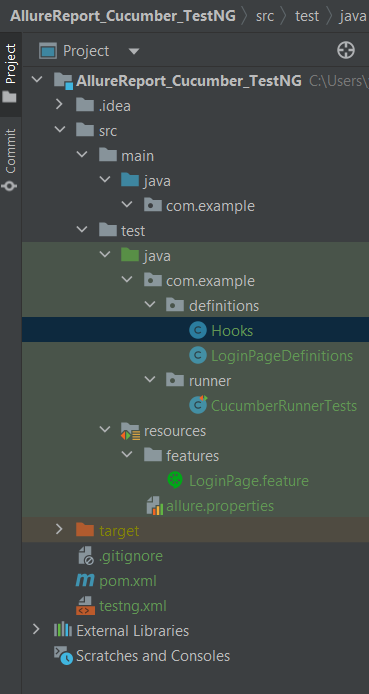
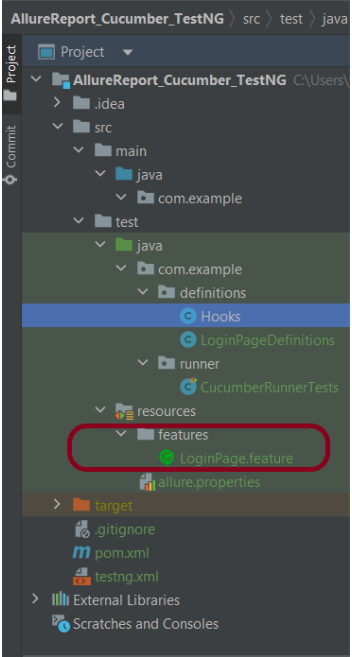
Create a folder – features within src/test/resources to create test scenarios in the Feature file.
Feature file should be saved as an extension of .feature. Add the test scenarios in this feature file. I have added sample test scenarios. In this feature file. The test scenarios are written in Gherkinslanguage.
Feature: Login to HRM Application
Background:
Given User is on HRMLogin page "https://opensource-demo.orangehrmlive.com/"
@ValidCredentials
Scenario: Login with valid credentials
When User enters username as "Admin" and password as "admin123"
Then User should be able to login successfully and new page open
@InvalidCredentials
Scenario Outline: Login with invalid credentials
When User enters username as "<username>" and password as "<password>"
Then User should be able to see error message "<errorMessage>"
Examples:
| username | password | errorMessage |
| Admin | admin12$$ | Invalid credentials |
| admin$$ | admin123 | Invalid credentials |
| abc123 | xyz$$ | Invalid credentials |
| 234 | xyz$$ | Invalid credentials! |
Step 5 – Create the Step Definition class or Glue Code
The stepdefinition class is created in src/test/java directory.
Below is the code for the Hooks.
package com.example.definitions;
import io.cucumber.java.After;
import io.cucumber.java.Before;
import io.cucumber.java.Scenario;
import org.openqa.selenium.OutputType;
import org.openqa.selenium.TakesScreenshot;
import org.openqa.selenium.WebDriver;
import org.openqa.selenium.chrome.ChromeDriver;
import org.openqa.selenium.chrome.ChromeOptions;
import java.time.Duration;
public class Hooks {
protected static WebDriver driver;
public final static int TIMEOUT = 5;
@Before
public void setUp() {
ChromeOptions options = new ChromeOptions();
options.addArguments("--start-maximized");
driver = new ChromeDriver(options);
driver.manage().timeouts().implicitlyWait(Duration.ofSeconds(TIMEOUT));
}
@After
public void tearDown(Scenario scenario) {
try {
String screenshotName = scenario.getName();
if (scenario.isFailed()) {
TakesScreenshot ts = (TakesScreenshot) driver;
byte[] screenshot = ts.getScreenshotAs(OutputType.BYTES);
scenario.attach(screenshot, "img/png", screenshotName);
}
} catch (Exception e) {
e.printStackTrace();
}
driver.quit();
}
}
LoginPageDefinition
package com.example.definitions;
import io.cucumber.java.en.Given;
import io.cucumber.java.en.Then;
import io.cucumber.java.en.When;
import org.openqa.selenium.By;
import org.testng.Assert;
public class LoginPageDefinitions {
Hooks hooks;
@Given("User is on HRMLogin page {string}")
public void loginTest(String url) {
hooks.driver.get(url);
}
@When("User enters username as {string} and password as {string}")
public void goToHomePage(String userName, String passWord) {
// login to application
hooks.driver.findElement(By.name("username")).sendKeys(userName);
hooks.driver.findElement(By.name("password")).sendKeys(passWord);
hooks.driver.findElement(By.xpath("//*[@class='oxd-form']/div[3]/button")).submit();
// go the next page
}
@Then("User should be able to login successfully and new page open")
public void verifyLogin() {
String homePageHeading = hooks.driver.findElement(By.xpath("//*[@class='oxd-topbar-header-breadcrumb']/h6")).getText();
//Verify new page - HomePage
Assert.assertEquals(homePageHeading,"Dashboard");
}
@Then("User should be able to see error message {string}")
public void verifyErrorMessage(String expectedErrorMessage) {
String actualErrorMessage = hooks.driver.findElement(By.xpath("//*[@class='orangehrm-login-error']/div[1]/div[1]/p")).getText();
// Verify Error Message
Assert.assertEquals(actualErrorMessage, expectedErrorMessage);
}
}
Step 6 – Create a TestNG Cucumber Runner class
We need to create a class called Runner class to run the tests. This class will use the TestNG annotation @Test, which tells TestNG what is the test runner class.
package com.example.runner;
import org.testng.annotations.Test;
import io.cucumber.testng.AbstractTestNGCucumberTests;
import io.cucumber.testng.CucumberOptions;
@Test
@CucumberOptions(tags = "", features = {"src/test/resources/features"}, glue = {"com.example.definitions"},
plugin = {"pretty","io.qameta.allure.cucumber7jvm.AllureCucumber7Jvm"})
public class CucumberRunnerTests extends AbstractTestNGCucumberTests{
}
Note:- @Test annotation marks this class as part of the test. So, if we will remove this annotation, the Allure Report executesCucumberRunnerTests as a separate test suite, so there will be duplicate results.
Step 7 – Create testng.xml for the project
<?xml version = "1.0"encoding = "UTF-8"?>
<!DOCTYPE suite SYSTEM "http://testng.org/testng-1.0.dtd">
<suite name = "Suite1">
<test name = "Test Demo">
<classes>
<class name = "com.example.runner.CucumberRunnerTests"/>
</classes>
</test>
</suite>
Step 8 – Run the Test and Generate Allure Report
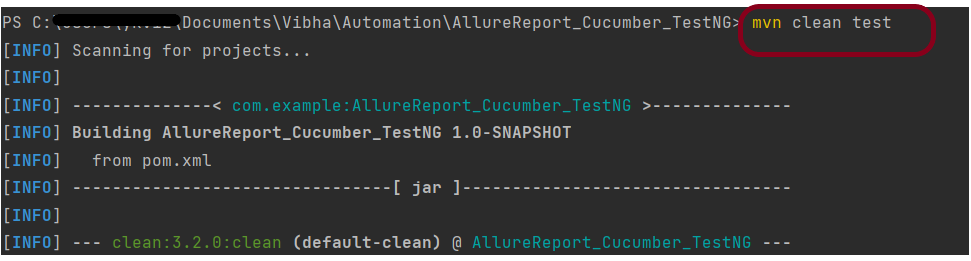
To run the tests, use the below command
mvn clean test
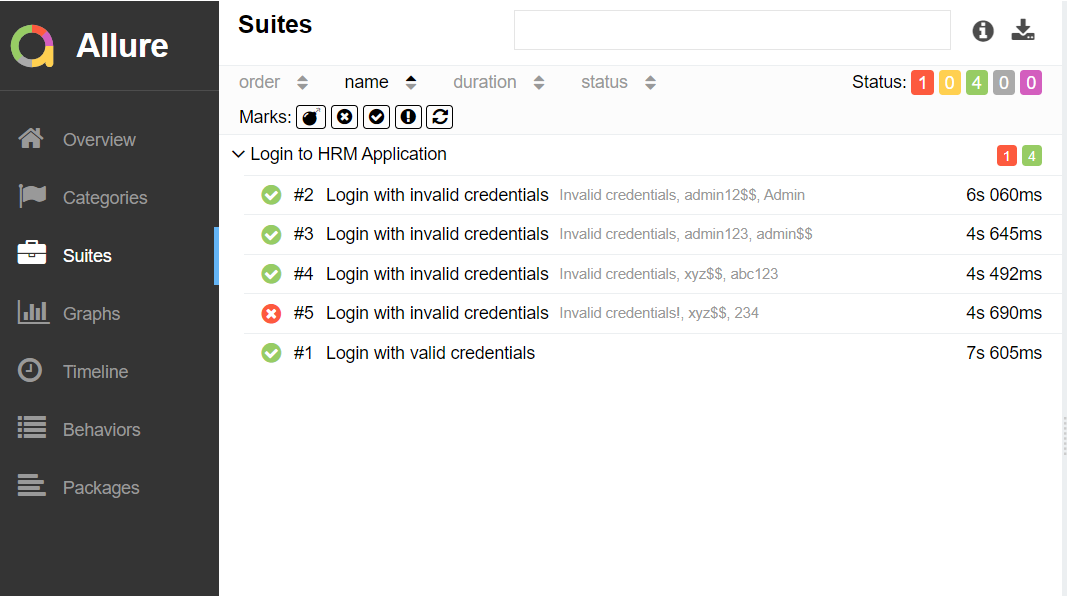
In the below image, we can see that one test failed and four passed out of five tests.
This will create the allure-results folder with all the test reports within target folder. These files will be used to generate Allure Report.
Use the below command to generate the Allure Report
allure serve
This will generate the beautiful Allure Test Report as shown below.
Allure Report Dashboard
Categories in Allure Report
The categories tab gives you a way to create custom defect classifications to apply for test results. There are two categories of defects – Product Defects (failed tests) and Test Defects (broken tests).
Suites in Allure Report
On the Suites tab a standard structural representation of executed tests, grouped by suites and classes can be found. Here, we have 2 suits – Feature and Surefire test. Surefire tests are executed from CucumberRunnerTests.
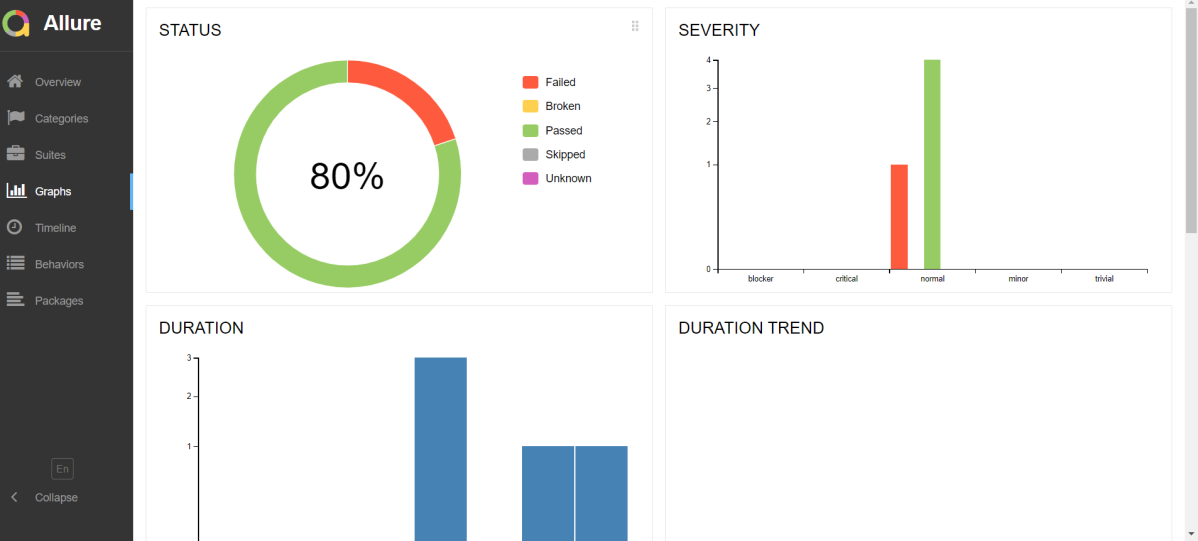
Graphs in Allure Report
Graphs allow you to see different statistics collected from the test data: status breakdown or severity and duration diagrams.
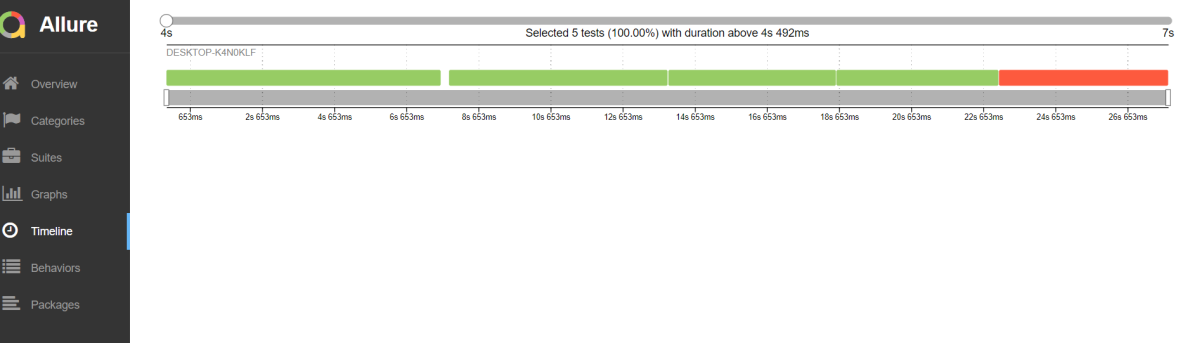
Timeline in Allure Report
The timeline tab visualizes retrospective test execution, allure adaptors collect precise timings of tests, and here on this tab, they are arranged accordingly to their sequential or parallel timing structure.
Behaviours of Allure Report
This tab groups test results according to Epic, Feature, and Story tags.
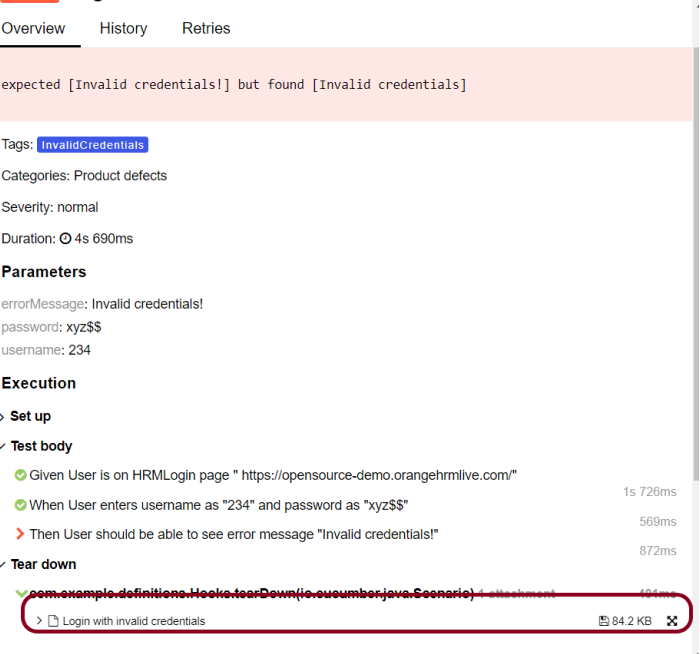
Screenshot attached to the failed test case
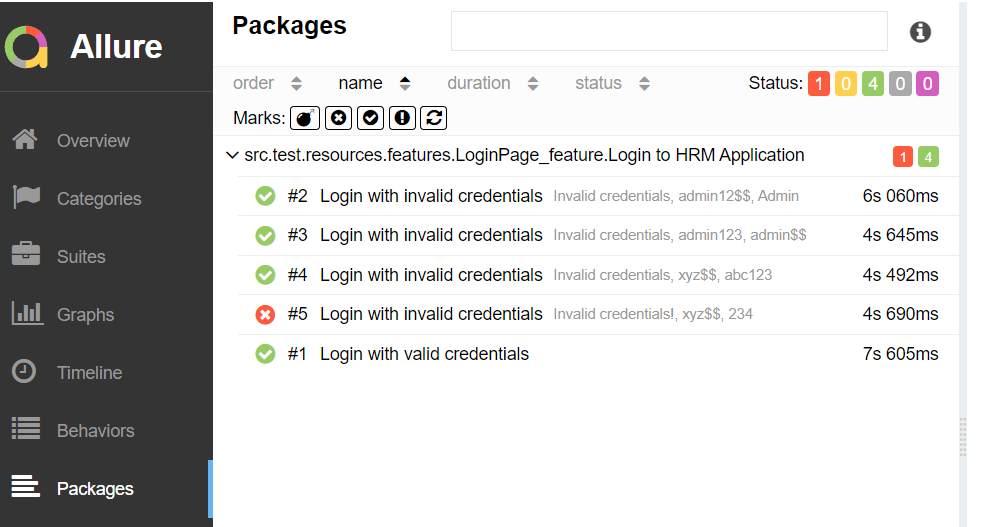
Packages in Allure Report
The packages tab represents a tree-like layout of test results, grouped by different packages.
When we don’t use @Test in CucumberRunnerTests.java, then as mentioned above the Allure report will have duplicate details.
Congratulations!! We have integrated an allure report with Cucumber, Selenium, and TestNG. I hope this tutorial is useful to you.
TestNG was developed by a famous programmer named “Cedric Beust”. It is distributed under Apache Software License and is easily available to download. TestNG requires JDK 7 or higher. TestNG is a testing framework inspired by JUnit and NUnit, but introduces some new functionalities that make it more powerful and easier to use.
Jenkins is a self-contained, open-source automation server that can be used to automate all sorts of tasks related to building, testing, and delivering or deploying software.
Jenkins can be installed through native system packages, Docker, or even run standalone by any machine with a Java Runtime Environment (JRE) installed.
Cucumber is a BDD Tool, and Selenium WebDriver is used for the automation of web applications. Imagine we need to build a test framework. This framework can be used by businesses to understand the test scenarios. It can also test the web application. This can be achieved by integrating Cucumber with Selenium. I’m going to use TestNG as the Test Automation tool for assertions. In the previous tutorial, I used Cucumber with Page Object Model. To know more about this, please refer to this tutorial – Page Object Model with Selenium, Cucumber, and TestNG.
In this tutorial, I’ll create a BDD Framework for the testing of web applications. I will use Cucumber, Selenium WebDriver, Maven and TestNG.
Cucumber and Selenium need Java to be installed on the system to run the tests. Click here to know How to install Java.
Step 2 – Download and setup Eclipse IDE on the system
The Eclipse IDE (integrated development environment) provides strong support for Java developers, which is needed to write Java code. Click here to know How to install Eclipse.
Step 3 – Setup Maven
To build a test framework, we need to add a number of dependencies to the project. It is a very tedious and cumbersome process to add each dependency manually. So, to overcome this problem, we use a build management tool. Maven is a build management tool that is used to define project structure, dependencies, build, and test management. Click here to know How to install Maven.
The Cucumber Eclipse plugin is a plugin that allows eclipse to understand the Gherkin syntax. The Cucumber Eclipse Plugin highlights the keywords present in Feature File. Click here to know more – How to install Cucumber Eclipse Plugin
Group Id – com.example Artifact Id – Cucumber_TestNG_Demo Version – 0.0.1-SNAPSHOT Package – com. example. Cucumber_TestNG_Demo
Step 7 – Create source folder src/test/resources to create test scenarios in Feature file
When a new Maven Project is created, it has 2 folders – src/main/java and src/test/java as shown below image. To create test scenarios, we need a new source folder called – src/test/resources. To create this folder, right-click on your maven project ->select New ->Java, and then Source Folder.
Step 8 – Add Selenium, TestNG, and Cucumber dependencies to the project
Add the below-mentioned Selenium, TestNG, and Cucumber dependencies to the project.
Step 9 – Add Maven Compiler Plugin and SureFire Plugin
The compiler plugin is used to compile the source code of a Maven project. This plugin has two goals, which are already bound to specific phases of the default lifecycle:
If you don’t add a compiler plugin to the POM.xml, the build will fail. This happens when you try to run the tests through Maven. Then the build will fail with the below message.
Step 10 – Create a feature file under src/test/resources/features
It is recommended to create a features folder in the src/test/resources directory. Create all the feature files in this features folder. Feature file should be saved as an extension of .feature. The test scenarios in the Feature file are written in Gherkins language. Add the test scenarios in this feature file. I have added sample test scenarios.
Feature: Login to HRM Application
Background:
Given User is on HRMLogin page "https://opensource-demo.orangehrmlive.com/"
@ValidCredentials
Scenario: Login with valid credentials
When User enters username as "Admin" and password as "admin123"
Then User should be able to login sucessfully and new page open
@InvalidCredentials
Scenario Outline: Login with invalid credentials
When User enters username as "<username>" and password as "<password>"
Then User should be able to see error message "<errorMessage>"
Examples:
| username | password | errorMessage |
| Admin | admin12$$ | Invalid credentials |
| admin$$ | admin123 | Invalid credentials |
| abc123 | xyz$$ | Invalid credentials |
Step 11 – Create the step definition class in src/test/java
Create the step definition class corresponding to the feature file to test the scenarios in the src/test/java directory. The StepDefinition files should be created in this definitionsdirectory within the folder called definitions.
Below is the step definition of the LoginPage feature file.
package com.example.definitions;
import io.cucumber.java.After;
import io.cucumber.java.Before;
import io.cucumber.java.en.Given;
import io.cucumber.java.en.Then;
import io.cucumber.java.en.When;
import io.github.bonigarcia.wdm.WebDriverManager;
import org.openqa.selenium.By;
import org.openqa.selenium.WebDriver;
import org.openqa.selenium.chrome.ChromeDriver;
import org.openqa.selenium.chrome.ChromeOptions;
import org.testng.Assert;
import java.time.Duration;
public class LoginPageDefinitions {
private static WebDriver driver;
public final static int TIMEOUT = 5;
@Before
public void setUp() {
ChromeOptions options = new ChromeOptions();
options.addArguments("--start-maximized");
driver = new ChromeDriver(options);
driver.manage().timeouts().implicitlyWait(Duration.ofSeconds(TIMEOUT));
}
@Given("User is on HRMLogin page {string}")
public void loginTest(String url) {
driver.get(url);
}
@When("User enters username as {string} and password as {string}")
public void goToHomePage(String userName, String passWord) {
// login to application
driver.findElement(By.name("username")).sendKeys(userName);
driver.findElement(By.name("password")).sendKeys(passWord);
driver.findElement(By.xpath("//*[@class='oxd-form']/div[3]/button")).submit();
}
@Then("User should be able to login successfully and new page open")
public void verifyLogin() {
String homePageHeading = driver.findElement(By.xpath("//*[@class='oxd-topbar-header-breadcrumb']/h6")).getText();
//Verify new page - HomePage
Assert.assertEquals(homePageHeading, "Dashboard");
}
@Then("User should be able to see error message {string}")
public void verifyErrorMessage(String expectedErrorMessage) {
String actualErrorMessage = driver.findElement(By.xpath("//*[@class='orangehrm-login-error']/div[1]/div[1]/p")).getText();
// Verify Error Message
Assert.assertEquals(actualErrorMessage, expectedErrorMessage);
}
@After
public void teardown() {
driver.quit();
}
}
assertThat() and containsString are imported from package:-
Step 12 – Create a TestNG Cucumber Runner classin src/test/java
We need to create a class called Runner class to run the tests. This class will use the TestNG annotation @RunWith(), which tells TestNG what is the test runner class. TestRunner should be created under src/test/java within the folder called runner.
Below is the code for the Cucumber Runner Class.
import io.cucumber.testng.AbstractTestNGCucumberTests;
import io.cucumber.testng.CucumberOptions;
@CucumberOptions(tags = "", features = {"src/test/resources/features/LoginPage.feature"}, glue = {"com.example.definitions"},
plugin = {})
public class CucumberRunnerTests extends AbstractTestNGCucumberTests {
}
AbstractTestNGCucumberTests – Runs each cucumber scenario found in the features as a separate test.
Step 13 – Test Execution through TestNG
Go to the Runner class and right-click “Run As TestNG Test”. The tests will run as TestNG tests. This is for Eclipse.
In case you are using IntelliJ, then select “Run CucumberRunner Tests“.
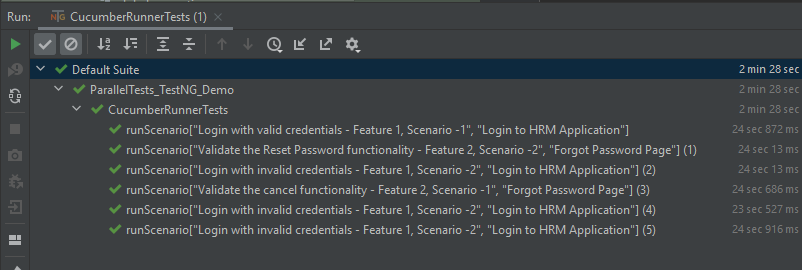
This is what the execution console will look like in Eclipse.
Step 14 – Run the tests from TestNG.xml
Create a TestNG.xml as shown below and run the tests as TestNG.
Below is an example of testng.xml.
<?xml version="1.0" encoding="UTF-8"?>
<!DOCTYPE suite SYSTEM "https://testng.org/testng-1.0.dtd">
<suite name="Suite">
<test name="Cucumber with TestNG Test">
<classes>
<class name="com.example.runner.CucumberRunnerTests"/>
</classes>
</test> <!-- Test -->
</suite> <!-- Suite -->
Step 15 – Run the tests from the Command Line
Run the below command in the command prompt to run the tests and to get the test execution report.
mvn clean test
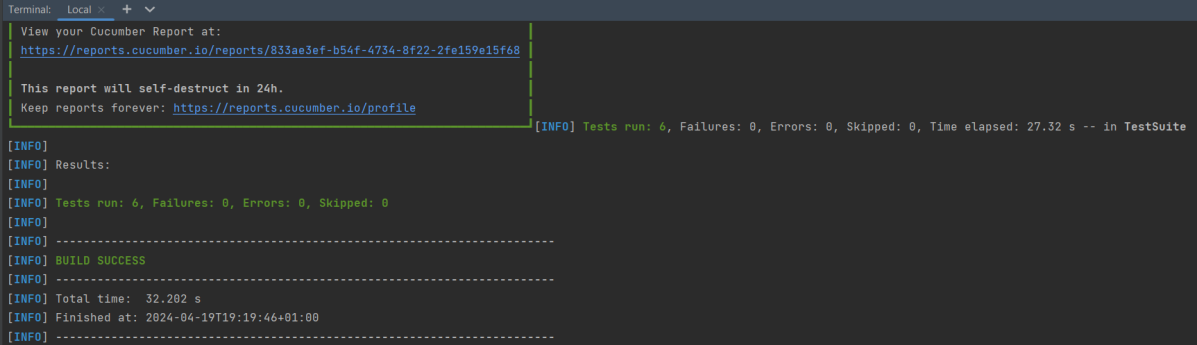
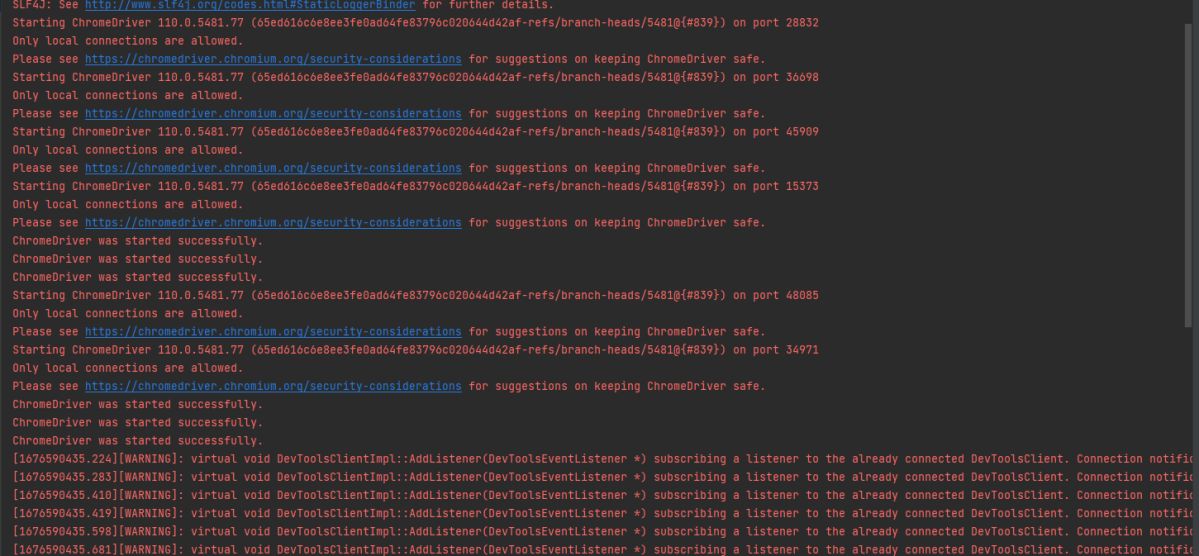
The execution screen looks like something as shown below.
Step 16 – Cucumber Report Generation
Add cucumber.properties under src/test/resources and add the below instructions in the file.
cucumber.publish.enabled=true
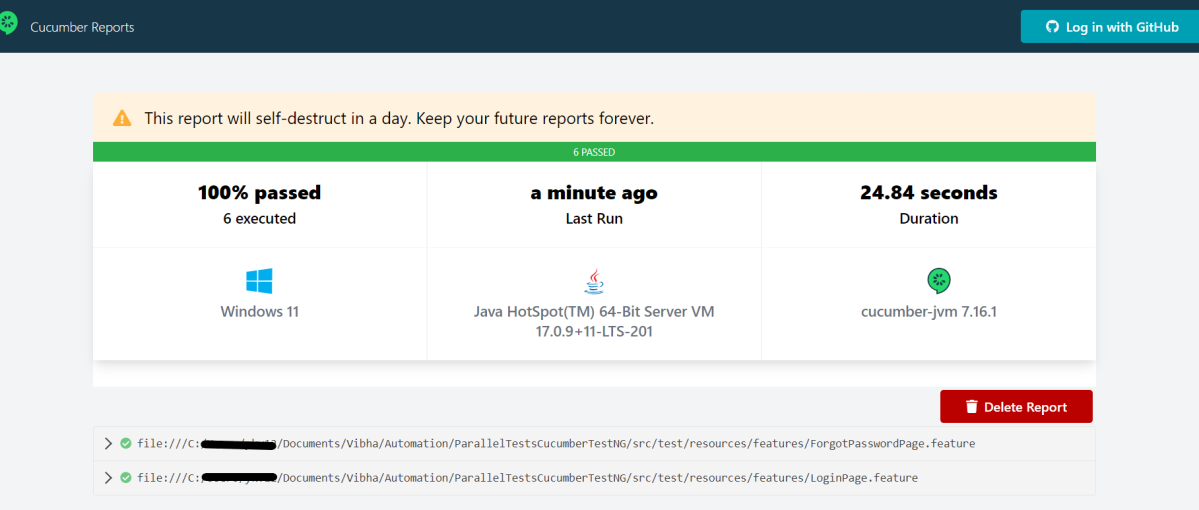
Below is the image of the Cucumber Report generated using the Cucumber Service.
Step 17 – TestNG Report Generation
TestNG generates various types of reports under the test-output or target folder like emailable-report.html, index.html, testng-results.xml.
We are interested in the ‘emailable-report.html’ report. Open “emailable-report.html“, as this is an HTML report, and open it with the browser. The below image shows emailable-report.html.
emailable-report.html
Index.html
TestNG also produces “index.html” report, and it resides under the test-output folder. The below image shows the index.html report.
CI/CD Integration:
Integrating BDD tests with Continuous Integration and Continuous Deployment (CICD) pipelines helps automate the testing process. Tools like Jenkins, GitLab CI, or GitHub Actions can be configured easily. They run BDD tests automatically during the build process. Here’s how:
Configure the CICD Pipeline:Set up the pipeline to build the project, run tests, and create reports.
Run Tests: Ensure the pipeline runs your BDD tests using Maven or Gradle.
Publish Reports: Configure the pipeline to show test results, so you can easily see if there are any issues.
Troubleshooting Tips:
1. Maven Dependencies Not Resolved: The dependencies for Cucumber, Selenium, or TestNG are not resolving in your project. Make sure your pom.xml is correctly configured and the Maven repository has the latest dependencies. Run mvn clean install to force update dependencies. Also, check if you have internet access and the correct settings in your Maven configuration.
2. TestNG XML File Setup: TestNG tests are not running as expected, or the test results are incorrect. Double-check your `testng.xml` configuration to ensure that the correct test classes, packages, or methods are included. Make sure annotations like `@Test` are correctly used in your test classes.
3. Cucumber Features Not Recognized: Cucumber feature files aren’t recognized by your test runner. Verify your `CucumberOptions` in the test runner class points to the correct `features` path and `glue` path for step definitions. Make sure your feature files have the correct `.feature` extension and contain valid Gherkin syntax.
Assertions in TestNG are a way to verify that the expected result and the actual result match not in the test case. A test is considered successful ONLY if it is completed without throwing any exceptions. An example of assertion can be logging into the website, checking the title of the webpage, verifying the functionality of an input box that takes only integers, etc.
If the project is a Maven project, then please add the latest TestNG dependency in the pom.xml.
Hard Assertion throws AssertionError immediately when an Assert Condition fails and moves to the next @Test method
Suppose, there are 2 assertions in a Test and the first assertion fails, then HardAssertion does not execute the second Assertion Condition and declares the test as failed
As you can see in the below example, there are 2 assert conditions under Test – AssertionFailure(). As the first Assert Condition fails, it moved directly to the second test without executing another Assert Condition.
package org.example;
import org.openqa.selenium.By;
import org.openqa.selenium.WebDriver;
import org.openqa.selenium.firefox.FirefoxDriver;
import org.openqa.selenium.firefox.FirefoxOptions;
import org.testng.Assert;
import org.testng.annotations.Test;
public class HardAssertionDemo {
@Test
public void AssertionFailure() {
FirefoxOptions firefoxOptions = new FirefoxOptions();
WebDriver driver = new FirefoxDriver(firefoxOptions);
driver.get("https://duckduckgo.com/");
String expectedTitle = "DuckDuckGo";
String actualTitle = driver.getTitle();
String actualText1 = driver.findElement(By.xpath("//*[@class='homepage-cta-section_title__Lovig heading_heading2__oEFPn heading_heading__IiMSV']")).getText();
/* Hard Assert */
System.out.println("Verify Title :" + actualTitle);
Assert.assertEquals(actualTitle, expectedTitle, "Incorrect page title");
System.out.println("Verify Text :" + actualText1);
Assert.assertEquals(actualText1, "Privacy Protection For Any Device");
driver.quit();
}
@Test
public void print() {
System.out.println("Hard Assertion is displayed");
}
}
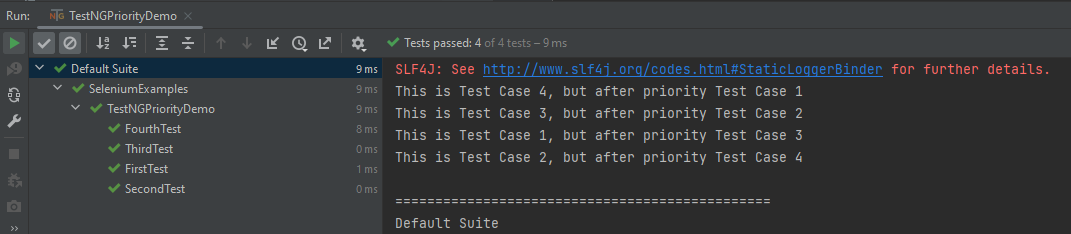
The output of the above program is
What is Soft Assert?
To overcome the above-mentioned problem, there is another type of assertion called Soft Assert.
Soft Assert does not throw an exception when an Assert Condition fails, and continues with the next step after the Assert Condition.
Soft assert does not include by default in TestNG. For this, you need to include the below package :
org.testng.asserts.SoftAssert;
The first step is to create an instance of SoftAssert class.
SoftAssert softAssertion = new SoftAssert();
After this, we can use this softAssert variable instead of hard assert.
Create an object of SoftAssertion to run Assert Conditions
Below is an example of a Soft Assert.
package org.example;
import org.openqa.selenium.By;
import org.openqa.selenium.WebDriver;
import org.openqa.selenium.firefox.FirefoxDriver;
import org.openqa.selenium.firefox.FirefoxOptions;
import org.testng.annotations.Test;
import org.testng.asserts.SoftAssert;
public class SoftAssertionDemo {
@Test
public void assertionFailure() {
SoftAssert softAssertion = new SoftAssert();
FirefoxOptions firefoxOptions = new FirefoxOptions();
WebDriver driver = new FirefoxDriver(firefoxOptions);
driver.manage().window().maximize();
driver.get("https://duckduckgo.com/");
String expectedTitle = "DuckDuckGo";
String actualTitle = driver.getTitle();
String actualText1 = driver.findElement(By.xpath("//*[@class='homepage-cta-section_title__Lovig heading_heading2__oEFPn heading_heading__IiMSV']")).getText();
/* Soft Assert */
System.out.println("Verify Title :" + actualTitle);
softAssertion.assertEquals(actualTitle, expectedTitle, "Incorrect page title");
System.out.println("Verify Text :" + actualText1);
softAssertion.assertEquals(actualText1, "Privacy Protection For Any Device");
driver.quit();
}
@Test
public void print() {
System.out.println("Soft Assertion is displayed");
}
}
The output of the above program is
AssertAll
If there is any exception, and you want to throw it, then you need to use assertAll() method as a last statement in the @Test and test suite again to continue with the next @Test as it is.
package org.example;
import org.openqa.selenium.By;
import org.openqa.selenium.WebDriver;
import org.openqa.selenium.firefox.FirefoxDriver;
import org.openqa.selenium.firefox.FirefoxOptions;
import org.testng.annotations.Test;
import org.testng.asserts.SoftAssert;
public class AssertAllDemo {
@Test
public void assertionFailure() {
SoftAssert softAssertion = new SoftAssert();
FirefoxOptions firefoxOptions = new FirefoxOptions();
WebDriver driver = new FirefoxDriver(firefoxOptions);
driver.manage().window().maximize();
driver.get("https://duckduckgo.com/");
String expectedTitle = "DuckDuckGo";
String actualTitle = driver.getTitle();
String actualText1 = driver.findElement(By.xpath("//*[@class='homepage-cta-section_title__Lovig heading_heading2__oEFPn heading_heading__IiMSV']")).getText();
/* AssertAll */
System.out.println("Verify Title :" + actualTitle);
softAssertion.assertEquals(actualTitle, expectedTitle, "Incorrect page title");
System.out.println("Verify Text :" + actualText1);
softAssertion.assertEquals(actualText1, "Privacy Protection For Any Device");
softAssertion.assertAll();
driver.quit();
}
@Test
public void print() {
System.out.println("Soft Assertion is displayed");
}
}
The output of the above program is
In the above program, we can see that both assertions of Test – assertionFailure are executed, but as the first assertion has failed, the test – assertionFailure is marked as failed.
Congratulations on making it through this tutorial and hope you found it useful! Happy Learning!! Cheers!!
InnvocationCount is one of the feature available in TestNG. InvocationCount is used when we want to run the same test multiple times. If we want to run single @Test 10 times at a single thread, then invocationCount can be used. To invoke a method multiple times, the below syntax is used.
@Test(invocationCount = 3)
In this example, the @Test method will execute for 3 times each on a single thread.
In this tutorial, we will illustrate how to get the current invocation count.
Step 1 − Create a TestNG class, InvocationCount_Demo.
Step 2− Write two @Test methods in the class InvocationCount_Demo as shown in the programming code section below. Add invocationCount=3 to method verifyTitle and 2 to validLoginTest.
Step 3 − Create the testNG.xml as given below to run the TestNG classes.
Step 4− Now, run the testNG.xml or directly TestNG class in IDE or compile and run it using command line.
Step 5 − In the output, the user can see a total of 1 thread running sequentially for all invocations of @Test.
import org.openqa.selenium.By;
import org.openqa.selenium.WebDriver;
import org.openqa.selenium.firefox.FirefoxDriver;
import org.openqa.selenium.firefox.FirefoxOptions;
import org.testng.Assert;
import org.testng.annotations.AfterMethod;
import org.testng.annotations.BeforeMethod;
import org.testng.annotations.Test;
import java.time.Duration;
public class InvocationCount_Demo {
WebDriver driver;
@BeforeMethod
public void setup() throws Exception {
FirefoxOptions options = new FirefoxOptions();
driver = new FirefoxDriver(options);
driver.get("https://opensource-demo.orangehrmlive.com/");
driver.manage().timeouts().implicitlyWait(Duration.ofSeconds(10));
driver.manage().window().maximize();
}
@Test(invocationCount = 3)
public void verifyTitle() {
System.out.println("Test Case 1 with Thread Id - " + Thread.currentThread().getId());
String expectedTitle = driver.findElement(By.xpath("//*[@class='oxd-text oxd-text--h5 orangehrm-login-title']")).getText();
Assert.assertEquals(expectedTitle,"Login");
}
@Test(invocationCount = 2)
public void validLoginTest() throws InterruptedException {
System.out.println("Test Case 2 with Thread Id - "+Thread.currentThread().getId());
driver.findElement(By.name("username")).sendKeys("Admin");
driver.findElement(By.name("password")).sendKeys("admin123");
driver.findElement(By.xpath("//*[@class='oxd-form-actions orangehrm-login-action']/button")).click();
String expectedTitle = driver.findElement(By.xpath("//*[@class='oxd-topbar-header-breadcrumb']/h6")).getText();
Assert.assertTrue(expectedTitle.contains("Dashboard"));
}
@AfterMethod
public void closeBrowser() {
driver.quit();
}
}
testng.xml
This is a configuration file that is used to organize and run the TestNG test cases. It is very handy when limited tests are needed to execute rather than the full suite.
<?xml version="1.0" encoding="UTF-8"?>
<!DOCTYPE suite SYSTEM "https://testng.org/testng-1.0.dtd">
<suite name="Suite">
<test name="Invocation Test">
<classes>
<class name="com.example.InvocationCount_Demo"/>
</classes>
</test> <!-- Test -->
</suite> <!-- Suite -->
The output of the above program is
We can add threadPoolSize to the @Test.
threadPoolSize – It defines the size of the thread pool for any method. The method will be invoked from multiple threads, as specified by invocationCount.
@Test(invocationCount = 3, threadPoolSize)
Congratulations on making it through this tutorial and hope you found it useful! Happy Learning!! Cheers!!
The previous tutorial explained the steps to generate ExtentReports Version for Cucumber6 with TestNG. This tutorial explains the steps needed to be followed to generate an ExtentReports Version5 for Cucumber 7.
To add attachments, like screen images, two settings need to be added to the extent.properties. Firstly property, named screenshot.dir, is the directory where the attachments are stored. Secondly is screenshot.rel.path, which is the relative path from the report file to the screenshot directory.
The PDF reporter summarizes the test run results in a dashboardand other sections with feature, scenario, and, step details. The PDF report needs to be enabled in the extent.properties file.
The original HTML Extent Reporter was deprecated in 4.1.3 and removed in 5.0.0. The HTML report available in the adapter is based on the same code base and is similar in appearance. The major changes are in the Freemarker template code which has been modified to work with the Extent Reports version 5. The HTML report needs to be enabled in the extent.properties file.
To enable the report folder name with date and\or time details, two settings need to be added to the extent.properties. These are basefolder.nameandbasefolder.datetimepattern. These will be merged to create the base folder name, inside which the reports will be generated.
This feature can be used to attach images to the Spark report by setting the src attribute of the img tag to a Base64 encoded string of the image. When this feature is used, no physical file is created. There is no need to modify any step definition code to use this. To enable this, use the below settings in extent.properties, which is false by default.
extent.reporter.spark.base64imagesrc=true
Environment or System Info Properties
It is now possible to add environment or system info properties in the extent.properties or pass them in the maven command line.
#System Info
systeminfo.os=windows
systeminfo.version=10
Step 2: Create a feature file in src/test/resources
Below is a sample feature file. I have also added a failed scenario in @FaceBookLink.
Background:
Given User is on HRMLogin page "https://opensource-demo.orangehrmlive.com/"
@ValidCredentials
Scenario: Login with valid credentials
When User enters username as "Admin" and password as "admin123"
Then User should be able to login successfully and new page open
@InvalidCredentials
Scenario Outline: Login with invalid credentials
When User enters username as "<username>" and password as "<password>"
Then User should be able to see error message "<errorMessage>"
Examples:
| username | password | errorMessage |
| Admin | admin12$$ | Invalid credentials |
| admin$$ | admin123 | Invalid credentials |
| abc123 | xyz$$ | Invalid credentials |
@MissingUsername
Scenario Outline: Login with blank username
When User enters username as " " and password as "admin123"
Then User should be able to see a message "Required" below Username
@FaceBookLink @FailedTest
Scenario: Verify FaceBook Icon on Login Page
Then User should be able to see FaceBook Icon
@LinkedInLink
Scenario: Verify LinkedIn Icon on Login Page
Then User should be able to see LinkedIn Icon
@ForgetPasswordLink
Scenario: Verify ForgetPassword link on Login Page
When User clicks on Forgot your Password Link
Then User should navigate to a new page
Step 3: Create extent.properties file in src/test/resources
We need to create the extent.properties file in the src/test/resources folder for the grasshopper extent report adapter to recognize it. Using a property file for reporting is quite helpful if you want to define several different properties.
We have used the Page Object Model with Cucumber and TestNG. Create a Helper class where we are initializing the web driver, initializing the web driver wait, defining the timeouts, and creating a private constructor of the class, it will declare the web driver, so whenever we create an object of this class, a new web browser is invoked.
import java.time.Duration;
import org.openqa.selenium.WebDriver;
import org.openqa.selenium.chrome.ChromeDriver;
import org.openqa.selenium.support.ui.WebDriverWait;
import io.github.bonigarcia.wdm.WebDriverManager;
public class HelperClass {
private static HelperClass helperClass;
private static WebDriver driver;
private static WebDriverWait wait;
public final static int TIMEOUT = 10;
private HelperClass() {
ChromeOptions options = new ChromeOptions();
options.addArguments("--start-maximized");
driver = new ChromeDriver(options);
driver.manage().timeouts().implicitlyWait(Duration.ofSeconds(TIMEOUT));
}
public static void openPage(String url) {
driver.get(url);
}
public static WebDriver getDriver() {
return driver;
}
public static void setUpDriver() {
if (helperClass==null) {
helperClass = new HelperClass();
}
}
public static void tearDown() {
if(driver!=null) {
driver.close();
driver.quit();
}
helperClass = null;
}
}
Step 5: Create Locator classes in src/main/java
Create a locator class for each page that contains the details of the locators of all the web elements. Here, I’m creating 2 locator classes – LoginPageLocators and HomePageLocators.
LoginPageLocators
package com.example.locators;
import org.openqa.selenium.WebElement;
import org.openqa.selenium.support.FindBy;
public class LoginPageLocators {
@FindBy(name = "username")
public WebElement userName;
@FindBy(name = "password")
public WebElement password;
@FindBy(id = "logInPanelHeading")
public WebElement titleText;
@FindBy(xpath = "//*[@id='app']/div[1]/div/div[1]/div/div[2]/div[2]/form/div[1]/div/span")
public WebElement missingUsernameErrorMessage;
@FindBy(xpath = "//*[@id='app']/div[1]/div/div[1]/div/div[2]/div[2]/form/div[1]/div/span")
public WebElement missingPasswordErrorMessage;
@FindBy(xpath = "//*[@id='app']/div[1]/div/div[1]/div/div[2]/div[2]/form/div[3]/button")
public WebElement login;
@FindBy(xpath = "//*[@id='app']/div[1]/div/div[1]/div/div[2]/div[2]/div/div[1]/div[1]/p")
public WebElement errorMessage;
@FindBy(xpath = "//*[@href='https://www.linkedin.com/company/orangehrm/mycompany/']")
public WebElement linkedInIcon;
@FindBy(xpath = "//*[@href='https://www.facebook.com/OrangeHRM/mycompany']") //Invalid Xpath
public WebElement faceBookIcon;
@FindBy(xpath = "//*[@id='app']/div[1]/div/div[1]/div/div[2]/div[2]/form/div[4]/p")
public WebElement ForgotYourPasswordLink;
}
HomePageLocators
import org.openqa.selenium.WebElement;
import org.openqa.selenium.support.FindBy;
public class HomePageLocators {
@FindBy(xpath = "//*[@class='oxd-topbar-header-breadcrumb']/h6")
public WebElement homePageUserName;
}
ForgotPasswordLocators
package com.example.locators;
import org.openqa.selenium.WebElement;
import org.openqa.selenium.support.FindBy;
public class ForgotPasswordLocators {
@FindBy(xpath = "//*[@id='app']/div[1]/div[1]/div/form/h6")
public WebElement ForgotPasswordHeading;
}
Step 6: Create Action classes in src/main/java
Create the action classes for each web page. These action classes contain all the methods needed by the step definitions. In this case, I have created 2 action classes – LoginPageActions and HomePageActions.
LoginPageActions
In this class, the very first thing will do is to create the object of LoginPageLocators class so that we should be able to access all the PageFactory elements. Secondly, create a public constructor of LoginPageActions class
package com.example.actions;
import org.openqa.selenium.support.PageFactory;
import com.example.locators.LoginPageLocators;
import com.example.utils.HelperClass;
public class LoginPageActions {
LoginPageLocators loginPageLocators = null;
public LoginPageActions() {
this.loginPageLocators = new LoginPageLocators();
PageFactory.initElements(HelperClass.getDriver(),loginPageLocators);
}
// Set user name in textbox
public void setUserName(String strUserName) {
loginPageLocators.userName.sendKeys(strUserName);
}
// Set password in password textbox
public void setPassword(String strPassword) {
loginPageLocators.password.sendKeys(strPassword);
}
// Click on login button
public void clickLogin() {
loginPageLocators.login.click();
}
// Get the title of Login Page
public String getLoginTitle() {
return loginPageLocators.titleText.getText();
}
// Get the error message when username is blank
public String getMissingUsernameText() {
return loginPageLocators.missingUsernameErrorMessage.getText();
}
// Get the error message when password is blank
public String getMissingPasswordText() {
return loginPageLocators.missingPasswordErrorMessage.getText();
}
// Get the Error Message
public String getErrorMessage() {
return loginPageLocators.errorMessage.getText();
}
// LinkedIn Icon is displayed
public Boolean getLinkedInIcon() {
return loginPageLocators.linkedInIcon.isDisplayed();
}
// FaceBook Icon is displayed
public Boolean getFaceBookIcon() {
return loginPageLocators.faceBookIcon.isDisplayed();
}
// Click on Forget Your Password link
public void clickOnForgetYourPasswordLink() {
loginPageLocators.ForgotYourPasswordLink.click();
}
public void login(String strUserName, String strPassword) {
// Fill user name
this.setUserName(strUserName);
// Fill password
this.setPassword(strPassword);
// Click Login button
this.clickLogin();
}
}
HomePageActions
package com.example.actions;
import org.openqa.selenium.support.PageFactory;
import com.example.locators.HomePageLocators;
import com.example.utils.HelperClass;
public class HomePageActions {
HomePageLocators homePageLocators = null;
public HomePageActions() {
this.homePageLocators = new HomePageLocators();
PageFactory.initElements(HelperClass.getDriver(),homePageLocators);
}
// Get the User name from Home Page
public String getHomePageText() {
return homePageLocators.homePageUserName.getText();
}
}
ForgotPasswordActions
package com.example.actions;
import org.openqa.selenium.support.PageFactory;
import com.example.locators.ForgotPasswordLocators;
import com.example.utils.HelperClass;
public class ForgotPasswordActions {
ForgotPasswordLocators forgotPasswordLocators = null;
public ForgotPasswordActions() {
this.forgotPasswordLocators = new ForgotPasswordLocators();
PageFactory.initElements(HelperClass.getDriver(),forgotPasswordLocators);
}
// Get the Heading of Forgot Password page
public String getForgotPasswordPageText() {
return forgotPasswordLocators.ForgotPasswordHeading.getText();
}
}
Step 7: Create a Step Definition file in src/test/java
Create the corresponding Step Definition file of the feature file.
LoginPageDefinitions
package com.example.definitions;
import org.testng.Assert;
import com.example.actions.ForgotPasswordActions;
import com.example.actions.HomePageActions;
import com.example.actions.LoginPageActions;
import com.example.utils.HelperClass;
import io.cucumber.java.en.Given;
import io.cucumber.java.en.Then;
import io.cucumber.java.en.When;
public class LoginPageDefinitions {
LoginPageActions objLogin = new LoginPageActions();
HomePageActions objHomePage = new HomePageActions();
ForgotPasswordActions objForgotPasswordPage = new ForgotPasswordActions();
@Given("User is on HRMLogin page {string}")
public void loginTest(String url) {
HelperClass.openPage(url);
}
@When("User enters username as {string} and password as {string}")
public void goToHomePage(String userName, String passWord) {
// login to application
objLogin.login(userName, passWord);
// go the next page
}
@When("User clicks on Forgot your Password Link")
public void goToForgotYourPasswordPage() {
objLogin.clickOnForgetYourPasswordLink();
}
@Then("User should be able to login successfully and new page open")
public void verifyLogin() {
// Verify home page
Assert.assertTrue(objHomePage.getHomePageText().contains("Dashboard"));
}
@Then("User should be able to see error message {string}")
public void verifyErrorMessage(String expectedErrorMessage) {
// Verify home page
Assert.assertEquals(objLogin.getErrorMessage(),expectedErrorMessage);
}
@Then("User should be able to see a message {string} below Username")
public void verifyMissingUsernameMessage(String message) {
Assert.assertEquals(objLogin.getMissingUsernameText(),message);
}
@Then("User should be able to see LinkedIn Icon")
public void verifyLinkedInIcon( ) {
Assert.assertTrue(objLogin.getLinkedInIcon());
}
@Then("User should be able to see FaceBook Icon")
public void verifyFaceBookIcon( ) {
Assert.assertTrue(objLogin.getFaceBookIcon());
}
@Then("User should navigate to a new page")
public void verfiyForgetYourPasswordPage() {
Assert.assertEquals(objForgotPasswordPage.getForgotPasswordPageText(), "Reset Password");
}
}
Step 8: Create Hook class in src/test/java
Create the hook class that contains the Before and After hook. @Before hook contains the method to call the setup driver which will initialize the chrome driver. This will be run before any test.
import org.openqa.selenium.OutputType;
import org.openqa.selenium.TakesScreenshot;
import com.example.utils.HelperClass;
import io.cucumber.java.After;
import io.cucumber.java.Before;
import io.cucumber.java.Scenario;
public class Hooks {
@Before
public static void setUp() {
HelperClass.setUpDriver();
}
@After
public static void tearDown(Scenario scenario) {
//validate if scenario has failed
if(scenario.isFailed()) {
final byte[] screenshot = ((TakesScreenshot) HelperClass.getDriver()).getScreenshotAs(OutputType.BYTES);
scenario.attach(screenshot, "image/png", scenario.getName());
}
HelperClass.tearDown();
}
}
Step 9: Create a Cucumber Test Runner class in src/test/java
Add the extent report cucumber adapter to the runner class’s CucumberOption annotation.
The updated Cucumber Runner class looks like as shown below:
import io.cucumber.testng.AbstractTestNGCucumberTests;
import io.cucumber.testng.CucumberOptions;
@CucumberOptions(tags = "", features = "src/test/resources/features/LoginPage.feature", glue = "com.example.definitions",
plugin = {"com.aventstack.extentreports.cucumber.adapter.ExtentCucumberAdapter:"})
public class CucumberRunnerTests extends AbstractTestNGCucumberTests {
}
Step 10: Create the testng.xml for the project
Right-click on the project and select TestNG -> convert to TestNG.
<?xml version="1.0" encoding="UTF-8"?>
<!DOCTYPE suite SYSTEM "https://testng.org/testng-1.0.dtd">
<suite name="Suite">
<test name="ExtentReport5 for Cucumber7">
<classes>
<class name = "com.example.runner.CucumberRunnerTests"/>
</classes>
</test> <!-- Test -->
</suite> <!-- Suite -->
Step 11: Execute the code
Right-click on the Runner class and select Run As -> TestNG Test.
Below is the screenshot of the Console. As expected, 4 tests, out of 5 are passed and 1 failed.
Step 12: View ExtentReport
Refresh the project and will see a new folder – SparkReport_ which further contains 4 folders – HtmlReport, PdfReport, Reports, and Screenshots.
The ExtentReport will be present in the Reports folder with the name Spark.html. PDF Report is present in PdfReport folder and the HTML Report is present in HtmlReport folder. We can see that the Screenshots folder is empty because we have used the base64imagesrc feature which results in no physical screenshots. The screenshots are embedded in the reports.
Right-click and open the ExtentHtml.html report with Web Browser. The report also has a summary section that displays the summary of the execution. The summary includes the overview of the pass/fail using a pictogram, start time, end time, and pass/fail details of features as shown in the image below.
ExtentHtml.html
The failed test has a screenshot embedded in it. Double-click on mase64image and it will open the screenshot in full screen.
Screenshot of failed Test Case
PDF Report
Spark Report
Right-click and open the Spark.html report with Web Browser.
Congratulations on making it through this tutorial and hope you found it useful! Happy Learning!! Cheers!!
The previous tutorial explained the Integration of Cucumber with Selenium and TestNG. Sometimes, inconsistent test results are common as a result of an unstable environment like network issue or Database down and soon. A few tests may fail for no obvious reason and then rerun successfully. We are sometimes required to run only failed test cases after bug fixes to verify fixes quickly. We will learn how to rerun failed test cases in the Cucumber with TestNG project in this post.
Cucumber provides a rerun plugin option in the Runner class. This option generates a file. The file contains information about the failed tests.
Now, let us add a rerun plugin to the Cucumber Runner class. Here, we are creating a failedrerun.txt file that contains the information about the failed test. This file will be created under the target folder.
import io.cucumber.testng.AbstractTestNGCucumberTests;
import io.cucumber.testng.CucumberOptions;
@CucumberOptions(tags = "", features = "src/test/resources/features/LoginPage.feature",
glue = "com.example.definitions",
plugin = {
"pretty",
"rerun:target/rerun.txt" // Saves paths of failed scenarios
}
)
public class RunnerTests extends AbstractTestNGCucumberTests {
}
Create a Second Runner Class
The next step is to run failed test scenarios existing in the text file. We need to create a class similar to our runner class. This class will contain the location of the file that we want to execute. It will rerun our failed scenarios. In the ‘features’ variable, you need to mention the failedrerun.txt file, and don’t forget that you must mention the ‘@’ symbol before the file path.
import io.cucumber.testng.AbstractTestNGCucumberTests;
import io.cucumber.testng.CucumberOptions;
@CucumberOptions(tags = "",
features = "@target/rerun.txt",
glue = "com.example.definitions",
plugin = {
"pretty"
}
)
public class RunnerTestsFailed extends AbstractTestNGCucumberTests {
}
Mention both Test Runner details in the testng.xml.
<?xml version="1.0" encoding="UTF-8"?>
<!DOCTYPE suite SYSTEM "https://testng.org/testng-1.0.dtd">
<suite name="Suite">
<test name="Cucumber with TestNG Test">
<classes>
<class name="com.example.runner.RunnerTests"/>
<class name="com.example.runner.RunnerTestsFailed"/>
</classes>
</test> <!-- Test -->
</suite> <!-- Suite -->
Run the tests using the below-mentioned command
mvn clean test
After running the tests from the command line, first, all the tests will be executed. If any test fails, a failedrerun.txt file will be generated that includes the details about the failed tests.
In the below screenshot, we can see that a scenario starting at line 25 has failed.
The first round of execution ends. Then, Cucumber Runner goes to the second runner. It runs the failed tests that are mentioned in failedrerun.txt.
We can see that 2 separate reports are generated here.
The first Cucumber Report shows that out of 5 tests, 1 test failed.
The second Cucumber Report shows that the one failed test is rerun again, and it again failed.