Integration of Allure Report with Jenkins

Last Updated On

HOME

In this tutorial, we are going to learn how we can integrate Allure Report with Jenkins. This tutorial is using a Maven project.

Before proceeding, I strongly advise you to read this tutorial to learn How to Setup Allure Report with Selenium TestNG.

Table of Contents

  1. Implementation Steps
    1. Download Allure Jenkins Plugin
    2. Configure Allure
    3. Create a new Maven Jenkins job
      1. Create a new project using the Maven project plugin
      2. Build Management
      3. Select a custom workspace
      4. Select “Allure Reports” from “Post Build Actions”
      5. Execute the tests
      6. View the Allure Report

Implementation Steps

  1. Download the Allure Jenkins Plugin
  2. Configure Allure
  3. Create a new Maven Jenkins job

Download Allure Jenkins Plugin

To generate Allure Report in Jenkins, we need to download Allure Plugin. Please refer to this tutorial to install the plugin – How to install Plugins in Jenkins

Configure Allure

Go back to the Manage Jenkins link as shown below:

When we click on the “Manage Jenkins” link, we are redirected to the Manage Jenkins page, where we can see various types of options, including the “Global Tool Configuration” option.

We need to set the Allure Commandline in Jenkins as shown below.

Click on the Allure Command line installations button. By default, Install Automatically will be checked, so since we are going to use the Allure installed on our local machine, Install automatically will install the latest version of Allure.

Provide the Name as ALLURE_HOME because that is what is currently installed on my machine, and also provide the path of Allure in the ALLURE_HOME textbox.

Create a new Maven Jenkins job

Step 1: Create a new project using the Maven project plugin

  1. Give the Name of the projectAllureReportWithSelenium_Demo
  2. Click on the Maven project. 
  3. Click on the OK button.

In the General section, enter the project description in the Description box – This is demo of Allure Report in Jenkins.

Select Source Code Management as None if the project is locally present on the machine.

Step 2: Build Management

Go to the Build section of the new job.

  1. In the Root POM textbox, enter pom.xml
  2. In the Goals and options section, enter “clean test

Click on the Advanced button.

Step 3: Select a custom workspace

Mention the full path of the project in the directory.

Step 4: Select “Allure Reports” from “Post Build Actions”

Scroll down to ‘Post Build Actions’ and click on the ‘Add Post Build Actions’ drop-down list. Select “Allure Report“. 

Enter the Result Path as “allure-results” and click on the “Save” button.

Click on the Apply and Save buttons.

We have created a new Maven project AllureReportWithSelenium_Demo” with the configuration to run the Selenium with TestNG Tests and also to generate Allure Report after execution using Jenkins.

Step 5: Execute the tests

Let’s execute it now by clicking on the “Build Now” button. 

Right-click on Build Number (here in my case it is #1).

Click on Console Output to see the result.

Step 6: View the Allure Report

Once the execution is completed, we could see a link to view the ‘Allure Report’.

Click on the Allure Report. It displays the summary of the tests.

There is another way to create Allure Report in Jenkins, which is by using the Jenkins pipeline. To know more about this, please refer to this tutorial – How to create Jenkins pipeline for Allure Report.

Congratulations on making it through this tutorial and hope you found it useful! Happy Learning!! Cheers!!

Additional Tutorials

Integration Of Jenkins With Selenium WebDriver
How to install Maven Plugin in Jenkins
Integrate Gradle project with Jenkins
Jenkins GitLab Integration
How to generate HTML Reports in Jenkins
Integration of Cucumber Report with TestNG in Jenkins
Serenity with Jenkins

Integration of Allure Report with Rest Assured and TestNG

HOME

In the previous tutorial, I explained the Integration of the Allure Report with Rest Assured with JUnit4. In this tutorial, I will explain how to Integrate Allure Report with Rest Assured and TestNG.

The below example covers the implementation of Allure Report for Rest API using Rest Assured, TestNG, Java, and Maven.

Prerequisite

  1. Java 17 installed
  2. Maven installed
  3. Eclipse or IntelliJ installed
  4. Allure installed

Dependency List:

  1. Java 17
  2. Maven – 3.9.6
  3. Allure Report – 2.14.0
  4. Allure Rest Assured – 2.25.0
  5. Allure TestNG – 2.25.0
  6. Aspectj – 1.9.21
  7. Json – 20231013
  8. Maven Compiler Plugin – 3.12.1
  9. Maven Surefire Plugin – 3.2.3

Implementation Steps

Step 1 – Update Properties section in Maven pom.xml

<properties>
        <hamcrest.version>1.3</hamcrest.version>
        <allure.rest.assured.version>2.25.0</allure.rest.assured.version>
        <json.version>20231013</json.version>
        <maven.compiler.plugin.version>3.12.1</maven.compiler.plugin.version>
        <maven.compiler.source>17</maven.compiler.source>
        <maven.compiler.target>17</maven.compiler.target>
        <aspectj.version>1.9.21</aspectj.version>
        <maven.surefire.plugin.version>3.2.3</maven.surefire.plugin.version>
        <allure.maven.version>2.12.0</allure.maven.version>
        <allure.testng.version>2.25.0</allure.testng.version>
        <project.build.sourceEncoding>UTF-8</project.build.sourceEncoding>
 </properties>

Step 2 – Add the Allure-Rest Assured dependency

 <!--Allure Reporting Dependency-->   
   <dependency>
      <groupId>io.qameta.allure</groupId>
      <artifactId>allure-rest-assured</artifactId>
      <version>${allure.rest-assured.version}</version>
   </dependency>

Add other dependencies like Rest Assured and Allure-TetNG dependencies in POM.xml

 <dependencies>

        <!-- Hamcrest Dependency -->
        <dependency>
            <groupId>org.hamcrest</groupId>
            <artifactId>hamcrest-all</artifactId>
            <version>${hamcrest.version}</version>
            <scope>test</scope>
        </dependency>

        <!-- JSON Dependency -->
        <dependency>
            <groupId>org.json</groupId>
            <artifactId>json</artifactId>
            <version>${json.version}</version>
        </dependency>

        <!-- Allure TestNG Dependency -->
        <dependency>
            <groupId>io.qameta.allure</groupId>
            <artifactId>allure-testng</artifactId>
            <version>${allure.testng.version}</version>
        </dependency>

        <!-- Allure Rest-assured Dependency-->
        <dependency>
            <groupId>io.qameta.allure</groupId>
            <artifactId>allure-rest-assured</artifactId>
            <version>${allure.rest.assured.version}</version>
        </dependency>

    </dependencies>

Step 3 – Update the Build Section of pom.xml in the Allure Report Project

 <build>
        <plugins>
            <plugin>
                <groupId>org.apache.maven.plugins</groupId>
                <artifactId>maven-compiler-plugin</artifactId>
                <version>${maven.compiler.plugin.version}</version>
                <configuration>
                    <source>${maven.compiler.source}</source>
                    <target>${maven.compiler.target}</target>
                </configuration>
            </plugin>

            <plugin>
                <groupId>org.apache.maven.plugins</groupId>
                <artifactId>maven-surefire-plugin</artifactId>
                <version>${maven.surefire.plugin.version}</version>
                <configuration>
                    <suiteXmlFiles>
                        <suiteXmlFile>testng.xml</suiteXmlFile>
                    </suiteXmlFiles>
                    <argLine>
                        -javaagent:"${settings.localRepository}/org/aspectj/aspectjweaver/${aspectj.version}/aspectjweaver-${aspectj.version}.jar"
                    </argLine>
                </configuration>
                <dependencies>
                    <dependency>
                        <groupId>org.aspectj</groupId>
                        <artifactId>aspectjweaver</artifactId>
                        <version>${aspectj.version}</version>
                    </dependency>
                </dependencies>
            </plugin>

             <plugin>
                <groupId>io.qameta.allure</groupId>
                <artifactId>allure-maven</artifactId>
                <version>${allure.maven.version}</version>
                <configuration>
                    <reportVersion>${allure.maven.version}</reportVersion>
                </configuration>
            </plugin>

        </plugins>
    </build>
</project>

Step 4 – Create the Test Code for the testing of REST API under src/test/java

To see our request and response in more detail using Rest Assured, we need to add a line to our Rest Assured tests. This will provide the request and response details in the report.

 .filter(new AllureRestAssured())
import io.qameta.allure.*;
import io.qameta.allure.restassured.AllureRestAssured;
import io.restassured.http.ContentType;
import org.json.JSONObject;
import org.testng.annotations.Test;
import static io.restassured.RestAssured.given;
import static org.hamcrest.Matchers.equalTo;

@Epic("REST API Regression Testing using TestNG")
@Feature("Verify CRUID Operations on User module")
public class RestAPITests {

    @Test(description = "To get the details of user with id 3", priority = 0)
    @Story("GET Request with Valid User")
    @Severity(SeverityLevel.NORMAL)
    @Description("Test Description : Verify the details of user of id-3")
    public void verifyUser() {

        // Given
        given()

                .filter(new AllureRestAssured())
                // When
                .when()
                .get("https://reqres.in/api/users/3")

                // Then
                .then()
                .statusCode(200)
                .statusLine("HTTP/1.1 200 OK")

                // To verify user of id 3
                .body("data.email", equalTo("emma.wong@reqres.in"))
                .body("data.first_name", equalTo("Emma"))
                .body("data.last_name", equalTo("Wong"));
    }

    @Test(description = "To create a new user", priority = 1)
    @Story("POST Request")
    @Severity(SeverityLevel.NORMAL)
    @Description("Test Description : Verify the creation of a new user")
    public void createUser() {

        JSONObject data = new JSONObject();

        data.put("name", "RestAPITest");
        data.put("job", "Testing");

        // GIVEN
        given()

                .filter(new AllureRestAssured())
                .contentType(ContentType.JSON)
                .body(data.toString())

                // WHEN
                .when()
                .post("https://reqres.in/api/users")

                // THEN
                .then()
                .statusCode(201)
                .body("name", equalTo("RestAPITest"))
                .body("job", equalTo("Testing"));

    }

}

Step 5 – Create testng.xml for the project

<?xml version = "1.0"encoding = "UTF-8"?>
<!DOCTYPE suite SYSTEM "http://testng.org/testng-1.0.dtd">
<suite name = "Suite1">
    <test name = "TestNG Test Demo">
        <classes>
            <class name = "org.example.RestAPITests"/>
        </classes>
    </test>
</suite>

Step 6 – Run the Test and Generate Allure Report

To run the tests, use the below command

mvn clean test

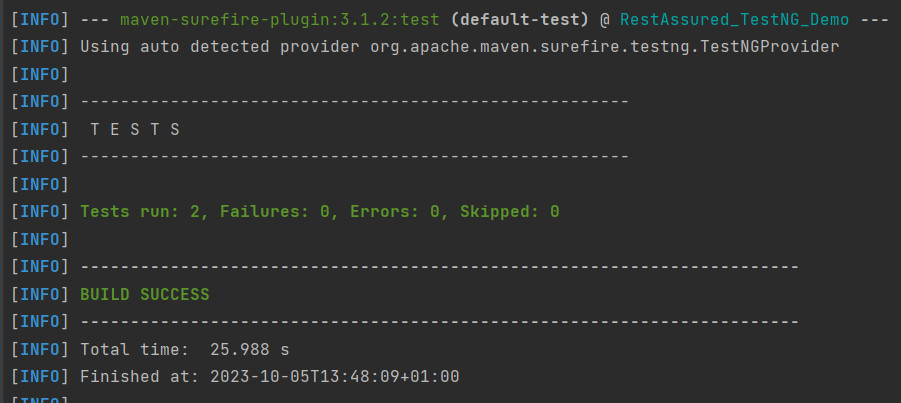
In the below image, we can see that all three tests are passed.

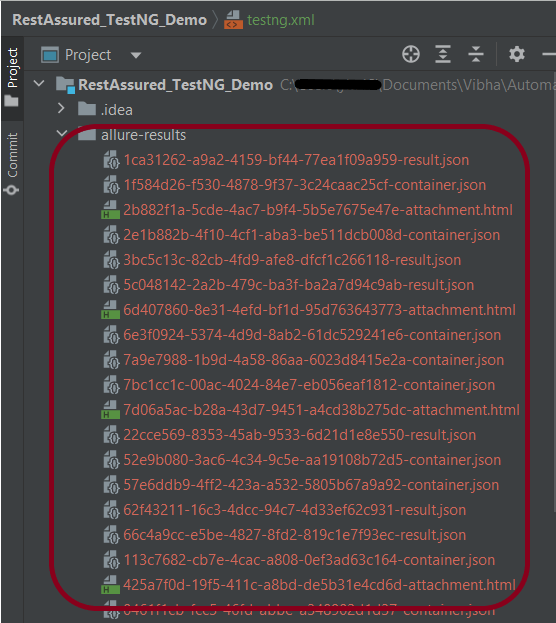
This will create the allure-results folder with all the test reports. These files will be used to generate the Allure Report.

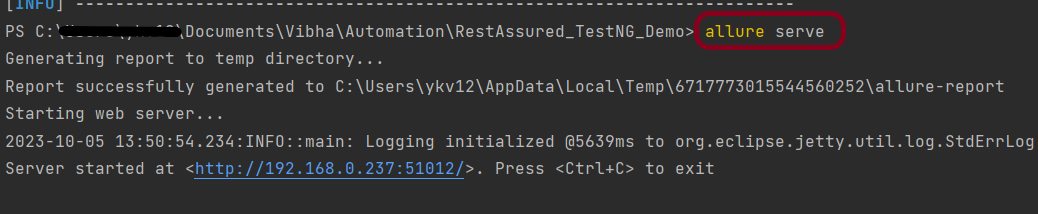
To create an Allure Report, use the below command

allure serve

This will generate the beautiful Allure Test Report as shown below.

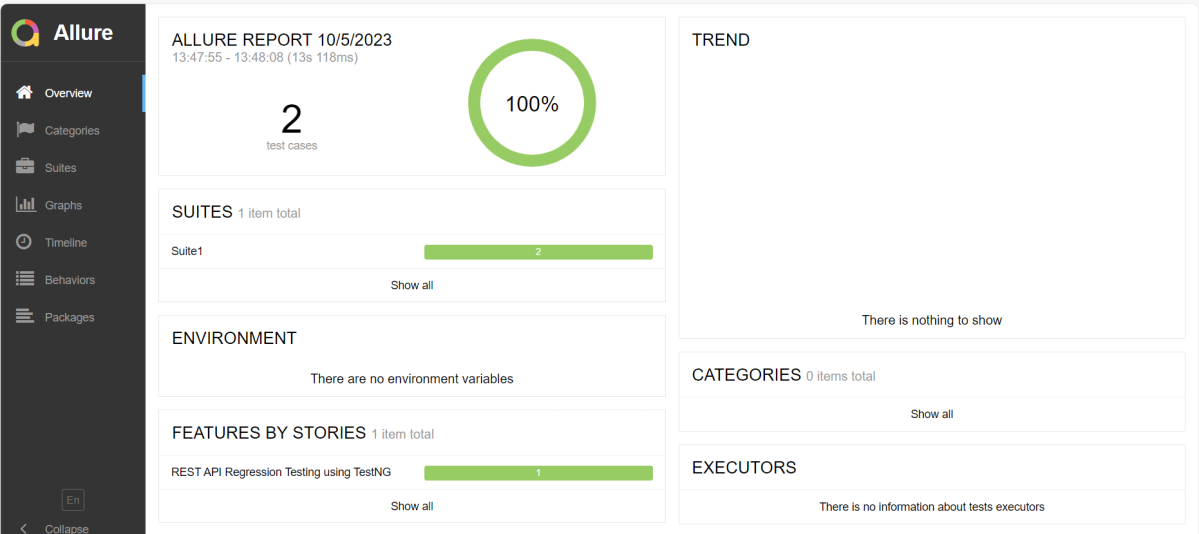
Allure Report Dashboard
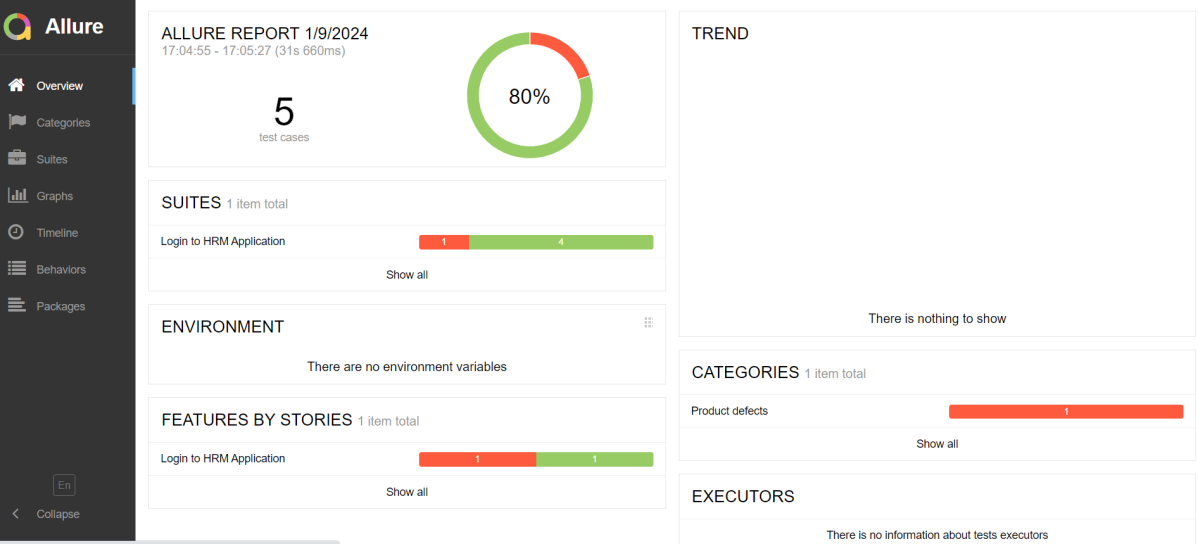
The overview page hosts several default widgets representing the basic characteristics of your project and test environment.

Categories in Allure Report

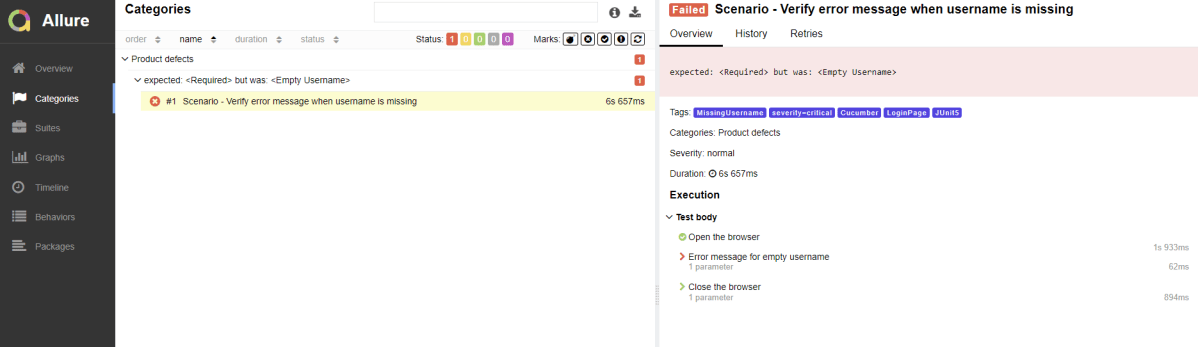
The categories tab gives you a way to create custom defect classifications to apply for test results. There are two categories of defects – Product Defects (failed tests) and Test Defects (broken tests).

Suites in Allure Report

On the Suites tab a standard structural representation of executed tests, grouped by suites and classes, can be found.

View test history

Each time you run the report from the command line with the mvn clean test command, a new result JSON file will get added to the allure-results folder. Allure can use those files to include a historical view of your tests. Let’s give that a try.

To get started, run mvn clean test a few times and watch how the number of files in the allure-reports folder grows.

Now go back to view your report. Select Suites from the left nav, select one of your tests and click Retries in the right pane. You should see the history of test runs for that test:

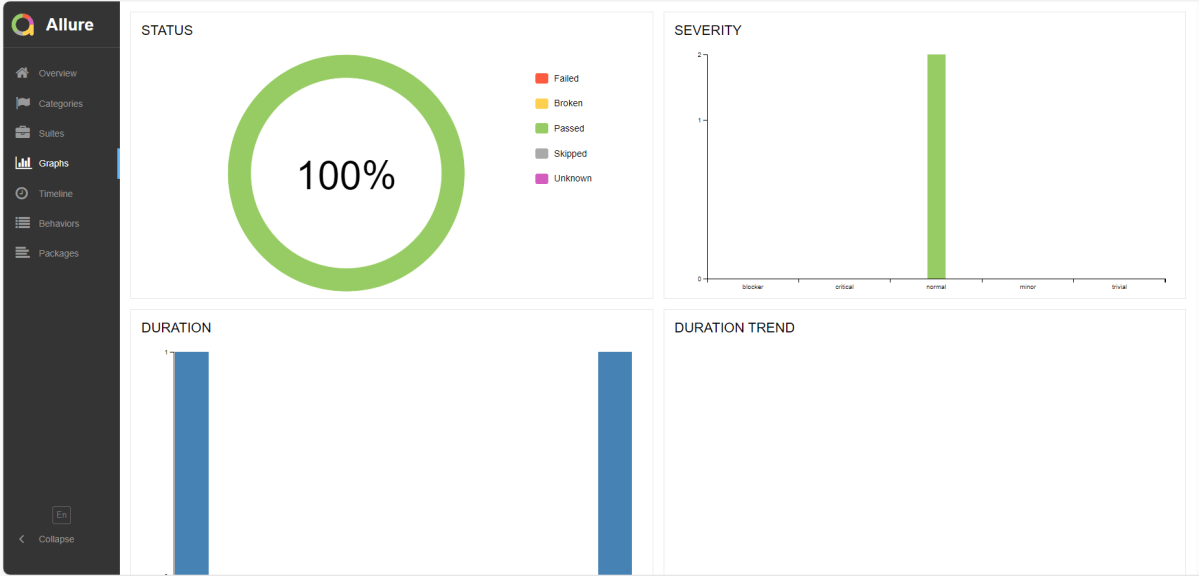
Graphs in Allure Report

Graphs allow you to see different statistics collected from the test data: status breakdown or severity and duration diagrams.

Timeline in Allure Report

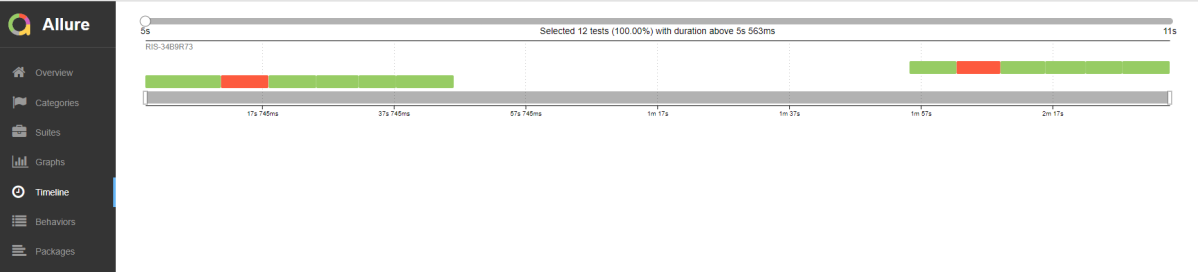
Timeline tab visualizes retrospective of tests execution, allure adaptors collect precise timings of tests, and here on this tab, they are arranged accordingly to their sequential or parallel timing structure.

Behaviors of Allure Report

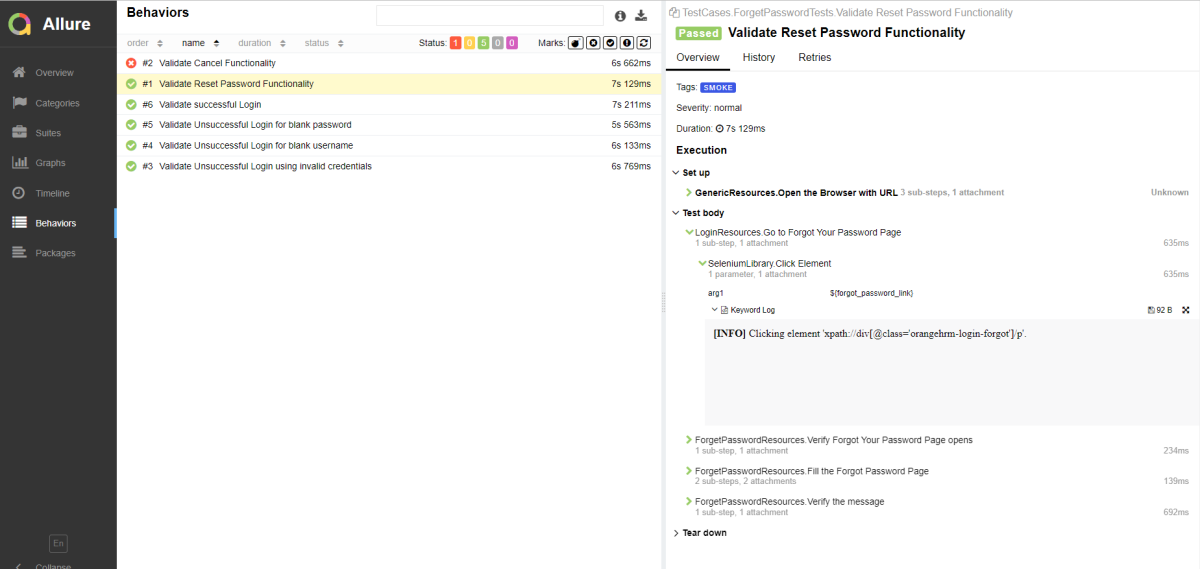
This tab groups test results according to Epic, Feature, and Story tags.

Packages in Allure Report

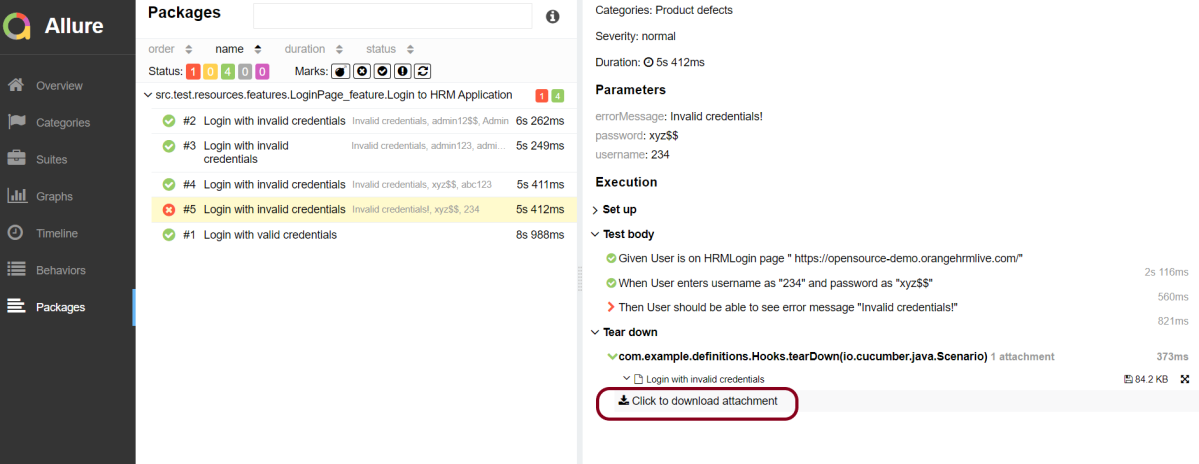
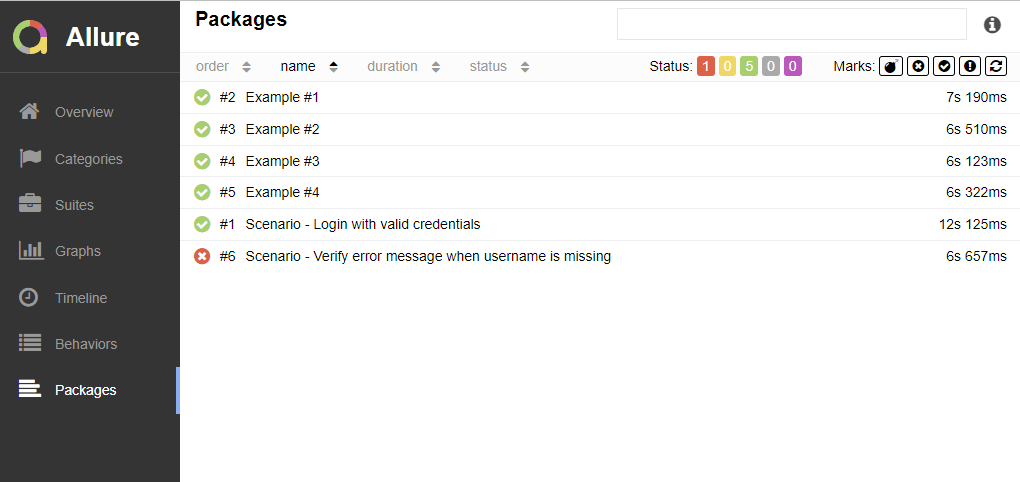
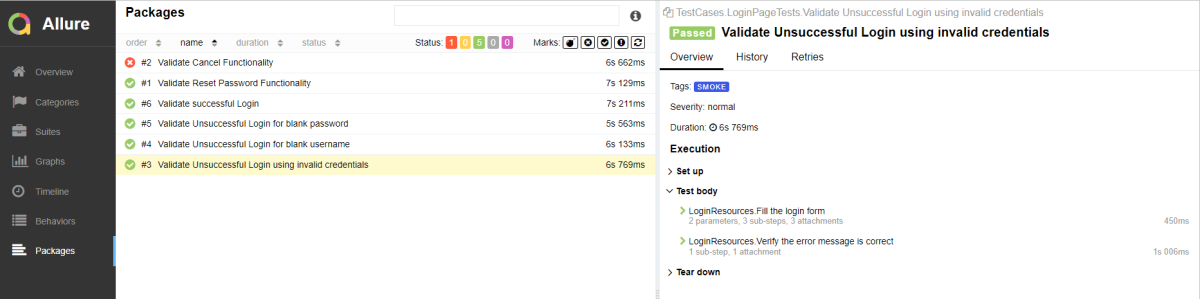
The packages tab represents a tree-like layout of test results, grouped by different packages.

We are done! Congratulations on making it through this tutorial and hope you found it useful! Happy Learning!!

Allure Report for Cucumber7, Selenium and JUnit5

HOME

The previous tutorial explained the generation of Allure Report with Cucumber5, Selenium and JUnit4 in a Maven project. In this tutorial, I will explain the steps to create an Allure Report with Cucumber7, Selenium, and JUnit5 in a Maven project.

Prerequisite:

  1. Java 11 or above installed
  2. Eclipse or IntelliJ IDE installed
  3. Maven Installed
  4. Environment variables JAVA_HOME and ALLURE_HOME are correctly configured

In this tutorial, I’ll create an Allure Report for the testing of web applications using Cucumber7, and Selenium 4 with JUnit5.

Dependency List

  1. Cucumber Java – 7.6.0
  2. Cucumber JUnit Platform Engine – 7.6.0
  3. Java 11
  4. Maven – 3.8.1
  5. Selenium – 4.3.0
  6. Allure JUnit5 – 2.21.0
  7. AspectJ Weaver – 1.9.7

Implementation Steps

  1. Add Cucumber, Selenium, JUnit5, and Allure-JUnit5 dependencies in pom.xml
  2. Create Pages and Test Code for the pages
  3. Execute the Tests
  4. Generate the Allure Report

Project Structure

Step 1 – Add dependencies in pom.xml

The Cucumber, Selenium, JUnit5, WebDriverMananger, and Allure-JUnit5 dependencies are added to the pom.xml.

<project xmlns="http://maven.apache.org/POM/4.0.0" xmlns:xsi="http://www.w3.org/2001/XMLSchema-instance" 
xsi:schemaLocation="http://maven.apache.org/POM/4.0.0 https://maven.apache.org/xsd/maven-4.0.0.xsd">
    <modelVersion>4.0.0</modelVersion>
 
    <groupId>com.example</groupId>
    <artifactId>Cucumber7Junit5</artifactId>
    <version>1.0.0-SNAPSHOT</version>
    <packaging>jar</packaging>
 
    <properties>
        <project.build.sourceEncoding>UTF-8</project.build.sourceEncoding>
        <cucumber.version>7.6.0</cucumber.version>
        <selenium.version>4.3.0</selenium.version>
        <webdrivermanager.version>5.2.1</webdrivermanager.version>
        <junit.jupiter.version>5.9.0</junit.jupiter.version>
        <apache.common.version>2.4</apache.common.version>
        <projectlombok.version>1.18.24</projectlombok.version>
        <maven.compiler.plugin.version>3.10.1</maven.compiler.plugin.version>
        <maven.surefire.plugin.version>3.0.0-M7</maven.surefire.plugin.version>
        <maven.compiler.source.version>11</maven.compiler.source.version>
        <maven.compiler.target.version>11</maven.compiler.target.version>
		<allure.junit5.version>2.21.0</allure.junit5.version>
		<allure.version>2.19.0</allure.version>
		<allure.maven.version>2.11.2</allure.maven.version>
		<aspectj.version>1.9.9.1</aspectj.version>
    </properties>
 
    <dependencyManagement>
        <dependencies>
            <dependency>
                <groupId>io.cucumber</groupId>
                <artifactId>cucumber-bom</artifactId>
                <version>${cucumber.version}</version>
                <type>pom</type>
                <scope>import</scope>
            </dependency>
            <dependency>
                <groupId>org.junit</groupId>
                <artifactId>junit-bom</artifactId>
                <version>${junit.jupiter.version}</version>
                <type>pom</type>
                <scope>import</scope>
            </dependency>
        </dependencies>
    </dependencyManagement>
 
    <dependencies>
 
        <dependency>
            <groupId>io.cucumber</groupId>
            <artifactId>cucumber-java</artifactId>
            <scope>test</scope>
        </dependency>
 
        <dependency>
            <groupId>io.cucumber</groupId>
            <artifactId>cucumber-junit-platform-engine</artifactId>
            <scope>test</scope>
        </dependency>
 
        <!-- JUnit Platform -->
        <dependency>
            <groupId>org.junit.platform</groupId>
            <artifactId>junit-platform-suite</artifactId>
            <scope>test</scope>
        </dependency>
 
        <dependency>
            <groupId>org.junit.jupiter</groupId>
            <artifactId>junit-jupiter-engine</artifactId>
            <scope>test</scope>
        </dependency>
 
        <!-- Selenium -->
        <dependency>
            <groupId>org.seleniumhq.selenium</groupId>
            <artifactId>selenium-java</artifactId>
            <version>${selenium.version}</version>
        </dependency>
 
        <!-- Web Driver Manager -->
        <dependency>
            <groupId>io.github.bonigarcia</groupId>
            <artifactId>webdrivermanager</artifactId>
            <version>${webdrivermanager.version}</version>
        </dependency>
 
        <!-- Apache Common -->
        <dependency>
            <groupId>org.apache.directory.studio</groupId>
            <artifactId>org.apache.commons.io</artifactId>
            <version>${apache.common.version}</version>
        </dependency>
 
 <!--Allure Reporting Dependency-->
		<dependency>
			<groupId>io.qameta.allure</groupId>
			<artifactId>allure-junit5</artifactId>
			<version>${allure.junit5.version}</version>
			<scope>test</scope>
		</dependency>
		
        <dependency>
            <groupId>org.projectlombok</groupId>
            <artifactId>lombok</artifactId>
            <version>${projectlombok.version}</version>
            <scope>provided</scope>
        </dependency>
		
    </dependencies>
 
    <build>
        <plugins>
            <plugin>
                <groupId>org.apache.maven.plugins</groupId>
                <artifactId>maven-compiler-plugin</artifactId>
                <version>${maven.compiler.plugin.version}</version>
                <configuration>
                    <source>${maven.compiler.source.version}</source>
                    <target>${maven.compiler.target.version}</target>
                </configuration>
            </plugin>
           
           <plugin>

				<artifactId>maven-surefire-plugin</artifactId>
				<version>${maven.surefire.plugin.version}</version>
				<configuration>
					<properties>
						<property>
							<name>listener</name>
							<value>io.qameta.allure.junit5.AllureJunit5</value>
						</property>
					</properties>
					<argLine>
                            -javaagent:"${settings.localRepository}/org/aspectj/aspectjweaver/${aspectj.version}/aspectjweaver-${aspectj.version}.jar"
                            -Dcucumber.options="--plugin io.qameta.allure.cucumber7jvm.AllureCucumber7Jvm"
                        </argLine>
					<systemProperties>
						<property>
							<name>allure.results.directory</name>
							<value>${project.build.directory}/allure-results</value>
						</property>
						<property>
							<name>junit.jupiter.extensions.autodetection.enabled</name>
							<value>true</value>
						</property>
					</systemProperties>
				</configuration>
				<dependencies>
					<dependency>
						<groupId>org.aspectj</groupId>
						<artifactId>aspectjweaver</artifactId>
						<version>${aspectj.version}</version>
					</dependency>
					<dependency>
						<groupId>io.cucumber</groupId>
						<artifactId>cucumber-junit-platform-engine</artifactId>
						<version>${cucumber.version}</version>
					</dependency>
				</dependencies>
			</plugin>
			
            <plugin>
				<groupId>io.qameta.allure</groupId>
				<artifactId>allure-maven</artifactId>
				<version>${allure.maven.version}</version>
				<configuration>
					<reportVersion>2.4.1</reportVersion>
				</configuration>
			</plugin>
		</plugins>
	</build>
</project>

Step 2 – Create Step Definition, feature file, and Test Runner Classes

There is another tutorial that explains the project structure as well as the feature file and corresponding Step Definitions, please refer to this tutorial – Integration of Cucumber7 with Selenium and JUnit5.

Step 3 – Execute the Tests

Use the below command to run the tests

mvn clean test 

The output of the above program is

Step 4 – Generate the Allure Report

Once the test execution is finished, a folder named allure-results will be generated in the target folder.

To generate the Allure Report, first, go to the target folder.

cd target

Now, use the below command to generate the Allure Report

allure serve 

This will generate the beautiful Allure Test Report as shown below.

Allure Report Dashboard

The overview page hosts several default widgets representing the basic characteristics of your project and test environment.

  1. Statistics – overall report statistics.
  2. Launches – if this report represents several test launches, statistics per launch will be shown here.
  3. Behaviours – information on results aggregated according to stories and features.
  4. Executors – information on test executors that were used to run the tests.
  5. History Trend – if tests accumulate some historical data, its trend will be calculated and shown on the graph.
  6. Environment – information on the test environment.

Categories in Allure Report

The categories tab gives you a way to create custom defect classifications to apply for test results. There are two categories of defects – Product Defects (failed tests) and Test Defects (broken tests).

Suites in Allure Report

On the Suites tab a standard structural representation of executed tests, grouped by suites and classes can be found.
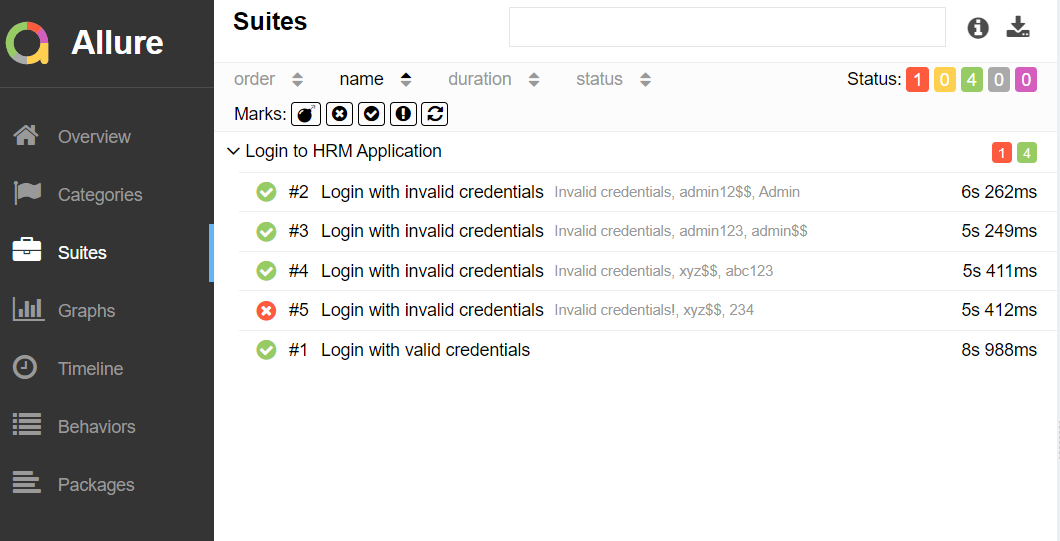
Graphs in Allure Report

Graphs allow you to see different statistics collected from the test data: status breakdown or severity and duration diagrams.

Timeline in Allure Report

The timeline tab visualizes retrospective test execution, allure adaptors collect precise timings of tests, and here on this tab, they are arranged accordingly to their sequential or parallel timing structure.

Behaviors of Allure Report

This tab groups test results according to Epic, Feature, Story, Test Severity, Test Description, Test Steps, and so on.

Packages in Allure Report

The packages tab represents a tree-like layout of test results, grouped by different packages.

Congratulations on making it through this tutorial and hope you found it useful! Happy Learning!! Cheers!!

Integration of Allure Report with Robot Framework

Last Updated on

HOME

In this tutorial, we will discuss the integration of Allure Report with the Robot Framework.

Table of Contents:

  1. What is Allure Report?
  2. Prerequisite
  3. Implementation Steps
    1. Create a new project
    2. Install allure-robotframework plugin
    3. Add allure-robotframework package to the PyCharms
    4. Create 3 new directories in the new project
    5. Create the test code
    6. Execute the tests
    7. View Report and Log
    8. Generate the Allure Report
    9. Allure Report Dashboard
    10. Categories in Allure Report
    11. Suites in Allure Report
    12. Graphs in Allure Report
    13. Timeline in Allure Report
    14. Behaviours of Allure Report
    15. Packages in Allure Report

What is Allure Report?

Allure Framework is a flexible lightweight multi-language test report tool that not only shows a very concise representation of what has been tested in a neat web report form but allows everyone participating in the development process to extract maximum useful information from everyday execution of tests.

From the dev/qa perspective, Allure reports shorten common defect lifecycle: test failures can be divided into bugs and broken tests, also logs, steps, fixtures, attachments, timings, history, and integrations with TMS and bug-tracking systems can be configured, so the responsible developers and testers will have all information at hand.

Prerequisite:

  1. Install Python
  2. Install PIP
  3. Install Robot Framework
  4. Install Robot framework Selenium Library
  5. Install PyCharm IDE

Please refer to this tutorial to install Robot Framework – How to install and setup Robot Framework for Python.

Implementation Steps:

Step 1 – Create a new project

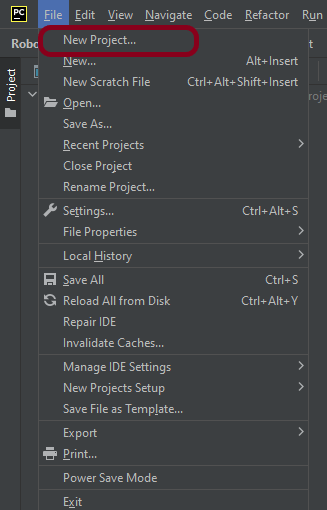
Step 1.1 – Open PyCharm and create a new project. Go to File and select New Project from the main menu.

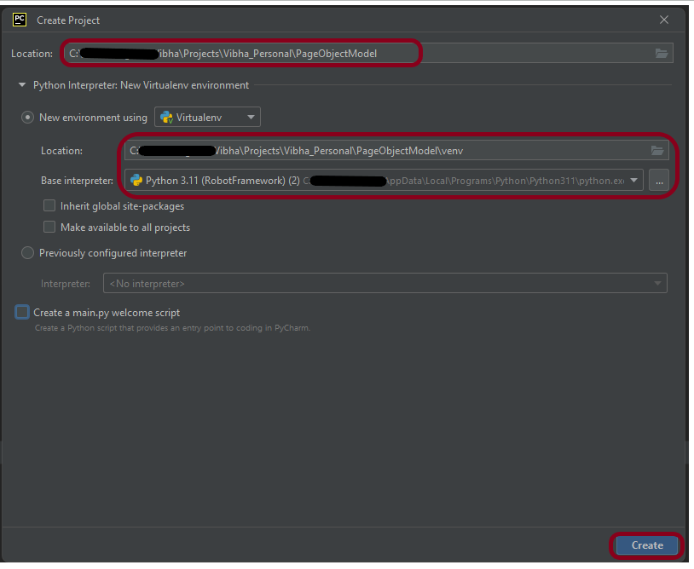
Step 1.2 – Choose the project location. Click the “Browse” button next to the Location field and specify the directory for your project.

Deselect the Create a main.py welcome script checkbox because you will create a new Python file for this tutorial.

Click on the “Create” Button.

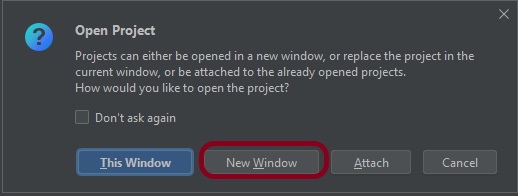
Step 1.3 – A new dialog appears asking to open the project using any one of the given options. I have selected New Window as I like to have separate windows for each project.

Below is the image of the new project created in PyCharms.

Step 2 – Install allure-robotframework plugin

Go to the command prompt and run the below-mentioned command to download the plugin:

pip install allure-robotframework

The below image shows that the plugin is installed successfully.

Step 3 – Add allure-robotframework package to the PyCharms

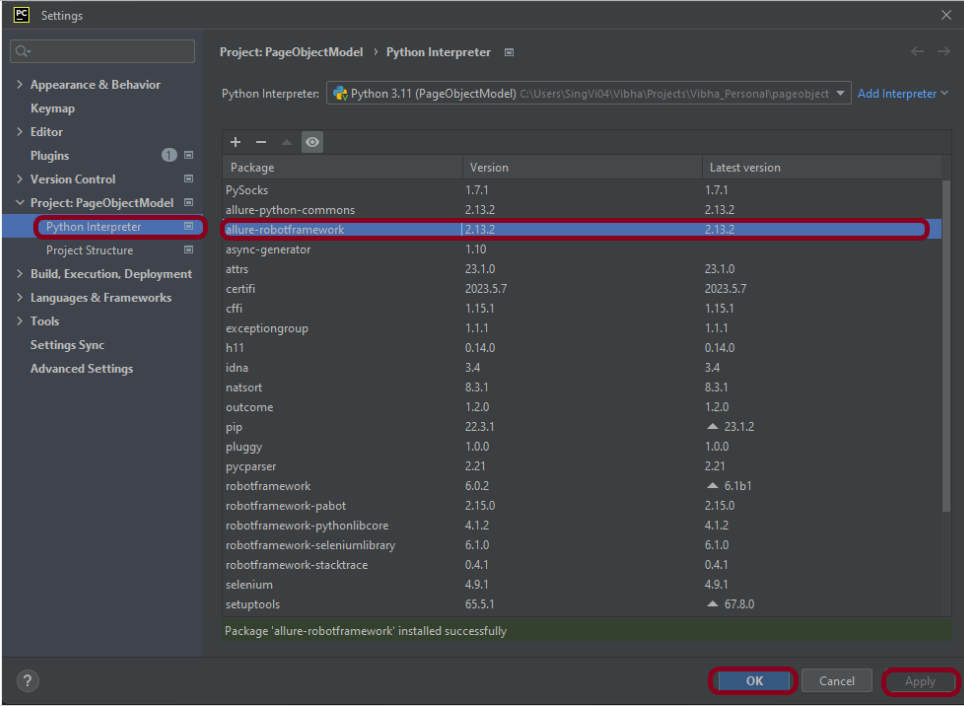
Go to File->Settings ->Project:RobotFramework_Demo ->Python Interpreter.

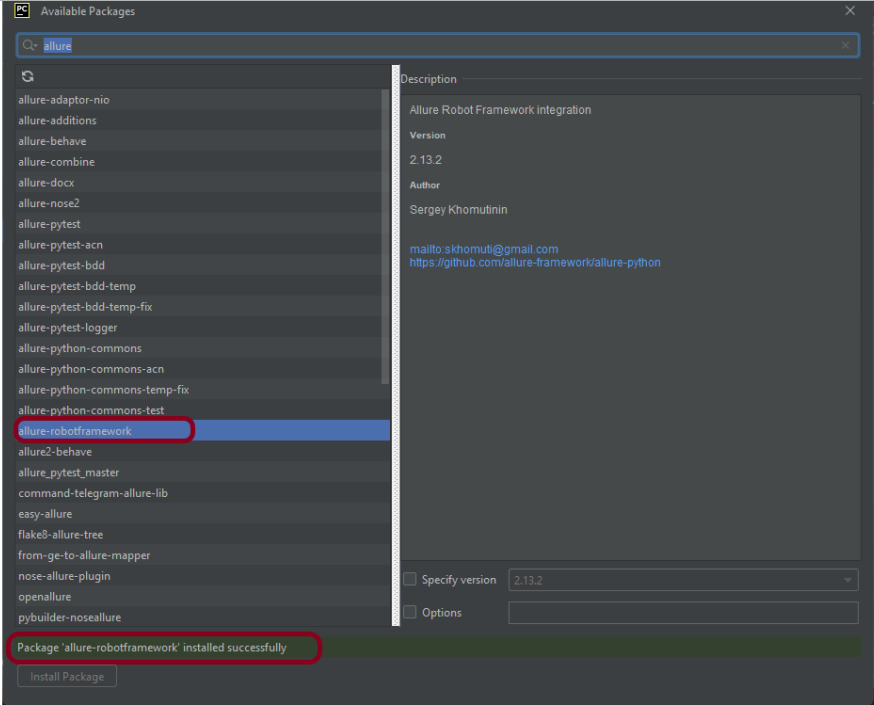
Click on the “+” sign and enter allure-r in the search bar. It will show a list of packages. Select the “allure-robotframework” package and click on the “Install Package”.

Once the package is installed, we will see the message that the package is installed successfully.

Once the package is installed, it can be seen under the package list as shown below:

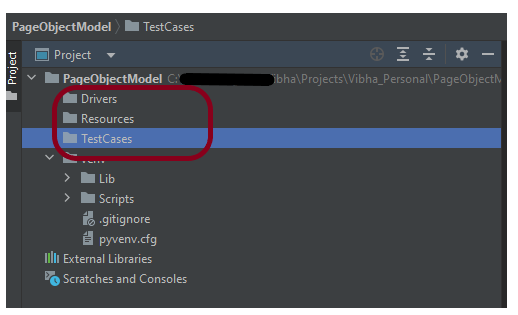
Step 4 – Create 3 new directories in the new project

Right-Click on the project, select New->Directory and provide the name as TestCases, Drivers, and Resources

Step 5 – Create the test code

To know the framework, tests, and corresponding keywords can be referred from here – Page Object Model in the Robot Framework.

Step 6 – Execute the tests

We need the below command to run the Robot Framework script using Allure listener.

 robot --listener allure_robotframework --outputdir ./output/robot ./TestCases

The output of the above program is

Step 7 – View Report and Log

We have the test case passed. The Robot Framework generates log.html, output.xml, and report.html by default.

These reports are generated in the output/robot folder as I have provided –outputdir ./output/robot in the command line.

Let us now see the report and log details.

Report

Right-click on report.html. Select Open In->Browser->Chrome(any browser of your wish).

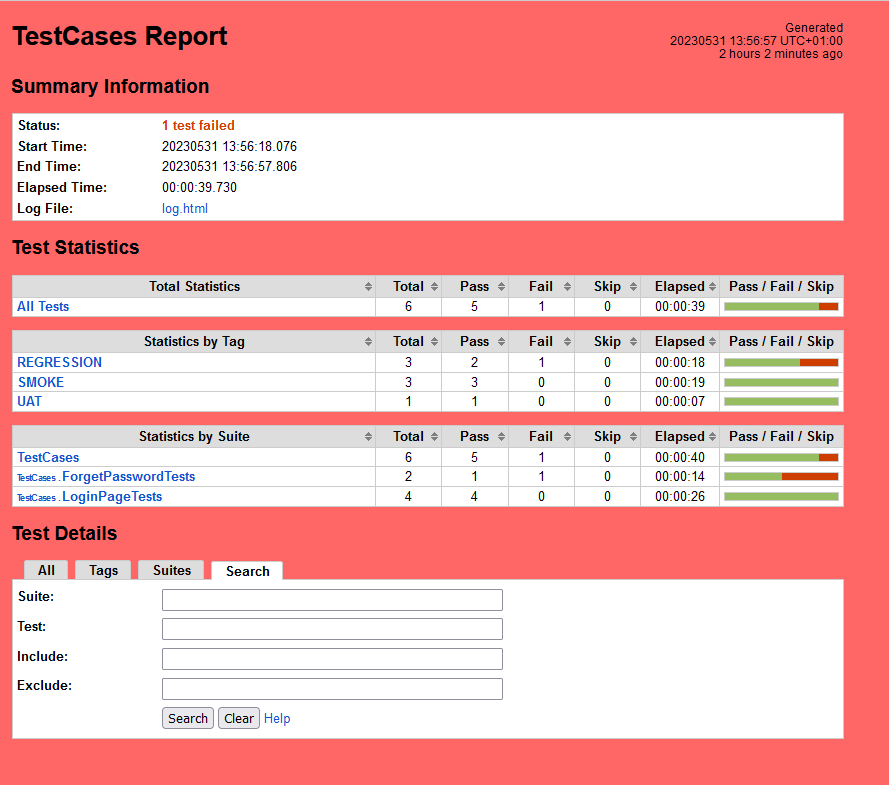
As one of the tests purposefully failed to demonstrate how the report would look in the event of a failure, we can see that it is now a Red report. The framework generated the following report:

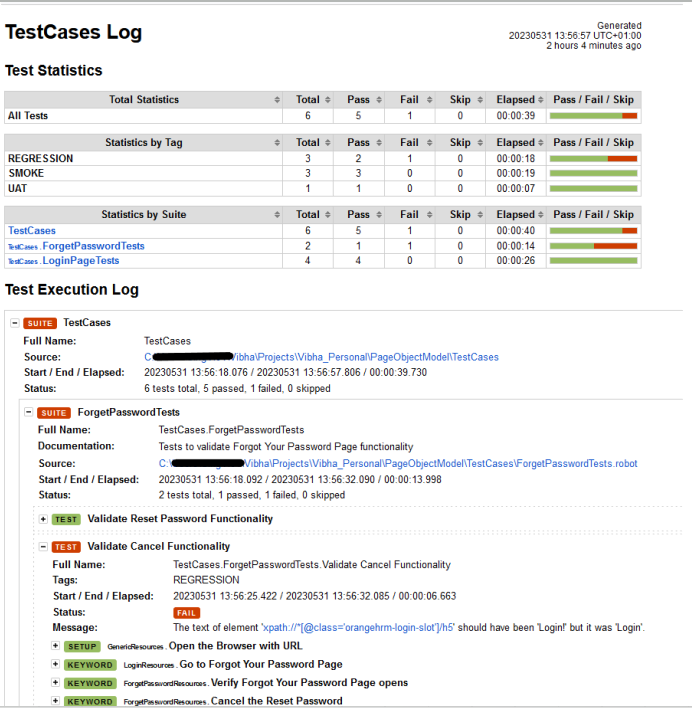
Log

Robot Framework has multiple log levels that control what is shown in the automatically generated log file. The default Robot Framework log level is INFO.

Right-click on log.html. Select Open In->Browser->Chrome(any browser of your wish).

Step 8 – Generate the Allure Report

To create Allure Report, use the below command

 allure serve ./output/allure

This will generate the beautiful Allure Test Report as shown below.

Step 9 – Allure Report Dashboard

The overview page hosts several default widgets representing the basic characteristics of your project and test environment.

  1. Statistics – overall report statistics.
  2. Launches – if this report represents several test launches, statistics per launch will be shown here.
  3. Behaviours – information on results aggregated according to stories and features.
  4. Executors – information on test executors that were used to run the tests.
  5. History Trend – if tests accumulated some historical data, it’s trend will be calculated and shown on the graph.
  6. Environment – information on the test environment.

Categories in Allure Report

The categories tab gives you a way to create custom defect classifications to apply for test results. There are two categories of defects – Product Defects (failed tests) and Test Defects (broken tests).

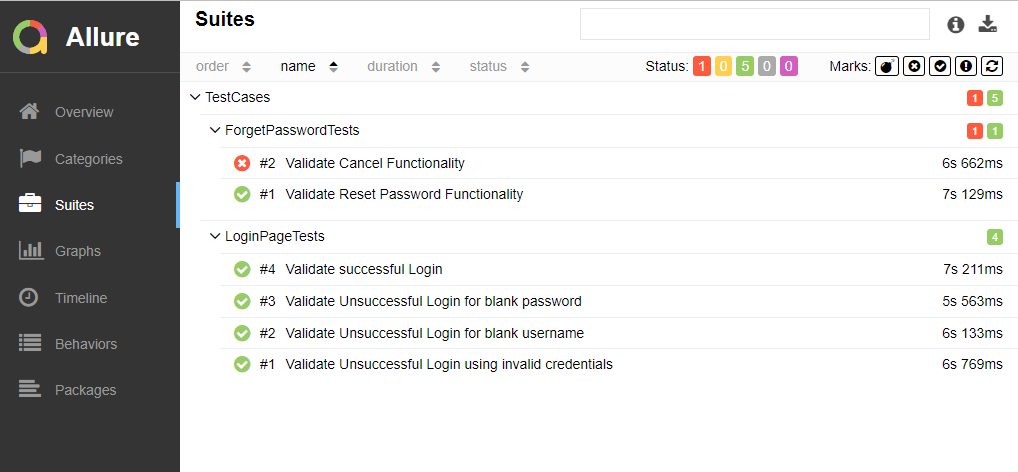
Suites in Allure Report

On the Suites tab a standard structural representation of executed tests, grouped by suites and classes can be found.

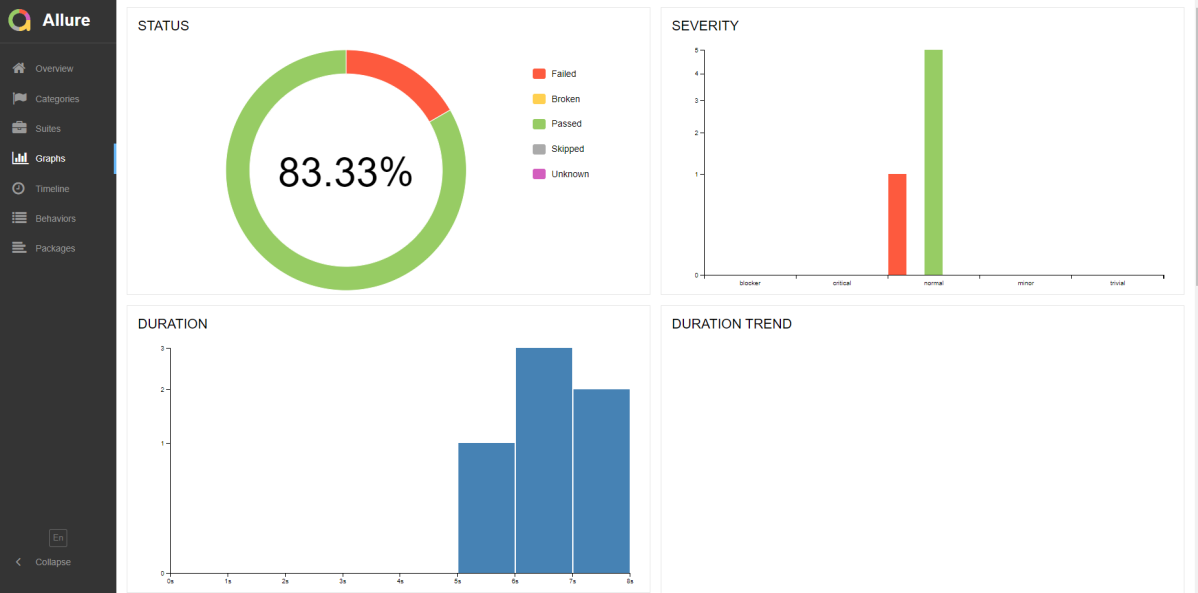
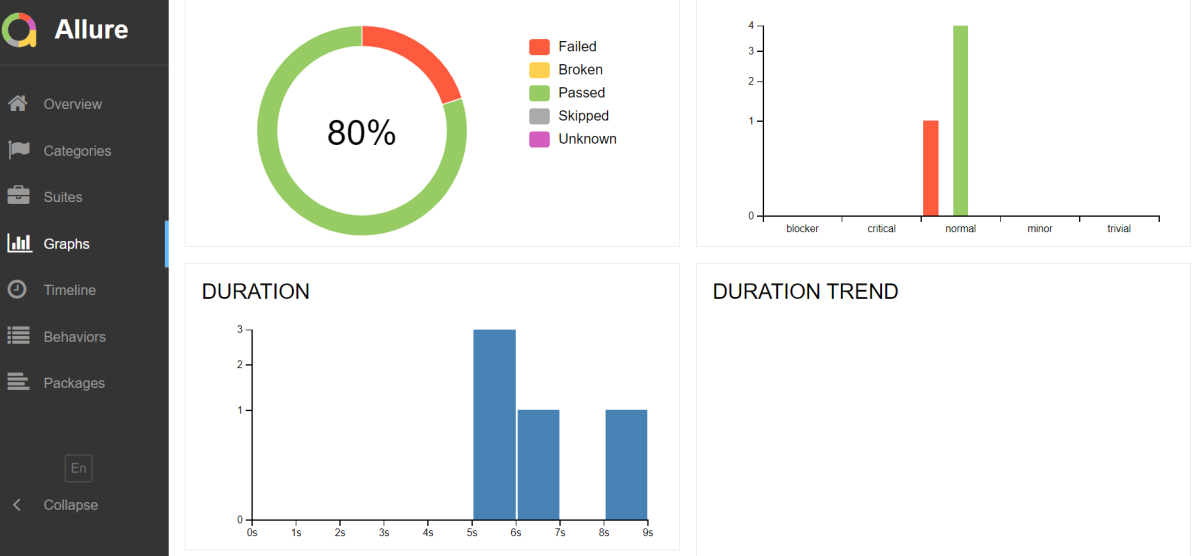
Graphs in Allure Report

Graphs allow you to see different statistics collected from the test data: statuses breakdown or severity and duration diagrams.
Timeline in Allure Report

The timeline tab visualizes retrospective of tests execution, allure adaptors collect precise timings of tests, and here on this tab, they are arranged accordingly to their sequential or parallel timing structure.

Behaviours of Allure Report

This tab groups test results according to Epic, Feature, and Story tags.

Packages in Allure Report

The packages tab represents a tree-like layout of test results, grouped by different packages.

That’s it! Congratulations on making it through this tutorial and hope you found it useful! Happy Learning!!

Robot Framework Tutorials

HOME

Robot Framework is a generic open-source automation framework. It can be used for test automation and robotic process automation (RPA). RPA is extensively used for Web Application Automation, API Automation, RPA, and Database Testing.

Robot Framework has an easy syntax, utilizing human-readable keywords. Its capabilities can be extended by libraries implemented with Python, Java, or many other programming languages.

Chapter 1 Robot Framework Features – Settings, Libraries, Variables, Keywords, Resources, Reports, Logs
Chapter 2 What are variables in Robot Framework?
Chapter 3 How to handle text box in Robot Framework
Chapter 4 How to handle radio buttons in Robot Framework
Chapter 5 How to handle checkbox in Robot Framework
Chapter 6 How to handle dropdowns in Robot Framework
Chapter 7 How to handle multiple windows in Robot Framework
Chapter 8 How to handle alerts in Robot Framework
Chapter 9 What is Resource File in Robot Framework 
Chapter 10 How to run all the tests from the folder in Robot Framework
Chapter 11 How to implement tagging in Robot Framework
Chapter 12 How to rerun failed tests in Robot Framework
Chapter 13 How to use Drag and Drop in Robot Framework?
Chapter 14 How to set variable values from Runtime command in Robot Framework
Chapter 15 Page Object Model in Robot Framework with Selenium and Python
Chapter 16 Parallel Testing in Robot Framework
Chapter 17 How to write tests in Robot Framework in BDD Format

Data-Driven Testing

Chapter 1 Data-Driven Testing in Robot Framework 
Chapter 2 How to load data from CSV files in the Robot Framework?

API Testing

Chapter 1 How to perform API Testing in Robot Framework using RequestLibrary
Chapter 2 How to Implement Basic Auth in Robot Framework – NEW
Chapter 3 How to pass authorization token in header in Robot Framework – NEW
Chapter 4 Verifying Status Code and Status Line in Robot Framework – NEW

CI/CD

Chapter 1 Run Robot Framework Tests in GitLab CI/CD
Chapter 2How to run Robot Framework in GitHub Actions

Jenkins

Chapter 1 How to integrate Robot Framework with Jenkins
Chapter 2 How to run parameterized Robot Framework tests in Jenkins

How to create Jenkins pipeline for Allure Report

Last Updated On

HOME

In the previous tutorial, I discussed the Jenkins pipeline. This tutorial will discuss the steps to create the Jenkins pipeline for Selenium tests.

Table of Contents

  1. Prerequisite
  2. Implementation Steps
    1. Create a new pipeline project
    2. Scroll down to Pipeline
    3. Create Jenkinsfile
    4. Specify branches to build a section under Repositories
    5. Execute the tests
    6. Pipeline Steps
    7. View the Report

Prerequisite

Jenkins was installed and started on the computer.

Implementation Steps

Step 1: Create a new pipeline project

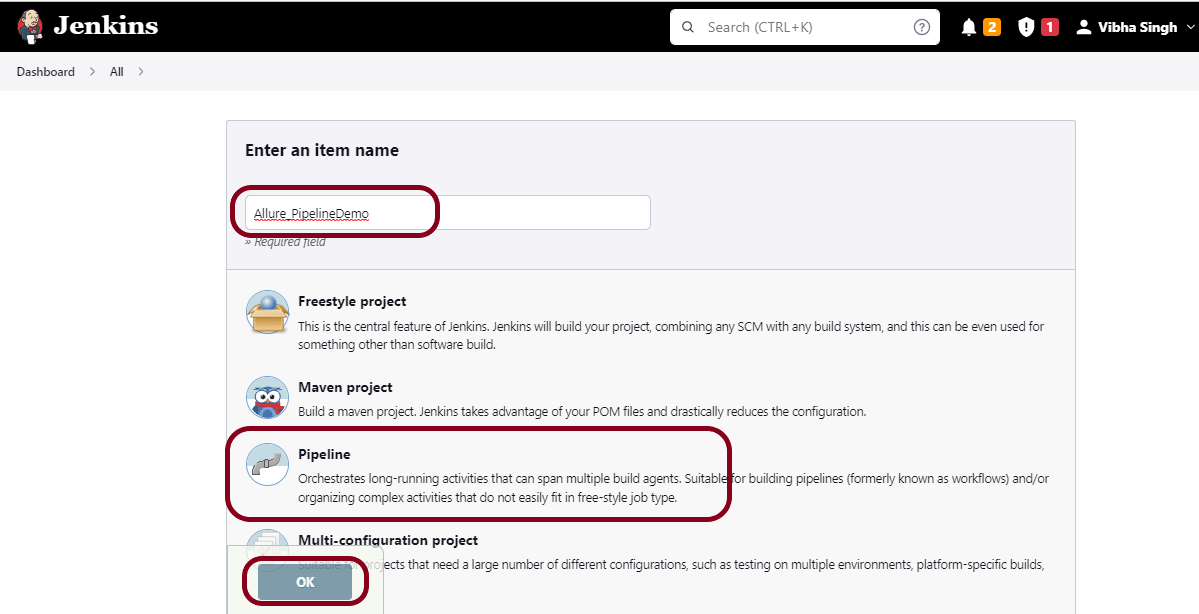
  1. Give the Name of the projectAllure_PipelineDemo
  2. Click on the pipeline project. 
  3. Click on the OK button.

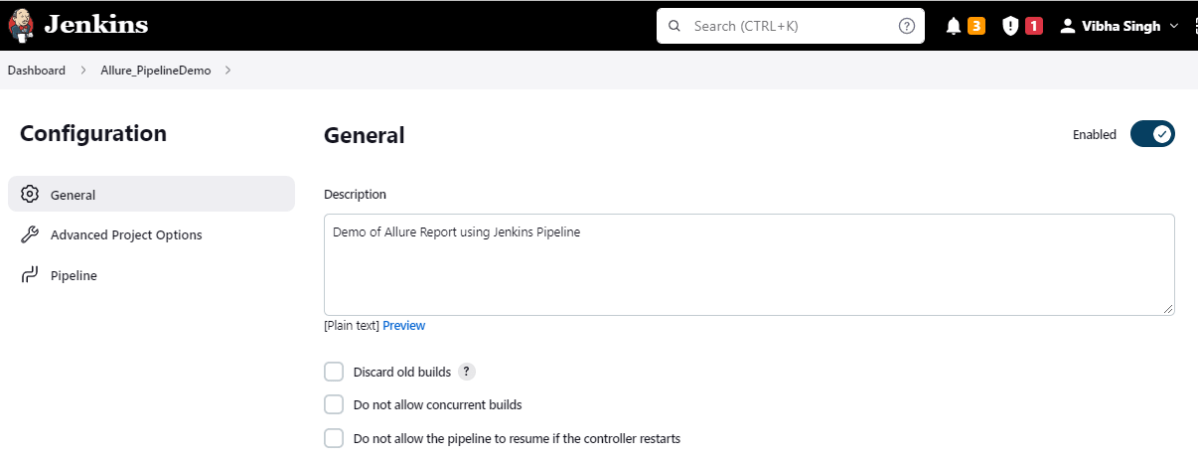
In the General section, enter the project description in the Description box.

Step 2: Scroll down to Pipeline

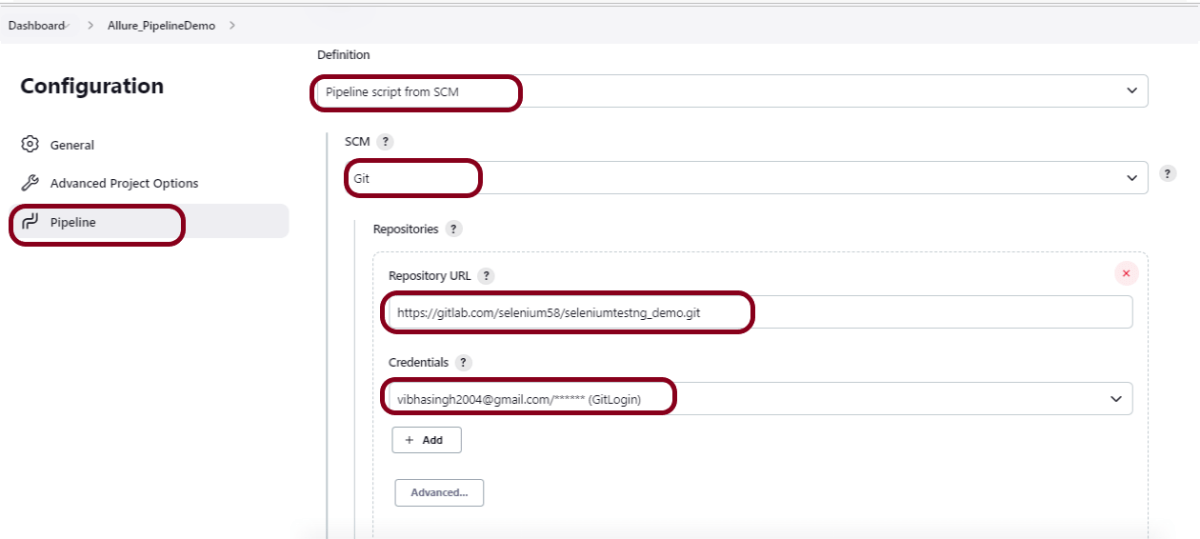
From the Definition field, choose the “Pipeline script from SCM” option. This option instructs Jenkins to obtain your Pipeline from Source Control Management (SCM), which will be your locally cloned Git repository.

From the SCM field, choose Git.

The Repositories section contains the Repository URL and Credentials.

In the Repository URL field, specify the directory path of the GitLab/GitHub project.

In the Credentials field, specify the username and password needed to log in to GitLab/GitHub.

In this case, I have the project is present in GitLab and using it.

Step 3: Create Jenkinsfile

Create and save a new text file with the name Jenkinsfile at the root of the project in the GitLab repository. Here, we are using the Selenium project with TestNG. To know more about the Integration of Selenium with TestNG, please refer to this tutorial –

For this tutorial, we are using Declarative syntax. The sample example is given below:

pipeline {
    agent any

    stages {
        stage('Test') {
            steps {
                bat "mvn -D clean test"
            }

            post {                
                // If Maven was able to run the tests, even if some of the test
                // failed, record the test results and archive the jar file.
                success { allure([
                    includeProperties: false,
                    jdk: '',
                    properties: [],
                    reportBuildPolicy: 'ALWAYS',
                    results: [[path: 'target/allure-results']]
                ])
            }
         }
    }
}      
}

Step 4: Specify branches to build a section under Repositories

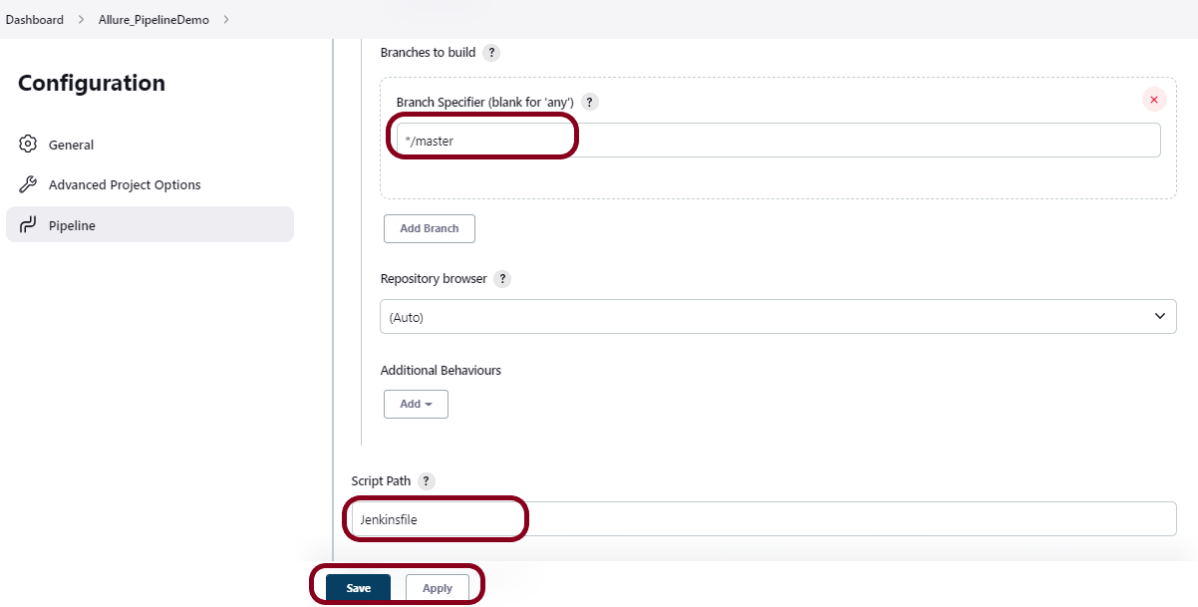
  1. Branch Specifier – */master (This is my main branch)
  2. ScriptPath – Jenkinsfile

Click on the Apply and Save buttons.

We have created a new Maven project AllurePipelineDemo” with the configuration to run the Selenium Test with TestNG.

Step 5: Execute the tests

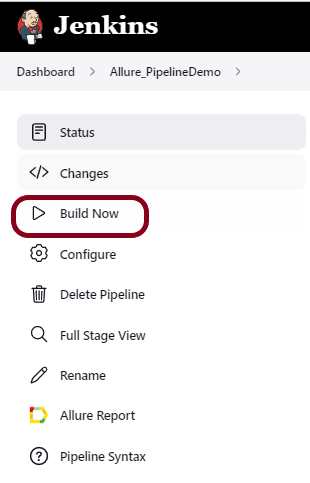
Let’s execute it now by clicking on the “Build Now” button. 

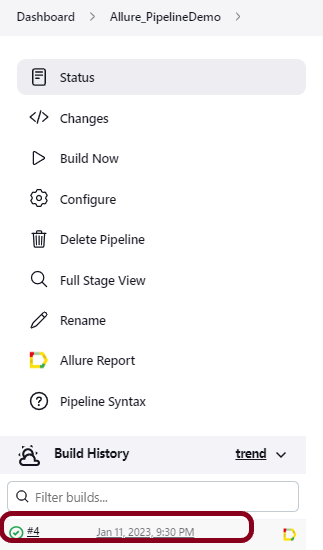
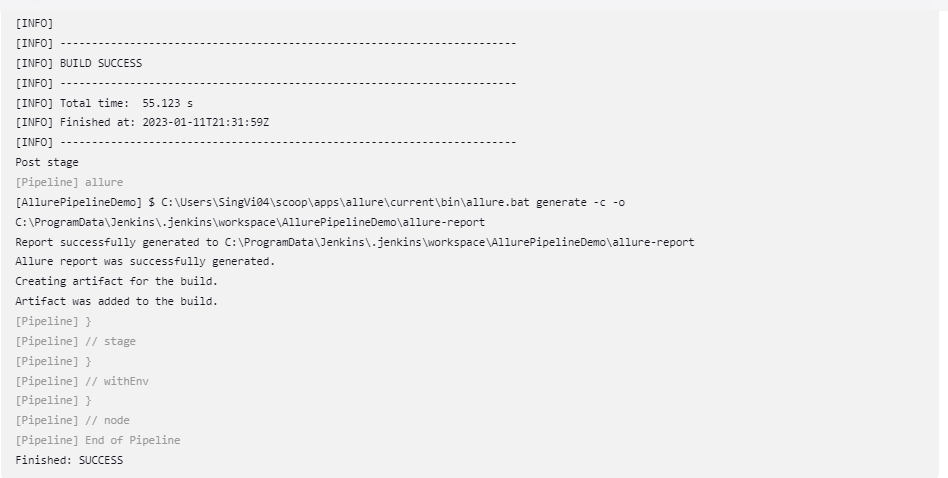
Right-click on Build Number (here in my case it is #4) and click on Console Output to see the result.

Below is the test execution summary.

Step 6: Pipeline Steps

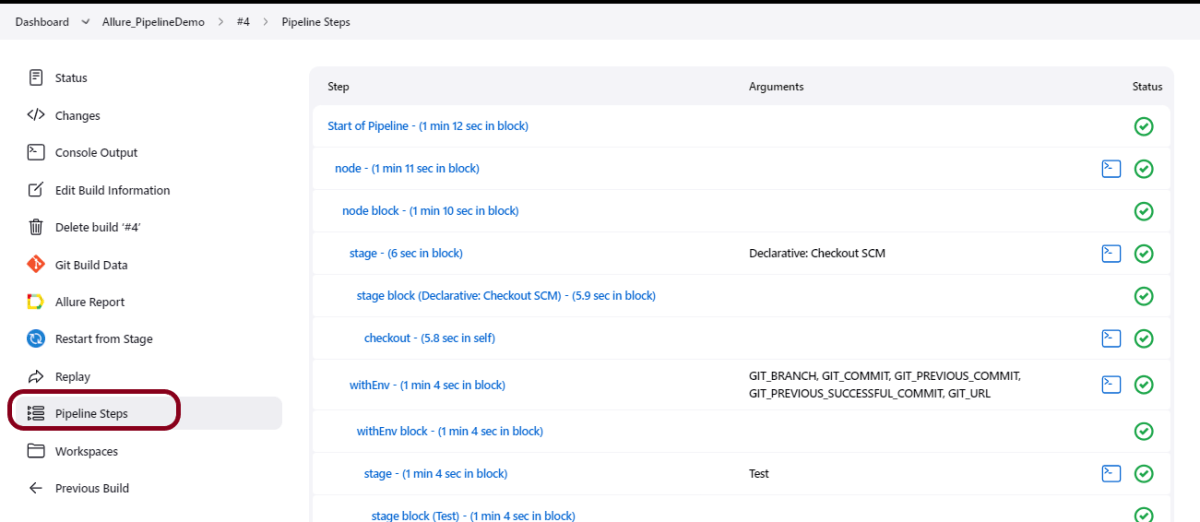
Once the execution is completed, and we want to see the Pipeline Steps, click on the Pipeline Steps mentioned on the left side of the page.

Step 7: View the Report

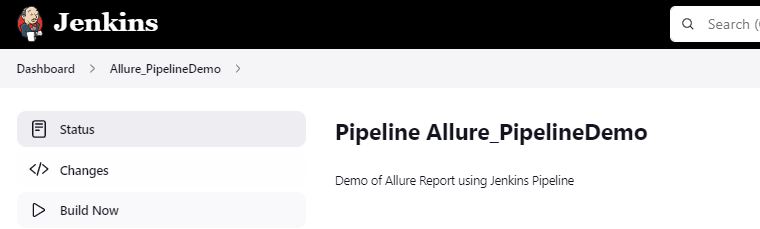
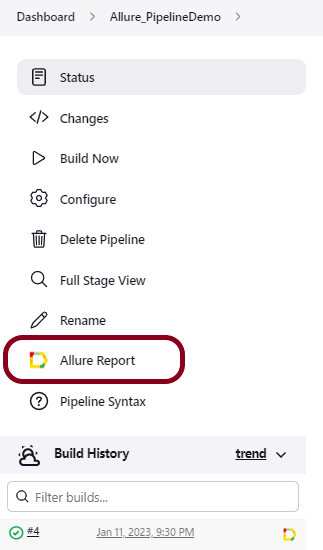
Once the execution is completed, go back to “Allure_PipelineDemo”. We can see below that the Allure Report is generated.

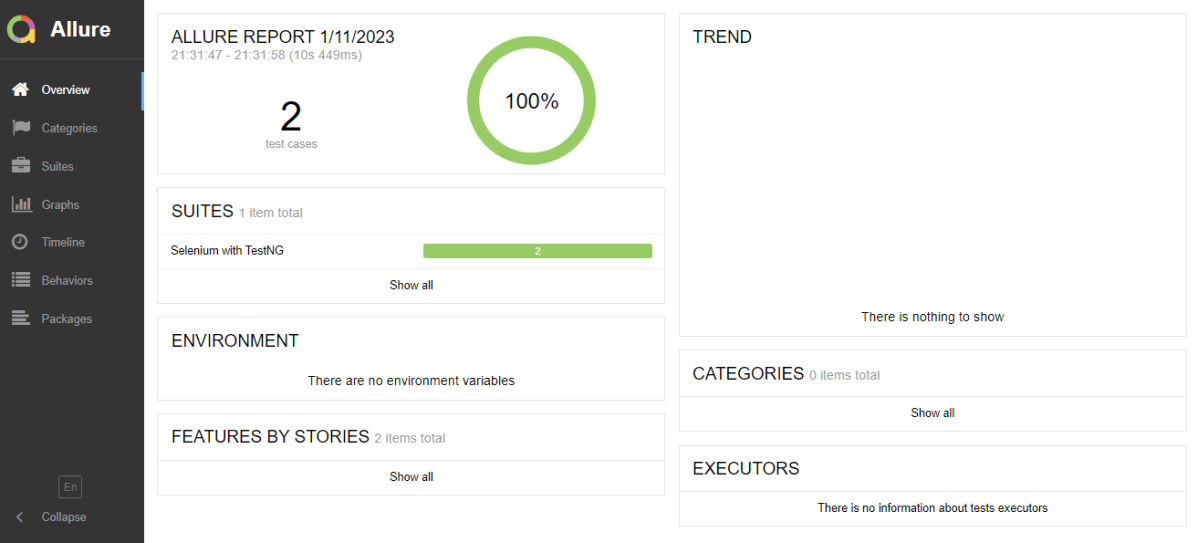
We could see a link to view the ‘Allure Report’. Click on the Allure Report. It displays the Report.

Tip: If you don’t see the Report UI intact, then you need to configure a simple groovy script. For that, go to Dashboard–>Manage Jenkins–>Script Console and add the script as:

System.setProperty("hudson.model.DirectoryBrowserSupport.CSP","")

Congratulations on making it through this tutorial and hope you found it useful! Happy Learning!! Cheers!!

Additional Tutorials

How to generate TestNG Report in Jenkins
Integration of Allure Report with Jenkins
How to generate HTML Reports in Jenkins
Integration of Cucumber Report with TestNG in Jenkins
How to create Jenkins pipeline for Selenium tests

Gradle – Allure Report for Selenium and JUnit5

HOME

The previous tutorial explained the Integration of Selenium and JUnit5 in a Gradle project. In this tutorial, I will explain the steps to create an Allure Report with Selenium and JUnit5 in a Gradle project.

Prerequisite:

  1. Java 8 or above installed
  2. Eclipse or IntelliJ IDE installed
  3. Gradle Installed
  4. Environment variables JAVA_HOME, ALLURE_HOME and GRADLE_HOME correctly configured

In this tutorial, I’ll create a BDD Framework for creating an Allure Report for Selenium WebDriver with JUnit5. This framework consists of:-

  1. Java 11
  2. JUnit– 5.8.2
  3. Gradle – 7.3.3
  4. Selenium – 4.3.0
  5. Allure Report – 2.19
  6. AspectJ Weaver – 1.9.7

Project Structure

Implementation Steps

There is another tutorial that explains the steps to create a Gradle Project with Selenium and JUnit5. Please refer to this tutorial – Gradle – Integration of Selenium and JUnit5.

Step 1 – Add dependencies to build.gradle

/*
 * This file was generated by the Gradle 'init' task.
 *
 */

plugins {
    // Apply the application plugin to add support for building a CLI application in Java.
    id 'application'
    id 'io.qameta.allure' version '2.11.0'
}

repositories {
    // Use Maven Central for resolving dependencies.
    mavenCentral()
}

java {
    sourceCompatibility = 11
    targetCompatibility = 11
}

dependencies {
    // Use JUnit Jupiter for testing.
    testImplementation 'org.junit.jupiter:junit-jupiter:5.8.2'
    testRuntimeOnly 'org.junit.jupiter:junit-jupiter-engine:5.8.2'
    
     // Allure 
     implementation 'io.qameta.allure:allure-junit5:2.19.0'
     runtimeOnly 'org.aspectj:aspectjweaver:1.9.7'

    // This dependency is used by the application.
    implementation 'com.google.guava:guava:30.1.1-jre'
    implementation 'org.seleniumhq.selenium:selenium-java:4.4.0'
    implementation 'io.github.bonigarcia:webdrivermanager:5.3.0'
}

application {
    // Define the main class for the application.
    mainClass = 'com.example.App'
}

tasks.named('test') {
    // Use JUnit Platform for unit tests.
    useJUnitPlatform()  {
    }
}  

Step 2 – Create Pages and Test Code for the pages

As mentioned above, there is another tutorial that explains the project structure as well as the feature file and corresponding Step Definitions, please refer to this tutorial – Gradle Project with Selenium and JUnit5.

Below is the sample test code. I have added features of the allure report like @Severity, @Description.

I have used Parameterized Tests here, to know more about that, please refer to this tutorial – How to run parameterized Selenium test using JUnit5.

import org.junit.jupiter.api.Test;
import org.junit.jupiter.params.ParameterizedTest;
import org.junit.jupiter.params.provider.CsvSource;
import static org.junit.jupiter.api.Assertions.assertEquals;
import org.junit.jupiter.api.Disabled;
import io.qameta.allure.Description;
import io.qameta.allure.Severity;
import io.qameta.allure.SeverityLevel;

public class LoginPageTests extends BaseTests{
	 
	@Severity(SeverityLevel.NORMAL)
    @ParameterizedTest
    @CsvSource({
            "admin$$,admin123",
            "Admin,admin123!!",
            "admin123,Admin",
            "%%%%%,$$$$$$"})
	@Description("Test Description : Login Test with invalid credentials")
    public void invalidCredentials(String username, String password) {
   
	    LoginPage objLoginPage = new LoginPage(driver);
    	objLoginPage.login(username, password);
    	 
    	// Verify Error Message
    	 assertEquals("Invalid credentials",objLoginPage.getErrorMessage());
    
    }
    
	@Severity(SeverityLevel.BLOCKER)
    @Test
	@Description("Test Description : Login Test with valid credentials")
    public void validLogin() {
   
	    LoginPage objLoginPage = new LoginPage(driver);
    	objLoginPage.login("Admin", "admin123");
    	 
    	HomePage objHomePage = new HomePage(driver);
    	
    	// Verify Home Page
    	 assertEquals("Employee Information",objHomePage.getHomePageText());  
    }
    
	@Severity(SeverityLevel.NORMAL)
    @Test 
	@Description("Test Description : Login Test with missing username - Failed Test")
    public void missingUsername() {
   
	    LoginPage objLoginPage = new LoginPage(driver);
    	objLoginPage.login("", "admin123");
    	     	
    	// Verify Error Message
   	     assertEquals("Invalid credentials",objLoginPage.getMissingUsernameText());
   	        
    }
	
	@Severity(SeverityLevel.NORMAL)
    @Test @Disabled
	@Description("Test Description : Login Test with missing password")
    public void missingPassword() {
  
	    LoginPage objLoginPage = new LoginPage(driver);
    	objLoginPage.login("admin", "");
    	    	
    	// Verify Error Message
   	     assertEquals("Invalid credentials",objLoginPage.getMissingPasswordText());
    
    }      
}

Below is the BaseTest class, where I have shown the use of @Step of Allure Report.

import java.time.Duration;
import org.junit.jupiter.api.AfterEach;
import org.junit.jupiter.api.BeforeEach;
import org.openqa.selenium.WebDriver;
import org.openqa.selenium.chrome.ChromeDriver;
import io.github.bonigarcia.wdm.WebDriverManager;
import io.qameta.allure.Step;

public class BaseTests {
	
	public WebDriver driver;
	public final static int TIMEOUT = 10;    
 
	@BeforeEach
    @Step("Start the application")
    public void setup() {
    	WebDriverManager.chromedriver().setup();
	    driver = new ChromeDriver();
	    driver.manage().window().maximize();
	    driver.get("https://opensource-demo.orangehrmlive.com/");	    
	    driver.manage().timeouts().implicitlyWait(Duration.ofSeconds(TIMEOUT));

    }
   
    @AfterEach
    @Step("Stop the application")
    public void tearDown() {
        driver.quit();
    }
    
}

Step 3 – Execute the Tests

Go to the app project and run the tests, using the below command

gradle clean test

The output of the test execution is

Step 4 – Generate the Allure Report

Once the test execution is finished, a folder named allure-results will be generated in the build folder.

Note:- Make sure that you move to the folder app, because the build folder is present in the app folder.

To generate an Allure Report, use the below command.

allure serve build/allure-results

This will generate the beautiful Allure Test Report as shown below.

Allure Report Dashboard

The overview page hosts several default widgets representing the basic characteristics of your project and test environment.

  1. Statistics – overall report statistics.
  2. Launches – if this report represents several test launches, statistics per launch will be shown here.
  3. Behaviors – information on results aggregated according to stories and features.
  4. Executors – information on test executors that were used to run the tests.
  5. History Trend – if tests accumulated some historical data, its trend will be calculated and shown on the graph.
  6. Environment – information on the test environment.

Categories in Allure Report

The categories tab gives you a way to create custom defect classifications to apply for test results. There are two categories of defects – Product Defects (failed tests) and Test Defects (broken tests).

Suites in Allure Report

On the Suites tab a standard structural representation of executed tests, grouped by suites and classes, can be found.

Graphs in Allure Report

Graphs allow you to see different statistics collected from the test data: status breakdown or severity and duration diagrams.

Timeline in Allure Report

The timeline tab visualizes retrospective test execution, allure adaptors collect precise timings of tests, and here on this tab, they are arranged accordingly to their sequential or parallel timing structure.

Behaviors of Allure Report

This tab groups test results according to Epic, Feature, Story, Test Severity, Test Description, Test Steps, and so on.

Packages in Allure Report

The packages tab represents a tree-like layout of test results, grouped by different packages.

Congratulations on making it through this tutorial and hope you found it useful! Happy Learning!! Cheers!!

Gradle – Allure Report for Cucumber7, Selenium and JUnit4

HOME

The previous tutorial explained the generation of Allure Report with Cucumber5, Selenium and JUnit4 in a Maven project. In this tutorial, I will explain the steps to create an Allure Report with Cucumber, Selenium, and JUnit4 in a Gradle project.

Prerequisite:

  1. Java 8 or above installed
  2. Eclipse or IntelliJ IDE installed
  3. Gradle Installed
  4. Environment variables JAVA_HOME, ALLURE_HOME and GRADLE_HOME are correctly configured

In this tutorial, I’ll create a BDD Framework for the testing of web applications using Cucumber7, and Selenium 4 with JUnit4. This framework consists of:-

  1. Cucumber Java- 7.6.0
  2. Cucumber JUnit4 – 7.6.0
  3. Java 11
  4. JUnit4 – 4.13.2
  5. Gradle – 7.3.3
  6. Selenium – 4.3.0
  7. Allure Cucumber – 2.19.0
  8. AspectJ Weaver – 1.9.7

Project Structure

Implementation Steps

  1. Add Cucumber, Selenium, TestNG, and Allure-JUnit dependencies in build.gradle
  2. Create Locator and Action classes and Step Definition corresponding to the feature file and Test Runner Class
  3. Execute the Tests
  4. Generate Allure Report

There is a tutorial that explains the Integration of Cucumber, Selenium, and JUnit4 in a Gradle project. Please refer to this tutorial – Gradle Project with Cucumber, Selenium, and JUnit4.

Step 1 – Add Cucumber, Selenium, TestNG, and Allure-JUnit4 dependencies in build.gradle

/*
 * This file was generated by the Gradle 'init' task.
 *
 */

plugins {
    // Apply the application plugin to add support for building a CLI application in Java.
    id 'application'
    id 'io.qameta.allure' version '2.11.0'
}

repositories {
    // Use Maven Central for resolving dependencies.
    mavenCentral()
}

java {
    sourceCompatibility = 11
    targetCompatibility = 11
}
 
dependencies {

    testImplementation 'io.cucumber:cucumber-java:7.6.0'
    testImplementation 'io.cucumber:cucumber-junit:7.6.0'
    
    // Use JUnit test framework.
    testImplementation 'junit:junit:4.13.2'
    
    // Allure 
    implementation 'io.qameta.allure:allure-cucumber7-jvm:2.19.0'
    runtimeOnly 'org.aspectj:aspectjweaver:1.9.7'  

    // This dependency is used by the application.
    implementation 'com.google.guava:guava:30.1.1-jre'
    implementation 'org.seleniumhq.selenium:selenium-java:4.4.0'
    implementation 'io.github.bonigarcia:webdrivermanager:5.3.0'
}

application {
    // Define the main class for the application.
    mainClass = 'com.example.App'
}

configurations {
    cucumberRuntime {
        extendsFrom testImplementation
    }
}

task cucumber() {
    dependsOn assemble, testClasses
    doLast {
        javaexec {
        
           systemProperty("allure.results.directory", "build/allure-results")  
            main = "io.cucumber.core.cli.Main"
            classpath = configurations.cucumberRuntime + sourceSets.main.output + sourceSets.test.output
            args = ['--plugin', 'pretty',         
            '--glue', 'com.example.definitions', 'src/test/resources']
        }
    }
}

Step 2 – Create Locator and Action classes and Step Definition corresponding to the feature file and Test Runner Class

As mentioned above, there is another tutorial that explains the project structure as well as the feature file and corresponding Step Definitions, please refer to this tutorial – Gradle Project with Cucumber, Selenium, and JUnit4.

Step 3 – Execute the Tests

Go to the app project and run the tests, using the below command

gradle cucumber

The output of the test execution is

Step 4 – Generate the Allure Report

Once the test execution is finished, a folder named allure-results will be generated in the build folder.

Note:- Make sure that you move to the folder app because the build folder is present in the app folder.

allure serve build/allure-results

Allure Report Dashboard

The overview page hosts several default widgets representing the basic characteristics of your project and test environment.

  1. Statistics – overall report statistics.
  2. Launches – if this report represents several test launches, statistics per launch will be shown here.
  3. Behaviors – information on results aggregated according to stories and features.
  4. Executors – information on test executors that were used to run the tests.
  5. History Trend – if tests accumulated some historical data, its trend will be calculated and shown on the graph.
  6. Environment – information on the test environment.

Categories in Allure Report

The categories tab gives you a way to create custom defect classifications to apply for test results. There are two categories of defects – Product Defects (failed tests) and Test Defects (broken tests).

Suites in Allure Report

On the Suites tab a standard structural representation of executed tests, grouped by suites and classes can be found.

Graphs in Allure Report

Graphs allow you to see different statistics collected from the test data: status breakdown or severity and duration diagrams.

Timeline in Allure Report

The timeline tab visualizes retrospective test execution, allure adaptors collect precise timings of tests, and here on this tab, they are arranged accordingly to their sequential or parallel timing structure.

Behaviors of Allure Report

This tab groups test results according to Epic, Feature, Story, Test Severity, Test Description, Test Steps, and so on.

Packages in Allure Report

The packages tab represents a tree-like layout of test results, grouped by different packages.

BDD Features

The feature’s description appears in every scenario.

All scenario steps are automatically translated into allure steps.

Congratulations on making it through this tutorial and hope you found it useful! Happy Learning!! Cheers!!

Gradle – Allure Report for Cucumber, Selenium and TestNG

HOME

The previous tutorial explained generation of Allure Report with Cucumber5, Selenium and TestNG in a Maven project. In this tutorial, I will explain the steps to create an Allure Report with Cucumber, Selenium and TestNG in a Gradle project.

Pre Requisite:

  1. Java 8 or above installed
  2. Eclipse or IntelliJ IDE installed
  3. Gradle Installed
  4. Environment variables JAVA_HOME and GRADLE_HOME correctly configured

In this tutorial, I’ll create a BDD Framework for the testing of web applications using CucumberSelenium WebDriver with TestNG. This framework consists of:-

  1. Cucumber Java- 7.6.0
  2. Cucumber TestNG – 7.6.0
  3. Java 11
  4. TestNG – 7.6.0
  5. Gradle – 7.5.1
  6. Selenium – 4.3.0
  7. AspectJ Weaver – 1.9.7

Project Structure

Implementation Steps

  1. Add Cucumber, Selenium, TestNG, and Allure-TestNG dependencies in build.gradle
  2. Create Locator and Action classes and Step Definition corresponding to the feature file and Test Runner Class
  3. Execute the Tests
  4. Generate Allure Report

There is a tutorial that explains the Integration of Cucumber, Selenium and TestNG in a Gradle project. Please refer to this tutorial – Gradle Project with Cucumber, Selenium and TestNG.

Step 1 – Add Cucumber, Selenium, TestNG, and Allure-TestNG dependencies in build.gradle

/*
 * This file was generated by the Gradle 'init' task.
 *
 */

plugins {
    // Apply the application plugin to add support for building a CLI application in Java.
    id 'application'
    id 'io.qameta.allure' version '2.11.0'
}

repositories {
    // Use Maven Central for resolving dependencies.
    mavenCentral()
}

java {
    sourceCompatibility = 11
    targetCompatibility = 11
}

dependencies {
   
    // Use TestNG framework, also requires calling test.useTestNG() below
    testImplementation 'io.cucumber:cucumber-java:7.6.0'
    testImplementation 'io.cucumber:cucumber-testng:7.6.0'
          
     // Allure 
     implementation 'io.qameta.allure:allure-cucumber7-jvm:2.19.0'
     runtimeOnly 'org.aspectj:aspectjweaver:1.9.7'
     
     //TestNG  
      testImplementation 'org.testng:testng:7.6.0'
      
     //Others  
     implementation 'com.google.guava:guava:31.0.1-jre'
     implementation 'org.seleniumhq.selenium:selenium-java:4.4.0'
     implementation 'io.github.bonigarcia:webdrivermanager:5.3.0'

}

application {
    // Define the main class for the application.
    mainClass = 'com.example.App'
}

tasks.named('test') {
    // Use TestNG for unit tests.
    useTestNG()
}

configurations {
    cucumberRuntime {
        extendsFrom testImplementation
    }
}

task cucumber() {
    dependsOn assemble, compileTestJava
    doLast {
        javaexec {
         systemProperty("allure.results.directory", "build/allure-results")
         
            main = "io.cucumber.core.cli.Main"
            classpath = configurations.cucumberRuntime + sourceSets.main.output + sourceSets.test.output
            args = ['--plugin', 'pretty',
            '--glue', 'com.example.definitions', 'src/test/resources']
        }
    }
}

Step 2 – Create Locator and Action classes and Step Definition corresponding to the feature file and Test Runner Class

As mentioned above, there is another tutorial that explains the project structure as well as the feature file and corresponding Step Definitions, please refer to this tutorial – Gradle Project with Cucumber, Selenium and TestNG.

Step 3 – Execute the Tests

Go to the app project and run the tests, using the below command

gradle cucumber

The output of the test execution is

Step 4 – Generate the Allure Report

Once the test execution is finished, a folder named allure-results will be generated in the build folder.

Note:- Make sure that you move to folder app, because build folder is present in app folder.

To generate Allure Report, use the below command

allure serve build/allure-results

This will generate the beautiful Allure Test Report as shown below.

Allure Report Dashboard

The overview page hosts several default widgets representing basic characteristics of your project and test environment.

  1. Statistics – overall report statistics.
  2. Launches – if this report represents several test launches, statistics per launch will be shown here.
  3. Behaviors – information on results aggregated according to stories and features.
  4. Executors – information on test executors that were used to run the tests.
  5. History Trend – if tests accumulated some historical data, its trend will be calculated and shown on the graph.
  6. Environment – information on the test environment.

Categories in Allure Report

The categories tab gives you the way to create custom defects classification to apply for test results. There are two categories of defects – Product Defects (failed tests) and Test Defects (broken tests).

Suites in Allure Report

On the Suites tab a standard structural representation of executed tests, grouped by suites and classes can be found.

Graphs in Allure Report

Graphs allow you to see different statistics collected from the test data: status breakdown or severity and duration diagrams.

Timeline in Allure Report

The timeline tab visualizes retrospective test execution, allure adaptors collect precise timings of tests, and here on this tab, they are arranged accordingly to their sequential or parallel timing structure.

Behaviors of Allure Report

This tab groups test results according to Epic, Feature, Story, Test Severity, Test Description, Test Steps, and so on.

Packages in Allure Report

The packages tab represents a tree-like layout of test results, grouped by different packages.

Congratulations on making it through this tutorial and hope you found it useful! Happy Learning!! Cheers!!

Gradle – Allure Report for Selenium and JUnit4

HOME

The previous tutorial explained the generation of Allure Report for Selenium and JUnit4 in a Maven Project. This tutorial explains the generation of Allure Report for Selenium and JUnit4 in a Gradle project.

Pre-Requisite:

  1. Java 11 installed
  2. Gradle installed
  3. Eclipse or IntelliJ installed
  4. Allure installed
  5. Environment variables JAVA_HOME , GRADLE_HOME and ALLURE_HOME correctly configured

This framework consists of:

  1. Selenium – 4.4.0
  2. Java 11
  3. JUnit – 4.13.2
  4. Gradle – 7.5.1
  5. Allure Report – 2.11.0
  6. Allure JUnit4 – 2.19.0

Project Structure

Implementation Steps

  1. Add Selenium, JUnit4 and Allure-JUnit4 dependencies in build.gradle
  2. Create Pages and Test Code for the pages
  3. Execute the Tests through Command Line
  4. Generate Allure Report

There is another tutorial that explain the steps to create a Gradle Project with JUnit4 – please refer to this tutorial – How to create Gradle project with Selenium and JUnit4

Step 1 – Add Selenium, JUnit4, and Allure-JUnit4 dependencies in build.gradle

plugins {
    // Apply the application plugin to add support for building a CLI application in Java.
    id 'application'
    id 'io.qameta.allure' version '2.11.0'
}

repositories {
    // Use Maven Central for resolving dependencies.
    mavenCentral()
}

java {
    sourceCompatibility = 11
    targetCompatibility = 11
}

dependencies {
    // Use JUnit test framework.
    testImplementation 'junit:junit:4.13.2'

    // This dependency is used by the application.
    implementation 'com.google.guava:guava:30.1.1-jre'
    implementation 'org.seleniumhq.selenium:selenium-java:4.4.0'
    implementation 'io.github.bonigarcia:webdrivermanager:5.3.0'
    implementation 'io.qameta.allure:allure-junit4:2.19.0'
}

application {
    // Define the main class for the application.
    mainClass = 'com.example.App'
}

test {
    useJUnit {   
    }

    testLogging {
        events "passed", "skipped", "failed"
        showStandardStreams = true
    }

    systemProperties System.properties
}

Step 2 – Create Pages and Test Code for the pages

Below is the sample project which uses Selenium and TestNG which is used to generate an Allure Report.

We have used PageFactory model to build the tests. I have created a package named pages and created the page classes in that folder. Page class contains the locators of each web element present on that particular page along with the methods of performing actions using these web elements.

This is the BaseClass that contains the PageFactory.initElements. The initElements is a static method of PageFactory class that is used to initialize all the web elements located by @FindBy annotation. 

import org.openqa.selenium.WebDriver;
import org.openqa.selenium.support.PageFactory;
 
public class BasePage { 
 
      public WebDriver driver;
 
      public BasePage(WebDriver driver) {
          this.driver = driver;
          PageFactory.initElements(driver,this);
    }
 
}

Below is the code for LoginPage and HomePage.

LoginPage

import org.openqa.selenium.WebDriver;
import org.openqa.selenium.WebElement;
import org.openqa.selenium.support.FindBy;
 
public class LoginPage extends BasePage{
     
    public LoginPage(WebDriver driver) {
         super(driver);
          
    }
      
    @FindBy(name = "username")
    public WebElement userName;
   
    @FindBy(name = "password")
    public WebElement password;
      
    @FindBy(xpath = "//*[@id='app']/div[1]/div/div[1]/div/div[2]/div[2]/form/div[1]/div/span")
    public WebElement missingUsernameErrorMessage;
      
    @FindBy(xpath = "//*[@id='app']/div[1]/div/div[1]/div/div[2]/div[2]/form/div[1]/div/span")
    public WebElement missingPasswordErrorMessage;
   
    @FindBy(xpath = "//*[@id='app']/div[1]/div/div[1]/div/div[2]/div[2]/form/div[3]/button")
    public WebElement login;
   
    @FindBy(xpath = "//*[@id='app']/div[1]/div/div[1]/div/div[2]/div[2]/div/div[1]/div[1]/p")
    public  WebElement errorMessage;
         
   // Get the error message when password is blank
    public String getMissingPasswordText() {
        return missingPasswordErrorMessage.getText();
    }
 
   // Get the error message when username is blank
   public String getMissingUsernameText() {
        return missingUsernameErrorMessage.getText();
    }
        
    // Get the Error Message
    public String getErrorMessage() {
        return errorMessage.getText();
    }
      
    public void login(String strUserName, String strPassword) {
   
        userName.sendKeys(strUserName);
        password.sendKeys(strPassword);
        login.click();
    }
  
}

HomePage

import org.openqa.selenium.WebDriver;
import org.openqa.selenium.WebElement;
import org.openqa.selenium.support.FindBy;
 
public class HomePage extends BasePage {
 
    public HomePage(WebDriver driver) {
        super(driver);
 
    }
 
     @FindBy(xpath = "//*[@id='app']/div[1]/div[2]/div[2]/div/div[1]/div[1]/div[1]/h5")
      public  WebElement homePageUserName;
 
      // Get the User name from Home Page
        public String getHomePageText() {
           return homePageUserName.getText();
   }
 
}

Here, we have BaseTests Class also which contains the common methods needed by other test pages.

import java.time.Duration;
import org.junit.After;
import org.junit.Before;
import org.openqa.selenium.WebDriver;
import org.openqa.selenium.chrome.ChromeDriver;
import io.github.bonigarcia.wdm.WebDriverManager;
import io.qameta.allure.Step;

public class BaseTests {
	
	public WebDriver driver;
	public final static int TIMEOUT = 10;
    
 
	@Before
    @Step("Start the application")
    public void setup() {
    	WebDriverManager.chromedriver().setup();
	    driver = new ChromeDriver();
	    driver.manage().window().maximize();
	    driver.get("https://opensource-demo.orangehrmlive.com/");	    
	    driver.manage().timeouts().implicitlyWait(Duration.ofSeconds(TIMEOUT));

    }
 
    @Step("Stop the application")
    @After
    public void tearDown() {
        driver.quit();
    }   
}

LoginTests

import org.junit.Assert;
import org.junit.Ignore;
import org.junit.Test;
import io.qameta.allure.Description;
import io.qameta.allure.Severity;
import io.qameta.allure.SeverityLevel;

public class LoginTests extends BaseTests{
	 
	@Severity(SeverityLevel.NORMAL)
    @Test
	@Description("Test Description : Login Test with invalid credentials")
    public void invalidCredentials() {
   
	    LoginPage objLoginPage = new LoginPage(driver);
    	objLoginPage.login("Admin", "admin123$$");
    	 
    	// Verify Error Message
    	 Assert.assertEquals("Invalid credentials",objLoginPage.getErrorMessage());
    
    }
    
	@Severity(SeverityLevel.BLOCKER)
    @Test
	@Description("Test Description : Login Test with valid credentials")
    public void gotoHomePage() {
   
	    LoginPage objLoginPage = new LoginPage(driver);
    	objLoginPage.login("Admin", "admin123");
    	 
    	HomePage objHomePage = new HomePage(driver);
    	
    	// Verify Home Page
    	 Assert.assertEquals("Employee Information",objHomePage.getHomePageText());
    
    }
    
	@Severity(SeverityLevel.NORMAL)
    @Test
	@Description("Test Description : Login Test with missing username")
    public void missingUsername() {
   
	    LoginPage objLoginPage = new LoginPage(driver);
    	objLoginPage.login("", "admin123");
    	     	
    	// Verify Error Message
   	     Assert.assertEquals("Invalid credentials",objLoginPage.getMissingUsernameText());
   	     
    
    }
	
	@Severity(SeverityLevel.NORMAL)
    @Test @Ignore
	@Description("Test Description : Login Test with missing password")
    public void missingPassword() {
   
	    LoginPage objLoginPage = new LoginPage(driver);
    	objLoginPage.login("admin", "");
    	    	
    	// Verify Error Message
   	     Assert.assertEquals("Invalid credentials",objLoginPage.getMissingPasswordText());
    
    }    
   
}

Step 3 – Execute the Tests through Command Line

Note:- As you can see my project has two parts – app and GradleSeleniumJUnit4Demo.

Go to the app project and run the tests, using the below command

gradle clean test

The output of the test execution is

Step 4 – Generate the Allure Report

Once the test execution is finished, a folder named allure-results will be generated in the build folder.

To generate Allure Report, use the below command

allure serve build/allure-results

This will generate the beautiful Allure Test Report as shown below.

Allure Report Dashboard

The overview page hosts several default widgets representing basic characteristics of your project and test environment.

  1. Statistics – overall report statistics.
  2. Launches – if this report represents several test launches, statistics per launch will be shown here.
  3. Behaviors – information on results aggregated according to stories and features.
  4. Executors – information on test executors that were used to run the tests.
  5. History Trend – if tests accumulated some historical data, its trend will be calculated and shown on the graph.
  6. Environment – information on the test environment.

Categories in Allure Report

Categories tab gives you the way to create custom defects classification to apply for test results. There are two categories of defects – Product Defects (failed tests) and Test Defects (broken tests).

Suites in Allure Report

On the Suites tab a standard structural representation of executed tests, grouped by suites and classes can be found.

Graphs in Allure Report

Graphs allow you to see different statistics collected from the test data: statuses breakdown or severity and duration diagrams.

Timeline in Allure Report

Timeline tab visualizes retrospective of tests execution, allure adaptors collect precise timings of tests, and here on this tab they are arranged accordingly to their sequential or parallel timing structure.

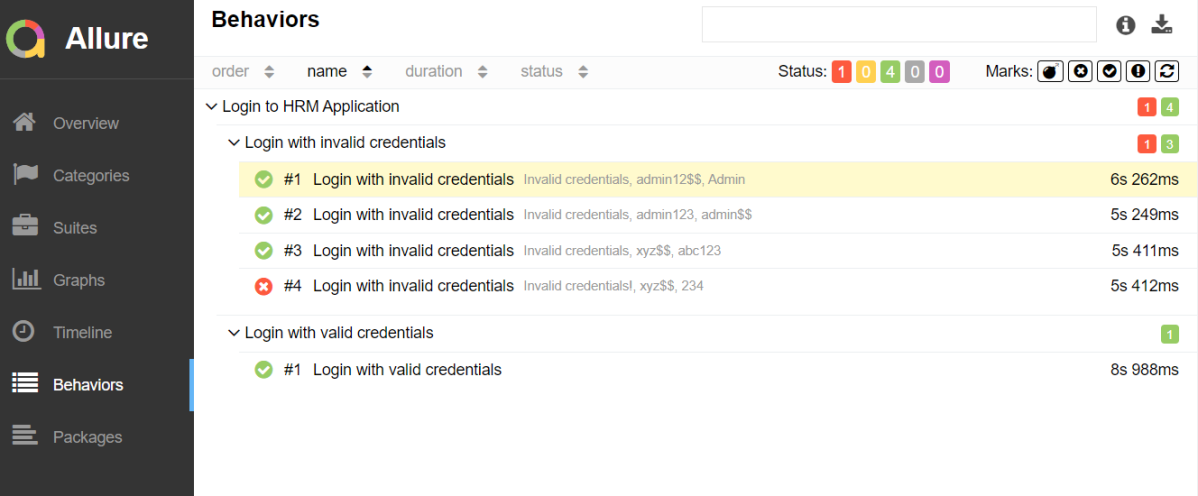
Behaviors of Allure Report

This tab groups test results according to Epic, Feature and Story tags.
Packages in Allure Report

Packages tab represents a tree-like layout of test results, grouped by different packages.

Congratulations on making it through this tutorial and hope you found it useful! Happy Learning!! Cheers!!