TestNG Framework: How to run Parallel Tests in Selenium with TestNG

HOME

To start with, add the below mentioned dependencies to POM.xml (Maven project)

<project xmlns="http://maven.apache.org/POM/4.0.0" xmlns:xsi="http://www.w3.org/2001/XMLSchema-instance"
         xsi:schemaLocation="http://maven.apache.org/POM/4.0.0 http://maven.apache.org/xsd/maven-4.0.0.xsd">
    <modelVersion>4.0.0</modelVersion>

    <groupId>com.example</groupId>
    <artifactId>ParallelTestsTestNG</artifactId>
    <version>1.0-SNAPSHOT</version>
    <packaging>jar</packaging>

    <name>ParallelTestsTestNG</name>
    <url>http://maven.apache.org</url>

    <properties>
        <project.build.sourceEncoding>UTF-8</project.build.sourceEncoding>
        <selenium.version>4.21.0</selenium.version>
        <testng.version>7.10.2</testng.version>
        <maven.compiler.plugin.version>3.13.0</maven.compiler.plugin.version>
        <maven.compiler.source.version>17</maven.compiler.source.version>
        <maven.compiler.target.version>17</maven.compiler.target.version>
        <maven.surefire.plugin.version>3.2.5</maven.surefire.plugin.version>
        <java.version>17</java.version>
    </properties>

    <dependencies>

        <dependency>
            <groupId>org.seleniumhq.selenium</groupId>
            <artifactId>selenium-java</artifactId>
            <version>${selenium.version}</version>
        </dependency>

        <dependency>
            <groupId>org.testng</groupId>
            <artifactId>testng</artifactId>
            <version>${testng.version}</version>
            <scope>test</scope>
        </dependency>

    </dependencies>

    <build>
        <plugins>
            <plugin>
                <groupId>org.apache.maven.plugins</groupId>
                <artifactId>maven-surefire-plugin</artifactId>
                <version>${maven.surefire.plugin.version}</version>
                <configuration>
                    <suiteXmlFiles>
                        <suiteXmlFile>testng.xml</suiteXmlFile>
                    </suiteXmlFiles>
                </configuration>
                <dependencies>
                    <dependency>
                        <groupId>org.apache.maven.surefire</groupId>
                        <artifactId>surefire-testng</artifactId>
                        <version>${maven.surefire.plugin.version}</version>
                    </dependency>
                </dependencies>
            </plugin>

            <plugin>
                <groupId>org.apache.maven.plugins</groupId>
                <artifactId>maven-compiler-plugin</artifactId>
                <version>${maven.compiler.plugin.version}</version>
                <configuration>
                    <source>${maven.compiler.source.version}</source>
                    <target>${maven.compiler.target.version}</target>
                </configuration>
            </plugin>
        </plugins>
    </build>
</project>

Let us create a class with multiple tests. In the below Example, we have created three test cases or methods . We want to run these methods parallelly. To achieve this, we need to add the below command in testng.xml

parallel="methods"
import org.openqa.selenium.By;
import org.openqa.selenium.WebDriver;
import org.openqa.selenium.chrome.ChromeDriver;
import org.openqa.selenium.chrome.ChromeOptions;
import org.testng.Assert;
import org.testng.annotations.*;

import java.time.Duration;

public class ParallelTestsExample1 {


    @Test
    public void invalidLoginTest() {

        System.out.println("Test Case 1 with Thread Id - "+Thread.currentThread().getId());
        ChromeOptions options = new ChromeOptions();
        options.addArguments("--start-maximized");
        WebDriver driver = new ChromeDriver(options);
        driver.manage().timeouts().implicitlyWait(Duration.ofSeconds(5));
        driver.get("https://opensource-demo.orangehrmlive.com/web/index.php/auth/login");
        driver.findElement(By.name("username")).sendKeys("admin123123");
        driver.findElement(By.name("password")).sendKeys("adm");
        driver.findElement(By.xpath("//*[@class='oxd-form']/div[3]/button")).click();
        String expectedError = driver.findElement(By.xpath("//*[@class='orangehrm-login-error']/div[1]/div[1]/p")).getText();
        Assert.assertTrue(expectedError.contains("Invalid credentials"));

    }

    @Test
    public void validLoginTest() throws InterruptedException {

        System.out.println("Test Case 2 with Thread Id - "+Thread.currentThread().getId());
        ChromeOptions options = new ChromeOptions();
        options.addArguments("--start-maximized");
        WebDriver driver = new ChromeDriver(options);
        driver.manage().timeouts().implicitlyWait(Duration.ofSeconds(5));
        driver.get("https://opensource-demo.orangehrmlive.com/web/index.php/auth/login");
        driver.findElement(By.name("username")).sendKeys("Admin");
        driver.findElement(By.name("password")).sendKeys("admin123");
        driver.findElement(By.xpath("//*[@class='oxd-form']/div[3]/button")).click();
        String expectedTitle = driver.findElement(By.xpath("//*[@class='oxd-topbar-header-breadcrumb']/h6")).getText();
        Assert.assertTrue(expectedTitle.contains("Dashboard"));
    }

    @Test
    public void forgotLinkTest() {

        System.out.println("Test Case 3 with Thread Id - "+Thread.currentThread().getId());
        ChromeOptions options = new ChromeOptions();
        options.addArguments("--start-maximized");
        WebDriver driver = new ChromeDriver(options);
        driver.manage().timeouts().implicitlyWait(Duration.ofSeconds(5));
        driver.get("https://opensource-demo.orangehrmlive.com/web/index.php/auth/login");

        String expectedLink = driver.findElement(By.className("orangehrm-login-forgot-header")).getText();
        Assert.assertTrue(expectedLink.contains("Forgot your password?"));
    }


}

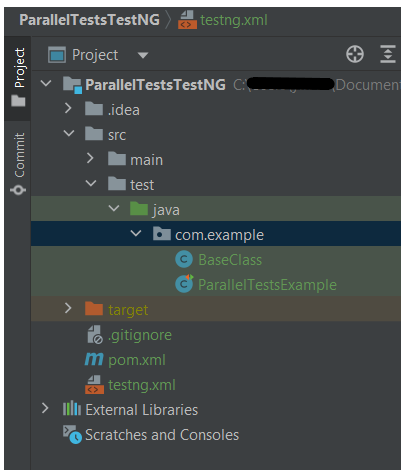
Now, let us create a testng.xml. Right click on the project and select TestNG -> Convert to TestNG.

The attribute thread-count allows you to specify how many threads should be allocated for this execution.

parallel = “methods” means that the methods will run parallel

The parallel attribute can be extended for multiple values, as below:

·         Methods: Helps run methods in separate threads

·         Tests: Help to run all methods belonging to the same tag in the same thread, means tests will run sequentially

·         Classes: Helps to run all methods belonging to a class in a single thread

·         Instances: Helps run all methods in the same instance in the same thread

testng.xml

<?xml version="1.0" encoding="UTF-8"?>
<!DOCTYPE suite SYSTEM "https://testng.org/testng-1.0.dtd">
<suite name="Suite">
  <test name="Parallel Tests" parallel = "methods" thread-count="3">
    <classes>
      <class name="com.example.parallel.ParallelTestsExample"/>
    </classes>
  </test> <!-- Test -->
</suite> <!-- Suite -->

How to run the tests?

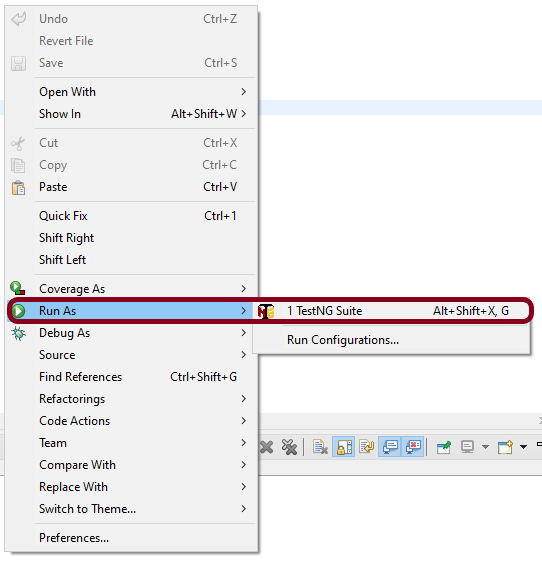
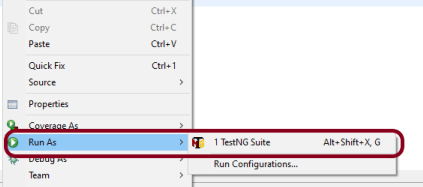
Right-click on testng.xml and select Run AS -> TestNG Suite. If you will run the Test Class – ParallelTestDemo.java as Right click and then Run As TestNG Tests, then the methods will run sequentially.

Execution

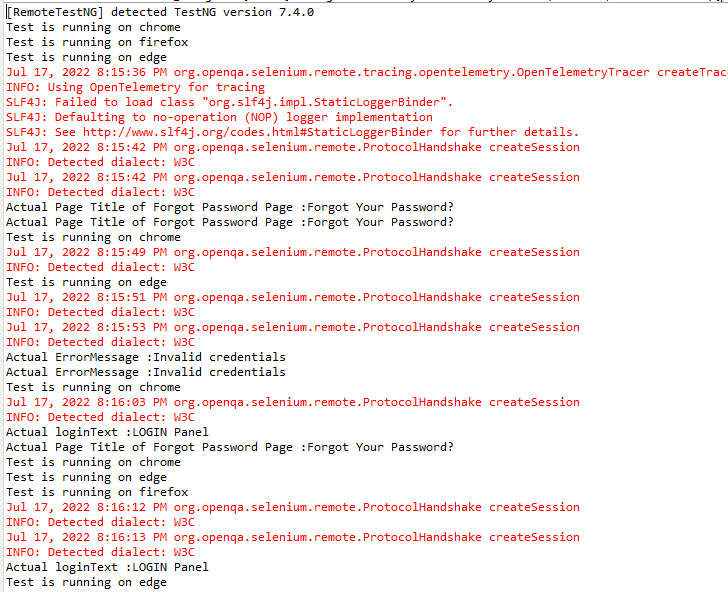
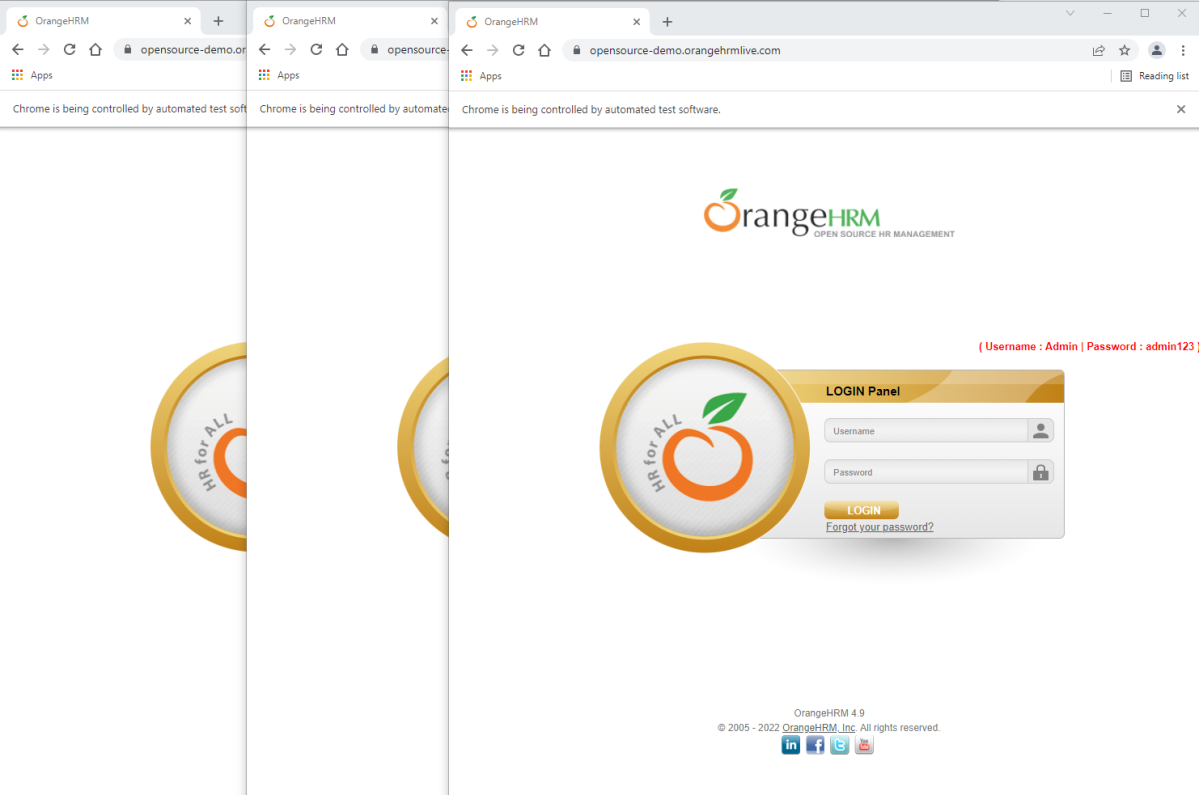
Here it can be seen that 3 tests were running on thread no – 19, 20 and 21. Out of all 3 tests, browser for only 1 test is closed and rest 2 browsers are left open.

First thread initialized a browser and set a value to static WebDriver reference. Second thread initialized another browser and set a new value to the same static WebDriver reference and this will impact value set by first thread as it is a static. All threads wanted to close same browser that is the reason there is one configuration method failure as one browser is closed another threads will not find sessions to close the browsers. Browser was closed already so last 2 tests did not able to close the browser.
To overcome this issue, will use ThreadLocal<WebDriver>. The complete program looks like as below:

First, I will create a HelperClass which contains the initialization of driver and closing the driver. I like to keep the tests only in Test Class. This is not mandatory. You can combine the code of both classes in one also.

HelperClass

import org.openqa.selenium.WebDriver;
import org.openqa.selenium.chrome.ChromeDriver;
import org.openqa.selenium.chrome.ChromeOptions;
import org.testng.annotations.AfterMethod;
import org.testng.annotations.BeforeMethod;

import java.time.Duration;

public class BaseClass {

    private static final ThreadLocal<WebDriver> driver = new ThreadLocal<WebDriver>();

    @BeforeMethod
    public void setDriver()  {
        
        ChromeOptions options = new ChromeOptions();
        options.addArguments("--start-maximized");
        driver.set(new ChromeDriver(options));
        driver.get().manage().timeouts().implicitlyWait(Duration.ofSeconds(5));
        driver.get().get("https://opensource-demo.orangehrmlive.com/web/index.php/auth/login");
        System.out.println("Before method Thread Id:" + Thread.currentThread().getId());

    }

    public WebDriver getDriver() {
        return driver.get();
    }
    
    @AfterMethod
    public  void closeBrowser() {
        System.out.println("After method Thread Id:" + Thread.currentThread().getId());
        driver.get().quit();
        driver.remove();
    }
}

ParallelTestsExample

import org.openqa.selenium.By;
import org.testng.Assert;
import org.testng.annotations.Test;

public class ParallelTestsExample extends BaseClass{

    @Test
    public void invalidLoginTest() {

        System.out.println("Test Case 1 with Thread Id - "+Thread.currentThread().getId());

        getDriver().findElement(By.name("username")).sendKeys("admin123123");
        getDriver().findElement(By.name("password")).sendKeys("adm");
        getDriver().findElement(By.xpath("//*[@class='oxd-form']/div[3]/button")).click();
        String expectedError = getDriver().findElement(By.xpath("//*[@class='orangehrm-login-error']/div[1]/div[1]/p")).getText();
        Assert.assertTrue(expectedError.contains("Invalid credentials"));

    }

    @Test
    public void validLoginTest() throws InterruptedException {

        System.out.println("Test Case 2 with Thread Id - "+Thread.currentThread().getId());

        getDriver().findElement(By.name("username")).sendKeys("Admin");
        getDriver().findElement(By.name("password")).sendKeys("admin123");
        getDriver().findElement(By.xpath("//*[@class='oxd-form']/div[3]/button")).click();
        Thread.sleep(5000);
        String expectedTitle = getDriver().findElement(By.xpath("//*[@class='oxd-topbar-header-breadcrumb']/h6")).getText();
        Assert.assertTrue(expectedTitle.contains("Dashboard"));
    }

    @Test
    public void forgotLinkTest() {

        System.out.println("Test Case 3 with Thread Id - "+Thread.currentThread().getId());

        String expectedLink = getDriver().findElement(By.className("orangehrm-login-forgot-header")).getText();
        Assert.assertTrue(expectedLink.contains("Forgot your password?"));
    }

}

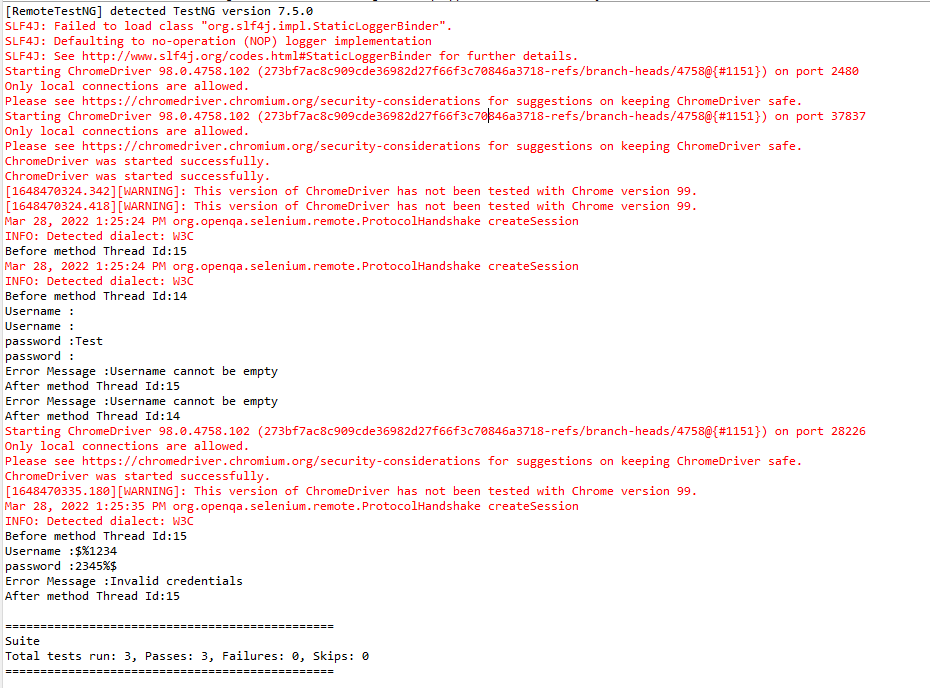
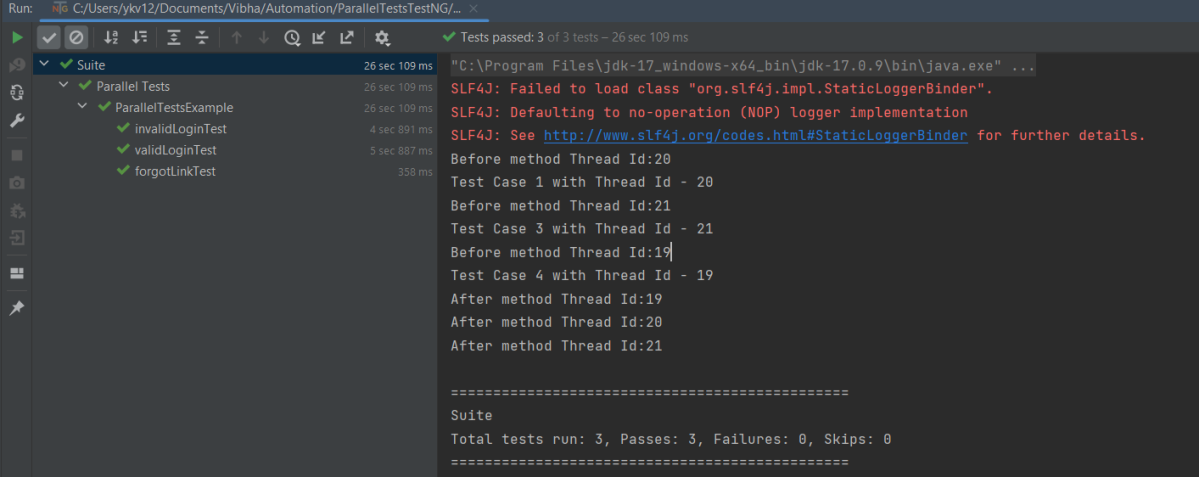
The output of the above program is
Report Generation

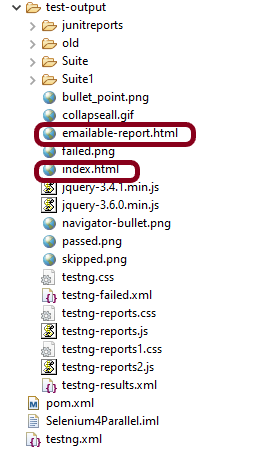
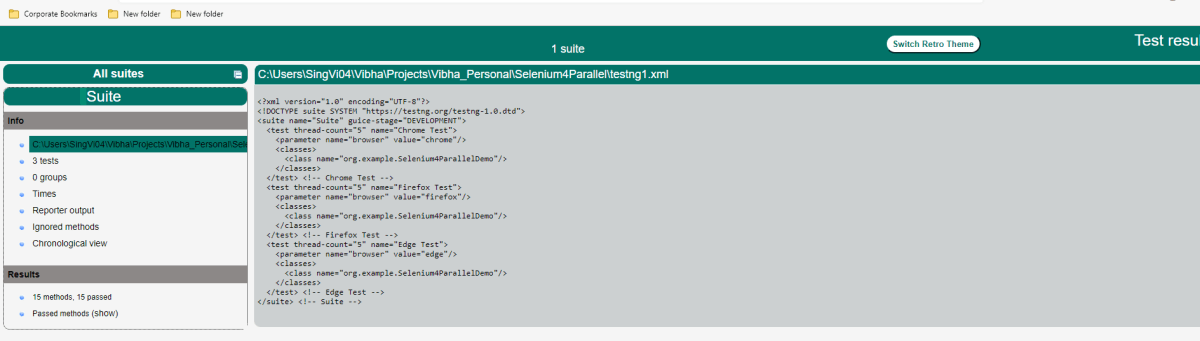
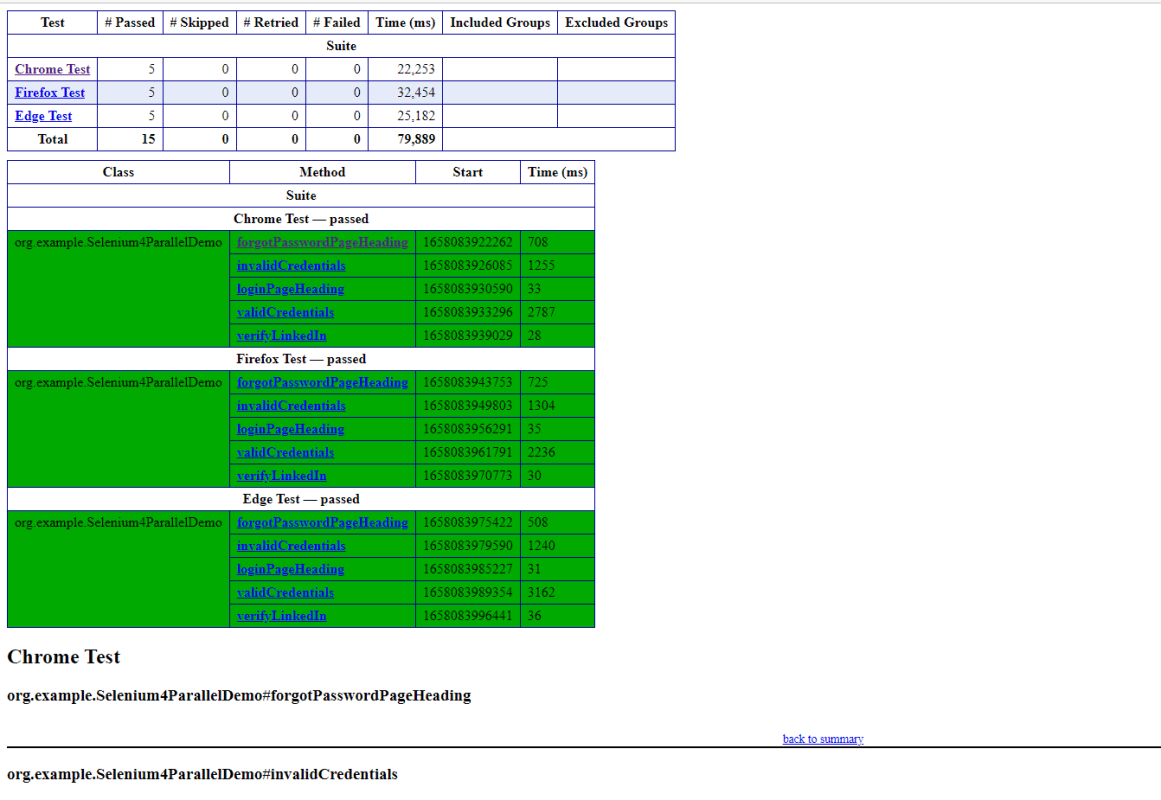
TestNG generates 2 reports – emailable-report.html and index.html

Emailable-Report.html

Go to test-output folder and open emailable-report.html

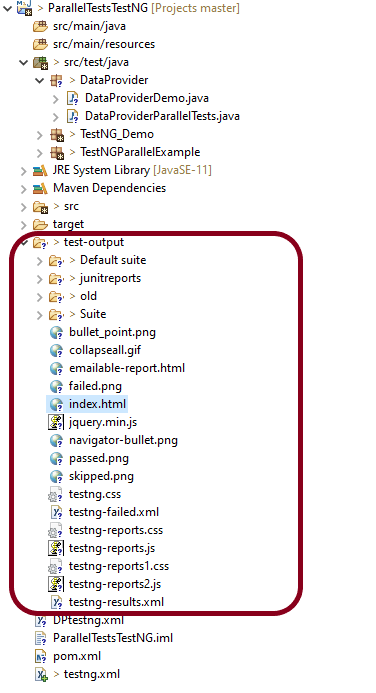
This report gives a summary of all the tests executed, passed, failed, skipped and retried with their respective execution time.

Index.html

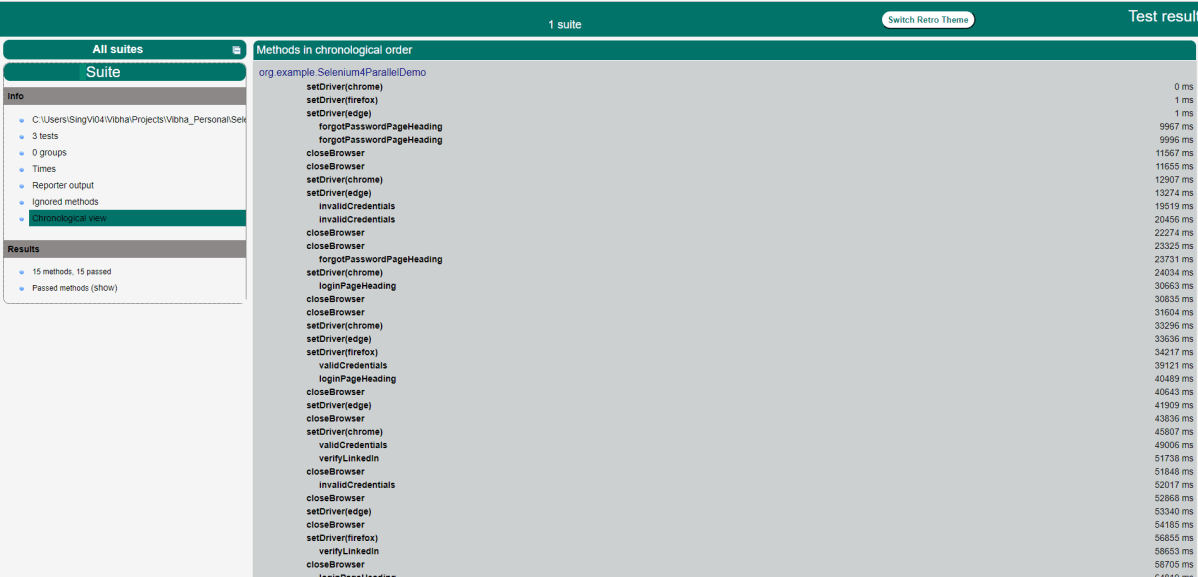
This report provides the detailed description of the tests like no of tests present, no of methods, time taken by each step, total time taken by each steps, testng.xml data and soon.

Run Tests Sequentially

If you will run the Test Class – ParallelTestDemo.java as Right click and then Run As TestNG Tests, then the methods will run sequentially. Here all tests are run with Thread 1 whereas with parallel execution tests were run with different threads.

We can make parallel = none, if don’t want to run them parallel. It is shown below that all the tests are running on Thread 1 that means once a test ends then another test starts on that thread.

<suite name="TestSuite" thread-count="3" parallel="none" >

Congratulations. We are able to run methods parallelly using TestNG.

Parallel Testing in Cucumber with TestNG

Last Updated On

HOME

In this tutorial, I will explain Parallel Testing using Cucumber with TestNG.

Cucumber-JVM allows parallel execution across multiple threads since version 4.0.0. There are several options to incorporate this built-in feature in a Cucumber project. You can do so by using JUnit, TestNG, or CLI.

Cucumber can be executed in parallel using TestNG and Maven test execution plugins by setting the data provider parallel option to true.

In TestNG, the scenarios and rows in a scenario outline are executed in multiple threads. One can use either Maven Surefire or Failsafe plugin for executing the runners. In this tutorial, I’m using the Maven Surefire plugin.

Table of Contents:

  1. Prerequisite
  2. Dependency List
  3. Detailed Step Description
    1. Create a Maven project
    2. Update Properties section in Maven pom.xml
    3. Add Cucumber, Selenium, and TestNG dependencies to the project
    4. Add Surefire plugin configuration to the build section of the POM
    5. Create 2 feature files in src/test/resources – LoginPage.feature and ForgotPasswordPage.feature
    6. Create Page Object Model classes of both feature files
    7. Create the Step Definition classes for both feature files or Glue Code
    8. Create the Hook Class and Dependency Injection class (TestSetUp) and BaseTest class
    9. Create a Cucumber TestNG Runner class
    10. Report Generation
    11. Execute the test from Command Line
    12. Execute the tests from TestNG Runner
    13. Test Execution Result

Prerequisite

  1. Java is installed
  2. Maven is installed
  3. TestNG is installed
  4. Eclipse or IntelliJ Java IDE installed

Dependency List

  1. Selenium – 4.19.1
  2. Java 17
  3. Cucumber Java – 7.16.1
  4. Cucumber TestNG – 7.16.1
  5. Maven – 3.9.5
  6. TestNG – 7.10.1
  7. Maven Surefire Plugin – 3.2.5
  8. Maven Compiler Plugin – 3.13.1

Detailed Step Description

Step 1 – Create a Maven project

Create a Maven project in your favorite IDE using the cucumber archetype. To know more about this, click here.

Step 2 – Update Properties section in Maven pom.xml

<properties>
        <project.build.sourceEncoding>UTF-8</project.build.sourceEncoding>
        <selenium.version>4.19.1</selenium.version>
        <cucumber.version>7.16.1</cucumber.version>
        <testng.version>7.10.1</testng.version>
        <maven.compiler.plugin.version>3.13.0</maven.compiler.plugin.version>
        <maven.surefire.plugin.version>3.2.5</maven.surefire.plugin.version>
        <maven.compiler.source>17</maven.compiler.source>
        <maven.compiler.target>17</maven.compiler.target>
    </properties>

Step 3 – Add Cucumber, Selenium, and TestNG dependencies to the project

Add below mentioned Cucumber-Java and Cucumber-TestNG and Selenium-java dependencies to the project.

<dependencies>

        <!--Cucumber Dependencies -->
        <dependency>
            <groupId>io.cucumber</groupId>
            <artifactId>cucumber-java</artifactId>
            <version>${cucumber.version}</version>
        </dependency>

        <dependency>
            <groupId>io.cucumber</groupId>
            <artifactId>cucumber-testng</artifactId>
            <version>${cucumber.version}</version>
            <scope>test</scope>
        </dependency>

        <!-- Selenium Dependency -->
        <dependency>
            <groupId>org.seleniumhq.selenium</groupId>
            <artifactId>selenium-java</artifactId>
            <version>${selenium.version}</version>
        </dependency>

        <!-- TestNG Dependency -->
        <dependency>
            <groupId>org.testng</groupId>
            <artifactId>testng</artifactId>
            <version>${testng.version}</version>
            <scope>test</scope>
        </dependency>

        <!-- Dependency Injection-->
        <dependency>
            <groupId>io.cucumber</groupId>
            <artifactId>cucumber-picocontainer</artifactId>
            <version>${cucumber.version}</version>
            <scope>test</scope>
        </dependency>

    </dependencies>
  

Step 4 – Add Surefire plugin configuration to the build section of the POM

 <plugin>
            <groupId>org.apache.maven.plugins</groupId>
            <artifactId>maven-surefire-plugin</artifactId>
            <version>${maven.surefire.plugin.version}</version>
            <configuration>
                <parallel>methods</parallel>
                <useUnlimitedThreads>true</useUnlimitedThreads>
            </configuration>
  </plugin>

The complete POM.xml is shown below:

<?xml version="1.0" encoding="UTF-8"?>
<project xmlns="http://maven.apache.org/POM/4.0.0"
         xmlns:xsi="http://www.w3.org/2001/XMLSchema-instance"
         xsi:schemaLocation="http://maven.apache.org/POM/4.0.0 http://maven.apache.org/xsd/maven-4.0.0.xsd">
    <modelVersion>4.0.0</modelVersion>

    <groupId>org.example</groupId>
    <artifactId>ParallelTests_TestNG_Demo</artifactId>
    <version>1.0-SNAPSHOT</version>

    <properties>
        <project.build.sourceEncoding>UTF-8</project.build.sourceEncoding>
        <selenium.version>4.8.0</selenium.version>
        <cucumber.version>7.11.1</cucumber.version>
        <testng.version>7.7.1</testng.version>
        <webdrivermanager.version>5.3.2</webdrivermanager.version>
        <maven.compiler.plugin.version>3.10.1</maven.compiler.plugin.version>
        <maven.surefire.plugin.version>3.0.0-M7</maven.surefire.plugin.version>
        <maven.compiler.source>11</maven.compiler.source>
        <maven.compiler.target>11</maven.compiler.target>
    </properties>

    <dependencies>

        <!--Cucumber Dependencies -->
        <dependency>
            <groupId>io.cucumber</groupId>
            <artifactId>cucumber-java</artifactId>
            <version>${cucumber.version}</version>
        </dependency>

        <dependency>
            <groupId>io.cucumber</groupId>
            <artifactId>cucumber-testng</artifactId>
            <version>${cucumber.version}</version>
            <scope>test</scope>
        </dependency>

        <!-- Selenium Dependency -->
        <dependency>
            <groupId>org.seleniumhq.selenium</groupId>
            <artifactId>selenium-java</artifactId>
            <version>${selenium.version}</version>
        </dependency>

        <!-- TestNG Dependency -->
        <dependency>
            <groupId>org.testng</groupId>
            <artifactId>testng</artifactId>
            <version>${testng.version}</version>
            <scope>test</scope>
        </dependency>

        <!-- Dependency Injection-->
        <dependency>
            <groupId>io.cucumber</groupId>
            <artifactId>cucumber-picocontainer</artifactId>
            <version>${cucumber.version}</version>
            <scope>test</scope>
        </dependency>

        <!-- WebDriver Manager Dependency -->
        <dependency>
            <groupId>io.github.bonigarcia</groupId>
            <artifactId>webdrivermanager</artifactId>
            <version>${webdrivermanager.version}</version>
        </dependency>

    </dependencies>
    <build>
        <plugins>

            <plugin>
                <groupId>org.apache.maven.plugins</groupId>
                <artifactId>maven-compiler-plugin</artifactId>
                <version>${maven.compiler.plugin.version}</version>
                <configuration>
                    <source>${maven.compiler.source}</source>
                    <target>${maven.compiler.target}</target>
                </configuration>
            </plugin>

            <plugin>
                <groupId>org.apache.maven.plugins</groupId>
                <artifactId>maven-surefire-plugin</artifactId>
                <version>${maven.surefire.plugin.version}</version>
                <configuration>
                    <parallel>methods</parallel>
                    <useUnlimitedThreads>true</useUnlimitedThreads>
                </configuration>
            </plugin>
        </plugins>
    </build>

</project>

Step 5 – Create 2 feature files in src/test/resources – LoginPage.feature and ForgotPasswordPage.feature

Feature File is an entry point to the Cucumber tests.

The first keyword in the Feature file is the Feature keyword, followed by: and short text that describes the feature.

To know more about the Feature file, please refer to this tutorial.

Below are the sample feature files.

LoginPage.feature

Feature: Login to HRM Application

  Background:
    Given User is on Home page

  @ValidCredentials
  Scenario: Login with valid credentials - Feature 1, Scenario -1

    When User enters username as "Admin" and password as "admin123"
    Then User should be able to login successfully

  @InvalidCredentials
  Scenario Outline: Login with invalid credentials - Feature 1, Scenario -2

    When User enters username as "<username>" and password as "<password>"
    Then User should be able to see error message "<errorMessage>"

    Examples:
      | username    | password   | errorMessage                      |
      | Admin        | admin12$$  | Invalid credentials               |
      | admin$$     | admin123   | Invalid credentials               |
      | abc123       | xyz$$      | Invalid credentials               |

ForgotPasswordPage.feature

Feature: Forgot Password Page

  Background:
    Given User is on Home page

  @BackFunctionality
  Scenario: Validate the cancel functionality - Feature 2, Scenario - 1

    When User clicks on Forgot your password? link
    Then User should be able to navigate to Reset Password page
    And User clicks on Cancel button to go back to Login Page

  @ResetFunctionality
  Scenario: Validate the Reset Password functionality - Feature 2, Scenario - 2

    When User clicks on Forgot your password? link
    Then User should be able to navigate to Reset Password page
    And User clicks on Reset Password button and provide username as "abc1234"
    And Verify the message "Reset Password link sent successfully"

Step 6 – Create Page Object Model classes of both feature files

Page Object Model class contains all the locators and the actions performed on these locators for the particular class to improve the readability and maintainability of the code.

Below are the Page Object Model classes for these feature files.

LoginPage

import org.openqa.selenium.By;
import org.openqa.selenium.WebDriver;

public class LoginPage {

    public WebDriver driver;

    By userName = By.name("username");
    By passWord = By.name("password");
    By login = By.xpath("//*[@id='app']/div[1]/div/div[1]/div/div[2]/div[2]/form/div[3]/button");
    By errorMessage = By.xpath("//*[@class='orangehrm-login-error']/div[1]/div[1]/p");
    By forgotPasswordLink = By.xpath("//*[@id='app']/div[1]/div/div[1]/div/div[2]/div[2]/form/div[4]/p");
    By loginPageTitle = By.xpath("//*[@id='app']/div[1]/div/div[1]/div/div[2]/h5");

    public LoginPage(WebDriver driver) {
        this.driver = driver;
    }

    public String getErrorMessage() {
        return driver.findElement(errorMessage).getText();
    }

    public void login(String strUserName, String strPassword) {

        // Fill user name
        driver.findElement(userName).sendKeys(strUserName);

        // Fill password
        driver.findElement(passWord).sendKeys(strPassword);

        // Click Login button
        driver.findElement(login).click();

    }

    // Click on Forgot Password link
    public void clickOnForgotPasswordLink() {
        driver.findElement(forgotPasswordLink).click();
    }

    //Get Login Page Title
    public String getLoginPageTitle() {
        return driver.findElement(loginPageTitle).getText();
    }
}

HomePage

import org.openqa.selenium.By;
import org.openqa.selenium.WebDriver;

public class HomePage {

    public WebDriver driver;

    public HomePage(WebDriver driver) {
        this.driver = driver;
    }

    By homePageUserName = By.xpath("//*[@class='oxd-topbar-header-breadcrumb']/h6");

    public String getHomePageText() {
        return driver.findElement(homePageUserName).getText();
    }
}

ForgotPasswordPage

import org.openqa.selenium.By;
import org.openqa.selenium.WebDriver;

public class ForgotPasswordPage {

    WebDriver driver;

     By forgotPasswordPageTitle = By.xpath("//*[@id='app']/div[1]/div[1]/div/form/h6");
     By cancelBtn = By.xpath("//*[@id='app']/div[1]/div[1]/div/form/div[2]/button[1]");
     By resetPasswordBtn = By.xpath("//*[@id='app']/div[1]/div[1]/div/form/div[2]/button[2]");
     By userName = By.name("username");
     By resetMessage = By.xpath("//*[@id='app']/div[1]/div[1]/div/h6");

    public ForgotPasswordPage(WebDriver driver) {
        this.driver = driver;
    }

    // Get the Title of ForgotPage
    public String getForgotPageText() {
        return driver.findElement(forgotPasswordPageTitle).getText();
    }

    // Click Cancel Button
    public void clickOnCancelBtn() {
         driver.findElement(cancelBtn).click();
    }

    // Click ResetPassword Button
    public void clickOnRestPasswordBtn() {
        driver.findElement(resetPasswordBtn).click();
    }

    // Type username in TextBox
    public void TypeOnUsernameTextBox(String username) {
        driver.findElement(userName).sendKeys(username);
    }

    // Get Message
    public String getRestMessage() {
        return driver.findElement(resetMessage).getText();
    }
}

PageObjectManager – This class creates the object of all the above-mentioned Page Object Model classes. This an optional class. If you want you can create the objects in StepDefinition class also.

public class PageObjectManager {

    public LoginPage loginPage;
    public HomePage homePage;
    public ForgotPasswordPage forgotPasswordPage;
    public WebDriver driver;


    public PageObjectManager(WebDriver driver)
    {
        this.driver = driver;
    }

    public LoginPage getLoginPage()
    {

        loginPage= new LoginPage(driver);
        return loginPage;
    }

    public HomePage getHomePage()
    {
        homePage = new HomePage(driver);
        return homePage;
    }

    public ForgotPasswordPage getForgotPasswordPage()
    {
        forgotPasswordPage = new ForgotPasswordPage(driver);
        return forgotPasswordPage;
    }
}


Step 7 – Create the Step Definition classes for both feature files or Glue Code

Below is the Step Definition for LoginPage.feature.

import io.cucumber.java.en.Given;
import io.cucumber.java.en.Then;
import io.cucumber.java.en.When;
import pageObjects.HomePage;
import pageObjects.LoginPage;
import pageObjects.PageObjectManager;
import utils.TestSetUp;
import org.testng.Assert;

public class LoginPageDefinitions {

    TestSetUp setUp;
    public PageObjectManager pageObjectManager;
    public LoginPage loginPage;
    public HomePage homePage;


    public LoginPageDefinitions(TestSetUp setUp) {
        this.setUp = setUp;
        this.loginPage = setUp.pageObjectManager.getLoginPage();
        this.homePage= setUp.pageObjectManager.getHomePage();
    }

    @Given("User is on Home page")
    public void loginTest() throws IOException {
        setUp.baseTest.WebDriverManager().get("https://opensource-demo.orangehrmlive.com/");

    }

    @When("User enters username as {string} and password as {string}")
    public void goToHomePage(String userName, String passWord) {

        // login to application
        loginPage.login(userName, passWord);

        // go the next page

    }

    @Then("User should be able to login successfully")
    public void verifyLogin() {

        // Verify home page
        Assert.assertTrue(homePage.getHomePageText().contains("Dashboard"));

    }

    @Then("User should be able to see error message {string}")
    public void verifyErrorMessage(String expectedErrorMessage) {

        // Verify home page
        Assert.assertEquals(loginPage.getErrorMessage(),expectedErrorMessage);

    }

}

Below is the Step Definition for ForgotPasswordPage.feature.

import io.cucumber.java.en.Then;
import io.cucumber.java.en.When;
import pageObjects.ForgotPasswordPage;
import pageObjects.LoginPage;
import pageObjects.PageObjectManager;
import utils.TestSetUp;
import org.testng.Assert;

public class ForgotPasswordPageDefinitions{

    TestSetUp setUp;
    PageObjectManager pageObjectManager;
    public LoginPage loginPage;
    public  ForgotPasswordPage forgotPasswordPage;

    public ForgotPageDefinitions(TestSetUp setUp) {
        this.setUp = setUp;
        this.loginPage = setUp.pageObjectManager.getLoginPage();
        this.forgotPasswordPage = setUp.pageObjectManager.getForgotPasswordPage();
    }

    @When("User clicks on Forgot your password? link")
    public void forgotPasswordLink() {

        loginPage.clickOnForgotPasswordLink();

    }

    @Then("User should be able to navigate to Reset Password page")
    public void verifyForgotPasswordPage() {

        Assert.assertEquals(forgotPasswordPage.getForgotPageText(),"Reset Password");

    }

    @Then("User clicks on Cancel button to go back to Login Page")
    public void verifyCancelBtn() {

        forgotPasswordPage.clickOnCancelBtn();
        Assert.assertEquals(loginPage.getLoginPageTitle(),"Login");

    }

    @Then("User clicks on Reset Password button and provide username as {string}")
    public void verifyResetPasswordBtn(String username) {

        forgotPasswordPage.TypeOnUsernameTextBox(username);
        forgotPasswordPage.clickOnRestPasswordBtn();

    }

    @Then("Verify the message {string}")
    public void verifyMessage(String message) {

        Assert.assertEquals(forgotPasswordPage.getRestMessage(),message);

    }
}

Step 8 – Create the Hook Class and Dependency Injection class (TestSetUp) and BaseTest class

Below is the code for the ApplicationHook Class.

import io.cucumber.java.After;
import utils.TestSetUp;

public class ApplicationHooks {

 public TestSetUp setUp;

    public ApplicationHooks(TestSetUp setUp) {
        this.setUp = setUp;
    }

    @After
    public void tearDown( ) throws IOException {
        setUp.baseTest.WebDriverManager().quit();
    }
}

Below is the code for the Dependency Injection class. In Cucumber, if we want to share the state between multiple-step definition files, we will need to use dependency injection (DI). 

import org.openqa.selenium.WebDriver;
import org.openqa.selenium.WebElement;
import pageObjects.PageObjectManager;

public class TestSetUp {

    public WebElement errorMessage;
    public WebElement homePageUserName;
    public PageObjectManager pageObjectManager;
    public BaseTest baseTest;

    public TestSetUp()  {

        baseTest = new BaseTest();
        pageObjectManager = new PageObjectManager(baseTest.WebDriverManager());

    }
}

BaseTest class is used to initialize the WebDriver.

import io.github.bonigarcia.wdm.WebDriverManager;
import org.openqa.selenium.WebDriver;
import org.openqa.selenium.chrome.ChromeDriver;
import java.time.Duration;

public class BaseTest {

    public WebDriver driver;
    public final static int TIMEOUT = 10;

    public WebDriver WebDriverManager ()  {

   
        if (driver == null) {
        
            ChromeOptions options = new ChromeOptions();
            driver = new ChromeDriver(options);
            driver.manage().timeouts().implicitlyWait(Duration.ofSeconds(TIMEOUT));
            driver.manage().window().maximize();
            driver.get(url);

        }
        return driver;
    }
}

Step 9 – Create a Cucumber TestNG Runner class

Add a cucumber runner by extending the AbstractTestNGCucumberTests class and overriding the scenarios method. Set the parallel option value to true for the DataProvider annotation.

import io.cucumber.testng.AbstractTestNGCucumberTests;
import io.cucumber.testng.CucumberOptions;
import org.testng.annotations.DataProvider;

@CucumberOptions(tags = "", features = "src/test/resources/features", glue = "org.example.definitions")
public class CucumberRunnerTests  extends AbstractTestNGCucumberTests {

   @Override
    @DataProvider(parallel = true)
    public Object[][] scenarios() {
        return super.scenarios();
    }

}

Step 10 – Report Generation

Add cucumber.properties under src/test/resources and add the below instruction in the file.

cucumber.publish.enabled=true

Step 11 – Execute the test from Command Line

Use the below-mentioned command in the command prompt to run the tests.

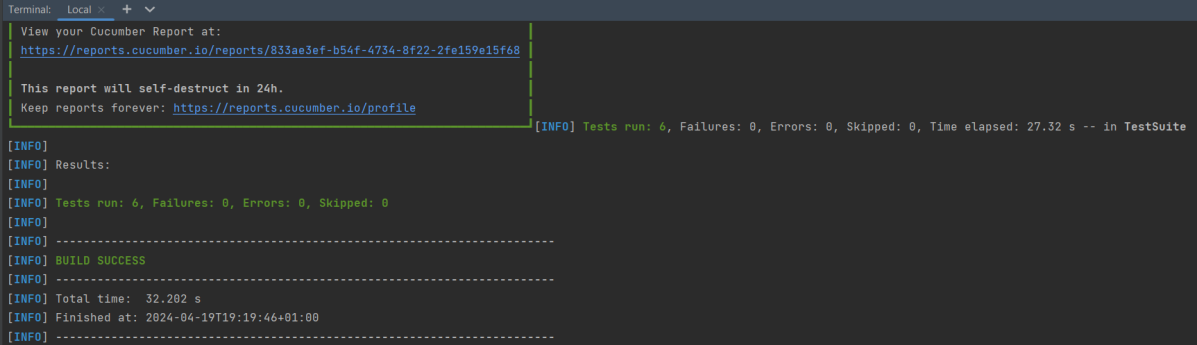
mvn clean test

The output of the above program is

Step 12 – Execute the tests from TestNG Runner

Go to the Runner class and right-click Run As TestNG Test. The tests will run as TestNG tests. (Eclipse)

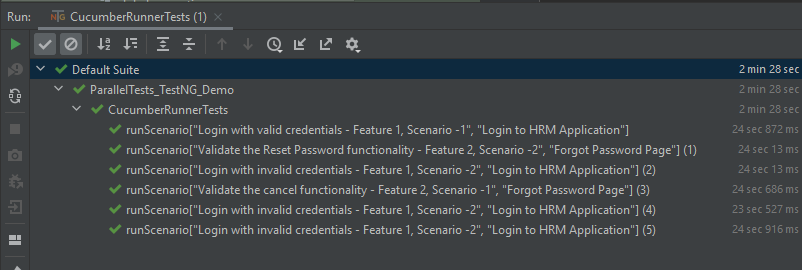
In the case of IntelliJ, right-click and select Run “CucumberRunnerTests”.

Step 13 – Test Execution Result

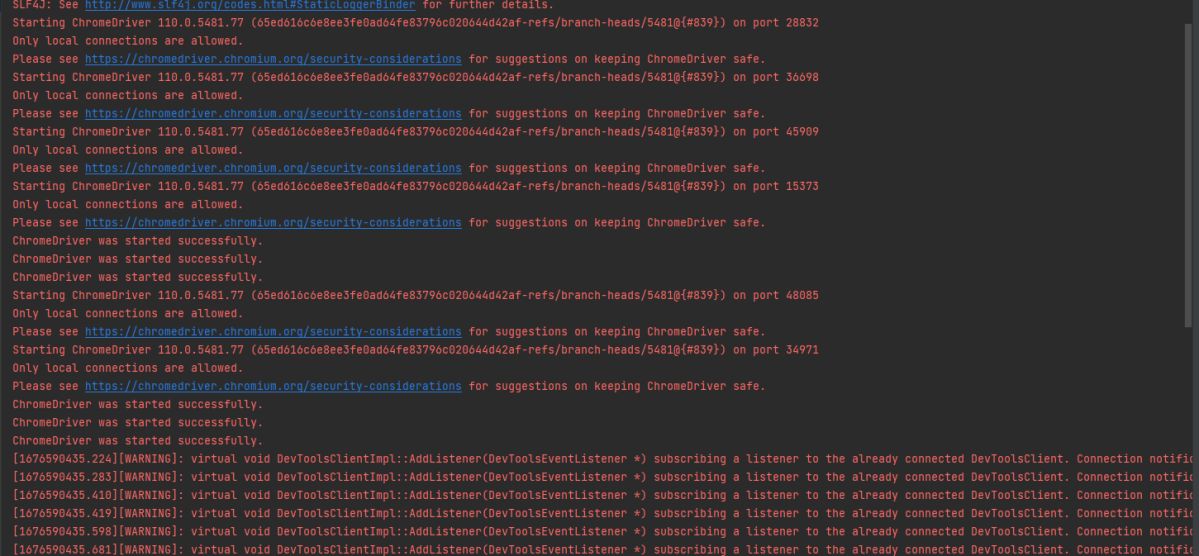
All the tests are started at the same time, so they share different threads. The way tests are executed is different in them. With non-parallel tests, all the scenarios of the same feature are executed together, and then the scenarios of another feature file. Whereas in parallel tests, all the tests are started at the same time, so there won’t be any specific order.

All the scenarios have started simultaneously.

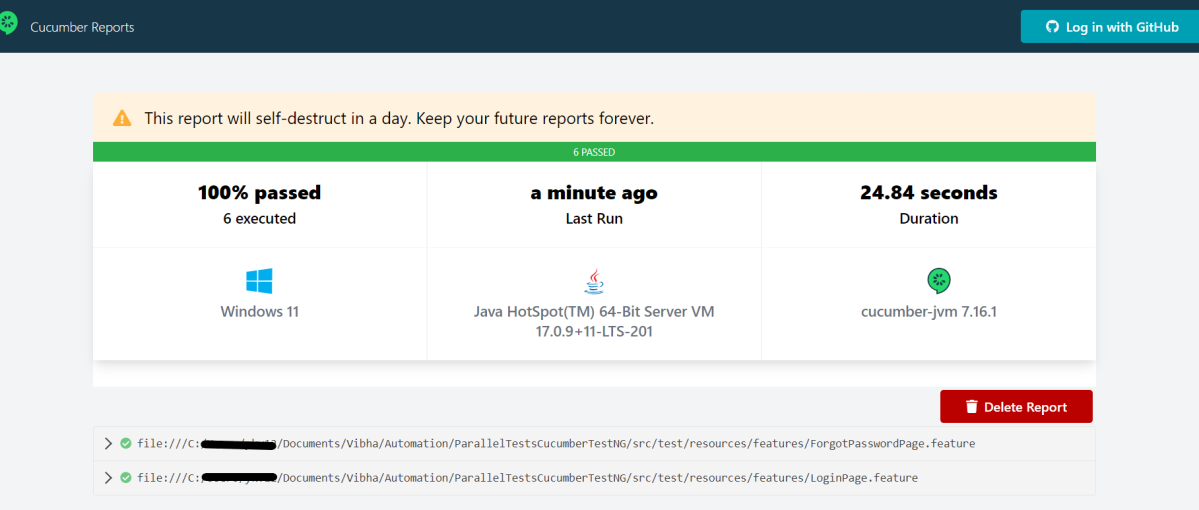
The Cucumber Report is shown below:

There are chances that we don’t want to run all the scenarios simultaneously, in this case, we need to add the below-mentioned configuration in the pom.xml. The value =2 means that 2 scenarios will be executed simultaneously.

  <configuration>
                    <properties>
                        <property>
                            <name>dataproviderthreadcount</name>
                            <value>2</value>
                        </property>
                    </properties>
 </configuration>

The default thread count of the dataprovider in parallel mode is 10.

Congratulations on making it through this tutorial and hope you found it useful! Happy Learning!! Cheers!!

There is another tutorial that shows Parallel Testing in Cucumber with JUnit.

The complete source code can be found here – GitHub

TestNG Tutorials

HOME

Chapter 1 TestNG Annotations
Chapter 2 Assertions in TestNG
Chapter 3 Hard Assert and Soft Assert
Chapter 4 How to create and run TestNG.xml of a TestNG class
Chapter 5 How to pass Parameters in TestNG
Chapter 6 Prioritizing Test Cases in TestNG: Complete Guide
Chapter 7 How to disable Selenium Test Cases using TestNG Feature – @Ignore
Chapter 8 How to Use dependsOnMethods() in TestNG for Selenium Test Case Dependency
Chapter 9 How to group Tests in Selenium
Chapter 10 InvocationCount in TestNG
Chapter 11 How to run Parallel Tests in Selenium with TestNG
Chapter 12 Cross Browser Testing using Selenium and TestNG
Chapter 13 Screenshot of Failed Test Cases in Selenium WebDriver
Chapter 14 TestNG Listeners in Selenium
Chapter 15 How to Retry failed tests in TestNG – IRetryAnalyzer
Chapter 16 DataProviders in TestNG
Chapter 17 DataProvider in TestNG using Excel
Chapter 18 Parallel testing of DataProviders in TestNG
Chapter 19 TestNG Interview Questions

Category 4: Test Framework

Chapter 1 Integration of REST Assured with TestNG
Chapter 2 Integration of Cucumber with Selenium and TestNG
Chapter 3 Integration Testing of Springboot with Cucumber and TestNG

Gradle

Chapter 1 How to create Gradle project with Selenium and TestNG
Chapter 2 Gradle Project with Cucumber, Selenium and TestNG

Category 5: Reporting with TestNG

Chapter 1 Gradle – Allure Report for Selenium and TestNG
Chapter 2 Gradle – Allure Report for Cucumber, Selenium and TestNG
Chapter 3 Integration of Allure Report with Rest Assured and TestNG
Chapter 4 Gradle – Allure Report for Selenium and TestNG

ExtentReports with TestNG

Chapter 1 ExtentReports Version 5 for Cucumber 6 and TestNG
Chapter 2 PDF ExtentReport for Cucumber and TestNG
Chapter 3 ExtentReports Version 5 for Cucumber 7 and TestNG

Parallel Execution of Cucumber with Serenity and JUnit5

HOME

In the previous tutorial, I explained the Serenity BDD with Cucumber for Web Application using Junit4. In this tutorial, I will explain the parallel execution of Cucumber Scenarios with Serenity and JUnit5. This tutorial gives a clear picture of the initial setup of a BDD Framework.

Starting with version 3.6.0 is possible to run the Cucumber scenarios in parallel.

We need to mention these in the junit-platform.properties to run the Cucumber scenarios parallelly.

cucumber.execution.parallel.enabled=true
cucumber.execution.parallel.config.strategy=fixed
cucumber.execution.parallel.config.fixed.parallelism=2
cucumber.plugin=io.cucumber.core.plugin.SerenityReporterParallel

Dependency List:

  1. Serenity – 4.0.18
  2. Serenity Cucumber – 4.0.18
  3. JUnit Jupiter – 5.9.2
  4. Java 17
  5. Maven – 3.8.1
  6. Maven Compiler Plugin – 3.11.0
  7. Maven Surefire Plugin – 3.2.1
  8. Maven FailSafe Plugin – 3.2.1

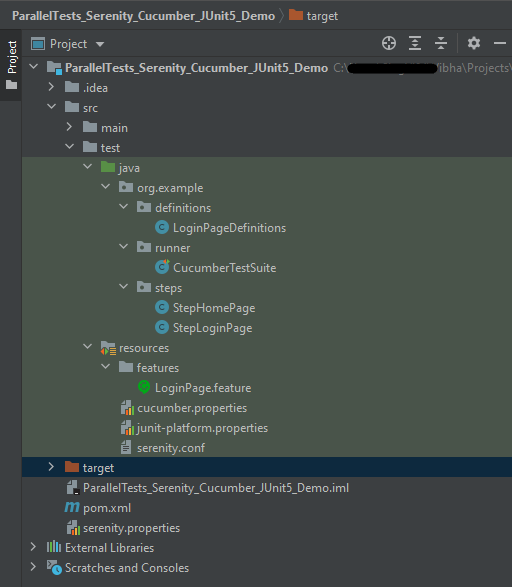
Project Structure

Step 1- Download and Install Java

Click here to know How to install Java.

Step 2 – Download and setup Eclipse IDE on the system

The Eclipse IDE (integrated development environment) provides strong support for Java developers which is needed to write Java code. Click here to know How to install Eclipse.

Step 3 – Setup Maven and create a new Maven Project

Click here to know How to install Maven.

Click here to know How to create a Maven project

Below is the Maven project structure. Here,

Group Id – org.example
Artifact Id – ParallelTests_Serenity_Cucumber_Junit5_Demo
Version – 0.0.1-SNAPSHOT
Package – org.example. ParallelTests_Serenity_Cucumber_Junit5_Demo

Step 4 – Update Properties section in Maven pom.xml

 <properties>
        <project.build.sourceEncoding>UTF-8</project.build.sourceEncoding>
        <serenity.version>4.0.18</serenity.version>
        <serenity.cucumber.version>4.0.18</serenity.cucumber.version>
        <junit.platform.version>1.10.0</junit.platform.version>
        <cucumber.version>7.14.0</cucumber.version>
        <maven.compiler.plugin.version>3.11.0</maven.compiler.plugin.version>
        <maven.compiler.source>17</maven.compiler.source>
        <maven.compiler.target>17</maven.compiler.target>
        <maven.surefire.plugin.version>3.2.1</maven.surefire.plugin.version>
        <maven.failsafe.plugin.version>3.2.1</maven.failsafe.plugin.version>
    </properties>

Step 5 – Add dependencies to POM.xml

<dependencies>

        <dependency>
            <groupId>net.serenity-bdd</groupId>
            <artifactId>serenity-core</artifactId>
            <version>${serenity.version}</version>
            <scope>test</scope>
        </dependency>

        <dependency>
            <groupId>net.serenity-bdd</groupId>
            <artifactId>serenity-junit5</artifactId>
            <version>${serenity.version}</version>
        </dependency>

        <dependency>
            <groupId>net.serenity-bdd</groupId>
            <artifactId>serenity-screenplay</artifactId>
            <version>${serenity.version}</version>
            <scope>test</scope>
        </dependency>

        <dependency>
            <groupId>net.serenity-bdd</groupId>
            <artifactId>serenity-cucumber</artifactId>
            <version>${serenity.version}</version>
            <scope>test</scope>
        </dependency>

        <dependency>
            <groupId>io.cucumber</groupId>
            <artifactId>cucumber-junit-platform-engine</artifactId>
            <version>${cucumber.version}</version>
            <scope>test</scope>
        </dependency>

        <dependency>
            <groupId>org.junit.platform</groupId>
            <artifactId>junit-platform-suite</artifactId>
            <version>${junit.platform.version}</version>
            <scope>test</scope>
        </dependency>

    </dependencies>

Step 6 – Update the Build Section of pom.xml

 <build>
        <plugins>
            <plugin>
                <groupId>org.apache.maven.plugins</groupId>
                <artifactId>maven-surefire-plugin</artifactId>
                <version>${maven.surefire.plugin.version}</version>
                <configuration>
                    <skip>true</skip>
                </configuration>
            </plugin>
            <plugin>
                <groupId>org.apache.maven.plugins</groupId>
                <artifactId>maven-failsafe-plugin</artifactId>
                <version>${maven.failsafe.plugin.version}</version>
                <configuration>
                    <includes>
                        <include>**/*.java</include>
                    </includes>
                    <parallel>methods</parallel>
                    <useUnlimitedThreads>true</useUnlimitedThreads>
                </configuration>
                <executions>
                    <execution>
                        <goals>
                            <goal>integration-test</goal>
                            <goal>verify</goal>
                        </goals>
                    </execution>
                </executions>
            </plugin>
            <plugin>
                <groupId>org.apache.maven.plugins</groupId>
                <artifactId>maven-compiler-plugin</artifactId>
                <version>${maven.compiler.plugin.version}</version>
                <configuration>
                    <source>${maven.compiler.source}</source>
                    <target>${maven.compiler.target}</target>
                </configuration>
            </plugin>
            <plugin>
                <groupId>net.serenity-bdd.maven.plugins</groupId>
                <artifactId>serenity-maven-plugin</artifactId>
                <version>${serenity.version}</version>
                <dependencies>
                    <dependency>
                        <groupId>net.serenity-bdd</groupId>
                        <artifactId>serenity-single-page-report</artifactId>
                        <version>${serenity.version}</version>
                    </dependency>
                </dependencies>
                <configuration>
                    <reports>single-page-html</reports>
                </configuration>
                <executions>
                    <execution>
                        <id>serenity-reports</id>
                        <phase>post-integration-test</phase>
                        <goals>
                            <goal>aggregate</goal>
                        </goals>
                    </execution>
                </executions>
            </plugin>
        </plugins>
    </build>

The complete POM.xml looks like as shown below:

<?xml version="1.0" encoding="UTF-8"?>
<project xmlns="http://maven.apache.org/POM/4.0.0"
         xmlns:xsi="http://www.w3.org/2001/XMLSchema-instance"
         xsi:schemaLocation="http://maven.apache.org/POM/4.0.0 http://maven.apache.org/xsd/maven-4.0.0.xsd">
    <modelVersion>4.0.0</modelVersion>

    <groupId>org.example</groupId>
    <artifactId>ParallelTests_Serenity_Cucumber_JUnit5_Demo</artifactId>
    <version>1.0-SNAPSHOT</version>

    <properties>
        <project.build.sourceEncoding>UTF-8</project.build.sourceEncoding>
        <serenity.version>4.0.18</serenity.version>
        <serenity.cucumber.version>4.0.18</serenity.cucumber.version>
        <junit.platform.version>1.10.0</junit.platform.version>
        <cucumber.version>7.14.0</cucumber.version>
        <maven.compiler.plugin.version>3.11.0</maven.compiler.plugin.version>
        <maven.compiler.source>17</maven.compiler.source>
        <maven.compiler.target>17</maven.compiler.target>
        <maven.surefire.plugin.version>3.2.1</maven.surefire.plugin.version>
        <maven.failsafe.plugin.version>3.2.1</maven.failsafe.plugin.version>
    </properties>

    <dependencies>

        <dependency>
            <groupId>net.serenity-bdd</groupId>
            <artifactId>serenity-core</artifactId>
            <version>${serenity.version}</version>
            <scope>test</scope>
        </dependency>

        <dependency>
            <groupId>net.serenity-bdd</groupId>
            <artifactId>serenity-junit5</artifactId>
            <version>${serenity.version}</version>
        </dependency>

        <dependency>
            <groupId>net.serenity-bdd</groupId>
            <artifactId>serenity-screenplay</artifactId>
            <version>${serenity.version}</version>
            <scope>test</scope>
        </dependency>

        <dependency>
            <groupId>net.serenity-bdd</groupId>
            <artifactId>serenity-cucumber</artifactId>
            <version>${serenity.version}</version>
            <scope>test</scope>
        </dependency>

        <dependency>
            <groupId>io.cucumber</groupId>
            <artifactId>cucumber-junit-platform-engine</artifactId>
            <version>${cucumber.version}</version>
            <scope>test</scope>
        </dependency>

        <dependency>
            <groupId>org.junit.platform</groupId>
            <artifactId>junit-platform-suite</artifactId>
            <version>${junit.platform.version}</version>
            <scope>test</scope>
        </dependency>

    </dependencies>

    <build>
        <plugins>
            <plugin>
                <groupId>org.apache.maven.plugins</groupId>
                <artifactId>maven-surefire-plugin</artifactId>
                <version>${maven.surefire.plugin.version}</version>
                <configuration>
                    <skip>true</skip>
                </configuration>
            </plugin>
            <plugin>
                <groupId>org.apache.maven.plugins</groupId>
                <artifactId>maven-failsafe-plugin</artifactId>
                <version>${maven.failsafe.plugin.version}</version>
                <configuration>
                    <includes>
                        <include>**/*.java</include>
                    </includes>
                    <parallel>methods</parallel>
                    <useUnlimitedThreads>true</useUnlimitedThreads>
                </configuration>
                <executions>
                    <execution>
                        <goals>
                            <goal>integration-test</goal>
                            <goal>verify</goal>
                        </goals>
                    </execution>
                </executions>
            </plugin>
            <plugin>
                <groupId>org.apache.maven.plugins</groupId>
                <artifactId>maven-compiler-plugin</artifactId>
                <version>${maven.compiler.plugin.version}</version>
                <configuration>
                    <source>${maven.compiler.source}</source>
                    <target>${maven.compiler.target}</target>
                </configuration>
            </plugin>
            <plugin>
                <groupId>net.serenity-bdd.maven.plugins</groupId>
                <artifactId>serenity-maven-plugin</artifactId>
                <version>${serenity.version}</version>
                <dependencies>
                    <dependency>
                        <groupId>net.serenity-bdd</groupId>
                        <artifactId>serenity-single-page-report</artifactId>
                        <version>${serenity.version}</version>
                    </dependency>
                </dependencies>
                <configuration>
                    <reports>single-page-html</reports>
                </configuration>
                <executions>
                    <execution>
                        <id>serenity-reports</id>
                        <phase>post-integration-test</phase>
                        <goals>
                            <goal>aggregate</goal>
                        </goals>
                    </execution>
                </executions>
            </plugin>
        </plugins>
    </build>
</project>

Step 7 – Create a feature file in src/test/resources

The purpose of the Feature keyword is to provide a high-level description of a software feature and to group related scenarios. To know more about the Feature files, please refer this tutorial.

Feature: Login to HRM

  @ValidCredentials
  Scenario: Login with valid credentials

    Given User is on Home page
    When User enters username as "Admin"
    And User enters password as "admin123"
    Then User should be able to login successfully

  @InValidCredentials
  Scenario: Login with invalid credentials

    Given User is on Home page
    When User enters username as "Admin1"
    And User enters password as "Admin123"
    Then User should be able to see error message "Invalid credentials"

  @BlankUsername
  Scenario: Login with blank username

    Given User is on Home page
    When User enters username as ""
    And User enters password as "Admin123"
    Then User should be able to see error message "Required" below username

Step 8 – Create the Step pages for StepDefinition class

In Serenity, tests are broken down into reusable steps. An important principle behind Serenity is the idea that it is easier to maintain a test that uses several layers of abstraction to hide the complexity behind different parts of a test. So, in Step class, we will declare the locators of the web elements and the actions performed on these web elements.

There are multiple ways to identify a web element on the web page – one of the ways is to use @FindBy or $(By.).

I prefer to use @FindBy as I do need not to find the same element multiple times. Using @FindBy, I have identified a web element and defined a WebElementFacacde for the same which is reusable.

StepLoginPage

import net.serenitybdd.core.pages.PageObject;
import net.serenitybdd.core.pages.WebElementFacade;
import net.thucydides.core.annotations.Step;
import org.openqa.selenium.support.FindBy;

public class StepLoginPage extends PageObject {

    @FindBy(name = "username")
    WebElementFacade username;

    @FindBy(name = "password")
    WebElementFacade password;

    @FindBy(xpath = "//*[@id='app']/div[1]/div/div[1]/div/div[2]/div[2]/form/div[3]/button")
    WebElementFacade submitButton;

    @FindBy(xpath = "//*[@id='app']/div[1]/div/div[1]/div/div[2]/div[2]/div/div[1]/div[1]/p")
    WebElementFacade errorMessage;

    @FindBy(xpath = "//*[@id='app']/div[1]/div/div[1]/div/div[2]/div[2]/form/div[1]/div/span")
    WebElementFacade missingUsername;

    @Step("Enter Username")
    public void inputUserName(String userName) {
        username.sendKeys((userName));
    }

    @Step("Enter Password")
    public void inputPassword(String passWord) {
        password.sendKeys((passWord));
    }

    @Step("Click Submit Button")
    public void clickLogin() {
        submitButton.click();
    }

    @Step("Error Message on unsuccessful login")
    public String errorMessage() {
        String actualErrorMessage = errorMessage.getText();
        return actualErrorMessage;
    }

    @Step("Error Message for missing username")
    public String missingUsernameErrorMessage() {
        String actualErrorMessage = missingUsername.getText();
        return actualErrorMessage;
    }

}

StepHomePage

import net.serenitybdd.core.pages.PageObject;
import net.serenitybdd.core.pages.WebElementFacade;
import net.thucydides.core.annotations.Step;
import org.openqa.selenium.support.FindBy;

public class StepHomePage extends PageObject {

    @FindBy(xpath = "//*[@id='app']/div[1]/div[1]/header/div[1]/div[1]/span/h6")
    WebElementFacade dashboardText;

    @Step("Successful login")
    public String getHomPageTitle() {
        String dashboardTitle = dashboardText.getText();
       return dashboardTitle;


    }
}

Step 9 – Create the Step Definition class or Glue Code

A Step Definition is a Java method with an expression that links it to one or more Gherkin steps. When Cucumber executes a Gherkin step in a scenario, it will look for a matching step definition to execute. You can have all of your step definitions in one file, or in multiple files.

LoginPageDefinitions

package org.example.definitions;

import io.cucumber.java.en.Given;
import io.cucumber.java.en.Then;
import io.cucumber.java.en.When;
import net.serenitybdd.annotations.Steps;
import org.example.steps.StepHomePage;
import org.example.steps.StepLoginPage;
import static org.junit.jupiter.api.Assertions.*;

public class LoginPageDefinitions {

    @Steps
    StepLoginPage loginPage;

    @Steps
    StepHomePage homePage;

    @Given("User is on Home page")
    public void openApplication() {
        loginPage.open();

    }

    @When("User enters username as {string}")
    public void enterUsername(String userName) {
        loginPage.inputUserName(userName);
    }

    @When("User enters password as {string}")
    public void enterPassword(String passWord) {
        loginPage.inputPassword(passWord);

        loginPage.clickLogin();
    }

    @Then("User should be able to login successfully")
    public void clickOnLoginButton() {

        assertTrue(homePage.getHomPageTitle().contains("Dashboard"));
    }

    @Then("User should be able to see error message {string}")
    public void unsuccessfulLogin(String expectedErrorMessage) {

        String actualErrorMessage = loginPage.errorMessage();
        assertEquals(expectedErrorMessage, actualErrorMessage);
    }

    @Then("User should be able to see error message {string} below username")
    public void missingUsername (String expectedErrorMessage) {

        String actualErrorMessage = loginPage.missingUsernameErrorMessage();
        assertEquals(expectedErrorMessage, actualErrorMessage);
    }

}

Assertions in JUnit-Jupiter are imported from the below package:-

import static org.junit.jupiter.api.Assertions.*;

Step 10 – Create a Serenity-Cucumber Runner class

Cucumber runs the feature files via JUnit and needs a dedicated test runner class to actually run the feature files.

import static io.cucumber.junit.platform.engine.Constants.GLUE_PROPERTY_NAME;
import org.junit.platform.suite.api.ConfigurationParameter;
import org.junit.platform.suite.api.IncludeEngines;
import org.junit.platform.suite.api.SelectClasspathResource;
import org.junit.platform.suite.api.Suite;

@Suite
@IncludeEngines("cucumber")
@SelectClasspathResource("org.example")
@SelectClasspathResource("/features")
@ConfigurationParameter(key = GLUE_PROPERTY_NAME, value = "org.example")
public class CucumberTestSuite {

}

Step 11 – Create cucumber.properties file under src/test/resources (optional)

This is an optional step. Cucumber of version 6.7 and above provides the functionality to generate a beautiful cucumber report. For this, it is needed to add a file cucumber.properties under src/test/resources.

cucumber.publish.enabled = true

Step 12 – Create junit-platform.properties in src/test/resources

cucumber.execution.parallel.enabled=true
cucumber.execution.parallel.config.strategy=fixed
cucumber.execution.parallel.config.fixed.parallelism=3
cucumber.plugin=io.cucumber.core.plugin.SerenityReporterParallel

Step 13 – Create serenity.conf file under src/test/resources

The serenity configuration file is used to configure the drivers so the test cases can run successfully. This file contains an operating system-specific binary. The binary file sits between your test and the browser. It acts as an intermediary, an interface between your tests and the browser you are using.

You can also configure the webdriver.base.url property for different environments in the serenity.conf configuration file.

webdriver {
    driver = chrome
}

serenity.browser.maximized = true

#
# Define drivers for different platforms. Serenity will automatically pick the correct driver for the current platform
#

environments {
  default {
    webdriver.base.url = "https://opensource-demo.orangehrmlive.com/"
  }
  dev {
    webdriver.base.url = "https://opensource-demo.orangehrmlive.com/dev"
  }
  staging {
    webdriver.base.url = "https://opensource-demo.orangehrmlive.com/staging"
  }
  prod {
    webdriver.base.url = "https://opensource-demo.orangehrmlive.com/prod"
  }
}

Step 14 – Create serenity.properties file at the root of the project

serenity.project.name = Parallel Execution of Cucumber Scenarios with Serenity

Step 15 – Run the tests from Command Line

Open the command line and go to the location where the pom.xml of the project is present and type the below command.

mvn clean verify

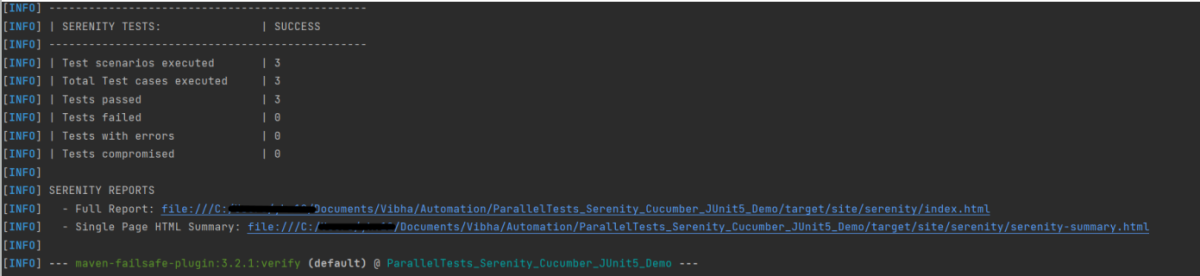
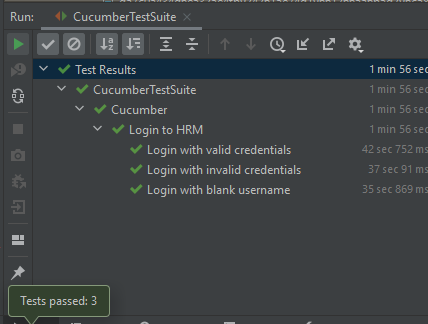
Below is the test result of the test execution.

Step 16 – Run the tests from CucumberRunner

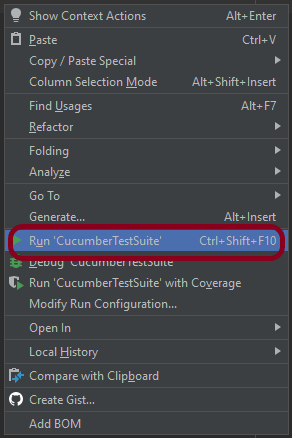
Right-click on the Ruuner class (CucumberTestSuite) and select Run ‘CucumberTestSuite’. (This is an image of IntelliJ Runner class).

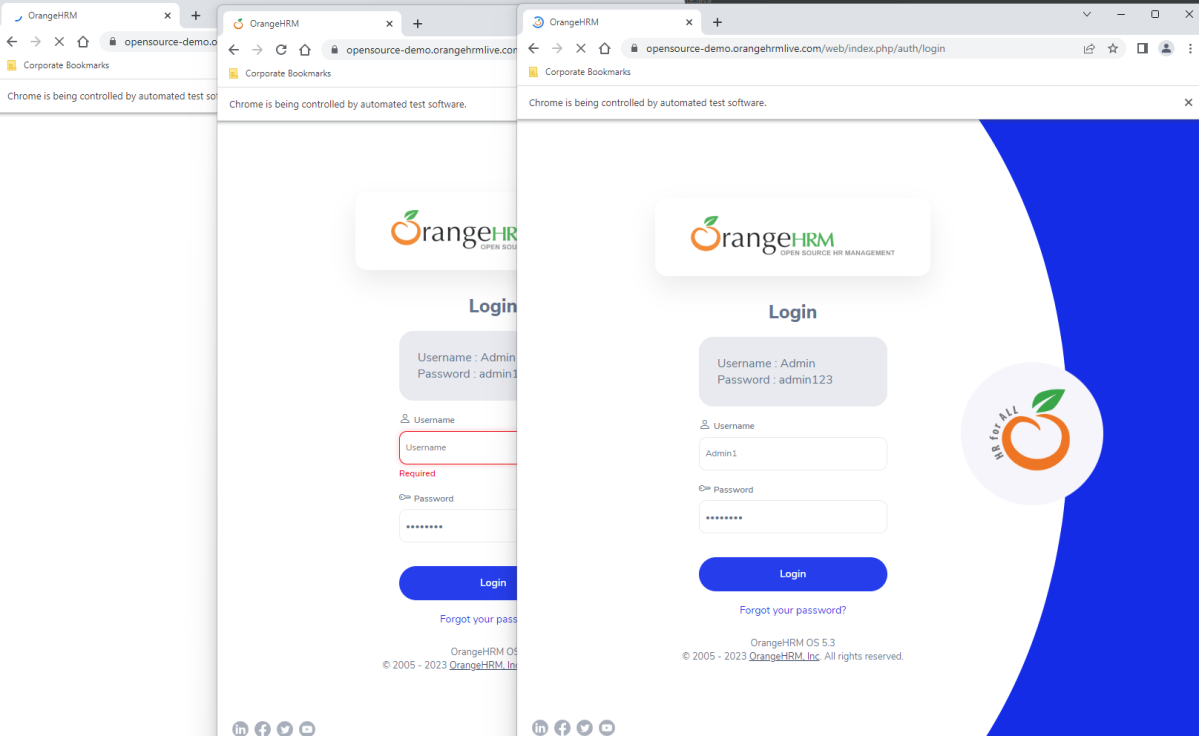
The below image shows that 3 browsers open simultaneously.

Below is the test result of the test execution.

Step 17 – Serenity Report Generation

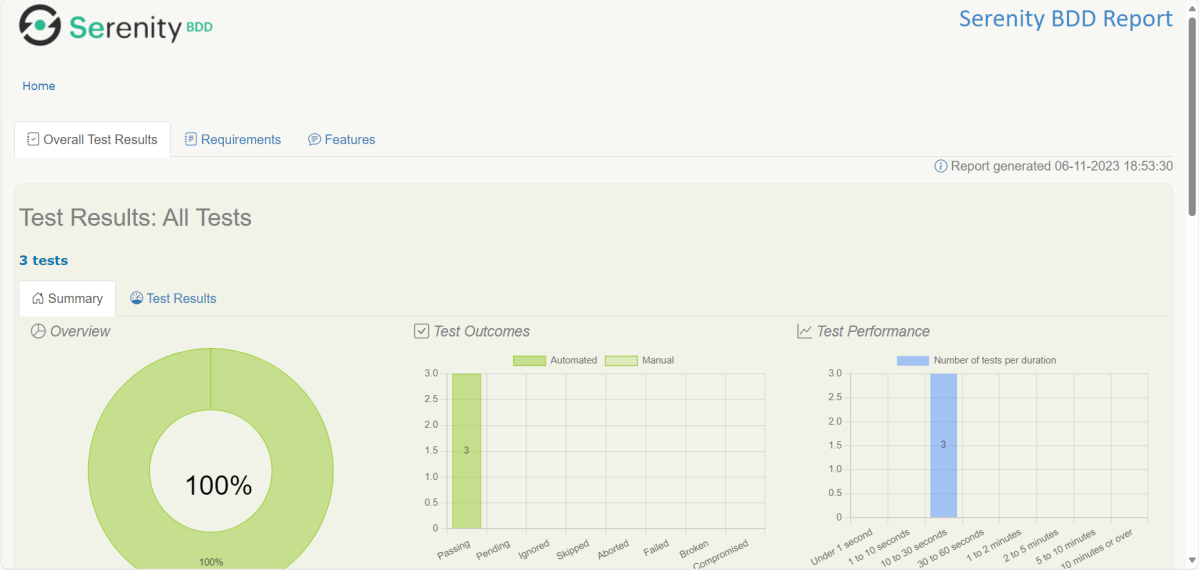
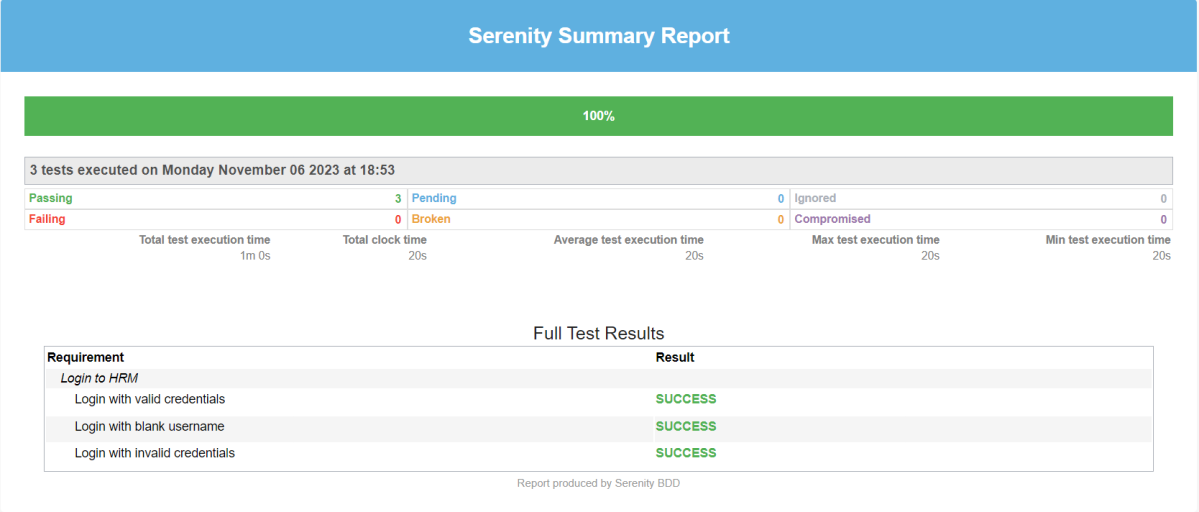
The best part about Serenity is the report generation by it. The Reports contain all possible types of information, you can think of with minimal extra effort. There is multiple types of reports are generated. We are interested in index.html and serenity-summary.html. To know more about Serenity Reports, please refer to tutorials for Index.html and Serenity-Summary.html. Below is the new Serenity Report.

Index.html

serenity-summary.html

If you want to control the number of browsers open in the test, then add the below-mentioned parameters in the junit-platform.properties:

cucumber.execution.parallel.config.fixed.parallelism=2
cucumber.execution.parallel.config.fixed.max-pool-size=2

Here, count=3 is the number of browsers that will open.

Please also remove <useUnlimitedThreads>true</useUnlimitedThreads> from pom.xml.

Note: While .fixed.max-pool-size effectively limits the maximum number of concurrent threads, Cucumber does not guarantee that the number of concurrently executing scenarios will not exceed this. This is from JUnit-Platform documentation.

We are done! Congratulations on making it through this tutorial and hope you found it useful! Happy Learning!!

You can see this framework in GitHub.

Cucumber Tutorials

 HOME

Cucumber Introduction, Installation, and Configuration

Chapter 1  Introduction of Cucumber Testing Tool (BDD Tool)
Chapter 2 How to install Cucumber Eclipse Plugin
Chapter 3 How to setup Cucumber with Eclipse
Chapter 4 Cucumber – What is Gherkin

Cucumber Scenario, Features & Step Definition

Chapter 1 Cucumber – What is Feature File in Cucumber
Chapter 2 Step Definition in Cucumber
Chapter 3 Cucumber – JUnit Test Runner Class

Cucumber – Hooks & Tags

Chapter 1 Hooks in Cucumber
Chapter 2 Tags in Cucumber
Chapter 3 Conditional Hooks in Cucumber
Chapter 4 What is CucumberOptions in Cucumber?
Chapter 5 Background in Cucumber
Chapter 6 Monochrome in Cucumber
Chapter 7 What is Glue in Cucumber?

Cucumber – Data Driven Testing

Chapter 1 Data Driven Testing using Scenario Outline in Cucumber
Chapter 2 DataTables in Cucumber

Cucumber Integration with Selenium – Maven

Chapter 1 Integration of Cucumber with Selenium and JUnit4
Chapter 2 Integration of Cucumber with Selenium and TestNG
Chapter 3 Page Object Model with Selenium, Cucumber and JUnit
Chapter 4 Page Object Model with Selenium, Cucumber, and TestNG
Chapter 5 Integration of Cucumber7 with Selenium and JUnit5
Chapter 6 Run Cucumber7 with JUnit5 Tests from Maven Command Line
Chapter 7 How to rerun failed tests in Cucumber
Chapter 8 How to create Cucumber Report after rerun of failed tests – NEW
Chapter 9 How to rerun failed tests twice in Cucumber – NEW

Cucumber – Command Line Execution

Chapter 1 Run Cucumber Test from Command Line
Chapter 2 Run Gradle Cucumber Tests from Command Line

Cucumber Integration with Rest API

Chapter 1 Rest API Test in Cucumber BDD
Chapter 2 How To Create Gradle Project with Cucumber to test Rest API

Cucumber Integration with SpringBoot

Chapter 1 Integration Testing of Springboot with Cucumber and JUnit4
Chapter 2 Integration Testing of Springboot with Cucumber and TestNG

Cucumber – Reporting

Chapter 1 Cucumber Tutorial – Cucumber Reports
Chapter 2 Cucumber Report Service
Chapter 3 Implemention of ‘Masterthought’ Reports in Cucumber
Chapter 4 Implemention of ‘Masterthought’ Reports in Cucumber with JUnit4

Cucumber Integration with Allure Reports

Chapter 1 Allure Report with Cucumber5, Selenium and JUnit4
Chapter 2 Allure Report with Cucumber5, Selenium and TestNG
Chapter 3 Integration of Allure Report with Rest Assured and JUnit4
Chapter 4 Integration of Allure Report with Rest Assured and TestNG
Chapter 5 Gradle – Allure Report for Selenium and TestNG

Cucumber Integration with Extent Reports

Chapter 1 ExtentReports Version 5 for Cucumber 6 and TestNG
Chapter 2 How to add Screenshot to Cucumber ExtentReports
Chapter 3 ExtentReports Version 5 for Cucumber 6 and JUnit4
Chapter 4 PDF ExtentReport for Cucumber and TestNG
Chapter 5 ExtentReports Version 5 for Cucumber 7 and TestNG
Chapter 6 Extent Reports Version 5 for Cucumber7 and JUnit5

Cucumber – Parallel Execution

Chapter 1 Parallel Testing in Cucumber with JUnit
Chapter 2 Parallel Testing in Cucumber with TestNG
Chapter 3 Dependency Injection in Cucumber using Pico-Container

Parallel Testing in the Robot Framework

HOME

In this tutorial, we will discuss running the tests parallelly in the Robot Framework. To run the tests parallelly, we need to have pabot installed on the machine. Pabot is a parallel test runner for Robot Framework. It can be used to run tests in parallel on a single machine with multiple processes.

What is Parallel Testing?

Parallel testing is an automated testing process that allows developers and testers to run numerous tests against various real-world device combinations and browser setups at the same time. Parallel testing aims to solve time restrictions by distributing tests across available resources.

For example, if 20 test cases take 100 minutes to complete, 10 parallel execution might run 2 test cases each, reducing overall testing time to 10 minutes.

Prerequisite:

  1. Install Python
  2. Install PIP
  3. Install Robot Framework
  4. Install Robot framework Selenium Library
  5. Install PyCharm IDE

Please refer to this tutorial to install Robot Framework – How to install and setup Robot Framework for Python.

Implementation Steps:

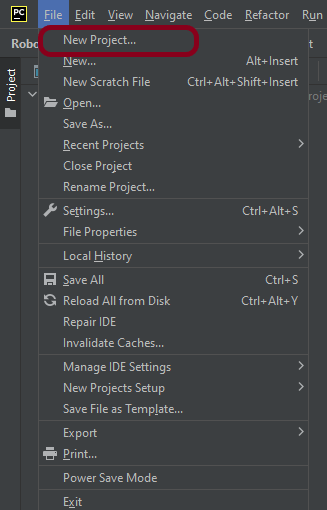
Step 1.1 – Open PyCharm and create a new project. Go to File and select New Project from the main menu.

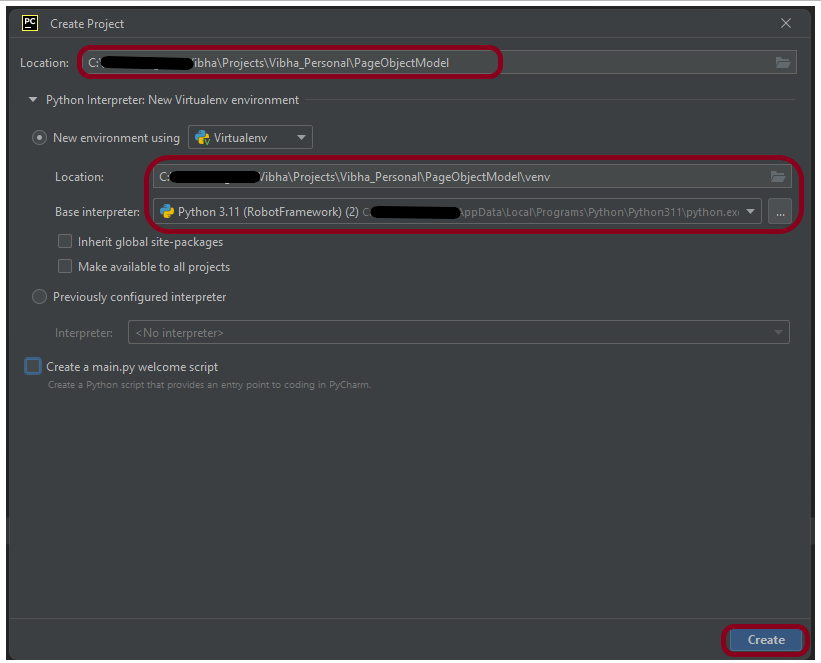
Step 1.2 – Choose the project location. Click the “Browse” button next to the Location field and specify the directory for your project.

Deselect the Create a main.py welcome script checkbox because you will create a new Python file for this tutorial.

Click on the “Create” Button.

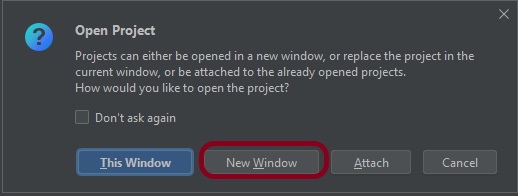
Step 1.3 – A new dialog appears asking to open the project using any one of the given options. I have selected New Window as I like to have separate windows for each project.

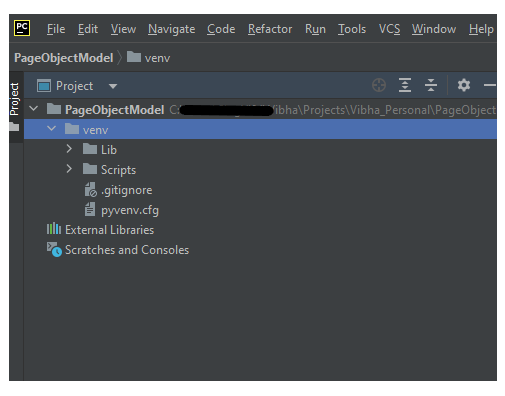
Below is the image of the new project created in PyCharms.

Step 2 – Download pabot plugin

Go to command prompt and run the below mentioned command to download pabot:

 pip install -U robotframework-pabot

Step 3 – Add pabot package to the PyCharms

Go to File->Settings ->Project:RobotFramework_Demo ->Python Interpreter.

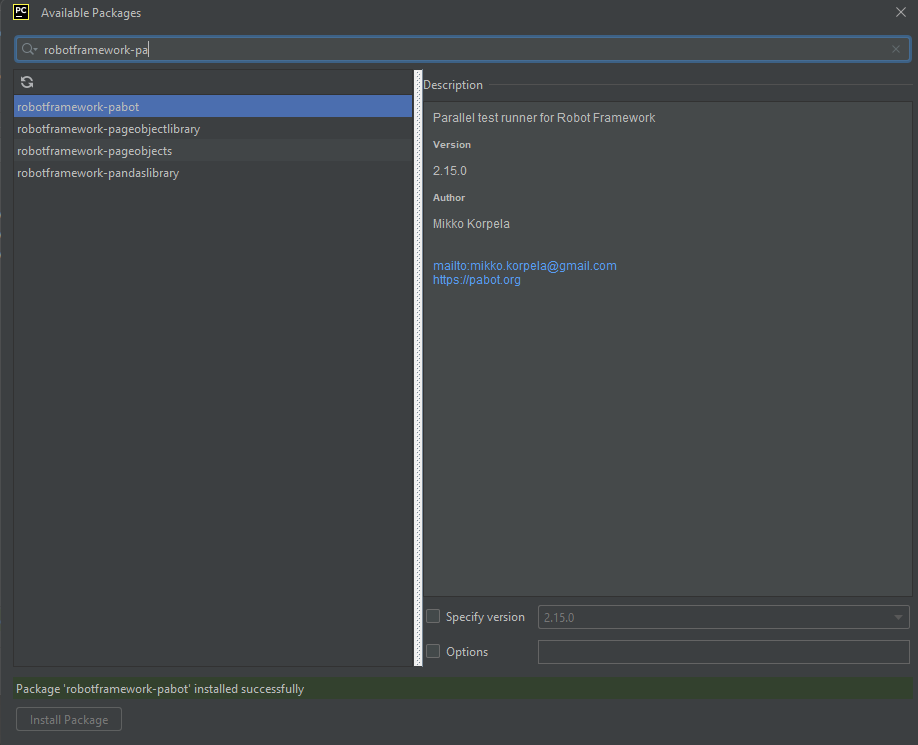
Click on the “+” sign and enter pabot in the search bar. It will show a list of packages. Select the “robotframework-pabot” package and click on the “Install Package”.

Once the package is installed, we will see the message that the package is installed successfully.

Once the package is installed, it can be seen under the package list as shown below:

Click the “Apply” and “OK” button.

Step 4 – Create 3 new directories in the new project

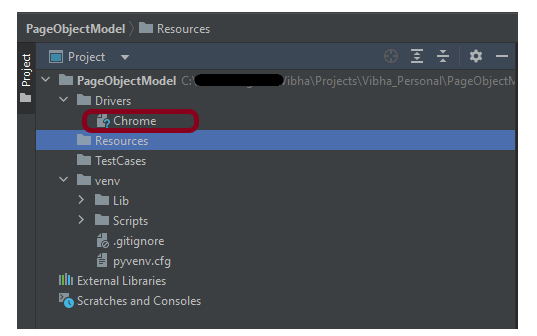
Right-Click on the project, select New->Directory, and provide the name as TestCases, Drivers, and Resources

Below is the image of the new directories.

Step 5 – Download ChromeBinaries and place them in the Drivers directory

This directory contains the browser binary in it. As we are using Chrome, will keep chromedriver.exe here.

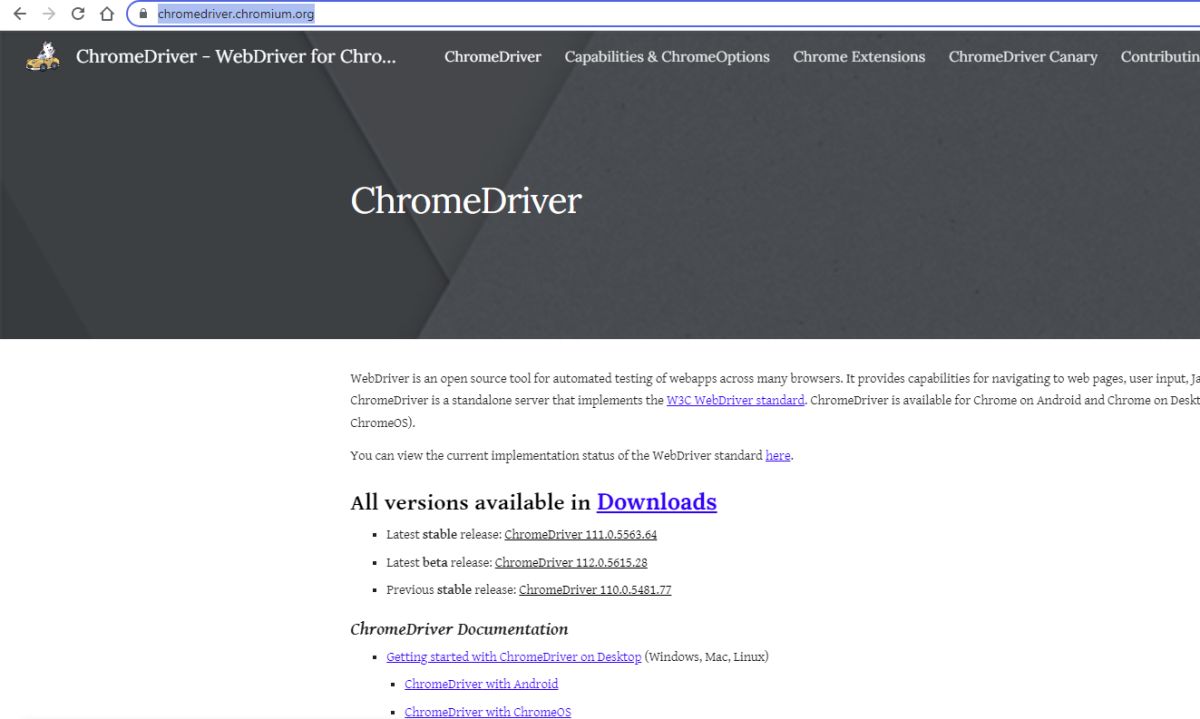
The tests are going to use the Chrome browser, so we need to download the ChromeBinaries to open a blank browser in Chrome.

https://chromedriver.chromium.org/

I will rename chromedriver.exe to Chrome.

Step 6 – Create Test Files

This directory contains multiple test case files consisting of test steps. 

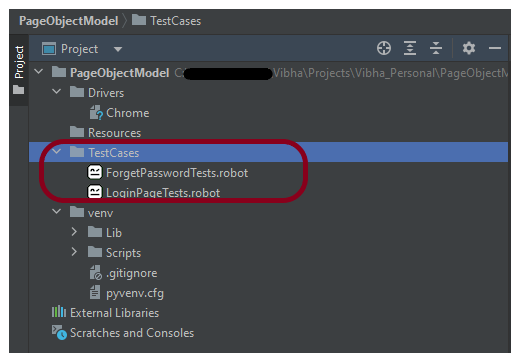
Right-click on the new directory and select New File and provide the name as LoginPageTests.robot and ForgetPasswordTests.robot as shown below:

Below is the code for LoginPageTests.robot

*** Settings ***
Documentation       Tests to login to Login Page
Library     SeleniumLibrary
Test Setup      Open the Browser with URL
Test Teardown   Close Browser Session
Resource       ../Resources/GenericResources.robot
Resource       ../Resources/LoginResources.robot
Resource      ../Resources/DashboardResources.robot

*** Test Cases ***

Validate Unsuccessful Login using invalid credentials

    LoginResources.Fill the login form     ${valid_username}       ${invalid_password}
    LoginResources.Verify the error message is correct


Validate Unsuccessful Login for blank username

     LoginResources.Fill the login form     ${blank_username}       ${valid_password}
     LoginResources.Verify the error message is displayed for username


Validate Unsuccessful Login for blank password

     LoginResources.Fill the login form     ${valid_username}       ${blank_password}
     LoginResources.Verify the error message is displayed for password


Validate successful Login


    LoginResources.Fill the login form     ${valid_username}       ${valid_password}
    DashboardResources.Verify Dashboard page opens

Below is the code for ForgetPasswordTests.robot

*** Settings ***
Documentation       Tests to validate Forgot Your Password Page functionality
Library     SeleniumLibrary
Test Setup      Open the Browser with URL
Test Teardown   Close Browser Session
Resource       ../Resources/GenericResources.robot
Resource       ../Resources/LoginResources.robot
Resource      ../Resources/ForgetPasswordResources.robot


*** Test Cases ***

Validate Reset Password Functionality

    LoginResources.Go to Forgot Your Password Page
    ForgetPasswordResources.Verify Forgot Your Password Page opens
    ForgetPasswordResources.Fill the Forgot Password Page
    ForgetPasswordResources.Verify the message

Validate Cancel Functionality

    LoginResources.Go to Forgot Your Password Page
    ForgetPasswordResources.Verify Forgot Your Password Page opens
    ForgetPasswordResources.Cancel the Reset Password
    ForgetPasswordResources.Verify that Login Page is displayed


Step 7 – Create Resources file for each page

It maintains the files which contain page elements as well as corresponding keywords. 

Right-click on the new directory and select New File and provide the name as LoginResources.robot, DashboardResources.robot, GenericResources.robot, and ForgetPasswordResources.robot as shown below:

GenericResources.robot contains the keywords that are common to all the tests, like the opening of the browser or closing of the browser.

*** Settings ***
Documentation    A resource file with reusable keywords and variables.
Library     SeleniumLibrary

*** Variables ***
${valid_username}     Admin
${valid_password}       admin123
${invalid_username}     1234
${invalid_password}     45678
${blank_username}
${blank_password}
${url}      https://opensource-demo.orangehrmlive.com/web/index.php/auth/login
${browser_name}      Chrome

*** Keywords ***

Open the Browser with URL
    Create Webdriver    ${browser_name}  executable_path=/Vibha_Personal/RobotFramework_Demo/drivers/${browser_name}
    Go To       ${url}
    Maximize Browser Window
    Set Selenium Implicit Wait    5

Close Browser Session
    Close Browser

Below is the code for LoginResources.robot

*** Settings ***
Documentation        All the page objects and keywords of landing page
Library     SeleniumLibrary

*** Variables ***
${login_error_message}      css:.oxd-alert-content--error
${dashboard_title}       css:.oxd-topbar-header-breadcrumb-module
${missing_username_error_message}    xpath://*[@class='oxd-form']/div[1]/div/span
${missing_password_error_message}   xpath://*[@class='oxd-form']/div[2]/div/span
${forgot_password_link}   xpath://div[@class='orangehrm-login-forgot']/p

*** Keywords ***

Fill the login form
    [Arguments]    ${username}      ${password}
   Input Text    css:input[name=username]   ${username}
   Input Password    css:input[name=password]   ${password}
   Click Button    css:.orangehrm-login-button


Verify the error message is correct
    Element Text Should Be    ${login_error_message}    Invalid credentials


Verify the error message is displayed for username
     Element Text Should Be    ${missing_username_error_message}      Required

Verify the error message is displayed for password
      Element Text Should Be    ${missing_password_error_message}      Required

Go to Forgot Your Password Page
    Click Element      ${forgot_password_link}

Below is the code for DashboardResources.robot

*** Settings ***
Documentation        All the page objects and keywords of Dashboard page
Library     SeleniumLibrary

*** Variables ***
${dashboard_title}       css:.oxd-topbar-header-breadcrumb-module

*** Keywords ***

Verify Dashboard page opens
    Element Text Should Be    ${dashboard_title}      Dashboard

Below is the code for ForgetPasswordResources.robot

*** Settings ***
Documentation       All the page objects and keywords of Forget Password page
Library     SeleniumLibrary

*** Variables ***
${forgot_page_title}       css:.orangehrm-forgot-password-title
${username}     css:.oxd-input--active
${reset_btn}     css:.orangehrm-forgot-password-button--reset
${cancel_btn}    css:.orangehrm-forgot-password-button--cancel
${reset_message}      xpath://div[@class='orangehrm-card-container']/h6
${login_page_title}   xpath://*[@class='orangehrm-login-slot']/h5

*** Keywords ***

Verify Forgot Your Password Page opens
    Element Text Should Be    ${forgot_page_title}      Reset Password

Fill the Forgot Password Page
   Input Text        ${username}     abc@gmail.com
   Click Button    ${reset_btn}

Verify the message
    Element Text Should Be    ${reset_message}      Reset Password link sent successfully

Cancel the Reset Password
    Click Button    ${cancel_btn}

Verify that Login Page is displayed
    Element Text Should Be    ${login_page_title}       Login

All the below-mentioned keywords are derived from SeleniumLibrary. The functionality of keywords mentioned above:

1. Create Webdriver − The keyword creates an instance of Selenium WebDriver.

2. Go To – This keyword navigates the current browser window to the provided URL.

3. Maximize Browser Window – This keyword maximizes the current browser window.

4. Set Selenium Implicit Wait – This keyword sets the implicit wait value used by Selenium.

5. Input Text − This keyword is used to type the given text in the specified textbox identified by the locator name:username.

6. Input Password – This keyword is used to type the given text in the specified password identified by the locator name:password.

The difference compared to Input Text is that this keyword does not log the given password on the INFO level.

7. Click button – This keyword is used to click the button identified by the locator. In this case, it is “Login” button.

8. Element Text Should Be – This keyword is used to verify that the current page contains the exact text identified by the locator. Here, we are checking the exact text “Invalid Credentials”.

These keywords are present in SeleniumLibrary. To know more about these keywords, please refer to this document – https://robotframework.org/SeleniumLibrary/SeleniumLibrary.htm.

To run this script, go to the command line and go to directory tests.

Step 8 – Split execution to suite files

We need the below command to run the Robot Framework script. This will start all the test suites parallelly. We have 2 test files, so they started parallelly.

pabot .

The output of the above program is

Step 9 – View Report and Log

We have the test case passed. The Robot Framework generates log.html, output.xml, and report.html by default.

Let us now see the report and log details.

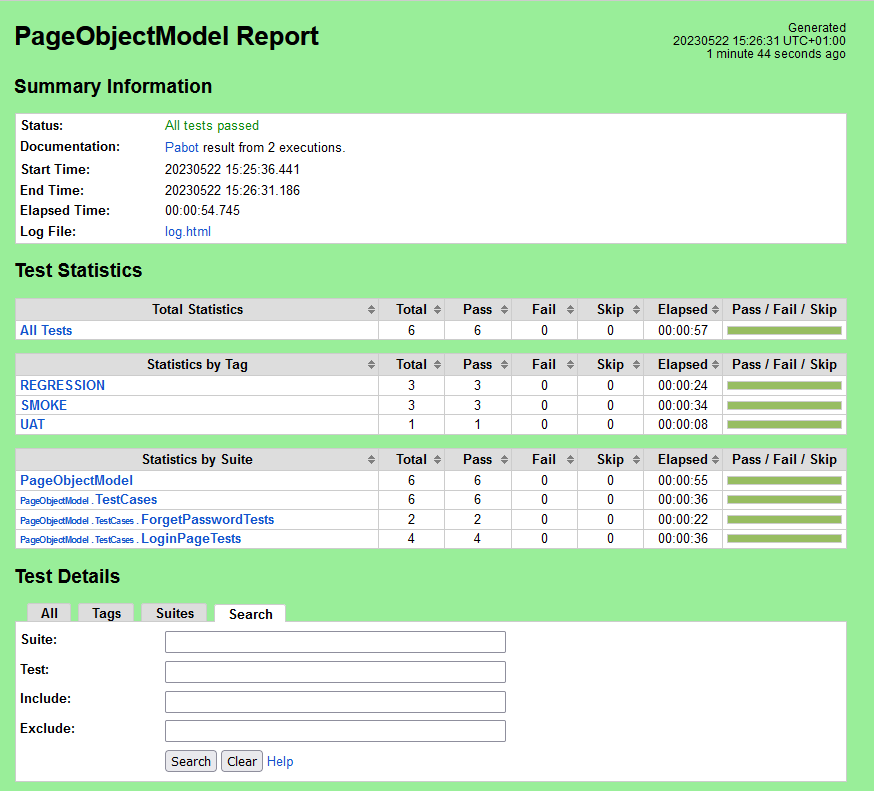
Report

Right-click on report.html. Select Open In->Browser->Chrome(any browser of your wish).

The Report generated by the framework is shown below:

Log

Robot Framework has multiple log levels that control what is shown in the automatically generated log file. The default Robot Framework log level is INFO.

Right-click on log.html. Select Open In->Browser->Chrome(any browser of your wish).

Step 10 – Split execution on test level

In this case, the tests present in a test file will be executed parallelly.

 pabot --testlevelsplit LoginPageTests.robot

The below image shows that all the tests present in LoginPageTests.robot file started parallelly.

The below report shows that all the tests are started simultaneously.

That’s it! Congratulations on making it through this tutorial and hope you found it useful! Happy Learning!!

Additional Tutorials

How to Install Python on Windows 11
How to install and setup Robot Framework for Python
How to rerun failed tests in Robot Framework
Page Object Model in the Robot Framework
How to integrate Robot Framework with Jenkins
How to load data from CSV files in the Robot Framework?

Robot Framework Tutorials

HOME

Robot Framework is a generic open-source automation framework. It can be used for test automation and robotic process automation (RPA). RPA is extensively used for Web Application Automation, API Automation, RPA, and Database Testing.

Robot Framework has an easy syntax, utilizing human-readable keywords. Its capabilities can be extended by libraries implemented with Python, Java, or many other programming languages.

Chapter 1 Robot Framework Features – Settings, Libraries, Variables, Keywords, Resources, Reports, Logs
Chapter 2 What are variables in Robot Framework?
Chapter 3 How to handle text box in Robot Framework
Chapter 4 How to handle radio buttons in Robot Framework
Chapter 5 How to handle checkbox in Robot Framework
Chapter 6 How to handle dropdowns in Robot Framework
Chapter 7 How to handle multiple windows in Robot Framework
Chapter 8 How to handle alerts in Robot Framework
Chapter 9 What is Resource File in Robot Framework 
Chapter 10 How to run all the tests from the folder in Robot Framework
Chapter 11 How to implement tagging in Robot Framework
Chapter 12 How to rerun failed tests in Robot Framework
Chapter 13 How to use Drag and Drop in Robot Framework?
Chapter 14 How to set variable values from Runtime command in Robot Framework
Chapter 15 Page Object Model in Robot Framework with Selenium and Python
Chapter 16 Parallel Testing in Robot Framework
Chapter 17 How to write tests in Robot Framework in BDD Format

Data-Driven Testing

Chapter 1 Data-Driven Testing in Robot Framework 
Chapter 2 How to load data from CSV files in the Robot Framework?

API Testing

Chapter 1 How to perform API Testing in Robot Framework using RequestLibrary
Chapter 2 How to Implement Basic Auth in Robot Framework – NEW
Chapter 3 How to pass authorization token in header in Robot Framework – NEW
Chapter 4 Verifying Status Code and Status Line in Robot Framework – NEW

CI/CD

Chapter 1 Run Robot Framework Tests in GitLab CI/CD
Chapter 2How to run Robot Framework in GitHub Actions

Jenkins

Chapter 1 How to integrate Robot Framework with Jenkins
Chapter 2 How to run parameterized Robot Framework tests in Jenkins

Selenium 4 Grid – Parallel Testing

HOME

The previous tutorial explained running the tests in Selenium4 Grid using the Standalone option. One of the major advantages of Selenium Grid is the ability to run tests parallelly on multiple browsers simultaneously. Parallel testing helps to reduce execution time and efforts and results in a faster time to delivery.

In this tutorial, we will run the same set of tests on Chrome, Firefox, and Edge browsers sequentially initially to confirm that we can perform Cross Browser testing also.

It is very important to construct our tests thread-safe in order to run them in parallel without a problem

This example uses Selenium 4 with TestNG.
Implementation Steps

1. Download Selenium Grid 4

The latest version of Selenium 4 is 4.3.0 and the same can be downloaded from the official website of Selenium

2. Download various Browser driver exe

It is recommended to download the exe of various browsers in the same location where the Selenium WebDriver jar file is present. This is because Selenium 4 Alpha has the ability to automatically detect the WebDrivers present on the node machine. For this example, I have downloaded Chrome, Firefox, and edge drivers.

3. Start Selenium Server Jar

Open a command line terminal. Go to the location where these files are present

cd C:/Users/Vibha/Software/SeleniumGrid

Use the below command to run selenium-server standalone jar files.

java -jar selenium-server-4.3.0.jar standalone --port 4445

It’s optional to mention the port number at the end of the command. By default, it will use port 4444. It is good practice to mention the port at the end to avoid any conflict between the ports.

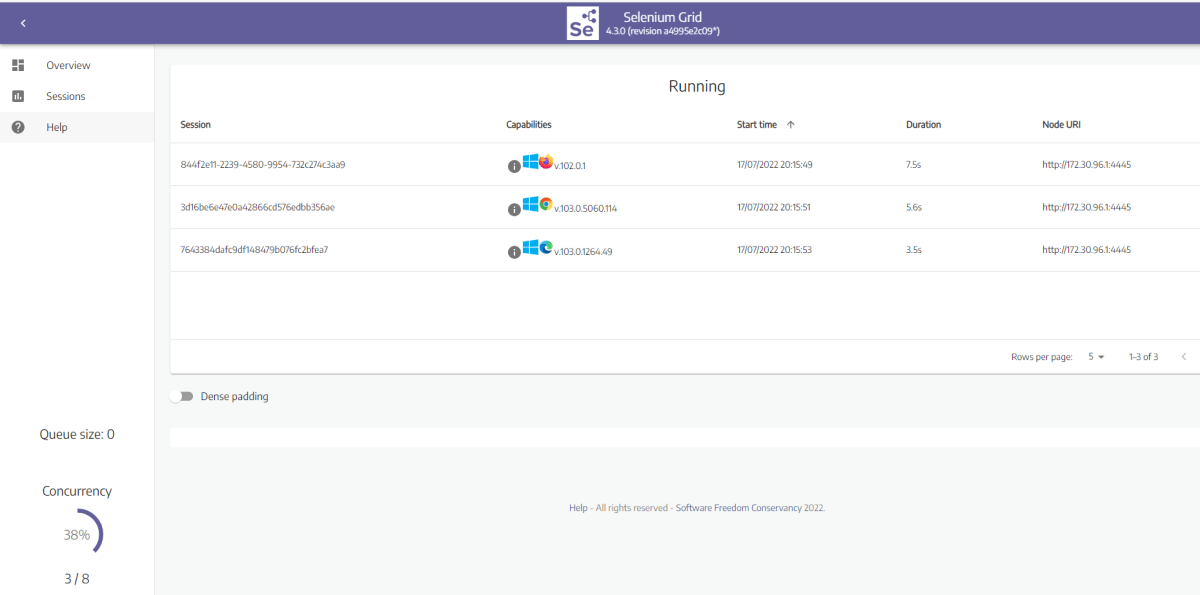
4. Open Selenium Console

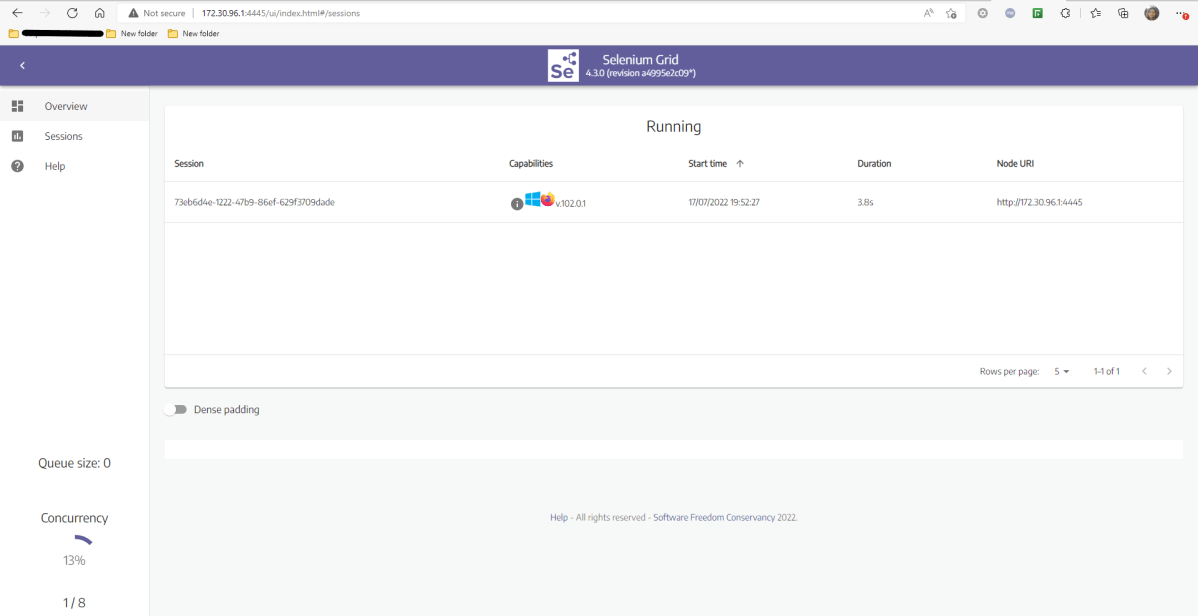
The server is listening on http://172.30.96.1:4445/ui/index.html  which is the same as shown in the above image. This is a dynamic address, so make sure to get the address from the logs when Selenium Grid is started.

The Grid automatically identifies that the WebDrivers for Chrome and Firefox are present on the system.

5. Add dependencies to the project

In this example, we are using a Maven project, so are adding the dependencies to the POM.xml.

<?xml version="1.0" encoding="UTF-8"?>
<project xmlns="http://maven.apache.org/POM/4.0.0"
         xmlns:xsi="http://www.w3.org/2001/XMLSchema-instance"
         xsi:schemaLocation="http://maven.apache.org/POM/4.0.0 http://maven.apache.org/xsd/maven-4.0.0.xsd">
    <modelVersion>4.0.0</modelVersion>

    <groupId>org.example</groupId>
    <artifactId>Selenium4Parallel</artifactId>
    <version>1.0-SNAPSHOT</version>

    <properties>
        <maven.compiler.source>11</maven.compiler.source>
        <maven.compiler.target>11</maven.compiler.target>
    </properties>

    <dependencies>

        <!-- Selenium 4 Dependency -->
        <dependency>
            <groupId>org.seleniumhq.selenium</groupId>
            <artifactId>selenium-java</artifactId>
            <version>4.1.2</version>
        </dependency>

        <!-- Selenium WebDriver Manager -->
        <dependency>
            <groupId>io.github.bonigarcia</groupId>
            <artifactId>webdrivermanager</artifactId>
            <version>5.1.0</version>
        </dependency>

        <!-- TestNG Dependency -->
        <dependency>
            <groupId>org.testng</groupId>
            <artifactId>testng</artifactId>
            <version>7.4.0</version>
            <scope>test</scope>
        </dependency>

    </dependencies>

</project>

6. Create a Test Code

Creating an instance of the Remote WebDriver and passing the selenium endpoint and chrome options defined in it.

To run a Remote WebDriver client, we first need to connect to the RemoteWebDriver. We do this by pointing the URL to the address of the server running our tests. In order to customize our configuration, we set desired capabilities.

Below is an example of instantiating a remote WebDriver object pointing to our remote web server running our tests on Chrome, Firefox, and Edge. We have used @Parameters Annotation to pass the browser names to the tests.

import org.openqa.selenium.By;
import org.openqa.selenium.Capabilities;
import org.openqa.selenium.WebDriver;
import org.openqa.selenium.chrome.ChromeOptions;
import org.openqa.selenium.edge.EdgeOptions;
import org.openqa.selenium.firefox.FirefoxOptions;
import org.openqa.selenium.remote.RemoteWebDriver;
import org.openqa.selenium.support.ui.ExpectedConditions;
import org.openqa.selenium.support.ui.WebDriverWait;
import org.testng.annotations.AfterMethod;
import org.testng.annotations.BeforeMethod;
import org.testng.annotations.Parameters;
import java.net.MalformedURLException;
import java.net.URL;
import java.time.Duration;

public class BaseTest {


    protected static ThreadLocal<RemoteWebDriver> driver = new ThreadLocal<RemoteWebDriver>();
    public static String remote_url = "http://localhost:4445/";
    public Capabilities capabilities;

    @Parameters({"browser"})
    @BeforeMethod
    public void setDriver(String browser) throws MalformedURLException {
    	
    	System.out.println("Test is running on "+browser);

        if(browser.equals("firefox")) {
            capabilities = new FirefoxOptions();
        } else if (browser.equals("chrome")) {
            capabilities = new ChromeOptions();
        } else if (browser.equals("edge")) {
        	capabilities = new EdgeOptions();
        }

        driver.set(new RemoteWebDriver(new URL(remote_url), capabilities));
        driver.get().get("https://opensource-demo.orangehrmlive.com/");
        driver.get().manage().window().maximize();
        driver.get().manage().timeouts().pageLoadTimeout(Duration.ofSeconds(10));
        WebDriverWait wait = new WebDriverWait(driver.get(), Duration.ofSeconds(10));
        wait.until(ExpectedConditions.visibilityOfElementLocated(By.xpath("//*[@id='divUsername']/span")));
    }

    public WebDriver getDriver() {
        return driver.get();
    }

    @AfterMethod
    public  void closeBrowser() {
        driver.get().quit();
        driver.remove();
    }
}

Selenium4ParallelDemo

This class contains the various tests that need to be executed.

  • In BaseTest class, I created ThreadLocal <>() webdriver (ThreadLocalMap) for thread-safe test execution
  • I got the TestNG parameter (browser) with @Parameter annotation.
  • BaseTest returns browser Capabilities based on browser name.
  • In BaseTest class, the getDriver() method returns the created driver.
  • Selenium4ParallelDemo class extends TestBase class and comprises their test code.

import org.openqa.selenium.By;
import org.testng.annotations.Test;
import static org.testng.Assert.assertEquals;
import static org.testng.Assert.assertTrue;

public class Selenium4ParallelDemo extends BaseTest {

    @Test
    public void validCredentials()  {

        getDriver().findElement(By.xpath("//*[@id='txtUsername']")).sendKeys("Admin");
        getDriver().findElement(By.xpath("//*[@id='txtPassword']")).sendKeys("admin123");
        getDriver().findElement(By.xpath("//*[@id='btnLogin']")).click();
        String newPageText = getDriver().findElement(By.xpath("//*[@id='content']/div/div[1]/h1")).getText();
        System.out.println("newPageText :" + newPageText);
        assertEquals(newPageText,"Dashboard");

    }

    @Test
    public void invalidCredentials() {
    	
        getDriver().findElement(By.xpath("//*[@id='txtUsername']")).sendKeys("1234");
        getDriver().findElement(By.xpath("//*[@id='txtPassword']")).sendKeys("12342");
        getDriver().findElement(By.xpath("//*[@id='btnLogin']")).click();
        String actualErrorMessage = getDriver().findElement(By.xpath("//*[@id='spanMessage']")).getText();
        System.out.println("Actual ErrorMessage :" + actualErrorMessage);
        assertEquals(actualErrorMessage,"Invalid credentials");

    }

    @Test
    public void loginPageHeading() {

        String loginText = getDriver().findElement(By.xpath("//*[@id='logInPanelHeading']")).getText();
        System.out.println("Actual loginText :" + loginText);
        assertEquals(loginText,"LOGIN Panel");

    }

    @Test
    public void forgotPasswordPageHeading()  {

        getDriver().findElement(By.xpath("//*[@id='forgotPasswordLink']/a")).click();
        String forgetPasswordTitle= getDriver().findElement(By.xpath(" //*[@id='content']/div[1]/div[2]/h1")).getText();
        System.out.println("Actual Page Title of Forgot Password Page :" + forgetPasswordTitle);
        assertEquals(forgetPasswordTitle,"Forgot Your Password?");
    }

    @Test
    public void verifyLinkedIn() {

        Boolean linkedInIcon = getDriver().findElement(By.xpath("//*[@id='social-icons']/a[1]/img")).isEnabled();
        System.out.println("Actual linkedIn Text :" + linkedInIcon);
        assertTrue(linkedInIcon);

    }
}

7. Create a testng.xml

It is very easy to create testng.xml in the case of Eclipse. Right-click on the project, and select TestNG -> Convert to TestNG. It will create a basic testng.xml structure. We need to add the parameter name and value to it.
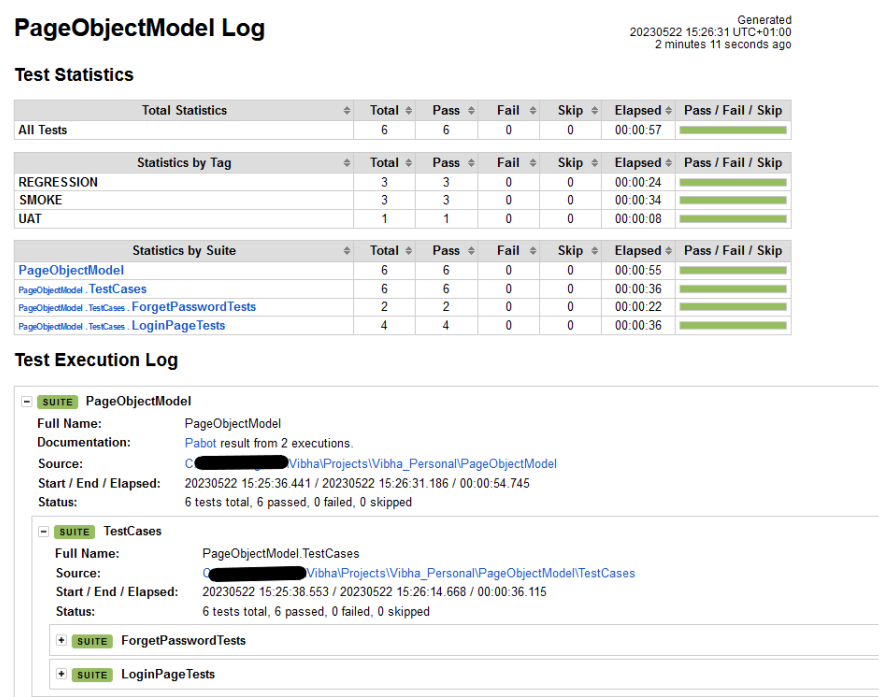
We are planning to run the test on 3 different browsers, so we are passing the name of the browser from this testng.xml using the parameter. This testng.xml will run the test sequentially. There is a minor change needs to be done in testng.xml that will run the tests parallelly.

<?xml version="1.0" encoding="UTF-8"?>
<!DOCTYPE suite SYSTEM "https://testng.org/testng-1.0.dtd">

<suite name="Suite">
  <test thread-count="5" name="Chrome Test">
    <parameter name ="browser" value="chrome"/>
    <classes>
      <class name="org.example.Selenium4ParallelDemo"/>
    </classes>
  </test> <!-- Test -->
  
   <test thread-count="5" name="Firefox Test">
    <parameter name ="browser" value="firefox"/>
    <classes>
      <class name="org.example.Selenium4ParallelDemo"/>
    </classes>
  </test> <!-- Test -->
  
   <test thread-count="5" name="Edge Test">
    <parameter name ="browser" value="edge"/>
    <classes>
      <class name="org.example.Selenium4ParallelDemo"/>
    </classes>
  </test> <!-- Test -->
</suite> <!-- Suite -->

8. Run the tests from testng.xml

Right-Click on the testng.xml and select Run As ->TestNG Suite.

9. Navigate to the sessions tab on the Selenium Grid UI upon running the command

It would reflect an active session.

10. Review the test execution result

There are 2 ways to see if the tests are getting executed or not. First, we can check in the command line. We can see the logs there as shown below.

The complete test execution result can be found in the console too.

The tests are TestNG ones, so we can also check the Result of Running Suite tab also.

11. TestNG Report Generation

TestNG generates the test reports in the test-output folder.

We are interested in 2 reports – index.html and emailable-report.html.

Index.html

The below image shows that the tests are run sequentially.

Emailable-Report.html

This report is the summary report. It contains the summary of all the tests executed like, the number of tests passed, skipped, retried, and failed, and the execution time taken by each test.

Parallel Testing

Update the testng.xml for parallel testing. Add parallel=”tests” in the XML.

Updated testng.xml

<?xml version="1.0" encoding="UTF-8"?>
<!DOCTYPE suite SYSTEM "https://testng.org/testng-1.0.dtd">

<suite name="Suite" parallel="tests">
  <test thread-count="5" name="Chrome Test">
    <parameter name ="browser" value="chrome"/>
    <classes>
      <class name="org.example.Selenium4ParallelDemo"/>
    </classes>
  </test> <!-- Test -->
  
   <test thread-count="5" name="Firefox Test">
    <parameter name ="browser" value="firefox"/>
    <classes>
      <class name="org.example.Selenium4ParallelDemo"/>
    </classes>
  </test> <!-- Test -->
  
   <test thread-count="5" name="Edge Test">
    <parameter name ="browser" value="edge"/>
    <classes>
      <class name="org.example.Selenium4ParallelDemo"/>
    </classes>
  </test> <!-- Test -->
</suite> <!-- Suite -->

The below image shows that the tests were running on multiple browsers at the same time.

The console also shows that tests were started on all three browsers at the same time.

Index.html shows that methods run in chronological order. It can be seen that the setDriver() method for all 3 browsers was the first one to be executed.

Best Practices:

  1. It is advisable to use nodes other than 4444 to run the tests. By using the different port numbers, we prevent the risk that the port is already in use on your system.
  2. It is suggested to use RemoteWebDriver objects, as it is used to set which node (or machine) our test will run against.

Congratulations on making it through this tutorial and hope you found it useful! Happy Learning!! Cheers!!

Parallel testing of DataProviders in TestNG

HOME

The previous tutorial has explained the DataProviders in TestNG. The DataProvider in TestNG is a way to pass the parameters in the test functions. Using DataProvider in TestNG, we can easily inject multiple values into the same test case. It comes inbuilt into TestNG and is popularly used in data-driven frameworks.
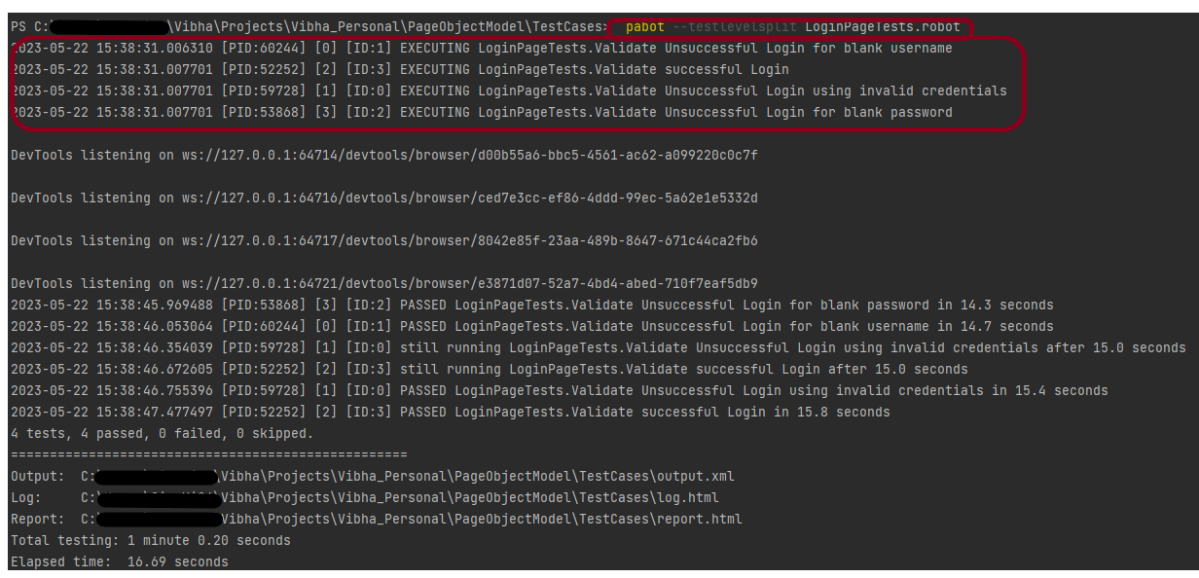
 It is an option for the parallel execution of tests in TestNG. 
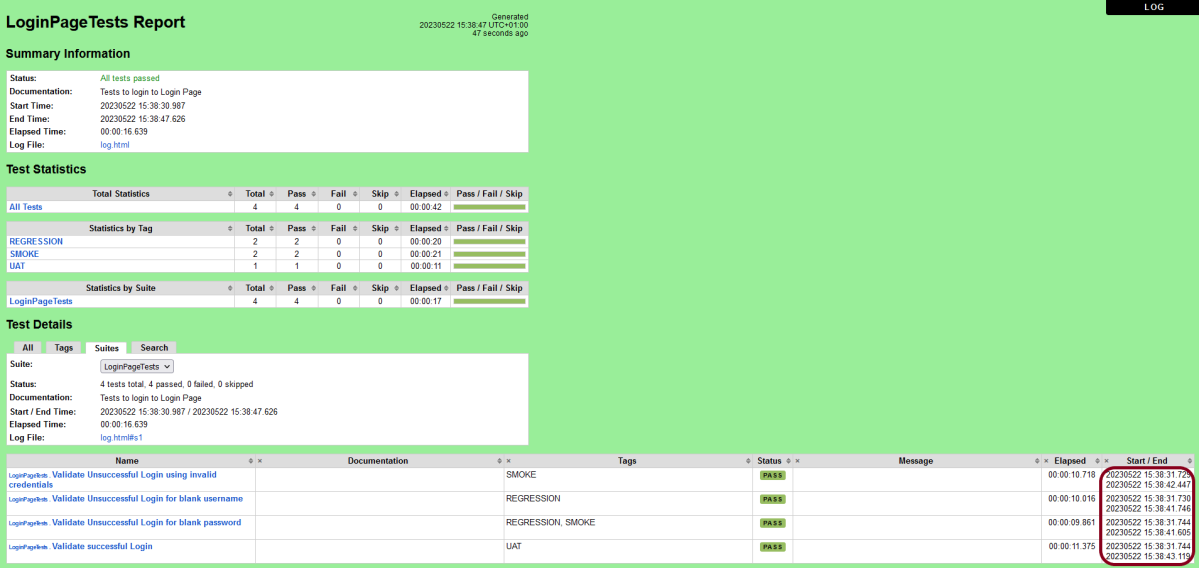
It is advisable to create 2 classes – one class contains the Test cases and another class defines TestNG parameters – DataProviders.

Let us create a class for the DataProvider method with all the Test Data as shown below:

import org.testng.annotations.DataProvider;

public class DataProviderDemo {	
	
	 @DataProvider(name = "testData", parallel=true)
	 public Object[][] dataProvFunc() {
	       return new Object[][] {           
	    	   {"","","Username cannot be empty"},    	  
	    	   {"","Test","Username cannot be empty"},
	    	   {"$%1234","2345%$","Invalid credentials"}          
	    	 };
	    }
	}

An extra parameter “parallel” is required to initiate parallel execution in TestNG using the data provider.

Below is the test which uses the parameter from the data provider and runs the tests parallelly.

A new ThreadLocal is instantiated for each test class, since it’s in the BeforeClass annotation.

private static final ThreadLocal<WebDriver> WEB_DRIVER_THREAD_LOCAL = new ThreadLocal<WebDriver>();

Below is the complete test code:

import org.openqa.selenium.By;
import org.openqa.selenium.WebDriver;
import org.openqa.selenium.chrome.ChromeDriver;
import org.testng.Assert;
import org.testng.annotations.AfterMethod;
import org.testng.annotations.BeforeMethod;
import org.testng.annotations.Test;

public class DataProviderParallelTests {
	
	public WebDriver driver;
	private static final ThreadLocal<WebDriver> WEBDRIVER_THREADLOCAL = new ThreadLocal<WebDriver>();
	
	 @BeforeMethod
    public void setUp(){

        System.setProperty("webdriver.chrome.driver",
                "C:\\Users\\Vibha\\Software\\chromedriver\\chromedriver.exe");
        driver = new ChromeDriver();
        WEBDRIVER_THREADLOCAL.set(driver);
        System.out.println("Before method Thread Id:" + Thread.currentThread().getId());
        
    }
	
	@Test(dataProvider = "testData", dataProviderClass = DataProviderDemo.class)
    public void invalidLoginTest(String username, String password, String errorMessage) throws InterruptedException {
		     
	    driver = WEBDRIVER_THREADLOCAL.get();
	    driver.manage().window().maximize();
        driver.get("https://opensource-demo.orangehrmlive.com/");
     
        Thread.sleep(2000);
        driver.findElement(By.name("txtUsername")).sendKeys(username);
        System.out.println("Username :" + username);
        
        Thread.sleep(2000);
        driver.findElement(By.name("txtPassword")).sendKeys(password);
        System.out.println("password :" + password);
        
        Thread.sleep(2000);
        String expectedError = driver.findElement(By.id("spanMessage")).getText();
        System.out.println("Error Message :" + expectedError);
        Assert.assertTrue(expectedError.contains(errorMessage));

    }
		 
	@AfterMethod
	public void tear_down() {
		 
		 WebDriver driver = WEBDRIVER_THREADLOCAL.get();
		 System.out.println("After method Thread Id:" + Thread.currentThread().getId());
	        if (driver != null) {
	            driver.quit();
	     }
    }	
}

testng.xml

<?xml version="1.0" encoding="UTF-8"?>
<!DOCTYPE suite SYSTEM "https://testng.org/testng-1.0.dtd">
<suite name="Suite" thread-count="2" data-provider-thread-count="2">
  <test name="Test">
    <classes>
      <class name="DataProvider.DataProviderParallelTests"/>
    </classes>
  </test> <!-- Test -->
</suite> <!-- Suite -->

In this file, the data-provider-thread-count is set to 2, then two browsers will be opened, and the first two tests will run from the list. 

Run the test script from testng.xml, Right-Click on the XML, and select Run As ->TestNG Suite.

The execution status shown below shows that 2 threads are active at a time, which execute 2 sets of data provider parameters – Thread 14 and Thread 15. Once the tests are finished for Thread 14 and Thread 15, they are closed and a new Thread 15 is again initiated to start the test execution of the 3rd parameter.

TestNG generates multiple test reports under the folder test-output. We are mainly concerned about 2 reports – emailable-report.html and index.html.

Emailable-report.html

Emailable reports are a type of summary report that one can transfer to other people in the team through any medium. 

Index.html

Index report contains the index-like structure of different parts of the report, such as failed tests, test files, passed tests, etc. We can divide this report into two parts. The left part contains the index, and this is the reason it is called an index report, while the right part contains the explored content of that index.

We are done! Congratulations on making it through this tutorial and hope you found it useful! Happy Learning!!

Parallel Testing in Cucumber with JUnit4

Last Updated On

HOME

In this tutorial, I will explain Parallel Testing using Cucumber with JUnit4.

Cucumber-JVM allows parallel execution across multiple threads since version 4.0.0. There are several options to incorporate this built-in feature in a Cucumber project. You can do so by using JUnit, TestNG, or CLI.

Cucumber can be executed in parallel using JUnit and Maven test execution plugins.

In JUnit, the feature files are run in parallel rather than in scenarios, which means all the scenarios in a feature file will be executed by the same thread. You can use either Maven Surefire or Failsafe plugin to execute the runner. In this tutorial, I’m using the Maven Surefire plugin.

Table of Contents

  1. Dependency List
  2. Detailed Step Description
    1. Create a Maven project
    2. Update the Properties section in Maven pom.xml
    3. Add Cucumber and JUnit dependencies to the project
    4. Add Surefire plugin configuration to the build section of the POM
    5. Create a feature folder in src/test/resources
    6. Create the Page Object Model classes of LoginPage and ForgotPasswordPage feature files
    7. Create the Hook Class and Dependency Injection class (TestSetUp) and BaseTest class
    8. Create a Test Runner to run the tests
    9. Cucumber Report Generation
    10. Execute the tests from the command line
    11. Difference between Parallel tests and Non-Parallel Tests

Dependency List:-

  1. Cucumber Java – 7.11.1
  2. Cucumber JUnit – 7.11.1
  3. Java 11
  4. JUnit– 4.13.2
  5. Maven – 3.8.1
  6. Selenium – 34.8.0
  7. Maven Surefire Plugin – 3.0.0-M7
  8. Maven Compiler Plugin – 3.10.1

Detailed Step Description

Step 1 – Create a Maven project

Create a Maven project in your favorite IDE using the cucumber-archetype or by adding Cucumber dependencies to the POM as detailed here and Junit dependencies here. To know more about How to set up a Cucumber Maven project with Eclipse, please refer to this tutorial – Cucumber Tutorial – How to setup Cucumber with Eclipse.

Below is the structure of the project.

Step 2 – Update the Properties section in Maven pom.xml

   <properties>
        <project.build.sourceEncoding>UTF-8</project.build.sourceEncoding>
        <selenium.version>4.8.0</selenium.version>
        <cucumber.version>7.11.1</cucumber.version>
        <junit.version>4.13.2</junit.version>
        <webdrivermanager.version>5.3.2</webdrivermanager.version>
        <extent.version>5.0.9</extent.version>
        <extent.cucumber.adapter.version>1.10.1</extent.cucumber.adapter.version>
        <maven.compiler.plugin.version>3.10.1</maven.compiler.plugin.version>
        <maven.surefire.plugin.version>3.0.0-M7</maven.surefire.plugin.version>
        <maven.compiler.source>11</maven.compiler.source>
        <maven.compiler.target>11</maven.compiler.target>
    </properties>

Step 3 – Add Cucumber and JUnit dependencies to the project

Add below mentioned Cucumber-Java and Cucumber-JUnit dependencies to the project.

  <dependencies>

        <!--Cucumber Dependencies -->
        <dependency>
            <groupId>io.cucumber</groupId>
            <artifactId>cucumber-java</artifactId>
            <version>${cucumber.version}</version>
        </dependency>

        <dependency>
            <groupId>io.cucumber</groupId>
            <artifactId>cucumber-junit</artifactId>
            <version>${cucumber.version}</version>
            <scope>test</scope>
        </dependency>

        <!-- Selenium Dependency -->
        <dependency>
            <groupId>org.seleniumhq.selenium</groupId>
            <artifactId>selenium-java</artifactId>
            <version>${selenium.version}</version>
        </dependency>

        <!-- JUnit4 Dependency -->
        <dependency>
            <groupId>junit</groupId>
            <artifactId>junit</artifactId>
            <version>${junit.version}</version>
            <scope>test</scope>
        </dependency>


        <!-- Dependency Injection-->
        <dependency>
            <groupId>io.cucumber</groupId>
            <artifactId>cucumber-picocontainer</artifactId>
            <version>${cucumber.version}</version>
            <scope>test</scope>
        </dependency>

        <!-- WebDriver Manager Dependency -->
        <dependency>
            <groupId>io.github.bonigarcia</groupId>
            <artifactId>webdrivermanager</artifactId>
            <version>${webdrivermanager.version}</version>
        </dependency>

    </dependencies>
  

Step 4 – Add Surefire plugin configuration to the build section of the POM

 <plugin>
    <groupId>org.apache.maven.plugins</groupId>
    <artifactId>maven-surefire-plugin</artifactId>
    <version>${maven.surefire.plugin.version}</version>
   <configuration>
        <parallel>methods</parallel>
        <useUnlimitedThreads>true</useUnlimitedThreads>
        <testFailureIgnore>true</testFailureIgnore>
	</configuration>
</plugin> 

To set the thread count to a specific number instead of useUnlimitedThreads use the below setting.

<configuration>
    <parallel>methods</parallel>
    <threadCount>4</threadCount>
</configuration>

The thread count in the above setting is 4 threads per core.

The complete POM.xml is shown below:

<?xml version="1.0" encoding="UTF-8"?>
<project xmlns="http://maven.apache.org/POM/4.0.0"
         xmlns:xsi="http://www.w3.org/2001/XMLSchema-instance"
         xsi:schemaLocation="http://maven.apache.org/POM/4.0.0 http://maven.apache.org/xsd/maven-4.0.0.xsd">
    <modelVersion>4.0.0</modelVersion>

    <groupId>org.example</groupId>
    <artifactId>ParallelTests_Cucumber_JUnit4_Demo</artifactId>
    <version>1.0-SNAPSHOT</version>

    <properties>
        <project.build.sourceEncoding>UTF-8</project.build.sourceEncoding>
        <selenium.version>4.8.0</selenium.version>
        <cucumber.version>7.11.1</cucumber.version>
        <junit.version>4.13.2</junit.version>
        <webdrivermanager.version>5.3.2</webdrivermanager.version>
        <extent.version>5.0.9</extent.version>
        <extent.cucumber.adapter.version>1.10.1</extent.cucumber.adapter.version>
        <maven.compiler.plugin.version>3.10.1</maven.compiler.plugin.version>
        <maven.surefire.plugin.version>3.0.0-M7</maven.surefire.plugin.version>
        <maven.compiler.source>11</maven.compiler.source>
        <maven.compiler.target>11</maven.compiler.target>
    </properties>

    <dependencies>

        <!--Cucumber Dependencies -->
        <dependency>
            <groupId>io.cucumber</groupId>
            <artifactId>cucumber-java</artifactId>
            <version>${cucumber.version}</version>
        </dependency>

        <dependency>
            <groupId>io.cucumber</groupId>
            <artifactId>cucumber-junit</artifactId>
            <version>${cucumber.version}</version>
            <scope>test</scope>
        </dependency>

        <!-- Selenium Dependency -->
        <dependency>
            <groupId>org.seleniumhq.selenium</groupId>
            <artifactId>selenium-java</artifactId>
            <version>${selenium.version}</version>
        </dependency>

        <!-- JUnit4 Dependency -->
        <dependency>
            <groupId>junit</groupId>
            <artifactId>junit</artifactId>
            <version>${junit.version}</version>
            <scope>test</scope>
        </dependency>


        <!-- Dependency Injection-->
        <dependency>
            <groupId>io.cucumber</groupId>
            <artifactId>cucumber-picocontainer</artifactId>
            <version>${cucumber.version}</version>
            <scope>test</scope>
        </dependency>

        <!-- WebDriver Manager Dependency -->
        <dependency>
            <groupId>io.github.bonigarcia</groupId>
            <artifactId>webdrivermanager</artifactId>
            <version>${webdrivermanager.version}</version>
        </dependency>

    </dependencies>
    <build>
        <plugins>

            <plugin>
                <groupId>org.apache.maven.plugins</groupId>
                <artifactId>maven-compiler-plugin</artifactId>
                <version>${maven.compiler.plugin.version}</version>
                <configuration>
                    <source>${maven.compiler.source}</source>
                    <target>${maven.compiler.target}</target>
                </configuration>
            </plugin>

            <plugin>
                <groupId>org.apache.maven.plugins</groupId>
                <artifactId>maven-surefire-plugin</artifactId>
                <version>${maven.surefire.plugin.version}</version>
                <configuration>
                    <parallel>methods</parallel>
                    <useUnlimitedThreads>true</useUnlimitedThreads>
                </configuration>
            </plugin>
        </plugins>
    </build>

</project>

Step 5 – Create a feature folder in src/test/resources

Add 2 feature files – LoginPage.feature and ForgotPasswordPage.feature in the features folder present in src/test/resources.

LoginPage.feature

Feature: Login to HRM Application

  Background:
    Given User is on Home page

  @ValidCredentials
  Scenario: Login with valid credentials - Feature 1, Scenario - 1

    When User enters username as "Admin" and password as "admin123"
    Then User should be able to login successfully

  @InvalidCredentials
  Scenario Outline: Login with invalid credentials - Feature 1, Scenario - 2

    When User enters username as "<username>" and password as "<password>"
    Then User should be able to see error message "<errorMessage>"

    Examples:
      | username    | password   | errorMessage                      |
      | Admin       | admin12$$  | Invalid credentials               |
      | admin$$     | admin123   | Invalid credentials               |
      | abc123      | xyz$$      | Invalid credentials               |
      |             | xyz$$      | Invalid credentials               |

ForgotPasswordPage.feature

Feature: Forgot Password Page

  Background:
    Given User is on Home page

  @BackFunctionality
  Scenario: Validate the cancel functionality - Feature 2, Scenario - 1

    When User clicks on Forgot your password? link
    Then User should be able to navigate to Reset Password page
    And User clicks on Cancel button to go back to Login Page

  @ResetFunctionality
  Scenario: Validate the Reset Password functionality - Feature 2, Scenario - 2

    When User clicks on Forgot your password? link
    Then User should be able to navigate to Reset Password page
    And User clicks on Reset Password button and provide username as "abc1234"
    And Verify the message "Reset Password link sent successfully"

Step 6 – Create the Page Object Model classes of LoginPage and ForgotPasswordPage feature files

Page Object Model class contains all the locators and the actions performed on these locators for the particular class to improve the readability and maintainability of the code.

Below are the Page Object Model classes for these feature files.

LoginPage

import org.openqa.selenium.By;
import org.openqa.selenium.WebDriver;
 
public class LoginPage {
 
    public WebDriver driver;
     
    By userName = By.name("username");
    By passWord = By.name("password");
    By login = By.xpath("//*[@id='app']/div[1]/div/div[1]/div/div[2]/div[2]/form/div[3]/button");
    By errorMessage = By.xpath("//*[@id='app']/div[1]/div/div[1]/div/div[2]/div[2]/div/div[1]/div[1]/p");
    By forgotPasswordLink = By.xpath("//*[@id='app']/div[1]/div/div[1]/div/div[2]/div[2]/form/div[4]/p");
    By loginPageTitle = By.xpath("//*[@id='app']/div[1]/div/div[1]/div/div[2]/h5");
     
    public LoginPage(WebDriver driver) {
        this.driver = driver;
    }
     
    public String getErrorMessage() {
        return driver.findElement(errorMessage).getText();
    }
 
    public void login(String strUserName, String strPassword) {
 
        // Fill user name
        driver.findElement(userName).sendKeys(strUserName);
 
        // Fill password
        driver.findElement(passWord).sendKeys(strPassword);
 
        // Click Login button
        driver.findElement(login).click();
 
    }
 
    // Click on Forgot Password link
    public void clickOnForgotPasswordLink() {
        driver.findElement(forgotPasswordLink).click();
    }
 
    //Get Login Page Title
    public String getLoginPageTitle() {
        return driver.findElement(loginPageTitle).getText();
    }
}

HomePage

import org.openqa.selenium.By;
import org.openqa.selenium.WebDriver;
 
public class HomePage {
 
    public WebDriver driver;
 
    public HomePage(WebDriver driver) {
        this.driver = driver;
    }
 
    By homePageUserName = By.xpath("//*[@id='app']/div[1]/div[1]/header/div[1]/div[1]/span/h6");
 
    public String getHomePageText() {
        return driver.findElement(homePageUserName).getText();
    }
}

ForgotPasswordPage

import org.openqa.selenium.By;
import org.openqa.selenium.WebDriver;
 
public class ForgotPasswordPage {
 
    WebDriver driver;
 
     By forgotPasswordPageTitle = By.xpath("//*[@id='app']/div[1]/div[1]/div/form/h6");
     By cancelBtn = By.xpath("//*[@id='app']/div[1]/div[1]/div/form/div[2]/button[1]");
     By resetPasswordBtn = By.xpath("//*[@id='app']/div[1]/div[1]/div/form/div[2]/button[2]");
     By userName = By.name("username");
     By resetMessage = By.xpath("//*[@id='app']/div[1]/div[1]/div/h6");
 
    public ForgotPasswordPage(WebDriver driver) {
        this.driver = driver;
    }
 
    // Get the Title of ForgotPage
    public String getForgotPageText() {
        return driver.findElement(forgotPasswordPageTitle).getText();
    }
 
    // Click Cancel Button
    public void clickOnCancelBtn() {
         driver.findElement(cancelBtn).click();
    }
 
    // Click ResetPassword Button
    public void clickOnRestPasswordBtn() {
        driver.findElement(resetPasswordBtn).click();
    }
 
    // Type username in TextBox
    public void TypeOnUsernameTextBox(String username) {
        driver.findElement(userName).sendKeys(username);
    }
 
    // Get Message
    public String getRestMessage() {
        return driver.findElement(resetMessage).getText();
    }
}

PageObjectManager – This class creates the object of all the above-mentioned Page Object Model classes. This an optional class. If you want you can create the objects in StepDefinition class also.

public class PageObjectManager {
 
    public LoginPage loginPage;
    public HomePage homePage;
    public ForgotPasswordPage forgotPasswordPage;
    public WebDriver driver;
 
 
    public PageObjectManager(WebDriver driver)
    {
        this.driver = driver;
    }
 
    public LoginPage getLoginPage()
    {
 
        loginPage= new LoginPage(driver);
        return loginPage;
    }
 
    public HomePage getHomePage()
    {
        homePage = new HomePage(driver);
        return homePage;
    }
 
    public ForgotPasswordPage getForgotPasswordPage()
    {
        forgotPasswordPage = new ForgotPasswordPage(driver);
        return forgotPasswordPage;
    }
}

Step 7 – Create the Step Definition classes for both feature files or Glue Code

Below is the Step Definition for LoginPage.feature.

import org.example.pageObjects.HomePage;
import org.example.pageObjects.LoginPage;
import org.example.pageObjects.PageObjectManager;
import org.example.utils.TestSetUp;
import io.cucumber.java.en.Given;
import io.cucumber.java.en.Then;
import io.cucumber.java.en.When;
import org.junit.Assert;

public class LoginPageDefinitions {

    TestSetUp setUp;
    public PageObjectManager pageObjectManager;
    public LoginPage loginPage;
    public HomePage homePage;


    public LoginPageDefinitions(TestSetUp setUp)  {
        this.setUp = setUp;
        this.loginPage = setUp.pageObjectManager.getLoginPage();
        this.homePage= setUp.pageObjectManager.getHomePage();
    }

    @Given("User is on Home page")
    public void loginTest()  {
        setUp.baseTest.WebDriverManager().get("https://opensource-demo.orangehrmlive.com/");

    }

    @When("User enters username as {string} and password as {string}")
    public void goToHomePage(String userName, String passWord) {

        // login to application
        loginPage.login(userName, passWord);

        // go the next page

    }

    @Then("User should be able to login successfully")
    public void verifyLogin() {

        // Verify home page
        Assert.assertTrue(homePage.getHomePageText().contains("Dashboard"));

    }

    @Then("User should be able to see error message {string}")
    public void verifyErrorMessage(String expectedErrorMessage) {

        // Verify home page
        Assert.assertEquals(loginPage.getErrorMessage(),expectedErrorMessage);

    }

}

Below is the Step Definition for ForgotPasswordPage.feature.

import io.cucumber.java.en.Then;
import io.cucumber.java.en.When;
import org.example.pageObjects.ForgotPasswordPage;
import org.example.pageObjects.LoginPage;
import org.example.pageObjects.PageObjectManager;
import org.example.utils.TestSetUp;
import org.junit.Assert;


public class ForgotPasswordPageDefinitions {

    TestSetUp setUp;
    PageObjectManager pageObjectManager;
    public LoginPage loginPage;
    public  ForgotPasswordPage forgotPasswordPage;

    public ForgotPasswordPageDefinitions(TestSetUp setUp) {
        this.setUp = setUp;
        this.loginPage = setUp.pageObjectManager.getLoginPage();
        this.forgotPasswordPage = setUp.pageObjectManager.getForgotPasswordPage();
    }

    @When("User clicks on Forgot your password? link")
    public void forgotPasswordLink() {

        loginPage.clickOnForgotPasswordLink();

    }

    @Then("User should be able to navigate to Reset Password page")
    public void verifyForgotPasswordPage() {

        Assert.assertEquals(forgotPasswordPage.getForgotPageText(),"Reset Password");

    }

    @Then("User clicks on Cancel button to go back to Login Page")
    public void verifyCancelBtn() {

        forgotPasswordPage.clickOnCancelBtn();
        Assert.assertEquals(loginPage.getLoginPageTitle(),"Login");

    }

    @Then("User clicks on Reset Password button and provide username as {string}")
    public void verifyResetPasswordBtn(String username) {

        forgotPasswordPage.TypeOnUsernameTextBox(username);
        forgotPasswordPage.clickOnRestPasswordBtn();

    }

    @Then("Verify the message {string}")
    public void verifyMessage(String message) {

        //  ForgotPasswordPage forgotPasswordPage = setUp.pageObjectManager.getForgotPasswordPage();
        Assert.assertEquals(forgotPasswordPage.getRestMessage(),message);

    }
}

Step 8 – Create the Hook Class and Dependency Injection class (TestSetUp) and BaseTest class

Below is the code for the ApplicationHook Class.

import io.cucumber.java.After;
import io.cucumber.java.AfterStep;
import io.cucumber.java.Scenario;
import org.example.utils.TestSetUp;
import org.openqa.selenium.OutputType;
import org.openqa.selenium.TakesScreenshot;
import org.openqa.selenium.WebDriver;

public class ApplicationHooks {

 public TestSetUp setUp;

    public ApplicationHooks(TestSetUp setUp) {
        this.setUp = setUp;
    }

    @After
    public void tearDown( )  {
        setUp.baseTest.WebDriverManager().quit();
    }

    @AfterStep
    public void addScreenshot(Scenario scenario) {

        WebDriver driver =  setUp.baseTest.WebDriverManager();
        if(scenario.isFailed()) {
            final byte[] screenshot = ((TakesScreenshot) driver).getScreenshotAs(OutputType.BYTES);
            scenario.attach(screenshot, "image/png", "image");
        }

    }

}

Below is the code for the Dependency Injection class. In Cucumber, if we want to share the state between multiple-step definition files, we will need to use dependency injection (DI). 

import org.openqa.selenium.WebDriver;
import org.openqa.selenium.WebElement;
import pageObjects.PageObjectManager;
 
public class TestSetUp {
 
    public WebElement errorMessage;
    public WebElement homePageUserName;
    public PageObjectManager pageObjectManager;
    public BaseTest baseTest;
 
    public TestSetUp()  {
 
        baseTest = new BaseTest();
        pageObjectManager = new PageObjectManager(baseTest.WebDriverManager());
 
    }
}

BaseTest class is used to initialize the WebDriver.

import io.github.bonigarcia.wdm.WebDriverManager;
import org.openqa.selenium.WebDriver;
import org.openqa.selenium.chrome.ChromeDriver;
import java.time.Duration;
 
public class BaseTest {
 
    public WebDriver driver;
    public final static int TIMEOUT = 10;
 
    public WebDriver WebDriverManager ()  {
 
    
        if (driver == null) {
         
            WebDriverManager.chromedriver().setup();
            driver = new ChromeDriver();
            driver.manage().timeouts().implicitlyWait(Duration.ofSeconds(TIMEOUT));
            driver.manage().window().maximize();
            driver.get(url);
 
        }
        return driver;
    }
}

Step 9 – Create a Test Runner to run the tests

import io.cucumber.junit.Cucumber;
import io.cucumber.junit.CucumberOptions;
import org.junit.runner.RunWith;

@RunWith(Cucumber.class)
@CucumberOptions(tags = "", features = "src/test/resources/features", glue = "org.example.definitions")

public class CucumberRunnerTests  {

}

Step 10 – Cucumber Report Generation

To get Cucumber Test Reports, add cucumber.properties in src/test/resources and add the below instruction in the file.

cucumber.publish.enabled=true

Step 11 – Execute the tests from the command line

mvn clean test

Below is the execution screen. There are two feature files.

When we invoke the test through Maven, the surefire plugin executes the Feature files parallelly. Here, LoginPage has 5 scenarios and ForgotPasswordPage has 2 scenarios. So, initially when the execution will start 1 scenario from both the tests will be executed parallelly and then again one test from each feature will execute. Later, we will be left with 4 scenarios in the LoginPage feature file, so the scenario will run sequentially of the LoginPage feature file.

All the tests of a particular feature file are executed together as feature files are run in parallel, not scenarios.

Step 12 – Difference between Parallel tests and Non-Parallel Tests

Parallel Tests

Below is the Cucumber Report generated for parallel tests.

When the tests are run as JUnit tests from CucumberRunnerTests, then the tests are executed sequentially.

We are done! Congratulations on making it through this tutorial and hope you found it useful! Happy Learning!!

In the next tutorial, I explained Parallel Testing in Cucumber with TestNG.