Selenium Interview Questions and Answers 2026

HOME

driver.findElement(By.id("email")) 


driver.findElement(By.xpath("/html/body/form/content"));

Double Slash “//” – Double slash is used to create an XPath with a relative path i.e. the XPath would be created to start selection from anywhere within the document. For example, the below example will select any element in the document which has an attribute named “id” with the specified value “email”.

driver.findElement(By.xpath("//*[@id = 'email']")

For more details, click here


4. How do we can launch the browser using WebDriver?

Firstly, we should instantiate a Chrome/Chromium session by doing the following

import org.openqa.selenium.WebDriver;
import org.openqa.selenium.chrome.ChromeDriver;
import org.openqa.selenium.chrome.ChromeOptions;
           
 ChromeOptions options = new ChromeOptions();
 WebDriver driver = new ChromeDriver(options);

The chromedriver is implemented as a WebDriver remote server that instructs the browser what to do by exposing Chrome’s internal automation proxy interface.

import org.openqa.selenium.WebDriver;
import org.openqa.selenium.Firefox.FirefoxDriver;
import org.openqa.selenium.firefox.FirefoxOptions;

FirefoxOptions firefoxOptions = new FirefoxOptions();
WebDriver driver = new FirefoxDriver(firefoxOptions);

import org.openqa.selenium.WebDriver;
import org.openqa.selenium.edge.EdgeDriver;
import org.openqa.selenium.edge.EdgeOptions;

EdgeOptions options = new EdgeOptions();
WebDriver driver = new EdgeDriver(options);

For more details, click here 


5. What are the different types of Drivers available in WebDriver?

The different drivers available in WebDriver are

  • FirefoxDriver
  • InternetExplorerDriver
  • ChromeDriver
  • SafariDriver
  • OperaDriver
  • AndroidDriver
  • IPhoneDriver
  • HtmlUnitDriver

6. Explain the different exceptions in Selenium WebDriver

Exceptions in Selenium are similar to exceptions in other programming languages. The most common exceptions in Selenium are:


1. TimeoutException: This exception is thrown when a command performing an operation does not complete in the expected time.

2. NoSuchElementException: This exception is thrown when an element with given attributes is not found on the web page. Suppose webdriver is trying to click on XPath – “//*[@id=’yDmH0d’]/div/div[2]/div[2]/form/content” which doesn’t exist on that particular web page, then the below exception is displayed – org.openqa.selenium.NoSuchElementException.

3. ElementNotVisibleException: This exception is thrown when the element is present in DOM (Document Object Model), but not visible on the web page.

4. StaleElementException: This exception is thrown when the element is either deleted or no longer attached to the DOM. This exception occurs, when Selenium navigates to a different page, comes back to the same old page, and performs operations on the old page. Technically, it occurs when the element defined in the Selenium code is not found in the cache memory and the Selenium code is trying to locate it. 


7. What are the different types of waits available in WebDriver?

How do you achieve synchronization in WebDriver?

There are three types of wait in Selenium WebDriver

 1.   Implicit Wait – The implicit wait will tell to the web driver to wait for a certain amount of time before it throws a “NoSuchElementException“. The default setting is 0. Once we set the time, the web driver will wait for that time before throwing an exception. Implicit waits are used to provide a default waiting time (say 30 seconds) between each consecutive test step/command across the entire test script.
We need to import java.util.concurrent.TimeUnit to use ImplicitWait.

    driver.manage().timeouts().implicitlyWait(Duration.ofSeconds(2));

2.    Explicit Wait – An explicit wait is a code you define to wait for a certain condition to occur before proceeding further in the code. The explicit wait will tell the web driver to wait for certain conditions like visibilityOfElementLocated and the maximum amount of time before throwing the NoSuchElementException exception. Unlike Implicit waits, explicit waits are applied for a particular instance only.

 Wait<WebDriver> wait = new WebDriverWait(driver, Duration.ofSeconds(2));
  wait.until(d -> revealed.isDisplayed());

3.  Fluent Wait – Fluent Wait instance defines the maximum amount of time to wait for a condition, as well as the frequency with which to check the condition.

Users may configure the wait to ignore specific types of exceptions whilst waiting, such as  NoSuchElementException when searching for an element on the page.

Fluent Wait commands are mainly used when the web elements which sometimes visible in a few seconds and sometimes take more time than usual. Mainly in Ajax applications. We could set the default pooling period based on the requirement.
Wait<WebDriver> wait =
        new FluentWait<>(driver)
            .withTimeout(Duration.ofSeconds(2))
            .pollingEvery(Duration.ofMillis(300))
            .ignoring(ElementNotInteractableException.class);

    wait.until(
        d -> {
          revealed.sendKeys("Displayed");
          return true;
        });

For more details, click here 


8. How to set the size of the Window in Selenium WebDriver?

First, fetch the size of the browser window in pixels by the below code Dimension

//Access each dimension individually
int width = driver.manage().window().getSize().getWidth();
int height = driver.manage().window().getSize().getHeight();

//Or store the dimensions and query them later
Dimension size = driver.manage().window().getSize();
int width1 = size.getWidth();
int height1 = size.getHeight();

Now, change the size of the window by using

driver.manage().window().setSize(new Dimension(1024, 768)); 

9. How to set the position of Window in Selenium?

First fetch the coordinates of the top left coordinate of the browser window by

// Store the dimensions and query them later
Point position = driver.manage().window().getPosition();
         int x1 = position.getX();
         int y1 = position.getY();

// Access each dimension individually
int x = driver.manage().window().getPosition().getX();
int y = driver.manage().window().getPosition().getY();

The window can be moved to the chosen position by

// Move the window to the top left of the primary monitor
driver.manage().window().setPosition(new Point(0, 0));

10. What is the difference between driver.findElement() and driver.findElements() commands?

FindElement – This method locates the first web element on the current web page matching the criteria mentioned as the parameter.  
If the web element is not found, it will throw an exception – NoSuchElementException. 

driver.findElement(By.xpath("Xpath location"));

FindElements – This method locates all the web elements on the current web page matching the criteria mentioned as parameters. 

If not found any WebElement on the current page as per the given element locator mechanism, it will return the empty list.     

findElements (By arg0):List<WebElement

For more details, click here 


11. How to type in a textbox using Selenium?

The user can use sendKeys(“String to be entered”) to enter the string in the textbox. The sendKeys type a key sequence in the DOM element even if a modifier key sequence is encountered.

Syntax - sendKeys(CharSequence… keysToSend ) : void
Command – driver.findElement(By.xpath("//*[@name = 'email']")).sendKeys("abc123@gmail.com") 

For more details, click here


12. How can we get a text of a web element?

The get command is used to retrieve the inner text of the specified web element. The command doesn’t require any parameter but returns a string value. It is also one of the extensively used commands for verification of messages, labels, errors, etc displayed on the web pages. 

String Text = driver.findElement(By.id(“Text”)).getText();

13. How to input text in the text box without calling the sendKeys()?

//Creating the JavascriptExecutor interface object by Type casting                                     JavascriptExecutor js = (JavascriptExecutor)driver;              

//Launching the Site        
driver.get("https://www.google.com/");                      
js.executeScript("document.getElementsByName('q')[0].value = 'Selenium Introduction';");

Actions actions = new Actions(driver);
actions.moveToElement(element).click().sendKeys("Selenium Introduction").build().perform();

For more details, click here


14. How to read a JavaScript variable in Selenium WebDriver? 

//To initialize the JS object
JavascriptExecutor JS = (JavascriptExecutor) webdriver;

//To get the site title
String title = (String)JS.executeScript("return document.title");
System.out.println("Title of the webpage : " + title);

For more details, click here


15. What is JavaScriptExecutor and in which cases JavaScriptExecutor will help in Selenium automation?

There are some conditions where we cannot handle problems with only WebDriver. Web controls don’t react well to selenium commands. In this kind of situation, we use Javascript. It is useful for custom synchronizations, hiding or showing web elements, changing values, testing flash/HTML5, and so on. 
To do these, we can use Selenium’s JavascriptExecutor interface which executes JavaScript through Selenium driver.

It providesexecutescript” & “executeAsyncScript methods, to run JavaScript in the context of the currently selected frame or window.

JavascriptExecutor js = (JavascriptExecutor) driver; 
js.executeScript(Script,Arguments);

Script – This is the JavaScript that needs to be executed.

Arguments – It is the arguments to the script. It’s optional
Let’s see some scenarios we could handle using this Interface:
1. To type Text in Selenium WebDriver without using sendKeys() method 2. To click a Button in Selenium WebDriver using JavaScript
3. To handle Checkbox
4. To generate an Alert Pop window in Selenium
5. To refresh the browser window using Javascript
6. To get inner text of the entire webpage in Selenium
7. To get the Title of our webpage
8. To get the domain
9. To get the URL of a webpage
10. To perform Scroll on an application using  Selenium


For more details, click here


16. How To Highlight Element Using Selenium WebDriver?

By using the JavascriptExecutor interface, we could highlight the specified element

//Create the JavascriptExecutor interface object by Type casting               
JavascriptExecutor js = (JavascriptExecutor)driver; 

//Higlight element - Total PageCount
WebElement TotalCount = driver.findElement(By.id("Stats1"));
js.executeScript("arguments[0].style.border='3px dotted blue'", TotalCount); 

For more details, click here


17. List some scenarios that we cannot automate using Selenium WebDriver?


18. How can you find if an element is displayed on the screen?

WebDriver facilitates the user with the following methods to check the visibility of the web elements. These web elements can be buttons, drop boxes, checkboxes, radio buttons, labels, etc.

  • isDisplayed()
  • isSelected()
  • isEnabled()
isDisplayed():
boolean elePresent = driver.findElement(By.xpath("xpath")).isDisplayed();
isSelected():
boolean eleSelected= driver.findElement(By.xpath("xpath")).isSelected(); 
isEnabled():
boolean eleEnabled= driver.findElement(By.xpath("xpath")).isEnabled();

19. Explain how you can switch back from a frame?

To switch back from a frame use the method defaultContent().  

driver.switchTo().defaultContent(); 

20. What is the difference between getWindowhandles() and getwindowhandle() ?

getwindowhandles(): It is used to get the address of all the open browser and its return type is Set<String>

getwindowhandle(): It is used to get the address of the current browser where the control is and return type is string.

For more details, click here


21. How to select the value in a dropdown?

To perform any operation on DropDown, we need to do 2 things:-

1) Import package org.openqa.selenium.support.ui.Select 
2) Create a new Select object of the class Select

Select oSelect = new Select());
Different Select Commands
Select yselect = new Select(driver.findElement(By.id("year")));
yselect.selectByValue("1988");
 Select mselect = new Select(driver.findElement(By.id("month")));
 mselect.selectByVisibleText("Apr");
Select bselect = new Select(driver.findElement(By.name("birthday_day")));
bselect.selectByIndex(8);

For more details, click here


22. How to switch to a new window (new tab) that opens up after you click on a link?

If you click on a link in a web page and it opens a new window, but WebDriver will not know which window the Operating system consider active. To change the WebDriver’s focus/ reference to the new window we need to use the switchTo() command. driver.switchTo().window();

Here, ‘windowName’ is the name of the window you want to switch your reference to.

In case you do not know the name of the window, then you can use the driver.getWindowHandle() command to get the name of all the windows that were initiated by the WebDriver. Note that it will not return the window names of browser windows which are not initiated by your WebDriver.

Once you have the name of the window, then you can use an enhanced for loop to switch to that window. Look at the piece of code below.

String handle= driver.getWindowHandle();
for (String handle : driver.getWindowHandles()) 
{
driver.switchTo().window(handle); 
}

//Store the ID of the original window
String originalWindow = driver.getWindowHandle();

//Check we don't have other windows open already
 assert driver.getWindowHandles().size() == 1;

 //Click the link which opens in a new window
 driver.findElement(By.linkText("new window")).click();

 //Wait for the new window or tab
 wait.until(numberOfWindowsToBe(2));
  
//Loop through until we find a new window handle
for (String windowHandle : driver.getWindowHandles()) {
    if(!originalWindow.contentEquals(windowHandle)) {
        driver.switchTo().window(windowHandle);
        break; 
    } 
}
  
//Wait for the new tab to finish loading content
wait.until(titleIs("Selenium documentation"));  

For more details, click here


23. How to handle browser (chrome) notifications in Selenium?

In Chrome, we can use ChromeOptions as shown below.

ChromeOptions options = new ChromeOptions();
options.addArguments("disable-infobars");
WebDriver player = new ChromeDriver(options);

24. How to delete Browser Cookies with Selenium Web Driver?

driver.Manage().Cookies.DeleteAllCookies();
driver.manage().deleteCookieNamed("cookie_name");
// Get the cookie
Cookie cookie = driver.manage().getCookieNamed("cookie_name");

// Delete the specific cookie
driver.manage().deleteCookie(cookie);

25. What are the different types of navigation commands?

  • driver.navigate().forward(); – to navigate to the next web page with reference to the browser’s history.
  • driver.navigate().back(); – takes back to the previous webpage with reference to the browser’s history.
  • driver.navigate().refresh(); – to refresh the current web page thereby reloading all the web elements.
  • driver.navigate().to(“url”); – to launch a new web browser window and navigate to the specified URL.

For more details, click here


26. How can we handle Web-based Pop-ups or Alerts in Selenium?

To handle Web-based alerts or popups, we need to do switch to the alert window and call Selenium WebDriver Alert API methods.

  • dismiss(): To click on Cancel button.
  • accept(): To Click on OK button.
  • getText(): To get the text which is present on the Alert.
  • sendKeys(): To enter the text into the alert box.

For more details, click here


27. What are the ways to refresh a browser using Selenium WebDriver?

1. Using driver.navigate().refresh() command.
2. Using driver.get(“URL”) on the current URL or using driver.getCurrentUrl()
3. Using driver.navigate().to(“URL”) on the current URL or driver.navigate().to(driver.getCurrentUrl());
4. Using sendKeys(Keys.F5) on any textbox on the webpage.        


28. What are the different mouse actions that can be performed?

The different mouse events supported in selenium are
1. click(WebElement element)
2. doubleClick(WebElement element)
3. contextClick(WebElement element)
4. mouseDown(WebElement element)
5. mouseUp(WebElement element)
6. mouseMove(WebElement element)
7. mouseMove(WebElement element, long xOffset, long yOffset)

For more details, click here


29. Write the code to double-click an element in selenium?

To double-click an element in Selenium, you can use the Actions class, which provides the doubleClick() method. The code to double-click an element in selenium is mentioned below

driver.get("https://www.selenium.dev/selenium/web/mouse_interaction.html");

WebElement clickable = driver.findElement(By.id("clickable"));
new Actions(driver)
.doubleClick(clickable)
.perform();

30. Write the code to right-click an element in selenium?

To right-click an element in Selenium, you can use the Actions class, which provides the contextClick() method for performing a right-click action. Below is an example:

 driver.get("https://www.selenium.dev/selenium/web/mouse_interaction.html");

WebElement clickable = driver.findElement(By.id("clickable"));
new Actions(driver)
.contextClick(clickable)
.perform();

31. How to mouse hover an element in selenium?

// Launch the URL
driver.get("https://www.selenium.dev/selenium/web/mouse_interaction.html");

WebElement hoverable = driver.findElement(By.id("hover"));
	     
new Actions(driver)
.moveToElement(hoverable)
.perform();

Using the Action class, drag and drop can be performed in selenium.

// Launch the URL
driver.get("https://www.selenium.dev/selenium/web/mouse_interaction.html");

WebElement hoverable = driver.findElement(By.id("hover"));
	     
new Actions(driver)
.moveToElement(hoverable)
.perform();

    Or
driver.get("https://www.selenium.dev/selenium/web/mouse_interaction.html");
 
WebElement draggable = driver.findElement(By.id("draggable"));
WebElement droppable = driver.findElement(By.id("droppable"));
new Actions(driver)
.dragAndDrop(draggable, droppable)
.perform();

33. How can we capture screenshots in selenium?

Using the getScreenshotAs method of the TakesScreenshot interface, we can take the screenshots in selenium.

File scrFile = ((TakesScreenshot)driver).getScreenshotAs(OutputType.FILE);
FileUtils.copyFile(scrFile, new File("D:\\testScreenShot.jpg"));


Set<Cookie> cookies = driver.manage().getCookies();
driver.manage().getCookieNamed(arg0);
Cookie cookie = new Cookie("cookieName", "cookieValue");
driver.manage().addCookie(cookie);
driver.manage().deleteCookieNamed("cookieName");
driver.manage().deleteAllCookies();


Advanced Selenium Interview Questions and Answers 2026

Drag and Drop action in Selenium WebDriver

HOME

 actions.dragAndDrop(source,target).perform(); 

Let us see this with the help of an example.

import java.time.Duration;
import org.openqa.selenium.By;
import org.openqa.selenium.WebDriver;
import org.openqa.selenium.WebElement;
import org.openqa.selenium.chrome.ChromeDriver;
import org.openqa.selenium.chrome.ChromeOptions;
import org.openqa.selenium.interactions.Actions;

public class dragAndDrop_Demo {
	
	protected static WebDriver driver;

	public static void main(String[] args) {
	  
       // Create a new instance of the Chrome driver
		ChromeOptions options = new ChromeOptions();
	    options.setImplicitWaitTimeout(Duration.ofSeconds(10));
	    options.addArguments("start-maximized");
	    driver = new ChromeDriver(options);

        // Launch the URL
	    driver.get("https://www.selenium.dev/selenium/web/mouse_interaction.html");

	    WebElement draggable = driver.findElement(By.id("draggable"));
        WebElement droppable = driver.findElement(By.id("droppable"));
        new Actions(driver)
                .dragAndDrop(draggable, droppable)
                .perform();

        System.out.println("Text appeared :" + driver.findElement(By.id("drop-status")).getText());
        driver.close();
	
    }   
}

Image before performing Drag and Drop operation

Image after performing Drag and Drop operation

Drag and Drop using clickAndHold, moveToElement and release Method


1. Hold the source
2. Move the element
3. Release the element

The different methods of Action class we will be using here for Drag and Drop in Selenium:
clickAndHold(WebElement element) – Clicks a web element at the middle(without releasing).
moveToElement(WebElement element) – Moves the mouse pointer to the middle of the web element without clicking.
release(WebElement element) – Releases the left click (which is in the pressed state).
build() – Generates a composite action

Let us understand the use of these methods in a Selenium program

import java.time.Duration;
import org.openqa.selenium.By;
import org.openqa.selenium.WebDriver;
import org.openqa.selenium.WebElement;
import org.openqa.selenium.chrome.ChromeDriver;
import org.openqa.selenium.chrome.ChromeOptions;
import org.openqa.selenium.interactions.Actions;

public class clickAndHold_Demo {
	
	protected static WebDriver driver;

	public static void main(String[] args) {

		 // Create a new instance of the Chrome driver
		ChromeOptions options = new ChromeOptions();
	    options.setImplicitWaitTimeout(Duration.ofSeconds(10));
	    options.addArguments("start-maximized");
	    driver = new ChromeDriver(options);

        // Launch the URL
	    driver.get("https://www.selenium.dev/selenium/web/mouse_interaction.html");

	    WebElement clickable = driver.findElement(By.id("clickable"));
        new Actions(driver)
                .clickAndHold(clickable)
                .perform();
        
        System.out.println("Text appeared :" + driver.findElement(By.id("click-status")).getText());

	}

}

Drag and Drop using dragAndDropBy and offset method 

A convenience method that performs click-and-hold at the location of the source element, moves by a given offset, and then releases the mouse.
• Using the dragAndDropBy Method, we drop WebElement on a particular WebPage offset location.

Below is a Selenium program that shows the use of the dragAndDropBy method.

import java.time.Duration;
import org.openqa.selenium.By;
import org.openqa.selenium.WebDriver;
import org.openqa.selenium.WebElement;
import org.openqa.selenium.chrome.ChromeDriver;
import org.openqa.selenium.chrome.ChromeOptions;
import org.openqa.selenium.interactions.Actions;

public class dragAndDropBy_Demo {

	private static WebDriver driver;
	
	public static void main(String[] args) {

		 // Create a new instance of the Chrome driver
		ChromeOptions options = new ChromeOptions();
	    options.setImplicitWaitTimeout(Duration.ofSeconds(30));
	    options.addArguments("start-maximized");
	    driver = new ChromeDriver(options);

        // Launch the URL
	    driver.get("https://www.selenium.dev/selenium/web/mouse_interaction.html");

	    WebElement draggable = driver.findElement(By.id("draggable"));
     
        new Actions(driver)
        .dragAndDropBy(draggable, 180,10)
        .perform();

        driver.close();
	}

}

Congratulations on making it through this tutorial and hope you found it useful! Happy Learning!! Cheers!!

Integration of Cucumber with Selenium and TestNG

Last Updated on

HOME

Cucumber is a BDD Tool, and Selenium WebDriver is used for the automation of web applications. Imagine we need to build a test framework. This framework can be used by businesses to understand the test scenarios. It can also test the web application. This can be achieved by integrating Cucumber with Selenium. I’m going to use TestNG as the Test Automation tool for assertions. In the previous tutorial, I used Cucumber with Page Object Model. To know more about this, please refer to this tutorial – Page Object Model with Selenium, Cucumber, and TestNG.

In this tutorial, I’ll create a BDD Framework for the testing of web applications. I will use Cucumber, Selenium WebDriver, Maven and TestNG.

Table of Contents:

Dependency List:

  1. Cucumber Java- 7.15.0
  2. Cucumber TestNG – 7.15.0
  3. Java 17
  4. TestNG – 7.10.0
  5. Maven – 3.9.6
  6. Selenium – 4.16.1
  7. Maven Compiler Plugin- 3.12.1
  8. Maven Surefire Plugin – 3.2.3

Implementation Steps

Step 1- Download and Install Java

Cucumber and Selenium need Java to be installed on the system to run the tests. Click here to know How to install Java.

Step 2 – Download and setup Eclipse IDE on the system

The Eclipse IDE (integrated development environment) provides strong support for Java developers, which is needed to write Java code. Click here to know How to install Eclipse.

Step 3 – Setup Maven

To build a test framework, we need to add a number of dependencies to the project. It is a very tedious and cumbersome process to add each dependency manually. So, to overcome this problem, we use a build management tool. Maven is a build management tool that is used to define project structure, dependencies, build, and test management. Click here to know How to install Maven.

Step 4 – Install Cucumber Eclipse Plugin (Only for Eclipse IDE)

The Cucumber Eclipse plugin is a plugin that allows eclipse to understand the Gherkin syntax. The Cucumber Eclipse Plugin highlights the keywords present in Feature File. Click here to know more – How to install Cucumber Eclipse Plugin

Step 5 – Download and install TestNG plugin

TestNG plugin is needed to run the tests as TestNG tests as mentioned in step 13. Click here to know – How to download and install TestNG in Eclipse.

Step 6 – Create a new Maven Project

Click here to know How to create a Maven project

Below is the Maven project structure. Here,

Group Id – com.example
Artifact Id – Cucumber_TestNG_Demo
Version – 0.0.1-SNAPSHOT
Package – com. example. Cucumber_TestNG_Demo

Step 7 – Create source folder src/test/resources to create test scenarios in Feature file

When a new Maven Project is created, it has 2 folders – src/main/java and src/test/java as shown below image. To create test scenarios, we need a new source folder called – src/test/resources. To create this folder, right-click on your maven project ->select New ->Java, and then Source Folder.

Step 8 – Add Selenium, TestNG, and Cucumber dependencies to the project

Add the below-mentioned Selenium, TestNG, and Cucumber dependencies to the project.

 <properties>
    <project.build.sourceEncoding>UTF-8</project.build.sourceEncoding>
    <cucumber.version>7.15.0</cucumber.version>
    <selenium.version>4.16.1</selenium.version>
    <testng.version>7.10.0</testng.version>
    <maven.compiler.plugin.version>3.12.1</maven.compiler.plugin.version>
    <maven.surefire.plugin.version>3.2.3</maven.surefire.plugin.version>
    <maven.compiler.source.version>17</maven.compiler.source.version>
    <maven.compiler.target.version>17</maven.compiler.target.version>
  </properties>

    <dependencies>

        <dependency>
            <groupId>io.cucumber</groupId>
            <artifactId>cucumber-java</artifactId>
            <version>${cucumber.version}</version>
        </dependency>

        <dependency>
            <groupId>io.cucumber</groupId>
            <artifactId>cucumber-testng</artifactId>
            <version>${cucumber.version}</version>
            <scope>test</scope>
        </dependency>

        <!-- Selenium -->
        <dependency>
            <groupId>org.seleniumhq.selenium</groupId>
            <artifactId>selenium-java</artifactId>
            <version>${selenium.version}</version>
        </dependency>

        <!-- TestNG -->
        <dependency>
            <groupId>org.testng</groupId>
            <artifactId>testng</artifactId>
            <version>${testng.version}</version>
            <scope>test</scope>
        </dependency>

    </dependencies>

Step 9 – Add Maven Compiler Plugin and SureFire Plugin

The compiler plugin is used to compile the source code of a Maven project. This plugin has two goals, which are already bound to specific phases of the default lifecycle:

  • compile – compile main source files
  • testCompile – compile test source files
<build>
        <plugins>
            <plugin>
                <groupId>org.apache.maven.plugins</groupId>
                <artifactId>maven-compiler-plugin</artifactId>
                <version>${maven.compiler.plugin.version}</version>
                <configuration>
                    <source>${maven.compiler.source.version}</source>
                    <target>${maven.compiler.target.version}</target>
                </configuration>
            </plugin>
            <plugin>
                <groupId>org.apache.maven.plugins</groupId>
                <artifactId>maven-surefire-plugin</artifactId>
                <version>${maven.surefire.plugin.version}</version>
                <configuration>
                    <suiteXmlFiles>
                        <suiteXmlFile>testng.xml</suiteXmlFile>
                    </suiteXmlFiles>
                </configuration>
            </plugin>
        </plugins>
    </build>

If you don’t add a compiler plugin to the POM.xml, the build will fail. This happens when you try to run the tests through Maven.
Then the build will fail with the below message.

The complete POM.xml is shown below.

<project xmlns="http://maven.apache.org/POM/4.0.0" xmlns:xsi="http://www.w3.org/2001/XMLSchema-instance"
  xsi:schemaLocation="http://maven.apache.org/POM/4.0.0 http://maven.apache.org/xsd/maven-4.0.0.xsd">
  <modelVersion>4.0.0</modelVersion>

  <groupId>com.example</groupId>
  <artifactId>Cucumber_TestNG_Demo</artifactId>
  <version>1.0-SNAPSHOT</version>
  <packaging>jar</packaging>

  <name>Cucumber_TestNG_Demo</name>
  <url>http://maven.apache.org</url>

  <properties>
    <project.build.sourceEncoding>UTF-8</project.build.sourceEncoding>
    <cucumber.version>7.15.0</cucumber.version>
    <selenium.version>4.16.1</selenium.version>
    <testng.version>7.10.0</testng.version>
    <maven.compiler.plugin.version>3.12.1</maven.compiler.plugin.version>
    <maven.surefire.plugin.version>3.2.3</maven.surefire.plugin.version>
    <maven.compiler.source.version>17</maven.compiler.source.version>
    <maven.compiler.target.version>17</maven.compiler.target.version>
  </properties>

  <dependencies>

    <dependency>
      <groupId>io.cucumber</groupId>
      <artifactId>cucumber-java</artifactId>
      <version>${cucumber.version}</version>
    </dependency>

    <dependency>
      <groupId>io.cucumber</groupId>
      <artifactId>cucumber-testng</artifactId>
      <version>${cucumber.version}</version>
      <scope>test</scope>
    </dependency>

    <!-- Selenium -->
    <dependency>
      <groupId>org.seleniumhq.selenium</groupId>
      <artifactId>selenium-java</artifactId>
      <version>${selenium.version}</version>
    </dependency>

    <!-- TestNG -->
    <dependency>
      <groupId>org.testng</groupId>
      <artifactId>testng</artifactId>
      <version>${testng.version}</version>
      <scope>test</scope>
    </dependency>

  </dependencies>
  <build>
    <plugins>
      <plugin>
        <groupId>org.apache.maven.plugins</groupId>
        <artifactId>maven-compiler-plugin</artifactId>
        <version>${maven.compiler.plugin.version}</version>
        <configuration>
          <source>${maven.compiler.source.version}</source>
          <target>${maven.compiler.target.version}</target>
        </configuration>
      </plugin>
      <plugin>
        <groupId>org.apache.maven.plugins</groupId>
        <artifactId>maven-surefire-plugin</artifactId>
        <version>${maven.surefire.plugin.version}</version>
        <configuration>
          <suiteXmlFiles>
            <suiteXmlFile>testng.xml</suiteXmlFile>
          </suiteXmlFiles>
        </configuration>
      </plugin>
    </plugins>
  </build>

</project>

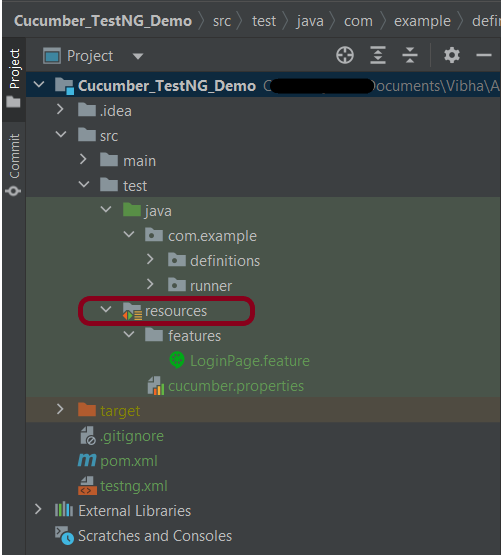
Step 10 – Create a feature file under src/test/resources/features

It is recommended to create a features folder in the src/test/resources directory. Create all the feature files in this features folder. Feature file should be saved as an extension of .feature. The test scenarios in the Feature file are written in Gherkins language. Add the test scenarios in this feature file. I have added sample test scenarios.

Feature: Login to HRM Application 

Background: 
   Given User is on HRMLogin page "https://opensource-demo.orangehrmlive.com/"
 
   @ValidCredentials
   Scenario: Login with valid credentials
     
    When User enters username as "Admin" and password as "admin123"
    Then User should be able to login sucessfully and new page open
    
   @InvalidCredentials
   Scenario Outline: Login with invalid credentials
     
    When User enters username as "<username>" and password as "<password>"
    Then User should be able to see error message "<errorMessage>"
    
  Examples:
   | username   | password     | errorMessage                       |
   | Admin        | admin12$$   | Invalid credentials               |
   | admin$$     | admin123     | Invalid credentials               |
   | abc123        | xyz$$           | Invalid credentials               |

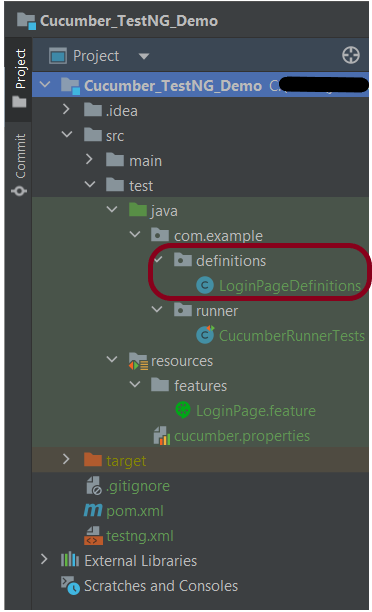
Step 11 – Create the step definition class in src/test/java

Create the step definition class corresponding to the feature file to test the scenarios in the src/test/java directory. The StepDefinition files should be created in this definitions directory within the folder called definitions.

Below is the step definition of the LoginPage feature file.

package com.example.definitions;

import io.cucumber.java.After;
import io.cucumber.java.Before;
import io.cucumber.java.en.Given;
import io.cucumber.java.en.Then;
import io.cucumber.java.en.When;
import io.github.bonigarcia.wdm.WebDriverManager;
import org.openqa.selenium.By;
import org.openqa.selenium.WebDriver;
import org.openqa.selenium.chrome.ChromeDriver;
import org.openqa.selenium.chrome.ChromeOptions;
import org.testng.Assert;
import java.time.Duration;

public class LoginPageDefinitions {
    private static WebDriver driver;
    public final static int TIMEOUT = 5;

    @Before
    public void setUp() {

        ChromeOptions options = new ChromeOptions();
        options.addArguments("--start-maximized");
        driver = new ChromeDriver(options);
        driver.manage().timeouts().implicitlyWait(Duration.ofSeconds(TIMEOUT));

    }

    @Given("User is on HRMLogin page {string}")
    public void loginTest(String url) {

        driver.get(url);

    }

    @When("User enters username as {string} and password as {string}")
    public void goToHomePage(String userName, String passWord) {

        // login to application
        driver.findElement(By.name("username")).sendKeys(userName);
        driver.findElement(By.name("password")).sendKeys(passWord);
        driver.findElement(By.xpath("//*[@class='oxd-form']/div[3]/button")).submit();

    }

    @Then("User should be able to login successfully and new page open")
    public void verifyLogin() {

        String homePageHeading = driver.findElement(By.xpath("//*[@class='oxd-topbar-header-breadcrumb']/h6")).getText();

        //Verify new page - HomePage
        Assert.assertEquals(homePageHeading, "Dashboard");

    }

    @Then("User should be able to see error message {string}")
    public void verifyErrorMessage(String expectedErrorMessage) {

        String actualErrorMessage = driver.findElement(By.xpath("//*[@class='orangehrm-login-error']/div[1]/div[1]/p")).getText();

        // Verify Error Message
        Assert.assertEquals(actualErrorMessage, expectedErrorMessage);

    }

    @After
    public void teardown() {

        driver.quit();
    }

}

assertThat() and containsString are imported from package:-

import static org.hamcrest.MatcherAssert.assertThat;
import static org.hamcrest.Matchers.containsString;

Step 12 – Create a TestNG Cucumber Runner class in src/test/java

We need to create a class called Runner class to run the tests. This class will use the TestNG annotation @RunWith(), which tells TestNG what is the test runner class. TestRunner should be created under src/test/java within the folder called runner.

import io.cucumber.testng.AbstractTestNGCucumberTests;
import io.cucumber.testng.CucumberOptions;
   
@CucumberOptions(tags = "", features = {"src/test/resources/features/LoginPage.feature"}, glue = {"com.example.definitions"},
                 plugin = {})
   
public class CucumberRunnerTests extends AbstractTestNGCucumberTests {
   
}

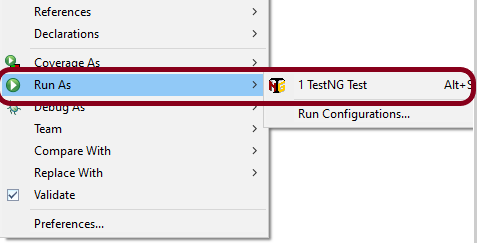
Step 13 – Test Execution through TestNG

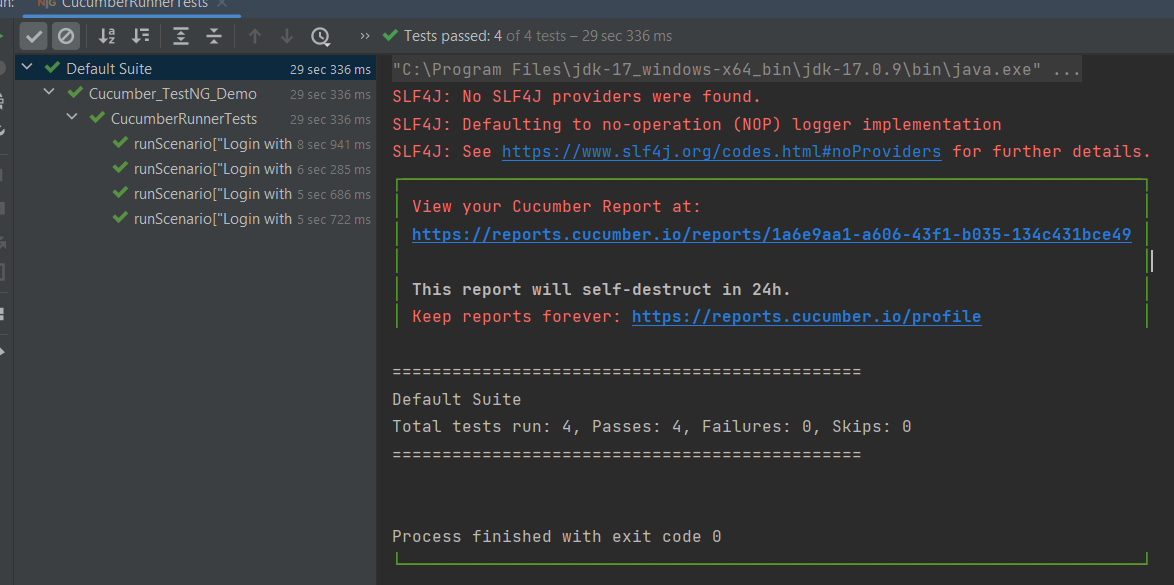
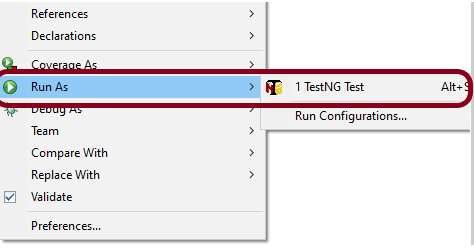
Go to the Runner class and right-click “Run As TestNG Test”. The tests will run as TestNG tests. This is for Eclipse.

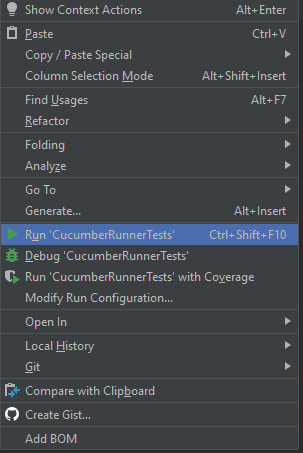
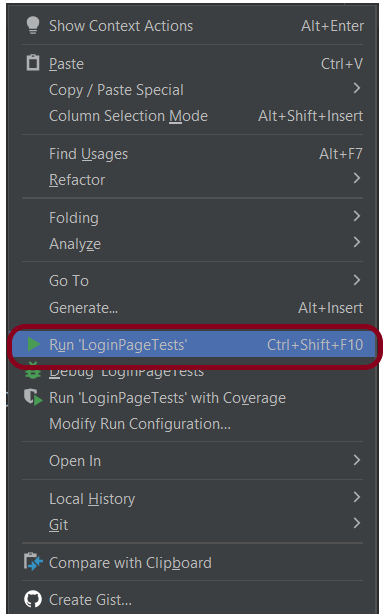
In case you are using IntelliJ, then select “Run CucumberRunner Tests“.

This is what the execution console will look like in Eclipse.

Step 14 – Run the tests from TestNG.xml

Create a TestNG.xml as shown below and run the tests as TestNG.

Below is an example of testng.xml.

<?xml version="1.0" encoding="UTF-8"?>
<!DOCTYPE suite SYSTEM "https://testng.org/testng-1.0.dtd">
<suite name="Suite">
  <test  name="Cucumber with TestNG Test">
    <classes>
      <class name="com.example.runner.CucumberRunnerTests"/>
    </classes>
  </test> <!-- Test -->
</suite> <!-- Suite -->

Step 15 – Run the tests from the Command Line

Run the below command in the command prompt to run the tests and to get the test execution report.

mvn clean test

The execution screen looks like something as shown below.

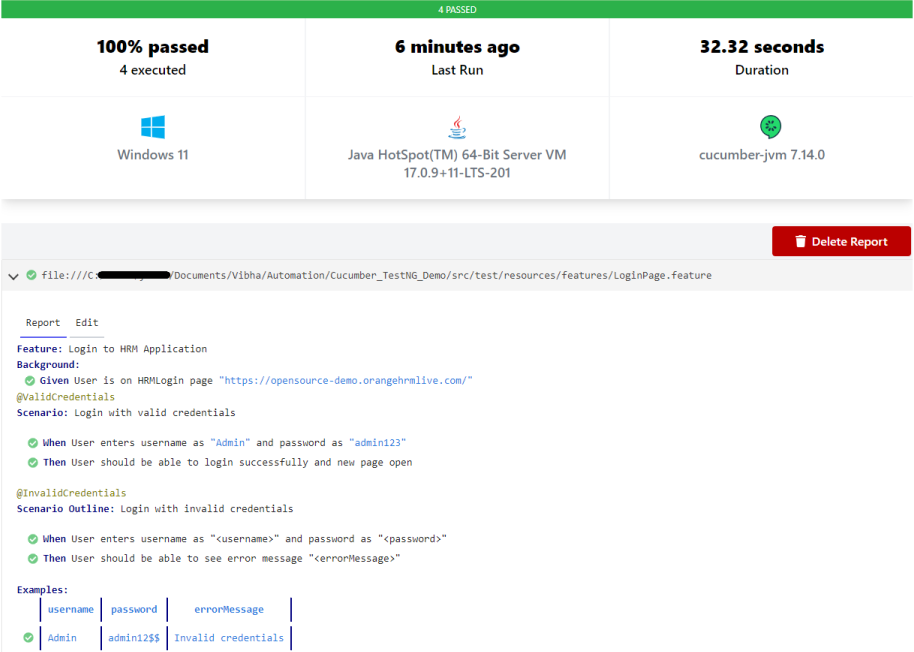
Step 16 – Cucumber Report Generation

Add cucumber.properties under src/test/resources and add the below instructions in the file.

cucumber.publish.enabled=true

Below is the image of the Cucumber Report generated using the Cucumber Service.

Step 17 – TestNG Report Generation

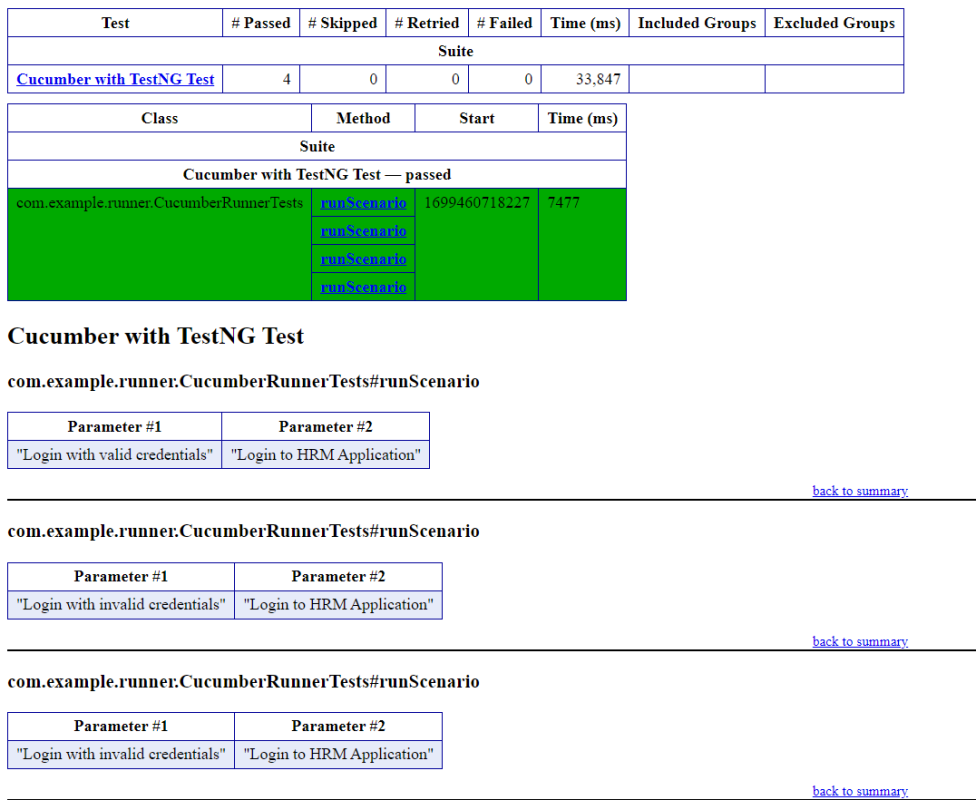
TestNG generates various types of reports under the test-output or target folder like emailable-report.html, index.html, testng-results.xml.

We are interested in the ‘emailable-report.html’ report. Open “emailable-report.html“, as this is an HTML report, and open it with the browser. The below image shows emailable-report.html.

emailable-report.html

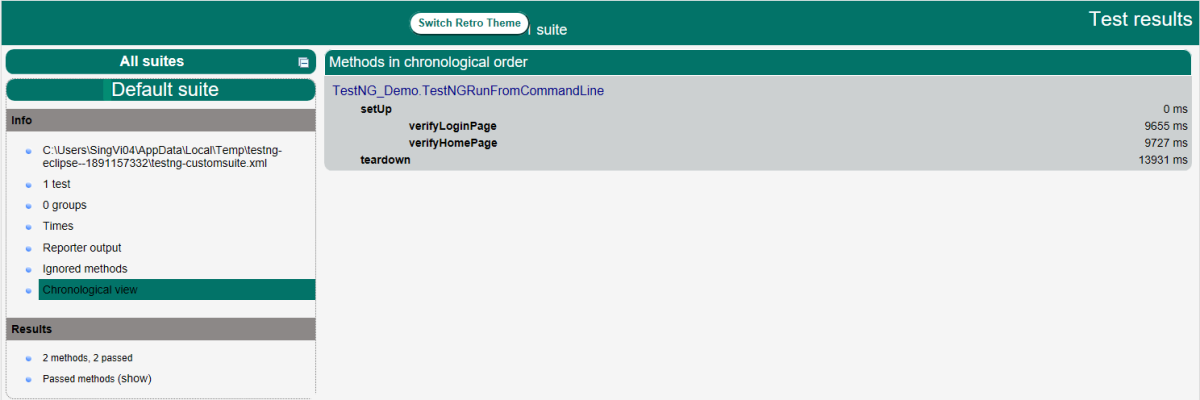
Index.html

TestNG also produces “index.html” report, and it resides under the test-output folder. The below image shows the index.html report.

If you like to use Cucumber with Page Object Model, please refer to this tutorial – Page Object Model with Selenium, Cucumber, and TestNG.

Congratulations on making it through this tutorial and hope you found it useful! Happy Learning!! Cheers!!

How to run Edge tests in headless mode in Selenium4

HOME

This tutorial explains the steps to run the Selenium tests for Microsoft Edge in headless mode. We are going to run the tests in Selenium 4.

There are 2 ways to add dependencies to the Selenium project.

Manually add the dependencies to the project

Download Selenium Version from here

Download Microsoft Edge Binary from here

Download the latest version of WebDriverManager

Once the Selenium and WebDriverManager folders are downloaded, unzip the folder. Once the zip file is extracted, reference these jar files in the project. For this, navigate to project properties and click Build Path-> Configure Build Path in Eclipse. Click “Add External Jars“. After clicking on “Add External JARs“, selected all the extracted JARs. The JARs files are present in the project.

Add the below dependencies to pom.xml or build.gradle

Selenium 4

 <!-- https://mvnrepository.com/artifact/org.seleniumhq.selenium/selenium-java -->
<dependency>
    <groupId>org.seleniumhq.selenium</groupId>
    <artifactId>selenium-java</artifactId>
    <version>4.1.2</version>
</dependency>

What is a headless browser?

A headless browser is like any other browser but without a Head/GUI (Graphical User Interface).  A headless browser is used to automate the browser without launching the browser. While the tests are running, we could not see the browser, but we can see the test results coming on the console.

We know that to execute Selenium automation scripts on browsers like edge, we must download the binary files of the EDGE driver – msedgedriver. After this, we need to set the path to these binaries in the automation script or add the classpath location. Here, we want to execute Selenium WebDriver automation scripts on the Microsoft Edge browser, then you need first to download msedgedriver.exe and then use the System.setProperty  method to set its path as follows:

		// Set the path of EdgeDriver
		System.setProperty("webdriver.edge.driver",
				"C:\\Users\\Vibha\\Software\\edgedriver_win64\\msedgedriver.exe");

The complete program looks like as shown below:

import org.openqa.selenium.edge.EdgeDriver;
import org.openqa.selenium.edge.EdgeOptions;

public class EdgeHeadlessInSelenium4 {

	public static void main(String[] args) {
		// Set the path of EdgeDriver
		System.setProperty("webdriver.edge.driver",
				"C:\\Users\\Vibha\\Software\\edgedriver_win64\\msedgedriver.exe");

		// Create an object of Edge Options class
		EdgeOptions edgeOptions = new EdgeOptions();

		// pass the argument –headless to Edge Options class.
		edgeOptions.addArguments("--headless");

		// Create an object of WebDriver class and pass the Edge Options object as
		// an argument
		WebDriver driver = new EdgeDriver(edgeOptions);

		System.out.println("Executing Edge Driver in Headless mode..");
		driver.get("https://duckduckgo.com/");

		System.out.println("Title of Page :" + driver.getTitle());
		System.out.println("Page URL  : " + driver.getCurrentUrl());

		// Close the driver
		driver.close();

	}

}

How to run headless Microsoft Edge Tests in Selenium using WebDriverManager?

WebDriverManager Maven Dependency

<!-- https://mvnrepository.com/artifact/io.github.bonigarcia/webdrivermanager -->
<dependency>
    <groupId>io.github.bonigarcia</groupId>
    <artifactId>webdrivermanager</artifactId>
    <version>5.1.0</version>
</dependency>

WebDriverManager has an automated way to download browser executables(exes) or binaries. It supports different browsers like Chrome, Firefox, Microsoft Edge, Internet Explorer, Opera, or PhantomJS.

WebDriverManager.edgedriver().setup: checks for the latest version of the specified WebDriver binary. If the binaries are not present on the machine, then it will download the WebDriver binaries. Next, it instantiates the Selenium WebDriver instance with the EdgeDriver.

import org.openqa.selenium.edge.EdgeDriver;
import org.openqa.selenium.edge.EdgeOptions;

import io.github.bonigarcia.wdm.WebDriverManager;

public class EdgeHeadlessWithWebDriverManagerInSelenium4 {

	public static void main(String[] args) {

		// Create an object of Edge Options class
		EdgeOptions edgeOptions = new EdgeOptions();

		// pass the argument –headless to Edge Options class.
		edgeOptions.addArguments("--headless");

		// Create an object of WebDriver class and pass the Edge Options object as
		// an argument
		WebDriver driver = new EdgeDriver(edgeOptions);

		System.out.println("Executing Edge Driver in Headless mode..");

		driver.get("https://www.bing.com/");
		System.out.println("Title of Page :" + driver.getTitle());
		System.out.println("Page URL : " + driver.getCurrentUrl());

		// Close the driver
		driver.close();

	}
}

Congratulations on making it through this tutorial and hope you found it useful! Happy Learning!! Cheers!!

Basic Selenium Tutorials

HOME

Selenium – Introduction, Installation, Test Script

Chapter 1 Introduction to Selenium Automation Tool
Chapter 2 How to Download & Install Java JDK 11 in Windows
Chapter 3 How to Download and Install Eclipse IDE
Chapter 4 How to install IntelliJ on Windows
Chapter 5 How to Download & Install Selenium WebDriver 
Chapter 6  How to create first Selenium WebDriver Script using Java
Chapter 7 How to run Selenium Tests using on Internet Explorer

Locators in Selenium

 Chapter 1 How to Locate Elements in Chrome, Firefox and IE Browsers for creating Selenium Scripts
Chapter 2 Locators in Selenium – Locate by ID, ClassName,  Name, TagName,  LinkText, PartialLinkText
Chapter 3 Dynamic XPath  in Selenium WebDriver
Chapter 4 CSS Selector in Selenium WebDriver

Launching Browsers and headless Browser

Chapter 1 How to run Chrome tests in headless mode in Selenium
Chapter 2 How to run Firefox tests in headless mode in Selenium
Chapter 3 How to run Edge tests in headless mode in Selenium4
Chapter 4 How to manage driver executables using WebDriverManager
Chapter 5 How to disable infobar warning for Chrome tests in Selenium
Chapter 6 How to maximize and minimize the window in Selenium

WebDriver Commands

Chapter 1 Difference between FindElement and FindElements in WebDriver
Chapter 2 Difference between getText() and getAttribute() method in WebDriver
Chapter 3 WebDriver Browser Commands – get,  getTitle, getCurrentUrl, getPageSource, getClass, close, quit in WebDriver
Chapter 4 WebDriver Navigation Commands – Navigate, Forward, Back, Refresh in  WebDriver
Chapter 5 Selenium Form WebElement Commands – Sendkeys, Clear, Click,Submit
Chapter 6 How to automate selecting Checkbox and Radio Buttons in Selenium WebDriver
Chapter 7 How to Select value from Drop down list or perform Multiple Selection  Operations in WebDriver
Chapter 8 How to get all options in a DropDown list in WebDriver
Chapter 9 How to automate Radio Button in WebDriver
Chapter 10 How to automate BootStrap DropDown using WebDriver
Chapter 15 How to handle Dynamic Web Tables using Selenium WebDriver
Chapter 16 How to get all the values from a Dynamic Table in Selenium WebDriver 
Chapter 17 isDisplayed, isSelected, isEnabled in Selenium
Chapter 18 How to test HTML ordered list in Selenium
Chapter 19 How to test HTML5 validation messages with Selenium

Waits in Selenium

Chapter 1 Implicit and Explicit Wait in Selenium WebDriver
Chapter 2 What is Fluent Wait in Selenium WebDriver

Handle Window and Alerts

Chapter 1 Switch Window Commands in Selenium WebDriver
Chapter 2 How to handle Alerts in Selenium WebDriver
Chapter 3 How to Switch Between Frames in Selenium WebDriver

Selenium Interview Questions and Answers 2026
Advanced Selenium Interview Questions and Answers 2026
Selenium Multiple Choice Questions – MCQ1
Selenium Multiple Choice Questions – MCQ3

Run TestNG tests from Command Line

HOME

The previous tutorial has explained the Integration of Selenium with TestNG and the tests are executed through either TestNG Suite or testng.xml. This tutorial explains the steps to run the TestNG Tests through the command line.

Prerequisite

  1. Selenium
  2. TestNG
  3. Maven
  4. Java 11
  5. Maven Compiler Plugin
  6. Maven Surefire Plugin

Imagine we need to run the TestNG Tests in CI/CD pipelines like Jenkins or GitLab, then we can’t right-click and select TestNG Suite or tesng.xml to run the tests. In such situations, the tests can be executed through the command line.

We need to add plugins to pom.xml to compile the test code and then run the tests. To know more about Maven Surefire Plugin for TestNG, refer to this blog.

 <build>
      <plugins>

         <!--  Compiler Plugin -->
         <plugin>
            <groupId>org.apache.maven.plugins</groupId>
            <artifactId>maven-compiler-plugin</artifactId>
            <version>3.8.1</version>
            <configuration>
               <source>11</source>
               <target>11</target>
            </configuration>
         </plugin>
         
         <!--  Plugin used to execute tests -->
         <plugin>
            <groupId>org.apache.maven.plugins</groupId>
            <artifactId>maven-surefire-plugin</artifactId>
            <version>3.0.0-M5</version>
            <configuration>
               <suiteXmlFiles>
                  <suiteXmlFile>testng.xml</suiteXmlFile>
               </suiteXmlFiles>
            </configuration>
         </plugin>
      </plugins>
   </build>
</project>

It is needed to add testng.xml to suiteXmlFile to start the execution of the tests.

<suiteXmlFiles>
       <suiteXmlFile>testng.xml</suiteXmlFile>
</suiteXmlFiles>

Create a sample class that has @Test methods. In the example below, we have created a class as below:

import static org.testng.Assert.assertTrue;
import static org.hamcrest.Matchers.containsString;
import static org.hamcrest.MatcherAssert.assertThat;
import org.openqa.selenium.By;
import org.openqa.selenium.WebDriver;
import org.openqa.selenium.firefox.FirefoxDriver;
import org.testng.annotations.AfterTest;
import org.testng.annotations.BeforeTest;
import org.testng.annotations.Test;

public class TestNGRunFromCommandLine {
	
	 WebDriver driver;
	 
	    @BeforeTest
	    public void setUp() {
	        System.setProperty("webdriver.gecko.driver",
	                "C:\\Users\\Vibha\\Software\\geckodriver\\geckodriver.exe");
	 
	        driver = new FirefoxDriver();
	        driver.get("https://opensource-demo.orangehrmlive.com/");
	 
	        driver.manage().window().maximize();
	    }
	 
	    @Test(description = "This test validates title of login functionality", priority = 0)
	    public void verifyLoginPage() {
	 
	        String expectedTitle = driver.findElement(By.xpath("//*[@id='logInPanelHeading']")).getText(); 
	        System.out.println("Title :" + expectedTitle);
	        assertTrue(expectedTitle.equalsIgnoreCase("LOGIN Panel"));
	    }
	 
	    @Test(description = "This test validates  successful login to Home page", priority = 1)
	    public void verifyHomePage() {
	 
	        System.out.println("Username Entered");
	        driver.findElement(By.name("txtUsername")).sendKeys("Admin");
	 
	        System.out.println("Password Entered");
	        driver.findElement(By.name("txtPassword")).sendKeys("admin123");
	         
	        driver.findElement(By.id("btnLogin")).submit();        
 
	        String newPageText = driver.findElement(By.xpath("//*[@id='content']/div/div[1]/h1")).getText();
	        System.out.println("newPageText :" + newPageText);
	        assertThat(newPageText, containsString("Dashboard"));
	    }
	 
	    @AfterTest
	    public void teardown() {
	 
	        driver.quit();
	    }
	}

The below is the testng.xml file, which will execute all the tests that are available under TestNGRunFromCommandLine class.

<?xml version="1.0" encoding="UTF-8"?>
<!DOCTYPE suite SYSTEM "https://testng.org/testng-1.0.dtd">
<suite name="Suite">
  <test name="Test">
    <classes>
      <class name="TestNG_Demo.TestNGRunFromCommandLine"/>
    </classes>
  </test>
</suite>

The below commands are used to execute the ‘testng.xml’ file from the command line. First, we need to go the place where the pom.xml of the project is placed. Then use the mvn compile test to compile the code and execute the TestNG tests.

cd C:\Users\Vibha\Projects\Vibha_Personal\ParallelTestsTestNG
mvn compile test

After executing the above command, it should execute the tests that we have specified in testng.xml file. Below is the screenshot after the execution of the tests.

This execution generates various TestNG Reports. We are concerned about emailable-report.html and index.html.

Emailable-Report.html

An emailable report is a type of summary report that one can transfer to other people in the team through any medium. Click on option “emailable-report.html”. Click on the options web browser. The output reports in TestNG reporting will look like below:

Index.html

Index report contains the index-like structure of different parts of the report, such as failed tests, test file, passed tests, etc.

Right-click on the index.html from the project directory. Select the option open with the web browser option.

The result will look like this:

Congratulations. This tutorial has explained running the tests of TestNG using Command Line. Happy Learning!!

How to run Parallel Tests in Selenium with TestNG
How to disable Selenium Test Cases using TestNG Feature – @Ignore
Screenshot of Failed Test Cases in Selenium WebDriver
Integration of Cucumber with Selenium and TestNG
How to Retry failed tests in TestNG – IRetryAnalyzer
DataProviders in TestNG

How to set variable values from Runtime command in Robot Framework

HOME

In this tutorial, we will set the variable values from the Run time command argument in Robot Framework using Selenium WebDriver and Python.

Variables can be changed from the command line using the –variable (-v) option or a variable file using the –variablefile (-V) option. Variables set from the command line are universally accessible for all executed test data files, and they override any variables with the same names in the Variable section and variable files imported into the test data.

Individual variables are established using the syntax –variable name:value, where name is the variable’s name without the $ symbol and value is its value. This option can be used multiple times to define multiple variables. This syntax can only be used to establish scalar variables, and they can only receive string values.

Prerequisite:

  1. Install Python
  2. Install PIP
  3. Install Robot Framework
  4. Install Robot framework Selenium Library
  5. Install PyCharm IDE

Please refer to this tutorial to install Robot Framework – How to install and setup Robot Framework for Python.

Implementation Steps:

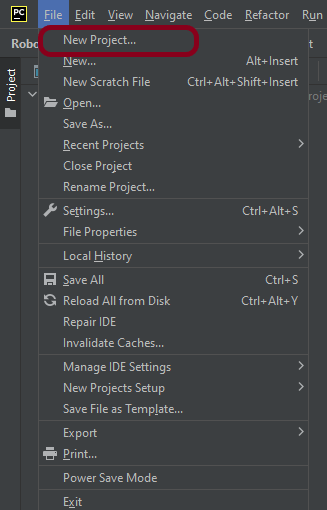
Step 1.1 – Open PyCharm and create a new project. Go to File and select “New Project” from the main menu.

Step 1.2 – Choose the project location. Click the “Browse” button next to the Location field and specify the directory for your project.

Deselect the Create a main.py welcome script checkbox because you will create a new Python file for this tutorial.

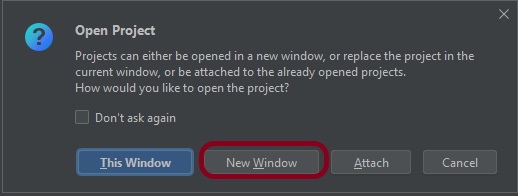
Step 1.3 – A new dialog will appear asking to Open the project using any one of the given options. I have selected New Window as I like to have separate windows for each project.

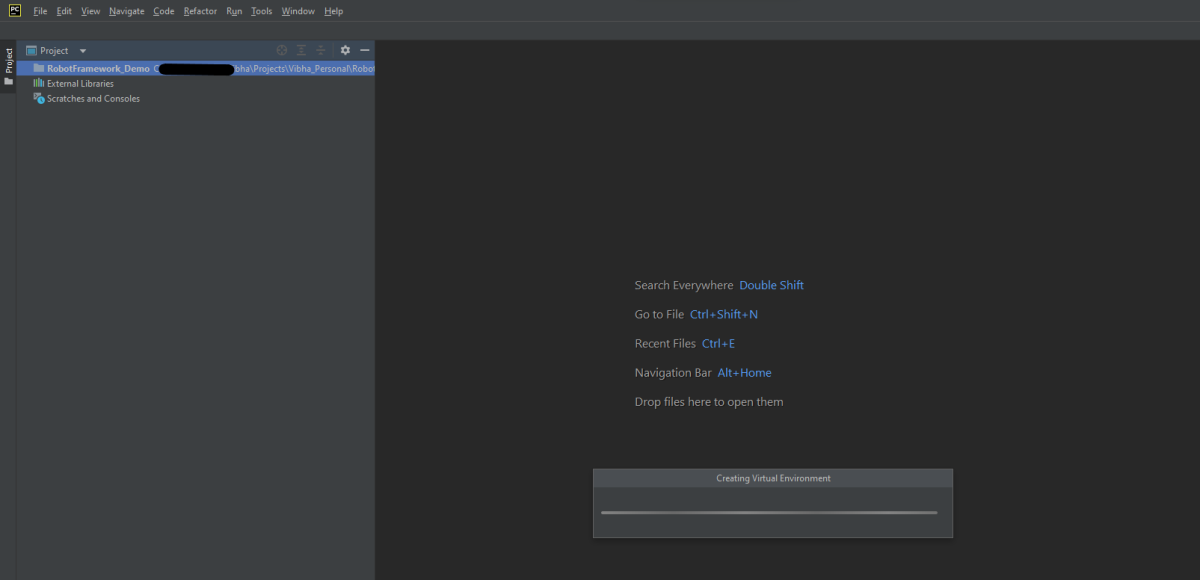
Below is the image of the new project created in PyCharms.

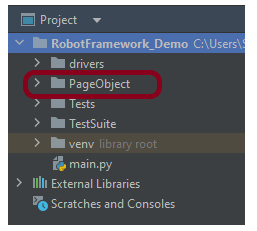
Step 2 – Create a new directory in the new project

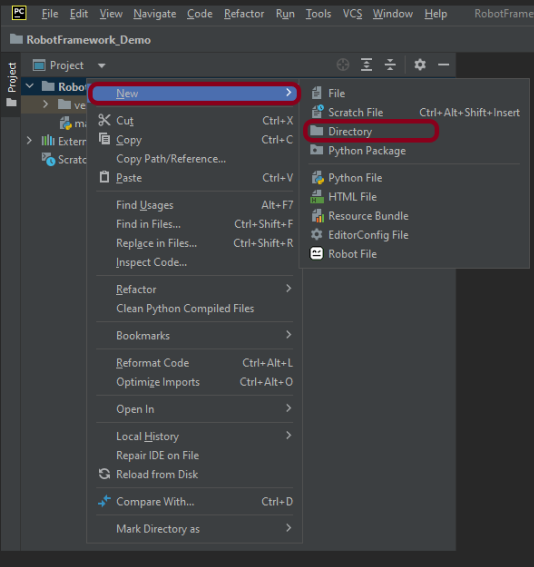
Right-Click on the project, select New->Directory and provide name as PageObject

Below is the image of the new directory.

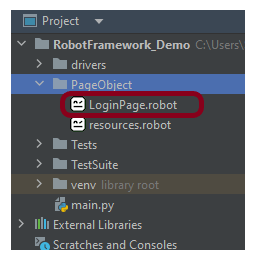
Right-click on the new directory select New File and provide the name LoginPage.robot as shown below:

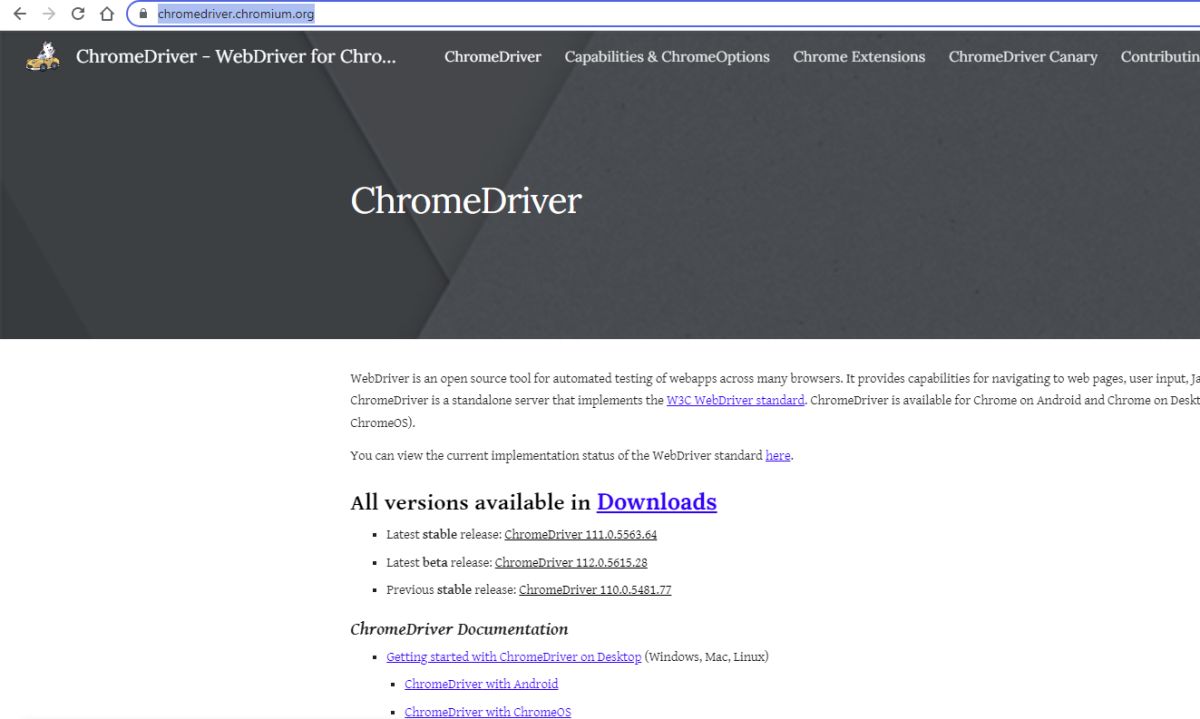
Step 3 – Download ChromeBinaries from the below location

The tests are going to use the Chrome browser, so we need to download the ChromeBinaries to open a blank browser in Chrome.

https://chromedriver.chromium.org/

The chromedriver and geckodriver are placed in a folder name drivers in the RobotFramework_Demo project. I have renamed chromedriver to chrome and geckodriver to firefox.

Step 4 – Create a simple Selenium Test

*** Settings ***
Documentation       Tests to login to Login Page
Library     SeleniumLibrary

*** Variables ***
${valid_username}     Admin
${valid_password}       admin123
${invalid_username}     1234
${invalid_password}     45678
${blank_username}
${blank_password}
${url}      https://opensource-demo.orangehrmlive.com/web/index.php/auth/login
${browser_name}      Chrome
${login_error_message}      css:.oxd-alert-content--error
${dashboard_title}       css:.oxd-topbar-header-breadcrumb-module
${missing_username_error_message}    xpath://*[@class='oxd-form']/div[1]/div/span
${missing_password_error_message}   xpath://*[@class='oxd-form']/div[2]/div/span


*** Test Cases ***

Validate Unsuccessful Login using invalid credentials
    [Tags]    SMOKE
    Open the Browser with URL
    Fill the login form     ${valid_username}       ${invalid_password}
    Verify the error message is correct
    Close Browser Session

Validate Unsuccessful Login for blank username
    [Tags]    REGRESSION
    Open the Browser with URL
    Fill the login form     ${blank_username}       ${valid_password}
    Verify the error message is displayed for username
    Close Browser Session

Validate Unsuccessful Login for blank password
    [Tags]    SMOKE     REGRESSION
    Open the Browser with URL
    Fill the login form     ${valid_username}       ${blank_password}
    Verify the error message is displayed for password
    Close Browser Session

Validate successful Login
    [Tags]    UAT
    Open the Browser with URL
    Fill the login form     ${valid_username}       ${valid_password}
    Verify Dashboard page opens
    Close Browser Session

*** Keywords ***

Open the Browser with URL
    Create Webdriver    ${browser_name}  executable_path=/Vibha_Personal/RobotFramework_Demo/drivers/${browser_name}
    Go To       ${url}
    Maximize Browser Window
    Set Selenium Implicit Wait    5

Fill the login form
   [Arguments]    ${username}      ${password}
   Input Text    css:input[name=username]   ${username}
   Input Password    css:input[name=password]   ${password}
   Click Button    css:.orangehrm-login-button

Verify the error message is correct
    Element Text Should Be    ${login_error_message}    Invalid credentials

Verify Dashboard page opens
    Element Text Should Be    ${dashboard_title}      Dashboard

Verify the error message is displayed for username
     Element Text Should Be    ${missing_username_error_message}      Required

Verify the error message is displayed for password
      Element Text Should Be    ${missing_password_error_message}      Required

Close Browser Session
    Close Browser

Step 5 – Set Variable values from the Runtime command

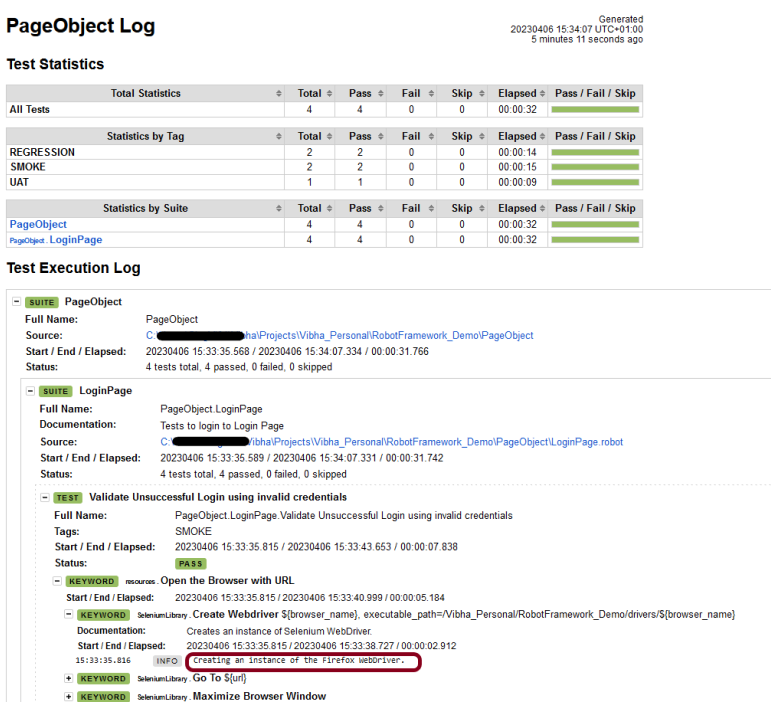
In the above example, we are using the Chrome browser to run the tests. I want to run the tests on the Firefox browser, but without making any changes to the existing code. How this can be achieved? We can pass variable

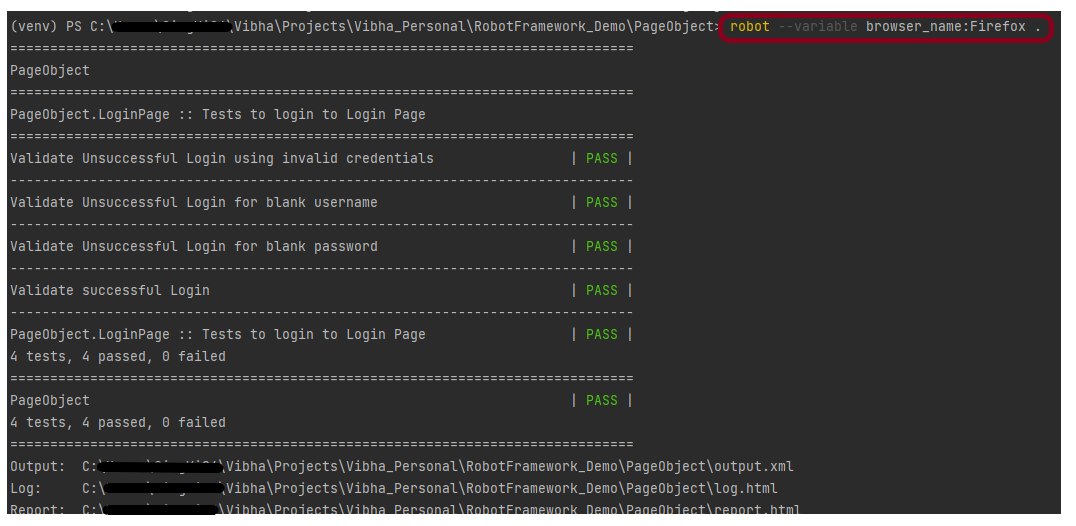
robot --variable browser_name:Firefox .

The output of the above program is

We have the test case passed. The Robot Framework generates log.html, output.xml, and report.html by default.

Let us now see the report and log details.

Report

Right-click on report.html. Select Open In->Browser->Firefox (any browser of your wish).

The Report generated by the framework is shown below:

Log

Robot Framework has multiple log levels that control what is shown in the automatically generated log file. The default Robot Framework log level is INFO.

Right-click on log.html. Select Open In->Browser->Firefox (any browser of your wish).

Variables with Tags

If you want to execute only test scenario tagged with UAT using firefox browser, it can be done using the below command:

robot --variable browser_name:Firefox --include UAT .

The output of the above program is

That’s it! Congratulations on making it through this tutorial and hope you found it useful! Happy Learning!!

Additional Tutorials

How to Install Python on Windows 11
How to run all the tests from the folder in Robot Framework
How to rerun failed tests in Robot Framework
How to implement tagging in Robot Framework
Page Object Model in Robot Framework with Selenium and Python
How to load data from CSV files in the Robot Framework?

Integration of Selenium with TestNG

HOME

In this tutorial, I’ll create a Framework for the testing of web applications using Selenium Webdriver with TestNG.

  1. Selenium- 4.21.0
  2. Java 17
  3. TestNG – 7.10.2
  4. Maven – 3.9.6
  5. Maven Surefire – 3.2.5
  6. Maven Compiler – 3.13.0

Implementation Steps

Step 1- Download and Install Java

Selenium needs Java to be installed on the system to run the tests. Click here to learn How to install Java.

Step 2 – Download and setup Eclipse IDE on the system

The Eclipse IDE (integrated development environment) provides strong support for Java developers, which is needed to write Java code. Click here to learn How to install Eclipse.

Step 3 – Setup Maven

To build a test framework, we need to add a number of dependencies to the project. It is a very tedious and cumbersome process to add each dependency manually. So, to overcome this problem, we use a build management tool. Maven is a build management tool that is used to define project structure, dependencies, build, and test management. Click here to learn How to install Maven.

Step 4 – Create a new Maven Project

Click here to learn How to create a Maven project

Below is the Maven project structure. Here,

Group Id – com.example
Artifact Id – Selenium_TestNGDemo
Version – 0.0.1-SNAPSHOT
Package – com. example. Selenium_TestNGDemo

Step 5 – Add Selenium and TestNG dependencies to the project

As this is a Maven project, we can add the dependencies in POM.xml as shown below.

<project xmlns="http://maven.apache.org/POM/4.0.0" xmlns:xsi="http://www.w3.org/2001/XMLSchema-instance" xsi:schemaLocation="http://maven.apache.org/POM/4.0.0 https://maven.apache.org/xsd/maven-4.0.0.xsd">
	<modelVersion>4.0.0</modelVersion>
	<groupId>com.example</groupId>
	<artifactId>SeleniumTestNG_Demo</artifactId>
	<version>0.0.1-SNAPSHOT</version>

	<properties>
		<project.build.sourceEncoding>UTF-8</project.build.sourceEncoding>
		<selenium.version>4.21.0</selenium.version>
		<testng.version>7.10.2</testng.version>
		<maven.compiler.plugin.version>3.13.0</maven.compiler.plugin.version>
		<maven.compiler.source.version>17</maven.compiler.source.version>
		<maven.compiler.target.version>17</maven.compiler.target.version>
		<maven.surefire.plugin.version>3.2.5</maven.surefire.plugin.version>
	</properties>

	<dependencies>

		<!-- Selenium -->
		<dependency>
			<groupId>org.seleniumhq.selenium</groupId>
			<artifactId>selenium-java</artifactId>
			<version>${selenium.version}</version>
		</dependency>

		<!-- TestNG -->
		<dependency>
			<groupId>org.testng</groupId>
			<artifactId>testng</artifactId>
			<version>${testng.version}</version>
			<scope>test</scope>
		</dependency>

	</dependencies>

	<build>
		<plugins>
			<plugin>
				<groupId>org.apache.maven.plugins</groupId>
				<artifactId>maven-compiler-plugin</artifactId>
				<version>${maven.compiler.plugin.version}</version>
				<configuration>
					<source>${maven.compiler.source.version}</source> 
					<target>${maven.compiler.target.version}</target> 
				</configuration>
			</plugin>
			 <plugin>
              <groupId>org.apache.maven.plugins</groupId>
              <artifactId>maven-surefire-plugin</artifactId>
              <version>${maven.surefire.plugin.version}</version>
              <configuration>
                    <suiteXmlFiles>
                        <suiteXmlFile>testng.xml</suiteXmlFile>
                    </suiteXmlFiles>
             </configuration>          
        </plugin>
      </plugins>
  </build>
</project>

After the addition of dependencies in pom.xml, the Maven Dependencies folder will be updated automatically with all the JAR file related to the dependencies.

Step 6 – Create a Test file under src/test/java

@BeforeMethod – This annotated method will be run before each test method i.e say there are three test methods (i.e test cases), then @BeforeMethod annotated method will be called thrice before each test method.

@AfterMethod – methods under this annotation will be executed after each Test method.

@Test – The annotated method is part of a test case.

Description –  You can describe your test case under the description, stating what it does.

description = "This test validates title of login functionality"

Priority – You can prioritize the order of your test methods by defining a priority. Based on the defined priority, the test shall execute in that order.

priority = 0

import org.openqa.selenium.WebDriver;
import org.openqa.selenium.chrome.ChromeDriver;
import org.openqa.selenium.chrome.ChromeOptions;
import org.testng.annotations.AfterMethod;
import org.testng.annotations.BeforeMethod;

import java.time.Duration;

public class BaseTests {

    public static WebDriver driver;
    public final static int TIMEOUT = 10;

    @BeforeMethod
    public void setup() {

        ChromeOptions options = new ChromeOptions();
        options.addArguments("--remote-allow-origins=*");
        options.addArguments("--no-sandbox");
        options.addArguments("--disable-dev-shm-usage");
        options.addArguments("--headless");
        driver = new ChromeDriver(options);
        driver.manage().window().maximize();
        driver.get("https://opensource-demo.orangehrmlive.com/");
        driver.manage().timeouts().implicitlyWait(Duration.ofSeconds(TIMEOUT));

    }

    @AfterMethod
    public void tearDown() {
        driver.quit();
    }

}
import org.testng.Assert;
import org.testng.annotations.Test;

public class LoginPageTests extends BaseTests{
	 
    @Test
    public void invalidCredentials() {
   
	    LoginPage objLoginPage = new LoginPage(driver);
    	objLoginPage.login("admin$$", "admin123");
    	 
    	// Verify Error Message
    	 Assert.assertEquals("Invalid credentials",objLoginPage.getErrorMessage());
    
    }
    
    @Test
    public void validLogin() {
   
	    LoginPage objLoginPage = new LoginPage(driver);
    	objLoginPage.login("Admin", "admin123");
    	 
    	HomePage objHomePage = new HomePage(driver);
    	
    	// Verify Home Page
    	Assert.assertEquals("Dashboard",objHomePage.getHomePageText());
    
    }
    
}

Step 7 – Test Execution through TestNG

Go to the Runner class and right-click Run As TestNG Test. The tests will run as TestNG tests (in Eclipse).

Step 8 – Run the tests from TestNG.xml

Create a TestNG.xml as shown below and run the tests as TestNG.

<?xml version = "1.0"encoding = "UTF-8"?>
<!DOCTYPE suite SYSTEM "http://testng.org/testng-1.0.dtd">
<suite name = "Suite1">
  <test name = "TestNG Demo">
    <classes>
          <class name = "com.example.Selenium_TestNGDemo.TestNG_Demo"/>
     </classes>  
   </test>
</suite>

Step 9 – TestNG Report Generation

TestNG generates various types of reports under test-output folder like emailable-report.html, index.html, testng-results.xml.

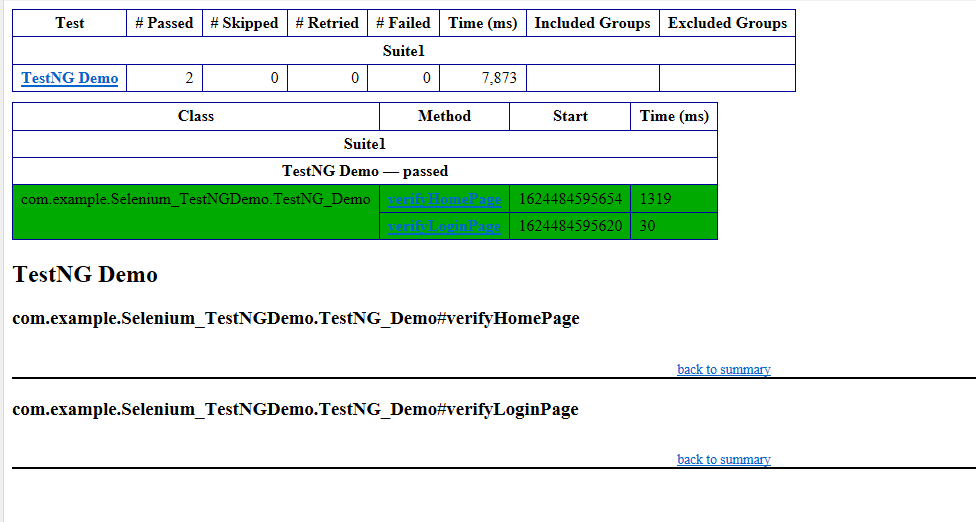
We are interested in the “emailable-report.html” report. Open “emailable-report.html“, as this is an HTML report, and open it with the browser. The below image shows emailable-report.html.

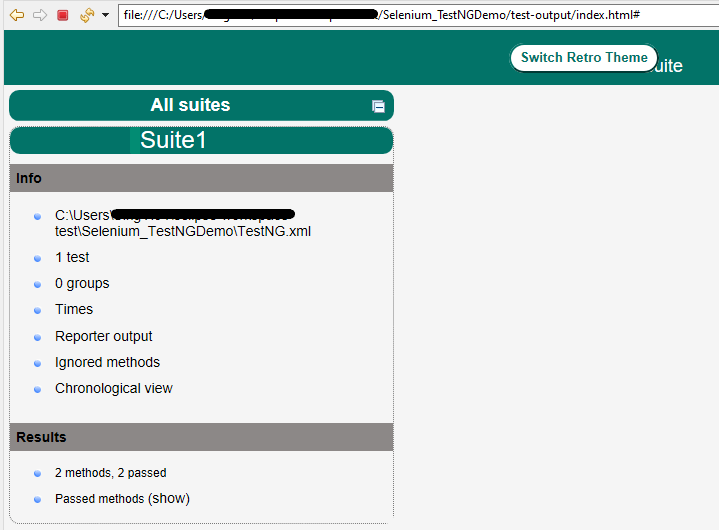
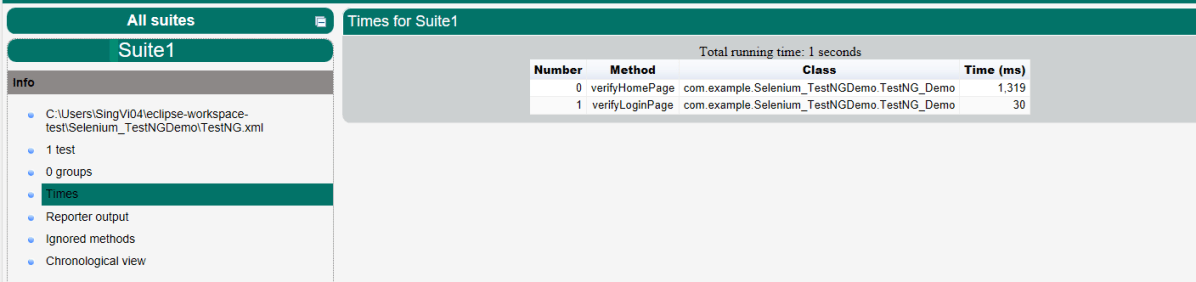
TestNG also produces an index.html report, and it resides under the test-output folder. The below image shows the index.html report. This is the latest theme of the report.

The links present on the left side are clickable. I have clicked the Times link, and you can see the details on the right side.

That’s it! Congratulations on making it through this tutorial and hope you found it useful! Happy Learning!!

Run Cross Browser Tests in GitLab CI/CD

Last Updated on

HOME

This tutorial explains the process to run the Selenium Tests on multiple browsers in the GitLab pipeline. This is a very important step towards achieving CI/CD. Ideally, the tests need to run after any change (minor/major) before merging the latest change to the master branch. This makes life of a QA very easy.

Table of Contents

Prerequisite

  1. Selenium
  2. TestNG (for Assertions)
  3. Java 11
  4. Maven/ Gradle
  5. GitLab Account

What is GitLab CI/CD Workflow?

Once the proposed changes are built, then push the commits to a feature branch in a remote repository that’s hosted in GitLab. The push triggers the CI/CD pipeline for your project. Then, GitLab CI/CD runs automated scripts (sequentially or in parallel) to build as well as to test the application. After a successful run of the test scripts, GitLab CI/CD deploys your changes automatically to any environment (DEV/QA/UAT/PROD). But if the test stage is failed in the pipeline, then the deployment is stopped.

After the implementation works as expected:

  • Get the code reviewed and approved.
  • Merge the feature branch into the default branch.
    • GitLab CI/CD deploys your changes automatically to a production environment.

To use GitLab CI/CD, we need to keep 2 things in mind:

a) Make sure a runner is available in GitLab to run the jobs. If there is no runner, install GitLab Runner and register a runner for your instance, project, or group.

b) Create a .gitlab-ci.yml file at the root of the repository. This file is where CI/CD jobs are defined.

The Selenium tests run on a headless browser in the pipeline.

What is a headless browser?

A headless browser is like any other browser, but without a Head/GUI (Graphical User Interface).  A headless browser is used to automate the browser without launching the browser. While the tests are running, we could not see the browser, but we can see the test results coming on the console.

Project Structure

Implementation Steps

Step 1 – Create a new Maven Project

Step 2- Add the dependencies to the POM.xml

Add the below-mentioned dependencies that need to add to the project to the pom.xml in Maven Project.

<project xmlns="http://maven.apache.org/POM/4.0.0" xmlns:xsi="http://www.w3.org/2001/XMLSchema-instance"
  xsi:schemaLocation="http://maven.apache.org/POM/4.0.0 http://maven.apache.org/xsd/maven-4.0.0.xsd">
  <modelVersion>4.0.0</modelVersion>

  <groupId>com.example</groupId>
  <artifactId>CrossBrowser_GitLab</artifactId>
  <version>1.0-SNAPSHOT</version>
  <packaging>jar</packaging>

  <name>CrossBrowser_GitLab</name>
  <url>http://maven.apache.org</url>

  <properties>
    <project.build.sourceEncoding>UTF-8</project.build.sourceEncoding>
    <selenium.version>4.11.0</selenium.version>
    <testng.version>7.8.0</testng.version>
    <maven.compiler.plugin.version>3.10.1</maven.compiler.plugin.version>
    <maven.surefire.plugin.version>3.0.0-M7</maven.surefire.plugin.version>
    <maven.compiler.source.version>11</maven.compiler.source.version>
    <maven.compiler.target.version>11</maven.compiler.target.version>
  </properties>

  <dependencies>

    <!-- Selenium 4 Dependency -->
    <dependency>
      <groupId>org.seleniumhq.selenium</groupId>
      <artifactId>selenium-java</artifactId>
      <version>${selenium.version}</version>
    </dependency>

    <!-- TestNG Dependency -->
    <dependency>
      <groupId>org.testng</groupId>
      <artifactId>testng</artifactId>
      <version>${testng.version}</version>
      <scope>test</scope>
    </dependency>
  </dependencies>

  <build>
    <plugins>
      <plugin>
        <groupId>org.apache.maven.plugins</groupId>
        <artifactId>maven-compiler-plugin</artifactId>
        <version>${maven.compiler.plugin.version}</version>
        <configuration>
          <source>${maven.compiler.source.version}</source>
          <target>${maven.compiler.target.version}</target>
        </configuration>
      </plugin>

      <plugin>
        <groupId>org.apache.maven.plugins</groupId>
        <artifactId>maven-surefire-plugin</artifactId>
        <version>${maven.surefire.plugin.version}</version>
        <configuration>
          <suiteXmlFiles>
            <suiteXmlFile>testng.xml</suiteXmlFile>
          </suiteXmlFiles>
        </configuration>
      </plugin>

    </plugins>
  </build>
</project>

As explained in one of the previous tutorial, it is needed to add the maven-surefire-plugin to run the TestNG tests through the command line.

Step 3 – Create the Test Code

This is the BaseTest Class where the WebDriver is initialized, headless mode, full screen, and at the end close the WebDriver.

package com.example.tests;

import org.openqa.selenium.WebDriver;
import org.openqa.selenium.chrome.ChromeOptions;
import org.openqa.selenium.edge.EdgeOptions;
import org.openqa.selenium.firefox.FirefoxOptions;
import org.openqa.selenium.remote.RemoteWebDriver;
import org.testng.annotations.AfterMethod;
import org.testng.annotations.BeforeMethod;
import org.testng.annotations.Parameters;

import java.net.URL;
import java.time.Duration;

public class BaseTests {
    protected static ThreadLocal<RemoteWebDriver> driver = new ThreadLocal<RemoteWebDriver>();
    public static String remote_url = "http://selenium-hub:4444";
    public final static int TIMEOUT = 5;

    @BeforeMethod
    @Parameters("browser")
    public void setUp(String browser) throws Exception {
        if(browser.equalsIgnoreCase("chrome")) {

            ChromeOptions options = new ChromeOptions();
            options.addArguments("--start-maximized");
            options.addArguments("--headless=new");
            options.addArguments("--remote-allow-origins=*");
            driver.set(new RemoteWebDriver(new URL(remote_url), options));
            System.out.println("Browser Started :"+ browser);


        } else if (browser.equalsIgnoreCase("firefox")) {
            FirefoxOptions options = new FirefoxOptions();
            options.addArguments("--start-maximized");
            options.addArguments("-headless");
            driver.set(new RemoteWebDriver(new URL(remote_url), options));
            System.out.println("Browser Started :"+ browser);


        } else if (browser.equalsIgnoreCase("edge")) {
            EdgeOptions options = new EdgeOptions();
            options.addArguments("--start-maximized");
            options.addArguments("--headless=new");
            driver.set(new RemoteWebDriver(new URL(remote_url), options));
            System.out.println("Browser Started :"+ browser);


        } else {
            throw new Exception ("Browser is not correct");
        }

        driver.get().get("https://opensource-demo.orangehrmlive.com/");
        driver.get().manage().timeouts().implicitlyWait(Duration.ofSeconds(TIMEOUT));
    }


    public WebDriver getDriver() {
        return driver.get();
    }

    @AfterMethod
    public  void closeBrowser() {
        driver.get().quit();
        driver.remove();
    }

}

There is a Login pages that need to be tested.

LoginPage contains the tests to log in to the application. After successful login, the application moves to the next webpage – HomePage. You can see that BaseTest class is extended here.

package com.example.tests;

import org.openqa.selenium.By;
import org.testng.annotations.Test;

import static org.testng.Assert.assertEquals;

public class LoginPageTests extends BaseTests {

    By userName = By.name("username");
    By passWord = By.name("password");

    By loginBtn = By.xpath("//*[@id='app']/div[1]/div/div[1]/div/div[2]/div[2]/form/div[3]/button");

    By errorMessage = By.xpath("//*[@id='app']/div[1]/div/div[1]/div/div[2]/div[2]/div/div[1]/div[1]/p");

    By blankUsername = By.xpath("//*[@id='app']/div[1]/div/div[1]/div/div[2]/div[2]/form/div[1]/div/span");

    By dashboardPage = By.xpath("//*[@id='app']/div[1]/div[1]/header/div[1]/div[1]/span/h6");

    @Test
    public void invalidCredentials()  {

        getDriver().findElement(userName).sendKeys("1234");
        getDriver().findElement(passWord).sendKeys("12342");
        getDriver().findElement(loginBtn).click();
        String actualErrorMessage = getDriver().findElement(errorMessage).getText();
        System.out.println("Actual ErrorMessage :" + actualErrorMessage);
        assertEquals(actualErrorMessage,"Invalid credentials");

    }

    @Test
    public void blankUsername()  {

        getDriver().findElement(userName).sendKeys("");
        getDriver().findElement(passWord).sendKeys("12342");
        getDriver().findElement(loginBtn).click();
        String actualErrorMessage = getDriver().findElement(blankUsername).getText();
        System.out.println("Actual ErrorMessage :" + actualErrorMessage);
        assertEquals(actualErrorMessage,"Required");

    }

    @Test
    public void successfulLogin()  {

        getDriver().findElement(userName).sendKeys("Admin");
        getDriver().findElement(passWord).sendKeys("admin123");
        getDriver().findElement(loginBtn).click();
        String actualMessage = getDriver().findElement(dashboardPage).getText();
        System.out.println("Message :" + actualMessage);
        assertEquals(actualMessage,"Dashboard");

    }
}

Step 4 – Create testng.xml to run the tests

Now, let’s create a testng.xml to run the TestNG tests. It is very easy to create testng.xml in the case of Eclipse. Right-click on the project, and select TestNG -> Convert to TestNG. It will create a basic testng.xml structureIn case of IntelliJ, create a new file with the name of testng.xml and copy the code from here.

<?xml version="1.0" encoding="UTF-8"?>
<!DOCTYPE suite SYSTEM "https://testng.org/testng-1.0.dtd">
<suite name="Suite" parallel="tests" thread-count="3">
    <test name="Chrome Test">
        <parameter name="browser" value="chrome"></parameter>
        <classes>
            <class name="com.example.tests.LoginPageTests"/>
        </classes>
    </test> <!-- Test -->
    <test name="Firefox Test">
        <parameter name="browser" value="firefox"></parameter>
        <classes>
            <class name="com.example.tests.LoginPageTests"/>
        </classes>
    </test> <!-- Test -->
    <test name="Edge Test">
        <parameter name="browser" value="edge"></parameter>
        <classes>
            <class name="com.example.tests.LoginPageTests"/>
        </classes>
    </test> <!-- Test -->
</suite> <!-- Suite -->

version: "3"
services:
  chrome:
    image: selenium/node-chrome:4.11.0-20230801
    shm_size: 2gb
    depends_on:
      - selenium-hub
    environment:
      - SE_EVENT_BUS_HOST=${SELENIUM_SERVER_NAME}
      - SE_EVENT_BUS_PUBLISH_PORT=4442
      - SE_EVENT_BUS_SUBSCRIBE_PORT=4443

  firefox:
    image: selenium/node-firefox:4.11.0-20230801
    shm_size: 2gb
    depends_on:
      - selenium-hub
    environment:
      - SE_EVENT_BUS_HOST=${SELENIUM_SERVER_NAME}
      - SE_EVENT_BUS_PUBLISH_PORT=4442
      - SE_EVENT_BUS_SUBSCRIBE_PORT=4443

  edge:
    image: selenium/node-edge:4.11.0-20230801
    shm_size: 2gb
    depends_on:
      - selenium-hub
    environment:
      - SE_EVENT_BUS_HOST=${SELENIUM_SERVER_NAME}
      - SE_EVENT_BUS_PUBLISH_PORT=4442
      - SE_EVENT_BUS_SUBSCRIBE_PORT=4443

  selenium-hub:
    image: selenium/hub:4.11.0-20230801
    container_name: ${SELENIUM_SERVER_NAME}
    ports:
      - "4442:4442"
      - "4443:4443"
      - "4444:4444"

  ping:
    image: alpine/curl

  tests:
    image: maven:3.6.3-jdk-11
    working_dir: /app
    volumes:
      - ${CI_PROJECT_DIR}:/app
    environment:
      ENVIRONMENT: remote
      SELENIUM_SERVER_URL: ${SELENIUM_SERVER_URL}

stages:
  - test

variables:
  SELENIUM_SERVER_NAME: selenium-hub
  SELENIUM_SERVER_URL: http://${SELENIUM_SERVER_NAME}:4444
  DOCKER_HOST: tcp://docker:2375

services:
  - docker:20.10.16-dind

test:
  stage: test
  image: docker/compose
  before_script:
    - docker-compose up -d selenium-hub chrome edge firefox
    - sleep 10
    - docker-compose run ping curl ${SELENIUM_SERVER_URL}/status
  script:
    - docker-compose run tests mvn clean test

  artifacts:
    when: always
    name: "report"
    paths:
      - target/surefire-reports/**
    expire_in: 7 days


GitLab Section

Step 7 – Create a blank project in GitLab

To know, how to create a blank new project in GitLab, please refer to this tutorial.

Step 8 – Push the project from local repository to Gitlab Repository

To know, how to push the changes in GitLab, please refer to this tutorial.

Step 9 – Run the tests in the GitLab pipeline

Now, when a new change is committed, a pipeline kicks off and it runs all the tests.

Step 10 – Check the status of the pipeline

Once the Status of the pipeline changes to either failed or passed.. that means the tests are already executed.

As you can see the Status is failed here which means that the execution is completed. Let us see the logs of the execution it shows that out of 9 tests, all 9 are passed. This shows that tests ran successfully in the GitLab pipeline.

As I have added an artifact also in the gitalb-ci.yml, which is highlighted in the image. This artifact creates a folder with the name “report” and the reports in this folder come from the path /target/surefire-reports. This artifact gives us the option to download the reports or browse the report. This report will be available for 7 days only as mentioned in the gitlab-ci.yml.

Step 11 – Download the report

Once, will click on the download button, it will download “report.zip”. Unzip the folder and it looks like something as shown below:

Example of Emailable-Report.html
Example of Index.html

Congratulations. This tutorial has explained the steps to run Selenium tests in GitLab CI/CD. Happy Learning!!

Run Cucumber Tests in GitLab CI/CD

Last Updated on

HOME

This tutorial explains the process to run the Cucumber Tests in the GitLab pipeline. This is a very important step towards achieving CI/CD.

Table of Contents

  1. Prerequisite
  2. What is GitLab CI/CD Workflow?
  3. What is a headless browser?
  4. Why do we use Headless browser for executing tests in CI/CD pipeline?
  5. GitLab Section
    1. Create a blank project in GitLab
    2. Push the project from local repository to Gitlab Repository
    3. Create a .gitlab-ci.yml file in the project in GitLab
    4. Run the tests in the GitLab pipeline
    5. Check the status of the pipeline
    6. Download the report

Prerequisite:

  1. Cucumber 7
  2. TestNG (for Assertions)
  3. Selenium 4
  4. Java 11
  5. Maven/ Gradle
  6. GitLab Account

What is GitLab CI/CD Workflow?

GitLab automatically enables CI/CD pipelines for new projects. It’s just a matter of adding a new configuration file called .gitlab-ci.yml to your code repository with instructions for GitLab on what to run. So simply create the following basic workflow in your main repository directory and commit it:

The Serenity tests run on a headless browser in the pipeline.

What is a headless browser?

A headless browser is a web browser that operates without a graphical user interface (GUI). It is typically used for automated testing, web scraping, and server-side rendering of web pages. While traditional web browsers like Chrome, Firefox, or Safari have a visible interface for users to interact with, headless browsers work in the background and don’t display the web content visually.

Why do we use Headless browser for executing tests in CI/CD pipeline?

Headless browsers provide a consistent and controlled environment for running tests. They eliminate the variability introduced by different operating systems, browser versions, or screen resolutions, ensuring that tests produce consistent and reliable results across different environments.

Headless browsers can often execute tasks faster than their graphical counterparts. They don’t need to render and display web content, which can significantly reduce the execution time for automated tests or other web-related tasks, contributing to faster feedback in the CI/CD pipeline.

In the below example, our tests are in headless mode.

WebDriverManager.chromedriver().setup();
ChromeOptions ops = new ChromeOptions().setHeadless(true);
ops.addArguments("--remote-allow-origins=*");
driver = new ChromeDriver(ops);

To get the Cucumber Framework with MasterThoughts Report with TestNG, please refer to this tutorial – Implemention of ‘Masterthought’ Reports in Cucumber with TestNG.

GitLab Section

Step 1 – Create a blank project in GitLab

To know, how to create a blank new project in GitLab, please refer to this tutorial.

Step 2 – Push the project from local repository to Gitlab Repository

To know, how to push the changes in GitLab, please refer to this tutorial.

Step 3 – Create a .gitlab-ci.yml file in the project in GitLab

There are many ways to create a new file in GitLab. One of the ways is to create a file as shown in the below image.

It is a YAML file where you configure specific instructions for GitLab CI/CD. In the .gitlab-ci.yml, we can define:

  • The scripts you want to run.
  • Other configuration files and templates you want to include.
  • Dependencies and caches.
  • The commands you want to run in sequence and those you want to run in parallel.
  • The location to deploy your application to.
  • Whether you want to run the scripts automatically or trigger any of them manually.

Below is a sample example to run the Cucumber tests in the GitLab pipeline.

image: markhobson/maven-chrome
 
stages:
  - test
 
variables:
  MAVEN_OPTS: "-Dmaven.repo.local=.m2/repository"
 
test:
  stage: test
  allow_failure: true
 
# Run the tests  
  script:
    - echo "Executing BDD scenarios with maven"
    - mvn clean test
 
# Store artifacts
  artifacts:
    when: always
    name: "Cucumber Report"
    paths:
    - target/*
    expire_in: 24 h

Image – markhobson/maven-chrome is used in this test. It is a docker image for Java automated UI tests.

Pipeline configuration begins with jobs. Jobs are the most fundamental element of a  .gitlab-ci.yml file.

Jobs are:

  • Defined with constraints stating under what conditions they should be executed.
  • Top-level elements with an arbitrary name must contain at least the script clause.
  • Not limited in how many can be defined.

Jobs can output an archive of files and directories. This output is known as a job artifact. The expire_in keyword determines how long GitLab keeps the job artifacts. Here, it shows 24 hrs to retain the artifacts.

Step 4 – Run the tests in the GitLab pipeline

Now, when a new change is committed, a pipeline kicks off and it runs all the tests.

Step 5 – Check the status of the pipeline

Once the Status of the pipeline changes to either failed or passed.. that means the tests are already executed.

As you can see the Status is passed, it’s green colour. This means all the tests present in the test suite are executed and passed. If any test fails in the test suite, the final execution status will be brown. The reason for the brown colour is we have mentioned allow_failure: true.

Below shows the execution status report in the GitLab pipeline.

As I have added an artifact also in the .gitalb-ci.yml, which is highlighted in the image. This artifact creates a folder with the name “Cucumber_Report” and the reports in this folder come from the path /target/site. This artifact gives us the option to download the reports or browse the report. This report will be available for 24 hours only as mentioned in the gitlab-ci.yml.

Step 5 – Download the report

Once, will click on the download button, it will download “Cucumber_Report.zip”. Unzip the folder and it looks like something as shown below:

Example of Overview Features

Example of Overview Tags

Example of Overview Steps

Congratulations. This tutorial has explained the steps to run Cucumber tests in GitLab CI/CD. Happy Learning!!