In this tutorial, we will discuss various types of Alerts available in web application testing and how to handle alerts in Selenium WebDriver.
Table of Content
What is Alert?
Alert is a pop-up window on the screen. These alerts perform different purposes, like providing some message to the user, needing some input from the user, or can be only for warning purposes. We will discuss the below-mentioned alerts:-
1) Simple Alert
2) Confirmation Alert
3) Prompt
There is an interface in Selenium called Alert. It is present in the org.openqa.selenium.Alertpackage. Alert interface gives us the following methods to deal with the alert:
- accept() To accept the alert by clicking on OK button
- dismiss() To dismiss the alert by clicking on CANCEL button
- getText() To get the text of the alert
- sendKeys() To write some text to the alert box
Type of Alerts
1) Simple alert
Simple alert just has an OK button on them. It is used to display some information to the user.
The important point to note is that we can switch from the main window to an alert using the below point.
driver.switchTo().alert()

Below is a perfect example that shows how to handle Simple Alert with Selenium
import org.openqa.selenium.Alert;
import org.openqa.selenium.By;
import org.openqa.selenium.chrome.ChromeDriver;
import org.openqa.selenium.chrome.ChromeOptions;

import java.time.Duration;

public class SimpleAlert_Demo {
    public static void main(String[] args) throws InterruptedException {

        ChromeOptions options = new ChromeOptions();
        options.setImplicitWaitTimeout(Duration.ofSeconds(10));
        options.addArguments("start-maximized");
        ChromeDriver driver = new ChromeDriver(options);
        driver.navigate().to("https://the-internet.herokuapp.com/javascript_alerts");

        //Click on button to open Confirmation Box
        driver.findElement(By.xpath("//button[@onclick='jsAlert()']")).click();


        // accepting javascript alert
        Alert simpleAlert = driver.switchTo().alert();
        String alertText = simpleAlert.getText();

        //Print the message mentioned on the AlertBox
        System.out.println("Alert text is :" + alertText);

        //This step is only for demonstration purpose to show the alert box
        Thread.sleep(2000);
        simpleAlert.accept();

        //Close the current page
        driver.quit();
    }
}
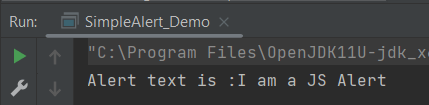
The output of the above program is
2) Confirmation Alert
This alert comes with an option to accept or dismiss the alert. To accept the alert we can use Alert.accept() and to dismiss we can use the Alert.dismiss().

Below is an example that shows how to handle Confirmation Alert with Selenium.
import org.openqa.selenium.Alert;
import org.openqa.selenium.By;
import org.openqa.selenium.chrome.ChromeDriver;
import org.openqa.selenium.chrome.ChromeOptions;
import org.openqa.selenium.support.ui.ExpectedConditions;
import org.openqa.selenium.support.ui.WebDriverWait;
import java.time.Duration;

public class ConfirmationAlert_Demo {
    public static void main(String[] args) throws InterruptedException {

        ChromeOptions options = new ChromeOptions();
        options.setImplicitWaitTimeout(Duration.ofSeconds(10));
        options.addArguments("start-maximized");
        ChromeDriver driver = new ChromeDriver(options);
        driver.navigate().to("https://the-internet.herokuapp.com/javascript_alerts");

        //Click on button to open Confirmation Box
        driver.findElement(By.xpath("//button[@onclick='jsConfirm()']")).click();

        // accepting javascript alert
        Alert ConfirmationAlert = driver.switchTo().alert();
        String alertText = ConfirmationAlert.getText();
        System.out.println("Alert text is :" + alertText);
        ConfirmationAlert.accept();

        //Close the page
        driver.quit();
    }
}
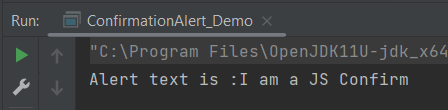
The output of the above program is
3) Prompt Alert
In the prompt alert, we get an option to add text to the alert box. This is used when some input is required from the user. We will use the sendKeys() method to type something in the Prompt alert box.

Below is an example that illustrates how to handle Prompt Alert using Selenium WebDriver.
import org.openqa.selenium.Alert;
import org.openqa.selenium.By;
import org.openqa.selenium.chrome.ChromeDriver;
import org.openqa.selenium.chrome.ChromeOptions;
import org.openqa.selenium.support.ui.ExpectedConditions;
import org.openqa.selenium.support.ui.WebDriverWait;

import java.time.Duration;

public class PromptAlert_Demo {
    public static void main(String[] args) throws InterruptedException {

        ChromeOptions options = new ChromeOptions();
        options.setImplicitWaitTimeout(Duration.ofSeconds(10));
        options.addArguments("start-maximized");
        ChromeDriver driver = new ChromeDriver(options);
        driver.navigate().to("https://the-internet.herokuapp.com/javascript_alerts");

        //Click on button to open Prompt Box
        driver.findElement(By.xpath("//button[@onclick='jsPrompt()']")).click();
        Alert promptAlert = driver.switchTo().alert();

        //Enter message in Alert Box
        promptAlert.sendKeys("Welcome to Selenium 4");
        promptAlert.accept();

        //This sleep is not necessary, just for demonstration
        Thread.sleep(2000);

        System.out.println("Prompt Alert text is :" + driver.findElement(By.id("result")).getText());

        //Close the current page
        driver.quit();
    }

}
The output of the above program is

That’s it! Congratulations on making it through this tutorial and hope you found it useful! Happy Learning!!
 QA Automation Expert