Jenkins Multiple Choice Answers – MCQ2

HOME

Jenkins Multiple Choice Questions – MCQ2


Jenkins Multiple Choice Questions – MCQ2

HOME

Answer


Answer


Answer


Answer


Answer


Answer


Answer


Answer


Answer


Answer


Answer


Answer


Answer


Answer


Answer


Answer


Answer


Answer


Answer


Answer


Answer


Answer


Answer


Answer


Answer

====================================================================

Jenkins Multiple Choice Answers – MCQ1

HOME

Jenkins Multiple Choice Questions – MCQ1


Jenkins Multiple Choice Questions – MCQ1

HOME

Answer


Answer


Answer


Answer


Answer


Answer


Answer


Answer


Answer


Answer


Answer


Answer


Answer


Answer


Answer


Answer


Answer


Answer


Answer


Answer


Answer


Answer


Answer


Answer

====================================================================

How to run Python Selenium tests with Jenkins

HOME

In the previous tutorial, we have seen the How to generate HTML Reports in Jenkins. In this tutorial, we show you how to integrate PyTest tests with Jenkins

Prerequisite:

Jenkin’s installed and started on the computer. The current Jenkins version is – 2.361.2

Implementation Steps

To generate HTML Report in Jenkins, we need to download HTML Publisher Plugin. Please refer to this tutorial to install the plugin – How to install Plugins in Jenkins.

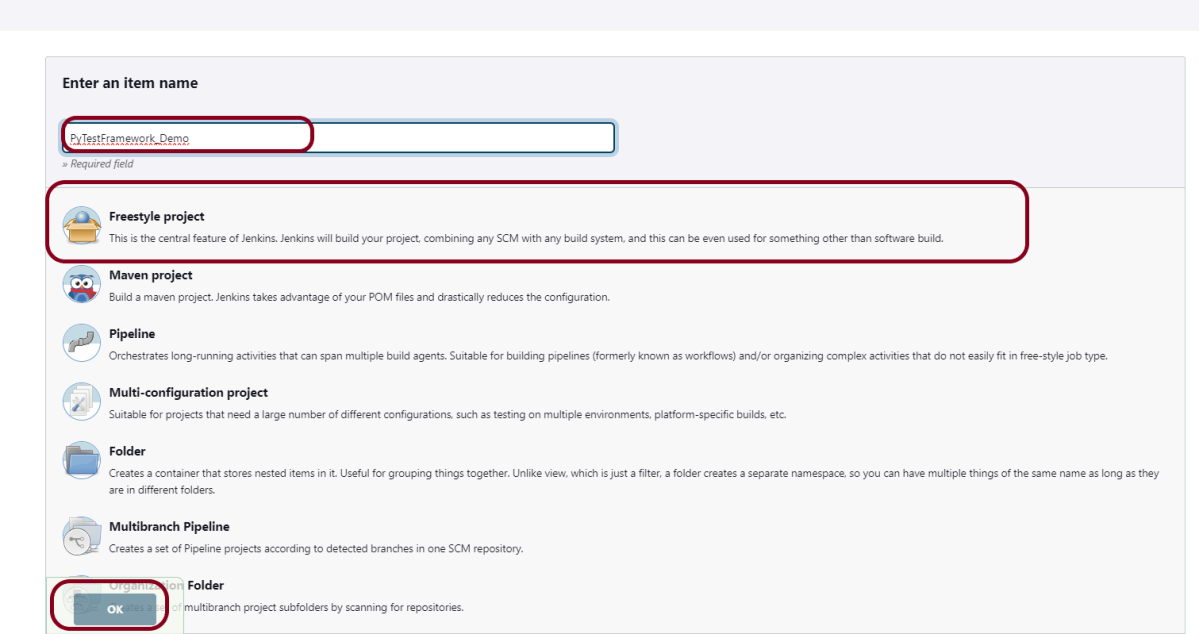
Step 1: Create a new FreeStyle project

  1. Give the Name of the projectPyTestFramework_Demo
  2. Click on the Freestyle project. 
  3. Click on the OK button.

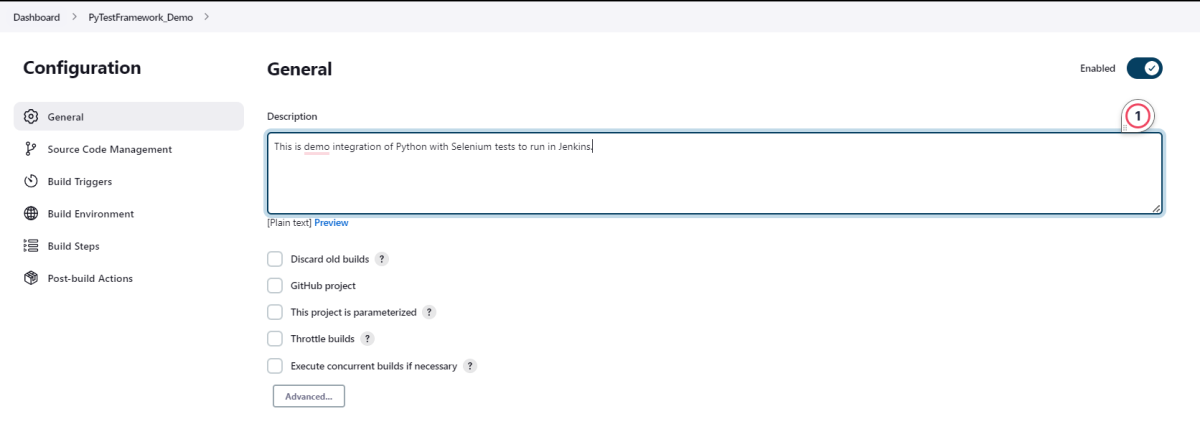
In the General section, enter the project description in the Description box – This is demo integration of Python with Selenium tests to run in Jenkins.

Step 2: Select a custom workspace

Mention the full path of the project in the Use custom workspace.

Select Source Code Management as None if the project is locally present on the machine.

Step 3: Build Management

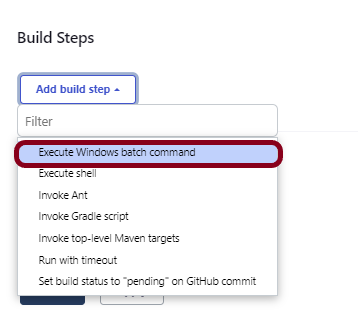
Go to the Build section of the new job. Select “Execute Windows batch command”.

cd tests
pytest  --html=$WORKSPACE/Reports/report.html -s

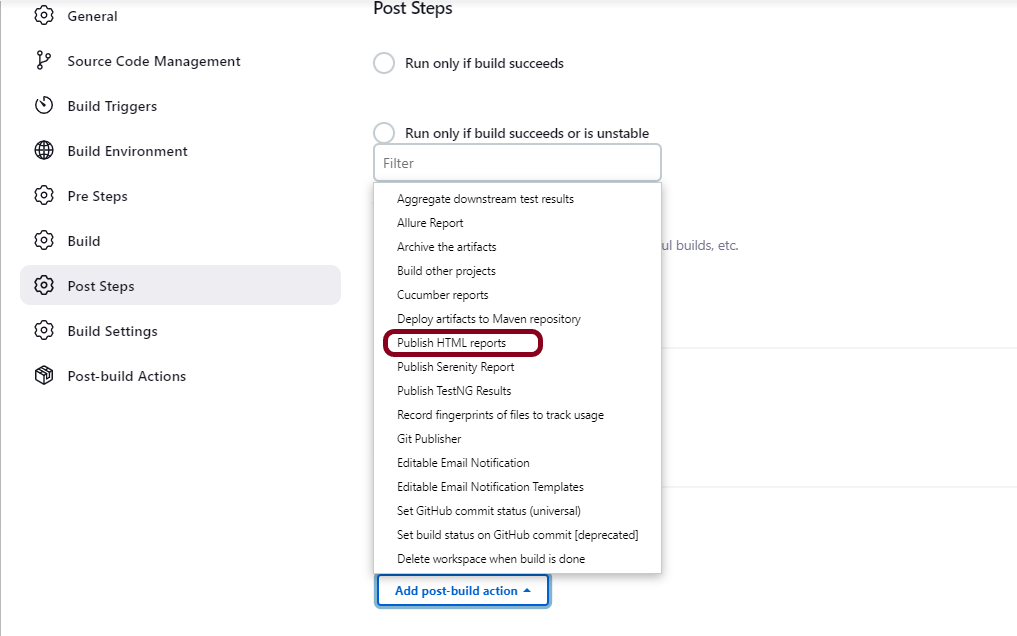
Step 4: Select “Publish HTML reports” from “Post Build Actions”

Scroll down to “Post Build Actions” and click on the “Add Post Build Actions” drop-down list. Select “Publish HTML reports“. 

If you want to see where the report will be saved in Jenkins, go to the Dashboard -> PyTestFramework_Demo -> Workspace -> Reports ->report.html.

Enter the HTML directory to archive – Reports, Index page[s] – report.html, and Report title – HTML Report.

Click on the Apply and Save buttons.

We have created a new FreeStyle project “PyTestFramework_Demo” with the configuration to run the Python tests in windows batch.

Step 5: Execute the tests

Let’s execute it now by clicking on the “Build Now” button. 

Right-click on Build Number (here in my case it is #1).

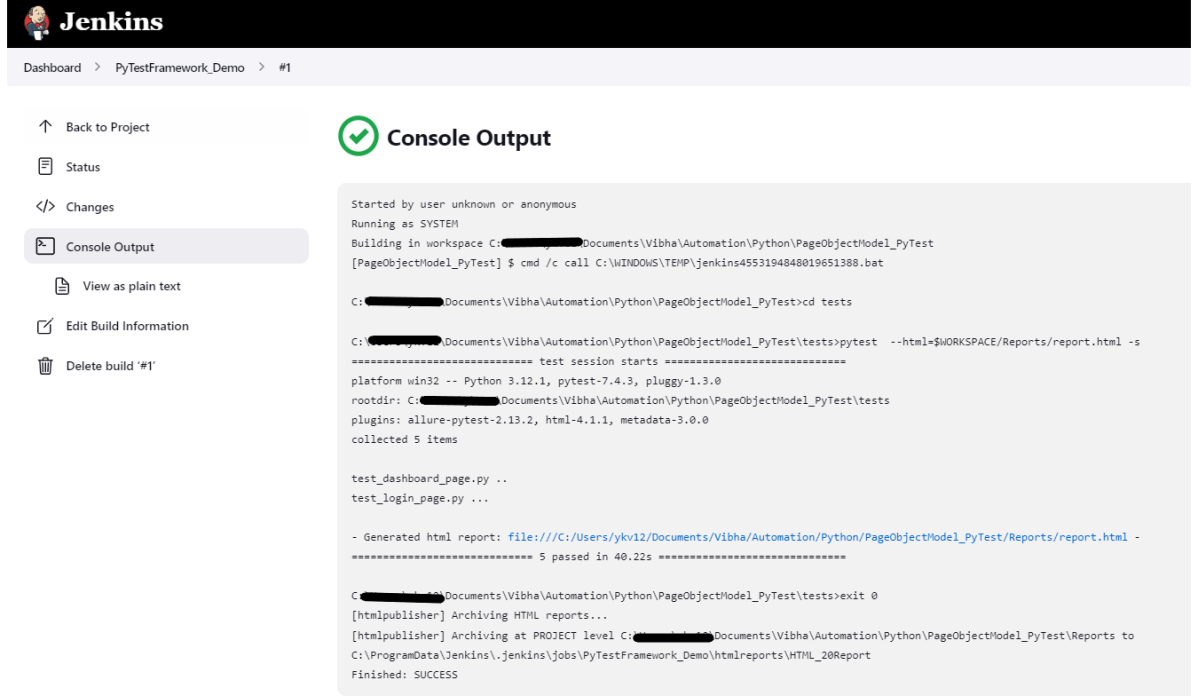
Click on Console Output to see the result.

Step 6: View the HTML Report

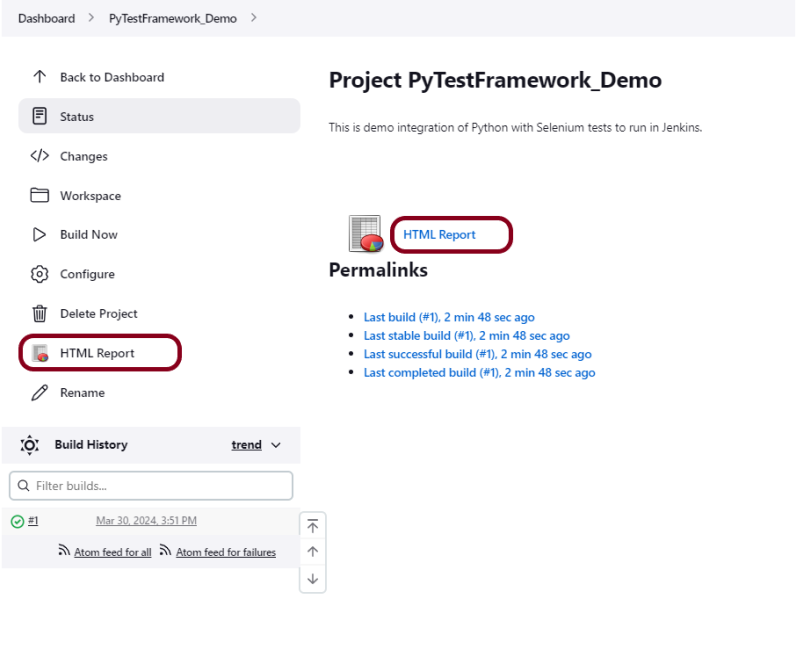
Once the execution is completed, click on go “Back to Project“, and we could see a link to view the “HTML Report“.

We can see here that the HTML Report link is displayed in the Console.

Below is the HTML Report generated in Jenkins.

There are chances that the report won’t look very pretty. The reason is that CSS is stripped out because of the Content Security Policy in Jenkins.

The default rule set in Jenkins is:

sandbox; default-src 'none'; img-src 'self'; style-src 'self';

To know more about this, please refer to this tutorial – https://www.jenkins.io/doc/book/security/configuring-content-security-policy/.

We can customize Content Security Policy in Jenkins. But keep in mind that it should be done after checking with the Security team in your organization. This is a workaround solution. I can’t emphasize enough that this is not a standard practice.

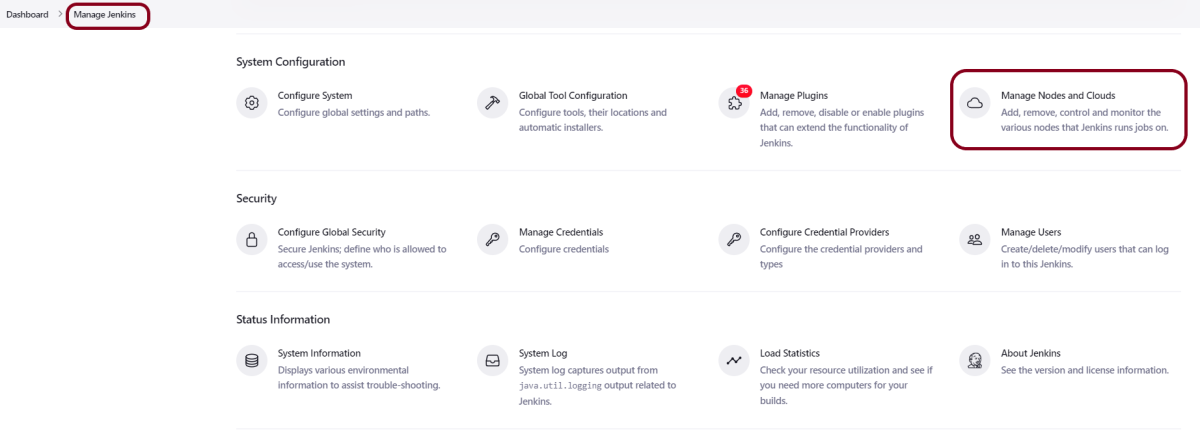
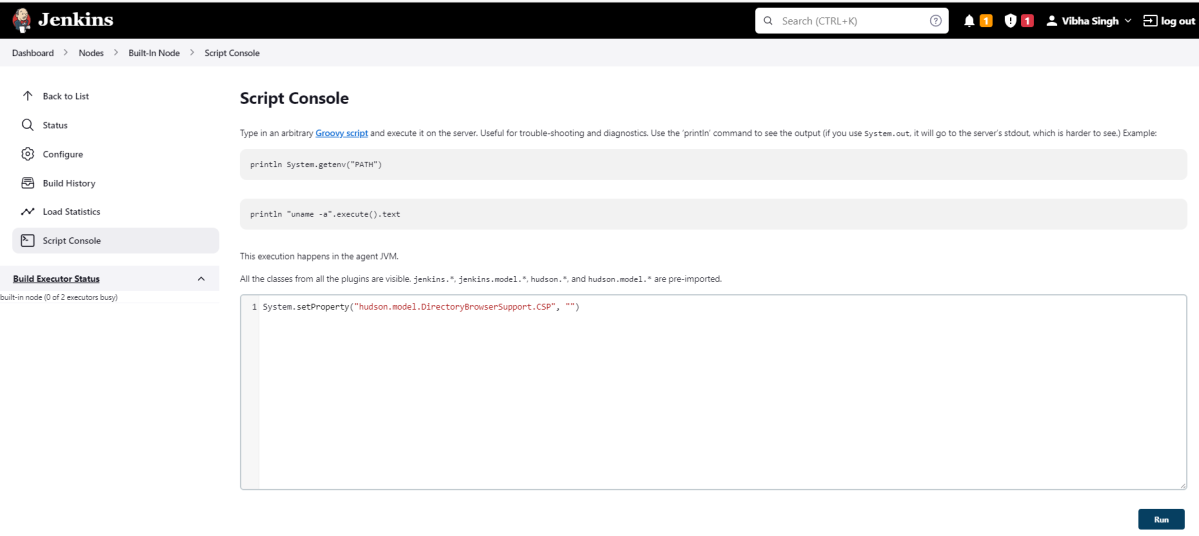
Go to Manage Jenkins -> Manage Nodes and Clouds.

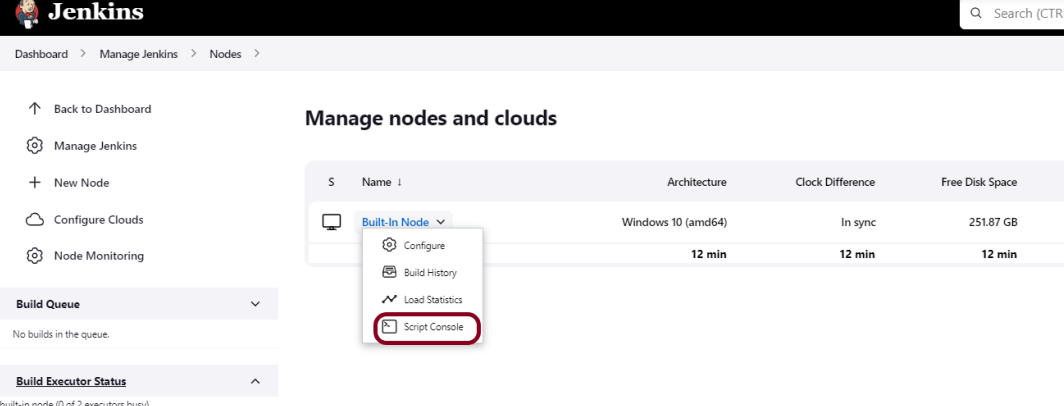
Click on the Script Console option.

Type in the following command and Press Run. If you see the output as ‘Result:’ then the protection is disabled. Re-Run your build and you can see that the new HTML files archived will have the CSS enabled.

System.setProperty("hudson.model.DirectoryBrowserSupport.CSP","")

Re-run the HTMLReport_Demo project. Now you can see a properly rendered HTML Report.

Congratulations on making it through this tutorial and hope you found it useful! Happy Learning!! Cheers!!

Additional Tutorials

How to Install Python on Windows 11
How to install and setup Robot Framework for Python
How to rerun failed tests in Robot Framework
How to implement tagging in Robot Framework
 How to set variable values from Runtime command in Robot Framework
How to load data from CSV files in the Robot Framework?

Advance Selenium Tutorials

HOME

Jenkins Tutorial

HOME

Jenkins is a self-contained, open-source automation server that can be used to automate all sorts of tasks related to building, testing, and delivering or deploying software.

Jenkins can be installed through native system packages, Docker, or even run standalone by any machine with a Java Runtime Environment (JRE) installed.

Chapter 1 What is Jenkins?
Chapter 2 How to install Jenkins on Windows 10
Chapter 3 How to configure Java and Maven in Jenkins
Chapter 4 Integration Of Jenkins With Selenium WebDriver
Chapter 5 How to install Maven Plugin in Jenkins
Chapter 6 How to install Plugins from Jenkins CLI?
Chapter 7 Integrate Gradle project with Jenkins
Chapter 8 How to install Plugins in Jenkins
Chapter 9 How to Schedule a Jenkins Job
Chapter 10 Build History Metrics in Jenkins
Chapter 11 How to install the trends-related plugin in Jenkins?
Chapter 12 How to run parameterized Selenium tests in Jenkins

Reports in Jenkins

Chapter 1 How to generate TestNG Report in Jenkins
Chapter 2 How to create JUnit Report in Jenkins
Chapter 3 Integration of Allure Report with Jenkins
Chapter 4 How to generate HTML Reports in Jenkins
Chapter 5 Integration of Cucumber Report with TestNG in Jenkins
Chapter 6 Serenity with Jenkins
Chapter 7 How to publish ExtentReport using Jenkins

Jenkins Pipeline

Chapter 1 Jenkins Pipeline
Chapter 2 How to create Jenkins pipeline for Selenium tests
Chapter 3 How to create Jenkins pipeline for Serenity tests
Chapter 4 How to create Jenkins pipeline for Cucumber tests
Chapter 5 How to create Jenkins pipeline for Extent Report
Chapter 6 How to create Jenkins pipeline for Gradle project

CI/CD

Chapter 1 Integration of GitHub with Jenkins
Chapter 2 Jenkins GitLab Integration

Serenity BDD Tutorials

HOME

Serenity BDD is an open-source library that aims to make the idea of living documentation a reality.
Serenity BDD helps you write cleaner and more maintainable automated acceptance and regression tests faster. Serenity also uses the test results to produce illustrated, narrative reports that document and describe what your application does and how it works. Serenity tells you not only what tests have been executed, but more importantly, what requirements have been tested

Basics of Serenity

Chapter 1 How to run Serenity BDD tests in Chrome Browser
Chapter 2 How to run Serenity BDD tests in Edge Browser
Chapter 3 Testing of Web Application using Serenity with JUnit4
Chapter 4 Integration of Serenity with JUnit5
Chapter 5 Manual Tests in Serenity with JUnit5
Chapter 6 Integration of Serenity with Rest Assured
Chapter 7 Data Driven Tests in Serenity with JUnit
Chapter 8 Data Driven Tests using CSV file in Serenity
Chapter 9 Implicit Wait in Serenity
Chapter 10 Explicit Wait in Serenity
Chapter 11 Fluent Wait in Serenity – NEW
Chapter 12 Serenity Testing on Different Browsers – NEW

Serenity with Cucumber

Chapter 1 Serenity BDD with Cucumber and JUnit4 for Web Application
Chapter 2 Serenity BDD with Cucumber for SpringBoot Application
Chapter 3 Serenity BDD with Cucumber and Rest Assured
Chapter 4 Testing of SpringBoot REST Application using Rest Assured for GET Method
Chapter 5 Serenity Report for Web Application with Cucumber6 and Junit
Chapter 6 Integration of Serenity with Cucumber and JUnit5
 Chapter 7 Testing of SpringBoot Application with Serenity BDD, Cucumber and JUnit5 – NEW

Serenity Reports

Chapter 1 Serenity Report for Web Application with Cucumber6 and Junit
Chapter 2 Serenity Emailable HTML Report
Chapter 3 Serenity Emailable Report in Gradle
Chapter 4 How to report Manual Tests in Serenity Report
Chapter 5 How to attach Test Evidence to Manual Tests in Serenity Report
Chapter 6 How to manage screenshots in Serenity Report
Chapter 7 How to generate Serenity Report in customized path

Serenity with Gradle

Chapter 1 Serenity BDD with Gradle and Cucumber for Web Application
Chapter 2 Serenity BDD with Cucumber and Rest Assured in Gradle

Serenity with CI/CD

Chapter 1 Serenity with Jenkins
Chapter 2 How to create Jenkins pipeline for Serenity tests
Chapter 3 How to run Serenity tests with GitHub Actions
Chapter 4 Run Serenity Tests in GitLab CI/CD

Parallel Testing

Chapter 1 Parallel Execution of Cucumber with Serenity and JUnit5

How To Publish ExtentReport Using Jenkins

Last Updated On

HOME

In the previous tutorial, we have seen the Integration of Allure Report with Jenkins. In this tutorial, we show you how to generate Extent Report Using Jenkins. 

Table of Contents

  1. Prerequisite
  2. Implementation Steps
    1. Create a new Maven project
    2. Build Management
    3. Select a custom workspace
    4. Select “Publish HTML reports” from “Post Build Actions”
    5. Execute the tests
    6. View the Extent Report

Prerequisite

Jenkin’s installed and started on the computer. The current Jenkins version is – 2.361.2

To generate HTML Report in Jenkins, we need to download HTML Publisher Plugin. Please refer to this tutorial to install the plugin – How to install Plugins in Jenkins.

Implementation Steps

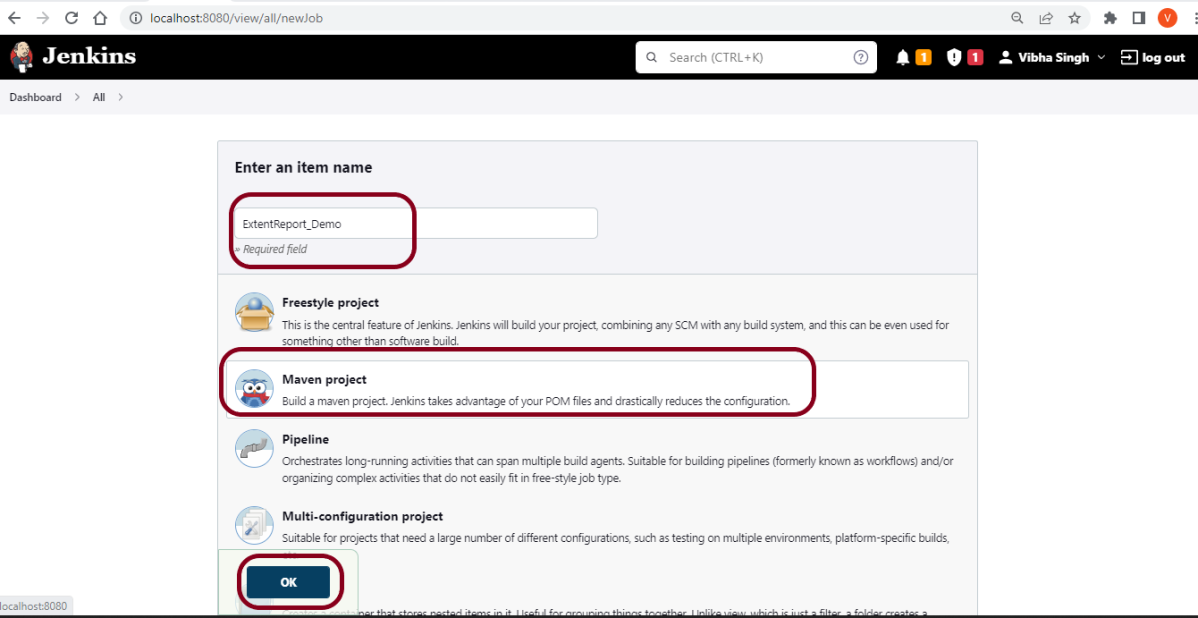
Step 1: Create a new Maven project

  1. Give the Name of the projectExtentReport_Demo
  2. Click on the Maven project. 
  3. Click on the OK button.

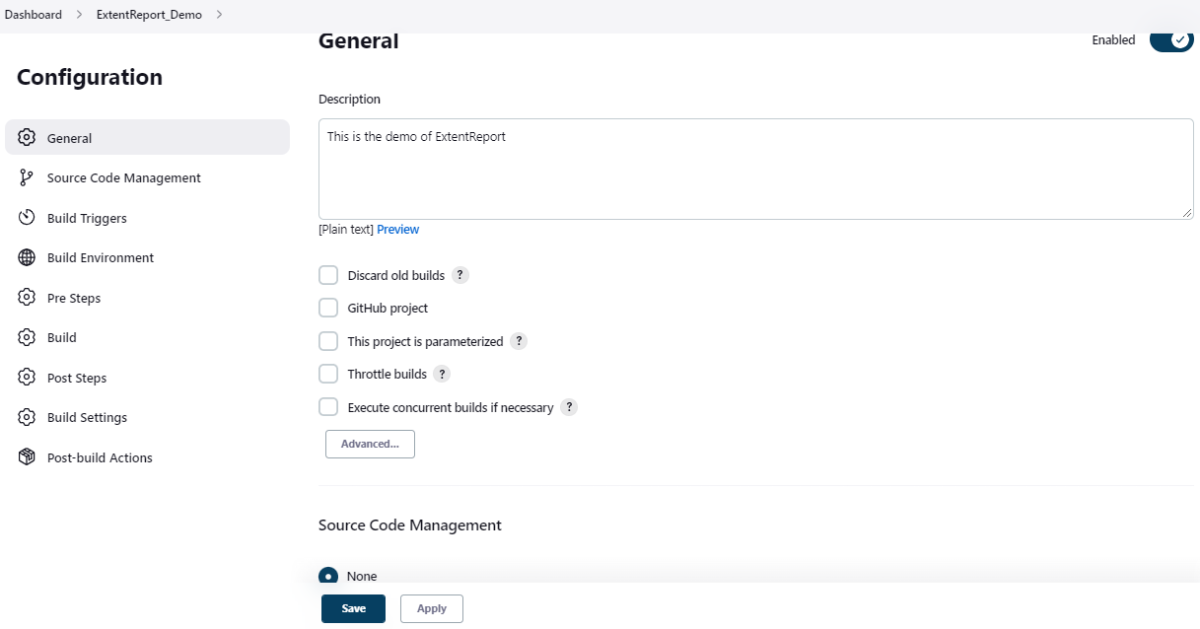
In the General section, enter the project description in the Description box.

Select Source Code Management as None if the project is locally present on the machine.

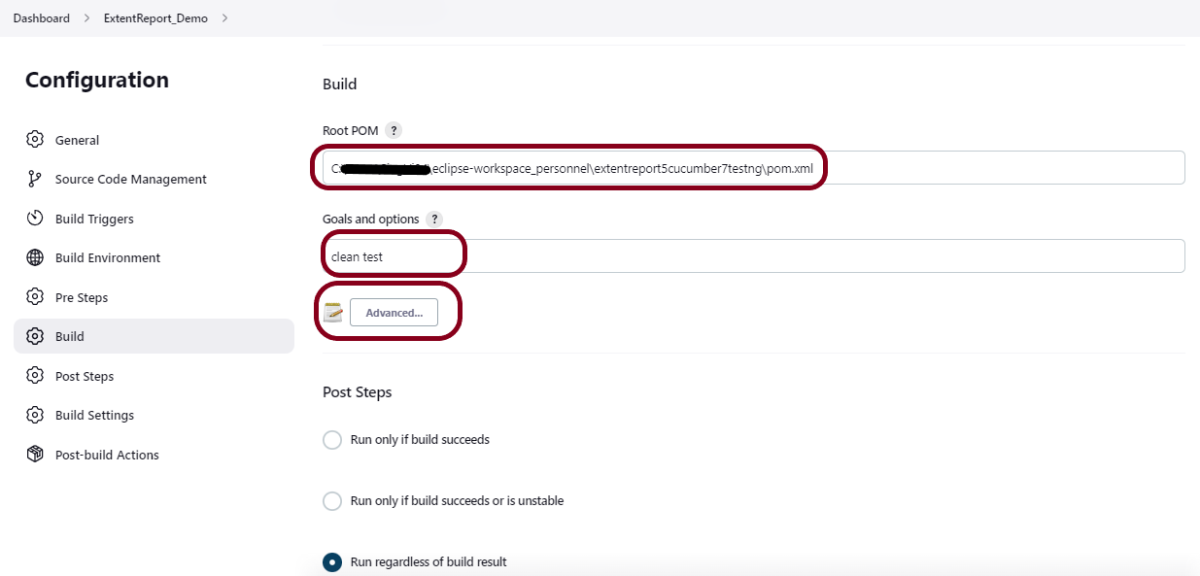
Step 2: Build Management

Go to the Build section of the new job.

  1. In the Root POM textbox, enter the full path to pom.xml
  2. In the Goals and options section, enter “clean test site”

Here, I have used the Selenium project with JUnit, so to see the complete project, please refer to this tutorial –  How to generate JUnit4 Report.

Click on the Advanced button.

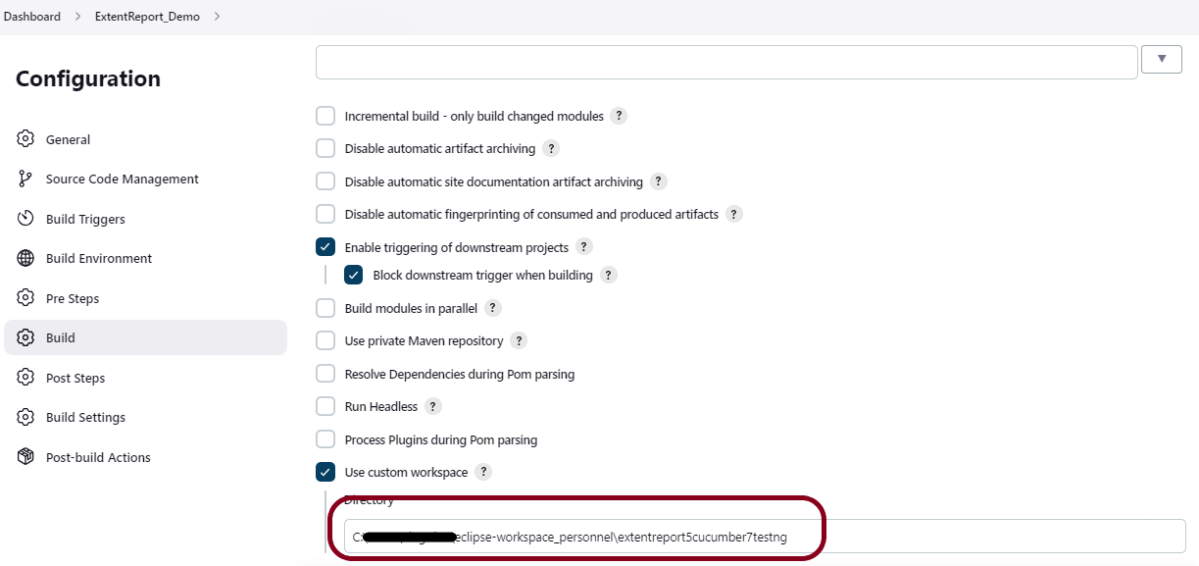
Step 3: Select a custom workspace

Mention the full path of the project in the directory.

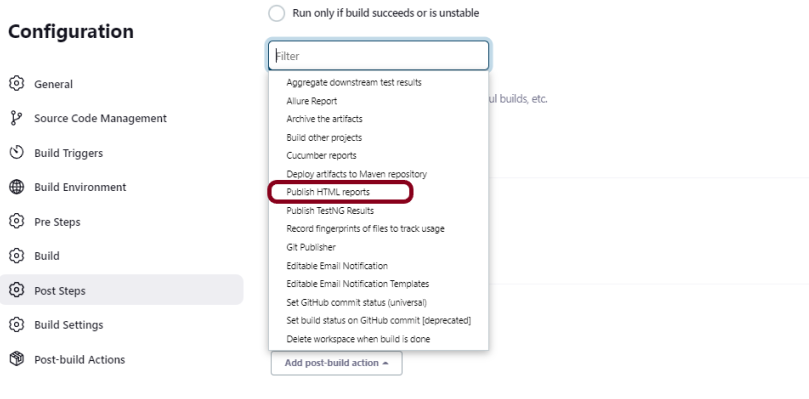
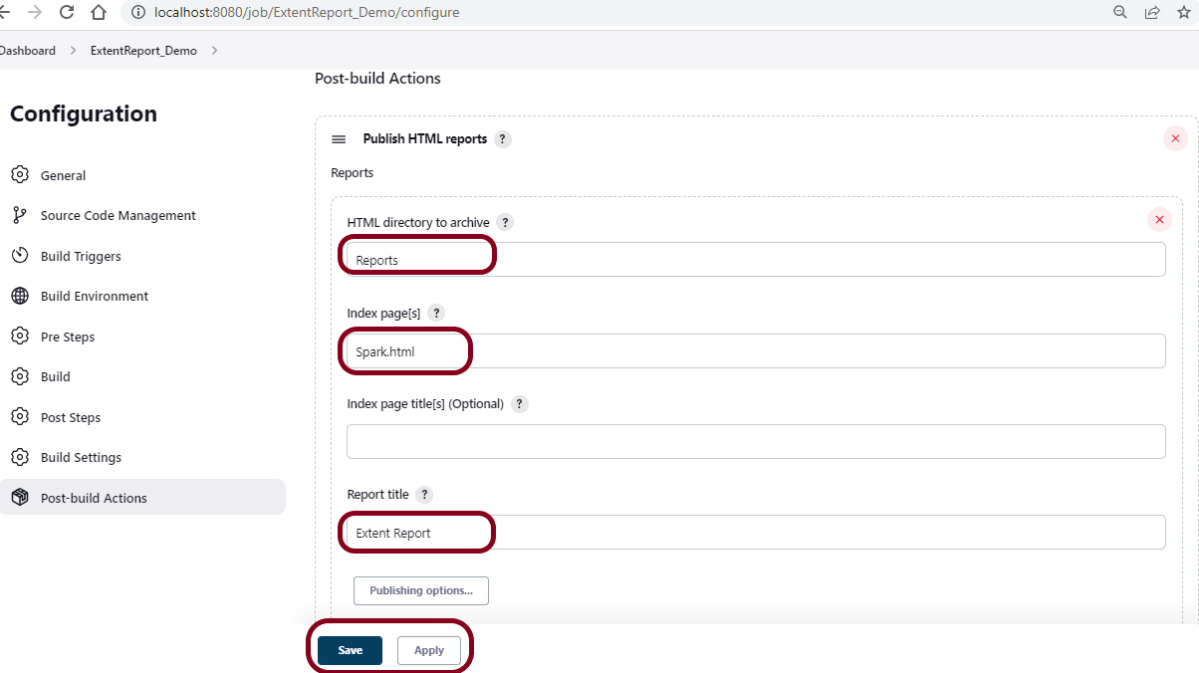
Step 4: Select “Publish HTML reports” from “Post Build Actions”

Scroll down to “Post Build Actions” and click on the “Add Post Build Actions” drop-down list. Select “Publish HTML reports“. 

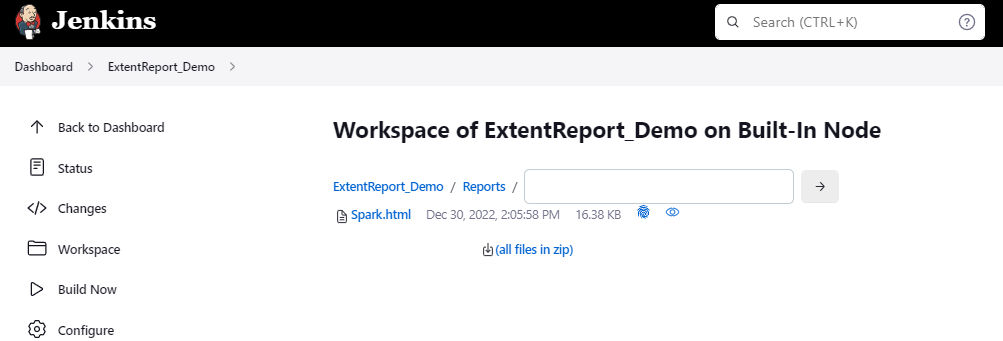
If you want to see where the report is saved in Jenkins, go to the Dashboard ->ExtentReport_Demo project -> Workspace ->target -> Reports -> Spark.html.

Enter the HTML directory to archive – Reports, Index page[s] – Spark.html, and Report title – Extent Report.

Click on the Apply and Save buttons.

We have created a new Maven project “ExtentReport_Demo” with the configuration to run the Cucumber, and Selenium with TestNG Tests and also to generate HTML Report after execution using Jenkins.

Step 5: Execute the tests

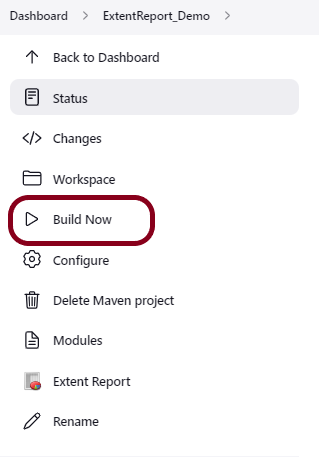
Let’s execute it now by clicking on the “Build Now” button.

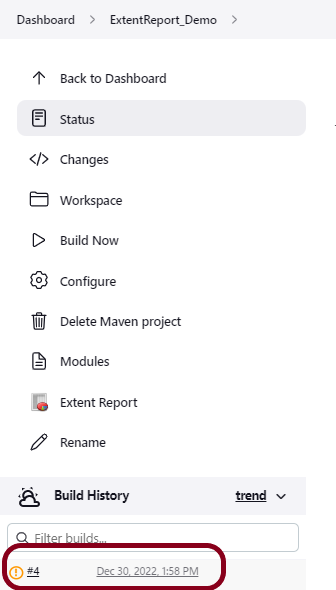
Right-click on Build Number (here in my case it is #4).

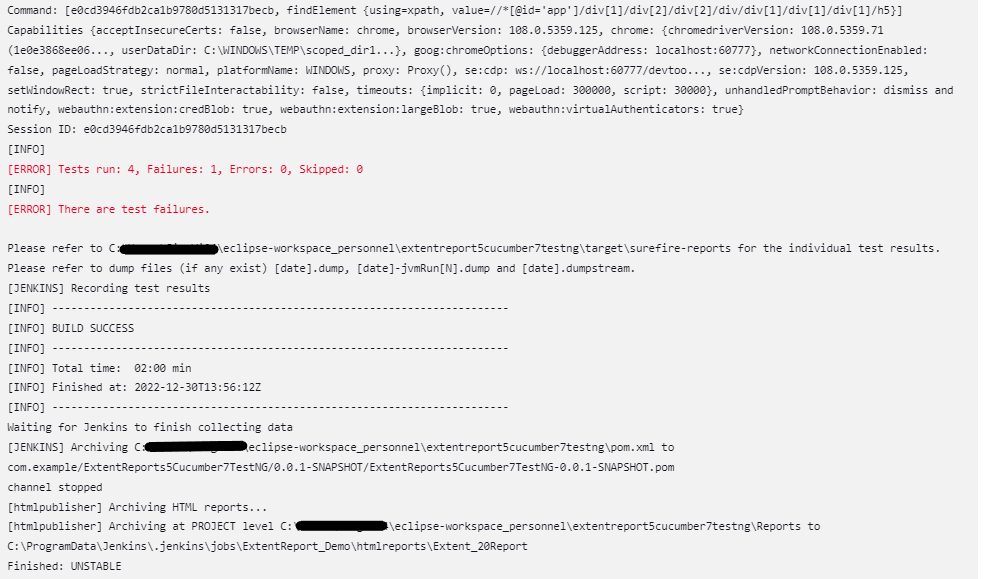
Click on Console Output to see the result.

Step 6: View the Extent Report

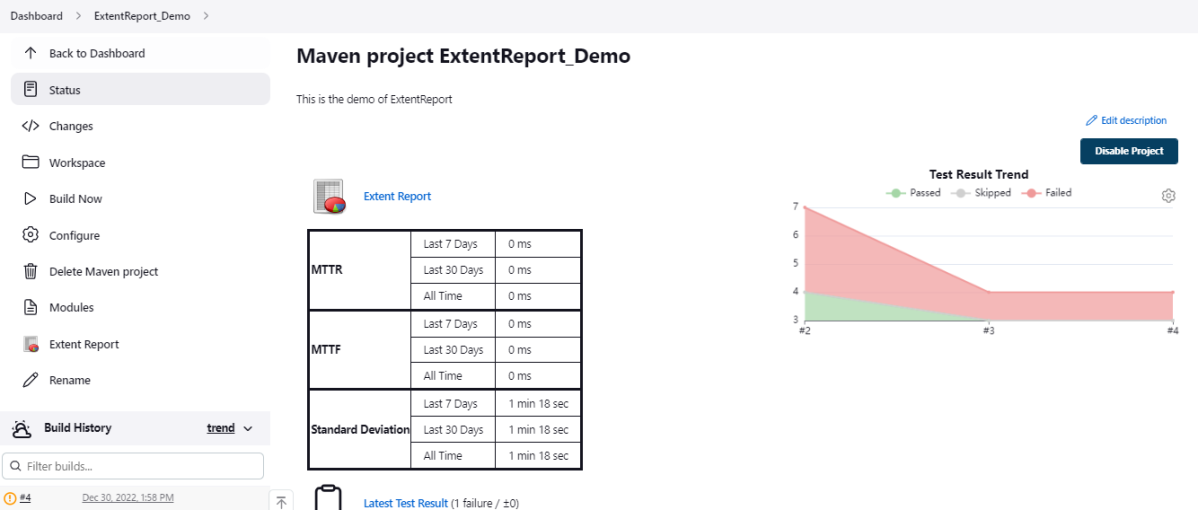
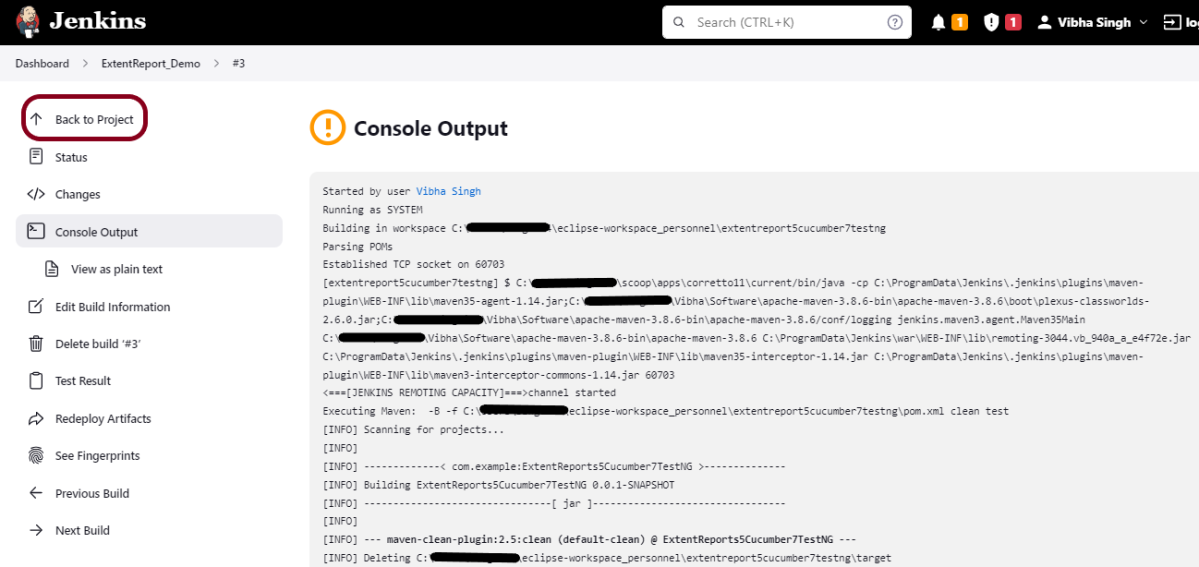
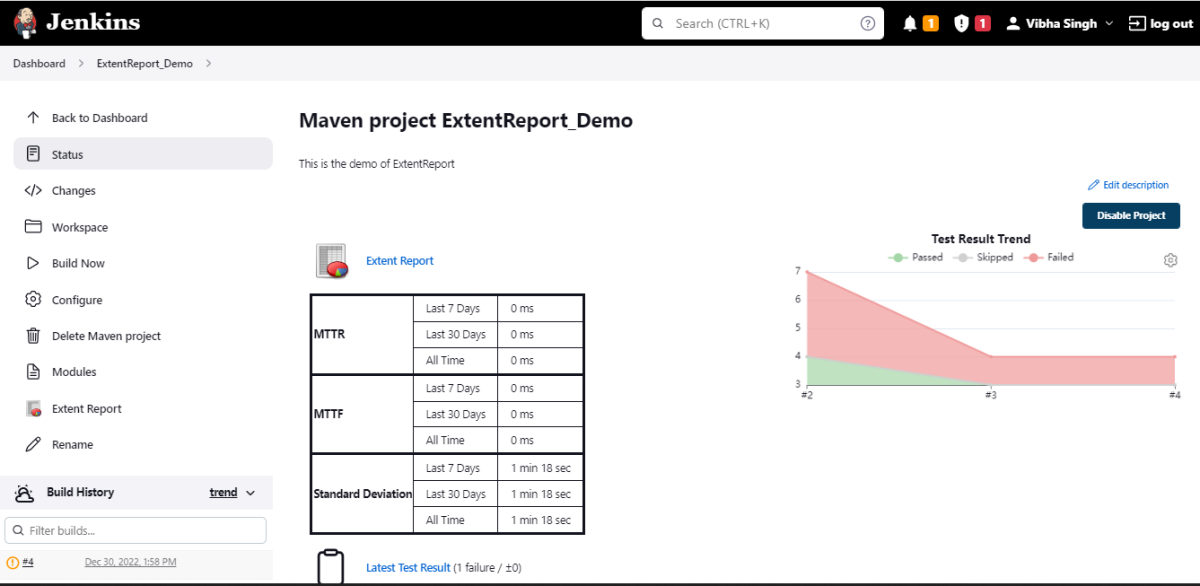
Once the execution is completed, click on go “Back to Project“, and we can see a link to view the “Extent Report“.

We can see here that the Extent Report link is displayed in the Console.

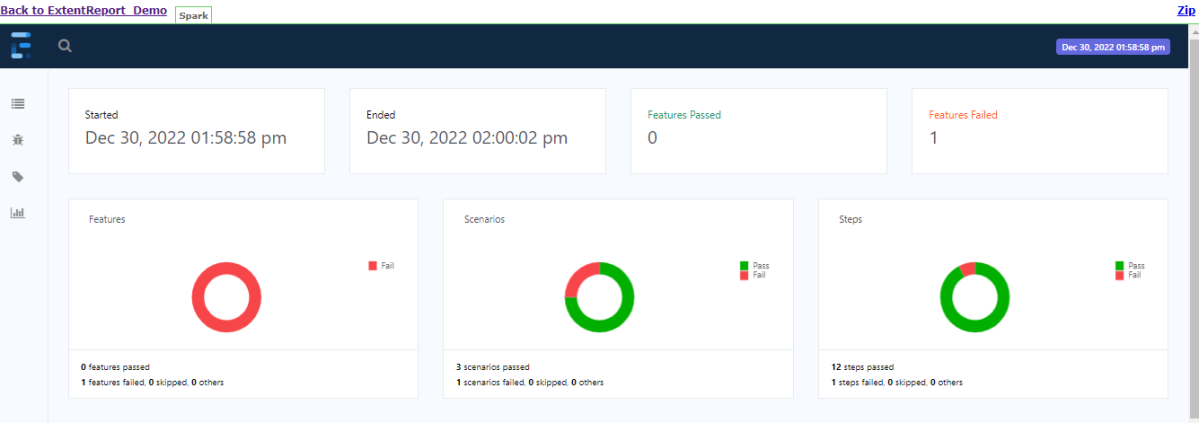
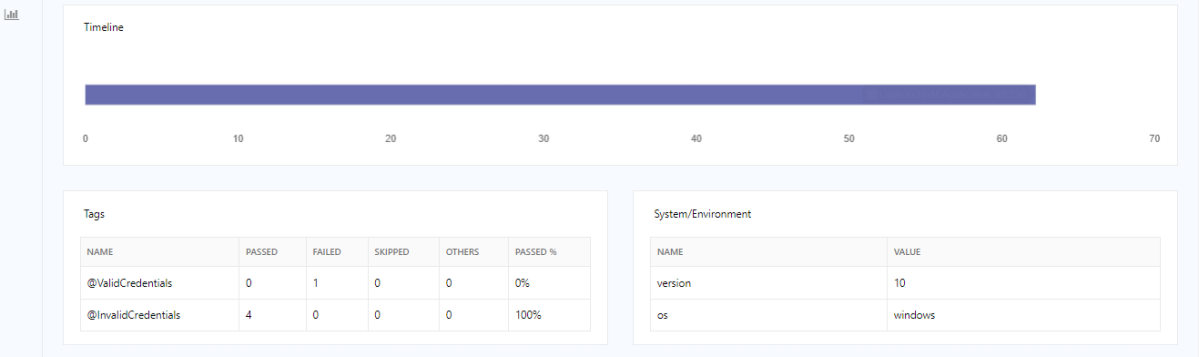
Below is the Extent Report generated in Jenkins.

Tip: If you don’t see the Report UI intact, then you need to configure a simple Groovy script. For that, go to Dashboard–>Manage Jenkins–>Script Console and add the script as:

System.setProperty("hudson.model.DirectoryBrowserSupport.CSP","")

Congratulations on making it through this tutorial and hope you found it useful! Happy Learning!! Cheers!!

Additional Tutorials

Serenity with Jenkins
Integration of Allure Report with Jenkins
How to generate HTML Reports in Jenkins
How to create Jenkins pipeline for Serenity tests
How to create Jenkins pipeline for Cucumber tests

How to create JUnit Report in Jenkins

Last Updated On

HOME

In this tutorial, we show you how to generate JUnit Report Using Jenkins. In the previous tutorial, we generated a TestNG Report using Jenkins.

Table of Contents

  1. Prerequisite
  2. Implementation Steps
    1. Start the Jenkins server
    2. Create a new FreeStyle project
    3. Build Steps
    4. Provide the full path to pom.xml
    5. Select “Publish JUnit test result report” from “Post Build Actions”
    6. Execute the tests
    7. View the JUnit Report

Prerequisite

3. To generate JUnit Report, please refer to this tutorial to get the code – How to generate JUnit4 Report.

4. To generate a JUnit Report in Jenkins, we need to download the JUnit Plugin. Please refer to this tutorial to install the plugin – How to install Plugins in Jenkins

Implementation Steps

Step 1: Start the Jenkins server

Start the Jenkins server open the browser and navigate to the below endpoint

http://localhost:8080/

Step 2: Create a new FreeStyle project

  1. Give the Name of the project – JUnitReport_Demo
  2. Click on the Freestyle project. 
  3. Click on the OK

In the General section, enter the project description in the Description box.

Select a custom workspace and provide the full path of the project.

Select Source Code Management as None if the project is locally present on the machine

Step 3: Build Steps

In the Build Steps section, select Invoke top-level Maven targets.

The Build Steps window will extend. Mention the below details:-

Maven Version – MAVEN_HOME

Goals – clean test

Click on the Advanced button.

Step 4: Provide the full path to pom.xml

Specify the full path to pom.xml in POM.

Step 5: Select “Publish JUnit test result report” from “Post Build Actions”

Scroll down to “Post Build Actions” and click on the “Add Post Build Actions” drop-down list. Select Publish JUnit test result report“. 

Enter the Result Path as “**/target/surefire-reports/*.xml”.

Click on the Apply and Save buttons.

We have created a new Maven project JUnitReport_Demo” with the configuration to run the Selenium with JUnit Tests and also to generate JUnit Report after execution using Jenkins.

Step 6: Execute the tests

Let’s execute it now by clicking on the “Build Now” button. 

Right-click on Build Number (here in my case it is #2).

Click on Console Output to see the result.

Step 7: View the JUnit Report

Once the execution is completed, we could see a link to view the “Test Report“.

Below is the summary of the Test Execution.

This way, we could generate JUnit Report using Jenkins.

Congratulations on making it through this tutorial and hope you found it useful! Happy Learning!! Cheers!!

Additional Tutorials

Jenkins GitLab Integration
How to create Jenkins pipeline for Selenium tests
How to create Jenkins pipeline for Serenity tests
How to generate TestNG Report in Jenkins
How to create Jenkins pipeline for Extent Report
How to run parameterized Selenium tests in Jenkins