Cucumber Tutorials

 HOME

Cucumber Introduction, Installation, and Configuration

Chapter 1  Introduction of Cucumber Testing Tool (BDD Tool)
Chapter 2 How to install Cucumber Eclipse Plugin
Chapter 3 How to setup Cucumber with Eclipse
Chapter 4 Cucumber – What is Gherkin

Cucumber Scenario, Features & Step Definition

Chapter 1 Cucumber – What is Feature File in Cucumber
Chapter 2 Step Definition in Cucumber
Chapter 3 Cucumber – JUnit Test Runner Class

Cucumber – Hooks & Tags

Chapter 1 Hooks in Cucumber
Chapter 2 Tags in Cucumber
Chapter 3 Conditional Hooks in Cucumber
Chapter 4 What is CucumberOptions in Cucumber?
Chapter 5 Background in Cucumber
Chapter 6 Monochrome in Cucumber
Chapter 7 What is Glue in Cucumber?

Cucumber – Data Driven Testing

Chapter 1 Data Driven Testing using Scenario Outline in Cucumber
Chapter 2 DataTables in Cucumber

Cucumber Integration with Selenium – Maven

Chapter 1 Integration of Cucumber with Selenium and JUnit4
Chapter 2 Integration of Cucumber with Selenium and TestNG
Chapter 3 Page Object Model with Selenium, Cucumber and JUnit
Chapter 4 Page Object Model with Selenium, Cucumber, and TestNG
Chapter 5 Integration of Cucumber7 with Selenium and JUnit5
Chapter 6 Run Cucumber7 with JUnit5 Tests from Maven Command Line
Chapter 7 How to rerun failed tests in Cucumber
Chapter 8 How to create Cucumber Report after rerun of failed tests – NEW
Chapter 9 How to rerun failed tests twice in Cucumber – NEW

Cucumber – Command Line Execution

Chapter 1 Run Cucumber Test from Command Line
Chapter 2 Run Gradle Cucumber Tests from Command Line

Cucumber Integration with Rest API

Chapter 1 Rest API Test in Cucumber BDD
Chapter 2 How To Create Gradle Project with Cucumber to test Rest API

Cucumber Integration with SpringBoot

Chapter 1 Integration Testing of Springboot with Cucumber and JUnit4
Chapter 2 Integration Testing of Springboot with Cucumber and TestNG

Cucumber – Reporting

Chapter 1 Cucumber Tutorial – Cucumber Reports
Chapter 2 Cucumber Report Service
Chapter 3 Implemention of ‘Masterthought’ Reports in Cucumber
Chapter 4 Implemention of ‘Masterthought’ Reports in Cucumber with JUnit4

Cucumber Integration with Allure Reports

Chapter 1 Allure Report with Cucumber5, Selenium and JUnit4
Chapter 2 Allure Report with Cucumber5, Selenium and TestNG
Chapter 3 Integration of Allure Report with Rest Assured and JUnit4
Chapter 4 Integration of Allure Report with Rest Assured and TestNG
Chapter 5 Gradle – Allure Report for Selenium and TestNG

Cucumber Integration with Extent Reports

Chapter 1 ExtentReports Version 5 for Cucumber 6 and TestNG
Chapter 2 How to add Screenshot to Cucumber ExtentReports
Chapter 3 ExtentReports Version 5 for Cucumber 6 and JUnit4
Chapter 4 PDF ExtentReport for Cucumber and TestNG
Chapter 5 ExtentReports Version 5 for Cucumber 7 and TestNG
Chapter 6 Extent Reports Version 5 for Cucumber7 and JUnit5

Cucumber – Parallel Execution

Chapter 1 Parallel Testing in Cucumber with JUnit
Chapter 2 Parallel Testing in Cucumber with TestNG
Chapter 3 Dependency Injection in Cucumber using Pico-Container

InvocationCount in TestNG

HOME

InnvocationCount is one of the feature available in TestNG. InvocationCount is used when we want to run the same test multiple times.  If we want to run single @Test 10 times at a single thread, then invocationCount can be used. To invoke a method multiple times, the below syntax is used.

@Test(invocationCount = 3)

In this example, the @Test method will execute for 3 times each on a single thread.

In this tutorial, we will illustrate how to get the current invocation count.

Step 1 − Create a TestNG class, InvocationCount_Demo.

Step 2 − Write two @Test methods in the class InvocationCount_Demo as shown in the programming code section below. Add invocationCount=3 to method verifyTitle and 2 to validLoginTest.

Step 3 − Create the testNG.xml as given below to run the TestNG classes.

Step 4 − Now, run the testNG.xml or directly TestNG class in IDE or compile and run it using command line.

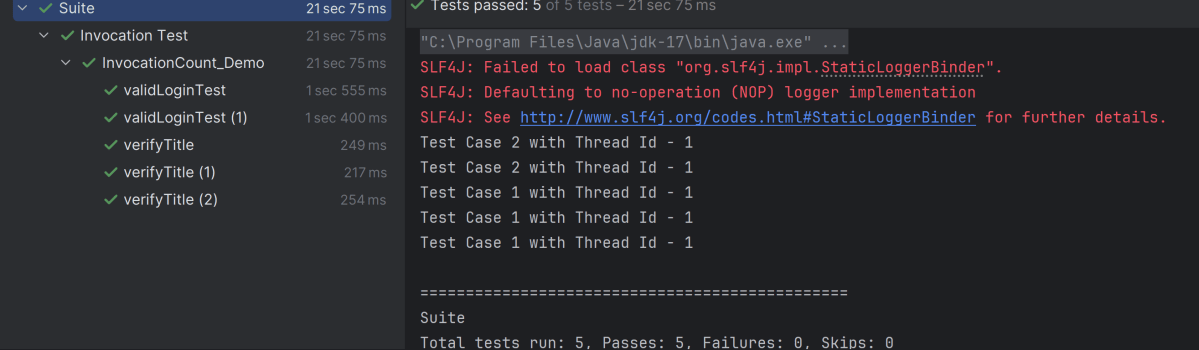
Step 5 − In the output, the user can see a total of 1 thread running sequentially for all invocations of @Test.

import org.openqa.selenium.By;
import org.openqa.selenium.WebDriver;
import org.openqa.selenium.firefox.FirefoxDriver;
import org.openqa.selenium.firefox.FirefoxOptions;
import org.testng.Assert;
import org.testng.annotations.AfterMethod;
import org.testng.annotations.BeforeMethod;
import org.testng.annotations.Test;

import java.time.Duration;


public class InvocationCount_Demo {

    WebDriver driver;

    @BeforeMethod
    public void setup() throws Exception {

        FirefoxOptions options = new FirefoxOptions();
        driver = new FirefoxDriver(options);
        driver.get("https://opensource-demo.orangehrmlive.com/");
        driver.manage().timeouts().implicitlyWait(Duration.ofSeconds(10));
        driver.manage().window().maximize();
    }

    @Test(invocationCount = 3)
    public void verifyTitle() {

        System.out.println("Test Case 1 with Thread Id - " + Thread.currentThread().getId());
        String expectedTitle = driver.findElement(By.xpath("//*[@class='oxd-text oxd-text--h5 orangehrm-login-title']")).getText();
        Assert.assertEquals(expectedTitle,"Login");
    }

    @Test(invocationCount = 2)
    public void validLoginTest() throws InterruptedException {

        System.out.println("Test Case 2 with Thread Id - "+Thread.currentThread().getId());

        driver.findElement(By.name("username")).sendKeys("Admin");
        driver.findElement(By.name("password")).sendKeys("admin123");
        driver.findElement(By.xpath("//*[@class='oxd-form-actions orangehrm-login-action']/button")).click();
        String expectedTitle = driver.findElement(By.xpath("//*[@class='oxd-topbar-header-breadcrumb']/h6")).getText();
        Assert.assertTrue(expectedTitle.contains("Dashboard"));
    }

    @AfterMethod
    public  void closeBrowser() {

        driver.quit();

    }
}

testng.xml

This is a configuration file that is used to organize and run the TestNG test cases. It is very handy when limited tests are needed to execute rather than the full suite.

<?xml version="1.0" encoding="UTF-8"?>
<!DOCTYPE suite SYSTEM "https://testng.org/testng-1.0.dtd">
<suite name="Suite">
    <test name="Invocation Test">
        <classes>
            <class name="com.example.InvocationCount_Demo"/>
        </classes>
    </test> <!-- Test -->
</suite> <!-- Suite -->

The output of the above program is

We can add threadPoolSize to the @Test.

threadPoolSize – It defines the size of the thread pool for any method. The method will be invoked from multiple threads, as specified by invocationCount.

@Test(invocationCount = 3, threadPoolSize)

Congratulations on making it through this tutorial and hope you found it useful! Happy Learning!! Cheers!!

How to read JSON from File Using Gson API

HOME

The previous tutorials have explained the conversion of Java Object to JSON using Gson API. This tutorial explains the process of reading the JSON Payload from a file using Gson API.

Gson is a Java library that can be used to convert Java Objects into their JSON representation. It can also be used to convert a JSON string to an equivalent Java object. Gson can work with arbitrary Java objects, including pre-existing objects for those you do not have source code.

  • Provide simple toJson() and fromJson() methods to convert Java objects to JSON and vice versa.

Add the below dependency to POM.xml to use Gson API.

<dependency>
    <groupId>com.google.code.gson</groupId>
    <artifactId>gson</artifactId>
    <version>2.10.1</version>
</dependency>

Let us take an example of a JSON.

{
  "firstName": "Vibha",
  "lastName": "Singh",
  "age": 30,
  "salary": {
    "2023": 74000,
    "2022": 62000,
    "2021": 50000
  },
  "designation": "Manager",
  "contactNumber": "+919999988822",
  "emailId": "abc@test.com"
}

Let us create a table named Employee which contains the data members same as node names in the above JSON payload and their corresponding getter and setter methods.

import java.math.BigDecimal;
import java.util.Map;

public class Employee {

    // private data members of POJO class
    private String firstName;
    private String lastName;
    private int age;
    private Map<String, BigDecimal> salary;
    private String designation;
    private String contactNumber;
    private String emailId;

    // Getter and setter methods
    public String getFirstName() {
        return firstName;
    }

    public void setFirstName(String firstName) {
        this.firstName = firstName;
    }

    public String getLastName() {
        return lastName;
    }

    public void setLastName(String lastName) {
        this.lastName = lastName;
    }

    public int getAge() {
        return age;
    }

    public void setAge(int age) {
        this.age = age;
    }

    public Map<String, BigDecimal> getSalary() {
        return salary;
    }

    public void setSalary(Map<String, BigDecimal> salary) {
        this.salary = salary;
    }

    public String getDesignation() {
        return designation;
    }

    public void setDesignation(String designation) {
        this.designation = designation;
    }

    public String getContactNumber() {
        return contactNumber;
    }

    public void setContactNumber(String contactNumber) {
        this.contactNumber = contactNumber;
    }

    public String getEmailId() {
        return emailId;
    }

    public void setEmailId(String emailId) {
        this.emailId = emailId;
    }

    @Override
    public String toString() {
        return "(firstName: " + firstName + "," +
                "lastName: " + lastName + "," +
                "age: " + age + ", " +
                "salary: " + salary + "," +
                "designation: " + designation + ", " +
                "contactNumber: " + contactNumber + ", " +
                "emailId: " + emailId + ")";

    }
}

We will convert a JSON Object to a Java Object.

You can create a Gson instance by invoking a new Gson() if the default configuration is all you need, as shown in the below example.

import org.junit.Test;
import java.io.File;
import java.io.FileNotFoundException;
import java.io.FileReader;

public class GsonReadFromFile {

    @Test
    public void readJsonFromFile() throws FileNotFoundException {

        String userDir = System.getProperty("user.dir");
        File jsonFilePath = new File(userDir + "\\src\\test\\resources\\Employee.json");
        FileReader fileReader = new FileReader(jsonFilePath);

        Gson gson = new Gson();
        Employee employee = gson.fromJson(fileReader, Employee.class);
        System.out.println(employee.toString());

        System.out.println("FirstName :" + employee.getFirstName());
        System.out.println("LastName :" + employee.getLastName());
        System.out.println("Age :" + employee.getAge());
        System.out.println("Salary :" + employee.getSalary());
        System.out.println("Designation :" + employee.getDesignation());
        System.out.println("ContactNumber :" + employee.getContactNumber());
        System.out.println("EmailId :" + employee.getEmailId());


    }
}

The execution message is shown below.

AssertJ – Fluent Assertions in Java

HOME

This tutorial describes the usage of the AssertJ – Fluent Assertions framework for writing tests in Java.

Introduction to AssertJ

The AssertJ project provides fluent assertion statements for test code written in Java. These assert statements are typically used with Java JUnit tests. 

AssertJ is composed of several modules:

A core module to provide assertions for JDK types (String, Iterable, Stream, Path, File, Map…​)
1. A Guava module to provide assertions for Guava types (Multimap, Optional…​)
2. A Joda Time module to provide assertions for Joda Time types (DateTime, LocalDateTime)
3. A Neo4J module to provide assertions for Neo4J types (Path, Node, Relationship…​)
4. A DB module to provide assertions for relational database types (Table, Row, Column…​)
5. A Swing module provides a simple and intuitive API for functional testing of Swing user interfaces

What is AssertJ Core?

AssertJ is a Java library that provides a rich set of assertions and truly helpful error messages, improves test code readability, and is designed to be super easy to use within any IDE.

AssertJ Core major versions depend on different Java versions:

  • AssertJ Core 3.x requires Java 8 or higher
  • AssertJ Core 2.x requires Java 7 or higher

AssertJ Core 3.x includes all AssertJ Core 2.x features and adds Java 8 specific ones (like exception assertions with lambdas).

Maven

<dependency>
    <groupId>org.assertj</groupId>
    <artifactId>assertj-core</artifactId>
    <version>3.22.0</version>
    <scope>test</scope>
</dependency>

Gradle

testImplementation 'org.assertj:assertj-core:3.22.0'

The Assertions class is the only class you need to start using AssertJ, it provides all the methods you need.

import static org.assertj.core.api.Assertions.*;

Verify that age is greater or equal to 50. This assertion will fail

int age = 20;
assertThat(age).isGreaterThanOrEqualTo(30);

There is another way to perform the same test. Don’t import the static package.

import org.assertj.core.api.Assertions;
int age = 20;

// Verify that age is greater or equal to 50
Assertions.assertThat(age).isGreaterThanOrEqualTo(30);

This assertion will pass.

int age = 50;

// Verify that age is greater or equal to 50
Assertions.assertThat(age).isGreaterThanOrEqualTo(30);

2. Array Assertions

For an Iterable or an Array there are multiple ways of asserting that their content exist. One of the most common assertions would be to check if an Iterable or Array contains a given element:

int age = 30;
List<Integer> ages = Arrays.asList(20, 25, 33, 45);

// Verify that ages list contains age(30) or not
Assertions.assertThat(ages).contains(age);

Verify if a list is empty or not

	List<String> names = Arrays.asList("Here", "Keep", "Ugly", "door", "time");

   @Test
	public void assertJAssertionsExample8() {
		Assertions.assertThat(names).isEmpty();

	}

Verify if a List starts with a given character. For example “Ugly”:

	List<String> names = Arrays.asList("Here", "Keep", "Ugly", "door", "time");

	@Test
	public void assertJAssertionsExample8() {

		// Verify that ages list contains age(30) or not
		Assertions.assertThat(names).startsWith("Ugly");

	}

Assert the size of the list

List<Integer> ages = Arrays.asList(20, 25, 33, 45);

// Verify that list ages contains 5 elements
Assertions.assertThat(ages).hasSize(5);

Chaining of assertions

AssertJ allows you to be concise by chaining multiple assertions.

int age = 30;
List<Integer> ages = Arrays.asList(20, 25, 33, 45);

// Verify that the list of age contains 20, and size of list is 4 and match the
// values of all elements
Assertions.assertThat(ages).contains(20).hasSize(4).allMatch(a -> a >= 10 && a <= 30);

3. Assertion description

It is often valuable to describe the assertion performed, especially for boolean assertions, where the default error message just complains that it got false instead of true (or vice versa).

You can set such a description as (String description, Object…​ args) but remember to do it before calling the assertion otherwise it is simply ignored as a failing assertion breaks the chained calls.

Example of a failing assertion with a description:

String name = "Happy Days are here";
Assertions.assertThat(name).as("check name").startsWith("Life");

The error message starts with the given description in [check name]

4. Assertions for Date

AssertJ provides special assertions for the Java date class.

LocalDateTime date1 = LocalDate.of(1992, 2, 14).atStartOfDay();
LocalDateTime date2 = LocalDate.of(1998, 1, 1).atStartOfDay();
Assertions.assertThat(date1).isEqualTo(date2);

LocalDateTime isAfter

LocalDateTime date1 = LocalDate.of(1992, 2, 14).atStartOfDay();
LocalDateTime date2 = LocalDate.of(1998, 1, 1).atStartOfDay();
Assertions.assertThat(date1).isAfter(date2);

LocalDateTime isBefore

LocalDateTime date1 = LocalDate.of(2025, 2, 14).atStartOfDay();
Assertions.assertThat(date1).isBefore(LocalDateTime.now());

5. Soft Assertions

Soft assertions AssertJ collects all assertion errors instead of stopping at the first one. Since soft assertions don’t fail at the first error, you need to tell AssertJ when to report the captured assertion errors, we are using assertAll().

SoftAssertions softly = new SoftAssertions();

softly.assertThat("George Martin").as("great authors").isEqualTo("JK Rowling");
softly.assertThat(42).as("comparison").isGreaterThan(120);
softly.assertThat("50").isEqualTo("23");

// Don't forget to call assertAll() otherwise no assertion errors are reported!
softly.assertAll();

6. Object Assertions

Objects can be compared in various ways, either to determine the equality of two objects or to examine the fields of an object.

public class AssertJEmployee {

	String name;
	int age;
	float salary;

	public AssertJEmployee(String name, int age, float salary) {
		super();
		this.name = name;
		this.age = age;
		this.salary = salary;
	}

	public String getName() {
		return name;
	}

	public void setName(String name) {
		this.name = name;
	}

	public int getAge() {
		return age;
	}

	public void setAge(int age) {
		this.age = age;
	}

	public float getSalary() {
		return salary;
	}

	public void setSalary(float salary) {
		this.salary = salary;
	}

}
@Test
public void test() {

	AssertJEmployee emp1 = new AssertJEmployee("Tim", 24, 24000);
	AssertJEmployee emp2 = new AssertJEmployee("Tim", 20, 24000);

	Assertions.assertThat(emp1).usingRecursiveComparison().isEqualTo(emp2);
}

In the below example, we have used isEqualTo() method that compares object references. We can see that both objects are the same but have different references. So, the assertion fails here.

@Test
public void test() {

	AssertJEmployee emp1 = new AssertJEmployee("Tim", 24, 24000);
	AssertJEmployee emp2 = new AssertJEmployee("Tim", 24, 24000);

	Assertions.assertThat(emp1).isEqualTo(emp2);
}

Congratulation! We are able to understand the use of AssertJ. Happy Learning!!

How to Clone a project from GitLab using IntelliJ

Last Updated On

HOME

In this tutorial, we will clone a project from GitLab and import it into IntelliJ.

Table Of Contents

  1. What is GitLab?
  2. Why Use GitLab?
  3. Implementation Steps
    1. Clone the project from GitLab
    2. Import the cloned project in IntelliJ

What is GitLab?

GitLab is a web-based Git repository that provides free open and private repositories, issue-following capabilities, and wikis. It is a complete DevOps platform that enables professionals to perform all the tasks in a project from project planning and source code management to monitoring and security.

Why Use GitLab?

The primary advantage of using GitLab is that it allows all team members to collaborate at all stages of the project. GitLab provides tracking from planning to creation to assist developers in automating the entire DevOps lifecycle and achieving the best results possible. GitLab is becoming increasingly popular among developers due to its extensive set of features and code building blocks.

In this tutorial, I will explain how we can clone a project from GitLab in IntelliJ.

Implementation Steps

Clone the project from GitLab

Step 1 – Go to GitLab and select the project that you want to clone. Click on the blue colour “Clone” button, then copy the hyperlink as shown in the image. You can either Clone with SSH or Clone with HTTPS.

Import the cloned project in IntelliJ

Step 2 – From the main menu, select Git -> Clone

Another way is File ->New -> Project from Version Control

Step 3 – In the Get from Version Control dialog, specify the URL of the remote repository you want to clone. This is retrieved from Step 1. Click the Clone button.

Step 4 – A dialog box will appear to log in to GitLab. Provide the username and password of GitLab. Select the “Log In” button.

Step 5 – When you import or clone a project for the first time, IntelliJ IDEA analyses it. If the IDE detects more than one configuration (for example, Eclipse and Gradle), it prompts you to select which configuration you want to use. Select the necessary configuration and click the OK button. I have selected the Maven project.

Step 6 – Once I have selected the Maven project, a new dialog box will appear. IntelliJ asks you to either Trust the Project or Preview it in Safe Mode. I trust the project, so I have selected the Trust Project button.

Step 7 – IntelliJ will ask if you want to open the project in the current window or New Window. It is always a good practice to open the project in a New Window.

Step 8 – We have successfully imported the GitLab Repository as shown in the below image.

Congratulations on making it through this tutorial and hope you found it useful! Happy Learning!! Cheers!!
How to install IntelliJ on Windows
How to create a Java project in IntelliJ
How to Export IntelliJ project to GitLab

How to save Json in File Using Gson API

HOME

The previous tutorials have explained the conversion of Java Object to JSON using Gson API. This tutorial explains the process of saving JSON Payload in a file using Gson API.

Gson is a Java library that can be used to convert Java Objects into their JSON representation. It can also be used to convert a JSON string to an equivalent Java object. Gson can work with arbitrary Java objects, including pre-existing objects those you do not have source code.

  • Provide simple toJson() and fromJson() methods to convert Java objects to JSON and vice versa.
  • Allow pre-existing unmodifiable objects to be converted to and from JSON.
  • Extensive support of Java Generics.
  • Allow custom representations for objects.
  • Support arbitrarily complex objects (with deep inheritance hierarchies and extensive use of generic types).

Add the below dependency to POM.xml to use Gson API.

<dependency>
    <groupId>com.google.code.gson</groupId>
    <artifactId>gson</artifactId>
    <version>2.10.1</version>
</dependency>

Let us take an example of a JSON.

{
  "firstName" : "Vibha",
  "lastName" : "Singh",
  "age" : 30,
  "salary" : 75000.0,
  "designation" : "Manager",
  "contactNumber" : "+919999988822",
  "emailId" : "abc@test.com"
  }

Let us create a table named Employee which contains the data members same as node names in the above JSON payload and their corresponding getter and setter methods.

public class Employee {

	// private data members of POJO class
	private String firstName;
	private String lastName;
	private int age;
	private double salary;
	private String designation;
	private String contactNumber;
	private String emailId;

	// Getter and setter methods
	public String getFirstName() {
		return firstName;
	}

	public void setFirstName(String firstName) {
		this.firstName = firstName;
	}

	public String getLastName() {
		return lastName;
	}

	public void setLastName(String lastName) {
		this.lastName = lastName;
	}

	public int getAge() {
		return age;
	}

	public void setAge(int age) {
		this.age = age;
	}

	public double getSalary() {
		return salary;
	}

	public void setSalary(double salary) {
		this.salary = salary;
	}

	public String getDesignation() {
		return designation;
	}

	public void setDesignation(String designation) {
		this.designation = designation;
	}

	public String getContactNumber() {
		return contactNumber;
	}

	public void setContactNumber(String contactNumber) {
		this.contactNumber = contactNumber;
	}

	public String getEmailId() {
		return emailId;
	}

	public void setEmailId(String emailId) {
		this.emailId = emailId;
	}

}

We will convert a Java Object to a JSON object as a String and also will write it into a .json file. There are many variations for the method toJson().

You can create a Gson instance by invoking a new Gson() if the default configuration is all you need, as shown in the below example.

You can also use GsonBuilder to build a Gson instance with various configuration options such as versioning support, pretty-printing, custom JsonSerializer, JsonDeserializer.

import com.google.gson.Gson;
import com.google.gson.GsonBuilder;
import org.junit.Test;
import java.io.File;
import java.io.FileWriter;

public class WriteJsonFileDemo {

    @Test
    public void saveJsonToFile() {

        Employee employee = new Employee();
        employee.setFirstName("Vibha");
        employee.setLastName("Singh");
        employee.setAge(30);
        employee.setSalary(75000);
        employee.setDesignation("Manager");
        employee.setContactNumber("+919999988822");
        employee.setEmailId("abc@test.com");

        Gson builder = new GsonBuilder().setPrettyPrinting().create();
        String employeePrettyJsonPayload = builder.toJson(employee);
        System.out.println(employeePrettyJsonPayload);

        String userDir = System.getProperty("user.dir");
        File outputJsonFile = new File(userDir + "\\src\\test\\resources\\testData\\EmployeePayloadUsingGson.json");
        try {
            FileWriter fileWriter = new FileWriter(outputJsonFile);
            builder.toJson(employee, fileWriter);
            fileWriter.flush();
        } catch (Exception e) {
            System.out.println(e);
        }
    }
}

The execution message is shown below.

Serialization – How to convert Java Object To JSON Object Using Gson API

HOME

The previous tutorials have explained the conversion of Java Object to JSON and JSON payload to Java Objects using Jackson API. This tutorial explains the process to convert Java Object to JSON Payload using Gson API.

Gson is a Java library that can be used to convert Java Objects into their JSON representation. It can also be used to convert a JSON string to an equivalent Java object. Gson can work with arbitrary Java objects, including pre-existing objects those you do not have source code.

  • Provide simple toJson() and fromJson() methods to convert Java objects to JSON and vice-versa.
  • Allow pre-existing unmodifiable objects to be converted to and from JSON.
  • Extensive support of Java Generics.
  • Allow custom representations for objects.
  • Support arbitrarily complex objects (with deep inheritance hierarchies and extensive use of generic types).

Add the below dependency to POM.xml to use Gson API.

<dependency>
    <groupId>com.google.code.gson</groupId>
    <artifactId>gson</artifactId>
    <version>2.10.1</version>
</dependency>

Let us take an example of a JSON.

{
  "firstName" : "Vibha",
  "lastName" : "Singh",
  "age" : 30,
  "salary" : 75000.0,
  "designation" : "Manager",
  "contactNumber" : "+919999988822",
  "emailId" : "abc@test.com"
  }

Let us create a table named Employee which contains the data members same as node names in the above JSON payload and their corresponding getter and setter methods.

public class Employee {

	// private data members of POJO class
	private String firstName;
	private String lastName;
	private int age;
	private double salary;
	private String designation;
	private String contactNumber;
	private String emailId;

	// Getter and setter methods
	public String getFirstName() {
		return firstName;
	}

	public void setFirstName(String firstName) {
		this.firstName = firstName;
	}

	public String getLastName() {
		return lastName;
	}

	public void setLastName(String lastName) {
		this.lastName = lastName;
	}

	public int getAge() {
		return age;
	}

	public void setAge(int age) {
		this.age = age;
	}

	public double getSalary() {
		return salary;
	}

	public void setSalary(double salary) {
		this.salary = salary;
	}

	public String getDesignation() {
		return designation;
	}

	public void setDesignation(String designation) {
		this.designation = designation;
	}

	public String getContactNumber() {
		return contactNumber;
	}

	public void setContactNumber(String contactNumber) {
		this.contactNumber = contactNumber;
	}

	public String getEmailId() {
		return emailId;
	}

	public void setEmailId(String emailId) {
		this.emailId = emailId;
	}

}

We will convert a Java Object to a JSON object as a String and also will write it into a .json file. There are many variations for the method toJson().

You can create a Gson instance by invoking a new Gson() if the default configuration is all you need, as shown in the below example.

You can also use GsonBuilder to build a Gson instance with various configuration options such as versioning support, pretty-printing, custom JsonSerializer, JsonDeserializer.

import com.google.gson.Gson;
import com.google.gson.GsonBuilder;
import org.junit.Test;

public class EmployeeGsonTest {

    @Test
    public void gsonSerializationTest()  {

        // Create an object of POJO class
        Employee employee = new Employee();
        employee.setFirstName("Vibha");
        employee.setLastName("Singh");
        employee.setAge(30);
        employee.setSalary(75000);
        employee.setDesignation("Manager");
        employee.setContactNumber("+919999988822");
        employee.setEmailId("abc@test.com");

        Gson gson = new Gson();
        String employeeJsonPayload = gson.toJson(employee);
        System.out.println("Json :" + employeeJsonPayload);

        Gson builder = new GsonBuilder().setPrettyPrinting().create();
        String employeePrettyJsonPayload = builder.toJson(employee);
        System.out.println("Pretty Json :" + employeePrettyJsonPayload);

    }
}

The execution message is shown below.

Integration Testing of SpringBoot Application with Serenity BDD, Cucumber and JUnit4

HOME

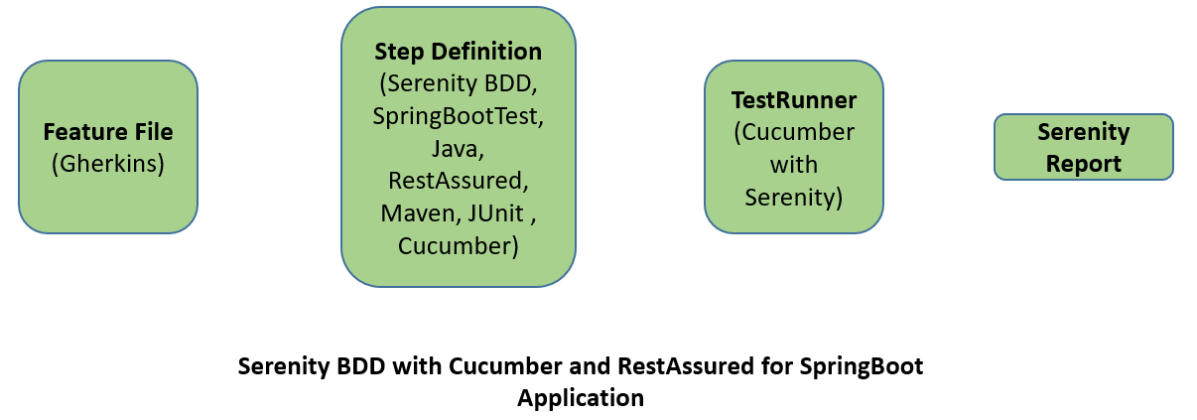
Relationship between SpringBoot, Serenity BDD, Cucumber and Rest Assured

Implementation Steps

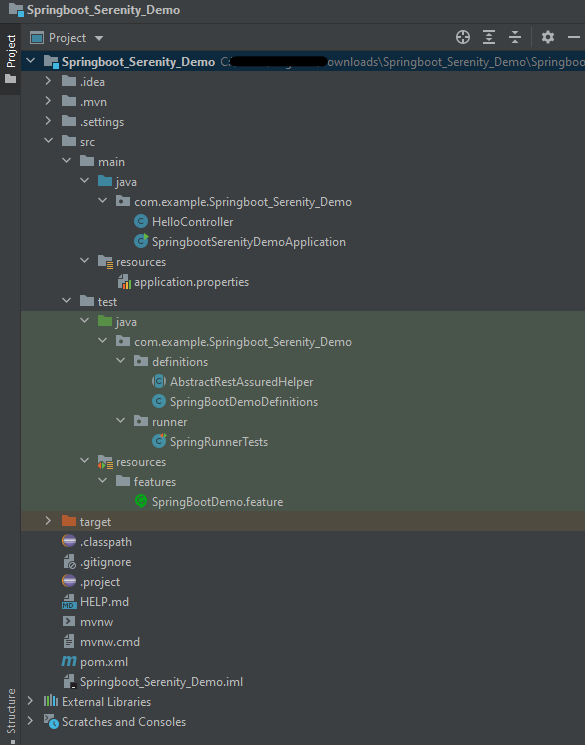
  1. Create a source folder – src/test/resources to create test scenarios in the Feature file
  2. Add SpringBoot, Serenity, Cucumber, and JUnit4 dependencies to the project
  3. Create a feature file under src/test/resources
  4. Create the StepDefinition and Helper classes.
  5. Create a Serenity Runner class in the src/test/java directory
  6. Run the tests from JUnit
  7. Run the tests from Command Line
  8. Serenity Report Generation
  9. Cucumber Report Generation

Step 1 – Create a source folder – src/test/resources

Right-click on the test directory and select New->Directory and select resources (Maven Source Directories). Create a source folder – src/test/resources to create test scenarios in the Feature file

Step 2 – Add SpringBoot, Serenity, Cucumber, and JUnit4 dependencies to the project

We have added SpringBootTest, Serenity, Cucumber, JUnit4, and JUnit Vintage.

<?xml version="1.0" encoding="UTF-8"?>
<project xmlns="http://maven.apache.org/POM/4.0.0" xmlns:xsi="http://www.w3.org/2001/XMLSchema-instance"
         xsi:schemaLocation="http://maven.apache.org/POM/4.0.0 https://maven.apache.org/xsd/maven-4.0.0.xsd">
    <modelVersion>4.0.0</modelVersion>

    <parent>
        <groupId>org.springframework.boot</groupId>
        <artifactId>spring-boot-starter-parent</artifactId>
        <version>3.1.0-SNAPSHOT</version>
        <relativePath/> <!-- lookup parent from repository -->
    </parent>

    <groupId>com.example</groupId>
    <artifactId>Springboot_Serenity_Demo</artifactId>
    <version>0.0.1-SNAPSHOT</version>
    <name>Springboot_Serenity_Demo</name>
    <description>Demo project for Spring Boot</description>

    <properties>
        <java.version>11</java.version>
        <serenity.version>3.6.12</serenity.version>
        <maven.surefire.plugin.version>3.0.0-M9</maven.surefire.plugin.version>
        <maven.failsafe.plugin.version>3.0.0-M9</maven.failsafe.plugin.version>
        <parallel.tests></parallel.tests>
        <maven.compiler.plugin.plugin>3.10.1</maven.compiler.plugin.plugin>
        <maven.compiler.source.version>11</maven.compiler.source.version>
        <maven.compiler.target.version>11</maven.compiler.target.version>
        <tags></tags>
    </properties>

    <dependencies>
        <dependency>
            <groupId>org.springframework.boot</groupId>
            <artifactId>spring-boot-starter</artifactId>
        </dependency>

        <dependency>
            <groupId>org.springframework.boot</groupId>
            <artifactId>spring-boot-starter-test</artifactId>
            <scope>test</scope>
        </dependency>

        <dependency>
            <groupId>org.springframework.boot</groupId>
            <artifactId>spring-boot-starter-web</artifactId>
        </dependency>

        <dependency>
            <groupId>org.springframework.boot</groupId>
            <artifactId>spring-boot-starter-tomcat</artifactId>
            <scope>provided</scope>
        </dependency>

        <dependency>
            <groupId>org.springframework</groupId>
            <artifactId>spring-web</artifactId>
        </dependency>

		<!-- Serenity Core -->
        <dependency>
            <groupId>net.serenity-bdd</groupId>
            <artifactId>serenity-core</artifactId>
            <version>${serenity.version}</version>
            <scope>test</scope>
        </dependency>

		<!-- Serenity With JUnit4 -->
        <dependency>
            <groupId>net.serenity-bdd</groupId>
            <artifactId>serenity-junit</artifactId>
            <version>${serenity.version}</version>
            <scope>test</scope>
        </dependency>

		<!-- Serenity With Rest Assured -->
        <dependency>
            <groupId>net.serenity-bdd</groupId>
            <artifactId>serenity-rest-assured</artifactId>
            <version>${serenity.version}</version>
            <scope>test</scope>
        </dependency>

        <!-- Serenity With Cucumber -->
        <dependency>
            <groupId>net.serenity-bdd</groupId>
            <artifactId>serenity-cucumber</artifactId>
            <version>${serenity.version}</version>
            <scope>test</scope>
        </dependency>

        <!-- Serenity With Spring -->
        <dependency>
            <groupId>net.serenity-bdd</groupId>
            <artifactId>serenity-spring</artifactId>
            <version>${serenity.version}</version>
            <scope>test</scope>
        </dependency>

        <dependency>
            <groupId>org.junit.vintage</groupId>
            <artifactId>junit-vintage-engine</artifactId>
            <scope>test</scope>
        </dependency>

    </dependencies>

    <build>
        <plugins>
            <plugin>
                <groupId>org.springframework.boot</groupId>
                <artifactId>spring-boot-maven-plugin</artifactId>
            </plugin>

            <plugin>
                <groupId>org.apache.maven.plugins</groupId>
                <artifactId>maven-surefire-plugin</artifactId>
                <version>${maven.surefire.plugin.version}</version>
                <configuration>
                    <skip>true</skip>
                </configuration>
            </plugin>
            <plugin>
                <groupId>org.apache.maven.plugins</groupId>
                <artifactId>maven-failsafe-plugin</artifactId>
                <version>${maven.failsafe.plugin.version}</version>
                <configuration>
                    <includes>
                        <include>SpringRunnerTests.java</include>
                        <include>**/Test*.java</include>
                    </includes>
                    <parallel>methods</parallel>
                    <threadCount>${parallel.tests}</threadCount>
                    <forkCount>${parallel.tests}</forkCount>
                </configuration>
                <executions>
                    <execution>
                        <goals>
                            <goal>integration-test</goal>
                            <goal>verify</goal>
                        </goals>
                    </execution>
                </executions>
            </plugin>
            <plugin>
                <groupId>org.apache.maven.plugins</groupId>
                <artifactId>maven-compiler-plugin</artifactId>
                <version>${maven.compiler.plugin.plugin}</version>
                <configuration>
                    <source>${maven.compiler.source.version}</source>
                    <target>${maven.compiler.target.version}</target>
                </configuration>
            </plugin>

            <plugin>
                <groupId>net.serenity-bdd.maven.plugins</groupId>
                <artifactId>serenity-maven-plugin</artifactId>
                <version>${serenity.version}</version>
                <configuration>
                    <tags>${tags}</tags>
                </configuration>
                <dependencies>
                    <dependency>
                        <groupId>net.serenity-bdd</groupId>
                        <artifactId>serenity-core</artifactId>
                        <version>${serenity.version}</version>
                    </dependency>
                </dependencies>
                <executions>
                    <execution>
                        <id>serenity-reports</id>
                        <phase>post-integration-test</phase>
                        <goals>
                            <goal>aggregate</goal>
                        </goals>
                    </execution>
                </executions>
            </plugin>
        </plugins>
    </build>
    <repositories>
        <repository>
            <id>spring-milestones</id>
            <name>Spring Milestones</name>
            <url>https://repo.spring.io/milestone</url>
            <snapshots>
                <enabled>false</enabled>
            </snapshots>
        </repository>
        <repository>
            <id>spring-snapshots</id>
            <name>Spring Snapshots</name>
            <url>https://repo.spring.io/snapshot</url>
            <releases>
                <enabled>false</enabled>
            </releases>
        </repository>
    </repositories>
    <pluginRepositories>
        <pluginRepository>
            <id>spring-milestones</id>
            <name>Spring Milestones</name>
            <url>https://repo.spring.io/milestone</url>
            <snapshots>
                <enabled>false</enabled>
            </snapshots>
        </pluginRepository>
        <pluginRepository>
            <id>spring-snapshots</id>
            <name>Spring Snapshots</name>
            <url>https://repo.spring.io/snapshot</url>
            <releases>
                <enabled>false</enabled>
            </releases>
        </pluginRepository>
    </pluginRepositories>

</project>

Step 3 – Create a feature file under src/test/resources

Below is an example of a feature file which shows a sample test scenario.

Feature: SpringBoot Request
   
@ReceiveCorrectResponse

   Scenario Outline: Send a valid Request to get correct response
    Given I send a request to the URL "<url>"
    Then the response will return "<response>"

   Examples:
   | url             | response                   |
   | /               | Hello World, Spring Boot!  |
   | /qaautomation   | Hello QA Automation!       |

The test class mentioned below (AbstractRestAssuredHelper) contains integration tests for the spring boot rest controller mentioned. This test class:

  • uses @SpringBootTest annotation which loads the actual application context.
  • uses WebEnvironment.RANDOM_PORT to create and run the application at some random server port.
  • @LocalServerPort gets the reference of the port where the server has started. It helps in building the actual request URIs to mimic real client interactions.

Step 4 – Create the StepDefinition and Helper classes

Below is the code of the StepDefinition and Helper class. These classes are created in the src/test/java directory.

AbstractRestAssuredHelper

import org.springframework.boot.test.context.SpringBootTest;
import org.springframework.boot.test.web.server.LocalServerPort;
import io.restassured.RestAssured;
import io.restassured.specification.RequestSpecification;
import net.serenitybdd.rest.SerenityRest;
import org.springframework.boot.test.context.SpringBootTest.WebEnvironment;

@SpringBootTest(webEnvironment = WebEnvironment.RANDOM_PORT)
public abstract class AbstractRestAssuredHelper {
     private final static String BASE_URI = "http://localhost";
 
     @LocalServerPort
     private int port;
 
     protected void configureRestAssured() {
           RestAssured.baseURI = BASE_URI;
           RestAssured.port = port;    
 
     }

     protected RequestSpecification getAnonymousRequest() {
           configureRestAssured();
           return SerenityRest.given();
     }
}

This class sends the request and receives a response after performing the GET operation. Here, the validation of the response also takes place by asserting the expected and actual response

To use Rest-assured, Serenity provides the class SerenityRest

import org.junit.Assert;
import io.cucumber.java.en.Given;
import io.cucumber.java.en.Then;
import io.restassured.response.Response;
import net.serenitybdd.rest.SerenityRest;
import net.thucydides.core.annotations.Steps;

public class SpringBootDemoDefinitions {

	@Steps
    AbstractRestAssuredHelper helper;
    private Response response;

    @Given("I send a request to the URL {string}")
    public void iSendARequest(String endpoint) throws Exception  {
         response = helper.getAnonymousRequest().contentType("application/json")
                    .header("Content-Type", "application/json").when().get(endpoint);
    }

    @Then("the response will return {string}")
    public void extractResponse(String Expected ) {
          SerenityRest.restAssuredThat(response -> response.statusCode(200));
          String Actual = response.asString();    
          Assert.assertEquals(Expected, Actual); 
    }
}

Step 5 – Create a Serenity Runner class in the src/test/java directory

We cannot run a Feature file on its own in cucumber-based framework. We need to create a Java class that will run the Feature File. It is the starting point for JUnit to start executing the tests. TestRunner class is created under src/ test/javaWhen you run the tests with serenity, you use the CucumberWithSerenity test runner. If the feature files are not in the same package as the test runner class, you also need to use the @CucumberOptions class to provide the root directory where the feature files can be found.

import org.junit.runner.RunWith;
import io.cucumber.junit.CucumberOptions;
import net.serenitybdd.cucumber.CucumberWithSerenity;

@RunWith(CucumberWithSerenity.class)
@CucumberOptions(features = "src/test/resources", tags = "", glue = "com.example.Springboot_Serenity_Demo.definitions", publish = true)

public class SpringRunnerTests {

}

Step 6 – Run the tests from JUnit

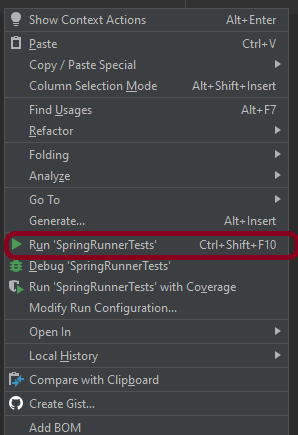
You can run the tests from SpringRunnerTests class. Right-click on the class and select Run ‘SpringRunnerTests’.

Step 7 – Run the tests from Command Line

Run the tests from the command line by using the below command

mvn clean verify

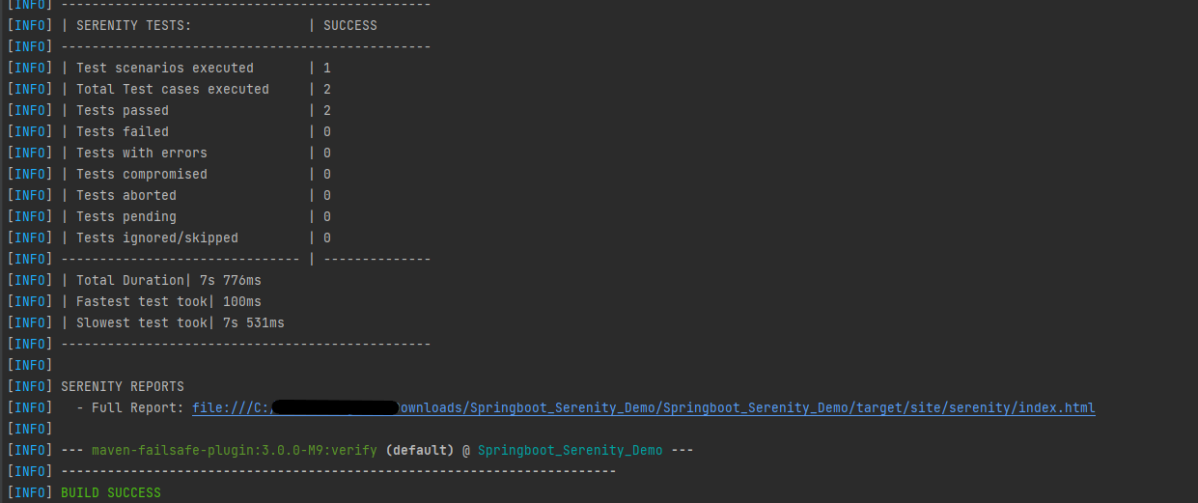
The output of the above program is

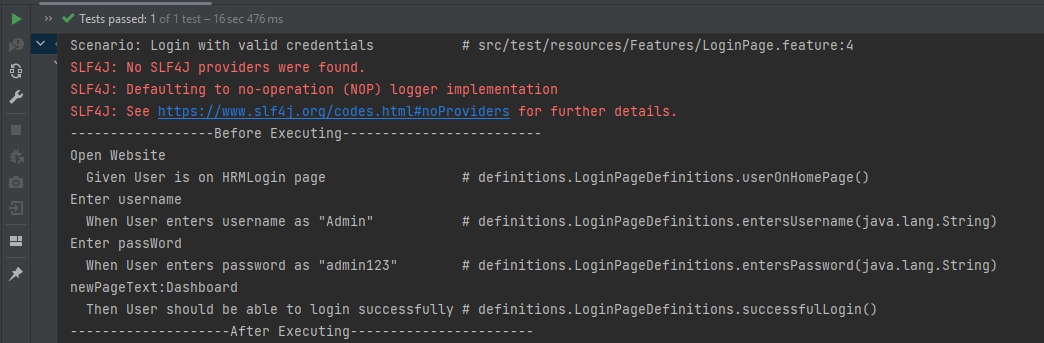
The test execution status is shown below:

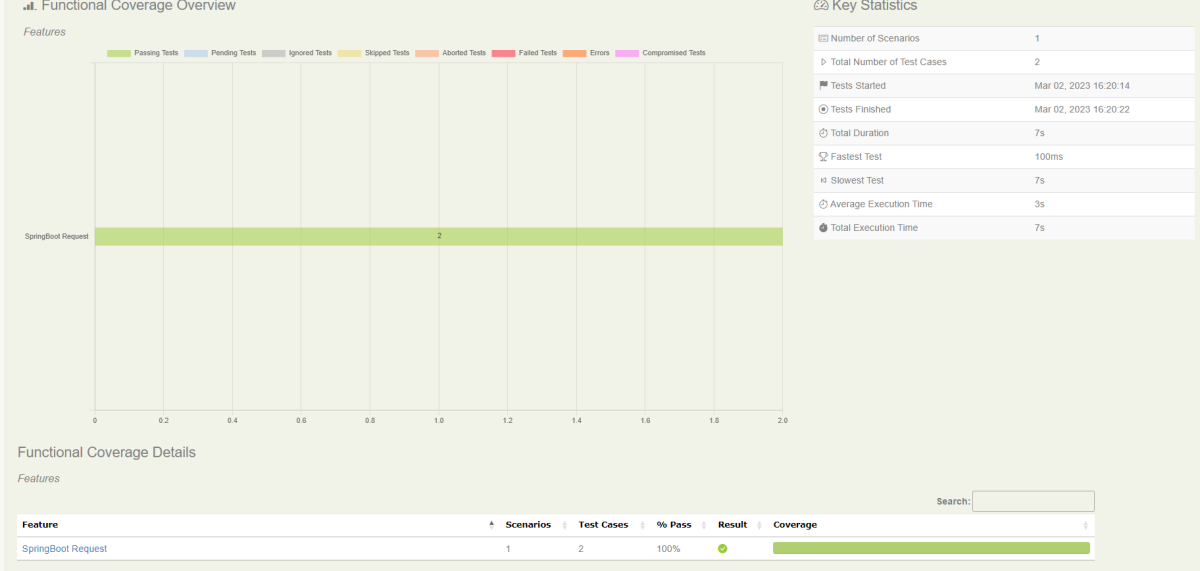
Step 8 – Serenity Report Generation

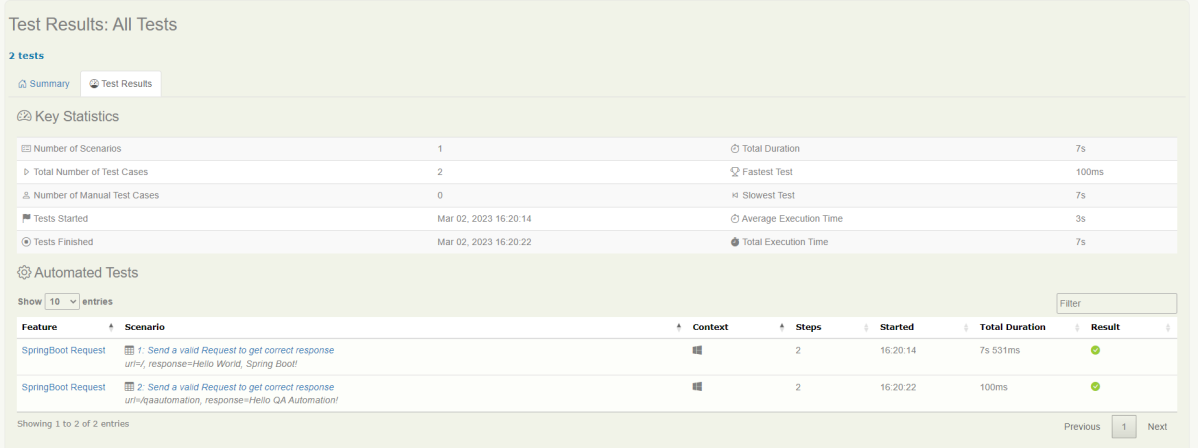
By default, the test report generated by Serenity is placed under target/site/serenity/index.html. Below is the sample Serenity Report.

Go to the Test Results tab and we can see all the test scenarios.

Step 9 – Cucumber Report Generation

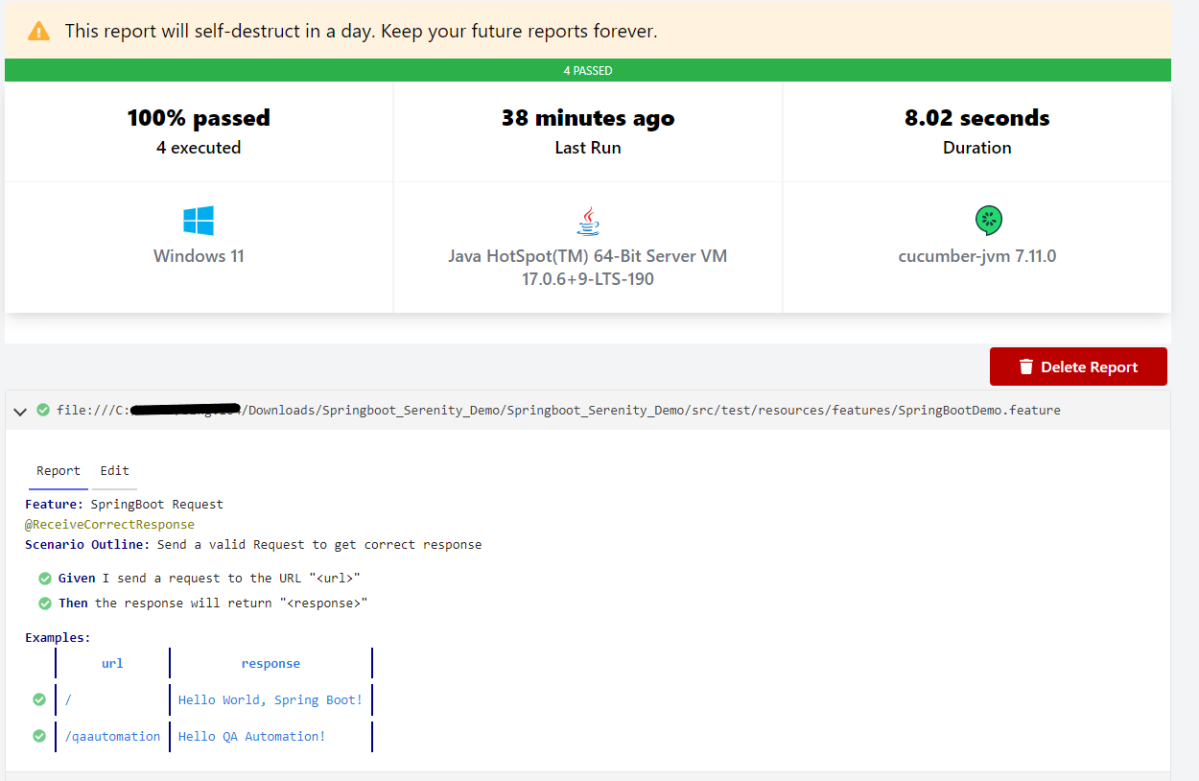
Cucumber Report can be generated by adding publish=true in SpringRunnerTests as shown in the above example. Click on the link provided in the execution status.

Cucumber Report

The next tutorial explains about the Testing of SpringBoot REST Application using Serenity BDD and Rest Assured for GET Method.

The complete code can be found in GitHub.

How To Publish ExtentReport Using Jenkins

Last Updated On

HOME

In the previous tutorial, we have seen the Integration of Allure Report with Jenkins. In this tutorial, we show you how to generate Extent Report Using Jenkins. 

Table of Contents

  1. Prerequisite
  2. Implementation Steps
    1. Create a new Maven project
    2. Build Management
    3. Select a custom workspace
    4. Select “Publish HTML reports” from “Post Build Actions”
    5. Execute the tests
    6. View the Extent Report

Prerequisite

Jenkin’s installed and started on the computer. The current Jenkins version is – 2.361.2

To generate HTML Report in Jenkins, we need to download HTML Publisher Plugin. Please refer to this tutorial to install the plugin – How to install Plugins in Jenkins.

Implementation Steps

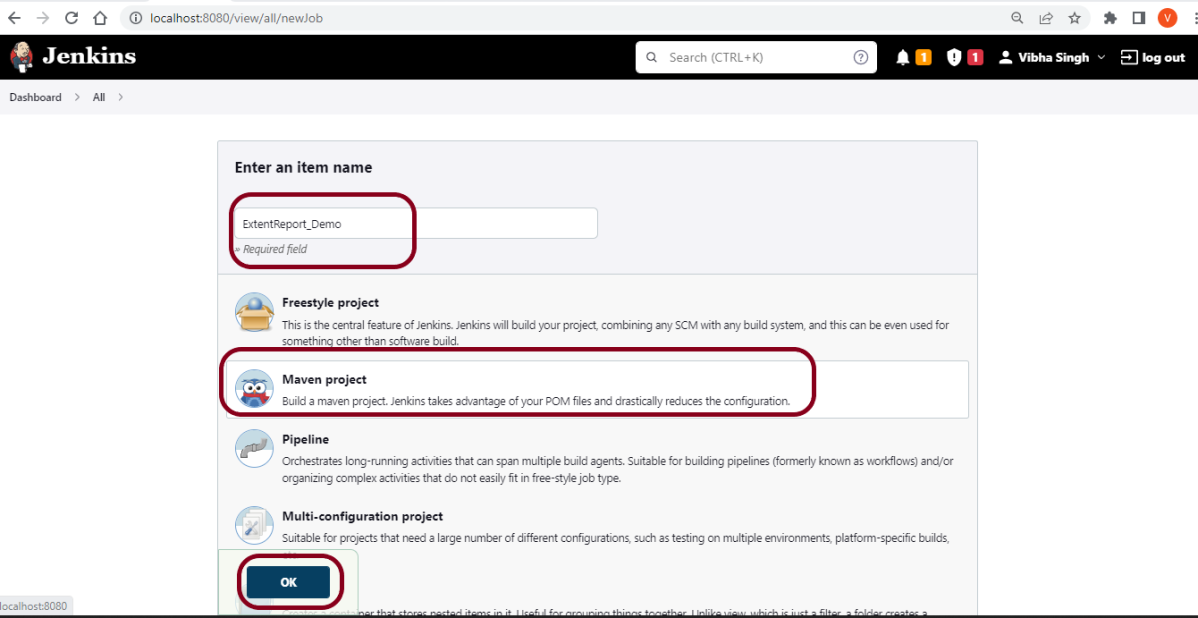
Step 1: Create a new Maven project

  1. Give the Name of the projectExtentReport_Demo
  2. Click on the Maven project. 
  3. Click on the OK button.

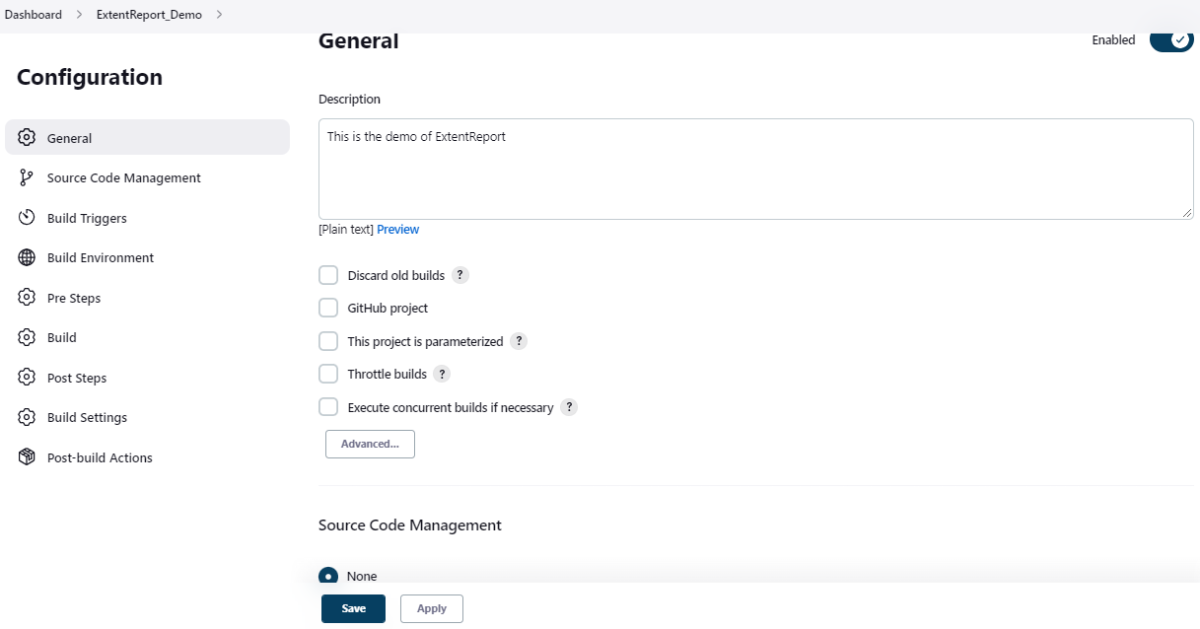
In the General section, enter the project description in the Description box.

Select Source Code Management as None if the project is locally present on the machine.

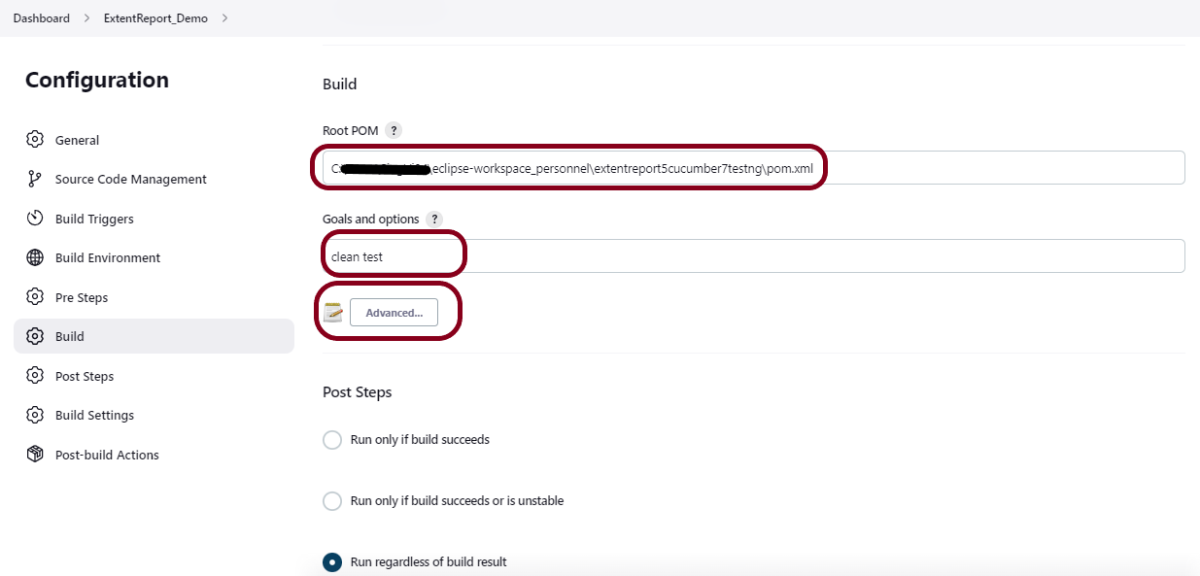
Step 2: Build Management

Go to the Build section of the new job.

  1. In the Root POM textbox, enter the full path to pom.xml
  2. In the Goals and options section, enter “clean test site”

Here, I have used the Selenium project with JUnit, so to see the complete project, please refer to this tutorial –  How to generate JUnit4 Report.

Click on the Advanced button.

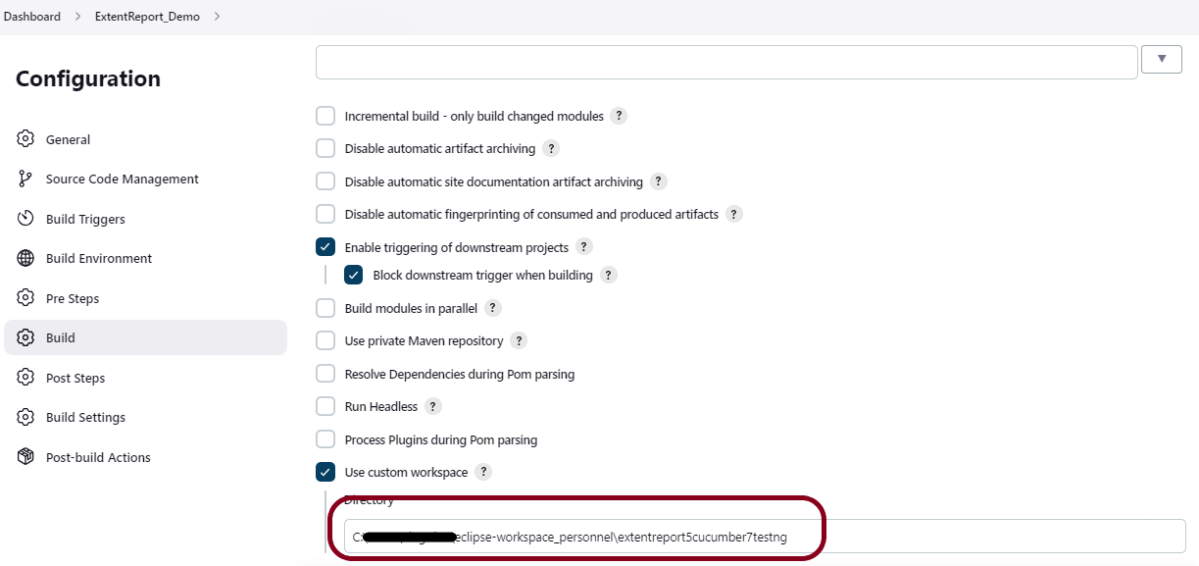
Step 3: Select a custom workspace

Mention the full path of the project in the directory.

Step 4: Select “Publish HTML reports” from “Post Build Actions”

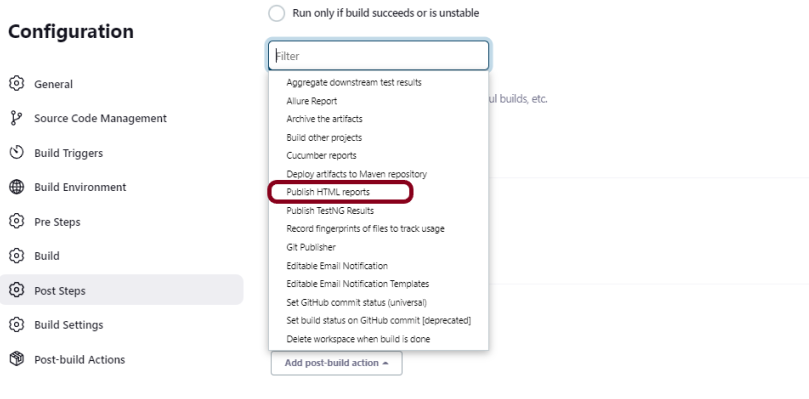
Scroll down to “Post Build Actions” and click on the “Add Post Build Actions” drop-down list. Select “Publish HTML reports“. 

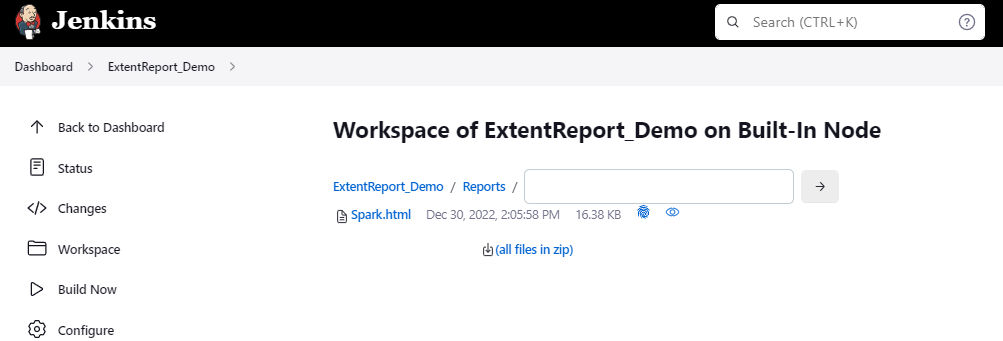
If you want to see where the report is saved in Jenkins, go to the Dashboard ->ExtentReport_Demo project -> Workspace ->target -> Reports -> Spark.html.

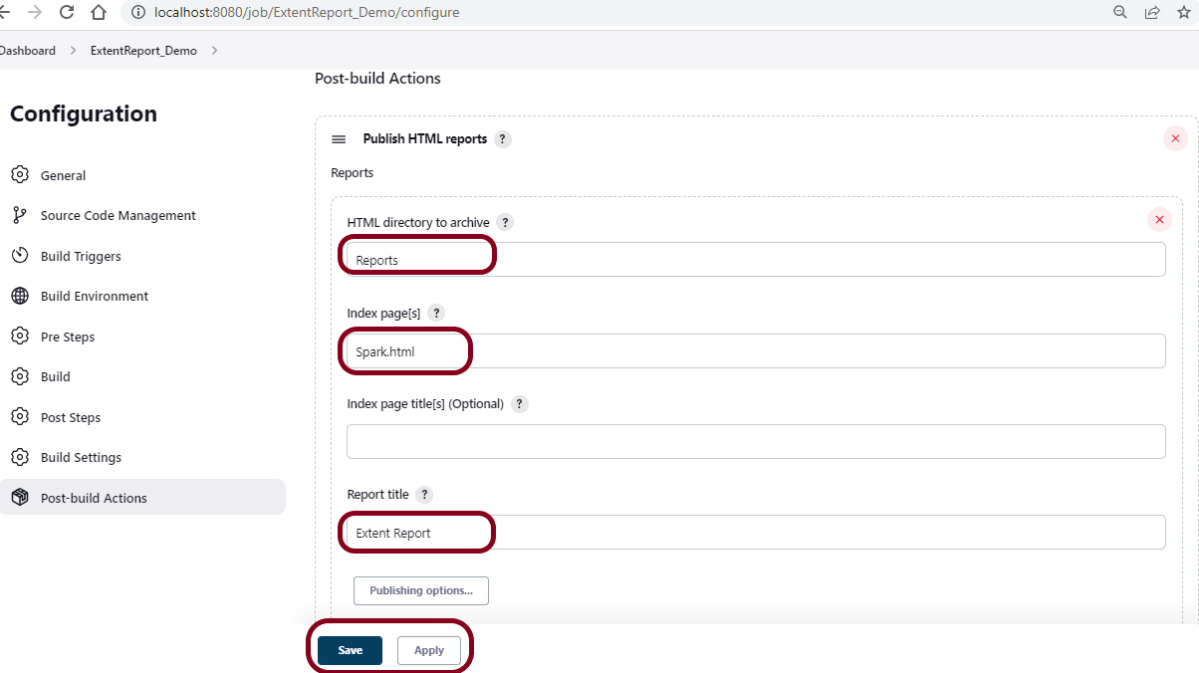
Enter the HTML directory to archive – Reports, Index page[s] – Spark.html, and Report title – Extent Report.

Click on the Apply and Save buttons.

We have created a new Maven project “ExtentReport_Demo” with the configuration to run the Cucumber, and Selenium with TestNG Tests and also to generate HTML Report after execution using Jenkins.

Step 5: Execute the tests

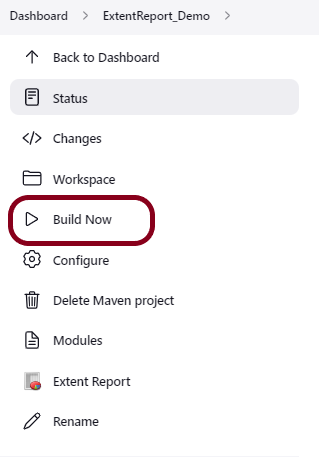
Let’s execute it now by clicking on the “Build Now” button.

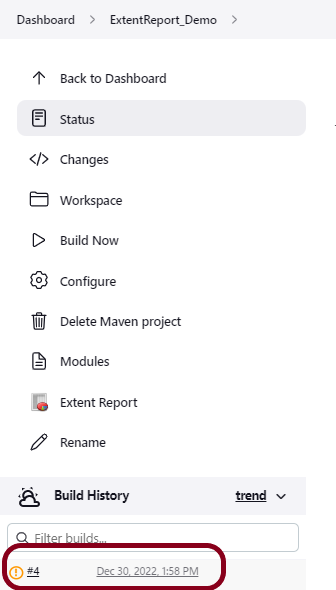
Right-click on Build Number (here in my case it is #4).

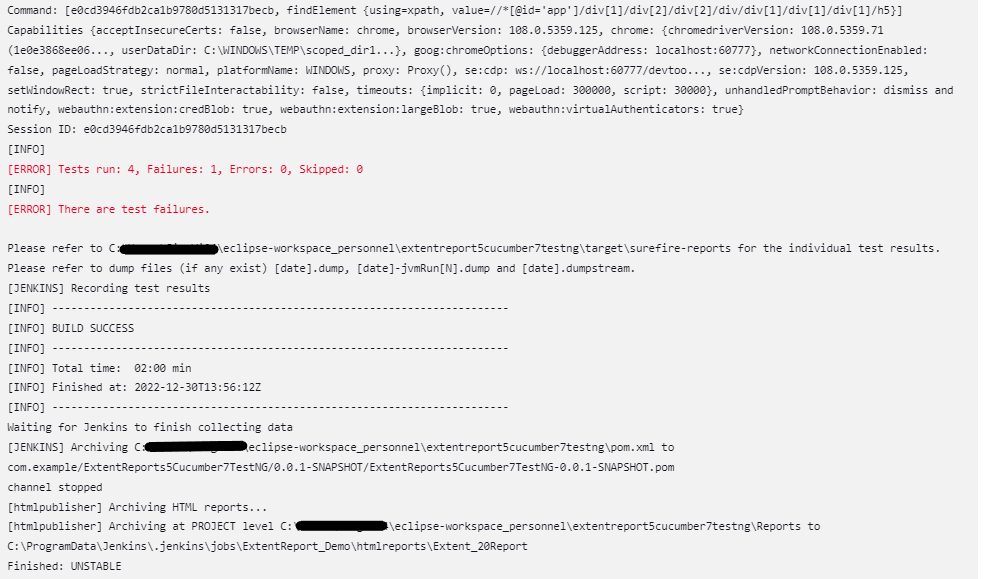
Click on Console Output to see the result.

Step 6: View the Extent Report

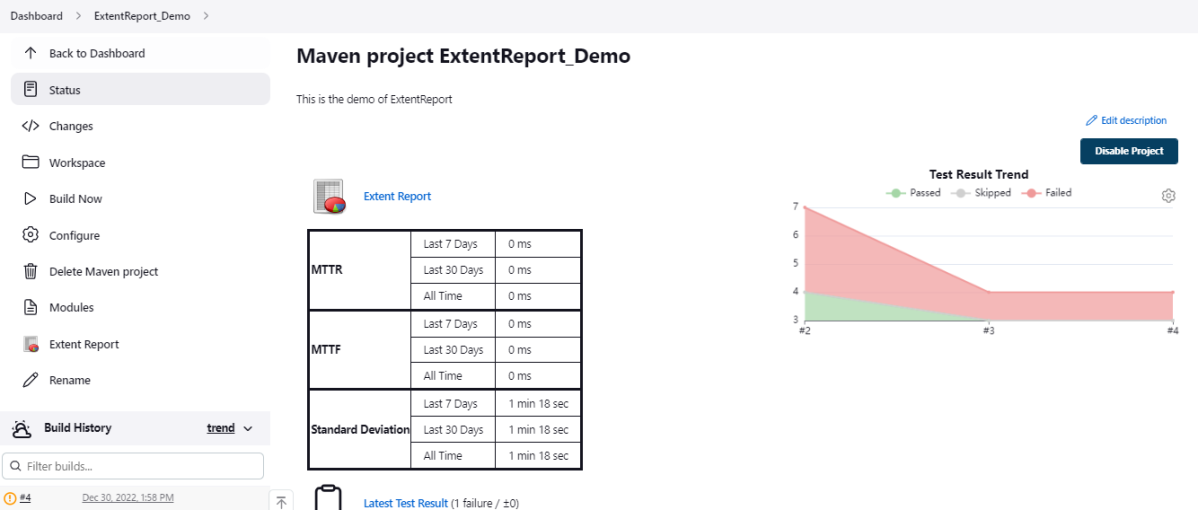
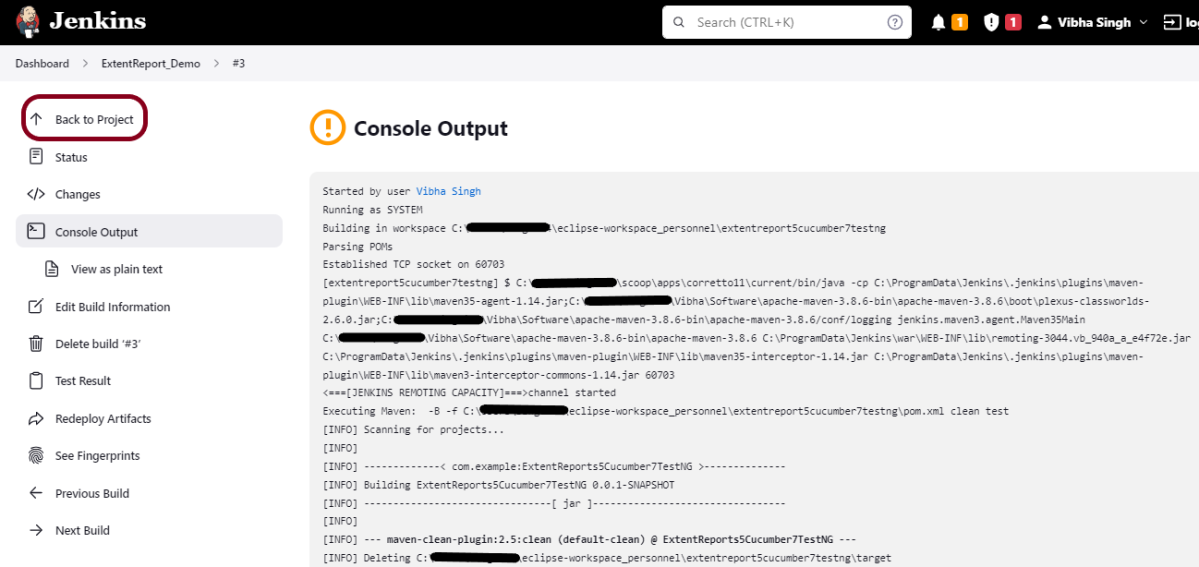
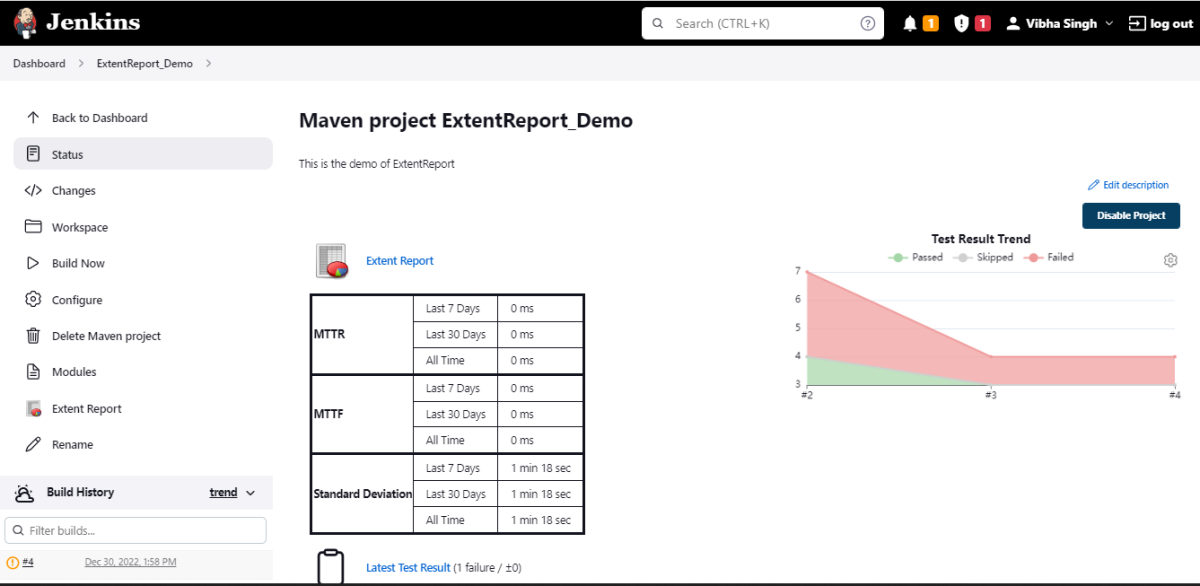
Once the execution is completed, click on go “Back to Project“, and we can see a link to view the “Extent Report“.

We can see here that the Extent Report link is displayed in the Console.

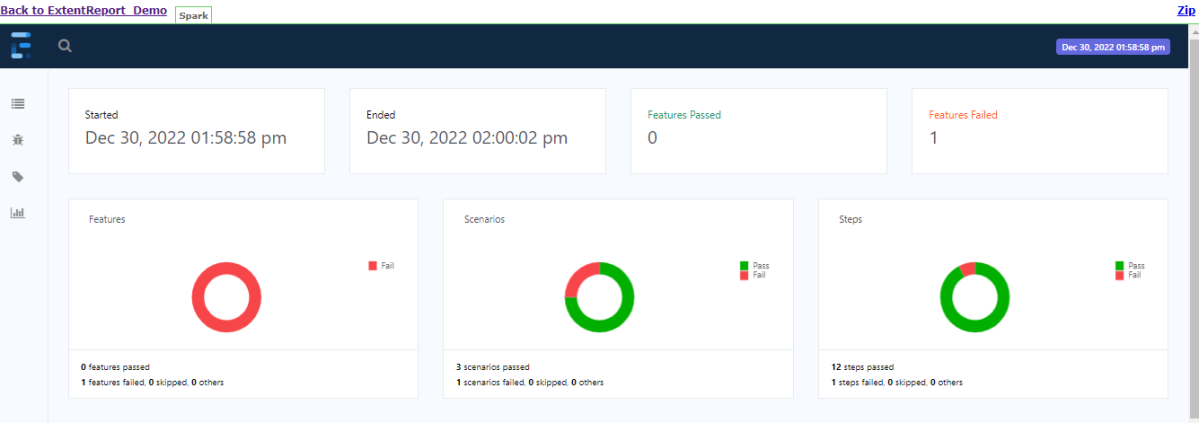
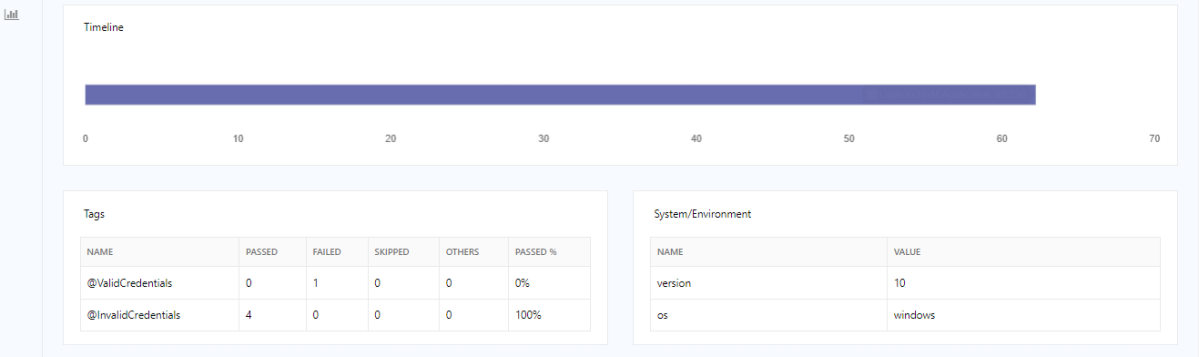
Below is the Extent Report generated in Jenkins.

Tip: If you don’t see the Report UI intact, then you need to configure a simple Groovy script. For that, go to Dashboard–>Manage Jenkins–>Script Console and add the script as:

System.setProperty("hudson.model.DirectoryBrowserSupport.CSP","")

Congratulations on making it through this tutorial and hope you found it useful! Happy Learning!! Cheers!!
Additional Tutorials

Serenity with Jenkins
Integration of Allure Report with Jenkins
How to generate HTML Reports in Jenkins
How to create Jenkins pipeline for Serenity tests
How to create Jenkins pipeline for Cucumber tests

How to create JUnit Report in Jenkins

Last Updated On

HOME

In this tutorial, we show you how to generate JUnit Report Using Jenkins. In the previous tutorial, we generated a TestNG Report using Jenkins.

Table of Contents

  1. Prerequisite
  2. Implementation Steps
    1. Start the Jenkins server
    2. Create a new FreeStyle project
    3. Build Steps
    4. Provide the full path to pom.xml
    5. Select “Publish JUnit test result report” from “Post Build Actions”
    6. Execute the tests
    7. View the JUnit Report

Prerequisite

3. To generate JUnit Report, please refer to this tutorial to get the code – How to generate JUnit4 Report.

4. To generate a JUnit Report in Jenkins, we need to download the JUnit Plugin. Please refer to this tutorial to install the plugin – How to install Plugins in Jenkins

Implementation Steps

Step 1: Start the Jenkins server

Start the Jenkins server open the browser and navigate to the below endpoint

http://localhost:8080/

Step 2: Create a new FreeStyle project

  1. Give the Name of the project – JUnitReport_Demo
  2. Click on the Freestyle project. 
  3. Click on the OK

In the General section, enter the project description in the Description box.

Select a custom workspace and provide the full path of the project.

Select Source Code Management as None if the project is locally present on the machine

Step 3: Build Steps

In the Build Steps section, select Invoke top-level Maven targets.

The Build Steps window will extend. Mention the below details:-

Maven Version – MAVEN_HOME

Goals – clean test

Click on the Advanced button.

Step 4: Provide the full path to pom.xml

Specify the full path to pom.xml in POM.

Step 5: Select “Publish JUnit test result report” from “Post Build Actions”

Scroll down to “Post Build Actions” and click on the “Add Post Build Actions” drop-down list. Select Publish JUnit test result report“. 

Enter the Result Path as “**/target/surefire-reports/*.xml”.

Click on the Apply and Save buttons.

We have created a new Maven project JUnitReport_Demo” with the configuration to run the Selenium with JUnit Tests and also to generate JUnit Report after execution using Jenkins.

Step 6: Execute the tests

Let’s execute it now by clicking on the “Build Now” button. 

Right-click on Build Number (here in my case it is #2).

Click on Console Output to see the result.

Step 7: View the JUnit Report

Once the execution is completed, we could see a link to view the “Test Report“.

Below is the summary of the Test Execution.

This way, we could generate JUnit Report using Jenkins.

Congratulations on making it through this tutorial and hope you found it useful! Happy Learning!! Cheers!!
Additional Tutorials

Jenkins GitLab Integration
How to create Jenkins pipeline for Selenium tests
How to create Jenkins pipeline for Serenity tests
How to generate TestNG Report in Jenkins
How to create Jenkins pipeline for Extent Report
How to run parameterized Selenium tests in Jenkins