4. To generate a JUnit Report in Jenkins, we need to download the JUnit Plugin. Please refer to this tutorial to install the plugin – How to install Plugins in Jenkins
Implementation Steps
Step 1: Start the Jenkins server
Start the Jenkins server open the browser and navigate to the below endpoint
In the General section, enter the project description in the Description box.
Select a custom workspace and provide the full path of the project.
Select Source Code Management as None if the project is locally present on the machine
Step 3: Build Steps
In the Build Steps section, select Invoke top-level Maven targets.
The Build Steps window will extend. Mention the below details:-
Maven Version – MAVEN_HOME
Goals – clean test
Click on the Advanced button.
Step 4: Provide the full path to pom.xml
Specify the full path to pom.xml in POM.
Step 5: Select “Publish JUnit test result report” from “Post Build Actions”
Scroll down to “Post Build Actions” and click on the “Add Post Build Actions” drop-down list. Select “Publish JUnit test result report“.
Enter the Result Path as “**/target/surefire-reports/*.xml”.
Click on the Applyand Save buttons.
We have created a new Maven project “JUnitReport_Demo” with the configuration to run the Selenium with JUnit Tests and also to generate JUnit Report after execution using Jenkins.
Step 6: Execute the tests
Let’s execute it now by clicking on the “Build Now” button.
Right-click on Build Number (here in my case it is #2).
Click on Console Output to see the result.
Step 7: View the JUnit Report
Once the execution is completed, we could see a link to view the “Test Report“.
Below is the summary of the Test Execution.
This way, we could generate JUnit Report using Jenkins.
Congratulations on making it through this tutorial and hope you found it useful! Happy Learning!! Cheers!!
The two most used classes for managing Excel Workbooks are:
HSSFWorkbook – These class methods are used to read/write data to Microsoft Excel file in .xls format. It is compatible with MS-Office versions 97–2003.
XSSFWorkbook – These class methods are used to read-write data to Microsoft Excel in .xls or .xlsx format. It is compatible with MS-Office versions 2007 or later.
How to read Excel (.xlsx) from specific cell value?
Step 1 – To locate the location of file.
File file = new File("C:\\Selenium_ReadTestData.xlsx");
Import File from package
import java.io.File;
Step 2– Instantiate FileInputStream to read from the file specified.
Here getRow(0) will look into the first row, and getCell(0) will look into the first column, i.e. A1.
To retrieve the String value we are making use of getStringCellValue in the end.
Below is the Excel which I’m using to read the data as mentioned below:-
We want to get the value of Row 1, Cell B
We want to get the value of Row 3, Cell A
Let us create a program for the same scenario:
import java.io.FileInputStream;
import java.io.IOException;
import org.apache.poi.xssf.usermodel.XSSFSheet;
import org.apache.poi.xssf.usermodel.XSSFWorkbook;

public class ReadSpecificData {

	public static void main(String[] args) {

     String path = "C:\\Selenium_ReadTestData.xlsx";

		try {

			//Create an object of FileInputStream class to read excel file
			FileInputStream fis = new FileInputStream(path);

			//Create object of XSSFWorkbook class
			XSSFWorkbook wb = new XSSFWorkbook(fis);

			//Read excel sheet by sheet name
			XSSFSheet sheet1 = wb.getSheet("Read_TestData");

			//Get data from specified cell
			System.out.println(sheet1.getRow(1).getCell(1).getStringCellValue());
			System.out.println(sheet1.getRow(3).getCell(0).getStringCellValue());

		} catch (IOException e) {
			e.printStackTrace();
		}

	}

}
The output of the above program is
How to read the entire Excel sheet?
To read the complete data from Excel, you can iterate over each cell of the row, present in the sheet.
To get the last and first-row numbers, there are two methods in the sheet class:
getLastRowNum()
getFirstRowNum()
int rowCount=sheet.getLastRowNum()-sheet.getFirstRowNum();
Once you get the row, you can iterate over the cells present in the row by using the total number of cells, which we can calculate using getLastCellNum() method:
int cellcount=sheet.getRow(1).getLastCellNum();
Below is the entire program to read complete Excel.
import java.io.FileInputStream;
import java.io.IOException;
import org.apache.poi.ss.usermodel.Sheet;
import org.apache.poi.ss.usermodel.Workbook;
import org.apache.poi.xssf.usermodel.XSSFWorkbook;

public class ReadExcelFile {
	public static  void main(String args[]) throws IOException {

		String path = "C:\\Selenium_ReadTestData.xlsx";

		//Create an object of FileInputStream class to read excel file
		FileInputStream fis = new FileInputStream(path);

		//Create object of XSSFWorkbook class
		Workbook workbook = new XSSFWorkbook(fis);

		//Read excel sheet by sheet name
		Sheet sheet = workbook.getSheet("Read_TestData");


		//Find number of rows in excel file
	    int rowCount=sheet.getLastRowNum()-sheet.getFirstRowNum();
	    System.out.println("row count:"+rowCount);

		 //iterate over all the row to print the data present in each cell.
	    for(int i=0;i<=rowCount;i++){

	        //get cell count in a row
	        int cellcount=sheet.getRow(i).getLastCellNum();

	        //iterate over each cell to print its value
	        for(int j=0;j<cellcount;j++){
	            System.out.print(sheet.getRow(i).getCell(j).getStringCellValue().toString() +"||");
	        }
	        System.out.println();
		}
	}
}
The output of the above program is
That’s it! We are done.
Congratulations on making it through this tutorial and hope you found it useful! Happy Learning!! Cheers!!
The previous tutorial explained the Integration of Cucumber with Selenium and TestNG. Sometimes, inconsistent test results are common as a result of an unstable environment like network issue or Database down and soon. A few tests may fail for no obvious reason and then rerun successfully. We are sometimes required to run only failed test cases after bug fixes to verify fixes quickly. We will learn how to rerun failed test cases in the Cucumber with TestNG project in this post.
Cucumber provides a rerun plugin option in the Runner class. This option generates a file. The file contains information about the failed tests.
Now, let us add a rerun plugin to the Cucumber Runner class. Here, we are creating a failedrerun.txt file that contains the information about the failed test. This file will be created under the target folder.
import io.cucumber.testng.AbstractTestNGCucumberTests;
import io.cucumber.testng.CucumberOptions;

@CucumberOptions(tags = "", features = "src/test/resources/features/LoginPage.feature",
        glue = "com.example.definitions",
        plugin =  {
        "pretty",
        "rerun:target/rerun.txt" // Saves paths of failed scenarios
    }
)
public class RunnerTests extends AbstractTestNGCucumberTests {
}
Create a Second Runner Class
The next step is to run failed test scenarios existing in the text file. We need to create a class similar to our runner class. This class will contain the location of the file that we want to execute. It will rerun our failed scenarios. In the ‘features’ variable, you need to mention the failedrerun.txt file, and don’t forget that you must mention the ‘@’ symbol before the file path.
import io.cucumber.testng.AbstractTestNGCucumberTests;
import io.cucumber.testng.CucumberOptions;

@CucumberOptions(tags = "",
        features = "@target/rerun.txt",
        glue = "com.example.definitions",
        plugin =  {
                "pretty"
        }
)

public class RunnerTestsFailed extends AbstractTestNGCucumberTests {
}
Mention both Test Runner details in the testng.xml.
<?xml version="1.0" encoding="UTF-8"?>
<!DOCTYPE suite SYSTEM "https://testng.org/testng-1.0.dtd">
<suite name="Suite">
    <test  name="Cucumber with TestNG Test">
        <classes>
            <class name="com.example.runner.RunnerTests"/>
            <class name="com.example.runner.RunnerTestsFailed"/>
        </classes>
    </test> <!-- Test -->
</suite> <!-- Suite -->
Run the tests using the below-mentioned command
mvn clean test
After running the tests from the command line, first, all the tests will be executed. If any test fails, a failedrerun.txt file will be generated that includes the details about the failed tests.
In the below screenshot, we can see that a scenario starting at line 25 has failed.
The first round of execution ends. Then, Cucumber Runner goes to the second runner. It runs the failed tests that are mentioned in failedrerun.txt.
We can see that 2 separate reports are generated here.
The first Cucumber Report shows that out of 5 tests, 1 test failed.
The second Cucumber Report shows that the one failed test is rerun again, and it again failed.
In the last tutorial, I explained How to test PUT Request using Rest Assured. In this tutorial, I will automate a DELETE Request using Rest Assured. I will verify the status code, line of Status, and content of the Response.
To set up a basic Rest Assured Maven Project, click here and Gradle project, click here.
Add the below-mentioned dependencies to the pom.xml.
An HTTP DELETE method is used to delete an existing resource from the collection of resources. The DELETE method requests the origin server to delete the resource identified by the Request-URI. On successful deletion of a resource, it returns 200 (OK) and 204 (No Content) status codes. It may return as 202 (Accepted) status code if the request is queued. To learn more about Rest API, please click here.
Below are the steps to test a DELETE Request using Rest Assured:
The steps to test the DELETE request are similar to any API request like GET, POST, or PUT. To know about the steps and various imports used in the below example in detail, please refer to the tutorial for POST Request.
Let’s see the existing details of an Employee ID 3 using Postman:
Let’s write DELETE request in REST Assured in Non BDD Format for id 3:-
import io.restassured.RestAssured;
import io.restassured.response.Response;
import io.restassured.response.ValidatableResponse;
import io.restassured.specification.RequestSpecification;
import org.junit.Test;
import static org.hamcrest.CoreMatchers.equalTo;

public class Delete_NonBddDemo {

    RequestSpecification requestSpecification;
    Response response;
    ValidatableResponse validatableResponse;

    @Test
    public void deleteUser() {

        RestAssured.baseURI = "https://dummy.restapiexample.com/api";

        // Create a request specification
        requestSpecification = RestAssured.given();

        // Calling DELETE method
        response = requestSpecification.delete("/v1/delete/3");

        // Let's print response body.
        String resString = response.prettyPrint();

        /*
         * To perform validation on response, we need to get ValidatableResponse type of
         * response
         */
        validatableResponse = response.then();

        // Get status code
        validatableResponse.statusCode(200);

        // It will check if status line is as expected
        validatableResponse.statusLine("HTTP/1.1 200 OK");

        // Check response - message attribute
        validatableResponse.body("message", equalTo("Successfully! Record has been deleted"));

    }
}
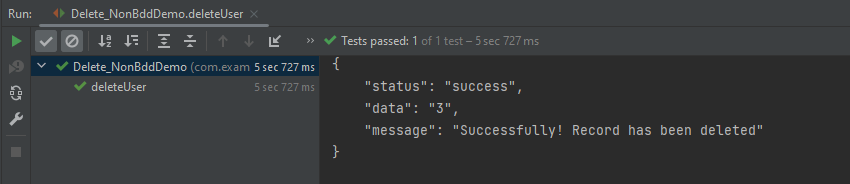
The output of the above program is
Let’s write DELETE request in REST Assured in BDD Format:–
import io.restassured.http.ContentType;
import io.restassured.response.ValidatableResponse;
import org.junit.Test;
import static io.restassured.RestAssured.given;
import static org.hamcrest.CoreMatchers.equalTo;

public class Delete_BDDDemo {

    ValidatableResponse validatableResponse;

    @Test
    public void deleteUser() {

        validatableResponse = given()
                .baseUri("https://dummy.restapiexample.com/api/v1/delete/3")
                .contentType(ContentType.JSON)
                .when()
                .delete()
                .then()
                .assertThat().statusCode(200)
                .body("message", equalTo("Successfully! Record has been deleted"));

        System.out.println("Response :" + validatableResponse.extract().asPrettyString());

    }

}
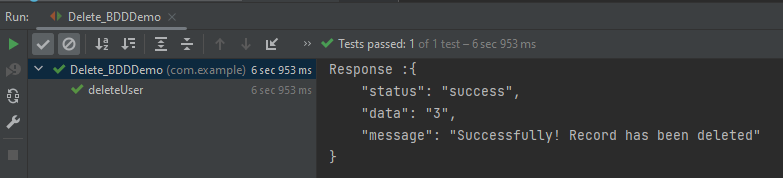
The output of the above program is
Explanation:
1. GIVEN: Specifies the initial conditions or setup for the test.
In this tutorial, I will test a SOAP Service using Rest Assured. I will verify the status code, line of Status, and content of the Response. To set up a basic Rest Assured Maven Project, click here and Gradle project, click here.
Add the below-mentioned dependencies to the pom.xml.
SOAP is an XML-based protocol for accessing web services over HTTP. It has some specifications that could be used across all applications.
SOAP messages are XML documents that are comprised of the following three basic building blocks:
The SOAP Envelope encapsulates all the data in a message and identifies the XML document as a SOAP message.
The Header element contains additional information about the SOAP message. This information could be authentication credentials, for example, which are used by the calling application.
The Body element includes the details of the actual message that needs to be sent from the web service to the calling application. This data includes call and response information.
Implementation Steps:
Step 1 – I have created an XML file for the soap request body in the project resource folder. “Number.xml” is the name of the file.
Step 2 – Specify the base URL to the RESTful web service using the RestAssuredclass.
RestAssured.baseURI = "http://www.dneonline.com";
Step 3 – The response to a request made by REST Assured.
Response response = given()
Response is imported from package:
import io.restassured.response.Response;
Step 4 – Set the content type to specify the format in which the request payload will be sent to the server. Here, the Content-Type is “text/xml; charset=utf-8”.
A Request Body is created by using the below snippet:
requestBody = new File(getClass().getClassLoader().getResource("Number.xml").getFile());
Step 6 – Send the POST request to the server and receive the response of the request made by REST Assured. This response contains every detail returned by hitting request i.e. response body, response headers, status code, status lines, cookies, etc. The response is imported from package:
import io.restassured.response.Response;
Step 7 – To validate a response like status code or value, we have used the below code
An assertion is a way to verify that the expected result and the actual result match or not in the test case. A test is considered successful ONLY if it is completed without throwing any exceptions. If the current value and the expected value match then the assertion passes and when the assertion passes nothing happens. But when an assertion fails, it will fail the test case.
There are various ways to perform assertions in API Testing. For API Testing, we are using Rest Assured, which uses either Hamcrest or JUnit assertions. We are going to discuss Hamcrest Assertions here.
What is Hamcrest?
Hamcrest is a framework for writing matcher objects, allowing ‘match’ rules to be defined declaratively. We do not need to add Hamcrest dependency explicitly as the Rest-Assured 4.3.3 version includes itself. To learn more about Hamcrest, please refer to this link.
We need to add the below dependency to use Hamcrest in the project. Please use the latest version from here
equalTo – It checks whether the extracted string from JSON is equal to the expected string.
equalToIgnoringCase – It checks if the extracted string from JSON matches the expected string. The comparison does not consider case (small or capital).
equalToIgnoringWhiteSpace – It checks if the extracted string from JSON matches the expected string. It takes into account the white spaces.
containsString– It checks whether the extracted string from JSON contains the expected string as a substring.
startsWith– It checks whether the extracted string from JSON is starting with a given string or character.
endsWith – It checks whether the extracted string from JSON is ending with a given string or character.
Below assertions are imported from the package shown below:-
Below are examples to show the use of collection-related assertions.
import io.restassured.RestAssured;
import io.restassured.http.ContentType;
import org.testng.annotations.Test;
import static org.hamcrest.Matchers.is;
import static org.hamcrest.Matchers.nullValue;

public class HamcrestNullAssertion {

   public String endpoint = "https://restful-booker.herokuapp.com/booking/1";

    @Test
    public void nullAssertion() {
        RestAssured.given().contentType(ContentType.JSON)
                .when().get(endpoint)
                .then().body("totalprice1", is(nullValue()));
    }
}
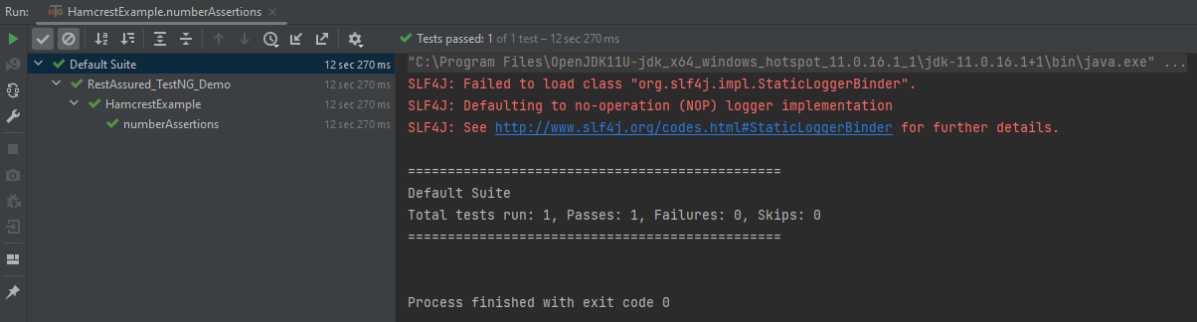
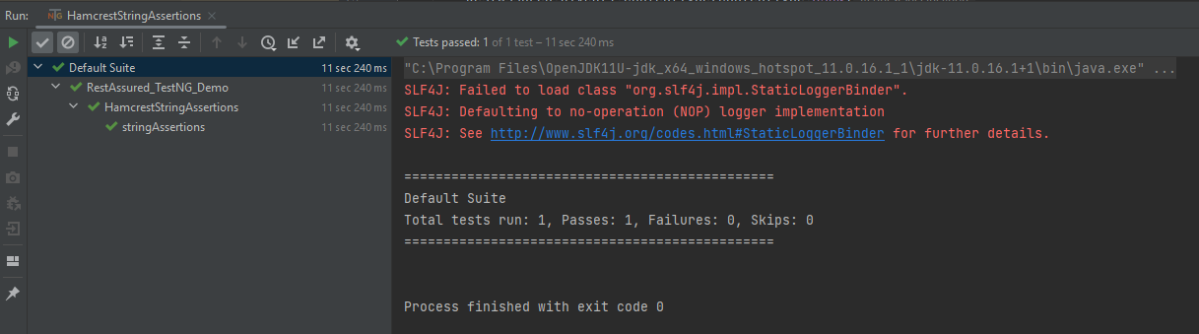
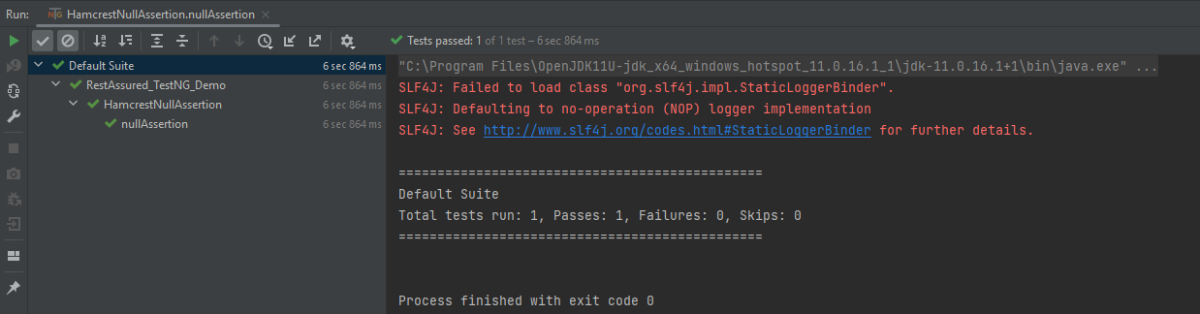
The output of the above program is
hasKey
It checks whether the extracted map has an expected key.
import io.restassured.RestAssured;
import io.restassured.http.ContentType;
import org.testng.annotations.Test;
import static org.hamcrest.Matchers.hasKey;

public class HamcrestHasKeyAssertion {

    public String endpoint = "https://restful-booker.herokuapp.com/booking/1";

    @Test
    public void collectionAssertions() {

        RestAssured.given().contentType(ContentType.JSON)
                .when().get(endpoint)
                .then().body("bookingdates",hasKey("checkin"));

    }
}
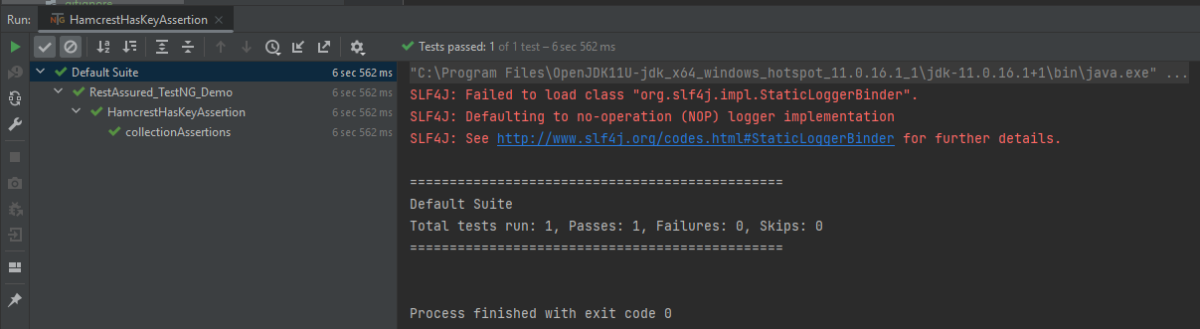
The output of the above program is
Not Assertion
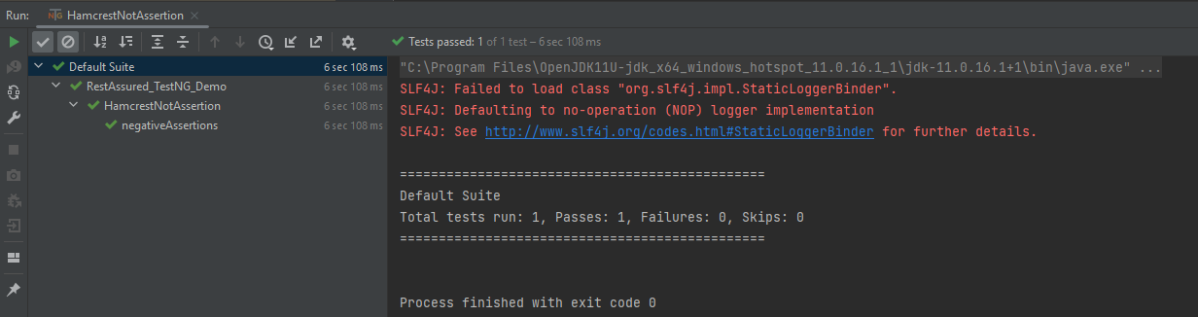
The not assertion inverts the meaning of the other assertions. For example, if you want to perform negative assertions, then we can use any assertions with NOT.
The below assertion is imported from the package shown below:-
Below are examples to show the use of negative assertions.
import static org.hamcrest.Matchers.equalTo;
import static org.hamcrest.Matchers.not;
import io.restassured.RestAssured;
import io.restassured.http.ContentType;
import org.testng.annotations.Test;
public class HamcrestNotAssertion {
public String endpoint = "https://restful-booker.herokuapp.com/booking/1";
@Test
public void negativeAssertions() {
RestAssured.given().contentType(ContentType.JSON)
.when().get(endpoint)
.then().body("totalprice",not(equalTo(874)));
}
}
The output of the above program is
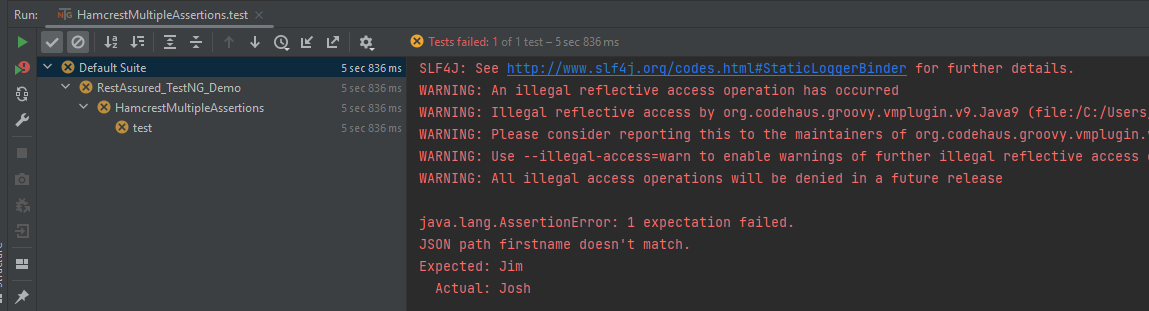
Multiple Assert Statements
In the below example, all 3 assertions will fail. It will only execute the first assertion. If the first assertion fails, then other assertions will not be executed.
import io.restassured.RestAssured;
import io.restassured.http.ContentType;
import org.testng.annotations.Test;
import static org.hamcrest.Matchers.equalTo;

public class HamcrestMultipleAssertions {

    public String endpoint = "https://restful-booker.herokuapp.com/booking/1";

    @Test
    public void test1() {
        RestAssured.given().contentType(ContentType.JSON)
                .when().get(endpoint).then()
                .body("firstname", equalTo("Jim"), // will fail
                        "lastname", equalTo("Smith"), // will fail
                        "totalprice", equalTo(314)); // will fail
    }

}
The output of the above program is
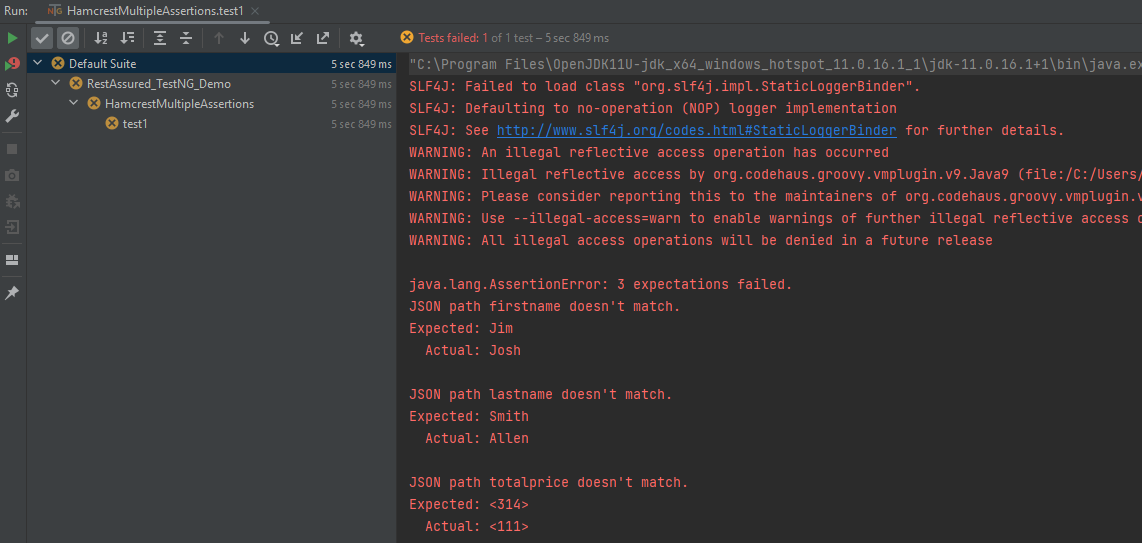
To execute all the assertions in the test case, combine them into a single body. This should be done just like it is shown below. You can see that all the assertions failed, and they are shown in the response.
import io.restassured.RestAssured;
import io.restassured.http.ContentType;
import org.testng.annotations.Test;
import static org.hamcrest.Matchers.equalTo;

public class HamcrestMultipleAssertions {

    public String endpoint = "https://restful-booker.herokuapp.com/booking/1";

    @Test
    public void test1() {
        RestAssured.given().contentType(ContentType.JSON)
                .when().get(endpoint).then()
                .body("firstname", equalTo("Jim"), // will fail
                        "lastname", equalTo("Smith"), // will fail
                        "totalprice", equalTo(314)); // will fail
    }

}
The output of the above program is
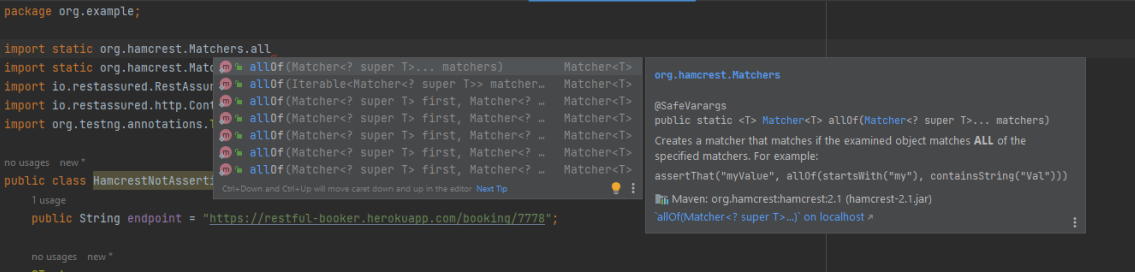
I have tried to show the use of a few of the most commonly used assertion methods. There are many more methods available in Hamcrest package. To know about other methods, write import static org.hamcrest.Matchers and add (.) at the end, it will show the list of all the methods available in Hamcrest.
To know more details related to Hamcrest assertion, you can refer the official website – Hamcrest
Points to Remember:
Hamcrest is commonly used in JUnit, RestAssured, and Mockito for API and unit testing
It offers a variety of matchers for different data types, such as: Numbers: greaterThan(), lessThan(), Strings: containsString(), startsWith(), endsWith()
You can combine multiple matchers using logical operators: assertThat(score, allOf(greaterThan(50), lessThan(100)))
Encourages fluent and expressive test writing with assertThat() instead of assertEquals()
We are done! Congratulations on making it through this tutorial and hope you found it useful! Happy Learning!!
JUnit 4 has a feature called parameterized tests. Parameterized test means to execute the test multiple times with different sets of test data. This eliminates the redundancy of the code. This helps the developers to save time by eliminating the need to copy the code multiple times. Parameterizing tests can increase code coverage and provide confidence that the code is working as expected. These are the steps that need to be followed to create a parameterized test.
Annotate test class with @RunWith(Parameterized.class).
Create an instance variable for each “column” of test data.
It has a single constructor that contains the test data.
Create a public static method annotated with @Parameters that returns a Collection of Objects (as Array) as test data set.
Create your test case(s) using the instance variables as the source of the test data.
The test case will be invoked once for each row of data.
There are multiple ways to parameterize a test. They are the following:
Parameterized Test with Constructor
Parameterized Test with Parameter Annotation
Parameterized Test using CSV File
Let us see parameterized tests in action.
1. Parameterized Test with Constructor
Steps to create a Parameterized JUnit test
1. Create a parameterized test class
Annotate your test class using @runWith(Parameterized.class).
Declaring the variable ‘num1’, ‘num2’, ‘num3’ as private and type as int.
@RunWith(value = Parameterized.class)
public class ParameterizedTest {

    private int num1;
    private int num2;
    private int num3;
2. Create a constructor
Create a constructor that stores the test data. It stores 3 variables.
    public ParameterizedTest(int num1, int num2, int num3) {
        this.num1 = num1;
        this.num2 = num2;
        this.num3 = num3;
    }
3. Create a static method that generates and returns test data.
Creating a two-dimensional array (providing input parameters for multiplication). Using the asList method, we convert the data into a List type. Since the return type of method input is the collection.
Using @Parameters annotation to create a set of input data to run our test.
The static method identified by @Parameters annotation returns a Collection, where each entry in the Collection will be the input data for one iteration of the test.
The complete code is shown below:
import org.junit.Test;
import org.junit.runner.RunWith;
import org.junit.runners.Parameterized;
import java.util.Arrays;
import java.util.Collection;
import static org.junit.Assert.assertEquals;
@RunWith(value = Parameterized.class)
public class ParameterizedTest {
private int num1;
private int num2;
private int num3;
public ParameterizedTest(int num1, int num2, int num3) {
this.num1 = num1;
this.num2 = num2;
this.num3 = num3;
}
    @Parameterized.Parameters(name = "{index}: multiply({0}*{1}) = {2}")
    public static Collection<Object[]> data() {
        return Arrays.asList(new Object[][]{
                {1, 1, 1},
                {2, 2, 4},
                {8, 2, 16},
                {4, 5, 20},
                {5, 5, 25}
        });
    }
@Test
public void multiplication() {
System.out.println("The product of "+num1+" and "+num2+" is "+num3);
assertEquals((num1*num2), num3);
}
}
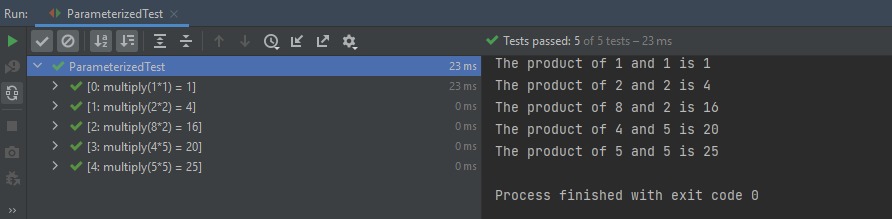
The output of the above program is
2. Parameterized Test with Parameter Annotation
It is also possible to inject data values directly into fields without needing a constructor using the@Parameter annotation.
import org.junit.Test;
import org.junit.runner.RunWith;
import org.junit.runners.Parameterized;
import java.util.Arrays;
import java.util.Collection;
import static org.junit.Assert.assertEquals;

@RunWith(value = Parameterized.class)
public class ParameterizedTest1 {

    @Parameterized.Parameter(value = 0)
    public int num1;

    @Parameterized.Parameter(value = 1)
    public int num2;

    @Parameterized.Parameter(value = 2)
    public int num3;

    @Parameterized.Parameters(name = "{index}: multiply({0}*{1}) = {2}")
    public static Collection<Object[]> data() {
        return Arrays.asList(new Object[][]{
                {1, 1, 1},
                {2, 2, 4},
                {8, 2, 16},
                {4, 5, 20},
                {5, 5, 24}
        });
    }

    @Test
    public void multiplication() {
        System.out.println("The product of "+num1+" and "+num2+" is "+num3);
        assertEquals((num1*num2), num3);
    }
}
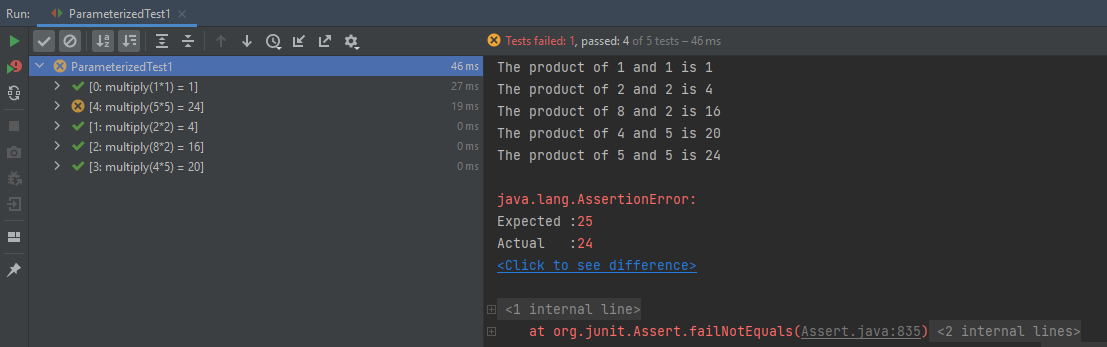
The output of the above program is
3. Parameterized Test using CSV File
We can use an external CSV file to load the test data. This helps if the number of possible test cases is quite significant, or if test cases are frequently changed. The changes can be done without affecting the test code.
To start with, add a JUnitParams dependency to POM.xml
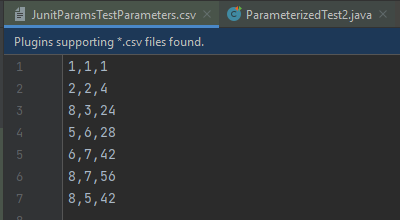
Let’s say that we have a CSV file with test parameters as JunitParamsTestParameters.csv:
Now let’s look at how this file can be used to load test parametersin the test method:
import junitparams.JUnitParamsRunner;
import org.junit.Test;
import org.junit.runner.RunWith;
import junitparams.FileParameters;
import static org.junit.Assert.assertEquals;

@RunWith(JUnitParamsRunner.class)
public class ParameterizedTest2 {

    @Test
    @FileParameters("src/test/resources/JunitParamsTestParameters.csv")
    public void multiplication(int num1, int num2, int num3) {
        System.out.println("The product of "+num1+" and "+num2+" is "+num3);
        assertEquals((num1*num2), num3);
    }
}
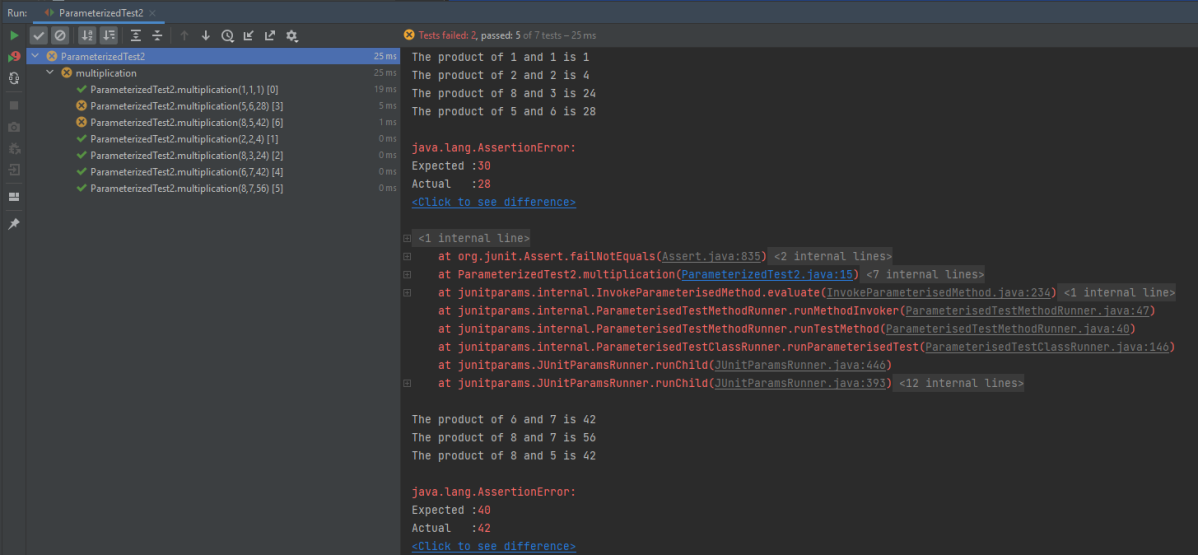
The output of the above program is
The parameterized test enables us to execute the same test over and over again using different values.
Important annotations to be used during parameterization
@RunWith
@Parameters
Congratulations. We are done. I hope this tutorial is helpful to you. Happy Learning!!
In the last tutorial, I explained How to test GET Request using Rest Assured. In this tutorial, I will automate a POST Request using Rest Assured. I will verify the status code, line of Status, and content of the Response. To set up a basic Rest Assured Maven Project, click here and Gradle project, click here.
Add the below-mentioned dependencies to the pom.xml. The latest dependency can be downloaded from here.
An HTTP POST method is used to create a new resource in the collection of resources. The request body is passed as a JSON/XML or in a different format. If a resource is created successfully by the endpoint or server, it returns a status code 201(Created). It also provides a Location header with a link to the newly-created resource with the 201 HTTP status. It may return 200 (OK) and 204 (No Content) status code as well, based on how the API is developed.
POST is neither safe nor idempotent. It is therefore recommended for non-idempotent resource requests. Making two identical POST requests will most result in two resources containing the same information.
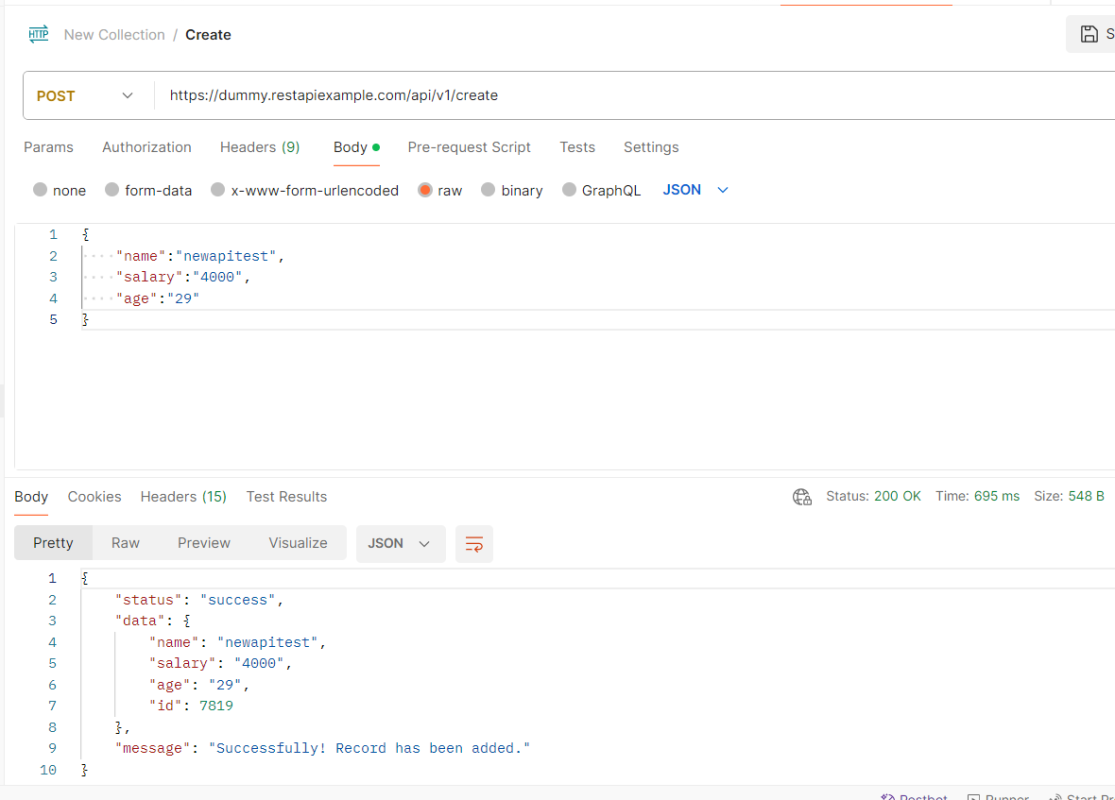
Below is an example of a Request performing POST operation in Postman.
Below are the steps to test a POST Request using Rest Assured:
Step 1 – Specify the base URL to the RESTful web service using the RestAssuredclass.
Step 2 – Every Request in the Rest-Assured library is represented by an interface called RequestSpecification. This interface allows modifying the request, like adding headers or adding authentication details. Use the RestAssuredclass to generate a RequestSpecification.
contentTypeis imported from restassured.http package:
import io.restassured.http.ContentType;
Step 4 – Pass Request Body as String.
requestSpecification.body(jsonString);
Step 5 – Send the POST request to the server. Then receive the response of the request made by REST Assured. This response contains every detail returned by hitting request i.e. response body, response headers, status code, status lines, cookies, etc. The response is imported from package:
import io.restassured.response.Response;
Step 6 – To validate a response like status code or value, we need to get the reference of type ValidatableResponse.
ValidatableResponse is an interface. A validatable response to a request made by, REST Assured. ValidatableResponse is imported from package:
PrettyPrint() – It prints the response body if possible and returns it as a string. Pretty printing is possible for content-types JSON, XML, and HTML.
Below is the example of testing a POST request in Non-BDD format. I have used ValidatableResponse for the assertion of status. It is also used for the status line and body of the Response.
import io.restassured.RestAssured;
import io.restassured.http.ContentType;
import io.restassured.response.Response;
import io.restassured.response.ValidatableResponse;
import io.restassured.specification.RequestSpecification;
import org.junit.Test;
import static org.hamcrest.CoreMatchers.equalTo;

public class POST_NonBDDDemo {

    RequestSpecification requestSpecification;
    Response response;
    ValidatableResponse validatableResponse;

    @Test
    public void verifyStatusCode() {

        String jsonString = "{\"name\":\"newapitest\",\"salary\":\"4000\",\"age\":\"29\"}";

        RestAssured.baseURI = "https://dummy.restapiexample.com/api/v1/create";

        // Create a request specification
        requestSpecification = RestAssured.given();

        // Setting content type to specify format in which request payload will be sent.
        requestSpecification.contentType(ContentType.JSON);

        // Adding body as string
        requestSpecification.body(jsonString);

        // Calling POST method
        response = requestSpecification.post();

        // Let's print response body.
        String responseString = response.prettyPrint();

        /*
         * To perform validation on response, we need to get ValidatableResponse type of
         * response
         */
        validatableResponse = response.then();

        // Check status code
        validatableResponse.statusCode(200);

        // It will check if status line is as expected
        validatableResponse.statusLine("HTTP/1.1 200 OK");

        // Check response body - name attribute
        validatableResponse.body("data.name", equalTo("newapitest"));

        // Check response body - message attribute
        validatableResponse.body("message", equalTo("Successfully! Record has been added."));

    }
}
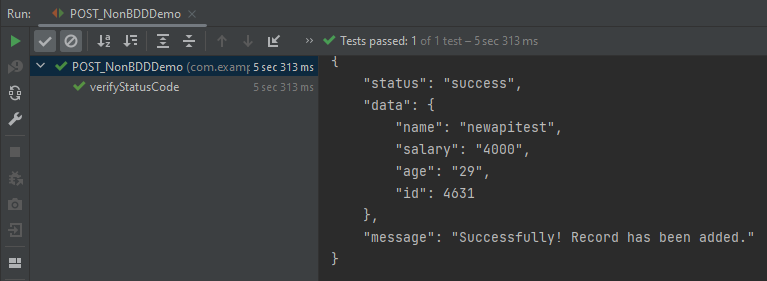
The below image shows the test result of the above test.
Test implemented in BDD Format
1. equalTois used for assertion, and is imported from a static hamcrest package:
import static org.hamcrest.Matchers.equalTo;
2. givenis a static import from package:
import static io.restassured.RestAssured.given;
Below is an example of a BDD Test.
import io.restassured.http.ContentType;
import io.restassured.response.ValidatableResponse;
import org.junit.Test;
import static io.restassured.RestAssured.given;
import static org.hamcrest.CoreMatchers.equalTo;

public class POST_BDDDemo {

    ValidatableResponse validatableResponse;

    @Test
    public void createUser() {

        String json = "{\"name\":\"apitest\",\"salary\":\"5000\",\"age\":\"30\"}";

        // GIVEN
        validatableResponse = given()
                .baseUri("https://dummy.restapiexample.com/api")
                .contentType(ContentType.JSON)
                .body(json)

                // WHEN
                .when()
                .post("/v1/create")

                // THEN
                .then()
                .assertThat().statusCode(200).body("data.name", equalTo("apitest"))
                .body("message", equalTo("Successfully! Record has been added."));

        System.out.println("Response :" + validatableResponse.extract().asPrettyString());
    }

}
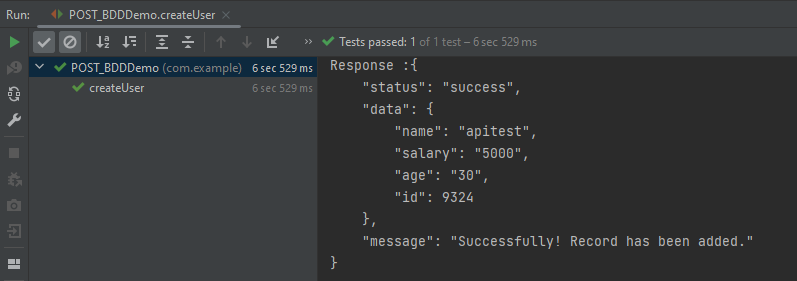
The below image shows the test result of the above test.
Explanation:
1. This string represents the JSON payload that will be sent in the body of the POST request. It includes fields like name, salary, and age.
In the last tutorial, I explained the Setup of the REST Assured Maven Project In Eclipse IDE. In this tutorial, I will automate a GET Request. I will verify the status code, line of Status, and content of the Response.
RestAssured is a class that consists of many static fields and methods. It supports POST, GET, PUT, DELETE, HEAD, PATCH, and OPTIONS requests and verifies the response to these requests.
Add the below-mentioned dependencies to the pom.xml.
Step 2 – Every Request in the Rest-Assured library is represented by an interface called RequestSpecification. This interface allows modification of the request, like adding headers or adding authentication details.
requestSpecification = RestAssured.given();
RequestSpecification is imported from the package:
Step 3 – Send the request to the server and receive the response to the request made by REST Assured. This response contains every detail returned by hitting request i.e. response body, response headers, status code, status lines, cookies, etc.
response = requestSpecification.get();
The response is imported from package:
import io.restassured.response.Response;
Step 4 – To validate a response like status code or value, we need to acquire a reference. This reference should be of type ValidatableResponse. ValidatableResponse is an interface. A validatable response to a request made by, REST Assured. ValidatableResponse is imported from the package:
PrettyPrint() – It prints the response body if possible and returns it as a string. Pretty printing is possible for content-types JSON, XML, and HTML.
Below is an example of creating a test in Non-BDD format. I have used ValidatableResponse for the assertion of the status. It is also used for the status line of the Response.
import io.restassured.RestAssured;
import io.restassured.response.Response;
import io.restassured.response.ValidatableResponse;
import io.restassured.specification.RequestSpecification;
import org.junit.Test;

public class Get_NonBDDDemo {
    RequestSpecification requestSpecification;
    Response response;
    ValidatableResponse validatableResponse;

    @Test
    public void verifyStatusCode() {

        RestAssured.baseURI = "http://dummy.restapiexample.com/api/v1/employees";

        // Create a request specification
        requestSpecification = RestAssured.given();

        // Calling GET method
        response = requestSpecification.get();

        // Let's print response body.
        String resString = response.prettyPrint();
        System.out.println("Response Details : " + resString);

        /*
         * To perform validation on response, we need to get ValidatableResponse type of
         * response
         */
        validatableResponse = response.then();

        // Get status code
        validatableResponse.statusCode(200);

        // Check status line is as expected
        validatableResponse.statusLine("HTTP/1.1 200 OK");

    }
}
The output of the above program is
If you don’t want to use ValidatableResponse for the assertion, you can use Response from io.restassured .response to get the status code and status line, which are asserted using JUnit.Assert.
import io.restassured.RestAssured;
import io.restassured.response.Response;
import io.restassured.response.ValidatableResponse;
import io.restassured.specification.RequestSpecification;
import org.junit.Assert;
import org.junit.Test;

public class Get_NonBDDResponseDemo {
    RequestSpecification requestSpecification;
    Response response;

    @Test
    public void verifyStatusCode() {

        RestAssured.baseURI = "http://dummy.restapiexample.com/api/v1/employees";

        // Create a request specification
        requestSpecification = RestAssured.given();

        // Calling GET method
        response = requestSpecification.get();

        // Let's print response body.
        String resString = response.prettyPrint();
        System.out.println("Response Details : " + resString);

        // Get status line
        String statusLine = response.getStatusLine();
        Assert.assertEquals(statusLine, "HTTP/1.1 200 OK");

        // Get status code
        int statusCode = response.getStatusCode();
        Assert.assertEquals(statusCode, 200);

    }
}
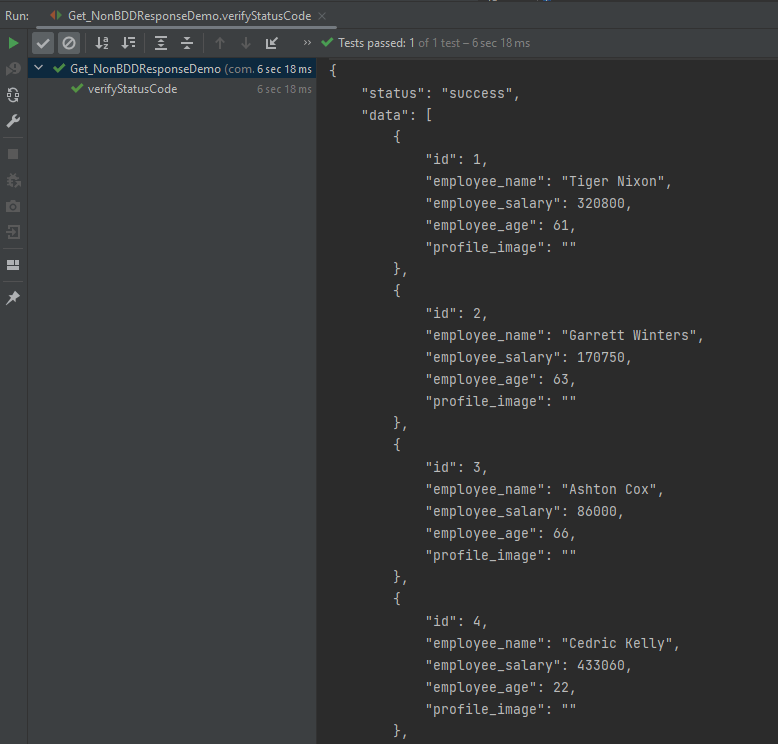
The output of the above program is
Below is an example of a specific user in GET Request in Postman.
Below is the test implemented in BDD Format. In this test, I am asserting the data of Employee of Id 2. I have validated the name of the employee as well as the response message.
1. equalTo is used for assertion, andis imported from a static hamcrest package:
import static org.hamcrest.Matchers.equalTo;
2. givenis a static import from package:
import static io.restassured.RestAssured.given;
Let us see this with an example.
import org.junit.Test;
import static io.restassured.RestAssured.given;
import static org.hamcrest.CoreMatchers.equalTo;

public class Get_BDDDemo {

    @Test
    public void verifyUser() {

        // Given
        given()

                // When
                .when()
                .get("http://dummy.restapiexample.com/api/v1/employee/2")

                // Then
                .then()
                .statusCode(200).statusLine("HTTP/1.1 200 OK")

                // To verify booking id at index 3
                .body("data.employee_name", equalTo("Garrett Winters"))
                .body("message", equalTo("Successfully! Record has been fetched."));
    }

}
The output of the above program is
Explanation
1.This is the preconditionblock. It is used to specify headers, parameters, authentication, etc. In this example, it’s empty, meaning no special setup is needed for this GET request.
given
2. It performs a GET request to the given URL. It is trying to get the employee with id = 2.
Rest–Assuredis a Java-based library that is used to test RESTful Web Services. REST-assured was designed to simplify the testing and validation of REST APIs. It takes influence from testing techniques used in dynamic languages such as Ruby and Groovy.