GitLab is a web-based Git repository that provides free open and private repositories, issue-following capabilities, and wikis. It is a complete DevOps platform that enables professionals to perform all the tasks in a project—from project planning and source code management to monitoring and security.
In this tutorial, I will explain how we can clone a project from GitLab in Eclipse.
Implementation Steps
Step 1– Go to GitLab and select the project which you want to clone. Click on the blue color “Clone” button then copy the hyperlink as shown in the image. You can either Clone with SSH or Clone with HTTPS.
Step 2 – Open Eclipse and go to “File > Import” in eclipse as shown in the image.
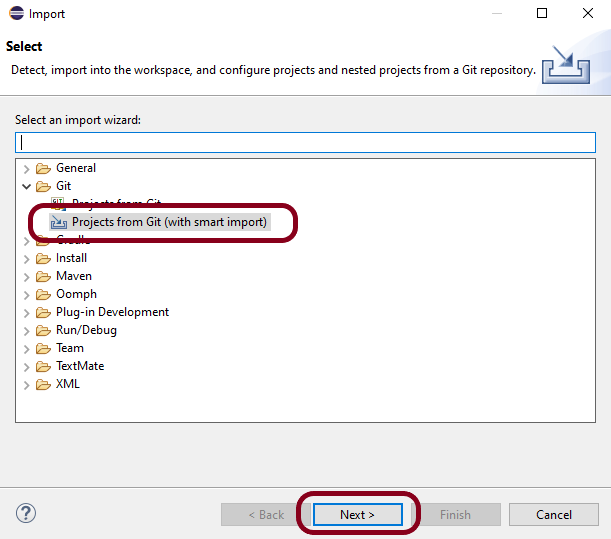
Step 3– A window will pop up in which select Git Folder. Under the Git folder, select the option – “Projects from Git(with smart import)”as shown in the image.
Click on the “NEXT” button.
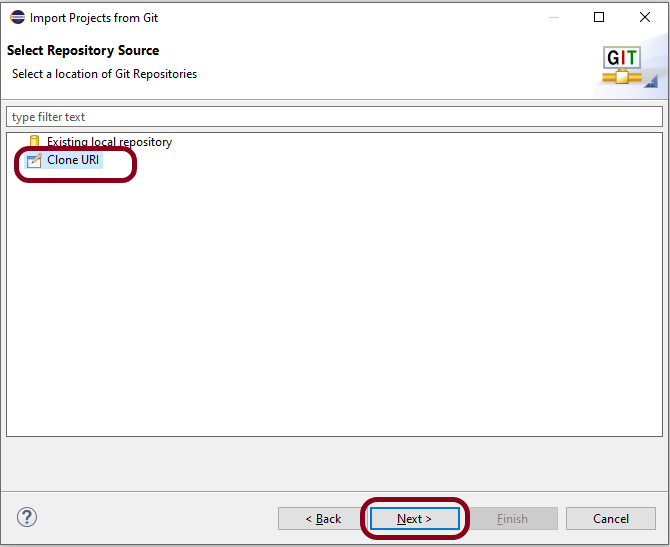
Step 4 – A new window will pop up in which select the option – “Clone URI” as shown in the image.
Click on the “NEXT” button.
Step 5 – Another window will pop up in which you have to paste the“GitLab Repository URL” and also“GitLab UserID and Password” and click on the “Next” button.
URI – This is the URL that we have cloned from GitLab in Step 1. Host – gitlab.com Repository path – path of the project in GitLab (This is auto-populated after entering URI)
Authentication User – Username of GitLab Password – password of GitLab
Step 6 – Select master and select “When fetching a commit, also fetch its tags“.
Click on the “Next” button.
Step 7 – Select the “Folder directory” in which you want to import the repository.
Click on the “Finish” button.
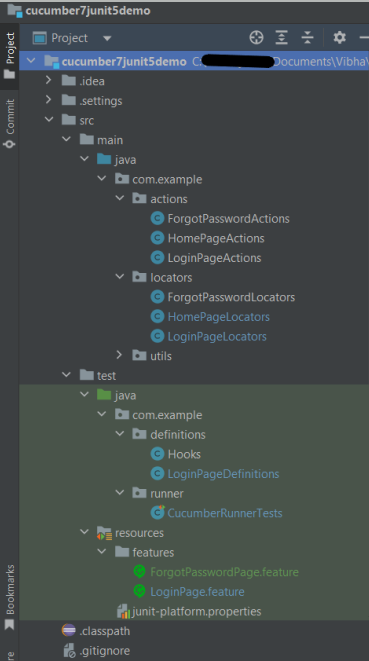
Step 8 – We have successfully imported the GitLab Repository as shown in the below image.
Congratulations on making it through this tutorial and hope you found it useful! Happy Learning!! Cheers!!
I have created a lot of tutorials on creating Test Frameworks by integrating JUnit4 with Selenium, Cucumber, Serenity, Rest API, Springboot. This tutorial explain the steps to Integrate Cucumber7 with JUnit5.
JUnit 5 is composed of several different modules from three different sub-projects.
Cucumber and Selenium need Java to be installed on the system to run the tests. Click here to know How to install Java.
Step 2 – Download and setup Eclipse IDE on the system
The Eclipse IDE (integrated development environment) provides strong support for Java developers, which is needed to write Java code. Click here to know How to install Eclipse.
Step 3 – Setup Maven
To build a test framework, we need to add a number of dependencies to the project. It is a very tedious and cumbersome process to add each dependency manually. So, to overcome this problem, we use a build management tool. Maven is a build management tool that is used to define project structure, dependencies, build, and test management. Click here to know How to install Maven.
The Cucumber Eclipse plugin is a plugin that allows eclipse to understand the Gherkin syntax. The Cucumber Eclipse Plugin highlights the keywords present in Feature File. Click here to know more – Install Cucumber Eclipse Plugin.
Step 7 – Create a feature file in src/test/resources
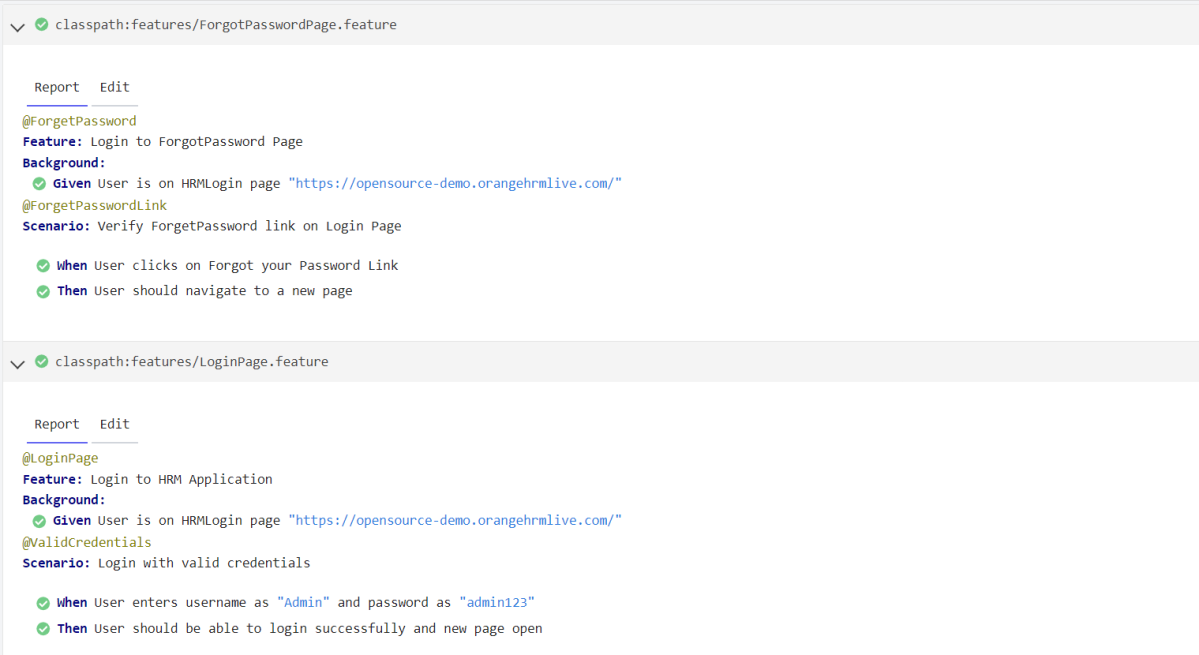
Below is a sample feature file. Feature file should be saved as an extension of .feature. Add the test scenarios in this feature file. I have added sample test scenarios. The test scenarios are written in Gherkins language.
LoginPage.feature
@LoginPage
Feature: Login to HRM Application

Background:
    Given User is on HRMLogin page "https://opensource-demo.orangehrmlive.com/"

   @ValidCredentials
   Scenario: Login with valid credentials

    When User enters username as "Admin" and password as "admin123"
    Then User should be able to login successfully and new page open

   @InvalidCredentials
   Scenario Outline: Login with invalid credentials

    When User enters username as "<username>" and password as "<password>"
    Then User should be able to see error message "<errorMessage>"

  Examples:
  | username   | password    | errorMessage                      |
  | Admin        | admin12$$  | Invalid credentials               |
  | admin$$     | admin123    | Invalid credentials               |
  | abc123        | xyz$$           | Invalid credentials               |


  @FaceBookLink
  Scenario: Verify FaceBook Icon on Login Page

    Then User should be able to see FaceBook Icon

  @LinkedInLink
  Scenario: Verify LinkedIn Icon on Login Page

    Then User should be able to see LinkedIn Icon
ForgetPasswordPage.feature
@ForgetPassword
Feature: Login to ForgotPassword Page

  Background:
    Given User is on HRMLogin page "https://opensource-demo.orangehrmlive.com/"

  @ForgetPasswordLink
  Scenario: Verify ForgetPassword link on Login Page

    When User clicks on Forgot your Password Link
    Then User should navigate to a new page
Step 8 – Create cucumber.properties file in src/test/resources
We need to create the junit-platform.properties file in the src/test/resources folder. Using a property file for reporting is quite helpful if you want to define several different properties.
cucumber.publish.enabled=true
Step 9 – Create a Helper class in src/main/java
We have used Page Object Model with Cucumber and TestNG. Create a Helper class where we are initializing the web driver, initializing the web driver wait, defining the timeouts, and creating a private constructor of the class, it will declare the web driver, so whenever we create an object of this class, a new web browser is invoked.
import java.time.Duration;
import org.openqa.selenium.WebDriver;
import org.openqa.selenium.chrome.ChromeDriver;
import io.github.bonigarcia.wdm.WebDriverManager;
import org.openqa.selenium.chrome.ChromeOptions;

public class HelperClass {

	 private static HelperClass helperClass;

	    private static WebDriver driver;
	    public final static int TIMEOUT = 5;

	     private HelperClass() {

	        WebDriverManager.chromedriver().setup();
			ChromeOptions options = new ChromeOptions();
			options.addArguments("--start-maximized");
	        driver = new ChromeDriver(options);
	        driver.manage().timeouts().implicitlyWait(Duration.ofSeconds(TIMEOUT));
	     }

	    public static void openPage(String url) {
	        driver.get(url);
	    }

	    public static WebDriver getDriver() {
	        return driver;
	    }

	    public static void setUpDriver() {

	        if (helperClass==null) {

	            helperClass = new HelperClass();
	        }
	    }

	    public static void tearDown() {

	        if(driver!=null) {
	             driver.quit();
	        }

	       helperClass = null;
	   }

	}
Step 10 – Create Locator classes in src/main/java
Create a locator class for each page that contains the detail of the locators of all the web elements. Here, I’m creating 3 locator classes – LoginPageLocators, HomePageLocators,and ForgotPasswordLocators.
LoginPageLocators
import org.openqa.selenium.WebElement;
import org.openqa.selenium.support.FindBy;

public class LoginPageLocators {

	@FindBy(name = "username")
    public WebElement userName;

    @FindBy(name = "password")
    public WebElement password;

    @FindBy(id = "logInPanelHeading")
    public WebElement titleText;

    @FindBy(xpath = "//*[@id='app']/div[1]/div/div[1]/div/div[2]/div[2]/form/div[3]/button")
    public WebElement login;

    @FindBy(xpath = "//*[@id='app']/div[1]/div/div[1]/div/div[2]/div[2]/div/div[1]/div[1]/p")
    public  WebElement errorMessage;

    @FindBy(xpath = "//*[@href='https://www.linkedin.com/company/orangehrm/mycompany/']")
    public  WebElement linkedInIcon;

    @FindBy(xpath = "//*[@href='https://www.facebook.com/OrangeHRM/']")
    public  WebElement faceBookIcon;

    @FindBy(xpath = "//*[@id='app']/div[1]/div/div[1]/div/div[2]/div[2]/form/div[4]/p")
    public  WebElement ForgotYourPasswordLink;

}
HomePageLocators
import org.openqa.selenium.WebElement;
import org.openqa.selenium.support.FindBy;

public class HomePageLocators {

	@FindBy(xpath = "//*[@id='app']/div[1]/div[2]/div[2]/div/div[1]/div[1]/div[1]/h5")
	public  WebElement homePageUserName;

}
ForgotPasswordLocators
import org.openqa.selenium.WebElement;
import org.openqa.selenium.support.FindBy;

public class ForgotPasswordLocators {

	@FindBy(xpath = "//*[@id='app']/div[1]/div[1]/div/form/h6")
    public WebElement ForgotPasswordHeading;

}
Step 11 – Create Action classes in src/main/java
Create the action classes for each web page. These action classes contain all the methods needed by the step definitions. In this case, I have created 2 action classes – LoginPageActions, HomePageActions, and ForgotPasswordActions.
LoginPageActions
In this class, the very first thing will do is to create the object of the LoginPageLocators class so that we should be able to access all the PageFactory elements. Secondly, create a public constructor of LoginPageActions class.
import org.openqa.selenium.support.PageFactory;
import com.example.locators.LoginPageLocators;
import com.example.utils.HelperClass;

public class LoginPageActions {

	LoginPageLocators loginPageLocators = null;

    public LoginPageActions() {

    	this.loginPageLocators = new LoginPageLocators();

		PageFactory.initElements(HelperClass.getDriver(),loginPageLocators);
	}

	// Set user name in textbox
    public void setUserName(String strUserName) {
    	loginPageLocators.userName.sendKeys(strUserName);
    }

    // Set password in password textbox
    public void setPassword(String strPassword) {
    	loginPageLocators.password.sendKeys(strPassword);
    }

    // Click on login button
    public void clickLogin() {
    	loginPageLocators.login.click();
    }

    // Get the title of Login Page
    public String getLoginTitle() {
        return loginPageLocators.titleText.getText();
    }

    // Get the title of Login Page
    public String getErrorMessage() {
        return loginPageLocators.errorMessage.getText();
    }

    // LinkedIn Icon is displayed
    public Boolean getLinkedInIcon() {

        return loginPageLocators.linkedInIcon.isDisplayed();
    }

    // FaceBook Icon is displayed
    public Boolean getFaceBookIcon() {

        return loginPageLocators.faceBookIcon.isDisplayed();
    }

    // Click on Forget Your Password link
    public void clickOnForgetYourPasswordLink() {

    	loginPageLocators.ForgotYourPasswordLink.click();
    }

    public void login(String strUserName, String strPassword) {

        // Fill user name
        this.setUserName(strUserName);

        // Fill password
        this.setPassword(strPassword);

        // Click Login button
        this.clickLogin();

    }
}
HomePageActions
import org.openqa.selenium.support.PageFactory;
import com.example.locators.HomePageLocators;
import com.example.utils.HelperClass;

public class HomePageActions {

	HomePageLocators homePageLocators = null;

	public HomePageActions() {

		this.homePageLocators = new HomePageLocators();

		PageFactory.initElements(HelperClass.getDriver(),homePageLocators);
    }

    // Get the User name from Home Page
    public String getHomePageText() {
        return homePageLocators.homePageUserName.getText();
    }

}
ForgotPasswordActions
import org.openqa.selenium.support.PageFactory;
import com.example.locators.ForgotPasswordLocators;
import com.example.utils.HelperClass;

public class ForgotPasswordActions {

	ForgotPasswordLocators forgotPasswordLocators = null;

	public ForgotPasswordActions() {

		this.forgotPasswordLocators = new ForgotPasswordLocators();

		PageFactory.initElements(HelperClass.getDriver(),forgotPasswordLocators);
    }


    // Get the Heading of Forgot Password page
    public String getForgotPasswordPageText() {
        return forgotPasswordLocators.ForgotPasswordHeading.getText();
    }
}
Step 12 – Create a Step Definition file in src/test/java
Create the corresponding Step Definition file of the feature file.
LoginPageDefinitions
import org.junit.jupiter.api.Assertions;
import com.example.actions.ForgotPasswordActions;
import com.example.actions.HomePageActions;
import com.example.actions.LoginPageActions;
import com.example.utils.HelperClass;
import io.cucumber.java.en.Given;
import io.cucumber.java.en.Then;
import io.cucumber.java.en.When;

public class LoginPageDefinitions{

	LoginPageActions objLogin = new LoginPageActions();
    HomePageActions objHomePage = new HomePageActions();
    ForgotPasswordActions objForgotPasswordPage = new ForgotPasswordActions();

    @Given("User is on HRMLogin page {string}")
    public void loginTest(String url) {

    	HelperClass.openPage(url);

    }

    @When("User enters username as {string} and password as {string}")
    public void goToHomePage(String userName, String passWord) {

        // login to application
        objLogin.login(userName, passWord);

        // go the next page

    }

    @When("User clicks on Forgot your Password Link")
    public void goToForgotYourPasswordPage() {

    	objLogin.clickOnForgetYourPasswordLink();

    }

    @Then("User should be able to login sucessfully and new page open")
    public void verifyLogin() {

        // Verify home page
        Assertions.assertTrue(objHomePage.getHomePageText().contains("Employee Information"));

    }

    @Then("User should be able to see error message {string}")
    public void verifyErrorMessage(String expectedErrorMessage) {

        // Verify home page
    	Assertions.assertEquals(objLogin.getErrorMessage(),expectedErrorMessage);

    }

    @Then("User should be able to see LinkedIn Icon")
    public void verifyLinkedInIcon( ) {

    	Assertions.assertTrue(objLogin.getLinkedInIcon());
    }

    @Then("User should be able to see FaceBook Icon")
    public void verifyFaceBookIcon( ) {

    	Assertions.assertTrue(objLogin.getFaceBookIcon());
    }

    @Then("User should navigate to a new page")
    public void verfiyForgetYourPasswordPage() {

   	Assertions.assertEquals(objForgotPasswordPage.getForgotPasswordPageText(), "Reset Password");
    }

}
Step 13 – Create Hook class in src/test/java
Create the hook class that contains the Before and After hook to initialize the web browser and close the web browser.
import org.openqa.selenium.OutputType;
import org.openqa.selenium.TakesScreenshot;
import com.example.utils.HelperClass;
import io.cucumber.java.After;
import io.cucumber.java.Before;
import io.cucumber.java.Scenario;

public class Hooks {

	@Before
    public static void setUp() {

       HelperClass.setUpDriver();
    }

	@After
	public static void tearDown(Scenario scenario) {

		//validate if scenario has failed
		if(scenario.isFailed()) {
			final byte[] screenshot = ((TakesScreenshot) HelperClass.getDriver()).getScreenshotAs(OutputType.BYTES);
			scenario.attach(screenshot, "image/png", scenario.getName());
		}

		HelperClass.tearDown();
	}
}
Step 14 – Create a Cucumber Test Runner class in src/test/java
Cucumber needs a TestRunner class to run the feature files. It is suggested to create a folder with the name of the runner in the src/test/java directory and create the Cucumber TestRunner class in this folder. Below is the code of the Cucumber TestRunner class.
import static io.cucumber.junit.platform.engine.Constants.GLUE_PROPERTY_NAME;
import org.junit.platform.suite.api.ConfigurationParameter;
import org.junit.platform.suite.api.IncludeEngines;
import org.junit.platform.suite.api.SelectClasspathResource;
import org.junit.platform.suite.api.Suite;

@Suite
@IncludeEngines("cucumber")
@SelectClasspathResource("com.example")
@ConfigurationParameter(key = GLUE_PROPERTY_NAME, value = "com.example")

public class CucumberRunnerTests  {

}
Step 15 – Run the tests from Maven or Command Line
Use the below command to run the tests.
mvn clean verify
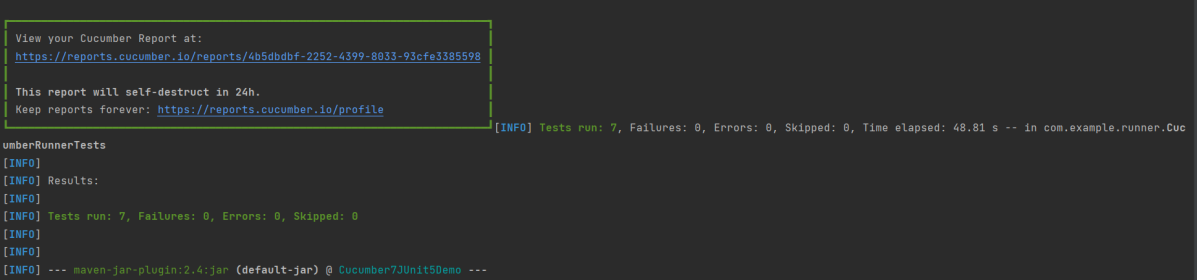
Step 16 – Cucumber Report Generation
Below is the image of the Cucumber Report generated using the Cucumber Service.
Serenity BDD is an open-source library that aims to make the idea of living documentation a reality.
What is Rest Assured?
Rest Assured is one of the most powerful libraries for testing RESTful API using Java language. Rest-Assured is a Java-based library that is used to test RESTful Web Services. This library behaves like a headless Client to access REST web services. The Rest-Assured library also provides the ability to validate the HTTP Responses received from the server. For e.g. we can verify the Status code, Status message, Headers, and even the Body of the response. This makes Rest-Assured a very flexible library that can be used for testing. In this post, we will learn how to write high-quality, expressive REST API tests using Rest Assured and Serenity BDD.
Prerequisite
Java 17 installed
Maven installed
Eclipse or IntelliJ installed
Dependency List:
Java 17
Maven – 3.9.5
Serenity – 4.0.18
Serenity Rest Assured – 4.0.18
Serenity Cucumber – 4.0.18
Rest Assured – 5.3.2
JUnit – 4.13.2
Maven Surefire Plugin – 3.2.1
Maven Failsafe Plugin – 3.2.1
Maven Compiler Plugin – 3.11.0
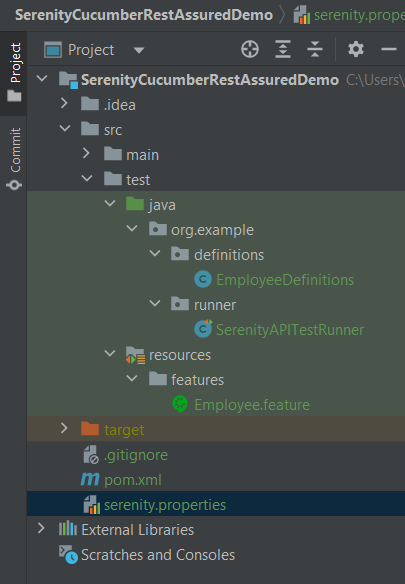
Project Structure
Implementation Steps
Step 1 – Update Properties section in Maven pom.xml
Step 4 – Create a Feature filein src/test/resources
Create a features folder within src/test/resources to create test scenarios in the Feature file. Test Scenarios are created in a Feature File which contains an overall description of a feature as well as a number of scenarios. Feature files can be placed in different locations, but you can reduce the amount of configuration you need to do with serenity if you put them in the src/test/resources/features directory. In this feature file, will send a request, and the response should be of status “200” and employee name of “Tiger Nixon”. The feature file looks something like this:
Feature: Employee Details

  @GetEmployee
  Scenario: Get the details of employee
    Given I send a request to endpoint
    Then the API should return status 200
    And Response should contains employee name "Tiger Nixon"
Step 5 – Create the Step Definition class or Glue Code
To use Rest-assured, Serenity provides class SerenityRest
import net.serenitybdd.rest.SerenityRest;
It is a Java method with an expression that is used to link it to Gherkin steps. When Cucumber executes a Gherkin step, it will look for a matching step definition to execute. These use annotations like @given, @when, and @then to match lines in the scenario to java methods
package org.example.definitions;

import io.cucumber.java.en.And;
import io.cucumber.java.en.Given;
import io.cucumber.java.en.Then;
import io.restassured.response.Response;
import net.serenitybdd.rest.SerenityRest;
import static org.hamcrest.Matchers.equalTo;

public class EmployeeDefinitions {
    private static final String URL = "http://dummy.restapiexample.com/api/v1/employee/1";
    public Response response;

    @Given("I send a request to endpoint")
    public void sendRequest()  {

        response = SerenityRest.given().contentType("application/json").header("Content-Type", "application/json")
                .when().get(URL);
    }

    @Then("the API should return status {int}")
    public void verifyResponse(int status) {
        SerenityRest.restAssuredThat(response -> response.statusCode(status));
    }

    @And("Response should contains employee name {string}")
    public void verifyResponseContent(String expectedEmployeeName) {

        SerenityRest.restAssuredThat(response -> response.body("data.employee_name", equalTo(expectedEmployeeName)));
    }
}
Step 6 – Create Serenity Test Runner
Cucumber runs the feature files via JUnit and needs a dedicated Test Runner class to run the feature files. When you run the tests with serenity, you use the CucumberWithSerenity test runner. If the feature files are not in the same package as the test runner class, you also need to use the@CucumberOptionsclass to provide the root directory where the feature files can be found. It is the starting point for JUnit to start executing the tests. TestRunner class is created undersrc/test/java. The test runner to run all of the feature files looks like this:
import org.junit.runner.RunWith;

import io.cucumber.junit.CucumberOptions;
import net.serenitybdd.cucumber.CucumberWithSerenity;

@RunWith(CucumberWithSerenity.class)
@CucumberOptions(plugin = { "pretty" }, features = "src/test/resources/features/Employee.feature", glue = {
		"org.example.definitions" })

public class SerenityAPITestRunner {

}
Step 7 – Create serenity.properties file
Serenity.properties file is created at the root level.
serenity.project.name = Rest API Testing using Serenity, Cucumber and JUnit4
Step 8 – Serenity Tests Execution
You can run the tests from SerenityAPITestRunner or from the command line by
mvn clean verify
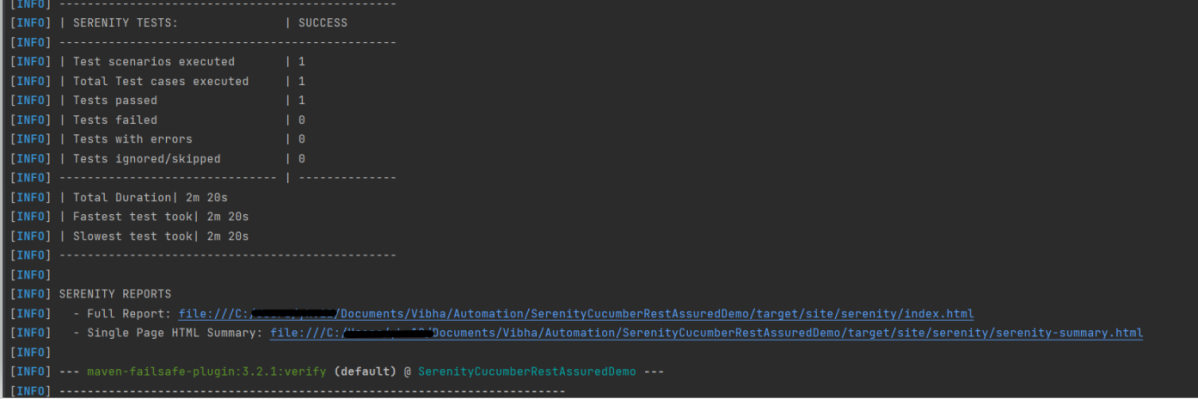
Test Execution Page looks like this as shown below image
Step 9 – Verify the Serenity Reports
A number of reports are generated, but we are concerned about index.html and serenity-summary.html.
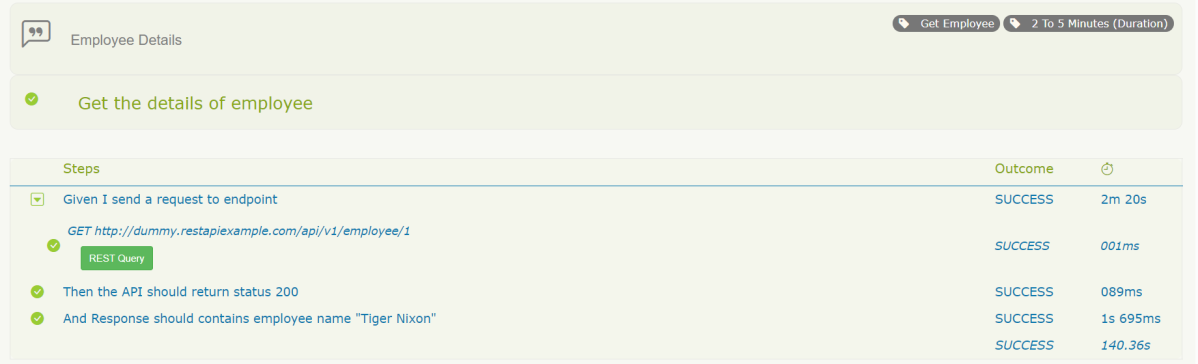
The report is well-formatted and contains consolidated results. Reporting is one of the major pillars of Serenity. Serenity Report not only reports on whether a test scenario passes or fails but documents what it did, in a step-by-step narrative format. The below pic illustrates the test results for our first acceptance criteria:
The test report generated by Serenity is placed under target/site/serenity/index.html.
Index.html
The first tab is called “Overall Test Results” and it provides information about test statistics. This Overall Test Result shows the Scenario Results (No Of Test Cases Pass, No Of Test Cases Failed, No of Test Cases Pending, No Of Test Cases Ignored, No Of Test Cases Skipped).
In the below pic, the report shows the test scenario steps status and time taken for each step to execute.
With the use of the REST Query button, it’s possible to display query details. Visible details:
There is also the “Requirements” tab. When we have tests as part of our code base, all test results will be organized as associated with requirements.
There is also a “Features” tab. This page lists all the features that are part of your suite. If you expand that row you’ll see the bit of narrative text that is part of the current feature file.
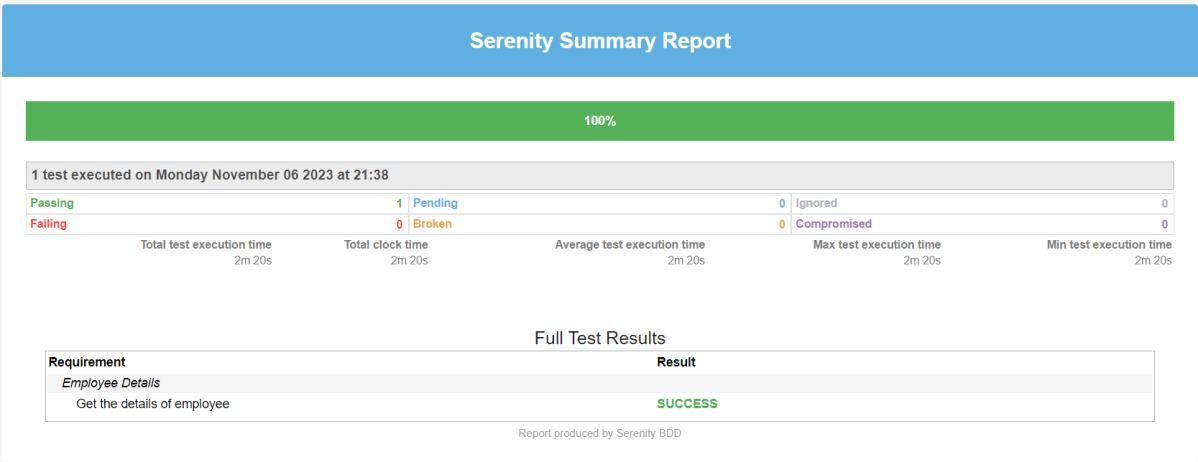
Serenity-Summary.html
We are done! Congratulations on making it through this tutorial and hope you found it useful! Happy Learning!!
We can create a JSON Object using a Map in Java. A JSON Object is a key-value pair and can be easily created using a Java Map. A Map in Java also represents a collection of key-value pairs.
To create a request body using JSON Object using HashMap, we need to add a Maven dependency.
I have created a simple Java map and filled it with the values that represent JSON properties.
import io.restassured.RestAssured;
import io.restassured.http.ContentType;
import org.junit.Test;
import java.util.HashMap;
import java.util.Map;
import static org.hamcrest.Matchers.equalTo;

public class Json_Demo {

    @Test
    public void passBodyAsMap() {
        Map<String, String> map = new HashMap<String, String>();
        map.put("employee_name", "MapTest");
        map.put("employee_salary", "99999");
        map.put("employee_age", "30");
        map.put("profile_image", "test.png");
        RestAssured.given()
                .contentType(ContentType.JSON)
                .body(map)
                .log().all()

                .when()
                .post("https://dummy.restapiexample.com/api/v1/create")

                .then()
                .assertThat().statusCode(200)
                .body("data.employee_name", equalTo("MapTest"))
                .body("data.employee_age", equalTo("30"))
                .body("data.employee_salary", equalTo("99999"))
                .body("message", equalTo("Successfully! Record has been added.")).log().all();
    }
}
The request body as well as the response body will look as shown below:-
Above one is a simple JSON Request Body. Let us take an example of a Complex Request Body or nested Request Body as shown below.
Let us create a Java program to understand this:
import io.restassured.RestAssured;
import io.restassured.http.ContentType;
import org.junit.Test;
import java.util.HashMap;
import java.util.Map;
import static org.hamcrest.Matchers.equalTo;

public class Json_Demo {

    @Test
    public void passBodyAsMultipleMap() {

        // First JSON Object using Hash Map
        Map<String, Object> data = new HashMap<String, Object>();
        data.put("employee_name", "MapTest");
        data.put("profile_image", "test.png");

        // Second JSON Object using Hash Map
        Map<String, String> msg = new HashMap<String, String>();
        msg.put("updated_message", "Details of New Resource");
        msg.put("employee_age", "30");
        data.put("details", msg);
        data.put("employee_salary", "99999");
        RestAssured.given().contentType(ContentType.JSON).body(data).log().all()
                // WHEN
                .when().post("https://dummy.restapiexample.com/api/v1/create")
                // THEN
                .then().assertThat().statusCode(200).body("data.employee_name", equalTo("MapTest"))
                .body("data.details.updated_message", equalTo("Details of New Resource"))
                .body("data.details.employee_age", equalTo("30")).body("data.employee_salary", equalTo("99999"))
                .body("message", equalTo("Successfully! Record has been added.")).log().all();
    }
}
The request body as well as the response body will look as shown below image. The first part is the body of the request and the second part is the response provided by the API.
Congratulations on making it through this tutorial and hope you found it useful! Happy Learning!!
Jenkins is a self-contained, open-source automation server that can be used to automate all sorts of tasks related to building, testing, and delivering or deploying software.
Jenkins can be installed through native system packages, Docker, or even run standalone by any machine with a Java Runtime Environment (JRE) installed.
Cucumber is a BDD Tool, and Selenium WebDriver is used for the automation of web applications. Imagine we need to build a test framework. This framework can be used by businesses to understand the test scenarios. It can also test the web application. This can be achieved by integrating Cucumber with Selenium. I’m going to use TestNG as the Test Automation tool for assertions. In the previous tutorial, I used Cucumber with Page Object Model. To know more about this, please refer to this tutorial – Page Object Model with Selenium, Cucumber, and TestNG.
In this tutorial, I’ll create a BDD Framework for the testing of web applications. I will use Cucumber, Selenium WebDriver, Maven and TestNG.
Cucumber and Selenium need Java to be installed on the system to run the tests. Click here to know How to install Java.
Step 2 – Download and setup Eclipse IDE on the system
The Eclipse IDE (integrated development environment) provides strong support for Java developers, which is needed to write Java code. Click here to know How to install Eclipse.
Step 3 – Setup Maven
To build a test framework, we need to add a number of dependencies to the project. It is a very tedious and cumbersome process to add each dependency manually. So, to overcome this problem, we use a build management tool. Maven is a build management tool that is used to define project structure, dependencies, build, and test management. Click here to know How to install Maven.
The Cucumber Eclipse plugin is a plugin that allows eclipse to understand the Gherkin syntax. The Cucumber Eclipse Plugin highlights the keywords present in Feature File. Click here to know more – How to install Cucumber Eclipse Plugin
Group Id – com.example Artifact Id – Cucumber_TestNG_Demo Version – 0.0.1-SNAPSHOT Package – com. example. Cucumber_TestNG_Demo
Step 7 – Create source folder src/test/resources to create test scenarios in Feature file
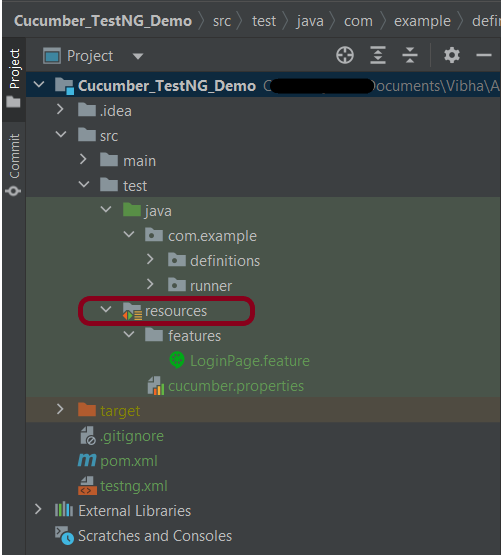
When a new Maven Project is created, it has 2 folders – src/main/java and src/test/java as shown below image. To create test scenarios, we need a new source folder called – src/test/resources. To create this folder, right-click on your maven project ->select New ->Java, and then Source Folder.
Step 8 – Add Selenium, TestNG, and Cucumber dependencies to the project
Add the below-mentioned Selenium, TestNG, and Cucumber dependencies to the project.
Step 9 – Add Maven Compiler Plugin and SureFire Plugin
The compiler plugin is used to compile the source code of a Maven project. This plugin has two goals, which are already bound to specific phases of the default lifecycle:
If you don’t add a compiler plugin to the POM.xml, the build will fail. This happens when you try to run the tests through Maven. Then the build will fail with the below message.
Step 10 – Create a feature file under src/test/resources/features
It is recommended to create a features folder in the src/test/resources directory. Create all the feature files in this features folder. Feature file should be saved as an extension of .feature. The test scenarios in the Feature file are written in Gherkins language. Add the test scenarios in this feature file. I have added sample test scenarios.
Feature: Login to HRM Application

Background:
   Given User is on HRMLogin page "https://opensource-demo.orangehrmlive.com/"

   @ValidCredentials
   Scenario: Login with valid credentials

    When User enters username as "Admin" and password as "admin123"
    Then User should be able to login sucessfully and new page open

   @InvalidCredentials
   Scenario Outline: Login with invalid credentials

    When User enters username as "<username>" and password as "<password>"
    Then User should be able to see error message "<errorMessage>"

  Examples:
   | username   | password     | errorMessage                       |
   | Admin        | admin12$$   | Invalid credentials               |
   | admin$$     | admin123     | Invalid credentials               |
   | abc123        | xyz$$           | Invalid credentials               |
Step 11 – Create the step definition class in src/test/java
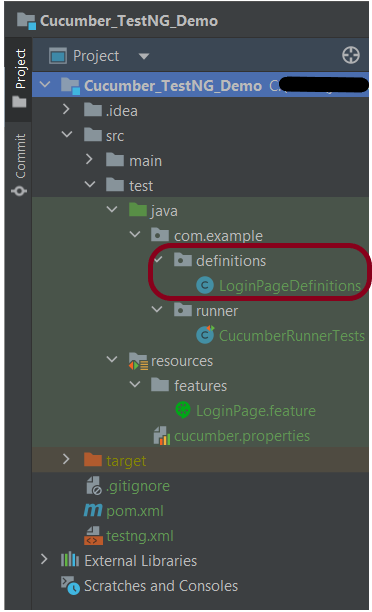
Create the step definition class corresponding to the feature file to test the scenarios in the src/test/java directory. The StepDefinition files should be created in this definitionsdirectory within the folder called definitions.
Below is the step definition of the LoginPage feature file.
package com.example.definitions;

import io.cucumber.java.After;
import io.cucumber.java.Before;
import io.cucumber.java.en.Given;
import io.cucumber.java.en.Then;
import io.cucumber.java.en.When;
import io.github.bonigarcia.wdm.WebDriverManager;
import org.openqa.selenium.By;
import org.openqa.selenium.WebDriver;
import org.openqa.selenium.chrome.ChromeDriver;
import org.openqa.selenium.chrome.ChromeOptions;
import org.testng.Assert;
import java.time.Duration;

public class LoginPageDefinitions {
    private static WebDriver driver;
    public final static int TIMEOUT = 5;

    @Before
    public void setUp() {

        ChromeOptions options = new ChromeOptions();
        options.addArguments("--start-maximized");
        driver = new ChromeDriver(options);
        driver.manage().timeouts().implicitlyWait(Duration.ofSeconds(TIMEOUT));

    }

    @Given("User is on HRMLogin page {string}")
    public void loginTest(String url) {

        driver.get(url);

    }

    @When("User enters username as {string} and password as {string}")
    public void goToHomePage(String userName, String passWord) {

        // login to application
        driver.findElement(By.name("username")).sendKeys(userName);
        driver.findElement(By.name("password")).sendKeys(passWord);
        driver.findElement(By.xpath("//*[@class='oxd-form']/div[3]/button")).submit();

    }

    @Then("User should be able to login successfully and new page open")
    public void verifyLogin() {

        String homePageHeading = driver.findElement(By.xpath("//*[@class='oxd-topbar-header-breadcrumb']/h6")).getText();

        //Verify new page - HomePage
        Assert.assertEquals(homePageHeading, "Dashboard");

    }

    @Then("User should be able to see error message {string}")
    public void verifyErrorMessage(String expectedErrorMessage) {

        String actualErrorMessage = driver.findElement(By.xpath("//*[@class='orangehrm-login-error']/div[1]/div[1]/p")).getText();

        // Verify Error Message
        Assert.assertEquals(actualErrorMessage, expectedErrorMessage);

    }

    @After
    public void teardown() {

        driver.quit();
    }

}
assertThat() and containsString are imported from package:-
Step 12 – Create a TestNG Cucumber Runner classin src/test/java
We need to create a class called Runner class to run the tests. This class will use the TestNG annotation @RunWith(), which tells TestNG what is the test runner class. TestRunner should be created under src/test/java within the folder called runner.
Below is the code for the Cucumber Runner Class.
import io.cucumber.testng.AbstractTestNGCucumberTests;
import io.cucumber.testng.CucumberOptions;

@CucumberOptions(tags = "", features = {"src/test/resources/features/LoginPage.feature"}, glue = {"com.example.definitions"},
                 plugin = {})

public class CucumberRunnerTests extends AbstractTestNGCucumberTests {

}
AbstractTestNGCucumberTests – Runs each cucumber scenario found in the features as a separate test.
Step 13 – Test Execution through TestNG
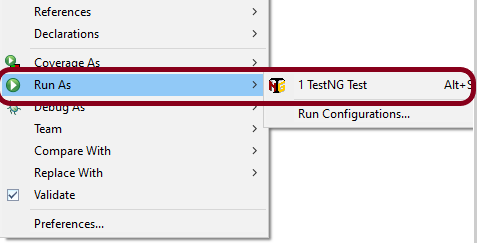
Go to the Runner class and right-click “Run As TestNG Test”. The tests will run as TestNG tests. This is for Eclipse.
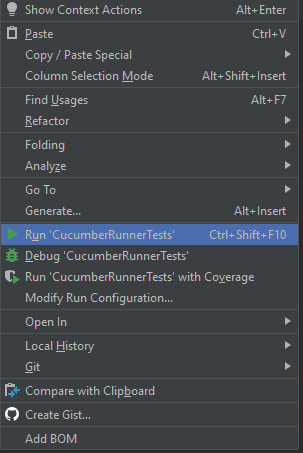
In case you are using IntelliJ, then select “Run CucumberRunner Tests“.
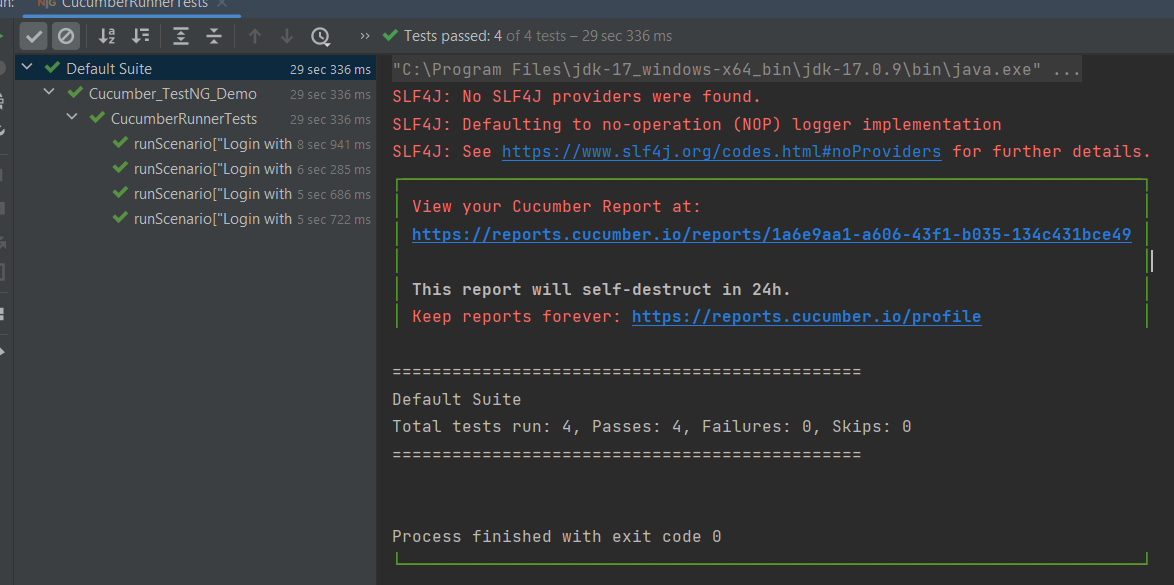
This is what the execution console will look like in Eclipse.
Step 14 – Run the tests from TestNG.xml
Create a TestNG.xml as shown below and run the tests as TestNG.
Below is an example of testng.xml.
<?xml version="1.0" encoding="UTF-8"?>
<!DOCTYPE suite SYSTEM "https://testng.org/testng-1.0.dtd">
<suite name="Suite">
  <test  name="Cucumber with TestNG Test">
    <classes>
      <class name="com.example.runner.CucumberRunnerTests"/>
    </classes>
  </test> <!-- Test -->
</suite> <!-- Suite -->
Step 15 – Run the tests from the Command Line
Run the below command in the command prompt to run the tests and to get the test execution report.
mvn clean test
The execution screen looks like something as shown below.
Step 16 – Cucumber Report Generation
Add cucumber.properties under src/test/resources and add the below instructions in the file.
cucumber.publish.enabled=true
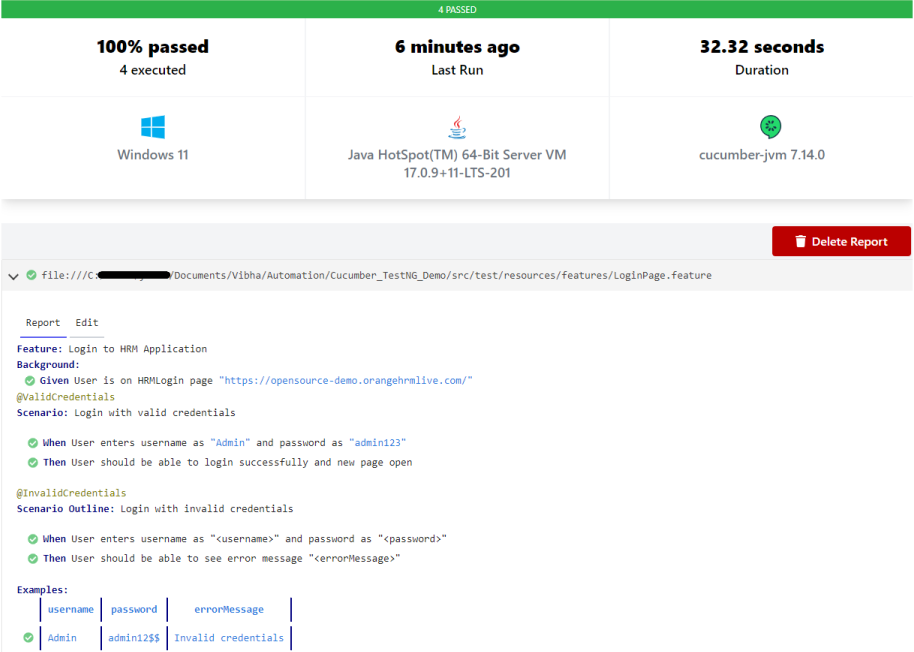
Below is the image of the Cucumber Report generated using the Cucumber Service.
Step 17 – TestNG Report Generation
TestNG generates various types of reports under the test-output or target folder like emailable-report.html, index.html, testng-results.xml.
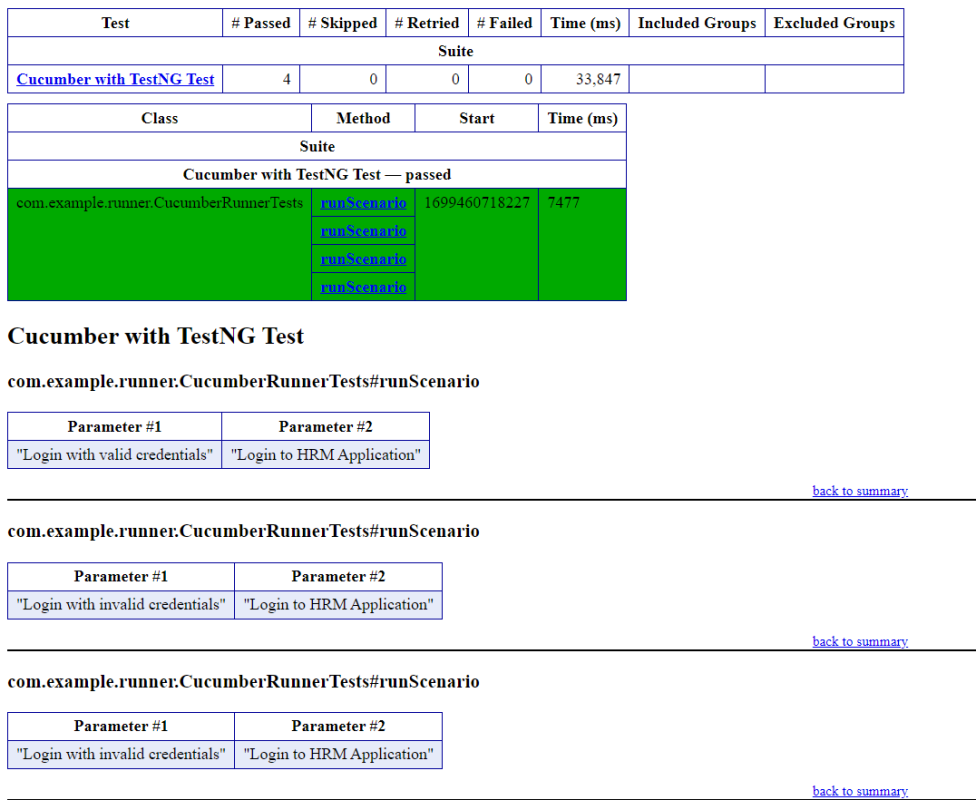
We are interested in the ‘emailable-report.html’ report. Open “emailable-report.html“, as this is an HTML report, and open it with the browser. The below image shows emailable-report.html.
emailable-report.html
Index.html
TestNG also produces “index.html” report, and it resides under the test-output folder. The below image shows the index.html report.
CI/CD Integration:
Integrating BDD tests with Continuous Integration and Continuous Deployment (CICD) pipelines helps automate the testing process. Tools like Jenkins, GitLab CI, or GitHub Actions can be configured easily. They run BDD tests automatically during the build process. Here’s how:
Configure the CICD Pipeline:Set up the pipeline to build the project, run tests, and create reports.
Run Tests: Ensure the pipeline runs your BDD tests using Maven or Gradle.
Publish Reports: Configure the pipeline to show test results, so you can easily see if there are any issues.
Troubleshooting Tips:
1. Maven Dependencies Not Resolved: The dependencies for Cucumber, Selenium, or TestNG are not resolving in your project. Make sure your pom.xml is correctly configured and the Maven repository has the latest dependencies. Run mvn clean install to force update dependencies. Also, check if you have internet access and the correct settings in your Maven configuration.
2. TestNG XML File Setup: TestNG tests are not running as expected, or the test results are incorrect. Double-check your `testng.xml` configuration to ensure that the correct test classes, packages, or methods are included. Make sure annotations like `@Test` are correctly used in your test classes.
3. Cucumber Features Not Recognized: Cucumber feature files aren’t recognized by your test runner. Verify your `CucumberOptions` in the test runner class points to the correct `features` path and `glue` path for step definitions. Make sure your feature files have the correct `.feature` extension and contain valid Gherkin syntax.
We may quickly validate the steps in your feature using Dry Run in Cucumber, without having to run the code inside the appropriate step definitions, to ensure that every Step has its corresponding Step Definition present in the Step Definition file. A cucumber dry run is used to confirm the compilation faults and compile the Step Definition and Feature files. It is a way to validate the correctness of the Gherkin syntax in the feature files and the mapping of steps defined in the step definitions without executing the actual application code.
The Dry Run option can either be set as true or false. By default, it is false.
Dry Run as true
import io.cucumber.testng.AbstractTestNGCucumberTests;
import io.cucumber.testng.CucumberOptions;

@CucumberOptions(plugin = {"pretty"},
                 features = "src/test/resources/Features",
                 glue = "org.example.stepdefinitions",
                 monochrome=true,
                 dryRun = true)

public class CucumberRunnerTests extends AbstractTestNGCucumberTests {

}
Below is the sample feature file.
Feature: Login to HRM Application

  @ValidCredentials
  Scenario: Login with valid credentials

   Given User is on HRMLogin page "https://opensource-demo.orangehrmlive.com/"
    When User enters username as "Admin" and password as "admin123"
    Then User should be able to login successfully and new page open
In the below snippet of code, I have created the stepdefinitions for the Given and When statements and no stepdefinition for the Then statement.
import io.cucumber.java.After;
import io.cucumber.java.Before;
import io.cucumber.java.en.Given;
import io.cucumber.java.en.Then;
import io.cucumber.java.en.When;
import io.github.bonigarcia.wdm.WebDriverManager;
import org.openqa.selenium.By;
import org.openqa.selenium.WebDriver;
import org.openqa.selenium.chrome.ChromeDriver;
import org.testng.Assert;
import java.time.Duration;

public class LoginPageDefinitions {

	private static WebDriver driver;
    public final static int TIMEOUT = 5;

     @Before
    public void setUp() {

        WebDriverManager.chromedriver().setup();
        ChromeOptions options = new ChromeOptions();
        options.addArguments("--start-maximized");
        driver = new ChromeDriver(options);
        driver.manage().timeouts().implicitlyWait(Duration.ofSeconds(TIMEOUT));
    }


    @Given("User is on HRMLogin page {string}")
    public void loginTest(String url) {

        driver.get(url);

    }

    @When("User enters username as {string} and password as {string}")
    public void goToHomePage(String userName, String passWord) {

        // login to application
        driver.findElement(By.name("username")).sendKeys(userName);
        driver.findElement(By.name("password")).sendKeys(passWord);
        driver.findElement(By.xpath("//*[@id='app']/div[1]/div/div[1]/div/div[2]/div[2]/form/div[3]/button")).submit();

        // go the next page

    }

    @After
    public void teardown() {

        driver.quit();
    }

}
Execute the feature file by right-clicking on the Runner class and selecting – Run As TestNG Test.
In the case of the dry run as true, none of the Steps is executed, but Cucumber has only made sure that every Step has the interconnected method available in the Step Definition file. Take a look at the time duration at the end of every Step. It is extremely less.
The output of the above program is
Dry Run as false
In the below case, dryRun is false.
import io.cucumber.testng.AbstractTestNGCucumberTests;
import io.cucumber.testng.CucumberOptions;

@CucumberOptions(plugin = {"pretty"},
                 features = "src/test/resources/Features",
                 glue = "org.example.stepdefinitions",
                 monochrome=true,
                 dryRun = false)

public class CucumberRunnerTests extends AbstractTestNGCucumberTests {

}
The output of the above program is
In case of dry run as false, the steps 1 and 2 will be executed. The browser will open and all statements inside the step definitions method will execute when set to false. The time taken to complete this test is 0.235 sec.
So, you can set dry run to true to quickly check if any of the step definition is not implemented.
Assertions in TestNG are a way to verify that the expected result and the actual result match not in the test case. A test is considered successful ONLY if it is completed without throwing any exceptions. An example of assertion can be logging into the website, checking the title of the webpage, verifying the functionality of an input box that takes only integers, etc.
If the project is a Maven project, then please add the latest TestNG dependency in the pom.xml.
Hard Assertion throws AssertionError immediately when an Assert Condition fails and moves to the next @Test method
Suppose, there are 2 assertions in a Test and the first assertion fails, then HardAssertion does not execute the second Assertion Condition and declares the test as failed
As you can see in the below example, there are 2 assert conditions under Test – AssertionFailure(). As the first Assert Condition fails, it moved directly to the second test without executing another Assert Condition.
package org.example;

import org.openqa.selenium.By;
import org.openqa.selenium.WebDriver;
import org.openqa.selenium.firefox.FirefoxDriver;
import org.openqa.selenium.firefox.FirefoxOptions;
import org.testng.Assert;
import org.testng.annotations.Test;

public class HardAssertionDemo {

    @Test
    public void AssertionFailure() {

        FirefoxOptions firefoxOptions = new FirefoxOptions();
        WebDriver driver = new FirefoxDriver(firefoxOptions);

        driver.get("https://duckduckgo.com/");
        String expectedTitle = "DuckDuckGo";

        String actualTitle = driver.getTitle();
        String actualText1 = driver.findElement(By.xpath("//*[@class='homepage-cta-section_title__Lovig heading_heading2__oEFPn heading_heading__IiMSV']")).getText();

        /* Hard Assert */
        System.out.println("Verify Title :" + actualTitle);
        Assert.assertEquals(actualTitle, expectedTitle, "Incorrect page title");

        System.out.println("Verify Text :" + actualText1);
        Assert.assertEquals(actualText1, "Privacy Protection For Any Device");

        driver.quit();
    }

    @Test
    public void print() {
        System.out.println("Hard Assertion is displayed");
    }
}
The output of the above program is
What is Soft Assert?
To overcome the above-mentioned problem, there is another type of assertion called Soft Assert.
Soft Assert does not throw an exception when an Assert Condition fails, and continues with the next step after the Assert Condition.
Soft assert does not include by default in TestNG. For this, you need to include the below package :
org.testng.asserts.SoftAssert;
The first step is to create an instance of SoftAssert class.
SoftAssert softAssertion = new SoftAssert();
After this, we can use this softAssert variable instead of hard assert.
Create an object of SoftAssertion to run Assert Conditions
Below is an example of a Soft Assert.
package org.example;

import org.openqa.selenium.By;
import org.openqa.selenium.WebDriver;
import org.openqa.selenium.firefox.FirefoxDriver;
import org.openqa.selenium.firefox.FirefoxOptions;
import org.testng.annotations.Test;
import org.testng.asserts.SoftAssert;

public class SoftAssertionDemo {

    @Test
    public void assertionFailure() {

        SoftAssert softAssertion = new SoftAssert();
        FirefoxOptions firefoxOptions = new FirefoxOptions();
        WebDriver driver = new FirefoxDriver(firefoxOptions);

        driver.manage().window().maximize();
        driver.get("https://duckduckgo.com/");

        String expectedTitle = "DuckDuckGo";

        String actualTitle = driver.getTitle();
        String actualText1 = driver.findElement(By.xpath("//*[@class='homepage-cta-section_title__Lovig heading_heading2__oEFPn heading_heading__IiMSV']")).getText();

        /* Soft Assert */
        System.out.println("Verify Title :" + actualTitle);
        softAssertion.assertEquals(actualTitle, expectedTitle, "Incorrect page title");

        System.out.println("Verify Text :" + actualText1);
        softAssertion.assertEquals(actualText1, "Privacy Protection For Any Device");

        driver.quit();
    }

    @Test
    public void print() {
        System.out.println("Soft Assertion is displayed");
    }

}
The output of the above program is
AssertAll
If there is any exception, and you want to throw it, then you need to use assertAll() method as a last statement in the @Test and test suite again to continue with the next @Test as it is.
package org.example;

import org.openqa.selenium.By;
import org.openqa.selenium.WebDriver;
import org.openqa.selenium.firefox.FirefoxDriver;
import org.openqa.selenium.firefox.FirefoxOptions;
import org.testng.annotations.Test;
import org.testng.asserts.SoftAssert;

public class AssertAllDemo {


    @Test
    public void assertionFailure() {

        SoftAssert softAssertion = new SoftAssert();

        FirefoxOptions firefoxOptions = new FirefoxOptions();
        WebDriver driver = new FirefoxDriver(firefoxOptions);

        driver.manage().window().maximize();
        driver.get("https://duckduckgo.com/");

        String expectedTitle = "DuckDuckGo";

        String actualTitle = driver.getTitle();
        String actualText1 = driver.findElement(By.xpath("//*[@class='homepage-cta-section_title__Lovig heading_heading2__oEFPn heading_heading__IiMSV']")).getText();


        /* AssertAll */
        System.out.println("Verify Title :" + actualTitle);
        softAssertion.assertEquals(actualTitle, expectedTitle, "Incorrect page title");

        System.out.println("Verify Text :" + actualText1);
        softAssertion.assertEquals(actualText1, "Privacy Protection For Any Device");

        softAssertion.assertAll();

        driver.quit();
    }

    @Test
    public void print() {
        System.out.println("Soft Assertion is displayed");
    }

}
The output of the above program is
In the above program, we can see that both assertions of Test – assertionFailure are executed, but as the first assertion has failed, the test – assertionFailure is marked as failed.
Congratulations on making it through this tutorial and hope you found it useful! Happy Learning!! Cheers!!
Google has developed a JSON library for Java called Gson. We can create JSON and translate it into Java objects using Gson. Gson can output JSON in compact format by default. The setPrettyPrinting() function of the GsonBuilder class must be used to set up the Gson instance in order to enable pretty printing. This method tells Gson to produce JSON that fits on a page for pretty printing.
Add the below dependency to POM.xml to use Gson API.
Let us create a table named Employee which contains the data members same as node names in the above JSON payload and their corresponding getter and setter methods.
public class Employee {

	// private data members of POJO class
	private String firstName;
	private String lastName;
	private int age;
	private double salary;
	private String designation;
	private String contactNumber;
	private String emailId;

	// Getter and setter methods
	public String getFirstName() {
		return firstName;
	}

	public void setFirstName(String firstName) {
		this.firstName = firstName;
	}

	public String getLastName() {
		return lastName;
	}

	public void setLastName(String lastName) {
		this.lastName = lastName;
	}

	public int getAge() {
		return age;
	}

	public void setAge(int age) {
		this.age = age;
	}

	public double getSalary() {
		return salary;
	}

	public void setSalary(double salary) {
		this.salary = salary;
	}

	public String getDesignation() {
		return designation;
	}

	public void setDesignation(String designation) {
		this.designation = designation;
	}

	public String getContactNumber() {
		return contactNumber;
	}

	public void setContactNumber(String contactNumber) {
		this.contactNumber = contactNumber;
	}

	public String getEmailId() {
		return emailId;
	}

	public void setEmailId(String emailId) {
		this.emailId = emailId;
	}

}
We will convert a Java Object to a JSON object as a String and also will write it into a .json file. There are many variations for the method toJson().
You can create a Gson instance by invoking a new Gson() if the default configuration is all you need, as shown in the below example.
  @Test
    public void withoutPretty() {

        // Create an object of POJO class
        Employee employee = new Employee();
        employee.setFirstName("Vibha");
        employee.setLastName("Singh");
        employee.setAge(30);
        employee.setSalary(75000);
        employee.setDesignation("Manager");
        employee.setContactNumber("+919999988822");
        employee.setEmailId("abc@test.com");

        Gson gson = new Gson();
        String employeeJsonPayload = gson.toJson(employee);
        System.out.println("Json :" + employeeJsonPayload);

    }
The execution message is shown below.
Syntax
public GsonBuilder setPrettyPrinting()
Below is the program to print the JSON in pretty format.
@Test
    public void withPretty() {
        // Create an object of POJO class
        Employee employee = new Employee();
        employee.setFirstName("Vibha");
        employee.setLastName("Singh");
        employee.setAge(30);
        employee.setSalary(75000);
        employee.setDesignation("Manager");
        employee.setContactNumber("+919999988822");
        employee.setEmailId("abc@test.com");

        Gson gson = new GsonBuilder().setPrettyPrinting().create();

        String json = gson.toJson(employee);

        System.out.println("Pretty Json :" + json);

    }
The output of the above program is
We are done! Congratulations on making it through this tutorial and hope you found it useful! Happy Learning!!
Let us create a table named Employee which contains the data members same as node names in the above JSON payload with @Expose annotation and their corresponding getter and setter methods.
package com.example.gson;

import com.google.gson.annotations.Expose;

import java.math.BigDecimal;
import java.util.List;
import java.util.Map;

public class Employee {

    // private data members of POJO class

    @Expose(serialize = true)
    private String firstName;

    @Expose(serialize = true)
    private String lastName;

    @Expose(serialize = false)
    private int age;

    @Expose(serialize = true)
    private Map<String, BigDecimal> salary;

    @Expose()
    private String designation;

    @Expose(serialize = false)
    private String contactNumber;

    @Expose(serialize = true)
    private List<String> emailId;

    // Getter and setter methods
    public String getFirstName() {
        return firstName;
    }

    public void setFirstName(String firstName) {
        this.firstName = firstName;
    }

    public String getLastName() {
        return lastName;
    }

    public void setLastName(String lastName) {
        this.lastName = lastName;
    }

    public int getAge() {
        return age;
    }

    public void setAge(int age) {
        this.age = age;
    }

    public Map<String, BigDecimal> getSalary() {
        return salary;
    }

    public void setSalary(Map<String, BigDecimal> salary) {
        this.salary = salary;
    }

    public String getDesignation() {
        return designation;
    }

    public void setDesignation(String designation) {
        this.designation = designation;
    }

    public String getContactNumber() {
        return contactNumber;
    }

    public void setContactNumber(String contactNumber) {
        this.contactNumber = contactNumber;
    }

    public List<String> getEmailId() {
        return emailId;
    }

    public void setEmailId(List<String> emailId) {
        this.emailId = emailId;
    }

    @Override
    public String toString() {
        return "(firstName: " + firstName + "," +
                "lastName: " + lastName + "," +
                "age: " + age + ", " +
                "salary: " + salary + "," +
                "designation: " + designation + ", " +
                "contactNumber: " + contactNumber + ", " +
                "emailId: " + emailId + ")";

    }
}
Suppose the attribute age and contactNumber in the Employee class should not serialize because it’s sensitive information. Hence, we must decorate these attributes with the annotation @Expose(serialize=false):
To use @Expose annotation, we must create a Gson instance by using the GsonBuilder class and its excludeFieldsWithoutExposeAnnotation() method.
import com.google.gson.Gson;
import com.google.gson.GsonBuilder;
import org.junit.Test;
import java.math.BigDecimal;
import java.util.Arrays;
import java.util.HashMap;
import java.util.Map;

public class GsonExpose_Demo {

    @Test
    public void gsonExposeTest()  {

        // Create an object of POJO class
        Employee employee = new Employee();
        employee.setFirstName("Vibha");
        employee.setLastName("Singh");
        employee.setAge(30);
        Map<String, BigDecimal> salary = new HashMap() {{
            put("2010", new BigDecimal(10000));
            put("2012", new BigDecimal(12000));
            put("2018", new BigDecimal(14000));
        }};

        employee.setSalary(salary);
        employee.setDesignation("Manager");
        employee.setContactNumber("+919999988822");
        employee.setEmailId(Arrays.asList("abc@test.com","vibha@test.com"));

        Gson gson = new GsonBuilder().setPrettyPrinting().excludeFieldsWithoutExposeAnnotation().create();
        String employeeJsonPayload = gson.toJson(employee);
        System.out.println("Json :" + employeeJsonPayload);

    }
}
The output of the above program is shown below.
We can see here that age and contactNumber are not shown in the JSON body.
We are done! Congratulations on making it through this tutorial and hope you found it useful! Happy Learning!!