How to create Gradle project with Selenium and TestNG

HOME

The previous tutorial explained How to create Java Gradle project in Eclipse. In this tutorial, I will explain how we can set up a Gradle project with Selenium and TestNG.

Dependency List

  • Java 17 or above
  • TestNG – 7.10
  • Gradle – 8.10 (Build Tool)
  • Selenium – 4.24.0

Implementation Steps

Step 1- Download and Install Java

Selenium needs Java to be installed on the system to run the tests. Click here to know How to install Java.

Step 2 – Download and setup Eclipse IDE on the system

The Eclipse IDE (integrated development environment) provides strong support for Java developers. Click here to know How to install Eclipse.

Step 3 – Setup Gradle

To build a test framework, we need to add several dependencies to the project. This can be achieved by any build tool. I have used Gradle Build Tool. Click here to know How to install Gradle.

Step 4 – Create a new Gradle Project

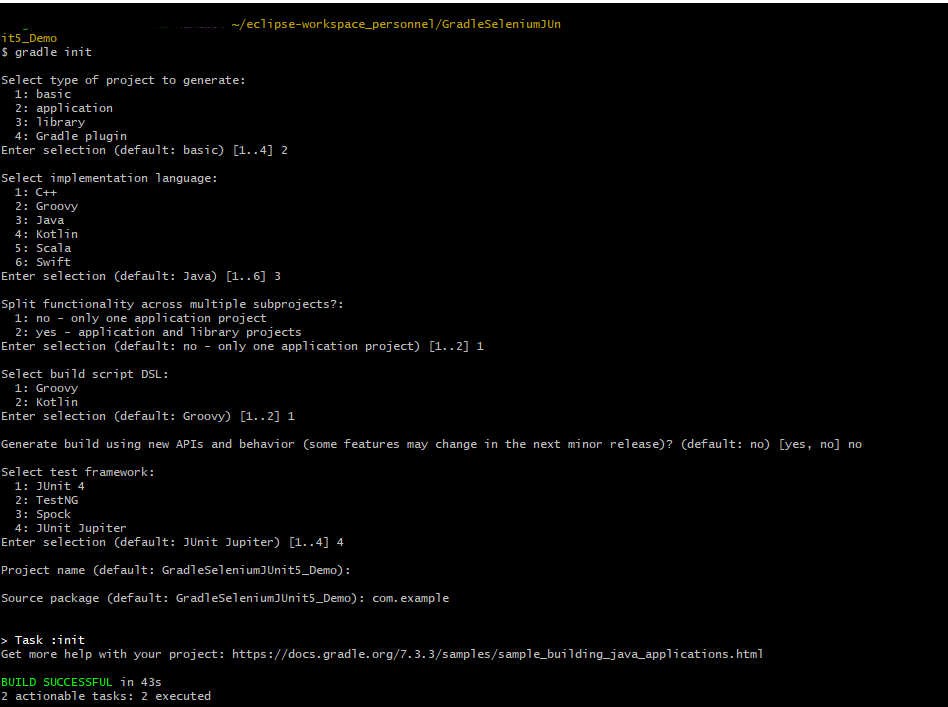
Below are the steps to create the Gradle project from command line.

If you want to create the Gradle project from Eclipse IDE, click here to know How to create a Gradle Java project.

Below is the structure of the Gradle project.

Step 5 – Add Selenium and TestNG dependencies to the Gradle project

dependencies {
    // Use TestNG framework, also requires calling test.useTestNG() below
    testImplementation 'org.testng:testng:7.10.0'

    // This dependency is used by the application.
    implementation libs.guava
    implementation 'org.seleniumhq.selenium:selenium-java:4.24.0'
}

Step 6 – Add Gradle Test Task to build.gradle 

tasks.named('test') {
    // Use TestNG for unit tests.
    useTestNG() {
    useDefaultListeners = true
	outputDirectory = file("$projectDir/TestNG_Reports")
   }
 reports.html.setDestination(file("$projectDir/GradleReports"))
}

The complete gradle.build looks like something shown below.

/*
 * This file was generated by the Gradle 'init' task.
 *
 * This generated file contains a sample Java application project to get you started.
 * For more details on building Java & JVM projects, please refer to https://docs.gradle.org/8.10/userguide/building_java_projects.html in the Gradle documentation.
 */

plugins {
    // Apply the application plugin to add support for building a CLI application in Java.
    id 'java'
}

repositories {
    // Use Maven Central for resolving dependencies.
    mavenCentral()
}

dependencies {
    // Use TestNG framework, also requires calling test.useTestNG() below
    testImplementation 'org.testng:testng:7.10.0'

    // This dependency is used by the application.
    implementation libs.guava
    implementation 'org.seleniumhq.selenium:selenium-java:4.24.0'
}

// Apply a specific Java toolchain to ease working on different environments.
java {
    toolchain {
        languageVersion = JavaLanguageVersion.of(17)
    }
}

tasks.named('test') {
    // Use TestNG for unit tests.
    useTestNG() {
        useDefaultListeners = true
        outputDirectory = file("$projectDir/TestNG_Reports")
    }
    reports.html.setDestination(file("$projectDir/GradleReports"))
}

Step 7 – Create Test Code under src/test/java

Let us write the code to test a web application. I have created 3 tests and out of 3, 1 test will fail intentionally.

package org.example;

import org.openqa.selenium.By;
import org.openqa.selenium.WebDriver;
import org.openqa.selenium.chrome.ChromeDriver;
import org.openqa.selenium.chrome.ChromeOptions;
import org.testng.Assert;
import org.testng.annotations.AfterMethod;
import org.testng.annotations.BeforeMethod;
import org.testng.annotations.Test;

import java.time.Duration;

public class LoginTests {

    WebDriver driver;

    @BeforeMethod
    public void setUp() {

        ChromeOptions options = new ChromeOptions();
        driver = new ChromeDriver(options);
        driver.manage().timeouts().implicitlyWait(Duration.ofSeconds(10));
        driver.manage().window().maximize();
        driver.get("https://opensource-demo.orangehrmlive.com/");

    }

    @Test(description = "This test validates error message when credentials are incorrect", priority = 0)
    public void verifyIncorrectCredentials() {

        driver.findElement(By.name("username")).sendKeys("Admin");
        driver.findElement(By.name("password")).sendKeys("admin123$$");
        driver.findElement(By.xpath("//*[@class='oxd-form']/div[3]/button")).submit();

        String actualErrorMessage = driver.findElement(By.xpath("//*[@class='orangehrm-login-error']/div/div/p")).getText();

        // Verify Error Message
        Assert.assertEquals(actualErrorMessage,"Invalid credentials");

    }

    @Test(description = "This test will fail", priority = 1)
    public void verifyBlankCredentials() {

        driver.findElement(By.name("username")).sendKeys("");
        driver.findElement(By.name("password")).sendKeys("admin123$$");
        driver.findElement(By.xpath("//*[@class='oxd-form']/div[3]/button")).submit();

        String actualErrorMessage = driver.findElement(By.xpath("//*[@class='oxd-form-row']/div/span")).getText();

        // Verify Error Message
        Assert.assertEquals(actualErrorMessage,"Invalid credentials");

    }

    @Test(description = "This test validates  successful login to Home page", priority = 2)
    public void verifyLoginPage() {

        driver.findElement(By.name("username")).sendKeys("Admin");
        driver.findElement(By.name("password")).sendKeys("admin123");
        driver.findElement(By.xpath("//*[@class='oxd-form']/div[3]/button")).submit();

        String homePageHeading = driver.findElement(By.xpath("//*[@class='oxd-topbar-header-breadcrumb']/h6")).getText();

        //Verify new page - HomePage
        Assert.assertEquals(homePageHeading,"Dashboard");

    }

    @AfterMethod
    public void tearDown() {

        driver.quit();
    }
}

Step 8 – Create testng.xml

Right-click on the project and select TestNG and select Convert to TestNG.

<?xml version="1.0" encoding="UTF-8"?>
<!DOCTYPE suite SYSTEM "https://testng.org/testng-1.0.dtd">
<suite name="Suite">
  <test name="Selenium Tests with TestNG">
    <classes>
      <class name="org.example.LoginTests"/>
    </classes>
  </test> <!-- Test -->
</suite> <!-- Suite -->

Step 9 – Run the tests from TestNG

Right-Click on the testng.xml and select Run As TestNG Suite.

The output of the above tests in Eclipse Console is as shown below.

This also generates a folder with the name test-output that contains the TestNG reports like index.html, emailable-report.html.

Step 10 – Run the tests from Command Line

To run the tests from the command line, use the below-mentioned command.

gradle clean test

The output of the above program is

Step 11 – TestNG and Gradle Report generation

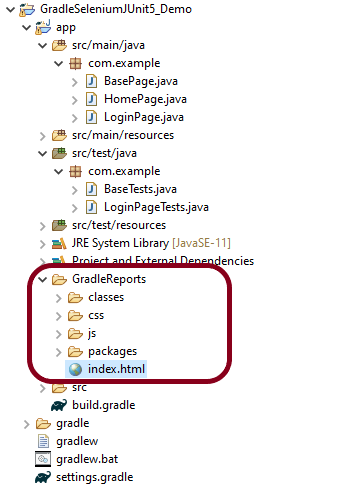
Once the test execution is finished, refresh the project. We will see 2 folders – GradleReports and TestNG_ Reports.

Gradle Reports

This folder contains index.html.

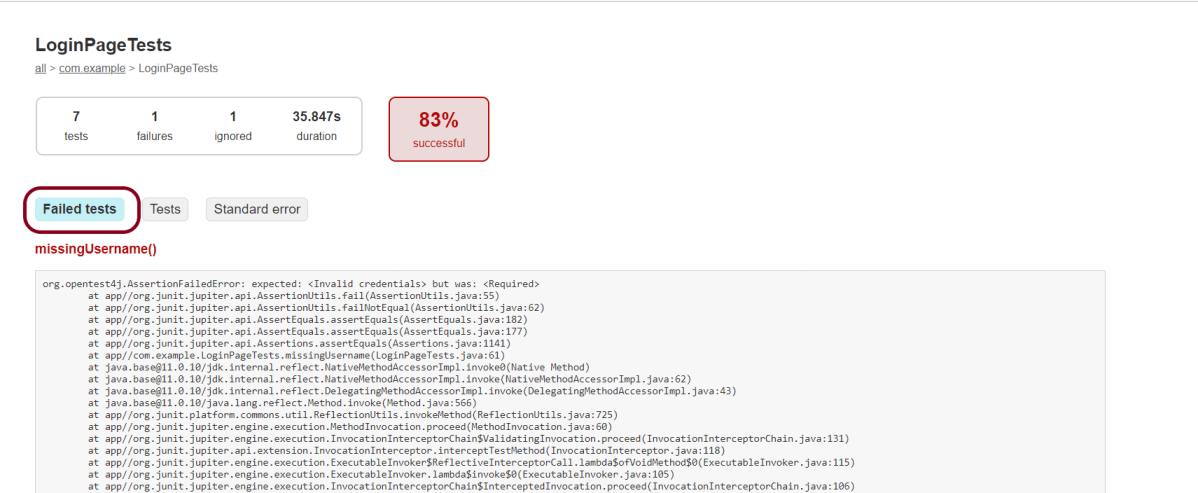
Right-click on index.html and select open with Web Browser. This report shows the summary of all the tests executed. As you can see that Failed tests are selected (highlighted in blue), so the name of the test failed along with the class name is displayed here.

TestNG Reports

Go to TestNG_Reports folder and right-click and open emailable-report.html.

Index.html

Congratulations on making it through this tutorial and hope you found it useful! Happy Learning!! Cheers!!

JUnit Tutorials

HOME

JUnit is an open source Unit Testing Framework for JAVA.
JUnit is a simple framework to write repeatable tests. It is an instance of the xUnit architecture for unit testing frameworks.

JUnit4

Chapter 1 How to configure Junit in Intellij
Chapter 2 How to run JUnit5 tests through Command Line
Chapter 3 JUnit4 Assertions
Chapter 4 How to Parameterize tests in JUnit4
Chapter 5 How to generate JUnit4 Report
Chapter 6 Integration of Cucumber with Selenium and JUnit
Chapter 7 Integration of Serenity with Cucumber6 and JUnit5
Chapter 8 Integration of Serenity with JUnit4
Chapter 9 Rest API Test in Cucumber BDD
Chapter 10 Difference between JUnit4 and JUnit5
Chapter 11 Integration of REST Assured with JUnit4

JUnit5

Chapter 1 JUnit5 Assertions Example
Chapter 2 Grouped Assertions in JUnit 5 – assertAll()
Chapter 3 How to Retry Test in JUnit5 – @RepeatedTest
Chapter 4 How to disable tests in JUnit5 – @Disabled
Chapter 5 How to run JUnit5 tests in order
Chapter 6 How to tag and filter JUnit5 tests – @Tag
Chapter 7 Assumptions in JUnit5
Chapter 8 How to parameterized Tests in JUnit5
Chapter 9 How to run parameterized Selenium test using JUnit5
Chapter 10 Testing of Web Application using Serenity with JUnit5
Chapter 11 Integration of Serenity with Cucumber6 and JUnit5
Chapter 12 How to generate JUnit5 Report – NEW

Gradle

Chapter 1 Gradle – Allure Report for Selenium and JUnit4
Chapter 2 Gradle Project with Cucumber, Selenium and JUnit4
Chapter 3 Gradle – Integration of Selenium and JUnit5

Run Gradle API Tests in GitLab CI/CD

Last Updated On

HOME

This tutorial explains the process to run the Gradle API Tests in the GitLab pipeline. This is a very important step towards achieving CI/CD.

Prerequisite:

  1. Serenity – 2.6.0
  2. Serenity Cucumber – 2.6.0
  3. Serenity Rest Assured – 2.6.0
  4. Rest Assured – 4.3.2
  5. Java 11
  6. JUnit – 4.13.2
  7. Gradle – 7.2
  8. GitLab Account

Please refer to this tutorial to get the structure and code of the Gradle project with Serenity and Rest API – Serenity BDD with Cucumber and Rest Assured in Gradle

What is GitLab CI/CD Workflow?

GitLab automatically enables CI/CD pipelines for new projects. It’s just a matter of adding a new configuration file called .gitlab-ci.yml to your code repository with instructions for GitLab on what to run. So simply create the following basic workflow in your main repository directory and commit it.

GitLab Section

Step 1 – Create a blank project in GitLab

To know, how to create a blank new project in GitLab, please refer to How to create a new project in GitLab.

Step 2 – Push the project from the local repository to Gitlab Repository

To know, how to push the changes to GitLab, please refer to How to push new local GIT Repository to GitLab.

Step 3 – Create a .gitlab-ci.yml file in the project in GitLab

There are many ways to create a new file in GitLab. One of the ways is to create a file as shown in the below image.

It is a YAML file where you configure specific instructions for GitLab CI/CD. In the .gitlab-ci.yml, we can define:

  • The scripts you want to run.
  • Other configuration files and templates you want to include.
  • Dependencies and caches.
  • The commands you want to run in sequence and those you want to run in parallel.
  • The location to deploy your application to.
  • Whether you want to run the scripts automatically or trigger any of them manually.

image : gradle:7.1.0-jdk11 
stages:
  - test

variables:
  GRADLE_OPTS: "-Dorg.gradle.daemon=false"

test:
  stage: test
  allow_failure: true
 
# Run the tests
  script:
    - echo "Executing BDD scenarios with Gradle"
    - gradle clean test
    - gradle reports	

 
# Store artifacts
  artifacts:
    when: always
    name: "Gradle Report"
    paths:
    - lib/target/site/serenity/*
    expire_in: 24 h

Image – gradle:7.1.0-jdk11 is used in this test. It is a docker image for Gradle with Java 11 installed in it.

Pipeline configuration begins with jobs. Jobs are the most fundamental element of a  .gitlab-ci.yml file.

Jobs are:

  • Defined with constraints stating under what conditions they should be executed.
  • Top-level elements with an arbitrary name and must contain at least the script clause.
  • Not limited in how many can be defined.

Jobs can output an archive of files and directories. This output is known as a job artifact. The expire_in keyword determines how long GitLab keeps the job artifacts. Here, it shows 24 hrs to retain the artifacts.

Step 4 – View GitLab Pipeline

Now, when a new change is committed, a pipeline kicks off and it runs all the tests. To view the pipeline, go to the left panel and click on the Build option. There are a number of sub-options in the Build option, click on the Pipelines.

Step 5 – Run the tests in the GitLab pipeline

The below image shows that the tests are running in the GitLab pipeline.

Step 6 – Check the status of the pipeline

Once the Status of the pipeline changes to either failed or passed, that means the tests are already executed.

As you can see, the Status is passed, its green colour. This means all the tests present in the test suite are executed and passed. If any test fails in the test suite, the final execution status will be brown. The reason for the brown colour is we have mentioned allow_failure: true.

Below shows the execution status report in the GitLab pipeline.

As I have added an artifact also in the .gitalb-ci.yml, which is highlighted in the image. This artifact creates a folder with the name “Serenity_Report” and the reports in this folder come from the path /target/site. This artifact gives us the option to download the reports or browse the report. This report will be available for 24 hours only as mentioned in the gitlab-ci.yml.

Step 7 – Download the report

Once, will click on the download button, it will download “Gradle_Report.zip”. Unzip the folder and it looks like something as shown below:

Example of Index.html

Example of Serenity Summary Report

Congratulations. This tutorial has explained the steps to run Serenity tests in GitLab CI/CD. Happy Learning!!

Testing of Gradle SpringBoot Application with Serenity, Cucumber and JUnit4

HOME

In the previous tutorial, I explained about Integration Testing of Springboot with Cucumber and TestNG. In this tutorial, I will explain the Testing of the Gradle SpringBoot Application with Serenity, Cucumber, and JUnit4.

Prerequisite:

Spring Boot 3.0.4 requires Java 17 and is compatible with and including Java 19. Spring Framework 6.0.6 or above is also required.

Explicit build support is provided for the following build tools:

  1. Maven – 3.5+
  2. Gradle – 7.x (7.5 or later) and 8.x

This framework consists of

  1. SpringBoot Starter Parent – 3.1.0
  2. Serenity –  3.6.12
  3. Serenity Cucumber – 3.6.12
  4. Serenity JUnit4 – 3.6.12
  5. Serenity Rest Assured – 3.6.12
  6. Spring
  7. Java 17
  8. Gradle – 7.6.1

What is SpringBoot Application?

 Spring Boot is an open-source micro-framework that provides Java developers with a platform to get started with an auto-configurable production-grade Spring application. 

  • Comes with embedded HTTP servers like Tomcat or Jetty to test web applications.
  • Adds many plugins that developers can use to work with embedded and in-memory databases easily. Spring allows you to easily connect with database and queue services like Oracle, PostgreSQL, MySQL, MongoDB, Redis, Solr, ElasticSearch, Rabbit MQ, and others.

What is RestController?

HTTP requests are handled by a controller in Spring’s approach to building RESTful web services. The @RestController annotation identifies these components, and the HelloController shown below (from src/main/java/com/example/springboot_demo/HelloController.java) handles GET requests for / and /qaautomation by returning a new instance of the Greeting class. Spring RestController takes care of mapping request data to the request-defined handles method.

import org.springframework.web.bind.annotation.GetMapping;
import org.springframework.web.bind.annotation.RestController;
 
@RestController
public class HelloController {
     
    @GetMapping(path="/")
    String hello() {
        return "Hello World, Spring Boot!";
    }
     
     
    @GetMapping(path="/qaautomation")
    String qaautomation() {
        return "Hello QA Automation!";
    }
 
}

Project Directory Structure

Implementation Steps

  1. Create a source folder – src/test/resources to create properties file
  2. Add SpringBootTest, Rest Assured, and JUnit4 dependencies to the project
  3. Create a feature file in src/test/resources
  4. Create the StepDefinition and Helper classes.
  5. Create a Serenity Runner class in the src/test/java directory
  6. Create an application.properties file in src/test/resources
  7. Create a serenity.properties at the root level of the project
  8. Run the tests from Command Line
  9. Serenity Report Generation
  10. Cucumber Report Generation

Step 1 – Create a source folder – src/test/resources to create test scenarios in the Feature file

Right-click on the test directory and select New->Directory and select resources (Maven Source Directories).

Step 2 – Add SpringBootTest, Rest Assured, and other dependencies to the project

We have added SpringBootTest, SpringBoot Web, Tomcat, Spring Web, Rest Assured, and JUnit4 dependencies to the build.gradle.

plugins {
	id 'java'
	id 'org.springframework.boot' version '3.1.0-SNAPSHOT'
	id 'io.spring.dependency-management' version '1.1.0'
	id "net.serenity-bdd.serenity-gradle-plugin" version "3.6.7"
}

group = 'com.example'
version = '0.0.1-SNAPSHOT'
sourceCompatibility = '17'

repositories {
	mavenCentral()
	maven { url 'https://repo.spring.io/milestone' }
	maven { url 'https://repo.spring.io/snapshot' }
}


dependencies {

	implementation 'org.springframework.boot:spring-boot-starter'
	implementation 'org.springframework.boot:spring-boot-starter-web'
	implementation 'org.springframework.boot:spring-boot-starter-tomcat'
	implementation 'org.springframework:spring-web'

	testImplementation 'org.springframework.boot:spring-boot-starter-test'
	testImplementation 'net.serenity-bdd:serenity-core:3.6.12'
	testImplementation 'net.serenity-bdd:serenity-cucumber:3.6.12'
	testImplementation 'net.serenity-bdd:serenity-rest-assured:3.6.12'
	testImplementation 'net.serenity-bdd:serenity-spring:3.6.12'
	testImplementation 'net.serenity-bdd:serenity-junit:3.6.12'
	testImplementation 'org.junit.vintage:junit-vintage-engine'

}

tasks.named('test') {
	useJUnit() {}
	testLogging {
		showStandardStreams = true
	}
	systemProperties System.getProperties()
}

gradle.startParameter.continueOnFailure = true

test.finalizedBy(aggregate)

Step 3 – Create a feature file in src/test/resources

Below is an example of a feature file that shows a sample test scenario. Feature file should end with .feature. It contains the test scenarios in the form of simple English using the terms Given, When, Then, And.

Feature: SpringBoot Request
   
@ReceiveCorrectResponse

   Scenario Outline: Send a valid Request to get correct response
    Given I send a request to the URL "<url>"
    Then the response will return "<response>"

   Examples:
   | url             | response                   |
   | /               | Hello World, Spring Boot!  |
   | /qaautomation   | Hello QA Automation!       |

Step 4 – Create the StepDefinition and Helper classes.

Below is the code of the StepDefinition and Helper class. These classes are created in the src/test/java directory.

  • uses @SpringBootTest annotation which loads the actual application context.
  • uses WebEnvironment.RANDOM_PORT to create and run the application at some random server port.
  • @LocalServerPort gets the reference of the port where the server has started. It helps in building the actual request URIs to mimic real client interactions.

AbstractRestAssuredHelper

import io.restassured.RestAssured;
import io.restassured.specification.RequestSpecification;
import net.serenitybdd.rest.SerenityRest;
import org.springframework.beans.factory.annotation.Value;
import org.springframework.boot.test.context.SpringBootTest;
import org.springframework.boot.test.context.SpringBootTest.WebEnvironment;
import org.springframework.boot.test.web.server.LocalServerPort;


@SpringBootTest(webEnvironment = WebEnvironment.RANDOM_PORT)
public abstract class AbstractRestAssuredHelper {
     private final static String BASE_URI = "http://localhost";
 
     @LocalServerPort
     private int port;

     @Value("${server.servlet.context-path}")
     private String basePath;
 
     protected void configureRestAssured() {
           RestAssured.baseURI = BASE_URI;
           RestAssured.port = port;
           RestAssured.basePath = basePath;
           
 
     }

     protected RequestSpecification getAnonymousRequest() {
           configureRestAssured();
           return SerenityRest.given();
     }
}

This class sends the request and receives a response after performing the GET operation. Here, the validation of the response also takes place by asserting the expected and actual response

import io.cucumber.java.en.Given;
import io.cucumber.java.en.Then;
import io.restassured.response.Response;
import net.serenitybdd.rest.SerenityRest;
import net.thucydides.core.annotations.Steps;
import org.junit.Assert;

public class SpringBootDemoDefinitions {

	@Steps
    AbstractRestAssuredHelper helper;
    private Response response;

    @Given("I send a request to the URL {string}")
    public void iSendARequest(String endpoint) throws Exception  {
         response = helper.getAnonymousRequest()
                    .header("Content-Type", "application/json").when().get(endpoint);
    }

    @Then("the response will return {string}")
    public void extractResponse(String Expected ) {
          SerenityRest.restAssuredThat(response -> response.statusCode(200));
          String Actual = response.asString();    
          System.out.println("Result :"+Actual);
          Assert.assertEquals(Expected, Actual);
    }
}

Step 5 – Create a Serenity Runner class in the src/test/java directory

We cannot run a Feature file on its own in cucumber-based framework. We need to create a Java class that will run the Feature File. It is the starting point for JUnit to start executing the tests. TestRunner class is created under src/test/javaWhen you run the tests with serenity, you use the CucumberWithSerenity test runner.

import org.junit.runner.RunWith;
import io.cucumber.junit.CucumberOptions;
import net.serenitybdd.cucumber.CucumberWithSerenity;

@RunWith(CucumberWithSerenity.class)
@CucumberOptions(features = "src/test/resources/features", tags = "", glue = "com.example.Gradle_SpringBoot_Demo", publish = true)

public class SpringRunnerTests {

}

Step 6 – Create an application.properties file in src/test/resources

Application.properties is created under src/test/java

spring.profiles.active=dev
server.port=9091
server.servlet.context-path=/demo

spring.profiles.active – property to specify which profiles are active. The default profile is always active.
server.port – By default, the embedded server starts on port 8080. Now the server will start on port 8090
server.servlet.context-path – the context path in Spring Boot can be changed by setting a property, server.servlet.context-path.

Step 7 – Create a serenity.properties at the root level of the project

serenity.project.name = Testing of Gradle SpringBoot Application with Serenity and JUnit4 Demo

Step 8 – Run the tests from Command Line

Run the tests from the command line by using the below command

gradle clean test

The output of the above program is

This image shows that the profile name is “dev”. Application is started on port – “54462” and the context path is “/demo”.

Step 9 – Serenity Report Generation

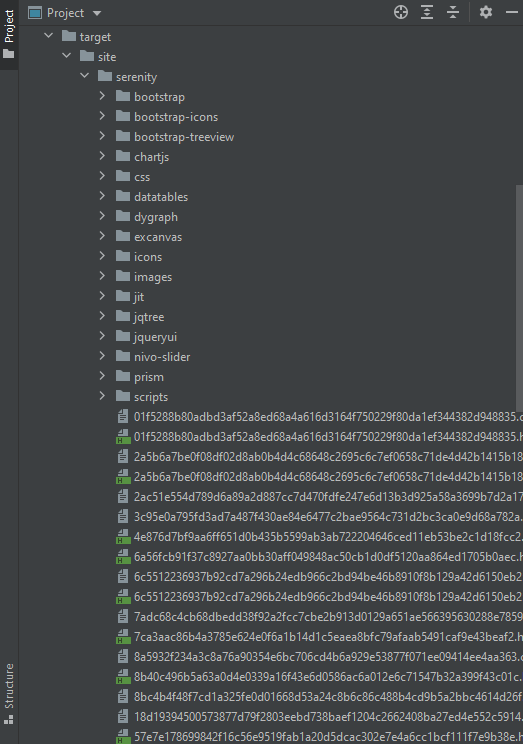
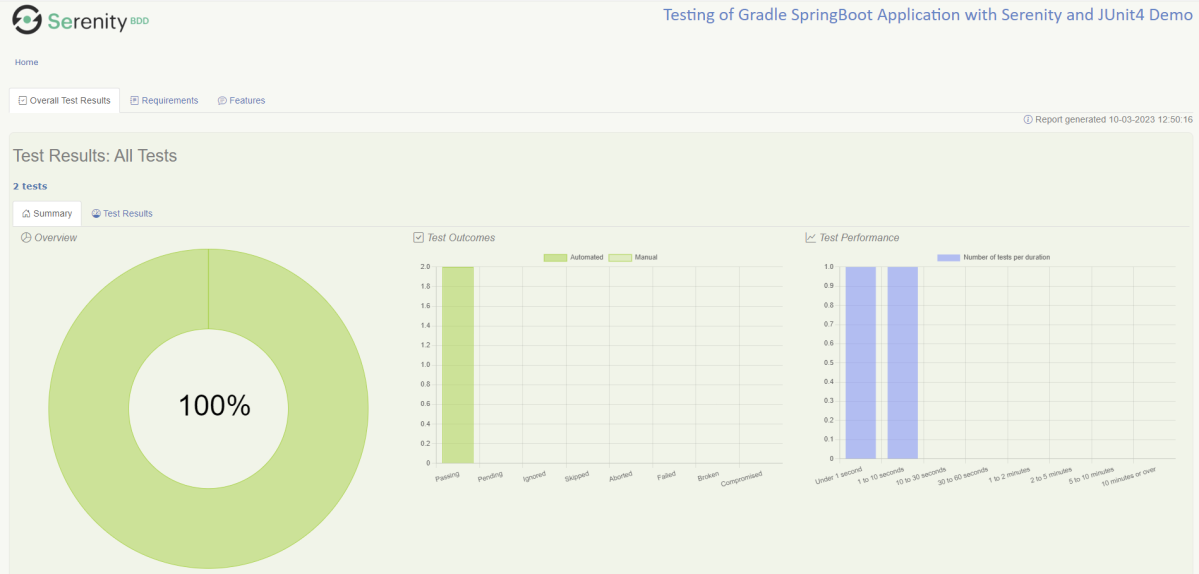
By default, the test report generated by Serenity is placed under target/site/serenity/index.html. Below is the sample Serenity Report.

Below is the sample Serenity Report.

Step 10 – Cucumber Report Generation

A Cucumber Report can be generated by adding publish=true in SpringRunnerTests as shown in the above example. Click on the link provided in the execution status.

Cucumber Report

Congratulations on making it through this tutorial and hope you found it useful! Happy Learning!! Cheers!!

How to create Jenkins pipeline for Gradle project

Last Updated On

HOME

In the previous tutorial, I discussed the Jenkins pipeline. This tutorial will discuss the steps to create the Jenkins pipeline for Gradle Project.

Table Of Contents

  1. Prerequisite
  2. Implementation Steps
    1. Create a new pipeline project
    2. Scroll down to Pipeline
    3. Create Jenkinsfile
    4. Specify branches to build a section under Repositories
    5. Execute the tests
    6. Pipeline Steps
    7. View the Report

Prerequisite

Jenkins was installed and started on the computer.

Implementation Steps

Step 1: Create a new pipeline project

  1. Give the Name of the projectGradle_PipelineDemo
  2. Click on the pipeline project. 
  3. Click on the OK button.

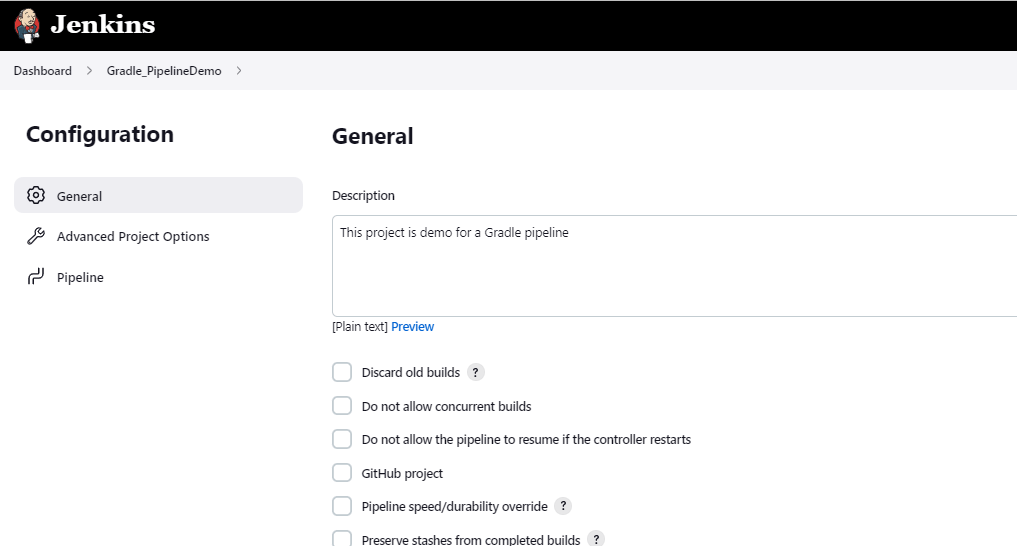
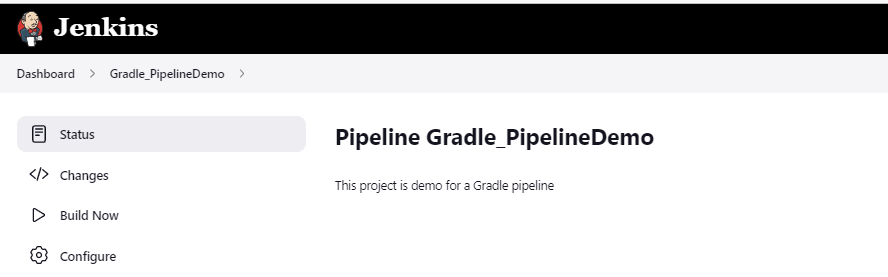
In the General section, enter the project description in the Description box.

Step 2: Scroll down to Pipeline

From the Definition field, choose the “Pipeline script from SCM” option. This option instructs Jenkins to obtain your Pipeline from Source Control Management (SCM), which will be your locally cloned Git repository.

From the SCM field, choose Git.

The Repositories section contains the Repository URL and Credentials.

In the Repository URL field, specify the directory path of the GitLab/GitHub project.

In the Credentials field, specify the username and password needed to log in to GitLab/GitHub.

In this case, I have the project is present in GitLab and using it.

Step 3: Create Jenkinsfile

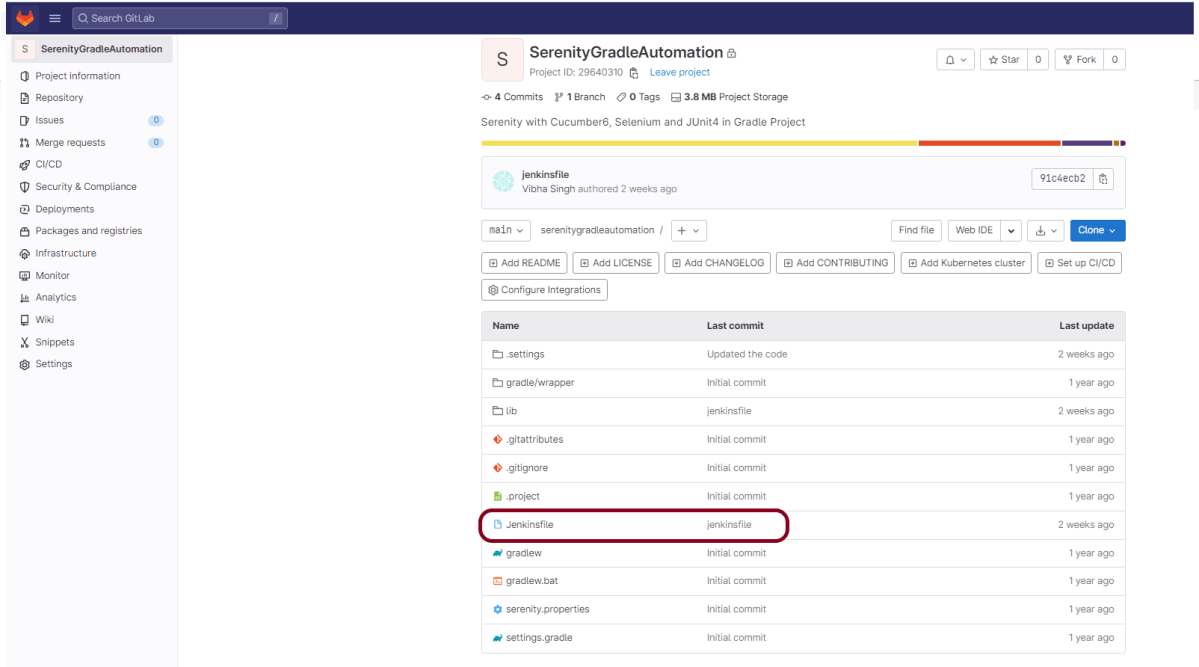
Create and save a new text file with the name Jenkinsfile at the root of the project in the GitLab repository. Here, we are using the Gradle project with Serenity. To know more about the Integration of Gradle with Serenity, please refer to this tutorial – Serenity BDD with Gradle and Cucumber for Web Application

For this tutorial, we are using Declarative syntax. The sample example is given below

pipeline {
    agent any
 
    stages {
        stage('Test') {
            steps {
                bat "gradle clean test"
            }
 
            post {                
                // If Gradle was able to run the tests, even if some of the test
                // failed, record the test results and archive the jar file.
                success {
                   publishHTML([
                      allowMissing: false, 
                      alwaysLinkToLastBuild: false, 
                      keepAll: false, 
                      reportDir: 'lib/target/site/serenity/', 
                      reportFiles: 'index.html', 
                      reportName: 'Serenity Report', 
                      reportTitles: '', 
                      useWrapperFileDirectly: true])
                }
            }
        }
    }
}


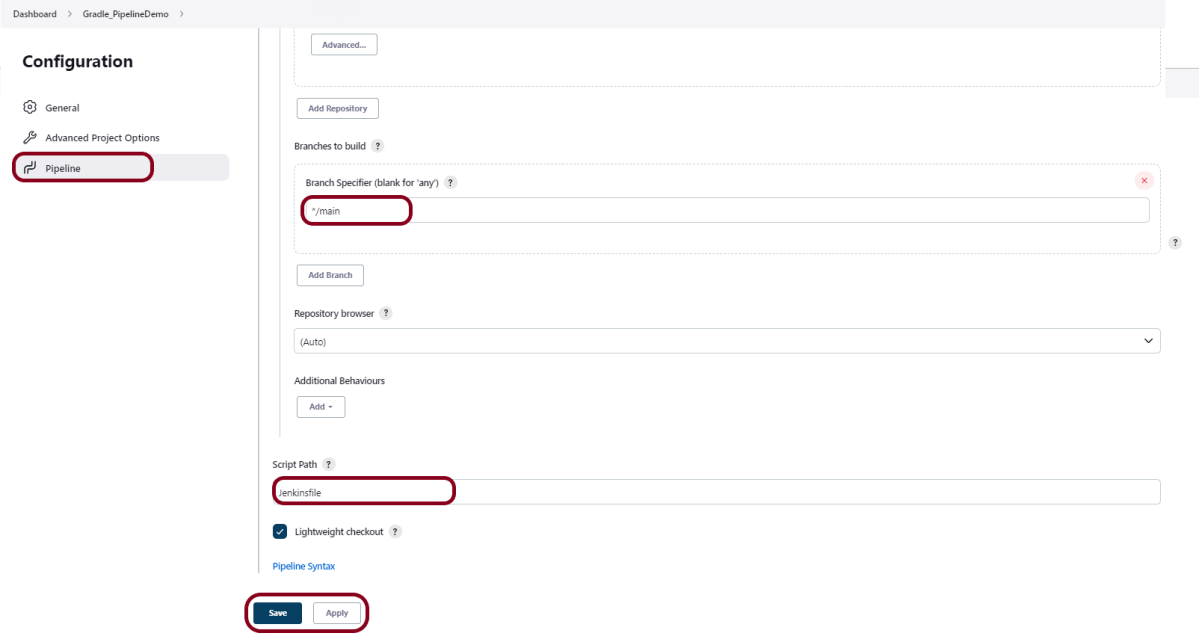
Step 4: Specify branches to build a section under Repositories

  1. Branch Specifier – */main(This is my main branch)
  2. ScriptPath – Jenkinsfile

Click on the Apply and Save buttons.

We have created a new Maven project Gradle_PipelineDemo” with the configuration to run the Selenium Test with TestNG.

Step 5: Execute the tests

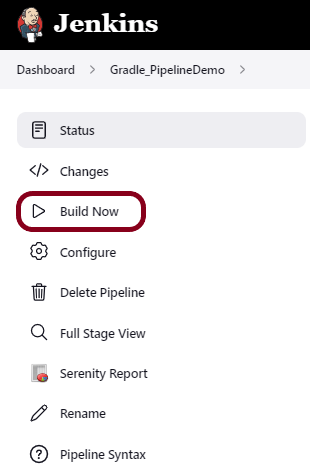
Let’s execute it now by clicking on the “Build Now” button. 

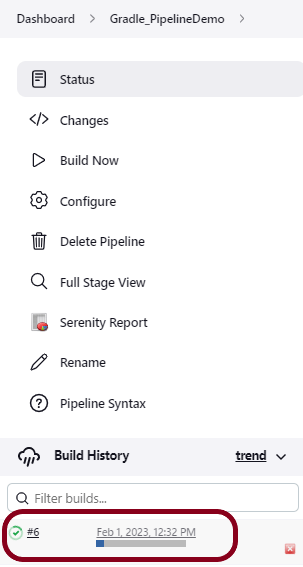
Right-click on Build Number (here in my case it is #6) and click on Console Output to see the result.

Below is the test execution summary.

Step 6: Pipeline Steps

Once the execution is completed, and we want to see the Pipeline Steps, click on the Pipeline Steps mentioned on the left side of the page.

Step 7: View the Report

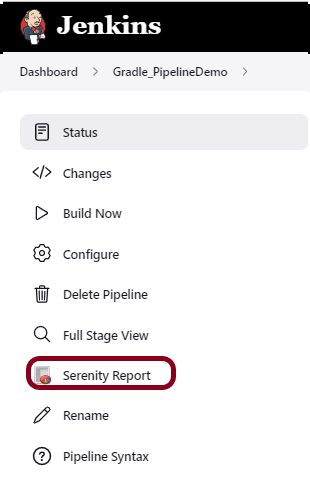
Once the execution is completed, go back to Gradle_PipelineDemo. We can see below that the Serenity Report is generated. To know, how to generate Serenity Report, please refer to this tutorial – How to create Jenkins pipeline for Serenity tests

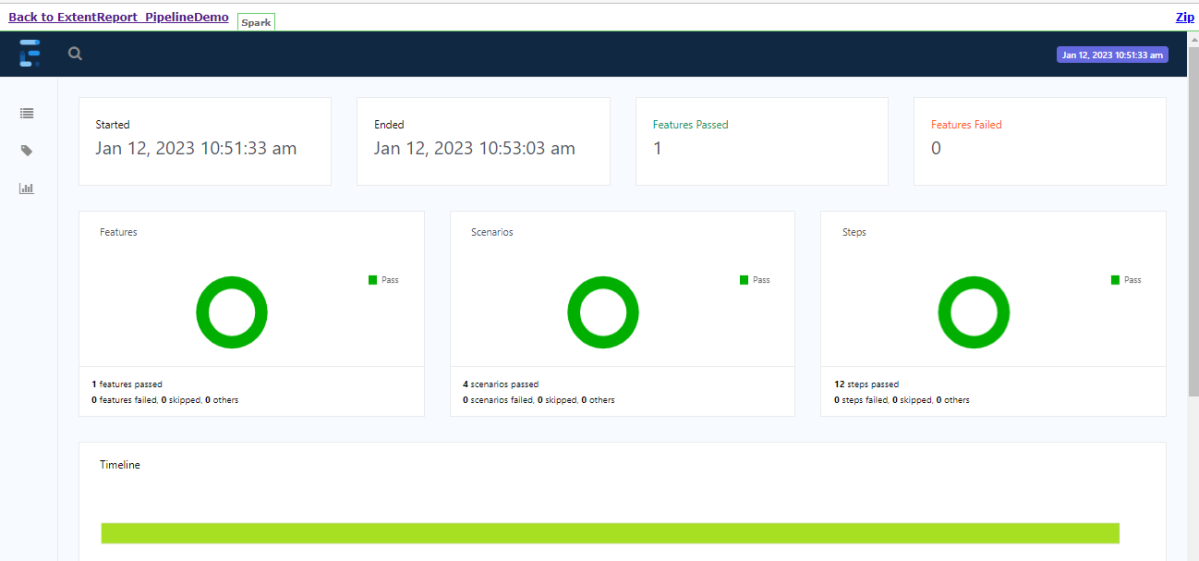
We could see a link to view the “Serenity Report“. Click on the Serenity Report. It displays the Serenity Report.

Tip: If you don’t see the Report UI intact, then you need to configure a simple groovy script. For that, go to Dashboard–>Manage Jenkins–>Script Console and add the script as:

System.setProperty("hudson.model.DirectoryBrowserSupport.CSP","")

That’s it! Congratulations on making it through this tutorial and hope you found it useful! Happy Learning!!

Additional Tutorials

Jenkins GitLab Integration
How to create Jenkins pipeline for Selenium tests
How to create Jenkins pipeline for Serenity tests
How to create Jenkins pipeline for Cucumber tests
How to create Jenkins pipeline for Extent Report
How to run parameterized Selenium tests in Jenkins

Integrate Gradle project with Jenkins

HOME

In the previous tutorial, we have seen the Integration Of Jenkins With Selenium WebDriver. In this tutorial, we show you how to integrate the Gradle project with Jenkins. 

Prerequisite

  1. Jenkins installed and started on the computer
  2. Gradle is installed on the machine

Setup GRADLE_HOME in Jenkins

Step 1: Start the Jenkins server

http://localhost:8080/

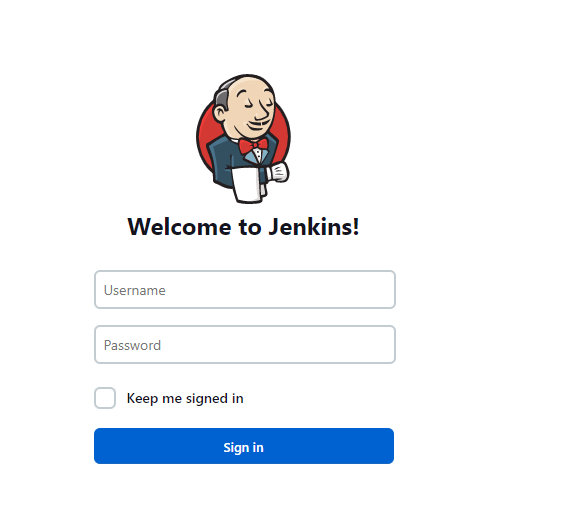
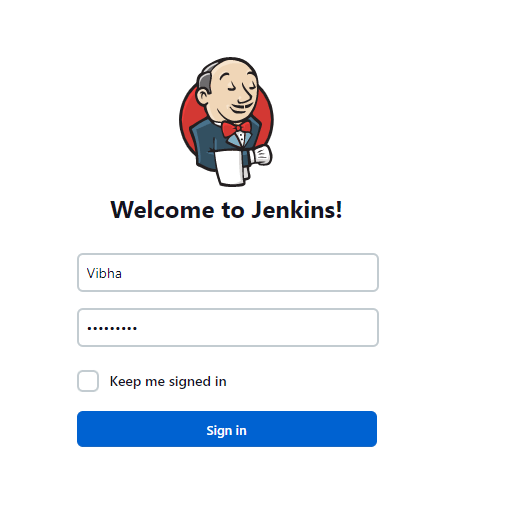
Step 2: Log in to Jenkins UI

You need to provide a username and password and click on Sign in button.

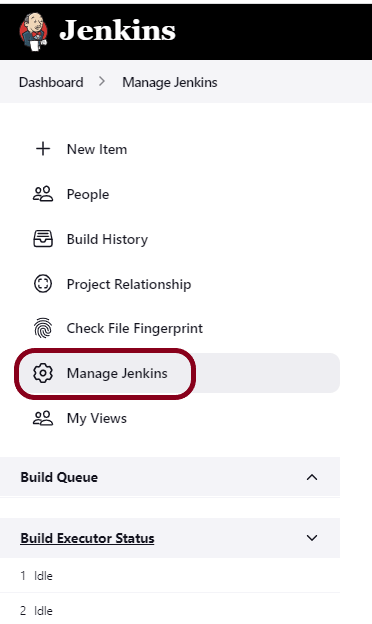
Step 3: Select Manage Jenkins

Go to Jenkins Dashboard. After that, click on the Manage Jenkins link as shown below:

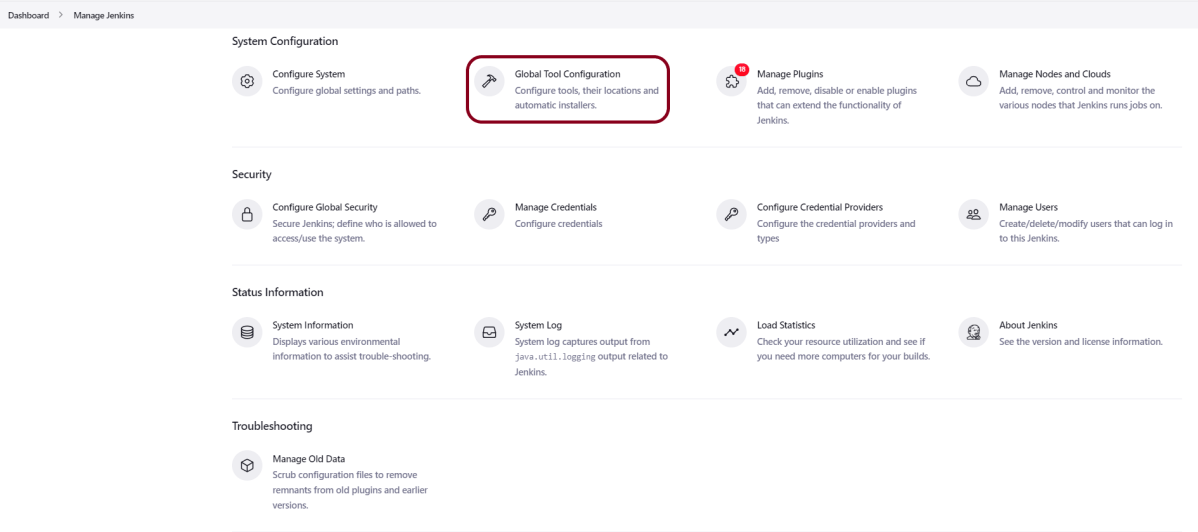
Step 4: Select the Global Tool Configuration option

When we click on the “Manage Jenkins” link, we are redirected to the Manage Jenkins page, where we can see various types of options, including the “Global Tool Configuration” option.

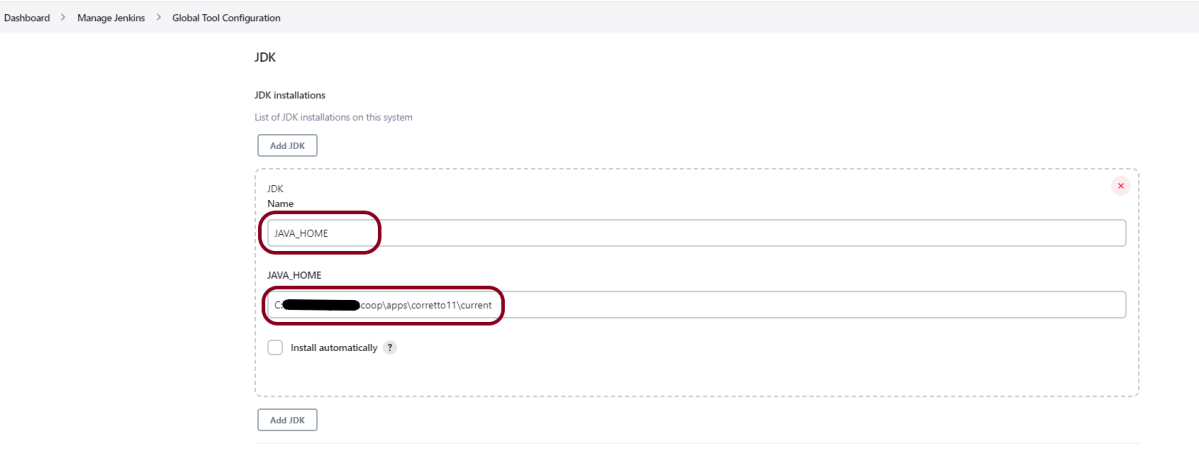
Step 5: Setup JDK Path

We need to set the JDK path in Jenkins as shown below. To know more about setting up Java in Jenkins, please refer to this tutorial – How to configure Java and Maven in Jenkins.

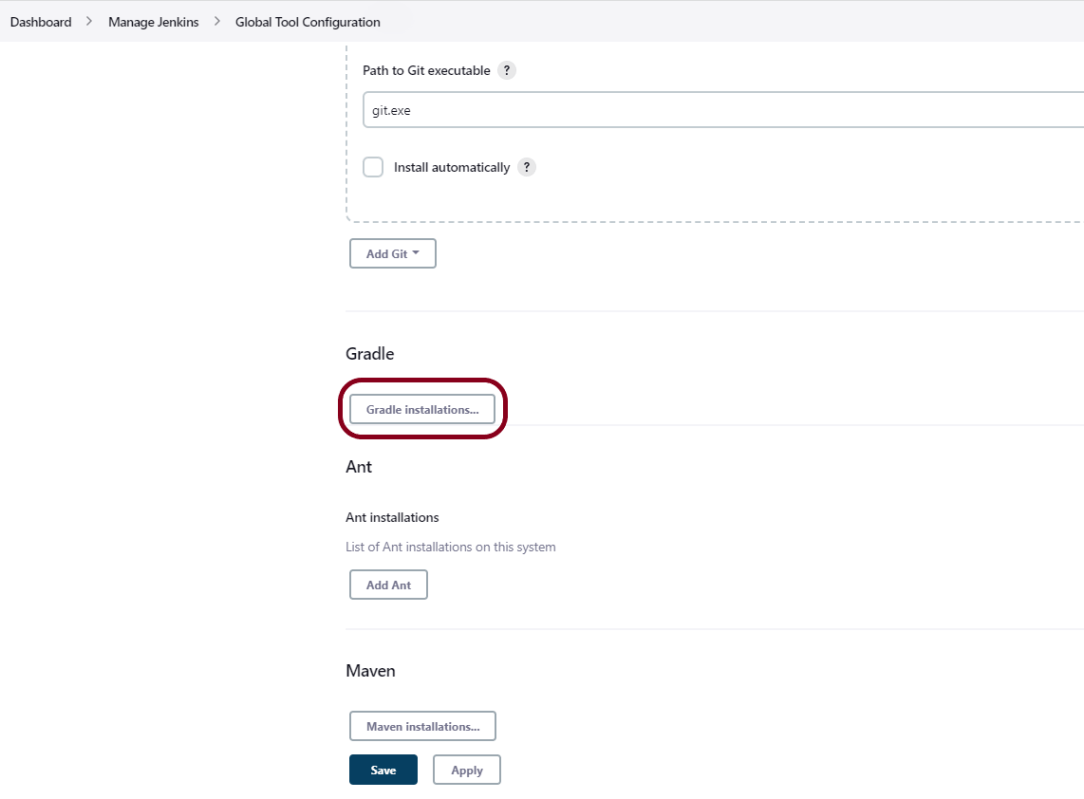
Step 6: Setup Gradle Path

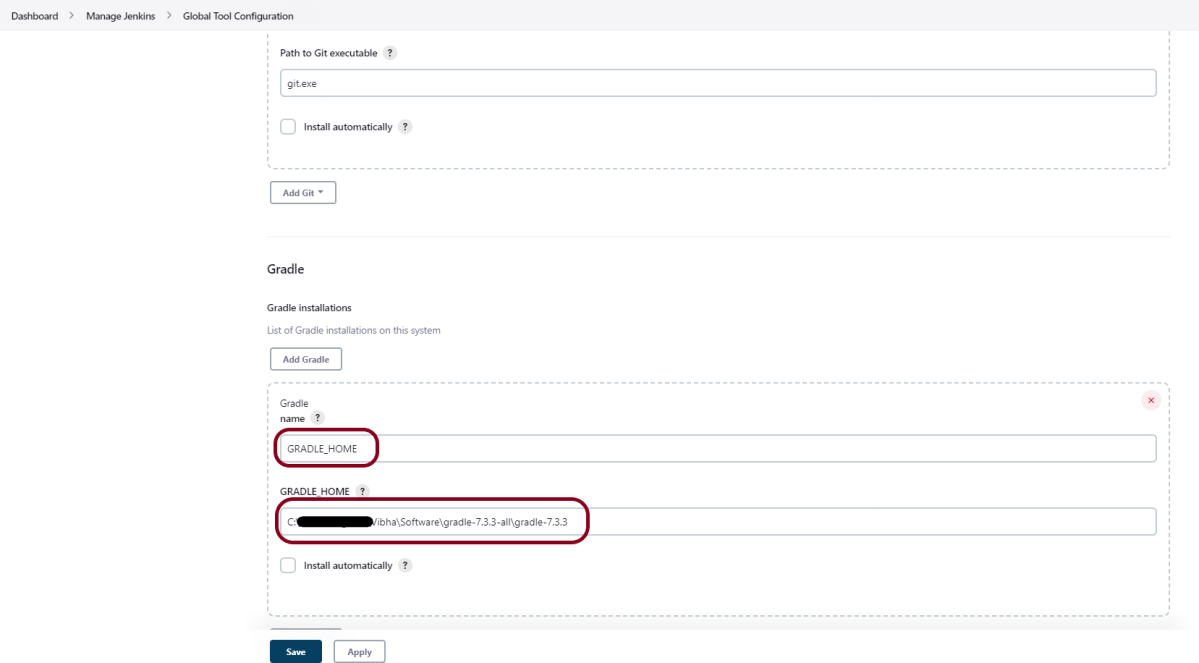
We need to set the Gradle path in Jenkins as shown below.

Click on the Add Gradle Installations button. Kindly note that by default, “Install Automatically” will be checked, so since we are going to use the Gradle installed on our local machine, “Install automatically” will install the latest version of Gradle, and you will also need to provide credentials to download the relevant Maven.

Provide the Gradle’s name as we gave as Gradle 7.3.3 because that is what is currently installed on my machine, and also provide the path of Gradle in the GRADLE_HOME textbox.

Click on the Apply and Save buttons.

Integrate Gradle Project with Jenkins

Step 1: Create a new project using the FreeStyle project plugin

  1. Give the Name of the project.
  2. Click on the Freestyle project. 
  3. Click on the OK button.

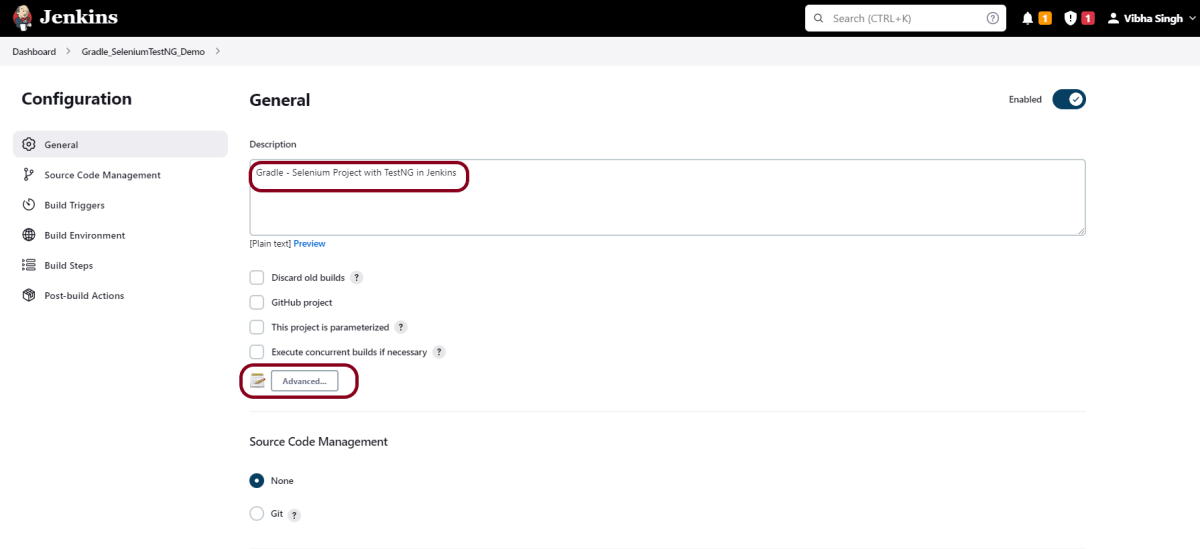
Step 2: Enter the project description in the Description box

In the general section, describe the project in the description section.

Click on the Advanced button. Mention the full path of the project.

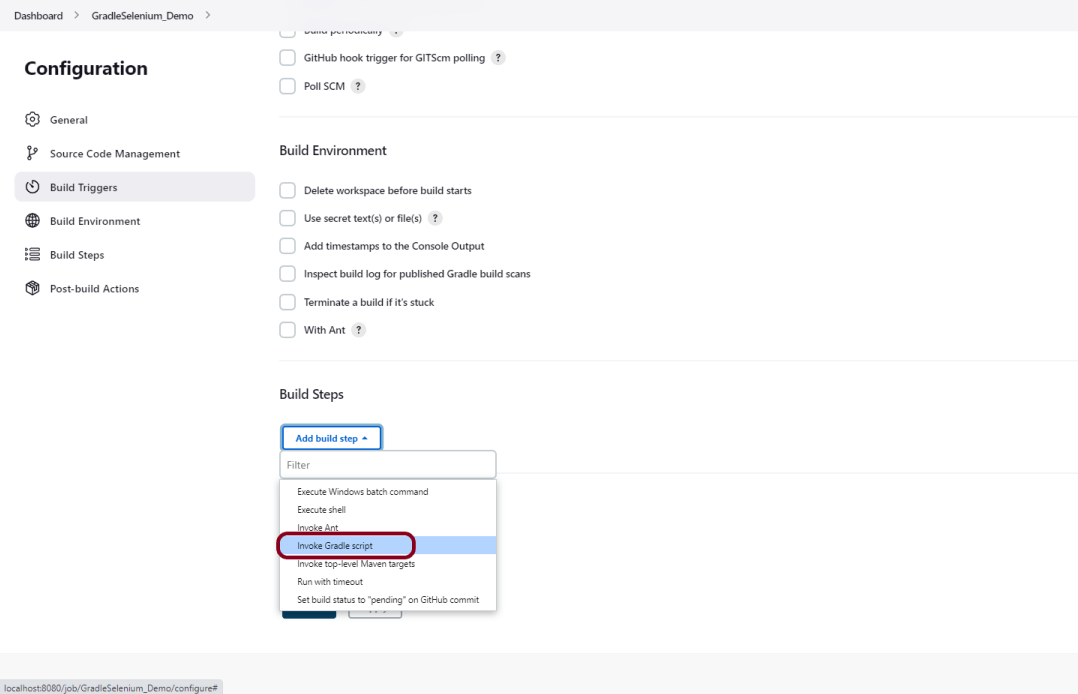
Step 3: Build Management

Go to the Build section of the new job and select the option – “Invoke Gradle Script“.

Provide the below-mentioned information:

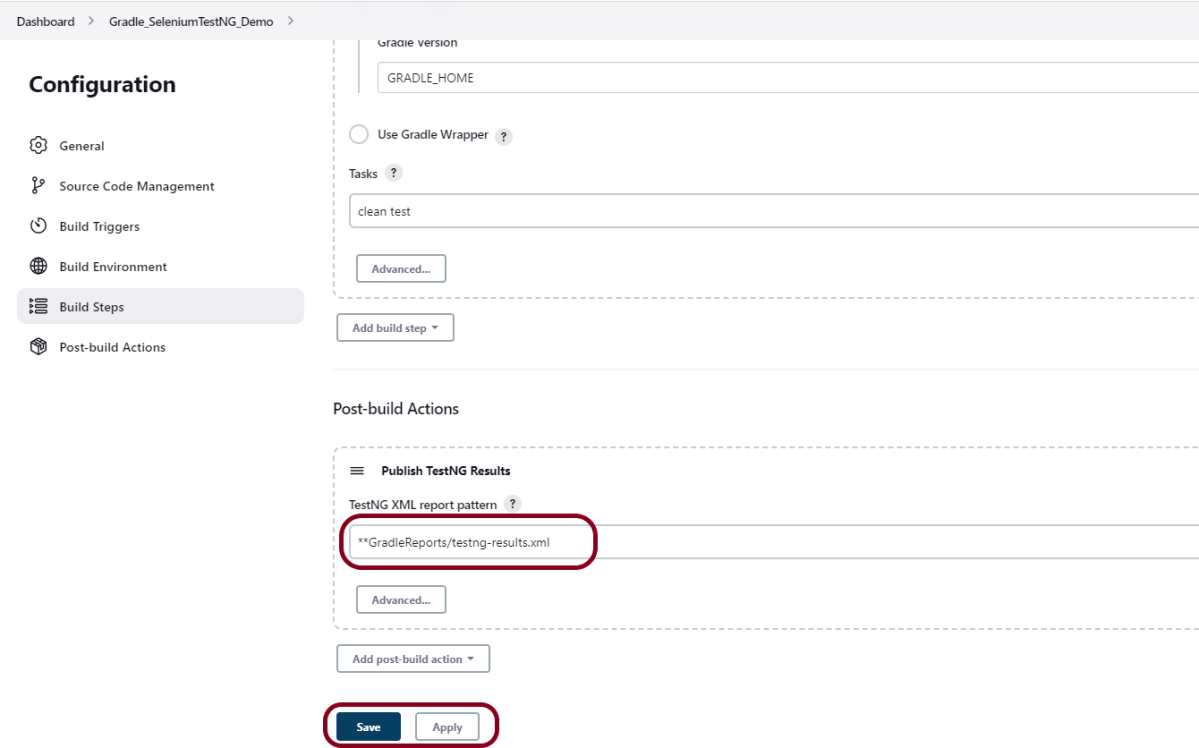
  1. In the Gradle version, enter – GRADLE_HOME.
  2. In the Tasks option section, enter “clean test

Step 4: Select “Publish TestNG Results” from “Post Build Actions”

Scroll down to “Post Build Actions” and click on the “Add Post Build Actions” drop-down list.

Select “Publish TestNG Results“.

To know, how to install TestNG plugin, please refer to this tutorial – How to generate TestNG Report in Jenkins.

Enter TestNG XML Report Pattern as “**GradleReports/testng-results.xml” and click on the Save button

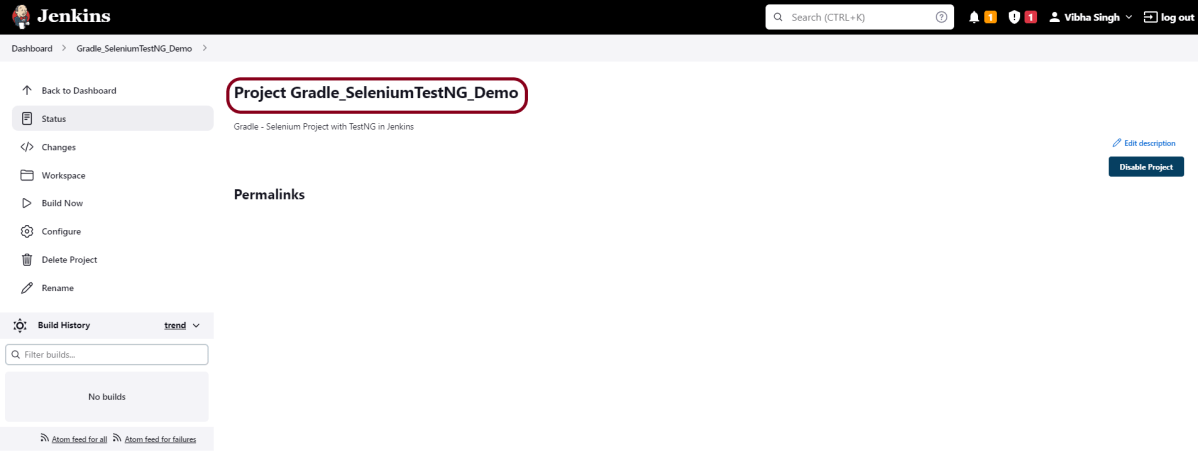
We have created a new project “Gradle_SeleniumTestNG_Demo” with the configuration to run TestNG Tests and also to generate TestNG Reports after execution using Jenkins.

Step 5: Execute the tests

Let’s execute it now by clicking on the “Build Now” button.


Right-click on Build Number (here in my case it is #2) and click on Console Output to see the result.

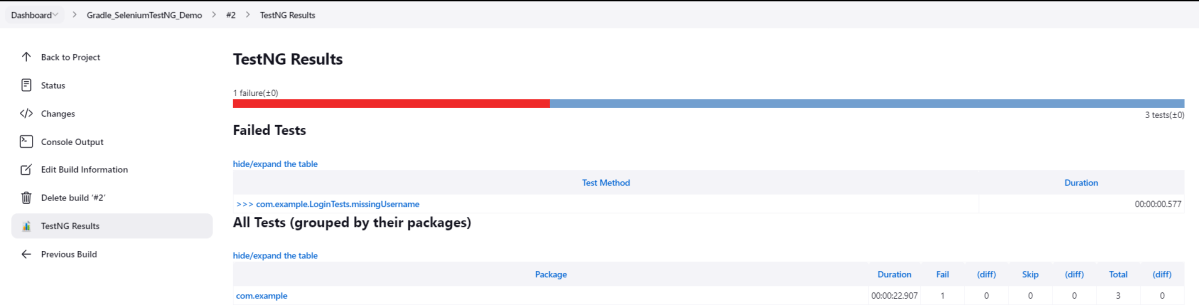
The below screen shows that the build failed because I failed one of the tests intentionally to show how the result looks with passed and failed tests.

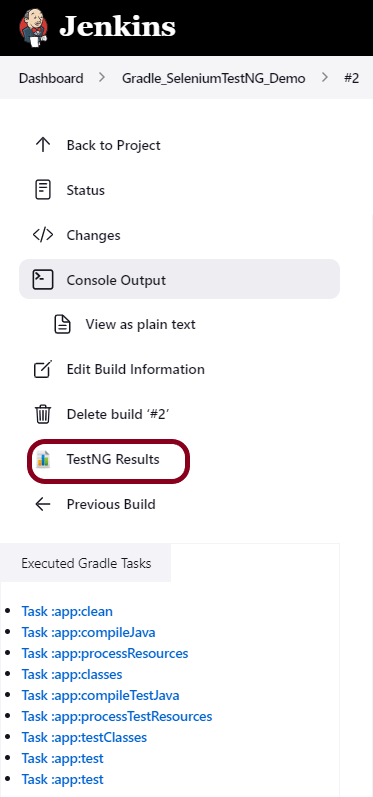
Once the execution is completed, we could see a link to view ‘TestNG Results’.

Click on the TestNG Results. It displays the summary of the tests.

This way, we could integrate the Gradle project with Jenkins.

Congratulations on making it through this tutorial and hope you found it useful! Happy Learning!! Cheers!!

Serenity Reports

HOME

Serenity Reports are living documentation that contains the meaningful report for each Test. It illustrated narrative reports that document and describe what your application does and how it works.

Gradle – Integration of Selenium and JUnit5

HOME

The previous tutorial explained How to create Gradle project with Selenium and JUnit4 in a Gradle project. In this tutorial, I will explain how we can set up a Gradle project with Selenium and JUnit5.

Pre Requisite:

  1. Java 8 or above installed
  2. Eclipse or IntelliJ IDE installed
  3. Gradle Installed
  4. Environment variables JAVA_HOME and GRADLE_HOME are correctly configured

This framework consists of:

  1. Java 11
  2. JUnit Jupiter – 5.8.2
  3. JUnit Jupiter Engine – 5.8.2
  4. Gradle – 7.3.3 (Build Tool)
  5. Selenium – 4.3.0

Steps to set up Gradle Java Project for Selenium and JUnit5

  1. Download and Install Java on the system
  2. Download and setup Eclipse IDE on the system
  3. Setup Gradle on System
  4. Create a new Gradle Project
  5. Add Selenium and JUnit5 dependencies to the Gradle project
  6. Create Pages and Test Code for the pages
  7. Run the tests from Command Line
  8. Gradle Report generation

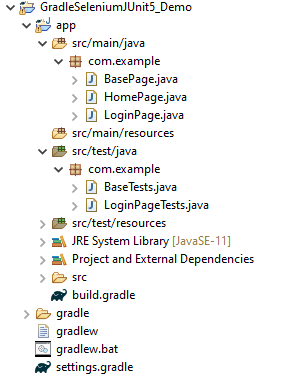
Project Structure

Implementation Steps

Step 1- Download and Install Java

Selenium needs Java to be installed on the system to run the tests. Click here to know How to install Java.

Step 2 – Download and setup Eclipse IDE on the system

The Eclipse IDE (integrated development environment) provides strong support for Java developers. Click here to know How to install Eclipse.

Step 3 – Setup Gradle

To build a test framework, we need to add several dependencies to the project. This can be achieved by any build tool. I have used Gradle Build Tool. Click here to know How to install Gradle.

Step 4 – Create a new Gradle Project

If you want to create the Gradle project from Eclipse IDE, click here to know How to create a Gradle Java project.

Step 5 – Add Selenium and JUnit5 dependencies to the Gradle project
/*
 * This file was generated by the Gradle 'init' task.
 *
 */

plugins {
    // Apply the application plugin to add support for building a CLI application in Java.
    id 'application'
}

repositories {
    // Use Maven Central for resolving dependencies.
    mavenCentral()
}

java {
    sourceCompatibility = 11
    targetCompatibility = 11
}

dependencies {
    // Use JUnit Jupiter for testing.
    testImplementation 'org.junit.jupiter:junit-jupiter:5.8.2'
    testRuntimeOnly 'org.junit.jupiter:junit-jupiter-engine:5.8.2'

    implementation 'com.google.guava:guava:30.1.1-jre'
    implementation 'org.seleniumhq.selenium:selenium-java:4.4.0'
    implementation 'io.github.bonigarcia:webdrivermanager:5.3.0'
}

application {
    // Define the main class for the application.
    mainClass = 'com.example.App'
}

tasks.named('test') {
    // Use JUnit Platform for unit tests.
    useJUnitPlatform()  {
    }
    
 testLogging {
        events "passed", "skipped", "failed"
        showStandardStreams = true
    }
 
    systemProperties System.properties
    reports.html.setDestination(file("$projectDir/GradleReports"))
}  


Step 6 – Create Pages and Test Code for the pages

We have used PageFactory model to build the tests. I have created a package named pages and created the page classes in that folder. Page class contains the locators of each web element present on that particular page along with the methods of performing actions using these web elements.

This is the BasePage that contains the PageFactory.initElements.

import org.openqa.selenium.WebDriver;
import org.openqa.selenium.support.PageFactory;

public class BasePage {
	
	  public WebDriver driver;

	  public BasePage(WebDriver driver) {
		  this.driver = driver;
		  PageFactory.initElements(driver,this);
	}

}

Below is the code for LoginPage and HomePage

LoginPage

import org.openqa.selenium.WebDriver;
import org.openqa.selenium.WebElement;
import org.openqa.selenium.support.FindBy;

public class LoginPage extends BasePage{
	
	 public LoginPage(WebDriver driver) {
		 super(driver);		
    }
	
	@FindBy(name = "username")
    public WebElement userName;
 
    @FindBy(name = "password")
    public WebElement password;
    
    @FindBy(xpath = "//*[@id='app']/div[1]/div/div[1]/div/div[2]/div[2]/form/div[1]/div/span")
    public WebElement missingUsernameErrorMessage;
    
    @FindBy(xpath = "//*[@id='app']/div[1]/div/div[1]/div/div[2]/div[2]/form/div[1]/div/span")
    public WebElement missingPasswordErrorMessage;
 
    @FindBy(xpath = "//*[@id='app']/div[1]/div/div[1]/div/div[2]/div[2]/form/div[3]/button")
    public WebElement login;
 
    @FindBy(xpath = "//*[@id='app']/div[1]/div/div[1]/div/div[2]/div[2]/div/div[1]/div[1]/p")
    public  WebElement errorMessage;
          
    public String getMissingUsernameText() {
        return missingUsernameErrorMessage.getText();
    }
    
    public String getMissingPasswordText() {
        return missingPasswordErrorMessage.getText();
    }
    
    public String getErrorMessage() {
        return errorMessage.getText();
    }
   
    public void login(String strUserName, String strPassword) {
 
    	userName.sendKeys(strUserName);
    	password.sendKeys(strPassword);
    	login.click();
 
    }

}

HomePage

import org.openqa.selenium.WebDriver;
import org.openqa.selenium.WebElement;
import org.openqa.selenium.support.FindBy;

public class HomePage extends BasePage {

	public HomePage(WebDriver driver) {
		super(driver);
	}

	  @FindBy(xpath = "//*[@id='app']/div[1]/div[2]/div[2]/div/div[1]/div[1]/div[1]/h5")
	  public  WebElement homePageUserName;

	    public String getHomePageText() {
	       return homePageUserName.getText();
   }

}

Here, we have BaseTests Class also which contains the common methods needed by other test pages.

import java.time.Duration;
import org.junit.jupiter.api.AfterEach;
import org.junit.jupiter.api.BeforeEach;
import org.openqa.selenium.WebDriver;
import org.openqa.selenium.chrome.ChromeDriver;
import io.github.bonigarcia.wdm.WebDriverManager;

public class BaseTests {
	
	public WebDriver driver;
	public final static int TIMEOUT = 10;
    
	@BeforeEach
    public void setup() {
    	WebDriverManager.chromedriver().setup();
	    driver = new ChromeDriver();
	    driver.manage().window().maximize();
	    driver.get("https://opensource-demo.orangehrmlive.com/");	    
	    driver.manage().timeouts().implicitlyWait(Duration.ofSeconds(TIMEOUT));

    }
 
    @AfterEach
    public void tearDown() {
        driver.quit();
    }
    
}

LoginPageTests

import org.junit.jupiter.api.Test;
import org.junit.jupiter.params.ParameterizedTest;
import org.junit.jupiter.params.provider.CsvSource;
import static org.junit.jupiter.api.Assertions.assertEquals;
import org.junit.jupiter.api.Disabled;

public class LoginPageTests extends BaseTests{
	 
    @ParameterizedTest
    @CsvSource({
            "admin$$,admin123",
            "Admin,admin123!!",
            "admin123,Admin",
            "%%%%%,$$$$$$"})
    public void invalidCredentials(String username, String password) {
   
	    LoginPage objLoginPage = new LoginPage(driver);
    	objLoginPage.login(username, password);
    	 
    	// Verify Error Message
    	 assertEquals("Invalid credentials",objLoginPage.getErrorMessage());
    
    }
    
    @Test
    public void validLogin() {
   
	    LoginPage objLoginPage = new LoginPage(driver);
    	objLoginPage.login("Admin", "admin123");
    	 
    	HomePage objHomePage = new HomePage(driver);
    	
    	// Verify Home Page
    	 assertEquals("Employee Information",objHomePage.getHomePageText());
    
    }
    
    @Test 
    public void missingUsername() {
   
	    LoginPage objLoginPage = new LoginPage(driver);
    	objLoginPage.login("", "admin123");
    	     	
    	// Verify Error Message
   	     assertEquals("Invalid credentials",objLoginPage.getMissingUsernameText());
   	        
    }
	
    @Test @Disabled
    public void missingPassword() {
   
	    LoginPage objLoginPage = new LoginPage(driver);
    	objLoginPage.login("admin", "");
    	    	
    	// Verify Error Message
   	     assertEquals("Invalid credentials",objLoginPage.getMissingPasswordText());
    
    }    
   
}

Step 7 – Run the tests from Command Line

Note:- As you can see, my project has two parts – GradleSeleniumJUnit5_Demo and app.

Go to the app project and run the tests, using the below command.

gradle clean test

The output of the above program is

Step 8 – Gradle Report generation

Once the test execution is finished, refresh the project. We will see a folder – GradleReports. This report is generated when the tests are executed through the command line.

This folder contains index.html.

Right-click on index.html and select open with Web Browser. This report shows the summary of all the tests executed. As you can see that Failed tests are selected (highlighted in blue), so the name of the test failed along with the class name is displayed here.

This report contains detailed information about the failed test, which is shown below.

This shows the list of all the tests – passed, failed, or ignored.

Gradle – ExtentReports Version 5 for Cucumber, Selenium and JUnit4

HOME

The previous tutorial explained the generation of ExtentReports Version 5 for Cucumber 7 and TestNG in a Maven project. In this tutorial, I will explain the steps to create an Extent Report Version 5 for Cucumber, Selenium, and Junit4 in a Gradle project.

Pre Requisite:

  1. Java 8 or above installed
  2. Eclipse or IntelliJ IDE installed
  3. Gradle Installed
  4. Environment variable JAVA_HOME and GRADLE_HOME correctly configured

In this tutorial, I’ll create a BDD Framework for the testing of web applications using CucumberSelenium WebDriver with JUnit4. This framework consists of:-

  1. Cucumber Java- 7.6.0
  2. Cucumber JUnit – 7.6.0
  3. Java 11
  4. JUnit – 4.13.2
  5. Gradle – 7.5.1
  6. Selenium – 4.3.0
  7. ExtentReport – 5.0.9
  8. GrassHopper Cucumber Adapter – 1.7.0

Implementation Steps

  1. Add ExtentReport dependency to the build.gradle
  2. Add ExtentCucumberAdapter plugin to task cucumber
  3. Add Cucumber, Selenium and JUnit4 , and dependencies in build.gradle
  4. Create Locator and Action classes and Step Definition corresponding to the feature file
  5. Create extent.properties file in resources folder and paste the below code
  6. Execute the Tests
  7. View the ExtentReports

There is a tutorial that explains the Integration of Cucumber, Selenium, and JUnit4 in a Gradle project. Please refer to this tutorial – Gradle Project with Cucumber, Selenium, and JUnit4.

Step 1 – Add ExtentReport dependency to the build.gradle

To create ExtentReport, we need to add the below-mentioned dependency in build.gradle.

implementation 'tech.grasshopper:extentreports-cucumber7-adapter:1.7.0'
implementation 'com.aventstack:extentreports:5.0.9'  

Step 2 – Add ExtentCucumberAdapter plugin to task cucumber

task cucumber() {
    dependsOn assemble, compileTestJava
    doLast {
        javaexec {         
            main = "io.cucumber.core.cli.Main"
            classpath = configurations.cucumberRuntime + sourceSets.main.output + sourceSets.test.output
            args = ['--plugin', 'pretty', 
            '--plugin', 'io.qameta.allure.cucumber7jvm.AllureCucumber7Jvm',
            '--plugin', 'com.aventstack.extentreports.cucumber.adapter.ExtentCucumberAdapter:',
            '--glue', 'com.example.definitions', 'src/test/resources']
        }
    }
}

Step 3 – Add Cucumber, Selenium and JUnit4, and dependencies in build.gradle

dependencies {

    testImplementation 'io.cucumber:cucumber-java:7.6.0'
    testImplementation 'io.cucumber:cucumber-junit:7.6.0'
    
    // Use JUnit test framework.
    testImplementation 'junit:junit:4.13.2'
    
    //ExtentReport    
    implementation 'tech.grasshopper:extentreports-cucumber7-adapter:1.7.0'
    implementation 'com.aventstack:extentreports:5.0.9' 

    // This dependency is used by the application.
    implementation 'com.google.guava:guava:30.1.1-jre'
    implementation 'org.seleniumhq.selenium:selenium-java:4.4.0'
    implementation 'io.github.bonigarcia:webdrivermanager:5.3.0'
}

The complete build.gradle is shown below:

/*
 * This file was generated by the Gradle 'init' task.
 *
 */

plugins {
    // Apply the application plugin to add support for building a CLI application in Java.
    id 'application'
}

repositories {
    // Use Maven Central for resolving dependencies.
    mavenCentral()
}

java {
    sourceCompatibility = 11
    targetCompatibility = 11
}
 

dependencies {

    testImplementation 'io.cucumber:cucumber-java:7.6.0'
    testImplementation 'io.cucumber:cucumber-junit:7.6.0'
    
    // Use JUnit test framework.
    testImplementation 'junit:junit:4.13.2'
    
    //ExtentReport    
    implementation 'tech.grasshopper:extentreports-cucumber7-adapter:1.7.0'
    implementation 'com.aventstack:extentreports:5.0.9' 

    // This dependency is used by the application.
    implementation 'com.google.guava:guava:30.1.1-jre'
    implementation 'org.seleniumhq.selenium:selenium-java:4.4.0'
    implementation 'io.github.bonigarcia:webdrivermanager:5.3.0'
}

application {
    // Define the main class for the application.
    mainClass = 'com.example.App'
}

configurations {
    cucumberRuntime {
        extendsFrom testImplementation
    }
}

task cucumber() {
    dependsOn assemble, testClasses
    doLast {
        javaexec {
        
            main = "io.cucumber.core.cli.Main"
            classpath = configurations.cucumberRuntime + sourceSets.main.output + sourceSets.test.output
            args = ['--plugin', 'pretty',
            '--plugin', 'io.qameta.allure.cucumber7jvm.AllureCucumber7Jvm',
            '--plugin', 'com.aventstack.extentreports.cucumber.adapter.ExtentCucumberAdapter:', 
            '--glue', 'com.example.definitions', 'src/test/resources']
        }
    }
}

Step 4 – Create Locator and Action classes and Step Definition corresponding to the feature file

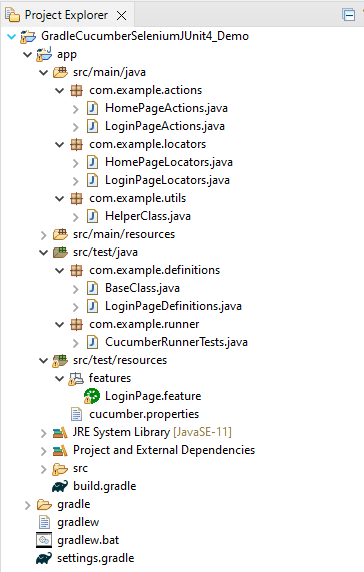
As mentioned above, there is another tutorial that explains the project structure as well as the feature file and corresponding Step Definitions, please refer to this tutorial – Gradle Project with Cucumber, Selenium and JUnit4.

Step 5 – Create extent.properties file in resources folder and paste the below code

#Extent Report
extent.reporter.spark.start=true
extent.reporter.spark.out=Reports/Spark.html
 
#PDF Report
extent.reporter.pdf.start=true
extent.reporter.pdf.out=PdfReport/ExtentPdf.pdf
 
#HTML Report
extent.reporter.html.start=true
extent.reporter.html.out=HtmlReport/ExtentHtml.html
 
#FolderName
basefolder.name=ExtentReports/SparkReport_
basefolder.datetimepattern=d_MMM_YY HH_mm_ss
 
#Screenshot
screenshot.dir=/Screenshots/
screenshot.rel.path=../Screenshots/
 
#Base64
extent.reporter.spark.base64imagesrc=true
 
#System Info
systeminfo.os=windows
systeminfo.version=10

Step 6 – Execute the Tests

Go to the app project and run the tests, using the below command

gradle cucumber

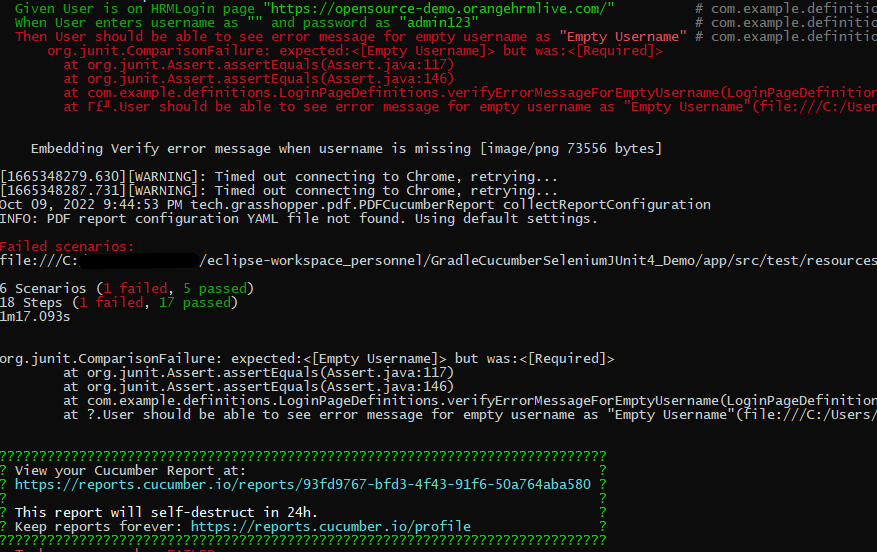
The output of the above program is

Step 7: View the ExtentReports

Refresh the project and will see a new folder – SparkReport_ which further contains 4 folders –HtmlReport, PdfReport, Reports, and Screenshots.

The ExtentReport will be present in the Report’s folder with the name Spark.html. PDF Report is present in the PdfReport folder and HTML Report is present in the HtmlReport folder. We can see that the Screenshots’ folder is empty because we have used base64imagesrc feature which resulted in no physical screenshots. The screenshots are embedded in the reports.

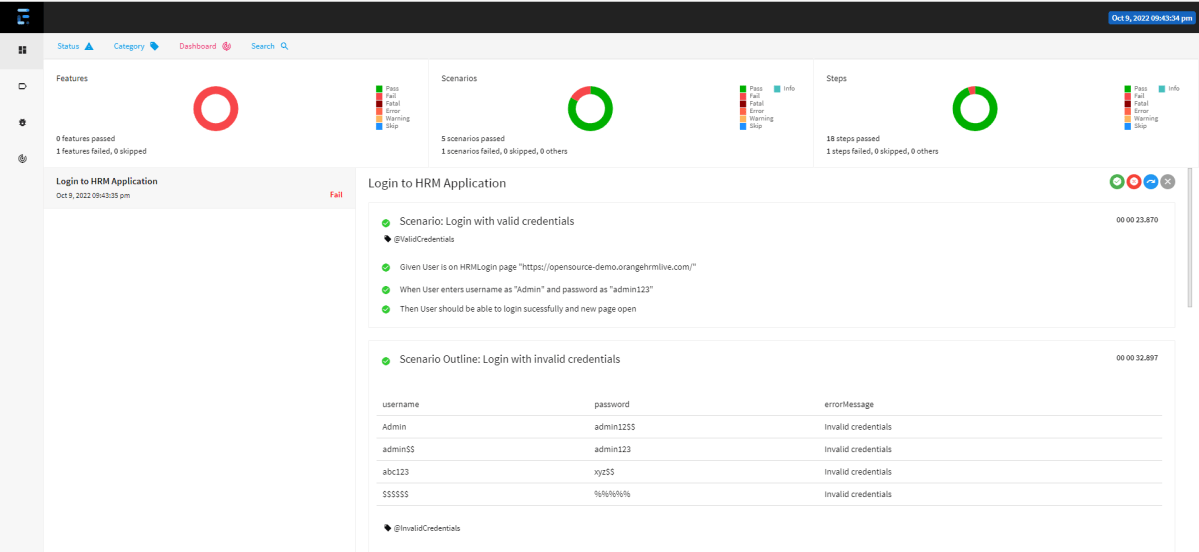
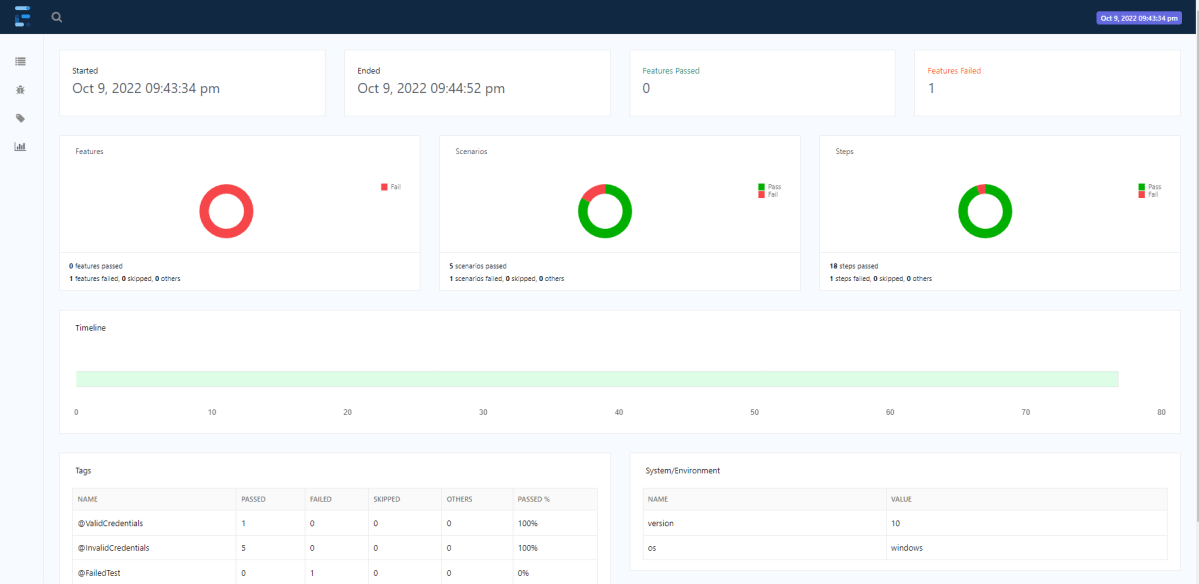
Right-click and open the ExtentHtml.html report with the Web Browser. The report also has a summary section that displays the summary of the execution. The summary includes the overview of the pass/fail using a pictogram, start time, end time, and pass/fail details of features as shown in the image below.

ExtentHtml.html

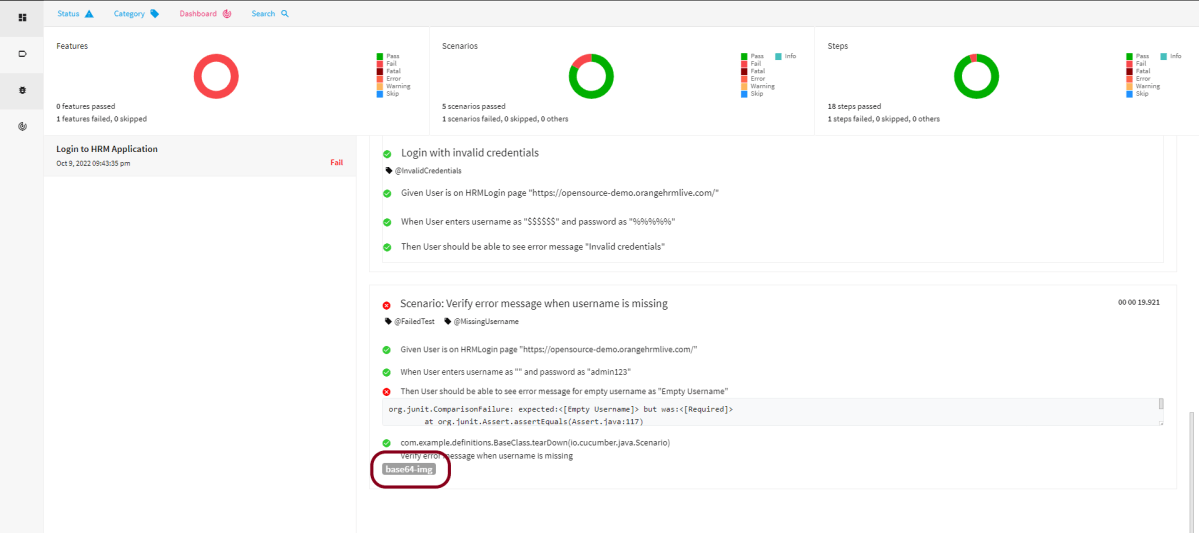
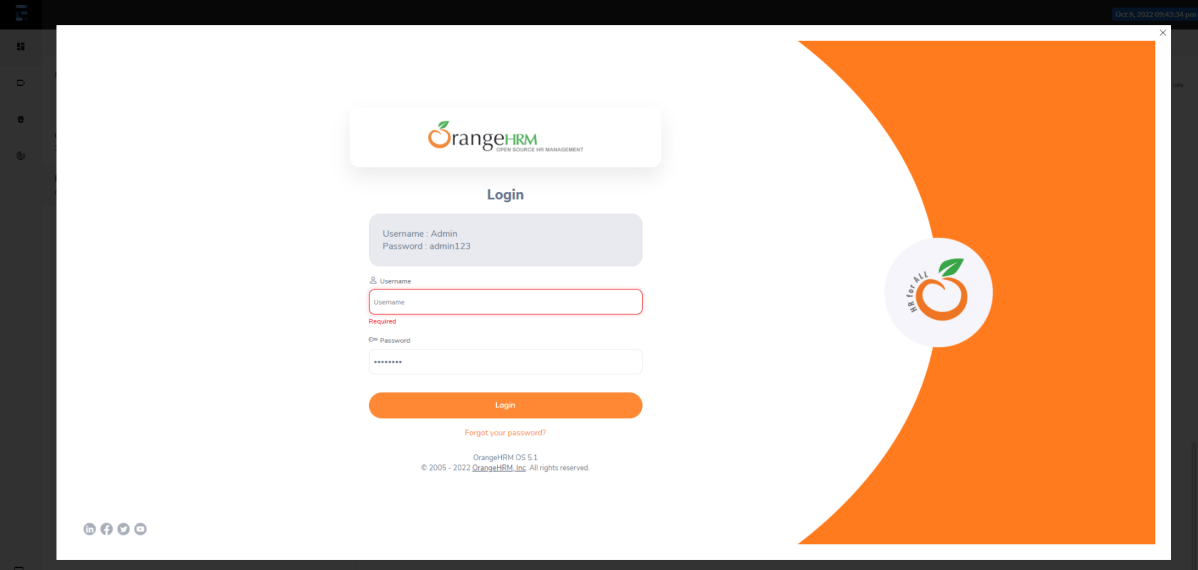
The failed test has screenshot embedded in it. Double click on mase64image and it will open the screenshot in full screen.

Screenshot of failed Test Case

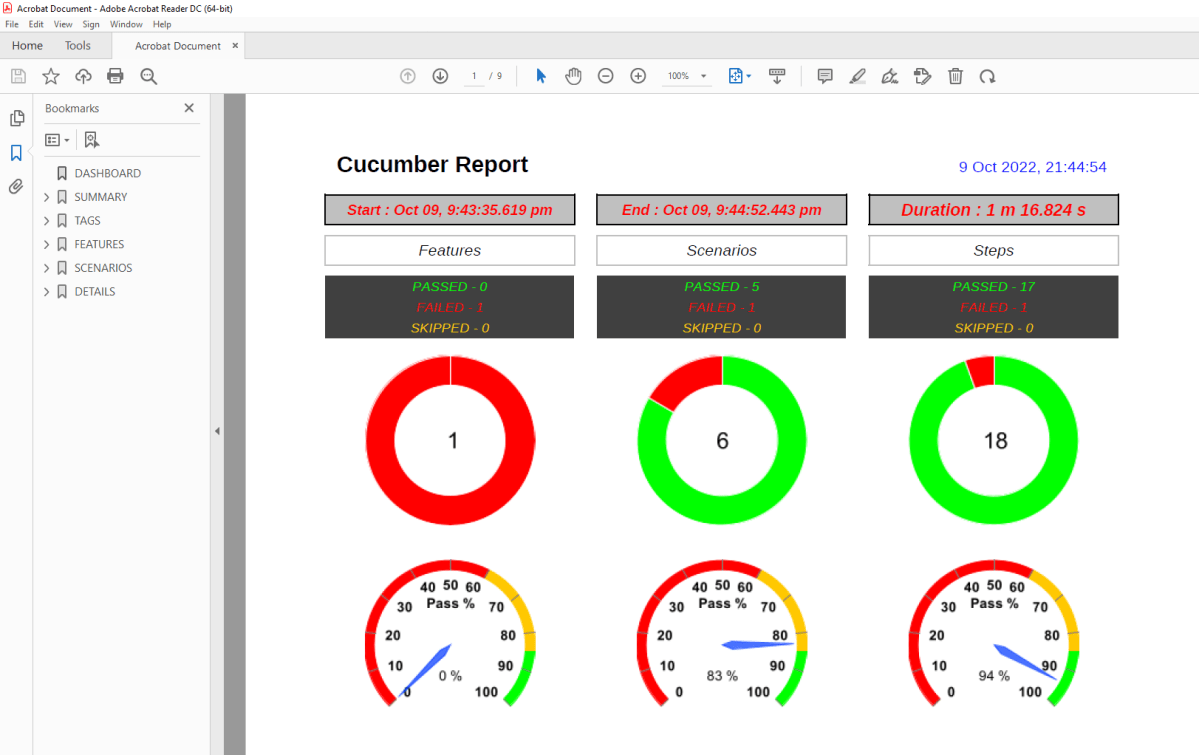
PDF Report

To know more about PDF Report generation, please refer to this tutorial – PDF ExtentReport for Cucumber and TestNG.

Spark Report

Right-click and open the Spark.html report with Web Browser.

Congratulations on making it through this tutorial and hope you found it useful! Happy Learning!! Cheers!!

Gradle – Allure Report for Cucumber7, Selenium and JUnit4

HOME

The previous tutorial explained the generation of Allure Report with Cucumber5, Selenium and JUnit4 in a Maven project. In this tutorial, I will explain the steps to create an Allure Report with Cucumber, Selenium, and JUnit4 in a Gradle project.

Prerequisite:

  1. Java 8 or above installed
  2. Eclipse or IntelliJ IDE installed
  3. Gradle Installed
  4. Environment variables JAVA_HOME, ALLURE_HOME and GRADLE_HOME are correctly configured

In this tutorial, I’ll create a BDD Framework for the testing of web applications using Cucumber7, and Selenium 4 with JUnit4. This framework consists of:-

  1. Cucumber Java- 7.6.0
  2. Cucumber JUnit4 – 7.6.0
  3. Java 11
  4. JUnit4 – 4.13.2
  5. Gradle – 7.3.3
  6. Selenium – 4.3.0
  7. Allure Cucumber – 2.19.0
  8. AspectJ Weaver – 1.9.7

Project Structure

Implementation Steps

  1. Add Cucumber, Selenium, TestNG, and Allure-JUnit dependencies in build.gradle
  2. Create Locator and Action classes and Step Definition corresponding to the feature file and Test Runner Class
  3. Execute the Tests
  4. Generate Allure Report

There is a tutorial that explains the Integration of Cucumber, Selenium, and JUnit4 in a Gradle project. Please refer to this tutorial – Gradle Project with Cucumber, Selenium, and JUnit4.

Step 1 – Add Cucumber, Selenium, TestNG, and Allure-JUnit4 dependencies in build.gradle

/*
 * This file was generated by the Gradle 'init' task.
 *
 */

plugins {
    // Apply the application plugin to add support for building a CLI application in Java.
    id 'application'
    id 'io.qameta.allure' version '2.11.0'
}

repositories {
    // Use Maven Central for resolving dependencies.
    mavenCentral()
}

java {
    sourceCompatibility = 11
    targetCompatibility = 11
}
 
dependencies {

    testImplementation 'io.cucumber:cucumber-java:7.6.0'
    testImplementation 'io.cucumber:cucumber-junit:7.6.0'
    
    // Use JUnit test framework.
    testImplementation 'junit:junit:4.13.2'
    
    // Allure 
    implementation 'io.qameta.allure:allure-cucumber7-jvm:2.19.0'
    runtimeOnly 'org.aspectj:aspectjweaver:1.9.7'  

    // This dependency is used by the application.
    implementation 'com.google.guava:guava:30.1.1-jre'
    implementation 'org.seleniumhq.selenium:selenium-java:4.4.0'
    implementation 'io.github.bonigarcia:webdrivermanager:5.3.0'
}

application {
    // Define the main class for the application.
    mainClass = 'com.example.App'
}

configurations {
    cucumberRuntime {
        extendsFrom testImplementation
    }
}

task cucumber() {
    dependsOn assemble, testClasses
    doLast {
        javaexec {
        
           systemProperty("allure.results.directory", "build/allure-results")  
            main = "io.cucumber.core.cli.Main"
            classpath = configurations.cucumberRuntime + sourceSets.main.output + sourceSets.test.output
            args = ['--plugin', 'pretty',         
            '--glue', 'com.example.definitions', 'src/test/resources']
        }
    }
}

Step 2 – Create Locator and Action classes and Step Definition corresponding to the feature file and Test Runner Class

As mentioned above, there is another tutorial that explains the project structure as well as the feature file and corresponding Step Definitions, please refer to this tutorial – Gradle Project with Cucumber, Selenium, and JUnit4.

Step 3 – Execute the Tests

Go to the app project and run the tests, using the below command

gradle cucumber

The output of the test execution is

Step 4 – Generate the Allure Report

Once the test execution is finished, a folder named allure-results will be generated in the build folder.

Note:- Make sure that you move to the folder app because the build folder is present in the app folder.

allure serve build/allure-results

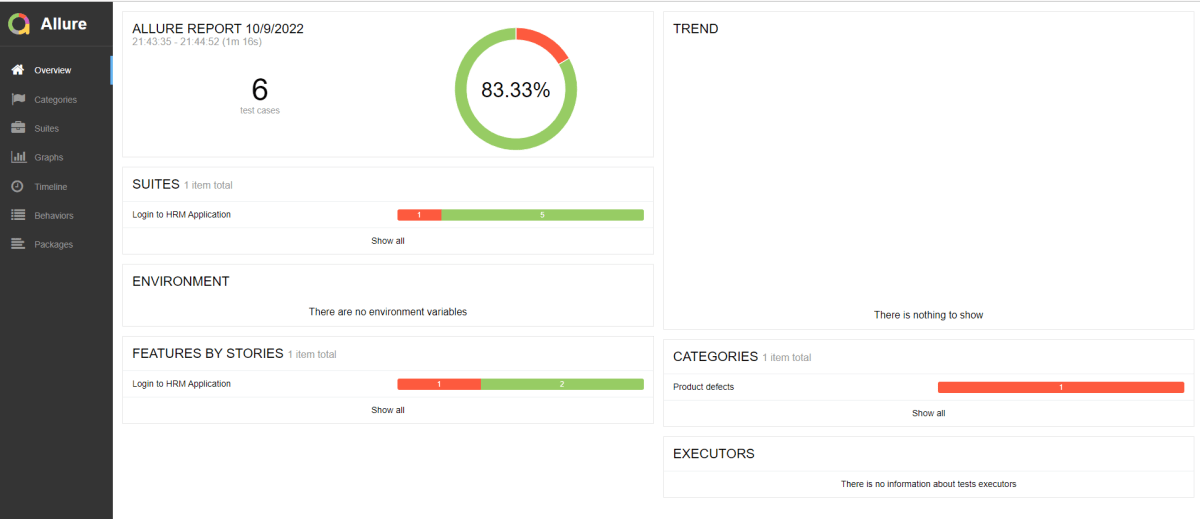
Allure Report Dashboard

The overview page hosts several default widgets representing the basic characteristics of your project and test environment.

  1. Statistics – overall report statistics.
  2. Launches – if this report represents several test launches, statistics per launch will be shown here.
  3. Behaviors – information on results aggregated according to stories and features.
  4. Executors – information on test executors that were used to run the tests.
  5. History Trend – if tests accumulated some historical data, its trend will be calculated and shown on the graph.
  6. Environment – information on the test environment.

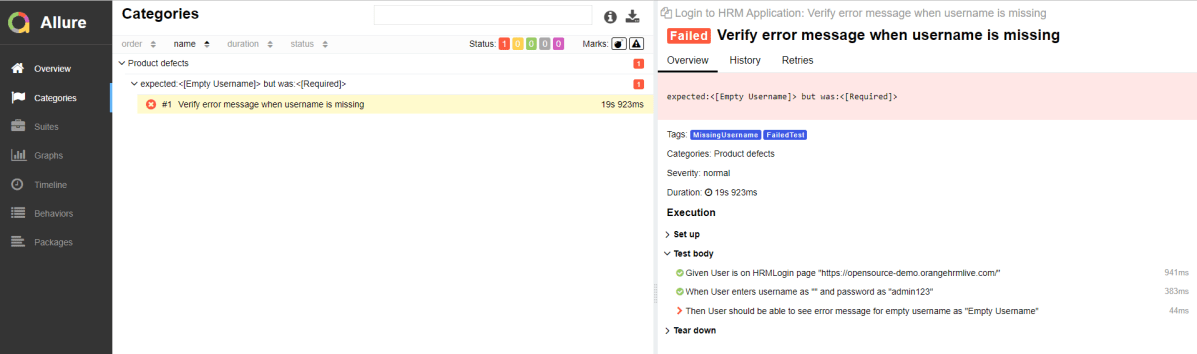
Categories in Allure Report

The categories tab gives you a way to create custom defect classifications to apply for test results. There are two categories of defects – Product Defects (failed tests) and Test Defects (broken tests).

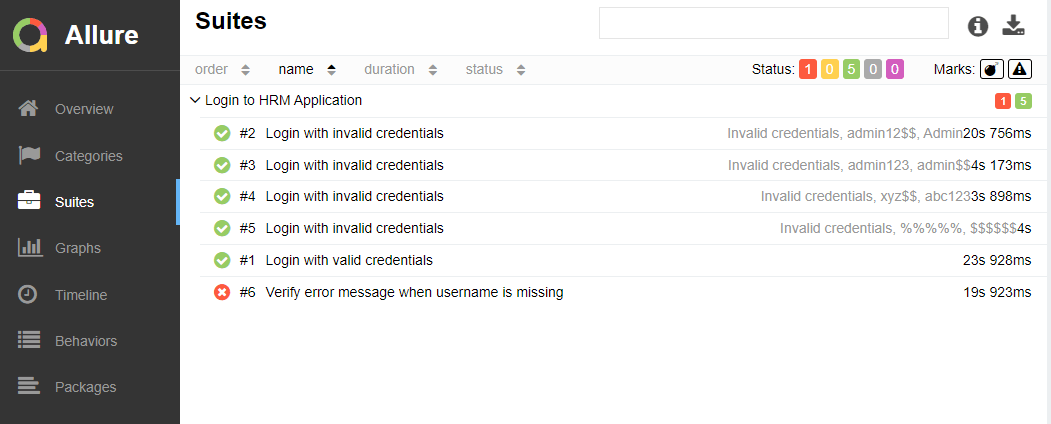
Suites in Allure Report

On the Suites tab a standard structural representation of executed tests, grouped by suites and classes can be found.

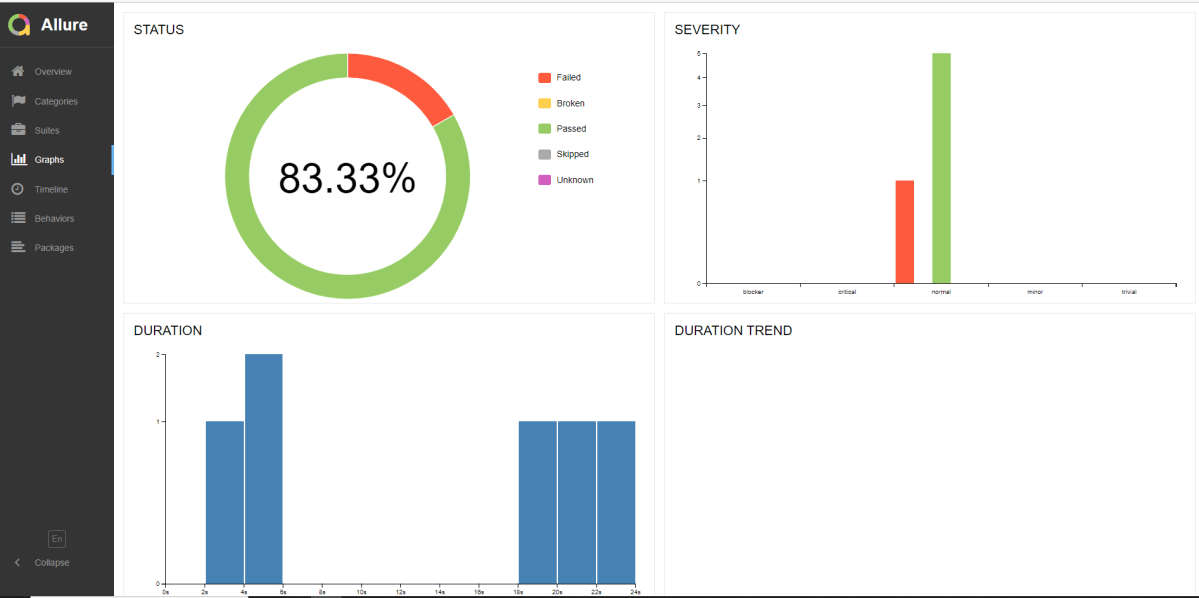
Graphs in Allure Report

Graphs allow you to see different statistics collected from the test data: status breakdown or severity and duration diagrams.

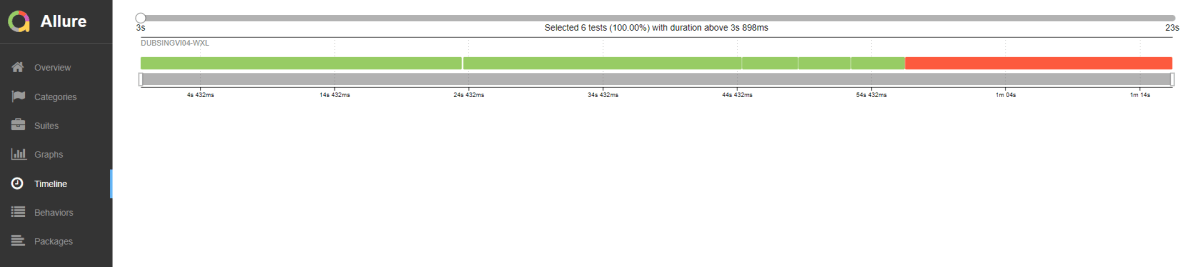
Timeline in Allure Report

The timeline tab visualizes retrospective test execution, allure adaptors collect precise timings of tests, and here on this tab, they are arranged accordingly to their sequential or parallel timing structure.

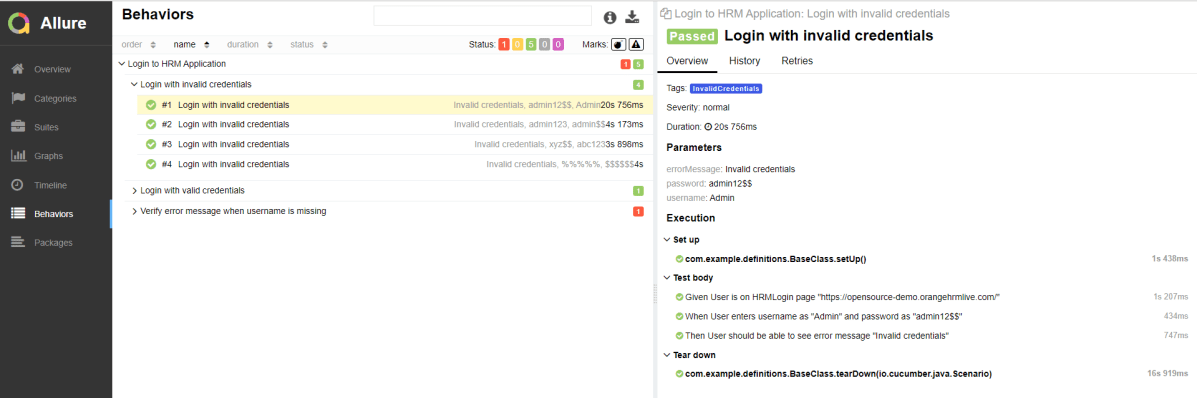
Behaviors of Allure Report

This tab groups test results according to Epic, Feature, Story, Test Severity, Test Description, Test Steps, and so on.

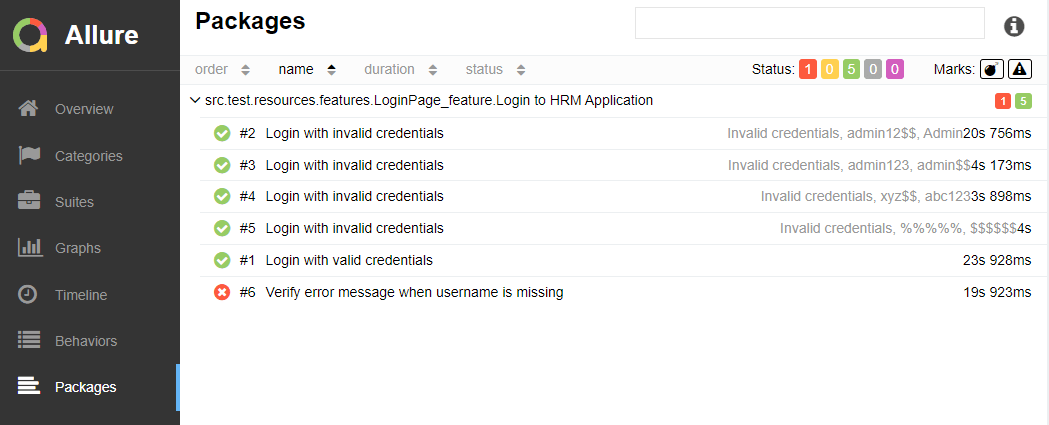
Packages in Allure Report

The packages tab represents a tree-like layout of test results, grouped by different packages.

BDD Features

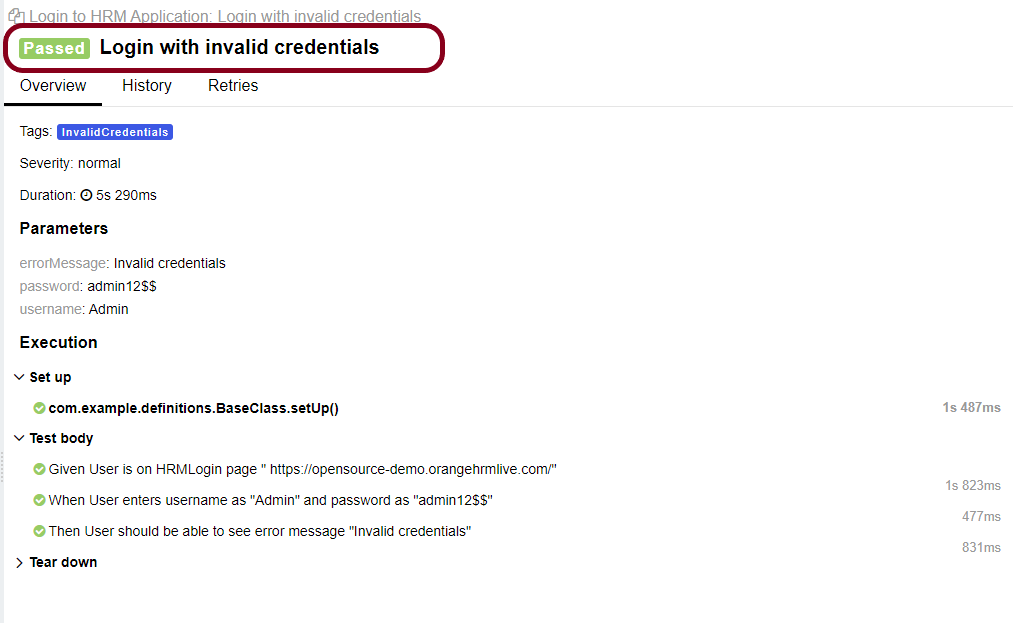
The feature’s description appears in every scenario.

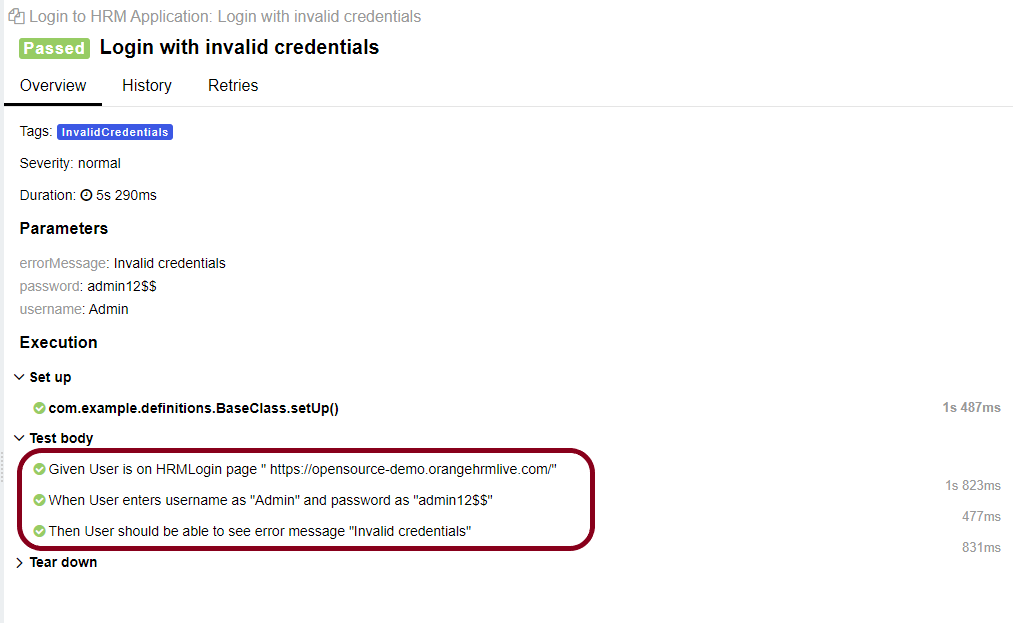
All scenario steps are automatically translated into allure steps.

Congratulations on making it through this tutorial and hope you found it useful! Happy Learning!! Cheers!!