Multiple Choice Questions

HOME

  1. Programming Languages
    1. Java
  2. Test Automation Frameworks
    1. Selenium
    2. Advance Selenium
    3. Robot Framework
    4. JUnit4
    5. TestNG
  3. API Testing
    1. Rest API
    2. Pytest Framework
  4. DevOps & Continuous Integration/Continuous Deployment (CI/CD)
    1. DevOps
    2. Jenkins
  5. Version Control Systems
    1. Git
    2. GitHub
  6. Containerization
    1. Docker
  7. Database
    1. SQL
  8. Types of Testing
    1. Security Testing
    2. Performance Testing
    3. ETL Testing

Jenkins Multiple Choice Questions – MCQ1
Jenkins Multiple Choice Questions – MCQ2

GitHub Multiple Choice Questions – MCQ1

Docker – Basic Level – Multiple Choice Questions and Answers – MCQ1
Docker – Advance Level – Multiple Choice Questions and Answers – MCQ1

Cucumber Interview Questions and Answers 2025

Last Updated On

HOME

1. What is BDD? Why do we use BDD?

BDD (behavior-driven development ) is an Agile software development process that encourages collaboration among developers, QA, and business participants in a software project.

Why do we use BDD
BDD increases and improves collaboration between various teams involved in the project to easily engage with the product development cycle. We use a simple English language called Gherkins to write test scenarios.


2. What is Cucumber? What are the advantages of Cucumber?

Cucumber is an open-source tool that supports Behavior Driven Development (BDD). It is written in Rugby Language. Cucumber reads executable specification written in plain English language (Gherkins) and validates that the software act as per the executable specifications.

Advantages of Cucumber

  • Cucumber supports different languages like Java.net and Ruby. 
  • It acts as a bridge between the business and technical language. We can accomplish this by creating a test case in plain English text. 
  • It allows the test script to be written without knowledge of any code; it allows the involvement of non-programmers as well. 
  • It serves the purpose of an end-to-end test framework, unlike other tools. 
  • Due to simple test script architecture, Cucumber provides code re-usability.

Please refer to this tutorial for more detailsIntroduction of Cucumber Testing Tool (BDD Tool)


3. What is the programming language used by Cucumber?

The cucumber tool provides support for multiple programming languages such as Java, .Net, Ruby, etc. It can also be integrated with multiple tools such as Selenium, Capybara, etc.

Please refer to this tutorial for more detailsIntroduction of Cucumber Testing Tool (BDD Tool)


4. What is Gherkin?

Gherkin is a set of grammar rules that makes plain text structured enough for Cucumber to understand. 

Gherkin serves multiple purposes:-

  • Unambiguous executable specification
  • Automated testing using Cucumber
  • Document how the system actually behaves

Please refer to this tutorial for more detailsCucumber – What is Gherkin.


5. What are the files required to execute a Cucumber test scenario?

Features
Step Definition
Test Runner


6. What is a Feature File?

A Feature File is a file in which we store features, descriptions of the features and scenarios to be tested. The first line of the feature file must start with the keyword ‘Feature’ followed by the description of the application under test. A feature file may include multiple scenarios within the same file. A feature file has the extension .feature. Below is an example of the Feature file.

Feature: Login to HRM Application 
 
   @ValidCredentials
   Scenario: Login with valid credentials
     
    Given User is on Home page
    When User enters username as "Admin"
    And User enters password as "admin123"
    Then User should be able to login sucessfully

Please refer to this tutorial for more details –  Cucumber – What is Feature File in Cucumber.


7. What are the various keywords that are used in Cucumber for writing a scenario?

Below mentioned are the keywords used for writing a scenario:

  1. Given – It is used to describe the initial context of the scenario.  When the Given step is executed, it will configure the system to a well-defined state, such as creating & configuring objects or adding data to a test database.
  2. When – It is used to describe an event or action. This can be a person interacting with the system or it can be an event triggered by another system.
  3. Then – It is used to describe the expected outcome of the scenario
  4. And/But – If we have several Given’s, When’s, or Then’s, then we can use And /But.

Please refer to this tutorial for more details – Cucumber – What is Feature File in Cucumber.


8. What is the purpose of the Step Definition file in Cucumber?

It is a Java method with an expression, which is used to link it to Gherkin steps. When Cucumber executes a Gherkin step, it will look for a matching step definition to execute. Step definitions can be written in many programming languages.

Feature: Book flight ticket for one-way trip
Scenario: flight ticket for one-way trip from Dublin 
Given  I live in Dublin 
  
@Given ("I live in Dublin") 
public voidVacation()
   {
        System.out.println("I live in Dublin");
   }

Please refer to this tutorial for more details – Step Definition in Cucumber


9. What is the use of the Background keyword in Cucumber?

Background keyword is used to group multiple given statements into a single group. This is generally used when the same set of given statements is repeated in each scenario in the feature file. For example, you need to pass the bearer token in every test. So, this can be done by defining the Given statement as background.

Please refer to this tutorial for more details – Background in Cucumber


10. What is the purpose of the Cucumber Options tag?

The cucumber Options tag is used to provide a link between the feature files and step definition files. Each step of the feature file is mapped to a corresponding method on the step definition file.

Below is the syntax of the Cucumber Options tag:

@CucumberOptions(features="src/test/resources/features/MyHoliday.feature",tags = { "@BookOneWayFlight"})

11. What is TestRunner class in Cucumber?

It is the starting point for JUnit to start executing the tests. TestRunner class is used to provide the link between the feature file and the step definition file.

Below is an example of TestRunner class.

import org.junit.runner.RunWith;
import io.cucumber.junit.Cucumber;
import io.cucumber.junit.CucumberOptions;
 
@RunWith(Cucumber.class)
@CucumberOptions(features = "src/test/resources/Feature/MyHoliday.feature", tags = { "@BookOneWayFlight"})
 
public classTestRunner { 
}

Please refer to this tutorial for more details – Cucumber – JUnit Test Runner Class.


12. What is a profile in cucumber?

You can create Cucumber profiles to run a set of features and step definitions. Use the following command to execute a cucumber profile.

Syntax:

cucumber features -p <profile_name>

Example:

cucumber features -p Integration

13. What are hooks in Cucumber?

Hooks are blocks of code that can run at various points in the Cucumber execution cycle

1- Before: executes before the feature file execution.
2- After: executes after the feature file execution.
3- BeforeStep: executes before each step execution.
4- AfterStep: executes after each step execution.

Below is an example of hooks.

public class CucumberHooksExampleDefinitions {
 
    WebDriver driver;
 
    @Before
    public void setup() {
 
        System.out.println("---------------------Before Executing----------------------");
        ChromeOptions chromeOptions = new ChromeOptions();
        chromeOptions.addArguments("--start-maximized");
        driver = new ChromeDriver(chromeOptions);
        driver.manage().timeouts().implicitlyWait(5, TimeUnit.SECONDS);
    }
 
    @BeforeStep
    public void beforeStepTest() {
        System.out.println("--------------BeforeStep Executing---------------");
    }
 
    @Given("User is on Home page")
    public void userOnHomePage() {
 
        System.out.println("Open Website");
        driver.get("https://opensource-demo.orangehrmlive.com/");
    }
 
    @When("User enters username as {string}")
    public void entersUsername(String userName) throws InterruptedException {
 
        System.out.println("Enter userName");
        driver.findElement(By.name("txtUsername")).sendKeys(userName);
 
    }
 
    @When("User enters password as {string}")
    public void entersPassword(String passWord) throws InterruptedException {
 
        System.out.println("Enter passWord");
        driver.findElement(By.name("txtPassword")).sendKeys(passWord);
 
        driver.findElement(By.id("btnLogin")).submit();
    }
 
    @Then("User should be able to login sucessfully")
    public void sucessfullLogin() throws InterruptedException {
 
        String newPageText = driver.findElement(By.id("welcome")).getText();
        System.out.println("newPageText:" + newPageText);
        assertThat(newPageText, containsString("Welcome"));
 
    }
 
    @AfterStep
    public void afterStepTest() {
        System.out.println("--------------------AfterStep Executing---------------------");
    }
 
    @After
    public void close() {
        driver.close();
        System.out.println("--------------------After Executing----------------------");
    }
}

Please refer to this tutorial for more details – Hooks in Cucumber


14. What are cucumber tags?

Tags are a great way to organize Features and Scenarios. Cucumber tags help in filtering the scenarios. We can tag the scenarios and then run them based on tags.

Below is an example of the tag.

Feature: Sample use of Tags in Cucumber
 
  @ValidCredentials
  Scenario: Login with valid credentials
    
   Given User is on Home page
   When User enters username as "Admin"
   And User enters password as "admin123"
   Then User should be able to login sucessfully

Here, @ValidCredentials is the Tag.

Please refer to this tutorial for more details – Tags in Cucumber.


15. What is the use of features property under the Cucumber Options tag?

Feature property under Cucumber option tag lets Cucumber know the location of Feature Files. As in the below example, the location of the feature file is under src/test/resources/features.

@CucumberOptions(features = "src/test/resources/Feature/MyHoliday.feature")

Please refer to this tutorial for more details – Cucumber – What is Feature File in Cucumber.


16. What is the use of glue property under the Cucumber Options tag?

The glue property lets Cucumber know the location of the Step Definition file. As in the below example, the location of the step definition is “com.cucumber.demo.definitions”.

@CucumberOptions(features = { "src/test/resources/features/MyHoliday.feature" }, glue = {"com.cucumber.demo.definitions" }

17. What is the Scenario Outline in the feature file?

Scenario outline is a way of parameterization of scenarios in Cucumber. It is used to repeat the same tests by passing different values or arguments to Step Definition. Scenario Outline must be followed by the keyword ‘Examples’, which specifies the set of values for each parameter.

Scenario Outline: Book Flight for one-way trip
   
  Given I live in Dublin with adults and kids
  And I want to book one way flight ticket from Dublin to London on 
  When I search online
  Then TripAdvisor should provide me options of flights on 
  And Cost of my flight should not be more than Euro per person
 And Tickets should be refundable
   
 Examples:
  |noOfAdults         |noOfKids         |travelDate    |flightFare    |
  |2                  |  2              |22-Jan-2020   |100           |
  |1                  |  0              |12-Mar-2020   |50            |

Please refer to this tutorial for more details – Data Driven Testing using Scenario Outline in Cucumber


18. What is the purpose of the Examples keyword in Cucumber?

Examples – All scenario outlines have to be followed by the Examples section. This contains the data that has to be passed on to the scenario in Feature File. Scenario Outline must be followed by the keyword ‘Examples’, which specifies the set of values for each parameter.

The example is shown in the previous example.

Please refer to this tutorial for more details – Data Driven Testing using Scenario Outline in Cucumber


19. Should any code be written within the TestRunner class?

No code should be written under the TestRunner class. It should include the tags @RunWith and @CucumberOptions.


20. What is the purpose of a cucumber dry-run?

We use to compile the cucumber feature files and step definitions. If there occur any compilation errors, then it shows them on the console.

@RunWith(Cucumber.class)
@CucumberOptions(dryRun=true)
public class RunCucumberTest {
}

21. List out some of the main differences between Jbehave and Cucumber?

1- Jbehave is Java-based and Cucumber is Ruby-based.
2- Jbehave is story-driven whereas the Cucumber is feature-driven.


22. What are the steps to generate a report in Cucumber?

We run the following command to produce HTML reports.

@RunWith(Cucumber.class)
@CucumberOptions(plugin = {"pretty", "html:target/cucumber"})
public class RunCucumberTest {
}

Cucumber Version 6.7.0 and above we can create a Cucumber Report by adding a cucumber.properties file in src/test/resources and mention the below instruction in it.

cucumber.publish.enabled=true

Please refer to this tutorial for more details – Cucumber Report Service


23. Does Cucumber comes with an assertion library?

No, Cucumber does not come with an assertion library. It uses assertion from unit testing tools like JUnit, TestNG, JavaScript, RSpec.


24. How to run a Cucumber test using tags in Command-Line?

mvn test -Dcucumber.filter.tags="@BookOneWayFlight"

mvn test -Dcucumber.options="@BookOneWayFlight"

Please refer to this tutorial for more detailsRun Cucumber Test from Command Line.


25. Can we use Selenium with Cucumber?

Yes, we can use Selenium with Cucumber to test a Web Application. Cucumber makes the tests readable for business also. To know more about the Integration of Selenium with Cucumber, refer to this tutorial – Integration of Cucumber with Selenium and JUnit


26. What is DataTable in Cucumber?

Data Tables in Cucumber are used to add multiple parameters in Step Definition in a tabular form rather than putting all the parameters in the Gherkin statement. This is much easier to read and multiple rows of data can be passed in the same step. Data tables from Gherkin can be accessed by using the DataTable object as the last parameter in a Step Definition. Below is an example of DataTable.

Feature: Login to HRM Application 
  
   @ValidCredentials
   Scenario: Login with valid credentials
      
    Given User is on HRMLogin page
    When User enters valid credentials
    |Admin|admin123|
    Then User should be able to login sucessfully and new page open

Please refer to this tutorial for more details – DataTables in Cucumber


27. What is the difference between Scenario Outline and DataTables in Cucumber?

Scenario Outline

  1. The Scenario Outline keyword is used to run the same Scenario multiple times, with different combinations of data.
  2. Cucumber automatically runs the complete test the number of times equal to the number of data in the Test Set.
  3. Example tables always have a header row, because the compiler needs to match the header columns to the placeholders in the Scenario Outline’s steps.
Scenario Outline: Book Flight for one-way trip
   
  Given I live in Dublin with adults and kids
  And I want to book one way flight ticket from Dublin to London on 
  When I search online
  Then TripAdvisor should provide me options of flights on 
  And Cost of my flight should not be more than Euro per person
 And Tickets should be refundable
   
 Examples:
  |noOfAdults         |noOfKids         |travelDate    |flightFare    |
  |2                  |  2              |22-Jan-2020   |100           |
  |1                  |  0              |12-Mar-2020   |50            |

DataTable

  1. No keyword is used to define the test data
  2. This works only for the single step, below which it is defined
  3. Data tables are passed wholesale to the step definitions, and it’s up to the user to interpret them. They don’t necessarily have a header row.
Feature: Login to HRM Application 
  
   @ValidCredentials
   Scenario: Login with valid credentials
      
    Given User is on HRMLogin page
    When User enters valid credentials
    |Admin|admin123|
    Then User should be able to login sucessfully and new page open

28. Can we run Cucumber tests parallelly?

Yes, we can run Cucumber tests parallelly. Cucumber-JVM allows parallel execution across multiple threads since version 4.0.0.

Cucumber Scenarios can be executed in parallel using the JUnit Platform

Cucumber can be executed in parallel using JUnit and Maven test execution plugins

Cucumber can be executed in parallel using TestNG and Maven test execution plugins.

Please refer to this tutorial for more details – Parallel Testing in Cucumber with TestNG.


29. Can we use Cucumber with Rest Assured?

Cucumber is not an API automation tool, but it works well with other API automation tools, like Rest Assured.

Please refer to this tutorial for more details – Rest API Test in Cucumber BDD.

This tutorial gives an idea of various questions that can be asked in an interview. Hope this helps you in the preparation of the Interview.

Cucumber Tutorial – JUnit Test Runner Class

HOME

In the previous tutorial, we showed you What is Feature File in Cucumber is. This tutorial will show you how to run this feature file. 

Once the Feature file is created, we need to create a class called Runner class to run the tests. This class will use the JUnit annotation @RunWith(), which tells JUnit what is the test runner class.

We cannot run a Feature file on its own in a cucumber-based framework. We need to create a Java class, which will run the Feature File. It is the starting point for JUnit to start executing the tests. TestRunner class is created under src/test/java. In this tutorial, Cucumber uses the JUnit framework to run the tests. Apart from JUnit, we can also use the TestNG Test Runner class to run the cucumber tests. 

JUnit Test Runner Class

First, we need to add the below dependencies to the POM.xml (in the case of the Maven project).

<dependencies>
  
  <dependency>
    <groupId>io.cucumber</groupId>
    <artifactId>cucumber-java</artifactId>
    <version>7.16.1</version>
  </dependency>

  <dependency>
    <groupId>io.cucumber</groupId>
    <artifactId>cucumber-junit</artifactId>
    <version>7.16.1</version>
    <scope>test</scope>
  </dependency>
    
  <dependency>
      <groupId>junit</groupId>
      <artifactId>junit</artifactId>
      <version>4.13.2</version>
      <scope>test</scope>
  </dependency>
    
</dependencies>

Create a new runner class file called CucumberRunnerTest

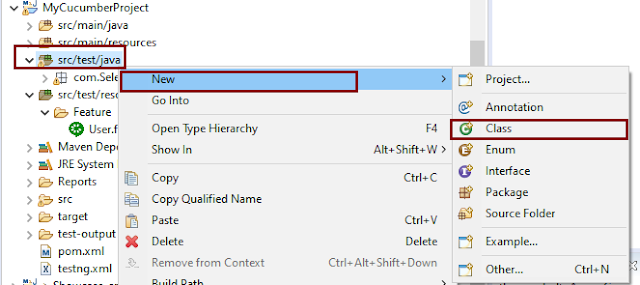
Select and Right-Click on the package outline. Click on the New→Class.

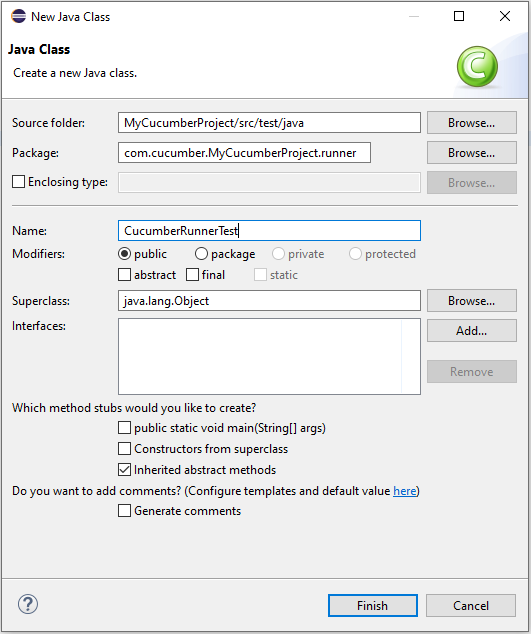
Provide the Java class a name, such as CucumberRunnerTest, and click the Finish button.

Import Statements

1) @RunWith annotation tells JUnit that tests should run using the Cucumber class.

import org.junit.runner.RunWith;

2) Cucumber.class is imported from:

import io.cucumber.junit.Cucumber;

3) @CucumberOptions annotation tells Cucumber where to look for feature files, what reporting system to use, and some other things also. But as of now, in the above test, we have just told it for the Feature file folder. It is imported from:

import io.cucumber.junit.CucumberOptions;

The CucumberRunnerTest class looks like shown below:

import org.junit.runner.RunWith;
import io.cucumber.junit.Cucumber;
import io.cucumber.junit.CucumberOptions;

@RunWith(Cucumber.class)
@CucumberOptions(plugin = "pretty", features = "src/test/resources/Features/MyHoliday.feature", tags = "@BookOneWayFlight")

public class CucumberRunnerTest {

}

The first parameter, called features, provides the location of the feature file. Similarly, the second parameter, called tags, provides the tag name (scenario) which needs to run. Apart from these, we can use plugins, and glue, in the CucumberOptions.

The feature file is placed under src/test/resources, so it is added as the path for the Feature file.

Run the Cucumber Test

As we know, the Feature file is already created in the previous tutorial. TestRunner class is created to run the Cucumber Tests.

Right Click on CucumberRunnerTest class and Click Run As  > JUnit Test Application

The output of the Test Execution looks as shown below image.

This output shows that the Feature file is created, and Test Runner is able to run the Feature File. But this error shows that we should implement these methods so that the Steps mentioned in the Feature file can be traced to Java methods, which can be executed while executing the feature file. Don’t worry about this error. We will see how to create step definitions in the next tutorial.

Congratulations on making it through this tutorial and hope you found it useful! Happy Learning!! Cheers!!

Parallel Testing in Cucumber with TestNG

Last Updated On

HOME

In this tutorial, I will explain Parallel Testing using Cucumber with TestNG.

Cucumber-JVM allows parallel execution across multiple threads since version 4.0.0. There are several options to incorporate this built-in feature in a Cucumber project. You can do so by using JUnit, TestNG, or CLI.

Cucumber can be executed in parallel using TestNG and Maven test execution plugins by setting the data provider parallel option to true.

In TestNG, the scenarios and rows in a scenario outline are executed in multiple threads. One can use either Maven Surefire or Failsafe plugin for executing the runners. In this tutorial, I’m using the Maven Surefire plugin.

Table of Contents:

  1. Prerequisite
  2. Dependency List
  3. Detailed Step Description
    1. Create a Maven project
    2. Update Properties section in Maven pom.xml
    3. Add Cucumber, Selenium, and TestNG dependencies to the project
    4. Add Surefire plugin configuration to the build section of the POM
    5. Create 2 feature files in src/test/resources – LoginPage.feature and ForgotPasswordPage.feature
    6. Create Page Object Model classes of both feature files
    7. Create the Step Definition classes for both feature files or Glue Code
    8. Create the Hook Class and Dependency Injection class (TestSetUp) and BaseTest class
    9. Create a Cucumber TestNG Runner class
    10. Report Generation
    11. Execute the test from Command Line
    12. Execute the tests from TestNG Runner
    13. Test Execution Result

Prerequisite

  1. Java is installed
  2. Maven is installed
  3. TestNG is installed
  4. Eclipse or IntelliJ Java IDE installed

Dependency List

  1. Selenium – 4.19.1
  2. Java 17
  3. Cucumber Java – 7.16.1
  4. Cucumber TestNG – 7.16.1
  5. Maven – 3.9.5
  6. TestNG – 7.10.1
  7. Maven Surefire Plugin – 3.2.5
  8. Maven Compiler Plugin – 3.13.1

Detailed Step Description

Step 1 – Create a Maven project

Create a Maven project in your favorite IDE using the cucumber archetype. To know more about this, click here.

Step 2 – Update Properties section in Maven pom.xml

<properties>
        <project.build.sourceEncoding>UTF-8</project.build.sourceEncoding>
        <selenium.version>4.19.1</selenium.version>
        <cucumber.version>7.16.1</cucumber.version>
        <testng.version>7.10.1</testng.version>
        <maven.compiler.plugin.version>3.13.0</maven.compiler.plugin.version>
        <maven.surefire.plugin.version>3.2.5</maven.surefire.plugin.version>
        <maven.compiler.source>17</maven.compiler.source>
        <maven.compiler.target>17</maven.compiler.target>
    </properties>

Step 3 – Add Cucumber, Selenium, and TestNG dependencies to the project

Add below mentioned Cucumber-Java and Cucumber-TestNG and Selenium-java dependencies to the project.

<dependencies>

        <!--Cucumber Dependencies -->
        <dependency>
            <groupId>io.cucumber</groupId>
            <artifactId>cucumber-java</artifactId>
            <version>${cucumber.version}</version>
        </dependency>

        <dependency>
            <groupId>io.cucumber</groupId>
            <artifactId>cucumber-testng</artifactId>
            <version>${cucumber.version}</version>
            <scope>test</scope>
        </dependency>

        <!-- Selenium Dependency -->
        <dependency>
            <groupId>org.seleniumhq.selenium</groupId>
            <artifactId>selenium-java</artifactId>
            <version>${selenium.version}</version>
        </dependency>

        <!-- TestNG Dependency -->
        <dependency>
            <groupId>org.testng</groupId>
            <artifactId>testng</artifactId>
            <version>${testng.version}</version>
            <scope>test</scope>
        </dependency>

        <!-- Dependency Injection-->
        <dependency>
            <groupId>io.cucumber</groupId>
            <artifactId>cucumber-picocontainer</artifactId>
            <version>${cucumber.version}</version>
            <scope>test</scope>
        </dependency>

    </dependencies>
  

Step 4 – Add Surefire plugin configuration to the build section of the POM

 <plugin>
            <groupId>org.apache.maven.plugins</groupId>
            <artifactId>maven-surefire-plugin</artifactId>
            <version>${maven.surefire.plugin.version}</version>
            <configuration>
                <parallel>methods</parallel>
                <useUnlimitedThreads>true</useUnlimitedThreads>
            </configuration>
  </plugin>

The complete POM.xml is shown below:

<?xml version="1.0" encoding="UTF-8"?>
<project xmlns="http://maven.apache.org/POM/4.0.0"
         xmlns:xsi="http://www.w3.org/2001/XMLSchema-instance"
         xsi:schemaLocation="http://maven.apache.org/POM/4.0.0 http://maven.apache.org/xsd/maven-4.0.0.xsd">
    <modelVersion>4.0.0</modelVersion>

    <groupId>org.example</groupId>
    <artifactId>ParallelTests_TestNG_Demo</artifactId>
    <version>1.0-SNAPSHOT</version>

    <properties>
        <project.build.sourceEncoding>UTF-8</project.build.sourceEncoding>
        <selenium.version>4.8.0</selenium.version>
        <cucumber.version>7.11.1</cucumber.version>
        <testng.version>7.7.1</testng.version>
        <webdrivermanager.version>5.3.2</webdrivermanager.version>
        <maven.compiler.plugin.version>3.10.1</maven.compiler.plugin.version>
        <maven.surefire.plugin.version>3.0.0-M7</maven.surefire.plugin.version>
        <maven.compiler.source>11</maven.compiler.source>
        <maven.compiler.target>11</maven.compiler.target>
    </properties>

    <dependencies>

        <!--Cucumber Dependencies -->
        <dependency>
            <groupId>io.cucumber</groupId>
            <artifactId>cucumber-java</artifactId>
            <version>${cucumber.version}</version>
        </dependency>

        <dependency>
            <groupId>io.cucumber</groupId>
            <artifactId>cucumber-testng</artifactId>
            <version>${cucumber.version}</version>
            <scope>test</scope>
        </dependency>

        <!-- Selenium Dependency -->
        <dependency>
            <groupId>org.seleniumhq.selenium</groupId>
            <artifactId>selenium-java</artifactId>
            <version>${selenium.version}</version>
        </dependency>

        <!-- TestNG Dependency -->
        <dependency>
            <groupId>org.testng</groupId>
            <artifactId>testng</artifactId>
            <version>${testng.version}</version>
            <scope>test</scope>
        </dependency>

        <!-- Dependency Injection-->
        <dependency>
            <groupId>io.cucumber</groupId>
            <artifactId>cucumber-picocontainer</artifactId>
            <version>${cucumber.version}</version>
            <scope>test</scope>
        </dependency>

        <!-- WebDriver Manager Dependency -->
        <dependency>
            <groupId>io.github.bonigarcia</groupId>
            <artifactId>webdrivermanager</artifactId>
            <version>${webdrivermanager.version}</version>
        </dependency>

    </dependencies>
    <build>
        <plugins>

            <plugin>
                <groupId>org.apache.maven.plugins</groupId>
                <artifactId>maven-compiler-plugin</artifactId>
                <version>${maven.compiler.plugin.version}</version>
                <configuration>
                    <source>${maven.compiler.source}</source>
                    <target>${maven.compiler.target}</target>
                </configuration>
            </plugin>

            <plugin>
                <groupId>org.apache.maven.plugins</groupId>
                <artifactId>maven-surefire-plugin</artifactId>
                <version>${maven.surefire.plugin.version}</version>
                <configuration>
                    <parallel>methods</parallel>
                    <useUnlimitedThreads>true</useUnlimitedThreads>
                </configuration>
            </plugin>
        </plugins>
    </build>

</project>

Step 5 – Create 2 feature files in src/test/resources – LoginPage.feature and ForgotPasswordPage.feature

Feature File is an entry point to the Cucumber tests.

The first keyword in the Feature file is the Feature keyword, followed by: and short text that describes the feature.

To know more about the Feature file, please refer to this tutorial.

Below are the sample feature files.

LoginPage.feature

Feature: Login to HRM Application

  Background:
    Given User is on Home page

  @ValidCredentials
  Scenario: Login with valid credentials - Feature 1, Scenario -1

    When User enters username as "Admin" and password as "admin123"
    Then User should be able to login successfully

  @InvalidCredentials
  Scenario Outline: Login with invalid credentials - Feature 1, Scenario -2

    When User enters username as "<username>" and password as "<password>"
    Then User should be able to see error message "<errorMessage>"

    Examples:
      | username    | password   | errorMessage                      |
      | Admin        | admin12$$  | Invalid credentials               |
      | admin$$     | admin123   | Invalid credentials               |
      | abc123       | xyz$$      | Invalid credentials               |

ForgotPasswordPage.feature

Feature: Forgot Password Page

  Background:
    Given User is on Home page

  @BackFunctionality
  Scenario: Validate the cancel functionality - Feature 2, Scenario - 1

    When User clicks on Forgot your password? link
    Then User should be able to navigate to Reset Password page
    And User clicks on Cancel button to go back to Login Page

  @ResetFunctionality
  Scenario: Validate the Reset Password functionality - Feature 2, Scenario - 2

    When User clicks on Forgot your password? link
    Then User should be able to navigate to Reset Password page
    And User clicks on Reset Password button and provide username as "abc1234"
    And Verify the message "Reset Password link sent successfully"

Step 6 – Create Page Object Model classes of both feature files

Page Object Model class contains all the locators and the actions performed on these locators for the particular class to improve the readability and maintainability of the code.

Below are the Page Object Model classes for these feature files.

LoginPage

import org.openqa.selenium.By;
import org.openqa.selenium.WebDriver;

public class LoginPage {

    public WebDriver driver;

    By userName = By.name("username");
    By passWord = By.name("password");
    By login = By.xpath("//*[@id='app']/div[1]/div/div[1]/div/div[2]/div[2]/form/div[3]/button");
    By errorMessage = By.xpath("//*[@class='orangehrm-login-error']/div[1]/div[1]/p");
    By forgotPasswordLink = By.xpath("//*[@id='app']/div[1]/div/div[1]/div/div[2]/div[2]/form/div[4]/p");
    By loginPageTitle = By.xpath("//*[@id='app']/div[1]/div/div[1]/div/div[2]/h5");

    public LoginPage(WebDriver driver) {
        this.driver = driver;
    }

    public String getErrorMessage() {
        return driver.findElement(errorMessage).getText();
    }

    public void login(String strUserName, String strPassword) {

        // Fill user name
        driver.findElement(userName).sendKeys(strUserName);

        // Fill password
        driver.findElement(passWord).sendKeys(strPassword);

        // Click Login button
        driver.findElement(login).click();

    }

    // Click on Forgot Password link
    public void clickOnForgotPasswordLink() {
        driver.findElement(forgotPasswordLink).click();
    }

    //Get Login Page Title
    public String getLoginPageTitle() {
        return driver.findElement(loginPageTitle).getText();
    }
}

HomePage

import org.openqa.selenium.By;
import org.openqa.selenium.WebDriver;

public class HomePage {

    public WebDriver driver;

    public HomePage(WebDriver driver) {
        this.driver = driver;
    }

    By homePageUserName = By.xpath("//*[@class='oxd-topbar-header-breadcrumb']/h6");

    public String getHomePageText() {
        return driver.findElement(homePageUserName).getText();
    }
}

ForgotPasswordPage

import org.openqa.selenium.By;
import org.openqa.selenium.WebDriver;

public class ForgotPasswordPage {

    WebDriver driver;

     By forgotPasswordPageTitle = By.xpath("//*[@id='app']/div[1]/div[1]/div/form/h6");
     By cancelBtn = By.xpath("//*[@id='app']/div[1]/div[1]/div/form/div[2]/button[1]");
     By resetPasswordBtn = By.xpath("//*[@id='app']/div[1]/div[1]/div/form/div[2]/button[2]");
     By userName = By.name("username");
     By resetMessage = By.xpath("//*[@id='app']/div[1]/div[1]/div/h6");

    public ForgotPasswordPage(WebDriver driver) {
        this.driver = driver;
    }

    // Get the Title of ForgotPage
    public String getForgotPageText() {
        return driver.findElement(forgotPasswordPageTitle).getText();
    }

    // Click Cancel Button
    public void clickOnCancelBtn() {
         driver.findElement(cancelBtn).click();
    }

    // Click ResetPassword Button
    public void clickOnRestPasswordBtn() {
        driver.findElement(resetPasswordBtn).click();
    }

    // Type username in TextBox
    public void TypeOnUsernameTextBox(String username) {
        driver.findElement(userName).sendKeys(username);
    }

    // Get Message
    public String getRestMessage() {
        return driver.findElement(resetMessage).getText();
    }
}

PageObjectManager – This class creates the object of all the above-mentioned Page Object Model classes. This an optional class. If you want you can create the objects in StepDefinition class also.

public class PageObjectManager {

    public LoginPage loginPage;
    public HomePage homePage;
    public ForgotPasswordPage forgotPasswordPage;
    public WebDriver driver;


    public PageObjectManager(WebDriver driver)
    {
        this.driver = driver;
    }

    public LoginPage getLoginPage()
    {

        loginPage= new LoginPage(driver);
        return loginPage;
    }

    public HomePage getHomePage()
    {
        homePage = new HomePage(driver);
        return homePage;
    }

    public ForgotPasswordPage getForgotPasswordPage()
    {
        forgotPasswordPage = new ForgotPasswordPage(driver);
        return forgotPasswordPage;
    }
}


Step 7 – Create the Step Definition classes for both feature files or Glue Code

Below is the Step Definition for LoginPage.feature.

import io.cucumber.java.en.Given;
import io.cucumber.java.en.Then;
import io.cucumber.java.en.When;
import pageObjects.HomePage;
import pageObjects.LoginPage;
import pageObjects.PageObjectManager;
import utils.TestSetUp;
import org.testng.Assert;

public class LoginPageDefinitions {

    TestSetUp setUp;
    public PageObjectManager pageObjectManager;
    public LoginPage loginPage;
    public HomePage homePage;


    public LoginPageDefinitions(TestSetUp setUp) {
        this.setUp = setUp;
        this.loginPage = setUp.pageObjectManager.getLoginPage();
        this.homePage= setUp.pageObjectManager.getHomePage();
    }

    @Given("User is on Home page")
    public void loginTest() throws IOException {
        setUp.baseTest.WebDriverManager().get("https://opensource-demo.orangehrmlive.com/");

    }

    @When("User enters username as {string} and password as {string}")
    public void goToHomePage(String userName, String passWord) {

        // login to application
        loginPage.login(userName, passWord);

        // go the next page

    }

    @Then("User should be able to login successfully")
    public void verifyLogin() {

        // Verify home page
        Assert.assertTrue(homePage.getHomePageText().contains("Dashboard"));

    }

    @Then("User should be able to see error message {string}")
    public void verifyErrorMessage(String expectedErrorMessage) {

        // Verify home page
        Assert.assertEquals(loginPage.getErrorMessage(),expectedErrorMessage);

    }

}

Below is the Step Definition for ForgotPasswordPage.feature.

import io.cucumber.java.en.Then;
import io.cucumber.java.en.When;
import pageObjects.ForgotPasswordPage;
import pageObjects.LoginPage;
import pageObjects.PageObjectManager;
import utils.TestSetUp;
import org.testng.Assert;

public class ForgotPasswordPageDefinitions{

    TestSetUp setUp;
    PageObjectManager pageObjectManager;
    public LoginPage loginPage;
    public  ForgotPasswordPage forgotPasswordPage;

    public ForgotPageDefinitions(TestSetUp setUp) {
        this.setUp = setUp;
        this.loginPage = setUp.pageObjectManager.getLoginPage();
        this.forgotPasswordPage = setUp.pageObjectManager.getForgotPasswordPage();
    }

    @When("User clicks on Forgot your password? link")
    public void forgotPasswordLink() {

        loginPage.clickOnForgotPasswordLink();

    }

    @Then("User should be able to navigate to Reset Password page")
    public void verifyForgotPasswordPage() {

        Assert.assertEquals(forgotPasswordPage.getForgotPageText(),"Reset Password");

    }

    @Then("User clicks on Cancel button to go back to Login Page")
    public void verifyCancelBtn() {

        forgotPasswordPage.clickOnCancelBtn();
        Assert.assertEquals(loginPage.getLoginPageTitle(),"Login");

    }

    @Then("User clicks on Reset Password button and provide username as {string}")
    public void verifyResetPasswordBtn(String username) {

        forgotPasswordPage.TypeOnUsernameTextBox(username);
        forgotPasswordPage.clickOnRestPasswordBtn();

    }

    @Then("Verify the message {string}")
    public void verifyMessage(String message) {

        Assert.assertEquals(forgotPasswordPage.getRestMessage(),message);

    }
}

Step 8 – Create the Hook Class and Dependency Injection class (TestSetUp) and BaseTest class

Below is the code for the ApplicationHook Class.

import io.cucumber.java.After;
import utils.TestSetUp;

public class ApplicationHooks {

 public TestSetUp setUp;

    public ApplicationHooks(TestSetUp setUp) {
        this.setUp = setUp;
    }

    @After
    public void tearDown( ) throws IOException {
        setUp.baseTest.WebDriverManager().quit();
    }
}

Below is the code for the Dependency Injection class. In Cucumber, if we want to share the state between multiple-step definition files, we will need to use dependency injection (DI). 

import org.openqa.selenium.WebDriver;
import org.openqa.selenium.WebElement;
import pageObjects.PageObjectManager;

public class TestSetUp {

    public WebElement errorMessage;
    public WebElement homePageUserName;
    public PageObjectManager pageObjectManager;
    public BaseTest baseTest;

    public TestSetUp()  {

        baseTest = new BaseTest();
        pageObjectManager = new PageObjectManager(baseTest.WebDriverManager());

    }
}

BaseTest class is used to initialize the WebDriver.

import io.github.bonigarcia.wdm.WebDriverManager;
import org.openqa.selenium.WebDriver;
import org.openqa.selenium.chrome.ChromeDriver;
import java.time.Duration;

public class BaseTest {

    public WebDriver driver;
    public final static int TIMEOUT = 10;

    public WebDriver WebDriverManager ()  {

   
        if (driver == null) {
        
            ChromeOptions options = new ChromeOptions();
            driver = new ChromeDriver(options);
            driver.manage().timeouts().implicitlyWait(Duration.ofSeconds(TIMEOUT));
            driver.manage().window().maximize();
            driver.get(url);

        }
        return driver;
    }
}

Step 9 – Create a Cucumber TestNG Runner class

Add a cucumber runner by extending the AbstractTestNGCucumberTests class and overriding the scenarios method. Set the parallel option value to true for the DataProvider annotation.

import io.cucumber.testng.AbstractTestNGCucumberTests;
import io.cucumber.testng.CucumberOptions;
import org.testng.annotations.DataProvider;

@CucumberOptions(tags = "", features = "src/test/resources/features", glue = "org.example.definitions")
public class CucumberRunnerTests  extends AbstractTestNGCucumberTests {

   @Override
    @DataProvider(parallel = true)
    public Object[][] scenarios() {
        return super.scenarios();
    }

}

Step 10 – Report Generation

Add cucumber.properties under src/test/resources and add the below instruction in the file.

cucumber.publish.enabled=true

Step 11 – Execute the test from Command Line

Use the below-mentioned command in the command prompt to run the tests.

mvn clean test

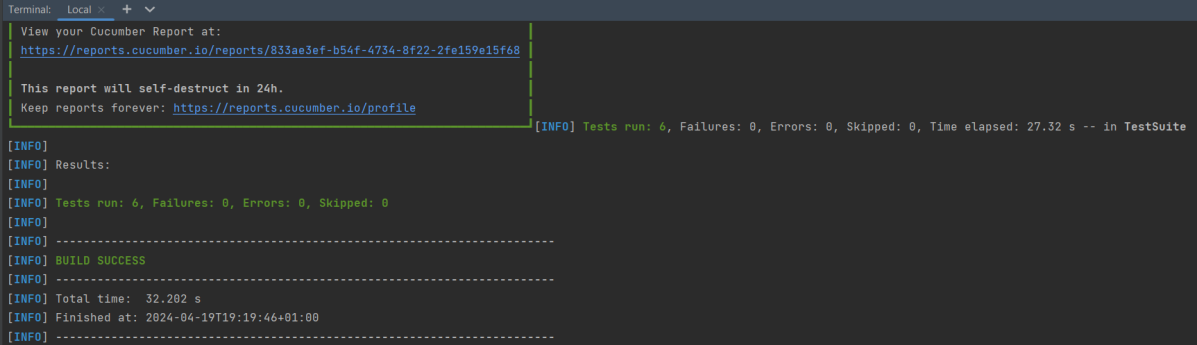
The output of the above program is

Step 12 – Execute the tests from TestNG Runner

Go to the Runner class and right-click Run As TestNG Test. The tests will run as TestNG tests. (Eclipse)

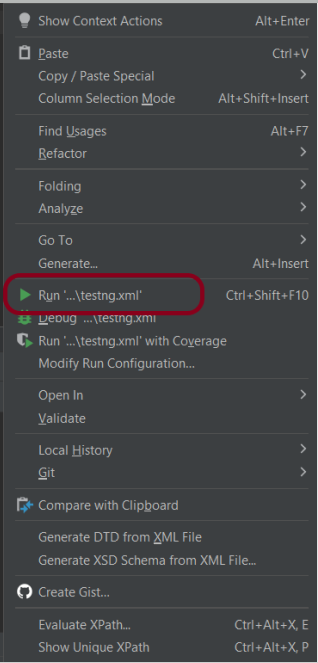
In the case of IntelliJ, right-click and select Run “CucumberRunnerTests”.

Step 13 – Test Execution Result

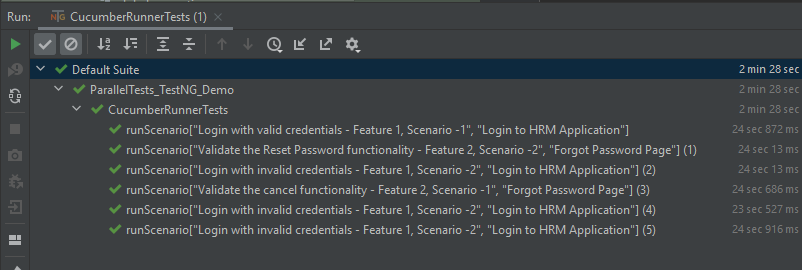
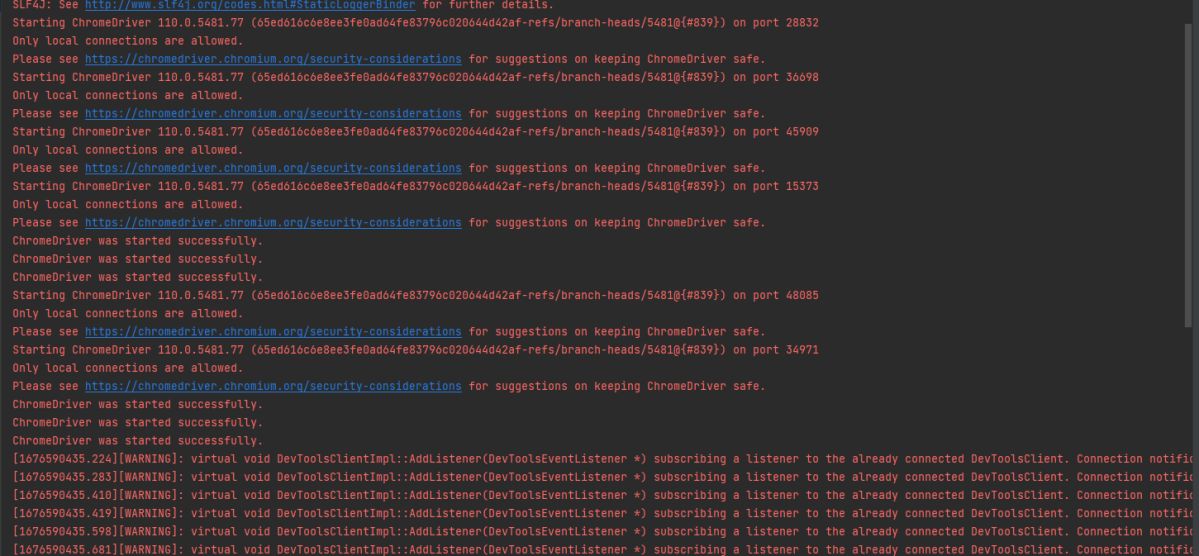
All the tests are started at the same time, so they share different threads. The way tests are executed is different in them. With non-parallel tests, all the scenarios of the same feature are executed together, and then the scenarios of another feature file. Whereas in parallel tests, all the tests are started at the same time, so there won’t be any specific order.

All the scenarios have started simultaneously.

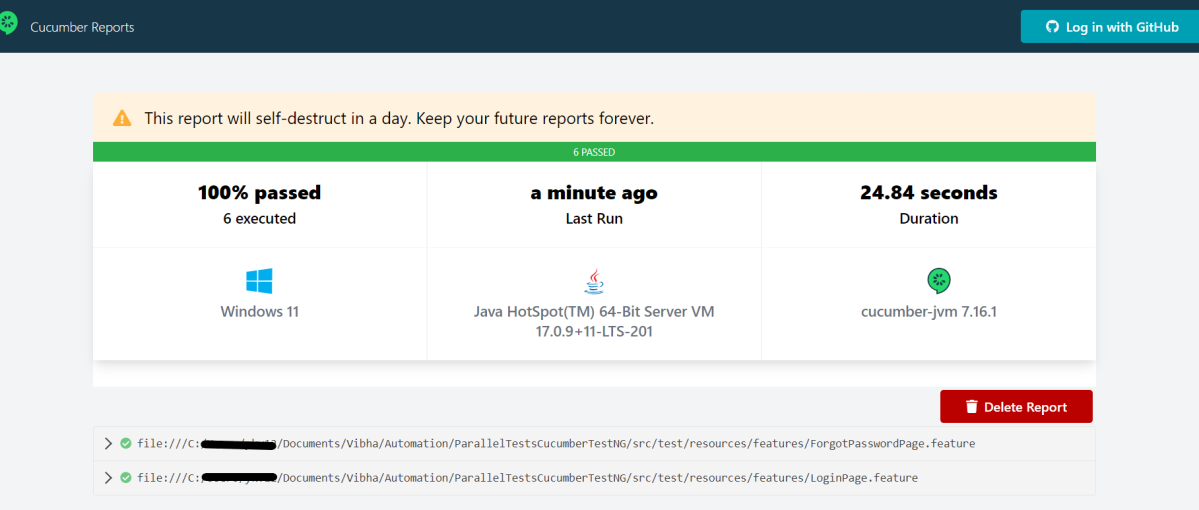
The Cucumber Report is shown below:

There are chances that we don’t want to run all the scenarios simultaneously, in this case, we need to add the below-mentioned configuration in the pom.xml. The value =2 means that 2 scenarios will be executed simultaneously.

  <configuration>
                    <properties>
                        <property>
                            <name>dataproviderthreadcount</name>
                            <value>2</value>
                        </property>
                    </properties>
 </configuration>

The default thread count of the dataprovider in parallel mode is 10.

Congratulations on making it through this tutorial and hope you found it useful! Happy Learning!! Cheers!!

There is another tutorial that shows Parallel Testing in Cucumber with JUnit.

The complete source code can be found here – GitHub

SpringBoot Tutorials


HOME

Spring Boot makes it easy to create stand-alone, production-grade Spring based Applications that you can “just run”. We take an opinionated view of the Spring platform and third-party libraries, so you can get started with minimum fuss. Most Spring Boot applications need minimal Spring configuration.

Chapter 1 Create your first SpringBoot application in IntelliJ
Chapter 2 SpringBoot Integration Test
Chapter 3 Integration Testing of Springboot with RestAssured
Chapter 4 Testing of SpringBoot REST Application using Serenity BDD and Rest Assured for GET Method
Chapter 5 Testing of SpringBoot REST Application using Serenity BDD and Rest Assured for POST Method to create a Resource
Chapter 6 Testing of SpringBoot REST Application using Serenity BDD and Rest Assured for PUT Method to update a Resource
Chapter 7 Testing of SpringBoot REST Application using Serenity BDD and Rest Assured for DELETE Method to delete a Resource
Chapter 8 Testing of SpringBoot Validation for RESTful Services
Chapter 9 Testing of SpringBoot Exception Handling
Chapter 10 SpringBoot WireMock
Chapter 11 SpringBoot Dependency Injection using Autowired

SpringBoot Testing with JUnit

Chapter 1 Integration Testing of Springboot with Cucumber and JUnit4
Chapter 2 Integration Testing of SpringBoot Application with Serenity BDD, Cucumber and JUnit4
Chapter 3 Testing of SpringBoot Application with Serenity and JUnit5
Chapter 4 Testing of SpringBoot Application with Serenity BDD, Cucumber and JUnit5
Chapter 5 Testing of SpringBoot Application with JUnit5

SpringBoot with TestNG

Chapter 1 Testing of SpringBoot Application with TestNG
Chapter 2 Integration Testing of Springboot with Cucumber and TestNG

SpringBoot with Gradle

Chapter 1 Testing of Gradle SpringBoot Application with Serenity, Cucumber and JUnit4
Chapter 2 Testing of Gradle SpringBoot Application with Serenity and JUnit5

CI/CD

Chapter 1 How to run SpringBoot tests with GitHub Actions
Chapter 2 How to run SpringBoot project in GitLab CI/CD

Gradle Tutorials

Last Updated On

HOME

Gradle is an open-source build automation tool that is designed to be flexible enough to build almost any type of software.
Gradle runs on the JVM and you must have a Java Development Kit (JDK) installed to use it.
Several major IDEs allow you to import Gradle builds and interact with them: Android Studio, IntelliJ IDEA, Eclipse, and NetBeans.

Installation of Gradle

Chapter 1 How to install Gradle on Windows

Creation of Gradle project

Chapter 1 How to create Java Gradle project in Eclipse
Chapter 2 How to create a Java Gradle project using Command Line
Chapter 3 How to create Gradle project in IntelliJ
Chapter 4 How to create Gradle Java project in IntelliJ using Command Line

Importing of Gradle Project

Chapter 1 How to import Java Gradle project in Eclipse
Chapter 2 How to import Java Gradle project in IntelliJ

Gradle Project in Cucumber

Chapter 1 How To Create Gradle Project with Cucumber to test Rest API
Chapter 2 Run Gradle Cucumber Tests from Command Line
Chapter 3 Gradle Project with Cucumber, Selenium and TestNG
Chapter 4 Gradle Project with Cucumber, Selenium and JUnit4

Gradle Project in Serenity

Chapter 1 Serenity BDD with Gradle and Cucumber for Web Application
Chapter 2 Serenity BDD with Cucumber and Rest Assured in Gradle
Chapter 3 Serenity Emailable Report in Gradle

Gradle Project with Selenium

Chapter 1 How to create Gradle project with Selenium and TestNG
Chapter 2 How to create Gradle project with Selenium and JUnit4
Chapter 3 Gradle – Integration of Selenium and JUnit5

Gradle Project in Rest API

Chapter 1 Setup Basic REST Assured Gradle Project In Eclipse IDE

Allure Reports for Gradle Project

Chapter 1 Gradle – Allure Report for Selenium and TestNG
Chapter 2 Gradle – Allure Report for Selenium and JUnit4
Chapter 3 Gradle – Allure Report for Cucumber, Selenium and TestNG

Extent Reports for Gradle Project

Chapter 1 Gradle – Extent Report Version 5 for Cucumber, Selenium, and TestNG

Gradle with Jenkins

Chapter 1 Integrate Gradle project with Jenkins
Chapter 2 How to create Jenkins pipeline for Gradle project

DataTables in Cucumber

Last Updated On

HOME

Cucumber Data Tables can be used to add multiple parameters in Step Definition in a tabular form rather than putting all the parameters in the Gherkin statement. This is much easier to read and multiple rows of data can be passed in the same step. Data tables from Gherkin can be accessed by using the DataTable object as the last parameter in a Step Definition. This conversion can be done either by Cucumber or manually.

Table Of Contents

  1. Prerequisite
  2. Project Structure
    1. Table into List of a List of Strings
    2. Table into List of Maps
    3. Table into Single Map
    4. Table into map that uses a list as its value
  3. Cucumber Data Tables Example in Java
    1. Data Table without Header Example
    2. Data Table with Header and Single Row Example
    3. Data Table with Header and Multiple Rows Example

Prerequisite

  1. Cucumber – 7.15.0
  2. Java – 17
  3. Selenium – 4.16.1
  4. JUnit – 4.13.2 ( You can use TestNG also)
  5. Cucumber JUnit – 7.15.0 (If using TestNG, then replace this with Cucumber TestNG)

Project Structure

Depending on the table shape, we can use one of the following collections:

List<List<String>> table
List<Map<String, String>> table
Map<String, String> table
Map<String, List<String>> table
Map<String, Map<String, String>> table

Let’s write a simple data table and see how we use it.

1. Table into List of a List of Strings

| firstName | lastName | age |
| Thomas    | Brown | 30 |
| Perry     | Wilson | 26 |
| Ashley    | William | 27 |

java type: List<List<String>>

The natural representation of list of a list of strings is shown below.

[ 
  [ "firstName", "lastName", "age" ],
  [ "Thomas", "Brown", "30" ], 
  [ "Perry", "Wilson", "26" ], 
  [ "Ashley", "William", "27" ] 
]

2. Table into List of Maps

java type: List<Map<String, String>>
The natural representation of list of maps is shown below.

[
  { "firstName": "Thomas", "lastName": "Brown",  "age": "30" }, 
  { "firstName": "Perry",  "lastName": "Wilson", "age": "26" }, 
  { "firstName": "Ashley", "lastName": "William", "age": "27" } 
]

3. Table into Single Map

Table where first colum is key as shown below

| IN  | India          |
| IRE | Ireland        |
java type: Map<String, String>

TO convert the table into a single map

{
  "IN": "India",
  "IRE": "Ireland"
}

4. Table into map that uses a list as its value

 A table with multiple column values per key.
 
 | IN  | India          | 29  |
 | IRE | Ireland        | 8   |

java type: Map<String, List<String>>

{
  "IN":  ["India","29"],
  "IRE": ["Ireland","8"]
}

Now, let us see how we can use DataTable in Cucumber

Cucumber Data Tables Example in Java

Data Table without Header Example

Below is an example of how to implement Data Tables without a Header. For example, we want to test the Login Page of an application. We can either mention all the arguments inside the Gherkin statement or use a table to list all the arguments, as we used below:

Feature: Login to HRM Application 
 
  @ValidCredentials
  Scenario: Login with valid credentials - Data Table without Header

    Given User is on HRMLogin page
    When User enters valid credentials
      | Admin | admin123 |
    Then User should be able to login successfully and new page open

Below is the Step Definition of the above scenario.

import io.cucumber.datatable.DataTable;
import io.cucumber.java.After;
import io.cucumber.java.Before;
import io.cucumber.java.en.Given;
import io.cucumber.java.en.Then;
import io.cucumber.java.en.When;
import org.junit.Assert;
import org.openqa.selenium.By;
import org.openqa.selenium.WebDriver;
import org.openqa.selenium.chrome.ChromeDriver;
import java.util.List;
import java.util.Map;
import java.util.concurrent.TimeUnit;
import static org.hamcrest.CoreMatchers.containsString;
import static org.hamcrest.MatcherAssert.assertThat;

public class DataTableDefinitions {

    WebDriver driver;

 @Before
    public void setup() {

        ChromeOptions options = new ChromeOptions();
        options.addArguments("--start-maximized");
        driver = new ChromeDriver(options);
        driver.manage().timeouts().implicitlyWait(Duration.ofSeconds(5));

    }

    @Given("User is on HRMLogin page")
    public void userOnHomePage() {

        driver.get("https://opensource-demo.orangehrmlive.com/");
    }

     @When("User enters valid credentials")
    public void entersValidCredential(DataTable dataTable) throws InterruptedException{

        System.out.println("Credentials Entered");

        List<List<String>> signUpForm = dataTable.asLists(String.class);
        String userName = signUpForm.get(0).get(0);
        String passWord = signUpForm.get(0).get(1);
        driver.findElement(By.name("username")).sendKeys(userName);
        driver.findElement(By.name("password")).sendKeys(passWord);
        driver.findElement(By.xpath("//*[@class='oxd-form']/div[3]/button")).submit();
    }

    @Then("User should be able to login successfully and new page open")
    public void successfulLogin() throws InterruptedException {

        String newPageText = driver.findElement(By.xpath("//*[@class='oxd-topbar-header-breadcrumb']/h6")).getText();
        System.out.println("newPageText :" + newPageText);
        assertThat(newPageText, containsString("Dashboard"));
    }

    @After
    public void teardown(){
        driver.quit();
    }
}


To run the Feature file, we need a Cucumber TestRunner.

import io.cucumber.junit.Cucumber;
import io.cucumber.junit.CucumberOptions;
import org.junit.runner.RunWith;

@RunWith(Cucumber.class)
@CucumberOptions(monochrome = true, plugin = "pretty", features = "src/test/resources/Features/DataTable.feature",
        glue = "definitions", tags="@ValidCredentials")

public class CucumberRunnerTest {
}

The output of the above program is

In the above example, we don’t have a header. We have just got the List object. We get the values of DataTable starting from 0 index.

Cucumber converts the above table into a list of lists. It treats each row as a list of the column values. We use the asLists method — supplying a String.class argument — to convert the DataTable argument to a List<List<String>>This Clasargument informs the asLists method of what data type we expect each element to be.

Data Table with Header and Single Row Example

Below is a cucumber data tables example with the header.

Adding a header to your table makes it easier to read and maintain.

  @InValidCredential
  Scenario: Login with invalid credential - Header with Single Row

    Given User is on HRMLogin page
    Then User enters invalid credentials and Login will be unsuccessful with error message
      | Username  | Password   | ErrorMessage        |
      | Admin1    | admin123!$ | Invalid credentials |

Below is the Step Definition of the above scenario.

package org.example.definitions;

import io.cucumber.datatable.DataTable;
import io.cucumber.java.After;
import io.cucumber.java.Before;
import io.cucumber.java.en.Given;
import io.cucumber.java.en.Then;
import io.cucumber.java.en.When;
import org.junit.Assert;
import org.openqa.selenium.By;
import org.openqa.selenium.WebDriver;
import org.openqa.selenium.chrome.ChromeDriver;
import org.openqa.selenium.chrome.ChromeOptions;

import java.time.Duration;
import java.util.List;
import java.util.Map;

public class DataTableDefinitions {

    WebDriver driver;

    @Before
    public void setup() {

        ChromeOptions options = new ChromeOptions();
        options.addArguments("--start-maximized");
        driver = new ChromeDriver(options);
        driver.manage().timeouts().implicitlyWait(Duration.ofSeconds(5));

    }

    @Given("User is on HRMLogin page")
    public void userOnHomePage() {

        driver.get("https://opensource-demo.orangehrmlive.com/");
    }

    @Then("User enters invalid credentials and Login will be unsuccessful with error message")
    public void entersInvalidCredential(DataTable userTable) throws InterruptedException {

        System.out.println("Enter Credentials");
        List<Map<String, String>> user = userTable.asMaps(String.class, String.class);

        String userName = user.get(0).get("Username");
        System.out.println("Username :" + userName);
        driver.findElement(By.name("username")).sendKeys(userName);

        String passWord = user.get(0).get("Password");
        System.out.println("Password :" + passWord);
        driver.findElement(By.name("password")).sendKeys(passWord);

        driver.findElement(By.xpath("//*[@class='oxd-form']/div[3]/button")).submit();

        String errorMessage = user.get(0).get("ErrorMessage");
        String actualErrorMessage = driver.findElement(By.xpath("//*[@class='orangehrm-login-error']/div[1]/div[1]/p")).getText();
        System.out.println("Actual Error Message :" + actualErrorMessage);
        Assert.assertTrue(actualErrorMessage.equalsIgnoreCase(errorMessage));

    }

    @After
    public void teardown(){
        driver.quit();
    }

}

The output of the above program is

In the above example, we have only 1 row with the header, so have used get(0) to retrieve the first row of DataTable. After that, I used get(“HeaderName”) to get the value of the row of DataTable.

Data Table with Header and Multiple Rows Example

Below is a cucumber data table example with multiple rows of data with the header. This is helpful when we want to test multiple combinations of data in a step.

  @Multiple_InValidCredentials
  Scenario: Login with invalid credentials - Data Table with Header and Multiple Rows

    Given User is on HRMLogin page
    Then User enters invalid credentials and Login will be unsuccessful with custom error messages
      | Username    | Password  | ErrorMessage         |
      | Admin1      | admin123! | Invalid credentials  |
      | Admina      | admin123a | Invalid credentials  |
   

Below is the Step Definition of the above scenario

import io.cucumber.datatable.DataTable;
import io.cucumber.java.After;
import io.cucumber.java.Before;
import io.cucumber.java.en.Given;
import io.cucumber.java.en.Then;
import io.cucumber.java.en.When;
import org.junit.Assert;
import org.openqa.selenium.By;
import org.openqa.selenium.WebDriver;
import org.openqa.selenium.chrome.ChromeDriver;
import java.util.List;
import java.util.Map;
import java.util.concurrent.TimeUnit;
import static org.hamcrest.CoreMatchers.containsString;
import static org.hamcrest.MatcherAssert.assertThat;

public class DataTableDefinitions {

    WebDriver driver;

     @Before
    public void setup() {

        ChromeOptions options = new ChromeOptions();
        options.addArguments("--start-maximized");
        driver = new ChromeDriver(options);
        driver.manage().timeouts().implicitlyWait(Duration.ofSeconds(5));

    }

    @Given("User is on HRMLogin page")
    public void userOnHomePage() {

        driver.get("https://opensource-demo.orangehrmlive.com/");
    }

     @Then("User enters invalid credentials and Login will be unsuccessful with custom error messages")
    public void entersInvalidCredentials(DataTable userTable) throws InterruptedException {

        System.out.println("Enter Credentials");

        List<Map<String, String>> user = userTable.asMaps(String.class, String.class);
        for (Map<String, String> form : user) {

            String userName = form.get("Username");
            System.out.println("Username :" + userName);
            driver.findElement(By.name("username")).sendKeys(userName);

            String passWord = form.get("Password");
            System.out.println("Password :" + passWord);
            driver.findElement(By.name("password")).sendKeys(passWord);

            driver.findElement(By.xpath("//*[@class='oxd-form']/div[3]/button")).submit();

            String errorMessage = form.get("ErrorMessage");
            String actualErrorMessage = driver.findElement(By.xpath("//*[@class='orangehrm-login-error']/div[1]/div[1]/p")).getText();
            System.out.println("Actual Error Message :" + actualErrorMessage);

            Assert.assertTrue(actualErrorMessage.equalsIgnoreCase(errorMessage));

        }
    }

    @After
    public void teardown(){
        driver.quit();
    }

}

The output of the above program is

Cucumber creates a list containing each row, but instead maps the column heading to each column value. Cucumber repeats this process for each subsequent row. We use the asMaps method — supplying two String.class arguments — to convert the DataTable argument to a List<Map<String, String>>.

The first argument denotes the data type of the key (header). The second indicates the data type of each column value. Thus, we supply two String.class arguments because our headers (key) and title and author (values) are all Strings.

Congratulations on making it through this tutorial and hope you found it useful! Happy Learning!! Cheers!!

Integration of Cucumber with Selenium and JUnit4

HOME

As we know, Cucumber is a BDD Tool and Selenium Webdriver is used for the automation of web applications. Imagine we need to build a test framework that can be used by businesses to understand the test scenarios and as well can test the web application. This can be achieved by integrating Cucumber with Selenium.

In this tutorial, I’ll create a BDD Framework for the testing of web applications using Selenium Webdriver.

Table of Contents

Dependency List:

  1. Cucumber – 7.14.0
  2. Java 17
  3. JUnit – 4.13.2
  4. Maven – 3.9.5
  5. Selenium – 4.15.0

Implementation Steps

The above steps are explained in detail.

Step 1- Download and Install Java

Cucumber and Selenium need Java to be installed on the system to run the tests. Click here to know How to install Java.

Step 2 – Download and setup Eclipse IDE on the system

The Eclipse IDE (integrated development environment) provides strong support for Java developers. The Eclipse IDE for Java Developers distribution is designed to support standard Java development. It includes support for the Maven and Gradle build system and support for the Git version control system. Click here to know How to install Eclipse.

Step 3 – Setup Maven

To build a test framework, we need to add a number of dependencies to the project. It is a very tedious and cumbersome process to add each dependency manually. So, to overcome this problem, we use a build management tool. Maven is a build management tool that is used to define project structure, dependencies, build, and test management. Click here to know How to install Maven.

Step 4 – Install Cucumber Eclipse Plugin (Only for Eclipse)

The cucumber plugin is an Eclipse plugin that allows eclipse to understand the Gherkin syntax. When we are working with cucumber we will write the feature files that contain Feature, Scenario, Given, When, Then, And, But, Tags, Scenario Outline, and Examples. By default, eclipse doesn’t understand these keywords so it doesn’t show any syntax highlighter. Cucumber Eclipse Plugin highlights the keywords present in Feature File. Refer to this tutorial to get more detail – How to setup Cucumber with Eclipse.

Step 5 – Create a new Maven Project

Click here to know How to create a Maven project

Below is the Maven project structure. Here,

Group Id – org.example
Artifact Id – Cucumber_JUnit4_Demo
Version – 0.0.1-SNAPSHOT
Package – cucumber

Maven Dependency (pom.xml) looks like something shown below for a new Maven project.

Step 6 – Create source folder src/test/resources

When a new Maven Project is created, it has 2 folders – src/main/java and src/test/java. To create test scenarios, we need a new source folder called – src/test/resources. To create this folder, Right-click on your Maven project ->select New ->Java, and then Source Folder. The Feature file is created in the src/test/resources source folder.

Mention the source folder name as src/test/resources and click the Next button. This will create a source folder under your new Maven project, as shown in the below image.

Step 7 – Add Selenium and Cucumber dependencies to the project

Add the below-mentioned Selenium and Cucumber dependencies to the project.

<properties>
    <project.build.sourceEncoding>UTF-8</project.build.sourceEncoding>
    <cucumber.version>7.14.0</cucumber.version>
    <selenium.version>4.15.0</selenium.version>
    <junit.version>4.13.2</junit.version>
    <maven.compiler.plugin.version>3.11.0</maven.compiler.plugin.version>
    <maven.surefire.plugin.version>3.2.1</maven.surefire.plugin.version>
    <maven.compiler.source.version>17</maven.compiler.source.version>
    <maven.compiler.target.version>17</maven.compiler.target.version>
  </properties>

  <dependencies>

    <dependency>
      <groupId>io.cucumber</groupId>
      <artifactId>cucumber-java</artifactId>
      <version>${cucumber.version}</version>
    </dependency>

    <dependency>
      <groupId>io.cucumber</groupId>
      <artifactId>cucumber-junit</artifactId>
      <version>${cucumber.version}</version>
      <scope>test</scope>
    </dependency>

    <!-- Selenium -->
    <dependency>
      <groupId>org.seleniumhq.selenium</groupId>
      <artifactId>selenium-java</artifactId>
      <version>${selenium.version}</version>
    </dependency>

    <!-- JUnit4 -->
    <dependency>
      <groupId>junit</groupId>
      <artifactId>junit</artifactId>
      <version>${junit.version}</version>
      <scope>test</scope>
    </dependency>
  </dependencies>

Step 8 – Add Maven Compiler Plugin

The compiler plugin is used to compile the source code of a Maven project. This plugin has two goals, which are already bound to specific phases of the default lifecycle:

  • compile – compile main source files
  • testCompile – compile test source files
<build>
    <plugins>
      <plugin>
        <groupId>org.apache.maven.plugins</groupId>
        <artifactId>maven-compiler-plugin</artifactId>
        <version>${maven.compiler.plugin.version}</version>
        <configuration>
          <source>${maven.compiler.source.version}</source>
          <target>${maven.compiler.target.version}</target>
        </configuration>
      </plugin>
      <plugin>
        <groupId>org.apache.maven.plugins</groupId>
        <artifactId>maven-surefire-plugin</artifactId>
        <version>${maven.surefire.plugin.version}</version>
      </plugin>
    </plugins>
  </build>
</project>

The complete pom.xml will look like the below image

<project xmlns="http://maven.apache.org/POM/4.0.0" xmlns:xsi="http://www.w3.org/2001/XMLSchema-instance"
  xsi:schemaLocation="http://maven.apache.org/POM/4.0.0 http://maven.apache.org/xsd/maven-4.0.0.xsd">
  <modelVersion>4.0.0</modelVersion>

  <groupId>org.example</groupId>
  <artifactId>Cucumber_JUnit4_Demo</artifactId>
  <version>1.0-SNAPSHOT</version>
  <packaging>jar</packaging>

  <name>Cucumber_JUnit4_Demo</name>
  <url>http://maven.apache.org</url>

  <properties>
    <project.build.sourceEncoding>UTF-8</project.build.sourceEncoding>
    <cucumber.version>7.14.0</cucumber.version>
    <selenium.version>4.15.0</selenium.version>
    <junit.version>4.13.2</junit.version>
    <maven.compiler.plugin.version>3.11.0</maven.compiler.plugin.version>
    <maven.surefire.plugin.version>3.2.1</maven.surefire.plugin.version>
    <maven.compiler.source.version>17</maven.compiler.source.version>
    <maven.compiler.target.version>17</maven.compiler.target.version>
  </properties>

  <dependencies>

    <dependency>
      <groupId>io.cucumber</groupId>
      <artifactId>cucumber-java</artifactId>
      <version>${cucumber.version}</version>
    </dependency>

    <dependency>
      <groupId>io.cucumber</groupId>
      <artifactId>cucumber-junit</artifactId>
      <version>${cucumber.version}</version>
      <scope>test</scope>
    </dependency>

    <!-- Selenium -->
    <dependency>
      <groupId>org.seleniumhq.selenium</groupId>
      <artifactId>selenium-java</artifactId>
      <version>${selenium.version}</version>
    </dependency>

    <!-- JUnit4 -->
    <dependency>
      <groupId>junit</groupId>
      <artifactId>junit</artifactId>
      <version>${junit.version}</version>
      <scope>test</scope>
    </dependency>
  </dependencies>

  <build>
    <plugins>
      <plugin>
        <groupId>org.apache.maven.plugins</groupId>
        <artifactId>maven-compiler-plugin</artifactId>
        <version>${maven.compiler.plugin.version}</version>
        <configuration>
          <source>${maven.compiler.source.version}</source>
          <target>${maven.compiler.target.version}</target>
        </configuration>
      </plugin>
      <plugin>
        <groupId>org.apache.maven.plugins</groupId>
        <artifactId>maven-surefire-plugin</artifactId>
        <version>${maven.surefire.plugin.version}</version>
      </plugin>
    </plugins>
  </build>
</project>

Step 9 – Create a feature file (LoginPage.feature)

Feature file should be saved as an extension of .feature. Add the test scenarios in this feature file. I have added sample test scenarios. In this feature file, I have created a scenario for successful login and another one for a failed login. The test scenarios are written in the Gherkins language. A feature file contains all the test scenarios and is placed in src/test/resources/features.

Feature: Login to HRM Application 

   @ValidCredentials
   Scenario: Login with valid credentials
    
    Given User is on Home page
    When User enters username as "Admin"
    And User enters password as "admin123"
    Then User should be able to login sucessfully
    
   @InValidCredentials
   Scenario: Login with invalid credentials
    
    Given User is on Home page
    When User enters username as "username"
    And User enters password as "password"
    Then Login will be unsuccessfull with error message "Invalid credentials"

Step 10 – Create the step definition class

The StepDefinition class is created in src/test/java. The StepDefinition class contains the test code corresponding to the steps of Test Scenario in the Feature File.

It is recommended to create a package with a name such as org.example.cucumber.stepdefinitions in src/test/java and create the step definition java file corresponding to the feature files in that package

package org.example.definitions;

import java.time.Duration;

import org.junit.Assert;
import org.openqa.selenium.By;
import org.openqa.selenium.WebDriver;
import org.openqa.selenium.chrome.ChromeDriver;
import org.openqa.selenium.chrome.ChromeOptions;

import io.cucumber.java.After;
import io.cucumber.java.Before;
import io.cucumber.java.en.Given;
import io.cucumber.java.en.Then;
import io.cucumber.java.en.When;

public class LoginStepdefinitions {

	WebDriver driver;
	
	@Before
    public void setUp() {

        ChromeOptions options = new ChromeOptions();
        options.addArguments("--start-maximized");
        driver = new ChromeDriver(options);
        driver.manage().timeouts().implicitlyWait(Duration.ofSeconds(5));

    }
	 
    @Given("User is on Home page")
    public void userOnHomePage() {
    	
        driver.get("https://opensource-demo.orangehrmlive.com/");
    }
 
    @When("User enters username as {string}")
    public void entersUsername(String userName)  {
 
        System.out.println("Username Entered");
        driver.findElement(By.name("username")).sendKeys(userName);
       
 
    }
 
    @When("User enters password as {string}")
    public void entersPassword(String passWord)  {
 
        System.out.println("Password Entered");
        driver.findElement(By.name("password")).sendKeys(passWord);
        driver.findElement(By.xpath("//*[@class='oxd-form']/div[3]/button")).submit();
    }
 
    @Then("User should be able to login sucessfully")
    public void sucessfullLogin()  {
 
    	 String homePageHeading = driver.findElement(By.xpath("//*[@class='oxd-topbar-header-breadcrumb']/h6")).getText();

         //Verify new page - HomePage
         Assert.assertEquals("Dashboard",homePageHeading);   
 
    }
 
    @Then("Login will be unsuccessfull with error message {string}")
    public void unsucessfullLogin(String expectedErrorMessage)  {
 
    	 String actualErrorMessage = driver.findElement(By.xpath("//*[@class='orangehrm-login-error']/div[1]/div[1]/p")).getText();

         // Verify Error Message
         Assert.assertEquals( expectedErrorMessage, actualErrorMessage);
 
    }
    
    @After
    public void teardown() {

        driver.quit();
    }
  
}

Step 11 – Create a Cucumber Runner class under src/test/java

It is recommended to create a package with a name such as org.example.cucumber.runner in src/test/java and create the CucumberRunnerTest (Runner) java file corresponding to that package.

We need to create a class called Runner class to run the tests. This class will use the JUnit annotation @RunWith(), which tells JUnit what is the test runner class.

package org.example.cucumber.runner;

import org.junit.runner.RunWith;

import io.cucumber.junit.Cucumber;
import io.cucumber.junit.CucumberOptions;

@RunWith(Cucumber.class)
@CucumberOptions(features = {
        "src/test/resources/features/LoginPage.feature" }, glue = "org.example.cucumber.definitions")
 
public class CucumberRunnerTest {

}

Step 12 – Test Execution through JUnit

Go to Runner class and right-click Run As JUnit. The tests will run as JUnit tests.

Step 13 – Run the tests from Command Line

Run the below command in the command prompt to run the tests and to get the test execution report.

mvn clean test

Step 14 – Cucumber Report Generation

To get Cucumber Test Reports, add cucumber.properties under src/test/resources and add the below instruction in the file

cucumber.publish.enabled=true

Below is the image of the Cucumber Report generated using the Cucumber Service

That’s it! Congratulations on making it through this tutorial and hope you found it useful! Happy Learning!!

Conditional Hooks in Cucumber

HOME

In the previous tutorial, I explained Hooks in Cucumber. In this tutorial, I will explain Condition Hooks in Cucumber.

Hooks can be conditionally selected for execution based on the tags of the scenario. These are called Condition or Tagged Hooks.

Tagged Hooks are much like the scenario hooks, but the only difference is that they are executed before and after the specified tag.

These tagged hooks will be very specific to the particular tags, so these are not common for all scenarios.

So basically, they can also be run in the following two ways:

  • Before (‘tagName’)
  • After (‘tagName’)

Why do we need Tagged Hooks?

Suppose there are 3 different sets of scenarios. The prerequisites of these scenarios are different, like they have to open different browsers. So, we don’t want to have a common hook for all the scenarios. In this case, we can create a tagged hook to satisfy the requirement of each scenario.

In the below example, there are 3 tags – ChromeBrowser, FireFoxBrowser, and EdgeBrowser. I want to run the hook which has the specified tag for that scenario. For Example, I want @After and @Before hooks related to Chrome Browser should be executed for the tag – @ChromeBrowser.

Below is the feature file which has 3 different scenarios.

Feature: Conditional or Tagged Hooks
 
@ChromeBrowser
Scenario: Open Chrome Browser
 
Given I want to open Google Chrome Browser

@FireFoxBrowser
Scenario: Open Firefox Browser
 
Given I want to open Mozilla Firefox Browser

@EdgeBrowser
Scenario: Open Edge Browser
 
Given I want to open Microsoft Edge Browser

Below is the Step Definition for the above feature file.

import io.cucumber.java.en.Given;

public class ConditionalHooksExampleDefinitions {
	
	@Given("I want to open Google Chrome Browser")
	public void chrome() throws Throwable {
	    System.out.println("I want to open Google Chrome Browser");
	}

	@Given("I want to open Mozilla Firefox Browser")
	public void firefox() throws Throwable {
		System.out.println("I want to open Mozilla Firefox Browser");
	}

	@Given("I want to open Microsoft Edge Browser")
	public void edge() throws Throwable {
		System.out.println("I want to open Microsoft Edge Browser");
	}

}

Hooks can be defined in the same class or different. I have defined Hooks in a separate class.

import io.cucumber.java.After;
import io.cucumber.java.AfterStep;
import io.cucumber.java.Before;
import io.cucumber.java.BeforeStep;

public class Hooks {
	
	@BeforeStep
    public void beforeStep(){
        System.out.println("@@@@@@@@@@@@@@@ Before Step @@@@@@@@@@@@@@@@@");
    }
	
	@AfterStep
    public void afterStep(){
        System.out.println("@@@@@@@@@@@@@@@@  After Step @@@@@@@@@@@@@@@@");
    }
	
	@Before("@ChromeBrowser")
    public void beforeGoogle(){
        System.out.println("******* before Chrome *******");
    }
	
	@Before("@FireFoxBrowser")
    public void beforeFirefox(){
        System.out.println("$$$$$$$$$$ before FireFox $$$$$$$$$$");
    }

	@Before("@EdgeBrowser")
    public void beforeEdge(){
		System.out.println("============ before Edge =============");
    }
	
	@After("@ChromeBrowser")
    public void afterGoogle(){
        System.out.println("********* After Google *********");
    }

	@After("@FireFoxBrowser")
    public void afterFireFox(){
		System.out.println("$$$$$$$$$$$ After FireFox $$$$$$$$$$");
    }

	@After("@EdgeBrowser")
    public void afterEdge(){
        System.out.println("============ After Edge ==============");
    }

}

There is no change in the Test Runner Class.

import org.junit.runner.RunWith;
import io.cucumber.junit.Cucumber;
import io.cucumber.junit.CucumberOptions;

@RunWith(Cucumber.class)
@CucumberOptions(monochrome = true, plugin = "pretty", features = "src/test/resources/features/ConditionalHooks.feature", tags = {
		"" })

public class MyRunnerTests {

}

The output of the above execution is

  1. At the start of execution, @Before(“@ChromeBrowser”) {Scenario Hook} is executed.
  2. After that @BeforeStep (Step Hook) hook is executed.
  3. The given statement of the @ChromeBrowser tag is executed in the third step.
  4. The fourth step is to execute @AfterStep.
  5. Now, at last, the @After(“@ChromeBrowser”) hook is executed. Similarly, the same sequence is followed for FireFox and Edge Scenarios.

Congratulations on making it through this tutorial and hope you found it useful! Happy Learning!! Cheers!!

Allure Reports

HOME

Allure Framework is a lightweight, flexible multi-language test report tool that not only displays a very concise representation of what has been tested in a neat web report form, but also allows everyone involved in the development process to extract the most useful information from everyday test execution.

Allure Report for Maven Projects

Chapter 1 What is Allure Report?
Chapter 2 Integration of Allure Report with Selenium and JUnit4
Chapter 3 Integration of Allure Report with Selenium and JUnit5
Chapter 4 Integration of Allure Report with Selenium and TestNG
Chapter 5 Allure Report with Cucumber, Selenium and JUnit4
Chapter 6 Allure Report with Cucumber, Selenium and TestNG
Chapter 7 Integration of Allure Report with Rest Assured and JUnit4
Chapter 8 Integration of Allure Report with Rest Assured and TestNG
Chapter 9 Allure Report for Cucumber7, Selenium, and JUnit5
Chapter 10 Integration of Allure Report with Jenkins

Allure Report for Gradle Projects

Chapter 1 Gradle – Allure Report for Selenium and TestNG
Chapter 2 Gradle – Allure Report for Selenium and JUnit4
Chapter 3 Gradle – Allure Report for Cucumber, Selenium and TestNG