Fluent waits provide more flexibility, allowing us to specify polling intervals and ignore specific exceptions during the wait time. Fluent Wait not only lets you specify the maximum amount of time to wait for a condition but also allows you to define the frequency with which the condition is checked and to ignore specific exceptions during the wait time.
Key Features of Fluent Wait:
Timeout: The maximum amount of time to wait for the condition.
Polling Frequency: How often the condition should be checked.
Ignoring Exceptions: The ability to ignore specific types of exceptions while waiting.
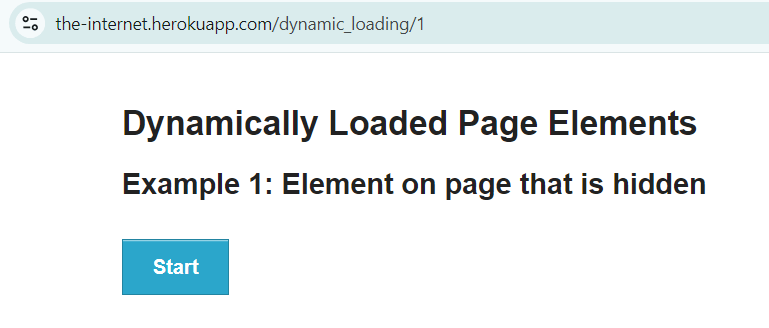
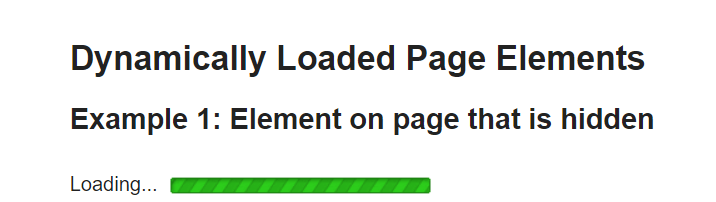
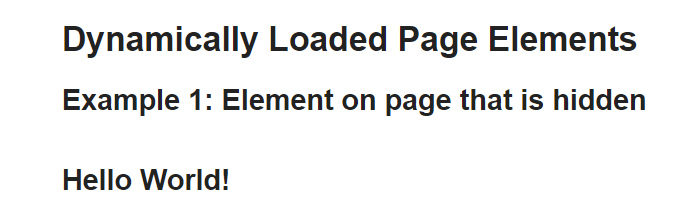
Below is an example that shows that loading of element take sometime. So to wait for the element, we can use the Fluent Wait.
Step 1
Step 2
Step 3
Below is the example of Fluent wait.
import net.serenitybdd.annotations.DefaultUrl;
import net.serenitybdd.annotations.Managed;
import net.serenitybdd.core.annotations.findby.FindBy;
import net.serenitybdd.core.pages.PageObject;
import net.serenitybdd.core.pages.WebElementFacade;
import net.serenitybdd.junit.runners.SerenityRunner;
import org.junit.Test;
import org.junit.runner.RunWith;
import org.openqa.selenium.ElementNotInteractableException;
import org.openqa.selenium.WebDriver;
import org.openqa.selenium.WebElement;
import org.openqa.selenium.support.ui.FluentWait;

import java.time.Duration;
import java.util.function.Function;

@RunWith(SerenityRunner.class)
@DefaultUrl("http://the-internet.herokuapp.com/dynamic_loading/1")
public class FluentWait_Demo extends PageObject {

    @Managed
    WebDriver driver;

    @FindBy(xpath = "//*[@id='start']/button")
    WebElementFacade startButton;


    @FindBy(xpath = "//*[@id='finish']/h4")
    WebElementFacade pageText;

    @Test
    public void fluentWaitDemo() throws InterruptedException {

        open();
        startButton.click();
        waitForElementWithFluentWait(pageText);

    }

    public void waitForElementWithFluentWait(WebElement pageText) {
        FluentWait wait = new FluentWait<>(getDriver())
                .withTimeout(Duration.ofSeconds(10))
                .pollingEvery(Duration.ofSeconds(2))
                .ignoring(ElementNotInteractableException.class);

        wait.until((Function<WebDriver, Boolean>)
                driver -> pageText.isDisplayed());

        System.out.println("Text :" + pageText.getText());
        System.out.println("Fluent Time defined for the test (in seconds) :" + getWaitForTimeout().toSeconds());
    }
}
Explanation:
withTimeout(Duration.ofSeconds(10)): Specifies the maximum time to wait for the condition to be met, which is 30 seconds in this case.
pollingEvery(Duration.ofSeconds(2)): Specifies the interval at which the check should be performed, here it is every 5 seconds.
ignoring(ElementNotInteractableException.class): Instructs the wait to ignore ElementNotInteractableException that might occur during the polling period.
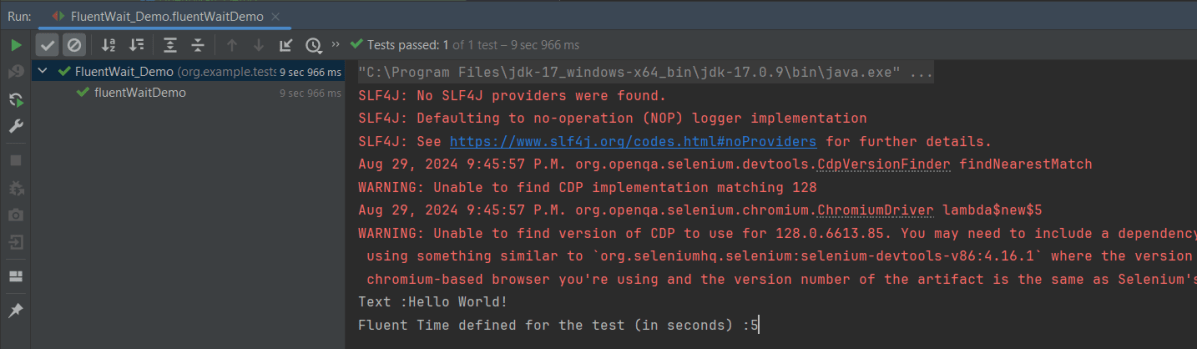
The output of the above program is
Fluent Wait supports various conditions similar to explicit waits, such as:
visibilityOfElementLocated
presenceOfElementLocated
elementToBeClickable
textToBePresentInElementLocated
alertIsPresent
elementToBeSelected
frameToBeAvailableAndSwitchToIt
Custom conditions
We can use Lambda expression to simplify the condition:
public void waitForElementWithFluentWait(WebElement pageText) {
        FluentWait wait = new FluentWait<>(getDriver())
                .withTimeout(Duration.ofSeconds(10))
                .pollingEvery(Duration.ofSeconds(2))
                .ignoring(ElementNotInteractableException.class);

       wait.until(driver -> pageText.isDisplayed());

        System.out.println("Text :" + pageText.getText());
        System.out.println("Fluent Time defined for the test (in seconds) :" + getWaitForTimeout().toSeconds());
    }
We are done! Congratulations on making it through this tutorial and hope you found it useful! Happy Learning!!
Step 4 – Create the Test Class sunder src/test/java folder
ApplicationLoginJUnit5Tests.java
import com.example.steps.StepDashboardPage;
import com.example.steps.StepForgetPasswordPage;
import com.example.steps.StepLoginPage;
import net.serenitybdd.annotations.Steps;
import net.serenitybdd.annotations.Title;
import net.serenitybdd.core.Serenity;
import net.serenitybdd.junit5.SerenityJUnit5Extension;
import org.junit.jupiter.api.Test;
import org.junit.jupiter.api.extension.ExtendWith;

import static org.assertj.core.api.Assertions.assertThat;

@ExtendWith(SerenityJUnit5Extension.class)
public class ApplicationLoginTests {

    @Steps
    NavigateActions navigate;

    @Steps
    StepLoginPage loginPage;

    @Steps
    StepDashboardPage dashboardPage;

    @Steps
    StepForgetPasswordPage forgetPasswordPage;

    @Test
    @Title("Login to application with valid credentials navigates to DashBoard page")

    public void successfulLogin() {

        navigate.toTheHomePage();

        // When
        loginPage.inputUserName("Admin");
        loginPage.inputPassword("admin123");
        loginPage.clickLogin();

        // Then
        Serenity.reportThat("Passing valid credentials navigates to DashBoard page",
                () -> assertThat(dashboardPage.getHeading()).isEqualToIgnoringCase("Dashboard"));
    }

    @Test
    @Title("Login to application with invalid credential generates error message")
    void unsuccessfulLogin() {

        navigate.toTheHomePage();

        // When
        loginPage.inputUserName("Admin");
        loginPage.inputPassword("admin1232");
        loginPage.clickLogin();

        // Then
        Serenity.reportThat("Passing invalid credentials generates error message",
                () -> assertThat(loginPage.loginPageErrorMessage()).isEqualToIgnoringCase("Invalid credentials"));
    }

    @Test
    @Title("Verify Forgot your password link")
    void clickForgetPasswordLink() {

        // Given
        navigate.toTheHomePage();

        // When
        loginPage.clickForgetPasswordLink();

        // Then
        Serenity.reportThat("Open Forget Password Page after clicking forget password link",
                () -> assertThat(forgetPasswordPage.getHeadingForgetPasswordPage())
                        .isEqualToIgnoringCase("Reset Password"));
    }
}
To run a JUnit5 test with Serenity BDD, simply add the annotation@net.serenitybdd.junit5.SerenityTest (instead of @org.junit.runner.RunWith(net.serenitybdd.junit.runners.SerenityRunner.class) for JUnit4.
@ExtendWith(SerenityJUnit5Extension.class)
@Testis imported from package:-
import org.junit.jupiter.api.Test;
StepDashboardPage
import net.serenitybdd.annotations.Step;

import net.serenitybdd.core.pages.PageObject;
import net.serenitybdd.core.pages.WebElementFacade;
import org.openqa.selenium.support.FindBy;

public class StepDashboardPage extends PageObject {

    @FindBy(xpath = "//*[@class='oxd-topbar-header-breadcrumb']/h6")
    WebElementFacade dashboardPageTitle;

    @Step("Heading of DashBoard Page")
    public String getHeading() {
        return dashboardPageTitle.getText();
    }
}
The WebElementFacade class contains a convenient fluent API for dealing with web elements, providing some commonly-used extra features that are not provided out-of-the-box by the WebDriver API. WebElementFacades are largely interchangeable with WebElements: you just declare a variable of type WebElementFacade instead of type WebElement
The @Steps annotation marks a Serenity step library. Create the test following the Given/When/Then pattern and using step methods from the step library. The @Title annotation lets you provide your own title for this test in the test reports. Serenity @Title is considered for the Serenity report. Consistently with Junit4, the @Title annotation does not influence the name in the Junit report.
The JUnit Serenity integration provides some special support for Serenity Page Objects. In particular, Serenity will automatically instantiate any PageObjectfields in your JUnit test.
Junit5 @Disabled annotation can be used on test and step methods(same as @Ignore in JUnit4).
NavigateAction
import net.serenitybdd.annotations.Step;
import net.serenitybdd.core.steps.UIInteractionSteps;

public class NavigateAction extends UIInteractionSteps {

    @Step
    public void toTheHomePage() {
        openPageNamed("loginForm");

    }
}
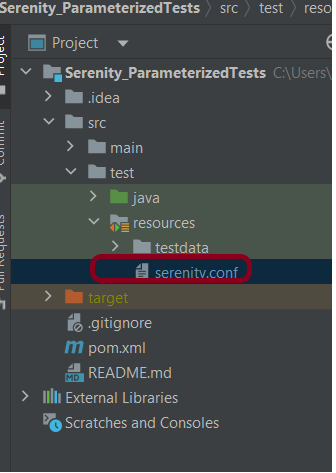
Step 5 – Create serenity.conf file under src/test/resources
serenity.conf file is used to specify various features like the type of web driver used, various test environments, run tests in headless mode, and many more options.
In the previous tutorial, I explainedSerenity BDD with Cucumber for Web Application. In this tutorial, I will explain the Integration of Serenity with JUnit4. This tutorial gives an idea of how to set up a new project where we like to use Serenity as BDD Framework and JUnit as a Testing framework.
This project consists of various classes – ApplicationLoginTests (This is the Test Class which is going to contain all the tests). NavigationActions is the Action class that is used to open the webpage or application. StepLoginPage, StepDashboardPage, and StepForgotPasswordPage are the Page Object classes that contain multiple functionalities of that page and that help to keep the code clean.
Implementation Steps
Step 1 – Update the Properties section
Update the Properties section in Maven pom.xml, in case of Maven project.
The Test Class – ApplicationLoginTests is created under src/test/java directory.
package org.example.tests;

import net.serenitybdd.annotations.Pending;
import net.serenitybdd.annotations.Steps;
import net.serenitybdd.annotations.Title;
import net.serenitybdd.core.Serenity;
import net.serenitybdd.junit.runners.SerenityRunner;
import org.example.steps.StepDashBoardPage;
import org.example.steps.StepForgotPasswordPage;
import org.example.steps.StepLoginPage;
import org.junit.Test;
import org.junit.runner.RunWith;

import static org.junit.Assert.assertTrue;

@RunWith(SerenityRunner.class)
public class ApplicationLoginTests {

    @Steps
    NavigateActions navigate;

    @Steps
    StepLoginPage loginPage;

    @Steps
    StepDashBoardPage dashboardPage;

    @Steps
    StepForgotPasswordPage forgetPasswordPage;


    @Test
    @Title("Login to application with invalid credential generates error message")
    public void invalidCredentials() {

        // Given
        navigate.toTheHomePage();

        // When
        loginPage.inputUserName("Admin");
        loginPage.inputPassword("admin");
        loginPage.clickLogin();

        // Then
        Serenity.reportThat("Passing invalid credentials generates error message",
                () -> assertTrue(loginPage.errorMessage().equalsIgnoreCase("Invalid Credentials")));

    }

    @Test
    @Title("Login to application with valid credentials navigates to DashBoard page")
    public void successfulLogin() {

        navigate.toTheHomePage();
        // loginPage.open();

        // When
        loginPage.inputUserName("Admin");
        loginPage.inputPassword("admin123");
        loginPage.clickLogin();

        // Then
        Serenity.reportThat("Passing valid credentials navigates to DashBoard page",
                () -> assertTrue(dashboardPage.getHeading().equalsIgnoreCase("DashBoard")));
    }


    @Test
    @Pending
    @Title("Verify Forgot your password link")
    public void clickForgetPasswordLink() {

        // Given
        navigate.toTheHomePage();

        // When
        loginPage.clickForgetPasswordLink();

        // Then
        Serenity.reportThat("Open Forget Password Page after clicking forget password link",
                () -> assertTrue(forgetPasswordPage.getHeadingForgetPasswordPage().equalsIgnoreCase("Reset Password")));

    }

}
The tests run using the Serenity test runner – @RunWith(SerenityRunner.class).
The @Steps annotation marks a Serenity step library.
Create the test following the Given/When/Then pattern and using step methods from the step library.
The @Title annotation lets you provide your own title for this test in the test reports.
Step 5 – Create the Action class
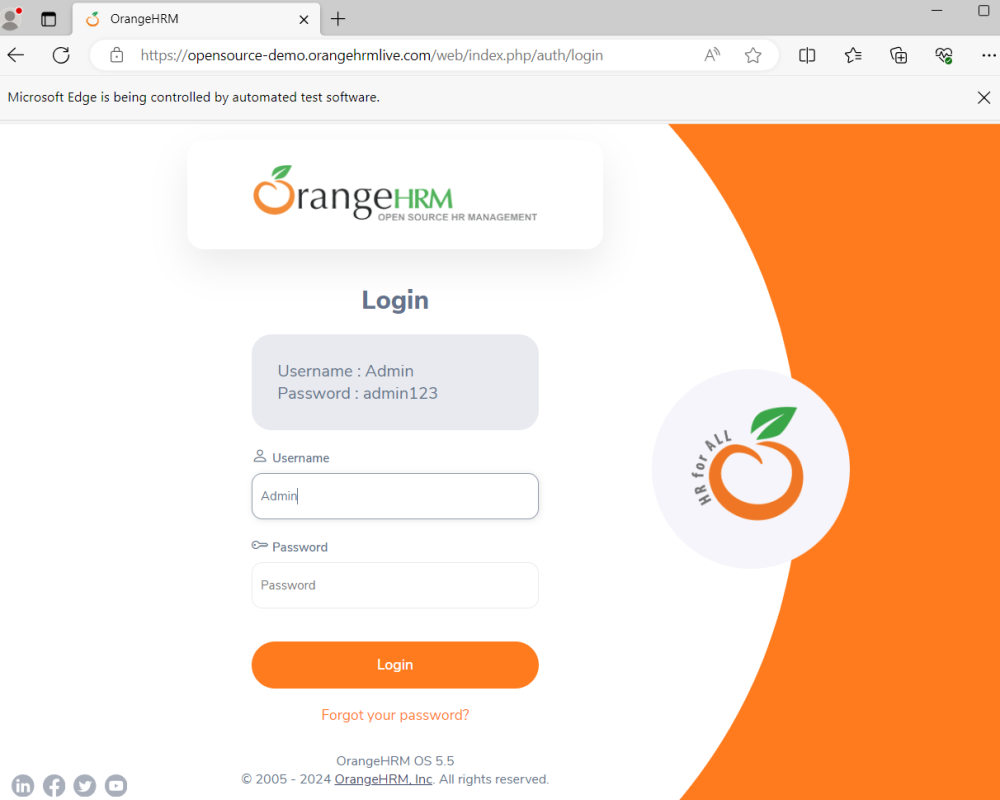
Create NavigateActions class under src/test/java. This class is used to open a web browser with the URL specified. This class is extended from UIInteractionSteps.
openPageNamed() method opens an environment-specific page defined in the serenity.conf file under the pages section. The value of loginForm is derived from serenity.config:
package org.example.tests;

import net.serenitybdd.annotations.Step;
import net.serenitybdd.core.steps.UIInteractionSteps;

public class NavigateActions extends UIInteractionSteps {

    @Step
    public void toTheHomePage() {
        // openUrl("https://opensource-demo.orangehrmlive.com/");

        openPageNamed("loginForm");
    }
}
The JUnit Serenity integration provides some special support for Serenity Page Objects. In particular, Serenity will automatically instantiate any PageObject fields in the JUnit test. When a field of type StepLoginPage is declared in the test, Serenity instantiates it for you. The page is automatically instantiated and ready to be used.
@Managed
WebDriver driver;
@Managed declares a WebDriver instance that will be managed by Serenity. The WebDriver instance will be initialized automatically.
The driver parameter lets you define what WebDriver driver you want to run these tests in. Possible values include Firefox, chrome, iexplorer, phantomjs, appium, safari, edge, and htmlunit. The default browser in Serenity is Firefox. There are multiple ways to configure webDriver. One of the ways is to mention with @Managed as shown below:
@Managed(driver="chrome")
Step 7 – Create the serenity.conf file
Serenity.conf file is used to specify various features like the type of webdriver used, various test environments, run test in headless mode, and many more options. Serenity.conf can also contain settings like start size, disable sandbox, disable gpu, and others that need to be added to chrome.switches setting. Create serenity.conf file under src/test/resources.
The serenity.properties file is created at the root of the project.
serenity.project.name = Serenity and Junit4 Demo
Step 9 – Run the tests through the command
Open the command line and go to the location where the pom.xml of the project is present and type the below command.
mvn clean verify
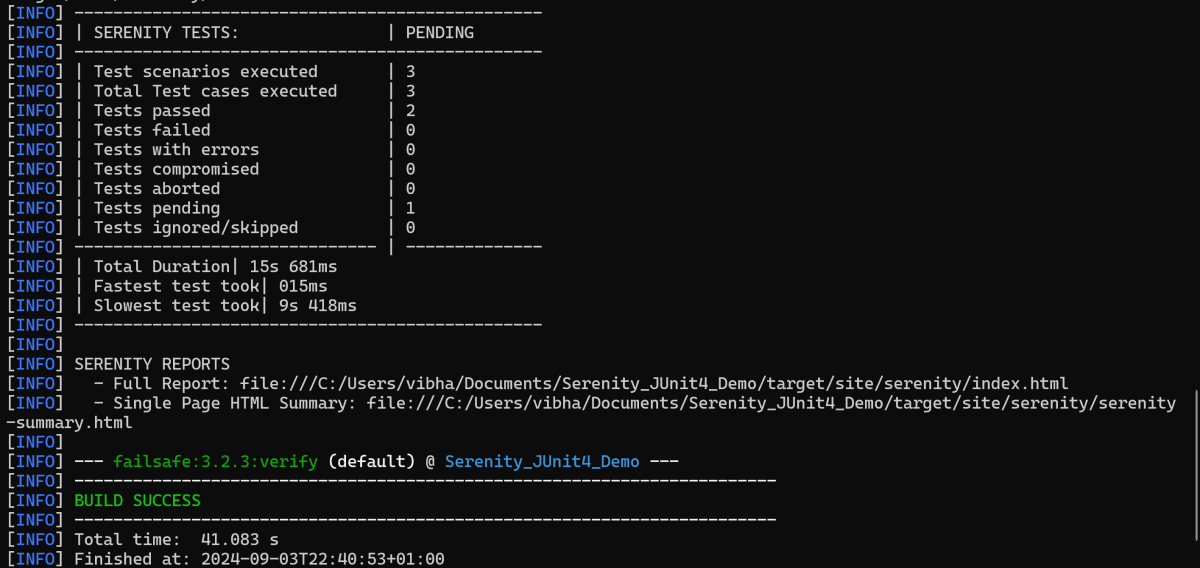
Below is the execution status.
Step 10 – View the Serenity Reports
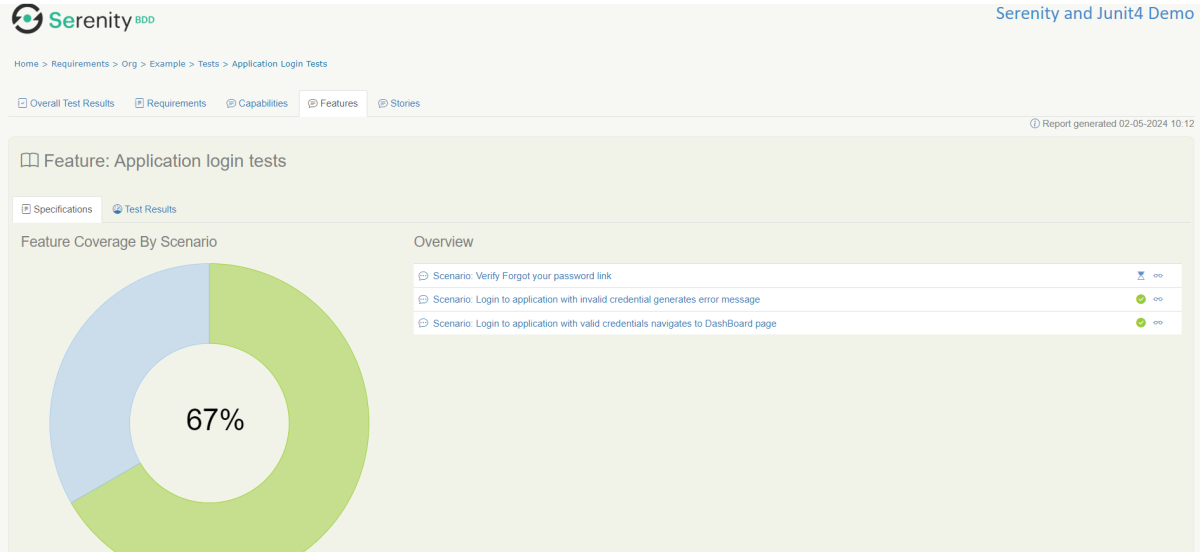
There are 2 types of reports are generated – Index.htmland Serenity-Summary.html.
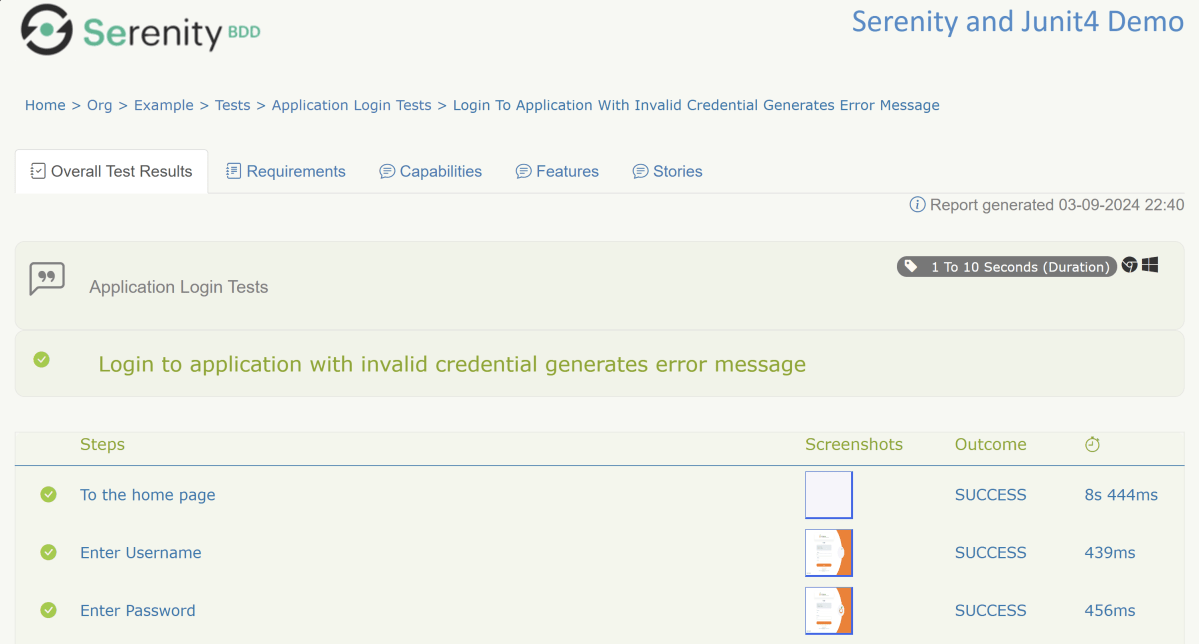
Index.html
We can see the value of the @Title annotation, ‘Login to the application with valid credentials navigates to DashBoard page’, added as the heading. The value of @Step annotation, ‘Enter Username’, and ‘Enter Password’ is added to the Report as various steps.
This report contains a screenshot of each step also.
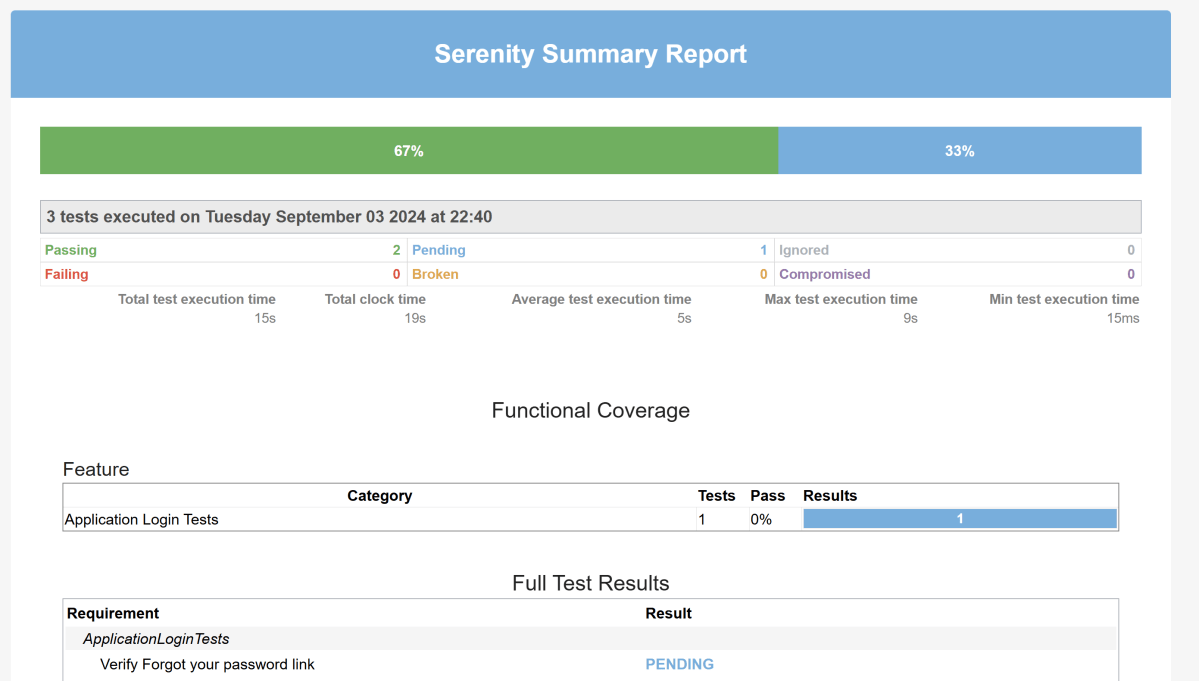
Emailable Report (Serenity-Summary.html)
These reports are present under /target/site/serenity.
Skipping the tests
In Serenity, you use the @Pending annotation, either for a test or for a @Step-annotated method, to indicate that the scenario is still being implemented and that the results are not available yet. These tests appear as ‘Pending’ (shown in blue) in the test reports.
    @Test
	@Pending
	@Title("Verify Forgot your password link")
	public void clickForgetPasswordLink() {

		// Given
		loginPage.open();

		// When
		loginPage.clickForgetPasswordLink();

		// Then
		Assert.assertTrue(forgetpasswordPage.ForgetPasswordPage());
	}
The output of the above program is
Tests marked with@Ignorewill appear as ‘Ignored’ (from JUnit) and appears as grey in the test reports.
We are done! Congratulations on making it through this tutorial and hope you found it useful! Happy Learning!!
Spring Boot makes it easy to create stand-alone, production-grade Spring based Applications that you can “just run”. We take an opinionated view of the Spring platform and third-party libraries, so you can get started with minimum fuss. Most Spring Boot applications need minimal Spring configuration.
Serenity BDD has strong WebDriver integration and manages WebDriver instances. It is not needed to create or close the WebDriver instance of the Serenity Tests.
Serenity uses a library WebDriver Manager, which manages the driver for us. We don’t need to explicitly download and configure the WebDriver binaries for us.
The simplest way to configure the driver we want to use is in our project’s serenity.config file (which will be present in src/test/resources folder).
Microsoft Edge is a Chromium driver, so the configuration is very similar to Chrome. The main difference is the use of “ms:edgeOptions” instead of “goog:chromeOptions”. A typical configuration is shown below:
There is another way to run the tests in edge browser, use the @Managed annotation.
@Managed annotation in Serenity will manage the WebDriver instance, including opening the appropriate driver at the start of each test, and shutting it down when the test is finished. @Managed provides an option for the user to select the WebDriver driver to the run the tests in it. The possible values are firefox, chrome, iexplorer, phantomjs, appium, safari, edge, and htmlunit. There are multiple ways to manage the WebDriver. One of the way is shown below:
In the below program, the tests are running on the Edge browser. The driver name is mentioned with @Managed annotation.
import net.serenitybdd.annotations.Managed;
import net.serenitybdd.annotations.Steps;
import net.serenitybdd.annotations.Title;
import net.serenitybdd.core.Serenity;
import net.serenitybdd.junit.runners.SerenityRunner;
import org.junit.Test;
import org.junit.runner.RunWith;
import org.openqa.selenium.WebDriver;

import static org.assertj.core.api.Assertions.assertThat;

@RunWith(SerenityRunner.class)
public class EdgeTests {

    private String userName;
    private String passWord;
    private String errorMessage;

    @Managed(driver = "edge")
    WebDriver driver;

    @Steps
    NavigateActions navigate;

    @Steps
    StepLoginPage loginPage;


    @Test
    @Title("Login to application with invalid credential generates error message")
    public void invalidCredentials() {

        // Given
        navigate.toTheHomePage();

        // When
        loginPage.inputUserName("Admin");
        loginPage.inputPassword("admin");
        loginPage.clickLogin();

        // Then
        Serenity.reportThat("Passing invalid credentials generates error message",
                () -> assertThat(assertThat(loginPage.errorMessage()).isEqualToIgnoringCase("Invalid Credentials")));

    }

}
NavigateActions
import net.serenitybdd.annotations.Step;
import net.serenitybdd.core.steps.UIInteractionSteps;

public class NavigateActions extends UIInteractionSteps {

    @Step
    public void toTheHomePage() {
        openPageNamed("loginForm");
    }
}
Gradle is an open-source build automation tool that is designed to be flexible enough to build almost any type of software. Gradle runs on the JVM and you must have a Java Development Kit (JDK) installed to use it. Several major IDEs allow you to import Gradle builds and interact with them: Android Studio, IntelliJ IDEA, Eclipse, and NetBeans.
In the previous tutorial, I have explained theData Driven Tests in Serenity where test data are defined in Tests. In this tutorial, I will explain the Data Driven tests in Serenity where we will get the test data from CSV file.
Serenity lets us perform data-driven testing using test data in a CSV file. We store our test data in a CSV file (by default with columns separated by commas), with the first column acting as a header.
We need to create a test class containing properties that match the columns in the test data, as you did for the data-driven test in the previous example. The test class will typically contain one or more tests that use these properties as parameters to the test step or Page Object methods.
Here, we need to keep in mind that as the tests are parameterized , we need to use the Parameterized test runner to perform data-driven tests.
@UseTestDataFrom annotation is used to indicate where to find the CSV file (this can either be a file on the classpath or a relative or absolute file path – putting the data set on the class path (e.g. in src/test/resources) makes the tests more portable).
ParameterizedTestsUsingCSV Class contains the SerenityParameterizedRunner as well as provides the path of the test data file using @UseTestDataFrom, and the Tests.
The Serenity Parameterized Runner creates a new instance of this class for each row of data in the CSV file, assigning the properties with corresponding values in the test data. As you can see, I have mentioned 3 variables in the CSV file – userName, passWord, and errorMessage. I have declared the same private variables in the Test Class too – username, password, and errorMessage that match the columns in the test data file. Keep this in mind, that the column name should be the same in test data file and Test.
The heading of parameters present in the Serenity Report (Index.html) like Username, Password, and Error Message are generated by @TestData(columnNames).
The description of the Test Step in the Serenity Report is modified by using @Qualifier. It is used to mark a method as a qualifier in an instantiated data-driven test case.
The test class needs to have a WebDriver instance with a @Managed annotation for Serenity to manage it in the background. That is all that is required, we do not need to manage the driver anymore. Each test class will need this driver variable declaration.
The Test Class uses Step Class (StepLoginPage) and Action Class (NavigateActions) to perform the Tests. StepLoginPage contains test steps that represent the level of abstraction between the code that interacts with the application. NavigateAction page is used to open an environment-specific page defined in the serenity.config file under the pages section.
This test can be executed by JUnit as well as from the command line
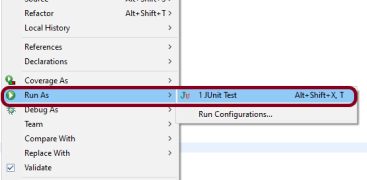
JUnit – Right-click on the Test, select Run As, and then select JUnit Test in Eclipse.
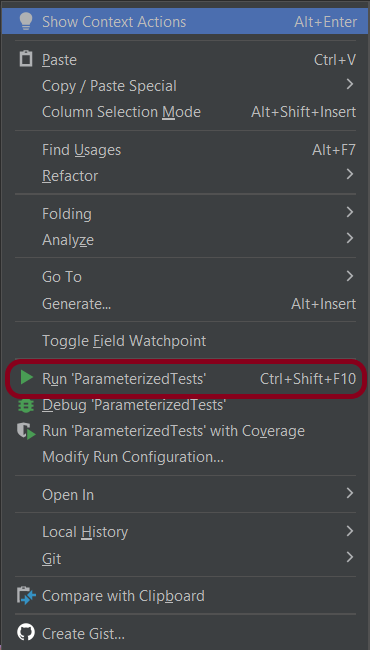
If you are using IntelliJ, then right-click and select Run “ParameterizedTests”
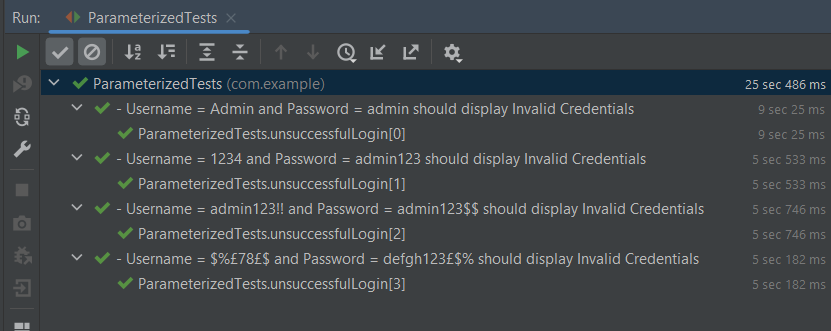
The Test execution status can be seen as shown below:
To run the tests using the command line, use the below command
mvn clean verify
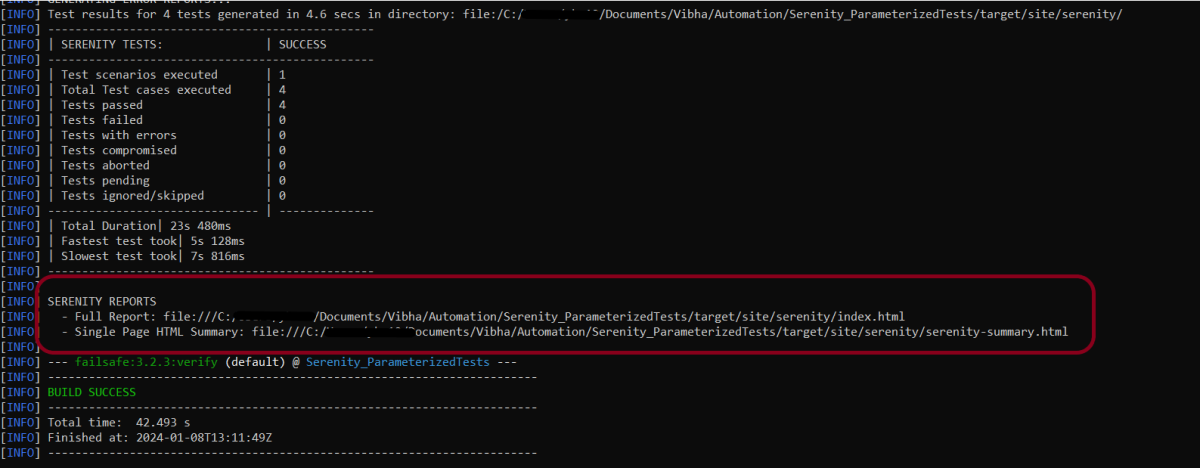
This will execute the tests and will generate the Test Execution Report as shown below.
The reports are generated as shown in the below image.
Serenity generates very descriptive and beautiful reports – Index.html and Serenity Summary Report.
Index.html
This page provides the detail about the Test, its corresponding test data, the status of each test scenario with screenshots, and the execution time of each test.
This is the expanded view of all the test steps of a test with their screenshots. This also shows the execution time of each step in the test.
Serenity Summary Report
This report is a single-page, self-contained HTML summary report, containing an overview of the test results, and a configurable breakdown of the status of different areas of the application.
We are done! Congratulations on making it through this tutorial and hope you found it useful! Happy Learning!!
Featurefile should be saved as an extension of .feature. Add the test scenarios in this feature file. I have added sample test scenarios. The test scenarios are written inGherkins language. A feature file is created under src/test/resources.
Feature: Login to HRM

   @ValidCredentials
   Scenario: Login with valid credentials

    Given User is on Home page
    When User enters username as "Admin"
    And User enters password as "admin123"
    Then User should be able to login successfully

    @InValidCredentials
    Scenario Outline: Login with invalid credentials

    Given User is on Home page
    When User enters username as '<username>'
    And User enters password as '<password>'
    Then User should be able to see error message '<errorMessage>'

   Examples:
    |username  |password  |errorMessage                    |
    |admin     |admin     |Invalid credentials             |
    |          |admin123  |Username cannot be empty        |
    |Admin     |          |Password cannot be empty        |
    |          |          |Username cannot be empty        |

   @ForgetPassword
   Scenario: Verify Forget Password Functionality

    Given User is on Home page
    When User clicks on Forgot your password link
    Then User should be able to see new page which contains Reset Password button
Step 5 – Create the Step Definition class or Glue Code
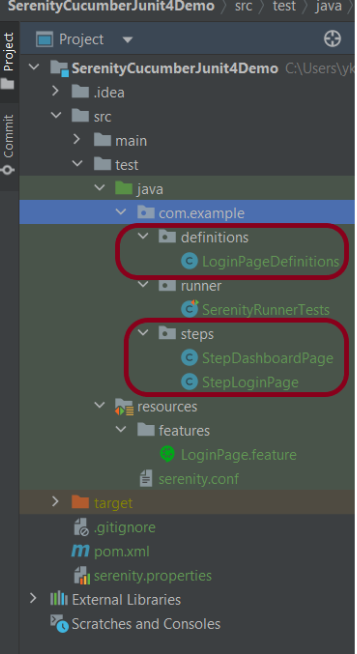
Create a StepDefinition class for LoginPage.feature.
package com.example.definitions;

import com.example.steps.StepDashboardPage;
import com.example.steps.StepForgetPasswordPage;
import com.example.steps.StepLoginPage;
import io.cucumber.java.en.Given;
import io.cucumber.java.en.Then;
import io.cucumber.java.en.When;
import net.serenitybdd.annotations.Steps;
import org.junit.Assert;

import static org.junit.Assert.assertTrue;

public class LoginPageDefinitions {

    @Steps
    StepLoginPage loginPage;

    @Steps
    StepDashboardPage dashPage;

    @Steps
    StepForgetPasswordPage forgetpasswordPage;

    @Given("User is on Home page")
    public void openApplication() {
        loginPage.open();
        System.out.println("Page is opened");
    }

    @When("User enters username as {string}")
    public void enterUsername(String userName) {
        System.out.println("Enter Username");
        loginPage.inputUserName(userName);
    }

    @When("User enters password as {string}")
    public void enterPassword(String passWord) {
        loginPage.inputPassword(passWord);

        loginPage.clickLogin();
    }

    @Then("User should be able to login successfully")
    public void clickOnLoginButton() {
        dashPage.loginVerify();
    }

    @Then("User should be able to see error message {string}")
    public void unsuccessfulLogin(String expectedErrorMessage)  {

        String actualErrorMessage = loginPage.errorMessage();
        Assert.assertEquals(expectedErrorMessage, actualErrorMessage);
    }

    @When("User clicks on Forgot your password link")
    public void clickForgetPasswordLink() {
        loginPage.clickForgetPasswordLink();
    }

    @Then("User should be able to see new page which contains Reset Password button")
    public void verifyForgetPasswordPage() {

        assertTrue(forgetpasswordPage.ForgetPasswordPage());
    }

}
Serenity Step Libraries integrate smoothly into Cucumber Step Definition files; all you need to do is to annotate a step library variable with the @Steps annotation. Methods that represent a business task or action (inputUserName()), and that will appear in the reports as a separate step, is annotated with the @Step annotation. Other methods, such as loginVerify(), query the state of the application and are used in assert statements.
Here, I have created 3 StepClasses – StepLoginPage, StepDashboardPage, and StepForgetPasswordPage
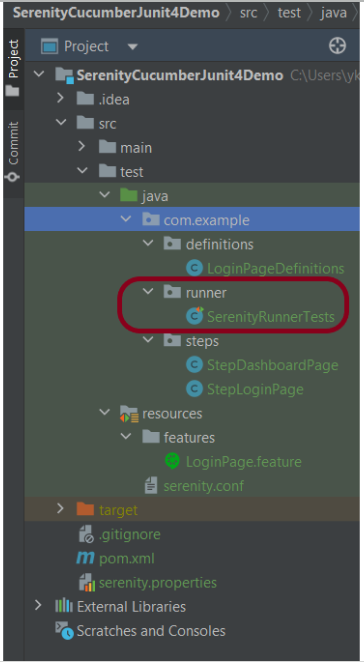
We cannot run a Feature file on its own in a cucumber-based framework. We need to create a Java class, which will run the Feature File. It is the starting point for JUnit to start executing the tests. TestRunner class creates under src/ test/java. When you run the tests with serenity, you use the CucumberWithSerenity test runner. If the feature files are not in the same package as the test runner class, you also need to use the @CucumberOptions class to provide the root directory where the feature files are found.
import org.junit.runner.RunWith;

import io.cucumber.junit.CucumberOptions;
import net.serenitybdd.cucumber.CucumberWithSerenity;

@RunWith(CucumberWithSerenity.class)
@CucumberOptions(plugin = {}, features = "src/test/resources/features/LoginPage.feature", glue = "com.example.definitions")

public class SerenityRunnerTests {

}
Step 7 – Create serenity.conf file under src/test/resources
Serenity.conf file is used to specify various features like the type of webdriver used, various test environments, run tests in headless mode, and many more options.
webdriver.driver. – This tells Serenity which browser to use for the test execution. You can configure this in several locations – serenity.properties or serenity.conf. Here, I have provided this information in serenity.conf
We can also configure the webdriver.base.url property for different environments in the serenity.conf configuration file, in the src/test/resources directory. Below is an example of the same.
Once the environment section is present in your serenity.conf file, you can use the environment system property to use the properties for a given environment. For example, the following would cause the staging URLs to be used:
mvn clean verify -Denvironment=staging
The default environment will be used if no other value is provided. In our example, I will not provide any environment, so it will pick the default environment.
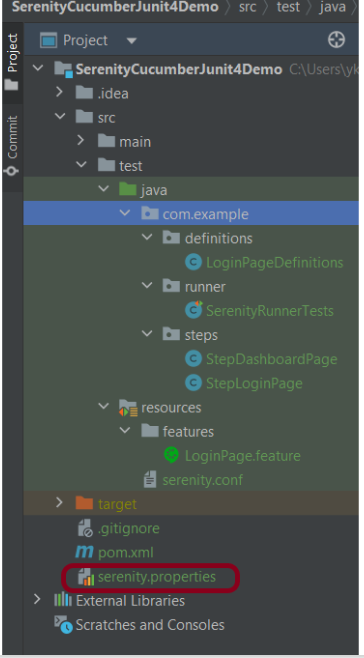
Step 8 – Create serenity.properties file at the root of the project
serenity.project.name = Serenity and Cucumber Report Demo
Step 9 – Run the tests through the command line which generates Serenity Report
Open the command line and go to the location where pom.xml of the project is present and type the below command.
mvn clean verify -Denvironment=firefox
I have provided the location of the Firefox driver through the command line. I believe this is the best way to run the test. We can hard-code the path in the test code or in serenity.conf file. If you don’t want to pass the location of webdriver through the command line, then mention the details of webdriver in serenity.conf and just use the below command for execution.
mvn clean verify
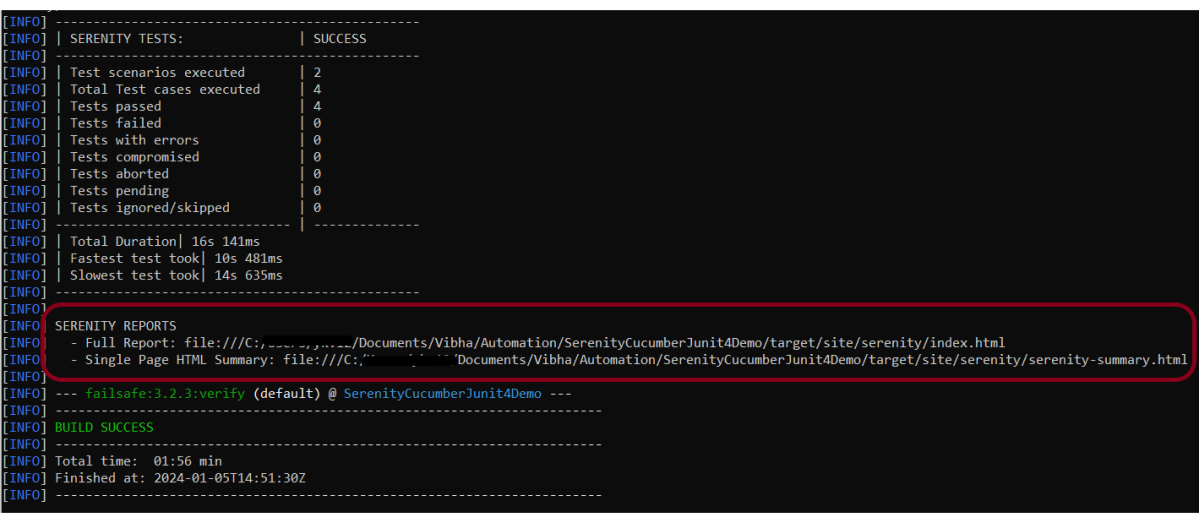
Below is the image of the execution status.
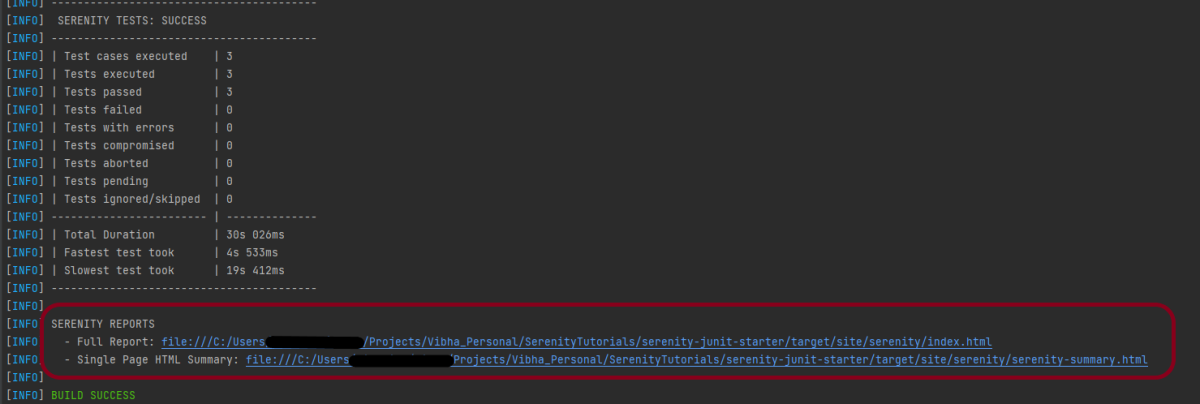
This also provides the location of the serenity report as highlighted in the above image.
Serenity Report
Requirement View
In Serenity, requirements are organized in a hierarchy. We can get an idea of the full directory structure (in src/test/features directory) for the project.
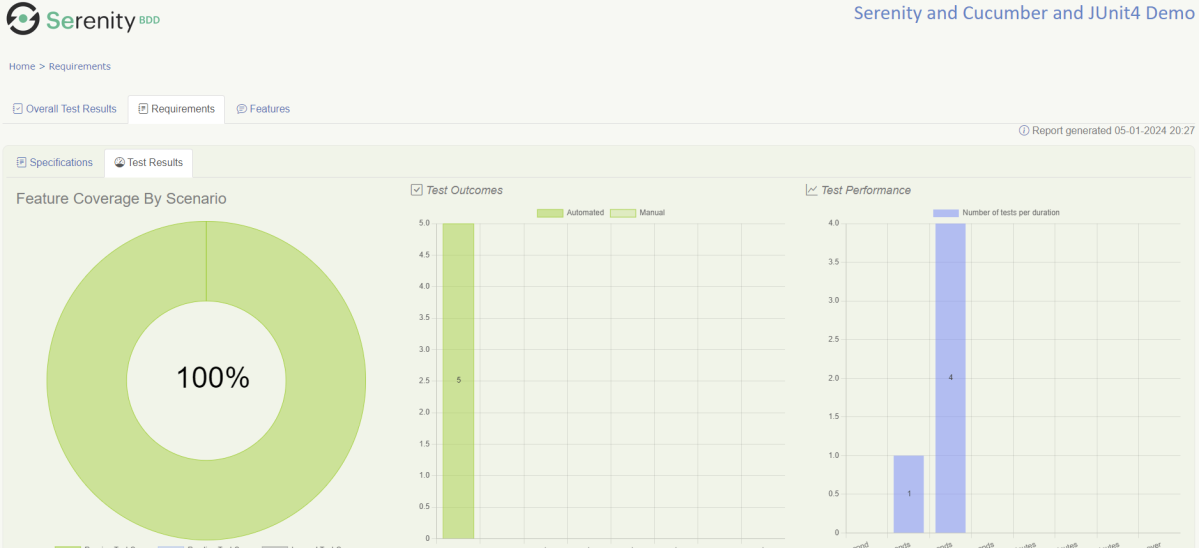
The Test Resultstab (shown below) tells you about the acceptance tests that were executed for this set of requirements.
Test Results
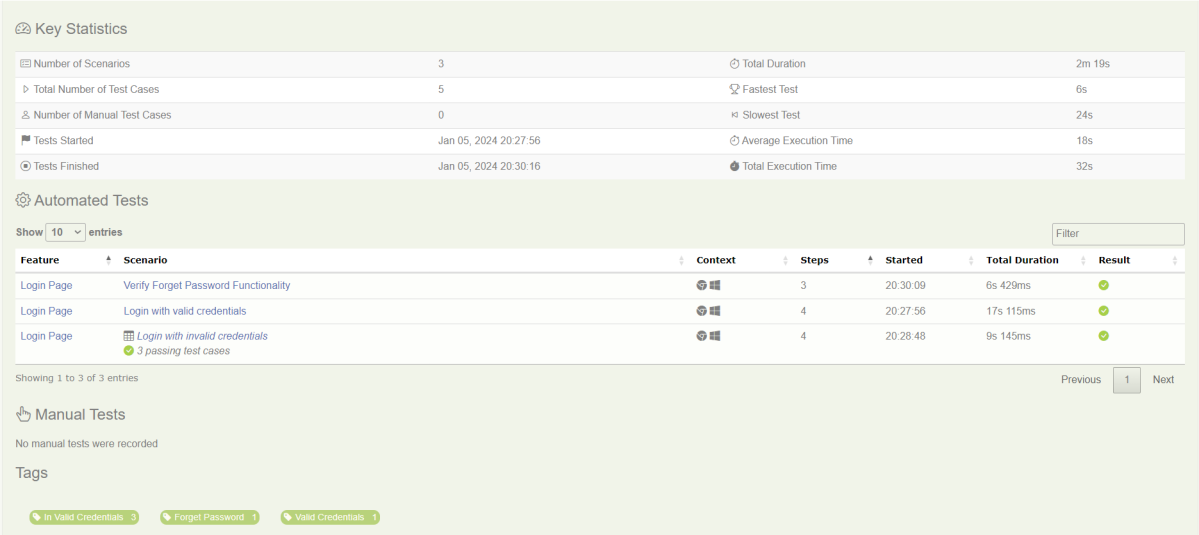
At the bottom of the Test Results tab, you will find the actual test results – the list of all the tests, automated and manual, that were executed for this requirement.
Feature
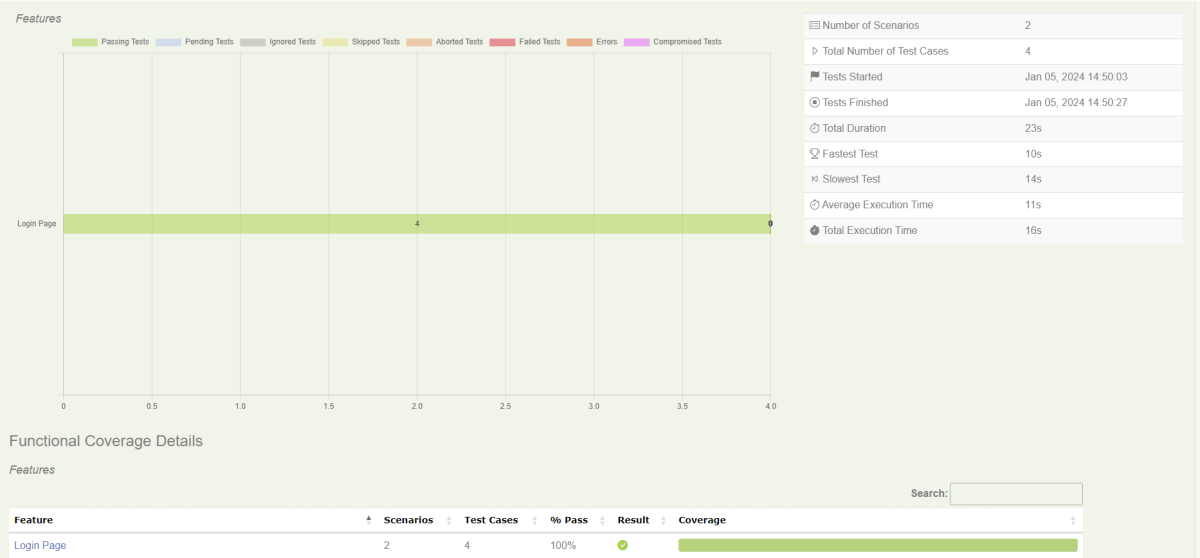
This provides the detail of all the Test Scenarios present in a Feature File.
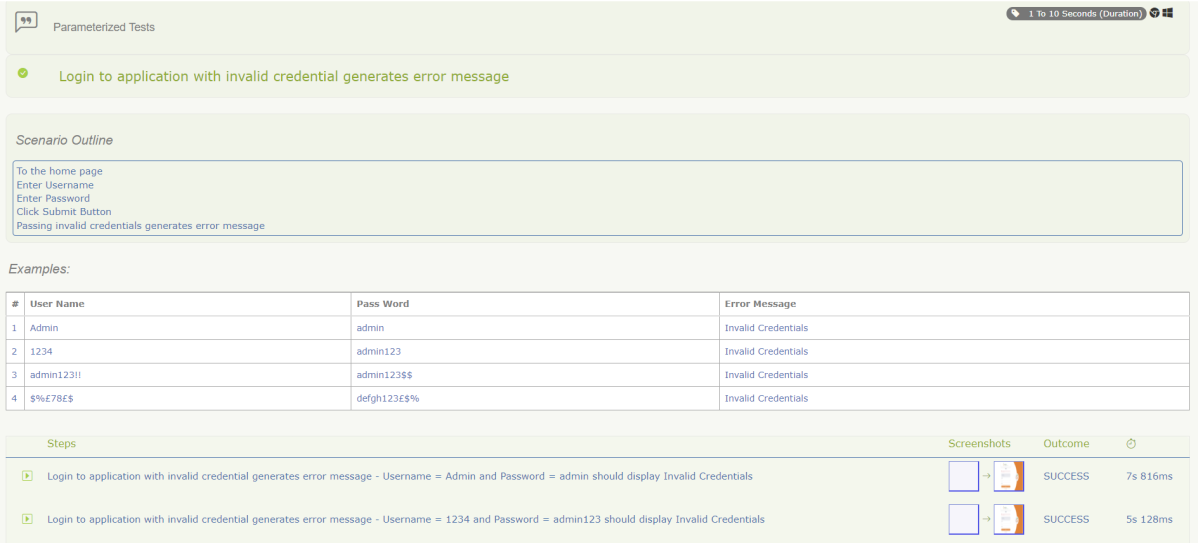
Below is an example of a Scenario Outline in the Report. It shows all the examples mentioned in the feature file.
This screen shows the test steps and screenshots of each step.
We are done! Congratulations on making it through this tutorial and hope you found it useful! Happy Learning!!
Serenity BDD is an open-source library that aims to make the idea of living documentation a reality.
Serenity BDD helps you write cleaner and more maintainable automated acceptance and regression tests faster. Serenity also uses the test results to produce illustrated, narrative reports that document and describe what your application does and how it works. Serenity tells you not only what tests have been executed, but more importantly, what requirements have been tested.
One key advantage of using Serenity BDD is that you do not have to invest time in building and maintaining your own automation framework.
Serenity BDD provides strong support for different types of automated acceptance testing, including:
Rich built-in support for web testing with Selenium.
REST API testing with Rest Assured.
Highly readable, maintainable, and scalable automated testing with the Screenplay pattern.
Getting started Cucumber 6 with Serenity BDD
Cucumber is a popular tool for automating BDD-style acceptance criteria.
Serenity seamlessly supports Cucumber 2.x, Cucumber 5, and Cucumber 6. However, this flexibility requires a little tweaking in the build dependencies.
If you are using Maven, you need to do the following:
exclude the default cucumber-core dependency from your serenity-core dependency
Add dependencies on the Cucumber 6.x version of cucumber-java and cucumber-junit into your project.
Prerequisite:
Serenity – 4.0.30
JUnit4 – 4.13.2
Serenity Cucumber – 4.0.30
Maven Compiler – 3.12.1
Maven Surefire Plugin – 3.2.3
Java – 17
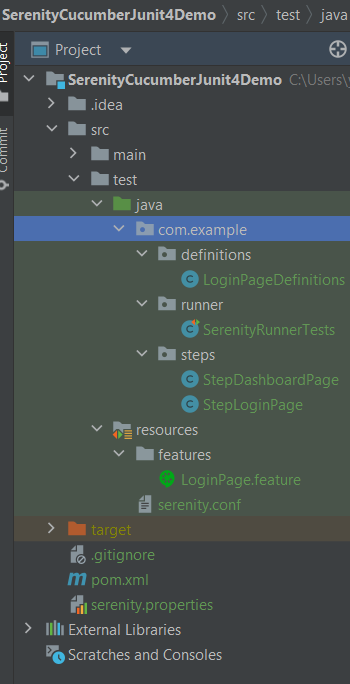
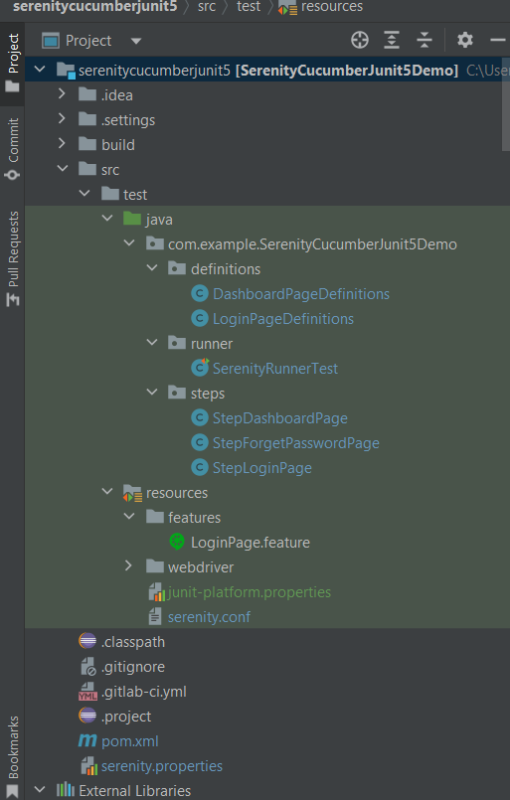
Project Structure
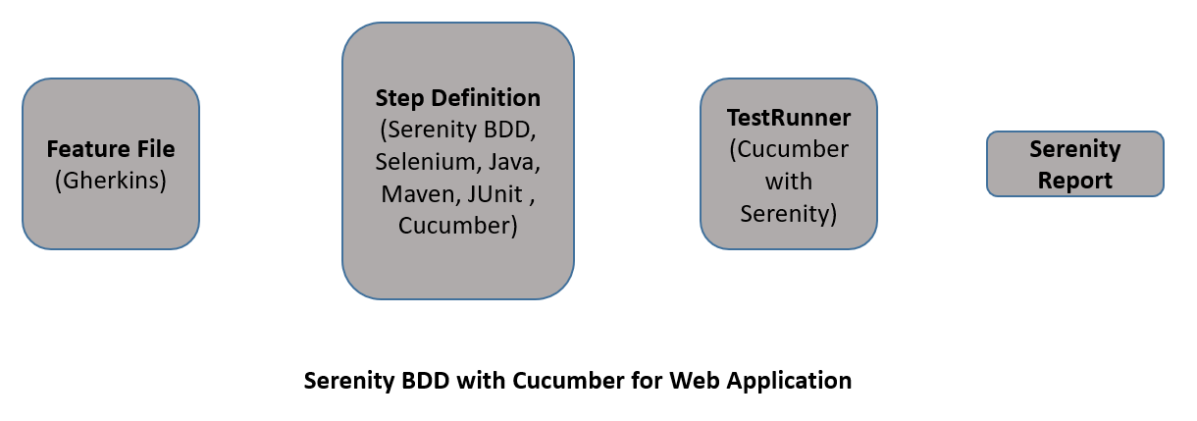
Relationship between Web Application, Serenity BDD, Cucumber, and Selenium
Implementation Steps
Step 1: Add Serenity, Cucumber, and JUnit4 dependencies to the Maven project
The pom.xml will look like something as shown below.
Step 2: Create a Feature File under src/test/resources
A Feature File is an entry point to the Cucumber tests. This is a file where you will describe your tests in Descriptive language (Like English). A feature file can contain a scenario or can contain many scenarios in a single feature file. Below is an example of a Feature file.
Feature: Login Page

@ValidCredentials
   Scenario: Login with valid credentials

    Given User is on Home page
    When User enters username as "Admin"
    And User enters password as "admin123"
    Then User should be able to login successfully

@InValidCredentials
   Scenario Outline: Login with invalid credentials

    Given User is on Home page
    When User enters username as '<username>'
    And User enters password as '<password>'
    Then User should be able to see error message '<errorMessage>'

  Examples:
   | username   | password  | errorMessage                      |
   | $$$$$      | ££££££££  | Invalid credentials               |
   | admin      | Admin123  | Invalid credentials               |
   | Admin123   | admin     | Invalid credentials               |
Step 3: Create the Step Definition class
The glue code shown below uses Serenity step libraries as action classes to make the tests easier to read and to improve maintainability.
These classes declare using the Serenity @Steps annotation. The @Steps annotation tells Serenity to create a new instance of the class, and inject any other steps or page objects that this instance might need.
Each action class models a particular facet of user behavior: navigating to a particular page, performing a search, or retrieving the results of a search. These classes design to be small and self-contained, which makes them more stable and easier to maintain.
LoginPageDefinitioncontains the steps to open the web browser, enter the username, enter the password and click on the Login Button
package com.example.definitions;

import com.example.steps.StepDashboardPage;
import com.example.steps.StepLoginPage;
import io.cucumber.java.en.Given;
import io.cucumber.java.en.Then;
import io.cucumber.java.en.When;
import net.serenitybdd.annotations.Steps;
import org.junit.Assert;

public class LoginPageDefinitions {

    @Steps
    StepLoginPage loginPage;

    @Steps
    StepDashboardPage dashPage;

    @Given("User is on Home page")
    public void openApplication() {
        loginPage.open();
        System.out.println("Page is opened");
    }

    @When("User enters username as {string}")
    public void enterUsername(String userName) {
        System.out.println("Enter Username");
        loginPage.inputUserName(userName);
    }

    @When("User enters password as {string}")
    public void enterPassword(String passWord) {
        loginPage.inputPassword(passWord);

        loginPage.clickLogin();
    }

    @Then("User should be able to login successfully")
    public void clickOnLoginButton() {
        dashPage.loginVerify();
    }

    @Then("User should be able to see error message {string}")
    public void unsucessfulLogin(String expectedErrorMessage) throws InterruptedException {

        String actualErrorMessage = loginPage.errorMessage();
        Assert.assertEquals(expectedErrorMessage, actualErrorMessage);
    }

}
This annotation lets you define a URL or a set of URLs that work with a particular page.
StepLoginPage is created by extending it from PageObject class. In this class, $() method used below, which locates a web element using a By locator or an XPath or CSS expression. This class is responsible for uniquely locating elements on the page, and it does this by defining locators or occasionally by resolving web elements dynamically.
Step 4: Create Serenity Test Runner under src/test/java
We cannot run a Feature file on its own in a cucumber-based framework. We need to create a Java class, which will run the Feature File. It is the starting point for JUnit to start executing the tests. TestRunner class creates under src/test/java. When you run the tests with serenity, you use the CucumberWithSerenity test runner. If the feature files are not in the same package as the test runner class, you also need to use the @CucumberOptions class to provide the root directory where the feature files found.
Below is the code for SerenityRunnerTests.
import io.cucumber.junit.CucumberOptions;
import net.serenitybdd.cucumber.CucumberWithSerenity;
import org.junit.runner.RunWith;

@RunWith(CucumberWithSerenity.class)
@CucumberOptions(plugin = { "pretty" }, features = "src/test/resources/features/LoginPage.feature",
        glue="com.example.definitions")

public class SerenityRunnerTests {}
Step 5: Create serenity.conf (Configuration File)
Serenity uses serenity.conf file in thesrc/test/resources directory to configure test execution options. serenity.config can also contain the environment URL and other options like headless mode and soon.
In the previous tutorial, I explained theSerenity BDD with Cucumber for Web Application using Junit4. In this tutorial, I will explain the same Test Framework using Serenity, Cucumber, and JUnit5. This tutorial gives a clear picture of the initial setup of a BDD Framework.
The JUnit Platform serves as a foundation for launching testing frameworks on the JVM. It also defines the TestEngine API for developing a testing framework that runs on the platform.
JUnit Jupiter is the combination of the new programming model and extension model for writing tests and extensions in JUnit 5. The Jupiter sub-project provides a TestEngine for running Jupiter based tests on the platform.
JUnit Vintage provides a TestEngine for running JUnit 3 and JUnit 4 based tests on the platform. It requires JUnit 4.12 or later to be present on the class/module path.
JUnit5 is not completely integrated with Serenity with Cucumber. So, it is advisable to usejupiter-vintage-engine for the Cucumber TestRunner classes.
Step 2 – Download and setup Eclipse IDE on the system
The Eclipse IDE (integrated development environment) provides strong support for Java developers which is needed to write Java code. Click here to know How to install Eclipse.
Step 3 – Setup Maven and create a new Maven Project
Step 8 – Create a feature file under src/test/resources
The purpose of the Feature keyword is to provide a high-level description of a software feature, and to group related scenarios. To know more about the Feature file, please refer this tutorial.
Feature: Login to HRM

   @ValidCredentials
   Scenario: Login with valid credentials

    Given User is on Home page
    When User enters username as "Admin"
    And User enters password as "admin123"
    Then User should be able to login successfully

    @InValidCredentials
    Scenario Outline: Login with invalid credentials

    Given User is on Home page
    When User enters username as '<username>'
    And User enters password as '<password>'
    Then User should be able to see error message '<errorMessage>'

   Examples:
    |username   |password       |errorMessage               |
    |admin        |admin            |Invalid credentials        |
    |abc            |admin123       |Invalid credentials        |
    |abc            |abc123           |Invalid credentials         |
    |1$£"          | 45£"%           |Invalid credentials        |

   @ForgetPassword
   Scenario: Verify Forget Password Functionality

    Given User is on Home page
    When User clicks on Forgot your password link
    Then User should be able to see new page which contains Reset Password button
Step 9 – Create junit-platform.properties file under src/test/resources (optional)
This is an optional step. Cucumber of version 6.7 and above provides the functionality to generate a beautiful cucumber report. For this, it is needed to add a file junit-platform.properties under src/test/resources.
cucumber.publish.enabled = true
Step 10 – Create the Step Definition class or Glue Code
A Step Definition is a Java method with an expression that links it to one or more Gherkin steps. When Cucumber executes a Gherkin step in a scenario, it will look for a matching step definition to execute. You can have all of your step definitions in one file, or in multiple files.
LoginPageDefinitions
import static org.junit.jupiter.api.Assertions.assertEquals;
import static org.junit.jupiter.api.Assertions.assertTrue;

import com.example.SerenityCucumberJunit5Demo.steps.StepDashboardPage;
import com.example.SerenityCucumberJunit5Demo.steps.StepForgetPasswordPage;
import com.example.SerenityCucumberJunit5Demo.steps.StepLoginPage;

import io.cucumber.java.en.Given;
import io.cucumber.java.en.Then;
import io.cucumber.java.en.When;
import net.serenitybdd.annotations.Steps;


public class LoginPageDefinitions {

	@Steps
	StepLoginPage loginPage;

	@Steps
	StepDashboardPage dashPage;

	@Steps
	StepForgetPasswordPage forgetpasswordPage;

	@Given("User is on Home page")
	public void openApplication() {
		loginPage.open();
	}

	@When("User enters username as {string}")
	public void enterUsername(String userName) {

		loginPage.inputUserName(userName);
	}

	@When("User enters password as {string}")
	public void enterPassword(String passWord) {
		loginPage.inputPassword(passWord);
		loginPage.clickLogin();
	}

	@Then("User should be able to login successfully")
	public void clickOnLoginButton() {
		dashPage.loginVerify();
	}

	@Then("User should be able to see error message {string}")
	public void unsucessfulLogin(String expectedErrorMessage) {
		String actualErrorMessage = loginPage.errorMessage();

		System.out.println("Actual Error Message :" + actualErrorMessage);

		assertEquals(expectedErrorMessage, actualErrorMessage);
	}

	@When("User clicks on Forgot your password link")
	public void clickForgetPasswordLink() {
		loginPage.clickForgetPasswordLink();
	}

	@Then("User should be able to see new page which contains Reset Password button")
	public void verifyForgetPasswordPage() {

		assertTrue(forgetpasswordPage.ForgetPasswordPage());
	}
}
Assertions in JUnit-Vintage Engine are imported from the below package:-
import static org.junit.jupiter.api.Assertions.*;
DashboardPageDefinitions
import com.example.SerenityCucumberJunit5Demo.steps.StepDashboardPage;
import net.serenitybdd.annotations.Step;
import net.serenitybdd.annotations.Steps;

public class DashboardPageDefinitions {

	@Steps
	StepDashboardPage dashPage;

	@Step
	public void verifyAdminLogin() {
		dashPage.loginVerify();
	}
}
The corresponding Test Step classes are – StepLoginPage and StepDashboardPage.
There are multiple ways to identify a web element on the web page – one of the ways is to use @FindBy or $(By.).
I prefer to use @FindBy as I need not find the same element multiple times. Using @FindBy, I have identified a web element and defined a WebElementFacacde for the same which is reusable.
Cucumber runs the feature files via JUnit and needs a dedicated test runner class to actually run the feature files. When you run the tests with Serenity, you use theCucumberWithSerenity test runner. You also need to use the @CucumberOptionsclass to provide the root directory where the feature files can be found.
import static io.cucumber.junit.platform.engine.Constants.GLUE_PROPERTY_NAME;
import static io.cucumber.junit.platform.engine.Constants.PLUGIN_PROPERTY_NAME;

import org.junit.platform.suite.api.ConfigurationParameter;
import org.junit.platform.suite.api.IncludeEngines;
import org.junit.platform.suite.api.SelectClasspathResource;
import org.junit.platform.suite.api.Suite;

@Suite
@IncludeEngines("cucumber")
@SelectClasspathResource("/features")
@ConfigurationParameter(key = GLUE_PROPERTY_NAME, value = "com.example.SerenityCucumberJunit5Demo.definitions")
@ConfigurationParameter(key = PLUGIN_PROPERTY_NAME, value = "io.cucumber.core.plugin.SerenityReporterParallel,pretty,timeline:build/test-results/timeline")

public class SerenityRunnerTest {

}
Step 12 – Create serenity.conf file under src/test/resources
The serenity configuration file is used to configure the drivers so the test cases can run successfully. This file contains an operating system-specific binary. The binary file sits between your test and the browser. It acts as an intermediary, an interface between your tests and the browser you are using.
You can also configure the webdriver.base.url property for different environments in the serenity.conf configuration file.
Step 13 – Create serenity.properties file at the root of the project
serenity.project.name = Serenity and Cucumber and JUnit5 Demo
Step 14 – Run the tests from Command Line
Open the command line and go to the location where pom.xml of the project is present and type the below command.
mvn clean verify
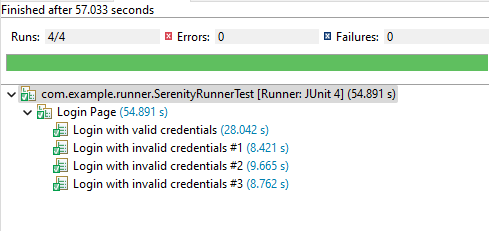
Step 15 – Test Execution Status
The image displayed above shows the execution status.
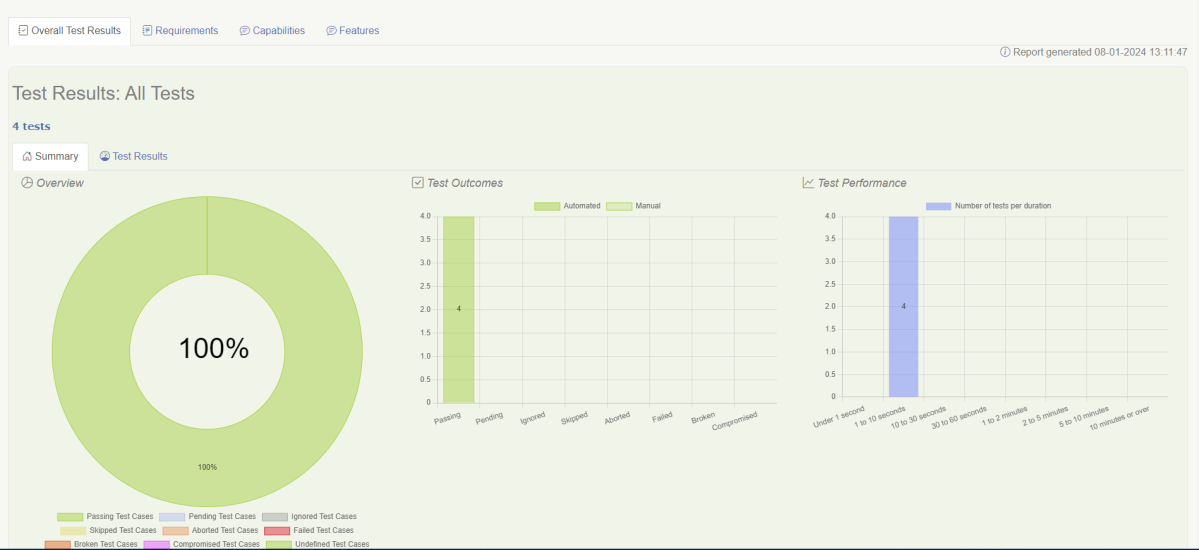
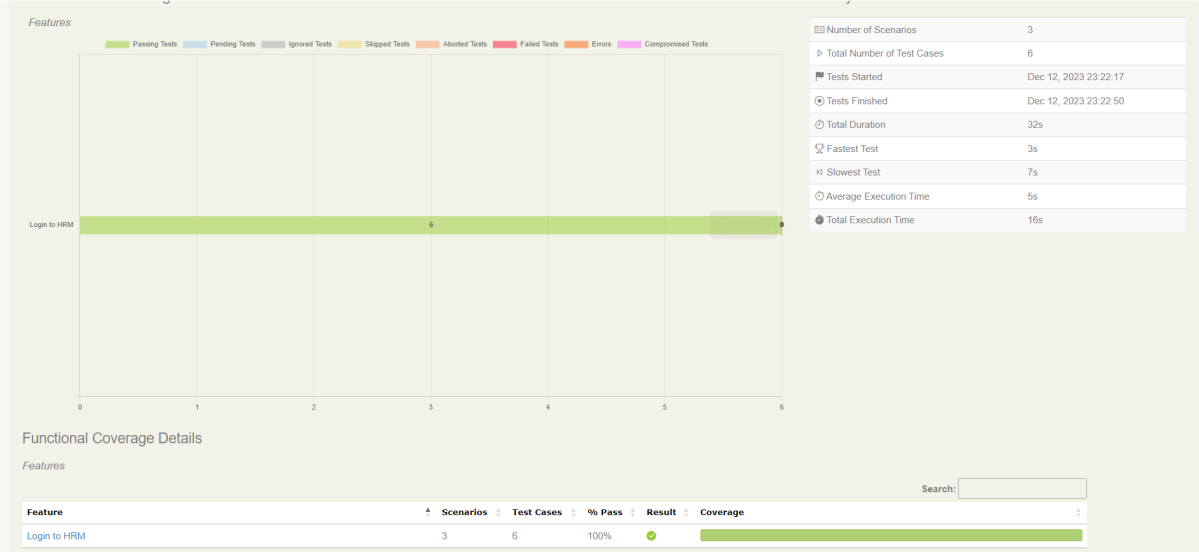
The feature file contains 3 test cases. Test Case 2 is a Test Scenario that has 4 examples. So, in total we have 6 tests. This information is clearly mentioned in the new version of Serenity.
Step 16 – Serenity Report Generation
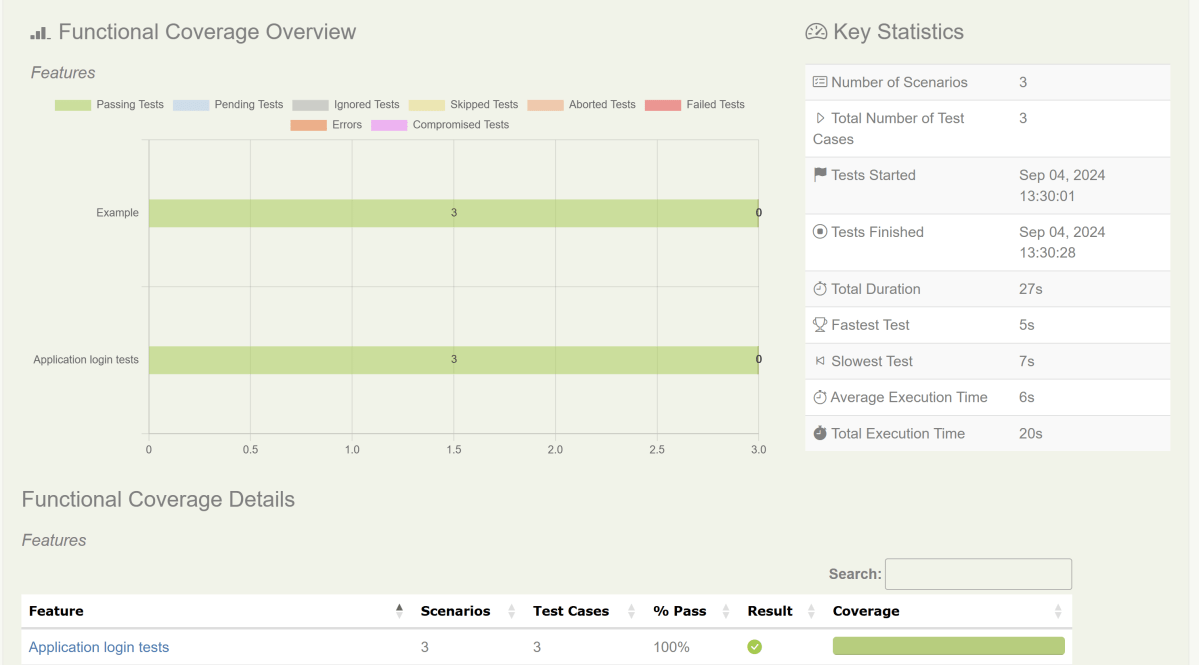
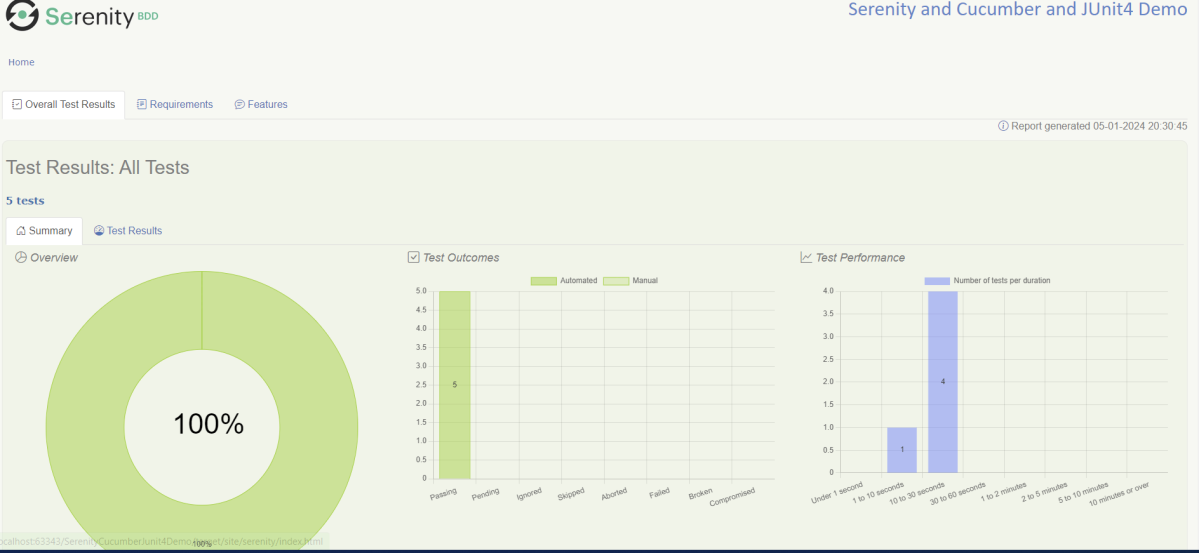
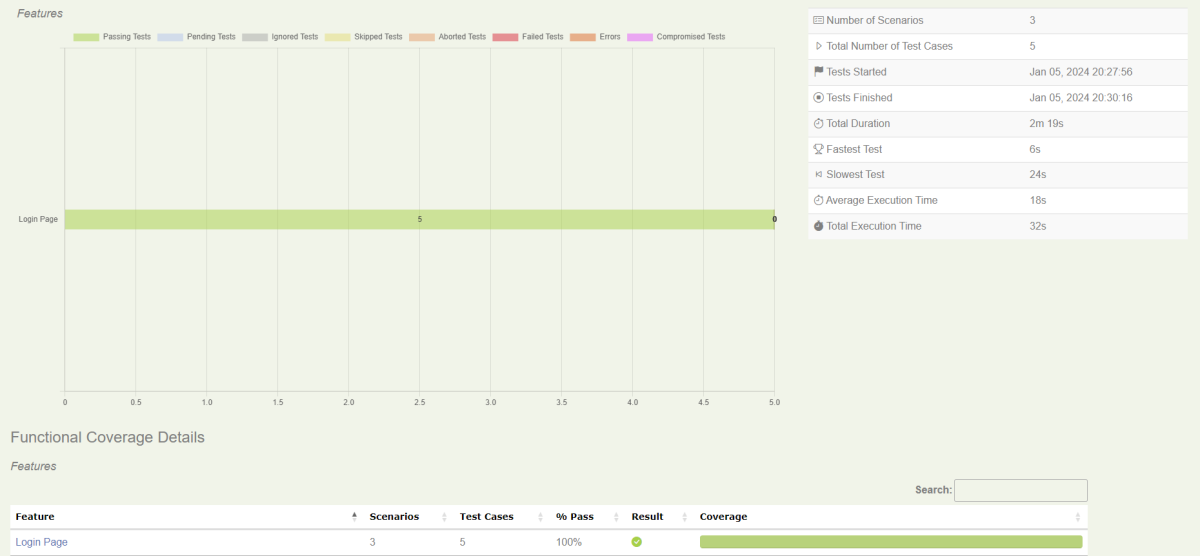
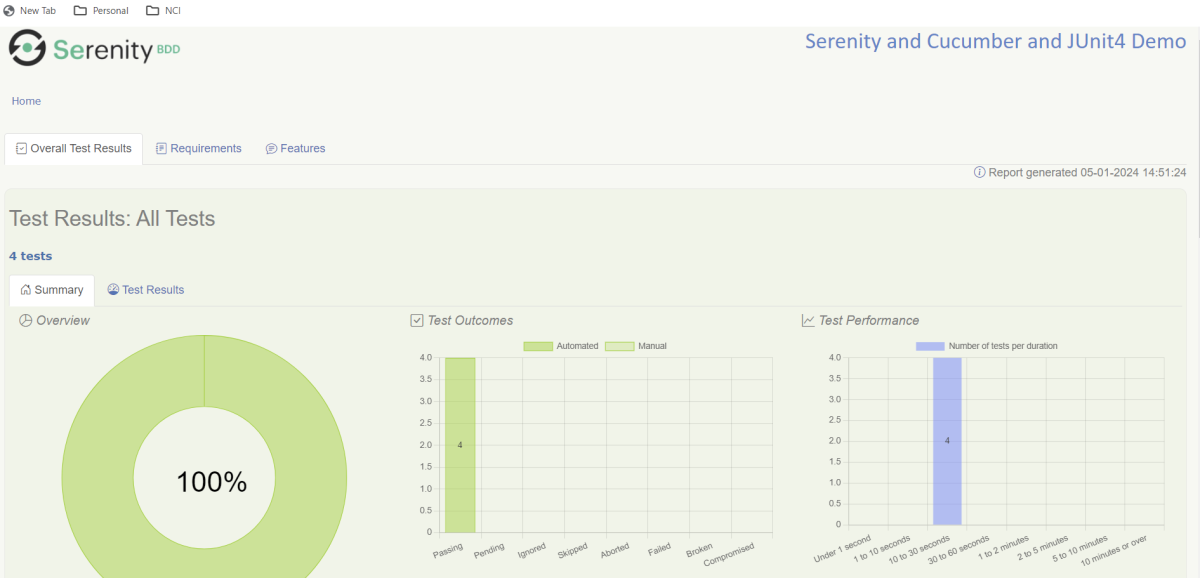
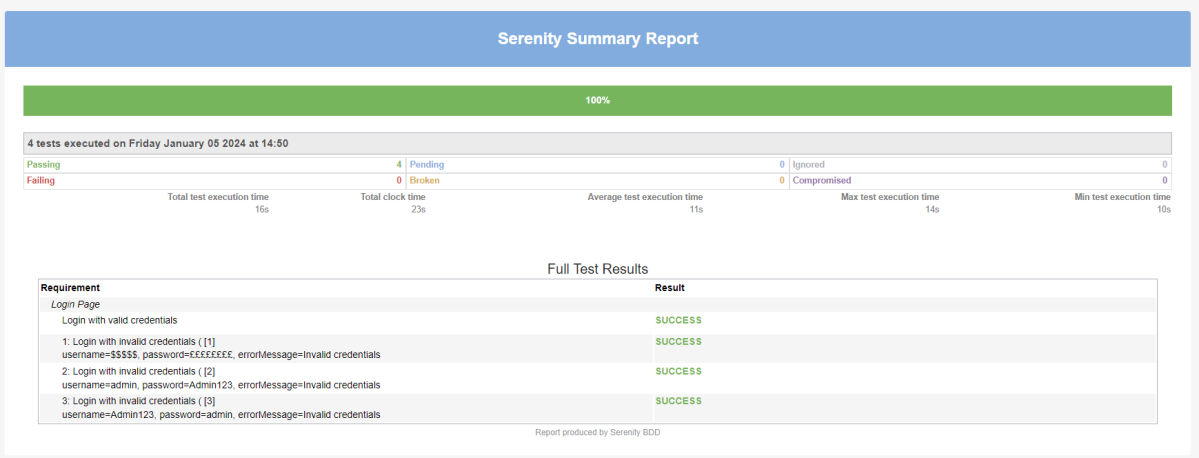
The best part about Serenity is the report generation by it. The Reports contain all possible types of information, you can think of with minimal extra effort. There are multiple types of reports are generated. We are interested in index.html and serenity-summary.html. To know more about Serenity Reports, please refer to tutorials for Index.html and Serenity-Summary.html. Below is the new Serenity Report.
index.html
2. serenity-summary.html
Step 17 – Cucumber Report Generation (Optional)
Every Test Execution generates a Cucumber Report (Version 6.7.0) and above as shown in the image.
Copy the URL and paste it to a browser and it shows the report as shown below:
To know more about Cucumber Reports, refertothis tutorial.
We are done! Congratulations on making it through this tutorial and hope you found it useful! Happy Learning!!

























 QA Automation Expert