Rest Assured Tutorials

HOME

RestAssured is a Java-based library that is used to test RESTful Web Services. REST-assured was designed to simplify the testing and validation of REST APIs. It takes influence from testing techniques used in dynamic languages such as Ruby and Groovy.

Chapter 1 Assertion of JSON in Rest Assured using Hamcrest
Chapter 2 Extraction from JSON in Rest Assured – JsonPath
Chapter 3 How to perform multiple assertions in Rest Assured? 
Chapter 4 How to validate JSON body in Rest Assured?
Chapter 5 Compare JSON Objects using JSONAssert Library
Chapter 6 Compare JSON Arrays using JSONAssert Library
Chapter 7 How to Read JSON with JSON.simple – NEW
Chapter 8 How to create and write to JSON with JSON.simple – NEW

JSON Handling and manipulation

Category 10: XML Manipulations

XML Handling and manipulation

Gradle

Chapter 1 Setup Basic REST Assured Gradle Project In Eclipse IDE

Frameworks

Chapter 1 Integration of REST Assured with TestNG
Chapter 2 Integration of REST Assured with JUnit4
Chapter 3 Integration of REST Assured with JUnit5
Chapter 4 Serenity BDD with Cucumber and Rest Assured
Chapter 5 Serenity BDD with Cucumber and Rest Assured in Gradle
Chapter 6 How To Create Gradle Project with Cucumber to test Rest API
Chapter 7 Rest API Test in Cucumber and JUnit4
Chapter 8 API Automation with REST Assured, Cucumber and TestNG

Integration of REST Assured with JUnit5

HOME

In this tutorial, I’ll create a Test Framework for the testing of REST API using REST Assured and JUnit5 as the test framework.

What is Rest Assured?

Rest Assured enables you to test REST APIs using Java libraries and integrates well with Maven/Gradle. REST Assured is a Java library that provides a domain-specific language (DSL) for writing powerful, maintainable tests for RESTful APIs.

What is JUnit5?

JUnit 5 is the next generation of JUnit. JUnit 5 is composed of several different modules from three different sub-projects.

Dependency List:-

  1. REST Assured – 5.3.2
  2. Java 11
  3. JUnit Jupiter API – 5.10.0
  4. JUnit Jupiter Engine – 5.10.0
  5. Maven – 3.8.1
  6. Json – 20230618

Detailed Step Description

Step 1- Download and Install Java

Java needs to be present on the system to run the tests. Click here to know How to install Java. To know if Java is installed or not on your machine, type this command in the command line. This command will show the version of Java installed on your machine.

java -version

Step 2 – Download and setup Eclipse IDE on the system

The Eclipse IDE (integrated development environment) provides strong support for Java developers, which is needed to write Java code. Click here to learn How to install Eclipse.

Step 3 – Setup Maven

To build a test framework, we need to add a number of dependencies to the project. It is a very tedious and cumbersome process to add each dependency manually. So, to overcome this problem, we use a build management tool. Maven is a build management tool that is used to define project structure, dependencies, build, and test management. Click here to learn How to install Maven.

To know if Maven is already installed or not on your machine, type this command in the command line. This command will show the version of Maven installed on your machine.

mvn -version

Step 4 – Create a new Maven Project

Click here to learn How to create a Maven project

Below is the Maven project structure. Here,

Group Id – com.example
Artifact Id – RestAssured_JUnit5_Demo
Version – 0.0.1-SNAPSHOT
Package – com. example.RestAssured_JUnit4_Demo

Step 5 – Add REST Assured and JUnit5 dependencies to the project

Add the below-mentioned dependencies to the project.

<project xmlns="http://maven.apache.org/POM/4.0.0" xmlns:xsi="http://www.w3.org/2001/XMLSchema-instance"
  xsi:schemaLocation="http://maven.apache.org/POM/4.0.0 http://maven.apache.org/xsd/maven-4.0.0.xsd">
  <modelVersion>4.0.0</modelVersion>

  <groupId>org.example</groupId>
  <artifactId>RestAssured_Junit5_Demo</artifactId>
  <version>1.0-SNAPSHOT</version>
  <packaging>jar</packaging>

  <name>RestAssured_Junit5_Demo</name>
  <url>http://maven.apache.org</url>

  <properties>
    <project.build.sourceEncoding>UTF-8</project.build.sourceEncoding>
    <rest-assurd.version>5.3.2</rest-assurd.version>
    <json.version>20230618</json.version>
    <hamcrest.version>1.3</hamcrest.version>
    <junit5.version>5.10.0</junit5.version>
    <maven.surefire.report.plugin.version>3.1.2</maven.surefire.report.plugin.version>
    <maven.compiler.plugin.version>3.10.1</maven.compiler.plugin.version>
    <maven.surefire.plugin.version>3.1.2</maven.surefire.plugin.version>
    <maven.compiler.source.version>11</maven.compiler.source.version>
    <maven.compiler.target.version>11</maven.compiler.target.version>
    <maven.site.plugin.version>3.12.0</maven.site.plugin.version>
  </properties>

  <dependencies>

    <!-- Rest Assured Dependency -->
    <dependency>
      <groupId>io.rest-assured</groupId>
      <artifactId>rest-assured</artifactId>
      <version>${rest-assurd.version}</version>
      <scope>test</scope>
    </dependency>

    <!-- JUNIT Jupiter API Dependency-->
    <dependency>
      <groupId>org.junit.jupiter</groupId>
      <artifactId>junit-jupiter-api</artifactId>
      <version>${junit5.version}</version>
      <scope>test</scope>
    </dependency>

    <!-- JUNIT Jupiter Engine Dependency-->
    <dependency>
      <groupId>org.junit.jupiter</groupId>
      <artifactId>junit-jupiter-engine</artifactId>
      <version>${junit5.version}</version>
      <scope>test</scope>
    </dependency>

    <!-- JSON Dependency -->
    <dependency>
      <groupId>org.json</groupId>
      <artifactId>json</artifactId>
      <version>${json.version}</version>
    </dependency>

    <!-- Hamcrest Dependency -->
    <dependency>
      <groupId>org.hamcrest</groupId>
      <artifactId>hamcrest-all</artifactId>
      <version>${hamcrest.version}</version>
      <scope>test</scope>
    </dependency>

  </dependencies>

  <build>
    <plugins>
      <plugin>
        <groupId>org.apache.maven.plugins</groupId>
        <artifactId>maven-compiler-plugin</artifactId>
        <version>${maven.compiler.plugin.version}</version>
        <configuration>
          <source>${maven.compiler.source.version}</source>
          <target>${maven.compiler.target.version}</target>
        </configuration>
      </plugin>

      <plugin>
        <groupId>org.apache.maven.plugins</groupId>
        <artifactId>maven-surefire-plugin</artifactId>
        <version>${maven.surefire.plugin.version}</version>
        <configuration>
          <testFailureIgnore>true</testFailureIgnore>
        </configuration>
      </plugin>

      <plugin>
        <groupId>org.apache.maven.plugins</groupId>
        <artifactId>maven-site-plugin</artifactId>
        <version>${maven.site.plugin.version}</version>
      </plugin>
    </plugins>
  </build>

    <reporting>
      <plugins>
        <plugin>
          <groupId>org.apache.maven.plugins</groupId>
          <artifactId>maven-surefire-report-plugin</artifactId>
          <version>${maven.surefire.report.plugin.version}</version>
          <configuration>
            <outputName>JUnit5 Report</outputName>
          </configuration>
        </plugin>
      </plugins>
    </reporting>

</project>

Step 6 – Create the TEST file

The tests should be written in src/test/java directory. To learn how to create a JSON Request body using JSONObject, please refer to this tutorial.

import io.restassured.http.ContentType;
import org.json.JSONObject;
import org.junit.jupiter.api.Test;
import static io.restassured.RestAssured.given;
import static org.hamcrest.Matchers.equalTo;

public class APITests {

        String BaseURL = "https://reqres.in/api";

    @Test
    public void createUser() {

        JSONObject data = new JSONObject();

        data.put("name", "NewUser1");
        data.put("job", "Testing");

        // GIVEN
        given()
                .contentType(ContentType.JSON)
                .body(data.toString())

                // WHEN
                .when()
                .post(BaseURL + "/users")

                // THEN
                .then()
                .statusCode(201)
                .body("name", equalTo("NewUser1"))
                .body("job", equalTo("Testing"))
                .log().all();

    }

    @Test
    public void getUser() {  //Failed Test

        // GIVEN
        given()
                .contentType(ContentType.JSON)

                // WHEN
                .when()
                .get(BaseURL + "/users/2")

                // THEN
                .then()
                .statusCode(200)
                .body("data.first_name", equalTo("Janet1"))
                .log().all();

    }

}

Step 7 – Test Execution through JUnit Test

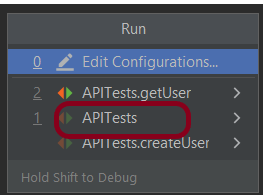
Go to the Runner class and right-click Run As JUnit Test. The tests will run as JUnit tests.

Below is the image to run the tests in IntelliJ.

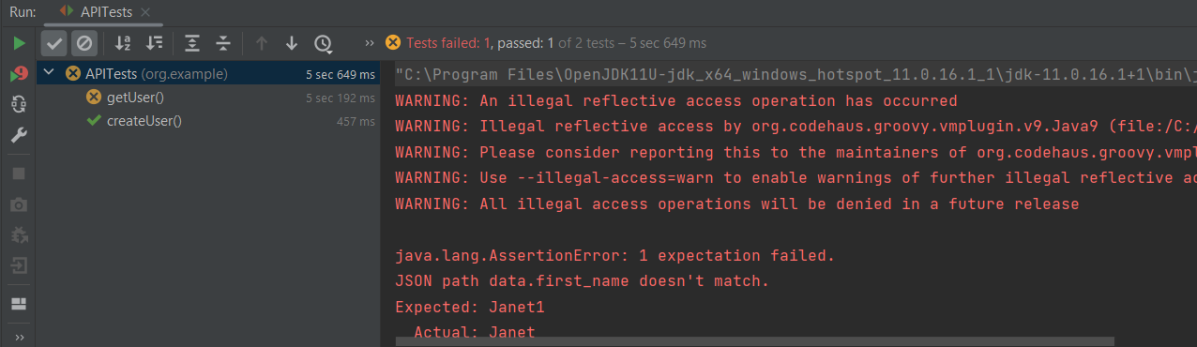
This is how the execution console will look like.

Step 8 – Run the tests from the command line

Maven Site Plugin creates a folder – site under the target directory, and the Maven Surefire Report plugin generates the JUnit Reports in the site folder. We need to run the tests through the command line to generate the JUnit Report.

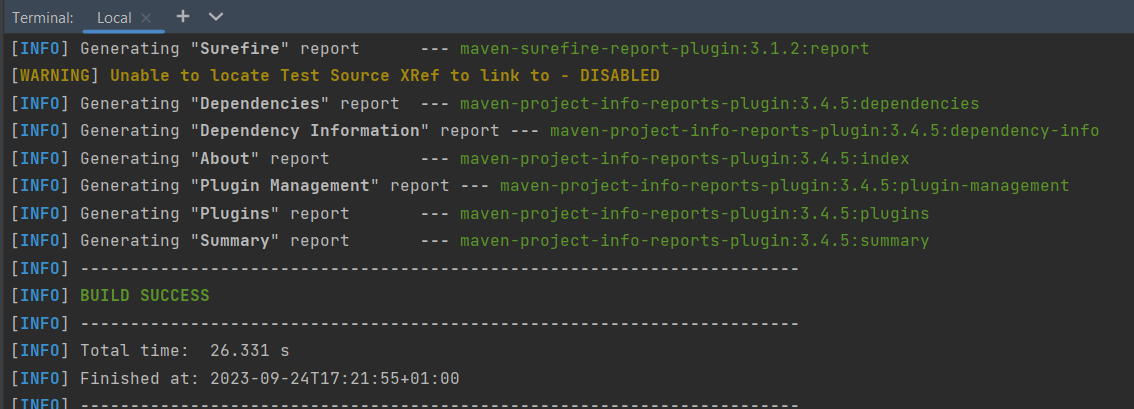
mvn clean test site

The output of the above program is

Step 9 – Report Generation

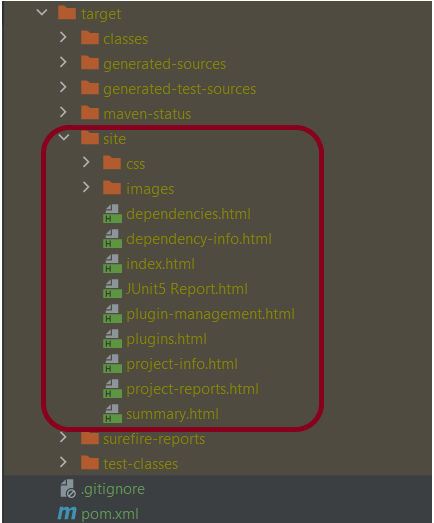
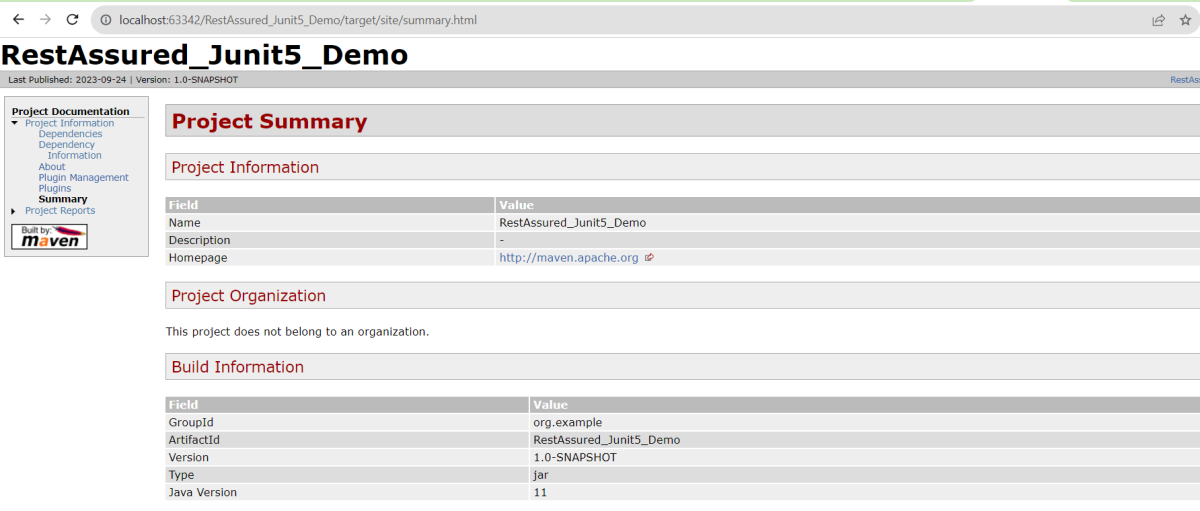
After the test execution, refresh the project, and a new folder with the name site in the target folder will be generated. This folder contains the reports generated by JUnit. The structure of the folder site looks as shown below.

View the Report

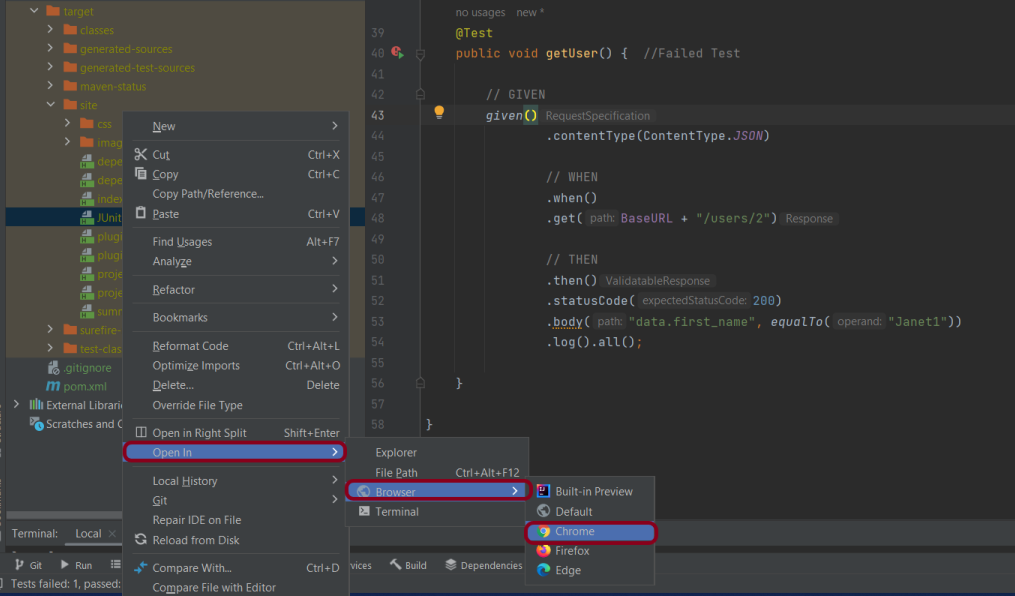
Right-click on the Junit5 Report.html and select Open In -> Browser ->Chrome.

Summary Report

Below is the summary Report.

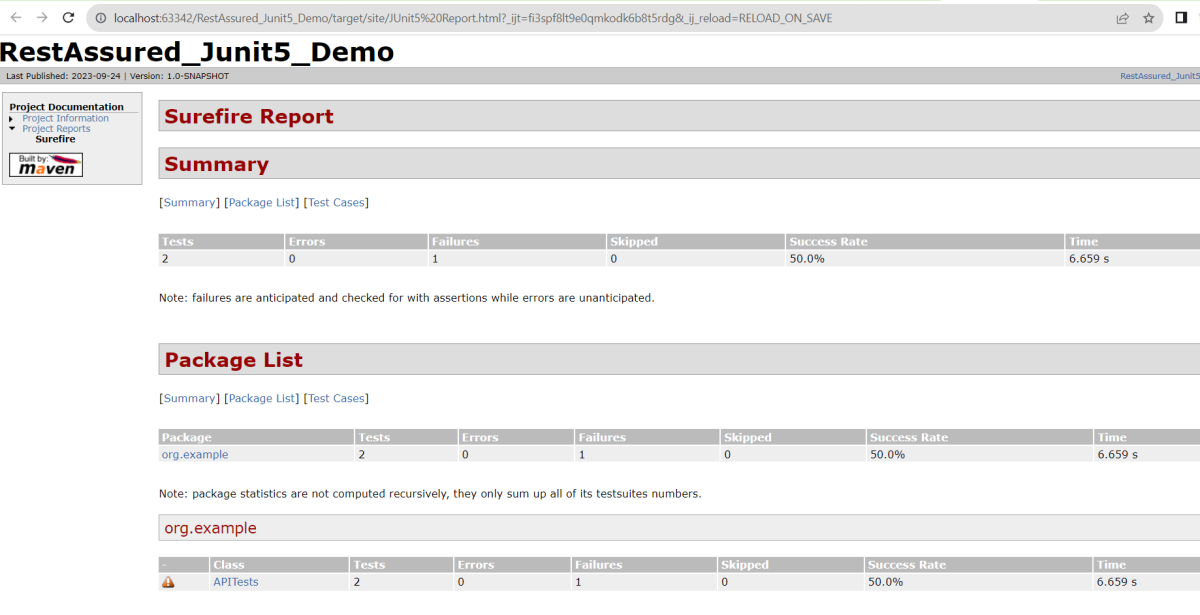
Surefire Report

Below is an example of a Surefire Report. This report contains a summary of the test execution.

We are done! Congratulations on making it through this tutorial and hope you found it useful! Happy Learning!!

Basic Selenium Tutorials

HOME

Selenium – Introduction, Installation, Test Script

Chapter 1 Introduction to Selenium Automation Tool
Chapter 2 How to Download & Install Java JDK 11 in Windows
Chapter 3 How to Download and Install Eclipse IDE
Chapter 4 How to install IntelliJ on Windows
Chapter 5 How to Download & Install Selenium WebDriver 
Chapter 6  How to create first Selenium WebDriver Script using Java
Chapter 7 How to run Selenium Tests using on Internet Explorer

Locators in Selenium

 Chapter 1 How to Locate Elements in Chrome, Firefox and IE Browsers for creating Selenium Scripts
Chapter 2 Locators in Selenium – Locate by ID, ClassName,  Name, TagName,  LinkText, PartialLinkText
Chapter 3 Dynamic XPath  in Selenium WebDriver
Chapter 4 CSS Selector in Selenium WebDriver

Launching Browsers and headless Browser

Chapter 1 How to run Chrome tests in headless mode in Selenium
Chapter 2 How to run Firefox tests in headless mode in Selenium
Chapter 3 How to run Edge tests in headless mode in Selenium4
Chapter 4 How to manage driver executables using WebDriverManager
Chapter 5 How to disable infobar warning for Chrome tests in Selenium
Chapter 6 How to maximize and minimize the window in Selenium

WebDriver Commands

Chapter 1 Difference between FindElement and FindElements in WebDriver
Chapter 2 Difference between getText() and getAttribute() method in WebDriver
Chapter 3 WebDriver Browser Commands – get,  getTitle, getCurrentUrl, getPageSource, getClass, close, quit in WebDriver
Chapter 4 WebDriver Navigation Commands – Navigate, Forward, Back, Refresh in  WebDriver
Chapter 5 Selenium Form WebElement Commands – Sendkeys, Clear, Click,Submit
Chapter 6 How to automate selecting Checkbox and Radio Buttons in Selenium WebDriver
Chapter 7 How to Select value from Drop down list or perform Multiple Selection  Operations in WebDriver
Chapter 8 How to get all options in a DropDown list in WebDriver
Chapter 9 How to automate Radio Button in WebDriver
Chapter 10 How to automate BootStrap DropDown using WebDriver
Chapter 15 How to handle Dynamic Web Tables using Selenium WebDriver
Chapter 16 How to get all the values from a Dynamic Table in Selenium WebDriver 
Chapter 17 isDisplayed, isSelected, isEnabled in Selenium
Chapter 18 How to test HTML ordered list in Selenium
Chapter 19 How to test HTML5 validation messages with Selenium

Waits in Selenium

Chapter 1 Implicit and Explicit Wait in Selenium WebDriver
Chapter 2 What is Fluent Wait in Selenium WebDriver

Handle Window and Alerts

Chapter 1 Switch Window Commands in Selenium WebDriver
Chapter 2 How to handle Alerts in Selenium WebDriver
Chapter 3 How to Switch Between Frames in Selenium WebDriver

Selenium Interview Questions and Answers 2026
Advanced Selenium Interview Questions and Answers 2026
Selenium Multiple Choice Questions – MCQ1
Selenium Multiple Choice Questions – MCQ3

How to configure Junit in Intellij

HOME

In this tutorial we will discuss to create a JUnit  project using IntelliJ. We will be at first creating a simple Java Project and will add JUnit5 as well as create a Maven Project, then we will add a basic Class and a JUnit Test for it.

Create a Java Project

Step 1 – Create a new Java Project.

To create a new Java project in Intellij, please refer to this tutorial.

Step 2 – Right click on the project and select Open Module Settings.

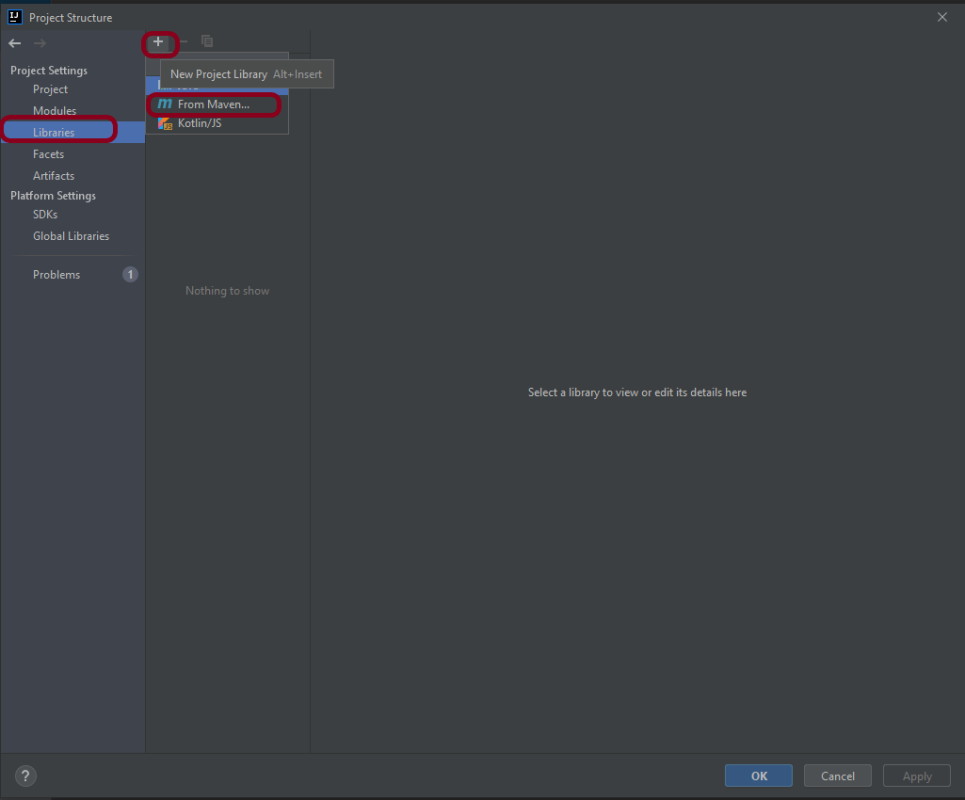
Step 3 – Go to the “Libraries” group, click the little plus (look up), and choose From Maven…option.

Step 4 – Search for “junit” — something like “junit:junit-4.13“. Click the OK button.

Step 5 – A new dialog will appear to confirm that “junit:junit:4.13.2” will be added to the module. Click the OK button.

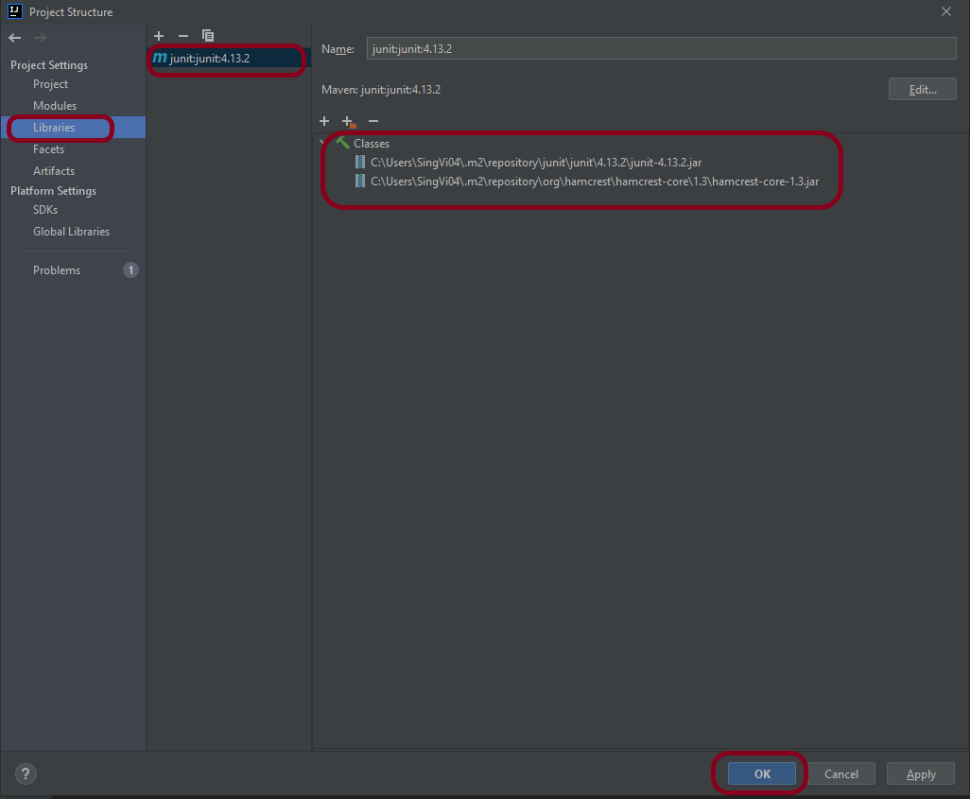
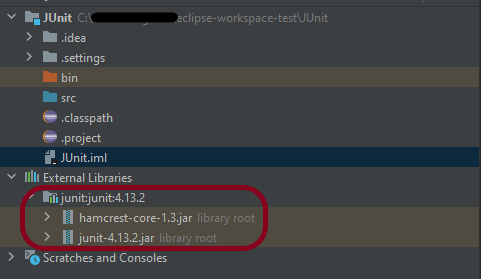
Step 6 – This screens shows that junit:junit:4.13.2 is added to the Libraries. It contains the highlighted classes – junit-4.13.2.jar and hamcrest-core-1.3.jar. Click the “OK” button.

Step 7 – This image shows that the Junit is added to the External Libraries.

Step 8 – Create a Java Class – JUnit4Test under src and create a JUnit test to verify that it is installed properly.

import org.junit.Assert;
import org.junit.Test;

public class JUnit4Test {

    @Test
    public void Test() {

        String str1 = "Happy";
        String str2 = new String("Happy");
        Assert.assertEquals("String1 and String 2 are equal",str1, str2);

    }
}

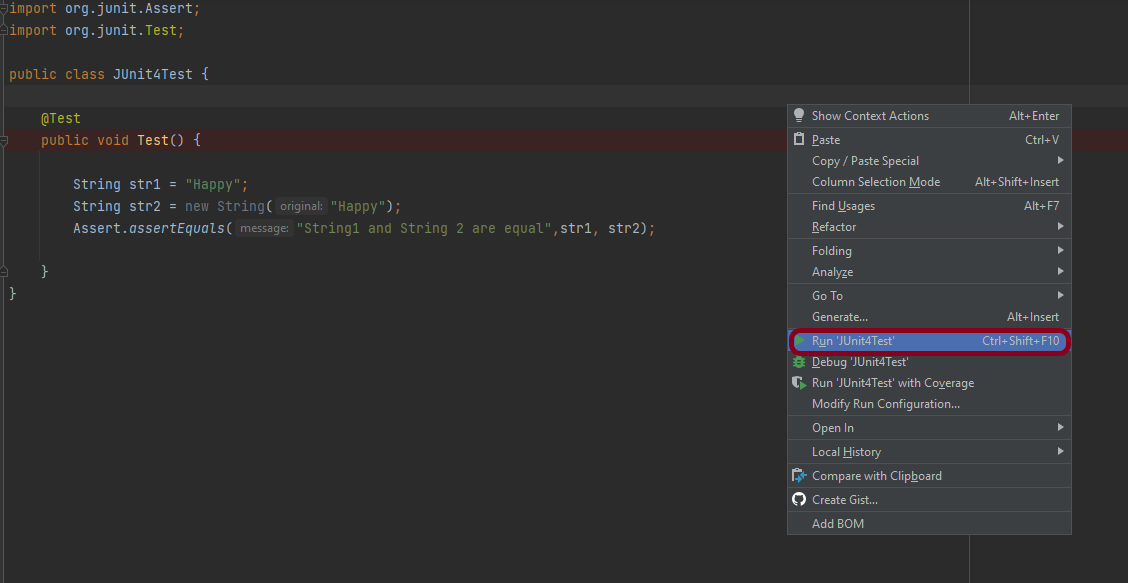
Step 9 – There are many ways to run the test. One of the way is to Right-Click and select Run JUnit4Test

The successful execution of the test shows that the JUnit is configured properly.

Create a Maven Project

Add Junit dependency to the POM.xml and build the project.

<dependencies>

    <dependency>
        <groupId>junit</groupId>
        <artifactId>junit</artifactId>
        <version>4.13.2</version>
        <scope>test</scope>
    </dependency>
    
</dependencies>

Now we need to apply the changes in the build script. Press Ctrl+Shift+O or click Load Maven Changes in the notification that appears in the top-right corner of the editor.

Create a Java Class – JUnit4Test under src/test/java and create a JUnit test to verify that it is installed properly.

import org.junit.Test;
import static org.junit.Assert.assertArrayEquals;

public class JUnitMavenTest {

    @Test
    public void Test() {

        String[] expected = {"happy","days","summer","spring"};
        String[] actual = {"happy","days","summer","spring"};

        assertArrayEquals("Expected and Actual Arrays are not equal",expected,actual);

    }
}

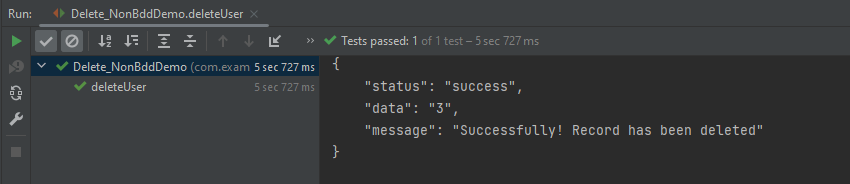
The output of the above program is
Similarly, to add JUnit5 we can add below mentioned dependencies to the POM.xml.

<dependency>
     <groupId>org.junit.jupiter</groupId>
     <artifactId>junit-jupiter-engine</artifactId>
     <version>5.8.2</version>
     <scope>test</scope>
</dependency>

<dependency>
     <groupId>org.junit.jupiter</groupId>
     <artifactId>junit-jupiter-api</artifactId>
     <version>5.8.2</version>
     <scope>test</scope>
</dependency>

Congratulations. We are able to add JUnit to Java or Maven project. Happy Learning!!

JUnit Tutorials

HOME

JUnit is an open source Unit Testing Framework for JAVA.
JUnit is a simple framework to write repeatable tests. It is an instance of the xUnit architecture for unit testing frameworks.

JUnit4

Chapter 1 How to configure Junit in Intellij
Chapter 2 How to run JUnit5 tests through Command Line
Chapter 3 JUnit4 Assertions
Chapter 4 How to Parameterize tests in JUnit4
Chapter 5 How to generate JUnit4 Report
Chapter 6 Integration of Cucumber with Selenium and JUnit
Chapter 7 Integration of Serenity with Cucumber6 and JUnit5
Chapter 8 Integration of Serenity with JUnit4
Chapter 9 Rest API Test in Cucumber BDD
Chapter 10 Difference between JUnit4 and JUnit5
Chapter 11 Integration of REST Assured with JUnit4

JUnit5

Chapter 1 JUnit5 Assertions Example
Chapter 2 Grouped Assertions in JUnit 5 – assertAll()
Chapter 3 How to Retry Test in JUnit5 – @RepeatedTest
Chapter 4 How to disable tests in JUnit5 – @Disabled
Chapter 5 How to run JUnit5 tests in order
Chapter 6 How to tag and filter JUnit5 tests – @Tag
Chapter 7 Assumptions in JUnit5
Chapter 8 How to parameterized Tests in JUnit5
Chapter 9 How to run parameterized Selenium test using JUnit5
Chapter 10 Testing of Web Application using Serenity with JUnit5
Chapter 11 Integration of Serenity with Cucumber6 and JUnit5
Chapter 12 How to generate JUnit5 Report – NEW

Gradle

Chapter 1 Gradle – Allure Report for Selenium and JUnit4
Chapter 2 Gradle Project with Cucumber, Selenium and JUnit4
Chapter 3 Gradle – Integration of Selenium and JUnit5

Integration of Allure Report with Rest Assured and TestNG

HOME

In the previous tutorial, I explained the Integration of the Allure Report with Rest Assured with JUnit4. In this tutorial, I will explain how to Integrate Allure Report with Rest Assured and TestNG.

The below example covers the implementation of Allure Report for Rest API using Rest Assured, TestNG, Java, and Maven.

Prerequisite

  1. Java 17 installed
  2. Maven installed
  3. Eclipse or IntelliJ installed
  4. Allure installed

Dependency List:

  1. Java 17
  2. Maven – 3.9.6
  3. Allure Report – 2.14.0
  4. Allure Rest Assured – 2.25.0
  5. Allure TestNG – 2.25.0
  6. Aspectj – 1.9.21
  7. Json – 20231013
  8. Maven Compiler Plugin – 3.12.1
  9. Maven Surefire Plugin – 3.2.3

Implementation Steps

Step 1 – Update Properties section in Maven pom.xml

<properties>
        <hamcrest.version>1.3</hamcrest.version>
        <allure.rest.assured.version>2.25.0</allure.rest.assured.version>
        <json.version>20231013</json.version>
        <maven.compiler.plugin.version>3.12.1</maven.compiler.plugin.version>
        <maven.compiler.source>17</maven.compiler.source>
        <maven.compiler.target>17</maven.compiler.target>
        <aspectj.version>1.9.21</aspectj.version>
        <maven.surefire.plugin.version>3.2.3</maven.surefire.plugin.version>
        <allure.maven.version>2.12.0</allure.maven.version>
        <allure.testng.version>2.25.0</allure.testng.version>
        <project.build.sourceEncoding>UTF-8</project.build.sourceEncoding>
 </properties>

Step 2 – Add the Allure-Rest Assured dependency

 <!--Allure Reporting Dependency-->   
   <dependency>
      <groupId>io.qameta.allure</groupId>
      <artifactId>allure-rest-assured</artifactId>
      <version>${allure.rest-assured.version}</version>
   </dependency>

Add other dependencies like Rest Assured and Allure-TetNG dependencies in POM.xml

 <dependencies>

        <!-- Hamcrest Dependency -->
        <dependency>
            <groupId>org.hamcrest</groupId>
            <artifactId>hamcrest-all</artifactId>
            <version>${hamcrest.version}</version>
            <scope>test</scope>
        </dependency>

        <!-- JSON Dependency -->
        <dependency>
            <groupId>org.json</groupId>
            <artifactId>json</artifactId>
            <version>${json.version}</version>
        </dependency>

        <!-- Allure TestNG Dependency -->
        <dependency>
            <groupId>io.qameta.allure</groupId>
            <artifactId>allure-testng</artifactId>
            <version>${allure.testng.version}</version>
        </dependency>

        <!-- Allure Rest-assured Dependency-->
        <dependency>
            <groupId>io.qameta.allure</groupId>
            <artifactId>allure-rest-assured</artifactId>
            <version>${allure.rest.assured.version}</version>
        </dependency>

    </dependencies>

Step 3 – Update the Build Section of pom.xml in the Allure Report Project

 <build>
        <plugins>
            <plugin>
                <groupId>org.apache.maven.plugins</groupId>
                <artifactId>maven-compiler-plugin</artifactId>
                <version>${maven.compiler.plugin.version}</version>
                <configuration>
                    <source>${maven.compiler.source}</source>
                    <target>${maven.compiler.target}</target>
                </configuration>
            </plugin>

            <plugin>
                <groupId>org.apache.maven.plugins</groupId>
                <artifactId>maven-surefire-plugin</artifactId>
                <version>${maven.surefire.plugin.version}</version>
                <configuration>
                    <suiteXmlFiles>
                        <suiteXmlFile>testng.xml</suiteXmlFile>
                    </suiteXmlFiles>
                    <argLine>
                        -javaagent:"${settings.localRepository}/org/aspectj/aspectjweaver/${aspectj.version}/aspectjweaver-${aspectj.version}.jar"
                    </argLine>
                </configuration>
                <dependencies>
                    <dependency>
                        <groupId>org.aspectj</groupId>
                        <artifactId>aspectjweaver</artifactId>
                        <version>${aspectj.version}</version>
                    </dependency>
                </dependencies>
            </plugin>

             <plugin>
                <groupId>io.qameta.allure</groupId>
                <artifactId>allure-maven</artifactId>
                <version>${allure.maven.version}</version>
                <configuration>
                    <reportVersion>${allure.maven.version}</reportVersion>
                </configuration>
            </plugin>

        </plugins>
    </build>
</project>

Step 4 – Create the Test Code for the testing of REST API under src/test/java

To see our request and response in more detail using Rest Assured, we need to add a line to our Rest Assured tests. This will provide the request and response details in the report.

 .filter(new AllureRestAssured())
import io.qameta.allure.*;
import io.qameta.allure.restassured.AllureRestAssured;
import io.restassured.http.ContentType;
import org.json.JSONObject;
import org.testng.annotations.Test;
import static io.restassured.RestAssured.given;
import static org.hamcrest.Matchers.equalTo;

@Epic("REST API Regression Testing using TestNG")
@Feature("Verify CRUID Operations on User module")
public class RestAPITests {

    @Test(description = "To get the details of user with id 3", priority = 0)
    @Story("GET Request with Valid User")
    @Severity(SeverityLevel.NORMAL)
    @Description("Test Description : Verify the details of user of id-3")
    public void verifyUser() {

        // Given
        given()

                .filter(new AllureRestAssured())
                // When
                .when()
                .get("https://reqres.in/api/users/3")

                // Then
                .then()
                .statusCode(200)
                .statusLine("HTTP/1.1 200 OK")

                // To verify user of id 3
                .body("data.email", equalTo("emma.wong@reqres.in"))
                .body("data.first_name", equalTo("Emma"))
                .body("data.last_name", equalTo("Wong"));
    }

    @Test(description = "To create a new user", priority = 1)
    @Story("POST Request")
    @Severity(SeverityLevel.NORMAL)
    @Description("Test Description : Verify the creation of a new user")
    public void createUser() {

        JSONObject data = new JSONObject();

        data.put("name", "RestAPITest");
        data.put("job", "Testing");

        // GIVEN
        given()

                .filter(new AllureRestAssured())
                .contentType(ContentType.JSON)
                .body(data.toString())

                // WHEN
                .when()
                .post("https://reqres.in/api/users")

                // THEN
                .then()
                .statusCode(201)
                .body("name", equalTo("RestAPITest"))
                .body("job", equalTo("Testing"));

    }

}

Step 5 – Create testng.xml for the project

<?xml version = "1.0"encoding = "UTF-8"?>
<!DOCTYPE suite SYSTEM "http://testng.org/testng-1.0.dtd">
<suite name = "Suite1">
    <test name = "TestNG Test Demo">
        <classes>
            <class name = "org.example.RestAPITests"/>
        </classes>
    </test>
</suite>

Step 6 – Run the Test and Generate Allure Report

To run the tests, use the below command

mvn clean test

In the below image, we can see that all three tests are passed.

This will create the allure-results folder with all the test reports. These files will be used to generate the Allure Report.

To create an Allure Report, use the below command

allure serve

This will generate the beautiful Allure Test Report as shown below.

Allure Report Dashboard

The overview page hosts several default widgets representing the basic characteristics of your project and test environment.

Categories in Allure Report

The categories tab gives you a way to create custom defect classifications to apply for test results. There are two categories of defects – Product Defects (failed tests) and Test Defects (broken tests).

Suites in Allure Report

On the Suites tab a standard structural representation of executed tests, grouped by suites and classes, can be found.

View test history

Each time you run the report from the command line with the mvn clean test command, a new result JSON file will get added to the allure-results folder. Allure can use those files to include a historical view of your tests. Let’s give that a try.

To get started, run mvn clean test a few times and watch how the number of files in the allure-reports folder grows.

Now go back to view your report. Select Suites from the left nav, select one of your tests and click Retries in the right pane. You should see the history of test runs for that test:

Graphs in Allure Report

Graphs allow you to see different statistics collected from the test data: status breakdown or severity and duration diagrams.

Timeline in Allure Report

Timeline tab visualizes retrospective of tests execution, allure adaptors collect precise timings of tests, and here on this tab, they are arranged accordingly to their sequential or parallel timing structure.

Behaviors of Allure Report

This tab groups test results according to Epic, Feature, and Story tags.

Packages in Allure Report

The packages tab represents a tree-like layout of test results, grouped by different packages.

We are done! Congratulations on making it through this tutorial and hope you found it useful! Happy Learning!!

Integration of REST Assured with TestNG

Last Updated On

HOME

As we know, REST Assured is a Java DSL for simplifying the testing of REST-based services built on top of HTTP Builder. In this tutorial, I’ll create a Test Framework for the testing of REST API using REST Assured and TestNG as the test framework.

Table of Contents

  1. Dependency List
  2. Detailed Step Description
    1. Download and Install Java
    2. Download and setup Eclipse IDE on the system
    3. Setup Maven
    4. Create a new Maven Project
    5. Add REST Assured and TestNG dependencies to the project
    6. Create a TEST file under src/test/java to write the test code
    7. Test Execution through TestNG
    8. Run the tests from TestNG.xml
    9. TestNG Report Generation

Dependency List

  1. REST Assured – 5.3.2
  2. Java 8 or above
  3. TestNG – 7.8.0
  4. Maven – 3.8.1
  5. Maven Compiler Plugin – 3.11.0
  6. Maven Surefire Plugin – 3.1.2
  7. Json – 20230618

Detailed Step Description

Step 1- Download and Install Java

Java needs to be present on the system to run the tests. Click here to know How to install Java. To know if Java is installed or not on your machine, type this command in the command line. This command will show the version of Java installed on your machine.

java -version

Step 2 – Download and setup Eclipse IDE on the system

The Eclipse IDE (integrated development environment) provides strong support for Java developers, which is needed to write Java code. Click here to know How to install Eclipse.

Step 3 – Setup Maven

To build a test framework, we need to add a number of dependencies to the project. It is a very tedious and cumbersome process to add each dependency manually. So, to overcome this problem, we use a build management tool. Maven is a build management tool that is used to define project structure, dependencies, build, and test management. Click here to know How to install Maven.

To know if Maven is already installed or not on your machine, type this command in the command line. This command will show the version of Maven installed on your machine.

mvn -version

Step 4 – Create a new Maven Project

Click here to know How to create a Maven project

Below is the Maven project structure. Here,

Group Id – org.example
Artifact Id – RestAssured_TestNG_Demo
Version – 0.0.1-SNAPSHOT
Package – org. example

Step 5 – Add REST Assured and TestNG dependencies to the project

Add the below-mentioned dependencies to the project.

<?xml version="1.0" encoding="UTF-8"?>
<project xmlns="http://maven.apache.org/POM/4.0.0"
         xmlns:xsi="http://www.w3.org/2001/XMLSchema-instance"
         xsi:schemaLocation="http://maven.apache.org/POM/4.0.0 http://maven.apache.org/xsd/maven-4.0.0.xsd">
    <modelVersion>4.0.0</modelVersion>

    <groupId>org.example</groupId>
    <artifactId>RestAssured_TestNG_Demo</artifactId>
    <version>1.0-SNAPSHOT</version>

    <properties>
        <hamcrest.version>1.3</hamcrest.version>
        <testng.version>7.8.0</testng.version>
        <rest-assured.version>5.3.2</rest-assured.version>
        <json.version>20230618</json.version>
        <maven.compiler.plugin.version>3.11.0</maven.compiler.plugin.version>
        <maven.compiler.source>11</maven.compiler.source>
        <maven.compiler.target>11</maven.compiler.target>
        <maven.surefire.plugin.version>3.1.2</maven.surefire.plugin.version>
        <project.build.sourceEncoding>UTF-8</project.build.sourceEncoding>
    </properties>

    <dependencies>

        <!-- Hamcrest Dependency -->
        <dependency>
            <groupId>org.hamcrest</groupId>
            <artifactId>hamcrest-all</artifactId>
            <version>${hamcrest.version}</version>
            <scope>test</scope>
        </dependency>

        <!-- TestNG Dependency -->
        <dependency>
            <groupId>org.testng</groupId>
            <artifactId>testng</artifactId>
            <version>${testng.version}</version>
        </dependency>

        <!-- Rest Assured -->
        <dependency>
            <groupId>io.rest-assured</groupId>
            <artifactId>rest-assured</artifactId>
            <version>${rest-assured.version}</version>
            <scope>test</scope>
        </dependency>

        <!-- JSON Dependency -->
        <dependency>
            <groupId>org.json</groupId>
            <artifactId>json</artifactId>
            <version>${json.version}</version>
        </dependency>

    </dependencies>

    <build>
        <plugins>
            <plugin>
                <groupId>org.apache.maven.plugins</groupId>
                <artifactId>maven-compiler-plugin</artifactId>
                <version>${maven.compiler.plugin.version}</version>
                <configuration>
                    <source>${maven.compiler.source}</source>
                    <target>${maven.compiler.target}</target>
                </configuration>
            </plugin>

            <plugin>
                <groupId>org.apache.maven.plugins</groupId>
                <artifactId>maven-surefire-plugin</artifactId>
                <version>${maven.surefire.plugin.version}</version>
                <configuration>
                    <suiteXmlFiles>
                        <suiteXmlFile>testng.xml</suiteXmlFile>
                    </suiteXmlFiles>        
                </configuration>         
            </plugin>
        </plugins>
    </build>
</project>

Step 6 – Create a TEST file under src/test/java to write the test code.

To learn how to create a JSON Request body using JSONObject, please refer to this tutorial – How to test POST request from JSON Object in Rest Assured.

To know more about priority in TestNG, please refer to this tutorial.

import io.restassured.http.ContentType;
import org.json.JSONObject;
import org.testng.annotations.Test;
import static io.restassured.RestAssured.given;
import static org.hamcrest.Matchers.equalTo;

public class RestAPITests {

    @Test(description = "To get the details of user with id 3", priority = 0)
    public void verifyUser() {

        // Given
        given()

                // When
                .when()
                .get("https://reqres.in/api/users/3")

                // Then
                .then()
                .statusCode(200)
                .statusLine("HTTP/1.1 200 OK")

                // To verify user of id 3
                .body("data.email", equalTo("emma.wong@reqres.in"))
                .body("data.first_name", equalTo("Emma"))
                .body("data.last_name", equalTo("Wong"));
    }

    @Test(description = "To create a new user", priority = 1)
    public void createUser() {

        JSONObject data = new JSONObject();

        data.put("name", "RestAPITest");
        data.put("job", "Testing");

        // GIVEN
        given()
                .contentType(ContentType.JSON)
                .body(data.toString())

                // WHEN
                .when()
                .post("https://reqres.in/api/users")

                // THEN
                .then()
                .statusCode(201)
                .body("name", equalTo("RestAPITest"))
                .body("job", equalTo("Testing"));

    }

}

Step 7 – Test Execution through TestNG

Go to the Runner class and right-click Run As TestNG Test. The tests will run as TestNG tests. (Eclipse)

This is how the execution console will look like. (IntelliJ)

Step 8 – Run the tests from TestNG.xml

Create a TestNG.xml as shown below and run the tests as TestNG. Here, the tests are present in class – com.example. Selenium_TestNGDemo.API_Test.

<?xml version = "1.0"encoding = "UTF-8"?>
<!DOCTYPE suite SYSTEM "http://testng.org/testng-1.0.dtd">
<suite name = "Suite1">
    <test name = "TestNG Test Demo">
        <classes>
            <class name = "org.example.RestAPITests"/>
        </classes>
    </test>
</suite>

Step 9 – TestNG Report Generation

After the test execution, refresh the project, and a new folder with the name test-output will be generated. This folder contains the reports generated by TestNG. The structure of folder test-output looks as shown below.

Emailable-report.html

We are interested inemailable-report.htmlreport. Open “emailable-report.html”, as this is an HTML report, open it with the browser. The below image shows emailable-report.html.

Index.html

TestNG also produces “index.html” report, and it resides under the test-output folder. The below image shows the index.html report. This report contains a high-level summary of the tests.

We are done! Congratulations on making it through this tutorial and hope you found it useful! Happy Learning!!

Integration of Selenium with TestNG

HOME

In this tutorial, I’ll create a Framework for the testing of web applications using Selenium Webdriver with TestNG.

  1. Selenium- 4.21.0
  2. Java 17
  3. TestNG – 7.10.2
  4. Maven – 3.9.6
  5. Maven Surefire – 3.2.5
  6. Maven Compiler – 3.13.0

Implementation Steps

Step 1- Download and Install Java

Selenium needs Java to be installed on the system to run the tests. Click here to learn How to install Java.

Step 2 – Download and setup Eclipse IDE on the system

The Eclipse IDE (integrated development environment) provides strong support for Java developers, which is needed to write Java code. Click here to learn How to install Eclipse.

Step 3 – Setup Maven

To build a test framework, we need to add a number of dependencies to the project. It is a very tedious and cumbersome process to add each dependency manually. So, to overcome this problem, we use a build management tool. Maven is a build management tool that is used to define project structure, dependencies, build, and test management. Click here to learn How to install Maven.

Step 4 – Create a new Maven Project

Click here to learn How to create a Maven project

Below is the Maven project structure. Here,

Group Id – com.example
Artifact Id – Selenium_TestNGDemo
Version – 0.0.1-SNAPSHOT
Package – com. example. Selenium_TestNGDemo

Step 5 – Add Selenium and TestNG dependencies to the project

As this is a Maven project, we can add the dependencies in POM.xml as shown below.

<project xmlns="http://maven.apache.org/POM/4.0.0" xmlns:xsi="http://www.w3.org/2001/XMLSchema-instance" xsi:schemaLocation="http://maven.apache.org/POM/4.0.0 https://maven.apache.org/xsd/maven-4.0.0.xsd">
	<modelVersion>4.0.0</modelVersion>
	<groupId>com.example</groupId>
	<artifactId>SeleniumTestNG_Demo</artifactId>
	<version>0.0.1-SNAPSHOT</version>

	<properties>
		<project.build.sourceEncoding>UTF-8</project.build.sourceEncoding>
		<selenium.version>4.21.0</selenium.version>
		<testng.version>7.10.2</testng.version>
		<maven.compiler.plugin.version>3.13.0</maven.compiler.plugin.version>
		<maven.compiler.source.version>17</maven.compiler.source.version>
		<maven.compiler.target.version>17</maven.compiler.target.version>
		<maven.surefire.plugin.version>3.2.5</maven.surefire.plugin.version>
	</properties>

	<dependencies>

		<!-- Selenium -->
		<dependency>
			<groupId>org.seleniumhq.selenium</groupId>
			<artifactId>selenium-java</artifactId>
			<version>${selenium.version}</version>
		</dependency>

		<!-- TestNG -->
		<dependency>
			<groupId>org.testng</groupId>
			<artifactId>testng</artifactId>
			<version>${testng.version}</version>
			<scope>test</scope>
		</dependency>

	</dependencies>

	<build>
		<plugins>
			<plugin>
				<groupId>org.apache.maven.plugins</groupId>
				<artifactId>maven-compiler-plugin</artifactId>
				<version>${maven.compiler.plugin.version}</version>
				<configuration>
					<source>${maven.compiler.source.version}</source> 
					<target>${maven.compiler.target.version}</target> 
				</configuration>
			</plugin>
			 <plugin>
              <groupId>org.apache.maven.plugins</groupId>
              <artifactId>maven-surefire-plugin</artifactId>
              <version>${maven.surefire.plugin.version}</version>
              <configuration>
                    <suiteXmlFiles>
                        <suiteXmlFile>testng.xml</suiteXmlFile>
                    </suiteXmlFiles>
             </configuration>          
        </plugin>
      </plugins>
  </build>
</project>

After the addition of dependencies in pom.xml, the Maven Dependencies folder will be updated automatically with all the JAR file related to the dependencies.

Step 6 – Create a Test file under src/test/java

@BeforeMethod – This annotated method will be run before each test method i.e say there are three test methods (i.e test cases), then @BeforeMethod annotated method will be called thrice before each test method.

@AfterMethod – methods under this annotation will be executed after each Test method.

@Test – The annotated method is part of a test case.

Description –  You can describe your test case under the description, stating what it does.

description = "This test validates title of login functionality"

Priority – You can prioritize the order of your test methods by defining a priority. Based on the defined priority, the test shall execute in that order.

priority = 0

import org.openqa.selenium.WebDriver;
import org.openqa.selenium.chrome.ChromeDriver;
import org.openqa.selenium.chrome.ChromeOptions;
import org.testng.annotations.AfterMethod;
import org.testng.annotations.BeforeMethod;

import java.time.Duration;

public class BaseTests {

    public static WebDriver driver;
    public final static int TIMEOUT = 10;

    @BeforeMethod
    public void setup() {

        ChromeOptions options = new ChromeOptions();
        options.addArguments("--remote-allow-origins=*");
        options.addArguments("--no-sandbox");
        options.addArguments("--disable-dev-shm-usage");
        options.addArguments("--headless");
        driver = new ChromeDriver(options);
        driver.manage().window().maximize();
        driver.get("https://opensource-demo.orangehrmlive.com/");
        driver.manage().timeouts().implicitlyWait(Duration.ofSeconds(TIMEOUT));

    }

    @AfterMethod
    public void tearDown() {
        driver.quit();
    }

}
import org.testng.Assert;
import org.testng.annotations.Test;

public class LoginPageTests extends BaseTests{
	 
    @Test
    public void invalidCredentials() {
   
	    LoginPage objLoginPage = new LoginPage(driver);
    	objLoginPage.login("admin$$", "admin123");
    	 
    	// Verify Error Message
    	 Assert.assertEquals("Invalid credentials",objLoginPage.getErrorMessage());
    
    }
    
    @Test
    public void validLogin() {
   
	    LoginPage objLoginPage = new LoginPage(driver);
    	objLoginPage.login("Admin", "admin123");
    	 
    	HomePage objHomePage = new HomePage(driver);
    	
    	// Verify Home Page
    	Assert.assertEquals("Dashboard",objHomePage.getHomePageText());
    
    }
    
}

Step 7 – Test Execution through TestNG

Go to the Runner class and right-click Run As TestNG Test. The tests will run as TestNG tests (in Eclipse).

Step 8 – Run the tests from TestNG.xml

Create a TestNG.xml as shown below and run the tests as TestNG.

<?xml version = "1.0"encoding = "UTF-8"?>
<!DOCTYPE suite SYSTEM "http://testng.org/testng-1.0.dtd">
<suite name = "Suite1">
  <test name = "TestNG Demo">
    <classes>
          <class name = "com.example.Selenium_TestNGDemo.TestNG_Demo"/>
     </classes>  
   </test>
</suite>

Step 9 – TestNG Report Generation

TestNG generates various types of reports under test-output folder like emailable-report.html, index.html, testng-results.xml.

We are interested in the “emailable-report.html” report. Open “emailable-report.html“, as this is an HTML report, and open it with the browser. The below image shows emailable-report.html.

TestNG also produces an index.html report, and it resides under the test-output folder. The below image shows the index.html report. This is the latest theme of the report.

The links present on the left side are clickable. I have clicked the Times link, and you can see the details on the right side.

That’s it! Congratulations on making it through this tutorial and hope you found it useful! Happy Learning!!

Run Cucumber Tests in GitLab CI/CD

Last Updated on

HOME

This tutorial explains the process to run the Cucumber Tests in the GitLab pipeline. This is a very important step towards achieving CI/CD.

Table of Contents

  1. Prerequisite
  2. What is GitLab CI/CD Workflow?
  3. What is a headless browser?
  4. Why do we use Headless browser for executing tests in CI/CD pipeline?
  5. GitLab Section
    1. Create a blank project in GitLab
    2. Push the project from local repository to Gitlab Repository
    3. Create a .gitlab-ci.yml file in the project in GitLab
    4. Run the tests in the GitLab pipeline
    5. Check the status of the pipeline
    6. Download the report

Prerequisite:

  1. Cucumber 7
  2. TestNG (for Assertions)
  3. Selenium 4
  4. Java 11
  5. Maven/ Gradle
  6. GitLab Account

What is GitLab CI/CD Workflow?

GitLab automatically enables CI/CD pipelines for new projects. It’s just a matter of adding a new configuration file called .gitlab-ci.yml to your code repository with instructions for GitLab on what to run. So simply create the following basic workflow in your main repository directory and commit it:

The Serenity tests run on a headless browser in the pipeline.

What is a headless browser?

A headless browser is a web browser that operates without a graphical user interface (GUI). It is typically used for automated testing, web scraping, and server-side rendering of web pages. While traditional web browsers like Chrome, Firefox, or Safari have a visible interface for users to interact with, headless browsers work in the background and don’t display the web content visually.

Why do we use Headless browser for executing tests in CI/CD pipeline?

Headless browsers provide a consistent and controlled environment for running tests. They eliminate the variability introduced by different operating systems, browser versions, or screen resolutions, ensuring that tests produce consistent and reliable results across different environments.

Headless browsers can often execute tasks faster than their graphical counterparts. They don’t need to render and display web content, which can significantly reduce the execution time for automated tests or other web-related tasks, contributing to faster feedback in the CI/CD pipeline.

In the below example, our tests are in headless mode.

WebDriverManager.chromedriver().setup();
ChromeOptions ops = new ChromeOptions().setHeadless(true);
ops.addArguments("--remote-allow-origins=*");
driver = new ChromeDriver(ops);

To get the Cucumber Framework with MasterThoughts Report with TestNG, please refer to this tutorial – Implemention of ‘Masterthought’ Reports in Cucumber with TestNG.

GitLab Section

Step 1 – Create a blank project in GitLab

To know, how to create a blank new project in GitLab, please refer to this tutorial.

Step 2 – Push the project from local repository to Gitlab Repository

To know, how to push the changes in GitLab, please refer to this tutorial.

Step 3 – Create a .gitlab-ci.yml file in the project in GitLab

There are many ways to create a new file in GitLab. One of the ways is to create a file as shown in the below image.

It is a YAML file where you configure specific instructions for GitLab CI/CD. In the .gitlab-ci.yml, we can define:

  • The scripts you want to run.
  • Other configuration files and templates you want to include.
  • Dependencies and caches.
  • The commands you want to run in sequence and those you want to run in parallel.
  • The location to deploy your application to.
  • Whether you want to run the scripts automatically or trigger any of them manually.

Below is a sample example to run the Cucumber tests in the GitLab pipeline.

image: markhobson/maven-chrome
 
stages:
  - test
 
variables:
  MAVEN_OPTS: "-Dmaven.repo.local=.m2/repository"
 
test:
  stage: test
  allow_failure: true
 
# Run the tests  
  script:
    - echo "Executing BDD scenarios with maven"
    - mvn clean test
 
# Store artifacts
  artifacts:
    when: always
    name: "Cucumber Report"
    paths:
    - target/*
    expire_in: 24 h

Image – markhobson/maven-chrome is used in this test. It is a docker image for Java automated UI tests.

Pipeline configuration begins with jobs. Jobs are the most fundamental element of a  .gitlab-ci.yml file.

Jobs are:

  • Defined with constraints stating under what conditions they should be executed.
  • Top-level elements with an arbitrary name must contain at least the script clause.
  • Not limited in how many can be defined.

Jobs can output an archive of files and directories. This output is known as a job artifact. The expire_in keyword determines how long GitLab keeps the job artifacts. Here, it shows 24 hrs to retain the artifacts.

Step 4 – Run the tests in the GitLab pipeline

Now, when a new change is committed, a pipeline kicks off and it runs all the tests.

Step 5 – Check the status of the pipeline

Once the Status of the pipeline changes to either failed or passed.. that means the tests are already executed.

As you can see the Status is passed, it’s green colour. This means all the tests present in the test suite are executed and passed. If any test fails in the test suite, the final execution status will be brown. The reason for the brown colour is we have mentioned allow_failure: true.

Below shows the execution status report in the GitLab pipeline.

As I have added an artifact also in the .gitalb-ci.yml, which is highlighted in the image. This artifact creates a folder with the name “Cucumber_Report” and the reports in this folder come from the path /target/site. This artifact gives us the option to download the reports or browse the report. This report will be available for 24 hours only as mentioned in the gitlab-ci.yml.

Step 5 – Download the report

Once, will click on the download button, it will download “Cucumber_Report.zip”. Unzip the folder and it looks like something as shown below:

Example of Overview Features

Example of Overview Tags

Example of Overview Steps

Congratulations. This tutorial has explained the steps to run Cucumber tests in GitLab CI/CD. Happy Learning!!

Testing of SpringBoot Application with JUnit5

HOME

In the previous tutorial, I explained about SpringBoot and how to perform Integration testing of SpringBoot Application. In this tutorial, I will explain about the Testing of the SpringBoot Application with JUnit5.

Prerequisite:

Spring Boot 3.0.4 requires Java 17 and is compatible with and including Java 19. Spring Framework 6.0.6 or above is also required.

Explicit build support is provided for the following build tools:

  1. Maven – 3.5+
  2. Gradle – 7.x (7.5 or later) and 8.x

Dependency List

  1. SpringBoot Starter Parent – 3.1.0
  2. Rest Assured – 5.3.0
  3. Java 17
  4. Maven – 3.8.6

What is SpringBoot Application?

 Spring Boot is an open-source micro-framework that provides Java developers with a platform to get started with an auto-configurable production-grade Spring application. 

  • Comes with embedded HTTP servers like Tomcat or Jetty to test web applications.
  • Adds many plugins that developers can use to work with embedded and in-memory databases easily. Spring allows you to easily connect with database and queue services like Oracle, PostgreSQL, MySQL, MongoDB, Redis, Solr, ElasticSearch, Rabbit MQ, and others.

Project Directory Structure

SpringBoot – 3.1.0-SNAPSHOT contains the JUnit 5 dependencies in it as shown in the below image. So, we don’t need to add them explicitly to the build.gradle.

Implementation Steps

Step 1 – Create a source folder – src/test/resources

Right-click on the test directory, select New->Directory and select resources (Maven Source Directories).

Step 2 – Add SpringBoot, and JUnit5 dependencies to the project

We have added SpringBootTest, and JUnit5 dependencies to pom.xml.

<?xml version="1.0" encoding="UTF-8"?>
<project xmlns="http://maven.apache.org/POM/4.0.0" xmlns:xsi="http://www.w3.org/2001/XMLSchema-instance"
	xsi:schemaLocation="http://maven.apache.org/POM/4.0.0 https://maven.apache.org/xsd/maven-4.0.0.xsd">
	<modelVersion>4.0.0</modelVersion>
	<parent>
		<groupId>org.springframework.boot</groupId>
		<artifactId>spring-boot-starter-parent</artifactId>
		<version>3.1.0-SNAPSHOT</version>
		<relativePath/> <!-- lookup parent from repository -->
	</parent>

	<groupId>com.example</groupId>
	<artifactId>SpringBoot_JUnit5_Demo</artifactId>
	<version>0.0.1-SNAPSHOT</version>
	<name>SpringBoot_JUnit5_Demo</name>
	<description>Demo project for Spring Boot</description>

	<properties>
		<java.version>17</java.version>
		<junit-jupiter.version>5.9.2</junit-jupiter.version>
		<rest.assured.version>5.3.0</rest.assured.version>
		<maven.compiler.plugin.version>3.10.1</maven.compiler.plugin.version>
		<maven.compiler.source.version>17</maven.compiler.source.version>
		<maven.compiler.target.version>17</maven.compiler.target.version>
		<maven.surefire.plugin.version>3.0.0-M9</maven.surefire.plugin.version>
		<maven.failsafe.plugin.version>3.0.0-M9</maven.failsafe.plugin.version>
		<maven.site.plugin.version>3.12.0</maven.site.plugin.version>
		<maven.surefire.report.plugin.version>3.0.0-M6</maven.surefire.report.plugin.version>
	</properties>

	<dependencies>
		<dependency>
			<groupId>org.springframework.boot</groupId>
			<artifactId>spring-boot-starter</artifactId>
		</dependency>

		<dependency>
			<groupId>org.springframework.boot</groupId>
			<artifactId>spring-boot-starter-test</artifactId>
			<scope>test</scope>
		</dependency>

		<dependency>
			<groupId>org.springframework.boot</groupId>
			<artifactId>spring-boot-starter-web</artifactId>
		</dependency>

		<dependency>
			<groupId>org.springframework.boot</groupId>
			<artifactId>spring-boot-starter-tomcat</artifactId>
			<scope>provided</scope>
		</dependency>

		<dependency>
			<groupId>org.springframework</groupId>
			<artifactId>spring-web</artifactId>
		</dependency>

		<!-- Rest Assured -->
		<dependency>
			<groupId>io.rest-assured</groupId>
			<artifactId>rest-assured</artifactId>
			<version>${rest.assured.version}</version>
			<scope>test</scope>
		</dependency>


	</dependencies>

	<build>
		<plugins>
			<plugin>
				<groupId>org.springframework.boot</groupId>
				<artifactId>spring-boot-maven-plugin</artifactId>
				<version>3.0.4</version>
			</plugin>

			<plugin>
				<groupId>org.apache.maven.plugins</groupId>
				<artifactId>maven-site-plugin</artifactId>
				<version>${maven.site.plugin.version}</version>
			</plugin>

			<plugin>
				<groupId>org.apache.maven.plugins</groupId>
				<artifactId>maven-surefire-plugin</artifactId>
				<version>${maven.surefire.plugin.version}</version>
				<configuration>
					<testFailureIgnore>true</testFailureIgnore>
				</configuration>
			</plugin>
			
			<plugin>
				<groupId>org.apache.maven.plugins</groupId>
				<artifactId>maven-compiler-plugin</artifactId>
				<version>${maven.compiler.plugin.version}</version>
				<configuration>
					<source>${maven.compiler.source.version}</source>
					<target>${maven.compiler.target.version}</target>
				</configuration>

			</plugin>
		</plugins>
	</build>
	
	<reporting>
		<plugins>
			<plugin>
				<groupId>org.apache.maven.plugins</groupId>
				<artifactId>maven-surefire-report-plugin</artifactId>
				<version>${maven.surefire.report.plugin.version}</version>
			</plugin>
		</plugins>
	</reporting>

	<repositories>
		<repository>
			<id>spring-milestones</id>
			<name>Spring Milestones</name>
			<url>https://repo.spring.io/milestone</url>
			<snapshots>
				<enabled>false</enabled>
			</snapshots>
		</repository>
		<repository>
			<id>spring-snapshots</id>
			<name>Spring Snapshots</name>
			<url>https://repo.spring.io/snapshot</url>
			<releases>
				<enabled>false</enabled>
			</releases>
		</repository>
	</repositories>
	
	<pluginRepositories>
		<pluginRepository>
			<id>spring-milestones</id>
			<name>Spring Milestones</name>
			<url>https://repo.spring.io/milestone</url>
			<snapshots>
				<enabled>false</enabled>
			</snapshots>
		</pluginRepository>
		
		<pluginRepository>
			<id>spring-snapshots</id>
			<name>Spring Snapshots</name>
			<url>https://repo.spring.io/snapshot</url>
			<releases>
				<enabled>false</enabled>
			</releases>
		</pluginRepository>
	</pluginRepositories>

</project>

Step 3 – Create the Test classes

  • uses @SpringBootTest annotation which loads the actual application context.
  • uses WebEnvironment.RANDOM_PORT to create and run the application at some random server port.
  • @LocalServerPort gets the reference of the port where the server has started. It helps in building the actual request URIs to mimic real client interactions.

Below is the code of the Test class. These classes are created in the src/test/java directory.

import io.restassured.response.ValidatableResponse;
import org.junit.jupiter.api.Assertions;
import org.junit.jupiter.api.Test;
import org.springframework.beans.factory.annotation.Value;
import org.springframework.boot.test.context.SpringBootTest;
import org.springframework.boot.test.web.server.LocalServerPort;
import static io.restassured.RestAssured.given;

@SpringBootTest(webEnvironment = SpringBootTest.WebEnvironment.RANDOM_PORT)
public class SpringBootDemoTests {

    private final static String BASE_URI = "http://localhost:";

    @LocalServerPort
    private int port;

    @Value("${server.servlet.context-path}")
    private String basePath;

    private ValidatableResponse response;

    @Test
    public void verifyController1() throws Exception  {
         response = given().contentType("application/json")
                    .header("Content-Type", "application/json")
                 .when().get(BASE_URI + port + basePath+ "/").then().statusCode(200);

         String Actual = response.extract().asString();
          System.out.println("Result :"+Actual);
          Assertions.assertEquals("Hello World, Spring Boot!", Actual);
    }

    @Test
    public void verifyController2() throws Exception  {
        response = given().contentType("application/json")
                .header("Content-Type", "application/json")
                .when().get(BASE_URI + port + basePath+ "/qaautomation").then().statusCode(200);

        String Actual = response.extract().asString();
        System.out.println("Result :"+Actual);
        Assertions.assertEquals("Hello QA Automation!", Actual);
    }
}

This class sends the request and receives a response after performing the GET operation. Here, the validation of the response also takes place by asserting the expected and actual response

Step 4 – Create an application.properties file in src/test/resources

Application.properties is created under src/test/java

spring.profiles.active=test
server.port=8089
server.servlet.context-path=/demo

spring.profiles.active – property to specify which profiles are active. The default profile is always active.
server.port – By default, the embedded server starts on port 8080. Now the server will start on port 8089
server.servlet.context-path – the context path in Spring Boot can be changed by setting a property, server.servlet.context-path.

Step 5 – Run the tests from JUnit5

Right-click on the Test class and select RunSpringBootDemoTests’.

The output of the above program is

This image shows that the profile name is “test”. Application is started on port – “64733” and the context path is “/demo”.

Step 6 – Run the tests from the Command Line

Run the tests from the command line by using the below command

mvn clean test site

The output of the above program is

Step 7 – Surefire Report Generation

The test report generated by JUnit is placed under target/site/index.html.

Below is the sample Surefire Report.

Congratulations on making it through this tutorial and hope you found it useful! Happy Learning!! Cheers!!