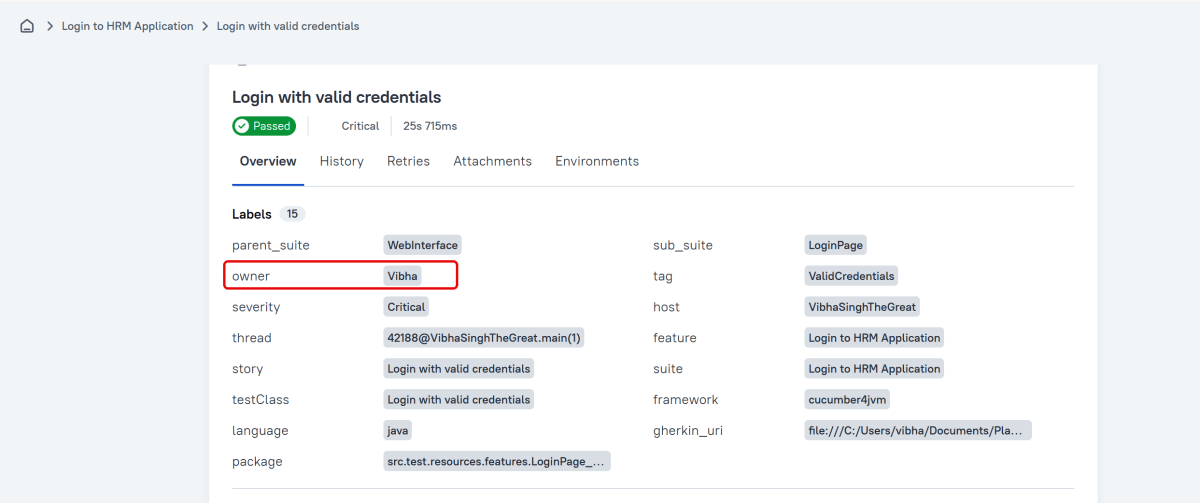
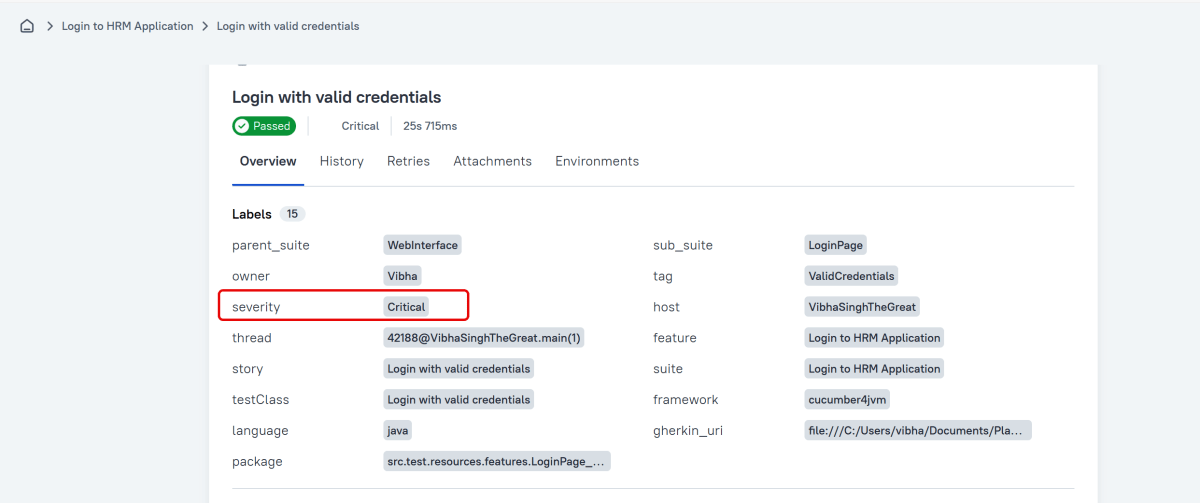
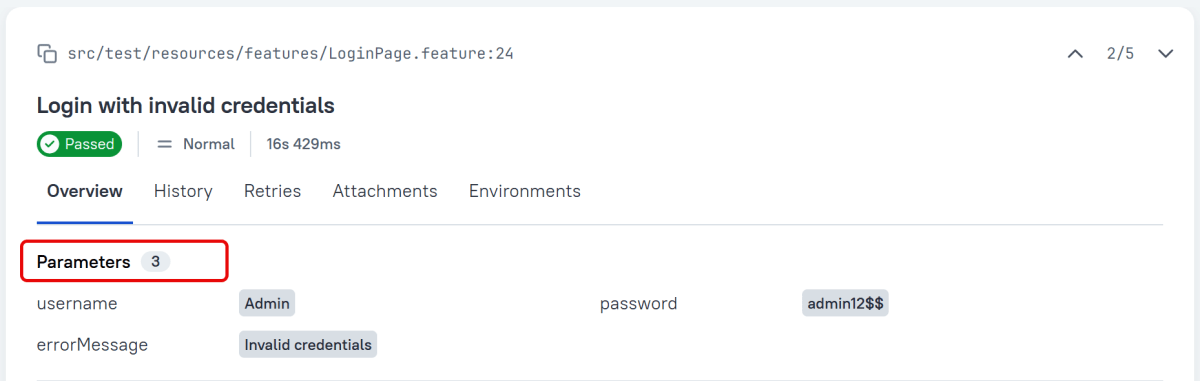
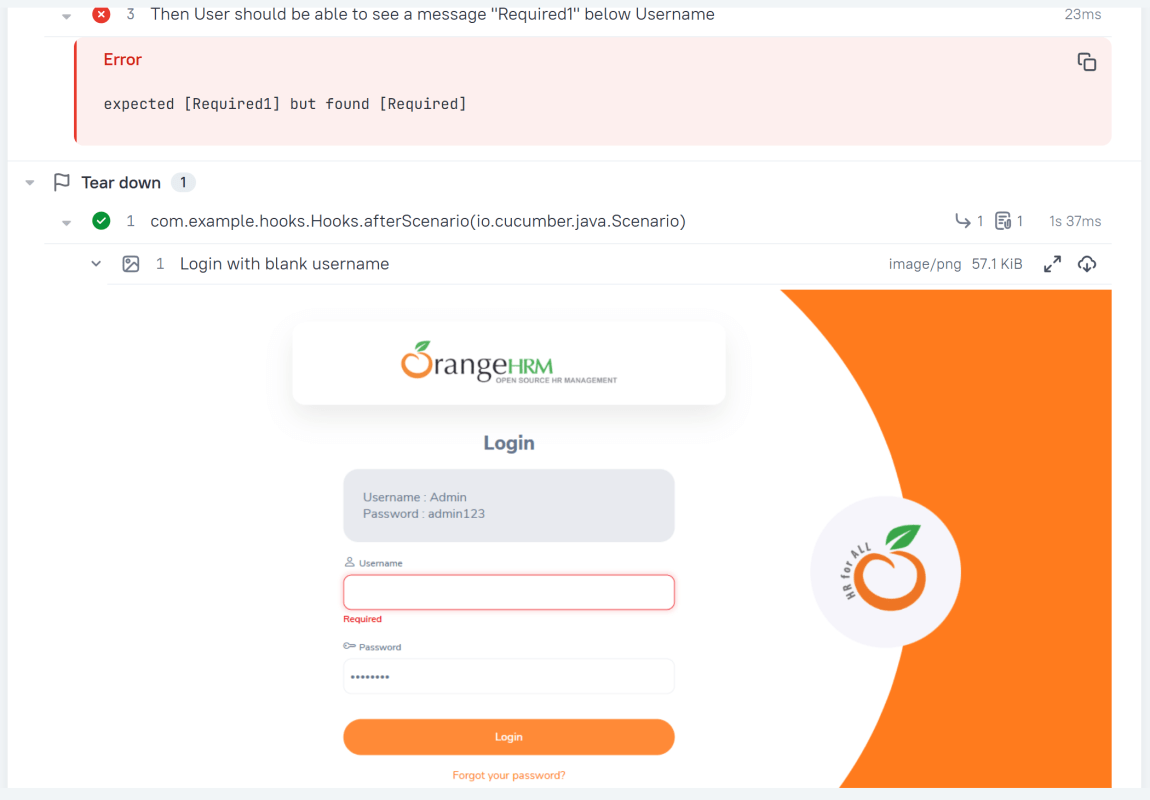
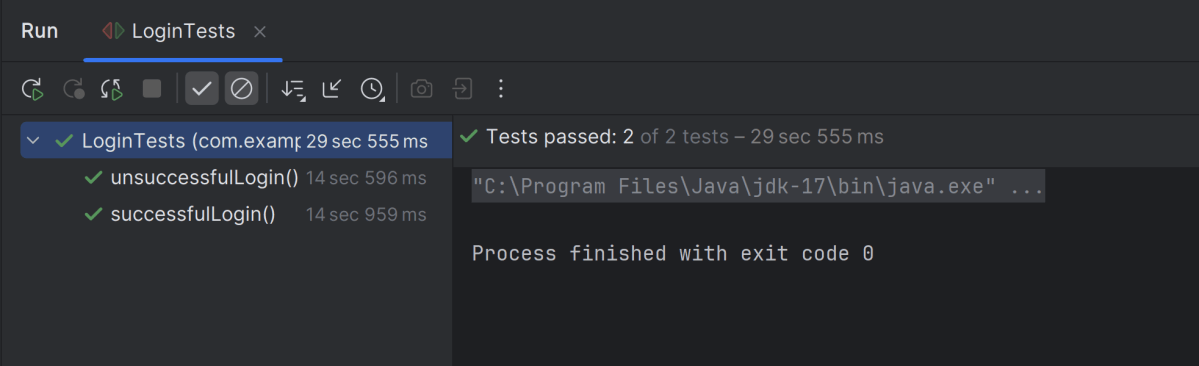
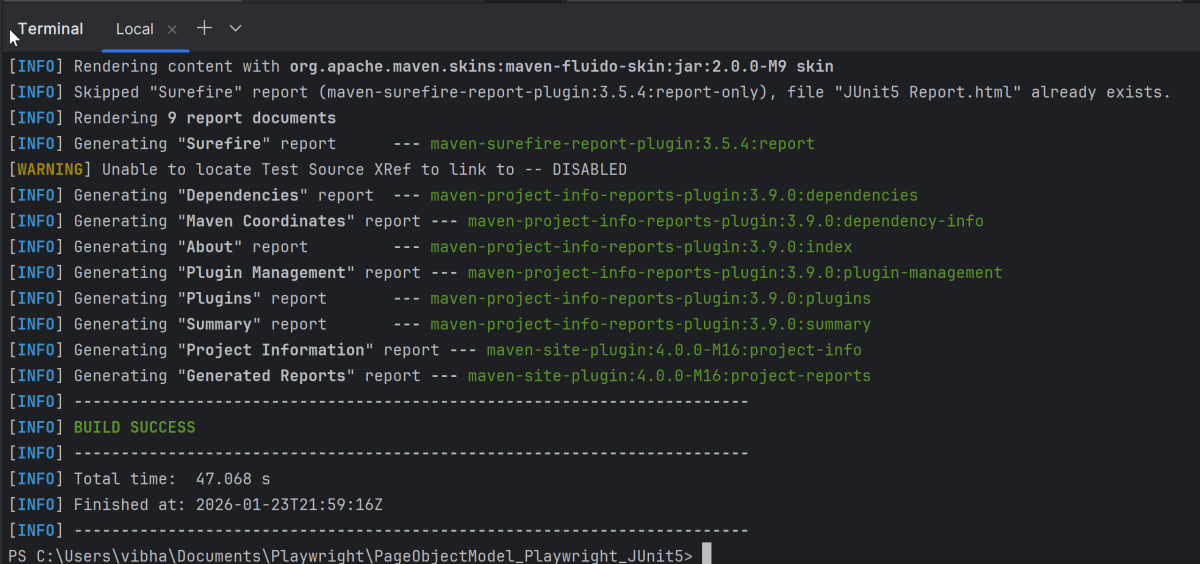
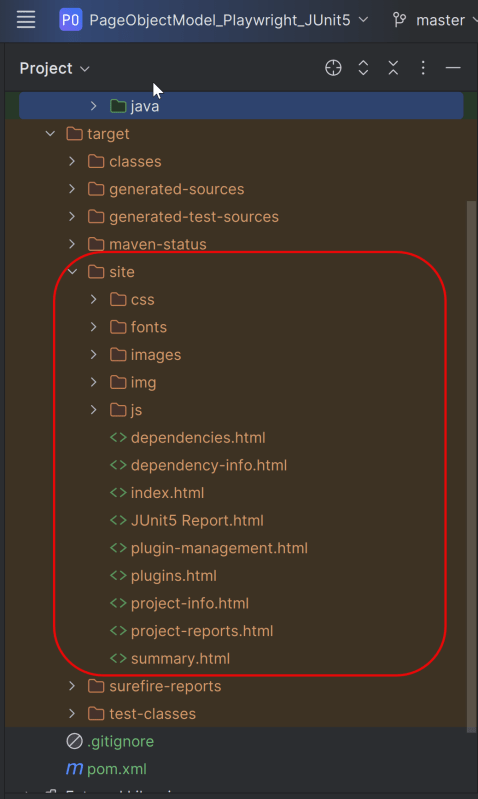
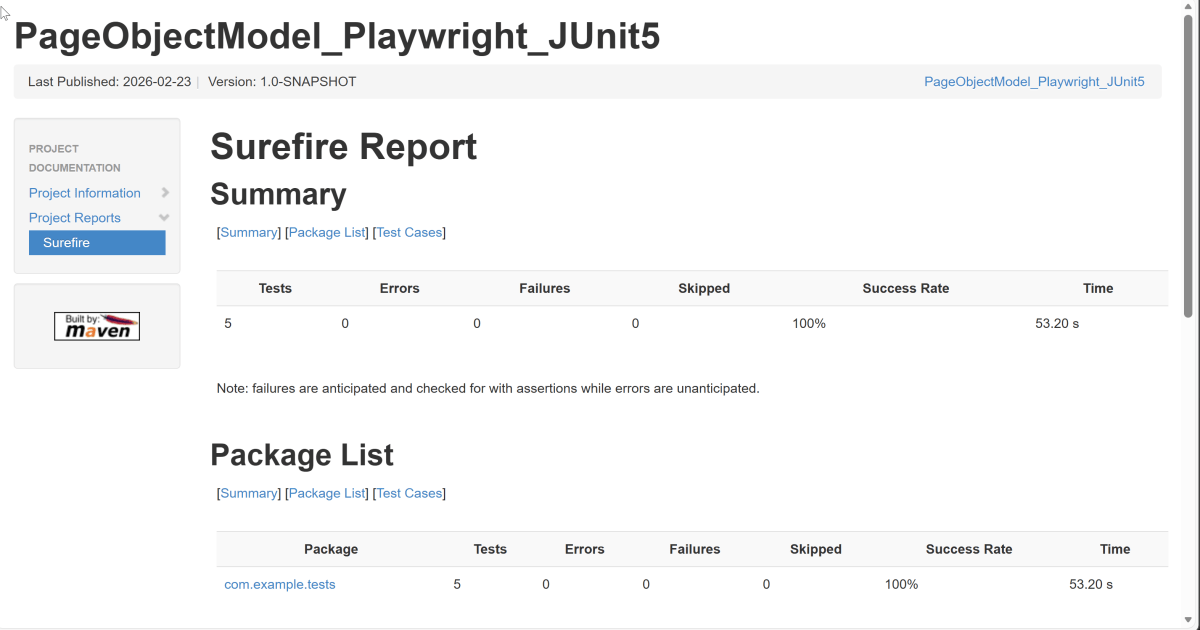
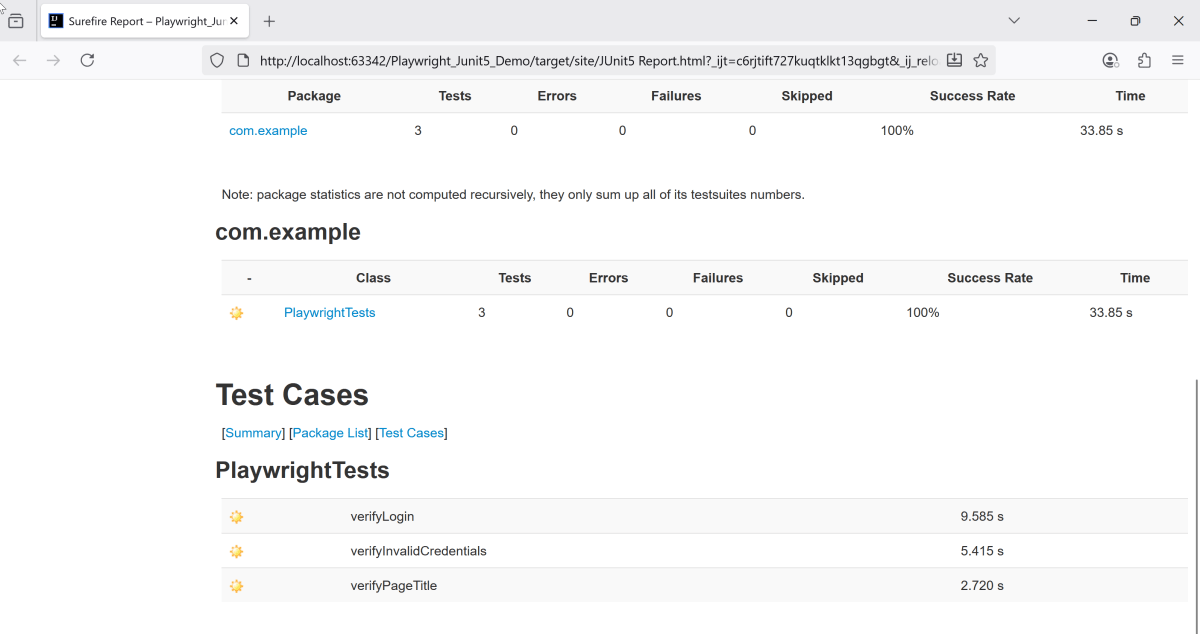
In this tutorial, will generate a ChainTest Report with Selenium and JUnit5. In the previous tutorial, I have explained the steps to generate ChainTest Report with Cucumber – ChainTest Report with Cucumber and TestNG.ChainTest Report is the replacement of Extent Report.
ChainTest is a complete reporting system, it supports a variety of sources, including email, static data, and real-time, historical analytics with ChainLP. The next-generation reporting framework ChainTest was developed for a number of test frameworks, such as Cucumber, JUnit, and TestNG.
package com.example;
import org.openqa.selenium.WebDriver;
import org.openqa.selenium.support.PageFactory;
public class BasePage {
public WebDriver driver;
public BasePage(WebDriver driver) {
this.driver = driver;
PageFactory.initElements(driver,this);
}
}
LoginPage
package com.example;
import org.openqa.selenium.WebDriver;
import org.openqa.selenium.WebElement;
import org.openqa.selenium.support.FindBy;
public class LoginPage extends BasePage {
public LoginPage(WebDriver driver) {
super(driver);
}
@FindBy(name = "username")
public WebElement userName;
@FindBy(name = "password")
public WebElement password;
@FindBy(xpath = "//*[@type='submit']")
public WebElement loginBtn;
@FindBy(xpath = "//*[@id='flash']")
public WebElement errorMessage;
public void login(String strUserName, String strPassword) {
userName.sendKeys(strUserName);
password.sendKeys(strPassword);
loginBtn.click();
}
public String getErrorMessage() {
return errorMessage.getText();
}
}
SecurePage
package com.example;
import org.openqa.selenium.WebDriver;
import org.openqa.selenium.WebElement;
import org.openqa.selenium.support.FindBy;
public class SecurePage extends BasePage {
public SecurePage(WebDriver driver) {
super(driver);
}
@FindBy(xpath = "//*[@id='flash']")
public WebElement securePageTitle;
public String getSecurePageTitle() {
return securePageTitle.getText();
}
}
Step3 – Annotate test class with @ExtendWith(ChainTestExecutionCallback.class)
BaseTests
package com.example;
import com.aventstack.chaintest.plugins.ChainTestExecutionCallback;
import org.junit.jupiter.api.extension.ExtendWith;
import org.junit.jupiter.api.extension.TestWatcher;
import org.openqa.selenium.WebDriver;
import org.openqa.selenium.chrome.ChromeDriver;
import org.openqa.selenium.chrome.ChromeOptions;
import org.junit.jupiter.api.AfterEach;
import org.junit.jupiter.api.BeforeEach;
import java.time.Duration;
@ExtendWith(ChainTestExecutionCallback.class)
public class BaseTests implements TestWatcher {
public static WebDriver driver;
public final static int TIMEOUT = 10;
@BeforeEach
public void setup() {
ChromeOptions options = new ChromeOptions();
options.addArguments("--remote-allow-origins=*");
options.addArguments("--no-sandbox");
options.addArguments("--disable-dev-shm-usage");
driver = new ChromeDriver(options);
driver.manage().window().maximize();
driver.get("https://the-internet.herokuapp.com/login");
driver.manage().timeouts().implicitlyWait(Duration.ofSeconds(TIMEOUT));
}
@AfterEach
void tearDown() {
driver.quit();
}
}
LoginPageTests
package com.example;
import org.junit.jupiter.api.Assertions;
import org.junit.jupiter.api.Test;
public class LoginPageTests extends BaseTests {
String actualLoginPageTitle;
String actualErrorMessage;
String actualSecurePageTitle;
@Test
public void verifyPageTitle() {
actualLoginPageTitle = driver.getTitle();
// Verify Page Title - Fail
Assertions.assertEquals("The Internet !!",actualLoginPageTitle);
}
@Test
public void invalidCredentials() {
LoginPage loginPage = new LoginPage(driver);
loginPage.login("tomsmith", "happy!");
actualErrorMessage = loginPage.getErrorMessage();
// Verify Error Message
Assertions.assertTrue(actualErrorMessage.contains("Your password is invalid!"));
}
@Test
public void validLogin() {
LoginPage loginPage = new LoginPage(driver);
loginPage.login("tomsmith", "SuperSecretPassword!");
SecurePage securePage = new SecurePage(driver);
actualSecurePageTitle = securePage.getSecurePageTitle();
// Verify Home Page
Assertions.assertTrue(actualSecurePageTitle.contains("You logged into a secure area!"));
}
}
Step 4 – Add chaintest.properties file in src/test/resources
Add chaintest.properties to the classpath, example: src/test/resources/chaintest.properties.
# chaintest configuration
chaintest.project.name= ChaninTest Report with Selenium and JUnit5
# storage
chaintest.storage.service.enabled=false
# [azure-blob, aws-s3]
chaintest.storage.service=azure-blob
# s3 bucket or azure container name
chaintest.storage.service.container-name=
# generators:
## chainlp
chaintest.generator.chainlp.enabled=true
chaintest.generator.chainlp.class-name=com.aventstack.chaintest.generator.ChainLPGenerator
chaintest.generator.chainlp.host.url=http://localhost/
chaintest.generator.chainlp.client.request-timeout-s=30
chaintest.generator.chainlp.client.expect-continue=false
chaintest.generator.chainlp.client.max-retries=3
## simple
chaintest.generator.simple.enabled=true
chaintest.generator.simple.document-title=chaintest
chaintest.generator.simple.class-name=com.aventstack.chaintest.generator.ChainTestSimpleGenerator
chaintest.generator.simple.output-file=target/chaintest/Index.html
chaintest.generator.simple.offline=false
chaintest.generator.simple.dark-theme=true
chaintest.generator.simple.datetime-format=yyyy-MM-dd hh:mm:ss a
chaintest.generator.simple.js=
chaintest.generator.simple.css=
## email
chaintest.generator.email.enabled=true
chaintest.generator.email.class-name=com.aventstack.chaintest.generator.ChainTestEmailGenerator
chaintest.generator.email.output-file=target/chaintest/Email.html
chaintest.generator.email.datetime-format=yyyy-MM-dd hh:mm:ss a
Step 5 – Run the tests
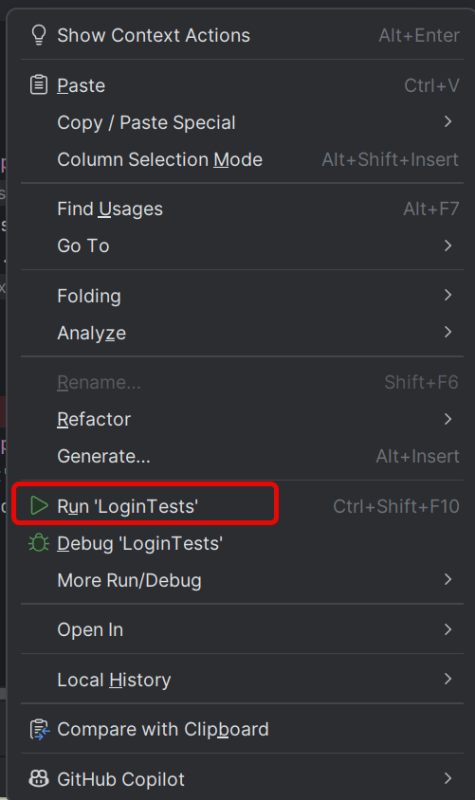
Right click on LoginPageTests and select Run ‘LoginPageTests’
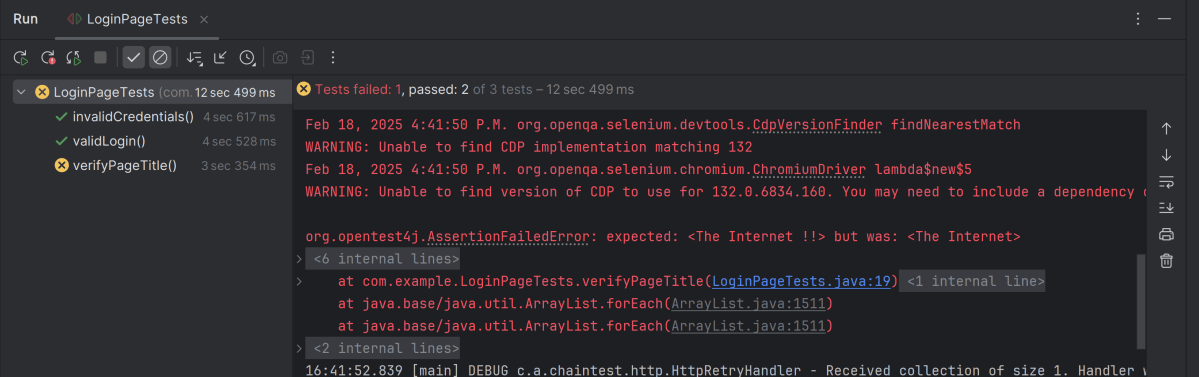
The execution status looks like as shown below. There are 3 tests and 1 test will fail.
Step 6 -View ChainTest Reports
ChainTest Reports are generated in target folder – Index.html and email.html.
Index.html
Right-click and open with Web Browser.
The index.html has a summary section that displays the summary of the execution. The summary includes the overview of the pass/fail using a pictogram, start time, end time, and pass/fail details of tests as shown in the image below.
Email.html
This report contains the high level summary of the test execution.
Step 7 – Run the tests through command line
To run the tests, use the below command
mvn clean test
We are done! Congratulations on making it through this tutorial and hope you found it useful! Happy Learning!!
The previous tutorial has shown the various parameterized tests in JUnit5. This tutorial shows how to run a Selenium test multiple times with a different set of data. This helps to reduce the duplication of code. This is a very common scenario in any testing. Imagine, we want to test the requirement for a login page that uses a username and password to log in to the application. Username and password must satisfy some conditions like username can be only alphabets and no numeric and special characters. There could be multiple sets of data that can be used to test this requirement.
Prerequisite:
Selenium – 4.21.0
Maven – 3.9.6
Java 17
JUnit Jupiter Engine – 5.11.0-M2
JUnit Jupiter API – 5.11.0-M2
JUnit5 provides a lot of ways to parameterize a test –@ValueSource, @EnumSource, @MethodSource, @CsvSource, @CsvFileSource, and @ArgumentsSource.
Let us see an example where the test is not parameterized. In the below example, we want to verify the different error messages generated by passing incorrect values to username and password.
This is the base class – Login which contains the test method that uses a different set of test data.
package com.example.parameterized;
import org.openqa.selenium.WebDriver;
import org.openqa.selenium.WebElement;
import org.openqa.selenium.support.FindBy;
import org.openqa.selenium.support.PageFactory;
public class LoginPage {
WebDriver driver ;
@FindBy(name="username")
WebElement username;
@FindBy(name="password")
WebElement password;
@FindBy(xpath="//*[@class='oxd-form']/div[3]/button")
WebElement loginButton;
@FindBy(xpath="//*[@class='orangehrm-login-error']/div[1]/div[1]/p")
WebElement actualErrorMessage;
public LoginPage(WebDriver driver) {
this.driver = driver;
// This initElements method will create all WebElements
PageFactory.initElements(driver, this);
}
public void setUserName(String strUserName) {
username.sendKeys(strUserName);
}
// Set password in password textbox
public void setPassword(String strPassword) {
password.sendKeys(strPassword);
}
// Click on login button
public void clickLogin() {
loginButton.click();
}
// Get the error message
public String getErrorMessage() {
return actualErrorMessage.getText();
}
public void login(String strUserName, String strPasword) {
// Fill user name
this.setUserName(strUserName);
// Fill password
this.setPassword(strPasword);
// Click Login button
this.clickLogin();
}
}
The below example shows 4 tests using a common test with 4 different sets of data.
There are multiple ways to parameterize the test. To start with:
Replace @Test annotation with @ParameterizedTest annotation provided by the JUnit5 framework.
Add parameters to the loginTest() method. In this example, we will add a username and a password parameter.
Add the parameters source. In this example, we will use the @CsvFileSource annotation.
To know all the different types of parameterization methods, please refer to this tutorial. This tutorial will show the 2 most common ways to parameterize tests in JUnit5.
1.@CsvSource
@CsvSource allows us to express argument lists as comma-separated values (i.e., CSV String literals). Each string provided via the value attribute in @CsvSource represents a CSV record and results in one invocation of the parameterized test. An empty, quoted value (”) results in an empty String. This can be seen in the below example.
@CsvFileSource lets us use comma-separated value (CSV) files from the classpath or the local file system.
We can see in the below example, that we have skipped the first line from the credentials.csv file as it is the heading of the file. invalidCredentials() method got 4 different set of the test data from CSV file using parameterization. JUnit5 ignores the headers via the numLinesToSkip attribute.
In this example, will retrieve the data from CSV. This CSV file is placed under src/test/resources. Below is the example of the credentials.csv file.
In @CsvFileSource, an empty, quoted value (“”) results in an empty String in JUnit5.
In JUnit5, JUnit Jupiter provides the ability to repeat a test a specified number of times by annotating a method with @RepeatedTest. We can specify the repetition frequency as a parameter to the @RepeatedTest annotation.
When do we use the Repeated Test?
Imagine, we are testing an online shopping website. In the process of placing an order, we need to pay for the product. But the payment gateway is a third-party service, and we cannot control the connectivity between our website and the payment gateway. We know that clicking on the ‘Payment’ link sometime shows “Exception: Page cannot be displayed”. This is an intermittent issue. So, we don’t want to fail the test if this payment link does not work. We can configure it to click this payment link multiple times, before marking the test case failed. Here comes the Repeated Test in the picture.
A few points to keep in mind for @RepeatedTest are as follows:
The methods annotated with @RepeatedTest cannot be static, otherwise, the test cannot be found.
The methods annotated with @RepeatedTest cannot be private, otherwise, the test cannot be found.
The return type of the method annotated with @RepeatedTest must be void only, otherwise, the test cannot be found.
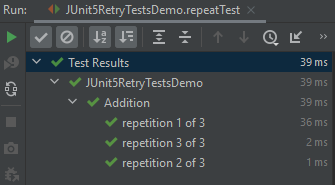
The below example will run the test 5 times.
@DisplayName("Addition")
@RepeatedTest(3)
void repeatTest(){
int a = 4;
int b = 6;
assertEquals(10, a+b,"Incorrect sum of numbers");
}
The output of the above test:
Each invocation of a repeated test behaves like the execution of a regular @Test method, with full support for the same lifecycle callbacks and extensions.
It means that @BeforeEach and @AfterEach annotated lifecycle methods will be invoked for each invocationof the test.
@BeforeEach annotation is used to signal that the annotated method should be executed before each invocation of the @Test, @RepeatedTest, @ParameterizedTest, or @TestFactory method in the current class. This is the replacement of the @Before Method in JUnit4.
TestInfois used to inject information about the current test or container into @Test, @RepeatedTest, @ParameterizedTest, @TestFactory, @BeforeEach, @AfterEach, @BeforeAll, and @AfterAll methods. If a method parameter is of type TestInfo, JUnit will supply an instance of TestInfo corresponding to the current test or container as the value for the parameter.
RepetitionInfois used to inject information about the current repetition of a repeated test into the @RepeatedTest, @BeforeEach, and @AfterEach methods. If a method parameter is of type RepetitionInfo, JUnit will supply an instance of RepetitionInfo corresponding to the current repeated test as the value for the parameter.
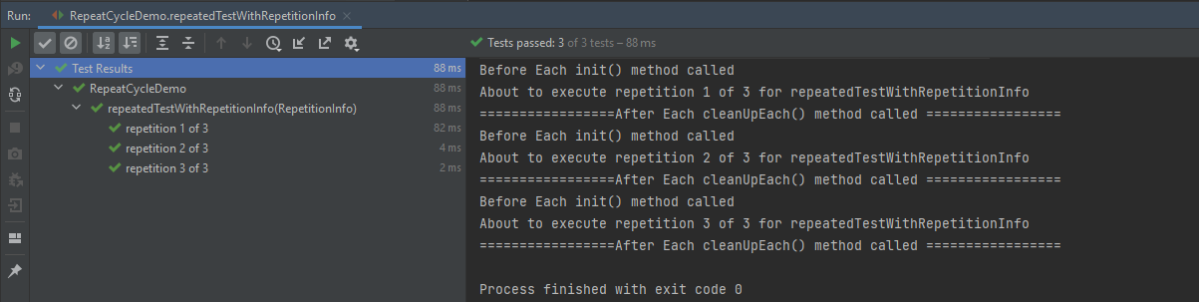
In the below example, @BeforeEach will get executed before each repetition of each repeated test. By having the TestInfo and RepetitionInfo injected into the method, we see that it’s possible to obtain information about the currently executing repeated test.
import org.junit.jupiter.api.*;
import static org.junit.jupiter.api.Assertions.*;
public class RepeatCycleDemo {
@BeforeEach
void init(TestInfo testInfo, RepetitionInfo repetitionInfo) {
System.out.println("Before Each init() method called");
int currentRepetition = repetitionInfo.getCurrentRepetition();
int totalRepetitions = repetitionInfo.getTotalRepetitions();
String methodName = testInfo.getTestMethod().get().getName();
System.out.println(String.format("About to execute repetition %d of %d for %s", currentRepetition, totalRepetitions, methodName));
}
@RepeatedTest(3)
void repeatedTestWithRepetitionInfo(RepetitionInfo repetitionInfo) {
int a = 4;
int b = 6;
assertEquals(10, a+b, repetitionInfo.getTotalRepetitions());
}
@AfterEach
public void cleanUpEach(){
System.out.println("=================After Each cleanUpEach() method called =================");
}
}
The output of the above test:
Custom Display Name
In addition to specifying the number of repetitions, a custom display name can be configured for each repetition via the name attribute of the @RepeatedTest annotation.
The display name can be a pattern composed of a combination of static text and dynamic placeholders. The following placeholders are currently supported.
{displayName}: display name of the @RepeatedTest method
{currentRepetition}: the current repetition count
{totalRepetitions}: the total number of repetitions
@BeforeEach
void init(TestInfo testInfo, RepetitionInfo repetitionInfo) {
System.out.println("Before Each init() method called");
int currentRepetition = repetitionInfo.getCurrentRepetition();
int totalRepetitions = repetitionInfo.getTotalRepetitions();
String methodName = testInfo.getTestMethod().get().getName();
System.out.println(String.format("About to execute repetition %d of %d for %s", //
currentRepetition, totalRepetitions, methodName));
}
//Custom Display
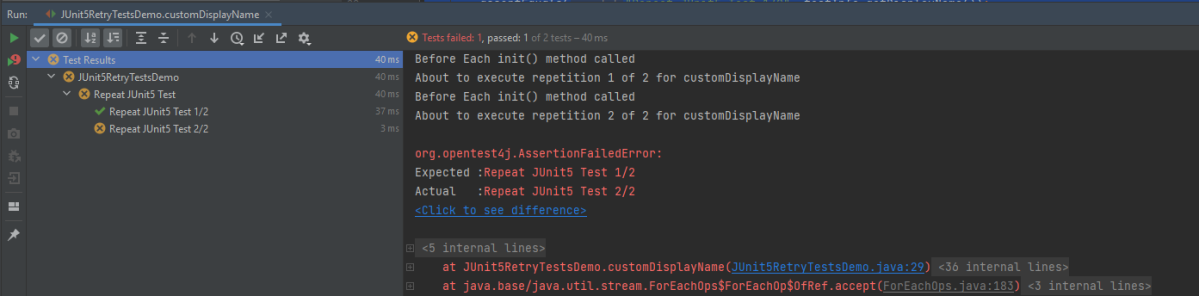
@RepeatedTest(value = 2, name = "{displayName} {currentRepetition}/{totalRepetitions}")
@DisplayName("Repeat JUnit5 Test")
void customDisplayName(TestInfo testInfo) {
assertEquals("Repeat JUnit5 Test 1/2", testInfo.getDisplayName());
}
The output of the above test:
The default display name for a given repetition is generated based on the following pattern: “repetition {currentRepetition} of {totalRepetitions}”. Thus, the display names for individual repetitions of the previous repeatedTest() example would be repetition 1 of 10, and repetition 2 of 10.
We can use one of two predefined formats for displaying the name – LONG_DISPLAY_NAME and SHORT_DISPLAY_NAME. The latter is the default format if none is specified.
RepeatedTest.LONG_DISPLAY_NAME – {displayName} :: repetition {currentRepetition} of {totalRepetitions}
RepeatedTest.SHORT_DISPLAY_NAME – repetition {currentRepetition} of {totalRepetitions}
In this case, the name is displayed as Multiplication repetition 1 of 3, repetition 2 of 3, and soon.
The output of the above test:
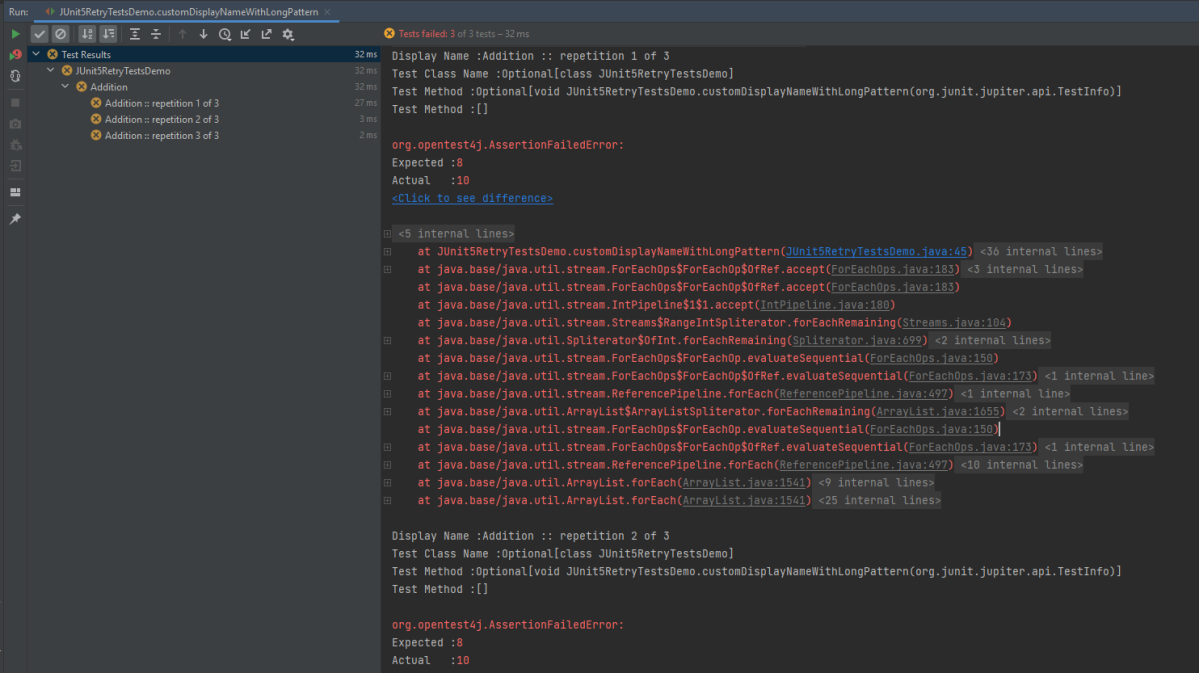
Below is an example of LONG_DISPLAY_NAME
@RepeatedTest(value = 3, name = RepeatedTest.LONG_DISPLAY_NAME)
@DisplayName("Addition")
void customDisplayNameWithLongPattern(TestInfo testInfo) {
System.out.println("Display Name :"+ testInfo.getDisplayName());
System.out.println("Test Class Name :"+ testInfo.getTestClass());
System.out.println("Test Method :"+ testInfo.getTestMethod());
assertEquals(8, 3+7);
}
The output of the above test:
As we can see in the example, we have used @DisplayName(“Addition”), but as it is name = RepeatedTest.LONG_DISPLAY_NAME, so the name of the tests are now Addition :: repetition 1 of 3, Addition :: repetition 2 of 3 and soon.
Congratulations. We are able to execute the tests multiple times by using the @RepeatedTest annotation. Happy Learning!!
JUnit5 also provides the support to exclude/disable the tests. The @Disabledannotation in JUnit5 is used to exclude the test methods from the test suite. This annotation can be applied over a test class as well as over individual test methods. This annotation accepts only one optional parameter where we can mention the reason to skip the tests. @Disabled annotation can be used without providing any reason but its always good to provide a reason why this particular test case has been disabled, or issue tracker id for better understanding.
1.Disable Test Methods
In the below example, I have annotated 2 test methods out of 5 test methods as @Disabled with a parameter which specify the reason for disabling the test that means these 2 test methods should not be executed.
import org.junit.jupiter.api.AfterEach;
import org.junit.jupiter.api.BeforeEach;
import org.junit.jupiter.api.Disabled;
import org.junit.jupiter.api.Test;
import org.openqa.selenium.By;
import org.openqa.selenium.WebDriver;
import org.openqa.selenium.chrome.ChromeDriver;
import org.openqa.selenium.chrome.ChromeOptions;
import static org.junit.jupiter.api.Assertions.assertEquals;
import static org.junit.jupiter.api.Assertions.assertTrue;
public class DisabledTestsDemo {
WebDriver driver;
@BeforeEach
public void setUp() {
ChromeOptions chromeOptions = new ChromeOptions();
chromeOptions.addArguments("--start-maximized");
driver = new ChromeDriver(chromeOptions);
driver.get("https://duckduckgo.com/");
}
@Disabled("This test is blocked till bug 1290 is fixed")
@Test
void verifyBrowserText() {
boolean displayed = driver.findElement(By.xpath("//section[@class='homepage-cta-section_ctaSection__o_ioD']/h2")).isDisplayed();
assertTrue(displayed);
}
@Test
void verifyPageTitle() {
String pageTitle = driver.getTitle();
assertEquals("DuckDuckGo — Privacy, simplified.", pageTitle);
}
@Test
void verifyDownloadBrowserButton() {
boolean downloadBrowserBtn = driver.findElement(By.xpath("//*[@id=\"features\"]/div[1]/section[1]/div/div[1]/div[1]/div[2]/div[1]/a/span")).isDisplayed();
assertTrue(downloadBrowserBtn);
}
@Test
void displaySearchBox() {
boolean searchBoxDisplayed = driver.findElement(By.xpath("//*[@id=\"searchbox_input\"]")).isEnabled();
assertTrue(searchBoxDisplayed);
}
@Disabled("This test is not applicable for Sprint 14")
@Test
void verifyDefaultSearchButtonText() {
String defaultSearchBtnText = driver.findElement(By.xpath("//*[@id=\"features\"]/div[1]/section[1]/div/div[1]/div[1]/div[2]/div[1]/h2")).getText();
assertEquals("Free. Fast. Private. Get our browser on all your devices.",(defaultSearchBtnText));
}
@AfterEach
public void tearDown() {
driver.close();
}
}
The output of the above test shows, the 2 tests that are annotated with @Disabled are not executed.
2. Disable Test Class
When we annotate a class as @Disabled, then all the test methods present within that test class will not be executed.
In the below example, there are 2 test classes – Demo and DisabledTestsDemo. Demo class contains 1 test method whereas DisabledTestsDemo contains 5 test methods. I have annotated DisabledTestsDemo class as @Disabled which means all 5 tests present within it will not be executed.
In the below example, there is a base class that contains the initialization of webDriver as well as closing of the same.
import org.junit.jupiter.api.AfterEach;
import org.junit.jupiter.api.BeforeEach;
import org.openqa.selenium.WebDriver;
import org.openqa.selenium.chrome.ChromeDriver;
import org.openqa.selenium.chrome.ChromeOptions;
public class Base {
static WebDriver driver=null;
@BeforeEach
public void setUp() {
ChromeOptions chromeOptions = new ChromeOptions();
chromeOptions.addArguments("--start-maximized");
driver = new ChromeDriver(chromeOptions);
driver.get("https://duckduckgo.com/");
}
@AfterEach
public void tearDown() {
driver.close();
}
}
Class 1 – Demo
import org.junit.jupiter.api.Test;
import static org.junit.jupiter.api.Assertions.assertEquals;
public class NonDisabledClass extends Base {
@Test
void verifyPageTitle() {
String pageTitle = driver.getTitle();
assertEquals("DuckDuckGo — Privacy, simplified.", pageTitle);
}
}
Class 2 – DisabledTestsDemo
import org.junit.jupiter.api.Disabled;
import org.junit.jupiter.api.Test;
import org.openqa.selenium.By;
import static org.junit.jupiter.api.Assertions.assertEquals;
import static org.junit.jupiter.api.Assertions.assertTrue;
@Disabled
public class DisabledClassDemo extends Base {
@Test
void verifyBrowserText() {
boolean displayed = driver.findElement(By.xpath("//section[@class='homepage-cta-section_ctaSection__o_ioD']/h2")).isDisplayed();
assertTrue(displayed);
}
@Test
void verifyDownloadBrowserButton() {
boolean downloadBrowserBtn = driver.findElement(By.xpath("//*[@id=\"features\"]/div[1]/section[1]/div/div[1]/div[1]/div[2]/div[1]/a/span")).isDisplayed();
assertTrue(downloadBrowserBtn);
}
@Test
void displaySearchBox() {
boolean searchBoxDisplayed = driver.findElement(By.xpath("//*[@id=\"searchbox_input\"]")).isEnabled();
assertTrue(searchBoxDisplayed);
}
@Test
void verifyDefaultSearchButtonText() {
String defaultSearchBtnText = driver.findElement(By.xpath("//*[@id=\"features\"]/div[1]/section[1]/div/div[1]/div[1]/div[2]/div[1]/h2")).getText();
assertEquals("Free. Fast. Private. Get our browser on all your devices.",(defaultSearchBtnText));
}
}
The output of the above test shows, all the test methods present in the class that is annotated with @Disabled are not executed.
Below is the execution status.
Congratulations. We are able to understand the usage of @Disabled annotation in JUnit5. Happy Learning!!
Step 4 – Create the Test Class sunder src/test/java folder
ApplicationLoginJUnit5Tests.java
import com.example.steps.StepDashboardPage;
import com.example.steps.StepForgetPasswordPage;
import com.example.steps.StepLoginPage;
import net.serenitybdd.annotations.Steps;
import net.serenitybdd.annotations.Title;
import net.serenitybdd.core.Serenity;
import net.serenitybdd.junit5.SerenityJUnit5Extension;
import org.junit.jupiter.api.Test;
import org.junit.jupiter.api.extension.ExtendWith;
import static org.assertj.core.api.Assertions.assertThat;
@ExtendWith(SerenityJUnit5Extension.class)
public class ApplicationLoginTests {
@Steps
NavigateActions navigate;
@Steps
StepLoginPage loginPage;
@Steps
StepDashboardPage dashboardPage;
@Steps
StepForgetPasswordPage forgetPasswordPage;
@Test
@Title("Login to application with valid credentials navigates to DashBoard page")
public void successfulLogin() {
navigate.toTheHomePage();
// When
loginPage.inputUserName("Admin");
loginPage.inputPassword("admin123");
loginPage.clickLogin();
// Then
Serenity.reportThat("Passing valid credentials navigates to DashBoard page",
() -> assertThat(dashboardPage.getHeading()).isEqualToIgnoringCase("Dashboard"));
}
@Test
@Title("Login to application with invalid credential generates error message")
void unsuccessfulLogin() {
navigate.toTheHomePage();
// When
loginPage.inputUserName("Admin");
loginPage.inputPassword("admin1232");
loginPage.clickLogin();
// Then
Serenity.reportThat("Passing invalid credentials generates error message",
() -> assertThat(loginPage.loginPageErrorMessage()).isEqualToIgnoringCase("Invalid credentials"));
}
@Test
@Title("Verify Forgot your password link")
void clickForgetPasswordLink() {
// Given
navigate.toTheHomePage();
// When
loginPage.clickForgetPasswordLink();
// Then
Serenity.reportThat("Open Forget Password Page after clicking forget password link",
() -> assertThat(forgetPasswordPage.getHeadingForgetPasswordPage())
.isEqualToIgnoringCase("Reset Password"));
}
}
To run a JUnit5 test with Serenity BDD, simply add the annotation@net.serenitybdd.junit5.SerenityTest (instead of @org.junit.runner.RunWith(net.serenitybdd.junit.runners.SerenityRunner.class) for JUnit4.
@ExtendWith(SerenityJUnit5Extension.class)
@Testis imported from package:-
import org.junit.jupiter.api.Test;
StepDashboardPage
import net.serenitybdd.annotations.Step;
import net.serenitybdd.core.pages.PageObject;
import net.serenitybdd.core.pages.WebElementFacade;
import org.openqa.selenium.support.FindBy;
public class StepDashboardPage extends PageObject {
@FindBy(xpath = "//*[@class='oxd-topbar-header-breadcrumb']/h6")
WebElementFacade dashboardPageTitle;
@Step("Heading of DashBoard Page")
public String getHeading() {
return dashboardPageTitle.getText();
}
}
The WebElementFacade class contains a convenient fluent API for dealing with web elements, providing some commonly-used extra features that are not provided out-of-the-box by the WebDriver API. WebElementFacades are largely interchangeable with WebElements: you just declare a variable of type WebElementFacade instead of type WebElement
The @Steps annotation marks a Serenity step library. Create the test following the Given/When/Then pattern and using step methods from the step library. The @Title annotation lets you provide your own title for this test in the test reports. Serenity @Title is considered for the Serenity report. Consistently with Junit4, the @Title annotation does not influence the name in the Junit report.
The JUnit Serenity integration provides some special support for Serenity Page Objects. In particular, Serenity will automatically instantiate any PageObjectfields in your JUnit test.
Junit5 @Disabled annotation can be used on test and step methods(same as @Ignore in JUnit4).
NavigateAction
import net.serenitybdd.annotations.Step;
import net.serenitybdd.core.steps.UIInteractionSteps;
public class NavigateAction extends UIInteractionSteps {
@Step
public void toTheHomePage() {
openPageNamed("loginForm");
}
}
Step 5 – Create serenity.conf file under src/test/resources
serenity.conf file is used to specify various features like the type of web driver used, various test environments, run tests in headless mode, and many more options.
Spring Boot makes it easy to create stand-alone, production-grade Spring based Applications that you can “just run”. We take an opinionated view of the Spring platform and third-party libraries, so you can get started with minimum fuss. Most Spring Boot applications need minimal Spring configuration.
Gradle is an open-source build automation tool that is designed to be flexible enough to build almost any type of software. Gradle runs on the JVM and you must have a Java Development Kit (JDK) installed to use it. Several major IDEs allow you to import Gradle builds and interact with them: Android Studio, IntelliJ IDEA, Eclipse, and NetBeans.
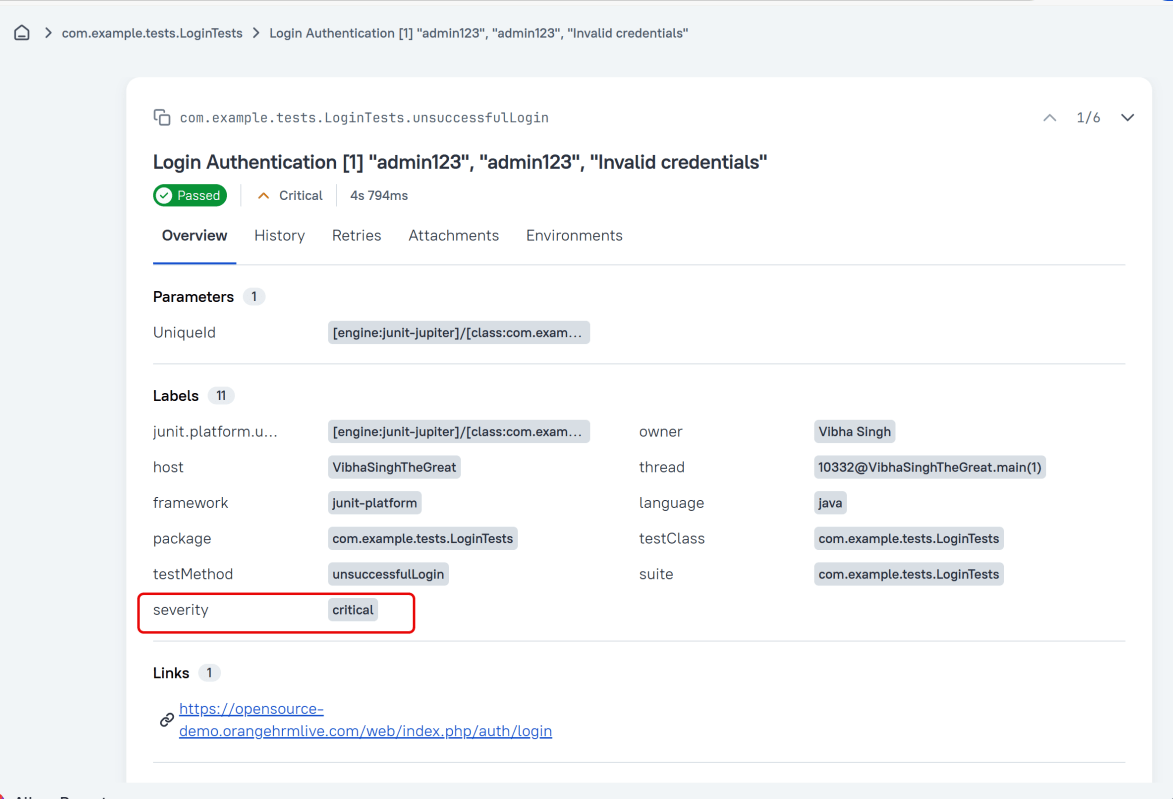
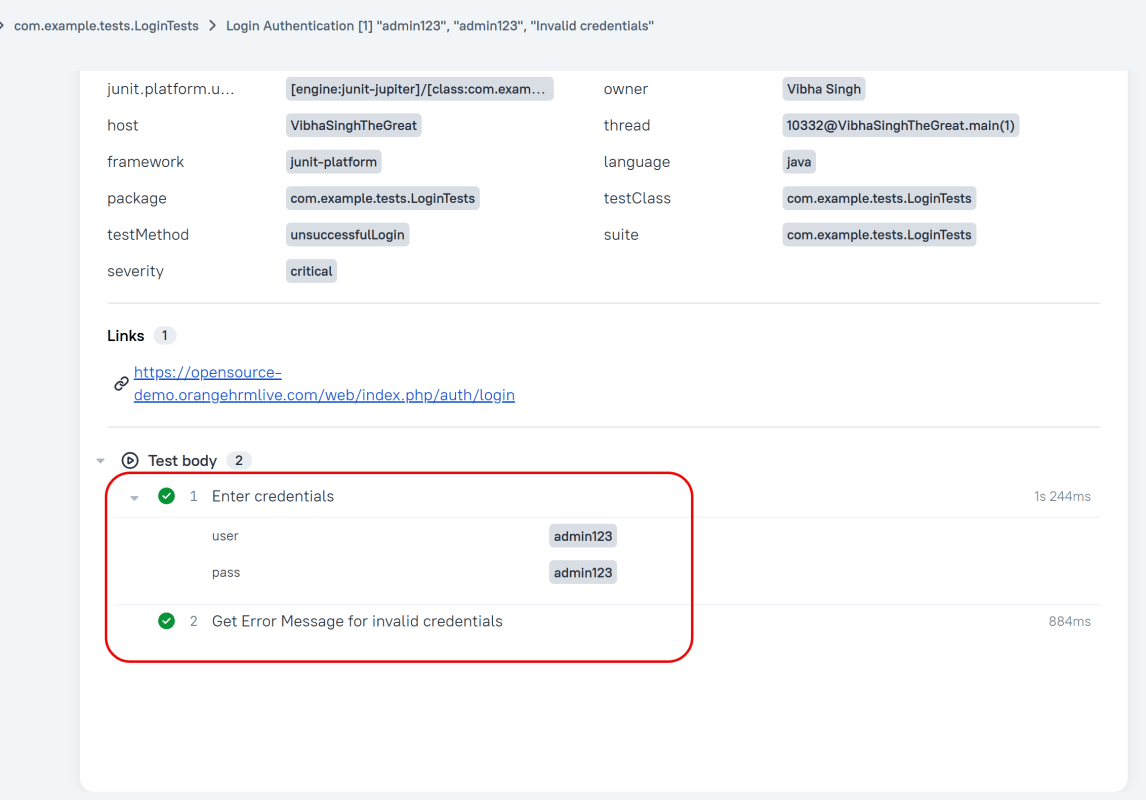
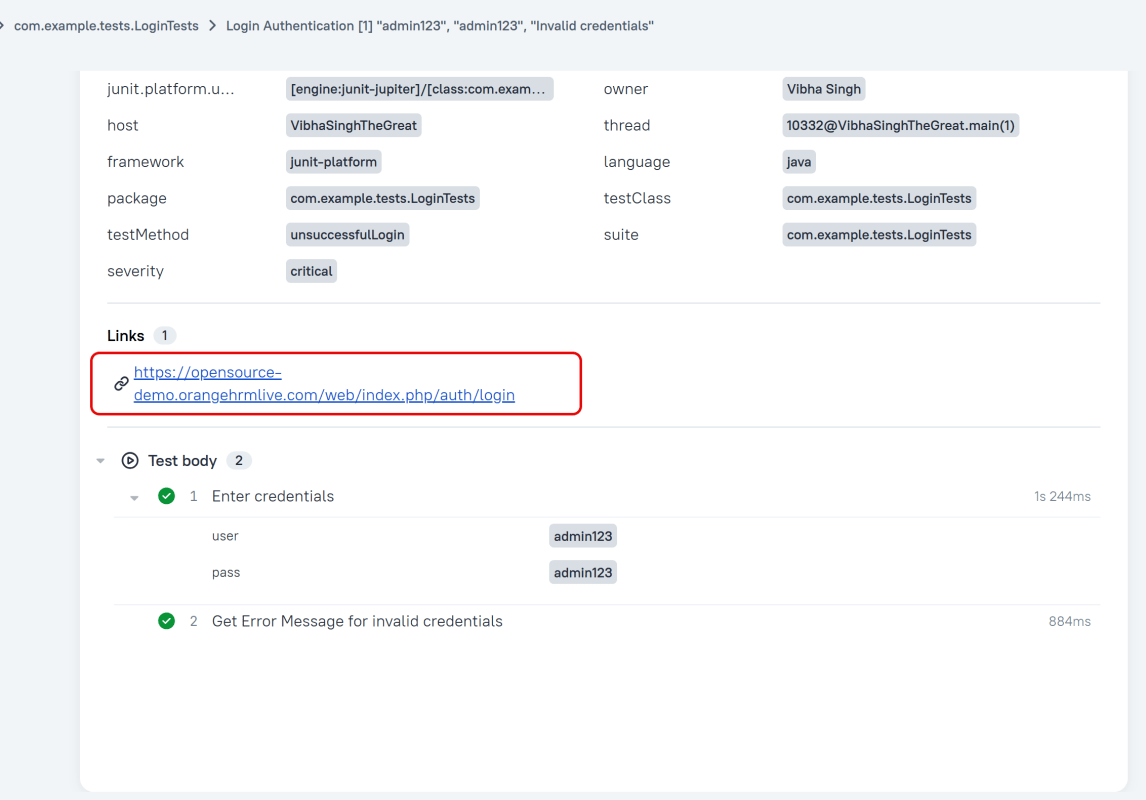
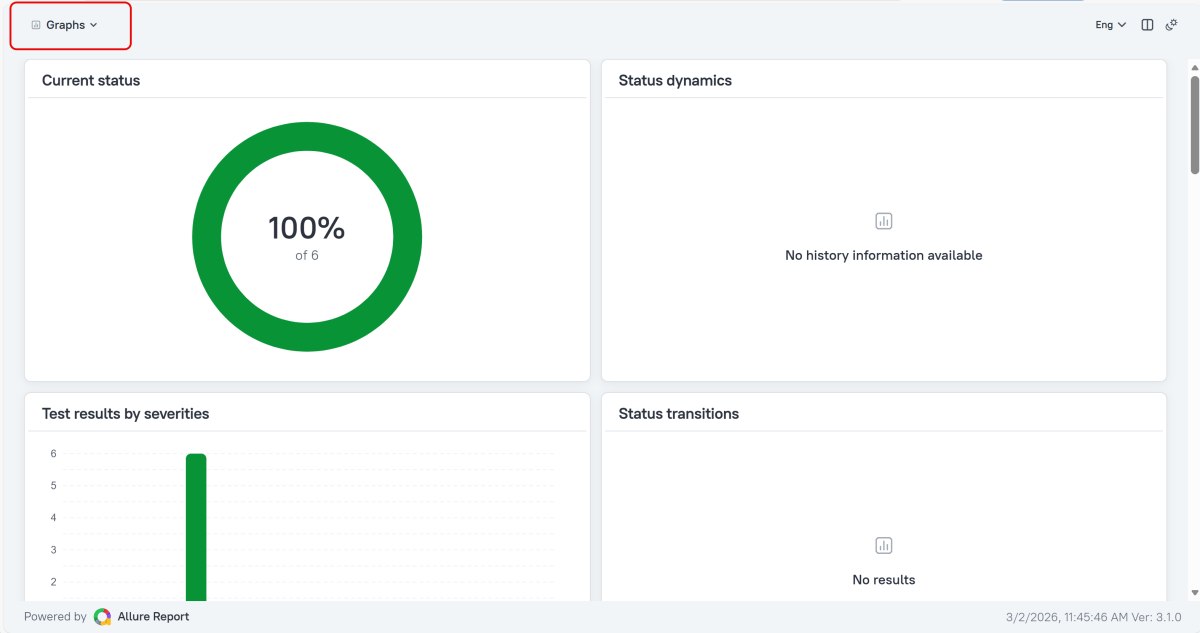
Allure Framework is a lightweight, flexible multi-language test report tool that not only displays a very concise representation of what has been tested in a neat web report form, but also allows everyone involved in the development process to extract the most useful information from everyday test execution.
JUnit 4 has everything bundled into a single jar file whereas JUnit 5 is composed of 3 sub-projects i.e. JUnit Platform, JUnit Jupiter, and JUnit Vintage.
JUnit Platform: It defines the TestEngine API for developing new testing frameworks that run on the platform. JUnit Jupiter: It has all new JUnit annotations and TestEngine implementation to run tests written with these annotations. JUnit Vintage: To support running JUnit 3 and JUnit 4 written tests on the JUnit 5 platform.
JUnit 5 uses the org.JUnit package for its annotations and classes whereas JUnit 5 uses the new org.JUnit.jupiter package for its annotations and classes. For example, org.JUnit.Test becomes org.JUnit.jupiter.api.Test. @Before annotation of JUnit4 is renamed to @BeforeEach in JUnit5 @After annotation of JUnit4 is renamed to @AfterEach in JUnit5 @BeforeClass annotation of JUnit4 is renamed to @BeforeAll in JUnit5 @AfterClass annotation of JUnit4 is renamed to @AfterAll in JUnit5
4. Assertions
JUnit 5 assertions are now in org.JUnit.jupiter.api.Assertions whereas JUnit4 assertions are in org.JUnit.Assert. Most of the common assertions, like assertEquals() and assertNotNull() look the same as before, but there are a few key differences:
The error message is now the last argument, for example, assertEquals(“my message”, 1, 2) would be assertEquals(1, 2, “my message”)
Most assertions now accept a lambda that constructs the error message, which is only called when the assertion fails.
Below is an example of the same.
@Test
void nullNegative() {
String str = "Summer";
Assertions.assertNull(str, () -> "The string should be null");
}
The output of the above program is
assertTimeout() and assertTimeoutPreemptively() have replaced the @Timeout annotation (note that there is a @Timeout annotation in JUnit 5, but it works differently than JUnit 4).
There are several new assertions in JUnit5- assertAll(), assertIterableEquals(), assertLinesMatch(), assertThrows() and assertDoesNotThrow(). To know more about assertions in JUnit5, please refer to this tutorial – JUnit5 Assertions Example
5. Assumptions
In Junit 4, org.junit.Assume contains methods for stating assumptions about the conditions in which a test is meaningful. It has the following five methods:
assumeFalse()
assumeNoException()
assumeNotNull()
assumeThat()
assumeTrue()
JUnit5 has the following three methods:
assumeFalse()
assumingThat()
assumeTrue()
Below is an example of assumeThat() annotation in JUnit5.
@Test
void assumingThatTest() {
System.setProperty("ENV", "UAT");
assumingThat(
"UAT".equals(System.getProperty("ENV")),
() -> {
// Since the condition is true, this assertion will get executed
System.out.println("Assuming that executable executed");
assertEquals((num1+num2),num4,"The product of "+ num1 +" and "+ num2 +" is not equal to "+num4);
});
System.out.println("Loop outside");
assertEquals((num5-num2),num6,"The difference of "+ num5 +" and "+num2+" is not equal to " + num6);
}
The output of the above program is
6. Conditional Test Execution
In JUnit4, @Ignore is used to skip the execution of a test whereas @Disabled or one of the other built-in execution conditions is used to skip the execution of the test in JUnit5. To know more about skipping the tests in JUnit5, please refer to this tutorial – How to disable tests in JUnit5 – @Disabled.
Below is an example of @Disabled in JUnit5.
import io.github.bonigarcia.wdm.WebDriverManager;
import org.junit.jupiter.api.*;
import org.openqa.selenium.By;
import org.openqa.selenium.WebDriver;
import org.openqa.selenium.WebElement;
import org.openqa.selenium.chrome.ChromeDriver;
import org.openqa.selenium.chrome.ChromeOptions;
import static org.junit.jupiter.api.Assertions.*;
class DisabledTestsDemo {
WebDriver driver;
@BeforeEach
public void setUp() {
WebDriverManager.chromedriver().setup();
ChromeOptions chromeOptions = new ChromeOptions();
driver = new ChromeDriver(chromeOptions);
driver.manage().window().fullscreen();
driver.get("http://automationpractice.com/index.php");
}
@Disabled("This test is not applicable for Sprint 14")
@Test
void verifyPopularLink() {
boolean displayed = driver.findElement(By.xpath("//*[@id='home-page-tabs']/li[1]/a")).isDisplayed();
assertTrue(displayed);
}
@Test
void verifyContactNumber() {
String contactDetail = driver.findElement(By.xpath("//span[@class='shop-phone']/strong")).getText();
assertEquals("0123-456-789", contactDetail);
}
@Disabled("This test is blocked till bug 1290 is fixed")
@Test
void verifyWomenLink() {
boolean enabled = driver.findElement(By.xpath("//*[@id='block_top_menu']/ul/li[1]/a")).isEnabled();
assertTrue(enabled);
}
@AfterEach
public void tearDown() {
driver.close();
}
}
The output of the above program is
JUnit 5 provides the ExecutionCondition extension API to enable or disable a test or container (test class) conditionally. This is like using @Disabled on a test but it can define custom conditions. There are multiple built-in conditions, such as:
@EnabledOnOs and @DisabledOnOs: Enables a test only on specified operating systems.
@EnabledOnJre and @DisabledOnJre: Specifies the test should be enabled or disabled for specific versions of Java.
@EnabledIfSystemProperty: Enables a test based on the value of a JVM system property.
@EnabledIf: Uses scripted logic to enable a test if scripted conditions are met.
7. Extending JUnit
@RunWith no longer exists; superseded by @ExtendWith in JUnit5.
In JUnit 4, customizing the framework generally meant using a @RunWith annotation to specify a custom runner. Using multiple runners was problematic, and usually required chaining or using a @Rule. This has been simplified and improved in JUnit 5 using extensions.
import net.serenitybdd.core.Serenity;
import net.serenitybdd.junit5.SerenityJUnit5Extension;
import net.thucydides.core.annotations.Managed;
import net.thucydides.core.annotations.Steps;
import net.thucydides.core.annotations.Title;
import org.junit.jupiter.api.Test;
import org.junit.jupiter.api.extension.ExtendWith;
import org.openqa.selenium.WebDriver;
import static org.assertj.core.api.Assertions.assertThat;
@ExtendWith(SerenityJUnit5Extension.class)
class ApplicationLoginJUnit5Tests {
@Managed
WebDriver driver;
@Steps
NavigateAction navigateAction;
@Steps
StepLoginPage loginPage;
@Test
@Title("Login to application with valid credentials navigates to DashBoard page")
void successfulLogin() {
navigateAction.toTheHomePage();
// When
loginPage.inputUserName("Admin");
loginPage.inputPassword("admin123");
loginPage.clickLogin();
// Then
Serenity.reportThat("Passing valid credentials navigates to DashBoard page",
() -> assertThat(dashboardPage.getHeading()).isEqualToIgnoringCase("DashBoard"));
}
}
8. Non-public Test Methods are Allowed
JUnit 5 test classes and test methods are not required to be public. We can now make them package protected. JUnit internally uses reflection to find test classes and test methods. Reflection can discover them even if they have limited visibility, so there is no need for them to be public.
9. Repeat Tests
JUnit Jupiter provides the ability to repeat a test a specified number of times by annotating a method with @RepeatedTest and specifying the total number of repetitions desired. To know more about RepestedTest, please refer to this tutorial – How to Retry Test in JUnit5 – @RepeatedTest
Test parameterization existed in JUnit 4 with built-in libraries like JUnit4Parameterized or third-party libraries like JUnitParams. In JUnit 5, parameterized tests are completely built-in and adopt some of the best features from JUnit4Parameterized and JUnitParams. To know more about the parameterized tests in JUnit5, please refer to this tutorial – How to parameterized Tests in JUnit5.
Below is an example of parameterized Test in JUnit5.
public class CSVParameterizedTest {
@ParameterizedTest
@CsvSource({
"java, 4",
"javascript, 7",
"python, 6",
"HTML, 4",
})
void test(String str, int length) {
assertEquals(length, str.length());
}
}
The output of the above program is
Congratulations. We have gone through the differences between JUnit4 and JUnit5. Happy Learning!!
In the previous tutorial, I explained theSerenity BDD with Cucumber for Web Application using Junit4. In this tutorial, I will explain the same Test Framework using Serenity, Cucumber, and JUnit5. This tutorial gives a clear picture of the initial setup of a BDD Framework.
The JUnit Platform serves as a foundation for launching testing frameworks on the JVM. It also defines the TestEngine API for developing a testing framework that runs on the platform.
JUnit Jupiter is the combination of the new programming model and extension model for writing tests and extensions in JUnit 5. The Jupiter sub-project provides a TestEngine for running Jupiter based tests on the platform.
JUnit Vintage provides a TestEngine for running JUnit 3 and JUnit 4 based tests on the platform. It requires JUnit 4.12 or later to be present on the class/module path.
JUnit5 is not completely integrated with Serenity with Cucumber. So, it is advisable to usejupiter-vintage-engine for the Cucumber TestRunner classes.
Step 2 – Download and setup Eclipse IDE on the system
The Eclipse IDE (integrated development environment) provides strong support for Java developers which is needed to write Java code. Click here to know How to install Eclipse.
Step 3 – Setup Maven and create a new Maven Project
Step 8 – Create a feature file under src/test/resources
The purpose of the Feature keyword is to provide a high-level description of a software feature, and to group related scenarios. To know more about the Feature file, please refer this tutorial.
Feature: Login to HRM
@ValidCredentials
Scenario: Login with valid credentials
Given User is on Home page
When User enters username as "Admin"
And User enters password as "admin123"
Then User should be able to login successfully
@InValidCredentials
Scenario Outline: Login with invalid credentials
Given User is on Home page
When User enters username as '<username>'
And User enters password as '<password>'
Then User should be able to see error message '<errorMessage>'
Examples:
|username |password |errorMessage |
|admin |admin |Invalid credentials |
|abc |admin123 |Invalid credentials |
|abc |abc123 |Invalid credentials |
|1$£" | 45£"% |Invalid credentials |
@ForgetPassword
Scenario: Verify Forget Password Functionality
Given User is on Home page
When User clicks on Forgot your password link
Then User should be able to see new page which contains Reset Password button
Step 9 – Create junit-platform.properties file under src/test/resources (optional)
This is an optional step. Cucumber of version 6.7 and above provides the functionality to generate a beautiful cucumber report. For this, it is needed to add a file junit-platform.properties under src/test/resources.
cucumber.publish.enabled = true
Step 10 – Create the Step Definition class or Glue Code
A Step Definition is a Java method with an expression that links it to one or more Gherkin steps. When Cucumber executes a Gherkin step in a scenario, it will look for a matching step definition to execute. You can have all of your step definitions in one file, or in multiple files.
LoginPageDefinitions
import static org.junit.jupiter.api.Assertions.assertEquals;
import static org.junit.jupiter.api.Assertions.assertTrue;
import com.example.SerenityCucumberJunit5Demo.steps.StepDashboardPage;
import com.example.SerenityCucumberJunit5Demo.steps.StepForgetPasswordPage;
import com.example.SerenityCucumberJunit5Demo.steps.StepLoginPage;
import io.cucumber.java.en.Given;
import io.cucumber.java.en.Then;
import io.cucumber.java.en.When;
import net.serenitybdd.annotations.Steps;
public class LoginPageDefinitions {
@Steps
StepLoginPage loginPage;
@Steps
StepDashboardPage dashPage;
@Steps
StepForgetPasswordPage forgetpasswordPage;
@Given("User is on Home page")
public void openApplication() {
loginPage.open();
}
@When("User enters username as {string}")
public void enterUsername(String userName) {
loginPage.inputUserName(userName);
}
@When("User enters password as {string}")
public void enterPassword(String passWord) {
loginPage.inputPassword(passWord);
loginPage.clickLogin();
}
@Then("User should be able to login successfully")
public void clickOnLoginButton() {
dashPage.loginVerify();
}
@Then("User should be able to see error message {string}")
public void unsucessfulLogin(String expectedErrorMessage) {
String actualErrorMessage = loginPage.errorMessage();
System.out.println("Actual Error Message :" + actualErrorMessage);
assertEquals(expectedErrorMessage, actualErrorMessage);
}
@When("User clicks on Forgot your password link")
public void clickForgetPasswordLink() {
loginPage.clickForgetPasswordLink();
}
@Then("User should be able to see new page which contains Reset Password button")
public void verifyForgetPasswordPage() {
assertTrue(forgetpasswordPage.ForgetPasswordPage());
}
}
Assertions in JUnit-Vintage Engine are imported from the below package:-
import static org.junit.jupiter.api.Assertions.*;
DashboardPageDefinitions
import com.example.SerenityCucumberJunit5Demo.steps.StepDashboardPage;
import net.serenitybdd.annotations.Step;
import net.serenitybdd.annotations.Steps;
public class DashboardPageDefinitions {
@Steps
StepDashboardPage dashPage;
@Step
public void verifyAdminLogin() {
dashPage.loginVerify();
}
}
The corresponding Test Step classes are – StepLoginPage and StepDashboardPage.
There are multiple ways to identify a web element on the web page – one of the ways is to use @FindBy or $(By.).
I prefer to use @FindBy as I need not find the same element multiple times. Using @FindBy, I have identified a web element and defined a WebElementFacacde for the same which is reusable.
Cucumber runs the feature files via JUnit and needs a dedicated test runner class to actually run the feature files. When you run the tests with Serenity, you use theCucumberWithSerenity test runner. You also need to use the @CucumberOptionsclass to provide the root directory where the feature files can be found.
import static io.cucumber.junit.platform.engine.Constants.GLUE_PROPERTY_NAME;
import static io.cucumber.junit.platform.engine.Constants.PLUGIN_PROPERTY_NAME;
import org.junit.platform.suite.api.ConfigurationParameter;
import org.junit.platform.suite.api.IncludeEngines;
import org.junit.platform.suite.api.SelectClasspathResource;
import org.junit.platform.suite.api.Suite;
@Suite
@IncludeEngines("cucumber")
@SelectClasspathResource("/features")
@ConfigurationParameter(key = GLUE_PROPERTY_NAME, value = "com.example.SerenityCucumberJunit5Demo.definitions")
@ConfigurationParameter(key = PLUGIN_PROPERTY_NAME, value = "io.cucumber.core.plugin.SerenityReporterParallel,pretty,timeline:build/test-results/timeline")
public class SerenityRunnerTest {
}
Step 12 – Create serenity.conf file under src/test/resources
The serenity configuration file is used to configure the drivers so the test cases can run successfully. This file contains an operating system-specific binary. The binary file sits between your test and the browser. It acts as an intermediary, an interface between your tests and the browser you are using.
You can also configure the webdriver.base.url property for different environments in the serenity.conf configuration file.
Step 13 – Create serenity.properties file at the root of the project
serenity.project.name = Serenity and Cucumber and JUnit5 Demo
Step 14 – Run the tests from Command Line
Open the command line and go to the location where pom.xml of the project is present and type the below command.
mvn clean verify
Step 15 – Test Execution Status
The image displayed above shows the execution status.
The feature file contains 3 test cases. Test Case 2 is a Test Scenario that has 4 examples. So, in total we have 6 tests. This information is clearly mentioned in the new version of Serenity.
Step 16 – Serenity Report Generation
The best part about Serenity is the report generation by it. The Reports contain all possible types of information, you can think of with minimal extra effort. There are multiple types of reports are generated. We are interested in index.html and serenity-summary.html. To know more about Serenity Reports, please refer to tutorials for Index.html and Serenity-Summary.html. Below is the new Serenity Report.
index.html
2. serenity-summary.html
Step 17 – Cucumber Report Generation (Optional)
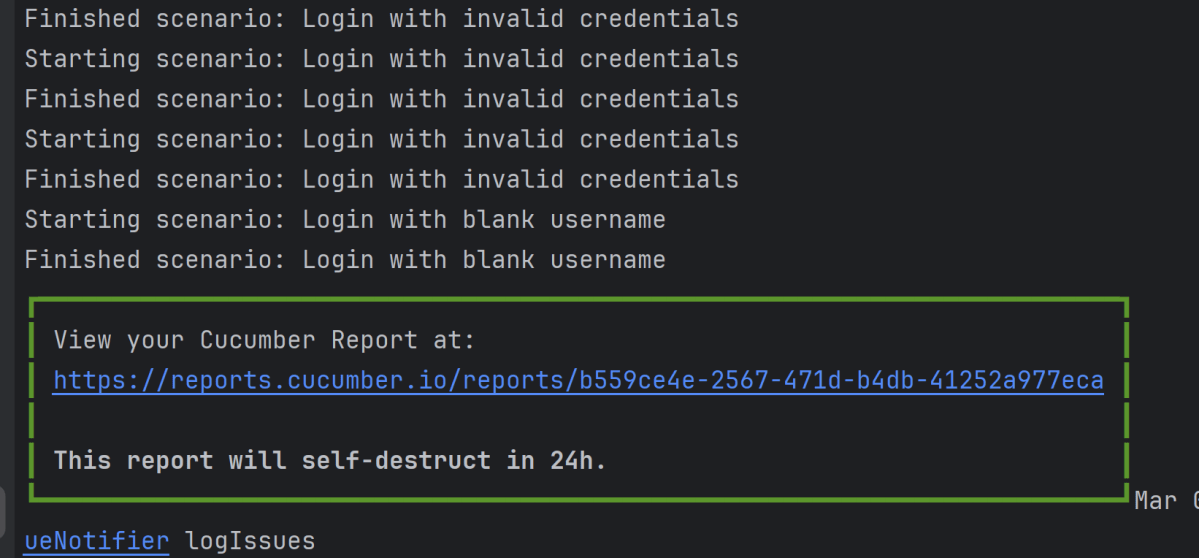
Every Test Execution generates a Cucumber Report (Version 6.7.0) and above as shown in the image.
Copy the URL and paste it to a browser and it shows the report as shown below:
To know more about Cucumber Reports, refertothis tutorial.
We are done! Congratulations on making it through this tutorial and hope you found it useful! Happy Learning!!