GitHub Actions is a powerful tool that can be used to automate your software development workflows. In this blog post, we will show you how to get started with GitHub Actions for Java Spring Boot.
Why GitHub?
The flexible aspects of GitHub Actionsenable users to create powerful, fast, and efficient automated testing workflows in CI/CD environments.
CI/CD pipelines have contributed to the success of the DevOps cycle in all software development projects. This is a holistic process that bridges development and operations. Continuous integration helps development teams deploy code efficiently, and continuous delivery automates code deployment.
Implementation Steps
Step 1 – Create GitHub Actions and Workflows
I have a repository available on GitHub – SpringBoot_Serenity_Cucumber_JUnit4_Demo as shown in the below image. Go to the “Actions” tab. Click on the “Actions” tab.
Step 2 – Select the type of Actions
You will see that GitHub recommends Actions depending on the project. In our case, it is recommending actions suitable for a Java project. I have selected the “Java with Maven” option as my project is built in Maven.
Step 3 – Generation of Sample pipeline
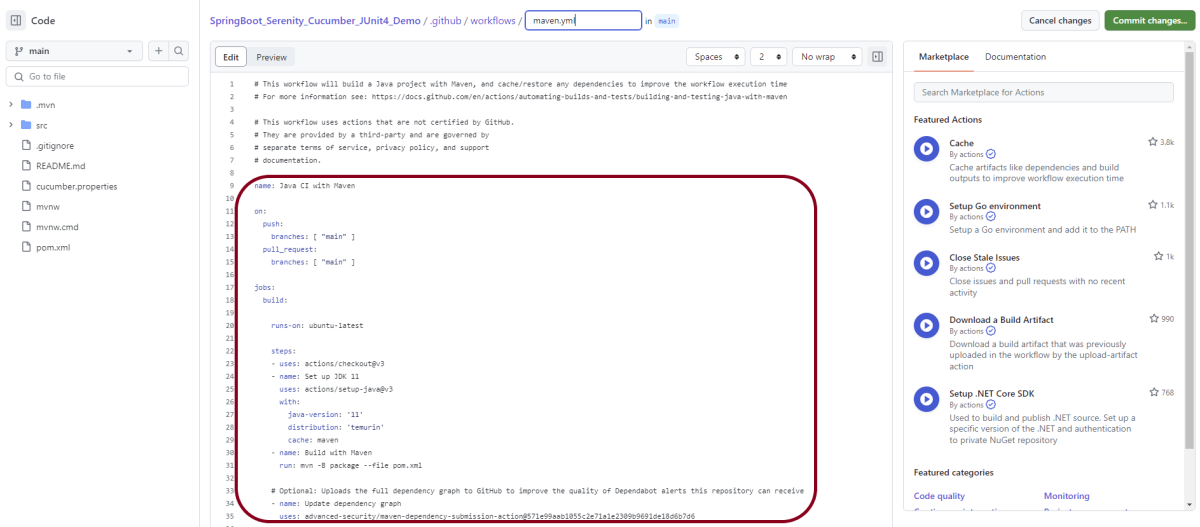
If you choose an existing option, it will automatically generate a .yaml for the project as shown below.
We will replace the current workflow with the following yml file as shown below:
name: Build and Test Java Spring Boot Application

on:
  push:
    branches: [ "main" ]
  pull_request:
    branches: [ "main" ]

jobs:
  build:

    runs-on: ubuntu-latest

    steps:
    - uses: actions/checkout@v3
    - name: Set up JDK 17
      uses: actions/setup-java@v3
      with:
        java-version: '17'
        distribution: 'temurin'
        cache: maven

    - name: Build with Maven
      run: mvn clean verify

    - name: Test Report
      uses: actions/upload-artifact@v3
      if: success() || failure()
      with:
          name: SpringBoot Report               # Name of the folder
          path: target/site/serenity/           # Path to test results
Step 4 – Commit the changes
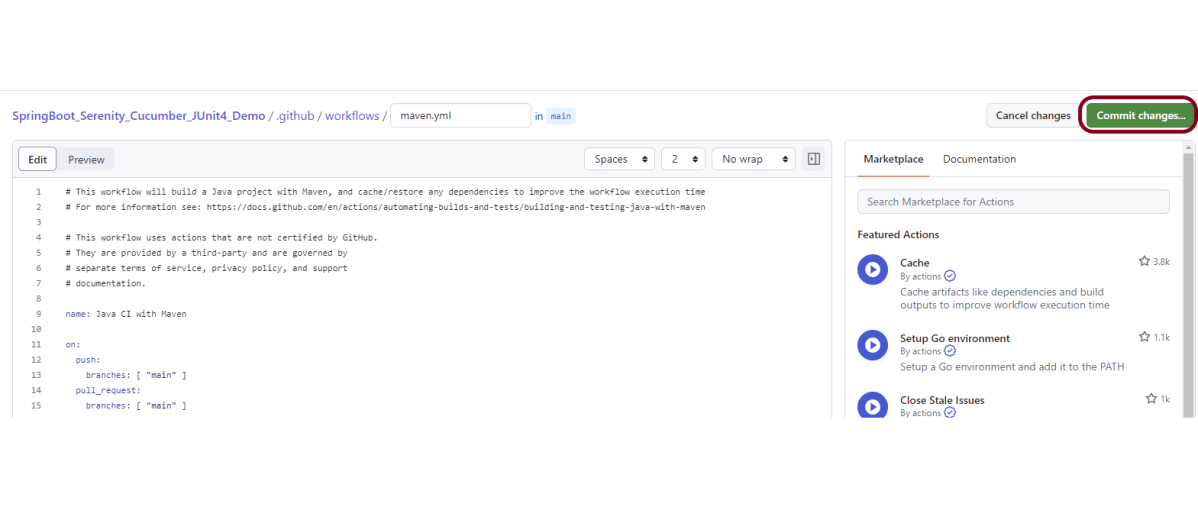
After the changes, hit the “Commit changes” button.
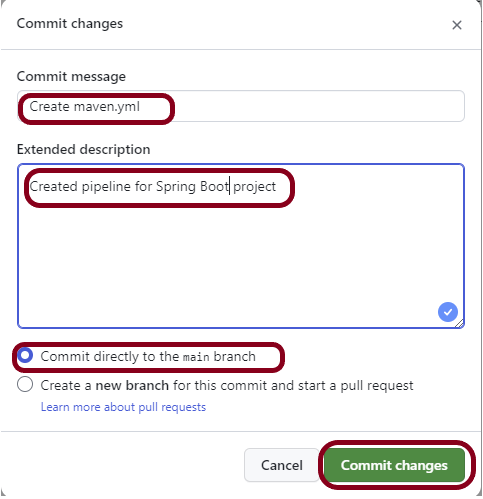
This will give the option to add a description for the commit. It will enable the user to commit either to the main branch. The user can also commit to any other branch that exists in the project. Click on the “Commit changes” button to set up the workflow file.
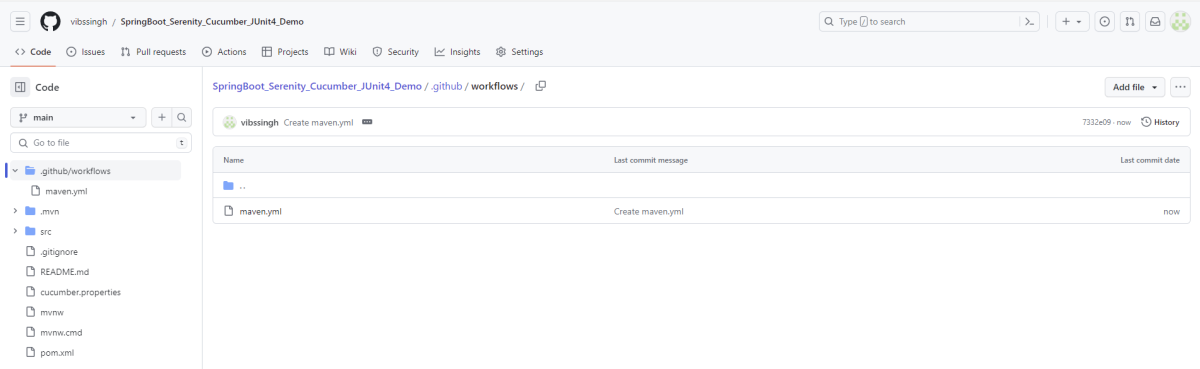
Below is the image of the newly created maven.yml file.
Step 5 – Verify that the workflow is running
Next, head over to the “Actions” tab, and you will see your YAML workflow file present under the tab. The yellow sign represents that the job is in the queue.
In Progress – When the job starts building and running, you will see the status change from “Queued” to “in progress”.
Passed – If the build is successful, you will see a green tick mark.
Failed – In case the build has failed, then there will be a red cross mark.
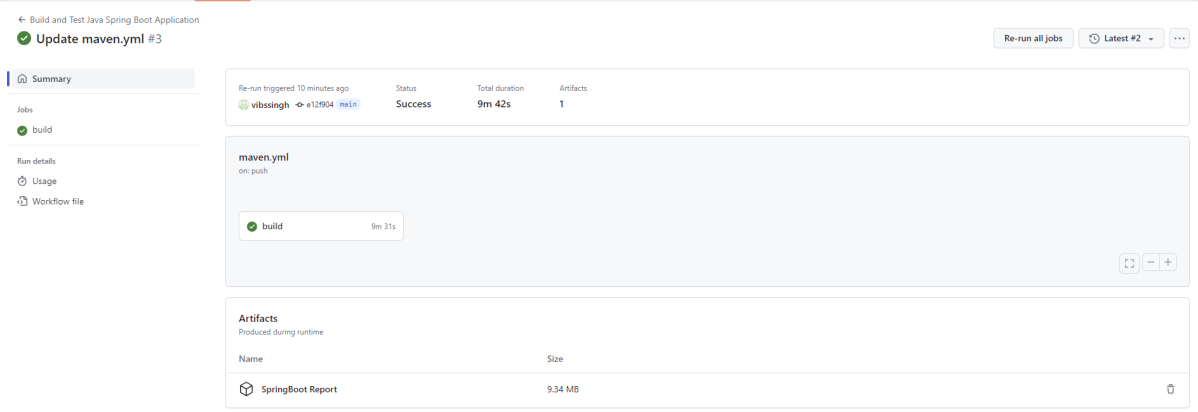
Click on the workflow and the below screen is displayed. It shows the status of the run of the workflow. It also shows the total time taken to run the workflow and the name of the .yml file.
Below shows all the steps of the workflow.
Step 6 – Published artifacts on GitHub
Once the pipeline run, a SpringBoot Report folder will be generated as shown in the below image:
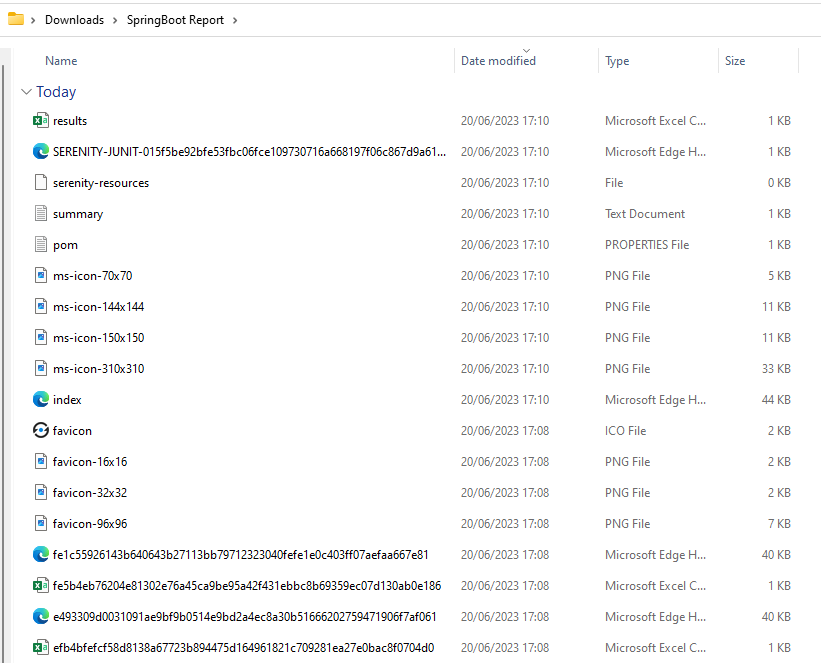
When we click on the folder SpringBoot Report, a zipped file will be downloaded. We can extract it to see all the files contained within it.
GitLab automatically enables CI/CD pipelines for new projects. It’s just a matter of adding a new configuration file called .gitlab-ci.yml to your code repository with instructions for GitLab on what to run. So simply create the following basic workflow in your main repository directory and commit it:
The Serenity tests run on a headless browser in the pipeline.
What is a headless browser?
A headless browser is like any other browser but without a Head/GUI (Graphical User Interface). A headless browser is used to automate the browser without launching the browser. While the tests are running, we could not see the browser, but we can see the test results coming on the console. The tests can run in the GitLab pipeline if the tests run in the headless mode.
To know, how to create a blank new project in GitLab, please refer tothis tutorial.
Step 2 – Push the project from the local repository to GitLab Repository
To know, how to push the changes in GitLab, please refer to this tutorial.
Step 3 – Create a .gitlab-ci.yml file in the project in GitLab
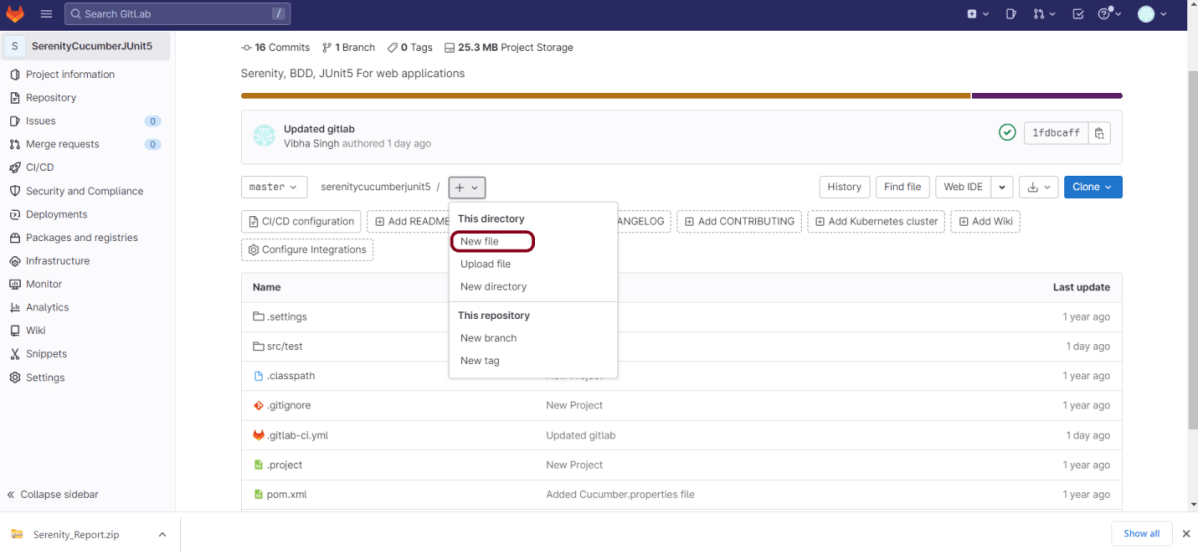
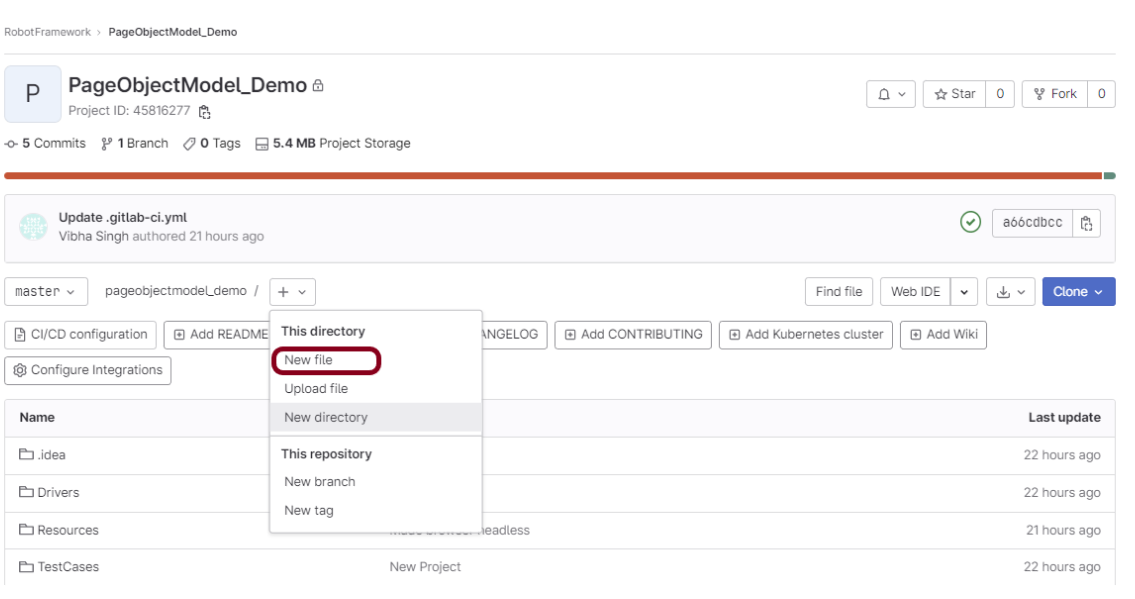
There are many ways to create a new file in GitLab. One of the ways is to create a file as shown in the below image.
It is a YAML file where you configure specific instructions for GitLab CI/CD. In the .gitlab-ci.yml, we can define:
The scripts you want to run.
Other configuration files and templates you want to include.
Dependencies and caches.
The commands you want to run in sequence and those you want to run in parallel.
The location to deploy your application to.
Whether you want to run the scripts automatically or trigger any of them manually.
Below is a sample example to run the Serenity tests in the GitLab pipeline.
image: markhobson/maven-chrome

stages:
  - test

variables:
  MAVEN_OPTS: "-Dmaven.repo.local=.m2/repository"

test:
  stage: test
  allow_failure: true

# Run the tests
  script:
    - echo "Executing BDD scenarios with maven"
    - mvn clean verify

# Store artifacts
  artifacts:
    when: always
    name: "Serenity Report"
    paths:
    - target/site/*
    expire_in: 24 h
Image – markhobson/maven-chrome is used in this test. It is a docker image for Java automated UI tests.
This command lets the pipeline continue running subsequent jobs, even if the previous job is failed.
allow_failure: true
The below command is used to execute the tests from Maven in the docker image.
mvn clean verify
The below command means that the artifact should be generated every time the pipeline is run, irrespective of the fact if the job is successful or failed.
artifacts:
    when: always
The below command provides the name of the artifact. If this is not used, then the artifacts file is named artifacts, which becomes artifacts.zip when downloaded.
artifacts:
    name: "Serenity Report"
The below command provides the path of the files that should be present in the artifact.
artifacts:
    paths:
    - target/site/*
Pipeline configuration begins with jobs. Jobs are the most fundamental element of a .gitlab-ci.yml file.
Jobs are:
Defined with constraints stating under what conditions they should be executed.
Top-level elements with an arbitrary name and must contain at least the script clause.
Not limited in how many can be defined.
Jobs can output an archive of files and directories. This output is known as a job artifact. The expire_in keyword determines how long GitLab keeps the job artifacts. Here, it shows 24 hrs to retain the artifacts.
Step 4 – Run the tests in the GitLab pipeline
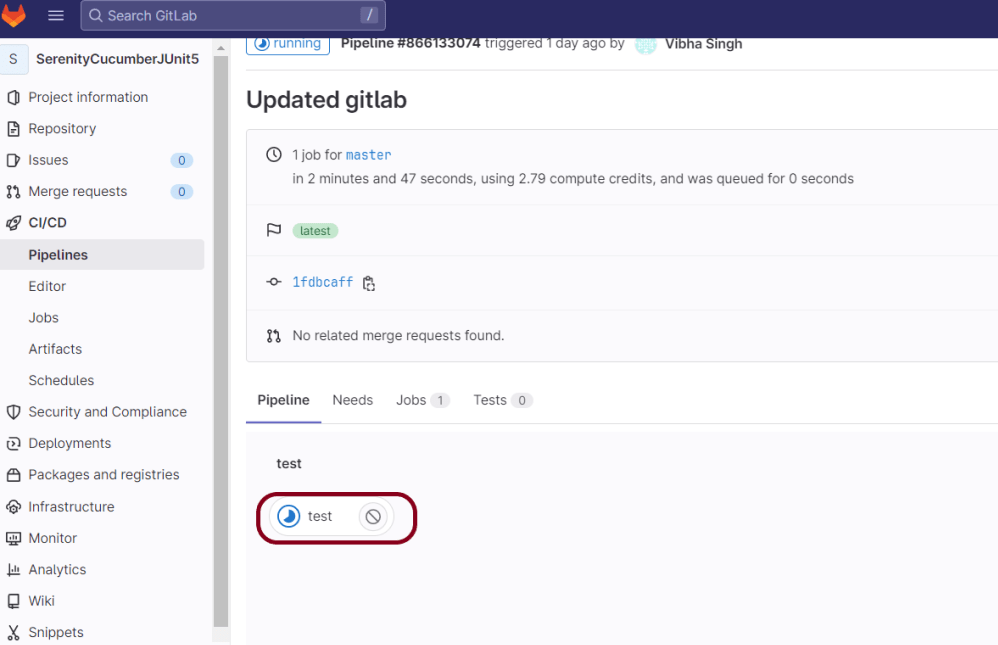
Now, when a new change is committed, a pipeline kicks off and it runs all the tests.
Step 5 – Check the status of the pipeline
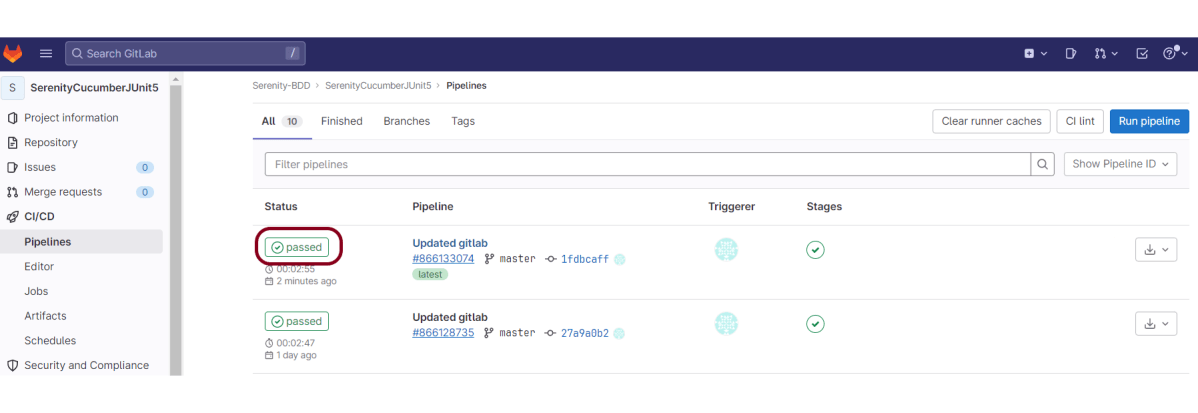
Once the Status of the pipeline changes to either failed or passed, that means the tests are already executed.
As you can see, the Status is passed, its green colour. This means all the tests present in the test suite are executed and passed. If any test fails in the test suite, the final execution status will be brown. The reason for the brown colour is we have mentioned allow_failure: true.
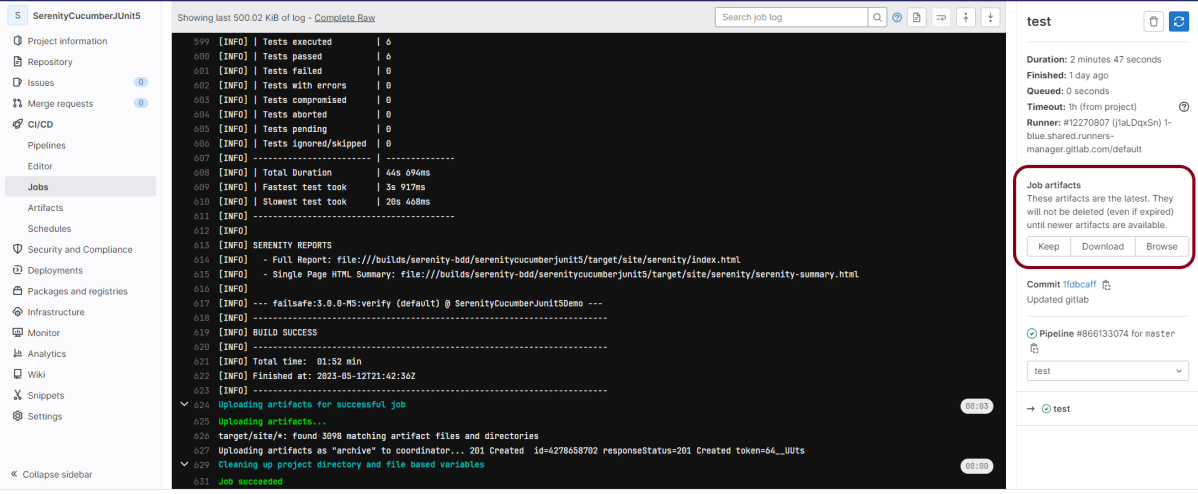
Below is the execution status report in the GitLab pipeline.
As I have added an artifact also in the .gitalb-ci.yml, which is highlighted in the image. This artifact creates a folder with the name “Serenity_Report”and the reports in this folder come from the path /target/site. This artifact gives us the option to download the reports or browse the report. This report will be available for 24 hours only as mentioned in the gitlab-ci.yml.
Step 6 – Download the report
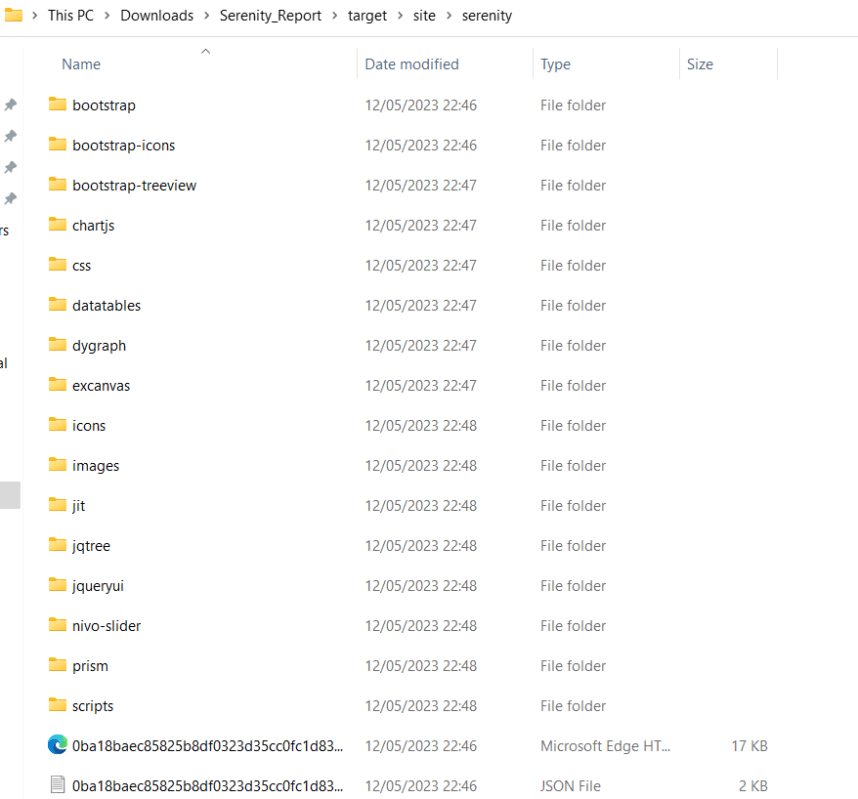
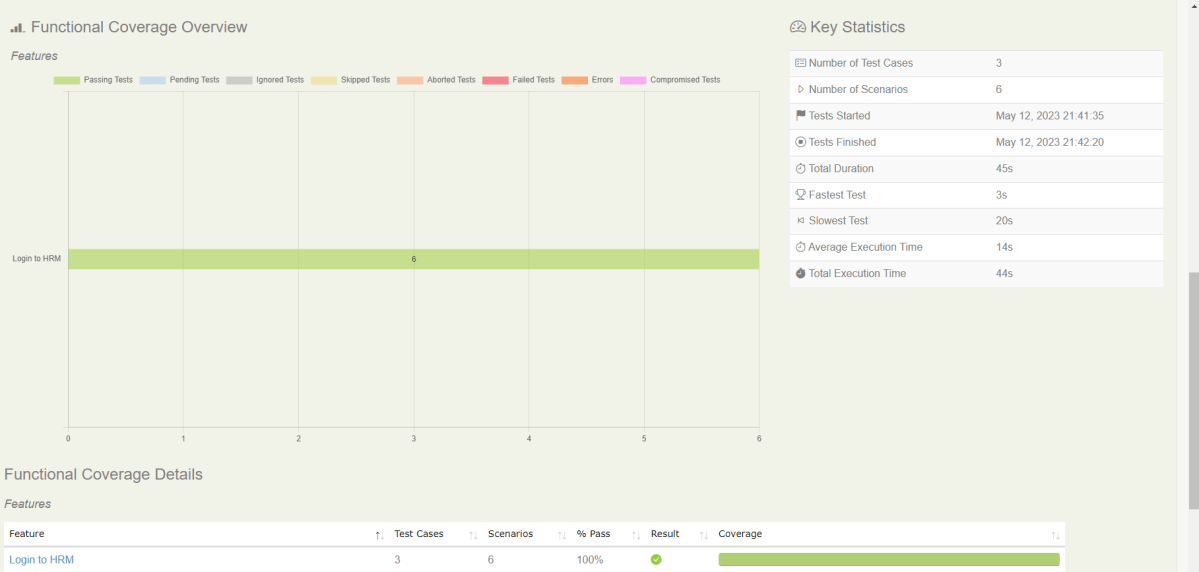
Once, will click on the download button, it will download “Serenity_Report.zip”. Unzip the folder and it looks like something as shown below:
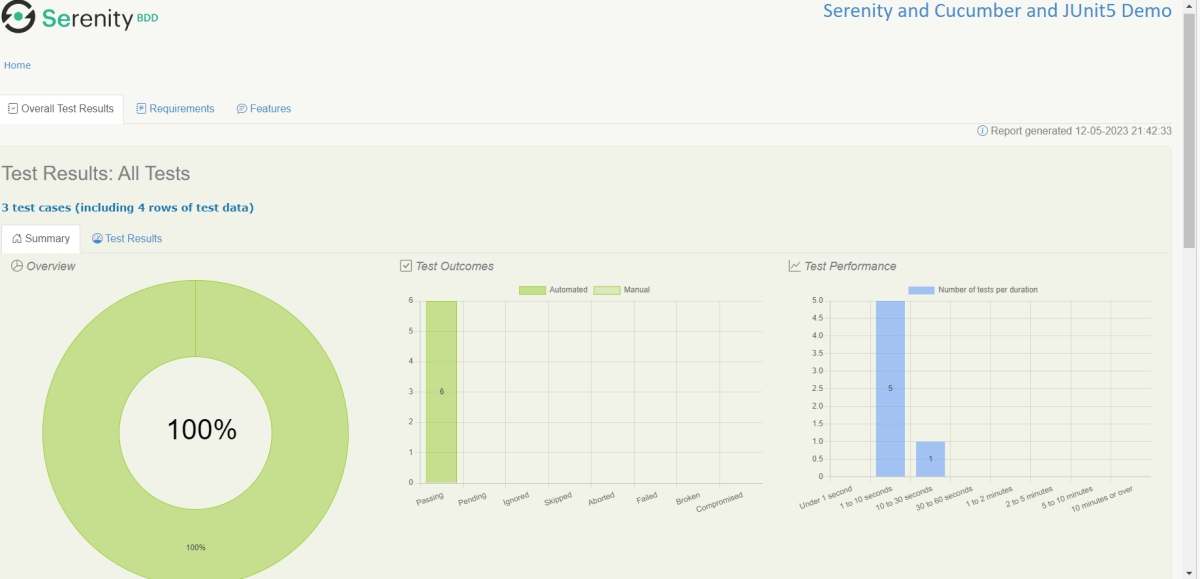
Example of Index.html
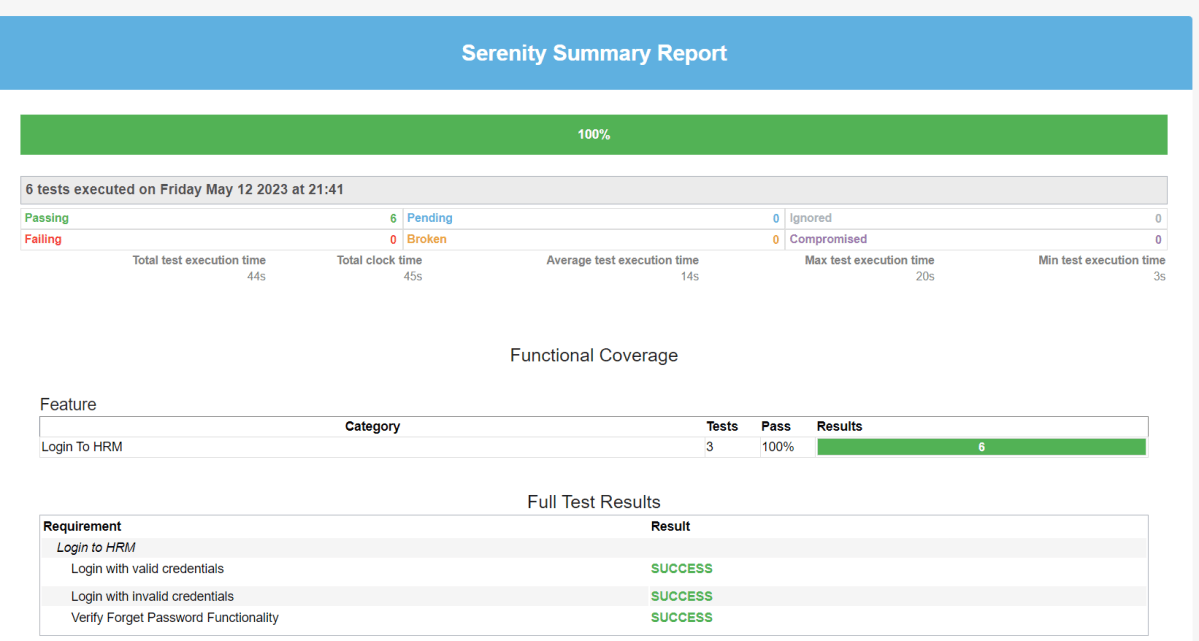
Example of Serenity Summary Report
Congratulations. This tutorial has explained the steps to run Serenity tests in GitLab CI/CD. Happy Learning!!
This tutorial walks you through the process of running Robot Framework tests in GitLab pipelines. This is a very important step in achieving CI/CD. Ideally, tests should be run after each change (minor/major) before the latest change ismergedinto the master branch. Let’sassumethat100 changes are merged into the master branch a day and tests are run every time before deployment. In this case, there is no QA manuallystarting100tests a day. Now, what should be done to overcome this problem. Nowaddatest to your GitLab pipeline. Adding a test stage to your pipeline automatically runs the tests when you run the pipeline.
Once the proposed changes are built, then push the commits to a feature branch in a remote repository that’s hosted in GitLab. The push triggers the CI/CD pipeline for your project. Then, GitLab CI/CD runs automated scripts (sequentially or in parallel) to build as well as to test the application. After a successful run of the test scripts, GitLab CI/CD deploys your changes automatically to any environment (DEV/QA/UAT/PROD). But if the test stage is failed in the pipeline, then the deployment is stopped.
To use GitLab CI/CD, we need to keep 2 things in mind:
a) Make sure a runner is available in GitLab to run the jobs. If there is no runner, install GitLab Runner and register a runnerfor your instance, project, or group.
b) Create a .gitlab-ci.yml file at the root of the repository. This file is where CI/CD jobs are defined.
The Selenium tests run on a headless browser in the pipeline.
What is a headless browser?
A headless browser is like any other browser but without a Head/GUI (Graphical User Interface). A headless browser is used to automate the browser without launching the browser. While the tests are running, we could not see the browser, but we can see the test results coming on the console.
Prerequisite
Install Python
Install PIP
Install Robot Framework
Install Robot framework Selenium Library
Install PyCharm IDE
GitLab Account
Implementation Steps:
Step 1 – Create a new Project
Step 1.1 – Open PyCharm and create a new project. Go to File and select New Project from the main menu.
Step 1.2 – Choose the project location. Click the Browse button next to the Location field and specify the directory for your project.
Deselect the Create a main.py welcome script checkbox because you will create a new Python file for this tutorial.
Click on the Create Button.
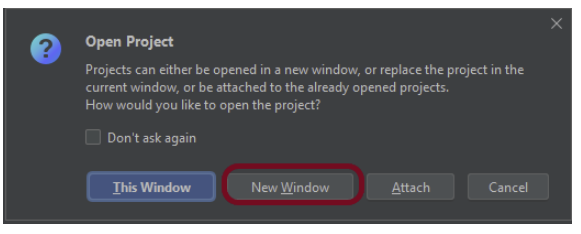
Step 1.3 – A new dialog will appear asking to Open the project using any one of the given options. I have selected New Window as I like to have separate windows for each project.
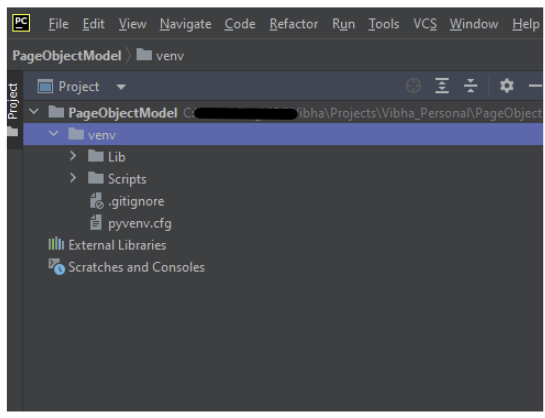
Below is the image of the new project created in PyCharms.
Step 2 – Create 2 new directories in the new project
Right-Click on the project, select New->Directory, and provide the name as TestCases and Resources
Step 3 – Create Test Files
This directory contains multiple test case files consisting of test steps.
Right-click on the new directory select New File and provide the name LoginPageTests.robot and ForgetPasswordTests.robot as shown below:
Below is the code for LoginPageTests.robot
*** Settings ***
Documentation       Tests to login to Login Page
Library     SeleniumLibrary
Test Setup      Open the Browser with URL
Test Teardown   Close Browser Session
Resource       ../Resources/GenericResources.robot
Resource       ../Resources/LoginResources.robot
Resource      ../Resources/DashboardResources.robot

*** Test Cases ***

Validate Unsuccessful Login using invalid credentials

    LoginResources.Fill the login form     ${valid_username}       ${invalid_password}
    LoginResources.Verify the error message is correct


Validate Unsuccessful Login for blank username

     LoginResources.Fill the login form     ${blank_username}       ${valid_password}
     LoginResources.Verify the error message is displayed for username


Validate Unsuccessful Login for blank password

     LoginResources.Fill the login form     ${valid_username}       ${blank_password}
     LoginResources.Verify the error message is displayed for password


Validate successful Login

    LoginResources.Fill the login form     ${valid_username}       ${valid_password}
    DashboardResources.Verify Dashboard page opens
Below is the code for ForgetPasswordTests.robot
*** Settings ***
Documentation       Tests to validate Forgot Your Password Page functionality
Library     SeleniumLibrary
Test Setup      Open the Browser with URL
Test Teardown   Close Browser Session
Resource       ../Resources/GenericResources.robot
Resource       ../Resources/LoginResources.robot
Resource      ../Resources/ForgetPasswordResources.robot


*** Test Cases ***

Validate Reset Password Functionality

    LoginResources.Go to Forgot Your Password Page
    ForgetPasswordResources.Verify Forgot Your Password Page opens
    ForgetPasswordResources.Fill the Forgot Password Page
    ForgetPasswordResources.Verify the message

Validate Cancel Functionality

    LoginResources.Go to Forgot Your Password Page
    ForgetPasswordResources.Verify Forgot Your Password Page opens
    ForgetPasswordResources.Cancel the Reset Password
    ForgetPasswordResources.Verify that Login Page is displayed
Step 4 – Create a Resource file for each page
It maintains the files which contain page elements as well as corresponding keywords.
Right-click on the new directory select New File and provide the name as LoginResources.robot, DashboardResources.robot, GenericResources.robot, and ForgetPasswordResources.robot as shown below:
GenericResources.robot contains the keywords that are common to all the tests, like opening of the browser or closing of the browser.
*** Settings ***
Documentation    A resource file with reusable keywords and variables.
Library     SeleniumLibrary

*** Variables ***
${valid_username}     Admin
${valid_password}       admin123
${invalid_username}     1234
${invalid_password}     45678
${blank_username}
${blank_password}
${url}      https://opensource-demo.orangehrmlive.com/web/index.php/auth/login
${browser_name}      Chrome

*** Keywords ***

Open the Browser with URL
    Open Browser   ${url}    headlesschrome
    Maximize Browser Window
    Set Selenium Implicit Wait    5

Close Browser Session
    Close Browser
Below is the code for LoginResources.robot
*** Settings ***
Documentation        All the page objects and keywords of landing page
Library     SeleniumLibrary

*** Variables ***
${login_error_message}      css:.oxd-alert-content--error
${dashboard_title}       css:.oxd-topbar-header-breadcrumb-module
${missing_username_error_message}    xpath://*[@class='oxd-form']/div[1]/div/span
${missing_password_error_message}   xpath://*[@class='oxd-form']/div[2]/div/span
${forgot_password_link}   xpath://div[@class='orangehrm-login-forgot']/p

*** Keywords ***

Fill the login form
    [Arguments]    ${username}      ${password}
   Input Text    css:input[name=username]   ${username}
   Input Password    css:input[name=password]   ${password}
   Click Button    css:.orangehrm-login-button


Verify the error message is correct
    Element Text Should Be    ${login_error_message}    Invalid credentials


Verify the error message is displayed for username
     Element Text Should Be    ${missing_username_error_message}      Required

Verify the error message is displayed for password
      Element Text Should Be    ${missing_password_error_message}      Required

Go to Forgot Your Password Page
    Click Element      ${forgot_password_link}
Below is the code for DashboardResources.robot
*** Settings ***
Documentation        All the page objects and keywords of Dashboard page
Library     SeleniumLibrary

*** Variables ***
${dashboard_title}       css:.oxd-topbar-header-breadcrumb-module

*** Keywords ***

Verify Dashboard page opens
    Element Text Should Be    ${dashboard_title}      Dashboard
Below is the code for ForgetPasswordResources.robot
*** Settings ***
Documentation       All the page objects and keywords of Forget Password page
Library     SeleniumLibrary

*** Variables ***
${forgot_page_title}       css:.orangehrm-forgot-password-title
${username}     css:.oxd-input--active
${reset_btn}     css:.orangehrm-forgot-password-button--reset
${cancel_btn}    css:.orangehrm-forgot-password-button--cancel
${reset_message}      xpath://div[@class='orangehrm-card-container']/h6
${login_page_title}   xpath://*[@class='orangehrm-login-slot']/h5

*** Keywords ***

Verify Forgot Your Password Page opens
    Element Text Should Be    ${forgot_page_title}      Reset Password

Fill the Forgot Password Page
   Input Text        ${username}     abc@gmail.com
   Click Button    ${reset_btn}

Verify the message
    Element Text Should Be    ${reset_message}      Reset Password link sent successfully

Cancel the Reset Password
    Click Button    ${cancel_btn}

Verify that Login Page is displayed
    Element Text Should Be    ${login_page_title}       Login
All the below-mentioned keywords are derived from SeleniumLibrary. The functionality of keywords mentioned above:
1. Create Webdriver − The keyword creates an instance of Selenium WebDriver.
2. Go To – This keyword navigates the current browser window to the provided url.
3. Maximize Browser Window – This keyword maximizes the current browser window.
4. Set Selenium Implicit Wait – This keyword sets the implicit wait value used by Selenium.
5. Input Text − This keyword is used to type the given text in the specified textbox identified by the locator name:username.
6. Input Password – This keyword is used to type the given text in the specified password identified by the locator name:password.
The difference compared to Input Text is that this keyword does not log the given password on the INFO level.
7. Click button – This keyword is used to click the button identified by the locator. In this case, it is “Login” button.
8. Element Text Should Be – This keyword is used to verify that the current page contains the exact text identified by the locator. Here, we are checking the exact text “Invalid Credentials”.
To run this script, go to the command line and go to directory tests.
Step 5 – Execute the tests
We need the below command to run the Robot Framework script.
robot .
The output of the above program is
GitLab Section
Step 6 – Create a blank project in GitLab
To know, how to create a blank new project in GitLab, please refer tothis tutorial.
Step 7 – Push the project from the local repository to the Gitlab Repository
To know, how to push the changes in GitLab, please refer to this tutorial.
Step 8 – Create a .gitlab-ci.yml file in the project in GitLab
There are many ways to create a new file in GitLab. One of the ways is to create a file as shown in the below image.
It is a YAML file where you configure specific instructions for GitLab CI/CD. In the .gitlab-ci.yml, we can define:
The scripts you want to run.
Other configuration files and templates you want to include.
Dependencies and caches.
The commands you want to run in sequence and those you want to run in parallel.
The location to deploy your application to.
Whether you want to run the scripts automatically or trigger any of them manually.
Below is the sample pipeline.
stages:
  - test

image: ppandiyan/robotframework

run-tests:
  stage: test
  script:
    - robot --outputdir testOutput .
  artifacts:
    paths:
      - testOutput
    expire_in: 1 day
Image – ppandiyan/robotframework is used in this test. This docker file contains headlesschrome, headlessfirefox and Python2.7.
This gitlab-ci.yml has only 1 stage – a test that contains the command to run the tests as well as also create an artifact that contains all the surefire reports which can be saved as Test Evidence.
Step 9 – Run the tests in the GitLab pipeline
Now, when a new change is committed, a pipeline kicks off and it runs all the tests.
Step 10 – Check the status of the pipeline
Once the Status of the pipeline changes to either failed or passed that means the tests are already executed.
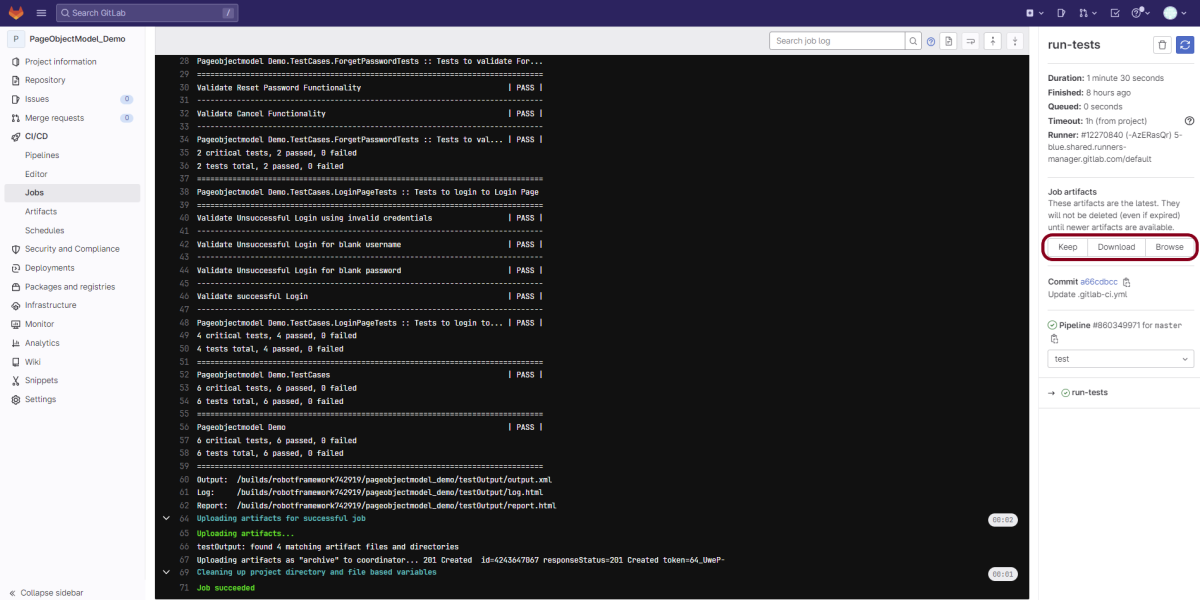
Let us see the logs of the execution it shows that all the tests are passed here.
As I have added an artifact also in the gitalb-ci.yml, which is highlighted in the image. This artifact creates a folder with the name “testOutput” and the folder contains reports, logs as well as output files. This artifact gives us the option to download the reports or browse the report. This report will be available for 1 day only as mentioned in the gitlab-ci.yml.
Step 11 – Download the report
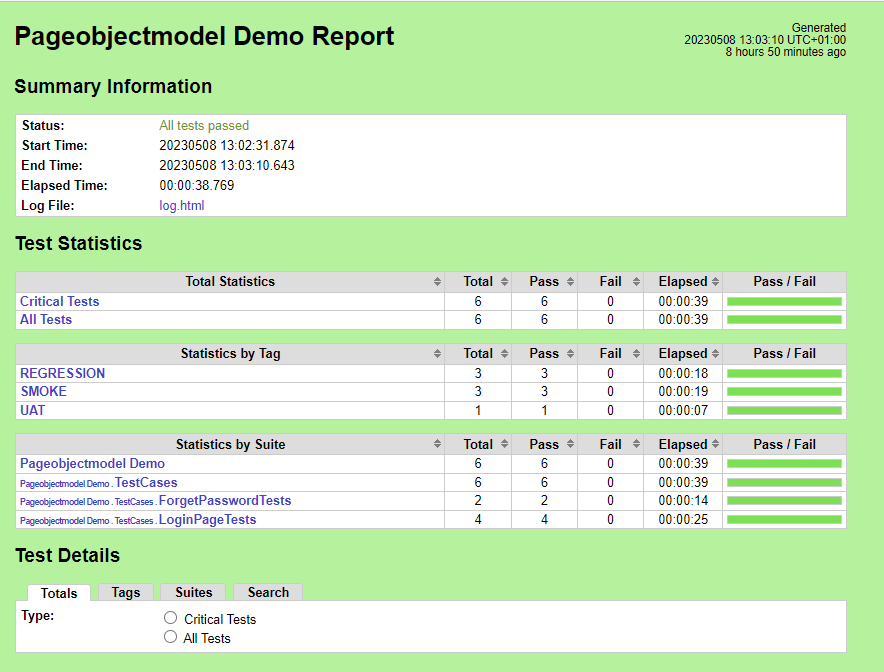
Once, will click on the download button, it will download “report.zip”. Unzip the folder and it looks like something as shown below:
Example of Report.html
Example of Log.html
Congratulations. This tutorial has explained the steps to run Robot Framework tests in GitLab CI/CD. Happy Learning!!
Jenkin’s installed and started on the computer. The current Jenkins version is – 2.361.2
Implementation Steps
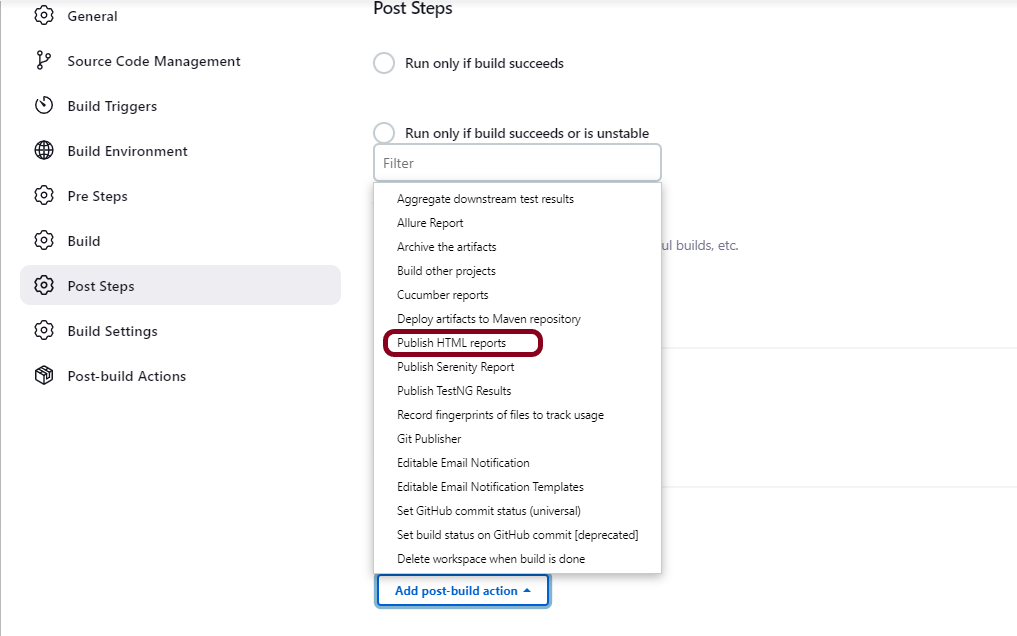
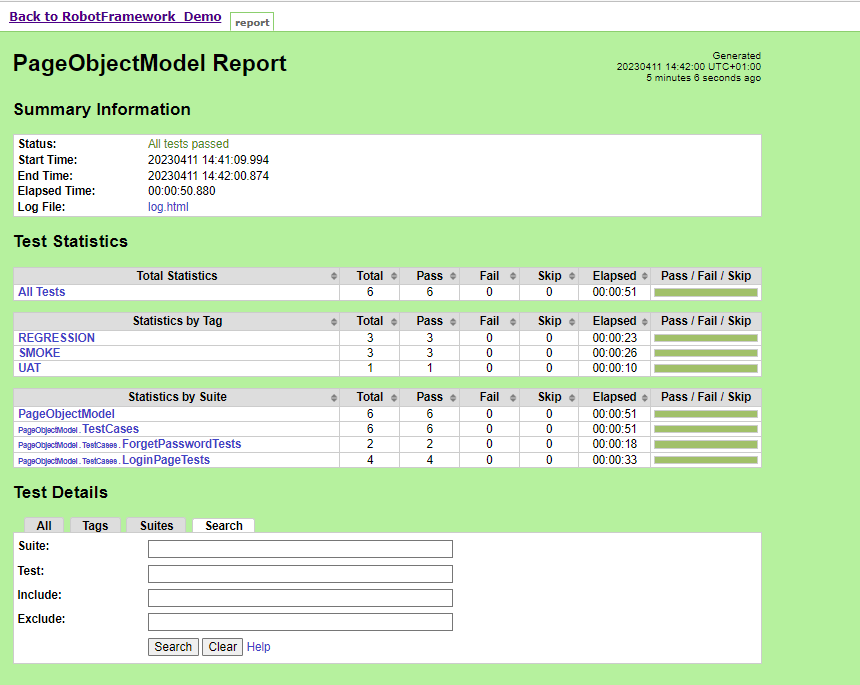
To generate HTML Report in Jenkins, we need to download HTML Publisher Plugin. Please refer to this tutorial to install the plugin – How to install Plugins in Jenkins.
Step 1: Create a new FreeStyle project
Give the Name of the project – RobotFramework_Demo
Click on the Maven project.
Click on the OK button.
In the General section, enter the project description in the Description box.
Step 2: Select a custom workspace
Mention the full path of the project in the Use custom workspace.
Select Source Code Management as None if the project is locally present on the machine.
We can customize Content Security Policy in Jenkins. But keep in mind that it should be done after checking with the Security team in your organization. This is a workaround solution. I can’t emphasize enough that this is not a standard practice.
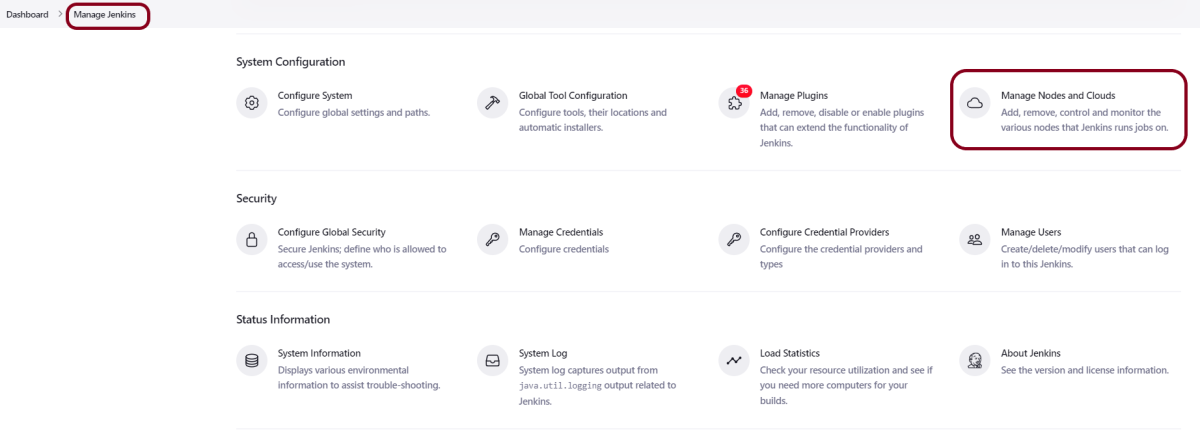
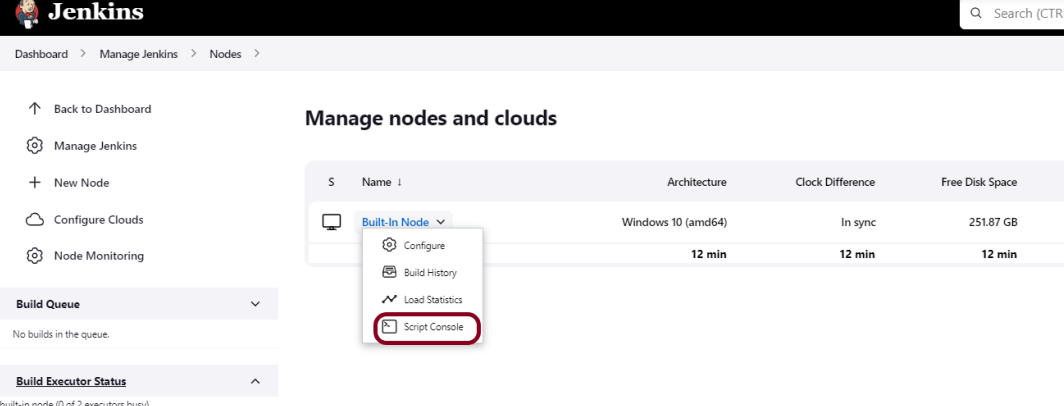
Go to Manage Jenkins -> Manage Nodes and Clouds.
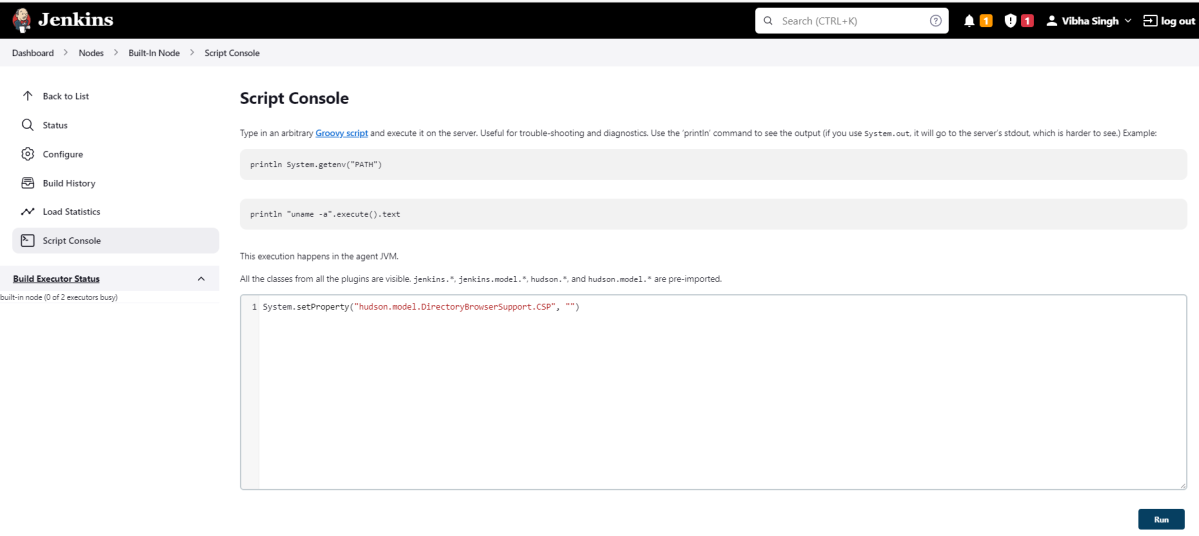
Click on the Script Console option.
Type in the following command and Press Run. If you see the output as ‘Result:’ then the protection is disabled. Re-Run your build and you can see that the new HTML files archived will have the CSS enabled.
The previous tutorial explained the steps to run the Selenium tests in the GitHub pipeline (Maven project). This tutorial explains the steps to run the Gradle project in the GitHub pipeline.
Important points to keep in mind:
1. We don’t need to think about the Chromedriver.exe we are using WebDriver Manager to handle that instead of adding it to our project like the following:
WebDriverManager.chromedriver().setup();
2. The Selenium tests need to run in the headless mode. As we are using Chrome browser, use the below code:
ChromeOptions options = new ChromeOptions();
options.addArguments("--no-sandbox");
options.addArguments("--disable-dev-shm-usage");
options.addArguments("--headless");
driver = new ChromeDriver(options);
3. Install Chrome browser in ubuntu. Use the below code:
I have a repository available on GitHub – Gradle_Selenium_TestNG_Demo as shown in the below image. Go to the Actions tab. Click on the “Actions” tab.
Step 2 – Select the type of Actions
You will see that GitHub recommends Actions depending on the project. In our case, it is recommending actions suitable for a Java project. I have selected the “Publish Java Package with Gradle” option.
Step 3 – Generation of Sample pipeline
If you choose an existing option, it will automatically generate a .yaml for the project as shown below.
We will replace the current workflow with the following yml file as shown below:
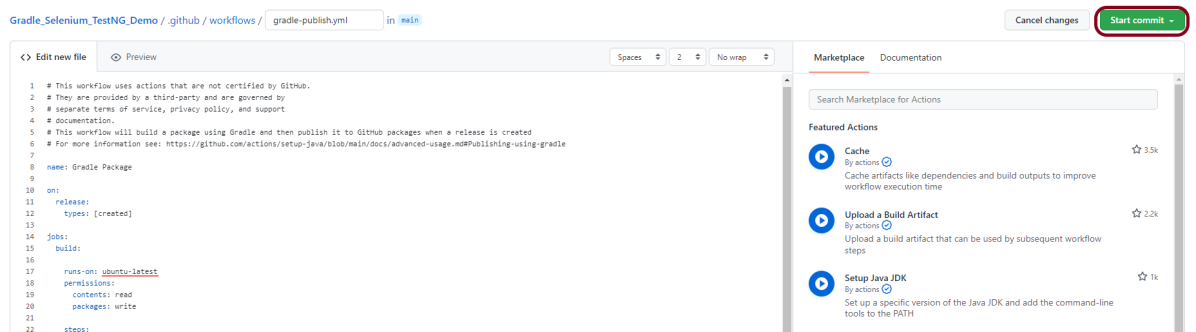
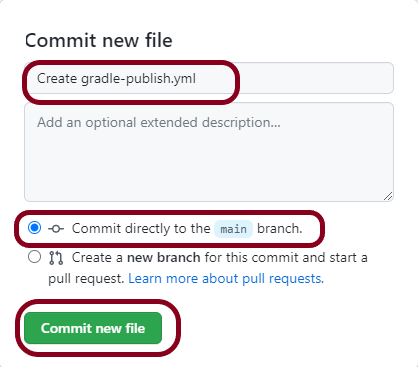
This will give the option to add a description for the commit. It will also enable the user to commit either to the main branch or commit to any other branch that exists in the project. Click on the “Commit new file” button to set up the workflow file.
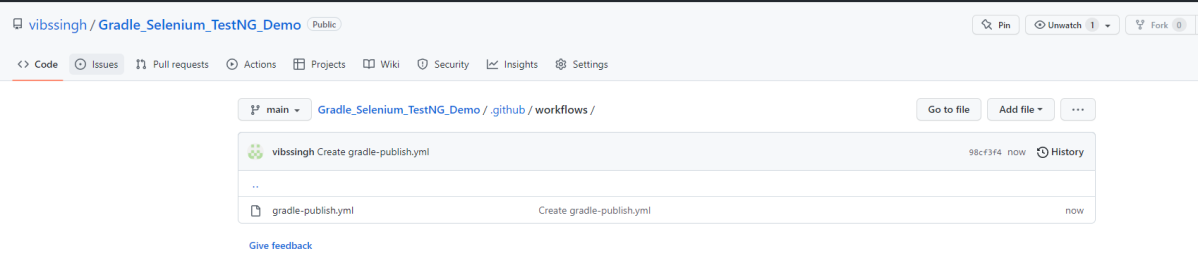
A folder with the name .github/workflows will be created that will contain a gradle-publish.yml file as shown below:
Step 5 – Verify that the workflow is running
Next, head over to the “Actions” tab, and you will see your YAML workflow file present under the tab. The yellow sign represents that the job is in the queue.
In Progress – When the job starts building and running, you will see the status change from “Queued” to “in progress”.
Passed –If the build is successful, you will see a green tick mark.
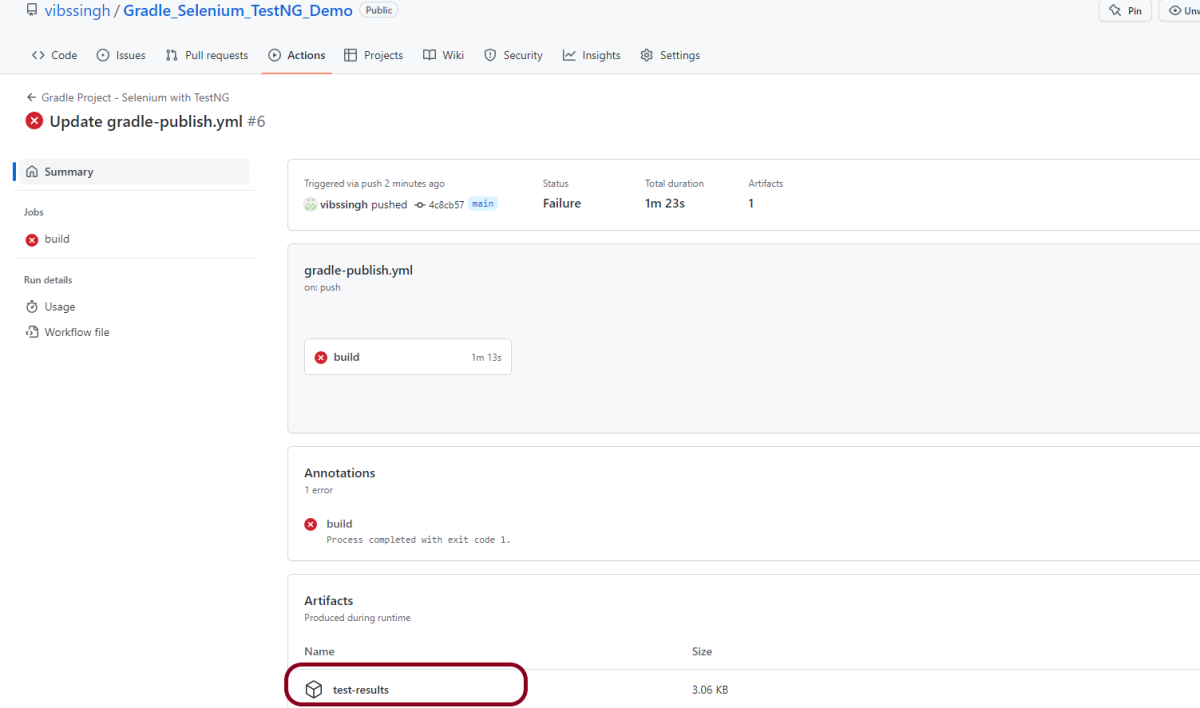
Click on the workflow and the below screen is displayed. It shows the status of the run of the workflow, the total time taken to run the workflow, and the name of the .yml file.
Failed – In case the build has failed which in this case any of the tests is failed, then there will be a red cross mark.
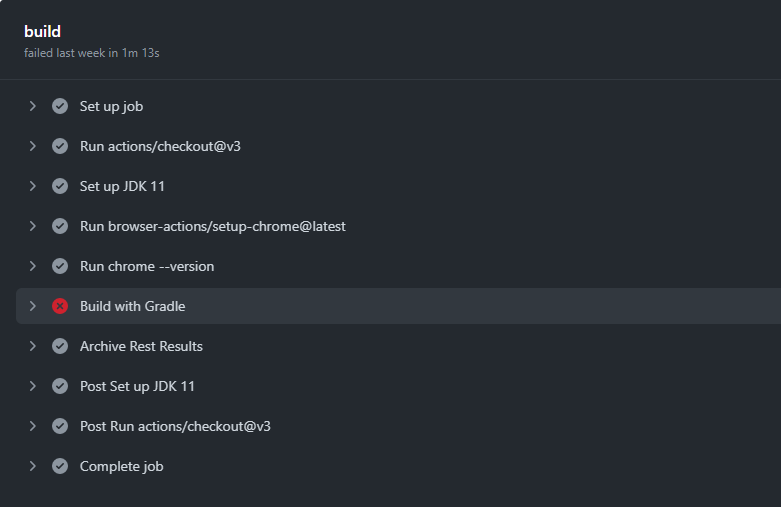
Below shows all the steps of the workflow.
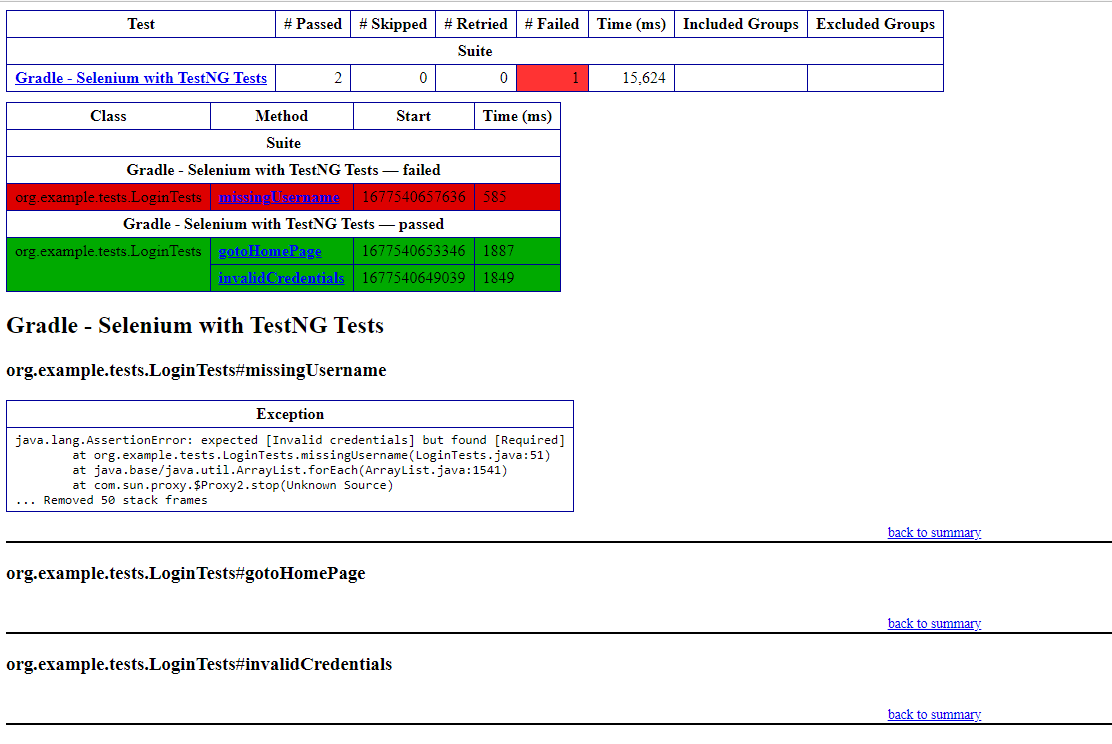
Build with Gradle steps failed because out of 2 tests, one of the tests failed. So, it appears in red colour. I personally love this feature because it gives an idea about the test execution status immediately if all the tests are passed or anything is failed.
Published artifacts on GitHub
Once the pipeline run, a test-results folder will be generated as shown in the below image:
When we click on the folder test-results, a zipped file will be downloaded, and we can extract it to see all the files contained within it.
The flexible aspects of Selenium WebDrivers and GitHub Actionsenable users to create powerful, fast, and efficient automated testing workflows in CI/CD environments.
CI/CD pipelines have contributed to the success of the DevOps cycle in all software development projects. This is a holistic process that bridges development and operations. Continuous integration helps development teams deploy code efficiently, and continuous delivery automates code deployment.
Important points
1. We don’t need to think about the Chromedriver.exe we are using WebDriver Manager to handle that instead of adding it to our project like the example:
WebDriverManager.chromedriver().setup();
From Selenium 4.6.0 onwards, we don’t need to add WebDriverManager dependency explicitly to the project, because Selenium has added an inbuilt tool to handle the drivers.
2. The Selenium tests need to run in the headless mode. As we are using Chrome browser, use the below code:
ChromeOptions options = new ChromeOptions();
options.addArguments("--no-sandbox");
options.addArguments("--disable-dev-shm-usage");
options.addArguments("--headless");
driver = new ChromeDriver(options);
3. Install Chrome browser in ubuntu. Use the below code:
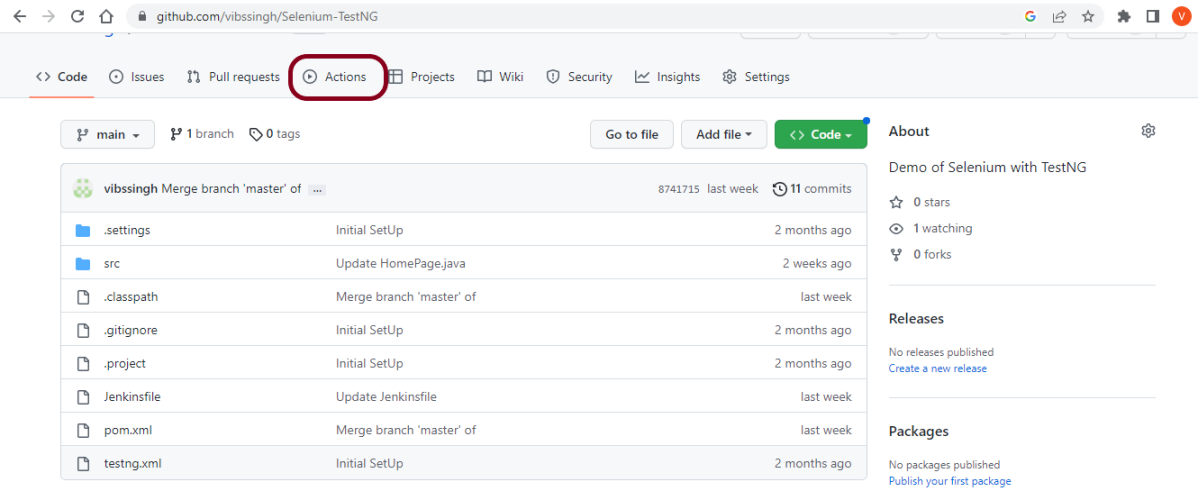
I have a repository available in GitHub – Selenium-TestNG as shown in the below image. Go to the “Actions” tab. Click on the “Actions” tab.
Step 2 – Select the type of Actions
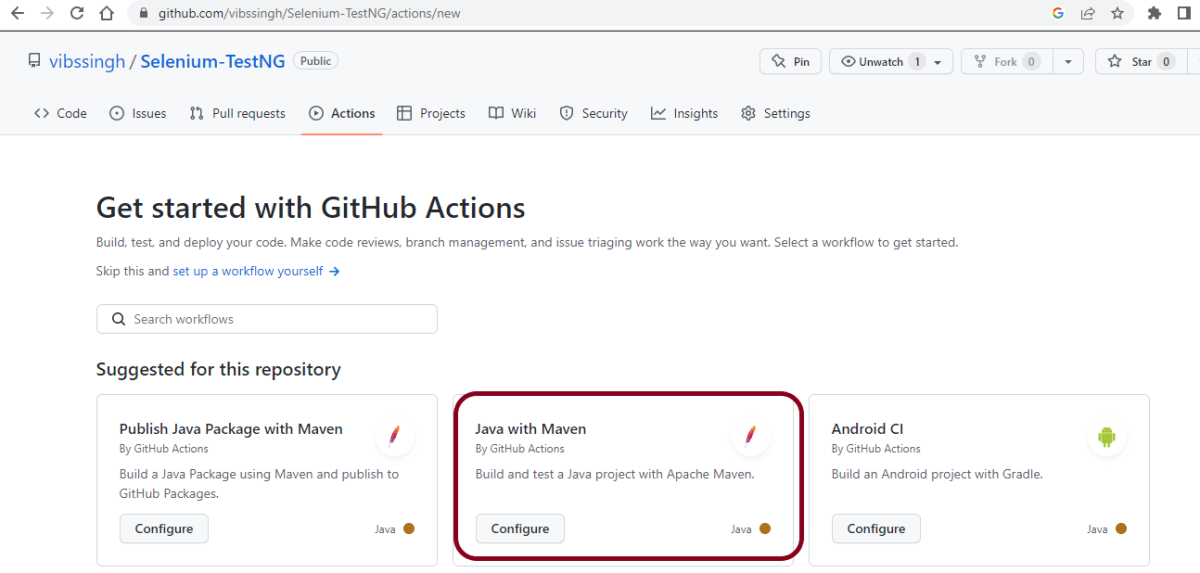
You will see that GitHub recommends Actions depending on the project. In our case, it is recommending actions suitable for a Java project. I have selected the “Java with Maven” option as my project is built in Maven.
Step 3 – Generation of Sample pipeline
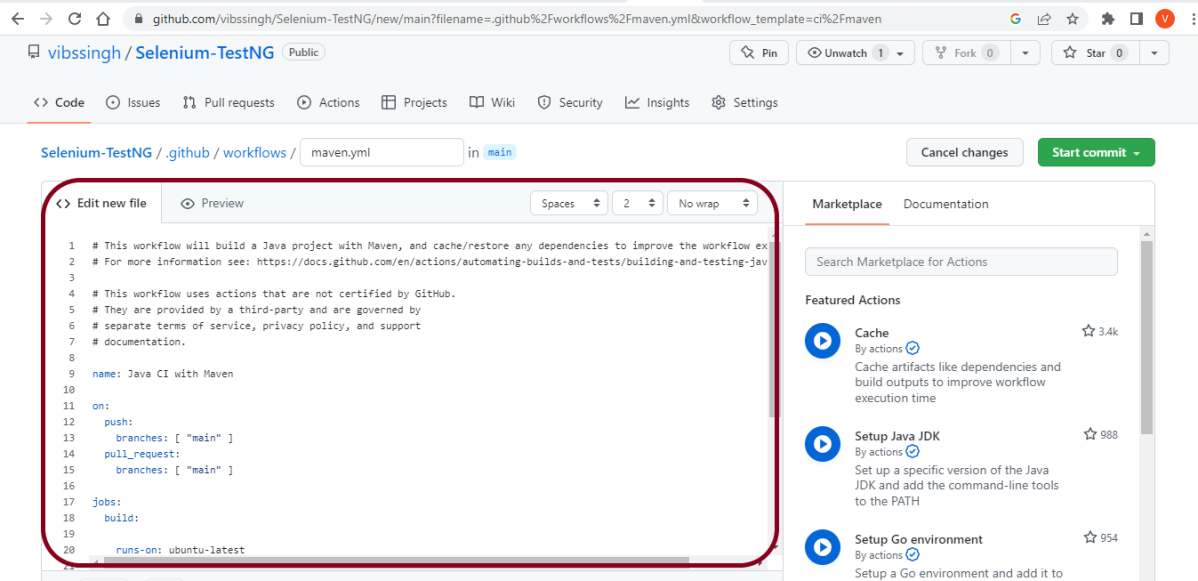
If you choose an existing option, it will automatically generate a .yaml for the project as shown below.
We will replace the current workflow with the next yml file as shown below:
name: Selenium with TestNG - CI
on:
push:
branches: [ "main" ]
pull_request:
branches: [ "main" ]
jobs:
build:
runs-on: ubuntu-latest
steps:
- uses: actions/checkout@v3
- name: Set up JDK 17
uses: actions/setup-java@v3
with:
java-version: '17'
distribution: 'temurin'
cache: maven
- uses: browser-actions/setup-chrome@latest
- run: chrome --version
- name: Build with Maven
run: mvn -B clean test
The workflow file usually consists of the below attributes:
name: Java CI with Maven
Name of workflow: This is an optional attribute.The name of the workflow is denoted by the keyword “name”. If you wish to include multiple CI jobs in your project, it is recommended to name each one appropriately.
on: [push] :
On attribute – This attribute is mandatory and specifies the trigger for this workflow. There are several actions you can include such as push, pull request, release, etc. for more information on the events, check the official guide here.
jobs:
Under the jobs attribute, groups together all the jobs that run in the workflow.
runs-on: ubuntu-latest
Configures the job to run on the latest version of an Ubuntu Linux runner. This means that the job will execute on a fresh virtual machine hosted by GitHub
steps:
Under this option, the actions used by the particular workflow, and the multiple jobs that would run under the workflow are mentioned. These jobs run in parallel. If you want to run the jobs in the order in the CI pipelines, you must add the “needs” attribute. It is crucial to ensure that every workflow has at least one job. In our sample workflow, we only have one job as shown in image above.
uses: actions/checkout@v3
The uses keyword specifies that this step will run v3 of the actions/checkout action. This is an action that checks out your repository onto the runner, allowing you to run scripts or other actions against your code (such as build and test tools). You should use the checkout action any time your workflow will run against the repository’s code.
This step uses the actions/setup-java@v3 action to install the specified version of the Java (this example uses v17).
Step 4 – Commit the changes
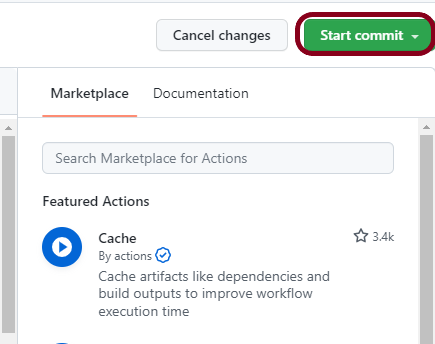
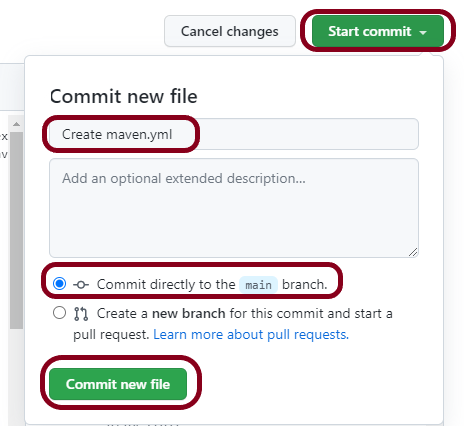
After the changes, hit the “Start Commit” button.
This will give the choice to add a description for the commit. It will also allow the user to commit either to the main branch or commit to any other branch that exists in the project. Click on the “Commit new file” button to set up the workflow file.
Step 5 – Verify that the workflow is running
Next, head over to the “Actions” tab, and you will see your YAML workflow file available under the tab. The yellow sign represents that the job is in the queue.
In Progress – When the job starts building and running, you will see the status change from “Queued” to “in progress”.
Passed – If the build is successful, you will see a green tick mark.
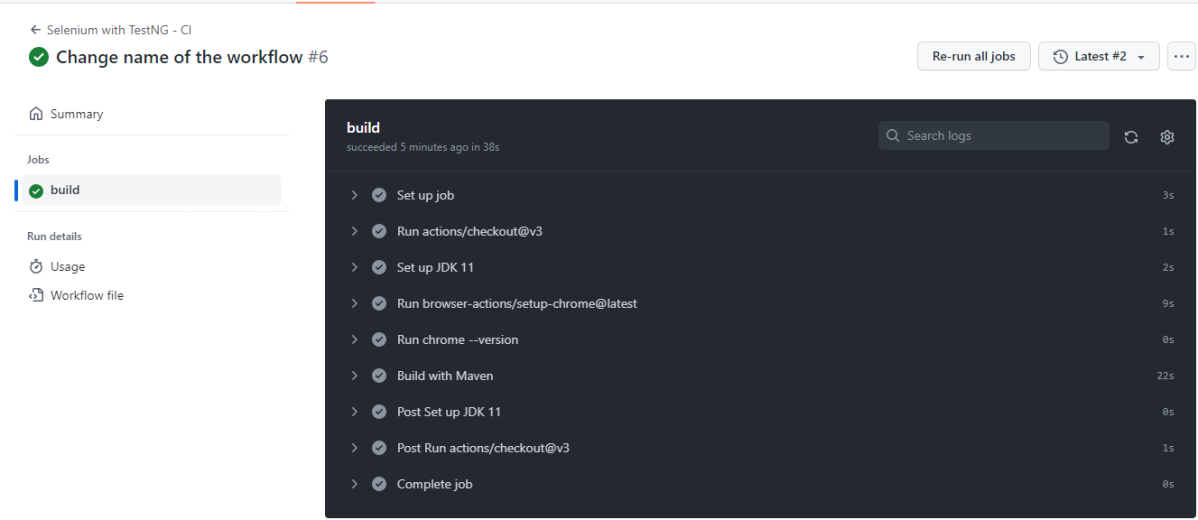
Click on the workflow and the below screen is displayed. It shows the status of the run of the workflow, the total time taken to run the workflow, and the name of the .yml file.
Below are all the steps of the workflow.
Failed – In case the build has failed, then there will be a red cross mark.
Pull requests let others know about changes you’ve pushed to a branch ofyour repository on GitHub. When a pull request is opened, you can discuss and review potential changes with collaborators and add follow-up commits before the changes are merged into the base branch.
Prerequisite:
GIT is installed on the machine
Valid account on GitHub
Implementation Steps
If you want to create a new branch for your pull request and do not have write permissions to the repository, you can fork the repository first.
1. Fork the repository
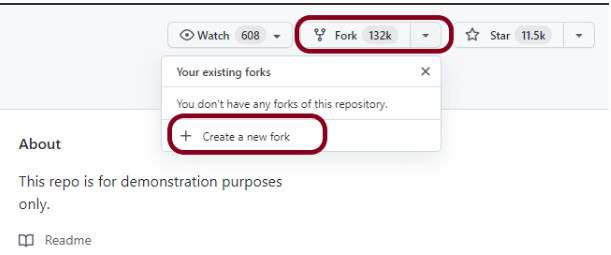
By clicking the fork button at the top of the page, you can fork the repository. This will make a copy of the entire repository in your account. To know more about Forking, please refer to this tutorial – How to Fork a GitHub repository.
2. Clone the repository
Once the repository has been added to your account, you can clone it to your machine to work with it locally.
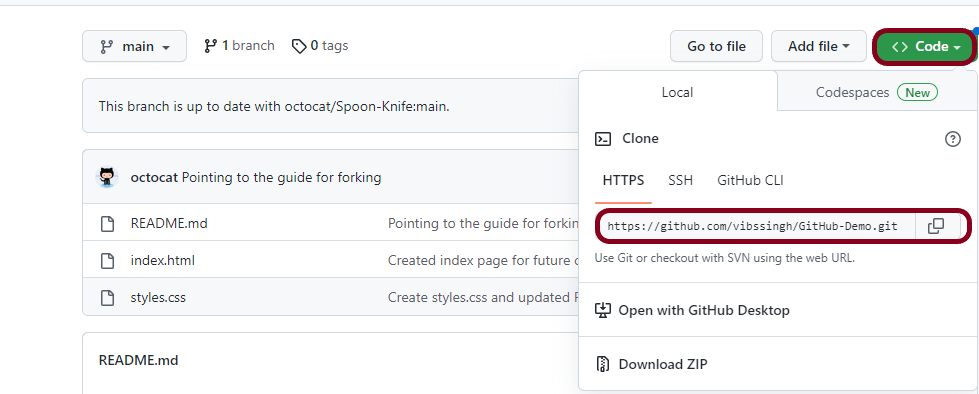
Clone by clicking the clone button and copying the link as shown below.
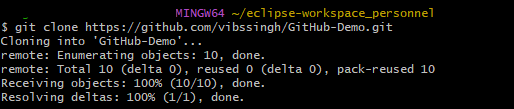
Open the terminal (GitBash) and run the following command. It will clone the repository locally.
Now we have set up a copy of the master branch from the main online project repository.
We need to go to that cloned directory by running this command:
$ cd GitHub-Demo
3. Create a new branch
When working with repositories, whether it’s a small project or contributing to the work of a group, it’s the best practice to create a new branch.
The branch name should be short and reflect the work we are doing.
Now, use the below command to create a branch:
$ git checkout -B first_merge
4. Make changes and commit the changes
Make essential changes to the project and save it.
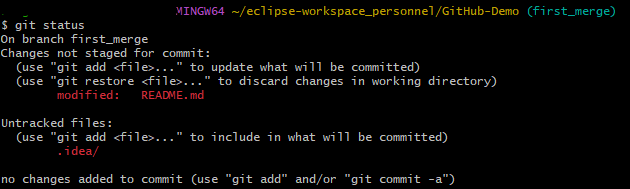
Then execute git status, and you’ll see the changes.
$ git status
Add those changes to the branch you just created using the below command:
$ git add .
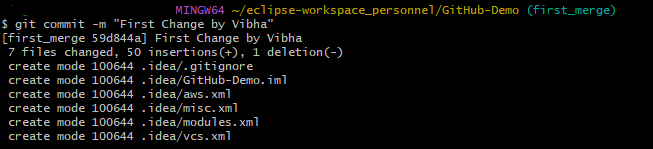
Now commit those changes using the git commit command:
$ git commit -m "First Change by Vibha"
5. Push changes to GitHub
In order to push the changes to GitHub, we need to identify the remote’s name.
$ git remote
For this repository, the remote’s name is “origin”.
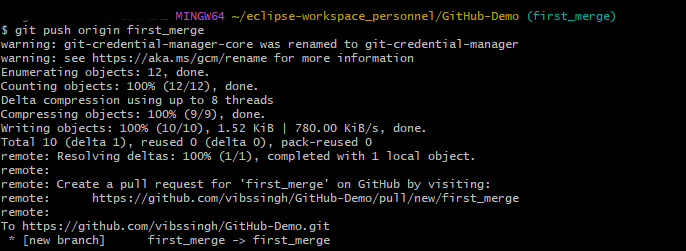
After identifying the remote’s name we can safely push those changes to GitHub.
$ git push origin first_merge
6. Create pull request
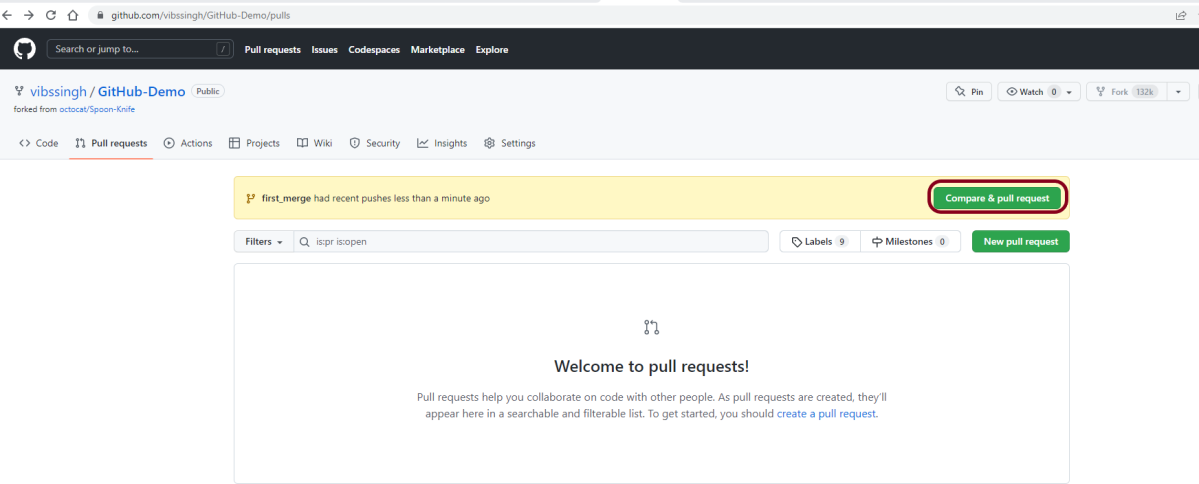
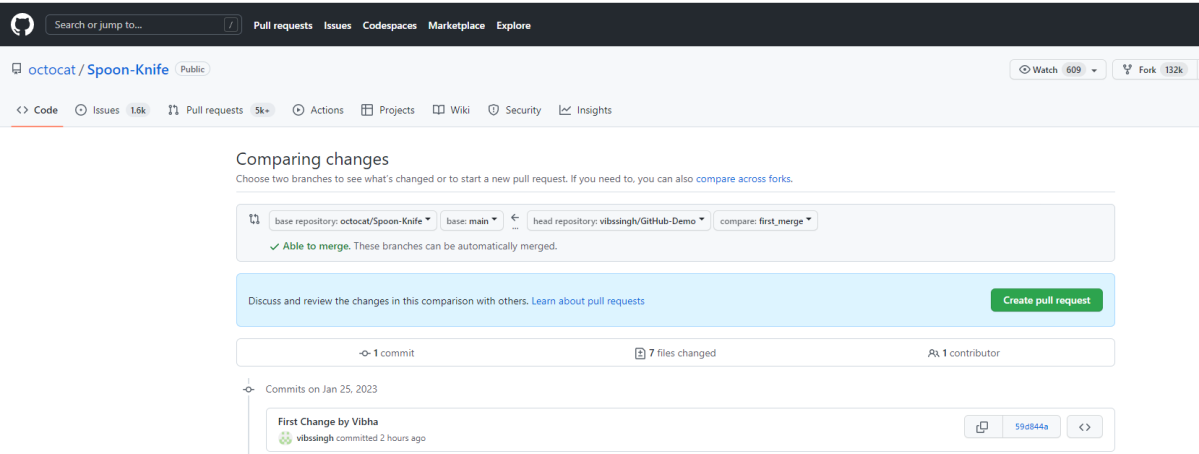
Go to your repository on GitHub, and you’ll see a button “Compare & pull request” click it.
Please provide the necessary details on what you’ve done (You can reference issues using “#”). Now submit the pull request.
7. Update the Local Repository
Before submitting any pull requests to the original repository, you must first sync your repository with it.
While working on a project with other contributors, keep your local repository up to date with the project because you don’t want to make a pull request for code that will automatically cause conflicts (though in collaborative code projects, conflicts are bound to occur). You’ll need to sync changes to keep your local copy of the code base up to date.
To update/sync those changes to your master branch, follow these steps:
1. First, check which branch you are in.
$ git remote
It’ll list all branches and indicates the current or active branch in green.
2. Switch to the master branch
git checkout main
3. Add the original repository as an upstream repository
In order to pull the changes from the original repository into your forked version, you need to add the original Git repository as an upstream repository.
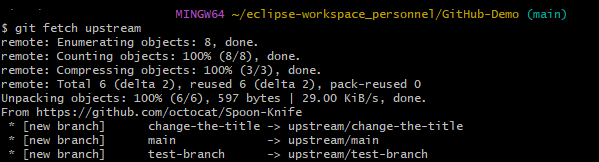
Fetch all the changes from the original repository. Commits to the original repository will be stored in a local branch called upstream/master.
$ git fetch upstream
5. Merge the changes
Merge the changes from the upstream/master into your local master branch. This will bring your fork’s master branch into sync with the upstream repository without losing your local changes.
$ git merge upstream/main
6. Push changes to GitHub
At this point, your local branch is synced to the original repository’s master branch. If you want to update the GitHub repository, you need to push your changes.
$ git push origin main
Congratulations! You’ve made your first pull request.
GitHub is a web-based version control system and collaboration platform for developers. It is the centre around which all things involving git revolve. GitHub allows software developers and engineers to create remote, public-facing repositories on the cloud for free. Once you’ve set up a repository on GitHub, you can copy it to your device, add and modify files locally, and then “push” your changes back to the repository where your changes are displayed for the public.
When running your Jenkins automation jobs, you may need to pass some parameters to your scripts. These parameters can be a URL, a browser name, or even the test user’s credentials. This tutorial will walk you through the process of creating a parameterized Jenkins job.
Jenkins supports several parameter types. Below is a list of the most common ones, but keep in mind that different plugins may add new parameter types:
String: any combination of characters and numbers
Choice: a pre-defined set of strings from which a user can pick a value
Credentials: a pre-defined Jenkins credential
File: the full path to a file on the filesystem
Multi-line String: same as String, but allows newline characters
Password: similar to the Credentials type, but allows us to pass a plain text parameter specific to the job or pipeline
Run: an absolute URL to a single run of another job
Implementation Steps
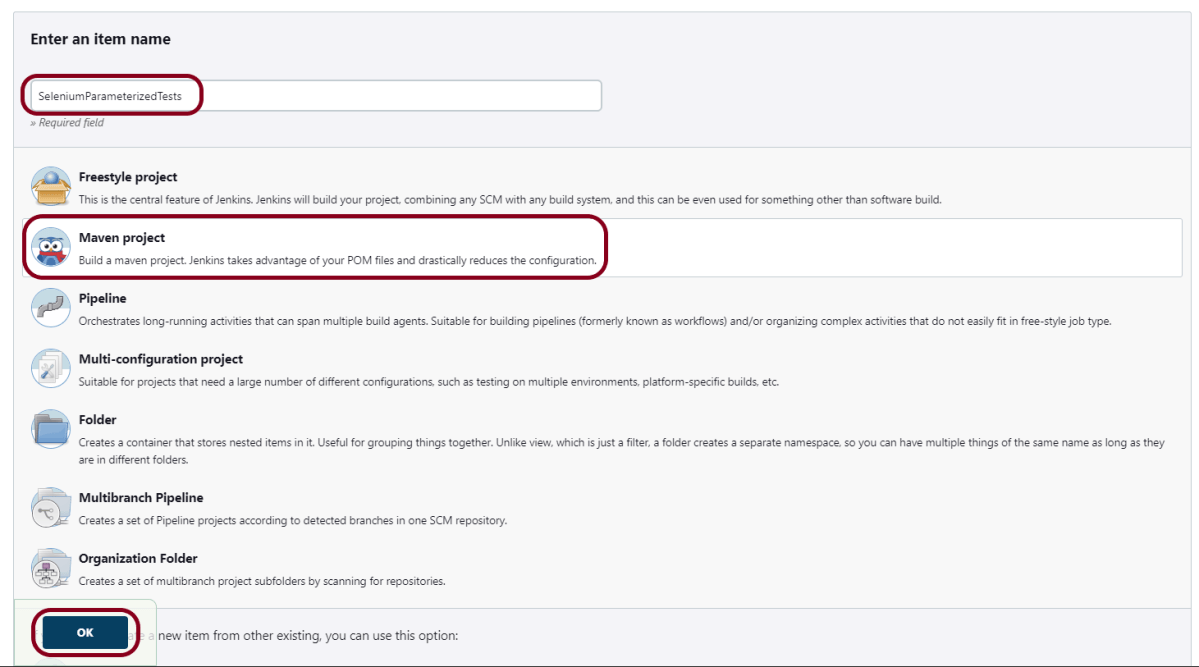
Step 1: Create a new project using the Maven project plugin
Give the Name of the project.
Click on the Maven project.
Click on the OK button.
Step 2: Description of the project
In the General section, enter the project description in the Description box.
Check the option – This project is parameterized.
Click on Add Parameter and we can select any option as shown in the above image.
Choice Parameter
As I want to run my tests on different browsers, I have selected Choice Parameter.
Give the Name of the Parameter.
Give the Choices of the Parameter – chrome, firefox
Give the Description of the Parameter – Please select the browser for the test execution.
String Parameter
I want to pass the test environment URL in the test. So, I’m selecting a string value. Select String Parameter on the Add Parametermenu.
Give the Name of the Parameter.
Give the Default Value of the Parameter. This value will be used if nothing will be provided.
Give the Description of the Parameter – Provide the environment URL.
Step 3: Source Code Management
In the Source Code Management section, select None.
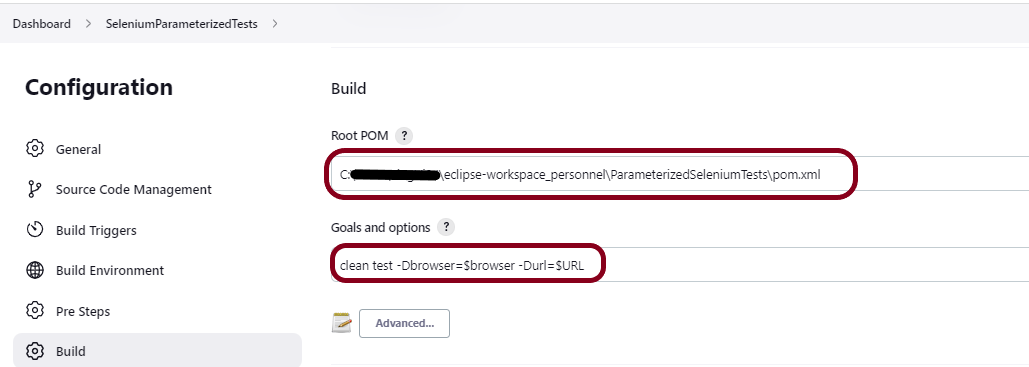
Step 4: Build Management
Go to the Build section of the new job.
In the Root POM textbox, enter the full path to pom.xml
In the Goals and Options section, enter the below command:
clean test -Dbrowser=$browser -Durl=$URL
Step 5: Select “TestNG Reports” from “Post Build Actions”
Scroll down to “Post Build Actions” and click on the “Add Post Build Actions” drop-down list.
Select “Publish TestNG Results“.
Enter the TestNG XML Report Pattern as “**/testng-results.xml” and click on the “Save” button.
Click on the Apply and Save buttons.
We have created a new project “SeleniumParameterizedTests” with the configuration to run TestNG Tests and also to generate TestNG Reports after execution using Jenkins.
Step 6: Execute the tests
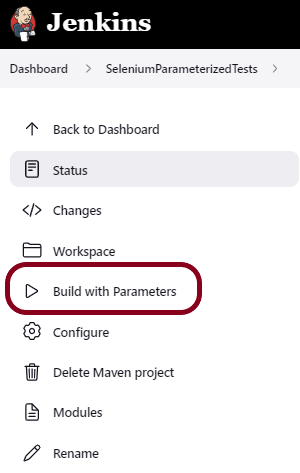
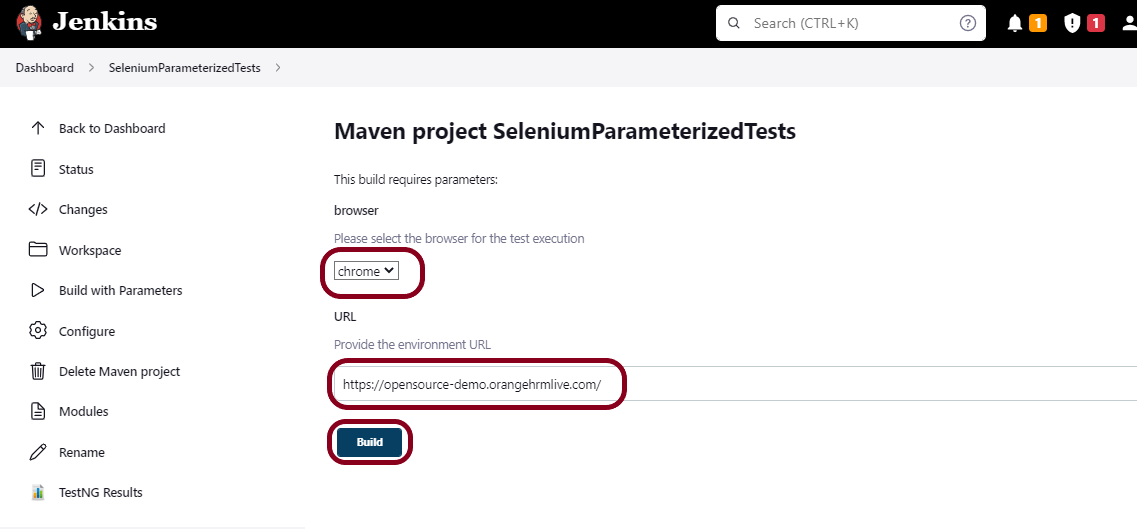
Let’s execute it now by clicking on the “Build with Parameters” button.
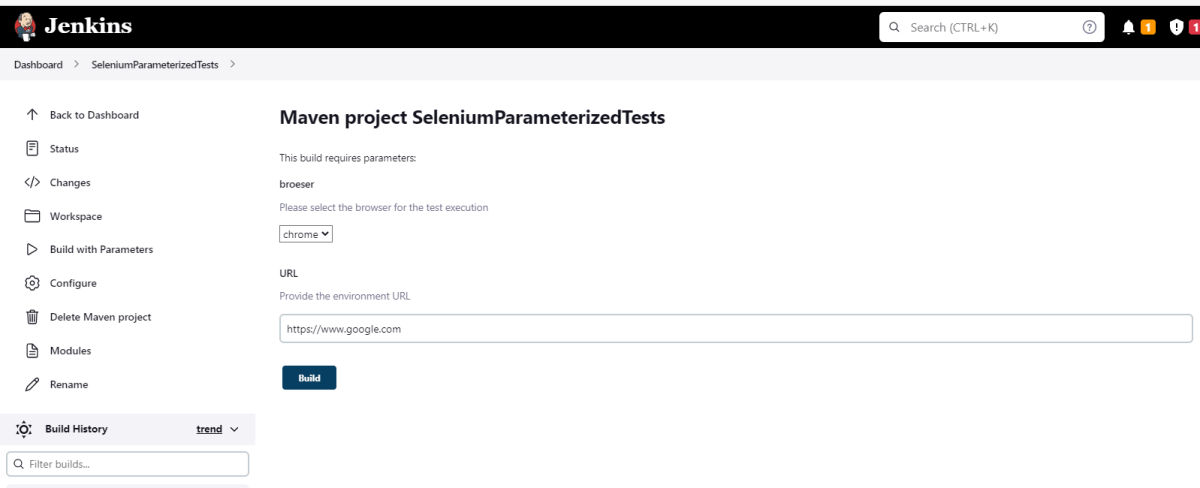
This screen contains the parameters which we have to select. The browser was a choice parameter and select a parameter from it and URL was a String parameter, so mention the URL in it and click on the “Build” button.
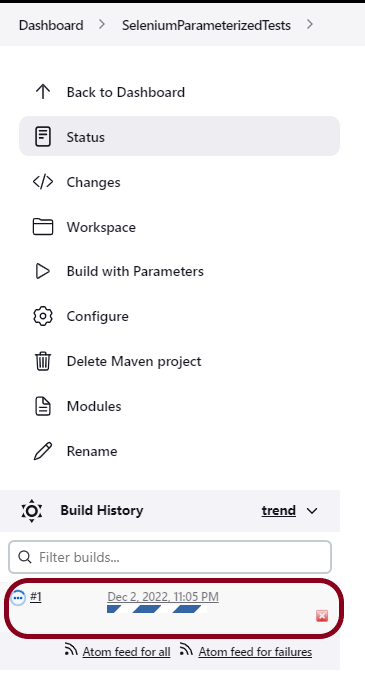
Right-click on Build Number (here in my case it is #1).
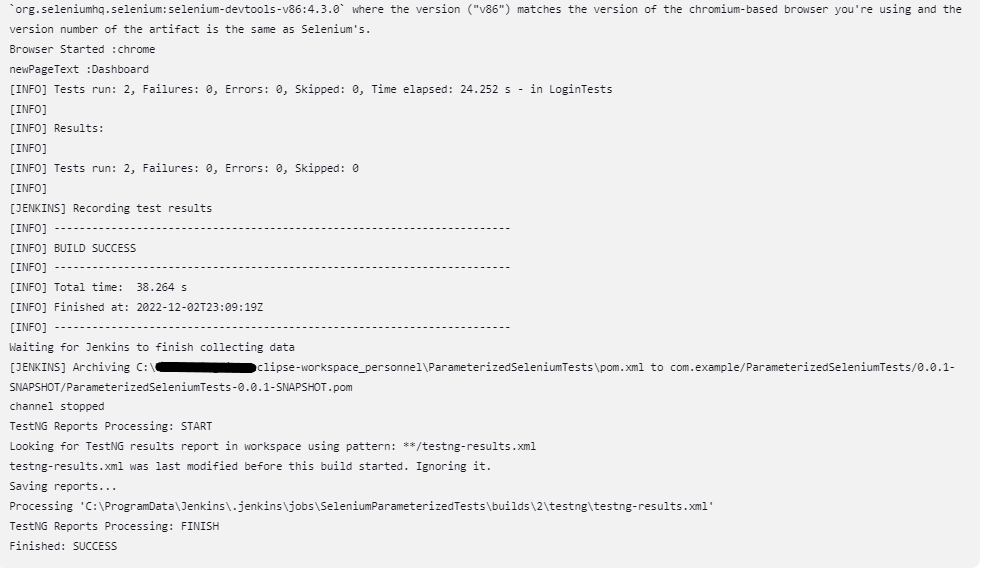
Click on Console Output to see the result.
Step 7: View the TestNG Report
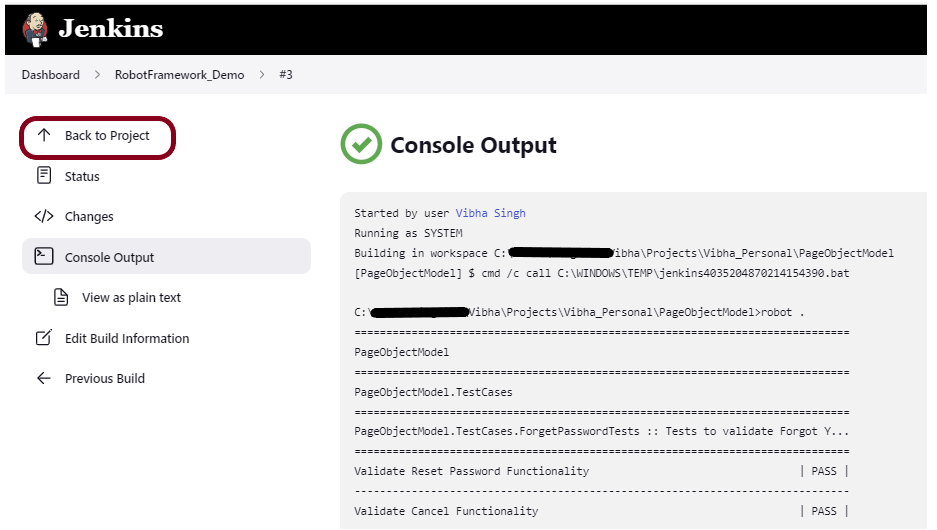
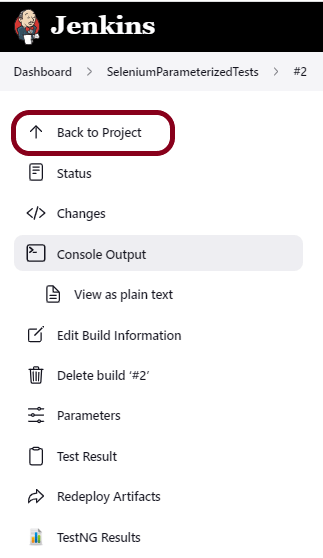
Once the execution is completed, click on go “Back to Project“, and we could see a link to view the “TestNG Report“.
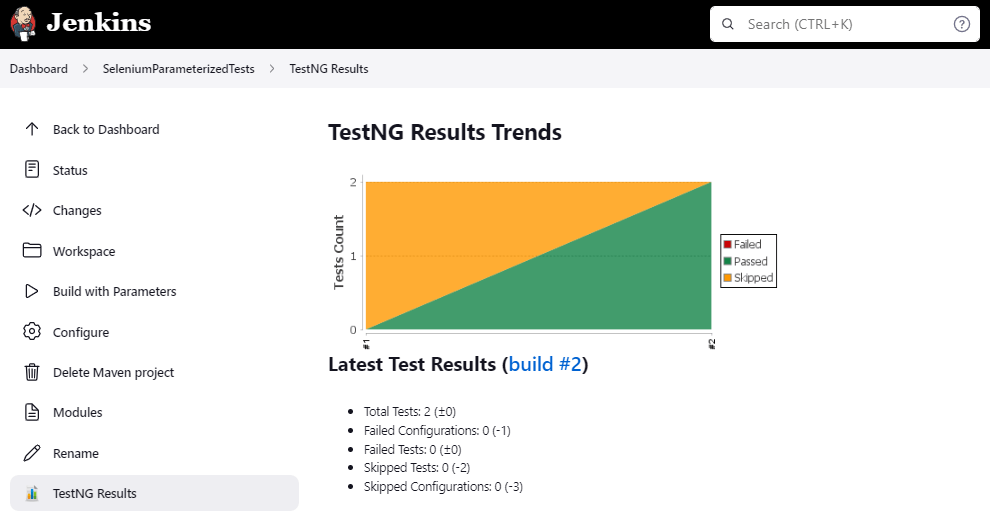
Click on the TestNG Results. It displays the summary of the tests.
Congratulations on making it through this tutorial and hope you found it useful! Happy Learning!! Cheers!!
You need to provide a username and password and click on Sign in button.
Step 3: Select Manage Jenkins
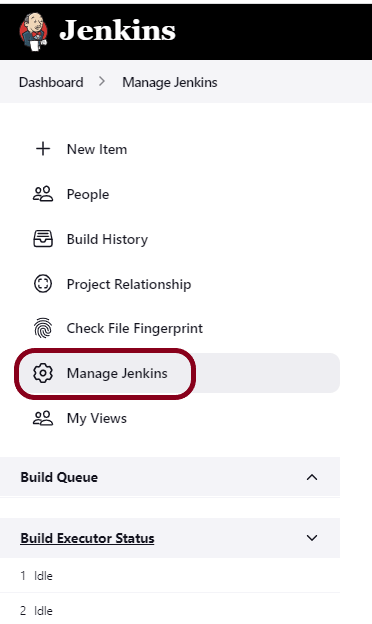
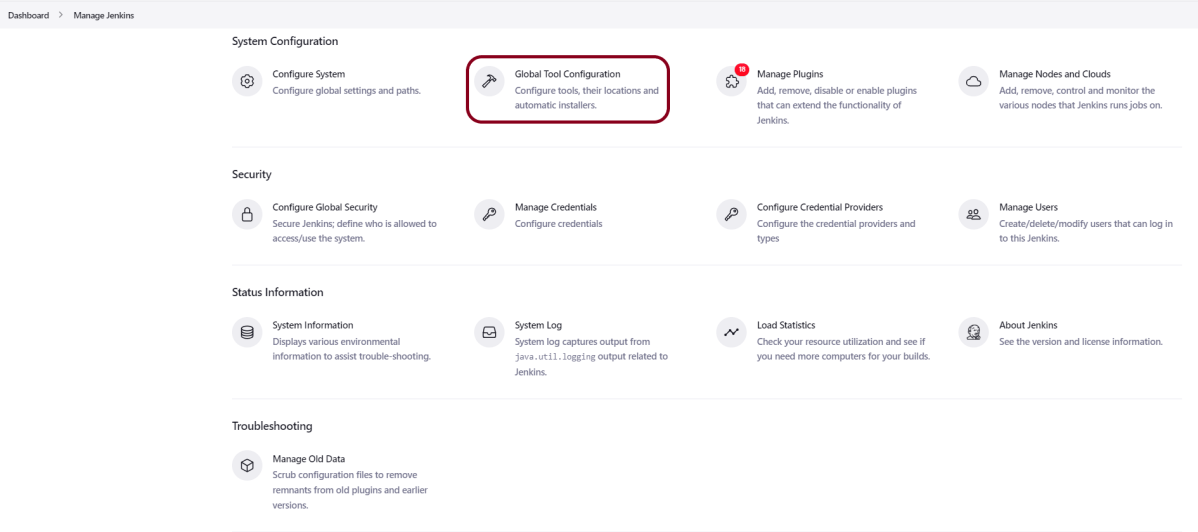
Go to Jenkins Dashboard. After that, click on the Manage Jenkins link as shown below:
Step 4: Select the Global Tool Configuration option
When we click on the “Manage Jenkins” link, we are redirected to the Manage Jenkins page, where we can see various types of options, including the “Global Tool Configuration” option.
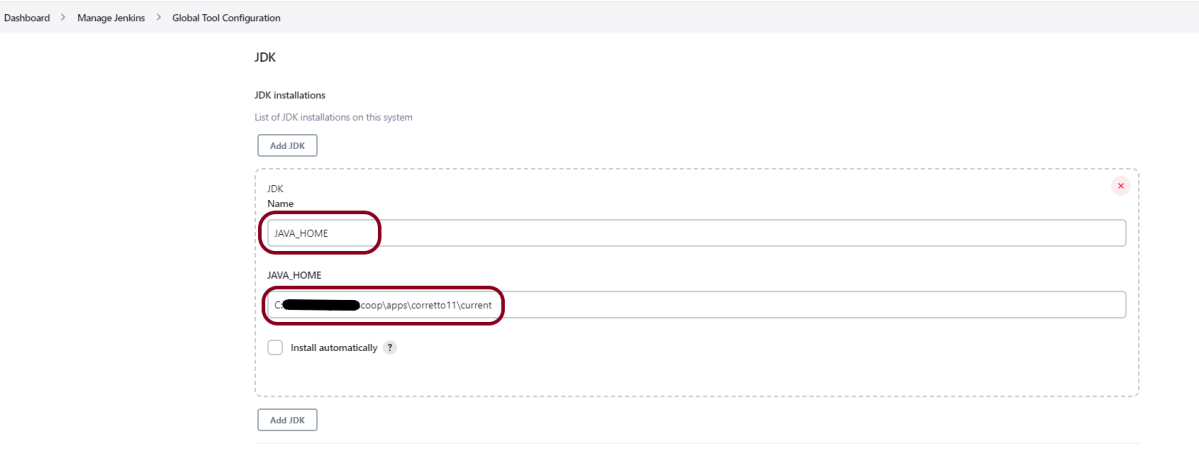
Step 5: Setup JDK Path
We need to set the JDK path in Jenkins as shown below. To know more about setting up Java in Jenkins, please refer to this tutorial – How to configure Java and Maven in Jenkins.
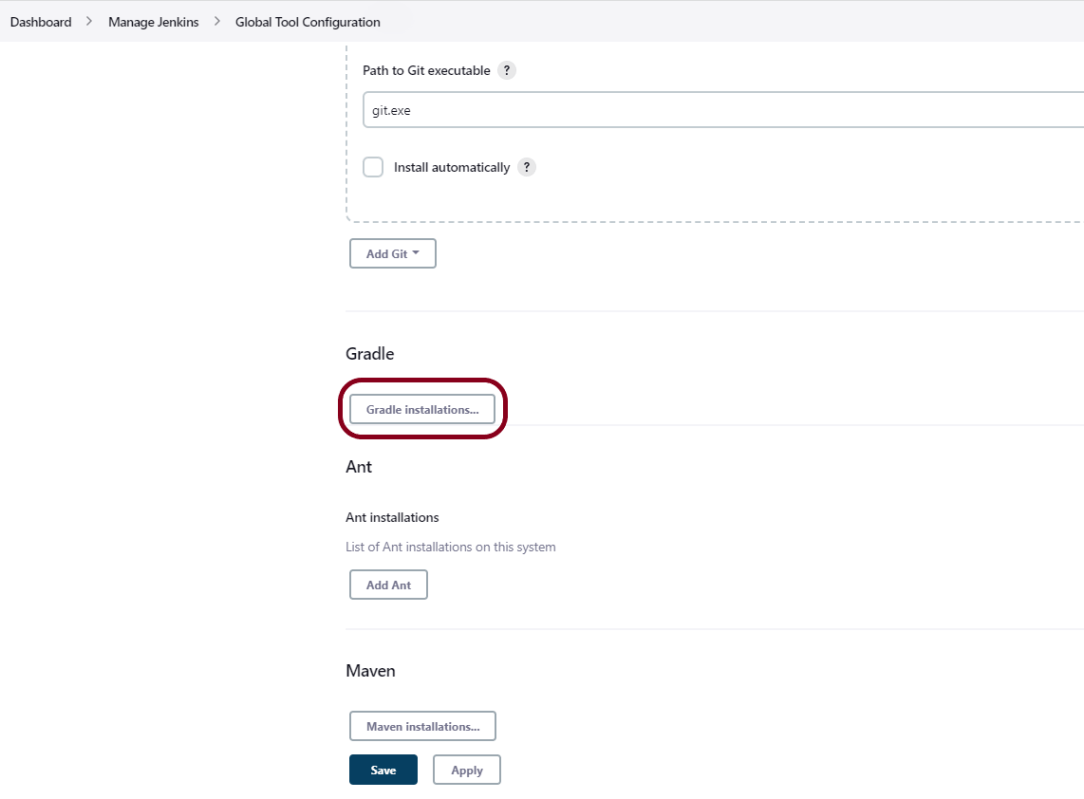
Step 6: Setup Gradle Path
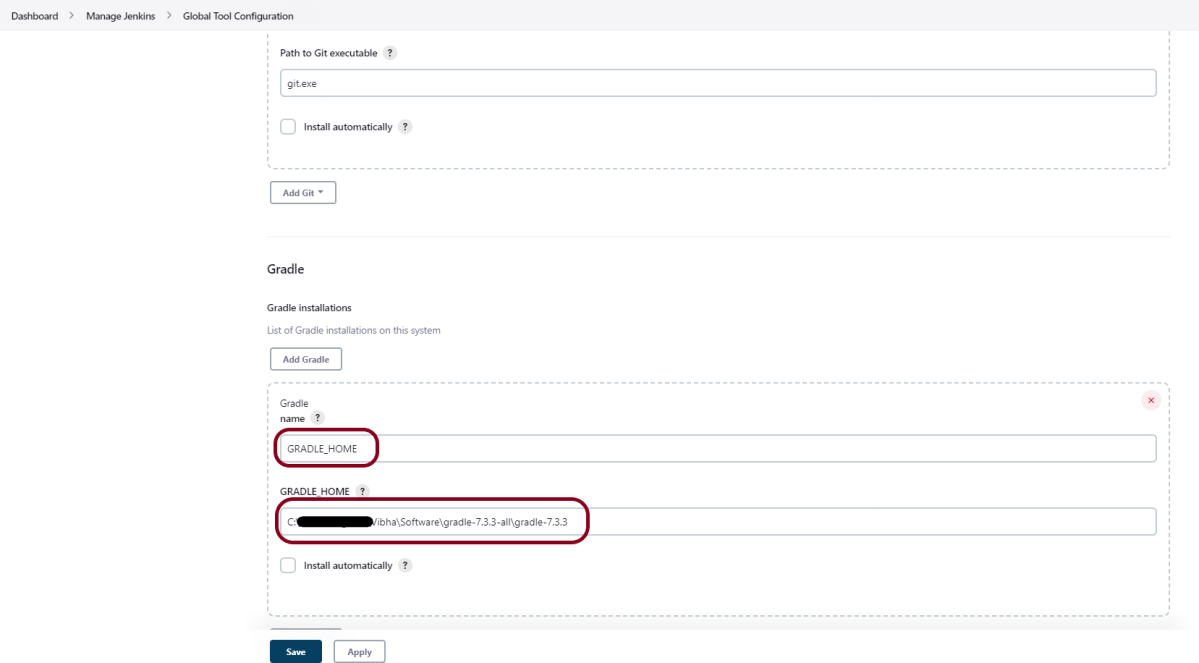
We need to set the Gradle path in Jenkins as shown below.
Click on the Add Gradle Installations button. Kindly note that by default, “Install Automatically” will be checked, so since we are going to use the Gradle installed on our local machine, “Install automatically” will install the latest version of Gradle, and you will also need to provide credentials to download the relevant Maven.
Provide the Gradle’s name as we gave as Gradle 7.3.3 because that is what is currently installed on my machine, and also provide the path of Gradle in the GRADLE_HOME textbox.
Click on the Apply and Save buttons.
Integrate Gradle Project with Jenkins
Step 1: Create a new project using the FreeStyle project plugin
Give the Name of the project.
Click on the Freestyle project.
Click on the OK button.
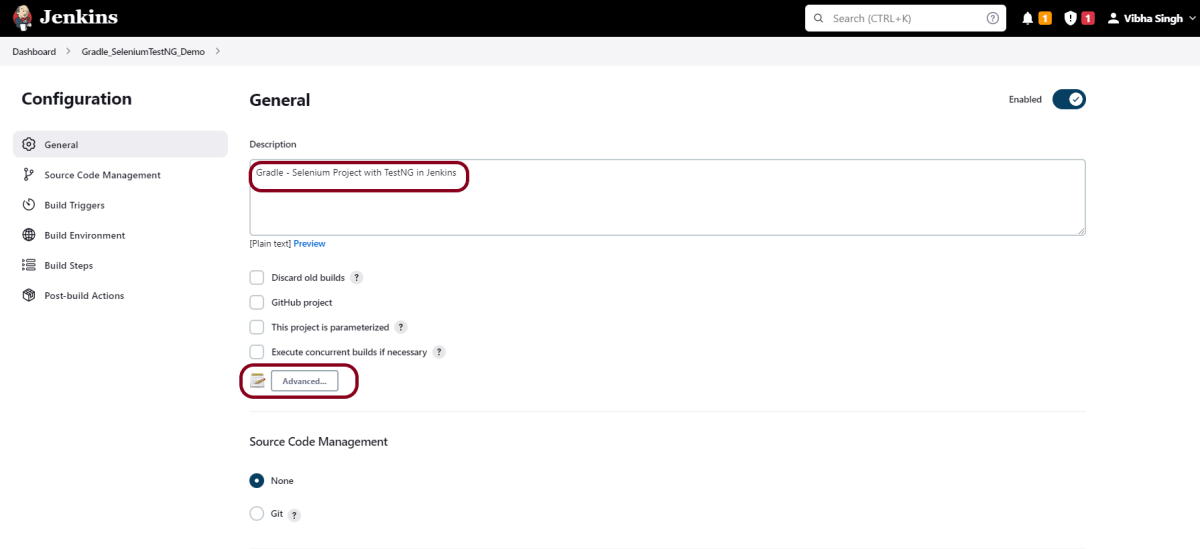
Step 2: Enter the project description in the Description box
In the general section, describe the project in the description section.
Click on the Advanced button. Mention the full path of the project.
Step 3: Build Management
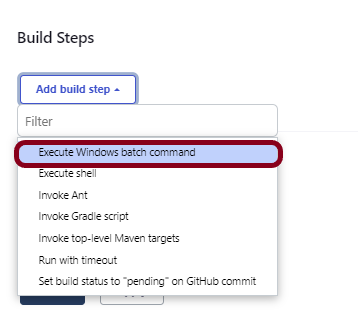
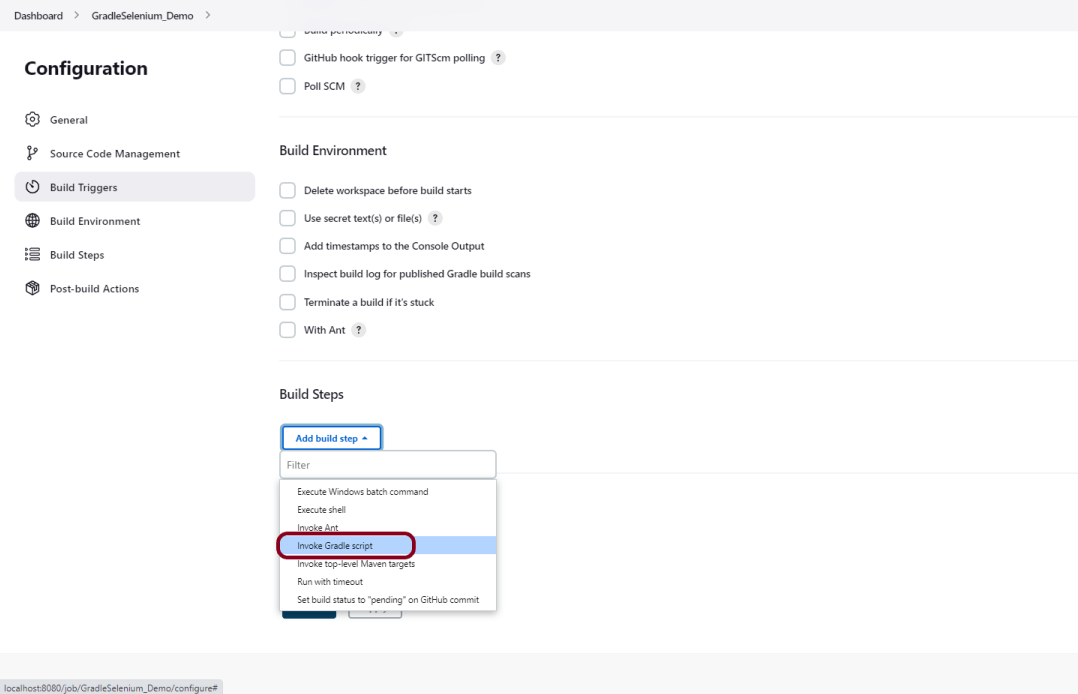
Go to the Build section of the new job and select the option – “Invoke Gradle Script“.
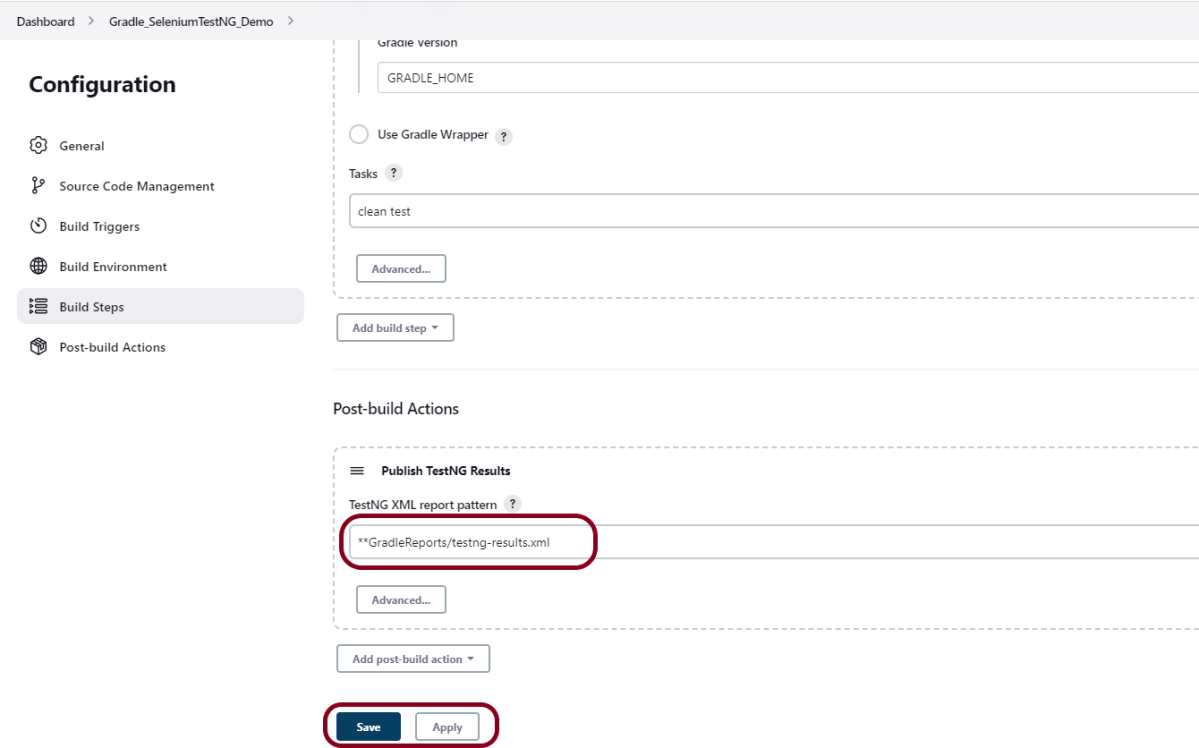
Provide the below-mentioned information:
In the Gradle version, enter – GRADLE_HOME.
In the Tasks option section, enter “clean test”
Step 4: Select “Publish TestNG Results” from “Post Build Actions”
Scroll down to “Post Build Actions” and click on the “Add Post Build Actions” drop-down list.
Enter TestNG XML Report Pattern as “**GradleReports/testng-results.xml” and click on the Save button
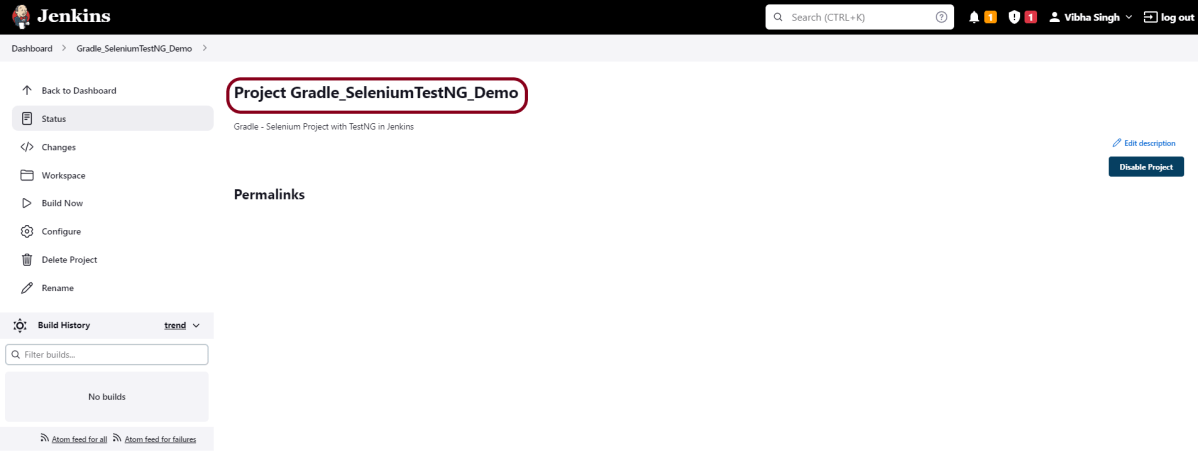
We have created a new project “Gradle_SeleniumTestNG_Demo” with the configuration to run TestNG Tests and also to generate TestNG Reports after execution using Jenkins.
Step 5: Execute the tests
Let’s execute it now by clicking on the “Build Now” button.
Right-click on Build Number (here in my case it is #2) and click on Console Output to see the result.
The below screen shows that the build failed because I failed one of the tests intentionally to show how the result looks with passed and failed tests.
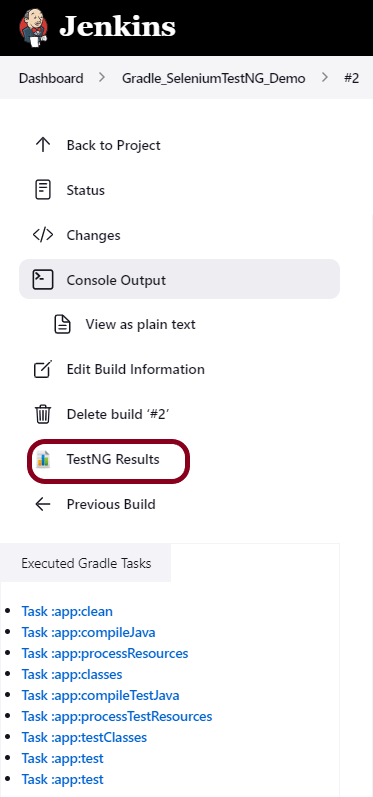
Once the execution is completed, we could see a link to view ‘TestNG Results’.
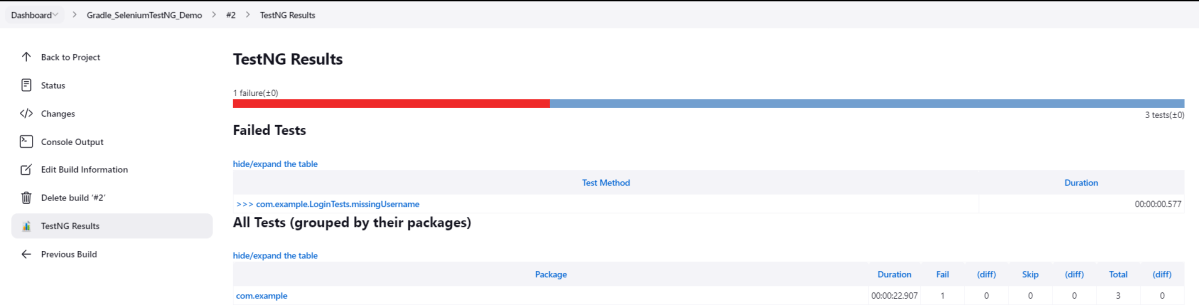
Click on the TestNG Results. It displays the summary of the tests.
This way, we could integrate the Gradle project with Jenkins.
Congratulations on making it through this tutorial and hope you found it useful! Happy Learning!! Cheers!!

















































 QA Automation Expert