GitHub is a web-based version control system and collaboration platform for developers. It is the centre around which all things involving git revolve. GitHub allows software developers and engineers to create remote, public-facing repositories on the cloud for free. Once you’ve set up a repository on GitHub, you can copy it to your device, add and modify files locally, and then “push” your changes back to the repository where your changes are displayed for the public.
When running your Jenkins automation jobs, you may need to pass some parameters to your scripts. These parameters can be a URL, a browser name, or even the test user’s credentials. This tutorial will walk you through the process of creating a parameterized Jenkins job.
Jenkins supports several parameter types. Below is a list of the most common ones, but keep in mind that different plugins may add new parameter types:
String: any combination of characters and numbers
Choice: a pre-defined set of strings from which a user can pick a value
Credentials: a pre-defined Jenkins credential
File: the full path to a file on the filesystem
Multi-line String: same as String, but allows newline characters
Password: similar to the Credentials type, but allows us to pass a plain text parameter specific to the job or pipeline
Run: an absolute URL to a single run of another job
Implementation Steps
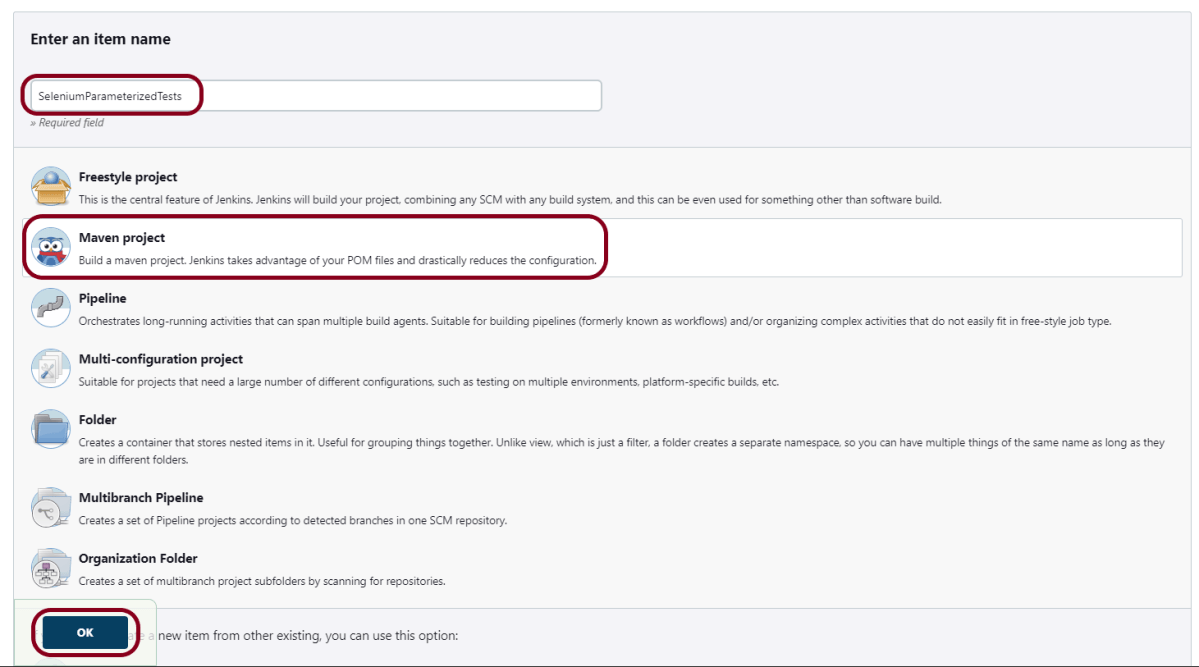
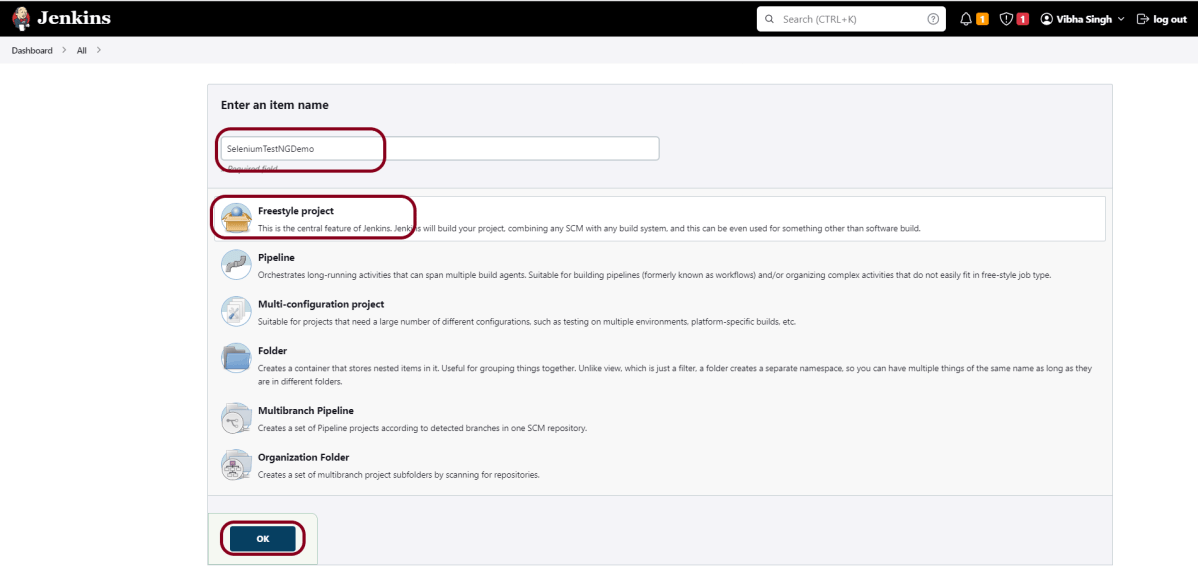
Step 1: Create a new project using the Maven project plugin
Give the Name of the project.
Click on the Maven project.
Click on the OK button.
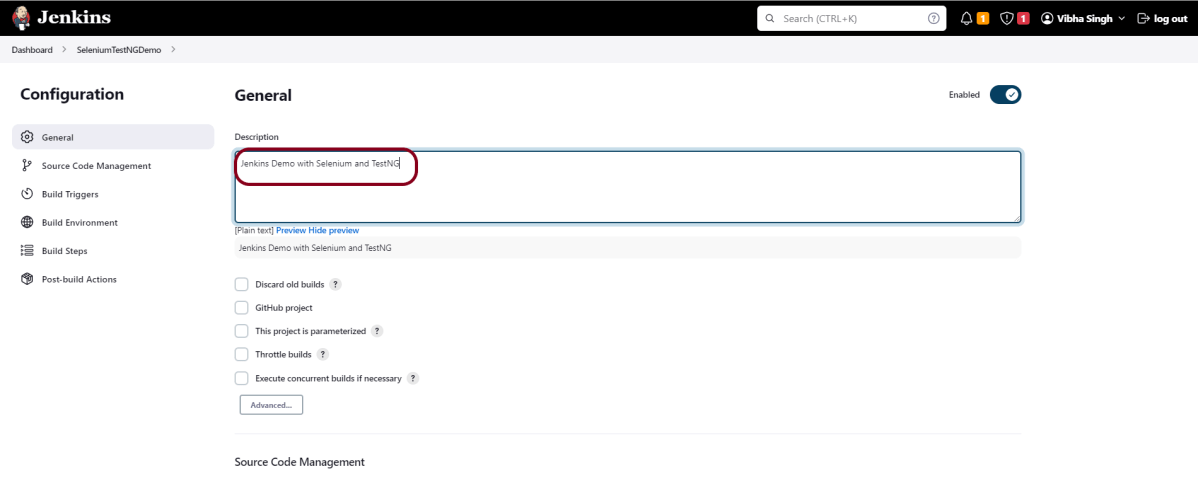
Step 2: Description of the project
In the General section, enter the project description in the Description box.
Check the option – This project is parameterized.
Click on Add Parameter and we can select any option as shown in the above image.
Choice Parameter
As I want to run my tests on different browsers, I have selected Choice Parameter.
Give the Name of the Parameter.
Give the Choices of the Parameter – chrome, firefox
Give the Description of the Parameter – Please select the browser for the test execution.
String Parameter
I want to pass the test environment URL in the test. So, I’m selecting a string value. Select String Parameter on the Add Parametermenu.
Give the Name of the Parameter.
Give the Default Value of the Parameter. This value will be used if nothing will be provided.
Give the Description of the Parameter – Provide the environment URL.
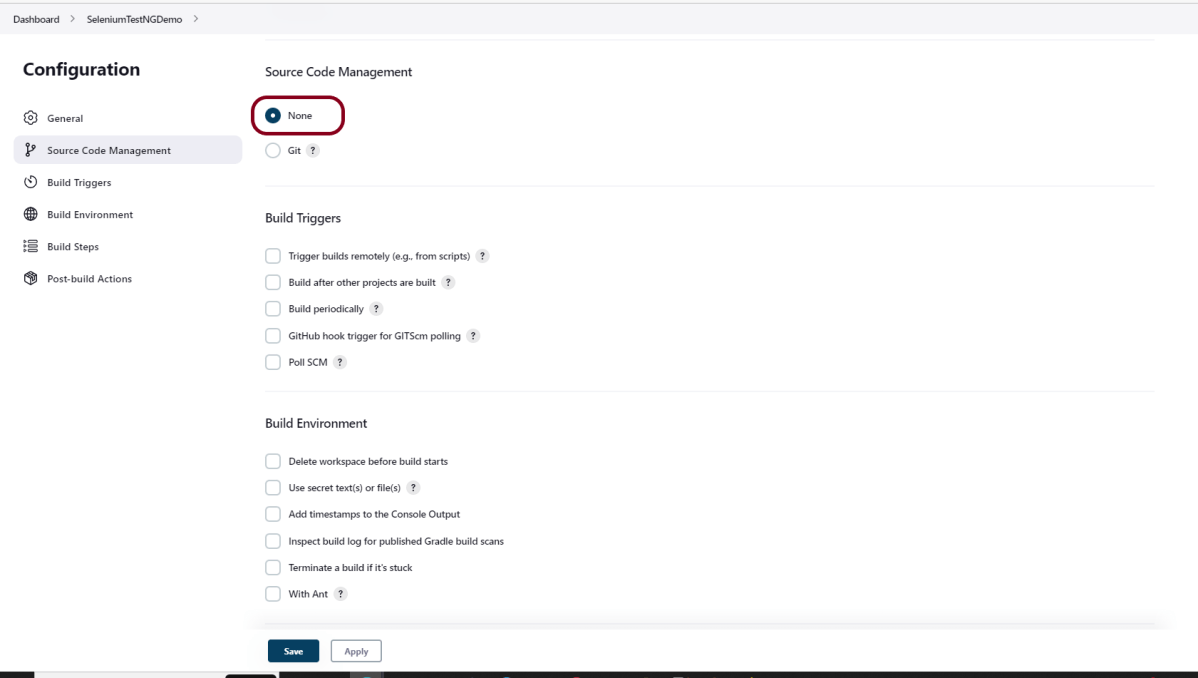
Step 3: Source Code Management
In the Source Code Management section, select None.
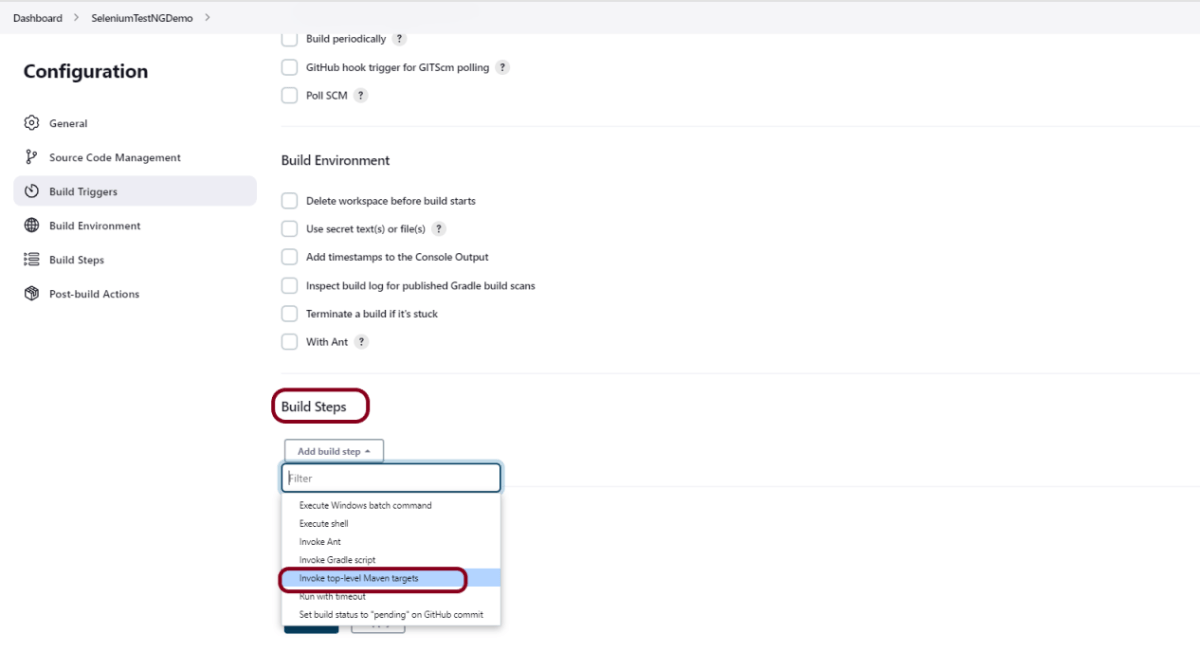
Step 4: Build Management
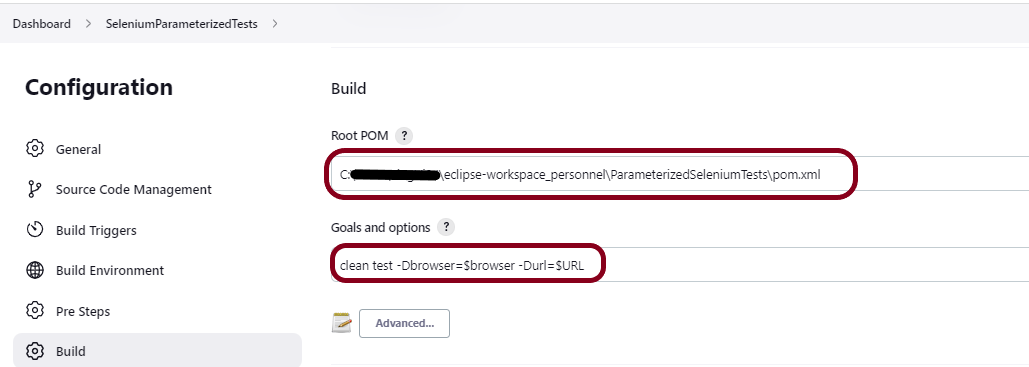
Go to the Build section of the new job.
In the Root POM textbox, enter the full path to pom.xml
In the Goals and Options section, enter the below command:
clean test -Dbrowser=$browser -Durl=$URL
Step 5: Select “TestNG Reports” from “Post Build Actions”
Scroll down to “Post Build Actions” and click on the “Add Post Build Actions” drop-down list.
Select “Publish TestNG Results“.
Enter the TestNG XML Report Pattern as “**/testng-results.xml” and click on the “Save” button.
Click on the Apply and Save buttons.
We have created a new project “SeleniumParameterizedTests” with the configuration to run TestNG Tests and also to generate TestNG Reports after execution using Jenkins.
Step 6: Execute the tests
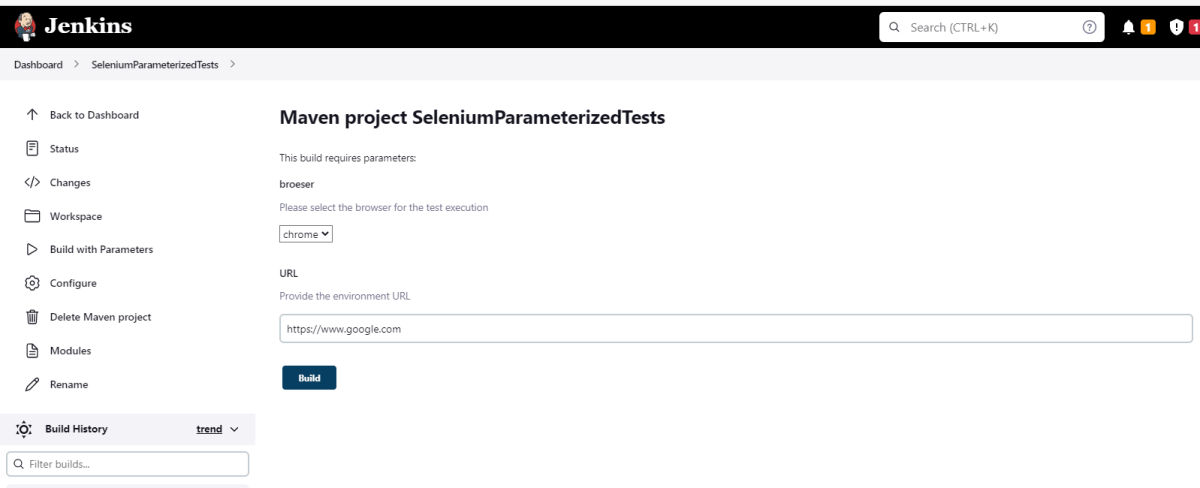
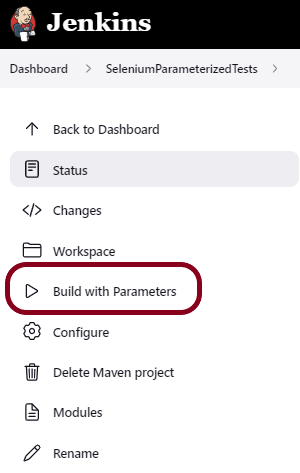
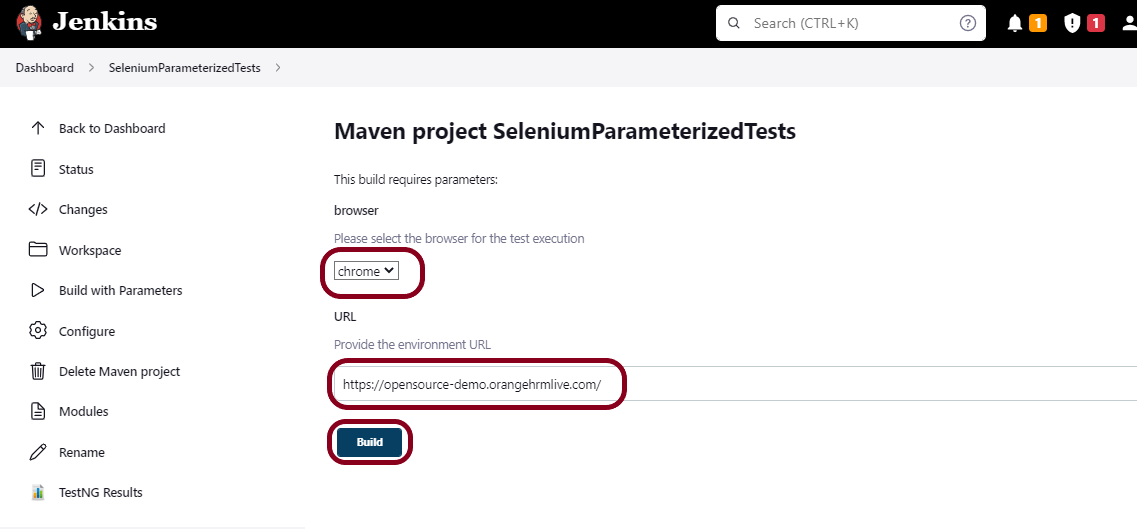
Let’s execute it now by clicking on the “Build with Parameters” button.
This screen contains the parameters which we have to select. The browser was a choice parameter and select a parameter from it and URL was a String parameter, so mention the URL in it and click on the “Build” button.
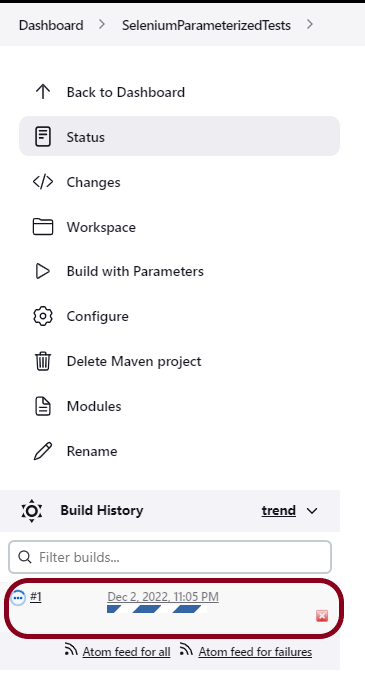
Right-click on Build Number (here in my case it is #1).
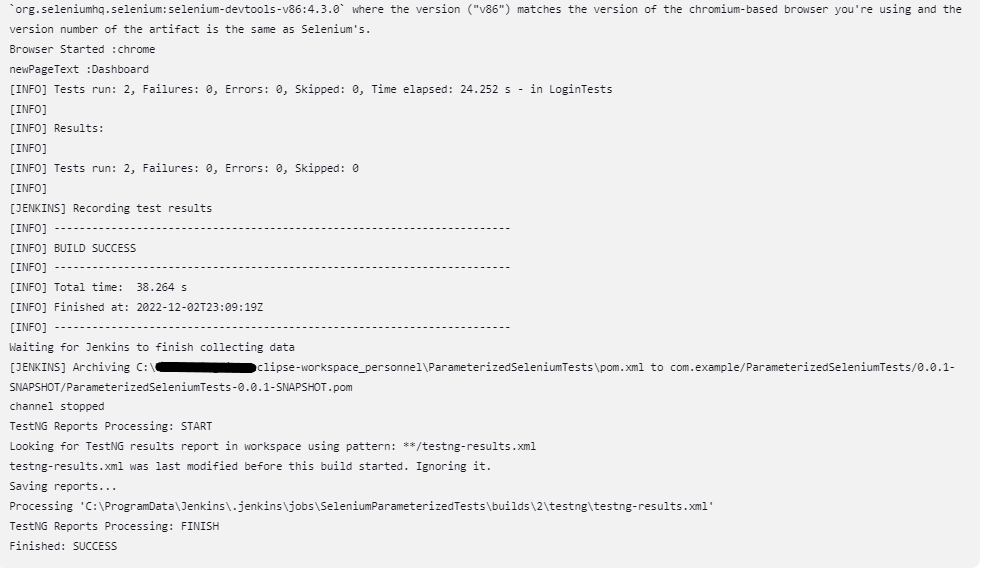
Click on Console Output to see the result.
Step 7: View the TestNG Report
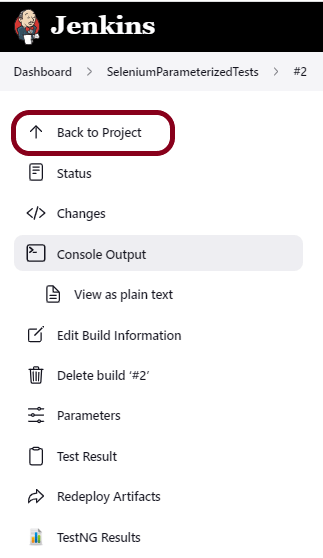
Once the execution is completed, click on go “Back to Project“, and we could see a link to view the “TestNG Report“.
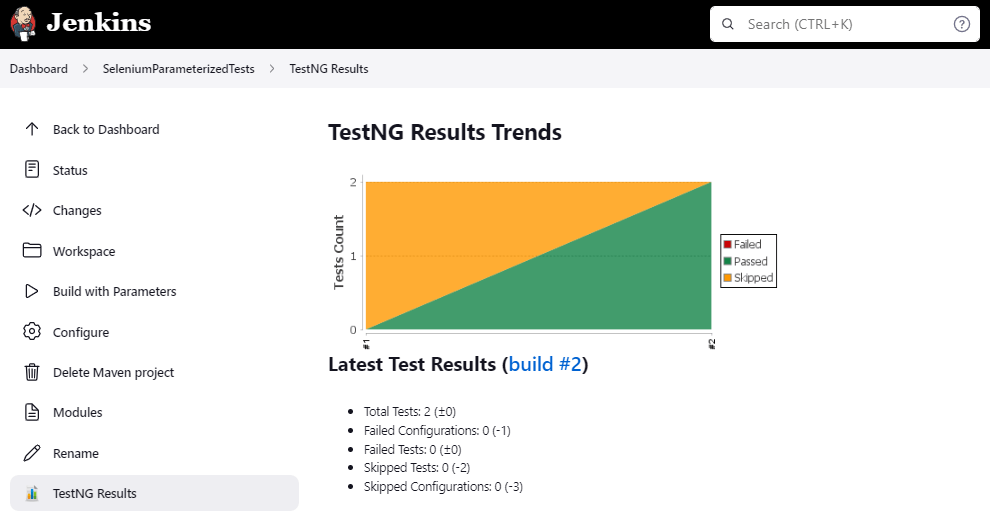
Click on the TestNG Results. It displays the summary of the tests.
Congratulations on making it through this tutorial and hope you found it useful! Happy Learning!! Cheers!!
You need to provide a username and password and click on Sign in button.
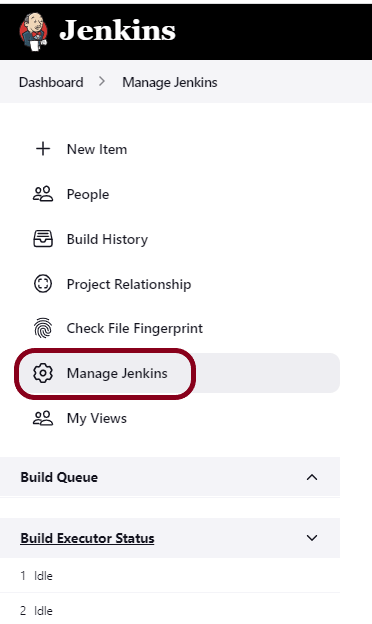
Step 3: Select Manage Jenkins
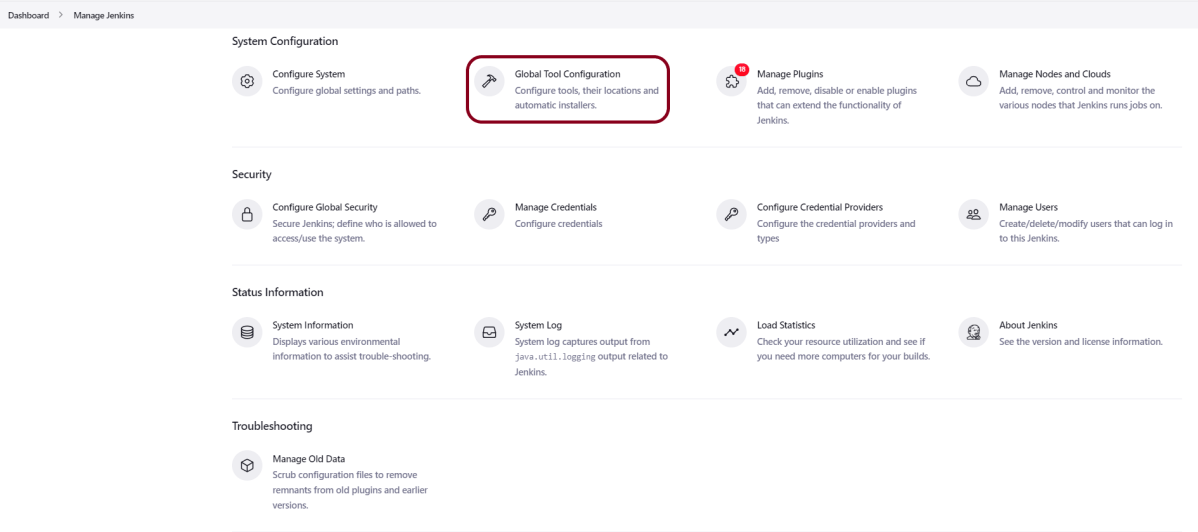
Go to Jenkins Dashboard. After that, click on the Manage Jenkins link as shown below:
Step 4: Select the Global Tool Configuration option
When we click on the “Manage Jenkins” link, we are redirected to the Manage Jenkins page, where we can see various types of options, including the “Global Tool Configuration” option.
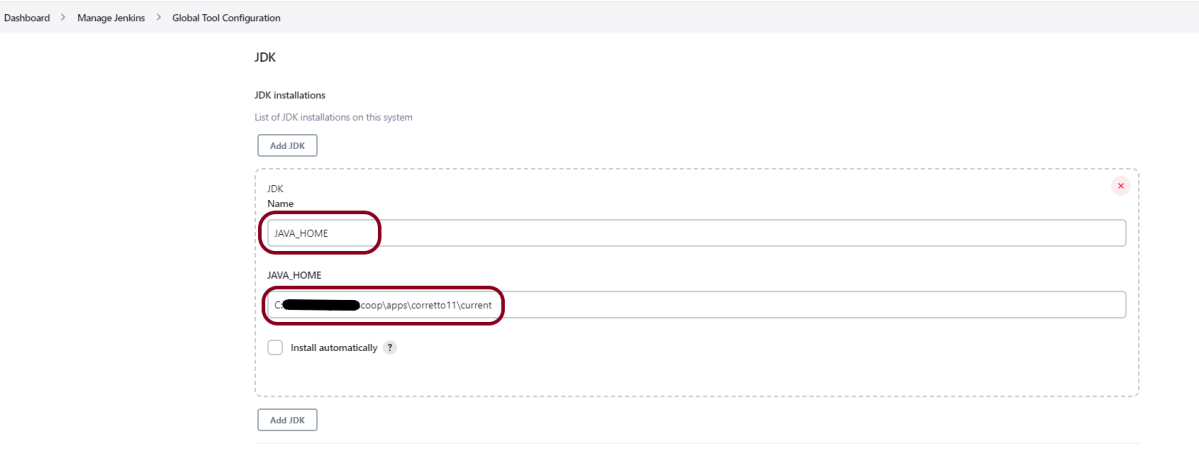
Step 5: Setup JDK Path
We need to set the JDK path in Jenkins as shown below. To know more about setting up Java in Jenkins, please refer to this tutorial – How to configure Java and Maven in Jenkins.
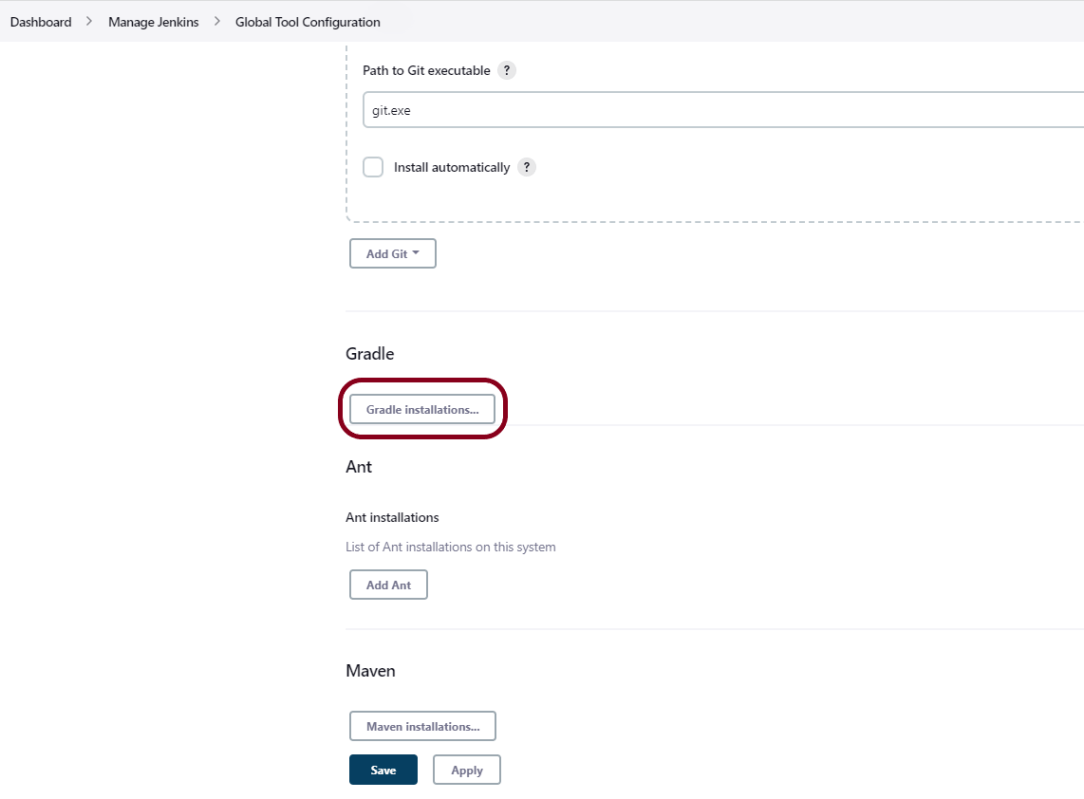
Step 6: Setup Gradle Path
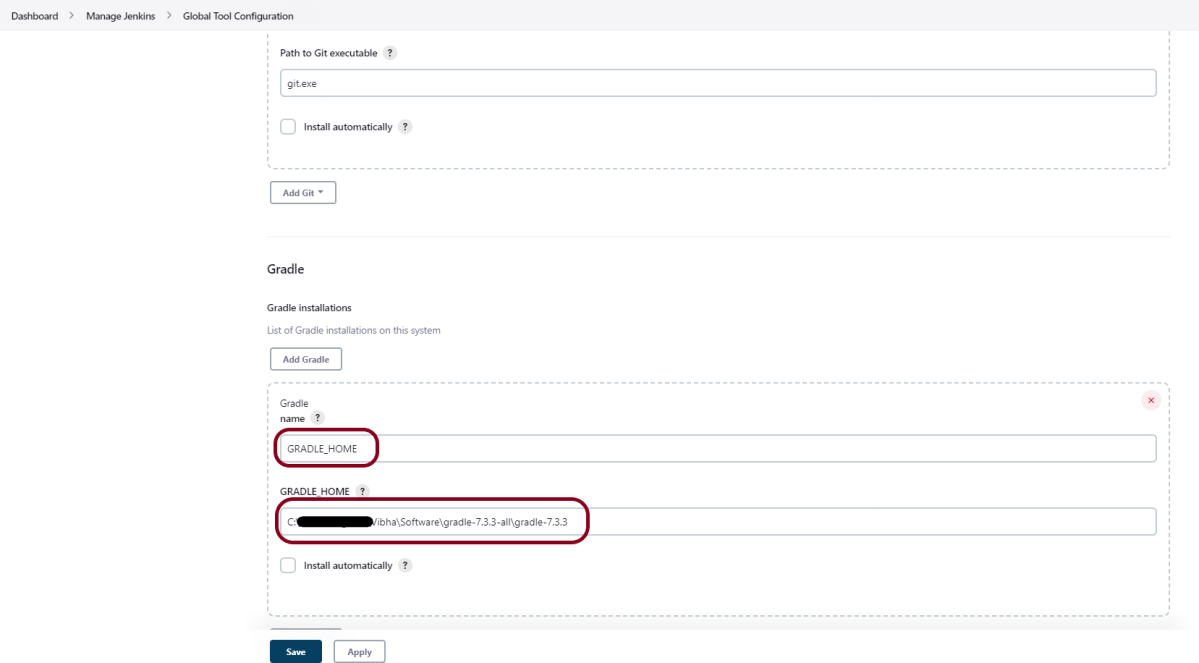
We need to set the Gradle path in Jenkins as shown below.
Click on the Add Gradle Installations button. Kindly note that by default, “Install Automatically” will be checked, so since we are going to use the Gradle installed on our local machine, “Install automatically” will install the latest version of Gradle, and you will also need to provide credentials to download the relevant Maven.
Provide the Gradle’s name as we gave as Gradle 7.3.3 because that is what is currently installed on my machine, and also provide the path of Gradle in the GRADLE_HOME textbox.
Click on the Apply and Save buttons.
Integrate Gradle Project with Jenkins
Step 1: Create a new project using the FreeStyle project plugin
Give the Name of the project.
Click on the Freestyle project.
Click on the OK button.
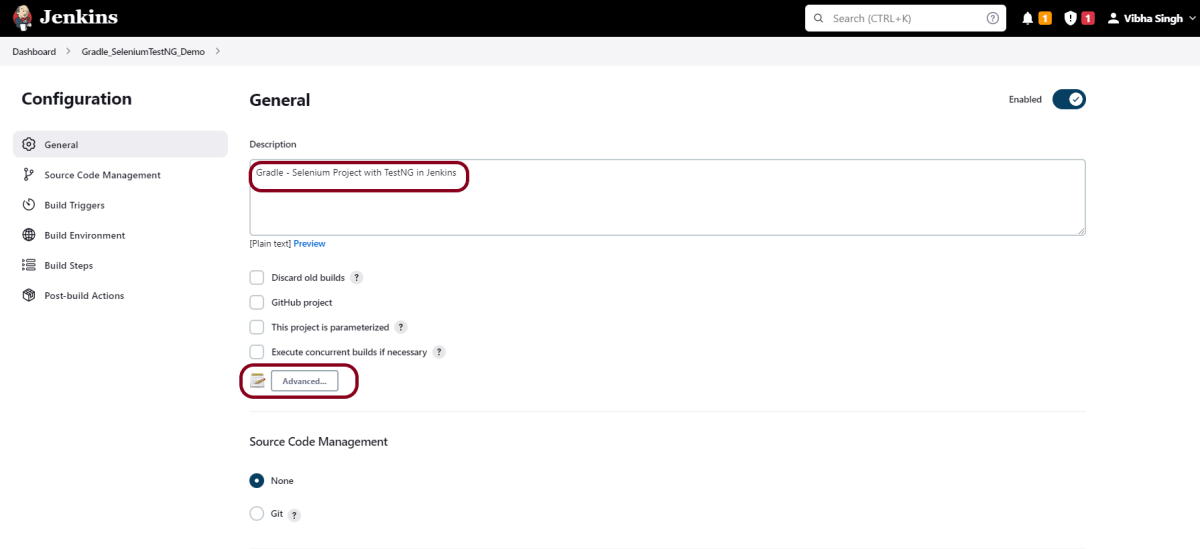
Step 2: Enter the project description in the Description box
In the general section, describe the project in the description section.
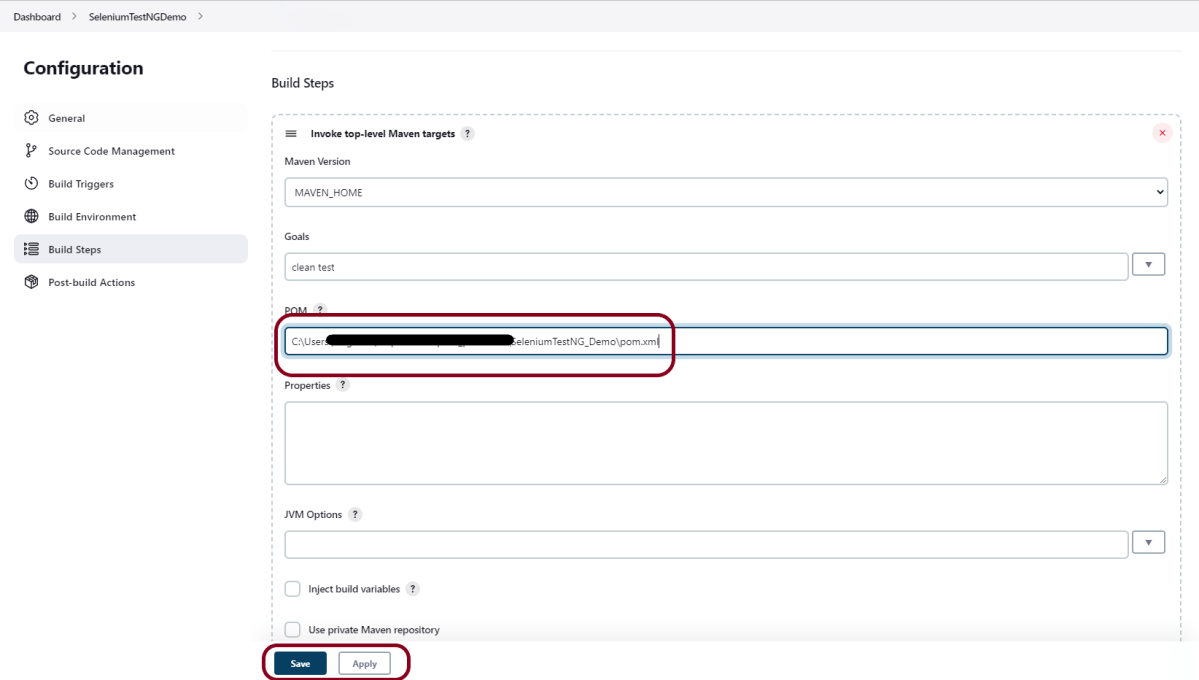
Click on the Advanced button. Mention the full path of the project.
Step 3: Build Management
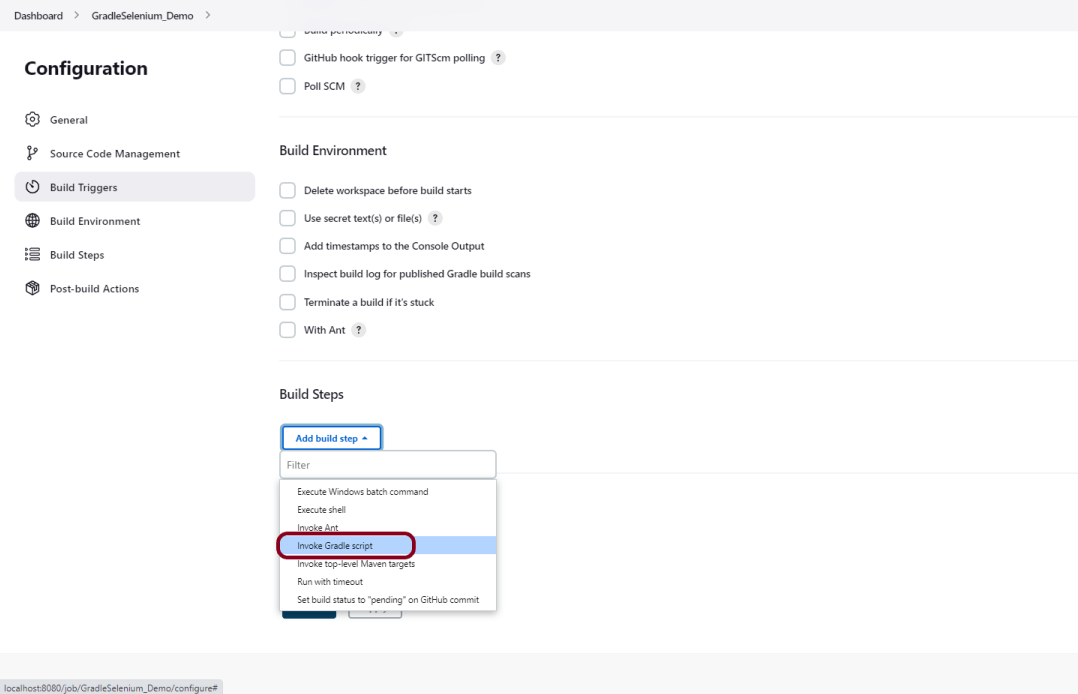
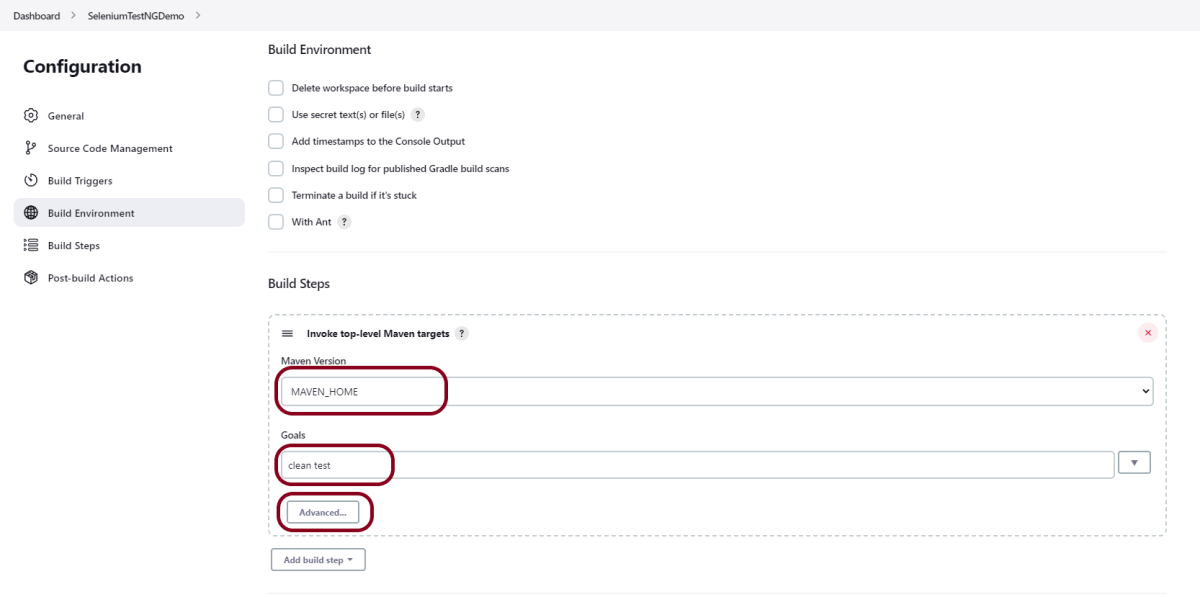
Go to the Build section of the new job and select the option – “Invoke Gradle Script“.
Provide the below-mentioned information:
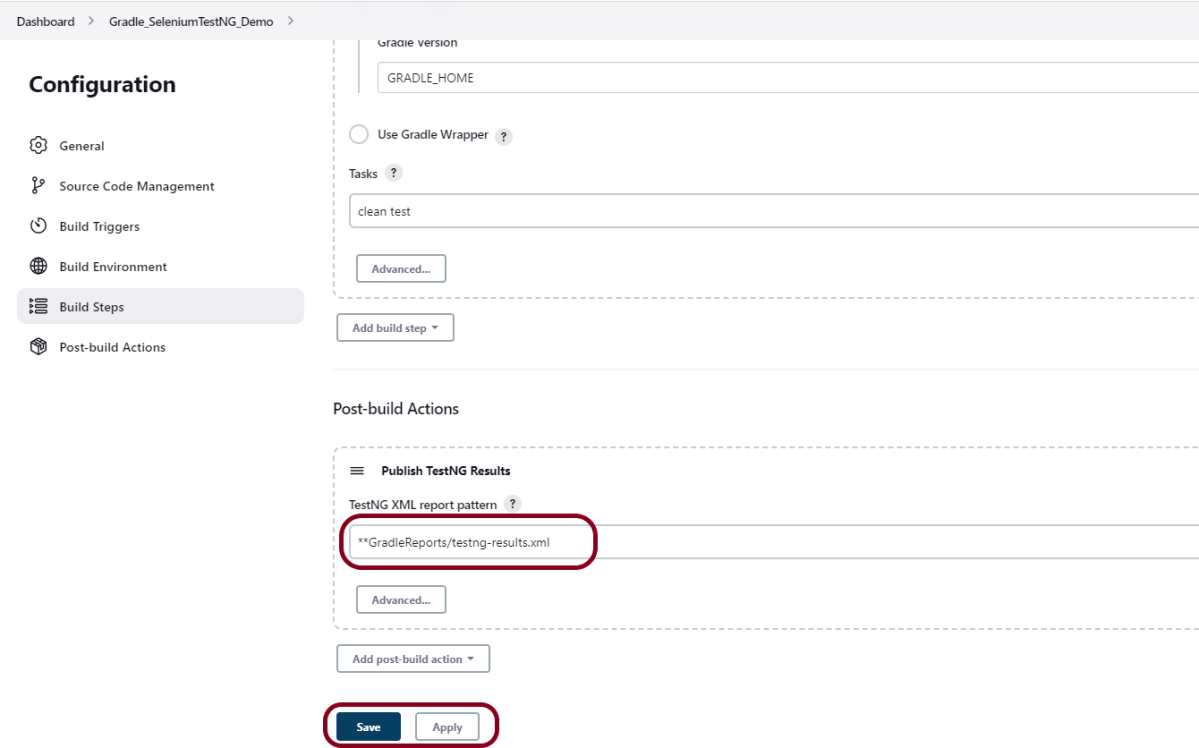
In the Gradle version, enter – GRADLE_HOME.
In the Tasks option section, enter “clean test”
Step 4: Select “Publish TestNG Results” from “Post Build Actions”
Scroll down to “Post Build Actions” and click on the “Add Post Build Actions” drop-down list.
Enter TestNG XML Report Pattern as “**GradleReports/testng-results.xml” and click on the Save button
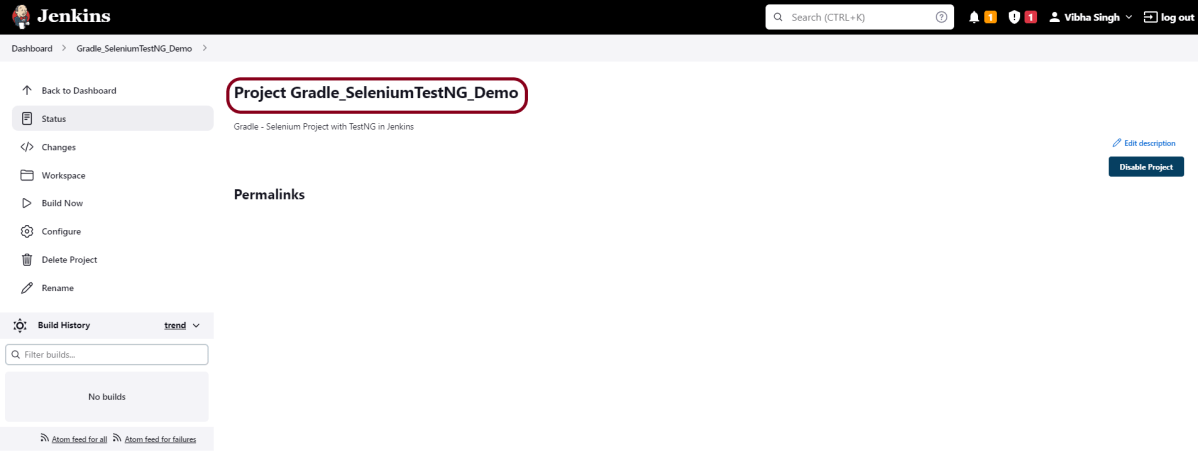
We have created a new project “Gradle_SeleniumTestNG_Demo” with the configuration to run TestNG Tests and also to generate TestNG Reports after execution using Jenkins.
Step 5: Execute the tests
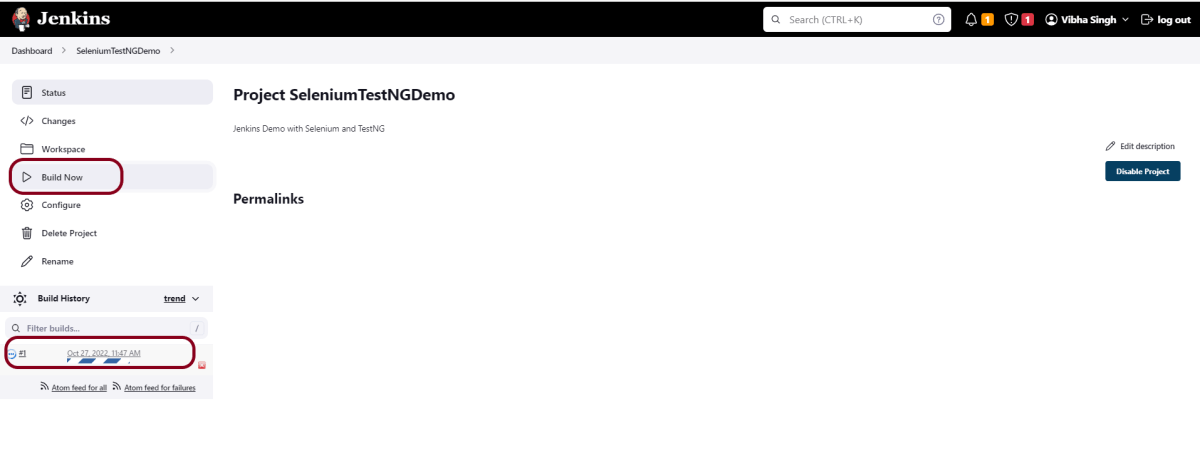
Let’s execute it now by clicking on the “Build Now” button.
Right-click on Build Number (here in my case it is #2) and click on Console Output to see the result.
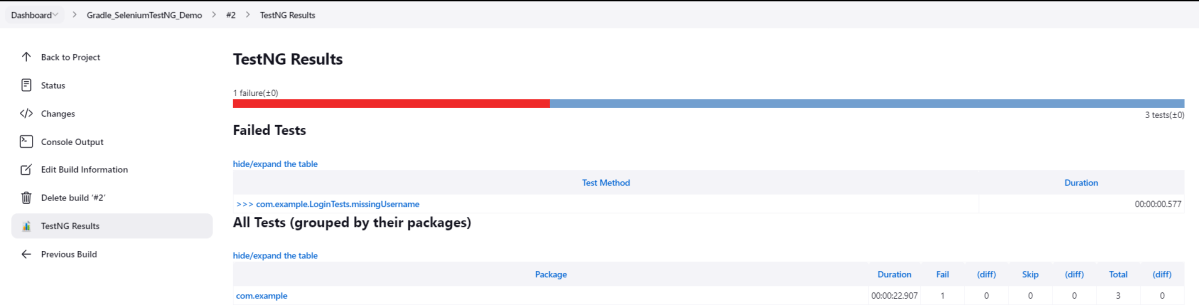
The below screen shows that the build failed because I failed one of the tests intentionally to show how the result looks with passed and failed tests.
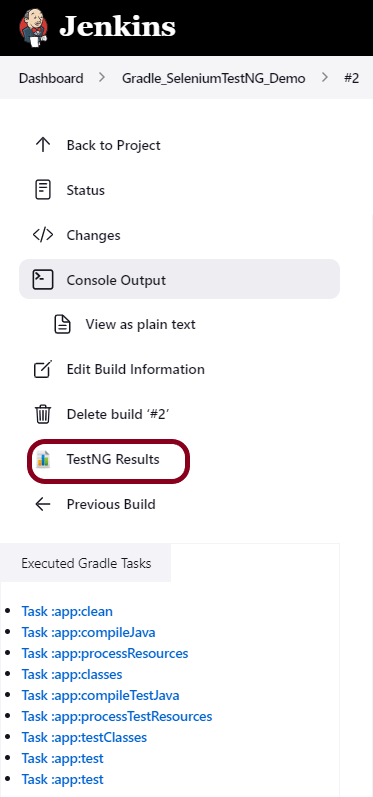
Once the execution is completed, we could see a link to view ‘TestNG Results’.
Click on the TestNG Results. It displays the summary of the tests.
This way, we could integrate the Gradle project with Jenkins.
Congratulations on making it through this tutorial and hope you found it useful! Happy Learning!! Cheers!!
Jenkins is a well-known open-source tool that aids in the implementation of Continuous Integration (CI) and Continuous Deployment/Continuous Delivery (CD) processes by automating parts of the software development pipeline such as building, testing, and deployment.
What is Selenium?
Selenium is an open-source automation tool that has been widely used for testing web applications. It is basically a suite of software or a set of JAR files to automate web browsers across various browsers. Selenium is used by many companies, but a few to mention are Netflix, Google, HubSpot, Fitbit, and more. Selenium supports multiple languages like Python, Pearl, Ruby, .Net, Java, C#, PHP.
Selenium supports parallel test execution. That means we can open multiple browsers at the same time and execute the test cases. This decrease the execution time significantly. Selenium supports Cross browser test execution.
Jenkins is a well-known open-source tool that aids in the implementation of Continuous Integration (CI) and Continuous Deployment/Continuous Delivery (CD) processes by automating parts of the software development pipeline such as building, testing, and deployment.
It provides a centralized platform for automating the entire build pipeline, from code changes to automatic build creation, auto-execution of all layers of tests (Unit, Integration, and End to End), and finally, auto-deploying the successful build.
This allows developers to make more frequent changes while also giving end users more freedom by making new features available more frequently.
What are the prerequisites for the installation of Jenkins?
Hardware Requirements
256 MB of RAM, although more than 2 GB is recommended
10 GB of drive space (for Jenkins and your Docker image)
Software Requirement
Java 11 or Java 17
Docker (navigate to Get Docker site to access the Docker download that’s suitable for your platform)
Web Browser – Any of the browsers such as Google Chrome, Mozilla Firefox, Microsoft Internet Explorer, Microsoft Edge, Safari
Operating System – Jenkins supports almost all the modern operating systems such as Windows, macOS, Linux flavors such as Red Hat, Ubuntu, OpenSUSE, Gentoo, etc.
Installation Steps
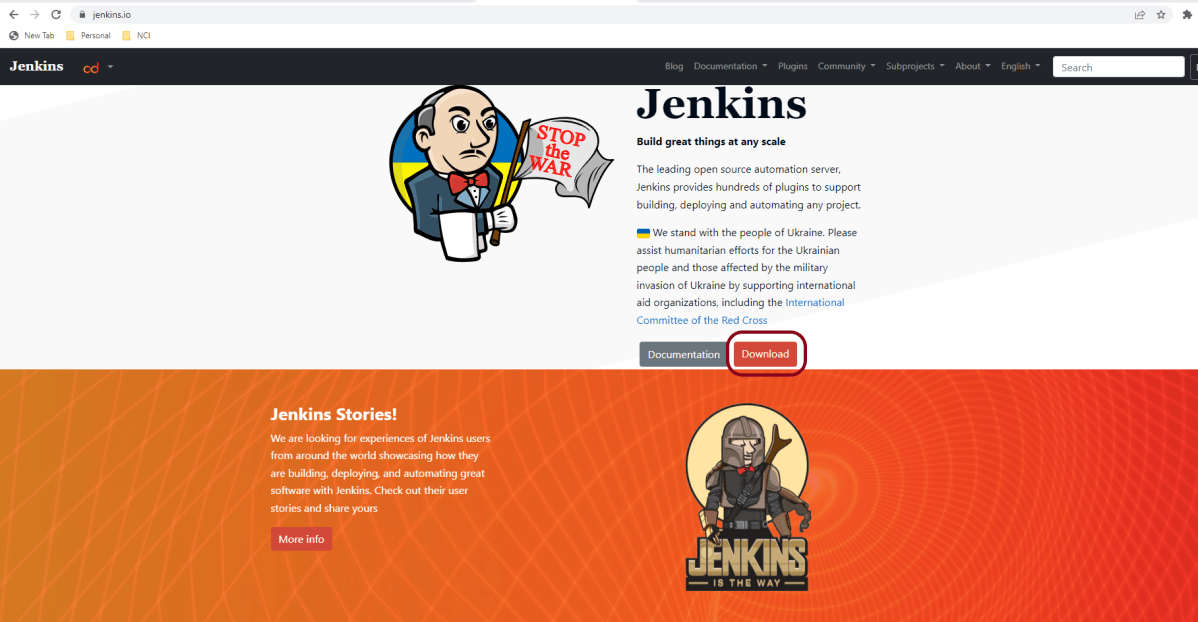
Step 1 – Firstly, go to the official Jenkins website and click on the Download button.
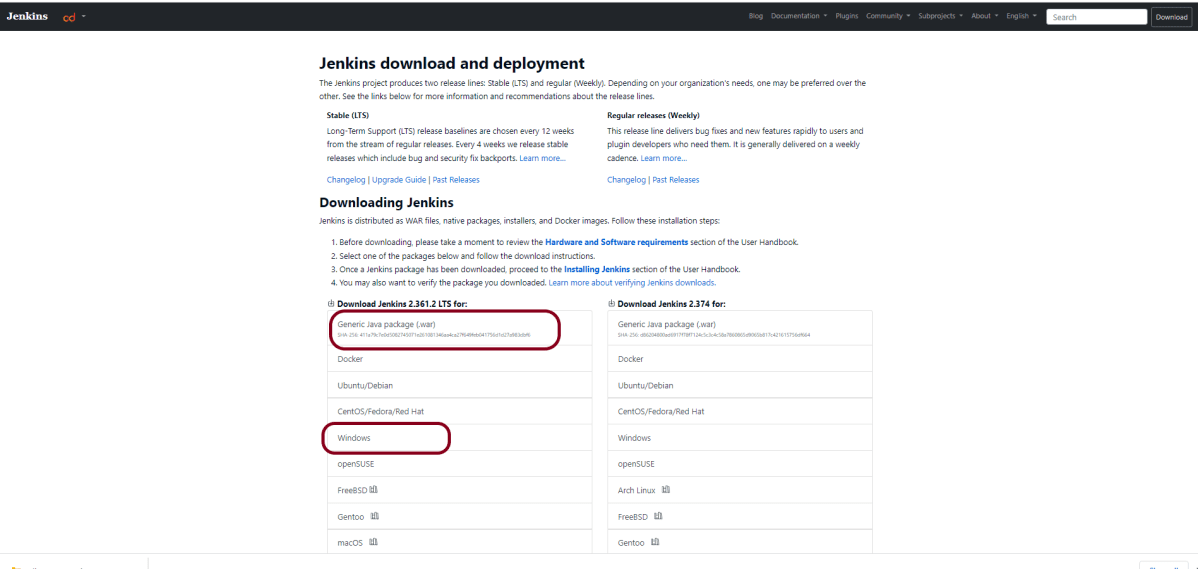
Step 2 – After clicking on the Download button, we will be redirected to the download page.
As we can see, Jenkins produces two releases, one is a stable release, and the other one is the regular bug fixes, which comes every week for all the operating system. I prefer to use the stable version.
Click on the window, and it will download jenkins.msi.
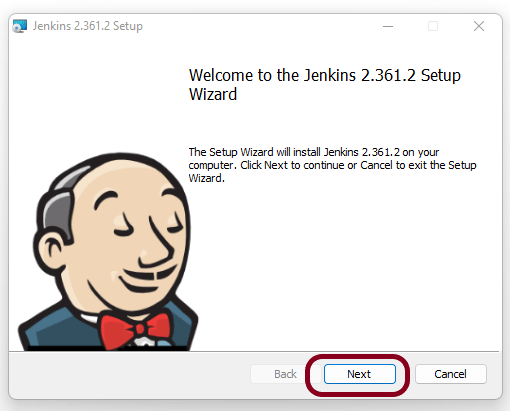
Step 3 – Double-click on jenkins.msi and a dialog box will appear
Step 4 – Choose the location where you want to have the Jenkins instance installed (default location is C:\Program Files\Jenkins), then click on the Next button.
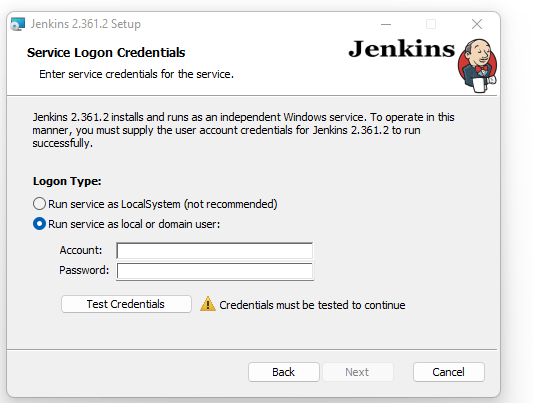
Step 5 – Enter the service logon credentials. It is recommended to select the second option “Run service as local or domain user” as it is more secure.
To run the Jenkins service using this option, you have to enter the domain username and password. Click on the “Test Credentials” button to test your domain credentials, and you will enable the “Next” button. Then, click on the “Next” button after it appears.
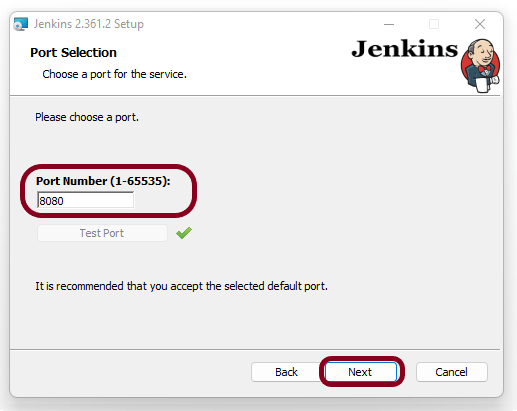
Step 6 – Enter the port on which Jenkins will be running. Click on the “Test Port” button to validate if it is free.
Step 7 – Select the Java home directory, and then click on the “Next” button.
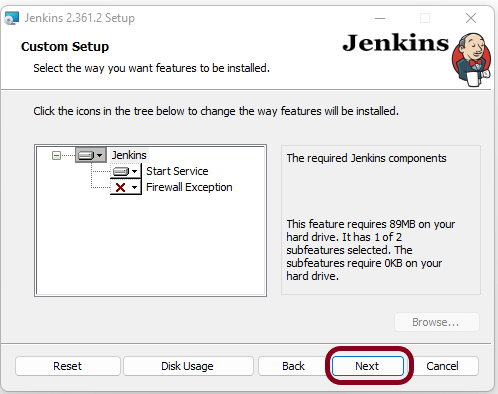
Step 8 – Select any other services that need to be installed with Jenkins and click on the “Next” button.
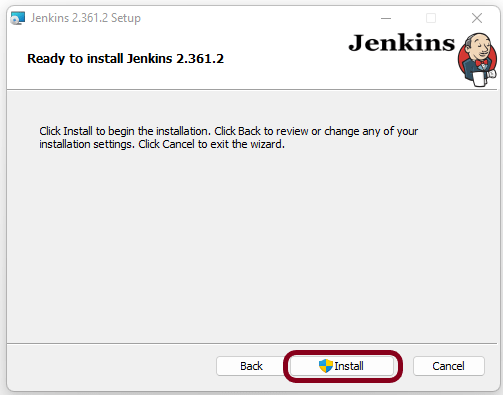
Step 9 – Click the “Install” button to start the installation process.
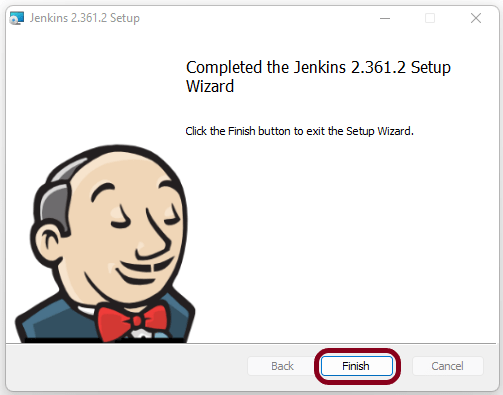
Step 10 – When done, click on “Finish” to complete the installation process. Now that the installation process is out of the way, you need to follow a few more quick steps before you start using Jenkins on Windows.
Unlock Jenkins For Windows
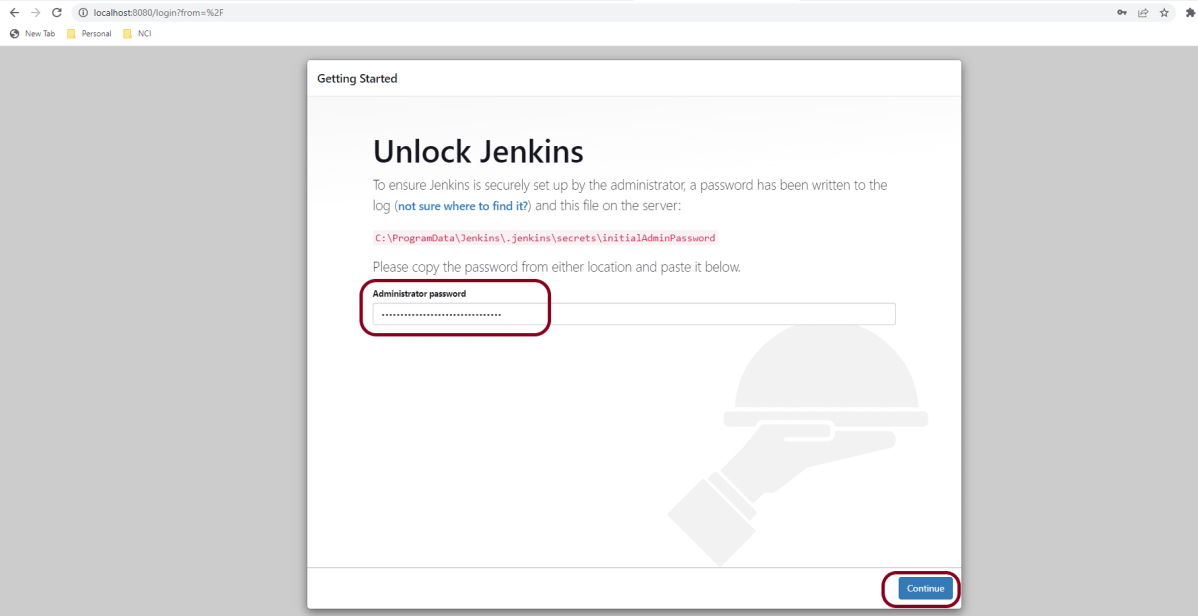
Step 1 – You will automatically be redirected to a local Jenkins page, or you can paste the URL http://localhost:8080 in a browser.
Step 2 – Copy the content of the initialAdminPassword file and paste it into the Administrator password field. Then, click the Continue button.
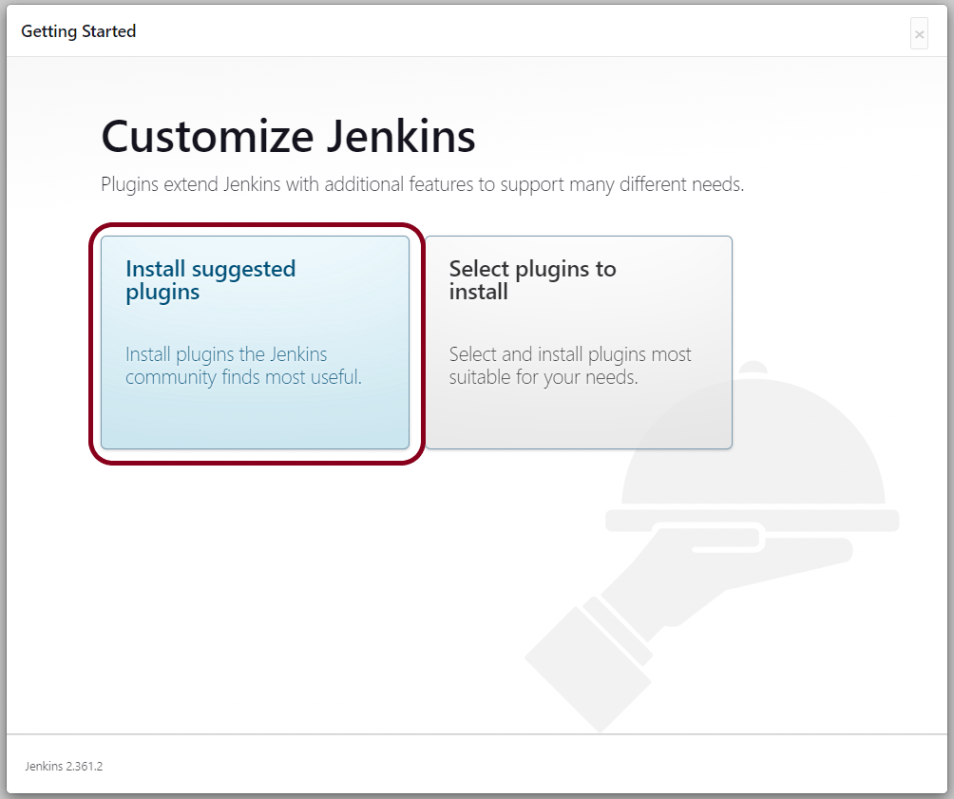
Step 3 – You can install either the suggested plugins or the selected plugins you choose based on your needs. To keep it simple, we will install the suggested plugins that the Jenkins community finds most useful.
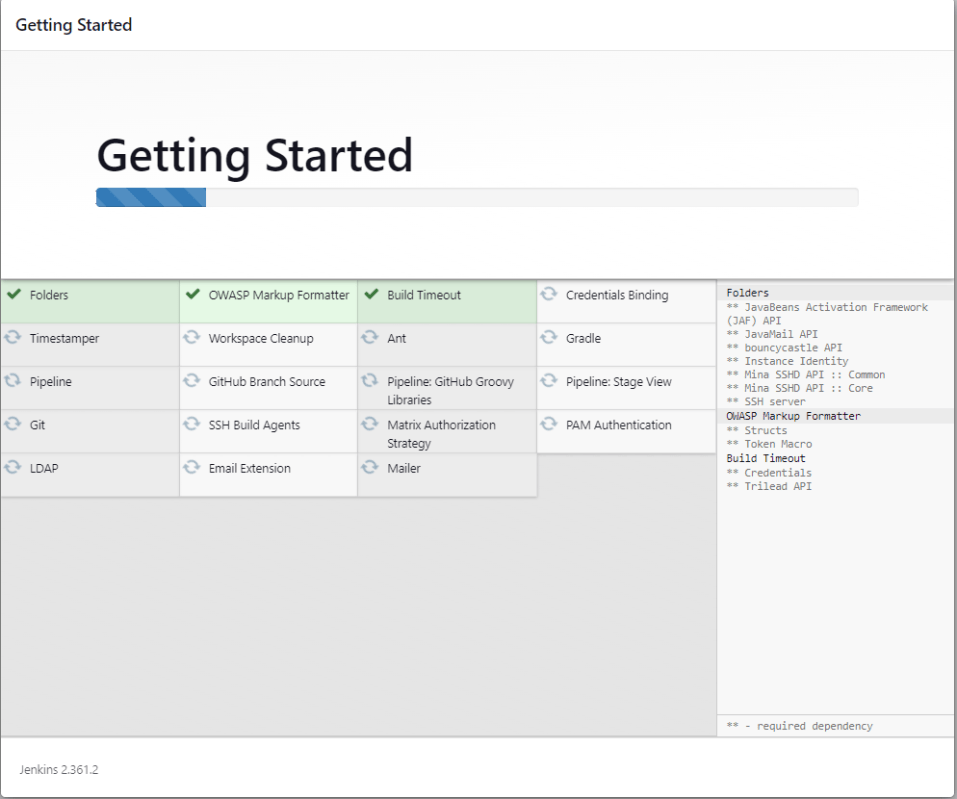
Step 4 – Wait until the plugins are completely installed.
Step 5 – The next thing that you should do is create an Admin user for Jenkins. Then, enter your details and click Save and Continue.
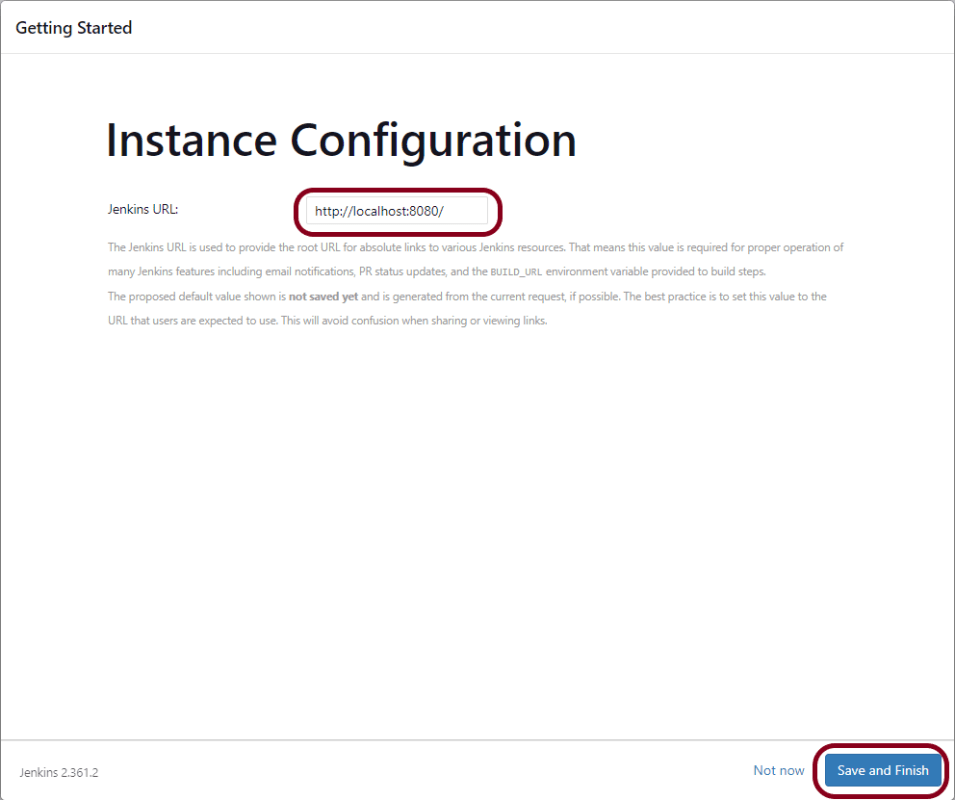
Step 6 – Click on Save and Finish to complete the Jenkins installation.
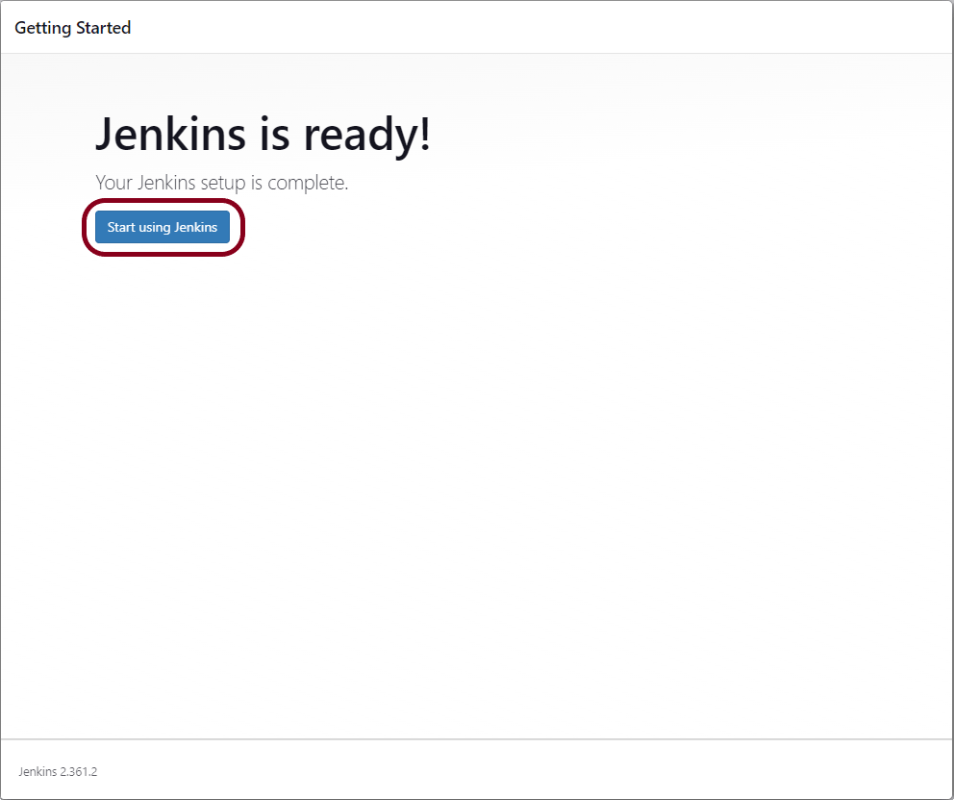
Step 7 – Now, click on the “Start using Jenkins” button to start Jenkins.
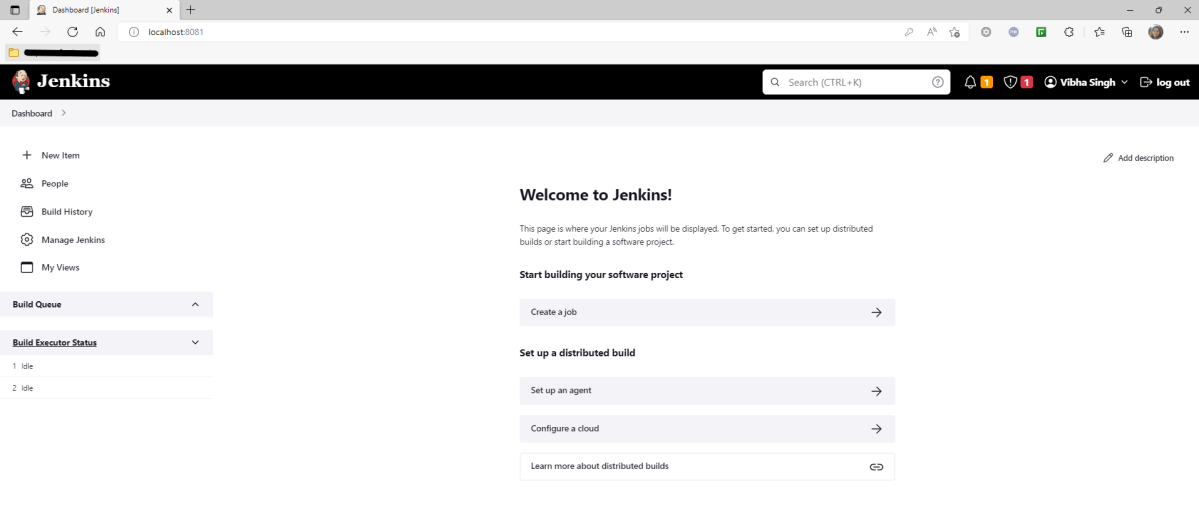
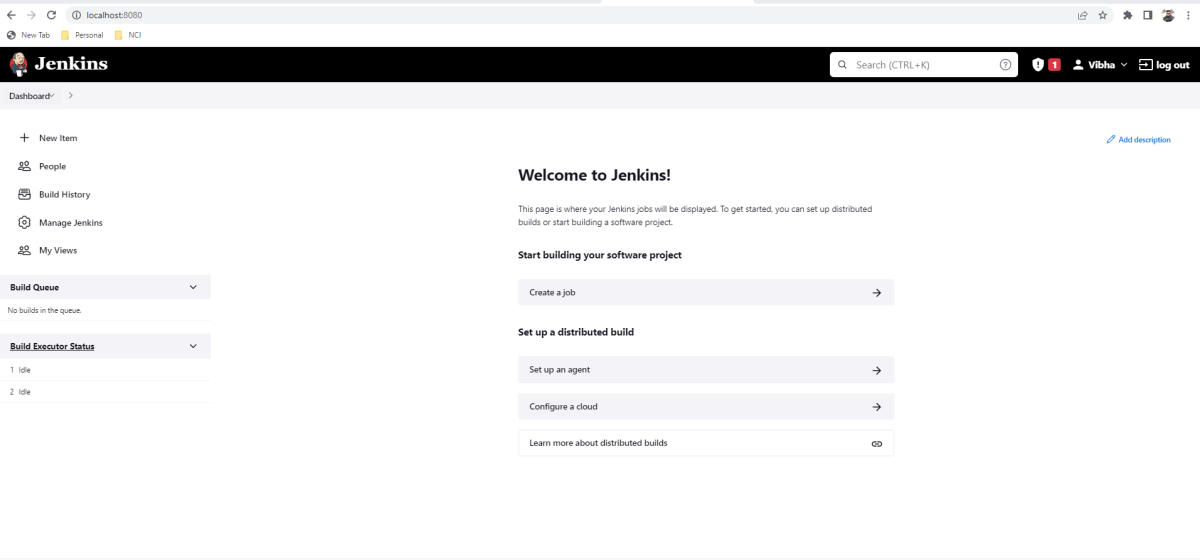
Step 8 – Finally, here is the default Jenkins page. Jenkins is now installed and running on Windows, and you are ready to start building your CI/CD pipeline.
Congratulations!! We have installed Jenkins on Windows 10 successfully.
This tutorial explains the process to run the Rest API Tests in the GitLab pipeline. This is a significant step towards achieving CI/CD. Ideally, the tests need to run after any change (minor/major) before merging the change to the master branch. Suppose there are 100 changes in a day, and any QA won’t want to start the tests manually 100 times in a day. So, now adding tests to the GitLab pipeline comes into the picture. We can add a test stage to the pipeline and the tests will run automatically when the pipeline run, or we can schedule the tests to run automatically every hour or day using GitLab pipeline.
To use GitLab CI/CD, we need to keep 2 things in mind:-
a) Make sure a runner is available in GitLab to run the jobs. If there is no runner, install GitLab Runner and register a runner for your instance, project, or group.
b) Create a .gitlab-ci.yml file at the root of the repository. This file is where you define your CI/CD jobs.
Create a Rest API Project
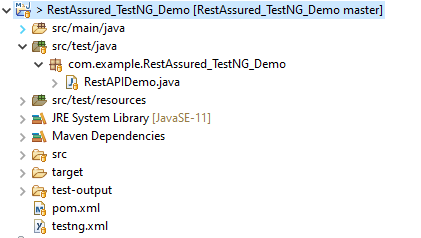
Step 1 – Create a new Maven Project
Step 2 – Add dependencies to the project
Add the below-mentioned pom.xml which shows all the dependencies that need to add to the project.
It is needed to add maven-surefire plugin to run the TestNG tests through command line. To know more about this, please refer to this tutorial.
Step 3 – Create the Test Code to test the Rest API
Here, 2 tests are created. One of the tests gets all the employee data (GET) whereas another test creates an employee (POST).
import static io.restassured.RestAssured.given;
import static org.hamcrest.Matchers.equalTo;

import org.json.JSONObject;
import org.testng.annotations.Test;

import io.restassured.http.ContentType;

public class RestAPIDemo {

	@Test(description = "To get the details of employee with id 2", priority = 0)
	public void verifyUser() {

		// Given
		given()
				// When
				.when().get("http://dummy.restapiexample.com/api/v1/employee/2")

               // Then
				.then().statusCode(200).statusLine("HTTP/1.1 200 OK")

                // To verify booking id at index 2
				.body("data.employee_name", equalTo("Garrett Winters"))
				.body("message", equalTo("Successfully! Record has been fetched."));
	}

	@Test(description = "To create a new employee", priority = 1)
	public void createUser() {

		JSONObject data = new JSONObject();

		// Map<String, String> map = new HashMap<String, String>();

		data.put("employee_name", "APITest");
		data.put("employee_salary", "99999");
		data.put("employee_age", "30");

		// GIVEN
		given().baseUri("http://dummy.restapiexample.com/api").contentType(ContentType.JSON).body(data.toString())

				// WHEN
				.when().post("/v1/create")

				// THEN
				.then().statusCode(200).body("data.employee_name", equalTo("APITest"))
				.body("message", equalTo("Successfully! Record has been added."));

	}
}
Step 4 – Create testng.xml to run the tests through TestNG
Now, let’s create a testng.xml to run the TestNG tests. If JUnit is used instead of TestNG, then this step is not needed.
<?xml version="1.0" encoding="UTF-8"?>
<!DOCTYPE suite SYSTEM "https://testng.org/testng-1.0.dtd">
<suite name="Suite">
  <test name="Test">
    <classes>
      <class name="com.example.RestAssured_TestNG_Demo.RestAPIDemo"/>
    </classes>
  </test> <!-- Test -->
</suite> <!-- Suite -->
Step 5 – Run the tests through the command line
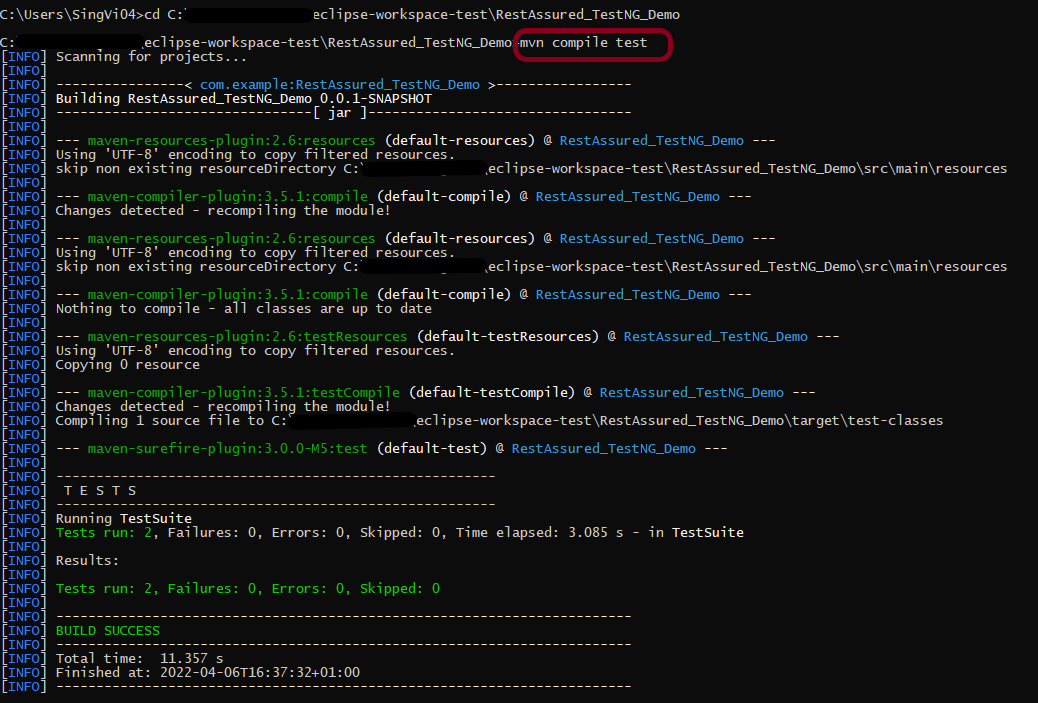
Now, let us execute the tests through the command line. Go to the place where pom.xml of the project is placed and use the below command to run the tests. This step makes sure that all the tests are running as expected.
Step 8 – Create .gitlab-ci.yml file in the project in GitLab
It is a YAML file where you configure specific instructions for GitLab CI/CD. In the .gitlab-ci.yml, we can define:
The scripts you want to run.
Other configuration files and templates you want to include.
Dependencies and caches.
The commands you want to run in sequence and those you want to run in parallel.
The location to deploy your application.
Whether you want to run the scripts automatically or trigger any of them manually.
image: adoptopenjdk/maven-openjdk11

stages:
  - test

variables:
  MAVEN_OPTS: "-Dmaven.repo.local=.m2/repository"

test:
  stage: test
  allow_failure: true

# Run the tests
  script:
    - mvn $MAVEN_OPTS clean package
    - mvn compile test

# Store artifacts
  artifacts:
    when: always
    name: "report"
    paths:
    - target/surefire-reports/*
    expire_in: 1 h
Step 9 – Run the tests in the GitLab pipeline
Now, when a new change is committed, a pipeline kicks off and it runs all the tests.
Step 10 – Check the status of the pipeline
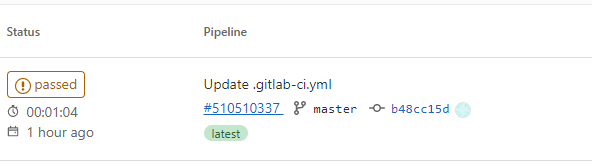
Once the Status of the pipeline changes to either failed or passed.. that means the tests are already executed. Here, the pipeline is passed with brown colour means that the execution of the test is completed with some failures.
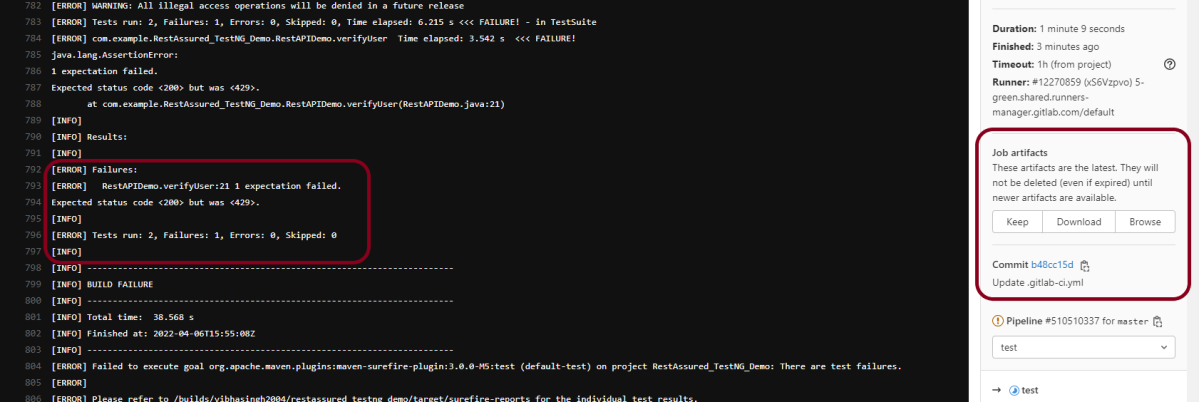
I have added an artifact in the gitalb-ci.yml with the name “report”. This artifact creates a folder with the name “report” and the reports in this folder come from the path /target/surefire-reports. This artifact gives us an option to download the reports or browse the report. This report will be available for 1 hour only as mentioned in the gitlab-ci.yml.
Step 11 – Download the report
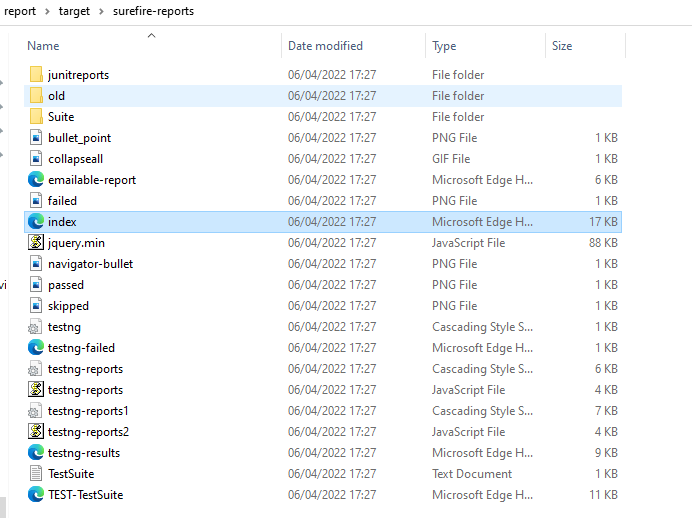
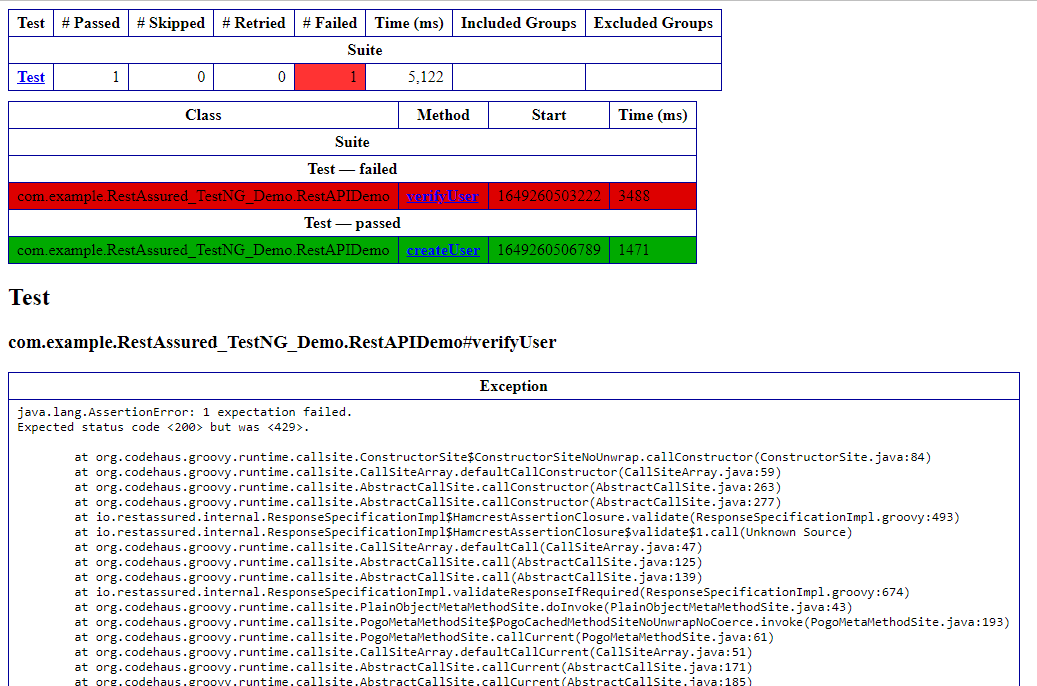
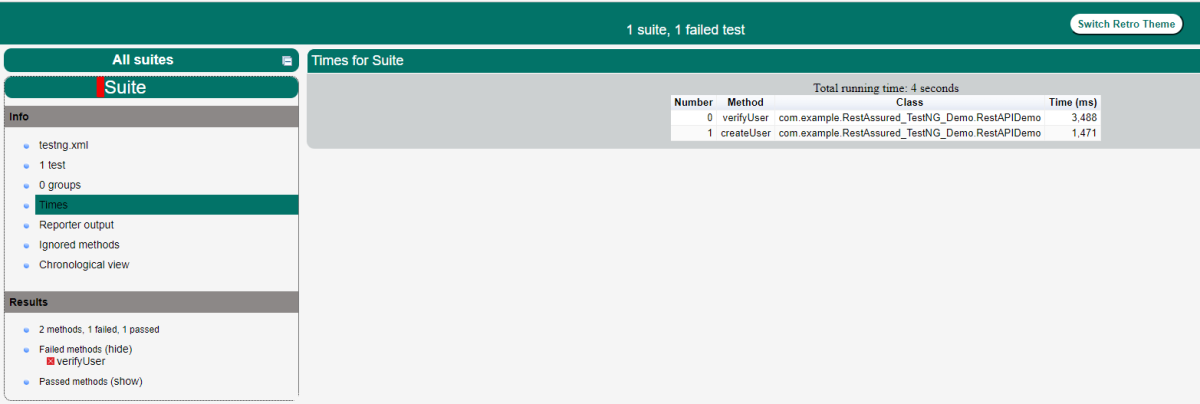
Click on the Download button and the report zip file is downloaded. Unzip the folder, and it contains all different types of surefire-reports.
Example of Emailable-Report.html
Example of Index.html
Congratulations. This tutorial has explained the steps to run Selenium tests in GitLab CI/CD. Happy Learning!!
This tutorial explains the process to run the Selenium Tests in the GitLab pipeline. This is a very important step towards achieving CI/CD. Ideally, the tests need to run after any change (minor/major) before merging the latest change to the master branch. Suppose there are 100 changes merged to the master branch in a day. It is expected to run the tests every time before deployment. In this case, any QA won’t want to start the tests manually 100 times in a day. Now, what should be done to overcome this problem. Now, adding tests to the GitLab pipeline comes into the picture. We can add a test stage to the pipeline and the tests will run automatically when the pipeline run.
Build the proposed changes. Then, push the commits to a feature branch. This branch should be in a remote repository that’s hosted in GitLab. The push triggers the CI/CD pipeline for your project. Then, GitLab CI/CD runs automated scripts (sequentially or in parallel) to build as well as to test the application. After a successful run of the test scripts, GitLab CI/CD deploys your changes automatically to any environment (DEV/QA/UAT/PROD). But if the test stage is failed in the pipeline, then the deployment is stopped.
After the implementation works as expected:
Get the code reviewed and approved.
Merge the feature branch into the default branch.
GitLab CI/CD deploys your changes automatically to a production environment.
To use GitLab CI/CD, we need to keep 2 things in mind:
a) Make sure a runner is available in GitLab to run the jobs. If there is no runner, install GitLab Runner and register a runner for your instance, project, or group.
b) Create a .gitlab-ci.yml file at the root of the repository. This file is where CI/CD jobs are defined.
The Selenium tests run on a headless browser in the pipeline.
What is a headless browser?
A headless browser is like any other browser, but without a Head/GUI (Graphical User Interface). A headless browser is used to automate the browser without launching the browser. While the tests are running, we cannot see the browser. However, we can see the test results coming on the console.
To explain, I have created 2 Selenium tests and used TestNG for asserting the tests. The tests will run on a headless Chrome browser. One more thing to keep in mind is that when tests run on a headless Chrome browser, the window screen won’t be full screen. So, the screen needs to be maximized explicitly otherwise some of the tests would fail.
Implementation Steps
Step 1 – Create a new Maven Project
Step 2- Add the dependencies to the POM.xml
Add the below-mentioned dependencies that need to add to the project to the pom.xml in Maven Project.
There are 2 different pages that need to be tested – LoginPage and ForgetPasswordPage
LoginPage contains the tests to log in to the application. After successful login, the application moves to the next webpage – HomePage. You can see that BaseTest class is extended in both the Test classes.
import org.openqa.selenium.By;
import org.testng.Assert;
import org.testng.annotations.Test;

@Test
public class ForgetPasswordPage extends BaseTest{

	@Test
	public void getHeading() {

		Thread.sleep(1000);
		driver.findElement(By.xpath("//*[@id='forgotPasswordLink']/a")).click();
		String heading = driver.findElement(By.xpath("//*[@id='content']/div[1]/div[2]/h1")).getText();
		System.out.println("Title : "+ heading );
		Assert.assertEquals(heading, "Forgot Your Password?");
	}

}
Step 4 – Create testng.xml to run the tests
Now, let’s create a testng.xml to run the TestNG tests. If JUnit is used instead of TestNG, then this step is not needed.
<?xml version="1.0" encoding="UTF-8"?>
<!DOCTYPE suite SYSTEM "https://testng.org/testng-1.0.dtd">
<suite name="Suite">
  <test name="Test">
    <classes>
      <class name="org.example.DockerDemo.LoginPage"/>
      <class name="org.example.DockerDemo.ForgetPasswordPage"/>
    </classes>
  </test> <!-- Test -->
</suite> <!-- Suite -->
Step 5 – Run the tests through command line
Now, let us execute the tests through the command line. Go to the place where the pom.xml of the project is placed and use the below command to run the tests. This step makes sure that all the tests are running as expected.
mvn compile test
GitLab Section
Step 6 – Create a blank project in GitLab
To know, how to create a blank new project in GitLab, please refer tothis tutorial.
Step 7 – Push the project from local repository to Gitlab Repository
To know, how to push the changes in GitLab, please refer to this tutorial.
Step 8 – Create a .gitlab-ci.yml file in the project in GitLab
There are many ways to create a new file in GitLab. One of the ways is to create a file as shown in the below image.
It is a YAML file where you configure specific instructions for GitLab CI/CD. In the .gitlab-ci.yml, we can define:
The scripts you want to run.
Other configuration files and templates you want to include.
Dependencies and caches.
The commands you want to run in sequence and those you want to run in parallel.
The location to deploy your application to.
Whether you want to run the scripts automatically or trigger any of them manually.
image: markhobson/maven-chrome

stages:
  - test

variables:
  MAVEN_OPTS: "-Dmaven.repo.local=.m2/repository"

test:
  stage: test
  allow_failure: true

# Run the tests
  script:
    - mvn $MAVEN_OPTS clean package
    - mvn compile test

# Store artifacts
  artifacts:
    when: always
    name: "report"
    paths:
    - target/surefire-reports/*
    expire_in: 1 h
Image – markhobson/maven-chrome is used in this test. It is a docker image for Java automated UI tests.
This gitlab-ci.yml has only 1 stage. It is a test stage that contains the command to run the tests. It also creates an artifact that contains all the surefire reports. These reports can be saved as Test Evidence.
Step 9 – Run the tests in the GitLab pipeline
Now, when a new change is committed, a pipeline kicks off and it runs all the tests.
Step 10 – Check the status of the pipeline
Once the Status of the pipeline changes to either failed or passed.. that means the tests are already executed.
As you can see the Status is failed here which means that the execution is completed. Let us see the logs of the execution it shows that out of 2 tests, 1 test passed and 1 test failed. This shows that tests are running successfully in the GitLab pipeline.
As I have added an artifact also in the gitalb-ci.yml, which is highlighted in the image. This artifact creates a folder with the name “report” and the reports in this folder come from the path /target/surefire-reports. This artifact gives us the option to download the reports or browse the report. This report will be available for 1 hour only as mentioned in the gitlab-ci.yml.
Step 11 – Download the report
Once, will click on the download button, it will download “report.zip”. Unzip the folder and it looks like something as shown below:
Example of Emailable-Report.html
Example of Index.html
Congratulations. This tutorial has explained the steps to run Selenium tests in GitLab CI/CD. Happy Learning!!