How to install the trends-related plugin in Jenkins?
To see overall trends in Jenkins, there are plugins available to gather information from within the builds and Jenkins and display them in a graphical format. One example of such a plugin is the ‘global-build-stats plugin’. So let’s go through the steps for this.
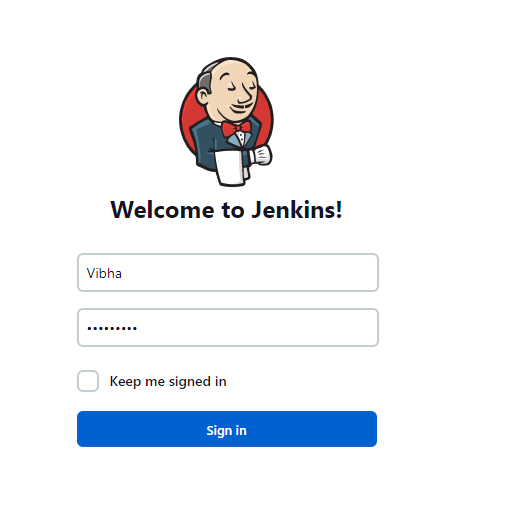
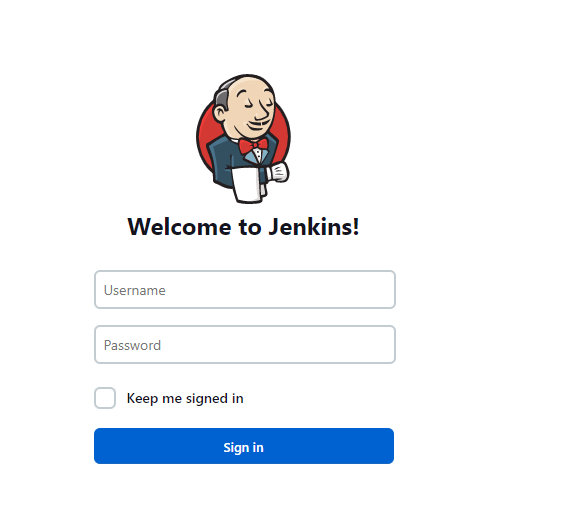
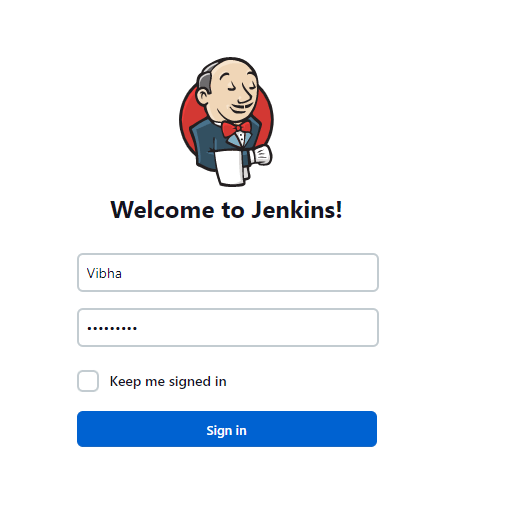
Provide a username and password and click on the Sign-in Button.
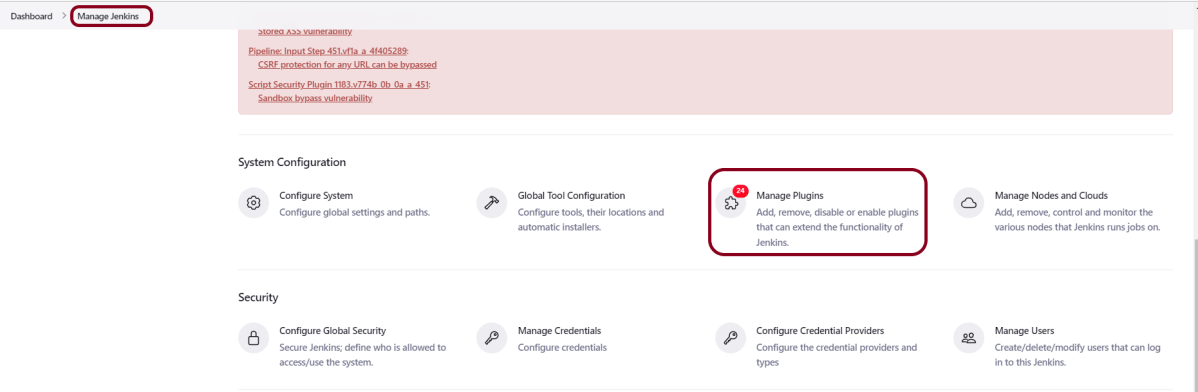
Step 3: Go to Manage Plugins
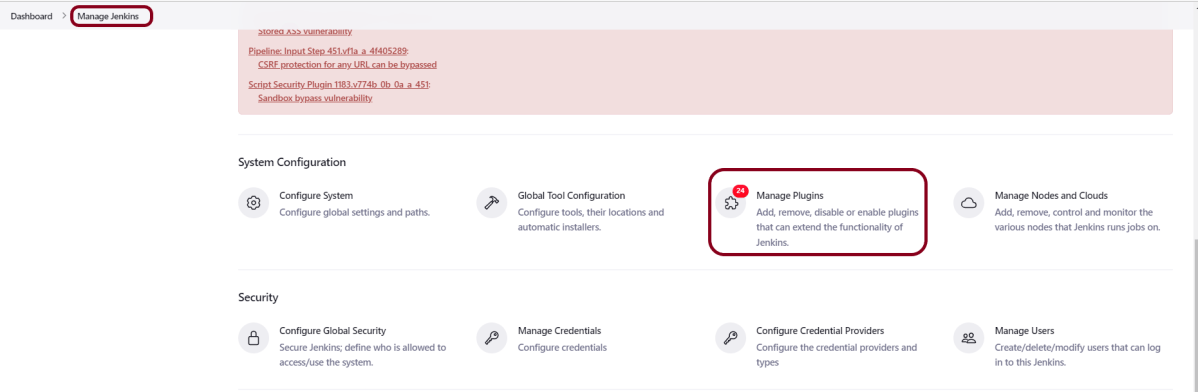
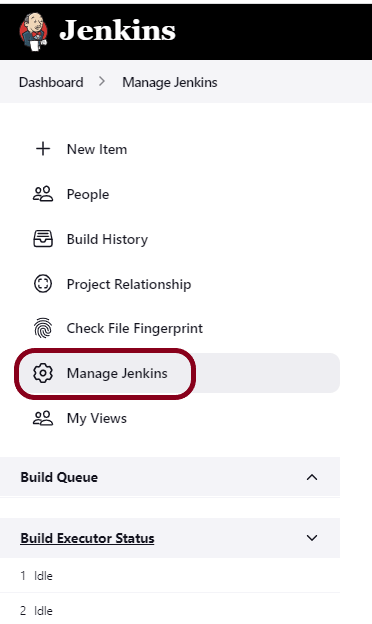
Click on the Manage Jenkins. Choose Manage Plugins.
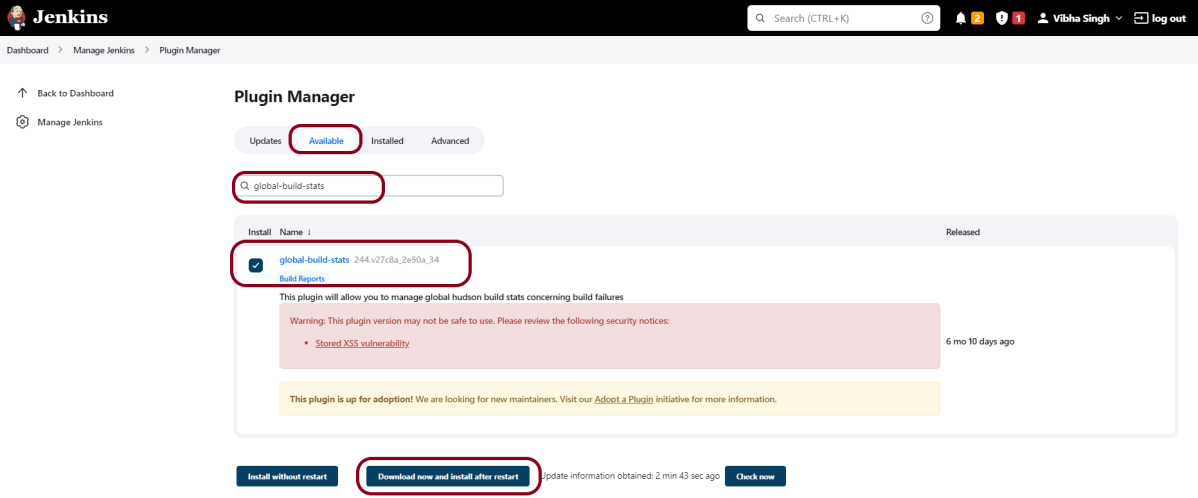
Step 4: Add the global-build-stats plugin
On the Plugins Page, go to the Available option.
Select the “global-build-stats” Plugin
Click on “Install without restart”.The plugin will take a few moments to finish downloading depending on your internet connection, and will be installed automatically.
You can also select the option “Download now and Install after the restart” button. In which plugin is installed after the restart
You will be shown a “No updates available” message if you already have the TestNG Report plugin installed.
Click on the checkbox “Restart Jenkins when installation is complete when no jobs are running“.
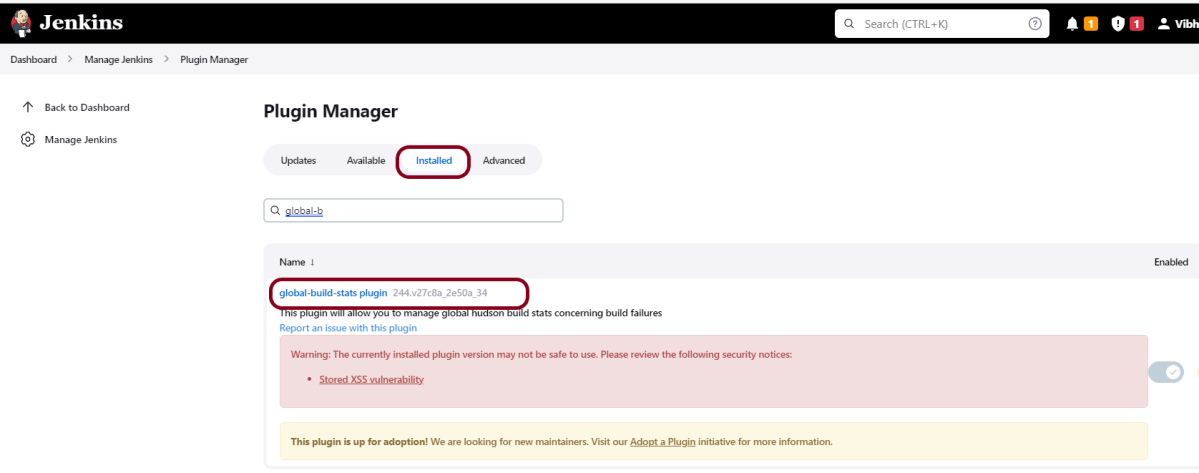
Step 5: Verify the global-build-stats plugin
For verification of the successful installation of the plugin, we can go to the “installed” tab, and we can see the presence of the build history metrics plugin.
Step 6 − Generate Global Build Stats metrics
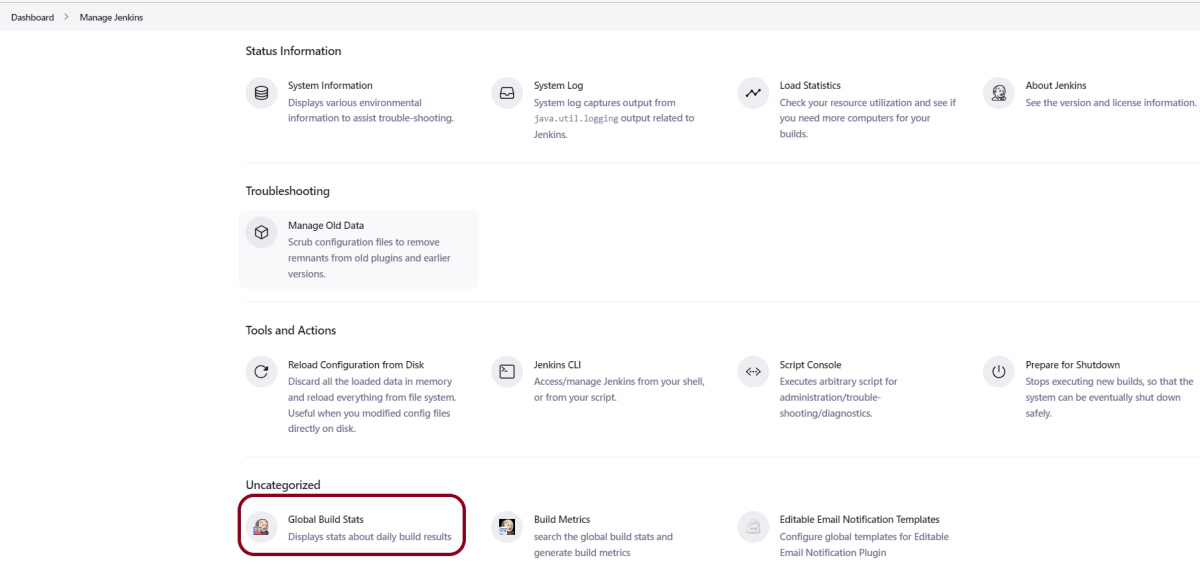
Go to the Jenkins dashboard and click on Manage Jenkins. In the Manage Jenkins screen, scroll down, and now you will now see an option called “Global Build Stats“. Click on this link.
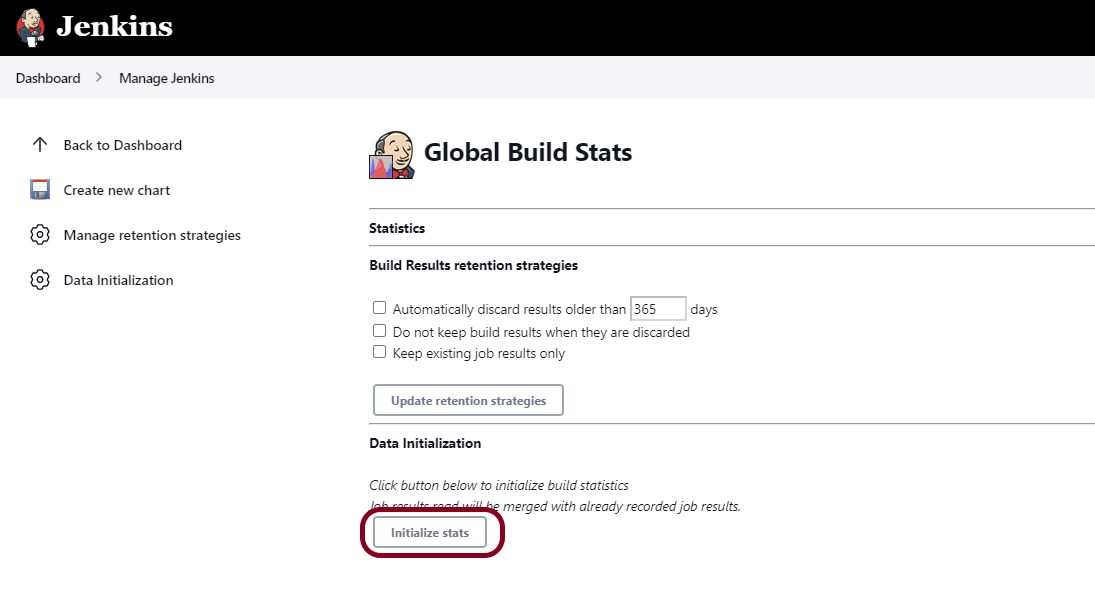
Click on the button “Initialize stats“. What this does is that it gathers all the existing records for builds that have already been carried out, and charts can be created based on these results.
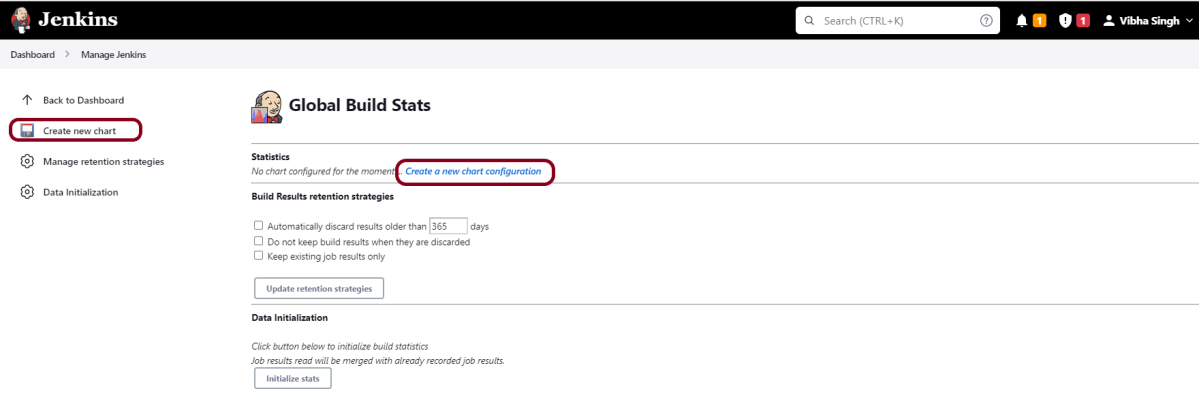
Once the data has been initialized, it’s time to create a new chart. Click on the “Create new chart” link.
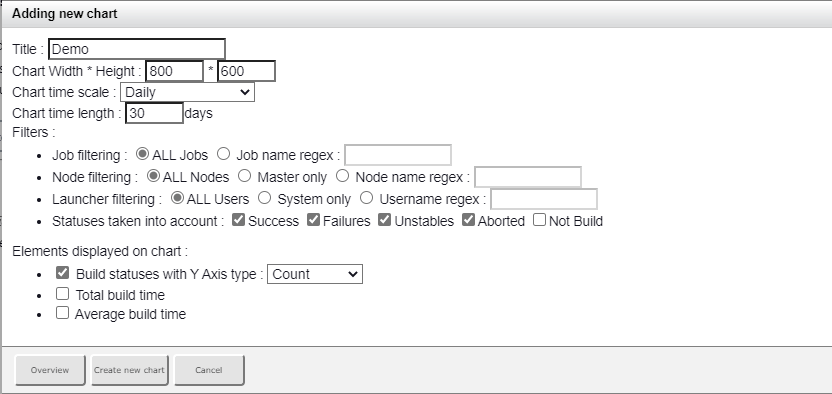
A pop-up will come to enter the relevant information for the new chart details. Enter the following mandatory information.
Title – Any title information, for this example is given as ‘Demo’
Chart Width – 800
Chart Height – 600
Chart time scale – Daily
Chart time length – 30 days
The rest of the information can remain as it is. Once the information is entered, click on Create New chart.
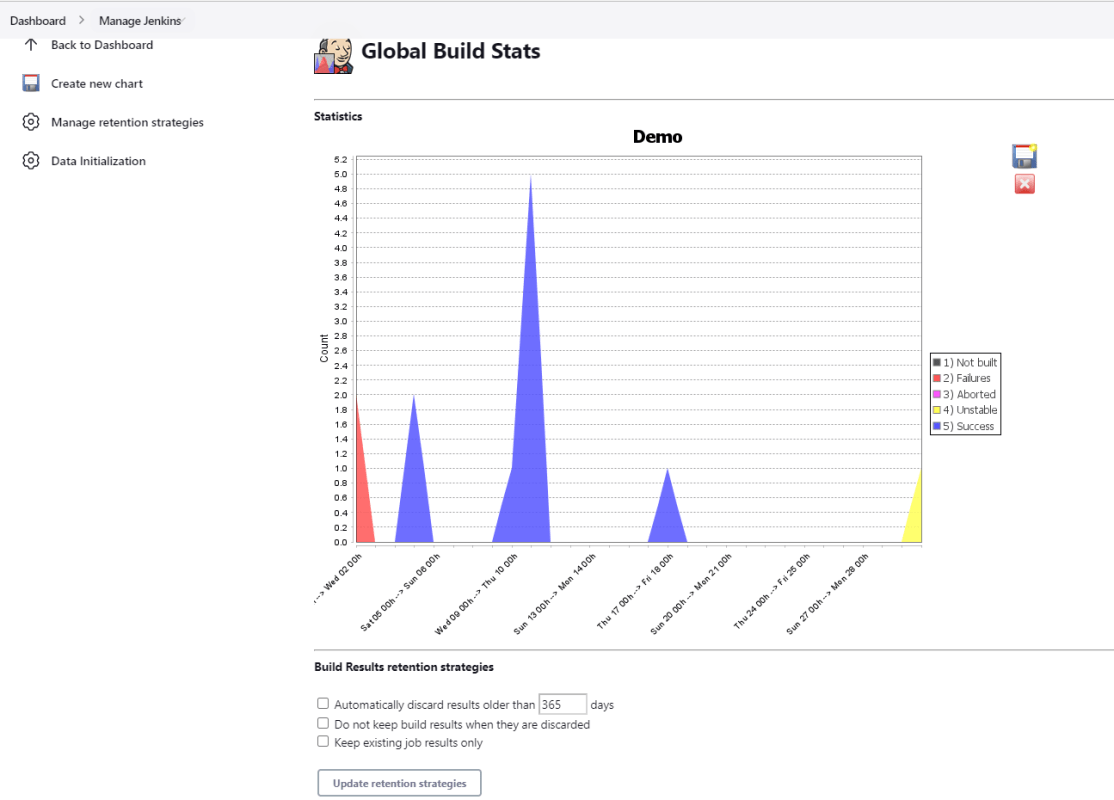
You will now see the chart which displays the trends of the builds over time.
If you click on any section within the chart, it will give you a drill-down of the details of the job and its builds.
Congratulations on making it through this tutorial and hope you found it useful! Happy Learning!! Cheers!!
Jenkins includes a number of plugins for displaying metrics for builds that take place over time. These metrics can help you understand your builds and how often they fail/pass over time. Consider the ‘Build History Metrics plugin‘ as an example.
What is Build History Plugin?
This plugin calculates the following metrics for all of your builds once installed:
Mean Time To Failure (MTTF)
Mean Time To Recovery (MTTR)
Standard Deviation of Build Times
The calculated metrics are displayed in a table on each jobs page showing the metric for the last 7 days, last 30 days, and all time.
How to install the metric-related plugin in Jenkins?
Implementation Steps
Step 1: Start the Jenkins server and open the browser and navigate to the localhost and the port in which Jenkins is running
Provide a username and password and click on the Sign-in Button.
Step 3: Download and Install Build History Metrics Plugin
Click on the Manage Jenkins. Choose Manage Plugins.
Step 4: Add the Build History Metrics Plugin
On the Plugins Page, go to the Available option.
Select the Build History Metrics Plugin
Click onInstall without restart.The plugin will take a few moments to finish downloading depending on your internet connection, and will be installed automatically.
You can also select the option Download now and Install after the restart button. In which plugin is installed after the restart
You will be shown a “No updates available” message if you already have the TestNG Report plugin installed.
Step 5: Restart Jenkins
Click on the checkbox “Restart Jenkins when installation is complete when no jobs are running“.
For verification of the successful installation of the plugin, we can go to the “installed” tab, and we can see the presence of the build history metrics plugin.
How to view metrics in Jenkins?
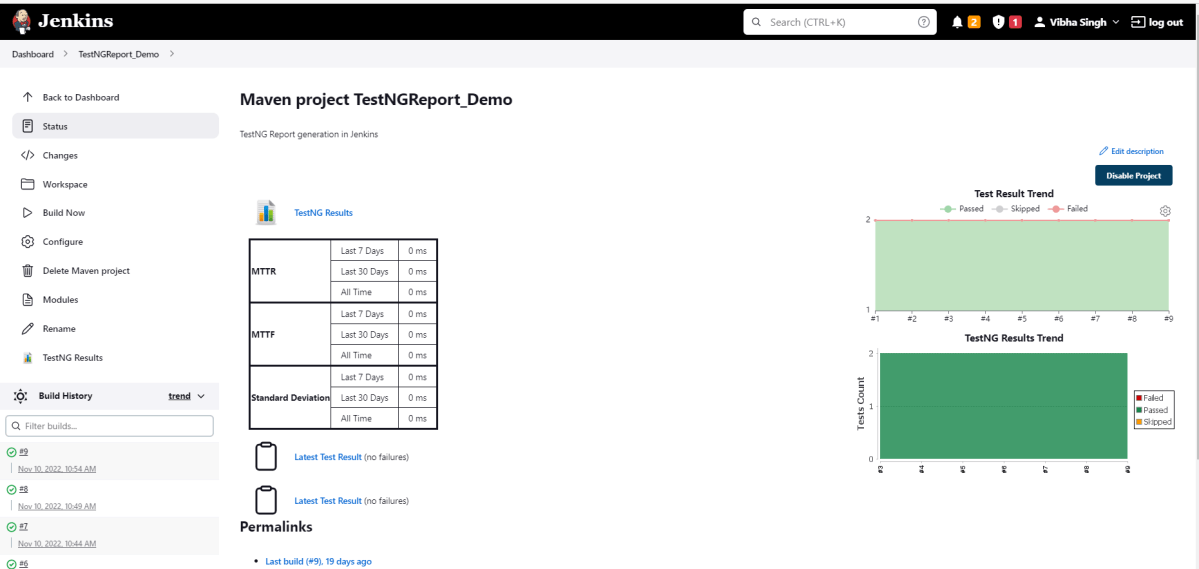
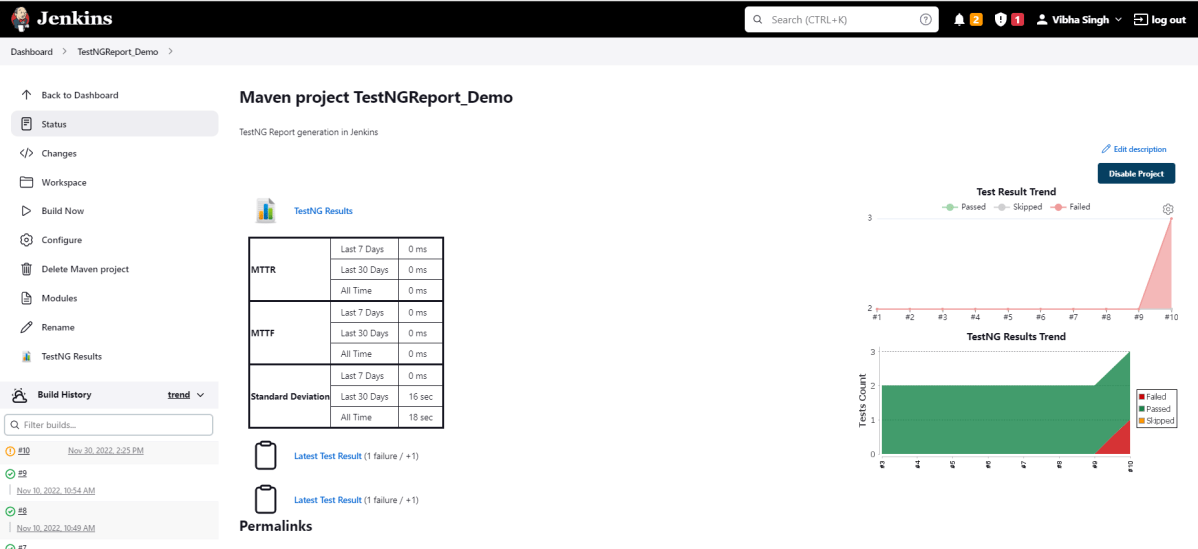
Step 1: Go to the Jenkinsdashboard and click on any job. Here we can see the metrics like MTTR, MTTF, and Standard deviation in the tabular form highlighted below.
Note: If, after installing the plugin below, the tabular form does not display, then restart Jenkins.
Metrics are shown for the last 7 days, last 30 days, and all time.
Step 2: Run any job for which the build is showing as failed status, and then we can see the time for MTTR and MTTF as mentioned in the below image.
Congratulations on making it through this tutorial and hope you found it useful! Happy Learning!! Cheers!!
The previous tutorial has explained how to install it onto a Windows 10 system and create a Maven orGradle project in Jenkins. Jenkins and GitLab are two powerful tools on their own, but what about using them together? In this tutorial, learn about the benefits of a Jenkins GitLab integration and how to set up the integration on your own.
What is GitLab?
GitLab is a web-based Git repository that provides free open and private repositories, issue-following capabilities, and wikis. It is a complete DevOps platform that enables professionals to perform all the tasks in a project—from project planning and source code management to monitoring and security. Additionally, it allows teams to collaborate and build better software.
What is Jenkins?
Jenkins is a well-known open-source tool that aids in the implementation of Continuous Integration (CI) and Continuous Deployment/Continuous Delivery (CD) processes by automating parts of the software development pipeline such as building, testing, and deployment.
Jenkins Version Used – 2.361.2
In this version of Jenkins, Git Plugin is already installed. If the Git Plugin is not installed, then follow the below steps to add Git Plugin in Jenkins.
Step 1: Open your dashboard.
Click on the Manage Jenkins button on your Jenkins dashboard:
Step 2: Select Manage Plugins.
Click on the Manage Jenkins. Choose Manage Plugins.
Step 3: Add Git Plugin
On the Plugins Page, go to the Available option.
Select the GIT Plugin
Click on Install without restart.The plugin will take a few moments to finish downloading depending on your internet connection, and will be installed automatically.
You can also select the option Download now and Install after the restart button. In which plugin is installed after the restart
You will be shown a “No updates available” message if you already have the Git plugin installed.
In my case, Git Plugin is already installed, so you can’t see it in the Available Plugin.
Step 4: Verify Git Plugin is installed
Once the plugins have been installed, Go to Manage Jenkinson your Jenkins dashboard. You will see your plugins listed among the rest.
How to Integrate Jenkins With GitLab
Step 1: Create a new project using the Maven project plugin.
Give the Name of the project.
Click on the Maven project.
Click on the OK button.
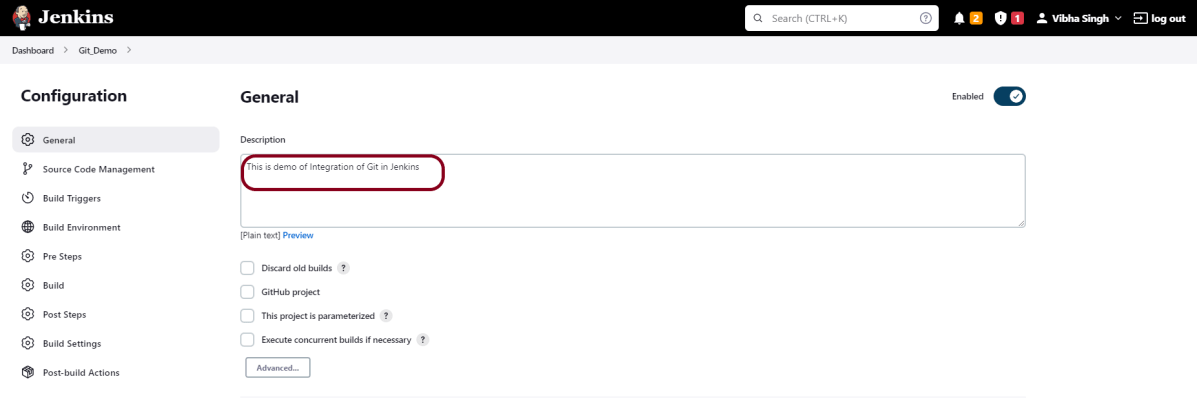
In the General section, enter the project description in the Description box.
Click on create new jobs.
Enter the item name, select the job type, and click OK. We shall create a Maven project as an example.
Step 2: Describe the project in the description section
In the General section, enter the project description in the Description box.
Step 3 – Source Code Management section
You will see a Git option under Source Code Managementif your Git plugin has been installed in Jenkins.
Enter the Git repository URL to pull the code from GitHub. Enter the credentials to log in to GitLab.
I have already set up the credentials to log in to GitLab. Click on the Add button and select Jenkins.
Add the username and password used to log in to GitLab. Click on the “Add” button.
Note:- Please make sure that Git is installed on your local machine. To install Git on your local machine, go to this tutorial –How to install Git on Windows 10.
Step 4: Build Management
Go to the Build section of the new job.
In the Root POM textbox, enter pom.xml
In the Goals and options section, enter “clean test“
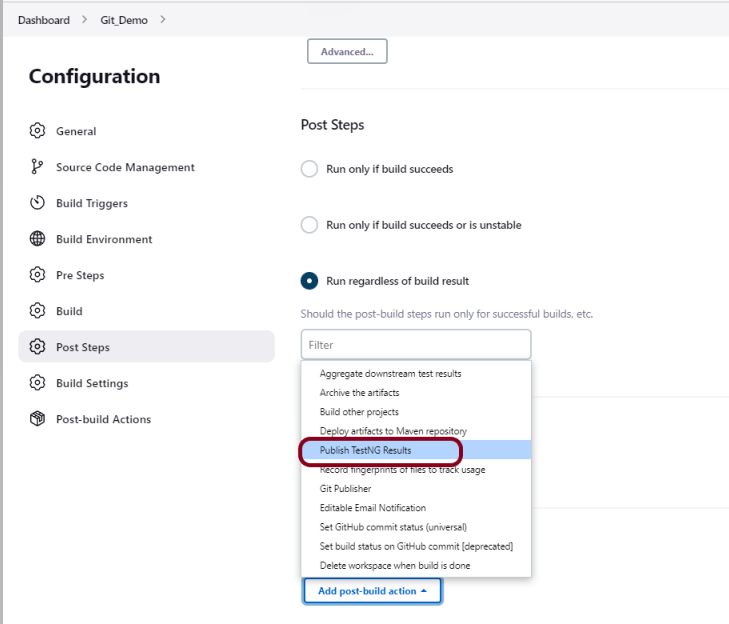
Step 5: Select “Publish TestNG Results” from “Post Build Actions“
Scroll down to “Post Build Actions” and click on the “Add Post Build Actions” drop-down list. Select “Publish TestNG Results“.
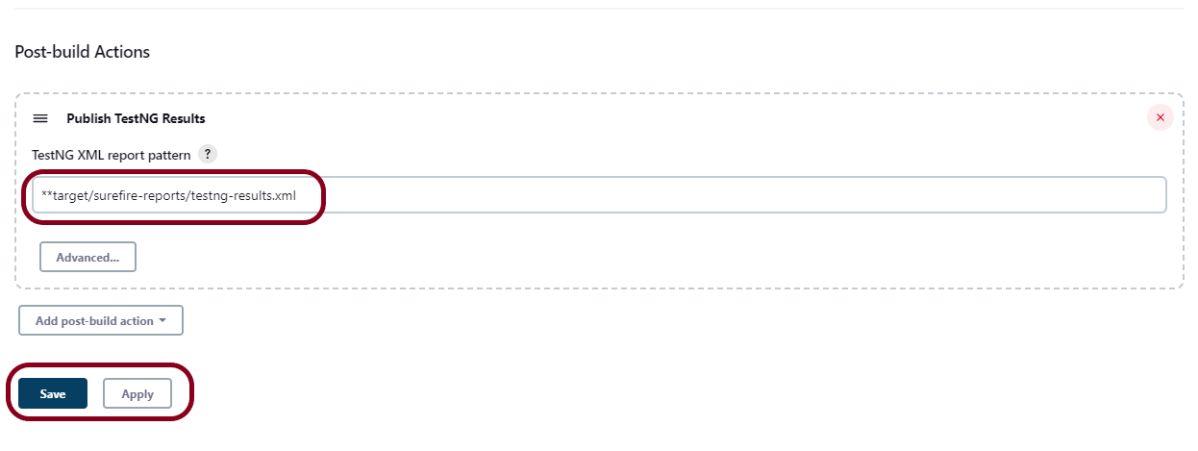
Enter TestNG XML Report Pattern as “**target/surefire-reports/testng-results.xml” and click on the “Save” button.
We have created a new project “Git_Demo” with the configuration to run TestNG Tests and also to generate TestNG Reports after execution using Jenkins.
Step 6: Execute the tests
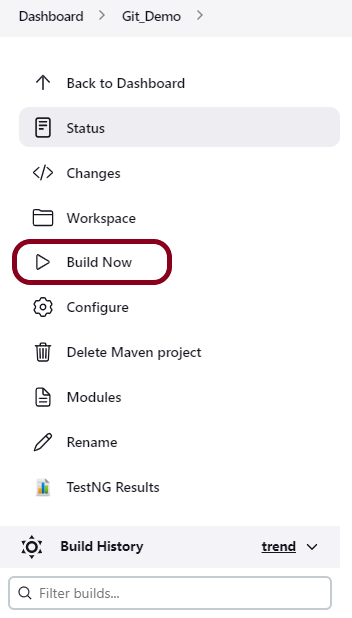
Let’s execute it now by clicking on the “Build Now” button.
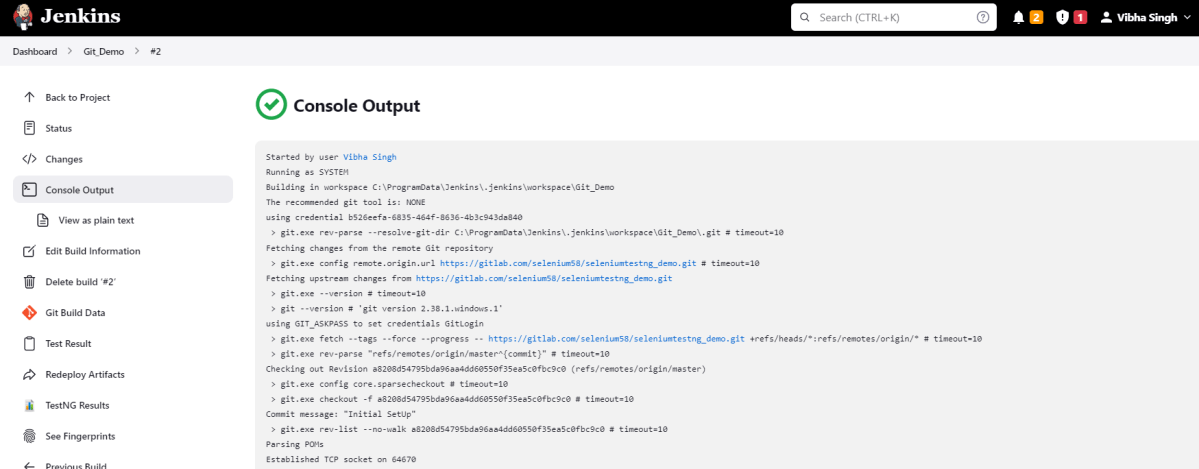
Right-click on Build Number (here in my case it is #2) and click on Console Output to see the result.
Step 7: View the TestNG Report
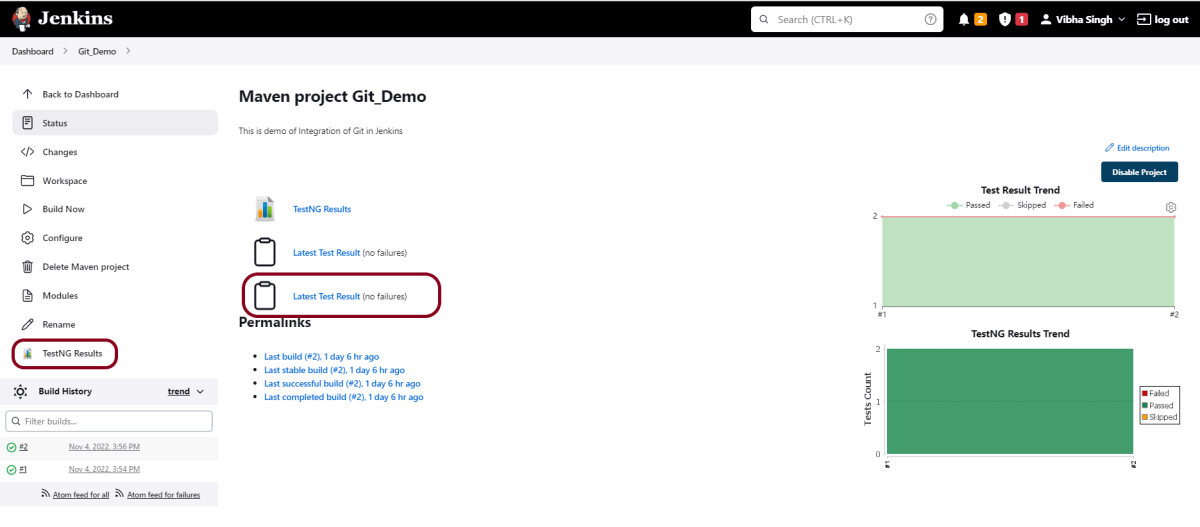
Once the execution is completed, we could see a link to view “TestNG Results“.
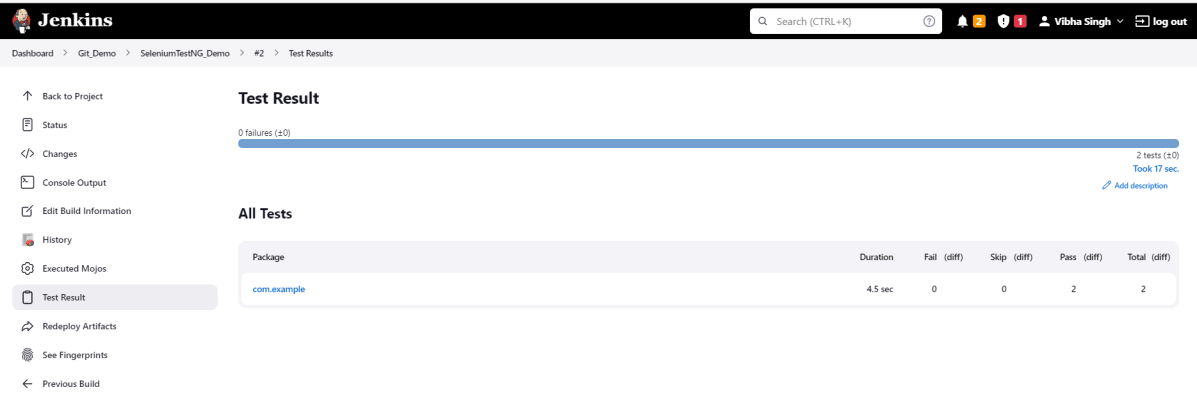
Click on the TestNG Results. It displays the summary of the tests.
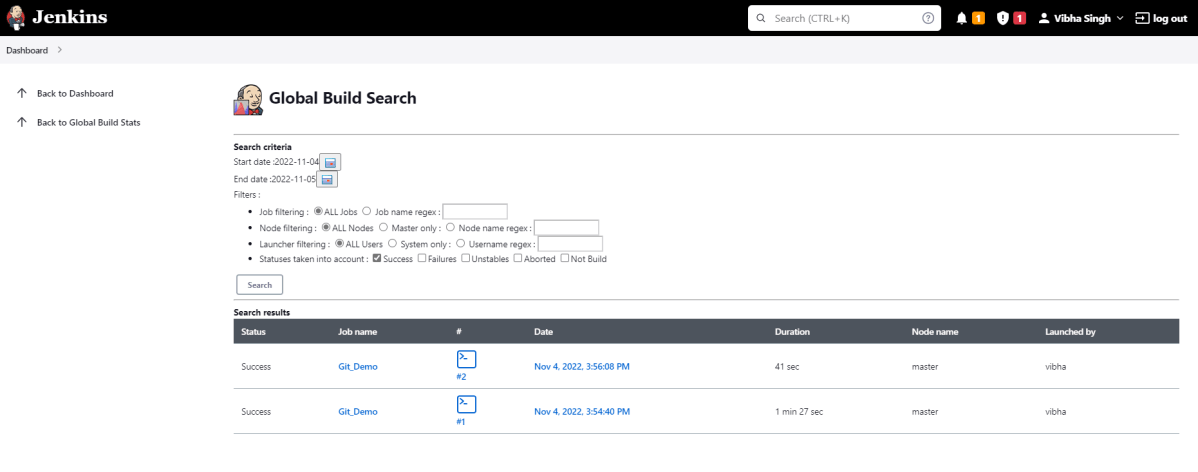
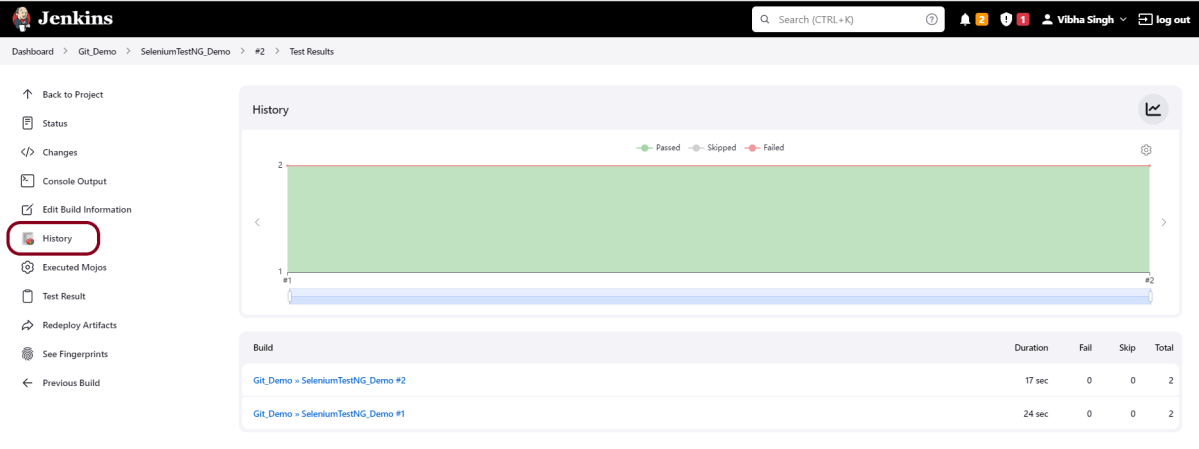
If you want to check the execution history, then click on the shown link.
This way, we could integrate Git in Jenkins.
Congratulations on making it through this tutorial and hope you found it useful! Happy Learning!! Cheers!!
Masterthought library provides pretty HTML reports for Cucumber. The cucumber JSON file is used to generate the HTML for the website. This Java report publisher was made particularly with publishing cucumber reports to the Jenkins build server in mind. It releases aesthetically pleasing HTML reports with charts displaying the outcomes of cucumber runs.
Prerequisite
Java 11 installed
Maven installed
Eclipse or IntelliJ installed
This framework consists of:
Selenium – 4.3.0
Java 11
Cucumber – 7.6.0
Maven – 3.8.1
JUnit– 4.13.2
Cucumber Reporting Plugin – 5.7.4
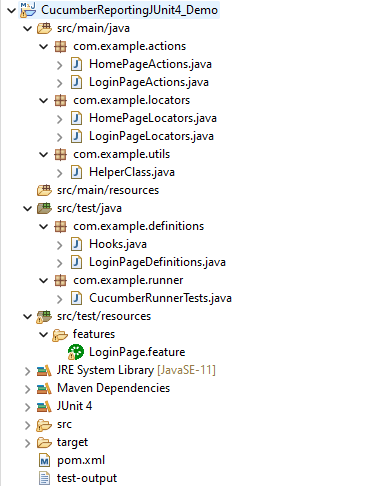
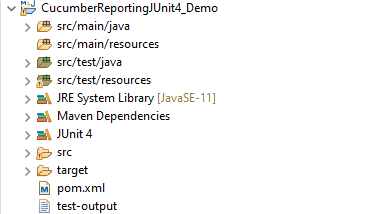
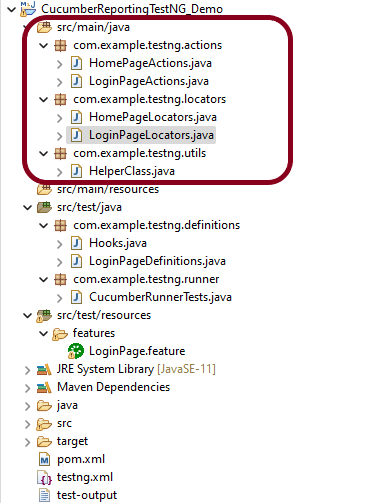
Project Structure
Implementation Steps
Download and Install Javaon the system
Download and setup Eclipse IDE on the system
Setup Maven
Install Cucumber Eclipse Plugin (For Eclipse IDE)
Create a new Maven Project
Add Selenium, JUnit4, Cucumber, and Masterthought dependencies to the project
Create a featurefile under src/test/resources
Create the test code locating the web elements in src/main/java
Create the Step Definition class or Glue Code in src/test/java
Create a JUnit4 Cucumber Runner class in src/test/java
Run the tests from Command Line
Cucumber Report Generation
Step 1- Download and Install Java
Cucumber and Selenium need Java to be installed on the system to run the tests. Click here to know How to install Java.
Step 2 – Download and setup Eclipse IDE on the system
The Eclipse IDE (integrated development environment) provides strong support for Java developers, which is needed to write Java code. Click here to know How to install Eclipse.
Step 3 – Setup Maven
To build a test framework, we need to add a number of dependencies to the project. It is a very tedious and cumbersome process to add each dependency manually. So, to overcome this problem, we use a build management tool. Maven is a build management tool that is used to define project structure, dependencies, build, and test management. Click here to know How to install Maven.
The Cucumber Eclipse plugin is a plugin that allows eclipse to understand the Gherkin syntax. The Cucumber Eclipse Plugin highlights the keywords present in Feature File. Click here to know more – Install Cucumber Eclipse Plugin.
Step 7 – Create a feature file (LoginPage.feature) containing all the test scenarios under src/test/resources/features
It is recommended to create a features folder in src/test/resources directory. Create all the feature files in this features folder. Featurefile should be saved as an extension of .feature.
Feature: Login to HRM Application

Background:
   Given User is on HRMLogin page "https://opensource-demo.orangehrmlive.com/"

   @ValidCredentials
   Scenario: Login with valid credentials

     When User enters username as "Admin" and password as "admin123"
     Then User should be able to login successfully and new page open

  @InvalidCredentials
   Scenario Outline: Login with invalid credentials

     When User enters username as "<username>" and password as "<password>"
     Then User should be able to see error message "<errorMessage>"

  Examples:
   | username   | password  | errorMessage                      |
   | $$$$$      | ££££££££  | Invalid credentials               |
   | admin      | Admin123  | Invalid credentials               |
   | Admin123   | admin     | Invalid credentials               |
Step 8 – Create the test code locating the web elements in src/main/java
LoginPageLocators
import org.openqa.selenium.WebElement;
import org.openqa.selenium.support.FindBy;

public class LoginPageLocators {

	@FindBy(name = "username")
    public WebElement userName;

    @FindBy(name = "password")
    public WebElement password;

    @FindBy(id = "logInPanelHeading")
    public WebElement titleText;

    @FindBy(xpath = "//*[@id='app']/div[1]/div/div[1]/div/div[2]/div[2]/form/div[3]/button")
    public WebElement login;

    @FindBy(xpath = "//*[@id='app']/div[1]/div/div[1]/div/div[2]/div[2]/div/div[1]/div[1]/p")
    public  WebElement errorMessage;

}
HomePageLocators
import org.openqa.selenium.WebElement;
import org.openqa.selenium.support.FindBy;

public class HomePageLocators {

	@FindBy(xpath = "//*[@id='app']/div[1]/div[1]/header/div[1]/div[1]/span/h6")
	public  WebElement homePageUserName;

}
LoginPageActions
import org.openqa.selenium.support.PageFactory;
import com.example.locators.LoginPageLocators;
import com.example.utils.HelperClass;

public class LoginPageActions {

LoginPageLocators loginPageLocators = null;

    public LoginPageActions() {

    	this.loginPageLocators = new LoginPageLocators();

		PageFactory.initElements(HelperClass.getDriver(),loginPageLocators);
	}

    public void login(String strUserName, String strPassword) {

        // Fill user name
    	loginPageLocators.userName.sendKeys(strUserName);

        // Fill password
    	loginPageLocators.password.sendKeys(strPassword);

        // Click Login button
    	loginPageLocators.login.click();

    }

    //Get the title of Login Page")
    public String getLoginTitle() {
        return loginPageLocators.titleText.getText();
    }

    // Get the error message of Login Page
    public String getErrorMessage() {
        return loginPageLocators.errorMessage.getText();
    }

}
HomePageActions
import org.openqa.selenium.support.PageFactory;
import com.example.locators.HomePageLocators;
import com.example.utils.HelperClass;

public class HomePageActions {

	HomePageLocators homePageLocators = null;

	public HomePageActions() {

		this.homePageLocators = new HomePageLocators();

		PageFactory.initElements(HelperClass.getDriver(),homePageLocators);
    }

    // Get the User name from Home Page
    public String getHomePageText() {
        return homePageLocators.homePageUserName.getText();
    }

}
HelperClass
import java.time.Duration;
import org.openqa.selenium.WebDriver;
import org.openqa.selenium.chrome.ChromeDriver;
import io.github.bonigarcia.wdm.WebDriverManager;

public class HelperClass {

	private static HelperClass helperClass;
	private static WebDriver driver;
    public final static int TIMEOUT = 10;

	 private HelperClass() {

		WebDriverManager.chromedriver().setup();
	    driver = new ChromeDriver();
	    driver.manage().timeouts().implicitlyWait(Duration.ofSeconds(TIMEOUT));
	    driver.manage().window().maximize();

	 }

    public static void openPage(String url) {
        driver.get(url);
    }

	public static WebDriver getDriver() {
		return driver;

	}

	public static void setUpDriver() {

		if (helperClass==null) {

			helperClass = new HelperClass();
		}
	}

	 public static void tearDown() {

		 if(driver!=null) {
			 driver.close();
			 driver.quit();
		 }

		 helperClass = null;

	 }
}
Step 9 – Create the Step Definition class or Glue Code in src/test/java
It is recommended to create a definitions folder in src/test/java directory. The StepDefinition files should be created in this definitionsdirectory. within the folder called definitions.
LoginPageDefinitions
import org.junit.Assert;
import com.example.actions.HomePageActions;
import com.example.actions.LoginPageActions;
import com.example.utils.HelperClass;
import io.cucumber.java.en.Given;
import io.cucumber.java.en.Then;
import io.cucumber.java.en.When;

public class LoginPageDefinitions{

	LoginPageActions objLogin = new LoginPageActions();
    HomePageActions objHomePage = new HomePageActions();

    @Given("User is on HRMLogin page {string}")
    public void loginTest(String url) {

    	HelperClass.openPage(url);

    }

    @When("User enters username as {string} and password as {string}")
    public void goToHomePage(String userName, String passWord) {

        // login to application
        objLogin.login(userName, passWord);

        // go the next page

    }

    @Then("User should be able to login successfully and new page open")
    public void verifyLogin() {

        // Verify home page
       Assert.assertTrue(objHomePage.getHomePageText().contains("Dashboard"));

    }

    @Then("User should be able to see error message {string}")
    public void verifyErrorMessage(String expectedErrorMessage) {

        // Verify error message
    	Assert.assertEquals(expectedErrorMessage,objLogin.getErrorMessage());

    }

}
Hooks
import org.openqa.selenium.OutputType;
import org.openqa.selenium.TakesScreenshot;
import com.example.utils.HelperClass;
import io.cucumber.java.After;
import io.cucumber.java.Before;
import io.cucumber.java.Scenario;

public class Hooks {

	@Before
    public static void setUp() {

       HelperClass.setUpDriver();
    }

	@After
	public static void tearDown(Scenario scenario) {
		//validate if scenario has failed
		if(scenario.isFailed()) {
			final byte[] screenshot = ((TakesScreenshot) HelperClass.getDriver()).getScreenshotAs(OutputType.BYTES);
			scenario.attach(screenshot, "image/png", scenario.getName());
		}

		HelperClass.tearDown();
	}
}
Step 10 – Create a JUnit 4 Cucumber Runner class in src/test/java
import org.junit.runner.RunWith;
import io.cucumber.junit.Cucumber;
import io.cucumber.junit.CucumberOptions;

@RunWith(Cucumber.class)
@CucumberOptions(tags = "", features = "src/test/resources/features/LoginPage.feature", glue = "com.example.definitions",
  plugin= {"pretty", "json:target/cucumber-reports/reports.json",
"json:target/cucumber-reports/cucumber.runtime.formatter.JSONFormatter"})

public class CucumberRunnerTests  {

}
Step 11 – Run the tests from Command Line
Use the below command to execute the tests
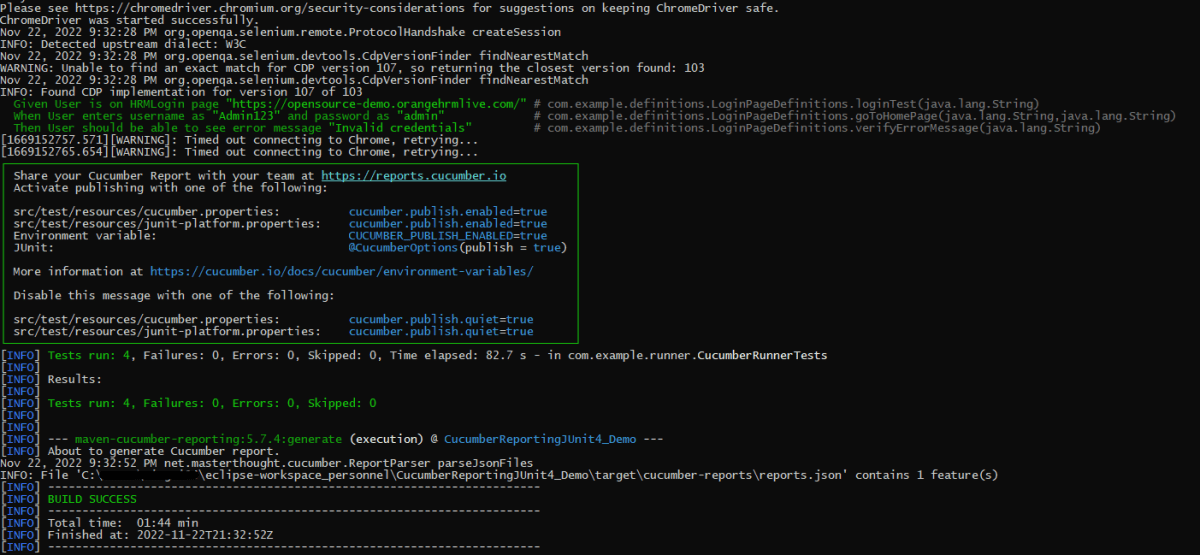
mvn clean test
The output of the above program is
Step 12 – Cucumber Report Generation
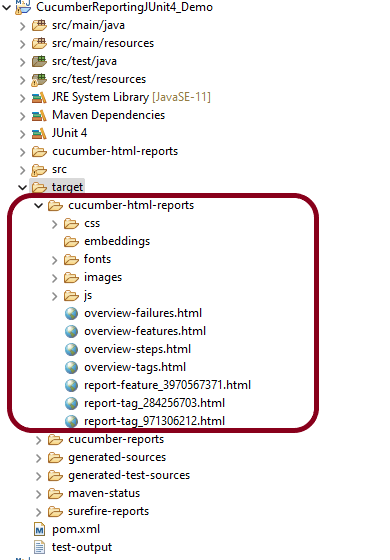
Refresh your project and check inside \target\cucumber-html-reports that the report generated with name feature-overview.
There are different types of HTML reports gets generated as a part of the test execution cycle.
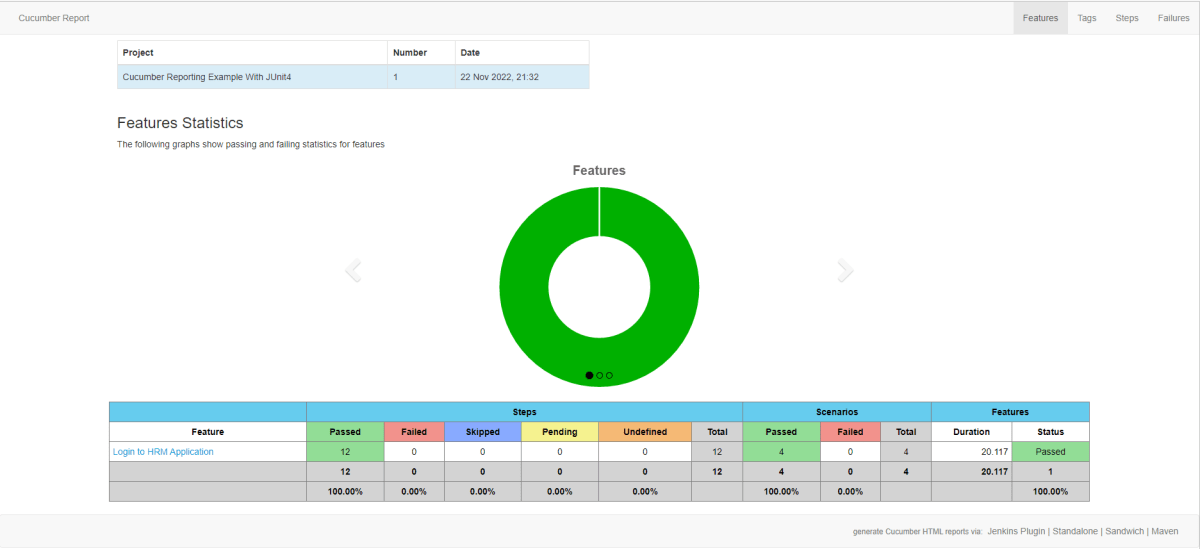
1. feature-overview – This HTML report gives an overall overview of test execution. Main HTML report which covers all different sections like Features, Tags, Steps, and Failures.
2. failures-overview – This HTML report gives an overview of all failed tests.
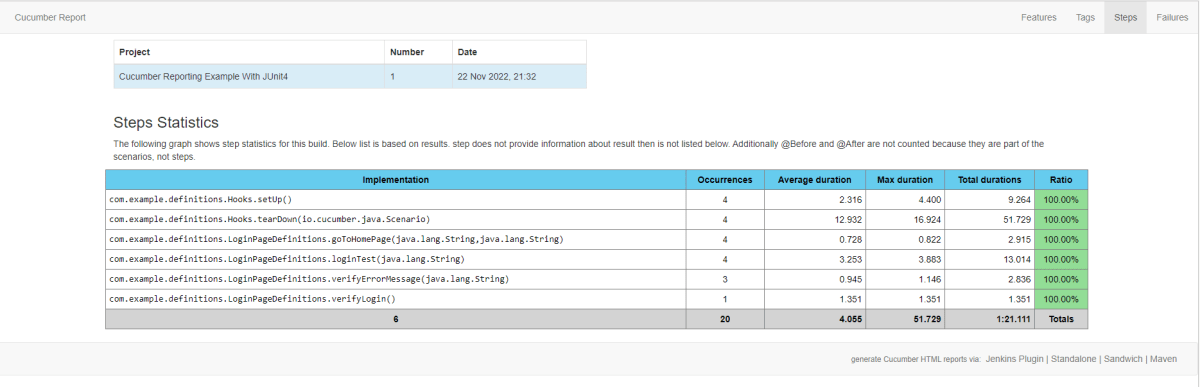
3. step-overview – This HTML report shows step statistics for the current cycle.
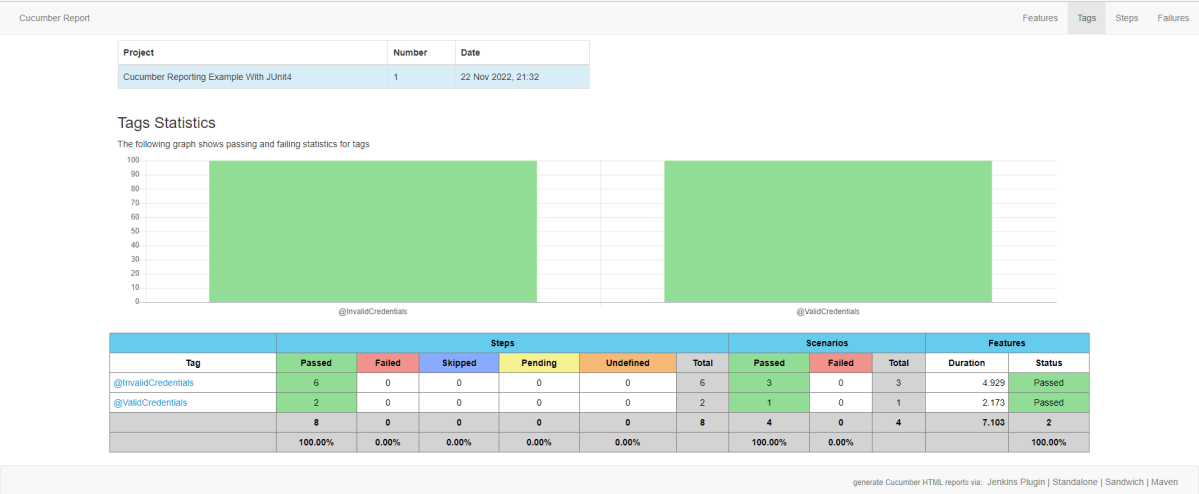
4. tag-overview – This HTML report shows passing and failing statistics for different tags used in test execution.
Congratulations on making it through this tutorial and hope you found it useful! Happy Learning!! Cheers!!
You need to provide a username and password and click on Sign in button.
Step 3: Select Manage Jenkins
Go to Jenkins Dashboard. After that, click on the Manage Jenkins link as shown below:
Step 4: Select the Global Tool Configuration option
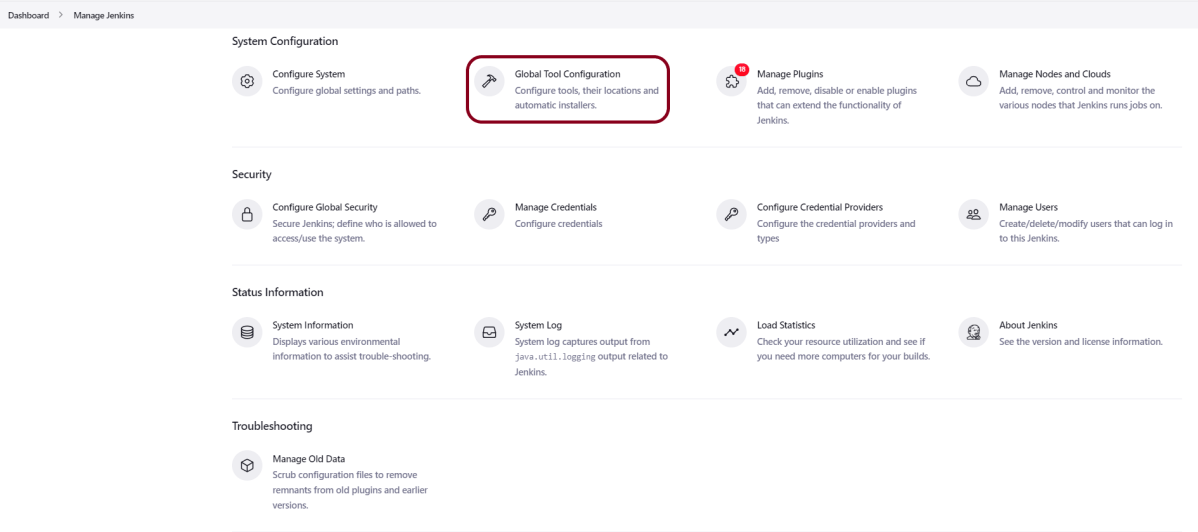
When we click on the “Manage Jenkins” link, we are redirected to the Manage Jenkins page, where we can see various types of options, including the “Global Tool Configuration” option.
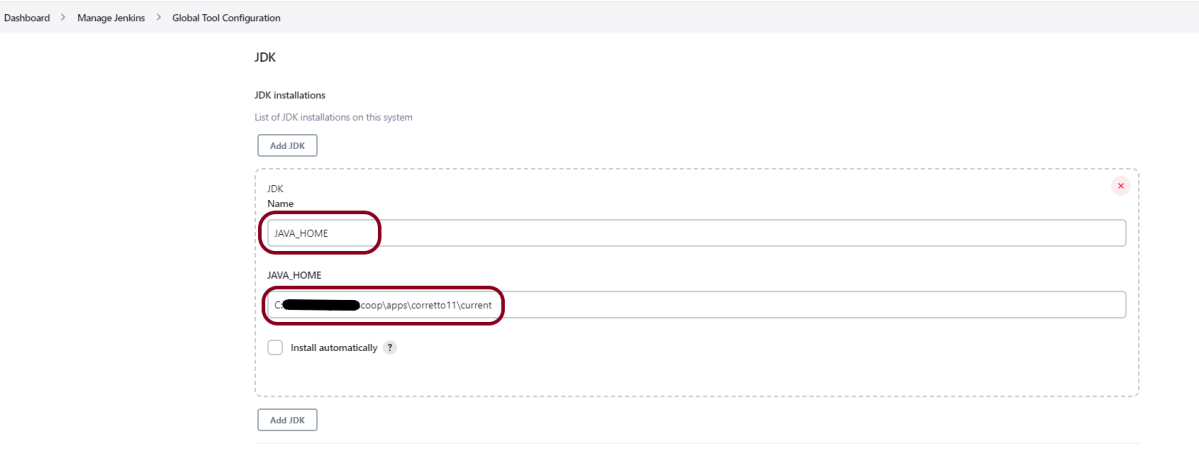
Step 5: Setup JDK Path
We need to set the JDK path in Jenkins as shown below. To know more about setting up Java in Jenkins, please refer to this tutorial – How to configure Java and Maven in Jenkins.
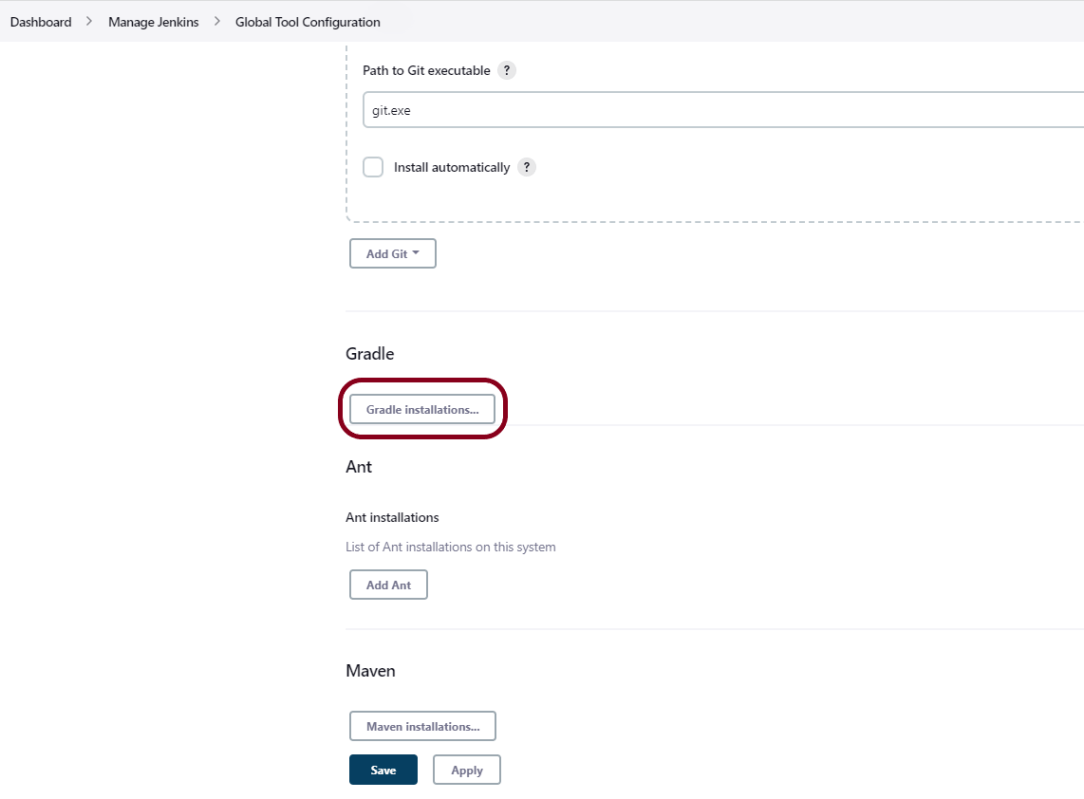
Step 6: Setup Gradle Path
We need to set the Gradle path in Jenkins as shown below.
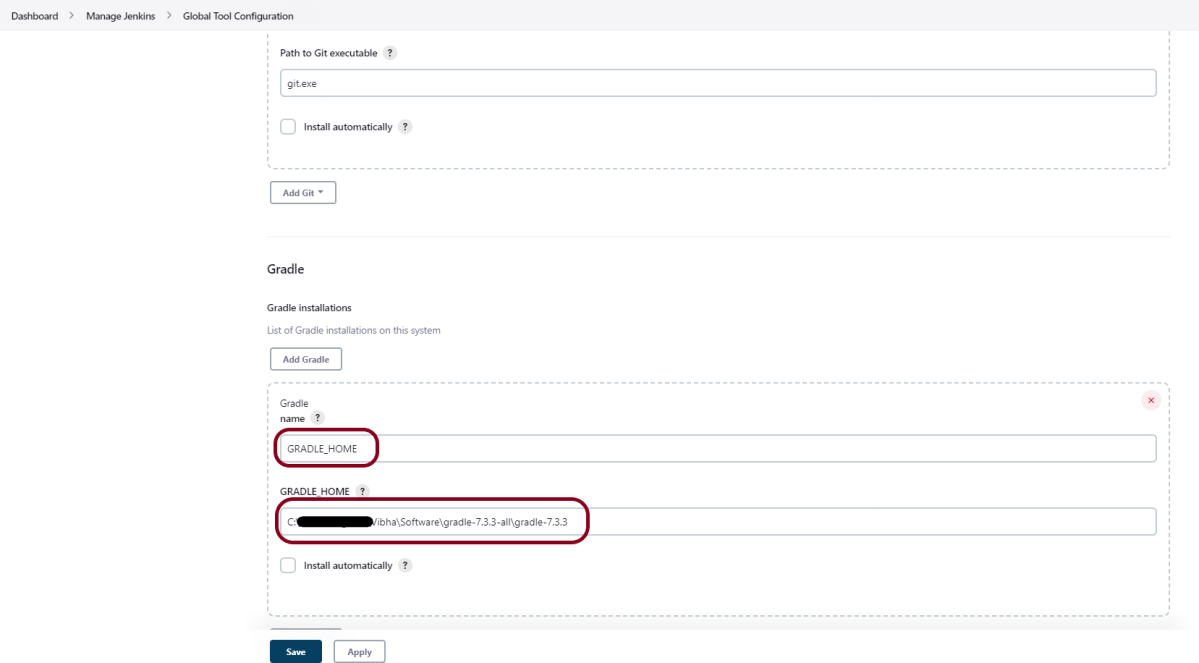
Click on the Add Gradle Installations button. Kindly note that by default, “Install Automatically” will be checked, so since we are going to use the Gradle installed on our local machine, “Install automatically” will install the latest version of Gradle, and you will also need to provide credentials to download the relevant Maven.
Provide the Gradle’s name as we gave as Gradle 7.3.3 because that is what is currently installed on my machine, and also provide the path of Gradle in the GRADLE_HOME textbox.
Click on the Apply and Save buttons.
Integrate Gradle Project with Jenkins
Step 1: Create a new project using the FreeStyle project plugin
Give the Name of the project.
Click on the Freestyle project.
Click on the OK button.
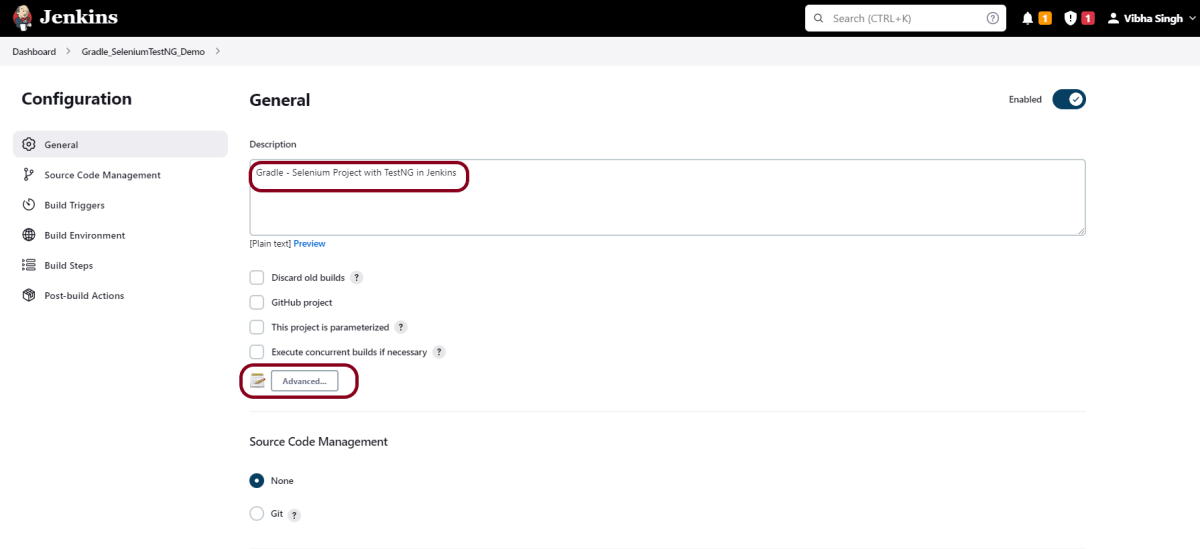
Step 2: Enter the project description in the Description box
In the general section, describe the project in the description section.
Click on the Advanced button. Mention the full path of the project.
Step 3: Build Management
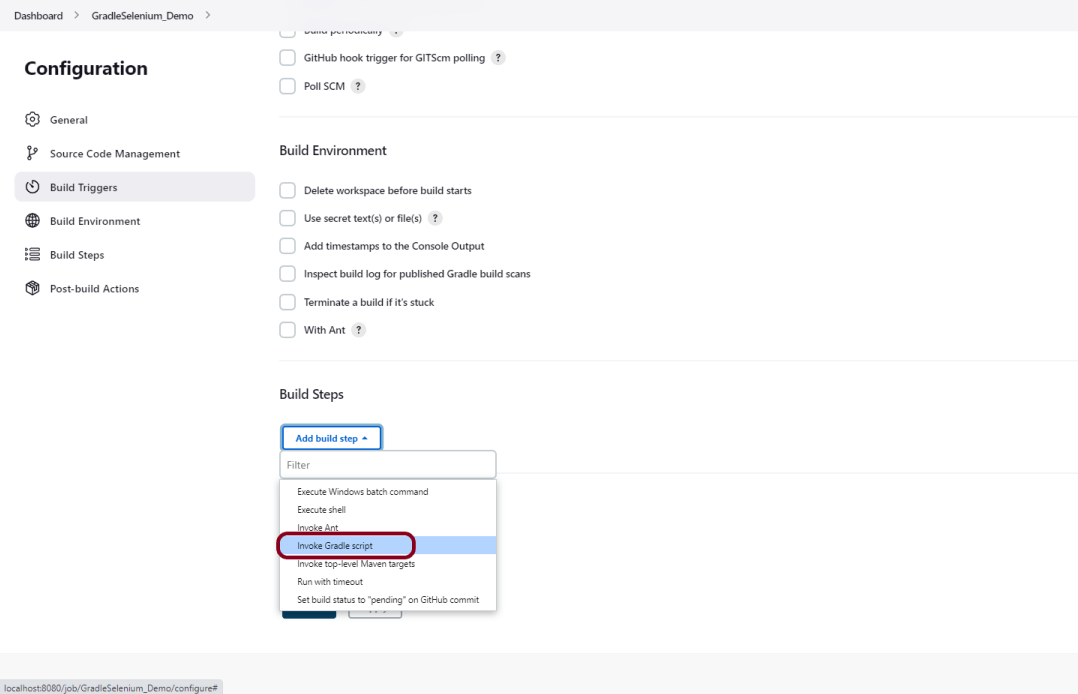
Go to the Build section of the new job and select the option – “Invoke Gradle Script“.
Provide the below-mentioned information:
In the Gradle version, enter – GRADLE_HOME.
In the Tasks option section, enter “clean test”
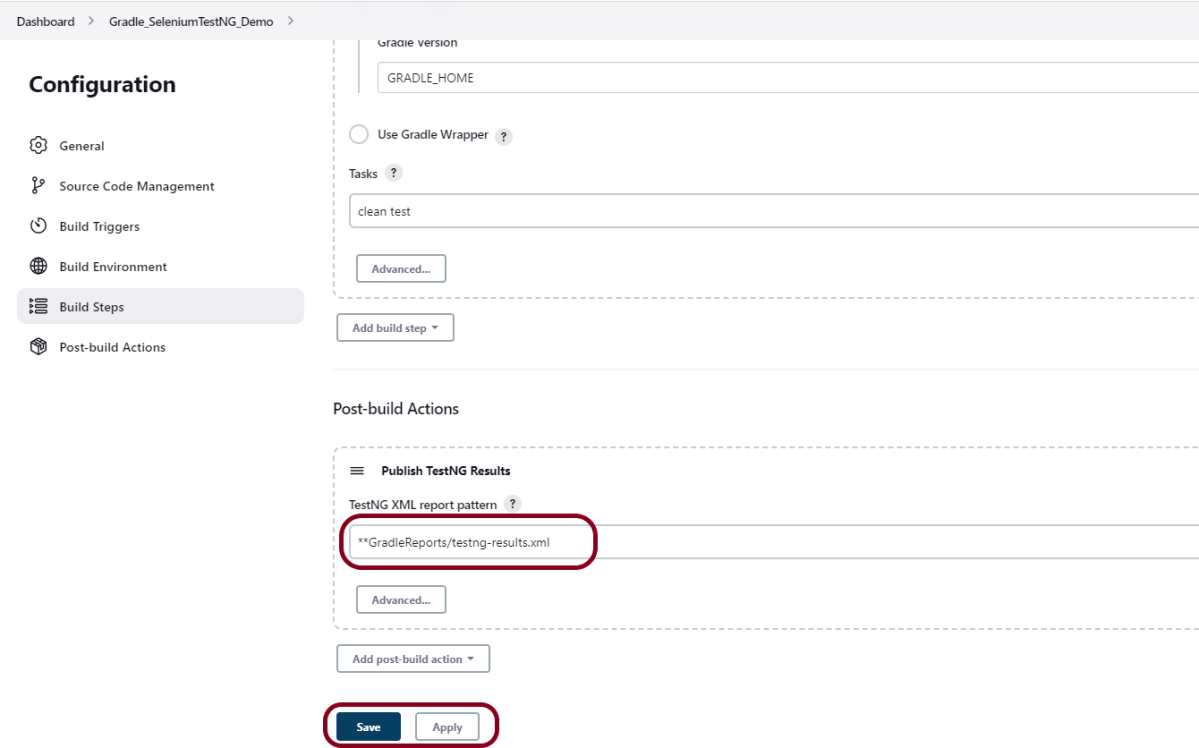
Step 4: Select “Publish TestNG Results” from “Post Build Actions”
Scroll down to “Post Build Actions” and click on the “Add Post Build Actions” drop-down list.
Enter TestNG XML Report Pattern as “**GradleReports/testng-results.xml” and click on the Save button
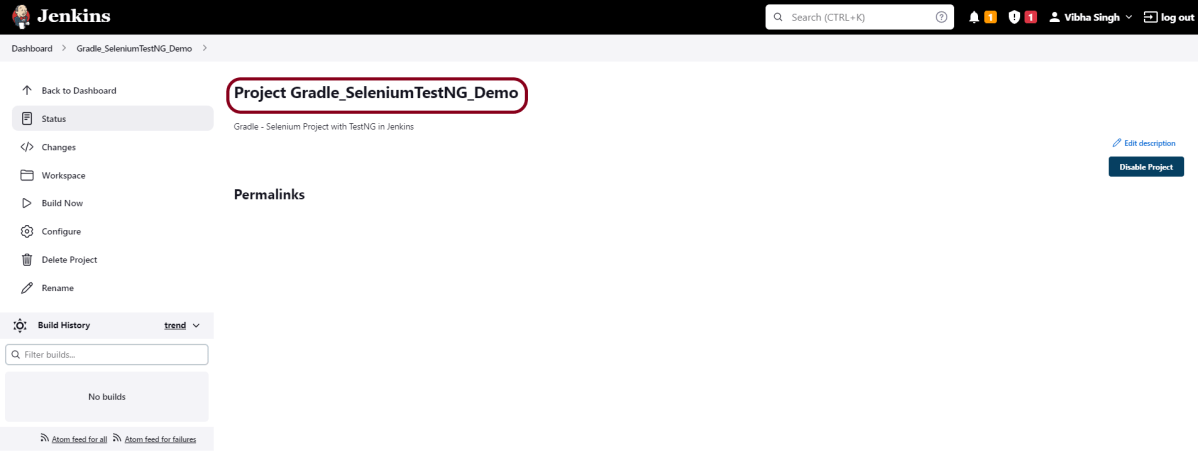
We have created a new project “Gradle_SeleniumTestNG_Demo” with the configuration to run TestNG Tests and also to generate TestNG Reports after execution using Jenkins.
Step 5: Execute the tests
Let’s execute it now by clicking on the “Build Now” button.
Right-click on Build Number (here in my case it is #2) and click on Console Output to see the result.
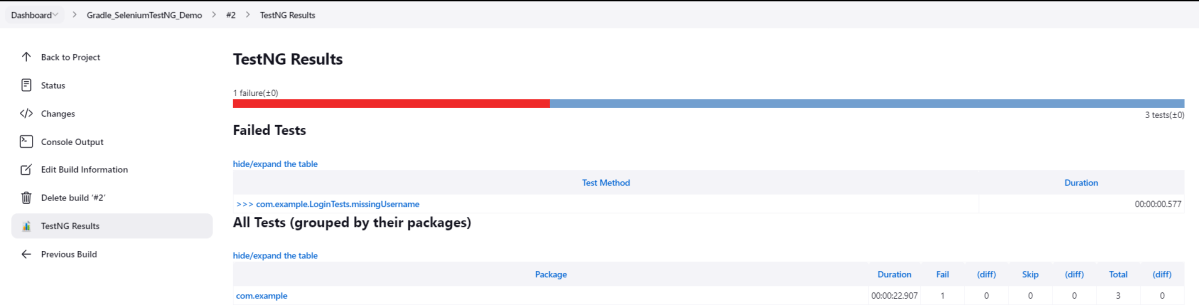
The below screen shows that the build failed because I failed one of the tests intentionally to show how the result looks with passed and failed tests.
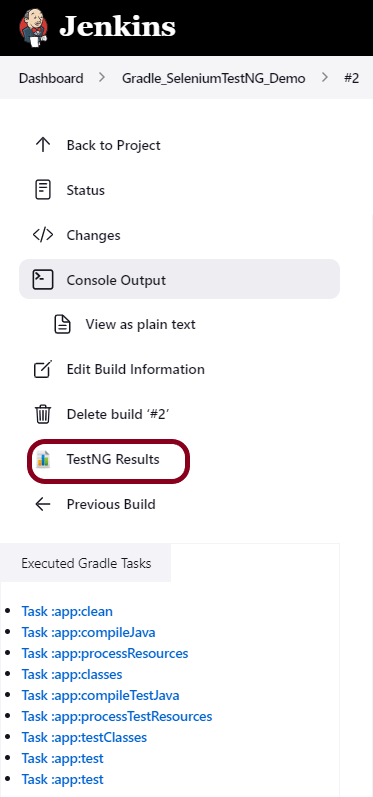
Once the execution is completed, we could see a link to view ‘TestNG Results’.
Click on the TestNG Results. It displays the summary of the tests.
This way, we could integrate the Gradle project with Jenkins.
Congratulations on making it through this tutorial and hope you found it useful! Happy Learning!! Cheers!!
Provide a username and password and click on the Sign-in Button.
Step 3: Download and Install TestNG Results Plugin
Click on the Manage Jenkins. Choose Manage Plugins.
Step 4: Add the TestNG Report plugin
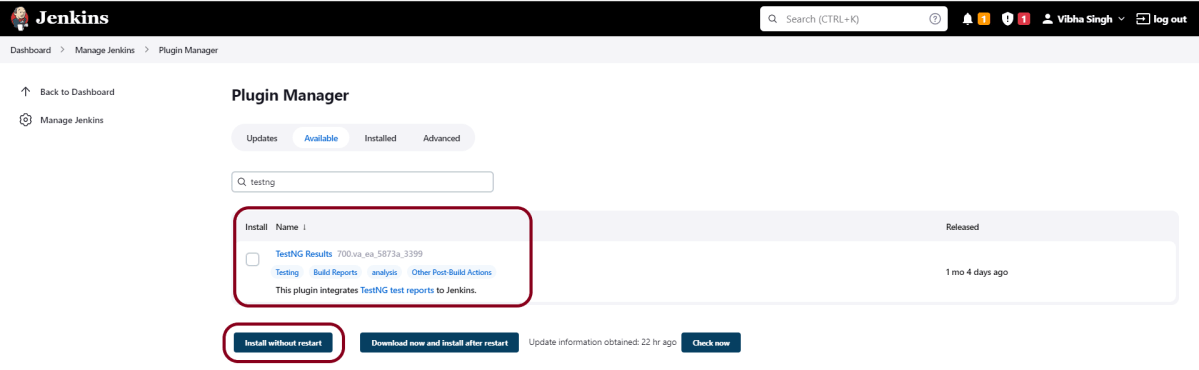
On the Plugins Page, go to the Available option
Select the TestNG Report Plugin
Click on Install without restart.The plugin will take a few moments to finish downloading depending on your internet connection, and will be installed automatically.
You can also select the option Download now and Install after the restart button. In which plugin is installed after the restart
You will be shown a “No updates available” message if you already have the TestNG Report plugin installed.
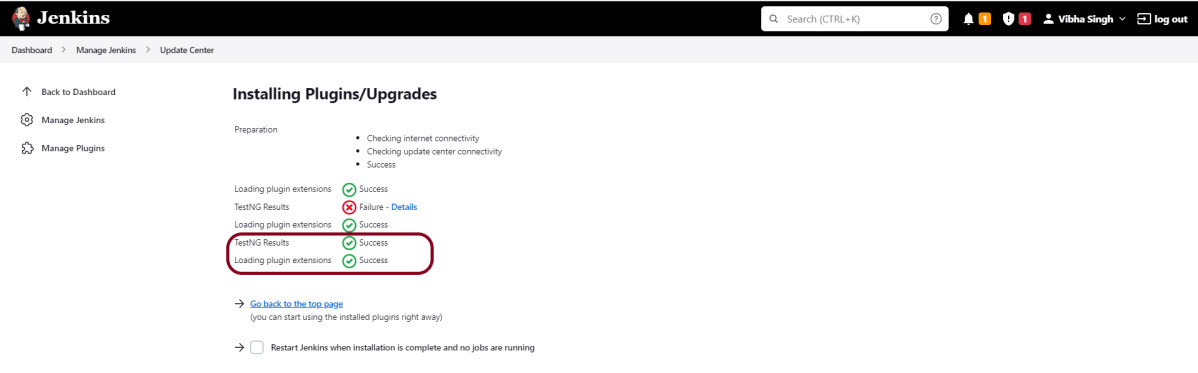
The plugin “TestNG Report” has been installed successfully.
Sometimes, the installation fails because of a network issue. You can try to reinstall it, and it should be successful.
Step 5: Restart Jenkins
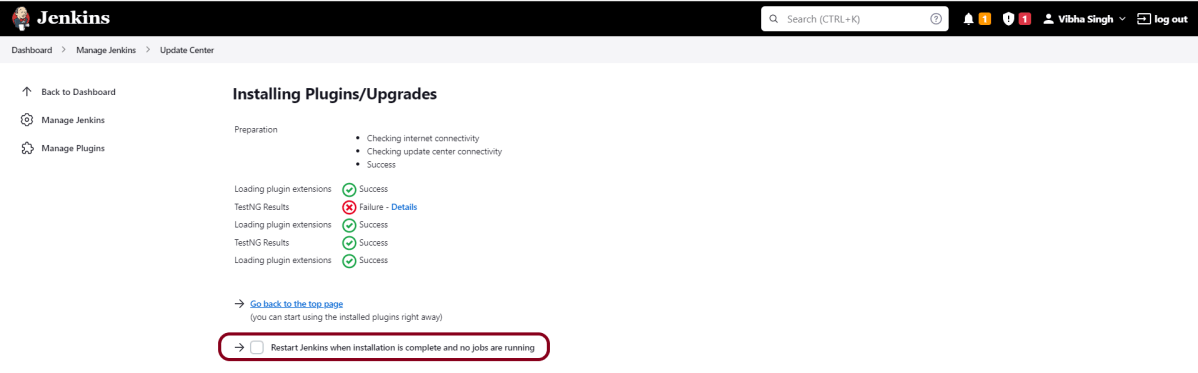
Click on the checkbox “Restart Jenkins when installation is complete when no jobs are running“.
The Jenkins will be restarted. Again, login to Jenkins UI.
Step 6: Create a new project using the Maven project plugin
Give the Name of the project.
Click on the Maven project.
Click on the OK button.
In the General section, enter the project description in the Description box.
Step 7: Build Management
Go to the Build section of the new job.
In the Root POM textbox, enter the full path to pom.xml
In the Goals and options section, enter “clean test”
Click on the Advanced button.
Step 8: Select custom workspace
Mention the full path of the project in the directory.
Step 9: Select “Publish TestNG Results” from “Post Build Actions”
Scroll down to ‘Post Build Actions’ and click on the ‘Add Post Build Actions’ drop-down list.
Select “Publish TestNG Results“.
Enter the TestNG XML Report Pattern as “**target/surefire-reports/testng-results.xml” and click on the “Save” button.
We have created a new project “TestNGReport_Demo” with the configuration to run TestNG Tests and also to generate TestNG Reports after execution using Jenkins.
Step 10: Execute the tests
Let’s execute it now by clicking on the “Build Now” button.
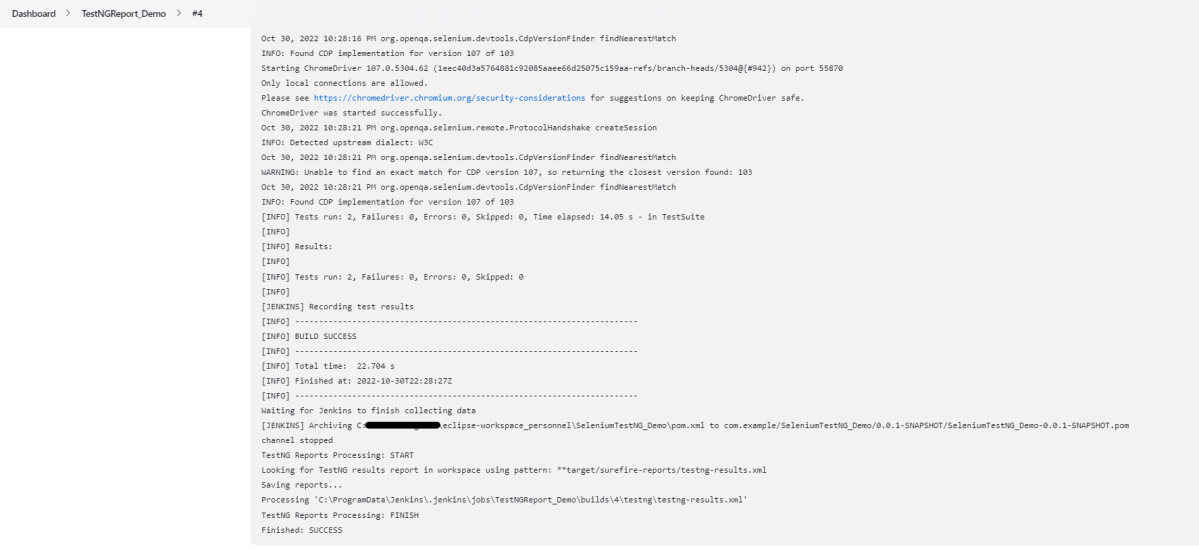
Right-click on Build Number (here in my case it is #4) and click on Console Output to see the result.
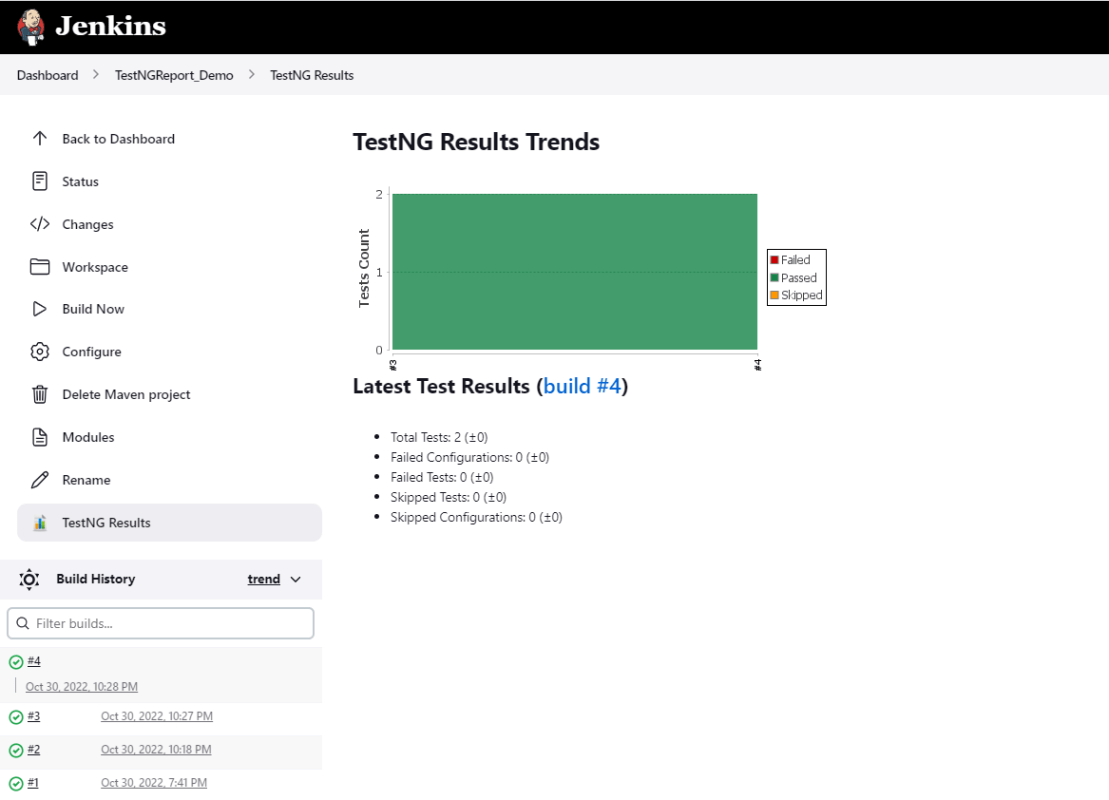
Once the execution is completed, we could see a link to view ‘TestNG Results’.
Step 11: View the TestNG Report
Click on the TestNG Results. It displays the summary of the tests.
This way, we could generate TestNG Reports using Jenkins.
Congratulations on making it through this tutorial and hope you found it useful! Happy Learning!! Cheers!!
Masterthought library provides pretty HTML reports for Cucumber. The cucumber JSON file is used to generate the HTML for the website. This Java report publisher was made particularly with publishing cucumber reports to the Jenkins build server in mind. It releases aesthetically pleasing HTML reports with charts displaying the outcomes of cucumber runs.
Cucumber lacks a sophisticated reporting feature. Cucumber generates a number of simple reports as part of the BDD framework; using the output from these same reports, we can use the Masterthought reporting plugin to produce more extensive HTML reports. Masterthoughtreporting plugin generates not only fancy reports but also detailed ones by reading a default report ‘cucumber.json’ generated by cucumber.
Add Selenium, TestNG, Cucumber, and Masterthought dependencies to the project
Create a feature file under src/test/resources
Create the test code locating the web elements in src/main/java
Create the Step Definition class or Glue Code in src/test/java
Create a TestNG Cucumber Runner class in src/test/java
Create testng.xml
Run the tests from Command Line
Cucumber Report Generation
Step 1- Download and Install Java
Cucumber and Selenium need Java to be installed on the system to run the tests. Click here to know How to install Java.
Step 2 – Download and setup Eclipse IDE on the system
The Eclipse IDE (integrated development environment) provides strong support for Java developers, which is needed to write Java code. Click here to know How to install Eclipse.
Step 3 – Setup Maven
To build a test framework, we need to add a number of dependencies to the project. It is a very tedious and cumbersome process to add each dependency manually. So, to overcome this problem, we use a build management tool. Maven is a build management tool that is used to define project structure, dependencies, build, and test management. Click here to know How to install Maven.
The Cucumber Eclipse plugin is a plugin that allows eclipse to understand the Gherkin syntax. The Cucumber Eclipse Plugin highlights the keywords present in Feature File. Click here to know more – Install Cucumber Eclipse Plugin.
Step 7 – Create a feature file (LoginPage.feature) containing all the test scenarios under src/test/resources/features
It is recommended to create a features folder in src/test/resources directory. Create all the feature files in this features folder. Featurefile should be saved as an extension of .feature.
Feature: Login to HRM Application

Background:
    Given User is on HRMLogin page "https://opensource-demo.orangehrmlive.com/"

   @ValidCredentials
   Scenario: Login with valid credentials

    When User enters username as "Admin" and password as "admin123"
    Then User should be able to login successfully and new page open

   @InvalidCredentials
   Scenario Outline: Login with invalid credentials

    When User enters username as "<username>" and password as "<password>"
    Then User should be able to see error message "<errorMessage>"

  Examples:
   | username   | password  | errorMessage                       |
   | $$$$$        | ££££££££  | Invalid credentials               |
   | admin        | Admin123  | Invalid credentials              |
Step 8 – Create the test code locating the web elements in src/main/java
LoginPageLocators
import org.openqa.selenium.WebElement;
import org.openqa.selenium.support.FindBy;

public class LoginPageLocators {

	@FindBy(name = "username")
    public WebElement userName;

    @FindBy(name = "password")
    public WebElement password;

    @FindBy(id = "logInPanelHeading")
    public WebElement titleText;

    @FindBy(xpath = "//*[@id='app']/div[1]/div/div[1]/div/div[2]/div[2]/form/div[3]/button")
    public WebElement login;

    @FindBy(xpath = "//*[@id='app']/div[1]/div/div[1]/div/div[2]/div[2]/div/div[1]/div[1]/p")
    public  WebElement errorMessage;

    @FindBy(xpath = "//*[@href='https://www.facebook.com/OrangeHRM/mycompany']") //Invalid Xpath
    public  WebElement faceBookIcon;

    @FindBy(xpath = "//*[@id='app']/div[1]/div/div[1]/div/div[2]/div[2]/form/div[1]/div/span")
    public WebElement missingUsernameErrorMessage;
}
HomePageLocators
import org.openqa.selenium.WebElement;
import org.openqa.selenium.support.FindBy;

public class HomePageLocators {

	@FindBy(xpath = "//*[@id='app']/div[1]/div[1]/header/div[1]/div[1]/span/h6")
	public  WebElement homePageUserName;

}
LoginPageActions
import org.openqa.selenium.support.PageFactory;
import com.example.testng.locators.LoginPageLocators;
import com.example.testng.utils.HelperClass;

public class LoginPageActions {

LoginPageLocators loginPageLocators = null;

    public LoginPageActions() {

    	this.loginPageLocators = new LoginPageLocators();

		PageFactory.initElements(HelperClass.getDriver(),loginPageLocators);
	}

    public void login(String strUserName, String strPassword) {

        // Fill user name
    	loginPageLocators.userName.sendKeys(strUserName);

        // Fill password
    	loginPageLocators.password.sendKeys(strPassword);

        // Click Login button
    	loginPageLocators.login.click();

    }

    //Get the title of Login Page")
    public String getLoginTitle() {
        return loginPageLocators.titleText.getText();
    }

    // Get the error message of Login Page
    public String getErrorMessage() {
        return loginPageLocators.errorMessage.getText();
    }

}
HomePageActions
import org.openqa.selenium.support.PageFactory;
import com.example.testng.locators.HomePageLocators;
import com.example.testng.utils.HelperClass;

public class HomePageActions {

	HomePageLocators homePageLocators = null;

	public HomePageActions() {

		this.homePageLocators = new HomePageLocators();

		PageFactory.initElements(HelperClass.getDriver(),homePageLocators);
    }

    // Get the User name from Home Page
    public String getHomePageText() {
        return homePageLocators.homePageUserName.getText();
    }

}
HelperClass
import java.time.Duration;
import org.openqa.selenium.WebDriver;
import org.openqa.selenium.chrome.ChromeDriver;
import io.github.bonigarcia.wdm.WebDriverManager;

public class HelperClass {

	private static HelperClass helperClass;

	private static WebDriver driver;
    public final static int TIMEOUT = 10;

	 private HelperClass() {

			WebDriverManager.chromedriver().setup();
	    	driver = new ChromeDriver();
	    	driver.manage().timeouts().implicitlyWait(Duration.ofSeconds(TIMEOUT));
	        driver.manage().window().maximize();

	 }

    public static void openPage(String url) {
        driver.get(url);
    }

	public static WebDriver getDriver() {
		return driver;

	}

	public static void setUpDriver() {

		if (helperClass==null) {

			helperClass = new HelperClass();
		}
	}

	 public static void tearDown() {

		 if(driver!=null) {
			 driver.close();
			 driver.quit();
		 }

		 helperClass = null;

	 }

}
Step 9 – Create the Step Definition class or Glue Code in src/test/java
It is recommended to create a definitions folder in src/test/java directory. The StepDefinition files should be created in this definitionsdirectory. within the folder called definitions.
LoginPageDefinitions
import org.junit.Assert;
import com.example.junit.actions.ForgetPasswordPageActions;
import com.example.junit.actions.HomePageActions;
import com.example.junit.actions.LoginPageActions;
import com.example.junit.utils.HelperClass;
import io.cucumber.java.en.Given;
import io.cucumber.java.en.Then;
import io.cucumber.java.en.When;

public class LoginPageDefinitions{

	LoginPageActions objLogin = new LoginPageActions();
    HomePageActions objHomePage = new HomePageActions();
    ForgetPasswordPageActions objForgotPasswordPage = new ForgetPasswordPageActions();


    @Given("User is on HRMLogin page {string}")
    public void loginTest(String url) {

    	HelperClass.openPage(url);

    }

    @When("User enters username as {string} and password as {string}")
    public void goToHomePage(String userName, String passWord) {

        // login to application
        objLogin.login(userName, passWord);

        // go the next page

    }

    @Then("User should be able to login successfully and new page open")
    public void verifyLogin() {

        // Verify home page
        Assert.assertTrue(objHomePage.getHomePageText().contains("Dashboard"));

    }

    @Then("User should be able to see error message {string}")
    public void verifyErrorMessage(String expectedErrorMessage) {

        // Verify home page
        Assert.assertEquals(objLogin.getErrorMessage(),expectedErrorMessage);

    }

}
Hooks
import com.example.junit.utils.HelperClass;
import io.cucumber.java.After;
import io.cucumber.java.Before;

public class Hooks {

	@Before
    public static void setUp() {

       HelperClass.setUpDriver();
    }

	@After
	public static void tearDown() {

		HelperClass.tearDown();
	}
}
Step 10 – Create a TestNG Cucumber Runner class in src/test/java
We need to create a class called Runner class to run the tests. This class will use the TestNG annotation @RunWith(), which tells TestNG what is the test runner class. TestRunner should be created under src/test/java within the folder called runner.
AbstractTestNGCucumberTests – Runs each cucumber scenario found in the features as a separate test.
import io.cucumber.testng.AbstractTestNGCucumberTests;
import io.cucumber.testng.CucumberOptions;

@CucumberOptions(tags = "", features = "src/test/resources/features/LoginPage.feature", glue = "com.example.testng.definitions",
    plugin= {"pretty", "html:test-output","json:target/cucumber/cucumber.json", "html:target/cucumber-html-report"})

public class CucumberRunnerTests extends AbstractTestNGCucumberTests {

}
Step 11 – Create testng.xml
TestNG.xml is used to run multiple tests in a single execution.
<?xml version="1.0" encoding="UTF-8"?>
<!DOCTYPE suite SYSTEM "https://testng.org/testng-1.0.dtd">
<suite name="Suite">
  <test name="Cucumber Reporting">

  <classes>
  <class name = "com.example.testng.runner.CucumberRunnerTests"/>
  </classes>
  </test> <!-- Test -->
</suite> <!-- Suite -->
Step 12 – Run the tests from Command Line
Use the below command to execute the tests.
mvn clean test
The output of the above program is
Step 13 – Cucumber Report Generation
Refresh your project and check inside \target\cucumber-html-reports that the report generated with name feature-overview.
There are different types of HTML reports gets generated as a part of the test execution cycle.
1. feature-overview – This HTML report gives an overall overview of test execution. Main HTML report which covers all different sections like Features, Tags, Steps, and Failures.
2. failures-overview – This HTML report gives an overview of all failed tests.
3. step-overview – This HTML report shows step statistics for the current cycle.
4. tag-overview – This HTML report shows passing and failing statistics for different tags used in test execution.
Congratulations on making it through this tutorial and hope you found it useful! Happy Learning!! Cheers!!
Sharing Cucumber test results with your colleagues is not easy. To make things easier, the Cucumber team has created a free, cloud-based service for sharing reports across the organization. The Cucumber Reports service, which is currently in early beta, allows you to configure Cucumber (currently only in Ruby or Java flavours) to upload the results of a Cucumber run to the cloud. You can then access them through your browser, which will render them using the same HTML formatter as on the desktop.
Serenity Reports are living documentation that contains the meaningful report for each Test. It illustrated narrative reports that document and describe what your application does and how it works.
We can create beautiful, interactive, and detailed reports for your tests using the Extent Reports library. Add events, screenshots, tags, devices, authors, or any other relevant information you deem necessary to create a descriptive and visually appealing report that you have complete control over.

























 QA Automation Expert