Integration of Serenity with Cucumber and JUnit5

HOME

In the previous tutorial, I explained the Serenity BDD with Cucumber for Web Application using Junit4. In this tutorial, I will explain the same Test Framework using Serenity, Cucumber, and JUnit5. This tutorial gives a clear picture of the initial setup of a BDD Framework.

What is JUnit5?

JUnit 5 is composed of several different modules from three different sub-projects.

JUnit 5 = JUnit Platform + JUnit Jupiter + JUnit Vintage

The JUnit Platform serves as a foundation for launching testing frameworks on the JVM. It also defines the TestEngine API for developing a testing framework that runs on the platform.

JUnit Jupiter is the combination of the new programming model and extension model for writing tests and extensions in JUnit 5. The Jupiter sub-project provides a TestEngine for running Jupiter based tests on the platform.

JUnit Vintage provides a TestEngine for running JUnit 3 and JUnit 4 based tests on the platform. It requires JUnit 4.12 or later to be present on the class/module path.

JUnit5 is not completely integrated with Serenity with Cucumber. So, it is advisable to use jupiter-vintage-engine for the Cucumber TestRunner classes.

Dependency List:

  1. Serenity – 4.0.28
  2. JUnit Jupiter – 5.10.1
  3. JUnit Vintage – 5.10.1
  4. JUnit Platform Suite – 1.10.1
  5. Cucumber JUnit Platform – 7.15.0
  6. Java 17
  7. Maven – 3.9.5
  8. Maven Compiler Plugin – 3.11.0
  9. Maven Surefire Plugin – 3.2.1
  10. Maven FailSafe Plugin – 3.2.1

Implementation Steps

Step 1- Download and Install Java

Click here to know How to install Java.

Step 2 – Download and setup Eclipse IDE on the system

The Eclipse IDE (integrated development environment) provides strong support for Java developers which is needed to write Java code. Click here to know How to install Eclipse.

Step 3 – Setup Maven and create a new Maven Project

Click here to know How to install Maven.

Click here to know How to create a Maven project

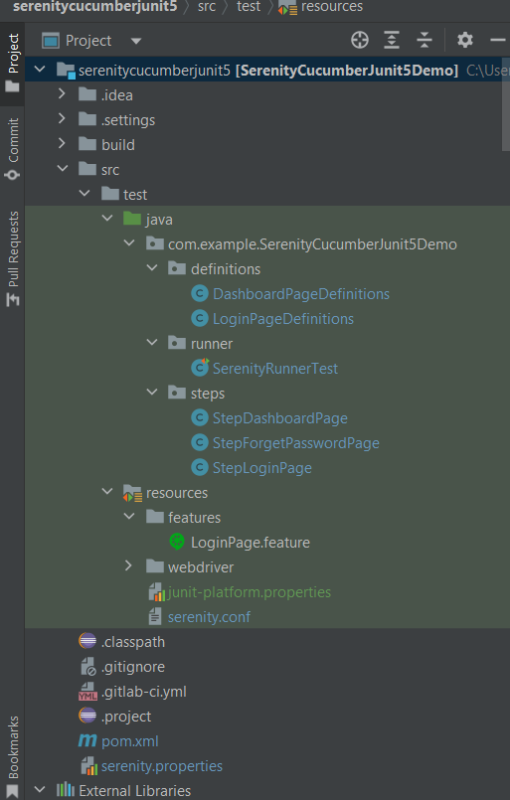
Below is the Maven project structure. Here,

Group Id – com.example
Artifact Id – SerenityCucumberJunit5Demo
Version – 0.0.1-SNAPSHOT
Package – com. example. SerenityCucumberJunit5Demo
Step 4 – Update Properties section in Maven pom.xml

<properties>
        <project.build.sourceEncoding>UTF-8</project.build.sourceEncoding>
        <serenity.version>4.0.28</serenity.version>
        <junit.jupiter.version>5.10.1</junit.jupiter.version>
        <junit.vintage.version>5.10.1</junit.vintage.version>
        <junit-platform-suite.version>1.10.1</junit-platform-suite.version>
        <cucumber-junit-platform-engine.version>7.15.0</cucumber-junit-platform-engine.version>
        <maven.compiler.plugin.version>3.11.0</maven.compiler.plugin.version>
        <maven.compiler.source>17</maven.compiler.source>
        <maven.compiler.target>17</maven.compiler.target>
        <maven.surefire.plugin.version>3.2.1</maven.surefire.plugin.version>
        <maven.failsafe.plugin.version>3.2.1</maven.failsafe.plugin.version>
        <tags></tags>
  </properties>

Step 5 – Add repositories and pluginRepository to Maven pom.xml

 <repositories>
        <repository>
            <snapshots>
                <enabled>false</enabled>
            </snapshots>
            <id>central</id>
            <name>bintray</name>
            <url>https://jcenter.bintray.com</url>
        </repository>
    </repositories>
    <pluginRepositories>
        <pluginRepository>
            <snapshots>
                <enabled>false</enabled>
            </snapshots>
            <id>central</id>
            <name>bintray-plugins</name>
            <url>https://jcenter.bintray.com</url>
        </pluginRepository>
    </pluginRepositories>

Step 6 – Add Serenity, Serenity Cucumber, and JUnit dependencies to POM.xml

<dependencies>
        <!-- JUnit 5 -->
        <dependency>
            <groupId>org.junit.jupiter</groupId>
            <artifactId>junit-jupiter-engine</artifactId>
            <version>${junit.jupiter.version}</version>
            <scope>test</scope>
        </dependency>

        <dependency>
            <groupId>org.junit.vintage</groupId>
            <artifactId>junit-vintage-engine</artifactId>
            <version>${junit.vintage.version}</version>
            <scope>test</scope>
        </dependency>

        <!-- Serenity -->
         <dependency>
            <groupId>net.serenity-bdd</groupId>
            <artifactId>serenity-core</artifactId>
            <version>${serenity.version}</version>
            <scope>test</scope>
        </dependency>
        
         <dependency>
            <groupId>net.serenity-bdd</groupId>
            <artifactId>serenity-cucumber</artifactId>
            <version>${serenity.version}</version>
            <scope>test</scope>
        </dependency>
        
        <dependency>
            <groupId>net.serenity-bdd</groupId>
            <artifactId>serenity-screenplay-webdriver</artifactId>
            <version>${serenity.version}</version>
            <scope>test</scope>
        </dependency>

     <dependency>
         <groupId>org.junit.platform</groupId>
         <artifactId>junit-platform-suite</artifactId>
         <version>${junit-platform-suite.version}</version>
         <scope>test</scope>
     </dependency>

     <dependency>
         <groupId>io.cucumber</groupId>
         <artifactId>cucumber-junit-platform-engine</artifactId>
         <version>${cucumber-junit-platform-engine.version}</version>
         <scope>test</scope>
     </dependency>

    </dependencies>

Step 7 – Update the Build Section of pom.xml

<build>
        <plugins>
            <plugin>
                <groupId>org.apache.maven.plugins</groupId>
                <artifactId>maven-surefire-plugin</artifactId>
                <version>${maven.surefire.plugin.version}</version>
                <configuration>
                    <skip>true</skip>
                </configuration>
            </plugin>
            <plugin>
                <artifactId>maven-failsafe-plugin</artifactId>
                <version>${maven.failsafe.plugin.version}</version>
                <configuration>
                    <includes>
                        <include>**/*.java</include>
                    </includes>
                    <parallel>methods</parallel>
                    <useUnlimitedThreads>true</useUnlimitedThreads>
                </configuration>
                <executions>
                    <execution>
                        <goals>
                            <goal>integration-test</goal>
                            <goal>verify</goal>
                        </goals>
                    </execution>
                </executions>
            </plugin>
            <plugin>
                <groupId>org.apache.maven.plugins</groupId>
                <artifactId>maven-compiler-plugin</artifactId>
                <version>${maven.compiler.plugin.version}</version>
                <configuration>
                    <source>${maven.compiler.source}</source>
                    <target>${maven.compiler.target}</target>
                </configuration>
            </plugin>
           <plugin>
               <groupId>net.serenity-bdd.maven.plugins</groupId>
               <artifactId>serenity-maven-plugin</artifactId>
               <version>${serenity.version}</version>
               <dependencies> 
                  <dependency>
                       <groupId>net.serenity-bdd</groupId>
                       <artifactId>serenity-single-page-report</artifactId>
                       <version>${serenity.version}</version>
                  </dependency>                
               </dependencies>
               <configuration>
                   <tags>${tags}</tags>
                   <reports>single-page-html</reports> 
               </configuration>
               <executions>
                  <execution>
                      <id>serenity-reports</id>
                      <phase>post-integration-test</phase>
                      <goals>
                          <goal>aggregate</goal>
                      </goals>
                   </execution>
               </executions>
           </plugin>
        </plugins>
    </build>
</project>

<?xml version="1.0" encoding="UTF-8"?>

<project xmlns="http://maven.apache.org/POM/4.0.0" xmlns:xsi="http://www.w3.org/2001/XMLSchema-instance"
  xsi:schemaLocation="http://maven.apache.org/POM/4.0.0 https://maven.apache.org/xsd/maven-4.0.0.xsd">
  <modelVersion>4.0.0</modelVersion>

  <groupId>com.example</groupId>
  <artifactId>SerenityCucumberJunit5Demo</artifactId>
  <version>0.0.1-SNAPSHOT</version>

  <name>SerenityCucumberJunit5Demo</name>
  <!-- FIXME change it to the project's website -->
  <url>http://www.example.com</url>

  <properties>
        <project.build.sourceEncoding>UTF-8</project.build.sourceEncoding>
        <serenity.version>4.0.28</serenity.version>
        <junit.jupiter.version>5.10.1</junit.jupiter.version>
        <junit.vintage.version>5.10.1</junit.vintage.version>
        <junit-platform-suite.version>1.10.1</junit-platform-suite.version>
        <cucumber-junit-platform-engine.version>7.15.0</cucumber-junit-platform-engine.version>
        <maven.compiler.plugin.version>3.11.0</maven.compiler.plugin.version>
        <maven.compiler.source>17</maven.compiler.source>
        <maven.compiler.target>17</maven.compiler.target>
        <maven.surefire.plugin.version>3.2.1</maven.surefire.plugin.version>
        <maven.failsafe.plugin.version>3.2.1</maven.failsafe.plugin.version>
        <tags></tags>
  </properties>
  
  <repositories>
        <repository>
            <snapshots>
                <enabled>false</enabled>
            </snapshots>
            <id>central</id>
            <name>bintray</name>
            <url>https://jcenter.bintray.com</url>
        </repository>
    </repositories>
    <pluginRepositories>
        <pluginRepository>
            <snapshots>
                <enabled>false</enabled>
            </snapshots>
            <id>central</id>
            <name>bintray-plugins</name>
            <url>https://jcenter.bintray.com</url>
        </pluginRepository>
    </pluginRepositories>

 <dependencies>
        <!-- JUnit 5 -->
        <dependency>
            <groupId>org.junit.jupiter</groupId>
            <artifactId>junit-jupiter-engine</artifactId>
            <version>${junit.jupiter.version}</version>
            <scope>test</scope>
        </dependency>

        <dependency>
            <groupId>org.junit.vintage</groupId>
            <artifactId>junit-vintage-engine</artifactId>
            <version>${junit.vintage.version}</version>
            <scope>test</scope>
        </dependency>

        <!-- Serenity -->
         <dependency>
            <groupId>net.serenity-bdd</groupId>
            <artifactId>serenity-core</artifactId>
            <version>${serenity.version}</version>
            <scope>test</scope>
        </dependency>
        
         <dependency>
            <groupId>net.serenity-bdd</groupId>
            <artifactId>serenity-cucumber</artifactId>
            <version>${serenity.version}</version>
            <scope>test</scope>
        </dependency>
        
        <dependency>
            <groupId>net.serenity-bdd</groupId>
            <artifactId>serenity-screenplay-webdriver</artifactId>
            <version>${serenity.version}</version>
            <scope>test</scope>
        </dependency>

     <dependency>
         <groupId>org.junit.platform</groupId>
         <artifactId>junit-platform-suite</artifactId>
         <version>${junit-platform-suite.version}</version>
         <scope>test</scope>
     </dependency>

     <dependency>
         <groupId>io.cucumber</groupId>
         <artifactId>cucumber-junit-platform-engine</artifactId>
         <version>${cucumber-junit-platform-engine.version}</version>
         <scope>test</scope>
     </dependency>

    </dependencies>

    <build>
        <plugins>
            <plugin>
                <groupId>org.apache.maven.plugins</groupId>
                <artifactId>maven-surefire-plugin</artifactId>
                <version>${maven.surefire.plugin.version}</version>
                <configuration>
                    <skip>true</skip>
                </configuration>
            </plugin>
            <plugin>
                <artifactId>maven-failsafe-plugin</artifactId>
                <version>${maven.failsafe.plugin.version}</version>
                <configuration>
                    <includes>
                        <include>**/*.java</include>
                    </includes>
                    <parallel>methods</parallel>
                    <useUnlimitedThreads>true</useUnlimitedThreads>
                </configuration>
                <executions>
                    <execution>
                        <goals>
                            <goal>integration-test</goal>
                            <goal>verify</goal>
                        </goals>
                    </execution>
                </executions>
            </plugin>
            <plugin>
                <groupId>org.apache.maven.plugins</groupId>
                <artifactId>maven-compiler-plugin</artifactId>
                <version>${maven.compiler.plugin.version}</version>
                <configuration>
                    <source>${maven.compiler.source}</source>
                    <target>${maven.compiler.target}</target>
                </configuration>
            </plugin>
           <plugin>
               <groupId>net.serenity-bdd.maven.plugins</groupId>
               <artifactId>serenity-maven-plugin</artifactId>
               <version>${serenity.version}</version>
               <dependencies> 
                  <dependency>
                       <groupId>net.serenity-bdd</groupId>
                       <artifactId>serenity-single-page-report</artifactId>
                       <version>${serenity.version}</version>
                  </dependency>                
               </dependencies>
               <configuration>
                   <tags>${tags}</tags>
                   <reports>single-page-html</reports> 
               </configuration>
               <executions>
                  <execution>
                      <id>serenity-reports</id>
                      <phase>post-integration-test</phase>
                      <goals>
                          <goal>aggregate</goal>
                      </goals>
                   </execution>
               </executions>
           </plugin>
        </plugins>
    </build>
</project>

Step 8 – Create a feature file under src/test/resources

The purpose of the Feature keyword is to provide a high-level description of a software feature, and to group related scenarios. To know more about the Feature file, please refer this tutorial.

Feature: Login to HRM  

   @ValidCredentials
   Scenario: Login with valid credentials
   
    Given User is on Home page
    When User enters username as "Admin"
    And User enters password as "admin123"
    Then User should be able to login successfully
    
    @InValidCredentials    
    Scenario Outline: Login with invalid credentials
   
    Given User is on Home page
    When User enters username as '<username>'
    And User enters password as '<password>'
    Then User should be able to see error message '<errorMessage>'
      
   Examples:
    |username   |password       |errorMessage               |
    |admin        |admin            |Invalid credentials        |
    |abc            |admin123       |Invalid credentials        |
    |abc            |abc123           |Invalid credentials         |
    |1$£"          | 45£"%           |Invalid credentials        |
 
   @ForgetPassword  
   Scenario: Verify Forget Password Functionality
   
    Given User is on Home page
    When User clicks on Forgot your password link
    Then User should be able to see new page which contains Reset Password button

Step 9 – Create junit-platform.properties file under src/test/resources (optional)

This is an optional step. Cucumber of version 6.7 and above provides the functionality to generate a beautiful cucumber report. For this, it is needed to add a file junit-platform.properties under src/test/resources.

cucumber.publish.enabled = true

Step 10 – Create the Step Definition class or Glue Code

A Step Definition is a Java method with an expression that links it to one or more Gherkin steps. When Cucumber executes a Gherkin step in a scenario, it will look for a matching step definition to execute. You can have all of your step definitions in one file, or in multiple files.

LoginPageDefinitions

import static org.junit.jupiter.api.Assertions.assertEquals;
import static org.junit.jupiter.api.Assertions.assertTrue;

import com.example.SerenityCucumberJunit5Demo.steps.StepDashboardPage;
import com.example.SerenityCucumberJunit5Demo.steps.StepForgetPasswordPage;
import com.example.SerenityCucumberJunit5Demo.steps.StepLoginPage;

import io.cucumber.java.en.Given;
import io.cucumber.java.en.Then;
import io.cucumber.java.en.When;
import net.serenitybdd.annotations.Steps;


public class LoginPageDefinitions {

	@Steps
	StepLoginPage loginPage;

	@Steps
	StepDashboardPage dashPage;

	@Steps
	StepForgetPasswordPage forgetpasswordPage;

	@Given("User is on Home page")
	public void openApplication() {
		loginPage.open();
	}

	@When("User enters username as {string}")
	public void enterUsername(String userName) {

		loginPage.inputUserName(userName);
	}

	@When("User enters password as {string}")
	public void enterPassword(String passWord) {
		loginPage.inputPassword(passWord);
		loginPage.clickLogin();
	}

	@Then("User should be able to login successfully")
	public void clickOnLoginButton() {
		dashPage.loginVerify();
	}

	@Then("User should be able to see error message {string}")
	public void unsucessfulLogin(String expectedErrorMessage) {
		String actualErrorMessage = loginPage.errorMessage();

		System.out.println("Actual Error Message :" + actualErrorMessage);

		assertEquals(expectedErrorMessage, actualErrorMessage);
	}

	@When("User clicks on Forgot your password link")
	public void clickForgetPasswordLink() {
		loginPage.clickForgetPasswordLink();
	}

	@Then("User should be able to see new page which contains Reset Password button")
	public void verifyForgetPasswordPage() {

		assertTrue(forgetpasswordPage.ForgetPasswordPage());
	}
}

Assertions in JUnit-Vintage Engine are imported from the below package:-

import static org.junit.jupiter.api.Assertions.*;

DashboardPageDefinitions

import com.example.SerenityCucumberJunit5Demo.steps.StepDashboardPage;
import net.serenitybdd.annotations.Step;
import net.serenitybdd.annotations.Steps;

public class DashboardPageDefinitions {

	@Steps
	StepDashboardPage dashPage;

	@Step
	public void verifyAdminLogin() {
		dashPage.loginVerify();
	}
}

The corresponding Test Step classes are – StepLoginPage and StepDashboardPage.

There are multiple ways to identify a web element on the web page – one of the ways is to use @FindBy or $(By.).

I prefer to use @FindBy as I need not find the same element multiple times. Using @FindBy, I have identified a web element and defined a WebElementFacacde for the same which is reusable.

StepLoginPage

import net.serenitybdd.annotations.Step;
import net.serenitybdd.core.annotations.findby.FindBy;
import net.serenitybdd.core.pages.PageObject;
import net.serenitybdd.core.pages.WebElementFacade;


public class StepLoginPage extends PageObject {

	@FindBy(name = "username")
	WebElementFacade username;

	@FindBy(name = "password")
	WebElementFacade password;

	@FindBy(xpath = "//*[@id='app']/div[1]/div/div[1]/div/div[2]/div[2]/form/div[3]/button")
	WebElementFacade submitButton;

	@FindBy(xpath = "//*[@id='app']/div[1]/div/div[1]/div/div[2]/div[2]/div/div[1]/div[1]/p")
	WebElementFacade errorMessage;

	@FindBy(xpath = "//*[@id='app']/div[1]/div/div[1]/div/div[2]/div[2]/form/div[4]/p")
	WebElementFacade linkText;

	@Step("Enter Username")
	public void inputUserName(String userName) {
		username.sendKeys((userName));
	}

	@Step("Enter Password")
	public void inputPassword(String passWord) {
		password.sendKeys((passWord));
	}

	@Step("Click Submit Button")
	public void clickLogin() {
		submitButton.click();
	}

	@Step("Error Message on unsuccessful login")
	public String errorMessage() {
		String actualErrorMessage = errorMessage.getText();
		System.out.println("Actual Error Message :" + actualErrorMessage);

		return actualErrorMessage;
	}

	@Step("Click Forget Password Link")
	public void clickForgetPasswordLink() {
		linkText.click();

		System.out.println("Clicked on Forgot Password Link");
	}

}

StepDashboardPage

import static org.hamcrest.CoreMatchers.containsString;
import static org.hamcrest.MatcherAssert.assertThat;
import net.serenitybdd.annotations.Step;
import net.serenitybdd.core.annotations.findby.FindBy;
import net.serenitybdd.core.pages.PageObject;
import net.serenitybdd.core.pages.WebElementFacade;

public class StepDashboardPage extends PageObject {

	@FindBy(xpath = "//*[@id='app']/div[1]/div[1]/header/div[1]/div[1]/span/h6")
	WebElementFacade dashboardText;

	@Step("Successful login")
	public void loginVerify() {
		String dashboardTitle = dashboardText.getText();
		assertThat(dashboardTitle, containsString("Dashboard"));
	}
}

StepForgetPasswordPage

import net.serenitybdd.annotations.Step;
import net.serenitybdd.core.annotations.findby.FindBy;
import net.serenitybdd.core.pages.PageObject;
import net.serenitybdd.core.pages.WebElementFacade;

public class StepForgetPasswordPage extends PageObject {

	@FindBy(xpath = "//*[@id='app']/div[1]/div[1]/div/form/h6")
	WebElementFacade forgetLink;

	@Step("Verify Forget Password Page ")
	public boolean ForgetPasswordPage() {
		Boolean resetPasswordButton = forgetLink.isDisplayed();

		return resetPasswordButton;
	}
}

Step 11 – Create a Serenity-Cucumber Runner class

Cucumber runs the feature files via JUnit and needs a dedicated test runner class to actually run the feature files. When you run the tests with Serenity, you use the CucumberWithSerenity test runner. You also need to use the @CucumberOptions class to provide the root directory where the feature files can be found.

import static io.cucumber.junit.platform.engine.Constants.GLUE_PROPERTY_NAME;
import static io.cucumber.junit.platform.engine.Constants.PLUGIN_PROPERTY_NAME;

import org.junit.platform.suite.api.ConfigurationParameter;
import org.junit.platform.suite.api.IncludeEngines;
import org.junit.platform.suite.api.SelectClasspathResource;
import org.junit.platform.suite.api.Suite;

@Suite
@IncludeEngines("cucumber")
@SelectClasspathResource("/features")
@ConfigurationParameter(key = GLUE_PROPERTY_NAME, value = "com.example.SerenityCucumberJunit5Demo.definitions")
@ConfigurationParameter(key = PLUGIN_PROPERTY_NAME, value = "io.cucumber.core.plugin.SerenityReporterParallel,pretty,timeline:build/test-results/timeline")

public class SerenityRunnerTest {

}

Step 12 – Create serenity.conf file under src/test/resources

The serenity configuration file is used to configure the drivers so the test cases can run successfully. This file contains an operating system-specific binary. The binary file sits between your test and the browser. It acts as an intermediary, an interface between your tests and the browser you are using.

You can also configure the webdriver.base.url property for different environments in the serenity.conf configuration file.

headless.mode = false

webdriver {
  driver = chrome
  capabilities {
    browserName = "chrome"
    acceptInsecureCerts = true
    "goog:chromeOptions" {
      args = ["remote-allow-origins=*","test-type", "no-sandbox", "ignore-certificate-errors", "--window-size=1000,800",
        "incognito", "disable-infobars", "disable-gpu", "disable-default-apps", "disable-popup-blocking",
        "disable-dev-shm-usage", "disable-extensions", "disable-web-security", "disable-translate", "disable-logging"]
    }
  }
}


#
# Define drivers for different platforms. Serenity will automatically pick the correct driver for the current platform
#

environments {
  default {
    webdriver.base.url = "https://opensource-demo.orangehrmlive.com/"
  }
  dev {
    webdriver.base.url = "https://opensource-demo.orangehrmlive.com/dev"
  }
  staging {
    webdriver.base.url = "https://opensource-demo.orangehrmlive.com/staging"
  }
  prod {
    webdriver.base.url = "https://opensource-demo.orangehrmlive.com/prod"
  }
}

Step 13 – Create serenity.properties file at the root of the project

serenity.project.name = Serenity and Cucumber and JUnit5 Demo

Step 14 – Run the tests from Command Line

Open the command line and go to the location where pom.xml of the project is present and type the below command.

mvn clean verify

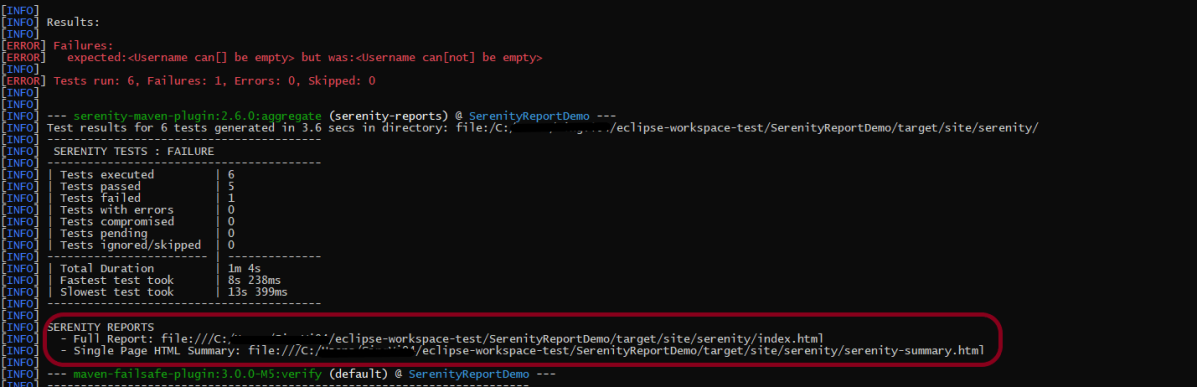
Step 15 – Test Execution Status

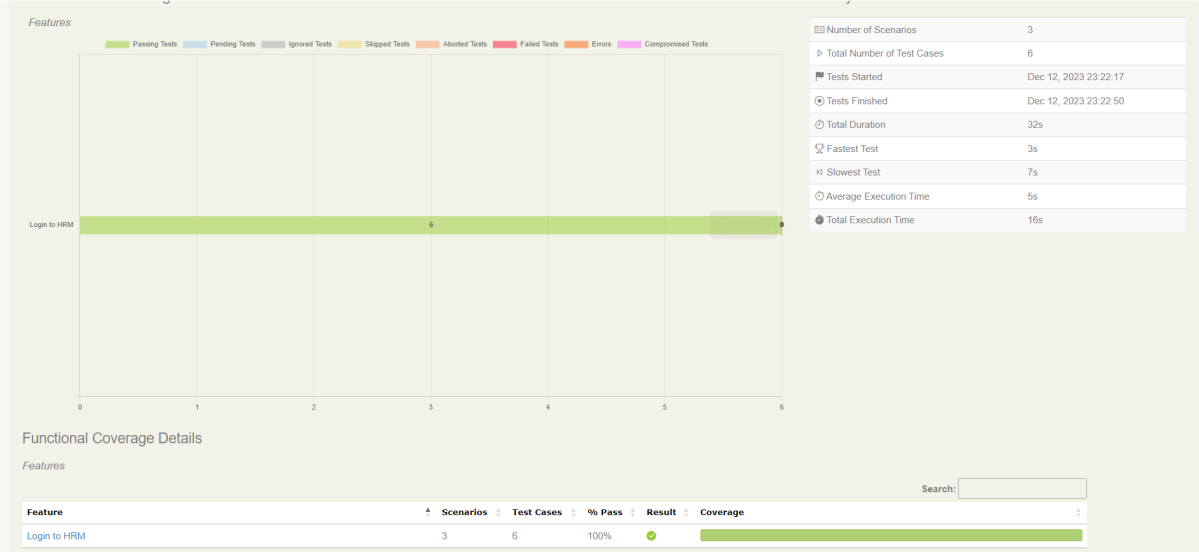
The image displayed above shows the execution status.

The feature file contains 3 test cases. Test Case 2 is a Test Scenario that has 4 examples. So, in total we have 6 tests. This information is clearly mentioned in the new version of Serenity.

Step 16 – Serenity Report Generation

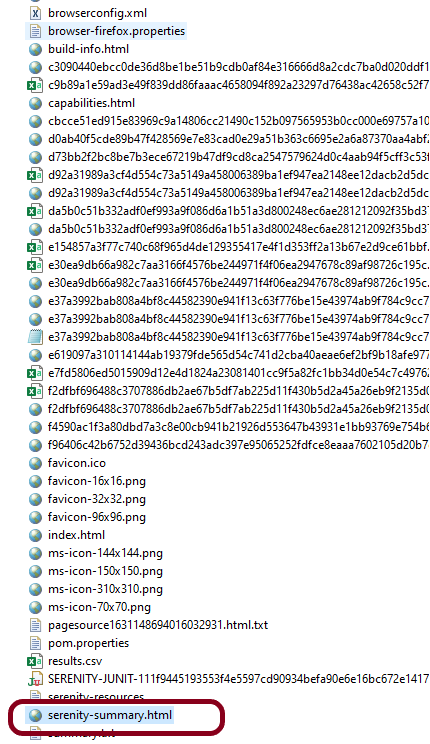
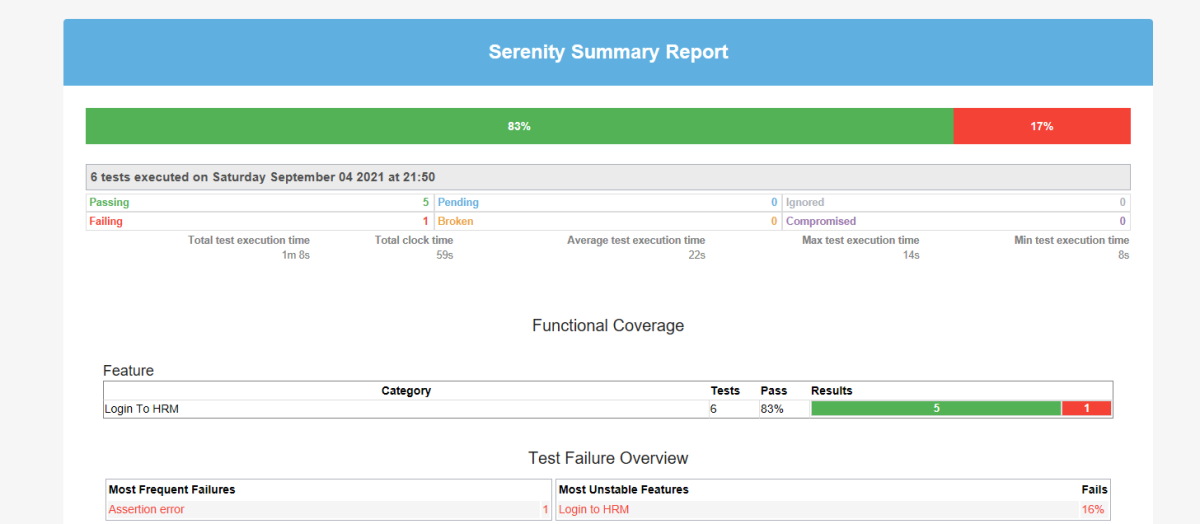
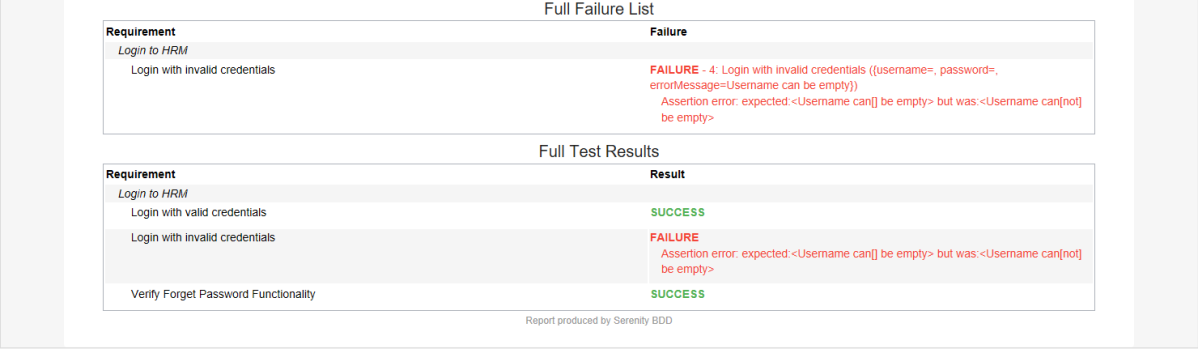
The best part about Serenity is the report generation by it. The Reports contain all possible types of information, you can think of with minimal extra effort. There are multiple types of reports are generated. We are interested in index.html and serenity-summary.html. To know more about Serenity Reports, please refer to tutorials for Index.html and Serenity-Summary.html. Below is the new Serenity Report.

  1. index.html

2. serenity-summary.html

Step 17 – Cucumber Report Generation (Optional)

Every Test Execution generates a Cucumber Report (Version 6.7.0) and above as shown in the image.

Copy the URL and paste it to a browser and it shows the report as shown below:

To know more about Cucumber Reports, refer to this tutorial.

We are done! Congratulations on making it through this tutorial and hope you found it useful! Happy Learning!!
Serenity BDD with Cucumber and Rest Assured


HOME

What is Serenity BDD?

Serenity BDD is an open-source library that aims to make the idea of living documentation a reality.

What is Rest Assured?

Rest Assured is one of the most powerful libraries for testing RESTful API using Java language. Rest-Assured is a Java-based library that is used to test RESTful Web Services. This library behaves like a headless Client to access REST web services. The Rest-Assured library also provides the ability to validate the HTTP Responses received from the server. For e.g. we can verify the Status code, Status message, Headers, and even the Body of the response. This makes Rest-Assured a very flexible library that can be used for testing. In this post, we will learn how to write high-quality, expressive REST API tests using Rest Assured and Serenity BDD.

Prerequisite

  1. Java 17 installed
  2. Maven installed
  3. Eclipse or IntelliJ installed

Dependency List:

  1. Java 17
  2. Maven – 3.9.5
  3. Serenity – 4.0.18
  4. Serenity Rest Assured – 4.0.18
  5. Serenity Cucumber – 4.0.18
  6. Rest Assured – 5.3.2
  7. JUnit – 4.13.2
  8. Maven Surefire Plugin – 3.2.1
  9. Maven Failsafe Plugin – 3.2.1
  10. Maven Compiler Plugin – 3.11.0

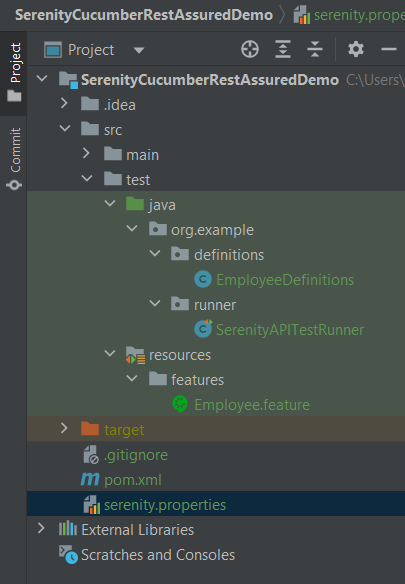
Project Structure

Step 1 – Update Properties section in Maven pom.xml

 <properties>
        <project.build.sourceEncoding>UTF-8</project.build.sourceEncoding>
        <serenity.version>4.0.18</serenity.version>
        <serenity.cucumber.version>4.0.18</serenity.cucumber.version>
        <rest.assured.version>5.3.2</rest.assured.version>
        <junit.version>4.13.2</junit.version>
        <maven.compiler.plugin.version>3.11.0</maven.compiler.plugin.version>
        <maven.compiler.source>17</maven.compiler.source>
        <maven.compiler.target>17</maven.compiler.target>
        <maven.surefire.plugin.version>3.2.1</maven.surefire.plugin.version>
        <maven.failsafe.plugin.version>3.2.1</maven.failsafe.plugin.version>
        <tags></tags>
    </properties>

Step 2 – Add dependencies to POM.xml

 <dependencies>

      <dependency>
        <groupId>net.serenity-bdd</groupId>
        <artifactId>serenity-core</artifactId>
        <version>${serenity.version}</version>
        <scope>test</scope>
      </dependency>

      <dependency>
        <groupId>net.serenity-bdd</groupId>
        <artifactId>serenity-cucumber</artifactId>
        <version>${serenity.cucumber.version}</version>
        <scope>test</scope>
      </dependency>

      <dependency>
        <groupId>net.serenity-bdd</groupId>
        <artifactId>serenity-rest-assured</artifactId>
        <version>${serenity.version}</version>
        <scope>test</scope>
      </dependency>

      <dependency>
        <groupId>io.rest-assured</groupId>
        <artifactId>rest-assured</artifactId>
        <version>${rest.assured.version}</version>
        <scope>test</scope>
      </dependency>

      <dependency>
        <groupId>junit</groupId>
        <artifactId>junit</artifactId>
        <version>${junit.version}</version>
        <scope>test</scope>
      </dependency>

    </dependencies>

Step 3 – Update the Build Section of pom.xml

<build>
        <plugins>
            <plugin>
                <groupId>org.apache.maven.plugins</groupId>
                <artifactId>maven-surefire-plugin</artifactId>
                <version>${maven.surefire.plugin.version}</version>
                <configuration>
                    <skip>true</skip>
                </configuration>
            </plugin>
            <plugin>
                <groupId>org.apache.maven.plugins</groupId>
                <artifactId>maven-failsafe-plugin</artifactId>
                <version>${maven.failsafe.plugin.version}</version>
                <configuration>
                    <includes>
                        <include>**/*.java</include>
                    </includes>
                    <parallel>methods</parallel>
                    <useUnlimitedThreads>true</useUnlimitedThreads>
                </configuration>
                <executions>
                    <execution>
                        <goals>
                            <goal>integration-test</goal>
                            <goal>verify</goal>
                        </goals>
                    </execution>
                </executions>
            </plugin>
            <plugin>
                <groupId>org.apache.maven.plugins</groupId>
                <artifactId>maven-compiler-plugin</artifactId>
                <version>${maven.compiler.plugin.version}</version>
                <configuration>
                    <source>${maven.compiler.source}</source>
                    <target>${maven.compiler.target}</target>
                </configuration>
            </plugin>
            <plugin>
                <groupId>net.serenity-bdd.maven.plugins</groupId>
                <artifactId>serenity-maven-plugin</artifactId>
                <version>${serenity.version}</version>
                <dependencies>
                    <dependency>
                        <groupId>net.serenity-bdd</groupId>
                        <artifactId>serenity-single-page-report</artifactId>
                        <version>${serenity.version}</version>
                    </dependency>
                </dependencies>
                <configuration>
                    <tags>${tags}</tags>
                    <reports>single-page-html</reports>
                </configuration>
                <executions>
                    <execution>
                        <id>serenity-reports</id>
                        <phase>post-integration-test</phase>
                        <goals>
                            <goal>aggregate</goal>
                        </goals>
                    </execution>
                </executions>
            </plugin>
        </plugins>
    </build>

<project xmlns="http://maven.apache.org/POM/4.0.0" xmlns:xsi="http://www.w3.org/2001/XMLSchema-instance"
         xsi:schemaLocation="http://maven.apache.org/POM/4.0.0 http://maven.apache.org/xsd/maven-4.0.0.xsd">
    <modelVersion>4.0.0</modelVersion>

    <groupId>org.example</groupId>
    <artifactId>SerenityCucumberRestAssuredDemo</artifactId>
    <version>1.0-SNAPSHOT</version>
    <packaging>jar</packaging>

    <name>SerenityCucumberRestAssuredDemo</name>
    <url>http://maven.apache.org</url>

    <properties>
        <project.build.sourceEncoding>UTF-8</project.build.sourceEncoding>
        <serenity.version>4.0.18</serenity.version>
        <serenity.cucumber.version>4.0.18</serenity.cucumber.version>
        <rest.assured.version>5.3.2</rest.assured.version>
        <junit.version>4.13.2</junit.version>
        <maven.compiler.plugin.version>3.11.0</maven.compiler.plugin.version>
        <maven.compiler.source>17</maven.compiler.source>
        <maven.compiler.target>17</maven.compiler.target>
        <maven.surefire.plugin.version>3.2.1</maven.surefire.plugin.version>
        <maven.failsafe.plugin.version>3.2.1</maven.failsafe.plugin.version>
        <tags></tags>
    </properties>


    <dependencies>

        <dependency>
            <groupId>net.serenity-bdd</groupId>
            <artifactId>serenity-core</artifactId>
            <version>${serenity.version}</version>
            <scope>test</scope>
        </dependency>

        <dependency>
            <groupId>net.serenity-bdd</groupId>
            <artifactId>serenity-cucumber</artifactId>
            <version>${serenity.cucumber.version}</version>
            <scope>test</scope>
        </dependency>

        <dependency>
            <groupId>net.serenity-bdd</groupId>
            <artifactId>serenity-rest-assured</artifactId>
            <version>${serenity.version}</version>
            <scope>test</scope>
        </dependency>

        <dependency>
            <groupId>io.rest-assured</groupId>
            <artifactId>rest-assured</artifactId>
            <version>${rest.assured.version}</version>
            <scope>test</scope>
        </dependency>

        <dependency>
            <groupId>junit</groupId>
            <artifactId>junit</artifactId>
            <version>${junit.version}</version>
            <scope>test</scope>
        </dependency>

    </dependencies>

    <build>
        <plugins>
            <plugin>
                <groupId>org.apache.maven.plugins</groupId>
                <artifactId>maven-surefire-plugin</artifactId>
                <version>${maven.surefire.plugin.version}</version>
                <configuration>
                    <skip>true</skip>
                </configuration>
            </plugin>
            <plugin>
                <groupId>org.apache.maven.plugins</groupId>
                <artifactId>maven-failsafe-plugin</artifactId>
                <version>${maven.failsafe.plugin.version}</version>
                <configuration>
                    <includes>
                        <include>**/*.java</include>
                    </includes>
                    <parallel>methods</parallel>
                    <useUnlimitedThreads>true</useUnlimitedThreads>
                </configuration>
                <executions>
                    <execution>
                        <goals>
                            <goal>integration-test</goal>
                            <goal>verify</goal>
                        </goals>
                    </execution>
                </executions>
            </plugin>
            <plugin>
                <groupId>org.apache.maven.plugins</groupId>
                <artifactId>maven-compiler-plugin</artifactId>
                <version>${maven.compiler.plugin.version}</version>
                <configuration>
                    <source>${maven.compiler.source}</source>
                    <target>${maven.compiler.target}</target>
                </configuration>
            </plugin>
            <plugin>
                <groupId>net.serenity-bdd.maven.plugins</groupId>
                <artifactId>serenity-maven-plugin</artifactId>
                <version>${serenity.version}</version>
                <dependencies>
                    <dependency>
                        <groupId>net.serenity-bdd</groupId>
                        <artifactId>serenity-single-page-report</artifactId>
                        <version>${serenity.version}</version>
                    </dependency>
                </dependencies>
                <configuration>
                    <tags>${tags}</tags>
                    <reports>single-page-html</reports>
                </configuration>
                <executions>
                    <execution>
                        <id>serenity-reports</id>
                        <phase>post-integration-test</phase>
                        <goals>
                            <goal>aggregate</goal>
                        </goals>
                    </execution>
                </executions>
            </plugin>
        </plugins>
    </build>
</project>

Step 4 – Create a Feature file in src/test/resources 

Create a features folder within src/test/resources to create test scenarios in the Feature file. Test Scenarios are created in a Feature File which contains an overall description of a feature as well as a number of scenarios. Feature files can be placed in different locations, but you can reduce the amount of configuration you need to do with serenity if you put them in the src/test/resources/features directory. In this feature file, will send a request, and the response should be of status “200” and employee name of “Tiger Nixon”. The feature file looks something like this:

Feature: Employee Details

  @GetEmployee
  Scenario: Get the details of employee
    Given I send a request to endpoint
    Then the API should return status 200
    And Response should contains employee name "Tiger Nixon"

Step 5 – Create the Step Definition class or Glue Code

To use Rest-assured, Serenity provides class SerenityRest

import net.serenitybdd.rest.SerenityRest;

 It is a Java method with an expression that is used to link it to Gherkin steps. When Cucumber executes a Gherkin step, it will look for a matching step definition to execute. These use annotations like @given, @when, and @then to match lines in the scenario to java methods

package org.example.definitions;

import io.cucumber.java.en.And;
import io.cucumber.java.en.Given;
import io.cucumber.java.en.Then;
import io.restassured.response.Response;
import net.serenitybdd.rest.SerenityRest;
import static org.hamcrest.Matchers.equalTo;

public class EmployeeDefinitions {
    private static final String URL = "http://dummy.restapiexample.com/api/v1/employee/1";
    public Response response;

    @Given("I send a request to endpoint")
    public void sendRequest()  {

        response = SerenityRest.given().contentType("application/json").header("Content-Type", "application/json")
                .when().get(URL);
    }

    @Then("the API should return status {int}")
    public void verifyResponse(int status) {
        SerenityRest.restAssuredThat(response -> response.statusCode(status));
    }

    @And("Response should contains employee name {string}")
    public void verifyResponseContent(String expectedEmployeeName) {

        SerenityRest.restAssuredThat(response -> response.body("data.employee_name", equalTo(expectedEmployeeName)));
    }
}

Step 6 – Create Serenity Test Runner

Cucumber runs the feature files via JUnit and needs a dedicated Test Runner class to run the feature files. When you run the tests with serenity, you use the CucumberWithSerenity test runner. If the feature files are not in the same package as the test runner class, you also need to use the @CucumberOptions class to provide the root directory where the feature files can be found. It is the starting point for JUnit to start executing the tests. TestRunner class is created under src/test/java. The test runner to run all of the feature files looks like this:

import org.junit.runner.RunWith;

import io.cucumber.junit.CucumberOptions;
import net.serenitybdd.cucumber.CucumberWithSerenity;

@RunWith(CucumberWithSerenity.class)
@CucumberOptions(plugin = { "pretty" }, features = "src/test/resources/features/Employee.feature", glue = {
		"org.example.definitions" })

public class SerenityAPITestRunner {

}

serenity.project.name = Rest API Testing using Serenity, Cucumber and JUnit4

Step 8 – Serenity Tests Execution

You can run the tests from SerenityAPITestRunner or from the command line by

mvn clean verify

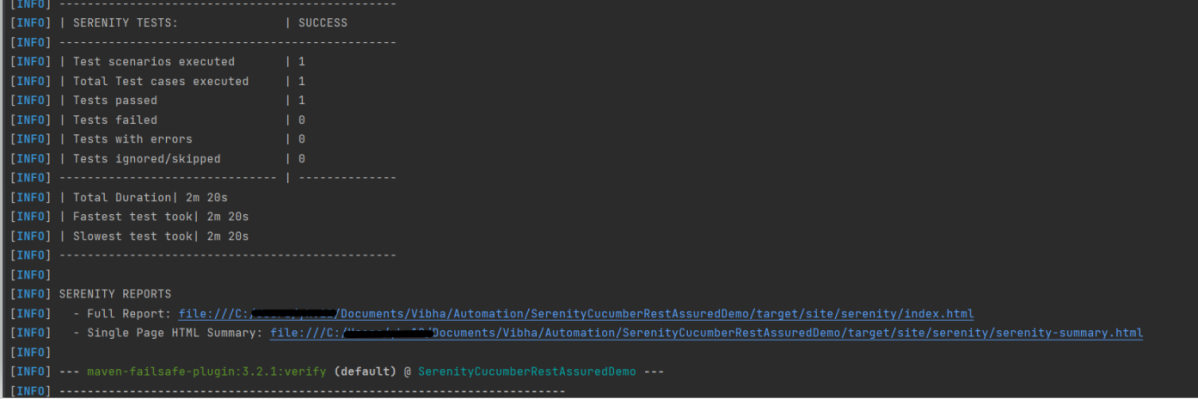
Test Execution Page looks like this as shown below image

Step 9 – Verify the Serenity Reports

A number of reports are generated, but we are concerned about index.html and serenity-summary.html.

The report is well-formatted and contains consolidated results. Reporting is one of the major pillars of Serenity. Serenity Report not only reports on whether a test scenario passes or fails but documents what it did, in a step-by-step narrative format. The below pic illustrates the test results for our first acceptance criteria:

The test report generated by Serenity is placed under target/site/serenity/index.html. 

Index.html

The first tab is called “Overall Test Results” and it provides information about test statistics. This Overall Test Result shows the Scenario Results (No Of Test Cases Pass, No Of Test Cases Failed, No of Test Cases Pending, No Of Test Cases Ignored, No Of Test Cases Skipped). 

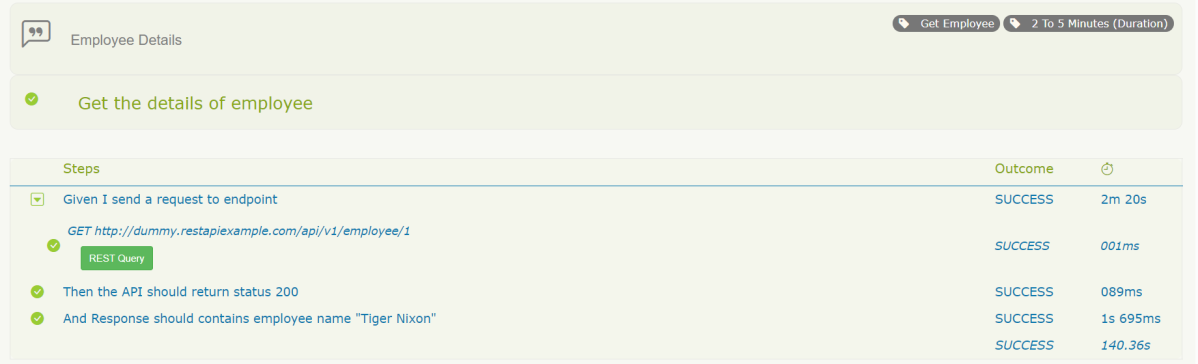
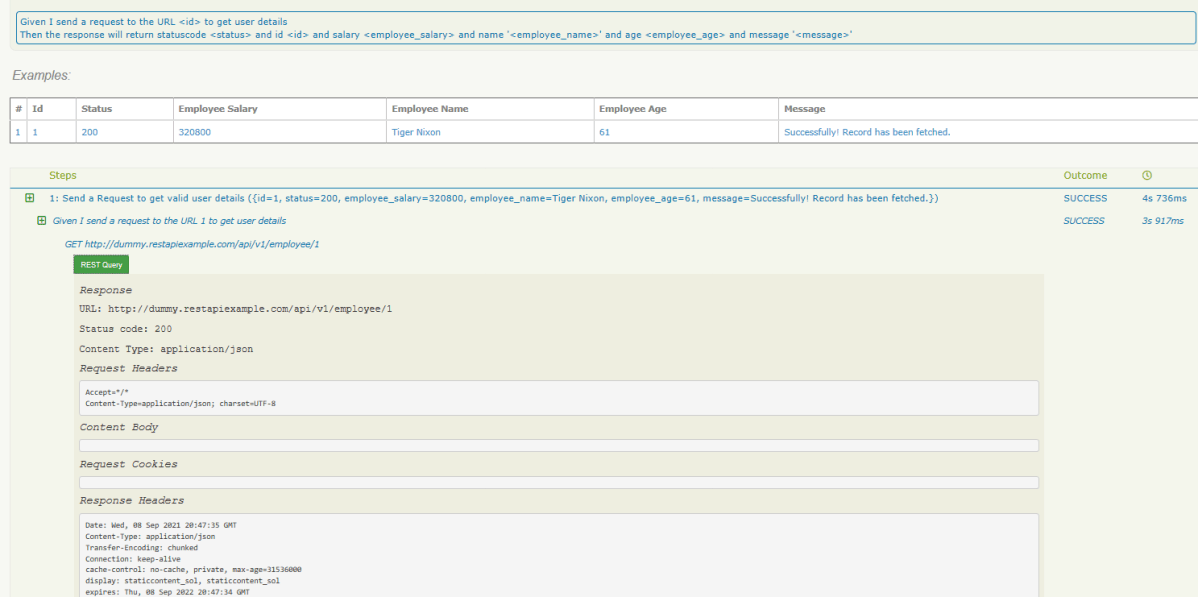
In the below pic, the report shows the test scenario steps status and time taken for each step to execute. 

With the use of the REST Query button, it’s possible to display query details. Visible details:

Path, Status code, Request Headers, Request Body, Request Cookies, Response Headers, Response Body.

There is also the “Requirements” tab. When we have tests as part of our code base, all test results will be organized as associated with requirements. 

There is also a “Features” tab. This page lists all the features that are part of your suite.  If you expand that row you’ll see the bit of narrative text that is part of the current feature file. 

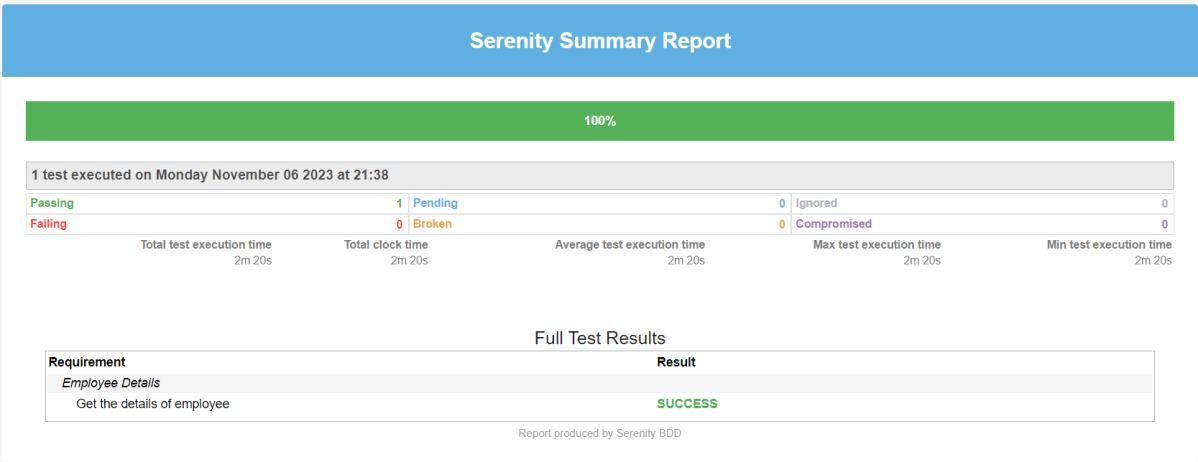
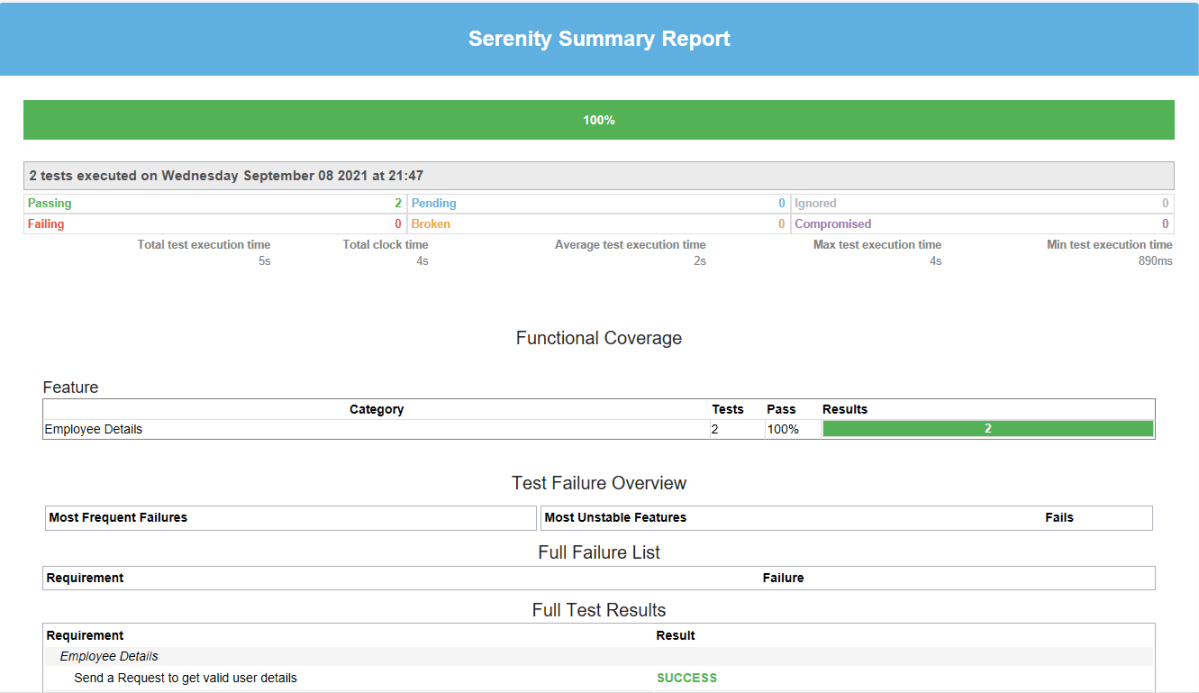
Serenity-Summary.html

We are done! Congratulations on making it through this tutorial and hope you found it useful! Happy Learning!!

Additional Tutorials:

Serenity BDD with Cucumber for Web Application
Serenity BDD with Cucumber for SpringBoot Application
How to manage screenshots in Serenity Report
Serenity Report for Web Application with Cucumber6 and Junit
 Integration of Serenity with Cucumber6 and JUnit5
Serenity BDD with Gradle and Cucumber for Web Application

Cucumber Tutorials

 HOME

Cucumber Introduction, Installation, and Configuration

Chapter 1  Introduction of Cucumber Testing Tool (BDD Tool)
Chapter 2 How to install Cucumber Eclipse Plugin
Chapter 3 How to setup Cucumber with Eclipse
Chapter 4 Cucumber – What is Gherkin

Cucumber Scenario, Features & Step Definition

Chapter 1 Cucumber – What is Feature File in Cucumber
Chapter 2 Step Definition in Cucumber
Chapter 3 Cucumber – JUnit Test Runner Class

Cucumber – Hooks & Tags

Chapter 1 Hooks in Cucumber
Chapter 2 Tags in Cucumber
Chapter 3 Conditional Hooks in Cucumber
Chapter 4 What is CucumberOptions in Cucumber?
Chapter 5 Background in Cucumber
Chapter 6 Monochrome in Cucumber
Chapter 7 What is Glue in Cucumber?

Cucumber – Data Driven Testing

Chapter 1 Data Driven Testing using Scenario Outline in Cucumber
Chapter 2 DataTables in Cucumber

Cucumber Integration with Selenium – Maven

Chapter 1 Integration of Cucumber with Selenium and JUnit4
Chapter 2 Integration of Cucumber with Selenium and TestNG
Chapter 3 Page Object Model with Selenium, Cucumber and JUnit
Chapter 4 Page Object Model with Selenium, Cucumber, and TestNG
Chapter 5 Integration of Cucumber7 with Selenium and JUnit5
Chapter 6 Run Cucumber7 with JUnit5 Tests from Maven Command Line
Chapter 7 How to rerun failed tests in Cucumber
Chapter 8 How to create Cucumber Report after rerun of failed tests – NEW
Chapter 9 How to rerun failed tests twice in Cucumber – NEW

Cucumber – Command Line Execution

Chapter 1 Run Cucumber Test from Command Line
Chapter 2 Run Gradle Cucumber Tests from Command Line

Cucumber Integration with Rest API

Chapter 1 Rest API Test in Cucumber BDD
Chapter 2 How To Create Gradle Project with Cucumber to test Rest API

Cucumber Integration with SpringBoot

Chapter 1 Integration Testing of Springboot with Cucumber and JUnit4
Chapter 2 Integration Testing of Springboot with Cucumber and TestNG

Cucumber – Reporting

Chapter 1 Cucumber Tutorial – Cucumber Reports
Chapter 2 Cucumber Report Service
Chapter 3 Implemention of ‘Masterthought’ Reports in Cucumber
Chapter 4 Implemention of ‘Masterthought’ Reports in Cucumber with JUnit4

Cucumber Integration with Allure Reports

Chapter 1 Allure Report with Cucumber5, Selenium and JUnit4
Chapter 2 Allure Report with Cucumber5, Selenium and TestNG
Chapter 3 Integration of Allure Report with Rest Assured and JUnit4
Chapter 4 Integration of Allure Report with Rest Assured and TestNG
Chapter 5 Gradle – Allure Report for Selenium and TestNG

Cucumber Integration with Extent Reports

Chapter 1 ExtentReports Version 5 for Cucumber 6 and TestNG
Chapter 2 How to add Screenshot to Cucumber ExtentReports
Chapter 3 ExtentReports Version 5 for Cucumber 6 and JUnit4
Chapter 4 PDF ExtentReport for Cucumber and TestNG
Chapter 5 ExtentReports Version 5 for Cucumber 7 and TestNG
Chapter 6 Extent Reports Version 5 for Cucumber7 and JUnit5

Cucumber – Parallel Execution

Chapter 1 Parallel Testing in Cucumber with JUnit
Chapter 2 Parallel Testing in Cucumber with TestNG
Chapter 3 Dependency Injection in Cucumber using Pico-Container

How to add Screenshot to Cucumber ExtentReports

Last Updated On

HOME

The previous tutorial explained the generation of Extent Report 5 for Cucumber7 and TestNG. This tutorial explains how to add screenshots to the Extent Report.

Table of Contents

  1. Project Structure
    1. Add Screenshot configuration in extent.properties
    2. Add a method to capture the screenshot

Project Structure

To set up the above project, please refer to this tutorial – ExtentReports Version 5 for Cucumber 7 and TestNG.

We want to add screenshots of failed tests to the Extent Report Version 5.

Step 1 – Add Screenshot configuration in extent.properties

extent.reporter.spark.start=true
extent.reporter.spark.out=Reports/Spark.html

#FolderName
basefolder.name=ExtentReports/SparkReport_
basefolder.datetimepattern=d_MMM_YY HH_mm_ss

#Screenshot
screenshot.dir=/Screenshots/
screenshot.rel.path=../Screenshots/

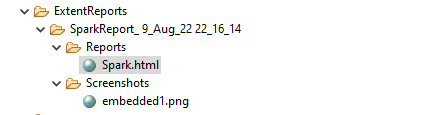
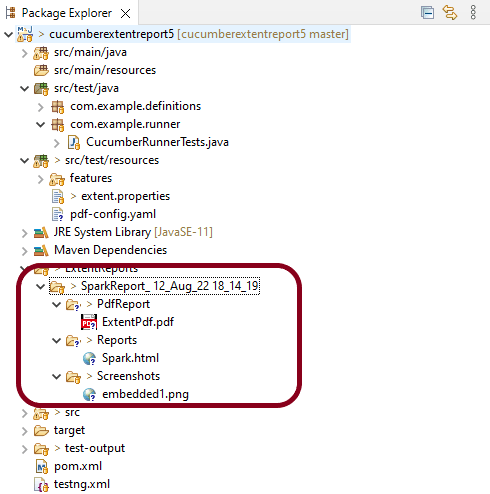
In the above example, we have provided the name “ExtentReports/SparkReport_”. It means that a folder starts with the name “SparkReport_” under the “ExtentReports” folder. The date-time pattern we have provided in another format is the basis of a valid pattern. It will concatenate with the folder name to generate a unique folder for each execution.

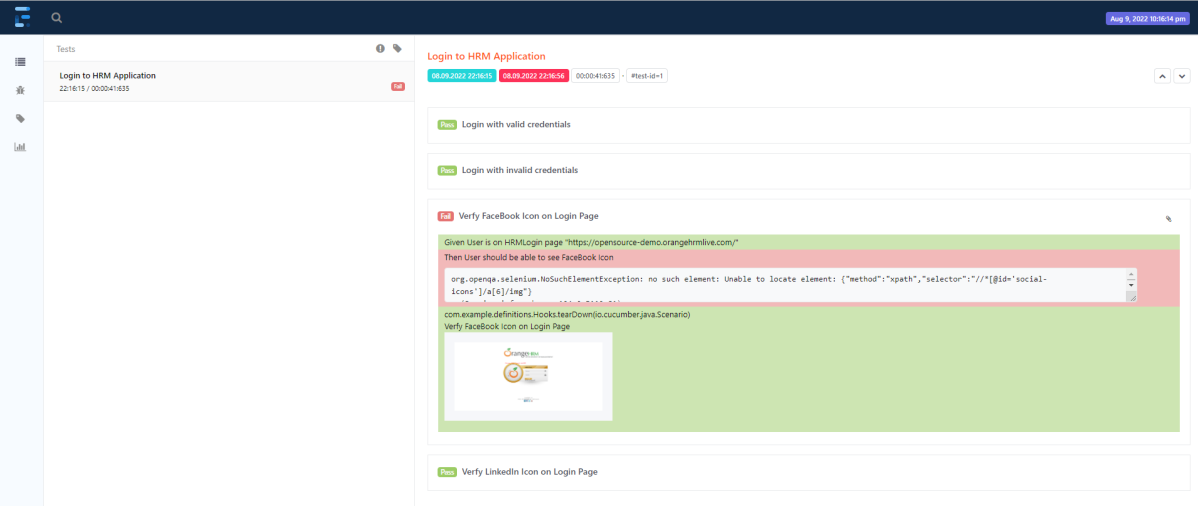
As seen in the image above, the “Reports” and “Screenshots” folders get created inside the new folder of SparkReports_. If we look inside the folder, we can see that the report was generated.

We can browse the screenshot folder to see all the screenshots taken during each step. Additionally, screenshots will be generated and named automatically.

Step 2 – Add a method to capture the screenshot

@After
public static void tearDown(Scenario scenario) {

		//validate if scenario has failed
		if(scenario.isFailed()) {
			final byte[] screenshot = ((TakesScreenshot) driver.getScreenshotAs(OutputType.BYTES);
			scenario.attach(screenshot, "image/png", scenario.getName()); 
		}	

In the preceding example, the tearDown() method accepts a Scenario type object. The Scenario can be found within the io.cucumber. We used Selenium’s standard screenshot feature within the method. As an example, we’d like to read the file as a byte[] type. As a parameter, the attach method accepts byte[] type objects. Scenario.attach also includes a screenshot with each step of the scenario. To get the complete project, please refer to this tutorial – ExtentReports Version 5 for Cucumber 6 and TestNG.

The updated Hooks class will be as shown below:

import org.openqa.selenium.OutputType;
import org.openqa.selenium.TakesScreenshot;
import com.example.utils.HelperClass;
import io.cucumber.java.After;
import io.cucumber.java.Before;
import io.cucumber.java.Scenario;

public class Hooks {
	
	@Before
    public static void setUp() {

       HelperClass.setUpDriver();
    }

	@After
	public static void tearDown(Scenario scenario) {

		//validate if scenario has failed
		if(scenario.isFailed()) {
			final byte[] screenshot = ((TakesScreenshot) HelperClass.getDriver()).getScreenshotAs(OutputType.BYTES);
			scenario.attach(screenshot, "image/png", scenario.getName()); 
		}	
		
		HelperClass.tearDown();
	}
}

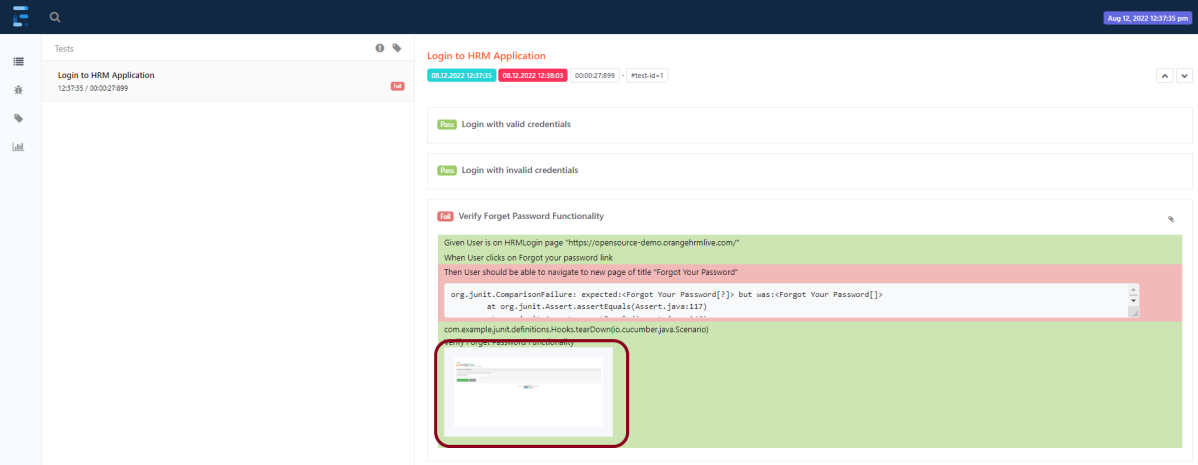
Let’s open the report and view the report. As you can see, besides the scenario, an attachment sign is available, which means something attaches to the scenario. As we have only one failed step, only one screenshot has been captured, as seen in the above image. Right-click on Spark.html and select Open with Web Browser.

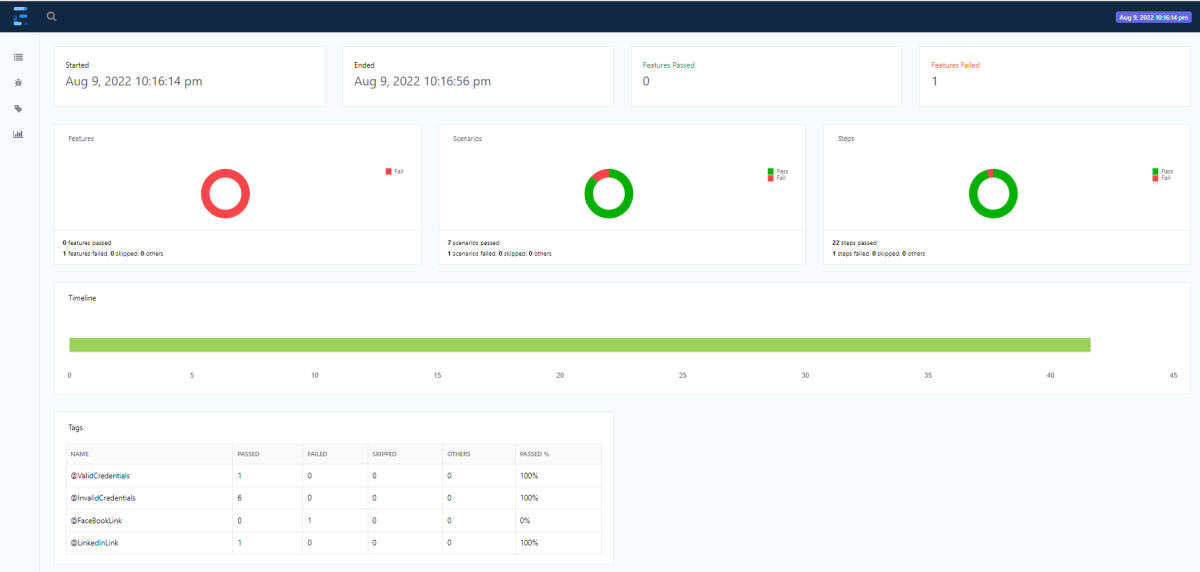
The report also has a summary section that displays the summary of the execution. The summary includes the overview of the pass/fail using a pictogram, start time, end time, and pass/fail details of features as shown in the image below.

Congratulations!! We can attach screenshots of the failed tests. Happy Learning!!

Gradle – Extent Report Version 5 for Cucumber, Selenium, and TestNG
Integration of Allure Report with Rest Assured and JUnit4
ExtentReports Version 5 for Cucumber 6 and JUnit4
PDF ExtentReport for Cucumber and TestNG

PDF ExtentReport for Cucumber and TestNG

HOME

In this tutorial, we will generate PDF reports using an Extent Adapter.

Step 1: Follow this article to add POM.xml, create and configure the sample project with the extent property file, and add the plugin to the Test Runner class.

Step 2: To attach the screenshot to your extent report, refer to How to add Screenshot to Cucumber ExtentReports.

Step 3: Add additional PDF-related properties in extent.properties.

extent.reporter.spark.start=true
extent.reporter.spark.out=Reports/Spark.html

#PDF Report
extent.reporter.pdf.start=true
extent.reporter.pdf.out=PdfReport/ExtentPdf.pdf

#FolderName
basefolder.name=ExtentReports/SparkReport_
basefolder.datetimepattern=d_MMM_YY HH_mm_ss

#Screenshot
screenshot.dir=/Screenshots/
screenshot.rel.path=../Screenshots/

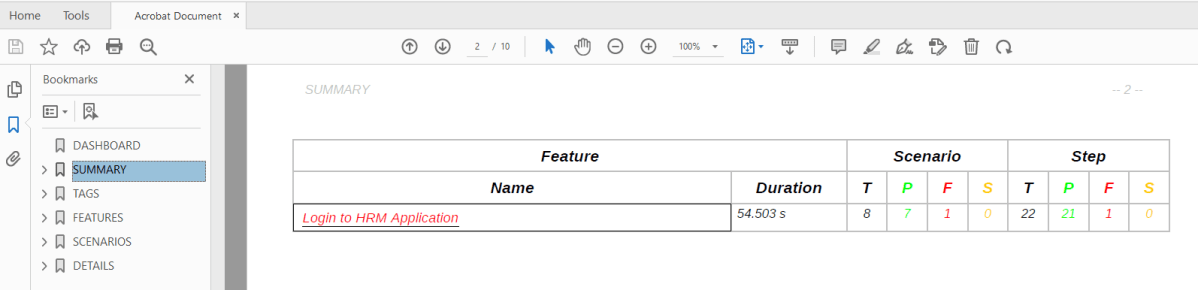
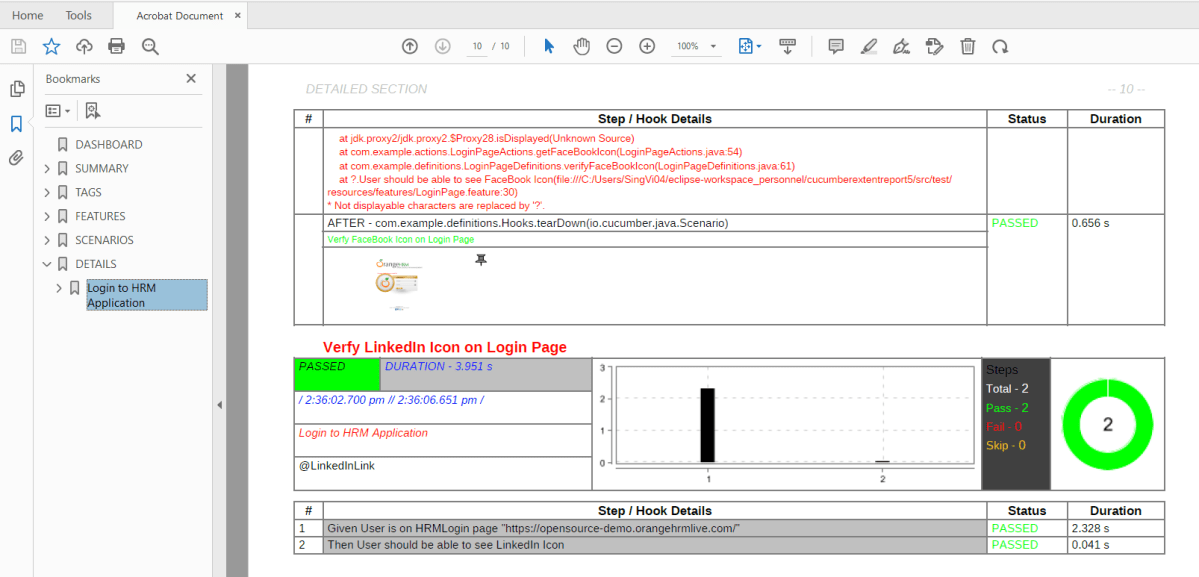
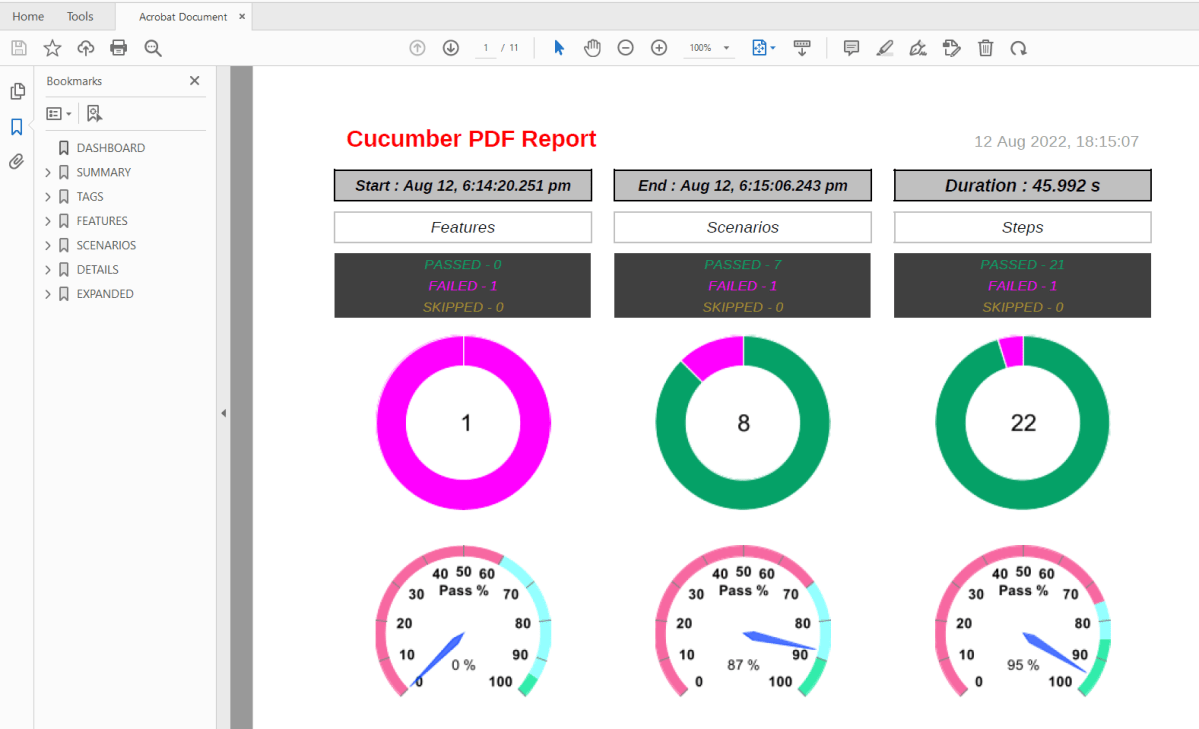
Execute the test code. The PDF report will be generated as shown below:

The report contains six sections – dashboard, summary, tags, features, scenarios, and detailed sections.

1. Dashboard

This section is a single-page dashboard that summarizes the test run. This contains the report title, duration, and status of breakups.

2. Summary section

This section provides an overview of the test run in terms of a feature breakdown, comprising duration, scenario count, and step count. The scenarios and steps are divided into status counts. The feature name has a link that navigates to further details in the detailed step section. This link is only present if the detailed section is enabled.

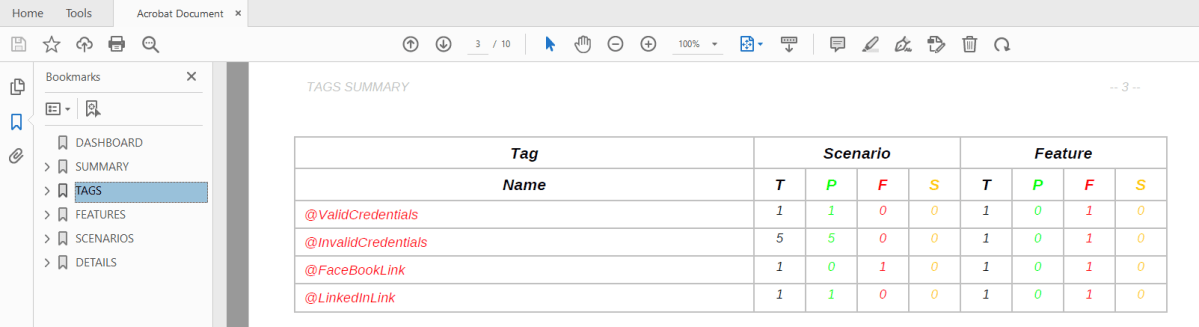
3. Tag section

This section provides an overview of the test run in terms of a tag breakdown, comprising feature count and scenario count.

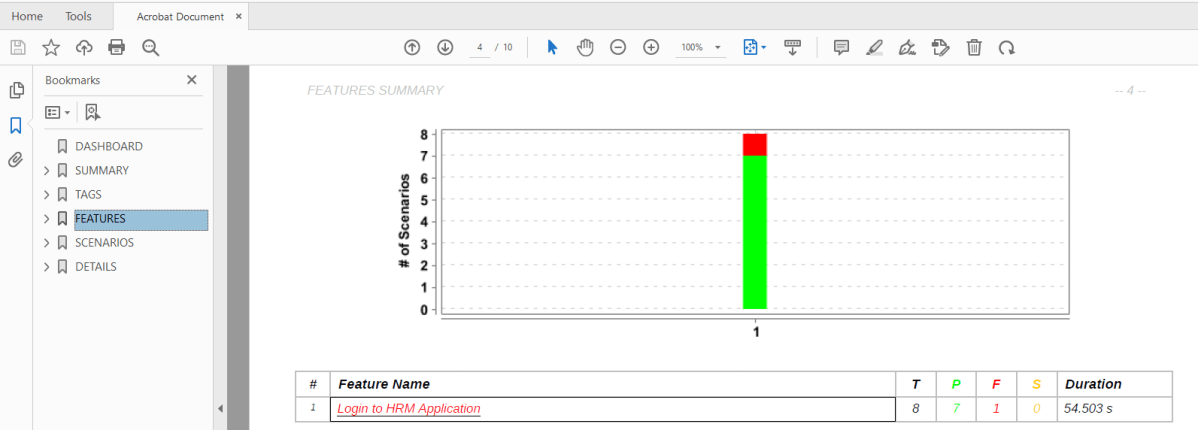
4. Feature section

This section describes the feature details with a stacked bar chart and a table of the scenario status and duration. This section display can be controlled by a configuration setting, enabled by default. The feature name has a link that navigates to further details in the detailed step section. This link is only present if the detailed section is enabled.

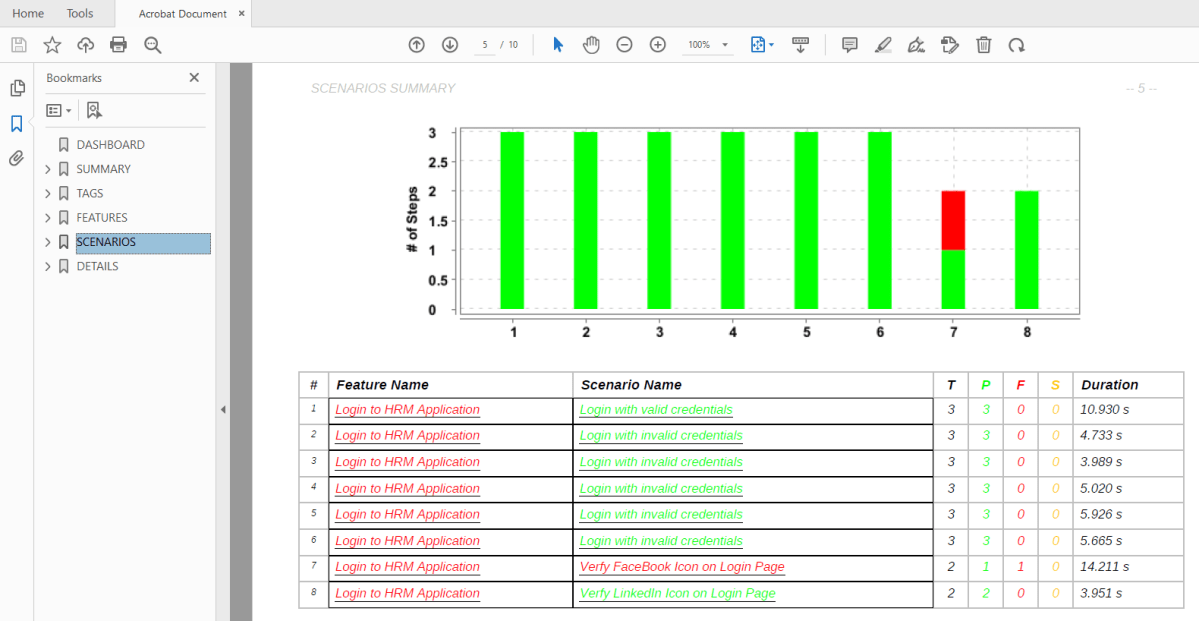
5. Scenario section

This section describes the scenario details with a stacked bar chart and a table of the step status and duration. This section display can be controlled by a configuration setting, enabled by default. The feature and scenario names have a link that navigates to further details in the detailed step section. This link is only present if the detailed section is enabled. 


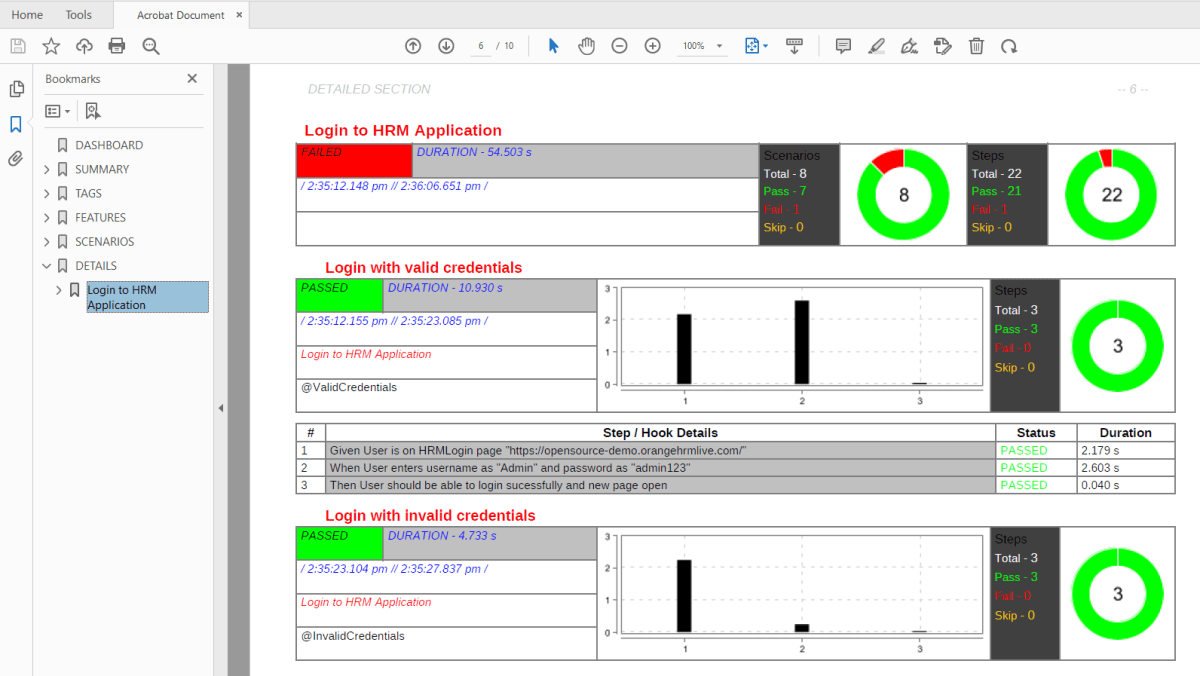
6. Detailed section

This section describes the details of individual steps and hooks, along with status and duration. This section display can be controlled by a configuration setting, enabled by default.

This section also contains screenshots of the failed images.

Customized PDF Report

The report settings can be used to toggle on and off optional report sections, and change the report title, text color for various data, background color, and other options.

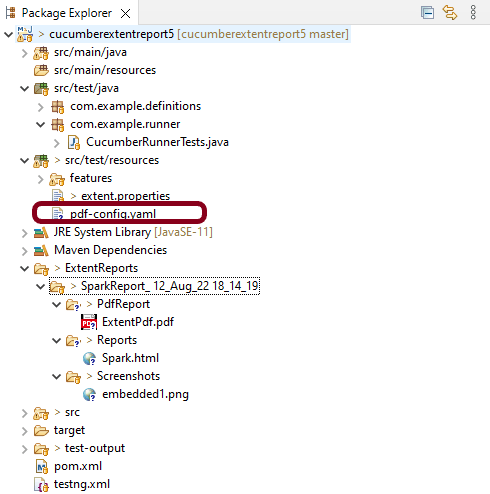
The settings are saved in a YAML file called pdf-config.yaml, which is located in the project’s src/test/resources folder. If the file is missing or no settings are specified, the default values are used. To change the default values, create a pdf-config.yaml file in the project’s src/test/resources folder that contains only the new values for the settings.

sample YAML configuration file is shown below:

passColor: 05a167
failColor: ff00ff
skipColor: a89132
displayFeature: true
displayScenario: true
displayDetailed: true
displayAttached: false
displayExpanded: true

dashboardConfig:
   title: Cucumber PDF Report
   dataBackgroundColor: 4F0CC8
   titleColor: FF0000
   dateColor: 969696
   timeColor: 000000
   dial:
      featureRanges: 60 95
      scenarioRanges: 70 90
      stepRanges: 75 85
      badColor: f768a1
      averageColor: 93ffff
      goodColor: 32ecab
      
summaryConfig:
   totalColor: FF0000
   durationColor: FF0000
   
tagConfig:
   totalColor: FF0000
   
featureConfig:
   totalColor: FF0000
   durationColor: FF0000
   
scenarioConfig:
   totalColor: FF0000
   durationColor: FF0000
   
detailedFeatureConfig:
   featureNameColor: FF0000
   startEndTimeColor: 000000
   tagColor: 404040
   dataHeaderColor: FFFFFF
   dataBackgroundColor: 404040
   totalColor: 0000FF
   durationColor: FFFFFF
   durationBackgroundColor: 404040   
   
detailedScenarioConfig:
   featureNameColor: 404040
   scenarioNameColor: FF0000
   startEndTimeColor: 000000
   tagColor: 404040
   dataHeaderColor: FFFFFF
   dataBackgroundColor: 404040
   totalColor: 0000FF
   durationColor: FFFFFF
   durationBackgroundColor: 404040
   stepChartBarColor: 7f32a8
   
detailedStepHookConfig:
   stepTextColor: 0000FF
   stepBackgroundColor: FFFFFF
   hookTextColor: 00FF00
   hookBackgroundColor: FFFFFF
   durationColor: FF0000
   errorMsgColor: 000000
   logMsgColor: 000000

Execute the test code. Now the PDF Report will be generated as shown below:

This method of configuring report settings using a yaml properties file can be used both for the Maven plugin report generation and the ExtentReport style.

The passedfailed, and skipped colors can be set with the passColor, failColor and skipColor properties. These take in the colors in hex values (without the leading ‘#’) and are valid throughout the report.

The features, scenarios, and detailed sections can be displayed by setting the displayFeaturedisplayScenario and displayDetailed properties to true. The default value for these settings is true.

Screenshots are displayed as thumbnails and can be opened in the available native application. This is the default behaviour, in which the screenshot file is embedded in the PDF file. This can be toggled by the displayAttached setting. When the setting is set to false, only the thumbnail is displayed. These can also be displayed in zoomed images in a separate section by setting the displayExpanded to true and also displayAttached to false.

To know more about various settings in PDF Report, refer to this tutorial.

ExtentReports Version 5 for Cucumber 6 and JUnit4

HOME

The previous tutorial explained the steps to generate ExtentReports for Cucumber with TestNG. We can generate ExtentReports for Cucumber with JUnit4 also. This tutorial explains the steps that need to be followed to generate an ExtentReports Version5.

Pre-Requisite:

  1. Java 8 or higher is needed for ExtentReport5
  2. Maven or Gradle
  3. JAVA IDE (like Eclipse, IntelliJ, or soon)
  4. JUnit4 installed
  5. Cucumber Eclipse plugin (in case using Eclipse)

Project Structure

Step 1 – Add Maven dependencies to the POM

Add ExtentReport dependency

<dependency>
    <groupId>com.aventstack</groupId>
    <artifactId>extentreports</artifactId>
    <version>5.0.9</version>
</dependency>

Add tech grasshopper maven dependency for Cucumber

<dependency>
    <groupId>tech.grasshopper</groupId>
    <artifactId>extentreports-cucumber6-adapter</artifactId>
    <version>2.13.0</version>
</dependency>

The complete POM.xml will look like as shown below with other Selenium and JUnit4 dependencies.

 <properties>
		<project.build.sourceEncoding>UTF-8</project.build.sourceEncoding>
		<selenium.version>4.3.0</selenium.version>
		<cucumber.version>6.11.0</cucumber.version>
		<extentreports.cucumber6.adapter.version>2.13.0</extentreports.cucumber6.adapter.version>
		<extentreports.version>5.0.9</extentreports.version>
		<junit.version>4.13.2</junit.version>
		<apache.common.version>2.4</apache.common.version>
		<webdrivermanager.version>5.2.1</webdrivermanager.version>
		<maven.compiler.plugin.version>3.10.1</maven.compiler.plugin.version>
		<maven.surefire.plugin.version>3.0.0-M7</maven.surefire.plugin.version>
		<maven.compiler.source.version>11</maven.compiler.source.version>
		<maven.compiler.target.version>11</maven.compiler.target.version>
	</properties>

	<dependencies>

		<dependency>
			<groupId>io.cucumber</groupId>
			<artifactId>cucumber-java</artifactId>
			<version>${cucumber.version}</version>
		</dependency>

		<dependency>
           <groupId>io.cucumber</groupId>
           <artifactId>cucumber-junit</artifactId>
           <version>${cucumber.version}</version>
           <scope>test</scope>
       </dependency>

		<!-- https://mvnrepository.com/artifact/tech.grasshopper/extentreports-cucumber6-adapter -->
		<dependency>
			<groupId>tech.grasshopper</groupId>
			<artifactId>extentreports-cucumber6-adapter</artifactId>
			<version>${extentreports.cucumber6.adapter.version}</version>
		</dependency>

		<!-- Extent Report -->
		<dependency>
			<groupId>com.aventstack</groupId>
			<artifactId>extentreports</artifactId>
			<version>${extentreports.version}</version>
		</dependency>

		<!-- Junit -->
		<dependency>
            <groupId>junit</groupId>
            <artifactId>junit</artifactId>
            <version>${junit.version}</version>
            <scope>test</scope>
       </dependency>

		<!-- Apache Common -->
		<dependency>
			<groupId>org.apache.directory.studio</groupId>
			<artifactId>org.apache.commons.io</artifactId>
			<version>${apache.common.version}</version>
		</dependency>
		
		<!-- Selenium -->
		<dependency>
			<groupId>org.seleniumhq.selenium</groupId>
			<artifactId>selenium-java</artifactId>
			<version>${selenium.version}</version>
		</dependency>

		<!-- Web Driver Manager -->
		<dependency>
			<groupId>io.github.bonigarcia</groupId>
			<artifactId>webdrivermanager</artifactId>
			<version>${webdrivermanager.version}</version>
		</dependency>
	</dependencies>
	
	<build>
     <plugins>
       <plugin>
         <groupId>org.apache.maven.plugins</groupId>
         <artifactId>maven-compiler-plugin</artifactId>
         <version>${maven.compiler.plugin.version}</version>
         <configuration>
             <source>${maven.compiler.source.version}</source> <!--For JAVA 8 use 1.8-->
			 <target>${maven.compiler.target.version}</target> <!--For JAVA 8 use 1.8-->
            <encoding>UTF-8</encoding>          
         </configuration>
       </plugin>                
       </plugins>
   </build>

</project>

Step 2: Create a feature file in src/test/resources

Below is a sample feature file

Feature: Login to HRM Application 
 
  @ValidCredentials
   Scenario: Login with valid credentials
     
    Given User is on HRMLogin page "https://opensource-demo.orangehrmlive.com/"
    When User enters username as "Admin" and password as "admin123"
    Then User should be able to login successfully and new page open
    
   @InvalidCredentials
   Scenario Outline: Login with invalid credentials
     
    Given User is on HRMLogin page "https://opensource-demo.orangehrmlive.com/"
    When User enters username as "<username>" and password as "<password>"
    Then User should be able to see error message "<errorMessage>"
    
  Examples:
  | username   | password  | errorMessage                      |
  |            | abc       | Username cannot be empty          |
  | admin      |           | Password cannot be empty          |
  |            |           | Username cannot be empty          |
  | admin      | Admin123  | Invalid credentials               |
  
   
  @ForgetPassword  
   Scenario: Verify Forget Password Functionality
   
    Given User is on HRMLogin page "https://opensource-demo.orangehrmlive.com/"
    When User clicks on Forgot your password link
    Then User should be able to navigate to new page of title "Forgot Your Password?"

Step 3: Create extent.properties file in src/test/resources

We need to create the extent.properties file at the src/test/resources folder for the grasshopper extent report adapter to recognize it. Using a property file for reporting is quite helpful if you want to define several different properties.

Let’s enable spark report in an extent properties file:

extent.reporter.spark.start=true
extent.reporter.spark.out=Reports/Spark.html

#FolderName
basefolder.name=ExtentReports/SparkReport_
basefolder.datetimepattern=d_MMM_YY HH_mm_ss

#Screenshot
screenshot.dir=/Screenshots/
screenshot.rel.path=../Screenshots/

Step 4: Create a Helper class in src/main/java

We have used Page Object Model with Cucumber and TestNG.

Create a Helper class where we are initializing the web driver, initializing the web driver wait, defining the timeouts, and creating a private constructor of the class, it will declare the web driver, so whenever we create an object of this class, a new web browser is invoked. We are using a setter and getter method to get the object of Chromedriver with the help of a private constructor itself within the same class.

HelperClass

import java.time.Duration;
import org.openqa.selenium.WebDriver;
import org.openqa.selenium.chrome.ChromeDriver;
import org.openqa.selenium.support.ui.WebDriverWait;
import io.github.bonigarcia.wdm.WebDriverManager;

public class HelperClass {
	
	private static HelperClass helperClass;
	
	private static WebDriver driver;
	private static WebDriverWait wait;
    public final static int TIMEOUT = 10;
		
	 private HelperClass() {
		 
			WebDriverManager.chromedriver().setup();
	    	driver = new ChromeDriver();
	        wait = new WebDriverWait(driver, Duration.ofSeconds(TIMEOUT));
	        driver.manage().timeouts().implicitlyWait(Duration.ofSeconds(TIMEOUT));
	        driver.manage().window().maximize();

	 }      
	    	
    public static void openPage(String url) {
        driver.get(url);
    }
	
	public static WebDriver getDriver() {
		return driver;		
	}
	
	public static void setUpDriver() {
		
		if (helperClass==null) {
			
			helperClass = new HelperClass();
		}
	}
	
	 public static void tearDown() {
		 
		 if(driver!=null) {
			 driver.close();
			 driver.quit();
		 }
		 
		 helperClass = null;
	 } 	
}

Step 5: Create Locator classes in src/main/java

Create a locator class for each page that contains the detail of the locators of all the web elements. Here, I’m creating 3 locator classes – LoginPageLocators, HomePageLocators, and ForgetPasswordPageLocators.

LoginPageLocators

import org.openqa.selenium.WebElement;
import org.openqa.selenium.support.FindBy;

public class LoginPageLocators {

	@FindBy(name = "txtUsername")
    public WebElement userName;
 
    @FindBy(name = "txtPassword")
    public WebElement password;
 
    @FindBy(id = "logInPanelHeading")
    public WebElement titleText;
 
    @FindBy(id = "btnLogin")
    public WebElement login;
 
    @FindBy(id = "spanMessage")
    public  WebElement errorMessage;
    
    @FindBy(xpath = "//*[@id='forgotPasswordLink']/a")
    public  WebElement forgotPasswordLink;
  
}

HomePageLocators

import org.openqa.selenium.WebElement;
import org.openqa.selenium.support.FindBy;

public class HomePageLocators {

	@FindBy(id = "welcome")
	public  WebElement homePageUserName;
 
}

ForgetPasswordPageLocators

import org.openqa.selenium.WebElement;
import org.openqa.selenium.support.FindBy;

public class ForgetPasswordPageLocators {
	
	@FindBy(xpath = "//*[@id='content']/div[1]/div[2]/h1")
    public WebElement forgotPasswordPageHeading;
	
}

Step 6: Create Action classes in src/main/java

Create the action classes for each web page. These action classes contain all the methods needed by the step definitions. In this case, I have created 3 action classes – LoginPageActions, HomePageActions, and ForgetPasswordPageActions.

LoginPageActions

In this class, the very first thing will do is to create the object of LoginPageLocators class so that we should be able to access all the PageFactory elements. Secondly, create a public constructor of LoginPageActions class.

import org.openqa.selenium.support.PageFactory;
import com.example.junit.locators.LoginPageLocators;
import com.example.junit.utils.HelperClass;

public class LoginPageActions {

	LoginPageLocators loginPageLocators = null; 
	
    public LoginPageActions() {

    	this.loginPageLocators = new LoginPageLocators();
		PageFactory.initElements(HelperClass.getDriver(),loginPageLocators);
	}

	// Set user name in textbox
    public void setUserName(String strUserName) {
    	loginPageLocators.userName.sendKeys(strUserName);
    }
 
    // Set password in password textbox
    public void setPassword(String strPassword) {
    	loginPageLocators.password.sendKeys(strPassword);
    }
 
    // Click on login button
    public void clickLogin() {
    	loginPageLocators.login.click();
    }
 
    // Get the title of Login Page
    public String getLoginTitle() {
        return loginPageLocators.titleText.getText();
    }
       
    // Get the title of Login Page
    public String getErrorMessage() {
        return loginPageLocators.errorMessage.getText();
    }
    
    // Click on forgotYourPassword Link
    public void clickOnForgotPasswordLink() {
    	loginPageLocators.forgotPasswordLink.click();
    }
 
    public void login(String strUserName, String strPassword) {
 
        // Fill user name
        this.setUserName(strUserName);
 
        // Fill password
        this.setPassword(strPassword);
 
        // Click Login button
        this.clickLogin();
 
    }
}

HomePageActions

import org.openqa.selenium.support.PageFactory;
import com.example.junit.locators.HomePageLocators;
import com.example.junit.utils.HelperClass;

public class HomePageActions {

	HomePageLocators homePageLocators = null;
   
	public HomePageActions() {
    	
		this.homePageLocators = new HomePageLocators();

		PageFactory.initElements(HelperClass.getDriver(),homePageLocators);
    }

    // Get the User name from Home Page
    public String getHomePageText() {
        return homePageLocators.homePageUserName.getText();
    }

}

ForgetPasswordPageActions

import org.openqa.selenium.support.PageFactory;
import com.example.junit.locators.ForgetPasswordPageLocators;
import com.example.junit.utils.HelperClass;

public class ForgetPasswordPageActions {
	
	ForgetPasswordPageLocators forgetPasswordPageLocators = null;
	
	public ForgetPasswordPageActions() {
		this.forgetPasswordPageLocators = new ForgetPasswordPageLocators();
		
		PageFactory.initElements(HelperClass.getDriver(), forgetPasswordPageLocators);
	}

	public String getHeading() {
				return forgetPasswordPageLocators.forgotPasswordPageHeading.getText();
		
	}
}

Step 7: Create Step Definition file in src/test/java

Create the corresponding Step Definition file of the feature file.

LoginPageDefinitions

import org.junit.Assert;
import com.example.junit.actions.ForgetPasswordPageActions;
import com.example.junit.actions.HomePageActions;
import com.example.junit.actions.LoginPageActions;
import com.example.junit.utils.HelperClass;
import io.cucumber.java.en.Given;
import io.cucumber.java.en.Then;
import io.cucumber.java.en.When;

public class LoginPageDefinitions{
	
	LoginPageActions objLogin = new LoginPageActions();
    HomePageActions objHomePage = new HomePageActions();
    ForgetPasswordPageActions objForgotPasswordPage = new ForgetPasswordPageActions();
		
    @Given("User is on HRMLogin page {string}")
    public void loginTest(String url) {
    	
    	HelperClass.openPage(url);
 
    }
 
    @When("User enters username as {string} and password as {string}")
    public void goToHomePage(String userName, String passWord) {
 
        // login to application
        objLogin.login(userName, passWord);
 
        // go the next page
        
    }
    
    @When("User clicks on Forgot your password link")
    public void clickOnForgotPasswordLink() {
    	
    	objLogin.clickOnForgotPasswordLink();
    	
    }
   
    @Then("User should be able to login successfully and new page open")
    public void verifyLogin() {
 
        // Verify home page
        Assert.assertTrue(objHomePage.getHomePageText().contains("Welcome"));
 
    }
    
    @Then("User should be able to see error message {string}")
    public void verifyErrorMessage(String expectedErrorMessage) {
 
        // Verify home page
        Assert.assertEquals(objLogin.getErrorMessage(),expectedErrorMessage);
 
    }
    
    @Then("User should be able to navigate to new page of title {string}")
    public void verifyForgotPasswordPage(String heading) {
    	
    	Assert.assertEquals(objForgotPasswordPage.getHeading(),heading);
    	
    }
     
}

Step 8: Create Hook class in src/test/java

Create the hook class that contains the Before and After hook. @Before hook contains the method to call the setup driver which will initialize the chrome driver. This will be run before any test.

After Hook – Here will call the tearDown method.

import org.openqa.selenium.OutputType;
import org.openqa.selenium.TakesScreenshot;
import com.example.junit.utils.HelperClass;
import io.cucumber.java.After;
import io.cucumber.java.Before;
import io.cucumber.java.Scenario;

public class Hooks {
	
	@Before
    public static void setUp() {

       HelperClass.setUpDriver();
    }
	
	@After
	public static void tearDown(Scenario scenario) {

		//validate if scenario has failed
		if(scenario.isFailed()) {
			final byte[] screenshot = ((TakesScreenshot) HelperClass.getDriver()).getScreenshotAs(OutputType.BYTES);
			scenario.attach(screenshot, "image/png", scenario.getName()); 
		}	
	
		HelperClass.tearDown();
	}
}

Step 9: Create a Cucumber Test Runner class in src/test/java

Add the extent report cucumber adapter to the runner class’s CucumberOption annotation. It is an important component of the configuration. It also ensures that the cucumber runner class recognizes and launches the extent report adapter for the cucumber. Please add the following text as a plugin to the CucumberOptions as described below.

plugin = {"com.aventstack.extentreports.cucumber.adapter.ExtentCucumberAdapter:"}

This is how your runner class should look after being added to our project. Moreover, be sure to keep the colon “:” at the end.

import io.cucumber.junit.Cucumber;
import org.junit.runner.RunWith;
import io.cucumber.junit.CucumberOptions;

@RunWith(Cucumber.class)
@CucumberOptions(tags = "", features = "src/test/resources/features/LoginPage.feature", glue = "com.example.junit.definitions",
plugin = {"com.aventstack.extentreports.cucumber.adapter.ExtentCucumberAdapter:"})

public class CucumberRunnerTests {

}

Step 10: Execute the code

Right Click on the Runner class and select Run As -> JUnit Test.

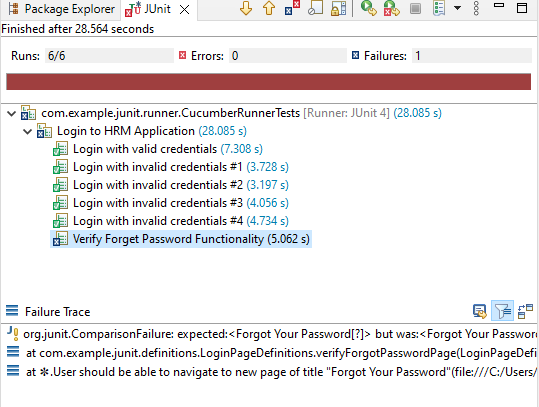
Below is the screenshot of the Console. 

Step 11: View ExtentReport

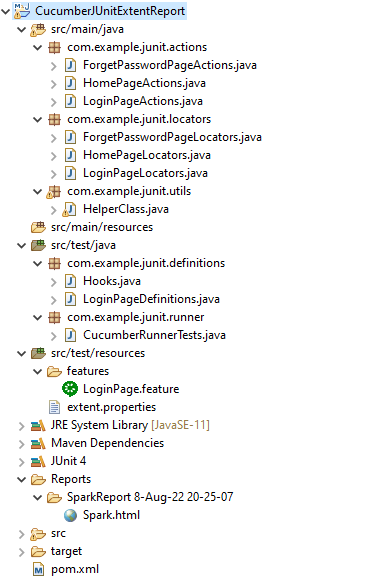
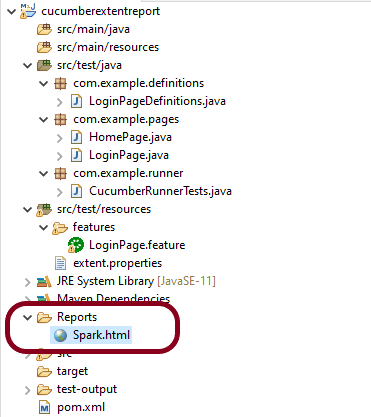
Refresh the project and will see a new folder – Report. The ExtentReport will be present in that folder with the name Spark.html.

Right-click on Spark.html and select open with Web Browser.

The report also has a summary section that displays the summary of the execution. The summary includes the overview of the pass/fail using a pictogram, start time, end time, and pass/fail details of features as shown in the image below.

Click on the first icon present on the left side of the report. To view the details about the steps, click on the scenarios. Clicking on the scenario will expand, showing off the details of the steps of each scenario. As we can see that a screenshot is attached to the failed tests here.

Congratulation!! We are able to create an Extent Report for Cucumber and JUnit4. Happy Learning!!!

ExtentReports Version 5 for Cucumber 6 and TestNG

HOME

What is ExtentReport?

ExtentReport is a logger-style reporting library for automated tests. ExtentReports uses the logging style to add information about test sessions, such as the creation of tests, adding screenshots, assigning tags, and adding events or series of steps to sequentially indicate the flow of test steps.  ExtentReports 5 is built on an open-Core. That means, both community and professional editions use the same, full-featured API with the exception of a few reporters.

Extent Report 4 onwards, there are 2 editions of Extent Report – Core and Professional.

Below is the screenshot that shows which reporters are available in Professional or Community Editions. You can also visit this page

This tutorial explains the use of Extent Report Core Edition.

Prerequisite:

  1. Java 8 or higher is needed for ExtentReport5
  2. Maven or Gradle
  3. JAVA IDE (like Eclipse, IntelliJ, or soon)
  4. TestNG installed
  5. Cucumber Eclipse plugin (in case using Eclipse)

Project Structure

Step 1 – Add Maven dependencies to the POM

Add ExtentReport dependency

<dependency>
    <groupId>com.aventstack</groupId>
    <artifactId>extentreports</artifactId>
    <version>5.0.9</version>
</dependency>

Add tech grasshopper maven dependency for Cucumber

<dependency>
    <groupId>tech.grasshopper</groupId>
    <artifactId>extentreports-cucumber6-adapter</artifactId>
    <version>2.13.0</version>
</dependency>

The complete POM.xml will look like as shown below with other Selenium and TestNG dependencies.

	<properties>
		<project.build.sourceEncoding>UTF-8</project.build.sourceEncoding>
		<cucumber.version>6.11.0</cucumber.version>
		<extentreports.cucumber6.adapter.version>2.13.0</extentreports.cucumber6.adapter.version>
		<extentreports.version>5.0.9</extentreports.version>
		<selenium.version>4.3.0</selenium.version>
		<webdrivermanager.version>5.2.1</webdrivermanager.version>
		<testng.version>7.4.0</testng.version>		
		<maven.compiler.plugin.version>3.10.1</maven.compiler.plugin.version>
		<maven.surefire.plugin.version>3.0.0-M7</maven.surefire.plugin.version>
		<maven.compiler.source.version>11</maven.compiler.source.version>
		<maven.compiler.target.version>11</maven.compiler.target.version>
	</properties>

	<dependencies>

		<dependency>
			<groupId>io.cucumber</groupId>
			<artifactId>cucumber-java</artifactId>
			<version>${cucumber.version}</version>
		</dependency>

		<dependency>
           <groupId>io.cucumber</groupId>
           <artifactId>cucumber-testng</artifactId>
           <version>${cucumber.version}</version>
           <scope>test</scope>
       </dependency>

		<!-- Cucumber ExtentReport Adapter -->
		<dependency>
			<groupId>tech.grasshopper</groupId>
			<artifactId>extentreports-cucumber6-adapter</artifactId>
			<version>${extentreports.cucumber6.adapter.version}</version>
		</dependency>


		<!-- Extent Report -->
		<dependency>
			<groupId>com.aventstack</groupId>
			<artifactId>extentreports</artifactId>
			<version>${extentreports.version}</version>
		</dependency>
		
		<!-- Selenium -->
		<dependency>
			<groupId>org.seleniumhq.selenium</groupId>
			<artifactId>selenium-java</artifactId>
			<version>${selenium.version}</version>
		</dependency>


		<!-- Web Driver Manager -->
		<dependency>
			<groupId>io.github.bonigarcia</groupId>
			<artifactId>webdrivermanager</artifactId>
			<version>${webdrivermanager.version}</version>
		</dependency>

		<!-- TestNG -->
		<dependency>
			<groupId>org.testng</groupId>
			<artifactId>testng</artifactId>
			<version>${testng.version}</version>
			<scope>test</scope>
		</dependency>


		<!-- Apache Common -->
		<dependency>
			<groupId>org.apache.directory.studio</groupId>
			<artifactId>org.apache.commons.io</artifactId>
			<version>2.4</version>
		</dependency>

	</dependencies>

	<build>
		<plugins>
			<plugin>
				<groupId>org.apache.maven.plugins</groupId>
				<artifactId>maven-compiler-plugin</artifactId>
				<version>${maven.compiler.plugin.version}</version>
				<configuration>
					<source>${maven.compiler.source.version}</source> <!--For JAVA 8 use 1.8-->
					<target>${maven.compiler.target.version}</target> <!--For JAVA 8 use 1.8-->
				</configuration>
			</plugin>
			<plugin>
				<groupId>org.apache.maven.plugins</groupId>
				<artifactId>maven-surefire-plugin</artifactId>
				<version>${maven.surefire.plugin.version}</version>
				<configuration>
					<suiteXmlFiles>
						<suiteXmlFile>testng.xml</suiteXmlFile>
					</suiteXmlFiles>
				</configuration>
			</plugin>
		</plugins>
	</build>
</project>

Step 2: Create a feature file in src/test/resources

Below is a sample feature file. I have also added a failed scenario in @FaceBookLink.

Feature: Login to HRM Application 
 
   @ValidCredentials
   Scenario: Login with valid credentials
     
    Given User is on HRMLogin page "https://opensource-demo.orangehrmlive.com/"
    When User enters username as "Admin" and password as "admin123"
    Then User should be able to login sucessfully and new page open
    
   @InvalidCredentials
   Scenario Outline: Login with invalid credentials
     
    Given User is on HRMLogin page "https://opensource-demo.orangehrmlive.com/"
    When User enters username as "<username>" and password as "<password>"
    Then User should be able to see error message "<errorMessage>"
    
  Examples:
  | username   | password    | errorMessage                           |
  |                   | abc              | Username cannot be empty     |
  | admin        |                    | Password cannot be empty          |
  |                   |                    | Username cannot be empty          |
  | Admin       | admin12$$ | Invalid credentials               |
  | admin$$    | admin123   | Invalid credentials               |
  
    
  @FaceBookLink
  Scenario: Verify FaceBook Icon on Login Page
     
    Given User is on HRMLogin page "https://opensource-demo.orangehrmlive.com/"
    Then User should be able to see FaceBook Icon
    
  @LinkedInLink
  Scenario: Verify LinkedIn Icon on Login Page
     
    Given User is on HRMLogin page "https://opensource-demo.orangehrmlive.com/"
    Then User should be able to see LinkedIn Icon  

Step 3: Create extent.properties file in src/test/resources

We need to create the extent.properties file at the src/test/resources folder for the grasshopper extent report adapter to recognize it. Using a property file for reporting is quite helpful if you want to define several different properties.

Let’s enable spark report in an extent properties file:

extent.reporter.spark.start=true
extent.reporter.spark.out=Reports/Spark.html

Step 4: Create a Helper class in src/main/java

We have used Page Object Model with Cucumber and TestNG.

Create a Helper class where we are initializing the web driver, initializing the web driver wait, defining the timeouts, and creating a private constructor of the class, within it will declare the web driver, so whenever we create an object of this class, a new web browser is invoked. We are using a setter and getter method to get the object of Chromedriver with the help of a private constructor itself within the same class.

HelperClass

import java.time.Duration;
import org.openqa.selenium.WebDriver;
import org.openqa.selenium.chrome.ChromeDriver;
import org.openqa.selenium.support.ui.WebDriverWait;
import io.github.bonigarcia.wdm.WebDriverManager;

public class HelperClass {
	
	private static HelperClass helperClass;
	
	private static WebDriver driver;
	private static WebDriverWait wait;
    public final static int TIMEOUT = 10;
	
	 private HelperClass() {
		 
			WebDriverManager.chromedriver().setup();
	    	driver = new ChromeDriver();
	        wait = new WebDriverWait(driver, Duration.ofSeconds(TIMEOUT));
        driver.manage().timeouts().implicitlyWait(Duration.ofSeconds(TIMEOUT));
	        driver.manage().window().maximize();
	 }      
	    	
    public static void openPage(String url) {
        driver.get(url);
    }

	
	public static WebDriver getDriver() {
		return driver;				
	}
	
	public static void setUpDriver() {
		
		if (helperClass==null) {
			
			helperClass = new HelperClass();
		}
	}
	
	 public static void tearDown() {
		 
		 if(driver!=null) {
			 driver.close();
			 driver.quit();
		 }
		 
		 helperClass = null;
	 } 
	
}

Step 5: Create Locator classes in src/main/java

Create a locator class for each page that contains the detail of the locators of all the web elements. Here, I’m creating 2 locator classes – LoginPageLocators and HomePageLocators.

LoginPageLocators

import org.openqa.selenium.WebElement;
import org.openqa.selenium.support.FindBy;

public class LoginPageLocators {

	@FindBy(name = "txtUsername")
    public WebElement userName;
 
    @FindBy(name = "txtPassword")
    public WebElement password;
 
    @FindBy(id = "logInPanelHeading")
    public WebElement titleText;
 
    @FindBy(id = "btnLogin")
    public WebElement login;
 
    @FindBy(id = "spanMessage")
    public  WebElement errorMessage;
    
    @FindBy(xpath = "//*[@id='social-icons']/a[1]/img")
    public  WebElement linkedInIcon;
    
    @FindBy(xpath = "//*[@id='social-icons']/a[6]/img")  //Invalid Xpath
    public  WebElement faceBookIcon;
     
}

HomePageLocators

import org.openqa.selenium.WebElement;
import org.openqa.selenium.support.FindBy;

public class HomePageLocators {

	@FindBy(id = "welcome")
	public  WebElement homePageUserName;
}

Step 6: Create Action classes in src/main/java

Create the action classes for each web page. These action classes contain all the methods needed by the step definitions. In this case, I have created 2 action classes – LoginPageActions and HomePageActions

LoginPageActions

In this class, the very first thing will do is to create the object of LoginPageLocators class so that we should be able to access all the PageFactory elements. Secondly, create a public constructor of LoginPageActions class

import org.openqa.selenium.support.PageFactory;
import com.example.locators.LoginPageLocators;
import com.example.utils.HelperClass;

public class LoginPageActions {

	LoginPageLocators loginPageLocators = null; 
	
    public LoginPageActions() {

    	this.loginPageLocators = new LoginPageLocators();

		PageFactory.initElements(HelperClass.getDriver(),loginPageLocators);
	}

  
	// Set user name in textbox
    public void setUserName(String strUserName) {
    	loginPageLocators.userName.sendKeys(strUserName);
    }
 
    // Set password in password textbox
    public void setPassword(String strPassword) {
    	loginPageLocators.password.sendKeys(strPassword);
    }
 
    // Click on login button
    public void clickLogin() {
    	loginPageLocators.login.click();
    }
 
    // Get the title of Login Page
    public String getLoginTitle() {
        return loginPageLocators.titleText.getText();
    }
    
    
    // Get the title of Login Page
    public String getErrorMessage() {
        return loginPageLocators.errorMessage.getText();
    }
    
    // LinkedIn Icon is displayed
    public Boolean getLinkedInIcon() {
   
        return loginPageLocators.linkedInIcon.isDisplayed();
    }
    
    // FaceBook Icon is displayed
    public Boolean getFaceBookIcon() {
   
        return loginPageLocators.faceBookIcon.isDisplayed();
    }
 
    public void login(String strUserName, String strPassword) {
 
        // Fill user name
        this.setUserName(strUserName);
 
        // Fill password
        this.setPassword(strPassword);
 
        // Click Login button
        this.clickLogin();
 
    }
}

HomePageActions

import org.openqa.selenium.support.PageFactory;
import com.example.locators.HomePageLocators;
import com.example.utils.HelperClass;

public class HomePageActions {

	HomePageLocators homePageLocators = null;
   
	public HomePageActions() {
    	
		this.homePageLocators = new HomePageLocators();

		PageFactory.initElements(HelperClass.getDriver(),homePageLocators);
    }

 
    // Get the User name from Home Page
    public String getHomePageText() {
        return homePageLocators.homePageUserName.getText();
    }

}

Step 7: Create a Step Definition file in src/test/java

Create the corresponding Step Definition file of the feature file.

LoginPageDefinitions

import org.testng.Assert;
import com.example.actions.HomePageActions;
import com.example.actions.LoginPageActions;
import com.example.utils.HelperClass;
import io.cucumber.java.en.Given;
import io.cucumber.java.en.Then;
import io.cucumber.java.en.When;

public class LoginPageDefinitions{	

	LoginPageActions objLogin = new LoginPageActions();
    HomePageActions objHomePage = new HomePageActions();
		
 
    @Given("User is on HRMLogin page {string}")
    public void loginTest(String url) {
    	
    	HelperClass.openPage(url);
 
    }
 
    @When("User enters username as {string} and password as {string}")
    public void goToHomePage(String userName, String passWord) {
 
        // login to application
        objLogin.login(userName, passWord);
 
        // go the next page
        
    }
 
    @Then("User should be able to login sucessfully and new page open")
    public void verifyLogin() {
 
        // Verify home page
        Assert.assertTrue(objHomePage.getHomePageText().contains("Welcome"));
 
    }
    
    @Then("User should be able to see error message {string}")
    public void verifyErrorMessage(String expectedErrorMessage) {
 
        // Verify home page
        Assert.assertEquals(objLogin.getErrorMessage(),expectedErrorMessage);
 
    }
    
    @Then("User should be able to see LinkedIn Icon")
    public void verifyLinkedInIcon( ) {
    	
    	Assert.assertTrue(objLogin.getLinkedInIcon());
    }
    
    @Then("User should be able to see FaceBook Icon")
    public void verifyFaceBookIcon( ) {
    	
    	Assert.assertTrue(objLogin.getFaceBookIcon());
    }
      
}

Step 8: Create Hook class in src/test/java

Create the hook class that contains the Before and After hook. @Before hook contains the method to call the setup driver which will initialize the chrome driver. This will be run before any test.

After Hook – Here will call the tearDown method.

import com.example.utils.HelperClass;
import io.cucumber.java.After;
import io.cucumber.java.Before;

public class Hooks {
	
	@Before
    public static void setUp() {

       HelperClass.setUpDriver();
    }
	
	@After
	public static void tearDown() {
		
		HelperClass.tearDown();
	}
}

Step 9: Create a Cucumber Test Runner class in src/test/java

Add the extent report cucumber adapter to the runner class’s CucumberOption annotation. It is an important component of the configuration. It also ensures that the cucumber runner class recognizes and launches the extent report adapter for cucumber. Please add the following text as a plugin to the CucumberOptions as described below.

plugin = {"com.aventstack.extentreports.cucumber.adapter.ExtentCucumberAdapter:"})

This is how your runner class should look after being added to our project. Moreover, be sure to keep the colon “:” at the end.

import io.cucumber.testng.AbstractTestNGCucumberTests;
import io.cucumber.testng.CucumberOptions;
 
@CucumberOptions(tags = "", features = "src/test/resources/features/LoginPage.feature", glue = "com.example.definitions",
                 plugin = {"com.aventstack.extentreports.cucumber.adapter.ExtentCucumberAdapter:"})
 
public class CucumberRunnerTests extends AbstractTestNGCucumberTests {
 
}

Step 10: Create the testng.xml for the project

Right-click on the project and select TestNG -> convert to TestNG.

<?xml version="1.0" encoding="UTF-8"?>
<!DOCTYPE suite SYSTEM "https://testng.org/testng-1.0.dtd">
<suite name="Suite">
  <test name="ExtentReport5 for Cucumber">
  
  <classes>
  <class name = "com.example.runner.CucumberRunnerTests"/>
  </classes>
  </test> <!-- Test -->
</suite> <!-- Suite -->

Step 11: Execute the code

Right-Click on the Runner class and select Run As -> TestNG Test.

Below is the screenshot of Console. As expected, 7 tests, out of 8 are passed and 1 is failed.

Step 12: View the ExtentReport

Refresh the project and will see a new folder – Report. The ExtentReport will be present in that folder with the name Spark.html.

Right-click and open with Web Browser.

The report also has a summary section that displays the summary of the execution. The summary includes the overview of the pass/fail using a pictogram, start time, end time, and pass/fail details of features as shown in the image below.

Click on the first icon present on the left side of the report. To view the details about the steps, click on the scenarios. Clicking on the scenario will expand, showing off the details of the steps of each scenario.

Step 13: How to customize the report folder name

We learned how to generate an ExtentReport in Cucumber Junit in the previous section. The problem with the previous approach is that it will continue to override the previous report once the new report is created. Typically, we must keep a backup of all the reports generated by previous tests. To accomplish this, we must save each report with a unique report name or folder name.

It’s simple to create reports with different folder names using the Extent reporter plugin adapter. Two settings must be added to our extent. basefolder.name and basefolder.datetimepattern are properties files. The values assigned to these will be combined to form a folder name. As a result, a report will be generated within that. The basefolder.datetimepattern value must be in a valid date-time format.

Let us update the extent.properties file.

extent.reporter.spark.start=true
extent.reporter.spark.out=Spark.html

#FolderName
basefolder.name=Reports/SparkReport
basefolder.datetimepattern=d-MMM-YY HH-mm-ss

The value for basefolder.name in the preceding snippet is “Report/SparkReport.” It means that the folder will be named SparkReport, and that it will create a Report folder within the project directory. You can specify the location of your folder. In the following setting, we’ve used a date and time stamp to create unique folder names by concatenating them with the report name.

So, when we run the report, it will generate at the location shown in the image below:

Congratulation!! We are able to create an Extent Report for Cucumber. Happy Learning!!!

Serenity BDD with Cucumber and Rest Assured in Gradle

HOME

In the previous tutorial, I explained the Integration of Serenity BDD with Rest Assured in Maven Project. In this tutorial, I will explain the Integration of Serenity BDD with Rest Assured in the Gradle Project.

Prerequisite

  1. Java 11 installed
  2. Gradle installed
  3. Eclipse or IntelliJ installed

Dependency List

  1. Serenity – 2.6.0
  2. Serenity Cucumber – 2.6.0
  3. Serenity Rest Assured – 2.6.0
  4. Rest Assured – 4.3.2
  5. Java 11
  6. JUnit – 4.13.2
  7. Gradle – 7.2

Implementation Steps

Step 1- Download and Install Java

Click here to know How to install Java.

Step 2 – Download and setup Eclipse IDE on the system

The Eclipse IDE (integrated development environment) provides strong support for Java developers. Click here to know How to install Eclipse.

Step 3 – Setup Gradle

To build a test framework, we need to add several dependencies to the project. This can be achieved by any build tool. I have used Gradle Build Tool. Click here to know How to install Gradle. Click here to know How to create a Gradle Java project.

Below is the structure of the Gradle project.

Step 4 – Update repositories, plugin, and dependencies to the Gradle project

defaultTasks 'clean', 'test', 'aggregate'

repositories {
    mavenLocal()
    jcenter()
}

buildscript {
    repositories {
        mavenLocal()
        jcenter()
    }
    dependencies {
        classpath("net.serenity-bdd:serenity-gradle-plugin:2.4.24")
        classpath("net.serenity-bdd:serenity-single-page-report:2.4.24")
    }
}

apply plugin: 'java'
apply plugin: 'eclipse'
apply plugin: 'idea'
apply plugin: 'net.serenity-bdd.aggregator'

sourceCompatibility = 11
targetCompatibility = 11

serenity {
    reports = ["single-page-html"]
}

dependencies {
   
    testImplementation 'net.serenity-bdd:serenity-cucumber6:2.6.0'
    testImplementation 'net.serenity-bdd:serenity-screenplay:2.6.0'
    testImplementation 'net.serenity-bdd:serenity-screenplay-rest:2.6.0'
    testImplementation 'net.serenity-bdd:serenity-rest-assured:2.6.0'
    testImplementation 'io.rest-assured:rest-assured:4.3.2'
    testImplementation 'junit:junit:4.13.1'
}

test {
    testLogging.showStandardStreams = true
    systemProperties System.getProperties()
}

gradle.startParameter.continueOnFailure = true

test.finalizedBy(aggregate)

Step 5 – Create a feature file under src/test/resources

A Feature File is an entry point to the Cucumber tests. This is a file where you will describe your tests in Descriptive language (Like English). A feature file can contain a scenario or can contain many scenarios in a single feature file. Feature file Below is an example of a Feature file.

Feature: Employee Details
  

  @GetValidUserDetails
  Scenario Outline: Send a Request to get valid user details
 
  Given I send a request to the URL <id> to get user details
  Then the response will return statuscode <status> and id <id> and salary <employee_salary> and name '<employee_name>' and age <employee_age> and message '<message>'
 
  Examples:
    |id  |status  |employee_salary|employee_name |employee_age  |message                                  |
    |1   |200     |320800         |Tiger Nixon   |61            |Successfully! Record has been fetched.   |   
    
  @GetInvalidUserDetails
  Scenario Outline: Send a Request to get invalid user details
 
  Given I send a request to the URL <id> to get user details
  Then the response will return statuscode <statusCode> and status '<statusMessage>' and and message '<message>'
 
  Examples:
    |id     |statusCode  |statusMessage    |message                                  |
    |9999   |200         |success          |Successfully! Record has been fetched.   |

Step 6 – Create the Step Definition class or Glue Code for the Test Scenario

The steps definition file stores the mapping between each step of the test scenario defined in the feature file with a code of the function to be executed. So, now when Cucumber executes a step of the scenario mentioned in the feature file, it scans the step definition file and figures out which function is to be called.

public class EmployeeDefinitions {

	private static final String URL = "http://dummy.restapiexample.com/api/v1/employee/";
	public Response response;

	@Given("I send a request to the URL {int} to get user details")
	public void sendRequest(int id) {

		response = SerenityRest.given().contentType("application/json").header("Content-Type", "application/json")
				.when().get(URL + id);
	}

	@Then("the response will return statuscode {int} and id {int} and salary {int} and name {string} and age {int} and message {string}")

	public void verifyValidUser(int statusCode, int id, int salary, String name, int age, String message) {
		SerenityRest.restAssuredThat(response -> response.statusCode(statusCode).and().body("data.id", equalTo(id))
				.and().body("data.employee_salary", equalTo(salary)).and().body("data.employee_name", equalTo(name))
				.and().body("data.employee_age", equalTo(age)).and().body("message", equalTo(message)));

	}

	@Then("the response will return statuscode {int} and status {string} and and message {string}")
	public void verifyInalidUser(int statusCode, String statusMessage, String message) {
		SerenityRest.restAssuredThat(response -> response.statusCode(statusCode).and()
				.body("status", equalTo(statusMessage)).and().body("message", equalTo(message)));

	}
}

Step 7 – Create a Serenity Cucumber Runner class

Cucumber runs the feature files via JUnit and needs a dedicated test runner class to actually run the feature files. When you run the tests with Serenity, you use the CucumberWithSerenity test runner. You also need to use the @CucumberOptions class to provide the root directory where the feature files can be found.

import org.junit.runner.RunWith;

import io.cucumber.junit.CucumberOptions;
import net.serenitybdd.cucumber.CucumberWithSerenity;

@RunWith(CucumberWithSerenity.class)
@CucumberOptions(plugin = { "pretty" }, features = "lib/src/test/resources/features/Employee.feature", glue = {
		"serenitygradlerestautomation.definitions" })

public class SerenityRunnerTest {
}

Step 8 – Create serenity.properties file at the root of the project

serenity.project.name = Serenity and Gradle Rest Assured Demo

Step 9 – Run the tests through command line, which generates Serenity Report

Open the command line and go to the location where gradle.build of the project is present and type the below command.

gradle test

The Serenity report is generated under /lib/target/site/serenity.

Index.html

Overall Test Results Section provides the details about all the Test Scenario, like the time taken by each test step, the status of each test step, and soon.

In this report, you can see the request as well as response details in the report.

Step 10 – Generate Single Page HTML Report

As we have already mentioned the dependencies of a single-page-report in build.gradle, we can generate an emailable serenity report that contains the summary of test execution.

gradle reports

Serenity Summary Report (single-page-report.html) is placed under lib\target\site\serenity.

We are done! Congratulations on making it through this tutorial and hope you found it useful! Happy Learning!!

Serenity Emailable HTML Report

HOME

In the previous tutorial, I explained the Generation of Serenity Report (index.html) using Cucumber6 and JUnit. Index.html report that acts both as a test report and living documentation for the product. It has various views like Overall Test Status, Requirement View, Capabilities View, and Features View.

Sometimes it is useful to be able to send a short summary of the test outcomes via email. Serenity allows us to generate a single-page, self-contained HTML summary report, containing an overview of the test results, and a configurable breakdown of the status of different areas of the application. 

Pre-Requisite

  1. Java 11 installed
  2. Maven installed
  3. Eclipse or IntelliJ installed

This framework consists of:

  1. Java 11
  2. Maven – 3.8.1
  3. Serenity – 2.6.0
  4. Serenity Maven – 2.6.0
  5. Serenity Cucumber6 – 2.6.0
  6. JUnit – 4.13.2
  7. Maven Surefire Plugin – 3.0.0-M5
  8. Maven Failsafe Plugin – 3.0.0-M5
  9. Maven Comiler Plugin – 3.8.1

Implementation Steps

  1. Update Properties section in Maven pom.xml
  2. Add repositories and pluginRepository to Maven pom.xml
  3. Add Serenity, Serenity Cucumber and JUnit dependencies to POM.xml
  4. Update Build Section of pom.xml
  5. Create source folder – src/test/resources and features folder within src/test/resources to create test scenarios in Feature file
  6. Create the Step Definition class or Glue Code
  7. Create a Serenity-Cucumber Runner class
  8. Create serenity.conf file under src/test/resources
  9. Create serenity.properties file in the root of the project
  10. Run the tests through commandline which generates Serenity Report

To know about Step 1 to 3, please refer here. These steps are the same for Index.html report and emailable report.

Now, add the below-mentioned plugin. These reports are configured in the Serenity Maven plugin, where you need to do two things. First, you need to add a dependency for the serenity-emailer module in the plugin configuration. Then, you need to tell Serenity to generate the email report when it performs the aggregation task.

<plugin>
    <groupId>net.serenity-bdd.maven.plugins</groupId>
    <artifactId>serenity-maven-plugin</artifactId>
    <version>${serenity.version}</version>
    <dependencies> 
        <dependency>
            <groupId>net.serenity-bdd</groupId>
            <artifactId>serenity-single-page-report</artifactId>
            <version>${serenity.version}</version>
        </dependency>
        <dependency>
            <groupId>net.serenity-bdd</groupId>
            <artifactId>serenity-navigator-report</artifactId>
            <version>${serenity.version}</version>
        </dependency>
    </dependencies>
    <configuration>
        <tags>${tags}</tags>
        <reports>single-page-html,navigator</reports> 
    </configuration>
    <executions>
        <execution>
            <id>serenity-reports</id>
            <phase>post-integration-test</phase>
            <goals>
                <goal>aggregate</goal>
            </goals>
        </execution>
    </executions>
</plugin>

Step 10 – Run the tests through commandline which generates Serenity Report

Open the command line and go to the location where pom.xml of the project is present and type the below command.

mvn verify -Dwebdriver.gecko.driver="C:\\Users\\Vibha\\Software\\geckodriver-v0.26.0-win64\\geckodriver.exe"

I have provided the location of Firefoxdriver through the command line. I believe this is the best way to run the test. We can hard-code the path in the test code or in serenity.conf file. In that case, you don’t need to provide the location of Firefoxdriver through command line. You can use the below command.

mvn verify

The output of the above program is

This image shows that two different types of reports are generated by Serenity – Full Report (index.html) and Single Page HTML Summary ( serenity-summary.html ).

This emailable report is called serenity-summary.html. This is generated under site/serenity/ serenity-summary.html

You can see a sample of such a report here:

As you can see in the above execution status, out of six tests, one test failed. The same information is displayed in the report.

This report provides a summary of the test execution.

The Functional Coverage section lets us highlight key areas of your application. By default, this section will list test results for each Feature. But we can configure the report to group results by other tags as well.

We are done! Congratulations on making it through this tutorial and hope you found it useful! Happy Learning!!