Conditional Hooks in Cucumber

HOME

In the previous tutorial, I explained Hooks in Cucumber. In this tutorial, I will explain Condition Hooks in Cucumber.

Hooks can be conditionally selected for execution based on the tags of the scenario. These are called Condition or Tagged Hooks.

Tagged Hooks are much like the scenario hooks, but the only difference is that they are executed before and after the specified tag.

These tagged hooks will be very specific to the particular tags, so these are not common for all scenarios.

So basically, they can also be run in the following two ways:

  • Before (‘tagName’)
  • After (‘tagName’)

Why do we need Tagged Hooks?

Suppose there are 3 different sets of scenarios. The prerequisites of these scenarios are different, like they have to open different browsers. So, we don’t want to have a common hook for all the scenarios. In this case, we can create a tagged hook to satisfy the requirement of each scenario.

In the below example, there are 3 tags – ChromeBrowser, FireFoxBrowser, and EdgeBrowser. I want to run the hook which has the specified tag for that scenario. For Example, I want @After and @Before hooks related to Chrome Browser should be executed for the tag – @ChromeBrowser.

Below is the feature file which has 3 different scenarios.

Feature: Conditional or Tagged Hooks
 
@ChromeBrowser
Scenario: Open Chrome Browser
 
Given I want to open Google Chrome Browser

@FireFoxBrowser
Scenario: Open Firefox Browser
 
Given I want to open Mozilla Firefox Browser

@EdgeBrowser
Scenario: Open Edge Browser
 
Given I want to open Microsoft Edge Browser

Below is the Step Definition for the above feature file.

import io.cucumber.java.en.Given;

public class ConditionalHooksExampleDefinitions {
	
	@Given("I want to open Google Chrome Browser")
	public void chrome() throws Throwable {
	    System.out.println("I want to open Google Chrome Browser");
	}

	@Given("I want to open Mozilla Firefox Browser")
	public void firefox() throws Throwable {
		System.out.println("I want to open Mozilla Firefox Browser");
	}

	@Given("I want to open Microsoft Edge Browser")
	public void edge() throws Throwable {
		System.out.println("I want to open Microsoft Edge Browser");
	}

}

Hooks can be defined in the same class or different. I have defined Hooks in a separate class.

import io.cucumber.java.After;
import io.cucumber.java.AfterStep;
import io.cucumber.java.Before;
import io.cucumber.java.BeforeStep;

public class Hooks {
	
	@BeforeStep
    public void beforeStep(){
        System.out.println("@@@@@@@@@@@@@@@ Before Step @@@@@@@@@@@@@@@@@");
    }
	
	@AfterStep
    public void afterStep(){
        System.out.println("@@@@@@@@@@@@@@@@  After Step @@@@@@@@@@@@@@@@");
    }
	
	@Before("@ChromeBrowser")
    public void beforeGoogle(){
        System.out.println("******* before Chrome *******");
    }
	
	@Before("@FireFoxBrowser")
    public void beforeFirefox(){
        System.out.println("$$$$$$$$$$ before FireFox $$$$$$$$$$");
    }

	@Before("@EdgeBrowser")
    public void beforeEdge(){
		System.out.println("============ before Edge =============");
    }
	
	@After("@ChromeBrowser")
    public void afterGoogle(){
        System.out.println("********* After Google *********");
    }

	@After("@FireFoxBrowser")
    public void afterFireFox(){
		System.out.println("$$$$$$$$$$$ After FireFox $$$$$$$$$$");
    }

	@After("@EdgeBrowser")
    public void afterEdge(){
        System.out.println("============ After Edge ==============");
    }

}

There is no change in the Test Runner Class.

import org.junit.runner.RunWith;
import io.cucumber.junit.Cucumber;
import io.cucumber.junit.CucumberOptions;

@RunWith(Cucumber.class)
@CucumberOptions(monochrome = true, plugin = "pretty", features = "src/test/resources/features/ConditionalHooks.feature", tags = {
		"" })

public class MyRunnerTests {

}

The output of the above execution is

  1. At the start of execution, @Before(“@ChromeBrowser”) {Scenario Hook} is executed.
  2. After that @BeforeStep (Step Hook) hook is executed.
  3. The given statement of the @ChromeBrowser tag is executed in the third step.
  4. The fourth step is to execute @AfterStep.
  5. Now, at last, the @After(“@ChromeBrowser”) hook is executed. Similarly, the same sequence is followed for FireFox and Edge Scenarios.

Congratulations on making it through this tutorial and hope you found it useful! Happy Learning!! Cheers!!

Cucumber Tutorials

 HOME

Cucumber Introduction, Installation, and Configuration

Chapter 1  Introduction of Cucumber Testing Tool (BDD Tool)
Chapter 2 How to install Cucumber Eclipse Plugin
Chapter 3 How to setup Cucumber with Eclipse
Chapter 4 Cucumber – What is Gherkin

Cucumber Scenario, Features & Step Definition

Chapter 1 Cucumber – What is Feature File in Cucumber
Chapter 2 Step Definition in Cucumber
Chapter 3 Cucumber – JUnit Test Runner Class

Cucumber – Hooks & Tags

Chapter 1 Hooks in Cucumber
Chapter 2 Tags in Cucumber
Chapter 3 Conditional Hooks in Cucumber
Chapter 4 What is CucumberOptions in Cucumber?
Chapter 5 Background in Cucumber
Chapter 6 Monochrome in Cucumber
Chapter 7 What is Glue in Cucumber?

Cucumber – Data Driven Testing

Chapter 1 Data Driven Testing using Scenario Outline in Cucumber
Chapter 2 DataTables in Cucumber

Cucumber Integration with Selenium – Maven

Chapter 1 Integration of Cucumber with Selenium and JUnit4
Chapter 2 Integration of Cucumber with Selenium and TestNG
Chapter 3 Page Object Model with Selenium, Cucumber and JUnit
Chapter 4 Page Object Model with Selenium, Cucumber, and TestNG
Chapter 5 Integration of Cucumber7 with Selenium and JUnit5
Chapter 6 Run Cucumber7 with JUnit5 Tests from Maven Command Line
Chapter 7 How to rerun failed tests in Cucumber
Chapter 8 How to create Cucumber Report after rerun of failed tests – NEW
Chapter 9 How to rerun failed tests twice in Cucumber – NEW

Cucumber – Command Line Execution

Chapter 1 Run Cucumber Test from Command Line
Chapter 2 Run Gradle Cucumber Tests from Command Line

Cucumber Integration with Rest API

Chapter 1 Rest API Test in Cucumber BDD
Chapter 2 How To Create Gradle Project with Cucumber to test Rest API

Cucumber Integration with SpringBoot

Chapter 1 Integration Testing of Springboot with Cucumber and JUnit4
Chapter 2 Integration Testing of Springboot with Cucumber and TestNG

Cucumber – Reporting

Chapter 1 Cucumber Tutorial – Cucumber Reports
Chapter 2 Cucumber Report Service
Chapter 3 Implemention of ‘Masterthought’ Reports in Cucumber
Chapter 4 Implemention of ‘Masterthought’ Reports in Cucumber with JUnit4

Cucumber Integration with Allure Reports

Chapter 1 Allure Report with Cucumber5, Selenium and JUnit4
Chapter 2 Allure Report with Cucumber5, Selenium and TestNG
Chapter 3 Integration of Allure Report with Rest Assured and JUnit4
Chapter 4 Integration of Allure Report with Rest Assured and TestNG
Chapter 5 Gradle – Allure Report for Selenium and TestNG

Cucumber Integration with Extent Reports

Chapter 1 ExtentReports Version 5 for Cucumber 6 and TestNG
Chapter 2 How to add Screenshot to Cucumber ExtentReports
Chapter 3 ExtentReports Version 5 for Cucumber 6 and JUnit4
Chapter 4 PDF ExtentReport for Cucumber and TestNG
Chapter 5 ExtentReports Version 5 for Cucumber 7 and TestNG
Chapter 6 Extent Reports Version 5 for Cucumber7 and JUnit5

Cucumber – Parallel Execution

Chapter 1 Parallel Testing in Cucumber with JUnit
Chapter 2 Parallel Testing in Cucumber with TestNG
Chapter 3 Dependency Injection in Cucumber using Pico-Container

How to set variable values from Runtime command in Robot Framework

HOME

In this tutorial, we will set the variable values from the Run time command argument in Robot Framework using Selenium WebDriver and Python.

Variables can be changed from the command line using the –variable (-v) option or a variable file using the –variablefile (-V) option. Variables set from the command line are universally accessible for all executed test data files, and they override any variables with the same names in the Variable section and variable files imported into the test data.

Individual variables are established using the syntax –variable name:value, where name is the variable’s name without the $ symbol and value is its value. This option can be used multiple times to define multiple variables. This syntax can only be used to establish scalar variables, and they can only receive string values.

Prerequisite:

  1. Install Python
  2. Install PIP
  3. Install Robot Framework
  4. Install Robot framework Selenium Library
  5. Install PyCharm IDE

Please refer to this tutorial to install Robot Framework – How to install and setup Robot Framework for Python.

Implementation Steps:

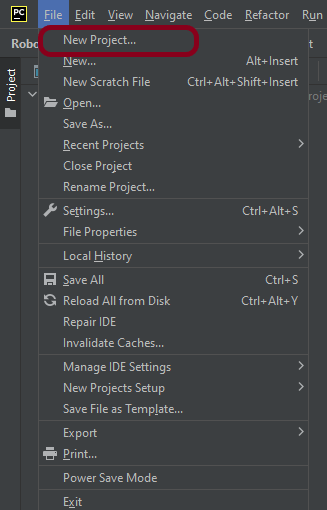
Step 1.1 – Open PyCharm and create a new project. Go to File and select “New Project” from the main menu.

Step 1.2 – Choose the project location. Click the “Browse” button next to the Location field and specify the directory for your project.

Deselect the Create a main.py welcome script checkbox because you will create a new Python file for this tutorial.

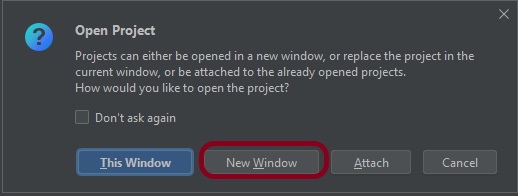
Step 1.3 – A new dialog will appear asking to Open the project using any one of the given options. I have selected New Window as I like to have separate windows for each project.

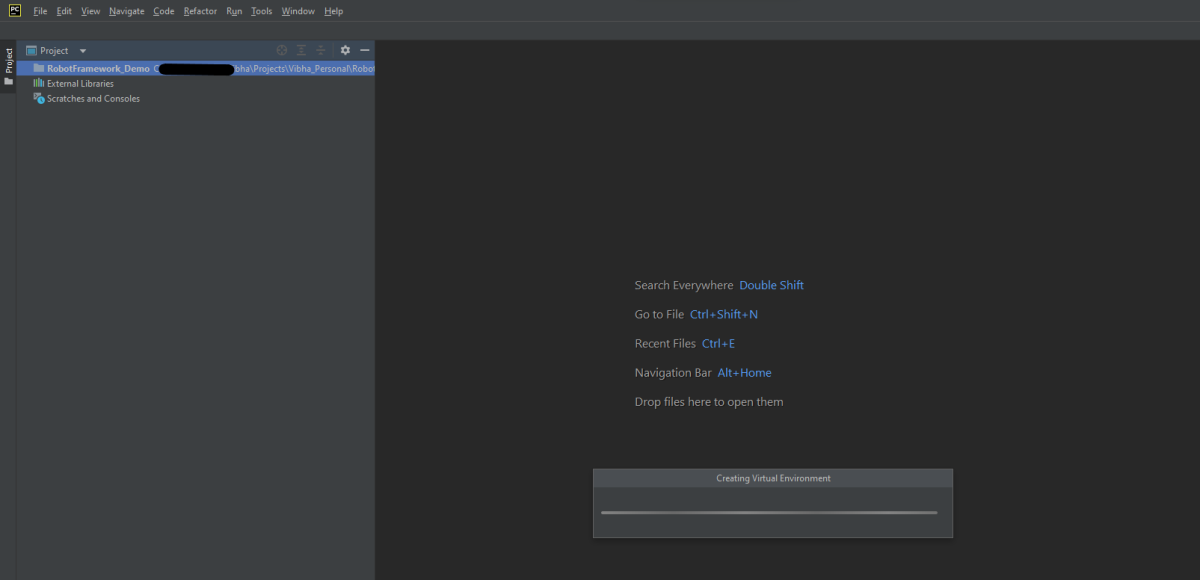
Below is the image of the new project created in PyCharms.

Step 2 – Create a new directory in the new project

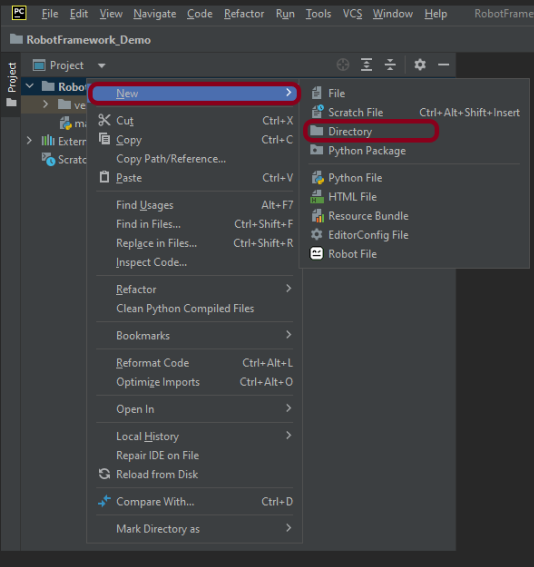
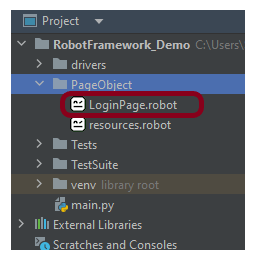
Right-Click on the project, select New->Directory and provide name as PageObject

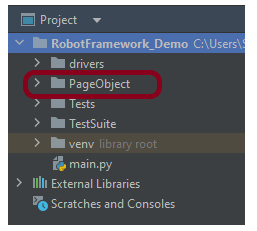
Below is the image of the new directory.

Right-click on the new directory select New File and provide the name LoginPage.robot as shown below:

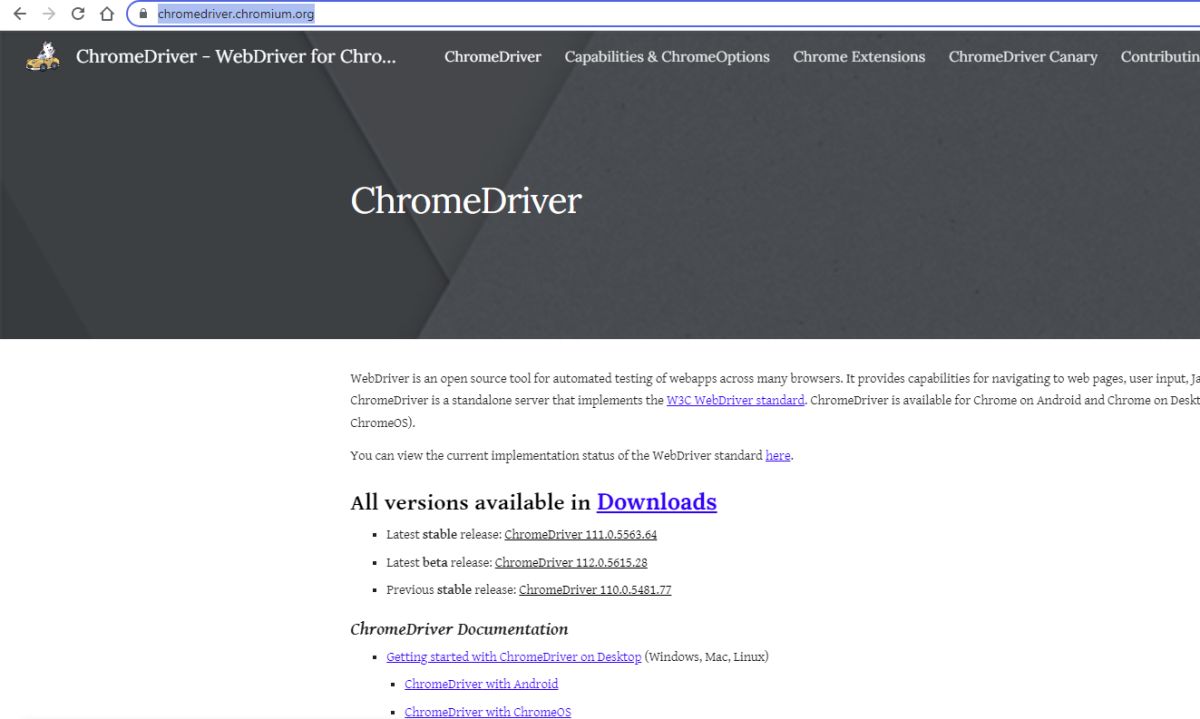
Step 3 – Download ChromeBinaries from the below location

The tests are going to use the Chrome browser, so we need to download the ChromeBinaries to open a blank browser in Chrome.

https://chromedriver.chromium.org/

The chromedriver and geckodriver are placed in a folder name drivers in the RobotFramework_Demo project. I have renamed chromedriver to chrome and geckodriver to firefox.

Step 4 – Create a simple Selenium Test

*** Settings ***
Documentation       Tests to login to Login Page
Library     SeleniumLibrary

*** Variables ***
${valid_username}     Admin
${valid_password}       admin123
${invalid_username}     1234
${invalid_password}     45678
${blank_username}
${blank_password}
${url}      https://opensource-demo.orangehrmlive.com/web/index.php/auth/login
${browser_name}      Chrome
${login_error_message}      css:.oxd-alert-content--error
${dashboard_title}       css:.oxd-topbar-header-breadcrumb-module
${missing_username_error_message}    xpath://*[@class='oxd-form']/div[1]/div/span
${missing_password_error_message}   xpath://*[@class='oxd-form']/div[2]/div/span


*** Test Cases ***

Validate Unsuccessful Login using invalid credentials
    [Tags]    SMOKE
    Open the Browser with URL
    Fill the login form     ${valid_username}       ${invalid_password}
    Verify the error message is correct
    Close Browser Session

Validate Unsuccessful Login for blank username
    [Tags]    REGRESSION
    Open the Browser with URL
    Fill the login form     ${blank_username}       ${valid_password}
    Verify the error message is displayed for username
    Close Browser Session

Validate Unsuccessful Login for blank password
    [Tags]    SMOKE     REGRESSION
    Open the Browser with URL
    Fill the login form     ${valid_username}       ${blank_password}
    Verify the error message is displayed for password
    Close Browser Session

Validate successful Login
    [Tags]    UAT
    Open the Browser with URL
    Fill the login form     ${valid_username}       ${valid_password}
    Verify Dashboard page opens
    Close Browser Session

*** Keywords ***

Open the Browser with URL
    Create Webdriver    ${browser_name}  executable_path=/Vibha_Personal/RobotFramework_Demo/drivers/${browser_name}
    Go To       ${url}
    Maximize Browser Window
    Set Selenium Implicit Wait    5

Fill the login form
   [Arguments]    ${username}      ${password}
   Input Text    css:input[name=username]   ${username}
   Input Password    css:input[name=password]   ${password}
   Click Button    css:.orangehrm-login-button

Verify the error message is correct
    Element Text Should Be    ${login_error_message}    Invalid credentials

Verify Dashboard page opens
    Element Text Should Be    ${dashboard_title}      Dashboard

Verify the error message is displayed for username
     Element Text Should Be    ${missing_username_error_message}      Required

Verify the error message is displayed for password
      Element Text Should Be    ${missing_password_error_message}      Required

Close Browser Session
    Close Browser

Step 5 – Set Variable values from the Runtime command

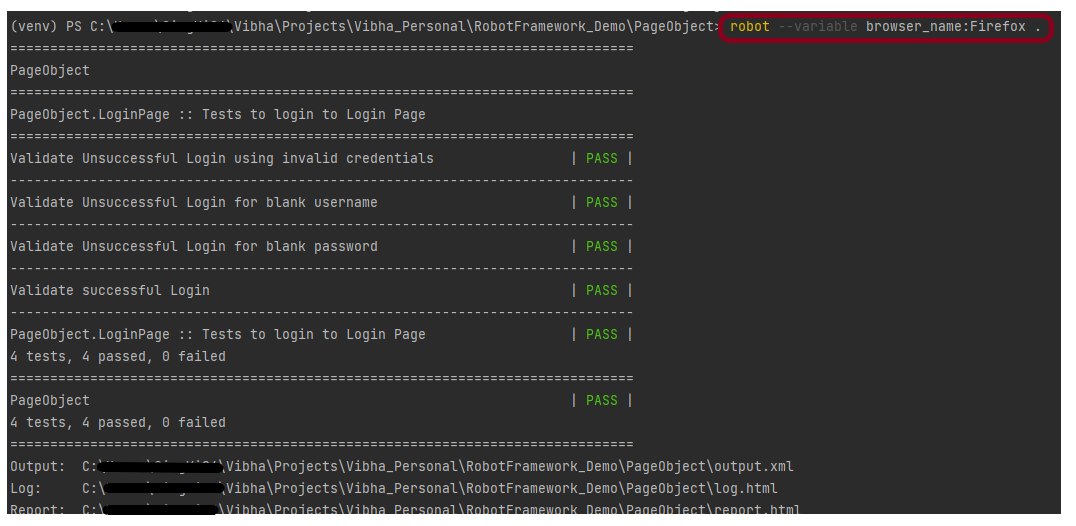
In the above example, we are using the Chrome browser to run the tests. I want to run the tests on the Firefox browser, but without making any changes to the existing code. How this can be achieved? We can pass variable

robot --variable browser_name:Firefox .

The output of the above program is

We have the test case passed. The Robot Framework generates log.html, output.xml, and report.html by default.

Let us now see the report and log details.

Report

Right-click on report.html. Select Open In->Browser->Firefox (any browser of your wish).

The Report generated by the framework is shown below:

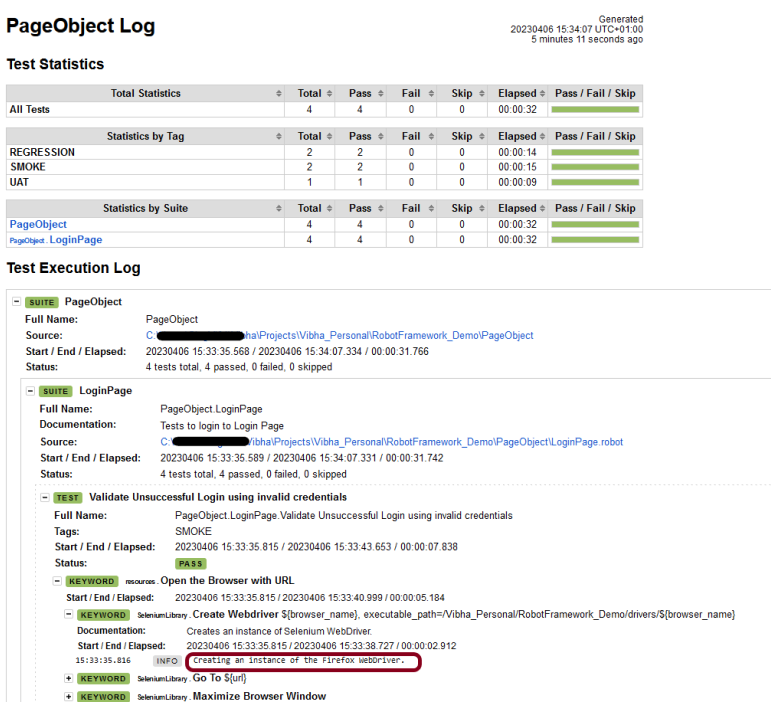
Log

Robot Framework has multiple log levels that control what is shown in the automatically generated log file. The default Robot Framework log level is INFO.

Right-click on log.html. Select Open In->Browser->Firefox (any browser of your wish).

Variables with Tags

If you want to execute only test scenario tagged with UAT using firefox browser, it can be done using the below command:

robot --variable browser_name:Firefox --include UAT .

The output of the above program is

That’s it! Congratulations on making it through this tutorial and hope you found it useful! Happy Learning!!

Additional Tutorials

How to Install Python on Windows 11
How to run all the tests from the folder in Robot Framework
How to rerun failed tests in Robot Framework
How to implement tagging in Robot Framework
Page Object Model in Robot Framework with Selenium and Python
How to load data from CSV files in the Robot Framework?

How to implement tagging in Robot Framework

HOME

In this tutorial, we will create a project in PyCharms and create TAGS in the tests in Robot Framework using Selenium WebDriver.

The use of tags in Robot Framework is a basic yet effective mechanism for classifying test cases. Tags are free words that can be used for at least the following things:

  1. Tags appear in test reports, logs, and, of course, test data, providing metadata to test instances.
  2. Case-by-case statistics (total, passed, failed are automatically collected based on tags).
  3. You can use tags to include or exclude test cases from being run.
  4. You can use tags to indicate which test cases should be skipped.

Prerequisite:

  1. Install Python
  2. Install PIP
  3. Install Robot Framework
  4. Install Robot framework Selenium Library
  5. Install PyCharm IDE

Please refer to this tutorial to install Robot Framework – How to install and setup Robot Framework for Python.

Implementation Steps:

Step 1.1 – Open PyCharm and create a new project. Go to File and select “New Project” from the main menu.

Step 1.2 – Choose the project location. Click the “Browse” button next to the Location field and specify the directory for your project.

Deselect the Create a main.py welcome script checkbox because you will create a new Python file for this tutorial.

Click on the “Create” Button.

Step 1.3 – A new dialog will appear asking to Open the project using any one of the given options. I have selected New Window as I like to have separate windows for each project.

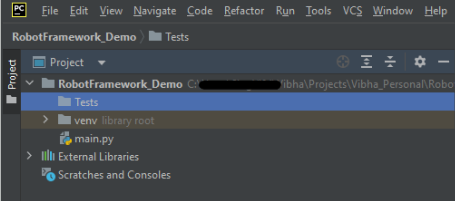
Below is the image of the new project created in PyCharms.

How to create a tag in the test in Robot Framework?

Step 1 – Create a new directory in the new project

Right-Click on the project, select New->Directory and provide name as Tests

Below is the image of the new directory.

Right-click on the new directory and select New File and provide the name as Test_Demo.robot as shown below:

Step 2 – Download ChromeBinaries from the below location

The tests are going to use the Chrome browser, so we need to download the ChromeBinaries to open a blank browser in Chrome.

https://chromedriver.chromium.org/

The chromedriver is placed in a folder name drivers in the RobotFramework_Demo project.

Step 3 – Create a simple Selenium Test

*** Settings ***
Documentation       Tests to login to Login Page
Library     SeleniumLibrary

*** Variables ***
${valid_username}     Admin
${valid_password}       admin123
${invalid_username}     1234
${invalid_password}     45678
${blank_username}
${blank_password}
${url}      https://opensource-demo.orangehrmlive.com/web/index.php/auth/login
${browser_name}      Chrome
${login_error_message}      css:.oxd-alert-content--error
${dashboard_title}       css:.oxd-topbar-header-breadcrumb-module
${missing_username_error_message}    xpath://*[@class='oxd-form']/div[1]/div/span
${missing_password_error_message}   xpath://*[@class='oxd-form']/div[2]/div/span


*** Test Cases ***

Validate Unsuccessful Login using invalid credentials
    [Tags]    SMOKE
    Open the Browser with URL
    Fill the login form     ${valid_username}       ${invalid_password}
    Verify the error message is correct
    Close Browser Session

Validate Unsuccessful Login for blank username
    [Tags]    REGRESSION
    Open the Browser with URL
    Fill the login form     ${blank_username}       ${valid_password}
    Verify the error message is displayed for username
    Close Browser Session

Validate Unsuccessful Login for blank password
    [Tags]    SMOKE     REGRESSION
    Open the Browser with URL
    Fill the login form     ${valid_username}       ${blank_password}
    Verify the error message is displayed for password
    Close Browser Session

Validate successful Login
    [Tags]    UAT
    Open the Browser with URL
    Fill the login form     ${valid_username}       ${valid_password}
    Verify Dashboard page opens
    Close Browser Session

*** Keywords ***

Open the Browser with URL
    Create Webdriver    ${browser_name}  executable_path=/Vibha_Personal/RobotFramework_Demo/drivers/${browser_ame}
    Go To       ${url}
    Maximize Browser Window
    Set Selenium Implicit Wait    5

Fill the login form
   [Arguments]    ${username}      ${password}
   Input Text    css:input[name=username]   ${username}
   Input Password    css:input[name=password]   ${password}
   Click Button    css:.orangehrm-login-button

Verify the error message is correct
    Element Text Should Be    ${login_error_message}    Invalid credentials

Verify Dashboard page opens
    Element Text Should Be    ${dashboard_title}      Dashboard

Verify the error message is displayed for username
     Element Text Should Be    ${missing_username_error_message}      Required

Verify the error message is displayed for password
      Element Text Should Be    ${missing_password_error_message}      Required

Close Browser Session
    Close Browser

Scenarios

In the above robot test file, we have a total of 4 tests.

  • Test 1 -> SMOKE
  • Test 2 -> REGRESSION
  • Test 3 -> SMOKE, REGRESSION
  • Test 4 -> UAT

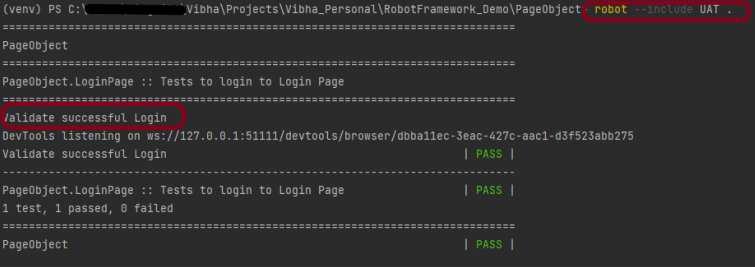
1. To execute the tests tagged with UAT, we have only 1 test, so only 1 test – Test 4 will execute.

robot --include UAT .  

The output of the above program is

2. To execute the tests tagged with SMOKE, we have 2 tests, so 2 tests – Test 1 and Test 3 will execute.

robot --include SMOKE .  

The output of the above program is

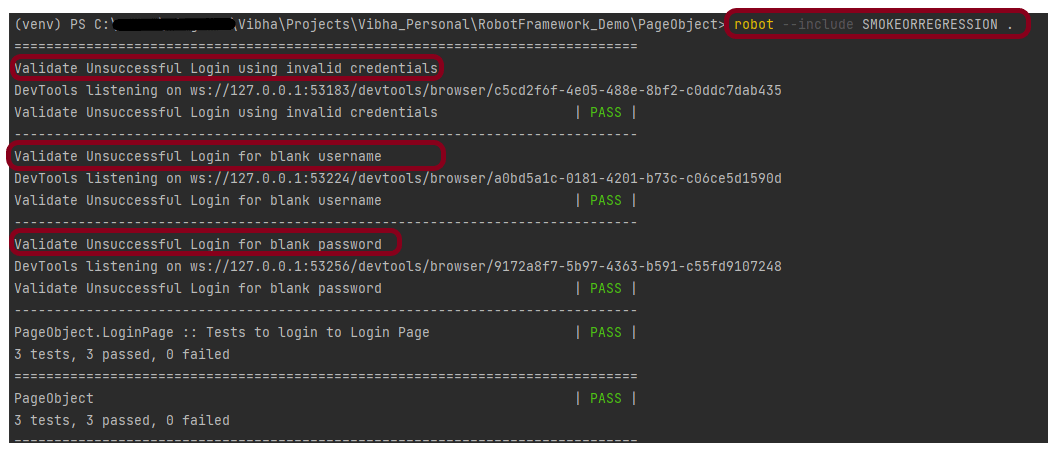
3. To execute the tests tagged with SMOKE OR REGRESSION, we have 3 tests, so 3 tests – Test 1, Test 2, and Test 3 will execute.

robot --include SMOKEORREGRESSION .

The output of the above program is

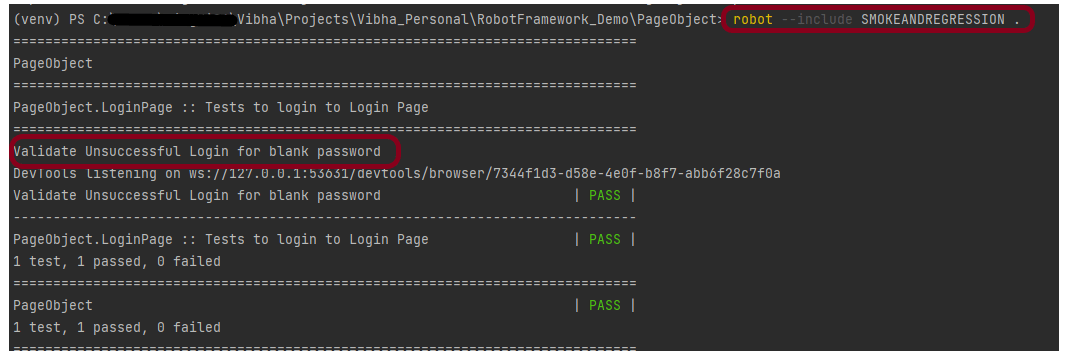
4. To execute the tests tagged with SMOKE AND REGRESSION, we have only 1 test – Test 3 will execute.

robot --include SMOKEANDREGRESSION .

The output of the above program is

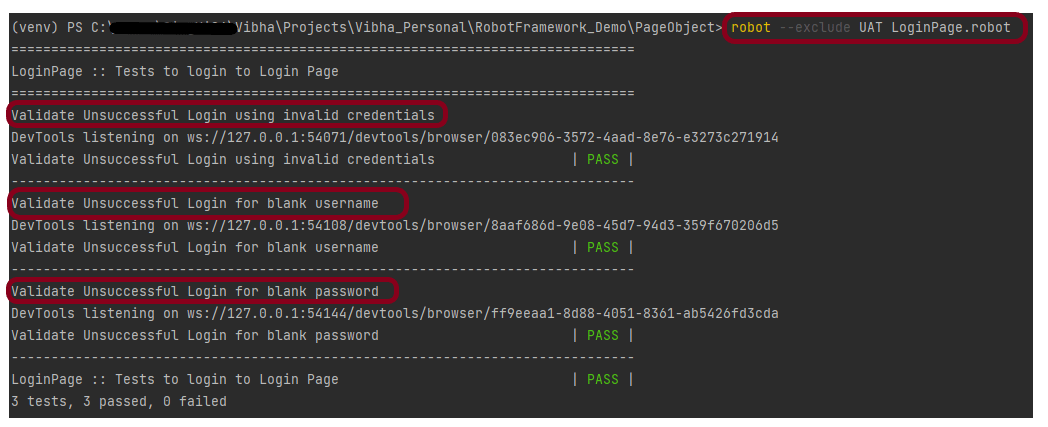
5. To execute the tests tagged with not UAT, we have a total of 4 tests and 1 test is tagged with UAT. So now 3 tests should execute – Test 1, Test 2, and Test 3.

robot --exclude UAT LoginPage.robot

The output of the above program is

That’s it! Congratulations on making it through this tutorial and hope you found it useful! Happy Learning!!