SpringBoot – Multiple Choice Questions and Answers – MCQ1

HOME


@Bean 
public MyService myService() {     
  return new MyServiceImpl(); 
}


@RestController
public class ArticleController {
    @GetMapping("/articles")
    public List<Article> getAllArticles() {
        return articleService.findAll();
    }
}

@Value("${my.api.key}")
private String apiKey;

@Bean
@Scope("prototype")
public Article article() {
    return new Article();
}


@Profile("dev")
@Bean
public DataSource dataSource() {
    return new H2DataSource();
}


@Scheduled(fixedRate = 2000)
public void reportCurrentTime() {
    System.out.println("Current time: " + new Date());
}


SpringBoot Tutorials


HOME

Spring Boot makes it easy to create stand-alone, production-grade Spring based Applications that you can “just run”. We take an opinionated view of the Spring platform and third-party libraries, so you can get started with minimum fuss. Most Spring Boot applications need minimal Spring configuration.

Chapter 1 Create your first SpringBoot application in IntelliJ
Chapter 2 SpringBoot Integration Test
Chapter 3 Integration Testing of Springboot with RestAssured
Chapter 4 Testing of SpringBoot REST Application using Serenity BDD and Rest Assured for GET Method
Chapter 5 Testing of SpringBoot REST Application using Serenity BDD and Rest Assured for POST Method to create a Resource
Chapter 6 Testing of SpringBoot REST Application using Serenity BDD and Rest Assured for PUT Method to update a Resource
Chapter 7 Testing of SpringBoot REST Application using Serenity BDD and Rest Assured for DELETE Method to delete a Resource
Chapter 8 Testing of SpringBoot Validation for RESTful Services
Chapter 9 Testing of SpringBoot Exception Handling
Chapter 10 SpringBoot WireMock
Chapter 11 SpringBoot Dependency Injection using Autowired

SpringBoot Testing with JUnit

Chapter 1 Integration Testing of Springboot with Cucumber and JUnit4
Chapter 2 Integration Testing of SpringBoot Application with Serenity BDD, Cucumber and JUnit4
Chapter 3 Testing of SpringBoot Application with Serenity and JUnit5
Chapter 4 Testing of SpringBoot Application with Serenity BDD, Cucumber and JUnit5
Chapter 5 Testing of SpringBoot Application with JUnit5

SpringBoot with TestNG

Chapter 1 Testing of SpringBoot Application with TestNG
Chapter 2 Integration Testing of Springboot with Cucumber and TestNG

SpringBoot with Gradle

Chapter 1 Testing of Gradle SpringBoot Application with Serenity, Cucumber and JUnit4
Chapter 2 Testing of Gradle SpringBoot Application with Serenity and JUnit5

CI/CD

Chapter 1 How to run SpringBoot tests with GitHub Actions
Chapter 2 How to run SpringBoot project in GitLab CI/CD

Integration Testing of Springboot with Cucumber and JUnit4

Last Updated On

HOME

In this tutorial, I am going to build an automation framework to test the Springboot application with Cucumber, Rest Assured, and JUnit4.

Table of Contents

  1. What is Springboot?
  2. What is Cucumber?
  3. Dependency List
  4. Test Automation Framework Implementation
    1. Add SpringbootTest, Rest-Assured, and Cucumber dependencies to the project
    2. Create a directory src/test/resources and create a feature file under src/test/resources
    3. Create the Step Definition class or Glue Code for the Test Scenario under src/test/java
    4. Create a Cucumber Runner class under src/test/java
    5. Run the tests from JUnit
    6. Run the tests from Command Line
    7. Cucumber Report Generation

What is Springboot?

Spring Boot is an open-source micro framework maintained by a company called Pivotal. It provides Java developers with a platform to get started with an auto-configurable production-grade Spring application. With it, developers can get started quickly without losing time on preparing and configuring their Spring application.

What is Cucumber?

A cucumber is a software tool that supports behavior-driven development (BDD). Cucumber can be defined as a testing framework, driven by plain English. It serves as documentation, automated tests, and development aid – all in one.

Dependency List

  1. Springboot – 2.5.2
  2. Cucumber – 6.10.4
  3. Java 11
  4. JUnit – 4.13.2
  5. Maven – 3.8.1
  6. RestAssured – 4.3.3
  7. JUnit Vintage Engine (To run the tests through command line)

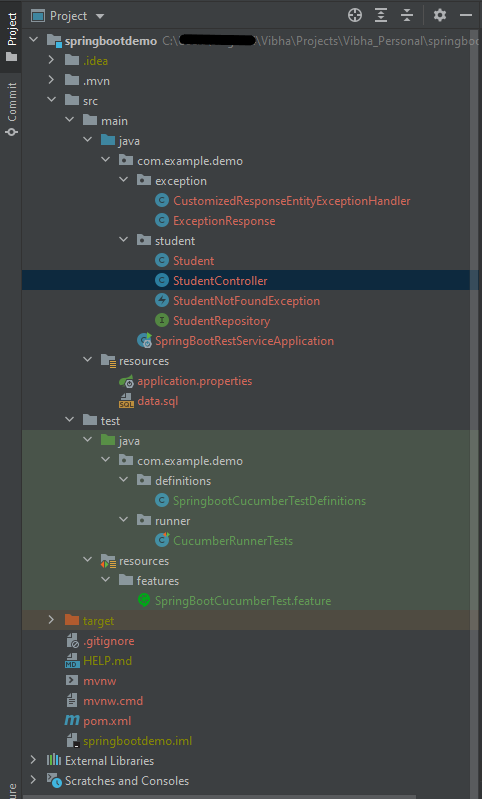
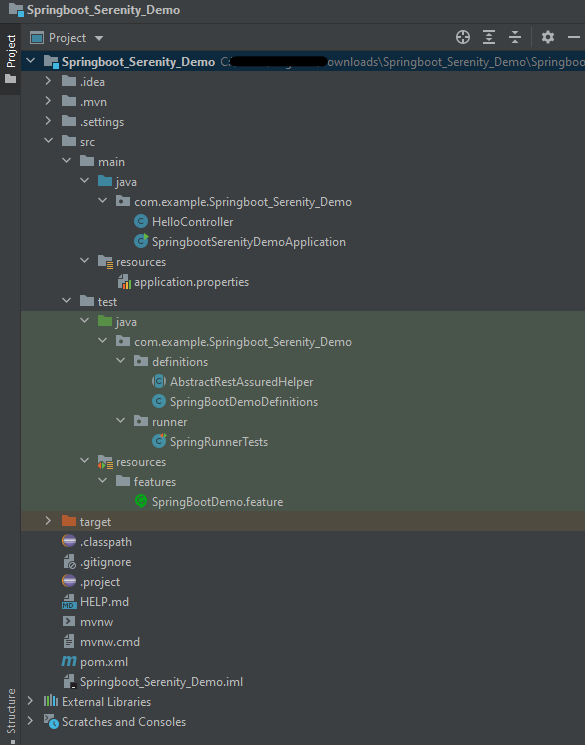
Below is the structure of a SpringBoot application project.

Below are various Java classes present in a SpringBoot REST Application.

  • SpringBootRestServiceApplication.java – The Spring Boot Application class is generated with Spring Initializer. This class acts as the launching point for the application.
  • pom.xml – This contains all the dependencies needed to build this project. 
  • Student.java – This is JPA Entity for Student class
  • StudentRepository.java – This is JPA Repository for Student. This is created using Spring Data JpaRepository.
  • StudentController.java – Spring Rest Controller exposing all services on the student resource.
  • CustomizedExceptionHandler.java – This implements global exception handling and customizes the responses based on the exception type.
  • ErrorDetails.java – Response Bean to use when exceptions are thrown from API.
  • StudentNotFoundException.java – Exception thrown from resources when the student is not found.
  • data.sql –  Data is loaded from data.sql into the Student table. Spring Boot would execute this script after the tables are created from the entities.
  • application.properties – Spring Boot automatically loads the application.properties whenever it starts up. You can de-reference values from the property file in the Java code through the environment.

Student.java

import javax.persistence.Entity;
import javax.persistence.GeneratedValue;
import javax.persistence.Id;
import javax.validation.constraints.NotBlank;
import javax.validation.constraints.NotNull;
import javax.validation.constraints.Size;

@Entity
public class Student {
    @Id
    @GeneratedValue
    private Long id;

    @NotNull
    @Size(min = 4, message = "Name should have atleast 4 characters")
    private String name;

    @NotBlank(message = "passportNumber is mandatory")
    private String passportNumber;

    public Student() {
        super();
    }

    public Student(Long id, String name, String passportNumber) {
        super();
        this.id = id;
        this.name = name;
        this.passportNumber = passportNumber;
    }

    public Long getId() {
        return id;
    }

    public void setId(Long id) {
        this.id = id;
    }

    public String getName() {
        return name;
    }

    public void setName(String name) {
        this.name = name;
    }

    public String getPassportNumber() {
        return passportNumber;
    }

    public void setPassportNumber(String passportNumber) {
        this.passportNumber = passportNumber;
    }
}

StudentController

import static org.springframework.hateoas.server.mvc.WebMvcLinkBuilder.linkTo;
import static org.springframework.hateoas.server.mvc.WebMvcLinkBuilder.methodOn;
import java.net.URI;
import java.util.List;
import java.util.Optional;
import javax.validation.Valid;
import org.springframework.beans.factory.annotation.Autowired;
import org.springframework.hateoas.EntityModel;
import org.springframework.hateoas.server.mvc.WebMvcLinkBuilder;
import org.springframework.http.ResponseEntity;
import org.springframework.web.bind.annotation.GetMapping;
import org.springframework.web.bind.annotation.PathVariable;
import org.springframework.web.bind.annotation.RequestBody;
import org.springframework.web.bind.annotation.RestController;
import org.springframework.web.servlet.support.ServletUriComponentsBuilder;

@RestController
public class StudentController {

    @Autowired
    private StudentRepository studentRepository;

    @GetMapping("/students/{id}")
    public EntityModel<Student> retrieveStudent(@PathVariable long id) {
        Optional<Student> student = studentRepository.findById(id);

        if (!student.isPresent())
            throw new StudentNotFoundException("id-" + id);

        EntityModel<Student> resource = EntityModel.of(student.get());

        WebMvcLinkBuilder linkTo = linkTo(methodOn(this.getClass()).retrieveAllStudents());

        resource.add(linkTo.withRel("all-students"));

        return resource;
    }
}

StudentRepository

import org.springframework.data.jpa.repository.JpaRepository;
import org.springframework.stereotype.Repository;

@Repository
public interface StudentRepository extends JpaRepository<Student, Long>{

}

SpringBootRestServiceApplication

import org.springframework.boot.SpringApplication;
import org.springframework.boot.autoconfigure.SpringBootApplication;

@SpringBootApplication
public class SpringBootRestServiceApplication {

    public static void main(String[] args) {

        SpringApplication.run(SpringBootRestServiceApplication.class, args);
    }

}

application.properties

spring.jpa.defer-datasource-initialization=true

data.sql

insert into student values(10001,'Annie', 'E1234567');
insert into student values(10002,'John', 'A1234568');
insert into student values(10003,'David','C1232268');

Test Automation Framework Implementation

Step 1 – Add SpringbootTest, Rest-Assured, and Cucumber dependencies to the project

To Test a SpringBoot Application, we are using SpringBoot Test, JUnit, Cucumber, and Rest Assured. Below mentioned dependencies are added in POM.xml

        <dependency>
            <groupId>org.springframework.boot</groupId>
            <artifactId>spring-boot-starter-test</artifactId>
            <scope>test</scope>
        </dependency>

        <dependency>
            <groupId>junit</groupId>
            <artifactId>junit</artifactId>
            <version>4.13.2</version>
        </dependency>

        <dependency>
            <groupId>io.rest-assured</groupId>
            <artifactId>rest-assured</artifactId>
            <version>4.3.3</version>
            <scope>test</scope>
        </dependency>

        <dependency>
            <groupId>io.cucumber</groupId>
            <artifactId>cucumber-java</artifactId>
            <version>6.10.4</version>
        </dependency>

        <dependency>
            <groupId>io.cucumber</groupId>
            <artifactId>cucumber-junit</artifactId>
            <version>6.10.4</version>
            <scope>test</scope>
        </dependency>

        <dependency>
            <groupId>io.cucumber</groupId>
            <artifactId>cucumber-spring</artifactId>
            <version>6.10.4</version>
            <scope>test</scope>
        </dependency>

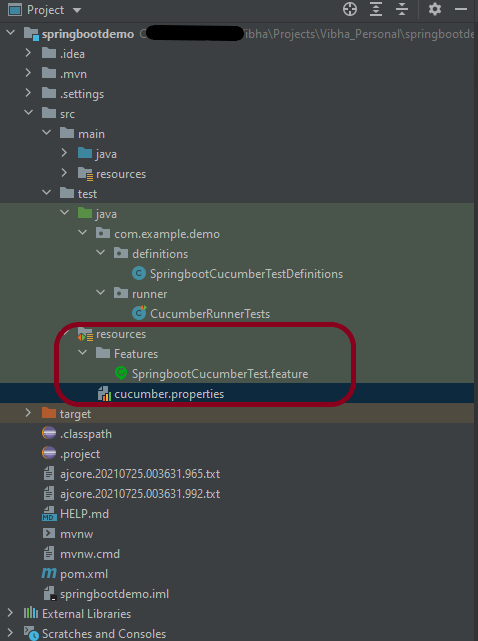
Step 2 – Create a directory src/test/resources and create a feature file under src/test/resources

By default, the Maven project has src/test/java directory only. Create a new directory under src/test with the name of resources. Create a folder name as Features within src/test/resources directory.

Create a feature file to test the Springboot application.

Below is a sample feature file.

Feature: Verify springboot application using Cucumber

@ReceiveUserDetails
Scenario Outline: Send a valid Request to get user details
Given I send a request to the URL "/students" to get user details
Then the response will return status 200 and id <studentID> and names "<studentNames>" and passport_no "<studentPassportNo>"

Examples:
|studentID    |studentNames  |studentPassportNo|
|10001        |Annie         |E1234567         |
|10002        |John          |A1234568         |
|10003        |David         |C1232268         |

Step 3 – Create the Step Definition class or Glue Code for the Test Scenario under src/test/java

The corresponding step definition file of the above feature file is shown below.

import io.cucumber.java.en.Given;
import io.cucumber.java.en.Then;
import io.cucumber.spring.CucumberContextConfiguration;
import io.restassured.RestAssured;
import io.restassured.http.ContentType;
import io.restassured.response.ValidatableResponse;
import io.restassured.specification.RequestSpecification;
import org.springframework.boot.test.context.SpringBootTest;
import org.springframework.boot.web.server.LocalServerPort;
import static io.restassured.RestAssured.given;
import static org.hamcrest.Matchers.*;

@CucumberContextConfiguration
@SpringBootTest(webEnvironment = SpringBootTest.WebEnvironment.RANDOM_PORT)
public class SpringbootCucumberTestDefinitions {

    private final static String BASE_URI = "http://localhost";

    @LocalServerPort
    private int port;

    private ValidatableResponse validatableResponse;

    private void configureRestAssured() {
        RestAssured.baseURI = BASE_URI;
        RestAssured.port = port;
    }

    protected RequestSpecification requestSpecification() {
        configureRestAssured();
        return given();
    }

    @Given("I send a request to the URL {string} to get user details")
    public void iSendARequest(String endpoint) throws Throwable {
        validatableResponse = requestSpecification().contentType(ContentType.JSON)
                .when().get(endpoint).then();
        System.out.println("RESPONSE :"+validatableResponse.extract().asString());
    }

    @Then("the response will return status {int} and id {int} and names {string} and passport_no {string}")
    public void extractResponse(int status, int id, String studentName,String passportNo) {
        validatableResponse.assertThat().statusCode(equalTo(status))
                .body("id",hasItem(id)).body(containsString(studentName))
                .body(containsString(passportNo));

    }

}

The @CucumberContextConfiguration annotation tells Cucumber to use this class as the test context configuration for Spring. It is imported from:-

import io.cucumber.spring.CucumberContextConfiguration;

With the @SpringBootTest annotation, Spring Boot provides a convenient way to start up an application context to be used in a test.  It is imported from package:-

import org.springframework.boot.test.context.SpringBootTest;

By default, @SpringBootTest does not start the webEnvironment to refine further how your tests run. It has several options: MOCK(default), RANDOM_PORT, DEFINED_PORT, NONE.

RANDOM_PORT loads a WebServerApplicationContext and provides a real web environment. The embedded server is started and listens on a random port. LocalServerPort is imported from package:-

import org.springframework.boot.web.server.LocalServerPort;

The assertions are imported from the Hamcrest package:-

import static org.hamcrest.Matchers.*;

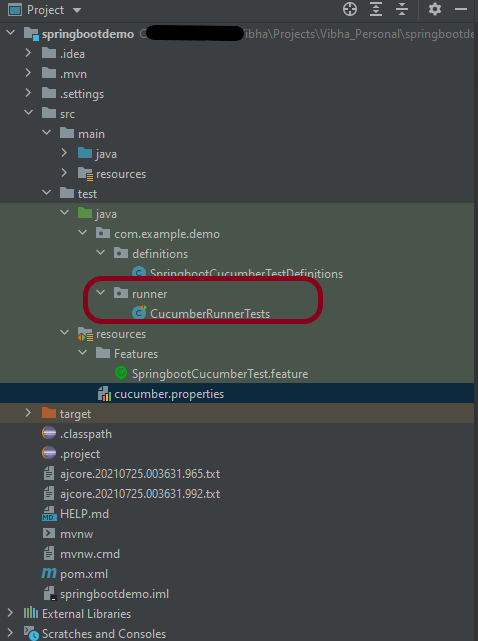
Step 4 – Create a Cucumber Runner class under src/test/java

A runner will help us to run the feature file and act as an interlink between the feature file and StepDefinition Class. To know more about Runner, refer to this link. The TestRunner should be created within the directory src/test/java.

import org.junit.runner.RunWith;
import io.cucumber.junit.Cucumber;
import io.cucumber.junit.CucumberOptions;

@RunWith(Cucumber.class)
@CucumberOptions(plugin = "pretty", features = {"src/test/resources/Features"}, glue = { "com.example.demo.definitions"})

public class CucumberRunnerTests {
}

The @CucumberOptions annotation is responsible for pointing to the right feature package, configuring the plugin for a better reporting of tests in the console output, and specifying the package where extra glue classes may be found. We use it to load configurations and classes that are shared between tests.

Step 5 – Run the tests from JUnit

You can execute the test script by right-clicking on TestRunner class -> Run As JUnit in Eclipse.

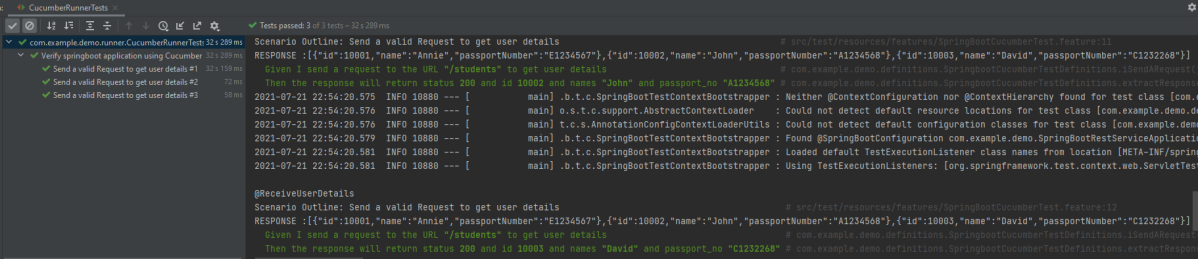
In case you are using IntelliJ, select “Run CucumberRunnerTests“.

SpringBootTest creates an application context containing all the objects we need for the Integration Testing It, starts the embedded server, creates a web environment, and then enables methods to do Integration testing.

Step 6 – Run the tests from the Command Line

To run the tests from the command line, we need to add junit-vintage-engine dependency. Starting with Spring Boot 2.4, JUnit 5’s vintage engine has been removed from the spring-boot-starter-test. If we still want to write tests using JUnit 4, we need to add the following Maven dependency:

        <dependency>
            <groupId>org.junit.vintage</groupId>
            <artifactId>junit-vintage-engine</artifactId>
            <scope>test</scope>
        </dependency>

Use the below command to run the tests:-

mvn clean test

Step 7 – Cucumber Report Generation

To get Cucumber Test Reports, add cucumber.properties under src/test/resources and add the below instruction in the file. To know more about Cucumber Report Service, refer to this tutorial.

cucumber.publish.enabled=true

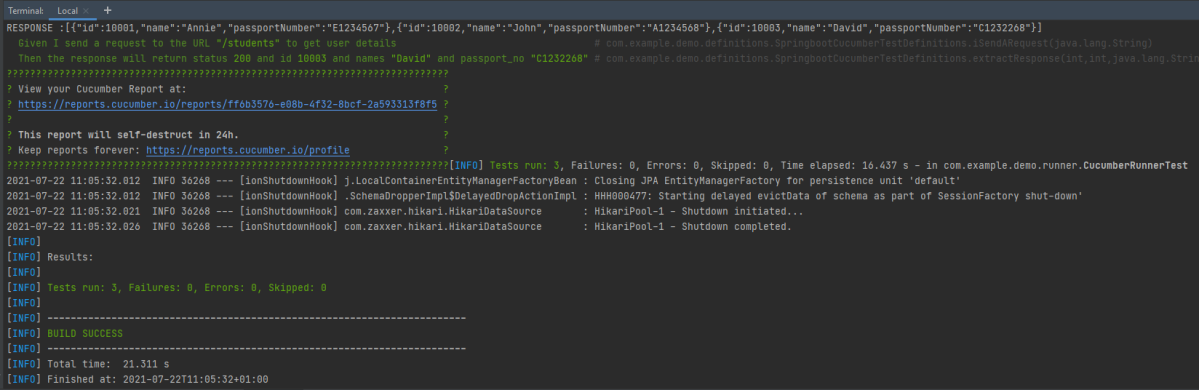
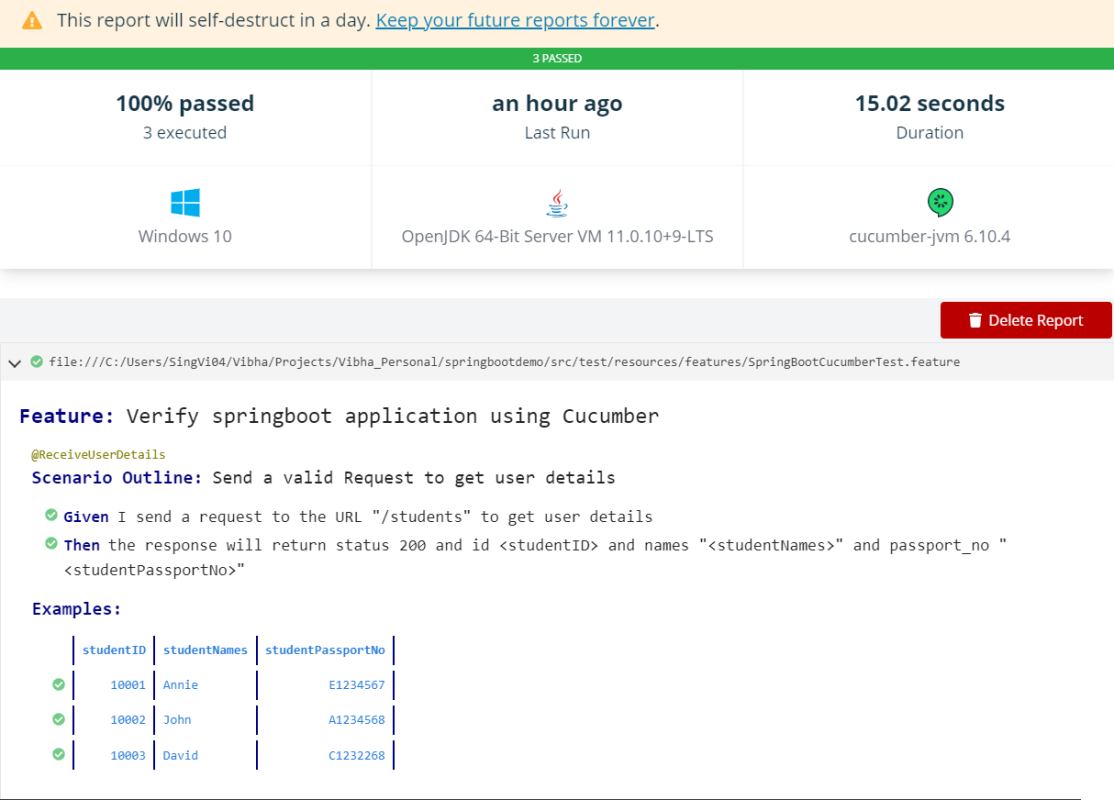
Below is the image of the report generated after the completion of the execution. This report can be saved on GitHub for future use.

That’s it! Congratulations on making it through this tutorial and hope you found it useful! Happy Learning!!

SpringBoot WireMock
SpringBoot Dependency Injection using Autowired
 Testing of Gradle SpringBoot Application with Serenity, Cucumber and JUnit4
Testing of SpringBoot Application with Serenity BDD, Cucumber and JUnit5 
 How to run SpringBoot tests with GitHub Actions

Cucumber Tutorials

 HOME

Cucumber Introduction, Installation, and Configuration

Chapter 1  Introduction of Cucumber Testing Tool (BDD Tool)
Chapter 2 How to install Cucumber Eclipse Plugin
Chapter 3 How to setup Cucumber with Eclipse
Chapter 4 Cucumber – What is Gherkin

Cucumber Scenario, Features & Step Definition

Chapter 1 Cucumber – What is Feature File in Cucumber
Chapter 2 Step Definition in Cucumber
Chapter 3 Cucumber – JUnit Test Runner Class

Cucumber – Hooks & Tags

Chapter 1 Hooks in Cucumber
Chapter 2 Tags in Cucumber
Chapter 3 Conditional Hooks in Cucumber
Chapter 4 What is CucumberOptions in Cucumber?
Chapter 5 Background in Cucumber
Chapter 6 Monochrome in Cucumber
Chapter 7 What is Glue in Cucumber?

Cucumber – Data Driven Testing

Chapter 1 Data Driven Testing using Scenario Outline in Cucumber
Chapter 2 DataTables in Cucumber

Cucumber Integration with Selenium – Maven

Chapter 1 Integration of Cucumber with Selenium and JUnit4
Chapter 2 Integration of Cucumber with Selenium and TestNG
Chapter 3 Page Object Model with Selenium, Cucumber and JUnit
Chapter 4 Page Object Model with Selenium, Cucumber, and TestNG
Chapter 5 Integration of Cucumber7 with Selenium and JUnit5
Chapter 6 Run Cucumber7 with JUnit5 Tests from Maven Command Line
Chapter 7 How to rerun failed tests in Cucumber
Chapter 8 How to create Cucumber Report after rerun of failed tests – NEW
Chapter 9 How to rerun failed tests twice in Cucumber – NEW

Cucumber – Command Line Execution

Chapter 1 Run Cucumber Test from Command Line
Chapter 2 Run Gradle Cucumber Tests from Command Line

Cucumber Integration with Rest API

Chapter 1 Rest API Test in Cucumber BDD
Chapter 2 How To Create Gradle Project with Cucumber to test Rest API

Cucumber Integration with SpringBoot

Chapter 1 Integration Testing of Springboot with Cucumber and JUnit4
Chapter 2 Integration Testing of Springboot with Cucumber and TestNG

Cucumber – Reporting

Chapter 1 Cucumber Tutorial – Cucumber Reports
Chapter 2 Cucumber Report Service
Chapter 3 Implemention of ‘Masterthought’ Reports in Cucumber
Chapter 4 Implemention of ‘Masterthought’ Reports in Cucumber with JUnit4

Cucumber Integration with Allure Reports

Chapter 1 Allure Report with Cucumber5, Selenium and JUnit4
Chapter 2 Allure Report with Cucumber5, Selenium and TestNG
Chapter 3 Integration of Allure Report with Rest Assured and JUnit4
Chapter 4 Integration of Allure Report with Rest Assured and TestNG
Chapter 5 Gradle – Allure Report for Selenium and TestNG

Cucumber Integration with Extent Reports

Chapter 1 ExtentReports Version 5 for Cucumber 6 and TestNG
Chapter 2 How to add Screenshot to Cucumber ExtentReports
Chapter 3 ExtentReports Version 5 for Cucumber 6 and JUnit4
Chapter 4 PDF ExtentReport for Cucumber and TestNG
Chapter 5 ExtentReports Version 5 for Cucumber 7 and TestNG
Chapter 6 Extent Reports Version 5 for Cucumber7 and JUnit5

Cucumber – Parallel Execution

Chapter 1 Parallel Testing in Cucumber with JUnit
Chapter 2 Parallel Testing in Cucumber with TestNG
Chapter 3 Dependency Injection in Cucumber using Pico-Container

Integration Testing of SpringBoot Application with Serenity BDD, Cucumber and JUnit4

HOME

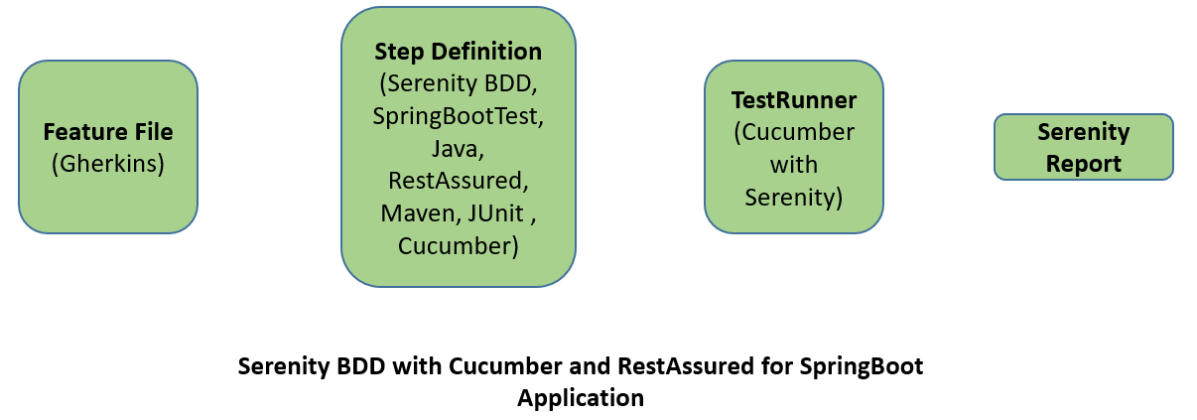
Relationship between SpringBoot, Serenity BDD, Cucumber and Rest Assured

Implementation Steps

  1. Create a source folder – src/test/resources to create test scenarios in the Feature file
  2. Add SpringBoot, Serenity, Cucumber, and JUnit4 dependencies to the project
  3. Create a feature file under src/test/resources
  4. Create the StepDefinition and Helper classes.
  5. Create a Serenity Runner class in the src/test/java directory
  6. Run the tests from JUnit
  7. Run the tests from Command Line
  8. Serenity Report Generation
  9. Cucumber Report Generation

Step 1 – Create a source folder – src/test/resources

Right-click on the test directory and select New->Directory and select resources (Maven Source Directories). Create a source folder – src/test/resources to create test scenarios in the Feature file

Step 2 – Add SpringBoot, Serenity, Cucumber, and JUnit4 dependencies to the project

We have added SpringBootTest, Serenity, Cucumber, JUnit4, and JUnit Vintage.

<?xml version="1.0" encoding="UTF-8"?>
<project xmlns="http://maven.apache.org/POM/4.0.0" xmlns:xsi="http://www.w3.org/2001/XMLSchema-instance"
         xsi:schemaLocation="http://maven.apache.org/POM/4.0.0 https://maven.apache.org/xsd/maven-4.0.0.xsd">
    <modelVersion>4.0.0</modelVersion>

    <parent>
        <groupId>org.springframework.boot</groupId>
        <artifactId>spring-boot-starter-parent</artifactId>
        <version>3.1.0-SNAPSHOT</version>
        <relativePath/> <!-- lookup parent from repository -->
    </parent>

    <groupId>com.example</groupId>
    <artifactId>Springboot_Serenity_Demo</artifactId>
    <version>0.0.1-SNAPSHOT</version>
    <name>Springboot_Serenity_Demo</name>
    <description>Demo project for Spring Boot</description>

    <properties>
        <java.version>11</java.version>
        <serenity.version>3.6.12</serenity.version>
        <maven.surefire.plugin.version>3.0.0-M9</maven.surefire.plugin.version>
        <maven.failsafe.plugin.version>3.0.0-M9</maven.failsafe.plugin.version>
        <parallel.tests></parallel.tests>
        <maven.compiler.plugin.plugin>3.10.1</maven.compiler.plugin.plugin>
        <maven.compiler.source.version>11</maven.compiler.source.version>
        <maven.compiler.target.version>11</maven.compiler.target.version>
        <tags></tags>
    </properties>

    <dependencies>
        <dependency>
            <groupId>org.springframework.boot</groupId>
            <artifactId>spring-boot-starter</artifactId>
        </dependency>

        <dependency>
            <groupId>org.springframework.boot</groupId>
            <artifactId>spring-boot-starter-test</artifactId>
            <scope>test</scope>
        </dependency>

        <dependency>
            <groupId>org.springframework.boot</groupId>
            <artifactId>spring-boot-starter-web</artifactId>
        </dependency>

        <dependency>
            <groupId>org.springframework.boot</groupId>
            <artifactId>spring-boot-starter-tomcat</artifactId>
            <scope>provided</scope>
        </dependency>

        <dependency>
            <groupId>org.springframework</groupId>
            <artifactId>spring-web</artifactId>
        </dependency>

		<!-- Serenity Core -->
        <dependency>
            <groupId>net.serenity-bdd</groupId>
            <artifactId>serenity-core</artifactId>
            <version>${serenity.version}</version>
            <scope>test</scope>
        </dependency>

		<!-- Serenity With JUnit4 -->
        <dependency>
            <groupId>net.serenity-bdd</groupId>
            <artifactId>serenity-junit</artifactId>
            <version>${serenity.version}</version>
            <scope>test</scope>
        </dependency>

		<!-- Serenity With Rest Assured -->
        <dependency>
            <groupId>net.serenity-bdd</groupId>
            <artifactId>serenity-rest-assured</artifactId>
            <version>${serenity.version}</version>
            <scope>test</scope>
        </dependency>

        <!-- Serenity With Cucumber -->
        <dependency>
            <groupId>net.serenity-bdd</groupId>
            <artifactId>serenity-cucumber</artifactId>
            <version>${serenity.version}</version>
            <scope>test</scope>
        </dependency>

        <!-- Serenity With Spring -->
        <dependency>
            <groupId>net.serenity-bdd</groupId>
            <artifactId>serenity-spring</artifactId>
            <version>${serenity.version}</version>
            <scope>test</scope>
        </dependency>

        <dependency>
            <groupId>org.junit.vintage</groupId>
            <artifactId>junit-vintage-engine</artifactId>
            <scope>test</scope>
        </dependency>

    </dependencies>

    <build>
        <plugins>
            <plugin>
                <groupId>org.springframework.boot</groupId>
                <artifactId>spring-boot-maven-plugin</artifactId>
            </plugin>

            <plugin>
                <groupId>org.apache.maven.plugins</groupId>
                <artifactId>maven-surefire-plugin</artifactId>
                <version>${maven.surefire.plugin.version}</version>
                <configuration>
                    <skip>true</skip>
                </configuration>
            </plugin>
            <plugin>
                <groupId>org.apache.maven.plugins</groupId>
                <artifactId>maven-failsafe-plugin</artifactId>
                <version>${maven.failsafe.plugin.version}</version>
                <configuration>
                    <includes>
                        <include>SpringRunnerTests.java</include>
                        <include>**/Test*.java</include>
                    </includes>
                    <parallel>methods</parallel>
                    <threadCount>${parallel.tests}</threadCount>
                    <forkCount>${parallel.tests}</forkCount>
                </configuration>
                <executions>
                    <execution>
                        <goals>
                            <goal>integration-test</goal>
                            <goal>verify</goal>
                        </goals>
                    </execution>
                </executions>
            </plugin>
            <plugin>
                <groupId>org.apache.maven.plugins</groupId>
                <artifactId>maven-compiler-plugin</artifactId>
                <version>${maven.compiler.plugin.plugin}</version>
                <configuration>
                    <source>${maven.compiler.source.version}</source>
                    <target>${maven.compiler.target.version}</target>
                </configuration>
            </plugin>

            <plugin>
                <groupId>net.serenity-bdd.maven.plugins</groupId>
                <artifactId>serenity-maven-plugin</artifactId>
                <version>${serenity.version}</version>
                <configuration>
                    <tags>${tags}</tags>
                </configuration>
                <dependencies>
                    <dependency>
                        <groupId>net.serenity-bdd</groupId>
                        <artifactId>serenity-core</artifactId>
                        <version>${serenity.version}</version>
                    </dependency>
                </dependencies>
                <executions>
                    <execution>
                        <id>serenity-reports</id>
                        <phase>post-integration-test</phase>
                        <goals>
                            <goal>aggregate</goal>
                        </goals>
                    </execution>
                </executions>
            </plugin>
        </plugins>
    </build>
    <repositories>
        <repository>
            <id>spring-milestones</id>
            <name>Spring Milestones</name>
            <url>https://repo.spring.io/milestone</url>
            <snapshots>
                <enabled>false</enabled>
            </snapshots>
        </repository>
        <repository>
            <id>spring-snapshots</id>
            <name>Spring Snapshots</name>
            <url>https://repo.spring.io/snapshot</url>
            <releases>
                <enabled>false</enabled>
            </releases>
        </repository>
    </repositories>
    <pluginRepositories>
        <pluginRepository>
            <id>spring-milestones</id>
            <name>Spring Milestones</name>
            <url>https://repo.spring.io/milestone</url>
            <snapshots>
                <enabled>false</enabled>
            </snapshots>
        </pluginRepository>
        <pluginRepository>
            <id>spring-snapshots</id>
            <name>Spring Snapshots</name>
            <url>https://repo.spring.io/snapshot</url>
            <releases>
                <enabled>false</enabled>
            </releases>
        </pluginRepository>
    </pluginRepositories>

</project>

Step 3 – Create a feature file under src/test/resources

Below is an example of a feature file which shows a sample test scenario.

Feature: SpringBoot Request
   
@ReceiveCorrectResponse

   Scenario Outline: Send a valid Request to get correct response
    Given I send a request to the URL "<url>"
    Then the response will return "<response>"

   Examples:
   | url             | response                   |
   | /               | Hello World, Spring Boot!  |
   | /qaautomation   | Hello QA Automation!       |

The test class mentioned below (AbstractRestAssuredHelper) contains integration tests for the spring boot rest controller mentioned. This test class:

  • uses @SpringBootTest annotation which loads the actual application context.
  • uses WebEnvironment.RANDOM_PORT to create and run the application at some random server port.
  • @LocalServerPort gets the reference of the port where the server has started. It helps in building the actual request URIs to mimic real client interactions.

Step 4 – Create the StepDefinition and Helper classes

Below is the code of the StepDefinition and Helper class. These classes are created in the src/test/java directory.

AbstractRestAssuredHelper

import org.springframework.boot.test.context.SpringBootTest;
import org.springframework.boot.test.web.server.LocalServerPort;
import io.restassured.RestAssured;
import io.restassured.specification.RequestSpecification;
import net.serenitybdd.rest.SerenityRest;
import org.springframework.boot.test.context.SpringBootTest.WebEnvironment;

@SpringBootTest(webEnvironment = WebEnvironment.RANDOM_PORT)
public abstract class AbstractRestAssuredHelper {
     private final static String BASE_URI = "http://localhost";
 
     @LocalServerPort
     private int port;
 
     protected void configureRestAssured() {
           RestAssured.baseURI = BASE_URI;
           RestAssured.port = port;    
 
     }

     protected RequestSpecification getAnonymousRequest() {
           configureRestAssured();
           return SerenityRest.given();
     }
}

This class sends the request and receives a response after performing the GET operation. Here, the validation of the response also takes place by asserting the expected and actual response

To use Rest-assured, Serenity provides the class SerenityRest

import org.junit.Assert;
import io.cucumber.java.en.Given;
import io.cucumber.java.en.Then;
import io.restassured.response.Response;
import net.serenitybdd.rest.SerenityRest;
import net.thucydides.core.annotations.Steps;

public class SpringBootDemoDefinitions {

	@Steps
    AbstractRestAssuredHelper helper;
    private Response response;

    @Given("I send a request to the URL {string}")
    public void iSendARequest(String endpoint) throws Exception  {
         response = helper.getAnonymousRequest().contentType("application/json")
                    .header("Content-Type", "application/json").when().get(endpoint);
    }

    @Then("the response will return {string}")
    public void extractResponse(String Expected ) {
          SerenityRest.restAssuredThat(response -> response.statusCode(200));
          String Actual = response.asString();    
          Assert.assertEquals(Expected, Actual); 
    }
}

Step 5 – Create a Serenity Runner class in the src/test/java directory

We cannot run a Feature file on its own in cucumber-based framework. We need to create a Java class that will run the Feature File. It is the starting point for JUnit to start executing the tests. TestRunner class is created under src/ test/javaWhen you run the tests with serenity, you use the CucumberWithSerenity test runner. If the feature files are not in the same package as the test runner class, you also need to use the @CucumberOptions class to provide the root directory where the feature files can be found.

import org.junit.runner.RunWith;
import io.cucumber.junit.CucumberOptions;
import net.serenitybdd.cucumber.CucumberWithSerenity;

@RunWith(CucumberWithSerenity.class)
@CucumberOptions(features = "src/test/resources", tags = "", glue = "com.example.Springboot_Serenity_Demo.definitions", publish = true)

public class SpringRunnerTests {

}

Step 6 – Run the tests from JUnit

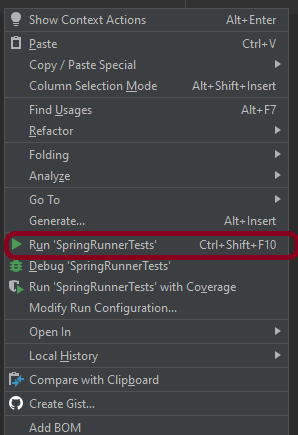
You can run the tests from SpringRunnerTests class. Right-click on the class and select Run ‘SpringRunnerTests’.

Step 7 – Run the tests from Command Line

Run the tests from the command line by using the below command

mvn clean verify

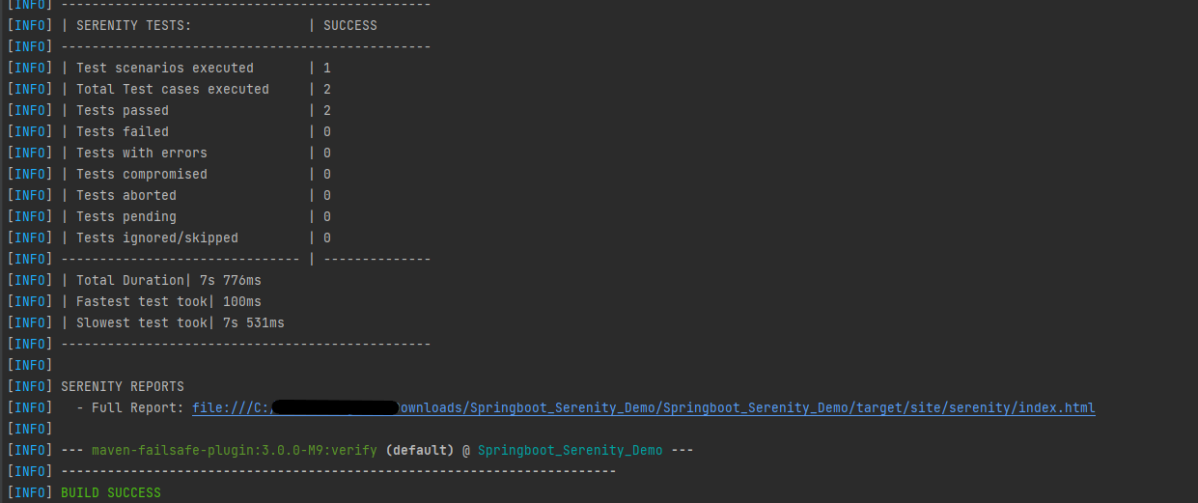
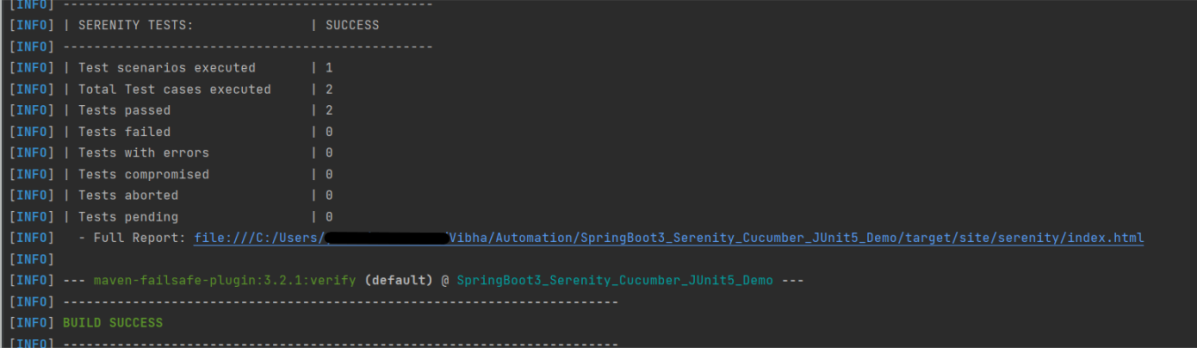
The output of the above program is

The test execution status is shown below:

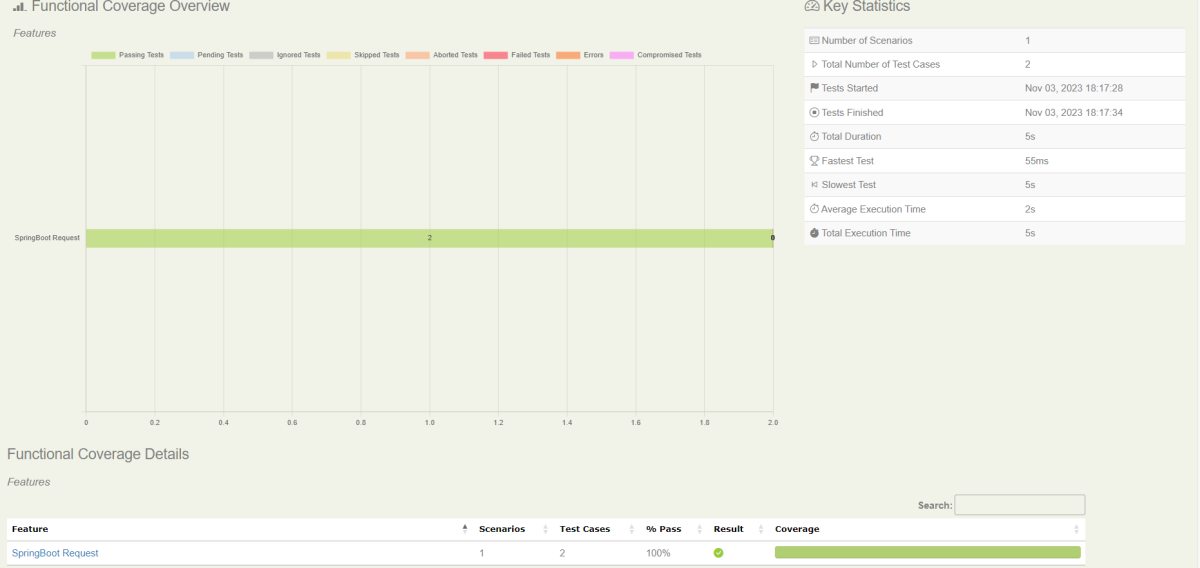
Step 8 – Serenity Report Generation

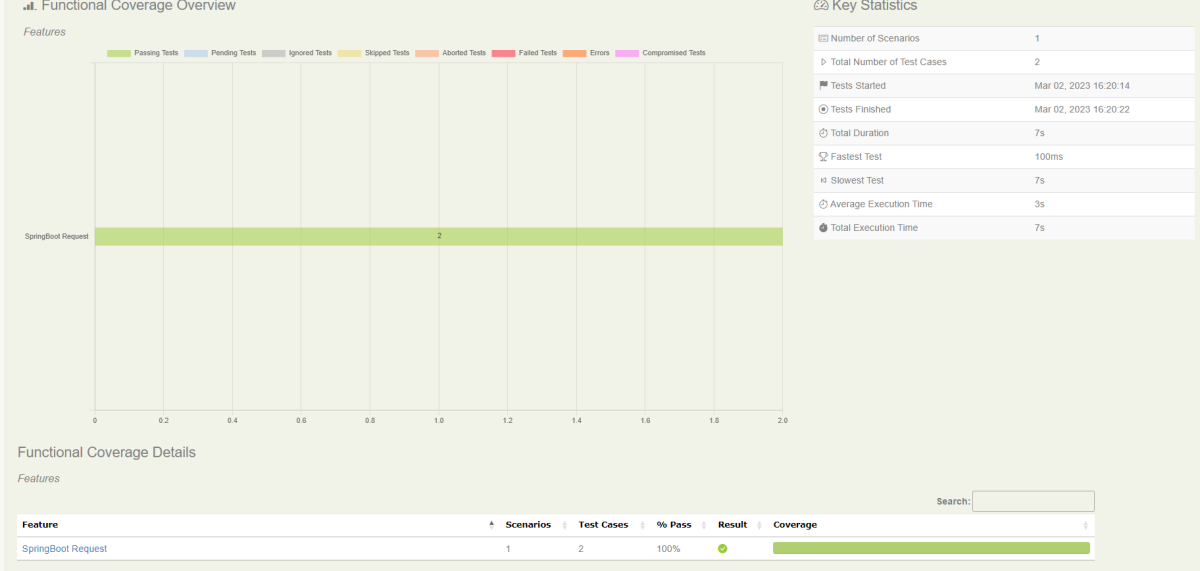
By default, the test report generated by Serenity is placed under target/site/serenity/index.html. Below is the sample Serenity Report.

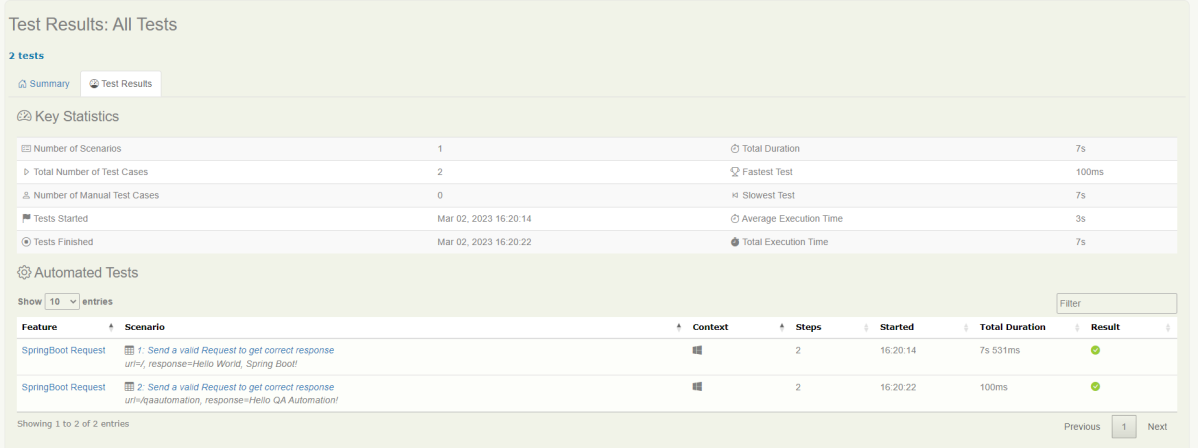
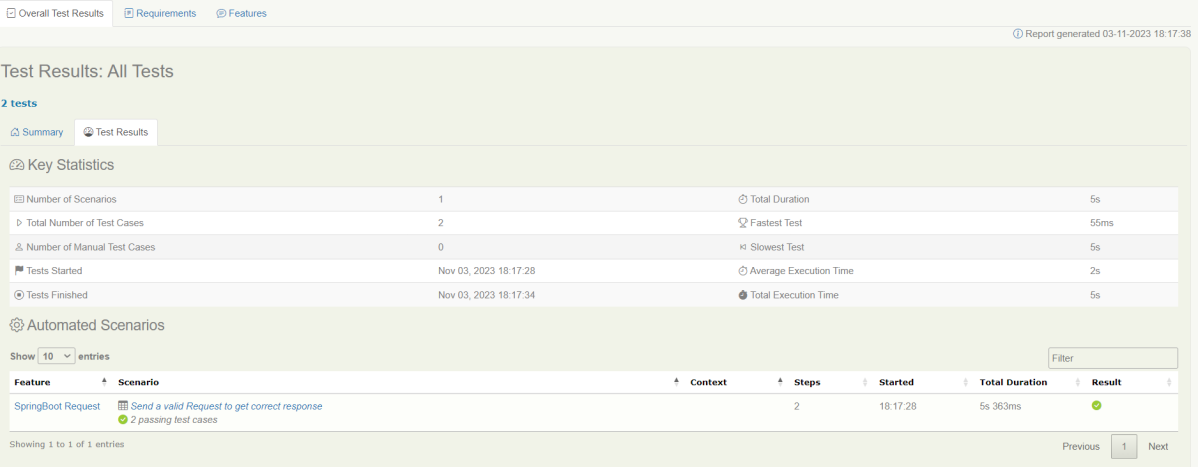
Go to the Test Results tab and we can see all the test scenarios.

Step 9 – Cucumber Report Generation

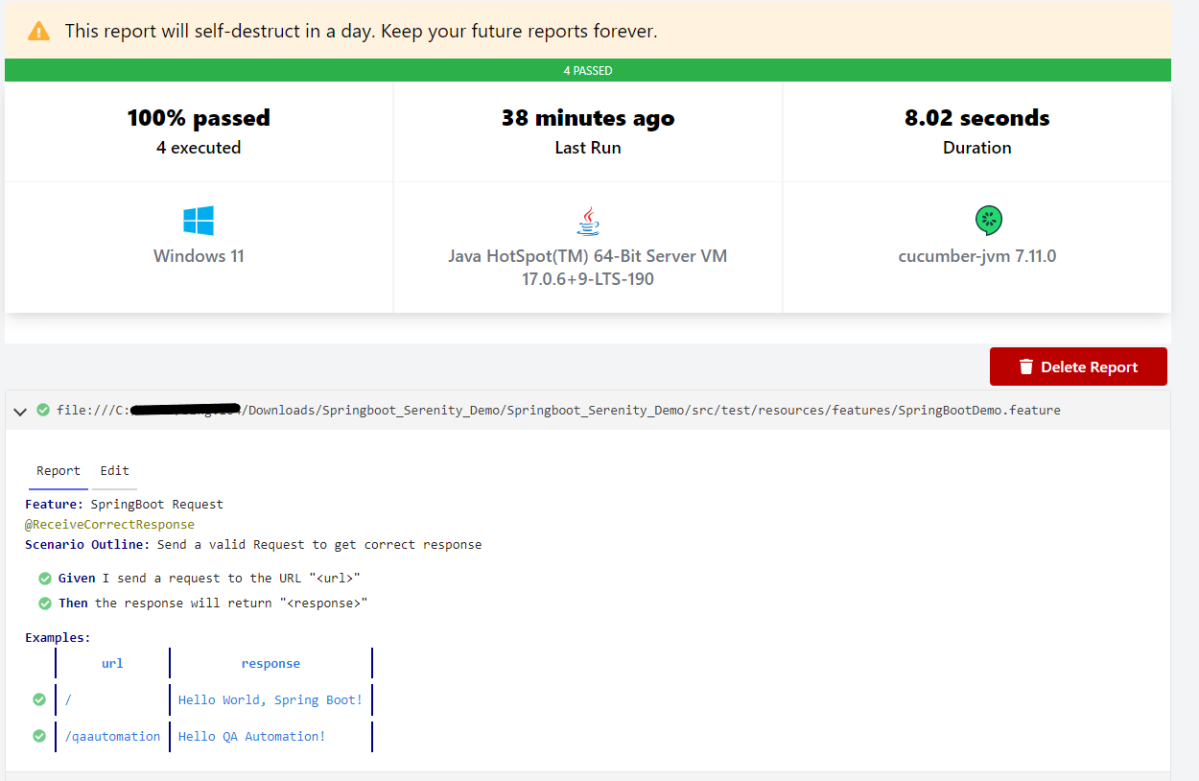
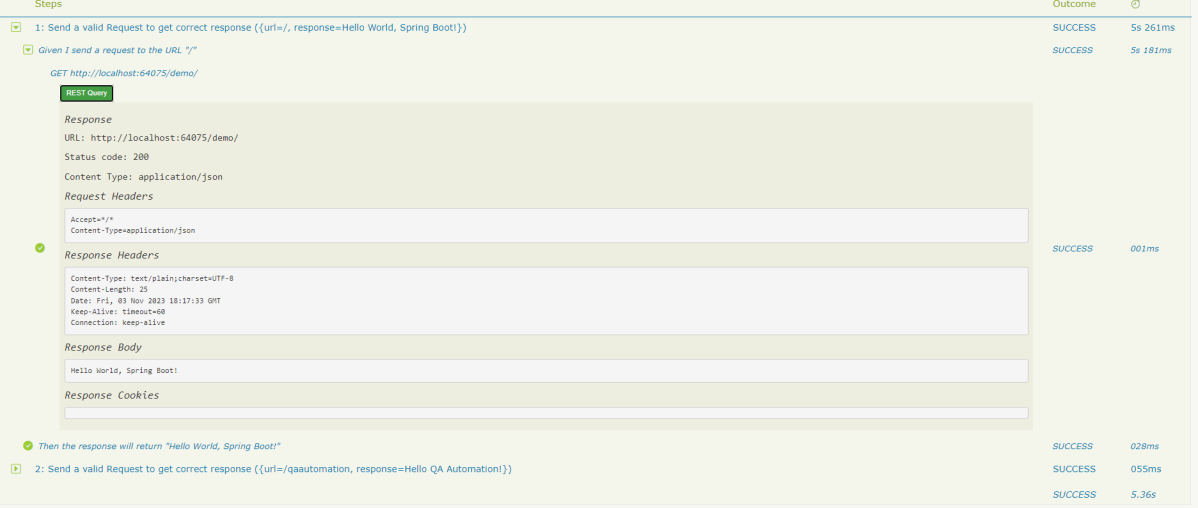
Cucumber Report can be generated by adding publish=true in SpringRunnerTests as shown in the above example. Click on the link provided in the execution status.

Cucumber Report

The next tutorial explains about the Testing of SpringBoot REST Application using Serenity BDD and Rest Assured for GET Method.

The complete code can be found in GitHub.

How to run scheduled jobs using GitLab CI/CD

Last Updated On

HOME

This tutorial explains the process to schedule the run of the GitLab pipeline. This is a very important step towards achieving CI/CD.

Table of Contents

  1. Prerequisite
  2. What is GitLab CI/CD Workflow?
  3. GitLab Section
    1. Create a blank project in GitLab
    2. Push the project from the local repository to GitLab Repository
    3. Create a .gitlab-ci.yml file in the project in GitLab
    4. Schedule the pipeline
    5. Verify that the job is scheduled
    6. Run the tests in the GitLab pipeline
    7. Check the status of the pipeline
    8. Download the report
  4. How to schedule a cron job?

Prerequisite:

  1. GitLab Account

Please refer to this tutorial to get the structure and code of the SpringBoot project – Testing of SpringBoot Application with JUnit5

What is GitLab CI/CD Workflow?

GitLab automatically enables CI/CD pipelines for new projects. It’s just a matter of adding a new configuration file called .gitlab-ci.yml to your code repository with instructions for GitLab on what to run. So simply create the following basic workflow in your main repository directory and commit it:

By default, GitLab will have CI/CD pipelines and Auto DevOps enabled for all projects. What this means is that, when you push code to the repository, GitLab will automatically trigger the pipeline.

GitLab Section

Step 1 – Create a blank project in GitLab

To know, how to create a blank new project in GitLab, please refer to How to create a new project in GitLab.

Step 2 – Push the project from the local repository to GitLab Repository

To know, how to push the changes to GitLab, please refer to How to push new local GIT Repository to GitLab.

Step 3 – Create a .gitlab-ci.yml file in the project in GitLab

There are many ways to create a new file in GitLab. One of the ways is to create a file as shown in the below image. I have already created a .gitlab-ci.yml in the project, which can be seen in the image.

It is a YAML file where you configure specific instructions for GitLab CI/CD. In the .gitlab-ci.yml, we can define:

  • The scripts you want to run.
  • Other configuration files and templates you want to include.
  • Dependencies and caches.
  • The commands you want to run in sequence and those you want to run in parallel.
  • The location to deploy your application to.
  • Whether you want to run the scripts automatically or trigger any of them manually.

Below is a sample example to run the SpringBoot project (Maven) in the GitLab pipeline.

image: maven:3.8.5-openjdk-17
 
stages:
  - test
 
variables:
  MAVEN_OPTS: "-Dmaven.repo.local=.m2/repository"
 
test:
  stage: test
  allow_failure: true
 
# Run the tests
  script:
    - echo "Executing SpringBoot scenarios with maven"
    - mvn clean test site
 
# Store artifacts
  artifacts:
    when: always
    name: "SpringBoot Report"
    paths:
    - target/site/*
    expire_in: 24 h

Image – maven:3.8.5-openjdk-17 is used in this test. It is a docker image for Maven and has Java 17 installed in it.

Pipeline configuration begins with jobs. Jobs are the most fundamental element of a  .gitlab-ci.yml file.

Jobs can output an archive of files and directories. This output is known as a job artifact. The expire_in keyword determines how long GitLab keeps the job artifacts. Here, it shows 24 hrs to retain the artifacts.

Step 4 – Schedule the pipeline

To schedule the pipeline, go to the left panel and click on the Build option. There are several sub-options in the Build option, click on the Pipeline Schedules.

Click on the button “New Schedule” to create a schedule for the pipeline.

To add a pipeline schedule, we need to fill in the details displayed on this page.

  1. Description – Provide the description of the project
  2. Interval Pattern – Select one of the preconfigured intervals, or enter a custom interval in cron notation. Here, I have used 30 16 * * *, which means the job is scheduled to run every day at 4:30 PM.
  3. Cron TimeZone – Mention the timezone in which the job should run. Here, I have used [UTC+1]Dublin timezone.
  4. Target branch or tag – Select the branch or tag for the pipeline. Here, I have selected the “main” branch.

Click on the “Save pipeline schedule”.

Step 5 – Verify that the job is scheduled

Below is the image of the newly created pipeline. This shows all the necessary details like description, target, last pipeline, next run, and owner.

The “Next Run” shows the expected time to run the pipeline. Here, it shows that the run is going to start.

This image shows that the run has started, and it is in a pending state right now.

Step 6 – Run the tests in the GitLab pipeline

The pipeline runs automatically as per the time specified in the “Interval Pattern”. The below image shows that the tests are running in the GitLab pipeline.

Step 7 – Check the status of the pipeline

Once the Status of the pipeline changes to either failed or passed, that means the tests are already executed.

As you can see, the Status is passed, its green colour. This means all the tests present in the test suite are executed and passed. If any test fails in the test suite, the final execution status will be brown. The reason for the brown colour is we have mentioned allow_failure: true.

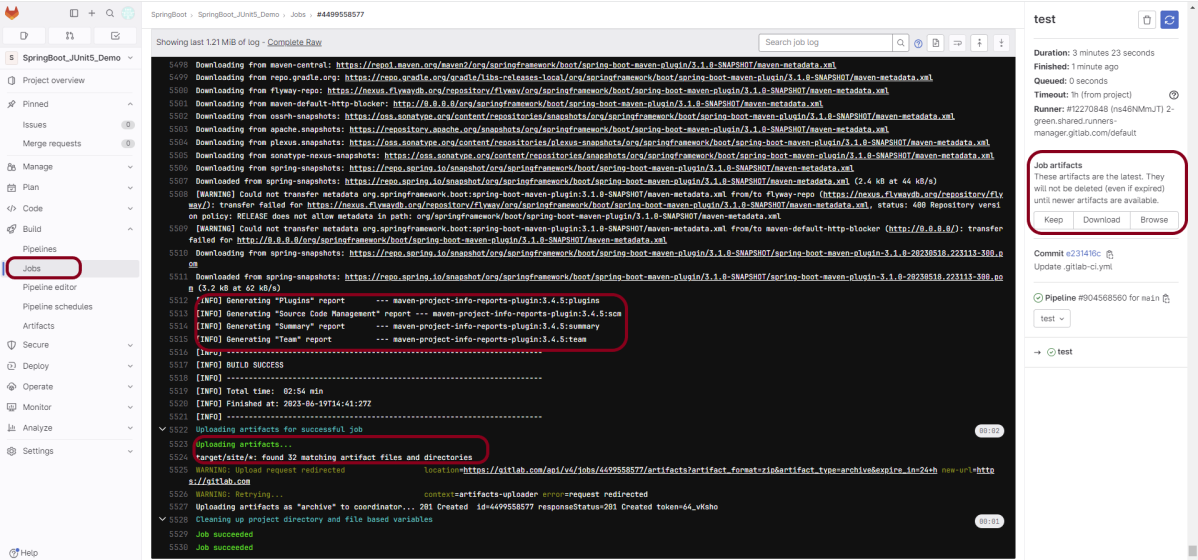
Below is the execution status report in the GitLab pipeline.

I have added an artifact also in the .gitalb-ci.yml, which is highlighted in the image. This artifact creates a folder with the name “SpringBoot_Report” and the reports in this folder come from the path /target/site. This artifact gives us the option to download the reports or browse the report. This report will be available for 24 hours only as mentioned in the gitlab-ci.yml.

Step 8 – Download the report

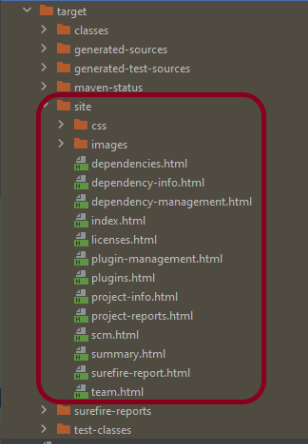
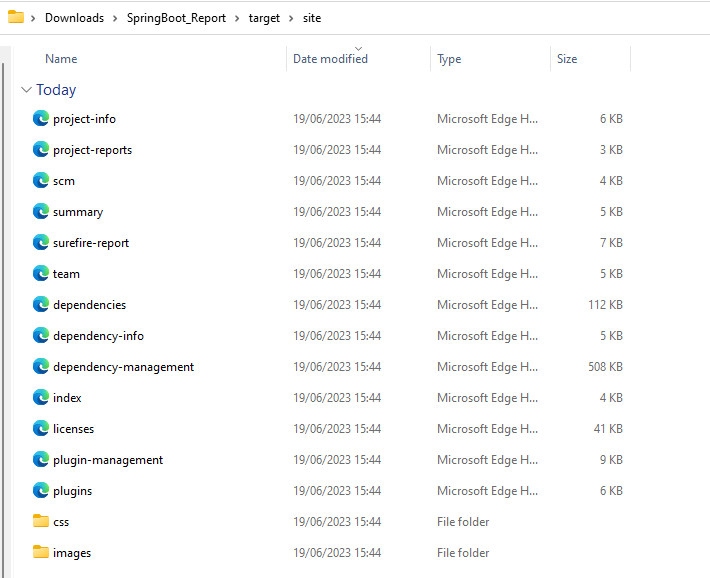
Once, will click on the download button, it will download “SpringBoot_Report.zip”. Unzip the folder and it looks like something as shown below:

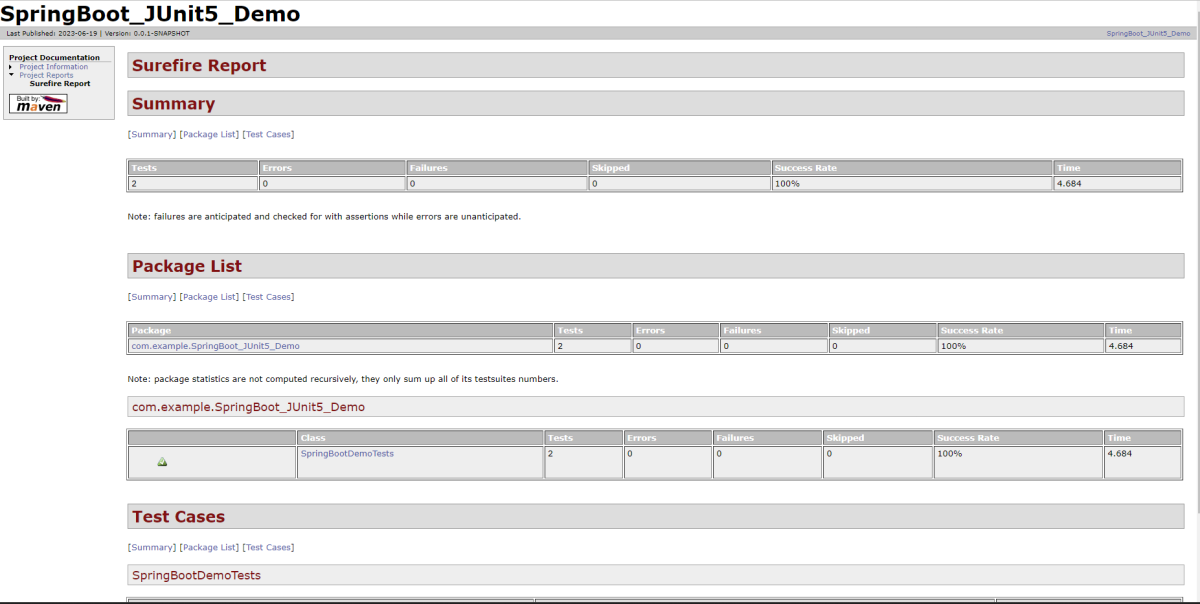
Example of SureFire-Report.html

Example of Project Summary Report

How to schedule a cron job?

Five fields that are separated by whitespace make up a scheduling item. By adding more than one entry, you can schedule a job for more than one time.

MinuteHourDay of MonthMonthDay of week

MINUTE (0-59), HOUR (0-23), DAY (1-31), MONTH (1-12), DAY OF THE WEEK (0-6)

Each field can contain an exact value or use a set of special expressions:

  • The asterisk indicates all valid values. So, a job that runs every day has a * in the third field.
  • A dash separates ranges of values. For example, a job that runs every hour from 9:00 a.m. to 5:00 p.m. would have 9-17 in the second field.
  • Intervals are specified with a slash /. A job that runs every 15 minutes has H/15 in the first field. Note that the in the first field has a special meaning. If you wanted a job to run every 15 minutes, you could configure it as 0/15, which would make it run at the start of every hour.
  • Finally, you can specify multiple values with a comma. So, a job that runs Monday, Wednesday, and Friday would have 1,3,5 in the fifth field.

Here are several special predefined values that can be used to substitute the expressions in the cron.

EntryDescriptionDescription
@yearlyRun at any time during the yearH H H H *
@annuallyRun at any time during the yearH H H H *
@monthlyRun at any time during the monthH H H * *
@weeklyRun at any time during the weekH H * * H
@dailyRun at any time during the dayH H * * *
@hourlyRun at any time during the hourH * * * *

Here are the most common examples of cron job schedules that can be found in almost any crontab on Linux :

ScheduleJob
* * * * *Run cron job every minute
H/5 * * * *Run cron job every 5 minutes
H/30 * * * *Run cron job every 30 minutes
0 * * * *Run cron job every hour
0 H/3 * * *Run cron job every 3 hours
0 13 * * *Run cron job every day at 1pm
30 2 * * *Run cron job every day at 2:30 am
0 0 * * *Run cron job every day at midnight
0 0 * * 0Run cron job every Sunday
0 0 * * 1Run cron job every Monday
0 0 1 * *Run cron job every first day of every month
0 0 1 1 *Run cron job every first of January every year

Congratulations. This tutorial has explained the steps to schedule the pipeline in GitLab CI/CD. Happy Learning!!

How to run SpringBoot project in GitLab CI/CD

Last Modified Date

HOME

This tutorial explains the process to run the SpringBoot project in the GitLab pipeline. This is a very important step towards achieving CI/CD.

Prerequisite:

  1. SpringBoot Starter Parent – 3.1.0
  2. Rest Assured – 5.3.0
  3. Java 17
  4. Maven – 3.8.6
  5. GitLab Account

Please refer to this tutorial to get the structure and code of the SpringBoot project – Testing of SpringBoot Application with JUnit5

What is GitLab CI/CD Workflow?

GitLab automatically enables CI/CD pipelines for new projects. It’s just a matter of adding a new configuration file called .gitlab-ci.yml to your code repository with instructions for GitLab on what to run. So simply create the following basic workflow in your main repository directory and commit it:

By default, GitLab will have CI/CD pipelines and Auto DevOps enabled for all projects. What this means is that, when you push code to the repository, GitLab will automatically trigger the pipeline.

GitLab Section

Step 1 – Create a blank project in GitLab

To know, how to create a blank new project in GitLab, please refer to How to create a new project in GitLab.

Step 2 – Push the project from the local repository to Gitlab Repository

To know, how to push the changes to GitLab, please refer to How to push new local GIT Repository to GitLab.

Step 3 – Create a .gitlab-ci.yml file in the project in GitLab

There are many ways to create a new file in GitLab. One of the ways is to create a file as shown in the below image. I have already created .gitlab-ci.yml in the project, which can be seen in the image.

It is a YAML file where you configure specific instructions for GitLab CI/CD. In the .gitlab-ci.yml, we can define:

  • The scripts you want to run.
  • Other configuration files and templates you want to include.
  • Dependencies and caches.
  • The commands you want to run in sequence and those you want to run in parallel.
  • The location to deploy your application to.
  • Whether you want to run the scripts automatically or trigger any of them manually.

Below is a sample example to run the SpringBoot project (Maven) in the GitLab pipeline.

image: maven:3.8.5-openjdk-17
 
stages:
  - test
 
variables:
  MAVEN_OPTS: "-Dmaven.repo.local=.m2/repository"
 
test:
  stage: test
  allow_failure: true
 
# Run the tests
  script:
    - echo "Executing SpringBoot scenarios with maven"
    - mvn clean test site
 
# Store artifacts
  artifacts:
    when: always
    name: "SpringBoot Report"
    paths:
    - target/site/*
    expire_in: 24 h

Image – maven:3.8.5-openjdk-17 is used in this test. It is a docker image for Maven and have Java 17 installed in it.

Pipeline configuration begins with jobs. Jobs are the most fundamental element of a  .gitlab-ci.yml file.

Jobs are:

  • Defined with constraints stating under what conditions they should be executed.
  • Top-level elements with an arbitrary name and must contain at least the script clause.
  • Not limited in how many can be defined.

Jobs can output an archive of files and directories. This output is known as a job artifact. The expire_in keyword determines how long GitLab keeps the job artifacts. Here, it shows 24 hrs to retain the artifacts.

Step 4 – View GitLab Pipeline

Now, when a new change is committed, a pipeline kicks off and it runs all the tests. To view the pipeline, go to the left panel and click on the Build option. There are a number of sub-options in the Build option, click on the Pipelines.

Step 5 – Run the tests in the GitLab pipeline

The below image shows that the tests are running in the GitLab pipeline.

Step 6 – Manually run the tests in the GitLab pipeline

Whenever there is a new change committed, the pipeline runs automatically. Imagine the scenario when we need to run the pipeline without any new change. This can be done by clicking on the button “Run pipeline”.

Step 7 – Check the status of the pipeline

Once the Status of the pipeline changes to either failed or passed, that means the tests are already executed.

As you can see, the Status is passed, its green colour. This means all the tests present in the test suite are executed and passed. If any test fails in the test suite, the final execution status will be brown. The reason for the brown colour is we have mentioned allow_failure: true.

Below shows the execution status report in the GitLab pipeline.

As I have added an artifact also in the .gitalb-ci.yml, which is highlighted in the image. This artifact creates a folder with the name “Serenity_Report” and the reports in this folder come from the path /target/site. This artifact gives us the option to download the reports or browse the report. This report will be available for 24 hours only as mentioned in the gitlab-ci.yml.

Step 8 – Download the report

Once, will click on the download button, it will download “SpringBoot_Report.zip”. Unzip the folder and it looks like something as shown below:

Example of SureFire-Report.html

Example of Project Summary Report

Congratulations. This tutorial has explained the steps to run Serenity tests in GitLab CI/CD. Happy Learning!!

Testing of SpringBoot Application with JUnit5

HOME

In the previous tutorial, I explained about SpringBoot and how to perform Integration testing of SpringBoot Application. In this tutorial, I will explain about the Testing of the SpringBoot Application with JUnit5.

Prerequisite:

Spring Boot 3.0.4 requires Java 17 and is compatible with and including Java 19. Spring Framework 6.0.6 or above is also required.

Explicit build support is provided for the following build tools:

  1. Maven – 3.5+
  2. Gradle – 7.x (7.5 or later) and 8.x

Dependency List

  1. SpringBoot Starter Parent – 3.1.0
  2. Rest Assured – 5.3.0
  3. Java 17
  4. Maven – 3.8.6

What is SpringBoot Application?

 Spring Boot is an open-source micro-framework that provides Java developers with a platform to get started with an auto-configurable production-grade Spring application. 

  • Comes with embedded HTTP servers like Tomcat or Jetty to test web applications.
  • Adds many plugins that developers can use to work with embedded and in-memory databases easily. Spring allows you to easily connect with database and queue services like Oracle, PostgreSQL, MySQL, MongoDB, Redis, Solr, ElasticSearch, Rabbit MQ, and others.

Project Directory Structure

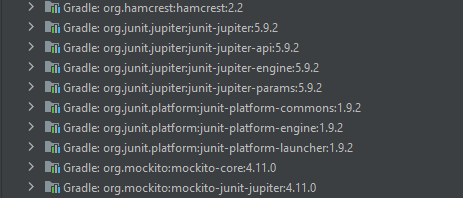
SpringBoot – 3.1.0-SNAPSHOT contains the JUnit 5 dependencies in it as shown in the below image. So, we don’t need to add them explicitly to the build.gradle.

Implementation Steps

Step 1 – Create a source folder – src/test/resources

Right-click on the test directory, select New->Directory and select resources (Maven Source Directories).

Step 2 – Add SpringBoot, and JUnit5 dependencies to the project

We have added SpringBootTest, and JUnit5 dependencies to pom.xml.

<?xml version="1.0" encoding="UTF-8"?>
<project xmlns="http://maven.apache.org/POM/4.0.0" xmlns:xsi="http://www.w3.org/2001/XMLSchema-instance"
	xsi:schemaLocation="http://maven.apache.org/POM/4.0.0 https://maven.apache.org/xsd/maven-4.0.0.xsd">
	<modelVersion>4.0.0</modelVersion>
	<parent>
		<groupId>org.springframework.boot</groupId>
		<artifactId>spring-boot-starter-parent</artifactId>
		<version>3.1.0-SNAPSHOT</version>
		<relativePath/> <!-- lookup parent from repository -->
	</parent>

	<groupId>com.example</groupId>
	<artifactId>SpringBoot_JUnit5_Demo</artifactId>
	<version>0.0.1-SNAPSHOT</version>
	<name>SpringBoot_JUnit5_Demo</name>
	<description>Demo project for Spring Boot</description>

	<properties>
		<java.version>17</java.version>
		<junit-jupiter.version>5.9.2</junit-jupiter.version>
		<rest.assured.version>5.3.0</rest.assured.version>
		<maven.compiler.plugin.version>3.10.1</maven.compiler.plugin.version>
		<maven.compiler.source.version>17</maven.compiler.source.version>
		<maven.compiler.target.version>17</maven.compiler.target.version>
		<maven.surefire.plugin.version>3.0.0-M9</maven.surefire.plugin.version>
		<maven.failsafe.plugin.version>3.0.0-M9</maven.failsafe.plugin.version>
		<maven.site.plugin.version>3.12.0</maven.site.plugin.version>
		<maven.surefire.report.plugin.version>3.0.0-M6</maven.surefire.report.plugin.version>
	</properties>

	<dependencies>
		<dependency>
			<groupId>org.springframework.boot</groupId>
			<artifactId>spring-boot-starter</artifactId>
		</dependency>

		<dependency>
			<groupId>org.springframework.boot</groupId>
			<artifactId>spring-boot-starter-test</artifactId>
			<scope>test</scope>
		</dependency>

		<dependency>
			<groupId>org.springframework.boot</groupId>
			<artifactId>spring-boot-starter-web</artifactId>
		</dependency>

		<dependency>
			<groupId>org.springframework.boot</groupId>
			<artifactId>spring-boot-starter-tomcat</artifactId>
			<scope>provided</scope>
		</dependency>

		<dependency>
			<groupId>org.springframework</groupId>
			<artifactId>spring-web</artifactId>
		</dependency>

		<!-- Rest Assured -->
		<dependency>
			<groupId>io.rest-assured</groupId>
			<artifactId>rest-assured</artifactId>
			<version>${rest.assured.version}</version>
			<scope>test</scope>
		</dependency>


	</dependencies>

	<build>
		<plugins>
			<plugin>
				<groupId>org.springframework.boot</groupId>
				<artifactId>spring-boot-maven-plugin</artifactId>
				<version>3.0.4</version>
			</plugin>

			<plugin>
				<groupId>org.apache.maven.plugins</groupId>
				<artifactId>maven-site-plugin</artifactId>
				<version>${maven.site.plugin.version}</version>
			</plugin>

			<plugin>
				<groupId>org.apache.maven.plugins</groupId>
				<artifactId>maven-surefire-plugin</artifactId>
				<version>${maven.surefire.plugin.version}</version>
				<configuration>
					<testFailureIgnore>true</testFailureIgnore>
				</configuration>
			</plugin>
			
			<plugin>
				<groupId>org.apache.maven.plugins</groupId>
				<artifactId>maven-compiler-plugin</artifactId>
				<version>${maven.compiler.plugin.version}</version>
				<configuration>
					<source>${maven.compiler.source.version}</source>
					<target>${maven.compiler.target.version}</target>
				</configuration>

			</plugin>
		</plugins>
	</build>
	
	<reporting>
		<plugins>
			<plugin>
				<groupId>org.apache.maven.plugins</groupId>
				<artifactId>maven-surefire-report-plugin</artifactId>
				<version>${maven.surefire.report.plugin.version}</version>
			</plugin>
		</plugins>
	</reporting>

	<repositories>
		<repository>
			<id>spring-milestones</id>
			<name>Spring Milestones</name>
			<url>https://repo.spring.io/milestone</url>
			<snapshots>
				<enabled>false</enabled>
			</snapshots>
		</repository>
		<repository>
			<id>spring-snapshots</id>
			<name>Spring Snapshots</name>
			<url>https://repo.spring.io/snapshot</url>
			<releases>
				<enabled>false</enabled>
			</releases>
		</repository>
	</repositories>
	
	<pluginRepositories>
		<pluginRepository>
			<id>spring-milestones</id>
			<name>Spring Milestones</name>
			<url>https://repo.spring.io/milestone</url>
			<snapshots>
				<enabled>false</enabled>
			</snapshots>
		</pluginRepository>
		
		<pluginRepository>
			<id>spring-snapshots</id>
			<name>Spring Snapshots</name>
			<url>https://repo.spring.io/snapshot</url>
			<releases>
				<enabled>false</enabled>
			</releases>
		</pluginRepository>
	</pluginRepositories>

</project>

Step 3 – Create the Test classes

  • uses @SpringBootTest annotation which loads the actual application context.
  • uses WebEnvironment.RANDOM_PORT to create and run the application at some random server port.
  • @LocalServerPort gets the reference of the port where the server has started. It helps in building the actual request URIs to mimic real client interactions.

Below is the code of the Test class. These classes are created in the src/test/java directory.

import io.restassured.response.ValidatableResponse;
import org.junit.jupiter.api.Assertions;
import org.junit.jupiter.api.Test;
import org.springframework.beans.factory.annotation.Value;
import org.springframework.boot.test.context.SpringBootTest;
import org.springframework.boot.test.web.server.LocalServerPort;
import static io.restassured.RestAssured.given;

@SpringBootTest(webEnvironment = SpringBootTest.WebEnvironment.RANDOM_PORT)
public class SpringBootDemoTests {

    private final static String BASE_URI = "http://localhost:";

    @LocalServerPort
    private int port;

    @Value("${server.servlet.context-path}")
    private String basePath;

    private ValidatableResponse response;

    @Test
    public void verifyController1() throws Exception  {
         response = given().contentType("application/json")
                    .header("Content-Type", "application/json")
                 .when().get(BASE_URI + port + basePath+ "/").then().statusCode(200);

         String Actual = response.extract().asString();
          System.out.println("Result :"+Actual);
          Assertions.assertEquals("Hello World, Spring Boot!", Actual);
    }

    @Test
    public void verifyController2() throws Exception  {
        response = given().contentType("application/json")
                .header("Content-Type", "application/json")
                .when().get(BASE_URI + port + basePath+ "/qaautomation").then().statusCode(200);

        String Actual = response.extract().asString();
        System.out.println("Result :"+Actual);
        Assertions.assertEquals("Hello QA Automation!", Actual);
    }
}

This class sends the request and receives a response after performing the GET operation. Here, the validation of the response also takes place by asserting the expected and actual response

Step 4 – Create an application.properties file in src/test/resources

Application.properties is created under src/test/java

spring.profiles.active=test
server.port=8089
server.servlet.context-path=/demo

spring.profiles.active – property to specify which profiles are active. The default profile is always active.
server.port – By default, the embedded server starts on port 8080. Now the server will start on port 8089
server.servlet.context-path – the context path in Spring Boot can be changed by setting a property, server.servlet.context-path.

Step 5 – Run the tests from JUnit5

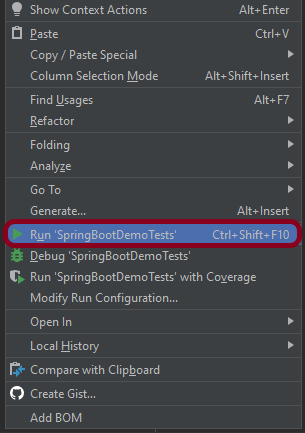
Right-click on the Test class and select RunSpringBootDemoTests’.

The output of the above program is

This image shows that the profile name is “test”. Application is started on port – “64733” and the context path is “/demo”.

Step 6 – Run the tests from the Command Line

Run the tests from the command line by using the below command

mvn clean test site

The output of the above program is

Step 7 – Surefire Report Generation

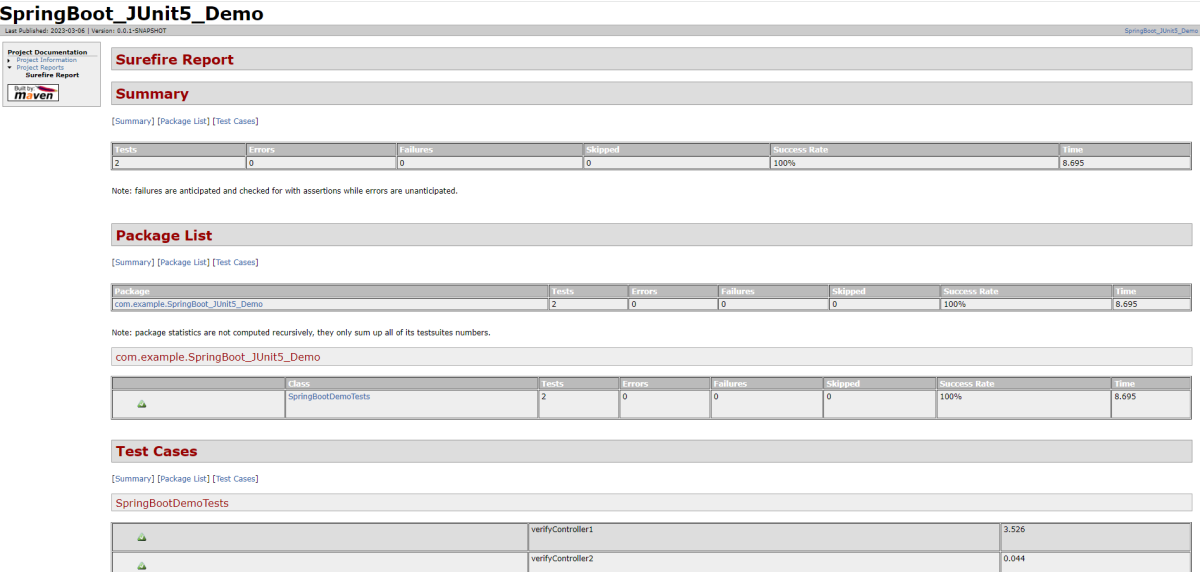
The test report generated by JUnit is placed under target/site/index.html.

Below is the sample Surefire Report.

Congratulations on making it through this tutorial and hope you found it useful! Happy Learning!! Cheers!!

Testing of SpringBoot Application with Serenity BDD, Cucumber and JUnit5

HOME

In the previous tutorial, I explained about Integration Testing of Springboot with Cucumber and JUnit4. In this tutorial, I will explain the Testing of the SpringBoot Application in BDD format using Serenity Bdd and Cucumber and JUnit5.

What is Serenity BDD?

Serenity BDD is an open-source library that aims to make the idea of living documentation a reality.

Serenity BDD helps you write cleaner and more maintainable automated acceptance and regression tests faster. Serenity also uses the test results to produce illustrated, narrative reports that document and describe what your application does and how it works. Serenity tells you not only what tests have been executed, but more importantly, what requirements have been tested.

What is SpringBoot Application?

 Spring Boot is an open-source micro framework that provides Java developers with a platform to get started with an auto-configurable production-grade Spring application. 

  • Comes with embedded HTTP servers like Tomcat or Jettyto test web applications.
  • Adds many plugins that developers can use to work with embedded and in-memory databases easily. Spring allows you to easily connect with database and queue services like Oracle, PostgreSQL, MySQL, MongoDB, Redis, Solr, ElasticSearch, Rabbit MQ, and others.

  1. SpringBoot Starter Parent – 3.1.5
  2. Serenity –  4.0.18
  3. Serenity Cucumber – 4.0.18
  4. Serenity Rest Assured – 4.0.18
  5. Cucumber – 7.14.0
  6. Java 17
  7. JUnit Platform – 1.10.0
  8. Maven – 3.8.6

Project Directory Structure

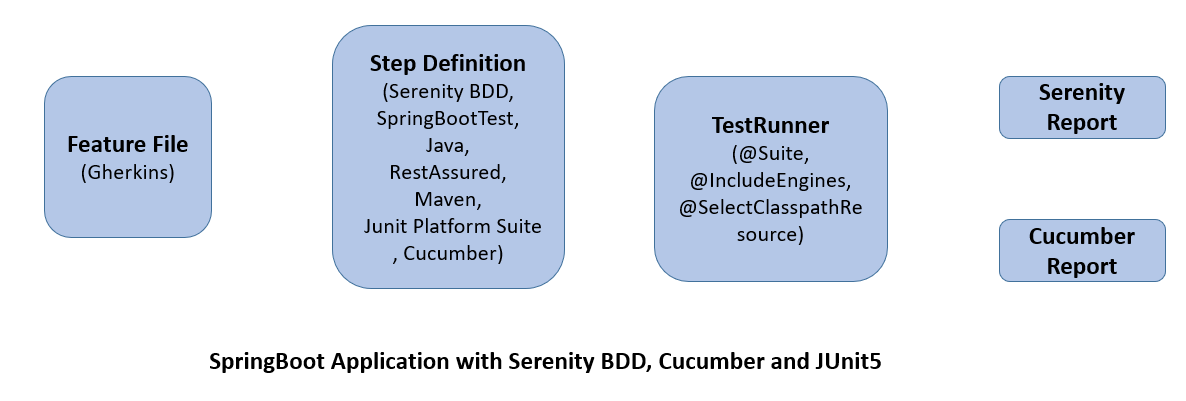
Relationship between SpringBoot, Serenity BDD, Cucumber, and JUnit5

What is RestController?

HTTP requests are handled by a controller in Spring’s approach to building RESTful web services. The @RestController annotation identifies these components, and the GreetingController shown below (from src/main/java/com/example/springboot_demo/HelloController.java) handles GET requests for / and /qaautomation by returning a new instance of the Greeting class. Spring RestController takes care of mapping request data to the request-defined handles method.

import org.springframework.web.bind.annotation.GetMapping;
import org.springframework.web.bind.annotation.RestController;
  
@RestController
public class HelloController {
      
    @GetMapping(path="/")
    String hello() {
        return "Hello World, Spring Boot!";
    }
      
      
    @GetMapping(path="/qaautomation")
    String qaautomation() {
        return "Hello QA Automation!";
    }
  
}

Implementation Steps

Step 1 – Create a source folder – src/test/resources 

Right-click on the test directory select New->Directory and select resources (Maven Source Directories).

Step 2 – Add SpringBoot, Serenity, Cucumber, and JUnit5 dependencies to the project

We have added SpringBootTest, Serenity, Cucumber, JUnit5, Cucumber Junit Platform Engine, and many more.

<?xml version="1.0" encoding="UTF-8"?>
<project xmlns="http://maven.apache.org/POM/4.0.0" xmlns:xsi="http://www.w3.org/2001/XMLSchema-instance"
	xsi:schemaLocation="http://maven.apache.org/POM/4.0.0 https://maven.apache.org/xsd/maven-4.0.0.xsd">
	<modelVersion>4.0.0</modelVersion>

	<parent>
		<groupId>org.springframework.boot</groupId>
		<artifactId>spring-boot-starter-parent</artifactId>
		<version>3.1.5</version>
		<relativePath/> <!-- lookup parent from repository -->
	</parent>

	<groupId>com.example</groupId>
	<artifactId>SpringBoot3_Serenity_Cucumber_JUnit5_Demo</artifactId>
	<version>0.0.1-SNAPSHOT</version>
	<name>demo</name>
	<description>Demo project for Spring Boot</description>

	<properties>
		<project.build.sourceEncoding>UTF-8</project.build.sourceEncoding>
		<serenity.version>4.0.18</serenity.version>
		<serenity.cucumber.version>4.0.18</serenity.cucumber.version>
		<junit.platform.version>1.10.0</junit.platform.version>
		<cucumber.version>7.14.0</cucumber.version>
		<maven.surefire.plugin.version>3.2.1</maven.surefire.plugin.version>
		<maven.failsafe.plugin.version>3.2.1</maven.failsafe.plugin.version>
		<parallel.tests></parallel.tests>
		<maven.compiler.plugin>3.11.0</maven.compiler.plugin>
		<maven.compiler.source.version>17</maven.compiler.source.version>
		<maven.compiler.target.version>17</maven.compiler.target.version>
		<encoding>UTF-8</encoding>
		<tags></tags>
	</properties>
	
	<dependencies>
		<dependency>
			<groupId>org.springframework.boot</groupId>
			<artifactId>spring-boot-starter</artifactId>
		</dependency>

		<dependency>
			<groupId>org.springframework.boot</groupId>
			<artifactId>spring-boot-starter-test</artifactId>
			<scope>test</scope>
		</dependency>

		<dependency>
			<groupId>org.springframework.boot</groupId>
			<artifactId>spring-boot-starter-web</artifactId>
		</dependency>

		<dependency>
			<groupId>org.springframework.boot</groupId>
			<artifactId>spring-boot-starter-tomcat</artifactId>
			<scope>provided</scope>
		</dependency>

		<dependency>
			<groupId>org.springframework</groupId>
			<artifactId>spring-web</artifactId>
		</dependency>

		<!-- Serenity Core -->
		<dependency>
			<groupId>net.serenity-bdd</groupId>
			<artifactId>serenity-core</artifactId>
			<version>${serenity.version}</version>
			<scope>test</scope>
		</dependency>

		<!-- Serenity With Cucumber -->
		<dependency>
			<groupId>net.serenity-bdd</groupId>
			<artifactId>serenity-cucumber</artifactId>
			<version>${serenity.version}</version>
			<scope>test</scope>
		</dependency>

		<dependency>
			<groupId>net.serenity-bdd</groupId>
			<artifactId>serenity-screenplay</artifactId>
			<version>${serenity.version}</version>
			<scope>test</scope>
		</dependency>

		<dependency>
			<groupId>net.serenity-bdd</groupId>
			<artifactId>serenity-screenplay-webdriver</artifactId>
			<version>${serenity.version}</version>
			<scope>test</scope>
		</dependency>

		<dependency>
			<groupId>net.serenity-bdd</groupId>
			<artifactId>serenity-ensure</artifactId>
			<version>${serenity.version}</version>
			<scope>test</scope>
		</dependency>

		<!-- Serenity With Rest Assured -->
		<dependency>
			<groupId>net.serenity-bdd</groupId>
			<artifactId>serenity-rest-assured</artifactId>
			<version>${serenity.version}</version>
			<scope>test</scope>
		</dependency>

		<!-- Serenity With Spring -->
		<dependency>
			<groupId>net.serenity-bdd</groupId>
			<artifactId>serenity-spring</artifactId>
			<version>${serenity.version}</version>
			<scope>test</scope>
		</dependency>

		<dependency>
			<groupId>io.cucumber</groupId>
			<artifactId>cucumber-junit-platform-engine</artifactId>
			<version>${cucumber.version}</version>
			<scope>test</scope>
		</dependency>

		<dependency>
			<groupId>org.junit.platform</groupId>
			<artifactId>junit-platform-suite</artifactId>
			<version>${junit.platform.version}</version>
			<scope>test</scope>
		</dependency>

	</dependencies>

	<build>
		<plugins>
			<plugin>
				<groupId>org.springframework.boot</groupId>
				<artifactId>spring-boot-maven-plugin</artifactId>
			</plugin>

				<plugin>
					<groupId>org.apache.maven.plugins</groupId>
					<artifactId>maven-surefire-plugin</artifactId>
					<version>${maven.surefire.plugin.version}</version>
					<configuration>
						<skip>true</skip>
					</configuration>
				</plugin>
				<plugin>
					<artifactId>maven-failsafe-plugin</artifactId>
					<version>${maven.failsafe.plugin.version}</version>
					<configuration>
						<includes>
							<include>**/*Test.java</include>
							<include>**/SpringRunnerTests.java</include>
							<include>**/*TestSuite.java</include>
							<include>**/When*.java</include>
						</includes>
						<parallel>classes</parallel>
						<parallel>methods</parallel>
						<useUnlimitedThreads>true</useUnlimitedThreads>
					</configuration>
					<executions>
						<execution>
							<goals>
								<goal>integration-test</goal>
								<goal>verify</goal>
							</goals>
						</execution>
					</executions>
				</plugin>
				<plugin>
					<groupId>org.apache.maven.plugins</groupId>
					<artifactId>maven-compiler-plugin</artifactId>
					<version>${maven.compiler.plugin}</version>
					<configuration>
						<source>${maven.compiler.source.version}</source>
						<target>${maven.compiler.target.version}</target>
					</configuration>
				</plugin>
				<plugin>
					<groupId>net.serenity-bdd.maven.plugins</groupId>
					<artifactId>serenity-maven-plugin</artifactId>
					<version>${serenity.version}</version>
					<configuration>
						<tags>${tags}</tags>
					</configuration>
					<executions>
						<execution>
							<id>serenity-reports</id>
							<phase>post-integration-test</phase>
							<goals>
								<goal>aggregate</goal>
							</goals>
						</execution>
					</executions>
				</plugin>
			</plugins>
	</build>
	<repositories>
		<repository>
			<id>spring-milestones</id>
			<name>Spring Milestones</name>
			<url>https://repo.spring.io/milestone</url>
			<snapshots>
				<enabled>false</enabled>
			</snapshots>
		</repository>
		<repository>
			<id>spring-snapshots</id>
			<name>Spring Snapshots</name>
			<url>https://repo.spring.io/snapshot</url>
			<releases>
				<enabled>false</enabled>
			</releases>
		</repository>
	</repositories>
	<pluginRepositories>
		<pluginRepository>
			<id>spring-milestones</id>
			<name>Spring Milestones</name>
			<url>https://repo.spring.io/milestone</url>
			<snapshots>
				<enabled>false</enabled>
			</snapshots>
		</pluginRepository>
		<pluginRepository>
			<id>spring-snapshots</id>
			<name>Spring Snapshots</name>
			<url>https://repo.spring.io/snapshot</url>
			<releases>
				<enabled>false</enabled>
			</releases>
		</pluginRepository>
	</pluginRepositories>

</project>

Step 3 – Create a feature file under src/test/resources

Below is an example of a feature file that shows a sample test scenario.

Feature: SpringBoot Request
   
@ReceiveCorrectResponse

   Scenario Outline: Send a valid Request to get correct response
    Given I send a request to the URL "<url>"
    Then the response will return "<response>"

   Examples:
   | url                       | response                             |
   | /                          | Hello World, Spring Boot!  |
   | /qaautomation   | Hello QA Automation!        |

The test class mentioned below (AbstractRestAssuredHelper) contains integration tests for the spring boot rest controller mentioned. This test class:

  • uses @SpringBootTest annotation which loads the actual application context.
  • uses WebEnvironment.RANDOM_PORT to create and run the application at some random server port.
  • @LocalServerPort gets the reference of the port where the server has started. It helps in building the actual request URIs to mimic real client interactions.

Step 4 – Create the StepDefinition and Helper classes

Below is the code of the StepDefinition and Helper class. These classes are created in the src/test/java directory.

AbstractRestAssuredHelper

import io.restassured.RestAssured;
import io.restassured.specification.RequestSpecification;
import net.serenitybdd.rest.SerenityRest;

import org.springframework.beans.factory.annotation.Value;
import org.springframework.boot.test.context.SpringBootTest;
import org.springframework.boot.test.context.SpringBootTest.WebEnvironment;
import org.springframework.boot.test.web.server.LocalServerPort;


@SpringBootTest(webEnvironment = WebEnvironment.RANDOM_PORT)
public abstract class AbstractRestAssuredHelper {
     private final static String BASE_URI = "http://localhost";
 
     @LocalServerPort
     private int port;

     @Value("${server.servlet.context-path}")
     private String basePath;
 
     protected void configureRestAssured() {
           RestAssured.baseURI = BASE_URI;
           RestAssured.port = port;
           RestAssured.basePath = basePath;
           
 
     }

     protected RequestSpecification getAnonymousRequest() {
           configureRestAssured();
           return SerenityRest.given();
     }
}

This class sends the request and receives a response after performing the GET operation. Here, the validation of the response also takes place by asserting the expected and actual response

To use Rest-assured, Serenity provides the class SerenityRest

import io.cucumber.java.en.Given;
import io.cucumber.java.en.Then;
import io.restassured.response.Response;
import net.serenitybdd.rest.SerenityRest;
import net.thucydides.core.annotations.Steps;
import org.junit.jupiter.api.Assertions;

public class SpringBootDemoDefinitions {

	@Steps
    AbstractRestAssuredHelper helper;
    private Response response;

    @Given("I send a request to the URL {string}")
    public void iSendARequest(String endpoint) throws Exception  {
         response = helper.getAnonymousRequest().contentType("application/json")
                    .header("Content-Type", "application/json").when().get(endpoint);
    }

    @Then("the response will return {string}")
    public void extractResponse(String Expected ) {
          SerenityRest.restAssuredThat(response -> response.statusCode(200));
          String Actual = response.asString();    
          System.out.println("Result :"+Actual);
          Assertions.assertEquals(Expected, Actual);
    }
}

Step 5 – Create a Serenity Runner class in the src/test/java directory

We cannot run a Feature file on its own in a cucumber-based framework. We need to create a Java class that will run the Feature File. It is the starting point for JUnit to start executing the tests. TestRunner class is created under src/ test/java

import org.junit.platform.suite.api.ConfigurationParameter;
import org.junit.platform.suite.api.IncludeEngines;
import org.junit.platform.suite.api.SelectClasspathResource;
import org.junit.platform.suite.api.Suite;
import static io.cucumber.junit.platform.engine.Constants.GLUE_PROPERTY_NAME;
import static io.cucumber.junit.platform.engine.Constants.PLUGIN_PROPERTY_NAME;

@Suite
@IncludeEngines("cucumber")
@SelectClasspathResource("com.example")
@SelectClasspathResource("/features")
@ConfigurationParameter(key = GLUE_PROPERTY_NAME, value = "com.example.definitions")
@ConfigurationParameter(key = PLUGIN_PROPERTY_NAME, value = "io.cucumber.core.plugin.SerenityReporterParallel,pretty,timeline:build/test-results/timeline")
public class SpringRunnerTests {
}

@Suite – annotation from JUnit 5 to make this class a run configuration for the test suite.
@IncludeEngines(“cucumber”) – tells JUnit 5 to use the Cucumber test engine to run features.
@SelectClasspathResource(“/features”) – to change the location of your feature files (if you do not add this annotation classpath of the current class will be used).
@ConfigurationParameter(key = GLUE_PROPERTY_NAME, value = “com.example.SpringBoot_Demo.definitions”) – this annotation specifies the path to steps definitions (java classes).

Step 6 – Run the tests from JUnit5

You can run the tests from SpringRunnerTests class. Right-click on the class and select Run ‘SpringRunnerTests’.

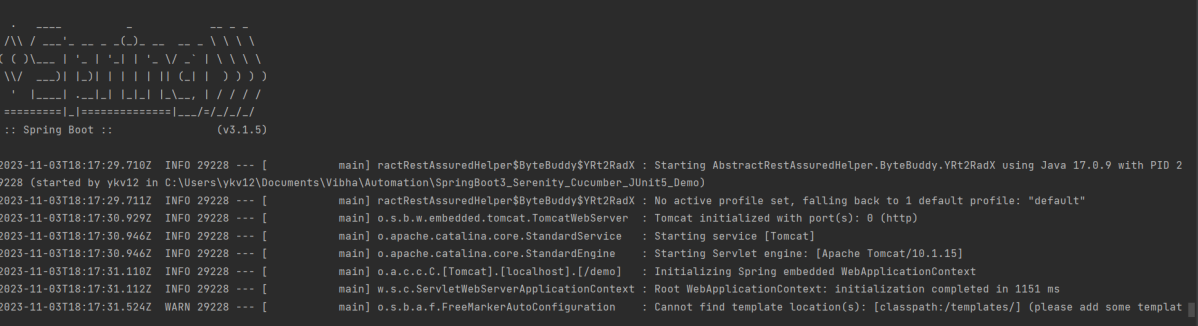
The output of the above program is

Step 7 – Run the tests from the Command Line

Run the tests from the command line by using the below command
mvn clean verify

The output of the above program is

The test execution status is shown below:

Step 8 – Serenity Report Generation

By default, the test report generated by Serenity is placed under target/site/serenity/index.html. Below is the sample Serenity Report.
Go to the Test Results tab and we can see all the test scenarios.

Step 9 – Cucumber Report Generation

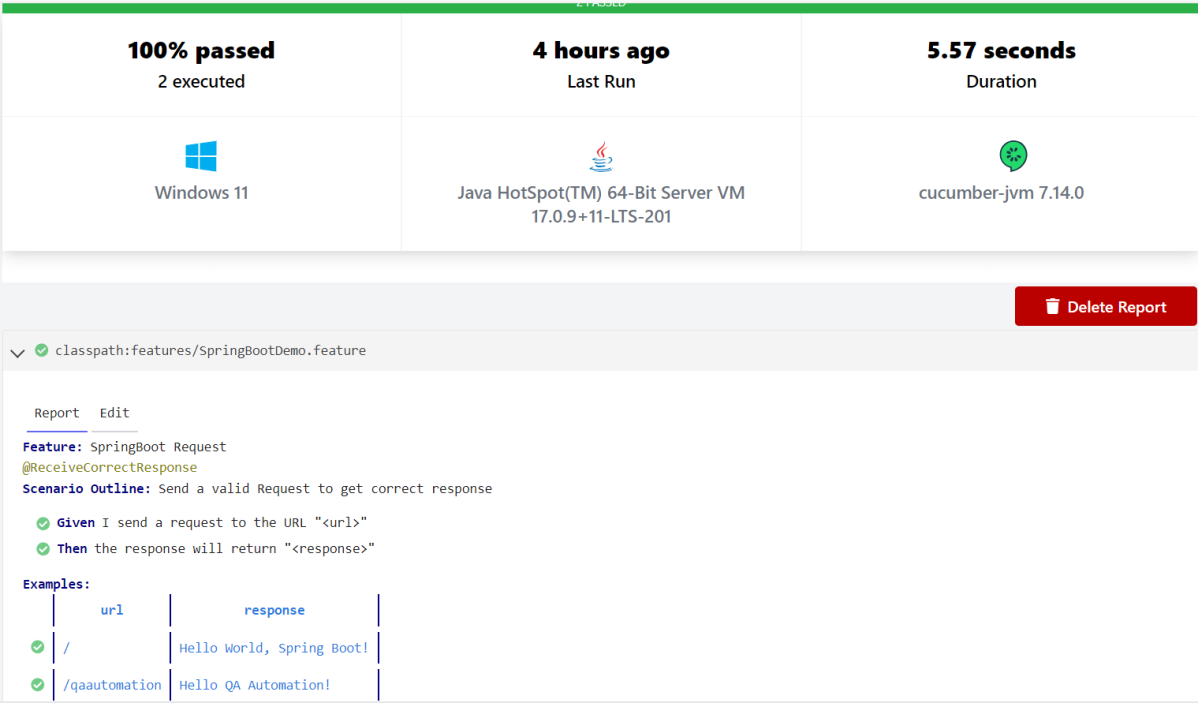
Cucumber Report can be generated by adding publish=true in SpringRunnerTests as shown in the above example. Click on the link provided in the execution status.

Cucumber Report

The next tutorial explains the Testing of SpringBoot REST Application using Serenity BDD and Rest Assured for GET Method.

The complete code can be found on GitHub.

Testing of Gradle SpringBoot Application with Serenity and JUnit5

HOME

In the previous tutorial, I explained about  Testing of Gradle SpringBoot Application with Serenity, Cucumber and JUnit4. In this tutorial, I will explain the Testing of the SpringBoot Application with Serenity and JUnit5.

Prerequisite:

Spring Boot 3.0.4 requires Java 17 and is compatible with and including Java 19. Spring Framework 6.0.6 or above is also required.

Explicit build support is provided for the following build tools:

  1. Maven – 3.5+
  2. Gradle – 7.x (7.5 or later) and 8.x

This framework consists of

  1. SpringBoot Starter Parent – 3.1.0
  2. Serenity Rest Assured – 3.6.12
  3. Spring
  4. Java 17
  5. Gradle – 7.6.1
  6. JUnit Jupiter API – 5.9.2
  7. JUnit Jupiter Engine – 5.9.2
  8. Serenity JUnit5 – 3.6.12

What is SpringBoot Application?

 Spring Boot is an open-source micro-framework that provides Java developers with a platform to get started with an auto-configurable production-grade Spring application. 

  • Comes with embedded HTTP servers like Tomcat or Jetty to test web applications.
  • Adds many plugins that developers can use to work with embedded and in-memory databases easily. Spring allows you to easily connect with database and queue services like Oracle, PostgreSQL, MySQL, MongoDB, Redis, Solr, ElasticSearch, Rabbit MQ, and others.

Project Directory Structure

Implementation Steps

  1. Create a source folder – src/test/resources to create properties file
  2. Add SpringBootTest, Serenity Rest Assured, and Serenity-JUnit5 dependencies to the project
  3. Create the Test classes.
  4. Create an application.properties file in src/test/resources
  5. Run the tests from JUnit5
  6. Run the tests from Command Line
  7. Serenity Report Generation

Step 1 – Create a source folder – src/test/resources to create test scenarios in the Feature file

Right-click on the test directory and select New->Directory and select resources (Maven Source Directories).

Step 2 – Add SpringBootTest, Rest Assured, and allure dependencies to the project

We have added SpringBootTest, SpringBoot Web, Tomcat, Spring Web, Rest Assured, and Serenity-JUnit5 dependencies to the build.gradle.

plugins {
	id 'java'
	id 'org.springframework.boot' version '3.1.0-SNAPSHOT'
	id 'io.spring.dependency-management' version '1.1.0'
	id 'net.serenity-bdd.serenity-gradle-plugin' version '3.6.7'
}

group = 'com.example'
version = '0.0.1-SNAPSHOT'
sourceCompatibility = '17'

repositories {
	mavenCentral()
	maven { url 'https://repo.spring.io/milestone' }
	maven { url 'https://repo.spring.io/snapshot' }
}

dependencies {

	implementation 'org.springframework.boot:spring-boot-starter'
	implementation 'org.springframework.boot:spring-boot-starter-web'
	implementation 'org.springframework.boot:spring-boot-starter-tomcat'
	implementation 'org.springframework:spring-web'

	testImplementation 'org.springframework.boot:spring-boot-starter-test'
	testImplementation 'net.serenity-bdd:serenity-junit5:3.6.12'
	testImplementation 'org.junit.jupiter:junit-jupiter-api:5.9.2'
	testImplementation 'org.junit.jupiter:junit-jupiter-engine:5.9.2'
	testImplementation 'net.serenity-bdd:serenity-core:3.6.12'
	testImplementation 'net.serenity-bdd:serenity-rest-assured:3.6.12'
	testImplementation 'net.serenity-bdd:serenity-spring:3.6.12'
}

tasks.named('test') {
	useJUnitPlatform() {}
	testLogging {
		showStandardStreams = true
	}
	systemProperties System.getProperties()
}

gradle.startParameter.continueOnFailure = true

test.finalizedBy(aggregate)

Step 3 – Create the Test classes

  • uses @SpringBootTest annotation which loads the actual application context.
  • uses WebEnvironment.RANDOM_PORT to create and run the application at some random server port.
  • @LocalServerPort gets the reference of the port where the server has started. It helps in building the actual request URIs to mimic real client interactions.

Below is the Test Class, created in the src/test/java directory.
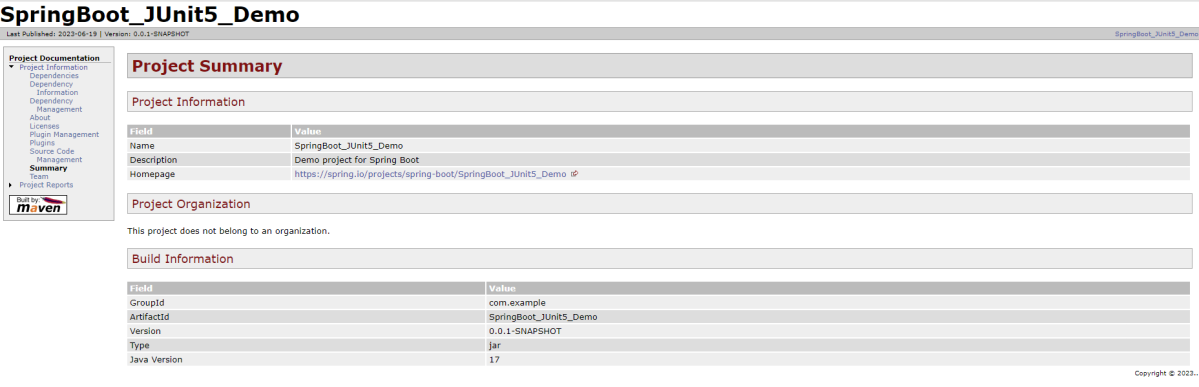
import io.restassured.response.ValidatableResponse;
import net.serenitybdd.junit5.SerenityJUnit5Extension;
import org.junit.jupiter.api.Assertions;
import org.junit.jupiter.api.Test;
import org.junit.jupiter.api.extension.ExtendWith;
import org.springframework.beans.factory.annotation.Value;
import org.springframework.boot.test.context.SpringBootTest;
import org.springframework.boot.test.web.server.LocalServerPort;
import static io.restassured.RestAssured.given;

@ExtendWith(SerenityJUnit5Extension.class)
@SpringBootTest(webEnvironment = SpringBootTest.WebEnvironment.RANDOM_PORT)
public class SpringBootDemoDefinitions {

    private final static String BASE_URI = "http://localhost:";

    @LocalServerPort
    private int port;

    @Value("${server.servlet.context-path}")
    private String basePath;
    
   private ValidatableResponse response;

    @Test
    public void verifyController1() throws Exception  {
        response = given().contentType("application/json")
                .header("Content-Type", "application/json")
                .when().get(BASE_URI + port + basePath+ "/").then().statusCode(200);

        String Actual = response.extract().asString();
        System.out.println("Result :"+Actual);
        Assertions.assertEquals("Hello World, Spring Boot!", Actual);
    }

    @Test
    public void verifyController2() throws Exception  {
        response = given().contentType("application/json")
                .header("Content-Type", "application/json")
                .when().get(BASE_URI + port + basePath+ "/qaautomation").then().statusCode(200);

        String Actual = response.extract().asString();
        System.out.println("Result :"+Actual);
        Assertions.assertEquals("Hello QA Automation!", Actual);
    }
}

This class sends the request and receives a response after performing the GET operation. Here, the validation of the response also takes place by asserting the expected and actual response

Step 4 – Create an application.properties file in src/test/resources

Application.properties is created under src/ test/java

spring.profiles.active=test
server.port=9091
server.servlet.context-path=/demo

spring.profiles.active – property to specify which profiles are active. The default profile is always active.
server.port – By default, the embedded server starts on port 8080. Now the server will start on port 8090
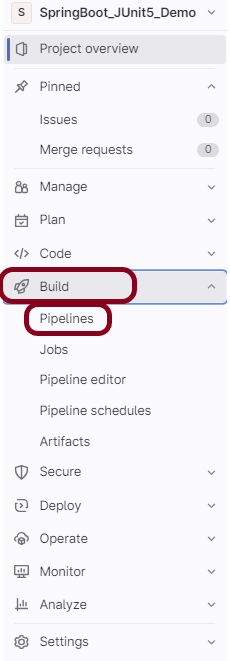
server.servlet.context-path – the context path in Spring Boot can be changed by setting a property, server.servlet.context-path.

Step 5 – Run the tests from JUnit5

Right-click on the Test class and select Run ‘SpringBoot_Tests’.

The output of the above program is

This image shows that the profile name is “test”. Application is started on port – “65221” and the context path is “/demo”.

Step 6 – Run the tests from Command Line

Run the tests from the command line by using the below command

gradle clean test

The output of the above program is

Step 7 – Serenity Report Generation

The best part about Serenity is the report generation by it. The Reports contain all possible type of information, you can think of with minimal extra effort. There is multiple types of reports are generated. We are interested in index.html .

Below is the new Serenity Report.

We are done! Congratulations on making it through this tutorial and hope you found it useful! Happy Learning!!