Tags in Cucumber

HOME

In this tutorial, I will explain Tags in Cucumber.

What are Tags?

Tags are a great way to organize Features and Scenarios.
By default, Cucumber executes all the scenarios present in a Feature File. If you want to run a specific scenario from the feature file, then a tag can be used. It allow flexible execution of scenarios or features based on specific tags.

Tags can be declared as below:-

 @TagName
   Scenario: Test the scenario

Here,

@: It is a symbol used to declare a tag.
TagName: It is the name of a specific test.

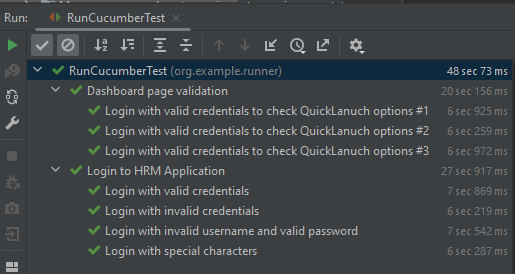
In the below example, there are 2 feature files – LoginPage.feature and DashboardPage.feature. LoginPage.feature contains 4 different scenarios with different tags, whereas DashboardPage.feature contains 3 different scenarios.

Feature: Login to HRM Application

  Background:
    Given User is on Login page

  @ValidCredentials
  Scenario: Login with valid credentials

    When User enters username as "Admin"
    And User enters password as "admin123"
    Then User should be able to login successfully

  @InValidCredentials
  Scenario: Login with invalid credentials

    When User enters username as "Admin123"
    And User enters password as "admin123"
    Then User should see an error message "Invalid credentials"

  @InValidCredentials
  Scenario: Login with invalid username and valid password

    When User enters username as "1234"
    And User enters password as "admin123"
    Then User should see an error message "Invalid credentials"

  @InValidCredentials @SpecialCharacters
  Scenario: Login with special characters

    When User enters username as "$$$$"
    And User enters password as "%%%%%"
    Then User should see an error message "Invalid credentials"

Feature: Dashboard page validation

  Background:
    Given User is on Login page
    When User enters username as "Admin"
    And User enters password as "admin123"
    Then User should be able to login successfully

  @ValidQuickLaunch
  Scenario Outline: Login with valid credentials to check QuickLanuch options

    Then there are valid QuickLaunch options '<options>'

    Examples:
      | options                  |
      | Assign Leave             |
      | Leave List               |
      | Timesheets               |

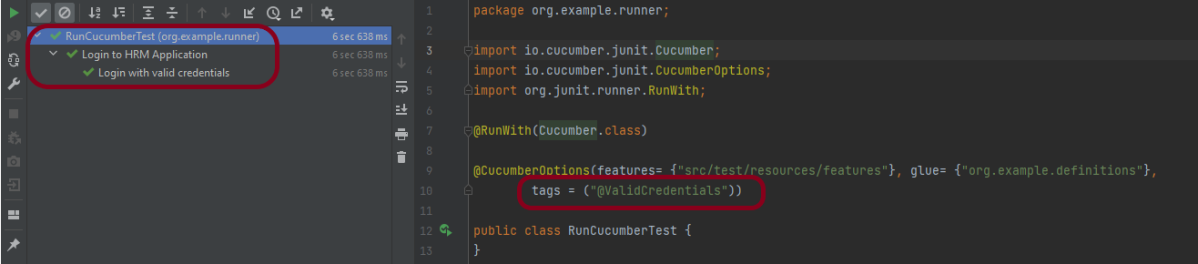
Running a single Cucumber Tag

import io.cucumber.junit.Cucumber;
import io.cucumber.junit.CucumberOptions;
import org.junit.runner.RunWith;

@RunWith(Cucumber.class)
@CucumberOptions(features= {"src/test/resources/features"}, 
        glue= {"org.example.definitions"},
        tags = ("@ValidCredentials"))

public class RunCucumberTest {
}

Tags can be placed above Feature, Scenario, Scenario Outline, and Examples.

A feature or Scenario can have as many tags. However, each tag should be separated by a blank space.

How to execute Cucumber Tag that runs multiple scenarios

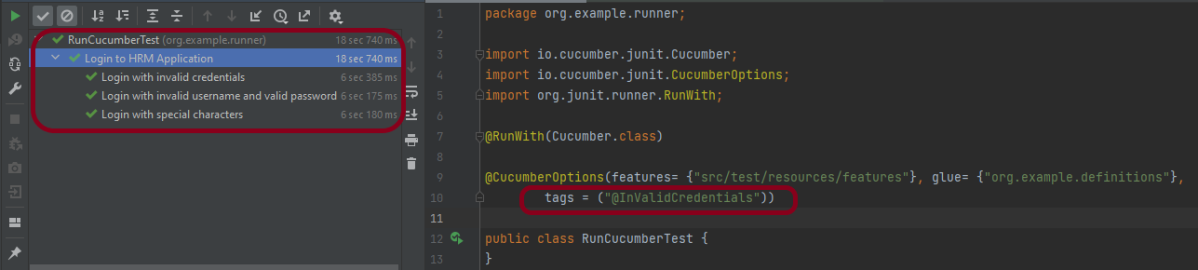
Let us consider a situation where a tag (@InValidCredentials) has multiple test scenarios, and you use this tag in the Runner class, then all the test scenarios associated with this tag will execute.

import io.cucumber.junit.Cucumber;
import io.cucumber.junit.CucumberOptions;
import org.junit.runner.RunWith;

@RunWith(Cucumber.class)
@CucumberOptions(features= {"src/test/resources/features"}, 
            glue= {"org.example.definitions"},
            tags = ("@InValidCredentials"))

public class RunCucumberTest {
}

The testing through multiple tags can be done by using two operators:

  1. OR operator
  2. AND operator

OR operator

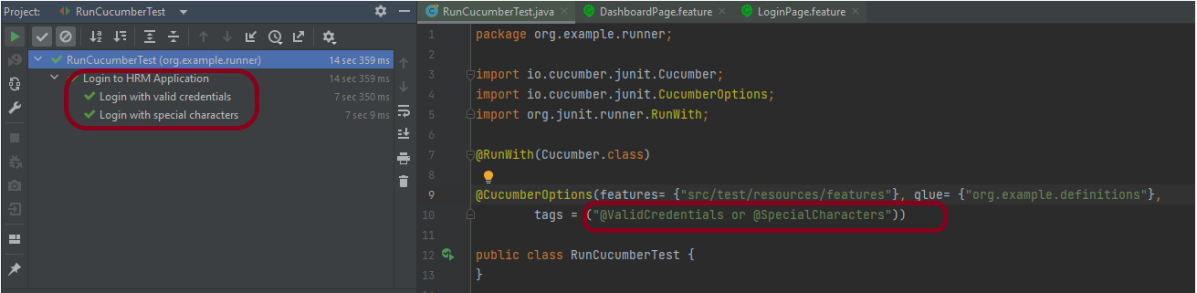
OR means scenarios that are tagged either with @BlankCredentials or @InvalidCredentials will execute. The syntax is mentioned below:

import io.cucumber.junit.Cucumber;
import io.cucumber.junit.CucumberOptions;
import org.junit.runner.RunWith;

@RunWith(Cucumber.class)
@CucumberOptions(features= {"src/test/resources/features"}, 
             glue= {"org.example.definitions"},
             tags = ("@ValidCredentials or @SpecialCharacters"))

public class RunCucumberTest {
}

AND operator

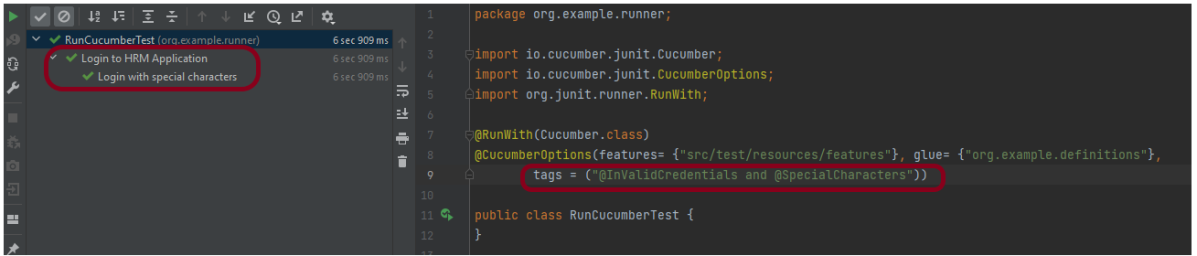
Suppose you want to test an application with multiple test cases and if the first test case is failed in the application, we do not want to test the second test case. The syntax is mentioned below:

@CucumberOptions(features = { "src/test/resources/features/CucumberTagsExample.feature" }, 
        glue = {"com.cucumber.demo.definitions" }, 
        tags = ("@BlankCredentials and @InValidCredentials"))

How to ignore Tags in Cucumber?

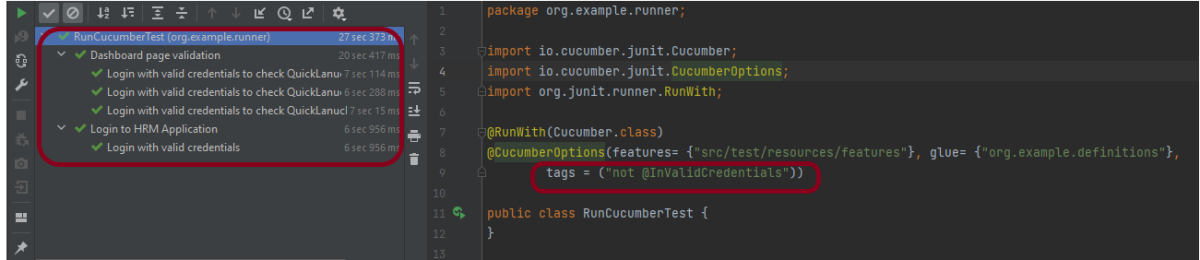
To skip a specific test scenario, use not keyword.

@CucumberOptions(features= {"src/test/resources/features/LoginPage.feature"}, 
               glue= {"org.example.definitions"}, 
               tags = ("not @InValidCredentials"))

All these syntaxes are valid for Cucumber Version – 6.8.1

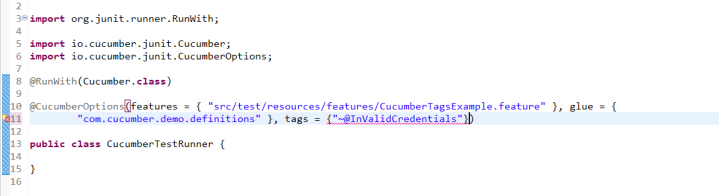
The below-mentioned syntax is not valid for Cucumber Version – 6.8.1 and above

AND - {"@BlankCredentials , @InValidCredentials"}
OR - {"@BlankCredentials" , "@InValidCredentials"}
NOT - {"~@InValidCredentials"}

@CucumberOptions(features= {"src/test/resources/features/LoginPage.feature","src/test/resources/features/DashboardPage.feature"}, 
glue= {"org.example.definitions"})

Cucumber – What is Feature File in Cucumber
Step Definition in Cucumber
Cucumber – JUnit Test Runner Class
Background in Cucumber
Conditional Hooks in Cucumber

How to write tests in Robot Framework in BDD Format

Last Modified Date

HOME

In this tutorial, we will run the tests in the BDD format in Robot Framework.

What is BDD?

BDD is an Agile software development process in which an application is documented and designed around the behaviour that a user expects to see when interacting with it. BDD helps to avoid bloat, excessive code, unnecessary features, and lack of focus by encouraging developers to focus only on the requested behaviours of an app or program. This methodology combines, augments, and refines test-driven development (TDD) and acceptance testing practices.

The Given-When-Then syntax is a commonly used structure for writing user stories and acceptance criteria in a behaviour-driven development (BDD). It is used to describe the desired behaviour of a system in a clear, concise, and consistent manner.

The structure is broken down into three parts:

  • Given: This section describes the initial state or context of the system. It sets the scene for the scenario being tested.
  • When: This section describes the action or event that occurs. It specifies the trigger for the scenario being tested.
  • Then: This section describes the expected outcome or result of the scenario. It defines the acceptance criteria for the scenario being tested.

Prerequisite:

  1. Install Python
  2. Install PIP
  3. Install Robot Framework
  4. Install Robot framework Selenium Library
  5. Install PyCharm IDE

Please refer to this tutorial to install Robot Framework – How to install and setup Robot Framework for Python.

Implementation Steps:

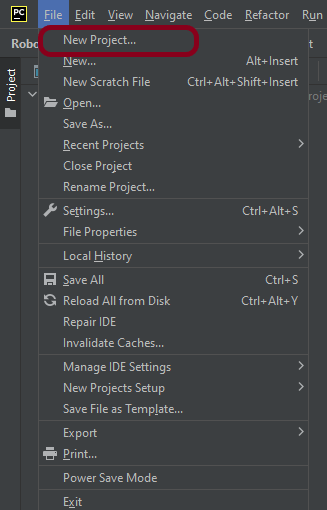
Step 1.1 – Open PyCharm and create a new project. Go to File and select New Project from the main menu.

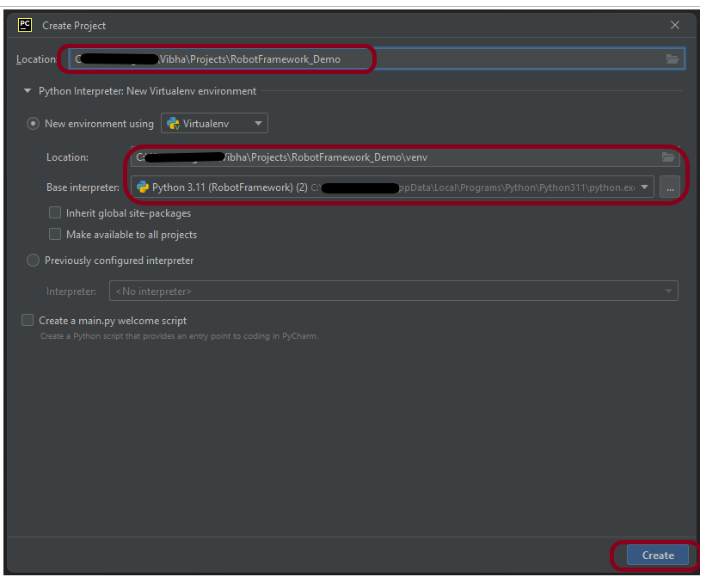
Step 1.2 – Choose the project location. Click the “Browse” button next to the Location field and specify the directory for your project.

Deselect the Create a main.py welcome script checkbox because you will create a new Python file for this tutorial.

Click on the “Create” Button.

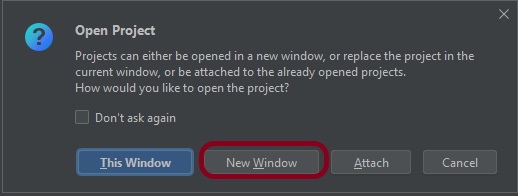
Step 1.3 – A new dialog appears asking to open the project using any one of the given options. I have selected New Window as I like to have separate windows for each project.

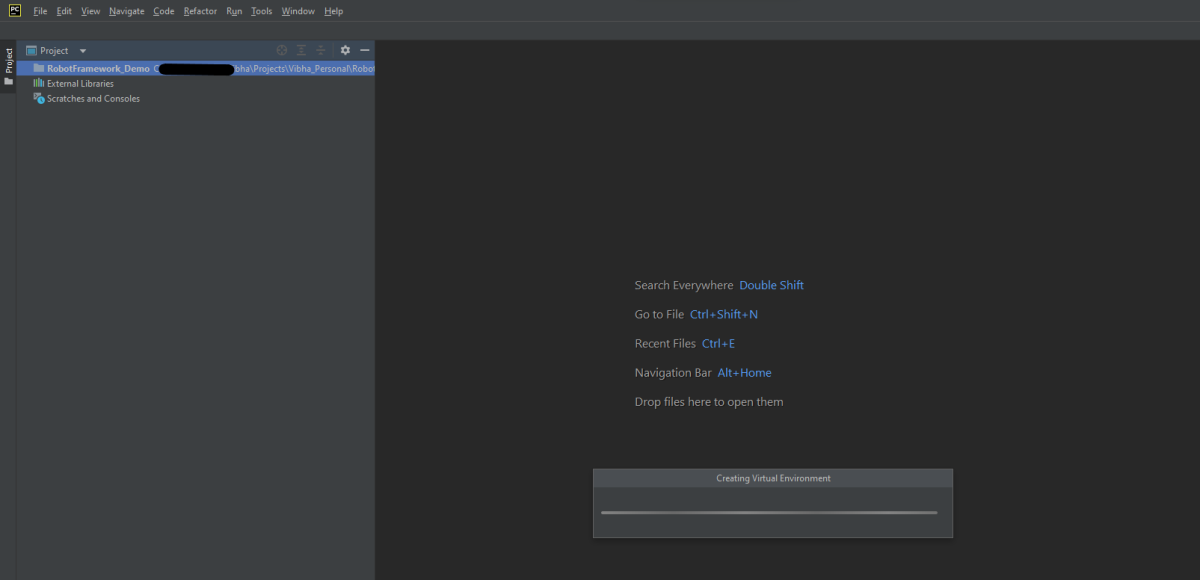
Below is the image of the new project created in PyCharms.

How to run tests in BDD format in Robot Framework?

Step 2 – Create a new directory in the new project

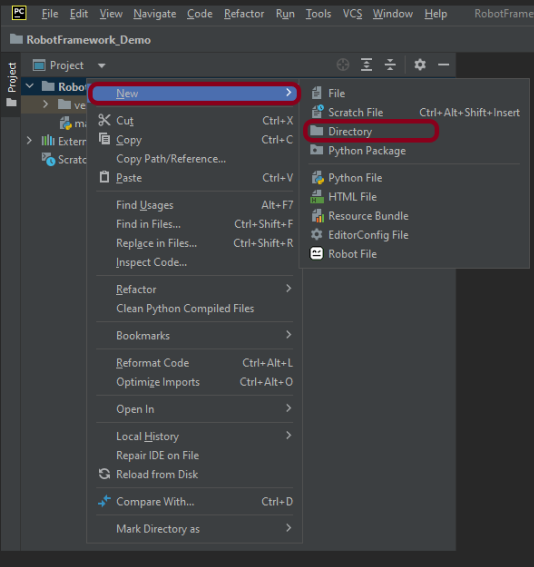
Right-Click on the project, select New->Directory and provide name as Tests

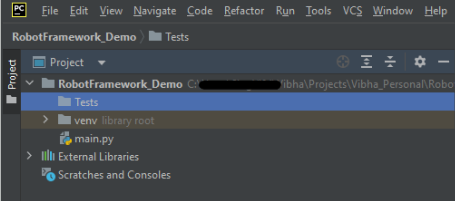
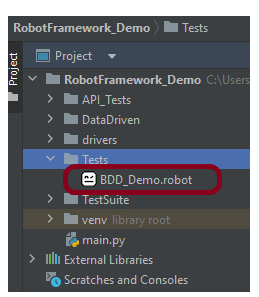
Below is the image of the new directory.

Right-click on the new directory and select New File and provide the name as BDD_Demo.robot as shown below:

Step 3 – Execute the tests

We are now going to write test cases. The test case details will be as follows −

To work with the Robot Framework, we need a locator. A locator is an identifier for the textbox like id, name, class, xpath, css selector, etc.

To know more about locators, refer to these Selenium Tutorials:

 Locators in Selenium – Locate by ID, ClassName,  Name, TagName,  LinkText, PartialLinkText

Dynamic XPath  in Selenium WebDriver

CSS Selector in Selenium WebDriver

Below is an example of tests in BDD format.

*** Settings ***
Documentation       Tests to login to Login Page
Library     SeleniumLibrary

*** Variables ***
${valid_username}     Admin
${valid_password}       admin123
${invalid_password}     45678
${url}      https://opensource-demo.orangehrmlive.com/web/index.php/auth/login
${browser_name}      Chrome
${login_error_message}      css:.oxd-alert-content--error
${dashboard_title}       css:.oxd-topbar-header-breadcrumb-module


*** Test Cases ***

Validate Unsuccessful Login using invalid credentials
    [Tags]    SMOKE
    Given I open the Browser with URL
    When I fill the login form     ${valid_username}       ${invalid_password}
    Then I verify the error message is correct
    And Close Browser Session

Validate successful Login
    [Tags]    UAT
    Given I open the Browser with URL
    When I fill the login form     ${valid_username}       ${valid_password}
    Then I verify Dashboard page opens
    And Close Browser Session

*** Keywords ***

Given I open the Browser with URL
    Create Webdriver    ${browser_name}  executable_path=/Vibha_Personal/RobotFramework_Demo/drivers/${browser_name}
    Go To       ${url}
    Maximize Browser Window
    Set Selenium Implicit Wait    5

When I fill the login form
   [Arguments]    ${username}      ${password}
   Input Text    css:input[name=username]   ${username}
   Input Password    css:input[name=password]   ${password}
   Click Button    css:.orangehrm-login-button

Then I verify the error message is correct
    Element Text Should Be    ${login_error_message}    Invalid credentials

Then I verify Dashboard page opens
    Element Text Should Be    ${dashboard_title}      Dashboard


And Close Browser Session
    Close Browser

All the below-mentioned keywords are derived from SeleniumLibrary except the last one. The functionality of keywords mentioned above:

1. Open Browser  − The keyword opens a new browser instance to the optional URL.

2. Maximize Browser Window – This keyword maximizes the current browser window.

3. Set Selenium Implicit Wait – This keyword sets the implicit wait value used by Selenium.

4. Input Text − This keyword is used to type the given text in the specified textbox identified by the locator name:username.

5. Input Password – This keyword is used to type the given text in the specified password identified by the locator name:password.

The difference compared to Input Text is that this keyword does not log the given password on the INFO level.

6. Click button – This keyword is used to click on the button with location css:.orangehrm-login-button.

7. ${result} – This is a variable that holds the text value of the error message that is located by css:.oxd-alert-content-text

8. Element Text Should Be  – This keyword is used to verify that the element locator contains exact the text expected.

These keywords are present in SeleniumLibrary. To know more about these keywords, please refer to this document – https://robotframework.org/SeleniumLibrary/SeleniumLibrary.htm.

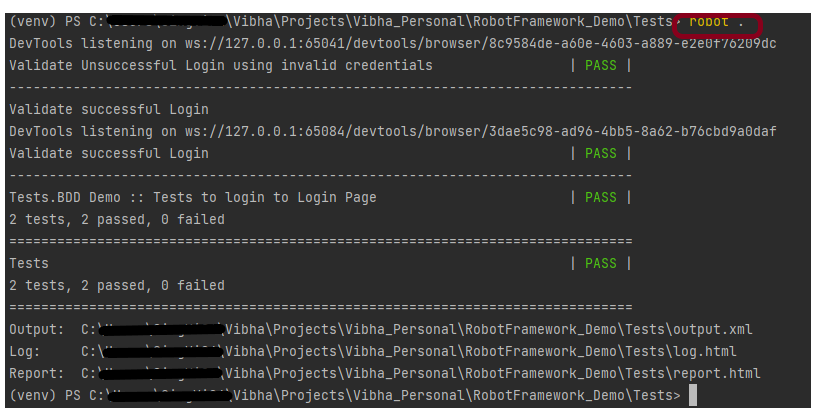
To run this script, go to the command line and go to directory tests.

Step 4 – Execute the tests

We need the below command to run the Robot Framework script.

robot .

The output of the above program is

Step 5 – View Report and Log

We have the test case passed. The Robot Framework generates log.html, output.xml, and report.html by default.

Let us now see the report and log details.

Report

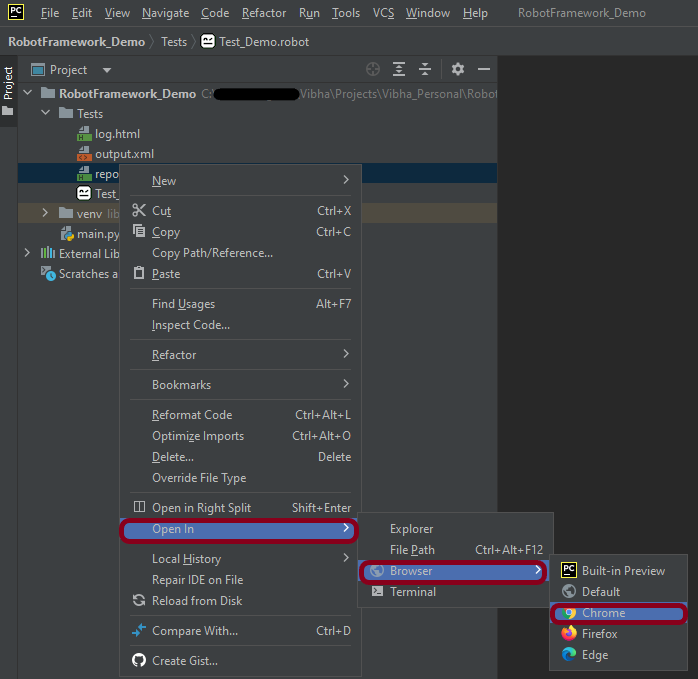
Right-click on report.html. Select Open In->Browser->Chrome(any browser of your wish).

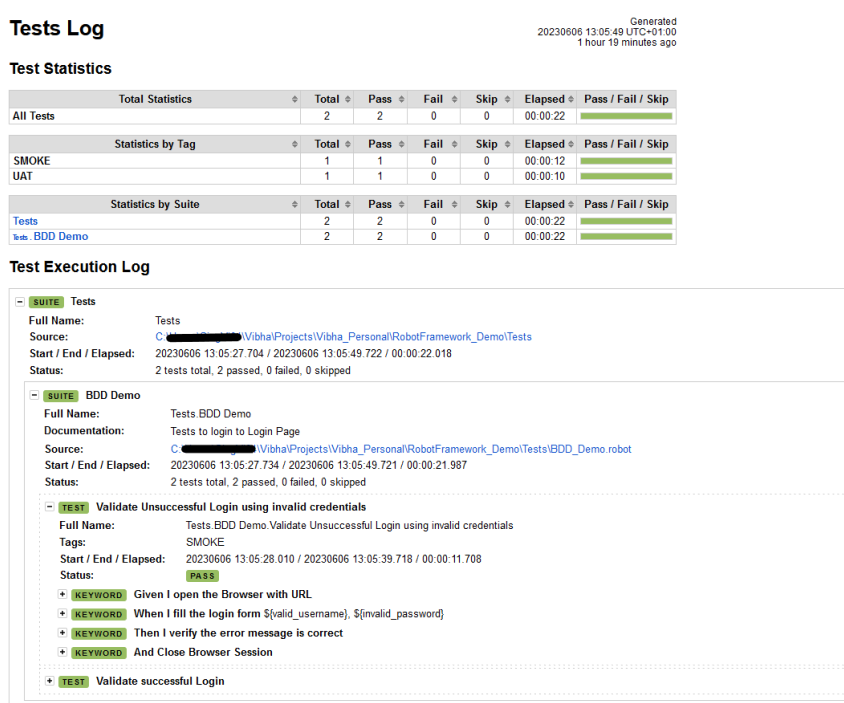
The Report generated by the framework is shown below:

Log

Robot Framework has multiple log levels that control what is shown in the automatically generated log file. The default Robot Framework log level is INFO.

Right-click on log.html. Select Open In->Browser->Chrome(any browser of your wish).

That’s it! Congratulations on making it through this tutorial and hope you found it useful! Happy Learning!!

Robot Framework Tutorials

HOME

Robot Framework is a generic open-source automation framework. It can be used for test automation and robotic process automation (RPA). RPA is extensively used for Web Application Automation, API Automation, RPA, and Database Testing.

Robot Framework has an easy syntax, utilizing human-readable keywords. Its capabilities can be extended by libraries implemented with Python, Java, or many other programming languages.

Chapter 1 Robot Framework Features – Settings, Libraries, Variables, Keywords, Resources, Reports, Logs
Chapter 2 What are variables in Robot Framework?
Chapter 3 How to handle text box in Robot Framework
Chapter 4 How to handle radio buttons in Robot Framework
Chapter 5 How to handle checkbox in Robot Framework
Chapter 6 How to handle dropdowns in Robot Framework
Chapter 7 How to handle multiple windows in Robot Framework
Chapter 8 How to handle alerts in Robot Framework
Chapter 9 What is Resource File in Robot Framework 
Chapter 10 How to run all the tests from the folder in Robot Framework
Chapter 11 How to implement tagging in Robot Framework
Chapter 12 How to rerun failed tests in Robot Framework
Chapter 13 How to use Drag and Drop in Robot Framework?
Chapter 14 How to set variable values from Runtime command in Robot Framework
Chapter 15 Page Object Model in Robot Framework with Selenium and Python
Chapter 16 Parallel Testing in Robot Framework
Chapter 17 How to write tests in Robot Framework in BDD Format

Data-Driven Testing

Chapter 1 Data-Driven Testing in Robot Framework 
Chapter 2 How to load data from CSV files in the Robot Framework?

API Testing

Chapter 1 How to perform API Testing in Robot Framework using RequestLibrary
Chapter 2 How to Implement Basic Auth in Robot Framework – NEW
Chapter 3 How to pass authorization token in header in Robot Framework – NEW
Chapter 4 Verifying Status Code and Status Line in Robot Framework – NEW

CI/CD

Chapter 1 Run Robot Framework Tests in GitLab CI/CD
Chapter 2How to run Robot Framework in GitHub Actions

Jenkins

Chapter 1 How to integrate Robot Framework with Jenkins
Chapter 2 How to run parameterized Robot Framework tests in Jenkins

Background in Cucumber

HOME

What is the Background in Cucumber?

The background is used in Cucumber to define a step or series of steps that are shared by all the tests in the feature file.  This helps to reduce redundancy and makes the feature file cleaner and easier to read.

A Background provides context for the scenarios that follow it. It may include one or more Given steps, which are executed before each scenario but after any Before hooks.

A Background is placed at the same level of indentation as the first Scenario/Example.

Below is an example of a Background in a Feature file.

Feature: Login to HRM Application

  Background:
    Given User is on HRMLogin page "https://opensource-demo.orangehrmlive.com/"

  @ValidCredentials
  Scenario: Login with valid credentials

    When User enters username as "Admin" and password as "admin123"
    Then User should be able to login successfully and new page open

  @MissingUsername
  Scenario: Login with blank username

    When User enters username as " " and password as "admin123"
    Then User should be able to see a message "Required" below Username

In the above example, we have two different scenarios, where a user is successfully able to log in to the application and an unsuccessful attempt to log in. But the common step is to open the website for both scenarios. This is why we created another Scenario for opening the browser but named it Background rather than a Scenario. So that it executes for both Scenarios.

import io.cucumber.java.en.Given;
import io.cucumber.java.en.Then;
import io.cucumber.java.en.When;

public class LoginPageDefinitions {

    @Given("User is on HRMLogin page {string}")
    public void loginTest(String url) {

        System.out.println("I am in Login Page");

    }

    @When("User enters username as {string} and password as {string}")
    public void goToHomePage(String userName, String passWord) {

        System.out.println("Go to Home Page");

    }

    @Then("User should be able to login successfully and new page open")
    public void verifyLogin() {

        System.out.println("Home Page is opened");

    }

    @Then("User should be able to see a message {string} below Username")
    public void verifyMissingUsernameMessage(String message) {

        System.out.println("Login failed with an error message");
    }

}

We need a runner class to execute the feature file. Below is an example of the Runner class.

import io.cucumber.testng.AbstractTestNGCucumberTests;
import io.cucumber.testng.CucumberOptions;

@CucumberOptions(tags = "", features = "src/test/resources/features/LoginPage.feature", glue = "org.example.definitions",
        plugin = {})
public class CucumberRunnerTests extends AbstractTestNGCucumberTests {
}

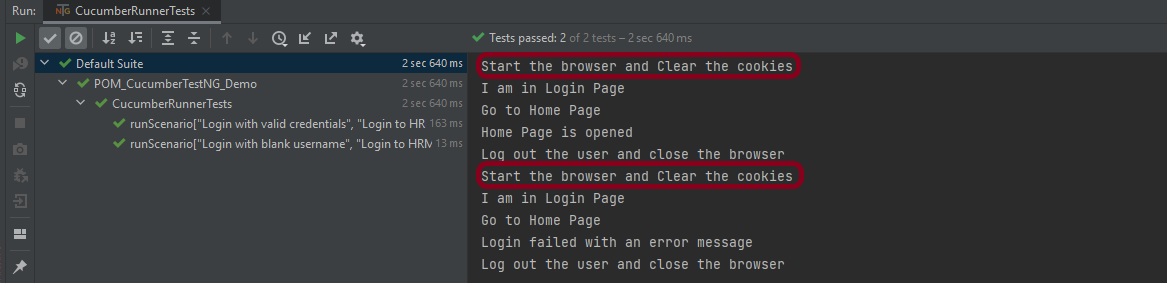
The output of the above program is
Background with Hooks

Background can contain one or more Given steps, which are run before each scenario, but after any Before hooks.

Below is an example of the background with hooks. The feature file is the same. I’m just adding the hooks to the Step Definition class.

import io.cucumber.java.en.Given;
import io.cucumber.java.en.Then;
import io.cucumber.java.en.When;

public class LoginPageDefinitions {

    @Before()
    public void beforeScenario(){
        System.out.println("Start the browser and Clear the cookies");
    }

    @Given("User is on HRMLogin page {string}")
    public void loginTest(String url) {

        System.out.println("I am in Login Page");

    }

    @When("User enters username as {string} and password as {string}")
    public void goToHomePage(String userName, String passWord) {

        System.out.println("Go to Home Page");

    }

    @Then("User should be able to login successfully and new page open")
    public void verifyLogin() {

        System.out.println("Home Page is opened");

    }

    @Then("User should be able to see a message {string} below Username")
    public void verifyMissingUsernameMessage(String message) {

        System.out.println("Login failed with an error message");
    }

  @After()
    public void afterScenario(){
        System.out.println("Log out the user and close the browser");
    }

}

The output of the above program is

Points to remember

  • The background should not be used to create complicated states unless the client requires that information.
    For example, if the client doesn’t care about the user and site names, use a higher-level step like Given I am logged in as a site owner
  • Keep the Background section brief.
    When reading the scenarios, the client must remember this information. Consider moving some of the irrelevant details into higher-level steps if the Background is longer than four lines.
  • Make your background section stand out
    Use interesting names and try to tell a story. The human brain remembers stories much better than it remembers names like “User A,” “User B,” “Site 1,” and so on.

Implemention of ‘Masterthought’ Reports in Cucumber with TestNG

Last Updated On

HOME

Masterthought library provides pretty HTML reports for Cucumber. The cucumber JSON file is used to generate the HTML for the website. This Java report publisher was made particularly with publishing cucumber reports to the Jenkins build server in mind. It releases aesthetically pleasing HTML reports with charts displaying the outcomes of cucumber runs.

Cucumber lacks a sophisticated reporting feature. Cucumber generates a number of simple reports as part of the BDD framework; using the output from these same reports, we can use the Masterthought reporting plugin to produce more extensive HTML reports. Masterthought reporting plugin generates not only fancy reports but also detailed ones by reading a default report ‘cucumber.json’  generated by cucumber.

Table of Contents

  1. Prerequisite
  2. Dependency List
  3. Project Structure
  4. Implementation Steps
    1. Download and Install Java
    2. Download and setup Eclipse IDE on the system
    3. Setup Maven
    4. Install Cucumber Eclipse Plugin (Only for Eclipse IDE
    5. Create a new Maven Project
    6. Add Selenium, TestNG, Cucumber, and Masterthought dependencies to the project
    7. Create a feature file (LoginPage.feature) containing all the test scenarios under src/test/resources/features
    8. Create the test code locating the web elements in src/main/java
    9. Create the Step Definition class or Glue Code in src/test/java
    10. Create a TestNG Cucumber Runner class in src/test/java
    11. Create testng.xml
    12. Run the tests from Command Line
    13. Cucumber Report Generation

Prerequisite

  1. Java 11 installed
  2. Maven installed
  3. Eclipse or IntelliJ installed

Dependency List

  1. Selenium – 4.3.0
  2. Java 11
  3. Cucumber – 7.6.0
  4. Maven – 3.8.1
  5. TestNG – 7.6.0
  6. Cucumber Reporting Plugin – 5.7.4

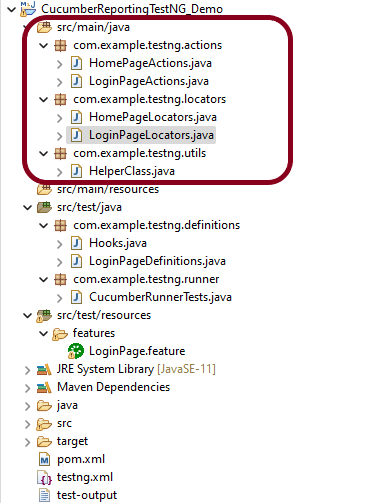
Project Structure

Implementation Steps

  1. Download and Install Java on the system
  2. Download and setup Eclipse IDE on the system
  3. Setup Maven
  4. Install Cucumber Eclipse Plugin (For Eclipse IDE)
  5. Create a new Maven Project
  6. Add SeleniumTestNG, Cucumber, and Masterthought dependencies to the project
  7. Create a feature file under src/test/resources
  8. Create the test code locating the web elements in src/main/java
  9. Create the Step Definition class or Glue Code in src/test/java
  10. Create a TestNG Cucumber Runner class in src/test/java
  11. Create testng.xml
  12. Run the tests from Command Line
  13. Cucumber Report Generation

Step 1- Download and Install Java

Cucumber and Selenium need Java to be installed on the system to run the tests. Click here to know How to install Java.

Step 2 – Download and setup Eclipse IDE on the system

The Eclipse IDE (integrated development environment) provides strong support for Java developers, which is needed to write Java code. Click here to know How to install Eclipse.

Step 3 – Setup Maven

To build a test framework, we need to add a number of dependencies to the project. It is a very tedious and cumbersome process to add each dependency manually. So, to overcome this problem, we use a build management tool. Maven is a build management tool that is used to define project structure, dependencies, build, and test management. Click here to know How to install Maven.

Step 4 – Install Cucumber Eclipse Plugin (Only for Eclipse IDE)

The Cucumber Eclipse plugin is a plugin that allows eclipse to understand the Gherkin syntax. The Cucumber Eclipse Plugin highlights the keywords present in Feature File. Click here to know more – Install Cucumber Eclipse Plugin.

Step 5 – Create a new Maven Project

Click here to know How to create a Maven project

Below is the Maven project structure. Here,

Group Id – com.example
Artifact Id – CucumberReportingTestNG_Demo
Version – 0.0.1-SNAPSHOT
Package – com. example.testng

Step 6 – Add Selenium, TestNG, Cucumber, and Masterthought dependencies to the project

Masterthought Dependency

<dependency>
			<groupId>net.masterthought</groupId>
			<artifactId>cucumber-reporting</artifactId>
			<version>${maven.cucumber.reporting.version}</version>
</dependency>

Masterthought Plugin

<plugin>
		<groupId>net.masterthought</groupId>
		<artifactId>maven-cucumber-reporting</artifactId>
		<version>${maven.cucumber.reporting.version}</version>

		<executions>
			<execution>
				<id>execution</id>
				<phase>test</phase>
				<goals>
					<goal>generate</goal>
				</goals>
				<configuration>
					<projectName>Cucumber Reporting Example</projectName>
					<outputDirectory>${project.build.directory}/cucumber-report-html</outputDirectory>
					<inputDirectory>${project.build.directory}</inputDirectory>
					<jsonFiles>
						<param>**/*.json</param>
					</jsonFiles>
				</configuration>
			</execution>
		</executions>
</plugin>

The complete POM.xml for the project is shown below:-

<project xmlns="http://maven.apache.org/POM/4.0.0" xmlns:xsi="http://www.w3.org/2001/XMLSchema-instance" xsi:schemaLocation="http://maven.apache.org/POM/4.0.0 https://maven.apache.org/xsd/maven-4.0.0.xsd">
	<modelVersion>4.0.0</modelVersion>
	<groupId>com.example</groupId>
	<artifactId>CucumberReportingTestNG_Demo</artifactId>
	<version>0.0.1-SNAPSHOT</version>

	<properties>
		<project.build.sourceEncoding>UTF-8</project.build.sourceEncoding>
		<cucumber.version>7.6.0</cucumber.version>
		<selenium.version>4.3.0</selenium.version>
		<webdrivermanager.version>5.2.1</webdrivermanager.version>
		<testng.version>7.6.0</testng.version>
		<apache.common.version>2.4</apache.common.version>
		<maven.compiler.plugin.version>3.10.1</maven.compiler.plugin.version>
		<maven.surefire.plugin.version>3.0.0-M7</maven.surefire.plugin.version>
		<maven.compiler.source.version>11</maven.compiler.source.version>
		<maven.compiler.target.version>11</maven.compiler.target.version>
		<maven.cucumber.reporting.version>5.7.4</maven.cucumber.reporting.version>
	</properties>

	<dependencies>

		<dependency>
			<groupId>io.cucumber</groupId>
			<artifactId>cucumber-java</artifactId>
			<version>${cucumber.version}</version>
		</dependency>

		<dependency>
			<groupId>io.cucumber</groupId>
			<artifactId>cucumber-testng</artifactId>
			<version>${cucumber.version}</version>
			<scope>test</scope>
		</dependency>

		<!-- Selenium -->
		<dependency>
			<groupId>org.seleniumhq.selenium</groupId>
			<artifactId>selenium-java</artifactId>
			<version>${selenium.version}</version>
		</dependency>

		<!-- Web Driver Manager -->
		<dependency>
			<groupId>io.github.bonigarcia</groupId>
			<artifactId>webdrivermanager</artifactId>
			<version>${webdrivermanager.version}</version>
		</dependency>

		<!-- TestNG -->
		<dependency>
			<groupId>org.testng</groupId>
			<artifactId>testng</artifactId>
			<version>${testng.version}</version>
			<scope>test</scope>
		</dependency>

		<!-- Apache Common -->
		<dependency>
			<groupId>org.apache.directory.studio</groupId>
			<artifactId>org.apache.commons.io</artifactId>
			<version>${apache.common.version}</version>
		</dependency>

       <!-- Cucumber Reporting-->
		<dependency>
			<groupId>net.masterthought</groupId>
			<artifactId>cucumber-reporting</artifactId>
			<version>${maven.cucumber.reporting.version}</version>
		</dependency>

	</dependencies>

	<build>
		<plugins>
			<plugin>
				<groupId>org.apache.maven.plugins</groupId>
				<artifactId>maven-compiler-plugin</artifactId>
				<version>${maven.compiler.plugin.version}</version>
				<configuration>
					<source>${maven.compiler.source.version}</source>
					<target>${maven.compiler.target.version}</target>
				</configuration>
			</plugin>
			<plugin>
				<groupId>org.apache.maven.plugins</groupId>
				<artifactId>maven-surefire-plugin</artifactId>
				<version>${maven.surefire.plugin.version}</version>
				<configuration>
					<testFailureIgnore>True</testFailureIgnore>
					<suiteXmlFiles>
						<suiteXmlFile>testng.xml</suiteXmlFile>
					</suiteXmlFiles>
				</configuration>
			</plugin>

			<plugin>
				<groupId>net.masterthought</groupId>
				<artifactId>maven-cucumber-reporting</artifactId>
				<version>${maven.cucumber.reporting.version}</version>

				<executions>
					<execution>
						<id>execution</id>
						<phase>test</phase>
						<goals>
							<goal>generate</goal>
						</goals>
						<configuration>
							<projectName>Cucumber Reporting Example</projectName>
							<outputDirectory>${project.build.directory}/cucumber-report-html</outputDirectory>
							<inputDirectory>${project.build.directory}</inputDirectory>
							<jsonFiles>
								<param>**/*.json</param>
							</jsonFiles>
						</configuration>
					</execution>
				</executions>
			</plugin>
		</plugins>
	</build>
</project>

Step 7 – Create a feature file (LoginPage.feature) containing all the test scenarios under src/test/resources/features

It is recommended to create a features folder in src/test/resources directory. Create all the feature files in this features folder. Feature file should be saved as an extension of .feature.

Feature: Login to HRM Application 

Background:
    Given User is on HRMLogin page "https://opensource-demo.orangehrmlive.com/"
 
   @ValidCredentials
   Scenario: Login with valid credentials
       
    When User enters username as "Admin" and password as "admin123"
    Then User should be able to login successfully and new page open
    
   @InvalidCredentials
   Scenario Outline: Login with invalid credentials
     
    When User enters username as "<username>" and password as "<password>"
    Then User should be able to see error message "<errorMessage>"
    
  Examples:
   | username   | password  | errorMessage                       |
   | $$$$$        | ££££££££  | Invalid credentials               |
   | admin        | Admin123  | Invalid credentials              | 

Step 8 – Create the test code locating the web elements in src/main/java

LoginPageLocators

import org.openqa.selenium.WebElement;
import org.openqa.selenium.support.FindBy;

public class LoginPageLocators {

	@FindBy(name = "username")
    public WebElement userName;
 
    @FindBy(name = "password")
    public WebElement password;
 
    @FindBy(id = "logInPanelHeading")
    public WebElement titleText;
 
    @FindBy(xpath = "//*[@id='app']/div[1]/div/div[1]/div/div[2]/div[2]/form/div[3]/button")
    public WebElement login;
 
    @FindBy(xpath = "//*[@id='app']/div[1]/div/div[1]/div/div[2]/div[2]/div/div[1]/div[1]/p")
    public  WebElement errorMessage;
        
    @FindBy(xpath = "//*[@href='https://www.facebook.com/OrangeHRM/mycompany']") //Invalid Xpath
    public  WebElement faceBookIcon;  
    
    @FindBy(xpath = "//*[@id='app']/div[1]/div/div[1]/div/div[2]/div[2]/form/div[1]/div/span")
    public WebElement missingUsernameErrorMessage;
}

HomePageLocators

import org.openqa.selenium.WebElement;
import org.openqa.selenium.support.FindBy;

public class HomePageLocators {

	@FindBy(xpath = "//*[@id='app']/div[1]/div[1]/header/div[1]/div[1]/span/h6")
	public  WebElement homePageUserName;
 
}

LoginPageActions

import org.openqa.selenium.support.PageFactory;
import com.example.testng.locators.LoginPageLocators;
import com.example.testng.utils.HelperClass;

public class LoginPageActions {

LoginPageLocators loginPageLocators = null; 
	
    public LoginPageActions() {

    	this.loginPageLocators = new LoginPageLocators();

		PageFactory.initElements(HelperClass.getDriver(),loginPageLocators);
	}
    
    public void login(String strUserName, String strPassword) {
    	 
        // Fill user name
    	loginPageLocators.userName.sendKeys(strUserName);
 
        // Fill password
    	loginPageLocators.password.sendKeys(strPassword);
 
        // Click Login button
    	loginPageLocators.login.click();
 
    }
 
    //Get the title of Login Page")
    public String getLoginTitle() {
        return loginPageLocators.titleText.getText();
    }
      
    // Get the error message of Login Page
    public String getErrorMessage() {
        return loginPageLocators.errorMessage.getText();
    }
      
}

HomePageActions

import org.openqa.selenium.support.PageFactory;
import com.example.testng.locators.HomePageLocators;
import com.example.testng.utils.HelperClass;

public class HomePageActions {

	HomePageLocators homePageLocators = null;
   
	public HomePageActions() {
    	
		this.homePageLocators = new HomePageLocators();

		PageFactory.initElements(HelperClass.getDriver(),homePageLocators);
    }
 
    // Get the User name from Home Page
    public String getHomePageText() {
        return homePageLocators.homePageUserName.getText();
    }

}

HelperClass

import java.time.Duration;
import org.openqa.selenium.WebDriver;
import org.openqa.selenium.chrome.ChromeDriver;
import io.github.bonigarcia.wdm.WebDriverManager;

public class HelperClass {
	
	private static HelperClass helperClass;
	
	private static WebDriver driver;
    public final static int TIMEOUT = 10;
	
	 private HelperClass() {
		 
			WebDriverManager.chromedriver().setup();
	    	driver = new ChromeDriver();
	    	driver.manage().timeouts().implicitlyWait(Duration.ofSeconds(TIMEOUT));
	        driver.manage().window().maximize();

	 }      
	    	
    public static void openPage(String url) {
        driver.get(url);
    }
	
	public static WebDriver getDriver() {
		return driver;
				
	}
	
	public static void setUpDriver() {
		
		if (helperClass==null) {
			
			helperClass = new HelperClass();
		}
	}

	 public static void tearDown() {
		 
		 if(driver!=null) {
			 driver.close();
			 driver.quit();
		 }
		 
		 helperClass = null;

	 } 
	
}

Step 9 – Create the Step Definition class or Glue Code in src/test/java

It is recommended to create a definitions folder in src/test/java directory. The StepDefinition files should be created in this definitions directory. within the folder called definitions.

LoginPageDefinitions

import org.junit.Assert;
import com.example.junit.actions.ForgetPasswordPageActions;
import com.example.junit.actions.HomePageActions;
import com.example.junit.actions.LoginPageActions;
import com.example.junit.utils.HelperClass;
import io.cucumber.java.en.Given;
import io.cucumber.java.en.Then;
import io.cucumber.java.en.When;

public class LoginPageDefinitions{
	
	LoginPageActions objLogin = new LoginPageActions();
    HomePageActions objHomePage = new HomePageActions();
    ForgetPasswordPageActions objForgotPasswordPage = new ForgetPasswordPageActions();
		
 
    @Given("User is on HRMLogin page {string}")
    public void loginTest(String url) {
    	
    	HelperClass.openPage(url);
 
    }
 
    @When("User enters username as {string} and password as {string}")
    public void goToHomePage(String userName, String passWord) {
 
        // login to application
        objLogin.login(userName, passWord);
 
        // go the next page
        
    }
    
    @Then("User should be able to login successfully and new page open")
    public void verifyLogin() {
 
        // Verify home page
        Assert.assertTrue(objHomePage.getHomePageText().contains("Dashboard"));
 
    }
    
    @Then("User should be able to see error message {string}")
    public void verifyErrorMessage(String expectedErrorMessage) {
 
        // Verify home page
        Assert.assertEquals(objLogin.getErrorMessage(),expectedErrorMessage);
 
    }
     
}

Hooks

import com.example.junit.utils.HelperClass;
import io.cucumber.java.After;
import io.cucumber.java.Before;

public class Hooks {
	
	@Before
    public static void setUp() {

       HelperClass.setUpDriver();
    }
	
	@After
	public static void tearDown() {
	
		HelperClass.tearDown();
	}
}

Step 10 – Create a TestNG Cucumber Runner class in src/test/java

We need to create a class called Runner class to run the tests. This class will use the TestNG annotation @RunWith(), which tells TestNG what is the test runner class. TestRunner should be created under src/test/java within the folder called runner.

AbstractTestNGCucumberTests – Runs each cucumber scenario found in the features as a separate test.

import io.cucumber.testng.AbstractTestNGCucumberTests;
import io.cucumber.testng.CucumberOptions;
 
@CucumberOptions(tags = "", features = "src/test/resources/features/LoginPage.feature", glue = "com.example.testng.definitions",
    plugin= {"pretty", "html:test-output","json:target/cucumber/cucumber.json", "html:target/cucumber-html-report"})
 
public class CucumberRunnerTests extends AbstractTestNGCucumberTests {
 
}

Step 11 – Create testng.xml

TestNG.xml is used to run multiple tests in a single execution.

<?xml version="1.0" encoding="UTF-8"?>
<!DOCTYPE suite SYSTEM "https://testng.org/testng-1.0.dtd">
<suite name="Suite">
  <test name="Cucumber Reporting">
  
  <classes>
  <class name = "com.example.testng.runner.CucumberRunnerTests"/>
  </classes>
  </test> <!-- Test -->
</suite> <!-- Suite -->

Step 12 – Run the tests from Command Line

Use the below command to execute the tests.

mvn clean test

The output of the above program is

Step 13 – Cucumber Report Generation

Refresh your project and check inside \target\cucumber-html-reports that the report generated with name feature-overview.

There are different types of HTML reports gets generated as a part of the test execution cycle.

1. feature-overview – This HTML report gives an overall overview of test execution. Main HTML report which covers all different sections like Features, Tags, Steps, and Failures.

2. failures-overview – This HTML report gives an overview of all failed tests.

3. step-overview – This HTML report shows step statistics for the current cycle.

4. tag-overview – This HTML report shows passing and failing statistics for different tags used in test execution.

Congratulations on making it through this tutorial and hope you found it useful! Happy Learning!! Cheers!!