Gradle – ExtentReports Version 5 for Cucumber, Selenium and JUnit4

HOME

The previous tutorial explained the generation of ExtentReports Version 5 for Cucumber 7 and TestNG in a Maven project. In this tutorial, I will explain the steps to create an Extent Report Version 5 for Cucumber, Selenium, and Junit4 in a Gradle project.

Pre Requisite:

  1. Java 8 or above installed
  2. Eclipse or IntelliJ IDE installed
  3. Gradle Installed
  4. Environment variable JAVA_HOME and GRADLE_HOME correctly configured

In this tutorial, I’ll create a BDD Framework for the testing of web applications using CucumberSelenium WebDriver with JUnit4. This framework consists of:-

  1. Cucumber Java- 7.6.0
  2. Cucumber JUnit – 7.6.0
  3. Java 11
  4. JUnit – 4.13.2
  5. Gradle – 7.5.1
  6. Selenium – 4.3.0
  7. ExtentReport – 5.0.9
  8. GrassHopper Cucumber Adapter – 1.7.0

Implementation Steps

  1. Add ExtentReport dependency to the build.gradle
  2. Add ExtentCucumberAdapter plugin to task cucumber
  3. Add Cucumber, Selenium and JUnit4 , and dependencies in build.gradle
  4. Create Locator and Action classes and Step Definition corresponding to the feature file
  5. Create extent.properties file in resources folder and paste the below code
  6. Execute the Tests
  7. View the ExtentReports

There is a tutorial that explains the Integration of Cucumber, Selenium, and JUnit4 in a Gradle project. Please refer to this tutorial – Gradle Project with Cucumber, Selenium, and JUnit4.

Step 1 – Add ExtentReport dependency to the build.gradle

To create ExtentReport, we need to add the below-mentioned dependency in build.gradle.

implementation 'tech.grasshopper:extentreports-cucumber7-adapter:1.7.0'
implementation 'com.aventstack:extentreports:5.0.9'  

Step 2 – Add ExtentCucumberAdapter plugin to task cucumber

task cucumber() {
    dependsOn assemble, compileTestJava
    doLast {
        javaexec {         
            main = "io.cucumber.core.cli.Main"
            classpath = configurations.cucumberRuntime + sourceSets.main.output + sourceSets.test.output
            args = ['--plugin', 'pretty', 
            '--plugin', 'io.qameta.allure.cucumber7jvm.AllureCucumber7Jvm',
            '--plugin', 'com.aventstack.extentreports.cucumber.adapter.ExtentCucumberAdapter:',
            '--glue', 'com.example.definitions', 'src/test/resources']
        }
    }
}

Step 3 – Add Cucumber, Selenium and JUnit4, and dependencies in build.gradle

dependencies {

    testImplementation 'io.cucumber:cucumber-java:7.6.0'
    testImplementation 'io.cucumber:cucumber-junit:7.6.0'
    
    // Use JUnit test framework.
    testImplementation 'junit:junit:4.13.2'
    
    //ExtentReport    
    implementation 'tech.grasshopper:extentreports-cucumber7-adapter:1.7.0'
    implementation 'com.aventstack:extentreports:5.0.9' 

    // This dependency is used by the application.
    implementation 'com.google.guava:guava:30.1.1-jre'
    implementation 'org.seleniumhq.selenium:selenium-java:4.4.0'
    implementation 'io.github.bonigarcia:webdrivermanager:5.3.0'
}

The complete build.gradle is shown below:

/*
 * This file was generated by the Gradle 'init' task.
 *
 */

plugins {
    // Apply the application plugin to add support for building a CLI application in Java.
    id 'application'
}

repositories {
    // Use Maven Central for resolving dependencies.
    mavenCentral()
}

java {
    sourceCompatibility = 11
    targetCompatibility = 11
}
 

dependencies {

    testImplementation 'io.cucumber:cucumber-java:7.6.0'
    testImplementation 'io.cucumber:cucumber-junit:7.6.0'
    
    // Use JUnit test framework.
    testImplementation 'junit:junit:4.13.2'
    
    //ExtentReport    
    implementation 'tech.grasshopper:extentreports-cucumber7-adapter:1.7.0'
    implementation 'com.aventstack:extentreports:5.0.9' 

    // This dependency is used by the application.
    implementation 'com.google.guava:guava:30.1.1-jre'
    implementation 'org.seleniumhq.selenium:selenium-java:4.4.0'
    implementation 'io.github.bonigarcia:webdrivermanager:5.3.0'
}

application {
    // Define the main class for the application.
    mainClass = 'com.example.App'
}

configurations {
    cucumberRuntime {
        extendsFrom testImplementation
    }
}

task cucumber() {
    dependsOn assemble, testClasses
    doLast {
        javaexec {
        
            main = "io.cucumber.core.cli.Main"
            classpath = configurations.cucumberRuntime + sourceSets.main.output + sourceSets.test.output
            args = ['--plugin', 'pretty',
            '--plugin', 'io.qameta.allure.cucumber7jvm.AllureCucumber7Jvm',
            '--plugin', 'com.aventstack.extentreports.cucumber.adapter.ExtentCucumberAdapter:', 
            '--glue', 'com.example.definitions', 'src/test/resources']
        }
    }
}

Step 4 – Create Locator and Action classes and Step Definition corresponding to the feature file

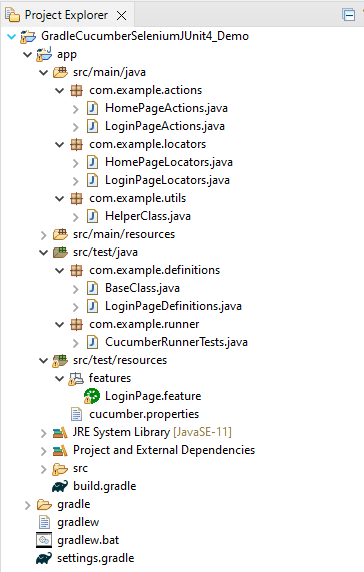
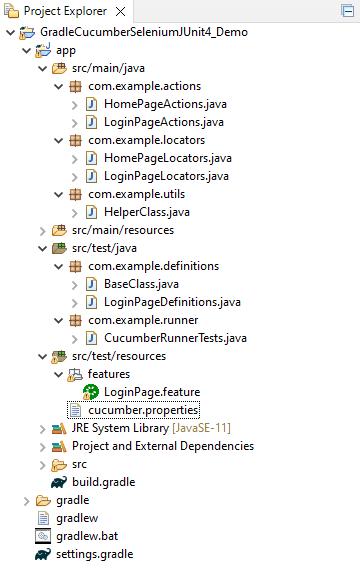
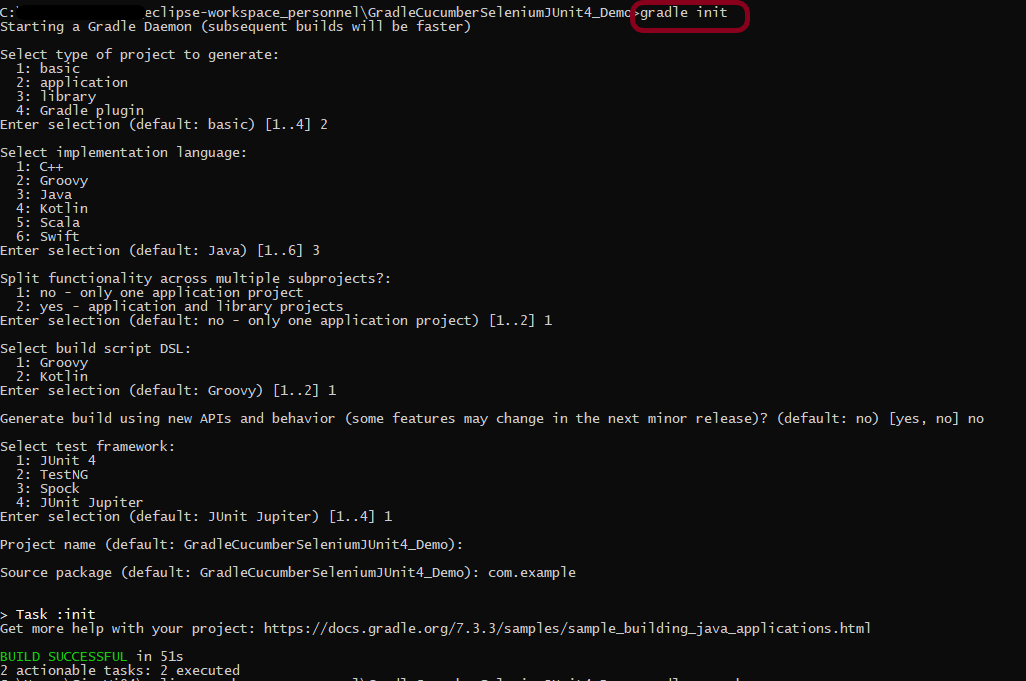
As mentioned above, there is another tutorial that explains the project structure as well as the feature file and corresponding Step Definitions, please refer to this tutorial – Gradle Project with Cucumber, Selenium and JUnit4.

Step 5 – Create extent.properties file in resources folder and paste the below code

#Extent Report
extent.reporter.spark.start=true
extent.reporter.spark.out=Reports/Spark.html
 
#PDF Report
extent.reporter.pdf.start=true
extent.reporter.pdf.out=PdfReport/ExtentPdf.pdf
 
#HTML Report
extent.reporter.html.start=true
extent.reporter.html.out=HtmlReport/ExtentHtml.html
 
#FolderName
basefolder.name=ExtentReports/SparkReport_
basefolder.datetimepattern=d_MMM_YY HH_mm_ss
 
#Screenshot
screenshot.dir=/Screenshots/
screenshot.rel.path=../Screenshots/
 
#Base64
extent.reporter.spark.base64imagesrc=true
 
#System Info
systeminfo.os=windows
systeminfo.version=10

Step 6 – Execute the Tests

Go to the app project and run the tests, using the below command

gradle cucumber

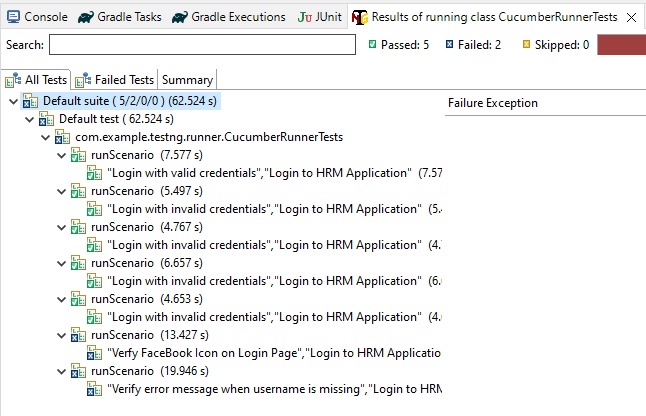
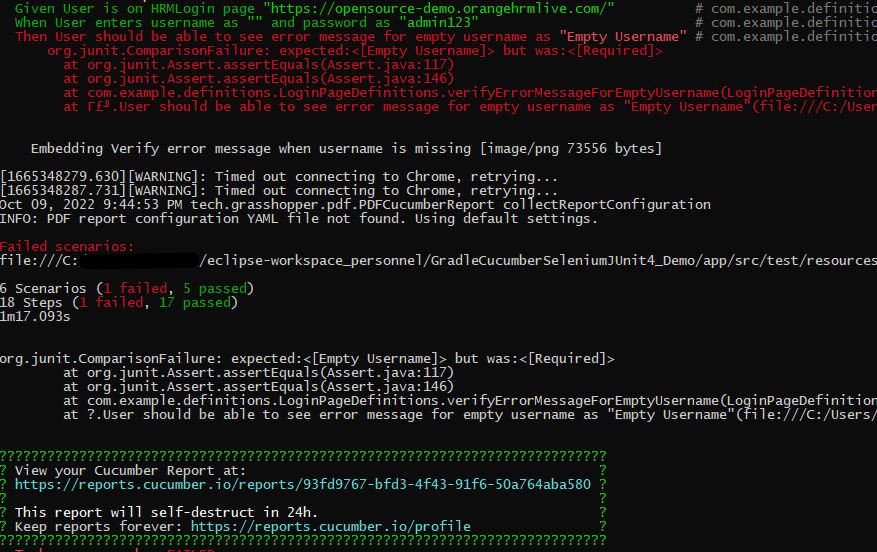
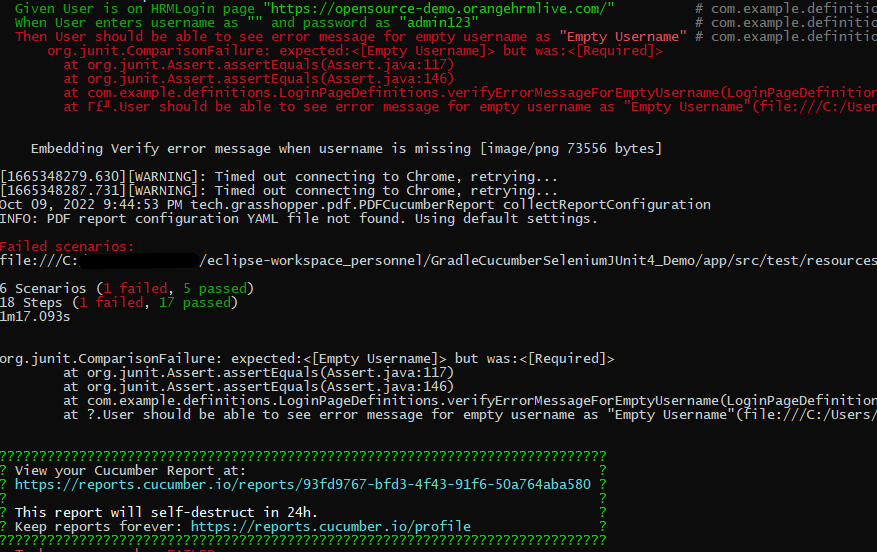
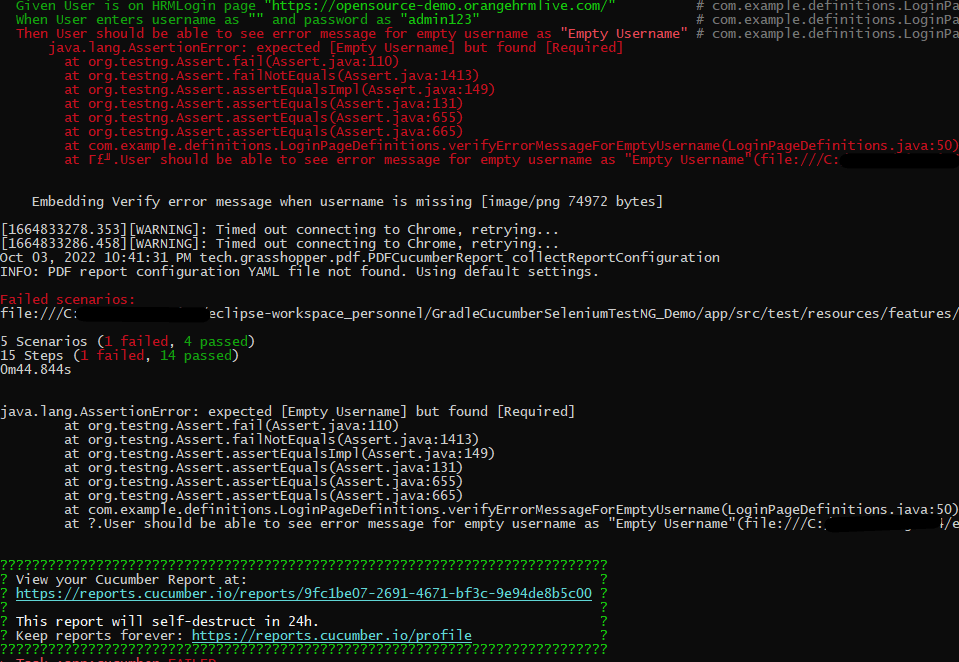
The output of the above program is

Step 7: View the ExtentReports

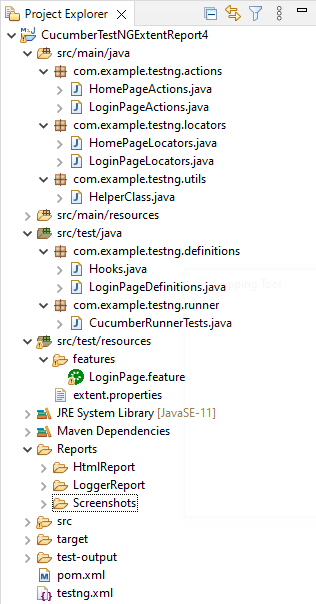
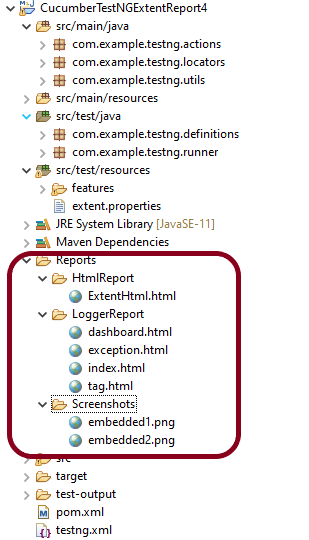
Refresh the project and will see a new folder – SparkReport_ which further contains 4 folders –HtmlReport, PdfReport, Reports, and Screenshots.

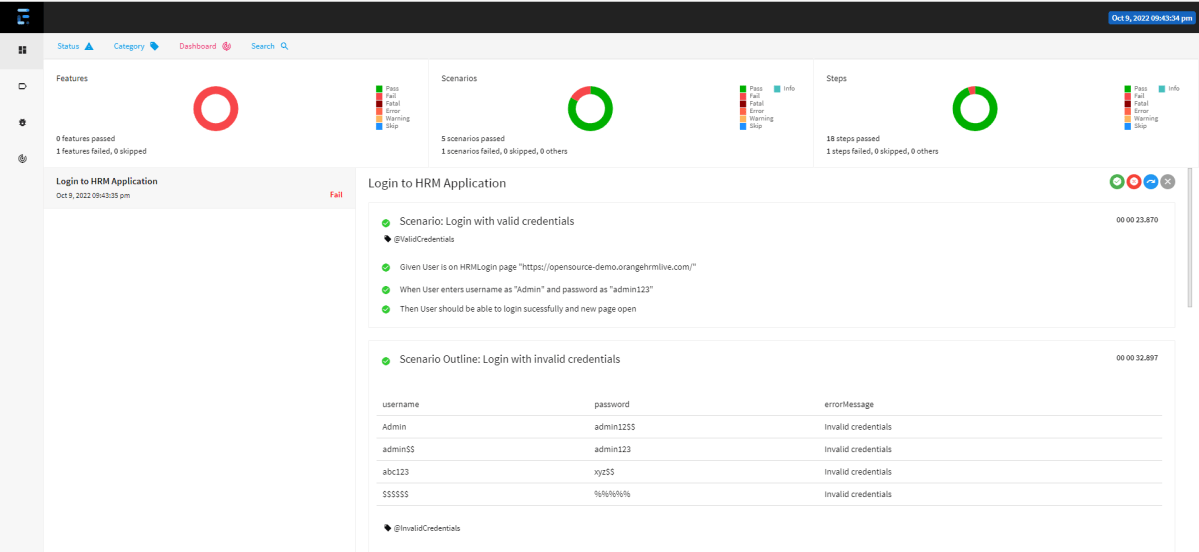
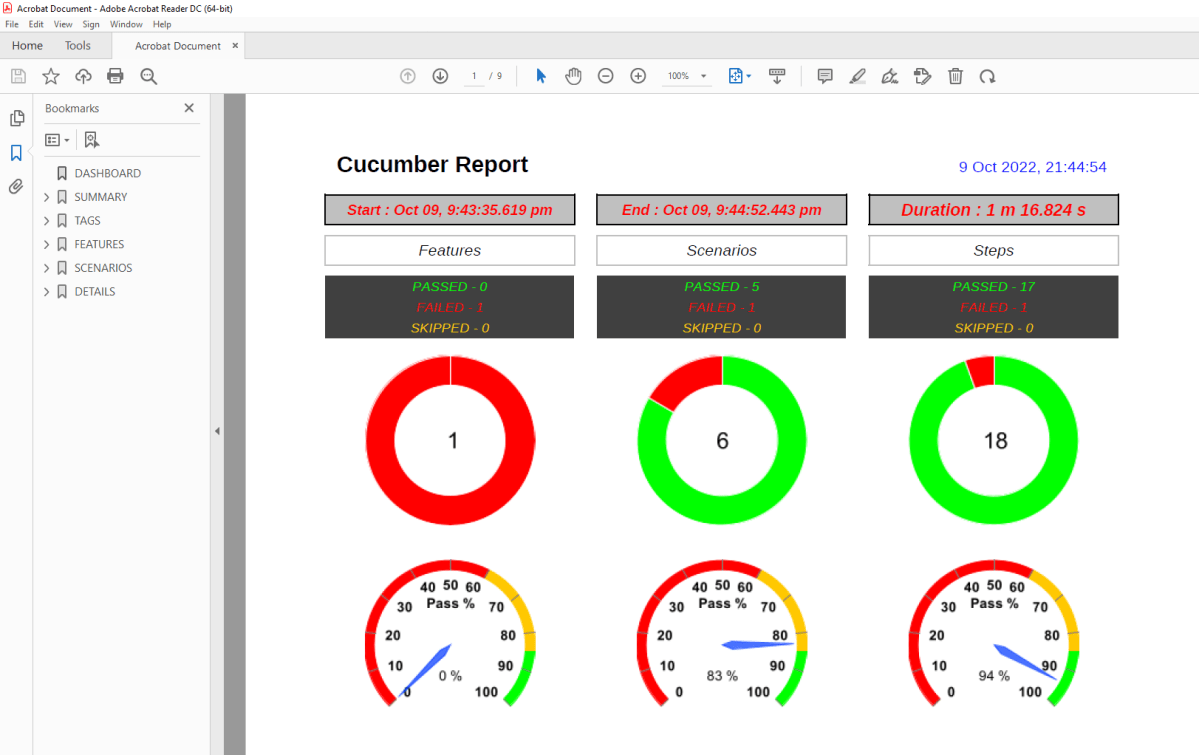
The ExtentReport will be present in the Report’s folder with the name Spark.html. PDF Report is present in the PdfReport folder and HTML Report is present in the HtmlReport folder. We can see that the Screenshots’ folder is empty because we have used base64imagesrc feature which resulted in no physical screenshots. The screenshots are embedded in the reports.

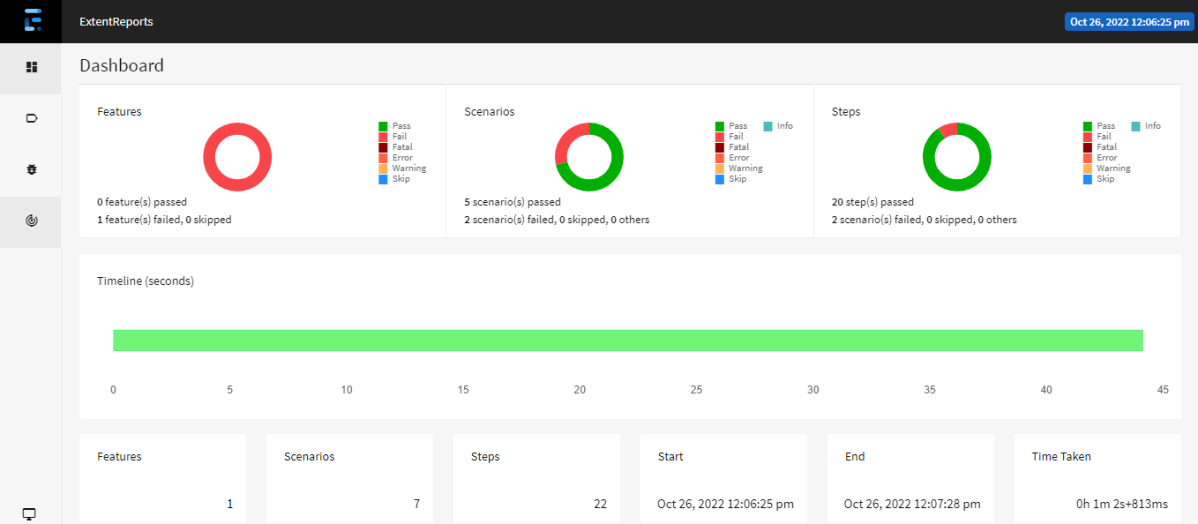
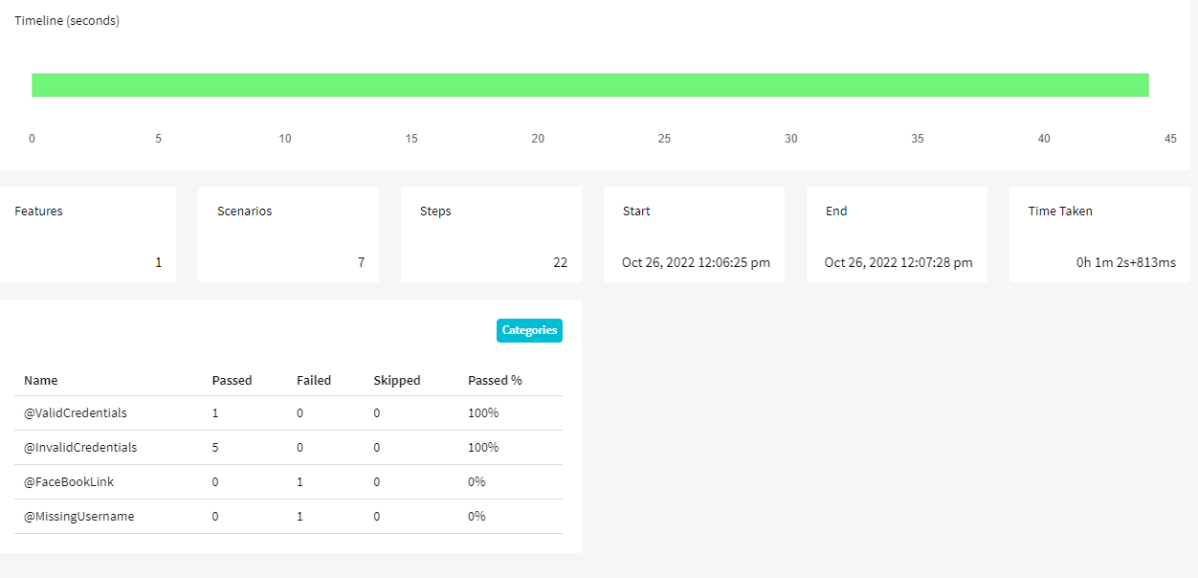
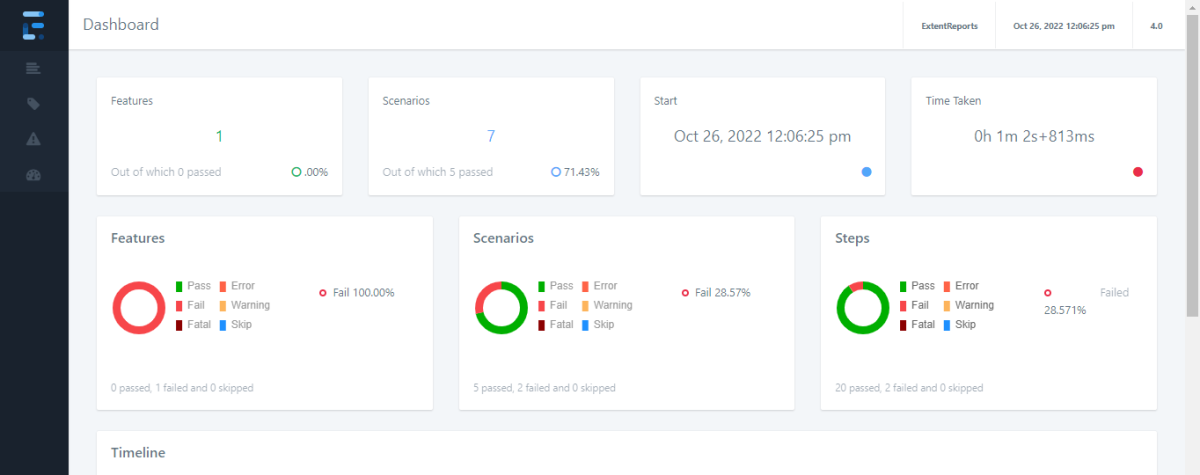
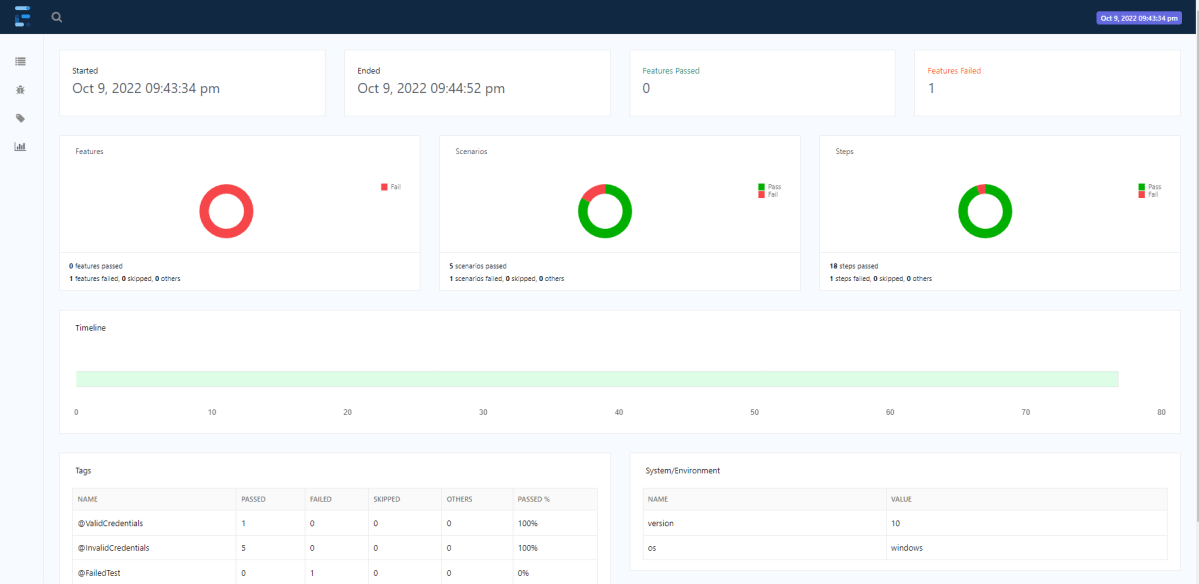
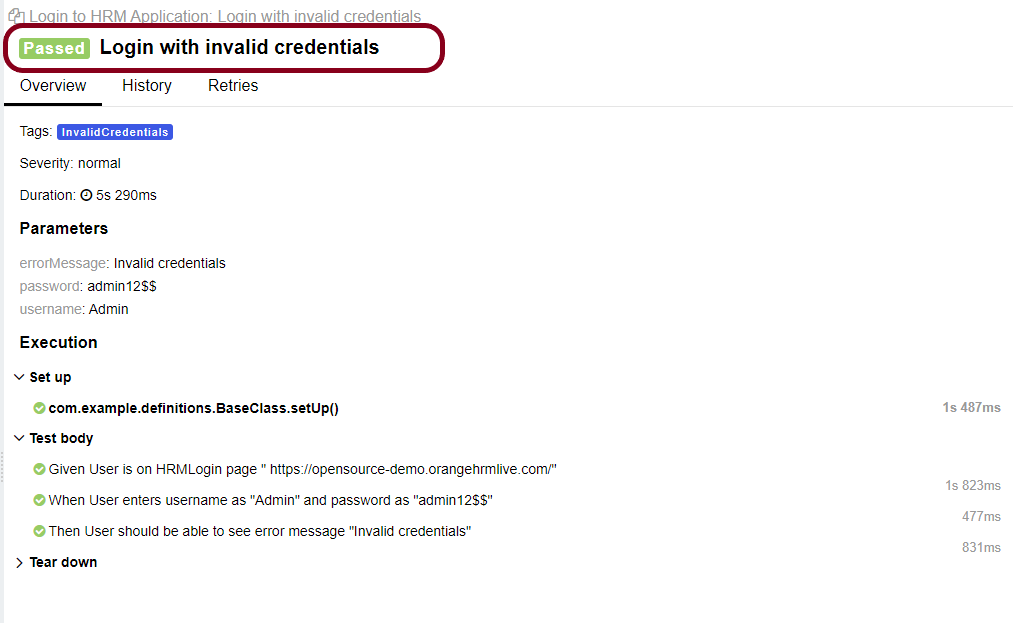
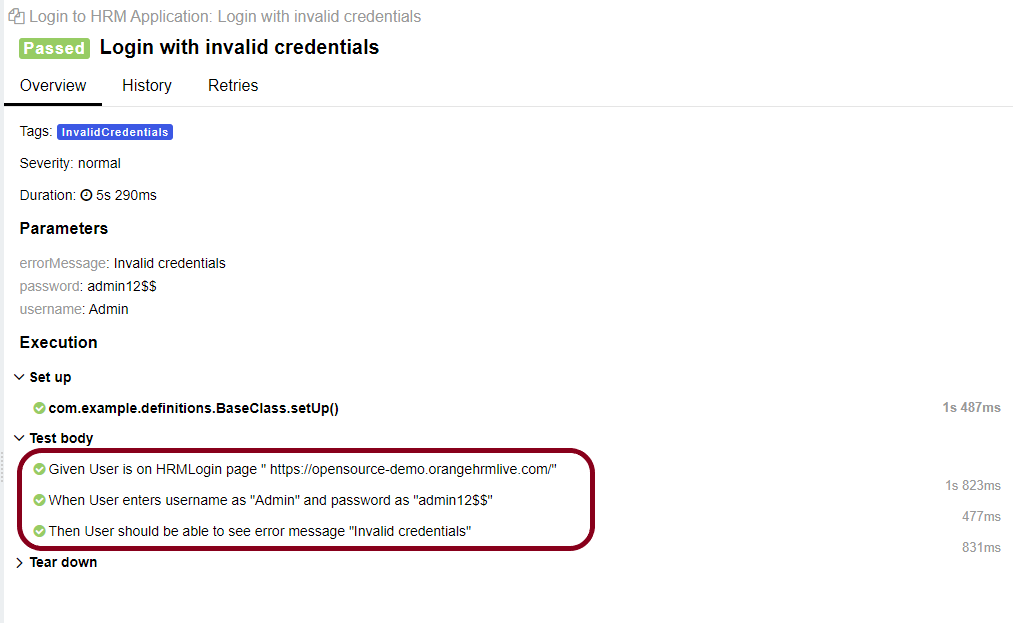
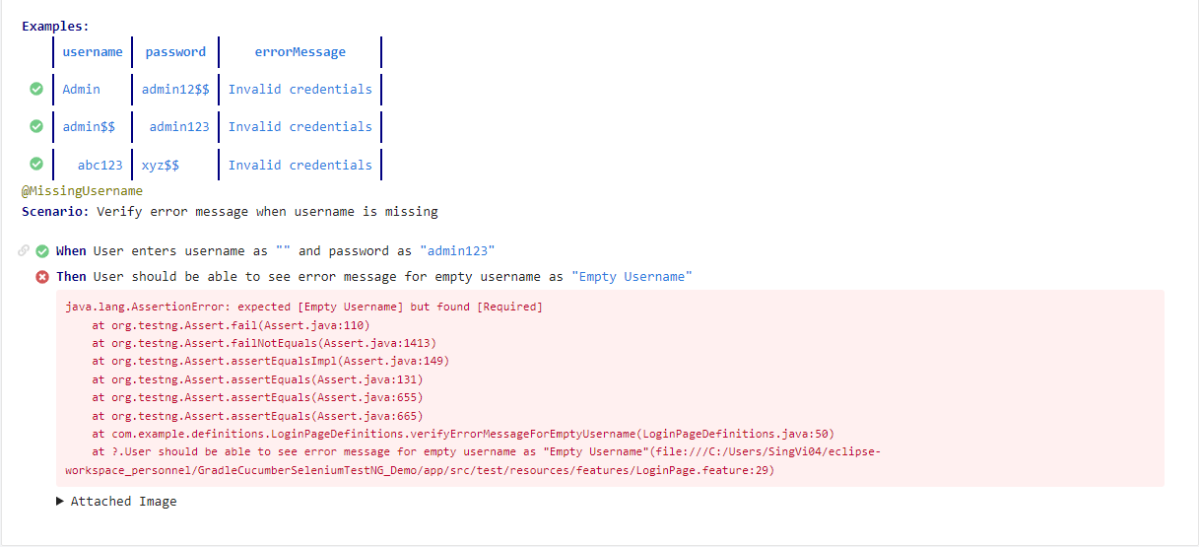
Right-click and open the ExtentHtml.html report with the Web Browser. The report also has a summary section that displays the summary of the execution. The summary includes the overview of the pass/fail using a pictogram, start time, end time, and pass/fail details of features as shown in the image below.

ExtentHtml.html

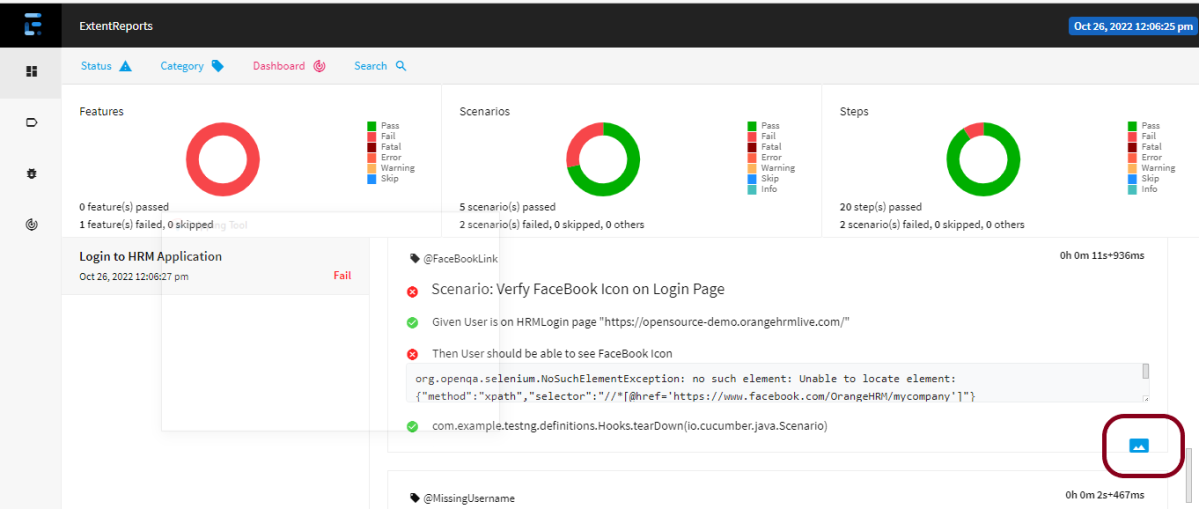
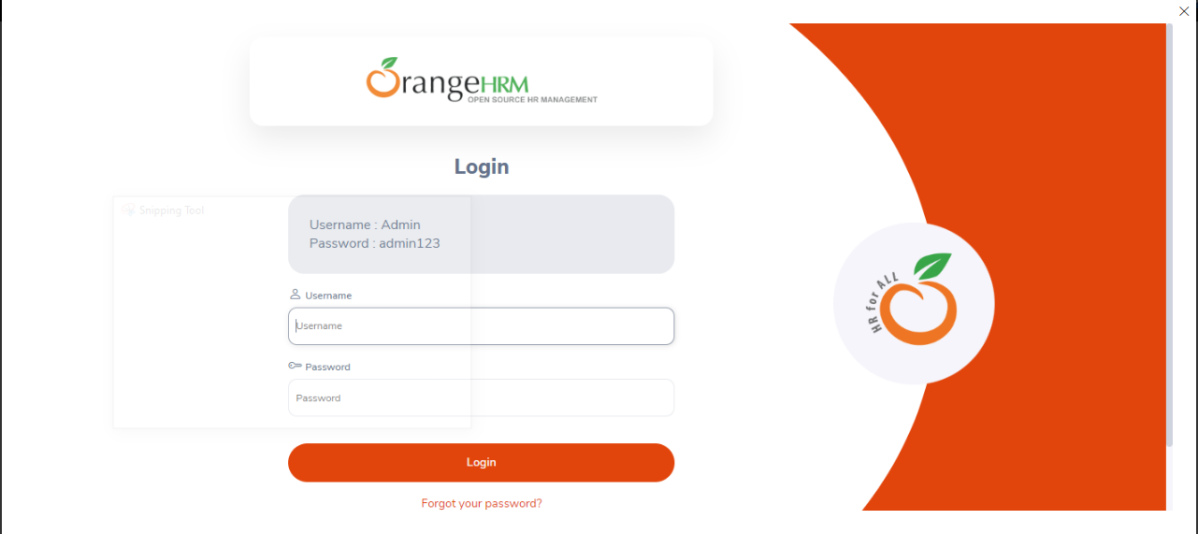
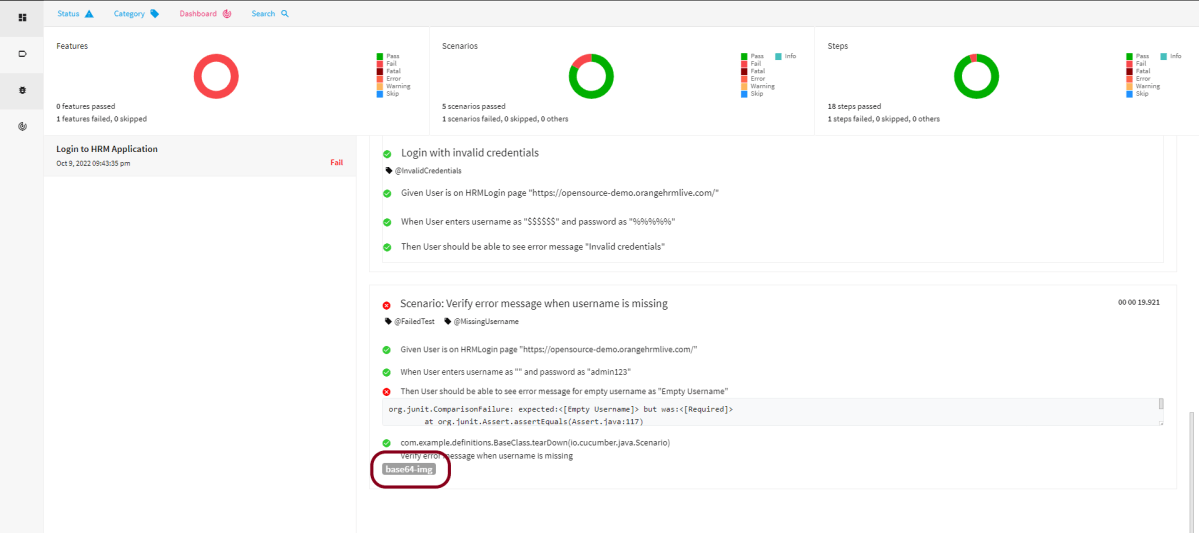
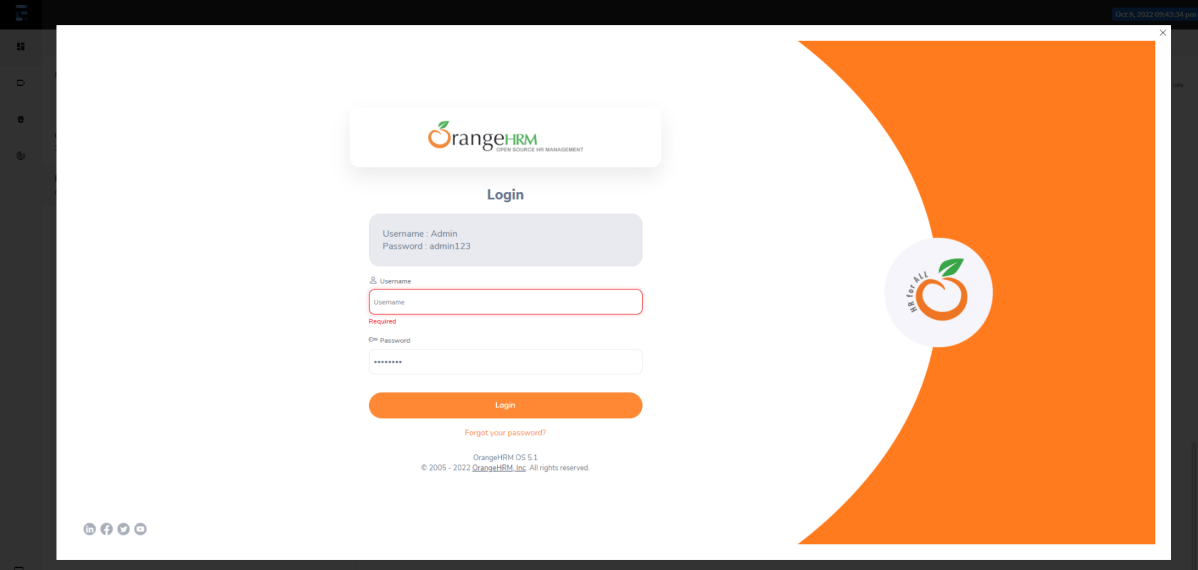
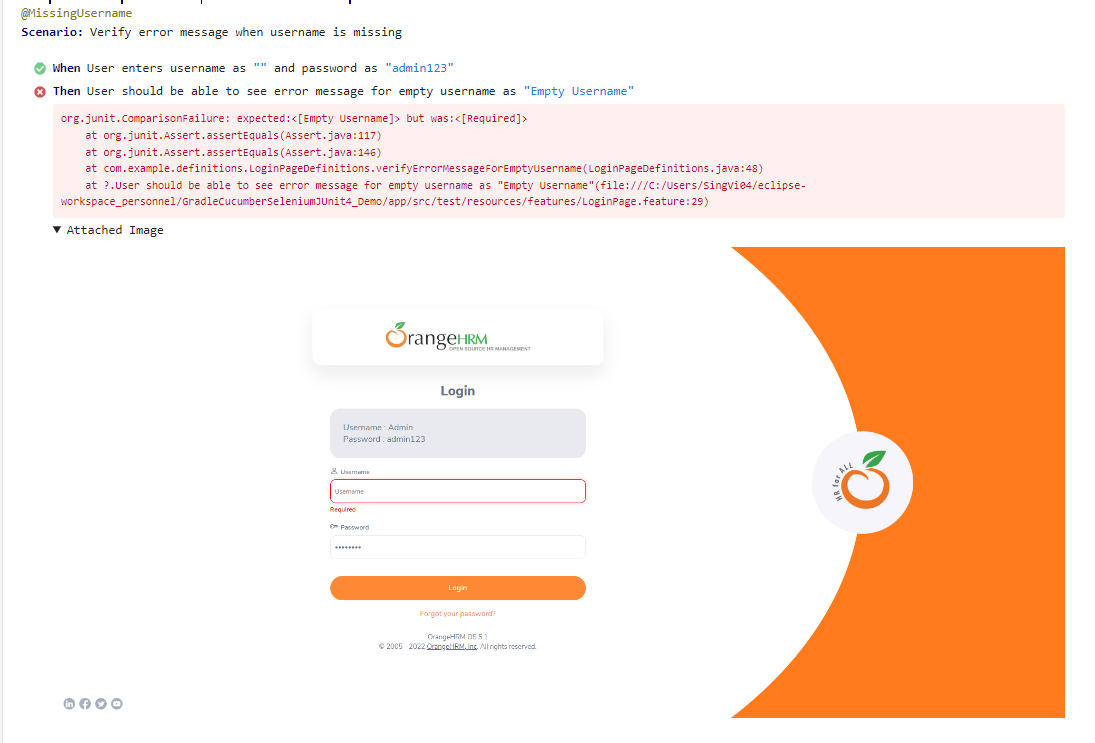
The failed test has screenshot embedded in it. Double click on mase64image and it will open the screenshot in full screen.

Screenshot of failed Test Case

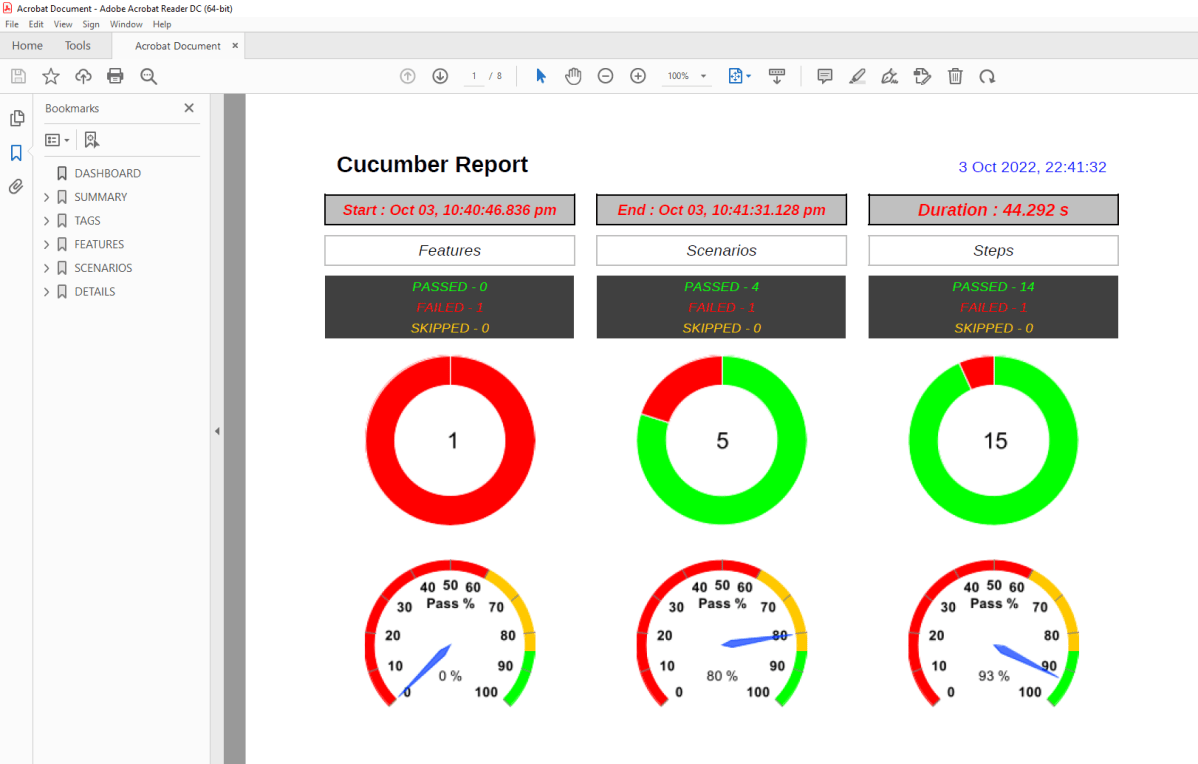
PDF Report

To know more about PDF Report generation, please refer to this tutorial – PDF ExtentReport for Cucumber and TestNG.

Spark Report

Right-click and open the Spark.html report with Web Browser.

Congratulations on making it through this tutorial and hope you found it useful! Happy Learning!! Cheers!!

Gradle – Allure Report for Cucumber7, Selenium and JUnit4

HOME

The previous tutorial explained the generation of Allure Report with Cucumber5, Selenium and JUnit4 in a Maven project. In this tutorial, I will explain the steps to create an Allure Report with Cucumber, Selenium, and JUnit4 in a Gradle project.

Prerequisite:

  1. Java 8 or above installed
  2. Eclipse or IntelliJ IDE installed
  3. Gradle Installed
  4. Environment variables JAVA_HOME, ALLURE_HOME and GRADLE_HOME are correctly configured

In this tutorial, I’ll create a BDD Framework for the testing of web applications using Cucumber7, and Selenium 4 with JUnit4. This framework consists of:-

  1. Cucumber Java- 7.6.0
  2. Cucumber JUnit4 – 7.6.0
  3. Java 11
  4. JUnit4 – 4.13.2
  5. Gradle – 7.3.3
  6. Selenium – 4.3.0
  7. Allure Cucumber – 2.19.0
  8. AspectJ Weaver – 1.9.7

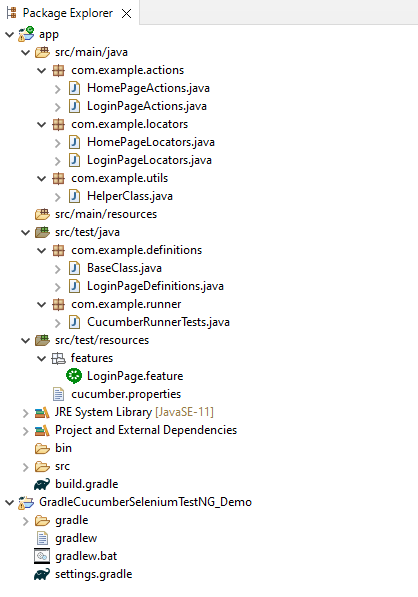
Project Structure

Implementation Steps

  1. Add Cucumber, Selenium, TestNG, and Allure-JUnit dependencies in build.gradle
  2. Create Locator and Action classes and Step Definition corresponding to the feature file and Test Runner Class
  3. Execute the Tests
  4. Generate Allure Report

There is a tutorial that explains the Integration of Cucumber, Selenium, and JUnit4 in a Gradle project. Please refer to this tutorial – Gradle Project with Cucumber, Selenium, and JUnit4.

Step 1 – Add Cucumber, Selenium, TestNG, and Allure-JUnit4 dependencies in build.gradle

/*
 * This file was generated by the Gradle 'init' task.
 *
 */

plugins {
    // Apply the application plugin to add support for building a CLI application in Java.
    id 'application'
    id 'io.qameta.allure' version '2.11.0'
}

repositories {
    // Use Maven Central for resolving dependencies.
    mavenCentral()
}

java {
    sourceCompatibility = 11
    targetCompatibility = 11
}
 
dependencies {

    testImplementation 'io.cucumber:cucumber-java:7.6.0'
    testImplementation 'io.cucumber:cucumber-junit:7.6.0'
    
    // Use JUnit test framework.
    testImplementation 'junit:junit:4.13.2'
    
    // Allure 
    implementation 'io.qameta.allure:allure-cucumber7-jvm:2.19.0'
    runtimeOnly 'org.aspectj:aspectjweaver:1.9.7'  

    // This dependency is used by the application.
    implementation 'com.google.guava:guava:30.1.1-jre'
    implementation 'org.seleniumhq.selenium:selenium-java:4.4.0'
    implementation 'io.github.bonigarcia:webdrivermanager:5.3.0'
}

application {
    // Define the main class for the application.
    mainClass = 'com.example.App'
}

configurations {
    cucumberRuntime {
        extendsFrom testImplementation
    }
}

task cucumber() {
    dependsOn assemble, testClasses
    doLast {
        javaexec {
        
           systemProperty("allure.results.directory", "build/allure-results")  
            main = "io.cucumber.core.cli.Main"
            classpath = configurations.cucumberRuntime + sourceSets.main.output + sourceSets.test.output
            args = ['--plugin', 'pretty',         
            '--glue', 'com.example.definitions', 'src/test/resources']
        }
    }
}

Step 2 – Create Locator and Action classes and Step Definition corresponding to the feature file and Test Runner Class

As mentioned above, there is another tutorial that explains the project structure as well as the feature file and corresponding Step Definitions, please refer to this tutorial – Gradle Project with Cucumber, Selenium, and JUnit4.

Step 3 – Execute the Tests

Go to the app project and run the tests, using the below command

gradle cucumber

The output of the test execution is

Step 4 – Generate the Allure Report

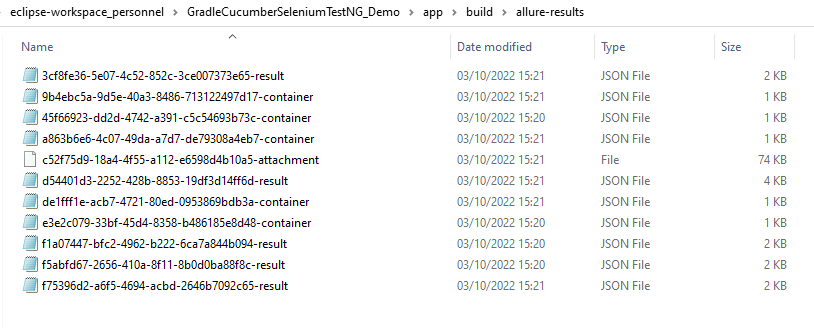
Once the test execution is finished, a folder named allure-results will be generated in the build folder.

Note:- Make sure that you move to the folder app because the build folder is present in the app folder.

allure serve build/allure-results

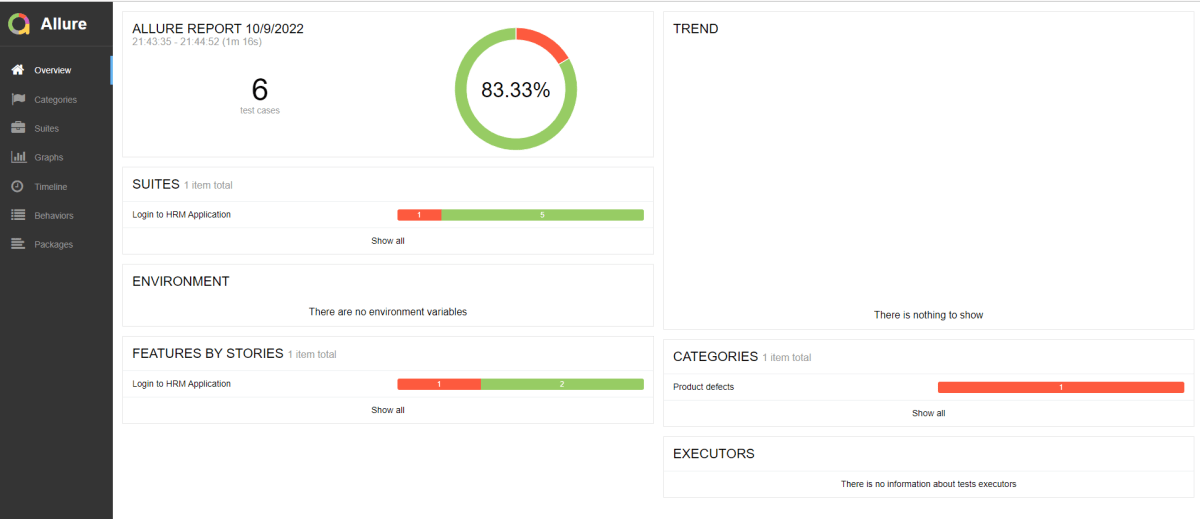
Allure Report Dashboard

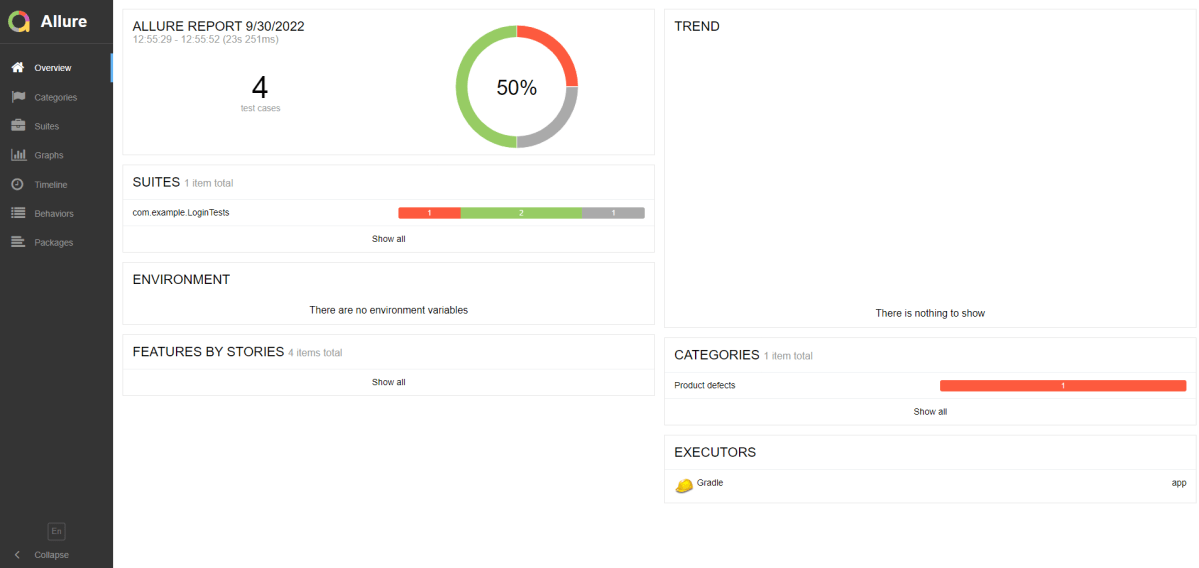
The overview page hosts several default widgets representing the basic characteristics of your project and test environment.

  1. Statistics – overall report statistics.
  2. Launches – if this report represents several test launches, statistics per launch will be shown here.
  3. Behaviors – information on results aggregated according to stories and features.
  4. Executors – information on test executors that were used to run the tests.
  5. History Trend – if tests accumulated some historical data, its trend will be calculated and shown on the graph.
  6. Environment – information on the test environment.

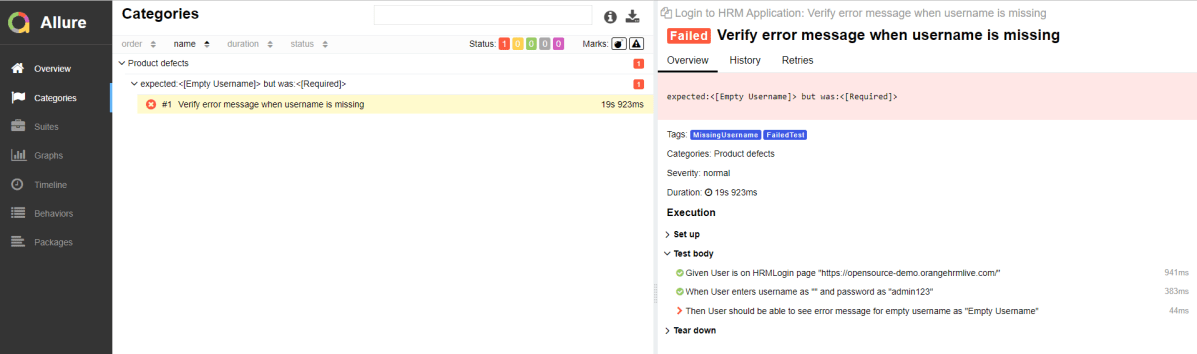
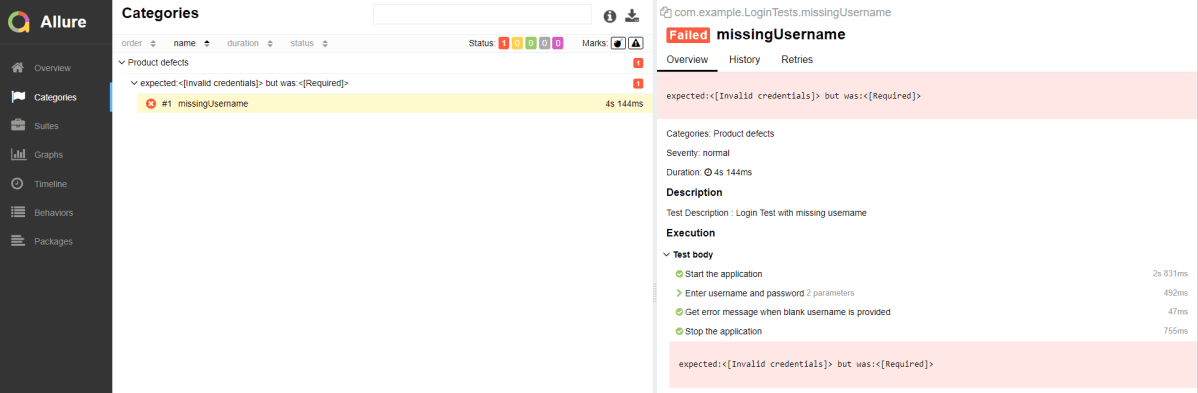
Categories in Allure Report

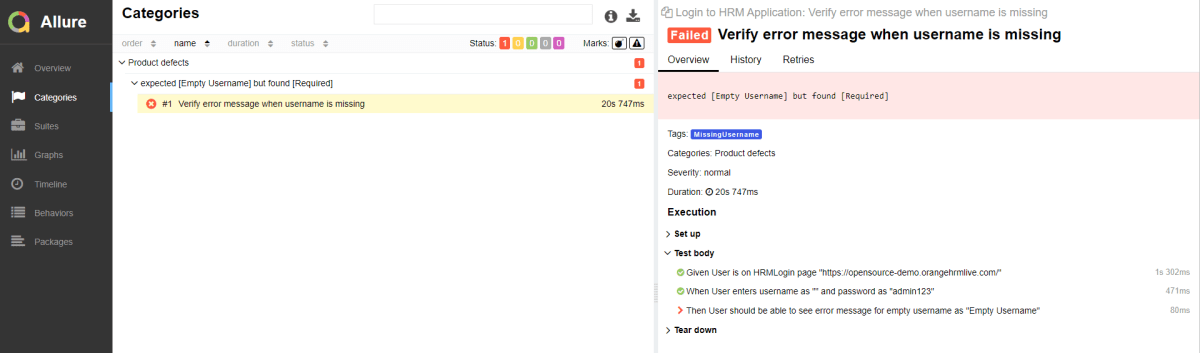
The categories tab gives you a way to create custom defect classifications to apply for test results. There are two categories of defects – Product Defects (failed tests) and Test Defects (broken tests).

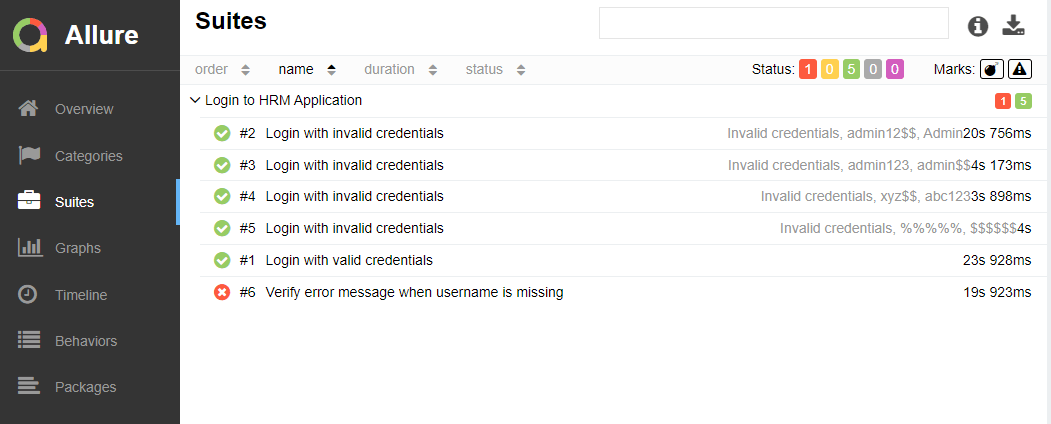
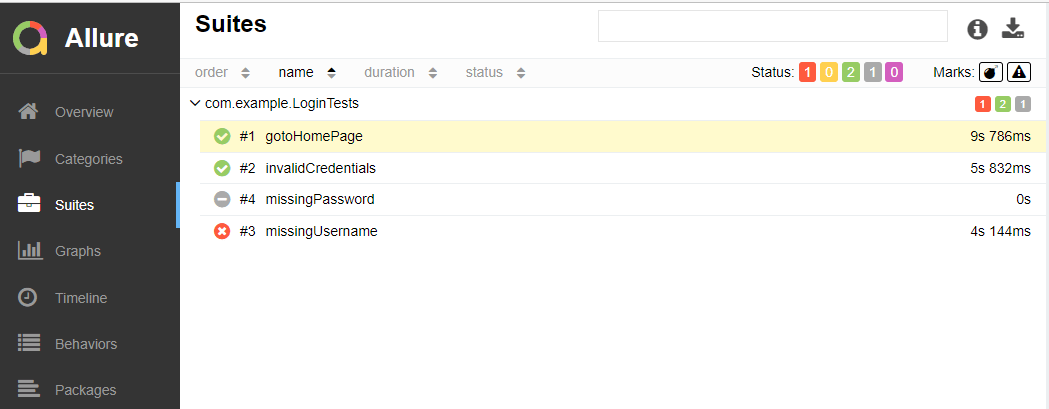
Suites in Allure Report

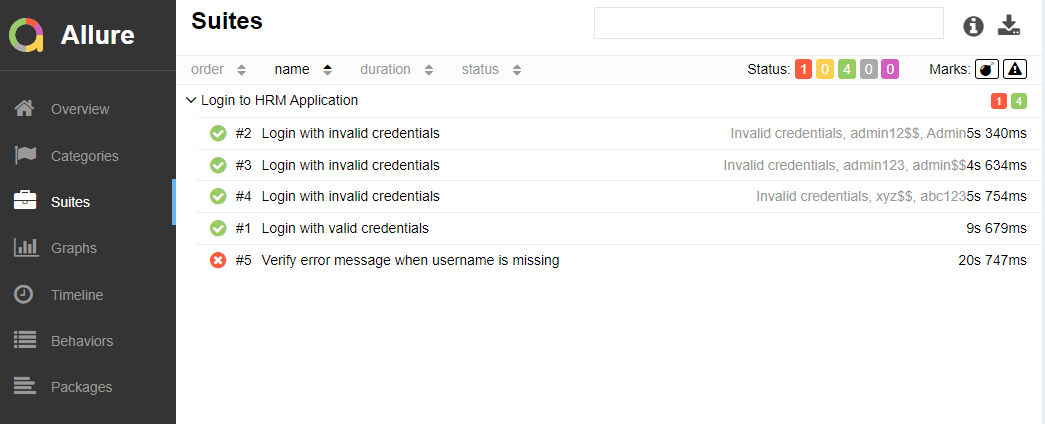
On the Suites tab a standard structural representation of executed tests, grouped by suites and classes can be found.

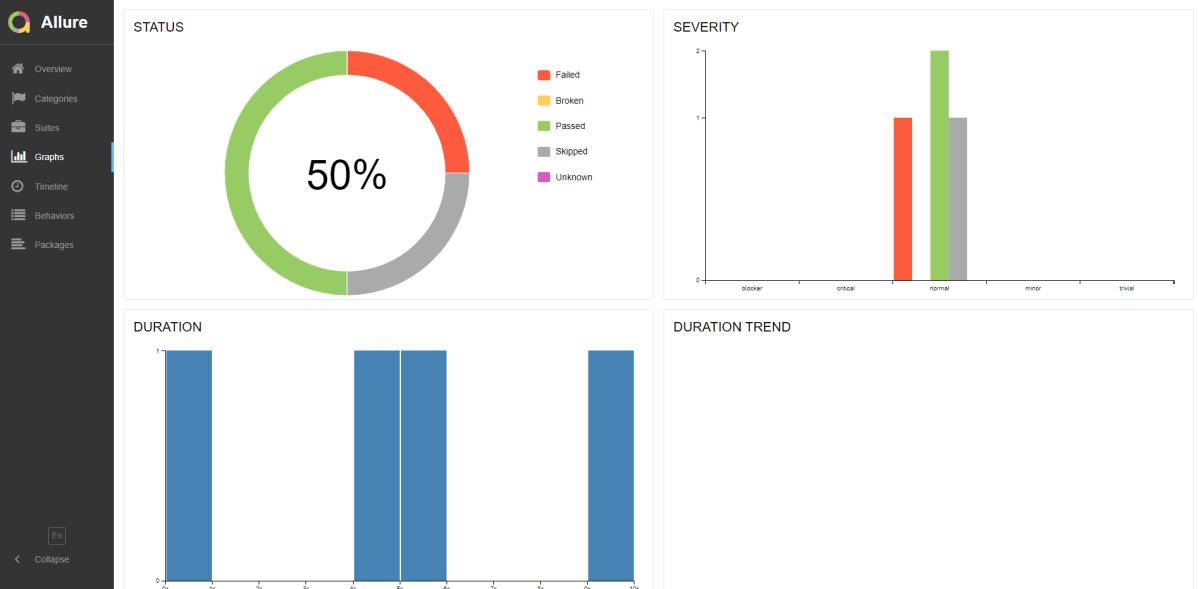
Graphs in Allure Report

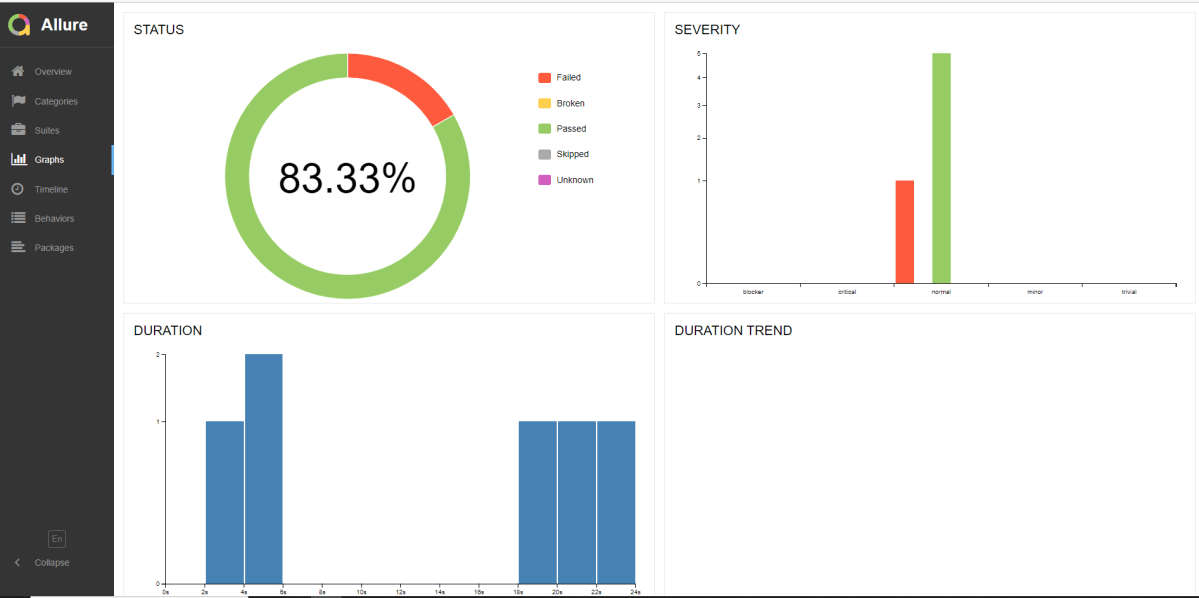
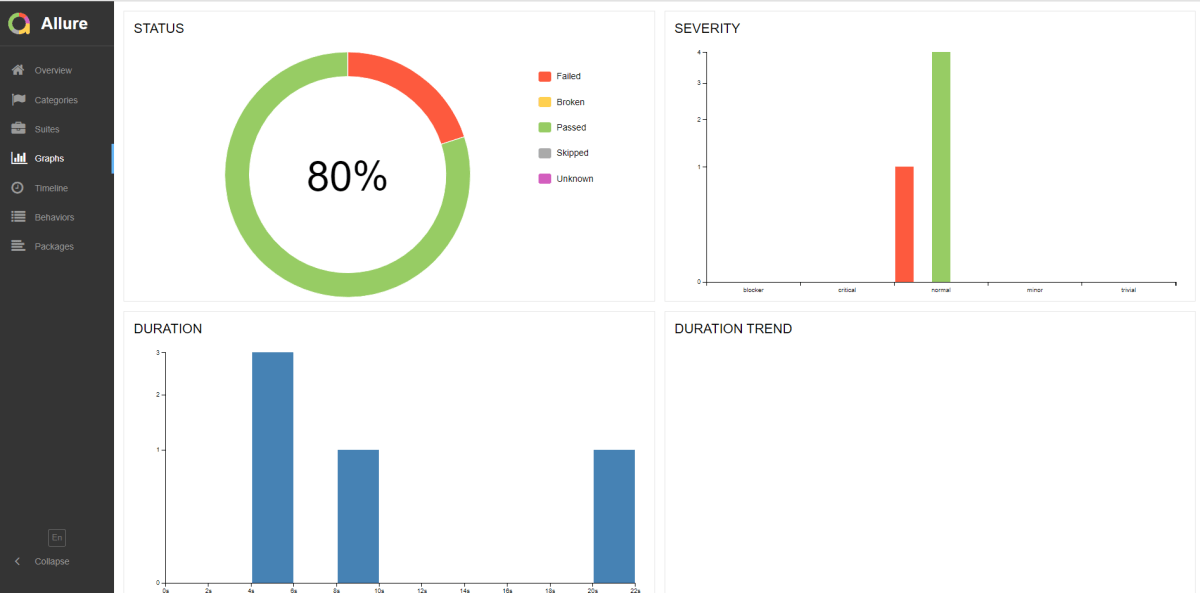
Graphs allow you to see different statistics collected from the test data: status breakdown or severity and duration diagrams.

Timeline in Allure Report

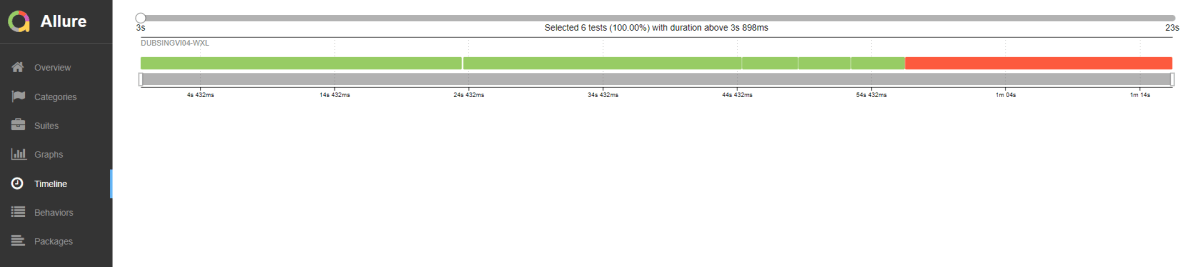
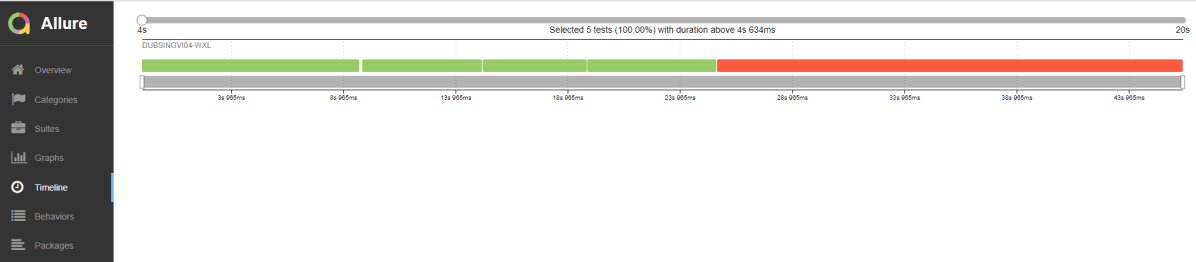
The timeline tab visualizes retrospective test execution, allure adaptors collect precise timings of tests, and here on this tab, they are arranged accordingly to their sequential or parallel timing structure.

Behaviors of Allure Report

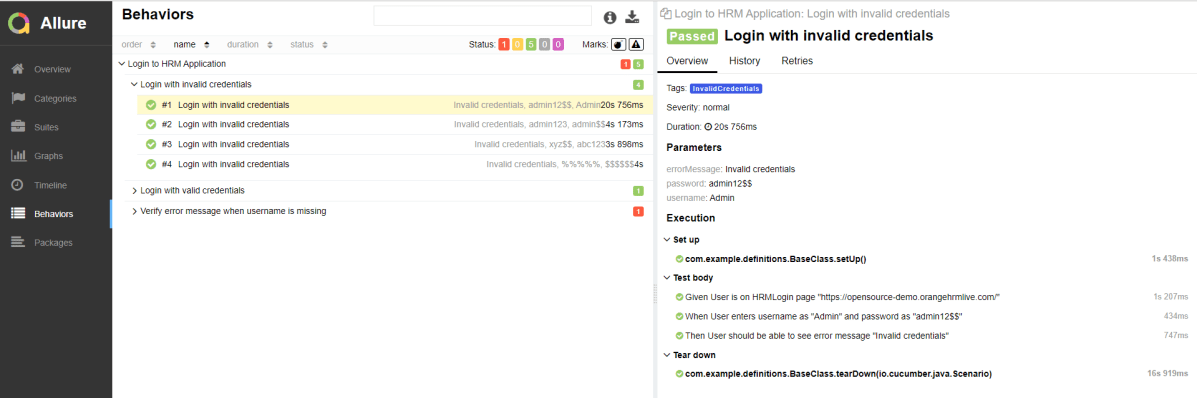
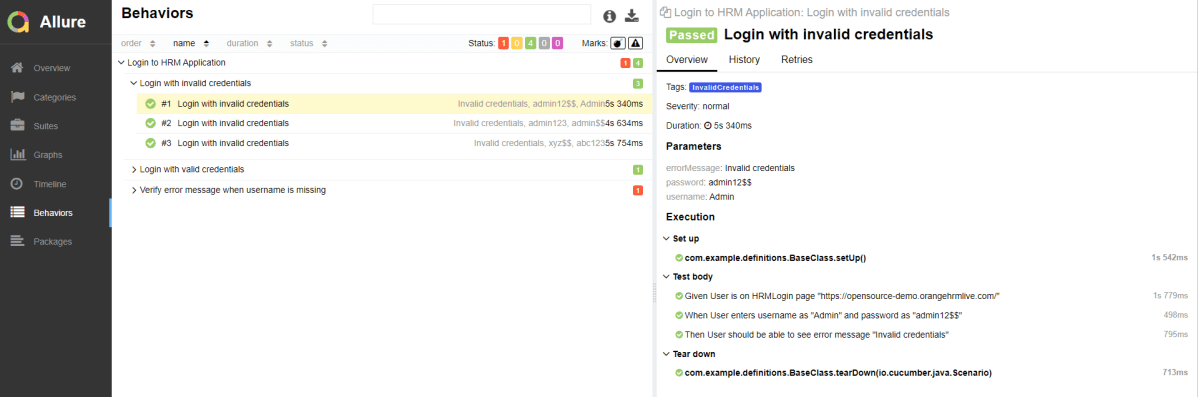
This tab groups test results according to Epic, Feature, Story, Test Severity, Test Description, Test Steps, and so on.

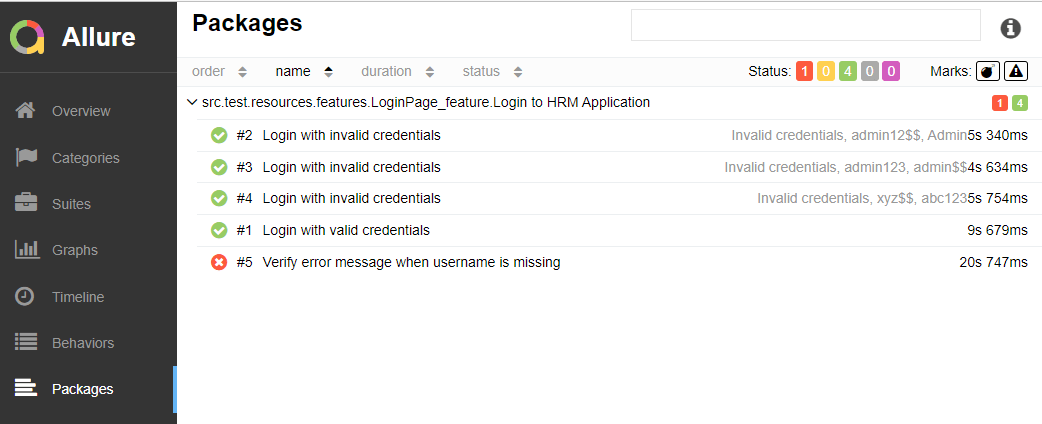
Packages in Allure Report

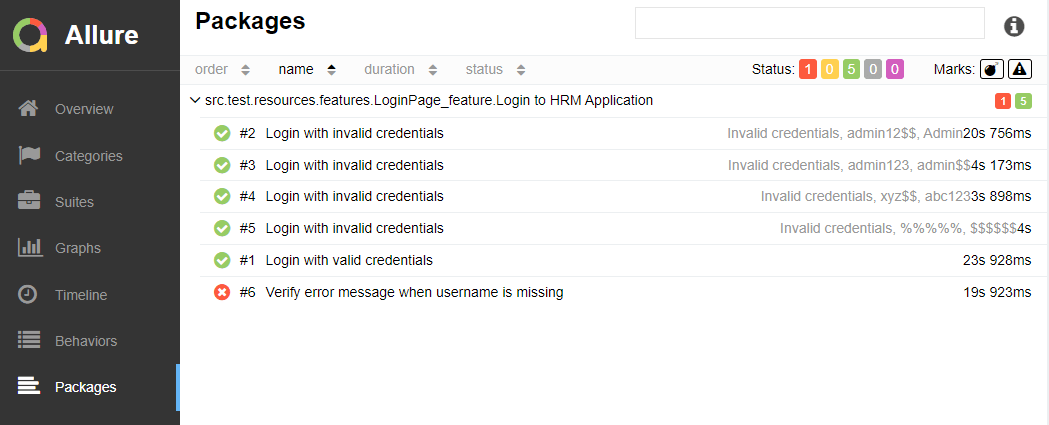
The packages tab represents a tree-like layout of test results, grouped by different packages.

BDD Features

The feature’s description appears in every scenario.

All scenario steps are automatically translated into allure steps.

Congratulations on making it through this tutorial and hope you found it useful! Happy Learning!! Cheers!!

Gradle Project with Cucumber, Selenium and JUnit4

HOME

The previous tutorial explained the Integration of Cucumber with Selenium and JUnit4 in a Maven Project. This tutorial explains the test automation framework based on Gradle, Cucumber, Selenium, and JUnit4.

Pre Requisite:

  1. Java 8 or above installed
  2. Eclipse or IntelliJ IDE installed
  3. Gradle Installed
  4. Environment variables JAVA_HOME and GRADLE_HOME are correctly configured

In this tutorial, I’ll create a BDD Framework for the testing of web applications using Cucumber, and Selenium WebDriver with JUnit4. This framework consists of:-

  1. Cucumber Java- 7.6.0
  2. Cucumber JUnit– 7.6.0
  3. Java 11
  4. JUnit4 – 4.13.2
  5. Gradle – 7.5.1
  6. Selenium – 4.3.0

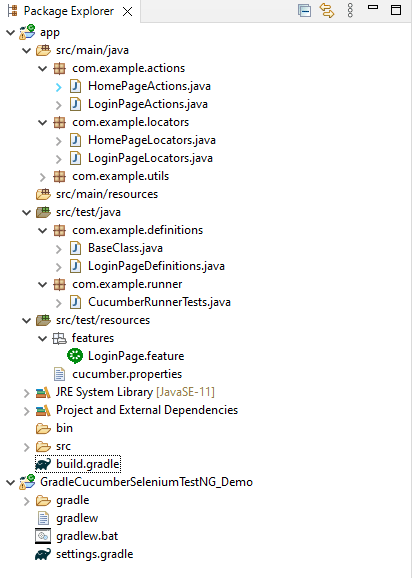
Project Structure

Steps to set up Cucumber Test Automation Framework with Selenium and TestNG

  1. Download and Install Java on the system
  2. Download and setup Eclipse IDE on the system
  3. Install and setup Gradle
  4. Install Cucumber Eclipse Plugin (For Eclipse IDE)
  5. Create a new Gradle Project
  6. Add SeleniumJUnit4, and Cucumber dependencies to the build.gradle
  7. Create a feature file under src/test/resources
  8. Create the classes for locators, actions, and utilities in src/main/java
  9. Create the Step Definition class or Glue Code in src/test/java
  10. Create a Hook class to contain the initialization and closing of the browser in src/test/java
  11. Create a JUnit4 Cucumber Runner class in src/test/java
  12. Run the tests from Command Line
  13. Cucumber Report Generation

Implementation Steps

Step 1- Download and Install Java

Cucumber and Selenium need Java to be installed on the system to run the tests. Click here to know How to install Java.

Step 2 – Download and setup Eclipse IDE on the system

The Eclipse IDE (integrated development environment) provides strong support for Java developers. Click here to know How to install Eclipse.

Step 3 – Setup Maven

To build a test framework, we need to add a number of dependencies to the project. Click here to know How to install Maven.

Step 4 – Install Cucumber Eclipse Plugin

The cucumber plugin is an Eclipse plugin that allows eclipse to understand the Gherkin syntax. When we are working with cucumber we will write the feature files that contain Feature, Scenario, Given, When, Then, And, But, Tags, Scenario Outline, and Examples. By default, eclipse doesn’t understand these keywords so it doesn’t show any syntax highlighter. Cucumber Eclipse Plugin highlights the keywords present in Feature File. Refer to this tutorial to get more detail – How to setup Cucumber with Eclipse.

Step 5 – Create a new Gradle Project

Below are the steps to create the Gradle project from the command line.

If you want to create the Gradle project from Eclipse IDE, click here to know How to create a Gradle Java project. Below is the structure of the Gradle project.

Step 6 – Add Selenium, JUnit4, and Cucumber dependencies to the build.gradle

Add below mentioned Selenium, JUnit4, and Cucumber dependencies to the project.

/*
 * This file was generated by the Gradle 'init' task.
 *
 */

plugins {
    // Apply the application plugin to add support for building a CLI application in Java.
    id 'application'
}

repositories {
    // Use Maven Central for resolving dependencies.
    mavenCentral()
}

java {
    sourceCompatibility = 11
    targetCompatibility = 11
}

dependencies {

    testImplementation 'io.cucumber:cucumber-java:7.6.0'
    testImplementation 'io.cucumber:cucumber-junit:7.6.0'  
    
    // Use JUnit test framework.
    testImplementation 'junit:junit:4.13.2'

    // This dependency is used by the application.
    implementation 'com.google.guava:guava:30.1.1-jre'
    implementation 'org.seleniumhq.selenium:selenium-java:4.4.0'
    implementation 'io.github.bonigarcia:webdrivermanager:5.3.0'
}

application {
    // Define the main class for the application.
    mainClass = 'com.example.App'
}

configurations {
    cucumberRuntime {
        extendsFrom testImplementation
    }
}

task cucumber() {
    dependsOn assemble, testClasses
    doLast {
        
        javaexec {      
            main = "io.cucumber.core.cli.Main"
            classpath = configurations.cucumberRuntime + sourceSets.main.output + sourceSets.test.output
               
            args = ['--plugin', 'pretty', 
            '--glue', 'com.example.definitions', 'src/test/resources'
            ]
        }

    }
}

I have added WebDriverManager dependency to the POM.xml to download the driver binaries automatically. To know more about this, please refer to this tutorial – How to manage driver executables using WebDriverManager.

Step 7 – Create a feature file in the src/test/resources directory

Create a folder with name features. Now, create the feature file in this folder. The feature file should be saved with the extension .feature. This feature file contains the test scenarios created to test the application. The Test Scenarios are written in Gherkins language in the format of Given, When, Then, And, But.

Feature: Login to HRM Application 

Background: 
   Given User is on HRMLogin page "https://opensource-demo.orangehrmlive.com/"
 
   @ValidCredentials
   Scenario: Login with valid credentials
     
    When User enters username as "Admin" and password as "admin123"
    Then User should be able to login sucessfully and new page open
    
   @InvalidCredentials
   Scenario Outline: Login with invalid credentials
     
    When User enters username as "<username>" and password as "<password>"
    Then User should be able to see error message "<errorMessage>"
    
  Examples:
  | username   | password  | errorMessage                      |
  | Admin      | admin12$$ | Invalid credentials               |
  | admin$$    | admin123  | Invalid credentials               |
  | abc123     | xyz$$     | Invalid credentials               |
  | $$$$$$     | %%%%%     | Invalid credentials               |
  
   @MissingUsername @FailedTest
   Scenario: Verify error message when username is missing
     
    When User enters username as "" and password as "admin123"
    Then User should be able to see error message for empty username as "Empty Username"
      

Step 8 – Create the classes for locators, actions, and utilities in src/main/java

Below is the sample code of the LoginPageLocators.

import org.openqa.selenium.WebElement;
import org.openqa.selenium.support.FindBy;

public class LoginPageLocators {

	@FindBy(name = "username")
    public WebElement userName;
  
    @FindBy(name = "password")
    public WebElement password;
  
    @FindBy(xpath = "//*[@id='app']/div[1]/div/div[1]/div/div[2]/div[2]/form/div[3]/button")
    public WebElement login;
  
    @FindBy(xpath = "//*[@id='app']/div[1]/div/div[1]/div/div[2]/div[2]/div/div[1]/div[1]/p")
    public  WebElement errorMessage;
     
    @FindBy(xpath = "//*[@id='app']/div[1]/div/div[1]/div/div[2]/div[2]/form/div[1]/div/span")
    public WebElement missingUsernameErrorMessage;
     
}

Below is the sample code for the HomePageLocators.

import org.openqa.selenium.WebElement;
import org.openqa.selenium.support.FindBy;

public class HomePageLocators {

	   @FindBy(xpath = "//*[@id='app']/div[1]/div[2]/div[2]/div/div[1]/div[1]/div[1]/h5")
	   public  WebElement homePageUserName;
 
}

Create the action classes for each web page. These action classes contain all the methods needed by the step definitions. In this case, I have created 2 action classes – LoginPageActions and HomePageActions.

LoginPageActions

import org.openqa.selenium.support.PageFactory;
import com.example.locators.LoginPageLocators;
import com.example.utils.HelperClass;

public class LoginPageActions {

	LoginPageLocators loginPageLocators = null; 
	
    public LoginPageActions() {

    	this.loginPageLocators = new LoginPageLocators();
		PageFactory.initElements(HelperClass.getDriver(),loginPageLocators);
	}
    
    public void login(String strUserName, String strPassword) {
 
        // Fill user name
    	loginPageLocators.userName.sendKeys(strUserName);
 
        // Fill password
    	loginPageLocators.password.sendKeys(strPassword);
 
        // Click Login button
    	loginPageLocators.login.click();
 
    }
    
    // Get the error message when invalid credentials are provided
    public String getErrorMessage() {
        return loginPageLocators.errorMessage.getText();
    }
    
   // Get the error message when username is blank
   public String getMissingUsernameText() {
        return loginPageLocators.missingUsernameErrorMessage.getText();
    }    
}

HomePageActions

import org.openqa.selenium.support.PageFactory;
import com.example.locators.HomePageLocators;
import com.example.utils.HelperClass;

public class HomePageActions {

	HomePageLocators homePageLocators = null;
   
	public HomePageActions() {
    	
		this.homePageLocators = new HomePageLocators();

		PageFactory.initElements(HelperClass.getDriver(),homePageLocators);
    }

 
    // Get the User name from Home Page
    public String getHomePageText() {
        return homePageLocators.homePageUserName.getText();
    }

}

Create a Helper class where we are initializing the web driver, initializing the web driver wait, defining the timeouts, and creating a private constructor of the class, it will declare the web driver, so whenever we create an object of this class, a new web browser is invoked. 

import java.time.Duration;
import org.openqa.selenium.WebDriver;
import org.openqa.selenium.chrome.ChromeDriver;
import io.github.bonigarcia.wdm.WebDriverManager;

public class HelperClass {
	
	private static HelperClass helperClass;	
	private static WebDriver driver;
    public final static int TIMEOUT = 10;
		
	 private HelperClass() {
		 
			WebDriverManager.chromedriver().setup();
	    	driver = new ChromeDriver();
	        driver.manage().timeouts().implicitlyWait(Duration.ofSeconds(TIMEOUT));
	        driver.manage().window().maximize();

	 }      
	    	
    public static void openPage(String url) {
        driver.get(url);
    }
	
	public static WebDriver getDriver() {
		return driver;	
	}
	
	public static void setUpDriver() {
		
		if (helperClass==null) {
			
			helperClass = new HelperClass();
		}
	}

	 public static void tearDown() {
		 
		 if(driver!=null) {
			 driver.close();
			 driver.quit();
		 }
		 
		 helperClass = null;

	 } 	
}

Step 9 – Create the Step Definition class or Glue Code in src/test/java

Now, we need to create the Step Definition of the Feature File

LoginPageDefinitions.java

import org.junit.Assert;
import com.example.actions.HomePageActions;
import com.example.actions.LoginPageActions;
import com.example.utils.HelperClass;
import io.cucumber.java.en.Given;
import io.cucumber.java.en.Then;
import io.cucumber.java.en.When;

public class LoginPageDefinitions {
		
	LoginPageActions objLogin = new LoginPageActions();
    HomePageActions objHomePage = new HomePageActions();
		
    @Given("User is on HRMLogin page {string}")
    public void loginTest(String url) {
    	
    	HelperClass.openPage(url);
    }
 
    @When("User enters username as {string} and password as {string}")
    public void goToHomePage(String userName, String passWord) {
 
        objLogin.login(userName, passWord);     
    }
 
    @Then("User should be able to login sucessfully and new page open")
    public void verifyLogin() {
 
        Assert.assertTrue(objHomePage.getHomePageText().contains("Employee Information"));
    }
    
    @Then("User should be able to see error message {string}")
    public void verifyErrorMessageForInvalidCredentials(String expectedErrorMessage) {
 
        Assert.assertEquals(expectedErrorMessage,objLogin.getErrorMessage());
    }
     
    @Then("User should be able to see error message for empty username as {string}")
    public void verifyErrorMessageForEmptyUsername(String expectedErrorMessage) {
    	 
        Assert.assertEquals(expectedErrorMessage,objLogin.getMissingUsernameText());
 
    }   
}

Step 10 – Create a Hook class to contain the initialization and closing of the browser in src/test/java

import org.openqa.selenium.OutputType;
import org.openqa.selenium.TakesScreenshot;
import com.example.utils.HelperClass;
import io.cucumber.java.After;
import io.cucumber.java.Before;
import io.cucumber.java.Scenario;

public class BaseClass {

	@Before
    public static void setUp() {

       HelperClass.setUpDriver();
    }

	@After
	public static void tearDown(Scenario scenario) {


		//validate if scenario has failed
		if(scenario.isFailed()) {
			final byte[] screenshot = ((TakesScreenshot) HelperClass.getDriver()).getScreenshotAs(OutputType.BYTES);
			scenario.attach(screenshot, "image/png", scenario.getName()); 
		}	
	
		HelperClass.tearDown();
	}
}

Step 11 – Create a JUnit Cucumber Runner class in src/test/java

Cucumber needs a TestRunner class to run the feature files. It is suggested to create a folder with the name of the runner in the src/test/java directory and create the Cucumber TestRunner class in this folder. Below is the code of the Cucumber TestRunner class.

import org.junit.runner.RunWith;
import io.cucumber.junit.Cucumber;
import io.cucumber.junit.CucumberOptions;

@RunWith(Cucumber.class)
@CucumberOptions(tags = "", features = {"src/test/resources/features/LoginPage.feature"}, glue = {"com.example.definitions"})
   
public class CucumberRunnerTests {
   
}

Step 12 – Run the tests from Command Line

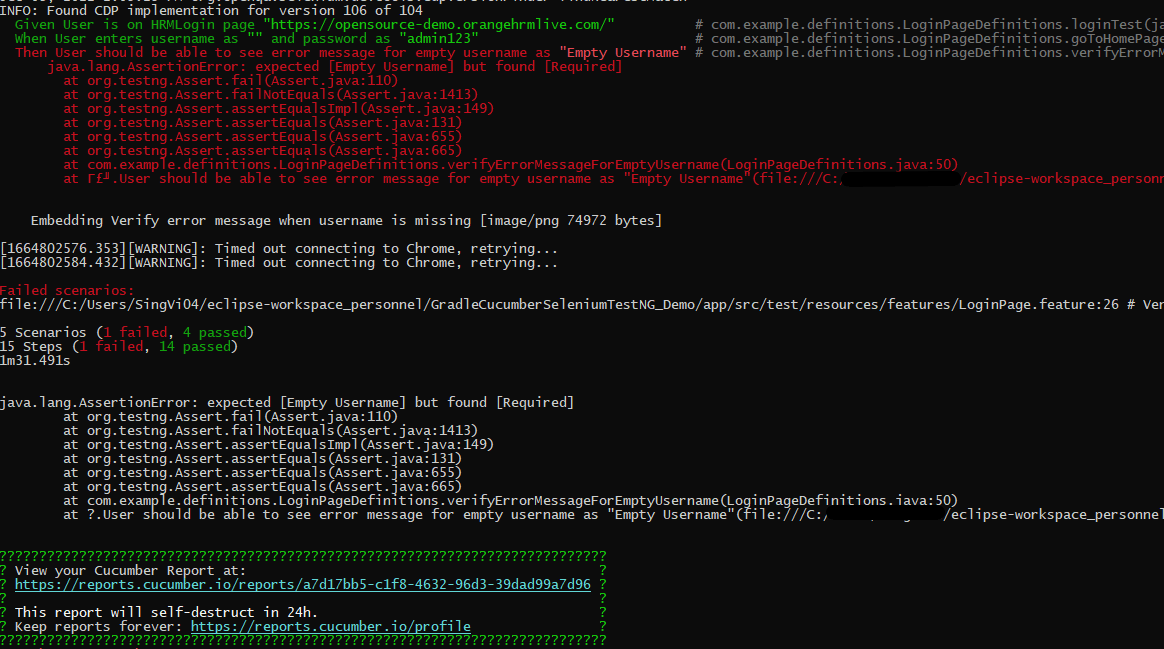
Run the below command in the command prompt to run the tests and to get the test execution report.

gradle cucumber

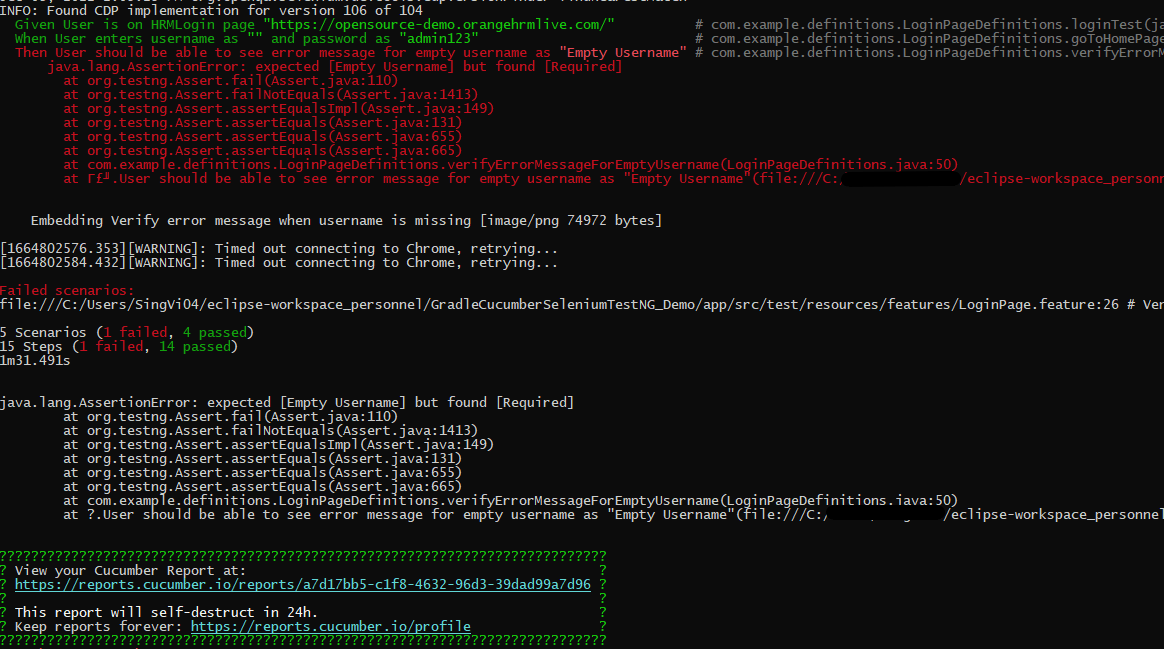
The output of the above program is

Step 13 – Cucumber Report Generation

To get Cucumber Test Reports, add cucumber.properties under src/test/resources and add the below instruction in the file

cucumber.publish.enabled=true

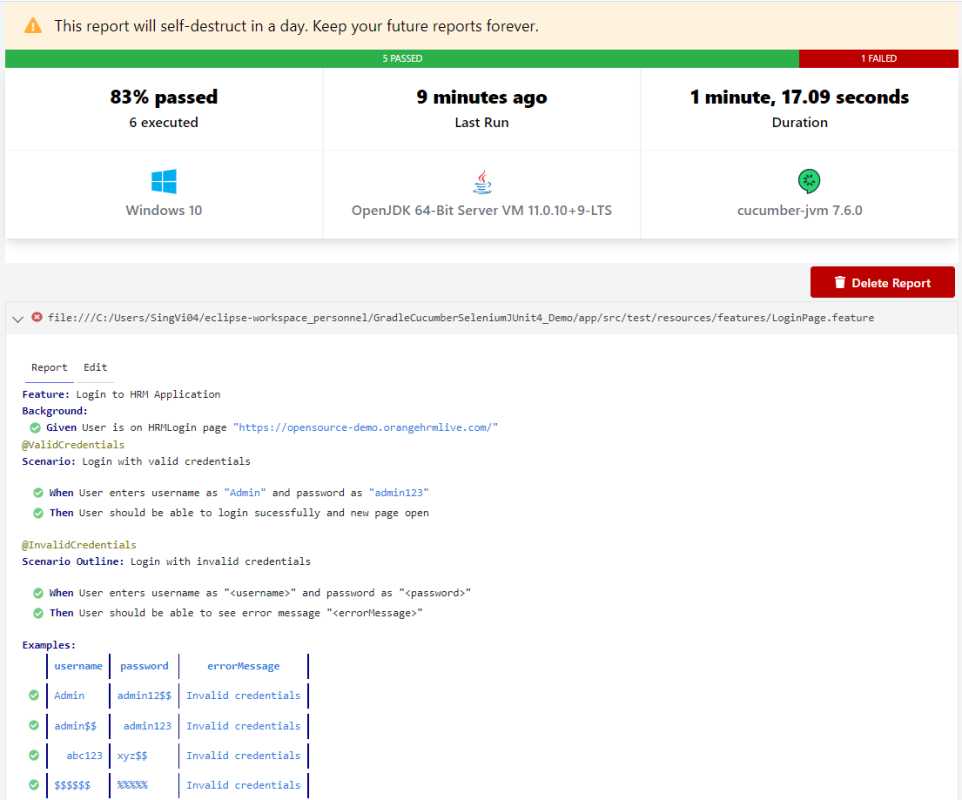
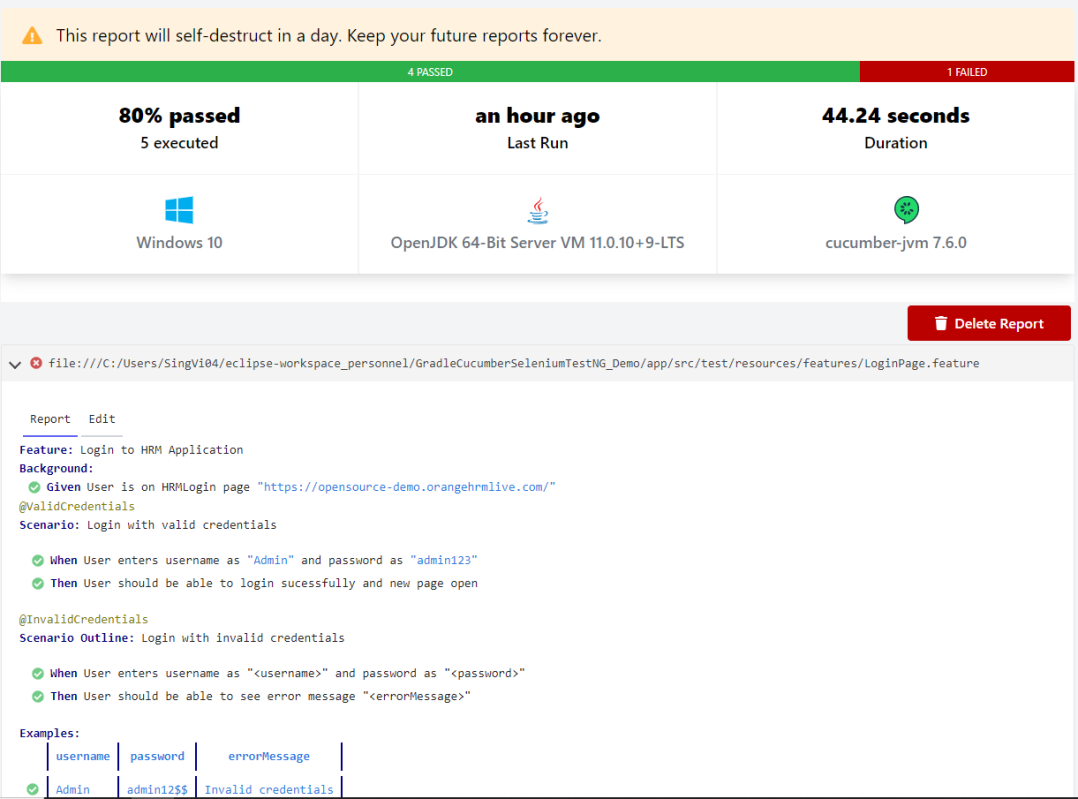
Below is the image of the Cucumber Report generated using the Cucumber Service.

In the above example, as we can see, one of the tests has failed. So, when a test fails, we have written the code to take a screenshot of the failed step. The highlighted box above shows the image of the failed test. You can click on that to see the screenshot.

Congratulations on making it through this tutorial and hope you found it useful! Happy Learning!! Cheers!!

Gradle – Extent Report Version 5 for Cucumber, Selenium, and TestNG

HOME

The previous tutorial explained the generation of Extent Reports Version 5 for Cucumber 7 and TestNG in a Maven project. In this tutorial, I will explain the steps to create an Extent Report Version 5 for Cucumber, Selenium, and TestNG in a Gradle project.

Prerequisite

  1. Java 8 or above installed
  2. Eclipse or IntelliJ IDE installed
  3. Gradle Installed
  4. Environment variables JAVA_HOME and GRADLE_HOME are correctly configured

In this tutorial, I’ll create a BDD Framework for the testing of web applications using Cucumber, and Selenium WebDriver with TestNG.

  1. Cucumber Java- 7.6.0
  2. Cucumber JUnit– 7.6.0
  3. Java 11
  4. TestNG – 7.6.0
  5. Gradle – 7.5.1
  6. Selenium – 4.3.0
  7. ExtentReport – 5.0.9
  8. GrassHopper Cucumber Adapter – 1.7.0

Implementation Steps

There is a tutorial that explains the Integration of Cucumber, Selenium, and TestNG in a Gradle project. Please refer to this tutorial – Gradle Project with Cucumber, Selenium and TestNG.

Step 1 – Add Extent Report dependency to the build.gradle

To create an Extent Report, we need to add the below-mentioned dependency in the build.gradle

implementation 'tech.grasshopper:extentreports-cucumber7-adapter:1.7.0'
implementation 'com.aventstack:extentreports:5.0.9'  

Step 2 – Add ExtentCucumberAdapter plugin to task cucumber

task cucumber() {
    dependsOn assemble, compileTestJava
    doLast {
        javaexec {         
            main = "io.cucumber.core.cli.Main"
            classpath = configurations.cucumberRuntime + sourceSets.main.output + sourceSets.test.output
            args = ['--plugin', 'pretty', 
            '--plugin', 'io.qameta.allure.cucumber7jvm.AllureCucumber7Jvm',
            '--plugin', 'com.aventstack.extentreports.cucumber.adapter.ExtentCucumberAdapter:',
            '--glue', 'com.example.definitions', 'src/test/resources']
        }
    }
}

Step 3 – Add Cucumber, Selenium, and TestNG dependencies in build.gradle

dependencies {

    testImplementation 'io.cucumber:cucumber-java:7.6.0'
    testImplementation 'io.cucumber:cucumber-junit:7.6.0'
    
     //TestNG  
     testImplementation 'org.testng:testng:7.6.0'
    
    //ExtentReport    
    implementation 'tech.grasshopper:extentreports-cucumber7-adapter:1.7.0'
    implementation 'com.aventstack:extentreports:5.0.9' 

    // This dependency is used by the application.
    implementation 'com.google.guava:guava:30.1.1-jre'
    implementation 'org.seleniumhq.selenium:selenium-java:4.4.0'
    implementation 'io.github.bonigarcia:webdrivermanager:5.3.0'
}

The complete build.gradle is shown below:

plugins {
    // Apply the application plugin to add support for building a CLI application in Java.
    id 'application'
}

repositories {
    // Use Maven Central for resolving dependencies.
    mavenCentral()
}

java {
    sourceCompatibility = 11
    targetCompatibility = 11
}

dependencies {
   
    // Use TestNG framework, also requires calling test.useTestNG() below
    testImplementation 'io.cucumber:cucumber-java:7.6.0'
    testImplementation 'io.cucumber:cucumber-testng:7.6.0'
             
    //TestNG  
     testImplementation 'org.testng:testng:7.6.0'
      
    //ExtentReport    
     implementation 'tech.grasshopper:extentreports-cucumber7-adapter:1.7.0'
     implementation 'com.aventstack:extentreports:5.0.9'  
      
     //Others  
     implementation 'com.google.guava:guava:31.0.1-jre'
     implementation 'org.seleniumhq.selenium:selenium-java:4.4.0'
     implementation 'io.github.bonigarcia:webdrivermanager:5.3.0'

}

application {
    // Define the main class for the application.
    mainClass = 'com.example.App'
}

tasks.named('test') {
    // Use TestNG for unit tests.
    useTestNG()
}

configurations {
    cucumberRuntime {
        extendsFrom testImplementation
    }
}

task cucumber() {
    dependsOn assemble, compileTestJava
    doLast {
        javaexec {         
            main = "io.cucumber.core.cli.Main"
            classpath = configurations.cucumberRuntime + sourceSets.main.output + sourceSets.test.output
            args = ['--plugin', 'pretty', 
            '--plugin', 'io.qameta.allure.cucumber7jvm.AllureCucumber7Jvm',
            '--plugin', 'com.aventstack.extentreports.cucumber.adapter.ExtentCucumberAdapter:',
            '--glue', 'com.example.definitions', 'src/test/resources']
        }
    }
}

Step 4 – Create Locator and Action classes and Step Definition corresponding to the feature file

As mentioned above, there is another tutorial that explains the project structure as well as the feature file and corresponding Step Definitions, please refer to this tutorial – Gradle Project with Cucumber, Selenium, and TestNG.

Step 5 – Create extent.properties file in the resources folder and paste the below code

#Extent Report
extent.reporter.spark.start=true
extent.reporter.spark.out=Reports/Spark.html
 
#PDF Report
extent.reporter.pdf.start=true
extent.reporter.pdf.out=PdfReport/ExtentPdf.pdf
 
#HTML Report
extent.reporter.html.start=true
extent.reporter.html.out=HtmlReport/ExtentHtml.html
 
#FolderName
basefolder.name=ExtentReports/SparkReport_
basefolder.datetimepattern=d_MMM_YY HH_mm_ss
 
#Screenshot
screenshot.dir=/Screenshots/
screenshot.rel.path=../Screenshots/
 
#Base64
extent.reporter.spark.base64imagesrc=true
 
#System Info
systeminfo.os=windows
systeminfo.version=10

Step 6 – Execute the Tests

Go to the app project and run the tests, using the below command

gradle cucumber

The output of the above program is

Step 7 – View the ExtentReports

Refresh the project and will see a new folder – SparkReport_ which further contains 4 folders -Html Report, Pdf Report, Reports, and Screenshots.

The Extent Report will be present in the Report’s folder with the name Spark.html. PDF Report is present in the Pdf Report folder and HTML Report is present in the HTML report folder. We can see that the Screenshot’s folder is empty because we have used the base64imagesrc feature, which resulted in no physical screenshots. The screenshots are embedded in the reports.

Right-click and open the ExtentHtml.html report with the Web Browser. The report also has a summary section that displays the summary of the execution. The summary includes the overview of the pass/fail using a pictogram, start time, end time, and pass/fail details of features as shown in the image below.

ExtentHtml.html

The failed test has a screenshot embedded in it. Double-click on mase64image, and it will open the screenshot in full screen.

Screenshot of failed Test Case

PDF Report

To know more about PDF Report generation, please refer to this tutorial – PDF ExtentReport for Cucumber and TestNG.

Spark Report

Right-click and open the Spark.html report with the Web Browser.

Congratulations on making it through this tutorial and hope you found it useful! Happy Learning!! Cheers!!

Gradle – Allure Report for Cucumber, Selenium and TestNG

HOME

The previous tutorial explained generation of Allure Report with Cucumber5, Selenium and TestNG in a Maven project. In this tutorial, I will explain the steps to create an Allure Report with Cucumber, Selenium and TestNG in a Gradle project.

Pre Requisite:

  1. Java 8 or above installed
  2. Eclipse or IntelliJ IDE installed
  3. Gradle Installed
  4. Environment variables JAVA_HOME and GRADLE_HOME correctly configured

In this tutorial, I’ll create a BDD Framework for the testing of web applications using CucumberSelenium WebDriver with TestNG. This framework consists of:-

  1. Cucumber Java- 7.6.0
  2. Cucumber TestNG – 7.6.0
  3. Java 11
  4. TestNG – 7.6.0
  5. Gradle – 7.5.1
  6. Selenium – 4.3.0
  7. AspectJ Weaver – 1.9.7

Project Structure

Implementation Steps

  1. Add Cucumber, Selenium, TestNG, and Allure-TestNG dependencies in build.gradle
  2. Create Locator and Action classes and Step Definition corresponding to the feature file and Test Runner Class
  3. Execute the Tests
  4. Generate Allure Report

There is a tutorial that explains the Integration of Cucumber, Selenium and TestNG in a Gradle project. Please refer to this tutorial – Gradle Project with Cucumber, Selenium and TestNG.

Step 1 – Add Cucumber, Selenium, TestNG, and Allure-TestNG dependencies in build.gradle

/*
 * This file was generated by the Gradle 'init' task.
 *
 */

plugins {
    // Apply the application plugin to add support for building a CLI application in Java.
    id 'application'
    id 'io.qameta.allure' version '2.11.0'
}

repositories {
    // Use Maven Central for resolving dependencies.
    mavenCentral()
}

java {
    sourceCompatibility = 11
    targetCompatibility = 11
}

dependencies {
   
    // Use TestNG framework, also requires calling test.useTestNG() below
    testImplementation 'io.cucumber:cucumber-java:7.6.0'
    testImplementation 'io.cucumber:cucumber-testng:7.6.0'
          
     // Allure 
     implementation 'io.qameta.allure:allure-cucumber7-jvm:2.19.0'
     runtimeOnly 'org.aspectj:aspectjweaver:1.9.7'
     
     //TestNG  
      testImplementation 'org.testng:testng:7.6.0'
      
     //Others  
     implementation 'com.google.guava:guava:31.0.1-jre'
     implementation 'org.seleniumhq.selenium:selenium-java:4.4.0'
     implementation 'io.github.bonigarcia:webdrivermanager:5.3.0'

}

application {
    // Define the main class for the application.
    mainClass = 'com.example.App'
}

tasks.named('test') {
    // Use TestNG for unit tests.
    useTestNG()
}

configurations {
    cucumberRuntime {
        extendsFrom testImplementation
    }
}

task cucumber() {
    dependsOn assemble, compileTestJava
    doLast {
        javaexec {
         systemProperty("allure.results.directory", "build/allure-results")
         
            main = "io.cucumber.core.cli.Main"
            classpath = configurations.cucumberRuntime + sourceSets.main.output + sourceSets.test.output
            args = ['--plugin', 'pretty',
            '--glue', 'com.example.definitions', 'src/test/resources']
        }
    }
}

Step 2 – Create Locator and Action classes and Step Definition corresponding to the feature file and Test Runner Class

As mentioned above, there is another tutorial that explains the project structure as well as the feature file and corresponding Step Definitions, please refer to this tutorial – Gradle Project with Cucumber, Selenium and TestNG.

Step 3 – Execute the Tests

Go to the app project and run the tests, using the below command

gradle cucumber

The output of the test execution is

Step 4 – Generate the Allure Report

Once the test execution is finished, a folder named allure-results will be generated in the build folder.

Note:- Make sure that you move to folder app, because build folder is present in app folder.

To generate Allure Report, use the below command

allure serve build/allure-results

This will generate the beautiful Allure Test Report as shown below.

Allure Report Dashboard

The overview page hosts several default widgets representing basic characteristics of your project and test environment.

  1. Statistics – overall report statistics.
  2. Launches – if this report represents several test launches, statistics per launch will be shown here.
  3. Behaviors – information on results aggregated according to stories and features.
  4. Executors – information on test executors that were used to run the tests.
  5. History Trend – if tests accumulated some historical data, its trend will be calculated and shown on the graph.
  6. Environment – information on the test environment.

Categories in Allure Report

The categories tab gives you the way to create custom defects classification to apply for test results. There are two categories of defects – Product Defects (failed tests) and Test Defects (broken tests).

Suites in Allure Report

On the Suites tab a standard structural representation of executed tests, grouped by suites and classes can be found.

Graphs in Allure Report

Graphs allow you to see different statistics collected from the test data: status breakdown or severity and duration diagrams.

Timeline in Allure Report

The timeline tab visualizes retrospective test execution, allure adaptors collect precise timings of tests, and here on this tab, they are arranged accordingly to their sequential or parallel timing structure.

Behaviors of Allure Report

This tab groups test results according to Epic, Feature, Story, Test Severity, Test Description, Test Steps, and so on.

Packages in Allure Report

The packages tab represents a tree-like layout of test results, grouped by different packages.

Congratulations on making it through this tutorial and hope you found it useful! Happy Learning!! Cheers!!

Gradle Project with Cucumber, Selenium and TestNG

HOME

The previous tutorial explained the Integration of Cucumber with Selenium and TestNG in a Maven Project. This tutorial explains the test automation framework based on Gradle, Cucumber, Selenium, and TestNG.

Pre Requisite:

  1. Java 8 or above installed
  2. Eclipse or IntelliJ IDE installed
  3. Gradle Installed
  4. Environment variables JAVA_HOME and GRADLE_HOME are correctly configured

In this tutorial, I’ll create a BDD Framework for the testing of web applications using Cucumber, and Selenium WebDriver with TestNG. This framework consists of:-

  1. Cucumber Java- 7.6.0
  2. Cucumber TestNG – 7.6.0
  3. Java 11
  4. TestNG – 7.6.0
  5. Gradle – 7.5.1
  6. Selenium – 4.3.0

Project Structure

Steps to set up Cucumber Test Automation Framework with Selenium and TestNG

  1. Download and Install Java on the system
  2. Download and setup Eclipse IDE on the system
  3. Install and setup Gradle
  4. Install Cucumber Eclipse Plugin (For Eclipse IDE)
  5. Create a new Gradle Project
  6. Add SeleniumTestNG, and Cucumber dependencies to the build.gradle
  7. Create a feature file under src/test/resources
  8. Create the classes for locators, actions and utilities in src/main/java
  9. Create the Step Definition class or Glue Code in src/test/java
  10. Create a Hook class to contain the initialization and closing of browser in src/test/java
  11. Create a TestNG Cucumber Runner class in src/test/java
  12. Run the tests from Command Line
  13. Cucumber Report Generation

Implementation Steps

Step 1- Download and Install Java

Cucumber and Selenium need Java to be installed on the system to run the tests. Click here to know How to install Java.

Step 2 – Download and setup Eclipse IDE on the system

The Eclipse IDE (integrated development environment) provides strong support for Java developers. Click here to know How to install Eclipse.

Step 3 – Setup Maven

To build a test framework, we need to add a number of dependencies to the project. Click here to know How to install Maven.

Step 4 – Install Cucumber Eclipse Plugin

The cucumber plugin is an Eclipse plugin that allows eclipse to understand the Gherkin syntax. When we are working with cucumber we will write the feature files that contain Feature, Scenario, Given, When, Then, And, But, Tags, Scenario Outline, and Examples. By default, eclipse doesn’t understand these keywords so it doesn’t show any syntax highlighter. Cucumber Eclipse Plugin highlights the keywords present in Feature File. Refer to this tutorial to get more detail – How to setup Cucumber with Eclipse.

Step 5 – Create a new Gradle Project

Below are the steps to create the Gradle project from the command line.

If you want to create the Gradle project from Eclipse IDE, click here to know How to create a Gradle Java project. Below is the structure of the Gradle project.

Step 6 – Add Selenium, TestNG, and Cucumber dependencies to the build.gradle

Add below mentioned Selenium, TestNG, and Cucumber dependencies to the project.

I have added WebDriverManager dependency to the POM.xml to download the driver binaries automatically. To know more about this, please refer to this tutorial – How to manage driver executables using WebDriverManager.

/*
 * This file was generated by the Gradle 'init' task.
 *
 * This generated file contains a sample Java application project to get you started.
 */

plugins {
    // Apply the application plugin to add support for building a CLI application in Java.
    id 'application'
    id 'io.qameta.allure' version '2.11.0'
}

repositories {
    // Use Maven Central for resolving dependencies.
    mavenCentral()
}

java {
    sourceCompatibility = 11
    targetCompatibility = 11
}

dependencies {
   
    // Use TestNG framework, also requires calling test.useTestNG() below
    testImplementation 'io.cucumber:cucumber-java:7.6.0'
    testImplementation 'io.cucumber:cucumber-testng:7.6.0'
            
     //TestNG  
      testImplementation 'org.testng:testng:7.6.0'
      
     //Others  
     implementation 'com.google.guava:guava:31.0.1-jre'
     implementation 'org.seleniumhq.selenium:selenium-java:4.4.0'
     implementation 'io.github.bonigarcia:webdrivermanager:5.3.0'
}

application {
    // Define the main class for the application.
    mainClass = 'com.example.App'
}

tasks.named('test') {
    // Use TestNG for unit tests.
    useTestNG()
}

configurations {
    cucumberRuntime {
        extendsFrom testImplementation
    }
}

task cucumber() {
    dependsOn assemble, testClasses
    doLast {
        javaexec {
         
            main = "io.cucumber.core.cli.Main"
            classpath = configurations.cucumberRuntime + sourceSets.main.output + sourceSets.test.output
            args = ['--plugin', 'pretty', 
            '--glue', 'com.example.definitions', 'src/test/resources']
        }
    }
}

Step 7 – Create a feature file in the src/test/resources directory

Create a folder with name features. Now, create the feature file in this folder. The feature file should be saved with the extension .feature. This feature file contains the test scenarios created to test the application. The Test Scenarios are written in Gherkins language in the format of Given, When, Then, And, But.

Below is an example of the Feature File.

Feature: Login to HRM Application 

Background: 
   Given User is on HRMLogin page "https://opensource-demo.orangehrmlive.com/"
 
   @ValidCredentials
   Scenario: Login with valid credentials
     
    When User enters username as "Admin" and password as "admin123"
    Then User should be able to login sucessfully and new page open
    
   @InvalidCredentials
   Scenario Outline: Login with invalid credentials
     
    When User enters username as "<username>" and password as "<password>"
    Then User should be able to see error message "<errorMessage>"
    
  Examples:
  | username   | password  | errorMessage                      |
  | Admin      | admin12$$ | Invalid credentials               |
  | admin$$    | admin123  | Invalid credentials               |
  | abc123     | xyz$$     | Invalid credentials               |
  
 
   @MissingUsername
   Scenario: Verify error message when username is missing
     
    When User enters username as "" and password as "admin123"
    Then User should be able to see error message "Empty Username"

Step 8 – Create the classes for locators, actions and utilities in src/main/java

Below is the sample code of the LoginPageLocators.

import org.openqa.selenium.WebElement;
import org.openqa.selenium.support.FindBy;

public class LoginPageLocators {

	@FindBy(name = "username")
    public WebElement userName;
  
    @FindBy(name = "password")
    public WebElement password;
  
    @FindBy(xpath = "//*[@id='app']/div[1]/div/div[1]/div/div[2]/div[2]/form/div[3]/button")
    public WebElement login;
  
    @FindBy(xpath = "//*[@id='app']/div[1]/div/div[1]/div/div[2]/div[2]/div/div[1]/div[1]/p")
    public  WebElement errorMessage;
     
    @FindBy(xpath = "//*[@id='app']/div[1]/div/div[1]/div/div[2]/div[2]/form/div[1]/div/span")
    public WebElement missingUsernameErrorMessage;
       
}

Below is the sample code for the HomePageLocators.

import org.openqa.selenium.WebElement;
import org.openqa.selenium.support.FindBy;

public class HomePageLocators {

	   @FindBy(xpath = "//*[@id='app']/div[1]/div[2]/div[2]/div/div[1]/div[1]/div[1]/h5")
	   public  WebElement homePageUserName;
 
}

Create the action classes for each web page. These action classes contain all the methods needed by the step definitions. In this case, I have created 2 action classes – LoginPageActions and HomePageActions .

LoginPageActions

import org.openqa.selenium.support.PageFactory;
import com.example.locators.LoginPageLocators;
import com.example.utils.HelperClass;

public class LoginPageActions {

	LoginPageLocators loginPageLocators = null; 
	
    public LoginPageActions() {

    	this.loginPageLocators = new LoginPageLocators();

		PageFactory.initElements(HelperClass.getDriver(),loginPageLocators);
	}
    
    public void login(String strUserName, String strPassword) {
 
    	loginPageLocators.userName.sendKeys(strUserName);
    	loginPageLocators.password.sendKeys(strPassword);
    	loginPageLocators.login.click();
 
    }
    
    // Get the error message when invalid credentials are provided
    public String getErrorMessage() {
        return loginPageLocators.errorMessage.getText();
    }
    
 
   // Get the error message when username is blank
   public String getMissingUsernameText() {
        return loginPageLocators.missingUsernameErrorMessage.getText();
    }
}

HomePageActions

import org.openqa.selenium.support.PageFactory;

import com.example.locators.HomePageLocators;
import com.example.utils.HelperClass;

public class HomePageActions {

	HomePageLocators homePageLocators = null;
   
	public HomePageActions() {
    	
		this.homePageLocators = new HomePageLocators();

		PageFactory.initElements(HelperClass.getDriver(),homePageLocators);
    }

    // Get the User name from Home Page
    public String getHomePageText() {
        return homePageLocators.homePageUserName.getText();
    }

}

Create a Helper class where we are initializing the web driver, initializing the web driver wait, defining the timeouts, and creating a private constructor of the class, it will declare the web driver, so whenever we create an object of this class, a new web browser is invoked. 

import java.time.Duration;
import org.openqa.selenium.WebDriver;
import org.openqa.selenium.chrome.ChromeDriver;
import io.github.bonigarcia.wdm.WebDriverManager;

public class HelperClass {
	
	private static HelperClass helperClass;	
	private static WebDriver driver;
    public final static int TIMEOUT = 10;
		
	 private HelperClass() {
		 
			WebDriverManager.chromedriver().setup();
	    	driver = new ChromeDriver();
	        driver.manage().timeouts().implicitlyWait(Duration.ofSeconds(TIMEOUT));
	        driver.manage().window().maximize();

	 }      
	    	

    public static void openPage(String url) {
        driver.get(url);
    }

	
	public static WebDriver getDriver() {
		return driver;				
	}
	
	public static void setUpDriver() {
		
		if (helperClass==null) {
			
			helperClass = new HelperClass();
		}
	}
	
	 public static void tearDown() {
		 
		 if(driver!=null) {
			 driver.close();
			 driver.quit();
		 }
		 
		 helperClass = null;
	 } 
	
}

Step 9 – Create the Step Definition class or Glue Code in src/test/java

Now, we need to create the Step Definition of the Feature File – LoginPageDefinitions.java.

import org.testng.Assert;
import org.testng.SkipException;
import com.example.actions.HomePageActions;
import com.example.actions.LoginPageActions;
import com.example.utils.HelperClass;
import io.cucumber.java.en.Given;
import io.cucumber.java.en.Then;
import io.cucumber.java.en.When;

public class LoginPageDefinitions {
		
	LoginPageActions objLogin = new LoginPageActions();
    HomePageActions objHomePage = new HomePageActions();
		
    @Given("User is on HRMLogin page {string}")
    public void loginTest(String url) {
    	
    	HelperClass.openPage(url);
 
    }
 
    @When("User enters username as {string} and password as {string}")
    public void goToHomePage(String userName, String passWord) {
 
        objLogin.login(userName, passWord);
        
    }
 
    @Then("User should be able to login sucessfully and new page open")
    public void verifyLogin() {
 
        Assert.assertTrue(objHomePage.getHomePageText().contains("Employee Information"));
 
    }
    
    @Then("User should be able to see error message {string}")
    public void verifyErrorMessageForInvalidCredentials(String expectedErrorMessage) {
 
        Assert.assertEquals(objLogin.getErrorMessage(),expectedErrorMessage);
 
    }
  
    
    @Then("User should be able to see error message for empty username as {string}")
    public void verifyErrorMessageForEmptyUsername(String expectedErrorMessage) {
    	       Assert.assertEquals(objLogin.getMissingUsernameText(),expectedErrorMessage);
 
    }
 
}

Step 10 – Create a Hook class to contain the initialization and closing of the browser in src/test/java

Below is the example of the Hook class where we initialize the browser as well as close the browser at the end of the execution.

import org.openqa.selenium.OutputType;
import org.openqa.selenium.TakesScreenshot;
import com.example.utils.HelperClass;
import io.cucumber.java.After;
import io.cucumber.java.Before;
import io.cucumber.java.Scenario;

public class BaseClass {

	@Before
    public static void setUp() {

       HelperClass.setUpDriver();
    }


	@After
	public static void tearDown(Scenario scenario) {

		//validate if scenario has failed
		if(scenario.isFailed()) {
			final byte[] screenshot = ((TakesScreenshot) HelperClass.getDriver()).getScreenshotAs(OutputType.BYTES);
			scenario.attach(screenshot, "image/png", scenario.getName()); 
		}	
		
		HelperClass.tearDown();
	}
}

Step 11 – Create a TestNG Cucumber Runner class in src/test/java

Cucumber needs a TestRunner class to run the feature files. It is suggested to create a folder with the name of the runner in the src/test/java directory and create the Cucumber TestRunner class in this folder. Below is the code of the Cucumber TestRunner class.

import io.cucumber.testng.AbstractTestNGCucumberTests;
import io.cucumber.testng.CucumberOptions;
   
@CucumberOptions(tags = "", features = {"src/test/resources/features/LoginPage.feature"}, glue = {"com.example.definitions"})
   
public class CucumberRunnerTests extends AbstractTestNGCucumberTests {
   
}

Step 12 – Run the tests from Command Line

Run the below command in the command prompt to run the tests and to get the test execution report.

gradle cucumber

The output of the above program is

Step 13 – Cucumber Report Generation

To get Cucumber Test Reports, add cucumber.properties under src/test/resources and add the below instruction in the file.

cucumber.publish.enabled=true

Below is the image of the Cucumber Report generated using the Cucumber Service.

In the above example, as we can see, one of the tests has failed. So, when a test fails, we have written the code to take a screenshot of the failed step. The highlighted box above shows the image of the failed test. You can click on that to see the screenshot.

Congratulations on making it through this tutorial and hope you found it useful! Happy Learning!! Cheers!!

Gradle – Allure Report for Selenium and JUnit4

HOME

The previous tutorial explained the generation of Allure Report for Selenium and JUnit4 in a Maven Project. This tutorial explains the generation of Allure Report for Selenium and JUnit4 in a Gradle project.

Pre-Requisite:

  1. Java 11 installed
  2. Gradle installed
  3. Eclipse or IntelliJ installed
  4. Allure installed
  5. Environment variables JAVA_HOME , GRADLE_HOME and ALLURE_HOME correctly configured

This framework consists of:

  1. Selenium – 4.4.0
  2. Java 11
  3. JUnit – 4.13.2
  4. Gradle – 7.5.1
  5. Allure Report – 2.11.0
  6. Allure JUnit4 – 2.19.0

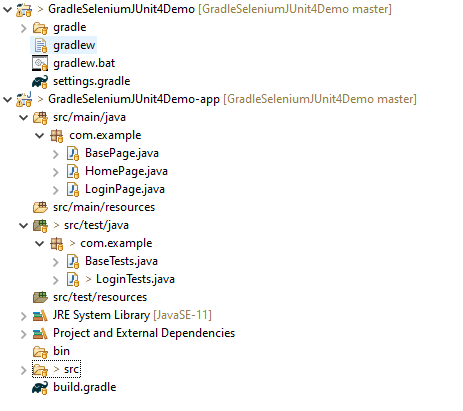
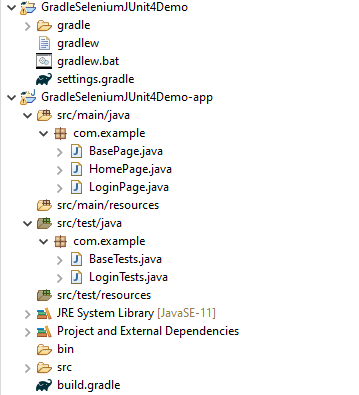
Project Structure

Implementation Steps

  1. Add Selenium, JUnit4 and Allure-JUnit4 dependencies in build.gradle
  2. Create Pages and Test Code for the pages
  3. Execute the Tests through Command Line
  4. Generate Allure Report

There is another tutorial that explain the steps to create a Gradle Project with JUnit4 – please refer to this tutorial – How to create Gradle project with Selenium and JUnit4

Step 1 – Add Selenium, JUnit4, and Allure-JUnit4 dependencies in build.gradle

plugins {
    // Apply the application plugin to add support for building a CLI application in Java.
    id 'application'
    id 'io.qameta.allure' version '2.11.0'
}

repositories {
    // Use Maven Central for resolving dependencies.
    mavenCentral()
}

java {
    sourceCompatibility = 11
    targetCompatibility = 11
}

dependencies {
    // Use JUnit test framework.
    testImplementation 'junit:junit:4.13.2'

    // This dependency is used by the application.
    implementation 'com.google.guava:guava:30.1.1-jre'
    implementation 'org.seleniumhq.selenium:selenium-java:4.4.0'
    implementation 'io.github.bonigarcia:webdrivermanager:5.3.0'
    implementation 'io.qameta.allure:allure-junit4:2.19.0'
}

application {
    // Define the main class for the application.
    mainClass = 'com.example.App'
}

test {
    useJUnit {   
    }

    testLogging {
        events "passed", "skipped", "failed"
        showStandardStreams = true
    }

    systemProperties System.properties
}

Step 2 – Create Pages and Test Code for the pages

Below is the sample project which uses Selenium and TestNG which is used to generate an Allure Report.

We have used PageFactory model to build the tests. I have created a package named pages and created the page classes in that folder. Page class contains the locators of each web element present on that particular page along with the methods of performing actions using these web elements.

This is the BaseClass that contains the PageFactory.initElements. The initElements is a static method of PageFactory class that is used to initialize all the web elements located by @FindBy annotation. 

import org.openqa.selenium.WebDriver;
import org.openqa.selenium.support.PageFactory;
 
public class BasePage { 
 
      public WebDriver driver;
 
      public BasePage(WebDriver driver) {
          this.driver = driver;
          PageFactory.initElements(driver,this);
    }
 
}

Below is the code for LoginPage and HomePage.

LoginPage

import org.openqa.selenium.WebDriver;
import org.openqa.selenium.WebElement;
import org.openqa.selenium.support.FindBy;
 
public class LoginPage extends BasePage{
     
    public LoginPage(WebDriver driver) {
         super(driver);
          
    }
      
    @FindBy(name = "username")
    public WebElement userName;
   
    @FindBy(name = "password")
    public WebElement password;
      
    @FindBy(xpath = "//*[@id='app']/div[1]/div/div[1]/div/div[2]/div[2]/form/div[1]/div/span")
    public WebElement missingUsernameErrorMessage;
      
    @FindBy(xpath = "//*[@id='app']/div[1]/div/div[1]/div/div[2]/div[2]/form/div[1]/div/span")
    public WebElement missingPasswordErrorMessage;
   
    @FindBy(xpath = "//*[@id='app']/div[1]/div/div[1]/div/div[2]/div[2]/form/div[3]/button")
    public WebElement login;
   
    @FindBy(xpath = "//*[@id='app']/div[1]/div/div[1]/div/div[2]/div[2]/div/div[1]/div[1]/p")
    public  WebElement errorMessage;
         
   // Get the error message when password is blank
    public String getMissingPasswordText() {
        return missingPasswordErrorMessage.getText();
    }
 
   // Get the error message when username is blank
   public String getMissingUsernameText() {
        return missingUsernameErrorMessage.getText();
    }
        
    // Get the Error Message
    public String getErrorMessage() {
        return errorMessage.getText();
    }
      
    public void login(String strUserName, String strPassword) {
   
        userName.sendKeys(strUserName);
        password.sendKeys(strPassword);
        login.click();
    }
  
}

HomePage

import org.openqa.selenium.WebDriver;
import org.openqa.selenium.WebElement;
import org.openqa.selenium.support.FindBy;
 
public class HomePage extends BasePage {
 
    public HomePage(WebDriver driver) {
        super(driver);
 
    }
 
     @FindBy(xpath = "//*[@id='app']/div[1]/div[2]/div[2]/div/div[1]/div[1]/div[1]/h5")
      public  WebElement homePageUserName;
 
      // Get the User name from Home Page
        public String getHomePageText() {
           return homePageUserName.getText();
   }
 
}

Here, we have BaseTests Class also which contains the common methods needed by other test pages.

import java.time.Duration;
import org.junit.After;
import org.junit.Before;
import org.openqa.selenium.WebDriver;
import org.openqa.selenium.chrome.ChromeDriver;
import io.github.bonigarcia.wdm.WebDriverManager;
import io.qameta.allure.Step;

public class BaseTests {
	
	public WebDriver driver;
	public final static int TIMEOUT = 10;
    
 
	@Before
    @Step("Start the application")
    public void setup() {
    	WebDriverManager.chromedriver().setup();
	    driver = new ChromeDriver();
	    driver.manage().window().maximize();
	    driver.get("https://opensource-demo.orangehrmlive.com/");	    
	    driver.manage().timeouts().implicitlyWait(Duration.ofSeconds(TIMEOUT));

    }
 
    @Step("Stop the application")
    @After
    public void tearDown() {
        driver.quit();
    }   
}

LoginTests

import org.junit.Assert;
import org.junit.Ignore;
import org.junit.Test;
import io.qameta.allure.Description;
import io.qameta.allure.Severity;
import io.qameta.allure.SeverityLevel;

public class LoginTests extends BaseTests{
	 
	@Severity(SeverityLevel.NORMAL)
    @Test
	@Description("Test Description : Login Test with invalid credentials")
    public void invalidCredentials() {
   
	    LoginPage objLoginPage = new LoginPage(driver);
    	objLoginPage.login("Admin", "admin123$$");
    	 
    	// Verify Error Message
    	 Assert.assertEquals("Invalid credentials",objLoginPage.getErrorMessage());
    
    }
    
	@Severity(SeverityLevel.BLOCKER)
    @Test
	@Description("Test Description : Login Test with valid credentials")
    public void gotoHomePage() {
   
	    LoginPage objLoginPage = new LoginPage(driver);
    	objLoginPage.login("Admin", "admin123");
    	 
    	HomePage objHomePage = new HomePage(driver);
    	
    	// Verify Home Page
    	 Assert.assertEquals("Employee Information",objHomePage.getHomePageText());
    
    }
    
	@Severity(SeverityLevel.NORMAL)
    @Test
	@Description("Test Description : Login Test with missing username")
    public void missingUsername() {
   
	    LoginPage objLoginPage = new LoginPage(driver);
    	objLoginPage.login("", "admin123");
    	     	
    	// Verify Error Message
   	     Assert.assertEquals("Invalid credentials",objLoginPage.getMissingUsernameText());
   	     
    
    }
	
	@Severity(SeverityLevel.NORMAL)
    @Test @Ignore
	@Description("Test Description : Login Test with missing password")
    public void missingPassword() {
   
	    LoginPage objLoginPage = new LoginPage(driver);
    	objLoginPage.login("admin", "");
    	    	
    	// Verify Error Message
   	     Assert.assertEquals("Invalid credentials",objLoginPage.getMissingPasswordText());
    
    }    
   
}

Step 3 – Execute the Tests through Command Line

Note:- As you can see my project has two parts – app and GradleSeleniumJUnit4Demo.

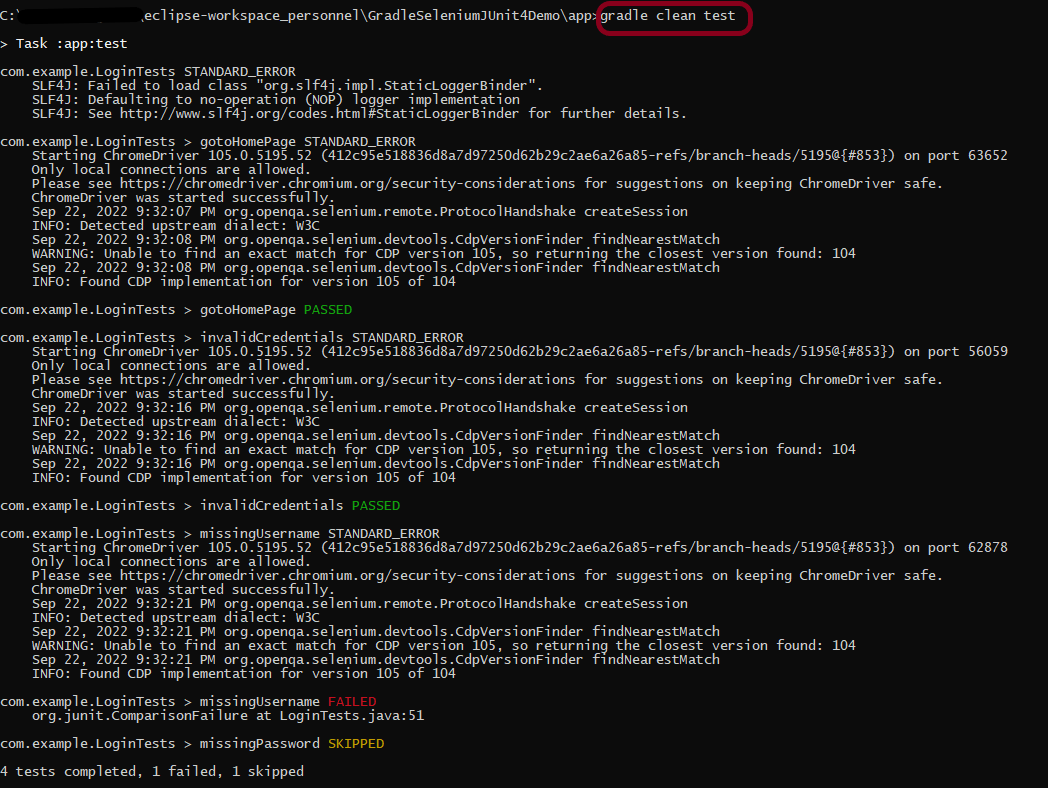
Go to the app project and run the tests, using the below command

gradle clean test

The output of the test execution is

Step 4 – Generate the Allure Report

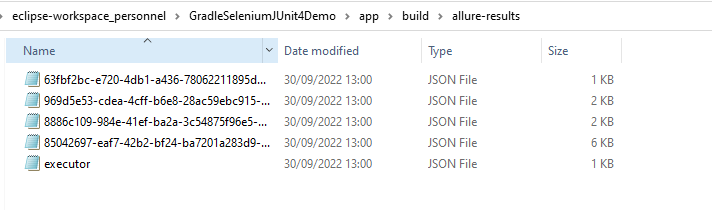
Once the test execution is finished, a folder named allure-results will be generated in the build folder.

To generate Allure Report, use the below command

allure serve build/allure-results

This will generate the beautiful Allure Test Report as shown below.

Allure Report Dashboard

The overview page hosts several default widgets representing basic characteristics of your project and test environment.

  1. Statistics – overall report statistics.
  2. Launches – if this report represents several test launches, statistics per launch will be shown here.
  3. Behaviors – information on results aggregated according to stories and features.
  4. Executors – information on test executors that were used to run the tests.
  5. History Trend – if tests accumulated some historical data, its trend will be calculated and shown on the graph.
  6. Environment – information on the test environment.

Categories in Allure Report

Categories tab gives you the way to create custom defects classification to apply for test results. There are two categories of defects – Product Defects (failed tests) and Test Defects (broken tests).

Suites in Allure Report

On the Suites tab a standard structural representation of executed tests, grouped by suites and classes can be found.

Graphs in Allure Report

Graphs allow you to see different statistics collected from the test data: statuses breakdown or severity and duration diagrams.

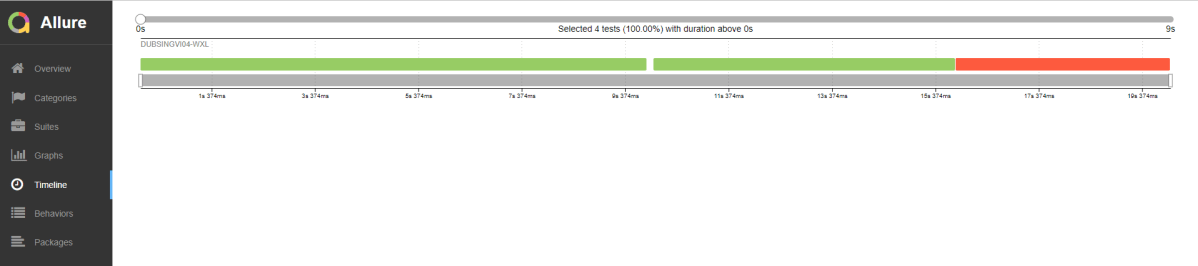
Timeline in Allure Report

Timeline tab visualizes retrospective of tests execution, allure adaptors collect precise timings of tests, and here on this tab they are arranged accordingly to their sequential or parallel timing structure.

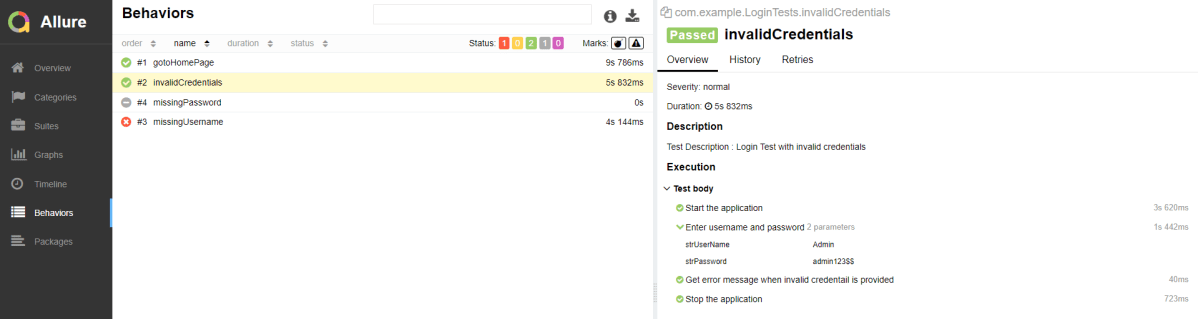
Behaviors of Allure Report

This tab groups test results according to Epic, Feature and Story tags.

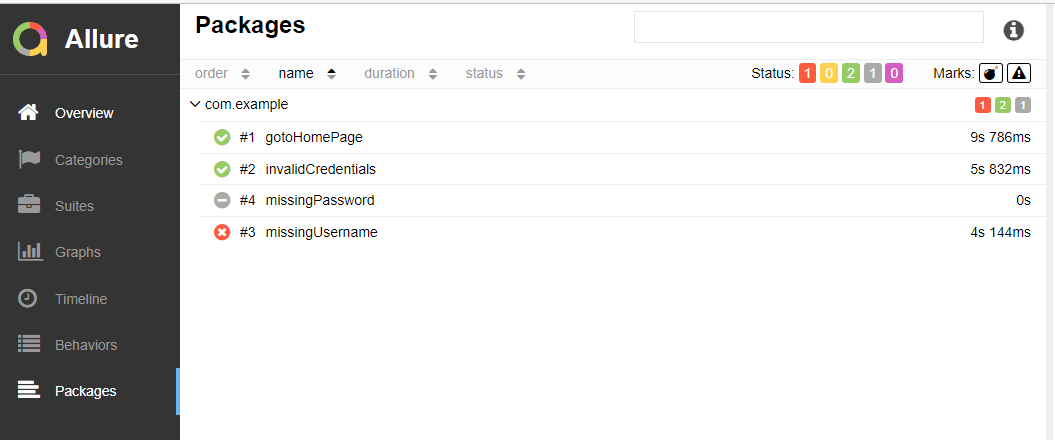
Packages in Allure Report

Packages tab represents a tree-like layout of test results, grouped by different packages.

Congratulations on making it through this tutorial and hope you found it useful! Happy Learning!! Cheers!!

How to create Gradle project with Selenium and JUnit4

HOME

The previous tutorial explained How to create Java Gradle project in Eclipse. In this tutorial, I will explain how we can set up a Gradle project with Selenium and JUnit4.

This framework consists of:

  1. Java 8 or above
  2. JUnit– 4.13.2
  3. Gradle – 7.5.1 (Build Tool)
  4. Selenium – 4.3.0

Steps to set up Gradle Java Project for Selenium and TestNG

  1. Download and Install Java on the system
  2. Download and setup Eclipse IDE on the system
  3. Setup Gradle on System
  4. Create a new Gradle Project
  5. Add Selenium and JUnit4 dependencies to the Gradle project
  6. Create Pages and Test Code for the pages
  7. Run the tests from JUnit
  8. Run the tests from Command Line
  9. Gradle Report generation

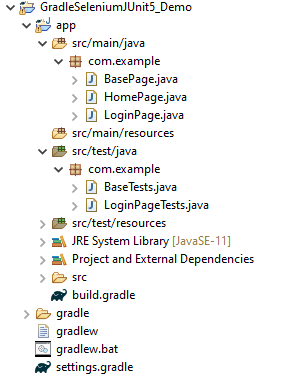
Project Structure
Implementation Steps

Step 1- Download and Install Java

Selenium needs Java to be installed on the system to run the tests. Click here to know How to install Java.

Step 2 – Download and setup Eclipse IDE on the system

The Eclipse IDE (integrated development environment) provides strong support for Java developers. Click here to know How to install Eclipse.

Step 3 – Setup Gradle

To build a test framework, we need to add several dependencies to the project. This can be achieved by any build tool. I have used Gradle Build Tool. Click here to know How to install Gradle.

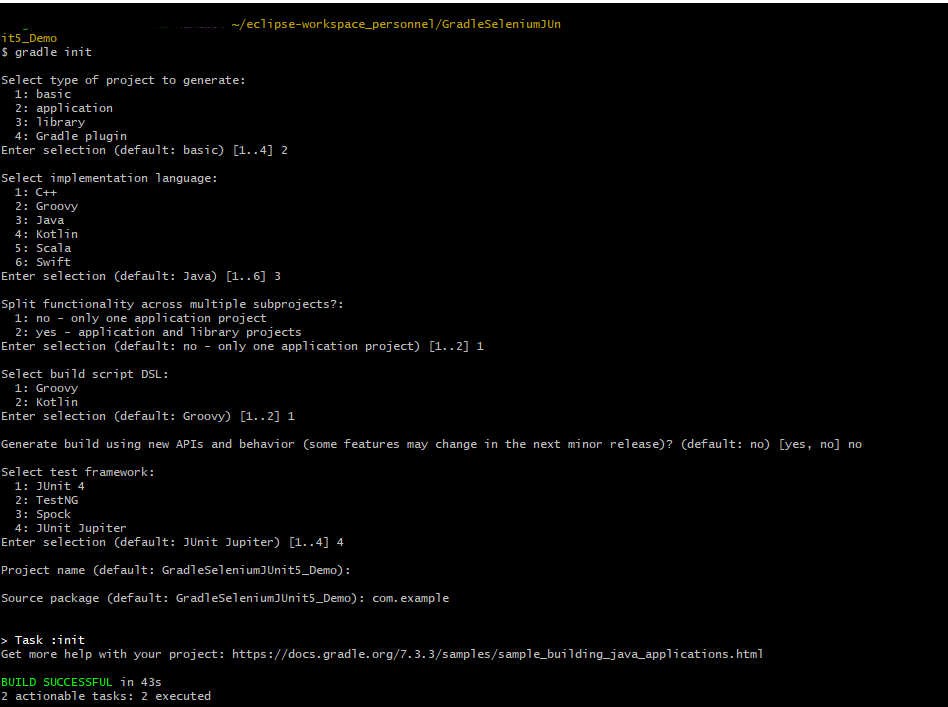
Step 4 – Create a new Gradle Project

If you want to create the Gradle project from Eclipse IDE, click here to know How to create a Gradle Java project.
Step 5 – Add Selenium and JUnit4 dependencies to the Gradle project

plugins {
    // Apply the application plugin to add support for building a CLI application in Java.
    id 'application'
}

repositories {
    // Use Maven Central for resolving dependencies.
    mavenCentral()
}

java {
    sourceCompatibility = 11
    targetCompatibility = 11
}

dependencies {
    // Use JUnit test framework.
    testImplementation 'junit:junit:4.13.2'

    // This dependency is used by the application.
    implementation 'com.google.guava:guava:30.1.1-jre'
    implementation 'org.seleniumhq.selenium:selenium-java:4.4.0'
    implementation 'io.github.bonigarcia:webdrivermanager:5.3.0'
}

application {
    // Define the main class for the application.
    mainClass = 'com.example.App'
}

test {
    useJUnit {
    
    }

    testLogging {
        events "passed", "skipped", "failed"
        showStandardStreams = true
    }

    systemProperties System.properties
    reports.html.setDestination(file("$projectDir/GradleReports"))
}

Step 6 – Create Pages and Test Code for the pages

We have used PageFactory model to build the tests. I have created a package named pages and created the page classes in that folder. Page class contains the locators of each web element present on that particular page along with the methods of performing actions using these web elements.

This is the BaseClass that contains the PageFactory.initElements.

import org.openqa.selenium.WebDriver;
import org.openqa.selenium.support.PageFactory;
 
public class BasePage { 
 
      public WebDriver driver;
 
      public BasePage(WebDriver driver) {
          this.driver = driver;
          PageFactory.initElements(driver,this);
    }
 
}

Below is the code for LoginPage and HomePage

LoginPage

import org.openqa.selenium.WebDriver;
import org.openqa.selenium.WebElement;
import org.openqa.selenium.support.FindBy;
 
public class LoginPage extends BasePage{
     
     public LoginPage(WebDriver driver) {
         super(driver);
         
    }
     
    @FindBy(name = "username")
    public WebElement userName;
  
    @FindBy(name = "password")
    public WebElement password;
     
    @FindBy(xpath = "//*[@id='app']/div[1]/div/div[1]/div/div[2]/div[2]/form/div[1]/div/span")
    public WebElement missingUsernameErrorMessage;
     
    @FindBy(xpath = "//*[@id='app']/div[1]/div/div[1]/div/div[2]/div[2]/form/div[1]/div/span")
    public WebElement missingPasswordErrorMessage;
  
    @FindBy(xpath = "//*[@id='app']/div[1]/div/div[1]/div/div[2]/div[2]/form/div[3]/button")
    public WebElement login;
  
    @FindBy(xpath = "//*[@id='app']/div[1]/div/div[1]/div/div[2]/div[2]/div/div[1]/div[1]/p")
    public  WebElement errorMessage;
        
   // Get the error message when password is blank
    public String getMissingPasswordText() {
        return missingPasswordErrorMessage.getText();
    }

   // Get the error message when username is blank
   public String getMissingUsernameText() {
        return missingUsernameErrorMessage.getText();
    }
       
    // Get the Error Message
    public String getErrorMessage() {
        return errorMessage.getText();
    }
     
    public void login(String strUserName, String strPassword) {
  
        userName.sendKeys(strUserName);
        password.sendKeys(strPassword);
        login.click();
    }
 
}

HomePage

import org.openqa.selenium.WebDriver;
import org.openqa.selenium.WebElement;
import org.openqa.selenium.support.FindBy;
 
public class HomePage extends BasePage {
 
    public HomePage(WebDriver driver) {
        super(driver); 
    }
 
     @FindBy(xpath = "//*[@id='app']/div[1]/div[2]/div[2]/div/div[1]/div[1]/div[1]/h5")
      public  WebElement homePageUserName;
 
      // Get the User name from Home Page
        public String getHomePageText() {
           return homePageUserName.getText();
   }
 
}

Here, we have BaseTests Class also, which contains the common methods needed by other test pages.

import java.time.Duration;
import org.junit.After;
import org.junit.Before;
import org.openqa.selenium.WebDriver;
import org.openqa.selenium.chrome.ChromeDriver;
import io.github.bonigarcia.wdm.WebDriverManager;

public class BaseTests {
	
	public WebDriver driver;
	public final static int TIMEOUT = 10;
    
 
	@Before
    public void setup() {
    	WebDriverManager.chromedriver().setup();
	    driver = new ChromeDriver();
	    driver.manage().window().maximize();
	    driver.get("https://opensource-demo.orangehrmlive.com/");	    
	    driver.manage().timeouts().implicitlyWait(Duration.ofSeconds(TIMEOUT));

    }
 
    @After
    public void tearDown() {
        driver.quit();
    }
    
}

LoginTests

import org.junit.Assert;
import org.junit.Ignore;
import org.junit.Test;

public class LoginTests extends BaseTests{
	 
    @Test
    public void invalidCredentials() {
   
	    LoginPage objLoginPage = new LoginPage(driver);
    	objLoginPage.login("Admin", "admin123$$");
    	 
    	// Verify Error Message
    	 Assert.assertEquals("Invalid credentials",objLoginPage.getErrorMessage());
    
    }
    
    @Test
    public void gotoHomePage() {
   
	    LoginPage objLoginPage = new LoginPage(driver);
    	objLoginPage.login("Admin", "admin123");
    	 
    	HomePage objHomePage = new HomePage(driver);
    	
    	// Verify Home Page
    	 Assert.assertEquals("Employee Information",objHomePage.getHomePageText());
    
    }
    
    @Test
    public void missingUsername() {
   
	    LoginPage objLoginPage = new LoginPage(driver);
    	objLoginPage.login("", "admin123");
    	     	
    	// Verify Error Message
   	     Assert.assertEquals("Invalid credentials",objLoginPage.getMissingUsernameText());
   	     
    
    }
	
    @Test @Ignore
    public void missingPassword() {
   
	    LoginPage objLoginPage = new LoginPage(driver);
    	objLoginPage.login("admin", "");
    	    	
    	// Verify Error Message
   	     Assert.assertEquals("Invalid credentials",objLoginPage.getMissingPasswordText());
    
    }    
   
}

Step 7 – Run the tests from JUnit

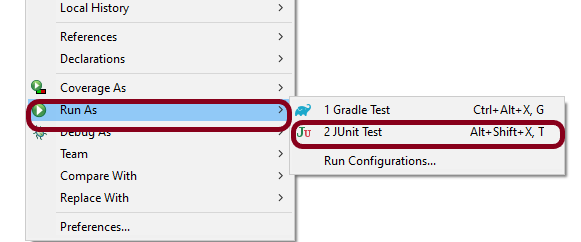
Right-click on the Tests and select Run As -> JUnit Test

The output of the above program is shown below.

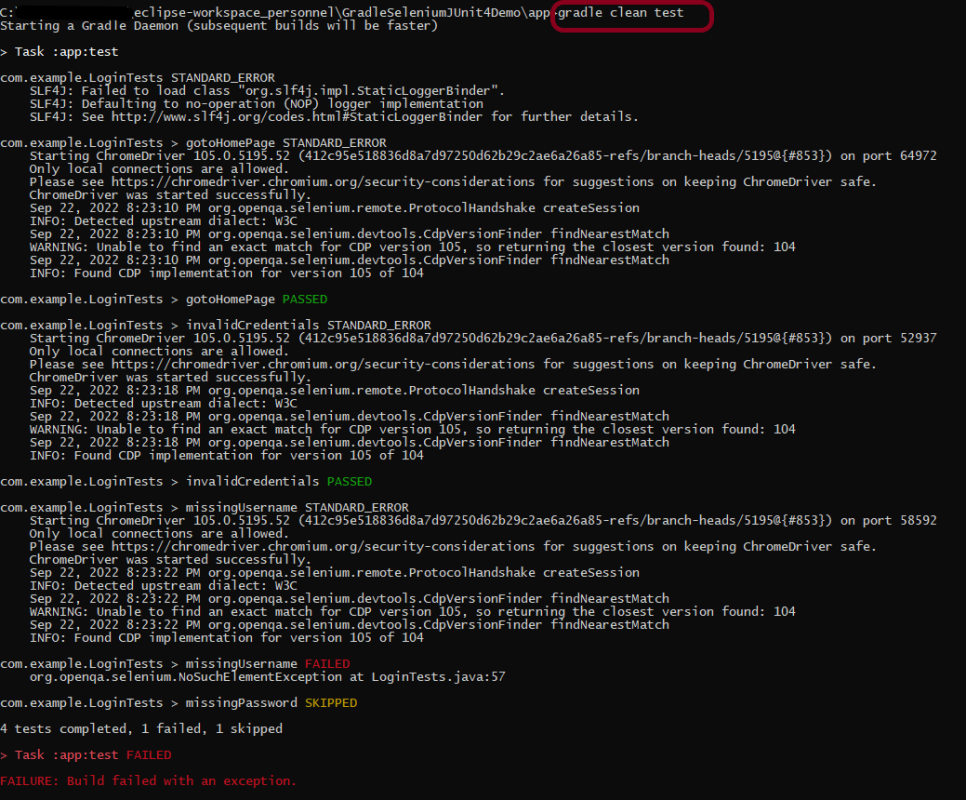
Step 8 – Run the tests from Command Line

Note:- As you can see, my project has two parts – GradleSeleniumJUnit4Demo and GradleSeleniumJUnit4Demo-app.

Go to the app project and run the tests, using the below command

gradle clean test

The output of the test execution is

Step 9 – Gradle Report generation

Once the test execution is finished, refresh the project. We will see a folder – GradleReports. This report is generated when the tests are executed through the command line.
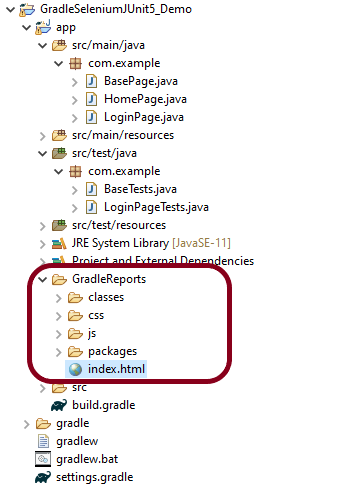
This folder contains index.html.

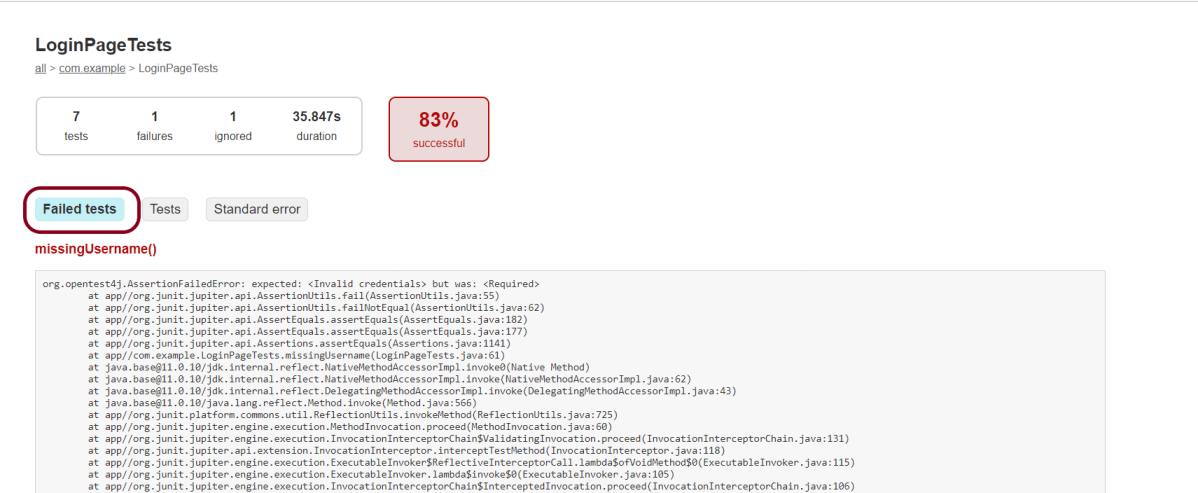
Right-click on index.html and select open with Web Browser. This report shows the summary of all the tests executed. As you can see that Failed tests are selected (highlighted in blue), so the name of the test failed along with the class name is displayed here.

Congratulations on making it through this tutorial and hope you found it useful! Happy Learning!! Cheers!!

Gradle – Allure Report for Selenium and TestNG

HOME

The previous tutorial explained the generation of Allure Report for Selenium and TestNG in a Maven Project. This tutorial explains the generation of Allure Report for Selenium and TestNG in a Gradle project.

Pre-Requisite:

  1. Java 8 or higher installed
  2. Gradle installed
  3. Eclipse or IntelliJ installed

This framework consists of:

  1. Selenium – 4.3
  2. Java 11
  3. TestNG – 7.6.1
  4. Gradle – 7.5.1
  5. Allure Maven Plugin – 2.11.0
  6. Allure TestNG – 2.19.1

Project Structure

To create a Gradle project from the command line, please refer to this tutorial – How to create a Java Gradle project using Command Line.

Implementation Steps

  1. Add Selenium, TestNG, and Allure-TestNG dependencies in build.gradle
  2. Create Pages and Test Code for the pages
  3. Create testng.xml
  4. Execute the Tests
  5. Generate Allure Report

Step 1 – Add Selenium, TestNG, and Allure-TestNG dependencies in the build.gradle

plugins {
    // Apply the application plugin to add support for building a CLI application in Java.
    id 'application'
    id 'io.qameta.allure' version '2.11.0'
}

repositories {
    // Use Maven Central for resolving dependencies.
    mavenCentral()
}

java {
    sourceCompatibility = 11
    targetCompatibility = 11
}

dependencies {

    
    // Use TestNG framework, also requires calling test.useTestNG() below
    testImplementation 'org.testng:testng:7.6.1'

    // This dependency is used by the application.
    implementation 'com.google.guava:guava:31.0.1-jre'
    implementation 'org.seleniumhq.selenium:selenium-java:4.4.0'
    implementation 'io.github.bonigarcia:webdrivermanager:5.3.0'
    implementation 'io.qameta.allure:allure-testng:2.19.0'
}

application {
    // Define the main class for the application.
    mainClass = 'com.example.App'
}

tasks.named('test') {
    // Use TestNG for unit tests.
    useTestNG() {
    
    useDefaultListeners = true
    suites "./testng.xml"
 
   }
   
    testLogging {
        events "PASSED", "FAILED", "SKIPPED"
        exceptionFormat = 'full'
    }
}

Step 2 – Create Pages and Test Code for the pages

Below is the sample project which uses Selenium and TestNG which is used to generate an Allure Report.

We have used the PageFactory model to build the tests. I have created a package named pages and created the page classes in that folder. Page class contains the locators of each web element present on that particular page along with the methods of performing actions using these web elements.

This is the BaseClass that contains the PageFactory.initElements. The initElements is a static method of PageFactory class that is used to initialize all the web elements located by @FindBy annotation. 

import org.openqa.selenium.WebDriver;
import org.openqa.selenium.support.PageFactory;

public class BasePage {	

	  public WebDriver driver;

	  public BasePage(WebDriver driver) {
		  this.driver = driver;
		  PageFactory.initElements(driver,this);
	}

}

Below is the code for LoginPage and HomePage

LoginPage

import org.openqa.selenium.WebDriver;
import org.openqa.selenium.WebElement;
import org.openqa.selenium.support.FindBy;

public class LoginPage extends BasePage{
	
	 public LoginPage(WebDriver driver) {
		 super(driver);
		
    }
	
	@FindBy(name = "username")
    public WebElement userName;
 
    @FindBy(name = "password")
    public WebElement password;
    
    @FindBy(xpath = "//*[@id='app']/div[1]/div/div[1]/div/div[2]/div[2]/form/div[1]/div/span")
    public WebElement missingUsernameErrorMessage;
    
    @FindBy(xpath = "//*[@id='app']/div[1]/div/div[1]/div/div[2]/div[2]/form/div[1]/div/span")
    public WebElement missingPasswordErrorMessage;
 
    @FindBy(xpath = "//*[@id='app']/div[1]/div/div[1]/div/div[2]/div[2]/form/div[3]/button")
    public WebElement login;
 
    @FindBy(xpath = "//*[@id='app']/div[1]/div/div[1]/div/div[2]/div[2]/div/div[1]/div[1]/p")
    public  WebElement errorMessage;
          
   // Get the error message when password is blank
    public String getMissingPasswordText() {
        return missingPasswordErrorMessage.getText();
    }
      
    // Get the Error Message
    public String getErrorMessage() {
        return errorMessage.getText();
    }
    
    public void login(String strUserName, String strPassword) {
 
    	userName.sendKeys(strUserName);
    	password.sendKeys(strPassword);
    	login.click();
    }

}

HomePage

import org.openqa.selenium.WebDriver;
import org.openqa.selenium.WebElement;
import org.openqa.selenium.support.FindBy;

public class HomePage extends BasePage {

	public HomePage(WebDriver driver) {
		super(driver);

	}

	 @FindBy(xpath = "//*[@id='app']/div[1]/div[2]/div[2]/div/div[1]/div[1]/div[1]/h5")
	  public  WebElement homePageUserName;

	  // Get the User name from Home Page
	    public String getHomePageText() {
	       return homePageUserName.getText();
   }

}

Here, we have BaseTests Class also which contains the common methods needed by other test pages.

import java.time.Duration;
import org.openqa.selenium.WebDriver;
import org.openqa.selenium.chrome.ChromeDriver;
import org.testng.annotations.AfterMethod;
import org.testng.annotations.BeforeMethod;
import io.github.bonigarcia.wdm.WebDriverManager;
import io.qameta.allure.Step;

public class BaseTests {
	
	public WebDriver driver;
	public final static int TIMEOUT = 30;
    
	@BeforeMethod
    @Step("Start the application")
    public void setup() {
    	WebDriverManager.chromedriver().setup();
	    driver = new ChromeDriver();
	    driver.manage().window().maximize();
	    driver.get("https://opensource-demo.orangehrmlive.com/");	    
	    driver.manage().timeouts().implicitlyWait(Duration.ofSeconds(TIMEOUT));

    }
 
    @Step("Stop the application")
    @AfterMethod
    public void tearDown() {
        driver.quit();
    }
    
}

LoginTests

import org.testng.Assert;
import org.testng.annotations.Test;
import io.qameta.allure.Description;
import io.qameta.allure.Severity;
import io.qameta.allure.SeverityLevel;

public class LoginTests extends BaseTests{
	 
	@Severity(SeverityLevel.NORMAL)
    @Test(description = "This test validates error message when credentials are incorrect", priority = 0)
	@Description("Test Description : Login Test with invalid credentials")
    public void invalidCredentials() {
   
	    LoginPage objLoginPage = new LoginPage(driver);
    	objLoginPage.login("Admin", "admin123$$");
    	 
    	// Verify Error Message
    	 Assert.assertEquals(objLoginPage.getErrorMessage(),"Invalid credentials");
    
    }
    
	@Severity(SeverityLevel.BLOCKER)
    @Test(description = "This test validates login to the application", priority = 1)
	@Description("Test Description : Login Test with valid credentials")
    public void gotoHomePage() {
   
	    LoginPage objLoginPage = new LoginPage(driver);
    	objLoginPage.login("Admin", "admin123");
    	 
    	HomePage objHomePage = new HomePage(driver);
    	
    	// Verify Home Page
    	 Assert.assertEquals(objHomePage.getHomePageText(),"Employee Information");
    
    }
    
	@Severity(SeverityLevel.NORMAL)
    @Test(description = "This test will fail", priority = 2)
	@Description("Test Description : Login Test with missing username")
    public void missingUsername() {
   
	    LoginPage objLoginPage = new LoginPage(driver);
    	objLoginPage.login("", "admin123");
    	    	
    	// Verify Error Message
   	        	 Assert.assertEquals(objLoginPage.getMissingUsernameText(),"Invalid credentials");
    
    }
	
	@Severity(SeverityLevel.NORMAL)
    @Test(description = "This test will skip", priority = 3, enabled = false)
	@Description("Test Description : Login Test with missing password")
    public void missingPassword() {
   
	    LoginPage objLoginPage = new LoginPage(driver);
    	objLoginPage.login("admin", "");
    	    	
    	// Verify Error Message
   	     Assert.assertEquals(objLoginPage.getErrorMessage(),"Invalid credentials");
    
    }
     
}

Step 3 – Create testng.xml

Right-click on the project and select TestNG -> Convert to TestNG.

<?xml version="1.0" encoding="UTF-8"?>
<!DOCTYPE suite SYSTEM "https://testng.org/testng-1.0.dtd">
<suite name="Suite">
  <test name="Gradle - Selenium with TestNG Tests">
    <classes>
      <class name="com.example.LoginTests"/>
    </classes>
  </test> <!-- Test -->
</suite> <!-- Suite -->

Step 4 – Execute the Tests

Note:- As you can see my project has two parts – the app and GradleSeleniumTestNG.

Go to the app project and run the tests, using the below command

gradle clean test

The output of the test execution is

Step 5 – Generate the Allure Report

Once the test execution is finished, a folder named allure-results will be generated in the build folder.

To generate Allure Report, use the below command

allure serve build/allure-results

This will generate the beautiful Allure Test Report as shown below.

Allure Report Dashboard

The overview page hosts several default widgets representing the basic characteristics of your project and test environment.

  1. Statistics – overall report statistics.
  2. Launches – if this report represents several test launches, statistics per launch will be shown here.
  3. Behaviors – information on results aggregated according to stories and features.
  4. Executors – information on test executors that were used to run the tests.
  5. History Trend – if tests accumulated some historical data, its trend will be calculated and shown on the graph.
  6. Environment – information on the test environment.

Categories in Allure Report

The categories tab gives you a way to create custom defects classifications to apply for test results. There are two categories of defects – Product Defects (failed tests) and Test Defects (broken tests).

Suites in Allure Report

On the Suites tab a standard structural representation of executed tests, grouped by suites and classes can be found.

Here, I have used TestNG, so to skip the tests have used enabled. But, in the Allure Report, it is marked as unknown (pink color).

Graphs in Allure Report

Graphs allow you to see different statistics collected from the test data: status breakdown or severity and duration diagrams.

Timeline in Allure Report

The timeline tab visualizes retrospective test execution, allure adaptors collect precise timings of tests, and here on this tab, they are arranged accordingly to their sequential or parallel timing structure.

Behaviors of Allure Report

This tab groups test results according to Epic, Feature, Story, Test Severity, Test Description, Test Steps, and so on.

Packages in Allure Report

The packages tab represents a tree-like layout of test results, grouped by different packages.

Congratulations on making it through this tutorial and hope you found it useful! Happy Learning!! Cheers!!

PDF ExtentReport for Cucumber and TestNG

HOME

In this tutorial, we will generate PDF reports using an Extent Adapter.

Step 1: Follow this article to add POM.xml, create and configure the sample project with the extent property file, and add the plugin to the Test Runner class.

Step 2: To attach the screenshot to your extent report, refer to How to add Screenshot to Cucumber ExtentReports.

Step 3: Add additional PDF-related properties in extent.properties.

extent.reporter.spark.start=true
extent.reporter.spark.out=Reports/Spark.html

#PDF Report
extent.reporter.pdf.start=true
extent.reporter.pdf.out=PdfReport/ExtentPdf.pdf

#FolderName
basefolder.name=ExtentReports/SparkReport_
basefolder.datetimepattern=d_MMM_YY HH_mm_ss

#Screenshot
screenshot.dir=/Screenshots/
screenshot.rel.path=../Screenshots/

Execute the test code. The PDF report will be generated as shown below:

The report contains six sections – dashboard, summary, tags, features, scenarios, and detailed sections.

1. Dashboard

This section is a single-page dashboard that summarizes the test run. This contains the report title, duration, and status of breakups.

2. Summary section

This section provides an overview of the test run in terms of a feature breakdown, comprising duration, scenario count, and step count. The scenarios and steps are divided into status counts. The feature name has a link that navigates to further details in the detailed step section. This link is only present if the detailed section is enabled.

3. Tag section
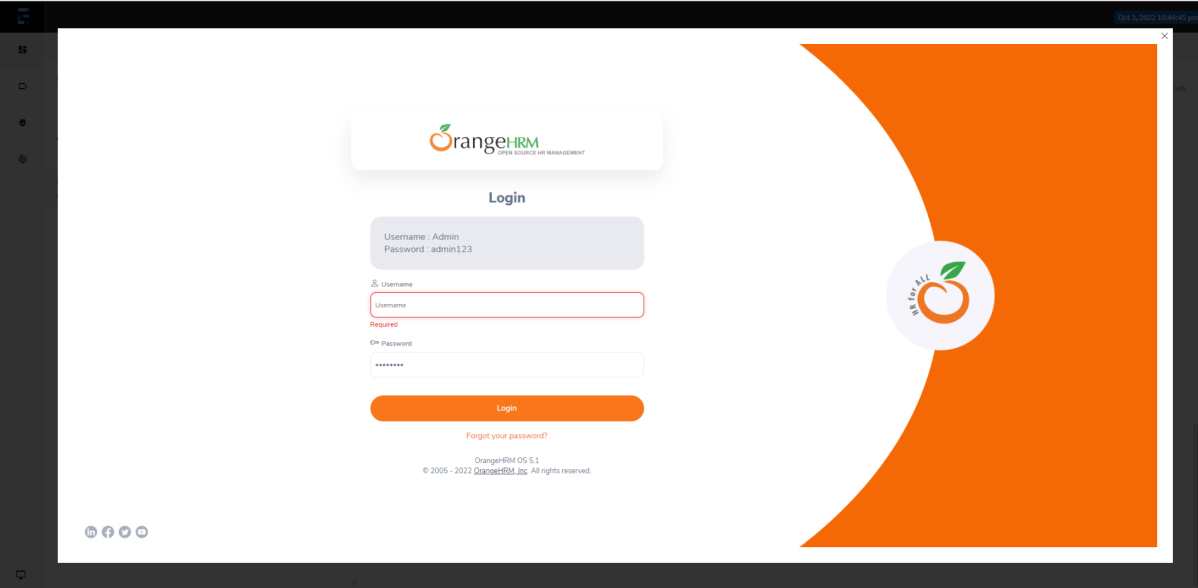
This section provides an overview of the test run in terms of a tag breakdown, comprising feature count and scenario count.

4. Feature section

This section describes the feature details with a stacked bar chart and a table of the scenario status and duration. This section display can be controlled by a configuration setting, enabled by default. The feature name has a link that navigates to further details in the detailed step section. This link is only present if the detailed section is enabled.

5. Scenario section

This section describes the scenario details with a stacked bar chart and a table of the step status and duration. This section display can be controlled by a configuration setting, enabled by default. The feature and scenario names have a link that navigates to further details in the detailed step section. This link is only present if the detailed section is enabled. 


6. Detailed section

This section describes the details of individual steps and hooks, along with status and duration. This section display can be controlled by a configuration setting, enabled by default.

This section also contains screenshots of the failed images.

Customized PDF Report

The report settings can be used to toggle on and off optional report sections, and change the report title, text color for various data, background color, and other options.

The settings are saved in a YAML file called pdf-config.yaml, which is located in the project’s src/test/resources folder. If the file is missing or no settings are specified, the default values are used. To change the default values, create a pdf-config.yaml file in the project’s src/test/resources folder that contains only the new values for the settings.

sample YAML configuration file is shown below:

passColor: 05a167
failColor: ff00ff
skipColor: a89132
displayFeature: true
displayScenario: true
displayDetailed: true
displayAttached: false
displayExpanded: true

dashboardConfig:
   title: Cucumber PDF Report
   dataBackgroundColor: 4F0CC8
   titleColor: FF0000
   dateColor: 969696
   timeColor: 000000
   dial:
      featureRanges: 60 95
      scenarioRanges: 70 90
      stepRanges: 75 85
      badColor: f768a1
      averageColor: 93ffff
      goodColor: 32ecab
      
summaryConfig:
   totalColor: FF0000
   durationColor: FF0000
   
tagConfig:
   totalColor: FF0000
   
featureConfig:
   totalColor: FF0000
   durationColor: FF0000
   
scenarioConfig:
   totalColor: FF0000
   durationColor: FF0000
   
detailedFeatureConfig:
   featureNameColor: FF0000
   startEndTimeColor: 000000
   tagColor: 404040
   dataHeaderColor: FFFFFF
   dataBackgroundColor: 404040
   totalColor: 0000FF
   durationColor: FFFFFF
   durationBackgroundColor: 404040   
   
detailedScenarioConfig:
   featureNameColor: 404040
   scenarioNameColor: FF0000
   startEndTimeColor: 000000
   tagColor: 404040
   dataHeaderColor: FFFFFF
   dataBackgroundColor: 404040
   totalColor: 0000FF
   durationColor: FFFFFF
   durationBackgroundColor: 404040
   stepChartBarColor: 7f32a8
   
detailedStepHookConfig:
   stepTextColor: 0000FF
   stepBackgroundColor: FFFFFF
   hookTextColor: 00FF00
   hookBackgroundColor: FFFFFF
   durationColor: FF0000
   errorMsgColor: 000000
   logMsgColor: 000000

Execute the test code. Now the PDF Report will be generated as shown below:

This method of configuring report settings using a yaml properties file can be used both for the Maven plugin report generation and the ExtentReport style.

The passedfailed, and skipped colors can be set with the passColor, failColor and skipColor properties. These take in the colors in hex values (without the leading ‘#’) and are valid throughout the report.

The features, scenarios, and detailed sections can be displayed by setting the displayFeaturedisplayScenario and displayDetailed properties to true. The default value for these settings is true.

Screenshots are displayed as thumbnails and can be opened in the available native application. This is the default behaviour, in which the screenshot file is embedded in the PDF file. This can be toggled by the displayAttached setting. When the setting is set to false, only the thumbnail is displayed. These can also be displayed in zoomed images in a separate section by setting the displayExpanded to true and also displayAttached to false.

To know more about various settings in PDF Report, refer to this tutorial.