Robot Framework is a generic open-source automation framework. It can be used for test automation and robotic process automation (RPA). RPA is extensively used for Web Application Automation, API Automation, RPA, and Database Testing.
Robot Framework has an easy syntax, utilizing human-readable keywords. Its capabilities can be extended by libraries implemented with Python, Java, or many other programming languages.
Robot Framework is an open-source, test automation framework for Acceptance Testing and Acceptance Test-driven development. The Framework uses the keyword-driven approach where small understandable words (either pre-defined or user-defined) are used for writing the scripts.
RPA is extensively used for Web Application Automation, API Automation, RPA, and Database Testing.
This framework consists of all the industry standard Framework features with minimal coding.
Robot Framework has an easy syntax, utilizing human-readable keywords. Its capabilities can be extended by libraries implemented with Python, Java, or many other programming languages.
Robot Framework is used by Juniper Networks, Cisco, Axon, US Naval Research Laboratory, ZYMR, Zilogic, Testmo, Rocla, and many more.
Robot Framework’s test cases are written in text files using a syntax that is similar to natural language. This makes it easy for non-technical stakeholders to understand and review the tests, and for technical users to maintain and extend them over time. The framework also provides detailed test reports and logs, which help you to quickly identify issues and debug your tests.
How to write automated test scripts?
You can easily create automated test scripts with Robot Framework. Keywords are used not only to carry out actions but also to provide assertion mechanisms. They can be subjected to arguments in order to condition their behaviour.
“Open Browser” and “Title Should Be” are two obvious examples of this. There are many test libraries that provide the necessary bits of automation as keywords, so you don’t have to code in Python/Java.
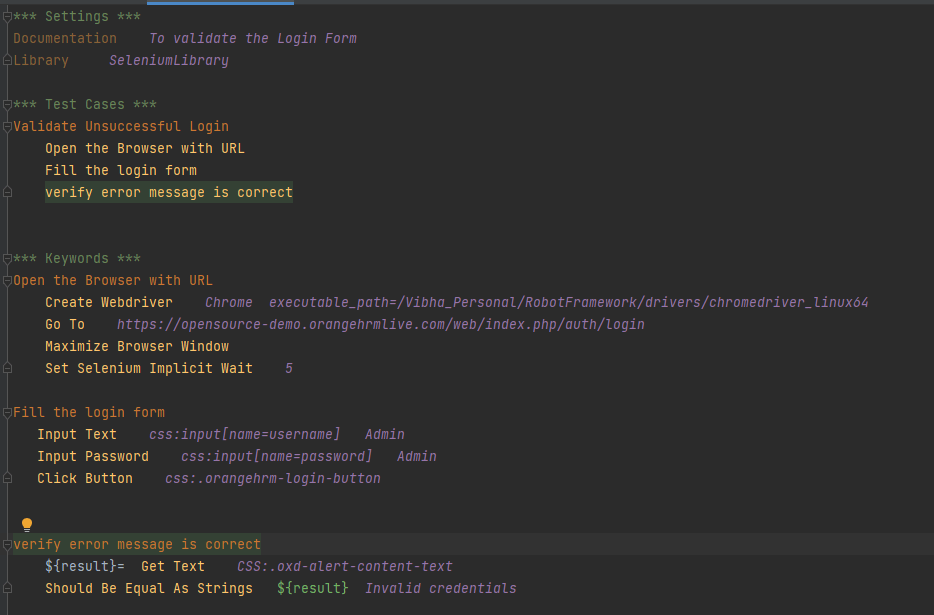
*** Settings ***
Documentation    To validate the Login Form
Library     SeleniumLibrary

*** Test Cases ***
Validate Unsuccessful Login
    Open the Browser with URL
    Fill the login form
    Verify error message is correct


*** Keywords ***
Open the Browser with URL
    Create Webdriver    Chrome  executable_path=/Vibha_Personal/RobotFramework/drivers/chromedriver_linux64
    Go To    https://opensource-demo.orangehrmlive.com/web/index.php/auth/login
    Maximize Browser Window
    Set Selenium Implicit Wait    5

Fill the login form
   Input Text    css:input[name=username]   Admin
   Input Password    css:input[name=password]   Admin
   Click Button    css:.orangehrm-login-button


Verify error message is correct
    ${result}=  Get Text    CSS:.oxd-alert-content-text
    Should Be Equal As Strings   ${result}  Invalid credentials
Features of Robot Framework
Easy-to-read syntax – Robot Framework uses a simple and easy-to-read syntax that is based on keywords and tables, making it easy for both technical and non-technical users to read and write tests.
Cross-platform support – Robot Framework is cross-platform and can be used to test applications on Windows, macOS, and Linux.
Test cases are written using keywords (pre-defined or user-defined) in a tabular format.
Built-in libraries – Robot Framework provides a rich set of built-in libraries for common testing tasks, such as file system operations, database testing, and HTTP requests.
It supports the use of Variables, resource files, and Variable files
Easy integration – Robot Framework can be easily integrated with other tools and libraries, including Selenium, Appium, and REST APIs.
It allows tagging of test cases that come in handy while trying to run either of the Smoke Test Cases, Regression Test Cases, System Test Cases, etc.
Excellent HTML Report – It provides detailed reports and logs of the script’s execution status, which is very useful if the script fails.
Complete Logging of the Test Execution – The elaborate reports and logs are generated after every build execution.
It supports parallel Execution of tests with Thread Safe
Continuous Integration (CI) support – Robot Framework can be easily integrated with CI tools like Jenkins, making it easy to automate the testing process as part of a larger software development lifecycle.
Robot Framework vs. Cucumber
1. The Robot Framework is based on the premise that you can write test cases without having to code because there are numerous libraries available that provide reusable keywords and their underlying code. So, we do need not write code for the business requirements whereas, in the case of Cucumber, we need to write the code for the requirements.
2. Robot covers RPA (Robotic Process Automation); Cucumber doesn’t support.
3. Robot Framework has inbuilt extensive logging, which is missing in Cucumber. Cucumber can use a third-party library like Log4J to implement logging.
The previous tutorial will have explained to run Cucumber tests with JUnit4 or TestNG from Command-Line. Cucumber7 with JUnit5 has a lot of new configuration options. This tutorial will cover all the possible options.
Below is the sample CucumberRunnerTests class for JUnit5.
import static io.cucumber.junit.platform.engine.Constants.GLUE_PROPERTY_NAME;
import org.junit.platform.suite.api.ConfigurationParameter;
import org.junit.platform.suite.api.SelectClasspathResource;
import org.junit.platform.suite.api.Suite;

@Suite
@IncludeEngines("cucumber")
@SelectClasspathResource("com/example")
@SelectClasspathResource("/features")
@ConfigurationParameter(key = GLUE_PROPERTY_NAME, value = "com.example")

public class CucumberRunnerTests  {

}
Run Test from Command Line
1. Open the command prompt and change the directory to the project location where pom.xml is present.
cd C:\Users\Vibha\eclipse-workspace_personnel\Cucumber7JUnit5_Demo
2. All feature files should be in src/test/resources and create the Cucumber Runner class as CucumberRunnerTest. Note:- The Runner class name should end with Test to execute the tests from Command Line Run the following command in the command prompt:
mvn clean test
mvn clean test runs Cucumber Features using Cucumber’s JUnit Runner.
3. The below screenshot shows the build success output.
Overriding Cucumber Options
Cucumber provides several options that can be passed to on the command line.
1. Running Scenarios using Tags from Command Line
If you are using Maven and want to run a subset of scenarios tagged with @ValidCredentials.
mvn clean test -Dcucumber.filter.tags="@ValidCredentials"
2. Running a Feature file from Command Line
Suppose you want to run a single Feature File from the command line, then use the below syntax
mvn clean test -Dcucumber.features=src/test/resources/features/LoginPage.feature
3. Passing plugin from Command Line
If we want to pass a plugin, please use the below-specified command:
mvn clean test -Dcucumber.plugin=html:target/cucumber-reports/cucumberReport.html
You can see that the cucumberReport.html is generated by the plugin.
4. Passing multiple Parameter from Command Line
If we want to pass more than one parameter, then we can use the following command
mvn clean test -Dcucumber.features=src/test/resources/features/LoginPage.feature -Dcucumber.filter.tags="@ValidCredentials"
You can see that only 1 test is executed and rest 4 tests are skipped out of total 5 tests as shown in the Report.
5. Running a Scenario without a tag from Command Line
If we want to run a single Scenario from the command line and no tag is assigned to that scenario, this is how we specify
mvn clean test -Dcucumber.features=src/test/resources/features/LoginPage.feature:11
6. Ignoring a subset of scenarios
If we do not want to run any Scenario from the command line, this is how we specify
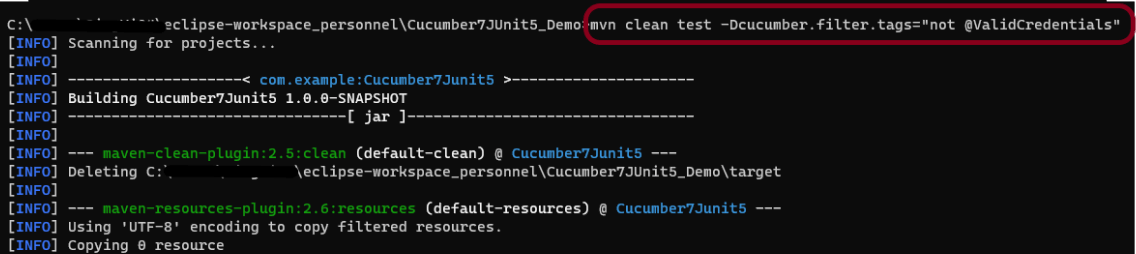
mvn clean test -Dcucumber.filter.tags="not @ValidCredentials"
There is a total of 5 tests, but only 4 will be executed and 1 will be skipped. The output of the above program is shown below:
7. Pass glue code through command line
If we want to pass glue code from the command line, this is how we specify
mvn clean test -Dcucumber.glue=com.example
8. Pass dry run value through command line
dry-run option can either be set as trueor false. If it is set as true, it means that Cucumber will only check that every step mentioned in the Feature File has corresponding code written in the Step Definition file or not. By default, dry-run is False.
mvn clean test -Dcucumber.execution.dry-run=true
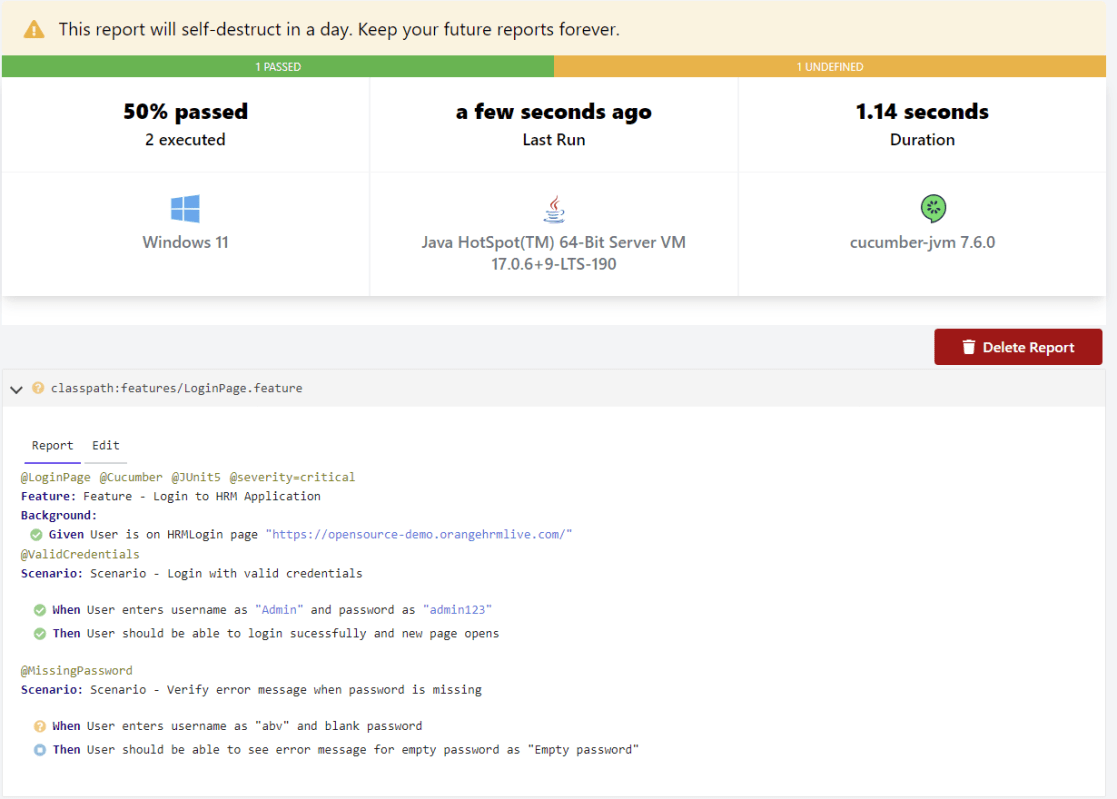
This image shows the steps in the feature file that does not have step definitions.
The cucumber report shows that out of 2 tests, 1 is executed and another one is undefined.
9. Pass snippet type value through command line
The default option for snippets is UNDERSCORE. This settings can be used to specify the way code snippets will be created by Cucumber.
mvn clean test -Dcucumber.snippet-type=camelcase
You can see that the code snippet is in camelCase. In the previous example, it underscored.
That’s it! Congratulations on making it through this tutorial and hope you found it useful! Happy Learning!!
Spring Boot 3.0.4 requires Java 17 and is compatible with and including Java 19. Spring Framework 6.0.6 or above is also required.
Explicit build support is provided for the following build tools:
Maven – 3.5+
Gradle – 7.x (7.5 or later) and 8.x
This framework consists of
SpringBoot Starter Parent – 3.1.0
Serenity Rest Assured – 3.6.12
Spring
Java 17
Gradle – 7.6.1
JUnit Jupiter API – 5.9.2
JUnit Jupiter Engine – 5.9.2
Serenity JUnit5 – 3.6.12
What is SpringBoot Application?
Spring Boot is an open-source micro-framework that provides Java developers with a platform to get started with an auto-configurable production-grade Spring application.
Comes with embedded HTTP servers like Tomcat orJetty to test web applications.
Adds many plugins that developers can use to work with embedded and in-memory databases easily. Spring allows you to easily connect with database and queue services like Oracle, PostgreSQL, MySQL, MongoDB, Redis, Solr, ElasticSearch, Rabbit MQ, and others.
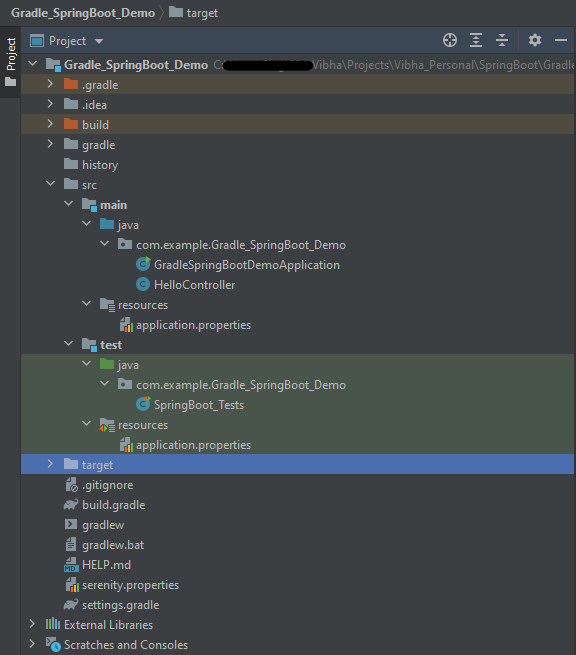
Project Directory Structure
Implementation Steps
Create a source folder – src/test/resources to create properties file
AddSpringBootTest, SerenityRest Assured, and Serenity-JUnit5 dependencies to the project
Create the Test classes.
Create an application.properties file in src/test/resources
Run the tests from JUnit5
Run the tests from Command Line
Serenity Report Generation
Step 1 – Create a source folder – src/test/resources to create test scenarios in the Feature file
Right-click on the test directory and select New->Directory and select resources (Maven Source Directories).
Step 2 – Add SpringBootTest,Rest Assured, and allure dependencies to the project
We have added SpringBootTest, SpringBoot Web, Tomcat, Spring Web, Rest Assured, and Serenity-JUnit5 dependencies to the build.gradle.
plugins {
	id 'java'
	id 'org.springframework.boot' version '3.1.0-SNAPSHOT'
	id 'io.spring.dependency-management' version '1.1.0'
	id 'net.serenity-bdd.serenity-gradle-plugin' version '3.6.7'
}

group = 'com.example'
version = '0.0.1-SNAPSHOT'
sourceCompatibility = '17'

repositories {
	mavenCentral()
	maven { url 'https://repo.spring.io/milestone' }
	maven { url 'https://repo.spring.io/snapshot' }
}

dependencies {

	implementation 'org.springframework.boot:spring-boot-starter'
	implementation 'org.springframework.boot:spring-boot-starter-web'
	implementation 'org.springframework.boot:spring-boot-starter-tomcat'
	implementation 'org.springframework:spring-web'

	testImplementation 'org.springframework.boot:spring-boot-starter-test'
	testImplementation 'net.serenity-bdd:serenity-junit5:3.6.12'
	testImplementation 'org.junit.jupiter:junit-jupiter-api:5.9.2'
	testImplementation 'org.junit.jupiter:junit-jupiter-engine:5.9.2'
	testImplementation 'net.serenity-bdd:serenity-core:3.6.12'
	testImplementation 'net.serenity-bdd:serenity-rest-assured:3.6.12'
	testImplementation 'net.serenity-bdd:serenity-spring:3.6.12'
}

tasks.named('test') {
	useJUnitPlatform() {}
	testLogging {
		showStandardStreams = true
	}
	systemProperties System.getProperties()
}

gradle.startParameter.continueOnFailure = true

test.finalizedBy(aggregate)
Step 3 – Create the Test classes
uses @SpringBootTest annotation which loads the actual application context.
uses WebEnvironment.RANDOM_PORT to create and run the application at some random server port.
@LocalServerPort gets the reference of the port where the server has started. It helps in building the actual request URIs to mimic real client interactions.
Below is the Test Class, created in the src/test/java directory.
import io.restassured.response.ValidatableResponse;
import net.serenitybdd.junit5.SerenityJUnit5Extension;
import org.junit.jupiter.api.Assertions;
import org.junit.jupiter.api.Test;
import org.junit.jupiter.api.extension.ExtendWith;
import org.springframework.beans.factory.annotation.Value;
import org.springframework.boot.test.context.SpringBootTest;
import org.springframework.boot.test.web.server.LocalServerPort;
import static io.restassured.RestAssured.given;

@ExtendWith(SerenityJUnit5Extension.class)
@SpringBootTest(webEnvironment = SpringBootTest.WebEnvironment.RANDOM_PORT)
public class SpringBootDemoDefinitions {

    private final static String BASE_URI = "http://localhost:";

    @LocalServerPort
    private int port;

    @Value("${server.servlet.context-path}")
    private String basePath;

   private ValidatableResponse response;

    @Test
    public void verifyController1() throws Exception  {
        response = given().contentType("application/json")
                .header("Content-Type", "application/json")
                .when().get(BASE_URI + port + basePath+ "/").then().statusCode(200);

        String Actual = response.extract().asString();
        System.out.println("Result :"+Actual);
        Assertions.assertEquals("Hello World, Spring Boot!", Actual);
    }

    @Test
    public void verifyController2() throws Exception  {
        response = given().contentType("application/json")
                .header("Content-Type", "application/json")
                .when().get(BASE_URI + port + basePath+ "/qaautomation").then().statusCode(200);

        String Actual = response.extract().asString();
        System.out.println("Result :"+Actual);
        Assertions.assertEquals("Hello QA Automation!", Actual);
    }
}
This class sends the request and receives a response after performing the GET operation. Here, the validation of the response also takes place by asserting the expected and actual response
Step 4 – Create an application.properties file in src/test/resources
Application.properties is created under src/ test/java.
spring.profiles.active – property to specify which profiles are active. The default profile is always active. server.port – By default, the embedded server starts on port 8080. Now the server will start on port 8090 server.servlet.context-path – the context path in Spring Boot can be changed by setting a property, server.servlet.context-path.
Step 5 – Run the tests from JUnit5
Right-click on the Test class and select Run ‘SpringBoot_Tests’.
The output of the above program is
This image shows that the profile name is “test”. Application is started on port – “65221” and the context path is “/demo”.
Step 6 – Run the tests from Command Line
Run the tests from the command line by using the below command
gradle clean test
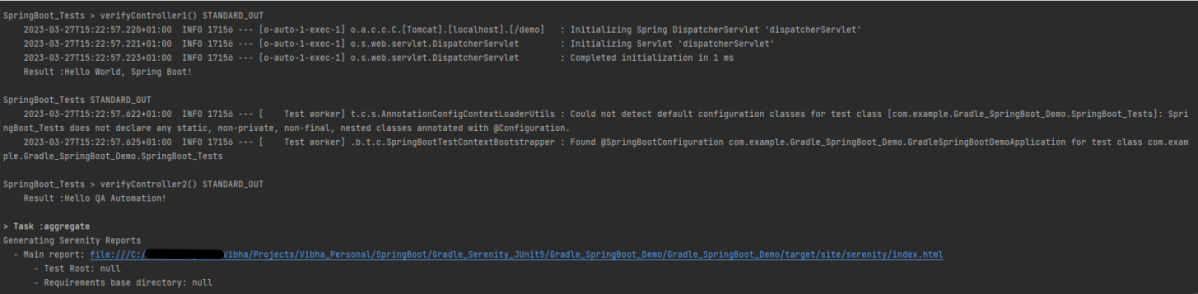
The output of the above program is
Step 7 – Serenity Report Generation
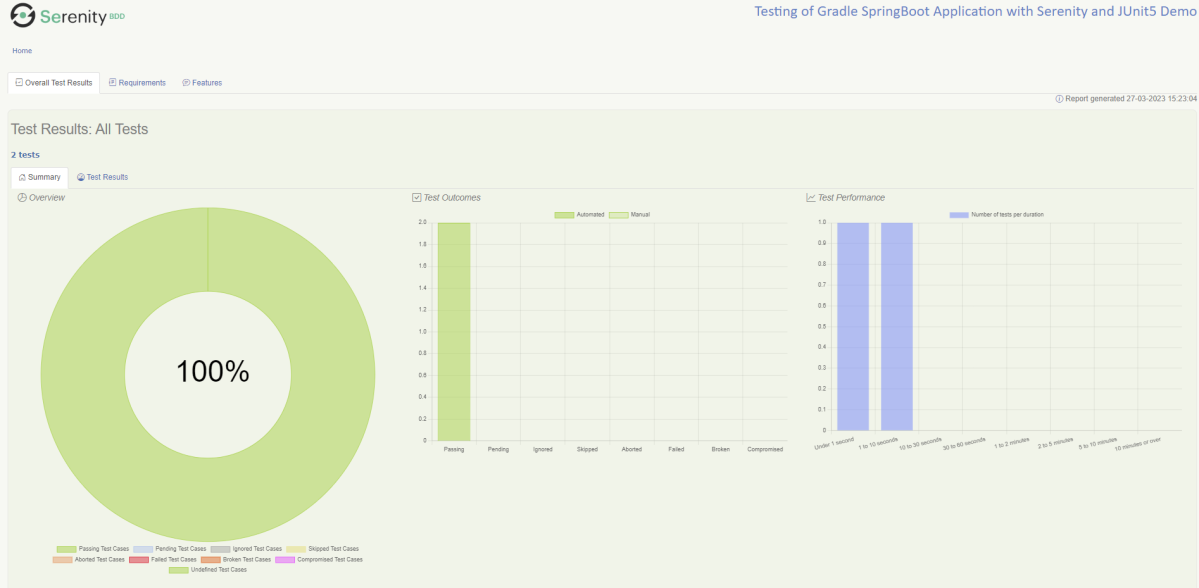
The best part about Serenity is the report generation by it. The Reports contain all possible type of information, you can think of with minimal extra effort. There is multiple types of reports are generated. We are interested in index.html .
Below is the new Serenity Report.
We are done! Congratulations on making it through this tutorial and hope you found it useful! Happy Learning!!
Step 1 – To download PyCharm visit the website https://www.jetbrains.com/pycharm/download/, and it will give you two options: Professional or Community. The professional edition of PyCharm requires a subscription, while the community edition is free. Click the “DOWNLOAD” button under the Community Section.
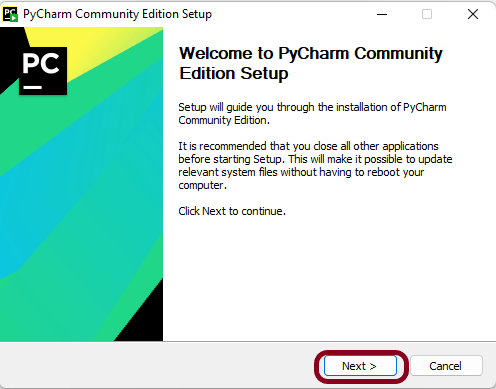
Step 2 – Once the download is complete, run the exe to install PyCharm. The setup wizard should have started. Click the “Next” button.
Step 3 – On the next screen, Change the installation path if required. Click the “Next” button.
Step 4 – On the next screen, you can create a desktop shortcut if you want, Add Open Folder as Project, Create Associations, Update PATH variable (restart needed), and click on the “Next” button.
Step 5 – Choose the start menu folder. Keep selecting JetBrains and click on the “Install” button.
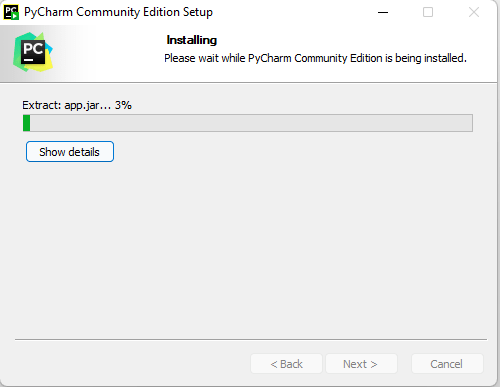
Step 6 – Wait for the installation to finish.
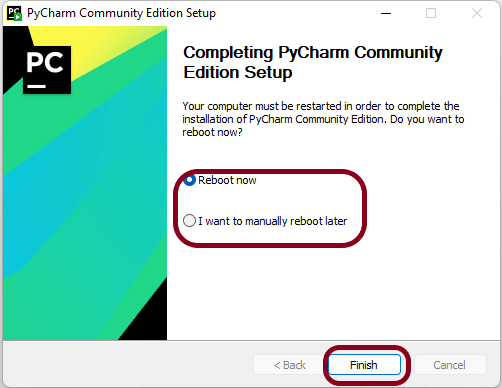
Step 7 – Once the installation is finished, you should receive a message screen that PyCharm is installed. You can select either of the options – Reboot now or I want to manually reboot later and click the “Finish” button.
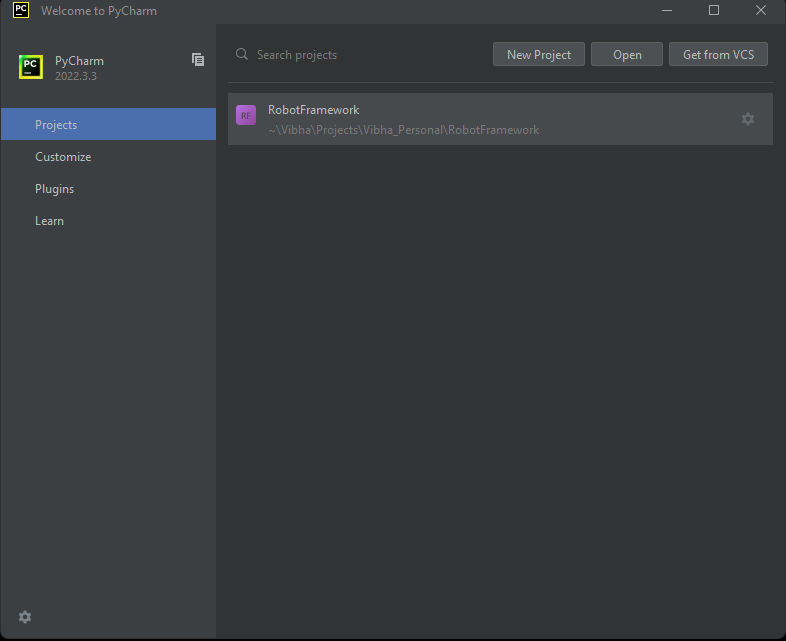
Step 8 – After you click on the “Finish” button, the following screen will appear. I already have created a new project, so you can see the RobotFramework project here.
Spring Boot is an open-source micro-framework that provides Java developers with a platform to get started with an auto-configurable production-grade Spring application.
Comes with embedded HTTP servers like Tomcat orJetty to test web applications.
Adds many plugins that developers can use to work with embedded and in-memory databases easily. Spring allows you to easily connect with database and queue services like Oracle, PostgreSQL, MySQL, MongoDB, Redis, Solr, ElasticSearch, Rabbit MQ, and others.
Project Directory Structure
What is RestController?
HTTP requests are handled by a controller in Spring’s approach to building RESTful web services. The @RestController annotation identifies these components, and the GreetingController shown below (from src/main/java/com/example/springboot_demo/HelloController.java) handles GET requests for / and /qaautomation by returning a new instance of the Greeting class. Spring RestController takes care of mapping request data to the request-defined handles method.
import org.springframework.web.bind.annotation.GetMapping;
import org.springframework.web.bind.annotation.RestController;

@RestController
public class HelloController {

    @GetMapping(path="/")
    String hello() {
        return "Hello World, Spring Boot!";
    }


    @GetMapping(path="/qaautomation")
    String qaautomation() {
        return "Hello QA Automation!";
    }

}
Implementation Steps
Create a source folder – src/test/resources to create properties file
AddSpringBootTest, Serenity and JUnit5 dependencies to the project
Create the Test and Helper classes.
Create an application.properties file in src/test/resources
Create serenity.properties at the root of the project
Run the tests from JUnit5
Run the tests from Command Line
Serenity Report Generation
Step 1 – Create a source folder – src/test/resources to create test scenarios in the Feature file
Right-click on the test directory and select New->Directory and select resources (Maven Source Directories).
Step 2 – Add SpringBootTest, Serenity, and JUnit5 dependencies to the project
We have added SpringBootTest, Serenity, Rest Assured, and JUnit5 dependencies to pom.xml.
uses @SpringBootTest annotation which loads the actual application context.
uses WebEnvironment.RANDOM_PORT to create and run the application at some random server port.
@LocalServerPort gets the reference of the port where the server has started. It helps in building the actual request URIs to mimic real client interactions.
Below is the code of the StepDefinition and Helper class. These classes are created in the src/test/java directory.
This class sends the request and receives a response after performing the GET operation. Here, the validation of the response also takes place by asserting the expected and actual response
Step 4 – Create an application.properties file in src/test/resources
Application.properties is created under src/test/resources for the test profile. If you want to run the SpringBootApplication from DEV profile, then create application.properties file in src/main/resources.
spring.profiles.active – property to specify which profiles are active. The default profile is always active. server.port – By default, the embedded server starts on port 8080. Now the server will start on port 8090 server.servlet.context-path – the context path in Spring Boot can be changed by setting a property, server.servlet.context-path.
Step 5 – Create serenity.properties at the root of the project
serenity.project.name = Testing of SpringBoot Application with Serenity and JUnit5 Demo
Step 6 – Run the tests from JUnit5
Right-click on the Test class and select Run ‘SpringBootDemoApplicationTests’.
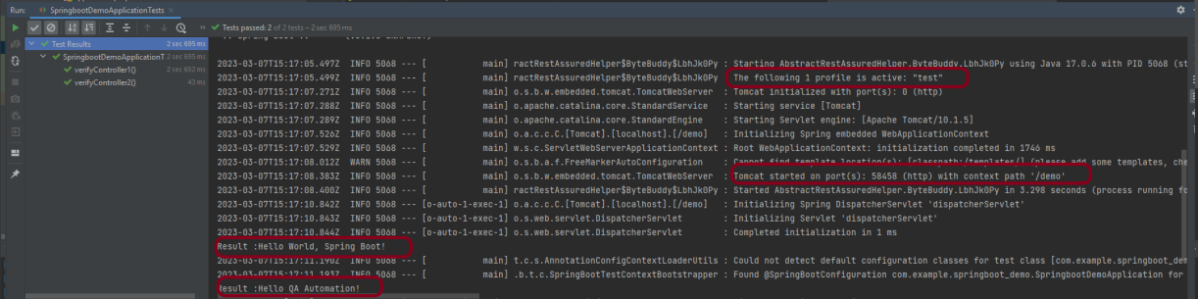
The output of the above program is
This image shows that the profile name is “test”. Application is started on port – “58458” and the context path is “/demo”.
Step 7 – Run the tests from Command Line
Run the tests from the command line by using the below command
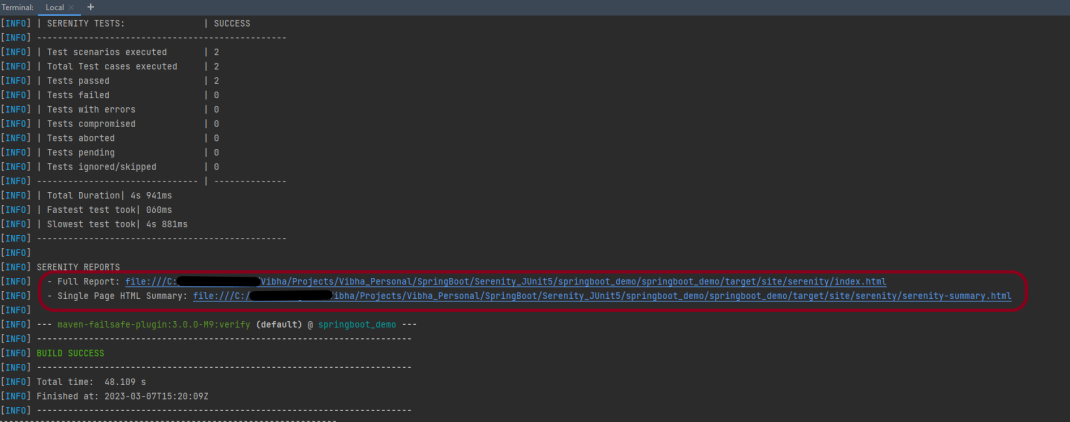
mvn clean verify
The output of the above program is
Step 8 – Serenity Report Generation
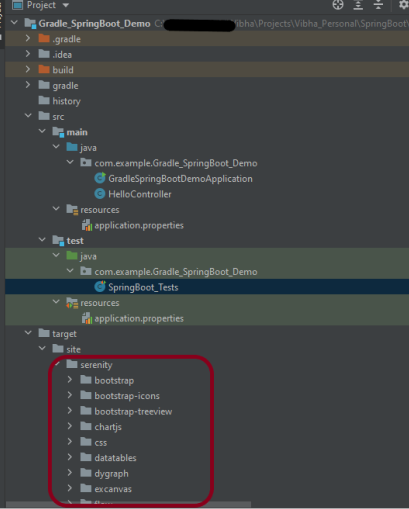
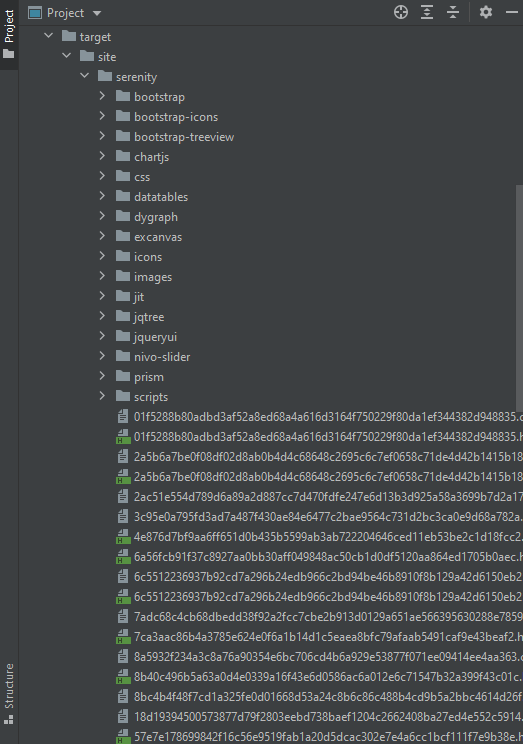
The serenity test reports are generated under target/site/serenity.
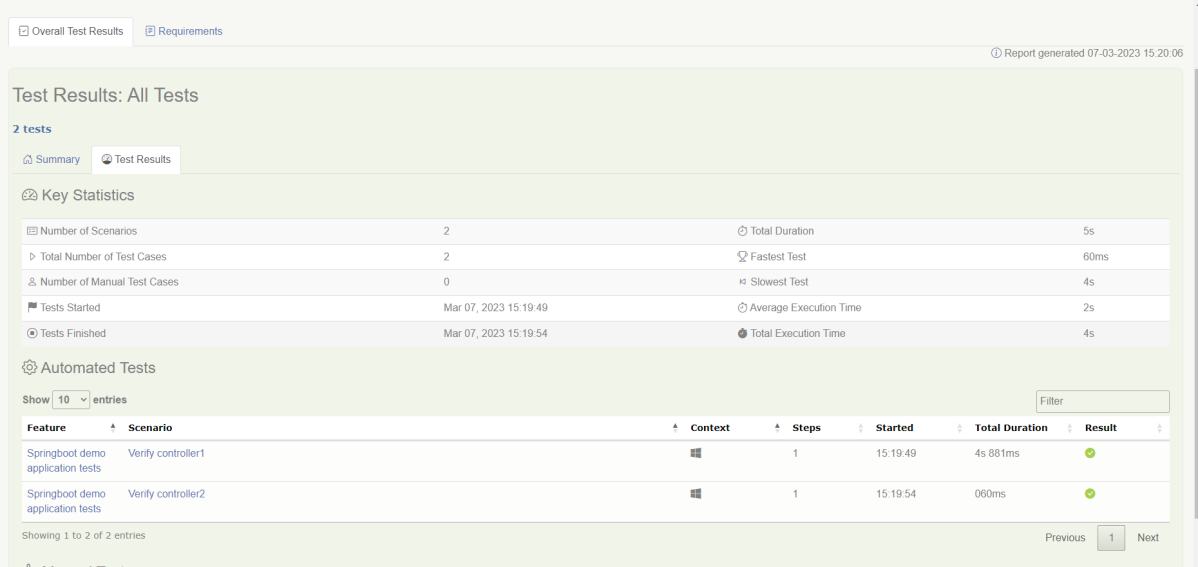
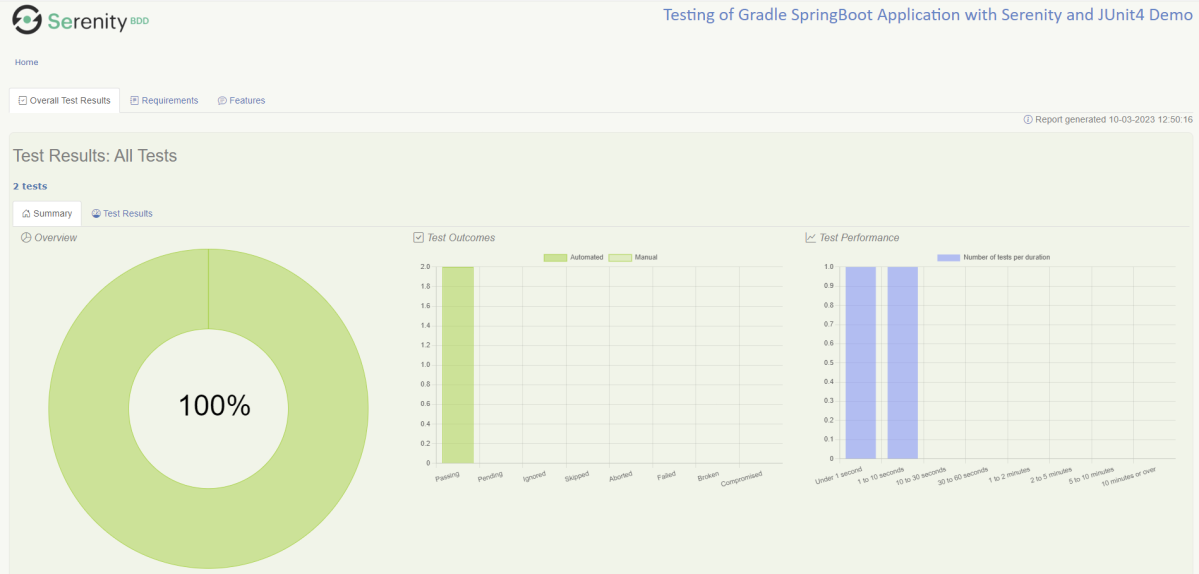
Below is the sample Index.html Report.
Go to Test Results, present at the top left of the index.html page.
Python is becoming a popular programming language for both new and experienced developers. Python is a flexible and versatile programming language with strengths in scripting, automation, data analysis, machine learning, and back-end development.
In this tutorial, we’ll install Python on Windows 11 using the Python installer for Windows.
Prerequisites
You’ll need a computer running Windows 11 with administrative privileges and an internet connection.
Click on the latest version of Python for Windows. Click the appropriate link for your system to download the executable file: Windows installer (64-bit) or Windows installer (32-bit). In this case, I have selected – Python 3.11.2
Step 2 – Running the Executable Installer
After the installer is downloaded, double-click the .exe file, for example, “python-3.11.2-amd64 .exe“, to run the Python installer.
If you want to save the installation file in a different location, click on Customize installation; otherwise, continue with Install Now.
Once the installation is complete, the below pop-up box will appear: Setup was successful.
Step 3 – Adding Python to the Environment Variables
Go to Startand enter View advanced system settingsin the search bar. Click on View advanced system settings.
In the System Propertiesdialog, click the Advancedtab and then click Environment Variables.
Depending on your installation:
If you selected Install for all users during installation, select Path from the list of System Variables and click Edit.
If you didn’t select Install for all users during installation, select Path from the list of User Variables and click Edit.
Click the “New”button and enter the Python directory path, then click the “OK”button until all the dialogs are closed.
Step 4 – Verify the Python Installation
You can verify whether the Python installation is successful either through the command line or through the Integrated Development Environment (IDLE) application if you chose to install it.
Go to Startand enter cmd in the search bar. Click Command Prompt.
Enter the following command in the command prompt:
python --version
PIP gets installed along with python, and you can check the same in the command line as follows.
pip --version
We can also check the version of Python by opening the IDLE application.
Go to Start and search for Python. You can see Python 3.11 (64-bit) and IDLE. Let’s open IDLE, which is the short form for Integrated Development Environment, and run a simple print statement.
Congratulations!! We are able to install Python on Windows 11.
Selenium Version – 4.8.3 has implemented the fix for Chrome Version 111. As per the below changelog, we don’t need to add “–remote-allow-origins=*”, if we are using Selenium Version – 4.8.3.
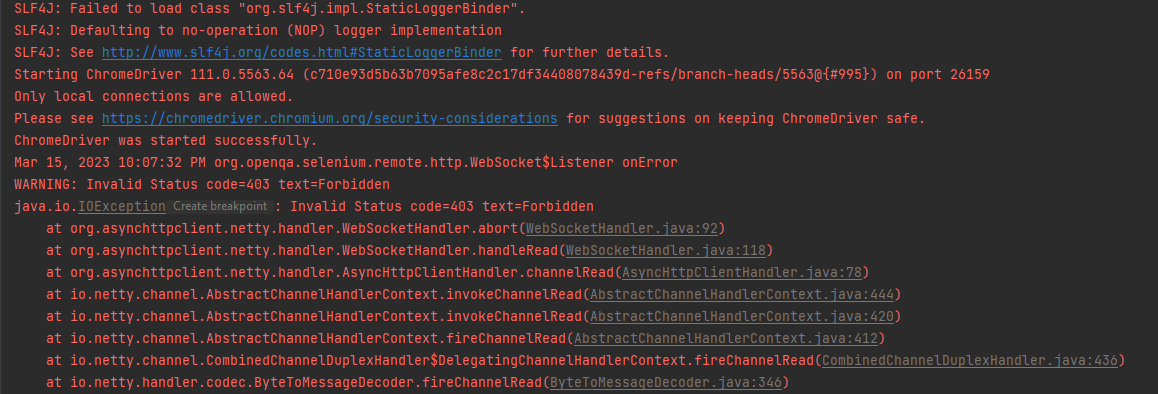
Chrome Version 111 is recently released that has broken the Selenium Tests. In the current scenario, I’m using Selenium 4.8.0. You can see a simple Selenium test where we want to open a Chrome Browser and open Google.com failed.
import io.github.bonigarcia.wdm.WebDriverManager;
import org.openqa.selenium.WebDriver;
import org.openqa.selenium.chrome.ChromeDriver;
import java.time.Duration;

public class ChromeTests {

    public static void main(String[] args) {

        WebDriverManager.chromedriver().setup();
        WebDriver driver = new ChromeDriver();
        driver.manage().timeouts().implicitlyWait(Duration.ofSeconds(20));
        driver.get("https://www.google.com/");
        String PageTiltle = driver.getTitle();
        System.out.println("Page Title :"+PageTiltle);
        driver.close();
    }
}
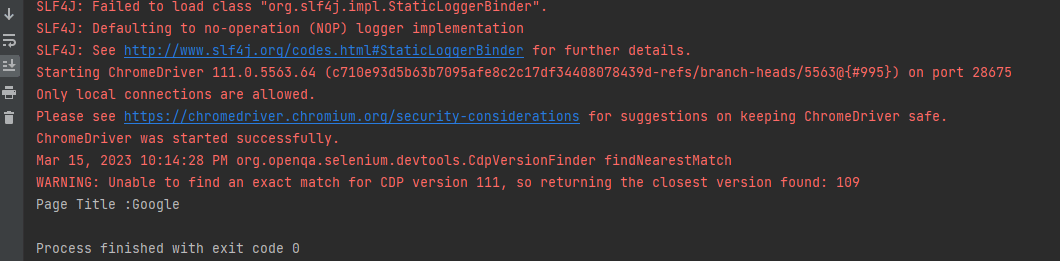
The output of the above program is
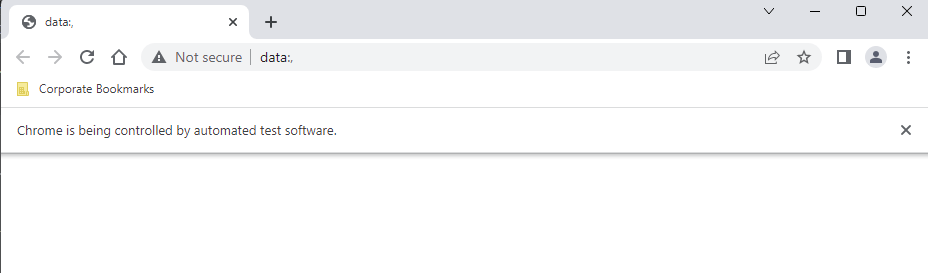
Below is the screenshot of the Chrome Browser trying to open Google.com.
One of the solutions is to add “–remote-allow-origins=*” to ChromeOptions. The sample code is shown below:
import io.github.bonigarcia.wdm.WebDriverManager;
import org.openqa.selenium.WebDriver;
import org.openqa.selenium.chrome.ChromeDriver;
import org.openqa.selenium.chrome.ChromeOptions;
import java.time.Duration;

public class ChromeTests {

    public static void main(String[] args) {

        ChromeOptions options = new ChromeOptions();
        options.addArguments("--remote-allow-origins=*");
        WebDriver driver = new ChromeDriver(options);
        driver.manage().timeouts().implicitlyWait(Duration.ofSeconds(20));
        driver.get("https://www.google.com/");
        String PageTiltle = driver.getTitle();
        System.out.println("Page Title :"+PageTiltle);
        driver.close();
    }
}
By default, Selenium 4 is compatible with Chrome v75 and greater.
The output of the above program is
Hopefully, this trick will help you in your automation journey.
Spring Boot 3.0.4 requires Java 17 and is compatible with and including Java 19. Spring Framework 6.0.6 or above is also required.
Explicit build support is provided for the following build tools:
Maven – 3.5+
Gradle – 7.x (7.5 or later) and 8.x
This framework consists of
SpringBoot Starter Parent – 3.1.0
Serenity – 3.6.12
Serenity Cucumber – 3.6.12
Serenity JUnit4 – 3.6.12
Serenity Rest Assured – 3.6.12
Spring
Java 17
Gradle – 7.6.1
What is SpringBoot Application?
Spring Boot is an open-source micro-framework that provides Java developers with a platform to get started with an auto-configurable production-grade Spring application.
Comes with embedded HTTP servers like Tomcat orJetty to test web applications.
Adds many plugins that developers can use to work with embedded and in-memory databases easily. Spring allows you to easily connect with database and queue services like Oracle, PostgreSQL, MySQL, MongoDB, Redis, Solr, ElasticSearch, Rabbit MQ, and others.
What is RestController?
HTTP requests are handled by a controller in Spring’s approach to building RESTful web services. The @RestController annotation identifies these components, and the HelloController shown below (from src/main/java/com/example/springboot_demo/HelloController.java) handles GET requests for / and /qaautomation by returning a new instance of the Greeting class. Spring RestController takes care of mapping request data to the request-defined handles method.
import org.springframework.web.bind.annotation.GetMapping;
import org.springframework.web.bind.annotation.RestController;

@RestController
public class HelloController {

    @GetMapping(path="/")
    String hello() {
        return "Hello World, Spring Boot!";
    }


    @GetMapping(path="/qaautomation")
    String qaautomation() {
        return "Hello QA Automation!";
    }

}
Project Directory Structure
Implementation Steps
Create a source folder – src/test/resources to create properties file
AddSpringBootTest,Rest Assured, and JUnit4 dependencies to the project
Create a feature file in src/test/resources
Create the StepDefinition and Helper classes.
Create a Serenity Runner class in the src/test/java directory
Create an application.properties file in src/test/resources
Create a serenity.properties at the root level of the project
Run the tests from Command Line
Serenity Report Generation
CucumberReport Generation
Step 1 – Create a source folder – src/test/resources to create test scenarios in the Feature file
Right-click on the test directory and select New->Directory and select resources (Maven Source Directories).
Step 2 – Add SpringBootTest,Rest Assured, and other dependencies to the project
We have added SpringBootTest, SpringBoot Web, Tomcat, Spring Web, Rest Assured, and JUnit4 dependencies to the build.gradle.
plugins {
	id 'java'
	id 'org.springframework.boot' version '3.1.0-SNAPSHOT'
	id 'io.spring.dependency-management' version '1.1.0'
	id "net.serenity-bdd.serenity-gradle-plugin" version "3.6.7"
}

group = 'com.example'
version = '0.0.1-SNAPSHOT'
sourceCompatibility = '17'

repositories {
	mavenCentral()
	maven { url 'https://repo.spring.io/milestone' }
	maven { url 'https://repo.spring.io/snapshot' }
}


dependencies {

	implementation 'org.springframework.boot:spring-boot-starter'
	implementation 'org.springframework.boot:spring-boot-starter-web'
	implementation 'org.springframework.boot:spring-boot-starter-tomcat'
	implementation 'org.springframework:spring-web'

	testImplementation 'org.springframework.boot:spring-boot-starter-test'
	testImplementation 'net.serenity-bdd:serenity-core:3.6.12'
	testImplementation 'net.serenity-bdd:serenity-cucumber:3.6.12'
	testImplementation 'net.serenity-bdd:serenity-rest-assured:3.6.12'
	testImplementation 'net.serenity-bdd:serenity-spring:3.6.12'
	testImplementation 'net.serenity-bdd:serenity-junit:3.6.12'
	testImplementation 'org.junit.vintage:junit-vintage-engine'

}

tasks.named('test') {
	useJUnit() {}
	testLogging {
		showStandardStreams = true
	}
	systemProperties System.getProperties()
}

gradle.startParameter.continueOnFailure = true

test.finalizedBy(aggregate)
Step 3 – Create a feature file in src/test/resources
Below is an example of a feature file that shows a sample test scenario. Feature file should end with .feature. It contains the test scenarios in the form of simple English using the terms Given, When, Then, And.
Feature: SpringBoot Request

@ReceiveCorrectResponse

   Scenario Outline: Send a valid Request to get correct response
    Given I send a request to the URL "<url>"
    Then the response will return "<response>"

   Examples:
   | url             | response                   |
   | /               | Hello World, Spring Boot!  |
   | /qaautomation   | Hello QA Automation!       |
Step 4 – Create the StepDefinition and Helper classes.
Below is the code of the StepDefinition and Helper class. These classes are created in the src/test/java directory.
uses @SpringBootTest annotation which loads the actual application context.
uses WebEnvironment.RANDOM_PORT to create and run the application at some random server port.
@LocalServerPort gets the reference of the port where the server has started. It helps in building the actual request URIs to mimic real client interactions.
This class sends the request and receives a response after performing the GET operation. Here, the validation of the response also takes place by asserting the expected and actual response
import io.cucumber.java.en.Given;
import io.cucumber.java.en.Then;
import io.restassured.response.Response;
import net.serenitybdd.rest.SerenityRest;
import net.thucydides.core.annotations.Steps;
import org.junit.Assert;

public class SpringBootDemoDefinitions {

	@Steps
    AbstractRestAssuredHelper helper;
    private Response response;

    @Given("I send a request to the URL {string}")
    public void iSendARequest(String endpoint) throws Exception  {
         response = helper.getAnonymousRequest()
                    .header("Content-Type", "application/json").when().get(endpoint);
    }

    @Then("the response will return {string}")
    public void extractResponse(String Expected ) {
          SerenityRest.restAssuredThat(response -> response.statusCode(200));
          String Actual = response.asString();
          System.out.println("Result :"+Actual);
          Assert.assertEquals(Expected, Actual);
    }
}
Step 5 – Create a Serenity Runner class in the src/test/java directory
We cannot run a Feature file on its own in cucumber-based framework. We need to create a Java class that will run the Feature File. It is the starting point for JUnit to start executing the tests. TestRunner class is created under src/test/java. When you run the tests with serenity, you use the CucumberWithSerenitytest runner.
spring.profiles.active – property to specify which profiles are active. The default profile is always active. server.port – By default, the embedded server starts on port 8080. Now the server will start on port 8090 server.servlet.context-path – the context path in Spring Boot can be changed by setting a property, server.servlet.context-path.
Step 7 – Create a serenity.properties at the root level of the project
serenity.project.name = Testing of Gradle SpringBoot Application with Serenity and JUnit4 Demo
Step 8 – Run the tests from Command Line
Run the tests from the command line by using the below command
gradle clean test
The output of the above program is
This image shows that the profile name is “dev”. Application is started on port – “54462” and the context path is “/demo”.
Step 9 – Serenity Report Generation
By default, the test report generated by Serenity is placed under target/site/serenity/index.html. Below is the sample Serenity Report.
Below is the sample Serenity Report.
Step 10 – CucumberReport Generation
A Cucumber Report can be generated by adding publish=true in SpringRunnerTests as shown in the above example. Click on the link provided in the execution status.
Cucumber Report
Congratulations on making it through this tutorial and hope you found it useful! Happy Learning!! Cheers!!
In the previous tutorial, I explained about Integration Testing of SpringBoot Application with Serenity BDD, Cucumber and JUnit4. This one provides a comprehensive tutorial on integration testing of a SpringBoot application using SpringBoot Test and TestNG. It covers essential topics like SpringBoot application, RestController, prerequisites, dependency list, project directory structure, and detailed test implementation steps.
Spring Boot is an open-source micro-framework that provides Java developers with a platform to get started with an auto-configurable production-grade Spring application.
Comes with embedded HTTP servers like Tomcat orJetty to test web applications.
Adds many plugins that developers can use to work with embedded and in-memory databases easily. Spring allows you to easily connect with database and queue services like Oracle, PostgreSQL, MySQL, MongoDB, Redis, Solr, ElasticSearch, Rabbit MQ, and others.
What is RestController?
HTTP requests are handled by a controller in Spring’s approach to building RESTful web services. The @RestController annotation identifies these components, and the GreetingController shown below (from src/main/java/com/example/HelloController.java) handles GET requests for / and /qaautomation by returning a new instance of the Greeting class. Spring RestController takes care of mapping request data to the request-defined handles method.
import org.springframework.web.bind.annotation.GetMapping;
import org.springframework.web.bind.annotation.RestController;

@RestController
public class HelloController {

    @GetMapping(path="/")
    String hello() {
        return "Hello World, Spring Boot!";
    }


    @GetMapping(path="/qaautomation")
    String qaautomation() {
        return "Hello QA Automation!";
    }

}
In this tutorial, I will explain the IntegrationTesting of the SpringBoot Application using SpringBoot Test and TestNG.
Prerequisite
Spring Boot 3.0.4 requires Java 17 and is compatible with and including Java 19. Spring Framework 6.0.6 or above is also required.
Explicit build support is provided for the following build tools:
Maven – 3.5+
Gradle – 7.x (7.5 or later) and 8.x
Dependency List
SpringBoot Starter Parent – 3.2.5
TestNG – 7.10.2
Rest Assured – 5.4.0
Java 17
Maven – 3.9.6
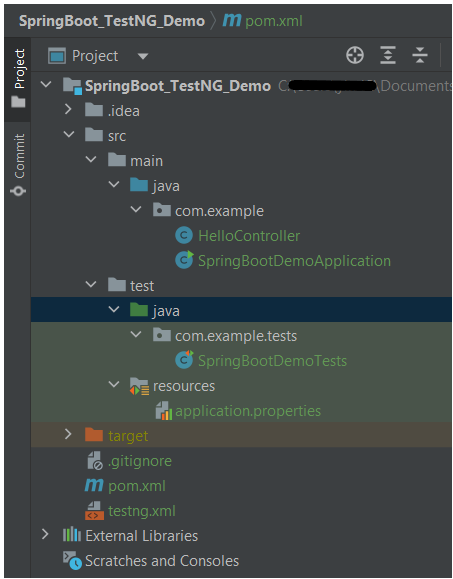
Project Directory Structure
Test Implementation Steps
Step 1 – Create a source folder – src/test/resources
Create a source folder – src/test/resources to properties file in it.
Right-click on the test directory and select New->Directory and select resources (Maven Source Directories).
Step 2 – Add dependencies to the project
We have added SpringBootTest, SpringBoot Tomcat, SpringBoot Web, Spring Web, Rest Assured, and TestNG dependencies to the pom.xml.
uses @SpringBootTest annotation which loads the actual application context.
uses WebEnvironment.RANDOM_PORT to create and run the application at some random server port.
@LocalServerPort gets the reference of the port where the server has started. It helps in building the actual request URIs to mimic real client interactions.
Below is the code of the sample Test class. These classes are created in the src/test/java directory.
import io.restassured.response.ValidatableResponse;
import org.springframework.beans.factory.annotation.Value;
import org.springframework.boot.test.context.SpringBootTest;
import org.springframework.boot.test.web.server.LocalServerPort;
import org.springframework.test.context.testng.AbstractTestNGSpringContextTests;
import org.testng.Assert;
import org.testng.annotations.Test;
import static io.restassured.RestAssured.given;

@SpringBootTest(webEnvironment = SpringBootTest.WebEnvironment.RANDOM_PORT)
public class SpringBootDemoTests extends AbstractTestNGSpringContextTests {

    private final static String BASE_URI = "http://localhost:";

    @LocalServerPort
    private int port;

    @Value("${server.servlet.context-path}")
    private String basePath;

    private ValidatableResponse response;

    @Test
    public void verifyController1()  {
         response = given().contentType("application/json")
                    .header("Content-Type", "application/json")
                 .when().get(BASE_URI + port + basePath + "/").then().statusCode(200);

         String Actual = response.extract().asString();
          System.out.println("Result :"+Actual);
          Assert.assertEquals("Hello World, Spring Boot!", Actual);
    }

    @Test
    public void verifyController2()   {
        response = given().contentType("application/json")
                .header("Content-Type", "application/json")
                .when().get(BASE_URI + port + basePath + "/qaautomation").then().statusCode(200);

        String Actual = response.extract().asString();
        System.out.println("Result :"+Actual);
        Assert.assertEquals("Hello QA Automation!", Actual);
    }
}
The AbstractTestNGSpringContextTests is an abstract base class having the ApplicationContext supported in the testNG explicitly.
This class sends the request and receives a response after performing the GET operation. Here, the validation of the response also takes place by asserting the expected and actual response.
Step 4 – Create an application.properties file in src/test/resources
Application.properties is created under src/ test/java.
spring.profiles.active – property to specify which profiles are active. The default profile is always active. server.port – By default, the embedded server starts on port 8080. Now the server will start on port 8089 server.servlet.context-path – the context path in Spring Boot can be changed by setting a property, server.servlet.context-path.
Step 5 – Run the tests from Test Class
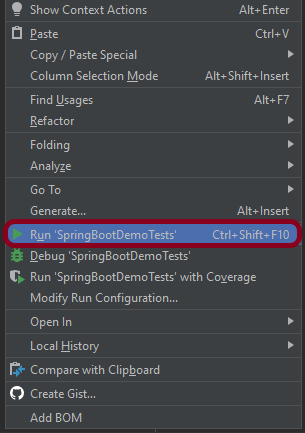
Right-click on the Test class and select Run ‘SpringBootDemoTests’.
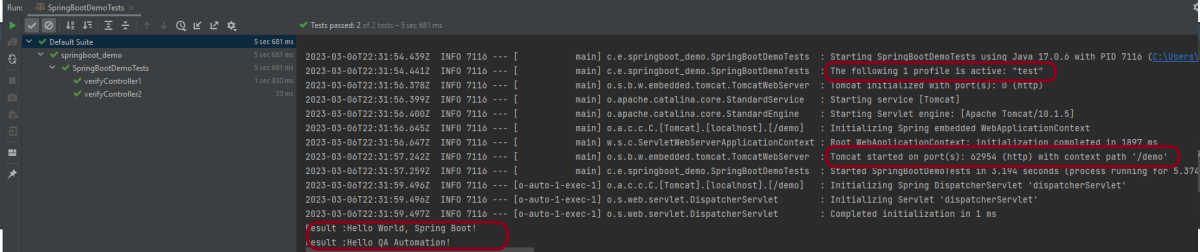
The output of the above program is
This image shows that the profile name is “test”. Application is started on port – “62954” and the context path is “/demo”.
Step 6 – Run the tests from testng.xml
First, we need to create a testng.xml at the root of the project.
<?xml version = "1.0"encoding = "UTF-8"?>
<!DOCTYPE suite SYSTEM "http://testng.org/testng-1.0.dtd">
<suite name = "Suite1">
    <test name = "TestNG Demo">
        <classes>
            <class name = "com.example.tests.SpringBootDemoTests"/>
        </classes>
    </test>
</suite>
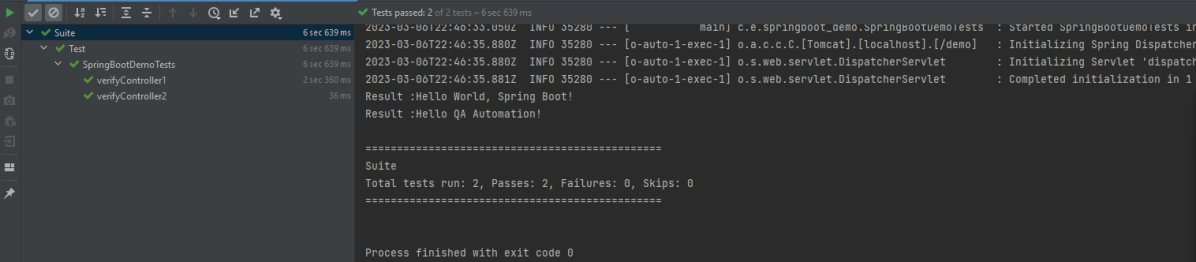
Right-click on testng.xml and select Run ‘…\testng.xml’.
The output of the above program is
Step 7 – TestNG Report Generation
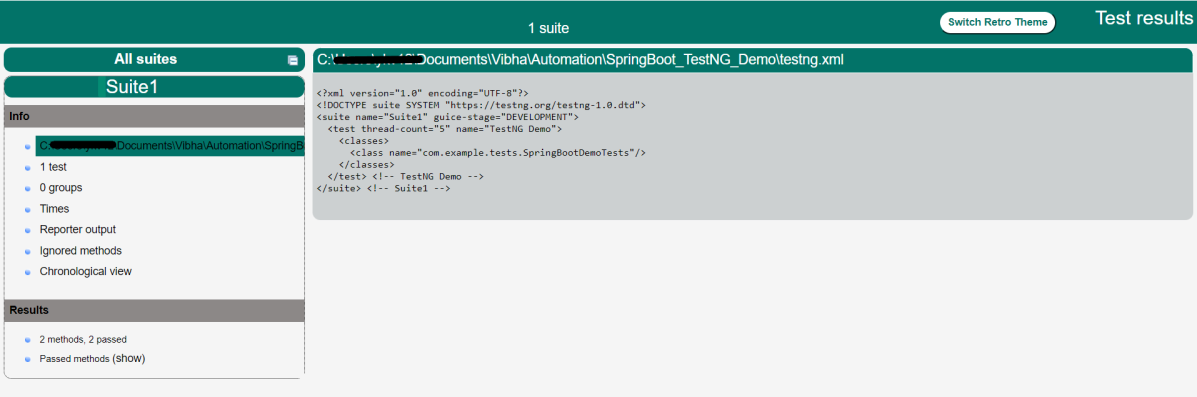
The test report generated by TestNG is placed under test-output/index.html.
Index.html
TestNG produces an “index.html” report, and it resides under the test-output folder. The below image shows index.html report. This report contains a high-level summary of the tests.
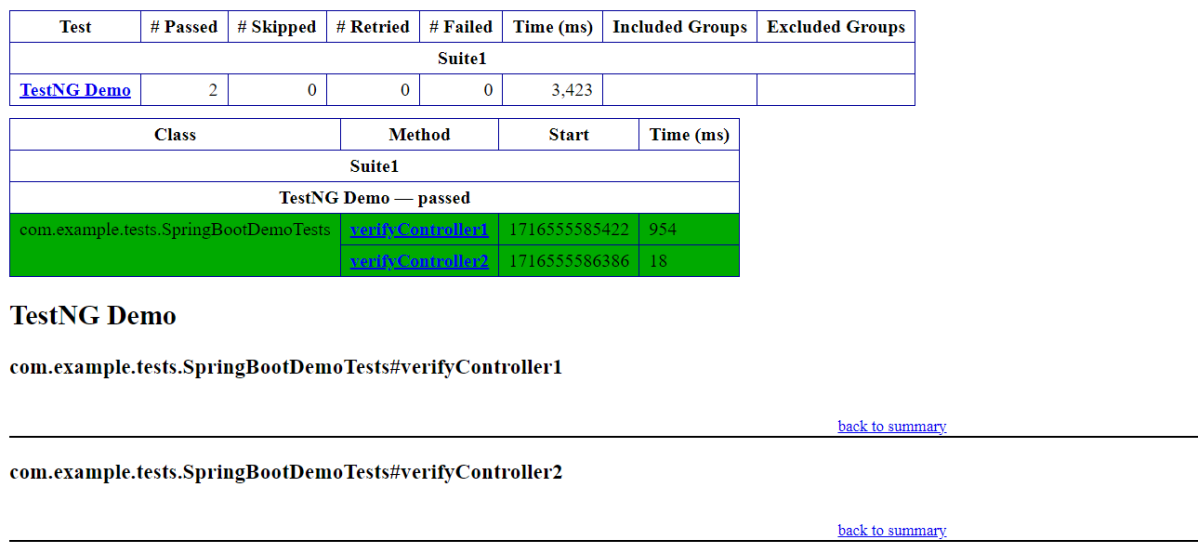
Emailable-Report.html
Test-Output folder also contains Emailable-Report.html. Open “emailable-report.html“, as this is an HTML report open it with the browser. The below image shows emailable-report.html.
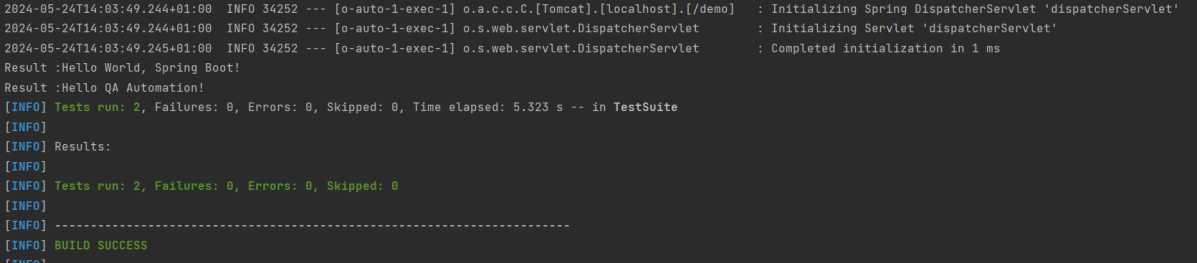
Step 8 – Run the tests through Maven Command Line
Starting from SpringBoot 3.1.0 version, we need to add the below dependency to the surefire plugin to run the tests through Maven Command Line.

































 QA Automation Expert