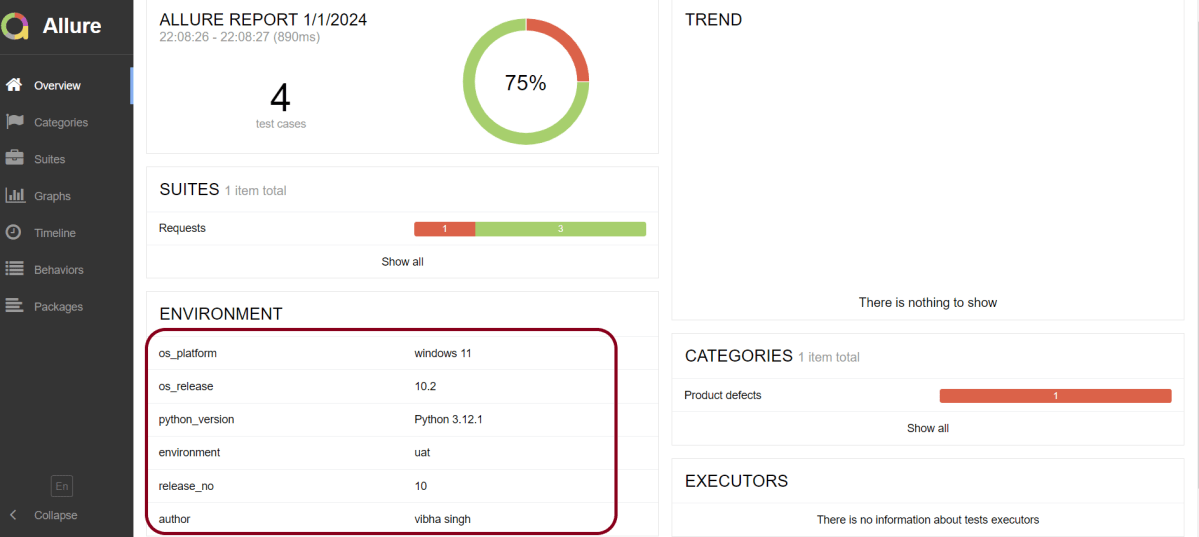
For the main page of the report, you can collect various information about the environment in which the tests were executed.
For example, it is a good idea to use this to remember the OS version and Python version. This may help the future reader investigate bugs that are reproducible only in some environments.
Serenity BDD has strong WebDriver integration and manages WebDriver instances. It is not needed to create or close the WebDriver instance of the Serenity Tests.
Serenity uses a library WebDriver Manager, which manages the driver for us. We don’t need to explicitly download and configure the WebDriver binaries for us.
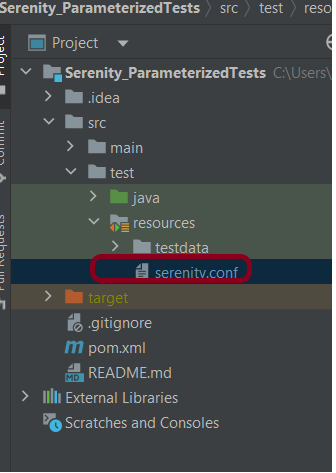
The simplest way to configure the driver we want to use is in our project’s serenity.config file (which will be present in src/test/resources folder).
Microsoft Edge is a Chromium driver, so the configuration is very similar to Chrome. The main difference is the use of “ms:edgeOptions” instead of “goog:chromeOptions”. A typical configuration is shown below:
There is another way to run the tests in edge browser, use the @Managed annotation.
@Managed annotation in Serenity will manage the WebDriver instance, including opening the appropriate driver at the start of each test, and shutting it down when the test is finished. @Managed provides an option for the user to select the WebDriver driver to the run the tests in it. The possible values are firefox, chrome, iexplorer, phantomjs, appium, safari, edge, and htmlunit. There are multiple ways to manage the WebDriver. One of the way is shown below:
In the below program, the tests are running on the Edge browser. The driver name is mentioned with @Managed annotation.
import net.serenitybdd.annotations.Managed;
import net.serenitybdd.annotations.Steps;
import net.serenitybdd.annotations.Title;
import net.serenitybdd.core.Serenity;
import net.serenitybdd.junit.runners.SerenityRunner;
import org.junit.Test;
import org.junit.runner.RunWith;
import org.openqa.selenium.WebDriver;

import static org.assertj.core.api.Assertions.assertThat;

@RunWith(SerenityRunner.class)
public class EdgeTests {

    private String userName;
    private String passWord;
    private String errorMessage;

    @Managed(driver = "edge")
    WebDriver driver;

    @Steps
    NavigateActions navigate;

    @Steps
    StepLoginPage loginPage;


    @Test
    @Title("Login to application with invalid credential generates error message")
    public void invalidCredentials() {

        // Given
        navigate.toTheHomePage();

        // When
        loginPage.inputUserName("Admin");
        loginPage.inputPassword("admin");
        loginPage.clickLogin();

        // Then
        Serenity.reportThat("Passing invalid credentials generates error message",
                () -> assertThat(assertThat(loginPage.errorMessage()).isEqualToIgnoringCase("Invalid Credentials")));

    }

}
NavigateActions
import net.serenitybdd.annotations.Step;
import net.serenitybdd.core.steps.UIInteractionSteps;

public class NavigateActions extends UIInteractionSteps {

    @Step
    public void toTheHomePage() {
        openPageNamed("loginForm");
    }
}
Step 1 – We are using PyCharm IDE, so we need to install the Request library. Use the below command using pip.
pip install -U requests
Step 2 – Install Pytest
pip install -U pytest
Step 3 – Install Allure Report for Python
pip install allure-pytest
Step 4 – Create a new project folder and open it in PyCharm.
Step 5 – Go to the project folder and Create a new directory – tests.
Step 6 – Add allure-pytest package to the PyCharms
Go to File->Settings ->Project: AllureReport_Python->Python Interpreter.
Click on the “+” sign and enter allure-r in the search bar. It will show a list of packages. Select the “allure-pytest” package and click on the “Install Package”.
Once the package is installed, we will see the message that the package is installed successfully.
Step 7 – Create the test.
Create a file – Requests.py and create the tests in that file.
import allure
import requests

ENDPOINT = 'https://reqres.in/api/users'


@allure.description("This tests validates that the response returns status code 201")
@allure.severity(allure.severity_level.BLOCKER)
@allure.label("Owner", "Vibha Singh")
def test_create_user():
    request_body = {
        "name": "Vibha",
        "Job": "CEO"
    }

    response = requests.post(ENDPOINT, request_body)
    response_body = response.json()
    print("Request :", request_body)
    print("Response :", response_body)
    assert response.status_code == 201


@allure.description("This tests validates that the id in the response")
@allure.severity(allure.severity_level.NORMAL)
@allure.label("Owner", "Vibha Singh")
def test_response():
    request_body = {
        "name": "Vibha",
        "Job": "CEO"
    }

    response = requests.post(ENDPOINT, request_body)
    assert response.status_code == 201
    response_body = response.json()
    print("Request :", request_body)
    print("Response :", response_body)

    id = response_body["id"]
    if "id" in response_body:
        print("Value of id :", id)
    else:
        print("id not found")


@allure.description("This tests validates that the header in the response")
@allure.severity(allure.severity_level.NORMAL)
@allure.label("Owner", "Vibha Singh")
def test_header_in_request():
    request_body = {
        "name": "Vibha",
        "Job": "CEO"
    }

    headers = {'Content-Type': 'application/json; charset=utf-8'}
    response = requests.post(ENDPOINT, request_body, headers)
    print("Request :", request_body)
    print("Response :", response.json())
    print("Headers :", response.headers)
    assert response.headers["Content-Type"] == "application/json; charset=utf-8"


@allure.description("This tests validates that the name in the response - FAIL")
@allure.severity(allure.severity_level.NORMAL)
@allure.label("Owner", "Vibha Singh")
def test_verify_name():
    request_body = {
        "name": "Vibha",
        "Job": "CEO"
    }

    header = {"Content-Type":  "application/json; charset=utf-8"}
    response = requests.post(ENDPOINT, request_body, header)
    response_body = response.json()
    print("Response :", response_body)
    print("Request Header :", response.request.headers)
    assert response_body["name"] == "Test"
Step 8 – To run this test, use the below command:
pytest --alluredir=<path to report directory> test.py
In my case, I want the allure files to be generated in AllureReport folder as shown below:
Below is the command we use to run the tests. This will generate a directory to the specified path with some files in JSON format.
It will start a jetty server within a few seconds and the report will be visible inside your browser.
The overview page hosts several default widgets representing the basic characteristics of your project and test environment.
Statistics – overall report statistics.
Launches – if this report represents several test launches, statistics per launch will be shown here.
Behaviours – information on results aggregated according to stories and features.
Executors – information on test executors that were used to run the tests.
History Trend – if tests accumulated some historical data, it’s trend will be calculated and shown on the graph.
Environment – information on the test environment.
Categories in Allure Report
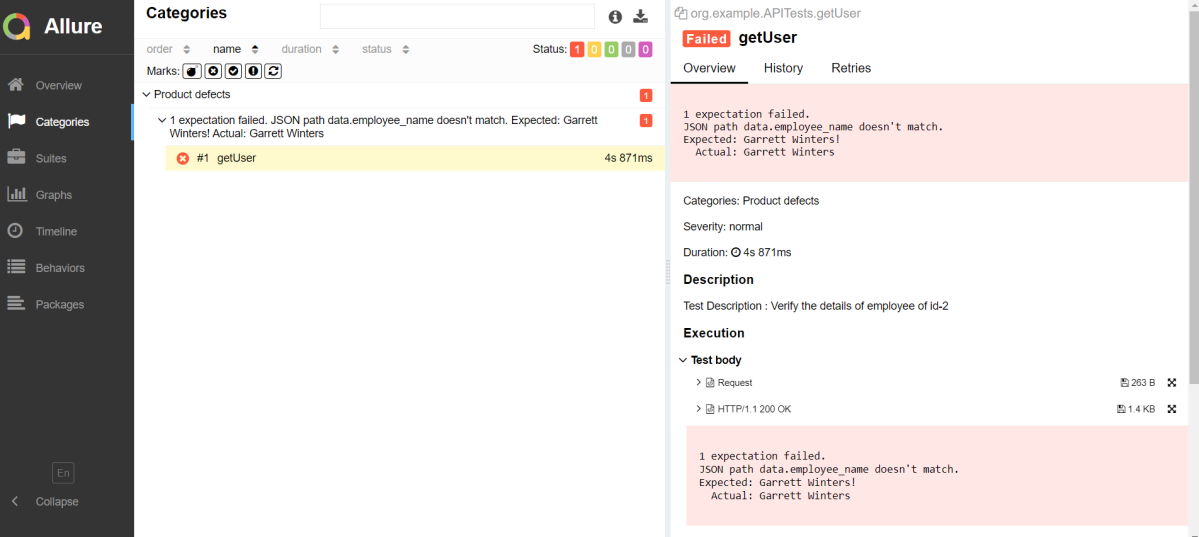
The categories tab gives you a way to create custom defect classifications to apply for test results. There are two categories of defects – Product Defects (failed tests) and Test Defects (broken tests).
Suites in Allure Report
On the Suites tab a standard structural representation of executed tests, grouped by suites and classes can be found.
Graphs in Allure Report
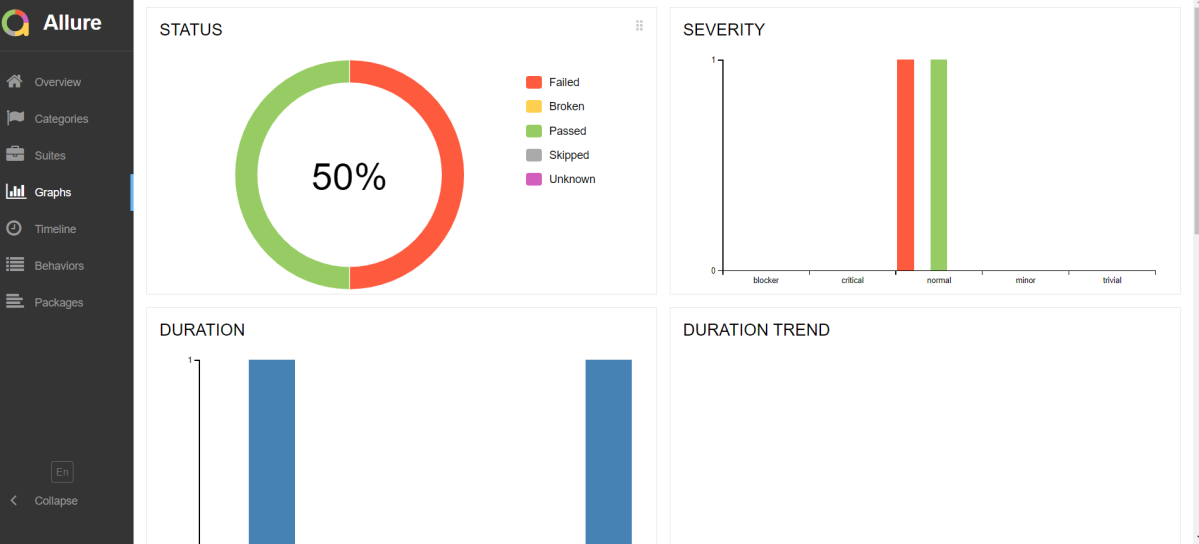
Graphs allow you to see different statistics collected from the test data: statuses breakdown or severity and duration diagrams.
Timeline in Allure Report
The timeline tab visualizes retrospective of tests execution, allure adaptors collect precise timings of tests, and here on this tab, they are arranged accordingly to their sequential or parallel timing structure.
Behaviours of Allure Report
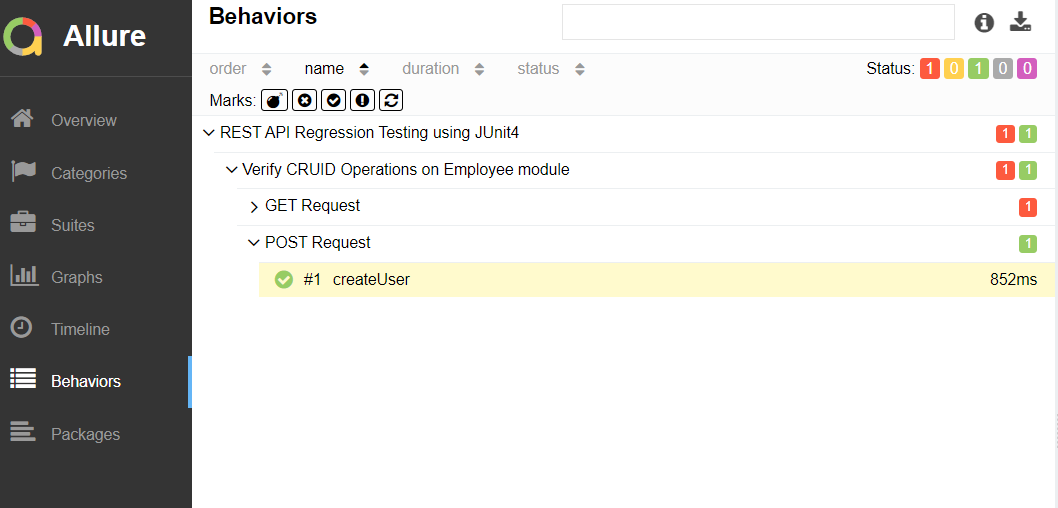
This tab groups test results according to Epic, Feature, and Story tags.
Packages in Allure Report
The packages tab represents a tree-like layout of test results, grouped by different packages.
That’s it! Congratulations on making it through this tutorial and hope you found it useful! Happy Learning!!
When you are doing API testing, sometimes the APIs or endpoints are protected. This means you need to be authenticated and authorized to perform certain actions. REST assured supports several authentication schemes, for example, OAuth, digest, certificate, form, and pre-emptive basic authentication.
In this post, we’ll look at how to pass the authorization token in the header in REST Assured.
What is an authorization token?
An authorization token, often referred to as an access token, is a piece of data or credential that is used to authenticate and authorize access to protected resources or operations in a system.
Add the below-mentioned dependencies to the Maven project.
In this tutorial, I will explain to pass a JSON or XML file as a payload to the request. This is needed when the payload is static or there is minimal change in the request payload. This can be done by using the body() method, which accepts “File” as an argument. This is elaborated in Javadoc.
RequestSpecification body(File body)
This specifies file content that’ll be sent with the request. This only works for the POST, PATCH and PUT HTTP methods. Trying to do this for the other HTTP methods will cause an exception to be thrown.
Add Rest Assured dependency to the project. Use the latest version from here.
GitHub Actions are automated tasks, or workflows, that you can set up in your repository to build, test, package, release, and deploy any project on GitHub. With GitHub Actions, you can orchestrate any workflow, based on nearly any event, while GitHub manages the execution, provides rich feedback, and secures every step along the way.
Why should you care? Well, imagine merging your code into the main branch, only to realize later that it broke your build. With GitHub Actions, you can automate your unit tests to run on every push or pull request, thereby catching bugs before they creep into your production code. This means less time debugging and more time developing!
Implementation Steps
Step 1 – Create GitHub Actions and Workflows
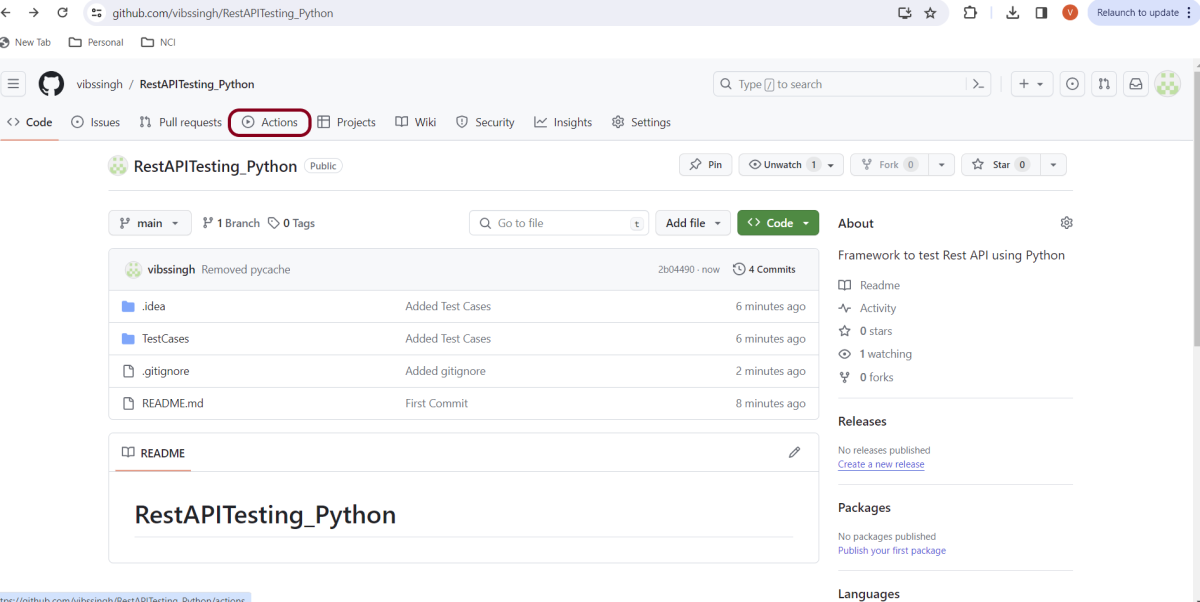
I have a repository available in GitHub – RestAPITesting_Python as shown in the below image. Go to the “Actions” tab. Click on the “Actions” tab.
Step 2 – Select the type of Actions
You will see that GitHub recommends Actions depending on the project. In our case, it is recommending actions suitable for a Python project. I have selected the “Python application” option.
Step 3 – Generation of Sample pipeline
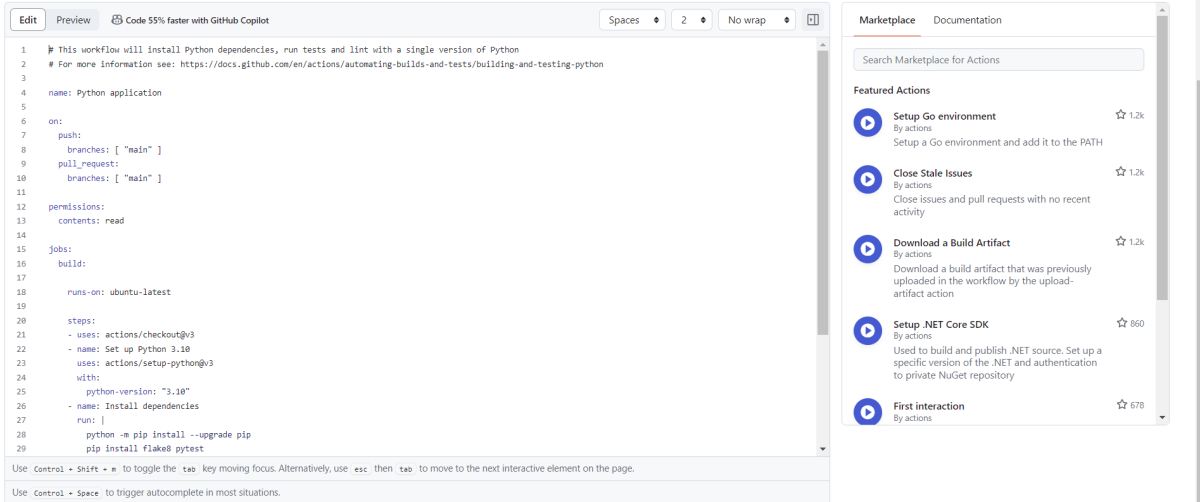
If you choose an existing option, it will automatically generate a .yaml for the project as shown below.
We will replace the current workflow with the following yml file as shown below:
# This workflow will install Python dependencies, run tests and lint with a single version of Python
# For more information see: https://docs.github.com/en/actions/automating-builds-and-tests/building-and-testing-python

name: Python application

on:
  push:
    branches: [ "main" ]
  pull_request:
    branches: [ "main" ]

permissions:
  contents: read

jobs:
  build:

    runs-on: ubuntu-latest

    steps:
    - uses: actions/checkout@v3
    - name: Set up Python 3.12.1
      uses: actions/setup-python@v3
      with:
        python-version: "3.12.1"

    - name: Install dependencies
      run: |
        python -m pip install --upgrade pip
        pip install pytest
        pip install requests

    - name: Test with pytest
      run: |
        cd TestCases
        pytest  --verbose --capture=no
Step 4 – Commit the changes
After the changes, hit the “Start Commit” button.
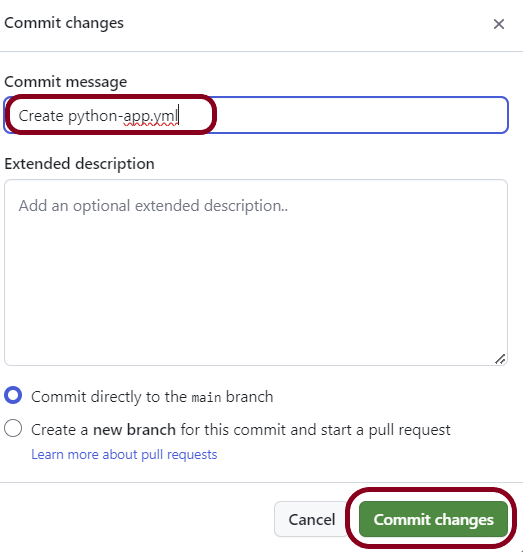
This will give the option to add a description for the commit. It will also enable the user to commit either to the main branch or commit to any other branch that exists in the project. Click on the “Commit new file” button to set up the workflow file.
It will create a python-app.yml file as shown below in the project.
Step 5 – Verify that the workflow is running
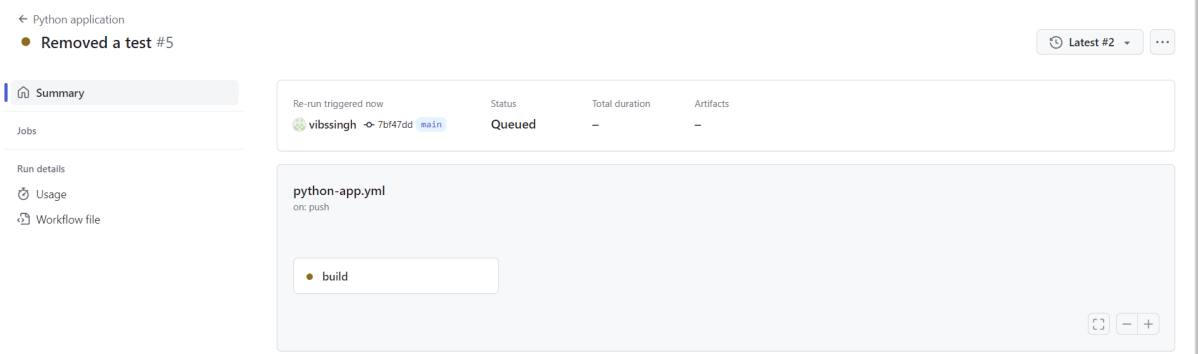
Next, head over to the “Actions” tab, and you will see your YAML workflow file present under the tab. The yellow sign represents that the job is in the queue.
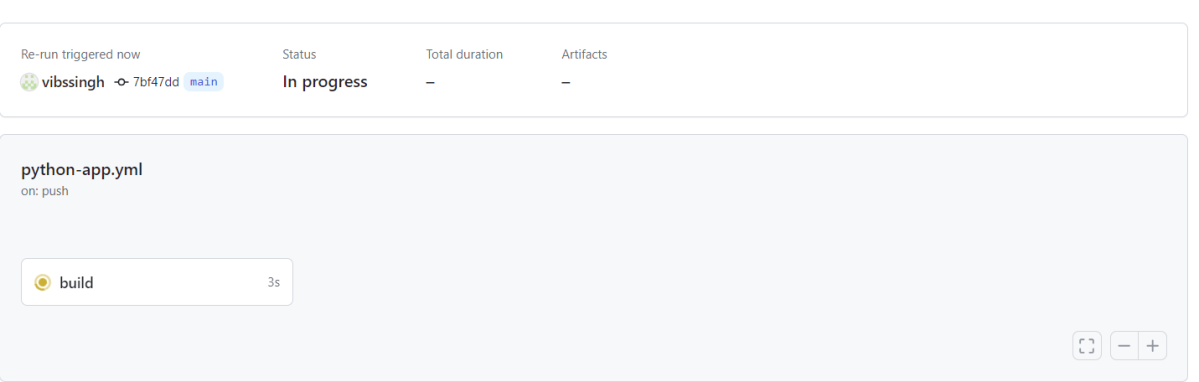
In Progress – When the job starts building and running, you will see the status change from “Queued” to “in progress”.
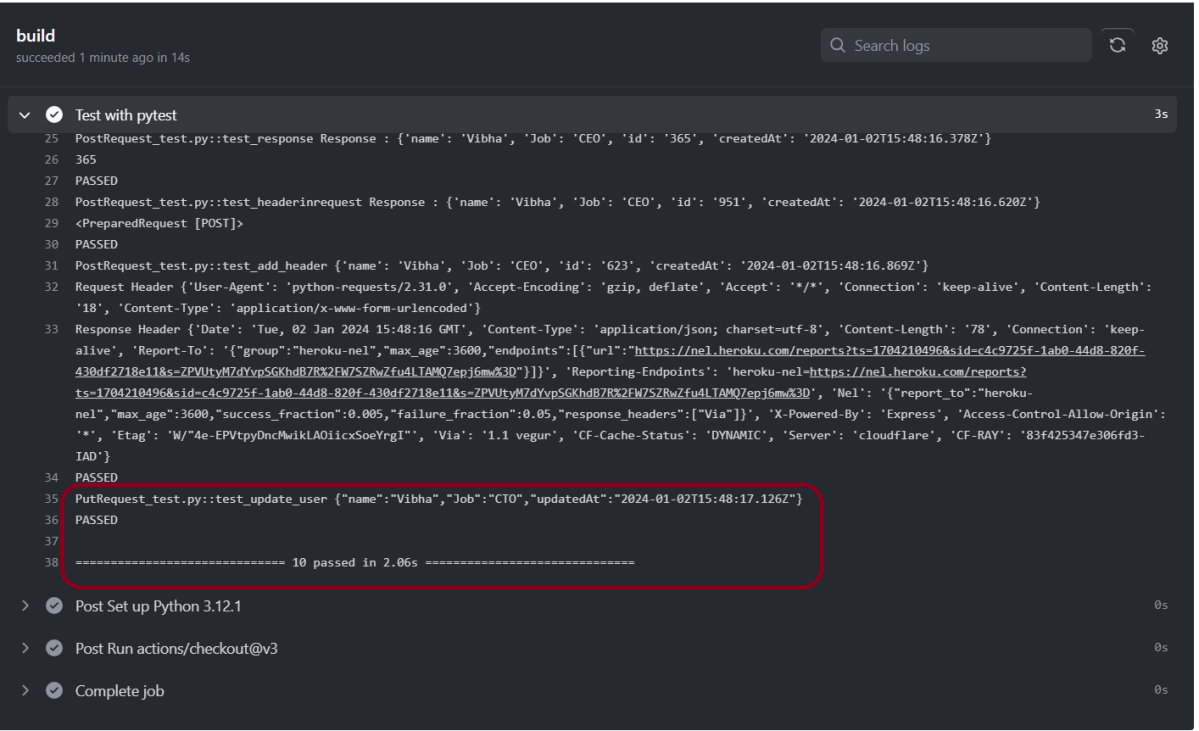
Passed – If the build is successful, you will see a green tick mark.
Step 6 – Verify the execution status
Below is the execution log.
Click on the workflow and the below screen is displayed. It shows the status of the run of the workflow, the total time taken to run the workflow, and the name of the .yml file.
Gradle is an open-source build automation tool that is designed to be flexible enough to build almost any type of software. Gradle runs on the JVM and you must have a Java Development Kit (JDK) installed to use it. Several major IDEs allow you to import Gradle builds and interact with them: Android Studio, IntelliJ IDEA, Eclipse, and NetBeans.
An authentication token is a piece of data, often a string, that is used to represent the authenticated user. Instead of sending the username and password with each request, a token is sent, usually in the request headers.
Prerequisite:
Python is installed on the machine
PIP is installed on the machine
PyCharm or other Python Editor is installed on the machine
The syntax for basic authentication in Python Request is
headers = {'Authorization': 'Basic dXNlcjpwYXNz'}
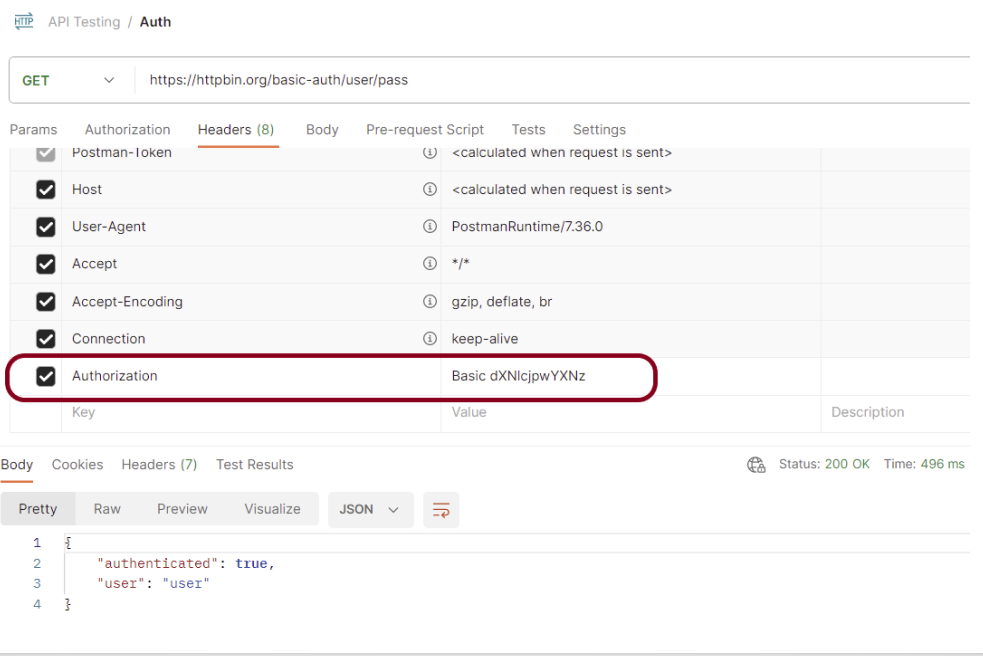
In this scenario, all you need to do is to embed the basic auth token as Authorization header while making the API call. A sample basic auth token would look like this auth param and the get() method in requests will take care of the basic authorization for us.
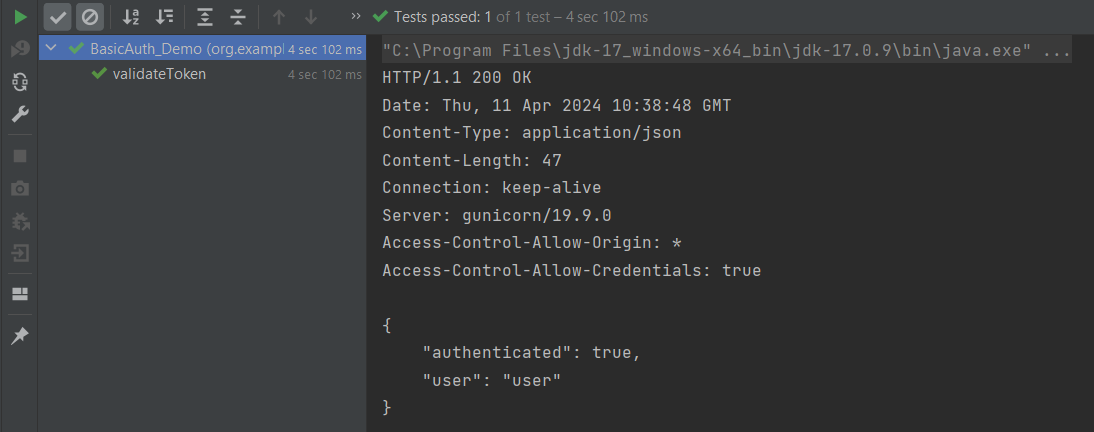
Below is the example of basic authentication token.
Step 4 – Create a Test Code for the testing of REST API under src/test/java
Rest Assured and Allure Report are two popular tools for testing. Rest Assured is used for API testing and Allure Report is used for creating detailed reports about tests. To see our request and response in more detail using these tools, we need to add a line to our Rest Assured tests. This will provide the request and response details in the report.
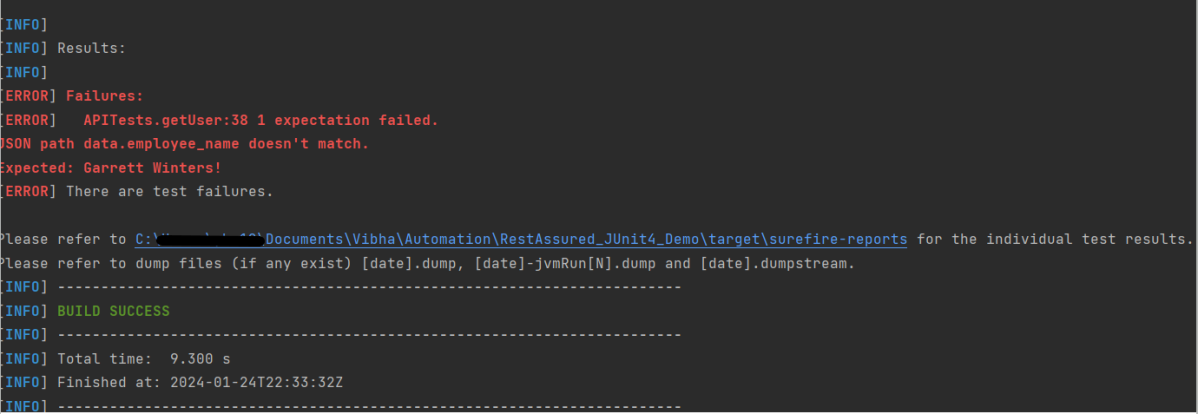
For testing purpose, first test – Get Request one fails.
.filter(new AllureRestAssured())
Below is an example of the tests.
package org.example;

import io.qameta.allure.*;
import io.qameta.allure.restassured.AllureRestAssured;
import io.restassured.http.ContentType;
import org.json.JSONObject;
import org.junit.Test;

import static io.restassured.RestAssured.given;
import static org.hamcrest.core.IsEqual.equalTo;

@Epic("REST API Regression Testing using JUnit4")
@Feature("Verify CRUID Operations on Employee module")
public class APITests {

    String BaseURL = "https://dummy.restapiexample.com/api";


    @Test
    @Story("GET Request")
    @Severity(SeverityLevel.NORMAL)
    @Description("Test Description : Verify the details of employee of id-2")
    public void getUser() {

        // GIVEN
        given()
                .filter(new AllureRestAssured())

                // WHEN
                .when()
                .get(BaseURL + "/v1/employee/2")

                // THEN
                .then()
                .statusCode(200)
                .statusLine("HTTP/1.1 200 OK")
                // To verify booking id at index 2
                .body("data.employee_name", equalTo("Garrett Winters!"))
                .body("message", equalTo("Successfully! Record has been fetched."));

    }

    @Test
    @Story("POST Request")
    @Severity(SeverityLevel.NORMAL)
    @Description("Test Description : Verify the creation of a new employee")
    public void createUser() {

        JSONObject data = new JSONObject();

        data.put("employee_name", "APITest");
        data.put("employee_salary", "99999");
        data.put("employee_age", "30");

        // GIVEN
        given()
                .filter(new AllureRestAssured())
                .contentType(ContentType.JSON)
                .body(data.toString())

                // WHEN
                .when()
                .post(BaseURL + "/v1/create")

                // THEN
                .then()
                .statusCode(200)
                .body("data.employee_name", equalTo("APITest"))
                .body("message", equalTo("Successfully! Record has been added."));

    }
}
Step 5 – Run the Test and Generate Allure Report
To run the tests, use the below command
mvn clean test
The output of the above program is
This will create allure-results folder with all the test reports. These files will be used to generate Allure Report.
To create Allure Report, use the below command
allure serve
This will generate the beautiful Allure Test Report as shown below.
Allure Report Dashboard
Categories in Allure Report
The categories tab gives you a way to create custom defects classifications to apply for test results. There are two categories of defects – Product Defects (failed tests) and Test Defects (broken tests).
Suites in Allure Report
On the Suites tab a standard structural representation of executed tests, grouped by suites and classes can be found.
View test history
Each time you run the report from the command line with the mvn clean test command, a new result JSON file will get added to the allure-results folder. Allure can use those files to include a historical view of your tests. Let’s give that a try.
To get started, run mvn clean test a few times and watch how the number of files in the allure-reports folder grows.
Now go back to view your report. Select Suites from the left nav, select one of your tests and click Retries in the right pane. You should see the history of test runs for that test:
Graphs in Allure Report
Graphs allow you to see different statistics collected from the test data: status breakdown or severity and duration diagrams.
Timeline in Allure Report
Timeline tab visualizes retrospective of tests execution, allure adaptors collect precise timings of tests, and here on this tab, they are arranged accordingly to their sequential or parallel timing structure.
Behaviors of Allure Report
This tab groups test results according to Epic, Feature, and Story tags.
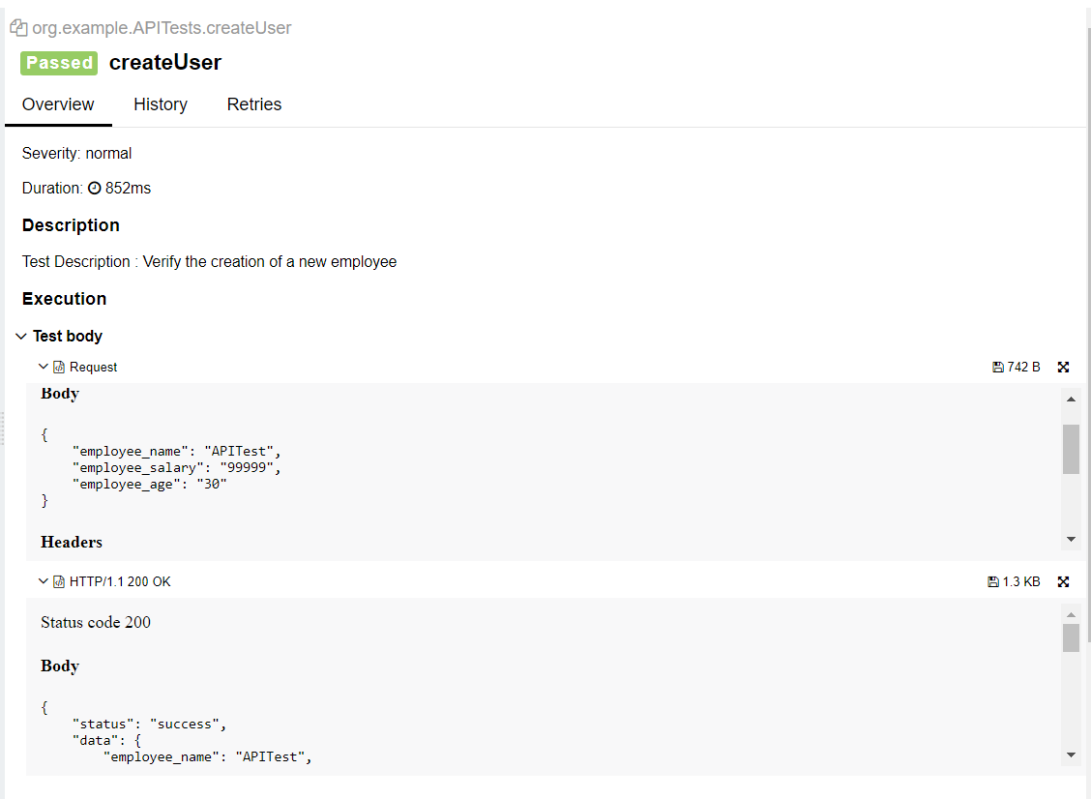
The below image shows the request body sent and the status code of the response, its body, and header provided by API.
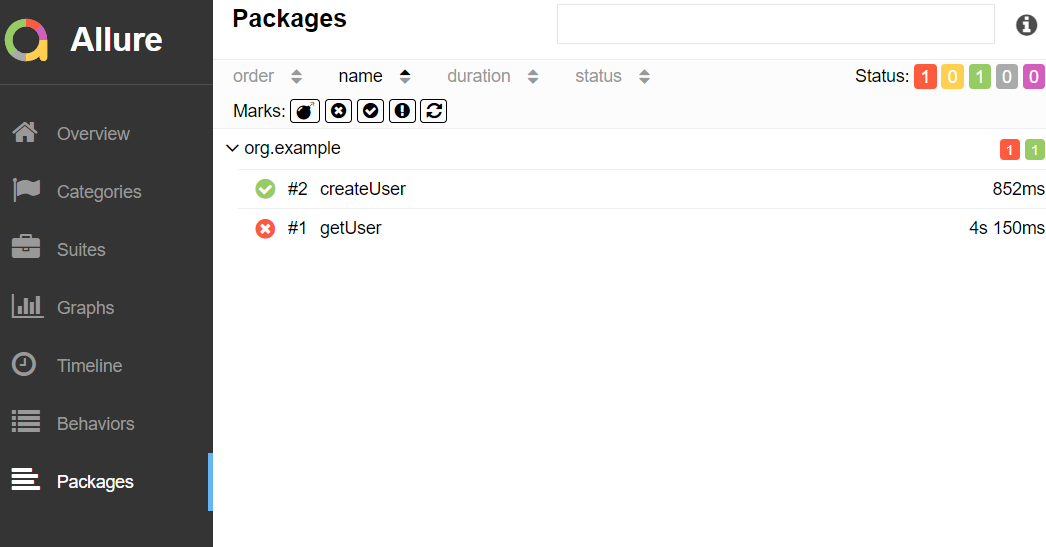
Packages in Allure Report
The packages tab represents a tree-like layout of test results, grouped by different packages.
We are done! Congratulations on making it through this tutorial and hope you found it useful! Happy Learning!!
Basic Authentication is a simple authentication scheme that is often used in HTTP (Hypertext Transfer Protocol) to provide a way for a client to send a username and password to a server for verification. It is a part of the HTTP protocol and involves sending the credentials (username and password) in the request headers.
Prerequisite:
Python is installed on the machine
PIP is installed on the machine
PyCharm or another Python Editor is installed on the machine
We can directly embed a basic auth username and password in the request by passing the username and password as a tuple to the auth param and the get() method in requests will take care of the basic authorization for us.
Below is an example of basic authentication in Postman.