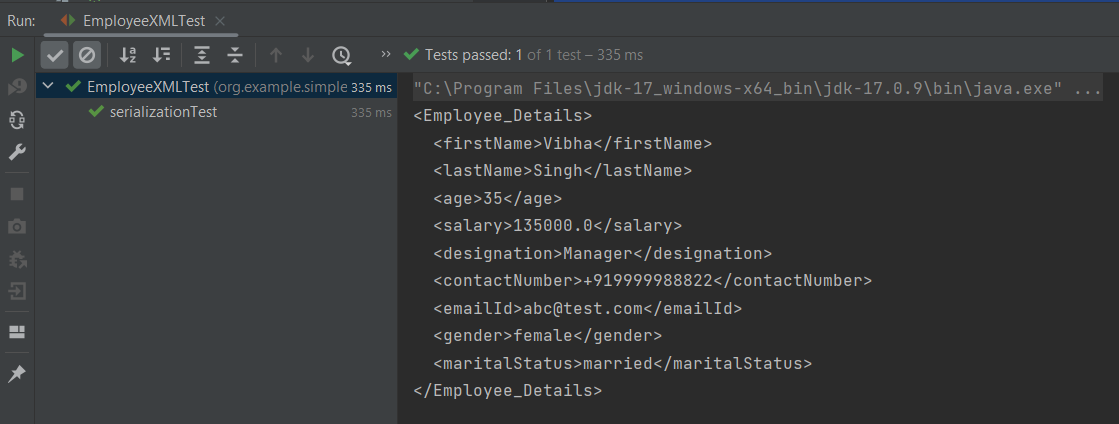
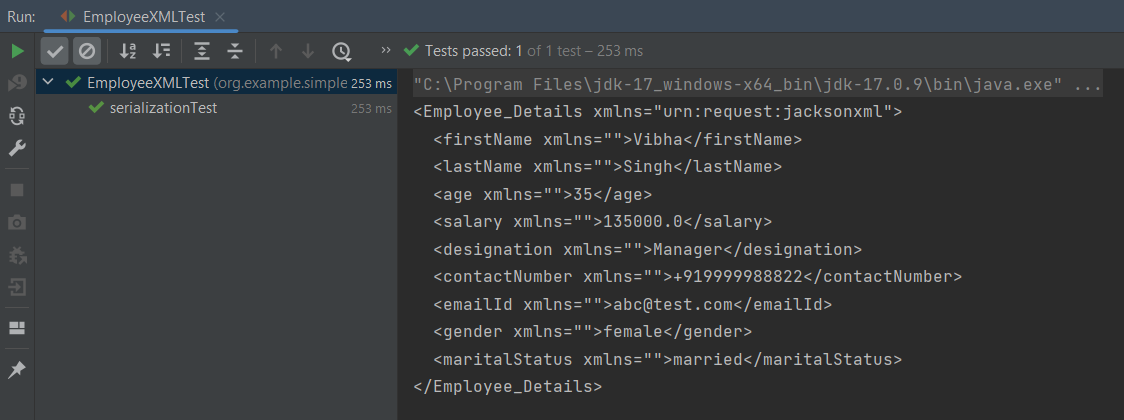
The Jackson XML module adds some additional support for XML-specific features, just like JSON has some additional features. These annotations allow us to control the XML namespace and local name for elements, including the root element, whether a field is rendered in an element or as plain text, whether the content of an element is rendered in a CData wrapper, and whether a collection should use a wrapper element or not.
We need to add Jackson XML dependency to the project.
It is used to define the name of the root element used for the root-level object when serialized, which normally uses the name of the type (class). This can only adjust the Namespace and Local name – since the root element can never be serialized as an attribute.
Jackson allows us to read the contents of an XML file and deserialize the XML back into a Java object. In our example, we will read an XML document containing details about an Employee, and use Jackson to extract this data and use it to create Java objects containing the same information.
First, let us create an XML document matching our class to read from.
Create deserialize.xml with the following contents:
Deserialization – It is the reverse of serializing. In this process, we will read the Serialized byte stream from the file and convert it back into the Class instance representation. Here, we are converting a XML to an Employee class object.
Simple deserialized program
Let us add a deserializeFromXML() function to deserialize the XML file above into a Java object:
import com.fasterxml.jackson.core.exc.StreamReadException;
import com.fasterxml.jackson.databind.DatabindException;
import com.fasterxml.jackson.dataformat.xml.XmlMapper;
import org.example.simple.Employee;
import org.junit.Test;

import java.io.File;
import java.io.IOException;

public class DeserializeXMLTest {
    @Test
    public void deserializeFromXML() {

        XmlMapper xmlMapper = new XmlMapper();
        String userDir = System.getProperty("user.dir");

        // Converting Employee XML to Employee class object
        try {
            Employee emp = xmlMapper.readValue(new File(userDir + "\\src\\test\\resources\\XMLExample.xml"),
                    Employee.class);

            System.out.println("Deserialized data: ");
            System.out.println("First Name of employee : " + emp.getFirstName());
            System.out.println("Last Name of employee : " + emp.getLastName());
            System.out.println("Age of employee : " + emp.getAge());
            System.out.println("Salary of employee : " + emp.getSalary());
            System.out.println("Designation of employee : " + emp.getDesignation());
            System.out.println("Contact Number of employee : " + emp.getContactNumber());
            System.out.println("EmailId of employee : " + emp.getEmailId());
            System.out.println("Marital Status of employee : " + emp.getMaritalStatus());
            System.out.println("Gender of employee : " + emp.getGender());

        } catch (StreamReadException e) {
            e.printStackTrace();
        } catch (DatabindException e) {
            e.printStackTrace();
        } catch (IOException e) {
            e.printStackTrace();
        }
    }
}
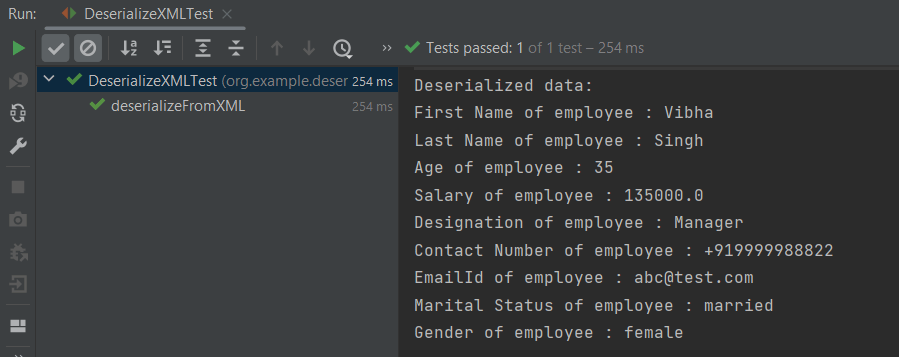
The output of the above program is shown below:
Manipulating Nested Elements in XML
Let us enhance our XML file to add nested elements and loops, and modify our code to deserialize the following updated structure.
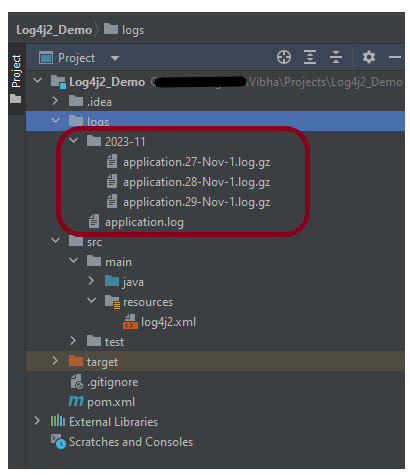
If we want to roll over log files based on file size and date time, we need to use SizeBasedTriggeringPolicy and TimeBasedRollingPolicy.
In the given example, the appender able to refer to the file name pattern and time-based rollover strategy using the filePattern attribute, which includes {dd-MMM}.Time-based rollover will happen every day.
Step 4 – Import log4j in the Selenium script
We need to import the log4j library in the Selenium script so that we can use it in your code. Here is an example of how to import log4j in the Selenium script:
We need to create a Logger instance in the Selenium script so that we can use it to log information. Here is an example of how to create a Logger instance:
This tutorial describes how to download and install Apache POI.
Selenium does not have an inbuilt method to read data from an Excel File. However, there are various libraries in JAVA that help in reading/writing data from Excel files. Apache POI is one of the most used libraries, which provides various classes and methods to read/write data from various formats of Excel files(xls, xlsx etc).
Apache POI, where POI stands for (Poor Obfuscation Implementation) is the Java API for Microsoft Documents that offers a collection of Java libraries that helps us to read, write, and manipulate different Microsoft files such as Excel sheets, PowerPoint, and Word files.
Download Apache POI
POI 5.2.3 was the last version where we produced a set of poi-bin*.zip and poi-bin*.tgz files. We will continue to publish jars to Maven Central. If you are not using a build tool like Apache Maven or Gradle, you can still find these jars by traversing the directories at https://repo1.maven.org/maven2/org/apache/poi/. The jar files are present here. Download them from here.
Go to poi and get the latest jar file from here.
Step 1 – To download Apache POI, go to its official site, here. Click on the Download as shown in the image. This link will navigate to the page showing the latest release of Apache POI. The latest Apache POI version is 5.2.3. You can follow the same steps for any version of POI.
Step 2 – This page shows the latest Apache POI Release Artifacts. Here, you can see POI 5.0.0 is the latest one. Download any one of the Binary Distribution options. One option is .ztar.gz and another option is .zip. I have selected .zip option.
Step 3 – After clicking on the link, it navigates to another page as shown below. I have used the highlighted link to download the POI library files.
Step 4 – Once POI.zip is downloaded and extracted, this is how the folder looks like
How to add POI libraries in Eclipse?
Step 1 – Below is the Java project present in Eclipse.
Step 2 – To add POI libraries to this project, Right-click on the project, hover over the Build path, select Configure Build Path.
Step 3 – It will open the “Properties” of the project. After that, select the Librariestab. Finally, click on the Add External JARs as highlighted below.
Step 4 – Select the JARs in the parent folder of the unzipped POI files. Subsequently, click on the Openbutton to include them in the Eclipse project.
Step 5 – Next, select the JARs under the ooxml-lib folder in the unzipped POI folder as highlighted below:
Step 6 – Select the JARs under the lib folder in the unzipped POI folder as highlighted below.
Step 7 – After that, once all the POI JARs add, click on the Apply and Close button as highlighted below.
Step 8 – Once all the POI libraries successfully install in the Eclipse project, they will reflect under the Referenced Libraries folder in the left pane of the Eclipse project structure, as shown below:
How to add POI libraries to Maven Java Project
You can add the poi and poi-ooxml jar files to the Maven project by mentioning the dependencies in pom.xml.
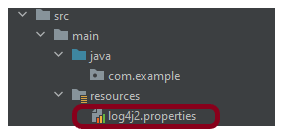
In the previous tutorial, we got an introduction to Log4j 2. In this tutorial, we will create a Selenium project and implement logging using the Log4j2 Properties configuration.
We’ve defined the level of the root logger as DEBUG. This means that we’ll get all the log events with level DEBUG and above. We’ve also defined a name for the appender as STDOUT and LogToFile.
We want to direct the logs to the console as well as File, we assigned the Appender typeas Console and File.
We specify the pattern in which we want to print the log messages.
Step 4 – Import log4j in the Selenium script
We need to import the log4j library in the Selenium script so that we can use it in your code. Here is an example of how to import log4j in the Selenium script:
We need to create a Logger instance in the Selenium script so that we can use it to log information. Here is an example of how to create a Logger instance:
Apache Log4j is a Java-based logging utility. Log4j2 is the updated version of the popular and influential log4j library. It is an open-source logging API for Java.
In the previous tutorials, we discussed BDD(Behaviour Driven Development) and Gherkin. Cucumberis one such open-source tool, which supports Behaviour Driven Development (BDD). In simple words, Cucumber can be defined as a testing framework, driven by plain English. It serves as documentation, automated tests, and development aid – all in one.
In this tutorial, we will set up Cucumber with Eclipse.
Java is a robust programming language. Java is a general-purpose programming language that is concurrent; class-based and object-oriented language. Java follows the concept of “write once and run anywhere (WORA)” which means that compiled Java code can be run on all different platforms that support Java without the need for recompilation. Cucumber supports the Java platform for execution. Click here to know How to install Java.
2. Download and Start Eclipse
Eclipse is an Integrated Development Environment (IDE). It contains a base workspace and an extensible plug-in system for customizing the environment. To download Eclipse, please refer to this tutorial – How to install Eclipse.
3. Maven – How to install Maven on Windows
Apache Maven is a software project management and comprehension tool. It uses the concept of a project object model (POM), Maven can manage a project’s build, reporting, and documentation from a central piece of information. MAVEN helps us in creating the project structure and managing and downloading the dependencies. We need to define the required dependencies in pom.xml. To install Maven on Windows, please refer to this tutorial –How to install Maven.
4. Install Cucumber Eclipse Plugin
The Cucumber plugin is an Eclipse plugin that allows eclipse to understand the Gherkin syntax. Cucumber Eclipse Plugin highlights the keywords present in Feature File. To install Cucumber Eclipse Plugin, please refer to this tutorial – How to install Cucumber Eclipse Plugin
This will indicate Maven, which Cucumber files are to be downloaded from the central repository to the local repository. Create one more dependency tag.
This will indicate Maven, which Cucumber JUnit files are to download from the central repository to the local repository. Create one more dependency tag.
Spring Boot is an open-source micro framework maintained by a company called Pivotal. It provides Java developers with a platform to get started with an auto-configurable production-grade Spring application. With it, developers can get started quickly without losing time on preparing and configuring their Spring application.
What is Cucumber?
A cucumber is a software tool that supports behavior-driven development (BDD). Cucumber can be defined as a testing framework, driven by plain English. It serves as documentation, automated tests, and development aid – all in one.
Dependency List
Springboot – 2.5.2
Cucumber – 6.10.4
Java 11
JUnit – 4.13.2
Maven – 3.8.1
RestAssured – 4.3.3
JUnit Vintage Engine (To run the tests through command line)
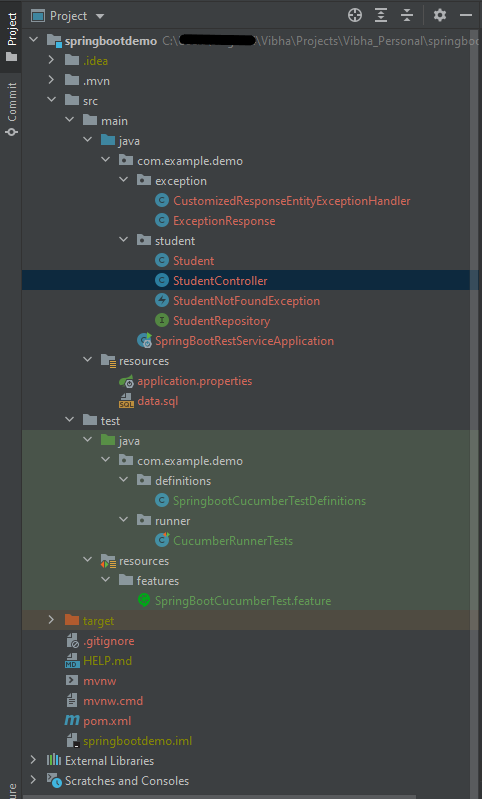
Below is the structure of a SpringBoot application project.
Below are various Java classes present in a SpringBoot REST Application.
SpringBootRestServiceApplication.java – The Spring Boot Application class is generated with Spring Initializer. This class acts as the launching point for the application.
pom.xml – This contains all the dependencies needed to build this project.
Student.java – This is JPA Entity for Student class
StudentRepository.java – This is JPA Repository for Student. This is created using Spring Data JpaRepository.
StudentController.java – Spring Rest Controller exposing all services on the student resource.
CustomizedExceptionHandler.java – This implements global exception handling and customizes the responses based on the exception type.
ErrorDetails.java – Response Bean to use when exceptions are thrown from API.
StudentNotFoundException.java – Exception thrown from resources when the student is not found.
data.sql – Data is loaded from data.sql into the Student table. Spring Boot would execute this script after the tables are created from the entities.
application.properties – Spring Boot automatically loads the application.properties whenever it starts up. You can de-reference values from the property file in the Java code through the environment.
We need the below files to create a SpringBoot Application.
Student.java
import javax.persistence.Entity;
import javax.persistence.GeneratedValue;
import javax.persistence.Id;
import javax.validation.constraints.NotBlank;
import javax.validation.constraints.NotNull;
import javax.validation.constraints.Size;

@Entity
public class Student {
    @Id
    @GeneratedValue
    private Long id;

    @NotNull
    @Size(min = 4, message = "Name should have atleast 4 characters")
    private String name;

    @NotBlank(message = "passportNumber is mandatory")
    private String passportNumber;

    public Student() {
        super();
    }

    public Student(Long id, String name, String passportNumber) {
        super();
        this.id = id;
        this.name = name;
        this.passportNumber = passportNumber;
    }

    public Long getId() {
        return id;
    }

    public void setId(Long id) {
        this.id = id;
    }

    public String getName() {
        return name;
    }

    public void setName(String name) {
        this.name = name;
    }

    public String getPassportNumber() {
        return passportNumber;
    }

    public void setPassportNumber(String passportNumber) {
        this.passportNumber = passportNumber;
    }
}
import org.springframework.boot.SpringApplication;
import org.springframework.boot.autoconfigure.SpringBootApplication;

@SpringBootApplication
public class SpringBootRestServiceApplication {

    public static void main(String[] args) {

        SpringApplication.run(SpringBootRestServiceApplication.class, args);
    }

}
application.properties
spring.jpa.defer-datasource-initialization=true
data.sql
insert into student values(10001,'Annie', 'E1234567');
insert into student values(10002,'John', 'A1234568');
insert into student values(10003,'David','C1232268');
Test Automation Framework Implementation
Step 1 – Add SpringbootTest, Rest-Assured, and Cucumber dependencies to the project
To Test a SpringBoot Application, we are using SpringBoot Test, JUnit, Cucumber, and Rest Assured. Below mentioned dependencies are added in POM.xml
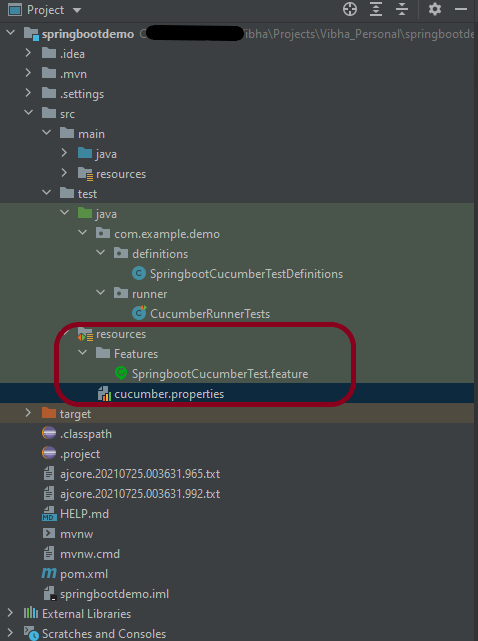
Step 2 – Create a directory src/test/resources and create a feature file under src/test/resources
By default, the Maven project has src/test/java directory only. Create a new directory under src/test with the name of resources. Create a folder name as Features within src/test/resources directory.
Create a feature file to test the Springboot application.
Below is a sample feature file.
Feature: Verify springboot application using Cucumber

@ReceiveUserDetails
Scenario Outline: Send a valid Request to get user details
Given I send a request to the URL "/students" to get user details
Then the response will return status 200 and id <studentID> and names "<studentNames>" and passport_no "<studentPassportNo>"

Examples:
|studentID    |studentNames  |studentPassportNo|
|10001        |Annie         |E1234567         |
|10002        |John          |A1234568         |
|10003        |David         |C1232268         |
Step 3 – Create the Step Definition class or Glue Code for the Test Scenariounder src/test/java
The corresponding step definition file of the above feature file is shown below.
import io.cucumber.java.en.Given;
import io.cucumber.java.en.Then;
import io.cucumber.spring.CucumberContextConfiguration;
import io.restassured.RestAssured;
import io.restassured.http.ContentType;
import io.restassured.response.ValidatableResponse;
import io.restassured.specification.RequestSpecification;
import org.springframework.boot.test.context.SpringBootTest;
import org.springframework.boot.web.server.LocalServerPort;
import static io.restassured.RestAssured.given;
import static org.hamcrest.Matchers.*;

@CucumberContextConfiguration
@SpringBootTest(webEnvironment = SpringBootTest.WebEnvironment.RANDOM_PORT)
public class SpringbootCucumberTestDefinitions {

    private final static String BASE_URI = "http://localhost";

    @LocalServerPort
    private int port;

    private ValidatableResponse validatableResponse;

    private void configureRestAssured() {
        RestAssured.baseURI = BASE_URI;
        RestAssured.port = port;
    }

    protected RequestSpecification requestSpecification() {
        configureRestAssured();
        return given();
    }

    @Given("I send a request to the URL {string} to get user details")
    public void iSendARequest(String endpoint) throws Throwable {
        validatableResponse = requestSpecification().contentType(ContentType.JSON)
                .when().get(endpoint).then();
        System.out.println("RESPONSE :"+validatableResponse.extract().asString());
    }

    @Then("the response will return status {int} and id {int} and names {string} and passport_no {string}")
    public void extractResponse(int status, int id, String studentName,String passportNo) {
        validatableResponse.assertThat().statusCode(equalTo(status))
                .body("id",hasItem(id)).body(containsString(studentName))
                .body(containsString(passportNo));

    }

}
The @CucumberContextConfiguration annotation tells Cucumber to use this class as the test context configuration for Spring. It is imported from:-
With the @SpringBootTest annotation, Spring Boot provides a convenient way to start up an application context to be used in a test. It is imported from package:-
By default, @SpringBootTest does not start the webEnvironment to refine further how your tests run. It has several options: MOCK(default), RANDOM_PORT, DEFINED_PORT, NONE.
RANDOM_PORT loads a WebServerApplicationContext and provides a real web environment. The embedded server is started and listens on a random port. LocalServerPort is imported from package:-
The assertions are imported from the Hamcrest package:-
import static org.hamcrest.Matchers.*;
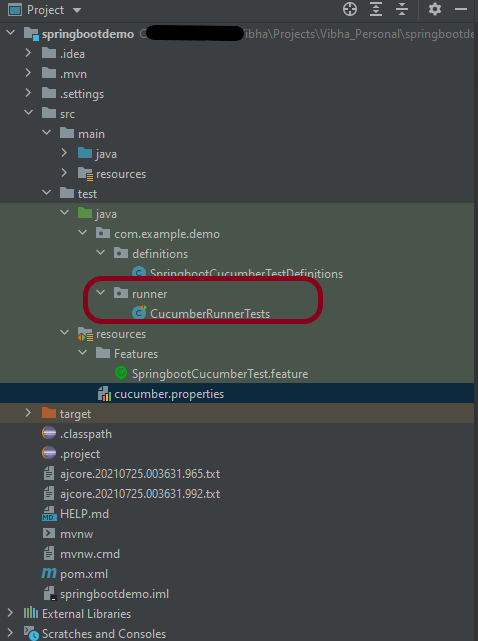
Step 4 – Create a Cucumber Runner classunder src/test/java
A runner will help us to run the feature file and act as an interlink between the feature file and StepDefinition Class. To know more about Runner, refer to this link. The TestRunner should be created within the directory src/test/java.
import org.junit.runner.RunWith;
import io.cucumber.junit.Cucumber;
import io.cucumber.junit.CucumberOptions;

@RunWith(Cucumber.class)
@CucumberOptions(plugin = "pretty", features = {"src/test/resources/Features"}, glue = { "com.example.demo.definitions"})

public class CucumberRunnerTests {
}
The @CucumberOptionsannotation is responsible for pointing to the right feature package, configuring the plugin for a better reporting of tests in the console output, and specifying the package where extra glue classes may be found. We use it to load configurations and classes that are shared between tests.
Step 5 – Run the tests from JUnit
You can execute the test script by right-clicking onTestRunner class -> Run As JUnit in Eclipse.
In case you are using IntelliJ, select “Run CucumberRunnerTests“.
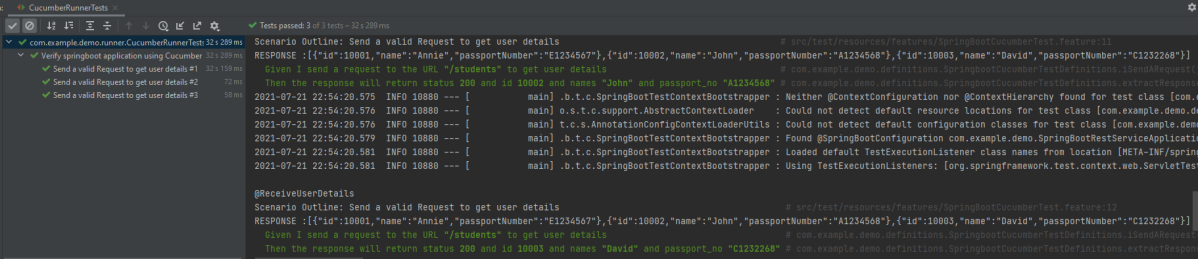
SpringBootTest creates an application context containing all the objects we need for the Integration Testing It, starts the embedded server, creates a web environment, and then enables methods to do Integration testing.
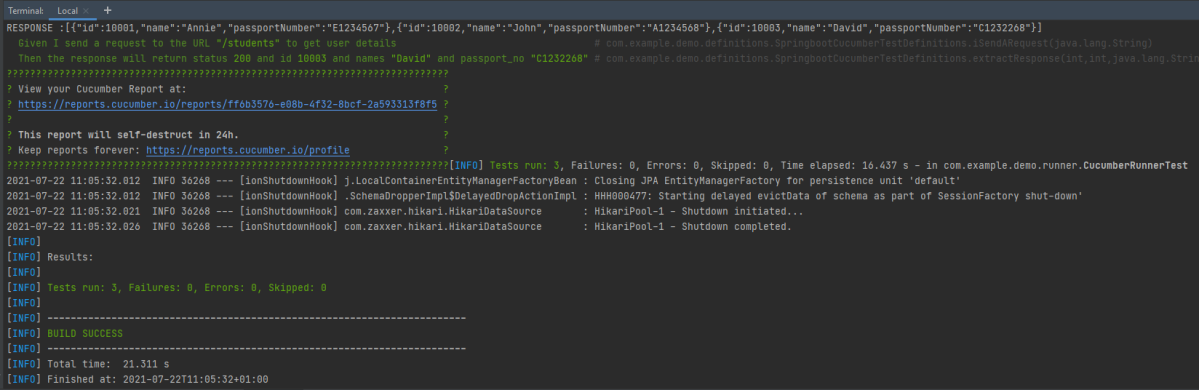
The output of the above program is
Step 6 – Run the tests from the Command Line
To run the tests from the command line, we need to add junit-vintage-engine dependency. Starting with Spring Boot 2.4, JUnit 5’s vintage engine has been removed from the spring-boot-starter-test. If we still want to write tests using JUnit 4, we need to add the following Maven dependency:
To get Cucumber Test Reports, add cucumber.properties under src/test/resources and add the below instruction in the file. To know more about Cucumber Report Service, refer to this tutorial.
cucumber.publish.enabled=true
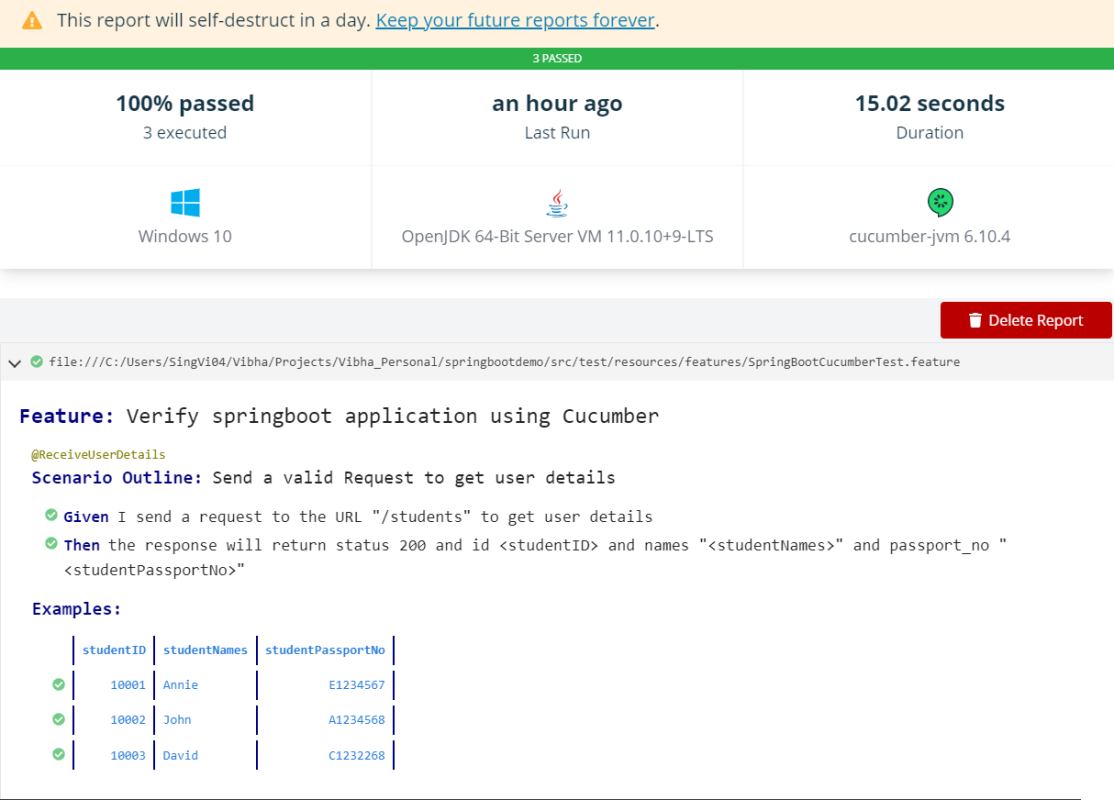
Below is the image of the report generated after the completion of the execution. This report can be saved on GitHub for future use.
That’s it! Congratulations on making it through this tutorial and hope you found it useful! Happy Learning!!
It’s necessary for us to establish connections to many databases during test automation. This article will teach us how to use an example code snippet to establish a Java connection to Microsoft SQL Server. However, before we do so, let’s first examine the various automation situations that call for database connections.
Why do we need to connect to databases in automation?
To get test data – If the database is automated, test data may be immediately retrieved and processed using a test automation script. To verify the result – To confirm the outcome, we may use automation to cross-check the front-end result to the database’s back-end record. To delete test data created – It is best practice in automation to remove test data that has been created. In order to do this, we use database automation and immediately execute the delete query. To update certain data – Update queries can be used to update test data in accordance with the requirements of the test script.
Connecting to SQL Server in Java
Get a connection to the Database
Create a statement object
Execute the SQL query
Process the Result Set
Get a connection to the Database
Need a connection string in the form of a JDBC URL.
You can connect to MySQL, MS MySql Server, or Oracle using the below syntax:
MS MySql Server - jdbc:odbc:DemoDSN
MySQL - jdbc:mysql://localhost:3306/demodb
Oracle - jdbc:orac;e:thin@myserver:1521:demodb
Failure to connect to the database will throw an exception:-
java.sql.SQLException : bad url or credentials
java.lang.ClassNotFoundException: JDBC driver not in classpath
Create a statement object
The statement object is based on connection. It will be used later to execute SQL query.
The DriverManager class acts as an interface between users and drivers. DriverManager helps to connect an application based on the database connection string.
We use the statement object to execute the SQL Query. Pass in the SQL query.
executeQuery method returns a result table in a ResultSet object. After you obtain the result table, you need to use ResultSet methods to move through the result table and obtain the individual column values from each row.
ResultSet result = stmt.executeQuery("select * from employee");
Process the result Set
Result Set is initially placed before the first row. Result.next() – It moves forward one row and returns true if there are more rows to process Looping through the result set.
import java.sql.*;

public class JdbcTest {

    public static void main(String[] args) throws SQLException {

        Connection conn;
        Statement stmt = null;
        ResultSet result = null;

        String dbUrl = "jdbc:mysql://localhost:3306/demo";
        String username = "student";
        String password = "student1$";

        try {
            //Get a connection to database
            conn = DriverManager.getConnection(dbUrl, username, password);

            System.out.println("Database connection is successful\n");

            //Create a statement
            stmt = conn.createStatement();

            //Execute the SQL Query
            result = stmt.executeQuery("Select * from employees");

            //Process the result set
            while (result.next()) {
                System.out.println("First_Name :" + result.getString("first_name") + " , " + ("Last_Name :" + result.getString("last_name")));

            }

        } catch (Exception e) {
            e.printStackTrace();
        }
    }
}
The output of the above program is
Let us go to MySQL Server and run the command. Before that, if you want to create an “employees” table in the demo database, please use the below script:
create database if not exists demo;

use demo;

drop table if exists employees;

CREATE TABLE `employees` (
  `id` int(11) NOT NULL AUTO_INCREMENT,
  `last_name` varchar(64) DEFAULT NULL,
  `first_name` varchar(64) DEFAULT NULL,
  `email` varchar(64) DEFAULT NULL,
  `department` varchar(64) DEFAULT NULL,
  `salary` DECIMAL(10,2) DEFAULT NULL,
  PRIMARY KEY (`id`)
) ENGINE=InnoDB AUTO_INCREMENT=1 DEFAULT CHARSET=latin1;

INSERT INTO `employees` (`id`,`last_name`,`first_name`,`email`, `department`, `salary`) VALUES (1,'Doe','John','john.doe@foo.com', 'HR', 55000.00);
INSERT INTO `employees` (`id`,`last_name`,`first_name`,`email`, `department`, `salary`) VALUES (2,'Public','Mary','mary.public@foo.com', 'Engineering', 75000.00);
INSERT INTO `employees` (`id`,`last_name`,`first_name`,`email`, `department`, `salary`) VALUES (3,'Queue','Susan','susan.queue@foo.com', 'Legal', 130000.00);

INSERT INTO `employees` (`id`,`last_name`,`first_name`,`email`, `department`, `salary`) VALUES (4,'Williams','David','david.williams@foo.com', 'HR', 120000.00);
INSERT INTO `employees` (`id`,`last_name`,`first_name`,`email`, `department`, `salary`) VALUES (5,'Johnson','Lisa','lisa.johnson@foo.com', 'Engineering', 50000.00);
INSERT INTO `employees` (`id`,`last_name`,`first_name`,`email`, `department`, `salary`) VALUES (6,'Smith','Paul','paul.smith@foo.com', 'Legal', 100000.00);

INSERT INTO `employees` (`id`,`last_name`,`first_name`,`email`, `department`, `salary`) VALUES (7,'Adams','Carl','carl.adams@foo.com', 'HR', 50000.00);
INSERT INTO `employees` (`id`,`last_name`,`first_name`,`email`, `department`, `salary`) VALUES (8,'Brown','Bill','bill.brown@foo.com', 'Engineering', 50000.00);
INSERT INTO `employees` (`id`,`last_name`,`first_name`,`email`, `department`, `salary`) VALUES (9,'Thomas','Susan','susan.thomas@foo.com', 'Legal', 80000.00);

INSERT INTO `employees` (`id`,`last_name`,`first_name`,`email`, `department`, `salary`) VALUES (10,'Davis','John','john.davis@foo.com', 'HR', 45000.00);
INSERT INTO `employees` (`id`,`last_name`,`first_name`,`email`, `department`, `salary`) VALUES (11,'Fowler','Mary','mary.fowler@foo.com', 'Engineering', 65000.00);
INSERT INTO `employees` (`id`,`last_name`,`first_name`,`email`, `department`, `salary`) VALUES (12,'Waters','David','david.waters@foo.com', 'Legal', 90000.00);
Now execute the below SQL command:-
select * from demo.employees;
The output of the above program is
We are done! Congratulations on making it through this tutorial and hope you found it useful! Happy Learning!!
Serenity BDD is an open-source library that aims to make the idea of living documentation a reality.
What is Rest Assured?
Rest Assured is one of the most powerful libraries for testing RESTful API using Java language. Rest-Assured is a Java-based library that is used to test RESTful Web Services. This library behaves like a headless Client to access REST web services. The rest-Assured library also provides the ability to validate the HTTP Responses received from the server.
Prerequisite
Java 17 installed
Maven installed
Eclipse or IntelliJ installed
Dependency List
Java 17
Maven – 3.9.5
Serenity – 4.0.18
Serenity Rest Assured – 4.0.18
Rest Assured – 5.3.2
JUnit – 4.13.2
Maven Surefire Plugin – 3.1.2
Maven Failsafe Plugin – 3.1.2
Maven Compiler Plugin – 3.11.0
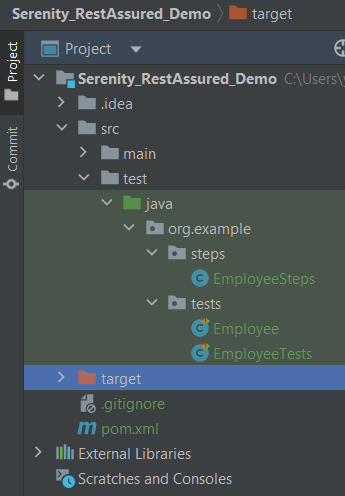
Project Structure
Implementation Steps
Step 1 – Update the Properties section in Maven pom.xml
Step 4 – Create the Test Code in src/java/testdirectory
There are 2 ways to create the same test. One approach is to have a Definition file that contains all the test code as shown below.
package org.example.tests;

import io.restassured.response.Response;
import net.serenitybdd.rest.SerenityRest;
import org.json.JSONObject;
import org.junit.Test;

import static org.hamcrest.Matchers.equalTo;

public class Employee {
    private static final String URL = "https://reqres.in/api";
    public Response response;

    int id = 2;

    @Test
    public void verifyValidUser() {

        response = SerenityRest
                .given()
                .contentType("application/json")
                .header("Content-Type", "application/json")
                .when()
                .get(URL + "/users/" + id);

        SerenityRest.restAssuredThat(response -> response.statusCode(200)
                .body("data.id", equalTo(2))
                .body("data.email", equalTo("janet.weaver@reqres.in"))
                .body("data.first_name", equalTo("Janet"))
                .body("data.last_name", equalTo("Weaver")));

    }

    @Test
    public void verifyCreateUser() {
        JSONObject data = new JSONObject();

        data.put("name", "Test");
        data.put("job", "Test Architect");

        response = SerenityRest
                .given()
                .contentType("application/json")
                .header("Content-Type", "application/json")
                .body(data.toString())
                .when()
                .post(URL + "/users");

        SerenityRest.restAssuredThat(response -> response.statusCode(201)
                .body("name", equalTo("Test"))
                .body("job", equalTo("Test Architect")));

    }

}
Another approach is that all tests are split into reusable blocks called “steps“. The main principle of the BDD approach is that we are trying to keep complexity to a high-level human-readable level. First of all, let’s create a separate package to keep our steps. It is always better to keep them separate as it shows which classes contain reusable components. It is better to make steps smaller. So let’s make separate reusable steps from our tests:
package org.example.steps;

import io.restassured.response.Response;
import net.serenitybdd.annotations.Step;
import net.serenitybdd.rest.SerenityRest;
import org.json.JSONObject;

import static org.hamcrest.Matchers.equalTo;

public class EmployeeSteps {
    private static final String URL = "https://reqres.in/api";
    public Response response;

    @Step("Search user by id {0}")
    public void sendUser(int id) {
        response = SerenityRest
                .given()
                .contentType("application/json")
                .header("Content-Type", "application/json")
                .when()
                .get(URL + "/users/" + id);

    }

    @Step("Create a new user")
    public void createUser() {

        JSONObject data = new JSONObject();

        data.put("name", "Test");
        data.put("job", "Test Architect");

        response = SerenityRest
                .given()
                .contentType("application/json")
                .header("Content-Type", "application/json")
                .body(data.toString())
                .when()
                .post(URL + "/users");

    }

    @Step("Verify the status code {0}")
    public void verifyStatusCode(int expectedStatusCode) {
        SerenityRest.restAssuredThat(response -> response.statusCode(expectedStatusCode));
    }

    @Step("Verify the user id {0}")
    public void verifyId(int expectedId) {
        SerenityRest.restAssuredThat(response -> response.body("data.id", equalTo(expectedId)));
    }

    @Step("Verify the user first name {0}")
    public void verifyFirstName(String expectedFirstName) {

        SerenityRest.restAssuredThat(response -> response.body("data.first_name", equalTo(expectedFirstName)));
    }

    @Step("Verify the user last name {0}")
    public void verifyLastName(String expectedLastName) {
        SerenityRest.restAssuredThat(response -> response.body("data.last_name", equalTo(expectedLastName)));
    }

    @Step("Verify the user email {0}")
    public void verifyEmail(String expectedEmail) {
        SerenityRest.restAssuredThat(response -> response.body("data.email", equalTo(expectedEmail)));
    }

    @Step("Verify the new user name {0}")
    public void verifyNewUserName(String expectedName) {
        SerenityRest.restAssuredThat(response -> response.body("name", equalTo(expectedName)));
    }

    @Step("Verify the new user job {0}")
    public void verifyNewUserJob(String expectedJob) {
        SerenityRest.restAssuredThat(response -> response.body("job", equalTo(expectedJob)));
    }

}
Now our steps are ready. Let’s refactor the main class with our tests:
One more important thing we added is the “@RunWith(SerenityRunner.class)” annotation on top of the class. As we have now organized our structure to meet some basic Serenity principles, we are ready to run the test using Serenity. This time (after we added the mentioned annotation) these tests will be run using the “SerenityRunner”. For that we can use exactly the same command to run our tests:
mvn clean verify
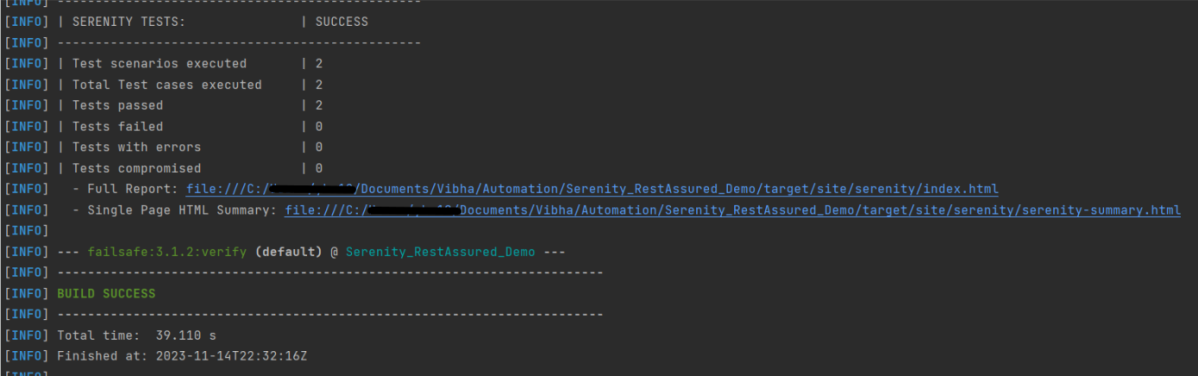
The output of the above program is
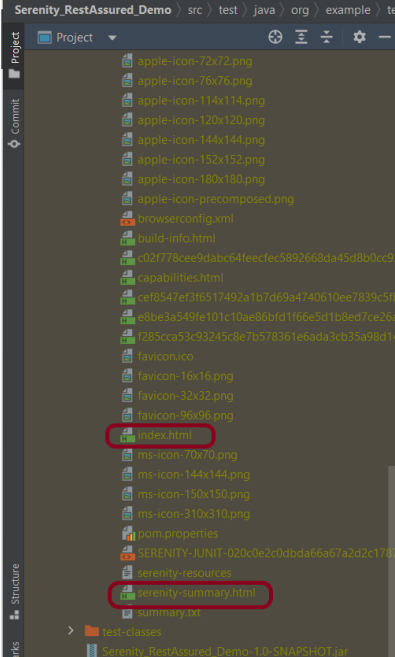
In the console, you should find printed messages for tests to start. At the same time under the target directory you can find the HTML-generated report we were talking about before:
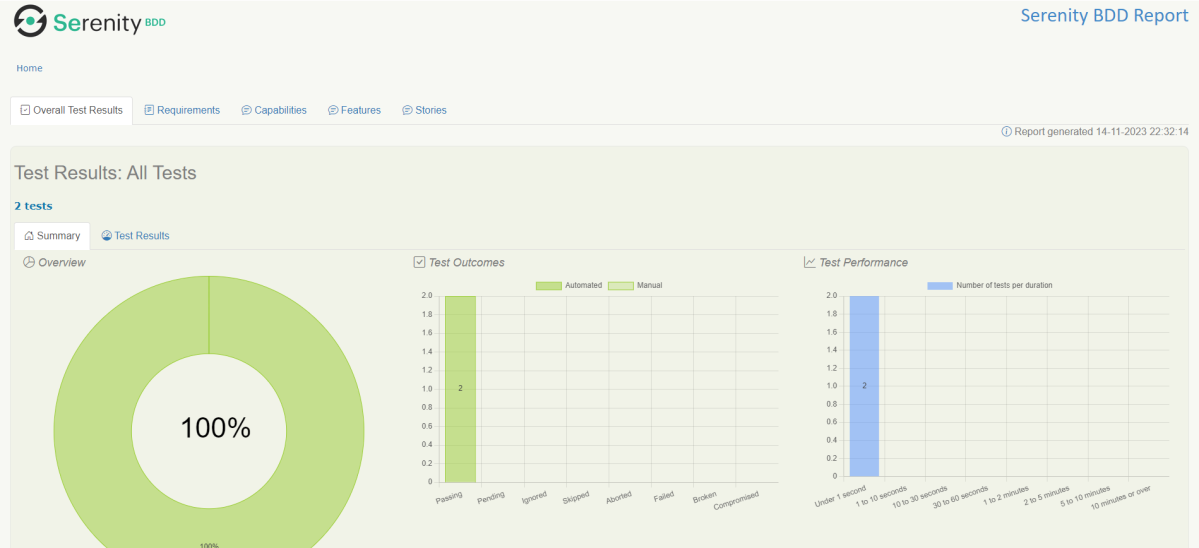
You can open the report in any browser:
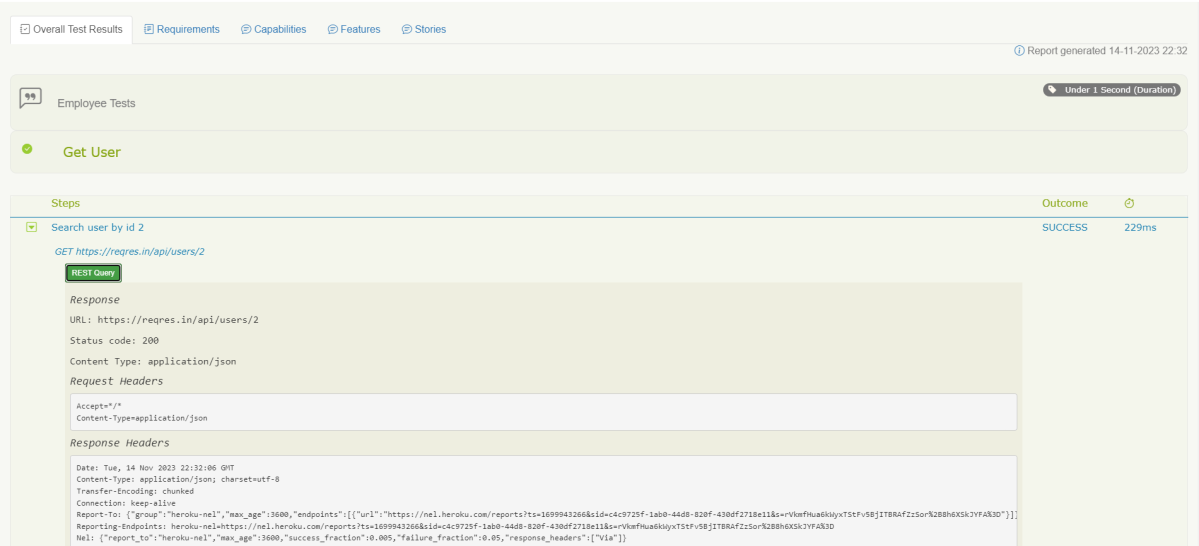
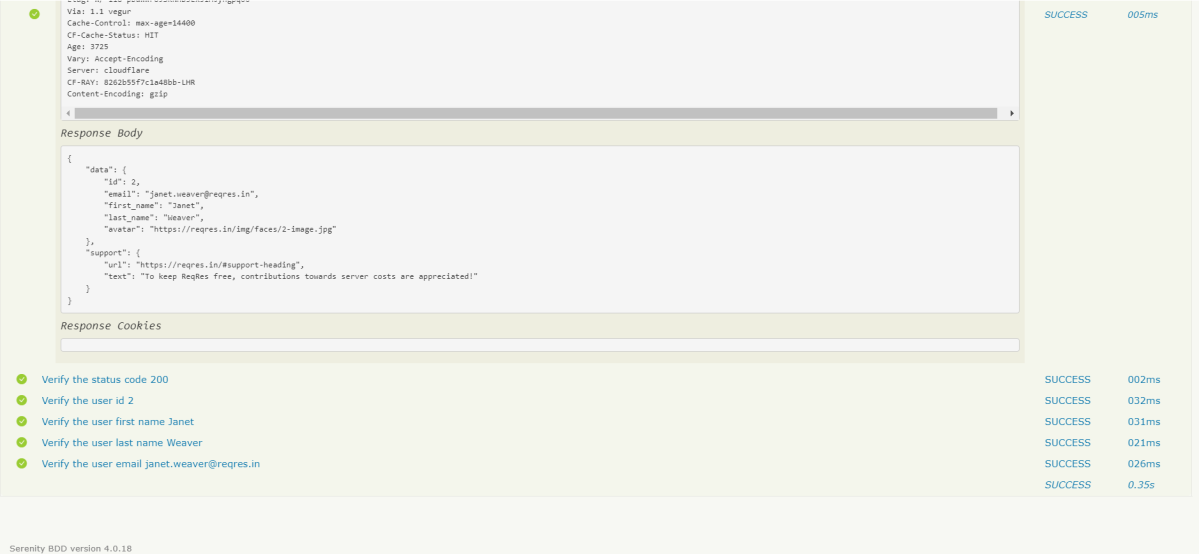
If you click on any test you should see a detailed description of the test steps:
One of the most important features of the Serenity and REST Assured integration is that by using detailed reporting, you can easily validate all requests and response details even if you are not adding any logs inside tests. Like the example above, for each executed REST request you can click the button “REST Query” and get a detailed request and response description:
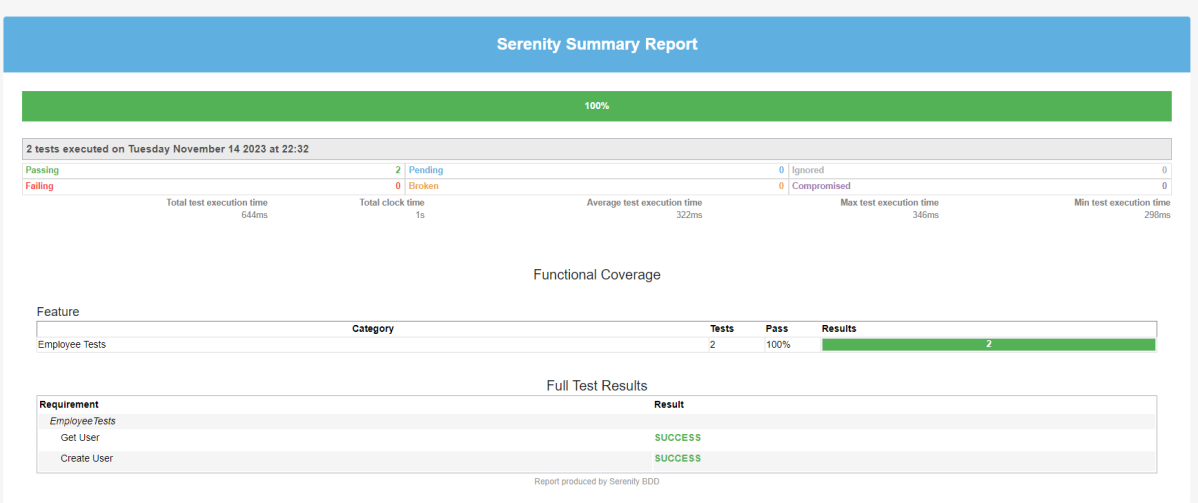
There is another very useful Serenity Report – Serenity Symmary.html
As you can see, Serenity and REST Assured provide you with a wonderful combination. REST Assured keeps API testing clean and easy to maintain, while Serenity gives you outstanding test reporting and flexibility in running and grouping your tests inside a test suite.
We are done! Congratulations on making it through this tutorial and hope you found it useful! Happy Learning!!