Integration of Serenity with Rest Assured

HOME

In this tutorial, I will explain the Integration of Serenity BDD with Rest Assured for the testing of RestFul API.

What is Serenity BDD?

Serenity BDD is an open-source library that aims to make the idea of living documentation a reality.

What is Rest Assured?

Rest Assured is one of the most powerful libraries for testing RESTful API using Java language. Rest-Assured is a Java-based library that is used to test RESTful Web Services. This library behaves like a headless Client to access REST web services. The rest-Assured library also provides the ability to validate the HTTP Responses received from the server. 

Prerequisite

  1. Java 17 installed
  2. Maven installed
  3. Eclipse or IntelliJ installed

Dependency List

  1. Java 17
  2. Maven – 3.9.5
  3. Serenity – 4.0.18
  4. Serenity Rest Assured – 4.0.18
  5. Rest Assured – 5.3.2
  6. JUnit – 4.13.2
  7. Maven Surefire Plugin – 3.1.2
  8. Maven Failsafe Plugin – 3.1.2
  9. Maven Compiler Plugin – 3.11.0

Project Structure
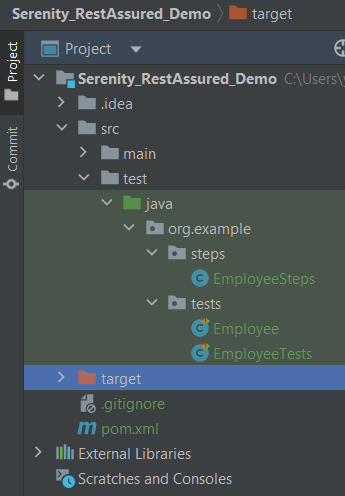
Step 1 – Update the Properties section in Maven pom.xml

<properties>
    <project.build.sourceEncoding>UTF-8</project.build.sourceEncoding>
    <serenity.version>4.0.18</serenity.version>
    <serenity.maven.version>4.0.18</serenity.maven.version>
    <junit.version>4.13.2</junit.version>
    <rest.assured.version>5.3.2</rest.assured.version>
    <json.version>20231013</json.version>
    <maven.surefire.plugin.version>3.1.2</maven.surefire.plugin.version>
    <maven.failsafe.plugin.version>3.1.2</maven.failsafe.plugin.version>
    <maven.compiler.plugin.version>3.11.0</maven.compiler.plugin.version>
    <maven.compiler.source>17</maven.compiler.source>
    <maven.compiler.target>17</maven.compiler.target>
    <tags></tags>
  </properties>

Step 2 – Add dependencies to POM.xml

<dependencies>
   <dependency>
            <groupId>net.serenity-bdd</groupId>
            <artifactId>serenity-core</artifactId>
            <version>${serenity.version}</version>
            <scope>test</scope>
        </dependency>

        <dependency>
            <groupId>net.serenity-bdd</groupId>
            <artifactId>serenity-junit</artifactId>
            <version>${serenity.version}</version>
            <scope>test</scope>
        </dependency>
      
        <dependency>
            <groupId>net.serenity-bdd</groupId>
            <artifactId>serenity-screenplay-rest</artifactId>
            <version>${serenity.version}</version>
            <scope>test</scope>
        </dependency>
        
        <dependency>
            <groupId>net.serenity-bdd</groupId>
            <artifactId>serenity-rest-assured</artifactId>
            <version>${serenity.version}</version>
            <scope>test</scope>
        </dependency>
        
        <dependency>
            <groupId>io.rest-assured</groupId>
            <artifactId>rest-assured</artifactId>
            <version>${rest.assured.version}</version>
            <scope>test</scope>
        </dependency>
         
        <dependency>
            <groupId>junit</groupId>
            <artifactId>junit</artifactId>
            <version>${junit.version}</version>
            <scope>test</scope>
        </dependency>  
  
       <dependency>
           <groupId>org.json</groupId>
           <artifactId>json</artifactId>
           <version>${json.version}</version>
        </dependency> 
        
    </dependencies>

Step 3 – Update the Build Section of pom.xml

<build>
        <plugins>
            <plugin>
                <groupId>org.apache.maven.plugins</groupId>
                <artifactId>maven-surefire-plugin</artifactId>
                <version>${maven.surefire.plugin.version}</version>
                <configuration>
                    <skip>true</skip>
                </configuration>
            </plugin>
            <plugin>
                <artifactId>maven-failsafe-plugin</artifactId>
                <version>${maven.failsafe.plugin.version}</version>
                <configuration>
                    <includes>
                        <include>**/*.java</include>
                        <include>**/*.Tests</include>
                    </includes>
                </configuration>
                <executions>
                    <execution>
                        <goals>
                            <goal>integration-test</goal>
                            <goal>verify</goal>
                        </goals>
                    </execution>
                </executions>
            </plugin>
            <plugin>
                <groupId>org.apache.maven.plugins</groupId>
                <artifactId>maven-compiler-plugin</artifactId>
                <version>${maven.compiler.plugin.version}</version>
                <configuration>
                    <source>${maven.compiler.source}</source>
                    <target>${maven.compiler.target}</target>
                </configuration>
            </plugin>
           <plugin>
               <groupId>net.serenity-bdd.maven.plugins</groupId>
               <artifactId>serenity-maven-plugin</artifactId>
               <version>${serenity.version}</version>
               <dependencies> 
                  <dependency>
                       <groupId>net.serenity-bdd</groupId>
                       <artifactId>serenity-single-page-report</artifactId>
                       <version>${serenity.version}</version>
                  </dependency>                
               </dependencies>
               <configuration>
                   <tags>${tags}</tags>
                   <reports>single-page-html</reports> 
               </configuration>
               <executions>
                  <execution>
                      <id>serenity-reports</id>
                      <phase>post-integration-test</phase>
                      <goals>
                          <goal>aggregate</goal>
                      </goals>
                   </execution>
               </executions>
           </plugin>
        </plugins>
    </build>

Step 4 – Create the Test Code in src/java/test directory

There are 2 ways to create the same test. One approach is to have a Definition file that contains all the test code as shown below.

package org.example.tests;

import io.restassured.response.Response;
import net.serenitybdd.rest.SerenityRest;
import org.json.JSONObject;
import org.junit.Test;

import static org.hamcrest.Matchers.equalTo;

public class Employee {
    private static final String URL = "https://reqres.in/api";
    public Response response;

    int id = 2;

    @Test
    public void verifyValidUser() {

        response = SerenityRest
                .given()
                .contentType("application/json")
                .header("Content-Type", "application/json")
                .when()
                .get(URL + "/users/" + id);

        SerenityRest.restAssuredThat(response -> response.statusCode(200)
                .body("data.id", equalTo(2))
                .body("data.email", equalTo("janet.weaver@reqres.in"))
                .body("data.first_name", equalTo("Janet"))
                .body("data.last_name", equalTo("Weaver")));

    }

    @Test
    public void verifyCreateUser() {
        JSONObject data = new JSONObject();

        data.put("name", "Test");
        data.put("job", "Test Architect");

        response = SerenityRest
                .given()
                .contentType("application/json")
                .header("Content-Type", "application/json")
                .body(data.toString())
                .when()
                .post(URL + "/users");

        SerenityRest.restAssuredThat(response -> response.statusCode(201)
                .body("name", equalTo("Test"))
                .body("job", equalTo("Test Architect")));

    }

}

Another approach is that all tests are split into reusable blocks called “steps“. The main principle of the BDD approach is that we are trying to keep complexity to a high-level human-readable level. First of all, let’s create a separate package to keep our steps. It is always better to keep them separate as it shows which classes contain reusable components. It is better to make steps smaller. So let’s make separate reusable steps from our tests:

package org.example.steps;

import io.restassured.response.Response;
import net.serenitybdd.annotations.Step;
import net.serenitybdd.rest.SerenityRest;
import org.json.JSONObject;

import static org.hamcrest.Matchers.equalTo;

public class EmployeeSteps {
    private static final String URL = "https://reqres.in/api";
    public Response response;

    @Step("Search user by id {0}")
    public void sendUser(int id) {
        response = SerenityRest
                .given()
                .contentType("application/json")
                .header("Content-Type", "application/json")
                .when()
                .get(URL + "/users/" + id);

    }

    @Step("Create a new user")
    public void createUser() {

        JSONObject data = new JSONObject();

        data.put("name", "Test");
        data.put("job", "Test Architect");

        response = SerenityRest
                .given()
                .contentType("application/json")
                .header("Content-Type", "application/json")
                .body(data.toString())
                .when()
                .post(URL + "/users");

    }

    @Step("Verify the status code {0}")
    public void verifyStatusCode(int expectedStatusCode) {
        SerenityRest.restAssuredThat(response -> response.statusCode(expectedStatusCode));
    }

    @Step("Verify the user id {0}")
    public void verifyId(int expectedId) {
        SerenityRest.restAssuredThat(response -> response.body("data.id", equalTo(expectedId)));
    }

    @Step("Verify the user first name {0}")
    public void verifyFirstName(String expectedFirstName) {

        SerenityRest.restAssuredThat(response -> response.body("data.first_name", equalTo(expectedFirstName)));
    }

    @Step("Verify the user last name {0}")
    public void verifyLastName(String expectedLastName) {
        SerenityRest.restAssuredThat(response -> response.body("data.last_name", equalTo(expectedLastName)));
    }

    @Step("Verify the user email {0}")
    public void verifyEmail(String expectedEmail) {
        SerenityRest.restAssuredThat(response -> response.body("data.email", equalTo(expectedEmail)));
    }

    @Step("Verify the new user name {0}")
    public void verifyNewUserName(String expectedName) {
        SerenityRest.restAssuredThat(response -> response.body("name", equalTo(expectedName)));
    }

    @Step("Verify the new user job {0}")
    public void verifyNewUserJob(String expectedJob) {
        SerenityRest.restAssuredThat(response -> response.body("job", equalTo(expectedJob)));
    }

}

Now our steps are ready. Let’s refactor the main class with our tests:

package org.example.tests;

import net.serenitybdd.annotations.Steps;
import net.serenitybdd.annotations.Title;
import net.serenitybdd.junit.runners.SerenityRunner;
import org.example.steps.EmployeeSteps;
import org.junit.Test;
import org.junit.runner.RunWith;

@RunWith(SerenityRunner.class)
public class EmployeeTests {
    @Steps
    EmployeeSteps employeeSteps;

    @Test
    @Title("Get User")
    public void verifyValidUser() {
        employeeSteps.sendUser(2);
        employeeSteps.verifyStatusCode(200);
        employeeSteps.verifyId(2);
        employeeSteps.verifyFirstName("Janet");
        employeeSteps.verifyLastName("Weaver");
        employeeSteps.verifyEmail("janet.weaver@reqres.in");

    }

    @Test
    @Title("Create User")
    public void createValidUser() {

        employeeSteps.createUser();
        employeeSteps.verifyStatusCode(201);
        employeeSteps.verifyNewUserName("Test");
        employeeSteps.verifyNewUserJob("Test Architect");

    }

}

One more important thing we added is the @RunWith(SerenityRunner.class)” annotation on top of the class. As we have now organized our structure to meet some basic Serenity principles, we are ready to run the test using Serenity. This time (after we added the mentioned annotation) these tests will be run using the “SerenityRunner”. For that we can use exactly the same command to run our tests:

mvn clean verify

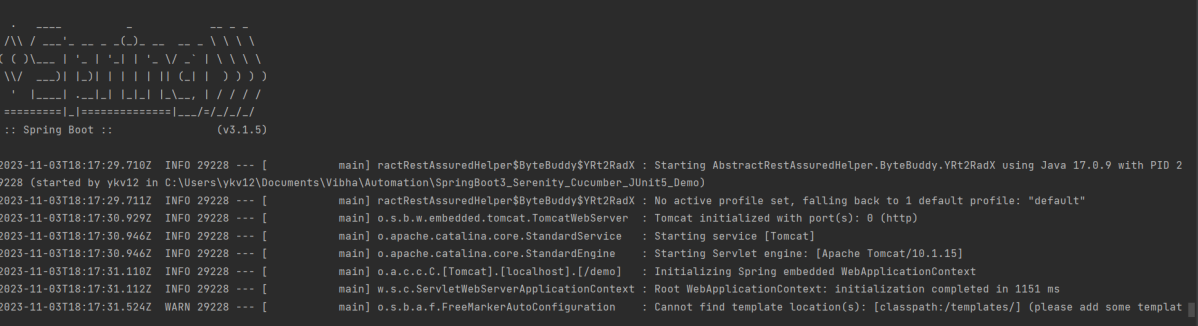
The output of the above program is
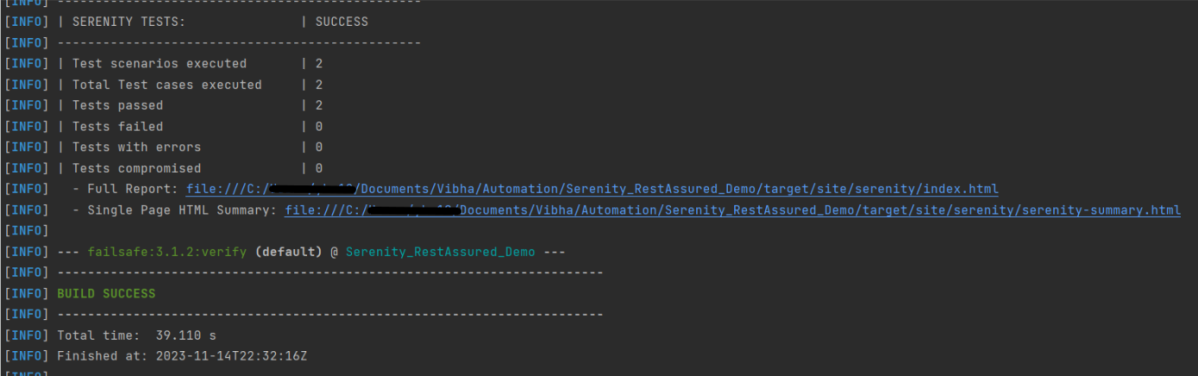
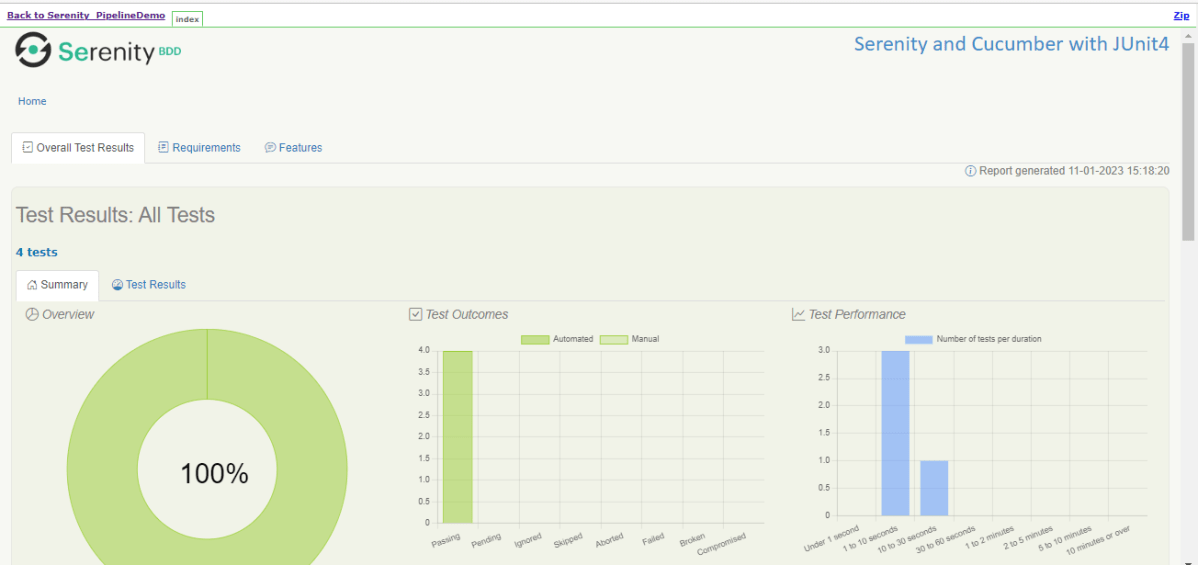
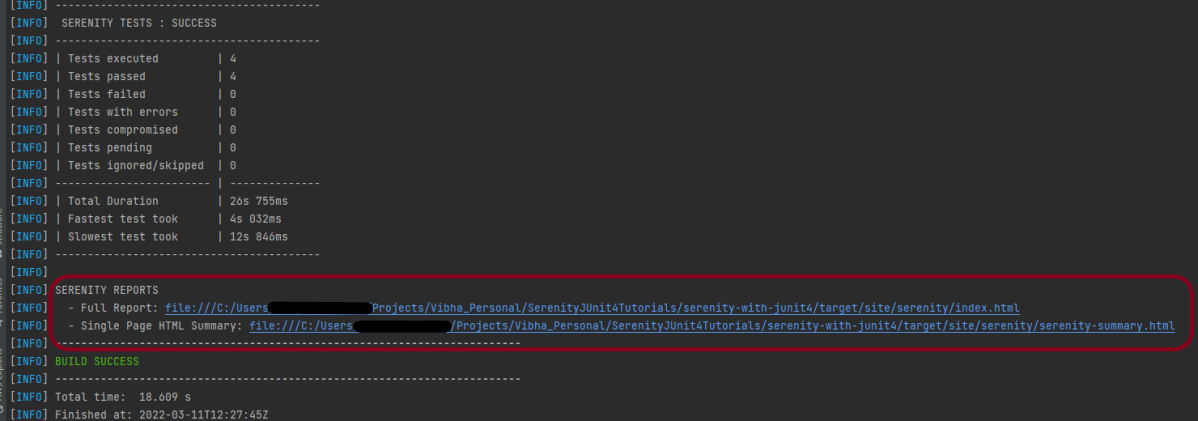
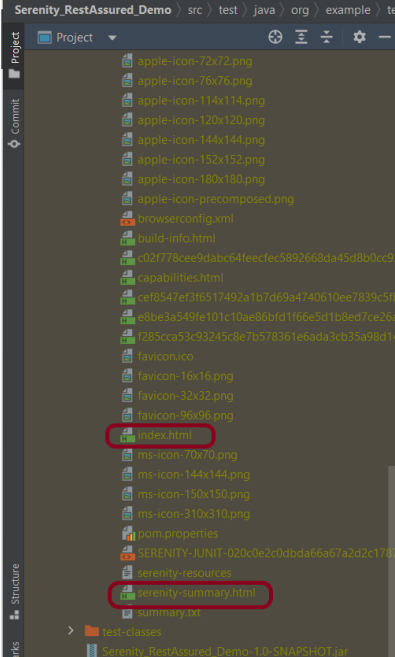
In the console, you should find printed messages for tests to start. At the same time under the target directory you can find the HTML-generated report we were talking about before:
You can open the report in any browser:
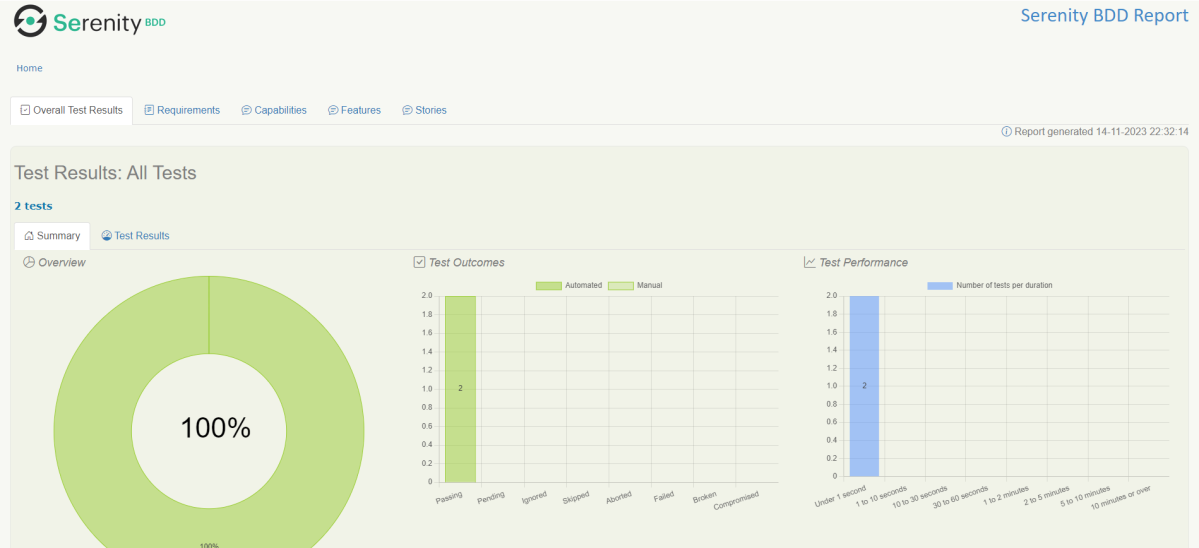
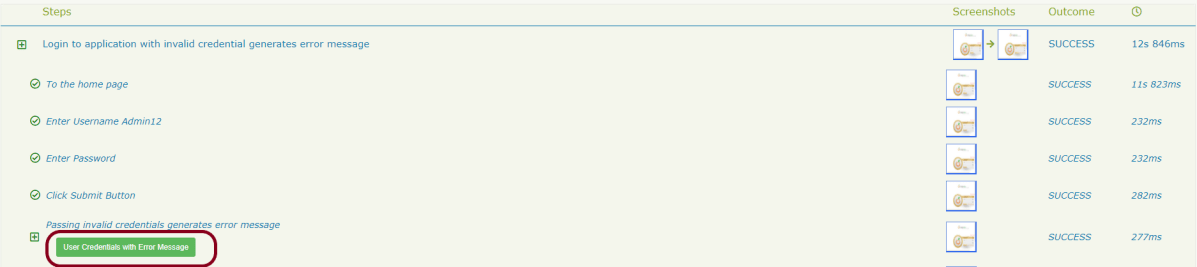
If you click on any test you should see a detailed description of the test steps:

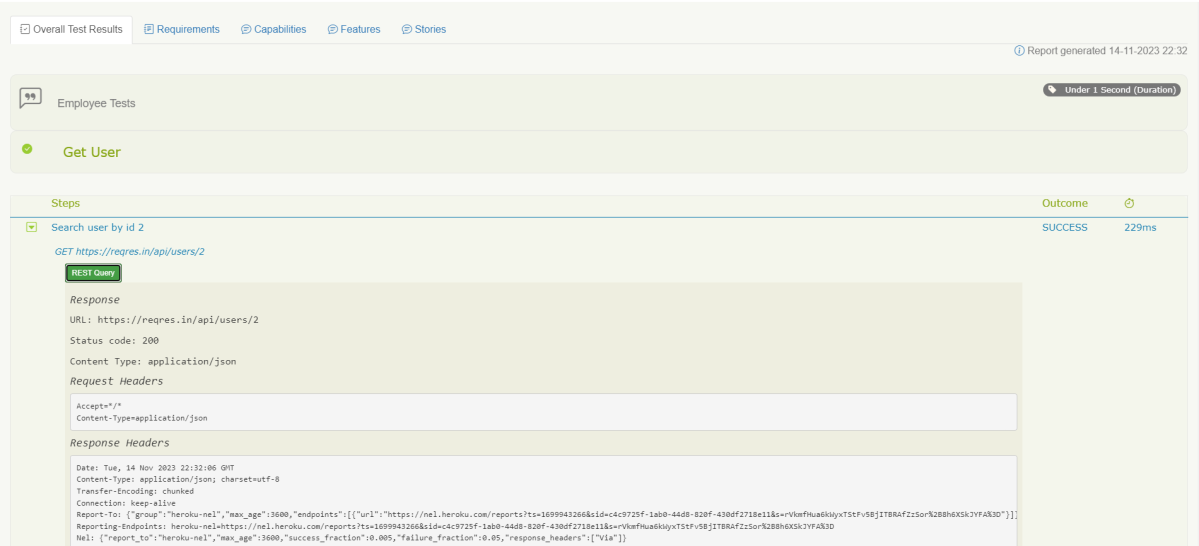
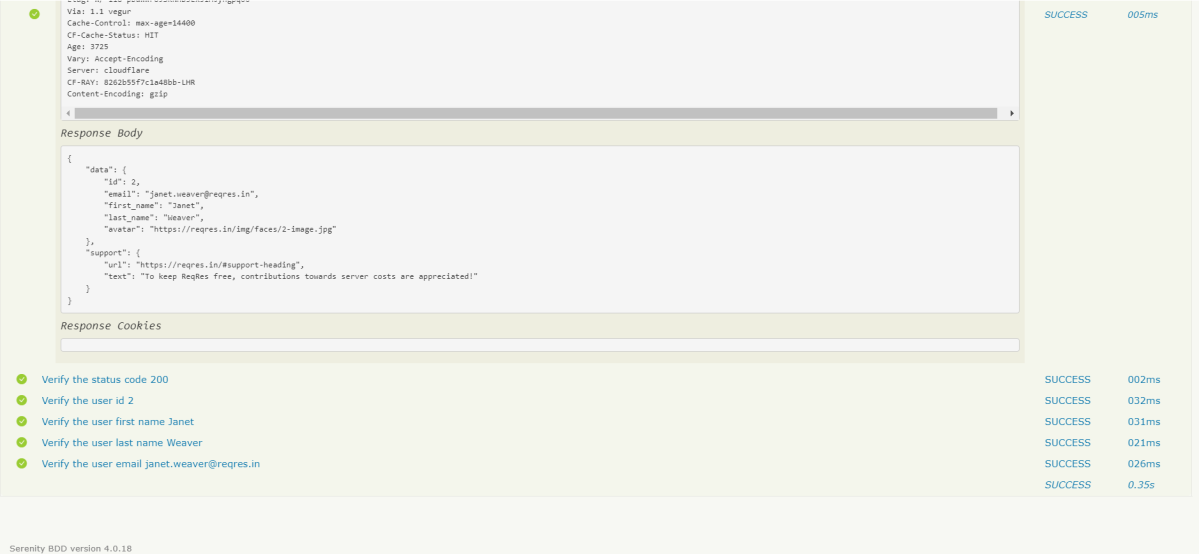
One of the most important features of the Serenity and REST Assured integration is that by using detailed reporting, you can easily validate all requests and response details even if you are not adding any logs inside tests. Like the example above, for each executed REST request you can click the button “REST Query” and get a detailed request and response description:
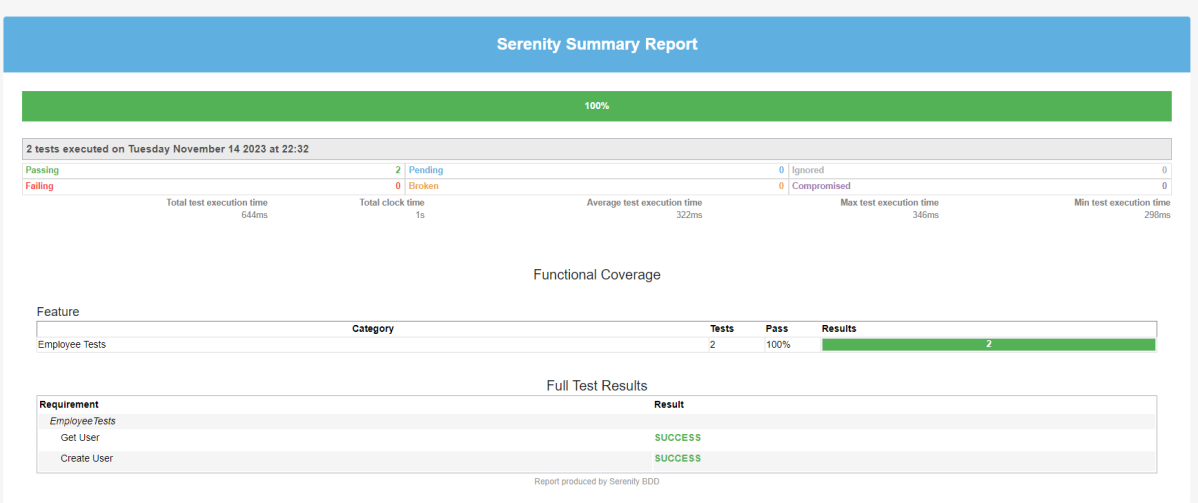
There is another very useful Serenity Report – Serenity Symmary.html
As you can see, Serenity and REST Assured provide you with a wonderful combination. REST Assured keeps API testing clean and easy to maintain, while Serenity gives you outstanding test reporting and flexibility in running and grouping your tests inside a test suite.

We are done! Congratulations on making it through this tutorial and hope you found it useful! Happy Learning!!
Serenity BDD with Cucumber and Rest Assured


HOME

What is Serenity BDD?

Serenity BDD is an open-source library that aims to make the idea of living documentation a reality.

What is Rest Assured?

Rest Assured is one of the most powerful libraries for testing RESTful API using Java language. Rest-Assured is a Java-based library that is used to test RESTful Web Services. This library behaves like a headless Client to access REST web services. The Rest-Assured library also provides the ability to validate the HTTP Responses received from the server. For e.g. we can verify the Status code, Status message, Headers, and even the Body of the response. This makes Rest-Assured a very flexible library that can be used for testing. In this post, we will learn how to write high-quality, expressive REST API tests using Rest Assured and Serenity BDD.

Prerequisite

  1. Java 17 installed
  2. Maven installed
  3. Eclipse or IntelliJ installed

Dependency List:

  1. Java 17
  2. Maven – 3.9.5
  3. Serenity – 4.0.18
  4. Serenity Rest Assured – 4.0.18
  5. Serenity Cucumber – 4.0.18
  6. Rest Assured – 5.3.2
  7. JUnit – 4.13.2
  8. Maven Surefire Plugin – 3.2.1
  9. Maven Failsafe Plugin – 3.2.1
  10. Maven Compiler Plugin – 3.11.0

Project Structure

Step 1 – Update Properties section in Maven pom.xml

 <properties>
        <project.build.sourceEncoding>UTF-8</project.build.sourceEncoding>
        <serenity.version>4.0.18</serenity.version>
        <serenity.cucumber.version>4.0.18</serenity.cucumber.version>
        <rest.assured.version>5.3.2</rest.assured.version>
        <junit.version>4.13.2</junit.version>
        <maven.compiler.plugin.version>3.11.0</maven.compiler.plugin.version>
        <maven.compiler.source>17</maven.compiler.source>
        <maven.compiler.target>17</maven.compiler.target>
        <maven.surefire.plugin.version>3.2.1</maven.surefire.plugin.version>
        <maven.failsafe.plugin.version>3.2.1</maven.failsafe.plugin.version>
        <tags></tags>
    </properties>

Step 2 – Add dependencies to POM.xml

 <dependencies>

      <dependency>
        <groupId>net.serenity-bdd</groupId>
        <artifactId>serenity-core</artifactId>
        <version>${serenity.version}</version>
        <scope>test</scope>
      </dependency>

      <dependency>
        <groupId>net.serenity-bdd</groupId>
        <artifactId>serenity-cucumber</artifactId>
        <version>${serenity.cucumber.version}</version>
        <scope>test</scope>
      </dependency>

      <dependency>
        <groupId>net.serenity-bdd</groupId>
        <artifactId>serenity-rest-assured</artifactId>
        <version>${serenity.version}</version>
        <scope>test</scope>
      </dependency>

      <dependency>
        <groupId>io.rest-assured</groupId>
        <artifactId>rest-assured</artifactId>
        <version>${rest.assured.version}</version>
        <scope>test</scope>
      </dependency>

      <dependency>
        <groupId>junit</groupId>
        <artifactId>junit</artifactId>
        <version>${junit.version}</version>
        <scope>test</scope>
      </dependency>

    </dependencies>

Step 3 – Update the Build Section of pom.xml

<build>
        <plugins>
            <plugin>
                <groupId>org.apache.maven.plugins</groupId>
                <artifactId>maven-surefire-plugin</artifactId>
                <version>${maven.surefire.plugin.version}</version>
                <configuration>
                    <skip>true</skip>
                </configuration>
            </plugin>
            <plugin>
                <groupId>org.apache.maven.plugins</groupId>
                <artifactId>maven-failsafe-plugin</artifactId>
                <version>${maven.failsafe.plugin.version}</version>
                <configuration>
                    <includes>
                        <include>**/*.java</include>
                    </includes>
                    <parallel>methods</parallel>
                    <useUnlimitedThreads>true</useUnlimitedThreads>
                </configuration>
                <executions>
                    <execution>
                        <goals>
                            <goal>integration-test</goal>
                            <goal>verify</goal>
                        </goals>
                    </execution>
                </executions>
            </plugin>
            <plugin>
                <groupId>org.apache.maven.plugins</groupId>
                <artifactId>maven-compiler-plugin</artifactId>
                <version>${maven.compiler.plugin.version}</version>
                <configuration>
                    <source>${maven.compiler.source}</source>
                    <target>${maven.compiler.target}</target>
                </configuration>
            </plugin>
            <plugin>
                <groupId>net.serenity-bdd.maven.plugins</groupId>
                <artifactId>serenity-maven-plugin</artifactId>
                <version>${serenity.version}</version>
                <dependencies>
                    <dependency>
                        <groupId>net.serenity-bdd</groupId>
                        <artifactId>serenity-single-page-report</artifactId>
                        <version>${serenity.version}</version>
                    </dependency>
                </dependencies>
                <configuration>
                    <tags>${tags}</tags>
                    <reports>single-page-html</reports>
                </configuration>
                <executions>
                    <execution>
                        <id>serenity-reports</id>
                        <phase>post-integration-test</phase>
                        <goals>
                            <goal>aggregate</goal>
                        </goals>
                    </execution>
                </executions>
            </plugin>
        </plugins>
    </build>

<project xmlns="http://maven.apache.org/POM/4.0.0" xmlns:xsi="http://www.w3.org/2001/XMLSchema-instance"
         xsi:schemaLocation="http://maven.apache.org/POM/4.0.0 http://maven.apache.org/xsd/maven-4.0.0.xsd">
    <modelVersion>4.0.0</modelVersion>

    <groupId>org.example</groupId>
    <artifactId>SerenityCucumberRestAssuredDemo</artifactId>
    <version>1.0-SNAPSHOT</version>
    <packaging>jar</packaging>

    <name>SerenityCucumberRestAssuredDemo</name>
    <url>http://maven.apache.org</url>

    <properties>
        <project.build.sourceEncoding>UTF-8</project.build.sourceEncoding>
        <serenity.version>4.0.18</serenity.version>
        <serenity.cucumber.version>4.0.18</serenity.cucumber.version>
        <rest.assured.version>5.3.2</rest.assured.version>
        <junit.version>4.13.2</junit.version>
        <maven.compiler.plugin.version>3.11.0</maven.compiler.plugin.version>
        <maven.compiler.source>17</maven.compiler.source>
        <maven.compiler.target>17</maven.compiler.target>
        <maven.surefire.plugin.version>3.2.1</maven.surefire.plugin.version>
        <maven.failsafe.plugin.version>3.2.1</maven.failsafe.plugin.version>
        <tags></tags>
    </properties>


    <dependencies>

        <dependency>
            <groupId>net.serenity-bdd</groupId>
            <artifactId>serenity-core</artifactId>
            <version>${serenity.version}</version>
            <scope>test</scope>
        </dependency>

        <dependency>
            <groupId>net.serenity-bdd</groupId>
            <artifactId>serenity-cucumber</artifactId>
            <version>${serenity.cucumber.version}</version>
            <scope>test</scope>
        </dependency>

        <dependency>
            <groupId>net.serenity-bdd</groupId>
            <artifactId>serenity-rest-assured</artifactId>
            <version>${serenity.version}</version>
            <scope>test</scope>
        </dependency>

        <dependency>
            <groupId>io.rest-assured</groupId>
            <artifactId>rest-assured</artifactId>
            <version>${rest.assured.version}</version>
            <scope>test</scope>
        </dependency>

        <dependency>
            <groupId>junit</groupId>
            <artifactId>junit</artifactId>
            <version>${junit.version}</version>
            <scope>test</scope>
        </dependency>

    </dependencies>

    <build>
        <plugins>
            <plugin>
                <groupId>org.apache.maven.plugins</groupId>
                <artifactId>maven-surefire-plugin</artifactId>
                <version>${maven.surefire.plugin.version}</version>
                <configuration>
                    <skip>true</skip>
                </configuration>
            </plugin>
            <plugin>
                <groupId>org.apache.maven.plugins</groupId>
                <artifactId>maven-failsafe-plugin</artifactId>
                <version>${maven.failsafe.plugin.version}</version>
                <configuration>
                    <includes>
                        <include>**/*.java</include>
                    </includes>
                    <parallel>methods</parallel>
                    <useUnlimitedThreads>true</useUnlimitedThreads>
                </configuration>
                <executions>
                    <execution>
                        <goals>
                            <goal>integration-test</goal>
                            <goal>verify</goal>
                        </goals>
                    </execution>
                </executions>
            </plugin>
            <plugin>
                <groupId>org.apache.maven.plugins</groupId>
                <artifactId>maven-compiler-plugin</artifactId>
                <version>${maven.compiler.plugin.version}</version>
                <configuration>
                    <source>${maven.compiler.source}</source>
                    <target>${maven.compiler.target}</target>
                </configuration>
            </plugin>
            <plugin>
                <groupId>net.serenity-bdd.maven.plugins</groupId>
                <artifactId>serenity-maven-plugin</artifactId>
                <version>${serenity.version}</version>
                <dependencies>
                    <dependency>
                        <groupId>net.serenity-bdd</groupId>
                        <artifactId>serenity-single-page-report</artifactId>
                        <version>${serenity.version}</version>
                    </dependency>
                </dependencies>
                <configuration>
                    <tags>${tags}</tags>
                    <reports>single-page-html</reports>
                </configuration>
                <executions>
                    <execution>
                        <id>serenity-reports</id>
                        <phase>post-integration-test</phase>
                        <goals>
                            <goal>aggregate</goal>
                        </goals>
                    </execution>
                </executions>
            </plugin>
        </plugins>
    </build>
</project>

Step 4 – Create a Feature file in src/test/resources 

Create a features folder within src/test/resources to create test scenarios in the Feature file. Test Scenarios are created in a Feature File which contains an overall description of a feature as well as a number of scenarios. Feature files can be placed in different locations, but you can reduce the amount of configuration you need to do with serenity if you put them in the src/test/resources/features directory. In this feature file, will send a request, and the response should be of status “200” and employee name of “Tiger Nixon”. The feature file looks something like this:

Feature: Employee Details

  @GetEmployee
  Scenario: Get the details of employee
    Given I send a request to endpoint
    Then the API should return status 200
    And Response should contains employee name "Tiger Nixon"

Step 5 – Create the Step Definition class or Glue Code

To use Rest-assured, Serenity provides class SerenityRest

import net.serenitybdd.rest.SerenityRest;

 It is a Java method with an expression that is used to link it to Gherkin steps. When Cucumber executes a Gherkin step, it will look for a matching step definition to execute. These use annotations like @given, @when, and @then to match lines in the scenario to java methods

package org.example.definitions;

import io.cucumber.java.en.And;
import io.cucumber.java.en.Given;
import io.cucumber.java.en.Then;
import io.restassured.response.Response;
import net.serenitybdd.rest.SerenityRest;
import static org.hamcrest.Matchers.equalTo;

public class EmployeeDefinitions {
    private static final String URL = "http://dummy.restapiexample.com/api/v1/employee/1";
    public Response response;

    @Given("I send a request to endpoint")
    public void sendRequest()  {

        response = SerenityRest.given().contentType("application/json").header("Content-Type", "application/json")
                .when().get(URL);
    }

    @Then("the API should return status {int}")
    public void verifyResponse(int status) {
        SerenityRest.restAssuredThat(response -> response.statusCode(status));
    }

    @And("Response should contains employee name {string}")
    public void verifyResponseContent(String expectedEmployeeName) {

        SerenityRest.restAssuredThat(response -> response.body("data.employee_name", equalTo(expectedEmployeeName)));
    }
}

Step 6 – Create Serenity Test Runner

Cucumber runs the feature files via JUnit and needs a dedicated Test Runner class to run the feature files. When you run the tests with serenity, you use the CucumberWithSerenity test runner. If the feature files are not in the same package as the test runner class, you also need to use the @CucumberOptions class to provide the root directory where the feature files can be found. It is the starting point for JUnit to start executing the tests. TestRunner class is created under src/test/java. The test runner to run all of the feature files looks like this:

import org.junit.runner.RunWith;

import io.cucumber.junit.CucumberOptions;
import net.serenitybdd.cucumber.CucumberWithSerenity;

@RunWith(CucumberWithSerenity.class)
@CucumberOptions(plugin = { "pretty" }, features = "src/test/resources/features/Employee.feature", glue = {
		"org.example.definitions" })

public class SerenityAPITestRunner {

}

serenity.project.name = Rest API Testing using Serenity, Cucumber and JUnit4

Step 8 – Serenity Tests Execution

You can run the tests from SerenityAPITestRunner or from the command line by

mvn clean verify

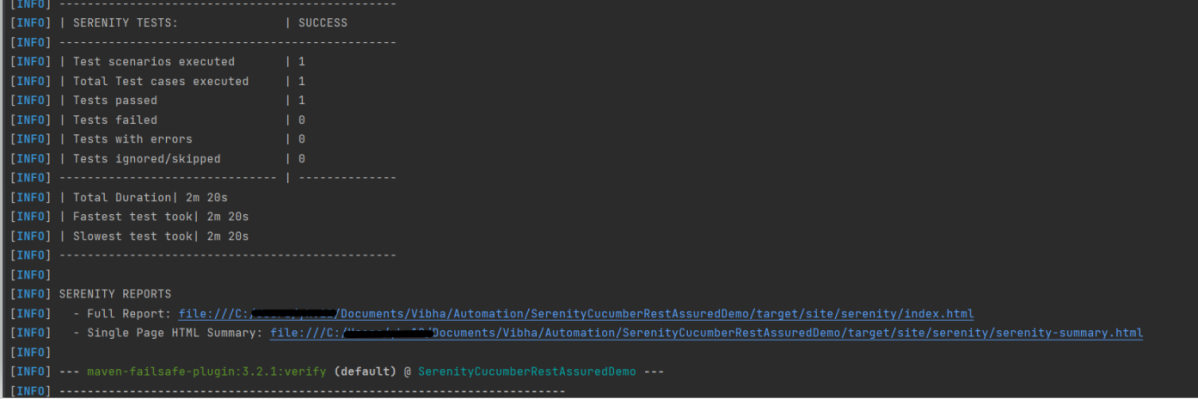
Test Execution Page looks like this as shown below image

Step 9 – Verify the Serenity Reports

A number of reports are generated, but we are concerned about index.html and serenity-summary.html.

The report is well-formatted and contains consolidated results. Reporting is one of the major pillars of Serenity. Serenity Report not only reports on whether a test scenario passes or fails but documents what it did, in a step-by-step narrative format. The below pic illustrates the test results for our first acceptance criteria:

The test report generated by Serenity is placed under target/site/serenity/index.html. 

Index.html

The first tab is called “Overall Test Results” and it provides information about test statistics. This Overall Test Result shows the Scenario Results (No Of Test Cases Pass, No Of Test Cases Failed, No of Test Cases Pending, No Of Test Cases Ignored, No Of Test Cases Skipped). 

In the below pic, the report shows the test scenario steps status and time taken for each step to execute. 

With the use of the REST Query button, it’s possible to display query details. Visible details:

Path, Status code, Request Headers, Request Body, Request Cookies, Response Headers, Response Body.

There is also the “Requirements” tab. When we have tests as part of our code base, all test results will be organized as associated with requirements. 

There is also a “Features” tab. This page lists all the features that are part of your suite.  If you expand that row you’ll see the bit of narrative text that is part of the current feature file. 

Serenity-Summary.html

We are done! Congratulations on making it through this tutorial and hope you found it useful! Happy Learning!!

Additional Tutorials:

Serenity BDD with Cucumber for Web Application
Serenity BDD with Cucumber for SpringBoot Application
How to manage screenshots in Serenity Report
Serenity Report for Web Application with Cucumber6 and Junit
 Integration of Serenity with Cucumber6 and JUnit5
Serenity BDD with Gradle and Cucumber for Web Application

Parallel Execution of Cucumber with Serenity and JUnit5

HOME

In the previous tutorial, I explained the Serenity BDD with Cucumber for Web Application using Junit4. In this tutorial, I will explain the parallel execution of Cucumber Scenarios with Serenity and JUnit5. This tutorial gives a clear picture of the initial setup of a BDD Framework.

Starting with version 3.6.0 is possible to run the Cucumber scenarios in parallel.

We need to mention these in the junit-platform.properties to run the Cucumber scenarios parallelly.

cucumber.execution.parallel.enabled=true
cucumber.execution.parallel.config.strategy=fixed
cucumber.execution.parallel.config.fixed.parallelism=2
cucumber.plugin=io.cucumber.core.plugin.SerenityReporterParallel

Dependency List:

  1. Serenity – 4.0.18
  2. Serenity Cucumber – 4.0.18
  3. JUnit Jupiter – 5.9.2
  4. Java 17
  5. Maven – 3.8.1
  6. Maven Compiler Plugin – 3.11.0
  7. Maven Surefire Plugin – 3.2.1
  8. Maven FailSafe Plugin – 3.2.1

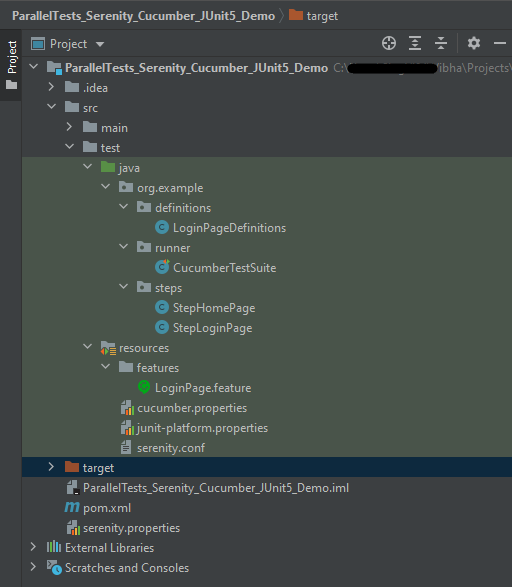
Project Structure

Step 1- Download and Install Java

Click here to know How to install Java.

Step 2 – Download and setup Eclipse IDE on the system

The Eclipse IDE (integrated development environment) provides strong support for Java developers which is needed to write Java code. Click here to know How to install Eclipse.

Step 3 – Setup Maven and create a new Maven Project

Click here to know How to install Maven.

Click here to know How to create a Maven project

Below is the Maven project structure. Here,

Group Id – org.example
Artifact Id – ParallelTests_Serenity_Cucumber_Junit5_Demo
Version – 0.0.1-SNAPSHOT
Package – org.example. ParallelTests_Serenity_Cucumber_Junit5_Demo

Step 4 – Update Properties section in Maven pom.xml

 <properties>
        <project.build.sourceEncoding>UTF-8</project.build.sourceEncoding>
        <serenity.version>4.0.18</serenity.version>
        <serenity.cucumber.version>4.0.18</serenity.cucumber.version>
        <junit.platform.version>1.10.0</junit.platform.version>
        <cucumber.version>7.14.0</cucumber.version>
        <maven.compiler.plugin.version>3.11.0</maven.compiler.plugin.version>
        <maven.compiler.source>17</maven.compiler.source>
        <maven.compiler.target>17</maven.compiler.target>
        <maven.surefire.plugin.version>3.2.1</maven.surefire.plugin.version>
        <maven.failsafe.plugin.version>3.2.1</maven.failsafe.plugin.version>
    </properties>

Step 5 – Add dependencies to POM.xml

<dependencies>

        <dependency>
            <groupId>net.serenity-bdd</groupId>
            <artifactId>serenity-core</artifactId>
            <version>${serenity.version}</version>
            <scope>test</scope>
        </dependency>

        <dependency>
            <groupId>net.serenity-bdd</groupId>
            <artifactId>serenity-junit5</artifactId>
            <version>${serenity.version}</version>
        </dependency>

        <dependency>
            <groupId>net.serenity-bdd</groupId>
            <artifactId>serenity-screenplay</artifactId>
            <version>${serenity.version}</version>
            <scope>test</scope>
        </dependency>

        <dependency>
            <groupId>net.serenity-bdd</groupId>
            <artifactId>serenity-cucumber</artifactId>
            <version>${serenity.version}</version>
            <scope>test</scope>
        </dependency>

        <dependency>
            <groupId>io.cucumber</groupId>
            <artifactId>cucumber-junit-platform-engine</artifactId>
            <version>${cucumber.version}</version>
            <scope>test</scope>
        </dependency>

        <dependency>
            <groupId>org.junit.platform</groupId>
            <artifactId>junit-platform-suite</artifactId>
            <version>${junit.platform.version}</version>
            <scope>test</scope>
        </dependency>

    </dependencies>

Step 6 – Update the Build Section of pom.xml

 <build>
        <plugins>
            <plugin>
                <groupId>org.apache.maven.plugins</groupId>
                <artifactId>maven-surefire-plugin</artifactId>
                <version>${maven.surefire.plugin.version}</version>
                <configuration>
                    <skip>true</skip>
                </configuration>
            </plugin>
            <plugin>
                <groupId>org.apache.maven.plugins</groupId>
                <artifactId>maven-failsafe-plugin</artifactId>
                <version>${maven.failsafe.plugin.version}</version>
                <configuration>
                    <includes>
                        <include>**/*.java</include>
                    </includes>
                    <parallel>methods</parallel>
                    <useUnlimitedThreads>true</useUnlimitedThreads>
                </configuration>
                <executions>
                    <execution>
                        <goals>
                            <goal>integration-test</goal>
                            <goal>verify</goal>
                        </goals>
                    </execution>
                </executions>
            </plugin>
            <plugin>
                <groupId>org.apache.maven.plugins</groupId>
                <artifactId>maven-compiler-plugin</artifactId>
                <version>${maven.compiler.plugin.version}</version>
                <configuration>
                    <source>${maven.compiler.source}</source>
                    <target>${maven.compiler.target}</target>
                </configuration>
            </plugin>
            <plugin>
                <groupId>net.serenity-bdd.maven.plugins</groupId>
                <artifactId>serenity-maven-plugin</artifactId>
                <version>${serenity.version}</version>
                <dependencies>
                    <dependency>
                        <groupId>net.serenity-bdd</groupId>
                        <artifactId>serenity-single-page-report</artifactId>
                        <version>${serenity.version}</version>
                    </dependency>
                </dependencies>
                <configuration>
                    <reports>single-page-html</reports>
                </configuration>
                <executions>
                    <execution>
                        <id>serenity-reports</id>
                        <phase>post-integration-test</phase>
                        <goals>
                            <goal>aggregate</goal>
                        </goals>
                    </execution>
                </executions>
            </plugin>
        </plugins>
    </build>

The complete POM.xml looks like as shown below:

<?xml version="1.0" encoding="UTF-8"?>
<project xmlns="http://maven.apache.org/POM/4.0.0"
         xmlns:xsi="http://www.w3.org/2001/XMLSchema-instance"
         xsi:schemaLocation="http://maven.apache.org/POM/4.0.0 http://maven.apache.org/xsd/maven-4.0.0.xsd">
    <modelVersion>4.0.0</modelVersion>

    <groupId>org.example</groupId>
    <artifactId>ParallelTests_Serenity_Cucumber_JUnit5_Demo</artifactId>
    <version>1.0-SNAPSHOT</version>

    <properties>
        <project.build.sourceEncoding>UTF-8</project.build.sourceEncoding>
        <serenity.version>4.0.18</serenity.version>
        <serenity.cucumber.version>4.0.18</serenity.cucumber.version>
        <junit.platform.version>1.10.0</junit.platform.version>
        <cucumber.version>7.14.0</cucumber.version>
        <maven.compiler.plugin.version>3.11.0</maven.compiler.plugin.version>
        <maven.compiler.source>17</maven.compiler.source>
        <maven.compiler.target>17</maven.compiler.target>
        <maven.surefire.plugin.version>3.2.1</maven.surefire.plugin.version>
        <maven.failsafe.plugin.version>3.2.1</maven.failsafe.plugin.version>
    </properties>

    <dependencies>

        <dependency>
            <groupId>net.serenity-bdd</groupId>
            <artifactId>serenity-core</artifactId>
            <version>${serenity.version}</version>
            <scope>test</scope>
        </dependency>

        <dependency>
            <groupId>net.serenity-bdd</groupId>
            <artifactId>serenity-junit5</artifactId>
            <version>${serenity.version}</version>
        </dependency>

        <dependency>
            <groupId>net.serenity-bdd</groupId>
            <artifactId>serenity-screenplay</artifactId>
            <version>${serenity.version}</version>
            <scope>test</scope>
        </dependency>

        <dependency>
            <groupId>net.serenity-bdd</groupId>
            <artifactId>serenity-cucumber</artifactId>
            <version>${serenity.version}</version>
            <scope>test</scope>
        </dependency>

        <dependency>
            <groupId>io.cucumber</groupId>
            <artifactId>cucumber-junit-platform-engine</artifactId>
            <version>${cucumber.version}</version>
            <scope>test</scope>
        </dependency>

        <dependency>
            <groupId>org.junit.platform</groupId>
            <artifactId>junit-platform-suite</artifactId>
            <version>${junit.platform.version}</version>
            <scope>test</scope>
        </dependency>

    </dependencies>

    <build>
        <plugins>
            <plugin>
                <groupId>org.apache.maven.plugins</groupId>
                <artifactId>maven-surefire-plugin</artifactId>
                <version>${maven.surefire.plugin.version}</version>
                <configuration>
                    <skip>true</skip>
                </configuration>
            </plugin>
            <plugin>
                <groupId>org.apache.maven.plugins</groupId>
                <artifactId>maven-failsafe-plugin</artifactId>
                <version>${maven.failsafe.plugin.version}</version>
                <configuration>
                    <includes>
                        <include>**/*.java</include>
                    </includes>
                    <parallel>methods</parallel>
                    <useUnlimitedThreads>true</useUnlimitedThreads>
                </configuration>
                <executions>
                    <execution>
                        <goals>
                            <goal>integration-test</goal>
                            <goal>verify</goal>
                        </goals>
                    </execution>
                </executions>
            </plugin>
            <plugin>
                <groupId>org.apache.maven.plugins</groupId>
                <artifactId>maven-compiler-plugin</artifactId>
                <version>${maven.compiler.plugin.version}</version>
                <configuration>
                    <source>${maven.compiler.source}</source>
                    <target>${maven.compiler.target}</target>
                </configuration>
            </plugin>
            <plugin>
                <groupId>net.serenity-bdd.maven.plugins</groupId>
                <artifactId>serenity-maven-plugin</artifactId>
                <version>${serenity.version}</version>
                <dependencies>
                    <dependency>
                        <groupId>net.serenity-bdd</groupId>
                        <artifactId>serenity-single-page-report</artifactId>
                        <version>${serenity.version}</version>
                    </dependency>
                </dependencies>
                <configuration>
                    <reports>single-page-html</reports>
                </configuration>
                <executions>
                    <execution>
                        <id>serenity-reports</id>
                        <phase>post-integration-test</phase>
                        <goals>
                            <goal>aggregate</goal>
                        </goals>
                    </execution>
                </executions>
            </plugin>
        </plugins>
    </build>
</project>

Step 7 – Create a feature file in src/test/resources

The purpose of the Feature keyword is to provide a high-level description of a software feature and to group related scenarios. To know more about the Feature files, please refer this tutorial.

Feature: Login to HRM

  @ValidCredentials
  Scenario: Login with valid credentials

    Given User is on Home page
    When User enters username as "Admin"
    And User enters password as "admin123"
    Then User should be able to login successfully

  @InValidCredentials
  Scenario: Login with invalid credentials

    Given User is on Home page
    When User enters username as "Admin1"
    And User enters password as "Admin123"
    Then User should be able to see error message "Invalid credentials"

  @BlankUsername
  Scenario: Login with blank username

    Given User is on Home page
    When User enters username as ""
    And User enters password as "Admin123"
    Then User should be able to see error message "Required" below username

Step 8 – Create the Step pages for StepDefinition class

In Serenity, tests are broken down into reusable steps. An important principle behind Serenity is the idea that it is easier to maintain a test that uses several layers of abstraction to hide the complexity behind different parts of a test. So, in Step class, we will declare the locators of the web elements and the actions performed on these web elements.

There are multiple ways to identify a web element on the web page – one of the ways is to use @FindBy or $(By.).

I prefer to use @FindBy as I do need not to find the same element multiple times. Using @FindBy, I have identified a web element and defined a WebElementFacacde for the same which is reusable.

StepLoginPage

import net.serenitybdd.core.pages.PageObject;
import net.serenitybdd.core.pages.WebElementFacade;
import net.thucydides.core.annotations.Step;
import org.openqa.selenium.support.FindBy;

public class StepLoginPage extends PageObject {

    @FindBy(name = "username")
    WebElementFacade username;

    @FindBy(name = "password")
    WebElementFacade password;

    @FindBy(xpath = "//*[@id='app']/div[1]/div/div[1]/div/div[2]/div[2]/form/div[3]/button")
    WebElementFacade submitButton;

    @FindBy(xpath = "//*[@id='app']/div[1]/div/div[1]/div/div[2]/div[2]/div/div[1]/div[1]/p")
    WebElementFacade errorMessage;

    @FindBy(xpath = "//*[@id='app']/div[1]/div/div[1]/div/div[2]/div[2]/form/div[1]/div/span")
    WebElementFacade missingUsername;

    @Step("Enter Username")
    public void inputUserName(String userName) {
        username.sendKeys((userName));
    }

    @Step("Enter Password")
    public void inputPassword(String passWord) {
        password.sendKeys((passWord));
    }

    @Step("Click Submit Button")
    public void clickLogin() {
        submitButton.click();
    }

    @Step("Error Message on unsuccessful login")
    public String errorMessage() {
        String actualErrorMessage = errorMessage.getText();
        return actualErrorMessage;
    }

    @Step("Error Message for missing username")
    public String missingUsernameErrorMessage() {
        String actualErrorMessage = missingUsername.getText();
        return actualErrorMessage;
    }

}

StepHomePage

import net.serenitybdd.core.pages.PageObject;
import net.serenitybdd.core.pages.WebElementFacade;
import net.thucydides.core.annotations.Step;
import org.openqa.selenium.support.FindBy;

public class StepHomePage extends PageObject {

    @FindBy(xpath = "//*[@id='app']/div[1]/div[1]/header/div[1]/div[1]/span/h6")
    WebElementFacade dashboardText;

    @Step("Successful login")
    public String getHomPageTitle() {
        String dashboardTitle = dashboardText.getText();
       return dashboardTitle;


    }
}

Step 9 – Create the Step Definition class or Glue Code

A Step Definition is a Java method with an expression that links it to one or more Gherkin steps. When Cucumber executes a Gherkin step in a scenario, it will look for a matching step definition to execute. You can have all of your step definitions in one file, or in multiple files.

LoginPageDefinitions

package org.example.definitions;

import io.cucumber.java.en.Given;
import io.cucumber.java.en.Then;
import io.cucumber.java.en.When;
import net.serenitybdd.annotations.Steps;
import org.example.steps.StepHomePage;
import org.example.steps.StepLoginPage;
import static org.junit.jupiter.api.Assertions.*;

public class LoginPageDefinitions {

    @Steps
    StepLoginPage loginPage;

    @Steps
    StepHomePage homePage;

    @Given("User is on Home page")
    public void openApplication() {
        loginPage.open();

    }

    @When("User enters username as {string}")
    public void enterUsername(String userName) {
        loginPage.inputUserName(userName);
    }

    @When("User enters password as {string}")
    public void enterPassword(String passWord) {
        loginPage.inputPassword(passWord);

        loginPage.clickLogin();
    }

    @Then("User should be able to login successfully")
    public void clickOnLoginButton() {

        assertTrue(homePage.getHomPageTitle().contains("Dashboard"));
    }

    @Then("User should be able to see error message {string}")
    public void unsuccessfulLogin(String expectedErrorMessage) {

        String actualErrorMessage = loginPage.errorMessage();
        assertEquals(expectedErrorMessage, actualErrorMessage);
    }

    @Then("User should be able to see error message {string} below username")
    public void missingUsername (String expectedErrorMessage) {

        String actualErrorMessage = loginPage.missingUsernameErrorMessage();
        assertEquals(expectedErrorMessage, actualErrorMessage);
    }

}

Assertions in JUnit-Jupiter are imported from the below package:-

import static org.junit.jupiter.api.Assertions.*;

Step 10 – Create a Serenity-Cucumber Runner class

Cucumber runs the feature files via JUnit and needs a dedicated test runner class to actually run the feature files.

import static io.cucumber.junit.platform.engine.Constants.GLUE_PROPERTY_NAME;
import org.junit.platform.suite.api.ConfigurationParameter;
import org.junit.platform.suite.api.IncludeEngines;
import org.junit.platform.suite.api.SelectClasspathResource;
import org.junit.platform.suite.api.Suite;

@Suite
@IncludeEngines("cucumber")
@SelectClasspathResource("org.example")
@SelectClasspathResource("/features")
@ConfigurationParameter(key = GLUE_PROPERTY_NAME, value = "org.example")
public class CucumberTestSuite {

}

Step 11 – Create cucumber.properties file under src/test/resources (optional)

This is an optional step. Cucumber of version 6.7 and above provides the functionality to generate a beautiful cucumber report. For this, it is needed to add a file cucumber.properties under src/test/resources.

cucumber.publish.enabled = true

Step 12 – Create junit-platform.properties in src/test/resources

cucumber.execution.parallel.enabled=true
cucumber.execution.parallel.config.strategy=fixed
cucumber.execution.parallel.config.fixed.parallelism=3
cucumber.plugin=io.cucumber.core.plugin.SerenityReporterParallel

Step 13 – Create serenity.conf file under src/test/resources

The serenity configuration file is used to configure the drivers so the test cases can run successfully. This file contains an operating system-specific binary. The binary file sits between your test and the browser. It acts as an intermediary, an interface between your tests and the browser you are using.

You can also configure the webdriver.base.url property for different environments in the serenity.conf configuration file.

webdriver {
    driver = chrome
}

serenity.browser.maximized = true

#
# Define drivers for different platforms. Serenity will automatically pick the correct driver for the current platform
#

environments {
  default {
    webdriver.base.url = "https://opensource-demo.orangehrmlive.com/"
  }
  dev {
    webdriver.base.url = "https://opensource-demo.orangehrmlive.com/dev"
  }
  staging {
    webdriver.base.url = "https://opensource-demo.orangehrmlive.com/staging"
  }
  prod {
    webdriver.base.url = "https://opensource-demo.orangehrmlive.com/prod"
  }
}

Step 14 – Create serenity.properties file at the root of the project

serenity.project.name = Parallel Execution of Cucumber Scenarios with Serenity

Step 15 – Run the tests from Command Line

Open the command line and go to the location where the pom.xml of the project is present and type the below command.

mvn clean verify

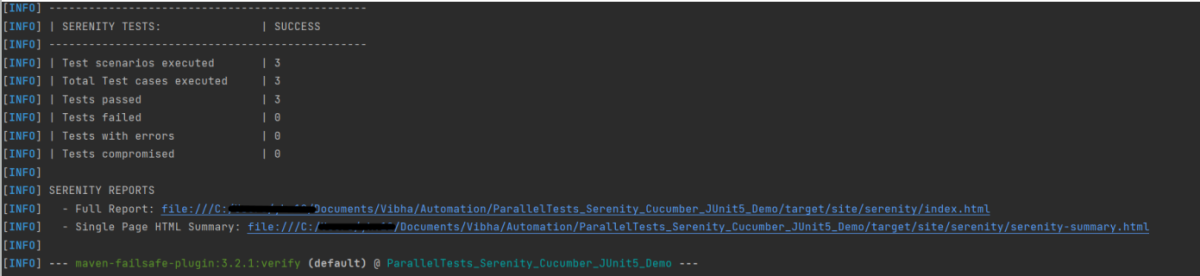
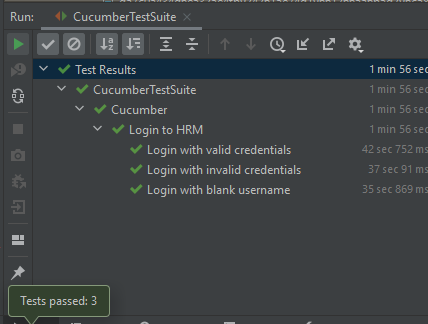
Below is the test result of the test execution.

Step 16 – Run the tests from CucumberRunner

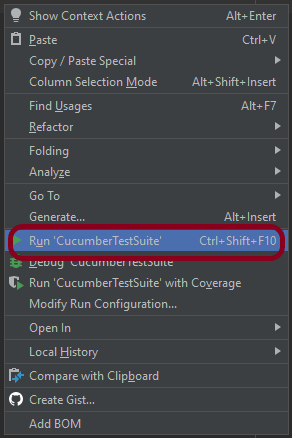
Right-click on the Ruuner class (CucumberTestSuite) and select Run ‘CucumberTestSuite’. (This is an image of IntelliJ Runner class).

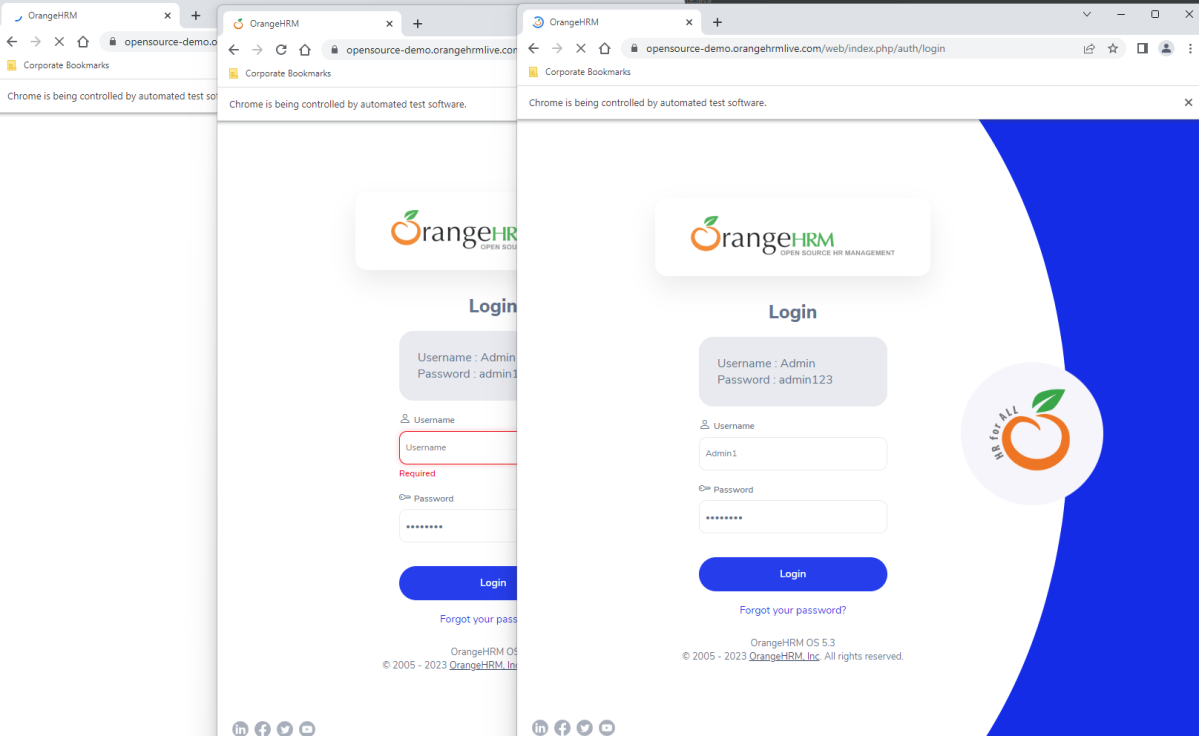
The below image shows that 3 browsers open simultaneously.

Below is the test result of the test execution.

Step 17 – Serenity Report Generation

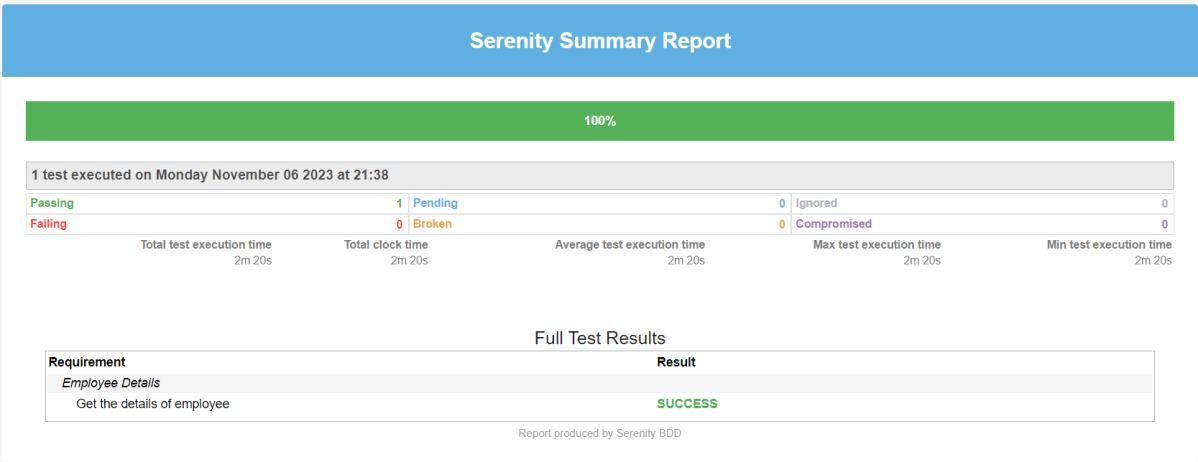
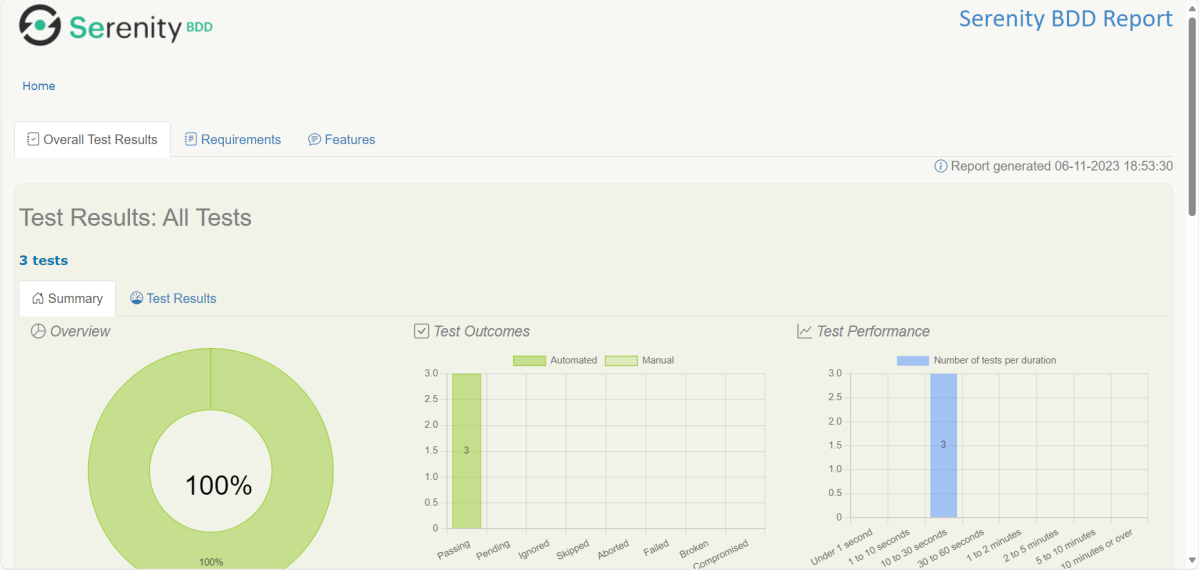
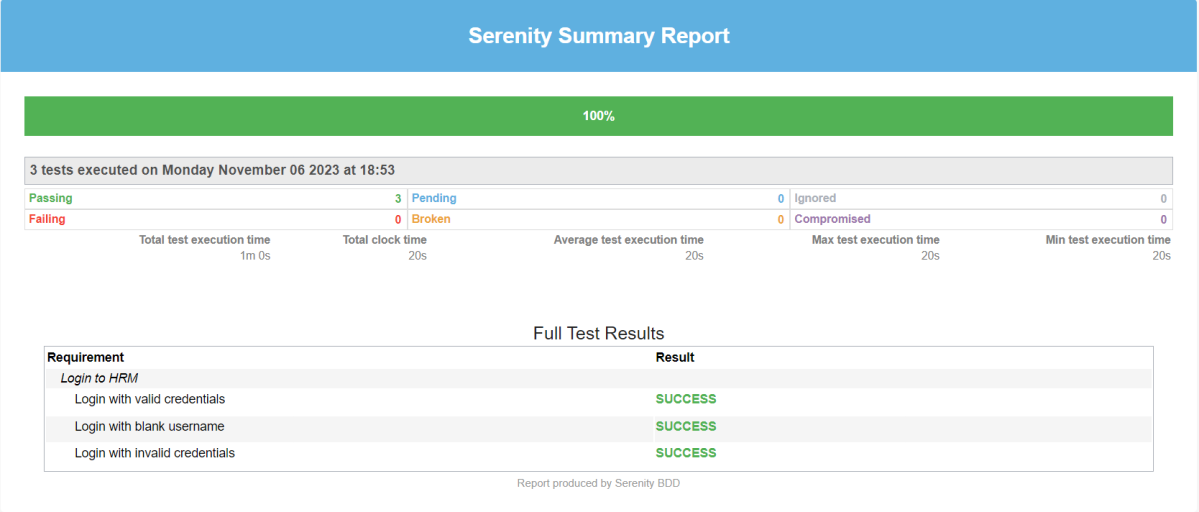
The best part about Serenity is the report generation by it. The Reports contain all possible types of information, you can think of with minimal extra effort. There is multiple types of reports are generated. We are interested in index.html and serenity-summary.html. To know more about Serenity Reports, please refer to tutorials for Index.html and Serenity-Summary.html. Below is the new Serenity Report.

Index.html

serenity-summary.html

If you want to control the number of browsers open in the test, then add the below-mentioned parameters in the junit-platform.properties:

cucumber.execution.parallel.config.fixed.parallelism=2
cucumber.execution.parallel.config.fixed.max-pool-size=2

Here, count=3 is the number of browsers that will open.

Please also remove <useUnlimitedThreads>true</useUnlimitedThreads> from pom.xml.

Note: While .fixed.max-pool-size effectively limits the maximum number of concurrent threads, Cucumber does not guarantee that the number of concurrently executing scenarios will not exceed this. This is from JUnit-Platform documentation.

We are done! Congratulations on making it through this tutorial and hope you found it useful! Happy Learning!!

You can see this framework in GitHub.

Serenity BDD Tutorials

HOME

Serenity BDD is an open-source library that aims to make the idea of living documentation a reality.
Serenity BDD helps you write cleaner and more maintainable automated acceptance and regression tests faster. Serenity also uses the test results to produce illustrated, narrative reports that document and describe what your application does and how it works. Serenity tells you not only what tests have been executed, but more importantly, what requirements have been tested

Basics of Serenity

Chapter 1 How to run Serenity BDD tests in Chrome Browser
Chapter 2 How to run Serenity BDD tests in Edge Browser
Chapter 3 Testing of Web Application using Serenity with JUnit4
Chapter 4 Integration of Serenity with JUnit5
Chapter 5 Manual Tests in Serenity with JUnit5
Chapter 6 Integration of Serenity with Rest Assured
Chapter 7 Data Driven Tests in Serenity with JUnit
Chapter 8 Data Driven Tests using CSV file in Serenity
Chapter 9 Implicit Wait in Serenity
Chapter 10 Explicit Wait in Serenity
Chapter 11 Fluent Wait in Serenity – NEW
Chapter 12 Serenity Testing on Different Browsers – NEW

Serenity with Cucumber

Chapter 1 Serenity BDD with Cucumber and JUnit4 for Web Application
Chapter 2 Serenity BDD with Cucumber for SpringBoot Application
Chapter 3 Serenity BDD with Cucumber and Rest Assured
Chapter 4 Testing of SpringBoot REST Application using Rest Assured for GET Method
Chapter 5 Serenity Report for Web Application with Cucumber6 and Junit
Chapter 6 Integration of Serenity with Cucumber and JUnit5
 Chapter 7 Testing of SpringBoot Application with Serenity BDD, Cucumber and JUnit5 – NEW

Serenity Reports

Chapter 1 Serenity Report for Web Application with Cucumber6 and Junit
Chapter 2 Serenity Emailable HTML Report
Chapter 3 Serenity Emailable Report in Gradle
Chapter 4 How to report Manual Tests in Serenity Report
Chapter 5 How to attach Test Evidence to Manual Tests in Serenity Report
Chapter 6 How to manage screenshots in Serenity Report
Chapter 7 How to generate Serenity Report in customized path

Serenity with Gradle

Chapter 1 Serenity BDD with Gradle and Cucumber for Web Application
Chapter 2 Serenity BDD with Cucumber and Rest Assured in Gradle

Serenity with CI/CD

Chapter 1 Serenity with Jenkins
Chapter 2 How to create Jenkins pipeline for Serenity tests
Chapter 3 How to run Serenity tests with GitHub Actions
Chapter 4 Run Serenity Tests in GitLab CI/CD

Parallel Testing

Chapter 1 Parallel Execution of Cucumber with Serenity and JUnit5

Integration Testing of SpringBoot Application with Serenity BDD, Cucumber and JUnit4

HOME

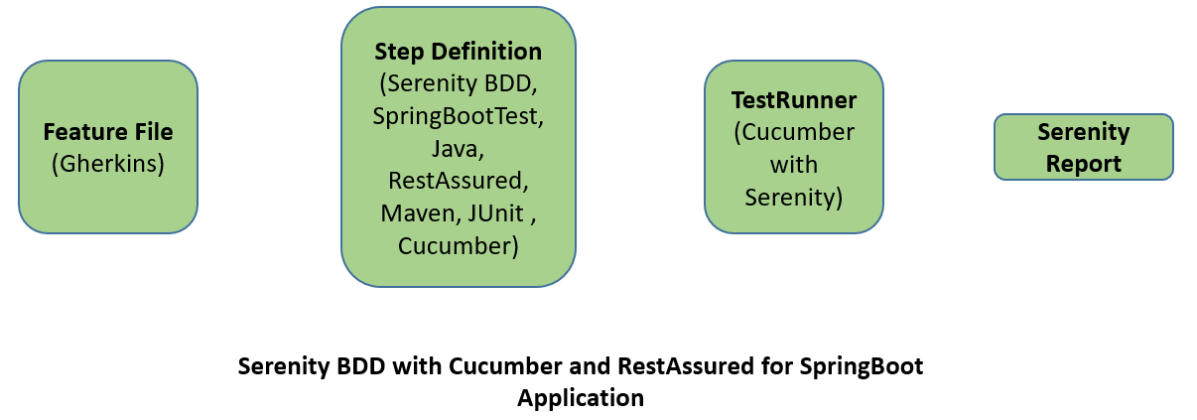
Relationship between SpringBoot, Serenity BDD, Cucumber and Rest Assured

Implementation Steps

  1. Create a source folder – src/test/resources to create test scenarios in the Feature file
  2. Add SpringBoot, Serenity, Cucumber, and JUnit4 dependencies to the project
  3. Create a feature file under src/test/resources
  4. Create the StepDefinition and Helper classes.
  5. Create a Serenity Runner class in the src/test/java directory
  6. Run the tests from JUnit
  7. Run the tests from Command Line
  8. Serenity Report Generation
  9. Cucumber Report Generation

Step 1 – Create a source folder – src/test/resources

Right-click on the test directory and select New->Directory and select resources (Maven Source Directories). Create a source folder – src/test/resources to create test scenarios in the Feature file

Step 2 – Add SpringBoot, Serenity, Cucumber, and JUnit4 dependencies to the project

We have added SpringBootTest, Serenity, Cucumber, JUnit4, and JUnit Vintage.

<?xml version="1.0" encoding="UTF-8"?>
<project xmlns="http://maven.apache.org/POM/4.0.0" xmlns:xsi="http://www.w3.org/2001/XMLSchema-instance"
         xsi:schemaLocation="http://maven.apache.org/POM/4.0.0 https://maven.apache.org/xsd/maven-4.0.0.xsd">
    <modelVersion>4.0.0</modelVersion>

    <parent>
        <groupId>org.springframework.boot</groupId>
        <artifactId>spring-boot-starter-parent</artifactId>
        <version>3.1.0-SNAPSHOT</version>
        <relativePath/> <!-- lookup parent from repository -->
    </parent>

    <groupId>com.example</groupId>
    <artifactId>Springboot_Serenity_Demo</artifactId>
    <version>0.0.1-SNAPSHOT</version>
    <name>Springboot_Serenity_Demo</name>
    <description>Demo project for Spring Boot</description>

    <properties>
        <java.version>11</java.version>
        <serenity.version>3.6.12</serenity.version>
        <maven.surefire.plugin.version>3.0.0-M9</maven.surefire.plugin.version>
        <maven.failsafe.plugin.version>3.0.0-M9</maven.failsafe.plugin.version>
        <parallel.tests></parallel.tests>
        <maven.compiler.plugin.plugin>3.10.1</maven.compiler.plugin.plugin>
        <maven.compiler.source.version>11</maven.compiler.source.version>
        <maven.compiler.target.version>11</maven.compiler.target.version>
        <tags></tags>
    </properties>

    <dependencies>
        <dependency>
            <groupId>org.springframework.boot</groupId>
            <artifactId>spring-boot-starter</artifactId>
        </dependency>

        <dependency>
            <groupId>org.springframework.boot</groupId>
            <artifactId>spring-boot-starter-test</artifactId>
            <scope>test</scope>
        </dependency>

        <dependency>
            <groupId>org.springframework.boot</groupId>
            <artifactId>spring-boot-starter-web</artifactId>
        </dependency>

        <dependency>
            <groupId>org.springframework.boot</groupId>
            <artifactId>spring-boot-starter-tomcat</artifactId>
            <scope>provided</scope>
        </dependency>

        <dependency>
            <groupId>org.springframework</groupId>
            <artifactId>spring-web</artifactId>
        </dependency>

		<!-- Serenity Core -->
        <dependency>
            <groupId>net.serenity-bdd</groupId>
            <artifactId>serenity-core</artifactId>
            <version>${serenity.version}</version>
            <scope>test</scope>
        </dependency>

		<!-- Serenity With JUnit4 -->
        <dependency>
            <groupId>net.serenity-bdd</groupId>
            <artifactId>serenity-junit</artifactId>
            <version>${serenity.version}</version>
            <scope>test</scope>
        </dependency>

		<!-- Serenity With Rest Assured -->
        <dependency>
            <groupId>net.serenity-bdd</groupId>
            <artifactId>serenity-rest-assured</artifactId>
            <version>${serenity.version}</version>
            <scope>test</scope>
        </dependency>

        <!-- Serenity With Cucumber -->
        <dependency>
            <groupId>net.serenity-bdd</groupId>
            <artifactId>serenity-cucumber</artifactId>
            <version>${serenity.version}</version>
            <scope>test</scope>
        </dependency>

        <!-- Serenity With Spring -->
        <dependency>
            <groupId>net.serenity-bdd</groupId>
            <artifactId>serenity-spring</artifactId>
            <version>${serenity.version}</version>
            <scope>test</scope>
        </dependency>

        <dependency>
            <groupId>org.junit.vintage</groupId>
            <artifactId>junit-vintage-engine</artifactId>
            <scope>test</scope>
        </dependency>

    </dependencies>

    <build>
        <plugins>
            <plugin>
                <groupId>org.springframework.boot</groupId>
                <artifactId>spring-boot-maven-plugin</artifactId>
            </plugin>

            <plugin>
                <groupId>org.apache.maven.plugins</groupId>
                <artifactId>maven-surefire-plugin</artifactId>
                <version>${maven.surefire.plugin.version}</version>
                <configuration>
                    <skip>true</skip>
                </configuration>
            </plugin>
            <plugin>
                <groupId>org.apache.maven.plugins</groupId>
                <artifactId>maven-failsafe-plugin</artifactId>
                <version>${maven.failsafe.plugin.version}</version>
                <configuration>
                    <includes>
                        <include>SpringRunnerTests.java</include>
                        <include>**/Test*.java</include>
                    </includes>
                    <parallel>methods</parallel>
                    <threadCount>${parallel.tests}</threadCount>
                    <forkCount>${parallel.tests}</forkCount>
                </configuration>
                <executions>
                    <execution>
                        <goals>
                            <goal>integration-test</goal>
                            <goal>verify</goal>
                        </goals>
                    </execution>
                </executions>
            </plugin>
            <plugin>
                <groupId>org.apache.maven.plugins</groupId>
                <artifactId>maven-compiler-plugin</artifactId>
                <version>${maven.compiler.plugin.plugin}</version>
                <configuration>
                    <source>${maven.compiler.source.version}</source>
                    <target>${maven.compiler.target.version}</target>
                </configuration>
            </plugin>

            <plugin>
                <groupId>net.serenity-bdd.maven.plugins</groupId>
                <artifactId>serenity-maven-plugin</artifactId>
                <version>${serenity.version}</version>
                <configuration>
                    <tags>${tags}</tags>
                </configuration>
                <dependencies>
                    <dependency>
                        <groupId>net.serenity-bdd</groupId>
                        <artifactId>serenity-core</artifactId>
                        <version>${serenity.version}</version>
                    </dependency>
                </dependencies>
                <executions>
                    <execution>
                        <id>serenity-reports</id>
                        <phase>post-integration-test</phase>
                        <goals>
                            <goal>aggregate</goal>
                        </goals>
                    </execution>
                </executions>
            </plugin>
        </plugins>
    </build>
    <repositories>
        <repository>
            <id>spring-milestones</id>
            <name>Spring Milestones</name>
            <url>https://repo.spring.io/milestone</url>
            <snapshots>
                <enabled>false</enabled>
            </snapshots>
        </repository>
        <repository>
            <id>spring-snapshots</id>
            <name>Spring Snapshots</name>
            <url>https://repo.spring.io/snapshot</url>
            <releases>
                <enabled>false</enabled>
            </releases>
        </repository>
    </repositories>
    <pluginRepositories>
        <pluginRepository>
            <id>spring-milestones</id>
            <name>Spring Milestones</name>
            <url>https://repo.spring.io/milestone</url>
            <snapshots>
                <enabled>false</enabled>
            </snapshots>
        </pluginRepository>
        <pluginRepository>
            <id>spring-snapshots</id>
            <name>Spring Snapshots</name>
            <url>https://repo.spring.io/snapshot</url>
            <releases>
                <enabled>false</enabled>
            </releases>
        </pluginRepository>
    </pluginRepositories>

</project>

Step 3 – Create a feature file under src/test/resources

Below is an example of a feature file which shows a sample test scenario.

Feature: SpringBoot Request
   
@ReceiveCorrectResponse

   Scenario Outline: Send a valid Request to get correct response
    Given I send a request to the URL "<url>"
    Then the response will return "<response>"

   Examples:
   | url             | response                   |
   | /               | Hello World, Spring Boot!  |
   | /qaautomation   | Hello QA Automation!       |

The test class mentioned below (AbstractRestAssuredHelper) contains integration tests for the spring boot rest controller mentioned. This test class:

  • uses @SpringBootTest annotation which loads the actual application context.
  • uses WebEnvironment.RANDOM_PORT to create and run the application at some random server port.
  • @LocalServerPort gets the reference of the port where the server has started. It helps in building the actual request URIs to mimic real client interactions.

Step 4 – Create the StepDefinition and Helper classes

Below is the code of the StepDefinition and Helper class. These classes are created in the src/test/java directory.

AbstractRestAssuredHelper

import org.springframework.boot.test.context.SpringBootTest;
import org.springframework.boot.test.web.server.LocalServerPort;
import io.restassured.RestAssured;
import io.restassured.specification.RequestSpecification;
import net.serenitybdd.rest.SerenityRest;
import org.springframework.boot.test.context.SpringBootTest.WebEnvironment;

@SpringBootTest(webEnvironment = WebEnvironment.RANDOM_PORT)
public abstract class AbstractRestAssuredHelper {
     private final static String BASE_URI = "http://localhost";
 
     @LocalServerPort
     private int port;
 
     protected void configureRestAssured() {
           RestAssured.baseURI = BASE_URI;
           RestAssured.port = port;    
 
     }

     protected RequestSpecification getAnonymousRequest() {
           configureRestAssured();
           return SerenityRest.given();
     }
}

This class sends the request and receives a response after performing the GET operation. Here, the validation of the response also takes place by asserting the expected and actual response

To use Rest-assured, Serenity provides the class SerenityRest

import org.junit.Assert;
import io.cucumber.java.en.Given;
import io.cucumber.java.en.Then;
import io.restassured.response.Response;
import net.serenitybdd.rest.SerenityRest;
import net.thucydides.core.annotations.Steps;

public class SpringBootDemoDefinitions {

	@Steps
    AbstractRestAssuredHelper helper;
    private Response response;

    @Given("I send a request to the URL {string}")
    public void iSendARequest(String endpoint) throws Exception  {
         response = helper.getAnonymousRequest().contentType("application/json")
                    .header("Content-Type", "application/json").when().get(endpoint);
    }

    @Then("the response will return {string}")
    public void extractResponse(String Expected ) {
          SerenityRest.restAssuredThat(response -> response.statusCode(200));
          String Actual = response.asString();    
          Assert.assertEquals(Expected, Actual); 
    }
}

Step 5 – Create a Serenity Runner class in the src/test/java directory

We cannot run a Feature file on its own in cucumber-based framework. We need to create a Java class that will run the Feature File. It is the starting point for JUnit to start executing the tests. TestRunner class is created under src/ test/javaWhen you run the tests with serenity, you use the CucumberWithSerenity test runner. If the feature files are not in the same package as the test runner class, you also need to use the @CucumberOptions class to provide the root directory where the feature files can be found.

import org.junit.runner.RunWith;
import io.cucumber.junit.CucumberOptions;
import net.serenitybdd.cucumber.CucumberWithSerenity;

@RunWith(CucumberWithSerenity.class)
@CucumberOptions(features = "src/test/resources", tags = "", glue = "com.example.Springboot_Serenity_Demo.definitions", publish = true)

public class SpringRunnerTests {

}

Step 6 – Run the tests from JUnit

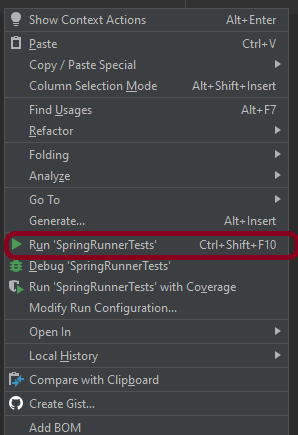
You can run the tests from SpringRunnerTests class. Right-click on the class and select Run ‘SpringRunnerTests’.

Step 7 – Run the tests from Command Line

Run the tests from the command line by using the below command

mvn clean verify

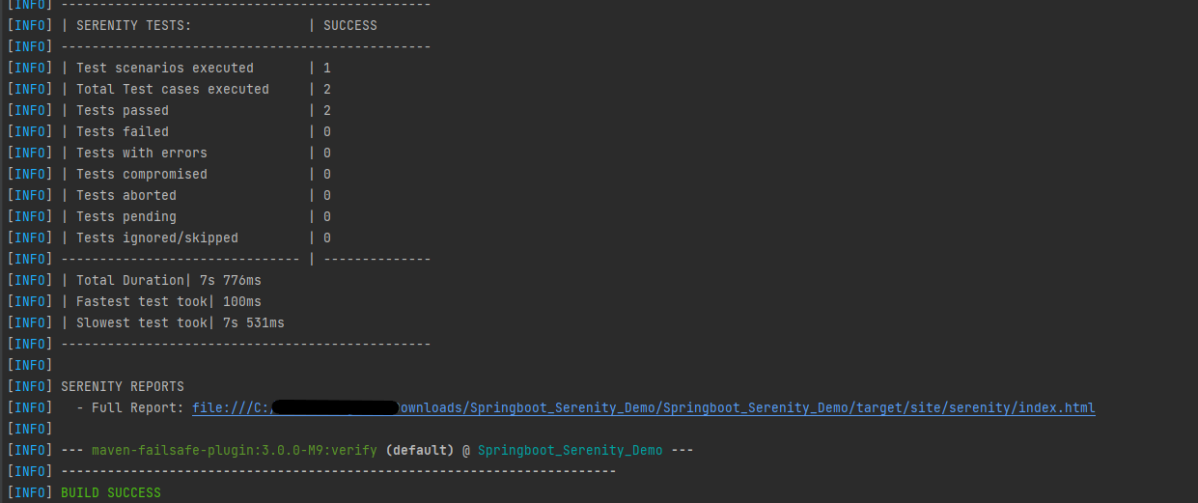
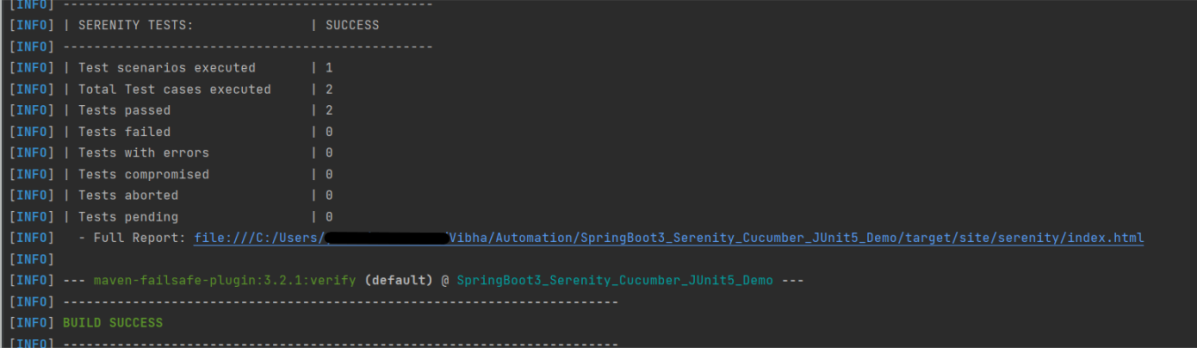
The output of the above program is

The test execution status is shown below:

Step 8 – Serenity Report Generation

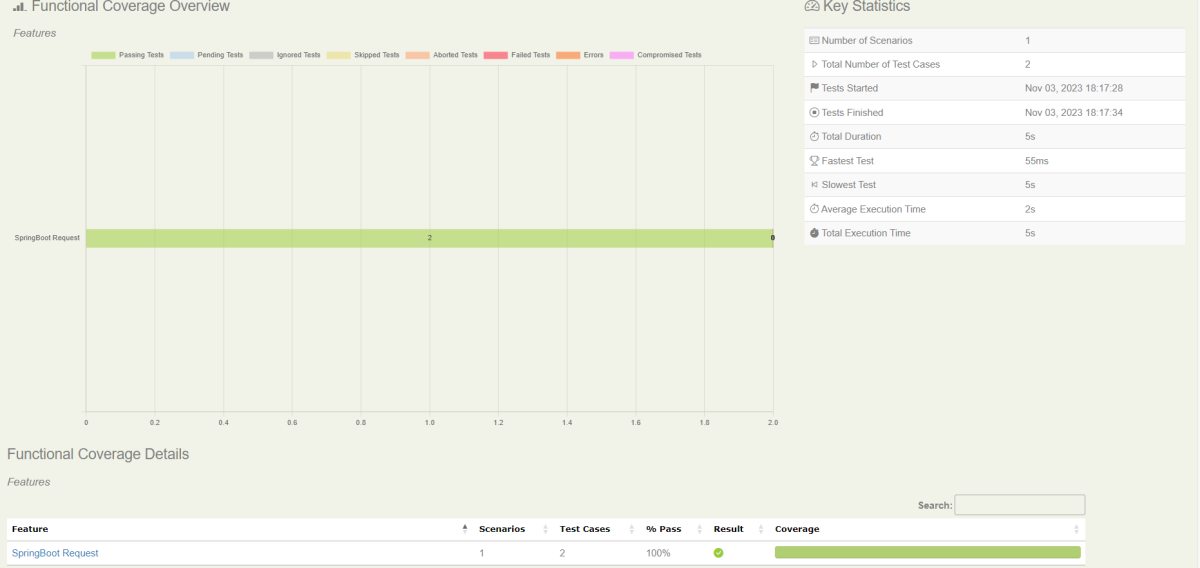
By default, the test report generated by Serenity is placed under target/site/serenity/index.html. Below is the sample Serenity Report.

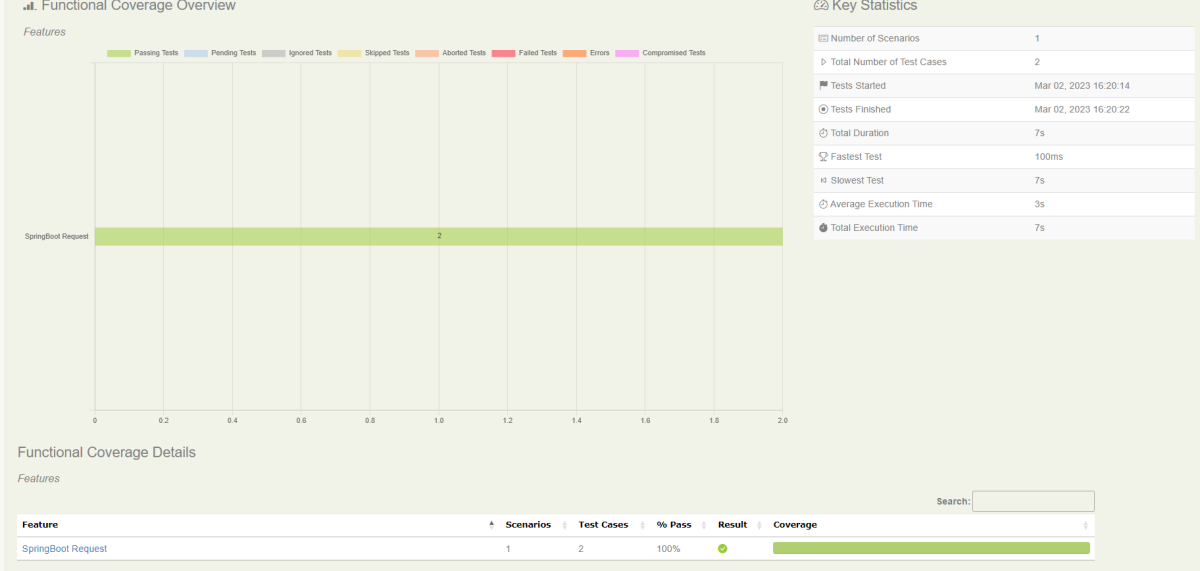
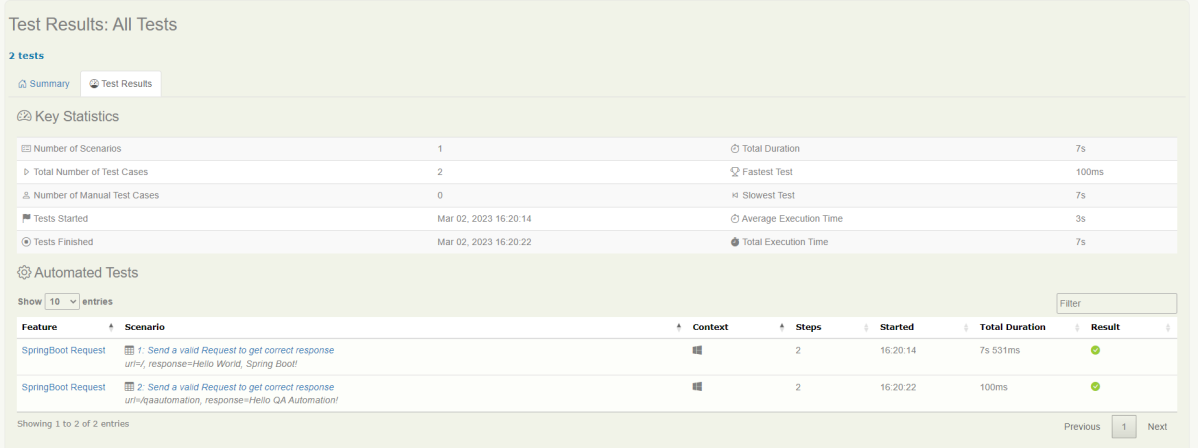
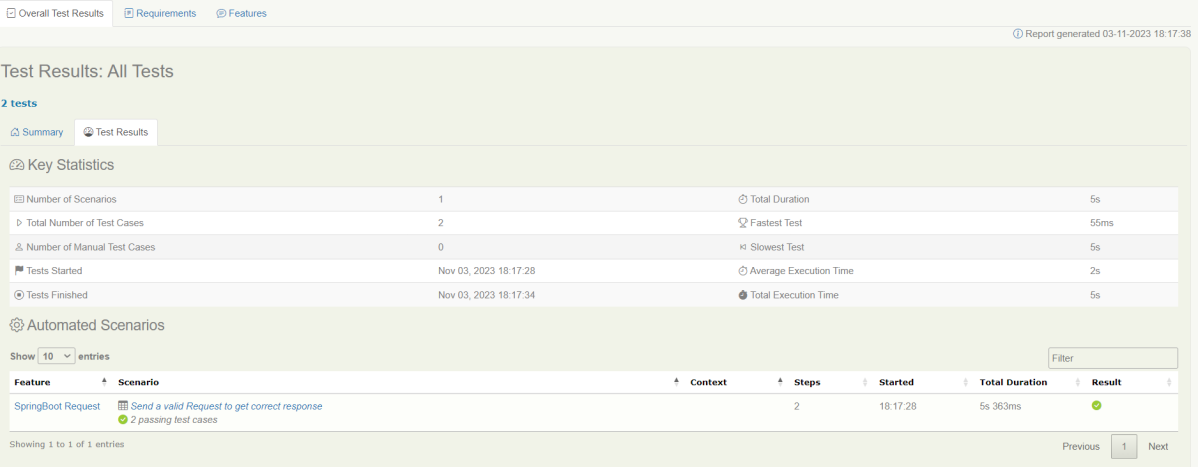
Go to the Test Results tab and we can see all the test scenarios.

Step 9 – Cucumber Report Generation

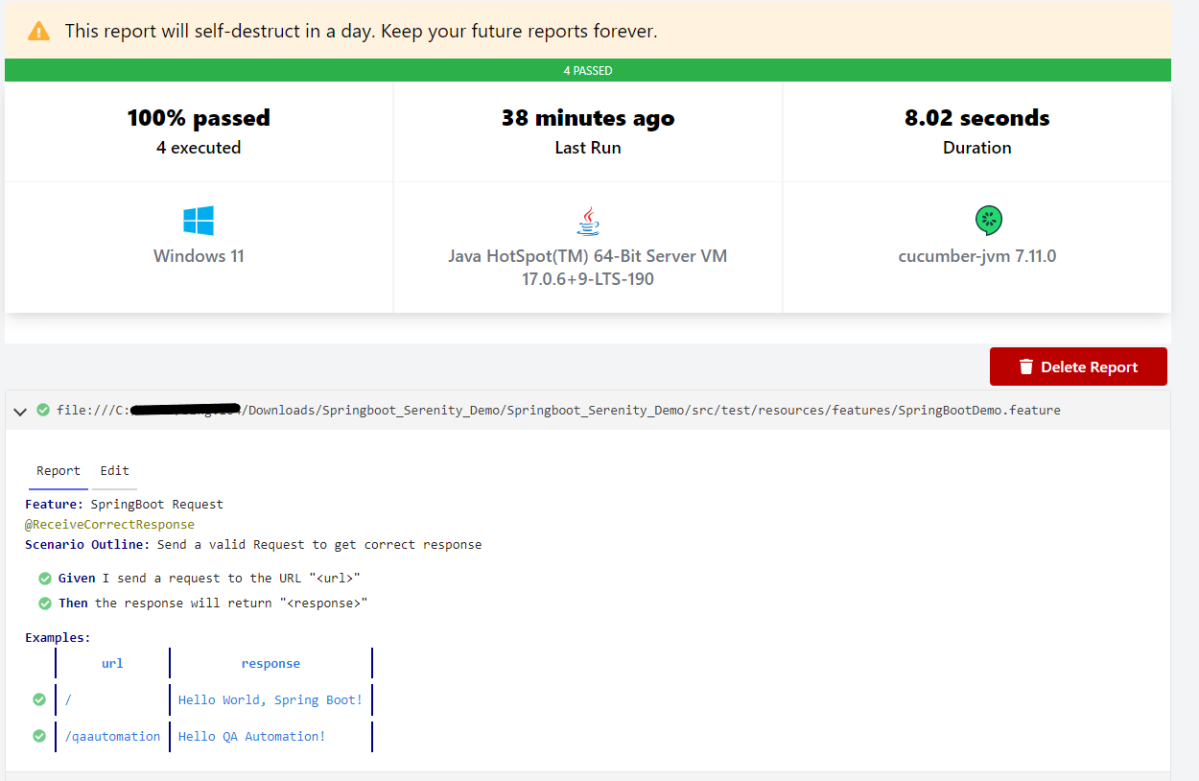
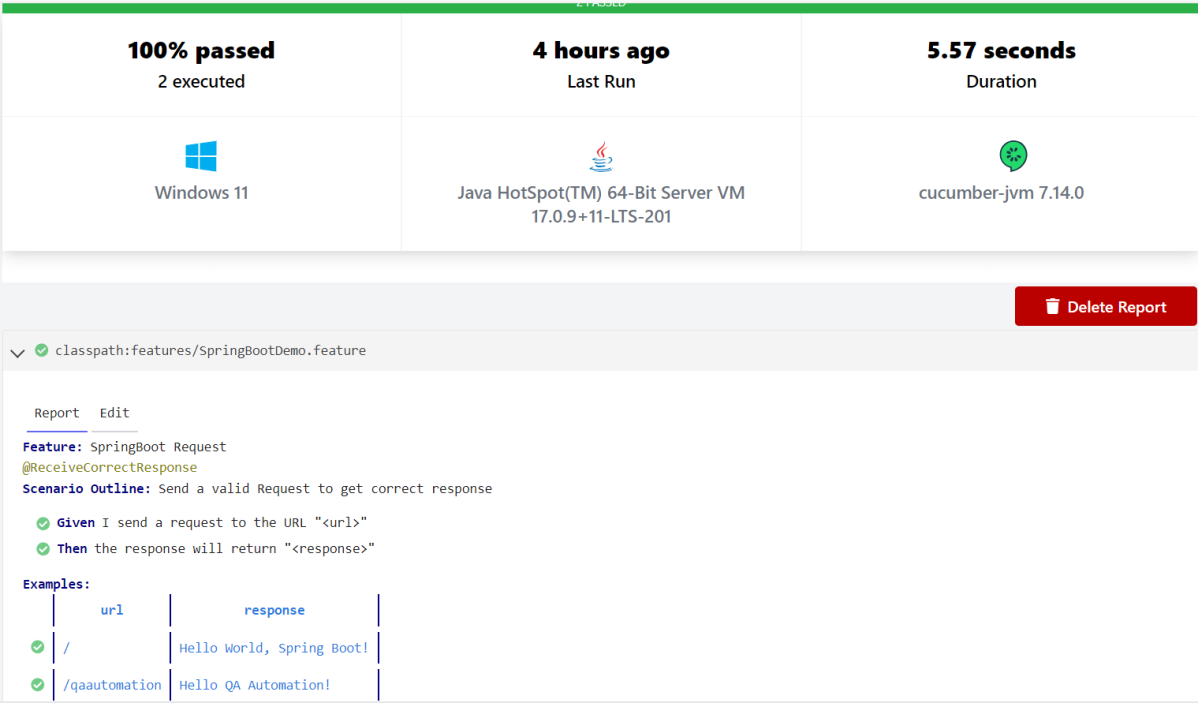
Cucumber Report can be generated by adding publish=true in SpringRunnerTests as shown in the above example. Click on the link provided in the execution status.

Cucumber Report

The next tutorial explains about the Testing of SpringBoot REST Application using Serenity BDD and Rest Assured for GET Method.

The complete code can be found in GitHub.

JUnit Tutorials

HOME

JUnit is an open source Unit Testing Framework for JAVA.
JUnit is a simple framework to write repeatable tests. It is an instance of the xUnit architecture for unit testing frameworks.

JUnit4

Chapter 1 How to configure Junit in Intellij
Chapter 2 How to run JUnit5 tests through Command Line
Chapter 3 JUnit4 Assertions
Chapter 4 How to Parameterize tests in JUnit4
Chapter 5 How to generate JUnit4 Report
Chapter 6 Integration of Cucumber with Selenium and JUnit
Chapter 7 Integration of Serenity with Cucumber6 and JUnit5
Chapter 8 Integration of Serenity with JUnit4
Chapter 9 Rest API Test in Cucumber BDD
Chapter 10 Difference between JUnit4 and JUnit5
Chapter 11 Integration of REST Assured with JUnit4

JUnit5

Chapter 1 JUnit5 Assertions Example
Chapter 2 Grouped Assertions in JUnit 5 – assertAll()
Chapter 3 How to Retry Test in JUnit5 – @RepeatedTest
Chapter 4 How to disable tests in JUnit5 – @Disabled
Chapter 5 How to run JUnit5 tests in order
Chapter 6 How to tag and filter JUnit5 tests – @Tag
Chapter 7 Assumptions in JUnit5
Chapter 8 How to parameterized Tests in JUnit5
Chapter 9 How to run parameterized Selenium test using JUnit5
Chapter 10 Testing of Web Application using Serenity with JUnit5
Chapter 11 Integration of Serenity with Cucumber6 and JUnit5
Chapter 12 How to generate JUnit5 Report – NEW

Gradle

Chapter 1 Gradle – Allure Report for Selenium and JUnit4
Chapter 2 Gradle Project with Cucumber, Selenium and JUnit4
Chapter 3 Gradle – Integration of Selenium and JUnit5

Testing of SpringBoot Application with Serenity BDD, Cucumber and JUnit5

HOME

In the previous tutorial, I explained about Integration Testing of Springboot with Cucumber and JUnit4. In this tutorial, I will explain the Testing of the SpringBoot Application in BDD format using Serenity Bdd and Cucumber and JUnit5.

What is Serenity BDD?

Serenity BDD is an open-source library that aims to make the idea of living documentation a reality.

Serenity BDD helps you write cleaner and more maintainable automated acceptance and regression tests faster. Serenity also uses the test results to produce illustrated, narrative reports that document and describe what your application does and how it works. Serenity tells you not only what tests have been executed, but more importantly, what requirements have been tested.

What is SpringBoot Application?

 Spring Boot is an open-source micro framework that provides Java developers with a platform to get started with an auto-configurable production-grade Spring application. 

  • Comes with embedded HTTP servers like Tomcat or Jettyto test web applications.
  • Adds many plugins that developers can use to work with embedded and in-memory databases easily. Spring allows you to easily connect with database and queue services like Oracle, PostgreSQL, MySQL, MongoDB, Redis, Solr, ElasticSearch, Rabbit MQ, and others.

  1. SpringBoot Starter Parent – 3.1.5
  2. Serenity –  4.0.18
  3. Serenity Cucumber – 4.0.18
  4. Serenity Rest Assured – 4.0.18
  5. Cucumber – 7.14.0
  6. Java 17
  7. JUnit Platform – 1.10.0
  8. Maven – 3.8.6

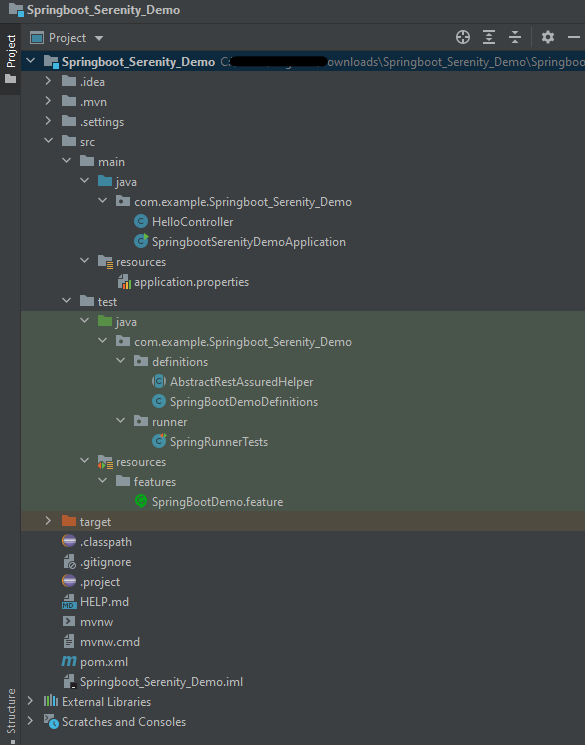
Project Directory Structure

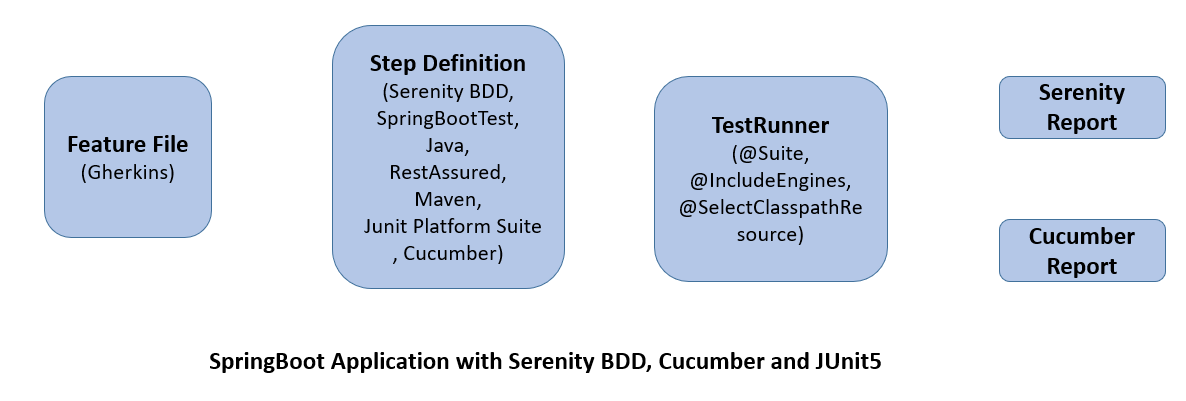
Relationship between SpringBoot, Serenity BDD, Cucumber, and JUnit5

What is RestController?

HTTP requests are handled by a controller in Spring’s approach to building RESTful web services. The @RestController annotation identifies these components, and the GreetingController shown below (from src/main/java/com/example/springboot_demo/HelloController.java) handles GET requests for / and /qaautomation by returning a new instance of the Greeting class. Spring RestController takes care of mapping request data to the request-defined handles method.

import org.springframework.web.bind.annotation.GetMapping;
import org.springframework.web.bind.annotation.RestController;
  
@RestController
public class HelloController {
      
    @GetMapping(path="/")
    String hello() {
        return "Hello World, Spring Boot!";
    }
      
      
    @GetMapping(path="/qaautomation")
    String qaautomation() {
        return "Hello QA Automation!";
    }
  
}

Implementation Steps

Step 1 – Create a source folder – src/test/resources 

Right-click on the test directory select New->Directory and select resources (Maven Source Directories).

Step 2 – Add SpringBoot, Serenity, Cucumber, and JUnit5 dependencies to the project

We have added SpringBootTest, Serenity, Cucumber, JUnit5, Cucumber Junit Platform Engine, and many more.

<?xml version="1.0" encoding="UTF-8"?>
<project xmlns="http://maven.apache.org/POM/4.0.0" xmlns:xsi="http://www.w3.org/2001/XMLSchema-instance"
	xsi:schemaLocation="http://maven.apache.org/POM/4.0.0 https://maven.apache.org/xsd/maven-4.0.0.xsd">
	<modelVersion>4.0.0</modelVersion>

	<parent>
		<groupId>org.springframework.boot</groupId>
		<artifactId>spring-boot-starter-parent</artifactId>
		<version>3.1.5</version>
		<relativePath/> <!-- lookup parent from repository -->
	</parent>

	<groupId>com.example</groupId>
	<artifactId>SpringBoot3_Serenity_Cucumber_JUnit5_Demo</artifactId>
	<version>0.0.1-SNAPSHOT</version>
	<name>demo</name>
	<description>Demo project for Spring Boot</description>

	<properties>
		<project.build.sourceEncoding>UTF-8</project.build.sourceEncoding>
		<serenity.version>4.0.18</serenity.version>
		<serenity.cucumber.version>4.0.18</serenity.cucumber.version>
		<junit.platform.version>1.10.0</junit.platform.version>
		<cucumber.version>7.14.0</cucumber.version>
		<maven.surefire.plugin.version>3.2.1</maven.surefire.plugin.version>
		<maven.failsafe.plugin.version>3.2.1</maven.failsafe.plugin.version>
		<parallel.tests></parallel.tests>
		<maven.compiler.plugin>3.11.0</maven.compiler.plugin>
		<maven.compiler.source.version>17</maven.compiler.source.version>
		<maven.compiler.target.version>17</maven.compiler.target.version>
		<encoding>UTF-8</encoding>
		<tags></tags>
	</properties>
	
	<dependencies>
		<dependency>
			<groupId>org.springframework.boot</groupId>
			<artifactId>spring-boot-starter</artifactId>
		</dependency>

		<dependency>
			<groupId>org.springframework.boot</groupId>
			<artifactId>spring-boot-starter-test</artifactId>
			<scope>test</scope>
		</dependency>

		<dependency>
			<groupId>org.springframework.boot</groupId>
			<artifactId>spring-boot-starter-web</artifactId>
		</dependency>

		<dependency>
			<groupId>org.springframework.boot</groupId>
			<artifactId>spring-boot-starter-tomcat</artifactId>
			<scope>provided</scope>
		</dependency>

		<dependency>
			<groupId>org.springframework</groupId>
			<artifactId>spring-web</artifactId>
		</dependency>

		<!-- Serenity Core -->
		<dependency>
			<groupId>net.serenity-bdd</groupId>
			<artifactId>serenity-core</artifactId>
			<version>${serenity.version}</version>
			<scope>test</scope>
		</dependency>

		<!-- Serenity With Cucumber -->
		<dependency>
			<groupId>net.serenity-bdd</groupId>
			<artifactId>serenity-cucumber</artifactId>
			<version>${serenity.version}</version>
			<scope>test</scope>
		</dependency>

		<dependency>
			<groupId>net.serenity-bdd</groupId>
			<artifactId>serenity-screenplay</artifactId>
			<version>${serenity.version}</version>
			<scope>test</scope>
		</dependency>

		<dependency>
			<groupId>net.serenity-bdd</groupId>
			<artifactId>serenity-screenplay-webdriver</artifactId>
			<version>${serenity.version}</version>
			<scope>test</scope>
		</dependency>

		<dependency>
			<groupId>net.serenity-bdd</groupId>
			<artifactId>serenity-ensure</artifactId>
			<version>${serenity.version}</version>
			<scope>test</scope>
		</dependency>

		<!-- Serenity With Rest Assured -->
		<dependency>
			<groupId>net.serenity-bdd</groupId>
			<artifactId>serenity-rest-assured</artifactId>
			<version>${serenity.version}</version>
			<scope>test</scope>
		</dependency>

		<!-- Serenity With Spring -->
		<dependency>
			<groupId>net.serenity-bdd</groupId>
			<artifactId>serenity-spring</artifactId>
			<version>${serenity.version}</version>
			<scope>test</scope>
		</dependency>

		<dependency>
			<groupId>io.cucumber</groupId>
			<artifactId>cucumber-junit-platform-engine</artifactId>
			<version>${cucumber.version}</version>
			<scope>test</scope>
		</dependency>

		<dependency>
			<groupId>org.junit.platform</groupId>
			<artifactId>junit-platform-suite</artifactId>
			<version>${junit.platform.version}</version>
			<scope>test</scope>
		</dependency>

	</dependencies>

	<build>
		<plugins>
			<plugin>
				<groupId>org.springframework.boot</groupId>
				<artifactId>spring-boot-maven-plugin</artifactId>
			</plugin>

				<plugin>
					<groupId>org.apache.maven.plugins</groupId>
					<artifactId>maven-surefire-plugin</artifactId>
					<version>${maven.surefire.plugin.version}</version>
					<configuration>
						<skip>true</skip>
					</configuration>
				</plugin>
				<plugin>
					<artifactId>maven-failsafe-plugin</artifactId>
					<version>${maven.failsafe.plugin.version}</version>
					<configuration>
						<includes>
							<include>**/*Test.java</include>
							<include>**/SpringRunnerTests.java</include>
							<include>**/*TestSuite.java</include>
							<include>**/When*.java</include>
						</includes>
						<parallel>classes</parallel>
						<parallel>methods</parallel>
						<useUnlimitedThreads>true</useUnlimitedThreads>
					</configuration>
					<executions>
						<execution>
							<goals>
								<goal>integration-test</goal>
								<goal>verify</goal>
							</goals>
						</execution>
					</executions>
				</plugin>
				<plugin>
					<groupId>org.apache.maven.plugins</groupId>
					<artifactId>maven-compiler-plugin</artifactId>
					<version>${maven.compiler.plugin}</version>
					<configuration>
						<source>${maven.compiler.source.version}</source>
						<target>${maven.compiler.target.version}</target>
					</configuration>
				</plugin>
				<plugin>
					<groupId>net.serenity-bdd.maven.plugins</groupId>
					<artifactId>serenity-maven-plugin</artifactId>
					<version>${serenity.version}</version>
					<configuration>
						<tags>${tags}</tags>
					</configuration>
					<executions>
						<execution>
							<id>serenity-reports</id>
							<phase>post-integration-test</phase>
							<goals>
								<goal>aggregate</goal>
							</goals>
						</execution>
					</executions>
				</plugin>
			</plugins>
	</build>
	<repositories>
		<repository>
			<id>spring-milestones</id>
			<name>Spring Milestones</name>
			<url>https://repo.spring.io/milestone</url>
			<snapshots>
				<enabled>false</enabled>
			</snapshots>
		</repository>
		<repository>
			<id>spring-snapshots</id>
			<name>Spring Snapshots</name>
			<url>https://repo.spring.io/snapshot</url>
			<releases>
				<enabled>false</enabled>
			</releases>
		</repository>
	</repositories>
	<pluginRepositories>
		<pluginRepository>
			<id>spring-milestones</id>
			<name>Spring Milestones</name>
			<url>https://repo.spring.io/milestone</url>
			<snapshots>
				<enabled>false</enabled>
			</snapshots>
		</pluginRepository>
		<pluginRepository>
			<id>spring-snapshots</id>
			<name>Spring Snapshots</name>
			<url>https://repo.spring.io/snapshot</url>
			<releases>
				<enabled>false</enabled>
			</releases>
		</pluginRepository>
	</pluginRepositories>

</project>

Step 3 – Create a feature file under src/test/resources

Below is an example of a feature file that shows a sample test scenario.

Feature: SpringBoot Request
   
@ReceiveCorrectResponse

   Scenario Outline: Send a valid Request to get correct response
    Given I send a request to the URL "<url>"
    Then the response will return "<response>"

   Examples:
   | url                       | response                             |
   | /                          | Hello World, Spring Boot!  |
   | /qaautomation   | Hello QA Automation!        |

The test class mentioned below (AbstractRestAssuredHelper) contains integration tests for the spring boot rest controller mentioned. This test class:

  • uses @SpringBootTest annotation which loads the actual application context.
  • uses WebEnvironment.RANDOM_PORT to create and run the application at some random server port.
  • @LocalServerPort gets the reference of the port where the server has started. It helps in building the actual request URIs to mimic real client interactions.

Step 4 – Create the StepDefinition and Helper classes

Below is the code of the StepDefinition and Helper class. These classes are created in the src/test/java directory.

AbstractRestAssuredHelper

import io.restassured.RestAssured;
import io.restassured.specification.RequestSpecification;
import net.serenitybdd.rest.SerenityRest;

import org.springframework.beans.factory.annotation.Value;
import org.springframework.boot.test.context.SpringBootTest;
import org.springframework.boot.test.context.SpringBootTest.WebEnvironment;
import org.springframework.boot.test.web.server.LocalServerPort;


@SpringBootTest(webEnvironment = WebEnvironment.RANDOM_PORT)
public abstract class AbstractRestAssuredHelper {
     private final static String BASE_URI = "http://localhost";
 
     @LocalServerPort
     private int port;

     @Value("${server.servlet.context-path}")
     private String basePath;
 
     protected void configureRestAssured() {
           RestAssured.baseURI = BASE_URI;
           RestAssured.port = port;
           RestAssured.basePath = basePath;
           
 
     }

     protected RequestSpecification getAnonymousRequest() {
           configureRestAssured();
           return SerenityRest.given();
     }
}

This class sends the request and receives a response after performing the GET operation. Here, the validation of the response also takes place by asserting the expected and actual response

To use Rest-assured, Serenity provides the class SerenityRest

import io.cucumber.java.en.Given;
import io.cucumber.java.en.Then;
import io.restassured.response.Response;
import net.serenitybdd.rest.SerenityRest;
import net.thucydides.core.annotations.Steps;
import org.junit.jupiter.api.Assertions;

public class SpringBootDemoDefinitions {

	@Steps
    AbstractRestAssuredHelper helper;
    private Response response;

    @Given("I send a request to the URL {string}")
    public void iSendARequest(String endpoint) throws Exception  {
         response = helper.getAnonymousRequest().contentType("application/json")
                    .header("Content-Type", "application/json").when().get(endpoint);
    }

    @Then("the response will return {string}")
    public void extractResponse(String Expected ) {
          SerenityRest.restAssuredThat(response -> response.statusCode(200));
          String Actual = response.asString();    
          System.out.println("Result :"+Actual);
          Assertions.assertEquals(Expected, Actual);
    }
}

Step 5 – Create a Serenity Runner class in the src/test/java directory

We cannot run a Feature file on its own in a cucumber-based framework. We need to create a Java class that will run the Feature File. It is the starting point for JUnit to start executing the tests. TestRunner class is created under src/ test/java

import org.junit.platform.suite.api.ConfigurationParameter;
import org.junit.platform.suite.api.IncludeEngines;
import org.junit.platform.suite.api.SelectClasspathResource;
import org.junit.platform.suite.api.Suite;
import static io.cucumber.junit.platform.engine.Constants.GLUE_PROPERTY_NAME;
import static io.cucumber.junit.platform.engine.Constants.PLUGIN_PROPERTY_NAME;

@Suite
@IncludeEngines("cucumber")
@SelectClasspathResource("com.example")
@SelectClasspathResource("/features")
@ConfigurationParameter(key = GLUE_PROPERTY_NAME, value = "com.example.definitions")
@ConfigurationParameter(key = PLUGIN_PROPERTY_NAME, value = "io.cucumber.core.plugin.SerenityReporterParallel,pretty,timeline:build/test-results/timeline")
public class SpringRunnerTests {
}

@Suite – annotation from JUnit 5 to make this class a run configuration for the test suite.
@IncludeEngines(“cucumber”) – tells JUnit 5 to use the Cucumber test engine to run features.
@SelectClasspathResource(“/features”) – to change the location of your feature files (if you do not add this annotation classpath of the current class will be used).
@ConfigurationParameter(key = GLUE_PROPERTY_NAME, value = “com.example.SpringBoot_Demo.definitions”) – this annotation specifies the path to steps definitions (java classes).

Step 6 – Run the tests from JUnit5

You can run the tests from SpringRunnerTests class. Right-click on the class and select Run ‘SpringRunnerTests’.

The output of the above program is

Step 7 – Run the tests from the Command Line

Run the tests from the command line by using the below command

mvn clean verify

The output of the above program is

The test execution status is shown below:

Step 8 – Serenity Report Generation

By default, the test report generated by Serenity is placed under target/site/serenity/index.html. Below is the sample Serenity Report.

Go to the Test Results tab and we can see all the test scenarios.

Step 9 – Cucumber Report Generation

Cucumber Report can be generated by adding publish=true in SpringRunnerTests as shown in the above example. Click on the link provided in the execution status.

Cucumber Report

The next tutorial explains the Testing of SpringBoot REST Application using Serenity BDD and Rest Assured for GET Method.

The complete code can be found on GitHub.

How to create Jenkins pipeline for Serenity tests

Last Updated On

HOME

In the previous tutorial, I discussed the Jenkins pipeline. This tutorial will discuss the steps to create the Jenkins pipeline for Serenity tests.

Table of Contents

  1. Prerequisite
  2. Implementation Steps
    1. Create a new pipeline project
    2. Scroll down to Pipeline
    3. Create Jenkinsfile
    4. Specify branches to build a section under Repositories
    5. Execute the tests
    6. Pipeline Steps
    7. View the Report

Prerequisite

Jenkins was installed and started on the computer.

To generate Serenity Report in Jenkins, we need to download HTML Publisher. Please refer to this tutorial to install the plugin – How to install Plugins in Jenkins.

Implementation Steps

Step 1: Create a new pipeline project

  1. Give the Name of the project – Serenity_PipelineDemo
  2. Click on the pipeline project. 
  3. Click on the OK button.

In the General section, enter the project description in the Description box.

Step 2: Scroll down to Pipeline

From the Definition field, choose the “Pipeline script from SCM” option. This option instructs Jenkins to obtain your Pipeline from Source Control Management (SCM), which will be your locally cloned Git repository.

From the SCM field, choose Git.

The Repositories section contains the Repository URL and Credentials.

In the Repository URL field, specify the directory path of the GitLab/GitHub project.

In the Credentials field, specify the username and password needed to log in to GitLab/GitHub.

In this case, I have the project is present in GitLab and using it.

Step 3: Create Jenkinsfile

Create and save a new text file with the name Jenkinsfile at the root of the project in the GitLab repository. Here, we are using the Selenium project with TestNG. To know more about the Integration of Serenity with TestNG, please refer to this tutorial – Testing of Web Application using Serenity with JUnit4.

For this tutorial, we are using Declarative syntax. The sample example is given below:

pipeline {
    agent any
 
    stages {
        stage('Test') {
            steps {
                bat "mvn -D clean verify"
            }
 
            post {                
                // If Maven was able to run the tests, even if some of the test
                // failed, record the test results and archive the jar file.
                success {
                   publishHTML([allowMissing: false, alwaysLinkToLastBuild: false, keepAll: false, reportDir: 'target/site/serenity/', reportFiles: 'index.html', reportName: 'Serenity Report', reportTitles: '', useWrapperFileDirectly: true])	  
				}
            }
        }
    }
}

We are publishing index.html, so it is mentioned as reportFiles and it is present in Directory – target/site/serenity.

Step 4: Specify branches to build a section under Repositories

  1. Branch Specifier – */master (This is my main branch)
  2. ScriptPath – Jenkinsfile

Click on the Apply and Save buttons.

We have created a new Maven project Serenity_PipelineDemo” with the configuration to run the Serenity Tests with JUnit4.

Step 5: Execute the tests

Let’s execute it now by clicking on the “Build Now” button. 

Right-click on Build Number (here in my case it is #3) and click on Console Output to see the result.

Below is the test execution summary.

Step 6: Pipeline Steps

Once the execution is completed, and we want to see the Pipeline Steps, click on the Pipeline Steps mentioned on the left side of the page.

Step 7: View the Report

Once the execution is completed, go back to “Serenity_PipelineDemo”. We can see below that the Serenity Report is generated.

We could see a link to view the “Serenity Report“. Click on the Serenity Report. It displays the index.html Report.

Tip: If you don’t see the Report UI intact, then you need to configure a simple groovy script. For that, go to Dashboard–>Manage Jenkins–>Script Console and add the script as:

	System.setProperty("hudson.model.DirectoryBrowserSupport.CSP","")

We are done! Congratulations on making it through this tutorial and hope you found it useful! Happy Learning!!
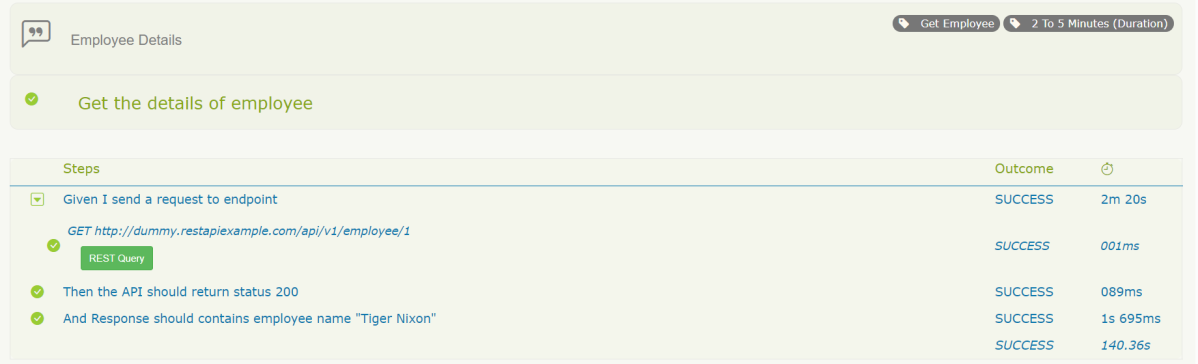
How to run Serenity BDD tests in Chrome Browser

HOME

Serenity BDD has strong WebDriver integration and manages WebDriver instances. It is not needed to create or close the WebDriver instance of the Serenity Tests.

Serenity uses a library WebDriver Manager, which manages the driver for us. We don’t need to explicitly download and configure the WebDriver binaries for us.

The default browser of Serenity is Firefox.

    @Managed(driver = "chrome")
    WebDriver driver;

@Managed annotation in Serenity will manage the WebDriver instance, including opening the appropriate driver at the start of each test, and shutting it down when the test is finished. @Managed provides an option for the user to select the WebDriver driver to the run the tests in it. The possible values are firefox, chrome, iexplorer, phantomjs, appium, safari, edge, and htmlunit. There are multiple ways to manage the WebDriver. One of the way is shown below:

In the below program, the tests are running on the Chrome browser. The driver name is mentioned with @Managed annotation.

@RunWith(SerenityRunner.class)
public class ChromeTest {

    @Managed(driver = "chrome")
    WebDriver driver;

    @Steps
    NavigateActions navigate;

    @Test
    public void openBrowser()
    {
        navigate.toTheHomePage();
    }

}

NavigateActions

public class NavigateActions extends UIInteractionSteps {

    @Step
    public void toTheHomePage() {
         openUrl("https://opensource-demo.orangehrmlive.com/");
    }
}

There is another way to assign Chrome to the WebDriver. This can be defined in serenity.config or serenity.properties.

serenity.config

webdriver{
    driver = chrome

}

serenity.properties

webdriver.driver = chrome

When the webdriver is defined in the properties file, it is not needed to redefine it in the Test, as shown below:

@RunWith(SerenityRunner.class)
public class ChromeTest {

    @Managed
    WebDriver driver;

    @Steps
    NavigateActions navigate;

    @Test
    public void openBrowser()
    {
        navigate.toTheHomePage();
    }

}

Manually Configure ChromeDriver

To run your web tests with a given driver, download the correct driver binary and place it under src/test resources. The Chrome driver binary can be downloaded from here – ChromeDriver – WebDriver for Chrome (chromium.org)

It is always advisable to create a driver’s directory under src/test/resources. The tests can be run on different Operating Systems, so create three subdirectories named Windows, mac, and Linux within the drivers’ directory. Place the driver binary in these directories as shown below :

Below is the sample Serenity.config for the Chrome driver.

webdriver{
    driver = chrome

}

drivers {
  windows {
     webdriver.chrome.driver = "src/test/resources/drivers/windows/chromedriver.exe"
   }
  mac {
      webdriver.chrome.driver = "src/test/resources/webdriver/mac/chromedriver.exe"
    }
    linux {
      webdriver.chrome.driver = "src/test/resources/webdriver/linux/chromedriver.exe"
    }
  }
}

How to add Chrome Options in Serenity

We can configure various chrome options in Serenity by adding them to a property call switches in serenity.config.

chrome {
        switches ="""--windows.size=1024,800, --start-maximized;--test-type;--no-sandbox;--ignore- 
                             certificate-errors; --headless;
                   --disable-popup-blocking;--disable-default-apps;--disable-extensions-file-access-check;
                   --incognito;--disable-infobars,--disable-gpu"""
  }

How to set Chrome Preferences in Serenity

chrome {
  switches ="""--windows.size=1024,800, --start-maximized;--test-type;--no-sandbox;--ignore-certificate-errors;
                   --disable-popup-blocking;--disable-default-apps;--disable-extensions-file-access-check;
                   --incognito;--disable-infobars,--disable-gpu"""

  preferences {
      download {
          prompt_for_download: false
          default_directory: "$TEMPDIR"
       }
  }

Congratulations!! We are able to configure various Chrome Options in Serenity.
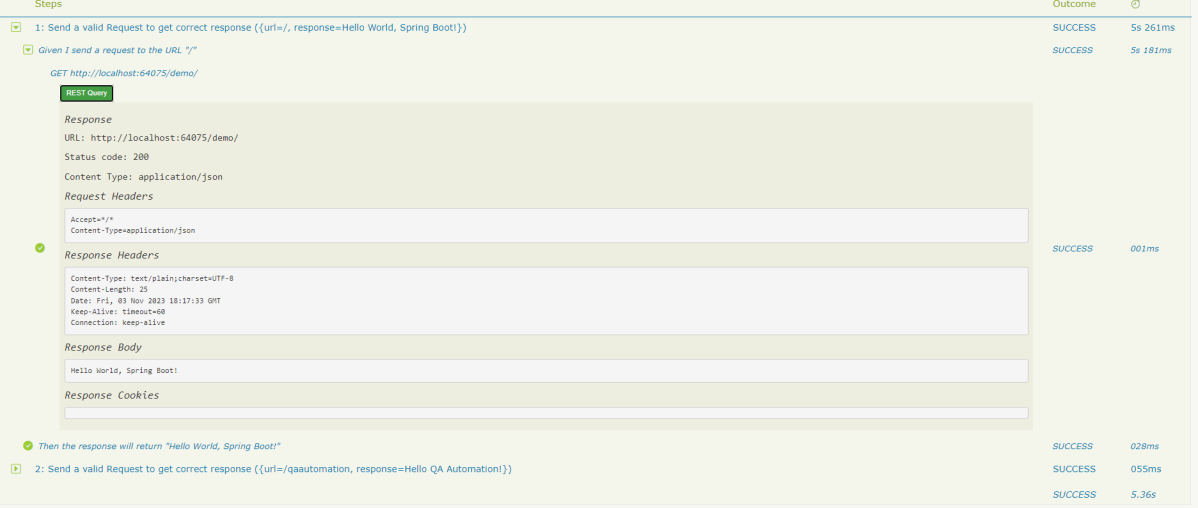
How to embed Custom Data in Serenity Report

HOME

Serenity Reports are living documentation that contains meaningful reports for each Test. It illustrated narrative reports that document and describe what your application does and how it works.

This report can be organized by using features, stories, steps, scenarios/tests. Serenity Report shows the count of passed, failed, compromised, skipped, pending, broken, ignored, pending, and manual test cases count and percentage. Serenity shows Over All Test Results, Requirements, Test Specifications & Test Results. It shows the details and overall time taken by each test step of a test case. It shows the details and overall timing taken by each on all test case execution.

All the above features of Serenity Report make it a great Report. But sometimes, we want to embed data from a JSON or XML file in the Serenity Report.

Let me explain this with the help of an example. Data-Driven tests are created in Serenity. We have test data mentioned in a .csv file and the test is reading the data from this file. When the report is generated, it does not show what all data are used by the Test. To overcome this situation, Serenity provides a feature that uses recordReportData()., and this can be used like this:

Path credentialsFile = Paths.get("src/test/resources/testdata/credentials.csv"); 
Serenity.recordReportData().withTitle(" User Credentials with Error Message")
                                             .fromFile(credentialsFile);

If you have the contents of the report as a String, you can pass the String directly like this:

String testData = "...";
Serenity.recordReportData().withTitle("User")
                           .andContent(testData);

Let me explain this with the help of an example. Here, I have created a Data-Driven Test which is using .csv file as an input file.

@RunWith(SerenityParameterizedRunner.class)
@UseTestDataFrom(value = "testdata/credentials.csv")
public class ParameterizedTestsUsingCSV {

    private String userName;
    private String passWord;
    private String errorMessage;

    @Managed(options = "--headless")
    WebDriver driver;

    @Steps
    NavigateActions navigate;

    @Steps
    StepLoginPage loginPage;


    @TestData(columnNames = "Username, Password, ErrorMessage")
    @Test
    @Title("Login to application with invalid credential generates error message")
    public void unsuccessfulLogin() throws IOException {

        // Given
        navigate.toTheHomePage();

        // When
        loginPage.inputUserName(userName);
        loginPage.inputPassword(passWord);
        loginPage.clickLogin();

        // Then
        Serenity.reportThat("Passing invalid credentials generates error message",
                () -> assertThat(loginPage.loginPageErrorMessage()).isEqualToIgnoringCase(errorMessage));

        Path credentialsFile = Paths.get("src/test/resources/testdata/credentials.csv");
        Serenity.recordReportData().withTitle(" User Credentials with Error Message").fromFile(credentialsFile);
    }

}

Here, I have used recordReportData().withTitle() to provide a name to the button created, and the data is retrieved using fromFile().

To locate the path of the file (credentials.csv), we have used – Path and Paths which are imported from:

import java.nio.file.Path;
import java.nio.file.Paths;

To get the complete detail about this code, refer to this tutorial Data Driven Tests using CSV file in Serenity.

To generate a Serenity Report, use the command like this:

mvn clean verify

The output of the above program is

The Serenity Reports are generated under target/site/serenity/Index.html.

Go to the Detailed Step Description part in Serenity Report. A button with the label “User Credentials with Error Message” will appear next to the step where you called this method:

If you click on this button, you will see your data:

Keep in mind that this feature of Serenity is available from 1.9.16 onwards only.

Congratulation!! We have learned a wonderful feature present in Serenity.