How to rerun failed tests twice in Cucumber

HOME

import io.cucumber.testng.AbstractTestNGCucumberTests;
import io.cucumber.testng.CucumberOptions;

@CucumberOptions(features = "src/test/resources/features/LoginPage.feature",
        glue = "com.example.definitions",
        plugin = {
                "pretty",
                "html:target/cucumber-reports/cucumber-report.html",
                "json:target/cucumber-reports/cucumber-report.json",
                "rerun:target/rerun.txt" // Saves paths of failed scenarios
        }
)
public class RunnerTests extends AbstractTestNGCucumberTests {
}

import io.cucumber.testng.AbstractTestNGCucumberTests;
import io.cucumber.testng.CucumberOptions;

@CucumberOptions(tags = "",
        features = "@target/rerun.txt",
        glue = "com.example.definitions",
        plugin =  {
                "pretty",
                "html:target/cucumber-reports/cucumber-rerun1-report.html",
                "json:target/cucumber-reports/cucumber-rerun1-report.json",
                "rerun:target/rerun1.txt"
        }
)

public class RunnerTestsFailed extends AbstractTestNGCucumberTests {
}

Create a third runner that reads from the rerun1.txt file and generates a separate JSON report for failed test reruns.

import io.cucumber.testng.AbstractTestNGCucumberTests;
import io.cucumber.testng.CucumberOptions;

@CucumberOptions(tags = "",
        features = "@target/rerun1.txt",
        glue = "com.example.definitions",
        plugin =  {
                "pretty",
                "html:target/cucumber-reports/cucumber-rerun2-report.html",
                "json:target/cucumber-reports/cucumber-rerun2-report.json"
        }
)

public class RunnerTestsSecondFailed extends AbstractTestNGCucumberTests {
}

<?xml version="1.0" encoding="UTF-8"?>
<!DOCTYPE suite SYSTEM "https://testng.org/testng-1.0.dtd">
<suite name="Suite">
    <test  name="Cucumber with TestNG Test">
        <classes>
            <class name="com.example.runner.RunnerTests"/>
            <class name="com.example.runner.RunnerTestsFailed"/>
            <class name="com.example.runner.RunnerTestsSecondFailed"/>
        </classes>
    </test> <!-- Test -->
</suite> <!-- Suite -->

<project xmlns="http://maven.apache.org/POM/4.0.0" xmlns:xsi="http://www.w3.org/2001/XMLSchema-instance"
  xsi:schemaLocation="http://maven.apache.org/POM/4.0.0 http://maven.apache.org/xsd/maven-4.0.0.xsd">
  <modelVersion>4.0.0</modelVersion>

  <groupId>com.example</groupId>
  <artifactId>POM_Cucumber_TestNG_Demo</artifactId>
  <version>1.0-SNAPSHOT</version>
  <packaging>jar</packaging>

  <name>POM_Cucumber_TestNG_Demo</name>
  <url>http://maven.apache.org</url>

  <properties>
    <project.build.sourceEncoding>UTF-8</project.build.sourceEncoding>
    <cucumber.version>7.18.1</cucumber.version>
    <selenium.version>4.25.0</selenium.version>
    <testng.version>7.10.2</testng.version>
    <apache.common.version>2.4</apache.common.version>
    <maven.compiler.plugin.version>3.13.0</maven.compiler.plugin.version>
    <maven.surefire.plugin.version>3.3.1</maven.surefire.plugin.version>
    <maven.compiler.source.version>17</maven.compiler.source.version>
    <maven.compiler.target.version>17</maven.compiler.target.version>
    <maven.cucumber.reporting.version>5.8.2</maven.cucumber.reporting.version>
  </properties>

  <dependencies>

    <dependency>
      <groupId>io.cucumber</groupId>
      <artifactId>cucumber-java</artifactId>
      <version>${cucumber.version}</version>
    </dependency>

    <dependency>
      <groupId>io.cucumber</groupId>
      <artifactId>cucumber-testng</artifactId>
      <version>${cucumber.version}</version>
      <scope>test</scope>
    </dependency>

    <!-- Selenium -->
    <dependency>
      <groupId>org.seleniumhq.selenium</groupId>
      <artifactId>selenium-java</artifactId>
      <version>${selenium.version}</version>
    </dependency>

    <!-- TestNG -->
    <dependency>
      <groupId>org.testng</groupId>
      <artifactId>testng</artifactId>
      <version>${testng.version}</version>
      <scope>test</scope>
    </dependency>

    <!-- Cucumber Reporting -->
    <dependency>
      <groupId>net.masterthought</groupId>
      <artifactId>cucumber-reporting</artifactId>
      <version>${maven.cucumber.reporting.version}</version>
    </dependency>

  </dependencies>

  <build>
    <plugins>
      <plugin>
        <groupId>org.apache.maven.plugins</groupId>
        <artifactId>maven-compiler-plugin</artifactId>
        <version>${maven.compiler.plugin.version}</version>
        <configuration>
          <source>${maven.compiler.source.version}</source>
          <target>${maven.compiler.target.version}</target>
        </configuration>
      </plugin>
      
        <plugin>
        <groupId>org.apache.maven.plugins</groupId>
        <artifactId>maven-surefire-plugin</artifactId>
        <version>${maven.surefire.plugin.version}</version>
        <configuration>
          <testFailureIgnore>true</testFailureIgnore>
          <suiteXmlFiles>
            <suiteXmlFile>testng.xml</suiteXmlFile>
          </suiteXmlFiles>
        </configuration>
      </plugin>

      <plugin>
        <groupId>net.masterthought</groupId>
        <artifactId>maven-cucumber-reporting</artifactId>
        <version>${maven.cucumber.reporting.version}</version>

        <executions>
          <execution>
            <id>generate-cucumber-report</id>
            <phase>verify</phase>
            <goals>
              <goal>generate</goal>
            </goals>
            <configuration>
              <projectName>Cucumber Reporting Example</projectName>
              <outputDirectory>target/cucumber-html-reports</outputDirectory>
              <inputDirectory>target</inputDirectory>
              <jsonFiles>
                <!-- Include both main and rerun JSON reports -->
                <param>target/cucumber-reports/cucumber-report.json</param>
                <param>target/cucumber-reports/cucumber-rerun-report.json</param>
                <param>**/*.json</param>
              </jsonFiles>
            </configuration>
          </execution>
        </executions>
      </plugin>

    </plugins>
  </build>
</project>

mvn clean verify

How to create Cucumber Report after rerun of failed tests

Last Updated On

HOME

import io.cucumber.testng.AbstractTestNGCucumberTests;
import io.cucumber.testng.CucumberOptions;

@CucumberOptions(features = "src/test/resources/features/LoginPage.feature",
        glue = "com.example.definitions",
        plugin = {
                "pretty",
                "html:target/cucumber-reports/cucumber-report.html",
                "json:target/cucumber-reports/cucumber-report.json",
                "rerun:target/rerun.txt" // Saves paths of failed scenarios
        }
)
public class RunnerTests extends AbstractTestNGCucumberTests {
}

import io.cucumber.testng.AbstractTestNGCucumberTests;
import io.cucumber.testng.CucumberOptions;

@CucumberOptions(tags = "",
        features = "@target/rerun.txt",
        glue = "com.example.definitions",
        plugin =  {
                "pretty",
                "html:target/cucumber-reports/cucumber-rerun-report.html",
                "json:target/cucumber-reports/cucumber-rerun-report.json"
        }
)

public class RunnerTestsFailed extends AbstractTestNGCucumberTests {
}

<?xml version="1.0" encoding="UTF-8"?>
<!DOCTYPE suite SYSTEM "https://testng.org/testng-1.0.dtd">
<suite name="Suite">
    <test  name="Cucumber with TestNG Test">
        <classes>
            <class name="com.example.runner.RunnerTests"/>
            <class name="com.example.runner.RunnerTestsFailed"/>
        </classes>
    </test> <!-- Test -->
</suite> <!-- Suite -->

<project xmlns="http://maven.apache.org/POM/4.0.0" xmlns:xsi="http://www.w3.org/2001/XMLSchema-instance"
  xsi:schemaLocation="http://maven.apache.org/POM/4.0.0 http://maven.apache.org/xsd/maven-4.0.0.xsd">
  <modelVersion>4.0.0</modelVersion>

  <groupId>com.example</groupId>
  <artifactId>POM_Cucumber_TestNG_Demo</artifactId>
  <version>1.0-SNAPSHOT</version>
  <packaging>jar</packaging>

  <name>POM_Cucumber_TestNG_Demo</name>
  <url>http://maven.apache.org</url>

  <properties>
    <project.build.sourceEncoding>UTF-8</project.build.sourceEncoding>
    <cucumber.version>7.18.1</cucumber.version>
    <selenium.version>4.25.0</selenium.version>
    <testng.version>7.10.2</testng.version>
    <apache.common.version>2.4</apache.common.version>
    <maven.compiler.plugin.version>3.13.0</maven.compiler.plugin.version>
    <maven.surefire.plugin.version>3.3.1</maven.surefire.plugin.version>
    <maven.compiler.source.version>17</maven.compiler.source.version>
    <maven.compiler.target.version>17</maven.compiler.target.version>
    <maven.cucumber.reporting.version>5.8.2</maven.cucumber.reporting.version>
  </properties>

  <dependencies>

    <dependency>
      <groupId>io.cucumber</groupId>
      <artifactId>cucumber-java</artifactId>
      <version>${cucumber.version}</version>
    </dependency>

    <dependency>
      <groupId>io.cucumber</groupId>
      <artifactId>cucumber-testng</artifactId>
      <version>${cucumber.version}</version>
      <scope>test</scope>
    </dependency>

    <!-- Selenium -->
    <dependency>
      <groupId>org.seleniumhq.selenium</groupId>
      <artifactId>selenium-java</artifactId>
      <version>${selenium.version}</version>
    </dependency>

    <!-- TestNG -->
    <dependency>
      <groupId>org.testng</groupId>
      <artifactId>testng</artifactId>
      <version>${testng.version}</version>
      <scope>test</scope>
    </dependency>

    <!-- Cucumber Reporting -->
    <dependency>
      <groupId>net.masterthought</groupId>
      <artifactId>cucumber-reporting</artifactId>
      <version>${maven.cucumber.reporting.version}</version>
    </dependency>

  </dependencies>

  <build>
    <plugins>
      <plugin>
        <groupId>org.apache.maven.plugins</groupId>
        <artifactId>maven-compiler-plugin</artifactId>
        <version>${maven.compiler.plugin.version}</version>
        <configuration>
          <source>${maven.compiler.source.version}</source>
          <target>${maven.compiler.target.version}</target>
        </configuration>
      </plugin>
      
        <plugin>
        <groupId>org.apache.maven.plugins</groupId>
        <artifactId>maven-surefire-plugin</artifactId>
        <version>${maven.surefire.plugin.version}</version>
        <configuration>
          <testFailureIgnore>true</testFailureIgnore>
          <suiteXmlFiles>
            <suiteXmlFile>testng.xml</suiteXmlFile>
          </suiteXmlFiles>
        </configuration>
      </plugin>

      <plugin>
        <groupId>net.masterthought</groupId>
        <artifactId>maven-cucumber-reporting</artifactId>
        <version>${maven.cucumber.reporting.version}</version>

        <executions>
          <execution>
            <id>generate-cucumber-report</id>
            <phase>verify</phase>
            <goals>
              <goal>generate</goal>
            </goals>
            <configuration>
              <projectName>Cucumber Reporting Example</projectName>
              <outputDirectory>target/cucumber-html-reports</outputDirectory>
              <inputDirectory>target</inputDirectory>
              <jsonFiles>
                <!-- Include both main and rerun JSON reports -->
                <param>target/cucumber-reports/cucumber-report.json</param>
                <param>target/cucumber-reports/cucumber-rerun-report.json</param>
                <param>**/*.json</param>
              </jsonFiles>
            </configuration>
          </execution>
        </executions>
      </plugin>

    </plugins>
  </build>
</project>

mvn clean verify

Cucumber Tutorials

 HOME

Cucumber Introduction, Installation, and Configuration

Chapter 1  Introduction of Cucumber Testing Tool (BDD Tool)
Chapter 2 How to install Cucumber Eclipse Plugin
Chapter 3 How to setup Cucumber with Eclipse
Chapter 4 Cucumber – What is Gherkin

Cucumber Scenario, Features & Step Definition

Chapter 1 Cucumber – What is Feature File in Cucumber
Chapter 2 Step Definition in Cucumber
Chapter 3 Cucumber – JUnit Test Runner Class

Cucumber – Hooks & Tags

Chapter 1 Hooks in Cucumber
Chapter 2 Tags in Cucumber
Chapter 3 Conditional Hooks in Cucumber
Chapter 4 What is CucumberOptions in Cucumber?
Chapter 5 Background in Cucumber
Chapter 6 Monochrome in Cucumber
Chapter 7 What is Glue in Cucumber?

Cucumber – Data Driven Testing

Chapter 1 Data Driven Testing using Scenario Outline in Cucumber
Chapter 2 DataTables in Cucumber

Cucumber Integration with Selenium – Maven

Chapter 1 Integration of Cucumber with Selenium and JUnit4
Chapter 2 Integration of Cucumber with Selenium and TestNG
Chapter 3 Page Object Model with Selenium, Cucumber and JUnit
Chapter 4 Page Object Model with Selenium, Cucumber, and TestNG
Chapter 5 Integration of Cucumber7 with Selenium and JUnit5
Chapter 6 Run Cucumber7 with JUnit5 Tests from Maven Command Line
Chapter 7 How to rerun failed tests in Cucumber
Chapter 8 How to create Cucumber Report after rerun of failed tests – NEW
Chapter 9 How to rerun failed tests twice in Cucumber – NEW

Cucumber – Command Line Execution

Chapter 1 Run Cucumber Test from Command Line
Chapter 2 Run Gradle Cucumber Tests from Command Line

Cucumber Integration with Rest API

Chapter 1 Rest API Test in Cucumber BDD
Chapter 2 How To Create Gradle Project with Cucumber to test Rest API

Cucumber Integration with SpringBoot

Chapter 1 Integration Testing of Springboot with Cucumber and JUnit4
Chapter 2 Integration Testing of Springboot with Cucumber and TestNG

Cucumber – Reporting

Chapter 1 Cucumber Tutorial – Cucumber Reports
Chapter 2 Cucumber Report Service
Chapter 3 Implemention of ‘Masterthought’ Reports in Cucumber
Chapter 4 Implemention of ‘Masterthought’ Reports in Cucumber with JUnit4

Cucumber Integration with Allure Reports

Chapter 1 Allure Report with Cucumber5, Selenium and JUnit4
Chapter 2 Allure Report with Cucumber5, Selenium and TestNG
Chapter 3 Integration of Allure Report with Rest Assured and JUnit4
Chapter 4 Integration of Allure Report with Rest Assured and TestNG
Chapter 5 Gradle – Allure Report for Selenium and TestNG

Cucumber Integration with Extent Reports

Chapter 1 ExtentReports Version 5 for Cucumber 6 and TestNG
Chapter 2 How to add Screenshot to Cucumber ExtentReports
Chapter 3 ExtentReports Version 5 for Cucumber 6 and JUnit4
Chapter 4 PDF ExtentReport for Cucumber and TestNG
Chapter 5 ExtentReports Version 5 for Cucumber 7 and TestNG
Chapter 6 Extent Reports Version 5 for Cucumber7 and JUnit5

Cucumber – Parallel Execution

Chapter 1 Parallel Testing in Cucumber with JUnit
Chapter 2 Parallel Testing in Cucumber with TestNG
Chapter 3 Dependency Injection in Cucumber using Pico-Container

Implemention of ‘Masterthought’ Reports in Cucumber with JUnit4

HOME

Masterthought library provides pretty HTML reports for Cucumber. The cucumber JSON file is used to generate the HTML for the website. This Java report publisher was made particularly with publishing cucumber reports to the Jenkins build server in mind. It releases aesthetically pleasing HTML reports with charts displaying the outcomes of cucumber runs.

Prerequisite

  1. Java 11 installed
  2. Maven installed
  3. Eclipse or IntelliJ installed

This framework consists of:

  1. Selenium – 4.3.0
  2. Java 11
  3. Cucumber – 7.6.0
  4. Maven – 3.8.1
  5. JUnit– 4.13.2
  6. Cucumber Reporting Plugin – 5.7.4

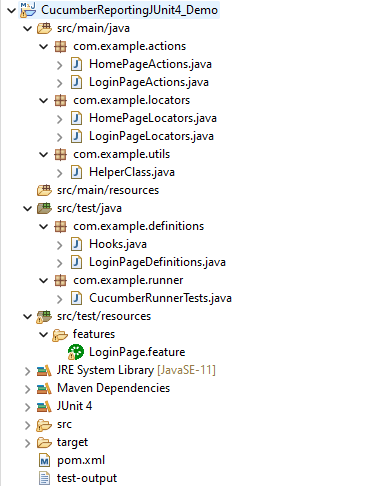
Project Structure

Implementation Steps

  1. Download and Install Java on the system
  2. Download and setup Eclipse IDE on the system
  3. Setup Maven
  4. Install Cucumber Eclipse Plugin (For Eclipse IDE)
  5. Create a new Maven Project
  6. Add SeleniumJUnit4Cucumber, and Masterthought dependencies to the project
  7. Create a feature file under src/test/resources
  8. Create the test code locating the web elements in src/main/java
  9. Create the Step Definition class or Glue Code in src/test/java
  10. Create a JUnit4 Cucumber Runner class in src/test/java
  11. Run the tests from Command Line
  12. Cucumber Report Generation

Step 1- Download and Install Java

Cucumber and Selenium need Java to be installed on the system to run the tests. Click here to know How to install Java.

Step 2 – Download and setup Eclipse IDE on the system

The Eclipse IDE (integrated development environment) provides strong support for Java developers, which is needed to write Java code. Click here to know How to install Eclipse.

Step 3 – Setup Maven

To build a test framework, we need to add a number of dependencies to the project. It is a very tedious and cumbersome process to add each dependency manually. So, to overcome this problem, we use a build management tool. Maven is a build management tool that is used to define project structure, dependencies, build, and test management. Click here to know How to install Maven.

Step 4 – Install Cucumber Eclipse Plugin (Only for Eclipse IDE)

The Cucumber Eclipse plugin is a plugin that allows eclipse to understand the Gherkin syntax. The Cucumber Eclipse Plugin highlights the keywords present in Feature File. Click here to know more – Install Cucumber Eclipse Plugin.

Step 5 – Create a new Maven Project

Click here to know How to create a Maven project

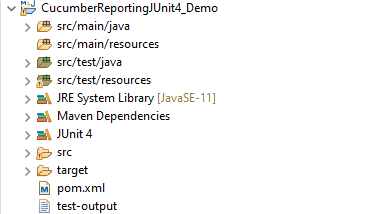
Below is the Maven project structure. Here,

Group Id – com.example
Artifact Id – CucumberReportingJUnit4_Demo
Version – 0.0.1-SNAPSHOT
Package – com. example

Step 6 – Add SeleniumTestNGCucumber, and Masterthought dependencies to the project

Masterthought Dependency

<dependency>
            <groupId>net.masterthought</groupId>
            <artifactId>cucumber-reporting</artifactId>
            <version>${maven.cucumber.reporting.version}</version>
</dependency>

Masterthought Plugin

<plugin>
        <groupId>net.masterthought</groupId>
        <artifactId>maven-cucumber-reporting</artifactId>
        <version>${maven.cucumber.reporting.version}</version>
 
        <executions>
            <execution>
                <id>execution</id>
                <phase>test</phase>
                <goals>
                    <goal>generate</goal>
                </goals>
                <configuration>
                    <projectName>Cucumber Reporting Example With JUnit4</projectName>
                    <outputDirectory>${project.build.directory}/cucumber-report-html</outputDirectory>
                    <inputDirectory>${project.build.directory}</inputDirectory>
                    <jsonFiles>
                        <param>**/*.json</param>
                    </jsonFiles>
                </configuration>
            </execution>
        </executions>
</plugin>

The complete POM.xml for the project is shown below:-

<project xmlns="http://maven.apache.org/POM/4.0.0" xmlns:xsi="http://www.w3.org/2001/XMLSchema-instance" xsi:schemaLocation="http://maven.apache.org/POM/4.0.0 https://maven.apache.org/xsd/maven-4.0.0.xsd">
	<modelVersion>4.0.0</modelVersion>
	<groupId>com.example</groupId>
	<artifactId>CucumberReportingJUnit4_Demo</artifactId>
	<version>0.0.1-SNAPSHOT</version>


	<properties>
		<project.build.sourceEncoding>UTF-8</project.build.sourceEncoding>
		<cucumber.version>7.6.0</cucumber.version>
		<selenium.version>4.3.0</selenium.version>
		<webdrivermanager.version>5.2.1</webdrivermanager.version>
		<junit.version>4.13.2</junit.version>
		<apache.common.version>2.4</apache.common.version>
		<maven.compiler.plugin.version>3.10.1</maven.compiler.plugin.version>
		<maven.surefire.plugin.version>3.0.0-M7</maven.surefire.plugin.version>
		<maven.compiler.source.version>11</maven.compiler.source.version>
		<maven.compiler.target.version>11</maven.compiler.target.version>
		<maven.cucumber.reporting.version>5.7.4</maven.cucumber.reporting.version>
	</properties>

	<dependencies>

		<dependency>
			<groupId>io.cucumber</groupId>
			<artifactId>cucumber-java</artifactId>
			<version>${cucumber.version}</version>
		</dependency>

		<dependency>
			<groupId>io.cucumber</groupId>
			<artifactId>cucumber-junit</artifactId>
			<version>${cucumber.version}</version>
			<scope>test</scope>
		</dependency>

		<!-- Selenium -->
		<dependency>
			<groupId>org.seleniumhq.selenium</groupId>
			<artifactId>selenium-java</artifactId>
			<version>${selenium.version}</version>
		</dependency>

		<!-- Web Driver Manager -->
		<dependency>
			<groupId>io.github.bonigarcia</groupId>
			<artifactId>webdrivermanager</artifactId>
			<version>${webdrivermanager.version}</version>
		</dependency>

		<!-- JUnit4 -->
		<dependency>
			<groupId>junit</groupId>
			<artifactId>junit</artifactId>
			<version>${junit.version}</version>
			<scope>test</scope>
		</dependency>

		<!-- Apache Common -->
		<dependency>
			<groupId>org.apache.directory.studio</groupId>
			<artifactId>org.apache.commons.io</artifactId>
			<version>${apache.common.version}</version>
		</dependency>

        <!-- MasterThought -->
		<dependency>
			<groupId>net.masterthought</groupId>
			<artifactId>cucumber-reporting</artifactId>
			<version>${maven.cucumber.reporting.version}</version>
		</dependency>

	</dependencies>

	<build>
		<plugins>
			<plugin>
				<groupId>org.apache.maven.plugins</groupId>
				<artifactId>maven-compiler-plugin</artifactId>
				<version>${maven.compiler.plugin.version}</version>
				<configuration>
					<source>${maven.compiler.source.version}</source>
					<target>${maven.compiler.target.version}</target>
				</configuration>
			</plugin>

			<plugin>
				<groupId>org.apache.maven.plugins</groupId>
				<artifactId>maven-surefire-plugin</artifactId>
				<version>${maven.surefire.plugin.version}</version>
			</plugin>

			<plugin>
				<groupId>net.masterthought</groupId>
				<artifactId>maven-cucumber-reporting</artifactId>
				<version>${maven.cucumber.reporting.version}</version>

				<executions>
					<execution>
						<id>execution</id>
						<phase>test</phase>
						<goals>
							<goal>generate</goal>
						</goals>
						<configuration>
							<projectName>Cucumber Reporting Example With JUnit4</projectName>
							<outputDirectory>${project.build.directory}/</outputDirectory>
							<inputDirectory>${project.build.directory}</inputDirectory>
							<jsonFiles>
								<param>**/*.json</param>
							</jsonFiles>
						</configuration>
					</execution>
				</executions>
			</plugin>
		</plugins>
	</build>
</project>

Step 7 – Create a feature file (LoginPage.feature) containing all the test scenarios under src/test/resources/features

It is recommended to create a features folder in src/test/resources directory. Create all the feature files in this features folder. Feature file should be saved as an extension of .feature.

Feature: Login to HRM Application 

Background:
   Given User is on HRMLogin page "https://opensource-demo.orangehrmlive.com/"
 
   @ValidCredentials
   Scenario: Login with valid credentials
       
     When User enters username as "Admin" and password as "admin123"
     Then User should be able to login successfully and new page open
    
  @InvalidCredentials
   Scenario Outline: Login with invalid credentials
     
     When User enters username as "<username>" and password as "<password>"
     Then User should be able to see error message "<errorMessage>"
    
  Examples:
   | username   | password  | errorMessage                      |
   | $$$$$      | ££££££££  | Invalid credentials               |
   | admin      | Admin123  | Invalid credentials               | 
   | Admin123   | admin     | Invalid credentials               |
     

Step 8 – Create the test code locating the web elements in src/main/java

LoginPageLocators

import org.openqa.selenium.WebElement;
import org.openqa.selenium.support.FindBy;

public class LoginPageLocators {

	@FindBy(name = "username")
    public WebElement userName;
 
    @FindBy(name = "password")
    public WebElement password;
 
    @FindBy(id = "logInPanelHeading")
    public WebElement titleText;
 
    @FindBy(xpath = "//*[@id='app']/div[1]/div/div[1]/div/div[2]/div[2]/form/div[3]/button")
    public WebElement login;
 
    @FindBy(xpath = "//*[@id='app']/div[1]/div/div[1]/div/div[2]/div[2]/div/div[1]/div[1]/p")
    public  WebElement errorMessage;
        
}

HomePageLocators

import org.openqa.selenium.WebElement;
import org.openqa.selenium.support.FindBy;

public class HomePageLocators {

	@FindBy(xpath = "//*[@id='app']/div[1]/div[1]/header/div[1]/div[1]/span/h6")
	public  WebElement homePageUserName;
 
}

LoginPageActions

import org.openqa.selenium.support.PageFactory;
import com.example.locators.LoginPageLocators;
import com.example.utils.HelperClass;

public class LoginPageActions {

LoginPageLocators loginPageLocators = null; 
	
    public LoginPageActions() {

    	this.loginPageLocators = new LoginPageLocators();

		PageFactory.initElements(HelperClass.getDriver(),loginPageLocators);
	}
    
    public void login(String strUserName, String strPassword) {
    	 
        // Fill user name
    	loginPageLocators.userName.sendKeys(strUserName);
 
        // Fill password
    	loginPageLocators.password.sendKeys(strPassword);
 
        // Click Login button
    	loginPageLocators.login.click();
 
    }

    //Get the title of Login Page")
    public String getLoginTitle() {
        return loginPageLocators.titleText.getText();
    }
     
    // Get the error message of Login Page
    public String getErrorMessage() {
        return loginPageLocators.errorMessage.getText();
    }

}

HomePageActions

import org.openqa.selenium.support.PageFactory;
import com.example.locators.HomePageLocators;
import com.example.utils.HelperClass;

public class HomePageActions {

	HomePageLocators homePageLocators = null;
   
	public HomePageActions() {
    	
		this.homePageLocators = new HomePageLocators();

		PageFactory.initElements(HelperClass.getDriver(),homePageLocators);
    }
 
    // Get the User name from Home Page
    public String getHomePageText() {
        return homePageLocators.homePageUserName.getText();
    }

}

HelperClass

import java.time.Duration;
import org.openqa.selenium.WebDriver;
import org.openqa.selenium.chrome.ChromeDriver;
import io.github.bonigarcia.wdm.WebDriverManager;

public class HelperClass {
	
	private static HelperClass helperClass;
	private static WebDriver driver;
    public final static int TIMEOUT = 10;
	
	 private HelperClass() {
		 
		WebDriverManager.chromedriver().setup();
	    driver = new ChromeDriver();
	    driver.manage().timeouts().implicitlyWait(Duration.ofSeconds(TIMEOUT));
	    driver.manage().window().maximize();

	 }      	    	

    public static void openPage(String url) {
        driver.get(url);
    }
	
	public static WebDriver getDriver() {
		return driver;
				
	}
	
	public static void setUpDriver() {
		
		if (helperClass==null) {
			
			helperClass = new HelperClass();
		}
	}
	
	 public static void tearDown() {
		 
		 if(driver!=null) {
			 driver.close();
			 driver.quit();
		 }
		 
		 helperClass = null;

	 } 	
}

Step 9 – Create the Step Definition class or Glue Code in src/test/java

It is recommended to create a definitions folder in src/test/java directory. The StepDefinition files should be created in this definitions directory. within the folder called definitions.

LoginPageDefinitions

import org.junit.Assert;
import com.example.actions.HomePageActions;
import com.example.actions.LoginPageActions;
import com.example.utils.HelperClass;
import io.cucumber.java.en.Given;
import io.cucumber.java.en.Then;
import io.cucumber.java.en.When;

public class LoginPageDefinitions{	

	LoginPageActions objLogin = new LoginPageActions();
    HomePageActions objHomePage = new HomePageActions();
 
    @Given("User is on HRMLogin page {string}")
    public void loginTest(String url) {
    	
    	HelperClass.openPage(url);
 
    }
 
    @When("User enters username as {string} and password as {string}")
    public void goToHomePage(String userName, String passWord) {
 
        // login to application
        objLogin.login(userName, passWord);
 
        // go the next page
        
    }
    
    @Then("User should be able to login successfully and new page open")
    public void verifyLogin() {
 
        // Verify home page
       Assert.assertTrue(objHomePage.getHomePageText().contains("Dashboard"));
 
    }
    
    @Then("User should be able to see error message {string}")
    public void verifyErrorMessage(String expectedErrorMessage) {
 
        // Verify error message
    	Assert.assertEquals(expectedErrorMessage,objLogin.getErrorMessage());
 
    }
    
}

Hooks

import org.openqa.selenium.OutputType;
import org.openqa.selenium.TakesScreenshot;
import com.example.utils.HelperClass;
import io.cucumber.java.After;
import io.cucumber.java.Before;
import io.cucumber.java.Scenario;

public class Hooks {
	
	@Before
    public static void setUp() {

       HelperClass.setUpDriver();
    }
	
	@After
	public static void tearDown(Scenario scenario) {
		//validate if scenario has failed
		if(scenario.isFailed()) {
			final byte[] screenshot = ((TakesScreenshot) HelperClass.getDriver()).getScreenshotAs(OutputType.BYTES);
			scenario.attach(screenshot, "image/png", scenario.getName()); 
		}	
	
		HelperClass.tearDown();
	}
}


Step 10 – Create a JUnit 4 Cucumber Runner class in src/test/java

import org.junit.runner.RunWith;
import io.cucumber.junit.Cucumber;
import io.cucumber.junit.CucumberOptions;

@RunWith(Cucumber.class)
@CucumberOptions(tags = "", features = "src/test/resources/features/LoginPage.feature", glue = "com.example.definitions",
  plugin= {"pretty", "json:target/cucumber-reports/reports.json",
"json:target/cucumber-reports/cucumber.runtime.formatter.JSONFormatter"})
 
public class CucumberRunnerTests  {
 
}

Step 11 – Run the tests from Command Line

Use the below command to execute the tests

mvn clean test

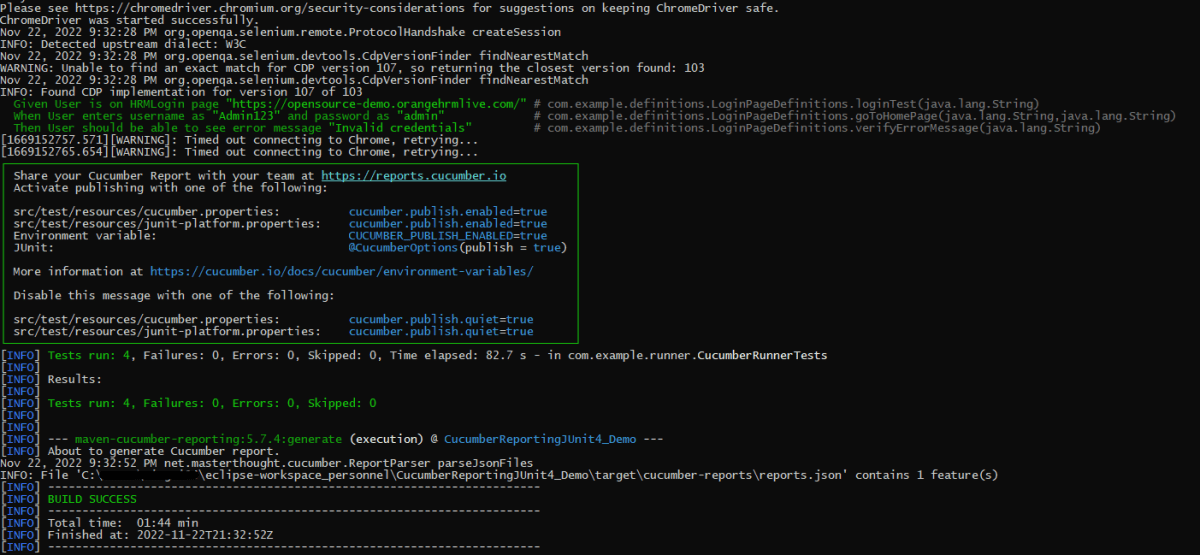
The output of the above program is

Step 12 – Cucumber Report Generation

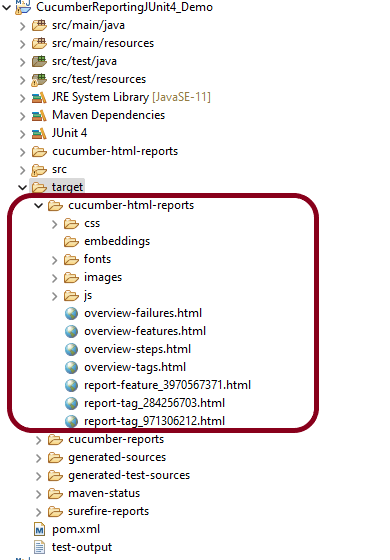
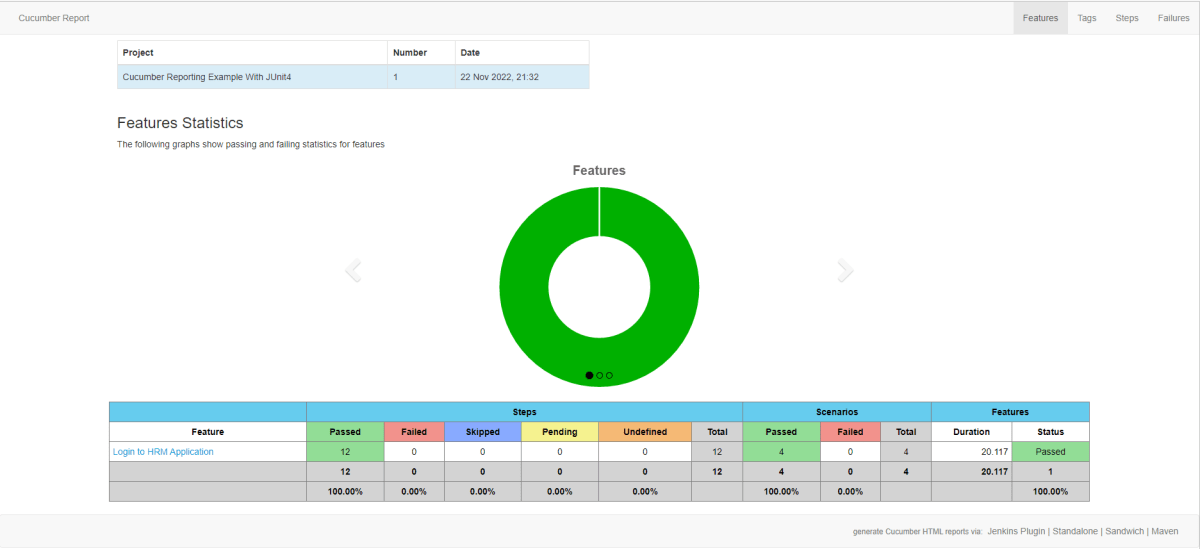
Refresh your project and check inside \target\cucumber-html-reports that the report generated with name feature-overview.

There are different types of HTML reports gets generated as a part of the test execution cycle.

1. feature-overview – This HTML report gives an overall overview of test execution. Main HTML report which covers all different sections like Features, Tags, Steps, and Failures.

2. failures-overview – This HTML report gives an overview of all failed tests.

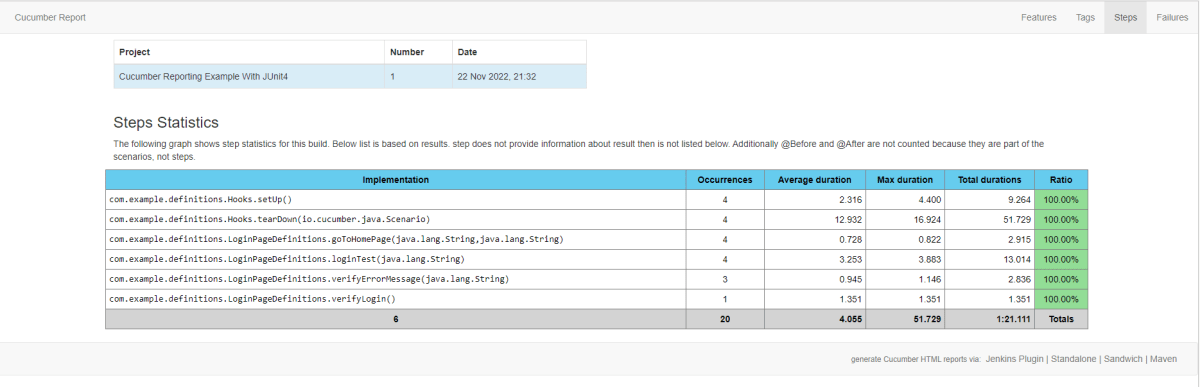
3. step-overview – This HTML report shows step statistics for the current cycle.

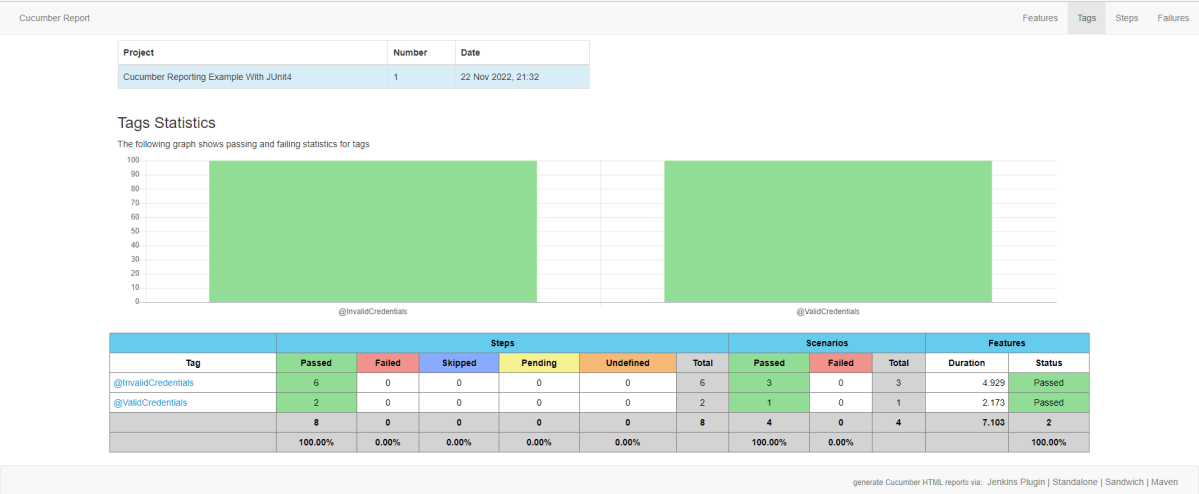
4. tag-overview – This HTML report shows passing and failing statistics for different tags used in test execution.

Congratulations on making it through this tutorial and hope you found it useful! Happy Learning!! Cheers!!

Implemention of ‘Masterthought’ Reports in Cucumber with TestNG

Last Updated On

HOME

Masterthought library provides pretty HTML reports for Cucumber. The cucumber JSON file is used to generate the HTML for the website. This Java report publisher was made particularly with publishing cucumber reports to the Jenkins build server in mind. It releases aesthetically pleasing HTML reports with charts displaying the outcomes of cucumber runs.

Cucumber lacks a sophisticated reporting feature. Cucumber generates a number of simple reports as part of the BDD framework; using the output from these same reports, we can use the Masterthought reporting plugin to produce more extensive HTML reports. Masterthought reporting plugin generates not only fancy reports but also detailed ones by reading a default report ‘cucumber.json’  generated by cucumber.

Table of Contents

  1. Prerequisite
  2. Dependency List
  3. Project Structure
  4. Implementation Steps
    1. Download and Install Java
    2. Download and setup Eclipse IDE on the system
    3. Setup Maven
    4. Install Cucumber Eclipse Plugin (Only for Eclipse IDE
    5. Create a new Maven Project
    6. Add Selenium, TestNG, Cucumber, and Masterthought dependencies to the project
    7. Create a feature file (LoginPage.feature) containing all the test scenarios under src/test/resources/features
    8. Create the test code locating the web elements in src/main/java
    9. Create the Step Definition class or Glue Code in src/test/java
    10. Create a TestNG Cucumber Runner class in src/test/java
    11. Create testng.xml
    12. Run the tests from Command Line
    13. Cucumber Report Generation

Prerequisite

  1. Java 11 installed
  2. Maven installed
  3. Eclipse or IntelliJ installed

Dependency List

  1. Selenium – 4.3.0
  2. Java 11
  3. Cucumber – 7.6.0
  4. Maven – 3.8.1
  5. TestNG – 7.6.0
  6. Cucumber Reporting Plugin – 5.7.4

Project Structure

Implementation Steps

  1. Download and Install Java on the system
  2. Download and setup Eclipse IDE on the system
  3. Setup Maven
  4. Install Cucumber Eclipse Plugin (For Eclipse IDE)
  5. Create a new Maven Project
  6. Add SeleniumTestNG, Cucumber, and Masterthought dependencies to the project
  7. Create a feature file under src/test/resources
  8. Create the test code locating the web elements in src/main/java
  9. Create the Step Definition class or Glue Code in src/test/java
  10. Create a TestNG Cucumber Runner class in src/test/java
  11. Create testng.xml
  12. Run the tests from Command Line
  13. Cucumber Report Generation

Step 1- Download and Install Java

Cucumber and Selenium need Java to be installed on the system to run the tests. Click here to know How to install Java.

Step 2 – Download and setup Eclipse IDE on the system

The Eclipse IDE (integrated development environment) provides strong support for Java developers, which is needed to write Java code. Click here to know How to install Eclipse.

Step 3 – Setup Maven

To build a test framework, we need to add a number of dependencies to the project. It is a very tedious and cumbersome process to add each dependency manually. So, to overcome this problem, we use a build management tool. Maven is a build management tool that is used to define project structure, dependencies, build, and test management. Click here to know How to install Maven.

Step 4 – Install Cucumber Eclipse Plugin (Only for Eclipse IDE)

The Cucumber Eclipse plugin is a plugin that allows eclipse to understand the Gherkin syntax. The Cucumber Eclipse Plugin highlights the keywords present in Feature File. Click here to know more – Install Cucumber Eclipse Plugin.

Step 5 – Create a new Maven Project

Click here to know How to create a Maven project

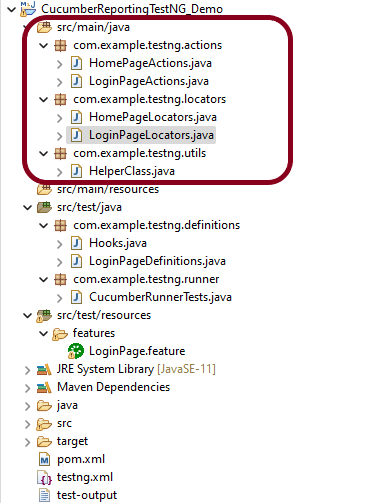
Below is the Maven project structure. Here,

Group Id – com.example
Artifact Id – CucumberReportingTestNG_Demo
Version – 0.0.1-SNAPSHOT
Package – com. example.testng

Step 6 – Add Selenium, TestNG, Cucumber, and Masterthought dependencies to the project

Masterthought Dependency

<dependency>
			<groupId>net.masterthought</groupId>
			<artifactId>cucumber-reporting</artifactId>
			<version>${maven.cucumber.reporting.version}</version>
</dependency>

Masterthought Plugin

<plugin>
		<groupId>net.masterthought</groupId>
		<artifactId>maven-cucumber-reporting</artifactId>
		<version>${maven.cucumber.reporting.version}</version>

		<executions>
			<execution>
				<id>execution</id>
				<phase>test</phase>
				<goals>
					<goal>generate</goal>
				</goals>
				<configuration>
					<projectName>Cucumber Reporting Example</projectName>
					<outputDirectory>${project.build.directory}/cucumber-report-html</outputDirectory>
					<inputDirectory>${project.build.directory}</inputDirectory>
					<jsonFiles>
						<param>**/*.json</param>
					</jsonFiles>
				</configuration>
			</execution>
		</executions>
</plugin>

The complete POM.xml for the project is shown below:-

<project xmlns="http://maven.apache.org/POM/4.0.0" xmlns:xsi="http://www.w3.org/2001/XMLSchema-instance" xsi:schemaLocation="http://maven.apache.org/POM/4.0.0 https://maven.apache.org/xsd/maven-4.0.0.xsd">
	<modelVersion>4.0.0</modelVersion>
	<groupId>com.example</groupId>
	<artifactId>CucumberReportingTestNG_Demo</artifactId>
	<version>0.0.1-SNAPSHOT</version>

	<properties>
		<project.build.sourceEncoding>UTF-8</project.build.sourceEncoding>
		<cucumber.version>7.6.0</cucumber.version>
		<selenium.version>4.3.0</selenium.version>
		<webdrivermanager.version>5.2.1</webdrivermanager.version>
		<testng.version>7.6.0</testng.version>
		<apache.common.version>2.4</apache.common.version>
		<maven.compiler.plugin.version>3.10.1</maven.compiler.plugin.version>
		<maven.surefire.plugin.version>3.0.0-M7</maven.surefire.plugin.version>
		<maven.compiler.source.version>11</maven.compiler.source.version>
		<maven.compiler.target.version>11</maven.compiler.target.version>
		<maven.cucumber.reporting.version>5.7.4</maven.cucumber.reporting.version>
	</properties>

	<dependencies>

		<dependency>
			<groupId>io.cucumber</groupId>
			<artifactId>cucumber-java</artifactId>
			<version>${cucumber.version}</version>
		</dependency>

		<dependency>
			<groupId>io.cucumber</groupId>
			<artifactId>cucumber-testng</artifactId>
			<version>${cucumber.version}</version>
			<scope>test</scope>
		</dependency>

		<!-- Selenium -->
		<dependency>
			<groupId>org.seleniumhq.selenium</groupId>
			<artifactId>selenium-java</artifactId>
			<version>${selenium.version}</version>
		</dependency>

		<!-- Web Driver Manager -->
		<dependency>
			<groupId>io.github.bonigarcia</groupId>
			<artifactId>webdrivermanager</artifactId>
			<version>${webdrivermanager.version}</version>
		</dependency>

		<!-- TestNG -->
		<dependency>
			<groupId>org.testng</groupId>
			<artifactId>testng</artifactId>
			<version>${testng.version}</version>
			<scope>test</scope>
		</dependency>

		<!-- Apache Common -->
		<dependency>
			<groupId>org.apache.directory.studio</groupId>
			<artifactId>org.apache.commons.io</artifactId>
			<version>${apache.common.version}</version>
		</dependency>

       <!-- Cucumber Reporting-->
		<dependency>
			<groupId>net.masterthought</groupId>
			<artifactId>cucumber-reporting</artifactId>
			<version>${maven.cucumber.reporting.version}</version>
		</dependency>

	</dependencies>

	<build>
		<plugins>
			<plugin>
				<groupId>org.apache.maven.plugins</groupId>
				<artifactId>maven-compiler-plugin</artifactId>
				<version>${maven.compiler.plugin.version}</version>
				<configuration>
					<source>${maven.compiler.source.version}</source>
					<target>${maven.compiler.target.version}</target>
				</configuration>
			</plugin>
			<plugin>
				<groupId>org.apache.maven.plugins</groupId>
				<artifactId>maven-surefire-plugin</artifactId>
				<version>${maven.surefire.plugin.version}</version>
				<configuration>
					<testFailureIgnore>True</testFailureIgnore>
					<suiteXmlFiles>
						<suiteXmlFile>testng.xml</suiteXmlFile>
					</suiteXmlFiles>
				</configuration>
			</plugin>

			<plugin>
				<groupId>net.masterthought</groupId>
				<artifactId>maven-cucumber-reporting</artifactId>
				<version>${maven.cucumber.reporting.version}</version>

				<executions>
					<execution>
						<id>execution</id>
						<phase>test</phase>
						<goals>
							<goal>generate</goal>
						</goals>
						<configuration>
							<projectName>Cucumber Reporting Example</projectName>
							<outputDirectory>${project.build.directory}/cucumber-report-html</outputDirectory>
							<inputDirectory>${project.build.directory}</inputDirectory>
							<jsonFiles>
								<param>**/*.json</param>
							</jsonFiles>
						</configuration>
					</execution>
				</executions>
			</plugin>
		</plugins>
	</build>
</project>

Step 7 – Create a feature file (LoginPage.feature) containing all the test scenarios under src/test/resources/features

It is recommended to create a features folder in src/test/resources directory. Create all the feature files in this features folder. Feature file should be saved as an extension of .feature.

Feature: Login to HRM Application 

Background:
    Given User is on HRMLogin page "https://opensource-demo.orangehrmlive.com/"
 
   @ValidCredentials
   Scenario: Login with valid credentials
       
    When User enters username as "Admin" and password as "admin123"
    Then User should be able to login successfully and new page open
    
   @InvalidCredentials
   Scenario Outline: Login with invalid credentials
     
    When User enters username as "<username>" and password as "<password>"
    Then User should be able to see error message "<errorMessage>"
    
  Examples:
   | username   | password  | errorMessage                       |
   | $$$$$        | ££££££££  | Invalid credentials               |
   | admin        | Admin123  | Invalid credentials              | 

Step 8 – Create the test code locating the web elements in src/main/java

LoginPageLocators

import org.openqa.selenium.WebElement;
import org.openqa.selenium.support.FindBy;

public class LoginPageLocators {

	@FindBy(name = "username")
    public WebElement userName;
 
    @FindBy(name = "password")
    public WebElement password;
 
    @FindBy(id = "logInPanelHeading")
    public WebElement titleText;
 
    @FindBy(xpath = "//*[@id='app']/div[1]/div/div[1]/div/div[2]/div[2]/form/div[3]/button")
    public WebElement login;
 
    @FindBy(xpath = "//*[@id='app']/div[1]/div/div[1]/div/div[2]/div[2]/div/div[1]/div[1]/p")
    public  WebElement errorMessage;
        
    @FindBy(xpath = "//*[@href='https://www.facebook.com/OrangeHRM/mycompany']") //Invalid Xpath
    public  WebElement faceBookIcon;  
    
    @FindBy(xpath = "//*[@id='app']/div[1]/div/div[1]/div/div[2]/div[2]/form/div[1]/div/span")
    public WebElement missingUsernameErrorMessage;
}

HomePageLocators

import org.openqa.selenium.WebElement;
import org.openqa.selenium.support.FindBy;

public class HomePageLocators {

	@FindBy(xpath = "//*[@id='app']/div[1]/div[1]/header/div[1]/div[1]/span/h6")
	public  WebElement homePageUserName;
 
}

LoginPageActions

import org.openqa.selenium.support.PageFactory;
import com.example.testng.locators.LoginPageLocators;
import com.example.testng.utils.HelperClass;

public class LoginPageActions {

LoginPageLocators loginPageLocators = null; 
	
    public LoginPageActions() {

    	this.loginPageLocators = new LoginPageLocators();

		PageFactory.initElements(HelperClass.getDriver(),loginPageLocators);
	}
    
    public void login(String strUserName, String strPassword) {
    	 
        // Fill user name
    	loginPageLocators.userName.sendKeys(strUserName);
 
        // Fill password
    	loginPageLocators.password.sendKeys(strPassword);
 
        // Click Login button
    	loginPageLocators.login.click();
 
    }
 
    //Get the title of Login Page")
    public String getLoginTitle() {
        return loginPageLocators.titleText.getText();
    }
      
    // Get the error message of Login Page
    public String getErrorMessage() {
        return loginPageLocators.errorMessage.getText();
    }
      
}

HomePageActions

import org.openqa.selenium.support.PageFactory;
import com.example.testng.locators.HomePageLocators;
import com.example.testng.utils.HelperClass;

public class HomePageActions {

	HomePageLocators homePageLocators = null;
   
	public HomePageActions() {
    	
		this.homePageLocators = new HomePageLocators();

		PageFactory.initElements(HelperClass.getDriver(),homePageLocators);
    }
 
    // Get the User name from Home Page
    public String getHomePageText() {
        return homePageLocators.homePageUserName.getText();
    }

}

HelperClass

import java.time.Duration;
import org.openqa.selenium.WebDriver;
import org.openqa.selenium.chrome.ChromeDriver;
import io.github.bonigarcia.wdm.WebDriverManager;

public class HelperClass {
	
	private static HelperClass helperClass;
	
	private static WebDriver driver;
    public final static int TIMEOUT = 10;
	
	 private HelperClass() {
		 
			WebDriverManager.chromedriver().setup();
	    	driver = new ChromeDriver();
	    	driver.manage().timeouts().implicitlyWait(Duration.ofSeconds(TIMEOUT));
	        driver.manage().window().maximize();

	 }      
	    	
    public static void openPage(String url) {
        driver.get(url);
    }
	
	public static WebDriver getDriver() {
		return driver;
				
	}
	
	public static void setUpDriver() {
		
		if (helperClass==null) {
			
			helperClass = new HelperClass();
		}
	}

	 public static void tearDown() {
		 
		 if(driver!=null) {
			 driver.close();
			 driver.quit();
		 }
		 
		 helperClass = null;

	 } 
	
}

Step 9 – Create the Step Definition class or Glue Code in src/test/java

It is recommended to create a definitions folder in src/test/java directory. The StepDefinition files should be created in this definitions directory. within the folder called definitions.

LoginPageDefinitions

import org.junit.Assert;
import com.example.junit.actions.ForgetPasswordPageActions;
import com.example.junit.actions.HomePageActions;
import com.example.junit.actions.LoginPageActions;
import com.example.junit.utils.HelperClass;
import io.cucumber.java.en.Given;
import io.cucumber.java.en.Then;
import io.cucumber.java.en.When;

public class LoginPageDefinitions{
	
	LoginPageActions objLogin = new LoginPageActions();
    HomePageActions objHomePage = new HomePageActions();
    ForgetPasswordPageActions objForgotPasswordPage = new ForgetPasswordPageActions();
		
 
    @Given("User is on HRMLogin page {string}")
    public void loginTest(String url) {
    	
    	HelperClass.openPage(url);
 
    }
 
    @When("User enters username as {string} and password as {string}")
    public void goToHomePage(String userName, String passWord) {
 
        // login to application
        objLogin.login(userName, passWord);
 
        // go the next page
        
    }
    
    @Then("User should be able to login successfully and new page open")
    public void verifyLogin() {
 
        // Verify home page
        Assert.assertTrue(objHomePage.getHomePageText().contains("Dashboard"));
 
    }
    
    @Then("User should be able to see error message {string}")
    public void verifyErrorMessage(String expectedErrorMessage) {
 
        // Verify home page
        Assert.assertEquals(objLogin.getErrorMessage(),expectedErrorMessage);
 
    }
     
}

Hooks

import com.example.junit.utils.HelperClass;
import io.cucumber.java.After;
import io.cucumber.java.Before;

public class Hooks {
	
	@Before
    public static void setUp() {

       HelperClass.setUpDriver();
    }
	
	@After
	public static void tearDown() {
	
		HelperClass.tearDown();
	}
}

Step 10 – Create a TestNG Cucumber Runner class in src/test/java

We need to create a class called Runner class to run the tests. This class will use the TestNG annotation @RunWith(), which tells TestNG what is the test runner class. TestRunner should be created under src/test/java within the folder called runner.

AbstractTestNGCucumberTests – Runs each cucumber scenario found in the features as a separate test.

import io.cucumber.testng.AbstractTestNGCucumberTests;
import io.cucumber.testng.CucumberOptions;
 
@CucumberOptions(tags = "", features = "src/test/resources/features/LoginPage.feature", glue = "com.example.testng.definitions",
    plugin= {"pretty", "html:test-output","json:target/cucumber/cucumber.json", "html:target/cucumber-html-report"})
 
public class CucumberRunnerTests extends AbstractTestNGCucumberTests {
 
}

Step 11 – Create testng.xml

TestNG.xml is used to run multiple tests in a single execution.

<?xml version="1.0" encoding="UTF-8"?>
<!DOCTYPE suite SYSTEM "https://testng.org/testng-1.0.dtd">
<suite name="Suite">
  <test name="Cucumber Reporting">
  
  <classes>
  <class name = "com.example.testng.runner.CucumberRunnerTests"/>
  </classes>
  </test> <!-- Test -->
</suite> <!-- Suite -->

Step 12 – Run the tests from Command Line

Use the below command to execute the tests.

mvn clean test

The output of the above program is

Step 13 – Cucumber Report Generation

Refresh your project and check inside \target\cucumber-html-reports that the report generated with name feature-overview.

There are different types of HTML reports gets generated as a part of the test execution cycle.

1. feature-overview – This HTML report gives an overall overview of test execution. Main HTML report which covers all different sections like Features, Tags, Steps, and Failures.

2. failures-overview – This HTML report gives an overview of all failed tests.

3. step-overview – This HTML report shows step statistics for the current cycle.

4. tag-overview – This HTML report shows passing and failing statistics for different tags used in test execution.

Congratulations on making it through this tutorial and hope you found it useful! Happy Learning!! Cheers!!