How to install Maven Plugin in Jenkins

HOME

In this tutorial, we are going to learn how we can install the Maven plugin and create a Maven project in Jenkins.

Implementation Steps

Step 1: Create a project for running the tests using Selenium WebDriver and TestNG
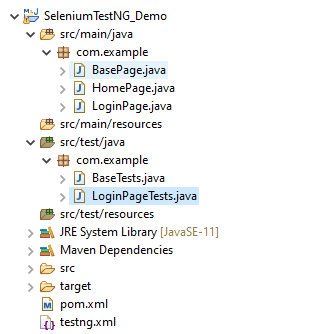
Step 2: Create the Test Code

You can refer to this tutorial to get the test code – Integration Of Jenkins With Selenium WebDriver.

Step 3: Start the Jenkins server

Open the browser and navigate to the localhost and the port in which Jenkins is running.

http://localhost:8080/

Step 4: Log in to Jenkins UI

Provide username and password and click on Sign in.

Step 5: Download and Install Maven Plugin

Click on the Manage Jenkins.

Choose Manage Plugins.

Step 6: Add the Maven Integration plugin

On the Plugins Page, go to the Available option

  1. Select the Maven Integration Plugin
  2. Click on Install without restartThe plugin will take a few moments to finish downloading depending on your internet connection, and will be installed automatically.
  3. You can also select the option Download now and Install after the restart button. In which plugin is installed after the restart
  4. You will be shown a “No updates available” message if you already have the Maven plugin installed.

The plugin “Maven Integration” has been installed successfully.
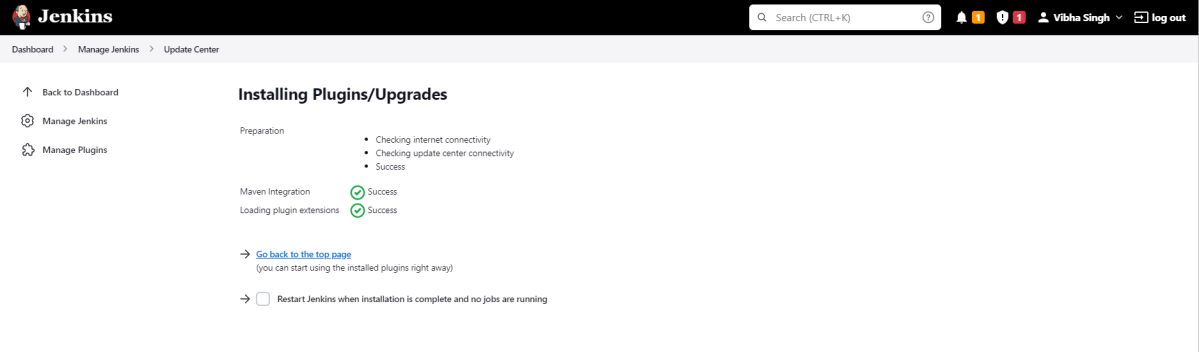
Step 7: Restart Jenkins

Click on the checkbox “Restart Jenkins when installation is complete when no jobs are running“.

The Jenkins is being restarted, It is about to restart.

Again, log in to Jenkins UI.

Step 8: Create a new project using the Maven project plugin

  1. Give the Name of the project – SeleniumTestNG_MavenDemo.
  2. Click on the Maven project. 
  3. Click on the OK button.

In the General section, enter the project description in the Description box.

Step 9: Build Management

Go to the Build section of the new job.

  • In the Root POM textbox, enter the full path to pom.xml
  • In the Goals and options section, enter “clean test

Click on the Apply and Save buttons.

We have created a new Maven project SeleniumTestNG_MavenDemo” with the configuration to run the Selenium with TestNG Tests

 Step 10: Execute the tests

Click on the Build Now link. Maven will build the project. It will then have TestNG execute the test cases.

To see the current status of the execution, click on the “console output“.

Congratulations on making it through this tutorial and hope you found it useful! Happy Learning!! Cheers!!

Additional Tutorials

How to install Plugins from Jenkins CLI?
Integrate Gradle project with Jenkins
How to generate TestNG Report in Jenkins
How to create Jenkins pipeline for Selenium tests
 Integration of GitHub with Jenkins

How to install Plugins from Jenkins CLI?

HOME

In the previous tutorial, I have explain the steps to install plugins in Jenkins from Jenkins UI. In this tutorial, we will install the plugins from Jenkins CLI.

Step 1 – Verify that the plugin is present in Available option in Plugin Manager

Login to Jenkins UI.

Provide a username and password and click on the Sign-in Button.

Click on the Manage Jenkins. Choose Manage Plugins.

On the Plugin Manager Page, go to the Available option and type Serenity or any plugin of your choice. Here we can see that Serenity is present in the Available option.

Step 2 – Go to Jenkins CLI

Click on the Manage Jenkins. Choose Jenkins CLI.

Step 3 – Download Jenkins CLI

Download jenkins-cli.jar from the Jenkins CLI page as shown in the image.

Step 4 – Run the Jenkins CLI command

Open Windows or PowerShell command line and go to the location where the jenkins-cli.jar file is placed on your machine.

Type the below command.

java -jar jenkins-cli.jar -s http://localhost:8080/ who-am-i

Here, we have not provided the login credentials to login to Jenkins, so the system shows Authenticated as anonymous.

As can be seen in the below image, we need to use -auth to login to Jenkins.

In this case, I have used the below command to login to the Jenkins

java -jar jenkins-cli.jar -s http://localhost:8080/ -auth Username:password who-am-i

To install the plugin, use the below command:

java -jar jenkins-cli.jar -s http://localhost:8080/ -auth username:password install-plugin serenity:1.4

serenity is the name of the plugin and 1.4 is the version of the plugin.

You can see that the Serenity plugin is getting installed.

Now, we need to restart the Jenkins. Use the below command to restart the Jenkins

java -jar jenkins-cli.jar -s http://localhost:8080/ -auth username:password safe-restart

safe-restart plugin allows you to restart Jenkins safely. Jenkins restarts once all running jobs are finished.

To verify that the Serenity plugin is installed or not in Jenkins, please go to Manage Jenkins -> Plugin Manager ->Installed -> Serenity Plugin.

Congratulations on making it through this tutorial and hope you found it useful! Happy Learning!! Cheers!!

Integrate Gradle project with Jenkins
How to generate HTML Reports in Jenkins
How to Schedule a Jenkins Job
Build History Metrics in Jenkins
How to create Jenkins pipeline for Extent Report
How to run parameterized Selenium tests in Jenkins

Integration of Allure Report with Jenkins

Last Updated On

HOME

In this tutorial, we are going to learn how we can integrate Allure Report with Jenkins. This tutorial is using a Maven project.

Before proceeding, I strongly advise you to read this tutorial to learn How to Setup Allure Report with Selenium TestNG.

Table of Contents

  1. Implementation Steps
    1. Download Allure Jenkins Plugin
    2. Configure Allure
    3. Create a new Maven Jenkins job
      1. Create a new project using the Maven project plugin
      2. Build Management
      3. Select a custom workspace
      4. Select “Allure Reports” from “Post Build Actions”
      5. Execute the tests
      6. View the Allure Report

Implementation Steps

  1. Download the Allure Jenkins Plugin
  2. Configure Allure
  3. Create a new Maven Jenkins job

Download Allure Jenkins Plugin

To generate Allure Report in Jenkins, we need to download Allure Plugin. Please refer to this tutorial to install the plugin – How to install Plugins in Jenkins

Configure Allure

Go back to the Manage Jenkins link as shown below:

When we click on the “Manage Jenkins” link, we are redirected to the Manage Jenkins page, where we can see various types of options, including the “Global Tool Configuration” option.

We need to set the Allure Commandline in Jenkins as shown below.

Click on the Allure Command line installations button. By default, Install Automatically will be checked, so since we are going to use the Allure installed on our local machine, Install automatically will install the latest version of Allure.

Provide the Name as ALLURE_HOME because that is what is currently installed on my machine, and also provide the path of Allure in the ALLURE_HOME textbox.

Create a new Maven Jenkins job

Step 1: Create a new project using the Maven project plugin

  1. Give the Name of the projectAllureReportWithSelenium_Demo
  2. Click on the Maven project. 
  3. Click on the OK button.

In the General section, enter the project description in the Description box – This is demo of Allure Report in Jenkins.

Select Source Code Management as None if the project is locally present on the machine.

Step 2: Build Management

Go to the Build section of the new job.

  1. In the Root POM textbox, enter pom.xml
  2. In the Goals and options section, enter “clean test

Click on the Advanced button.

Step 3: Select a custom workspace

Mention the full path of the project in the directory.

Step 4: Select “Allure Reports” from “Post Build Actions”

Scroll down to ‘Post Build Actions’ and click on the ‘Add Post Build Actions’ drop-down list. Select “Allure Report“. 

Enter the Result Path as “allure-results” and click on the “Save” button.

Click on the Apply and Save buttons.

We have created a new Maven project AllureReportWithSelenium_Demo” with the configuration to run the Selenium with TestNG Tests and also to generate Allure Report after execution using Jenkins.

Step 5: Execute the tests

Let’s execute it now by clicking on the “Build Now” button. 

Right-click on Build Number (here in my case it is #1).

Click on Console Output to see the result.

Step 6: View the Allure Report

Once the execution is completed, we could see a link to view the ‘Allure Report’.

Click on the Allure Report. It displays the summary of the tests.

There is another way to create Allure Report in Jenkins, which is by using the Jenkins pipeline. To know more about this, please refer to this tutorial – How to create Jenkins pipeline for Allure Report.

Congratulations on making it through this tutorial and hope you found it useful! Happy Learning!! Cheers!!

Additional Tutorials

Integration Of Jenkins With Selenium WebDriver
How to install Maven Plugin in Jenkins
Integrate Gradle project with Jenkins
Jenkins GitLab Integration
How to generate HTML Reports in Jenkins
Integration of Cucumber Report with TestNG in Jenkins
Serenity with Jenkins

How to create Jenkins pipeline for Selenium tests

Last Updated On

HOME

In the previous tutorial, I discussed the Jenkins pipeline. This tutorial will discuss the steps to create the Jenkins pipeline for Selenium tests. This is an important step in CI/CD.

Table of Contents

  1. Prerequisite
  2. Implementation Steps
    1. Create a new pipeline project
    2. Scroll down to Pipeline
    3. Create Jenkinsfile
    4. Specify branches to build a section under Repositories
    5. Execute the tests
    6. Pipeline Steps
    7. View the Report
  3. How to get the pipeline syntax?

Prerequisite

1. Jenkins installed and started on the computer – How to install Jenkins on Windows 10.

2. Java and Maven are installed and configured in Jenkins. To know more about this, please refer to this – How to configure Java and Maven in Jenkins.

3. To generate a HTML Report in Jenkins, we need to download the HTML Publisher Plugin. Please refer to this tutorial to install the plugin – How to generate HTML Reports in Jenkins

Implementation Steps

Step 1: Create a new pipeline project

  1. Give the Name of the project – Selenium_PipelineDemo.
  2. Click on the pipeline project. 
  3. Click on the OK button.

In the General section, enter the project description in the Description box.

Step 2: Scroll down to Pipeline

From the Definition field, choose the “Pipeline script from SCM” option. This option instructs Jenkins to obtain your Pipeline from Source Control Management (SCM), which will be your locally cloned Git repository.

From the SCM field, choose Git.

The “Repositories” section contains the “Repository URL” and “Credentials“.

In the Repository URL field, specify the directory path of the GitLab/GitHub project.

In the Credentials field, specify the username and password needed to log in to GitLab/GitHub.

In this case, I have the project present in GitLab and using it.

Step 3: Create Jenkinsfile

Create and save a new text file with the name Jenkinsfile at the root of the project in the GitLab repository. Here, we are using the Selenium project with TestNG. To learn more about the Integration of Selenium with TestNG, please refer to this tutorial – Integration of Selenium and TestNG.

For this tutorial, we are using Declarative syntax. The sample example is given below:

Here, I have used emailable-report.html, you can also use index.html and that report will be published.

pipeline {
    agent any

    stages {
        stage('Test') {
            steps {
                bat "mvn -D clean test"
            }

            post {                
                // If Maven was able to run the tests, even if some of the test
                // failed, record the test results and archive the jar file.
                success {
                   publishHTML([
                       allowMissing: false, 
                       alwaysLinkToLastBuild: false, 
                       keepAll: false, 
                       reportDir: 'target/surefire-reports/', 
                       reportFiles: 'emailable-report.html', 
                       reportName: 'HTML Report', 
                       reportTitles: '', 
                       useWrapperFileDirectly: true])
                }
            }
        }
    }
}

Step 4: Specify branches to build a section under Repositories

  1. Branch Specifier – */master (This is my main branch)
  2. ScriptPath – Jenkinsfile

Click on the Apply and Save buttons.

We have created a new Maven project Selenium_PipelineDemo” with the configuration to run the Selenium Test with TestNG.

Step 5: Execute the tests

Let’s execute it now by clicking on the “Build Now” button. 

Right-click on Build Number (here in my case it is #11) and click on Console Output to see the result.

Below is the test execution summary.

Step 6: Pipeline Steps

Once the execution is completed, and we want to see the Pipeline Steps, click on the Pipeline Steps mentioned on the left side of the page.

Step 7: View the Report

Once the execution is completed, go back to “Selenium_PipelineDemo”. We can see below that the HTML Report is generated.

We could see a link to view ‘HTML Reports’. Click on the HTML Reports. It displays the emailable-report.html Report.

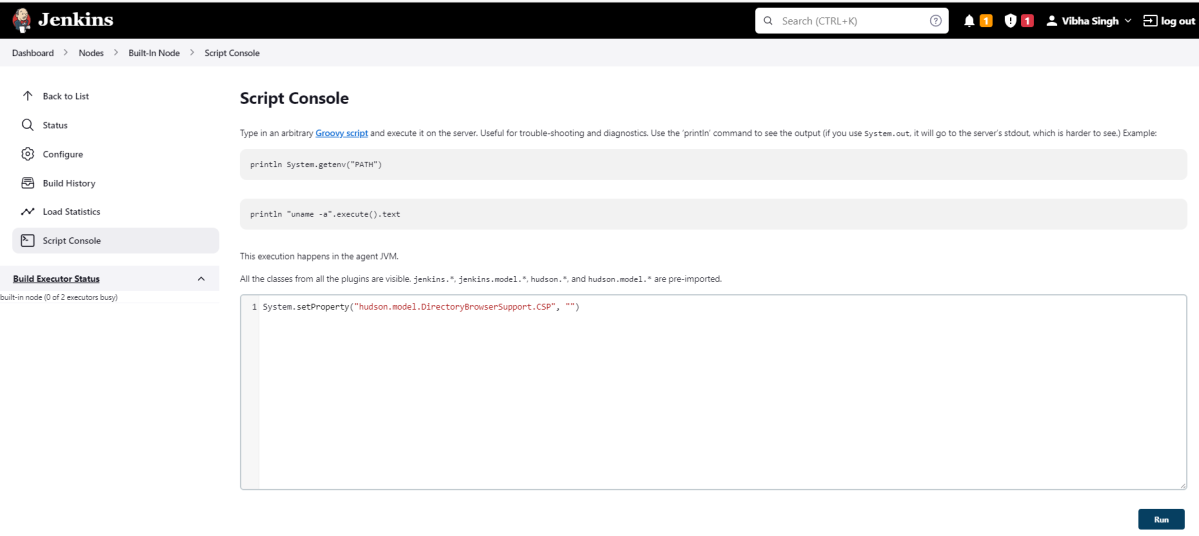
Tip: If you don’t see the Report UI intact, then you need to configure a simple groovy script. For that, go to Dashboard–>Manage Jenkins–>Script Console and add the script as:

System.setProperty("hudson.model.DirectoryBrowserSupport.CSP","")

How to get the pipeline syntax?

If you don’t know the syntax for the pipeline, there is an option “Pipeline Syntax” in the UI as shown below.

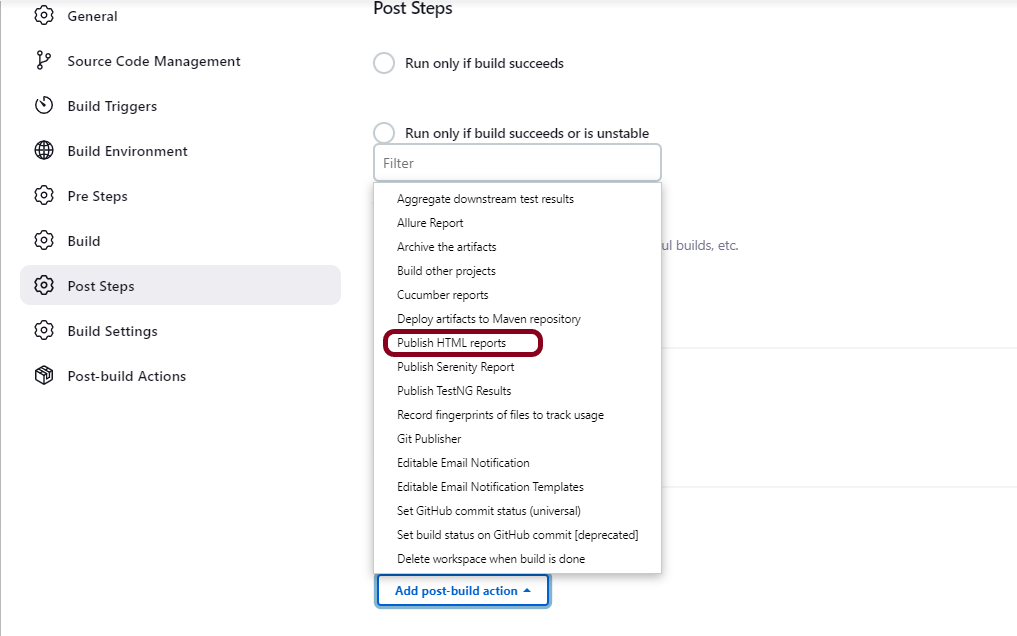
Select any of the suitable options. In my case, I have used Publish HTML reports.

Specify the name of the Report in the Index page[s]and Report Title such as HTML Report and click on the “Generate Pipeline Script”.

Below is the sample syntax.

We are done! Congratulations on making it through this tutorial and hope you found it useful! Happy Learning!!

Additional Tutorials

How to install Jenkins on Windows 10
Integration Of Jenkins With Selenium WebDriver
How to install Maven Plugin in Jenkins
Integrate Gradle project with Jenkins
Jenkins GitLab Integration
Integration of Cucumber Report with TestNG in Jenkins

How to generate HTML Reports in Jenkins

Last Updated On

HOME

In the previous tutorial, we saw the Integration of Allure Report with Jenkins. In this tutorial, we show you how to generate an HTML Report Using Jenkins. 

Table of Contents

  1. Prerequisite
  2. Implementation Steps
    1. Create a new Maven project
    2. Build Management
    3. Select a custom workspace
    4. Select “Publish HTML reports” from “Post Build Actions”
    5. Execute the tests
    6. View the HTML Report

Prerequisite

Jenkin’s installed and started on the computer. The current Jenkins version is – 2.361.2

Implementation Steps

To generate HTML Report in Jenkins, we need to download HTML Publisher Plugin. Please refer to this tutorial to install the plugin – How to install Plugins in Jenkins.

Step 1: Create a new Maven project

  1. Give the Name of the projectHTMLReport_Demo
  2. Click on the Maven project. 
  3. Click on the OK button.

In the General section, enter the project description in the Description box.

Select Source Code Management as None if the project is locally present on the machine.

Step 2: Build Management

Go to the Build section of the new job.

  1. In the Root POM textbox, enter the full path to pom.xml
  2. In the Goals and Options section, enter “clean test site

Here, I have used the Selenium project with JUnit, so to see the complete project, please refer to this tutorial –  How to generate JUnit4 Report.

Click on the Advanced button.

Step 3: Select a custom workspace

Mention the full path of the project in the directory.

Step 4: Select “Publish HTML reports” from “Post Build Actions”

Scroll down to “Post Build Actions” and click on the “Add Post Build Actions” drop-down list. Select “Publish HTML reports“. 

If you want to see where the report is saved in Jenkins, go to the Dashboard ->HTMLReport_Demo project -> Workspace ->target -> site -> surefire-report.html.

Enter the below details to publish HTML reports

HTML directory to archive – target/site/

Index page[s] – surefire-report.html

Report title – HTML Report

Click on the Apply and Save buttons.

We have created a new Maven project “HTMLReport_Demo” with the configuration to run the Selenium with JUnit4 Tests and also to generate HTML Report after execution using Jenkins.

Step 5: Execute the tests

Let’s execute it now by clicking on the “Build Now” button. 

Right-click on Build Number (here in my case it is #2).

Click on Console Output to see the result.

Step 6: View the HTML Report

Once the execution is completed, click on go “Back to Project“, and we can see a link to view the “HTML Report“.

We can see here that the HTML Report link is displayed in the Console.

Below is the HTML Report generated in Jenkins.

We can see that the HTML Report does not look very pretty. The reason is that CSS is stripped out because of the Content Security Policy in Jenkins.

The default rule set in Jenkins is:

sandbox; default-src 'none'; img-src 'self'; style-src 'self';

To know more about this, please refer to this tutorial – https://www.jenkins.io/doc/book/security/configuring-content-security-policy/.

We can customize the Content Security Policy in Jenkins. But keep in mind that it should be done after checking with the Security team in your organization. This is a workaround solution. I can’t emphasize enough that this is not a standard practice.

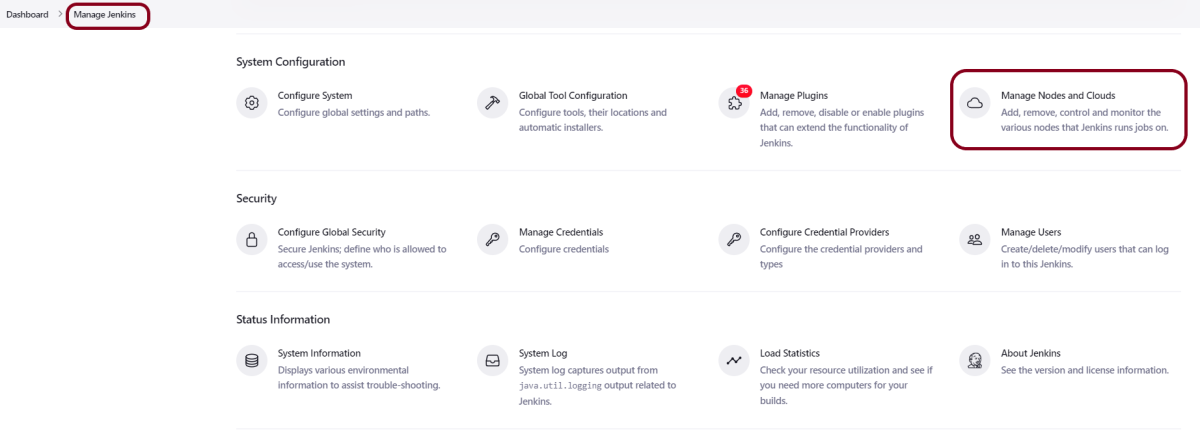
Go to Manage Jenkins -> Manage Nodes and Clouds.

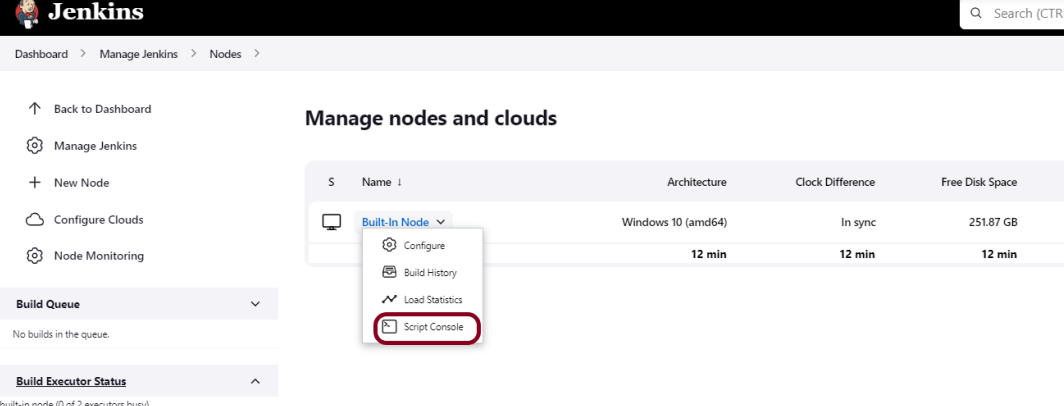
Click on the Script Console option.

Type in the following command and Press Run. If you see the output as ‘Result:’ then the protection is disabled. Re-run your build and you can see that the new HTML files archived will have the CSS enabled.

System.setProperty("hudson.model.DirectoryBrowserSupport.CSP","")

Re-run the HTMLReport_Demo project. Now you can see a properly rendered HTML Report.

Congratulations on making it through this tutorial and hope you found it useful! Happy Learning!! Cheers!!

Additional Tutorials

Jenkins GitLab Integration
How to generate HTML Reports in Jenkins
How to create Jenkins pipeline for Serenity tests
How to create Jenkins pipeline for Cucumber tests
How to create Jenkins pipeline for Extent Report
How to run parameterized Selenium tests in Jenkins

How to Schedule a Jenkins Job

Last Updated On

HOME

In this post, we’ll show you how to schedule Jenkins jobs, and we’ll review some specific scenarios.

Table of Contents

  1. Jenkins Job Scheduling Syntax
  2. Add a Schedule to a Jenkins Job
    1. Create a new project using the Maven project plugin
    2. Go to the Build section of the new job
    3. Go to the Build Triggers
    4. Verify the Build History

Jenkins Job Scheduling Syntax

Let’s first have a look at the Jenkins task scheduling setup. You don’t need to be familiar with Linux’s command line environment to understand it, but it resembles the cron syntax quite a bit.

Five fields that are separated by whitespace make up a scheduling item. By adding more than one entry, you can schedule a job for more than one time.

Minute Hour Day of Month Month Day of week

MINUTE (0-59), HOUR (0-23), DAY (1-31), MONTH (1-12), DAY OF THE WEEK (0-6)

Each field can contain an exact value or use a set of special expressions:

  • The asterisk indicates all valid values. So, a job that runs every day has a * in the third field.

  • A dash separates ranges of values. For example, a job that runs every hour from 9:00 a.m. to 5:00 p.m. would have 9-17 in the second field.

  • Intervals are specified with a slash /. A job that runs every 15 minutes has H/15 in the first field. Note that the in the first field has a special meaning. If you wanted a job to run every 15 minutes, you could configure it as 0/15, which would make it run at the start of every hour. However, if you configure too many jobs this way, you can overload your Jenkins controller. Ultimately, the H tells Jenkins to pick a minute based on a hash of the job name. 

  • Finally, you can specify multiple values with a comma. So, a job that runs Monday, Wednesday, and Friday would have 1,3,5 in the fifth field.

Here are the several special predefined values that can be used to substitute the expressions in Jenkins cron.

Entry Description Description
@yearly Run at any time during the year H H H H *
@annually Run at any time during the year H H H H *
@monthly Run at any time during the month H H H * *
@weekly Run at any time during the week H H * * H
@daily Run at any time during the day H H * * *
@hourly Run at any time during the hour H * * * *

Here are the most common examples of cron job schedules that can be found in almost any crontab on Linux (use H in the examples below to spread the load evenly in Jenkins):

Schedule Job
* * * * * Run cron job every minute
H/5 * * * * Run cron job every 5 minutes
H/30 * * * * Run cron job every 30 minutes
0 * * * * Run cron job every hour
0 H/3 * * * Run cron job every 3 hours
0 13 * * * Run cron job every day at 1pm
30 2 * * * Run cron job every day at 2:30 am
0 0 * * * Run cron job every day at midnight
0 0 * * 0 Run cron job every Sunday
0 0 * * 1 Run cron job every Monday
0 0 1 * * Run cron job every first day of every month
0 0 1 1 * Run cron job every first of January every year

Add a Schedule to a Jenkins Job

Step 1: Create a new project using the Maven project plugin

In the General section, enter the project description in the Description box.

Step 2: Go to the Build section of the new job

  • In the Root POM textbox, enter the full path to pom.xml
  • In the Goals and options section, enter “clean test”

Click on the Apply and Save buttons.

Step 3: Go to the Build Triggers

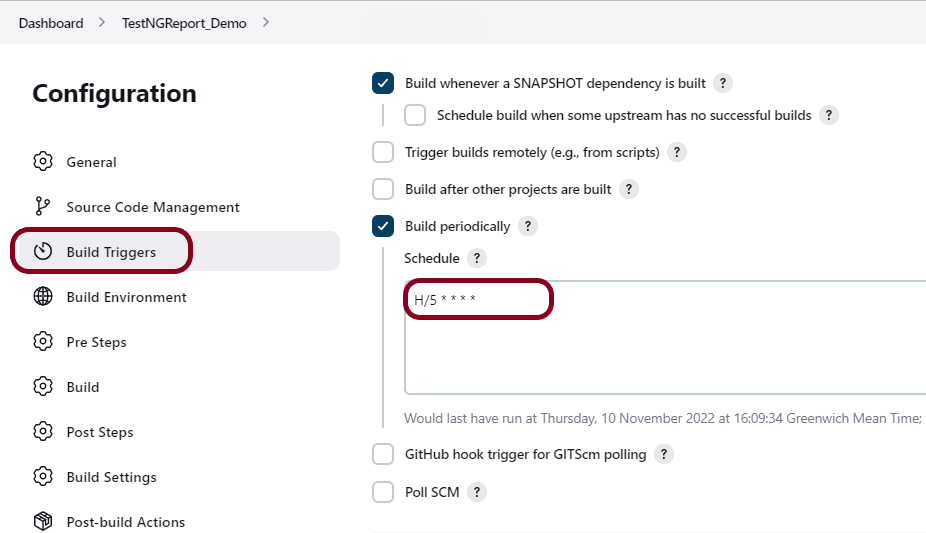
Select the Build periodically option and mention the schedule.

This will open the scheduling text area.

H/5 * * * *

This schedule means that the job will run every 5 minutes.

Click on the Apply and Save buttons.

Step 4: Verify the Build History

Here is a screenshot of a couple of builds on our system. The timestamps show that you’ve scheduled a job to run every five minutes.

Below is the Build History.

In this post, we covered Jenkin’s job scheduling abilities, and we covered how to configure jobs for different intervals. 

How to generate Newman Report in Jenkins

Last Updated On

HOME

Postman contains a full-featured testing sandbox that enables you to write and execute JavaScript-based tests for your API. You can then integrate Postman with your CI/CD build system using Newman, the command-line collection runner for Postman. In this tutorial, we are going to learn how we can create a Newman Report in Jenkins.

Table of Contents

Prerequisite:

  • Jenkins installed on the machine
  • NodeJS installed on the machine

Implementation Steps

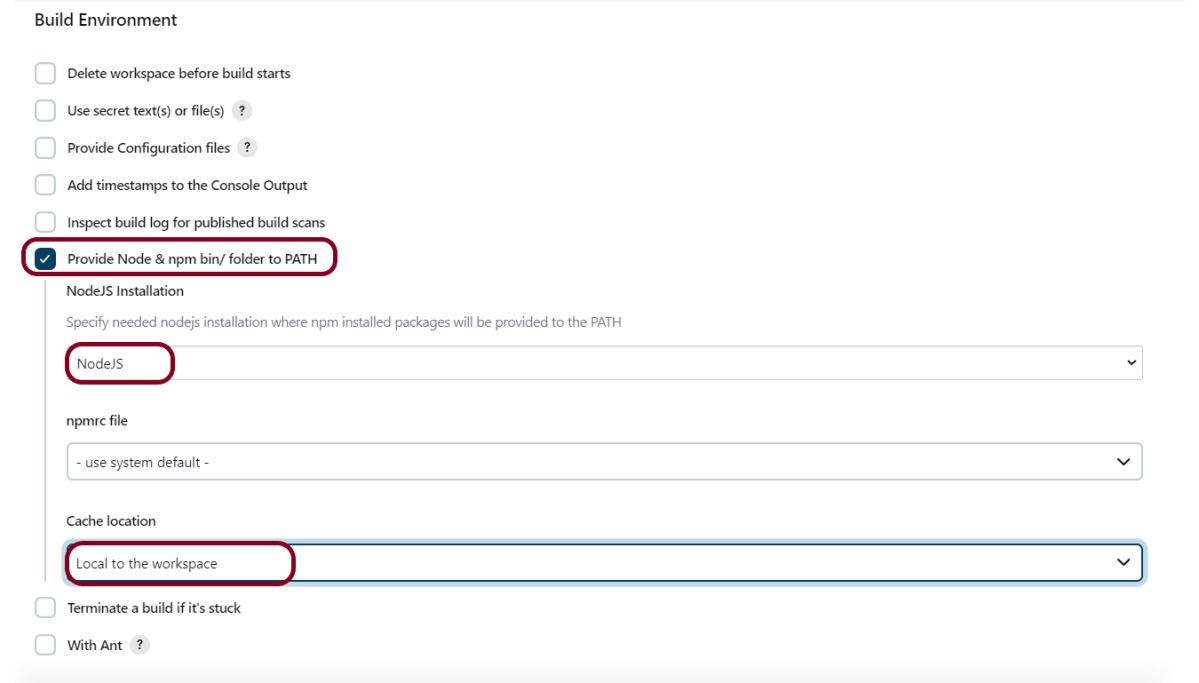
Step 1: Download the NodeJS Plugin

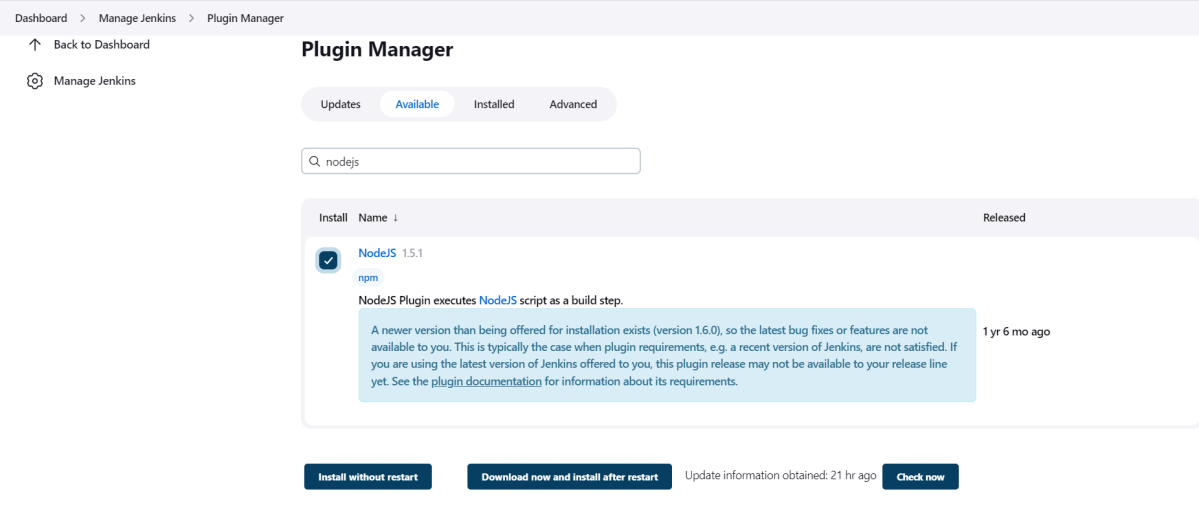
To generate a Performance Report in Jenkins, we need to download NodeJS Plugin. Please refer to this tutorial to install the plugin – How to install Plugins in Jenkins.

Go to Manage Jenkins > Manage Plugins and install the NodeJS plugin.

Step 3: Create a new FreeStyle project

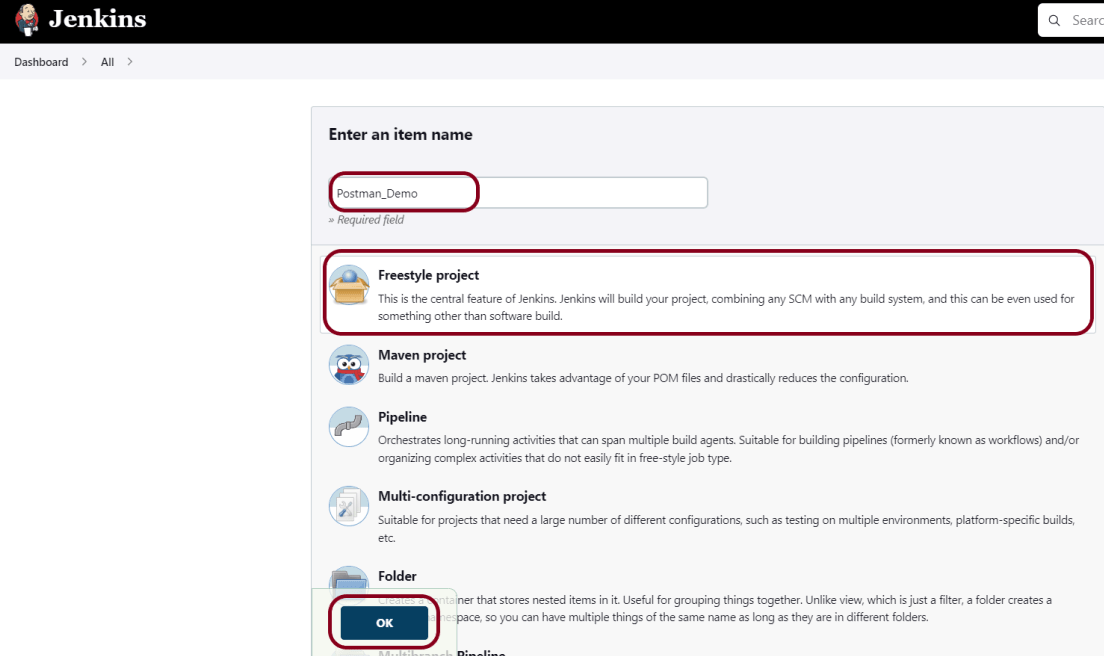
  1. Give the Name of the projectPostman_Demo
  2. Click on the FreeStyle project. 
  3. Click on the OK button.

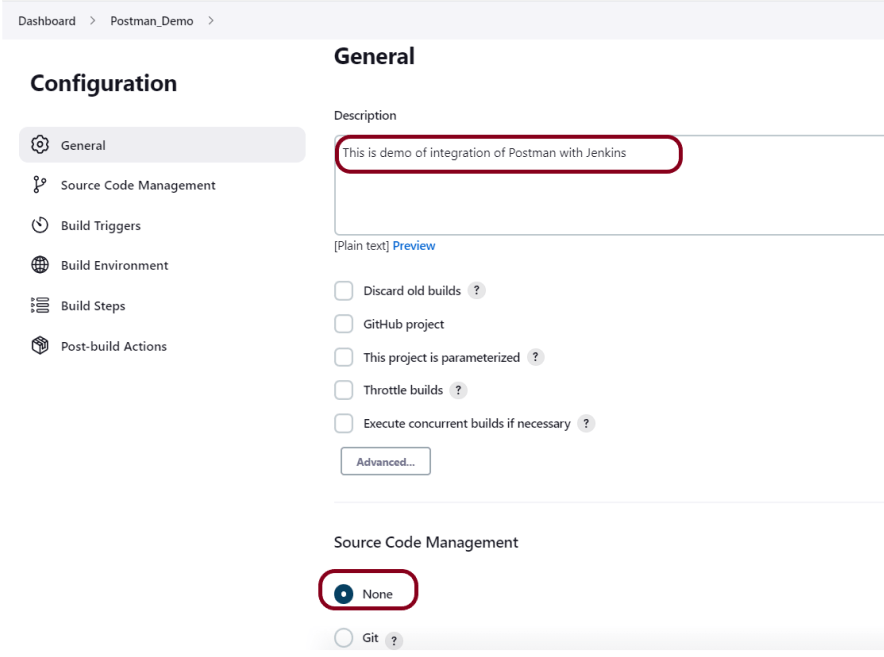
In the General section, enter the project description in the Description box.

Step 4: Source Code Management

Select Source Code Management as None if the project is locally present on the machine.

Step 6: Select Execute Windows batch command

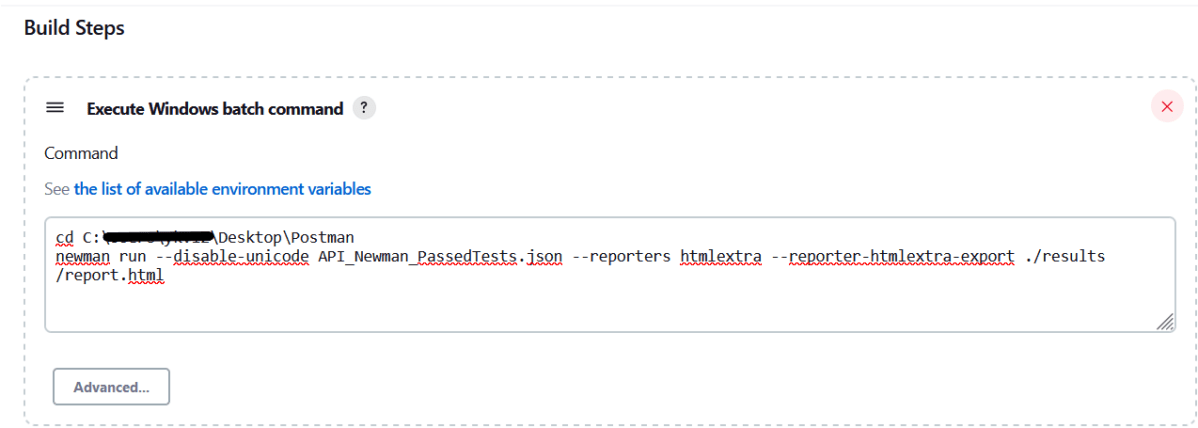
In the Build Steps section, select Execute Windows batch command.

Use the below command to go to the path where the JMeter is placed in your system.

cd C:\Users\Vibha\Desktop\Postman
newman run --disable-unicode API_Newman_PassedTests.json --reporters htmlextra --reporter-htmlextra-export ./results/report.html

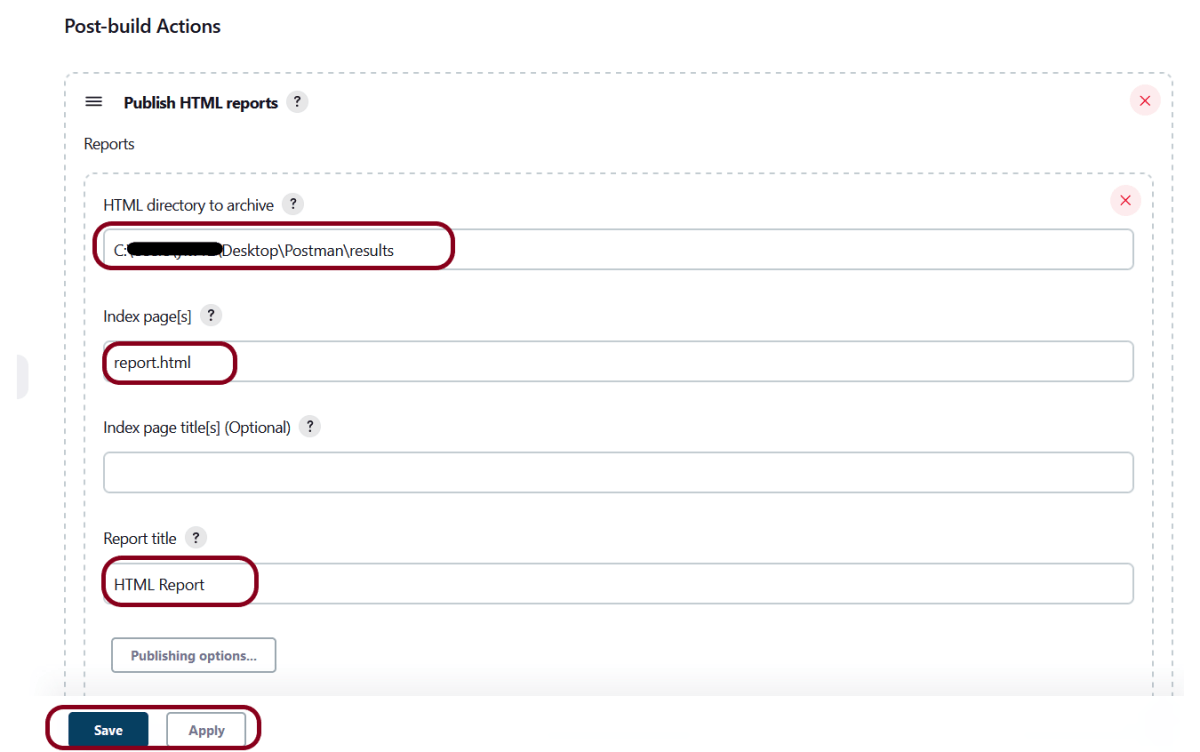
Step 7: Select “Publish HTML reports” from “Post Build Actions”

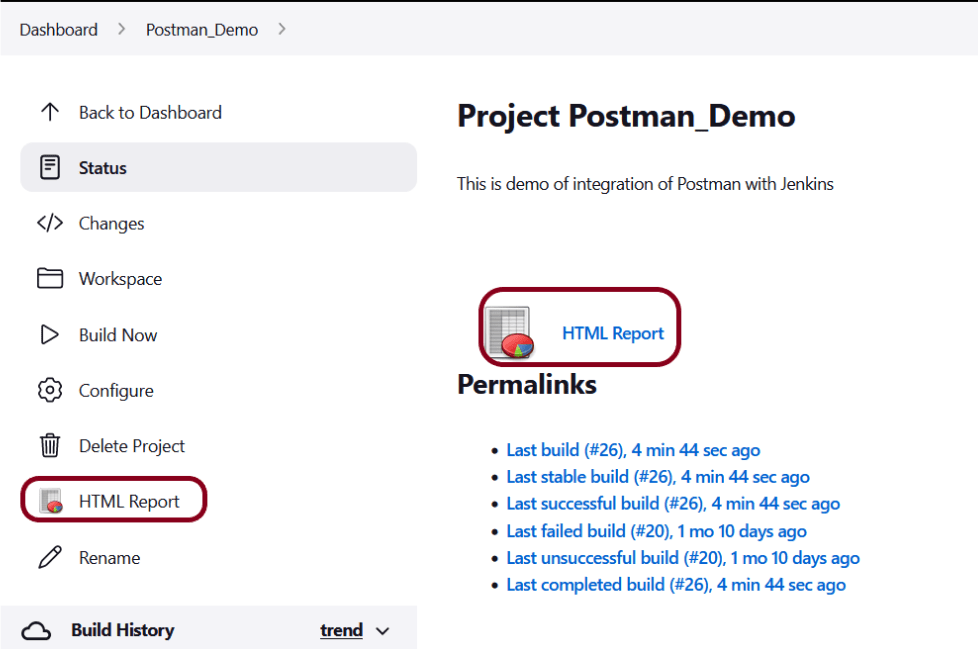
We have created a new project Postman_Demo” with the configuration to run the Postman scripts.

Step 8: Execute the tests

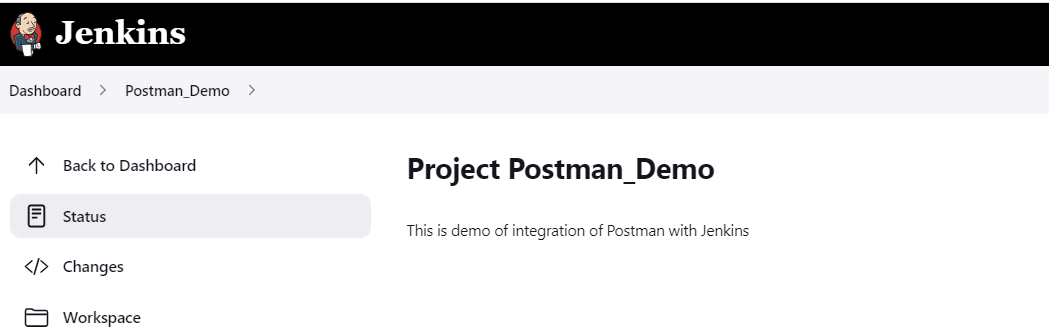
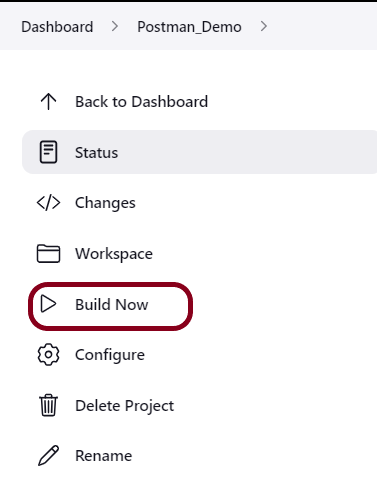
Let’s execute it now by clicking on the “Build Now” button. 

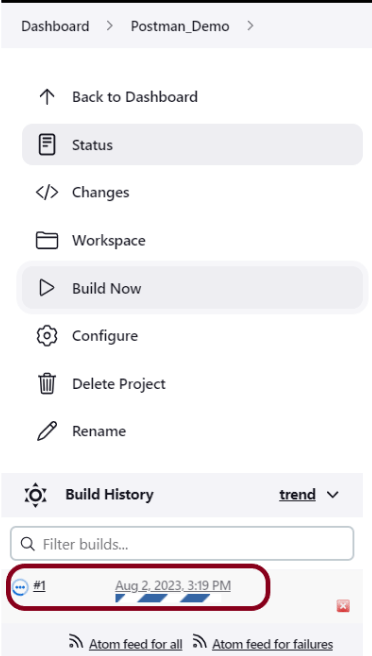
Right-click on Build Number (here in my case it is #1).

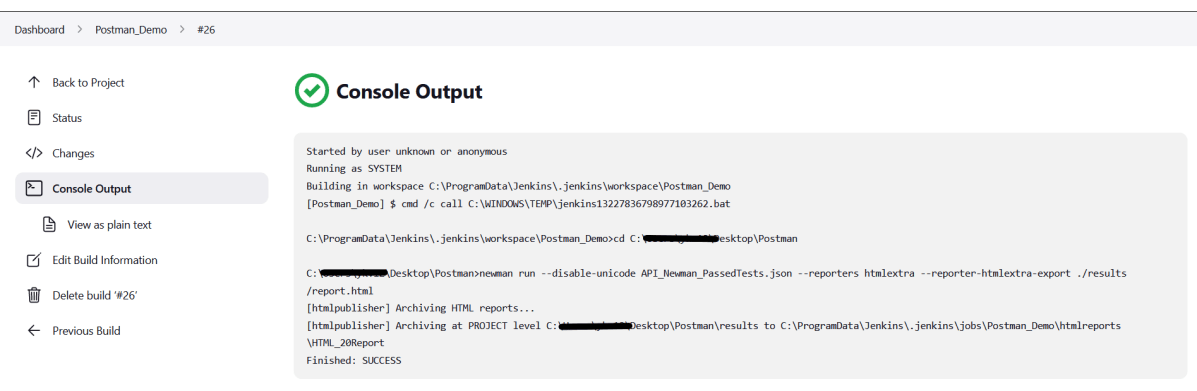
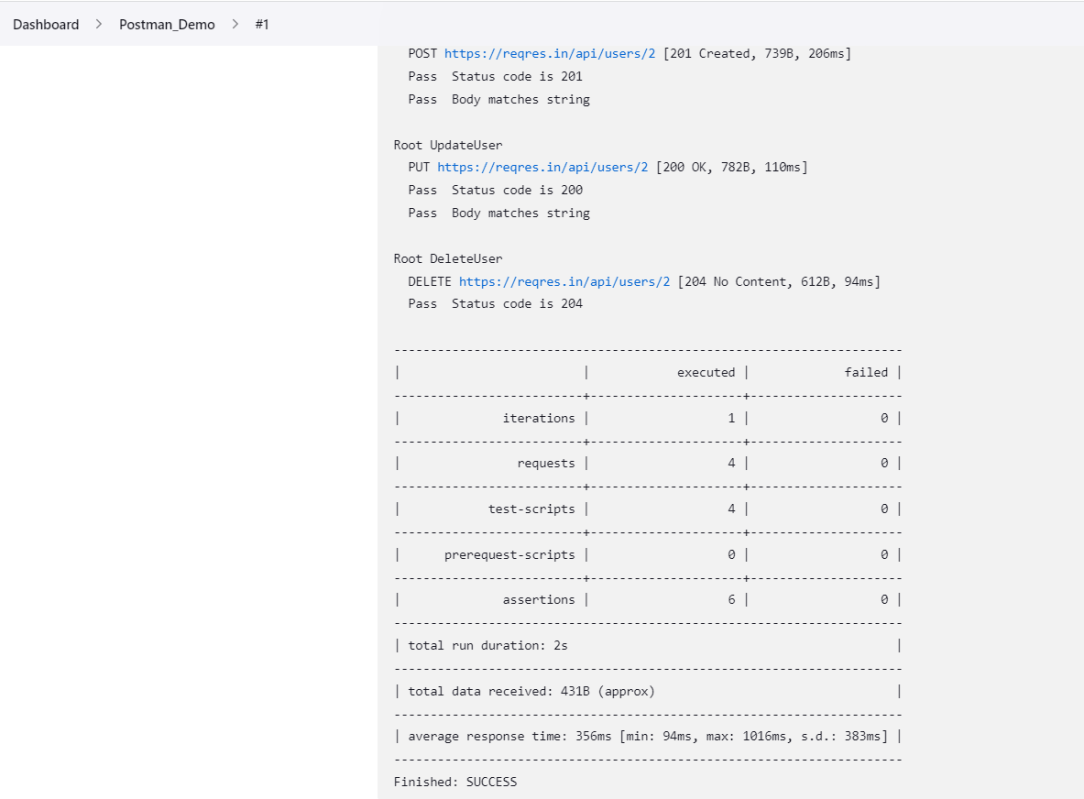
Click on Console Output to see the result.

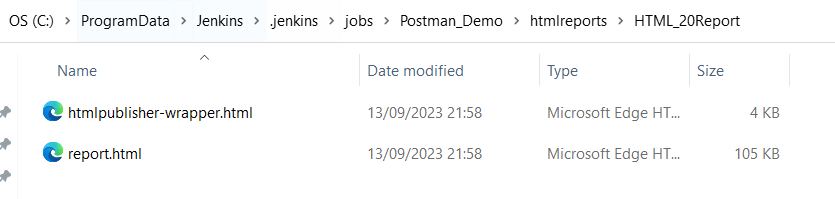
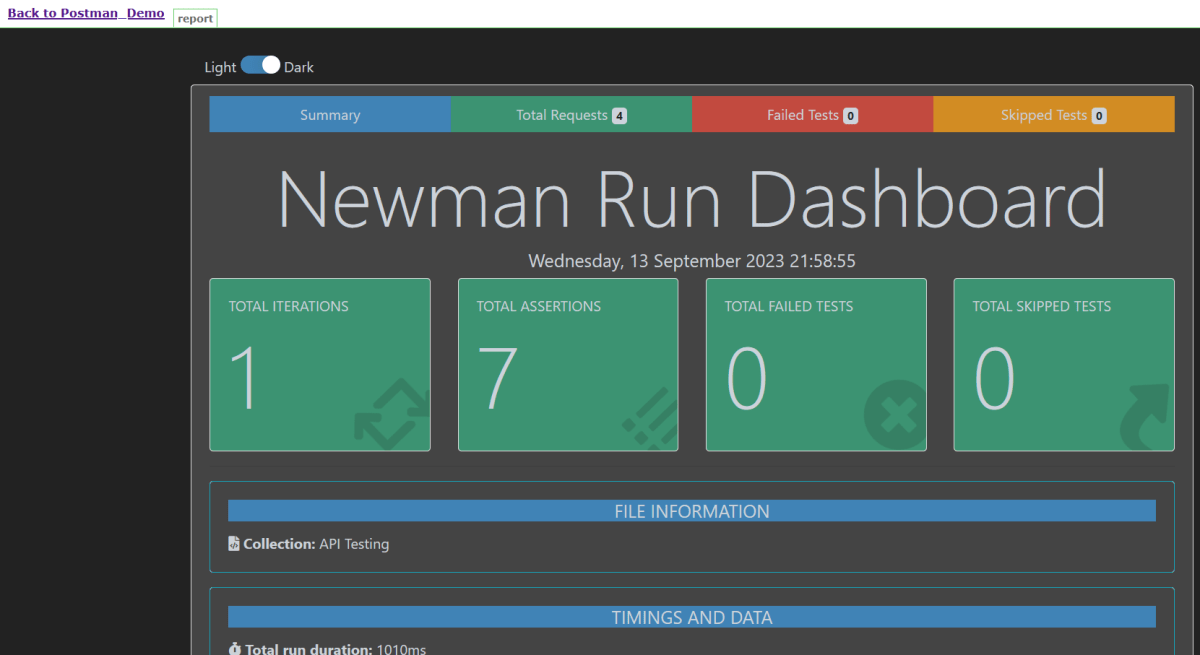
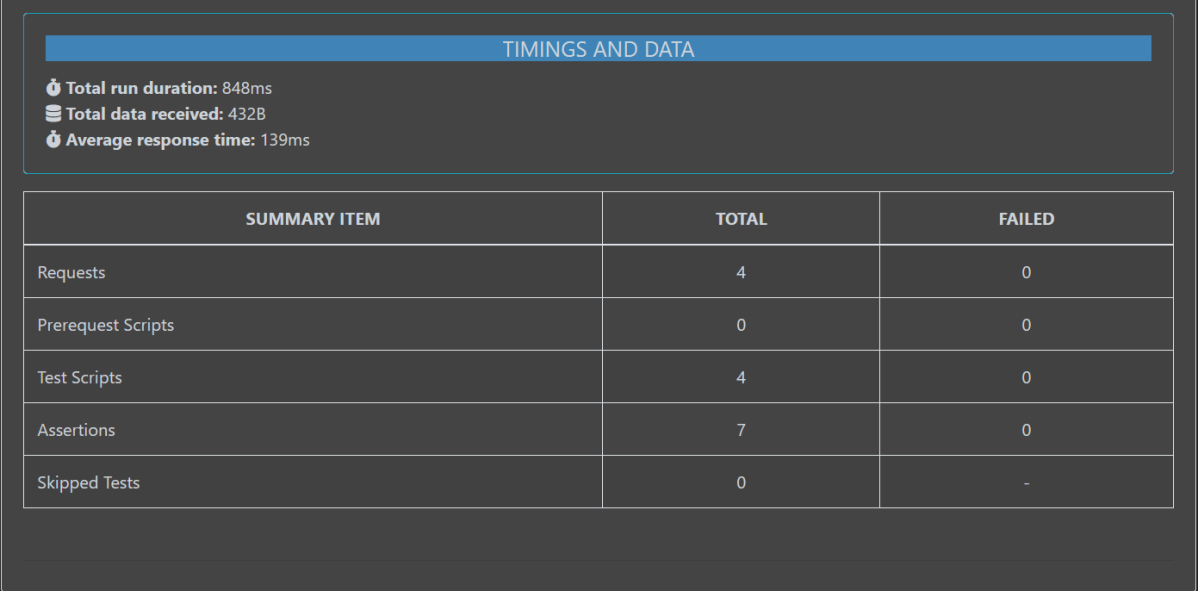
Below is the HTML Report generated in Jenkins.

	
System.setProperty("hudson.model.DirectoryBrowserSupport.CSP","")

Congratulations on making it through this tutorial and hope you found it useful! Happy Learning!! Cheers!!

Additional Tutorials

What is Collection in Postman?
Data Driven Testing in Postman
 How to import Collection into Postman?
 How to run Postman requests from the command line
 How to generate Newman HTML Report?

Integration of Postman with Jenkins

Last Updated On

HOME

Postman contains a full-featured testing sandbox that enables you to write and execute JavaScript-based tests for your API. You can then integrate Postman with your CI/CD build system using Newman, the command-line collection runner for Postman. In this tutorial, we are going to learn how we can integrate Postman with Jenkins.

Table of Contents

Prerequisite:

  • Jenkins installed on the machine
  • NodeJS installed on the machine

Implementation Steps

Step 1: Download the NodeJS Plugin

To generate a Performance Report in Jenkins, we need to download NodeJS Plugin. Please refer to this tutorial to install the plugin – How to install Plugins in Jenkins.

Go to Manage Jenkins > Manage Plugins and install the NodeJS plugin.

Step 3: Create a new FreeStyle project

  1. Give the Name of the projectPostman_Demo
  2. Click on the FreeStyle project. 
  3. Click on the OK button.

In the General section, enter the project description in the Description box.

Step 4: Source Code Management

Select Source Code Management as None if the project is locally present on the machine.

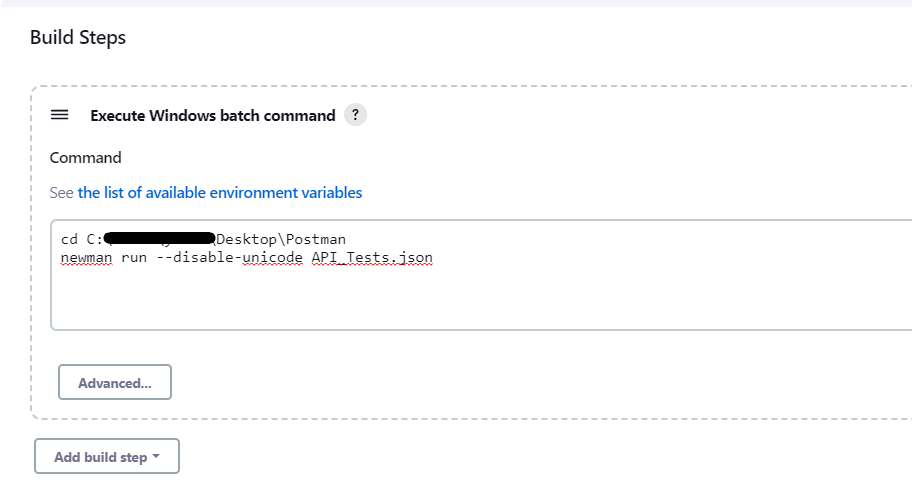
Step 6: Select Execute Windows batch command

In the Build Steps section, select Execute Windows batch command.

Use the below command to go to the path where the JMeter is placed in your system.

cd C:\Users\Vibha\Desktop\Postman
newman run --disable-unicode API_Tests.json

We have created a new project Postman_Demo” with the configuration to run the Postman scripts.

Step 7: Execute the tests

Let’s execute it now by clicking on the “Build Now” button. 

Right-click on Build Number (here in my case it is #1).

Click on Console Output to see the result.

Congratulations on making it through this tutorial and hope you found it useful! Happy Learning!! Cheers!!

Additional Tutorials

What is Collection in Postman?
Data Driven Testing in Postman
 How to import Collection into Postman?
 How to run Postman requests from the command line
 How to generate Newman HTML Report?

Integration of JMeter with Jenkins

Last Updated On

HOME

Integrating JMeter with Jenkins is a powerful way to enhance CI/CD pipelines by automating performance testing. In this tutorial, we are going to learn how we can integrate JMeter with Jenkins.

Table of Contents

Why do we need to integrate JMeter with Jenkins?

A few of the main benefits of using JMeter with Jenkins are:

  • Unattended test execution for each system.
  • Build failure logs and recovery steps.
  • Secure and easy access to test reports of each build.
  • Automation of routine work.

Prerequisite

Implementation Steps

Step 1: Download the Performance Plugin

To generate a Performance Report in Jenkins, we need to download Performance Plugin. Please refer to this tutorial to install the plugin – How to install Plugins in Jenkins.

Step 2: Create a JMeter Script

It is advisable to have a JMeter Script built and tested that it is working locally. To know how to create a JMeter Script, please refer to this tutorial – How to send POST requests in JMeter.

Step 3: Create a new FreeStyle project

  1. Give the Name of the project – JMeter_Demo
  2. Click on the FreeStyle project. 
  3. Click on the OK button.

In the General section, enter the project description in the Description box.

Step 4: Source Code Management

Select Source Code Management as None if the project is locally present on the machine.

Step 5: Select Execute Windows batch command

In the Build Steps section, select Execute Windows batch command.

Use the below command to go to the path where the JMeter is placed in your system.

cd C:\Users\Vibha\Documents\Vibha\Automation\apache-jmeter-5.6\apache-jmeter-5.6\bin

jmeter -n -t C:\Users\Vibha\Documents\Vibha\Automation\apache-jmeter-5.6\apache-jmeter-5.6\bin\POST_Demo.jmx -l C:\Users\Vibha\Documents\Vibha\Automation\apache-jmeter-5.6\apache-jmeter-5.6\results\result1.jtl

In the above command, we are executing the JMeter Script – POST_Demo.jmx as well as generating a result1.jtl file in the folder results.

Step 6: Select “Publish Performance test result report” from “Post Build Actions”

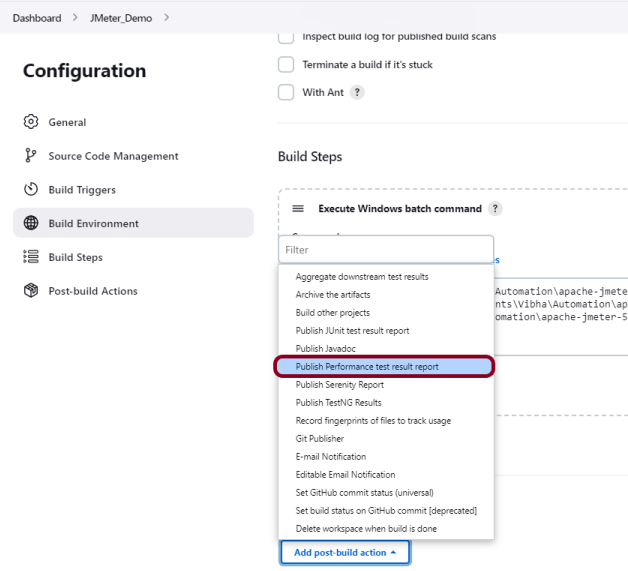
Scroll down to ‘Post Build Actions’ and click on the ‘Add Post Build Actions’ drop-down list. Select Publish Performance test result report.“. 

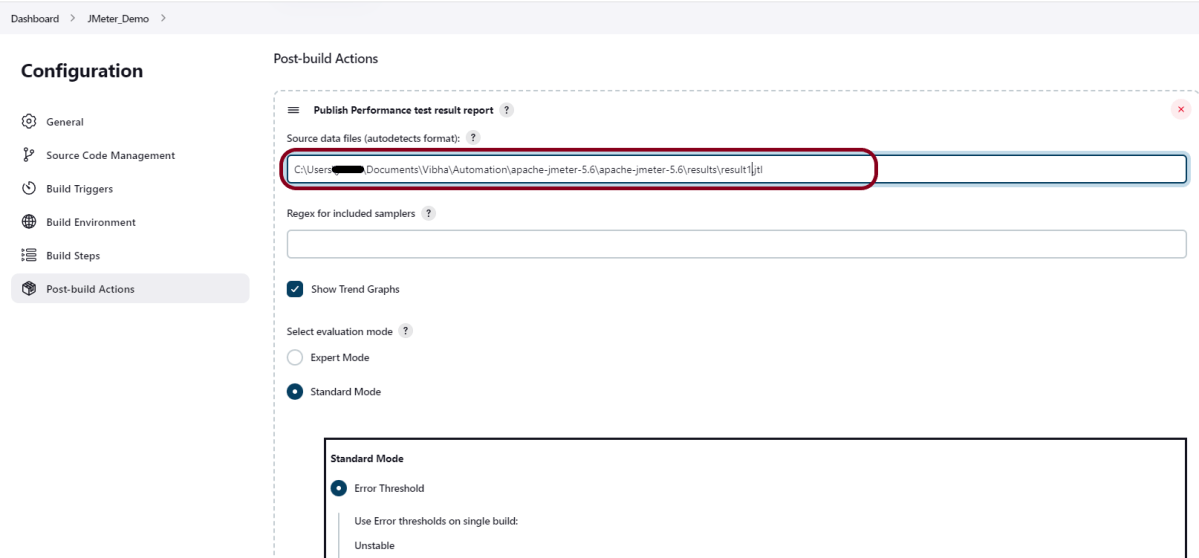
Enter the Source data files as the path in workspace where the report will be saved .

Click on the Apply and Save buttons.

We have created a new project JMeter_Demo” with the configuration to run the JMeter and also to generate JMeter Reports after execution using Jenkins.

Step 7: Execute the tests

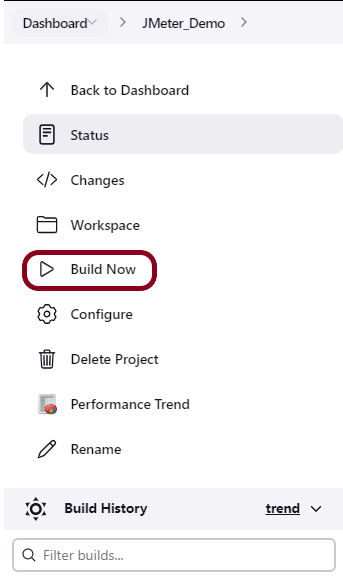
Let’s execute it now by clicking on the “Build Now” button. 

Right-click on Build Number (here in my case it is #1).

Click on Console Output to see the result.

Step 8: View the Performance Report

Once the execution is completed, we can see a link to view the ‘Performance Report’.

Click on the Performance Report. It displays the summary of the tests.

Congratulations on making it through this tutorial and hope you found it useful! Happy Learning!! Cheers!!

Additional Tutorials

Integration Of Jenkins With Selenium WebDriver
How to install Maven Plugin in Jenkins
Integrate Gradle project with Jenkins
Jenkins GitLab Integration
How to generate HTML Reports in Jenkins
Integration of Cucumber Report with TestNG in Jenkins
Serenity with Jenkins

How to run parameterized Robot Framework tests in Jenkins

HOME

When running your Jenkins automation jobs, you may need to pass some parameters to your scripts. These parameters can be a URL, a browser name, or even the test user’s credentials. This tutorial will walk you through the process of creating a parameterized Jenkins job for Robot Framework.

It is recommended to go through these tutorials, before creating a parameterized Jenkins job:-

Download and install Jenkins on Windows10

Configure JAVA_HOME and MAVEN_HOME

Types of parameters

Jenkins supports several parameter types. Below is a list of the most common ones, but keep in mind that different plugins may add new parameter types:

  • String: any combination of characters and numbers
  • Choice: a pre-defined set of strings from which a user can pick a value
  • Credentials: a pre-defined Jenkins credential
  • File: the full path to a file on the filesystem
  • Multi-line String: same as String, but allows newline characters
  • Password: similar to the Credentials type, but allows us to pass a plain text parameter specific to the job or pipeline
  • Run: an absolute URL to a single run of another job

Implementation Steps

Step 1: Create a new FreeStyle project

  1. Give the Name of the project – RobotFramework_Demo.
  2. Click on the FreeStyle project. 
  3. Click on the OK button.

Step 2: Description of the project

In the General section, enter the project description in the Description box.

Check the option – This project is parameterized.

Click on Add Parameter, and we can select any option as shown in the above image.

Step 3: Select the Choice Parameter

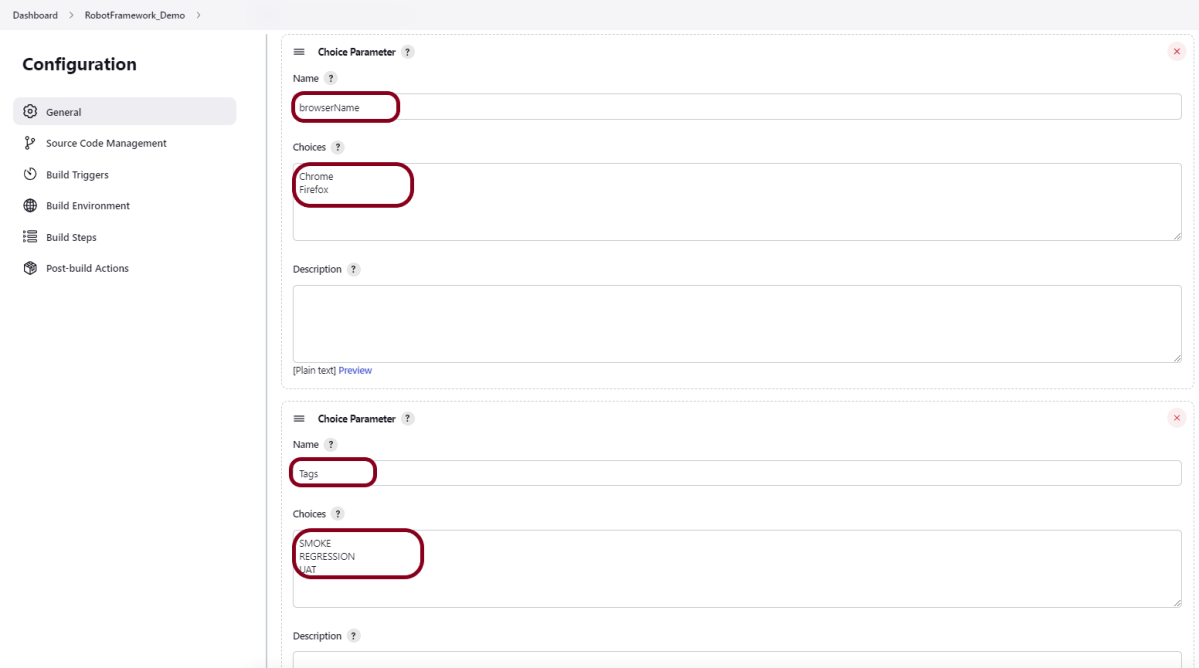
Choice Parameter

As I want to run my tests on different browsers, I have selected Choice Parameter.

  1. Give the Name of the Parameter.
  2. Give the Choices of the Parameter – Chrome, Firefox, IE
  3. Give the Description of the Parameter – Select any browser to run the tests (optional).

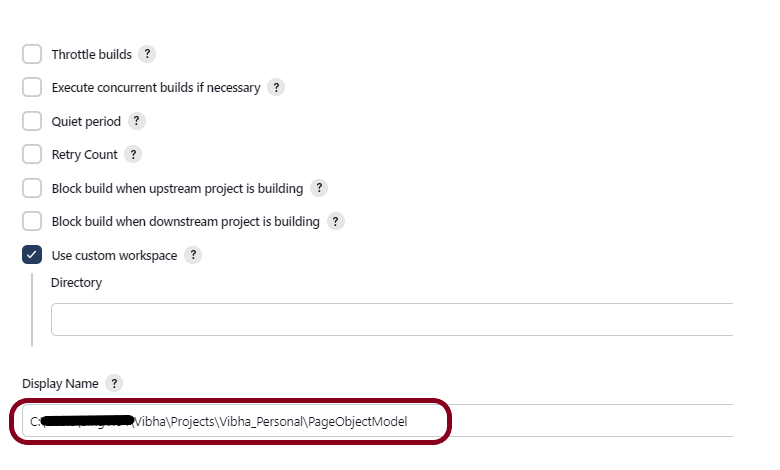
Step 4: Select a custom workspace

Mention the full path of the project in the Use custom workspace.

Step 5: Source Code Management

In the Source Code Management section, select None.

Step 6: Build Management

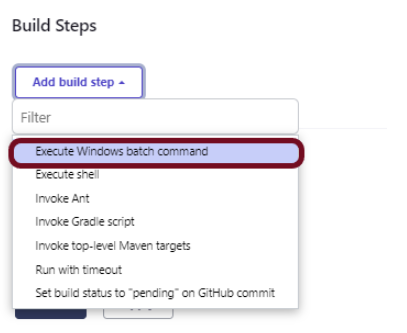
Go to the Build section of the new job. Select “Execute Windows batch command”.

Mention the command needed to execute the tests. In this case, I have to execute all the tests, so used the below command:

robot --variable browser_name:"%browserName%" --include "%Tags%" .

Step 7: Select “HTML Reports” from “Post Build Actions

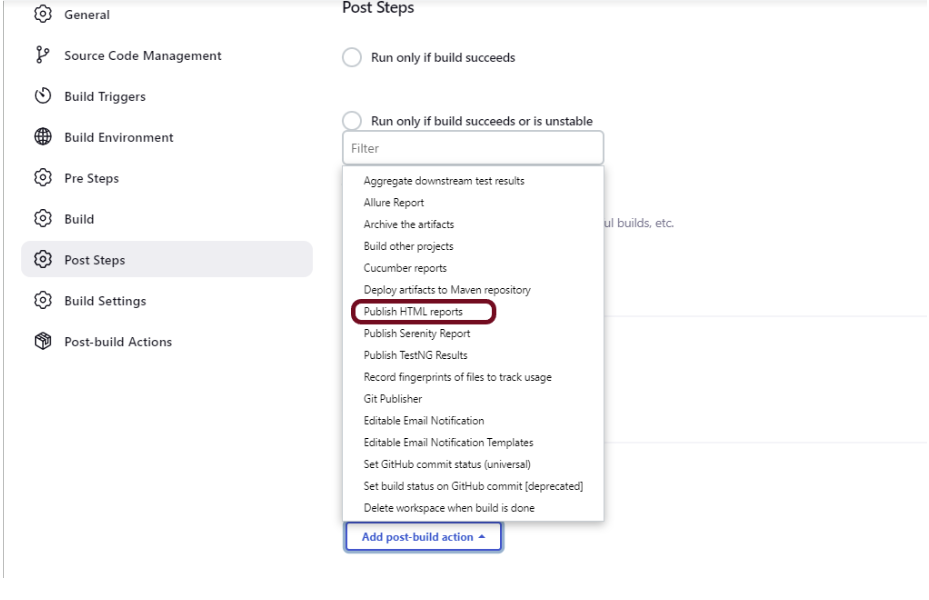
Scroll down to Post Build Actions” and click on the “Add Post Build Actions” drop-down list.

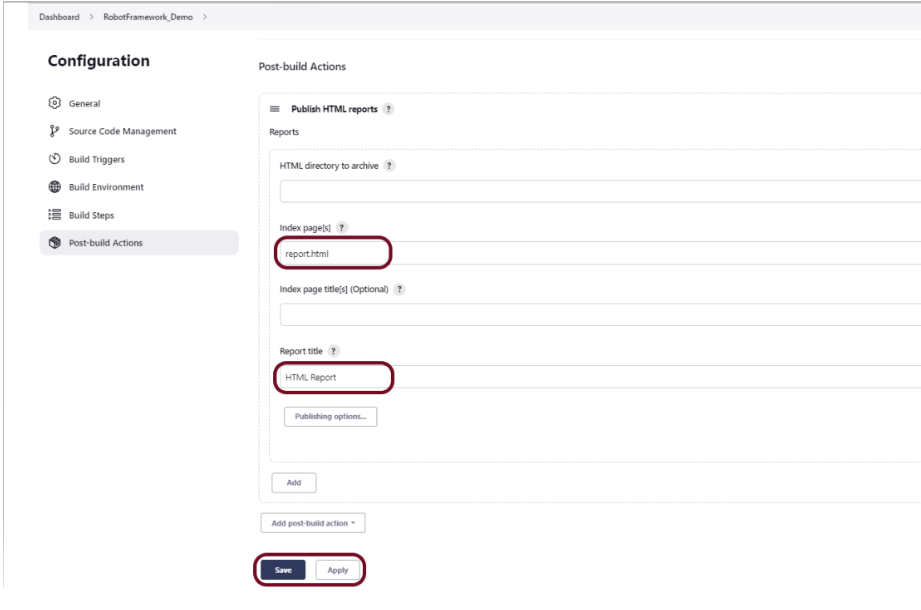
Select “Publish HTML Reports“. 

Enter the HTML directory to archive – Empty, Index page[s] – report.html, and Report title – HTML Report.

Click on the Apply and Save buttons.

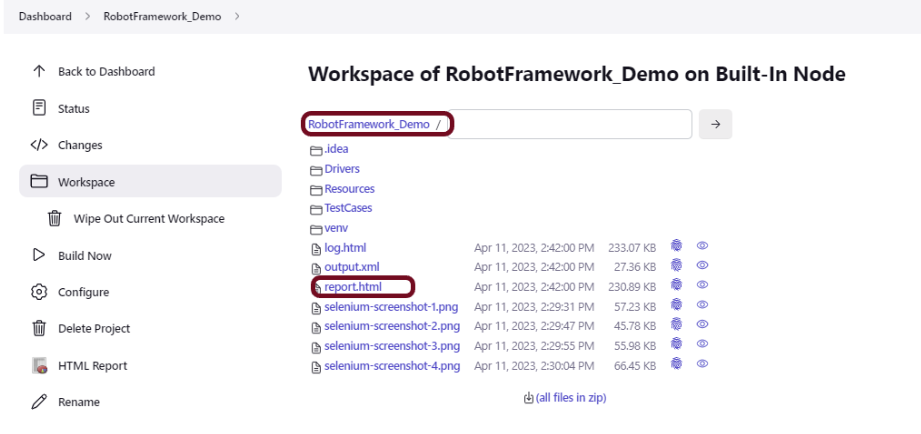
If you want to see where the report is saved in Jenkins, go to the Dashboard -> RobotFramework_Demo -> Workspace -> report.html.

We have created a new project “RobotFramework_Demo“.

Step 8: Execute the tests

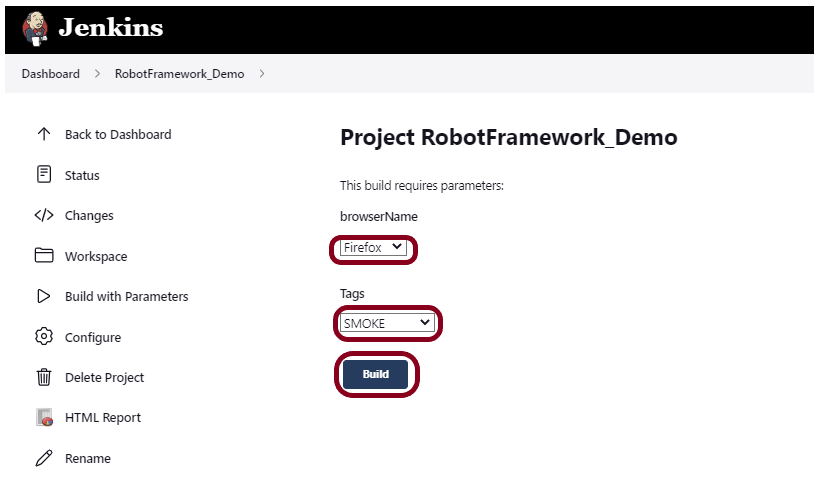
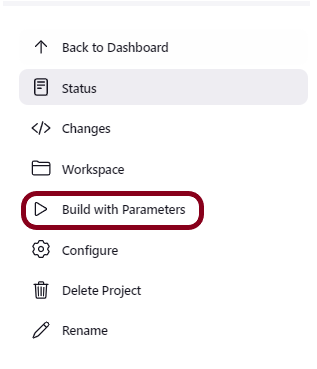
Let’s execute it now by clicking on the “Build with Parameters” button.

This screen contains the parameters which we have to select. The browser was a choice parameter and selecting a parameter from it and Tags was also a Choice parameter, so mention the tags in it and click on the “Build” button.

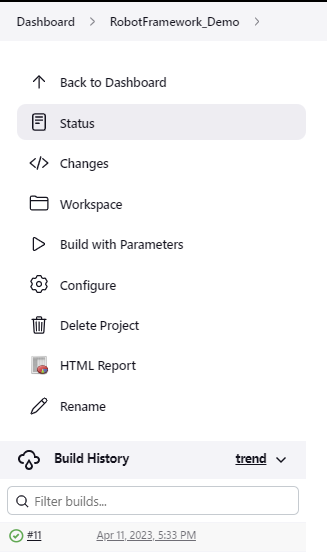
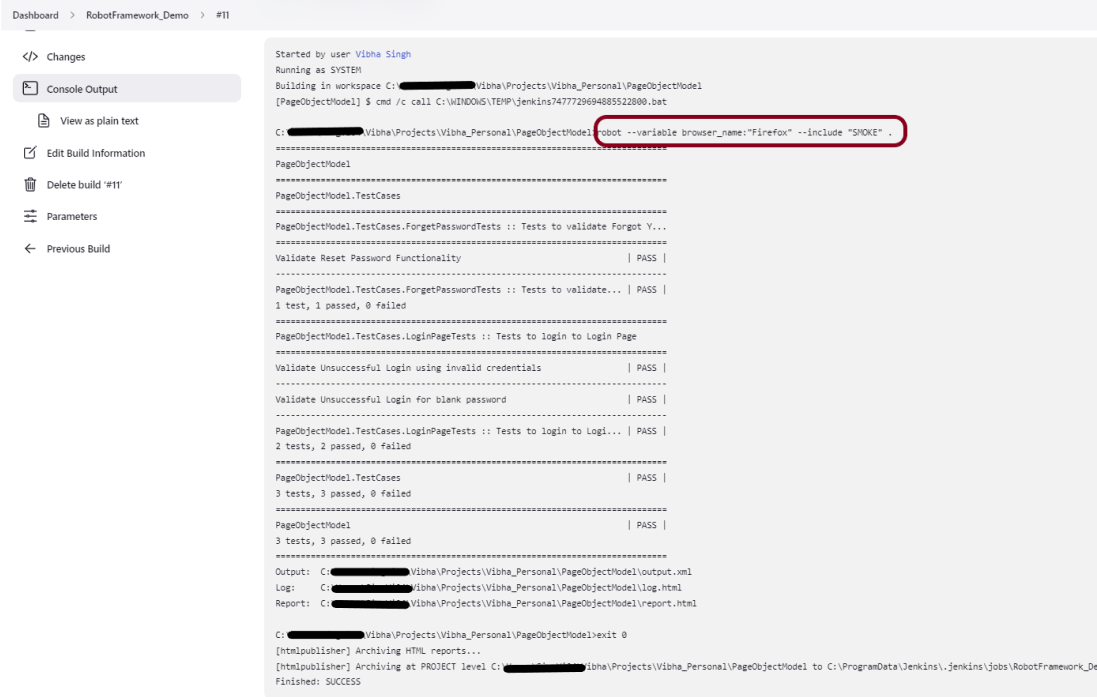
Right-click on Build Number (here in my case it is #11).

Click on Console Output to see the result.

Step 9: View the HTML Report

Once the execution is completed, click on go “Back to Project“, and we could see a link to view the “HTML Report“.

Click on the HTML Report. It displays the summary of the tests.

Congratulations on making it through this tutorial and hope you found it useful! Happy Learning!! Cheers!!

Additional Tutorials

How to Install Python on Windows 11
How to install and setup Robot Framework for Python
How to rerun failed tests in Robot Framework
Page Object Model in the Robot Framework
 How to set variable values from Runtime command in Robot Framework
How to load data from CSV files in the Robot Framework?