Deserialization – How to create JSON Object to JAVA Object Using Gson API

HOME

In this tutorial, I will explain the conversion of JSON Object (payload) to JAVA Object. We will use Gson API for the same purpose.

Before going through this tutorial, spend some time understanding Serialization using Gson API.

We can parse the JSON or XML response into POJO classes. After parsing into POJO classes, we can easily get values from the response easily. This is called De-serialization. For this, we can use any JSON parser APIs. Here, we are going to use Gson API.

To start with, add the below dependency to the project.

<dependency>
    <groupId>com.google.code.gson</groupId>
    <artifactId>gson</artifactId>
    <version>2.8.9</version>
</dependency>

Sample JSON Payload

{
  "firstName" : "Vibha",
  "lastName" : "Singh",
  "age" : 30,
  "salary" : 75000.0,
  "designation" : "Manager",
  "contactNumber" : "+91999996712",
  "emailId" : "abc123@test.com"
}

Let us create a class called Employee with a field name exactly (case-sensitive) the same as node names in the above JSON string because with the default setting while parsing JSON object to Java object, it will look on getter setter methods of field names. 

public class Employee {

	// private variables or data members of POJO class
	private String firstName;
	private String lastName;
	private int age;
	private double salary;
	private String designation;
	private String contactNumber;
	private String emailId;

	// Getter and setter methods
	public String getFirstName() {
		return firstName;
	}

	public void setFirstName(String firstName) {
		this.firstName = firstName;
	}

	public String getLastName() {
		return lastName;
	}

	public void setLastName(String lastName) {
		this.lastName = lastName;
	}

	public int getAge() {
		return age;
	}

	public void setAge(int age) {
		this.age = age;
	}

	public double getSalary() {
		return salary;
	}

	public void setSalary(double salary) {
		this.salary = salary;
	}

	public String getDesignation() {
		return designation;
	}

	public void setDesignation(String designation) {
		this.designation = designation;
	}

	public String getContactNumber() {
		return contactNumber;
	}

	public void setContactNumber(String contactNumber) {
		this.contactNumber = contactNumber;
	}

	public String getEmailId() {
		return emailId;
	}

	public void setEmailId(String emailId) {
		this.emailId = emailId;
	}

}

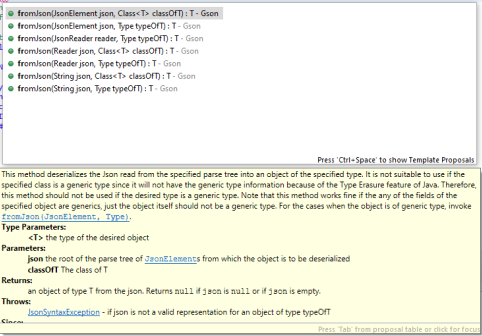
Gson class provides multiple overloaded fromJson() methods to achieve this. Below is a list of available methods:-

In the below test, I have mentioned the JSON Payload string in the test and used Gson API to deserialize the JSON payload to JAVA Object.

   @Test
	public void getDetailFromJson() {
		
		// De-serializing from JSON String
		String jsonString = "{\r\n" + "  \"firstName\": \"Tom\",\r\n" + "  \"lastName\": \"John\",\r\n"
				+ "  \"age\": 30,\r\n" + "  \"salary\": 50000.0,\r\n" + "  \"designation\": \"Lead\",\r\n"
				+ "  \"contactNumber\": \"+917642218922\",\r\n" + "  \"emailId\": \"abc@test.com\"\r\n" + "}";

		Gson gson = new Gson();
		// Pass JSON string and the POJO class
		Employee employee = gson.fromJson(jsonString, Employee.class);

		// Now use getter method to retrieve values
		System.out.println("Details of Employee is as below:-");
		System.out.println("First Name : " + employee.getFirstName());
		System.out.println("Last Name : " + employee.getLastName());
		System.out.println("Age : " + employee.getAge());
		System.out.println("Salary : " + employee.getSalary());
		System.out.println("designation : " + employee.getDesignation());
		System.out.println("contactNumber : " + employee.getContactNumber());
		System.out.println("emailId : " + employee.getEmailId());
		System.out.println("########################################################");

	}

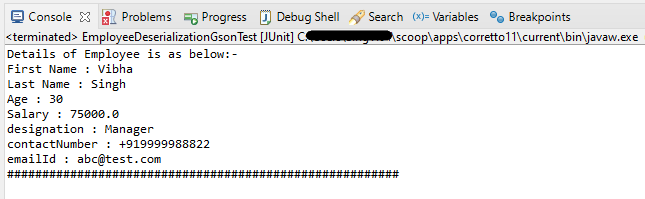
The output of the above program is

We can get the JSON payload from a file present in a project under src/test/resources as shown in the below image.

public class EmployeeDeserializationGsonTest {

	@Test
	public void fromFile() throws FileNotFoundException {

		Gson gson = new Gson();
		// De-serializing from a json file
		String userDir = System.getProperty("user.dir");
		File inputJsonFile = new File(userDir + "\\src\\test\\resources\\EmployeePayloadUsingGson.json");
		FileReader fileReader = new FileReader(inputJsonFile);
		Employee employee1 = gson.fromJson(fileReader, Employee.class);

		// Now use getter method to retrieve values
		System.out.println("Details of Employee is as below:-");
		System.out.println("First Name : " + employee1.getFirstName());
		System.out.println("Last Name : " + employee1.getLastName());
		System.out.println("Age : " + employee1.getAge());
		System.out.println("Salary : " + employee1.getSalary());
		System.out.println("designation : " + employee1.getDesignation());
		System.out.println("contactNumber : " + employee1.getContactNumber());
		System.out.println("emailId : " + employee1.getEmailId());
		System.out.println("########################################################");
	}
}

The output of the above program is

We are done! Congratulations on making it through this tutorial and hope you found it useful! Happy Learning!!
UnMarshalling- How to convert XML to Java Objects using JAXB

HOME

This tutorial explains how to use JAXB (Java Architecture for XML Binding) to convert an XML document to Java Objects.

The previous tutorial has explained the conversion of Java Objects to XML.

As of Java 11, JAXB is not part of the JRE anymore, and you need to configure the relevant libraries via your dependency management system, for example, either Maven or Gradle.

Configure the Java compiler level to be at least 11 and add the JAXB dependencies to your pom file.

<?xml version="1.0" encoding="UTF-8"?>
 
<project xmlns="http://maven.apache.org/POM/4.0.0" xmlns:xsi="http://www.w3.org/2001/XMLSchema-instance"
  xsi:schemaLocation="http://maven.apache.org/POM/4.0.0 https://maven.apache.org/xsd/maven-4.0.0.xsd">
  <modelVersion>4.0.0</modelVersion>
 
  <groupId>org.example</groupId>
  <artifactId>JAXBDemo</artifactId>
  <version>0.0.1-SNAPSHOT</version>
 
  <name>JAXBDemo</name>
  <url>http://www.example.com</url>
 
  <properties>  
 
    <project.build.sourceEncoding>UTF-8</project.build.sourceEncoding>
    <maven.compiler.source>11</maven.compiler.source>
    <maven.compiler.target>11</maven.compiler.target>
  </properties>
 
  <dependencies>
    <dependency>
      <groupId>junit</groupId>
      <artifactId>junit</artifactId>
      <version>4.13.2</version>
      <scope>test</scope>
  </dependency>
     
 <dependency>
    <groupId>com.sun.xml.bind</groupId>
    <artifactId>jaxb-impl</artifactId>
    <version>2.3.3</version>
   </dependency>
 </dependencies>
    
</project>

Sample XML Structure

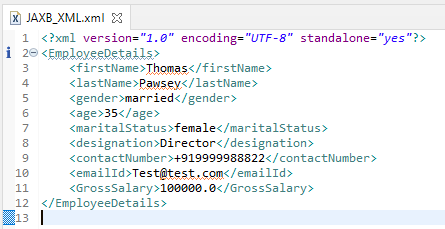
<?xml version="1.0" encoding="UTF-8" standalone="yes"?>
<EmployeeDetails>
    <firstName>Terry</firstName>
    <lastName>Mathew</lastName>
    <gender>female</gender>
    <age>30</age>
    <maritalStatus>married</maritalStatus>
    <designation>Manager</designation>
    <contactNumber>+919999988822</contactNumber>
    <emailId>abc@test.com</emailId>
    <GrossSalary>75000.0</GrossSalary>
</EmployeeDetails>

Un-marshalling provides a client application the ability to convert XML data into JAXB-derived Java objects.

Let’s see the steps to convert XML document into java object.

  1. Create POJO Class
  2. Create the JAXBContext object
  3. Create the Unmarshaller objects
  4. Call the unmarshal method
  5. Use getter methods of POJO to access the data

Now, let us create the Java Objects (POJO) for the above XML.

import javax.xml.bind.annotation.XmlAccessType;
import javax.xml.bind.annotation.XmlAccessorType;
import javax.xml.bind.annotation.XmlElement;
import javax.xml.bind.annotation.XmlRootElement;
import javax.xml.bind.annotation.XmlType;

@XmlRootElement(name = "EmployeeDetails")
@XmlAccessorType(XmlAccessType.FIELD)

//Define the order in which the fields are written in XML
@XmlType(propOrder = { "firstName", "lastName", "gender", "age", "maritalStatus", "designation", "contactNumber","emailId", "salary" })

public class Employee {

	private String firstName;
	private String lastName;
	private int age;

	@XmlElement(name = "GrossSalary")
	private double salary;
	private String designation;
	private String contactNumber;
	private String emailId;
	private String gender;
	private String maritalStatus;

	public Employee() {
		super();

	}

	// Getter and setter methods
	public String getFirstName() {
		return firstName;
	}

	public void setFirstName(String firstName) {
		this.firstName = firstName;
	}

	public String getLastName() {
		return lastName;
	}

	public void setLastName(String lastName) {
		this.lastName = lastName;
	}

	public int getAge() {
		return age;
	}

	public void setAge(int age) {
		this.age = age;
	}

	public double getSalary() {
		return salary;
	}

	public void setSalary(double salary) {
		this.salary = salary;
	}

	public String getDesignation() {
		return designation;
	}

	public void setDesignation(String designation) {
		this.designation = designation;
	}

	public String getContactNumber() {
		return contactNumber;
	}

	public void setContactNumber(String contactNumber) {
		this.contactNumber = contactNumber;
	}

	public String getEmailId() {
		return emailId;
	}

	public void setEmailId(String emailId) {
		this.emailId = emailId;
	}

	public String getGender() {
		return gender;
	}

	public void setGender(String gender) {
		this.gender = gender;
	}

	public String getMaritalStatus() {
		return maritalStatus;
	}

	public void setMaritalStatus(String maritalStatus) {
		this.maritalStatus = maritalStatus;
	}

	@Override
	public String toString() {
		return "Employee [FirstName=" + firstName + ", LastName=" + lastName + ", Age=" + age + ", Salary=" + salary
				+ ", Designation=" + designation + ", ContactNumber=" + contactNumber + ", EmailId=" + emailId
				+ ", Gender=" + gender + ", MaritalStatus=" + maritalStatus + "]";
	}
}

Create the following test program for reading the XML file. The XML file is present under src/test/resources.

Let’s use JAXB Unmarshaller to unmarshal our JAXB_XML back to a Java object:

import java.io.File;
import javax.xml.bind.JAXBContext;
import javax.xml.bind.JAXBException;
import javax.xml.bind.Unmarshaller;
import org.junit.Test;

public class JAXBDeserialization {
	
	@Test
	public void JAXBUnmarshalTest() {

		try {

			String userDir = System.getProperty("user.dir");
			File file = new File(userDir + "\\src\\test\\resources\\JAXB_XML.xml");
			JAXBContext jaxbContext = JAXBContext.newInstance(Employee.class);

			Unmarshaller jaxbUnmarshaller = jaxbContext.createUnmarshaller();
			Employee employee = (Employee) jaxbUnmarshaller.unmarshal(file);

			System.out.println("FirstName: " + employee.getFirstName());
			System.out.println("LastName: " + employee.getLastName());
			System.out.println("Age: " + employee.getAge());
			System.out.println("Salary: " + employee.getSalary());
			System.out.println("Contact Number: " + employee.getContactNumber());
			System.out.println("Designation: " + employee.getDesignation());
			System.out.println("Gender: " + employee.getGender());
			System.out.println("EmailId: " + employee.getEmailId());
			System.out.println("MaritalStatus: " + employee.getMaritalStatus());

		} catch (JAXBException e) {
			e.printStackTrace();
		}

	}

	}

When we run the code above, we may check the console output to verify that we have successfully converted XML data into a Java object:

The output of the above program is

There is another simple way of unmarshalling the XML to Java Objects.

    @Test
	public void JAXBUnmarshalTest1() {

		try {

			String userDir = System.getProperty("user.dir");
			File file = new File(userDir + "\\src\\test\\resources\\JAXB_XML.xml");

			JAXBContext jaxbContext = JAXBContext.newInstance(Employee.class);
			Unmarshaller jaxbUnmarshaller = jaxbContext.createUnmarshaller();
			Employee emp = (Employee) jaxbUnmarshaller.unmarshal(file);

			System.out.println(emp);

		} catch (JAXBException e) {
			e.printStackTrace();
		}
	}

When we run the code above, we may check the console output to verify that we have successfully converted XML data into a Java object:

The output of the above program is

We are done! Congratulations on making it through this tutorial and hope you found it useful! Happy Learning!!

Setup Basic REST Assured Maven Project In Eclipse IDE

HOME

In the previous tutorial, I provided the Introduction of Rest Assured. In this tutorial, I will explain how to set up a basic Rest Assured Maven project in Eclipse IDE. Before starting, let us recap about Rest Assured.

What is Rest Assured?

REST Assured is a Java DSL for simplifying testing of REST-based services built on top of HTTP Builder. It supports POST, GET, PUT, DELETE, OPTIONS, PATCH, and HEAD requests. It can be used to validate and verify the response of these requests.

The Rest Assured library also provides the ability to validate the HTTP Responses received from the server. This makes Rest-Assured a very flexible library that can be used for testing.REST Assured can be used to test XML as well as JSON-based web services. REST Assured can be integrated with JUnit and TestNG frameworks for writing test cases for our application.

What is Maven?

Apache Maven is a software project management and comprehension tool. Based on the concept of a project object model (POM), Maven can manage a project’s build, reporting and documentation from a central piece of information.

Step 1- Download and Install Java

Rest-Assured needs Java to be installed on the system to run the tests. Click here to learn How to install Java.

Step 2 – Download and setup Eclipse IDE on the system

The Eclipse IDE (integrated development environment) provides strong support for Java developers. Click here to learn How to install Eclipse.

Step 3 – Setup Maven

To build a test framework, we need to add several dependencies to the project. Click here to learn How to install Maven.

Step 4 – Create a new Maven Project

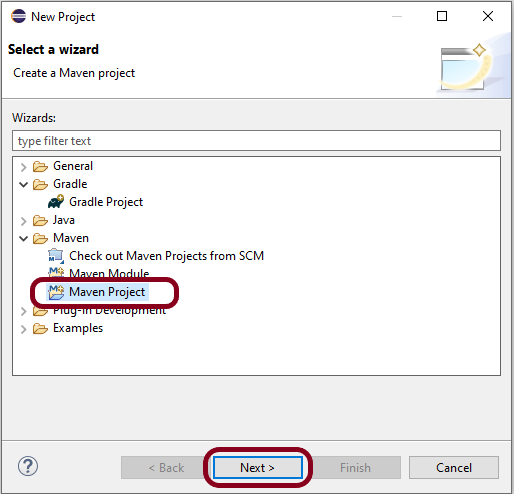
Go to File -> New Project-> Maven-> Maven project ->Next

Step 4.1 – Select “Create a simple project”. Click on the Next Button.

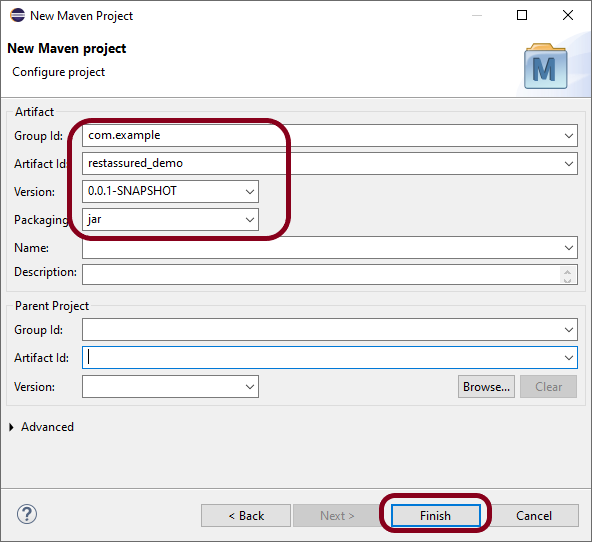
Step 4.2 – Provide Group Id and Artifact Id and click on the finish button.

Group Id – com.example
Artifact Id – restassured_demo

Step 4.3Below is the structure of the Maven project in Eclipse.

Step 4.4 – This is the structure of POM.xml created for the project.

Step 5 – Add Rest Assured, and JUnit dependencies to the project

 <dependencies>
    <!-- REST Assured dependency -->
    <dependency>
        <groupId>io.rest-assured</groupId>
        <artifactId>rest-assured</artifactId>
        <version>5.5.1</version>
        <scope>test</scope>
    </dependency>

    <!-- JUnit dependency -->
    <dependency>
        <groupId>junit</groupId>
        <artifactId>junit</artifactId>
        <version>4.13.2</version>
        <scope>test</scope>
    </dependency>
</dependencies>

 <plugin>
        <groupId>org.apache.maven.plugins</groupId>
        <artifactId>maven-compiler-plugin</artifactId>
        <version>3.14.0</version>
        <configuration>
          <source>17</source>
          <target>17</target>
        </configuration>
      </plugin>

<project xmlns="http://maven.apache.org/POM/4.0.0" xmlns:xsi="http://www.w3.org/2001/XMLSchema-instance" xsi:schemaLocation="http://maven.apache.org/POM/4.0.0 https://maven.apache.org/xsd/maven-4.0.0.xsd">
  <modelVersion>4.0.0</modelVersion>
  <groupId>com.example</groupId>
  <artifactId>restassured_demo</artifactId>
  <version>0.0.1-SNAPSHOT</version>
  
 <dependencies>
    <!-- REST Assured dependency -->
    <dependency>
        <groupId>io.rest-assured</groupId>
        <artifactId>rest-assured</artifactId>
        <version>5.5.1</version>
        <scope>test</scope>
    </dependency>

    <!-- JUnit dependency -->
    <dependency>
        <groupId>junit</groupId>
        <artifactId>junit</artifactId>
        <version>4.13.2</version>
        <scope>test</scope>
    </dependency>
</dependencies>

 <build>
    <plugins>
      <plugin>
        <groupId>org.apache.maven.plugins</groupId>
        <artifactId>maven-compiler-plugin</artifactId>
        <version>3.14.0</version>
        <configuration>
          <source>17</source>
          <target>17</target>
        </configuration>
      </plugin>
    </plugins>
  </build>
</project>

Step 7 – Update Maven Project

Right-click on your project in the Eclipse Project Explorer. Choose `Maven` -> `Update Project…` and confirm to download the specified dependencies.

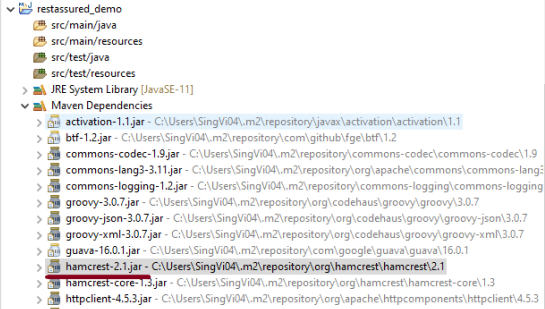
Below are the Rest Assured, and junit jar files present under Maven Dependencies.

package com.example.tests;

import org.junit.Test;

import static org.hamcrest.Matchers.equalTo;
import static io.restassured.RestAssured.given;

public class APITests {

	String BaseURL = "https://reqres.in/api/users";

	@Test
	public void getUser() {

		// Given
		given()

				// When
				.when().get(BaseURL + "/2")

				// Then
				.then().statusCode(200).statusLine("HTTP/1.1 200 OK")

				// To verify user of id 2
				.body("data.id", equalTo(2)).body("data.email", equalTo("janet.weaver@reqres.in"))
				.body("data.first_name", equalTo("Janet")).body("data.last_name", equalTo("Weaver"));
	}

}

Point to Remember

Serialization – How to create JSON Payload from Java Object – Jackson API

HOME

In this tutorial, I will explain the creation of JSON Object Payload with the help of POJO (Plain Old Java Object).

What is POJO?

POJO stands for Plain Old Java Object. It is a very simple object, and it has no bounds or we can say that it has no restrictions other than the Java language specification. Also, it does not require any classpath.

A big advantage of POJO is it increases the readability and reusability of our project code and developers find it easy when understanding the code. Also, POJO is easy to write and anyone can understand them easily.

Now let’s deep dive into some technical terms about the POJO. Below are a few points about the POJO are:

  1. A POJO should not have to extend prespecified classes.
  2. Secondly, a POJO should not have implemented any prespecified interface.
  3. Lastly, POJO should not contain prespecified annotations

A POJO class can follow some rules for better usability. These rules are:-

  1. Each variable should be declared as private just to restrict direct access.
  2. Each variable that needs to be accessed outside class may have a getter, a setter, or both methods. If the value of a field is stored after some calculations, then we must not have any setter method for that.
  3. It Should have a default public constructor.
  4. Can override toString(), hashcode, and equals() methods.

POJO classes are extensively used for creating JSON and XML payloads for API.

In the below example, let me create a simple JSON with some nodes which is actually a 1:1 mapping i.e. each key has a single value, and the type of values is mixed.

{
  "firstName" : "Vibha",
  "lastName" : "Singh",
  "age" : 30,
  "salary" : 75000.0,
  "designation" : "Manager",
  "contactNumber" : "+91999996712",
  "emailId" : "abc123@test.com"
}

Let us create variables in the POJO class now for the above JSON. Now, a class name Employee will be created with the private data members as mentioned in the above JSON. Since we have created all variables as private, then there should be a way to manipulate or retrieve these data. So we create the corresponding getter and setter methods for these data members.

It is very tedious to create getter and setter methods for all the data members for big JSON strings.  Every IDE gives you a shortcut to generate getter and setter methods.  Here, I am using Eclipse and creating these getter and setter methods.

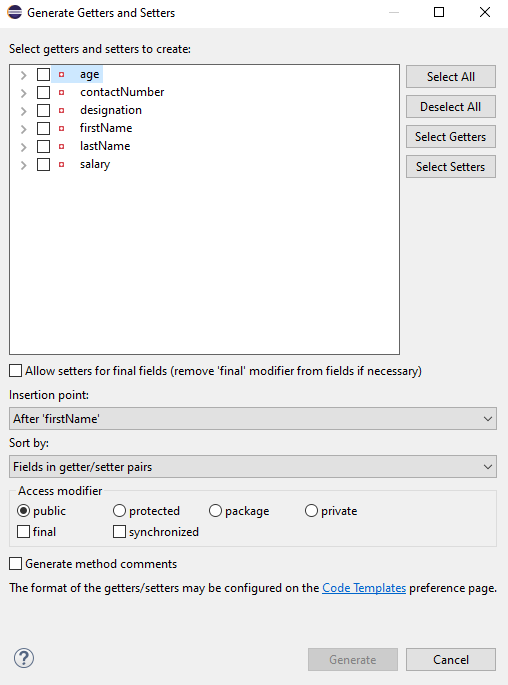
Select all the data members and Right-click on the page. Then select Source and then select Generate Getter and Setter methods.

This opens a new screen as shown below.

You can select the data member for which you want to create the getter and setter method. I want to create the getter and setter methods for all the data members, so click on Select All and then click on the Generate Button. This will generate the getter and setter methods for all the data members.

Below is the sample code of the Employee table, which contains the data members needed for Employee JSON and their corresponding getter and setter methods.

public class Employee {

	// private variables or data members of POJO class
	private String firstName;
	private String lastName;
	private int age;
	private double salary;
	private String designation;
	private String contactNumber;
	private String emailId;

	// Getter and setter methods
	public String getFirstName() {
		return firstName;
	}

	public void setFirstName(String firstName) {
		this.firstName = firstName;
	}

	public String getLastName() {
		return lastName;
	}

	public void setLastName(String lastName) {
		this.lastName = lastName;
	}

	public int getAge() {
		return age;
	}

	public void setAge(int age) {
		this.age = age;
	}

	public double getSalary() {
		return salary;
	}

	public void setSalary(double salary) {
		this.salary = salary;
	}

	public String getDesignation() {
		return designation;
	}

	public void setDesignation(String designation) {
		this.designation = designation;
	}
	
	public String getContactNumber() {
		return contactNumber;
	}

	public void setContactNumber(String contactNumber) {
		this.contactNumber = contactNumber;
	}

	public String getEmailId() {
		return emailId;
	}

	public void setEmailId(String emailId) {
		this.emailId = emailId;
	}

}

Using the above POJO class, you can create any number of custom Employee objects and each object can be converted into a JSON Object and Each JSON object can be parsed into Employee POJO.

We will create a JSON object from POJO and vice versa now, which is generally called serialization and deserialization using Jackson APIs.

Serialization – Serialization is a process where you convert an Instance of a Class (Object of a class) into a Byte Stream. Here, we are converting Employee class object to JSON representation or Object

Deserialization – It is the reverse of serializing. In this process, we will read the Serialized byte stream from the file and convert it back into the Class instance representation. Here, we are converting a JSON Object to an Employee class object.

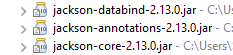
We are using Jackson API for Serialization and Deserialization. So, add the Jackson dependency to the project.

<dependency>
    <groupId>com.fasterxml.jackson.core</groupId>
    <artifactId>jackson-databind</artifactId>
    <version>2.13.0</version>
</dependency>

What is ObjectMapper ?

ObjectMapper provides functionality for reading and writing JSON, either to and from basic POJOs (Plain Old Java Objects), or to and from a general-purpose JSON Tree Model (JsonNode), as well as related functionality for performing conversions. It is also highly customizable to work both with different styles of JSON content and to support more advanced object concepts such as polymorphism and object identity.

Now, let us create a Test Class to show Serialization.

public class EmployeeTest {

	@Test
	public void serializationTest()  {

		Employee employee = new Employee();
		employee.setFirstName("Vibha");
		employee.setLastName("Singh");
		employee.setAge(30);
		employee.setSalary(75000);
		employee.setDesignation("Manager");

		// Converting a Java class object to a JSON payload as string
		ObjectMapper mapper = new ObjectMapper();
		String employeeJson = mapper.writeValueAsString(employee);
		String employeePrettyJson = mapper.writerWithDefaultPrettyPrinter().writeValueAsString(employee);
		System.out.println(employeeJson);
		System.out.println(employeePrettyJson);
   }
}try {
			String employeeJson = mapper.writeValueAsString(employee);
			System.out.println(employeeJson);
			String employeePrettyJson = mapper.writerWithDefaultPrettyPrinter().writeValueAsString(employee);
			System.out.println(employeePrettyJson);
		} catch (JsonProcessingException e) {
			e.printStackTrace();
		}	
	}

The output of the above program is

Here, ObjectMapper from fasterxml.jackson.databind is used for Serialization.

writeValueAsString() is a method that can be used to serialize any Java value as a String.

writerWithDefaultPrettyPrinter() is used to pretty-print the JSON output. It is a Factory method for constructing ObjectWriter that will serialize objects using the default pretty printer for indentation.

I hope this has helped to clear your doubts regarding POJO and how to create JSON objects using POJO.

We are done! Congratulations on making it through this tutorial and hope you found it useful! Happy Learning!!

Polymorphism in Java

HOME

In this tutorial, I’ll explain about Polymorphism in Java. It is one of the four concepts of OOPs. It is a concept where we can perform a single action in multiple ways. Poly means many and morphs means form. Polymorphism allows us to define one interface and have multiple implementations. An example of polymorphism is that there are different forms of communication like calls, SMS, picture messages, etc.

There are 2 types of polymorphism:-

  1. Method Overloading in Java – This is an example of compile time (or static polymorphism)
  2. Method Overriding in Java – This is an example of runtime time (or dynamic polymorphism)

Complie Time Polymorphism

It is also known as static polymorphism. Method Overloading is an example of static polymorphism. It is a feature that allows a class to have more than one method having the same name if their argument lists are different. Error if any occur, resolved during compile time.

Below is an example of static polymorphism.

public class Calculation {

	void sum(int a, int b) {
		System.out.println("Sum of 2 numbers :" + (a + b));
	}

	void sum(int x, int y, int z) {
		System.out.println("Sum of 3 numbers :" + (x + y + z));
	}

}
public class PolymorphismTest {

	public static void main(String[] args) {

		Calculation cal = new Calculation();
		cal.sum(10, 5);
		cal.sum(2, 6, 4);

	}
}

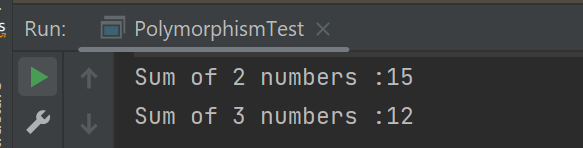
The output of the above program is

Dynamic Polymorphism

It is also known as Dynamic Method Dispatch. In this, the call to the overridden method happens at the runtime. This type of polymorphism is achieved by Method Overriding. Declaring a method in sub class that is already present in the parent class is known as method overriding. 

Below is an example of dynamic polymorphism

Parent Class

public class Bank {

	 //Overridden method
	public void getRateOfInterest() {

		System.out.println("getRateOfInterest() method of parent class");
		System.out.println("Interest Rate of Bank :" + 0);

	}
}

Child 1 Class

public class BOI extends Bank {

    // Overriding method
	public void getRateOfInterest() {

		System.out.println("getRateOfInterest() method of child 1 class");
		System.out.println("Interest Rate of BOI Bank :" + 4.1);

	}

}

Child 2 Class

public class BoFA extends Bank {

    // Overriding method
	public void getRateOfInterest() {

		System.out.println("getRateOfInterest() method of child 2 class");
		System.out.println("Interest Rate of BofA Bank :" + 3.2);

	}

}

Child 3 Class

public class SBI extends Bank {

	// Overriding method
	public void getRateOfInterest() {

		System.out.println("getRateOfInterest() method of child 3 class");
		System.out.println("Interest Rate of SBI Bank :" + 5.3);

	}
}

Test Class

public class StaticPolTest {

	public static void main(String[] args) {

		Bank bank1 = new Bank();
		bank1.getRateOfInterest();

		BOI bank2 = new BOI();
		bank2.getRateOfInterest();

		BofA bank3 = new BofA();
		bank3.getRateOfInterest();

		SBI bank4 = new SBI();
		bank4.getRateOfInterest();
	}

}

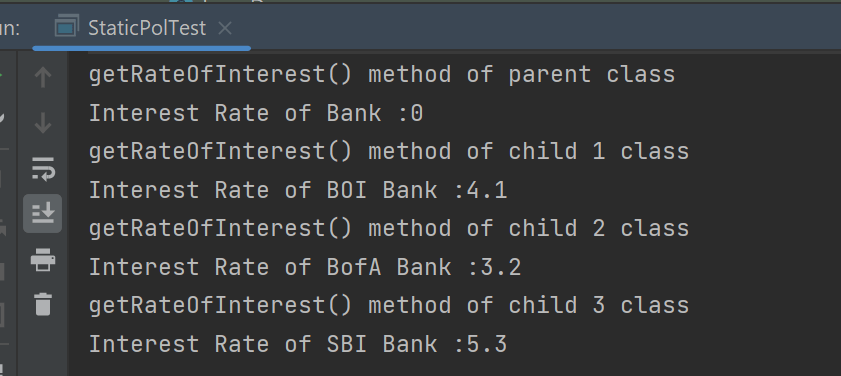
The output of the above program is

Points to note for Method Overriding:-

  1. The argument list of the overriding method (method of subclass) must match the overridden method (the method of parent class). The data types of the arguments and their sequence should exactly match.
  2. The access Modifier of the overriding method (method of a subclass) cannot be more restrictive than the overridden method of the parent class. 

Suppose, I have changed the access modifier of SBI class from public to protected and then run the StaticPolTest program. In that case, I’ll get a compile-time error.

getRateOfInterest() method of parent class
Interest Rate of Bank :0
getRateOfInterest() method of child 1 class
Interest Rate of BOI Bank :4.1
getRateOfInterest() method of child 2 class
Interest Rate of BofA Bank :3.2
Exception in thread "main" java.lang.Error: Unresolved compilation problem: 
	Cannot reduce the visibility of the inherited method from Bank

	at JavaDemo.Polymorphism.SBI.getRateOfInterest(SBI.java:6)
	at JavaDemo.Polymorphism.StaticPolTest.main(StaticPolTest.java:17)

Static Keyword – Static Variable and Static Method in Java

HOME

public class Student {

    int rollNo;
    String name;
    static String college = "Trinity"; // Static Variable

    Student(int r, String n) // Constructor
    {
        rollNo = r;
        name = n;
    }

    void displayInformation() {
        System.out.println("Roll_No: " + rollNo + ", Name: " + name + ", College: " + college);
    }

    public static void main(String[] args) {

        Student S1 = new Student(111, "Tom");
        Student S2 = new Student(222, "Terry");
        S1.displayInformation();
        S2.displayInformation();
    }
}

What is the Static Method

If any method is declared static, then it is called a static method. A static method belongs to the class not to the object of the class. 

A static method can be accessed without creating the object of the class.

The static method can access data members and can change their value of it.

public class Student {

    int rollNo;
    String name;
    static String college = "Trinity"; // Static Variable

    Student(int r, String n) // Constructor
    {
        rollNo = r;
        name = n;
    }

    static void change() {
        college = "CITM";
    }


    void displayInformation() {
        System.out.println("Roll_No: " + rollNo + ", Name: " + name + ", College: " + college);
    }

    public static void main(String[] args) {
        change();    // Calling Static method
        Student S1 = new Student(111, "Tom");
        Student S2 = new Student(222, "Terry");
        S1.displayInformation();
        S2.displayInformation();
    }

How to pass authorization token in header in Rest assured?

HOME

 <dependencies>

       <!-- Rest Assured Dependency -->
      <dependency>
         <groupId>io.rest-assured</groupId>
        <artifactId>rest-assured</artifactId>
        <version>5.4.0</version>
        <scope>test</scope>
      </dependency>

        <!-- TestNG Dependency-->
      <dependency>
          <groupId>org.testng</groupId>
         <artifactId>testng</artifactId>
         <version>7.8.0</version>
         <scope>test</scope>
       </dependency>

</dependencies>

import io.restassured.http.ContentType;
import io.restassured.response.Response;
import org.testng.Assert;
import org.testng.annotations.Test;
import static io.restassured.RestAssured.given;

public class BasicAuth_Demo {


    @Test
    public void createUser() {
        Response response = given()
                .auth()
                .preemptive()
                .header("Authorization", "Token")
                .header("Accept", "application/json")
                .contentType(ContentType.JSON)
                .body(validRequest)
                .when()
                .post("http://localhost:8080/users")
                .then()
                .extract()
                .response();

        int statusCode = response.getStatusCode();

        Assert.assertEquals(statusCode,200);
    }
}

package org.example;

import io.restassured.http.ContentType;
import io.restassured.response.Response;
import org.junit.Before;
import org.junit.Test;

import static io.restassured.RestAssured.given;
import static org.hamcrest.MatcherAssert.assertThat;
import static org.hamcrest.Matchers.equalTo;

public class BasicAuth_Demo {

    private static final String BASE_URL = "https://httpbin.org/basic-auth/user/pass";
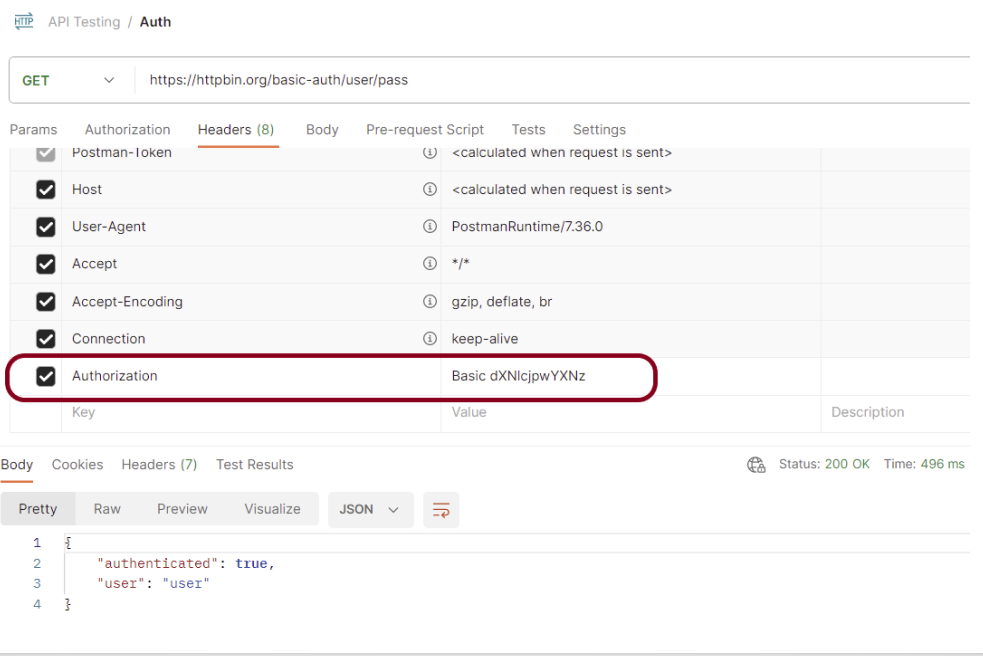
    private static final String TOKEN = "Basic dXNlcjpwYXNz";

    @Before
    public void setup() {
        given().baseUri(BASE_URL);
    }

    @Test
    public void validateToken() {

        Response response = given()
                .header("Accept", "application/json")
                .header("Authorization",TOKEN)
                .contentType(ContentType.JSON)
                .when()
                .get("https://httpbin.org/basic-auth/user/pass")
                .then()
                .log().all()
                .extract()
                .response();

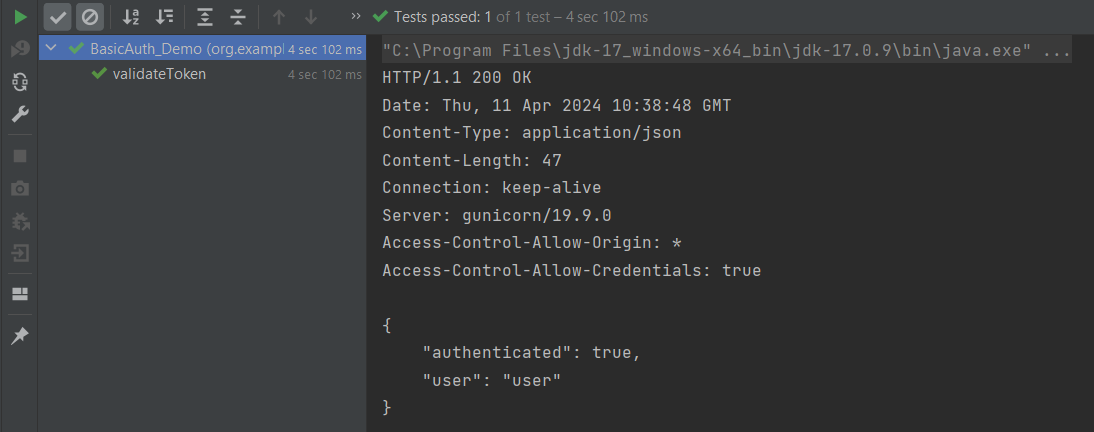
        assertThat(response.getStatusCode(),equalTo(200));

    }

}

Gradle Tutorials

Last Updated On

HOME

Gradle is an open-source build automation tool that is designed to be flexible enough to build almost any type of software.
Gradle runs on the JVM and you must have a Java Development Kit (JDK) installed to use it.
Several major IDEs allow you to import Gradle builds and interact with them: Android Studio, IntelliJ IDEA, Eclipse, and NetBeans.

Installation of Gradle

Chapter 1 How to install Gradle on Windows

Creation of Gradle project

Chapter 1 How to create Java Gradle project in Eclipse
Chapter 2 How to create a Java Gradle project using Command Line
Chapter 3 How to create Gradle project in IntelliJ
Chapter 4 How to create Gradle Java project in IntelliJ using Command Line

Importing of Gradle Project

Chapter 1 How to import Java Gradle project in Eclipse
Chapter 2 How to import Java Gradle project in IntelliJ

Gradle Project in Cucumber

Chapter 1 How To Create Gradle Project with Cucumber to test Rest API
Chapter 2 Run Gradle Cucumber Tests from Command Line
Chapter 3 Gradle Project with Cucumber, Selenium and TestNG
Chapter 4 Gradle Project with Cucumber, Selenium and JUnit4

Gradle Project in Serenity

Chapter 1 Serenity BDD with Gradle and Cucumber for Web Application
Chapter 2 Serenity BDD with Cucumber and Rest Assured in Gradle
Chapter 3 Serenity Emailable Report in Gradle

Gradle Project with Selenium

Chapter 1 How to create Gradle project with Selenium and TestNG
Chapter 2 How to create Gradle project with Selenium and JUnit4
Chapter 3 Gradle – Integration of Selenium and JUnit5

Gradle Project in Rest API

Chapter 1 Setup Basic REST Assured Gradle Project In Eclipse IDE

Allure Reports for Gradle Project

Chapter 1 Gradle – Allure Report for Selenium and TestNG
Chapter 2 Gradle – Allure Report for Selenium and JUnit4
Chapter 3 Gradle – Allure Report for Cucumber, Selenium and TestNG

Extent Reports for Gradle Project

Chapter 1 Gradle – Extent Report Version 5 for Cucumber, Selenium, and TestNG

Gradle with Jenkins

Chapter 1 Integrate Gradle project with Jenkins
Chapter 2 How to create Jenkins pipeline for Gradle project

Integration of Allure Report with Rest Assured and JUnit4

HOME

In the previous tutorial, I explained the Allure Report with Cucumber, Selenium and JUnit4. In this tutorial, I will explain how to Integrate Allure Report with Rest Assured and JUnit4.

The below example covers the implementation of Allure Report for Rest API using Rest Assured, JUnit4, Java, and Maven.

Prerequisite

  1. Java 11 or above installed
  2. Maven installed
  3. Eclipse or IntelliJ installed
  4. Allure installed

Dependency List:

  1. Java 17
  2. Maven – 3.9.6
  3. Allure Maven – 2.12.0
  4. Rest Assured – 5.3.4
  5. Allure Rest Assured – 2.25.0
  6. Allure JUnit4 – 2.25.0
  7. Aspectj – 1.9.21
  8. JUnit – 4.13.2

Implementation Steps

Step 1 – Update Properties section in Maven pom.xml

<properties>
        <rest-assured.version>5.4.0</rest-assured.version>
        <junit.version>4.13.2</junit.version>
        <json.version>20231013</json.version>
        <hamcrest.version>1.3</hamcrest.version>
        <allure.maven.version>2.12.0</allure.maven.version>
        <allure.junit.version>2.25.0</allure.junit.version>
        <allure.rest.assured.version>2.25.0</allure.rest.assured.version>
        <maven.compiler.plugin.version>3.12.1</maven.compiler.plugin.version>
        <maven.surefire.plugin.version>3.2.3</maven.surefire.plugin.version>
        <maven.compiler.source>17</maven.compiler.source>
        <maven.compiler.target>17</maven.compiler.target>
        <aspectj.version>1.9.21</aspectj.version>
</properties>

Step 2 – Add the Allure-Rest Assured dependency

<!--Allure Reporting Dependency-->   
<dependency>
    <groupId>io.qameta.allure</groupId>
    <artifactId>allure-rest-assured</artifactId>
    <version>${allure.rest-assured.version}</version>
</dependency>

Add other dependencies like Rest Assured and Allure-JUnit4 dependencies in POM.xml

<dependencies>

        <!-- Rest-Assured Dependency -->
        <dependency>
            <groupId>io.rest-assured</groupId>
            <artifactId>rest-assured</artifactId>
            <version>${rest-assured.version}</version>
            <scope>test</scope>
        </dependency>

        <!-- JUnit4 Dependency -->
        <dependency>
            <groupId>junit</groupId>
            <artifactId>junit</artifactId>
            <version>${junit.version}</version>
            <scope>test</scope>
        </dependency>

        <!-- JSON Dependency -->
        <dependency>
            <groupId>org.json</groupId>
            <artifactId>json</artifactId>
            <version>${json.version}</version>
        </dependency>

        <!-- Allure JUnit Dependency -->
        <dependency>
            <groupId>io.qameta.allure</groupId>
            <artifactId>allure-junit4</artifactId>
            <version>${allure.junit.version}</version>
        </dependency>

        <!-- Allure Rest-assured Dependency-->
        <dependency>
            <groupId>io.qameta.allure</groupId>
            <artifactId>allure-rest-assured</artifactId>
            <version>${allure.rest.assured.version}</version>
        </dependency>

    </dependencies>

Step 3 – Update the Build Section of pom.xml in Allure Report Project

<build>
        <plugins>

            <plugin>
                <groupId>org.apache.maven.plugins</groupId>
                <artifactId>maven-compiler-plugin</artifactId>
                <version>${maven.compiler.plugin.version}</version>
                <configuration>
                    <source>${maven.compiler.source}</source>
                    <target>${maven.compiler.target}</target>
                </configuration>
            </plugin>

            <plugin>
                <groupId>org.apache.maven.plugins</groupId>
                <artifactId>maven-surefire-plugin</artifactId>
                <version>${maven.surefire.plugin.version}</version>
                <configuration>
                    <testFailureIgnore>true</testFailureIgnore>
                    <argLine>
                        -javaagent:"${settings.localRepository}/org/aspectj/aspectjweaver/${aspectj.version}/aspectjweaver-${aspectj.version}.jar"
                    </argLine>
                    <properties>
                        <property>
                            <name>listener</name>
                            <value>io.qameta.allure.junit4.AllureJunit4</value>
                        </property>
                    </properties>
                </configuration>
                <dependencies>
                    <dependency>
                        <groupId>org.aspectj</groupId>
                        <artifactId>aspectjweaver</artifactId>
                        <version>${aspectj.version}</version>
                    </dependency>
                </dependencies>
            </plugin>

            <plugin>
                <groupId>io.qameta.allure</groupId>
                <artifactId>allure-maven</artifactId>
                <version>${allure.maven.version}</version>
                <configuration>
                    <reportVersion>${allure.maven.version}</reportVersion>
                </configuration>
            </plugin>
        </plugins>
    </build>
</project>

Step 4 – Create a Test Code for the testing of REST API under src/test/java

Rest Assured and Allure Report are two popular tools for testing. Rest Assured is used for API testing and Allure Report is used for creating detailed reports about tests. To see our request and response in more detail using these tools, we need to add a line to our Rest Assured tests. This will provide the request and response details in the report.

.filter(new AllureRestAssured())

package org.example;

import io.qameta.allure.*;
import io.qameta.allure.restassured.AllureRestAssured;
import io.restassured.http.ContentType;
import org.json.JSONObject;
import org.junit.Test;

import static io.restassured.RestAssured.given;
import static org.hamcrest.core.IsEqual.equalTo;

@Epic("REST API Regression Testing using JUnit4")
@Feature("Verify CRUID Operations on Employee module")
public class APITests {

    String BaseURL = "https://dummy.restapiexample.com/api";


    @Test
    @Story("GET Request")
    @Severity(SeverityLevel.NORMAL)
    @Description("Test Description : Verify the details of employee of id-2")
    public void getUser() {

        // GIVEN
        given()
                .filter(new AllureRestAssured())

                // WHEN
                .when()
                .get(BaseURL + "/v1/employee/2")

                // THEN
                .then()
                .statusCode(200)
                .statusLine("HTTP/1.1 200 OK")
                // To verify booking id at index 2
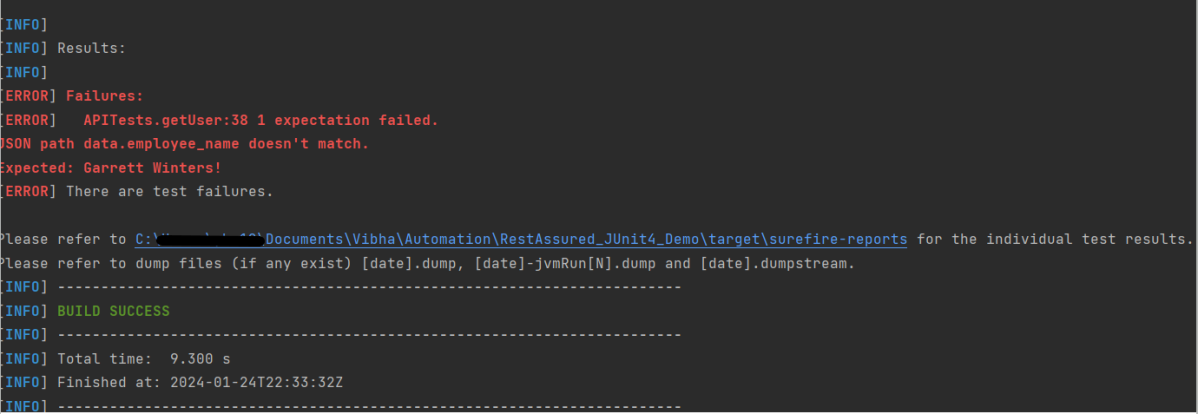
                .body("data.employee_name", equalTo("Garrett Winters!"))
                .body("message", equalTo("Successfully! Record has been fetched."));

    }

    @Test
    @Story("POST Request")
    @Severity(SeverityLevel.NORMAL)
    @Description("Test Description : Verify the creation of a new employee")
    public void createUser() {

        JSONObject data = new JSONObject();

        data.put("employee_name", "APITest");
        data.put("employee_salary", "99999");
        data.put("employee_age", "30");

        // GIVEN
        given()
                .filter(new AllureRestAssured())
                .contentType(ContentType.JSON)
                .body(data.toString())

                // WHEN
                .when()
                .post(BaseURL + "/v1/create")

                // THEN
                .then()
                .statusCode(200)
                .body("data.employee_name", equalTo("APITest"))
                .body("message", equalTo("Successfully! Record has been added."));

    }
}

Step 5 – Run the Test and Generate Allure Report

To run the tests, use the below command

mvn clean test

The output of the above program is

This will create allure-results folder with all the test reports. These files will be used to generate Allure Report.

To create Allure Report, use the below command

allure serve

This will generate the beautiful Allure Test Report as shown below.

Allure Report Dashboard

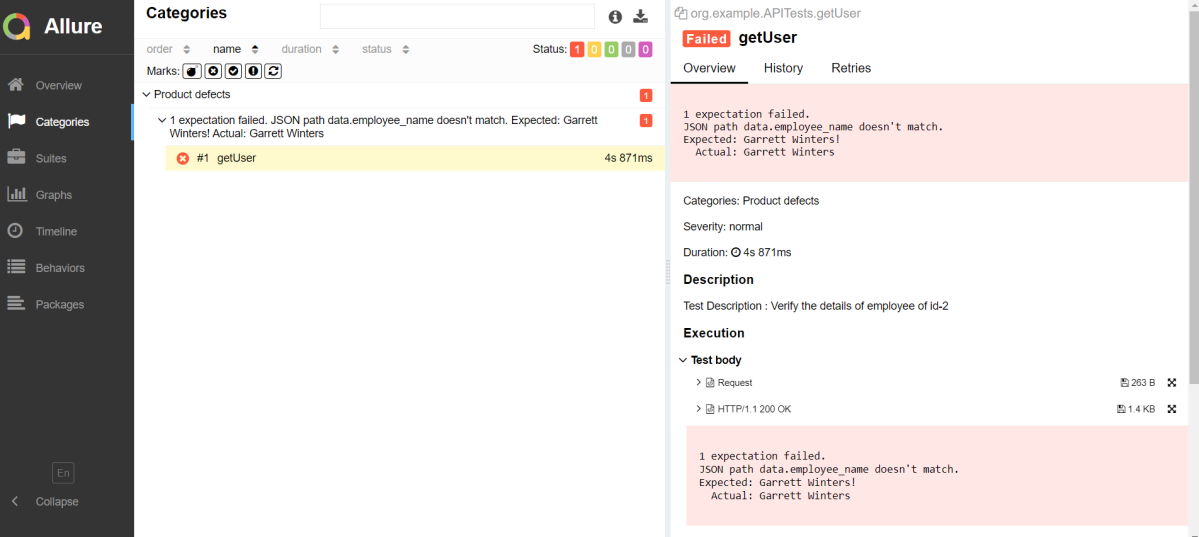
Categories in Allure Report

The categories tab gives you a way to create custom defects classifications to apply for test results. There are two categories of defects – Product Defects (failed tests) and Test Defects (broken tests).

Suites in Allure Report

On the Suites tab a standard structural representation of executed tests, grouped by suites and classes can be found.

View test history

Each time you run the report from the command line with the mvn clean test command, a new result JSON file will get added to the allure-results folder. Allure can use those files to include a historical view of your tests. Let’s give that a try.

To get started, run mvn clean test a few times and watch how the number of files in the allure-reports folder grows.

Now go back to view your report. Select Suites from the left nav, select one of your tests and click Retries in the right pane. You should see the history of test runs for that test:

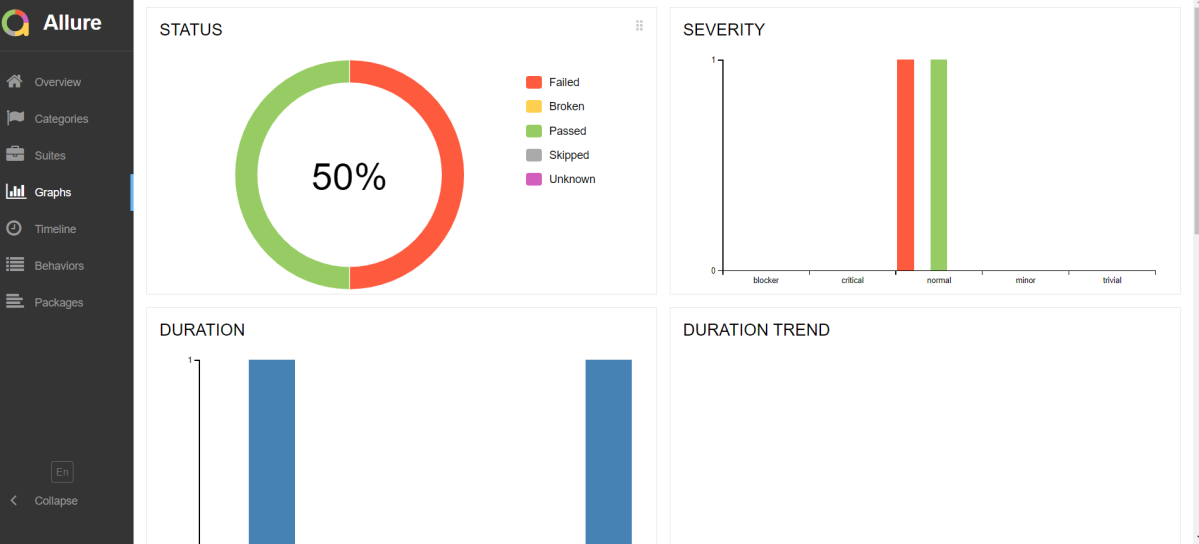
Graphs in Allure Report

Graphs allow you to see different statistics collected from the test data: status breakdown or severity and duration diagrams.

Timeline in Allure Report

Timeline tab visualizes retrospective of tests execution, allure adaptors collect precise timings of tests, and here on this tab, they are arranged accordingly to their sequential or parallel timing structure.

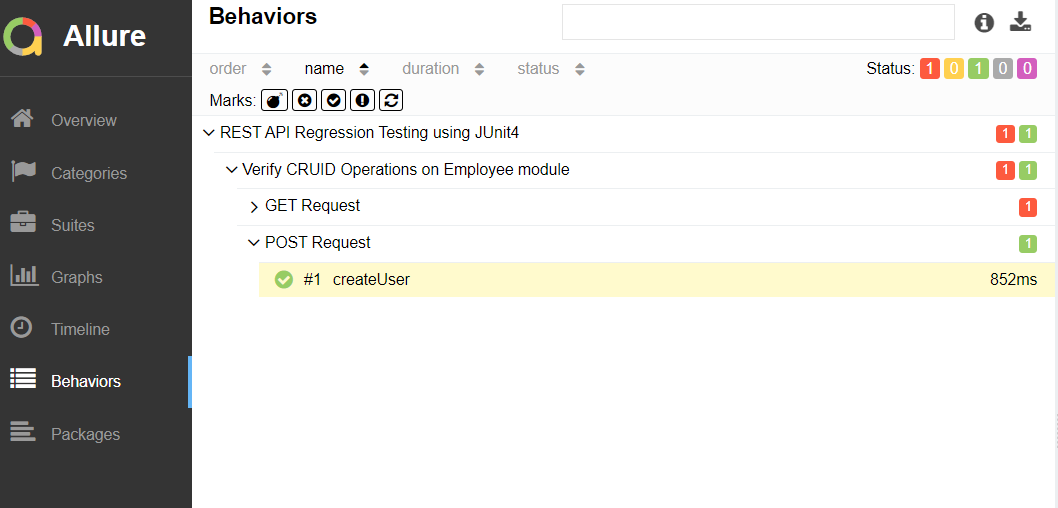
Behaviors of Allure Report

This tab groups test results according to Epic, Feature, and Story tags.

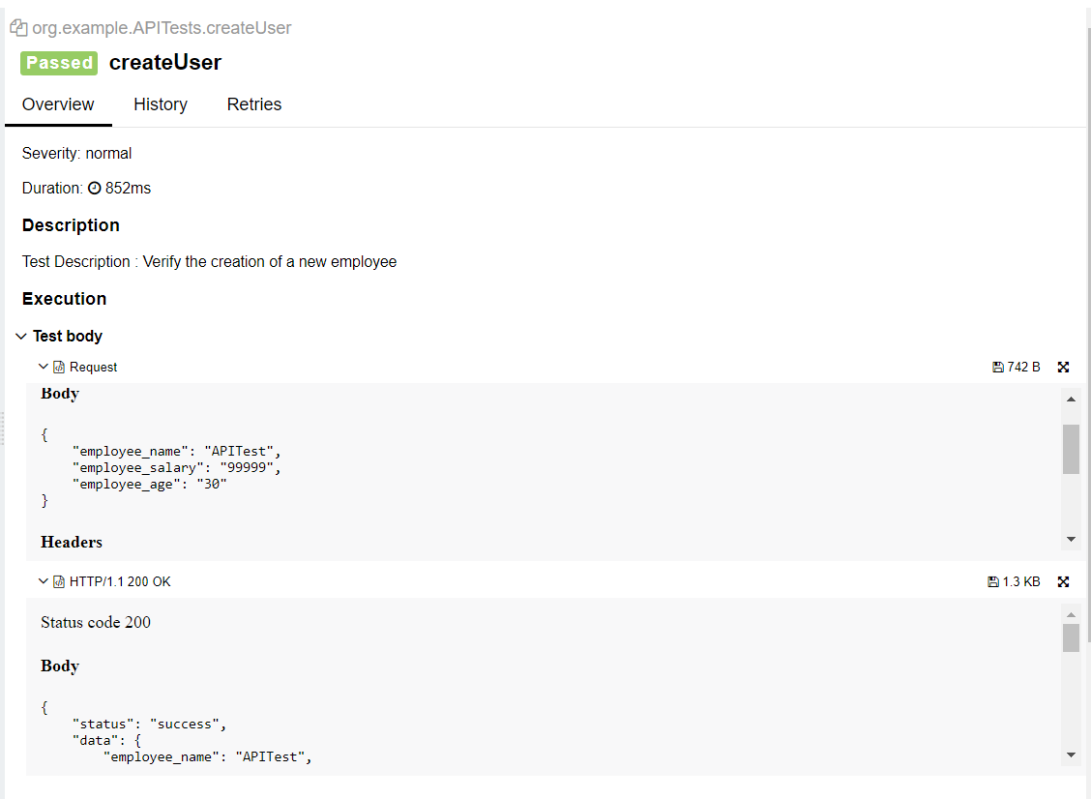
The below image shows the request body sent and the status code of the response, its body, and header provided by API.

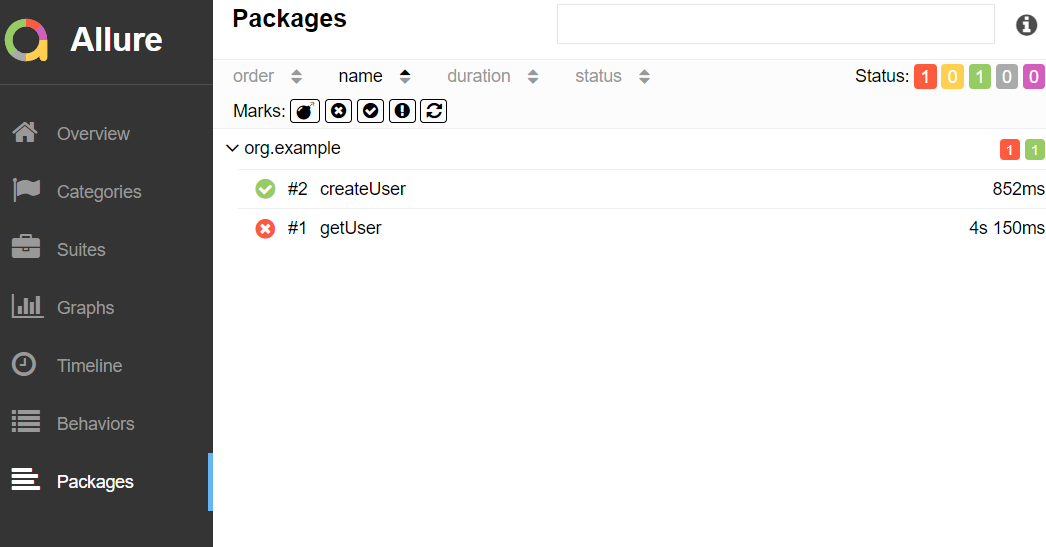
Packages in Allure Report

The packages tab represents a tree-like layout of test results, grouped by different packages.

We are done! Congratulations on making it through this tutorial and hope you found it useful! Happy Learning!!
Integration of REST Assured with JUnit4

HOME

In this tutorial, I’ll create a Test Framework for the testing of REST API using REST Assured and JUnit4 as the test framework.

What is Rest Assured?

Rest Assured enables you to test REST APIs using java libraries and integrates well with Maven/Gradle. REST Assured is a Java library that provides a domain-specific language (DSL) for writing powerful, maintainable tests for RESTful APIs.

What is JUnit?

JUnit is a simple framework to write repeatable tests. It is an instance of the xUnit architecture for unit testing frameworks. JUnit 4 is one of the most popular unit testing frameworks which has a significant role in the test-driven development process.

Dependency List:-

  1. REST Assured – 5.4.0
  2. Java 17
  3. JUnit – 4.13.2
  4. Maven – 3.9.6

Detailed Step Description

Step 1- Download and Install Java

Java needs to be present on the system to run the tests. Click here to know How to install Java. To know if Java is installed or not on your machine, type this command in the command line. This command will show the version of Java installed on your machine.

java -version

Step 2 – Download and setup Eclipse IDE on the system

The Eclipse IDE (integrated development environment) provides strong support for Java developers, which is needed to write Java code. Click here to know How to install Eclipse.

Step 3 – Setup Maven

To build a test framework, we need to add a number of dependencies to the project. It is a very tedious and cumbersome process to add each dependency manually. So, to overcome this problem, we use a build management tool. Maven is a build management tool that is used to define project structure, dependencies, build, and test management. Click here to know How to install Maven.

To know if Maven is already installed or not on your machine, type this command in the command line. This command will show the version of Maven installed on your machine.

mvn -version

Step 4 – Create a new Maven Project

Click here to know How to create a Maven project

Below is the Maven project structure. Here,

Group Id – com.example
Artifact Id – RestAssured_JUnit4_Demo
Version – 0.0.1-SNAPSHOT
Package – com. example.RestAssured_JUnit4_Demo

Step 5 – Add REST Assured and JUnit4 dependencies to the project

Add the below-mentioned dependencies to the project.

<project xmlns="http://maven.apache.org/POM/4.0.0" xmlns:xsi="http://www.w3.org/2001/XMLSchema-instance"
  xsi:schemaLocation="http://maven.apache.org/POM/4.0.0 http://maven.apache.org/xsd/maven-4.0.0.xsd">
  <modelVersion>4.0.0</modelVersion>

  <groupId>org.example</groupId>
  <artifactId>RestAssured_JUnit4_Demo</artifactId>
  <version>1.0-SNAPSHOT</version>
  <packaging>jar</packaging>

  <name>RestAssured_JUnit4_Demo</name>
  <url>http://maven.apache.org</url>

  <properties>
    <rest-assured.version>5.4.0</rest-assured.version>
    <junit.version>4.13.2</junit.version>
    <json.version>20231013</json.version>
    <hamcrest.version>1.3</hamcrest.version>
    <maven.site.plugin.version>4.0.0-M13</maven.site.plugin.version>
    <maven.compiler.plugin.version>3.12.1</maven.compiler.plugin.version>
    <maven.surefire.plugin.version>3.2.3</maven.surefire.plugin.version>
    <maven.surefire.report.plugin.version>3.2.5</maven.surefire.report.plugin.version>
    <maven.compiler.source>17</maven.compiler.source>
    <maven.compiler.target>17</maven.compiler.target>
  </properties>

  <dependencies>

    <!-- Rest-Assured Dependency -->
    <dependency>
      <groupId>io.rest-assured</groupId>
      <artifactId>rest-assured</artifactId>
      <version>${rest-assured.version}</version>
      <scope>test</scope>
    </dependency>

    <!-- JUnit4 Dependency -->
    <dependency>
      <groupId>junit</groupId>
      <artifactId>junit</artifactId>
      <version>${junit.version}</version>
      <scope>test</scope>
    </dependency>

    <!-- JSON Dependency -->
    <dependency>
      <groupId>org.json</groupId>
      <artifactId>json</artifactId>
      <version>${json.version}</version>
    </dependency>

    <!-- Hamcrest Dependency -->
    <dependency>
      <groupId>org.hamcrest</groupId>
      <artifactId>hamcrest-all</artifactId>
      <version>${hamcrest.version}</version>
      <scope>test</scope>
    </dependency>

  </dependencies>

  <build>
    <plugins>

      <plugin>
        <groupId>org.apache.maven.plugins</groupId>
        <artifactId>maven-site-plugin</artifactId>
        <version>${maven.site.plugin.version}</version>
      </plugin>

      <plugin>
        <groupId>org.apache.maven.plugins</groupId>
        <artifactId>maven-surefire-plugin</artifactId>
        <version>${maven.surefire.plugin.version}</version>
        <configuration>
          <testFailureIgnore>true</testFailureIgnore>
        </configuration>
      </plugin>

      <plugin>
        <groupId>org.apache.maven.plugins</groupId>
        <artifactId>maven-compiler-plugin</artifactId>
        <version>${maven.compiler.plugin.version}</version>
        <configuration>
          <source>${maven.compiler.source}</source>
          <target>${maven.compiler.target}</target>
        </configuration>
      </plugin>
    </plugins>
  </build>

  <reporting>
    <plugins>
      <plugin>
        <groupId>org.apache.maven.plugins</groupId>
        <artifactId>maven-surefire-report-plugin</artifactId>
        <version>${maven.surefire.report.plugin.version}</version>
      </plugin>
    </plugins>
  </reporting>
</project>

Step 6 – Create the TEST file

The tests should be written in src/test/java directory. To know how to create a JSON Request body using JSONObject, please refer to this tutorial.

import io.restassured.http.ContentType;
import org.json.JSONObject;
import org.junit.Test;
import static org.hamcrest.Matchers.equalTo;
import static io.restassured.RestAssured.given;

public class APITests {

    String BaseURL = "https://dummy.restapiexample.com/api";


    @Test
    public void createUser() {

        JSONObject data = new JSONObject();

        data.put("employee_name", "NewUser1");
        data.put("employee_salary", "1000");
        data.put("employee_age", "35");

        // GIVEN
        given()
                .contentType(ContentType.JSON)
                .body(data.toString())

                // WHEN
                .when()
                .post(BaseURL + "/v1/create")

                // THEN
                .then()
                .statusCode(200)
                .body("data.employee_name", equalTo("NewUser1"))
                .body("message", equalTo("Successfully! Record has been added."));

    }

}

Step 7 – Test Execution through JUnit Test

Go to the Runner class and right-click Run As JUnit Test. The tests will run as JUnit tests. (Eclipse)

Below is the image to run the tests in IntelliJ.

This is how the execution console will look like.

Step 8 – Run the tests from the command line

Maven Site Plugin creates a folder – site under the target directory, and the Maven Surefire Report plugin generates the JUnit Reports in the site folder. We need to run the tests through the command line to generate the JUnit Report.

mvn clean test site

The output of the above program is

Step 9 – Report Generation

After the test execution, refresh the project, and a new folder with the name site in the target folder will be generated. This folder contains the reports generated by JUnit. The structure of the folder site looks as shown below.

Step 10 – View the Report

Right-click on the summary.html report and select Open In -> Browser ->Chrome.

Summary Report

Below is the summary Report.

Surefire Report

Below is an example of a Surefire Report. This report contains a summary of the test execution.

We are done! Congratulations on making it through this tutorial and hope you found it useful! Happy Learning!!