ExtentReports Version 5 for Cucumber 7 and TestNG

HOME

The previous tutorial explained the steps to generate ExtentReports Version for Cucumber6 with TestNG. This tutorial explains the steps needed to be followed to generate an ExtentReports Version5 for Cucumber 7.

New Features in ExtentReports Version 5

Report Attachments 

To add attachments, like screen images, two settings need to be added to the extent.properties. Firstly property, named screenshot.dir, is the directory where the attachments are stored. Secondly is screenshot.rel.path, which is the relative path from the report file to the screenshot directory.

extent.reporter.spark.out=Reports/Spark.html

screenshot.dir=/Screenshots/
screenshot.rel.path=../Screenshots/

Extent PDF Reporter

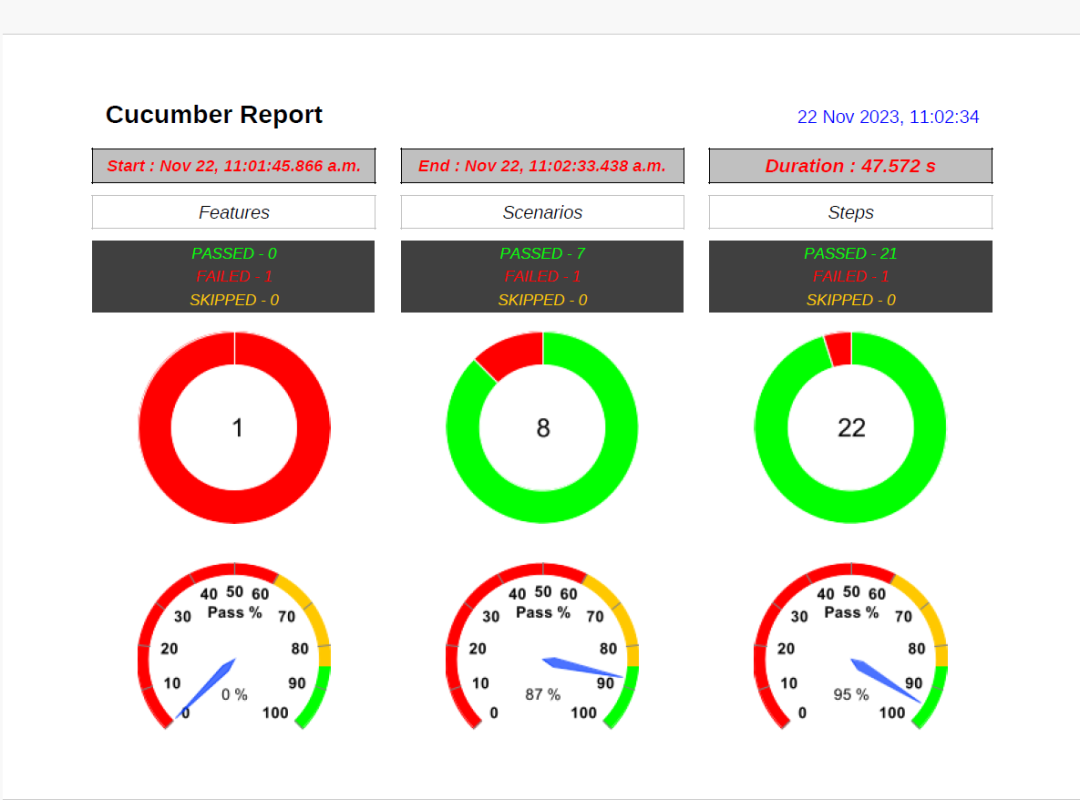
The PDF reporter summarizes the test run results in a dashboard and other sections with feature, scenario, and, step details. The PDF report needs to be enabled in the extent.properties file.

#PDF Report
extent.reporter.pdf.start=true
extent.reporter.pdf.out=PdfReport/ExtentPdf.pdf

Ported HTML Reporter

The original HTML Extent Reporter was deprecated in 4.1.3 and removed in 5.0.0. The HTML report available in the adapter is based on the same code base and is similar in appearance. The major changes are in the Freemarker template code which has been modified to work with the Extent Reports version 5. The HTML report needs to be enabled in the extent.properties file.

#HTML Report
extent.reporter.html.start=true
extent.reporter.html.out=HtmlReport/ExtentHtml.html

Customized Report Folder Name

To enable the report folder name with date and\or time details, two settings need to be added to the extent.properties. These are basefolder.name and basefolder.datetimepattern. These will be merged to create the base folder name, inside which the reports will be generated.

#FolderName
basefolder.name=ExtentReports/SparkReport_
basefolder.datetimepattern=d_MMM_YY HH_mm_ss

Attach Image as Base64 String

This feature can be used to attach images to the Spark report by setting the src attribute of the img tag to a Base64 encoded string of the image. When this feature is used, no physical file is created. There is no need to modify any step definition code to use this. To enable this, use the below settings in extent.properties, which is false by default.

extent.reporter.spark.base64imagesrc=true

Environment or System Info Properties

 It is now possible to add environment or system info properties in the extent.properties or pass them in the maven command line. 

#System Info
systeminfo.os=windows
systeminfo.version=10

Prerequisite:

  1. Java 8 or higher is needed for ExtentReport5
  2. Maven or Gradle
  3. JAVA IDE (like Eclipse, IntelliJ, or soon)
  4. TestNG installed
  5. Cucumber Eclipse plugin (in case using Eclipse)

Project Structure
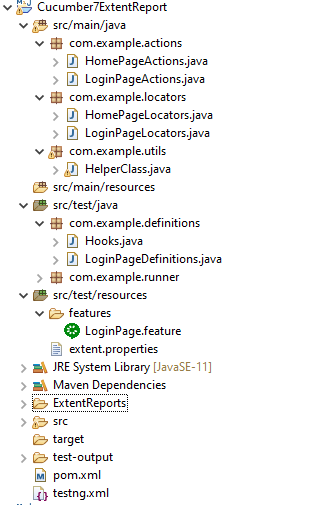
Step 1: Add Maven dependencies to the POM

Add ExtentReport dependency

<dependency>
    <groupId>com.aventstack</groupId>
    <artifactId>extentreports</artifactId>
    <version>5.1.1</version>
</dependency>

Add tech grasshopper maven dependency for Cucumber

<dependency>
    <groupId>tech.grasshopper</groupId>
    <artifactId>extentreports-cucumber7-adapter</artifactId>
    <version>1.14.0</version>
</dependency>

The complete POM.xml will look like as shown below with other Selenium and TestNG dependencies.

<project xmlns="http://maven.apache.org/POM/4.0.0" xmlns:xsi="http://www.w3.org/2001/XMLSchema-instance" xsi:schemaLocation="http://maven.apache.org/POM/4.0.0 https://maven.apache.org/xsd/maven-4.0.0.xsd">
  <modelVersion>4.0.0</modelVersion>
  <groupId>com.example</groupId>
  <artifactId>ExtentReports5Cucumber7TestNG</artifactId>
  <version>0.0.1-SNAPSHOT</version>


<properties>
        <project.build.sourceEncoding>UTF-8</project.build.sourceEncoding>
        <cucumber.version>7.14.0</cucumber.version>
        <extentreports.cucumber7.adapter.version>1.14.0</extentreports.cucumber7.adapter.version>
        <extentreports.version>5.1.1</extentreports.version>
        <selenium.version>4.15.0</selenium.version>
        <testng.version>7.8.0</testng.version>   
        <maven.compiler.plugin.version>3.11.0</maven.compiler.plugin.version>
        <maven.surefire.plugin.version>3.2.1</maven.surefire.plugin.version>
        <maven.compiler.source.version>17</maven.compiler.source.version>
        <maven.compiler.target.version>17</maven.compiler.target.version>
    </properties>
 
    <dependencies>
 
        <dependency>
            <groupId>io.cucumber</groupId>
            <artifactId>cucumber-java</artifactId>
            <version>${cucumber.version}</version>
        </dependency>
 
        <dependency>
           <groupId>io.cucumber</groupId>
           <artifactId>cucumber-testng</artifactId>
           <version>${cucumber.version}</version>
           <scope>test</scope>
       </dependency>
 
        <!-- Cucumber ExtentReport Adapter -->
        <dependency>
            <groupId>tech.grasshopper</groupId>
            <artifactId>extentreports-cucumber7-adapter</artifactId>
            <version>${extentreports.cucumber7.adapter.version}</version>
        </dependency>
 
        <!-- Extent Report -->
        <dependency>
            <groupId>com.aventstack</groupId>
            <artifactId>extentreports</artifactId>
            <version>${extentreports.version}</version>
        </dependency>
         
        <!-- Selenium -->
        <dependency>
            <groupId>org.seleniumhq.selenium</groupId>
            <artifactId>selenium-java</artifactId>
            <version>${selenium.version}</version>
        </dependency>
 
 
        <!-- TestNG -->
        <dependency>
            <groupId>org.testng</groupId>
            <artifactId>testng</artifactId>
            <version>${testng.version}</version>
            <scope>test</scope>
        </dependency>      
 
    </dependencies>
 
    <build>
        <plugins>
            <plugin>
                <groupId>org.apache.maven.plugins</groupId>
                <artifactId>maven-compiler-plugin</artifactId>
                <version>${maven.compiler.plugin.version}</version>
                <configuration>
                    <source>${maven.compiler.source.version}</source> 
                    <target>${maven.compiler.target.version}</target> 
                </configuration>
            </plugin>
            <plugin>
                <groupId>org.apache.maven.plugins</groupId>
                <artifactId>maven-surefire-plugin</artifactId>
                <version>${maven.surefire.plugin.version}</version>
                <configuration>
                    <suiteXmlFiles>
                        <suiteXmlFile>testng.xml</suiteXmlFile>
                    </suiteXmlFiles>
                </configuration>
            </plugin>
        </plugins>
    </build>
    </project>

Step 2: Create a feature file in src/test/resources

Below is a sample feature file. I have also added a failed scenario in @FaceBookLink.

Background: 
    Given User is on HRMLogin page "https://opensource-demo.orangehrmlive.com/"
 
   @ValidCredentials
   Scenario: Login with valid credentials
     
    When User enters username as "Admin" and password as "admin123"
    Then User should be able to login successfully and new page open
    
   @InvalidCredentials
   Scenario Outline: Login with invalid credentials
     
    When User enters username as "<username>" and password as "<password>"
    Then User should be able to see error message "<errorMessage>"
    
 Examples:
   | username   | password  | errorMessage                      |
   | Admin      | admin12$$ | Invalid credentials               |
   | admin$$    | admin123  | Invalid credentials               |
   | abc123     | xyz$$     | Invalid credentials               |
  
  
   @MissingUsername
   Scenario Outline: Login with blank username
      
    When User enters username as " " and password as "admin123"
    Then User should be able to see a message "Required" below Username
      
   @FaceBookLink @FailedTest
   Scenario: Verify FaceBook Icon on Login Page
     
    Then User should be able to see FaceBook Icon
    
   @LinkedInLink
   Scenario: Verify LinkedIn Icon on Login Page
     
    Then User should be able to see LinkedIn Icon  
    
   @ForgetPasswordLink
   Scenario: Verify ForgetPassword link on Login Page
     
    When User clicks on Forgot your Password Link
    Then User should navigate to a new page

Step 3: Create extent.properties file in src/test/resources

We need to create the extent.properties file in the src/test/resources folder for the grasshopper extent report adapter to recognize it. Using a property file for reporting is quite helpful if you want to define several different properties.

extent.reporter.spark.start=true
extent.reporter.spark.out=Reports/Spark.html

#PDF Report
extent.reporter.pdf.start=true
extent.reporter.pdf.out=PdfReport/ExtentPdf.pdf

#HTML Report
extent.reporter.html.start=true
extent.reporter.html.out=HtmlReport/ExtentHtml.html

#FolderName
basefolder.name=ExtentReports/SparkReport_
basefolder.datetimepattern=d_MMM_YY HH_mm_ss

#Screenshot
screenshot.dir=/Screenshots/
screenshot.rel.path=../Screenshots/

#Base64
extent.reporter.spark.base64imagesrc=true

#System Info
systeminfo.os=windows
systeminfo.version=10

Step 4: Create a Helper class in src/main/java

We have used the Page Object Model with Cucumber and TestNG. Create a Helper class where we are initializing the web driver, initializing the web driver wait, defining the timeouts, and creating a private constructor of the class, it will declare the web driver, so whenever we create an object of this class, a new web browser is invoked. 

import java.time.Duration;
import org.openqa.selenium.WebDriver;
import org.openqa.selenium.chrome.ChromeDriver;
import org.openqa.selenium.support.ui.WebDriverWait;
import io.github.bonigarcia.wdm.WebDriverManager;
 
public class HelperClass {
     
    private static HelperClass helperClass;
     
    private static WebDriver driver;
    private static WebDriverWait wait;
    public final static int TIMEOUT = 10;
     
     private HelperClass() {
	              
	    	 ChromeOptions options = new ChromeOptions();
	         options.addArguments("--start-maximized");
	         driver = new ChromeDriver(options);
	         driver.manage().timeouts().implicitlyWait(Duration.ofSeconds(TIMEOUT));
	     }    
             
    public static void openPage(String url) {
        driver.get(url);
    }
 
     
    public static WebDriver getDriver() {
        return driver;              
    }
     
    public static void setUpDriver() {
         
        if (helperClass==null) {
             
            helperClass = new HelperClass();
        }
    }
     
     public static void tearDown() {
          
         if(driver!=null) {
             driver.close();
             driver.quit();
         }
          
         helperClass = null;
     } 
     
}

Step 5: Create Locator classes in src/main/java

Create a locator class for each page that contains the details of the locators of all the web elements. Here, I’m creating 2 locator classes – LoginPageLocators and HomePageLocators.

LoginPageLocators

package com.example.locators;

import org.openqa.selenium.WebElement;
import org.openqa.selenium.support.FindBy;

public class LoginPageLocators {

	@FindBy(name = "username")
    public WebElement userName;
 
    @FindBy(name = "password")
    public WebElement password;
 
    @FindBy(id = "logInPanelHeading")
    public WebElement titleText;
    
    @FindBy(xpath = "//*[@id='app']/div[1]/div/div[1]/div/div[2]/div[2]/form/div[1]/div/span")
    public WebElement missingUsernameErrorMessage;
    
    @FindBy(xpath = "//*[@id='app']/div[1]/div/div[1]/div/div[2]/div[2]/form/div[1]/div/span")
    public WebElement missingPasswordErrorMessage;
 
    @FindBy(xpath = "//*[@id='app']/div[1]/div/div[1]/div/div[2]/div[2]/form/div[3]/button")
    public WebElement login;
 
    @FindBy(xpath = "//*[@id='app']/div[1]/div/div[1]/div/div[2]/div[2]/div/div[1]/div[1]/p")
    public  WebElement errorMessage;
    
    @FindBy(xpath = "//*[@href='https://www.linkedin.com/company/orangehrm/mycompany/']")
    public  WebElement linkedInIcon;
    
    @FindBy(xpath = "//*[@href='https://www.facebook.com/OrangeHRM/mycompany']") //Invalid Xpath
    public  WebElement faceBookIcon;
    
    @FindBy(xpath = "//*[@id='app']/div[1]/div/div[1]/div/div[2]/div[2]/form/div[4]/p")
    public  WebElement ForgotYourPasswordLink;
    
}

HomePageLocators

import org.openqa.selenium.WebElement;
import org.openqa.selenium.support.FindBy;

public class HomePageLocators {

	 @FindBy(xpath = "//*[@class='oxd-topbar-header-breadcrumb']/h6")
	public  WebElement homePageUserName;
 
}
package com.example.locators;

import org.openqa.selenium.WebElement;
import org.openqa.selenium.support.FindBy;

public class ForgotPasswordLocators {

	@FindBy(xpath = "//*[@id='app']/div[1]/div[1]/div/form/h6")
    public WebElement ForgotPasswordHeading;

}

Step 6: Create Action classes in src/main/java

Create the action classes for each web page. These action classes contain all the methods needed by the step definitions. In this case, I have created 2 action classes – LoginPageActions and HomePageActions.

LoginPageActions

In this class, the very first thing will do is to create the object of LoginPageLocators class so that we should be able to access all the PageFactory elements. Secondly, create a public constructor of LoginPageActions class

package com.example.actions;

import org.openqa.selenium.support.PageFactory;
import com.example.locators.LoginPageLocators;
import com.example.utils.HelperClass;

public class LoginPageActions {

LoginPageLocators loginPageLocators = null; 
	
    public LoginPageActions() {

    	this.loginPageLocators = new LoginPageLocators();

		PageFactory.initElements(HelperClass.getDriver(),loginPageLocators);
	}
 
	// Set user name in textbox
    public void setUserName(String strUserName) {
    	loginPageLocators.userName.sendKeys(strUserName);
    }
 
    // Set password in password textbox
    public void setPassword(String strPassword) {
    	loginPageLocators.password.sendKeys(strPassword);
    }
 
    // Click on login button
    public void clickLogin() {
    	loginPageLocators.login.click();
    }
 
    // Get the title of Login Page
    public String getLoginTitle() {
        return loginPageLocators.titleText.getText();
    }
    
   // Get the error message when username is blank
    public String getMissingUsernameText() {
        return loginPageLocators.missingUsernameErrorMessage.getText();
    }
    
   // Get the error message when password is blank
    public String getMissingPasswordText() {
        return loginPageLocators.missingPasswordErrorMessage.getText();
    }
    
    
    // Get the Error Message
    public String getErrorMessage() {
        return loginPageLocators.errorMessage.getText();
    }
    
    // LinkedIn Icon is displayed
    public Boolean getLinkedInIcon() {
   
        return loginPageLocators.linkedInIcon.isDisplayed();
    }
    
    // FaceBook Icon is displayed
    public Boolean getFaceBookIcon() {
   
        return loginPageLocators.faceBookIcon.isDisplayed();
    }
    
    // Click on Forget Your Password link
    public void clickOnForgetYourPasswordLink() {
    	
    	loginPageLocators.ForgotYourPasswordLink.click();
    }
 
    public void login(String strUserName, String strPassword) {
 
        // Fill user name
        this.setUserName(strUserName);
 
        // Fill password
        this.setPassword(strPassword);
 
        // Click Login button
        this.clickLogin();
 
    }
}

HomePageActions

package com.example.actions;

import org.openqa.selenium.support.PageFactory;
import com.example.locators.HomePageLocators;
import com.example.utils.HelperClass;

public class HomePageActions {

	HomePageLocators homePageLocators = null;
    
    public HomePageActions() {
          
        this.homePageLocators = new HomePageLocators();
  
        PageFactory.initElements(HelperClass.getDriver(),homePageLocators);
    }
  
   
    // Get the User name from Home Page
    public String getHomePageText() {
        return homePageLocators.homePageUserName.getText();
    }
  
}

package com.example.actions;

import org.openqa.selenium.support.PageFactory;

import com.example.locators.ForgotPasswordLocators;
import com.example.utils.HelperClass;

public class ForgotPasswordActions {

	ForgotPasswordLocators forgotPasswordLocators = null;
	   
	public ForgotPasswordActions() {
    	
		this.forgotPasswordLocators = new ForgotPasswordLocators();

		PageFactory.initElements(HelperClass.getDriver(),forgotPasswordLocators);
    }
 
    // Get the Heading of Forgot Password page
    public String getForgotPasswordPageText() {
        return forgotPasswordLocators.ForgotPasswordHeading.getText();
    }
}

Step 7: Create a Step Definition file in src/test/java

Create the corresponding Step Definition file of the feature file.

LoginPageDefinitions

package com.example.definitions;


import org.testng.Assert;
import com.example.actions.ForgotPasswordActions;
import com.example.actions.HomePageActions;
import com.example.actions.LoginPageActions;
import com.example.utils.HelperClass;

import io.cucumber.java.en.Given;
import io.cucumber.java.en.Then;
import io.cucumber.java.en.When;

public class LoginPageDefinitions {

	LoginPageActions objLogin = new LoginPageActions();
    HomePageActions objHomePage = new HomePageActions();
    ForgotPasswordActions objForgotPasswordPage = new ForgotPasswordActions();
 
    @Given("User is on HRMLogin page {string}")
    public void loginTest(String url) {
    	
    	HelperClass.openPage(url);
 
    }
 
    @When("User enters username as {string} and password as {string}")
    public void goToHomePage(String userName, String passWord) {
 
        // login to application
        objLogin.login(userName, passWord);
 
        // go the next page
        
    }
    
    @When("User clicks on Forgot your Password Link")
    public void goToForgotYourPasswordPage() {
    	
    	objLogin.clickOnForgetYourPasswordLink();
    	
    }
 
    @Then("User should be able to login successfully and new page open")
    public void verifyLogin() {
 
        // Verify home page
        Assert.assertTrue(objHomePage.getHomePageText().contains("Dashboard"));
 
    }
    
    @Then("User should be able to see error message {string}")
    public void verifyErrorMessage(String expectedErrorMessage) {
 
        // Verify home page
    	Assert.assertEquals(objLogin.getErrorMessage(),expectedErrorMessage);
 
    }
    
    @Then("User should be able to see a message {string} below Username")
    public void verifyMissingUsernameMessage(String message) {
    	
    	Assert.assertEquals(objLogin.getMissingUsernameText(),message);
    }
    
    @Then("User should be able to see LinkedIn Icon")
    public void verifyLinkedInIcon( ) {
    	
    	Assert.assertTrue(objLogin.getLinkedInIcon());
    }
    
    @Then("User should be able to see FaceBook Icon")
    public void verifyFaceBookIcon( ) {
    	
    	Assert.assertTrue(objLogin.getFaceBookIcon());
    }
    
    @Then("User should navigate to a new page")
    public void verfiyForgetYourPasswordPage() {
    	
    	Assert.assertEquals(objForgotPasswordPage.getForgotPasswordPageText(), "Reset Password");
    }
      
}

Step 8: Create Hook class in src/test/java

Create the hook class that contains the Before and After hook. @Before hook contains the method to call the setup driver which will initialize the chrome driver. This will be run before any test.

import org.openqa.selenium.OutputType;
import org.openqa.selenium.TakesScreenshot;
import com.example.utils.HelperClass;
import io.cucumber.java.After;
import io.cucumber.java.Before;
import io.cucumber.java.Scenario;

public class Hooks {
		
	@Before
    public static void setUp() {
       HelperClass.setUpDriver();
    }

	@After
	public static void tearDown(Scenario scenario) {

		//validate if scenario has failed
		if(scenario.isFailed()) {
			final byte[] screenshot = ((TakesScreenshot) HelperClass.getDriver()).getScreenshotAs(OutputType.BYTES);
			scenario.attach(screenshot, "image/png", scenario.getName()); 
		}	
	
		HelperClass.tearDown();
	}
}

Step 9: Create a Cucumber Test Runner class in src/test/java

Add the extent report cucumber adapter to the runner class’s CucumberOption annotation.

plugin = {"com.aventstack.extentreports.cucumber.adapter.ExtentCucumberAdapter:"})

The updated Cucumber Runner class looks like as shown below:

import io.cucumber.testng.AbstractTestNGCucumberTests;
import io.cucumber.testng.CucumberOptions;
  
@CucumberOptions(tags = "", features = "src/test/resources/features/LoginPage.feature", glue = "com.example.definitions",
                 plugin = {"com.aventstack.extentreports.cucumber.adapter.ExtentCucumberAdapter:"})
  
public class CucumberRunnerTests extends AbstractTestNGCucumberTests {
  
}

Step 10: Create the testng.xml for the project

Right-click on the project and select TestNG -> convert to TestNG.

<?xml version="1.0" encoding="UTF-8"?>
<!DOCTYPE suite SYSTEM "https://testng.org/testng-1.0.dtd">
<suite name="Suite">
  <test name="ExtentReport5 for Cucumber7">
  
  <classes>
  <class name = "com.example.runner.CucumberRunnerTests"/>
  </classes>
  </test> <!-- Test -->
</suite> <!-- Suite -->

Step 11: Execute the code

Right-click on the Runner class and select Run As -> TestNG Test.

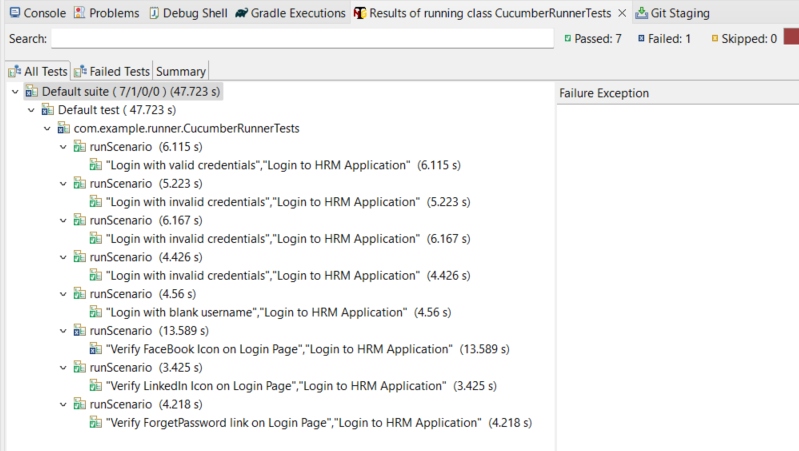
Below is the screenshot of the Console. As expected, 4 tests, out of 5 are passed and 1 failed.
Step 12: View ExtentReport

Refresh the project and will see a new folder – SparkReport_ which further contains 4 folders – HtmlReport, PdfReport, Reports, and Screenshots.
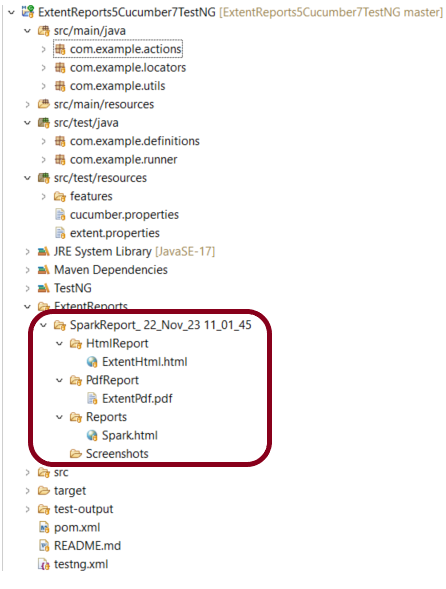
The ExtentReport will be present in the Reports folder with the name Spark.html. PDF Report is present in PdfReport folder and the HTML Report is present in HtmlReport folder. We can see that the Screenshots folder is empty because we have used the base64imagesrc feature which results in no physical screenshots. The screenshots are embedded in the reports.

Right-click and open the ExtentHtml.html report with Web Browser. The report also has a summary section that displays the summary of the execution. The summary includes the overview of the pass/fail using a pictogram, start time, end time, and pass/fail details of features as shown in the image below.

ExtentHtml.html
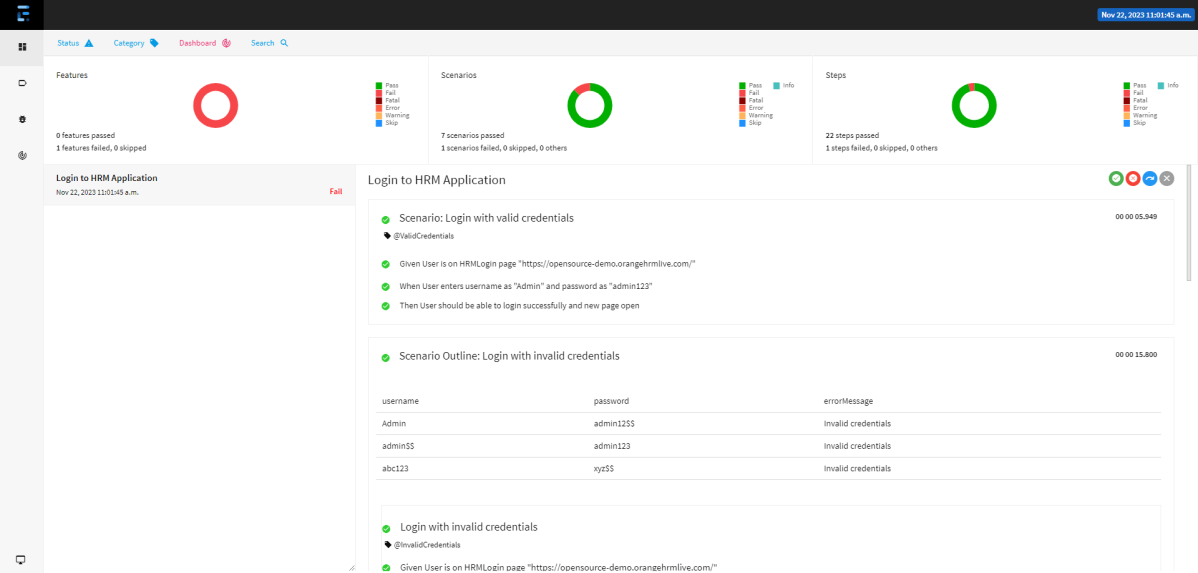
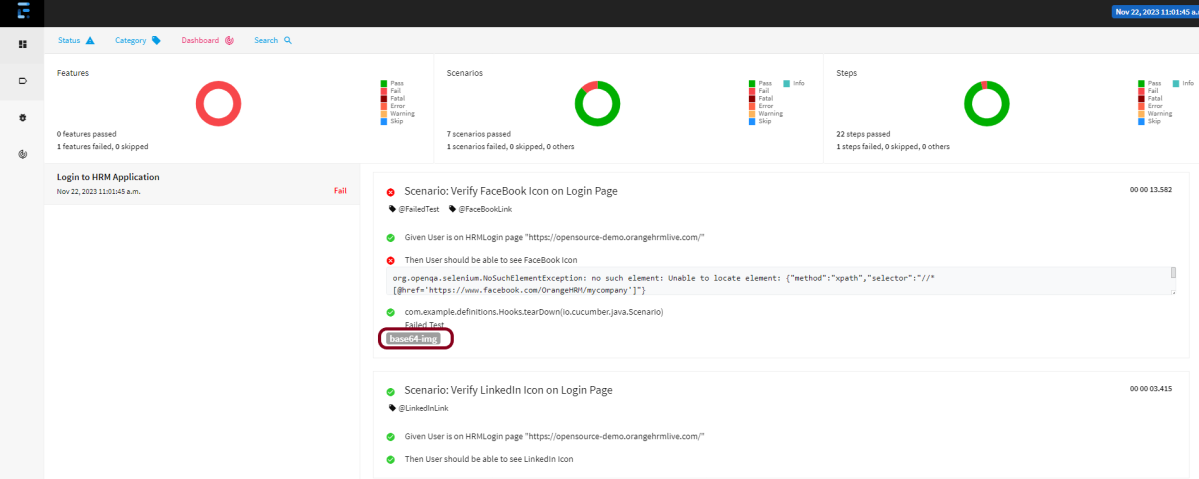
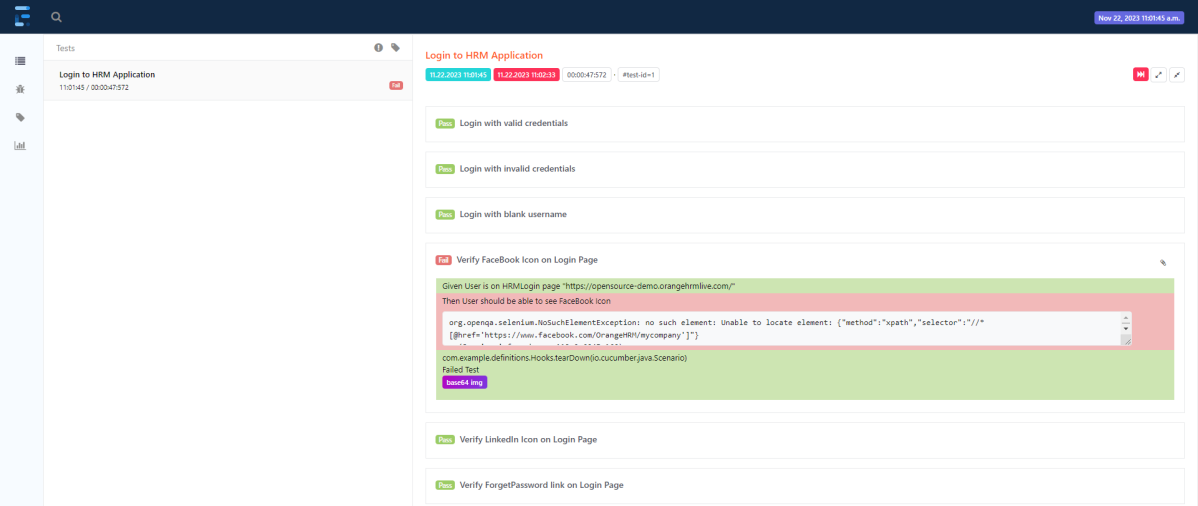
The failed test has a screenshot embedded in it. Double-click on mase64image and it will open the screenshot in full screen.
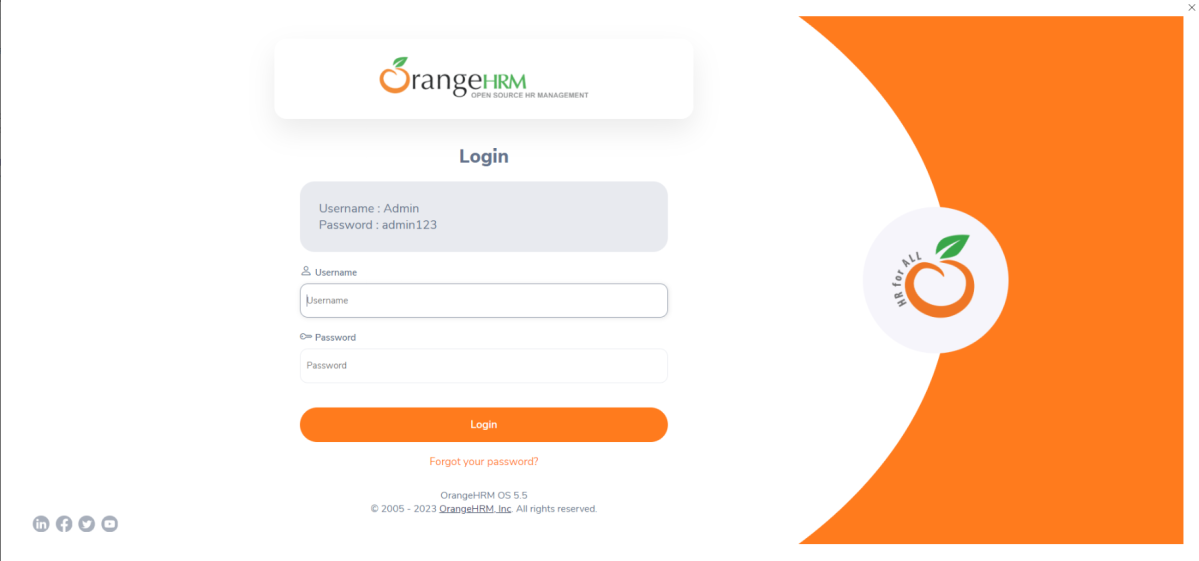
Screenshot of failed Test Case
PDF Report
Spark Report

Right-click and open the Spark.html report with Web Browser.
Congratulations on making it through this tutorial and hope you found it useful! Happy Learning!! Cheers!!

How to add Screenshot to Cucumber ExtentReports
PDF ExtentReport for Cucumber and TestNG
ExtentReports Version 5 for Cucumber 7 and TestNG
Extent Reports Version 5 for Cucumber7 and JUnit5
Gradle – Extent Report Version 5 for Cucumber, Selenium, and TestNG

How to generate HTML Reports in Jenkins

Last Updated On

HOME

In the previous tutorial, we saw the Integration of Allure Report with Jenkins. In this tutorial, we show you how to generate an HTML Report Using Jenkins. 

Table of Contents

  1. Prerequisite
  2. Implementation Steps
    1. Create a new Maven project
    2. Build Management
    3. Select a custom workspace
    4. Select “Publish HTML reports” from “Post Build Actions”
    5. Execute the tests
    6. View the HTML Report

Prerequisite

Jenkin’s installed and started on the computer. The current Jenkins version is – 2.361.2

Implementation Steps

To generate HTML Report in Jenkins, we need to download HTML Publisher Plugin. Please refer to this tutorial to install the plugin – How to install Plugins in Jenkins.

Step 1: Create a new Maven project

  1. Give the Name of the projectHTMLReport_Demo
  2. Click on the Maven project. 
  3. Click on the OK button.

In the General section, enter the project description in the Description box.

Select Source Code Management as None if the project is locally present on the machine.

Step 2: Build Management

Go to the Build section of the new job.

  1. In the Root POM textbox, enter the full path to pom.xml
  2. In the Goals and Options section, enter “clean test site

Here, I have used the Selenium project with JUnit, so to see the complete project, please refer to this tutorial –  How to generate JUnit4 Report.

Click on the Advanced button.

Step 3: Select a custom workspace

Mention the full path of the project in the directory.

Step 4: Select “Publish HTML reports” from “Post Build Actions”

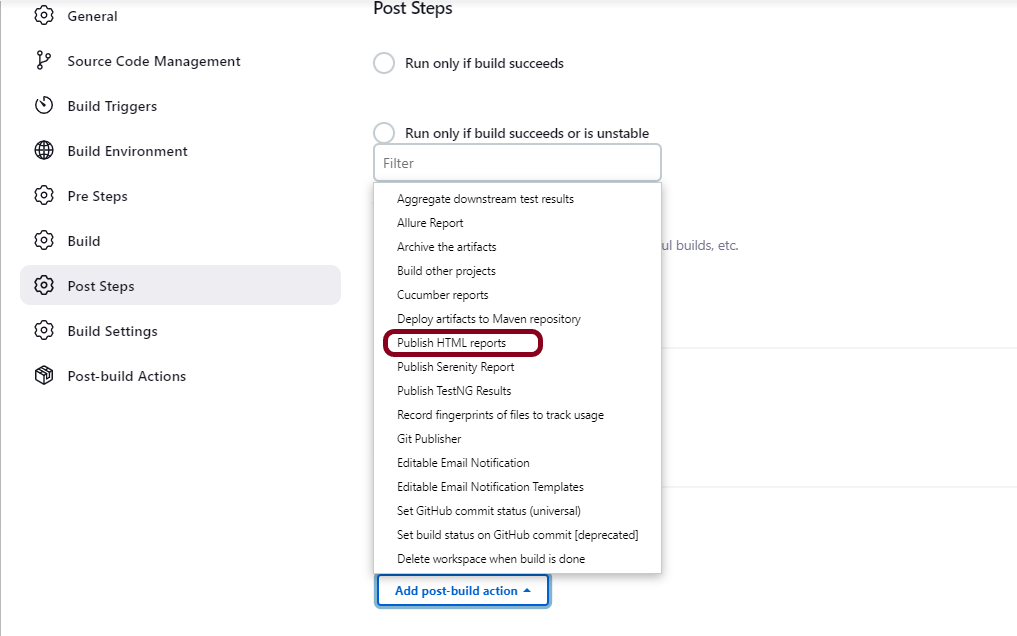
Scroll down to “Post Build Actions” and click on the “Add Post Build Actions” drop-down list. Select “Publish HTML reports“. 

If you want to see where the report is saved in Jenkins, go to the Dashboard ->HTMLReport_Demo project -> Workspace ->target -> site -> surefire-report.html.

Enter the below details to publish HTML reports

HTML directory to archive – target/site/

Index page[s] – surefire-report.html

Report title – HTML Report

Click on the Apply and Save buttons.

We have created a new Maven project “HTMLReport_Demo” with the configuration to run the Selenium with JUnit4 Tests and also to generate HTML Report after execution using Jenkins.

Step 5: Execute the tests

Let’s execute it now by clicking on the “Build Now” button. 

Right-click on Build Number (here in my case it is #2).

Click on Console Output to see the result.

Step 6: View the HTML Report

Once the execution is completed, click on go “Back to Project“, and we can see a link to view the “HTML Report“.

We can see here that the HTML Report link is displayed in the Console.

Below is the HTML Report generated in Jenkins.

We can see that the HTML Report does not look very pretty. The reason is that CSS is stripped out because of the Content Security Policy in Jenkins.

The default rule set in Jenkins is:

sandbox; default-src 'none'; img-src 'self'; style-src 'self';

To know more about this, please refer to this tutorial – https://www.jenkins.io/doc/book/security/configuring-content-security-policy/.

We can customize the Content Security Policy in Jenkins. But keep in mind that it should be done after checking with the Security team in your organization. This is a workaround solution. I can’t emphasize enough that this is not a standard practice.

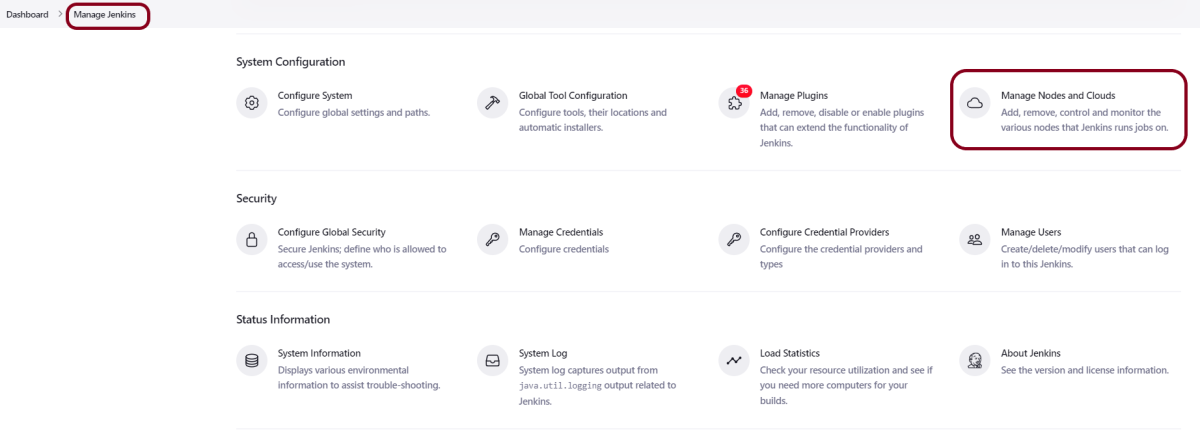
Go to Manage Jenkins -> Manage Nodes and Clouds.

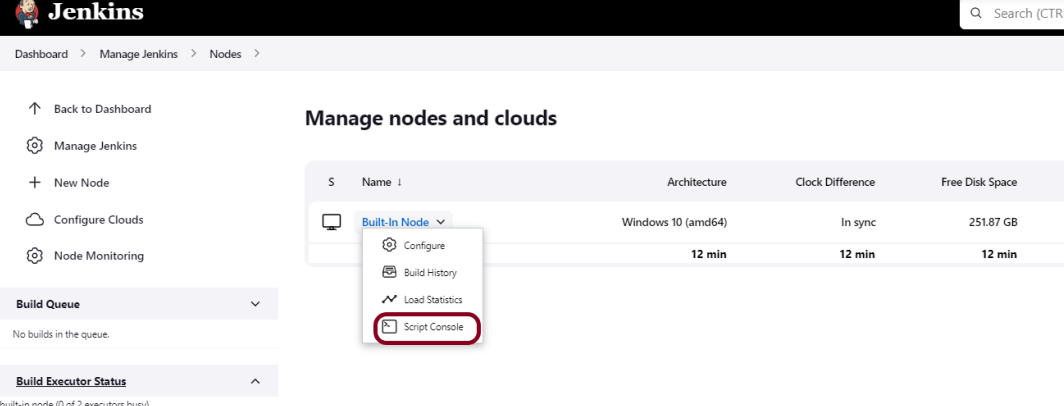
Click on the Script Console option.

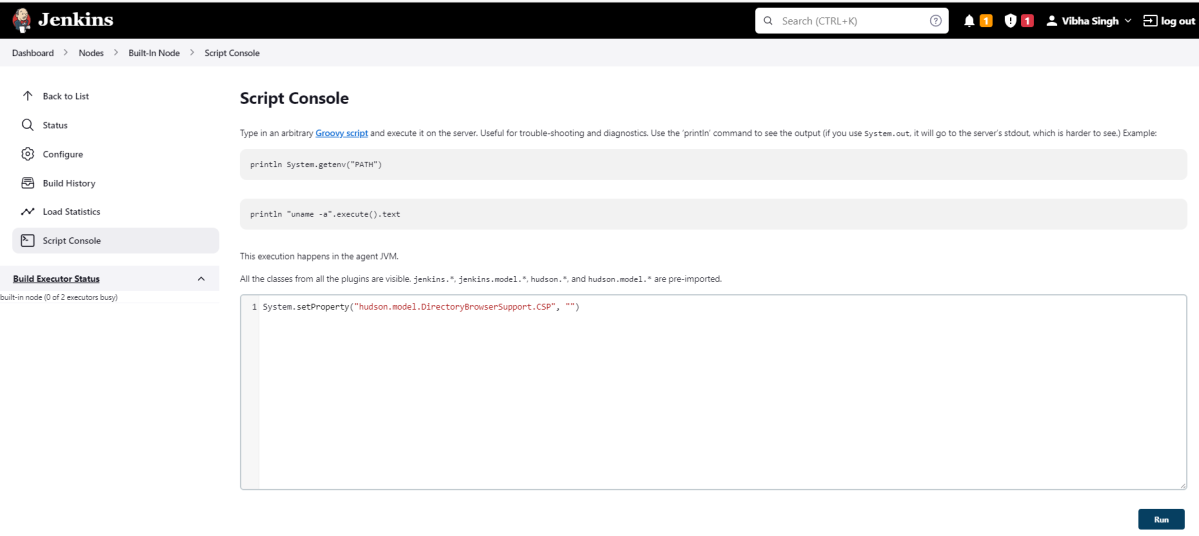
Type in the following command and Press Run. If you see the output as ‘Result:’ then the protection is disabled. Re-run your build and you can see that the new HTML files archived will have the CSS enabled.

System.setProperty("hudson.model.DirectoryBrowserSupport.CSP","")

Re-run the HTMLReport_Demo project. Now you can see a properly rendered HTML Report.

Congratulations on making it through this tutorial and hope you found it useful! Happy Learning!! Cheers!!

Additional Tutorials

Jenkins GitLab Integration
How to generate HTML Reports in Jenkins
How to create Jenkins pipeline for Serenity tests
How to create Jenkins pipeline for Cucumber tests
How to create Jenkins pipeline for Extent Report
How to run parameterized Selenium tests in Jenkins

How to use the JMeter Maven Plugin

Last Modified Date

HOME

In this tutorial, we will integrate JMeter with Maven to support CI/CD.

Maven and jmeter-maven-plugin make it easy to integrate performance tests with CI/CD tools & technologies such as Jenkins/Jenkinsfiles or Azure/Azure pipelines and cloud build agents. It also helps to run your tests with different versions of JMeter.

Table of Contents

  1. What is JMeter Maven Plugin
  2. How to use the JMeter Maven Plugin
    1. Create a new Maven Project
    2. Compile the new project
    3. Add Maven Compiler Plugin
    4. Add JMeter Maven Plugin
    5. Create a new directory src/test/jmeter and place JMeter Script in it
    6. Run JMeter Test with JMeter Maven Plugin
  3. Create a Test Plan in JMeter
    1. Add Thread Group
    2. Adding JMeter elements
    3. Adding Listeners to Test Plan
    4. Save the Test Plan

What is JMeter Maven Plugin

This is a Maven 3 plugin that allows you to run JMeter tests as part of the build.

How to use the JMeter Maven Plugin

Step 1 – Create a new Maven Project

A new project will be created with pom.xml as shown below

pom.xml is our Maven project main file, which contains all the necessary information and dependencies bound to our project.

Step 2 – Compile the new project

Compile the project by using the below command

mvn clean compile

The compilation fails with the errors as shown below:

Step 3 – Add Maven Compiler Plugin

Add the Maven Compiler plugin in the build section of the pom.xml.

<build>
    <plugins>
      <plugin>
        <groupId>org.apache.maven.plugins</groupId>
        <artifactId>maven-compiler-plugin</artifactId>
        <version>3.11.0</version>
        <configuration>
          <source>11</source>
          <target>11</target>
        </configuration>
      </plugin>
    </plugins>
  </build>

Rerun compile command and this time the build is successful.

Step 4 – Add JMeter Maven Plugin

Add the JMeter Maven plugin to the build section of the pom.xml.

<plugin>
                <groupId>com.lazerycode.jmeter</groupId>
                <artifactId>jmeter-maven-plugin</artifactId>
                <version>3.6.0</version>
                <executions>
                    <!-- Generate JMeter configuration -->
                    <execution>
                        <id>configuration</id>
                        <goals>
                            <goal>configure</goal>
                        </goals>
                    </execution>
                    <!-- Run JMeter tests -->
                    <execution>
                        <id>jmeter-tests</id>
                        <goals>
                            <goal>jmeter</goal>
                        </goals>
                    </execution>
                    <!-- Fail build on errors in test -->
                    <execution>
                        <id>jmeter-check-results</id>
                        <goals>
                            <goal>results</goal>
                        </goals>
                    </execution>
                </executions>
                <configuration>
                    <generateReports>true</generateReports>
                </configuration>
            </plugin>

Step 5 – Create a new directory src/test/jmeter and place JMeter Script in it

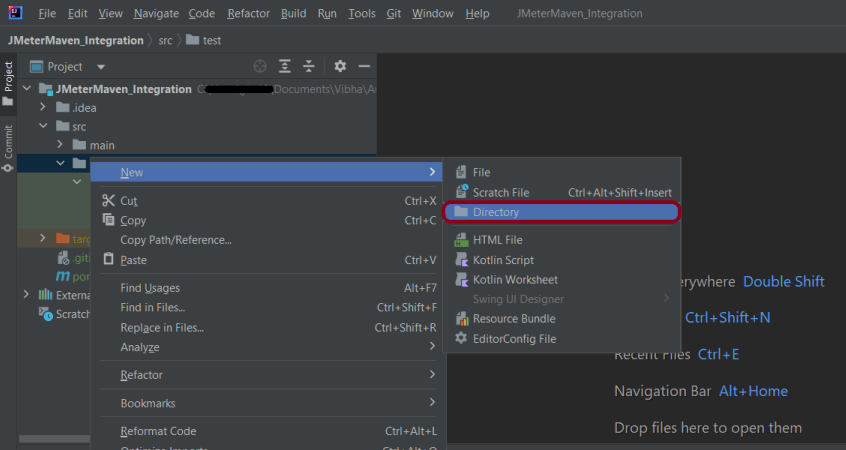
Create a new directory within src/test with the name jmeter.

Place the JMeter script(.jmx) file in src/test/jmeter. The steps to create a Test Plan in JMeter are mentioned at the end of the page.

Step 6 – Run JMeter Test with JMeter Maven Plugin

Go to your project directory and run the following command in the command line:

mvn clean verify

The test execution is displayed in the command line as shown below:

The test ran successfully! The results are located at /target/jmeter/reports. You will find an HTML report named “Index.html”:

This report provides the following metrics:

In the Dashboard of the report;

  • APDEX (Application Performance Index) table that computes for every transaction the APDEX based on configurable values for tolerated and satisfied thresholds
  • A request summary graph showing the Success and failed requests

A Statistics table providing in one table a summary of all metrics per transaction including 3 configurable percentiles:

An error table providing a summary of all errors and their proportion in the total requests

A Top 5 Errors by Sampler table providing for every Sampler (excluding Transaction Controller by default) the top 5 Errors:

You can see that there are a lot of other types of reports too. You should explore these reports.

Create a Test Plan in JMeter

Sample Request

{
    "name": "Test",
    "job": "JMeter"
}

Sample Response

{
  "name":"Test",
  "job":"JMeter",
  "id":"955",
  "createdAt":"2023-07-03T15:46:18.038Z"
}


Step 1 –  Add Thread Group

  • Select Test Plan on the tree
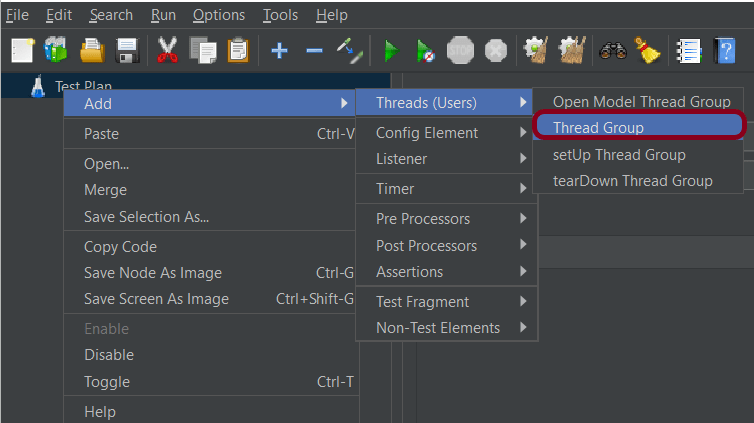
  • Add Thread Group                                                                                                                               To add Thread Group: Right-click on the “Test Plan” and add a new thread group: Add -> Threads (Users) -> Thread Group

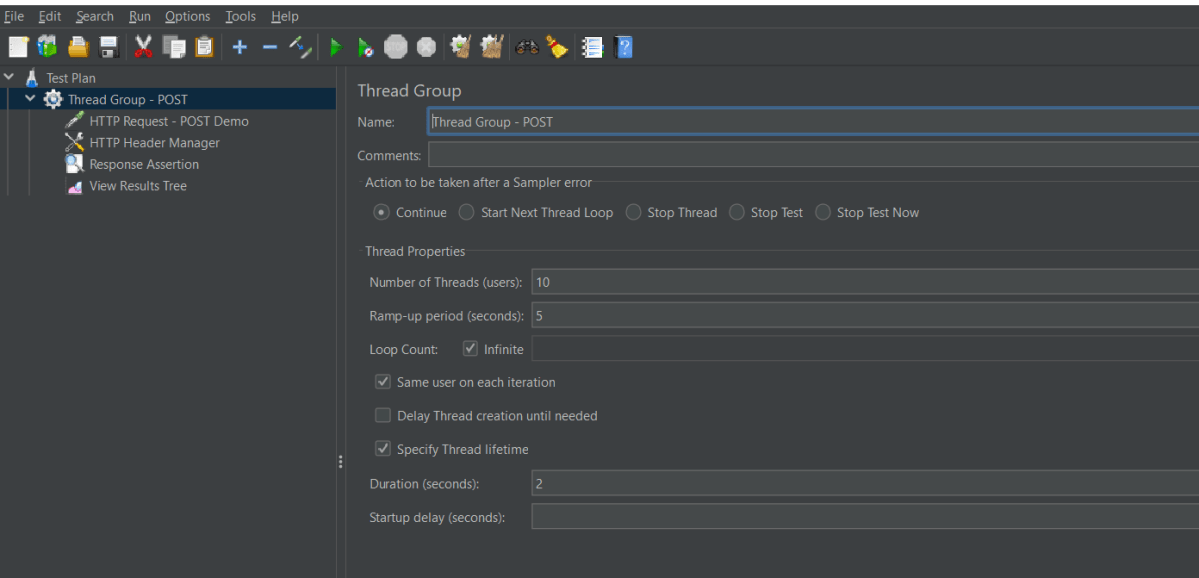
In the Thread Group control panel, enter Thread Properties as follows: We will take an example of row no 5

Number of Threads: 5 – Number of users connects to the target website
Loop Count: Infinite  – Number of times to execute testing
Ramp-Up Period: 5 – It tells JMeter how long to delay before starting the next user. For example, if we have 5 users and a 5 -second Ramp-Up period, then the delay between starting users would be 1 second (5 seconds /5 users).

Duration – 2 sec

Step 2 –  Adding JMeter elements  

The JMeter element used here is HTTP Request Sampler. In HTTP Request Control Panel, the Path field indicates which URL request you want to send


2.1 Add HTTP Request Sampler
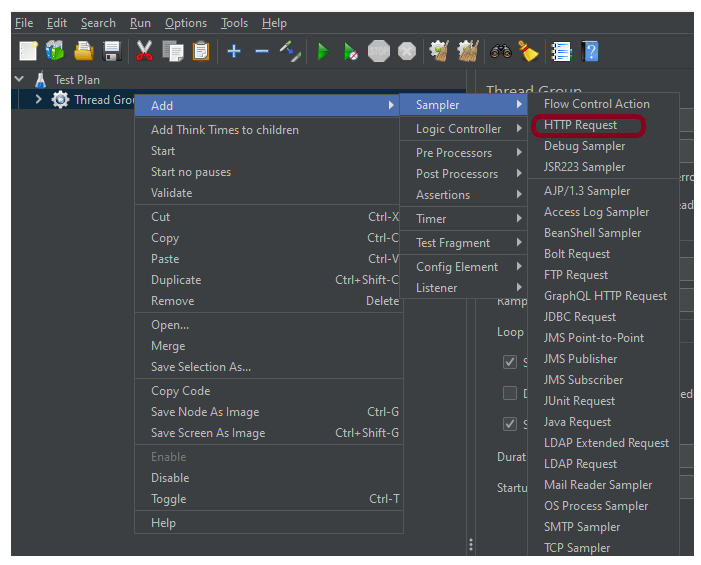
To add: Right-click on Thread Group and select: Add -> Sampler -> HTTP Request

The below-mentioned are the values used in HTTP Request to perform the test

  • Name – HTTP POST Request Demo
  • Server Name or IP – reqres.in
  • Port – Blank
  • Method – POST
  • Path – /api/users

2.2 Add HTTP Head Manager

The Header Manager lets you add or override HTTP request headers like can add Accept-Encoding, Accept, Cache-Control

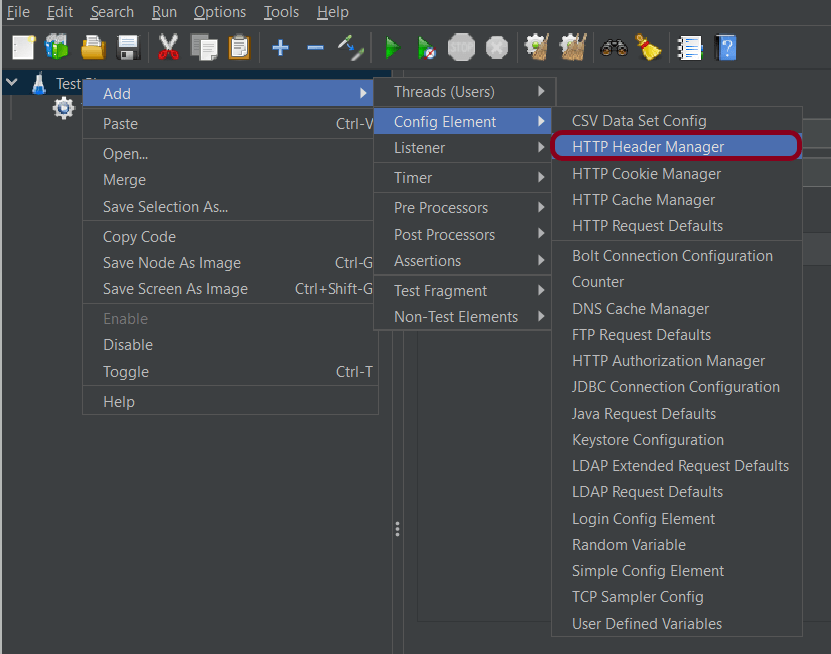
To add: Right-click on Thread Group and select: Add -> Config Element -> HTTP Read Manager

The below-mentioned are the values used in Http Request to perform the test
Content-type = application/json

Step 3 – Adding Listeners to Test Plan

Listeners – They show the results of the test execution. They can show results in a different format such as a tree, table, graph, or log file
We are adding the View Result Tree listener

View Result Tree – View Result Tree shows the results of the user request in basic HTML format
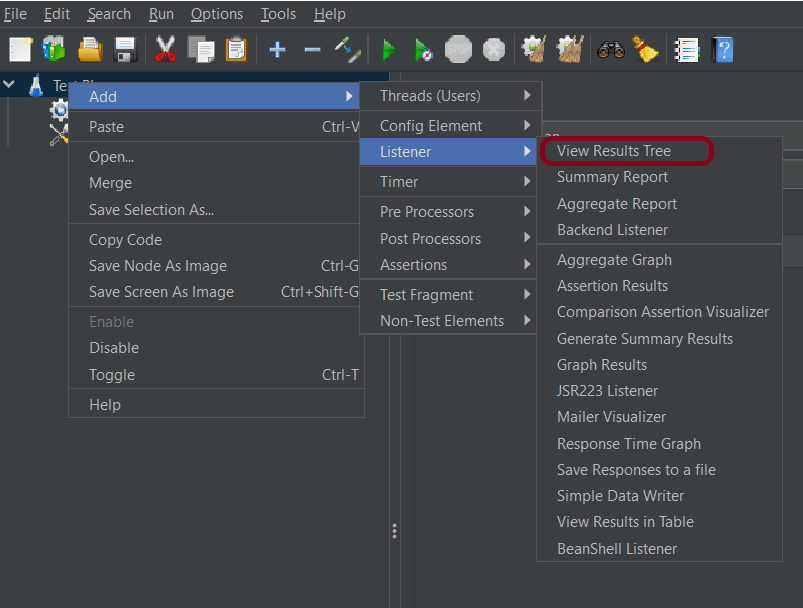
To add: Right-click on Test Plan, Add -> Listener -> View Result Tree

Aggregate Report

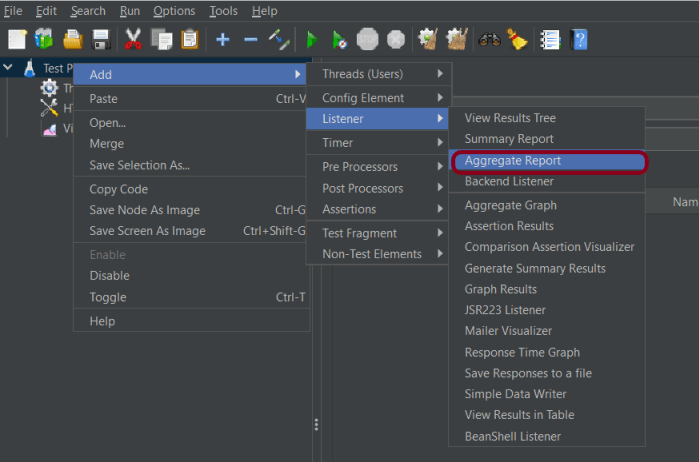
It is almost the same as Summary Report except Aggregate Report gives a few more parameters like, “Median”, “90% Line”, “95% Line” and “99% Line”.

 To add: Right Click on Thread Group > Add > Listener > Aggregate Report

Step 4 – Save the Test Plan

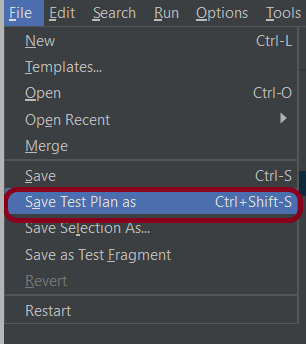
To Save: Click File Select -> Save Test Plan as ->Give the name of the Test Plan (POST_LoadDemo.jmx). It will be saved in .jmx format.

We are done! Congratulations on making it through this tutorial and hope you found it useful! Happy Learning!!

How to generate JMeter HTML Report?

Last Modified Date

HOME

JMeter supports dashboard report generation to get graphs and statistics from a test plan. In this tutorial, we will explain how to generate JMeter HTML Report.

The dashboard generator is a modular extension of JMeter. Its default behaviour is to read and process samples from CSV files to generate HTML files containing graph views. It can generate the report at the end of a load test or on demand.

There are 2 ways to generate HTML Report

  1. Generation after load test
  2. Generation from an existing sample CSV log file

Create a Test Plan in JMeter

Sample Request

{
    "name": "Test",
    "job": "JMeter"
}

Sample Response

{
  "name":"Test",
  "job":"JMeter",
  "id":"955",
  "createdAt":"2023-07-03T15:46:18.038Z"
}


Step 1 –  Add Thread Group

  • Select Test Plan on the tree
  • Add Thread Group                                                                                                                               To add Thread Group: Right-click on the “Test Plan” and add a new thread group: Add -> Threads (Users) -> Thread Group

In the Thread Group control panel, enter Thread Properties as follows: We will take an example of row no 5

Number of Threads: 5 – Number of users connects to the target website
Loop Count: 5  – Number of times to execute testing
Ramp-Up Period: 5 – It tells JMeter how long to delay before starting the next user. For example, if we have 5 users and a 5 -second Ramp-Up period, then the delay between starting users would be 1 second (5 seconds /5 users).

Step 2 –  Adding JMeter elements  

The JMeter element used here is HTTP Request Sampler. In HTTP Request Control Panel, the Path field indicates which URL request you want to send


2.1 Add HTTP Request Sampler
To add: Right-click on Thread Group and select: Add -> Sampler -> HTTP Request

The below-mentioned are the values used in HTTP Request to perform the test

  • Name – HTTP POST Request Demo
  • Server Name or IP – reqres.in
  • Port – Blank
  • Method – POST
  • Path – /api/users

2.2 Add HTTP Head Manager

The Header Manager lets you add or override HTTP request headers like can add Accept-Encoding, Accept, Cache-Control

To add: Right-click on Thread Group and select: Add -> Config Element -> HTTP Read Manager

The below-mentioned are the values used in Http Request to perform the test
Content-type = application/json
accept – application/json

Step 3 – Adding Listeners to Test Plan

Listeners – They show the results of the test execution. They can show results in a different format such as a tree, table, graph, or log file
We are adding the View Result Tree listener

View Result Tree – View Result Tree shows the results of the user request in basic HTML format
To add: Right-click on Test Plan, Add -> Listener -> View Result Tree

Aggregate Report

It is almost the same as Summary Report except Aggregate Report gives a few more parameters like, “Median”, “90% Line”, “95% Line” and “99% Line”.

 To add: Right Click on Thread Group > Add > Listener > Aggregate Report

Step 4 – Save the Test Plan

To Save: Click File Select -> Save Test Plan as ->Give the name of the Test Plan. It will be saved in .jmx format.

The below image shows that the test is saved in Documents with the name POST_Load.jmx.

Report Generation after load test

Step 5  – Run the Test Plan from Command Line

Open the command prompt and go into JMeter’s bin folder.

cd C:\Users\Vibha\Documents\apache-jmeter-5.6\apache-jmeter-5.6\bin

Step 6 – View the Execution Status

Enter the following command:

jmeter -n -t <test JMX file> -l <test log file> -e -o <Path to output folder>

This is the command used in the script:

jmeter -n -t C:\Users\Vibha\Documents\apache-jmeter-5.6\apache-jmeter-5.6\POST_Load.jmx -l C:\Users\Vibha\Documents\JMeterResult\result1.csv -e -o C:\Users\Vibha\Documents\JMeterResult\Report

Below is the detail about the commands used in the execution.

-n: This specifies JMeter is to run in cli mode

-t: [name of JMX file that contains the Test Plan]

-l: [name of JTL file to log sample results to]

e: generate report dashboard after load test

-o: output folder where to generate the report dashboard after the load test. The folder must not exist or be empty

The test execution is displayed in the command line as shown below:

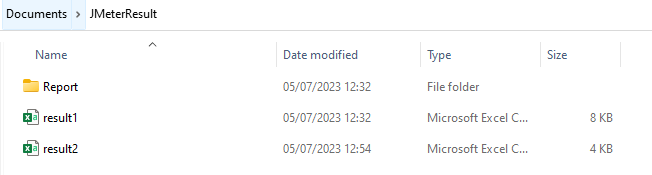
The result1.csv is saved as mentioned in the above command in the JMeterResult folder present in Documents:

Go to the Report Folder. You can find the generated HTML files in the given report path.

This report provides the following metrics:

In the Dashboard of the report;

  • APDEX (Application Performance Index) table that computes for every transaction the APDEX based on configurable values for tolerated and satisfied thresholds
  • A request summary graph showing the Success and failed requests

A Statistics table providing in one table a summary of all metrics per transaction including 3 configurable percentiles:

An error table providing a summary of all errors and their proportion in the total requests

A Top 5 Errors by Sampler table providing for every Sampler (excluding Transaction Controller by default) the top 5 Errors:

You can see that there are a lot of other types of reports too. You should explore these reports.

Generation from an existing sample CSV log file

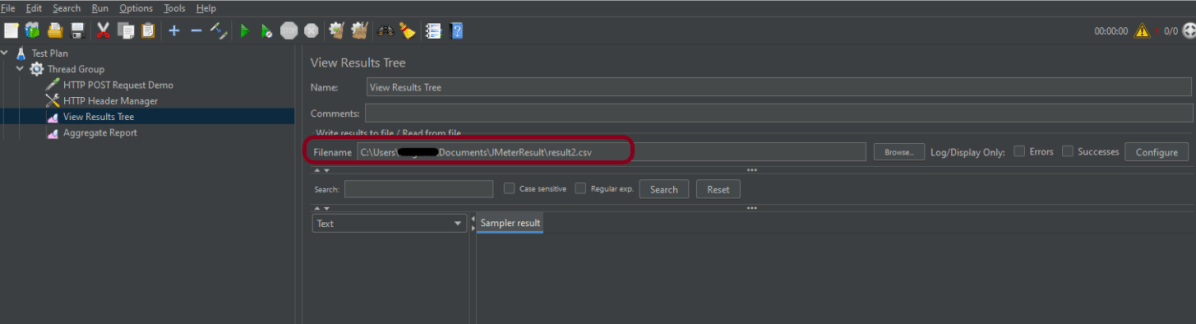
Imagine, we have run the tests from JMeter GUI. Mention the path where we want to save the result file in the Filename option of one of the listeners.

Run the tests, and we can see that the result is generated.

Now, let us create a Report.

jmeter -g C:\Users\Vibha\Documents\JMeterResult\Result2.csv -o C:\Users\Vibha\Documents\JMeterResult\Report1

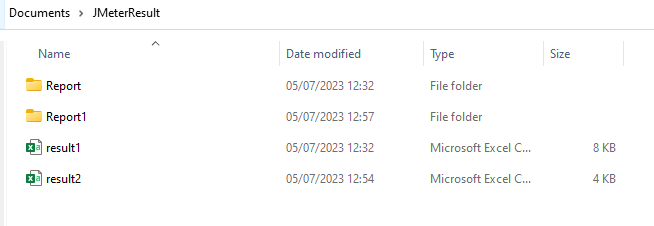
We can see that a new folder – Report1 is created.

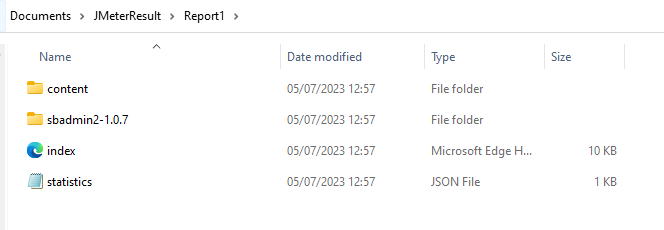
Go inside the Report1 folder and see that the Index.html report is generated.

We are done! Congratulations on making it through this tutorial and hope you found it useful! Happy Learning!!

How to integrate Robot Framework with Jenkins

HOME

In the previous tutorial, we have seen the Integration of Allure Report with Jenkins. In this tutorial, we show you how to integrate Robot Framework with Jenkins

Prerequisite:

Jenkin’s installed and started on the computer. The current Jenkins version is – 2.361.2

Implementation Steps

To generate HTML Report in Jenkins, we need to download HTML Publisher Plugin. Please refer to this tutorial to install the plugin – How to install Plugins in Jenkins.

Step 1: Create a new FreeStyle project

  1. Give the Name of the projectRobotFramework_Demo
  2. Click on the Maven project. 
  3. Click on the OK button.

In the General section, enter the project description in the Description box.

Step 2: Select a custom workspace

Mention the full path of the project in the Use custom workspace.

Select Source Code Management as None if the project is locally present on the machine.

Step 3: Build Management

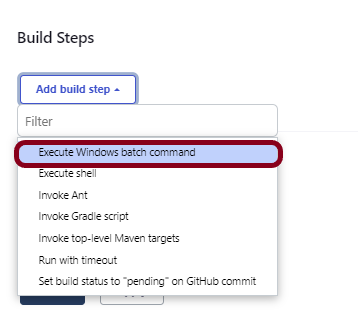
Go to the Build section of the new job. Select “Execute Windows batch command”.

Click on the Advanced button.

Step 4: Select “Publish HTML reports” from “Post Build Actions”

Scroll down to “Post Build Actions” and click on the “Add Post Build Actions” drop-down list. Select “Publish HTML reports“. 

If you want to see where the report is saved in Jenkins, go to the Dashboard -> RobotFramework_Demo -> Workspace -> report.html.

Enter the HTML directory to archive – Empty, Index page[s] – report.html, and Report title – HTML Report.

Click on the Apply and Save buttons.

We have created a new Maven project “RobotFramework_Demo” with the configuration to run the tests in the RobotFramework.

Step 5: Execute the tests

Let’s execute it now by clicking on the “Build Now” button. 

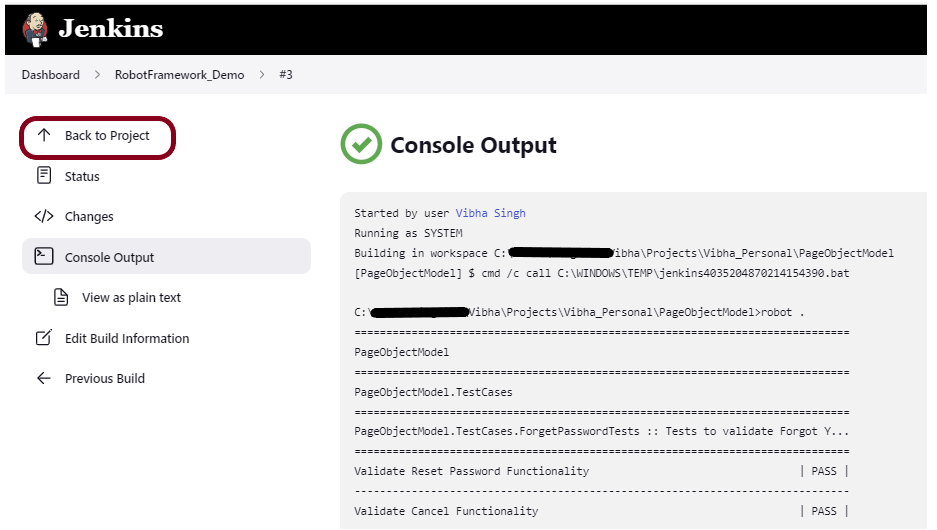
Right-click on Build Number (here in my case it is #3).

Click on Console Output to see the result.

Step 6: View the HTML Report

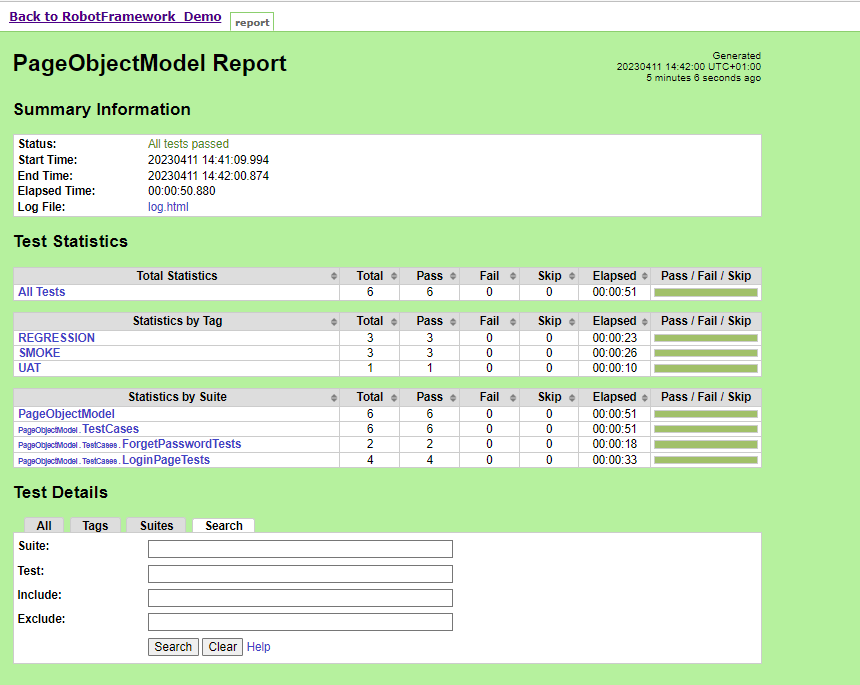
Once the execution is completed, click on go “Back to Project“, and we could see a link to view the “HTML Report“.

We can see here that the HTML Report link is displayed in the Console.

Below is the HTML Report generated in Jenkins.

There are chances that the report won’t look very pretty. The reason is that CSS is stripped out because of the Content Security Policy in Jenkins.

The default rule set in Jenkins is:

sandbox; default-src 'none'; img-src 'self'; style-src 'self';

To know more about this, please refer to this tutorial – https://www.jenkins.io/doc/book/security/configuring-content-security-policy/.

We can customize Content Security Policy in Jenkins. But keep in mind that it should be done after checking with the Security team in your organization. This is a workaround solution. I can’t emphasize enough that this is not a standard practice.

Go to Manage Jenkins -> Manage Nodes and Clouds.

Click on the Script Console option.

Type in the following command and Press Run. If you see the output as ‘Result:’ then the protection is disabled. Re-Run your build and you can see that the new HTML files archived will have the CSS enabled.

System.setProperty("hudson.model.DirectoryBrowserSupport.CSP","")

Re-run the HTMLReport_Demo project. Now you can see a properly rendered HTML Report.

Congratulations on making it through this tutorial and hope you found it useful! Happy Learning!! Cheers!!

Additional Tutorials
How to Install Python on Windows 11
How to install and setup Robot Framework for Python
How to rerun failed tests in Robot Framework
How to implement tagging in Robot Framework
 How to set variable values from Runtime command in Robot Framework
How to load data from CSV files in the Robot Framework?

How to create Jenkins pipeline for Cucumber tests

HOME

In the previous tutorial, I discussed the Jenkins pipeline. This tutorial will discuss the steps to create the Jenkins pipeline for Cucumber tests.

Prerequisite:

Jenkins was installed and started on the computer.

To generate Cucumber Report in Jenkins, we need to download HTML Publisher. Please refer to this tutorial to install the plugin – How to install Plugins in Jenkins

Implementation Steps

Step 1: Create a new pipeline project

  1. Give the Name of the project – Cucumber_PipelineDemo
  2. Click on the pipeline project. 
  3. Click on the OK button.

In the General section, enter the project description in the Description box.

Step 2: Scroll down to Pipeline

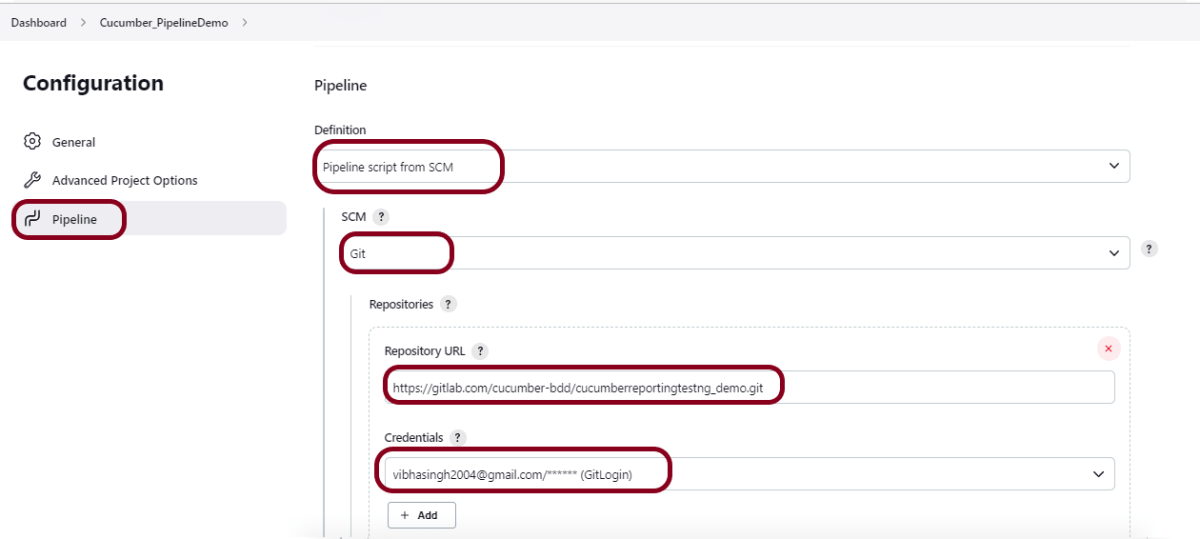
From the Definition field, choose the “Pipeline script from SCM” option. This option instructs Jenkins to obtain your Pipeline from Source Control Management (SCM), which will be your locally cloned Git repository.

From the SCM field, choose Git.

The Repositories section contains the Repository URL and Credentials.

In the Repository URL field, specify the directory path of the GitLab/GitHub project.

In the Credentials field, specify the username and password needed to log in to GitLab/GitHub.

In this case, I have the project is present in GitLab and using it.

Step 3: Create Jenkinsfile

Create and save a new text file with the name Jenkinsfile at the root of the project in the GitLab repository. Here, we are using the Cucumber project with Selenium and TestNG. To know more about the Integration of Cucumber with Serenity and TestNG, please refer to this tutorial – Implemention of ‘Masterthought’ Reports in Cucumber with TestNG.

For this tutorial, we are using Declarative syntax. The sample example is given below:

pipeline {
    agent any

    stages {
        stage('Test') {
            steps {

                // To run Maven on a Windows agent, use
                bat "mvn -D clean test"
            }

            post {
                
                // If Maven was able to run the tests, even if some of the test
                // failed, record the test results and archive the jar file.
                success {
                        cucumber buildStatus: 'null', 
                        customCssFiles: '', 
                        customJsFiles: '', 
                        failedFeaturesNumber: -1, 
                        failedScenariosNumber: -1, 
                        failedStepsNumber: -1, 
                        fileIncludePattern: '**/*.json', 
                        pendingStepsNumber: -1, 
                        skippedStepsNumber: -1, 
                        sortingMethod: 'ALPHABETICAL', 
                        undefinedStepsNumber: -1
                }
            }
        }
    }
}

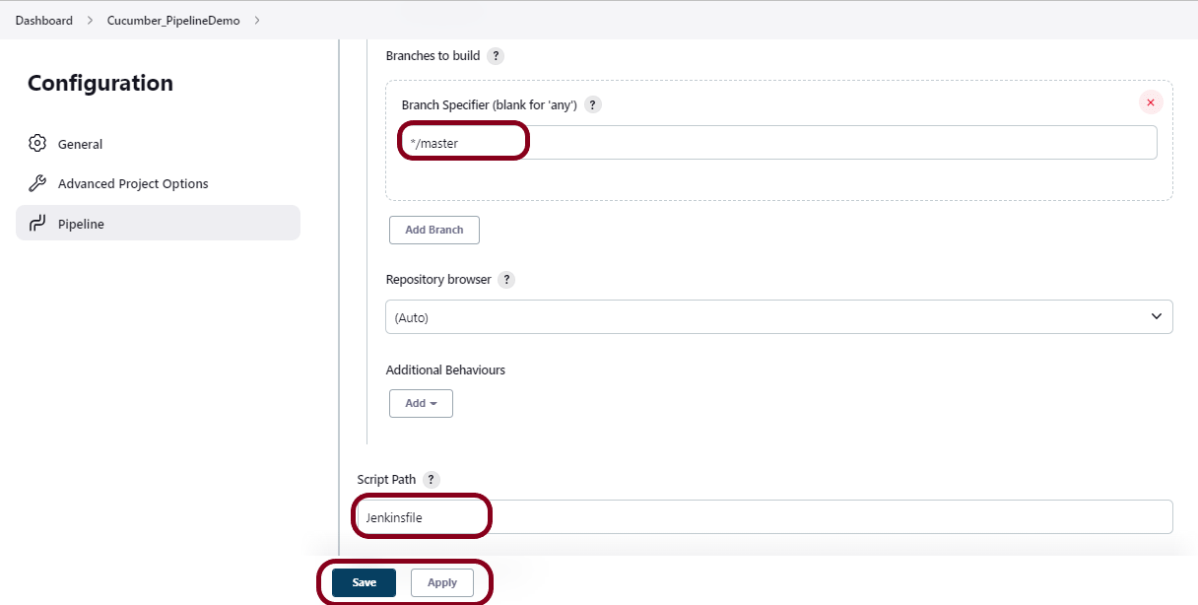
Step 4: Specify branches to build a section under Repositories

  1. Branch Specifier – */master (This is my main branch)
  2. ScriptPath – Jenkinsfile

Click on the Apply and Save buttons.

We have created a new Maven project Cucumber_PipelineDemo” with the configuration to run the Cucumber Tests with TestNG.

Step 5: Execute the tests

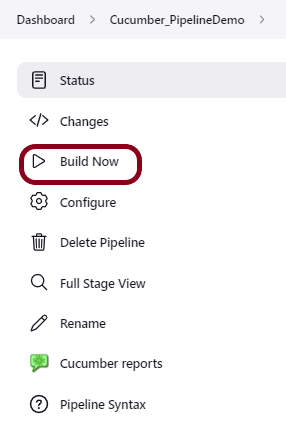
Let’s execute it now by clicking on the “Build Now” button. 

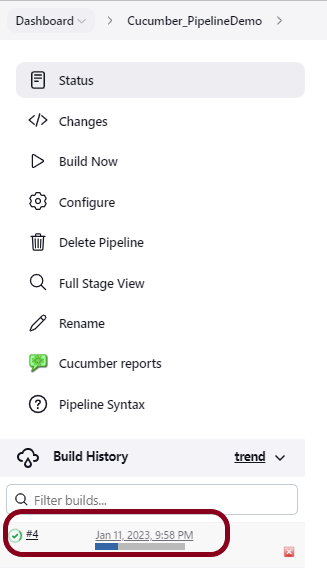
Right-click on Build Number (here in my case it is #4) and click on Console Output to see the result.

Below is the test execution summary.

Step 6: Pipeline Steps

Once the execution is completed, and we want to see the Pipeline Steps, click on the Pipeline Steps mentioned on the left side of the page.

Step 7: View the Report

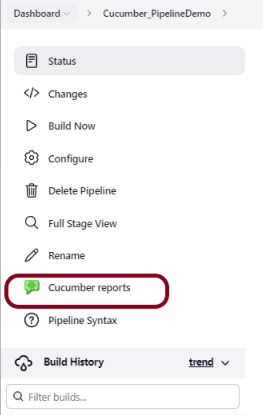
Once the execution is completed, go back to “Cucumber_PipelineDemo”. We can see below that the Cucumber report is generated.

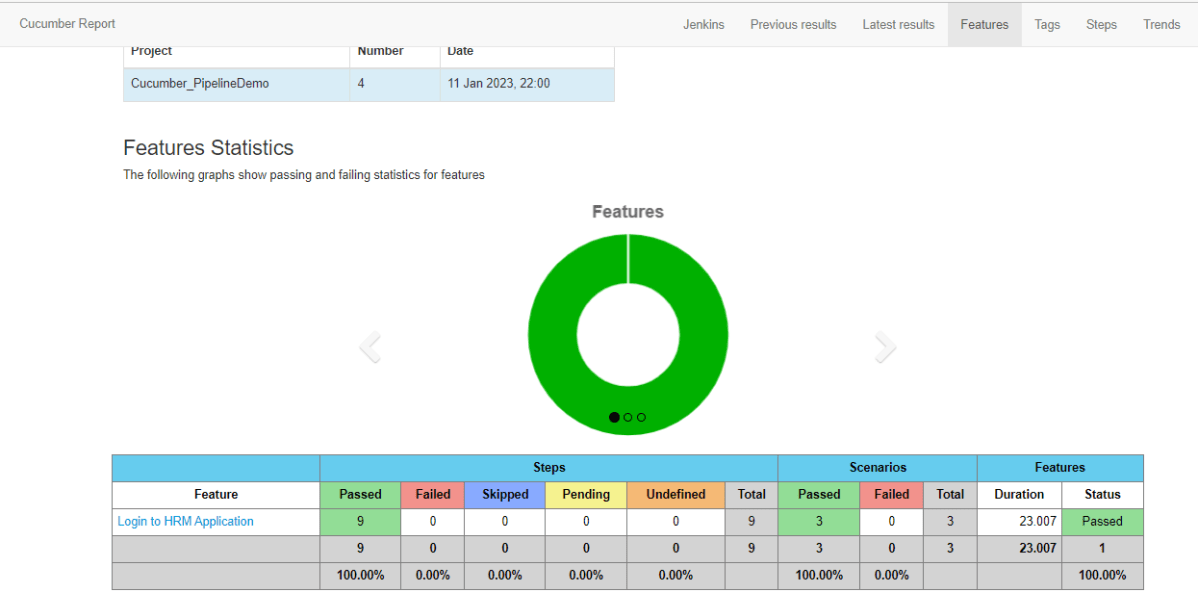
We could see a link to view the “Cucumber Report“. Click on the Cucumber Report. It displays the  Report.

Tip: If you don’t see the Report UI intact, then you need to configure a simple groovy script. For that, go to Dashboard–>Manage Jenkins–>Script Console and add the script as:

	System.setProperty("hudson.model.DirectoryBrowserSupport.CSP","")

We are done! Congratulations on making it through this tutorial and hope you found it useful! Happy Learning!!

Additional Tutorials

How to generate TestNG Report in Jenkins
Integration of Allure Report with Jenkins
How to generate HTML Reports in Jenkins
Integration of Cucumber Report with TestNG in Jenkins
How to create Jenkins pipeline for Selenium tests