GitHub is a web-based version control system and collaboration platform for developers. It is the centre around which all things involving git revolve. GitHub allows software developers and engineers to create remote, public-facing repositories on the cloud for free. Once you’ve set up a repository on GitHub, you can copy it to your device, add and modify files locally, and then “push” your changes back to the repository where your changes are displayed for the public.
In this tutorial, I will explain how we can create anew empty repository in GitHub.
Implementation Steps
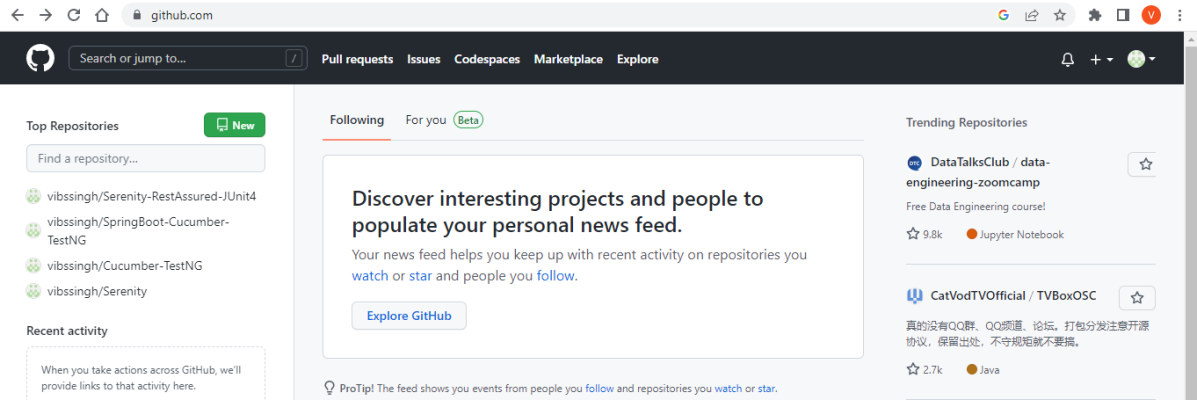
Step 1 – Login to GitHub using your username and password.
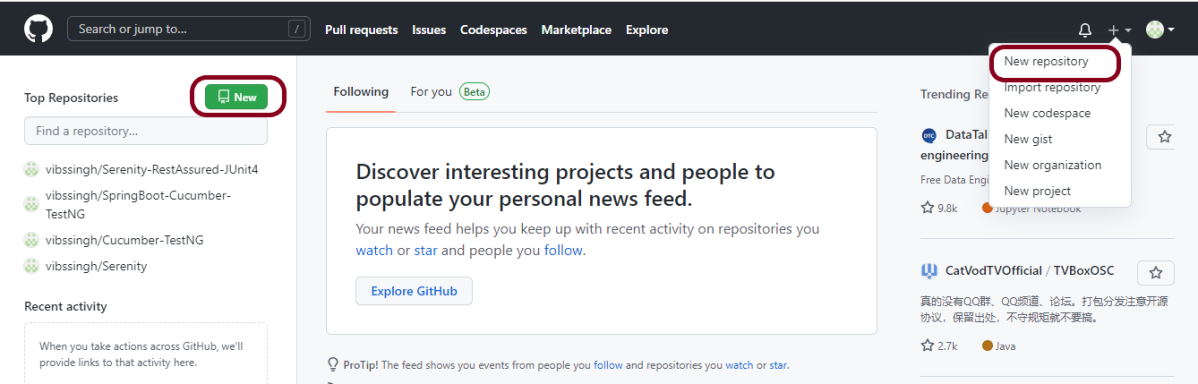
Step 2– In the upper-right corner of any page, use the drop-down menu, and select “New repository” or left side of the page, there is a green button “New“.
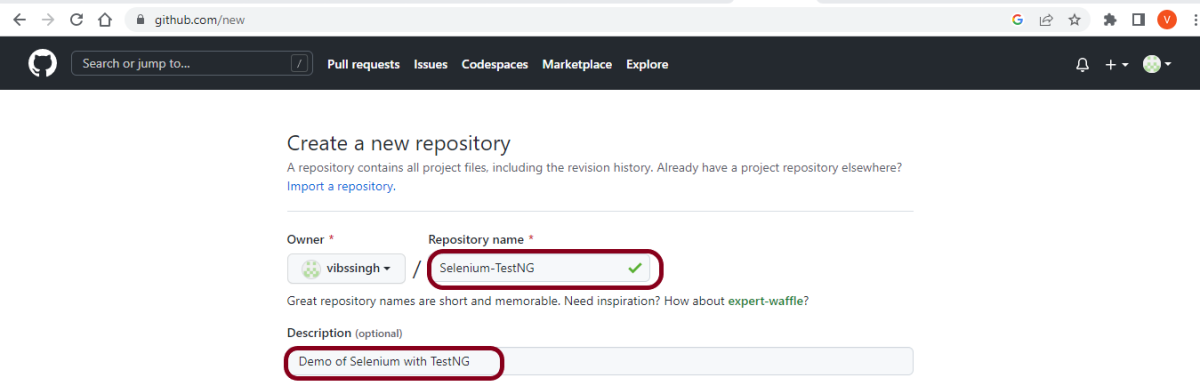
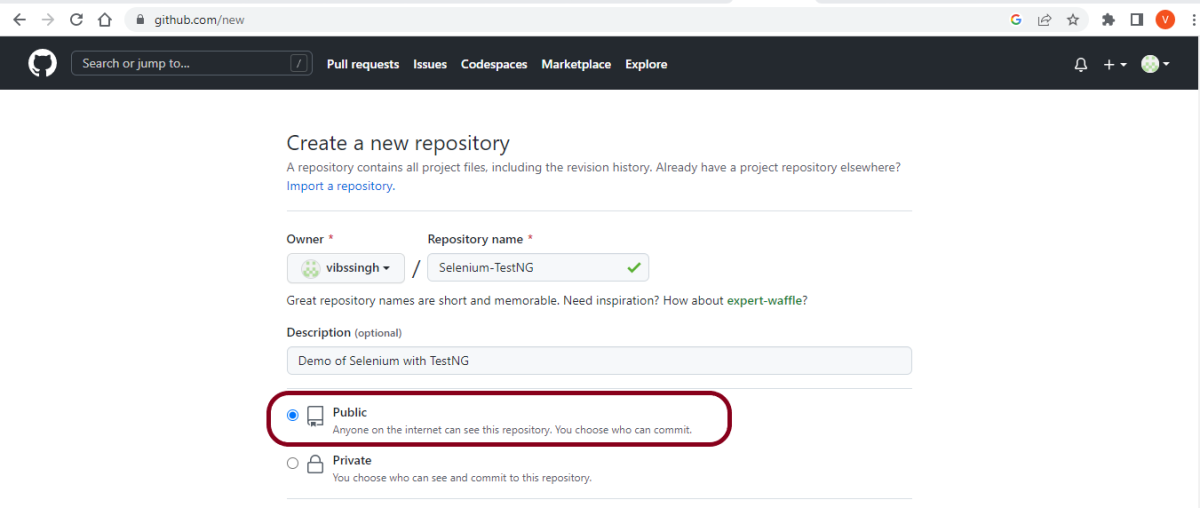
Step 3– Type a name for your repository, and an optional description. Here, I have provided below-mentioned information:
Owner – vibssingh
Repository name – Selenium-TestNG
Description – Demo of Selenium with TestNG (optional)
Step 4 – Choose repository visibility.
I’m selecting the “Public” option as it is a free account. You can select the Private option for a paid account (mostly organizations). For more information, see “About repositories.”
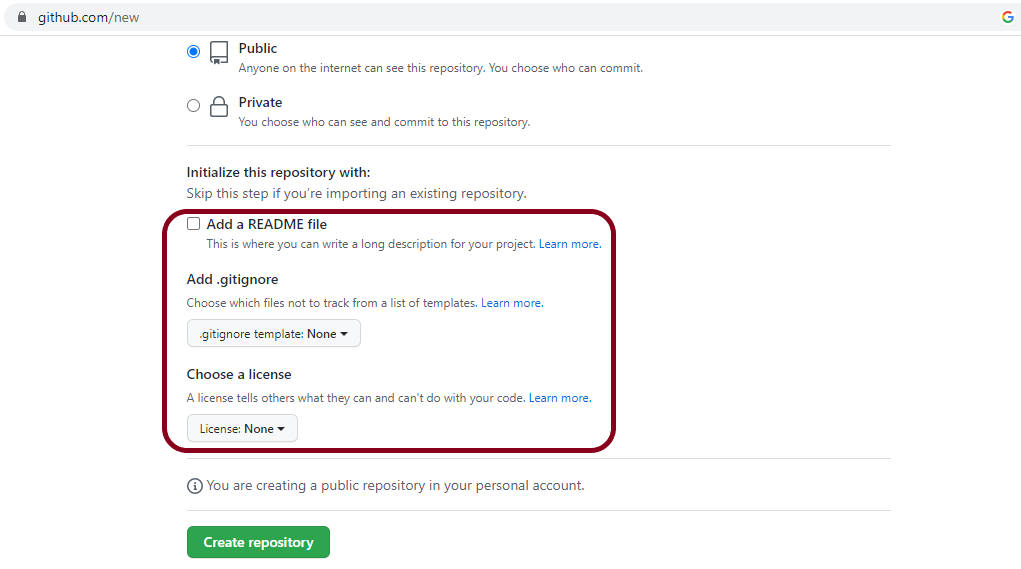
Step 5 – You can create a “README“, which is a document describing your project. For more information, see “About READMEs.”
You can create a .gitignore file, which is a set of ignore rules. For more information, see “Ignoring files.“
You can choose to add a software license for your project. For more information, see “Licensing a repository.”
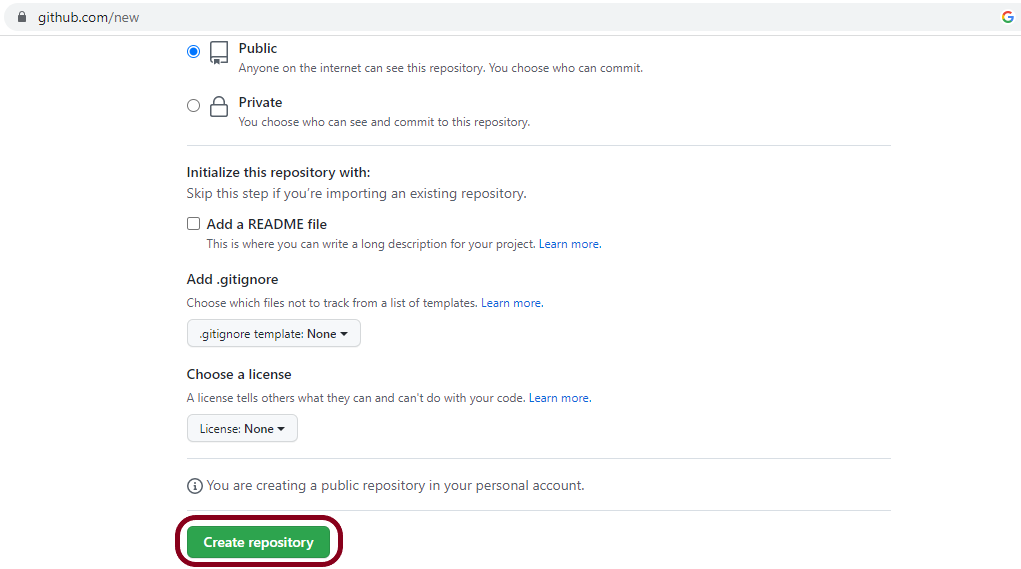
Click “Create repository” button.
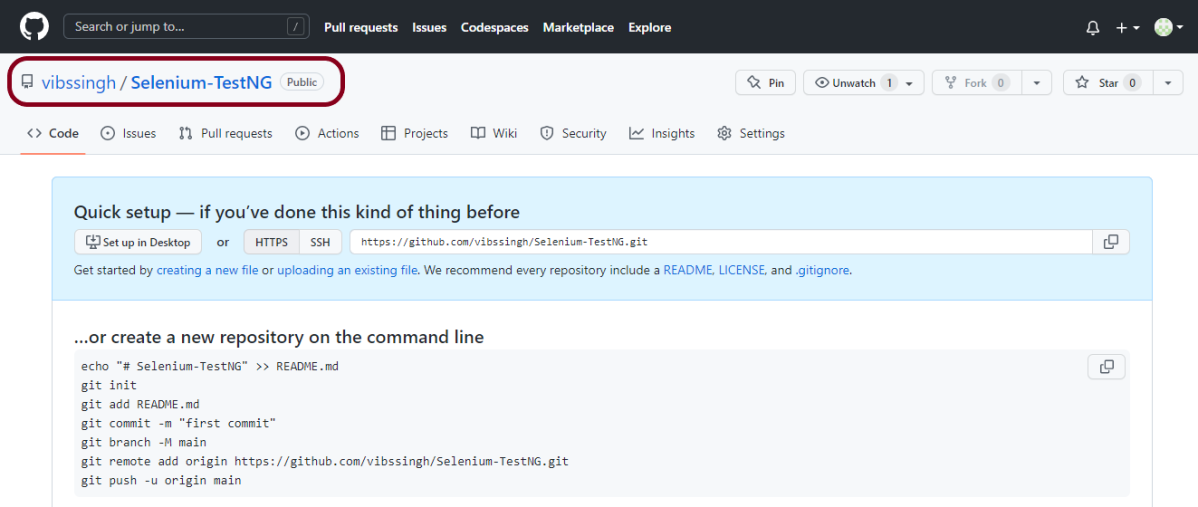
Below is the screenshot of the new repository in GitHub.
Congratulations!!. We have just created a new and empty project in GitLab. Now you can clone this project and start working on it.
Jenkins was installed and started on the computer.
Implementation Steps
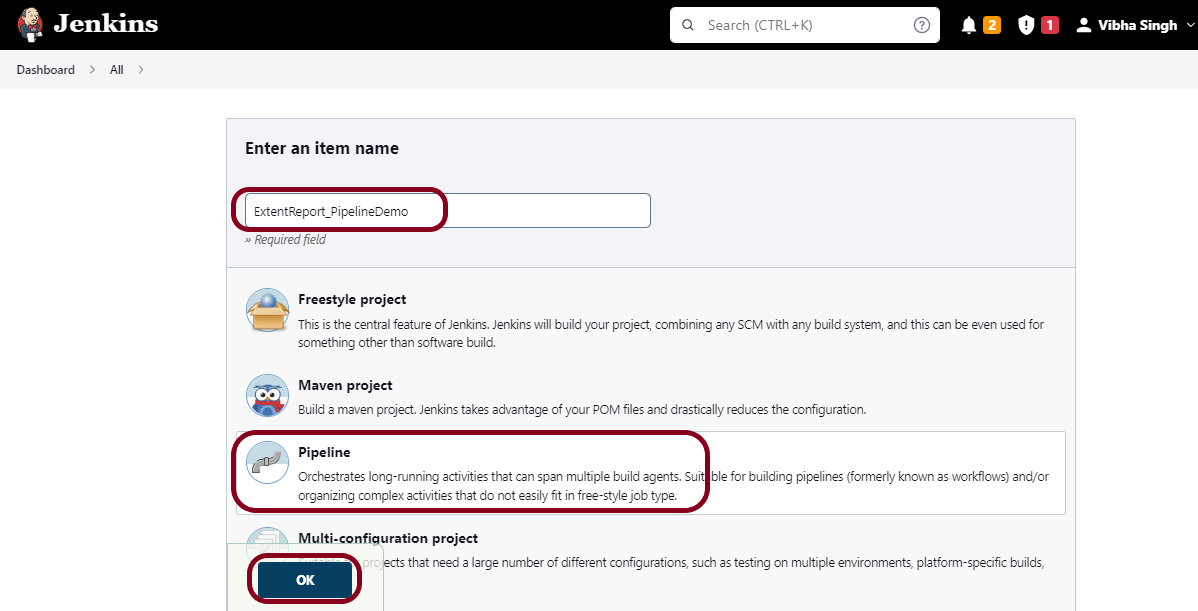
Step 1: Create a new pipeline project.
Give the Name of the project – ExtentReport_PipelineDemo
Click on the pipeline project.
Click on the OK button.
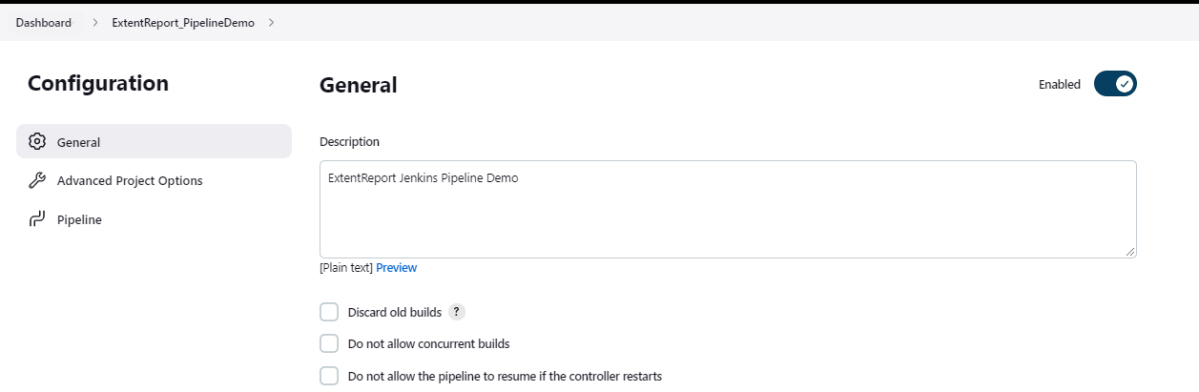
In the General section, enter the project description in the Description box.
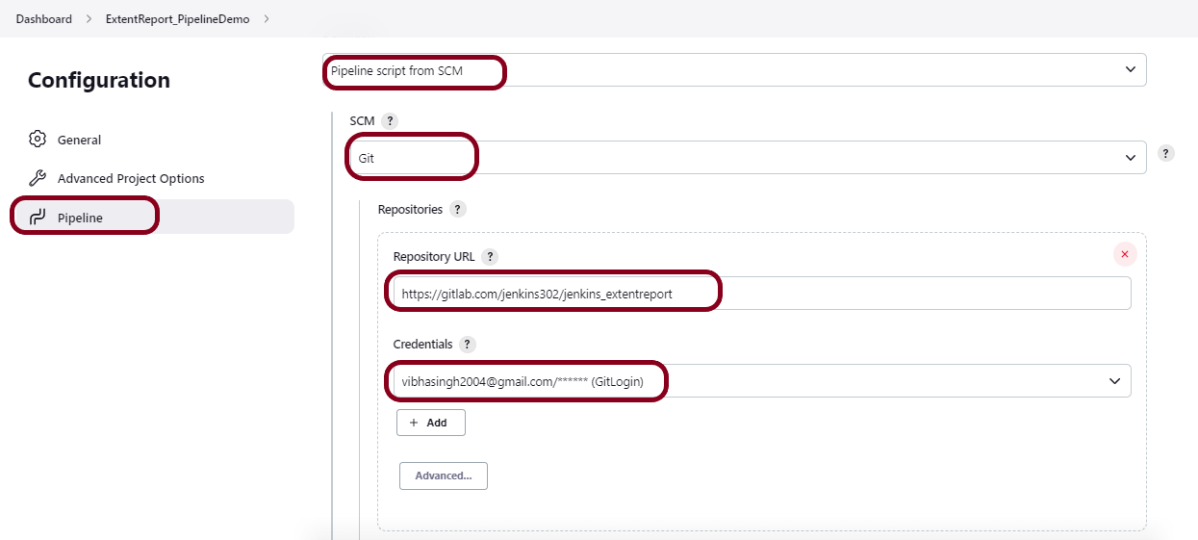
Step 2: Scroll down to Pipeline
From the Definition field, choose the “Pipeline script from SCM” option. This option instructs Jenkins to obtain your Pipeline from Source Control Management (SCM), which will be your locally cloned Git repository.
From the SCM field, choose Git.
The Repositories section contains the Repository URL and Credentials.
In the Repository URL field, specify the directory path of the GitLab/GitHub project.
In the Credentials field, specify the username and password needed to log in to GitLab/GitHub.
In this case, I have the project is present in GitLab and using it.
Step 3: Create Jenkinsfile
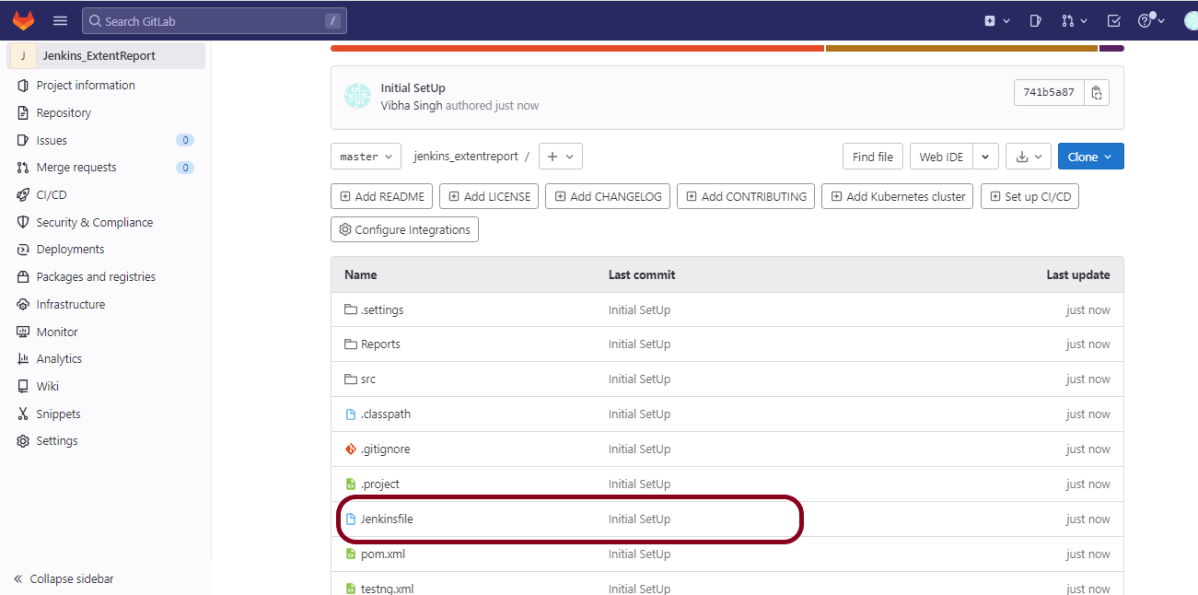
Create and save a new text file with the name Jenkinsfile at the root of the project in the GitLab repository. Here, we are using the Selenium project with TestNG. To know more about the Integration of Selenium with TestNG, please refer to this tutorial –
For this tutorial, we are using Declarative syntax. The sample example is given below:
pipeline {
    agent any

    stages {
        stage('Test') {
            steps {
                bat "mvn -D clean test"
            }

            post {

				// If Maven was able to run the tests, even if some of the test
                // failed, record the test results and archive the jar file.
				success {
                  publishHTML([
				              allowMissing: false,
				              alwaysLinkToLastBuild: false,
							  keepAll: false,
							  reportDir: 'Reports',
							  reportFiles: 'Spark.html',
							  reportName: 'ExtentReport',
							  reportTitles: '',
							  useWrapperFileDirectly: true])
				}
            }
        }
    }
}
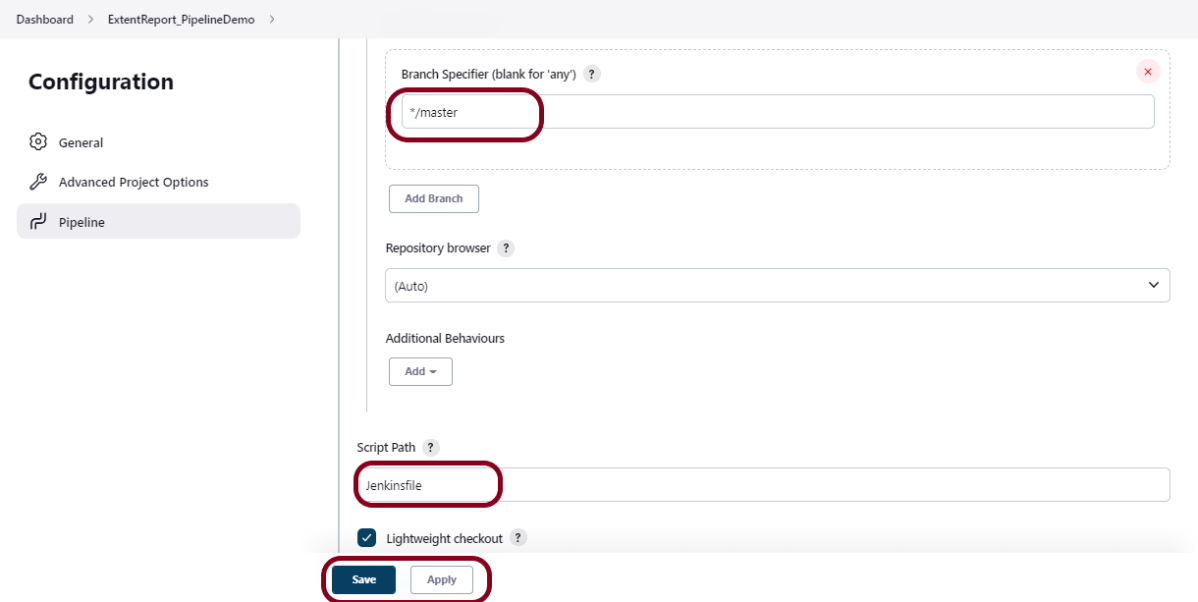
Step 4: Specify branches to build a section under Repositories
Branch Specifier – */master (This is my main branch)
ScriptPath – Jenkinsfile
Click on the Apply and Save buttons.
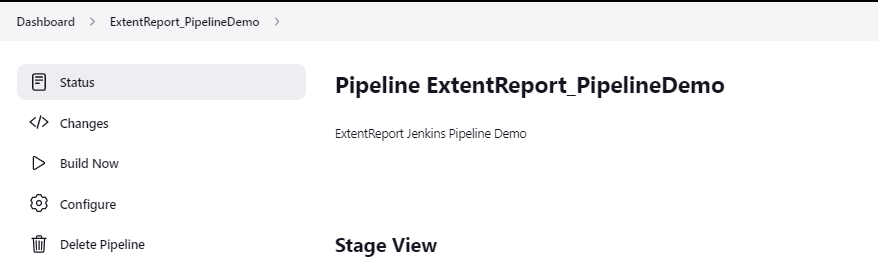
We have created a new Maven project “ExtentReport_PipelineDemo” with the configuration to run the Selenium Test with TestNG.
Step 5: Execute the tests
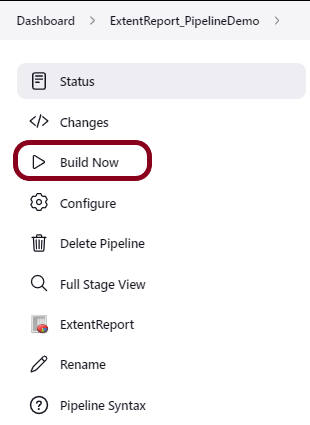
Let’s execute it now by clicking on the “Build Now” button.
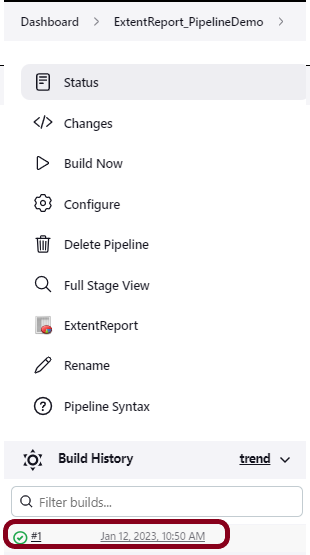
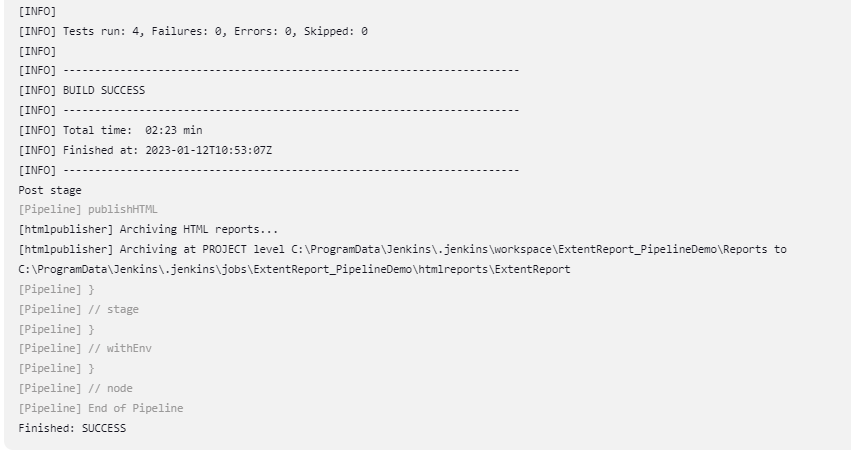
Right-click on Build Number (here in my case it is #1) and click on Console Output to see the result.
Below is the test execution summary.
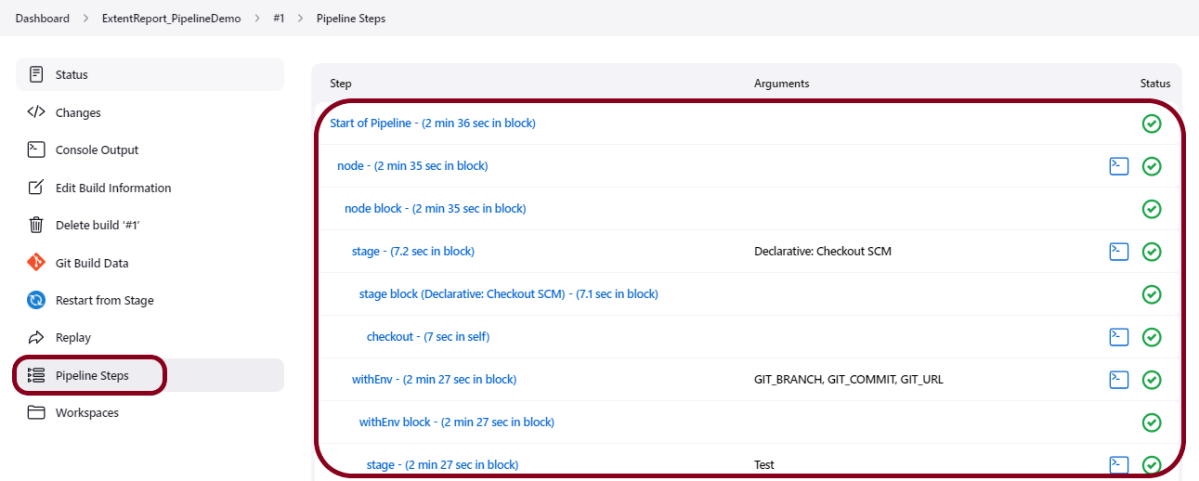
Step 6: Pipeline Steps
Once the execution is completed, and we want to see the Pipeline Steps, click on the Pipeline Steps mentioned on the left side of the page.
Step 7: View the Report
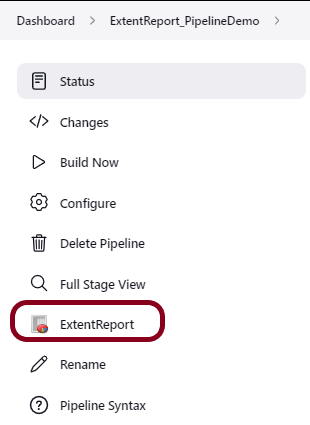
Once the execution is completed, go back to “ExtentReport_PipelineDemo“. We can see below that the ExtentReport is generated.
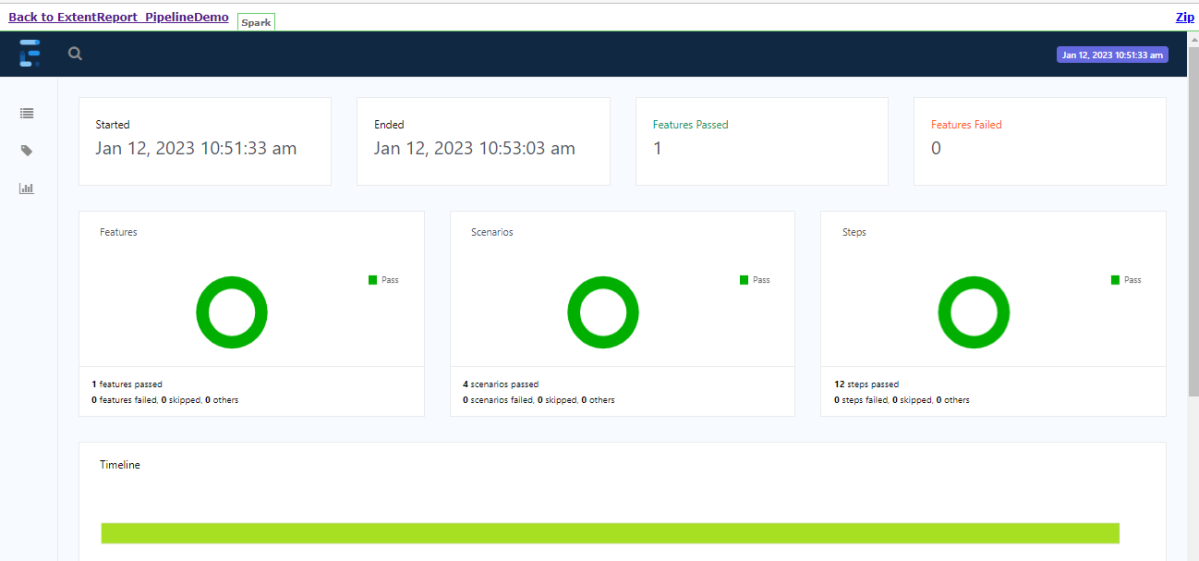
We could see a link to view “ExtentReport“. Click on theExtentReport. It displays the Spark.html Report.
Tip: If you don’t see the Report UI intact, then you need to configure a simple groovy script. For that, go to Dashboard–>Manage Jenkins–>Script Console and add the script as:
Jenkins was installed and started on the computer.
Implementation Steps
Step 1: Create a new pipeline project
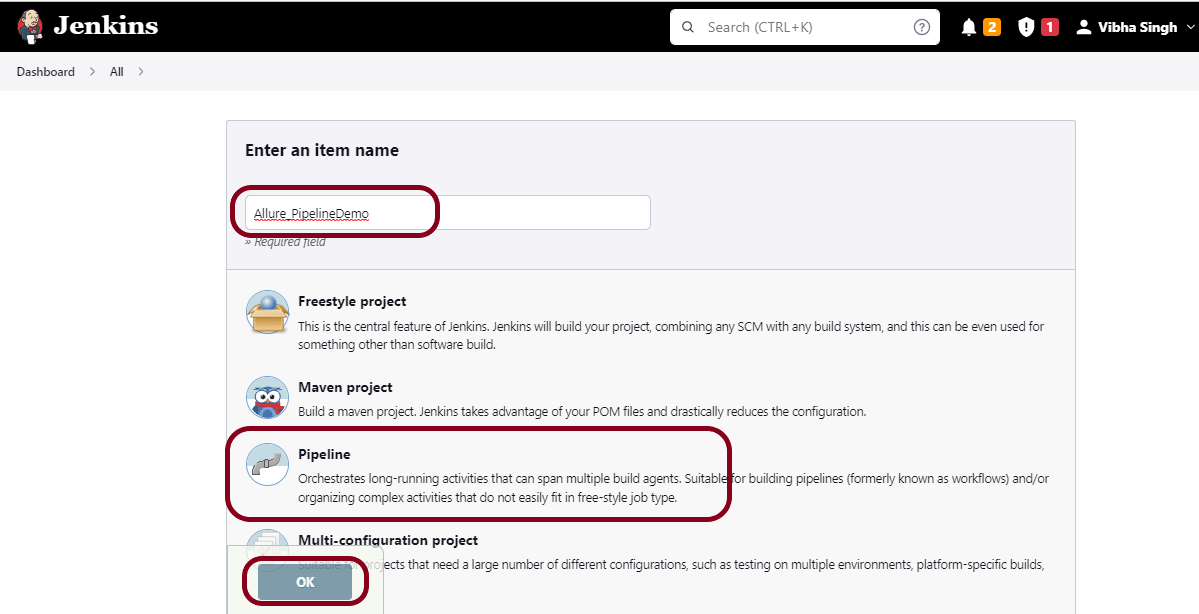
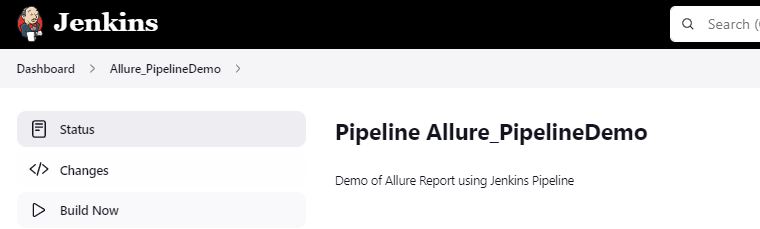
Give the Name of the project – Allure_PipelineDemo
Click on the pipeline project.
Click on the OK button.
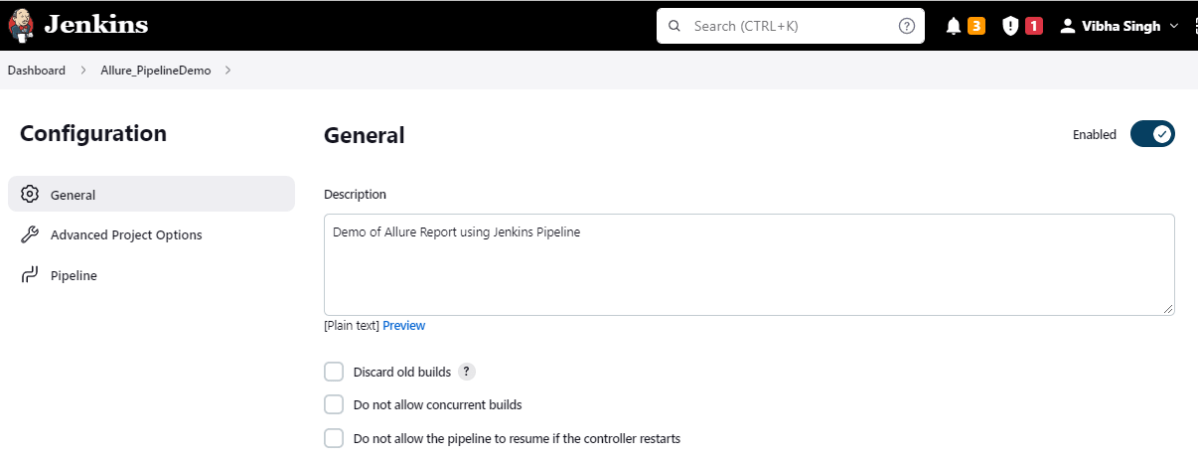
In the General section, enter the project description in the Description box.
Step 2: Scroll down to Pipeline
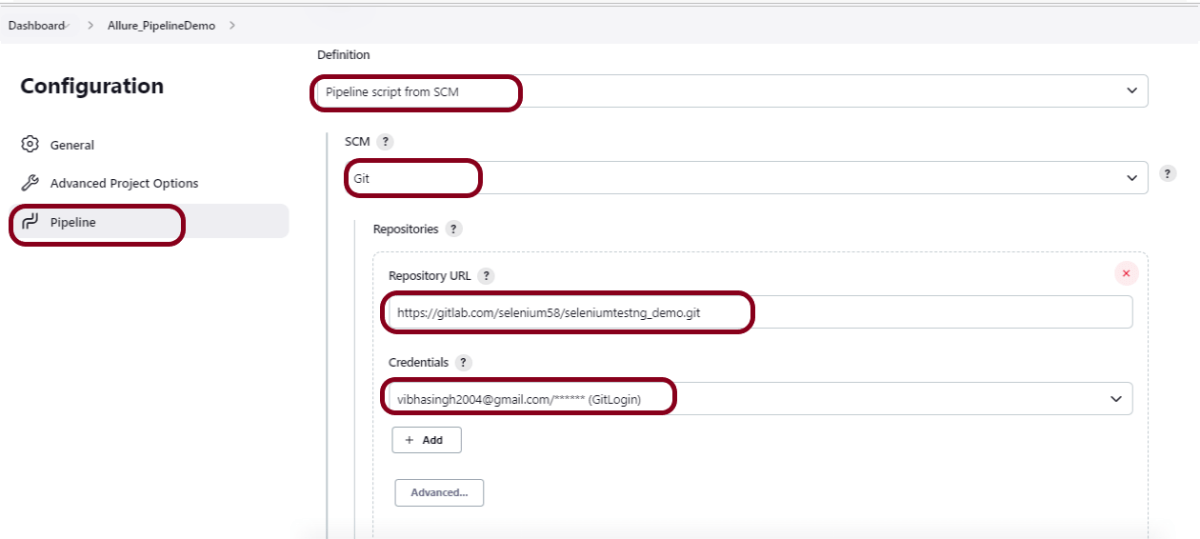
From the Definition field, choose the “Pipeline script from SCM” option. This option instructs Jenkins to obtain your Pipeline from Source Control Management (SCM), which will be your locally cloned Git repository.
From the SCM field, choose Git.
The Repositories section contains the Repository URL and Credentials.
In the Repository URL field, specify the directory path of the GitLab/GitHub project.
In the Credentials field, specify the username and password needed to log in to GitLab/GitHub.
In this case, I have the project is present in GitLab and using it.
Step 3: Create Jenkinsfile
Create and save a new text file with the name Jenkinsfile at the root of the project in the GitLab repository. Here, we are using the Selenium project with TestNG. To know more about the Integration of Selenium with TestNG, please refer to this tutorial –
For this tutorial, we are using Declarative syntax. The sample example is given below:
pipeline {
    agent any

    stages {
        stage('Test') {
            steps {
                bat "mvn -D clean test"
            }

            post {
                // If Maven was able to run the tests, even if some of the test
                // failed, record the test results and archive the jar file.
                success { allure([
                    includeProperties: false,
                    jdk: '',
                    properties: [],
                    reportBuildPolicy: 'ALWAYS',
                    results: [[path: 'target/allure-results']]
                ])
            }
         }
    }
}
}
Step 4: Specify branches to build a section under Repositories
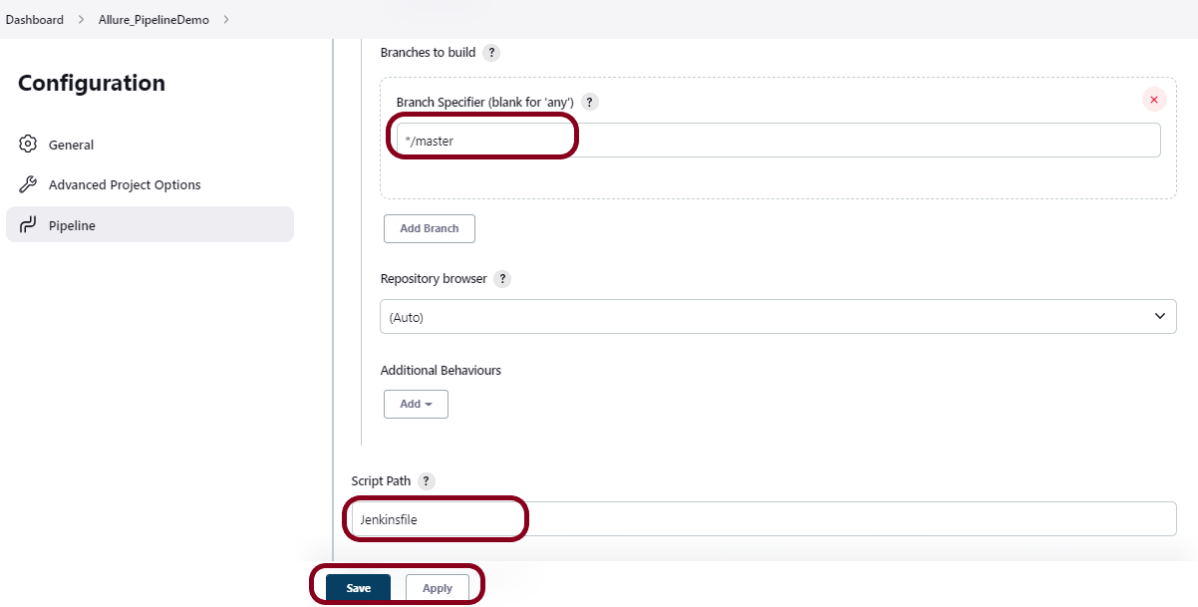
Branch Specifier – */master (This is my main branch)
ScriptPath – Jenkinsfile
Click on the Apply and Save buttons.
We have created a new Maven project “AllurePipelineDemo” with the configuration to run the Selenium Test with TestNG.
Step 5: Execute the tests
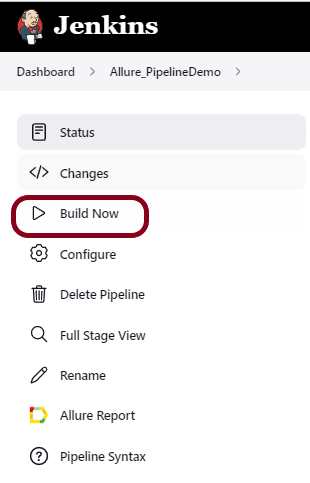
Let’s execute it now by clicking on the “Build Now” button.
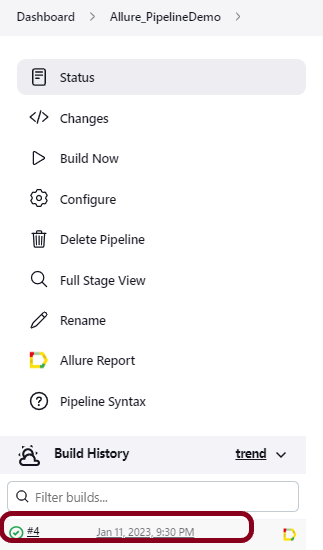
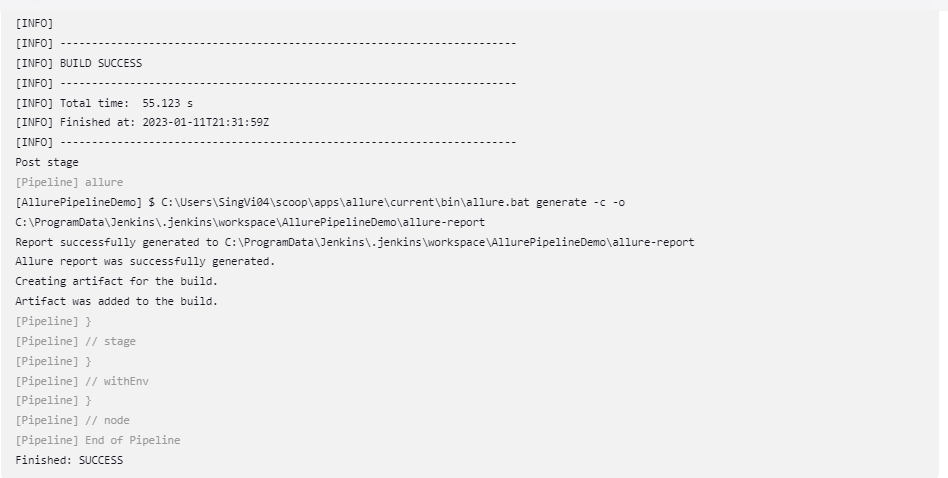
Right-click on Build Number (here in my case it is #4) and click on Console Output to see the result.
Below is the test execution summary.
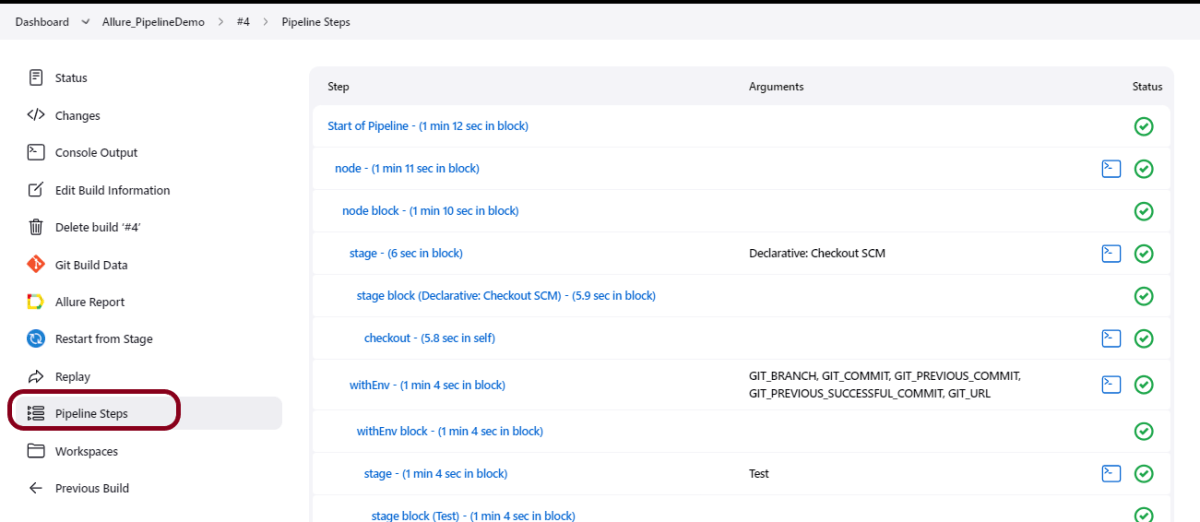
Step 6: Pipeline Steps
Once the execution is completed, and we want to see the Pipeline Steps, click on the Pipeline Steps mentioned on the left side of the page.
Step 7: View the Report
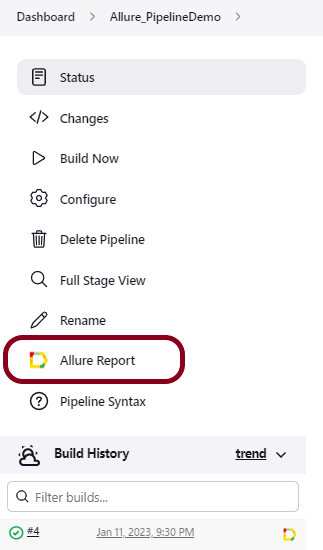
Once the execution is completed, go back to “Allure_PipelineDemo”. We can see below that the Allure Report is generated.
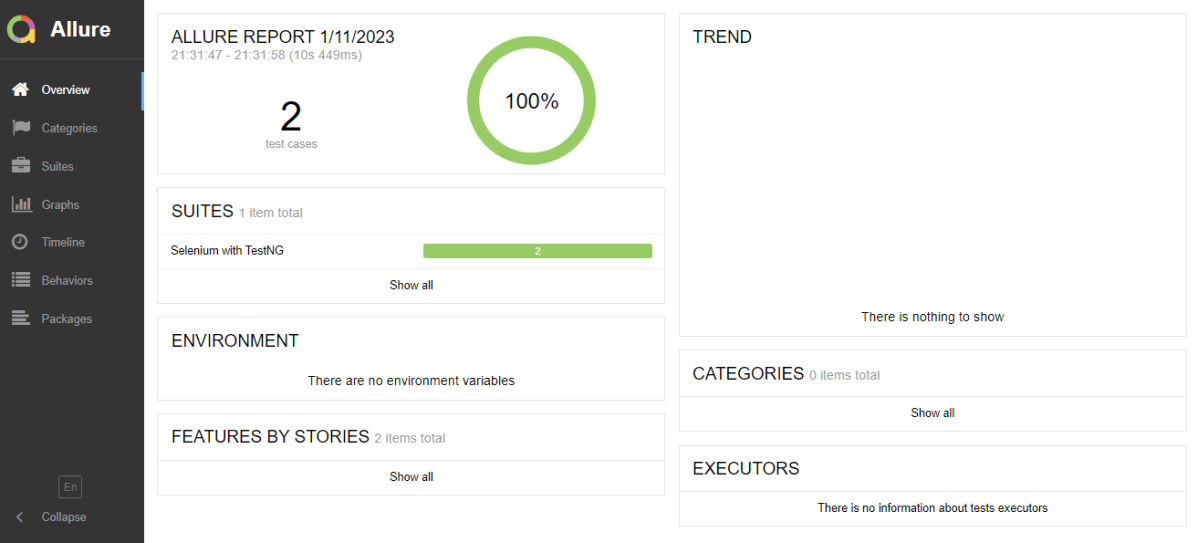
We could see a link to view the ‘Allure Report’. Click on the Allure Report. It displays the Report.
Tip: If you don’t see the Report UI intact, then you need to configure a simple groovy script. For that, go to Dashboard–>Manage Jenkins–>Script Console and add the script as:
Jenkins was installed and started on the computer.
To generate Cucumber Report in Jenkins, we need to download HTML Publisher. Please refer to this tutorial to install the plugin – How to install Plugins in Jenkins
Implementation Steps
Step 1: Create a new pipeline project
Give the Name of the project – Cucumber_PipelineDemo
Click on the pipeline project.
Click on the OK button.
In the General section, enter the project description in the Description box.
Step 2: Scroll down to Pipeline
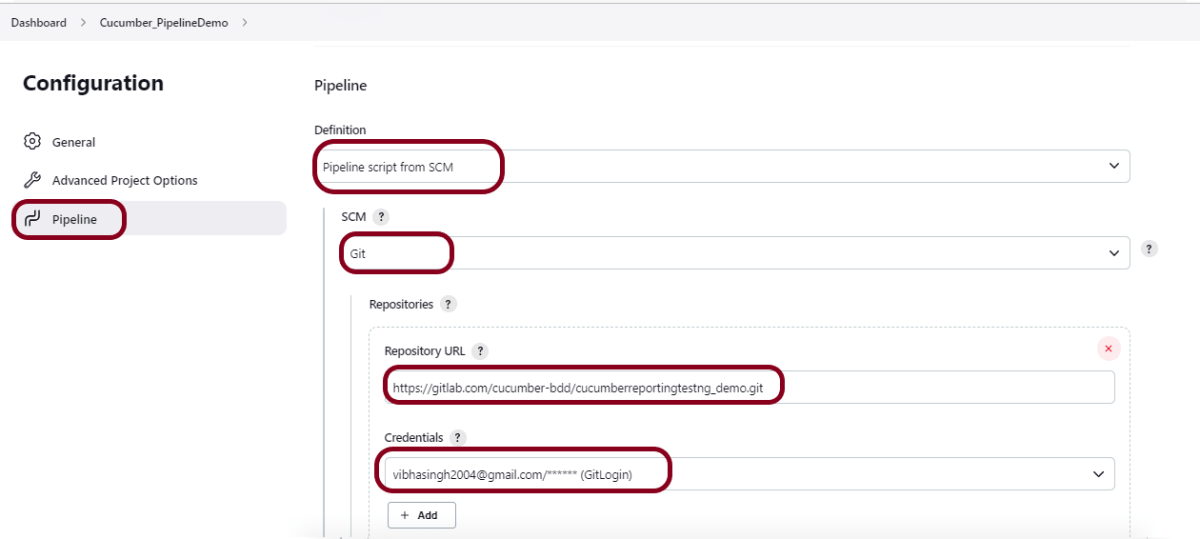
From the Definition field, choose the “Pipeline script from SCM” option. This option instructs Jenkins to obtain your Pipeline from Source Control Management (SCM), which will be your locally cloned Git repository.
From the SCM field, choose Git.
The Repositories section contains the Repository URL and Credentials.
In the Repository URL field, specify the directory path of the GitLab/GitHub project.
In the Credentials field, specify the username and password needed to log in to GitLab/GitHub.
In this case, I have the project is present in GitLab and using it.
Step 3: Create Jenkinsfile
Create and save a new text file with the name Jenkinsfile at the root of the project in the GitLab repository. Here, we are using the Cucumber project with Selenium and TestNG. To know more about the Integration of Cucumber with Serenity and TestNG, please refer to this tutorial – Implemention of ‘Masterthought’ Reports in Cucumber with TestNG.
For this tutorial, we are using Declarative syntax. The sample example is given below:
pipeline {
    agent any

    stages {
        stage('Test') {
            steps {

                // To run Maven on a Windows agent, use
                bat "mvn -D clean test"
            }

            post {

                // If Maven was able to run the tests, even if some of the test
                // failed, record the test results and archive the jar file.
                success {
                        cucumber buildStatus: 'null',
                        customCssFiles: '',
                        customJsFiles: '',
                        failedFeaturesNumber: -1,
                        failedScenariosNumber: -1,
                        failedStepsNumber: -1,
                        fileIncludePattern: '**/*.json',
                        pendingStepsNumber: -1,
                        skippedStepsNumber: -1,
                        sortingMethod: 'ALPHABETICAL',
                        undefinedStepsNumber: -1
                }
            }
        }
    }
}
Step 4: Specify branches to build a section under Repositories
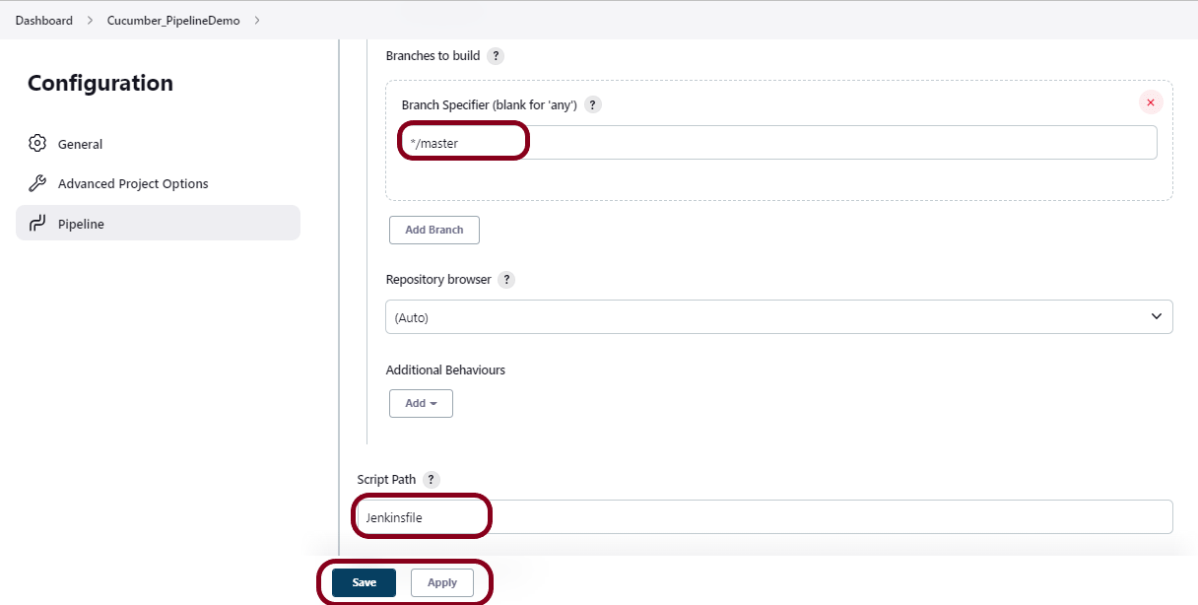
Branch Specifier – */master (This is my main branch)
ScriptPath – Jenkinsfile
Click on the Apply and Save buttons.
We have created a new Maven project “Cucumber_PipelineDemo” with the configuration to run the Cucumber Tests with TestNG.
Step 5: Execute the tests
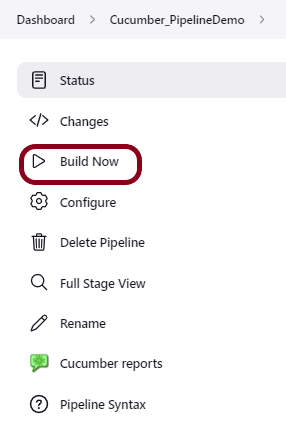
Let’s execute it now by clicking on the “Build Now” button.
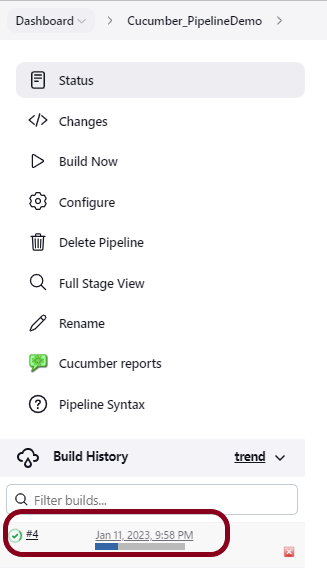
Right-click on Build Number (here in my case it is #4) and click on Console Output to see the result.
Below is the test execution summary.
Step 6: Pipeline Steps
Once the execution is completed, and we want to see the Pipeline Steps, click on the Pipeline Steps mentioned on the left side of the page.
Step 7: View the Report
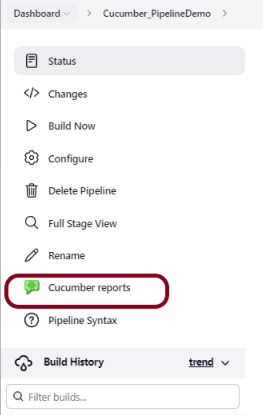
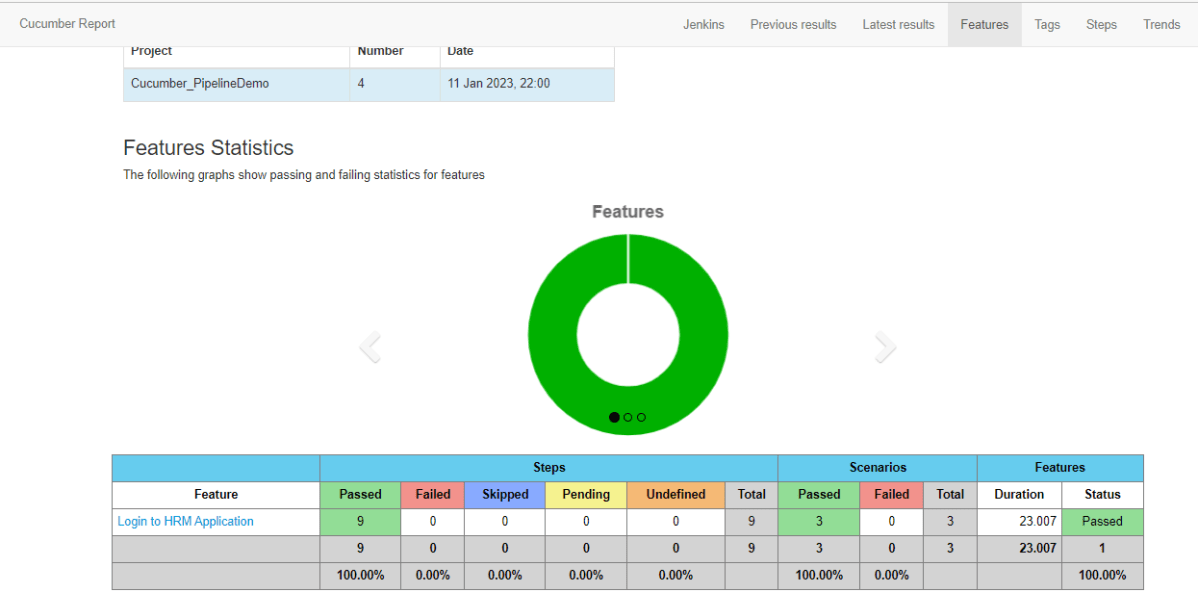
Once the execution is completed, go back to “Cucumber_PipelineDemo”. We can see below that the Cucumber report is generated.
We could see a link to view the “Cucumber Report“. Click on the Cucumber Report. It displays the Report.
Tip: If you don’t see the Report UI intact, then you need to configure a simple groovy script. For that, go to Dashboard–>Manage Jenkins–>Script Console and add the script as:
Jenkins was installed and started on the computer.
To generate Serenity Report in Jenkins, we need to download HTML Publisher. Please refer to this tutorial to install the plugin – How to install Plugins in Jenkins.
Implementation Steps
Step 1: Create a new pipeline project
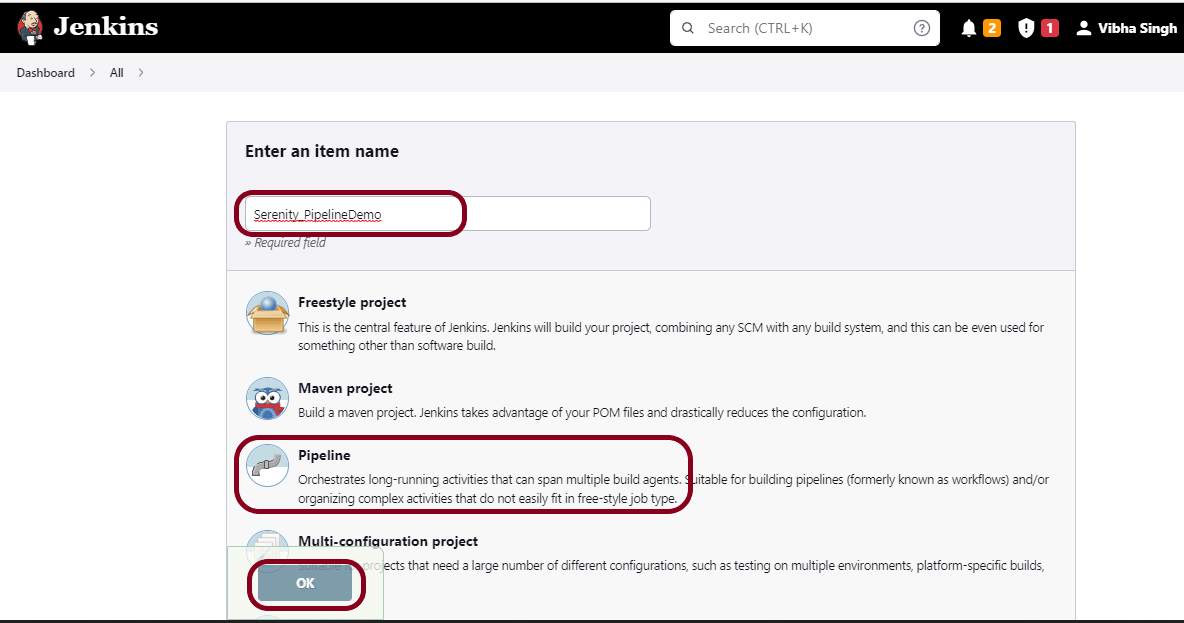
Give the Name of the project – Serenity_PipelineDemo
Click on the pipeline project.
Click on the OK button.
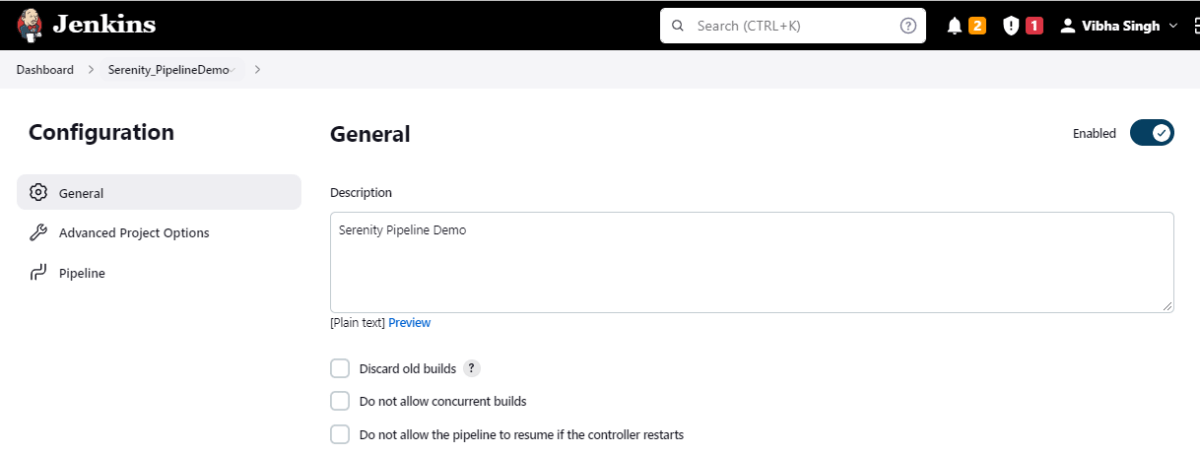
In the General section, enter the project description in the Description box.
Step 2: Scroll down to Pipeline
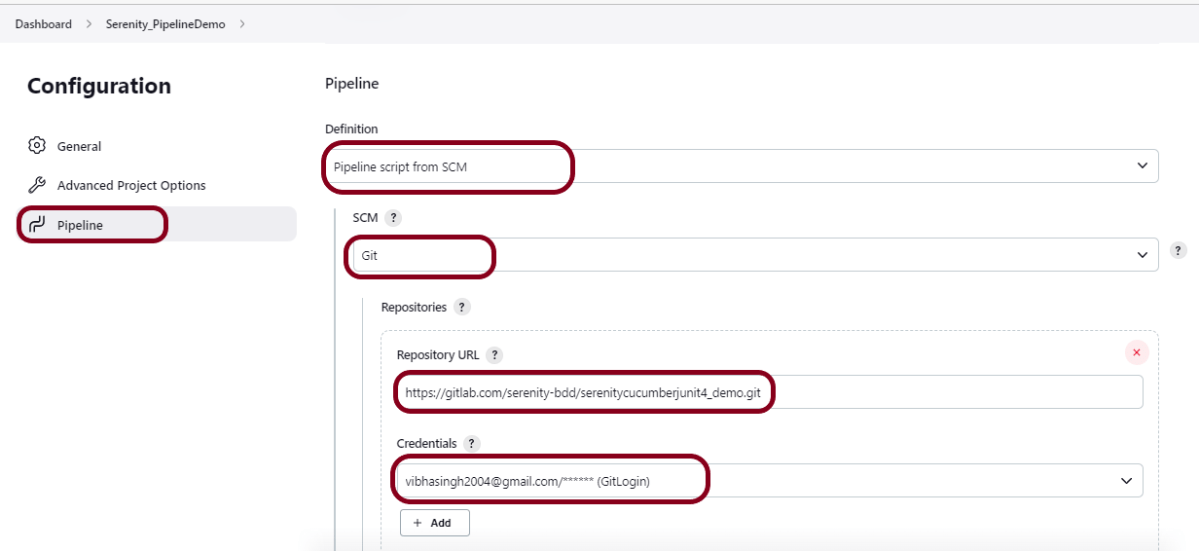
From the Definition field, choose the “Pipeline script from SCM” option. This option instructs Jenkins to obtain your Pipeline from Source Control Management (SCM), which will be your locally cloned Git repository.
From the SCM field, choose Git.
The Repositories section contains the Repository URL and Credentials.
In the Repository URL field, specify the directory path of the GitLab/GitHub project.
In the Credentials field, specify the username and password needed to log in to GitLab/GitHub.
In this case, I have the project is present in GitLab and using it.
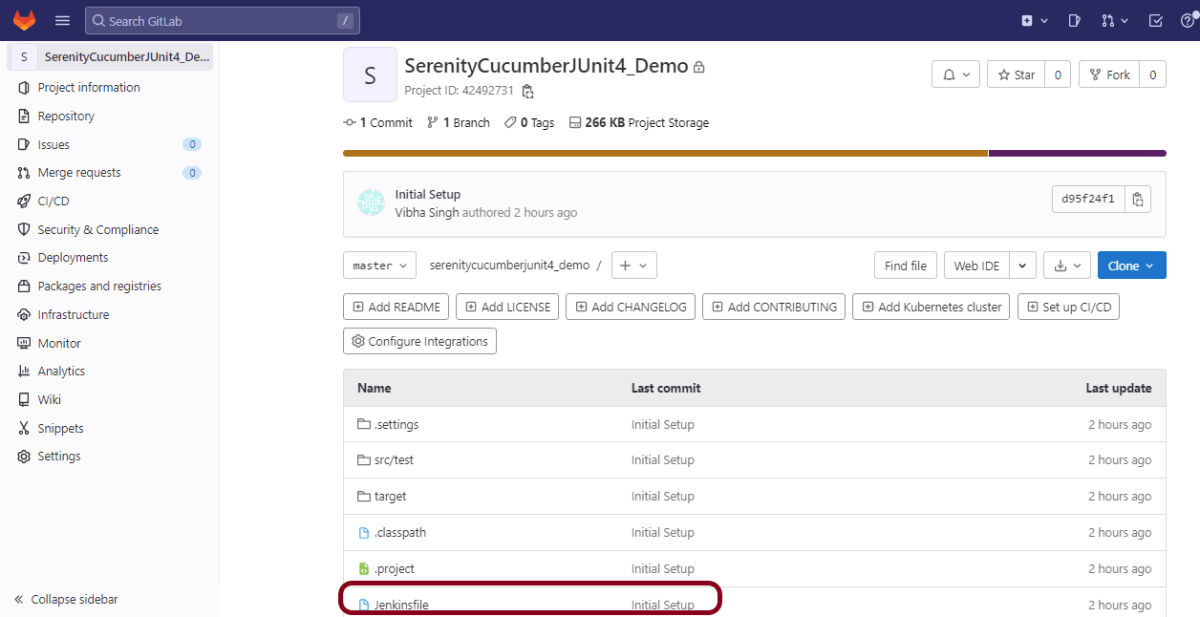
Step 3: Create Jenkinsfile
Create and save a new text file with the name Jenkinsfile at the root of the project in the GitLab repository. Here, we are using the Selenium project with TestNG. To know more about the Integration of Serenity with TestNG, please refer to this tutorial – Testing of Web Application using Serenity with JUnit4.
For this tutorial, we are using Declarative syntax. The sample example is given below:
pipeline {
    agent any

    stages {
        stage('Test') {
            steps {
                bat "mvn -D clean verify"
            }

            post {
                // If Maven was able to run the tests, even if some of the test
                // failed, record the test results and archive the jar file.
                success {
                   publishHTML([allowMissing: false, alwaysLinkToLastBuild: false, keepAll: false, reportDir: 'target/site/serenity/', reportFiles: 'index.html', reportName: 'Serenity Report', reportTitles: '', useWrapperFileDirectly: true])
				}
            }
        }
    }
}
We are publishing index.html, so it is mentioned as reportFiles and it is present in Directory – target/site/serenity.
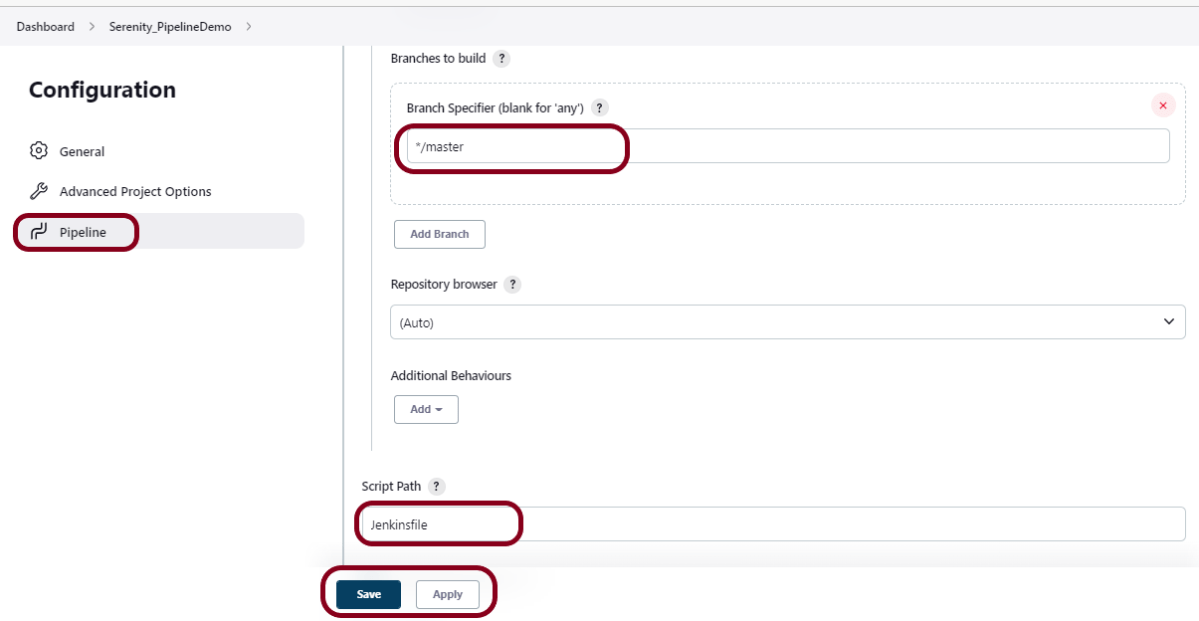
Step 4: Specify branches to build a section under Repositories
Branch Specifier – */master (This is my main branch)
ScriptPath – Jenkinsfile
Click on the Apply and Save buttons.
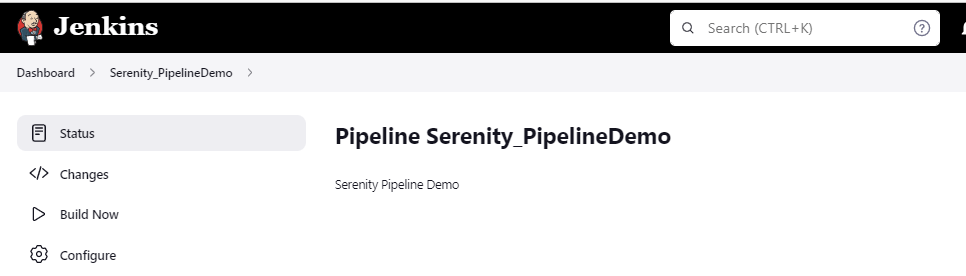
We have created a new Maven project “Serenity_PipelineDemo” with the configuration to run the Serenity Tests with JUnit4.
Step 5: Execute the tests
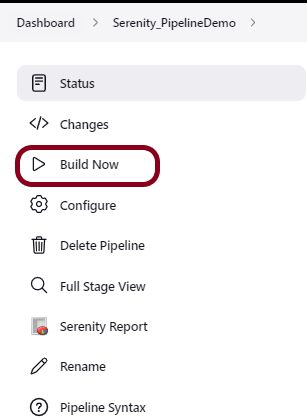
Let’s execute it now by clicking on the “Build Now” button.
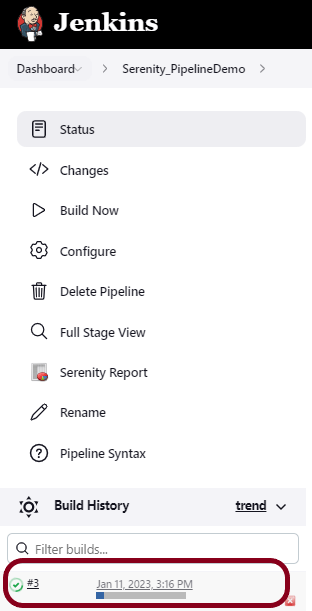
Right-click on Build Number (here in my case it is #3) and click on Console Output to see the result.
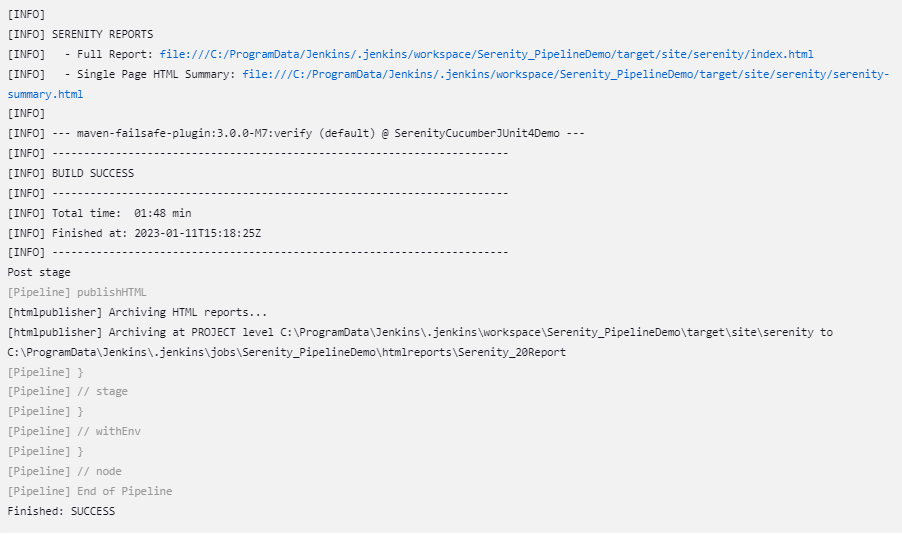
Below is the test execution summary.
Step 6: Pipeline Steps
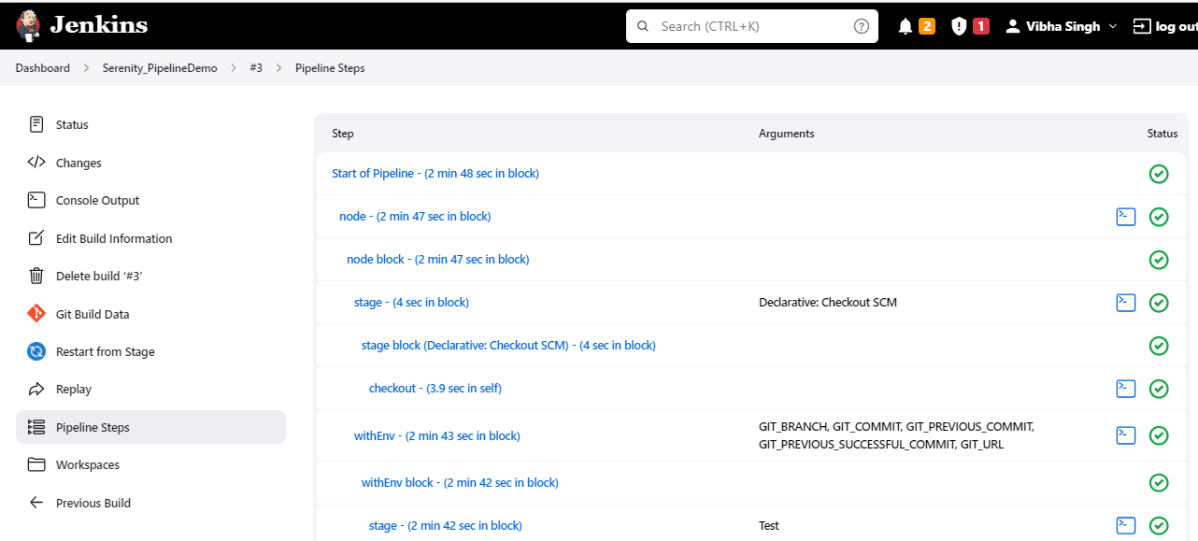
Once the execution is completed, and we want to see the Pipeline Steps, click on the Pipeline Steps mentioned on the left side of the page.
Step 7: View the Report
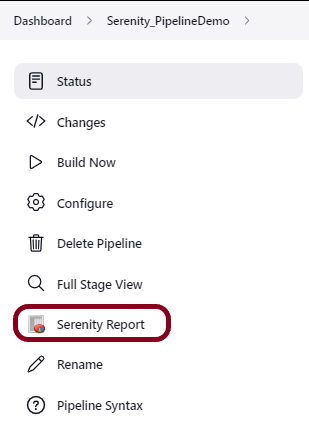
Once the execution is completed, go back to “Serenity_PipelineDemo”. We can see below that the Serenity Report is generated.
We could see a link to view the “Serenity Report“. Click on the Serenity Report. It displays the index.html Report.
Tip: If you don’t see the Report UI intact, then you need to configure a simple groovy script. For that, go to Dashboard–>Manage Jenkins–>Script Console and add the script as:
Jenkins Pipeline (or simply “Pipeline”) is a suite of plugins that supports implementing and integrating continuous delivery pipelines into Jenkins.
Jenkins Pipeline provides an extensible set of tools for modeling simple-to-complex delivery pipelines “as code”. The definition of a Jenkins Pipeline is typically written into a text file (called a Jenkinsfile) which in turn is checked into a project’s source control repository.
Creating a Jenkinsfile and committing it to source control provides a number of immediate benefits:
Automatically creates a Pipeline build process for all branches and pull requests.
Code review/iteration on the Pipeline (along with the remaining source code).
Audit trail for the Pipeline.
Single source of truth for the Pipeline, which can be viewed and edited by multiple members of the project.
Why do we need Jenkins pipeline?
Code: Pipelines are implemented in code and typically checked into source control, giving teams the ability to edit, review, and iterate upon their delivery pipeline.
Durable: Pipelines can survive both planned and unplanned restarts of the Jenkins controller.
Pausable: Pipelines can optionally stop and wait for human input or approval before continuing the Pipeline run.
Versatile: Pipelines support complex real-world CD requirements, including the ability to fork/join, loop, and perform work in parallel.
Extensible: The Pipeline plugin supports custom extensions to its DSL and multiple options for integration with other plugins.
Jenkins Pipeline Concepts
Pipeline A Pipeline is a user-defined model of a CD pipeline. A Pipeline’s code defines your entire build process, which typically includes stages for building an application, testing it, and then delivering it.
Node A node is a machine that is part of the Jenkins environment and is capable of executing a Pipeline.
Stage A stage block defines a subset of tasks performed through the entire Pipeline (e.g. “Build”, “Test” and “Deploy” stages), which is used by many plugins to visualize or present Jenkins Pipeline status/progress.
Step A step tells Jenkins what to do at a particular point in time (or “step” in the process). For example, to execute the shell command make use the sh step: sh 'make'. When a plugin extends the Pipeline DSL, [1] that typically means the plugin has implemented a new step.
Jenkins supports two different syntaxes.
Declarative
Scripted
Declarative
Declarative pipeline syntax simplifies pipeline construction. It comes with a predefined hierarchy for creating Jenkins pipelines. It gives you simple and straightforward control over all aspects of pipeline execution.
Scripted
A lightweight executor is used to run a scripted Jenkins pipeline on the Jenkins master. It uses minimal resources to convert the pipeline into atomic commands. Declarative and scripted syntax are distinct and are defined in entirely different ways.
The following example shows a Declarative pipeline with 2 stages:
pipeline {
    agent any

    stages {
        stage('Build ') {
            steps {
                echo 'Building the project...'
            }
        }

        stage('Test') {
            steps {
                echo 'Testing the project...'
            }
        }
    }
}
We have got some ideas about Jenkins Pipeline.
Congratulations on making it through this tutorial and hope you found it useful! Happy Learning!! Cheers!!
To generate Serenity Report in Jenkins, we need to download HTML Publisher. Please refer to this tutorial to install the plugin – How to install Plugins in Jenkins
Implementation Steps
Step 1: Create a new project using the Maven project plugin
Give the Name of the project.
Click on the Maven project.
Click on the OK button.
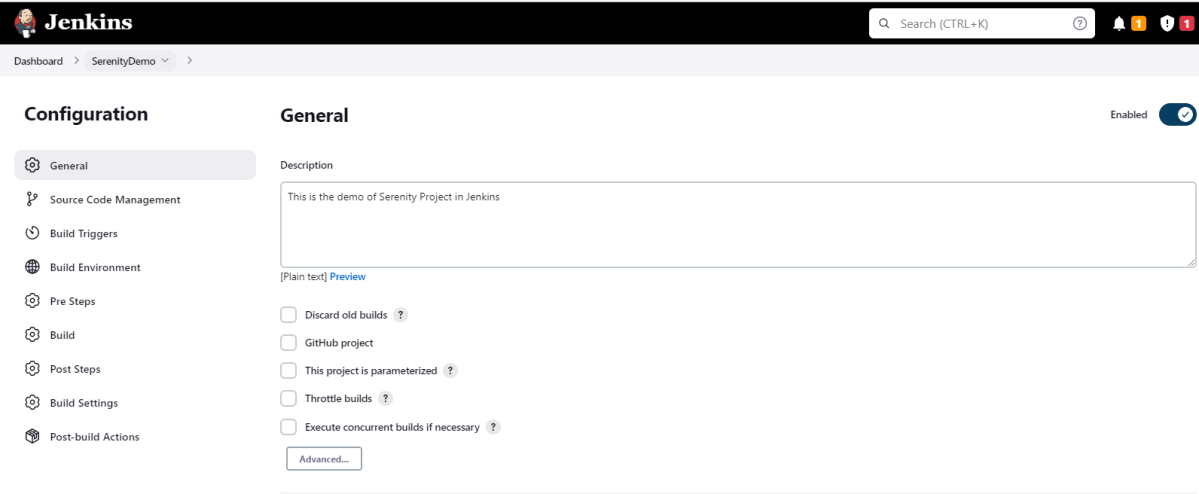
In the General section, enter the project description in the Description box.
Step 2: Build Management
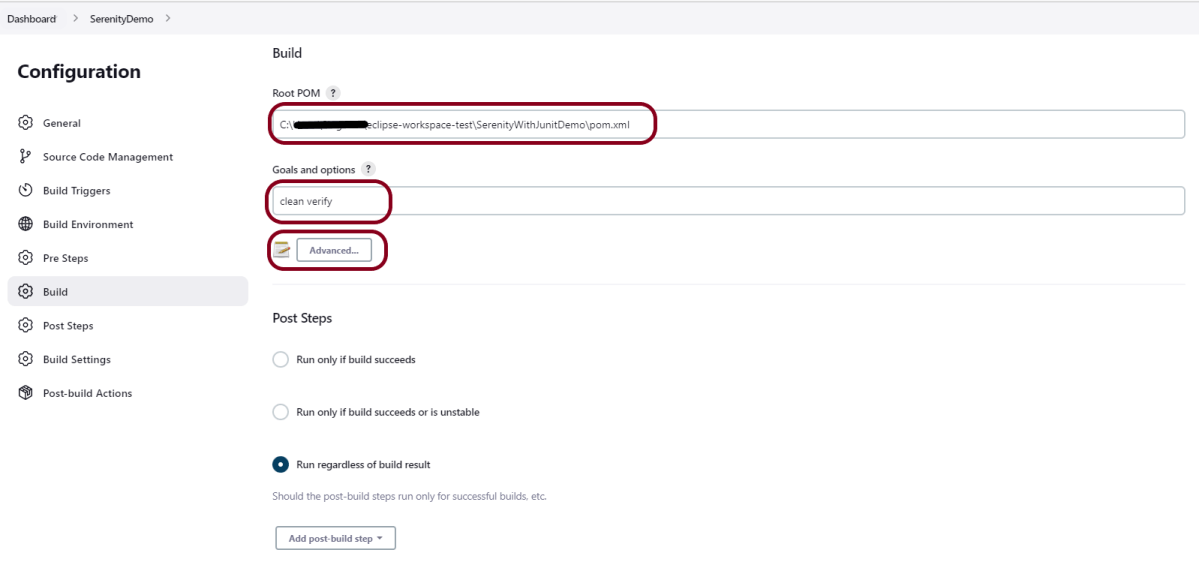
Go to the Build section of the new job.
In the Root POM textbox, enter the full path to pom.xml
In the Goals and options section, enter “clean test“
Click on the Advanced button.
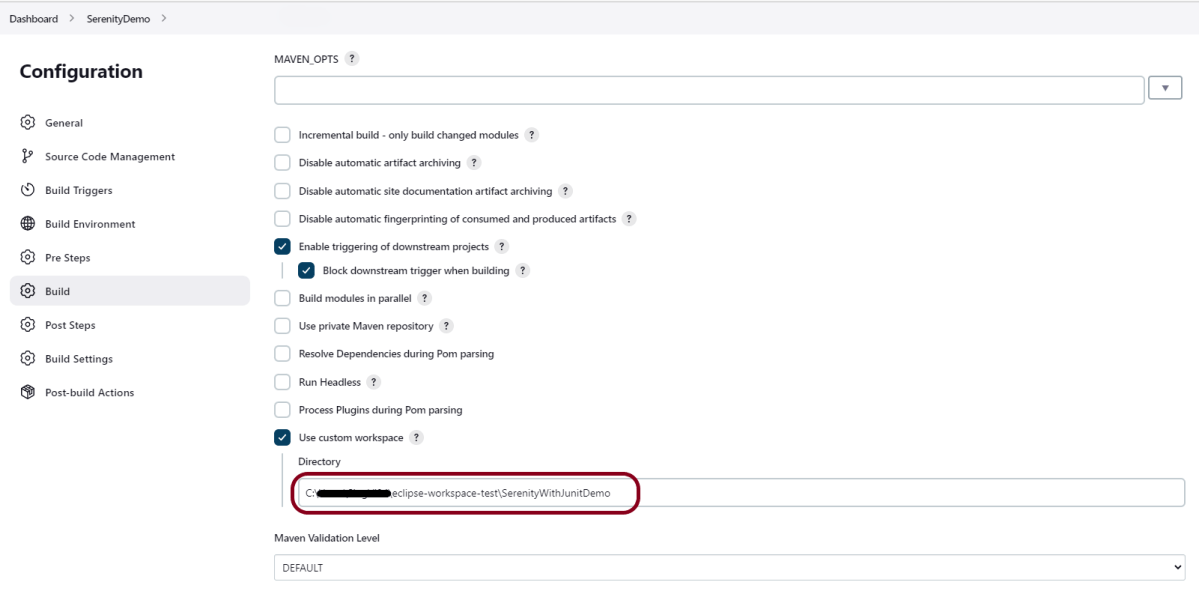
Step 3: Select custom workspace
Mention the full path of the project in the directory.
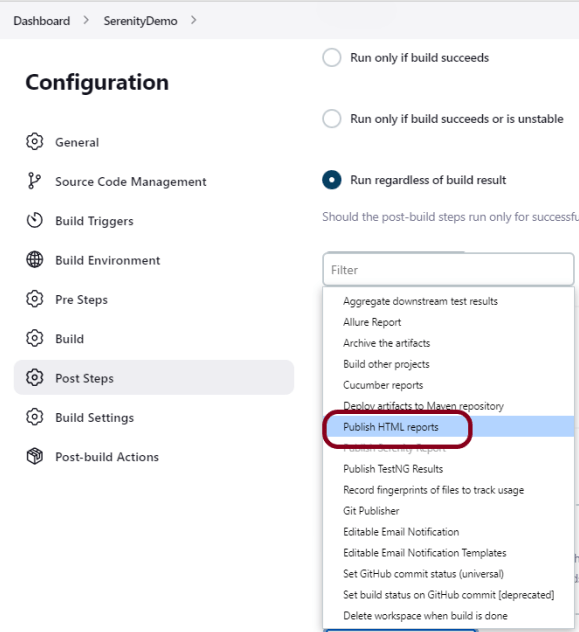
Step 4: Select “Publish HTML Reports” from “Post Build Actions”
Select “Publish HTML reports“.
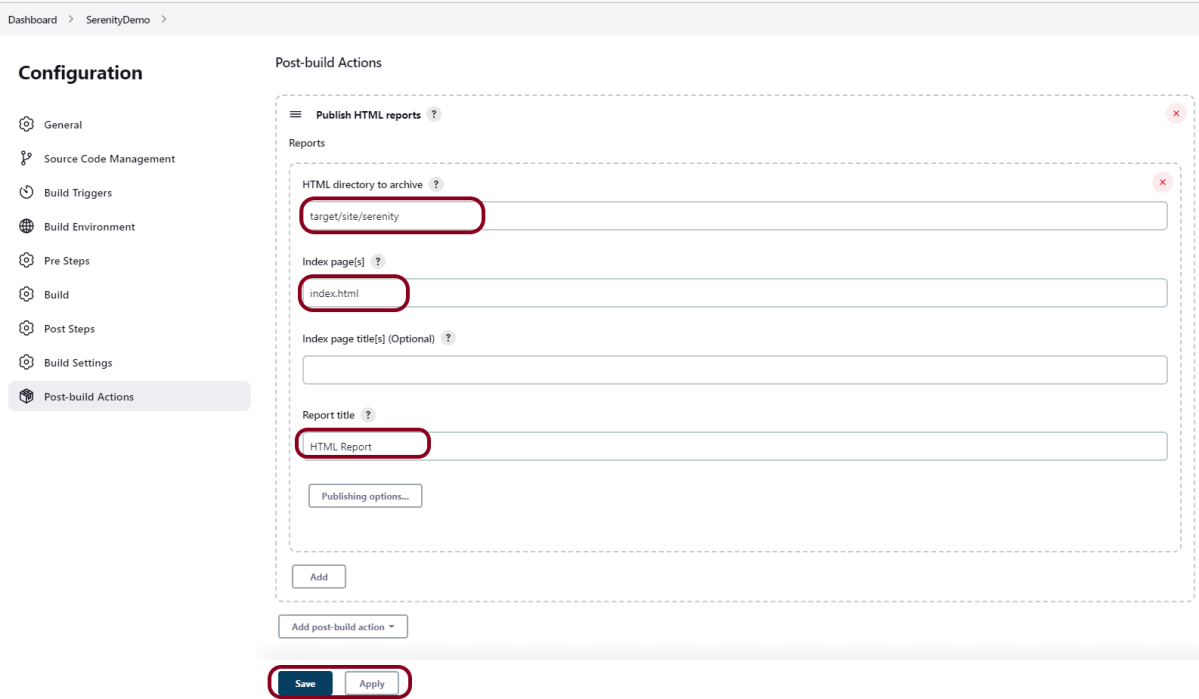
HTML directory to archive – target/site/serenity
Index page[s] – Index.html
Report title – HTML Report
Click on the Apply and Save buttons.
We have created a new Maven project “SerenityDemo” with the configuration to run the Serenity Tests and also to generate a Serenity Report after execution using Jenkins.
Step 5: Execute the tests
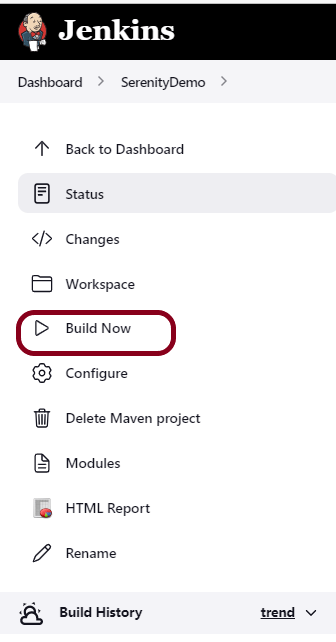
Let’s execute it now by clicking on the “Build Now” button.
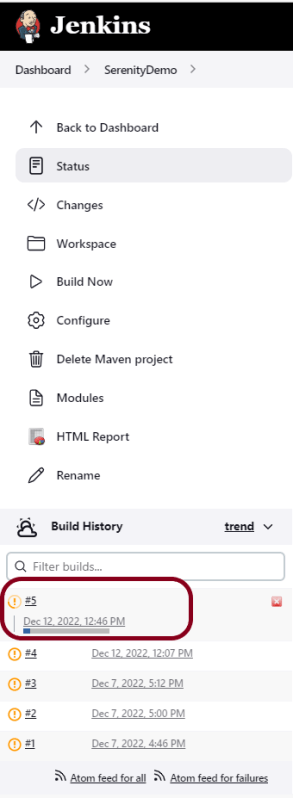
Right-click on Build Number (here in my case it is #5) and click on Console Output to see the result.
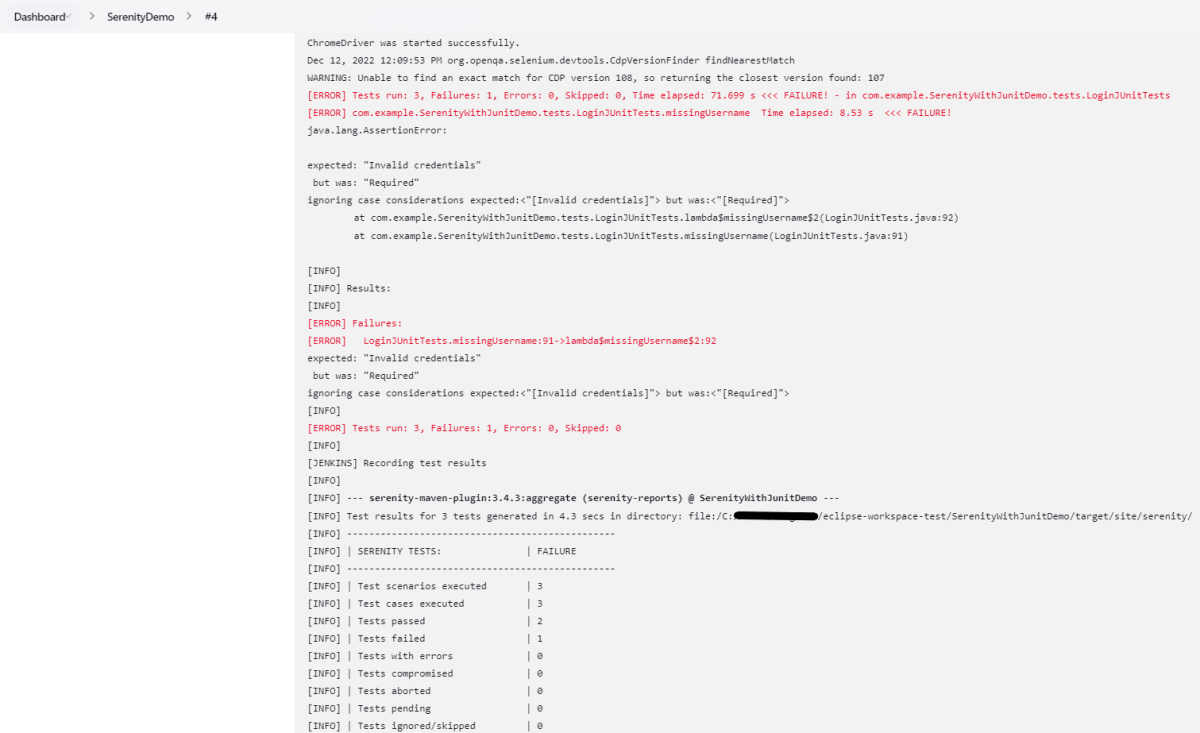
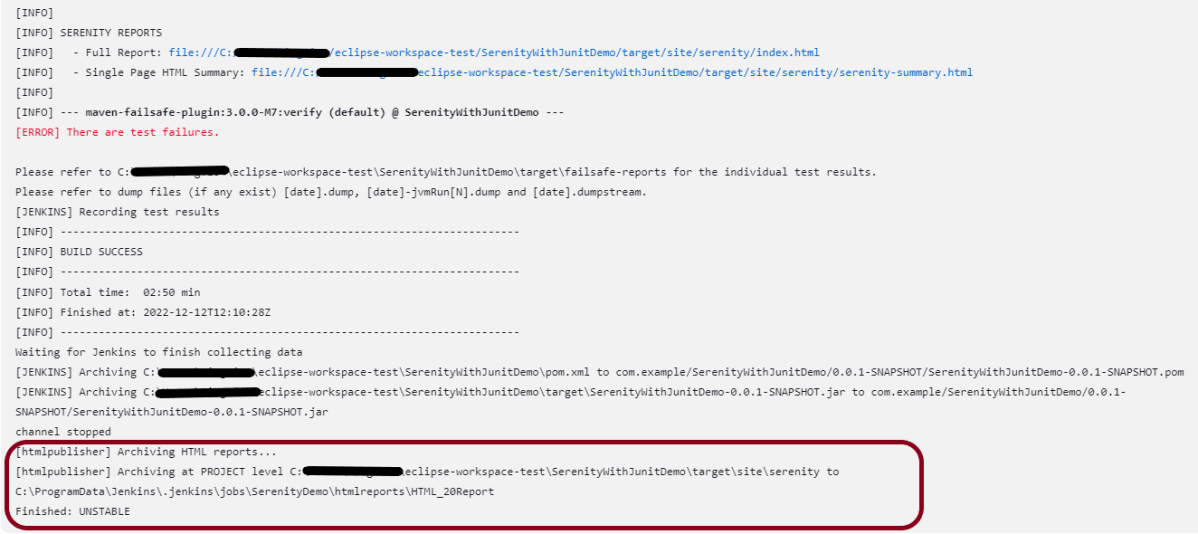
Below is the execution summary of the tests.
We can see below that the Serenity Reports are generated.
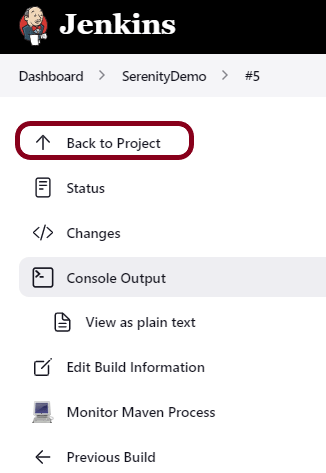
Once the execution is completed, click on “Back to Project“.
Step 6: Serenity Report
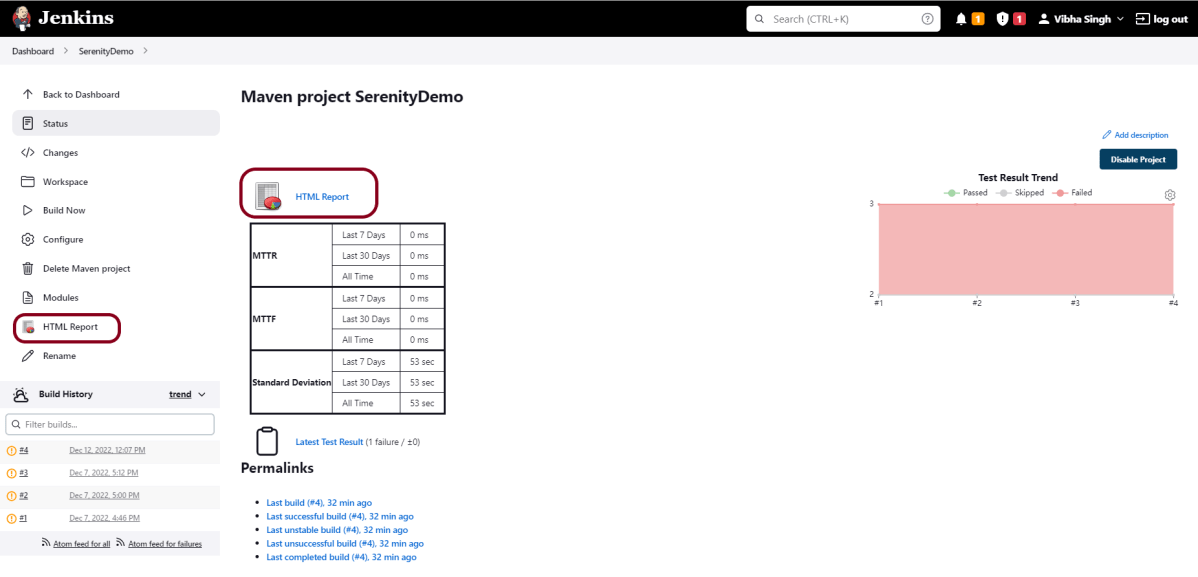
We could see a link to view ‘HTML Reports’. Click on the HTML Reports. It displays the Index.html Report of Serenity.
Serenity Report is in HTML format. So, we need to install HTML Publisher Plugin to view the Serenity Reports. Please refer to this tutorial to download and install the HTML Plugin in Jenkins – How to generate HTML Reports in Jenkins.
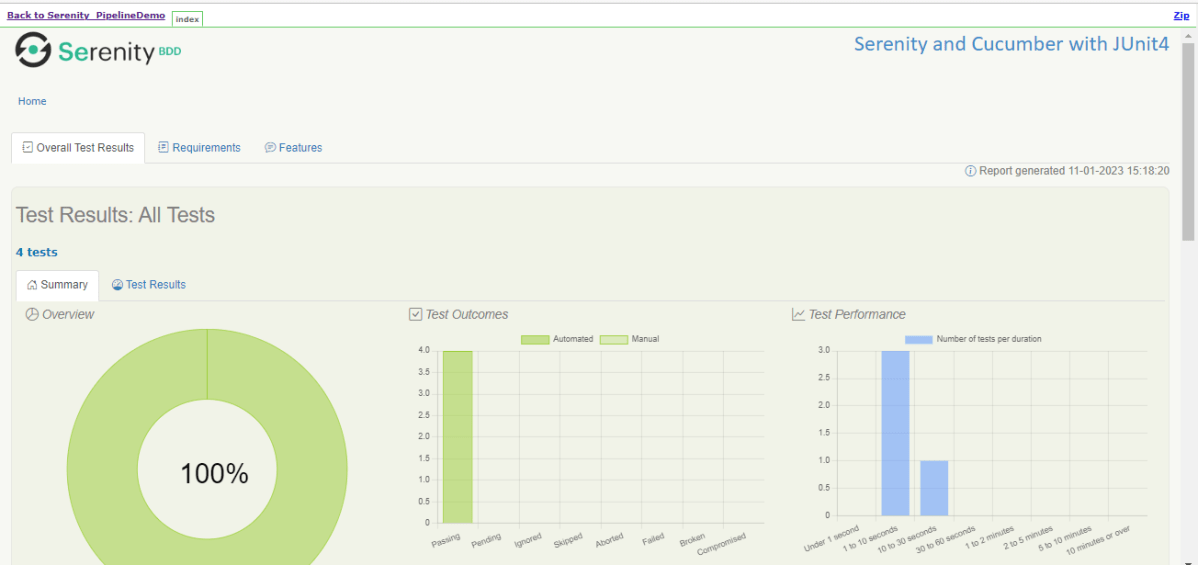
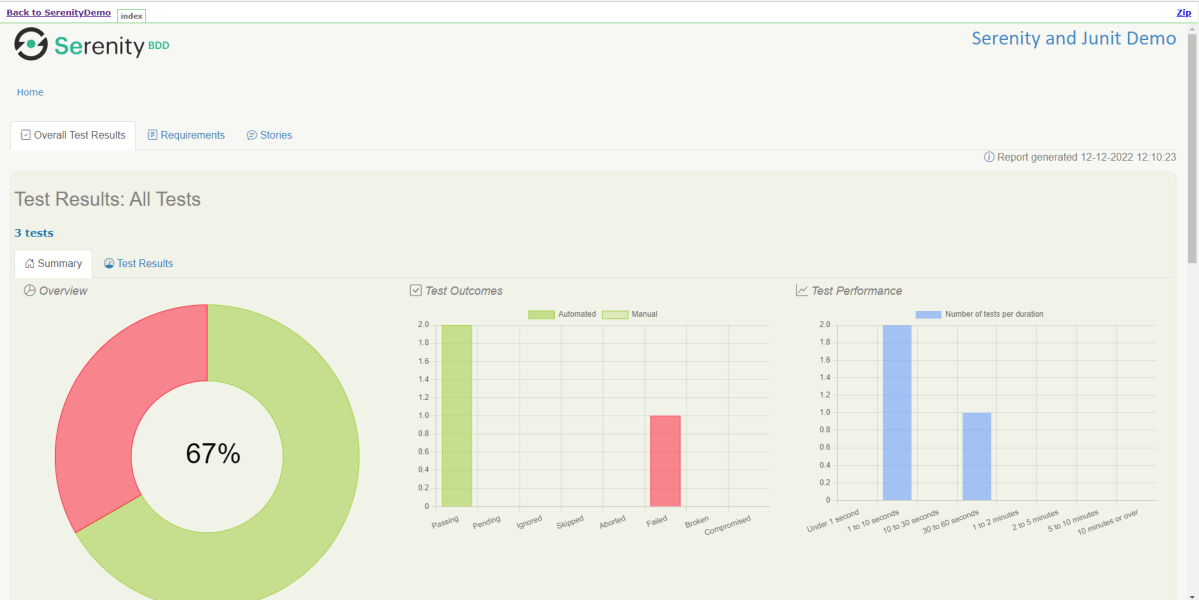
The Serenity Report looks like as shown below:
How to find the path of reports in Jenkins?
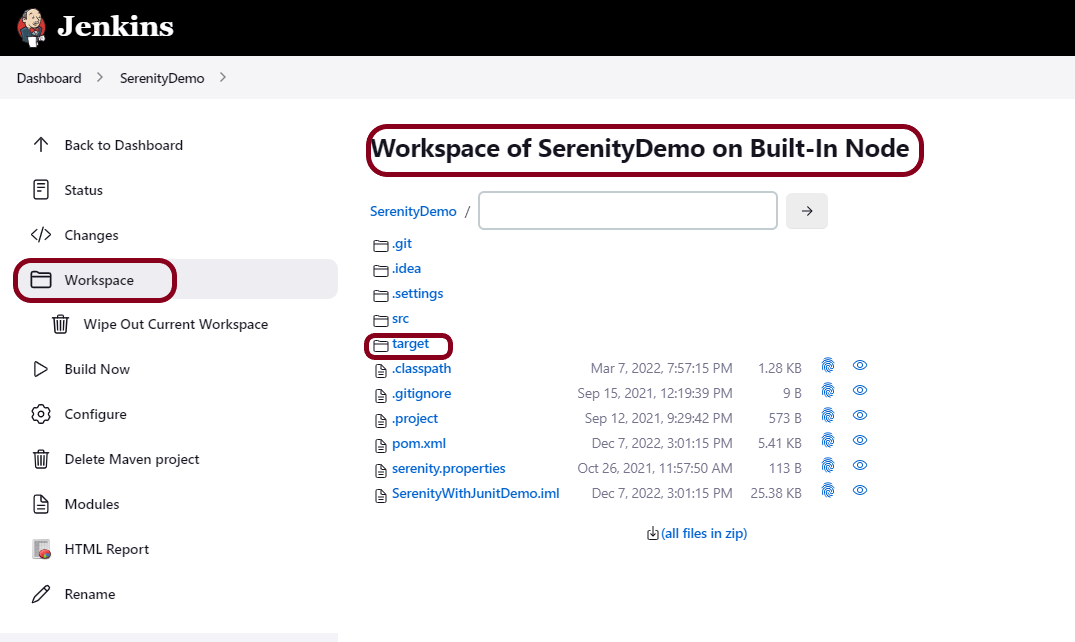
After running successfully, go to the job and click on the “Workspace” link. As soon as we click on the above-mentioned link, we will be inside this directory. Now click on the “target” link.
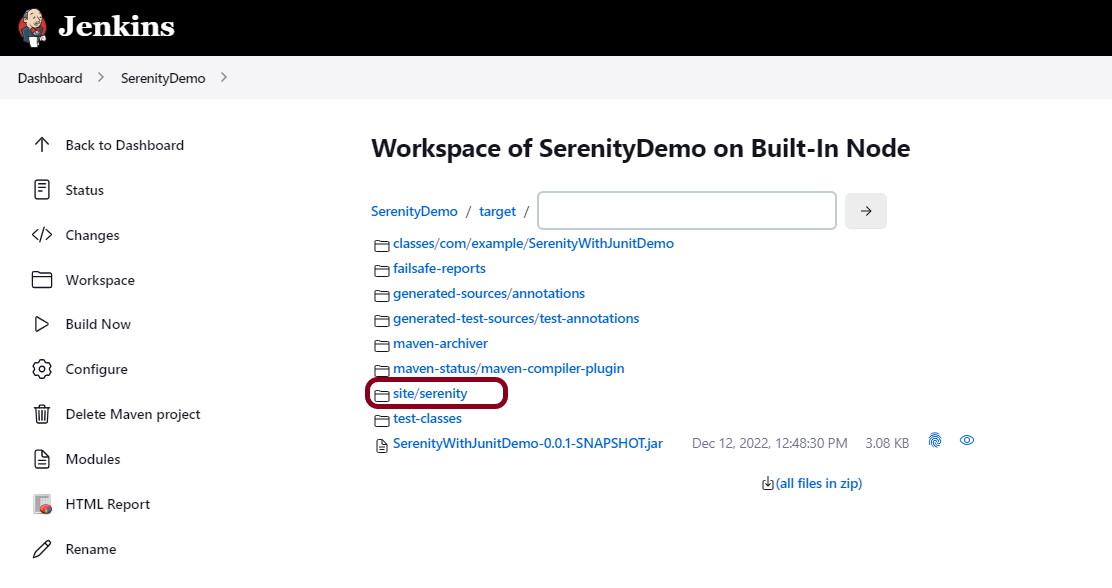
As soon as we click on the above-mentioned link, we will be inside this directory. Now click on the “site/serenity” link.
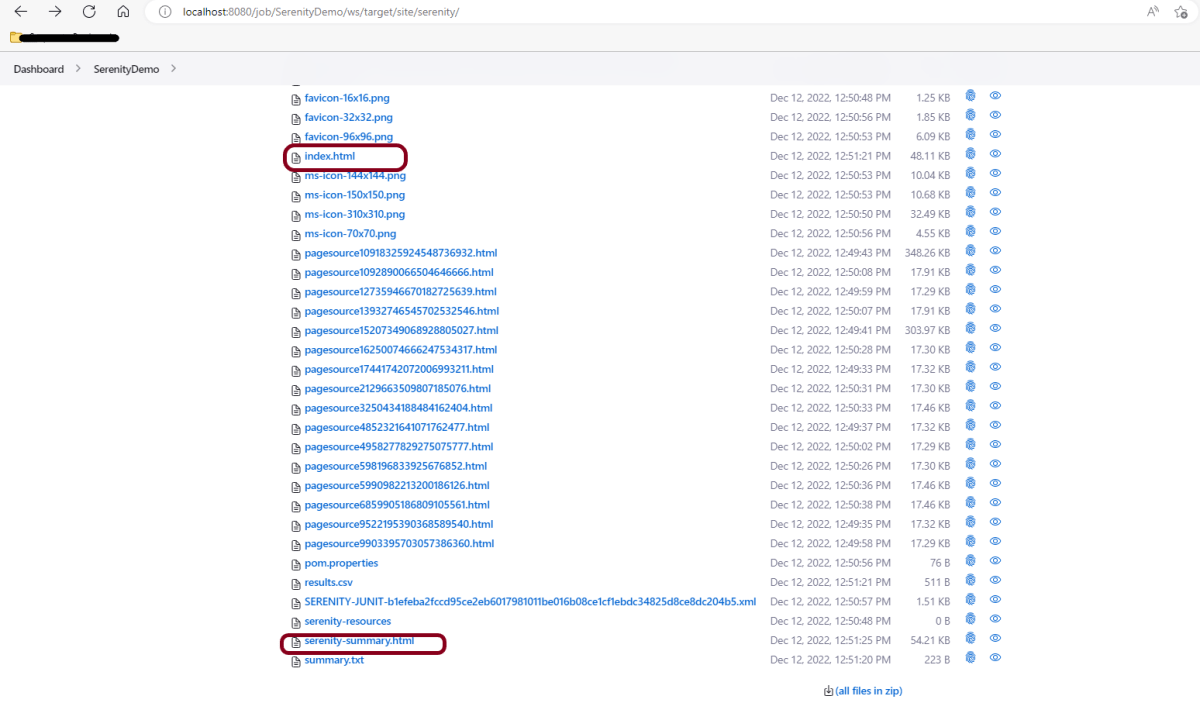
As soon as we click on the above-mentioned link, we will be inside this directory. Now we can see all the reports of Serenity.
This way, we could run Serenity tests and generate Serenity Reports using Jenkins.
Congratulations on making it through this tutorial and hope you found it useful! Happy Learning!! Cheers!!
When running your Jenkins automation jobs, you may need to pass some parameters to your scripts. These parameters can be a URL, a browser name, or even the test user’s credentials. This tutorial will walk you through the process of creating a parameterized Jenkins job.
Jenkins supports several parameter types. Below is a list of the most common ones, but keep in mind that different plugins may add new parameter types:
String: any combination of characters and numbers
Choice: a pre-defined set of strings from which a user can pick a value
Credentials: a pre-defined Jenkins credential
File: the full path to a file on the filesystem
Multi-line String: same as String, but allows newline characters
Password: similar to the Credentials type, but allows us to pass a plain text parameter specific to the job or pipeline
Run: an absolute URL to a single run of another job
Implementation Steps
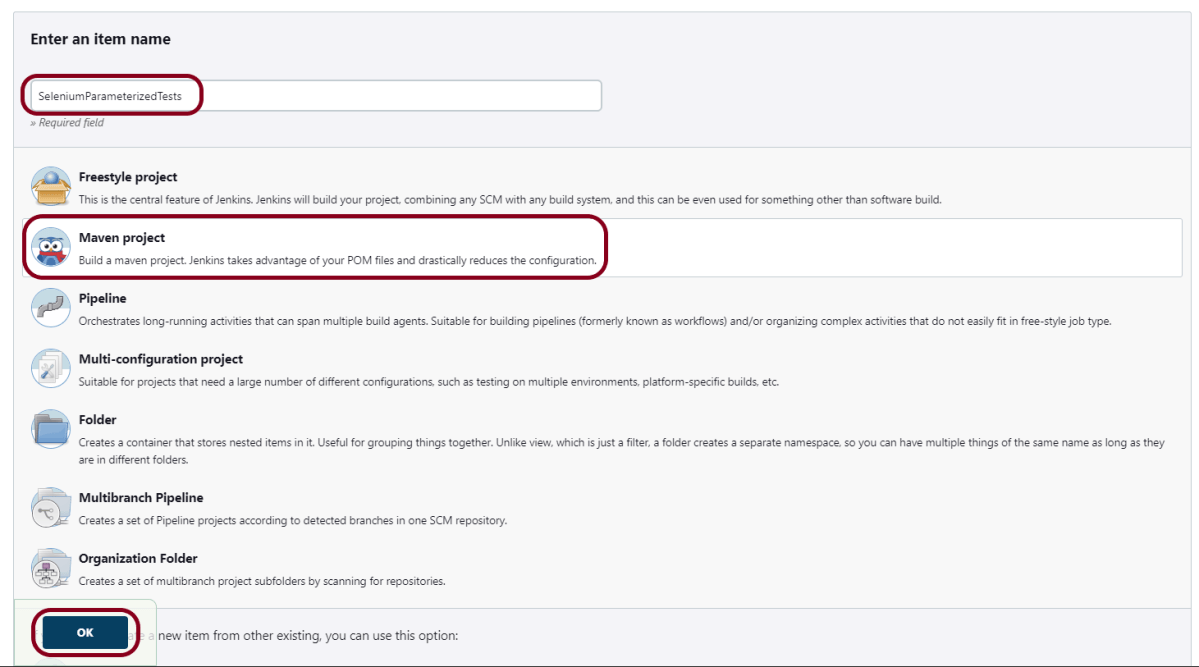
Step 1: Create a new project using the Maven project plugin
Give the Name of the project.
Click on the Maven project.
Click on the OK button.
Step 2: Description of the project
In the General section, enter the project description in the Description box.
Check the option – This project is parameterized.
Click on Add Parameter and we can select any option as shown in the above image.
Choice Parameter
As I want to run my tests on different browsers, I have selected Choice Parameter.
Give the Name of the Parameter.
Give the Choices of the Parameter – chrome, firefox
Give the Description of the Parameter – Please select the browser for the test execution.
String Parameter
I want to pass the test environment URL in the test. So, I’m selecting a string value. Select String Parameter on the Add Parametermenu.
Give the Name of the Parameter.
Give the Default Value of the Parameter. This value will be used if nothing will be provided.
Give the Description of the Parameter – Provide the environment URL.
Step 3: Source Code Management
In the Source Code Management section, select None.
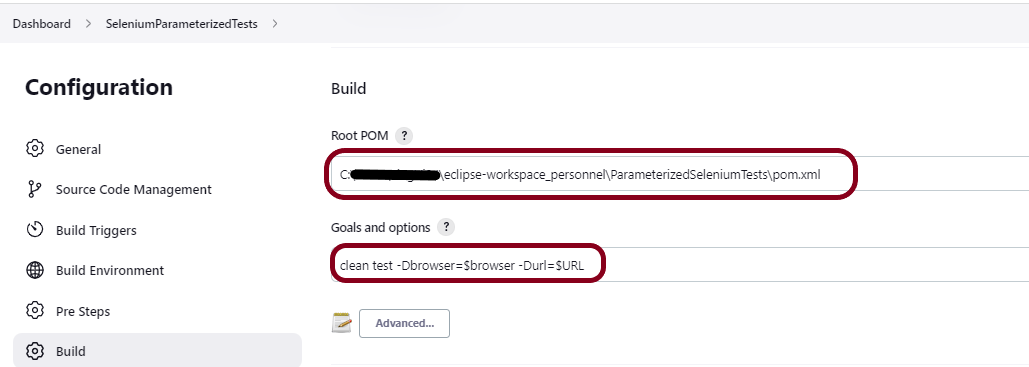
Step 4: Build Management
Go to the Build section of the new job.
In the Root POM textbox, enter the full path to pom.xml
In the Goals and Options section, enter the below command:
clean test -Dbrowser=$browser -Durl=$URL
Step 5: Select “TestNG Reports” from “Post Build Actions”
Scroll down to “Post Build Actions” and click on the “Add Post Build Actions” drop-down list.
Select “Publish TestNG Results“.
Enter the TestNG XML Report Pattern as “**/testng-results.xml” and click on the “Save” button.
Click on the Apply and Save buttons.
We have created a new project “SeleniumParameterizedTests” with the configuration to run TestNG Tests and also to generate TestNG Reports after execution using Jenkins.
Step 6: Execute the tests
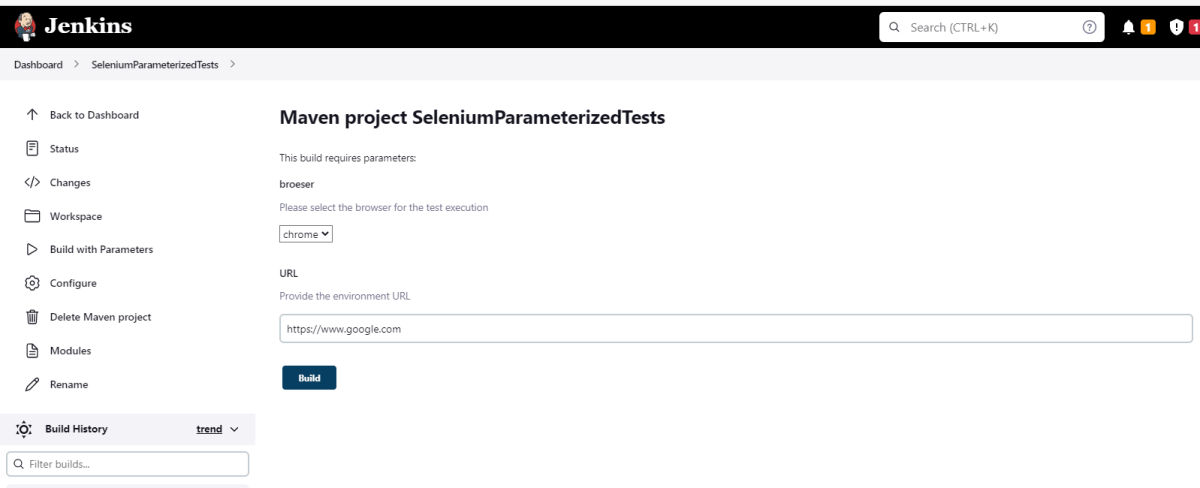
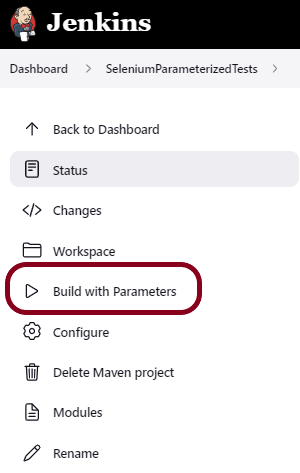
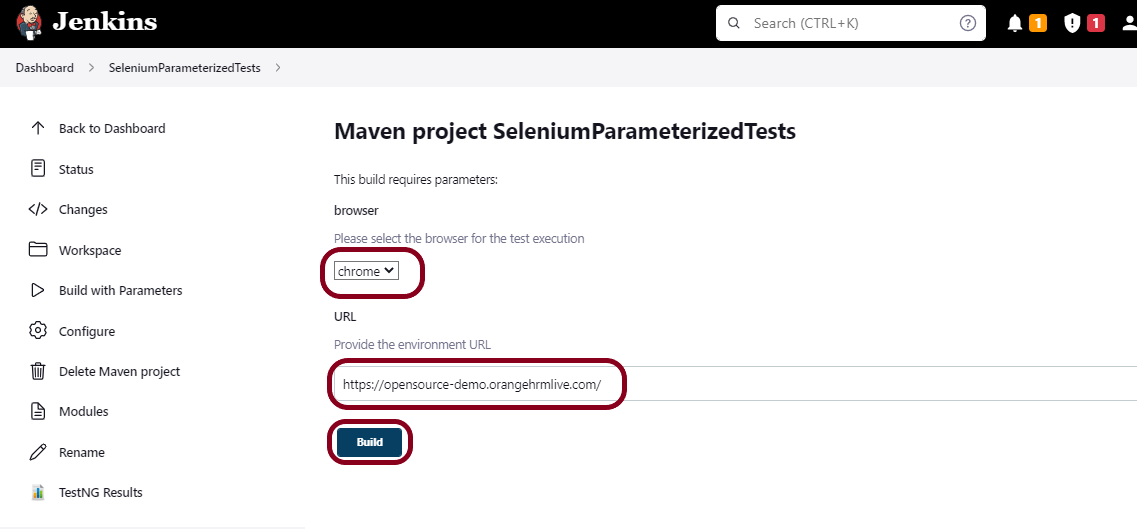
Let’s execute it now by clicking on the “Build with Parameters” button.
This screen contains the parameters which we have to select. The browser was a choice parameter and select a parameter from it and URL was a String parameter, so mention the URL in it and click on the “Build” button.
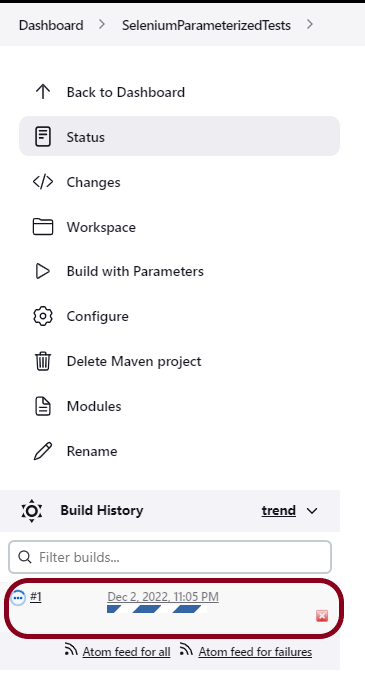
Right-click on Build Number (here in my case it is #1).
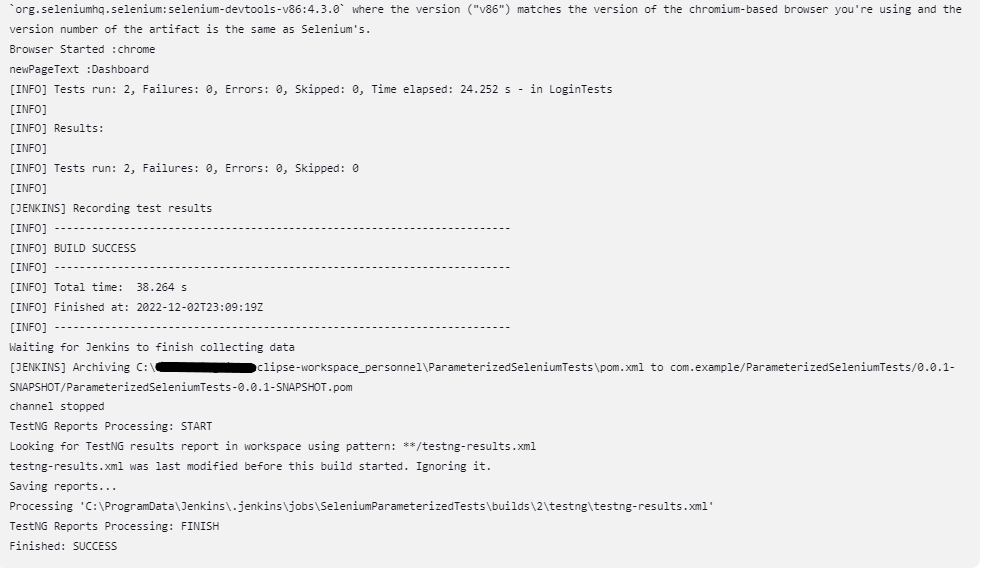
Click on Console Output to see the result.
Step 7: View the TestNG Report
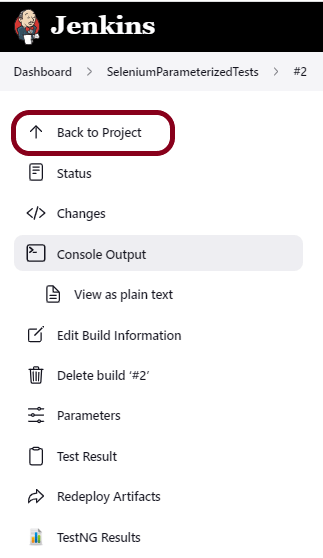
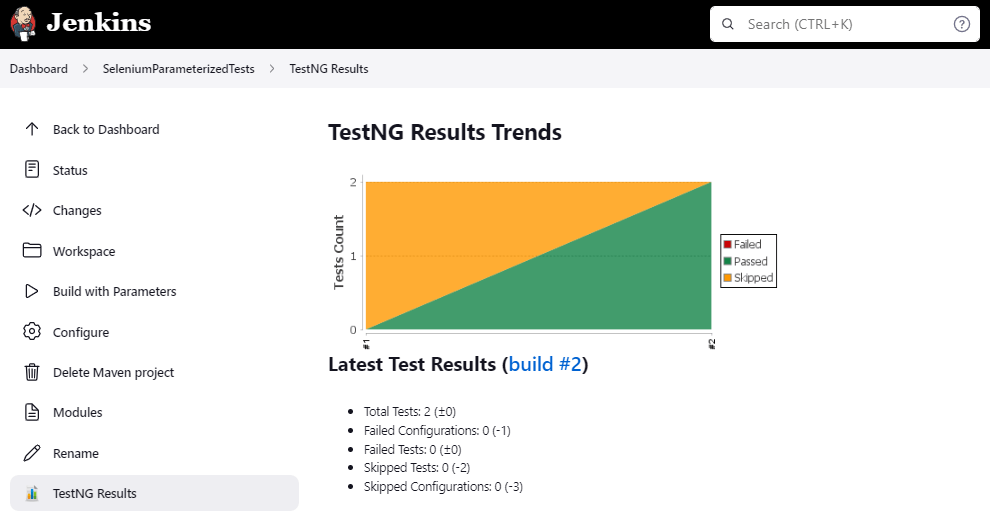
Once the execution is completed, click on go “Back to Project“, and we could see a link to view the “TestNG Report“.
Click on the TestNG Results. It displays the summary of the tests.
Congratulations on making it through this tutorial and hope you found it useful! Happy Learning!! Cheers!!
Jenkins is a well-known open-source tool that aids in the implementation of Continuous Integration (CI) and Continuous Deployment/Continuous Delivery (CD) processes by automating parts of the software development pipeline such as building, testing, and deployment. It provides a centralized platform for automating the entire build pipeline, from code changes to automatic build creation, auto-execution of all layers of tests (Unit, Integration, and End to End), and finally, auto-deploying the successful build. This allows developers to make more frequent changes while also giving end users more freedom by making new features available more frequently.
Jenkins can be installed through native system packages, Docker, or even run standalone by any machine with a Java Runtime Environment (JRE) installed.
What are the advantages of Jenkins?
Open Source – It is open source and it is user-friendly, easy to install and does not require additional installations or components.
Easily configurable – Jenkins can be easily modified and extended. It deploys code instantly, generates test reports. Jenkins can be configured according to the requirements for continuous integrations and continuous delivery.
Good Plugin Ecosystem – Jenkins is flexible because of its large plugin library, which allows for building, deploying, and automating across multiple platforms. It has plugins for TestNG Report, JUnit Report, Cucumber Report, Extent Report, HTML Publisher Report, Gradle, Serenity.
Cloud-based architecture – Jenkins tool also supports cloud-based architecture so that you can deploy Jenkins in cloud-based platforms.
Platform Independent – Jenkins is available for all platforms and different operating systems, whether OS X, Windows or Linux.
Easy support – It is open source and widely used, there is no shortage of support from large online communities of agile teams.
Distributed – It is easily distributable due to its master-slave architecture, which we saw in the above section. It can distribute work across multiple machines for efficiently handling the build processes, tests, and deployments.
Email Notification – It has notification capability regarding the status of builds in the form of an email.
Parallel Execution – Parallel execution of builds in a single workflow is possible in Jenkins with the help of the Pipelines feature.
Continuous Integration with Jenkins
1. The code is first committed by a developer/developers to the source code repository.
2. This shared repository is checked on a regular basis or frequently by the Jenkins server. It will pull all of those changes and begin making preparations for the most recent build as soon as it discovers the new commit.
3. Here two prospects will be available. Either the build will be unsuccessful or successful.
4. The team will receive notification right away if the build fails.
5. Jenkins is prepared to deploy the successful build to the test server if the build succeeds. Subsequent to running the expand on the test server, the group will get the notice of the test and assemble results. With each successful commit, the teams will always have a deployable build. This process will be ongoing.











 QA Automation Expert