Provide a username and password and click on the Sign-in Button.
Step 3: Download and Install TestNG Results Plugin
Click on the Manage Jenkins. Choose Manage Plugins.
Step 4: Add the TestNG Report plugin
On the Plugins Page, go to the Available option
Select the TestNG Report Plugin
Click on Install without restart.The plugin will take a few moments to finish downloading depending on your internet connection, and will be installed automatically.
You can also select the option Download now and Install after the restart button. In which plugin is installed after the restart
You will be shown a “No updates available” message if you already have the TestNG Report plugin installed.
The plugin “TestNG Report” has been installed successfully.
Sometimes, the installation fails because of a network issue. You can try to reinstall it, and it should be successful.
Step 5: Restart Jenkins
Click on the checkbox “Restart Jenkins when installation is complete when no jobs are running“.
The Jenkins will be restarted. Again, login to Jenkins UI.
Step 6: Create a new project using the Maven project plugin
Give the Name of the project.
Click on the Maven project.
Click on the OK button.
In the General section, enter the project description in the Description box.
Step 7: Build Management
Go to the Build section of the new job.
In the Root POM textbox, enter the full path to pom.xml
In the Goals and options section, enter “clean test”
Click on the Advanced button.
Step 8: Select custom workspace
Mention the full path of the project in the directory.
Step 9: Select “Publish TestNG Results” from “Post Build Actions”
Scroll down to ‘Post Build Actions’ and click on the ‘Add Post Build Actions’ drop-down list.
Select “Publish TestNG Results“.
Enter the TestNG XML Report Pattern as “**target/surefire-reports/testng-results.xml” and click on the “Save” button.
We have created a new project “TestNGReport_Demo” with the configuration to run TestNG Tests and also to generate TestNG Reports after execution using Jenkins.
Step 10: Execute the tests
Let’s execute it now by clicking on the “Build Now” button.
Right-click on Build Number (here in my case it is #4) and click on Console Output to see the result.
Once the execution is completed, we could see a link to view ‘TestNG Results’.
Step 11: View the TestNG Report
Click on the TestNG Results. It displays the summary of the tests.
This way, we could generate TestNG Reports using Jenkins.
Congratulations on making it through this tutorial and hope you found it useful! Happy Learning!! Cheers!!
Masterthought library provides pretty HTML reports for Cucumber. The cucumber JSON file is used to generate the HTML for the website. This Java report publisher was made particularly with publishing cucumber reports to the Jenkins build server in mind. It releases aesthetically pleasing HTML reports with charts displaying the outcomes of cucumber runs.
Cucumber lacks a sophisticated reporting feature. Cucumber generates a number of simple reports as part of the BDD framework; using the output from these same reports, we can use the Masterthought reporting plugin to produce more extensive HTML reports. Masterthoughtreporting plugin generates not only fancy reports but also detailed ones by reading a default report ‘cucumber.json’ generated by cucumber.
Add Selenium, TestNG, Cucumber, and Masterthought dependencies to the project
Create a feature file under src/test/resources
Create the test code locating the web elements in src/main/java
Create the Step Definition class or Glue Code in src/test/java
Create a TestNG Cucumber Runner class in src/test/java
Create testng.xml
Run the tests from Command Line
Cucumber Report Generation
Step 1- Download and Install Java
Cucumber and Selenium need Java to be installed on the system to run the tests. Click here to know How to install Java.
Step 2 – Download and setup Eclipse IDE on the system
The Eclipse IDE (integrated development environment) provides strong support for Java developers, which is needed to write Java code. Click here to know How to install Eclipse.
Step 3 – Setup Maven
To build a test framework, we need to add a number of dependencies to the project. It is a very tedious and cumbersome process to add each dependency manually. So, to overcome this problem, we use a build management tool. Maven is a build management tool that is used to define project structure, dependencies, build, and test management. Click here to know How to install Maven.
The Cucumber Eclipse plugin is a plugin that allows eclipse to understand the Gherkin syntax. The Cucumber Eclipse Plugin highlights the keywords present in Feature File. Click here to know more – Install Cucumber Eclipse Plugin.
Step 7 – Create a feature file (LoginPage.feature) containing all the test scenarios under src/test/resources/features
It is recommended to create a features folder in src/test/resources directory. Create all the feature files in this features folder. Featurefile should be saved as an extension of .feature.
Feature: Login to HRM Application

Background:
    Given User is on HRMLogin page "https://opensource-demo.orangehrmlive.com/"

   @ValidCredentials
   Scenario: Login with valid credentials

    When User enters username as "Admin" and password as "admin123"
    Then User should be able to login successfully and new page open

   @InvalidCredentials
   Scenario Outline: Login with invalid credentials

    When User enters username as "<username>" and password as "<password>"
    Then User should be able to see error message "<errorMessage>"

  Examples:
   | username   | password  | errorMessage                       |
   | $$$$$        | ££££££££  | Invalid credentials               |
   | admin        | Admin123  | Invalid credentials              |
Step 8 – Create the test code locating the web elements in src/main/java
LoginPageLocators
import org.openqa.selenium.WebElement;
import org.openqa.selenium.support.FindBy;

public class LoginPageLocators {

	@FindBy(name = "username")
    public WebElement userName;

    @FindBy(name = "password")
    public WebElement password;

    @FindBy(id = "logInPanelHeading")
    public WebElement titleText;

    @FindBy(xpath = "//*[@id='app']/div[1]/div/div[1]/div/div[2]/div[2]/form/div[3]/button")
    public WebElement login;

    @FindBy(xpath = "//*[@id='app']/div[1]/div/div[1]/div/div[2]/div[2]/div/div[1]/div[1]/p")
    public  WebElement errorMessage;

    @FindBy(xpath = "//*[@href='https://www.facebook.com/OrangeHRM/mycompany']") //Invalid Xpath
    public  WebElement faceBookIcon;

    @FindBy(xpath = "//*[@id='app']/div[1]/div/div[1]/div/div[2]/div[2]/form/div[1]/div/span")
    public WebElement missingUsernameErrorMessage;
}
HomePageLocators
import org.openqa.selenium.WebElement;
import org.openqa.selenium.support.FindBy;

public class HomePageLocators {

	@FindBy(xpath = "//*[@id='app']/div[1]/div[1]/header/div[1]/div[1]/span/h6")
	public  WebElement homePageUserName;

}
LoginPageActions
import org.openqa.selenium.support.PageFactory;
import com.example.testng.locators.LoginPageLocators;
import com.example.testng.utils.HelperClass;

public class LoginPageActions {

LoginPageLocators loginPageLocators = null;

    public LoginPageActions() {

    	this.loginPageLocators = new LoginPageLocators();

		PageFactory.initElements(HelperClass.getDriver(),loginPageLocators);
	}

    public void login(String strUserName, String strPassword) {

        // Fill user name
    	loginPageLocators.userName.sendKeys(strUserName);

        // Fill password
    	loginPageLocators.password.sendKeys(strPassword);

        // Click Login button
    	loginPageLocators.login.click();

    }

    //Get the title of Login Page")
    public String getLoginTitle() {
        return loginPageLocators.titleText.getText();
    }

    // Get the error message of Login Page
    public String getErrorMessage() {
        return loginPageLocators.errorMessage.getText();
    }

}
HomePageActions
import org.openqa.selenium.support.PageFactory;
import com.example.testng.locators.HomePageLocators;
import com.example.testng.utils.HelperClass;

public class HomePageActions {

	HomePageLocators homePageLocators = null;

	public HomePageActions() {

		this.homePageLocators = new HomePageLocators();

		PageFactory.initElements(HelperClass.getDriver(),homePageLocators);
    }

    // Get the User name from Home Page
    public String getHomePageText() {
        return homePageLocators.homePageUserName.getText();
    }

}
HelperClass
import java.time.Duration;
import org.openqa.selenium.WebDriver;
import org.openqa.selenium.chrome.ChromeDriver;
import io.github.bonigarcia.wdm.WebDriverManager;

public class HelperClass {

	private static HelperClass helperClass;

	private static WebDriver driver;
    public final static int TIMEOUT = 10;

	 private HelperClass() {

			WebDriverManager.chromedriver().setup();
	    	driver = new ChromeDriver();
	    	driver.manage().timeouts().implicitlyWait(Duration.ofSeconds(TIMEOUT));
	        driver.manage().window().maximize();

	 }

    public static void openPage(String url) {
        driver.get(url);
    }

	public static WebDriver getDriver() {
		return driver;

	}

	public static void setUpDriver() {

		if (helperClass==null) {

			helperClass = new HelperClass();
		}
	}

	 public static void tearDown() {

		 if(driver!=null) {
			 driver.close();
			 driver.quit();
		 }

		 helperClass = null;

	 }

}
Step 9 – Create the Step Definition class or Glue Code in src/test/java
It is recommended to create a definitions folder in src/test/java directory. The StepDefinition files should be created in this definitionsdirectory. within the folder called definitions.
LoginPageDefinitions
import org.junit.Assert;
import com.example.junit.actions.ForgetPasswordPageActions;
import com.example.junit.actions.HomePageActions;
import com.example.junit.actions.LoginPageActions;
import com.example.junit.utils.HelperClass;
import io.cucumber.java.en.Given;
import io.cucumber.java.en.Then;
import io.cucumber.java.en.When;

public class LoginPageDefinitions{

	LoginPageActions objLogin = new LoginPageActions();
    HomePageActions objHomePage = new HomePageActions();
    ForgetPasswordPageActions objForgotPasswordPage = new ForgetPasswordPageActions();


    @Given("User is on HRMLogin page {string}")
    public void loginTest(String url) {

    	HelperClass.openPage(url);

    }

    @When("User enters username as {string} and password as {string}")
    public void goToHomePage(String userName, String passWord) {

        // login to application
        objLogin.login(userName, passWord);

        // go the next page

    }

    @Then("User should be able to login successfully and new page open")
    public void verifyLogin() {

        // Verify home page
        Assert.assertTrue(objHomePage.getHomePageText().contains("Dashboard"));

    }

    @Then("User should be able to see error message {string}")
    public void verifyErrorMessage(String expectedErrorMessage) {

        // Verify home page
        Assert.assertEquals(objLogin.getErrorMessage(),expectedErrorMessage);

    }

}
Hooks
import com.example.junit.utils.HelperClass;
import io.cucumber.java.After;
import io.cucumber.java.Before;

public class Hooks {

	@Before
    public static void setUp() {

       HelperClass.setUpDriver();
    }

	@After
	public static void tearDown() {

		HelperClass.tearDown();
	}
}
Step 10 – Create a TestNG Cucumber Runner class in src/test/java
We need to create a class called Runner class to run the tests. This class will use the TestNG annotation @RunWith(), which tells TestNG what is the test runner class. TestRunner should be created under src/test/java within the folder called runner.
AbstractTestNGCucumberTests – Runs each cucumber scenario found in the features as a separate test.
import io.cucumber.testng.AbstractTestNGCucumberTests;
import io.cucumber.testng.CucumberOptions;

@CucumberOptions(tags = "", features = "src/test/resources/features/LoginPage.feature", glue = "com.example.testng.definitions",
    plugin= {"pretty", "html:test-output","json:target/cucumber/cucumber.json", "html:target/cucumber-html-report"})

public class CucumberRunnerTests extends AbstractTestNGCucumberTests {

}
Step 11 – Create testng.xml
TestNG.xml is used to run multiple tests in a single execution.
<?xml version="1.0" encoding="UTF-8"?>
<!DOCTYPE suite SYSTEM "https://testng.org/testng-1.0.dtd">
<suite name="Suite">
  <test name="Cucumber Reporting">

  <classes>
  <class name = "com.example.testng.runner.CucumberRunnerTests"/>
  </classes>
  </test> <!-- Test -->
</suite> <!-- Suite -->
Step 12 – Run the tests from Command Line
Use the below command to execute the tests.
mvn clean test
The output of the above program is
Step 13 – Cucumber Report Generation
Refresh your project and check inside \target\cucumber-html-reports that the report generated with name feature-overview.
There are different types of HTML reports gets generated as a part of the test execution cycle.
1. feature-overview – This HTML report gives an overall overview of test execution. Main HTML report which covers all different sections like Features, Tags, Steps, and Failures.
2. failures-overview – This HTML report gives an overview of all failed tests.
3. step-overview – This HTML report shows step statistics for the current cycle.
4. tag-overview – This HTML report shows passing and failing statistics for different tags used in test execution.
Congratulations on making it through this tutorial and hope you found it useful! Happy Learning!! Cheers!!
Serenity Reports are living documentation that contains the meaningful report for each Test. It illustrated narrative reports that document and describe what your application does and how it works.
The previous tutorial explained the generation of Allure Report with Cucumber5, Selenium and TestNG in a Maven project. In this tutorial, I will explain the steps to create an Extent Report4 with Cucumber5, Selenium, and TestNG in a Maven project.
Add tech grasshopper maven dependency for Cucumber. The below version of extentreports-cucumber5-adapter dependency needs to be added to the POM, to work with ExtentReports version 4.
Step 2: Create a feature file in src/test/resources
Below is a sample feature file. I have added 2 failed scenarios – @FaceBookLink(Invalid XPath) and @MissingUsername (Incorrect Verification).
Feature: Login to HRM Application

Background:
    Given User is on HRMLogin page "https://opensource-demo.orangehrmlive.com/"

   @ValidCredentials
   Scenario: Login with valid credentials

    When User enters username as "Admin" and password as "admin123"
    Then User should be able to login sucessfully and new page opens

   @InvalidCredentials
   Scenario Outline: Login with invalid credentials

    When User enters username as "<username>" and password as "<password>"
    Then User should be able to see error message "<errorMessage>"

  Examples:
   | username   | password  | errorMessage                      |
   | Admin      | admin12$$ | Invalid credentials               |
   | admin$$    | admin123  | Invalid credentials               |
   | admin123   | Admin     | Invalid credentials               |
   | $$$$$$$    | &&&&&&&&  | Invalid credentials               |

  @FaceBookLink
  Scenario: Verfy FaceBook Icon on Login Page

    Then User should be able to see FaceBook Icon

  @MissingUsername
  Scenario: Verify error message when username is missing

    When User enters username as "" and password as "admin123"
    Then User should be able to see error message for empty username as "Empty Username"
Step 3: Create extent.properties file in src/test/resources
We need to create the extent.properties file in the src/test/resources folder for the grasshopper extent report adapter to recognize it. Using a property file for reporting is quite helpful if you want to define several different properties.
Let’s enable spark report in an extent properties file:
We have used Page Object Model with Cucumber and TestNG.
Create a Helper class where we are initializing the web driver, initializing the web driver wait, defining the timeouts, and creating a private constructor of the class, it will declare the web driver, so whenever we create an object of this class, a new web browser is invoked. We are using a setter and getter method to get the object of Chromedriver with the help of a private constructor itself within the same class.
HelperClass
import java.util.concurrent.TimeUnit;
import org.openqa.selenium.WebDriver;
import org.openqa.selenium.chrome.ChromeDriver;
import io.github.bonigarcia.wdm.WebDriverManager;

public class HelperClass {

	private static HelperClass helperClass;

	private static WebDriver driver;
    public final static int TIMEOUT = 10;

	 private HelperClass() {

			WebDriverManager.chromedriver().setup();
	    	driver = new ChromeDriver();
	        driver.manage().timeouts().implicitlyWait(TIMEOUT,TimeUnit.SECONDS);
	        driver.manage().window().maximize();

	 }

    public static void openPage(String url) {
        driver.get(url);
    }

	public static WebDriver getDriver() {
		return driver;
	}

	public static void setUpDriver() {

		if (helperClass==null) {
			helperClass = new HelperClass();
		}
	}

	 public static void tearDown() {

		 if(driver!=null) {
			 driver.close();
			 driver.quit();
		 }

		 helperClass = null;

	 }
}
Step 5: Create Locator classes in src/main/java
Create a locator class for each page that contains the detail of the locators of all the web elements. Here, I’m creating 2 locator classes – LoginPageLocators and HomePageLocators.
LoginPageLocators
import org.openqa.selenium.WebElement;
import org.openqa.selenium.support.FindBy;

public class LoginPageLocators {

	@FindBy(name = "txtUsername")
    public WebElement userName;

    @FindBy(name = "txtPassword")
    public WebElement password;

    @FindBy(id = "logInPanelHeading")
    public WebElement titleText;

    @FindBy(id = "btnLogin")
    public WebElement login;

    @FindBy(id = "spanMessage")
    public  WebElement errorMessage;

    @FindBy(xpath = "//*[@id='social-icons']/a[1]/img")
    public  WebElement linkedInIcon;

    @FindBy(xpath = "//*[@id='social-icons']/a[6]/img")  //Invalid Xpath
    public  WebElement faceBookIcon;

}
HomePageLocators
import org.openqa.selenium.WebElement;
import org.openqa.selenium.support.FindBy;

public class HomePageLocators {

	@FindBy(xpath = "//*[@id='app']/div[1]/div[2]/div[2]/div/div[1]/div[1]/div[1]/h5")
	public  WebElement homePageUserName;

}
Step 6: Create Action classes in src/main/java
Create the action classes for each web page. These action classes contain all the methods needed by the step definitions. In this case, I have created 2 action classes – LoginPageActions and HomePageActions
LoginPageActions
In this class, the very first thing will do is to create the object of the LoginPageLocators class so that we should be able to access all the PageFactory elements. Secondly, create a public constructor of LoginPageActions class.
package com.example.testng.actions;

import org.openqa.selenium.support.PageFactory;
import com.example.testng.locators.LoginPageLocators;
import com.example.testng.utils.HelperClass;

public class LoginPageActions {

LoginPageLocators loginPageLocators = null;

    public LoginPageActions() {

    	this.loginPageLocators = new LoginPageLocators();

		PageFactory.initElements(HelperClass.getDriver(),loginPageLocators);
	}

    public void login(String strUserName, String strPassword) {

        // Fill user name
    	loginPageLocators.userName.sendKeys(strUserName);

        // Fill password
    	loginPageLocators.password.sendKeys(strPassword);

        // Click Login button
    	loginPageLocators.login.click();
    }

    //Get the title of Login Page")
    public String getLoginTitle() {
        return loginPageLocators.titleText.getText();
    }

    // Get the error message of Login Page
    public String getErrorMessage() {
        return loginPageLocators.errorMessage.getText();
    }

    // FaceBook Icon is displayed
    public Boolean getFaceBookIcon() {

        return loginPageLocators.faceBookIcon.isDisplayed();
    }

    // Get the error message when username is blank
    public String getMissingUsernameText() {
         return loginPageLocators.missingUsernameErrorMessage.getText();
     }
}
HomePageActions
import org.openqa.selenium.support.PageFactory;
import com.example.testng.locators.HomePageLocators;
import com.example.testng.utils.HelperClass;

public class HomePageActions {

	HomePageLocators homePageLocators = null;

	public HomePageActions() {

		this.homePageLocators = new HomePageLocators();

		PageFactory.initElements(HelperClass.getDriver(),homePageLocators);
    }

    // Get the User name from Home Page
    public String getHomePageText() {
        return homePageLocators.homePageUserName.getText();
    }

}
Step 7: Create a Step Definition file in src/test/java
Create the corresponding Step Definition file of the feature file.
LoginPageDefinitions
import org.testng.Assert;
import com.example.testng.actions.HomePageActions;
import com.example.testng.actions.LoginPageActions;
import com.example.testng.utils.HelperClass;
import io.cucumber.java.en.Given;
import io.cucumber.java.en.Then;
import io.cucumber.java.en.When;

public class LoginPageDefinitions{

	LoginPageActions objLogin = new LoginPageActions();
    HomePageActions objHomePage = new HomePageActions();

    @Given("User is on HRMLogin page {string}")
    public void loginTest(String url) {

    	HelperClass.openPage(url);

    }

    @When("User enters username as {string} and password as {string}")
    public void goToHomePage(String userName, String passWord) {

        // login to application
        objLogin.login(userName, passWord);

        // go the next page

    }

    @Then("User should be able to login sucessfully and new page opens")
    public void verifyLogin() {

        // Verify home page
       Assert.assertTrue(objHomePage.getHomePageText().contains("Employee Information"));

    }

    @Then("User should be able to see error message {string}")
    public void verifyErrorMessage(String expectedErrorMessage) {

        // Verify home page
    	Assert.assertEquals(objLogin.getErrorMessage(),expectedErrorMessage);

    }

    @Then("User should be able to see FaceBook Icon")
    public void verifyFaceBookIcon( ) {

    	Assert.assertTrue(objLogin.getFaceBookIcon());
    }

    @Then("User should be able to see error message for empty username as {string}")
    public void verifyErrorMessageForEmptyUsername(String expectedErrorMessage) {

    	Assert.assertEquals(objLogin.getMissingUsernameText(),expectedErrorMessage);

    }
}
Step 8: Create Hook class in src/test/java
Create the hook class that contains the Before and After hooks. @Before hook contains the method to call the setup driver which will initialize the chrome driver. This will be run before any test.
After Hook – Here will call the tearDown method.
import org.openqa.selenium.OutputType;
import org.openqa.selenium.TakesScreenshot;
import com.example.testng.utils.HelperClass;
import io.cucumber.java.After;
import io.cucumber.java.Before;
import io.cucumber.java.Scenario;

public class Hooks {

	@Before
    public static void setUp() {

       HelperClass.setUpDriver();
    }

	@After
	public static void tearDown(Scenario scenario) {
		//validate if scenario has failed
		if(scenario.isFailed()) {
			final byte[] screenshot = ((TakesScreenshot) HelperClass.getDriver()).getScreenshotAs(OutputType.BYTES);
			scenario.attach(screenshot, "image/png", scenario.getName());
		}

		HelperClass.tearDown();
	}
}
Step 9: Create a Cucumber Test Runner class in src/test/java
Add the extent report cucumber adapter to the runner class’s CucumberOption annotation.
This is how your runner class should look after being added to our project. Moreover, be sure to keep the colon “:” at the end.
import io.cucumber.testng.AbstractTestNGCucumberTests;
import io.cucumber.testng.CucumberOptions;

@CucumberOptions(tags = "", features = "src/test/resources/features/LoginPage.feature", glue = "com.example.testng.definitions",
                 plugin = {"com.aventstack.extentreports.cucumber.adapter.ExtentCucumberAdapter:"})

public class CucumberRunnerTests extends AbstractTestNGCucumberTests {

}
Step 10: Create the testng.xml for the project
Right-click on the project and select TestNG -> convert to TestNG.
<?xml version="1.0" encoding="UTF-8"?>
<!DOCTYPE suite SYSTEM "https://testng.org/testng-1.0.dtd">
<suite name="Suite">
  <test name="ExtentReport4 for Cucumber">

  <classes>
  <class name = "com.example.testng.runner.CucumberRunnerTests"/>
  </classes>
  </test> <!-- Test -->
</suite> <!-- Suite -->
Step 11: Execute the code
Right Click on the Runner class and select Run As -> TestNG Test.
Below is the screenshot of the Console. As expected, 5 tests, out of 7 are passed and 2 failed.
Step 12: View ExtentReport
Refresh the project and will see a new folder – Report. The ExtentReport will be present in that folder with the name Spark.html.
Right-click and select Open with Web Browser.
The report also has a summary section that displays the summary of the execution. The summary includes the overview of the pass/fail using a pictogram, start time, end time, and pass/fail details of features as shown in the image below.
Click on the Dashboard icon present on the left side of the report. To view the details about the steps, click on the scenarios. Clicking on the scenario will expand, showing off the details of the steps of each scenario.
The icon present at the end of the failed scenario is highlighted, click on that icon. It is the screenshot of the failed test.
Logger Report
This is the Dashboard Report.
Congratulations on making it through this tutorial and hope you found it useful! Happy Learning!! Cheers!!
The previous tutorial explained generation of Allure Report with Cucumber5, Selenium and TestNG in a Maven project. In this tutorial, I will explain the steps to create an Allure Report with Cucumber, Selenium and TestNG in a Gradle project.
Pre Requisite:
Java 8 or above installed
Eclipse or IntelliJ IDE installed
Gradle Installed
Environment variables JAVA_HOME and GRADLE_HOME correctly configured
In this tutorial, I’ll create a BDD Framework for the testing of web applications using Cucumber, Selenium WebDriver with TestNG. This framework consists of:-
Cucumber Java- 7.6.0
Cucumber TestNG – 7.6.0
Java 11
TestNG – 7.6.0
Gradle – 7.5.1
Selenium – 4.3.0
AspectJ Weaver – 1.9.7
Project Structure
Implementation Steps
Add Cucumber, Selenium, TestNG, and Allure-TestNG dependencies in build.gradle
Create Locator and Action classes and Step Definition corresponding to the feature file and Test Runner Class
Step 1 – Add Cucumber, Selenium, TestNG, and Allure-TestNG dependencies in build.gradle
/*
 * This file was generated by the Gradle 'init' task.
 *
 */

plugins {
    // Apply the application plugin to add support for building a CLI application in Java.
    id 'application'
    id 'io.qameta.allure' version '2.11.0'
}

repositories {
    // Use Maven Central for resolving dependencies.
    mavenCentral()
}

java {
    sourceCompatibility = 11
    targetCompatibility = 11
}

dependencies {

    // Use TestNG framework, also requires calling test.useTestNG() below
    testImplementation 'io.cucumber:cucumber-java:7.6.0'
    testImplementation 'io.cucumber:cucumber-testng:7.6.0'

     // Allure
     implementation 'io.qameta.allure:allure-cucumber7-jvm:2.19.0'
     runtimeOnly 'org.aspectj:aspectjweaver:1.9.7'

     //TestNG
      testImplementation 'org.testng:testng:7.6.0'

     //Others
     implementation 'com.google.guava:guava:31.0.1-jre'
     implementation 'org.seleniumhq.selenium:selenium-java:4.4.0'
     implementation 'io.github.bonigarcia:webdrivermanager:5.3.0'

}

application {
    // Define the main class for the application.
    mainClass = 'com.example.App'
}

tasks.named('test') {
    // Use TestNG for unit tests.
    useTestNG()
}

configurations {
    cucumberRuntime {
        extendsFrom testImplementation
    }
}

task cucumber() {
    dependsOn assemble, compileTestJava
    doLast {
        javaexec {
         systemProperty("allure.results.directory", "build/allure-results")

            main = "io.cucumber.core.cli.Main"
            classpath = configurations.cucumberRuntime + sourceSets.main.output + sourceSets.test.output
            args = ['--plugin', 'pretty',
            '--glue', 'com.example.definitions', 'src/test/resources']
        }
    }
}
Step 2 – Create Locator and Action classes and Step Definition corresponding to the feature file and Test Runner Class
As mentioned above, there is another tutorial that explains the project structure as well as the feature file and corresponding Step Definitions, please refer to this tutorial – Gradle Project with Cucumber, Selenium and TestNG.
Step 3 – Execute the Tests
Go to the app project and run the tests, using the below command
gradle cucumber
The output of the test execution is
Step 4 – Generate the Allure Report
Once the test execution is finished, a folder named allure-results will be generated in thebuild folder.
Note:- Make sure that you move to folder app, because build folder is present in app folder.
To generate Allure Report, use the below command
allure serve build/allure-results
This will generate the beautiful Allure Test Report as shown below.
Allure Report Dashboard
The overview page hosts several default widgets representing basic characteristics of your project and test environment.
Statistics – overall report statistics.
Launches – if this report represents several test launches, statistics per launch will be shown here.
Behaviors – information on results aggregated according to stories and features.
Executors – information on test executors that were used to run the tests.
History Trend – if tests accumulated some historical data, its trend will be calculated and shown on the graph.
Environment – information on the test environment.
Categories in Allure Report
The categories tab gives you the way to create custom defects classification to apply for test results. There are two categories of defects – Product Defects (failed tests) and Test Defects (broken tests).
Suites in Allure Report
On the Suites tab a standard structural representation of executed tests, grouped by suites and classes can be found.
Graphs in Allure Report
Graphs allow you to see different statistics collected from the test data: status breakdown or severity and duration diagrams.
Timeline in Allure Report
The timeline tab visualizes retrospective test execution, allure adaptors collect precise timings of tests, and here on this tab, they are arranged accordingly to their sequential or parallel timing structure.
Behaviors of Allure Report
This tab groups test results according to Epic, Feature, Story, Test Severity, Test Description, Test Steps, and so on.
Packages in Allure Report
The packages tab represents a tree-like layout of test results, grouped by different packages.
Congratulations on making it through this tutorial and hope you found it useful! Happy Learning!! Cheers!!
The previous tutorial explained the Integration of Cucumber with Selenium and TestNG in a Maven Project. This tutorial explains the test automation framework based on Gradle, Cucumber, Selenium, and TestNG.
Pre Requisite:
Java 8 or above installed
Eclipse or IntelliJ IDE installed
Gradle Installed
Environment variables JAVA_HOME and GRADLE_HOME are correctly configured
In this tutorial, I’ll create a BDD Framework for the testing of web applications using Cucumber, and Selenium WebDriver with TestNG. This framework consists of:-
Cucumber Java- 7.6.0
Cucumber TestNG – 7.6.0
Java 11
TestNG – 7.6.0
Gradle – 7.5.1
Selenium – 4.3.0
Project Structure
Steps to set up Cucumber Test Automation Framework with Selenium and TestNG
Download and Install Java on the system
Download and setup Eclipse IDE on the system
Install and setup Gradle
Install Cucumber Eclipse Plugin (For Eclipse IDE)
Create a new Gradle Project
Add Selenium, TestNG, and Cucumberdependencies to the build.gradle
Create a featurefile under src/test/resources
Create the classes for locators, actions and utilitiesin src/main/java
Create the Step Definition class or Glue Code in src/test/java
Create a Hook class to contain the initialization and closing of browser in src/test/java
Create a TestNG Cucumber Runnerclass in src/test/java
Run the tests from Command Line
Cucumber Report Generation
Implementation Steps
Step 1- Download and Install Java
Cucumber and Selenium need Java to be installed on the system to run the tests. Click here to know How to install Java.
Step 2 – Download and setup Eclipse IDE on the system
The Eclipse IDE (integrated development environment) provides strong support for Java developers. Click here to know How to install Eclipse.
Step 3 – Setup Maven
To build a test framework, we need to add a number of dependencies to the project. Click here to know How to install Maven.
Step 4 – Install Cucumber Eclipse Plugin
The cucumber plugin is an Eclipse plugin that allows eclipse to understand the Gherkin syntax. When we are working with cucumber we will write the feature files that contain Feature, Scenario, Given, When, Then, And, But, Tags, Scenario Outline, and Examples. By default, eclipse doesn’t understand these keywords so it doesn’t show any syntax highlighter. Cucumber Eclipse Plugin highlights the keywords present in Feature File. Refer to this tutorial to get more detail – How to setup Cucumber with Eclipse.
Step 5 – Create a new Gradle Project
Below are the steps to create the Gradle project from the command line.
/*
 * This file was generated by the Gradle 'init' task.
 *
 * This generated file contains a sample Java application project to get you started.
 */

plugins {
    // Apply the application plugin to add support for building a CLI application in Java.
    id 'application'
    id 'io.qameta.allure' version '2.11.0'
}

repositories {
    // Use Maven Central for resolving dependencies.
    mavenCentral()
}

java {
    sourceCompatibility = 11
    targetCompatibility = 11
}

dependencies {

    // Use TestNG framework, also requires calling test.useTestNG() below
    testImplementation 'io.cucumber:cucumber-java:7.6.0'
    testImplementation 'io.cucumber:cucumber-testng:7.6.0'

     //TestNG
      testImplementation 'org.testng:testng:7.6.0'

     //Others
     implementation 'com.google.guava:guava:31.0.1-jre'
     implementation 'org.seleniumhq.selenium:selenium-java:4.4.0'
     implementation 'io.github.bonigarcia:webdrivermanager:5.3.0'
}

application {
    // Define the main class for the application.
    mainClass = 'com.example.App'
}

tasks.named('test') {
    // Use TestNG for unit tests.
    useTestNG()
}

configurations {
    cucumberRuntime {
        extendsFrom testImplementation
    }
}

task cucumber() {
    dependsOn assemble, testClasses
    doLast {
        javaexec {

            main = "io.cucumber.core.cli.Main"
            classpath = configurations.cucumberRuntime + sourceSets.main.output + sourceSets.test.output
            args = ['--plugin', 'pretty',
            '--glue', 'com.example.definitions', 'src/test/resources']
        }
    }
}
Step 7 – Create a feature file in the src/test/resources directory
Create a folder with name features. Now, create the feature file in this folder. The feature file should be saved with the extension .feature. This feature file contains the test scenarios created to test the application. The Test Scenarios are written in Gherkins language in the format of Given, When, Then, And, But.
Below is an example of the Feature File.
Feature: Login to HRM Application

Background:
   Given User is on HRMLogin page "https://opensource-demo.orangehrmlive.com/"

   @ValidCredentials
   Scenario: Login with valid credentials

    When User enters username as "Admin" and password as "admin123"
    Then User should be able to login sucessfully and new page open

   @InvalidCredentials
   Scenario Outline: Login with invalid credentials

    When User enters username as "<username>" and password as "<password>"
    Then User should be able to see error message "<errorMessage>"

  Examples:
  | username   | password  | errorMessage                      |
  | Admin      | admin12$$ | Invalid credentials               |
  | admin$$    | admin123  | Invalid credentials               |
  | abc123     | xyz$$     | Invalid credentials               |


   @MissingUsername
   Scenario: Verify error message when username is missing

    When User enters username as "" and password as "admin123"
    Then User should be able to see error message "Empty Username"
Step 8 – Create the classes for locators, actions and utilities in src/main/java
Below is the sample code of the LoginPageLocators.
import org.openqa.selenium.WebElement;
import org.openqa.selenium.support.FindBy;

public class LoginPageLocators {

	@FindBy(name = "username")
    public WebElement userName;

    @FindBy(name = "password")
    public WebElement password;

    @FindBy(xpath = "//*[@id='app']/div[1]/div/div[1]/div/div[2]/div[2]/form/div[3]/button")
    public WebElement login;

    @FindBy(xpath = "//*[@id='app']/div[1]/div/div[1]/div/div[2]/div[2]/div/div[1]/div[1]/p")
    public  WebElement errorMessage;

    @FindBy(xpath = "//*[@id='app']/div[1]/div/div[1]/div/div[2]/div[2]/form/div[1]/div/span")
    public WebElement missingUsernameErrorMessage;

}
Below is the sample code for the HomePageLocators.
import org.openqa.selenium.WebElement;
import org.openqa.selenium.support.FindBy;

public class HomePageLocators {

	   @FindBy(xpath = "//*[@id='app']/div[1]/div[2]/div[2]/div/div[1]/div[1]/div[1]/h5")
	   public  WebElement homePageUserName;

}
Create the action classes for each web page. These action classes contain all the methods needed by the step definitions. In this case, I have created 2 action classes – LoginPageActions and HomePageActions .
LoginPageActions
import org.openqa.selenium.support.PageFactory;
import com.example.locators.LoginPageLocators;
import com.example.utils.HelperClass;

public class LoginPageActions {

	LoginPageLocators loginPageLocators = null;

    public LoginPageActions() {

    	this.loginPageLocators = new LoginPageLocators();

		PageFactory.initElements(HelperClass.getDriver(),loginPageLocators);
	}

    public void login(String strUserName, String strPassword) {

    	loginPageLocators.userName.sendKeys(strUserName);
    	loginPageLocators.password.sendKeys(strPassword);
    	loginPageLocators.login.click();

    }

    // Get the error message when invalid credentials are provided
    public String getErrorMessage() {
        return loginPageLocators.errorMessage.getText();
    }


   // Get the error message when username is blank
   public String getMissingUsernameText() {
        return loginPageLocators.missingUsernameErrorMessage.getText();
    }
}
HomePageActions
import org.openqa.selenium.support.PageFactory;

import com.example.locators.HomePageLocators;
import com.example.utils.HelperClass;

public class HomePageActions {

	HomePageLocators homePageLocators = null;

	public HomePageActions() {

		this.homePageLocators = new HomePageLocators();

		PageFactory.initElements(HelperClass.getDriver(),homePageLocators);
    }

    // Get the User name from Home Page
    public String getHomePageText() {
        return homePageLocators.homePageUserName.getText();
    }

}
Create a Helper class where we are initializing the web driver, initializing the web driver wait, defining the timeouts, and creating a private constructor of the class, it will declare the web driver, so whenever we create an object of this class, a new web browser is invoked.
import java.time.Duration;
import org.openqa.selenium.WebDriver;
import org.openqa.selenium.chrome.ChromeDriver;
import io.github.bonigarcia.wdm.WebDriverManager;

public class HelperClass {

	private static HelperClass helperClass;
	private static WebDriver driver;
    public final static int TIMEOUT = 10;

	 private HelperClass() {

			WebDriverManager.chromedriver().setup();
	    	driver = new ChromeDriver();
	        driver.manage().timeouts().implicitlyWait(Duration.ofSeconds(TIMEOUT));
	        driver.manage().window().maximize();

	 }


    public static void openPage(String url) {
        driver.get(url);
    }


	public static WebDriver getDriver() {
		return driver;
	}

	public static void setUpDriver() {

		if (helperClass==null) {

			helperClass = new HelperClass();
		}
	}

	 public static void tearDown() {

		 if(driver!=null) {
			 driver.close();
			 driver.quit();
		 }

		 helperClass = null;
	 }

}
Step 9 – Create the Step Definition class or Glue Code in src/test/java
Now, we need to create the Step Definition of the Feature File – LoginPageDefinitions.java.
import org.testng.Assert;
import org.testng.SkipException;
import com.example.actions.HomePageActions;
import com.example.actions.LoginPageActions;
import com.example.utils.HelperClass;
import io.cucumber.java.en.Given;
import io.cucumber.java.en.Then;
import io.cucumber.java.en.When;

public class LoginPageDefinitions {

	LoginPageActions objLogin = new LoginPageActions();
    HomePageActions objHomePage = new HomePageActions();

    @Given("User is on HRMLogin page {string}")
    public void loginTest(String url) {

    	HelperClass.openPage(url);

    }

    @When("User enters username as {string} and password as {string}")
    public void goToHomePage(String userName, String passWord) {

        objLogin.login(userName, passWord);

    }

    @Then("User should be able to login sucessfully and new page open")
    public void verifyLogin() {

        Assert.assertTrue(objHomePage.getHomePageText().contains("Employee Information"));

    }

    @Then("User should be able to see error message {string}")
    public void verifyErrorMessageForInvalidCredentials(String expectedErrorMessage) {

        Assert.assertEquals(objLogin.getErrorMessage(),expectedErrorMessage);

    }


    @Then("User should be able to see error message for empty username as {string}")
    public void verifyErrorMessageForEmptyUsername(String expectedErrorMessage) {
    	       Assert.assertEquals(objLogin.getMissingUsernameText(),expectedErrorMessage);

    }

}
Step 10 – Create a Hook class to contain the initialization and closing of the browser in src/test/java
Below is the example of the Hook class where we initialize the browser as well as close the browser at the end of the execution.
import org.openqa.selenium.OutputType;
import org.openqa.selenium.TakesScreenshot;
import com.example.utils.HelperClass;
import io.cucumber.java.After;
import io.cucumber.java.Before;
import io.cucumber.java.Scenario;

public class BaseClass {

	@Before
    public static void setUp() {

       HelperClass.setUpDriver();
    }


	@After
	public static void tearDown(Scenario scenario) {

		//validate if scenario has failed
		if(scenario.isFailed()) {
			final byte[] screenshot = ((TakesScreenshot) HelperClass.getDriver()).getScreenshotAs(OutputType.BYTES);
			scenario.attach(screenshot, "image/png", scenario.getName());
		}

		HelperClass.tearDown();
	}
}
Step 11 – Create a TestNG Cucumber Runner class in src/test/java
Cucumber needs a TestRunner class to run the feature files. It is suggested to create a folder with the name of the runner in the src/test/java directory and create the Cucumber TestRunner class in this folder. Below is the code of the Cucumber TestRunner class.
import io.cucumber.testng.AbstractTestNGCucumberTests;
import io.cucumber.testng.CucumberOptions;

@CucumberOptions(tags = "", features = {"src/test/resources/features/LoginPage.feature"}, glue = {"com.example.definitions"})

public class CucumberRunnerTests extends AbstractTestNGCucumberTests {

}
Step 12 – Run the tests from Command Line
Run the below command in the command prompt to run the tests and to get the test execution report.
gradle cucumber
The output of the above program is
Step 13 – Cucumber Report Generation
To get Cucumber Test Reports, add cucumber.properties under src/test/resources and add the below instruction in the file.
cucumber.publish.enabled=true
Below is the image of the Cucumber Report generated using the Cucumber Service.
In the above example, as we can see, one of the tests has failed. So, when a test fails, we have written the code to take a screenshot of the failed step. The highlighted box above shows the image of the failed test. You can click on that to see the screenshot.
Congratulations on making it through this tutorial and hope you found it useful! Happy Learning!! Cheers!!
Steps to set up Gradle Java Project for Selenium and TestNG
Download and Install Java on the system
Download and setup Eclipse IDE on the system
Setup Gradle on System
Create a new Gradle Project
Add Selenium and JUnit4 dependencies to the Gradle project
Create Pages and Test Code for the pages
Run the tests from JUnit
Run the tests from Command Line
Gradle Report generation
Project Structure
Implementation Steps
Step 1- Download and Install Java
Selenium needs Java to be installed on the system to run the tests. Click here to know How to install Java.
Step 2 – Download and setup Eclipse IDE on the system
The Eclipse IDE (integrated development environment) provides strong support for Java developers. Click here to know How to install Eclipse.
Step 3 – Setup Gradle
To build a test framework, we need to add several dependencies to the project. This can be achieved by any build tool. I have used Gradle Build Tool. Click here to know How to install Gradle.
Step 5 – Add Selenium and JUnit4 dependencies to the Gradle project
plugins {
    // Apply the application plugin to add support for building a CLI application in Java.
    id 'application'
}

repositories {
    // Use Maven Central for resolving dependencies.
    mavenCentral()
}

java {
    sourceCompatibility = 11
    targetCompatibility = 11
}

dependencies {
    // Use JUnit test framework.
    testImplementation 'junit:junit:4.13.2'

    // This dependency is used by the application.
    implementation 'com.google.guava:guava:30.1.1-jre'
    implementation 'org.seleniumhq.selenium:selenium-java:4.4.0'
    implementation 'io.github.bonigarcia:webdrivermanager:5.3.0'
}

application {
    // Define the main class for the application.
    mainClass = 'com.example.App'
}

test {
    useJUnit {

    }

    testLogging {
        events "passed", "skipped", "failed"
        showStandardStreams = true
    }

    systemProperties System.properties
    reports.html.setDestination(file("$projectDir/GradleReports"))
}
Step 6 – Create Pages and Test Code for the pages
We have used PageFactory model to build the tests. I have created a package named pages and created the page classes in that folder. Page class contains the locators of each web element present on that particular page along with the methods of performing actions using these web elements.
This is the BaseClass that contains the PageFactory.initElements.
import org.openqa.selenium.WebDriver;
import org.openqa.selenium.support.PageFactory;

public class BasePage {

      public WebDriver driver;

      public BasePage(WebDriver driver) {
          this.driver = driver;
          PageFactory.initElements(driver,this);
    }

}
Below is the code for LoginPage and HomePage
LoginPage
import org.openqa.selenium.WebDriver;
import org.openqa.selenium.WebElement;
import org.openqa.selenium.support.FindBy;

public class LoginPage extends BasePage{

     public LoginPage(WebDriver driver) {
         super(driver);

    }

    @FindBy(name = "username")
    public WebElement userName;

    @FindBy(name = "password")
    public WebElement password;

    @FindBy(xpath = "//*[@id='app']/div[1]/div/div[1]/div/div[2]/div[2]/form/div[1]/div/span")
    public WebElement missingUsernameErrorMessage;

    @FindBy(xpath = "//*[@id='app']/div[1]/div/div[1]/div/div[2]/div[2]/form/div[1]/div/span")
    public WebElement missingPasswordErrorMessage;

    @FindBy(xpath = "//*[@id='app']/div[1]/div/div[1]/div/div[2]/div[2]/form/div[3]/button")
    public WebElement login;

    @FindBy(xpath = "//*[@id='app']/div[1]/div/div[1]/div/div[2]/div[2]/div/div[1]/div[1]/p")
    public  WebElement errorMessage;

   // Get the error message when password is blank
    public String getMissingPasswordText() {
        return missingPasswordErrorMessage.getText();
    }

   // Get the error message when username is blank
   public String getMissingUsernameText() {
        return missingUsernameErrorMessage.getText();
    }

    // Get the Error Message
    public String getErrorMessage() {
        return errorMessage.getText();
    }

    public void login(String strUserName, String strPassword) {

        userName.sendKeys(strUserName);
        password.sendKeys(strPassword);
        login.click();
    }

}
HomePage
import org.openqa.selenium.WebDriver;
import org.openqa.selenium.WebElement;
import org.openqa.selenium.support.FindBy;

public class HomePage extends BasePage {

    public HomePage(WebDriver driver) {
        super(driver);
    }

     @FindBy(xpath = "//*[@id='app']/div[1]/div[2]/div[2]/div/div[1]/div[1]/div[1]/h5")
      public  WebElement homePageUserName;

      // Get the User name from Home Page
        public String getHomePageText() {
           return homePageUserName.getText();
   }

}
Here, we have BaseTests Class also, which contains the common methods needed by other test pages.
import java.time.Duration;
import org.junit.After;
import org.junit.Before;
import org.openqa.selenium.WebDriver;
import org.openqa.selenium.chrome.ChromeDriver;
import io.github.bonigarcia.wdm.WebDriverManager;

public class BaseTests {

	public WebDriver driver;
	public final static int TIMEOUT = 10;


	@Before
    public void setup() {
    	WebDriverManager.chromedriver().setup();
	    driver = new ChromeDriver();
	    driver.manage().window().maximize();
	    driver.get("https://opensource-demo.orangehrmlive.com/");
	    driver.manage().timeouts().implicitlyWait(Duration.ofSeconds(TIMEOUT));

    }

    @After
    public void tearDown() {
        driver.quit();
    }

}
LoginTests
import org.junit.Assert;
import org.junit.Ignore;
import org.junit.Test;

public class LoginTests extends BaseTests{

    @Test
    public void invalidCredentials() {

	    LoginPage objLoginPage = new LoginPage(driver);
    	objLoginPage.login("Admin", "admin123$$");

    	// Verify Error Message
    	 Assert.assertEquals("Invalid credentials",objLoginPage.getErrorMessage());

    }

    @Test
    public void gotoHomePage() {

	    LoginPage objLoginPage = new LoginPage(driver);
    	objLoginPage.login("Admin", "admin123");

    	HomePage objHomePage = new HomePage(driver);

    	// Verify Home Page
    	 Assert.assertEquals("Employee Information",objHomePage.getHomePageText());

    }

    @Test
    public void missingUsername() {

	    LoginPage objLoginPage = new LoginPage(driver);
    	objLoginPage.login("", "admin123");

    	// Verify Error Message
   	     Assert.assertEquals("Invalid credentials",objLoginPage.getMissingUsernameText());


    }

    @Test @Ignore
    public void missingPassword() {

	    LoginPage objLoginPage = new LoginPage(driver);
    	objLoginPage.login("admin", "");

    	// Verify Error Message
   	     Assert.assertEquals("Invalid credentials",objLoginPage.getMissingPasswordText());

    }

}
Step 7 – Run the tests from JUnit
Right-click on the Tests and select Run As -> JUnit Test
The output of the above program is shown below.
Step 8 – Run the tests from Command Line
Note:- As you can see, my project has two parts – GradleSeleniumJUnit4Demo and GradleSeleniumJUnit4Demo-app.
Go to the app project and run the tests, using the below command
gradle clean test
The output of the test execution is
Step 9 – Gradle Report generation
Once the test execution is finished, refresh the project. We will see a folder – GradleReports. This report is generated when the tests are executed through the command line.
This folder contains index.html.
Right-click on index.html and select open with Web Browser. This report shows the summary of all the tests executed. As you can see that Failed tests are selected (highlighted in blue), so the name of the test failed along with the class name is displayed here.
Congratulations on making it through this tutorial and hope you found it useful! Happy Learning!! Cheers!!
Add Selenium, TestNG, and Allure-TestNG dependencies in build.gradle
Create Pages and Test Code for the pages
Create testng.xml
Execute the Tests
Generate Allure Report
Step 1 – Add Selenium, TestNG, and Allure-TestNG dependencies in the build.gradle
plugins {
    // Apply the application plugin to add support for building a CLI application in Java.
    id 'application'
    id 'io.qameta.allure' version '2.11.0'
}

repositories {
    // Use Maven Central for resolving dependencies.
    mavenCentral()
}

java {
    sourceCompatibility = 11
    targetCompatibility = 11
}

dependencies {


    // Use TestNG framework, also requires calling test.useTestNG() below
    testImplementation 'org.testng:testng:7.6.1'

    // This dependency is used by the application.
    implementation 'com.google.guava:guava:31.0.1-jre'
    implementation 'org.seleniumhq.selenium:selenium-java:4.4.0'
    implementation 'io.github.bonigarcia:webdrivermanager:5.3.0'
    implementation 'io.qameta.allure:allure-testng:2.19.0'
}

application {
    // Define the main class for the application.
    mainClass = 'com.example.App'
}

tasks.named('test') {
    // Use TestNG for unit tests.
    useTestNG() {

    useDefaultListeners = true
    suites "./testng.xml"

   }

    testLogging {
        events "PASSED", "FAILED", "SKIPPED"
        exceptionFormat = 'full'
    }
}
Step 2 – Create Pages and Test Code for the pages
Below is the sample project which uses Selenium and TestNG which is used to generate an Allure Report.
We have used the PageFactory model to build the tests. I have created a package named pages and created the page classes in that folder. Page class contains the locators of each web element present on that particular page along with the methods of performing actions using these web elements.
This is the BaseClass that contains the PageFactory.initElements. The initElements is a static method of PageFactory class that is used to initialize all the web elements located by @FindBy annotation.
import org.openqa.selenium.WebDriver;
import org.openqa.selenium.support.PageFactory;

public class BasePage {

	  public WebDriver driver;

	  public BasePage(WebDriver driver) {
		  this.driver = driver;
		  PageFactory.initElements(driver,this);
	}

}
Below is the code for LoginPage and HomePage
LoginPage
import org.openqa.selenium.WebDriver;
import org.openqa.selenium.WebElement;
import org.openqa.selenium.support.FindBy;

public class LoginPage extends BasePage{

	 public LoginPage(WebDriver driver) {
		 super(driver);

    }

	@FindBy(name = "username")
    public WebElement userName;

    @FindBy(name = "password")
    public WebElement password;

    @FindBy(xpath = "//*[@id='app']/div[1]/div/div[1]/div/div[2]/div[2]/form/div[1]/div/span")
    public WebElement missingUsernameErrorMessage;

    @FindBy(xpath = "//*[@id='app']/div[1]/div/div[1]/div/div[2]/div[2]/form/div[1]/div/span")
    public WebElement missingPasswordErrorMessage;

    @FindBy(xpath = "//*[@id='app']/div[1]/div/div[1]/div/div[2]/div[2]/form/div[3]/button")
    public WebElement login;

    @FindBy(xpath = "//*[@id='app']/div[1]/div/div[1]/div/div[2]/div[2]/div/div[1]/div[1]/p")
    public  WebElement errorMessage;

   // Get the error message when password is blank
    public String getMissingPasswordText() {
        return missingPasswordErrorMessage.getText();
    }

    // Get the Error Message
    public String getErrorMessage() {
        return errorMessage.getText();
    }

    public void login(String strUserName, String strPassword) {

    	userName.sendKeys(strUserName);
    	password.sendKeys(strPassword);
    	login.click();
    }

}
HomePage
import org.openqa.selenium.WebDriver;
import org.openqa.selenium.WebElement;
import org.openqa.selenium.support.FindBy;

public class HomePage extends BasePage {

	public HomePage(WebDriver driver) {
		super(driver);

	}

	 @FindBy(xpath = "//*[@id='app']/div[1]/div[2]/div[2]/div/div[1]/div[1]/div[1]/h5")
	  public  WebElement homePageUserName;

	  // Get the User name from Home Page
	    public String getHomePageText() {
	       return homePageUserName.getText();
   }

}
Here, we have BaseTests Class also which contains the common methods needed by other test pages.
import java.time.Duration;
import org.openqa.selenium.WebDriver;
import org.openqa.selenium.chrome.ChromeDriver;
import org.testng.annotations.AfterMethod;
import org.testng.annotations.BeforeMethod;
import io.github.bonigarcia.wdm.WebDriverManager;
import io.qameta.allure.Step;

public class BaseTests {

	public WebDriver driver;
	public final static int TIMEOUT = 30;

	@BeforeMethod
    @Step("Start the application")
    public void setup() {
    	WebDriverManager.chromedriver().setup();
	    driver = new ChromeDriver();
	    driver.manage().window().maximize();
	    driver.get("https://opensource-demo.orangehrmlive.com/");
	    driver.manage().timeouts().implicitlyWait(Duration.ofSeconds(TIMEOUT));

    }

    @Step("Stop the application")
    @AfterMethod
    public void tearDown() {
        driver.quit();
    }

}
LoginTests
import org.testng.Assert;
import org.testng.annotations.Test;
import io.qameta.allure.Description;
import io.qameta.allure.Severity;
import io.qameta.allure.SeverityLevel;

public class LoginTests extends BaseTests{

	@Severity(SeverityLevel.NORMAL)
    @Test(description = "This test validates error message when credentials are incorrect", priority = 0)
	@Description("Test Description : Login Test with invalid credentials")
    public void invalidCredentials() {

	    LoginPage objLoginPage = new LoginPage(driver);
    	objLoginPage.login("Admin", "admin123$$");

    	// Verify Error Message
    	 Assert.assertEquals(objLoginPage.getErrorMessage(),"Invalid credentials");

    }

	@Severity(SeverityLevel.BLOCKER)
    @Test(description = "This test validates login to the application", priority = 1)
	@Description("Test Description : Login Test with valid credentials")
    public void gotoHomePage() {

	    LoginPage objLoginPage = new LoginPage(driver);
    	objLoginPage.login("Admin", "admin123");

    	HomePage objHomePage = new HomePage(driver);

    	// Verify Home Page
    	 Assert.assertEquals(objHomePage.getHomePageText(),"Employee Information");

    }

	@Severity(SeverityLevel.NORMAL)
    @Test(description = "This test will fail", priority = 2)
	@Description("Test Description : Login Test with missing username")
    public void missingUsername() {

	    LoginPage objLoginPage = new LoginPage(driver);
    	objLoginPage.login("", "admin123");

    	// Verify Error Message
   	        	 Assert.assertEquals(objLoginPage.getMissingUsernameText(),"Invalid credentials");

    }

	@Severity(SeverityLevel.NORMAL)
    @Test(description = "This test will skip", priority = 3, enabled = false)
	@Description("Test Description : Login Test with missing password")
    public void missingPassword() {

	    LoginPage objLoginPage = new LoginPage(driver);
    	objLoginPage.login("admin", "");

    	// Verify Error Message
   	     Assert.assertEquals(objLoginPage.getErrorMessage(),"Invalid credentials");

    }

}
Step 3 – Create testng.xml
Right-click on the project and select TestNG -> Convert to TestNG.
<?xml version="1.0" encoding="UTF-8"?>
<!DOCTYPE suite SYSTEM "https://testng.org/testng-1.0.dtd">
<suite name="Suite">
  <test name="Gradle - Selenium with TestNG Tests">
    <classes>
      <class name="com.example.LoginTests"/>
    </classes>
  </test> <!-- Test -->
</suite> <!-- Suite -->
Step 4 – Execute the Tests
Note:- As you can see my project has two parts – the app and GradleSeleniumTestNG.
Go to the app project and run the tests, using the below command
gradle clean test
The output of the test execution is
Step 5 – Generate the Allure Report
Once the test execution is finished, a folder named allure-results will be generated in thebuild folder.
To generate Allure Report, use the below command
allure serve build/allure-results
This will generate the beautiful Allure Test Report as shown below.
Allure Report Dashboard
The overview page hosts several default widgets representing the basic characteristics of your project and test environment.
Statistics – overall report statistics.
Launches – if this report represents several test launches, statistics per launch will be shown here.
Behaviors – information on results aggregated according to stories and features.
Executors – information on test executors that were used to run the tests.
History Trend – if tests accumulated some historical data, its trend will be calculated and shown on the graph.
Environment – information on the test environment.
Categories in Allure Report
The categories tab gives you a way to create custom defects classifications to apply for test results. There are two categories of defects – Product Defects (failed tests) and Test Defects (broken tests).
Suites in Allure Report
On the Suites tab a standard structural representation of executed tests, grouped by suites and classes can be found.
Here, I have used TestNG, so to skip the tests have used enabled. But, in the Allure Report, it is marked as unknown (pink color).
Graphs in Allure Report
Graphs allow you to see different statistics collected from the test data: status breakdown or severity and duration diagrams.
Timeline in Allure Report
The timeline tab visualizes retrospective test execution, allure adaptors collect precise timings of tests, and here on this tab, they are arranged accordingly to their sequential or parallel timing structure.
Behaviors of Allure Report
This tab groups test results according to Epic, Feature, Story, Test Severity, Test Description, Test Steps, and so on.
Packages in Allure Report
The packages tab represents a tree-like layout of test results, grouped by different packages.
Congratulations on making it through this tutorial and hope you found it useful! Happy Learning!! Cheers!!
ExtentReports is a logger-style reporting library for automated tests. ExtentReports is a library that can be used to build a customized detailed report. It can be integrated with TestNG, JUnit, etc. This report can be built in JAVA, .NET and it provides a detailed summary of each test case and each test step too in a graphical manner. Extent reports produce HTML-based documents that offer several advantages like pie charts, graphs, screenshots addition, and test summary. ExtentReports 4 is built on an open-Core.
In this class, we created a createInstance()method. Also, you need to set your ExtentReports report HTML file location.
import java.io.File;
import java.io.IOException;
import java.util.Date;
import org.apache.commons.io.FileUtils;
import org.openqa.selenium.TakesScreenshot;
import com.aventstack.extentreports.ExtentReports;
import com.aventstack.extentreports.reporter.ExtentHtmlReporter;
import com.aventstack.extentreports.reporter.configuration.Theme;
import com.example.testcases.BaseTests;
import org.openqa.selenium.OutputType;

public class ExtentManager extends BaseTests{

	private static ExtentReports extent;
	public static String screenshotName;

    public static ExtentReports createInstance(String fileName) {

    	ExtentHtmlReporter htmlReporter = new ExtentHtmlReporter(fileName);

        htmlReporter.config().setTheme(Theme.DARK);
        htmlReporter.config().setDocumentTitle(fileName);
        htmlReporter.config().setEncoding("utf-8");
        htmlReporter.config().setReportName(fileName);

        extent = new ExtentReports();
        extent.attachReporter(htmlReporter);
        extent.setSystemInfo("Release No", "22");
        extent.setSystemInfo("Environment", "QA");
        extent.setSystemInfo("Build no", "B-12673");

        return extent;
    }


	public static void captureScreenshot() {

		TakesScreenshot screenshot = (TakesScreenshot)driver;

        // Call method to capture screenshot
        File src = screenshot.getScreenshotAs(OutputType.FILE);

        try
        {
        	Date d = new Date();
    		screenshotName = d.toString().replace(":", "_").replace(" ", "_") + ".jpg";
            FileUtils.copyFile(src,new File(System.getProperty("user.dir") + "\\reports\\" + screenshotName));
            System.out.println("Successfully captured a screenshot");
       } catch (IOException e) {
           System.out.println("Exception while taking screenshot " + e.getMessage());
      }
	}
}
The ExtentHtmlReporter is used for creating an HTML file, and it accepts a file path as a parameter.
ExtentHtmlReporter htmlReporter = new ExtentHtmlReporter(fileName);
The file path represents the path in which our extent report would be generated. This is defined in ExtentListeners class.
	static Date d = new Date();
	static String fileName = "ExtentReport_" + d.toString().replace(":", "_").replace(" ", "_") + ".html";

	private static ExtentReports extent = ExtentManager.createInstance(System.getProperty("user.dir")+"\\reports\\"+fileName);
ExtentHtmlReporter is also used to customize the extent reports. It allows many configurations to be made through the config() method. Some of the configurations that can be made are described below.
We have two themes – STANDARD and DARK for customizing the look and feel of our extent reports.
htmlReporter.config().setTheme(Theme.DARK);
STANDARD Look
htmlReporter.config().setTheme(Theme.STANDARD);
captureScreenshot() is a method in ExtentTest class that attaches the captured screenshot in the Extent Report. It takes the image path where the screenshot has been captured as the parameter and attaches the screenshot to the Extent Report in Selenium.
public static void captureScreenshot() {

		TakesScreenshot screenshot = (TakesScreenshot)driver;

        // Call method to capture screenshot
        File src = screenshot.getScreenshotAs(OutputType.FILE);

        try
        {
        	Date d = new Date();
    		screenshotName = d.toString().replace(":", "_").replace(" ", "_") + ".jpg";
            FileUtils.copyFile(src,new File(System.getProperty("user.dir") + "\\reports\\" + screenshotName));
            System.out.println("Successfully captured a screenshot");
       } catch (IOException e) {
           System.out.println("Exception while taking screenshot " + e.getMessage());
      }
	}
3. Create ExtentListeners class
This class contains the action done by extent report on each step. In our tests, we implement ITestListener and use its methods. TestNG provides the @Listeners annotation, which listens to every event that occurs in a Selenium code. TestNG Listeners are activated either before the test or after the test case. It is an interface that modifies the TestNG behavior. If any event matches an event for which we want the listener to listen then it executes the code, which ultimately results in modifying the default behavior of TestNG. To know more about ITestListener, please refer to this tutorial.
I have defined actions for onTestStart(), onTestSuccess(), onTestFailure(), onTestSkipped() and onFinish() methods.
The ITestListener is an interface that has unimplemented methods by default and we can add lines of code within each method. So whenever a specific event occurs, the code written within that method will be executed.
onTestFailure() is a method in which this listener will be invoked whenever the test fails. Within this method, we shall add our code to capture screenshots whenever the test case fails on execution. The screenshot of the failed test case is also embedded in the report.
onTestSuccess() is a method that is invoked once the test execution is complete and the test has been passed. We shall add the log included in the Extent Report to mark the test case as passed within this method
This class contains the methods to initialize the browser and exit the browser after every test.
import java.time.Duration;
import org.openqa.selenium.WebDriver;
import org.openqa.selenium.support.ui.WebDriverWait;
import org.testng.annotations.AfterTest;
import org.testng.annotations.BeforeTest;
import io.github.bonigarcia.wdm.WebDriverManager;

public class BaseTests {

	public static WebDriver driver;
	public WebDriverWait wait;

	@BeforeTest
    public void setup() throws Exception {

       driver = WebDriverManager.firefoxdriver().create();
       driver.get("https://opensource-demo.orangehrmlive.com/");
       wait = new WebDriverWait(driver, Duration.ofSeconds(10));
       driver.manage().window().maximize();
    }

	@AfterTest
	 public  void closeBrowser() {

	   driver.close();

	  }
5. Create the LoginPage class
This class contains the locator of all the web elements and methods needed for the testing of the page.
package com.example.testcases;

import org.openqa.selenium.WebDriver;
import org.openqa.selenium.WebElement;
import org.openqa.selenium.support.FindBy;
import org.openqa.selenium.support.PageFactory;

public class LoginPage extends BaseTests{

    WebDriver driver;

    @FindBy(name = "txtUsername")
    WebElement userName;

    @FindBy(name = "txtPassword")
    WebElement password;

    @FindBy(id = "logInPanelHeading")
    WebElement titleText;

    @FindBy(id = "btnLogin")
    WebElement login;

    @FindBy(id="spanMessage")
    WebElement errorMessage;

    @FindBy(id="forgotPasswordLink")
    WebElement forgetPasswordLink;

    @FindBy(xpath="//*[@id='social-icons']/a[1]/img")
    WebElement linkedInIcon;

    public LoginPage(WebDriver driver) {
          this.driver = driver;

          // This initElements method will create all WebElements
          PageFactory.initElements(driver, this);
    }

    // Set user name in textbox
    public void setUserName(String strUserName) {
          userName.sendKeys(strUserName);
    }

    // Set password in password textbox
    public void setPassword(String strPassword) {
          password.sendKeys(strPassword);
    }

    // Click on login button
    public void clickLogin() {
          login.click();
    }

    // Get the title of Login Page
    public String getLoginTitle() {
          return titleText.getText();
    }

    // Get the text of forgotPasswordLink
    public String getforgotPasswordLinkText() {
          return forgetPasswordLink.getText();
    }

    // Get the errorMessage
    public String getErrorMessage() {
          return errorMessage.getText();
    }

    // Verify linkedInIcon is enabled
    public Boolean isEnabledLinkedIn() {
          return linkedInIcon.isEnabled();
    }

    public void login(String strUserName, String strPasword) {

          // Fill user name
          this.setUserName(strUserName);

          // Fill password
          this.setPassword(strPasword);

          // Click Login button
          this.clickLogin();
    }
}
6. Create the LoginTests class
This class contains all the tests. As we are using, I have assigned priority to all the tests to run the tests in a specified order.
import static org.testng.Assert.assertTrue;
import org.testng.Assert;
import org.testng.SkipException;
import org.testng.annotations.Test;

public class LoginTests extends BaseTests{

    LoginPage objLogin;

    @Test(priority = 0)
    public void verifyLoginPageTitle() {

          // Create Login Page object
          objLogin = new LoginPage(driver);

          // Verify login page text
          String loginPageTitle = objLogin.getLoginTitle();
          Assert.assertTrue(loginPageTitle.contains("LOGIN Panel"));
    }

    @Test(priority = 1)
    public void verifyforgetPasswordLink() {

    String expectedText= objLogin.getforgotPasswordLinkText();
    Assert.assertTrue(expectedText.contains("Forgot your password?"));

    }

    @Test(priority = 2)
    public void HomeTest() {

          // login to application
          objLogin.login("Admin1", "admin1234");

         String expectedError = objLogin.getErrorMessage();

          // Verify home page
          Assert.assertTrue(expectedError.contains("Username cannot be empty"));
    }

    @Test(priority = 3)
    public void verifyLinkedIn() {

        System.out.println("Actual linkedIn Text :" + objLogin.isEnabledLinkedIn());
        assertTrue(objLogin.isEnabledLinkedIn());

        System.out.println("Im in skip exception");
		throw new SkipException("Skipping this exception");
    }

}
In this example, there are 4 tests, and out of 4, 2 should pass, 1 should fail and 1 should skip.
7. Create TestNG.xml
In the TestNG.xml file, we shall add our classes and also the listener class.
<?xml version="1.0" encoding="UTF-8"?>
<!DOCTYPE suite SYSTEM "https://testng.org/testng-1.0.dtd">
<suite name="Extent Report Demo">

<listeners>
     <listener class-name ="com.example.extentlisteners.ExtentListeners"/>
  </listeners>

  <test name="Login Tests">
    <classes>
      <class name="com.example.testcases.LoginTests"/>
    </classes>
  </test> <!-- Test -->
</suite> <!-- Suite -->
8. Execute the tests from testng.xml
Right-click on testng.xml and select Run As -> TestNG Suite.
9 Test Execution Result
The test execution result can be seen in the console.
10. Extent Report Generation
Refresh the project and will see a folder with the name of the reports present in the project.
Right-click the report and open it in your choice of browser.
Upon opening the Extent Report, you can see the summary of the tests executed.
This is the view of the dashboard in the Extent Report. This page provides a complete view of the total number of tests executed, passed tests, failed tests, the total time taken for executing the tests, and also the classification of the tests based on the category.
Extent reports produce simple and visually appealing reports. Furthermore, the HTML-based report is simple to share with other stakeholders. Extent Reports provide greater detail, allowing testers to be more effective when it comes to quickly debugging software.
Congratulations!! We are able to generate an ExtentReport. Happy Learning!!
Selenium Grid routes command received by the client to distant browser instances, allowing WebDriver scripts to be run on remote machines (virtual or real). Its goal is to make running tests in parallel on numerous machines as simple as possible.
Selenium Grid allows us to run tests on numerous workstations in parallel and centrally manage diverse browser versions and setups (instead of in each individual test).
Selenium Grid 4 makes use of a variety of new technologies to make scaling up easier while still allowing for local execution.
Selenium Grid 4 is a brand-new implementation that doesn’t use the same codebase as the previous version.
A Selenium Grid is made up of several components. Using a Grid role, you can start each one individually or all of them at once, depending on your needs.
Imagine we need to run 1000 tests and it takes 20 hrs to run these tests. With the help pf Selenium Grid, we can have 4 different machines (VMs or separate physical machines) to run those tests. We can roughly reduce the execution time to one-fourth, which means the test execution will be finished in 5 hrs.
Grid is also used to support running tests against multiple runtime environments, specifically, against different browsers at the same time. For example, a ‘grid’ of virtual machines can be set up with each supporting a different browser that the application to be tested must support. So, machine 1 has Google Chrome, machine 2, has Edge, and machine 3 has the latest Firefox. When the test suite is run, Selenium-Grid receives each test-browser combination and assigns each test to run against its required browser. Grid makes cross-browser and parallel testing very easy.
Selenium Grid modes
1. Standalone
The term “standalone” refers to the combination of all components that, in the view of the user, operate as if they were one. After launching it in Standalone mode, you’ll have a fully functional Grid of one.
Standalone is also the quickest way to get a Selenium Grid up and running. The server will be listening on http://localhost:4444 by default, and you should use that URL in your RemoteWebDriver tests. The server will look for available drivers in the System PATH and utilize them.
java -jar selenium-server-4.1.2.jar standalone
2. Hub and Nodes
It enables the classic Hub & Node(s) setup. These roles are suitable for small and middle-sized Grids.
Hub – A Hub is the union of the following components:
Router
Distributor
Session Map
New Session Queue
Event Bus
By default, the server will be listening on http://localhost:4444, and that’s the URL you should point your RemoteWebDriver tests.
java -jar selenium-server-4.1.2.jar hub
Node – One or more Nodes can be started in this setup, and the server will detect the available drivers that it can use from the System PATH.
Grid 4 has the ability to start Docker containers on demand, this means that it starts a Docker container in the background for each new session request, the test gets executed there, and when the test completes, the container gets thrown away.
To know the complete implementation of Selenium Grid4 with Docker, please refer to this tutorial – Selenium Grid 4 with Docker.
Implementation of Standalone Selenium Grid
Now, let us see how to run Selenium tests in Selenium Grid using the Standalone option.
Step 1 – Download driver.exe for the browsers
I have downloaded the driver.exe (chrome, gecko) in Downloads.
Step 2 – Download selenium-server jar
Go to Selenium Official website. Navigate to Downloads and it shows that the latest stable version of Selenium Grid is 4.3.0. Click on that and download the jar file. Make sure to keep the browsers.exe and selenium-server jar file in the same folder.
Step 3 – Execute selenium-server jar
Open a command line terminal. Use the below command to run selenium-server standalone jar files.
It’s optional to mention the port number at the end of the command. By default, it will use port 4444. It is good practice to mention the port at the end to avoid any conflict between the ports.
Step 4 – Add dependencies to the Maven project
Let us add the necessary dependencies to the pom.xml in the case of the Maven Project.
Creating an instance of the Remote WebDriver and passing the selenium endpoint and chrome options defined in it.
To run a Remote WebDriver client, we first need to connect to the RemoteWebDriver. We do this by pointing the URL to the address of the server running our tests. In order to customize our configuration, we set desired capabilities. Below is an example of instantiating a remote WebDriver object pointing to our remote web server running our tests on Chrome.
HelperClass
This class contains the initialization of the Remote web driver and the closing of the web driver.
import java.net.MalformedURLException;
import java.net.URL;
import java.time.Duration;
import org.openqa.selenium.By;
import org.openqa.selenium.WebDriver;
import org.openqa.selenium.chrome.ChromeOptions;
import org.openqa.selenium.remote.RemoteWebDriver;
import org.openqa.selenium.support.ui.ExpectedConditions;
import org.openqa.selenium.support.ui.WebDriverWait;
import org.testng.annotations.AfterMethod;
import org.testng.annotations.BeforeMethod;


public class HelperClass {

	protected static ThreadLocal<RemoteWebDriver> driver = new ThreadLocal<RemoteWebDriver>();
    public static String remote_url = "http://localhost:4446";

    @BeforeMethod
    public void setDriver() throws MalformedURLException {

        ChromeOptions options = new ChromeOptions();
        driver.set(new RemoteWebDriver(new URL(remote_url), options));
        driver.get().get("https://opensource-demo.orangehrmlive.com/");
        driver.get().manage().window().maximize();

        driver.get().manage().timeouts().pageLoadTimeout(Duration.ofSeconds(10));
        WebDriverWait wait = new WebDriverWait(driver.get(), Duration.ofSeconds(10));
        wait.until(ExpectedConditions.visibilityOfElementLocated(By.xpath("//*[@id='divUsername']/span")));
    }

    public WebDriver getDriver() {
        return driver.get();
    }

    @AfterMethod
    public  void closeBrowser() {
        driver.get().quit();
        driver.remove();
    }
}
Selenium4GridTest
This class contains all the tests like login test, invalid credential, verify heading of the login page, verify LinkedIn link on the login page, and verify the heading of Forgot Password page.
import static org.testng.Assert.assertEquals;
import static org.testng.Assert.assertTrue;
import org.openqa.selenium.By;
import org.testng.annotations.Test;

public class Selenium4GridTest extends HelperClass{

	    @Test
	    public void invalidCredentials() {

	        getDriver().findElement(By.xpath("//*[@id='txtUsername']")).sendKeys("1234");
	        getDriver().findElement(By.xpath("//*[@id='txtPassword']")).sendKeys("12342");
	        getDriver().findElement(By.xpath("//*[@id='btnLogin']")).click();
	        String actualErrorMessage = getDriver().findElement(By.xpath("//*[@id='spanMessage']")).getText();
	        System.out.println("Actual ErrorMessage :" + actualErrorMessage);
	        assertEquals(actualErrorMessage,"Invalid credentials");

	    }

	    @Test
	    public void loginPageHeading() {

	        String loginText = getDriver().findElement(By.xpath("//*[@id='logInPanelHeading']")).getText();
	        System.out.println("Actual loginText :" + loginText);
	        assertEquals(loginText,"LOGIN Panel");

	    }

	    @Test
	    public void forgotPasswordPageHeading()  {

	        getDriver().findElement(By.xpath("//*[@id='forgotPasswordLink']/a")).click();
	        String forgetPasswordTitle= getDriver().findElement(By.xpath(" //*[@id='content']/div[1]/div[2]/h1")).getText();
	        System.out.println("Actual Page Title of Forgot Password Page :" + forgetPasswordTitle);
	        assertEquals(forgetPasswordTitle,"Forgot Your Password?");
	    }

	    @Test
	    public void verifyLinkedIn() {

	        Boolean linkedInIcon = getDriver().findElement(By.xpath("//*[@id='social-icons']/a[1]/img")).isEnabled();
	        System.out.println("Actual linkedIn Text :" + linkedInIcon);
	        assertTrue(linkedInIcon);

	    }
	}
Step 6 – Create a testng.xml
It is very easy to create testng.xml for Eclipse IDE. Right-click on the project -> TestNG -> Convert to TestNG.
<?xml version="1.0" encoding="UTF-8"?>
<!DOCTYPE suite SYSTEM "https://testng.org/testng-1.0.dtd">
<suite name="Suite">
  <test thread-count="5" name="Test">
    <classes>
      <class name="org.example.Selenium4GridTest"/>
    </classes>
  </test> <!-- Test -->
</suite> <!-- Suite -->
Step 7 – Execute the tests through the command line
To run it from the command prompt, open a command prompt and go to the project and run the following command:
mvn clean test
Step 8 – Execute the tests from testng.xml
We can right-click on testng.xml, and select Run As -> TestNG Suite.
Step 9 – Navigate to the sessions tab on the Selenium Grid UI upon running the command.
It would reflect an active session.
Step 10 – Review the test execution result
The logs can be viewed in the command prompt as shown below:
Step 11 – TestNG Report Generation
TestNG generates the test reports in test-output folder.
We are interested in index.html report. This report contains various information, like time taken by each step in the test, time taken by each test, testng.xml, and number of tests passed or failed.
Emailable-Report.html
The output reports in TestNG reporting look like below as all tests are passed:
Congratulations!! We are able to run Selenium 4 tests on the new Selenium 4 Grid. Happy Learning!!


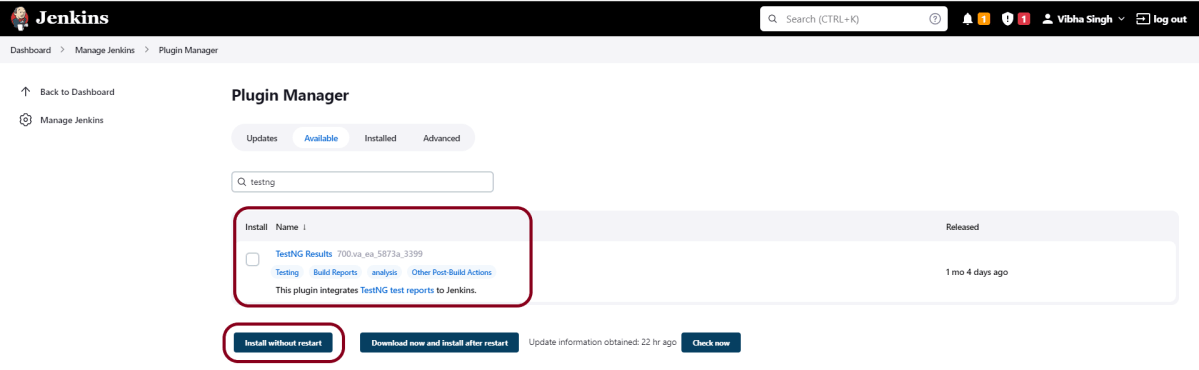
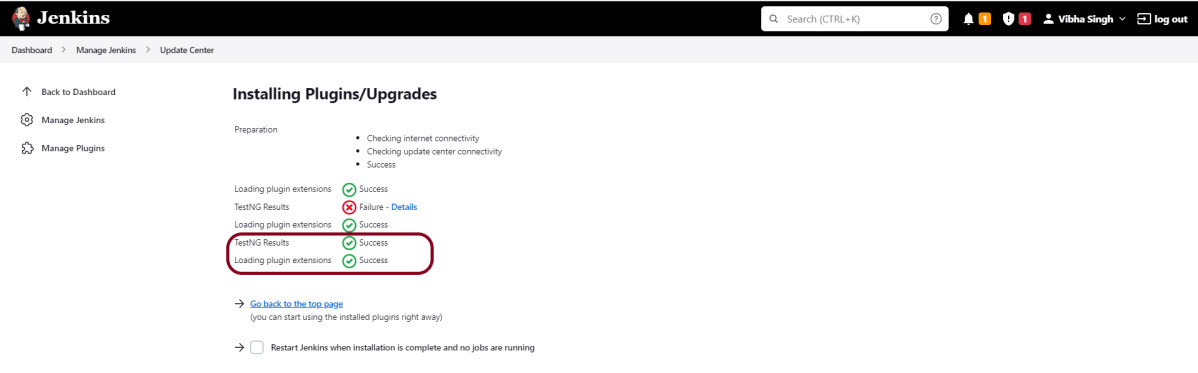
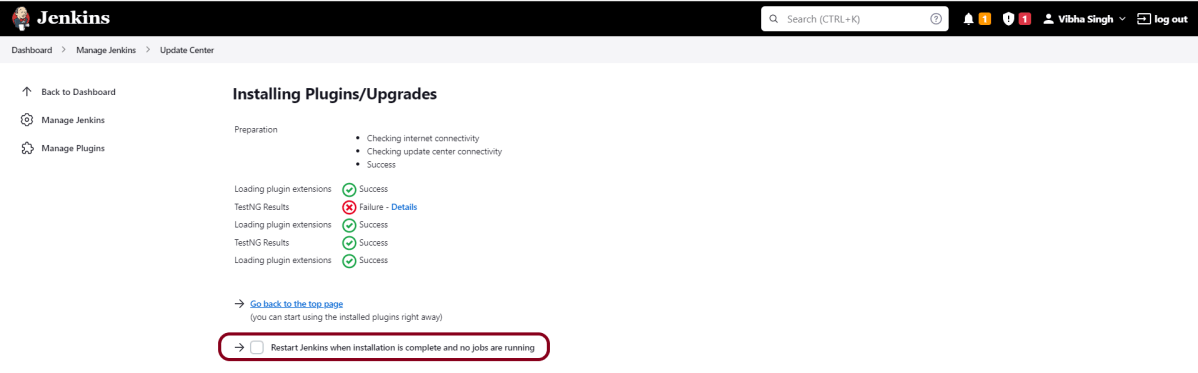


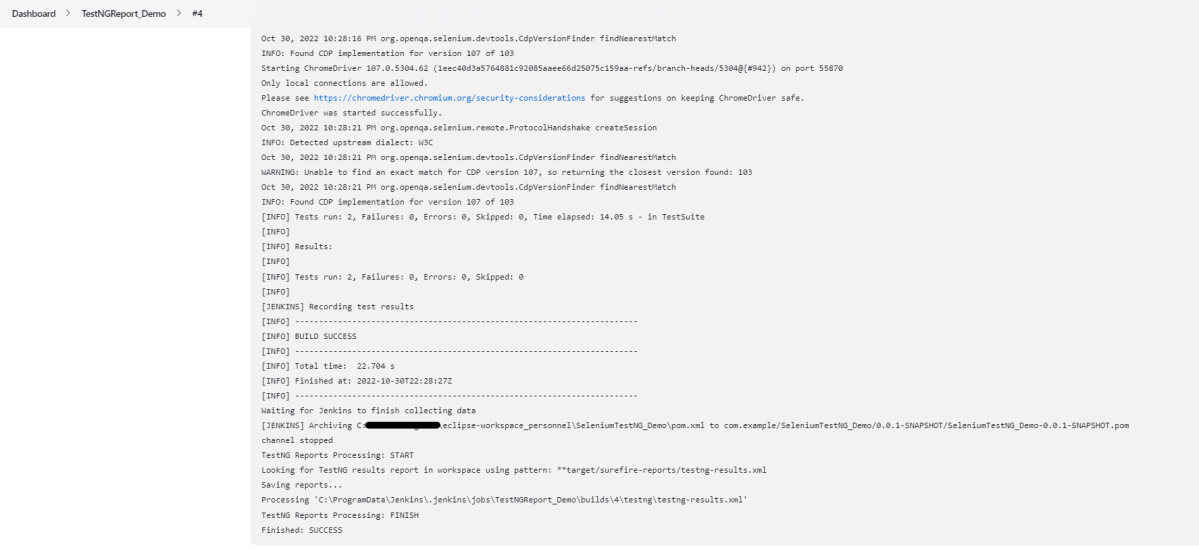

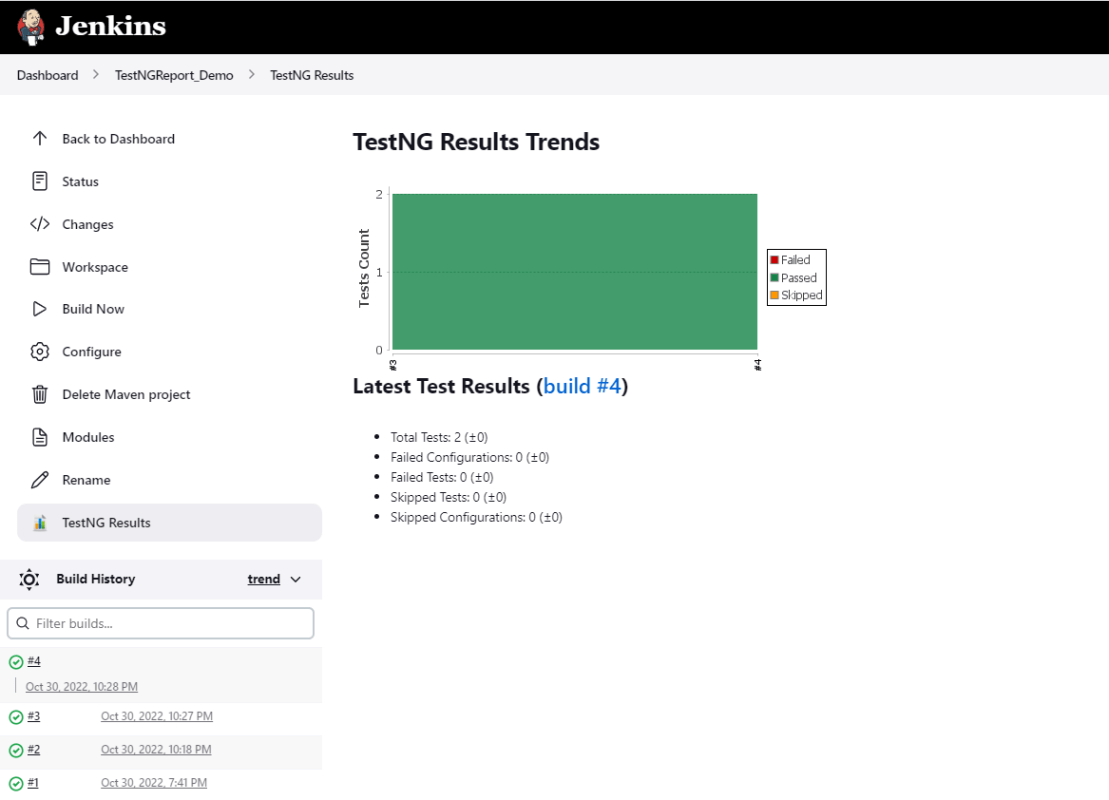

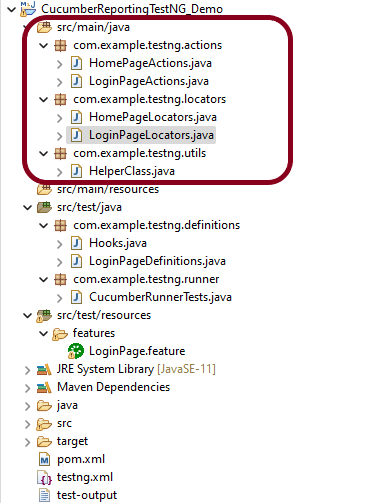





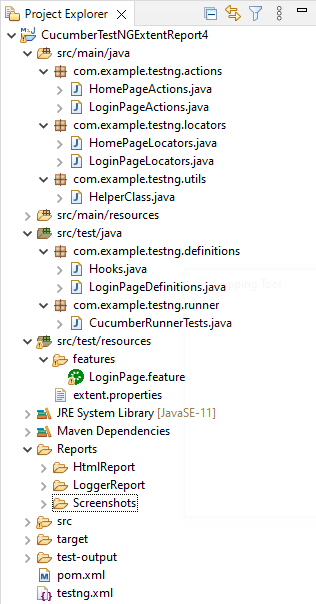
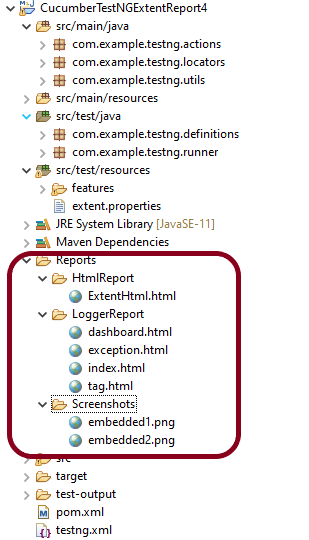
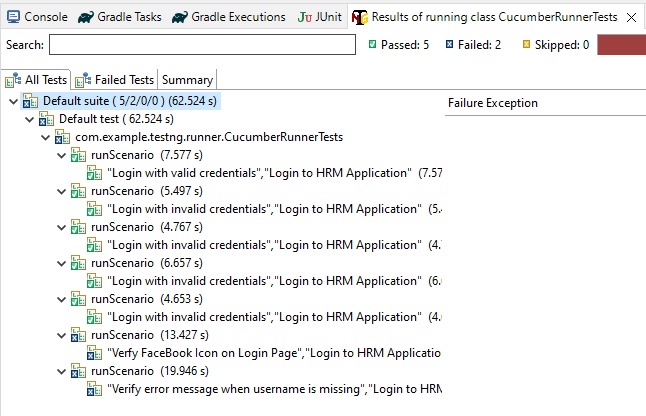
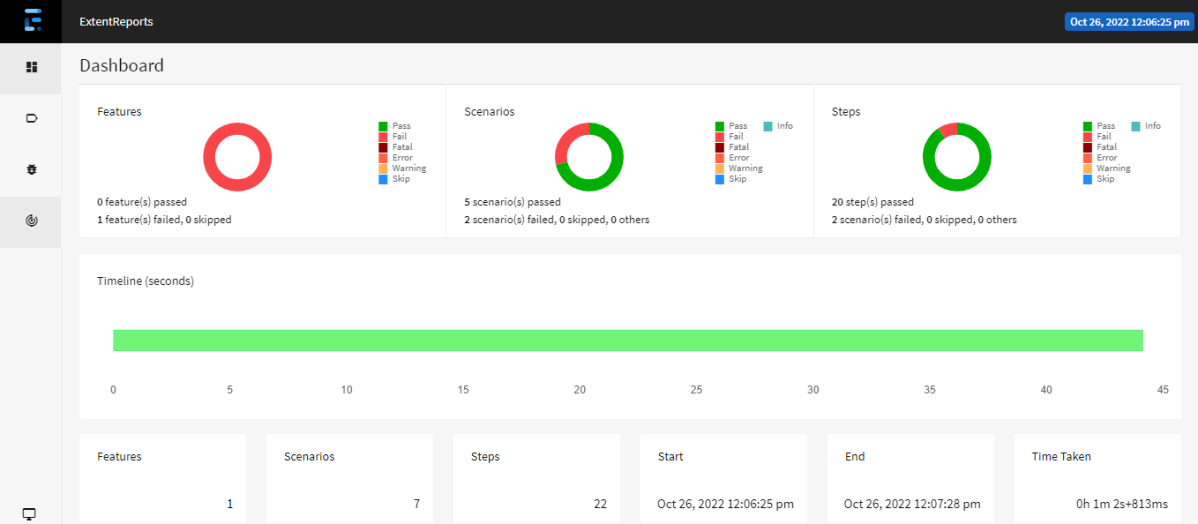
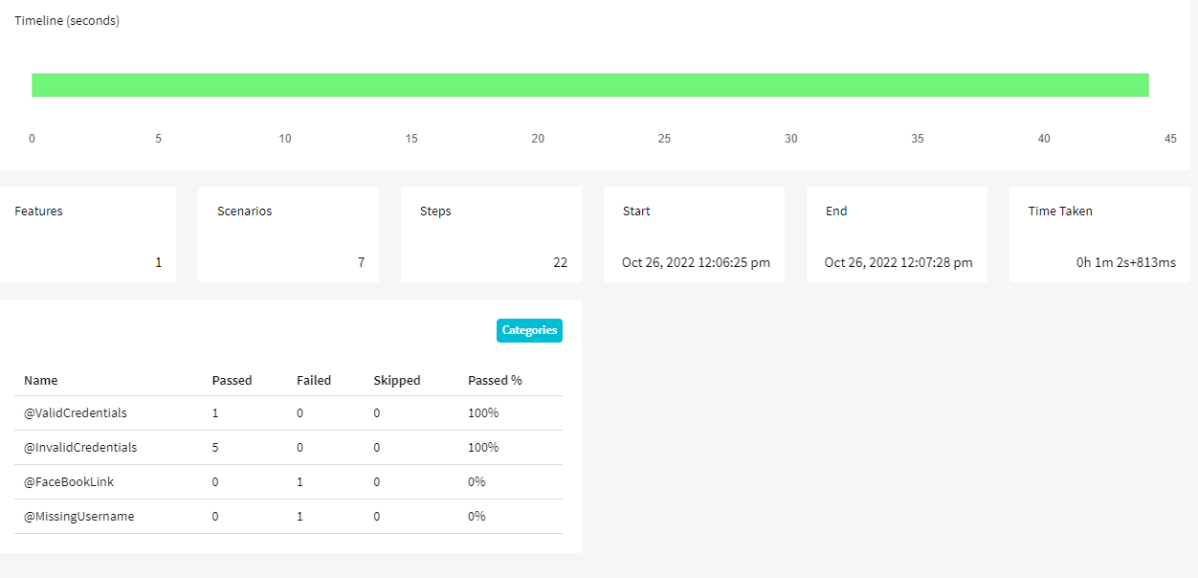
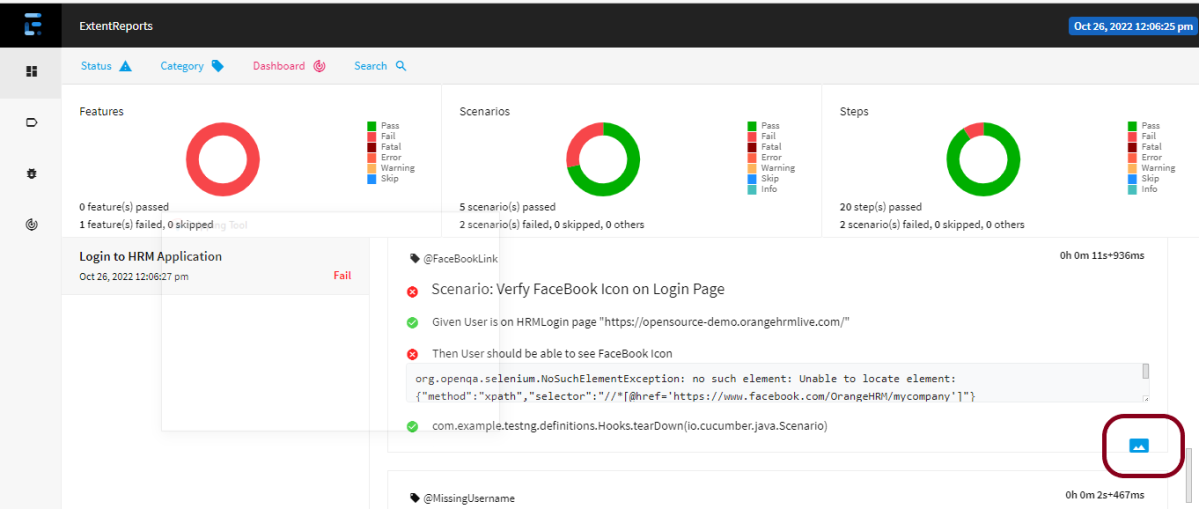
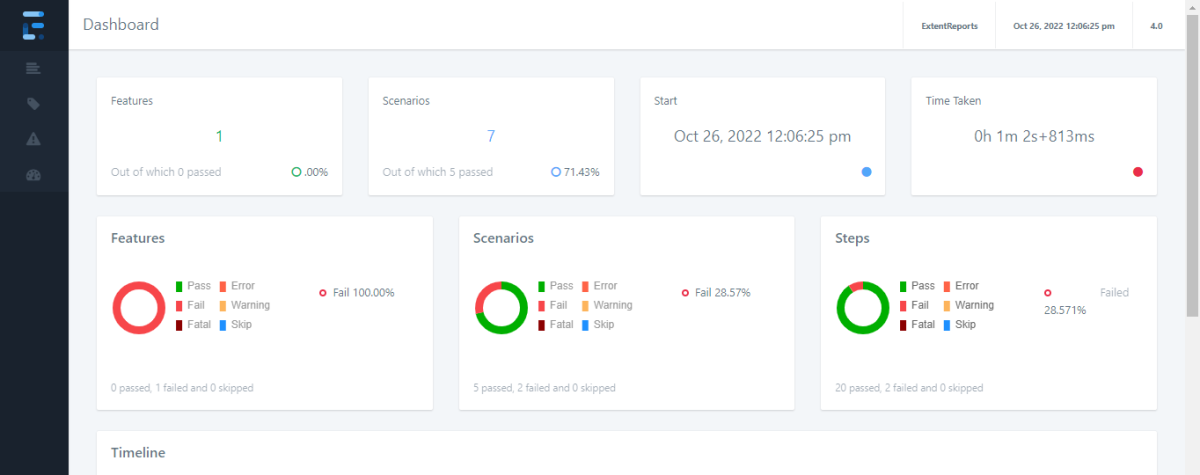
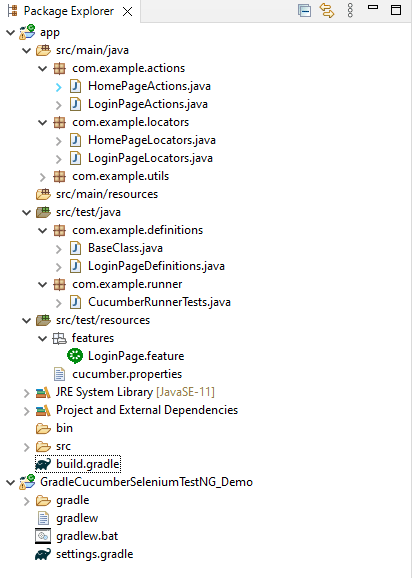
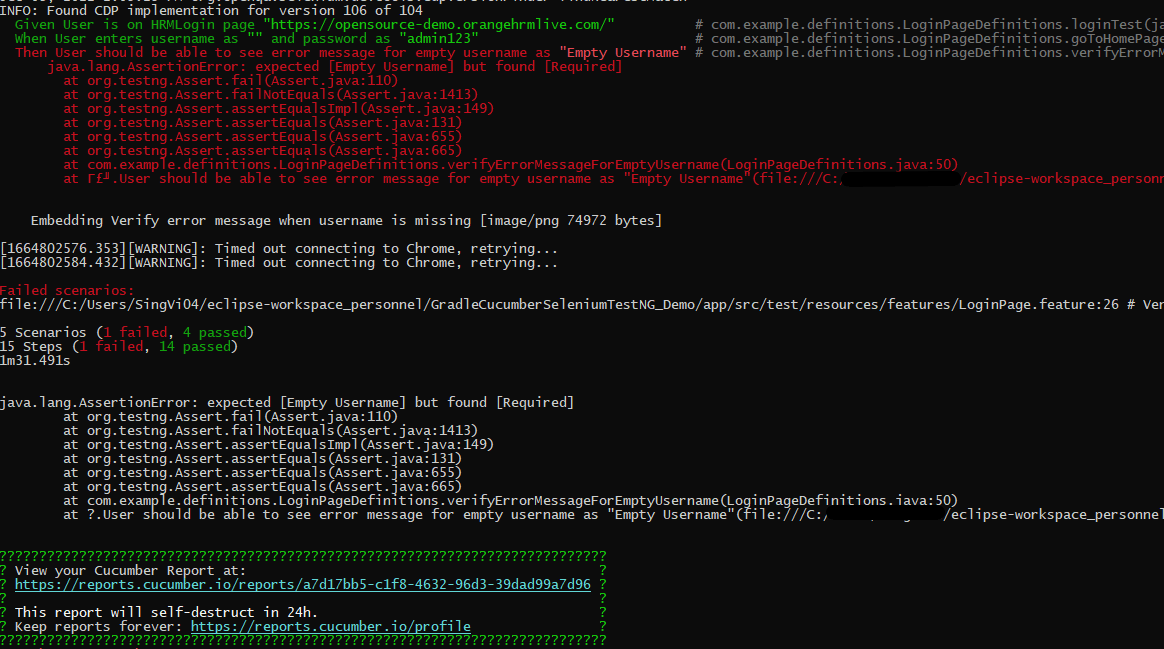
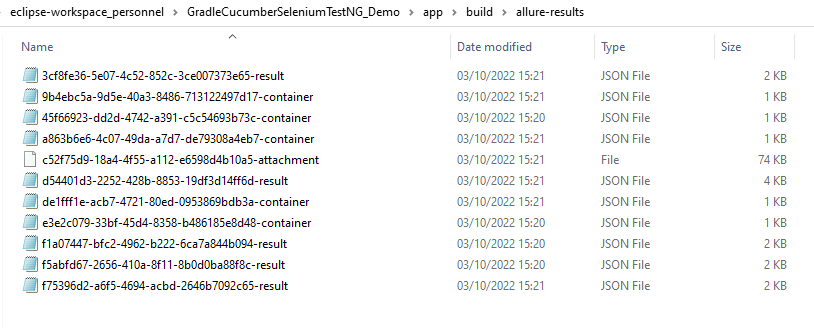

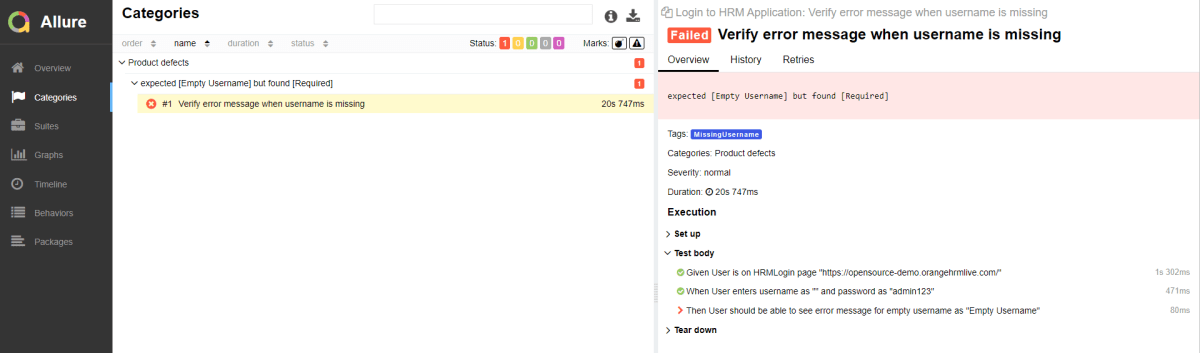
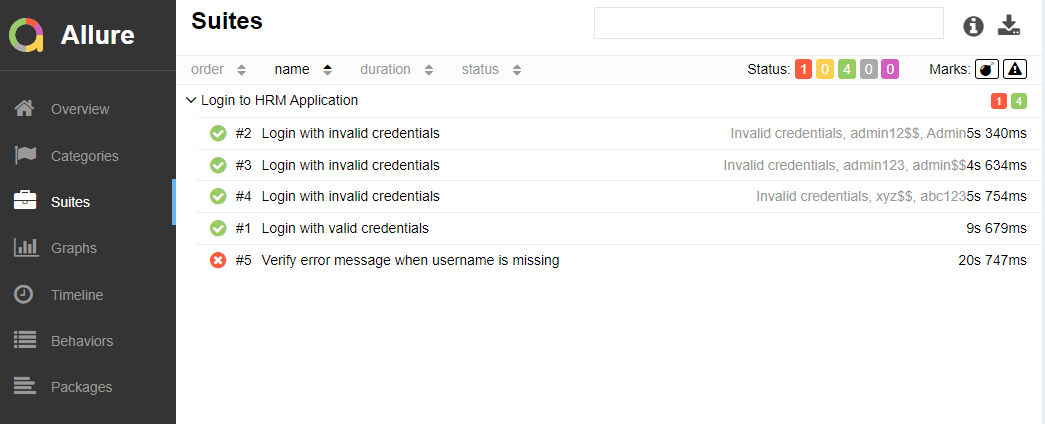
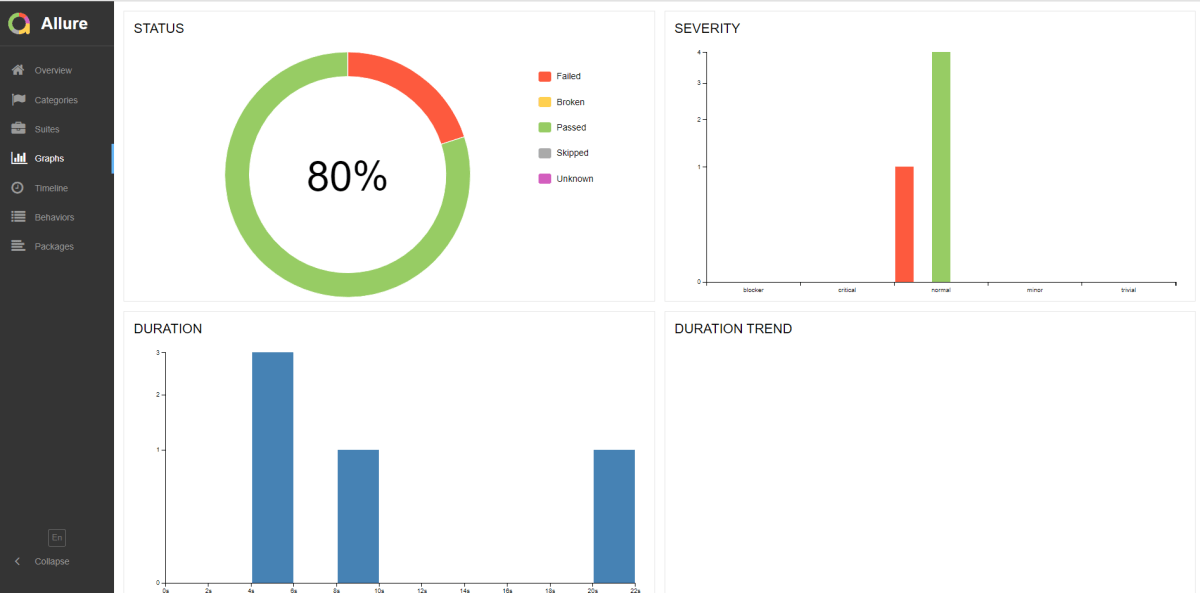
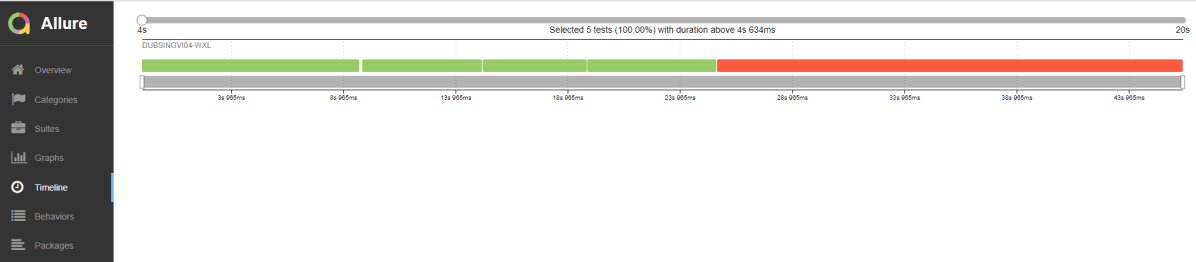
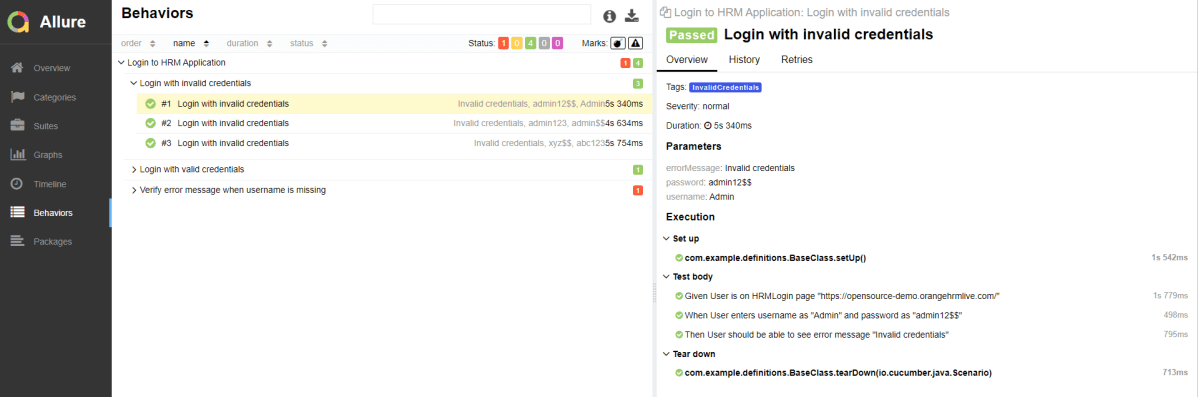
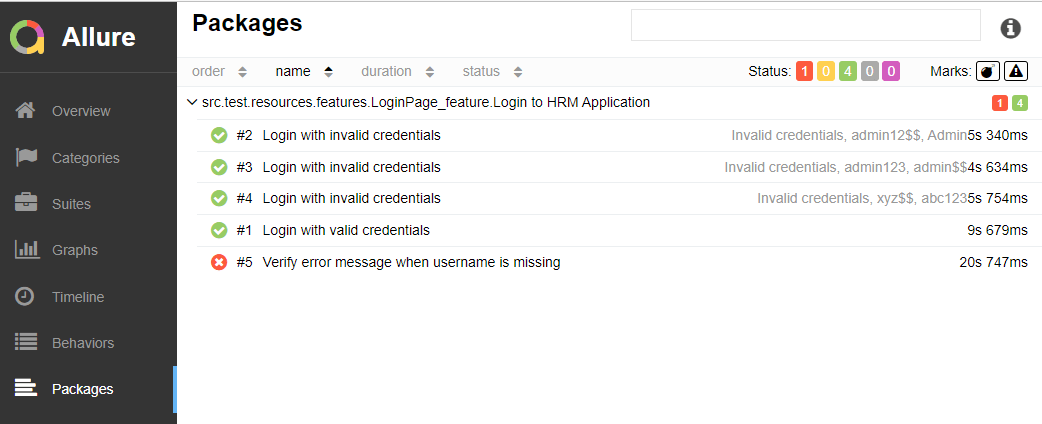
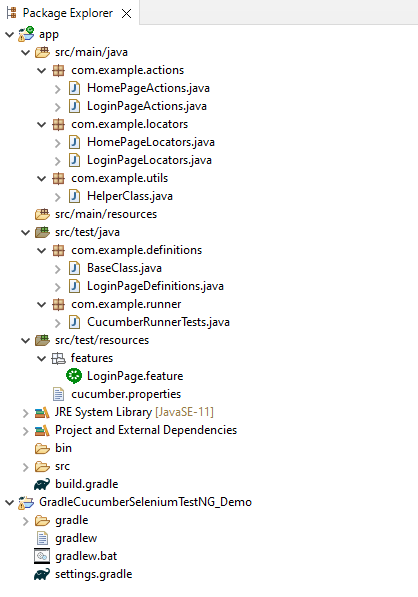


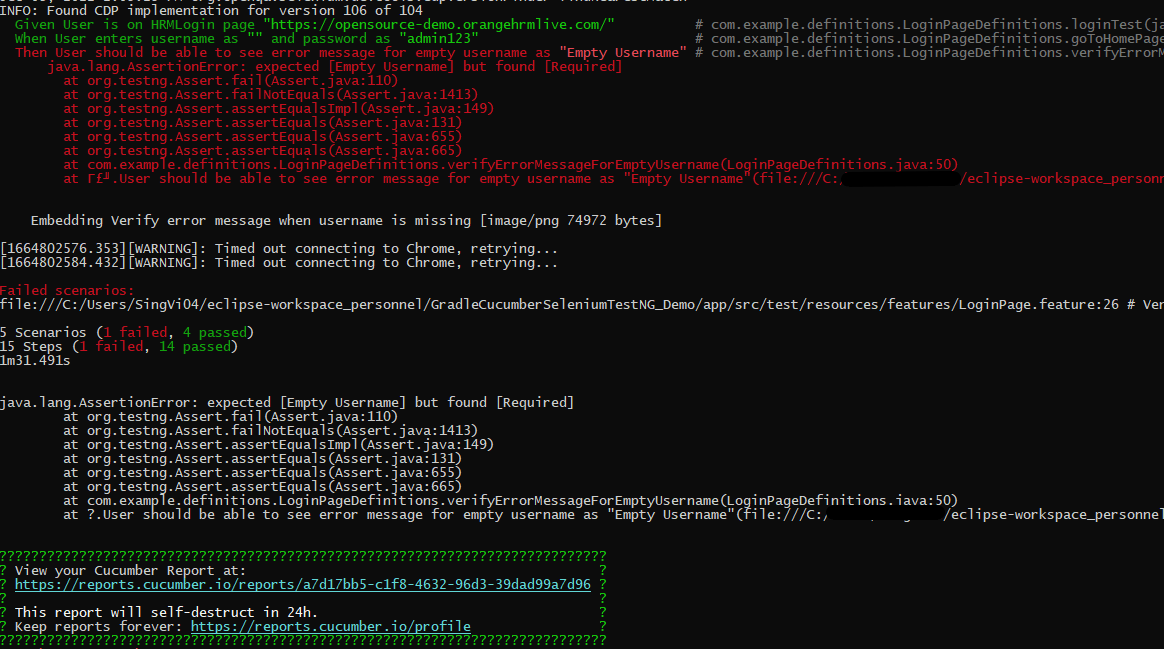
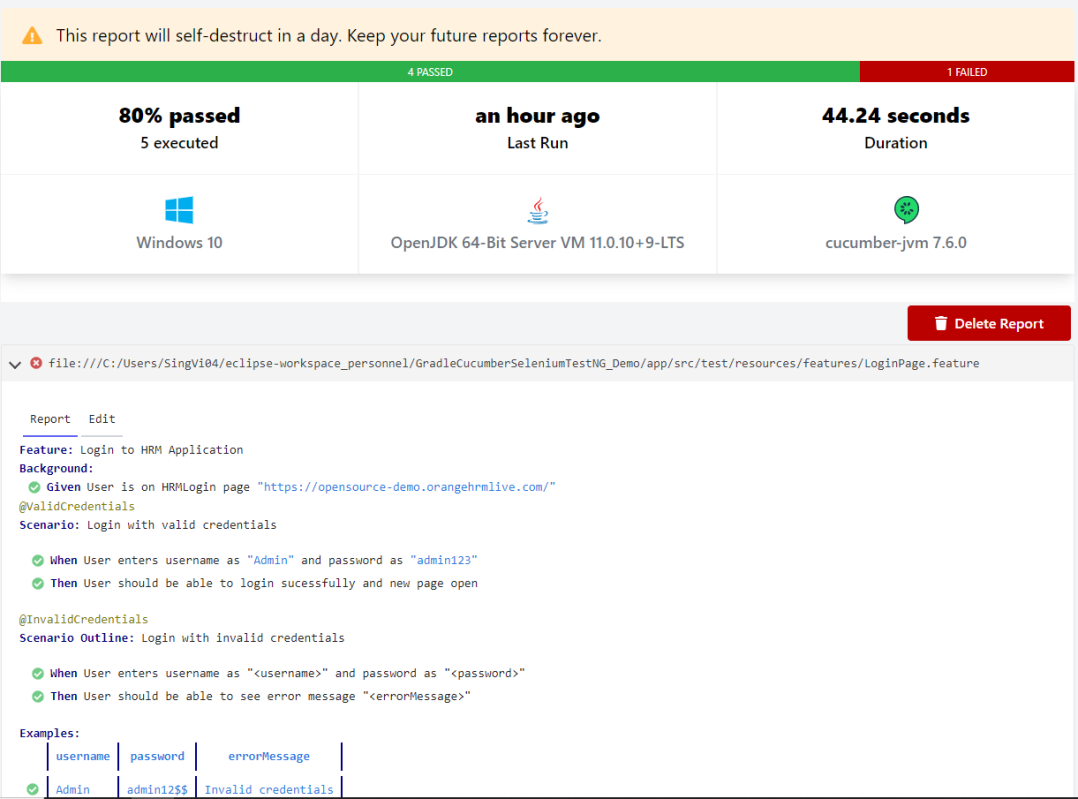
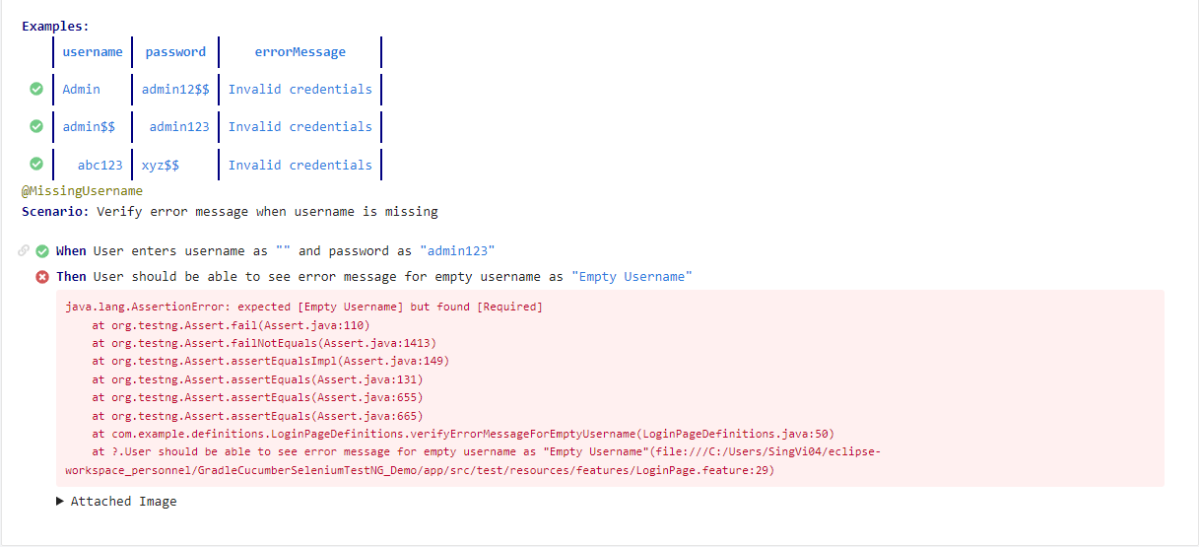

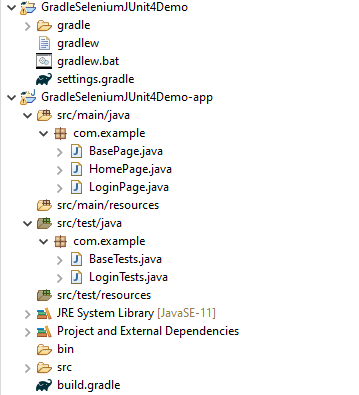
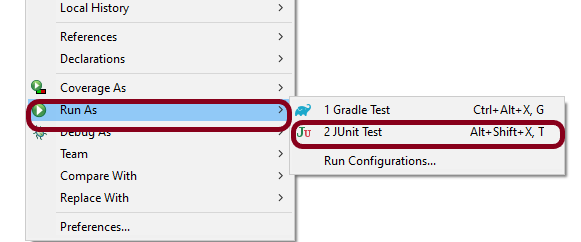

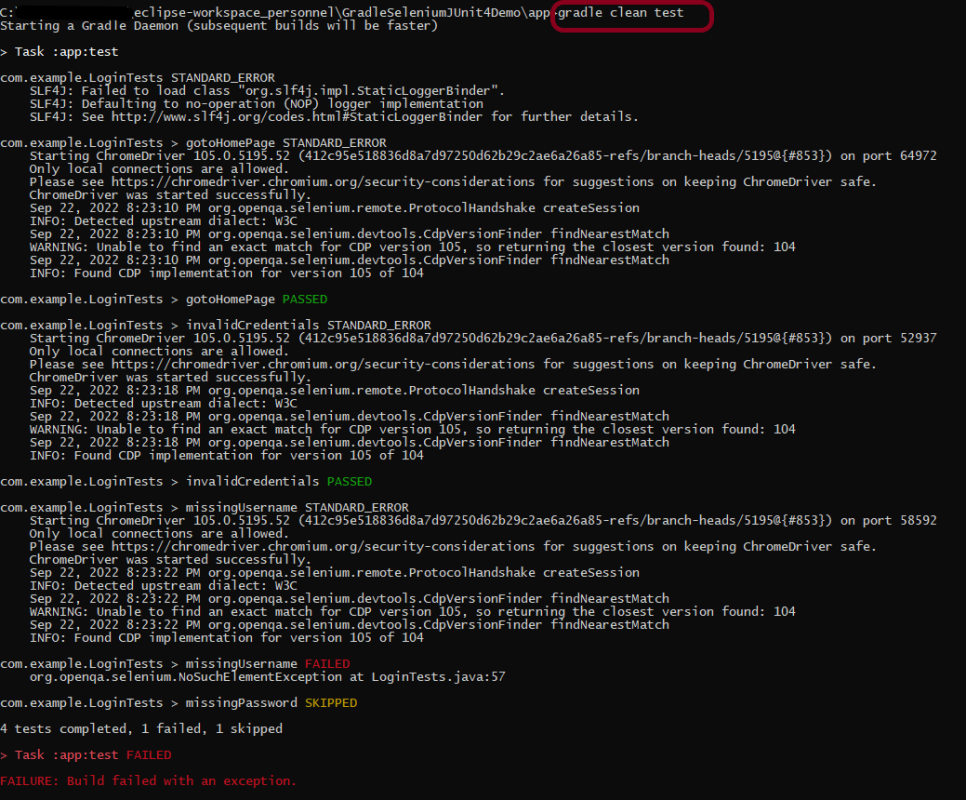


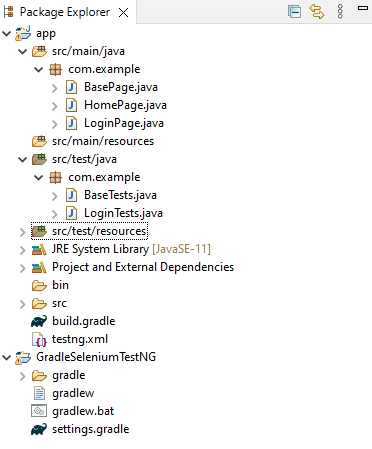

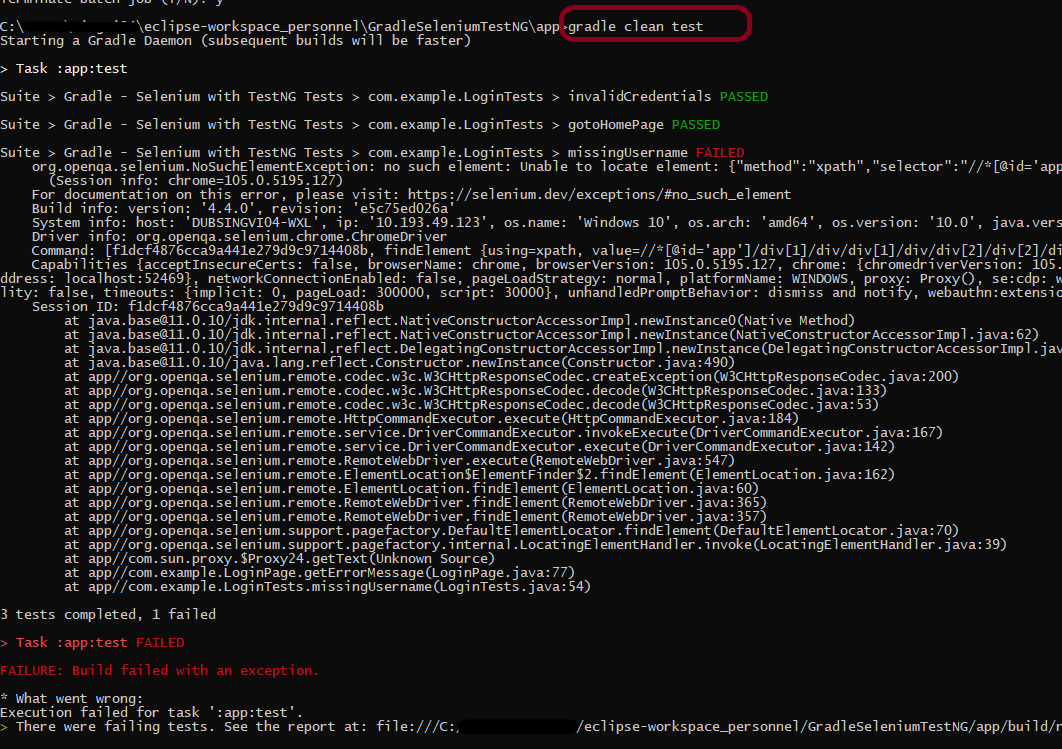
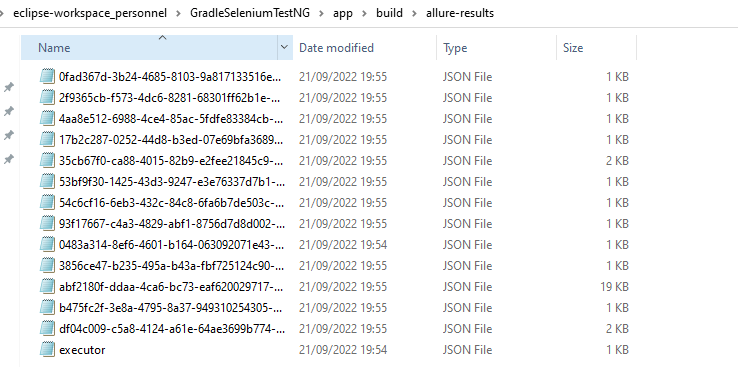

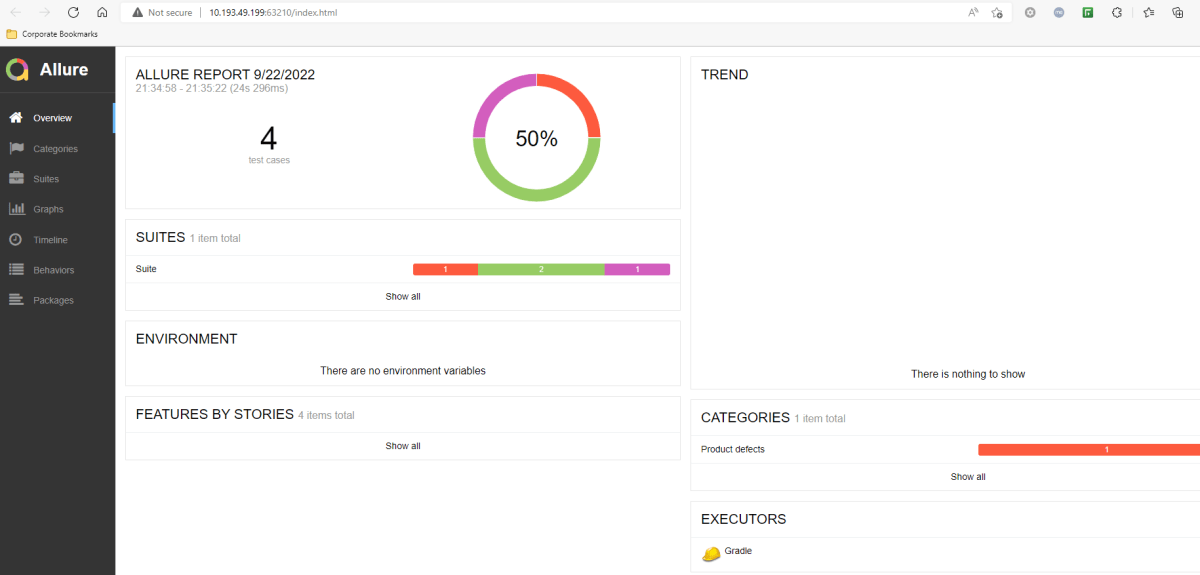

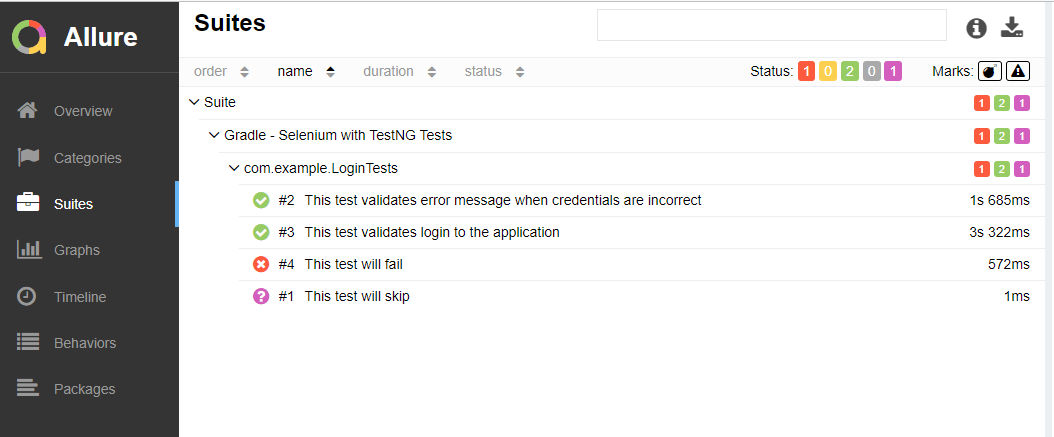
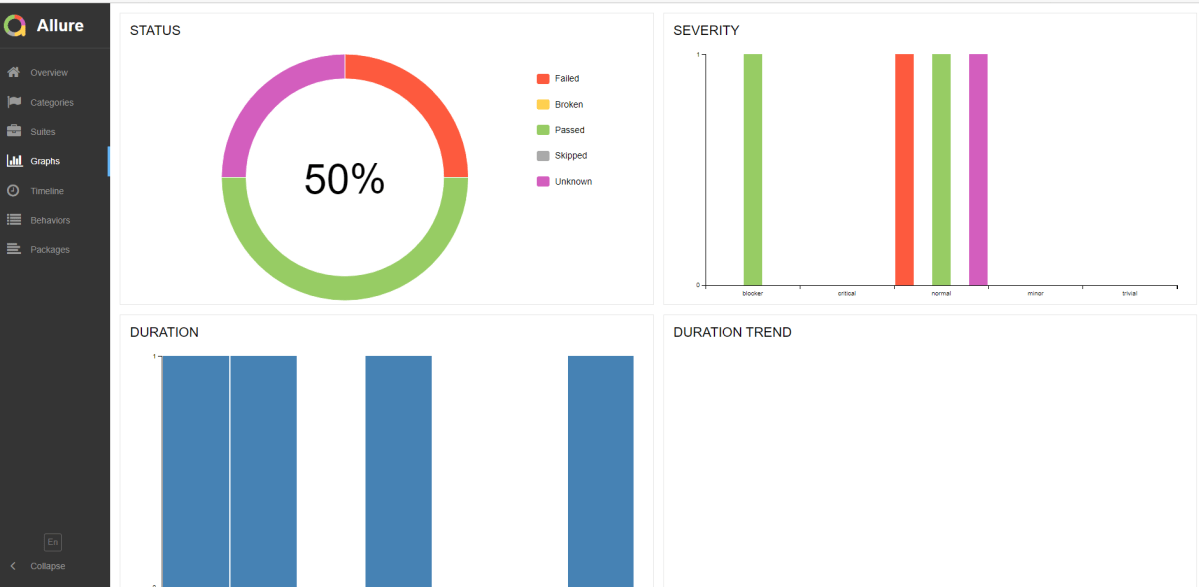
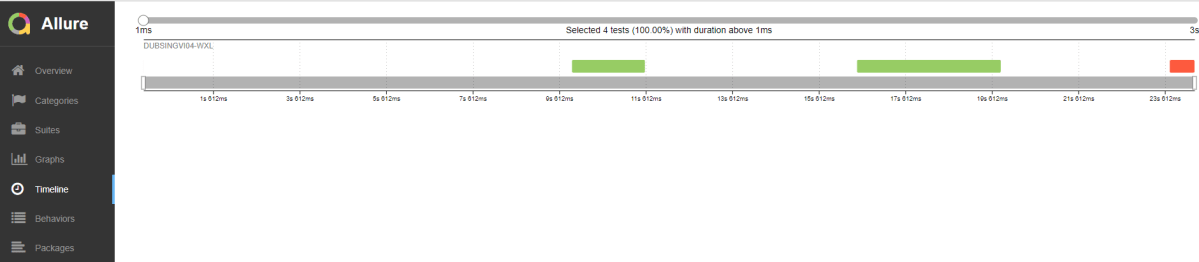
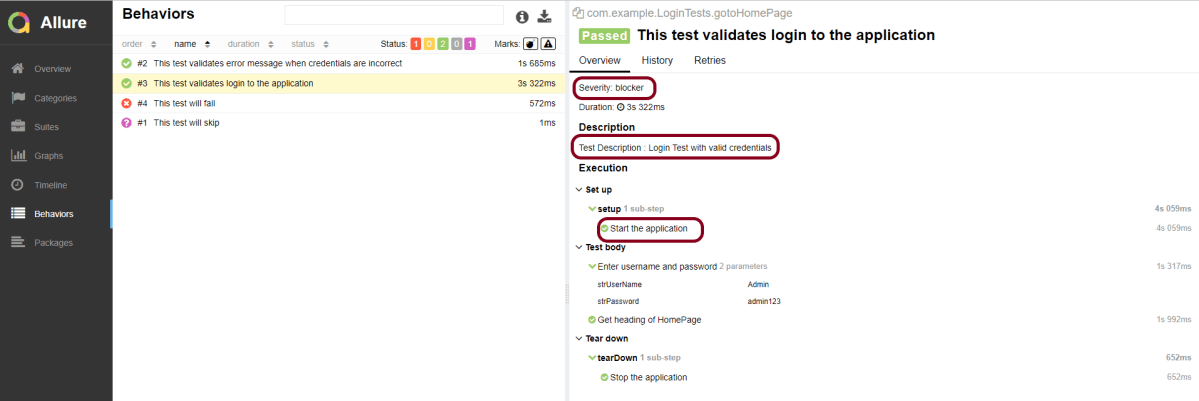
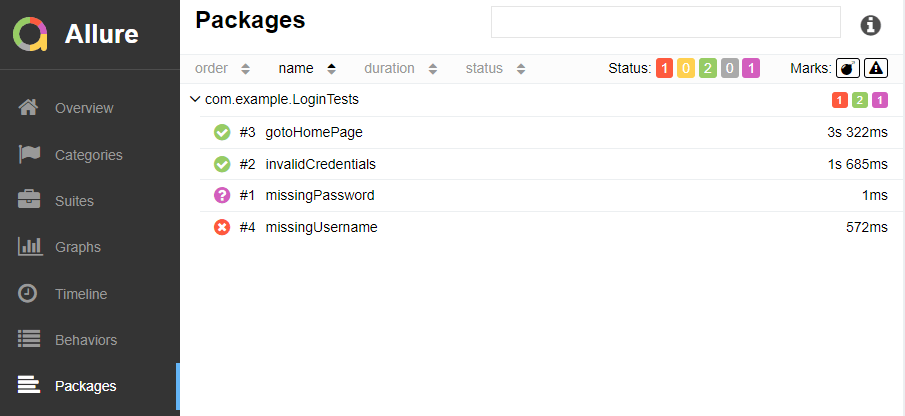


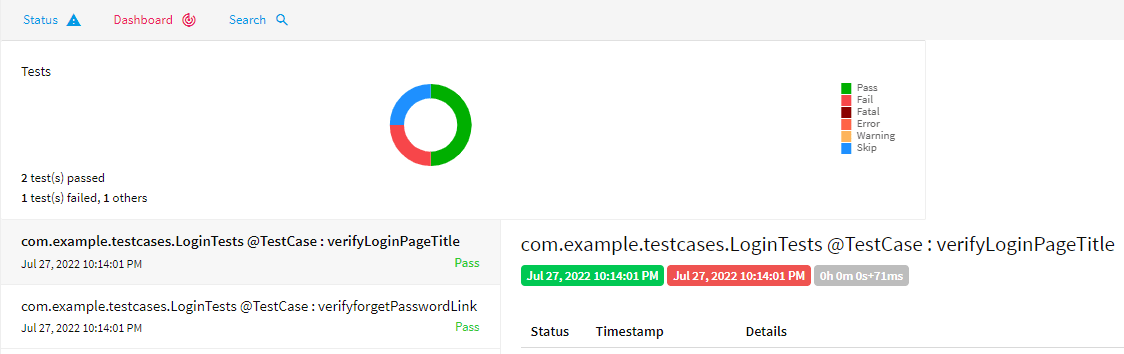


 QA Automation Expert