How to handle text box in Robot Framework 

HOME

In this tutorial, we will create a project in PyCharms and enter data in TextBox in Robot Framework

Prerequisite:

  1. Install Python
  2. Install PIP
  3. Install Robot Framework
  4. Install Robot framework Selenium Library
  5. Install PyCharm IDE

Please refer to this tutorial to install Robot Framework – How to install and setup Robot Framework for Python.

Implementation Steps:

Step 1 – Create a new Project

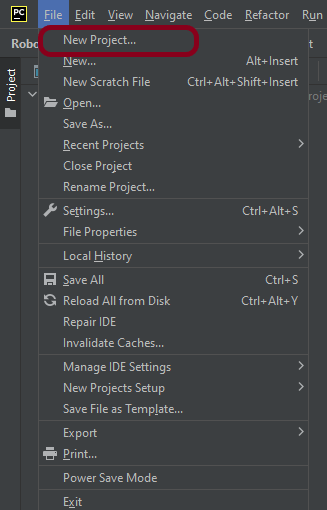
Step 1.1 – Open PyCharm and create a new project. Go to File and select New Project from the main menu.
Step 1.2 – Choose the project location. Click the Browse button next to the Location field and specify the directory for your project.

Deselect the Create a main.py welcome script checkbox because you will create a new Python file for this tutorial.

Click on the Create Button.

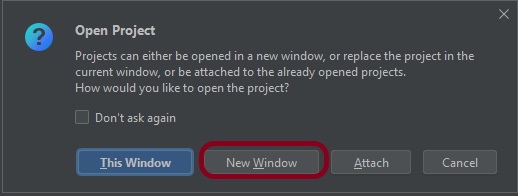
Step 1.3 – A new dialog will appear asking to Open the project using any one of the given options. I have selected New Window as I like to have separate windows for each project.
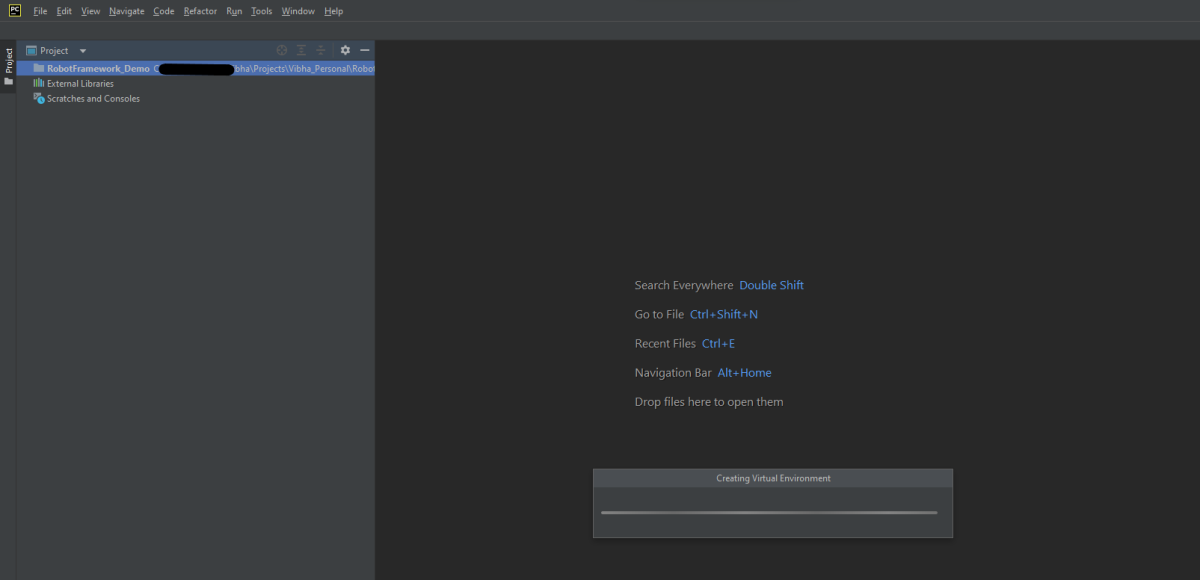
Below is the image of the new project created in PyCharms.
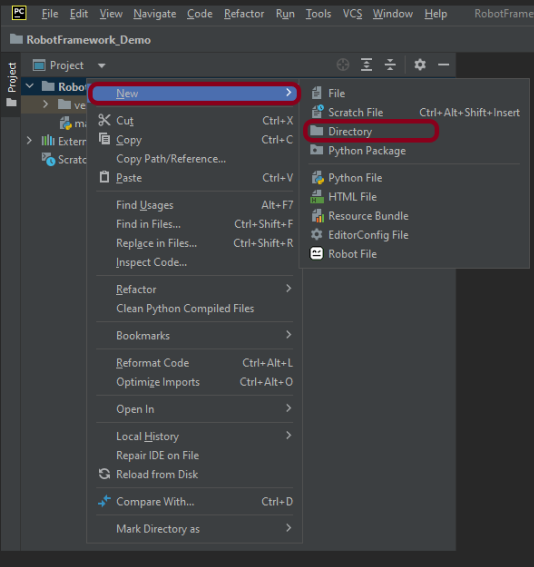
Step 2 – Create a new directory in the new project

Right-Click on the project, select New->Directory and provide name as Tests
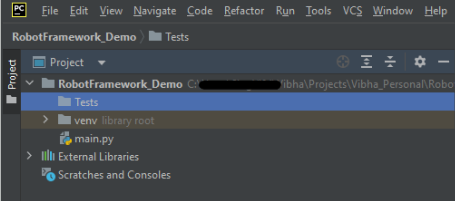
Below is the image of the new directory.
Step 3 – Create a robot Test File

Right-click on the new directory and select New File and provide the name as Test_Demo.robot as shown below:

Step 4 – Download ChromeBinaries from the below location

The tests are going to use the Chrome browser, so we need to download the ChromeBinaries to open a blank browser in Chrome.

https://chromedriver.chromium.org/
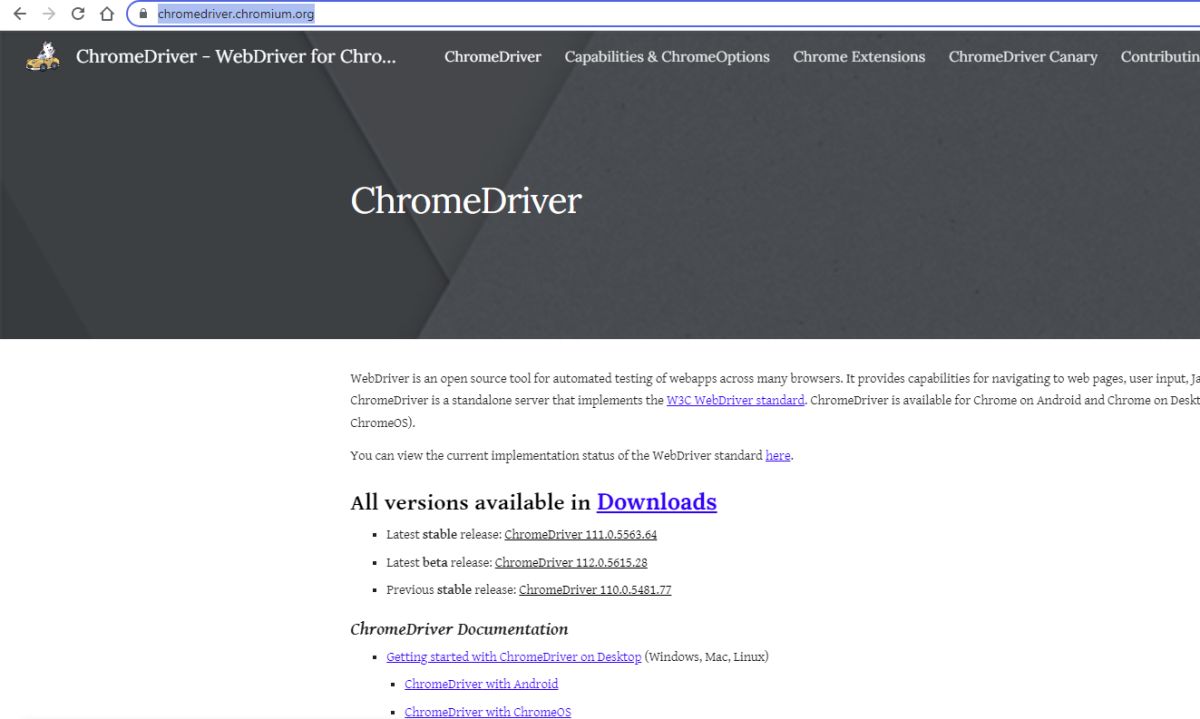
The chromedriver and geckodriver are placed in a folder name drivers in the RobotFramework_Demo project. I have renamed chromedriver to Chrome and geckodriver to Firefox.

Step 5 – Enter Data in Textbox

We are now going to write test cases. The test case details will be as follows:

To work with the textbox, we need a locator. A locator is an identifier for the textbox like id, name, class, xpath, css selector, etc.

To know more about locators, refer to these Selenium Tutorials:

 Locators in Selenium – Locate by ID, ClassName,  Name, TagName,  LinkText, PartialLinkText

Dynamic XPath  in Selenium WebDriver

CSS Selector in Selenium WebDriver

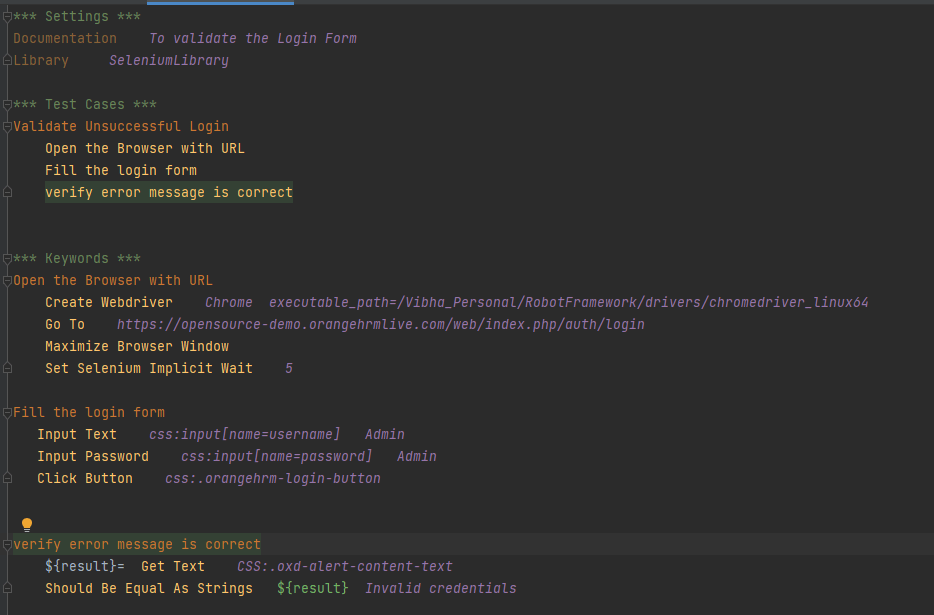
Below is an example of entering data in TextBox.

*** Settings ***
Documentation    To validate the Login Form
Library     SeleniumLibrary

*** Test Cases ***
Validate Unsuccessful Login
    Open the Browser with URL
    Fill the login form
    Verify error message is correct


*** Keywords ***
Open the Browser with URL
    Create Webdriver    Chrome  executable_path=/Vibha_Personal/RobotFramework_Demo/drivers/chromedriver_linux64
    Go To    https://opensource-demo.orangehrmlive.com/web/index.php/auth/login
    Maximize Browser Window
    Set Selenium Implicit Wait    5

Fill the login form
   Input Text    css:input[name=username]   Admin
   Input Password    css:input[name=password]   Admin
   Click Button    css:.orangehrm-login-button


Verify error message is correct
    ${result}=  Get Text    CSS:.oxd-alert-content-text
    Should Be Equal As Strings   ${result}  Invalid credentials

All the below-mentioned keywords are derived from SeleniumLibrary except the last one. The functionality of keywords mentioned above:

1. Create Webdriver − The keyword creates an instance of Selenium WebDriver.

2. Go To – This keyword navigates the current browser window to the provided url.

3. Maximize Browser Window – This keyword maximizes the current browser window.

4. Set Selenium Implicit Wait – This keyword sets the implicit wait value used by Selenium.

5. Input Text − This keyword is used to type the given text in the specified textbox identified by the locator name:username.

6. Input Password – This keyword is used to type the given text in the specified password identified by the locator name:password.

The difference compared to Input Text is that this keyword does not log the given password on the INFO level.

7. Click button – This keyword is used to click on the button with location css:.orangehrm-login-button.

8. ${result} – This is a variable that holds the text value of the error message that is located by css:.oxd-alert-content-text

9. Get Text – This keyword returns the text value of the element identified by located by css:.oxd-alert-content-text.

10. Should Be Equal As Strings – This keyword is used from builtIn keyword. This keyword returns false if objects are unequal after converting them to strings.

Step 6 – Execute the tests

To run this script, go to the command line and go to directory tests.

We need the below command to run the Robot Framework script.

robot Test_Demo.robot

The output of the above program is

Step 7 – View Report and Log

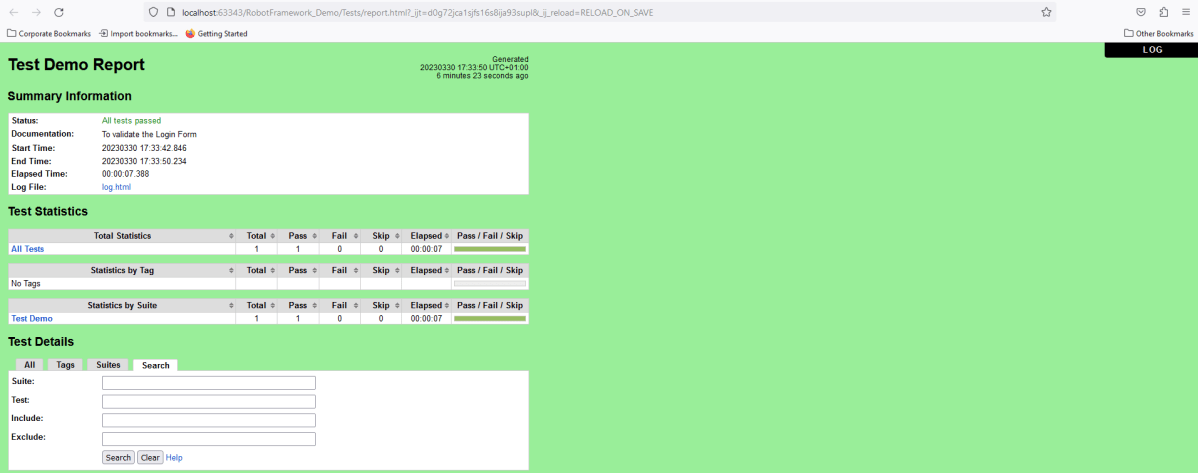
We have the test case passed. The Robot Framework generates log.html, output.xml, and report.html by default.

Let us now see the report and log details.

Report

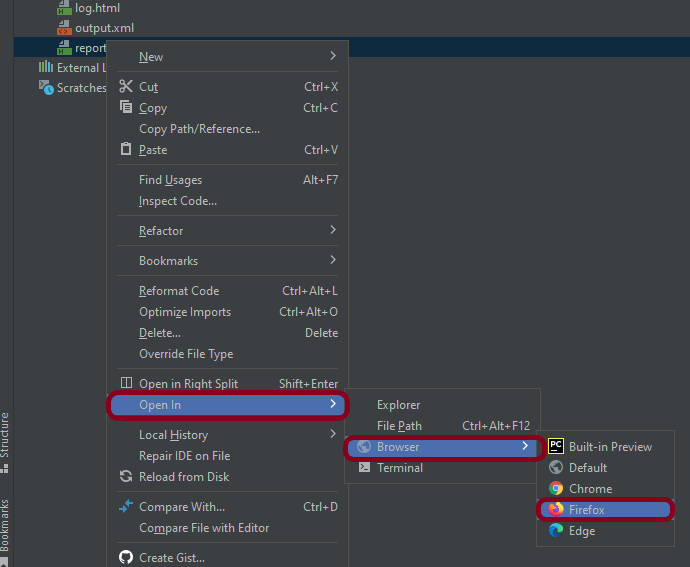
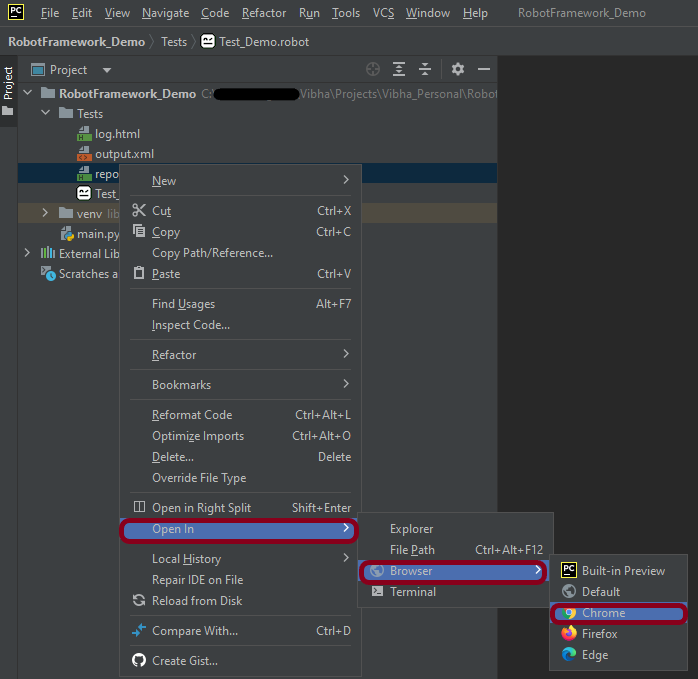
Right-click on report.html. Select Open In->Browser->Chrome(any browser of your wish).
The Report generated by the framework is shown below:
Log

Robot Framework has multiple log levels that control what is shown in the automatically generated log file. The default Robot Framework log level is INFO.

Right-click on log.html. Select Open In->Browser->Chrome(any browser of your wish).
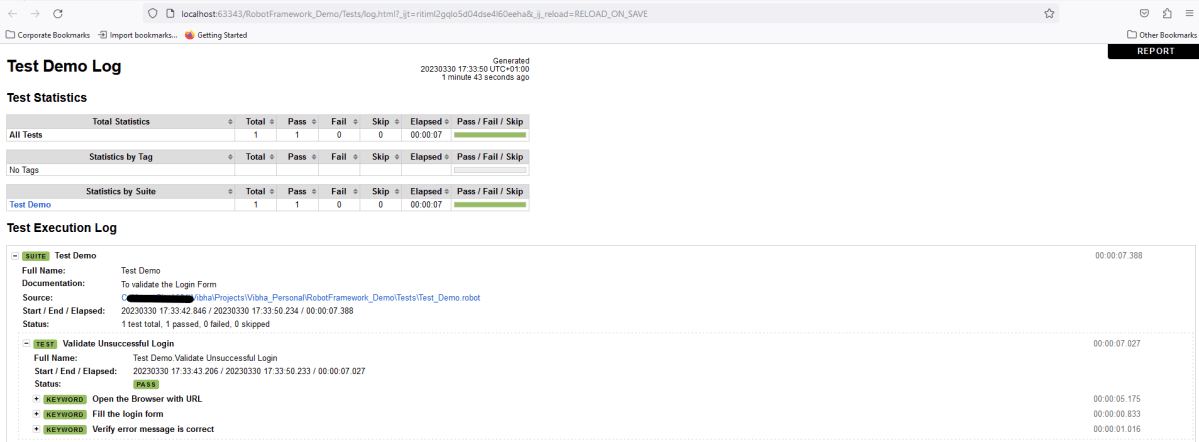
In the below image of the log, we can see that the text entered by the user is shown here, whereas the password does not show the value of the password.

That’s it! Congratulations on making it through this tutorial and hope you found it useful! Happy Learning!!

How to handle checkbox in Robot Framework 

HOME

In this tutorial, we will automate the execution of the CheckBox in Robot Framework.

Prerequisite:

  1. Install Python
  2. Install PIP
  3. Install Robot Framework
  4. Install Robot framework Selenium Library
  5. Install PyCharm IDE

Please refer to this tutorial to install Robot Framework – How to install and setup Robot Framework for Python.

Implementation Steps:

Step 1 – Create a new Project

Step 1.1 – Open PyCharm and create a new project. Go to File and select New Project from the main menu.

Step 1.2 – Choose the project location. Click the “Browse” button next to the Location field and specify the directory for your project.

Deselect the Create a main.py welcome script checkbox because you will create a new Python file for this tutorial.

Click on the “Create” Button.

Step 1.3 – A new dialog appears asking to open the project using any one of the given options. I have selected New Window as I like to have separate windows for each project.

Below is the image of the new project created in PyCharms.

Step 2 – Create a new directory in the new project

Right-Click on the project, select New->Directory and provide name as Tests

Below is the image of the new directory.

Step 3 – Create a robot Test File

Right-click on the new directory and select New File and provide the name as CheckBox_Demo.robot as shown below:

Step 4 – Download ChromeBinaries from the below location

The tests are going to use the Chrome browser, so we need to download the ChromeBinaries to open a blank browser in Chrome.

https://chromedriver.chromium.org/

The chromedriver and geckodriver are placed in a folder name drivers in the RobotFramework_Demo project. I have renamed chromedriver to Chrome and geckodriver to Firefox.

Step 5 – Automate the selection of options for CheckBox

We are now going to write test cases. The test case details will be as follows −

  • Open the browser and copy URL − https://demo.automationtesting.in/Register.html in Chrome.
  • Verify that the page contains CheckBox.
  • Verify that the page does not contain CheckBox. Provided the locator for Radio button.
  • Check “Cricket” and “Hockey” options of CheckBox.
  • Uncheck “Hockey” option of CheckBox.
  • Verify that Cricket option of CheckBox is checked.
  • Verify that Hockey option of CheckBox is not checked.

To work with the Radio Button, we need a locator. A locator is an identifier for the textbox like id, name, class, xpath, css selector, etc.

To know more about locators, refer to these Selenium Tutorials:

 Locators in Selenium – Locate by ID, ClassName,  Name, TagName,  LinkText, PartialLinkText

Dynamic XPath  in Selenium WebDriver

CSS Selector in Selenium WebDriver

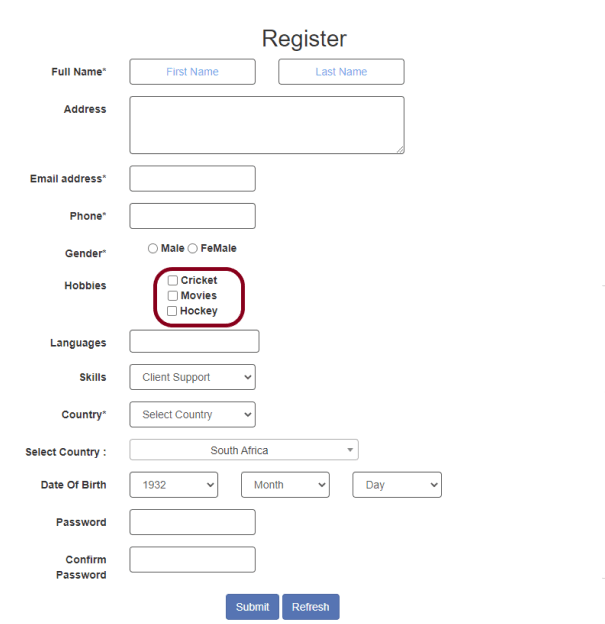
The below page shows that we have 3 CheckBoxes – Cricket, Movies, and Hockey.

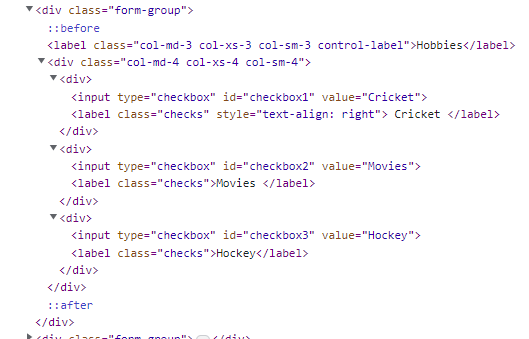
Let us inspect the locator of the CheckBox.

Below is an example of selecting the “Cricket” and “Hockey” options in CheckBox.

*** Settings ***
Documentation    To validate the Login Form
Library     SeleniumLibrary
Test Teardown    Close Browser

*** Test Cases ***
Select an option of Radio Button
    Open the Browser with URL
    Verifies page contains a checkbox
    Select the checkbox options Cricket and Hockey
    Unselect the checkbox option Hockey
    Verify Checkbox option Cricket is selected
    Verify Checkbox option Hockey is not selected


*** Keywords ***
Open the Browser with URL
    Create Webdriver    Chrome  executable_path=/Vibha_Personal/RobotFramework/drivers/chromedriver_linux64
    Go To    https://demo.automationtesting.in/Register.html
    Maximize Browser Window
    Set Selenium Implicit Wait    2


Verifies page contains a checkbox
    Page Should Contain Checkbox    id:checkbox1
    Page Should Not Contain Checkbox    name:radiooptions   #This is the locator for Radio Button


Select the checkbox options Cricket and Hockey
    Select Checkbox    id:checkbox1
    Select Checkbox    id:checkbox3

Unselect the checkbox option Hockey
    Unselect Checkbox    id:checkbox3

Verify Checkbox option Cricket is selected
    Checkbox Should Be Selected      id:checkbox1

Verify Checkbox option Hockey is not selected
    Checkbox Should Not Be Selected    id:checkbox3

All the below-mentioned keywords are derived from SeleniumLibrary except the last one. The functionality of keywords mentioned above:

1. Create Webdriver − The keyword creates an instance of Selenium WebDriver.

2. Go To – This keyword navigates the current browser window to the provided URL – https://demo.automationtesting.in/Register.html.

3. Maximize Browser Window – This keyword maximizes the current browser window.

4. Set Selenium Implicit Wait – This keyword sets the implicit wait value used by Selenium.

5. Page Should Contain Checkbox − This keyword is used to find the checkbox that is located on the current page.

6. Page Should Not Contain Checkbox – This keyword is used to find that the checkbox is not locator on the current page.

7. Select Checkbox – This keyword is used to select options “Cricket” and “Hockey” of the CheckBox.

8. Unselect Checkbox – This keyword is used to unselect the option “Hockey” of the CheckBox.

9. Checkbox Should Be Selected – This keyword verifies if the checkbox “Cricket” is checked.

10. Checkbox Should Not Be Selected – This keyword verifies if the checkbox “Hockey” is not checked.

These keywords are present in SeleniumLibrary. To know more about these keywords, please refer to this document – https://robotframework.org/SeleniumLibrary/SeleniumLibrary.htm

To run this script, go to the command line and go to directory tests.

cd Tests

Step 6 – Execute the tests

We need the below command to run the Robot Framework script.

robot CheckBox_Demo.robot

The output of the above program is

Step 7 – View Report and Log

We have the test case passed. The Robot Framework generates log.html, output.xml, and report.html by default.

Let us now see the report and log details.

Report

Right-click on report.html. Select Open In->Browser->Chrome(any browser of your wish).

The Report generated by the framework is shown below:

Log

Robot Framework has multiple log levels that control what is shown in the automatically generated log file. The default Robot Framework log level is INFO.

Right-click on log.html. Select Open In->Browser->Chrome(any browser of your wish).

That’s it! Congratulations on making it through this tutorial and hope you found it useful! Happy Learning!!

Robot Framework Features – Settings, Libraries, Variables, Keywords, Resources, Reports, Logs

HOME

The previous tutorial has explained What is Robot Framework and its advantages. This tutorial will explain the various features available in this framework.

1. Settings

The Setting section is used to import libraries, resource files, and variable files and to define metadata for test suites and test cases. It can be included in test case files and resources.

The most commonly used are:

NameDescription
LibraryUsed for importing libraries.
ResourceUsed for taking resource files into use.
DocumentationUsed for specifying a test suite or resource file documentation.
VariablesUsed for taking variable files into use.
MetadataUsed for setting free test suite metadata.
Test SetupUsed for specifying a default test setup.
Test TeardownUsed for specifying a default test teardown.
Test TemplateUsed for specifying a default template keyword for test cases.

Example of Setting:

*** Settings ***
Documentation    To validate the Login Form
Library     SeleniumLibrary
Test Teardown    Close Browser

2. Test Cases

The settings in the Test Case section are always specific to the test case for which they are defined. Some of these settings override the default values defined in the Settings section.

Example of Test Case:

*** Test Cases ***
Validate Unsuccessful Login
    Open the Browser with URL
    Fill the login form
    Verify error message is correct

3. Keywords

The Keyword section settings are unique to the user keyword for which they are defined. The robot architecture includes built-in keywords as well as keywords from libraries such as the Selenium Library. (open browser, close browser, maximize browser, etc.). We can also make user-defined keywords out of other user-defined keywords or built-in or library keywords. We can also give arguments to those keywords, which turns them into functions that can be reused.

Example of Keywords:

*** Keywords ***
Open the Browser with URL
    Create Webdriver    Chrome  executable_path=/Vibha_Personal/RobotFramework/drivers/chromedriver_linux64
    Go To    https://opensource-demo.orangehrmlive.com/web/index.php/auth/login
    Maximize Browser Window
    Set Selenium Implicit Wait    5

4. Libraries

Many external libraries, such as SeleniumLibrary, Database Library, FTP Library, and HTTP Library, are supported by the Robot architecture. SeleniumLibrary is mostly used to communicate with browsers and aid in web application and UI testing. Robot framework also includes its own libraries for strings, dates, integers, and so on.

Normally, test libraries are imported by selecting the Library option in the Setting section and entering the library name in the following column. The collection name, unlike most other data, is case and space sensitive. If a library is part of a package, use the complete name, including the package name.

Example of Libraries:

Library     SeleniumLibrary
Library     String

5. Variables

Variables which are defined in the *** Variables *** section are available in all test cases and keywords in the same file.
Variables defined in the *** Variables *** section are suite variables.
If a .resource or a .robot file with a *** Variables *** section is imported into a test suite, and the variables there also become suite variables.

Example of Variables:

 ${result}=  Get Text    CSS:.oxd-alert-content-text

6. Resources

Resource files are imported using the Resource setting in the Settings section so that the path to the resource file is given as an argument to the setting.  The robot framework also allows the import of robot files with keywords externally to be used with test cases. Resources are very easy to use and are of great help when we need to use some keywords already written for other test projects.

Example of Resource File:

*** Settings ***
Documentation
Library     SeleniumLibrary

*** Variables ***
${valid_username}     Admin
${valid_password}       admin123
${invalid_username}     1234
${invalid_password}     45678
${url}      https://opensource-demo.orangehrmlive.com/web/index.php/auth/login

*** Keywords ***

Open the Browser with URL
    Create Webdriver    Chrome  executable_path=/Vibha_Personal/RobotFramework/drivers/chromedriver_linux64
    Go To       ${url}
    Maximize Browser Window
    Set Selenium Implicit Wait    5

Close Browser Session
    Close Browser

7. Reports and Logs

The robot framework provides all test suite and test case execution details in the shape of reports and logs. The log file contains all the test case’s execution information. Details such as whether the test case failed or passed, the time required for execution, and the steps needed to run the test case are provided.

Report

Log

That’s it! Congratulations on making it through this tutorial and hope you found it useful! Happy Learning!!
Robot Framework – Working With Browsers Using Selenium Library

HOME

In this tutorial, we will create a project in PyCharms and create a test case in Robot Framework using Selenium WebDriver.

Prerequisite:

  1. Install Python
  2. Install PIP
  3. Install Robot Framework
  4. Install Robot framework Selenium Library
  5. Install PyCharm IDE

Please refer to this tutorial to install Robot Framework – How to install and setup Robot Framework for Python.

Implementation Steps:

Step 1 – Open PyCharm and create a new project. Go to File and select “New Project” from the main menu.

Step 2 – Choose the project location. Click the “Browse” button next to the Location field and specify the directory for your project.

Deselect the Create a main.py welcome script checkbox because you will create a new Python file for this tutorial.

Python best practice is to create a virtualenv for each project. In most cases, PyCharm creates a new virtual environment automatically, and you don’t need to configure anything. But, in this case, we need to create a Base Interpreter that has the robot framework already installed. This is explained in this tutorial – How to install and setup Robot Framework for Python. To preview and modify the venv options. Expand the Python Interpreter: New Virtualenv Environment node and select a tool used to create a new virtual environment. Let’s choose Virtualenv tool, and specify the location of the environment and the base Python interpreter used for the new virtual environment.

Click on the “Create” Button.

Step 3 – A new dialog will appear asking to Open the project using any one of the given options. I have selected New Window as I like to have separate windows for each project.

Below is the image of the new project created in PyCharms.

How to create a Selenium test in Robot Framework?

Step 1 – Create a new directory in the new project

Right-Click on the project, select New->Directory and provide name as Tests

Below is the image of the new directory.

Right-click on the new directory and select New File and provide the name as Test_Demo.robot as shown below:

Step 2 – Download ChromeBinaries from the below location

The tests are going to use the Chrome browser, so we need to download the ChromeBinaries to open a blank browser in Chrome.

https://chromedriver.chromium.org/

Step 3 – Create a simple Selenium Test

*** Settings ***
Documentation    To validate the Login Form
Library     SeleniumLibrary

*** Test Cases ***
Validate Unsuccessful Login
    Open the Browser with URL
    Fill the login form
    Verify error message is correct


*** Keywords ***
Open the Browser with URL
    Create Webdriver    Chrome  executable_path=/Vibha_Personal/RobotFramework_Demo/drivers/chromedriver_linux64
    Go To    https://opensource-demo.orangehrmlive.com/web/index.php/auth/login
    Maximize Browser Window
    Set Selenium Implicit Wait    5

Fill the login form
   Input Text    css:input[name=username]   Admin
   Input Password    css:input[name=password]   Admin
   Click Button    css:.orangehrm-login-button


Verify error message is correct
    ${result}=  Get Text    CSS:.oxd-alert-content-text
    Should Be Equal As Strings   ${result}  Invalid credentials

The chromedriver is placed in a folder name drivers in RobotFramework_Demo project.

I will explain the terms Settings, Test Cases, Keywords in the next tutorial.

To run this script, go to the command line and go to directory tests.

We need the below command to run the Robot Framework script.

robot Test_Demo.robot

The output of the above program is

We have the test case passed. The Robot Framework generates log.html, output.xml, and report.html by default.

Let us now see the report and log details.

Report

Right-click on report.html. Select Open In->Browser->Chrome(any browser of your wish).

The Report generated by the framework is shown below:

Log

Robot Framework has multiple log levels that control what is shown in the automatically generated log file. The default Robot Framework log level is INFO.

Right-click on log.html. Select Open In->Browser->Chrome(any browser of your wish).

That’s it! Congratulations on making it through this tutorial and hope you found it useful! Happy Learning!!
Robot Framework Tutorials

HOME

Robot Framework is a generic open-source automation framework. It can be used for test automation and robotic process automation (RPA). RPA is extensively used for Web Application Automation, API Automation, RPA, and Database Testing.

Robot Framework has an easy syntax, utilizing human-readable keywords. Its capabilities can be extended by libraries implemented with Python, Java, or many other programming languages.

Chapter 1 Robot Framework Features – Settings, Libraries, Variables, Keywords, Resources, Reports, Logs
Chapter 2 What are variables in Robot Framework?
Chapter 3 How to handle text box in Robot Framework
Chapter 4 How to handle radio buttons in Robot Framework
Chapter 5 How to handle checkbox in Robot Framework
Chapter 6 How to handle dropdowns in Robot Framework
Chapter 7 How to handle multiple windows in Robot Framework
Chapter 8 How to handle alerts in Robot Framework
Chapter 9 What is Resource File in Robot Framework 
Chapter 10 How to run all the tests from the folder in Robot Framework
Chapter 11 How to implement tagging in Robot Framework
Chapter 12 How to rerun failed tests in Robot Framework
Chapter 13 How to use Drag and Drop in Robot Framework?
Chapter 14 How to set variable values from Runtime command in Robot Framework
Chapter 15 Page Object Model in Robot Framework with Selenium and Python
Chapter 16 Parallel Testing in Robot Framework
Chapter 17 How to write tests in Robot Framework in BDD Format

Data-Driven Testing

Chapter 1 Data-Driven Testing in Robot Framework 
Chapter 2 How to load data from CSV files in the Robot Framework?

API Testing

Chapter 1 How to perform API Testing in Robot Framework using RequestLibrary
Chapter 2 How to Implement Basic Auth in Robot Framework – NEW
Chapter 3 How to pass authorization token in header in Robot Framework – NEW
Chapter 4 Verifying Status Code and Status Line in Robot Framework – NEW

CI/CD

Chapter 1 Run Robot Framework Tests in GitLab CI/CD
Chapter 2How to run Robot Framework in GitHub Actions

Jenkins

Chapter 1 How to integrate Robot Framework with Jenkins
Chapter 2 How to run parameterized Robot Framework tests in Jenkins

What is Robot Framework

HOME

Robot Framework is an open-source, test automation framework for Acceptance Testing and Acceptance Test-driven development.
The Framework uses the keyword-driven approach where small understandable words (either pre-defined or user-defined) are used for writing the scripts.

RPA is extensively used for Web Application Automation, API Automation, RPA, and Database Testing.

This framework consists of all the industry standard Framework features with minimal coding.

Robot Framework has an easy syntax, utilizing human-readable keywords. Its capabilities can be extended by libraries implemented with Python, Java, or many other programming languages.

Robot Framework is used by Juniper Networks, Cisco, Axon, US Naval Research Laboratory, ZYMR, Zilogic, Testmo, Rocla, and many more.

Robot Framework’s test cases are written in text files using a syntax that is similar to natural language. This makes it easy for non-technical stakeholders to understand and review the tests, and for technical users to maintain and extend them over time. The framework also provides detailed test reports and logs, which help you to quickly identify issues and debug your tests.

How to write automated test scripts?

You can easily create automated test scripts with Robot Framework. Keywords are used not only to carry out actions but also to provide assertion mechanisms. They can be subjected to arguments in order to condition their behaviour.

“Open Browser” and “Title Should Be” are two obvious examples of this. There are many test libraries that provide the necessary bits of automation as keywords, so you don’t have to code in Python/Java.

*** Settings ***
Documentation    To validate the Login Form
Library     SeleniumLibrary

*** Test Cases ***
Validate Unsuccessful Login
    Open the Browser with URL
    Fill the login form
    Verify error message is correct


*** Keywords ***
Open the Browser with URL
    Create Webdriver    Chrome  executable_path=/Vibha_Personal/RobotFramework/drivers/chromedriver_linux64
    Go To    https://opensource-demo.orangehrmlive.com/web/index.php/auth/login
    Maximize Browser Window
    Set Selenium Implicit Wait    5

Fill the login form
   Input Text    css:input[name=username]   Admin
   Input Password    css:input[name=password]   Admin
   Click Button    css:.orangehrm-login-button


Verify error message is correct
    ${result}=  Get Text    CSS:.oxd-alert-content-text
    Should Be Equal As Strings   ${result}  Invalid credentials

Features of Robot Framework

  1. Easy-to-read syntax – Robot Framework uses a simple and easy-to-read syntax that is based on keywords and tables, making it easy for both technical and non-technical users to read and write tests.
  2. Cross-platform support – Robot Framework is cross-platform and can be used to test applications on Windows, macOS, and Linux.
  3. Test cases are written using keywords (pre-defined or user-defined) in a tabular format.
  4. Built-in libraries – Robot Framework provides a rich set of built-in libraries for common testing tasks, such as file system operations, database testing, and HTTP requests.
  5. It supports the use of Variables, resource files, and Variable files
  6. Easy integration – Robot Framework can be easily integrated with other tools and libraries, including Selenium, Appium, and REST APIs.
  7. It allows tagging of test cases that come in handy while trying to run either of the Smoke Test Cases, Regression Test Cases, System Test Cases, etc.
  8. Excellent HTML Report – It provides detailed reports and logs of the script’s execution status, which is very useful if the script fails.
  9. Complete Logging of the Test Execution – The elaborate reports and logs are generated after every build execution.
  10. It supports parallel Execution of tests with Thread Safe
  11. Continuous Integration (CI) support – Robot Framework can be easily integrated with CI tools like Jenkins, making it easy to automate the testing process as part of a larger software development lifecycle.

Robot Framework vs. Cucumber

1. The Robot Framework is based on the premise that you can write test cases without having to code because there are numerous libraries available that provide reusable keywords and their underlying code. So, we do need not write code for the business requirements whereas, in the case of Cucumber, we need to write the code for the requirements.

2. Robot covers RPA (Robotic Process Automation); Cucumber doesn’t support.

3. Robot Framework has inbuilt extensive logging, which is missing in Cucumber. Cucumber can use a third-party library like Log4J to implement logging.