Integration of Cucumber7 with Selenium and JUnit5

Last Updated On

HOME

I have created a lot of tutorials on creating Test Frameworks by integrating JUnit4 with Selenium, Cucumber, Serenity, Rest API, Springboot. This tutorial explain the steps to Integrate Cucumber7 with JUnit5.

JUnit 5 is composed of several different modules from three different sub-projects.

JUnit 5 = JUnit Platform + JUnit Jupiter + JUnit Vintage

We can use the JUnit Platform to execute Cucumber scenarios.

Add the cucumber-junit-platform-engine dependency to your pom.xml:

<dependency>
   <groupId>io.cucumber</groupId>
   <artifactId>cucumber-junit-platform-engine</artifactId>
   <version>${cucumber.version}</version>
   <scope>test</scope>
</dependency>

This will allow IntelliJ IDEA, Eclipse, Maven, Gradle, etc, to discover, select and execute Cucumber scenarios.

Table of Contents

Prerequisite

  1. Java Version 17 installed
  2. Eclipse or IntelliJ installed
  3. Maven or Gradle installed and setup
  4. Cucumber Eclipse Plugin installed

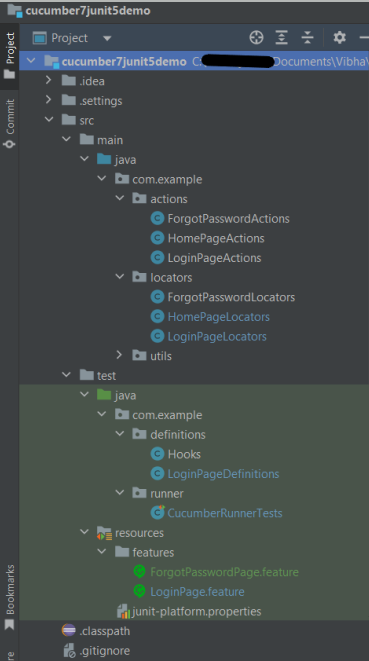
Project Structure

Implementation Steps

Step 1- Download and Install Java

Cucumber and Selenium need Java to be installed on the system to run the tests. Click here to know How to install Java.

Step 2 – Download and setup Eclipse IDE on the system

The Eclipse IDE (integrated development environment) provides strong support for Java developers, which is needed to write Java code. Click here to know How to install Eclipse.

Step 3 – Setup Maven

To build a test framework, we need to add a number of dependencies to the project. It is a very tedious and cumbersome process to add each dependency manually. So, to overcome this problem, we use a build management tool. Maven is a build management tool that is used to define project structure, dependencies, build, and test management. Click here to know How to install Maven.

Step 4 – Install Cucumber Eclipse Plugin (Only for Eclipse IDE)

The Cucumber Eclipse plugin is a plugin that allows eclipse to understand the Gherkin syntax. The Cucumber Eclipse Plugin highlights the keywords present in Feature File. Click here to know more – Install Cucumber Eclipse Plugin.

Step 5 – Create a new Maven Project

Click here to know How to create a Maven project

Below is the Maven project structure. Here,

Group Id – com.example
Artifact Id – Cucumber7JUnit5Demo
Version – 0.0.1-SNAPSHOT
Package – com. example. Cucumber7JUnit5Demo

Step 6 – Add Maven dependencies to the POM

Add the dependencies to the POM.xml.

<project xmlns="http://maven.apache.org/POM/4.0.0" xmlns:xsi="http://www.w3.org/2001/XMLSchema-instance" xsi:schemaLocation="http://maven.apache.org/POM/4.0.0 https://maven.apache.org/xsd/maven-4.0.0.xsd">
  <modelVersion>4.0.0</modelVersion>
  <groupId>com.example</groupId>
  <artifactId>Cucumber7JUnit5Demo</artifactId>
  <version>0.0.1-SNAPSHOT</version>
  
  <properties>
		<project.build.sourceEncoding>UTF-8</project.build.sourceEncoding>
		<cucumber.version>7.14.0</cucumber.version>
		<selenium.version>4.15.0</selenium.version>
		<webdrivermanager.version>5.5.3</webdrivermanager.version>
		<junit.jupiter.version>5.10.1</junit.jupiter.version>
		<maven.compiler.plugin.version>3.11.0</maven.compiler.plugin.version>
		<maven.surefire.plugin.version>3.2.1</maven.surefire.plugin.version>
		<maven.compiler.source.version>17</maven.compiler.source.version>
		<maven.compiler.target.version>17</maven.compiler.target.version>
	</properties>

	<dependencyManagement>
		<dependencies>
			<dependency>
				<groupId>io.cucumber</groupId>
				<artifactId>cucumber-bom</artifactId>
				<version>${cucumber.version}</version>
				<type>pom</type>
				<scope>import</scope>
			</dependency>
			<dependency>
				<groupId>org.junit</groupId>
				<artifactId>junit-bom</artifactId>
				<version>${junit.jupiter.version}</version>
				<type>pom</type>
				<scope>import</scope>
			</dependency>
		</dependencies>
	</dependencyManagement>

	<dependencies>

		<dependency>
			<groupId>io.cucumber</groupId>
			<artifactId>cucumber-java</artifactId>
			<scope>test</scope>
		</dependency>

		<dependency>
			<groupId>io.cucumber</groupId>
			<artifactId>cucumber-junit-platform-engine</artifactId>
			<scope>test</scope>
		</dependency>

		<!-- JUnit Platform -->
		<dependency>
			<groupId>org.junit.platform</groupId>
			<artifactId>junit-platform-suite</artifactId>
			<scope>test</scope>
		</dependency>

		<dependency>
			<groupId>org.junit.jupiter</groupId>
			<artifactId>junit-jupiter-engine</artifactId>
			<scope>test</scope>
		</dependency>

		<!-- Selenium -->
		<dependency>
			<groupId>org.seleniumhq.selenium</groupId>
			<artifactId>selenium-java</artifactId>
			<version>${selenium.version}</version>
		</dependency>

		<!-- Web Driver Manager -->
		<dependency>
			<groupId>io.github.bonigarcia</groupId>
			<artifactId>webdrivermanager</artifactId>
			<version>${webdrivermanager.version}</version>
		</dependency>

	</dependencies>

	<build>
		<plugins>
			<plugin>
				<groupId>org.apache.maven.plugins</groupId>
				<artifactId>maven-compiler-plugin</artifactId>
				<version>${maven.compiler.plugin.version}</version>
				<configuration>
					<source>${maven.compiler.source.version}</source>
					<target>${maven.compiler.target.version}</target>
				</configuration>
			</plugin>
			<plugin>
				<groupId>org.apache.maven.plugins</groupId>
				<artifactId>maven-surefire-plugin</artifactId>
				<version>${maven.surefire.plugin.version}</version>
				<dependencies>
					<dependency>
						<groupId>org.junit.jupiter</groupId>
						<artifactId>junit-jupiter-engine</artifactId>
						<version>${junit.jupiter.version}</version>
					</dependency>
				</dependencies>
			</plugin>

		</plugins>
	</build>
</project>

Step 7 – Create a feature file in src/test/resources

Below is a sample feature file. Feature file should be saved as an extension of .feature. Add the test scenarios in this feature file. I have added sample test scenarios. The test scenarios are written in Gherkins language.

@LoginPage
Feature: Login to HRM Application

Background:
    Given User is on HRMLogin page "https://opensource-demo.orangehrmlive.com/"

   @ValidCredentials
   Scenario: Login with valid credentials

    When User enters username as "Admin" and password as "admin123"
    Then User should be able to login successfully and new page open
    
   @InvalidCredentials
   Scenario Outline: Login with invalid credentials
     
    When User enters username as "<username>" and password as "<password>"
    Then User should be able to see error message "<errorMessage>"
    
  Examples:
  | username   | password    | errorMessage                      |
  | Admin        | admin12$$  | Invalid credentials               |
  | admin$$     | admin123    | Invalid credentials               |
  | abc123        | xyz$$           | Invalid credentials               |
  
    
  @FaceBookLink
  Scenario: Verify FaceBook Icon on Login Page
     
    Then User should be able to see FaceBook Icon
    
  @LinkedInLink
  Scenario: Verify LinkedIn Icon on Login Page
     
    Then User should be able to see LinkedIn Icon  
@ForgetPassword
Feature: Login to ForgotPassword Page

  Background:
    Given User is on HRMLogin page "https://opensource-demo.orangehrmlive.com/"

  @ForgetPasswordLink
  Scenario: Verify ForgetPassword link on Login Page

    When User clicks on Forgot your Password Link
    Then User should navigate to a new page

Step 8 – Create cucumber.properties file in src/test/resources

We need to create the junit-platform.properties file in the src/test/resources folder. Using a property file for reporting is quite helpful if you want to define several different properties.

cucumber.publish.enabled=true

Step 9 – Create a Helper class in src/main/java

We have used Page Object Model with Cucumber and TestNG. Create a Helper class where we are initializing the web driver, initializing the web driver wait, defining the timeouts, and creating a private constructor of the class, it will declare the web driver, so whenever we create an object of this class, a new web browser is invoked. 

import java.time.Duration;
import org.openqa.selenium.WebDriver;
import org.openqa.selenium.chrome.ChromeDriver;
import io.github.bonigarcia.wdm.WebDriverManager;
import org.openqa.selenium.chrome.ChromeOptions;

public class HelperClass {

	 private static HelperClass helperClass;
     
	    private static WebDriver driver;
	    public final static int TIMEOUT = 5;
	      
	     private HelperClass() {
	           
	        WebDriverManager.chromedriver().setup();
			ChromeOptions options = new ChromeOptions();
			options.addArguments("--start-maximized");
	        driver = new ChromeDriver(options);
	        driver.manage().timeouts().implicitlyWait(Duration.ofSeconds(TIMEOUT));
	     }      
	              
	    public static void openPage(String url) {
	        driver.get(url);
	    }
	  	      
	    public static WebDriver getDriver() {
	        return driver;              
	    }
	      
	    public static void setUpDriver() {
	          
	        if (helperClass==null) {
	              
	            helperClass = new HelperClass();
	        }
	    }
	      
	    public static void tearDown() {
	           
	        if(driver!=null) {
	             driver.quit();
	        }
	           
	       helperClass = null;
	   } 
	      
	}

Step 10 – Create Locator classes in src/main/java

Create a locator class for each page that contains the detail of the locators of all the web elements. Here, I’m creating 3 locator classes – LoginPageLocators, HomePageLocators, and ForgotPasswordLocators.

LoginPageLocators

import org.openqa.selenium.WebElement;
import org.openqa.selenium.support.FindBy;

public class LoginPageLocators {

	@FindBy(name = "username")
    public WebElement userName;
 
    @FindBy(name = "password")
    public WebElement password;
 
    @FindBy(id = "logInPanelHeading")
    public WebElement titleText;
 
    @FindBy(xpath = "//*[@id='app']/div[1]/div/div[1]/div/div[2]/div[2]/form/div[3]/button")
    public WebElement login;
 
    @FindBy(xpath = "//*[@id='app']/div[1]/div/div[1]/div/div[2]/div[2]/div/div[1]/div[1]/p")
    public  WebElement errorMessage;
    
    @FindBy(xpath = "//*[@href='https://www.linkedin.com/company/orangehrm/mycompany/']")
    public  WebElement linkedInIcon;
    
    @FindBy(xpath = "//*[@href='https://www.facebook.com/OrangeHRM/']")
    public  WebElement faceBookIcon;
    
    @FindBy(xpath = "//*[@id='app']/div[1]/div/div[1]/div/div[2]/div[2]/form/div[4]/p")
    public  WebElement ForgotYourPasswordLink;
    
}

HomePageLocators

import org.openqa.selenium.WebElement;
import org.openqa.selenium.support.FindBy;

public class HomePageLocators {

	@FindBy(xpath = "//*[@id='app']/div[1]/div[2]/div[2]/div/div[1]/div[1]/div[1]/h5")
	public  WebElement homePageUserName;
 
}

ForgotPasswordLocators

import org.openqa.selenium.WebElement;
import org.openqa.selenium.support.FindBy;

public class ForgotPasswordLocators {
	
	@FindBy(xpath = "//*[@id='app']/div[1]/div[1]/div/form/h6")
    public WebElement ForgotPasswordHeading;

}

Step 11 – Create Action classes in src/main/java

Create the action classes for each web page. These action classes contain all the methods needed by the step definitions. In this case, I have created 2 action classes – LoginPageActions, HomePageActions, and ForgotPasswordActions.

LoginPageActions

In this class, the very first thing will do is to create the object of the LoginPageLocators class so that we should be able to access all the PageFactory elements. Secondly, create a public constructor of LoginPageActions class.

import org.openqa.selenium.support.PageFactory;
import com.example.locators.LoginPageLocators;
import com.example.utils.HelperClass;

public class LoginPageActions {

	LoginPageLocators loginPageLocators = null; 
	
    public LoginPageActions() {

    	this.loginPageLocators = new LoginPageLocators();

		PageFactory.initElements(HelperClass.getDriver(),loginPageLocators);
	}
 
	// Set user name in textbox
    public void setUserName(String strUserName) {
    	loginPageLocators.userName.sendKeys(strUserName);
    }
 
    // Set password in password textbox
    public void setPassword(String strPassword) {
    	loginPageLocators.password.sendKeys(strPassword);
    }
 
    // Click on login button
    public void clickLogin() {
    	loginPageLocators.login.click();
    }
 
    // Get the title of Login Page
    public String getLoginTitle() {
        return loginPageLocators.titleText.getText();
    }
       
    // Get the title of Login Page
    public String getErrorMessage() {
        return loginPageLocators.errorMessage.getText();
    }
    
    // LinkedIn Icon is displayed
    public Boolean getLinkedInIcon() {
   
        return loginPageLocators.linkedInIcon.isDisplayed();
    }
    
    // FaceBook Icon is displayed
    public Boolean getFaceBookIcon() {
   
        return loginPageLocators.faceBookIcon.isDisplayed();
    }
    
    // Click on Forget Your Password link
    public void clickOnForgetYourPasswordLink() {
    	
    	loginPageLocators.ForgotYourPasswordLink.click();
    }
 
    public void login(String strUserName, String strPassword) {
 
        // Fill user name
        this.setUserName(strUserName);
 
        // Fill password
        this.setPassword(strPassword);
 
        // Click Login button
        this.clickLogin();
 
    }
}

HomePageActions

import org.openqa.selenium.support.PageFactory;
import com.example.locators.HomePageLocators;
import com.example.utils.HelperClass;

public class HomePageActions {

	HomePageLocators homePageLocators = null;
   
	public HomePageActions() {
    	
		this.homePageLocators = new HomePageLocators();

		PageFactory.initElements(HelperClass.getDriver(),homePageLocators);
    }

    // Get the User name from Home Page
    public String getHomePageText() {
        return homePageLocators.homePageUserName.getText();
    }

}

ForgotPasswordActions

import org.openqa.selenium.support.PageFactory;
import com.example.locators.ForgotPasswordLocators;
import com.example.utils.HelperClass;

public class ForgotPasswordActions {
	
	ForgotPasswordLocators forgotPasswordLocators = null;
	   
	public ForgotPasswordActions() {
    	
		this.forgotPasswordLocators = new ForgotPasswordLocators();

		PageFactory.initElements(HelperClass.getDriver(),forgotPasswordLocators);
    }

 
    // Get the Heading of Forgot Password page
    public String getForgotPasswordPageText() {
        return forgotPasswordLocators.ForgotPasswordHeading.getText();
    }
}

Step 12 – Create a Step Definition file in src/test/java

Create the corresponding Step Definition file of the feature file.

LoginPageDefinitions

import org.junit.jupiter.api.Assertions;
import com.example.actions.ForgotPasswordActions;
import com.example.actions.HomePageActions;
import com.example.actions.LoginPageActions;
import com.example.utils.HelperClass;
import io.cucumber.java.en.Given;
import io.cucumber.java.en.Then;
import io.cucumber.java.en.When;

public class LoginPageDefinitions{	

	LoginPageActions objLogin = new LoginPageActions();
    HomePageActions objHomePage = new HomePageActions();
    ForgotPasswordActions objForgotPasswordPage = new ForgotPasswordActions();
 
    @Given("User is on HRMLogin page {string}")
    public void loginTest(String url) {
    	
    	HelperClass.openPage(url);
 
    }
 
    @When("User enters username as {string} and password as {string}")
    public void goToHomePage(String userName, String passWord) {
 
        // login to application
        objLogin.login(userName, passWord);
 
        // go the next page
        
    }
    
    @When("User clicks on Forgot your Password Link")
    public void goToForgotYourPasswordPage() {
    	
    	objLogin.clickOnForgetYourPasswordLink();
    	
    }
 
    @Then("User should be able to login sucessfully and new page open")
    public void verifyLogin() {
 
        // Verify home page
        Assertions.assertTrue(objHomePage.getHomePageText().contains("Employee Information"));
 
    }
    
    @Then("User should be able to see error message {string}")
    public void verifyErrorMessage(String expectedErrorMessage) {
 
        // Verify home page
    	Assertions.assertEquals(objLogin.getErrorMessage(),expectedErrorMessage);
 
    }
    
    @Then("User should be able to see LinkedIn Icon")
    public void verifyLinkedInIcon( ) {
    	
    	Assertions.assertTrue(objLogin.getLinkedInIcon());
    }
    
    @Then("User should be able to see FaceBook Icon")
    public void verifyFaceBookIcon( ) {
    	
    	Assertions.assertTrue(objLogin.getFaceBookIcon());
    }
    
    @Then("User should navigate to a new page")
    public void verfiyForgetYourPasswordPage() {
    	
   	Assertions.assertEquals(objForgotPasswordPage.getForgotPasswordPageText(), "Reset Password");
    }
      
}

Step 13 – Create Hook class in src/test/java

Create the hook class that contains the Before and After hook to initialize the web browser and close the web browser.

import org.openqa.selenium.OutputType;
import org.openqa.selenium.TakesScreenshot;
import com.example.utils.HelperClass;
import io.cucumber.java.After;
import io.cucumber.java.Before;
import io.cucumber.java.Scenario;

public class Hooks {
		
	@Before
    public static void setUp() {

       HelperClass.setUpDriver();
    }

	@After
	public static void tearDown(Scenario scenario) {

		//validate if scenario has failed
		if(scenario.isFailed()) {
			final byte[] screenshot = ((TakesScreenshot) HelperClass.getDriver()).getScreenshotAs(OutputType.BYTES);
			scenario.attach(screenshot, "image/png", scenario.getName()); 
		}	
		
		HelperClass.tearDown();
	}
}

Step 14 – Create a Cucumber Test Runner class in src/test/java

Cucumber needs a TestRunner class to run the feature files. It is suggested to create a folder with the name of the runner in the src/test/java directory and create the Cucumber TestRunner class in this folder. Below is the code of the Cucumber TestRunner class.

import static io.cucumber.junit.platform.engine.Constants.GLUE_PROPERTY_NAME;
import org.junit.platform.suite.api.ConfigurationParameter;
import org.junit.platform.suite.api.IncludeEngines;
import org.junit.platform.suite.api.SelectClasspathResource;
import org.junit.platform.suite.api.Suite;

@Suite
@IncludeEngines("cucumber")
@SelectClasspathResource("com.example")
@ConfigurationParameter(key = GLUE_PROPERTY_NAME, value = "com.example")
 
public class CucumberRunnerTests  {
 
}

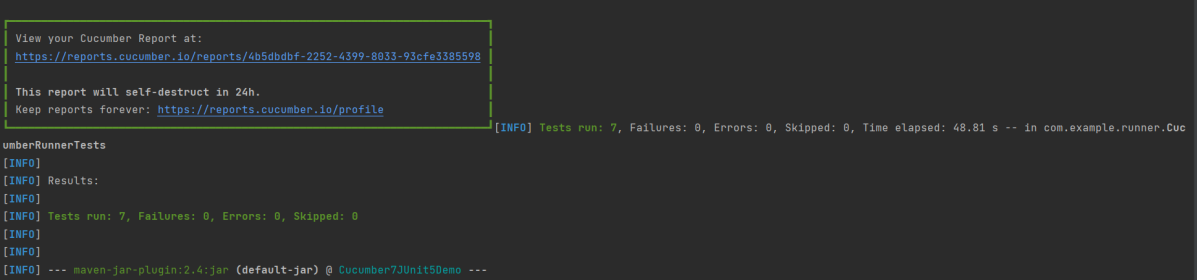
Step 15 – Run the tests from Maven or Command Line

Use the below command to run the tests.

mvn clean verify 

Step 16 – Cucumber Report Generation

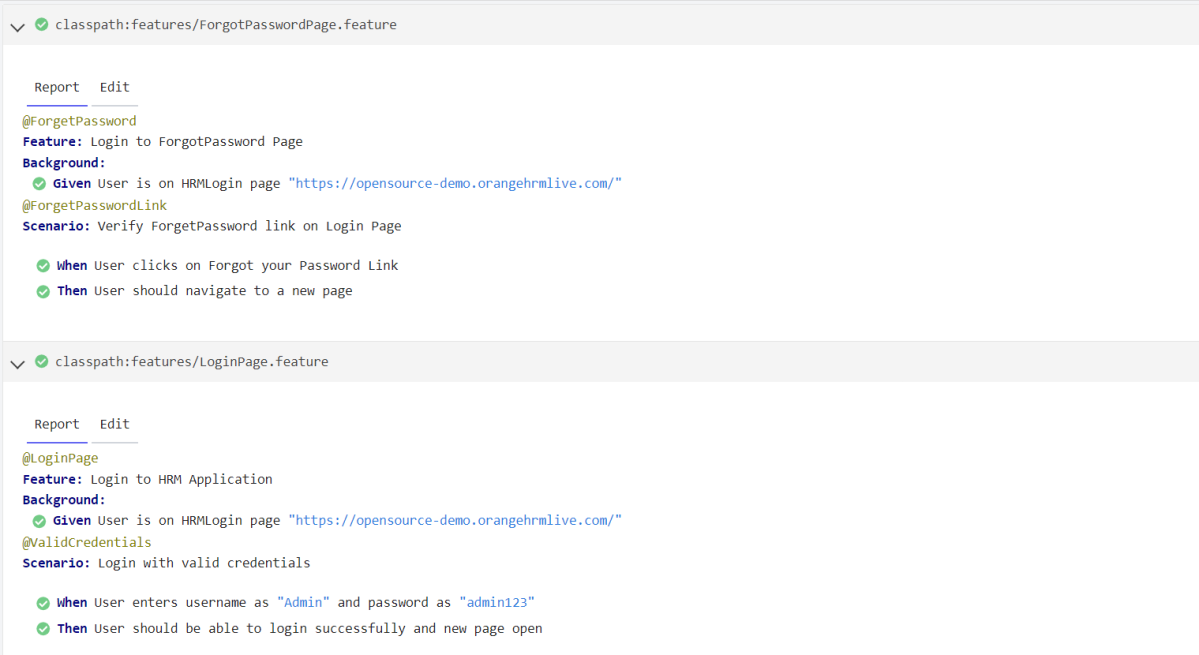
Below is the image of the Cucumber Report generated using the Cucumber Service.
The complete code can be found on GitHub.

Congratulations!! We have built the framework using Cucumber 7 with JUnit5.

How to tag and filter JUnit5 tests – @Tag

HOME

This tutorial explains how to run the specific tests in JUnit5 using @Tag annotation. Imagine, there are 500 test cases for different functionalities. Out of 500 test cases, 350 tests are related to the Integration test and the rest 150 are for the E2E test. We want to run only Integration tests. How this can be achieved? To overcome this problem, JUnit5 provides a filtering mechanism – @Tag annotation. We can apply the @Tag annotation on a test class test method, or both.

The JUnit Platform enforces the following rules for Tag:

  • A tag must not be null or blank.
  • A trimmed tag must not contain whitespace.
  • A trimmed tag must not contain ISO control characters.
  • A trimmed tag must not contain any of the following reserved characters.
    • ,: comma
    • (: left parenthesis
    • ): right parenthesis
    • &: ampersand
    • |: vertical bar
    • !: exclamation point

1. Annotating JUnit Test Class with Tag

Scenario 1 – Apply @Tag on the test class. It will run all the tests present within this test class.

import org.junit.jupiter.api.Tag;
import org.junit.jupiter.api.Test;

import static org.junit.jupiter.api.Assertions.assertEquals;

@Tag("Sprint-5")
class JUnit5TagsTests {

    @Test
    void test_Addition() {
        System.out.println("test_Add()");
        assertEquals(18, 3 + 7 + 8);
    }

    @Test
    void test_Subtraction() {
        System.out.println("test_Subtraction()");
        assertEquals(18, 26 - 8);
    }

    @Test
    void test_Calculator() {
        System.out.println("test_Calculator()");
        assertEquals(18, 10 + 8);
        assertEquals(2, 10 - 8);
    }

    @Test
    void test_Functions() {
        System.out.println("test_Functions()");
        assertEquals(8, Math.sqrt(64));
        assertEquals(64, Math.pow(8,2));
    }

    @Test
    void test_IsEven() {
        System.out.println("test_IsEven()");
        assertEquals(0, 16%2);
    }

}

Let us say we have a number of classes, and we want to execute only this specific test class that is tagged as – @Sprint-5.
Go to the command line or in the case of IntelliJ to the terminal.
mvn clean test -Dgroups="Sprint-5"
mvn clean test -D"groups=Sprint-5"

The result of the above program is

2. Annotating JUnit Test Methods with Tag

With JUnit 5 we can filter tests by tagging a subset of them under a unique tag name.

Scenario 2 – Let’s say we have 5 tests, and we want to run 3 tests in the development environment, 1 test in both development and QA, 1 test in Production, and 1 test In-Progress. So we will tag the tests as below:

import org.junit.jupiter.api.Tag;
import org.junit.jupiter.api.Test;

class JUnit5TagsTests {

    @Test
    @Tag("Development")
    void test1() {
        System.out.println("This test is for Development");
    }

    @Test
    @Tag("Development")
    void test2() {
        System.out.println("This test is for Development");
    }

    @Test
    @Tag("Development")
    @Tag("QA")
    void test3() {
        System.out.println("This test is for Development & QA");
    }

    @Test
    @Tag("Production")
    void test4() {
        System.out.println("This test is for Production");
    }

    @Test
    @Tag("Regression")
    @Tag("QA")
    void test5() {
        System.out.println("This is Regression Test for QA");
    }
}

To run the tests tagged with “production” in IntelliJ. Edit the configuration. Click on the Run and select “Edit Configurations”.

Select Tags from a list of components and mention the name of the tag you want to execute. Apply the changes by clicking on the “Apply” button and then click on the “OK” button.

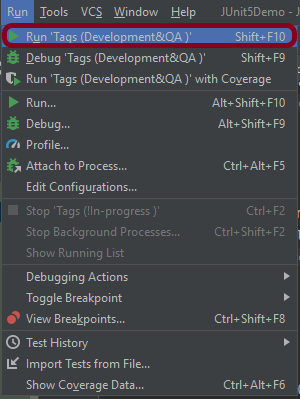
Now, this creates a new Configuration as shown in the below image.

Click on this configuration. It will only run the test method tagged with @Production.

2. We can apply multiple tags on a single test case as well. Here, the test method – test_Calculator() is tagged with @Development and @QA.

    @Test
    @Tag("Development")
    @Tag("QA")
    void test_Calculator() {
        System.out.println("test_Calculator()");
        assertEquals(18, 10 + 8);
        assertEquals(2, 10 - 8);
    }

To run the above test, edit the configuration as shown below.

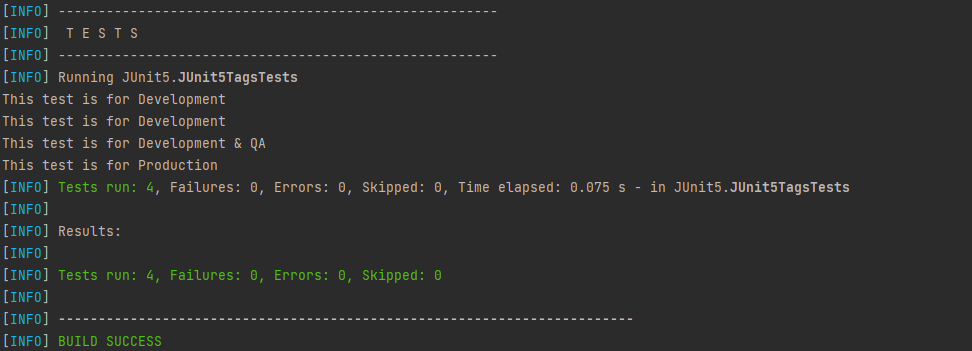
The output of the above program is

3. Filtering Tags with Maven Surefire Plugin

In Maven, we can run tests based on tags via the configuration parameters of the maven-surefire-plugin.

<plugin>
       <groupId>org.apache.maven.plugins</groupId>
       <artifactId>maven-surefire-plugin</artifactId>
       <version>3.0.0-M5</version>
       <configuration>
           <!-- Include tags -->
           <groups>Development,QA,Production</groups>
           <!-- Exclude tags -->
           <excludedGroups>In-Progress</excludedGroups>
       </configuration>
</plugin>

If we now execute this plugin, it will execute all tests that are tagged as Development, QA, Production. 

If we want to exclude any specific test from the test execution, mention it with <excludeGroups>

The below-mentioned command will run all the tests except the test tagged with “In-Progress”.

mvn clean test -DexcludeGroups="In-Progress"

4. Creating your own custom tag annotation

If we are using the same tag @Tag(“Security”) or a combination with @Tag(“QA”) in several tests, instead of copying and pasting @Tag(“Security”), @Tag(“QA”) throughout your code base, you can create a custom composed annotation named @SecurityQATest as follows. @SecurityQATest can then be used instead, using 2 annotations every time.

The following example shows you how to create custom tag annotation for @Tag(“Security”), @Tag(“QA”).

import org.junit.jupiter.api.Tag;
import org.junit.jupiter.api.Test;
import org.junit.jupiter.api.TestTemplate;

import java.lang.annotation.ElementType;
import java.lang.annotation.Retention;
import java.lang.annotation.RetentionPolicy;
import java.lang.annotation.Target;

@Retention(RetentionPolicy.RUNTIME)
@Target({ElementType.ANNOTATION_TYPE,ElementType.METHOD})
@Tag("Security")
@Tag("QA")
@Test
public @interface SecurityQATest {

}

    @SecurityQATest
    void test6() {
        System.out.println("This is Security Testing for QA");
    }

To run this test, use the below command:

mvn clean test -Dgroups="Security&QA"

The result of the above program is

Congratulations. We have understood the usage of @Tag annotation. Happy Learning!!

How to Parameterize tests in JUnit4

HOME

JUnit 4 has a feature called parameterized tests. Parameterized test means to execute the test multiple times with different sets of test data. This eliminates the redundancy of the code. This helps the developers to save time by eliminating the need to copy the code multiple times. Parameterizing tests can increase code coverage and provide confidence that the code is working as expected. These are the steps that need to be followed to create a parameterized test.

  • Annotate test class with @RunWith(Parameterized.class).
  • Create an instance variable for each “column” of test data.
  • It has a single constructor that contains the test data.
  • Create a public static method annotated with @Parameters that returns a Collection of Objects (as Array) as test data set.
  • Create your test case(s) using the instance variables as the source of the test data.

In a Maven project, to parameterize the tests in JUnit4, we need to add a dependency to POM.xml.

 <dependency>
      <groupId>org.junit.jupiter</groupId>
      <artifactId>junit-jupiter-params</artifactId>
      <version>5.8.2</version>
      <scope>test</scope>
</dependency>

The test case will be invoked once for each row of data.

There are multiple ways to parameterize a test. They are the following:

  1. Parameterized Test with Constructor
  2. Parameterized Test with Parameter Annotation
  3. Parameterized Test using CSV File

Let us see parameterized tests in action.

1. Parameterized Test with Constructor

Steps to create a Parameterized JUnit test

1. Create a parameterized test class

Annotate your test class using @runWith(Parameterized.class).

Declaring the variable ‘num1’, ‘num2’, ‘num3’ as private and type as int.

@RunWith(value = Parameterized.class)
public class ParameterizedTest {

    private int num1;
    private int num2;
    private int num3;

2. Create a constructor

    public ParameterizedTest(int num1, int num2, int num3) {
        this.num1 = num1;
        this.num2 = num2;
        this.num3 = num3;
    }

3. Create a static method that generates and returns test data.

Creating a two-dimensional array (providing input parameters for multiplication). Using the asList method, we convert the data into a List type. Since the return type of method input is the collection.

Using @Parameters annotation to create a set of input data to run our test.

    @Parameterized.Parameters(name = "{index}: multiply({0}*{1}) = {2}")
    public static Collection<Object[]> data() {
        return Arrays.asList(new Object[][]{
                {1, 1, 1},
                {2, 2, 4},
                {8, 2, 16},
                {4, 5, 20},
                {5, 5, 25}
        });
    }

The static method identified by @Parameters annotation returns a Collection, where each entry in the Collection will be the input data for one iteration of the test.

The complete code is shown below:

import org.junit.Test;
import org.junit.runner.RunWith;
import org.junit.runners.Parameterized;
import java.util.Arrays;
import java.util.Collection;
import static org.junit.Assert.assertEquals;

@RunWith(value = Parameterized.class)
public class ParameterizedTest {

    private int num1;
    private int num2;
    private int num3;

    public ParameterizedTest(int num1, int num2, int num3) {
        this.num1 = num1;
        this.num2 = num2;
        this.num3 = num3;
    }

    @Parameterized.Parameters(name = "{index}: multiply({0}*{1}) = {2}")
    public static Collection<Object[]> data() {
        return Arrays.asList(new Object[][]{
                {1, 1, 1},
                {2, 2, 4},
                {8, 2, 16},
                {4, 5, 20},
                {5, 5, 25}
        });
    }

    @Test
    public void multiplication() {
        System.out.println("The product of "+num1+" and "+num2+" is "+num3);
        assertEquals((num1*num2), num3);
    }
}

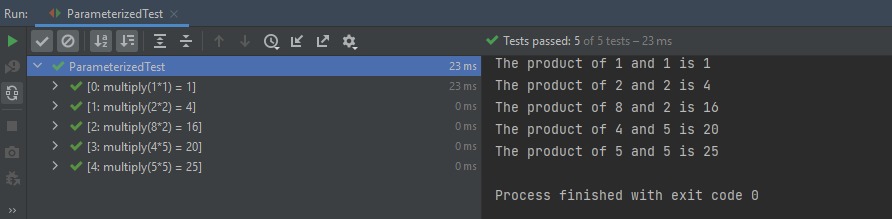
The output of the above program is

2. Parameterized Test with Parameter Annotation

It is also possible to inject data values directly into fields without needing a constructor using the @Parameter annotation.

import org.junit.Test;
import org.junit.runner.RunWith;
import org.junit.runners.Parameterized;
import java.util.Arrays;
import java.util.Collection;
import static org.junit.Assert.assertEquals;

@RunWith(value = Parameterized.class)
public class ParameterizedTest1 {

    @Parameterized.Parameter(value = 0)
    public int num1;

    @Parameterized.Parameter(value = 1)
    public int num2;

    @Parameterized.Parameter(value = 2)
    public int num3;

    @Parameterized.Parameters(name = "{index}: multiply({0}*{1}) = {2}")
    public static Collection<Object[]> data() {
        return Arrays.asList(new Object[][]{
                {1, 1, 1},
                {2, 2, 4},
                {8, 2, 16},
                {4, 5, 20},
                {5, 5, 24}
        });
    }

    @Test
    public void multiplication() {
        System.out.println("The product of "+num1+" and "+num2+" is "+num3);
        assertEquals((num1*num2), num3);
    }
}

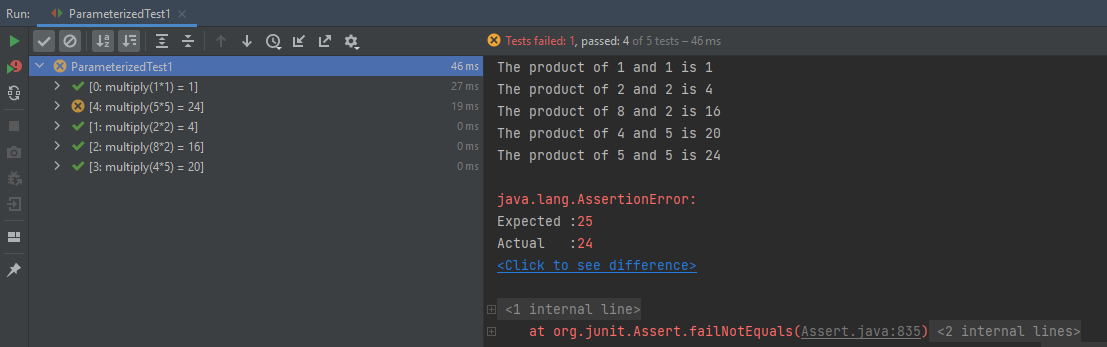
The output of the above program is

3. Parameterized Test using CSV File

We can use an external CSV file to load the test data. This helps if the number of possible test cases is quite significant, or if test cases are frequently changed. The changes can be done without affecting the test code.

To start with, add a JUnitParams dependency to POM.xml

<dependency>
     <groupId>pl.pragmatists</groupId>
     <artifactId>JUnitParams</artifactId>
     <version>1.1.1</version>
     <scope>test</scope>
</dependency>

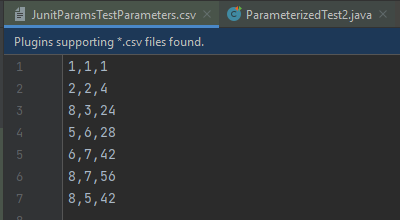
Let’s say that we have a CSV file with test parameters as JunitParamsTestParameters.csv:

Now let’s look at how this file can be used to load test parameters in the test method:

import junitparams.JUnitParamsRunner;
import org.junit.Test;
import org.junit.runner.RunWith;
import junitparams.FileParameters;
import static org.junit.Assert.assertEquals;

@RunWith(JUnitParamsRunner.class)
public class ParameterizedTest2 {

    @Test
    @FileParameters("src/test/resources/JunitParamsTestParameters.csv")
    public void multiplication(int num1, int num2, int num3) {
        System.out.println("The product of "+num1+" and "+num2+" is "+num3);
        assertEquals((num1*num2), num3);
    }
}

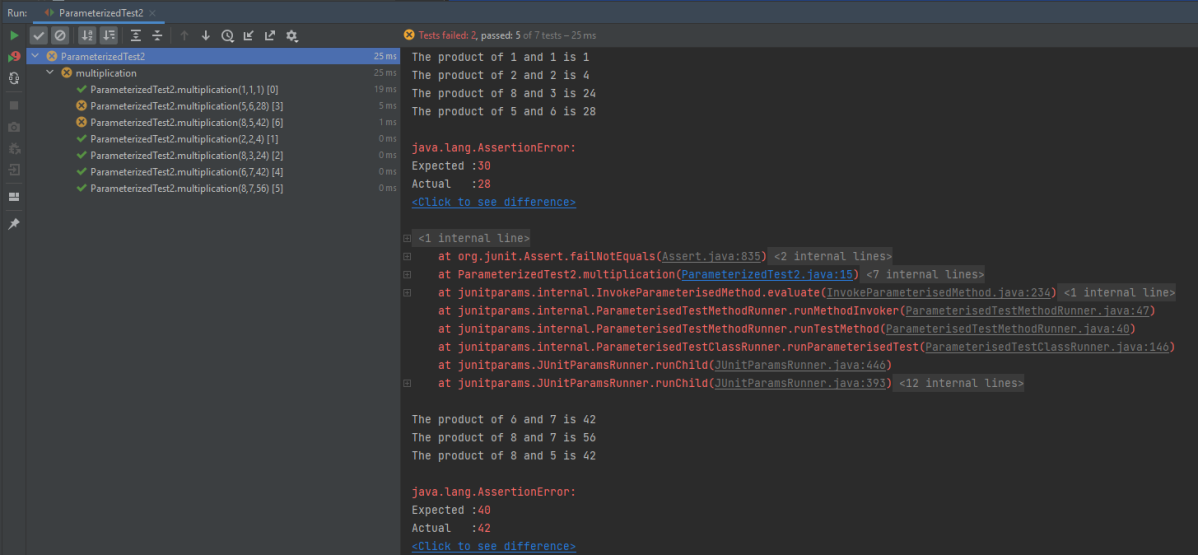
The output of the above program is

The parameterized test enables us to execute the same test over and over again using different values.

Important annotations to be used during parameterization

  • @RunWith
  • @Parameters

Congratulations. We are done. I hope this tutorial is helpful to you. Happy Learning!!

JUnit4 Assertions
How to generate JUnit4 Report
Integration of Cucumber with Selenium and JUnit
Integration of Serenity with Cucumber6 and JUnit5
Integration of Serenity with JUnit4
Rest API Test in Cucumber BDD

How to configure Junit in Intellij

HOME

In this tutorial we will discuss to create a JUnit  project using IntelliJ. We will be at first creating a simple Java Project and will add JUnit5 as well as create a Maven Project, then we will add a basic Class and a JUnit Test for it.

Create a Java Project

Step 1 – Create a new Java Project.

To create a new Java project in Intellij, please refer to this tutorial.

Step 2 – Right click on the project and select Open Module Settings.

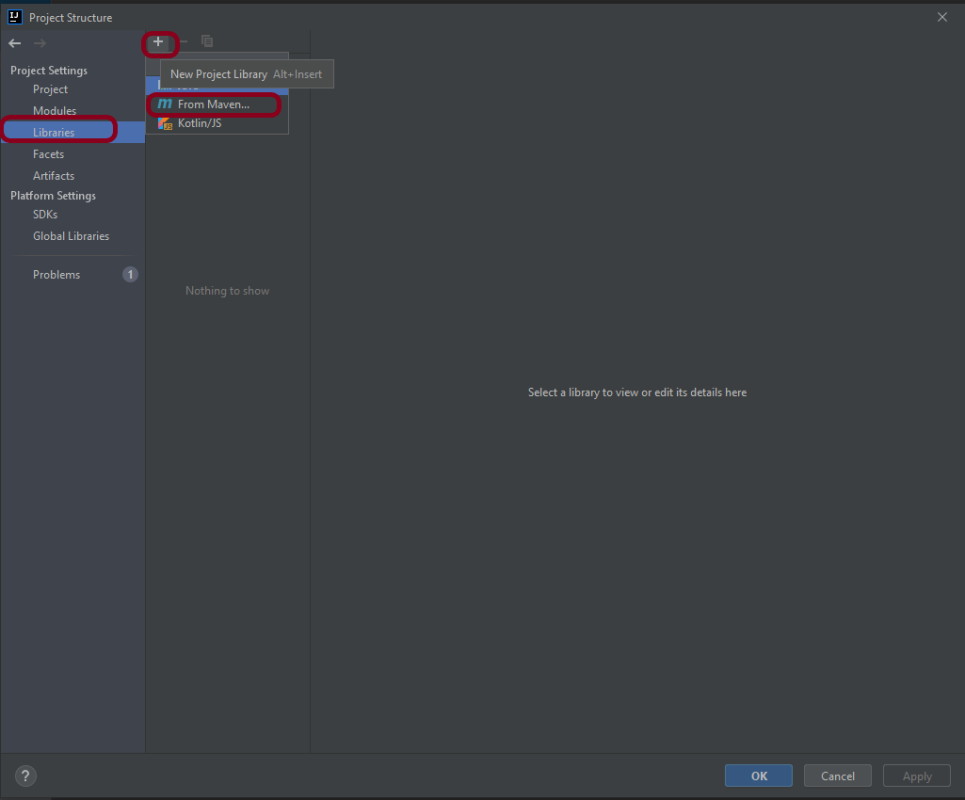
Step 3 – Go to the “Libraries” group, click the little plus (look up), and choose From Maven…option.

Step 4 – Search for “junit” — something like “junit:junit-4.13“. Click the OK button.

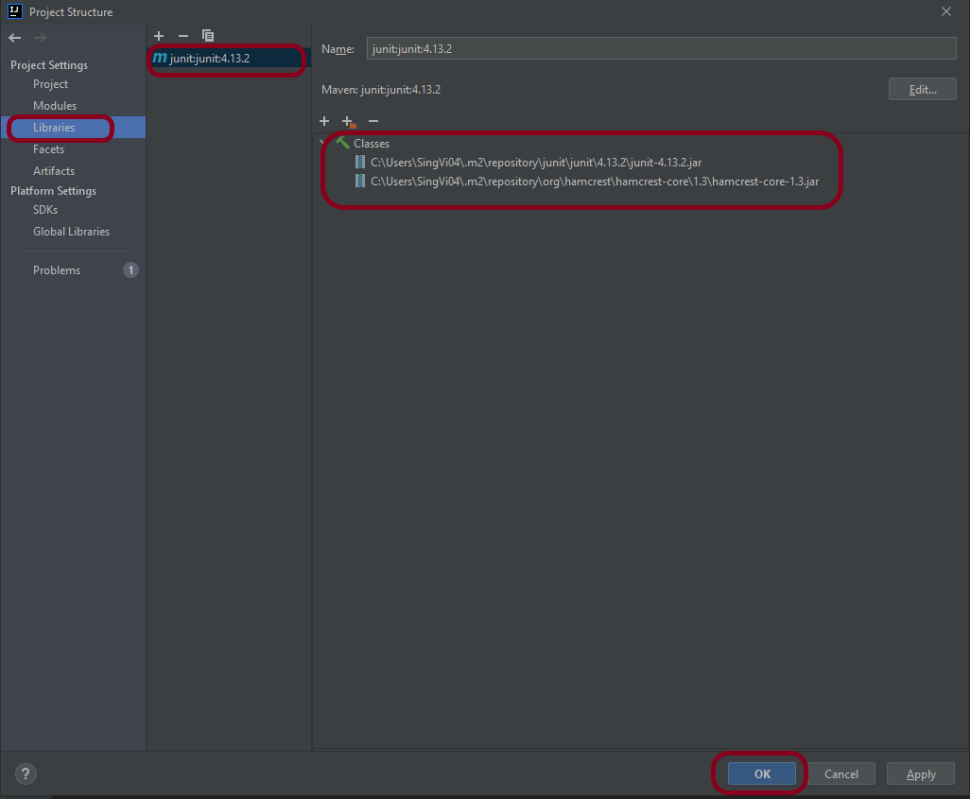
Step 5 – A new dialog will appear to confirm that “junit:junit:4.13.2” will be added to the module. Click the OK button.

Step 6 – This screens shows that junit:junit:4.13.2 is added to the Libraries. It contains the highlighted classes – junit-4.13.2.jar and hamcrest-core-1.3.jar. Click the “OK” button.

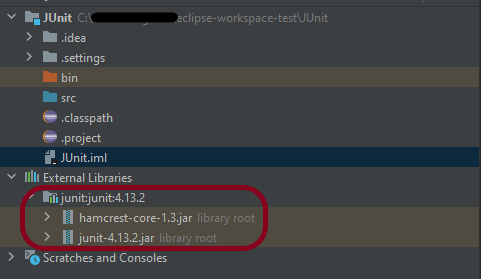
Step 7 – This image shows that the Junit is added to the External Libraries.

Step 8 – Create a Java Class – JUnit4Test under src and create a JUnit test to verify that it is installed properly.

import org.junit.Assert;
import org.junit.Test;

public class JUnit4Test {

    @Test
    public void Test() {

        String str1 = "Happy";
        String str2 = new String("Happy");
        Assert.assertEquals("String1 and String 2 are equal",str1, str2);

    }
}

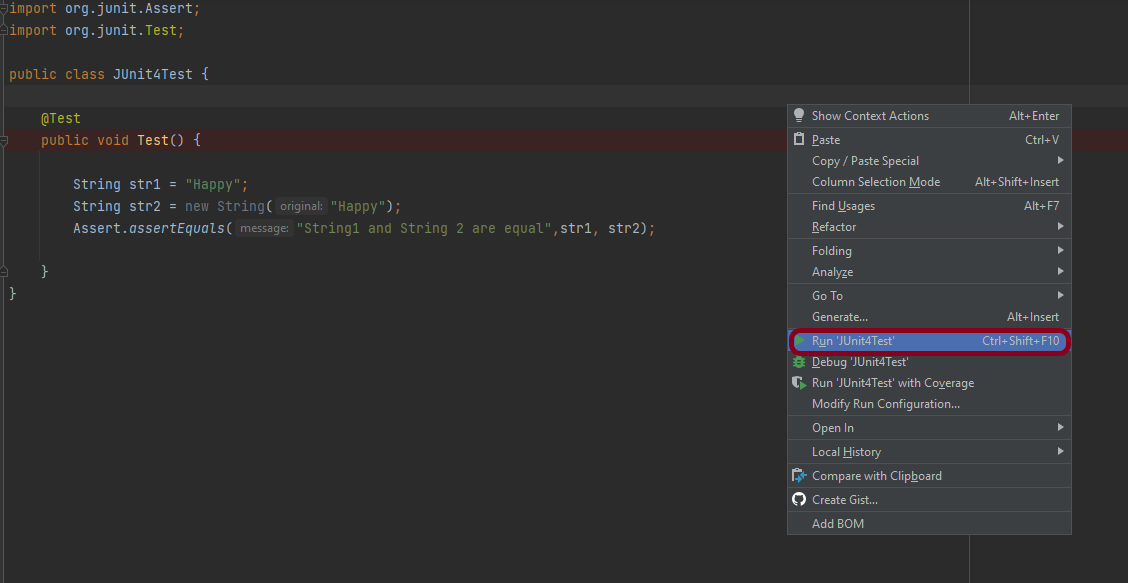
Step 9 – There are many ways to run the test. One of the way is to Right-Click and select Run JUnit4Test

The successful execution of the test shows that the JUnit is configured properly.

Create a Maven Project

Add Junit dependency to the POM.xml and build the project.

<dependencies>

    <dependency>
        <groupId>junit</groupId>
        <artifactId>junit</artifactId>
        <version>4.13.2</version>
        <scope>test</scope>
    </dependency>
    
</dependencies>

Now we need to apply the changes in the build script. Press Ctrl+Shift+O or click Load Maven Changes in the notification that appears in the top-right corner of the editor.

Create a Java Class – JUnit4Test under src/test/java and create a JUnit test to verify that it is installed properly.

import org.junit.Test;
import static org.junit.Assert.assertArrayEquals;

public class JUnitMavenTest {

    @Test
    public void Test() {

        String[] expected = {"happy","days","summer","spring"};
        String[] actual = {"happy","days","summer","spring"};

        assertArrayEquals("Expected and Actual Arrays are not equal",expected,actual);

    }
}

The output of the above program is

Similarly, to add JUnit5 we can add below mentioned dependencies to the POM.xml.

<dependency>
     <groupId>org.junit.jupiter</groupId>
     <artifactId>junit-jupiter-engine</artifactId>
     <version>5.8.2</version>
     <scope>test</scope>
</dependency>

<dependency>
     <groupId>org.junit.jupiter</groupId>
     <artifactId>junit-jupiter-api</artifactId>
     <version>5.8.2</version>
     <scope>test</scope>
</dependency>

Congratulations. We are able to add JUnit to Java or Maven project. Happy Learning!!

JUnit Tutorials

HOME

JUnit is an open source Unit Testing Framework for JAVA.
JUnit is a simple framework to write repeatable tests. It is an instance of the xUnit architecture for unit testing frameworks.

JUnit4

Chapter 1 How to configure Junit in Intellij
Chapter 2 How to run JUnit5 tests through Command Line
Chapter 3 JUnit4 Assertions
Chapter 4 How to Parameterize tests in JUnit4
Chapter 5 How to generate JUnit4 Report
Chapter 6 Integration of Cucumber with Selenium and JUnit
Chapter 7 Integration of Serenity with Cucumber6 and JUnit5
Chapter 8 Integration of Serenity with JUnit4
Chapter 9 Rest API Test in Cucumber BDD
Chapter 10 Difference between JUnit4 and JUnit5
Chapter 11 Integration of REST Assured with JUnit4

JUnit5

Chapter 1 JUnit5 Assertions Example
Chapter 2 Grouped Assertions in JUnit 5 – assertAll()
Chapter 3 How to Retry Test in JUnit5 – @RepeatedTest
Chapter 4 How to disable tests in JUnit5 – @Disabled
Chapter 5 How to run JUnit5 tests in order
Chapter 6 How to tag and filter JUnit5 tests – @Tag
Chapter 7 Assumptions in JUnit5
Chapter 8 How to parameterized Tests in JUnit5
Chapter 9 How to run parameterized Selenium test using JUnit5
Chapter 10 Testing of Web Application using Serenity with JUnit5
Chapter 11 Integration of Serenity with Cucumber6 and JUnit5
Chapter 12 How to generate JUnit5 Report – NEW

Gradle

Chapter 1 Gradle – Allure Report for Selenium and JUnit4
Chapter 2 Gradle Project with Cucumber, Selenium and JUnit4
Chapter 3 Gradle – Integration of Selenium and JUnit5

How to generate JUnit5 Report

HOME

For the successful execution of Agile testing requirements, a perfect test automation tool is required. And there are numerous factors to consider when creating a solid automation framework. One such component is reporting, which not only informs you of the success or failure of the project but also assists you in identifying potential bugs. JUnit is another useful framework that can add the ability to generate reports in Selenium. This tutorial explains the steps to generate the JUnit5 Report.

Prerequisite:

  1. Java 8 or higher installed
  2. Maven is installed
  3. Eclipse or IntelliJ are installed

Dependency List:

  1. Java 11
  2. JUnit Jupiter API – 5.10.0
  3. Maven – 3.8.1
  4. Maven Site Plugin – 3.12.0
  5. Maven Surefire Report Plugin – 3.1.2
  6. Maven Compiler Plugin – 3.10.1
  7. Json – 20230618
  8. Rest Assured – 5.3.2

Project Structure

To create a Maven project in Eclipse, please refer to this tutorial – Maven – How to import Maven project in Eclipse

To create a Maven project in Eclipse, please refer to this tutorial – How to create Maven project in IntelliJ

Implementation Steps

Step 1 – Add the Maven Site Plugin and Maven Surefire Report plugin

Maven Site Plugin

<plugin>
         <groupId>org.apache.maven.plugins</groupId>
          <artifactId>maven-site-plugin</artifactId>
          <version>${maven.site.plugin.version}</version>
</plugin>

Maven Surefire Report Plugin

<reporting>
      <plugins>
        <plugin>
          <groupId>org.apache.maven.plugins</groupId>
          <artifactId>maven-surefire-report-plugin</artifactId>
          <version>${maven.surefire.report.plugin.version}</version>
          <configuration>
            <outputName>JUnit5 Report</outputName>
          </configuration>
        </plugin>
      </plugins>
</reporting>

The complete POM.xml looks like

<project xmlns="http://maven.apache.org/POM/4.0.0" xmlns:xsi="http://www.w3.org/2001/XMLSchema-instance"
  xsi:schemaLocation="http://maven.apache.org/POM/4.0.0 http://maven.apache.org/xsd/maven-4.0.0.xsd">
  <modelVersion>4.0.0</modelVersion>

  <groupId>org.example</groupId>
  <artifactId>RestAssured_Junit5_Demo</artifactId>
  <version>1.0-SNAPSHOT</version>
  <packaging>jar</packaging>

  <name>RestAssured_Junit5_Demo</name>
  <url>http://maven.apache.org</url>

  <properties>
    <project.build.sourceEncoding>UTF-8</project.build.sourceEncoding>
    <rest-assurd.version>5.3.2</rest-assurd.version>
    <json.version>20220924</json.version>
    <hamcrest.version>1.3</hamcrest.version>
    <junit5.version>5.10.0</junit5.version>
    <maven.surefire.report.plugin.version>3.1.2</maven.surefire.report.plugin.version>
    <maven.compiler.plugin.version>3.10.1</maven.compiler.plugin.version>
    <maven.surefire.plugin.version>3.0.0-M7</maven.surefire.plugin.version>
    <maven.compiler.source.version>11</maven.compiler.source.version>
    <maven.compiler.target.version>11</maven.compiler.target.version>
    <maven.site.plugin.version>3.12.0</maven.site.plugin.version>
  </properties>

  <dependencies>

    <!-- Rest Assured Dependency -->
    <dependency>
      <groupId>io.rest-assured</groupId>
      <artifactId>rest-assured</artifactId>
      <version>${rest-assurd.version}</version>
      <scope>test</scope>
    </dependency>

    <!-- JUNIT Jupiter API Dependency-->
    <dependency>
      <groupId>org.junit.jupiter</groupId>
      <artifactId>junit-jupiter-api</artifactId>
      <version>${junit5.version}</version>
      <scope>test</scope>
    </dependency>

    <!-- JUNIT Jupiter Engine Dependency-->
    <dependency>
      <groupId>org.junit.jupiter</groupId>
      <artifactId>junit-jupiter-engine</artifactId>
      <version>${junit5.version}</version>
      <scope>test</scope>
    </dependency>

    <!-- JSON Dependency -->
    <dependency>
      <groupId>org.json</groupId>
      <artifactId>json</artifactId>
      <version>${json.version}</version>
    </dependency>

    <!-- Hamcrest Dependency -->
    <dependency>
      <groupId>org.hamcrest</groupId>
      <artifactId>hamcrest-all</artifactId>
      <version>${hamcrest.version}</version>
      <scope>test</scope>
    </dependency>

  </dependencies>

  <build>
    <plugins>
      <plugin>
        <groupId>org.apache.maven.plugins</groupId>
        <artifactId>maven-compiler-plugin</artifactId>
        <version>${maven.compiler.plugin.version}</version>
        <configuration>
          <source>${maven.compiler.source.version}</source>
          <target>${maven.compiler.target.version}</target>
        </configuration>
      </plugin>

      <plugin>
        <groupId>org.apache.maven.plugins</groupId>
        <artifactId>maven-surefire-plugin</artifactId>
        <version>${maven.surefire.plugin.version}</version>
        <configuration>
          <testFailureIgnore>true</testFailureIgnore>
        </configuration>
      </plugin>

      <plugin>
        <groupId>org.apache.maven.plugins</groupId>
        <artifactId>maven-site-plugin</artifactId>
        <version>${maven.site.plugin.version}</version>
      </plugin>
    </plugins>
  </build>

    <reporting>
      <plugins>
        <plugin>
          <groupId>org.apache.maven.plugins</groupId>
          <artifactId>maven-surefire-report-plugin</artifactId>
          <version>${maven.surefire.report.plugin.version}</version>
          <configuration>
            <outputName>JUnit5 Report</outputName>
          </configuration>
        </plugin>
      </plugins>
    </reporting>

</project>

Step 2 – Create sample tests

The tests should be written in src/test/java directory. To know how to create a JSON Request body using JSONObject, please refer to this tutorial.

import io.restassured.http.ContentType;
import org.json.JSONObject;
import org.junit.jupiter.api.Test;
import static io.restassured.RestAssured.given;
import static org.hamcrest.Matchers.equalTo;

public class APITests {

        String BaseURL = "https://reqres.in/api";

    @Test
    public void createUser() {

        JSONObject data = new JSONObject();

        data.put("name", "NewUser1");
        data.put("job", "Testing");

        // GIVEN
        given()
                .contentType(ContentType.JSON)
                .body(data.toString())

                // WHEN
                .when()
                .post(BaseURL + "/users")

                // THEN
                .then()
                .statusCode(201)
                .body("name", equalTo("NewUser1"))
                .body("job", equalTo("Testing"))

    }

    @Test
    public void getUser() {

        // GIVEN
        given()
                .contentType(ContentType.JSON)

                // WHEN
                .when()
                .get(BaseURL + "/users/2")

                // THEN
                .then()
                .statusCode(200)
                .body("data.first_name", equalTo("Janet1"))

    }

}

Step 3 – Run the tests from the Command Line

Use the below command to run the tests from the command line

mvn clean test site

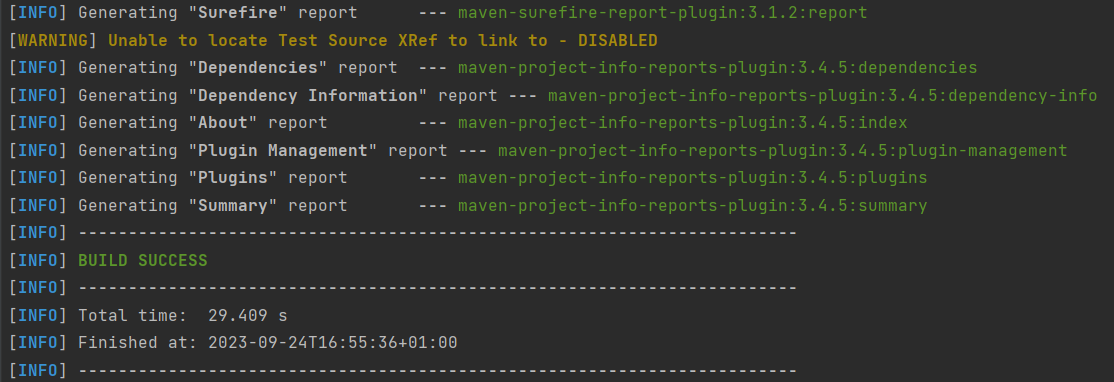
The output of the test execution is

Step 4 – JUnit5 Report generation

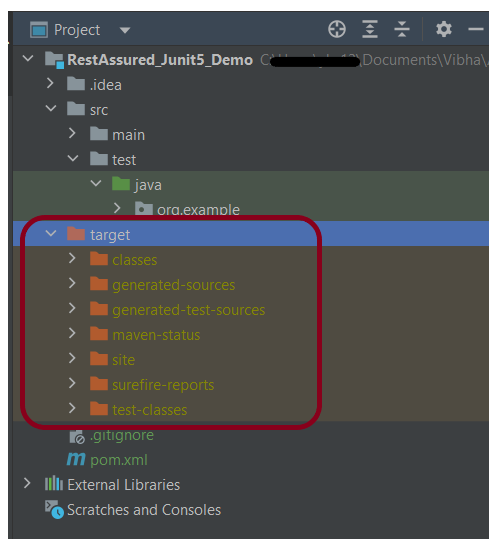
Maven Site Plugin creates a folder – site under the target directory.

To know about the test failure, go to the Failure Details Section.

Congratulations on making it through this tutorial and hope you found it useful! Happy Learning!! Cheers!!

How to generate JUnit4 Report

HOME

For the successful execution of Agile testing requirements, a perfect test automation tool is required. And there are numerous factors to consider when creating a solid automation framework. One such component is reporting, which not only informs you of the success or failure of the project but also assists you in identifying potential bugs. JUnit is another useful framework that can add the ability to generate reports in Selenium. This tutorial explains the steps to generate the JUnit Report.

Prerequisite:

  1. Java 8 or higher installed
  2. Maven is installed
  3. Eclipse or IntelliJ are installed

Dependency List:

  1. Selenium – 4.3
  2. Java 11
  3. JUnit4 – 4.13.2
  4. Maven – 3.8.1
  5. Maven Site Plugin – 3.12.0
  6. Maven Surefire Report Plugin – 3.0.0.M6

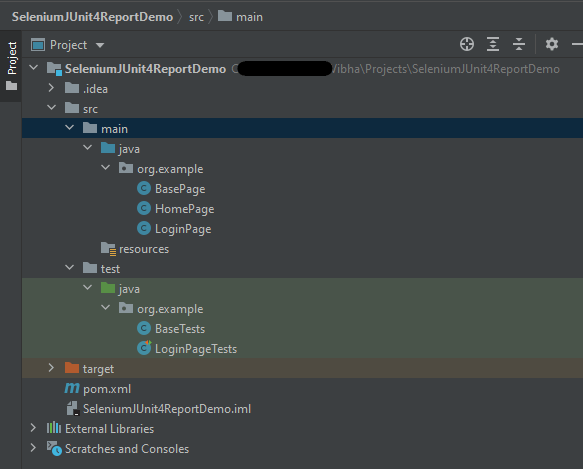
Project Structure

To create a Maven project in Eclipse, please refer to this tutorial – Maven – How to import Maven project in Eclipse

To create a Maven project in Eclipse, please refer to this tutorial – How to create Maven project in IntelliJ

Implementation Steps

Step 1 – Add the Maven Site Plugin and Maven Surefire Report plugin

Maven Site Plugin

<plugin>
         <groupId>org.apache.maven.plugins</groupId>
          <artifactId>maven-site-plugin</artifactId>
          <version>${maven.site.plugin.version}</version>
</plugin>

Maven Surefire Report Plugin

<reporting>
        <plugins>
            <plugin>
                <groupId>org.apache.maven.plugins</groupId>
                <artifactId>maven-surefire-report-plugin</artifactId>
                <version>${maven.surefire.report.plugin.version}</version>
            </plugin>
        </plugins>
    </reporting>

The complete POM.xml looks like

<?xml version="1.0" encoding="UTF-8"?>
<project xmlns="http://maven.apache.org/POM/4.0.0" xmlns:xsi="http://www.w3.org/2001/XMLSchema-instance" xsi:schemaLocation="http://maven.apache.org/POM/4.0.0 http://maven.apache.org/xsd/maven-4.0.0.xsd">
    
   <modelVersion>4.0.0</modelVersion>
    <groupId>org.example</groupId>
    <artifactId>SeleniumJUnit4ReportDemo</artifactId>
    <version>1.0-SNAPSHOT</version>
   
    <properties>
        <project.build.sourceEncoding>UTF-8</project.build.sourceEncoding>
        <selenium.version>4.3.0</selenium.version>
        <junit.version>4.13.2</junit.version>
        <webdrivermanager.version>5.2.1</webdrivermanager.version>
        <maven.site.plugin.version>3.12.0</maven.site.plugin.version>
        <maven.compiler.plugin.version>3.10.1</maven.compiler.plugin.version>
        <maven.surefire.plugin.version>3.0.0-M7</maven.surefire.plugin.version>
        <maven.surefire.report.plugin.version>3.0.0-M6</maven.surefire.report.plugin.version>
        <maven.compiler.source>11</maven.compiler.source>
        <maven.compiler.target>11</maven.compiler.target>
    </properties>
   
 <dependencies>

        <!-- Selenium -->
        <dependency>
            <groupId>org.seleniumhq.selenium</groupId>
            <artifactId>selenium-java</artifactId>
            <version>${selenium.version}</version>
        </dependency>
       
        <!-- JUnit4 -->
        <dependency>
            <groupId>junit</groupId>
            <artifactId>junit</artifactId>
            <version>${junit.version}</version>
            <scope>test</scope>
        </dependency>
       
        <!-- Web Driver Manager -->
        <dependency>
            <groupId>io.github.bonigarcia</groupId>
            <artifactId>webdrivermanager</artifactId>
            <version>${webdrivermanager.version}</version>
        </dependency>

    </dependencies>

    <build>
        <plugins>

            <plugin>
                <groupId>org.apache.maven.plugins</groupId>
                <artifactId>maven-site-plugin</artifactId>
                <version>${maven.site.plugin.version}</version>
            </plugin>

            <plugin>
                <groupId>org.apache.maven.plugins</groupId>
                <artifactId>maven-surefire-plugin</artifactId>
                <version>${maven.surefire.plugin.version}</version>
                <configuration>
                    <testFailureIgnore>true</testFailureIgnore>
                </configuration>
            </plugin>
          
            <plugin>
                <groupId>org.apache.maven.plugins</groupId>
                <artifactId>maven-compiler-plugin</artifactId>
                <version>${maven.compiler.plugin.version}</version>
                <configuration>
                    <source>${maven.compiler.source}</source>
                    <target>${maven.compiler.target}</target>
                </configuration>
            </plugin>
        </plugins>
    </build>

    <reporting>
        <plugins>
            <plugin>
                <groupId>org.apache.maven.plugins</groupId>
                <artifactId>maven-surefire-report-plugin</artifactId>
                <version>${maven.surefire.report.plugin.version}</version>
            </plugin>
        </plugins>
    </reporting>
</project>

Step 2 – Create Pages and Test Code for the pages

Below is the sample project which uses Selenium and JUnit which is used to generate a JUnit Report.

This is the BaseClass that contains the PageFactory.initElements. The initElements is a static method of PageFactory class that is used to initialize all the web elements located by @FindBy annotation. 

import org.openqa.selenium.WebDriver;
import org.openqa.selenium.support.PageFactory;

public class BasePage {
	
	  public WebDriver driver;

	  public BasePage(WebDriver driver) {
		  this.driver = driver;
		  PageFactory.initElements(driver,this);
	}

}

Below is the code for LoginPage and HomePage.

LoginPage 

import org.openqa.selenium.WebDriver;
import org.openqa.selenium.WebElement;
import org.openqa.selenium.support.FindBy;

public class LoginPage extends BasePage{
	
	 public LoginPage(WebDriver driver) {
		 super(driver);
		
    }
	
	@FindBy(name = "username")
    public WebElement userName;
 
    @FindBy(name = "password")
    public WebElement password;
    
    @FindBy(xpath = "//*[@id='app']/div[1]/div/div[1]/div/div[2]/div[2]/form/div[1]/div/span")
    public WebElement missingUsernameErrorMessage;
    
    @FindBy(xpath = "//*[@id='app']/div[1]/div/div[1]/div/div[2]/div[2]/form/div[1]/div/span")
    public WebElement missingPasswordErrorMessage;
 
    @FindBy(xpath = "//*[@id='app']/div[1]/div/div[1]/div/div[2]/div[2]/form/div[3]/button")
    public WebElement login;
 
    @FindBy(xpath = "//*[@id='app']/div[1]/div/div[1]/div/div[2]/div[2]/div/div[1]/div[1]/p")
    public  WebElement errorMessage;

    
    public void login(String strUserName, String strPassword) {
    	 
    	userName.sendKeys(strUserName);
    	password.sendKeys(strPassword);
    	login.click();
 
    }
  
    public String getMissingUsernameText() {
        return missingUsernameErrorMessage.getText();
    }

    public String getMissingPasswordText() {
        return missingPasswordErrorMessage.getText();
    }
   
    public String getErrorMessage() {
        return errorMessage.getText();
    }
 
}

HomePage

import org.openqa.selenium.WebDriver;
import org.openqa.selenium.WebElement;
import org.openqa.selenium.support.FindBy;

public class HomePage extends BasePage {

	public HomePage(WebDriver driver) {
		super(driver);

	}
	
	  @FindBy(xpath = "//*[@id='app']/div[1]/div[1]/header/div[1]/div[1]/span/h6")
	  public  WebElement homePageUserName;

	  public String getHomePageText() {
	       return homePageUserName.getText();
   }

}

Here, we have BaseTests Class which contains the common methods needed by other test pages.

import java.time.Duration;
import org.junit.After;
import org.junit.Before;
import org.openqa.selenium.WebDriver;
import org.openqa.selenium.chrome.ChromeDriver;
import io.github.bonigarcia.wdm.WebDriverManager;

public class BaseTests {
	
	public static WebDriver driver;
	public final static int TIMEOUT = 10;    

	@Before
    public void setup() {
    	WebDriverManager.chromedriver().setup();
	    driver = new ChromeDriver();
	    driver.manage().window().maximize();
	    driver.get("https://opensource-demo.orangehrmlive.com/");	    
	    driver.manage().timeouts().implicitlyWait(Duration.ofSeconds(TIMEOUT));

    }

    @After
    public void tearDown() {
        driver.quit();
    }
    
}

LoginPageTests

import org.junit.Assert;
import org.junit.Test;

public class LoginPageTests extends BaseTests{

    @Test
    public void invalidCredentials() {

        LoginPage objLoginPage = new LoginPage(driver);
        objLoginPage.login("admin$$", "admin123");

        // Verify Error Message
        Assert.assertEquals("Invalid credentials",objLoginPage.getErrorMessage());

    }

    @Test
    public void validLogin() {

        LoginPage objLoginPage = new LoginPage(driver);
        objLoginPage.login("Admin", "admin123");

        HomePage objHomePage = new HomePage(driver);

        // Verify Home Page
        Assert.assertEquals("Dashboard",objHomePage.getHomePageText());

    }
    
    @Test
    public void missingUsername() {

        LoginPage objLoginPage = new LoginPage(driver);
        objLoginPage.login("", "admin123");

        // Verify Error Message
        Assert.assertEquals("Invalid credentials",objLoginPage.getMissingUsernameText());

    }
    
}

Step 3 – Run the tests from the Command Line

Use the below command to run the tests from the command line

mvn clean test site

The output of the test execution is

Step 4 – JUnit Report generation

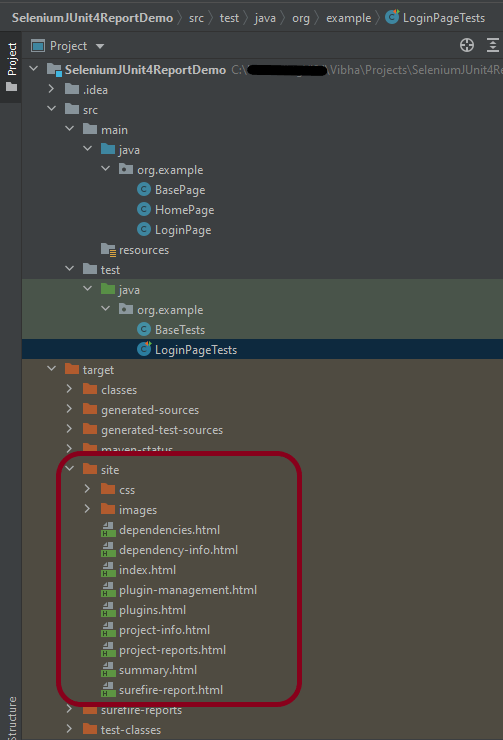
Maven Site Plugin creates a folder – site under the target directory, and the Maven Surefire Report plugin generates the JUnit Reports in the site folder.

Right-click on the surefire-report.html and open it in the browser.

To know about the test failure, go to the Failure Details Section.

Congratulations on making it through this tutorial and hope you found it useful! Happy Learning!! Cheers!!

Serenity Reports

HOME

Serenity Reports are living documentation that contains the meaningful report for each Test. It illustrated narrative reports that document and describe what your application does and how it works.

Assumptions in JUnit5

HOME

 Assumptions is a collection of utility methods that support conditional test execution based on assumptions.

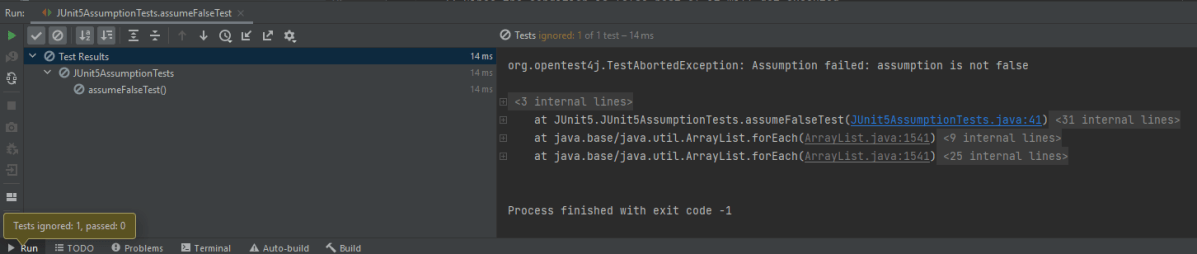
In direct contrast to failed assertions, failed assumptions do not result in a test failure; rather, a failed assumption results in a test being aborted.

Assumptions are typically used whenever it does not make sense to continue execution of a given test method — for example, if the test depends on something that does not exist in the current runtime environment.

Junit 5 comes with a subset of the assumption methods that JUnit 4 provides with Java 8 lambda expressions and method references. All JUnit Jupiter assumptions are static methods in the org.junit.jupiter.api.Assumptions class.

  1. Assumptions.assumeTrue() – If the condition is true, then run the test, else aborting the test.
  2. Assumptions.false() – If the condition is false, then run the test, else aborting the test.
  3. Assumptions.assumingThat() – is much more flexible, If condition is true then executes, else do not abort test continue rest of code in test.
1. assumeTrue

The assumeTrue() method validates the given assumption to be true and if the assumption is true – the test proceed, otherwise, test execution is aborted.

    int num1 = 4;
    int num2=6;
    int num3 = 24;
    int num4=10;

    @Test
    void assumeTrueTest() {
        System.setProperty("ENV", "TEST");
        assumeTrue("TEST".equals(System.getProperty("ENV")));

        // Since the condition is true rest of it will get executed
        assertEquals((num1*num2),num3,"The product of "+num1+"and "+num2+"is equal to "+num3);

    }

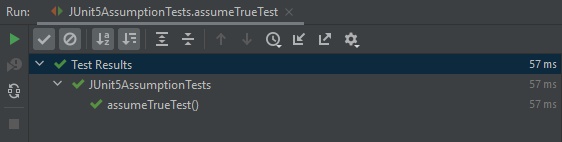
The output of the above program is

In the below example, assumeTrue() is false. So, the execution is skipped.

    int num1 = 4;
    int num2=6;
    int num3 = 24;
    int num4=10;

    @Test
    void assumeTrueTest1() {
        System.setProperty("ENV", "TEST");
        assumeTrue("QA".equals(System.getProperty("ENV")));

        // Since the condition is true rest of it will not get executed
        assertEquals((num1*num2),num3,"The product of "+num1+"and "+num2+"is equal to "+num3);

    }

The output of the above program is

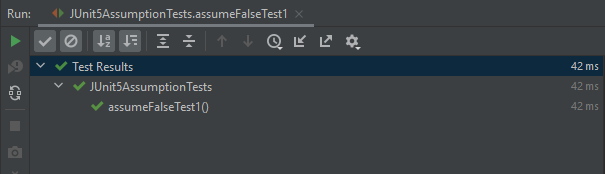
2. assumeFalse()

The assumeFalse() method validates the given assumption to false and if the assumption is false – test proceed, otherwise, test execution is aborted. In the below example, the test is false and we are using assumeFalse(), so the tests will be executed.

    int num1 = 4;
    int num2=6;
    int num3 = 24;
    int num4=10;

    @Test
    void assumeFalseTest1() {
        System.setProperty("ENV", "TEST");
        assumeFalse("DEV".equals(System.getProperty("ENV")));

        // Since the condition is true rest of it will get executed
        assertEquals((num1*num2),num3,"The product of "+num1+"and "+num2+"is equal to "+num3);

    }

The output of the above program is

In the below example, the test is false and we are using assumeFalse(), so the tests will be executed.

 @Test
    void assumeFalseTest() {
        System.setProperty("ENV", "TEST");
        assumeFalse("TEST".equals(System.getProperty("ENV")));

        // Since the condition is false rest of it will not get executed
        assertEquals((num1*num2),num3,"The product of "+num1+"and "+num2+"is equal to "+num3);

    }

The output of the above program is

3. assertThat()

This method executes the supplied Executable, but only if the supplied assumption is valid.

Unlike the other assumption methods, this method will not abort the test.

If the assumption is invalid, this method does nothing.
If the assumption is valid and the executable throws an exception, it will be treated like a regular test failure. The thrown exception will be rethrown as is but masked as an unchecked exception.

    int num1 = 4;
    int num2=6;
    int num3 = 24;
    int num4=10;
    int num5=8;
    int num6=2;

   @Test
    void assumingThatTest() {
        System.setProperty("ENV", "UAT");
        assumingThat(
                "UAT".equals(System.getProperty("ENV")),
                () -> {
                    // Since the condition is true, this assertion will get executed
                    System.out.println("Assuming that executable executed");
                    assertEquals((num1+num2),num4,"The product of "+ num1 +" and "+ num2 +" is not equal to "+num4);
                });
        // Since the condition is false rest of it will get executed
        System.out.println("Loop outside");
        assertEquals((num5-num2),num6,"The difference of "+ num5 +" and "+num2+" is not equal to " + num6);
    }

The output of the above program is

In the below example, the condition is false , so we skip the execution of that condition. But, we execute the rest of the code.

    int num1 = 4;
    int num2=6;
    int num3 = 24;
    int num4=10;

    @Test
    void assumingThatTest1() {
        System.setProperty("ENV", "UAT");
        assumingThat(
                "DEV".equals(System.getProperty("ENV")),
                () -> {
                    // Since the condition is false, this assertion will not get executed
                    System.out.println("Assuming that executable executed");
                    assertEquals((num1+num2),num4,"The sum of "+num1+"and "+num2+"is not equal to "+num4);
                });
        
        System.out.println("Loop outside");
        assertEquals((num1*num2),num3,"The product of "+num1+"and "+num2+"is not equal to "+num3);
    }

The output of the above program is

Difference between Assumption and Assertion

The main difference between the assertions and assumptions is –

The assumption is use to decide whether we want to execute a section or the rest of the test method or not and if the condition is false then the test is skipped.

Whereas if a condition in an assertion fails then it fails the test and something needs to be fixed.

How to parameterize Tests in JUnit5

HOME

JUnit5  enables us to execute a single test method multiple times with a different sets of data. This is called Parameterization. Parameterized Tests are declared just like regular @Test methods but use the @ParameterizedTest annotation.

This article shows you how to run a test multiple times with different arguments, so-called ‘Parameterized Tests’, let’s see the following ways to provide arguments to the test:

  • @ValueSource
  • @EnumSource
  • @MethodSource
  • @CsvSource
  • @CsvFileSource
  • @ArgumentsSource

We need to add junit-jupiter-params to support parameterized tests. In the case of Maven, add the dependency to POM.xml

<dependency>
    <groupId>org.junit.jupiter</groupId>
    <artifactId>junit-jupiter-params</artifactId>
    <version>5.8.2</version>
    <scope>test</scope>
</dependency>

In case of Gradle, add the dependency as

testCompile("org.junit.jupiter:junit-jupiter-params:5.8.2")

1. @ValueSource

Let us start with a simple example. The following example demonstrates a parameterized test that uses the @ValueSource annotation to specify an integer array as the source of arguments. The following @ParameterizedTest method will be invoked three times, with the values 5,6, and 0 respectively.

@ParameterizedTest
@ValueSource(ints = {5, 6, 0})
void test_int_arrays(int b) {

    int a= 5;
    int sum = a + b;
    assertTrue(sum>8);
 }

When executing the above-parameterized test method, each invocation will be reported separately.

The output of the above program is:

One of the limitations of value sources is that they only support these types:

  • short (with the shorts attribute)
  • byte (bytes attribute)
  • int (ints attribute)
  • long (longs attribute)
  • float (floats attribute)
  • double (doubles attribute)
  • char (chars attribute)
  • java.lang.String (strings attribute)
  • java.lang.Class (classes attribute)

Also, we can only pass one argument to the test method each time.

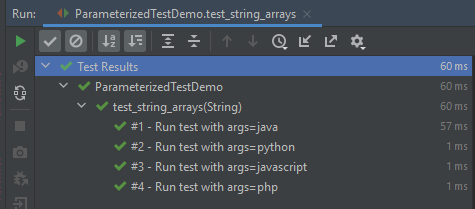
In the below example, an array of strings is passed as the argument to the Parameterized Test.

@ParameterizedTest(name = "#{index} - Run test with args={0}")
@ValueSource(strings = {"java", "python", "javascript","php"})
void test_string_arrays(String arg) {
        assertTrue(arg.length() > 1);
}

The output of the above program is:

@NullSource

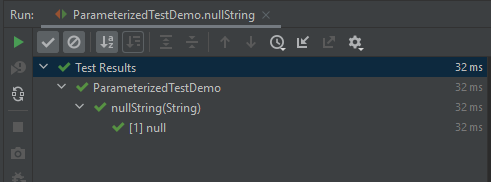
It provides a single null an argument to the annotated @ParameterizedTest method.

    @ParameterizedTest()
    @NullSource
    void nullString(String text) {
        assertTrue(text == null);
    }
    

The output of the above program is:

@EmptySource

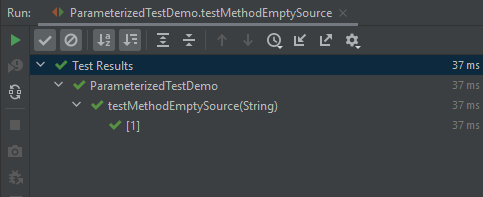
It provides a single empty argument to the annotated @ParameterizedTest method of the following types:

  • java.lang.String
  • java.util.List
  • java.util.Set
  • java.util.Map
  • primitive arrays (e.g. int[])
  • object arrays (e.g. String[])
 @ParameterizedTest
    @EmptySource
    void testMethodEmptySource(String argument) {
        assertTrue(StringUtils.isEmpty(argument));
        assertTrue(StringUtils.isBlank(argument));
    }

The output of the above program is:

@NullAndEmptySource

We can pass empty or null values into the test via @EmptySource, @NullSource, or @NullAndEmptySource (since JUnit 5.4).

Let’s see the following example to test an isEmpty() method.

import org.junit.jupiter.params.ParameterizedTest;
import org.junit.jupiter.params.provider.EmptySource;
import org.junit.jupiter.params.provider.NullSource;
import org.junit.jupiter.params.provider.ValueSource;
import static org.junit.jupiter.api.Assertions.*;

public class ParameterizedTestDemo {

    @ParameterizedTest(name = "#{index} - isEmpty()? {0}")
    @NullSource
    @EmptySource
    @ValueSource(strings = { " ", "   ", "\t", "\n","a"})
    void nullEmptyAndBlankStrings(String text) {
        assertTrue(text == null || text.trim().isEmpty());
    }
}

The parameterized test method result in seven invocations: 1 for null, 1 for the empty string, 4 for the explicit blank strings supplied via @ValueSource, and 1 non-blank string “a” supplied via @ValueSource.

The output of the above program is:

2. @EnumSource

@EnumSource provides a convenient way to use Enum constants.

public class EnumParameterizedTest {

    enum Error {
         Request_Invalid,
         Request_Timeout,
         RequestHeader_Invalid,
         Concurrency_Failed,
         ExternalCall_Failed,
         Schema_Invalid,
         Authentication_Failed;
    }

    @ParameterizedTest
    @EnumSource(Error.class)
    void test_enum(Error error) {
       assertNotNull(error);
    }
}

The output of the above program is:

The annotation provides an optional names attribute that lets you specify which constants shall be used, like in the following example. If omitted, all constants will be used.

    @ParameterizedTest(name = "#{index} - Is Error contains {0}?")
    @EnumSource(value = Error.class, names = {"Request_Invalid", "ExternalCall_Failed", "Concurrency_Failed", "Authentication_Failed"})
    void test_enum_include(Error error) {
       assertTrue(EnumSet.allOf(Error.class).contains(error));
    }

The output of the above program is:

The @EnumSource annotation also provides an optional mode attribute that enables fine-grained control over which constants are passed to the test method. For example, you can exclude names from the enum constant pool or specify regular expressions as in the following examples.

 @ParameterizedTest
 @EnumSource(value = Error.class, mode = EnumSource.Mode.EXCLUDE, names = {"Request_Invalid", "Request_Timeout", "RequestHeader_Invalid"})
    void test_enum_exclude(Error error) {
        EnumSet<Error> excludeRequestRelatedError = EnumSet.range(Error.Concurrency_Failed, Error.Authentication_Failed);
        assertTrue(excludeRequestRelatedError.contains(error));
  }

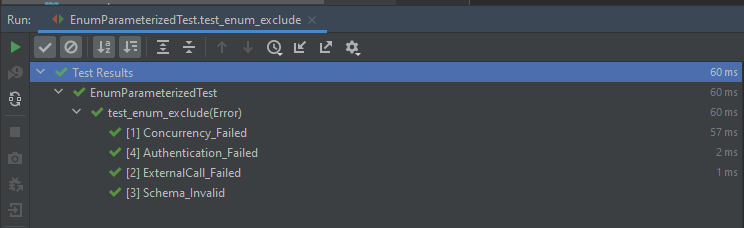
The output of the above program is:

EnumSource.Mode.EXCLUDE – It selects all declared enum constants except those supplied via the names attribute.

EnumSource.Mode.MATCH_ALL – It selects only those enum constants whose names match any pattern supplied via the names attribute.

  @ParameterizedTest
    @EnumSource(mode = EnumSource.Mode.MATCH_ALL, names = "^.*Invalid")
    void test_match(Error error) {
        assertTrue(error.name().contains("Invalid"));
    }

The output of the above program is

3. @MethodSource

@MethodSource allows you to refer to one or more factory methods of the test class or external classes.

Factory methods within the test class must be static unless the test class is annotated with @TestInstance(Lifecycle.PER_CLASS); whereas, factory methods in external classes must always be static. In addition, such factory methods must not accept any arguments.

If you only need a single parameter, you can return a Stream of instances of the parameter type as demonstrated in the following example.

   @ParameterizedTest(name = "#{index} - Test with String : {0}")
    @MethodSource("stringProvider")
    void test_method_string(String arg) {
        assertNotNull(arg);
    }

    // this need static
    static Stream<String> stringProvider() {
        return Stream.of("java", "junit5", null);
    }

The output of the above program is

If you do not explicitly provide a factory method name via @MethodSource, JUnit Jupiter will search for a factory method that has the same name as the current @ParameterizedTest method by convention. This is demonstrated in the following example.

    @ParameterizedTest(name = "#{index} - Test with String : {0}")
    @MethodSource
    void test_no_factory_methodname(String arg) {
        assertNotNull(arg);
    }

    static Stream<String> test_no_factory_methodname() {
        return Stream.of("java", "junit5", null);
    }

The output of the above program is

Streams for primitive types (DoubleStream, IntStream, and LongStream) are also supported as demonstrated by the following example.

 @ParameterizedTest(name = "#{index} - Test with Int : {0}")
    @MethodSource("rangeProvider")
    void test_method_int(int arg) {
        assertTrue(arg < 6);
    }
    
    static IntStream rangeProvider() {
        return IntStream.range(0, 6);
    }

The output of the above program is

If a parameterized test method declares multiple parameters, you need to return a collection, stream, or array of Arguments instances or object arrays as shown below.

    @ParameterizedTest
    @MethodSource("stringIntAndListProvider")
    void testWithMultiArgMethodSource(String str, int num, List<String> list) {
        assertEquals(5, str.length());
        assertTrue(num >=1 && num <=2);
        assertEquals(2, list.size());
    }

    static Stream<Arguments> stringIntAndListProvider() {
        return Stream.of(
                arguments("apple", 1, Arrays.asList("a", "b")),
                arguments("lemon", 2, Arrays.asList("x", "y"))
        );
    }

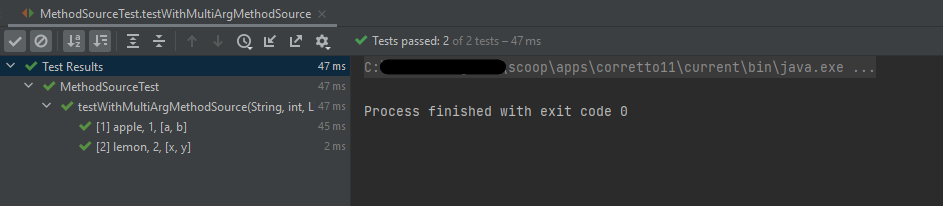
The output of the above program is

4. @CsvSource

@CsvSource allows you to express argument lists as comma-separated values (i.e., CSV String literals). Each string provided via the value attribute in @CsvSource represents a CSV record and results in one invocation of the parameterized test.

import org.junit.jupiter.params.ParameterizedTest;
import org.junit.jupiter.params.provider.CsvSource;
import static org.junit.jupiter.api.Assertions.assertEquals;

public class CSVParameterizedTest {

    @ParameterizedTest
    @CsvSource({
            "java,      4",
            "javascript,   7",
            "python,    6",
            "HTML,    4",
    })


    void test(String str, int length) {
        assertEquals(length, str.length());
    }
}

The output of the above program is

5. @CsvFileSource

@CsvFileSource lets us use comma-separated value (CSV) files from the classpath or the local file system. Each record from a CSV file results in one invocation of the parameterized test. The first record may optionally be used to supply CSV headers.

csvdemo.csv

    @ParameterizedTest
    @CsvFileSource(resources = "/csvdemo.csv")

    void testLength(String str, int length) {
        Assertions.assertEquals(length, str.length());
    }

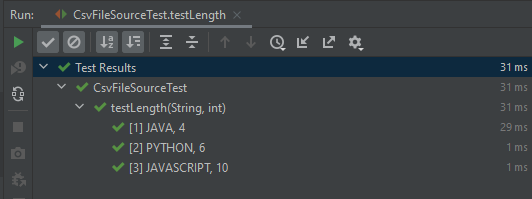
The output of the above program is

csv file with the heading

JUnit can ignore the headers via the numLinesToSkip attribute.

    @ParameterizedTest
    @CsvFileSource(files = "src/test/resources/csvdemo.csv",numLinesToSkip = 1)

    void testStringLength(String str, int length) {
        Assertions.assertEquals(length, str.length());
    }

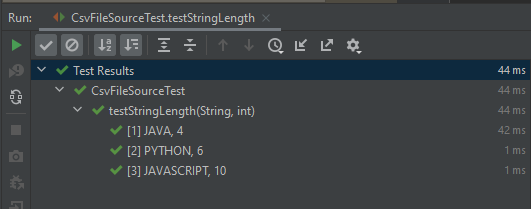
The output of the above program is

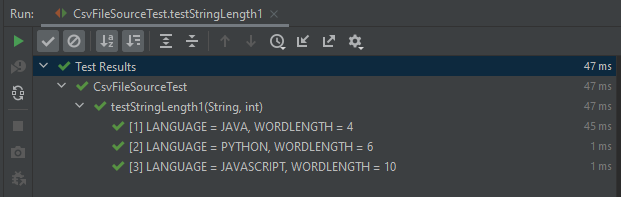
If you would like the headers to be used in the display names, you can set the useHeadersInDisplayName attribute to true. The examples below demonstrate the use of useHeadersInDisplayName.

 @ParameterizedTest(name = "[{index}] {arguments}")
    @CsvFileSource(files = "src/test/resources/csvdemo.csv",useHeadersInDisplayName = true)

    void testStringLength1(String str, int length) {
        assertEquals(length, str.length());
    }

The output of the above program is

6. @ArgumentsSource

@ArgumentsSource can be used to specify a custom, reusable ArgumentsProvider. Note that an implementation of ArgumentsProvider must be declared as either a top-level class or as a static nested class.

import org.junit.jupiter.api.extension.ExtensionContext;
import org.junit.jupiter.params.provider.Arguments;
import org.junit.jupiter.params.provider.ArgumentsProvider;
import java.util.stream.Stream;

public class CustomArgumentsProvider implements ArgumentsProvider {

    @Override
    public Stream<? extends Arguments>
    provideArguments(ExtensionContext extensionContext) throws Exception {
        return Stream.of("java", "junit5", "junit4", null).map(Arguments::of);
    }
}
import org.junit.jupiter.params.ParameterizedTest;
import org.junit.jupiter.params.provider.ArgumentsSource;
import static org.junit.jupiter.api.Assertions.assertNotNull;

public class ArgumentsSourceTest {

    @ParameterizedTest
    @ArgumentsSource(CustomArgumentsProvider.class)
    void test_argument_custom(String arg) {
        assertNotNull(arg);
    }
}

The output of the above program is

Congratulation. We have understood parameterization in JUnit5 tests. Happy Learning!!