How to test POST JSON Object request using Java Map in Rest Assured

HOME

In the last tutorial, I explained How to test POST request from JSON Object in Rest Assured where the request body is built in JSONObject. In this tutorial, I will create a request body using JSON Object in Rest Assured. 

We can create a JSON Object using a Map in Java. A JSON Object is a key-value pair and can be easily created using a Java Map. A Map in Java also represents a collection of key-value pairs.

<dependencies>

    <dependency>
      <groupId>org.json</groupId>
      <artifactId>json</artifactId>
      <version>20231013</version>
    </dependency>

    <dependency>
      <groupId>junit</groupId>
      <artifactId>junit</artifactId>
      <version>4.13.1</version>
      <scope>test</scope>
    </dependency>

    <dependency>
      <groupId>io.rest-assured</groupId>
      <artifactId>rest-assured</artifactId>
      <version>5.3.2</version>
      <scope>test</scope>
    </dependency>
    
    <dependency>
      <groupId>com.fasterxml.jackson.core</groupId>
      <artifactId>jackson-databind</artifactId>
      <version>2.15.2</version>
    </dependency>

  </dependencies>

I have created a simple Java map and filled it with the values that represent JSON properties.

import io.restassured.RestAssured;
import io.restassured.http.ContentType;
import org.junit.Test;
import java.util.HashMap;
import java.util.Map;
import static org.hamcrest.Matchers.equalTo;

public class Json_Demo {

    @Test
    public void passBodyAsMap() {
        Map<String, String> map = new HashMap<String, String>();
        map.put("employee_name", "MapTest");
        map.put("employee_salary", "99999");
        map.put("employee_age", "30");
        map.put("profile_image", "test.png");
        RestAssured.given()
                .contentType(ContentType.JSON)
                .body(map)
                .log().all()

                .when()
                .post("https://dummy.restapiexample.com/api/v1/create")

                .then()
                .assertThat().statusCode(200)
                .body("data.employee_name", equalTo("MapTest"))
                .body("data.employee_age", equalTo("30"))
                .body("data.employee_salary", equalTo("99999"))
                .body("message", equalTo("Successfully! Record has been added.")).log().all();
    }
}

The request body as well as the response body will look as shown below:-

Above one is a simple JSON Request Body. Let us take an example of a Complex Request Body or nested Request Body as shown below.

import io.restassured.RestAssured;
import io.restassured.http.ContentType;
import org.junit.Test;
import java.util.HashMap;
import java.util.Map;
import static org.hamcrest.Matchers.equalTo;

public class Json_Demo {

    @Test
    public void passBodyAsMultipleMap() {

        // First JSON Object using Hash Map
        Map<String, Object> data = new HashMap<String, Object>();
        data.put("employee_name", "MapTest");
        data.put("profile_image", "test.png");

        // Second JSON Object using Hash Map
        Map<String, String> msg = new HashMap<String, String>();
        msg.put("updated_message", "Details of New Resource");
        msg.put("employee_age", "30");
        data.put("details", msg);
        data.put("employee_salary", "99999");
        RestAssured.given().contentType(ContentType.JSON).body(data).log().all()
                // WHEN
                .when().post("https://dummy.restapiexample.com/api/v1/create")
                // THEN
                .then().assertThat().statusCode(200).body("data.employee_name", equalTo("MapTest"))
                .body("data.details.updated_message", equalTo("Details of New Resource"))
                .body("data.details.employee_age", equalTo("30")).body("data.employee_salary", equalTo("99999"))
                .body("message", equalTo("Successfully! Record has been added.")).log().all();
    }
}

The request body as well as the response body will look as shown below image. The first part is the body of the request and the second part is the response provided by the API.

Congratulations on making it through this tutorial and hope you found it useful! Happy Learning!!

How to test PATCH Request using Rest Assured

HOME

In the last tutorial, I explained How to test POST Request using Rest Assured. In this tutorial, I will automate a PATCH Request using Rest Assured. I will verify the status code, line of Status, and content of the Response.

To set up a basic Rest Assured Maven Project, click here and Gradle project, click here.

<dependency>
      <groupId>junit</groupId>
      <artifactId>junit</artifactId>
      <version>4.13.1</version>
      <scope>test</scope>
</dependency>
  
<dependency>
      <groupId>io.rest-assured</groupId>
      <artifactId>rest-assured</artifactId>
      <version>5.3.2</version>
      <scope>test</scope>
</dependency>

What is the PATCH Method?

The HTTP PATCH request method applies partial modifications to a resource

Below are the steps to test a PATCH Request using Rest Assured:

The steps to test the PATCH request are similar to the PUT request.

Below is the example for the test to PATCH method. (Non BDD)

import io.restassured.RestAssured;
import io.restassured.http.ContentType;
import io.restassured.response.Response;
import io.restassured.response.ValidatableResponse;
import io.restassured.specification.RequestSpecification;
import org.junit.Test;
import static org.hamcrest.CoreMatchers.equalTo;

public class Patch_NonBDDDemo {

    RequestSpecification requestSpecification;
    Response response;
    ValidatableResponse validatableResponse;

    @Test
    public void updateUser() {

        String jsonString = "{\"name\": \"William\"}";

        RestAssured.baseURI = "https://reqres.in/api/users/2";

        // Create a request specification
        requestSpecification = RestAssured.given();

        // Setting content type to specify format in which request payload will be sent.
        requestSpecification.contentType(ContentType.JSON);

        // Adding body as string
        requestSpecification.body(jsonString);

        // Calling PATCH method
        response = requestSpecification.patch();

        // Let's print response body.
        String responseString = response.prettyPrint();

        /*
         * To perform validation on response, we need to get ValidatableResponse type of
         * response
         */
        validatableResponse = response.then();

        // Get status code
        validatableResponse.statusCode(200);

        // It will check if status line is as expected
        validatableResponse.statusLine("HTTP/1.1 200 OK");

        // Check response - name attribute
        validatableResponse.body("name", equalTo("William"));

    }
}

Test implemented in BDD Format

import io.restassured.http.ContentType;
import io.restassured.response.Response;
import io.restassured.response.ValidatableResponse;
import io.restassured.specification.RequestSpecification;
import org.junit.Test;
import static io.restassured.RestAssured.given;
import static org.hamcrest.CoreMatchers.equalTo;

public class Patch_BDDDemo {

    RequestSpecification requestSpecification;
    Response response;
    ValidatableResponse validatableResponse;

    @Test
    public void updateUser() {

       String jsonString = "{\"name\": \"William\"}";

        // Update name
        validatableResponse = given()
                .baseUri("https://reqres.in/api/users/2")
                .contentType(ContentType.JSON)
                .body(jsonString)
                .when()
                .patch()
                .then()
                .assertThat().statusCode(200)
                .body("name", equalTo("William"));

        System.out.println("Response :" + validatableResponse.extract().asPrettyString());

    }

}

Congratulations on making it through this tutorial and hope you found it useful! Happy Learning!! Cheers!!

How to test DELETE in Rest Assured

HOME

In the last tutorial, I explained How to test PUT Request using Rest Assured. In this tutorial, I will automate a DELETE Request using Rest Assured. I will verify the status code, line of Status, and content of the Response.

To set up a basic Rest Assured Maven Project, click here and Gradle project, click here.

<dependency>
      <groupId>junit</groupId>
      <artifactId>junit</artifactId>
      <version>4.13.1</version>
      <scope>test</scope>
</dependency>
  
<dependency>
      <groupId>io.rest-assured</groupId>
      <artifactId>rest-assured</artifactId>
      <version>5.3.2</version>
      <scope>test</scope>
</dependency>

What is the DELETE Method?

An HTTP DELETE method is used to delete an existing resource from the collection of resources. The DELETE method requests the origin server to delete the resource identified by the Request-URI. On successful deletion of a resource, it returns  200 (OK) and 204 (No Content) status codes. It may return as 202 (Accepted) status code if the request is queued. To learn more about Rest API, please click here.

Below are the steps to test a DELETE Request using Rest Assured:

The steps to test the DELETE request are similar to any API request like GET, POST, or PUT. To know about the steps and various imports used in the below example in detail, please refer to the tutorial for POST Request.

Let’s see the existing details of an Employee ID 3 using Postman:

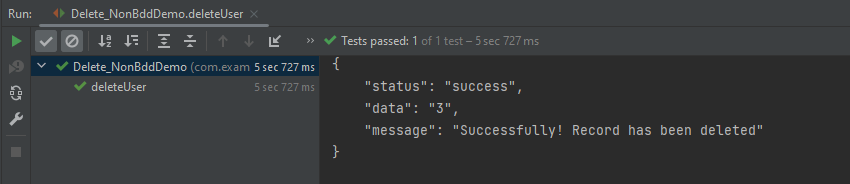
Let’s write DELETE request in REST Assured in Non BDD Format for id 3:-

import io.restassured.RestAssured;
import io.restassured.response.Response;
import io.restassured.response.ValidatableResponse;
import io.restassured.specification.RequestSpecification;
import org.junit.Test;
import static org.hamcrest.CoreMatchers.equalTo;

public class Delete_NonBddDemo {

    RequestSpecification requestSpecification;
    Response response;
    ValidatableResponse validatableResponse;

    @Test
    public void deleteUser() {

        RestAssured.baseURI = "https://dummy.restapiexample.com/api";

        // Create a request specification
        requestSpecification = RestAssured.given();

        // Calling DELETE method
        response = requestSpecification.delete("/v1/delete/3");

        // Let's print response body.
        String resString = response.prettyPrint();

        /*
         * To perform validation on response, we need to get ValidatableResponse type of
         * response
         */
        validatableResponse = response.then();

        // Get status code
        validatableResponse.statusCode(200);

        // It will check if status line is as expected
        validatableResponse.statusLine("HTTP/1.1 200 OK");

        // Check response - message attribute
        validatableResponse.body("message", equalTo("Successfully! Record has been deleted"));

    }
}

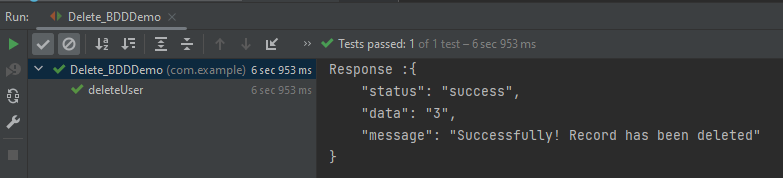
Let’s write DELETE request in REST Assured in BDD Format:

import io.restassured.http.ContentType;
import io.restassured.response.ValidatableResponse;
import org.junit.Test;
import static io.restassured.RestAssured.given;
import static org.hamcrest.CoreMatchers.equalTo;

public class Delete_BDDDemo {

    ValidatableResponse validatableResponse;

    @Test
    public void deleteUser() {
        
        validatableResponse = given()
                .baseUri("https://dummy.restapiexample.com/api/v1/delete/3")
                .contentType(ContentType.JSON)
                .when()
                .delete()
                .then()
                .assertThat().statusCode(200)
                .body("message", equalTo("Successfully! Record has been deleted"));

        System.out.println("Response :" + validatableResponse.extract().asPrettyString());

    }

}

.baseUri("https://dummy.restapiexample.com/api/v1/delete/3")
  .contentType(ContentType.JSON)
assertThat().statusCode(200)
.body("message", equalTo("Successfully! Record has been deleted"));

We are done. Congratulations on making it through this tutorial and hope you found it useful! Happy Learning!! Cheers!!

How to test PUT Request using Rest Assured

HOME

In the last tutorial, I explained How to test POST Request using Rest Assured. In this tutorial, I will automate a PUT Request using Rest Assured. I will verify the status code, line of Status, and content of the Response.

To set up a basic Rest Assured Maven Project, click here and Gradle project, click here.

<dependency>
      <groupId>junit</groupId>
      <artifactId>junit</artifactId>
      <version>4.13.1</version>
      <scope>test</scope>
</dependency>
  
<dependency>
      <groupId>io.rest-assured</groupId>
      <artifactId>rest-assured</artifactId>
      <version>5.3.2</version>
      <scope>test</scope>
</dependency>

What is the PUT Method?

The HTTP PUT API is primarily used to update existing resources. If the resource does not exist, then API may decide to create a new resource or not (Depending on API development). If a new resource has been created by the PUT API, the origin server MUST inform the user agent via the HTTP response code 201 (Created) response, and if an existing resource is modified, either the 200 (OK) or 204 (No Content) response codes SHOULD be sent to indicate successful completion of the request. To learn more about Rest API, please click here.

Below are the steps to test a PUT Request using Rest Assured:

The steps to test the PUT request are similar to the POST request. The only difference is that in POST we send a request to create a new resource, whereas here we have a resource and I will update the detail of the already existing resource. To know about the steps and various imports used in the below example, please refer to the tutorial for POST Request.

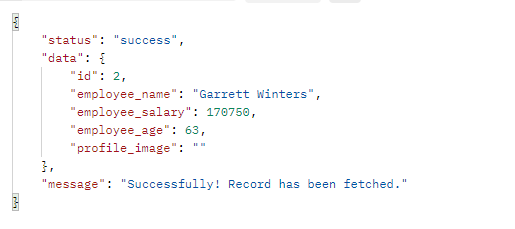
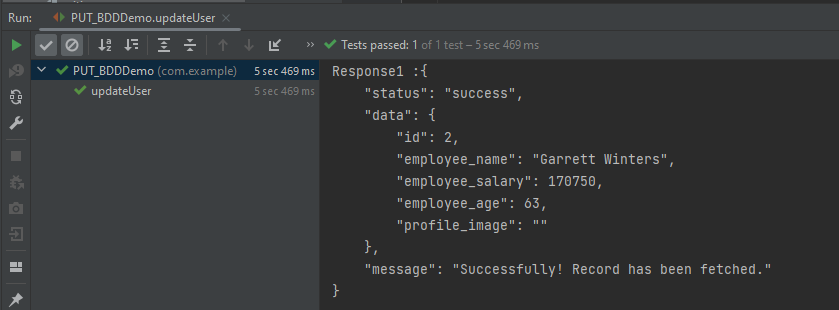
Below is the response received for Employee with id 2.

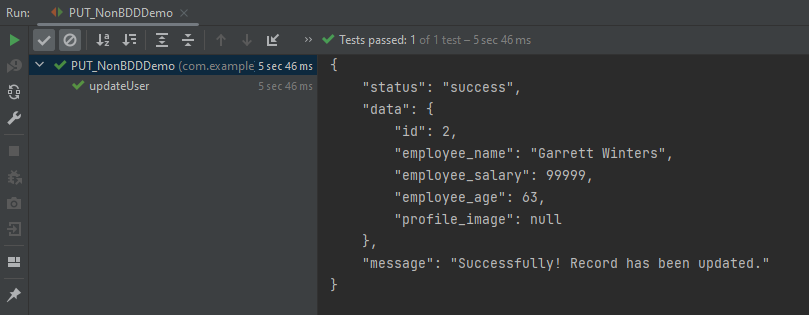
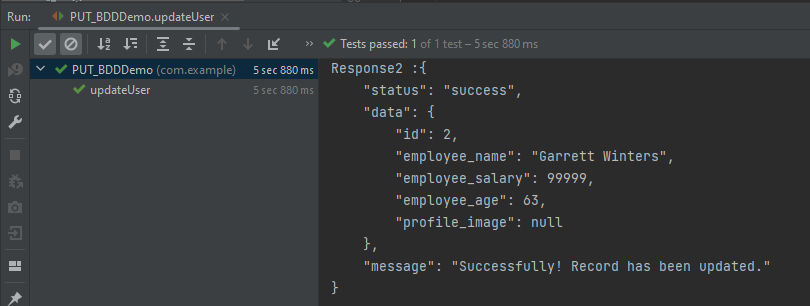
I want to change the employee_salary to 99999. Below is the example for the test to update employee_salary.

import io.restassured.RestAssured;
import io.restassured.http.ContentType;
import io.restassured.response.Response;
import io.restassured.response.ValidatableResponse;
import io.restassured.specification.RequestSpecification;
import org.junit.Test;
import static org.hamcrest.CoreMatchers.equalTo;

public class PUT_NonBDDDemo {

    RequestSpecification requestSpecification;
    Response response;
    ValidatableResponse validatableResponse;

    @Test
    public void updateUser() {

        String jsonString = "{\"id\": 2,\r\n"
                + "        \"employee_name\": \"Garrett Winters\",\r\n"
                + "        \"employee_salary\": 99999,\r\n"
                + "        \"employee_age\": 63,\r\n"
                + "        \"profile_image\": \"\"}";

        RestAssured.baseURI = "https://dummy.restapiexample.com/api/v1/update/2";

        // Create a request specification
        requestSpecification = RestAssured.given();

        // Setting content type to specify format in which request payload will be sent.
        requestSpecification.contentType(ContentType.JSON);

        // Adding body as string
        requestSpecification.body(jsonString);

        // Calling PUT method
        response = requestSpecification.put();

        // Let's print response body.
        String responseString = response.prettyPrint();

        /*
         * To perform validation on response, we need to get ValidatableResponse type of
         * response
         */
        validatableResponse = response.then();

        // Get status code
        validatableResponse.statusCode(200);

        // It will check if status line is as expected
        validatableResponse.statusLine("HTTP/1.1 200 OK");

        // Check response - name attribute
        validatableResponse.body("data.employee_salary", equalTo(99999));

        // Check response - message attribute
        validatableResponse.body("message", equalTo("Successfully! Record has been updated."));

    }
}

Now, let us convert the same test into BDD format. In the below example, in the first part, we have retrieved the details of the employee with ID 2, and in the second part, we have updated the value of employee_salary to 99999.

import io.restassured.http.ContentType;
import io.restassured.response.Response;
import io.restassured.response.ValidatableResponse;
import io.restassured.specification.RequestSpecification;
import org.junit.Test;
import static io.restassured.RestAssured.given;
import static org.hamcrest.CoreMatchers.equalTo;

public class PUT_BDDDemo {

    RequestSpecification requestSpecification;
    Response response;
    ValidatableResponse validatableResponse, validatableResponse1;

    @Test
    public void updateUser() {

        // To get the detail of employee with id 2
        validatableResponse = given()
                .baseUri("https://dummy.restapiexample.com/api/v1/employee/2")
                .contentType(ContentType.JSON)
                .when()
                .get()
                .then()
                .assertThat().statusCode(200);

        System.out.println("Response1 :" + validatableResponse.extract().asPrettyString());

        String jsonString = "{\"id\": 2,\r\n"
                + "        \"employee_name\": \"Garrett Winters\",\r\n"
                + "        \"employee_salary\": 99999,\r\n"
                + "        \"employee_age\": 63,\r\n"
                + "        \"profile_image\": \"\"}";

        // Update employee_salary
        validatableResponse1 = given()
                .baseUri("https://dummy.restapiexample.com/api/v1/update/2")
                .contentType(ContentType.JSON)
                .body(jsonString)
                .when()
                .put()
                .then()
                .assertThat().statusCode(200)
                .body("data.employee_salary", equalTo(99999))
                .body("message", equalTo("Successfully! Record has been updated."));

        System.out.println("Response2 :" + validatableResponse1.extract().asPrettyString());

    }

}

Congratulations on making it through this tutorial and hope you found it useful! Happy Learning!! Cheers!!

Assertion of JSON in Rest Assured using Hamcrest

Last Updated On

HOME

In this tutorial, we will discuss various types of Assertions present in Hamcrest that are used in Rest Assured.

Table Of Contents

What is Assertion?

An assertion is a way to verify that the expected result and the actual result match or not in the test case.  A test is considered successful ONLY if it is completed without throwing any exceptions. If the current value and the expected value match then the assertion passes and when the assertion passes nothing happens. But when an assertion fails, it will fail the test case.

There are various ways to perform assertions in API Testing. For API Testing, we are using Rest Assured, which uses either Hamcrest or JUnit assertions. We are going to discuss Hamcrest Assertions here.

What is Hamcrest?

Hamcrest is a framework for writing matcher objects, allowing ‘match’ rules to be defined declaratively. We do not need to add Hamcrest dependency explicitly as the Rest-Assured 4.3.3 version includes itself. To learn more about Hamcrest, please refer to this link.

We need to add the below dependency to use Hamcrest in the project. Please use the latest version from here

<dependency>
    <groupId>org.hamcrest</groupId>
    <artifactId>hamcrest</artifactId>
    <version>3.0</version>
    <scope>test</scope>
</dependency>

To run all the scenarios mentioned below, please add the below-mentioned dependencies to the POM.xml.

<?xml version="1.0" encoding="UTF-8"?>
<project xmlns="http://maven.apache.org/POM/4.0.0"
         xmlns:xsi="http://www.w3.org/2001/XMLSchema-instance"
         xsi:schemaLocation="http://maven.apache.org/POM/4.0.0 http://maven.apache.org/xsd/maven-4.0.0.xsd">
    <modelVersion>4.0.0</modelVersion>

    <groupId>org.example</groupId>
    <artifactId>RestAssured_TestNG_Demo</artifactId>
    <version>1.0-SNAPSHOT</version>

    <properties>
        <hamcrest.version>3.0</hamcrest.version>
        <testng.version>7.8.0</testng.version>
        <rest-assured.version>5.3.2</rest-assured.version>
        <maven.compiler.source>11</maven.compiler.source>
        <maven.compiler.target>11</maven.compiler.target>
        <project.build.sourceEncoding>UTF-8</project.build.sourceEncoding>
    </properties>

    <dependencies>

     <!-- Hamcrest Dependency -->
    <dependency>
        <groupId>org.hamcrest</groupId>
        <artifactId>hamcrest</artifactId>
        <version>${hamcrest.version}</version>
        <scope>test</scope>
    </dependency>

    <!-- TestNG Dependency -->
    <dependency>
        <groupId>org.testng</groupId>
        <artifactId>testng</artifactId>
        <version>${testng.version}</version>
    </dependency>

    <!-- Rest Assured -->
    <dependency>
        <groupId>io.rest-assured</groupId>
        <artifactId>rest-assured</artifactId>
        <version>${rest-assured.version}</version>
        <scope>test</scope>
    </dependency>

    </dependencies>
</project>

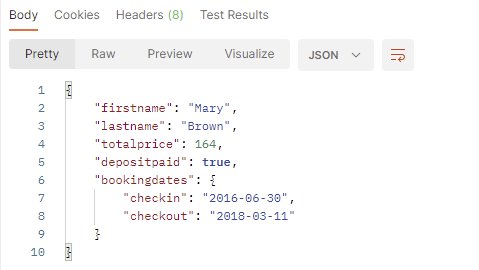
Below is an example of a JSON Response. I will perform various assertions on this JSON Response.

To use hamcrest assertion, please import the Matchers class, static member.

  1. equalTo – It checks whether the retrieved number from the response is equal to the expected number.
  2. greaterThan – checks extracted number is greater than the expected number.
  3. greaterThanOrEqualTo – checks whether the extracted number is greater than equal to the expected number.
  4. lessThan – It checks whether the retrieved number from the response is lesser than the expected number.
  5. lessThanOrEqualTo – It checks whether the retrieved number from the response is lesser than or equal to the expected number.

Below assertions are imported from the package shown below:-

import static org.hamcrest.Matchers.equalTo;
import static org.hamcrest.Matchers.greaterThan;
import static org.hamcrest.Matchers.greaterThanOrEqualTo;
import static org.hamcrest.Matchers.lessThanOrEqualTo;
import static org.hamcrest.Matchers.lessThan;

Below are examples to show the use of number-related assertions.

import io.restassured.RestAssured;
import io.restassured.http.ContentType;
import org.testng.annotations.Test;
import static org.hamcrest.Matchers.equalTo;
import static org.hamcrest.Matchers.greaterThan;
import static org.hamcrest.Matchers.greaterThanOrEqualTo;
import static org.hamcrest.Matchers.lessThanOrEqualTo;
import static org.hamcrest.Matchers.lessThan;

public class HamcrestNumberExample {

    public String endpoint = "https://restful-booker.herokuapp.com/booking/1";

    @Test
    public void numberAssertions() {
        RestAssured.given().contentType(ContentType.JSON)
                .when().get(endpoint).then()
                .body("totalprice", equalTo(164));

        RestAssured.given().contentType(ContentType.JSON)
                .when().get(endpoint)
                .then().body("totalprice",greaterThan(100));

        RestAssured.given().contentType(ContentType.JSON)
                .when().get(endpoint)
                .then().body("totalprice",greaterThanOrEqualTo(50));

        RestAssured.given().contentType(ContentType.JSON)
                .when().get(endpoint)
                .then().body("totalprice",lessThan(1000));

        RestAssured.given().contentType(ContentType.JSON)
                .when().get(endpoint)
                .then().body("totalprice",lessThanOrEqualTo(1000));

    }

}

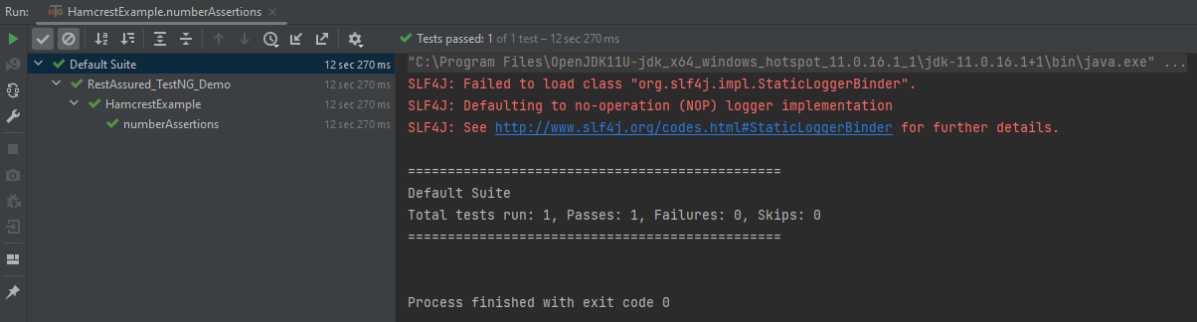
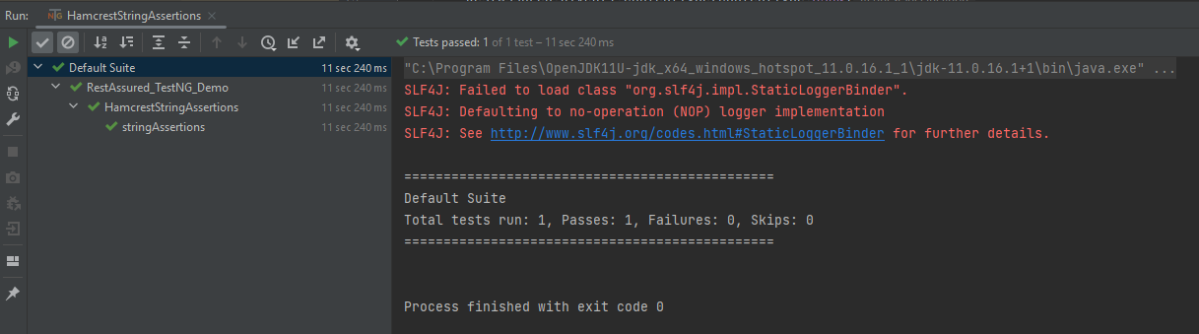
The output of the above program is

  1. equalTo – It checks whether the extracted string from JSON is equal to the expected string.
  2. equalToIgnoringCaseIt checks if the extracted string from JSON matches the expected string. The comparison does not consider case (small or capital).
  3. equalToIgnoringWhiteSpace – It checks if the extracted string from JSON matches the expected string. It takes into account the white spaces.
  4. containsString – It checks whether the extracted string from JSON contains the expected string as a substring.
  5. startsWith It checks whether the extracted string from JSON is starting with a given string or character.
  6. endsWithIt checks whether the extracted string from JSON is ending with a given string or character.

Below assertions are imported from the package shown below:-

import static org.hamcrest.Matchers.containsString;
import static org.hamcrest.Matchers.endsWith;
import static org.hamcrest.Matchers.equalTo;
import static org.hamcrest.Matchers.equalToIgnoringCase;
import static org.hamcrest.Matchers.startsWith;
import static org.hamcrest.Matchers.equalToIgnoringWhiteSpace;

Below are examples to show the use of string-related assertions.

import io.restassured.RestAssured;
import io.restassured.http.ContentType;
import org.testng.annotations.Test;
import static org.hamcrest.Matchers.containsString;
import static org.hamcrest.Matchers.endsWith;
import static org.hamcrest.Matchers.equalTo;
import static org.hamcrest.Matchers.equalToIgnoringCase;
import static org.hamcrest.Matchers.startsWith;
import static org.hamcrest.Matchers.equalToIgnoringWhiteSpace;

public class HamcrestStringAssertions {

    public String endpoint = "https://restful-booker.herokuapp.com/booking/1";

    @Test
    public void stringAssertions() {
        RestAssured.given().contentType(ContentType.JSON)
                .when().get(endpoint)
                .then().body("firstname",equalTo("Mary"));

        RestAssured.given().contentType(ContentType.JSON)
                .when().get(endpoint)
                .then().body("firstname",equalToIgnoringCase("mary"));

        RestAssured.given().contentType(ContentType.JSON)
                .when().get(endpoint)
                .then().body("firstname",containsString("Mary"));

        RestAssured.given().contentType(ContentType.JSON)
                .when().get(endpoint)
                .then().body("firstname",startsWith("M"));

        RestAssured.given().contentType(ContentType.JSON)
                .when().get(endpoint)
                .then().body("firstname",endsWith("y"));

        RestAssured.given().contentType(ContentType.JSON)
                .when().get(endpoint)
                .then().body("firstname",equalToIgnoringWhiteSpace("   Mary "));


    }
}

The output of the above program is

nullValue

It checks whether the extracted response from JSON is NULL or Not.

Below assertions are imported from the package shown below:-

import static org.hamcrest.Matchers.hasKey;
import static org.hamcrest.Matchers.is;
import static org.hamcrest.Matchers.nullValue;

Below are examples to show the use of collection-related assertions.

import io.restassured.RestAssured;
import io.restassured.http.ContentType;
import org.testng.annotations.Test;
import static org.hamcrest.Matchers.is;
import static org.hamcrest.Matchers.nullValue;

public class HamcrestNullAssertion {
    
   public String endpoint = "https://restful-booker.herokuapp.com/booking/1";

    @Test
    public void nullAssertion() {
        RestAssured.given().contentType(ContentType.JSON)
                .when().get(endpoint)
                .then().body("totalprice1", is(nullValue()));
    }
}

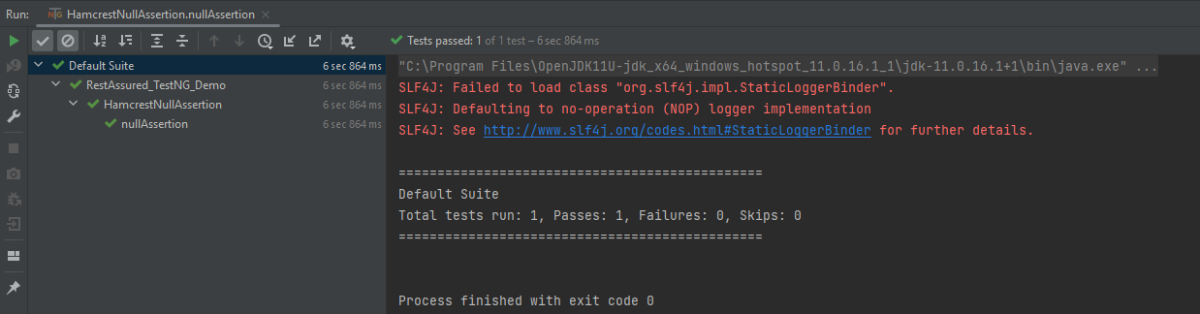
The output of the above program is

hasKey

It checks whether the extracted map has an expected key.

import io.restassured.RestAssured;
import io.restassured.http.ContentType;
import org.testng.annotations.Test;
import static org.hamcrest.Matchers.hasKey;

public class HamcrestHasKeyAssertion {
    
    public String endpoint = "https://restful-booker.herokuapp.com/booking/1";

    @Test
    public void collectionAssertions() {

        RestAssured.given().contentType(ContentType.JSON)
                .when().get(endpoint)
                .then().body("bookingdates",hasKey("checkin"));

    }
}

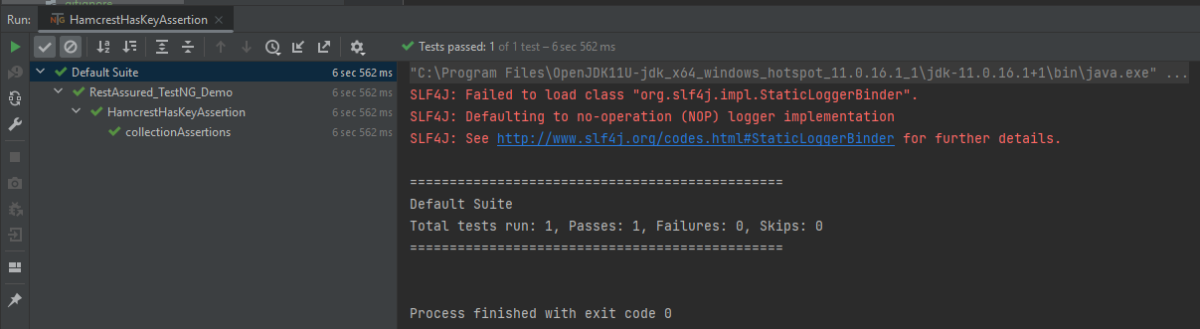
The output of the above program is

Not Assertion

The not assertion inverts the meaning of the other assertions. For example, if you want to perform negative assertions, then we can use any assertions with NOT.

The below assertion is imported from the package shown below:-

import static org.hamcrest.Matchers.equalTo;
import static org.hamcrest.Matchers.not;

Below are examples to show the use of negative assertions.

import static org.hamcrest.Matchers.equalTo;
import static org.hamcrest.Matchers.not;
import io.restassured.RestAssured;
import io.restassured.http.ContentType;
import org.testng.annotations.Test;

public class HamcrestNotAssertion {
    
    public String endpoint = "https://restful-booker.herokuapp.com/booking/1";

    @Test
    public void negativeAssertions() {
        RestAssured.given().contentType(ContentType.JSON)
                .when().get(endpoint)
                .then().body("totalprice",not(equalTo(874)));

    }
}

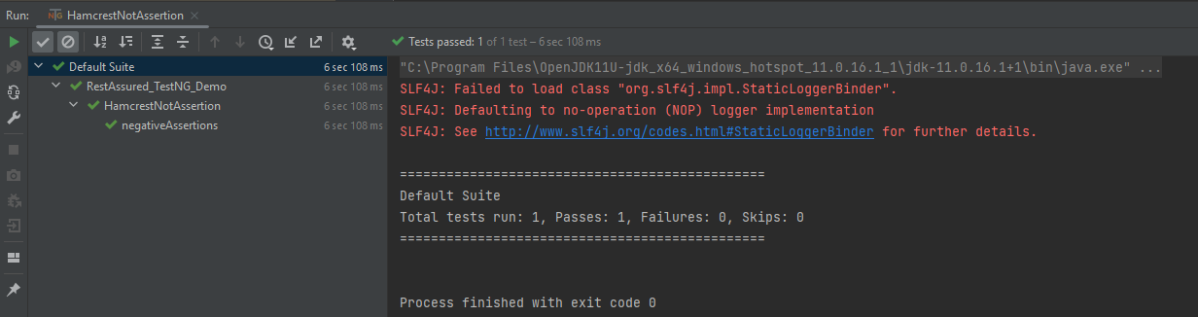
The output of the above program is

Multiple Assert Statements

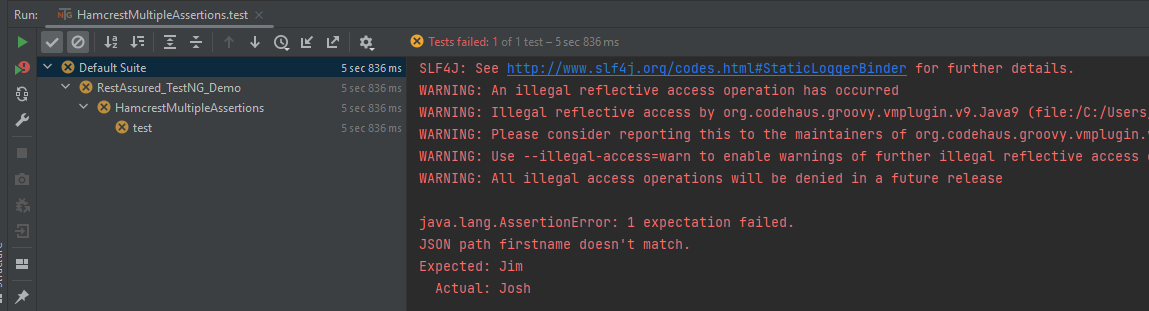
In the below example, all 3 assertions will fail. It will only execute the first assertion. If the first assertion fails, then other assertions will not be executed.

import io.restassured.RestAssured;
import io.restassured.http.ContentType;
import org.testng.annotations.Test;
import static org.hamcrest.Matchers.equalTo;

public class HamcrestMultipleAssertions {

    public String endpoint = "https://restful-booker.herokuapp.com/booking/1";
    
    @Test
    public void test1() {
        RestAssured.given().contentType(ContentType.JSON)
                .when().get(endpoint).then()
                .body("firstname", equalTo("Jim"), // will fail
                        "lastname", equalTo("Smith"), // will fail
                        "totalprice", equalTo(314)); // will fail
    }

}

The output of the above program is

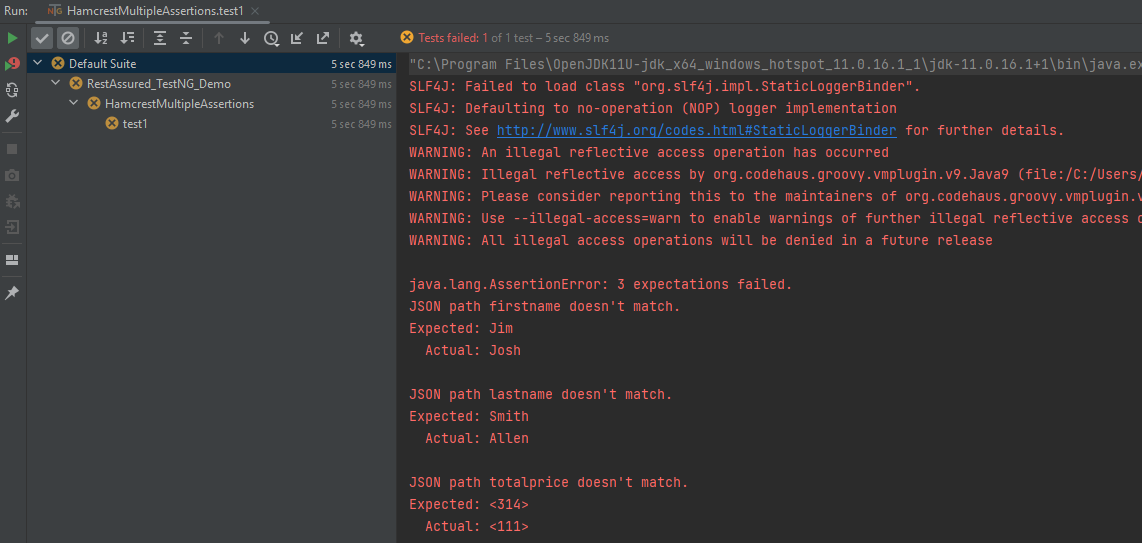
To execute all the assertions in the test case, combine them into a single body. This should be done just like it is shown below. You can see that all the assertions failed, and they are shown in the response.

import io.restassured.RestAssured;
import io.restassured.http.ContentType;
import org.testng.annotations.Test;
import static org.hamcrest.Matchers.equalTo;

public class HamcrestMultipleAssertions {

    public String endpoint = "https://restful-booker.herokuapp.com/booking/1";
    
    @Test
    public void test1() {
        RestAssured.given().contentType(ContentType.JSON)
                .when().get(endpoint).then()
                .body("firstname", equalTo("Jim"), // will fail
                        "lastname", equalTo("Smith"), // will fail
                        "totalprice", equalTo(314)); // will fail
    }

}

The output of the above program is

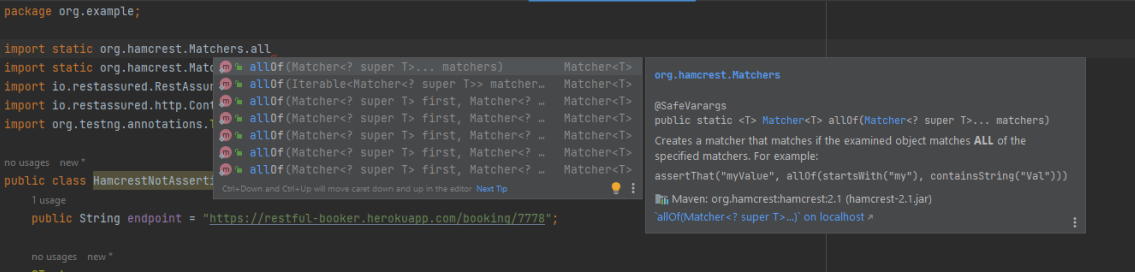
I have tried to show the use of a few of the most commonly used assertion methods. There are many more methods available in Hamcrest package. To know about other methods, write import static org.hamcrest.Matchers and add (.) at the end, it will show the list of all the methods available in Hamcrest.

To know more details related to Hamcrest assertion, you can refer the official website – Hamcrest

We are done! Congratulations on making it through this tutorial and hope you found it useful! Happy Learning!!

How to test POST JSON Object request using Java Map in Rest Assured
How to create JSON Array Request Body
Extraction from JSON in Rest Assured
How To Send A JSON/XML File As Payload To Request using Rest Assured
Logging in Rest Assured

Rest Assured Tutorials

HOME

RestAssured is a Java-based library that is used to test RESTful Web Services. REST-assured was designed to simplify the testing and validation of REST APIs. It takes influence from testing techniques used in dynamic languages such as Ruby and Groovy.

Chapter 1 Assertion of JSON in Rest Assured using Hamcrest
Chapter 2 Extraction from JSON in Rest Assured – JsonPath
Chapter 3 How to perform multiple assertions in Rest Assured? 
Chapter 4 How to validate JSON body in Rest Assured?
Chapter 5 Compare JSON Objects using JSONAssert Library
Chapter 6 Compare JSON Arrays using JSONAssert Library
Chapter 7 How to Read JSON with JSON.simple – NEW
Chapter 8 How to create and write to JSON with JSON.simple – NEW

JSON Handling and manipulation

Category 10: XML Manipulations

XML Handling and manipulation

Gradle

Chapter 1 Setup Basic REST Assured Gradle Project In Eclipse IDE

Frameworks

Chapter 1 Integration of REST Assured with TestNG
Chapter 2 Integration of REST Assured with JUnit4
Chapter 3 Integration of REST Assured with JUnit5
Chapter 4 Serenity BDD with Cucumber and Rest Assured
Chapter 5 Serenity BDD with Cucumber and Rest Assured in Gradle
Chapter 6 How To Create Gradle Project with Cucumber to test Rest API
Chapter 7 Rest API Test in Cucumber and JUnit4
Chapter 8 API Automation with REST Assured, Cucumber and TestNG

Integration of REST Assured with JUnit5

HOME

In this tutorial, I’ll create a Test Framework for the testing of REST API using REST Assured and JUnit5 as the test framework.

What is Rest Assured?

Rest Assured enables you to test REST APIs using Java libraries and integrates well with Maven/Gradle. REST Assured is a Java library that provides a domain-specific language (DSL) for writing powerful, maintainable tests for RESTful APIs.

What is JUnit5?

JUnit 5 is the next generation of JUnit. JUnit 5 is composed of several different modules from three different sub-projects.

Dependency List:-

  1. REST Assured – 5.3.2
  2. Java 11
  3. JUnit Jupiter API – 5.10.0
  4. JUnit Jupiter Engine – 5.10.0
  5. Maven – 3.8.1
  6. Json – 20230618

Detailed Step Description

Step 1- Download and Install Java

Java needs to be present on the system to run the tests. Click here to know How to install Java. To know if Java is installed or not on your machine, type this command in the command line. This command will show the version of Java installed on your machine.

java -version

Step 2 – Download and setup Eclipse IDE on the system

The Eclipse IDE (integrated development environment) provides strong support for Java developers, which is needed to write Java code. Click here to learn How to install Eclipse.

Step 3 – Setup Maven

To build a test framework, we need to add a number of dependencies to the project. It is a very tedious and cumbersome process to add each dependency manually. So, to overcome this problem, we use a build management tool. Maven is a build management tool that is used to define project structure, dependencies, build, and test management. Click here to learn How to install Maven.

To know if Maven is already installed or not on your machine, type this command in the command line. This command will show the version of Maven installed on your machine.

mvn -version

Step 4 – Create a new Maven Project

Click here to learn How to create a Maven project

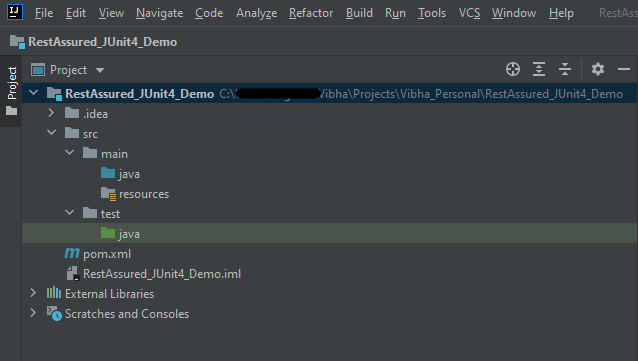
Below is the Maven project structure. Here,

Group Id – com.example
Artifact Id – RestAssured_JUnit5_Demo
Version – 0.0.1-SNAPSHOT
Package – com. example.RestAssured_JUnit4_Demo
Step 5 – Add REST Assured and JUnit5 dependencies to the project

Add the below-mentioned dependencies to the project.

<project xmlns="http://maven.apache.org/POM/4.0.0" xmlns:xsi="http://www.w3.org/2001/XMLSchema-instance"
  xsi:schemaLocation="http://maven.apache.org/POM/4.0.0 http://maven.apache.org/xsd/maven-4.0.0.xsd">
  <modelVersion>4.0.0</modelVersion>

  <groupId>org.example</groupId>
  <artifactId>RestAssured_Junit5_Demo</artifactId>
  <version>1.0-SNAPSHOT</version>
  <packaging>jar</packaging>

  <name>RestAssured_Junit5_Demo</name>
  <url>http://maven.apache.org</url>

  <properties>
    <project.build.sourceEncoding>UTF-8</project.build.sourceEncoding>
    <rest-assurd.version>5.3.2</rest-assurd.version>
    <json.version>20230618</json.version>
    <hamcrest.version>1.3</hamcrest.version>
    <junit5.version>5.10.0</junit5.version>
    <maven.surefire.report.plugin.version>3.1.2</maven.surefire.report.plugin.version>
    <maven.compiler.plugin.version>3.10.1</maven.compiler.plugin.version>
    <maven.surefire.plugin.version>3.1.2</maven.surefire.plugin.version>
    <maven.compiler.source.version>11</maven.compiler.source.version>
    <maven.compiler.target.version>11</maven.compiler.target.version>
    <maven.site.plugin.version>3.12.0</maven.site.plugin.version>
  </properties>

  <dependencies>

    <!-- Rest Assured Dependency -->
    <dependency>
      <groupId>io.rest-assured</groupId>
      <artifactId>rest-assured</artifactId>
      <version>${rest-assurd.version}</version>
      <scope>test</scope>
    </dependency>

    <!-- JUNIT Jupiter API Dependency-->
    <dependency>
      <groupId>org.junit.jupiter</groupId>
      <artifactId>junit-jupiter-api</artifactId>
      <version>${junit5.version}</version>
      <scope>test</scope>
    </dependency>

    <!-- JUNIT Jupiter Engine Dependency-->
    <dependency>
      <groupId>org.junit.jupiter</groupId>
      <artifactId>junit-jupiter-engine</artifactId>
      <version>${junit5.version}</version>
      <scope>test</scope>
    </dependency>

    <!-- JSON Dependency -->
    <dependency>
      <groupId>org.json</groupId>
      <artifactId>json</artifactId>
      <version>${json.version}</version>
    </dependency>

    <!-- Hamcrest Dependency -->
    <dependency>
      <groupId>org.hamcrest</groupId>
      <artifactId>hamcrest-all</artifactId>
      <version>${hamcrest.version}</version>
      <scope>test</scope>
    </dependency>

  </dependencies>

  <build>
    <plugins>
      <plugin>
        <groupId>org.apache.maven.plugins</groupId>
        <artifactId>maven-compiler-plugin</artifactId>
        <version>${maven.compiler.plugin.version}</version>
        <configuration>
          <source>${maven.compiler.source.version}</source>
          <target>${maven.compiler.target.version}</target>
        </configuration>
      </plugin>

      <plugin>
        <groupId>org.apache.maven.plugins</groupId>
        <artifactId>maven-surefire-plugin</artifactId>
        <version>${maven.surefire.plugin.version}</version>
        <configuration>
          <testFailureIgnore>true</testFailureIgnore>
        </configuration>
      </plugin>

      <plugin>
        <groupId>org.apache.maven.plugins</groupId>
        <artifactId>maven-site-plugin</artifactId>
        <version>${maven.site.plugin.version}</version>
      </plugin>
    </plugins>
  </build>

    <reporting>
      <plugins>
        <plugin>
          <groupId>org.apache.maven.plugins</groupId>
          <artifactId>maven-surefire-report-plugin</artifactId>
          <version>${maven.surefire.report.plugin.version}</version>
          <configuration>
            <outputName>JUnit5 Report</outputName>
          </configuration>
        </plugin>
      </plugins>
    </reporting>

</project>

Step 6 – Create the TEST file

The tests should be written in src/test/java directory. To learn how to create a JSON Request body using JSONObject, please refer to this tutorial.

import io.restassured.http.ContentType;
import org.json.JSONObject;
import org.junit.jupiter.api.Test;
import static io.restassured.RestAssured.given;
import static org.hamcrest.Matchers.equalTo;

public class APITests {

        String BaseURL = "https://reqres.in/api";

    @Test
    public void createUser() {

        JSONObject data = new JSONObject();

        data.put("name", "NewUser1");
        data.put("job", "Testing");

        // GIVEN
        given()
                .contentType(ContentType.JSON)
                .body(data.toString())

                // WHEN
                .when()
                .post(BaseURL + "/users")

                // THEN
                .then()
                .statusCode(201)
                .body("name", equalTo("NewUser1"))
                .body("job", equalTo("Testing"))
                .log().all();

    }

    @Test
    public void getUser() {  //Failed Test

        // GIVEN
        given()
                .contentType(ContentType.JSON)

                // WHEN
                .when()
                .get(BaseURL + "/users/2")

                // THEN
                .then()
                .statusCode(200)
                .body("data.first_name", equalTo("Janet1"))
                .log().all();

    }

}

Step 7 – Test Execution through JUnit Test

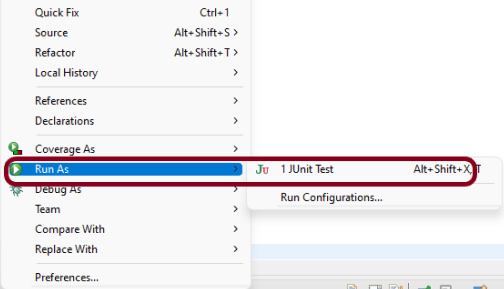
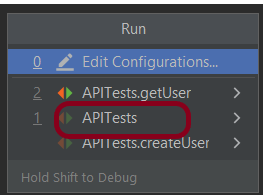
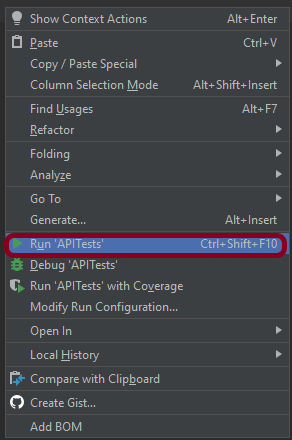
Go to the Runner class and right-click Run As JUnit Test. The tests will run as JUnit tests.

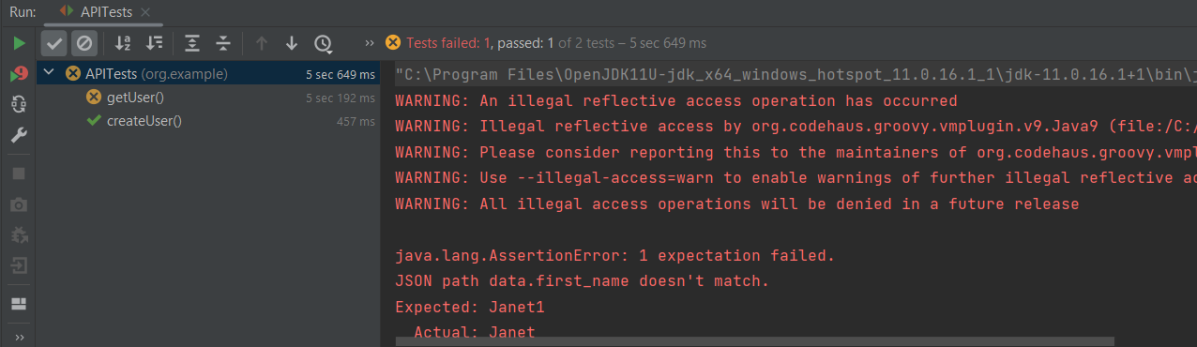
Below is the image to run the tests in IntelliJ.
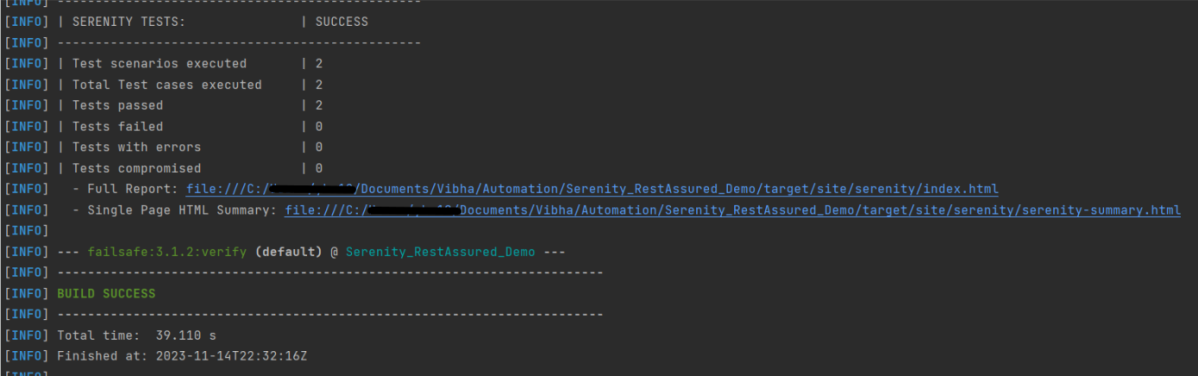
This is how the execution console will look like.
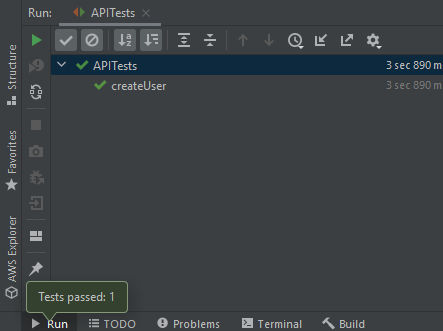
Step 8 – Run the tests from the command line

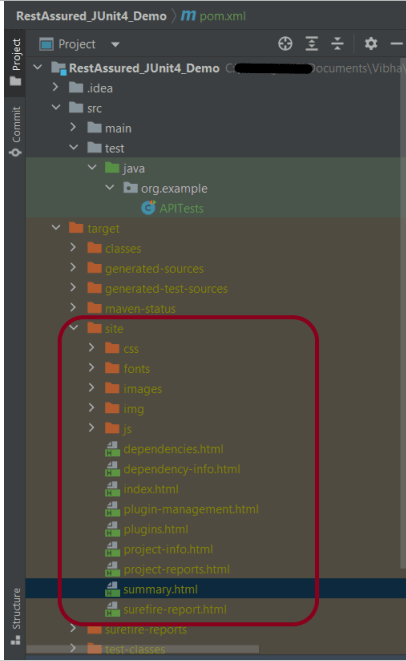
Maven Site Plugin creates a folder – site under the target directory, and the Maven Surefire Report plugin generates the JUnit Reports in the site folder. We need to run the tests through the command line to generate the JUnit Report.

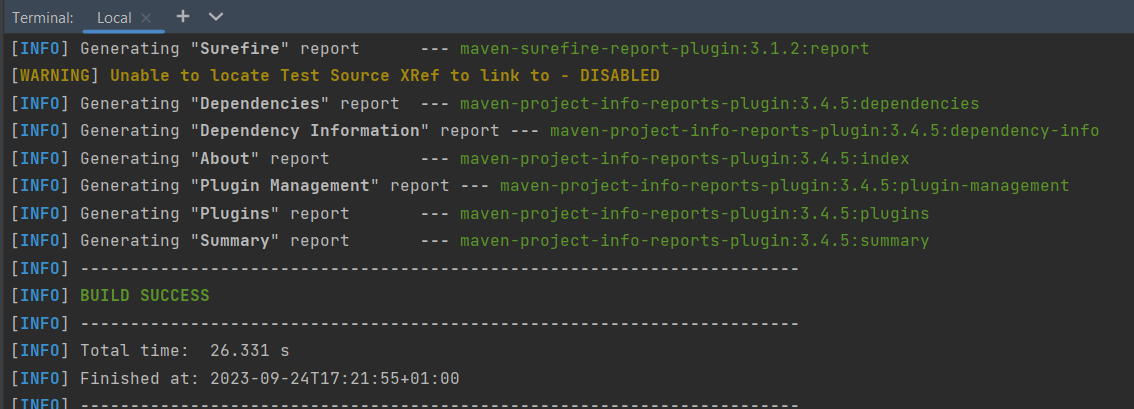
mvn clean test site

The output of the above program is
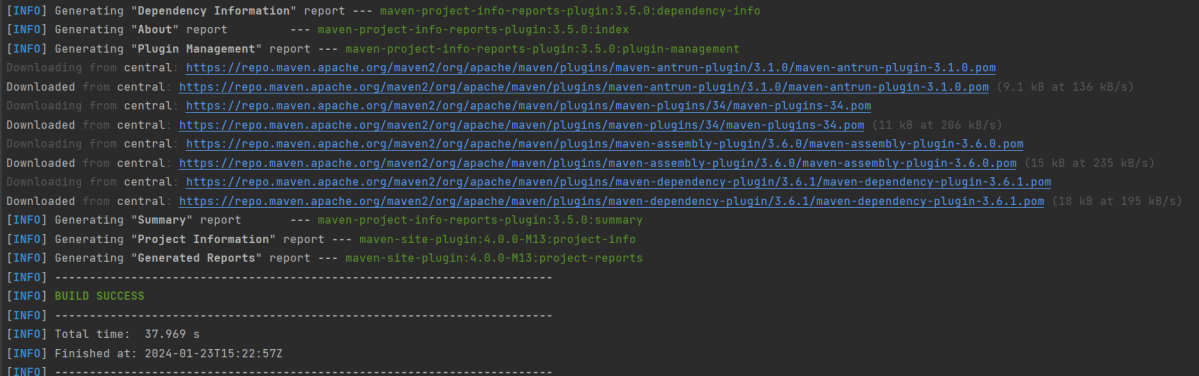
Step 9 – Report Generation

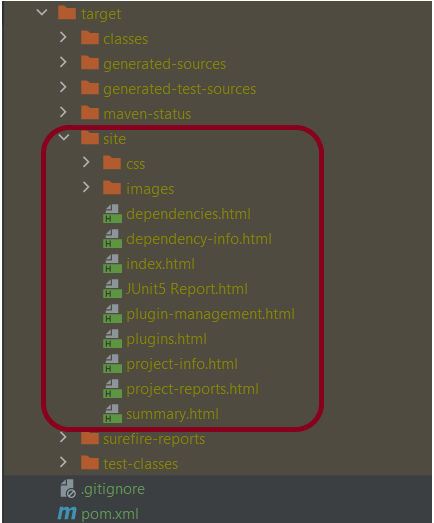
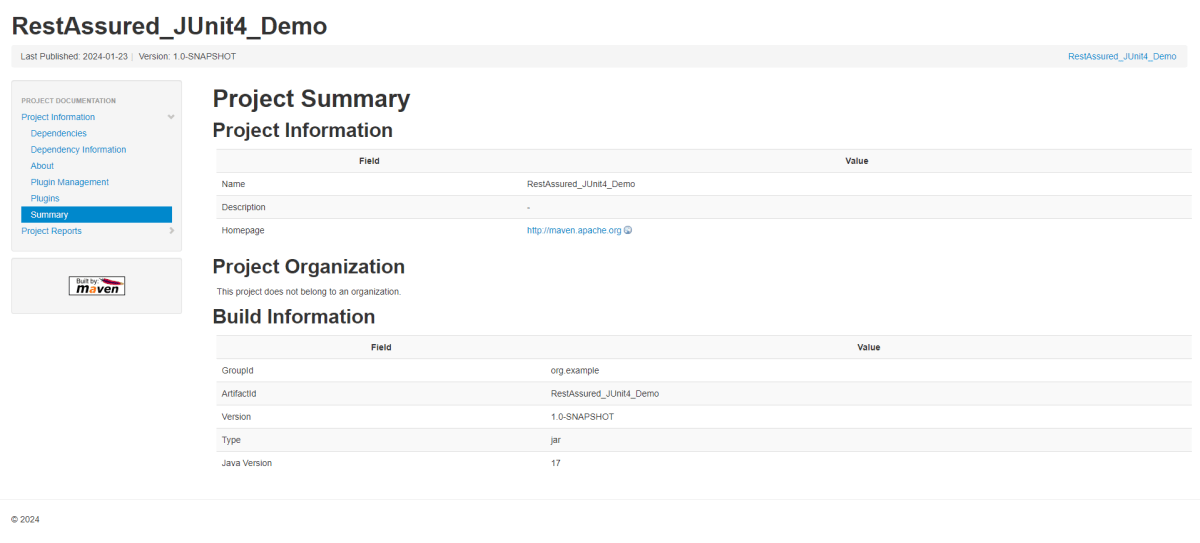
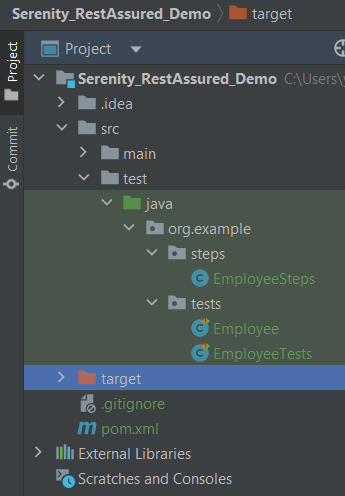
After the test execution, refresh the project, and a new folder with the name site in the target folder will be generated. This folder contains the reports generated by JUnit. The structure of the folder site looks as shown below.
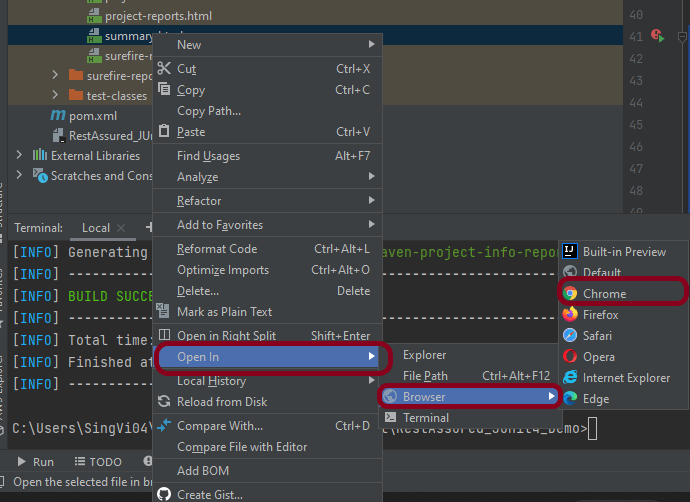
View the Report

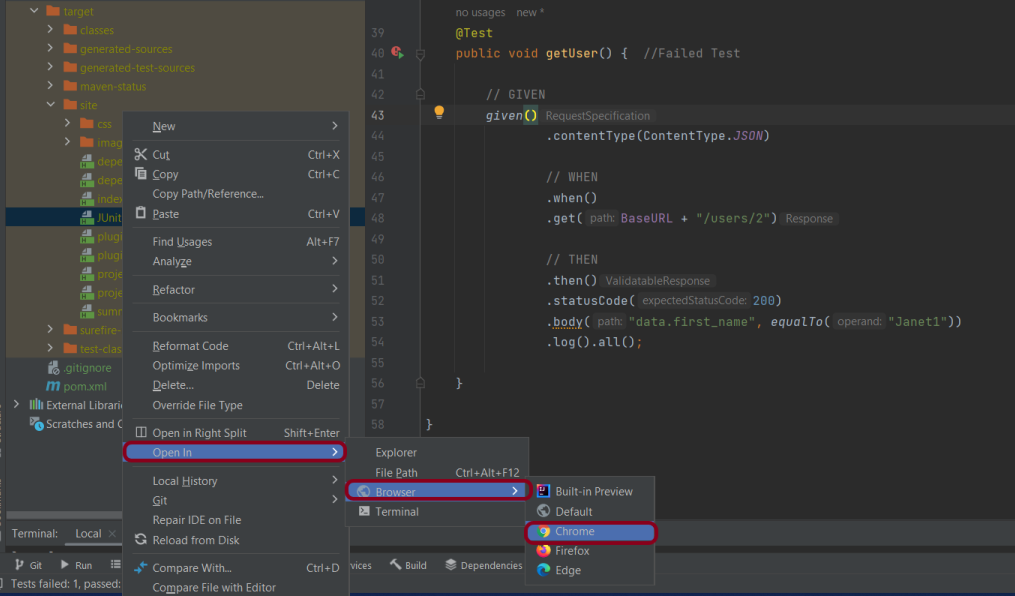
Right-click on the Junit5 Report.html and select Open In -> Browser ->Chrome.
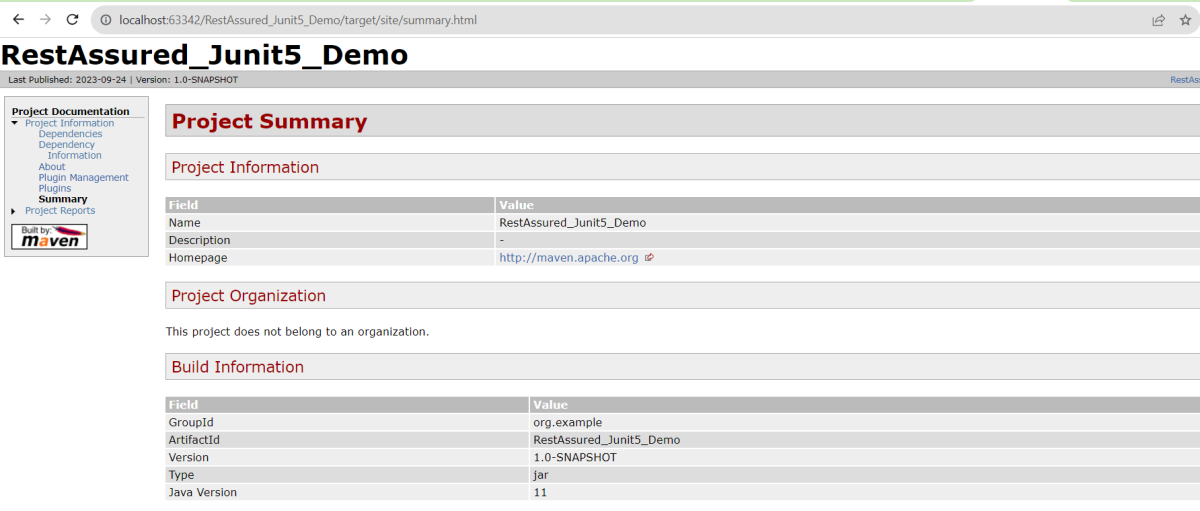
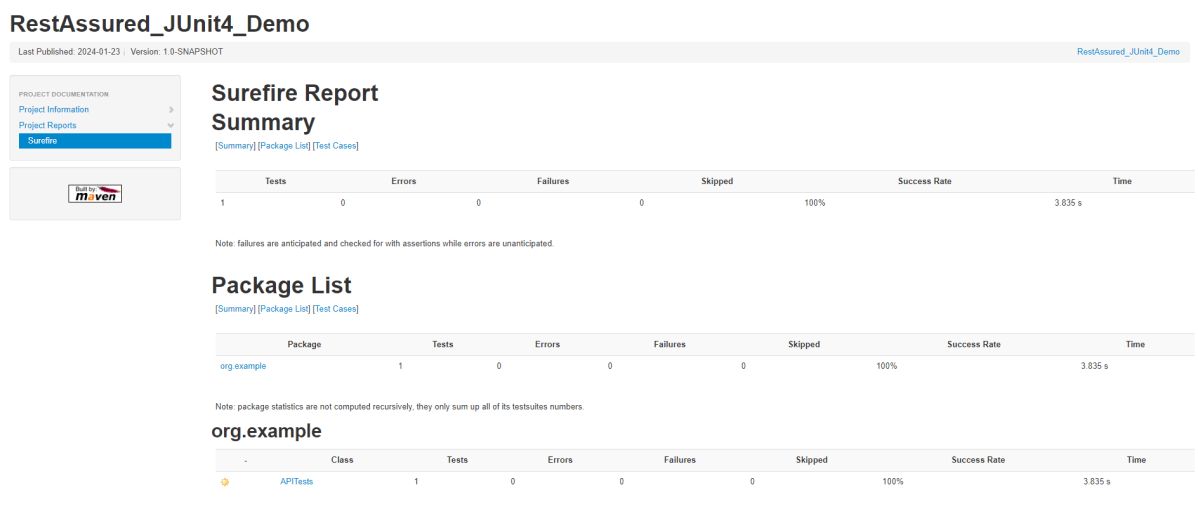
Summary Report

Below is the summary Report.
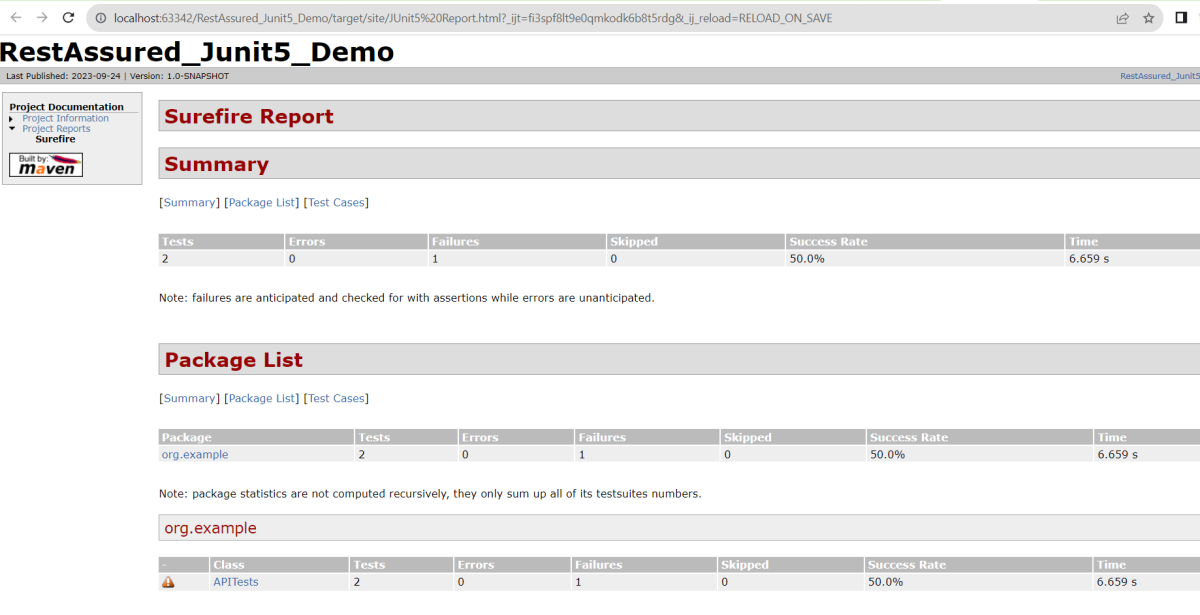
Surefire Report

Below is an example of a Surefire Report. This report contains a summary of the test execution.
We are done! Congratulations on making it through this tutorial and hope you found it useful! Happy Learning!!
How to send PATCH Requests in Postman?

HOME

In this tutorial, we will send a request performing the PATCH method in Postman.

 The PATCH method is used to partially modify an existing resource. This operation updates an existing resource but does not require sending the entire body with the request. PUT modifies a record’s information and creates a new record if one is not available, and PATCH updates a resource without sending the entire body of the request. Unlike PUT Request, PATCH does partial update e.g. Fields that need to be updated by the client, only that field is updated without modifying the other field.

We will use the following URL for this Postman tutorial.

https://reqres.in/api/users/2

Sample Request Body

{
    "name": "Patch_Test"
}

To create the first PATCH request in Postman, follow the following steps:

Step 1: Create a Collection, click on Collections, and then click on the “+” plus button.

Step 2:  Provide a name to the collection – “API Testing”.

Step 3: To create a new request, click on “Add a request” if it is a new Collection. Otherwise, click on the 3 dots and select “Add request”.

Step 4: Once you create a new request, then you will get the following window:

Step 5: Enter the “name” in the request. Here, the name is “PartiallyUpdateUser”.

Step 6: Enter the “URL” in the address bar.

Step 7: Now, select the “PATCH” request from the list of request methods.

Step 8: Add a Request body to the Post request

For this, select the Body tab.

Now in the Body tab, select raw and select JSON as the format type from the drop-down menu, as shown in the image below. This is done because we need to send the request in the appropriate format that the server expects. Copy and paste the request body example mentioned at the beginning of the tutorial to the postman request Body. 

Step 9: Press the “Send” button.

Step 10: Once you press the send button, you will get the response from the server. Make sure you have a proper internet connection; otherwise, you will not get a response.

Status

You can check the status code. Here, we got the status code 200, which means we got a successful response to the request. In the case of new resource creation, the status code should be 201. But as this is a dummy API, we are getting a status code of 200.

Body

In the Body tab of the response box, we have multiple options to see the response in a different format.

Format Type

Each request has a defined response to it as defined by the Content-Type header. That response can be in any format. Such as in the above example, we have JSON code file.

Below are the various format type present in Postman.

XML

HTML

Text

Headers

Headers are the extra information that is transferred to the server or the client. In Postman, headers will show like key-value pairs under the headers tab. Click on the Headers link as shown in the below image:

We are done! Congratulations on making it through this tutorial and hope you found it useful! Happy Learning!!
Integration of REST Assured with TestNG

Last Updated On

HOME

As we know, REST Assured is a Java DSL for simplifying the testing of REST-based services built on top of HTTP Builder. In this tutorial, I’ll create a Test Framework for the testing of REST API using REST Assured and TestNG as the test framework.

Table of Contents

  1. Dependency List
  2. Detailed Step Description
    1. Download and Install Java
    2. Download and setup Eclipse IDE on the system
    3. Setup Maven
    4. Create a new Maven Project
    5. Add REST Assured and TestNG dependencies to the project
    6. Create a TEST file under src/test/java to write the test code
    7. Test Execution through TestNG
    8. Run the tests from TestNG.xml
    9. TestNG Report Generation

Dependency List

  1. REST Assured – 5.3.2
  2. Java 8 or above
  3. TestNG – 7.8.0
  4. Maven – 3.8.1
  5. Maven Compiler Plugin – 3.11.0
  6. Maven Surefire Plugin – 3.1.2
  7. Json – 20230618

Detailed Step Description

Step 1- Download and Install Java

Java needs to be present on the system to run the tests. Click here to know How to install Java. To know if Java is installed or not on your machine, type this command in the command line. This command will show the version of Java installed on your machine.

java -version

Step 2 – Download and setup Eclipse IDE on the system

The Eclipse IDE (integrated development environment) provides strong support for Java developers, which is needed to write Java code. Click here to know How to install Eclipse.

Step 3 – Setup Maven

To build a test framework, we need to add a number of dependencies to the project. It is a very tedious and cumbersome process to add each dependency manually. So, to overcome this problem, we use a build management tool. Maven is a build management tool that is used to define project structure, dependencies, build, and test management. Click here to know How to install Maven.

To know if Maven is already installed or not on your machine, type this command in the command line. This command will show the version of Maven installed on your machine.

mvn -version

Step 4 – Create a new Maven Project

Click here to know How to create a Maven project

Below is the Maven project structure. Here,

Group Id – org.example
Artifact Id – RestAssured_TestNG_Demo
Version – 0.0.1-SNAPSHOT
Package – org. example

Step 5 – Add REST Assured and TestNG dependencies to the project

Add the below-mentioned dependencies to the project.

<?xml version="1.0" encoding="UTF-8"?>
<project xmlns="http://maven.apache.org/POM/4.0.0"
         xmlns:xsi="http://www.w3.org/2001/XMLSchema-instance"
         xsi:schemaLocation="http://maven.apache.org/POM/4.0.0 http://maven.apache.org/xsd/maven-4.0.0.xsd">
    <modelVersion>4.0.0</modelVersion>

    <groupId>org.example</groupId>
    <artifactId>RestAssured_TestNG_Demo</artifactId>
    <version>1.0-SNAPSHOT</version>

    <properties>
        <hamcrest.version>1.3</hamcrest.version>
        <testng.version>7.8.0</testng.version>
        <rest-assured.version>5.3.2</rest-assured.version>
        <json.version>20230618</json.version>
        <maven.compiler.plugin.version>3.11.0</maven.compiler.plugin.version>
        <maven.compiler.source>11</maven.compiler.source>
        <maven.compiler.target>11</maven.compiler.target>
        <maven.surefire.plugin.version>3.1.2</maven.surefire.plugin.version>
        <project.build.sourceEncoding>UTF-8</project.build.sourceEncoding>
    </properties>

    <dependencies>

        <!-- Hamcrest Dependency -->
        <dependency>
            <groupId>org.hamcrest</groupId>
            <artifactId>hamcrest-all</artifactId>
            <version>${hamcrest.version}</version>
            <scope>test</scope>
        </dependency>

        <!-- TestNG Dependency -->
        <dependency>
            <groupId>org.testng</groupId>
            <artifactId>testng</artifactId>
            <version>${testng.version}</version>
        </dependency>

        <!-- Rest Assured -->
        <dependency>
            <groupId>io.rest-assured</groupId>
            <artifactId>rest-assured</artifactId>
            <version>${rest-assured.version}</version>
            <scope>test</scope>
        </dependency>

        <!-- JSON Dependency -->
        <dependency>
            <groupId>org.json</groupId>
            <artifactId>json</artifactId>
            <version>${json.version}</version>
        </dependency>

    </dependencies>

    <build>
        <plugins>
            <plugin>
                <groupId>org.apache.maven.plugins</groupId>
                <artifactId>maven-compiler-plugin</artifactId>
                <version>${maven.compiler.plugin.version}</version>
                <configuration>
                    <source>${maven.compiler.source}</source>
                    <target>${maven.compiler.target}</target>
                </configuration>
            </plugin>

            <plugin>
                <groupId>org.apache.maven.plugins</groupId>
                <artifactId>maven-surefire-plugin</artifactId>
                <version>${maven.surefire.plugin.version}</version>
                <configuration>
                    <suiteXmlFiles>
                        <suiteXmlFile>testng.xml</suiteXmlFile>
                    </suiteXmlFiles>        
                </configuration>         
            </plugin>
        </plugins>
    </build>
</project>

Step 6 – Create a TEST file under src/test/java to write the test code.

To learn how to create a JSON Request body using JSONObject, please refer to this tutorial – How to test POST request from JSON Object in Rest Assured.

To know more about priority in TestNG, please refer to this tutorial.

import io.restassured.http.ContentType;
import org.json.JSONObject;
import org.testng.annotations.Test;
import static io.restassured.RestAssured.given;
import static org.hamcrest.Matchers.equalTo;

public class RestAPITests {

    @Test(description = "To get the details of user with id 3", priority = 0)
    public void verifyUser() {

        // Given
        given()

                // When
                .when()
                .get("https://reqres.in/api/users/3")

                // Then
                .then()
                .statusCode(200)
                .statusLine("HTTP/1.1 200 OK")

                // To verify user of id 3
                .body("data.email", equalTo("emma.wong@reqres.in"))
                .body("data.first_name", equalTo("Emma"))
                .body("data.last_name", equalTo("Wong"));
    }

    @Test(description = "To create a new user", priority = 1)
    public void createUser() {

        JSONObject data = new JSONObject();

        data.put("name", "RestAPITest");
        data.put("job", "Testing");

        // GIVEN
        given()
                .contentType(ContentType.JSON)
                .body(data.toString())

                // WHEN
                .when()
                .post("https://reqres.in/api/users")

                // THEN
                .then()
                .statusCode(201)
                .body("name", equalTo("RestAPITest"))
                .body("job", equalTo("Testing"));

    }

}

Step 7 – Test Execution through TestNG

Go to the Runner class and right-click Run As TestNG Test. The tests will run as TestNG tests. (Eclipse)

This is how the execution console will look like. (IntelliJ)

Step 8 – Run the tests from TestNG.xml

Create a TestNG.xml as shown below and run the tests as TestNG. Here, the tests are present in class – com.example. Selenium_TestNGDemo.API_Test.

<?xml version = "1.0"encoding = "UTF-8"?>
<!DOCTYPE suite SYSTEM "http://testng.org/testng-1.0.dtd">
<suite name = "Suite1">
    <test name = "TestNG Test Demo">
        <classes>
            <class name = "org.example.RestAPITests"/>
        </classes>
    </test>
</suite>

Step 9 – TestNG Report Generation

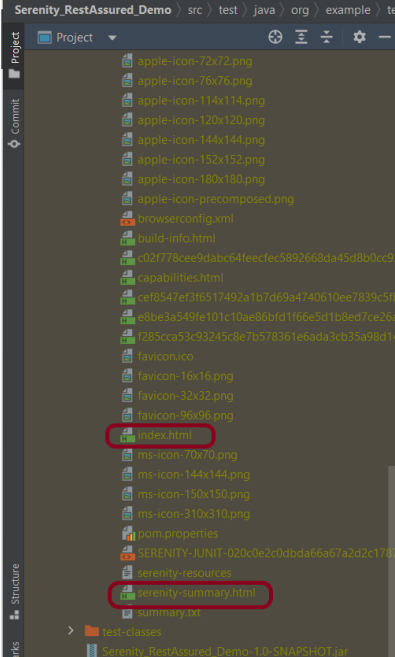
After the test execution, refresh the project, and a new folder with the name test-output will be generated. This folder contains the reports generated by TestNG. The structure of folder test-output looks as shown below.

Emailable-report.html

We are interested inemailable-report.htmlreport. Open “emailable-report.html”, as this is an HTML report, open it with the browser. The below image shows emailable-report.html.

Index.html

TestNG also produces “index.html” report, and it resides under the test-output folder. The below image shows the index.html report. This report contains a high-level summary of the tests.

We are done! Congratulations on making it through this tutorial and hope you found it useful! Happy Learning!!
How to create JSON Array Request Body – org.json

Last Updated On

HOME

In the last tutorial, I explained How to test POST JSON Object request using Java Map in Rest Assured. In this tutorial, I will create a request body using JSON Array in Rest Assured. This request body can be used for POST or PUT operations.

Table of Contents

  1. What is JSONArray?
  2. How to create JSONArray Request Body or payload?
  3. Complex JSON Array

What is JSONArray?

JSONArray represents an immutable JSON array (an ordered sequence of zero or more values). It also provides an unmodifiable list view of the values in the array.

  1. JSON array can store multiple value types. The values in a JSONArray can be of the following types: JsonObject, JsonArray, JsonString, JsonNumber, JsonValue.TRUE, JsonValue.FALSE, and JsonValue.NULL.
  2. The array index begins with 0.
  3. The square brackets [ ] are used to declare the JSON array.

An API can accept a JSON Array payload as a request body. Imagine, we want to add employee details of more than one employee in the below example. In this case, we can pass multiple JSON objects within a JSON array. I have explained 2 ways to create JSON Object – map or JsonObject. Refer to any one of the tutorials to get to know about the creation of JSON Object.

To create a JSON Array, we need to add org.json Maven dependency, as shown below. The latest version can be found here.

<dependency>
    <groupId>org.json</groupId>
    <artifactId>json</artifactId>
    <version>20240303</version>
</dependency>  

JSONObject is imported from the package:

import org.json.JSONObject;

JSONArray is imported from the package:

import org.json.JSONArray;

Below is an example of JSONArray.

How to create JSONArray Request Body or payload?

  1. Create a JSON Object and add the first employee details.
  2. Create another JSON Object and add second guest details.
  3. Create a JSONArray.
  4. Add both JSON Objects to JSONArray.

Below is an example of creating a request from JSONArray with multiple JSON Objects.  I am using a logger just to print the JSON body in the Console. 

import io.restassured.RestAssured;
import io.restassured.http.ContentType;
import org.json.JSONArray;
import org.json.JSONObject;
import org.junit.Test;
import static org.hamcrest.Matchers.equalTo;

public class Json_Demo {

    @Test
    public void passBodyAsJsonArrayDemo() {

        // JSON Object for first employee
        JSONObject data1 = new JSONObject();

        data1.put("employee_name", "ObjectTest");
        data1.put("profile_image", "test1.png");
        data1.put("employee_age", "30");
        data1.put("employee_salary", "11111");

        // JSON Object for second employee
        JSONObject data2 = new JSONObject();

        data2.put("employee_name", "MapTest");
        data2.put("profile_image", "test2.png");
        data2.put("employee_age", "20");
        data2.put("employee_salary", "99999");

        // Creating JSON array to add both JSON objects
        JSONArray array = new JSONArray();
        array.put(data1);
        array.put(data2);

        // Send the request
        RestAssured.given()
                .contentType(ContentType.JSON)
                .body(array.toString())
                .log().all()

                .when()
                .post("https://dummy.restapiexample.com/api/v1/create")

                .then()
                .assertThat().statusCode(200)
                .body("message", equalTo("Successfully! Record has been added."))
                .log().all();
    }
}

The output of the above program is

       // JSON Object for first employee
        JSONObject data1 = new JSONObject();

        data1.put("employee_name", "ObjectTest");
        data1.put("profile_image", "test1.png");
        data1.put("employee_age", "30");
        data1.put("employee_salary", "11111");

        // JSON Object for second employee
        JSONObject data2 = new JSONObject();

        data2.put("employee_name", "MapTest");
        data2.put("profile_image", "test2.png");
        data2.put("employee_age", "20");
        data2.put("employee_salary", "99999");
JSONArray array = new JSONArray();
array.put(data1);
array.put(data2);
contentType(ContentType.JSON)
.body(array.toString())
.log().all()
.post("https://dummy.restapiexample.com/api/v1/create")
.assertThat().statusCode(200)
.body("message", equalTo("Successfully! Record has been added."))
.log().all()

Complex JSON Array

Let us see an example of a complex JSON Array. This structure represents two separate employee data sets. Each is contained within its own JSON array. The whole is encapsulated within a larger JSON object identified by keys employee1 and employee2.


{
    "employee1": [
      {
        "firstname": "Tom",
        "salary": 720000,
        "age": 59,
        "lastname": "Mathew"
     }
    ],
    "employee2": [
     {
        "firstname": "Perry",
        "salary": 365000,
        "age": 32,
        "lastname": "David"
    }
   ]
}

The above JSON Array can be created as

import org.json.JSONArray;
import org.json.JSONObject;
import org.junit.Test;

public class Json_Demo {

    @Test
    public void passBodyAsJsonArray() {

        // JSON Object for first employee
        JSONObject data1 = new JSONObject();

        data1.put("firstname", "Tom");
        data1.put("lastname", "Mathew");
        data1.put("age", 59);
        data1.put("salary", 720000);

        // JSON Object for second employee
        JSONObject data2 = new JSONObject();

        data2.put("firstname", "Perry");
        data2.put("lastname", "David");
        data2.put("age", 32);
        data1.put("salary", 365000);

        // Creating first JSON array
        JSONArray array1 = new JSONArray();
        array1.put(data1);

        // Creating second JSON array
        JSONArray array2 = new JSONArray();
        array2.put(data2);

        // Create JSON Object to add both JSONArrays
        JSONObject data3 = new JSONObject();
        data3.put("employee1", array1);
        data3.put("employee2", array2);

        System.out.println(data3.toString(4));

    }
}

JSONObject data1 = new JSONObject();
data1.put("firstname", "Tom");
data1.put("lastname", "Mathew");
data1.put("age", 59);
data1.put("salary", 720000);

JSONObject data2 = new JSONObject();
data2.put("firstname", "Perry");
data2.put("lastname", "David");
data2.put("age", 32);
data2.put("salary", 365000);

JSONArray array1 = new JSONArray();
array1.put(data1);

JSONArray array2 = new JSONArray();
array2.put(data2);

A third JSONObject, data3, is created to aggregate the two JSON arrays under separate keys: employee1 and employee2.

JSONObject data3 = new JSONObject();
data3.put("employee1", array1);
data3.put("employee2", array2);
System.out.println(data3.toString(4));

Similarly, there is another way to create this JSON Structure.

import org.json.JSONArray;
import org.json.JSONObject;
import org.junit.Test;

public class Json_Demo {

    @Test
    public void passBodyAsJsonArray1() {

        // Creating JSON array to add first JSON object
        JSONArray array1 = new JSONArray();
        array1.put(new JSONObject().put("firstname", "Tom").put("lastname", "Mathew").put("age", 59).put("salary",
                720000));

        // Creating JSON array
        JSONArray array2 = new JSONArray();
        array2.put(new JSONObject().put("firstname", "Perry").put("lastname", "David").put("age", 32).put("salary",
                365000));

        // Create JSON Object to add JSONArrays
        JSONObject data1 = new JSONObject();
        data1.put("employee1", array1);
        data1.put("employee2", array2);

        System.out.println(data1.toString(4));

    }
}

The output of the above program is

Congratulations on making it through this tutorial and hope you found it useful! Happy Learning!! Cheers!!