Scenario Outline in PyTest – BDD

HOME

pip install pytest
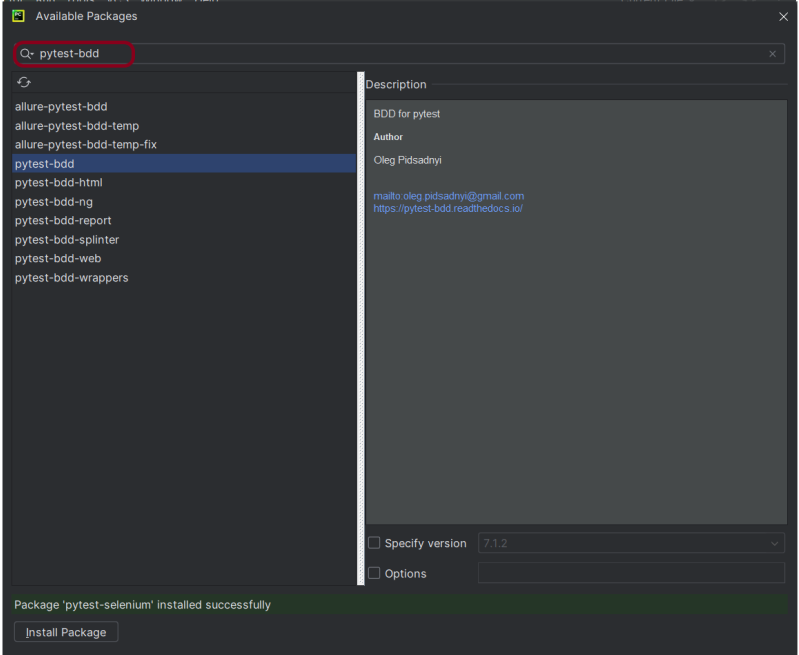
pip install pytest-bdd
pip install pytest-selenium (If using Selenium)

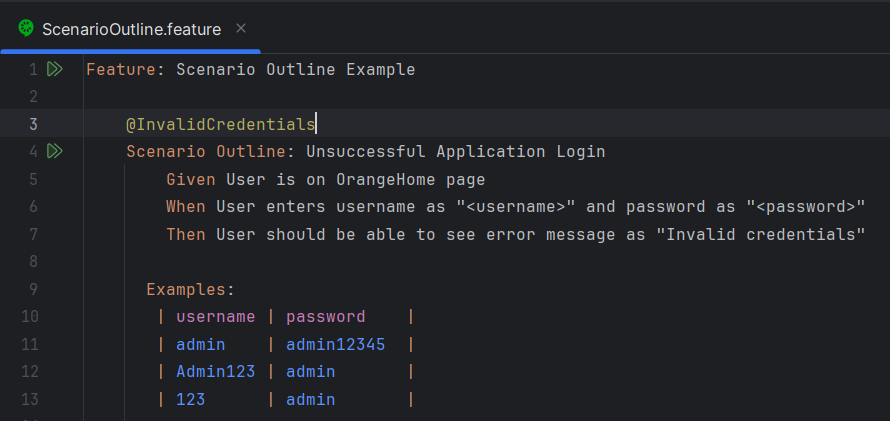
Feature: Scenario Outline Example

    @InvalidCredentials
    Scenario Outline: Unsuccessful Application Login
        Given User is on OrangeHome page
        When User enters username as "<username>" and password as "<password>"
        Then User should be able to see error message as "Invalid credentials"

      Examples:
       | username | password    |
       | admin    | admin12345  |
       | Admin123 | admin       |
       | 123      | admin       |

import pytest

from pytest_bdd import scenarios, given, when, then, parsers
from selenium import webdriver
from selenium.webdriver.common.by import By


# Constants
TIMEOUT = 5
URL = 'https://opensource-demo.orangehrmlive.com/'


# Scenarios
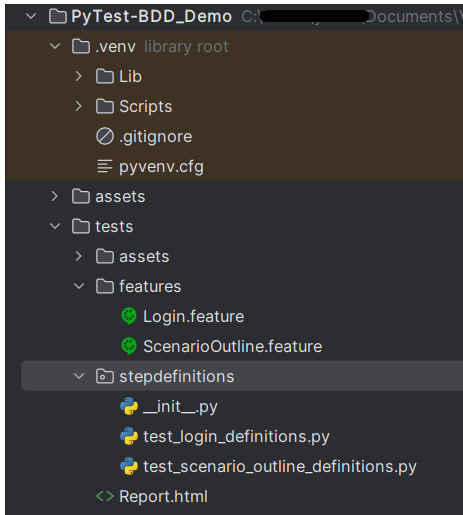
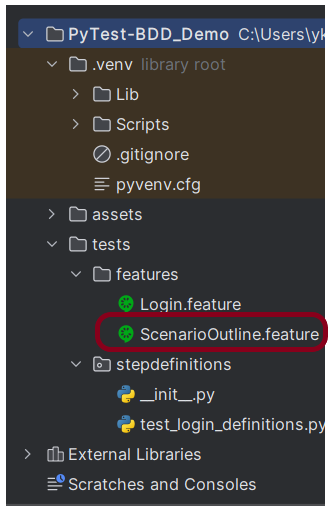
scenarios('../features/ScenarioOutline.feature')


# Fixtures
@pytest.fixture
def driver():
    driver = webdriver.Firefox()
    driver.implicitly_wait(TIMEOUT)
    driver.maximize_window()
    yield driver
    driver.quit()


# Given Steps
@given('User is on OrangeHome page')
def open_browser(driver):
    driver.get(URL)


# When Steps
@when(parsers.parse('User enters username as "{username}" and password as "{password}"'))
def search_phrase(driver, username, password):
    driver.find_element(By.NAME, "username").send_keys(username)
    driver.find_element(By.NAME, "password").send_keys(password)
    driver.find_element(By.XPATH, "//*[@class='oxd-form']/div[3]/button").click()


# Then Steps
@then(parsers.parse('User should be able to see error message as "{expected_error_message}"'))
def search_results(driver, expected_error_message):
    actual_error_message = driver.find_element(By.XPATH, "//*[@id='app']/div[1]/div/div[1]/div/div[2]/div[2]/div/div[1]/div[1]/p").text
    assert actual_error_message == expected_error_message

scenarios('../features/ScenarioOutline.feature')

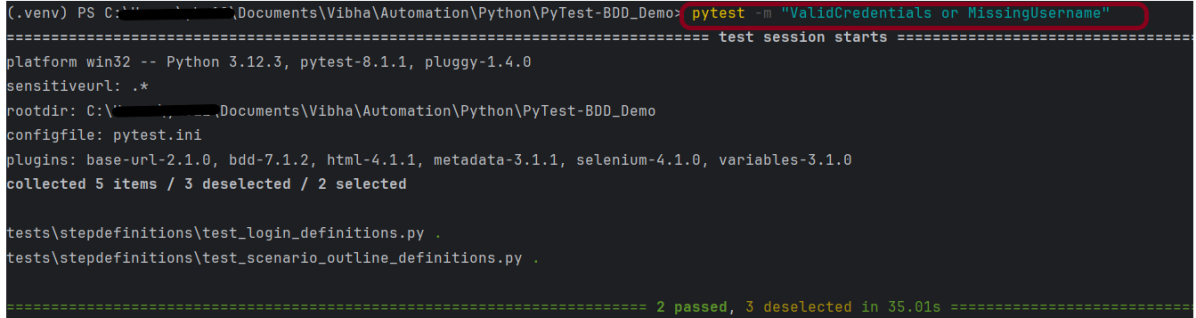
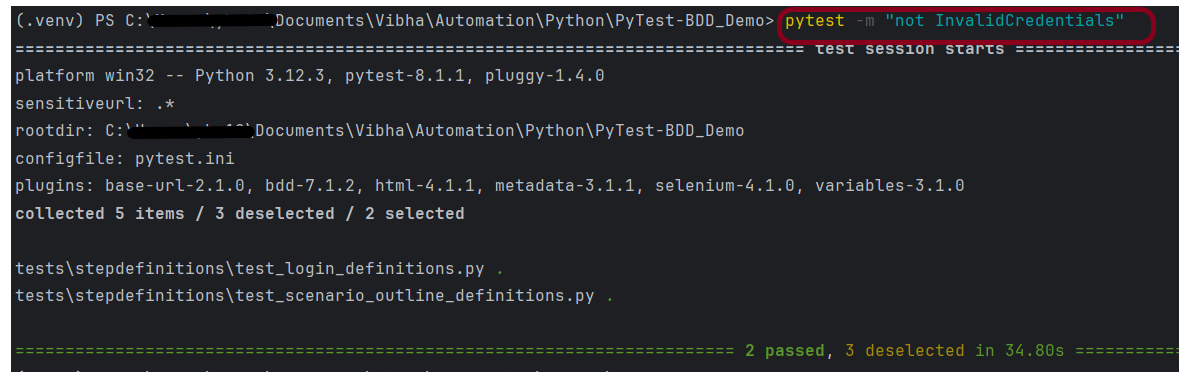
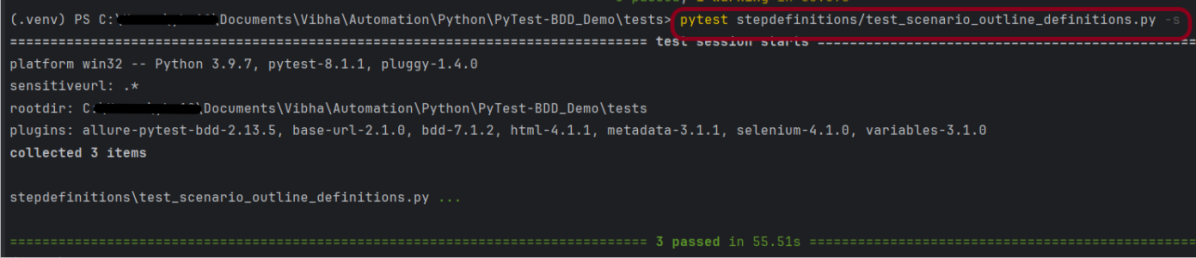
pytest stepdefinitions/test_scenario_outline_definitions.py -s

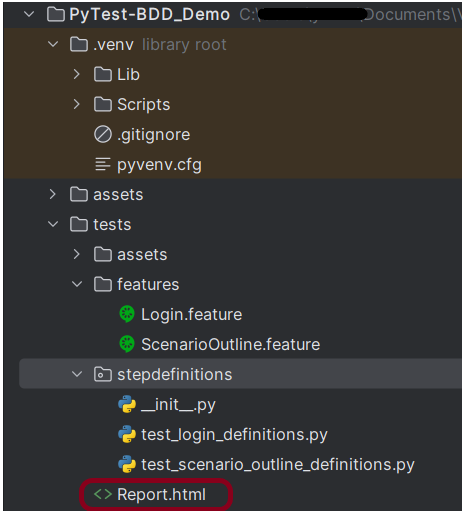
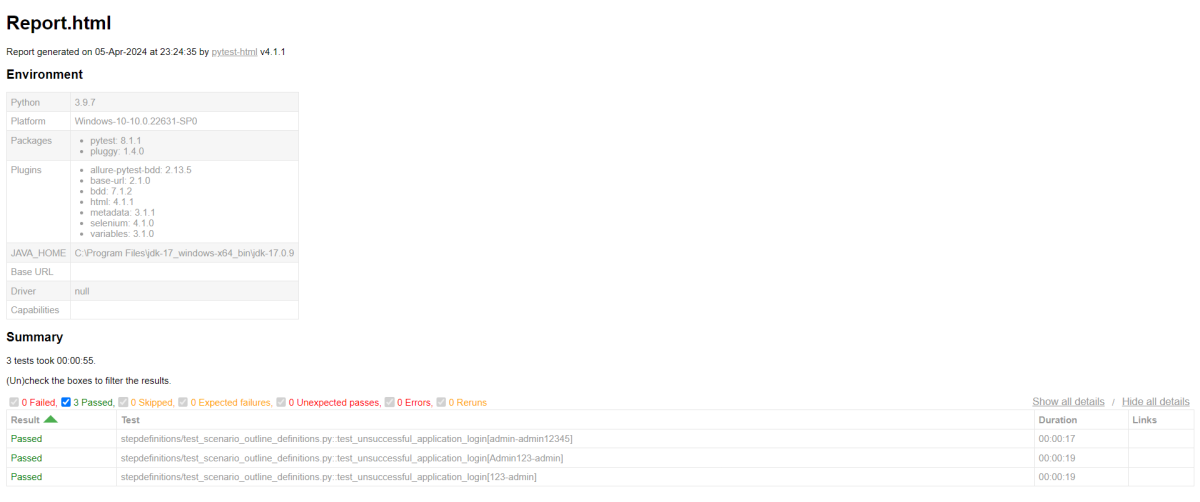
 pytest stepdefinitions/test_scenario_outline_definitions.py --html=Report.html 

PyTest – BDD (Behavioural Driven Development) with Selenium

HOME

pip install pytest
pip install pytest-bdd

pip install pytest-selenium

Feature: Login Page

    Scenario: Successful Application Login
        Given User is on login page
        When User enter username "Admin" and password "admin123"
        Then User should be able to login successfully and new page open "Dashboard"

import pytest

from pytest_bdd import scenarios, given, when, then, parsers
from selenium import webdriver
from selenium.webdriver.common.by import By

# Constants
TIMEOUT = 4
URL = 'https://opensource-demo.orangehrmlive.com/'


# Scenarios
scenarios('../features/Login.feature')


# Fixtures
@pytest.fixture
def driver():
    driver = webdriver.Firefox()
    driver.implicitly_wait(TIMEOUT)
    driver.maximize_window()
    yield driver
    driver.quit()


# Given Steps
@given('User is on login page')
def open_browser(driver):
    driver.get(URL)


# When Steps
@when(parsers.parse('User enter username "{username}" and password "{password}"'))
def search_phrase(driver, username, password):
    driver.find_element(By.NAME, "username").send_keys(username)
    driver.find_element(By.NAME, "password").send_keys(password)
    driver.find_element(By.XPATH, "//*[@class='oxd-form']/div[3]/button").click()


# Then Steps
@then(parsers.parse('User should be able to login successfully and new page open "{heading}"'))
def search_results(driver, heading):
    homepage_title = driver.find_element(By.XPATH, "//*[@class='oxd-topbar-header-breadcrumb']/h6").text
    assert homepage_title == heading

scenarios('../features/Login.feature')

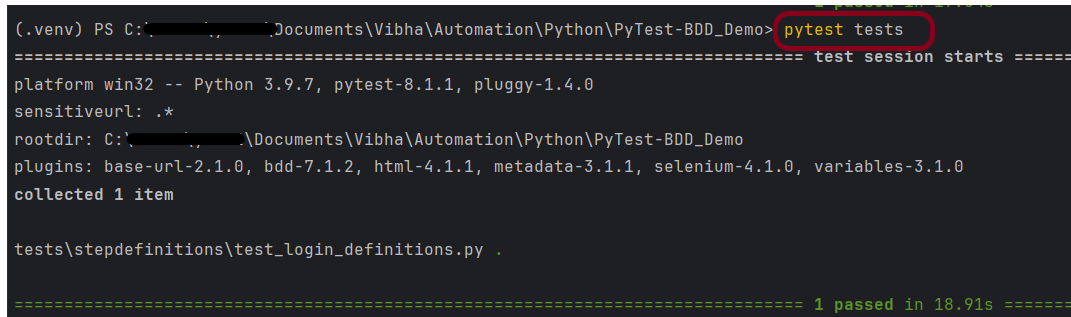
pytest tests

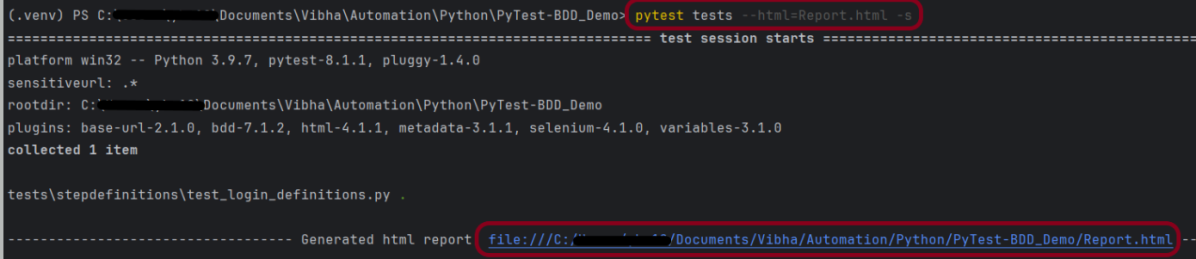
pytest tests --html=Report.html -s

How to run Python Selenium tests with Jenkins

HOME

In the previous tutorial, we have seen the How to generate HTML Reports in Jenkins. In this tutorial, we show you how to integrate PyTest tests with Jenkins

Prerequisite:

Jenkin’s installed and started on the computer. The current Jenkins version is – 2.361.2

Implementation Steps

To generate HTML Report in Jenkins, we need to download HTML Publisher Plugin. Please refer to this tutorial to install the plugin – How to install Plugins in Jenkins.

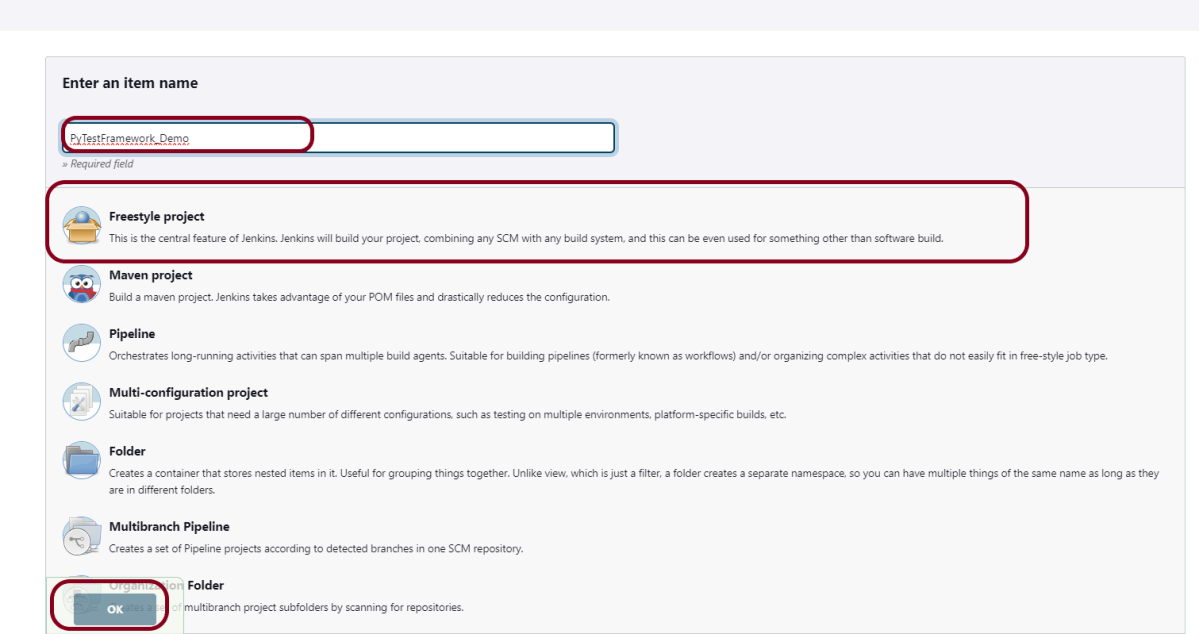
Step 1: Create a new FreeStyle project

  1. Give the Name of the projectPyTestFramework_Demo
  2. Click on the Freestyle project. 
  3. Click on the OK button.

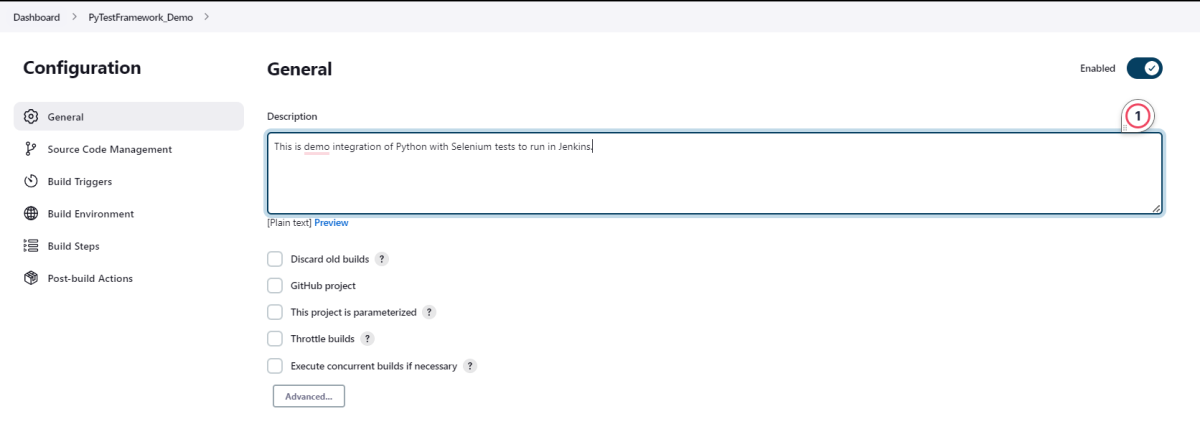
In the General section, enter the project description in the Description box – This is demo integration of Python with Selenium tests to run in Jenkins.

Step 2: Select a custom workspace

Mention the full path of the project in the Use custom workspace.

Select Source Code Management as None if the project is locally present on the machine.

Step 3: Build Management

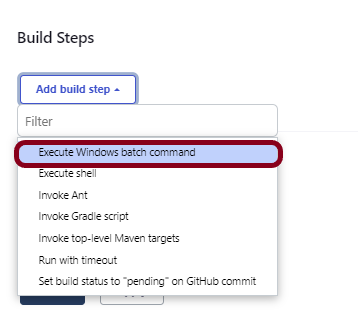
Go to the Build section of the new job. Select “Execute Windows batch command”.

cd tests
pytest  --html=$WORKSPACE/Reports/report.html -s

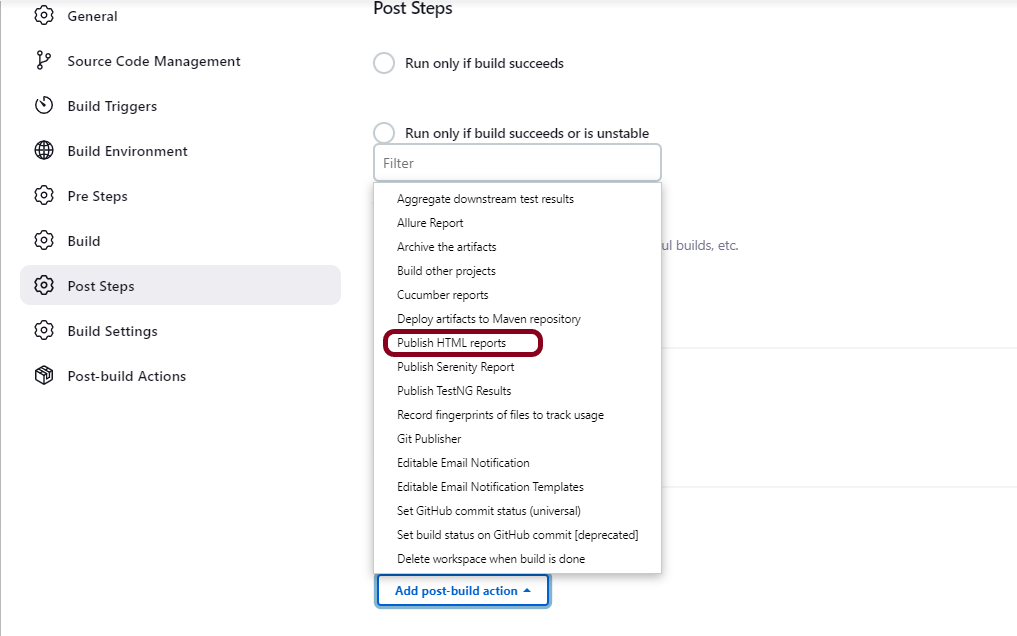
Step 4: Select “Publish HTML reports” from “Post Build Actions”

Scroll down to “Post Build Actions” and click on the “Add Post Build Actions” drop-down list. Select “Publish HTML reports“. 

If you want to see where the report will be saved in Jenkins, go to the Dashboard -> PyTestFramework_Demo -> Workspace -> Reports ->report.html.

Enter the HTML directory to archive – Reports, Index page[s] – report.html, and Report title – HTML Report.

Click on the Apply and Save buttons.

We have created a new FreeStyle project “PyTestFramework_Demo” with the configuration to run the Python tests in windows batch.

Step 5: Execute the tests

Let’s execute it now by clicking on the “Build Now” button. 

Right-click on Build Number (here in my case it is #1).

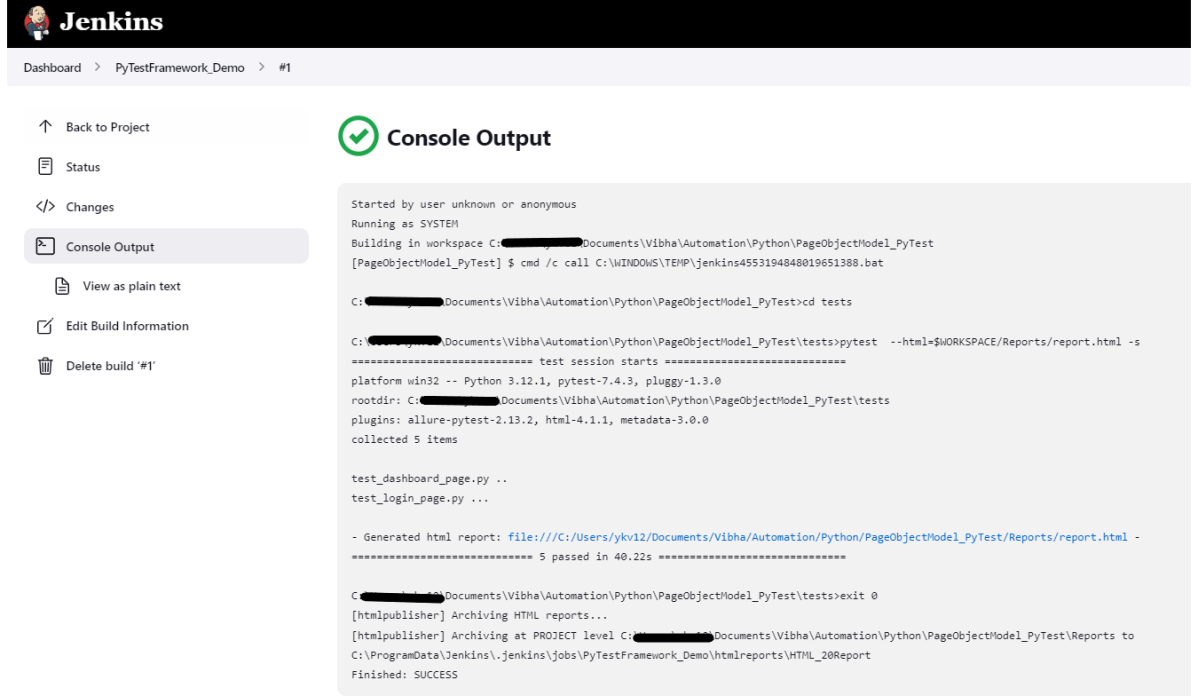
Click on Console Output to see the result.

Step 6: View the HTML Report

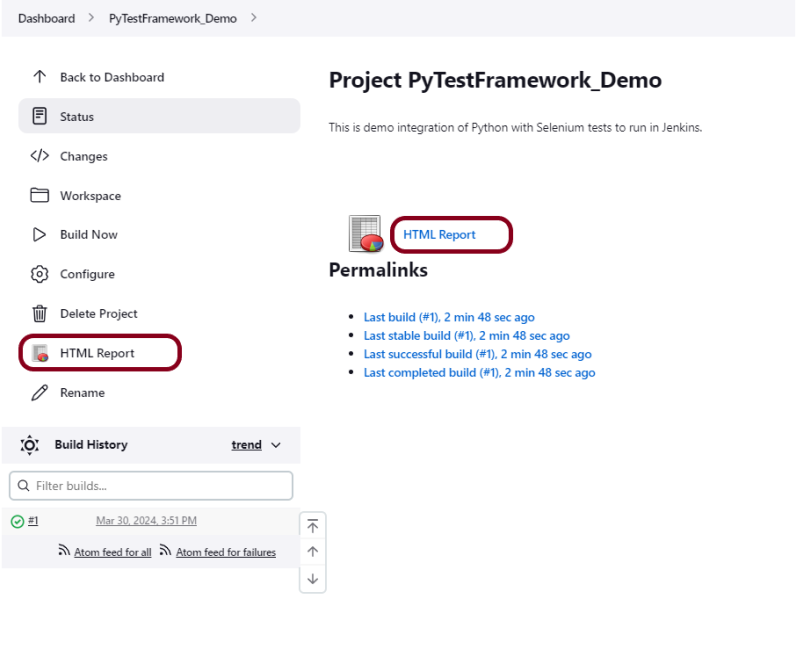
Once the execution is completed, click on go “Back to Project“, and we could see a link to view the “HTML Report“.

We can see here that the HTML Report link is displayed in the Console.

Below is the HTML Report generated in Jenkins.

There are chances that the report won’t look very pretty. The reason is that CSS is stripped out because of the Content Security Policy in Jenkins.

The default rule set in Jenkins is:

sandbox; default-src 'none'; img-src 'self'; style-src 'self';

To know more about this, please refer to this tutorial – https://www.jenkins.io/doc/book/security/configuring-content-security-policy/.

We can customize Content Security Policy in Jenkins. But keep in mind that it should be done after checking with the Security team in your organization. This is a workaround solution. I can’t emphasize enough that this is not a standard practice.

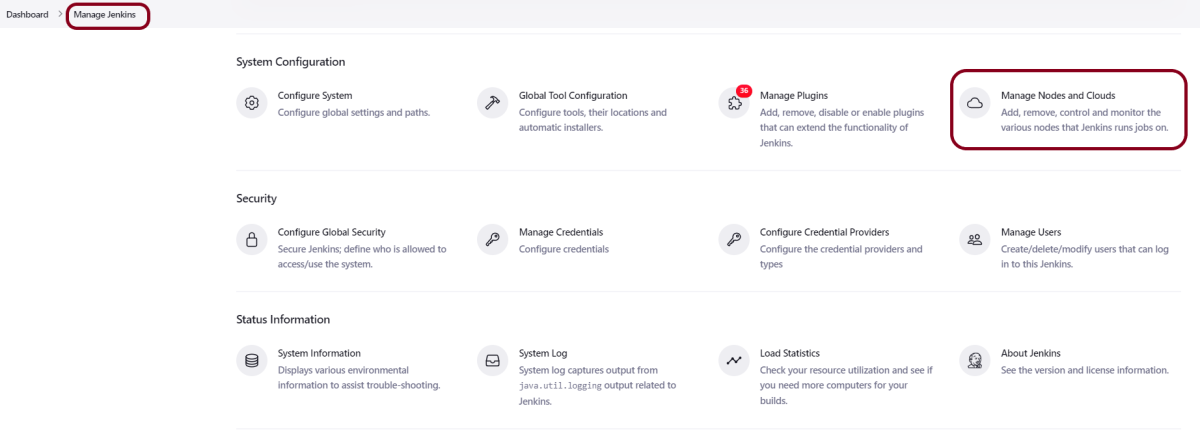
Go to Manage Jenkins -> Manage Nodes and Clouds.

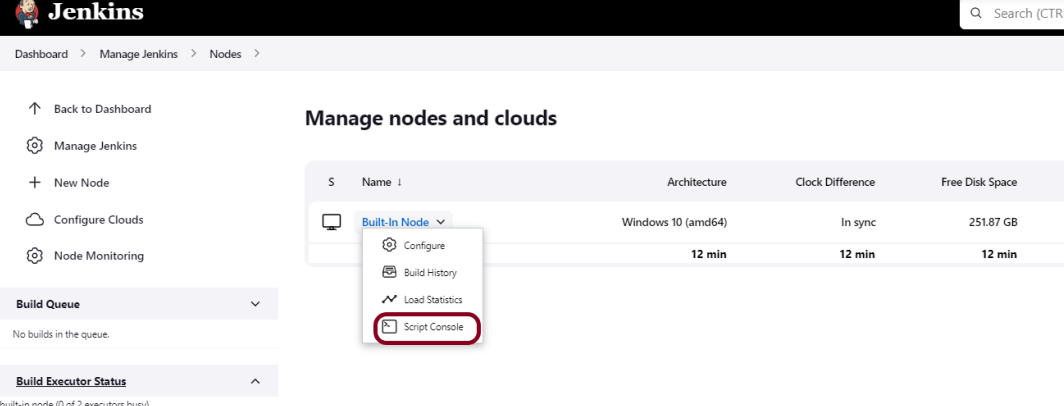
Click on the Script Console option.

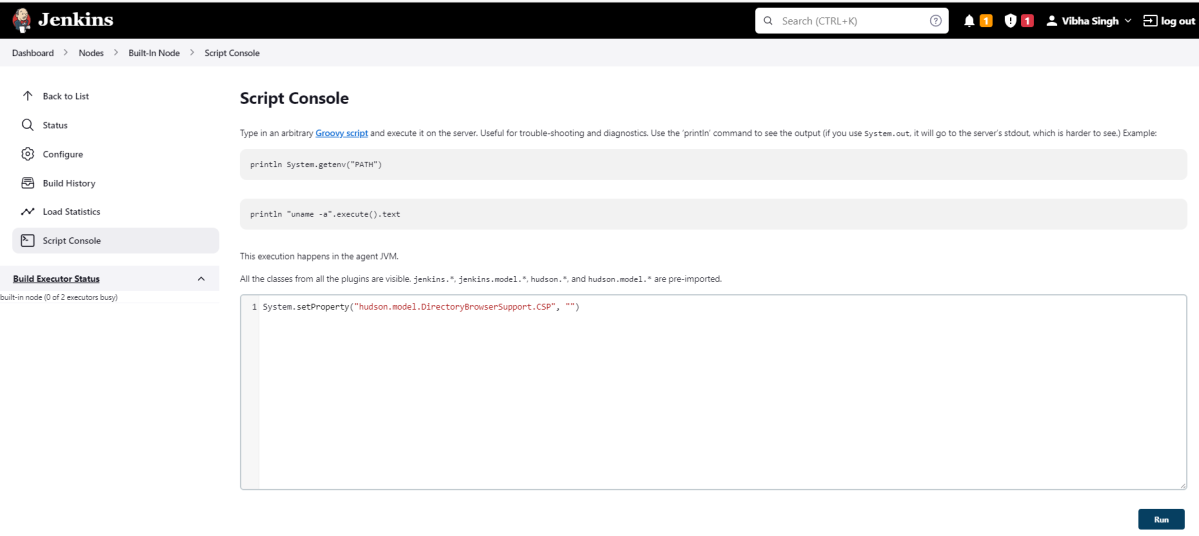
Type in the following command and Press Run. If you see the output as ‘Result:’ then the protection is disabled. Re-Run your build and you can see that the new HTML files archived will have the CSS enabled.

System.setProperty("hudson.model.DirectoryBrowserSupport.CSP","")

Re-run the HTMLReport_Demo project. Now you can see a properly rendered HTML Report.

Congratulations on making it through this tutorial and hope you found it useful! Happy Learning!! Cheers!!
Additional Tutorials

How to Install Python on Windows 11
How to install and setup Robot Framework for Python
How to rerun failed tests in Robot Framework
How to implement tagging in Robot Framework
 How to set variable values from Runtime command in Robot Framework
How to load data from CSV files in the Robot Framework?

Page Object Model Implementation of Python with Selenium – PyTest

HOME

pip install -U pytest

from selenium.webdriver import ActionChains
from selenium.webdriver.support.wait import WebDriverWait
from selenium.webdriver.support import expected_conditions as ec


class BasePage:

    def __init__(self, driver):
        self._driver = driver
        self._wait = WebDriverWait(self._driver, 10)
        self._action = ActionChains(self._driver)

    def find(self, locator):
        return self._driver.find_element(*locator)

from selenium.webdriver.common.by import By

from pages.base_page import BasePage


class LoginPage(BasePage):
    username = (By.NAME, "username")
    password = (By.NAME, "password")
    submit_button = (By.XPATH, "//*[@class='oxd-form']/div[3]/button")
    error_message = (By.XPATH, "//*[@class='orangehrm-login-error']/div[1]/div[1]/p")

    def execute_login(self, username: str, password: str):
        self.find(self.username).send_keys(username)
        self.find(self.password).send_keys(password)
        self.find(self.submit_button).click()

    def actual_error(self):
        return self.find(self.error_message).text

from selenium.webdriver.common.by import By

from pages.base_page import BasePage


class DashboardPage(BasePage):
    heading = (By.XPATH, "//*[@class='oxd-topbar-header-breadcrumb']/h6")
    assign_leave_option = (By.XPATH, "//*[@title='Assign Leave']")
    time_at_work_option = (By.XPATH, "//*[@title='Time at Work']")

    def actual_heading(self):
        return self.find(self.heading).text

    def assign_leave_displayed(self):
        return self.find(self.assign_leave_option).is_displayed()

    def time_at_work_displayed(self):
        return self.find(self.assign_leave_option).is_displayed()

import pytest
from selenium import webdriver


@pytest.fixture(scope="class")
def driver():

    driver = webdriver.Chrome()
    driver.get("https://opensource-demo.orangehrmlive.com/")
    driver.maximize_window()
    driver.implicitly_wait(2)
    yield driver
    driver.close()

import pytest

from pages.dashboard_page import DashboardPage
from pages.login_page import LoginPage


def test_login_negative(driver, get_data):

    login_page = LoginPage(driver)
    login_page.execute_login(get_data["username"], get_data["password"])
    assert login_page.actual_error() == "Invalid credentials", "Error message does not match expected value"


def test_login_positive(driver):
    login_page = LoginPage(driver)
    login_page.execute_login("Admin", "admin123")
    dashboard_page = DashboardPage(driver)
    assert dashboard_page.actual_heading() == "Dashboard", "Heading is different"

@pytest.fixture(params=[{"username":"admin", "password":"admin$$"},
                        {"username":"Admin123", "password":"123"}])
def get_data(request):
    return request.param

from pages.dashboard_page import DashboardPage
from pages.login_page import LoginPage


def test_successful_login(driver):

    login_page = LoginPage(driver)
    login_page.execute_login("Admin", "admin123")
    dashboard_page = DashboardPage(driver)
    assert dashboard_page.actual_heading() == "Dashboard"


def test_time_at_work(driver):
    login_page = LoginPage(driver)
    login_page.execute_login("Admin", "admin123")
    dashboard_page = DashboardPage(driver)
    assert dashboard_page.time_at_work_displayed()

pytest 

 pytest --html=report.html -s

Pytest Logging to print to a File

HOME

import logging


def test_logging_file():

    # Create a named logger
    logger = logging.getLogger(__name__)

    # Create a file handler
    filehandler = logging.FileHandler('logfile.log')

    # Set the formatter for the file handler
    formatter = logging.Formatter("%(asctime)s : %(levelname)s : %(name)s : %(message)s")
    filehandler.setFormatter(formatter)

    # Add the file handler to the logger
    logger.addHandler(filehandler)  

    logger.setLevel(logging.INFO)
    logger.debug("Debug statement is executed")
    logger.info("Information statement is executed")
    logger.warning("Warning mode, but test continues")
    logger.error("Error has happened and failed the test")
    logger.critical("Critical issue")

logging.Formatter("%(asctime)s : %(levelname)s : %(name)s : %(message)s")

pytest test_logging_file.py -s

import inspect
import logging


class BaseClass:

    def get_logger(self):

        loggerName = inspect.stack()[1][3]
        logger = logging.getLogger(loggerName)

        filehandler = logging.FileHandler('logfile.log')

        formatter = logging.Formatter("%(asctime)s : %(levelname)s : %(name)s : %(message)s")
        filehandler.setFormatter(formatter)

        logger.addHandler(filehandler)  

        logger.setLevel(logging.INFO)
        return logger

import pytest
from demo.BaseClass import BaseClass


class TestExample3(BaseClass):

    @pytest.fixture()
    def dataload(self):
        print("User Profile data")
        return ["Vibha", "Singh", "qaautiomation.expert"]

    @pytest.mark.usefixtures("dataload")
    def test_user_profile(self, dataload):
        log = self.get_logger()
        log.info(dataload)
        log.info(f'First Name : {dataload[0]}')
        log.info(f'Surname : {dataload[1]}')
        log.info(f'Website : {dataload[2]}')

pytest -s

Pytest Logging to print to Console

HOME

import logging


def test_logging_console():
    logger = logging.getLogger(__name__)

    # Create a console handler
    console_handler = logging.StreamHandler()

    # Set the formatter for the console handler
    formatter = logging.Formatter("%(asctime)s : %(levelname)s : %(name)s : %(message)s")
    console_handler.setFormatter(formatter)

    # Add the console handler to the logger
    logger.addHandler(console_handler)
    logger.setLevel(logging.INFO)

    logger.debug("Debug statement is executed")
    logger.info("Information statement is executed")
    logger.warning("Warning mode, but test continues")
    logger.error("Error has happened and failed the test")
    logger.critical("Critical issue")

logging.Formatter("%(asctime)s : %(levelname)s : %(name)s : %(message)s")

pytest test_logging_console.py -s

Parameterizing test with multiple data sets using Fixtures in PyTest

HOME

@pytest.fixture()
def dataload():
    print("User Profile data")
    return ["Vibha","Singh","qaautiomation.expert"]
import pytest


@pytest.mark.usefixtures("dataload")
class TestExample:

    def test_edit_profile(self, dataload):
        print(dataload)
        print("First Name :", dataload[0])
        print("Surname :", dataload[1])
        print("Website :", dataload[2])

import pytest


@pytest.fixture(params=["chrome", "firefox", "edge"])
def cross_browser(request):
    if request.param == "chrome":
        print ("Browser selected is chrome")
    elif request.param == "firefox":
        print("Browser selected is firefox")
    elif request.param == "edge":
        print("Browser selected is edge")

    return request.param
def test_cross_browser(cross_browser):
    print(cross_browser)

import pytest


@pytest.fixture(params=[("chrome","Vibha","Singh"), ("firefox","qaautomation.expert"), ("edge","QA")])
def multiple_parameters(request):
    return request.param

def test_multiple_parameters(multiple_parameters):
    print(multiple_parameters)
    print("First parameter :", multiple_parameters[0])
    print("Second parameter :", multiple_parameters[1])

import pytest


@pytest.fixture
def arithmetic_fixture(request):
    factor = request.param
    yield factor


@pytest.mark.parametrize("arithmetic_fixture", [6, 7, 9], indirect=True)
def test_arithmetic(arithmetic_fixture):
    result1 = arithmetic_fixture * 5
    result2 = arithmetic_fixture + 11
    result3 = arithmetic_fixture - 3
    print(arithmetic_fixture)
    print("Multiplication :", result1)
    print("Addition :", result2)
    print("Subtraction :", result3)

Introduction to Rest Assured

HOME

In this tutorial, I’ll explain about API & Rest Assured.

What is API?

API stands for Application Programming Interface. It comprises a set of functions that can be accessed and executed by another software system.  Thus, it serves as an interface between different software systems and establishes their interaction and data exchange. APIs can be used in various contexts, including web development, mobile app development, and software integration. For example, web APIs allow websites to interact with external services, such as third-party payment services or storing the information in a database.

What is API Testing?

In the modern development world, many web applications are designed based on a three-tier architecture model. These are 

  1. Presentation Tier – User Interface (UI
  2. Logic Tier – Business logic is written in this tier. It is also called Business Tier. (API
  3. Data Tier – Here information and data are stored and retrieved from a Database. (DB) Ideally, these three layers (tiers) should not know anything about the platform, technology, and structure of each other.

 We can test UI with GUI testing tools, and we can test logic tier (API) with API testing tools. The logic tier comprises all the business logic, and it has more complexity than the other tiers the test executed on this tier is called API Testing. API Testing tests the logic tier directly and checks expected functionality, reliability, performance, and security.

What is Rest API?

REST is an architectural style that uses simple HTTP calls for inter-machine communication. REST does not contain an additional messaging layer and focuses on design rules for creating stateless services. A client can access the resource using the unique URI and a representation of the resource is returned. With each new resource representation, the client is said to transfer state. While accessing RESTful resources with HTTP protocol, the URL of the resource serves as the resource identifier, and GET, PUT, DELETE, POST and HEAD are the standard HTTP operations to be performed on that resource.

REST API Testing with Rest Assured

What is Rest Assured?

REST Assured is a Java DSL for simplifying the testing of REST-based services built on top of HTTP Builder. It supports POST, GET, PUT, DELETE, OPTIONS, PATCH, and HEAD requests and can be used to validate and verify the response of these requests.

Rest-Assured library also provides the ability to validate the HTTP Responses received from the server. For e.g. we can verify the Status code, Status message, Headers, and even the Body of the response. This makes Rest-Assured a very flexible library that can be used for testing.

REST Assured can be used to test XML as well as JSON-based web services. REST Assured can be integrated with JUnit and TestNG frameworks for writing test cases for our application.

HTTP Methods for REST API Automation Testing

REST API uses five HTTP methods to request a command:

GET: To retrieve the information at a particular URL.

PUT: To update the previous resource or create new information at a particular URL.

PATCH: For partial updates.

POST: It is used to develop a new entity. Moreover, it is also used to send information to the server, such as uploading a file, customer information, etc.

DELETE: To delete all current representations at a specific URL.

HTTP Status Codes

Status codes are the responses given by a server to a client’s request. They are classified into five categories:

  1. 1xx (100 – 199): The response is informational
  2. 2xx (200 – 299): Assures successful response
  3. 3xx (300 – 399): You are required to take further action to fulfill the request
  4. 4xx (400 – 499): There’s a bad syntax and the request cannot be completed
  5. 5xx (500 – 599): The server entirely fails to complete the request

Advantages of Rest Assured

  1. It is an Open source Tool i.e. free.
  2. It requires less coding compared to Apache Http Client.
  3. Easy parsing and validation of response in JSON and XML.
  4. The extraction of values and asserting is quite easy using inbuilt Hemcrest Matchers.
  5. It follows BDD keywords like given(), when(), then() which makes code readable and supports clean coding. This feature is available from version 2.0.
  6. It supports quick assertion for status code and response time.
  7. It supports assertion to Status Code, Response Time, Headers, cookies, Content-Type, etc.
  8. It has a powerful logging mechanism.
  9. It can be easily integrated with other Java libraries like TestNG, JUnit as Test Framework and Extent Report, and Allure Report for reporting purposes.
  10. It provides quite good support for different authentication mechanisms for APIs.
  11. It can be integrated with Selenium-Java to achieve End-to-end automation.
  12. It supports JSONPath and XmlPath which helps in parsing JSON and XML response. Rest Assured integrates both by default.
  13. It can be used to verify JSON Schema using JSON Schema Validation library and XML schema validation
  14. It can be integrated with Build Tools like Maven or Gradle and supports CI/CD also.
  15. It supports multi-part form data and Spring Mock Mvc, Spring Web Test Client, Scala and Kotlin.

Polymorphism in Java

HOME

In this tutorial, I’ll explain about Polymorphism in Java. It is one of the four concepts of OOPs. It is a concept where we can perform a single action in multiple ways. Poly means many and morphs means form. Polymorphism allows us to define one interface and have multiple implementations. An example of polymorphism is that there are different forms of communication like calls, SMS, picture messages, etc.

There are 2 types of polymorphism:-

  1. Method Overloading in Java – This is an example of compile time (or static polymorphism)
  2. Method Overriding in Java – This is an example of runtime time (or dynamic polymorphism)

Complie Time Polymorphism

It is also known as static polymorphism. Method Overloading is an example of static polymorphism. It is a feature that allows a class to have more than one method having the same name if their argument lists are different. Error if any occur, resolved during compile time.

Below is an example of static polymorphism.

public class Calculation {

	void sum(int a, int b) {
		System.out.println("Sum of 2 numbers :" + (a + b));
	}

	void sum(int x, int y, int z) {
		System.out.println("Sum of 3 numbers :" + (x + y + z));
	}

}
public class PolymorphismTest {

	public static void main(String[] args) {

		Calculation cal = new Calculation();
		cal.sum(10, 5);
		cal.sum(2, 6, 4);

	}
}

The output of the above program is

Dynamic Polymorphism

It is also known as Dynamic Method Dispatch. In this, the call to the overridden method happens at the runtime. This type of polymorphism is achieved by Method Overriding. Declaring a method in sub class that is already present in the parent class is known as method overriding. 

Below is an example of dynamic polymorphism

Parent Class

public class Bank {

	 //Overridden method
	public void getRateOfInterest() {

		System.out.println("getRateOfInterest() method of parent class");
		System.out.println("Interest Rate of Bank :" + 0);

	}
}

Child 1 Class

public class BOI extends Bank {

    // Overriding method
	public void getRateOfInterest() {

		System.out.println("getRateOfInterest() method of child 1 class");
		System.out.println("Interest Rate of BOI Bank :" + 4.1);

	}

}

Child 2 Class

public class BoFA extends Bank {

    // Overriding method
	public void getRateOfInterest() {

		System.out.println("getRateOfInterest() method of child 2 class");
		System.out.println("Interest Rate of BofA Bank :" + 3.2);

	}

}

Child 3 Class

public class SBI extends Bank {

	// Overriding method
	public void getRateOfInterest() {

		System.out.println("getRateOfInterest() method of child 3 class");
		System.out.println("Interest Rate of SBI Bank :" + 5.3);

	}
}

Test Class

public class StaticPolTest {

	public static void main(String[] args) {

		Bank bank1 = new Bank();
		bank1.getRateOfInterest();

		BOI bank2 = new BOI();
		bank2.getRateOfInterest();

		BofA bank3 = new BofA();
		bank3.getRateOfInterest();

		SBI bank4 = new SBI();
		bank4.getRateOfInterest();
	}

}

The output of the above program is

Points to note for Method Overriding:-

  1. The argument list of the overriding method (method of subclass) must match the overridden method (the method of parent class). The data types of the arguments and their sequence should exactly match.
  2. The access Modifier of the overriding method (method of a subclass) cannot be more restrictive than the overridden method of the parent class. 

Suppose, I have changed the access modifier of SBI class from public to protected and then run the StaticPolTest program. In that case, I’ll get a compile-time error.

getRateOfInterest() method of parent class
Interest Rate of Bank :0
getRateOfInterest() method of child 1 class
Interest Rate of BOI Bank :4.1
getRateOfInterest() method of child 2 class
Interest Rate of BofA Bank :3.2
Exception in thread "main" java.lang.Error: Unresolved compilation problem: 
	Cannot reduce the visibility of the inherited method from Bank

	at JavaDemo.Polymorphism.SBI.getRateOfInterest(SBI.java:6)
	at JavaDemo.Polymorphism.StaticPolTest.main(StaticPolTest.java:17)

Static Keyword – Static Variable and Static Method in Java

HOME

public class Student {

    int rollNo;
    String name;
    static String college = "Trinity"; // Static Variable

    Student(int r, String n) // Constructor
    {
        rollNo = r;
        name = n;
    }

    void displayInformation() {
        System.out.println("Roll_No: " + rollNo + ", Name: " + name + ", College: " + college);
    }

    public static void main(String[] args) {

        Student S1 = new Student(111, "Tom");
        Student S2 = new Student(222, "Terry");
        S1.displayInformation();
        S2.displayInformation();
    }
}

What is the Static Method

If any method is declared static, then it is called a static method. A static method belongs to the class not to the object of the class. 

A static method can be accessed without creating the object of the class.

The static method can access data members and can change their value of it.

public class Student {

    int rollNo;
    String name;
    static String college = "Trinity"; // Static Variable

    Student(int r, String n) // Constructor
    {
        rollNo = r;
        name = n;
    }

    static void change() {
        college = "CITM";
    }


    void displayInformation() {
        System.out.println("Roll_No: " + rollNo + ", Name: " + name + ", College: " + college);
    }

    public static void main(String[] args) {
        change();    // Calling Static method
        Student S1 = new Student(111, "Tom");
        Student S2 = new Student(222, "Terry");
        S1.displayInformation();
        S2.displayInformation();
    }