Conditional Hooks in Cucumber

HOME

In the previous tutorial, I explained Hooks in Cucumber. In this tutorial, I will explain Condition Hooks in Cucumber.

Hooks can be conditionally selected for execution based on the tags of the scenario. These are called Condition or Tagged Hooks.

Tagged Hooks are much like the scenario hooks, but the only difference is that they are executed before and after the specified tag.

These tagged hooks will be very specific to the particular tags, so these are not common for all scenarios.

So basically, they can also be run in the following two ways:

  • Before (‘tagName’)
  • After (‘tagName’)

Why do we need Tagged Hooks?

Suppose there are 3 different sets of scenarios. The prerequisites of these scenarios are different, like they have to open different browsers. So, we don’t want to have a common hook for all the scenarios. In this case, we can create a tagged hook to satisfy the requirement of each scenario.

In the below example, there are 3 tags – ChromeBrowser, FireFoxBrowser, and EdgeBrowser. I want to run the hook which has the specified tag for that scenario. For Example, I want @After and @Before hooks related to Chrome Browser should be executed for the tag – @ChromeBrowser.

Below is the feature file which has 3 different scenarios.

Feature: Conditional or Tagged Hooks
 
@ChromeBrowser
Scenario: Open Chrome Browser
 
Given I want to open Google Chrome Browser

@FireFoxBrowser
Scenario: Open Firefox Browser
 
Given I want to open Mozilla Firefox Browser

@EdgeBrowser
Scenario: Open Edge Browser
 
Given I want to open Microsoft Edge Browser

Below is the Step Definition for the above feature file.

import io.cucumber.java.en.Given;

public class ConditionalHooksExampleDefinitions {
	
	@Given("I want to open Google Chrome Browser")
	public void chrome() throws Throwable {
	    System.out.println("I want to open Google Chrome Browser");
	}

	@Given("I want to open Mozilla Firefox Browser")
	public void firefox() throws Throwable {
		System.out.println("I want to open Mozilla Firefox Browser");
	}

	@Given("I want to open Microsoft Edge Browser")
	public void edge() throws Throwable {
		System.out.println("I want to open Microsoft Edge Browser");
	}

}

Hooks can be defined in the same class or different. I have defined Hooks in a separate class.

import io.cucumber.java.After;
import io.cucumber.java.AfterStep;
import io.cucumber.java.Before;
import io.cucumber.java.BeforeStep;

public class Hooks {
	
	@BeforeStep
    public void beforeStep(){
        System.out.println("@@@@@@@@@@@@@@@ Before Step @@@@@@@@@@@@@@@@@");
    }
	
	@AfterStep
    public void afterStep(){
        System.out.println("@@@@@@@@@@@@@@@@  After Step @@@@@@@@@@@@@@@@");
    }
	
	@Before("@ChromeBrowser")
    public void beforeGoogle(){
        System.out.println("******* before Chrome *******");
    }
	
	@Before("@FireFoxBrowser")
    public void beforeFirefox(){
        System.out.println("$$$$$$$$$$ before FireFox $$$$$$$$$$");
    }

	@Before("@EdgeBrowser")
    public void beforeEdge(){
		System.out.println("============ before Edge =============");
    }
	
	@After("@ChromeBrowser")
    public void afterGoogle(){
        System.out.println("********* After Google *********");
    }

	@After("@FireFoxBrowser")
    public void afterFireFox(){
		System.out.println("$$$$$$$$$$$ After FireFox $$$$$$$$$$");
    }

	@After("@EdgeBrowser")
    public void afterEdge(){
        System.out.println("============ After Edge ==============");
    }

}

There is no change in the Test Runner Class.

import org.junit.runner.RunWith;
import io.cucumber.junit.Cucumber;
import io.cucumber.junit.CucumberOptions;

@RunWith(Cucumber.class)
@CucumberOptions(monochrome = true, plugin = "pretty", features = "src/test/resources/features/ConditionalHooks.feature", tags = {
		"" })

public class MyRunnerTests {

}

The output of the above execution is

  1. At the start of execution, @Before(“@ChromeBrowser”) {Scenario Hook} is executed.
  2. After that @BeforeStep (Step Hook) hook is executed.
  3. The given statement of the @ChromeBrowser tag is executed in the third step.
  4. The fourth step is to execute @AfterStep.
  5. Now, at last, the @After(“@ChromeBrowser”) hook is executed. Similarly, the same sequence is followed for FireFox and Edge Scenarios.

Congratulations on making it through this tutorial and hope you found it useful! Happy Learning!! Cheers!!
Hooks in Cucumber

HOME

In this tutorial, I will explain the use of Hooks in Cucumber.

What is a Hook in Cucumber?

Hooks are blocks of code that can run at various points in the Cucumber execution cycle. They are typically used for setup and teardown of the environment before and after each scenario. These hooks do not impact the scenarios or steps for which they are used. We can declare hooks in any class.

Why do we use Hooks?

There are scenarios where we have to perform some prerequisite steps before executing the test scenarios, like initiating a WebDriver, setting up database connection, setting up Test Data, and setting up browser cookies.

Similarly, there are some conditions that need to be done after completing the execution of test scenarios like killing the web driver, closing database connections, clearing the test data, clearing browser cookies, and so on.

Scenario hooks

Scenario hooks run for every scenario. There are 2 types of Scenario Hooks – @After and @Before

Before
Before hooks run before the first step of each scenario.

Syntax:

@Before
	public void setup() {

        System.out.println("------------------Before Executing-------------------------");
        WebDriverManager.chromedriver().setup();
        ChromeOptions chromeOptions = new ChromeOptions();
        chromeOptions.addArguments("--start-maximized");
        driver = new ChromeDriver(chromeOptions);
        driver.manage().timeouts().implicitlyWait(5, TimeUnit.SECONDS);
	}

After
After hooks run after the last step of each scenario, even when the step result is failed, undefined, pending, or skipped.

Syntax:

@After
	public void close() {
		driver.close();
		System.out.println("---------------After Executing---------------------------");
	}

Here is an example of Hooks – @Before and @After in a Cucumber program.

import io.cucumber.java.After;
import io.cucumber.java.Before;
import io.cucumber.java.en.Given;
import io.cucumber.java.en.Then;
import io.cucumber.java.en.When;
import io.github.bonigarcia.wdm.WebDriverManager;
import org.openqa.selenium.By;
import org.openqa.selenium.WebDriver;
import org.openqa.selenium.chrome.ChromeDriver;
import org.openqa.selenium.chrome.ChromeOptions;
import java.util.concurrent.TimeUnit;
import static org.hamcrest.CoreMatchers.containsString;
import static org.hamcrest.MatcherAssert.assertThat;

public class LoginPageDefinitions {
    WebDriver driver;

    @Before
    public void setup() {

        System.out.println("------------------Before Executing-------------------------");
        WebDriverManager.chromedriver().setup();
        ChromeOptions chromeOptions = new ChromeOptions();
        chromeOptions.addArguments("--start-maximized");
        driver = new ChromeDriver(chromeOptions);
        driver.manage().timeouts().implicitlyWait(5, TimeUnit.SECONDS);
    }

    @Given("User is on HRMLogin page")
    public void userOnHomePage() {
        System.out.println("Open Website");
        driver.get("https://opensource-demo.orangehrmlive.com/");
    }

    @When("User enters username as {string}")
    public void entersUsername(String userName){
        System.out.println("Enter username");
        driver.findElement(By.name("username")).sendKeys(userName);

    }


    @When("User enters password as {string}")
    public void entersPassword(String passWord) {
        System.out.println("Enter passWord");
        driver.findElement(By.name("password")).sendKeys(passWord);
        driver.findElement(By.xpath("//*[@id='app']/div[1]/div/div[1]/div/div[2]/div[2]/form/div[3]/button")).submit();

    }


    @Then("User should be able to login successfully")
    public void successfulLogin() throws InterruptedException {
        String newPageText = driver.findElement(By.xpath("//span[@class='oxd-topbar-header-breadcrumb']/h6")).getText();
        System.out.println("newPageText:" + newPageText);
        assertThat(newPageText, containsString("Dashboard"));
    }

    @After
    public void close() {
        driver.quit();
        System.out.println("--------------------After Executing-----------------------");
    }
}

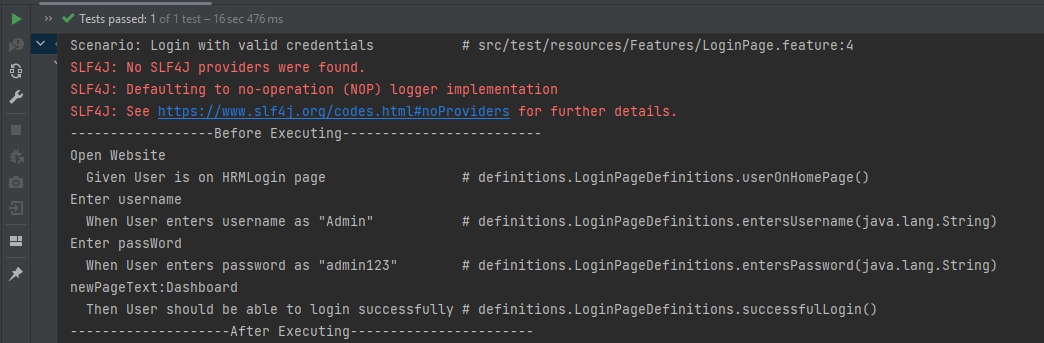
The output of the above program is

  1. At the start of execution, @Before annotation is setting up the web driver to execute the test.
  2. After setting up the web driver, the Given, When, and Then statements will be executed.
  3. Now, at last, @After hook will close the web driver.

Step hooks

Step hooks are invoked before and after a step. The hooks have ‘invoke around’ semantics. This means that if a BeforeStep hook is executed, the AfterStep hooks will also be executed regardless of the result of the step.

@BeforeStep – As the name suggests, it is executed before the execution of each step.

Syntax:

@BeforeStep
	public void beforeStepTest() {
		System.out.println("--------------BeforeStep Executing---------------");
	}

@AfterStep As the name suggests, it is executed after the successful execution of each step. If a step does not pass, the following step and its hooks will be skipped.

Syntax:

@AfterStep
	public void afterStepTest() {
		System.out.println("--------------------AfterStep Executing---------------------");
	}

import io.cucumber.java.After;
import io.cucumber.java.AfterStep;
import io.cucumber.java.Before;
import io.cucumber.java.BeforeStep;
import io.cucumber.java.en.Given;
import io.cucumber.java.en.Then;
import io.cucumber.java.en.When;
import io.github.bonigarcia.wdm.WebDriverManager;
import org.openqa.selenium.By;
import org.openqa.selenium.WebDriver;
import org.openqa.selenium.chrome.ChromeDriver;
import org.openqa.selenium.chrome.ChromeOptions;
import java.util.concurrent.TimeUnit;
import static org.hamcrest.CoreMatchers.containsString;
import static org.hamcrest.MatcherAssert.assertThat;

public class LoginPageDefinitions {
    WebDriver driver;

    @Before
    public void setup() {

        System.out.println("------------------Before Executing-------------------------");
        WebDriverManager.chromedriver().setup();
        ChromeOptions chromeOptions = new ChromeOptions();
        chromeOptions.addArguments("--start-maximized");
        driver = new ChromeDriver(chromeOptions);
        driver.manage().timeouts().implicitlyWait(5, TimeUnit.SECONDS);
    }

    @BeforeStep
    public void beforeStepTest() {
        System.out.println("--------------BeforeStep Executing---------------");
    }

    @Given("User is on HRMLogin page")
    public void userOnHomePage() {
        System.out.println("Open Website");
        driver.get("https://opensource-demo.orangehrmlive.com/");
    }

    @When("User enters username as {string}")
    public void entersUsername(String userName){
        System.out.println("Enter username");
        driver.findElement(By.name("username")).sendKeys(userName);

    }

    @When("User enters password as {string}")
    public void entersPassword(String passWord) {
        System.out.println("Enter passWord");
        driver.findElement(By.name("password")).sendKeys(passWord);
        driver.findElement(By.xpath("//*[@id='app']/div[1]/div/div[1]/div/div[2]/div[2]/form/div[3]/button")).submit();

    }

    @Then("User should be able to login successfully")
    public void successfulLogin() throws InterruptedException {
        String newPageText = driver.findElement(By.xpath("//span[@class='oxd-topbar-header-breadcrumb']/h6")).getText();
        System.out.println("newPageText:" + newPageText);
        assertThat(newPageText, containsString("Dashboard"));
    }

    @AfterStep
    public void afterStepTest() {
        System.out.println("--------------------AfterStep Executing---------------------");
    }

    @After
    public void close() {
        driver.quit();
        System.out.println("--------------------After Executing-----------------------");
    }
}

The output of the above program is

  1. At the start of execution, @Before annotation is setting up the web driver to execute the test.
  2. After setting up the web driver, @BeforeStep is executed before executing the first step.
  3. After the execution of the first step (Given), @AfterStep is executed.
  4. Here, it can be seen that there are 4 steps and for each step, there is a combination of @BeforeStep and @AfterStep.

That’s it! Congratulations on making it through this tutorial and hope you found it useful! Happy Learning!! Cheers!!

Cucumber Tutorials

 HOME

Cucumber Introduction, Installation, and Configuration

Chapter 1  Introduction of Cucumber Testing Tool (BDD Tool)
Chapter 2 How to install Cucumber Eclipse Plugin
Chapter 3 How to setup Cucumber with Eclipse
Chapter 4 Cucumber – What is Gherkin

Cucumber Scenario, Features & Step Definition

Chapter 1 Cucumber – What is Feature File in Cucumber
Chapter 2 Step Definition in Cucumber
Chapter 3 Cucumber – JUnit Test Runner Class

Cucumber – Hooks & Tags

Chapter 1 Hooks in Cucumber
Chapter 2 Tags in Cucumber
Chapter 3 Conditional Hooks in Cucumber
Chapter 4 What is CucumberOptions in Cucumber?
Chapter 5 Background in Cucumber
Chapter 6 Monochrome in Cucumber
Chapter 7 What is Glue in Cucumber?

Cucumber – Data Driven Testing

Chapter 1 Data Driven Testing using Scenario Outline in Cucumber
Chapter 2 DataTables in Cucumber

Cucumber Integration with Selenium – Maven

Chapter 1 Integration of Cucumber with Selenium and JUnit4
Chapter 2 Integration of Cucumber with Selenium and TestNG
Chapter 3 Page Object Model with Selenium, Cucumber and JUnit
Chapter 4 Page Object Model with Selenium, Cucumber, and TestNG
Chapter 5 Integration of Cucumber7 with Selenium and JUnit5
Chapter 6 Run Cucumber7 with JUnit5 Tests from Maven Command Line
Chapter 7 How to rerun failed tests in Cucumber
Chapter 8 How to create Cucumber Report after rerun of failed tests – NEW
Chapter 9 How to rerun failed tests twice in Cucumber – NEW

Cucumber – Command Line Execution

Chapter 1 Run Cucumber Test from Command Line
Chapter 2 Run Gradle Cucumber Tests from Command Line

Cucumber Integration with Rest API

Chapter 1 Rest API Test in Cucumber BDD
Chapter 2 How To Create Gradle Project with Cucumber to test Rest API

Cucumber Integration with SpringBoot

Chapter 1 Integration Testing of Springboot with Cucumber and JUnit4
Chapter 2 Integration Testing of Springboot with Cucumber and TestNG

Cucumber – Reporting

Chapter 1 Cucumber Tutorial – Cucumber Reports
Chapter 2 Cucumber Report Service
Chapter 3 Implemention of ‘Masterthought’ Reports in Cucumber
Chapter 4 Implemention of ‘Masterthought’ Reports in Cucumber with JUnit4

Cucumber Integration with Allure Reports

Chapter 1 Allure Report with Cucumber5, Selenium and JUnit4
Chapter 2 Allure Report with Cucumber5, Selenium and TestNG
Chapter 3 Integration of Allure Report with Rest Assured and JUnit4
Chapter 4 Integration of Allure Report with Rest Assured and TestNG
Chapter 5 Gradle – Allure Report for Selenium and TestNG

Cucumber Integration with Extent Reports

Chapter 1 ExtentReports Version 5 for Cucumber 6 and TestNG
Chapter 2 How to add Screenshot to Cucumber ExtentReports
Chapter 3 ExtentReports Version 5 for Cucumber 6 and JUnit4
Chapter 4 PDF ExtentReport for Cucumber and TestNG
Chapter 5 ExtentReports Version 5 for Cucumber 7 and TestNG
Chapter 6 Extent Reports Version 5 for Cucumber7 and JUnit5

Cucumber – Parallel Execution

Chapter 1 Parallel Testing in Cucumber with JUnit
Chapter 2 Parallel Testing in Cucumber with TestNG
Chapter 3 Dependency Injection in Cucumber using Pico-Container