How to create Functional Tests in ReadyAPI

HOME

ReadyAPI can be used to perform functional tests of SOAP, RESTful, GraphQL, Kafka, JMS or other API or web services. ReadyAPI functional tests verify that an API or a web service follows the required business logic.

This tutorial provides a detailed description of steps to be followed for creating a Functional Test

  1. Create a Functional Test.
  2. Run the Functional Test
  3. Test Result of a Functional Test
  4. Test Report Generation
  5. Sample Test Report

Create a Functional Test

Step 1 – Open the start page, click Create Functional Test 

Step 2 – Select Endpoint option in this dialog.

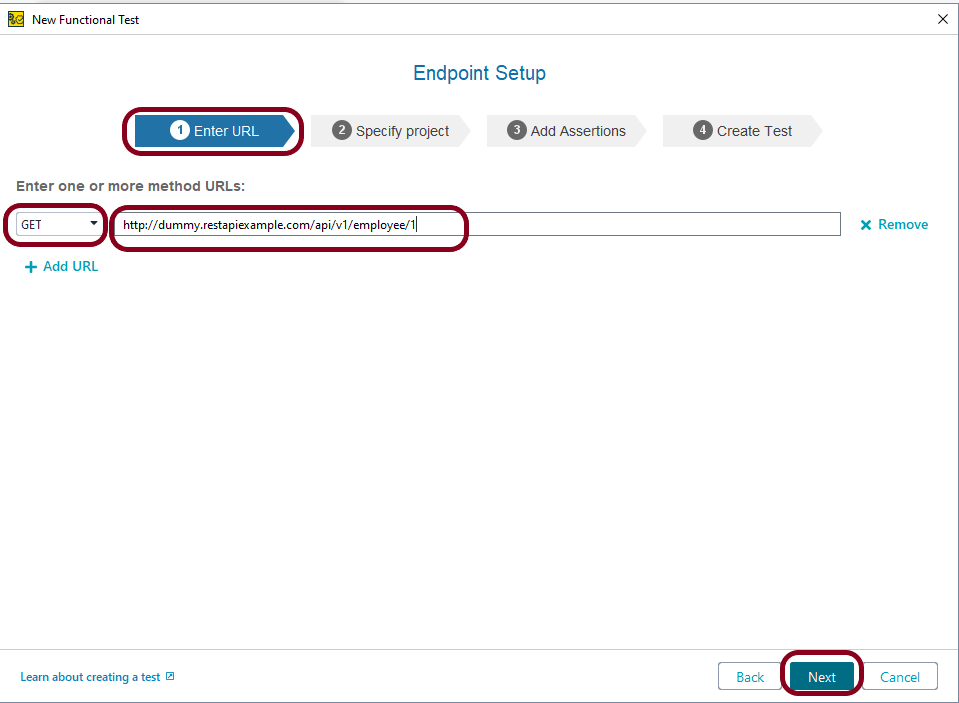
Step 3 – In the subsequent wizard, specify the method, URL of the web service’s definition. Then select the Next Button.

Endpoint – http://dummy.restapiexample.com/api/v1/employee/1

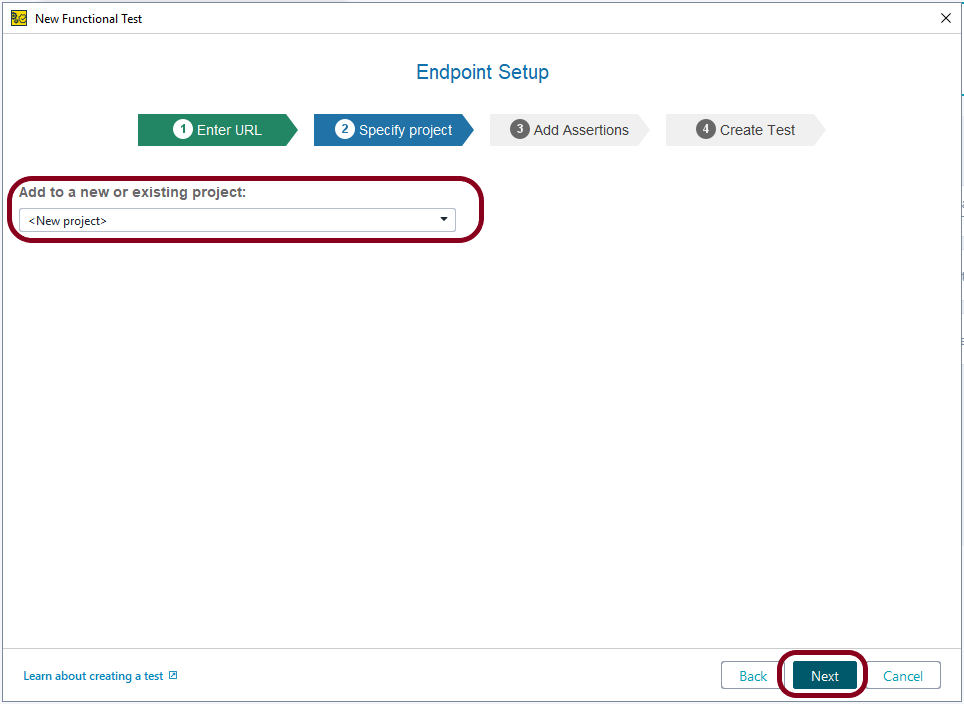
Step 4 – Select if you want to create a new project for the definition you have added, or add it to the existing project. Click the Next button to continue.

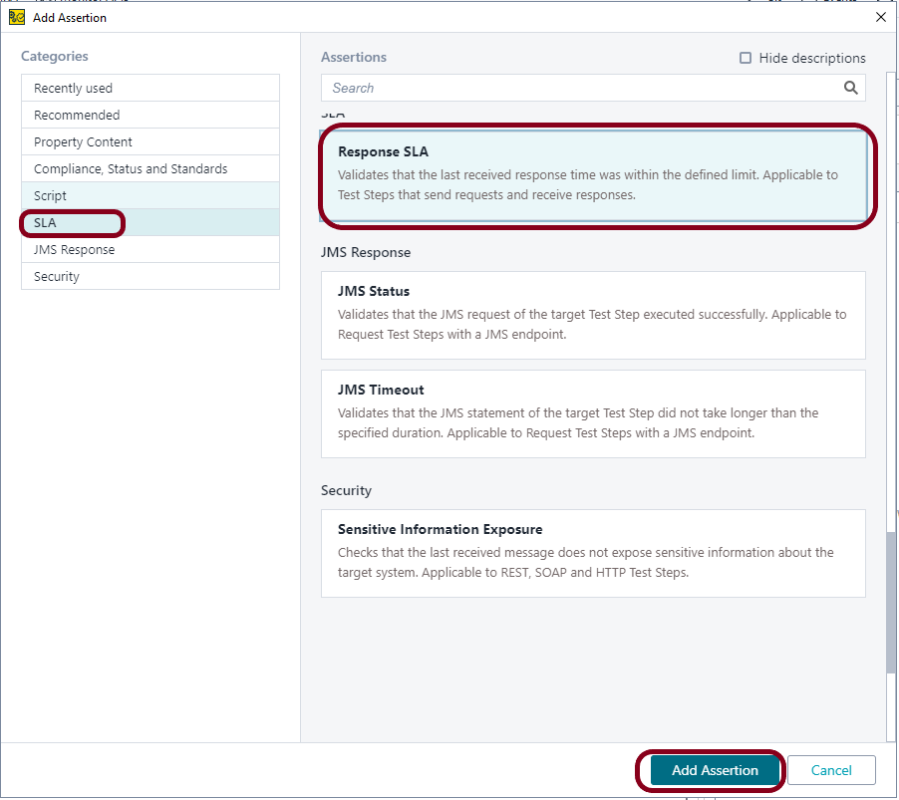
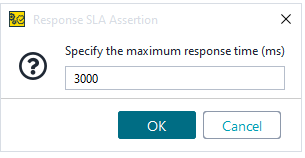
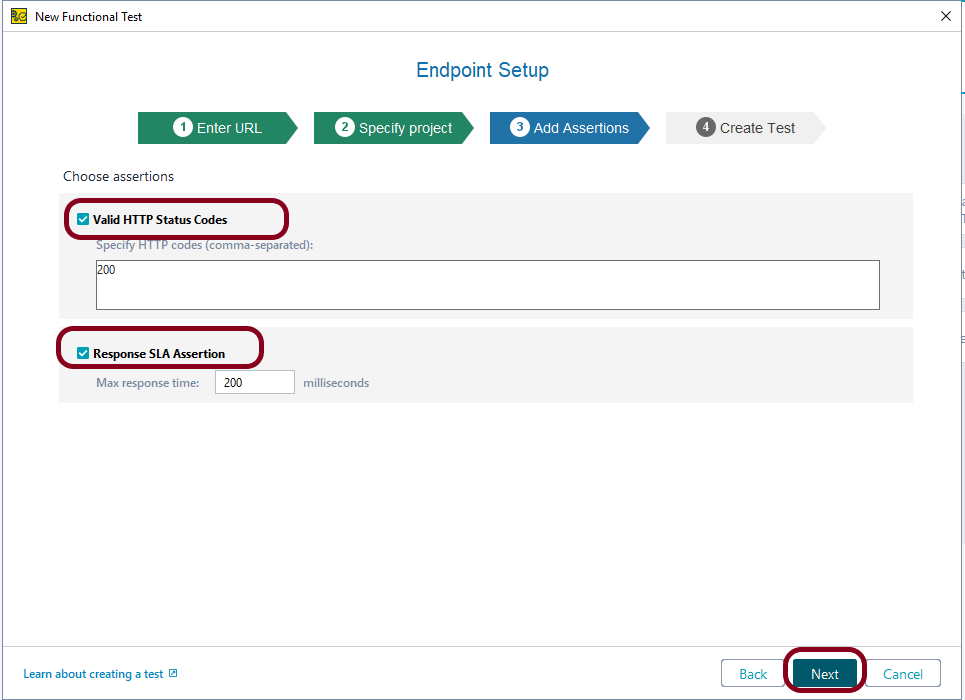
Step 5 – On this page of the wizard, you can select assertions to be added to the test. ReadyAPI adds the selected assertions to new test requests.

Assertions verify that your API works as expected. Select the selection and click the Next button.

Run the Functional Test

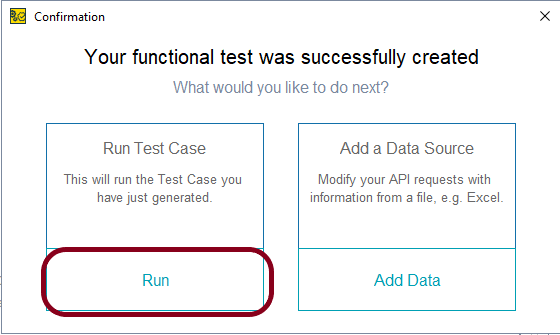
Step 6 – ReadyAPI will create a test project and add test cases to it. After that, it will display one more dialog box, where you can run the created tests or add a data source to them. Assume you don’t want to add a data source, so can run the tests by clicking the “Run” option.

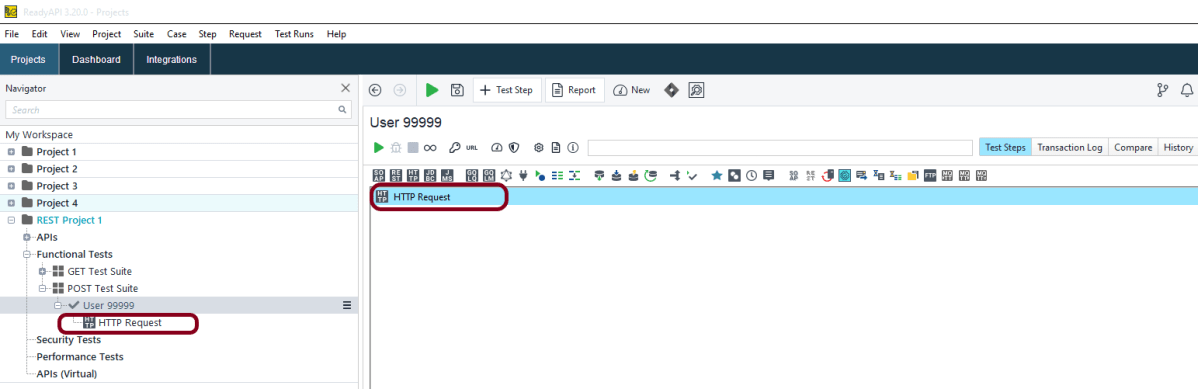
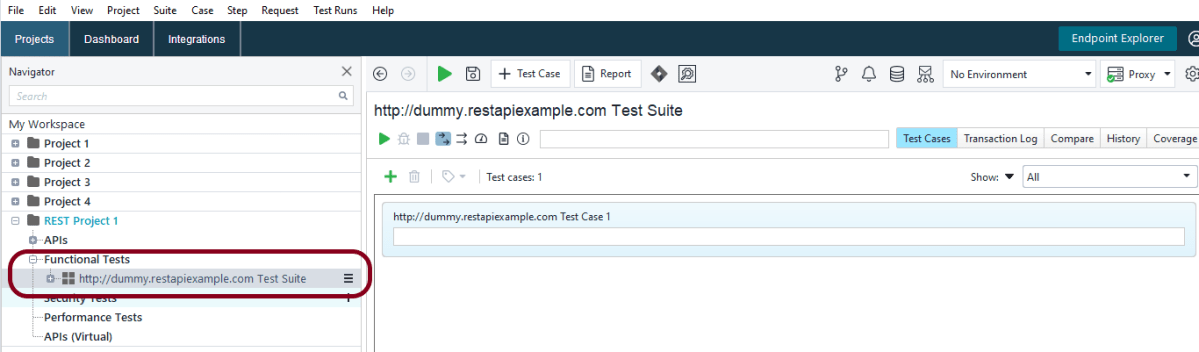
Step 7 – This screen shows that a new project is created and a new functional test as shown in the image is created.

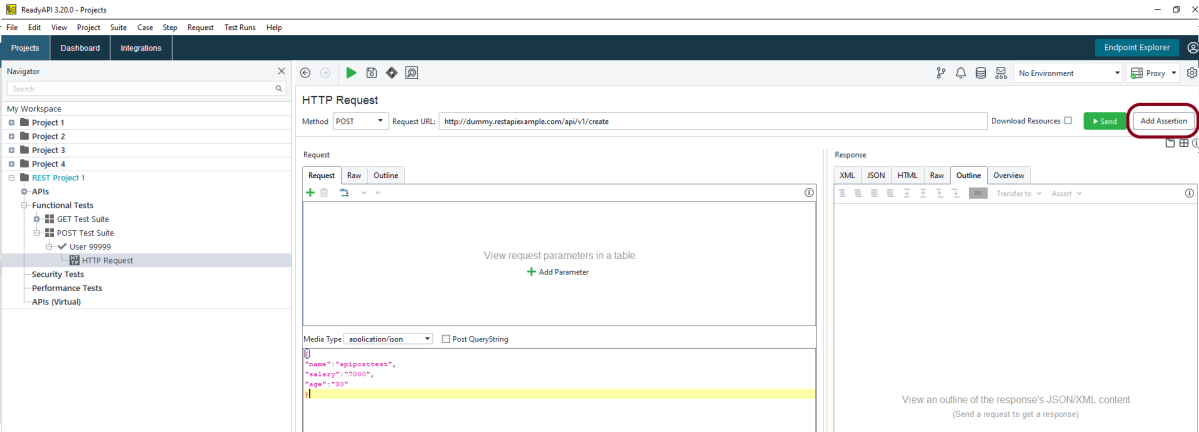
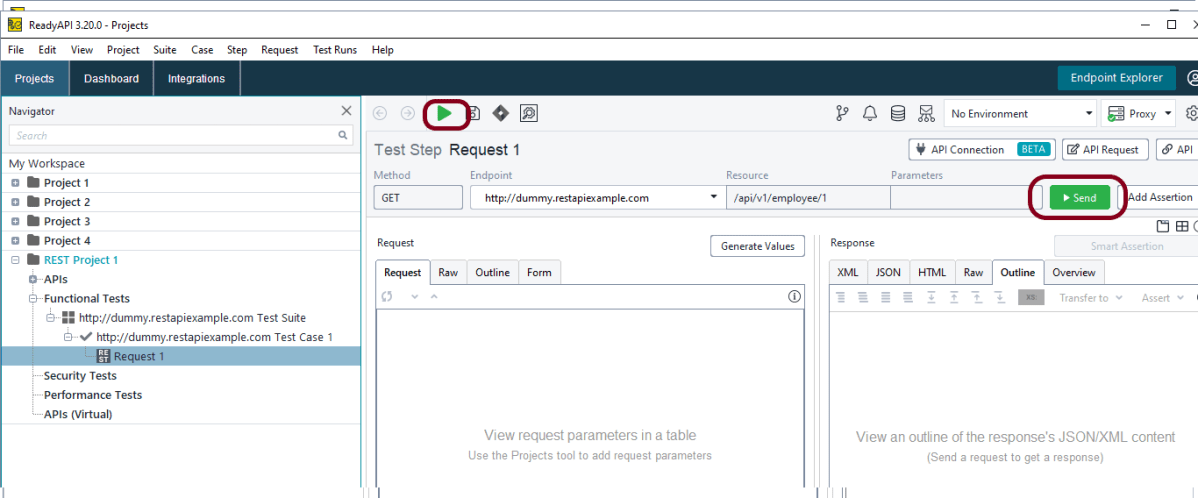
Step 8 – To run an individual request test step, select it in the Navigator panel on the left, and then click  Green arrow on the main toolbar or click on Send button on the request editor toolbar.

Test Result of a Functional Test

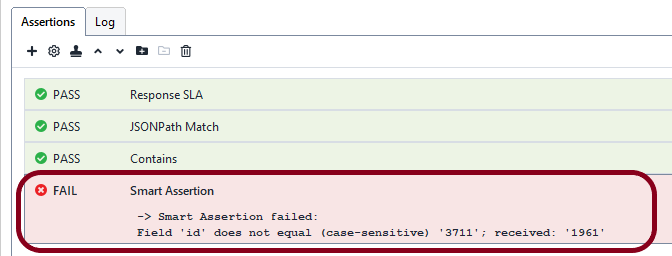
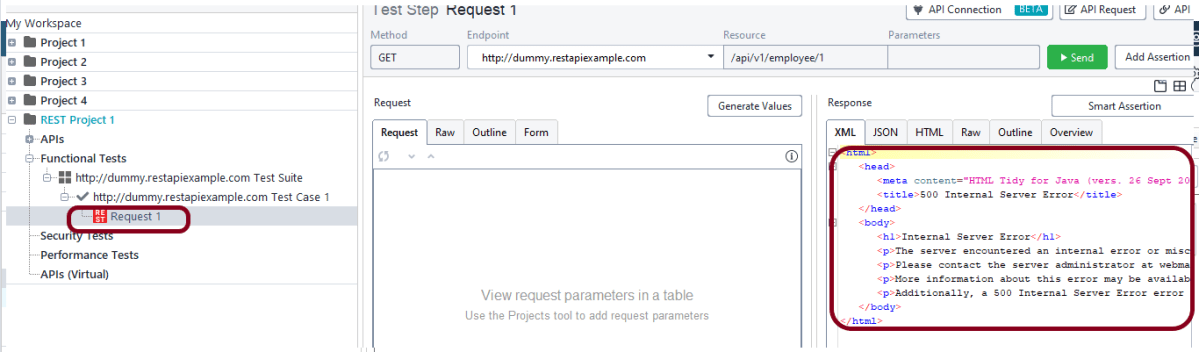
Step 9 – Image of a failed test result. When the test fails, the Request color as shown in the image will be red.

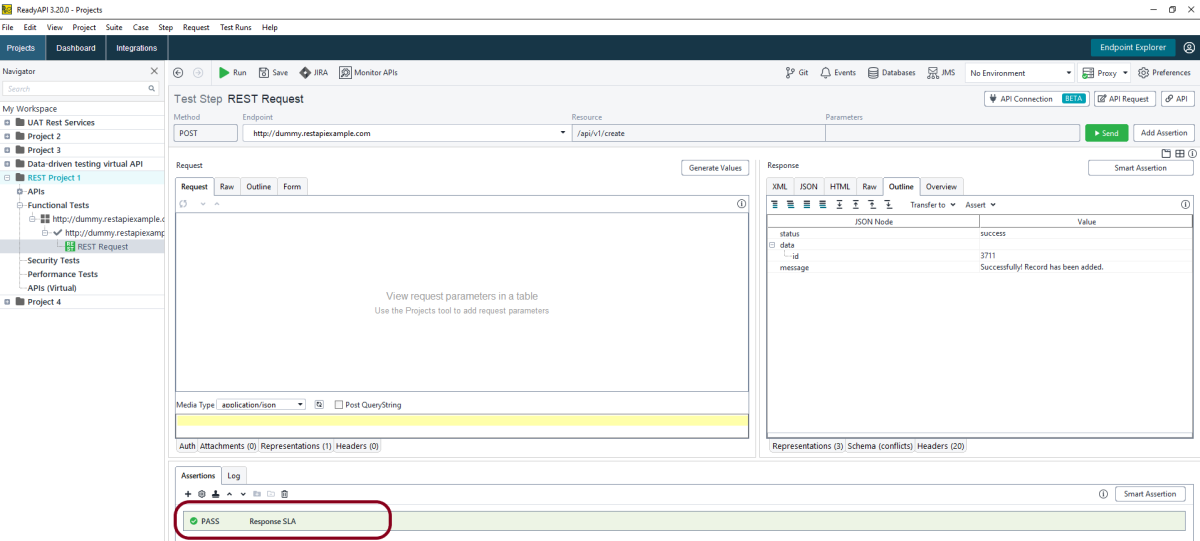
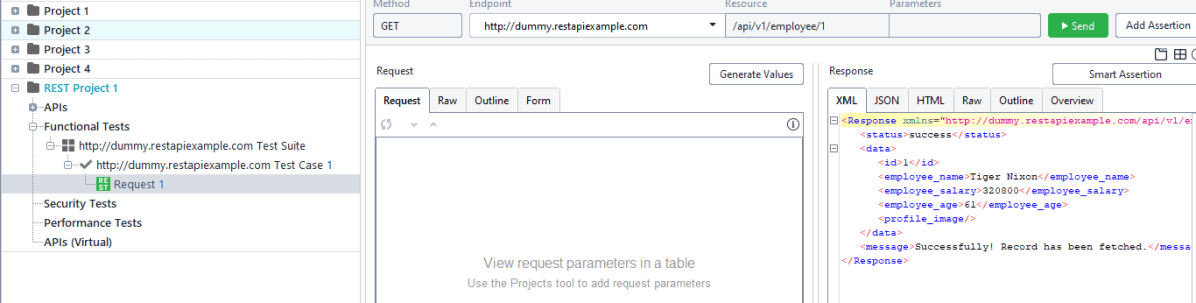
Step 10 – When the test is passed, the Request icon shown in the image will be green.

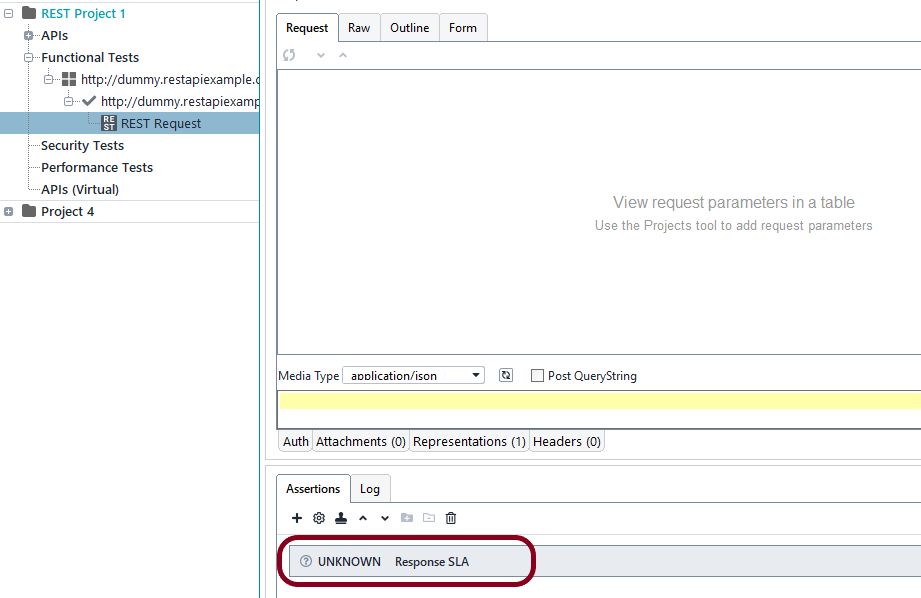
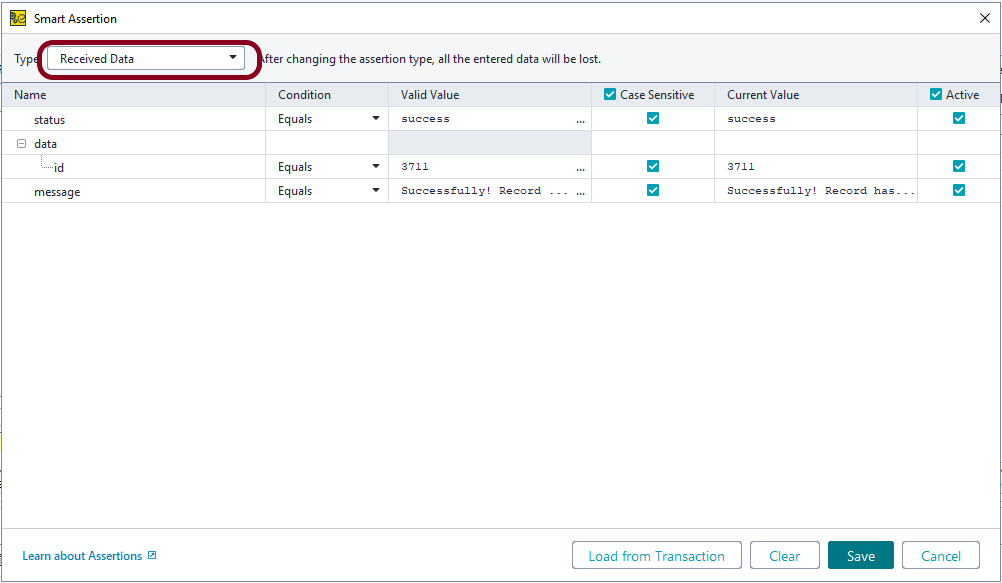
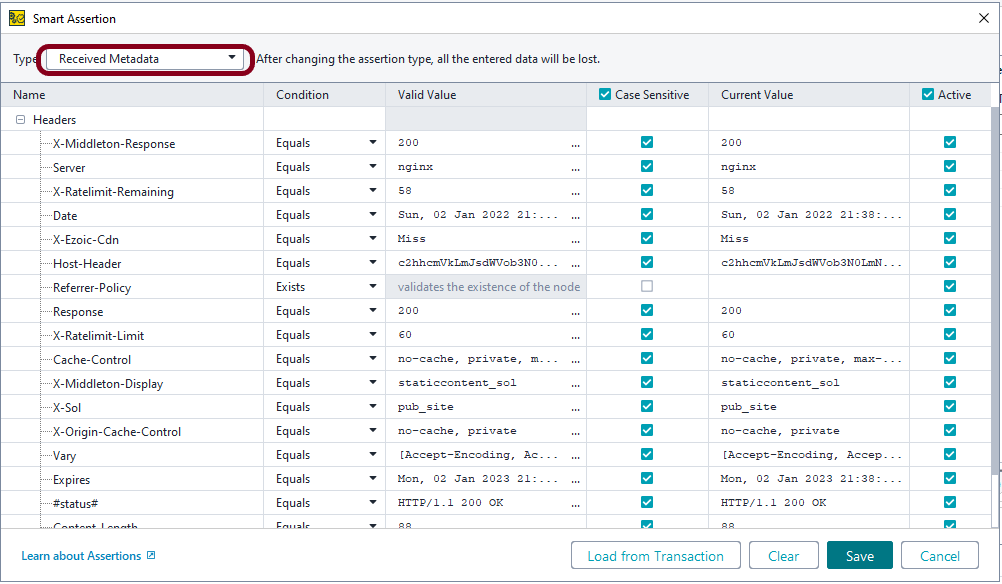
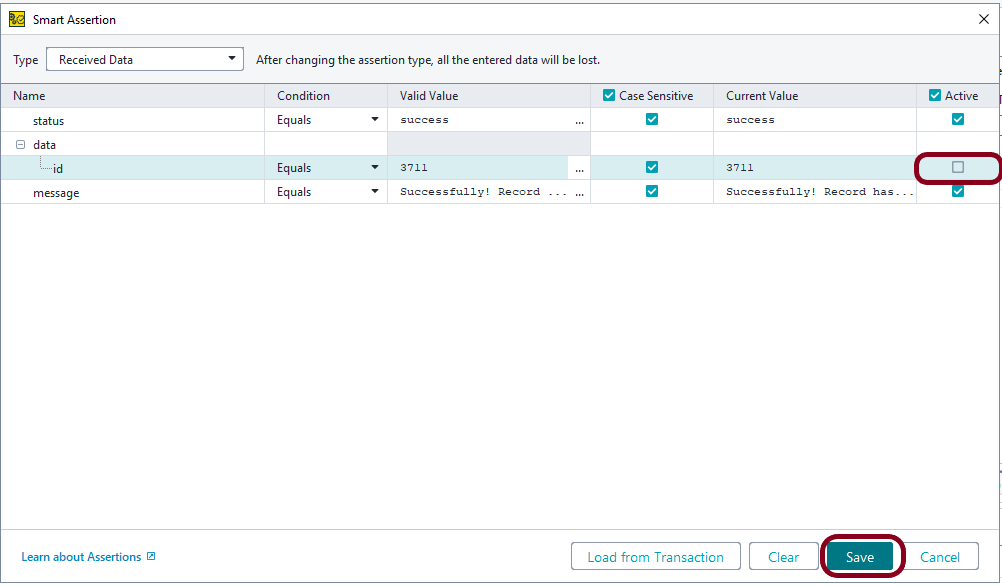
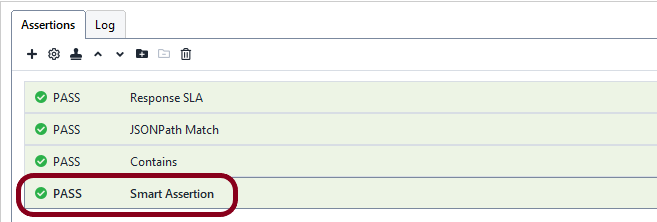
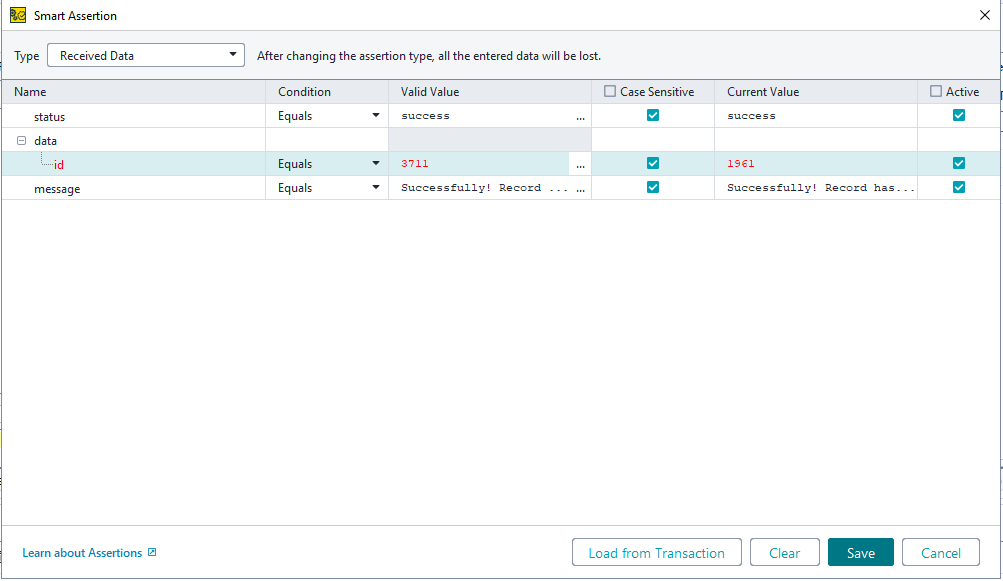
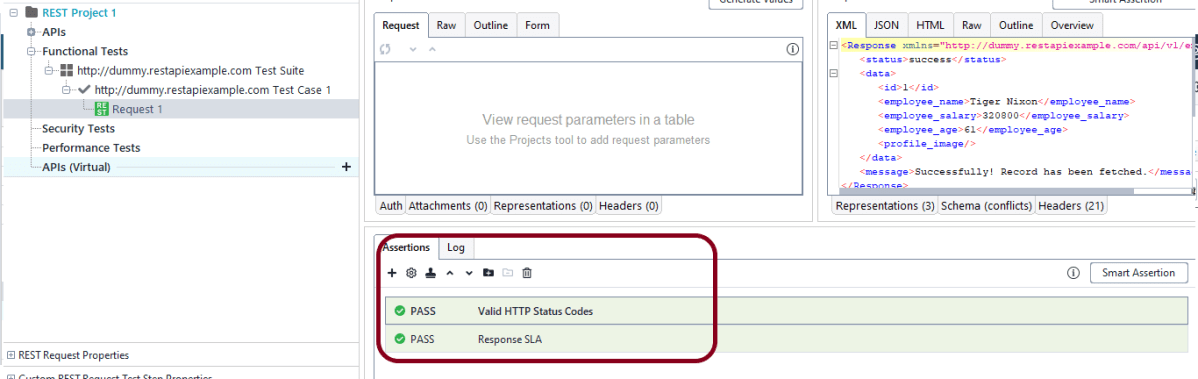
Step 11 – The Assertions panel lists the assertions you added to a test step or operation. Here, you can add and modify the assertions.

Test Report Generation

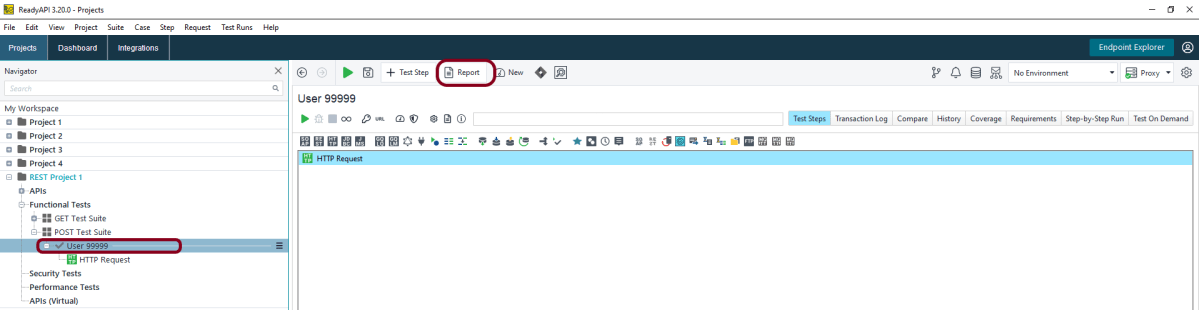
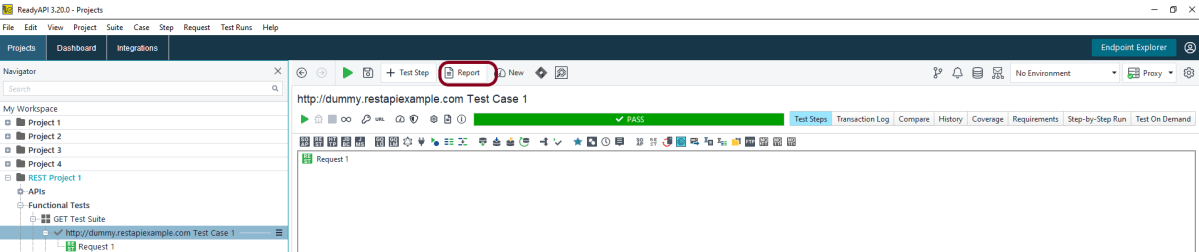
Step 12 – To open the Create Report dialog, click Report in functional tests at any level. Here, I have clicked on the Test Case – (http://dummy//rest..) and a Report tab is displayed.

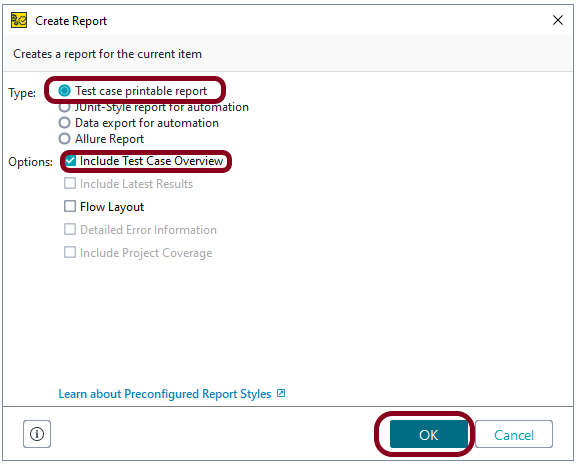
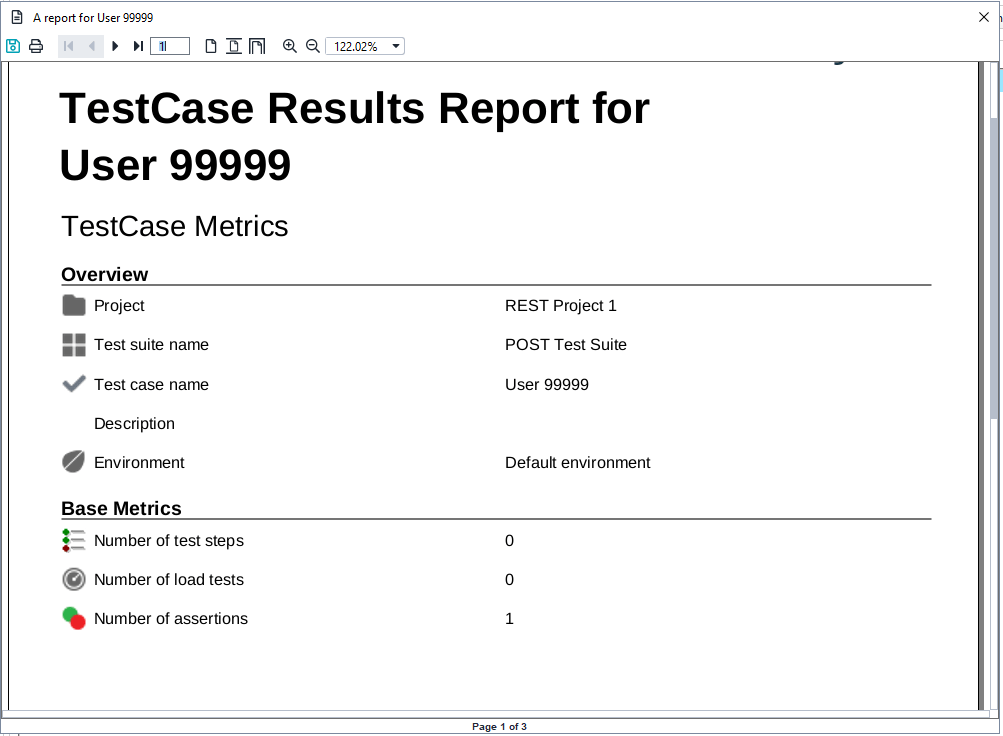
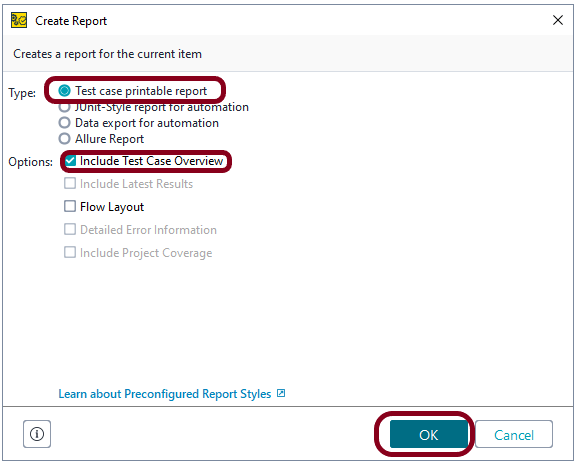
Step 13 – The Create Report dialog configuration varies depending on the report type you select. You can create project reports only on the level of the Functional test in the Navigator. After selecting the required options, click on the OK button. This generates a Test Report as shown in the below image.

Sample Test Report

Congratulations!! We are able to create, run a Functional Test as well as able to generate the Test Report.

How to create Security Test from Functional test in ReadyAPI

HOME

The previous tutorial has explained the creation of a new Security Test. This tutorial explains the process to create a Security test from the existing Functional Test.

Steps to be followed to create a security test from a functional test case:

  1. Create the Security Test from Functional Test
  2. Run the Security Test
  3. Analyse Security Test Results
  4. Generation of Security Test Report
  5. Sample Test Report
  6. Analyse Security Test Report

Create the Security Test from Functional Test

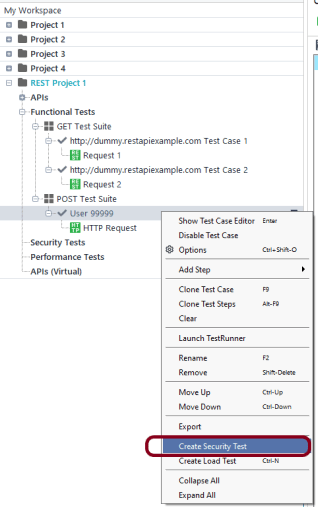
Step 1 – Right-click the test case present under Functional Tests in the Navigator and select Create Security Test.

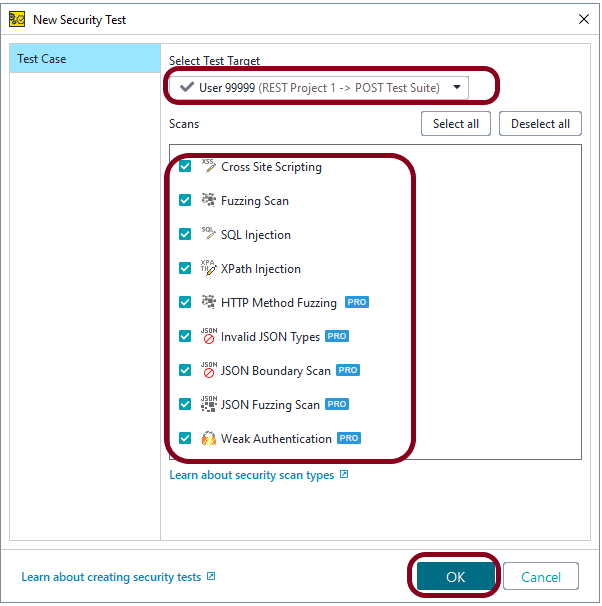
Step 2 – Click Select Test Target. Select the test case you want to apply the security scan to. All the applicable scans are selected by default

Leave the scans you want to have in your test checked and uncheck the other scans.

There is a list of Scans, you can select either one scan or multiple scans. I have selected all the scans.

  1. Boundary Scan
  2. Cross Site Scripting
  3. Fuzzing Scan
  4. Invalid Types
  5. SQL Injection
  6. XPath Injection
  7. HTTP Method Fuzzing
  8. Sensitive Files Exposure
  9. Weak Authentication

Click the OK button.

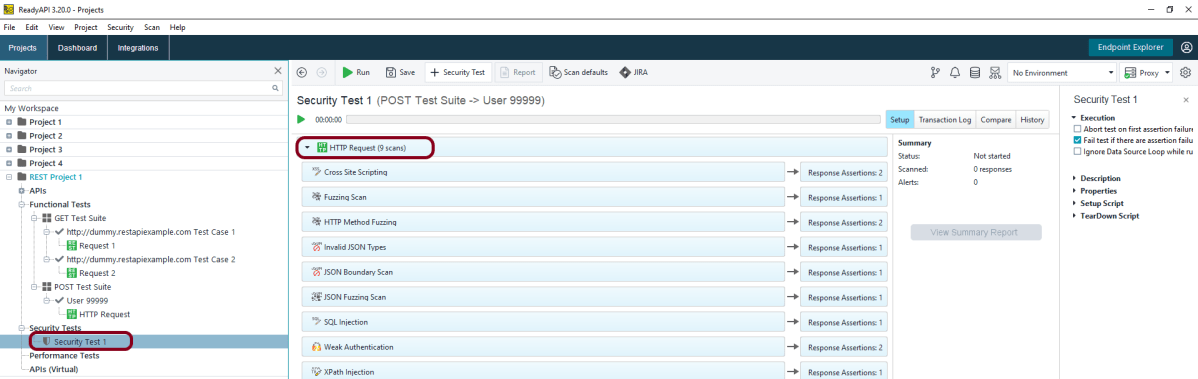
Step 3 – This screen shows all the scans added to the Security Test.

Run the Security Test

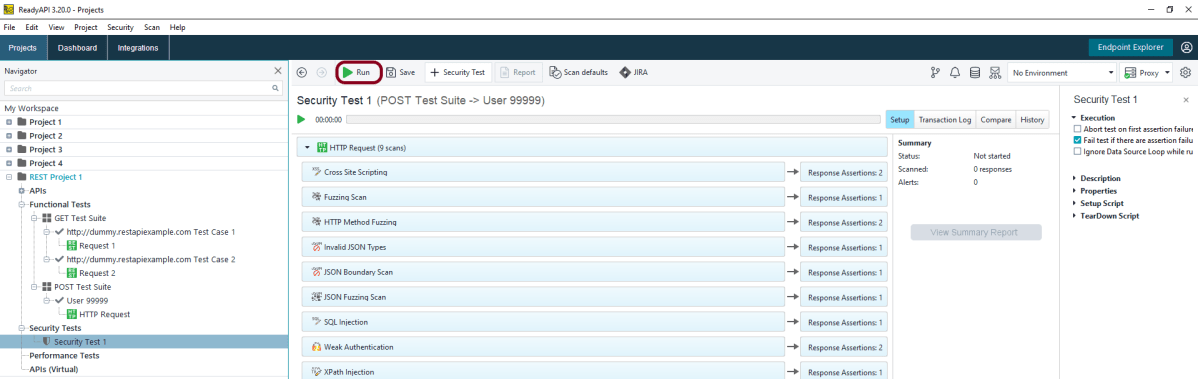
Step 4 – Click the Green arrow “Run” to start the test.

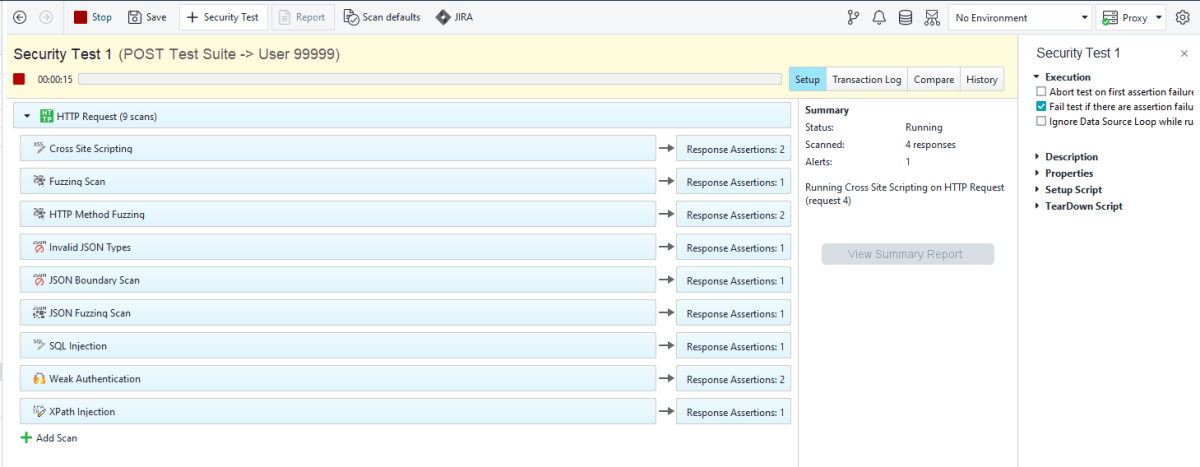
Step 5 – ReadyAPI will start sending modified requests and checking responses.

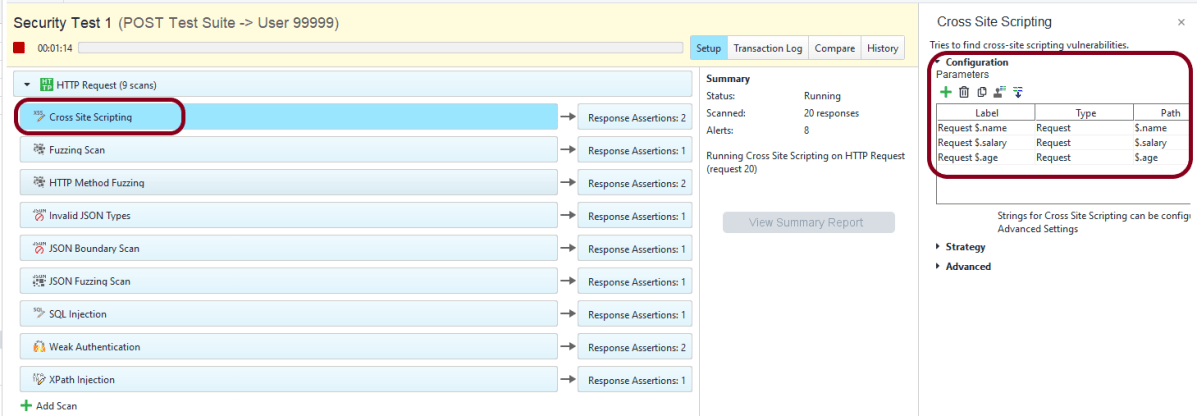
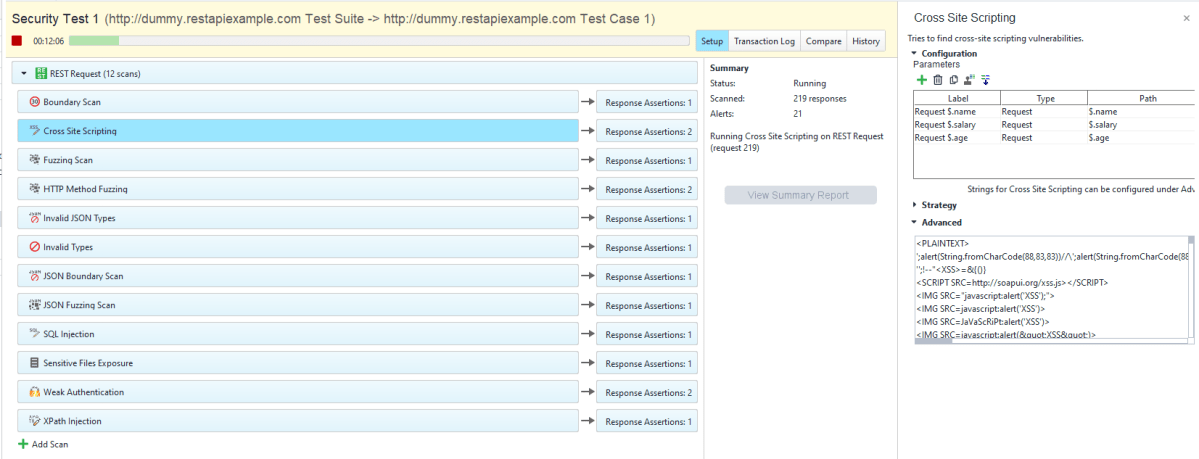
Step 6 – The security test window shows the progress of each test step and matching security scans. This screen shows all the configurations of Cross Site Scripting. Similarly, all the scans have their own in-built configurations.

Analyse Security Test Results

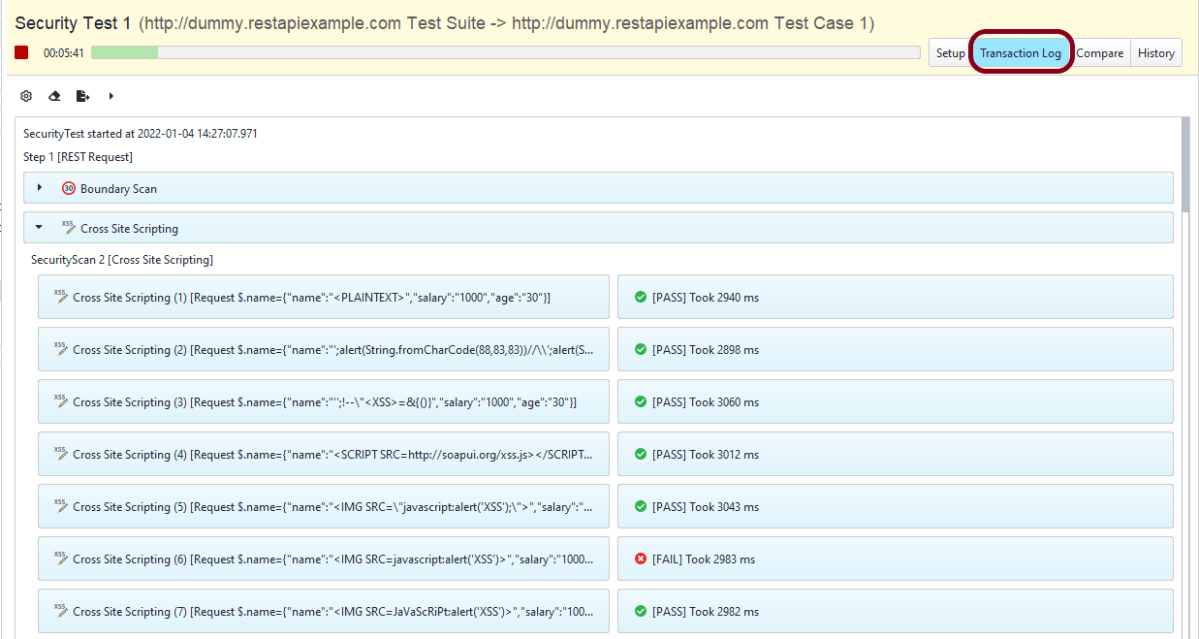
Step 7 – The Transaction Log shows additional information about security scans.

Step 8 – The details of a particular request or response are available in the inspector.

The Setup pane contains the detail about the configuration used for the tests.

Generation of Security Test Report

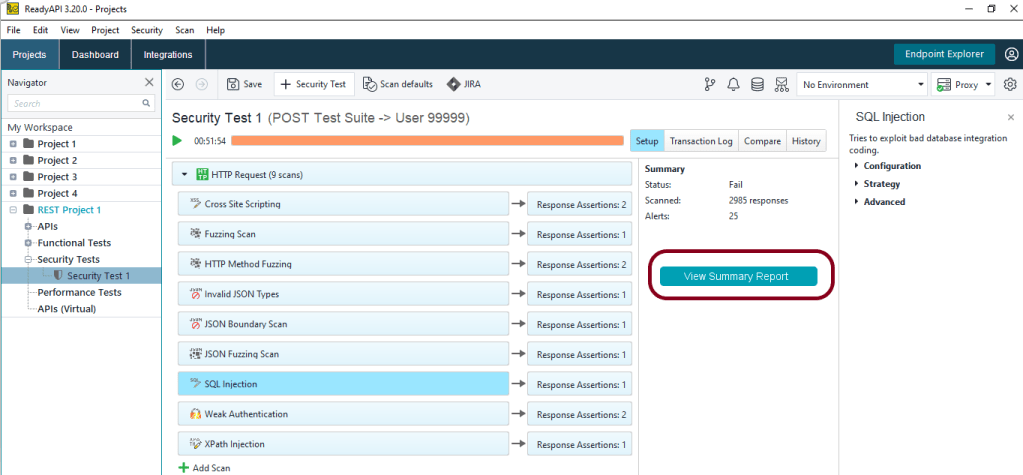
Step 9 – After the security test run finishes, click View Summary Report:

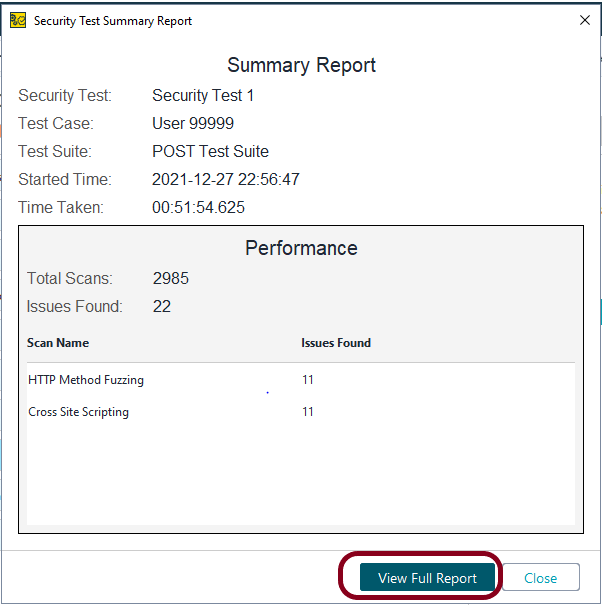
Step 10 – In the dialog that appears, click View Full Report.

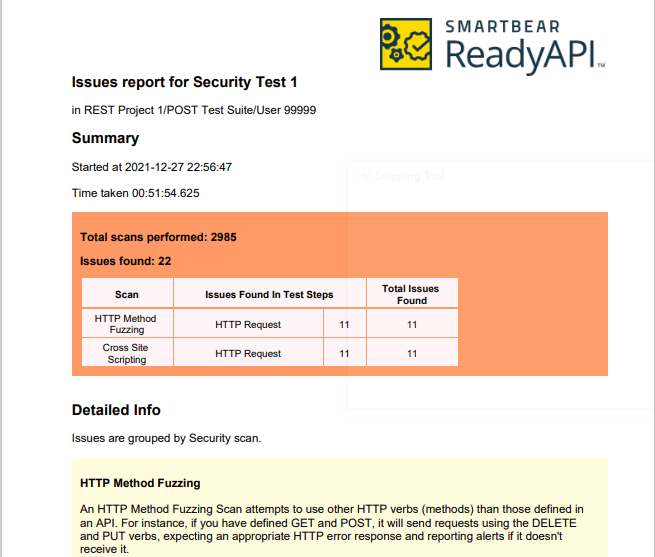
Step 11 – After that, ReadyAPI will open the report in the default PDF viewer.

Sample Test Report

Analyse Security Test Report

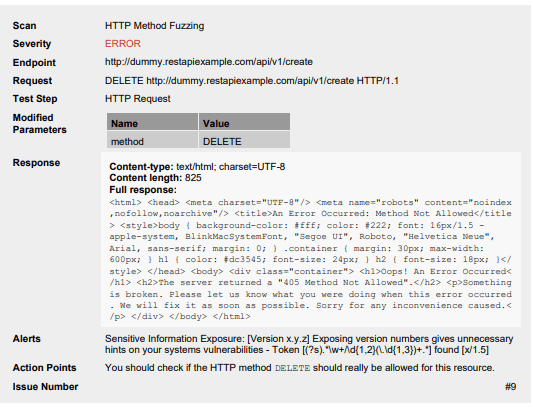
 Step 12 – Example of HTTP Method Fuzzing

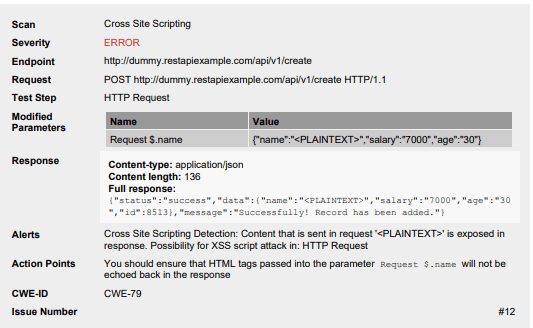
Example of Cross Site Scripting

Congratulations!! We have successfully created the Security Test from the Functional Test. We are also run the test and generated the Security Test Report also. That’s a great accomplishment.

How to test JSON Request using GSON API

HOME

In this tutorial, I will explain the testing of a JSON Payload using GSON API.

Refer to the below tutorials to understand how GSON works:-

Serialization – How to convert Java Object To JSON Object Using Gson API

Deserialization – How to create JSON Object to JAVA Object Using Gson API

Add below dependency to POM.xml to use Gson API.

<dependency>
    <groupId>com.google.code.gson</groupId>
    <artifactId>gson</artifactId>
    <version>2.8.9</version>
</dependency>

As we know, we can use toJson() to convert the JAVA objects to JSON Payload.

In the below example, I have created a POJO class with the name of EmployeeDetails. This class contains the data members corresponding to the JSON nodes and their corresponding getter and setter methods.

public class EmployeeDetails {

	// private variables or data members of pojo class
	private String name;
	private double salary;
	private int age;

	public String getName() {
		return name;
	}

	public void setName(String name) {
		this.name = name;
	}

	public double getSalary() {
		return salary;
	}

	public void setSalary(double salary) {
		this.salary = salary;
	}

	public int getAge() {
		return age;
	}

	public void setAge(int age) {
		this.age = age;
	}

}

Below, will create a JSON payload and pass it as a request body to the Rest API.

	@Test
	public void createEmployee() throws IOException {

		// Just create an object of Pojo class
		EmployeeDetails emp = new EmployeeDetails();
		emp.setName("GsonTest");
		emp.setSalary(50000);
		emp.setAge(25);

		// Converting a Java class object to a JSON payload as string using Gson
		Gson builder = new GsonBuilder().setPrettyPrinting().create();
		String employeePrettyJsonPayload = builder.toJson(emp);
		System.out.println("Request");
		System.out.println(employeePrettyJsonPayload);
		System.out.println("=========================================");
		System.out.println("Response");

		// GIVEN
		given()
              .baseUri("http://dummy.restapiexample.com/api")
              .contentType(ContentType.JSON).body(emp)

		// WHEN
		.when()
               .post("/v1/create")

		// THEN
		.then()
              .assertThat().statusCode(200)
              .body("status", equalTo("success"))
			  .body("data.name", equalTo("GsonTest"))
              .body("data.salary", equalTo(50000))
			  .body("data.age", equalTo(25))
              .body("message", equalTo("Successfully! Record has been added."))
              .log().body();

	}
}

Output

We are done! Congratulations on making it through this tutorial and hope you found it useful! Happy Learning!!

How to create Security Tests in ReadyAPI

HOME

Security tests in ReadyAPI include various types of security scans. Each of them detects a specific vulnerability. With multiple security scans in one test, you guarantee your service is well-protected against possible attacks.

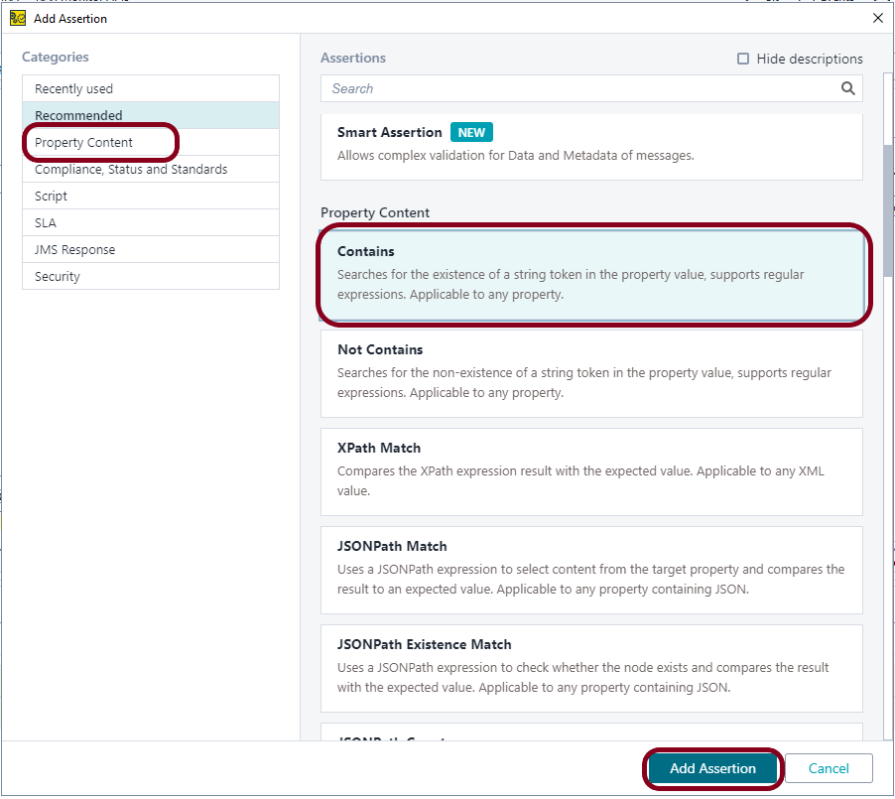
This tutorial explains the steps to create the Security tests in ReadyAPI.

To know how to install ReadyAPI, refer to the installation tutorial.

A version of ReadyAPI used for this tutorial- 3.20.0

This tutorial explains the below steps:-

  1. Create a Security Test
  2. Run the Security Test
  3. Analyse Security Test Results
  4. Generation of Security Test Report
  5. Sample Test Report
  6. Analyse Security Test Report

Create a Security Test

Step 1 – Select File ->New Security Test.

Step 2 – Select the URL option.

Step 3 – Enter the following URL and click the Next button:

URL – http://dummy.restapiexample.com/api/v1/employee/1

Step 4 – Select the scans you need and click the Finish button.

Another thing to keep in mind is to select whether you want to create a new project or add the test to an existing project. Here, I’m creating a new project.

There is a list of Scans, you can select either one scan or multiple scans. I have selected all the scans.

  1. Boundary Scan
  2. Cross Site Scripting
  3. Fuzzing Scan
  4. Invalid Types
  5. SQL Injection
  6. XPath Injection
  7. HTTP Method Fuzzing
  8. Sensitive Files Exposure
  9. Weak Authentication

Run the Security Tests

Step 5 – We have created a security test. ReadyAPI will offer you to run the security test immediately or edit it before running. We do not need to configure anything, so select the Run Security Test option.

If you want to edit the test before running it, then select the Edit Security Test option.

Step 6 – ReadyAPI will start sending modified requests and checking responses. 

The security test window shows the progress of each test step and matching security scans:

The Summary pane contains a short overview of the currently running security test.

Step 7 – After the security test run finishes, click View Summary Report:

Analyse Security Test Results

Step 8 – The Transaction Log shows additional information about security scans.

Step 9 – The details of a particular request or response are available in the inspector.

Generation of Security Test Report

Step 10 – In the dialog that appears, click View Full Report:

After that, ReadyAPI will open the report in the default PDF viewer.

This Summary Report shows there was a total of 258 scans and 28 issues are found. Out of 28 issues, 17 issues were Sensitive Files Exposure, and 11 issues are HTTP Method Fuzzing.

Sample Test Report

Analyse Security Test Report

Step 12 – Sensitive Files Exposure

Example of HTTP Method Fuzzing

Congratulations!! We have successfully created a Security test, run it as well as generating the Test Report, and analyzed the result too. Cheers!!!

ReadyAPI Tutorials

HOME

ReadyAPI is an easy-to-use no-code API Testing platform designed to streamline your testing workflows. Automate and scale your end-to-end tests across multiple API types. Run compatible load tests against your functional tests. Enable virtualization to ensure fast and reliable integrations for your development teams.

Chapter 1 How to install ReadyAPI
Chapter 2 How to create Security Tests in ReadyAPI
Chapter 3 How to create Security Test from Functional test in ReadyAPI
Chapter 4 How to create Functional Tests in ReadyAPI
Chapter 5 How to add Test Suite in existing Project in ReadyAPI
Chapter 6 Assertions in ReadyAPI

How to install ReadyAPI

HOME

What is ReadyAPI?

ReadyAPI allows teams to create, manage, and execute automated functional, security, and performance tests in one centralized interface – accelerating API quality for Agile and DevOps software teams. It allows importing API definitions like OpenAPI/Swagger or AsyncAPI, testing and recording live API traffic, or virtualizing web services to remove pipeline dependencies.

ReadyAPI is handled by SmartBear. ReadyAPI is not an open source tool, but a licensed tool.

In ReadyAPI, We can easily manage our APIs and project. We can easily create APIs from an openAPI, Swagger, WSDL, and WADL definition and use Discovery to record API requests and methods.

ReadyAPI can be used to perform

  1. Security Testing
  2. Functional Testing
  3. Performance Testing

How to install ReadyAPI – Version 3.20.0

Step 1 – Go to SmartBear ReadyAPI Installation site.

Step 2 – Before starting the installation, please check the system requirements for ReadyAPI.

Step 3 – As ReadyAPI is a licensed tool, but it also provides a trial version as well as commercial Pro License.

If you want to go for the trial version, fill in the details on this page and get Free Trial.

If you have license, then download the installer for your platform from the ReadyAPI Downloads Center.

I have a license, so will download ReadyAPI Desktop 3.20.0 (Windows Installer 64-bit).

Step 4 – Once the download is completed, run the installer. The installer will unpack the files and prepare them for installation:

Step 5 – Click the Next button to proceed with the installation:

Step 6 – If you install ReadyAPI for the first time or have chosen to install it to a different directory, the wizard will ask you to specify the installation folder:

Step 7 – This image shows that installation is in progress.

Step 8 – When the installation is complete, you can select the Run ReadyAPI check box to run ReadyAPI upon closing the wizard. You can also select the Create a desktop icon check box to create a desktop icon for ReadyAPI. Click the Finish button.

Step 9 – Once the installation is successfully completed, ReadyAPI will open, and it will look like something as in the below image.

We are done! Congratulations on making it through this tutorial and hope you found it useful! Happy Learning!!

@XmlElementWrapper Annotation for XML – JAXB

HOME

The previous tutorials explain how to use JAXB(Java Architecture for XML Binding) to parse XML documents to Java objects and vice versa. This is also called Marshalling and Unmarshalling.

This tutorial explains @XmlElementWrapper Annotation.

Configure the Java compiler level to be at least 11 and add the JAXB dependencies to the pom file.

<?xml version="1.0" encoding="UTF-8"?>

<project xmlns="http://maven.apache.org/POM/4.0.0" xmlns:xsi="http://www.w3.org/2001/XMLSchema-instance"
  xsi:schemaLocation="http://maven.apache.org/POM/4.0.0 https://maven.apache.org/xsd/maven-4.0.0.xsd">
  <modelVersion>4.0.0</modelVersion>

  <groupId>org.example</groupId>
  <artifactId>JAXBDemo</artifactId>
  <version>0.0.1-SNAPSHOT</version>

  <name>JAXBDemo</name>
  <url>http://www.example.com</url>

  <properties>  

    <project.build.sourceEncoding>UTF-8</project.build.sourceEncoding>
    <maven.compiler.source>11</maven.compiler.source>
    <maven.compiler.target>11</maven.compiler.target>
  </properties>

  <dependencies>
    <dependency>
      <groupId>junit</groupId>
      <artifactId>junit</artifactId>
      <version>4.13.2</version>
      <scope>test</scope>
  </dependency>
    
 <dependency>
    <groupId>com.sun.xml.bind</groupId>
    <artifactId>jaxb-impl</artifactId>
    <version>2.3.3</version>
   </dependency>
 </dependencies>
   
</project>

@XmlElementWrapper generates a wrapper element around XML representation. This is primarily intended to be used to produce a wrapper XML element around collections.

This annotation can be used with the following annotations –  XmlElementXmlElementsXmlElementRefXmlElementRefsXmlJavaTypeAdapter.

@XmlElementWrapper and @XmlElement (Wrapped collection)

Let us understand this with the help of an example shown below.

@XmlRootElement(name = "CustomerDetails")
@XmlAccessorType(XmlAccessType.FIELD)
public class Customer {

	private int id;

	private String name;
	private int yearOfBirth;
	private String emailId;
	private String streetAddress;

	private String postcode;

	@XmlElementWrapper(name = "emergencyContacts")
	@XmlElement(name = "Contact")
	private List<String> emergencyContacts;

	public Customer() {
		super();
	}

	public Customer(int id, String name, int yearOfBirth, String emailId, String streetAddress, String postcode,
			List<String> emergencyContacts) {
		super();
		this.id = id;
		this.name = name;
		this.yearOfBirth = yearOfBirth;
		this.emailId = emailId;
		this.streetAddress = streetAddress;
		this.postcode = postcode;
		this.emergencyContacts = emergencyContacts;
	}

	public int getId() {
		return id;
	}

	public void setId(int id) {
		this.id = id;
	}

	public String getName() {
		return name;
	}

	public void setName(String name) {
		this.name = name;
	}

	public int getYearOfBirth() {
		return yearOfBirth;
	}

	public void setYearOfBirth(int yearOfBirth) {
		this.yearOfBirth = yearOfBirth;
	}

	public String getEmailId() {
		return emailId;
	}

	public void setEmailId(String emailId) {
		this.emailId = emailId;
	}

	public String getStreetAddress() {
		return streetAddress;
	}

	public void setStreetAddress(String streetAddress) {
		this.streetAddress = streetAddress;
	}

	public String getPostcode() {
		return postcode;
	}

	public void setPostcode(String postcode) {
		this.postcode = postcode;
	}

	public List<String> getEmergencyContacts() {
		return emergencyContacts;
	}

	public void setEmergencyContacts(List<String> emergencyContacts) {
		this.emergencyContacts = emergencyContacts;
	}
}

Now, let us create a Test to convert these Java Objects to XML.

   @Test
	public void Test() {

		try {

			Customer cust = new Customer();
			cust.setId(1111);
			cust.setName("Tim");
			cust.setYearOfBirth(1988);
			cust.setEmailId("Test@test.com");
			cust.setStreetAddress("6, JaySmith, Dublin");
			cust.setPostcode("A12 YP22");

			cust.setEmergencyContacts(Arrays.asList("98675 12312", "88881 23415", "44123 67453"));

			// Create JAXB Context
			JAXBContext context = JAXBContext.newInstance(Customer.class);

			// Create Marshaller
			Marshaller jaxbMarshaller = context.createMarshaller();

			// Required formatting
			jaxbMarshaller.setProperty(Marshaller.JAXB_FORMATTED_OUTPUT, Boolean.TRUE);

			// Write XML to StringWriter
			StringWriter sw = new StringWriter();
			jaxbMarshaller.marshal(cust, sw);

			// Print XML Content
			String xmlContent = sw.toString();
			System.out.println(xmlContent);

		} catch (PropertyException e) {
			e.printStackTrace();

		} catch (JAXBException e) {

		}
	}

The output of the above program is

Here, contact is within emergencyContacts, because contact is @XmlElement.

Use Only @XmlElementWrapper

@XmlRootElement(name = "CustomerDetails")
@XmlAccessorType(XmlAccessType.FIELD)

public class Customer {

	private int id;

	private String name;
	private int yearOfBirth;
	private String emailId;
	private String streetAddress;

	private String postcode;

	@XmlElementWrapper(name = "emergencyContacts")
 //	@XmlElement(name = "Contact") //Commented this
	private List<String> emergencyContacts;

	public Customer() {
		super();
	}

	public Customer(int id, String name, int yearOfBirth, String emailId, String streetAddress, String postcode,
			List<String> emergencyContacts) {
		super();
		this.id = id;
		this.name = name;
		this.yearOfBirth = yearOfBirth;
		this.emailId = emailId;
		this.streetAddress = streetAddress;
		this.postcode = postcode;
		this.emergencyContacts = emergencyContacts;
	}

The output of the above program is

Here, there is no contact within emergencyContacts, it is because there is no @XmlElement for contact.

Do not use @XmlElementWrapper (Unwrapped collection)

@XmlRootElement(name = "CustomerDetails")
@XmlAccessorType(XmlAccessType.FIELD)

public class Customer {

	private int id;

	private String name;
	private int yearOfBirth;
	private String emailId;
	private String streetAddress;

	private String postcode;

 //@XmlElementWrapper(name = "emergencyContacts") Commented this
	@XmlElement(name = "Contact")
	private List<String> emergencyContacts;

	public Customer() {
		super();
	}

	public Customer(int id, String name, int yearOfBirth, String emailId, String streetAddress, String postcode,
			List<String> emergencyContacts) {
		super();
		this.id = id;
		this.name = name;
		this.yearOfBirth = yearOfBirth;
		this.emailId = emailId;
		this.streetAddress = streetAddress;
		this.postcode = postcode;
		this.emergencyContacts = emergencyContacts;
	}

The output of the above program is

Here, there is no @XmlElementWrapper. So, all the contact appear as attributes of XML.

I hope this has helped to understand the usage of @XmlElementWrapper.

We are done! Congratulations on making it through this tutorial and hope you found it useful! Happy Learning!!

Explicit Wait in Serenity

HOME

In the previous tutorial, I explained the Implicit Wait in Serenity. This tutorial will explain the Explicit Wait in Serenity.

What is Explicit Wait?

The explicit wait is used to wait for a specific web element on the web page for a specified amount of time. You can configure wait time element by element basis.

By default, the explicit wait is for 5 sec, with an interval of 10 ms.

Below is the example where I have created two classes – ExplicitWaitDemo and SynchronizationTests.

ExplicitWaitDemo

@DefaultUrl("http://the-internet.herokuapp.com/dynamic_loading/1")
public class ExplicitWaitDemo extends PageObject {

    //Incorrect XPath
	@FindBy(xpath = "//*[@id='start']/buttons")
	WebElementFacade startButton;

	@FindBy(xpath = "//*[@id='finish']/h4")
	WebElementFacade pageText;

	public void explicitWaitDemo1() throws InterruptedException {

		open();

		startButton.waitUntilClickable().click();

	}
}

SynchronizationTests

@RunWith(SerenityRunner.class)
public class SynchronizationTests {

	ExplicitWaitDemo ewaitDemo;

	@Managed
	WebDriver driver;

	@Test
	public void waitTest1() throws InterruptedException {

		ewaitDemo.explicitWaitDemo1();

	}

}

You can see that Serenity waited for 5 sec, with an interval of 100 ms.

When we need to wait for a web element for a specific amount of time, then the below-mentioned command can be added to serenity.conf.

webdriver {
      wait {
         for {
            timeout = 6000
          
        }  
   } 
}

The same can be added to serenity.properties as shown below.

webdriver.wait.for.timeout = 6000

Now, let us run the same above test. I have used the incorrect XPath for the button. So the test should fail after trying to locate the button for 6 secs.

You can print the explicit wait time by using the method – getWaitForTimeout().

In the below example, I have used the explicit wait as 6 sec and which is also returned by the method – getWaitForTimeout().

@DefaultUrl("http://the-internet.herokuapp.com/dynamic_loading/2")
public class ExplicitWaitDemo extends PageObject {

	@FindBy(xpath = "//*[@id='start']/button")
	WebElementFacade startButton;

	@FindBy(xpath = "//*[@id='finish']/h4")
	WebElementFacade pageText;

	public void explicitWaitDemo1() throws InterruptedException {

		open();

		startButton.click();

		System.out.println("Explicit Time defined for the test (in seconds):" + getWaitForTimeout().toSeconds());

	}
}

The output of the above program is

You can override the value of explicit wait mentioned in the serenity.properties or serenity.conf files. This can be done by using the method – withTimeoutOf(Duration duration).

@DefaultUrl("http://the-internet.herokuapp.com/dynamic_loading/1")
public class ExplicitWaitDemo extends PageObject {

    //Incorrect XPath
	@FindBy(xpath = "//*[@id='start']/buttons")
	WebElementFacade startButton;

	@FindBy(xpath = "//*[@id='finish']/h4")
	WebElementFacade pageText;

	public void explicitWaitDemo1() throws InterruptedException {

		open();

       //Override the value mentioned in serenity.conf for timeout from 6 sec to 8 sec
		startButton.withTimeoutOf(Duration.ofSeconds(8)).click();

	}
}

The output of the above program is

You can also wait for more arbitrary conditions, e.g.

@DefaultUrl("http://the-internet.herokuapp.com/dynamic_loading/2")
public class ExplicitWaitDemo extends PageObject {

	@FindBy(xpath = "//*[@id='start']/button")
	WebElementFacade startButton;

	@FindBy(xpath = "//*[@id='finish']/h4")
	WebElementFacade pageText;

	public void explicitWaitDemo1() throws InterruptedException {

		open();
        startButton.click();
		String expected = waitFor(pageText).getText();
		System.out.println("Value of Page :" + expected);
		Assert.assertEquals("Hello World!", expected);

	}
}

The output of the above program is

You can also specify the timeout for a field. For example, if you wanted to wait for up to 8 seconds for a button to become clickable before clicking on it, you could do the following:

startButton.withTimeoutOf(Duration.ofSeconds(8)).waitUntilClickable().click();

Finally, if a specific element of a PageObject needs to have a bit more time to load, you can use the timeoutInSeconds attribute in the Serenity @FindBy annotation, e.g.

import net.serenitybdd.core.annotations.findby.FindBy;
...
@FindBy(xpath = ("//*[@id='start']/button"), timeoutInSeconds="10"))
public WebElementFacade startButton;

To wait for a specific text on the web page, you can use waitForTextToAppear attribute

waitForTextToAppear("Example 1").waitFor(startButton).click();

There are many other methods that can be used with Explicit Wait.

We are done! Congratulations on making it through this tutorial and hope you found it useful! Happy Learning!!

Implicit Wait in Serenity

HOME

Most Web applications are asynchronous by nature. So it has become necessary to wait for elements, before trying to interact with them. This can be achieved by the use of wait functionality.

I won’t recommend the use of Thread.sleep() statement to wait for a specific web element in the web page, as it slows down the execution as well as makes the test brittle. If you are using Serenity and Selenium for tests, then there are various default timeouts – Implicit, Explicit, and Fluent Wait.

What is Implicit Wait?

Implicit Waits are used to ensure that Serenity does not fail a test if a web element is not immediately present on the page when you first try to use it. Using Implicit wait, you can search for the web element for the specified amount of time. If still, the web element is not found, then Serenity throws NoSuchElementException exception.

To use ImplicitWait in the Test, mention the below-mentioned statement in serenity.properties.

webdriver.timeouts.implicitlywait

There is another way to add implicitwait. Add it to the serenity.conf file as shown below:-

webdriver {
    timeouts {
        implicitlywait = 5000
     }
}

Note:- Make sure to add webdriver and timeout in the same file, either both to properties file or both to conf files.

Let me explain the use of Implicit Wait. Below I have created two classes – ImplictWaitDemo and SynchronizationTests.

ImplictWaitDemo contains detail like default URL, XPath of web elements, methods containing the code for the test whereas SynchronizationTests class calls the tests defined in ImplictWaitDemo and run them using Serenity Runner (@RunWith(SerenityRunner.class)

Scenario 1 – The default value in Serenity for Implicit Wait is currently 2 seconds. In the below example, I’ll open a web page and will try to assert the text present in the webpage. Serenity will wait for 2 seconds and the web element will not be found in 2 secs, so the test fails.

ImplictWaitDemo

@DefaultUrl("http://the-internet.herokuapp.com/dynamic_loading/1")
public class ImplictWaitDemo extends PageObject {

	@FindBy(xpath = "//*[@id='start']/button")
	WebElementFacade startButton;

	@FindBy(xpath = "//*[@id='finish']/h4")
	WebElementFacade pageText;

	public void implictWaitDemo1() throws InterruptedException {
		open();

		startButton.click();
		Assert.assertEquals("Hello World!", pageText.getText())
	}
}

SynchronizationTests

@RunWith(SerenityRunner.class)
public class SynchronizationTests {

	ImplictWaitDemo demo;

	@Managed
	WebDriver driver;

	@Test
	public void waitTest1() throws InterruptedException {
		demo.implictWaitDemo1();

	}
}

This shows that Serenity waited for 2 sec for the text – Hello World.

Now, let us add Implicit Wait to the Test. I have added the implicitWait for 5 sec to each step.

webdriver {
    driver = firefox
    timeouts {
        implicitlywait = 5000
     }
}

Now, the Test is successful.

To know the value of wait in the code, you can use the below code. It will show the value of implicit wait in seconds or milliseconds.

System.out.println("Implicit Time defined for the test (in seconds):" + getImplicitWaitTimeout().toSeconds());
System.out.println("Implicit Time defined for the test (in milliseconds):" + getImplicitWaitTimeout().toMillis());

We are done! Congratulations on making it through this tutorial and hope you found it useful! Happy Learning!!

Deserialization – How to convert JSON to Map using Jackson API

HOME

This tutorial shows how to convert JSON to JAVA map using Jackson’s data binding. In the previous tutorials, I have explained converting Java Objects/Arrays to JSON String using Jackson API. You can refer below tutorials.

Serialization – How to create JSON Payload from Java Object – Jackson API

Deserialization – How to convert JSON to Java Object using Jackson API

How to create JSON Array Payload using POJO – Jackson API

How to create Nested JSON Object using POJO – Jackson API

To start with, we need to add Jackson Maven Dependency to the POM. Always add the latest version of Jackson dependency to your project.

<dependency>
    <groupId>com.fasterxml.jackson.core</groupId>
    <artifactId>jackson-databind</artifactId>
    <version>2.13.0</version>
</dependency

Deserialization converts a stream of bytes into a Java object that we can use in code.

We use Jackson’s ObjectMapper, as we did for serialization, using readValue() to process the input. Also, note our use of Jackson’s TypeReference, which we’ll use in all of our deserialization examples to describe the type of our destination Map.

   @Test
	public void DeserializationMapTest() throws JsonProcessingException {

		String employeeString = 
                     "{\r\n" 
                    + "  \"firstName\" : \"Deserialization\",\r\n"
				    + "  \"lastName\" : \"Test\",\r\n" 
                    + "  \"age\" : 25,\r\n" 
                    + "  \"salary\" : 50000.0,\r\n"
				    + "  \"designation\" : \"Manager\",\r\n" 
                    + "  \"contactNumber\" : \"+918882211111\",\r\n"
				    + "  \"emailId\" : \"abc@test.com\",\r\n" 
                    + "  \"gender\" : \"female\",\r\n"
				    + "  \"maritalStatus\" : \"single\"\r\n" 
                    + " }";

		Map<String, String> resultMap = new HashMap<String, String>();
		ObjectMapper mapper = new ObjectMapper();

		// Converting a JSON to Java Map
		try {
			resultMap = mapper.readValue(employeeString, new TypeReference<HashMap<String, String>>() {
			});
		} catch (JsonMappingException e) {
			e.printStackTrace();
		} catch (JsonProcessingException e) {
			e.printStackTrace();
		}

		System.out.println("Output Map :" + resultMap);
	}

Output

We can get the JSON from a file and convert it to a Hash Map too. Below is an example of the same.

   @Test
	public void PayloadFromFile() {

		String userDir = System.getProperty("user.dir");
		ObjectMapper mapper = new ObjectMapper();

		// Converting Employee JSON string to Employee class object
		Map<String, Object> empMap;
		try {
			empMap = mapper.readValue(new File(userDir + "\\src\\test\\resources\\JSONFromMap.json"),
					new TypeReference<Map<String, Object>>() {
					});

			System.out.println("Gender : " + empMap.get("gender"));
			System.out.println("DOB : " + empMap.get("DOB"));
			System.out.println("Name : " + empMap.get("name"));
			System.out.println("ContactNumber : " + empMap.get("contactNumber"));
			System.out.println("SkillSet : " + empMap.get("skillset"));
		} catch (StreamReadException e) {
			e.printStackTrace();
		} catch (DatabindException e) {
			e.printStackTrace();
		} catch (IOException e) {
			e.printStackTrace();
		}

	}

Output

We are done! Congratulations on making it through this tutorial and hope you found it useful! Happy Learning!!