Run Selenium Tests in GitLab CI/CD

Last Updated on

HOME

This tutorial explains the process to run the Selenium Tests in the GitLab pipeline. This is a very important step towards achieving CI/CD. Ideally, the tests need to run after any change (minor/major) before merging the latest change to the master branch. Suppose there are 100 changes merged to the master branch in a day. It is expected to run the tests every time before deployment. In this case, any QA won’t want to start the tests manually 100 times in a day. Now, what should be done to overcome this problem. Now, adding tests to the GitLab pipeline comes into the picture. We can add a test stage to the pipeline and the tests will run automatically when the pipeline run.

Table of Contents

  1. Prerequisite
  2. What is GitLab CI/CD Workflow?
  3. What is a headless browser?
  4. Implementation Steps
    1. Create a new Maven Project
    2. Add the dependencies to the POM.xml
    3. Create the Test Code
    4. Create testng.xml to run the tests
    5. Run the tests through command line
  5. GitLab Section
    1. Create a blank project in GitLab
    2. Push the project from local repository to Gitlab Repository
    3. Create a .gitlab-ci.yml file in the project in GitLab
    4. Run the tests in the GitLab pipeline
    5. Check the status of the pipeline
    6. Download the report

Prerequisite

  1. Selenium
  2. TestNG/JUnit (for Assertions)
  3. Java 11
  4. Maven/ Gradle
  5. GitLab Account

What is GitLab CI/CD Workflow?

Build the proposed changes. Then, push the commits to a feature branch. This branch should be in a remote repository that’s hosted in GitLab. The push triggers the CI/CD pipeline for your project. Then, GitLab CI/CD runs automated scripts (sequentially or in parallel) to build as well as to test the application. After a successful run of the test scripts, GitLab CI/CD deploys your changes automatically to any environment (DEV/QA/UAT/PROD). But if the test stage is failed in the pipeline, then the deployment is stopped.

After the implementation works as expected:

  • Get the code reviewed and approved.
  • Merge the feature branch into the default branch.
    • GitLab CI/CD deploys your changes automatically to a production environment.

To use GitLab CI/CD, we need to keep 2 things in mind:

a) Make sure a runner is available in GitLab to run the jobs. If there is no runner, install GitLab Runner and register a runner for your instance, project, or group.

b) Create a .gitlab-ci.yml file at the root of the repository. This file is where CI/CD jobs are defined.

The Selenium tests run on a headless browser in the pipeline.

What is a headless browser?

A headless browser is like any other browser, but without a Head/GUI (Graphical User Interface).  A headless browser is used to automate the browser without launching the browser. While the tests are running, we cannot see the browser. However, we can see the test results coming on the console.

To explain, I have created 2 Selenium tests and used TestNG for asserting the tests. The tests will run on a headless Chrome browser. One more thing to keep in mind is that when tests run on a headless Chrome browser, the window screen won’t be full screen. So, the screen needs to be maximized explicitly otherwise some of the tests would fail.

Implementation Steps

Step 1 – Create a new Maven Project

Step 2- Add the dependencies to the POM.xml

Add the below-mentioned dependencies that need to add to the project to the pom.xml in Maven Project.

 <dependencies>

        <dependency>
            <groupId>io.github.bonigarcia</groupId>
            <artifactId>webdrivermanager</artifactId>
            <version>5.1.0</version>
        </dependency>

        <dependency>
            <groupId>org.seleniumhq.selenium</groupId>
            <artifactId>selenium-java</artifactId>
            <version>3.141.59</version>
        </dependency>

        <dependency>
            <groupId>org.testng</groupId>
            <artifactId>testng</artifactId>
            <version>7.5</version>
            <scope>test</scope>
        </dependency>
                   
    </dependencies>
    <build>
     <plugins>
     
     <!--  Compiler Plugin -->
    
    <plugin>
        <groupId>org.apache.maven.plugins</groupId>
        <artifactId>maven-compiler-plugin</artifactId>
        <version>3.8.1</version>
        <configuration>
           <source>11</source>
           <target>11</target>
        </configuration>
    </plugin>
     
      <!--  Plugin used to execute tests -->
      <plugin>
        <groupId>org.apache.maven.plugins</groupId>
        <artifactId>maven-surefire-plugin</artifactId>
        <version>3.0.0-M5</version>
        <configuration>
          <suiteXmlFiles>
            <suiteXmlFile>testng.xml</suiteXmlFile>
          </suiteXmlFiles>
        </configuration>
      </plugin>
     </plugins>
  </build>
</project>

As explained in one of the previous tutorial, it is needed to add the maven-surefire-plugin to run the TestNG tests through the command line.

Step 3 – Create the Test Code

This is the BaseTest Class. The WebDriver is initialized here. It operates in headless mode and full screen. At the end, the WebDriver is closed.

import org.openqa.selenium.WebDriver;
import org.openqa.selenium.chrome.ChromeDriver;
import org.openqa.selenium.chrome.ChromeOptions;
import org.testng.annotations.AfterMethod;
import org.testng.annotations.BeforeMethod;

import io.github.bonigarcia.wdm.WebDriverManager;

public class BaseTest {
	
	WebDriver driver;
	
	@BeforeMethod
	public void beforeTests() {
        WebDriverManager.chromedriver().setup();
        ChromeOptions options=new ChromeOptions();
        options.setHeadless(true);
        options.addArguments("window-size=1920,1200");
        driver=new ChromeDriver(options);
        driver.get("https://opensource-demo.orangehrmlive.com/");
    }

	@AfterMethod
    public void afterTests() {
        driver.quit();
    }

}

There are 2 different pages that need to be tested – LoginPage and ForgetPasswordPage

LoginPage contains the tests to log in to the application. After successful login, the application moves to the next webpage – HomePage. You can see that BaseTest class is extended in both the Test classes.

import org.openqa.selenium.By;
import org.testng.Assert;
import org.testng.annotations.Test;

@Test
public class LoginPage extends BaseTest{
	
	@Test
	public void validCredentials() throws InterruptedException {

	        driver.findElement(By.name("txtUsername")).sendKeys("Admin");	        
	        driver.findElement(By.name("txtPassword")).sendKeys("admin123");
	        driver.findElement(By.id("btnLogin")).click();
	         String newPageText = driver.findElement(By.xpath("//*[@id='content']/div/div[1]/h1")).getText();
	        System.out.println("newPageText :" + newPageText);
	        Assert.assertEquals(newPageText,"Dashboard");

	}

}

ForgetPasswordPage

import org.openqa.selenium.By;
import org.testng.Assert;
import org.testng.annotations.Test;

@Test
public class ForgetPasswordPage extends BaseTest{
	
	@Test
	public void getHeading() {
		
		Thread.sleep(1000);
		driver.findElement(By.xpath("//*[@id='forgotPasswordLink']/a")).click();
		String heading = driver.findElement(By.xpath("//*[@id='content']/div[1]/div[2]/h1")).getText();
		System.out.println("Title : "+ heading );
		Assert.assertEquals(heading, "Forgot Your Password?");
	}
	
}

Step 4 – Create testng.xml to run the tests

Now, let’s create a testng.xml to run the TestNG tests. If JUnit is used instead of TestNG, then this step is not needed.

<?xml version="1.0" encoding="UTF-8"?>
<!DOCTYPE suite SYSTEM "https://testng.org/testng-1.0.dtd">
<suite name="Suite">
  <test name="Test">
    <classes>
      <class name="org.example.DockerDemo.LoginPage"/>
      <class name="org.example.DockerDemo.ForgetPasswordPage"/>
    </classes>
  </test> <!-- Test -->
</suite> <!-- Suite -->

Step 5 – Run the tests through command line

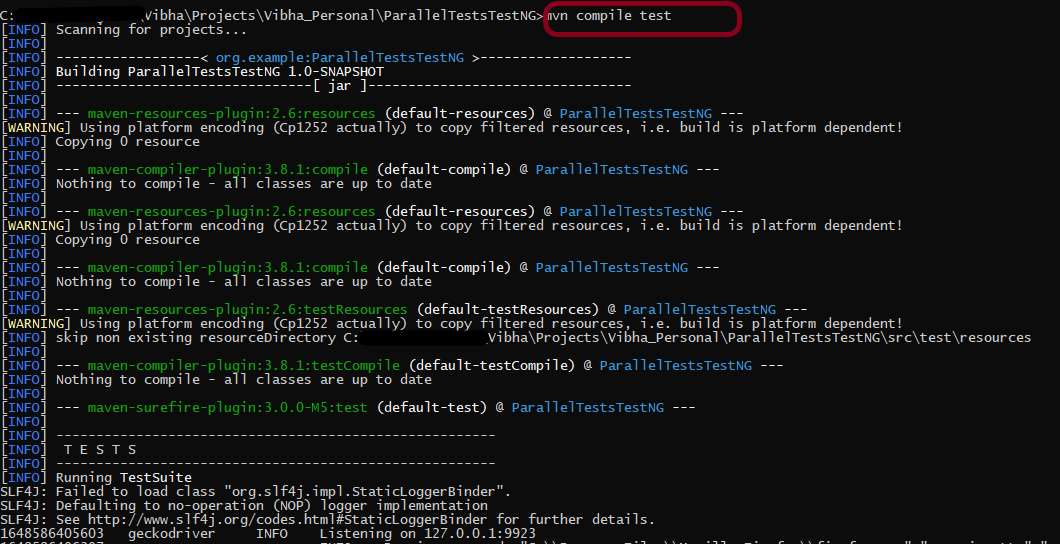
Now, let us execute the tests through the command line. Go to the place where the pom.xml of the project is placed and use the below command to run the tests. This step makes sure that all the tests are running as expected.

mvn compile test

GitLab Section

Step 6 – Create a blank project in GitLab

To know, how to create a blank new project in GitLab, please refer to this tutorial.

Step 7 – Push the project from local repository to Gitlab Repository

To know, how to push the changes in GitLab, please refer to this tutorial.

Step 8 – Create a .gitlab-ci.yml file in the project in GitLab

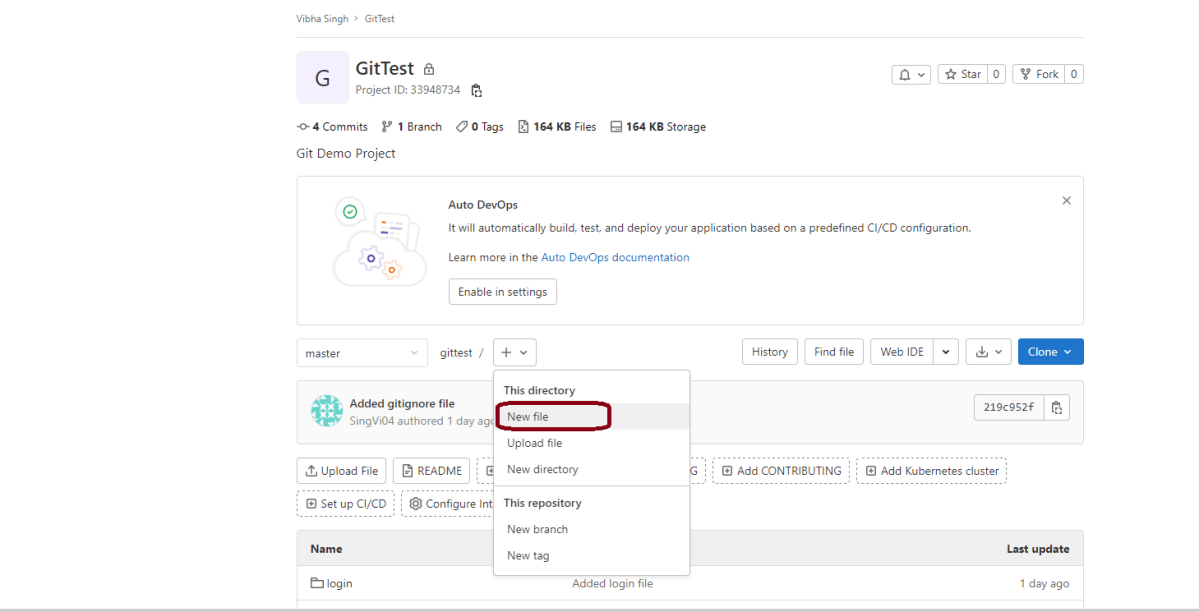
There are many ways to create a new file in GitLab. One of the ways is to create a file as shown in the below image.

It is a YAML file where you configure specific instructions for GitLab CI/CD. In the .gitlab-ci.yml, we can define:

  • The scripts you want to run.
  • Other configuration files and templates you want to include.
  • Dependencies and caches.
  • The commands you want to run in sequence and those you want to run in parallel.
  • The location to deploy your application to.
  • Whether you want to run the scripts automatically or trigger any of them manually.
image: markhobson/maven-chrome

stages:
  - test

variables:
  MAVEN_OPTS: "-Dmaven.repo.local=.m2/repository"

test:
  stage: test
  allow_failure: true

# Run the tests  
  script:
    - mvn $MAVEN_OPTS clean package
    - mvn compile test

# Store artifacts
  artifacts:
    when: always
    name: "report"
    paths:
    - target/surefire-reports/*
    expire_in: 1 h

Image – markhobson/maven-chrome is used in this test. It is a docker image for Java automated UI tests.

This gitlab-ci.yml has only 1 stage. It is a test stage that contains the command to run the tests. It also creates an artifact that contains all the surefire reports. These reports can be saved as Test Evidence.

Step 9 – Run the tests in the GitLab pipeline

Now, when a new change is committed, a pipeline kicks off and it runs all the tests.

Step 10 – Check the status of the pipeline

Once the Status of the pipeline changes to either failed or passed.. that means the tests are already executed.

As you can see the Status is failed here which means that the execution is completed. Let us see the logs of the execution it shows that out of 2 tests, 1 test passed and 1 test failed. This shows that tests are running successfully in the GitLab pipeline.

As I have added an artifact also in the gitalb-ci.yml, which is highlighted in the image. This artifact creates a folder with the name “report” and the reports in this folder come from the path /target/surefire-reports. This artifact gives us the option to download the reports or browse the report. This report will be available for 1 hour only as mentioned in the gitlab-ci.yml.

Step 11 – Download the report

Once, will click on the download button, it will download “report.zip”. Unzip the folder and it looks like something as shown below:

Example of Emailable-Report.html

Example of Index.html

Congratulations. This tutorial has explained the steps to run Selenium tests in GitLab CI/CD. Happy Learning!!

Execute Testng.xml using batch file

HOME

In the previous tutorial, we have seen executing testng.xml tests from command line. Now here we will look into executing testng.xml using batch file (.bat) file.

A batch file (.bat) is used in DOS and Windows, which is an unformatted text file that consists of a series of commands to be executed by the command line interpreter.

Prerequisite:

  1. Selenium
  2. TestNG
  3. Maven
  4. Java 11
  5. Maven Complier Plugin
  6. Maven Surefire Plugin
  7. Notepad

Let us first create some tests in a class.

import static org.testng.Assert.assertTrue;

import static org.hamcrest.Matchers.containsString;
import static org.hamcrest.MatcherAssert.assertThat;

import org.openqa.selenium.By;
import org.openqa.selenium.WebDriver;
import org.openqa.selenium.firefox.FirefoxDriver;
import org.testng.annotations.AfterTest;
import org.testng.annotations.BeforeTest;
import org.testng.annotations.Test;

public class TestNGRunFromCommandLine {
	
	 WebDriver driver;
	 
	    @BeforeTest
	    public void setUp() {
	        System.setProperty("webdriver.gecko.driver",
	                "C:\\Users\\Vibha\\Software\\geckodriver\\geckodriver.exe");
	 
	        driver = new FirefoxDriver();
	        driver.get("https://opensource-demo.orangehrmlive.com/"); 
	        driver.manage().window().maximize();
	    }
	 
	    @Test(description = "This test validates title of login functionality", priority = 0)
	    public void verifyLoginPage() {
	 
	        String expectedTitle = driver.findElement(By.xpath("//*[@id='logInPanelHeading']")).getText(); 
	        System.out.println("Title :" + expectedTitle);
	        assertTrue(expectedTitle.equalsIgnoreCase("LOGIN Panel12"));
	    }
	 
	    @Test(description = "This test validates  successful login to Home page", priority = 1)
	    public void verifyHomePage() throws InterruptedException {
	 
	        System.out.println("Username Entered");
	        driver.findElement(By.name("txtUsername")).sendKeys("Admin");
	 
	        System.out.println("Password Entered");
	        driver.findElement(By.name("txtPassword")).sendKeys("admin123");         
	        driver.findElement(By.id("btnLogin")).submit();
	        
	        Thread.sleep(2000);
	 
	        String newPageText = driver.findElement(By.xpath("//*[@id='content']/div/div[1]/h1")).getText();
	        System.out.println("newPageText :" + newPageText);
	        assertThat(newPageText, containsString("Dashboard"));
	    }
	 
	    @AfterTest
	    public void teardown() {
	 
	        driver.quit();
	    }
	 
	}

The below is the testng.xml file which has a class that we have created above and we will be invoking this xml file using batch file (.bat).

<?xml version="1.0" encoding="UTF-8"?>
<!DOCTYPE suite SYSTEM "https://testng.org/testng-1.0.dtd">
<suite name="Suite">
  <test name="Test">
    <classes>
      <class name="TestNG_Demo.TestNGRunFromCommandLine"/>
    </classes>
  </test> 
</suite> 

 How to create a batch file?

Step 1: Open notepad
Step 2: Paste the below lines of code – You may need to add your project location. In the example, project location is set as C:\Users\Vibha\Projects\Vibha_Personal\ParallelTestsTestNG
Step 3: Save the file as ‘TestNGProject.bat’ in location that you want to save.

cd C:\Users\Vibha\Projects\Vibha_Personal\ParallelTestsTestNG
mvn compile test

Now, to run the tests, double-click on the TestNGProject.bat file and all the commands mentioned in the file will be executed one by one.

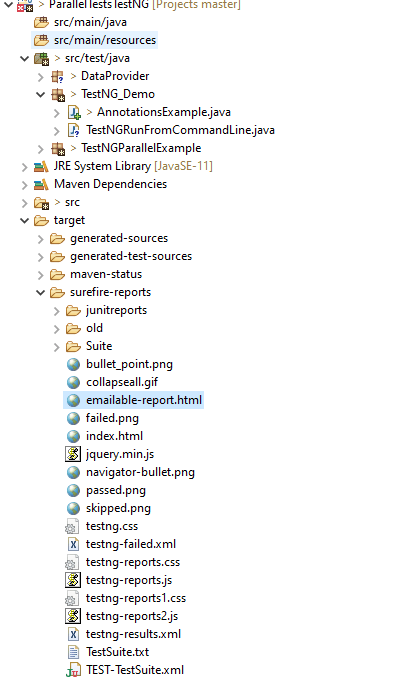
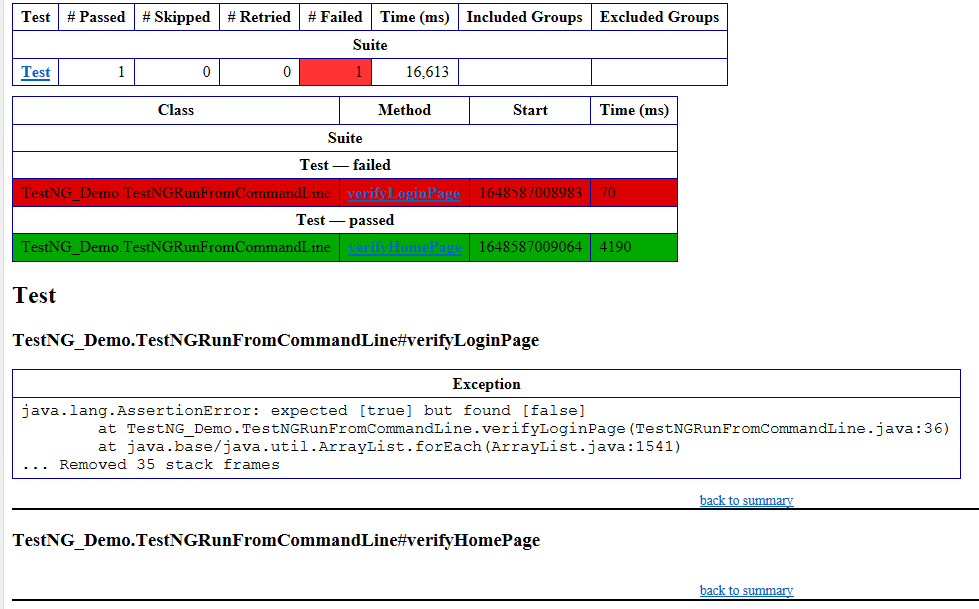
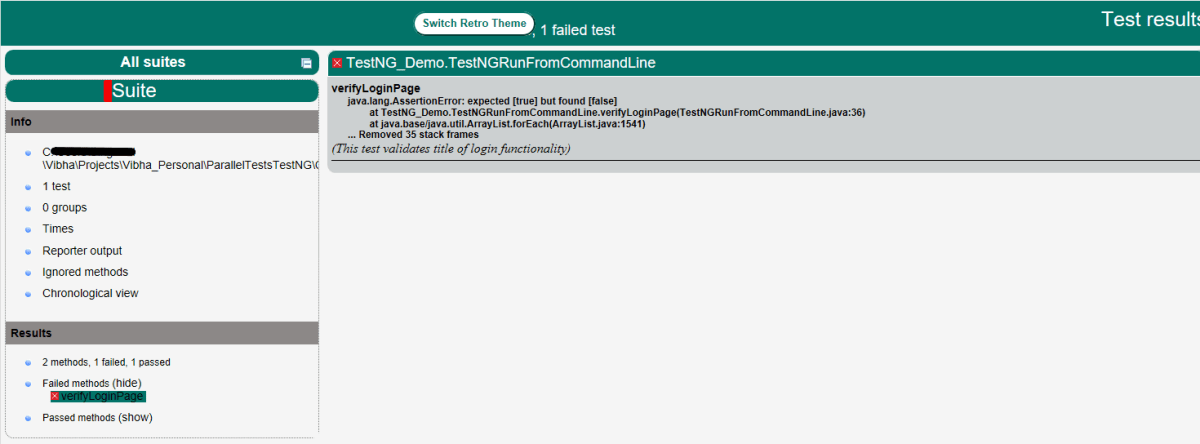
As we know, TestNG generates a lot of Reports automatically. We are going to look into 2 reports – emailable-report.html and index.html. The reports are generated under surefire-reports folder within the target directory.

Emailable-Report.html

Index.html

Hope this article helps you to invoke your tests using .bat file. 

How to disable infobar warning for Chrome tests in Selenium

Last Updated On

HOME

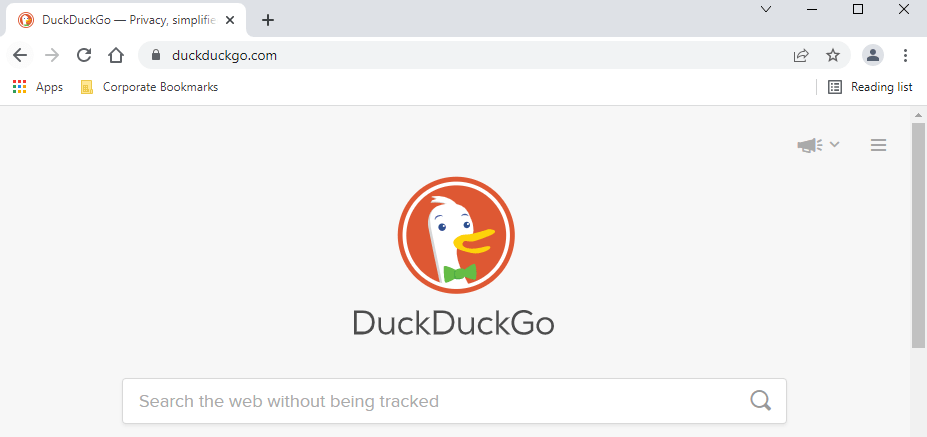
This tutorial explains the steps to disable infobar warning generated by Selenium for running tests in Chrome. Selenium tests run on Chrome shows a warning message – Chrome is being controlled by automated test software as shown in the below image.

We want to run the Selenium tests on Chrome, but without the above-shown warning message. This can be achieved by using excludeSwitches.

chromeOptions.setExperimentalOption("excludeSwitches", Arrays.asList("enable-automation"));

The complete program is shown below:

import java.util.Arrays;

import org.openqa.selenium.WebDriver;
import org.openqa.selenium.chrome.ChromeDriver;
import org.openqa.selenium.chrome.ChromeOptions;

import io.github.bonigarcia.wdm.WebDriverManager;

public class ChromeDisableInfobars {

	public static void main(String[] args) {

		WebDriverManager.chromedriver().setup();

		// Create an object of Chrome Options class
		ChromeOptions chromeOptions = new ChromeOptions();

		// prevents Chrome from displaying the notification 'Chrome is being controlled
		// by automated software'
        options.addArguments("--disable-infobars");
		chromeOptions.setExperimentalOption("excludeSwitches", Arrays.asList("enable-automation"));

		// Create an object of WebDriver class and pass the Chrome Options object as an
		// argument
		WebDriver driver = new ChromeDriver(chromeOptions);

		driver.get("https://duckduckgo.com/");

		System.out.println("Title of Page :" + driver.getTitle());

		// close the browser
		driver.quit();

	}
}

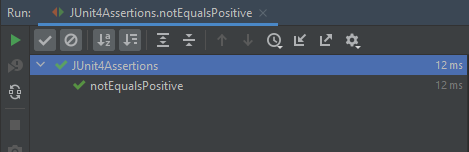
The output of the above program is
We are done. Congratulations!! Happy Learning.

Parallel testing of DataProviders in TestNG

HOME

The previous tutorial has explained the DataProviders in TestNG. The DataProvider in TestNG is a way to pass the parameters in the test functions. Using DataProvider in TestNG, we can easily inject multiple values into the same test case. It comes inbuilt into TestNG and is popularly used in data-driven frameworks.

 It is an option for the parallel execution of tests in TestNG. 

It is advisable to create 2 classes – one class contains the Test cases and another class defines TestNG parameters – DataProviders.

Let us create a class for the DataProvider method with all the Test Data as shown below:

import org.testng.annotations.DataProvider;

public class DataProviderDemo {	
	
	 @DataProvider(name = "testData", parallel=true)
	 public Object[][] dataProvFunc() {
	       return new Object[][] {           
	    	   {"","","Username cannot be empty"},    	  
	    	   {"","Test","Username cannot be empty"},
	    	   {"$%1234","2345%$","Invalid credentials"}          
	    	 };
	    }
	}

An extra parameter “parallel” is required to initiate parallel execution in TestNG using the data provider.

Below is the test which uses the parameter from the data provider and runs the tests parallelly.

A new ThreadLocal is instantiated for each test class, since it’s in the BeforeClass annotation.

private static final ThreadLocal<WebDriver> WEB_DRIVER_THREAD_LOCAL = new ThreadLocal<WebDriver>();

Below is the complete test code:

import org.openqa.selenium.By;
import org.openqa.selenium.WebDriver;
import org.openqa.selenium.chrome.ChromeDriver;
import org.testng.Assert;
import org.testng.annotations.AfterMethod;
import org.testng.annotations.BeforeMethod;
import org.testng.annotations.Test;

public class DataProviderParallelTests {
	
	public WebDriver driver;
	private static final ThreadLocal<WebDriver> WEBDRIVER_THREADLOCAL = new ThreadLocal<WebDriver>();
	
	 @BeforeMethod
    public void setUp(){

        System.setProperty("webdriver.chrome.driver",
                "C:\\Users\\Vibha\\Software\\chromedriver\\chromedriver.exe");
        driver = new ChromeDriver();
        WEBDRIVER_THREADLOCAL.set(driver);
        System.out.println("Before method Thread Id:" + Thread.currentThread().getId());
        
    }
	
	@Test(dataProvider = "testData", dataProviderClass = DataProviderDemo.class)
    public void invalidLoginTest(String username, String password, String errorMessage) throws InterruptedException {
		     
	    driver = WEBDRIVER_THREADLOCAL.get();
	    driver.manage().window().maximize();
        driver.get("https://opensource-demo.orangehrmlive.com/");
     
        Thread.sleep(2000);
        driver.findElement(By.name("txtUsername")).sendKeys(username);
        System.out.println("Username :" + username);
        
        Thread.sleep(2000);
        driver.findElement(By.name("txtPassword")).sendKeys(password);
        System.out.println("password :" + password);
        
        Thread.sleep(2000);
        String expectedError = driver.findElement(By.id("spanMessage")).getText();
        System.out.println("Error Message :" + expectedError);
        Assert.assertTrue(expectedError.contains(errorMessage));

    }
		 
	@AfterMethod
	public void tear_down() {
		 
		 WebDriver driver = WEBDRIVER_THREADLOCAL.get();
		 System.out.println("After method Thread Id:" + Thread.currentThread().getId());
	        if (driver != null) {
	            driver.quit();
	     }
    }	
}

testng.xml

<?xml version="1.0" encoding="UTF-8"?>
<!DOCTYPE suite SYSTEM "https://testng.org/testng-1.0.dtd">
<suite name="Suite" thread-count="2" data-provider-thread-count="2">
  <test name="Test">
    <classes>
      <class name="DataProvider.DataProviderParallelTests"/>
    </classes>
  </test> <!-- Test -->
</suite> <!-- Suite -->

In this file, the data-provider-thread-count is set to 2, then two browsers will be opened, and the first two tests will run from the list. 

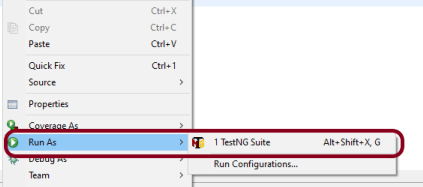
Run the test script from testng.xml, Right-Click on the XML, and select Run As ->TestNG Suite.

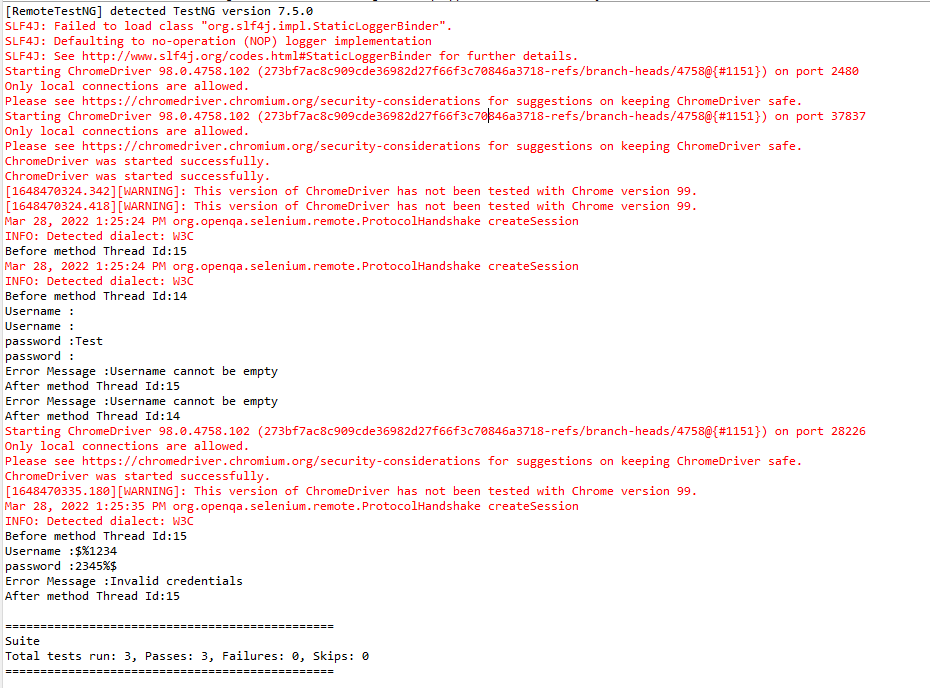
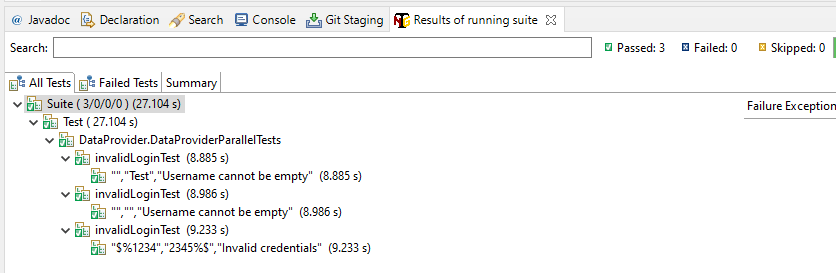
The execution status shown below shows that 2 threads are active at a time, which execute 2 sets of data provider parameters – Thread 14 and Thread 15. Once the tests are finished for Thread 14 and Thread 15, they are closed and a new Thread 15 is again initiated to start the test execution of the 3rd parameter.

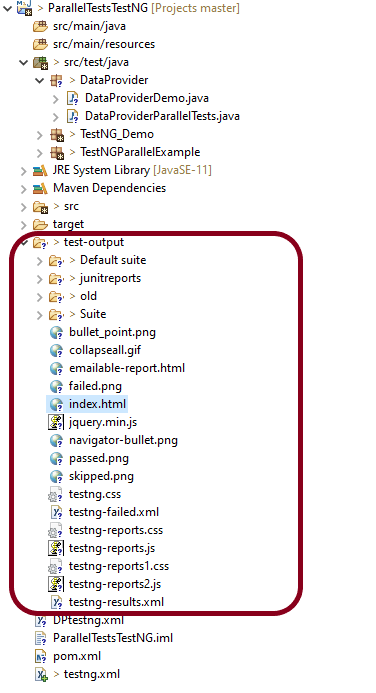
TestNG generates multiple test reports under the folder test-output. We are mainly concerned about 2 reports – emailable-report.html and index.html.

Emailable-report.html

Emailable reports are a type of summary report that one can transfer to other people in the team through any medium. 

Index.html

Index report contains the index-like structure of different parts of the report, such as failed tests, test files, passed tests, etc. We can divide this report into two parts. The left part contains the index, and this is the reason it is called an index report, while the right part contains the explored content of that index.

We are done! Congratulations on making it through this tutorial and hope you found it useful! Happy Learning!!

How to run Selenium Tests on Internet Explorer

HOME

Internet Explorer is going away in near future. But still it is a browser which holds around 1% of browser market share. When anyone refers to automated browser testing, it somehow means that the testing will be performed on the latest browsers like Chrome, Firefox, etc. But along with these browsers, it is also expected to work on Internet Explorer (IE).

The Internet Explorer driver that is used by Selenium Tests can be downloaded from here.

In order to run the Selenium Tests on IE, it is needed to set the %PATH%.

How to add %PATH%

Go To -> View Advanced System Settings -> Environment Variables ->Clicks on the Path and add the path where IE binary is located on the machine.

How to run tests using Selenium IE driver in Selenium Java?

import org.junit.After;
import org.junit.Assert;
import org.junit.Before;
import org.junit.Test;
import org.openqa.selenium.WebDriver;
import org.openqa.selenium.ie.InternetExplorerDriver;

public class IEDemo {

	public WebDriver driver;

	@Before
	public void setUp() {

		System.setProperty("webdriver.ie.driver",
				"C:\\Users\\Vibha\\Software\\IEDriverServer_x64_2.39.0\\IEDriverServer.exe");

		driver = new InternetExplorerDriver();
	}

	@Test
	public void verifyPageTitle() {

		System.out.println("Opening Internet Explorer Web Browser");
		driver.get("https://www.bing.com/");
		System.out.println("Title of Page : " + driver.getTitle());
		Assert.assertEquals(driver.getTitle(), "Bing");
	}

	@Test
	public void verifyPageUrl() {

		System.out.println("Opening Internet Explorer Web Browser");
		driver.get("https://www.bing.com/");
		System.out.println("URL of Page : " + driver.getCurrentUrl());
		Assert.assertEquals(driver.getCurrentUrl(), "https://www.bing.com/");
	}

	@After
	public void tearDown() {

		// Close the driver
		driver.close();

	}
}

Execution

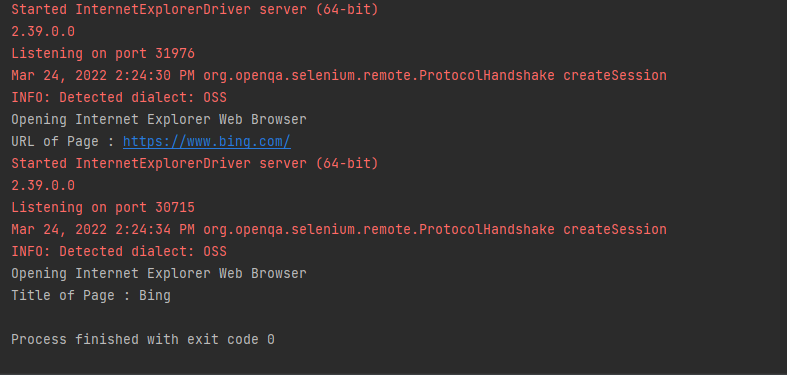
The string webdriver.ie.driver is set to the location which contains the Selenium IE driver. The InternetExplorerDriver method is used for instantiating the IE driver class.

The test method is implemented under the @Test annotation.

 In the tearDown method, the resources held by IE driver are freed using the close() method in Selenium.

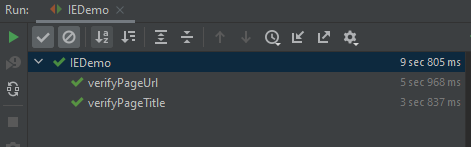
Congratulations!! We are able to open an Internet Explorer browser and perform tests. Happy Learning!!

How to run Serenity BDD tests in Chrome Browser

HOME

Serenity BDD has strong WebDriver integration and manages WebDriver instances. It is not needed to create or close the WebDriver instance of the Serenity Tests.

Serenity uses a library WebDriver Manager, which manages the driver for us. We don’t need to explicitly download and configure the WebDriver binaries for us.

The default browser of Serenity is Firefox.

    @Managed(driver = "chrome")
    WebDriver driver;

@Managed annotation in Serenity will manage the WebDriver instance, including opening the appropriate driver at the start of each test, and shutting it down when the test is finished. @Managed provides an option for the user to select the WebDriver driver to the run the tests in it. The possible values are firefox, chrome, iexplorer, phantomjs, appium, safari, edge, and htmlunit. There are multiple ways to manage the WebDriver. One of the way is shown below:

In the below program, the tests are running on the Chrome browser. The driver name is mentioned with @Managed annotation.

@RunWith(SerenityRunner.class)
public class ChromeTest {

    @Managed(driver = "chrome")
    WebDriver driver;

    @Steps
    NavigateActions navigate;

    @Test
    public void openBrowser()
    {
        navigate.toTheHomePage();
    }

}

NavigateActions

public class NavigateActions extends UIInteractionSteps {

    @Step
    public void toTheHomePage() {
         openUrl("https://opensource-demo.orangehrmlive.com/");
    }
}

There is another way to assign Chrome to the WebDriver. This can be defined in serenity.config or serenity.properties.

serenity.config

webdriver{
    driver = chrome

}

serenity.properties

webdriver.driver = chrome

When the webdriver is defined in the properties file, it is not needed to redefine it in the Test, as shown below:

@RunWith(SerenityRunner.class)
public class ChromeTest {

    @Managed
    WebDriver driver;

    @Steps
    NavigateActions navigate;

    @Test
    public void openBrowser()
    {
        navigate.toTheHomePage();
    }

}

Manually Configure ChromeDriver

To run your web tests with a given driver, download the correct driver binary and place it under src/test resources. The Chrome driver binary can be downloaded from here – ChromeDriver – WebDriver for Chrome (chromium.org)

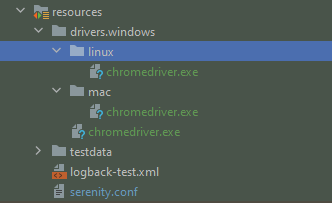
It is always advisable to create a driver’s directory under src/test/resources. The tests can be run on different Operating Systems, so create three subdirectories named Windows, mac, and Linux within the drivers’ directory. Place the driver binary in these directories as shown below :

Below is the sample Serenity.config for the Chrome driver.

webdriver{
    driver = chrome

}

drivers {
  windows {
     webdriver.chrome.driver = "src/test/resources/drivers/windows/chromedriver.exe"
   }
  mac {
      webdriver.chrome.driver = "src/test/resources/webdriver/mac/chromedriver.exe"
    }
    linux {
      webdriver.chrome.driver = "src/test/resources/webdriver/linux/chromedriver.exe"
    }
  }
}

How to add Chrome Options in Serenity

We can configure various chrome options in Serenity by adding them to a property call switches in serenity.config.

chrome {
        switches ="""--windows.size=1024,800, --start-maximized;--test-type;--no-sandbox;--ignore- 
                             certificate-errors; --headless;
                   --disable-popup-blocking;--disable-default-apps;--disable-extensions-file-access-check;
                   --incognito;--disable-infobars,--disable-gpu"""
  }

How to set Chrome Preferences in Serenity

chrome {
  switches ="""--windows.size=1024,800, --start-maximized;--test-type;--no-sandbox;--ignore-certificate-errors;
                   --disable-popup-blocking;--disable-default-apps;--disable-extensions-file-access-check;
                   --incognito;--disable-infobars,--disable-gpu"""

  preferences {
      download {
          prompt_for_download: false
          default_directory: "$TEMPDIR"
       }
  }

Congratulations!! We are able to configure various Chrome Options in Serenity.

How to embed Custom Data in Serenity Report

HOME

Serenity Reports are living documentation that contains meaningful reports for each Test. It illustrated narrative reports that document and describe what your application does and how it works.

This report can be organized by using features, stories, steps, scenarios/tests. Serenity Report shows the count of passed, failed, compromised, skipped, pending, broken, ignored, pending, and manual test cases count and percentage. Serenity shows Over All Test Results, Requirements, Test Specifications & Test Results. It shows the details and overall time taken by each test step of a test case. It shows the details and overall timing taken by each on all test case execution.

All the above features of Serenity Report make it a great Report. But sometimes, we want to embed data from a JSON or XML file in the Serenity Report.

Let me explain this with the help of an example. Data-Driven tests are created in Serenity. We have test data mentioned in a .csv file and the test is reading the data from this file. When the report is generated, it does not show what all data are used by the Test. To overcome this situation, Serenity provides a feature that uses recordReportData()., and this can be used like this:

Path credentialsFile = Paths.get("src/test/resources/testdata/credentials.csv"); 
Serenity.recordReportData().withTitle(" User Credentials with Error Message")
                                             .fromFile(credentialsFile);

If you have the contents of the report as a String, you can pass the String directly like this:

String testData = "...";
Serenity.recordReportData().withTitle("User")
                           .andContent(testData);

Let me explain this with the help of an example. Here, I have created a Data-Driven Test which is using .csv file as an input file.

@RunWith(SerenityParameterizedRunner.class)
@UseTestDataFrom(value = "testdata/credentials.csv")
public class ParameterizedTestsUsingCSV {

    private String userName;
    private String passWord;
    private String errorMessage;

    @Managed(options = "--headless")
    WebDriver driver;

    @Steps
    NavigateActions navigate;

    @Steps
    StepLoginPage loginPage;


    @TestData(columnNames = "Username, Password, ErrorMessage")
    @Test
    @Title("Login to application with invalid credential generates error message")
    public void unsuccessfulLogin() throws IOException {

        // Given
        navigate.toTheHomePage();

        // When
        loginPage.inputUserName(userName);
        loginPage.inputPassword(passWord);
        loginPage.clickLogin();

        // Then
        Serenity.reportThat("Passing invalid credentials generates error message",
                () -> assertThat(loginPage.loginPageErrorMessage()).isEqualToIgnoringCase(errorMessage));

        Path credentialsFile = Paths.get("src/test/resources/testdata/credentials.csv");
        Serenity.recordReportData().withTitle(" User Credentials with Error Message").fromFile(credentialsFile);
    }

}

Here, I have used recordReportData().withTitle() to provide a name to the button created, and the data is retrieved using fromFile().

To locate the path of the file (credentials.csv), we have used – Path and Paths which are imported from:

import java.nio.file.Path;
import java.nio.file.Paths;

To get the complete detail about this code, refer to this tutorial Data Driven Tests using CSV file in Serenity.

To generate a Serenity Report, use the command like this:

mvn clean verify

The output of the above program is

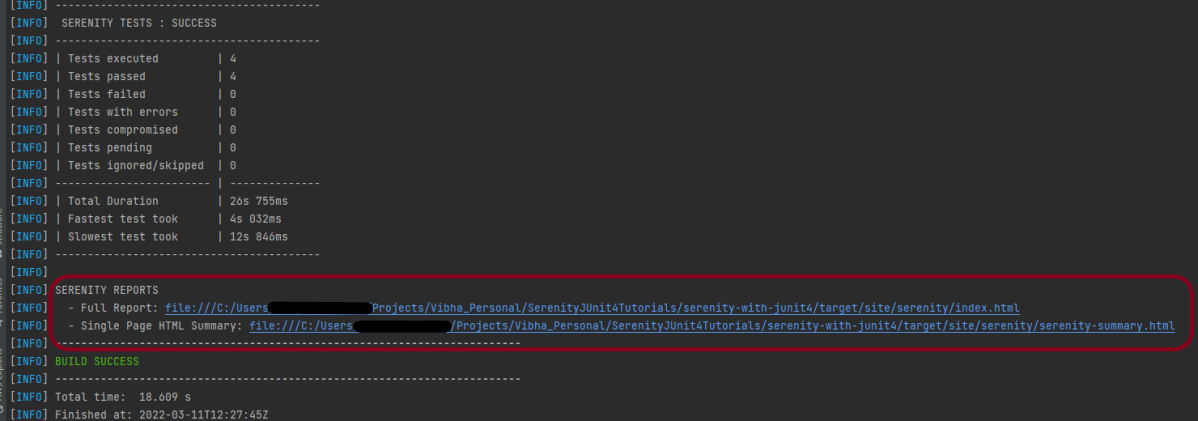
The Serenity Reports are generated under target/site/serenity/Index.html.

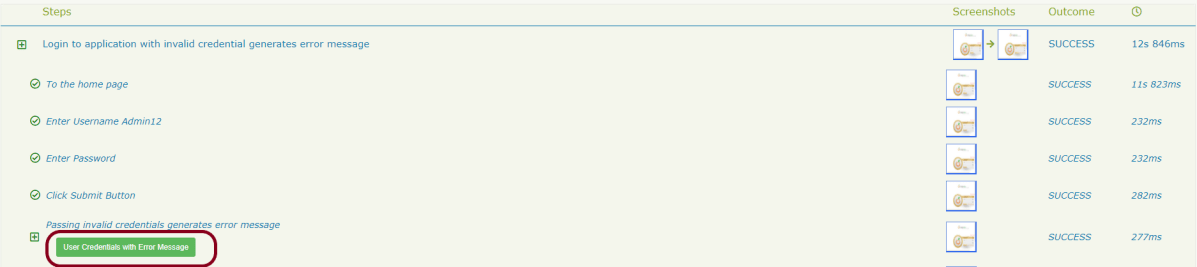
Go to the Detailed Step Description part in Serenity Report. A button with the label “User Credentials with Error Message” will appear next to the step where you called this method:

If you click on this button, you will see your data:

Keep in mind that this feature of Serenity is available from 1.9.16 onwards only.
Congratulation!! We have learned a wonderful feature present in Serenity.

How to pull changes from Remote Repository to Local Repository – git pull

HOME

The previous tutorial has explained about pushing the changes from Local GIT Repository to Remote GIT Repository. This tutorial explains the process of pulling the changes from Remote Repository to Local GIT Repository. I’ll use GitLab to make the changes.
What is git pull?

The git pull command fetches and downloads content from the remote repository and integrates changes into the local repository. The git pull command is called as the combination of git fetch followed by git merge.

This is my project in GitLab. If, you don’t have any project in GitLab, follow the below steps to create a GIT local Repository and push it to GitLab.

Step 1– To create a new Git local Repository, use git init. The details are mentioned in this tutorial – How to create a new Git Repository – git init Command.

Step 2 – To create a new project in GitLab, refer to this tutorial – How to create a new project in GitLab.

Step 3 – To push your GIT local repository to Gitlab, refer to this tutorial – How to push new local GIT Repository to GitLab.

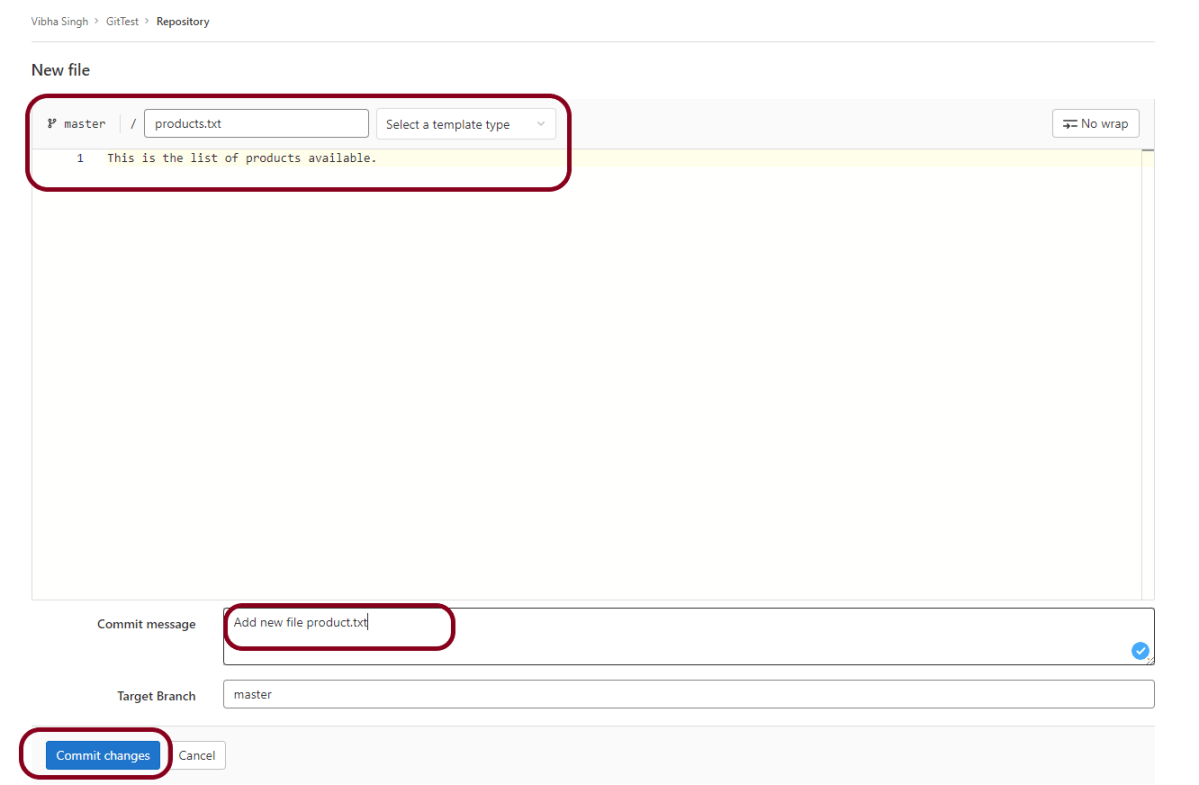
Step 4 – Let’s add a new file in the Remote Repository directly using GitLab. Follow the steps shown below to add and commit a new .

Step 5 – This is a new file. I have provided name to this file as products.txt. Add the comment as commit message. Click the Commit changes button to commit this change.

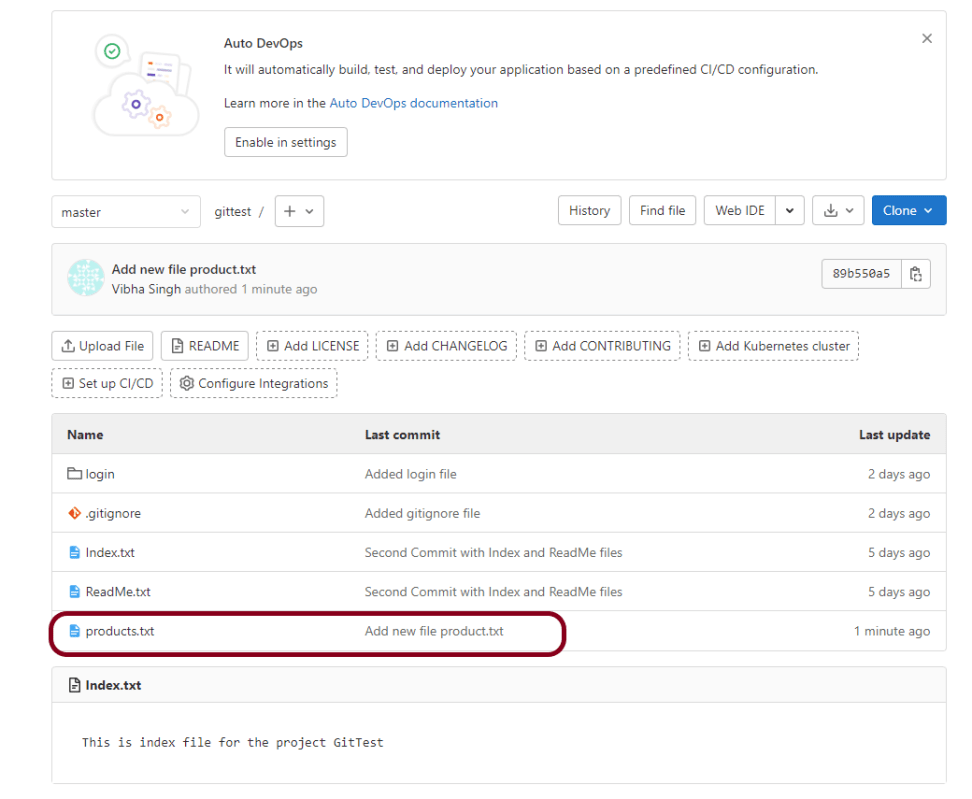
Below image shows that new file – products.txt is committed to this project.

Step 6 – Go to the directory where local GIT Repository is saved. Right-click and click on Git Bash Here to open GitBash at that place.

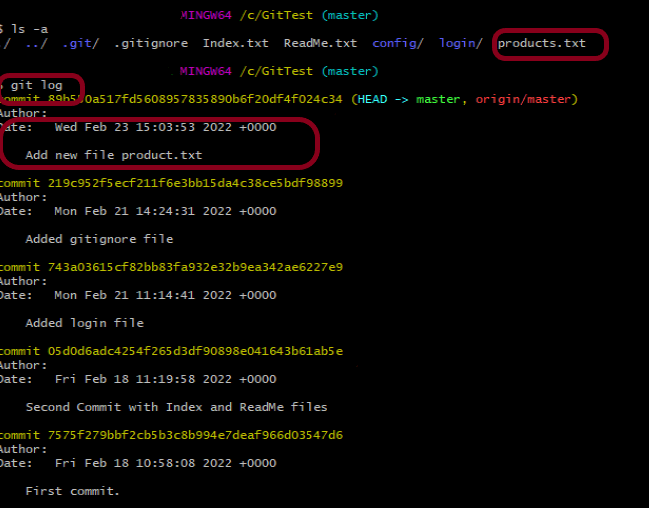
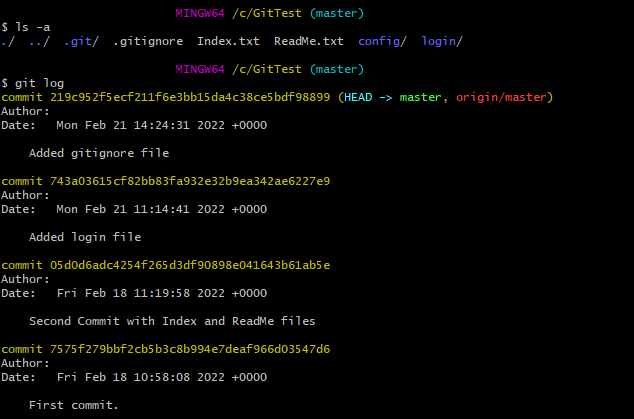
Use the below command to see the list of files present in GIT Local Repository.

ls -a
git log

Type git log to see the list of commits present.

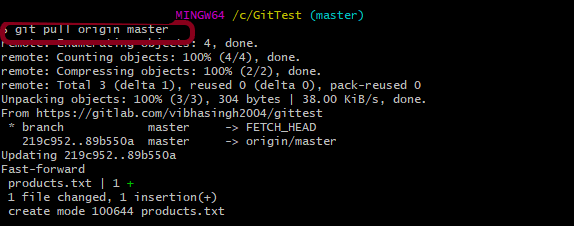
Step 7 – Type git pull command is used to pull the latest changes from Remote GIT Repository to local GIT Repository.

git pull origin master

This command says that pull the content from the “master” branch in the “origin” repo.

As the “git pull” command fetches and merges, we can see the newly added file named “products.txt” in my local repo.

Again use the below commands:

ls -a
git log

This shows that the new file – products.txt which was present in GitLab is now present in Git local Repository means latest change is pulled from GitLab to local Repository.

Congratulation!! We are able to pull the changes from Remote Repository to Local Repository. Happy Learning!!

How to create a branch in GIT

HOME

The previous tutorial has explained the committing of the changes in the GIT. This tutorial explains the creation of a new branch in GIT.

Branching is a feature available in most modern version control systems. Git branches are effectively a pointer to a snapshot of the changes. When we want to add a new feature or fix a bug, it is advisable to create a new branch to encapsulate the changes.  This helps you to clean up the future’s history before merging it. Git branches are an essential part of the everyday workflow. Git does not copy files from one directory to another, it stores the branch as a reference to a commit.

A branch represents an independent line of development. The git branch command allows us to create a new branch, and rename and delete the branch.

It’s important to understand that branches are just pointers to commits. When you create a branch, all Git needs to do is create a new pointer, it doesn’t change the repository in any other way. To create a branch, use this command:

git checkout -b branchName

Let me explain how to create a new branch with the help of an example:-

Step 1– Create a new GIT Repository – GitTest.

Step 2 – Right-click and click on Git Bash Here to open GitBash at that place.

Step 3 – GIT Repo has already committed files – Index.txt, ReadMe.txt, .gitignore. Create a GIT local branch feature/customerDetails.

git checkout -b feature/customerDetails

Now, the branch is changed from master to feature/customerDetail.

Step 4 – Update the already committed Index.txt file. Later, type git add . to stage the file to GIT Staging area. Then, commit the Index.txt file.

echo -en "\n A new page for Customer is added." >>Index.txt
cat Index.txt
git status
git add.
git commit -m "Updated Index.txt file with Customer Detail"

Step 5 – Below command shows that the updated Index.txt is committed in new branch feature/customerDetails

git status

Step 6 – Type the below command to go back to the master branch.

git checkout master

Step 7 – Open Index.txt file in the master branch. It shows that there is no change in this file, as the changes were done in another new branch. To get the latest changes in the master branch, we need to merge the new local branch (feature/customerDetails) to the master branch.

To delete a branch, use the below command:

git branch -d feature/customerDetails

As the branch hasn’t been merged, the above command output an error message as shown in the above image.

To delete the branch forcefully, even if the changes are unmerged. Below is the command:

git branch -D feature/customerDetails

To rename the current branch, use the below command:

git branch -m feature/newCustomer

To get the list of all the branches, use the below command:

git branch -a

Congratulations on making it through this tutorial and hope you found it useful! Happy Learning!! Cheers!!

How to ignore files in GIT – gitignore

HOME

The previous tutorial has explained the addition of an empty file or directory to the GIT using .gitkeep. This tutorial explains how to not stage certain files in GIT (ignored file).

What type of files are ignored?

Ignored files are usually built artifacts and machine-generated files that can be derived from your repository source or should otherwise not be committed. Some common examples are:

  • dependency caches, such as the contents of /node_modules or /packages
  • compiled code, such as .o.pyc, and .class files
  • build output directories, such as /bin/out, or /target
  • files generated at runtime, such as .log.lock, or .tmp
  • hidden system files, such as .DS_Store or Thumbs.db
  • personal IDE config files, such as .idea/workspace.xml

Imagine we have 100 files, and we want to commit only 99 files and ignore 1 file. This seems to be a very difficult situation.

To add the files to the GIT Staging area, we can use git add command. If we use git add ., it will add all 100 files to the GIT Staging area. Another way is to mention git add file1, file2….. soon, which is also a very tedious task.

Ignored files are tracked in a special file named as .gitignore named which is checked in at the root of the repository.  We need to mention the file we want to ignore in .gitignore file.

Let me explain how to use .gitignore with the help of an example:-

Step 1 – Create a GIT Repository named as GitTest.

Step 2 – Right-click and click on Git Bash Here to open GitBash at that place.

Step 3 – Type git status to check if any file is not committed.

Step 4 – Create a new directory – config.

mkdir config

Step 5 – Create a file named test.class into the directory.

touch config/test.class

Step 6 – Type git status to check that config folder is untracked.

Step 7 – Create a .gitignore file.

touch .gitignore

Step 8 – Add the folder or file we want to ignore.

echo config/ >> .gitignore

Step 9 – Type git status again. This time, we can see that the untracked file is .gitignore not the config directory.

Congratulations!!! We are done. Have a happy Learning!!