This tutorial describes how to check the state of a WebElement in Selenium.
In this tutorial, we will learn the isDisplayed, isEnabled, isSelected method in Selenium, and how to check the state of a WebElement. There are many methods that are used to determine the visibility scope for the web elements – isSelected(), isEnabled(), and isDispalyed().
Many a time, a test fails when we click on an element or enter text in a field. This is because the element is displayed or exists in DOM, but it does not exist on the web page.
WebDriver facilitates the user with the following methods to check the visibility of the web elements. These web elements can be buttons, drop boxes, checkboxes, radio buttons, labels, etc.
isDisplayed()
isSelected()
isEnabled()
1) Boolean isSelected():This method determines if an element is selected or not. It returns true if the element is selected and false if it is not. It is widely used on checkboxes, radio buttons, and options in a select.
2) Boolean isDisplayed(): This method determines if an element is displayed or not. It returns true if the element is displayed and false if it is not. The advantage of this method is that it avoids parsing an element’s style attribute.
3) Boolean isEnabled(): This method determines if an element is enabled or not. It returns true if the element is enabled (All elements apart from disabled input elements) and false if otherwise.
Steps to follow to understand when an element isEnabled and isDisplayed.
If Search Box is enabled, then search for text – Selenium
Close the browser
The complete program is shown below:
package org.example;

import org.openqa.selenium.By;
import org.openqa.selenium.WebDriver;
import org.openqa.selenium.WebElement;
import org.openqa.selenium.firefox.FirefoxDriver;
import org.openqa.selenium.firefox.FirefoxOptions;

import java.util.concurrent.TimeUnit;

public class VerifyConditionsDemo {

    public static void main(String[] args) {

        // Initiate Firefox browser
        FirefoxOptions options = new FirefoxOptions();
        WebDriver driver = new FirefoxDriver(options);

        // Maximize the browser
        driver.manage().window().maximize();
        driver.manage().timeouts().implicitlyWait(5, TimeUnit.SECONDS);

        // launch the firefox browser and open the application url
        driver.get("https://duckduckgo.com/");

        // compare the expected title of the page with the actual title of the page and
        String expectedTitle = "DuckDuckGo — Privacy, simplified.";
        String actualTitle = driver.getTitle();
        if (expectedTitle.equals(actualTitle)) {
            System.out.println("Verification Pass- The correct title is displayed on the web page.");
        } else {
            System.out.println("Verification Failed - An incorrect title is displayed on the web page.");
        }

        // Verify that the “Search" Box is displayed
        WebElement searchBox = driver.findElement(By.className("searchbox_input__bEGm3"));
        if (searchBox.isDisplayed()) {
            System.out.println("Search Box is visible. Return: " + searchBox.isDisplayed());
        } else {
            System.out.println("Search Box is not visible. Return: " + searchBox.isDisplayed());
        }

        // Verify that the “Search” Box is enabled
        if (searchBox.isEnabled()) {
            System.out.println("Search Box is enabled. Return: " + searchBox.isEnabled());
            searchBox.sendKeys("Selenium");
        } else {
            System.out.println("Search Box is not enabled. Return: " + searchBox.isEnabled());
        }

        System.out.println("Successful Execution of Test.");

        // close the web browser
        driver.close();

    }
}
The output of the above program is
isSelected
Steps to follow to understand when an element is Selected or not
Verify if the first Radio Button (Yes) is selected or not
If the first radio button is not selected, then select Radio Button 1, else select button 2.
Print the value of the selected Radio Button
Close the browser
Below is the image of the options for the Radio Button.
The complete program is shown below:
package org.example;

import org.openqa.selenium.By;
import org.openqa.selenium.WebDriver;
import org.openqa.selenium.WebElement;
import org.openqa.selenium.firefox.FirefoxDriver;
import org.openqa.selenium.firefox.FirefoxOptions;

import java.util.List;
import java.util.concurrent.TimeUnit;

public class isSelectedDemo {

        public static void main(String[] args) {


            // Initiate Firefox browser
            FirefoxOptions firefoxOptions = new FirefoxOptions();
            WebDriver driver = new FirefoxDriver(firefoxOptions);

            // Maximize the browser
            driver.manage().window().maximize();
            driver.manage().timeouts().implicitlyWait(10, TimeUnit.SECONDS);

            driver.get("https://demoqa.com/radio-button");

            List<WebElement> Radio_Options = driver.findElements(By.cssSelector(".custom-radio"));
            for(WebElement options: Radio_Options)
                System.out.println("Options :"+ options.getText());

            // Create a boolean variable which will hold the value (True/False)
            boolean radio_value = false;

            // This statement will return True, in case of first Radio button is already selected
            radio_value = Radio_Options.get(0).isSelected();
            System.out.println("First Option is already selected :"+radio_value);

            // If button 1 is not selected, then select otherwise select button 2
            if (radio_value == false) {
                Radio_Options.get(0).click();
                System.out.println("Button Selected is :" + Radio_Options.get(0).getText());
            } else {
                Radio_Options.get(1).click();
                System.out.println("Button Selected is :" + Radio_Options.get(1).getText());
            }

            // close the web browser
            driver.close();
        }
    }
The output of the above program is
That’s it! Congratulations on making it through this tutorial and hope you found it useful! Happy Learning!! Cheers!!
In this tutorial, I will explain Parallel Testing using Cucumber with TestNG.
Cucumber-JVM allows parallel execution across multiple threads since version 4.0.0. There are several options to incorporate this built-in feature in a Cucumber project. You can do so by using JUnit, TestNG, or CLI.
Cucumber can be executed in parallel using TestNG and Maven test execution plugins by setting the data providerparallel option to true.
In TestNG, the scenarios and rows in a scenario outline are executed in multiple threads. One can use either Maven Surefire or Failsafe plugin for executing the runners. In this tutorial, I’m using the Maven Surefire plugin.
Feature: Login to HRM Application

  Background:
    Given User is on Home page

  @ValidCredentials
  Scenario: Login with valid credentials - Feature 1, Scenario -1

    When User enters username as "Admin" and password as "admin123"
    Then User should be able to login successfully

  @InvalidCredentials
  Scenario Outline: Login with invalid credentials - Feature 1, Scenario -2

    When User enters username as "<username>" and password as "<password>"
    Then User should be able to see error message "<errorMessage>"

    Examples:
      | username    | password   | errorMessage                      |
      | Admin        | admin12$$  | Invalid credentials               |
      | admin$$     | admin123   | Invalid credentials               |
      | abc123       | xyz$$      | Invalid credentials               |
ForgotPasswordPage.feature
Feature: Forgot Password Page

  Background:
    Given User is on Home page

  @BackFunctionality
  Scenario: Validate the cancel functionality - Feature 2, Scenario - 1

    When User clicks on Forgot your password? link
    Then User should be able to navigate to Reset Password page
    And User clicks on Cancel button to go back to Login Page

  @ResetFunctionality
  Scenario: Validate the Reset Password functionality - Feature 2, Scenario - 2

    When User clicks on Forgot your password? link
    Then User should be able to navigate to Reset Password page
    And User clicks on Reset Password button and provide username as "abc1234"
    And Verify the message "Reset Password link sent successfully"
Step 6 – Create Page Object Model classes of both feature files
Page Object Model class contains all the locators and the actions performed on these locators for the particular class to improve the readability and maintainability of the code.
Below are the Page Object Model classes for these feature files.
LoginPage
import org.openqa.selenium.By;
import org.openqa.selenium.WebDriver;

public class LoginPage {

    public WebDriver driver;

    By userName = By.name("username");
    By passWord = By.name("password");
    By login = By.xpath("//*[@id='app']/div[1]/div/div[1]/div/div[2]/div[2]/form/div[3]/button");
    By errorMessage = By.xpath("//*[@class='orangehrm-login-error']/div[1]/div[1]/p");
    By forgotPasswordLink = By.xpath("//*[@id='app']/div[1]/div/div[1]/div/div[2]/div[2]/form/div[4]/p");
    By loginPageTitle = By.xpath("//*[@id='app']/div[1]/div/div[1]/div/div[2]/h5");

    public LoginPage(WebDriver driver) {
        this.driver = driver;
    }

    public String getErrorMessage() {
        return driver.findElement(errorMessage).getText();
    }

    public void login(String strUserName, String strPassword) {

        // Fill user name
        driver.findElement(userName).sendKeys(strUserName);

        // Fill password
        driver.findElement(passWord).sendKeys(strPassword);

        // Click Login button
        driver.findElement(login).click();

    }

    // Click on Forgot Password link
    public void clickOnForgotPasswordLink() {
        driver.findElement(forgotPasswordLink).click();
    }

    //Get Login Page Title
    public String getLoginPageTitle() {
        return driver.findElement(loginPageTitle).getText();
    }
}
HomePage
import org.openqa.selenium.By;
import org.openqa.selenium.WebDriver;

public class HomePage {

    public WebDriver driver;

    public HomePage(WebDriver driver) {
        this.driver = driver;
    }

    By homePageUserName = By.xpath("//*[@class='oxd-topbar-header-breadcrumb']/h6");

    public String getHomePageText() {
        return driver.findElement(homePageUserName).getText();
    }
}
ForgotPasswordPage
import org.openqa.selenium.By;
import org.openqa.selenium.WebDriver;

public class ForgotPasswordPage {

    WebDriver driver;

     By forgotPasswordPageTitle = By.xpath("//*[@id='app']/div[1]/div[1]/div/form/h6");
     By cancelBtn = By.xpath("//*[@id='app']/div[1]/div[1]/div/form/div[2]/button[1]");
     By resetPasswordBtn = By.xpath("//*[@id='app']/div[1]/div[1]/div/form/div[2]/button[2]");
     By userName = By.name("username");
     By resetMessage = By.xpath("//*[@id='app']/div[1]/div[1]/div/h6");

    public ForgotPasswordPage(WebDriver driver) {
        this.driver = driver;
    }

    // Get the Title of ForgotPage
    public String getForgotPageText() {
        return driver.findElement(forgotPasswordPageTitle).getText();
    }

    // Click Cancel Button
    public void clickOnCancelBtn() {
         driver.findElement(cancelBtn).click();
    }

    // Click ResetPassword Button
    public void clickOnRestPasswordBtn() {
        driver.findElement(resetPasswordBtn).click();
    }

    // Type username in TextBox
    public void TypeOnUsernameTextBox(String username) {
        driver.findElement(userName).sendKeys(username);
    }

    // Get Message
    public String getRestMessage() {
        return driver.findElement(resetMessage).getText();
    }
}
PageObjectManager – This class creates the object of all the above-mentioned Page Object Model classes. This an optional class. If you want you can create the objects in StepDefinition class also.
public class PageObjectManager {

    public LoginPage loginPage;
    public HomePage homePage;
    public ForgotPasswordPage forgotPasswordPage;
    public WebDriver driver;


    public PageObjectManager(WebDriver driver)
    {
        this.driver = driver;
    }

    public LoginPage getLoginPage()
    {

        loginPage= new LoginPage(driver);
        return loginPage;
    }

    public HomePage getHomePage()
    {
        homePage = new HomePage(driver);
        return homePage;
    }

    public ForgotPasswordPage getForgotPasswordPage()
    {
        forgotPasswordPage = new ForgotPasswordPage(driver);
        return forgotPasswordPage;
    }
}
Step 7 – Create the Step Definition classes for both feature files or Glue Code
Below is the Step Definition for LoginPage.feature.
import io.cucumber.java.en.Given;
import io.cucumber.java.en.Then;
import io.cucumber.java.en.When;
import pageObjects.HomePage;
import pageObjects.LoginPage;
import pageObjects.PageObjectManager;
import utils.TestSetUp;
import org.testng.Assert;

public class LoginPageDefinitions {

    TestSetUp setUp;
    public PageObjectManager pageObjectManager;
    public LoginPage loginPage;
    public HomePage homePage;


    public LoginPageDefinitions(TestSetUp setUp) {
        this.setUp = setUp;
        this.loginPage = setUp.pageObjectManager.getLoginPage();
        this.homePage= setUp.pageObjectManager.getHomePage();
    }

    @Given("User is on Home page")
    public void loginTest() throws IOException {
        setUp.baseTest.WebDriverManager().get("https://opensource-demo.orangehrmlive.com/");

    }

    @When("User enters username as {string} and password as {string}")
    public void goToHomePage(String userName, String passWord) {

        // login to application
        loginPage.login(userName, passWord);

        // go the next page

    }

    @Then("User should be able to login successfully")
    public void verifyLogin() {

        // Verify home page
        Assert.assertTrue(homePage.getHomePageText().contains("Dashboard"));

    }

    @Then("User should be able to see error message {string}")
    public void verifyErrorMessage(String expectedErrorMessage) {

        // Verify home page
        Assert.assertEquals(loginPage.getErrorMessage(),expectedErrorMessage);

    }

}
Below is the Step Definition for ForgotPasswordPage.feature.
import io.cucumber.java.en.Then;
import io.cucumber.java.en.When;
import pageObjects.ForgotPasswordPage;
import pageObjects.LoginPage;
import pageObjects.PageObjectManager;
import utils.TestSetUp;
import org.testng.Assert;

public class ForgotPasswordPageDefinitions{

    TestSetUp setUp;
    PageObjectManager pageObjectManager;
    public LoginPage loginPage;
    public  ForgotPasswordPage forgotPasswordPage;

    public ForgotPageDefinitions(TestSetUp setUp) {
        this.setUp = setUp;
        this.loginPage = setUp.pageObjectManager.getLoginPage();
        this.forgotPasswordPage = setUp.pageObjectManager.getForgotPasswordPage();
    }

    @When("User clicks on Forgot your password? link")
    public void forgotPasswordLink() {

        loginPage.clickOnForgotPasswordLink();

    }

    @Then("User should be able to navigate to Reset Password page")
    public void verifyForgotPasswordPage() {

        Assert.assertEquals(forgotPasswordPage.getForgotPageText(),"Reset Password");

    }

    @Then("User clicks on Cancel button to go back to Login Page")
    public void verifyCancelBtn() {

        forgotPasswordPage.clickOnCancelBtn();
        Assert.assertEquals(loginPage.getLoginPageTitle(),"Login");

    }

    @Then("User clicks on Reset Password button and provide username as {string}")
    public void verifyResetPasswordBtn(String username) {

        forgotPasswordPage.TypeOnUsernameTextBox(username);
        forgotPasswordPage.clickOnRestPasswordBtn();

    }

    @Then("Verify the message {string}")
    public void verifyMessage(String message) {

        Assert.assertEquals(forgotPasswordPage.getRestMessage(),message);

    }
}
Step 8 – Create the Hook Class and Dependency Injection class (TestSetUp) and BaseTest class
Below is the code for the ApplicationHook Class.
import io.cucumber.java.After;
import utils.TestSetUp;

public class ApplicationHooks {

 public TestSetUp setUp;

    public ApplicationHooks(TestSetUp setUp) {
        this.setUp = setUp;
    }

    @After
    public void tearDown( ) throws IOException {
        setUp.baseTest.WebDriverManager().quit();
    }
}
Below is the code for the Dependency Injection class. In Cucumber, if we want to share the state between multiple-step definition files, we will need to use dependency injection (DI).
import org.openqa.selenium.WebDriver;
import org.openqa.selenium.WebElement;
import pageObjects.PageObjectManager;

public class TestSetUp {

    public WebElement errorMessage;
    public WebElement homePageUserName;
    public PageObjectManager pageObjectManager;
    public BaseTest baseTest;

    public TestSetUp()  {

        baseTest = new BaseTest();
        pageObjectManager = new PageObjectManager(baseTest.WebDriverManager());

    }
}
BaseTest class is used to initialize the WebDriver.
import io.github.bonigarcia.wdm.WebDriverManager;
import org.openqa.selenium.WebDriver;
import org.openqa.selenium.chrome.ChromeDriver;
import java.time.Duration;

public class BaseTest {

    public WebDriver driver;
    public final static int TIMEOUT = 10;

    public WebDriver WebDriverManager ()  {


        if (driver == null) {

            ChromeOptions options = new ChromeOptions();
            driver = new ChromeDriver(options);
            driver.manage().timeouts().implicitlyWait(Duration.ofSeconds(TIMEOUT));
            driver.manage().window().maximize();
            driver.get(url);

        }
        return driver;
    }
}
Step 9 – Create a Cucumber TestNG Runner class
Add a cucumber runner by extending the AbstractTestNGCucumberTests class and overriding the scenarios method. Set the parallel option value to true for the DataProvider annotation.
import io.cucumber.testng.AbstractTestNGCucumberTests;
import io.cucumber.testng.CucumberOptions;
import org.testng.annotations.DataProvider;

@CucumberOptions(tags = "", features = "src/test/resources/features", glue = "org.example.definitions")
public class CucumberRunnerTests  extends AbstractTestNGCucumberTests {

   @Override
    @DataProvider(parallel = true)
    public Object[][] scenarios() {
        return super.scenarios();
    }

}
Step 10 – Report Generation
Add cucumber.properties under src/test/resources and add the below instruction in the file.
cucumber.publish.enabled=true
Step 11 – Execute the test from Command Line
Use the below-mentioned command in the command prompt to run the tests.
mvn clean test
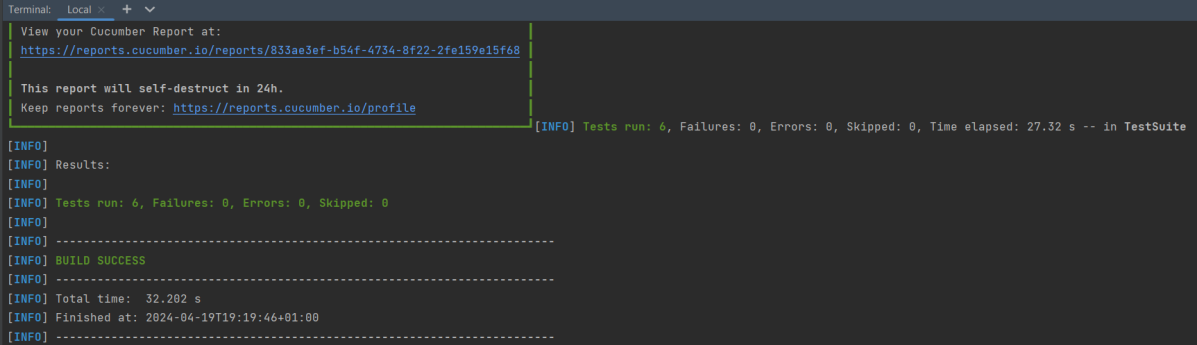
The output of the above program is
Step 12 – Execute the tests from TestNG Runner
Go to the Runner class and right-click Run As TestNG Test. The tests will run as TestNG tests. (Eclipse)
In the case of IntelliJ, right-click and select Run “CucumberRunnerTests”.
Step 13 – Test Execution Result
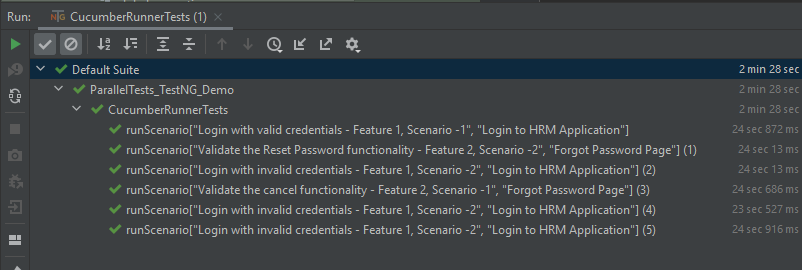
All the tests are started at the same time, so they share different threads. The way tests are executed is different in them. With non-parallel tests, all the scenarios of the same feature are executed together, and then the scenarios of another feature file. Whereas in parallel tests, all the tests are started at the same time, so there won’t be any specific order.
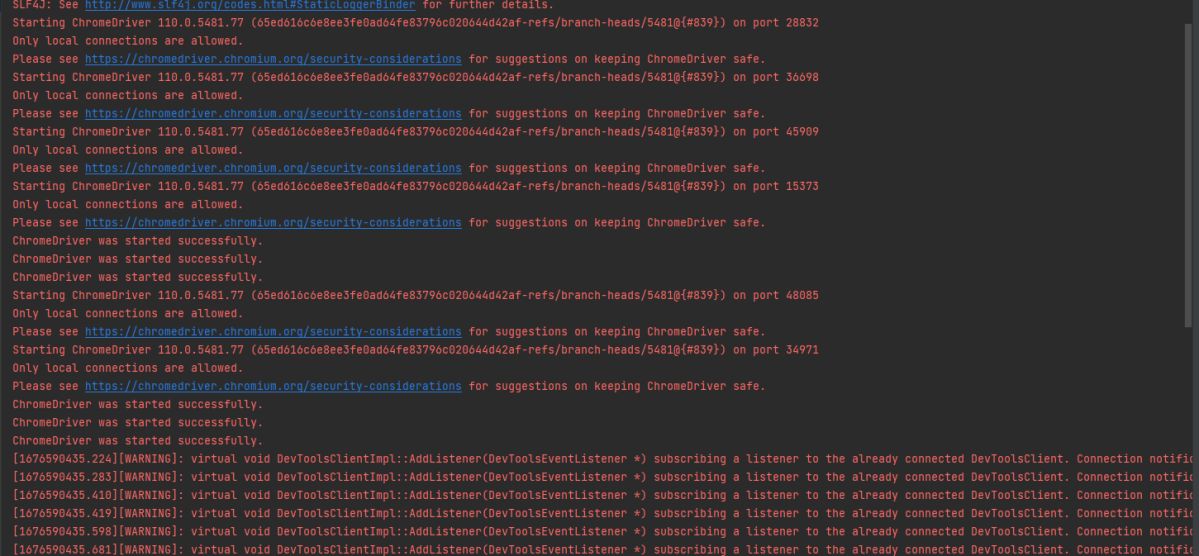
All the scenarios have started simultaneously.
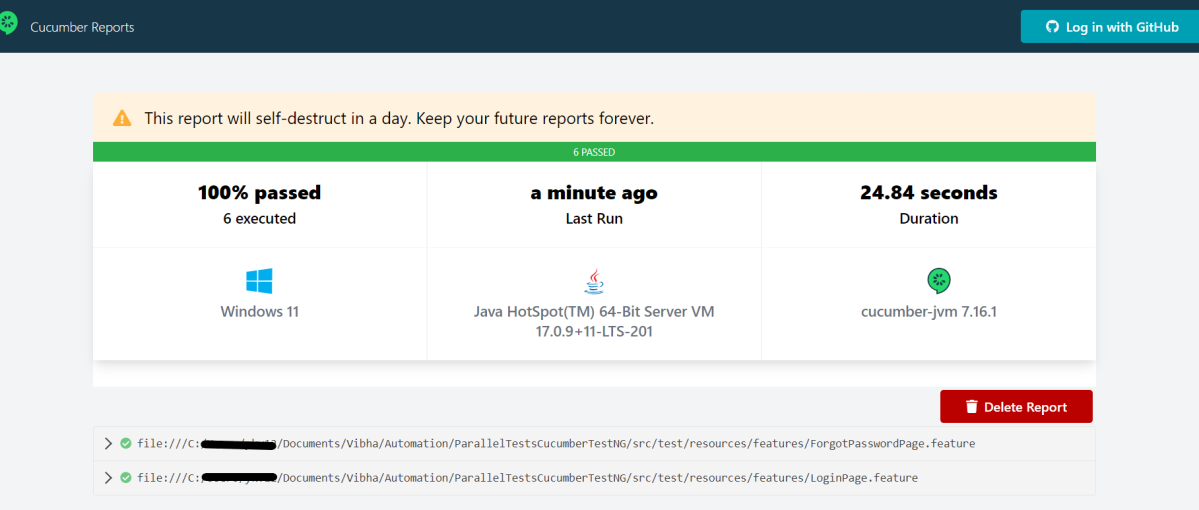
The Cucumber Report is shown below:
There are chances that we don’t want to run all the scenarios simultaneously, in this case, we need to add the below-mentioned configuration in the pom.xml. The value =2 means that 2 scenarios will be executed simultaneously.
In this tutorial, we will learn how to skip specific tests in PyTest. Sometimes, you might want a test to run only under certain conditions. If those conditions are not met, skipping the test ensures it doesn’t run unnecessarily, saving time and resources.
A skip indicates that a test should only proceed if specific conditions are satisfied; otherwise, pytest should bypass running the test entirely. Common examples are skipping windows-only tests on non-windows platforms, or skipping tests that depend on an external resource which is not available at the moment (for example a database).
When you use the pytest.skip() function within a test or setup function, pytest will skip that particular test or the entire test function.
An xfail means that you expect a test to fail for some reason. A common example is a test for a feature not yet implemented, or a bug not yet fixed. When a test passes despite being expected to fail (marked with pytest.mark.xfail), it’s an xpass and will be reported in the test summary.
pytest counts and lists skip and xfail tests separately.
import pytest


@pytest.mark.skip(reason="In Progress")
def test_addition():
    a = 6
    b = 5
    c = 11

    assert a + b == 11, "Sum is not 11"
    assert a + b == c, "Sum of a and b is not equal to c"


@pytest.mark.skipif(15-4>10, reason="Conditional")
def test_subtraction():
    x = 15
    y = 4
    z = 10

    assert x - y == z, "Subtract y from x is equal to z"


@pytest.mark.xfail
def test_multiplication():
    a = 6
    b = 5
    c = 30

    assert a * b == c, "Product of 5 and 6 is not 30"


def test_division():
    a = 16
    b = 2
    c = 8

    assert a / b == c, "Division of 2 by 6 is not 3"
To run these tests, use the below command:
pytest test_skip_demo.py
The output of the above program is
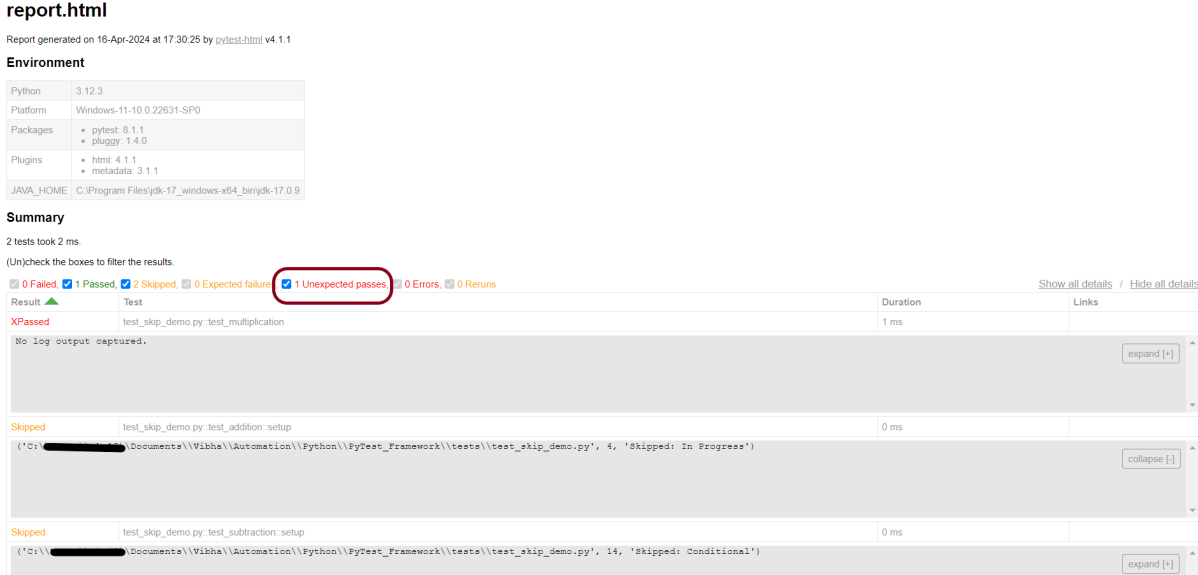
As we can see in the above example, there are total of 4 tests. 1 test is marked as skip, another test is marked as skipif (the condition of skipif is satisfied, so this test also skips), 3rd tests is marked as xfail and remaining 1 test is passed. Here, I have generated a report also to see the output in the report.html. In this report, Unexpected passes represent the xfail.
Skip all test functions of a class or module
You can also skip all tests in a module or class using the pytest.mark.skip decorator.
import pytest


@pytest.mark.skip("Development in progress")
class test_skip_class:

    def test_addition(self):
        a = 10.44
        b = 5.56
        c = 16.00

        assert a + b == 16.00, "Sum is not 16"

    def test_subtraction(self):
        x = 15
        y = 4
        z = 10

        assert x - y == z, "Subtract y from x is equal to z"
The output of the above program is
That’s it! Congratulations on making it through this tutorial and hope you found it useful! Happy Learning!!
In the previous tutorial, it is explained how to automate Checkbox in Selenium. In this tutorial, we will learn how to handle Drop Down & Multiple Select Operations. DropDown & Multiple Select Operations work together and almost the same way. The only difference between these two deselecting statements & multiple selections is not allowed on DropDown.
To identify DropDown or multi-select list on a web page, we can use any one of the options like id, name, xpath, css, etc.
To perform any operation on DropDown, we need to do 2 things:-
1) Selenium WebDrivers provides a class called “Select “class that is used to automate dropdown, and it is imported from the package:
org.openqa.selenium.support.ui.Select
2) Create a new Select object of class Select.
Select oSelect = new Select());
We can access all the methods residing inside the SELECT class by typing oSelect + dot.
Different Select Commands
Before we discuss various select commands, we should know how the HTML code of DropDown actually looks
1) selectByVisibleText
selectByVisibleText(String arg0): void – Choose the option given under any dropdowns and multiple selection boxes with selectByVisibleText method. It takes a parameter of String that is one of the Value of Select element and it returns nothing.
To select the text One
select.selectByVisibleText("One");
2) selectByIndex
selectByIndex(int arg0): void – It is almost the same as selectByVisibleText but the only difference here is that we provide the index number of the option here rather than the option text. It takes a parameter of int which is the index value of the Select element and it returns nothing.
To select the value 3 using index
select.selectByIndex(3);
3) selectByValue
selectByValue(String arg0): void – It selects the option of the value. It takes a parameter of String that is of the value of the Select element and it returns nothing.
To select the value of two
 Select mselect = new Select(driver.findElement(By.id("redirect")));
 mselect.selectByValue("two");
Let us explain this with the help of an example.
1) Launch a new Browser and open “https://www.selenium.dev/selenium/web/formPage.html“ 2) Print the list of options in the dropdown. 3) Select option ‘One’ (Use selectByVisibleText) 4) Select option ‘3’ (Use selectByIndex) 5) Select option ‘two’ (Use selectByValue) 6) Close the browser
The complete program looks like as shown below:
package org.example;

import org.openqa.selenium.By;
import org.openqa.selenium.WebDriver;
import org.openqa.selenium.WebElement;
import org.openqa.selenium.firefox.FirefoxDriver;
import org.openqa.selenium.firefox.FirefoxOptions;
import org.openqa.selenium.support.ui.Select;

import java.time.Duration;
import java.util.List;

public class DropDown_Demo {

    public static void main(String[] args)  {

        // Initiate Firefox browser
        FirefoxOptions firefoxOptions = new FirefoxOptions();
        WebDriver driver = new FirefoxDriver(firefoxOptions);

        // Implicit Wait
        driver.manage().window().maximize();
        driver.manage().timeouts().implicitlyWait(Duration.ofSeconds(5));

        // Pass application url
        driver.get("https://www.selenium.dev/selenium/web/formPage.html");

        //Get the list of options from dropdown
        Select select = new Select(driver.findElement(By.name("select-default")));
        List<WebElement> listElements = select.getOptions();
        System.out.println("List of options in dropdown:" );
        for(WebElement options: listElements)
            System.out.println(options.getText());

        // Select option 'Two' (Use selectByVisibleText)
        System.out.println("Select the Option by Text - One");
        select.selectByVisibleText("One");

        // Select option '3' (Use selectByIndex)
        System.out.println("Select the Option by Index 3 - Still learning how to count, apparently");
        select.selectByIndex(3);

        // Select option 'two' (Use selectByValue)
        System.out.println("Select the Option by selectByValue - two");
        Select mselect = new Select(driver.findElement(By.id("redirect")));
        mselect.selectByValue("two");

        // close the browser
        driver.close();
    }

}
The output of the above program is
Different DeSelect Methods
The way we select different values of DropDown and Multi Select, we can deselect the options similarly.
1) deselectAll
deselectAll( ): void – Clear all selected entries. This is only valid when the SELECT supports multiple selections.
Syntax:
oSelect.deselectAll;
2) deselectByIndex
deselectByIndex(int arg0): void –Deselect the option at the given index.
Syntax:
oSelect.deselectByIndex;
3) deselectByValue
deselectByValue(String arg0): void –Deselect all options that have a value matching the argument.
Syntax:
oSelect.deselectByValue;
4) deselectByVisibleText
deselectByVisibleText(String arg0): void – Deselect all options that display text matching the argument.
Syntax:
oSelect.deselectByVisibleText
Below is an example of how to operate on multi-selection options.
1) Launch a new Browser and open “https://www.selenium.dev/selenium/web/formPage.html“ 2) Print the list of options in the dropdown. 3) Select options ‘eggs’ and ‘sausages’. 4) Print and select all the options for the selected Multiple selection list. 5) Deselect option eggs. 6) Deselect all options 7) Close the browser
package org.example;

import org.openqa.selenium.By;
import org.openqa.selenium.WebDriver;
import org.openqa.selenium.WebElement;
import org.openqa.selenium.firefox.FirefoxDriver;
import org.openqa.selenium.firefox.FirefoxOptions;
import org.openqa.selenium.support.ui.Select;

import java.time.Duration;
import java.util.List;

public class MultiSelect_Demo {

    public static void main(String[] args) {

        // Initiate Firefox browser
        FirefoxOptions firefoxOptions = new FirefoxOptions();
        WebDriver driver = new FirefoxDriver(firefoxOptions);

        // Implicit Wait
        driver.manage().window().maximize();
        driver.manage().timeouts().implicitlyWait(Duration.ofSeconds(5));

        // Pass application url
        driver.get("https://www.selenium.dev/selenium/web/formPage.html");

        //Get the list of options from dropdown
        Select select = new Select(driver.findElement(By.name("multi")));
        List<WebElement> listElements = select.getOptions();
        System.out.println("List of options in dropdown:");
        for (WebElement options : listElements)
            System.out.println(options.getText());

        // Select option 'Ham' (Use selectByVisibleText)
        System.out.println("Select the Option by Text - Eggs");
        select.selectByVisibleText("Eggs");

        // Select option '2' (Use selectByIndex)
        System.out.println("Select the Option by Index 2 - Sausages");
        select.selectByIndex(2);

        System.out.println("*************************************");
        //Get the list of selected options
        System.out.println("The selected values in the dropdown options are -");
        List<WebElement> selectedOptions = select.getAllSelectedOptions();

        for(WebElement selectedOption: selectedOptions)
            System.out.println(selectedOption.getText());

        // Deselect the value "eggs" by Value
        System.out.println("*************************************");
        System.out.println("DeSelect option eggs by Value");
        select.deselectByValue("eggs");

        System.out.println("*************************************");
        System.out.println("The latest selected values in the dropdown options are -");
        List<WebElement> reselectedOptions = select.getAllSelectedOptions();

        for(WebElement selectedOption: reselectedOptions)
            System.out.println(selectedOption.getText());

        select.deselectAll();

        driver.quit();
    }
}
The output of the above program is
That’s it! Congratulations on making it through this tutorial and hope you found it useful! Happy Learning!!
In the previous tutorial, we have discussed about Implict and Explicit Wait. In this blob, we will discuss about Fluent Wait. Fluent Wait instance defines the maximum amount of time to wait for a condition, as well as the frequency with which to check the condition.
Users may configure the wait to ignore specific types of exceptions whilst waiting, such as NoSuchElementExceptionwhen searching for an element on the page. Fluent Wait commands mainly used when the web elements, which sometimes visible in few seconds and sometimes take more, time than usual. Mainly in Ajax applications. We could set the default-pooling period based on the requirement.
Selenium 4
Wait<WebDriver> wait =
        new FluentWait<>(driver)
            .withTimeout(Duration.ofSeconds(2))
            .pollingEvery(Duration.ofMillis(300))
            .ignoring(ElementNotInteractableException.class);

    wait.until(
        d -> {
          revealed.sendKeys("Displayed");
          return true;
        });
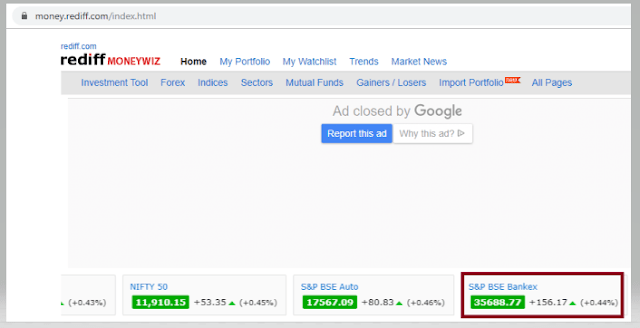
Below is an example which shows the use of Fluent Wait in real world 1) Launch new Browser and open https://www.rediff.com/ 2) Click on Money Link present at the top center of the page 3) Sensex of different companies like S&P BSE Sensex, Nift 50, etc. appears at the center of the page 4) Don’t use Fluent Wait to find value of element S& BSE Sensex 5) Close the browser
package SeleniumTutorial;
import org.openqa.selenium.By;
import org.openqa.selenium.WebDriver;
import org.openqa.selenium.chrome.ChromeDriver;

public class FluentWaitDemo {
      public static void main(String[] args) {

System.setProperty("webdriver.chrome.driver","C:\\Users\\SingVi04\\Desktop\\Drivers\\chromedriver_win32\\chromedriver.exe");
           WebDriver driver= new ChromeDriver();
           driver.manage().window().maximize();
           driver.get("https://www.rediff.com/");
           driver.findElement(By.xpath("//a[@href ='https://money.rediff.com']")).click();

           String Message= driver.findElement(By.xpath("//*[@id='indmarquee']/div[1]/span[2]")).getText();
           System.out.println("Value of S&P BSE Bankex :"+Message);
      driver.quit();
     }
}

Output
Exception in thread "main" org.openqa.selenium.NoSuchElementException: no such element: Unable to locate element
{"method":"xpath","selector":"//*[@id='indmarquee']/div[1]/span[2]"}
(Session info: chrome=78.0.3904.108)
Here, we can see that NoSuchElementException found, as the Web Element is dynamic. We need to wait for some time to find the Web Element. In the below example, will use Fluent Wait to overcome the above stated issue.
Here, Fluent Wait uses two parameters mainly – timeout value and polling frequency. In the above syntax we took time out value as 15 seconds and polling frequency as 2 seconds. The maximum amount of time (15 seconds) to wait for a condition and the frequency (2 seconds) to check the success or failure of a specified condition.
If the element is located with in this time frame it will perform the operations else it will throw an “ElementNotVisibleException”
Few important points:-
1) NoSuchElementException. class – This class should be imported from org.openqa.selenium. By default Selenium shows 2 packages as shown in the image below.
If NoSuchElementException.class imported from java.util package, then we will see NoSuchElementException as shown below.
In this tutorial, we will see different type of waits we use in Selenium. We will discuss about “Implicit”, “Explicit” and “Fluent” Wait.
Why do we need wait?
Nowadays web applications are developed using Ajax and Javascript, so when we try to identify a web element on web page, there are the chances that the loading of that element will take some time or network connectivity is very poor result in “NoSuchElementException” exception. These issues can be resolved with the help of wait in Selenium.
Types of Wait
Implicit Wait
Selenium 4
Selenium has a built-in way to automatically wait for elements called an implicit wait. An implicit wait value can be set either with the timeouts capability in the browser options, or with a driver method.
import org.openqa.selenium.By;
import org.openqa.selenium.WebDriver;
import org.openqa.selenium.WebElement;
import org.openqa.selenium.chrome.ChromeDriver;
import java.time.Duration;

public class implicitDemo {

    public static void main(String args[]) {

        WebDriver driver = new ChromeDriver();
        driver.manage().window().maximize();
        driver.manage().timeouts().implicitlyWait(Duration.ofSeconds(5));
        driver.get("https://www.selenium.dev/selenium/web/dynamic.html");
        driver.findElement(By.id("adder")).click();
        WebElement added = driver.findElement(By.id("box0"));
        System.out.println("Color :" + added.getDomAttribute("class"));
        driver.quit();
    }

}
The output of the above program is
The implicit wait will tell to the web driver to wait for certain amount of time before it throws a “NoSuchElementException“. The default setting is 0. Once we set the time, web driver will wait for that time before throwing an exception.
Implicit waits are used to provide a default waiting time (say 30 seconds) between each consecutive test step/command across the entire test script. We need to import java.util.concurrent.TimeUnit to use ImplicitWait.
Implicit wait will accept 2 parameters, the first parameter will accept the time as an integer value and the second parameter will accept the time measurement in terms of SECONDS, MINUTES, MILISECOND, MICROSECONDS, NANOSECONDS, DAYS, HOURS, etc.
Let me show how to use implicit wait in our program
import java.util.concurrent.TimeUnit;
import org.openqa.selenium.By;
import org.openqa.selenium.WebDriver;
import org.openqa.selenium.firefox.FirefoxDriver;

public class ImplicitWait_Example {
      public static void main(String[] args) {

     System.setProperty("webdriver.gecko.driver","C:\\Users\\vibha\\Downloads\\geckodriver.exe");
      WebDriver driver = new FirefoxDriver();

      //Implicit Wait
      driver.manage().timeouts().implicitlyWait(30, TimeUnit.SECONDS);
      driver.get("https://www.facebook.com");
      driver.findElement(By.name("email")).sendKeys("vibhasingh.verma");
          }
}
In the above example, we have waited for 30 sec, before redirecting the web page to the URL explicitly mentioned in the code.
Explicit Wait
An explicit wait is code you define to wait for a certain condition to occur before proceeding further in the code. The worst case of this is Thread.sleep(), which sets the condition to an exact time period to wait. There are convenience methods available to help write code that will only wait as long as required.
WebDriverWait in combination with ExpectedCondition is one way to do this.
The explicit wait will tell the web driver to wait for certain conditions like visibilityOfElementLocated and maximum amount of time before throwing NoSuchElementException exception.
Selenium 4
Wait<WebDriver> wait = new WebDriverWait(driver, Duration.ofSeconds(2));
 wait.until(d -> revealed.isDisplayed());
Below is an example of Explicit Wait.
package org.example;

import org.openqa.selenium.By;
import org.openqa.selenium.WebDriver;
import org.openqa.selenium.WebElement;
import org.openqa.selenium.chrome.ChromeDriver;
import org.openqa.selenium.support.ui.Wait;
import org.openqa.selenium.support.ui.WebDriverWait;

import java.time.Duration;

public class explicitDemo {

    public static void main(String args[])  {

        WebDriver driver = new ChromeDriver();
        driver.manage().window().maximize();
        driver.manage().timeouts().implicitlyWait(Duration.ofSeconds(5));
        driver.get("https://www.selenium.dev/selenium/web/dynamic.html");
        driver.findElement(By.id("reveal")).click();

        WebElement revealTextBox = driver.findElement(By.id("revealed"));
        Wait<WebDriver> wait = new WebDriverWait(driver, Duration.ofSeconds(3));
        wait.until(d -> revealTextBox.isDisplayed());

        revealTextBox.sendKeys("Happy");
        System.out.println("Input Text :" + revealTextBox.getDomProperty("value"));

        driver.quit();
    }
}
The output of the above program is
Selenium 3
WebDriverWait wait = new WebDriverWait(WebDriverRefrence,TimeOut);
wait.until(ExpectedConditions.visibilityOfElementLocated(By.id("Stats1_totalCount")));
Let me explain this with an example
import java.util.concurrent.TimeUnit;

import org.openqa.selenium.By;
import org.openqa.selenium.WebDriver;
import org.openqa.selenium.chrome.ChromeDriver;
import org.openqa.selenium.support.ui.ExpectedConditions;
import org.openqa.selenium.support.ui.WebDriverWait;

public class ExplicitWaitExample {

            public static void main(String[] args) {
                        System.setProperty("webdriver.chrome.driver",
                                           "C:\\Users\\Vibha\\Desktop\\SeleniumKT\\chromedriver.exe");
                        // Create a new instance of the Firefox driver
                        WebDriver driver = new ChromeDriver();
                        driver.manage().window().maximize();
                        driver.manage().timeouts().implicitlyWait(30, TimeUnit.SECONDS);
                        driver.get("https://configureselenium.blogspot.com/");

                        // Click on READ MORE link. New Page is opened
                        driver.findElement(By.linkText("READ MORE")).click();

                        // Explicit Wait
                        WebDriverWait wait = new WebDriverWait(driver, 60);
                    wait.until(ExpectedConditions.visibilityOfElementLocated(By.id("Stats1_totalCount")));
                        String Count = driver.findElement(By.id("Stats1_totalCount")).getText();
                        System.out.println("Count is :" + Count);
                  driver.close();
            }
}
In the above example, we have used Explicit Wait. We are waiting for the web element – Stats1_totalCount for 60 seconds before performing the next operation.
The following are the Expected Conditions that can used in Explicit Wait
alertIsPresent()
elementSelectionStateToBe()
elementToBeClickable()
elementToBeSelected()
frameToBeAvaliableAndSwitchToIt()
invisibilityOfTheElementLocated()
invisibilityOfElementWithText()
presenceOfAllElementsLocatedBy()
presenceOfElementLocated()
textToBePresentInElement()
textToBePresentInElementLocated()
textToBePresentInElementValue()
titleIs()
titleContains()
visibilityOf()
visibilityOfAllElements()
visibilityOfAllElementsLocatedBy()
visibilityOfElementLocated()
Note:- Do not mix implicit and explicit waits! Doing so can cause unpredictable wait times. For example, setting an implicit wait of 20 seconds and an explicit wait of 35 seconds could cause a timeout to occur after 25 seconds.
Fluent Wait
The Fluent wait will tell the web driver to wait for certain conditions like visibilityOfElementLocated as well as the frequency with which we want to check before throwing NoSuchElementException exception.
When we launch a browser using Selenium WebDriver, by default it is not in its maximized state. In this post, we will see how to maximize and minimize a browser during automation.
Maximize the window
It is recommended to maximize the browser before performing any operation on the browser to make sure that the tests run in a consistent environment, with a known window size. This helps in avoiding issues that might arise due to varying browser window sizes. When the browser window isn’t maximized, certain web elements might be hidden or located outside the visible area. Maximizing the window makes sure these elements become visible and accessible for interaction during automated testing.
driver.manage().window().maximize();
Below is an example to maximize the window.
package org.example;

import org.openqa.selenium.WebDriver;
import org.openqa.selenium.chrome.ChromeDriver;

import java.time.Duration;

public class Maximize_Demo {

    public static void main(String args[])  {

        WebDriver driver = new ChromeDriver();
        driver.manage().window().maximize();
        driver.manage().timeouts().implicitlyWait(Duration.ofSeconds(4));
        driver.get("https://www.bing.com/");
        System.out.println("Page Title :" + driver.getTitle());
        driver.quit();
    }
}
The output of the above program is
Minimize the window
Minimizing the window enables us to carry out background tasks or operations on the machine without disrupting the test execution. This can be especially useful when we need to work on other tasks while the tests are in progress.
Minimizing the window can sometimes reveal behaviors or functionalities that are triggered when the browser window is not in focus or is minimized. This can be valuable for testing scenarios where the application’s behavior under such conditions needs to be verified.
Selenium 4 and above support the below code.
driver.manage().window().minimize();
Below is an example to minimize the window.
package org.example;

import org.openqa.selenium.WebDriver;
import org.openqa.selenium.chrome.ChromeDriver;

import java.time.Duration;

public class Minimize_Demo {

    public static void main(String args[]) {

        WebDriver driver = new ChromeDriver();
        driver.manage().window().minimize();
        driver.manage().timeouts().implicitlyWait(Duration.ofSeconds(4));
        driver.get("https://www.bing.com/");
        System.out.println("Page Title :" + driver.getTitle());
        driver.quit();
    }
}
The output of the above program is
That’s it! Congratulations on making it through this tutorial and hope you found it useful! Happy Learning!!
In the last tutorial, I have explain the Parameters in TestNG which passes different test data to the test case as arguments. Similar to TestNG Parameters, DataProviders are a means to pass data to test scripts in TestNG. In this tutorial, I will explain about the DataProviders in TestNG.
What is DataProvider in TestNG?
The DataProvider in TestNG is another way to pass the parameters in the test function, the other one being TestNG parameters. Using DataProvider in TestNG, we can easily inject multiple values into the same test case. It comes inbuilt in TestNG and is popularly used in data-driven frameworks.
Syntax of DataProvider
@DataProvider (name = "name_of_dataprovider")
public Object[][] dpMethod() {
    return new Object [][] { values}
}
A Data Provider is a method on the class that returns an array of array of objects. This method is annotated with @DataProvider
A @Test method specifies its Data Provider with the dataProvider attribute. This name must correspond to a method on the same class annotated with @DataProvider(name=”…”) with a matching name.
TestNG dataprovider returns a 2d list of objects..An array of array of objects (Object[][]) where the first dimension’s size is the number of times the test method will be invoked and the second dimension size contains an array of objects that must be compatible with the parameter types of the test method.
DataProviders are not declared on top of the functions like TestNG parameters but have a method of their own, which in regular speaking terms called a dataprovider method. For example, dpMethod here.
The dataprovider name calls the dataprovider method, and if there is no name specified by the tester, then the dataprovider method is the default name used in the receiving @Test case.
Data providers can run in parallel with the attribute parallel.
Below is the basic example of using DataProvider in TestNG.
import org.openqa.selenium.By;
import org.openqa.selenium.Keys;
import org.openqa.selenium.WebDriver;
import org.openqa.selenium.WebElement;
import org.openqa.selenium.chrome.ChromeDriver;
import org.openqa.selenium.chrome.ChromeOptions;
import org.testng.annotations.AfterMethod;
import org.testng.annotations.BeforeMethod;
import org.testng.annotations.DataProvider;
import org.testng.annotations.Test;

public class DataProvider_Demo {

    WebDriver driver;

    @DataProvider(name = "testData")
    public Object[][] dataProvFunc() {
        return new Object[][] { { "Selenium" }, { "TestNG" } };
    }

    @BeforeMethod
    public void setUp() {

        System.out.println("Start the test");
        ChromeOptions options = new ChromeOptions();
        options.addArguments("--start-maximized");
        driver = new ChromeDriver(options);
        driver.get("https://www.bing.com/");

    }

    // Passing the dataProvider to the test method through @Test annotation
    @Test(dataProvider = "testData")
    public void search(String keyWord) {
        WebElement txtBox = driver.findElement(By.id("sb_form_q"));
        txtBox.sendKeys(keyWord);
        System.out.println("Keyword entered is : " + keyWord);
        txtBox.sendKeys(Keys.ENTER);
        System.out.println("Search result is displayed.");
    }

    @AfterMethod
    public void burnDown() {
        driver.quit();

        System.out.println("End the test");
    }

}
In the above example, I am passing two search keywords, viz “Selenium” and “TestNG” to the test method using the DataProvider method. You can run the code and check the output.
The output of the above program is
Here, Test is executed with two values, but we have run the test only once.
Inheriting DataProvider in TestNG
It is messy to have supporting methods like DataProvider and test code in one class. It is always preferred to declare the test case in one class and define TestNG parameters like DataProviders in another class. By default, the data provider will be looked for in the current test class or one of its base classes. If you want to put your data provider in a different class, it needs to be a static method or a class with a non-arg constructor, and you specify the class where it can be found in the dataProviderClass attribute.
Let us create separate classes for the DataProvider method and the test method, as shown below:
DataProvider Class
public class DPDemo {

	@DataProvider(name = "testData")
	public Object[][] dataProvFunc() {
		return new Object[][] {
          { "Selenium" }, { "TestNG" }, { "Automation" } };
	}
}
We can see that all we did was create a DataProvider method in a Class and create a new class for Test Code.
import org.openqa.selenium.By;
import org.openqa.selenium.Keys;
import org.openqa.selenium.WebDriver;
import org.openqa.selenium.WebElement;
import org.openqa.selenium.chrome.ChromeDriver;
import org.openqa.selenium.chrome.ChromeOptions;
import org.testng.annotations.AfterMethod;
import org.testng.annotations.BeforeMethod;
import org.testng.annotations.Test;

public class DataProviderInheritance_Demo {

    WebDriver driver;

    @BeforeMethod
    public void setUp() {

        System.out.println("Start the test");
        ChromeOptions options = new ChromeOptions();
        options.addArguments("--start-maximized");
        driver = new ChromeDriver(options);
        driver.get("https://www.bing.com/");

    }

    // Passing the dataProvider to the test method through @Test annotation
    @Test(dataProvider = "testData", dataProviderClass = DPDemo.class)
    public void search(String keyWord) {
        WebElement txtBox = driver.findElement(By.id("sb_form_q"));
        txtBox.sendKeys(keyWord);
        System.out.println("Keyword entered is : " + keyWord);
        txtBox.sendKeys(Keys.ENTER);
        System.out.println("Search result is displayed.");
    }

    @AfterMethod
    public void burnDown() {
        driver.quit();
        System.out.println("End the test");
    }

}
As you can see, to handle the inheritance, all we did was add an attribute to the test method (highlighted above), which specifies the class that has the DataProvider method.
The output of the above program is
Passing Multiple Parameter Values in TestNG DataProviders
Passing multiple values is pretty similar to passing numerous parameters. The only difference is that we will pass various values to a single parameter so that a string of input(s) is sent in one go.
Let us quickly understand this concept with the help of the code as shown below.
DataProvider Class
public class DPDemo {

	@DataProvider(name = "testData")
	public Object[][] dataProvFunc() {
		return new Object[][] { { "Automation Tester", "2-5 years" }, { "Performance Tester", "3+ years" },
				{ "DevOps", "5+ years" } };
	}
}
Test Code – DataProviderInheritanceDemo
import org.openqa.selenium.By;
import org.openqa.selenium.Keys;
import org.openqa.selenium.WebDriver;
import org.openqa.selenium.WebElement;
import org.openqa.selenium.chrome.ChromeDriver;
import org.openqa.selenium.chrome.ChromeOptions;
import org.testng.annotations.AfterMethod;
import org.testng.annotations.BeforeMethod;
import org.testng.annotations.Test;

public class DataProviderInheritanceDemo {

    WebDriver driver;

    @BeforeMethod
    public void setUp() {

        System.out.println("Start the test");
        ChromeOptions options = new ChromeOptions();
        options.addArguments("--start-maximized");
        driver = new ChromeDriver(options);
        driver.get("https://www.bing.com/");

    }

    // Passing the dataProvider to the test method through @Test annotation
    @Test(dataProvider = "testData", dataProviderClass = DPDemo.class)
    public void search(String keyWord1, String keyWord2) {

        WebElement txtBox = driver.findElement(By.id("sb_form_q"));
        txtBox.sendKeys(keyWord1, keyWord2);
        System.out.println("Keyword entered is : " + keyWord1 + " " + keyWord2);
        txtBox.sendKeys(Keys.ENTER);
        System.out.println("Search result is displayed.");
    }

    @AfterMethod
    public void burnDown() {
        driver.quit();
        System.out.println("End the test");
    }
}
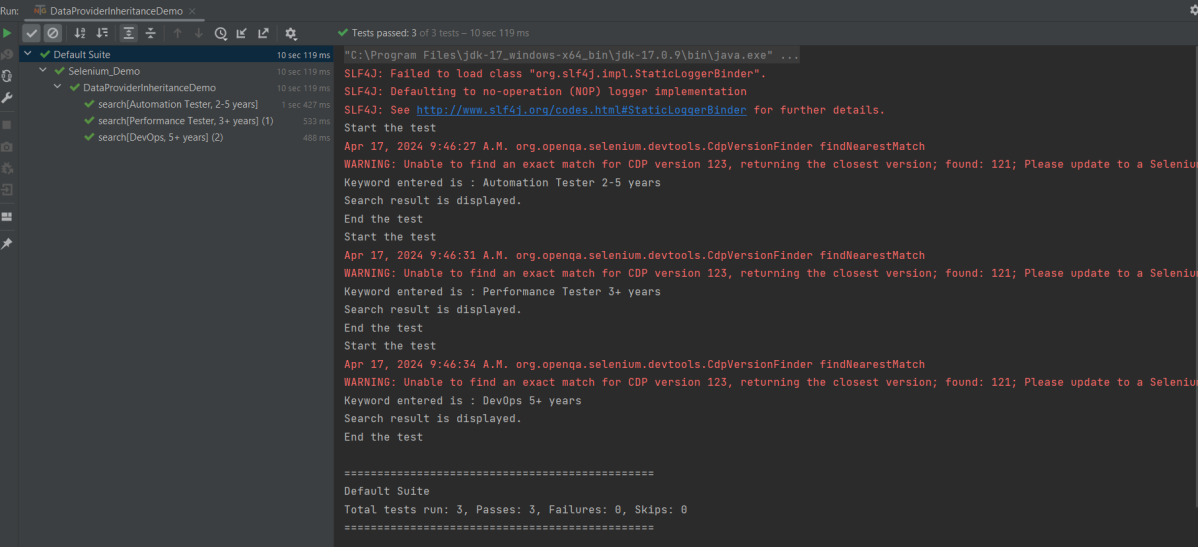
Run the test script, and you will see both the values for the TestNG parameters being passed in one go.
The output of the above program is
We are done! Congratulations on making it through this tutorial and hope you found it useful! Happy Learning!!
We can parse the JSON or XML response into POJO classes. After parsing into POJO classes, we can easily get values from the response easily. This is called De-serialization. For this, we can use any JSON parser APIs. Here, we are going to use Gson API.
To start with, add the below dependency to the project.
Let us create a class called Employee with a field name exactly (case-sensitive) the same as node names in the above JSON string because with the default setting while parsing JSON object to Java object, it will look on getter setter methods of field names.
public class Employee {

	// private variables or data members of POJO class
	private String firstName;
	private String lastName;
	private int age;
	private double salary;
	private String designation;
	private String contactNumber;
	private String emailId;

	// Getter and setter methods
	public String getFirstName() {
		return firstName;
	}

	public void setFirstName(String firstName) {
		this.firstName = firstName;
	}

	public String getLastName() {
		return lastName;
	}

	public void setLastName(String lastName) {
		this.lastName = lastName;
	}

	public int getAge() {
		return age;
	}

	public void setAge(int age) {
		this.age = age;
	}

	public double getSalary() {
		return salary;
	}

	public void setSalary(double salary) {
		this.salary = salary;
	}

	public String getDesignation() {
		return designation;
	}

	public void setDesignation(String designation) {
		this.designation = designation;
	}

	public String getContactNumber() {
		return contactNumber;
	}

	public void setContactNumber(String contactNumber) {
		this.contactNumber = contactNumber;
	}

	public String getEmailId() {
		return emailId;
	}

	public void setEmailId(String emailId) {
		this.emailId = emailId;
	}

}
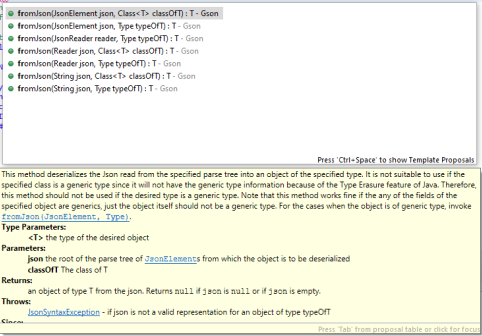
Gson class provides multiple overloaded fromJson() methods to achieve this. Below is a list of available methods:-
In the below test, I have mentioned the JSON Payload string in the test and used Gson API to deserialize the JSON payload to JAVA Object.
   @Test
	public void getDetailFromJson() {

		// De-serializing from JSON String
		String jsonString = "{\r\n" + "  \"firstName\": \"Tom\",\r\n" + "  \"lastName\": \"John\",\r\n"
				+ "  \"age\": 30,\r\n" + "  \"salary\": 50000.0,\r\n" + "  \"designation\": \"Lead\",\r\n"
				+ "  \"contactNumber\": \"+917642218922\",\r\n" + "  \"emailId\": \"abc@test.com\"\r\n" + "}";

		Gson gson = new Gson();
		// Pass JSON string and the POJO class
		Employee employee = gson.fromJson(jsonString, Employee.class);

		// Now use getter method to retrieve values
		System.out.println("Details of Employee is as below:-");
		System.out.println("First Name : " + employee.getFirstName());
		System.out.println("Last Name : " + employee.getLastName());
		System.out.println("Age : " + employee.getAge());
		System.out.println("Salary : " + employee.getSalary());
		System.out.println("designation : " + employee.getDesignation());
		System.out.println("contactNumber : " + employee.getContactNumber());
		System.out.println("emailId : " + employee.getEmailId());
		System.out.println("########################################################");

	}
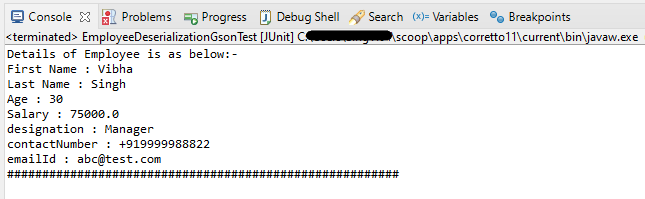
The output of the above program is
We can get the JSON payload from a file present in a project under src/test/resources as shown in the below image.
public class EmployeeDeserializationGsonTest {

	@Test
	public void fromFile() throws FileNotFoundException {

		Gson gson = new Gson();
		// De-serializing from a json file
		String userDir = System.getProperty("user.dir");
		File inputJsonFile = new File(userDir + "\\src\\test\\resources\\EmployeePayloadUsingGson.json");
		FileReader fileReader = new FileReader(inputJsonFile);
		Employee employee1 = gson.fromJson(fileReader, Employee.class);

		// Now use getter method to retrieve values
		System.out.println("Details of Employee is as below:-");
		System.out.println("First Name : " + employee1.getFirstName());
		System.out.println("Last Name : " + employee1.getLastName());
		System.out.println("Age : " + employee1.getAge());
		System.out.println("Salary : " + employee1.getSalary());
		System.out.println("designation : " + employee1.getDesignation());
		System.out.println("contactNumber : " + employee1.getContactNumber());
		System.out.println("emailId : " + employee1.getEmailId());
		System.out.println("########################################################");
	}
}
The output of the above program is
We are done! Congratulations on making it through this tutorial and hope you found it useful! Happy Learning!!
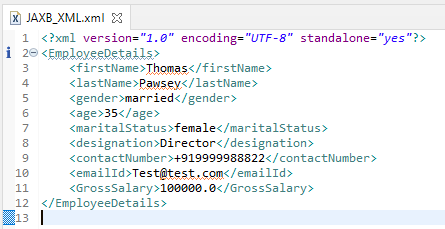
As of Java 11, JAXB is not part of the JRE anymore, and you need to configure the relevant libraries via your dependency management system, for example, either Maven or Gradle.
Configure the Java compiler level to be at least 11 and add the JAXB dependencies to your pom file.