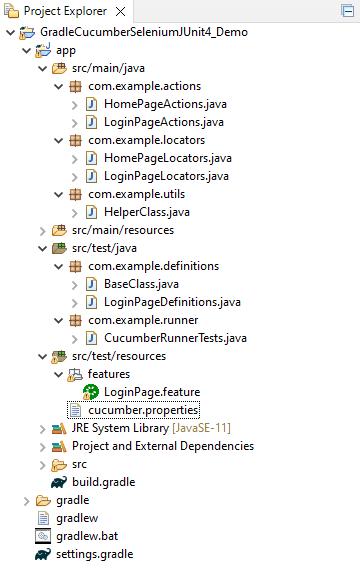
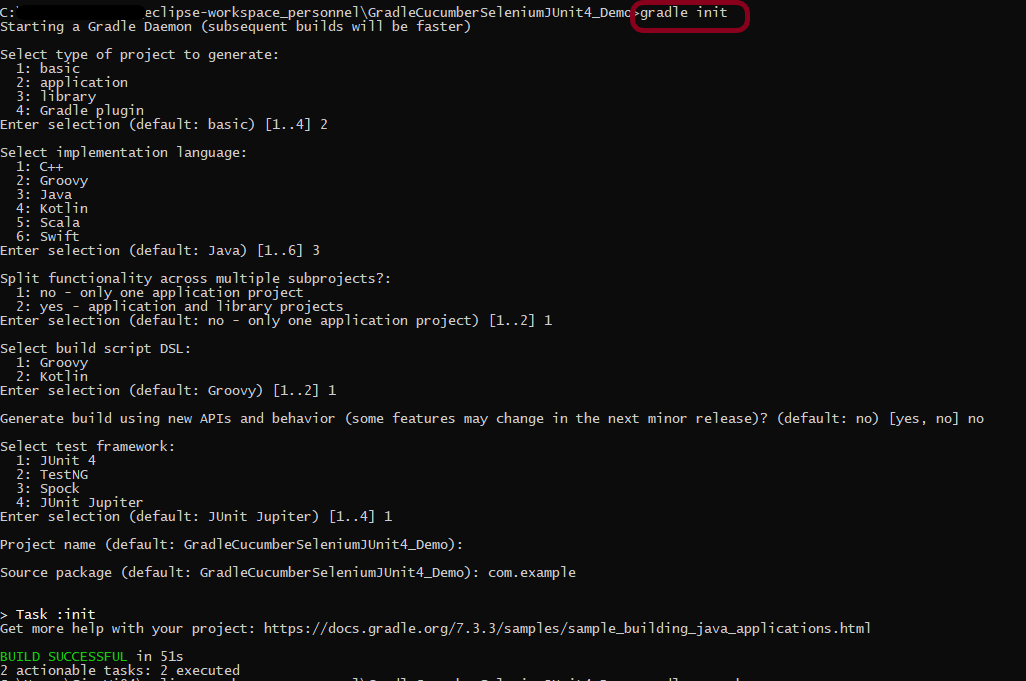
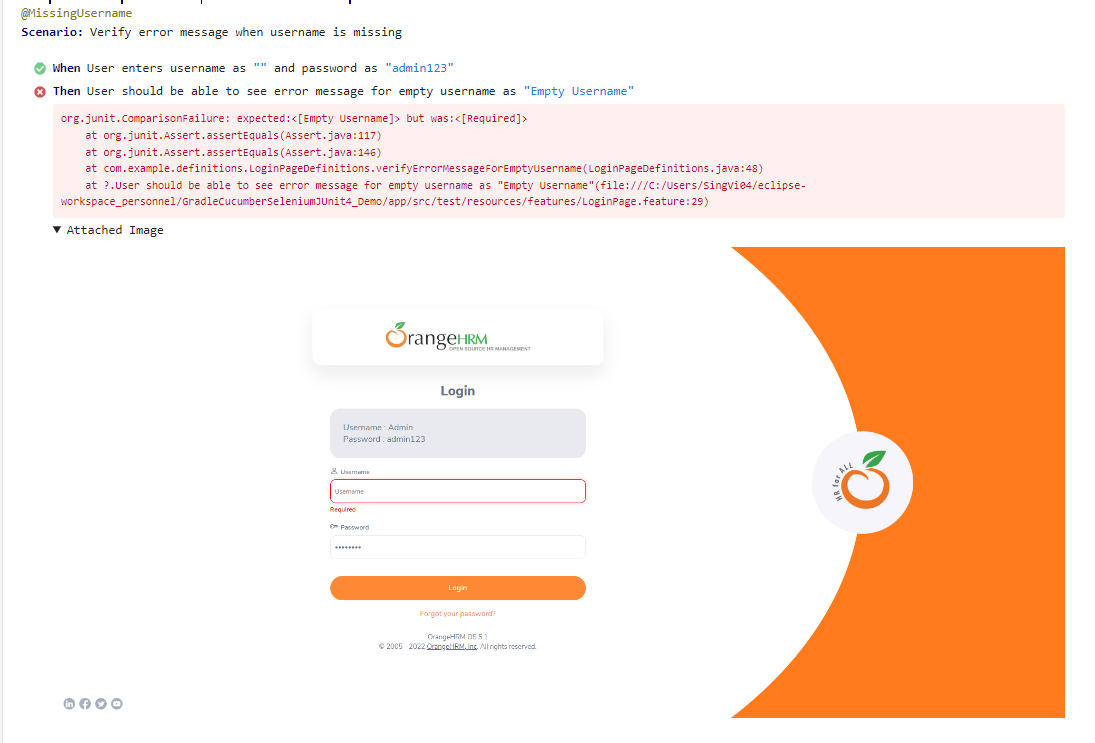
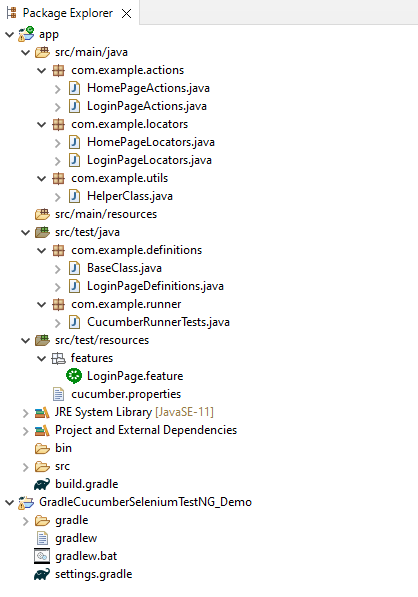
In this tutorial, we will generate PDF reports using an Extent Adapter.
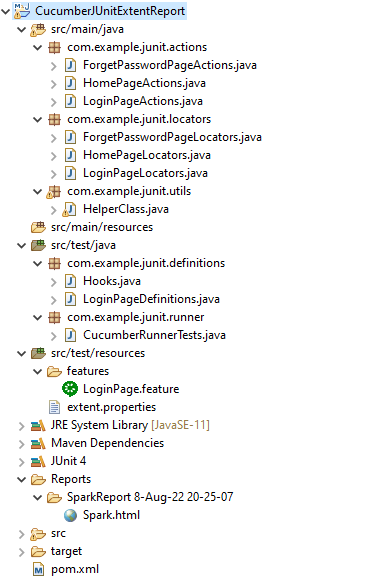
Step 1: Followthis article to add POM.xml, create and configure the sample project with the extent property file, and add the plugin to the Test Runner class.
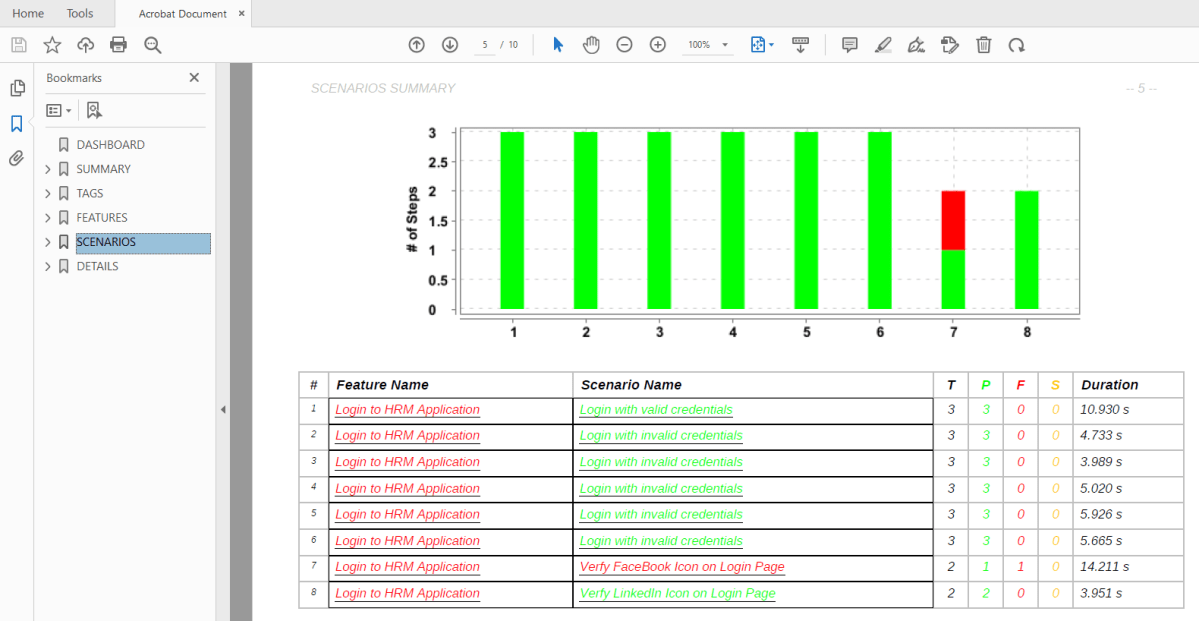
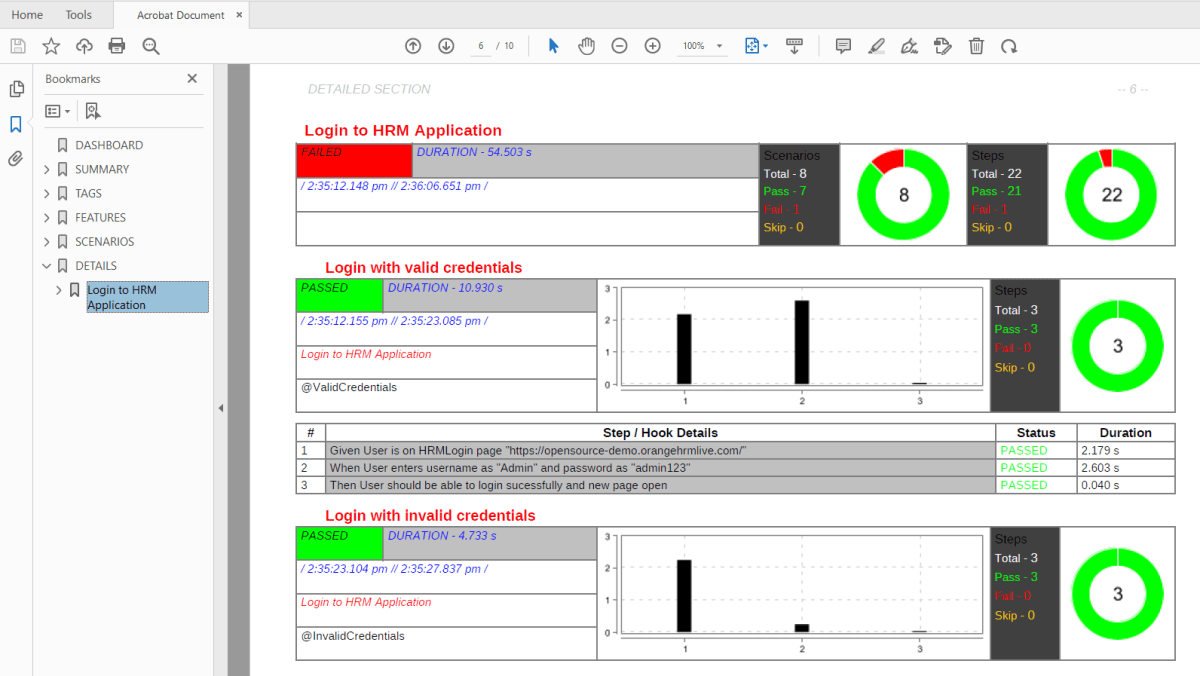
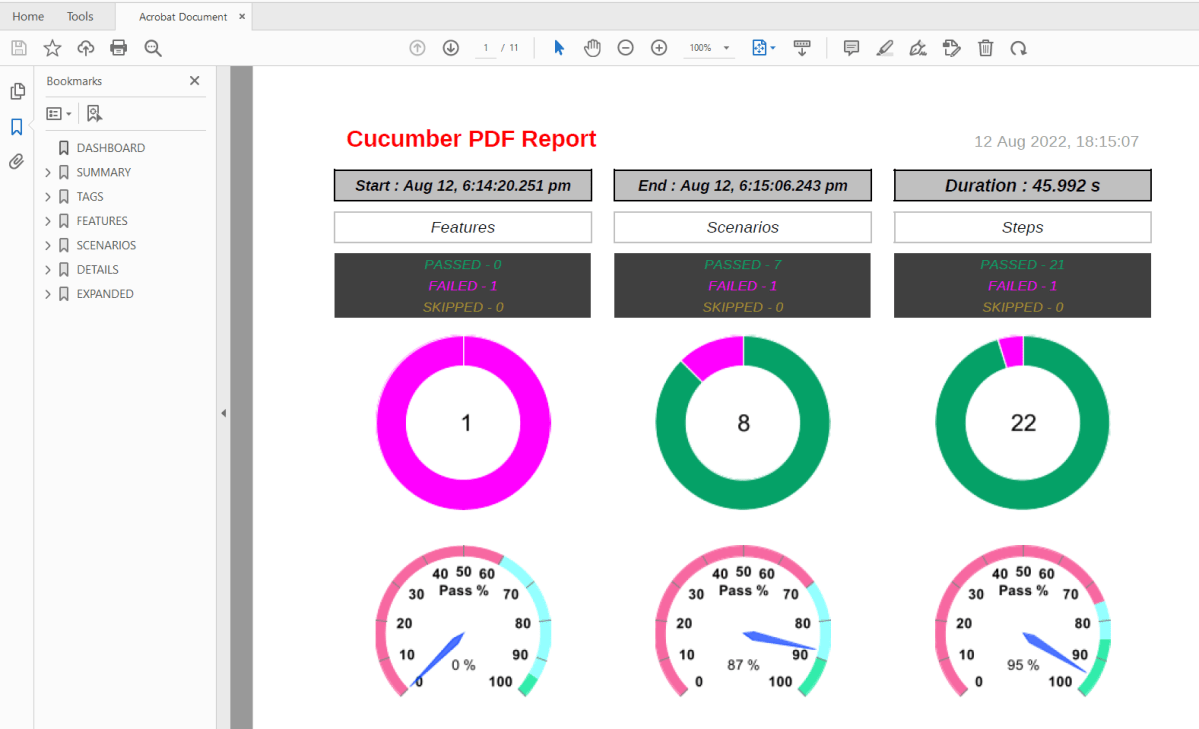
Execute the test code. The PDF report will be generated as shown below:
The report contains six sections – dashboard,summary, tags, features, scenarios, and detailed sections.
1. Dashboard
This section is a single-page dashboard that summarizes the test run. This contains the report title, duration, and status of breakups.
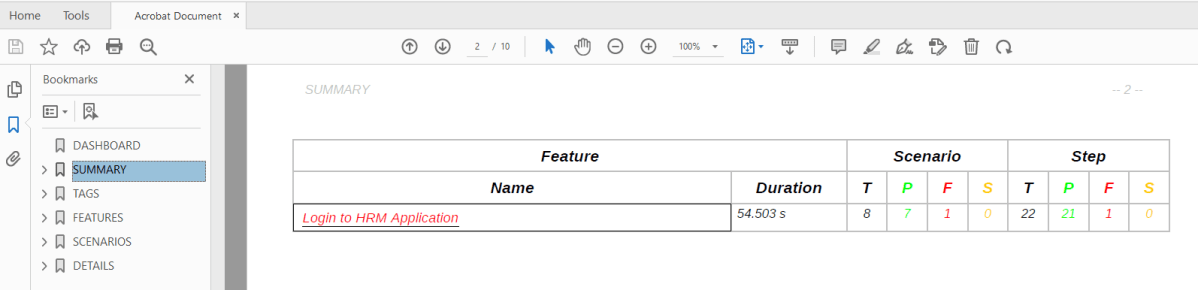
2. Summary section
This section provides an overview of the test run in terms of a feature breakdown, comprising duration, scenario count, and step count. The scenarios and steps are divided into status counts. The feature name has a link that navigates to further details in the detailed step section. This link is only present if the detailed section is enabled.
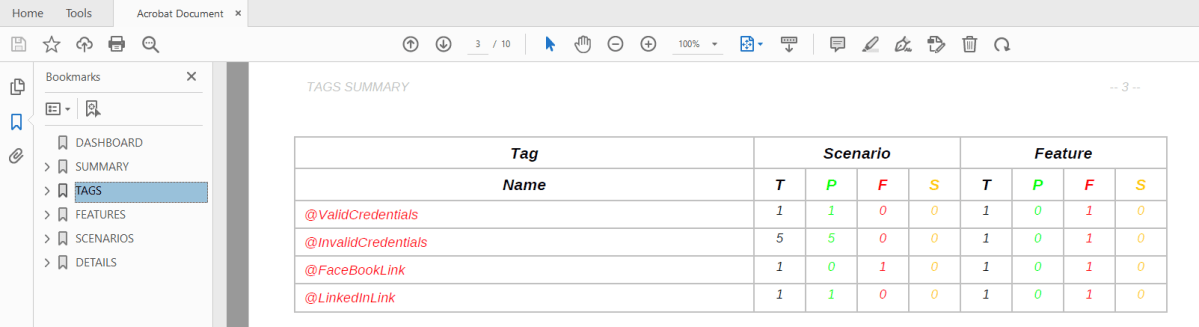
3. Tag section
This section provides an overview of the test run in terms of a tag breakdown, comprising feature count and scenario count.
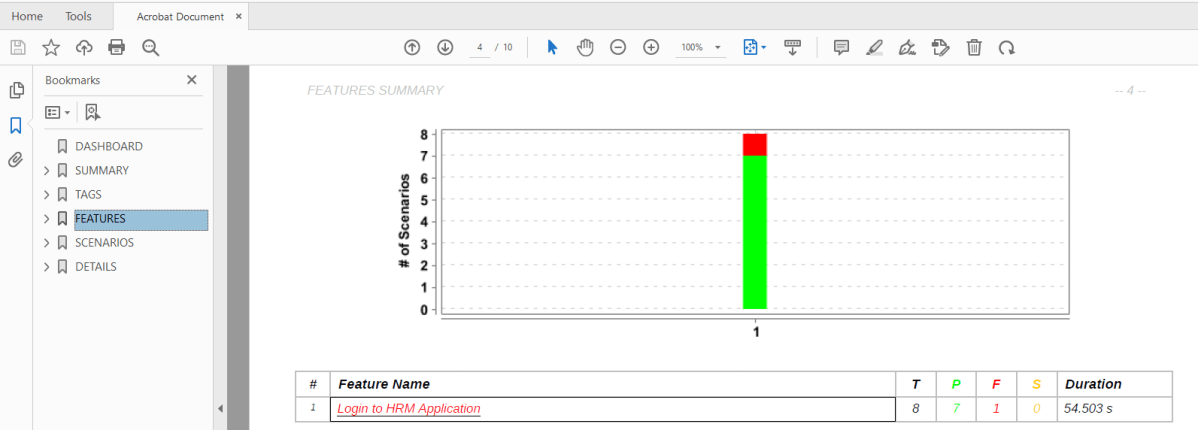
4. Feature section
This section describes the feature details with a stacked bar chart and a table of the scenario status and duration. This section display can be controlled by a configuration setting, enabled by default. The feature name has a link that navigates to further details in the detailed step section. This link is only present if the detailed section is enabled.
5. Scenario section
This section describes the scenario details with a stacked bar chart and a table of the step status and duration. This section display can be controlled by a configuration setting, enabled by default. The feature and scenario names have a link that navigates to further details in the detailed step section. This link is only present if the detailed section is enabled.
6. Detailed section
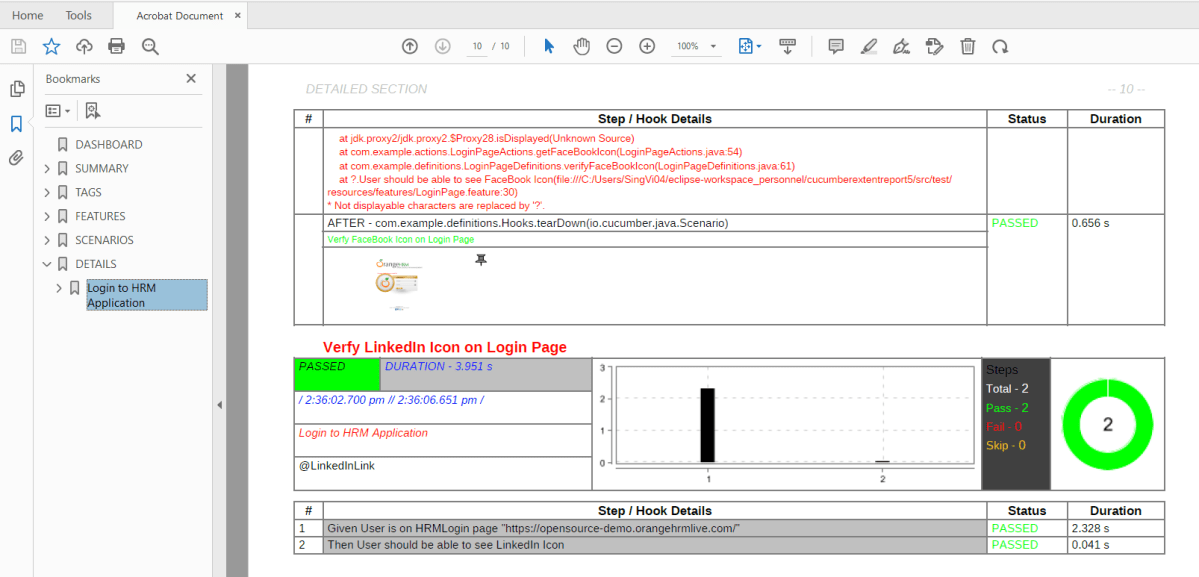
This section describes the details of individual steps and hooks, along with status and duration. This section display can be controlled by a configuration setting, enabled by default.
This section also contains screenshots of the failed images.
Customized PDF Report
The report settings can be used to toggle on and off optional report sections, and change the report title, text color for various data, background color, and other options.
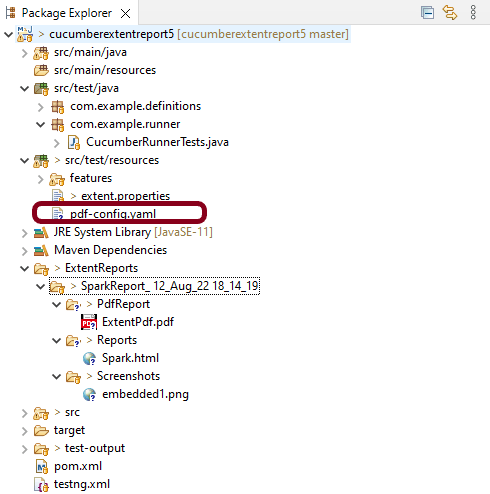
The settings are saved in a YAML file called pdf-config.yaml, which is located in the project’s src/test/resources folder. If the file is missing or no settings are specified, the default values are used. To change the default values, create a pdf-config.yaml file in the project’s src/test/resources folder that contains only the new values for the settings.
Execute the test code. Now the PDF Report will be generated as shown below:
This method of configuring report settings using a yaml properties file can be used both for the Maven plugin report generation and the ExtentReport style.
The passed, failed, and skipped colors can be set with the passColor, failColor and skipColor properties. These take in the colors in hex values (without the leading ‘#’) and are valid throughout the report.
The features, scenarios, and detailed sections can be displayed by setting the displayFeature, displayScenario and displayDetailed properties to true. The default value for these settings is true.
Screenshots are displayed as thumbnails and can be opened in the available native application. This is the default behaviour, in which the screenshot file is embedded in the PDF file. This can be toggled by the displayAttached setting. When the setting is set to false, only the thumbnail is displayed. These can also be displayed in zoomed images in a separate section by setting the displayExpanded to true and also displayAttached to false.
To know more about various settings in PDF Report, refer to this tutorial.
The previous tutorial explained the steps to generate ExtentReports for Cucumber with TestNG. We can generate ExtentReports for Cucumber with JUnit4 also. This tutorial explains the steps that need to be followed to generate an ExtentReports Version5.
Step 2: Create a feature file in src/test/resources
Below is a sample feature file.
Feature: Login to HRM Application
@ValidCredentials
Scenario: Login with valid credentials
Given User is on HRMLogin page "https://opensource-demo.orangehrmlive.com/"
When User enters username as "Admin" and password as "admin123"
Then User should be able to login successfully and new page open
@InvalidCredentials
Scenario Outline: Login with invalid credentials
Given User is on HRMLogin page "https://opensource-demo.orangehrmlive.com/"
When User enters username as "<username>" and password as "<password>"
Then User should be able to see error message "<errorMessage>"
Examples:
| username | password | errorMessage |
| | abc | Username cannot be empty |
| admin | | Password cannot be empty |
| | | Username cannot be empty |
| admin | Admin123 | Invalid credentials |
@ForgetPassword
Scenario: Verify Forget Password Functionality
Given User is on HRMLogin page "https://opensource-demo.orangehrmlive.com/"
When User clicks on Forgot your password link
Then User should be able to navigate to new page of title "Forgot Your Password?"
Step 3: Create extent.properties file in src/test/resources
We need to create the extent.properties file at the src/test/resources folder for the grasshopper extent report adapter to recognize it. Using a property file for reporting is quite helpful if you want to define several different properties.
Let’s enable spark report in an extent properties file:
We have used Page Object Model with Cucumber and TestNG.
Create a Helper class where we are initializing the web driver, initializing the web driver wait, defining the timeouts, and creating a private constructor of the class, it will declare the web driver, so whenever we create an object of this class, a new web browser is invoked. We are using a setter and getter method to get the object of Chromedriver with the help of a private constructor itself within the same class.
HelperClass
import java.time.Duration;
import org.openqa.selenium.WebDriver;
import org.openqa.selenium.chrome.ChromeDriver;
import org.openqa.selenium.support.ui.WebDriverWait;
import io.github.bonigarcia.wdm.WebDriverManager;
public class HelperClass {
private static HelperClass helperClass;
private static WebDriver driver;
private static WebDriverWait wait;
public final static int TIMEOUT = 10;
private HelperClass() {
WebDriverManager.chromedriver().setup();
driver = new ChromeDriver();
wait = new WebDriverWait(driver, Duration.ofSeconds(TIMEOUT));
driver.manage().timeouts().implicitlyWait(Duration.ofSeconds(TIMEOUT));
driver.manage().window().maximize();
}
public static void openPage(String url) {
driver.get(url);
}
public static WebDriver getDriver() {
return driver;
}
public static void setUpDriver() {
if (helperClass==null) {
helperClass = new HelperClass();
}
}
public static void tearDown() {
if(driver!=null) {
driver.close();
driver.quit();
}
helperClass = null;
}
}
Step 5: Create Locator classes in src/main/java
Create a locator class for each page that contains the detail of the locators of all the web elements. Here, I’m creating 3 locator classes – LoginPageLocators, HomePageLocators, and ForgetPasswordPageLocators.
LoginPageLocators
import org.openqa.selenium.WebElement;
import org.openqa.selenium.support.FindBy;
public class LoginPageLocators {
@FindBy(name = "txtUsername")
public WebElement userName;
@FindBy(name = "txtPassword")
public WebElement password;
@FindBy(id = "logInPanelHeading")
public WebElement titleText;
@FindBy(id = "btnLogin")
public WebElement login;
@FindBy(id = "spanMessage")
public WebElement errorMessage;
@FindBy(xpath = "//*[@id='forgotPasswordLink']/a")
public WebElement forgotPasswordLink;
}
HomePageLocators
import org.openqa.selenium.WebElement;
import org.openqa.selenium.support.FindBy;
public class HomePageLocators {
@FindBy(id = "welcome")
public WebElement homePageUserName;
}
ForgetPasswordPageLocators
import org.openqa.selenium.WebElement;
import org.openqa.selenium.support.FindBy;
public class ForgetPasswordPageLocators {
@FindBy(xpath = "//*[@id='content']/div[1]/div[2]/h1")
public WebElement forgotPasswordPageHeading;
}
Step 6: Create Action classes in src/main/java
Create the action classes for each web page. These action classes contain all the methods needed by the step definitions. In this case, I have created 3 action classes – LoginPageActions, HomePageActions, and ForgetPasswordPageActions.
LoginPageActions
In this class, the very first thing will do is to create the object of LoginPageLocators class so that we should be able to access all the PageFactory elements. Secondly, create a public constructor of LoginPageActions class.
import org.openqa.selenium.support.PageFactory;
import com.example.junit.locators.LoginPageLocators;
import com.example.junit.utils.HelperClass;
public class LoginPageActions {
LoginPageLocators loginPageLocators = null;
public LoginPageActions() {
this.loginPageLocators = new LoginPageLocators();
PageFactory.initElements(HelperClass.getDriver(),loginPageLocators);
}
// Set user name in textbox
public void setUserName(String strUserName) {
loginPageLocators.userName.sendKeys(strUserName);
}
// Set password in password textbox
public void setPassword(String strPassword) {
loginPageLocators.password.sendKeys(strPassword);
}
// Click on login button
public void clickLogin() {
loginPageLocators.login.click();
}
// Get the title of Login Page
public String getLoginTitle() {
return loginPageLocators.titleText.getText();
}
// Get the title of Login Page
public String getErrorMessage() {
return loginPageLocators.errorMessage.getText();
}
// Click on forgotYourPassword Link
public void clickOnForgotPasswordLink() {
loginPageLocators.forgotPasswordLink.click();
}
public void login(String strUserName, String strPassword) {
// Fill user name
this.setUserName(strUserName);
// Fill password
this.setPassword(strPassword);
// Click Login button
this.clickLogin();
}
}
HomePageActions
import org.openqa.selenium.support.PageFactory;
import com.example.junit.locators.HomePageLocators;
import com.example.junit.utils.HelperClass;
public class HomePageActions {
HomePageLocators homePageLocators = null;
public HomePageActions() {
this.homePageLocators = new HomePageLocators();
PageFactory.initElements(HelperClass.getDriver(),homePageLocators);
}
// Get the User name from Home Page
public String getHomePageText() {
return homePageLocators.homePageUserName.getText();
}
}
ForgetPasswordPageActions
import org.openqa.selenium.support.PageFactory;
import com.example.junit.locators.ForgetPasswordPageLocators;
import com.example.junit.utils.HelperClass;
public class ForgetPasswordPageActions {
ForgetPasswordPageLocators forgetPasswordPageLocators = null;
public ForgetPasswordPageActions() {
this.forgetPasswordPageLocators = new ForgetPasswordPageLocators();
PageFactory.initElements(HelperClass.getDriver(), forgetPasswordPageLocators);
}
public String getHeading() {
return forgetPasswordPageLocators.forgotPasswordPageHeading.getText();
}
}
Step 7: Create Step Definition file in src/test/java
Create the corresponding Step Definition file of the feature file.
LoginPageDefinitions
import org.junit.Assert;
import com.example.junit.actions.ForgetPasswordPageActions;
import com.example.junit.actions.HomePageActions;
import com.example.junit.actions.LoginPageActions;
import com.example.junit.utils.HelperClass;
import io.cucumber.java.en.Given;
import io.cucumber.java.en.Then;
import io.cucumber.java.en.When;
public class LoginPageDefinitions{
LoginPageActions objLogin = new LoginPageActions();
HomePageActions objHomePage = new HomePageActions();
ForgetPasswordPageActions objForgotPasswordPage = new ForgetPasswordPageActions();
@Given("User is on HRMLogin page {string}")
public void loginTest(String url) {
HelperClass.openPage(url);
}
@When("User enters username as {string} and password as {string}")
public void goToHomePage(String userName, String passWord) {
// login to application
objLogin.login(userName, passWord);
// go the next page
}
@When("User clicks on Forgot your password link")
public void clickOnForgotPasswordLink() {
objLogin.clickOnForgotPasswordLink();
}
@Then("User should be able to login successfully and new page open")
public void verifyLogin() {
// Verify home page
Assert.assertTrue(objHomePage.getHomePageText().contains("Welcome"));
}
@Then("User should be able to see error message {string}")
public void verifyErrorMessage(String expectedErrorMessage) {
// Verify home page
Assert.assertEquals(objLogin.getErrorMessage(),expectedErrorMessage);
}
@Then("User should be able to navigate to new page of title {string}")
public void verifyForgotPasswordPage(String heading) {
Assert.assertEquals(objForgotPasswordPage.getHeading(),heading);
}
}
Step 8: Create Hook class in src/test/java
Create the hook class that contains the Before and After hook. @Before hook contains the method to call the setup driver which will initialize the chrome driver. This will be run before any test.
After Hook – Here will call the tearDown method.
import org.openqa.selenium.OutputType;
import org.openqa.selenium.TakesScreenshot;
import com.example.junit.utils.HelperClass;
import io.cucumber.java.After;
import io.cucumber.java.Before;
import io.cucumber.java.Scenario;
public class Hooks {
@Before
public static void setUp() {
HelperClass.setUpDriver();
}
@After
public static void tearDown(Scenario scenario) {
//validate if scenario has failed
if(scenario.isFailed()) {
final byte[] screenshot = ((TakesScreenshot) HelperClass.getDriver()).getScreenshotAs(OutputType.BYTES);
scenario.attach(screenshot, "image/png", scenario.getName());
}
HelperClass.tearDown();
}
}
Step 9: Create a Cucumber Test Runner class in src/test/java
Add the extent report cucumber adapter to the runner class’s CucumberOption annotation. It is an important component of the configuration. It also ensures that the cucumber runner class recognizes and launches the extent report adapter for the cucumber. Please add the following text as a plugin to the CucumberOptions as described below.
This is how your runner class should look after being added to our project. Moreover, be sure to keep the colon “:” at the end.
import io.cucumber.junit.Cucumber;
import org.junit.runner.RunWith;
import io.cucumber.junit.CucumberOptions;
@RunWith(Cucumber.class)
@CucumberOptions(tags = "", features = "src/test/resources/features/LoginPage.feature", glue = "com.example.junit.definitions",
plugin = {"com.aventstack.extentreports.cucumber.adapter.ExtentCucumberAdapter:"})
public class CucumberRunnerTests {
}
Step 10: Execute the code
Right Click on the Runner class and selectRun As -> JUnit Test.
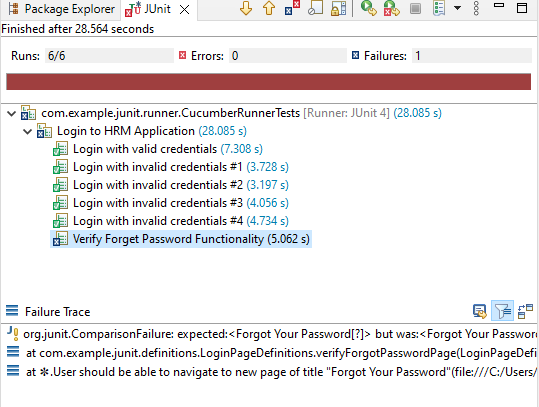
Below is the screenshot of the Console.
Step 11: View ExtentReport
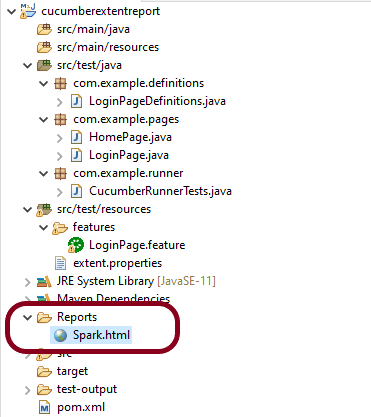
Refresh the project and will see a new folder – Report. The ExtentReport will be present in that folder with the name Spark.html.
Right-click on Spark.html and select open with Web Browser.
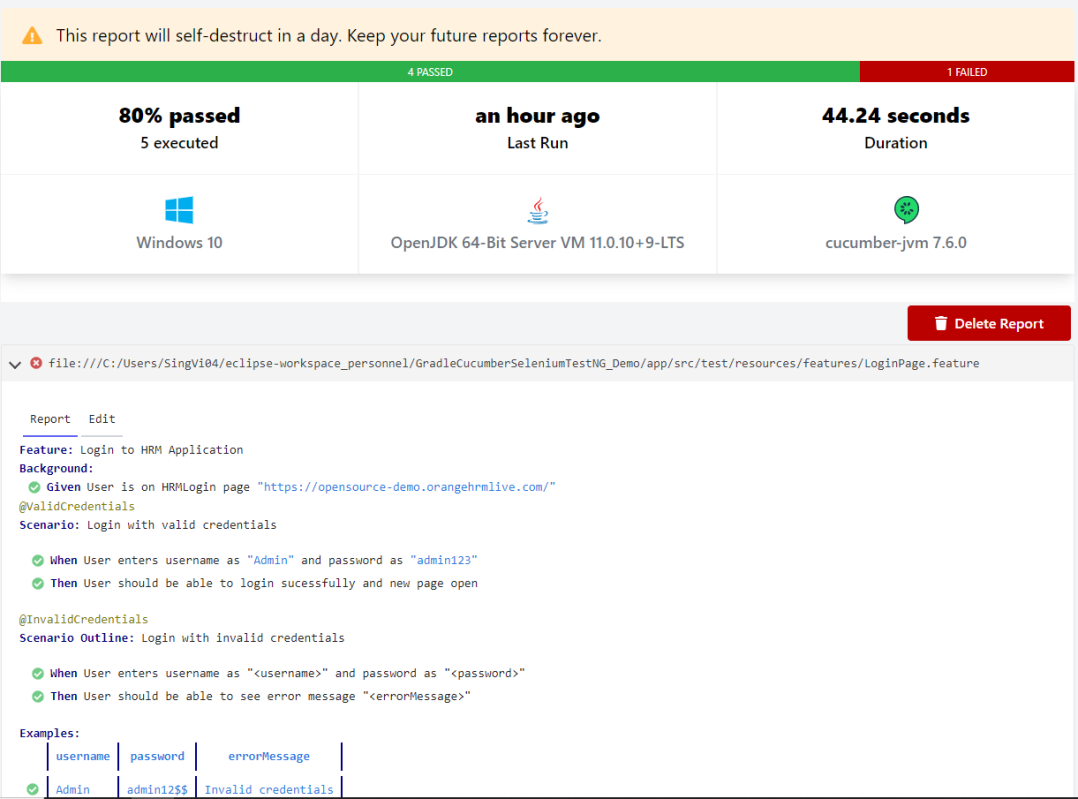
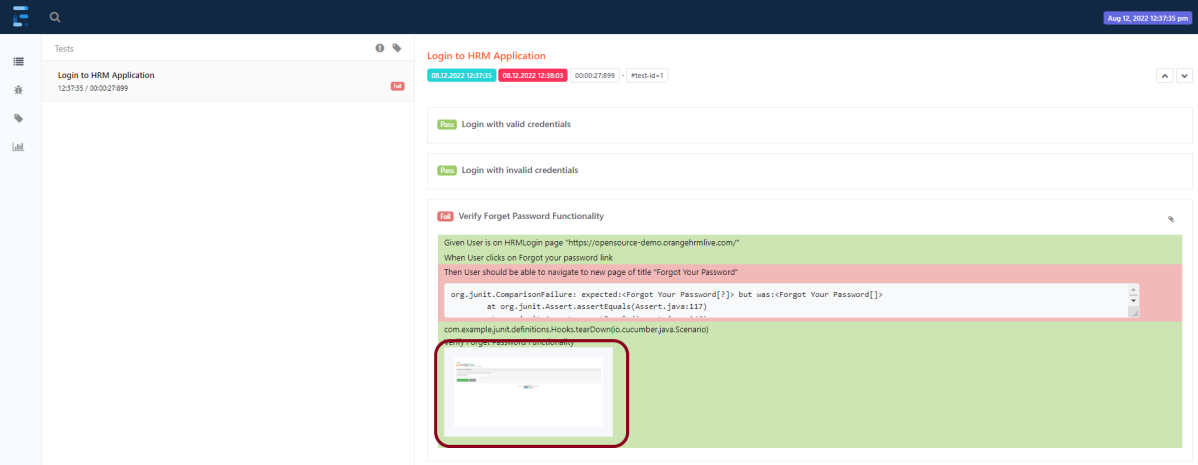
The report also has a summary section that displays the summary of the execution. The summary includes the overview of the pass/fail using a pictogram, start time, end time, and pass/fail details of features as shown in the image below.
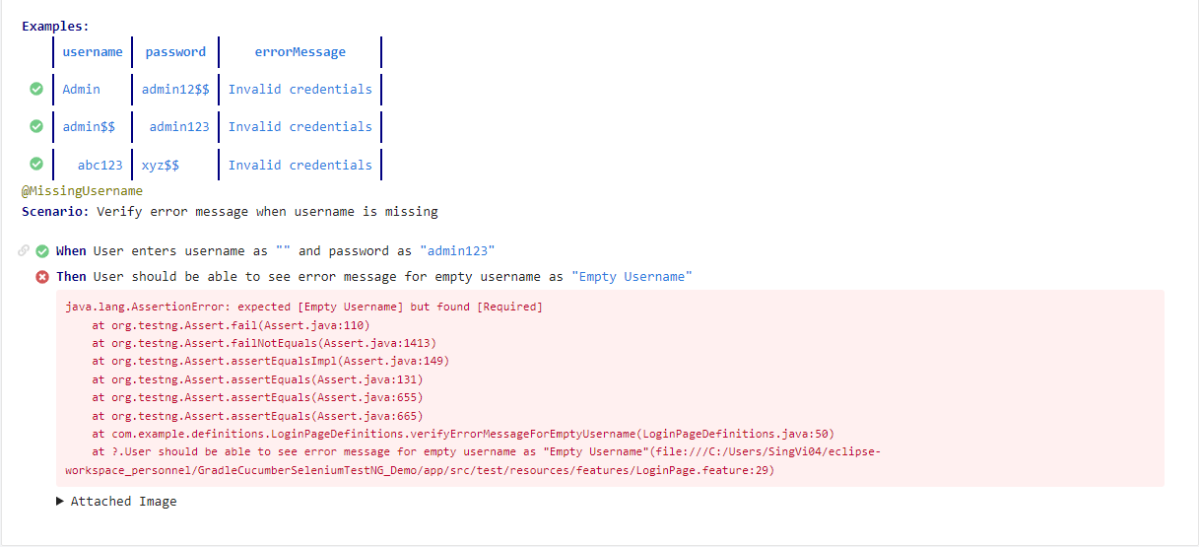
Click on the first icon present on the left side of the report. To view the details about the steps, click on the scenarios. Clicking on the scenario will expand, showing off the details of the steps of each scenario. As we can see that a screenshot is attached to the failed tests here.
Congratulation!! We are able to create an Extent Report for Cucumber and JUnit4. Happy Learning!!!
ExtentReport is a logger-style reporting library for automated tests. ExtentReports uses the logging style to add information about test sessions, such as the creation of tests, adding screenshots, assigning tags, and adding events or series of steps to sequentially indicate the flow of test steps. ExtentReports 5 is built on an open-Core. That means, both community and professional editions use the same, full-featured API with the exception of a few reporters.
Extent Report 4 onwards, there are 2 editions of Extent Report – Core and Professional.
Below is the screenshot that shows which reporters are available in Professional or Community Editions. You can also visit this page.
This tutorial explains the use of Extent Report Core Edition.
Step 2: Create a feature file in src/test/resources
Below is a sample feature file. I have also added a failed scenario in @FaceBookLink.
Feature: Login to HRM Application
@ValidCredentials
Scenario: Login with valid credentials
Given User is on HRMLogin page "https://opensource-demo.orangehrmlive.com/"
When User enters username as "Admin" and password as "admin123"
Then User should be able to login sucessfully and new page open
@InvalidCredentials
Scenario Outline: Login with invalid credentials
Given User is on HRMLogin page "https://opensource-demo.orangehrmlive.com/"
When User enters username as "<username>" and password as "<password>"
Then User should be able to see error message "<errorMessage>"
Examples:
| username | password | errorMessage |
| | abc | Username cannot be empty |
| admin | | Password cannot be empty |
| | | Username cannot be empty |
| Admin | admin12$$ | Invalid credentials |
| admin$$ | admin123 | Invalid credentials |
@FaceBookLink
Scenario: Verify FaceBook Icon on Login Page
Given User is on HRMLogin page "https://opensource-demo.orangehrmlive.com/"
Then User should be able to see FaceBook Icon
@LinkedInLink
Scenario: Verify LinkedIn Icon on Login Page
Given User is on HRMLogin page "https://opensource-demo.orangehrmlive.com/"
Then User should be able to see LinkedIn Icon
Step 3: Create extent.properties file in src/test/resources
We need to create the extent.properties file at the src/test/resources folder for the grasshopper extent report adapter to recognize it. Using a property file for reporting is quite helpful if you want to define several different properties.
Let’s enable spark report in an extent properties file:
We have used Page Object Model with Cucumber and TestNG.
Create a Helperclass where we are initializing the web driver, initializing the web driver wait, defining the timeouts, and creating a private constructor of the class, within it will declare the web driver, so whenever we create an object of this class, a new web browser is invoked. We are using a setter and getter method to get the object of Chromedriver with the help of a private constructor itself within the same class.
HelperClass
import java.time.Duration;
import org.openqa.selenium.WebDriver;
import org.openqa.selenium.chrome.ChromeDriver;
import org.openqa.selenium.support.ui.WebDriverWait;
import io.github.bonigarcia.wdm.WebDriverManager;
public class HelperClass {
private static HelperClass helperClass;
private static WebDriver driver;
private static WebDriverWait wait;
public final static int TIMEOUT = 10;
private HelperClass() {
WebDriverManager.chromedriver().setup();
driver = new ChromeDriver();
wait = new WebDriverWait(driver, Duration.ofSeconds(TIMEOUT));
driver.manage().timeouts().implicitlyWait(Duration.ofSeconds(TIMEOUT));
driver.manage().window().maximize();
}
public static void openPage(String url) {
driver.get(url);
}
public static WebDriver getDriver() {
return driver;
}
public static void setUpDriver() {
if (helperClass==null) {
helperClass = new HelperClass();
}
}
public static void tearDown() {
if(driver!=null) {
driver.close();
driver.quit();
}
helperClass = null;
}
}
Step 5: Create Locator classes in src/main/java
Create a locator class for each page that contains the detail of the locators of all the web elements. Here, I’m creating 2 locator classes – LoginPageLocators and HomePageLocators.
LoginPageLocators
import org.openqa.selenium.WebElement;
import org.openqa.selenium.support.FindBy;
public class LoginPageLocators {
@FindBy(name = "txtUsername")
public WebElement userName;
@FindBy(name = "txtPassword")
public WebElement password;
@FindBy(id = "logInPanelHeading")
public WebElement titleText;
@FindBy(id = "btnLogin")
public WebElement login;
@FindBy(id = "spanMessage")
public WebElement errorMessage;
@FindBy(xpath = "//*[@id='social-icons']/a[1]/img")
public WebElement linkedInIcon;
@FindBy(xpath = "//*[@id='social-icons']/a[6]/img") //Invalid Xpath
public WebElement faceBookIcon;
}
HomePageLocators
import org.openqa.selenium.WebElement;
import org.openqa.selenium.support.FindBy;
public class HomePageLocators {
@FindBy(id = "welcome")
public WebElement homePageUserName;
}
Step 6: Create Action classes in src/main/java
Create the action classes for each web page. These action classes contain all the methods needed by the step definitions. In this case, I have created 2 action classes – LoginPageActions and HomePageActions
LoginPageActions
In this class, the very first thing will do is to create the object of LoginPageLocators class so that we should be able to access all the PageFactory elements. Secondly, create a public constructor of LoginPageActions class
import org.openqa.selenium.support.PageFactory;
import com.example.locators.LoginPageLocators;
import com.example.utils.HelperClass;
public class LoginPageActions {
LoginPageLocators loginPageLocators = null;
public LoginPageActions() {
this.loginPageLocators = new LoginPageLocators();
PageFactory.initElements(HelperClass.getDriver(),loginPageLocators);
}
// Set user name in textbox
public void setUserName(String strUserName) {
loginPageLocators.userName.sendKeys(strUserName);
}
// Set password in password textbox
public void setPassword(String strPassword) {
loginPageLocators.password.sendKeys(strPassword);
}
// Click on login button
public void clickLogin() {
loginPageLocators.login.click();
}
// Get the title of Login Page
public String getLoginTitle() {
return loginPageLocators.titleText.getText();
}
// Get the title of Login Page
public String getErrorMessage() {
return loginPageLocators.errorMessage.getText();
}
// LinkedIn Icon is displayed
public Boolean getLinkedInIcon() {
return loginPageLocators.linkedInIcon.isDisplayed();
}
// FaceBook Icon is displayed
public Boolean getFaceBookIcon() {
return loginPageLocators.faceBookIcon.isDisplayed();
}
public void login(String strUserName, String strPassword) {
// Fill user name
this.setUserName(strUserName);
// Fill password
this.setPassword(strPassword);
// Click Login button
this.clickLogin();
}
}
HomePageActions
import org.openqa.selenium.support.PageFactory;
import com.example.locators.HomePageLocators;
import com.example.utils.HelperClass;
public class HomePageActions {
HomePageLocators homePageLocators = null;
public HomePageActions() {
this.homePageLocators = new HomePageLocators();
PageFactory.initElements(HelperClass.getDriver(),homePageLocators);
}
// Get the User name from Home Page
public String getHomePageText() {
return homePageLocators.homePageUserName.getText();
}
}
Step 7: Create a Step Definition file in src/test/java
Create the corresponding Step Definition file of the feature file.
LoginPageDefinitions
import org.testng.Assert;
import com.example.actions.HomePageActions;
import com.example.actions.LoginPageActions;
import com.example.utils.HelperClass;
import io.cucumber.java.en.Given;
import io.cucumber.java.en.Then;
import io.cucumber.java.en.When;
public class LoginPageDefinitions{
LoginPageActions objLogin = new LoginPageActions();
HomePageActions objHomePage = new HomePageActions();
@Given("User is on HRMLogin page {string}")
public void loginTest(String url) {
HelperClass.openPage(url);
}
@When("User enters username as {string} and password as {string}")
public void goToHomePage(String userName, String passWord) {
// login to application
objLogin.login(userName, passWord);
// go the next page
}
@Then("User should be able to login sucessfully and new page open")
public void verifyLogin() {
// Verify home page
Assert.assertTrue(objHomePage.getHomePageText().contains("Welcome"));
}
@Then("User should be able to see error message {string}")
public void verifyErrorMessage(String expectedErrorMessage) {
// Verify home page
Assert.assertEquals(objLogin.getErrorMessage(),expectedErrorMessage);
}
@Then("User should be able to see LinkedIn Icon")
public void verifyLinkedInIcon( ) {
Assert.assertTrue(objLogin.getLinkedInIcon());
}
@Then("User should be able to see FaceBook Icon")
public void verifyFaceBookIcon( ) {
Assert.assertTrue(objLogin.getFaceBookIcon());
}
}
Step 8: Create Hook class in src/test/java
Create thehookclass that contains the Before and After hook. @Before hook contains the method to call the setup driver which will initialize the chrome driver. This will be run before any test.
After Hook – Here will call the tearDown method.
import com.example.utils.HelperClass;
import io.cucumber.java.After;
import io.cucumber.java.Before;
public class Hooks {
@Before
public static void setUp() {
HelperClass.setUpDriver();
}
@After
public static void tearDown() {
HelperClass.tearDown();
}
}
Step 9: Create a Cucumber Test Runner class in src/test/java
Add the extent report cucumber adapter to the runner class’s CucumberOption annotation. It is an important component of the configuration. It also ensures that the cucumber runner class recognizes and launches the extent report adapter for cucumber. Please add the following text as a plugin to the CucumberOptions as described below.
This is how your runner class should look after being added to our project. Moreover, be sure to keep the colon “:” at the end.
import io.cucumber.testng.AbstractTestNGCucumberTests;
import io.cucumber.testng.CucumberOptions;
@CucumberOptions(tags = "", features = "src/test/resources/features/LoginPage.feature", glue = "com.example.definitions",
plugin = {"com.aventstack.extentreports.cucumber.adapter.ExtentCucumberAdapter:"})
public class CucumberRunnerTests extends AbstractTestNGCucumberTests {
}
Step 10: Create the testng.xml for the project
Right-click on the project and select TestNG -> convert to TestNG.
<?xml version="1.0" encoding="UTF-8"?>
<!DOCTYPE suite SYSTEM "https://testng.org/testng-1.0.dtd">
<suite name="Suite">
<test name="ExtentReport5 for Cucumber">
<classes>
<class name = "com.example.runner.CucumberRunnerTests"/>
</classes>
</test> <!-- Test -->
</suite> <!-- Suite -->
Step 11: Execute the code
Right-Click on the Runner class and select Run As -> TestNG Test.
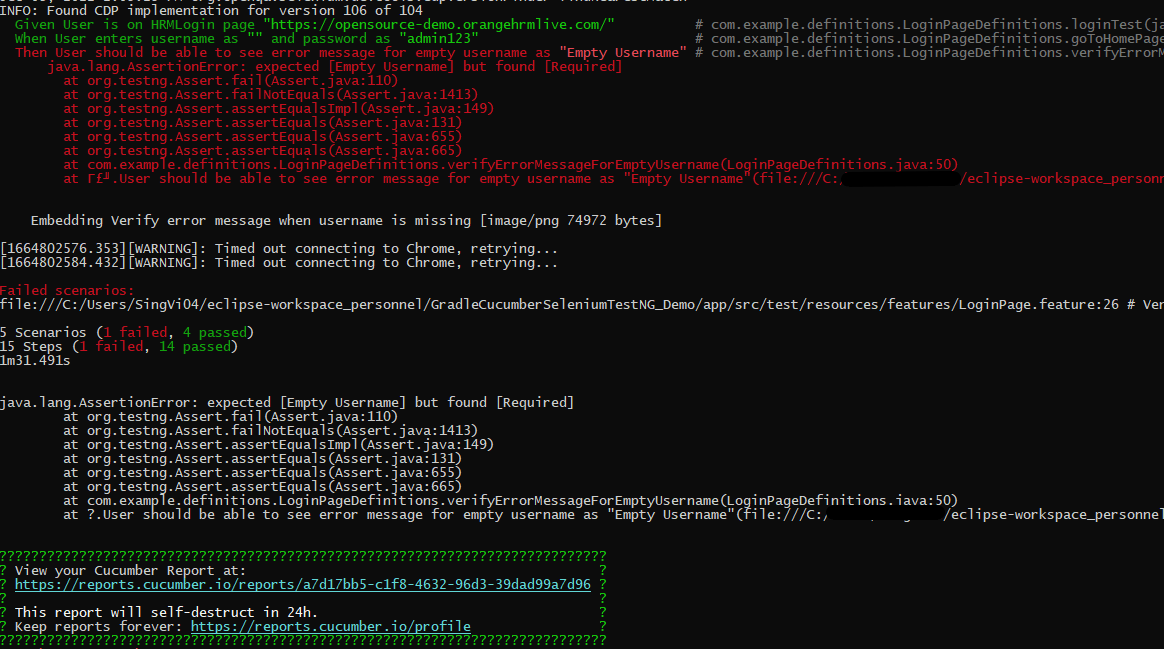
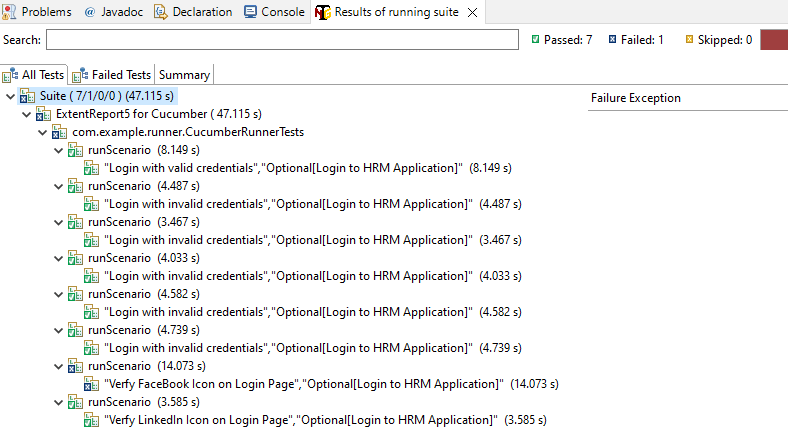
Below is the screenshot of Console. As expected, 7 tests, out of 8 are passed and 1 is failed.
Step 12: View the ExtentReport
Refresh the project and will see a new folder – Report. The ExtentReport will be present in that folder with the name Spark.html.
Right-click and open with Web Browser.
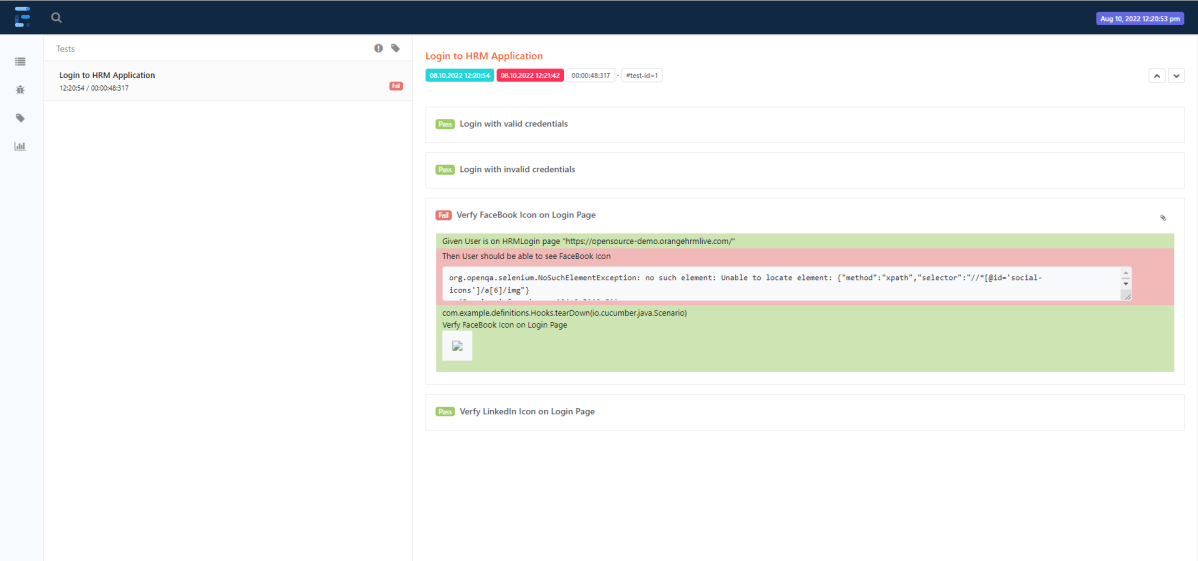
The report also has a summary section that displays the summary of the execution. The summary includes the overview of the pass/fail using a pictogram, start time, end time, and pass/fail details of features as shown in the image below.
Click on the first icon present on the left side of the report. To view the details about the steps, click on the scenarios. Clicking on the scenario will expand, showing off the details of the steps of each scenario.
Step 13: How to customize the report folder name
We learned how to generate an ExtentReport in Cucumber Junit in the previous section. The problem with the previous approach is that it will continue to override the previous report once the new report is created. Typically, we must keep a backup of all the reports generated by previous tests. To accomplish this, we must save each report with a unique report name or folder name.
It’s simple to create reports with different folder names using the Extent reporter plugin adapter. Two settings must be added to our extent. basefolder.name and basefolder.datetimepattern are properties files. The values assigned to these will be combined to form a folder name. As a result, a report will be generated within that. The basefolder.datetimepattern value must be in a valid date-time format.
The value for basefolder.name in the preceding snippet is “Report/SparkReport.” It means that the folder will be named SparkReport, and that it will create a Report folder within the project directory. You can specify the location of your folder. In the following setting, we’ve used a date and time stamp to create unique folder names by concatenating them with the report name.
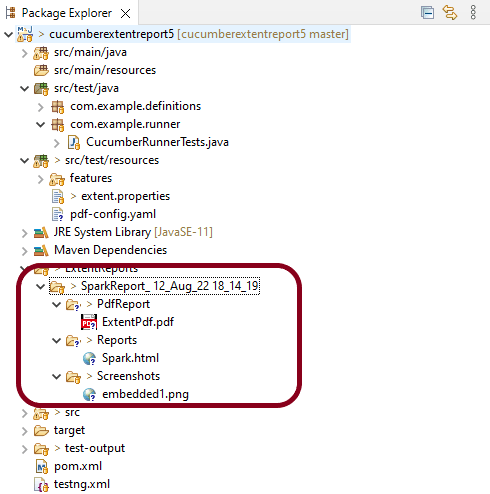
So, when we run the report, it will generate at the location shown in the image below:
Congratulation!! We are able to create an Extent Report for Cucumber. Happy Learning!!!
ExtentReports is a logger-style reporting library for automated tests. ExtentReports is a library that can be used to build a customized detailed report. It can be integrated with TestNG, JUnit, etc. This report can be built in JAVA, .NET and it provides a detailed summary of each test case and each test step too in a graphical manner. Extent reports produce HTML-based documents that offer several advantages like pie charts, graphs, screenshots addition, and test summary. ExtentReports 4 is built on an open-Core.
In this class, we created a createInstance()method. Also, you need to set your ExtentReports report HTML file location.
import java.io.File;
import java.io.IOException;
import java.util.Date;
import org.apache.commons.io.FileUtils;
import org.openqa.selenium.TakesScreenshot;
import com.aventstack.extentreports.ExtentReports;
import com.aventstack.extentreports.reporter.ExtentHtmlReporter;
import com.aventstack.extentreports.reporter.configuration.Theme;
import com.example.testcases.BaseTests;
import org.openqa.selenium.OutputType;
public class ExtentManager extends BaseTests{
private static ExtentReports extent;
public static String screenshotName;
public static ExtentReports createInstance(String fileName) {
ExtentHtmlReporter htmlReporter = new ExtentHtmlReporter(fileName);
htmlReporter.config().setTheme(Theme.DARK);
htmlReporter.config().setDocumentTitle(fileName);
htmlReporter.config().setEncoding("utf-8");
htmlReporter.config().setReportName(fileName);
extent = new ExtentReports();
extent.attachReporter(htmlReporter);
extent.setSystemInfo("Release No", "22");
extent.setSystemInfo("Environment", "QA");
extent.setSystemInfo("Build no", "B-12673");
return extent;
}
public static void captureScreenshot() {
TakesScreenshot screenshot = (TakesScreenshot)driver;
// Call method to capture screenshot
File src = screenshot.getScreenshotAs(OutputType.FILE);
try
{
Date d = new Date();
screenshotName = d.toString().replace(":", "_").replace(" ", "_") + ".jpg";
FileUtils.copyFile(src,new File(System.getProperty("user.dir") + "\\reports\\" + screenshotName));
System.out.println("Successfully captured a screenshot");
} catch (IOException e) {
System.out.println("Exception while taking screenshot " + e.getMessage());
}
}
}
The ExtentHtmlReporter is used for creating an HTML file, and it accepts a file path as a parameter.
ExtentHtmlReporter htmlReporter = new ExtentHtmlReporter(fileName);
The file path represents the path in which our extent report would be generated. This is defined in ExtentListeners class.
static Date d = new Date();
static String fileName = "ExtentReport_" + d.toString().replace(":", "_").replace(" ", "_") + ".html";
private static ExtentReports extent = ExtentManager.createInstance(System.getProperty("user.dir")+"\\reports\\"+fileName);
ExtentHtmlReporter is also used to customize the extent reports. It allows many configurations to be made through the config() method. Some of the configurations that can be made are described below.
We have two themes – STANDARD and DARK for customizing the look and feel of our extent reports.
htmlReporter.config().setTheme(Theme.DARK);
STANDARD Look
htmlReporter.config().setTheme(Theme.STANDARD);
captureScreenshot() is a method in ExtentTest class that attaches the captured screenshot in the Extent Report. It takes the image path where the screenshot has been captured as the parameter and attaches the screenshot to the Extent Report in Selenium.
public static void captureScreenshot() {
TakesScreenshot screenshot = (TakesScreenshot)driver;
// Call method to capture screenshot
File src = screenshot.getScreenshotAs(OutputType.FILE);
try
{
Date d = new Date();
screenshotName = d.toString().replace(":", "_").replace(" ", "_") + ".jpg";
FileUtils.copyFile(src,new File(System.getProperty("user.dir") + "\\reports\\" + screenshotName));
System.out.println("Successfully captured a screenshot");
} catch (IOException e) {
System.out.println("Exception while taking screenshot " + e.getMessage());
}
}
3. Create ExtentListeners class
This class contains the action done by extent report on each step. In our tests, we implement ITestListener and use its methods. TestNG provides the @Listeners annotation, which listens to every event that occurs in a Selenium code. TestNG Listeners are activated either before the test or after the test case. It is an interface that modifies the TestNG behavior. If any event matches an event for which we want the listener to listen then it executes the code, which ultimately results in modifying the default behavior of TestNG. To know more about ITestListener, please refer to this tutorial.
I have defined actions for onTestStart(), onTestSuccess(), onTestFailure(), onTestSkipped() and onFinish() methods.
The ITestListener is an interface that has unimplemented methods by default and we can add lines of code within each method. So whenever a specific event occurs, the code written within that method will be executed.
onTestFailure() is a method in which this listener will be invoked whenever the test fails. Within this method, we shall add our code to capture screenshots whenever the test case fails on execution. The screenshot of the failed test case is also embedded in the report.
onTestSuccess() is a method that is invoked once the test execution is complete and the test has been passed. We shall add the log included in the Extent Report to mark the test case as passed within this method
This class contains the methods to initialize the browser and exit the browser after every test.
import java.time.Duration;
import org.openqa.selenium.WebDriver;
import org.openqa.selenium.support.ui.WebDriverWait;
import org.testng.annotations.AfterTest;
import org.testng.annotations.BeforeTest;
import io.github.bonigarcia.wdm.WebDriverManager;
public class BaseTests {
public static WebDriver driver;
public WebDriverWait wait;
@BeforeTest
public void setup() throws Exception {
driver = WebDriverManager.firefoxdriver().create();
driver.get("https://opensource-demo.orangehrmlive.com/");
wait = new WebDriverWait(driver, Duration.ofSeconds(10));
driver.manage().window().maximize();
}
@AfterTest
public void closeBrowser() {
driver.close();
}
5. Create the LoginPage class
This class contains the locator of all the web elements and methods needed for the testing of the page.
package com.example.testcases;
import org.openqa.selenium.WebDriver;
import org.openqa.selenium.WebElement;
import org.openqa.selenium.support.FindBy;
import org.openqa.selenium.support.PageFactory;
public class LoginPage extends BaseTests{
WebDriver driver;
@FindBy(name = "txtUsername")
WebElement userName;
@FindBy(name = "txtPassword")
WebElement password;
@FindBy(id = "logInPanelHeading")
WebElement titleText;
@FindBy(id = "btnLogin")
WebElement login;
@FindBy(id="spanMessage")
WebElement errorMessage;
@FindBy(id="forgotPasswordLink")
WebElement forgetPasswordLink;
@FindBy(xpath="//*[@id='social-icons']/a[1]/img")
WebElement linkedInIcon;
public LoginPage(WebDriver driver) {
this.driver = driver;
// This initElements method will create all WebElements
PageFactory.initElements(driver, this);
}
// Set user name in textbox
public void setUserName(String strUserName) {
userName.sendKeys(strUserName);
}
// Set password in password textbox
public void setPassword(String strPassword) {
password.sendKeys(strPassword);
}
// Click on login button
public void clickLogin() {
login.click();
}
// Get the title of Login Page
public String getLoginTitle() {
return titleText.getText();
}
// Get the text of forgotPasswordLink
public String getforgotPasswordLinkText() {
return forgetPasswordLink.getText();
}
// Get the errorMessage
public String getErrorMessage() {
return errorMessage.getText();
}
// Verify linkedInIcon is enabled
public Boolean isEnabledLinkedIn() {
return linkedInIcon.isEnabled();
}
public void login(String strUserName, String strPasword) {
// Fill user name
this.setUserName(strUserName);
// Fill password
this.setPassword(strPasword);
// Click Login button
this.clickLogin();
}
}
6. Create the LoginTests class
This class contains all the tests. As we are using, I have assigned priority to all the tests to run the tests in a specified order.
import static org.testng.Assert.assertTrue;
import org.testng.Assert;
import org.testng.SkipException;
import org.testng.annotations.Test;
public class LoginTests extends BaseTests{
LoginPage objLogin;
@Test(priority = 0)
public void verifyLoginPageTitle() {
// Create Login Page object
objLogin = new LoginPage(driver);
// Verify login page text
String loginPageTitle = objLogin.getLoginTitle();
Assert.assertTrue(loginPageTitle.contains("LOGIN Panel"));
}
@Test(priority = 1)
public void verifyforgetPasswordLink() {
String expectedText= objLogin.getforgotPasswordLinkText();
Assert.assertTrue(expectedText.contains("Forgot your password?"));
}
@Test(priority = 2)
public void HomeTest() {
// login to application
objLogin.login("Admin1", "admin1234");
String expectedError = objLogin.getErrorMessage();
// Verify home page
Assert.assertTrue(expectedError.contains("Username cannot be empty"));
}
@Test(priority = 3)
public void verifyLinkedIn() {
System.out.println("Actual linkedIn Text :" + objLogin.isEnabledLinkedIn());
assertTrue(objLogin.isEnabledLinkedIn());
System.out.println("Im in skip exception");
throw new SkipException("Skipping this exception");
}
}
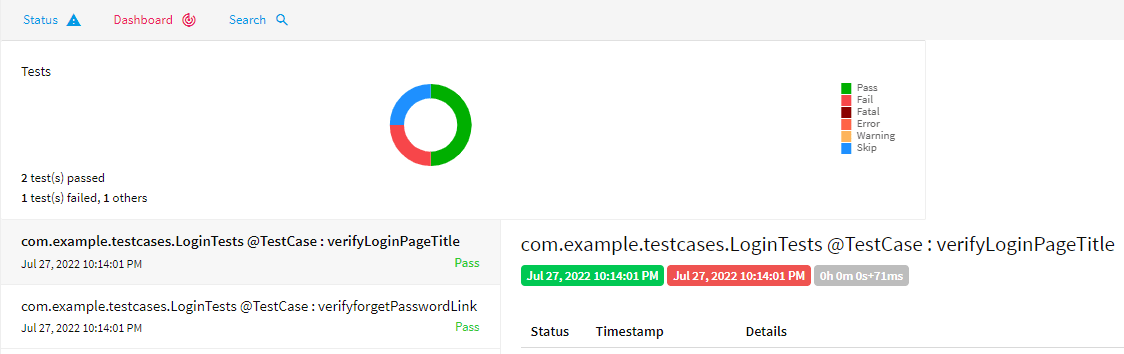
In this example, there are 4 tests, and out of 4, 2 should pass, 1 should fail and 1 should skip.
7. Create TestNG.xml
In the TestNG.xml file, we shall add our classes and also the listener class.
<?xml version="1.0" encoding="UTF-8"?>
<!DOCTYPE suite SYSTEM "https://testng.org/testng-1.0.dtd">
<suite name="Extent Report Demo">
<listeners>
<listener class-name ="com.example.extentlisteners.ExtentListeners"/>
</listeners>
<test name="Login Tests">
<classes>
<class name="com.example.testcases.LoginTests"/>
</classes>
</test> <!-- Test -->
</suite> <!-- Suite -->
8. Execute the tests from testng.xml
Right-click on testng.xml and select Run As -> TestNG Suite.
9 Test Execution Result
The test execution result can be seen in the console.
10. Extent Report Generation
Refresh the project and will see a folder with the name of the reports present in the project.
Right-click the report and open it in your choice of browser.
Upon opening the Extent Report, you can see the summary of the tests executed.
This is the view of the dashboard in the Extent Report. This page provides a complete view of the total number of tests executed, passed tests, failed tests, the total time taken for executing the tests, and also the classification of the tests based on the category.
Extent reports produce simple and visually appealing reports. Furthermore, the HTML-based report is simple to share with other stakeholders. Extent Reports provide greater detail, allowing testers to be more effective when it comes to quickly debugging software.
Congratulations!! We are able to generate an ExtentReport. Happy Learning!!
TestNG is a well thought Test Framework. It provides a lot of different features which makes the life of a tester a little easy. It happens sometimes that a test execution fails, but the failure is not a product bug, but there can be different reasons for the failure such as the environment is down, third party web service is down, or the browser becomes unresponsive. Imagine a scenario where we need to run a test suite consisting of 100 tests and a few tests failed as a result of a known intermittent environment issue. We know that these tests can pass if rerun a couple of times. So, in this case, the retry functionality of TestNG comes to the rescue. This is one of the best and most frequently used functionality.
In this tutorial let us study how we can implement retry on failed tests in TestNG. In order to achieve this, we have to first understand the org.testng.IRetryAnalyzer interface.
To start with, please add the below dependencies to the Maven Project.
IRetryAnalyzer – It is an interface to implement to be able to have a chance to retry a failed test. The definition of this interface is
public interface IRetryAnalyzer {
/**
* Returns true if the test method has to be retried, false otherwise.
*
* @param result The result of the test method that just ran.
* @return true if the test method has to be retried, false otherwise.
*/
boolean retry(ITestResult result);
}
This method implementation returns true if you want to re-execute your failed test and false if you don’t want to re-execute your test.
When you bind a retry analyzer to a test, TestNG automatically invokes the retry analyzer to determine if TestNG can retry a test case again in an attempt to see if the test that just fails now passes. Here is how you use a retry analyzer:
Bind this implementation to the @Test annotation for e.g., @Test(retryAnalyzer = Retry.class)
Build an implementation of the interface org.testng.IRetryAnalyzer
1. Add IRetryAnalyzer to the @TestAnnotation
First of all, you need to create a class that implements the IRetryAnalyzer like the below example:
import org.testng.IRetryAnalyzer;
import org.testng.ITestResult;
public class Retry implements IRetryAnalyzer {
int retryCount = 0;
int maxRetryCount = 2;
public boolean retry(ITestResult result) {
if(!result.isSuccess()) { //Check if test is failed
if(retryCount<maxRetryCount) { //Check if the maximum number of test execution is reached
System.out.println("Retrying Test : Re-running " + result.getName() +
" for " + (retryCount+1) + " time(s)."); //Print the number of Retry attempts
retryCount++; //Increase the maxRetryCount by 1
result.setStatus(ITestResult.FAILURE); //Mark test as failed
return true; //Rerun the failed test
} else {
result.setStatus(ITestResult.FAILURE); //TestNG marks last run as failed, if last run is max retry
}
}else {
result.setStatus(ITestResult.SUCCESS); //TestNG parks test as passed when the test test passes
}
return false;
}
}
This example shows that failed test case will run 3 times till it passes. In case it fails the third time, test execution will stop and TestNG will mark this case as failed. We can change the number of tries by changing the value of maxRetryCount.
Using retryAnalyzer attribute in the @Test annotation
The next step is to associate your test cases with IRetryAnalyzer. In order to do this, you need to use the method below.
@Test(retryAnalyzer = Retry.class)
public void verifyLoginPage() {
}
Let us see the complete implementation with the help of the below example.
In the above example, test – verifyLoginPage() will be retried a maximum of 3 times, if the test fails. To run the tests, Right-click on the class and select Run As ->TestNG Suite.
The output of the above program is
2. Implement Interface ITestAnnotationTransformer to retry failed tests
In this case, you would need to implement ITestAnnotationTransformer interface. The implementation of this interface is
public interface IAnnotationTransformer extends ITestNGListener {
/**
* This method will be invoked by TestNG to give you a chance to modify a TestNG annotation read
* from your test classes. You can change the values you need by calling any of the setters on the
* ITest interface.
*
* <p>Note that only one of the three parameters testClass, testConstructor and testMethod will be
* non-null.
*
* @param annotation The annotation that was read from your test class.
* @param testClass If the annotation was found on a class, this parameter represents this class
* (null otherwise).
* @param testConstructor If the annotation was found on a constructor, this parameter represents
* this constructor (null otherwise).
* @param testMethod If the annotation was found on a method, this parameter represents this
* method (null otherwise).
*/
default void transform(
ITestAnnotation annotation, Class testClass, Constructor testConstructor, Method testMethod) {
// not implemented
}
The transform method is called for every test during the test run. We can use this listener for our retry analyzer as shown below:
import java.lang.reflect.Constructor;
import java.lang.reflect.Method;
import org.testng.IAnnotationTransformer;
import org.testng.annotations.ITestAnnotation;
public class RetryListener implements IAnnotationTransformer{
public void transform(ITestAnnotation arg0, Class arg1, Constructor arg2,Method arg3) {
arg0.setRetryAnalyzer(Retry.class);
}
}
Now let us create a class that contains all the tests.
import java.util.concurrent.TimeUnit;
import org.openqa.selenium.By;
import org.openqa.selenium.WebDriver;
import org.openqa.selenium.chrome.ChromeDriver;
import org.openqa.selenium.chrome.ChromeOptions;
import org.testng.Assert;
import org.testng.annotations.AfterTest;
import org.testng.annotations.BeforeTest;
import org.testng.annotations.Test;
import io.github.bonigarcia.wdm.WebDriverManager;
public class RetryTests {
WebDriver driver;
@BeforeTest
public void setUp() {
WebDriverManager.chromedriver().setup();
ChromeOptions chromeOptions = new ChromeOptions();
driver = new ChromeDriver(chromeOptions);
driver.get("https://opensource-demo.orangehrmlive.com/");
driver.manage().window().maximize();
driver.manage().timeouts().implicitlyWait(30, TimeUnit.SECONDS);
}
@Test(description = "This test validates title of login functionality")
public void verifyLoginPage() {
String expectedTitle = driver.findElement(By.xpath("//*[@id='logInPanelHeading']")).getText();
System.out.println("Title :" + expectedTitle);
Assert.assertTrue(expectedTitle.equalsIgnoreCase("LOGIN Panel !!"));
}
@Test(description = "This test validates successful login to Home page")
public void verifyHomePage() {
System.out.println("Username Entered");
driver.findElement(By.name("txtUsername")).sendKeys("Admin");
System.out.println("Password Entered");
driver.findElement(By.name("txtPassword")).sendKeys("admin123");
driver.findElement(By.id("btnLogin")).submit();
String newPageText = driver.findElement(By.id("welcome")).getText();
System.out.println("newPageText :" + newPageText);
Assert.assertTrue(newPageText.contains("Welcome"));
}
@AfterTest
public void teardown() {
driver.quit();
}
}
Once we have the implementation of IAnnotationTransformer, we just need to add it as a listener in the testng.xml. Like this:
<?xml version="1.0" encoding="UTF-8"?>
<!DOCTYPE suite SYSTEM "https://testng.org/testng-1.0.dtd">
<suite name="Suite">
<listeners>
<listener class-name="com.example.retrydemo.RetryListener"></listener>
</listeners>
<test name="Test">
<classes>
<class name="com.example.retrydemo.RetryTests"/>
</classes>
</test> <!-- Test -->
</suite> <!-- Suite -->
Now let us run the tests. Right-click on testng.xml and select Run As -> TestNG Suite.
The output of the above program is
This is pretty much it on this topic. Congratulations on making it through this tutorial and hope you found it useful! Happy Learning!! Cheers!!
In this tutorial, I am going to build an automation framework to test theSpringboot application with Cucumber, Rest Assured, and TestNG.
What is Springboot?
Spring Boot is an open-source micro-framework maintained by a company called Pivotal. It provides Java developers with a platform to get started with an auto-configurable production-grade Spring application. With it, developers can get started quickly without losing time on preparing and configuring their Spring application.
What is Cucumber?
Cucumber is a software tool that supports behavior-driven development (BDD). Cucumber can be defined as a testing framework, driven by plain English. It serves as documentation, automated tests, and development aid – all in one.
This framework consists of:
Springboot – 2.5.2
Cucumber – 7.3.4
Java 11
TestNG – 7.3.4
Maven – 3.8.1
RestAssured – 5.1.1
Steps to setup Cucumber Test Automation Framework for API Testing using Rest-Assured
Add SpringbootTest, Rest-Assured, JUnit, and Cucumber dependencies to the project
Create a source folder src/test/resources and create a feature file under src/test/resources
Create the Step Definition class or Glue Code for the Test Scenario under the src/test/java directory
Create a Cucumber Runner class under the src/test/java directory
Run the tests from Cucumber Test Runner
Run the tests from Command Line
Run the tests from TestNG
Generation of TestNG Reports
Cucumber Report Generation
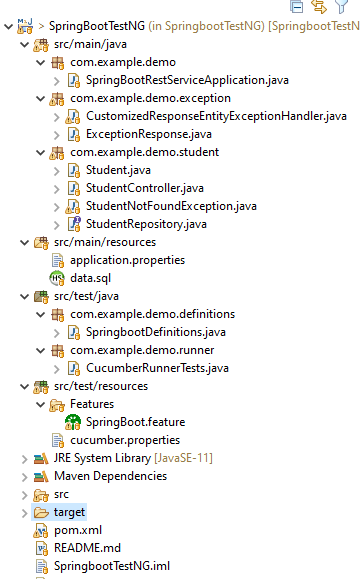
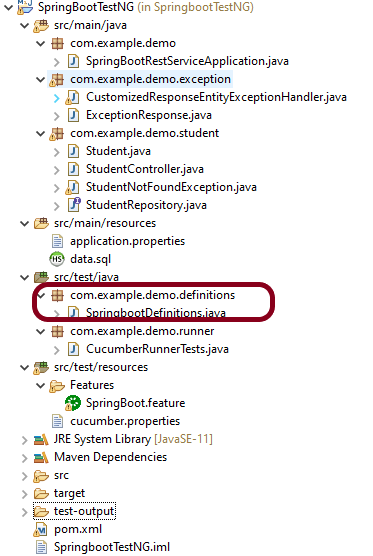
Below is the structure of a SpringBoot application project
We need the below files to create a SpringBoot Application.
SpringBootRestServiceApplication.java
The Spring Boot Application class is generated with Spring Initializer. This class acts as the launching point for the application.
import org.springframework.boot.SpringApplication;
import org.springframework.boot.autoconfigure.SpringBootApplication;
@SpringBootApplication
public class SpringBootRestServiceApplication {
public static void main(String[] args) {
SpringApplication.run(SpringBootRestServiceApplication.class, args);
}
}
Student.java
This is JPA Entity for Student class
import javax.persistence.Entity;
import javax.persistence.GeneratedValue;
import javax.persistence.Id;
import javax.validation.constraints.NotBlank;
import javax.validation.constraints.NotNull;
import javax.validation.constraints.Size;
@Entity
public class Student {
@Id
@GeneratedValue
private Long id;
@NotNull
@Size(min = 4, message = "Name should have atleast 4 characters")
private String name;
@NotBlank(message = "passportNumber is mandatory")
private String passportNumber;
public Student() {
super();
}
public Student(Long id, String name, String passportNumber) {
super();
this.id = id;
this.name = name;
this.passportNumber = passportNumber;
}
public Long getId() {
return id;
}
public void setId(Long id) {
this.id = id;
}
public String getName() {
return name;
}
public void setName(String name) {
this.name = name;
}
public String getPassportNumber() {
return passportNumber;
}
public void setPassportNumber(String passportNumber) {
this.passportNumber = passportNumber;
}
}
StudentRepository.java
This is JPA Repository for Student. This is created using Spring Data JpaRepository.
Spring Boot automatically loads the application.properties whenever it starts up. You can de-reference values from the property file in the java code through the environment.
spring.jpa.defer-datasource-initialization=true
data.sql
Data is loaded from data.sql into the Student table. Spring Boot would execute this script after the tables are created from the entities.
insert into student values(10001,'Annie', 'E1234567');
insert into student values(20001,'John', 'A1234568');
insert into student values(30001,'David','C1232268');
insert into student values(40001,'Amy','D213458');
Test Automation Framework Implementation
Step 1 – Add SpringbootTest, Cucumber, Rest-Assured, and TestNG dependencies to the project (Maven project)
Step 2 – Create a source folder src/test/resources and create a feature file under src/test/resources
By default, the Maven project has an src/test/java directory only. Create a new Source Folder under src/test with the name of resources. Create a folder name as Features within the src/test/resources directory.
Create a feature file to test the Springboot application. Below is a sample feature file.
Feature: Verify springboot application using Cucumber and TestNG
@ReceiveUserDetails
Scenario Outline: Send a valid Request to get user details
Given I send a request to the URL "/students" to get user details
Then The response will return status 200
And The response contains id <studentID> and names "<studentNames>" and passport_no "<studentPassportNo>"
Examples:
|studentID |studentNames |studentPassportNo|
|10001 |Annie |E1234567 |
|20001 |John |A1234568 |
|30001 |David |C1232268 |
|40001 |Amy |D213458 |
@CreateUser
Scenario: Send a valid Request to create a user
Given I send a request to the URL "/students" to create a user with name "Annie" and passportNo "E1234567"
Then The response will return status 201
And Resend the request to the URL "/students" and the response returned contains name "Annie" and passport_no "E1234567"
Step 3 – Create the Step Definition class or Glue Code for the Test Scenario under src/test/java
The corresponding step definition file of the above feature file is shown below.
import static io.restassured.RestAssured.given;
import static org.hamcrest.Matchers.containsString;
import static org.hamcrest.Matchers.equalTo;
import static org.hamcrest.Matchers.hasItem;
import org.json.JSONObject;
import org.springframework.boot.test.context.SpringBootTest;
import org.springframework.boot.web.server.LocalServerPort;
import io.cucumber.java.en.Given;
import io.cucumber.java.en.Then;
import io.cucumber.spring.CucumberContextConfiguration;
import io.restassured.RestAssured;
import io.restassured.http.ContentType;
import io.restassured.response.ValidatableResponse;
import io.restassured.specification.RequestSpecification;
@CucumberContextConfiguration
@SpringBootTest(webEnvironment = SpringBootTest.WebEnvironment.RANDOM_PORT)
public class SpringbootDefinitions {
private final static String BASE_URI = "http://localhost";
@LocalServerPort
private int port;
private ValidatableResponse validatableResponse, validatableResponse1;
private void configureRestAssured() {
RestAssured.baseURI = BASE_URI;
RestAssured.port = port;
}
protected RequestSpecification requestSpecification() {
configureRestAssured();
return given();
}
@Given("I send a request to the URL {string} to get user details")
public void getStudentDetails(String endpoint) throws Throwable {
validatableResponse = requestSpecification().contentType(ContentType.JSON).when().get(endpoint).then();
System.out.println("RESPONSE :" + validatableResponse.extract().asString());
}
@Given("I send a request to the URL {string} to create a user with name {string} and passportNo {string}")
public void createStudent(String endpoint, String studentName, String studentPassportNumber) throws Throwable {
JSONObject student = new JSONObject();
student.put("name", studentName);
student.put("passportNumber", studentPassportNumber);
validatableResponse = requestSpecification().contentType(ContentType.JSON).body(student.toString()).when()
.post(endpoint).then();
System.out.println("RESPONSE :" + validatableResponse.extract().asString());
}
@Then("The response will return status {int}")
public void verifyStatusCodeResponse(int status) {
validatableResponse.assertThat().statusCode(equalTo(status));
}
@Then("The response contains id {int} and names {string} and passport_no {string}")
public void verifyResponse(int id, String studentName, String passportNo) {
validatableResponse.assertThat().body("id", hasItem(id)).body(containsString(studentName))
.body(containsString(passportNo));
}
@Then("Resend the request to the URL {string} and the response returned contains name {string} and passport_no {string}")
public void verifyNewStudent(String endpoint, String studentName, String passportNo) {
validatableResponse1 = requestSpecification().contentType(ContentType.JSON).when().get(endpoint).then();
System.out.println("RESPONSE :" + validatableResponse1.extract().asString());
validatableResponse1.assertThat().body(containsString(studentName)).body(containsString(passportNo));
}
}
To make Cucumber aware of your test configuration you can annotate a configuration class on your glue path with @CucumberContextConfiguration and with one of the following annotations: @ContextConfiguration, @ContextHierarchy, or @BootstrapWith.It is imported from:
By default, @SpringBootTest does not start the webEnvironment to refine further how your tests run. It has several options: MOCK(default), RANDOM_PORT, DEFINED_PORT, NONE.
RANDOM_PORT loads a WebServerApplicationContext and provides a real web environment. The embedded server is started and listens on a random port. LocalServerPort is imported from the package:
Step 4 – Create a Cucumber TestNG Runner class under src/test/java
A runner will help us to run the feature file and acts as an interlink between the feature file and StepDefinition Class. The TestRunner should be created within the directory src/test/java.
import io.cucumber.testng.AbstractTestNGCucumberTests;
import io.cucumber.testng.CucumberOptions;
@CucumberOptions(features = {"src/test/resources/Features"}, glue = {"com.example.demo.definitions"})
public class CucumberRunnerTests extends AbstractTestNGCucumberTests {
}
The @CucumberOptions annotation is responsible for pointing to the right feature package, configuring the plugin for a better reporting of tests in the console output, and specifying the package where extra glue classes may be found. We use it to load configuration and classes that are shared between tests.
Step 5 – Run the tests from Cucumber Test Runner
You can execute the test script by right-clicking onTestRunner class -> Run As TestNG in Eclipse.
In case you are using IntelliJ, select “Run CucumberRunnerTests“.
SpringBootTest creates an application context containing all the objects we need for the Integration Testing It, starts the embedded server, creates a web environment, and then enables methods to do Integration testing.
Step 6 – Run the tests from Command Line
Use the below command to run the tests through the command line.
mvn clean test
Step 7 – Run the tests from TestNG
Create a testng.xml in the project as shown below:
<?xml version="1.0" encoding="UTF-8"?>
<!DOCTYPE suite SYSTEM "https://testng.org/testng-1.0.dtd">
<suite name = "Suite1">
<test name = "SpringBoot Cucumber TestNG Demo">
<classes>
<class name = "com.example.demo.runner.CucumberRunnerTests"/>
</classes>
</test>
</suite>
Step 8 – Generation of TestNG Reports
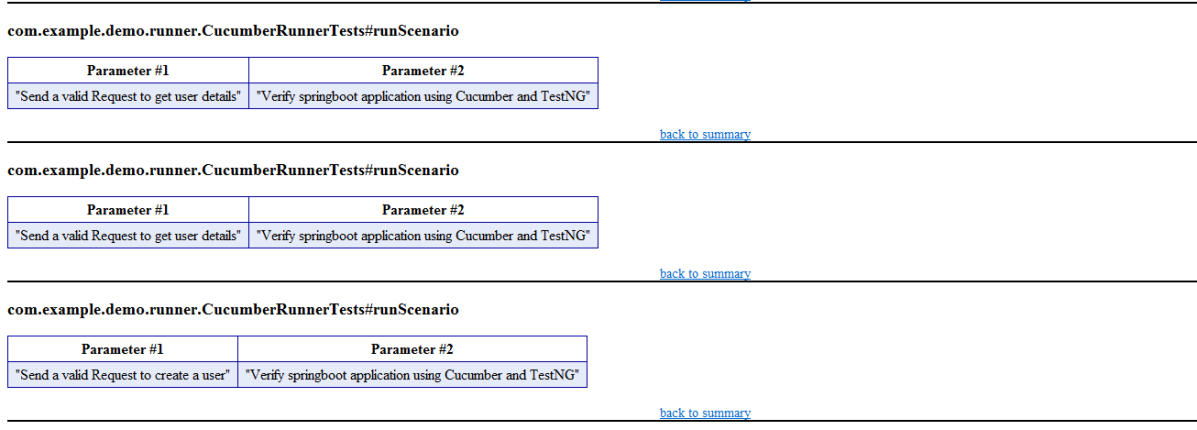
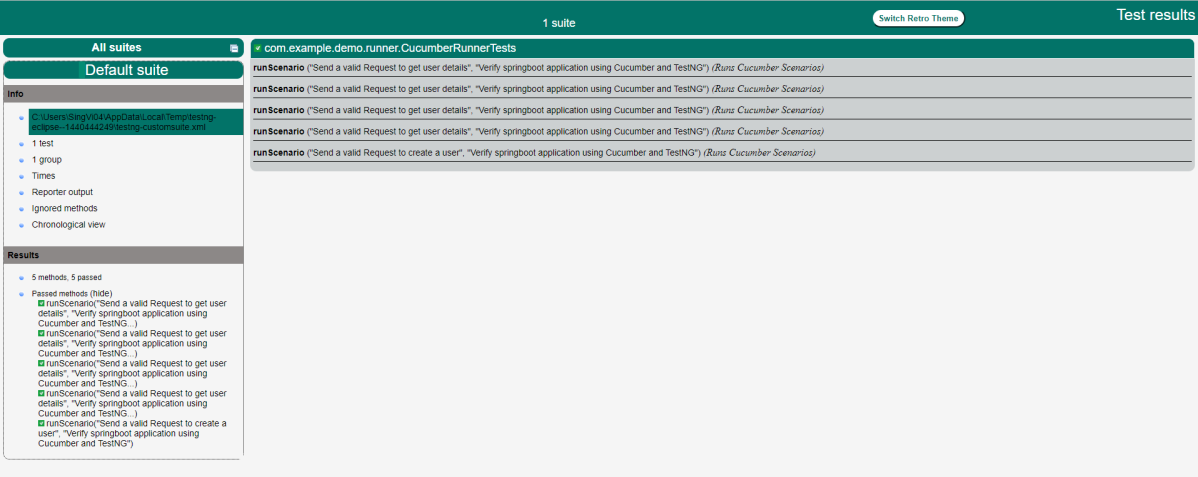
TestNG generates various types of reports underthe test-output folder like emailable-report.html, index.html, testng-results.xml.
We are interested in the “emailable-report.html” report. Open “emailable-report.html”, as this is an HTML report, and open it with the browser. The below image shows emailable-report.html.
TestNG also produce “index.html” report, and it resides under test-output folder. The below image shows index.html report.
Step 9 – Cucumber Report Generation
Add cucumber.properties under src/test/resources and add the below instruction in the file.
cucumber.publish.enabled=true
The link to the Cucumber Report is present in the execution status.
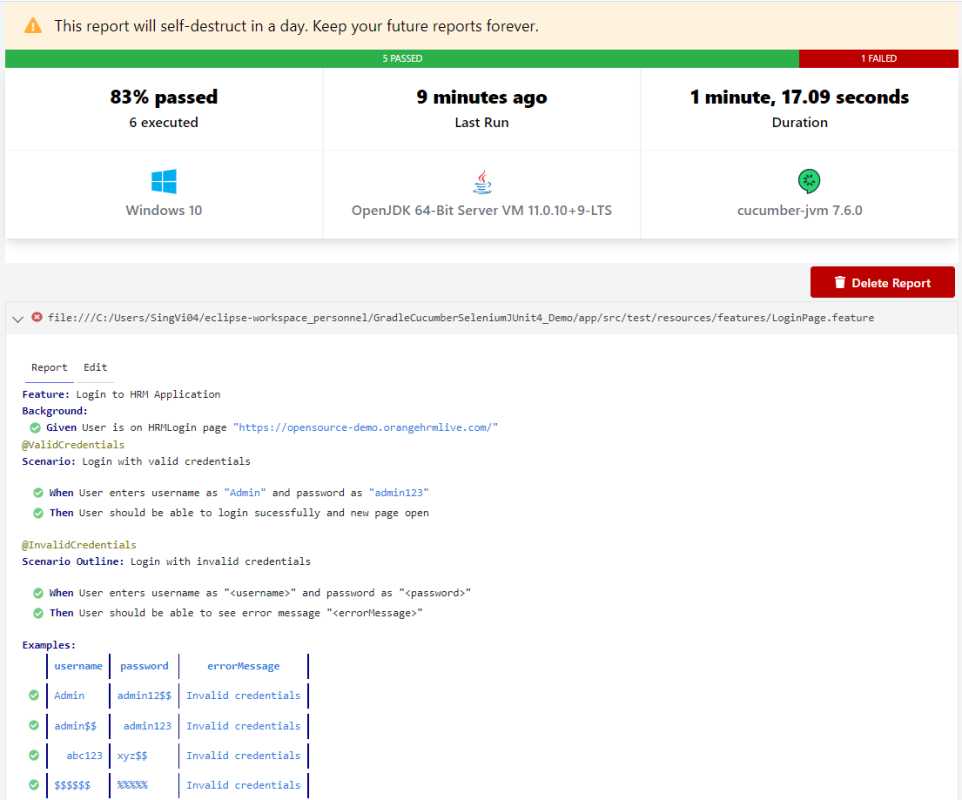
Below is the image of the Cucumber Report generated using the Cucumber Service.
Complete Source Code: Refer to GitHub for the source code.
Congratulations!! We are able to build a test framework to test the SpringBoot application using Cucumber, Rest Assured, and TestNG.
A Step Definition is a Java method with an expression that links it to one or more Gherkin steps. When Cucumber executes a Gherkin step in a scenario, it will look for a matching step definition to execute.
Cucumber finds the Step Definition file with the help of the Glue code in Cucumber Options.
By storing state in instance variables, a step definition can transfer state to a subsequent step definition.
Step definitions are not associated with a specific feature file or scenario. The name of a step definition’s file, class, or package has no bearing on which Gherkin steps it will match. The formulation of the step definition is the only thing that matters, which means the step definition should only match Gherkin’s steps.
Imagine, we want to test a web application. One of the first steps is Login to the website and then check the various functionalities on the website. We can create a Gherkin step like “I login to the website” and the corresponding step definition of this Gherkin Step. This Gherkin step can be used in multiple feature files, and we don’t need to create the step definition of this Gherkin step for each feature file.
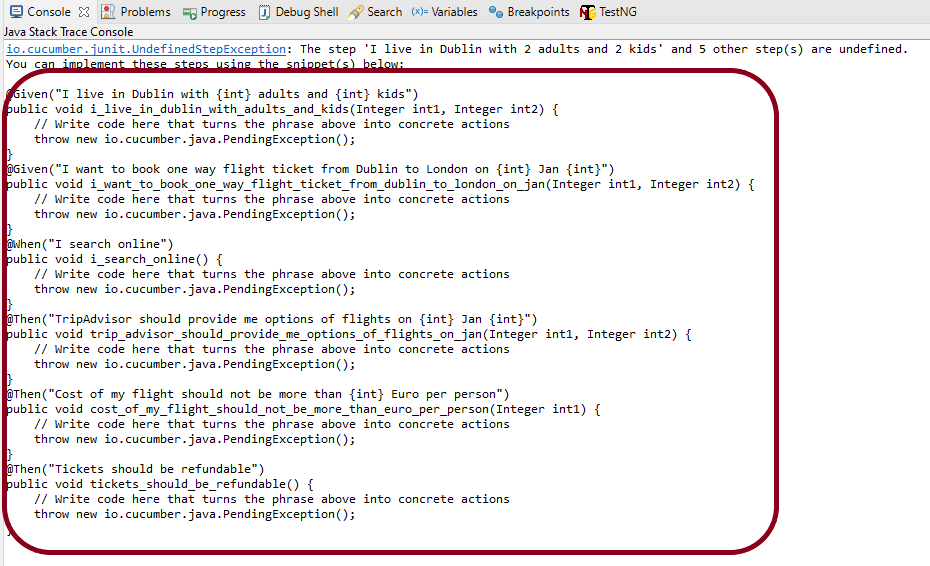
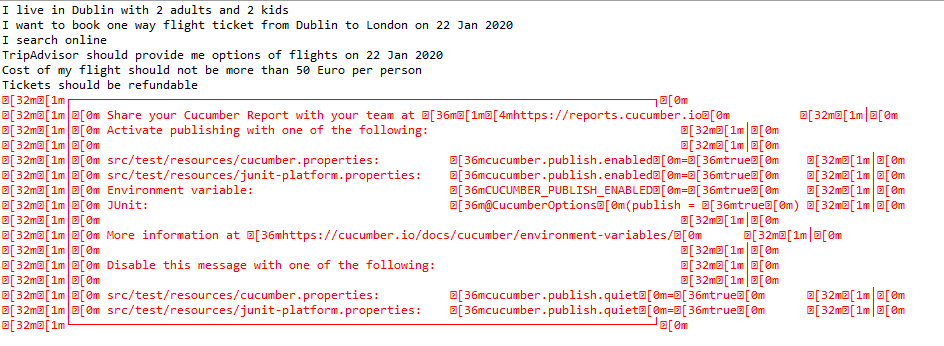
In the previous tutorial, we have seen that when the Feature file is executed without the Step Definition file, the runner shows the missing steps with the snippet in the console.
When a Cucumber encounters a Gherkinstep without a matching step definition, it will print a step definition snippet with a matching Cucumber Expression. You can use this as a starting point for new step definitions.
It is very easy to implement all the steps, all you need to do is copy the complete text marked in the above box and paste it into the MyHolidayDefinitions class.
@Given, @When, and @Then are imported from packages:-
Feature: Book flight ticket
@BookOneWayFlight
Scenario: Book Flight for one way trip
Given I live in Dublin with 2 adults and 2 kids
And I want to book one way flight ticket from Dublin to London on 22 Jan 2020
When I search online
Then TripAdvisor should provide me options of flights on 22 Jan 2020
And Cost of my flight should not be more than 50 Euro per person
And Tickets should be refundable
Let me create the step definition for the above Feature file
import io.cucumber.java.en.Given;
import io.cucumber.java.en.Then;
import io.cucumber.java.en.When;
public class MyHolidayDefinitions {
@Given("I live in Dublin with {int} adults and {int} kids")
public void liveInDublin(Integer int1, Integer int2) {
System.out.println("I live in Dublin with 2 adults and 2 kids");
}
@Given("I want to book one way flight ticket from Dublin to London on {int} Jan {int}")
public void bookFlightTicket(Integer int1, Integer int2) {
System.out.println("I want to book one way flight ticket from Dublin to London on 22 Jan 2020");
}
@When("I search online")
public void searchOnline() {
System.out.println("I search online");
}
@Then("TripAdvisor should provide me options of flights on {int} Jan {int}")
public void tripAdvisor(Integer int1, Integer int2) {
System.out.println("TripAdvisor should provide me options of flights on 22 Jan 2020");
}
@Then("Cost of my flight should not be more than {int} Euro per person")
public void costOfFlightLimit(Integer int1) {
System.out.println("Cost of my flight should not be more than 50 Euro per person");
}
@Then("Tickets should be refundable")
public void refundableTickets() {
System.out.println("Tickets should be refundable");
}
}
To run the scenarios present in the Feature File, we need TestRunner class. To learn more about the TestRunner class, please refer to this tutorial – Cucumber Tutorial – JUnit Test Runner Class
Selenium is moved from version 3 to version 4 which is quite a huge step. What does this change mean? It means that a few of the old features of Selenium 3 are depreciated in Selenium 4 as well some new features are added to it also. I’m trying to explain a few of the latest updates done in Selenium 4.
Managing Selenium Grid is now smooth and easy as there will no longer be any need to set up and start hubs and nodes separately. The grid can be deployed in 3 modes:
Standalone – Standalone is the union of all components, and to the user’s eyes, they are executed as one. A fully functional Grid of one is available after starting it in the Standalone mode. By default, the server will be listening on http://localhost:4444, and that’s the URL you should point your RemoteWebDriver tests. The server will detect the available drivers that it can use from the System PATH.
Hub and Node – It enables the classic Hub & Node(s) setup. These roles are suitable for small and middle-sized Grids
Distributed – On Distributed mode, each component needs to be started on its own. This setup is more suitable for large Grids.
Grid will now support IPv6 addresses and one can communicate with the Grid using the HTTPS protocol. In Grid 4, the configuration files used for spinning up the grid instances can be written in TOML (Tom’s Obvious, Minimal Language) which will make it easier for humans to understand.
The new Selenium Grid comes with Docker support. It also supports advanced tools like AWS, Azure, and much more, useful in the DevOps process. Now Grid has a more user-friendly UI and contains relevant information related to the session, running, capacity, etc.
2. Simplification to open a new Windows browser and Tabs
There are a number of scenarios where you would want to open a new browser (or tab) and perform a certain set of actions in the newly opened window/tab. In Selenium 3, you have to create a new Web Driver object and then switch to the new window (or tab) using its unique WindowHandle to perform subsequent actions in that window (or tab).
Selenium 4 provides a new API new Window that lets you create a new window (or tab) and automatically switch to it. Since the new window or tab is created in the same session, it avoids creating a new WebDriver object. For switching to the new tab, pass WindowType.TAB to newWindow() method and for creating a new window, pass WindowType.WINDOW to newWindow() method.
public class NewWindowDemo {
public static void main(String[] args) {
System.setProperty("webdriver.chrome.driver",
"C:\\Users\\Vibha\\Software\\chromedriver_win32_93.0.4577.15\\chromedriver.exe");
WebDriver driver = new ChromeDriver();
driver.manage().window().maximize();
driver.get("https://www.bing.com/");
System.out.println("New Page - Bing is opened");
// Opens a new window and switches to new window
driver.switchTo().newWindow(WindowType.WINDOW);
// Opens duckduckgo homepage in the new opened window
driver.navigate().to("https://www.duckduckgo.com/");
System.out.println("New Page - DuckDuckGo is opened");
driver.quit();
}
}
Open a new Tab in Selenium 4
public class NewTabDemo {
public static void main(String[] args) {
System.setProperty("webdriver.chrome.driver",
"C:\\Users\\Vibha\\Software\\chromedriver_win32_93.0.4577.15\\chromedriver.exe");
WebDriver driver = new ChromeDriver();
driver.manage().window().maximize();
driver.get("https://www.bing.com/");
System.out.println("New Page - Bing is opened");
// Opens a new window and switches to new window
driver.switchTo().newWindow(WindowType.TAB);
// Opens duckduckgo homepage in the new opened window
driver.navigate().to("https://www.duckduckgo.com/");
System.out.println("New Tab is opened with DuckDuckGo");
driver.quit();
}
}
3. Relative Locators
Selenium 4 brings Relative Locators which are previously called as Friendly Locators. This functionality was added to help you locate elements that are nearby other elements. The Available Relative Locators are:
above below toLeftOf toRightOf near
findElement method now accepts a new method withTagName() which returns a RelativeLocator.
In Selenium 3, there was a provision to capture a screenshot of the entire web page. Selenium 4 onwards, there is a new option to capture screenshots of a particular WebElement. Hence, there is no need to use third-party tools like Shutterbug, Ashot, etc. (like in Selenium 3) for capturing a screenshot of WebElement.
The newly introduced method in Selenium 4 captures the screenshot of an element for the current browsing context. The screenshot returned by the WebDriver endpoint is encoded in the Base64 format.
This is how you can capture WebElement Screenshot in Selenium 4 (for Java):
import io.github.bonigarcia.wdm.WebDriverManager;
import org.apache.commons.io.FileUtils;
import org.openqa.selenium.By;
import org.openqa.selenium.OutputType;
import org.openqa.selenium.TakesScreenshot;
import org.openqa.selenium.WebDriver;
import org.openqa.selenium.WebElement;
import org.openqa.selenium.chrome.ChromeDriver;
import org.openqa.selenium.firefox.FirefoxDriver;
public class ScreenshotDemo {
public static void main(String[] args) {
WebDriverManager.chromedriver().setup();
WebDriver driver = new ChromeDriver();
driver.manage().window().maximize();
driver.get("https://www.selenium.dev/");
try {
WebElement logo = driver.findElement(By.xpath("//*[@id='td-cover-block-0']/div/div/div/div/h1"));
File source = ((TakesScreenshot) logo).getScreenshotAs(OutputType.FILE);
FileUtils.copyFile(source, new File("./Screenshots/logo" + System.currentTimeMillis() + ".png"));
} catch (Exception e) {
System.out.println(e.getMessage());
}
System.out.println("The Screenshot is taken and saved under Screenshots folder");
driver.quit();
}
}
The output of the above program is
The picture will be saved in the Screenshots folder as shown below:
Below is the image of the screenshots.
5. New additions to the Actions Class
Actions Class in Selenium provides several methods for performing a single action or a series of actions on the WebElements present in the DOM. Mouse actions (e.g., click, double click, etc.) and Keyboard actions (e.g., keyUp, keyDown, sendKeys) are the two broad categories of Actions. For demonstration, we will post the examples demonstrated in the Action class in the Selenium blog from Selenium 3 to Selenium 4.
With Selenium 4, new methods are added to the Actions class, which replaces the classes under the org.openqa.selenium.interactions package.
click(WebElement) is the new method added to the Actions class and it serves as the replacement of moveToElement(onElement).click() method.
Like the method in the versions before Selenium 4, click(WebElement) is used for clicking a web element.
doubleClick(WebElement)
This method is added to replace moveToElement(element).doubleClick(). It will perform a double-click on an element.
import io.github.bonigarcia.wdm.WebDriverManager;
import org.openqa.selenium.Alert;
import org.openqa.selenium.By;
import org.openqa.selenium.WebDriver;
import org.openqa.selenium.WebElement;
import org.openqa.selenium.chrome.ChromeDriver;
import org.openqa.selenium.interactions.Actions;
public class DoubleClick {
public static void main(String[] args) {
WebDriverManager.chromedriver().setup();
WebDriver driver = new ChromeDriver();
// Navigate to Url
driver.get("https://demo.guru99.com/test/simple_context_menu.html");
// Store 'doubleClickButton' button web element
WebElement doubleClickButton = driver.findElement(By.xpath("//*[@id='authentication']/button"));
Actions actionProvider = new Actions(driver);
// Perform double-click action on the element
actionProvider.doubleClick(doubleClickButton).build().perform();
Alert alert = driver.switchTo().alert();
System.out.println("Alert Text\n" +alert.getText());
alert.accept();
driver.close();
}
}
The output of the above program is
clickAndHold(WebElement)
This method will replace the moveToElement(onElement).clickAndHold(). It is used to click on an element without releasing the click.
contextClick(WebElement)
This method will replace moveToElement(onElement).contextClick(). It will perform the right-click operation.
release()
This method (user for releasing the pressed mouse button) was initially a part of org.openqa.selenium.interactions.ButtonReleaseAction class. Now with the updated version of Selenium, it has been moved to the Actions class.
import io.github.bonigarcia.wdm.WebDriverManager;
import org.openqa.selenium.By;
import org.openqa.selenium.WebDriver;
import org.openqa.selenium.WebElement;
import org.openqa.selenium.chrome.ChromeDriver;
import org.openqa.selenium.interactions.Actions;
public class clickAndHold {
public static void main(String[] args) {
WebDriverManager.chromedriver().setup();
WebDriver driver = new ChromeDriver();
// Navigate to Url
driver.get("https://crossbrowsertesting.github.io/drag-and-drop.html");
driver.manage().window().maximize();
// Find element xpath which we need to drag
WebElement from = driver.findElement(By.id("draggable"));
// Find element xpath where we need to drop
WebElement to = driver.findElement(By.id("droppable"));
Actions actionProvider = new Actions(driver);
// Perform click-and-hold action on the element
actionProvider.clickAndHold(from).build().perform();
// Move to drop Webelement
actionProvider.clickAndHold(to).build().perform();
//Release drop element
actionProvider.release(to).build().perform();
}
}
The output of the above program is
6. Deprecation of Desired Capabilities
In Selenium 3, desired Capabilities were primarily used in the test scripts to define the test environment (browser name, version, operating system) for execution on the Selenium Grid.
In Selenium 4, capabilities objects are replaced with Options. This means testers now need to create an Options object, set test requirements, and pass the object to the Driver constructor.
Listed below are the Options objects to be used going forward for defining browser-specific capabilities:
Firefox – FirefoxOptions Chrome – ChromeOptions Internet Explorer (IE) – InternetExplorerOptions Microsoft Edge – EdgeOptions Safari – SafariOptions
Below is an example of Options
import org.openqa.selenium.WebDriver;
import org.openqa.selenium.chrome.ChromeDriver;
import org.openqa.selenium.chrome.ChromeOptions;
import io.github.bonigarcia.wdm.WebDriverManager;
public class ChromeOptionsHeadless {
public static void main(String[] args) {
WebDriverManager.chromedriver().setup();
ChromeOptions chromeOptions = new ChromeOptions();
chromeOptions.setBrowserVersion("100");
chromeOptions.setPlatformName("Windows 10");
WebDriver driver = new ChromeDriver(chromeOptions);
driver.get("https://duckduckgo.com/");
System.out.println("Title of Page :" + driver.getTitle());
// Close the driver
driver.close();
}
}
The output of the above program is
Similarly, we can create the action class for other browsers like Firefox.
FirefoxOptions options = new FirefoxOptions();
// Create an object of WebDriver class and pass the Firefox Options object as an argument
WebDriver driver = new FirefoxDriver(options);
7. Chrome Dev Tools
In the new version of Selenium, they have made some internal changes in the API. Earlier in Selenium 3, the Chrome driver extends directly to the Remote Web Driver class. But now in Selenium 4, the Chrome driver class extends to Chromium Driver. Chromium Driver class has some predefined methods to access the dev tool.
Note: Chromium Driver extends the Remote Web driver class.
By using the API, we can perform the following operations:
This tutorial explains the steps to disable infobar warning generated by Selenium for running tests in Chrome. Selenium tests run on Chrome shows a warning message – “Chrome is being controlled by automated test software as shown in the below image.“
We want to run the Selenium tests on Chrome, but without the above-shown warning message. This can be achieved by using excludeSwitches.
import java.util.Arrays;
import org.openqa.selenium.WebDriver;
import org.openqa.selenium.chrome.ChromeDriver;
import org.openqa.selenium.chrome.ChromeOptions;
import io.github.bonigarcia.wdm.WebDriverManager;
public class ChromeDisableInfobars {
public static void main(String[] args) {
WebDriverManager.chromedriver().setup();
// Create an object of Chrome Options class
ChromeOptions chromeOptions = new ChromeOptions();
// prevents Chrome from displaying the notification 'Chrome is being controlled
// by automated software'
options.addArguments("--disable-infobars");
chromeOptions.setExperimentalOption("excludeSwitches", Arrays.asList("enable-automation"));
// Create an object of WebDriver class and pass the Chrome Options object as an
// argument
WebDriver driver = new ChromeDriver(chromeOptions);
driver.get("https://duckduckgo.com/");
System.out.println("Title of Page :" + driver.getTitle());
// close the browser
driver.quit();
}
}
Serenity Reports are living documentation that contains meaningful reports for each Test. It illustrated narrative reports that document and describe what your application does and how it works.
This report can be organized by using features, stories, steps, scenarios/tests. Serenity Report shows the count of passed, failed, compromised, skipped, pending, broken, ignored, pending, and manual test cases count and percentage. Serenity shows Over All Test Results, Requirements, Test Specifications & Test Results. It shows the details and overall time taken by each test step of a test case. It shows the details and overall timing taken by each on all test case execution.
All the above features of Serenity Report make it a great Report. But sometimes, we want to embed data from a JSON or XML file in the Serenity Report.
Let me explain this with the help of an example. Data-Driven tests are created in Serenity. We have test data mentioned in a .csv file and the test is reading the data from this file. When the report is generated, it does not show what all data are used by the Test. To overcome this situation, Serenity provides a feature that usesrecordReportData()., and this can be used like this:
Path credentialsFile = Paths.get("src/test/resources/testdata/credentials.csv");
Serenity.recordReportData().withTitle(" User Credentials with Error Message")
.fromFile(credentialsFile);
If you have the contents of the report as a String, you can pass the String directly like this:
To generate a Serenity Report, use the command like this:
mvn clean verify
The output of the above program is
The Serenity Reports are generated undertarget/site/serenity/Index.html.
Go to the Detailed Step Description part in Serenity Report. A button with the label “User Credentials with Error Message” will appear next to the step where you called this method:
If you click on this button, you will see your data:
Keep in mind that this feature of Serenity is available from 1.9.16 onwards only.
Congratulation!! We have learned a wonderful feature present in Serenity.