To validate a JSON schema in Java, you can use libraries that provide support for JSON schema validation. JsonSchemaValidator is a Hamcrest matcher that can be used to validate that a JSON document matches a given JSON schema.
Add the following dependency in pom.xml. You can check the latest Maven dependency from here.
Query parameters are a way to pass information to an API flexibly and simply. They are added to the end of the API endpoint URL as a series of key-value pairs. To append query params to the end of a URL, a ‘?’ Is added followed immediately by a query parameter.
Query Param Example
https://reqres.in/api/users?page=2
Below is an example of Query Param.
import org.junit.Test;
import static io.restassured.RestAssured.given;
import static org.hamcrest.CoreMatchers.equalTo;

public class ParamDemo {


    @Test
    public void verifyQueryParam() {

        String endpoint = "https://reqres.in/api/";

        // Given
        given()
                .queryParam("page", "2")

                // When
                .when()
                .get(endpoint + "users/")

                // Then
                .then()

                // To verify the response body
                .body("page", equalTo(2))
                .body("per_page", equalTo(6))
                .body("total_pages", equalTo(2));

    }
}
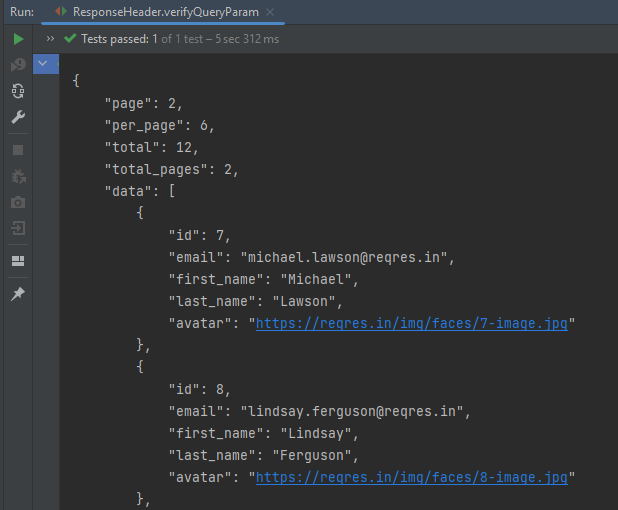
The output of the above program is
.param() or queryParam(): If you don’t specify which, REST Assured will assume GET params are query params and POST params are form params.
Congratulations on making it through this tutorial and hope you found it useful! Happy Learning!!
Assertions are used to perform various kinds of validations in the tests and help us to decide whether the test has passed or failed.
In the below example, we have 3 assertions, but if the first assertion fails, then the test fails without checking for the rest of the two assertions.
  @Test
   public void verifyHardAssertion() {

      // Given
      given()

              // When
              .when()
              .get("https://reqres.in/api/users/2")

              // Then
              .then()

              // To verify the response body
              .body("data.email", equalTo("janet.weaver@reqres12.in"))
              .body("data.first_name", equalTo("Janet1"))
              .body("data.last_name", equalTo("Weaver"));

    }
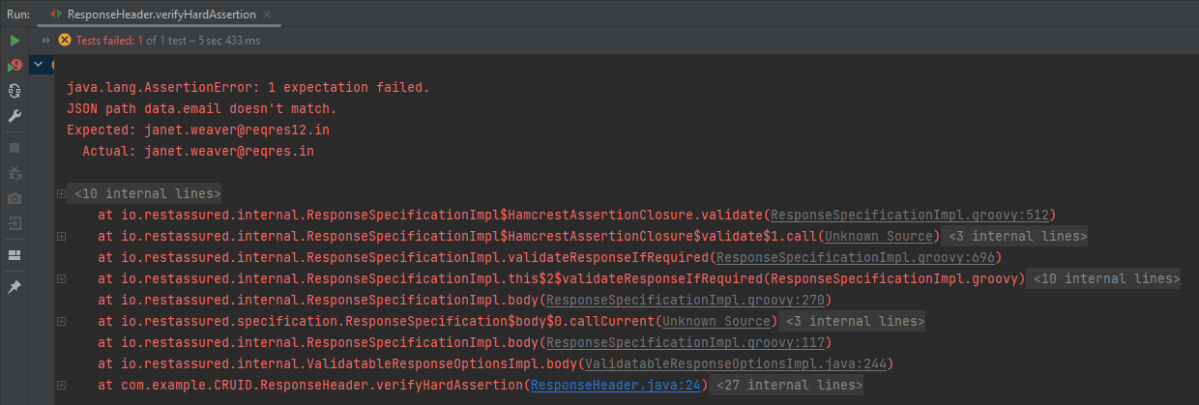
The output of the above program is
In the above example, email as well as first_name has incorrect data. But the assertion has checked email and as it has the incorrect data, it has failed the test without even checking for the rest two assertions.
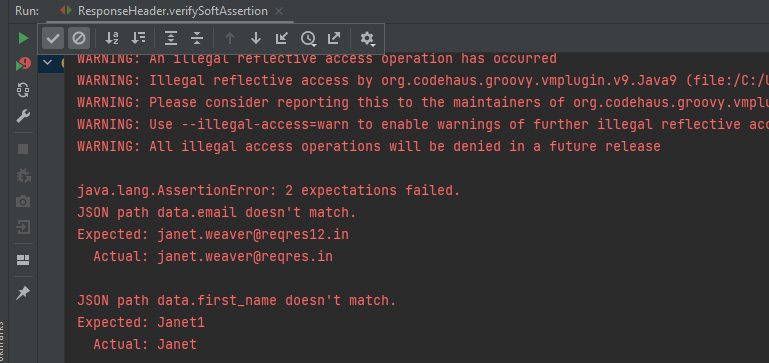
In the below example, the assertion will check all 3 and will print all the error messages. In .body() you need to specify all assertions separated by comma. The below code will validate all 3 assertions and then fail the test.
 @Test
  public void verifySoftAssertion() {

      // Given
      given()

              // When
              .when()
              .get("https://reqres.in/api/users/2")

              // Then
              .then()

              // To verify the response body
              .body("data.email", equalTo("janet.weaver@reqres12.in"),
                        "data.first_name", equalTo("Janet1"),
                        "data.last_name", equalTo("Weaver"));

    }
}
The output of the above program is
Congratulations on making it through this tutorial and hope you found it useful! Happy Learning!!
In the previous tutorial, I explained theSerenity BDD with Cucumber for Web Application using Junit4. In this tutorial, I will explain the same Test Framework using Serenity, Cucumber, and JUnit5. This tutorial gives a clear picture of the initial setup of a BDD Framework.
The JUnit Platform serves as a foundation for launching testing frameworks on the JVM. It also defines the TestEngine API for developing a testing framework that runs on the platform.
JUnit Jupiter is the combination of the new programming model and extension model for writing tests and extensions in JUnit 5. The Jupiter sub-project provides a TestEngine for running Jupiter based tests on the platform.
JUnit Vintage provides a TestEngine for running JUnit 3 and JUnit 4 based tests on the platform. It requires JUnit 4.12 or later to be present on the class/module path.
JUnit5 is not completely integrated with Serenity with Cucumber. So, it is advisable to usejupiter-vintage-engine for the Cucumber TestRunner classes.
Step 2 – Download and setup Eclipse IDE on the system
The Eclipse IDE (integrated development environment) provides strong support for Java developers which is needed to write Java code. Click here to know How to install Eclipse.
Step 3 – Setup Maven and create a new Maven Project
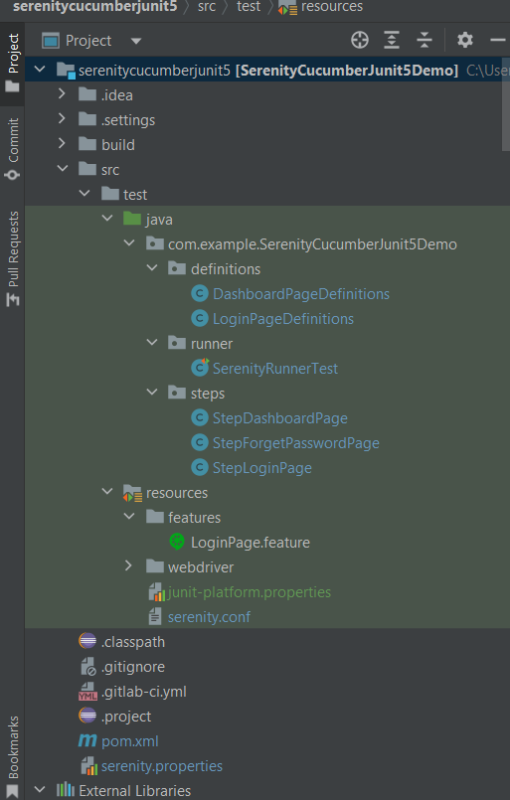
Step 8 – Create a feature file under src/test/resources
The purpose of the Feature keyword is to provide a high-level description of a software feature, and to group related scenarios. To know more about the Feature file, please refer this tutorial.
Feature: Login to HRM

   @ValidCredentials
   Scenario: Login with valid credentials

    Given User is on Home page
    When User enters username as "Admin"
    And User enters password as "admin123"
    Then User should be able to login successfully

    @InValidCredentials
    Scenario Outline: Login with invalid credentials

    Given User is on Home page
    When User enters username as '<username>'
    And User enters password as '<password>'
    Then User should be able to see error message '<errorMessage>'

   Examples:
    |username   |password       |errorMessage               |
    |admin        |admin            |Invalid credentials        |
    |abc            |admin123       |Invalid credentials        |
    |abc            |abc123           |Invalid credentials         |
    |1$£"          | 45£"%           |Invalid credentials        |

   @ForgetPassword
   Scenario: Verify Forget Password Functionality

    Given User is on Home page
    When User clicks on Forgot your password link
    Then User should be able to see new page which contains Reset Password button
Step 9 – Create junit-platform.properties file under src/test/resources (optional)
This is an optional step. Cucumber of version 6.7 and above provides the functionality to generate a beautiful cucumber report. For this, it is needed to add a file junit-platform.properties under src/test/resources.
cucumber.publish.enabled = true
Step 10 – Create the Step Definition class or Glue Code
A Step Definition is a Java method with an expression that links it to one or more Gherkin steps. When Cucumber executes a Gherkin step in a scenario, it will look for a matching step definition to execute. You can have all of your step definitions in one file, or in multiple files.
LoginPageDefinitions
import static org.junit.jupiter.api.Assertions.assertEquals;
import static org.junit.jupiter.api.Assertions.assertTrue;

import com.example.SerenityCucumberJunit5Demo.steps.StepDashboardPage;
import com.example.SerenityCucumberJunit5Demo.steps.StepForgetPasswordPage;
import com.example.SerenityCucumberJunit5Demo.steps.StepLoginPage;

import io.cucumber.java.en.Given;
import io.cucumber.java.en.Then;
import io.cucumber.java.en.When;
import net.serenitybdd.annotations.Steps;


public class LoginPageDefinitions {

	@Steps
	StepLoginPage loginPage;

	@Steps
	StepDashboardPage dashPage;

	@Steps
	StepForgetPasswordPage forgetpasswordPage;

	@Given("User is on Home page")
	public void openApplication() {
		loginPage.open();
	}

	@When("User enters username as {string}")
	public void enterUsername(String userName) {

		loginPage.inputUserName(userName);
	}

	@When("User enters password as {string}")
	public void enterPassword(String passWord) {
		loginPage.inputPassword(passWord);
		loginPage.clickLogin();
	}

	@Then("User should be able to login successfully")
	public void clickOnLoginButton() {
		dashPage.loginVerify();
	}

	@Then("User should be able to see error message {string}")
	public void unsucessfulLogin(String expectedErrorMessage) {
		String actualErrorMessage = loginPage.errorMessage();

		System.out.println("Actual Error Message :" + actualErrorMessage);

		assertEquals(expectedErrorMessage, actualErrorMessage);
	}

	@When("User clicks on Forgot your password link")
	public void clickForgetPasswordLink() {
		loginPage.clickForgetPasswordLink();
	}

	@Then("User should be able to see new page which contains Reset Password button")
	public void verifyForgetPasswordPage() {

		assertTrue(forgetpasswordPage.ForgetPasswordPage());
	}
}
Assertions in JUnit-Vintage Engine are imported from the below package:-
import static org.junit.jupiter.api.Assertions.*;
DashboardPageDefinitions
import com.example.SerenityCucumberJunit5Demo.steps.StepDashboardPage;
import net.serenitybdd.annotations.Step;
import net.serenitybdd.annotations.Steps;

public class DashboardPageDefinitions {

	@Steps
	StepDashboardPage dashPage;

	@Step
	public void verifyAdminLogin() {
		dashPage.loginVerify();
	}
}
The corresponding Test Step classes are – StepLoginPage and StepDashboardPage.
There are multiple ways to identify a web element on the web page – one of the ways is to use @FindBy or $(By.).
I prefer to use @FindBy as I need not find the same element multiple times. Using @FindBy, I have identified a web element and defined a WebElementFacacde for the same which is reusable.
Cucumber runs the feature files via JUnit and needs a dedicated test runner class to actually run the feature files. When you run the tests with Serenity, you use theCucumberWithSerenity test runner. You also need to use the @CucumberOptionsclass to provide the root directory where the feature files can be found.
import static io.cucumber.junit.platform.engine.Constants.GLUE_PROPERTY_NAME;
import static io.cucumber.junit.platform.engine.Constants.PLUGIN_PROPERTY_NAME;

import org.junit.platform.suite.api.ConfigurationParameter;
import org.junit.platform.suite.api.IncludeEngines;
import org.junit.platform.suite.api.SelectClasspathResource;
import org.junit.platform.suite.api.Suite;

@Suite
@IncludeEngines("cucumber")
@SelectClasspathResource("/features")
@ConfigurationParameter(key = GLUE_PROPERTY_NAME, value = "com.example.SerenityCucumberJunit5Demo.definitions")
@ConfigurationParameter(key = PLUGIN_PROPERTY_NAME, value = "io.cucumber.core.plugin.SerenityReporterParallel,pretty,timeline:build/test-results/timeline")

public class SerenityRunnerTest {

}
Step 12 – Create serenity.conf file under src/test/resources
The serenity configuration file is used to configure the drivers so the test cases can run successfully. This file contains an operating system-specific binary. The binary file sits between your test and the browser. It acts as an intermediary, an interface between your tests and the browser you are using.
You can also configure the webdriver.base.url property for different environments in the serenity.conf configuration file.
Step 13 – Create serenity.properties file at the root of the project
serenity.project.name = Serenity and Cucumber and JUnit5 Demo
Step 14 – Run the tests from Command Line
Open the command line and go to the location where pom.xml of the project is present and type the below command.
mvn clean verify
Step 15 – Test Execution Status
The image displayed above shows the execution status.
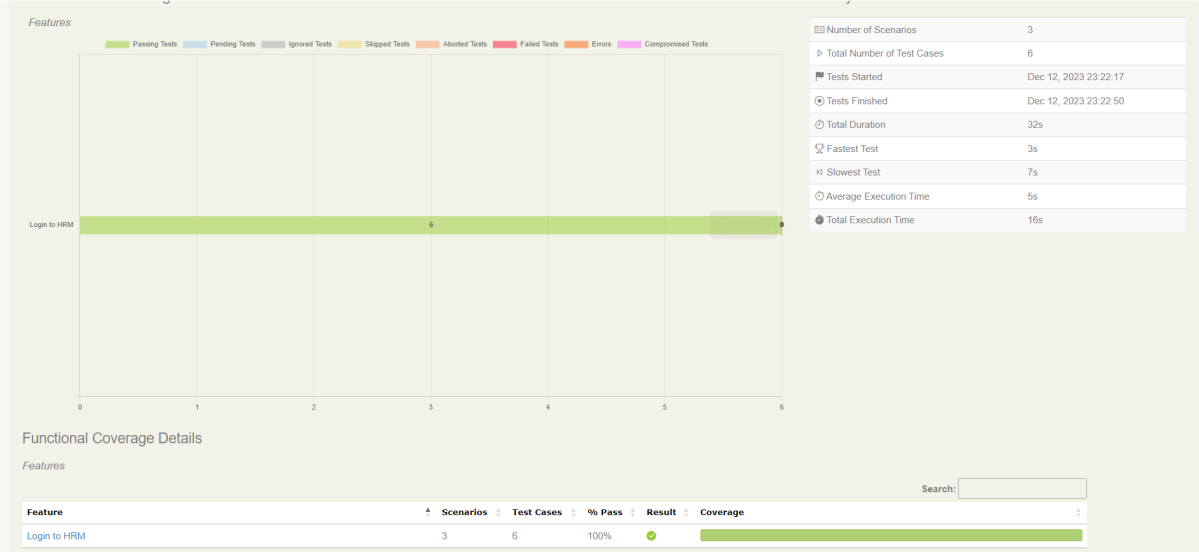
The feature file contains 3 test cases. Test Case 2 is a Test Scenario that has 4 examples. So, in total we have 6 tests. This information is clearly mentioned in the new version of Serenity.
Step 16 – Serenity Report Generation
The best part about Serenity is the report generation by it. The Reports contain all possible types of information, you can think of with minimal extra effort. There are multiple types of reports are generated. We are interested in index.html and serenity-summary.html. To know more about Serenity Reports, please refer to tutorials for Index.html and Serenity-Summary.html. Below is the new Serenity Report.
index.html
2. serenity-summary.html
Step 17 – Cucumber Report Generation (Optional)
Every Test Execution generates a Cucumber Report (Version 6.7.0) and above as shown in the image.
Copy the URL and paste it to a browser and it shows the report as shown below:
To know more about Cucumber Reports, refertothis tutorial.
We are done! Congratulations on making it through this tutorial and hope you found it useful! Happy Learning!!
We can verify JSON response headers in Rest Assured. This is achieved with the help of the header method. Every response obtained from the server may contain zero or more headers that provide metadata about the response.
import org.junit.Test;
import static io.restassured.RestAssured.given;
import static org.hamcrest.CoreMatchers.containsString;

public class ResponseHeader {

    @Test
    public void verifyResponseHeader() {

      // Given
      given()

              // When
              .when()
              .get("https://reqres.in/api/users/2")

              // Then
              .then()
              .statusCode(200).statusLine("HTTP/1.1 200 OK")
              .log().all()
              .header("Content-Type" , "application/json; charset=utf-8")
              .header("Content-Encoding" , "gzip")
              .header("Server" , containsString("cloudflare"));

    }
}
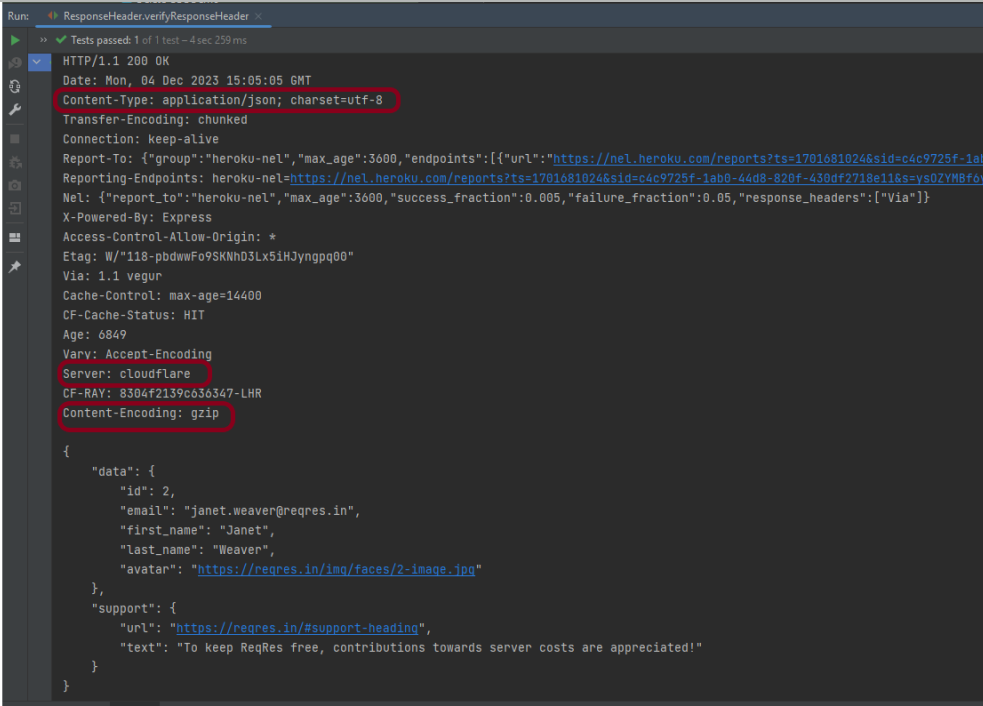
The output of the above program is
In the above example, we can verify the Content-Type, Server, and Content-Encoding using the header.
In this blog, we will discuss Classes and Objects. Java is an Object-Oriented Programming language. Class, Objects, Variables, Methods, and Constructors are the building blocks of Object-Oriented language.
What is a Class?
A class is a user-defined template or prototype that is used to create objects and define object data types and methods.
What is an Object?
An object is an instance of a class. An entity that has state and behaviour.
Let us consider the Phone as the object. The state of the Phone is coloured grey, and black, and types like IPhone, Samsung, and behaviour is calling, sending messages, and internet browsing.
How to create a class?
To create a class, a keyword class is used.
Here, I am creating a class with the name Student with the variable Name.
public class Student {
          String Name;
}
How to create an Object?
To create an object, specify a class name like Student, an object name like stud, and use a new keyword.
Student stud = new Student();
Let us create a class and an object of its class and print the value of the variable name.
public class Student {

    String Name = "Tom";
    public static void main(String[] args)

    {
        Student stud = new Student();
        System.out.println("Name of Student :"+stud.Name);
    }
}
The output of the above program is
Multiple Objects of a Class
We can create multiple objects of a class. In the below example, we have created 2 objects of class Student.
public class Student {

    String Name = "Tom";
    public static void main(String[] args)
    {
        Student stud1 = new Student();
        Student stud2 = new Student();
        System.out.println("Name of Student :"+stud1.Name);
        System.out.println("Name of Student :"+stud2.Name);
    }
}
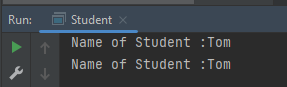
The output of the above program is
Multiple Classes
We can create a class and then create an object of that class in another class. Like, here, we have created a class called Student.java and another class is Student_Demo.java where we will create the object of class Student. This is a better approach than the previous one.
public class Student {
          String Name = "Tom";
}


public class Student_Test{
    public static void main(String[] args)
    {
        Student stud = new Student();
        System.out.println("Name of Student :"+stud.Name);
    }
}
There are multiple ways to initialize the classes and objects.
1) Initialize through reference
Here, initializing an object means storing data in the object. Let’s see a simple example where we are going to initialize the object through a reference variable.
public class Student {
          String Name ;
          int Age;
}

public class Student_Test {
    public static void main(String[] args)
    {
        Student stud = new Student();
        stud.Name ="Tom";
        stud.Age=35;
        System.out.println("Name of Student :"+stud.Name);
        System.out.println("Age of Student :"+stud.Age);
    }
}
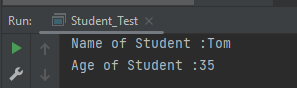
The output of the above program is
2) Initializing through method
We are creating the two objects of the Student class and initializing the value to these objects by invoking the InsertData() method. Here, we are displaying the state (data) of the objects by invoking the DisplayData() method.
public class Student {
	String Name;
	int Age;

	void InsertData(String n, int a) {
		Name = n;
		Age = a;
	}

	void DisplayData() {
		System.out.println("Name of Student :" + Name);
		System.out.println("Age of Student :" + Age);
	}
}


public class Student_Test {

    public static void main(String[] args) {
        Student stud = new Student();
        stud.InsertData("Tom", 34);
        stud.DisplayData();
    }
}
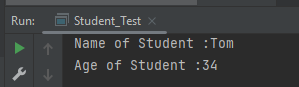
The output of the above program is
We can create multiple objects
public class Student {
          String Name ;
          int Age;

          void InsertData(String n, int a)
          {
                   Name =n;
                   Age = a;
          }

          void DisplayData()
          {
                   System.out.println("Name of Student :"+Name);
                   System.out.println("Age of Student :"+Age);
          }
    }


public class Student_Test {

    public static void main(String[] args) {

            Student stud1 = new Student();
            Student stud2 = new Student();
            stud1.InsertData("Matt",43);
            stud1.DisplayData();
            stud2.InsertData("Terry",36);
            stud2.DisplayData();
    }
 }
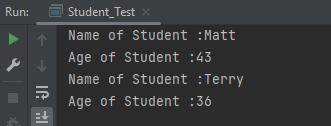
The output of the above program is
We are done! Congratulations on making it through this tutorial and hope you found it useful! Happy Learning!!
It is a feature that allows a class to have more than one method of the same name, but different parameters. The method can be overloaded if:-
No of parameters are different in two methods
Type of parameters are different
Sequence of parameters are different
Note:- If two methods have same name, same no of parameters, same sequence of parameters and same type of parameters but different return type, then the methods are not overloaded. It will show compile time error.
Why do we need Method Overloading?
If we need to perform the same kind of operation with different data inputs, we go for method overloading. Below is an example of an addition operation with different inputs to explain method overloading. It is an example of static polymorphism early binding or compile time binding. Here, the binding of the method call to its definition happens at compile time.
Below is an example of method overloading.
public class MethodOverloading_Demo {

    public void Calculation(int a, float b) {
        System.out.println("Sum of 2 numbers :" + (a + b));
    }

    //Different type of parameters
    public void Calculation(float x, float y) {
        System.out.println("Sum of 2 numbers :" + (x + y));
    }

    //Different number of parameters
    public void Calculation(int i, int j, int k) {
        System.out.println("Sum of 3 numbers :" + (i + j + k));
    }

    //Different sequence of parameters
    public void Calculation(float p, int r) {
        System.out.println("Sum of 3 numbers :" + (p + r));
    }

    public static void main(String[] args) {

        MethodOverloading_Demo add = new MethodOverloading_Demo();

        //Call overloaded methods
        add.Calculation(5, 12f);
        add.Calculation(13f, 12.0f);
        add.Calculation(22, 33, 50);
        add.Calculation(11f, 10);
    }

}
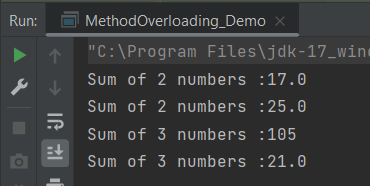
The output of the above program is
What is Type Promotion?
When a data type of smaller type, promote to bigger type, it called type promotion. Suppose a method has double data type and object provides float, then the program works fine. Float will be promote to double.
Let us explain this with an example. In the below example, object has provided float data type, but method has double data type, so there is type promotion.
public class Addition {

    public void Calculation(int a, int b)  {
        System.out.println("Sum of 2 numbers :"+(a+b));
    }

    public void Calculation(int x, double y)   {
        System.out.println("Sum of 2 numbers :"+(x+y));
    }

    public static void main(String[] args) {
        Addition add = new Addition();
        //Type Promotion method
        add.Calculation(5,12);
        add.Calculation(13,12f);
    }
}
The output of the above program is
We are done! Congratulations on making it through this tutorial and hope you found it useful! Happy Learning!!
REST Assured provides a convenient way to retrieve and assert response time. Rest Assured provides a method to get response time in milliseconds by default or the time unit we want. We can also validate if the response time is less than, greater than, or in between the expected values as well.
Interface ResponseOptions
This interface contains four methods:-
getTime() – The response time in milliseconds (or -1 if no response time could be measured)
getTimeIn(TimeUnit timeunit) – The response time in the given time unit (or -1 if no response time could be measured)
time() – The response time in milliseconds (or -1 if no response time could be measured)
timeIn( TimeUnit timeunit ) – The response time in the given time unit (or -1 if no response time could be measured)
Technically, getTime() and time() both are the same, and getTimeIn() and timeIn() both are the same.
Below is an example.
import io.restassured.RestAssured;
import io.restassured.response.Response;
import io.restassured.specification.RequestSpecification;
import org.junit.Test;
import java.util.concurrent.TimeUnit;

public class ResponseTime {


    @Test
    public void getResponseTime() {

        RequestSpecification  requestSpecification = RestAssured.given();

        // Calling GET method
        Response response = requestSpecification.get("https://reqres.in/api/users/2");

        // Let's print response body.
        String resString = response.prettyPrint();
        System.out.println("Response Details : " + resString);

        //Get Response Time
        System.out.println("Response Time in milliseconds: " + response.getTime());

        System.out.println("Response Time in seconds: " + response.getTimeIn(TimeUnit.SECONDS));

        System.out.println("Response Time in milliseconds: " + response.time());

        System.out.println("Response Time in seconds: " + response.timeIn(TimeUnit.SECONDS));

    }

    }
The output of the above program is
Interface ValidatableResponseOptions
This interface has overloaded time() methods that accept Matcher.
time(Matcher matcher) – Validate that the response time (in milliseconds) matches the supplied matcher.
import org.hamcrest.Matchers;
import org.junit.Test;
import static io.restassured.RestAssured.given;

public class ResponseTime {

    @Test
    public void verifyResponseTime() {

        // Given
        given()

                // When
                .when()
                .get("https://reqres.in/api/users/2")

                // Then
                .then()
                .statusCode(200).statusLine("HTTP/1.1 200 OK")

                // Asserting response time is less than 2000 milliseconds
                .time(Matchers.lessThan(3000L));

    }
}
The output of the above program is
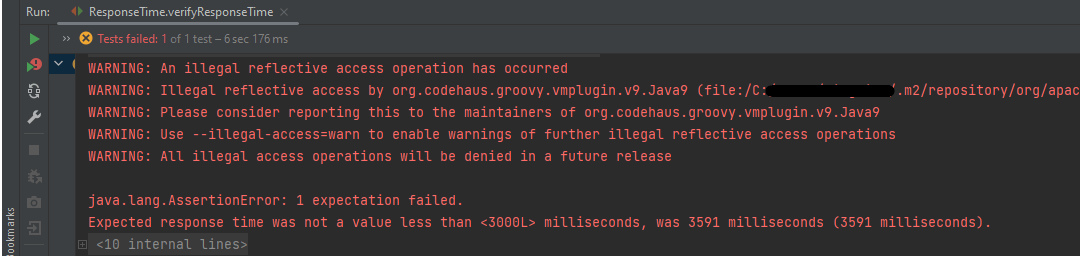
In the above example, we can see that the time taken by the request to provide the response is 3591 ms, which is greater than 3000 ms, so the test failed.
Similarly, we can use greaterthan() method too.
    @Test
    public void verifyGreaterResponseTime() {

        // Given
        given()

                // When
                .when()
                .get("https://reqres.in/api/users/2")

                // Then
                .then()
                .statusCode(200).statusLine("HTTP/1.1 200 OK")

                // Asserting response time is greater than 3000 milliseconds
                .time(Matchers.greaterThan(2000L));
    }
The output of the above program is
If you want to verify the time range, it can also be done using the Matchers. Below is an example of the same.
    @Test
    public void verifyResponseTimeRange() {

        // Given
        given()

                // When
                .when()
                .get("https://reqres.in/api/users/2")

                // Then
                .then()
                .statusCode(200).statusLine("HTTP/1.1 200 OK")

                // Asserting response time is greater than 1000 milliseconds and less than 2000 milliseconds
                .time(Matchers.both(Matchers.greaterThanOrEqualTo(1000L)).and(Matchers.lessThanOrEqualTo(2000L)));
    }
The output of the above program is
In the above example, the response time is 2550 ms, which does not fall in the range of 1000-2000 ms. So, the test is failed.
We are done! Congratulations on making it through this tutorial and hope you found it useful! Happy Learning!!
This tutorial explains how to use JAXB (Java Architecture for XML Binding) to convert Java Objects to XML documents.
JAXB provides a fast and convenient way to marshal (write) Java Objects into XML and un-marshal (read) XML into Java Objects. It supports a binding framework that maps XML elements and attributes to Java fields and properties using Java annotations.
With Java releases lower than Java 11, JAXB was part of the JVM and you could use it directly without defining additional libraries.
As of Java 11, JAXB is not part of the JRE anymore, and you need to configure the relevant libraries via your dependency management system, for example, either Maven or Gradle.
Configure the Java compiler level to be at least 11 and add the JAXB dependencies to your pom file.
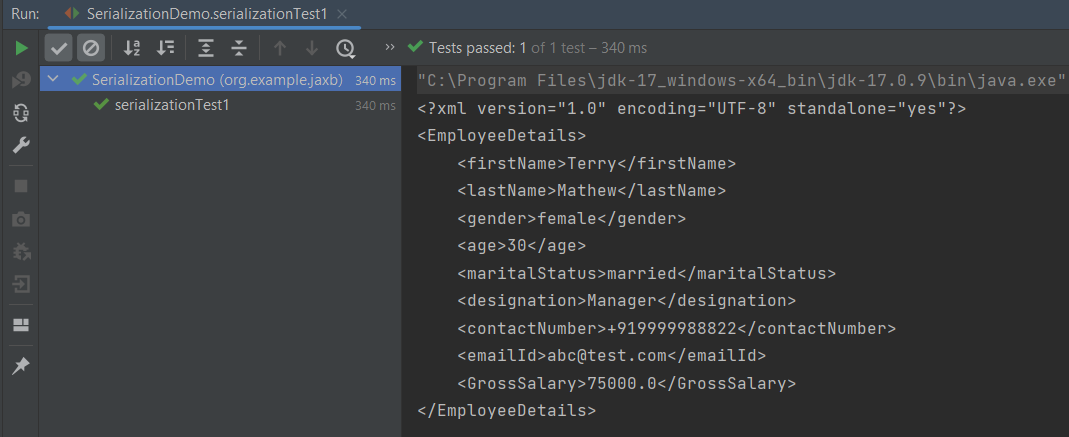
When we run the code above, we may check the console output to verify that we have successfully converted Java object to XML:
By default, the Marshaller uses UTF-8 encoding when generating XML data.
The javax.xml.bind.JAXBContext class provides a client’s entry point to JAXB API. By default, JAXB does not format the XML document. This saves space and prevents that any white-space may accidentally be interpreted as significant.
To have JAXB format the output, we simply set the Marshaller.JAXB_FORMATTED_OUTPUT property to true on the Marshaller. The marshal method uses an object and an output file where to store the generated XML as parameters.
You can see that we have used JAXB Annotations like @XMLRootElement are changed from Employee to EmployeeDetails.
@XMLElement has set the element name to GrossSalary from Salary.
The below example is the short way of writing the same test and saving XML. We need to add a constructor in the POJO class so that we can set the values to the variables through the Constructor.
import jakarta.xml.bind.annotation.*;

@XmlRootElement(name = "EmployeeDetails")
@XmlAccessorType(XmlAccessType.FIELD)

//Define the order in which the fields are written in XML
@XmlType(propOrder = { "firstName", "lastName", "gender", "age", "maritalStatus", "designation", "contactNumber",
        "emailId", "salary" })

public class Employee {

    private String firstName;
    private String lastName;
    private int age;

    @XmlElement(name = "GrossSalary")
    private double salary;
    private String designation;
    private String contactNumber;
    private String emailId;
    private String gender;
    private String maritalStatus;

    public Employee() {
        super();

    }

    public Employee(String firstName, String lastName, int age, double salary, String designation, String contactNumber,
                    String emailId, String gender, String maritalStatus) {

        this.firstName = firstName;
        this.lastName = lastName;
        this.age = age;


        this.salary = salary;

        this.designation = designation;
        this.contactNumber = contactNumber;
        this.emailId = emailId;
        this.gender = gender;
        this.maritalStatus = maritalStatus;
    }

    // Getter and setter methods
    public String getFirstName() {
        return firstName;
    }

    public void setFirstName(String firstName) {
        this.firstName = firstName;
    }

    public String getLastName() {
        return lastName;
    }

    public void setLastName(String lastName) {
        this.lastName = lastName;
    }

    public int getAge() {
        return age;
    }

    public void setAge(int age) {
        this.age = age;
    }

    public double getSalary() {
        return salary;
    }

    public void setSalary(double salary) {
        this.salary = salary;
    }

    public String getDesignation() {
        return designation;
    }

    public void setDesignation(String designation) {
        this.designation = designation;
    }

    public String getContactNumber() {
        return contactNumber;
    }

    public void setContactNumber(String contactNumber) {
        this.contactNumber = contactNumber;
    }

    public String getEmailId() {
        return emailId;
    }

    public void setEmailId(String emailId) {
        this.emailId = emailId;
    }

    public String getGender() {
        return gender;
    }

    public void setGender(String gender) {
        this.gender = gender;
    }

    public String getMaritalStatus() {
        return maritalStatus;
    }

    public void setMaritalStatus(String maritalStatus) {
        this.maritalStatus = maritalStatus;
    }

    @Override
    public String toString() {
        return "Employee [FirstName=" + firstName + ", LastName=" + lastName + ", Age=" + age + ", Salary=" + salary
                + ", Designation=" + designation + ", ContactNumber=" + contactNumber + ", EmailId=" + emailId
                + ", Gender=" + gender + ", MaritalStatus=" + maritalStatus + "]";
    }
}
The below JAXB example for XML marshalling convert Java objects into an XML.
import jakarta.xml.bind.JAXBContext;
import jakarta.xml.bind.JAXBException;
import jakarta.xml.bind.Marshaller;
import jakarta.xml.bind.PropertyException;
import org.junit.Test;
import java.io.File;
import java.io.StringWriter;

public class SerializationDemo {


    @Test
    public void serializationTest2() {

        try {

            Employee employee = new Employee("Thomas", "Pawsey", 35, 100000, "Director", "+919999988822","Test@test.com", "married", "female");

            // Create JAXB Context
            JAXBContext context = JAXBContext.newInstance(Employee.class);

            // Create Marshaller
            Marshaller jaxbMarshaller = context.createMarshaller();

            // Required formatting
            jaxbMarshaller.setProperty(Marshaller.JAXB_FORMATTED_OUTPUT, Boolean.TRUE);

            // Write XML to StringWriter
            StringWriter writer = new StringWriter();
            jaxbMarshaller.marshal(employee, writer);

            // Convert XML to String
            String xmlContent = writer.toString();
            System.out.println(xmlContent);

            // Save the file
            String userDir = System.getProperty("user.dir");
            jaxbMarshaller.marshal(employee, new File(userDir + "\\src\\test\\resources\\JAXB_XML.xml"));
            System.out.println("File is saved");

        } catch (PropertyException e) {
            e.printStackTrace();

        } catch (JAXBException e) {
            e.printStackTrace();
        }
    }
}
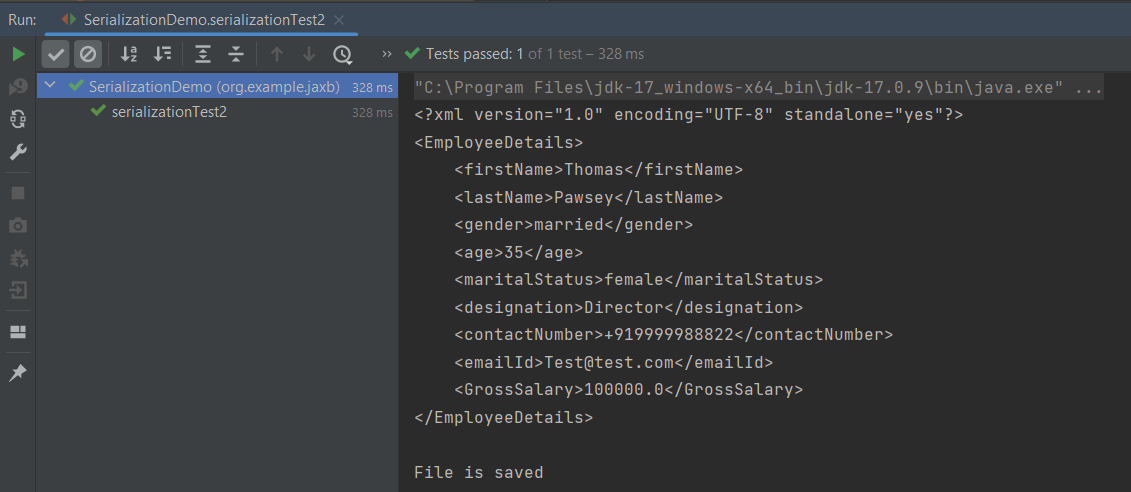
When we run the code above, we may check the console output to verify that we have successfully converted Java object to XML:
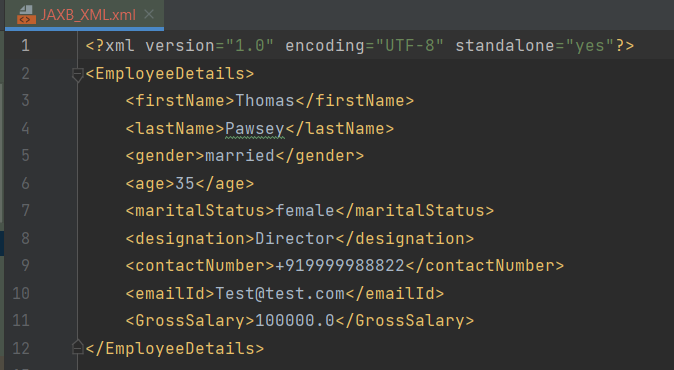
The XML is saved under src/test/resources. To see this file, after the execution of the test, you need to refresh the project.
Similarly, we can unmarshal an XML to Java Objects in the next tutorial.
We are done! Congratulations on making it through this tutorial and hope you found it useful! Happy Learning!!
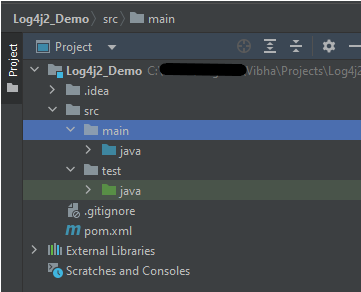
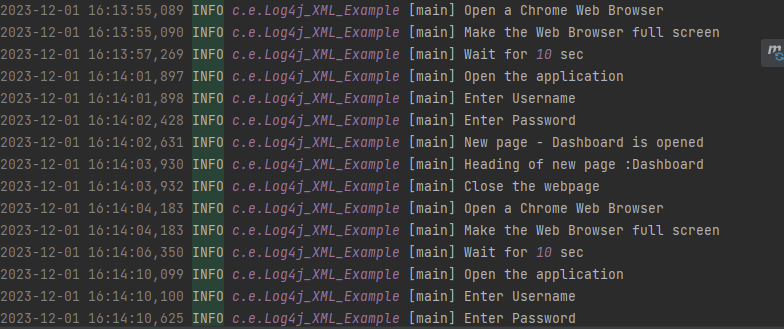
In the previous tutorial, we got an introduction to Log4j 2. In this tutorial, we will create a Selenium project and implement logging using the Log4j2 YML configuration.
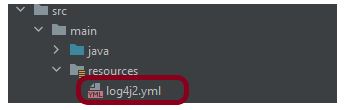
We’ve defined the level of the root logger as DEBUG. This means that we’ll get all the log events with level DEBUG and above. We’ve also defined a name for the appender as LogToConsoleand File.
We want to direct the logs to the console as well as File, we assigned the Appender typeas Console and File.
We specify the pattern in which we want to print the log messages.
Step 4 – Import log4j in the Selenium script
We need to import the log4j library in the Selenium script, so that we can use it in your code. Here is an example of how to import log4j in the Selenium script:
We need to create a Logger instance in the Selenium script so that we can use it to log information. Here is an example of how to create a Logger instance: