Gradle
Run Gradle Cucumber Tests from Command Line
The implementation of a test framework is considered successful and effective, if the test framework supports test execution in multiple ways.
The tests in a Gradle Cucumber Framework can be executed as JUnit Tests, Gradle Tests and Gradle commands from Command Line.
In this tutorial, I will explain to run Gradle tests from Command Line.
Versions Used
- Cucumber – 7.5.0
- Java – 11
- JUnit – 4.13.2
- Rest Assured – 4.3.3
To execute tests using JUnit Tests and Gradle Tests, we need to create a JUnit TestRunner.
Steps to follow
- Create a Gradle Java Project.
- Add Rest-Assured and Cucumber dependencies to the Gradle project
- Add Configuration to build.gradle
- Add Gradle Cucumber Task to build.gradle
- Create a feature file under src/test/resources
- Create the Step Definition class or Glue Code for the Test Scenario
- Run the tests from Command Line
Step 1 – Create a Gradle project
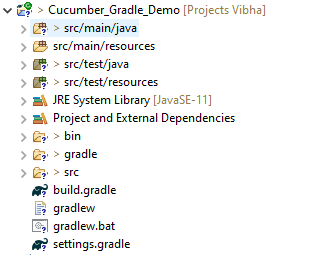
Step 2 – Add the below-mentioned dependencies in the Gradle project in build.gradle.
plugins {
    // Apply the java-library plugin to add support for Java Library

    id 'java-library'

}

repositories {
    // Use jcenter for resolving dependencies.
    // You can declare any Maven/Ivy/file repository here.
    jcenter()
    mavenCentral()
}

dependencies {
    // This dependency is exported to consumers, that is to say found on their compile classpath.
    api 'org.apache.commons:commons-math3:3.6.1'

    // This dependency is used internally, and not exposed to consumers on their own compile classpath.
    implementation 'com.google.guava:guava:29.0-jre'

    // Use JUnit test framework
    testImplementation 'junit:junit:4.13'
    testImplementation 'io.cucumber:cucumber-java:6.6.1'
    testImplementation 'io.cucumber:cucumber-junit:6.6.1'
    testImplementation 'io.rest-assured:rest-assured:4.3.3'
}
Step 3 – Add Configuration to build.gradle
configurations {
    cucumberRuntime {
        extendsFrom testImplementation
    }
}
Step 4 – Add Gradle Cucumber Task to build.gradle
task cucumber() {
    dependsOn assemble, testClasses
    doLast {
        javaexec {
            main = "io.cucumber.core.cli.Main"
            classpath = configurations.cucumberRuntime + sourceSets.main.output + sourceSets.test.output
            args = ['--plugin', 'pretty','--glue', 'Cucumber_Gradle_Demo.definitions', 'src/test/resources']
        }
    }
}

task getexample() {
    dependsOn assemble, compileTestJava
    doLast {
        javaexec {
            main = "io.cucumber.core.cli.Main"
            classpath = configurations.cucumberRuntime + sourceSets.main.output + sourceSets.test.output
            args = ['--plugin', 'pretty', '--glue', 'Cucumber_Gradle_Demo.definitions', 'src/test/resources/features/', '--tags', '@getexample']
        }
    }
}

task postexample() {
    dependsOn assemble, compileTestJava
    doLast {
        javaexec {
            main = "io.cucumber.core.cli.Main"
            classpath = configurations.cucumberRuntime + sourceSets.main.output + sourceSets.test.output
            args = ['--plugin', 'pretty', '--glue', 'Cucumber_Gradle_Demo.definitions', 'src/test/resources/features/', '--tags', '@postexample']
        }
    }
}
Here, task cucumber will execute all the tests present in the project irrespective of the number of feature files and scenarios within the feature file.
Step 5 – Create a feature file under src/test/resources
I have created 2 sample feature files – API_GetExample.feature and API_PostExample.feature.
Below is the API_GetExample.feature
@getexample
Feature: Validation of get method

  @GetUserDetails
  Scenario Outline: Send a valid Request to get user details

  Given I send a request to the URL to get user details
  Then the response will return status 200 and id <id> and salary <employee_salary> and name "<employee_name>" and age <employee_age> and message "<message>"

Examples:
    |id  |employee_salary|employee_name |employee_age  |message                                  |
    |1   |320800         |Tiger Nixon   |61            |Successfully! Record has been fetched.   |


  @GetAllUsers
  Scenario Outline: Send a valid Request to get the details of all the users

  Given I send a request to the URL to get the details of all the users
  Then the response will return status 200 and message "<message>"

Examples:
      |message                                  |
      | Successfully! All records has been fetched.   |
API_PostExample.feature
@postexample
Feature: Validation of POST method

  @CreateUser
  Scenario Outline: Send Request to create a user

  Given I send a request to the URL to create a new user
  Then the response will return status 200 and name "<employee_name>" and message "<message>"

Examples:
    |employee_name |message                                |
    |posttest      |Successfully! Record has been added.   |
1. Run Test from Command Line
1. Open the command prompt and change the directory to the project location.
cd C:\Users\Vibha\Projects\Vibha_Personal\Cucumber_Gradle_Demo
2. All feature files should be in src/test/resources and create the Cucumber Runner class as CucumberRunnerTest.
Note:- The Runner class name should end with Test to execute the tests from Command Line
2. Running all Feature files or Tests from Command Line
The below command will run all the tests present in the project. As you can see, there are 2 feature files – API_GetExample.feature contains 2 scenarios, and API_PostExample.feature contains 1 scenario.
gradle cucumber
The below screenshot shows that Task: Cucumber is triggered.
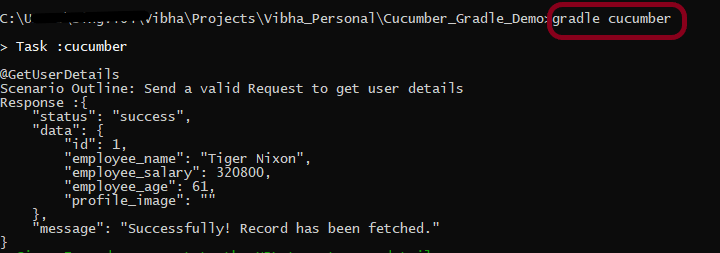
The below screenshot shows that the tests are executed and the status of the tests.

3. Running a Feature file from Command Line
To run a particular feature, create a task – postexample for that feature in the build.gradle as shown in the below example.
task postexample() {
    dependsOn assemble, compileTestJava
    doLast {
        javaexec {
            main = "io.cucumber.core.cli.Main"
            classpath = configurations.cucumberRuntime + sourceSets.main.output + sourceSets.test.output
            args = ['--plugin', 'pretty', '--glue', 'Cucumber_Gradle_Demo.definitions', 'src/test/resources/features/', '--tags', '@postexample']
        }
    }
}
Add this task as a feature tag name and use it to run the test of that particular feature file.
@postexample
Feature: Validation of POST method
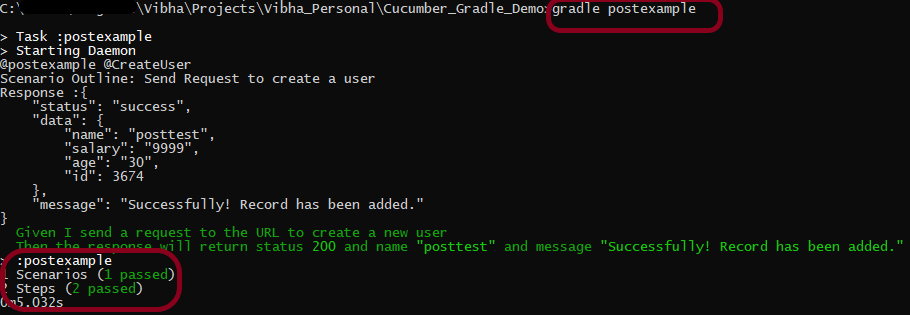
Use the below command to run the tests of API_PostExample.feature.
gradle postexample
4. Running Scenarios using Tags from Command Line
To execute the tests using tags, we need to add ‘–tags’, “${tags}” in build.gradle
task cucumber() {
    dependsOn assemble, testClasses
    doLast {
        javaexec {
            main = "io.cucumber.core.cli.Main"
            classpath = configurations.cucumberRuntime + sourceSets.main.output + sourceSets.test.output
            args = ['--plugin', 'pretty','--tags', "${tags}",'--glue', 'Cucumber_Gradle_Demo.definitions', 'src/test/resources']
        }
    }
}
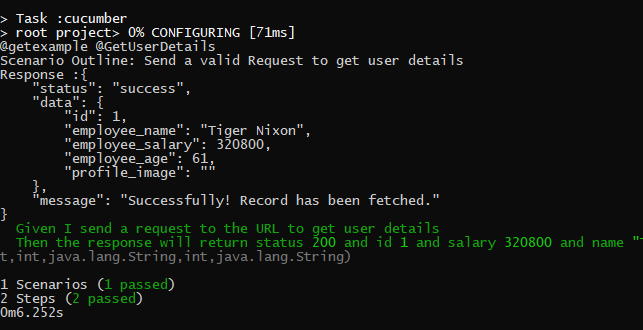
Use the below-mentioned command to run the tests tagged with tag = GetUserDetails.
gradle cucumber -P tags=@GetUserDetails
5. Running a group of tests from Command Line
Below is the feature file
@getexample
Feature: Validation of get method

  @GetUserDetails @SmokeTest
  Scenario Outline: Send a valid Request to get a user details

  Given I send a request to the URL to get user details
  Then the response will return status 200 and id <id> and salary <employee_salary> and name "<employee_name>" and age <employee_age> and message "<message>"

Examples:
    |id  |employee_salary|employee_name |employee_age  |message                                  |
    |1   |320800         |Tiger Nixon   |61            |Successfully! Record has been fetched.   |

  @GetAllUsers
  Scenario Outline: Send a valid Request to get the details of all the users

  Given I send a request to the URL to get the details of all the users
  Then the response will return status 200 and message "<message>"

Examples:
    |message                                        |
    | Successfully! All records has been fetched.   |


  @GetInvalidUsers @SmokeTest
  Scenario Outline: Send a valid Request to get the details of the invalid users

  Given I send a request to the URL to get the details of the invalid user
  Then the response will return status 200 and message "<message>"

Examples:
    | message                                  |
    | Successfully! Record has been fetched.   |

  @GetInvalidUsers
  Scenario Outline: Send a valid Request to get the details of the user with id 0

  Given I send a request to the URL to get the details of the user with id 0
  Then the response will return status 200 and message "<message>" and error "<errorMessage>"

Examples:
    | message             | errorMessage  |
    | Not found record.   | id is empty   |

  @Test3
  Scenario: Test 3

  Given I send a request to the URL to get the details of the user3
  Then the response will return successfully


  @Test4
  Scenario: Test 4

  Given I send a request to the URL to get the details of the user4
  Then the response will return successfully
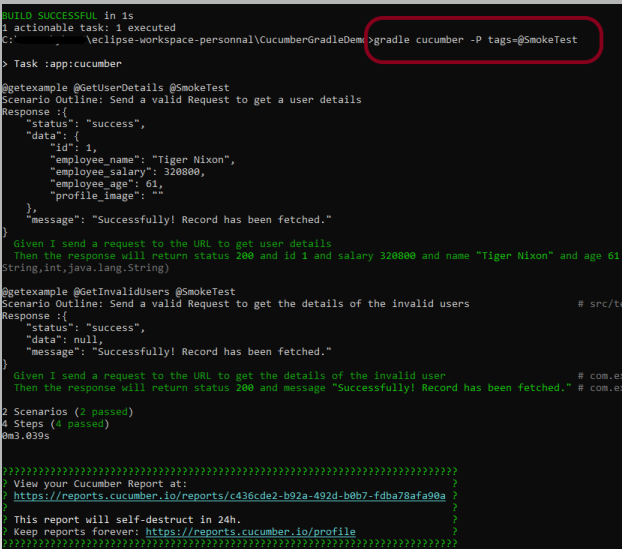
I want to run 2 tests – @GetUserDetails and @GetInvalidUsers. I can create a task with the name of @SmokeTest and assign these scenarios wit h the same tag. The task will look like as shown below:
task smokeTest() {
    dependsOn assemble, compileTestJava
    doLast {
        javaexec {
            main = "io.cucumber.core.cli.Main"
            classpath = configurations.cucumberRuntime + sourceSets.main.output + sourceSets.test.output
            args = ['--plugin', 'pretty', '--glue', 'com.example.definitions', 'src/test/resources/features/', '--tags', '@SmokeTest']
        }
    }

}
Use the below-mentioned command to run the tests.
gradle cucumber -P tags=@SmokeTest
The output of the above program is
6. Skipping the execution of a group of tests from Command Line
In the below feature file, I have marked 4 tests as “@Ignore” and 2 are valid.
Feature: Validation of get method

  @GetUserDetails @SmokeTest
  Scenario Outline: Send a valid Request to get a user details

  Given I send a request to the URL to get user details
  Then the response will return status 200 and id <id> and salary <employee_salary> and name "<employee_name>" and age <employee_age> and message "<message>"

Examples:
    |id  |employee_salary|employee_name |employee_age  |message                                  |
    |1   |320800         |Tiger Nixon   |61            |Successfully! Record has been fetched.   |


  @GetAllUsers @Ignore
  Scenario Outline: Send a valid Request to get the details of all the users

  Given I send a request to the URL to get the details of all the users
  Then the response will return status 200 and message "<message>"

Examples:
    |message                                        |
    | Successfully! All records has been fetched.   |


  @GetInvalidUsers @SmokeTest @Ignore
  Scenario Outline: Send a valid Request to get the details of the invalid users

  Given I send a request to the URL to get the details of the invalid user
  Then the response will return status 200 and message "<message>"

Examples:
    | message                                  |
    | Successfully! Record has been fetched.   |

  @GetInvalidUsers @Ignore
  Scenario Outline: Send a valid Request to get the details of the user with id 0

  Given I send a request to the URL to get the details of the user with id 0
  Then the response will return status 200 and message "<message>" and error "<errorMessage>"

Examples:
    | message             | errorMessage  |
    | Not found record.   | id is empty   |

  @Test3 @Ignore
  Scenario: Test 3

  Given I send a request to the URL to get the details of the user3
  Then the response will return successfully


  @Test4
  Scenario: Test 4

  Given I send a request to the URL to get the details of the user4
  Then the response will return successfully
Add the below-mentioned tag in the build.gradle.
def tags = (findProperty('tags') == null) ? 'not @Ignore' : findProperty('tags') + ' and not @Ignore'
Use the below-mentioned command to run the tests.
gradle cucumber
The program will execute only 2 tests and will skip the rest 4 tests. The output of the above program is

If I use the tag @SmokeTest here in the command line, then it will run all the tests tagged with @SmokeTest, but will ignore the tests tagged with @Ignore. So, in this case, it will run only 1 test – @GetUserDetails.
gradle cucumber -P tags=@SmokeTest

7. Run multiple tags
Add the below code to build.gradle
test {
    systemProperty "cucumber.filter.tags", System.getProperty("cucumber.filter.tags")
     testLogging {
     showStandardStreams = true
 }
}
This will help us to run multiple tags in cucumber. (Cucumber6 and above uses, cucumber.filter.tags , so for the lower version use cucumber.options).
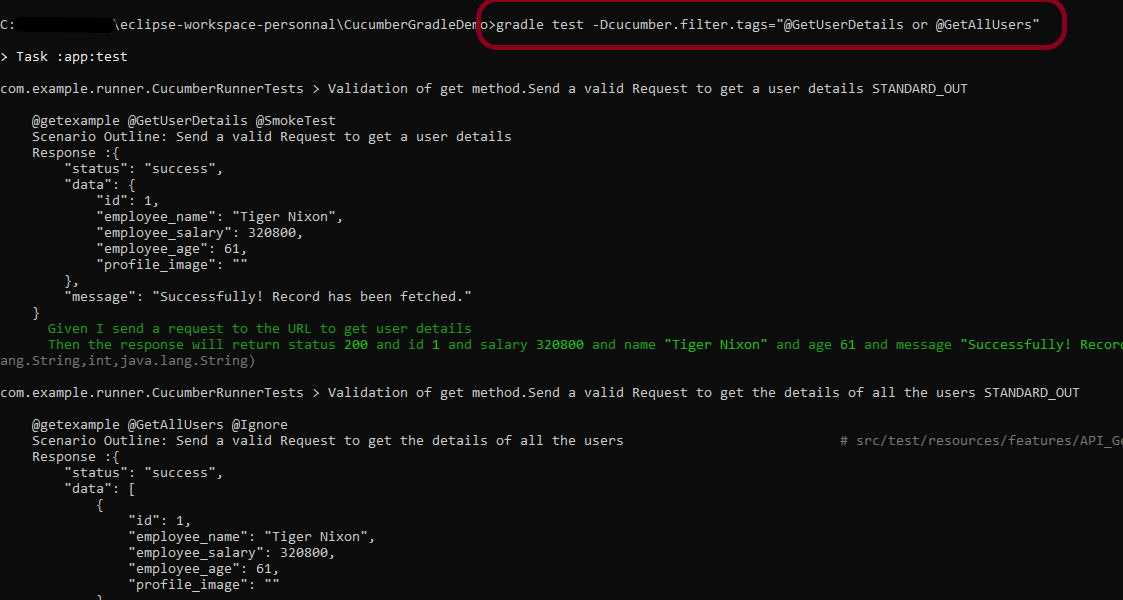
Use the below command to run 2 tests in gradle.
gradle test -Dcucumber.filter.tags="@GetUserDetails or @GetAllUsers"
or means that test tagged with either of these tags can be run. So, here 2 tests should run.

Congratulations on making it through this tutorial and hope you found it useful! Happy Learning!! Cheers!!
Extraction from JSON in Rest Assured – JsonPath
In this tutorial, I will explain how can we extract the body from JSON Response in Rest Assured. This is needed for the assertion of tests. In the previous tutorial, I explained various types of Assertions can be done on JSON Request using Hamcrest.
JsonPath is available at the Central Maven Repository. Maven users add this to the POM.
<!-- https://mvnrepository.com/artifact/com.jayway.jsonpath/json-path -->
<dependency>
    <groupId>com.jayway.jsonpath</groupId>
    <artifactId>json-path</artifactId>
    <version>2.9.0</version>
</dependency>
If the project is Gradle, add the below dependency in build.gradle.
testImplementation 'com.jayway.jsonpath:json-path:2.6.0'
JsonPath expressions can use the dot–notation.
$.store.book[0].title
or the bracket–notation
$['store']['book'][0]['title']
Below are the most commonly used expressions.
| Expression | Description |
| $ | The root object or array. |
| .property | Selects the specified property in a parent object. |
| [‘property’] | Selects the specified property in a parent object. Be sure to put single quotes around the property name.Tip: Use this notation if the property name contains special characters such as spaces, or begins with a character other than A..Za..z_. |
| [n] | Selects the n-th element from an array. Indexes are 0-based. |
| [index1,index2,…] | Selects array elements with the specified indexes. Returns a list. |
| ..property | Recursive descent: Searches for the specified property name recursively and returns an array of all values with this property name. Always returns a list, even if just one property is found. |
| * | Wildcard selects all elements in an object or an array, regardless of their names or indexes. |
| [start:end] [start:] | Selects array elements from the start index and up to, but not including, end index. If end is omitted, selects all elements from start until the end of the array. Returns a list. |
| [:n] | Selects the first n elements of the array. Returns a list. |
| [-n:] | Selects the last n elements of the array. Returns a list. |
| [?(expression)] | Selects all elements in an object or array that match the specified filter. Returns a list. |
| [(expression)] | Script expressions can be used instead of explicit property names or indexes. An example is [(@.length-1)] which selects the last item in an array. Here, length refers to the length of the current array rather than a JSON field named length. |
| @ | Used in filter expressions to refer to the current node being processed. |
Below is the sample JSON which I am using for extraction examples. I have saved this file in resources/Payloads as test.json.
{
    "store": {
        "book": [
            {
                "category": "reference",
                "author": "Nigel Rees",
                "title": "Sayings of the Century",
                "price": 8.95
            },
            {
                "category": "fiction",
                "author": "Evelyn Waugh",
                "title": "Sword of Honour",
                "price": 12.99
            },
            {
                "category": "fiction",
                "author": "Herman Melville",
                "title": "Moby Dick",
                "isbn": "0-553-21311-3",
                "price": 8.99
            },
            {
                "category": "fiction",
                "author": "J. R. R. Tolkien",
                "title": "The Lord of the Rings",
                "isbn": "0-395-19395-8",
                "price": 22.99
            }
        ],
        "bicycle": {
            "color": "red",
            "price": 19.95
        }
    },
    "expensive": 10
}
To extract all books present in the store:-
String allBooks = JsonPath.read(jsonString, "$..*").toString();
System.out.println("--------------- All books in the store --------------");
System.out.println(allBooks);
The complete program looks like as shown below:
import com.jayway.jsonpath.JsonPath;
public class JsonPath_Demo {

    public static void main(String args[]) {

        String jsonString = new String(Files.readAllBytes(Paths.get("src/test/resources/Payloads/test.json")));

        String allBooks = JsonPath.read(jsonString, "$..*").toString();
        System.out.println("--------------- All books in the store --------------");
        System.out.println(allBooks);
    }
}
The output of the above program is

Below are examples that show how to extract different nodes from a JSON Body. I have used the above JSON Body for these examples.
 // All bicycles in the store
String allBicycles = JsonPath.read(jsonString, "$..bicycle").toString();
System.out.println("--------------- All bicycles in the store ---------------");
System.out.println(allBicycles);

// The number of books
String noOfBooks = JsonPath.read(jsonString, "$..book.length()").toString();
System.out.println("--------------- The number of books ---------------");
System.out.println(noOfBooks);

// The authors of all books
String authors = JsonPath.read(jsonString, "$.store.book[*].author").toString();
System.out.println("--------------- Author of all Books ---------------");
System.out.println(authors);

// All authors
String allAuthors = JsonPath.read(jsonString, "$..author").toString();
System.out.println("--------------- All Authors ---------------");
System.out.println(allAuthors);

// All details of the store
String store = JsonPath.read(jsonString, "$.store.*").toString();
System.out.println("--------------- All details of the store ---------------");
System.out.println(store);

// Price of store
String storePrice = JsonPath.read(jsonString, "$.store..price").toString();
System.out.println("--------------- price of store ---------------");
System.out.println(storePrice);
The output of the above program is

Below are the examples where I have extracted specific book (nodes) from the JSON body.
// Third book
String thirdBook = JsonPath.read(jsonString, "$..book[2]").toString();
System.out.println("--------------- third book ---------------");
System.out.println(thirdBook);

// first Last Book
String firstLastBook = JsonPath.read(jsonString, "$..book[-1]").toString();
System.out.println("--------------- first Last Book ---------------");
System.out.println(firstLastBook);

// first two Books
String firstTwoBooks = JsonPath.read(jsonString, "$..book[0,1]").toString();
System.out.println("--------------- first Two Books ---------------");
System.out.println(firstTwoBooks);

// books from index 0 (inclusive) until index 2 (exclusive)
String booksRange = JsonPath.read(jsonString, "$..book[:2]").toString();
System.out.println("--------------- books from index 0 (inclusive) until index 2 (exclusive) ---------------");
System.out.println(booksRange);

// All books from index 1 (inclusive) until index 2 (exclusive)
String booksRange1 = JsonPath.read(jsonString, "$..book[1:2]").toString();
System.out.println("------------ All books from index 1 (inclusive) until index 2 (exclusive) -----------");
System.out.println(booksRange1);

// Book number one from tail
String bottomBook = JsonPath.read(jsonString, "$..book[1:]").toString();
System.out.println("--------------- Book number one from tail ---------------");
System.out.println(bottomBook);
The output of the above program is

Filters are logical expressions used to filter arrays. Below are examples of a JSONPath expression with the filters.
// All books in store expensive than 10
String expensiveBook = JsonPath.read(jsonString, "$.store.book[?(@.price > 10)]").toString();
System.out.println("--------------- All books in store costlier than 10 ---------------");
System.out.println(expensiveBook);

// All books in store that are not "expensive"
String notExpensiveBook = JsonPath.read(jsonString, "$..book[?(@.price <= $['expensive'])]").toString();
System.out.println("--------------- All books in store that are not expensive ---------------");
System.out.println(notExpensiveBook);

// All books in store that are equal to price 8.95
String comparePrice = JsonPath.read(jsonString, "$.store.book[?(@.price == 8.95)]").toString();
System.out.println("--------------- All books in store that are not expensive ---------------");
System.out.println(comparePrice);

// All books matching regex (ignore case)
String regxExample = JsonPath.read(jsonString, "$..book[?(@.author =~ /.*REES/i)]").toString();
System.out.println("--------------- All books matching regex (ignore case) ---------------");
System.out.println(regxExample);

// All books with price equal to mentioned list of prices
String priceList = JsonPath.read(jsonString, "$..book[?(@.price in ['12.99', '8.99'])]").toString();
System.out.println("--------------- All books with price equal to mentioned list of prices ---------------");
System.out.println(priceList);

// All books with price NOT equal to mentioned list of prices
String excludePriceList = JsonPath.read(jsonString, "$..book[?(@.price nin ['12.99', '8.99'])]").toString();
System.out.println("---------- All books with price NOT equal to mentioned list of prices ---------");
System.out.println(excludePriceList);

// All books with specified substring (case-sensitive)
String substringExample = JsonPath.read(jsonString, "$..book[?(@.author contains 'Melville')]").toString();
System.out.println("--------------- All books with specified substring (case-sensitive) ---------------");
System.out.println(substringExample);

// All books with an ISBN number
String specificBook = JsonPath.read(jsonString, "$..book[?(@.isbn)]").toString();
System.out.println("--------------- All books with an ISBN number ---------------");
System.out.println(specificBook);
The output of the above program is

We are done! Congratulations on making it through this tutorial and hope you found it useful! Happy Learning!!
Setup Basic REST Assured Gradle Project In Eclipse IDE
In the previous tutorial, I have provided the Introduction of Rest Assured. In this tutorial, I will explain how to setup basic Rest Assured Gradle project in Eclipse IDE. Before going through this tutorial, it is recommended to go through previous tutorial to know about Rest Assured.
What is Gradle?
Gradle is an open-source build automation tool that is designed to be flexible enough to build almost any type of software. A build automation tool is used to automate the creation of applications. The building process includes compiling, linking, and packaging the code. The process becomes more consistent with the help of building automation tools.
Steps to setup Rest Assured Gradle Project in Eclipse
- Download and Install Java on the system
- Download and setup Eclipse IDE on the system
- Setup Gradle on System
- Create a new Gradle Project
- Add Rest-Assured dependencies to the project
Step 1- Download and Install Java
Rest-Assured needs Java to be installed on the system to run the tests. Check if Java is installed on your machine or not by using the below command on Command Prompt.
java -version
If Java is not installed, then click here to know How to install Java.
Step 2 – Download and setup Eclipse IDE on the system
The Eclipse IDE (integrated development environment) provides strong support for Java developers. If Eclipse IDE is already not present on your system, then click here to know How to install Eclipse.
Step 3 – Setup Gradle
To build a test framework, we need to add several dependencies to the project. This can be achieved by any build Tool. I have used Gradle Build Tool. Click here to know How to install Gradle.
Step 4 – Create a new Gradle Project
To know, in detail, how to create a Gradle project in Eclipse, refer to this link.
File ->New Project ->Gradle Project ->Next.

Provide projectname and location where you want to save the project on your system. Click the Finish Button.

Verify the Gradle Version and Gradle project structure name. Click the Finish Button.

Below is the structure of the new Gradle project.

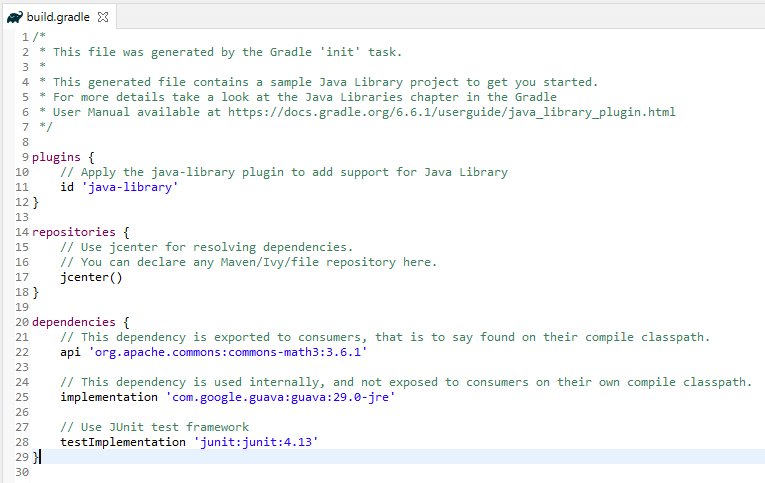
Below is the structure and content of the build.gradle of the new project.
Step 5 – Add Rest-Assured dependencies to the project
Add Rest-Assured, JSON Schema Validator, and JUnit dependencies to the project.
    // Use rest assured
    testImplementation 'io.rest-assured:rest-assured:4.3.3'
    testImplementation 'io.rest-assured:json-schema-validator:4.3.3'
Step 6 – Below are the Rest Assured, json schema validator, junit jar files present under Maven Dependencies.
Make sure you right-click on project -> Select Gradle ->Refresh Gradle Project. It is needed to see the new jar files in the project.

That’s it! Congratulations on making it through this tutorial and hope you found it useful! Happy Learning!! Cheers
How To Create Gradle Project with Cucumber to test Rest API
This tutorial describes the creation of the Gradle Java Project to test Rest API using Cucumber BDD and Rest-Assured.
In this tutorial, I will explain creating a framework for the testing of Rest API in Cucumber BDD.
Table of Contents
- Dependency List
- Project Structure
- Implementation Steps
- Download and Install Java
- Download and setup Eclipse IDE on the system
- Setup Gradle
- Create a new Gradle Project
- Add Rest-Assured and Cucumber dependencies to the Gradle project
- Add Configuration to build.gradle
- Add Gradle Cucumber Task to build.gradle
- Create a feature file under src/test/resources
- Create the Step Definition class or Glue Code for the Test Scenario
- Create a Cucumber Runner class
- Run the tests from JUnit
- Run the tests from the Command Line
- Cucumber Report Generation
Dependency List
- Cucumber – 6.8.1 or above
- Java 8 or above
- JUnit 4
- Gradle 6.6.1 (Build Tool)
- Rest Assured 4.3.3

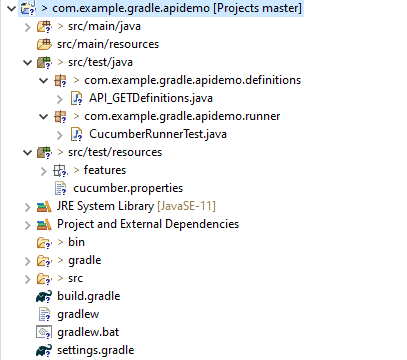
Project Structure
Implementation Steps
Step 1- Download and Install Java
Cucumber and Rest-Assured need Java to be installed on the system to run the tests. Click here to learn How to install Java.
Step 2 – Download and setup Eclipse IDE on the system
The Eclipse IDE (integrated development environment) provides strong support for Java developers. Click here to learn How to install Eclipse.
Step 3 – Setup Gradle
To build a test framework, we need to add several dependencies to the project. This can be achieved by any build tool. I have used the Gradle Build Tool. Click here to learn How to install Gradle.
Step 4 – Create a new Gradle Project

To create a new Gradle project, go to the top left side and select File -> New Project -> Gradle -> Gradle project -> Next -> Enter Project Name and Project Location ->Next ->Select Gradle Version ->Next ->Review the Configuration -> Finish.
Click here to know How to create a Gradle Java project. Below is the structure of the Gradle project.

Step 5 – Add Rest-Assured and Cucumber dependencies to the Gradle project
This syntax is used for Gradle 5.0 and higher.
dependencies {
    // This dependency is exported to consumers, that is to say found on their compile classpath.
    api 'org.apache.commons:commons-math3:3.6.1'

    // This dependency is used internally, and not exposed to consumers on their own compile classpath.
    implementation 'com.google.guava:guava:29.0-jre'

    testImplementation 'io.cucumber:cucumber-java:6.8.1'
    testImplementation 'io.cucumber:cucumber-junit:6.8.1'
    testImplementation 'io.rest-assured:rest-assured:4.3.3'
If you are using Gradle 4.10.3 or older, use the below dependency block to build.gradle.
dependencies {
    testCompile 'io.cucumber:cucumber-java:6.8.1'
}
Step 6 – Add Configuration to build.gradle
The below configuration is added to the build.gradle when Gradle is 5.0 or higher version.
configurations {
    cucumberRuntime {
        extendsFrom testImplementation
    }
}
If Gradle is 4.10.3 or older, use the below configuration.
configurations {
    cucumberRuntime {
        extendsFrom testRuntime
    }
}
Step 7 – Add Gradle Cucumber Task to build.gradle
task cucumber() {
    dependsOn assemble, testClasses
    doLast {
        javaexec {
            main = "io.cucumber.core.cli.Main"
            classpath = configurations.cucumberRuntime + sourceSets.main.output + sourceSets.test.output
            args = ['--plugin', 'pretty', '--glue', 'com.example.gradle.apidemo', 'src/test/resources']
        }
    }
}
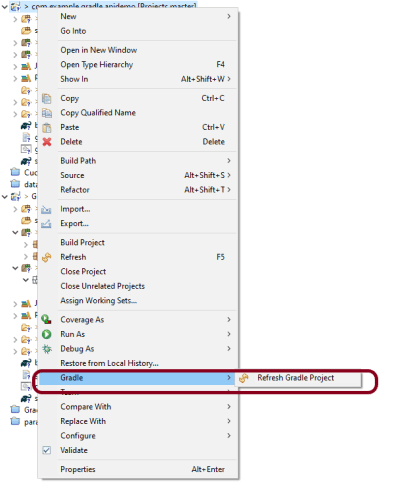
Once you have added dependencies, configurations, and Gradle cucumber task, Right-click on the project, Hover to the Gradle option, and click Refresh Gradle Project. Eclipse does not automatically update the classpath of the build.gradle file is updated. Select Gradle Refresh Gradle Project from the context menu of the project or from your build.gradle file for that.
Step 8 – Create a feature file under src/test/resources
A new Gradle Project is created with 4 folders – src/main/java, src/main/resources, src/test/java and src/test/resources. Features are created under the src/test/resources directory. Create a folder with name features. Now, create the feature file in this folder. The feature file should be saved with the extension .feature. This feature file contains the test scenarios created to test the application. The Test Scenarios are written in Gherkins language in the format of Given, When, Then, And, But.
Below is an example of a Test Scenario where we are using the GET method to get the information from the API.
Feature: Validation of get method

@GetUserDetails
  Scenario Outline: Send a valid Request to get user details

  Given I send a request to the URL to get user details
  Then the response will return status 200 and id <id> and salary <employee_salary> and name "<employee_name>" and age <employee_age> and message "<message>"

Examples:
    |id  |employee_salary|employee_name |employee_age  |message                                  |
    |1   |320800         |Tiger Nixon   |61            |Successfully! Record has been fetched.   |
Step 9 – Create the Step Definition class or Glue Code for the Test Scenario
Step Definition acts as an intermediate to your runner and feature file. It stores the mapping between each step of the scenario in the Feature file. So when you run the scenario, it will scan the step definition file to check the matched glue or test code.
import io.restassured.http.ContentType;

import io.restassured.response.ValidatableResponse;

import static io.restassured.RestAssured.given;
import static org.hamcrest.Matchers.equalTo;

import io.cucumber.java.en.Given;
import io.cucumber.java.en.Then;

public class API_GETDefinitions {


    private ValidatableResponse validatableResponse;

    private String endpoint = "http://dummy.restapiexample.com/api/v1/employee/1";

    @Given("I send a request to the URL to get user details")
    public void sendRequest(){
        validatableResponse = given().contentType(ContentType.JSON)
                .when().get(endpoint).then();

        System.out.println("Response :"+validatableResponse.extract().asPrettyString());
    }


    @Then("the response will return status {int} and id {int} and salary {int} and name {string} and age {int} and message {string}")
    public void verifyStatus(int statusCode, int id, int emp_Salary, String emp_name, int emp_age, String message ){

        validatableResponse.assertThat().statusCode(statusCode);

        validatableResponse.assertThat().body("data.id",equalTo(id));

        validatableResponse.assertThat().body("data.employee_salary",equalTo(emp_Salary));

        validatableResponse.assertThat().body("data.employee_name",equalTo(emp_name));

        validatableResponse.assertThat().body("data.employee_age",equalTo(emp_age));

        validatableResponse.assertThat().body("message",equalTo(message));

    }
}
In order to use REST assured effectively, it’s recommended to statically import methods from the following classes:
import io.restassured.RestAssured.*
import io.restassured.matcher.RestAssuredMatchers.*
import static org.hamcrest.Matchers.*
given() method is imported from package:
import static io.restassured.RestAssured.given;
equalTo() method is imported from package:
import static org.hamcrest.Matchers;
Step 10 – Create a Cucumber Runner class
A runner will help us to run the feature file and act as an interlink between the feature file and step definition Class. To know more about Runner, refer to this link.
import org.junit.runner.RunWith;

import io.cucumber.junit.Cucumber;
import io.cucumber.junit.CucumberOptions;

@RunWith(Cucumber.class)

@CucumberOptions(plugin ="pretty",features= {"src/test/resources/features/API_GET.feature"}, glue= {"com.example.gradle.apidemo"})

public class CucumberRunnerTest {

}
Step 11 – Run the tests from JUnit
You can execute the test script by right-clicking on the Test Runner class -> Run As JUnit.
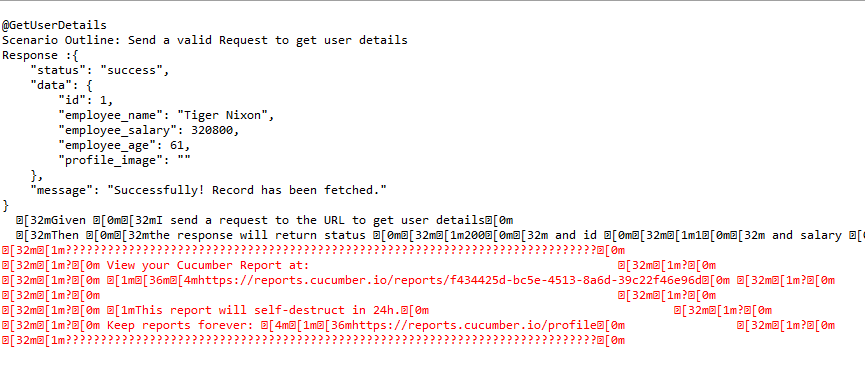

Step 12 – Run the tests from the Command Line
Run the following Gradle task from the directory path where build.gradle file is located. To know more about this report, refer here.
gradle cucumber
Below is the screenshot of the execution of Cucumber tests in Command-Line.

Step 13 – Cucumber Report Generation
To get Cucumber Test Reports, add cucumber.properties under src/test/resources and add the below instruction in the file.
cucumber.publish.enabled=true
Below is the image of the Cucumber Report.

We are done! Congratulations on making it through this tutorial and hope you found it useful! Happy Learning!!
How to create Gradle Java project in IntelliJ using Command Line
In the previous tutorial, I have explained about How to create Gradle project in IntelliJ without Command Line. In this tutorial, I will explain how to create a Gradle Java project using Command Line in IntelliJ.
Implementation Steps
Step 1- Create a Project Folder and change the directory path to the folder where we want to save the latest files created post creation of the project. Here, I have created a folder – GradleIntelliJDemoFromCMD and changed the directory path.
cd C:\Users\Vibha\Projects\Vibha_Personal\GradleIntelliJDemoFromCMD
Step 2 – Open the Terminal in IntelliJ.

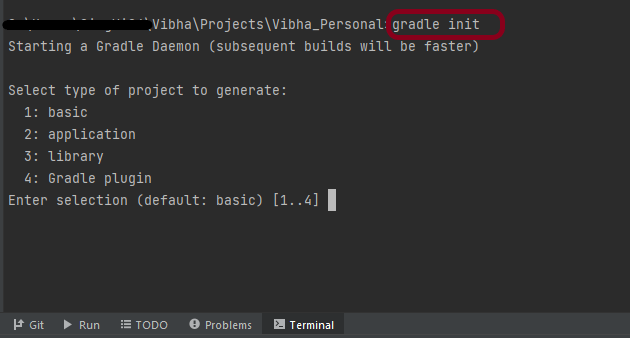
Step 3 – Gradle comes with a built-in task, called init , that initializes a new Gradle project in an empty folder. The init task uses the (also built-in) wrapper task to create a Gradle wrapper script, gradlew. Type the below command and press ENTER.
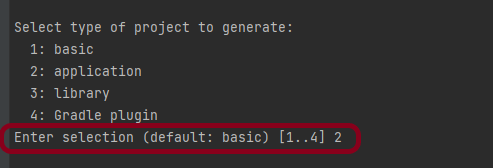
Step 4 – Select the type of project to generate. I’m selecting the application option as if I select basic, it won’t create a src directory. Type 2 and press ENTER.
Step 5 – Select implementation language. This is a Java project, so TYPE 3 (Java) and press ENTER.
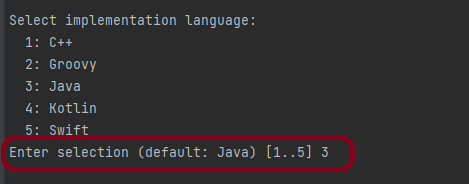
Step 6 – Select build script DSL (Domain Specific Language) – As in Maven POM.xml (XML) is created to build a script file, here we can use Groovy or Kotlin to build the script file. Type 1 (Groovy) and press ENTER.

Step 7 – Select Test Framework – There are 4 different test frameworks. Depending on your requirement, select an option. I have selected 1 (JUnit 4) and press ENTER.

Step 8 – It needs the Project name and Source Package name. If I won’t provide the project name, it will take by default my current folder name which is Gradle_Project. Similarly, if I won’t provide the Source Package name, then it will provide the current project name as Source Package Name.
Project name – GradleIntelliJDemoFromCMD
Source Package – com.example
Press ENTER. init script will run and create a Gradle project. You can see as the build is successfull.
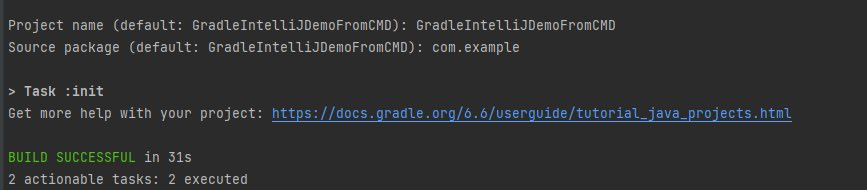
Step 9 – The project is created and placed under the folder GradleIntelliJDemoFromCMD as shown below.
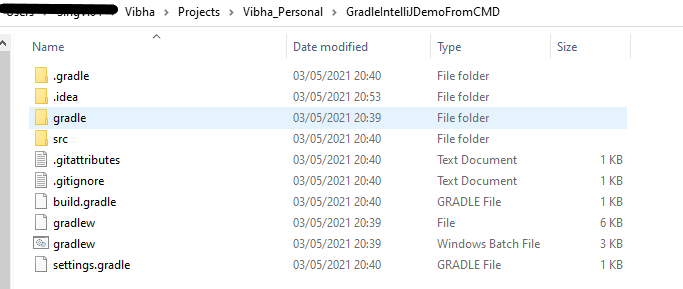
This project structure will have below mentioned files:-
- Generated folder for wrapper files – wrapper
- Gradle wrapper start scripts – gradlew, gradlew.bat
- Settings file to define build name and subprojects – settings.gradle
- Build script of lib project – build.gradle
- Default Java source folder – src/main/java
- Default Java test source folder – src/test/java
That’s it. We are done.
Congratulations on making it through this tutorial and hope you found it useful! Happy Learning!! Cheers!!
How to create Java Gradle project in Eclipse
In the previous tutorial, I have explained how to create a Java Gradle project in IntelliJ. In this tutorial, I will explain about creating a Java Gradle project Eclipse. I have used Gradle 6.6 to create the project.
Steps to follow:-
Step 1 – To create a new project – Click on the “New” and then select – “Project”.

Step 2 – Select the “Gradle Project” and click on the “Next” button.

Step 3 – A welcome screen will appear. You can uncheck the box – Show the welcome page the next time the wizard appears. This is optional. Click the NEXT button.

Step 4 – Below the screen will appear. Mention the “Project Name – GradleEclipseDemo”. Mention the location where we want to save the project in the system. Click the NEXT button.
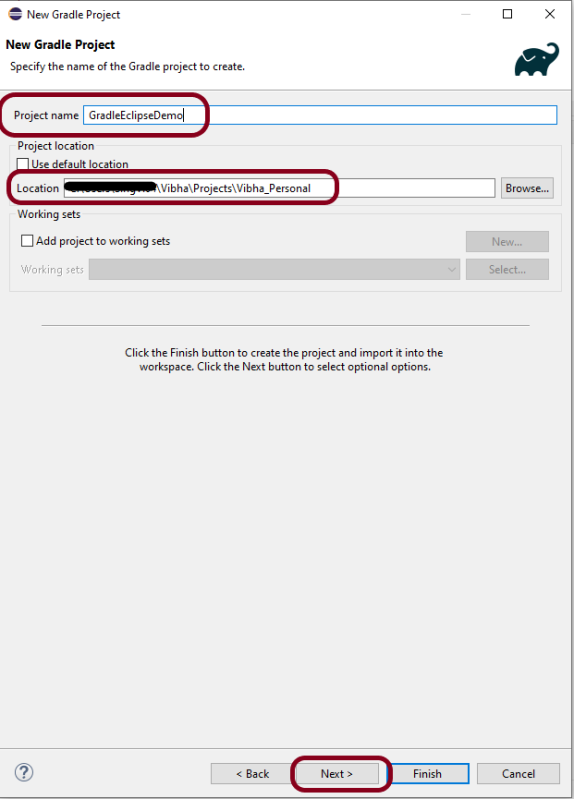
Step 5 – Options screen appear. Make sure you use Gradle version 6.6 to create Gradle project in Eclipse for Version: 2021- 03 (4.19.0).
Note:- If you will try to use version higher than 6.6, then Gradle project structure will have a Gradle project with the nested project with a lib subproject in it.

Step 6 – Verify the Gradle Version and Gradle project structure name.

Step 7 – Below is the structure of Gradle project. The init task generates the new project with the following structure:-
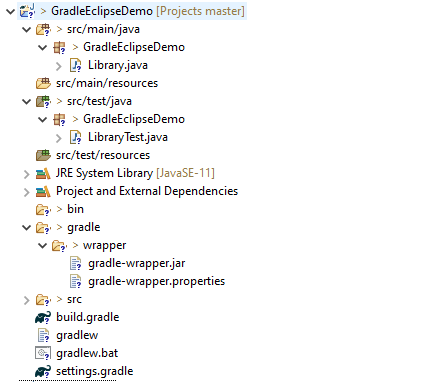
- Generated folder for wrapper files -wrapper
- Gradle wrapper start scripts – gradlew, gradlew.bat
- Settings file to define build name and subprojects – settings.gradle
- Build script of lib project – build.gradle
- Default Java source folder – src/main/java
- Default Java test source folder – src/test/java
Step 8 – Below is the structure and content of the build.gradle.
/*
 * This file was generated by the Gradle 'init' task.
 *
 * This generated file contains a sample Java Library project to get you started.
 * For more details take a look at the Java Libraries chapter in the Gradle
 * User Manual available at https://docs.gradle.org/6.6/userguide/java_library_plugin.html
 */

plugins {
    // Apply the java-library plugin to add support for Java Library
    id 'java-library'
}

repositories {
    // Use jcenter for resolving dependencies.
    // You can declare any Maven/Ivy/file repository here.
    jcenter()
}

dependencies {
    // This dependency is exported to consumers, that is to say found on their compile classpath.
    api 'org.apache.commons:commons-math3:3.6.1'

    // This dependency is used internally, and not exposed to consumers on their own compile classpath.
    implementation 'com.google.guava:guava:29.0-jre'

    // Use JUnit test framework
    testImplementation 'junit:junit:4.13'
}
- plugins – Apply the java-library plugin for API and implementation separation.
- jcenter – Use JCentral for resolving dependencies. JCenter is a central repository on JFrog Bintray platform for finding and sharing popular JVM language packages in Maven format
- api – This dependency is exported to consumers, that is to say found on their compile classpath.
- implementation – This dependency is used internally, and not exposed to consumers on their own compile classpath.
- testImplementation – Use JUnit test framework.
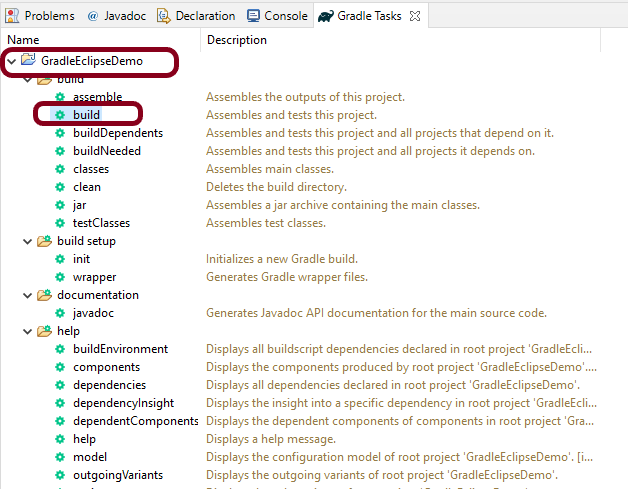
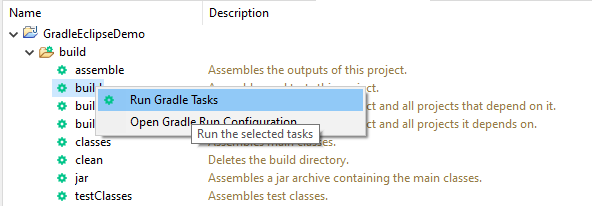
Step 9 – To check if the project is created successfully. In gradle tasks tab -> navigate to the project -> expand build folder -> right click on build -> Select Run Gradle tasks.
This will be the output of the Gradle Run.
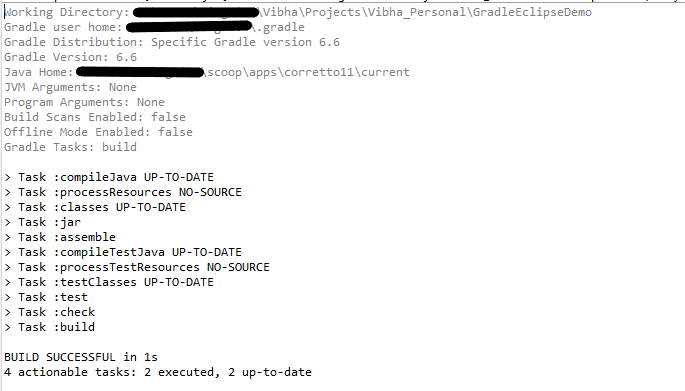
That’s it. We have successfully created a Gradle Java project in Eclipse.
Congratulations on making it through this tutorial and hope you found it useful! Happy Learning!! Cheers!!
How to install Gradle on Windows
In this tutorial, I will explain How to install Gradle on Windows.
Steps to follow:-
Step 1 – To install Gradle on window, we need to download Gradle from Official Gradle Site. I am downloading gradle-8.8.
Step 2 – Create a new directory Documents\Vibha\Automation with File Explorer.
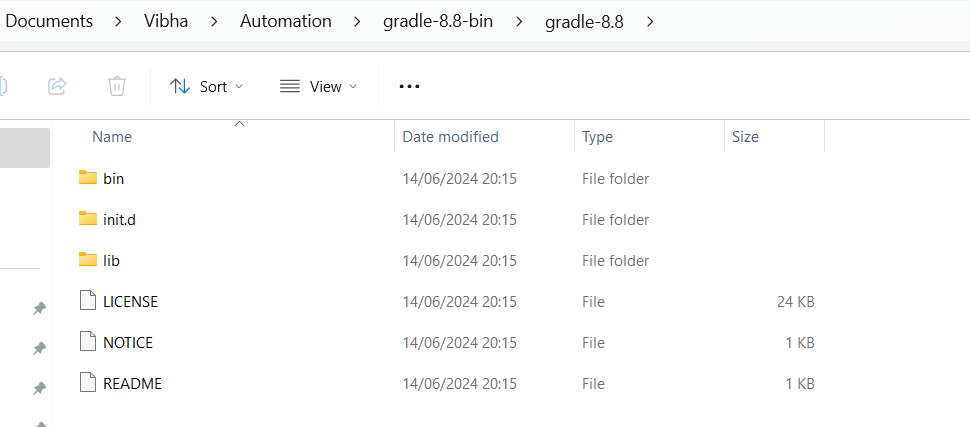
Step 3 – Copy the extracted files under C:\Users\ykv12\Documents\Vibha\Automation\gradle-8.8-bin. Below is the image of the folder.
Step 4 – We need to configure GRADLE_HOME environment variable. Type – “View Adva” in the search option and we will see the option – View Advanced system setting.
Step 5 – In System Properties dialog, select Advanced tab and click on the Environment Variables button.
Step 6 – In “Environment variables” dialog, System variables, Clicks on the New button and add a GRADLE_HOME variable .

Step 7 – Below is the image which shows addition of Environment Variables.

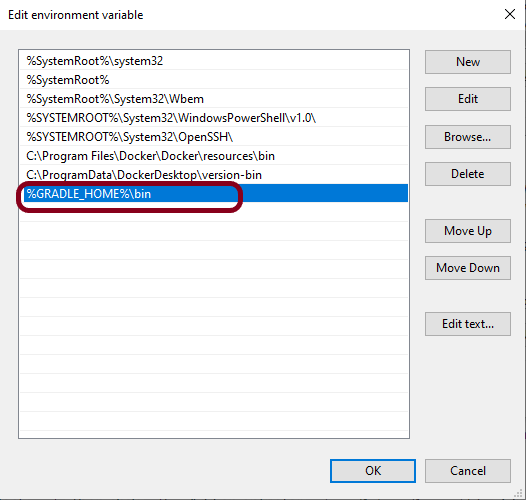
Step 8 – Add %GRADLE_HOME%\bin (full path till bin where gradle is placed on your machine) to Path. Click New Button present in System Variable and add GRADLE_HOME\bin.
How to verify if Gradle is install properly on your machine
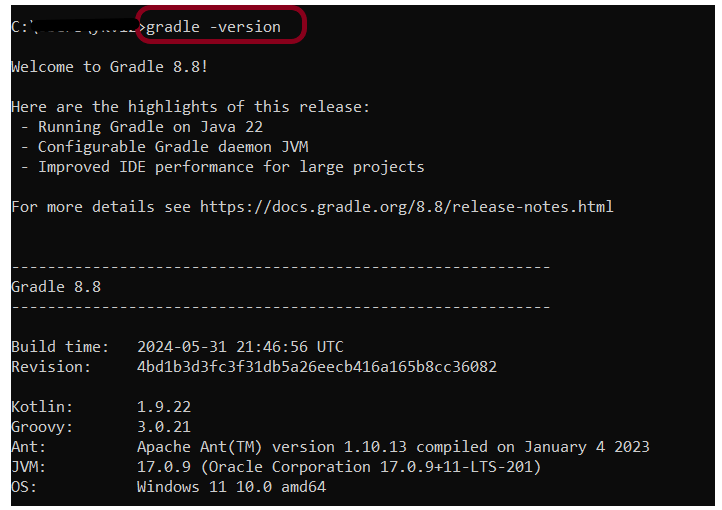
Open command prompt and type gradle -version, then the screen should look something like below screen.
That’s it! We have installed Gradle.
Congratulations on making it through this tutorial and hope you found it useful! Happy Learning!! Cheers!!
How to import Java Gradle project in IntelliJ
In the previous tutorial, I have explained How to create a Java Gradle in IntelliJ. This tutorial will explain How to import the Java Gradle project in IntelliJ.
Steps to follow:-
Step 1 – Open IntelliJ IDEA and Welcome Screen appears. Click the Open button present on Welcome Screen.

Step 2 – Navigate to your Gradle project and select the top-level folder. Select the project you want to Import. Select the OK button to proceed to the next screen.

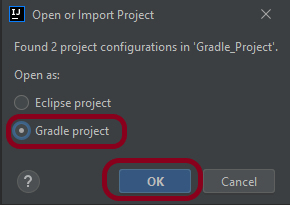
Step 3 – A screen appears to Open or Import project. It will have all the possible configurations for the project. As this is a Gradle project, select Gradle project and click the OK Button.
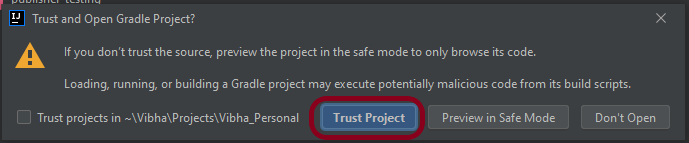
Step 4 – A warning message box will appear. Select Trust Project button and move forward.
Step 5 – The imported project structure in IntelliJ is shown below.

Step 6 – This screen shows that the project is imported and build successfully.

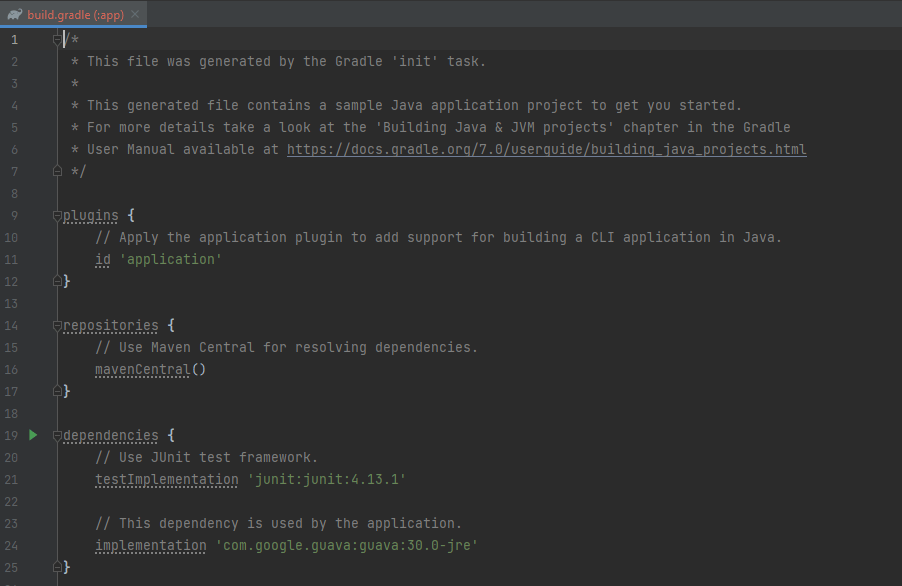
Step 7 – This screen shows the build.gradle of the imported project.
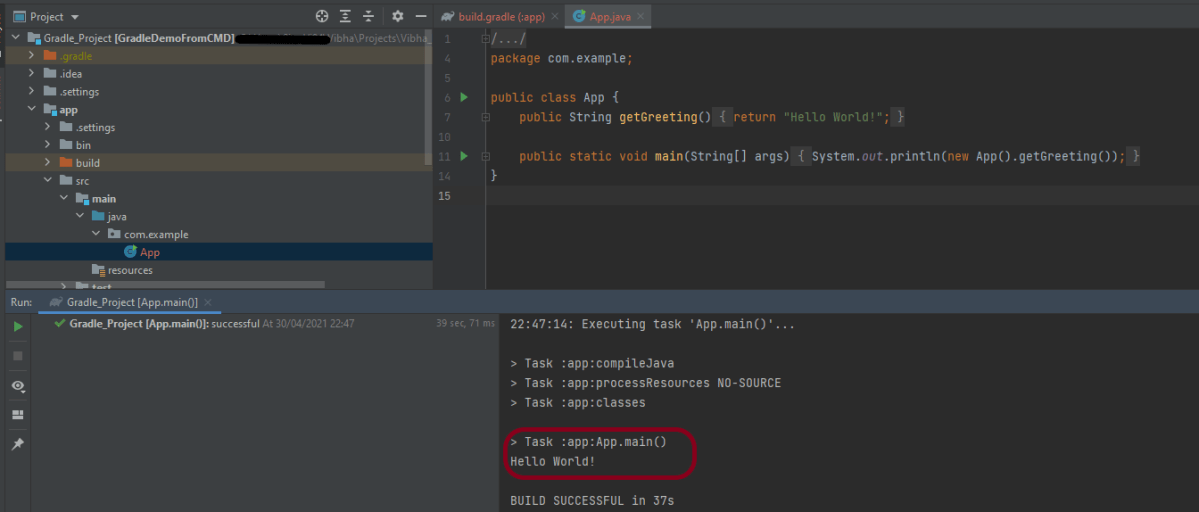
Step 8 – Run the test present in the project. Here, I have run App. Right-click on App ->Run ‘App.main()’. The below screen shows that the project is imported successfully.
That’s it! We are done!!!
Congratulations on making it through this tutorial and hope you found it useful! Happy Learning!! Cheers!!
How to import Java Gradle project in Eclipse
In the previous tutorial, I explained How to create a Java Gradle project using Command Line. This tutorial will explain How to import the Java Gradle project in Eclipse.
Steps to follow:-
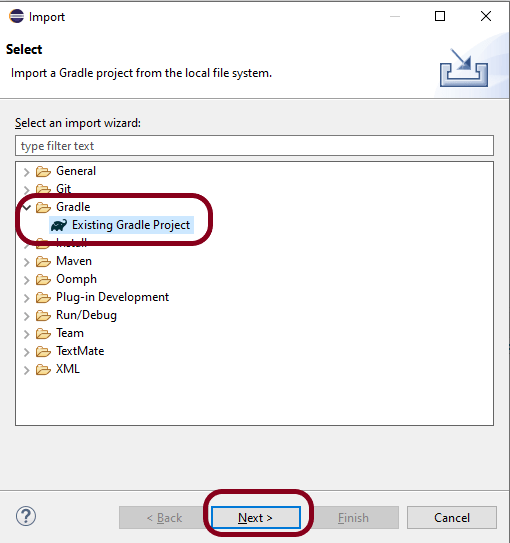
Step 1 – Open Eclipse IDE. In Eclipse IDE, select File ->Import ->Maven ->Existing Gradle Project. Click NEXT Button.
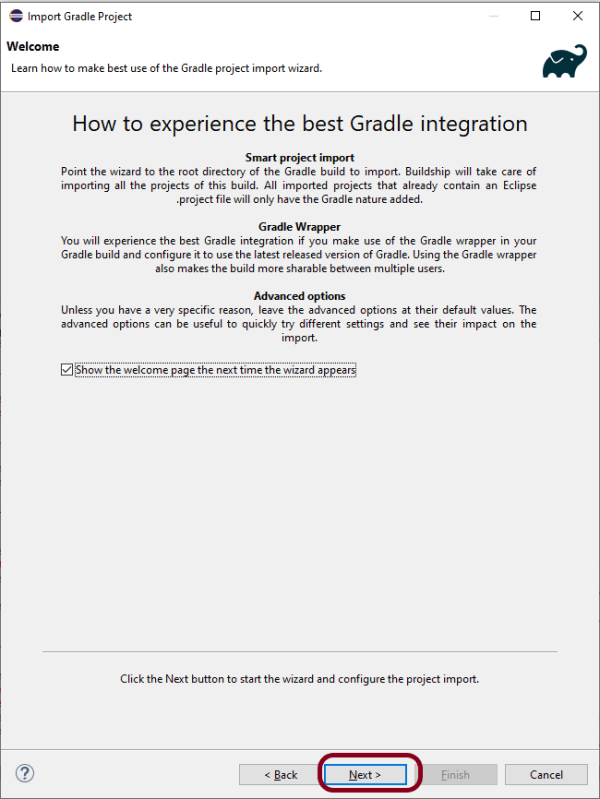
Step 2 – A welcome screen will appear. You can uncheck the box – Show the welcome page the next time the wizard appears. This is optional. Click the NEXT button.
Step 3 – Browse the location from where you want to import the Gradle project. Click the NEXT button.

Step 4 – This screen allows us to Configure Customized Workspace Settings. This shows that Gradle Version 7.0 is used for this project. Click the Finish Button.

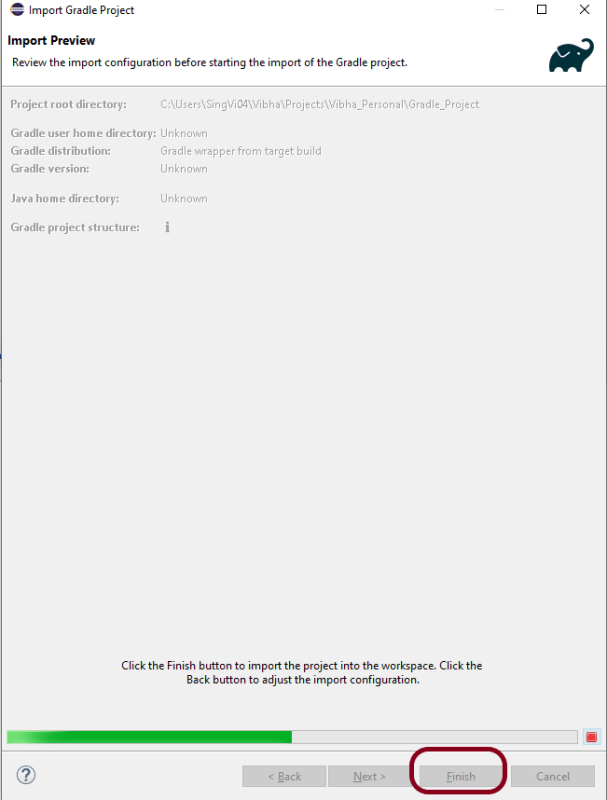
Step 5 – This screen allows us to review the import configuration. If you feel something is incorrect, click the BACK Button.
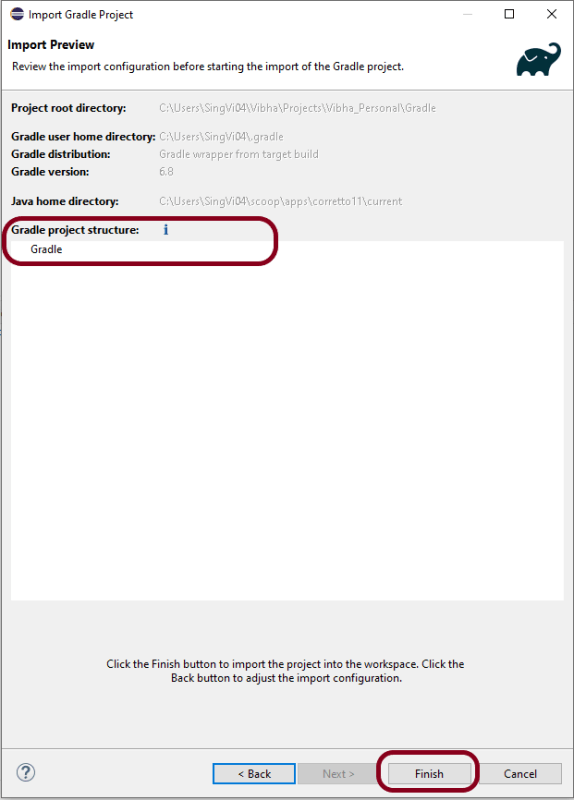
Step 6 – We can see that the Gradle project Name is Gradle and other details like Version. Click the FINISH Button. This will import the project structure into Workspace.
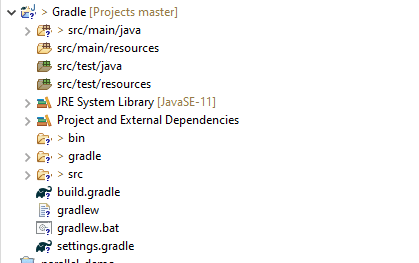
Step 7 – Below is the imported project Structure in Eclipse.
Step 8 – To check if the project is imported successfully. Run GradleDemo.java class by right click on the Java class and Run As Java Application.
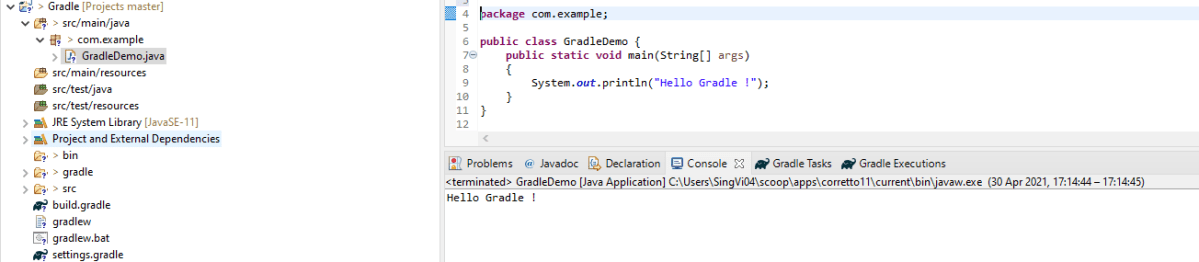
That’s it! We have imported a Gradle Project in Eclipse.
Congratulations on making it through this tutorial and hope you found it useful! Happy Learning!! Cheers!!
 QA Automation Expert