Integration Testing of Springboot with Cucumber and TestNG

HOME

In this tutorial, I am going to build an automation framework to test the Springboot application with Cucumber, Rest Assured, and TestNG.

What is Springboot?

Spring Boot is an open-source micro-framework maintained by a company called Pivotal. It provides Java developers with a platform to get started with an auto-configurable production-grade Spring application. With it, developers can get started quickly without losing time on preparing and configuring their Spring application.

What is Cucumber?

Cucumber is a software tool that supports behavior-driven development (BDD). Cucumber can be defined as a testing framework, driven by plain English. It serves as documentation, automated tests, and development aid – all in one.

This framework consists of:

  1. Springboot – 2.5.2
  2. Cucumber – 7.3.4
  3. Java 11
  4. TestNG – 7.3.4
  5. Maven – 3.8.1
  6. RestAssured – 5.1.1

Steps to setup Cucumber Test Automation Framework for API Testing using Rest-Assured

  1. Add SpringbootTest, Rest-AssuredJUnit, and Cucumber dependencies to the project
  2. Create a source folder src/test/resources and create a feature file under src/test/resources
  3. Create the Step Definition class or Glue Code for the Test Scenario under the src/test/java directory
  4. Create a Cucumber Runner class under the src/test/java directory
  5. Run the tests from Cucumber Test Runner
  6. Run the tests from Command Line
  7. Run the tests from TestNG
  8. Generation of TestNG Reports
  9. Cucumber Report Generation

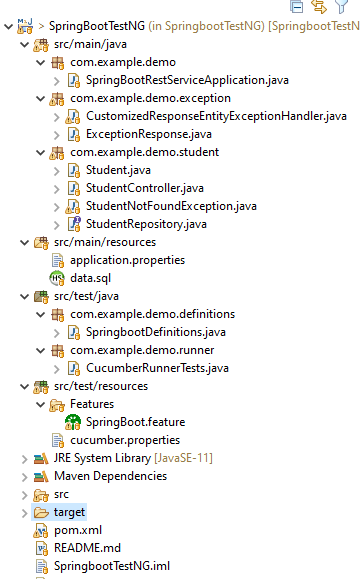
Below is the structure of a SpringBoot application project

We need the below files to create a SpringBoot Application.

SpringBootRestServiceApplication.java

The Spring Boot Application class is generated with Spring Initializer. This class acts as the launching point for the application.

import org.springframework.boot.SpringApplication;
import org.springframework.boot.autoconfigure.SpringBootApplication;

@SpringBootApplication
public class SpringBootRestServiceApplication {

    public static void main(String[] args) {

        SpringApplication.run(SpringBootRestServiceApplication.class, args);
    }
}

Student.java

This is JPA Entity for Student class

import javax.persistence.Entity;
import javax.persistence.GeneratedValue;
import javax.persistence.Id;
import javax.validation.constraints.NotBlank;
import javax.validation.constraints.NotNull;
import javax.validation.constraints.Size;

@Entity
public class Student {
    @Id
    @GeneratedValue
    private Long id;

    @NotNull
    @Size(min = 4, message = "Name should have atleast 4 characters")
    private String name;

    @NotBlank(message = "passportNumber is mandatory")
    private String passportNumber;

    public Student() {
        super();
    }

    public Student(Long id, String name, String passportNumber) {
        super();
        this.id = id;
        this.name = name;
        this.passportNumber = passportNumber;
    }

    public Long getId() {
        return id;
    }

    public void setId(Long id) {
        this.id = id;
    }

    public String getName() {
        return name;
    }

    public void setName(String name) {
        this.name = name;
    }

    public String getPassportNumber() {
        return passportNumber;
    }

    public void setPassportNumber(String passportNumber) {
        this.passportNumber = passportNumber;
    }
}

StudentRepository.java 

This is JPA Repository for Student. This is created using Spring Data JpaRepository.

import org.springframework.data.jpa.repository.JpaRepository;
import org.springframework.stereotype.Repository;

@Repository
public interface StudentRepository extends JpaRepository<Student, Long>{

}

StudentController.java

Spring Rest Controller exposes all services on the student resource.

import static org.springframework.hateoas.server.mvc.WebMvcLinkBuilder.linkTo;
import static org.springframework.hateoas.server.mvc.WebMvcLinkBuilder.methodOn;
import java.net.URI;
import java.util.List;
import java.util.Optional;
import javax.validation.Valid;
import org.springframework.beans.factory.annotation.Autowired;
import org.springframework.hateoas.EntityModel;
import org.springframework.hateoas.server.mvc.WebMvcLinkBuilder;
import org.springframework.http.ResponseEntity;
import org.springframework.web.bind.annotation.GetMapping;
import org.springframework.web.bind.annotation.PathVariable;
import org.springframework.web.bind.annotation.PostMapping;
import org.springframework.web.bind.annotation.RequestBody;
import org.springframework.web.bind.annotation.RestController;
import org.springframework.web.servlet.support.ServletUriComponentsBuilder;

@RestController
public class StudentController {

    @Autowired
    private StudentRepository studentRepository;

    @GetMapping("/students")
    public List<Student> retrieveAllStudents() {
        return studentRepository.findAll();
    }

    @GetMapping("/students/{id}")
    public EntityModel<Student> retrieveStudent(@PathVariable long id) {
        Optional<Student> student = studentRepository.findById(id);

        if (!student.isPresent())
            throw new StudentNotFoundException("id-" + id);

        EntityModel<Student> resource = EntityModel.of(student.get());

        WebMvcLinkBuilder linkTo = linkTo(methodOn(this.getClass()).retrieveAllStudents());

        resource.add(linkTo.withRel("all-students"));

        return resource;
    }

    @PostMapping("/students")
    public ResponseEntity<Object> createStudent(@Valid @RequestBody Student student) {
        Student savedStudent = studentRepository.save(student);

        URI location = ServletUriComponentsBuilder.fromCurrentRequest().path("/{id}")
                .buildAndExpand(savedStudent.getId()).toUri();

        return ResponseEntity.created(location).build();

    }
}

application.properties

Spring Boot automatically loads the application.properties whenever it starts up. You can de-reference values from the property file in the java code through the environment.

spring.jpa.defer-datasource-initialization=true

data.sql 

Data is loaded from data.sql into the Student table. Spring Boot would execute this script after the tables are created from the entities.

insert into student values(10001,'Annie', 'E1234567');
insert into student values(20001,'John', 'A1234568');
insert into student values(30001,'David','C1232268');
insert into student values(40001,'Amy','D213458');

Test Automation Framework Implementation

Step 1 – Add SpringbootTest, Cucumber, Rest-Assured, and TestNG dependencies to the project (Maven project)

 <properties>
        <project.build.sourceEncoding>UTF-8</project.build.sourceEncoding>
        <rest-assured.version>5.1.1</rest-assured.version>
        <cucumber.version>7.3.4</cucumber.version>
    </properties>

<dependencies>
        
        <dependency>
            <groupId>org.springframework.boot</groupId>
            <artifactId>spring-boot-starter-test</artifactId>
            <scope>test</scope>
        </dependency>

        <dependency>
            <groupId>io.rest-assured</groupId>
            <artifactId>rest-assured</artifactId>
            <version>${rest-assured.version}</version>
            <scope>test</scope>
        </dependency>

        <dependency>
            <groupId>io.cucumber</groupId>
            <artifactId>cucumber-java</artifactId>
            <version>${cucumber.version}</version>
        </dependency>

        <dependency>
            <groupId>io.cucumber</groupId>
            <artifactId>cucumber-testng</artifactId>
            <version>${cucumber.version}</version>
            <scope>test</scope>
        </dependency>

        <dependency>
            <groupId>io.cucumber</groupId>
            <artifactId>cucumber-spring</artifactId>
            <version>${cucumber.version}</version>
            <scope>test</scope>
        </dependency>

</dependencies>

Step 2 – Create a source folder src/test/resources and create a feature file under src/test/resources

By default, the Maven project has an src/test/java directory only. Create a new Source Folder under src/test with the name of resources. Create a folder name as Features within the src/test/resources directory.

Create a feature file to test the Springboot application. Below is a sample feature file.

Feature: Verify springboot application using Cucumber and TestNG

  @ReceiveUserDetails
  Scenario Outline: Send a valid Request to get user details
    Given I send a request to the URL "/students" to get user details
    Then The response will return status 200 
    And The response contains id <studentID> and names "<studentNames>" and passport_no "<studentPassportNo>"

    Examples:
      |studentID    |studentNames  |studentPassportNo|
      |10001        |Annie         |E1234567         |
      |20001        |John          |A1234568         |
      |30001        |David         |C1232268         |
      |40001        |Amy           |D213458          |
      
   
  @CreateUser
  Scenario: Send a valid Request to create a user 
    Given I send a request to the URL "/students" to create a user with name "Annie" and passportNo "E1234567"
    Then The response will return status 201
    And Resend the request to the URL "/students" and the response returned contains name "Annie" and passport_no "E1234567"

Step 3 – Create the Step Definition class or Glue Code for the Test Scenario under src/test/java

The corresponding step definition file of the above feature file is shown below.

import static io.restassured.RestAssured.given;
import static org.hamcrest.Matchers.containsString;
import static org.hamcrest.Matchers.equalTo;
import static org.hamcrest.Matchers.hasItem;
import org.json.JSONObject;
import org.springframework.boot.test.context.SpringBootTest;
import org.springframework.boot.web.server.LocalServerPort;
import io.cucumber.java.en.Given;
import io.cucumber.java.en.Then;
import io.cucumber.spring.CucumberContextConfiguration;
import io.restassured.RestAssured;
import io.restassured.http.ContentType;
import io.restassured.response.ValidatableResponse;
import io.restassured.specification.RequestSpecification;

@CucumberContextConfiguration
@SpringBootTest(webEnvironment = SpringBootTest.WebEnvironment.RANDOM_PORT)
public class SpringbootDefinitions {

	private final static String BASE_URI = "http://localhost";

	@LocalServerPort
	private int port;

	private ValidatableResponse validatableResponse, validatableResponse1;

	private void configureRestAssured() {
		RestAssured.baseURI = BASE_URI;
		RestAssured.port = port;
	}

	protected RequestSpecification requestSpecification() {
		configureRestAssured();
		return given();
	}

	@Given("I send a request to the URL {string} to get user details")
	public void getStudentDetails(String endpoint) throws Throwable {
		validatableResponse = requestSpecification().contentType(ContentType.JSON).when().get(endpoint).then();
		System.out.println("RESPONSE :" + validatableResponse.extract().asString());
	}

	@Given("I send a request to the URL {string} to create a user with name {string} and passportNo {string}")
	public void createStudent(String endpoint, String studentName, String studentPassportNumber) throws Throwable {

		JSONObject student = new JSONObject();
		student.put("name", studentName);
		student.put("passportNumber", studentPassportNumber);

		validatableResponse = requestSpecification().contentType(ContentType.JSON).body(student.toString()).when()
				.post(endpoint).then();
		System.out.println("RESPONSE :" + validatableResponse.extract().asString());
	}

	@Then("The response will return status {int}")
	public void verifyStatusCodeResponse(int status) {
		validatableResponse.assertThat().statusCode(equalTo(status));

	}

	@Then("The response contains id {int} and names {string} and passport_no {string}")
	public void verifyResponse(int id, String studentName, String passportNo) {
		validatableResponse.assertThat().body("id", hasItem(id)).body(containsString(studentName))
				.body(containsString(passportNo));

	}

	@Then("Resend the request to the URL {string} and the response returned contains name {string} and passport_no {string}")
	public void verifyNewStudent(String endpoint, String studentName, String passportNo) {

		validatableResponse1 = requestSpecification().contentType(ContentType.JSON).when().get(endpoint).then();
		System.out.println("RESPONSE :" + validatableResponse1.extract().asString());
		validatableResponse1.assertThat().body(containsString(studentName)).body(containsString(passportNo));

	}
}

To make Cucumber aware of your test configuration you can annotate a configuration class on your glue path with @CucumberContextConfiguration and with one of the following annotations: @ContextConfiguration, @ContextHierarchy, or @BootstrapWith.It is imported from:

import io.cucumber.spring.CucumberContextConfiguration;

As we are using SpringBoot, we are annotating the configuration class with @SpringBootTest. It is imported from:

import org.springframework.boot.test.context.SpringBootTest;

By default, @SpringBootTest does not start the webEnvironment to refine further how your tests run. It has several options: MOCK(default), RANDOM_PORT, DEFINED_PORT, NONE.

RANDOM_PORT loads a WebServerApplicationContext and provides a real web environment. The embedded server is started and listens on a random port. LocalServerPort is imported from the package:

import org.springframework.boot.web.server.LocalServerPort;

Step 4 – Create a Cucumber TestNG Runner class under src/test/java

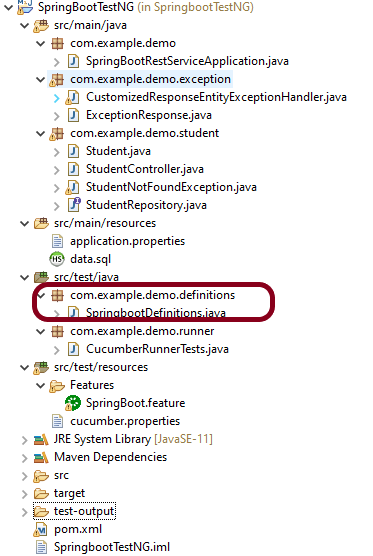
A runner will help us to run the feature file and acts as an interlink between the feature file and StepDefinition Class. The TestRunner should be created within the directory src/test/java.

import io.cucumber.testng.AbstractTestNGCucumberTests;
import io.cucumber.testng.CucumberOptions;

@CucumberOptions(features = {"src/test/resources/Features"}, glue = {"com.example.demo.definitions"})
public class CucumberRunnerTests extends AbstractTestNGCucumberTests {

}

The @CucumberOptions annotation is responsible for pointing to the right feature package, configuring the plugin for a better reporting of tests in the console output, and specifying the package where extra glue classes may be found. We use it to load configuration and classes that are shared between tests.

Step 5 – Run the tests from Cucumber Test Runner

You can execute the test script by right-clicking on TestRunner class -> Run As TestNG in Eclipse.

In case you are using IntelliJ, select Run CucumberRunnerTests.

SpringBootTest creates an application context containing all the objects we need for the Integration Testing It, starts the embedded server, creates a web environment, and then enables methods to do Integration testing.

Step 6 – Run the tests from Command Line

Use the below command to run the tests through the command line.

mvn clean test

Step 7 – Run the tests from TestNG

Create a testng.xml in the project as shown below:

<?xml version="1.0" encoding="UTF-8"?>
<!DOCTYPE suite SYSTEM "https://testng.org/testng-1.0.dtd">
<suite name = "Suite1">
  <test name = "SpringBoot Cucumber TestNG Demo">
    <classes>
          <class name = "com.example.demo.runner.CucumberRunnerTests"/>
     </classes>  
   </test>
</suite>

Step 8 – Generation of TestNG Reports

TestNG generates various types of reports under the test-output folder like emailable-report.html, index.html, testng-results.xml.

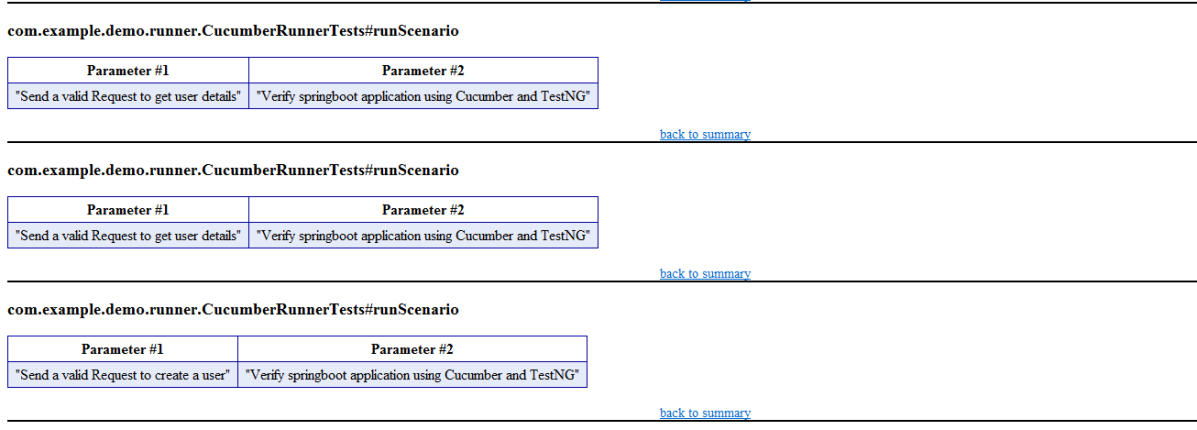
We are interested in the “emailable-report.html” report. Open “emailable-report.html”, as this is an HTML report, and open it with the browser. The below image shows emailable-report.html.

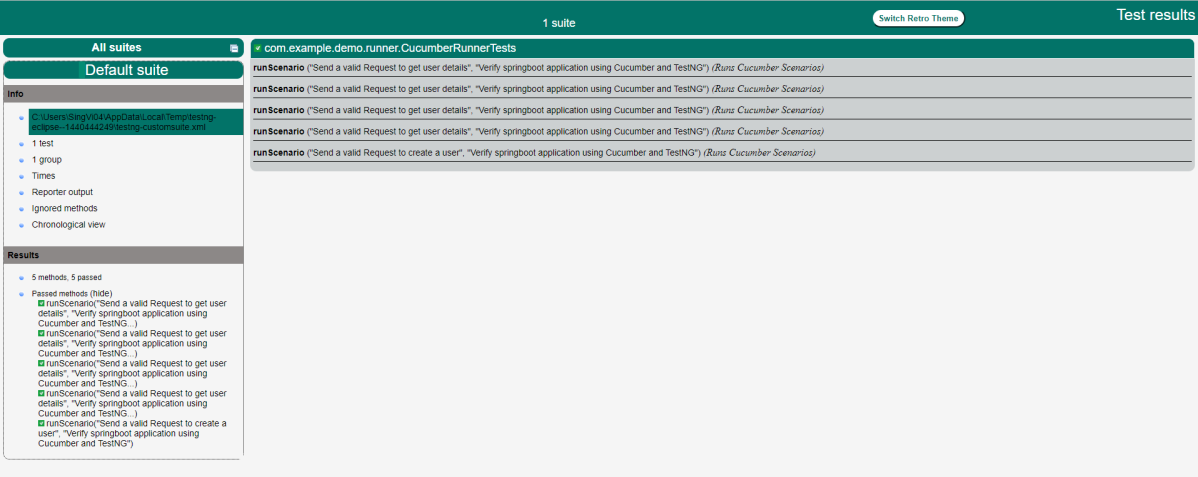
TestNG also produce “index.html” report, and it resides under test-output folder. The below image shows index.html report.

Step 9 – Cucumber Report Generation

Add cucumber.properties under src/test/resources and add the below instruction in the file.

cucumber.publish.enabled=true

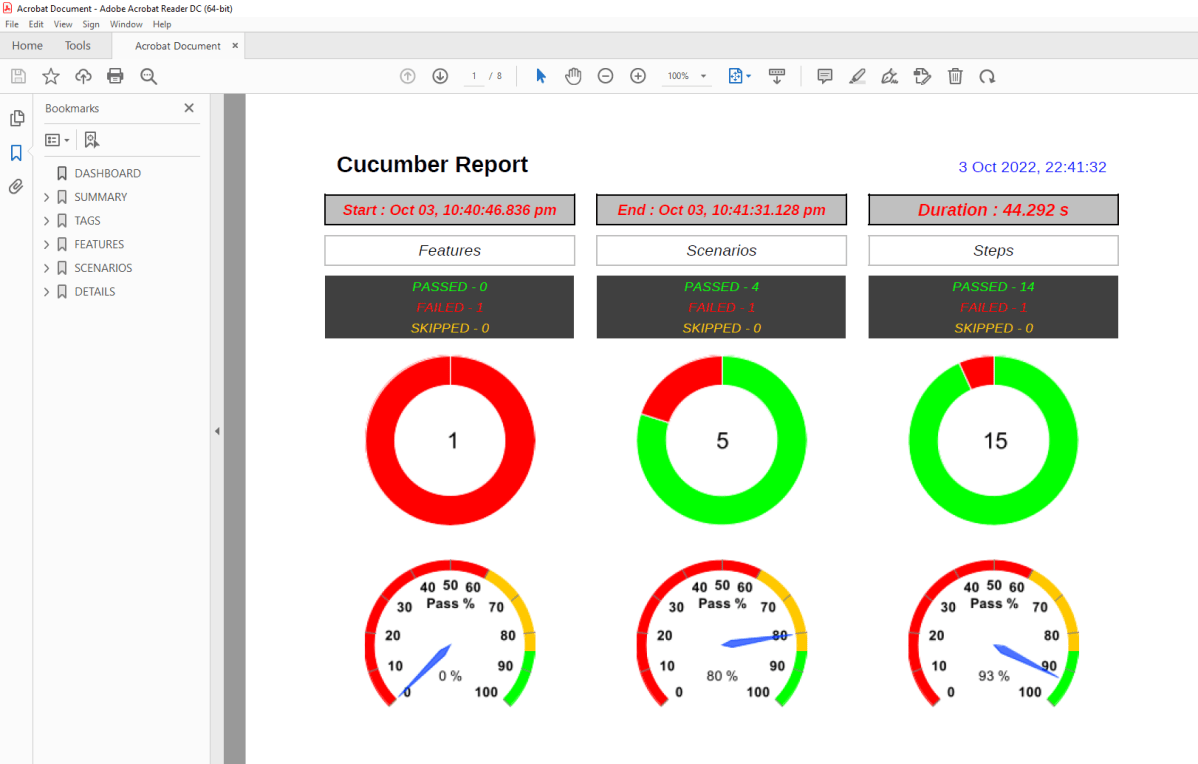
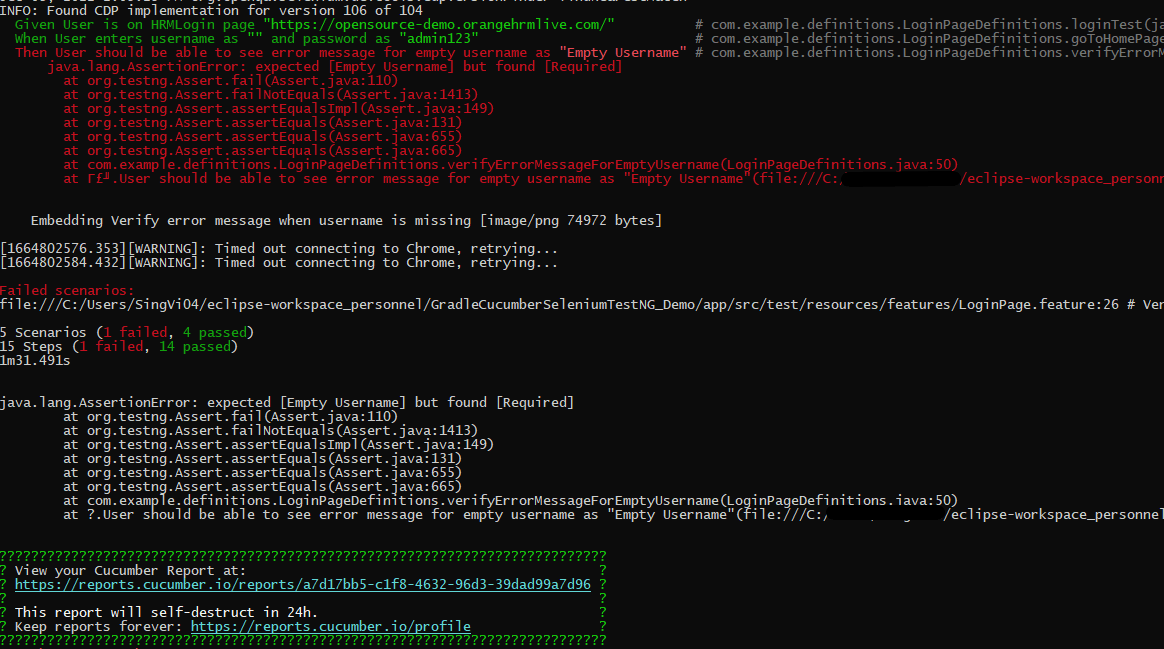
The link to the Cucumber Report is present in the execution status.

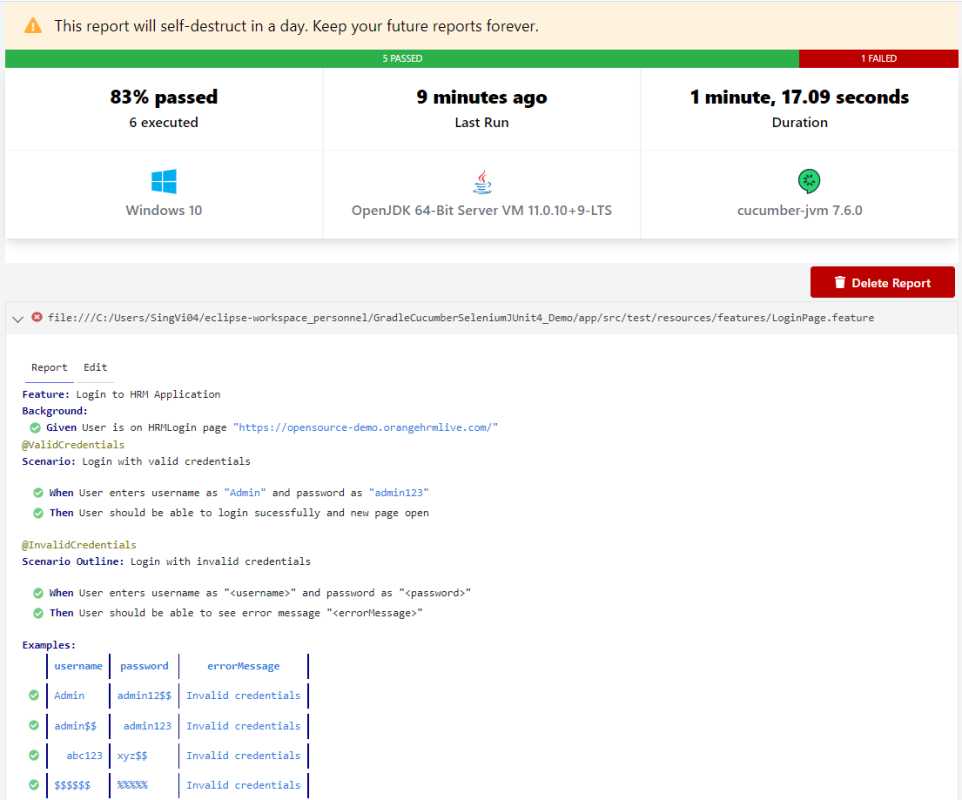
Below is the image of the Cucumber Report generated using the Cucumber Service.
Complete Source Code:
Refer to GitHub for the source code.

Congratulations!! We are able to build a test framework to test the SpringBoot application using Cucumber, Rest Assured, and TestNG.

Step Definition in Cucumber

HOME

The previous tutorial explained the Feature File in Cucumber. This tutorial explains the step definition of the Cucumber.

To start with, please add the below dependencies to the POM.xml, in the case of the Maven project.

<dependencies>
  
   <dependency>
      <groupId>io.cucumber</groupId>
      <artifactId>cucumber-java</artifactId>
      <version>7.18.1</version>
   </dependency>

   <dependency>
      <groupId>io.cucumber</groupId>
      <artifactId>cucumber-junit</artifactId>
      <version>7.18.1</version>
      <scope>test</scope>
    </dependency>
       
   <dependency>
       <groupId>junit</groupId>
       <artifactId>junit</artifactId>
       <version>4.13.2</version>
       <scope>test</scope>
   </dependency>
    
</dependencies>

For the Gradle project, add the below dependencies to build.gradle

implementation 'io.cucumber:cucumber-java:718.1'
testImplementation 'io.cucumber:cucumber-junit:7.18.1'
testImplementation 'junit:junit:4.13.2'

What is a Step Definition?

A Step Definition is a Java method with an expression that links it to one or more Gherkin steps. When Cucumber executes a Gherkin step in a scenario, it will look for a matching step definition to execute.

Cucumber finds the Step Definition file with the help of the Glue code in Cucumber Options.

By storing state in instance variables, a step definition can transfer state to a subsequent step definition.

Step definitions are not associated with a specific feature file or scenario. The name of a step definition’s file, class, or package has no bearing on which Gherkin steps it will match. The formulation of the step definition is the only thing that matters, which means the step definition should only match Gherkin’s steps.

Imagine, we want to test a web application. One of the first steps is Login to the website and then check the various functionalities on the website. We can create a Gherkin step like “I login to the website” and the corresponding step definition of this Gherkin Step. This Gherkin step can be used in multiple feature files, and we don’t need to create the step definition of this Gherkin step for each feature file.

In the previous tutorial, we have seen that when the Feature file is executed without the Step Definition file, the runner shows the missing steps with the snippet in the console.

When a Cucumber encounters a Gherkin step without a matching step definition, it will print a step definition snippet with a matching Cucumber Expression. You can use this as a starting point for new step definitions.

It is very easy to implement all the steps, all you need to do is copy the complete text marked in the above box and paste it into the MyHolidayDefinitions class.

@Given, @When, and @Then are imported from packages:-

import io.cucumber.java.en.Given;
import io.cucumber.java.en.Then;
import io.cucumber.java.en.When;

Feature File

Feature: Book flight ticket 

@BookOneWayFlight
Scenario: Book Flight for one way trip

Given I live in Dublin with 2 adults and 2 kids
And I want to book one way flight ticket from Dublin to London on 22 Jan 2020
When I search online
Then TripAdvisor should provide me options of flights on 22 Jan 2020
And Cost of my flight should not be more than 50 Euro per person
And Tickets should be refundable

Let me create the step definition for the above Feature file

import io.cucumber.java.en.Given;
import io.cucumber.java.en.Then;
import io.cucumber.java.en.When;

public class MyHolidayDefinitions {

	@Given("I live in Dublin with {int} adults and {int} kids")
	public void liveInDublin(Integer int1, Integer int2) {

		System.out.println("I live in Dublin with 2 adults and 2 kids");
	}

	@Given("I want to book one way flight ticket from Dublin to London on {int} Jan {int}")
	public void bookFlightTicket(Integer int1, Integer int2) {

		System.out.println("I want to book one way flight ticket from Dublin to London on 22 Jan 2020");
	}

	@When("I search online")
	public void searchOnline() {

		System.out.println("I search online");
	}

	@Then("TripAdvisor should provide me options of flights on {int} Jan {int}")
	public void tripAdvisor(Integer int1, Integer int2) {

		System.out.println("TripAdvisor should provide me options of flights on 22 Jan 2020");
	}

	@Then("Cost of my flight should not be more than {int} Euro per person")
	public void costOfFlightLimit(Integer int1) {

		System.out.println("Cost of my flight should not be more than 50 Euro per person");
	}

	@Then("Tickets should be refundable")
	public void refundableTickets() {

		System.out.println("Tickets should be refundable");
	}

}

To run the scenarios present in the Feature File, we need TestRunner class. To learn more about the TestRunner class, please refer to this tutorial – Cucumber Tutorial – JUnit Test Runner Class

import org.junit.runner.RunWith;
import io.cucumber.junit.Cucumber;
import io.cucumber.junit.CucumberOptions;

@RunWith(Cucumber.class)
@CucumberOptions(features = "src/test/resources/Features/MyHoliday.feature", 
tags = "@BookOneWayFlight", glue = "com.cucumber.MyCucumberProject.definitions")

public class CucumberRunnerTest {

}

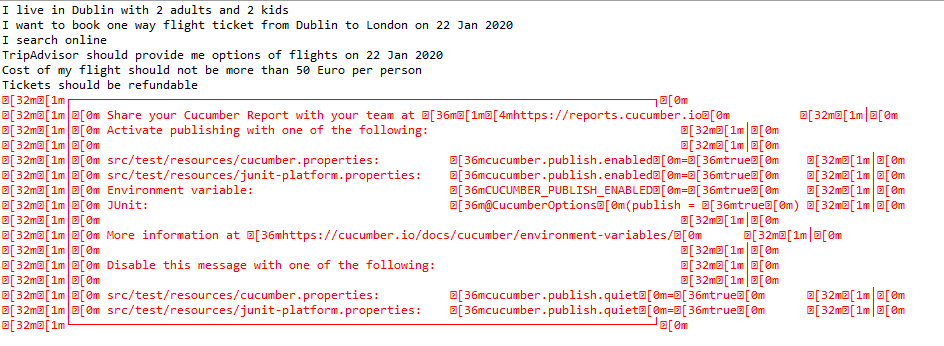
The output of the above program is

Congratulations. We have created the setup definition for the feature file successfully and are able to run it.

Refer to the next tutorials to know the integration of Cucumber with Selenium – Integration of Cucumber with Selenium and JUnit and JUnit4 and Integration of Cucumber with Selenium and TestNG

Happy Learning!!

How to install Cucumber Eclipse Plugin

Last Updated on

HOME

The Cucumber plugin is an Eclipse plugin that allows Eclipse to understand the Gherkin syntax. When we are working with cucumber we will write the feature files that contain Feature, Scenario, Given, When, Then, And, But, Tags, Scenario Outline, and Examples. By default, Eclipse doesn’t understand these keywords, so it doesn’t show any syntax highlighter. Cucumber Eclipse Plugin highlights the keywords present in the Feature File.

When we create a feature file in Eclipse, it looks something like the below without Cucumber Eclipse Plugin installed.

It is easy to install Cucumber Eclipse Plugin, as it comes as a plugin for Eclipse IDE. A prerequisite for installing this plugin is your Internet connection should be up & running during the installation of this plugin and Eclipse IDE should be installed on your computer.

Steps to follow:

Step 1 – Launch the Eclipse IDE and, from the Help menu, click “Install New Software”.

Step 2 – You will see a dialog window, click the Add button.

Step 3 – Type the name as you wish, let’s take Cucumber and type “https://cucumber.github.io/cucumber-eclipse-update-site-snapshot” as the location. Click the OK button.

Step 4 – You come back to the previous window, but this time you must see the Cucumber Eclipse Plugin option in the available software list. Just check the box and press the Next button.

Step 5 – Click on the Next Button.

Step 6 – Click “I accept the terms of the licence agreement” and then click the “Finish” button.

Step 7 – You may or may not encounter a Security warning, if in case you do just click the “OK” button.

Step 8 -You are all done now, just click the “Restart Now” button.

After restarting Eclipse, you can see the feature file is highlighted based on the keywords.

This means now Eclipse is able to understand the language we have written in the feature file as Gherkin language.

All the steps in the below scenario are highlighted in yellow colour, which indicates we don’t have any corresponding step definition for each step.

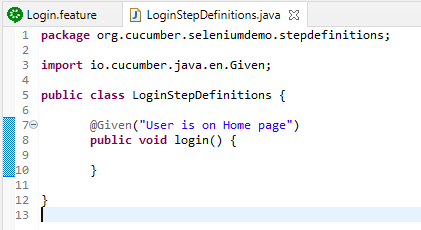
Now, in the below example, I have created the step definition for the Given statement. So, now, it is not highlighted in yellow colour.

If you press the Ctrl button and place the cursor on a Given Statement, it will take you to the corresponding step definition of that step. This is a very helpful feature. When we have multiple feature files with multiple steps, it helps us find the exact location of the step definition.

I hope this tutorial makes your learning a little easy. Thanks. Happy Learning!!

Dependency Injection in Cucumber using Pico-Container

HOME

In this tutorial, we will use the constructor injection technique to share web driver instances in multiple-step definitions using PicoContainer.

Why do we need Dependency Injection in Cucumber?

A new Framework is built that contains several Page Objects, Step Definitions, Feature files, and Helper Classes. Eventually, new Feature Files will be added that contain the steps that are already present in the existing Step Definition files. In this case, we will prefer to use the existing Step Definitions instead of creating new ones. But, Cucumber does not support Inheritance means it does not allow extending classes that contain Step Definitions or Hooks (@After, @Before, etc.). Now, Dependency Injection comes into the picture.

In Cucumber, if we want to share the state between multiple-step definition files, we will need to use dependency injection (DI). There are several options: PicoContainer, Spring, OpenEJB, etc. If you’re not already using DI, then it is recommended to use PicoContainer. Otherwise, use the one that’s already in use, because you should only have one.

To use PicoContainer, add the following dependency to the POM.xml

<dependency>
    <groupId>io.cucumber</groupId>
    <artifactId>cucumber-picocontainer</artifactId>
    <version>7.0.0</version>
    <scope>test</scope>
</dependency>

Let me explain this with the help of an example.

Imagine there are 2 feature files. These feature files are using the same browser initialization and website. Now, instead of creating the browser initialization twice for 2 feature files, why not create a Common Class and mention these details in that class and using DI, call this class in the main Step Definition classes.

Feature File 1 – HomePage.feature

Below is the example of feature file 1.

Feature: Home page validation
  
Background:
   Given User Navigates to HRM login page
   And User login with valid credentials
 
   @ValidQuickLaunch
   Scenario Outline: Login with valid credentials to check QuickLanuch options  
     
   When User is in Dashboard page
     Then there are valid QuickLaunch options '<options>'
         
    Examples: 
        | options                  |
        | Assign Leave             |
        | Leave List               |
        | Timesheets               |
 
     
    @ValidLegendOptions    
    Scenario Outline: Login with valid credentials to check Manu Options 
     
   When User is in Dashboard page
     Then there are valid Legend options '<legendOptions>'
         
    Examples: 
        | legendOptions               |
        | Not assigned to Subunits    |
        | Administration              |
        | Client Services             |

Feature File 2 – LoginPage.feature

Below is the example of feature file 2.

Feature: Login to HRM Application 
  
   @ValidCredentials
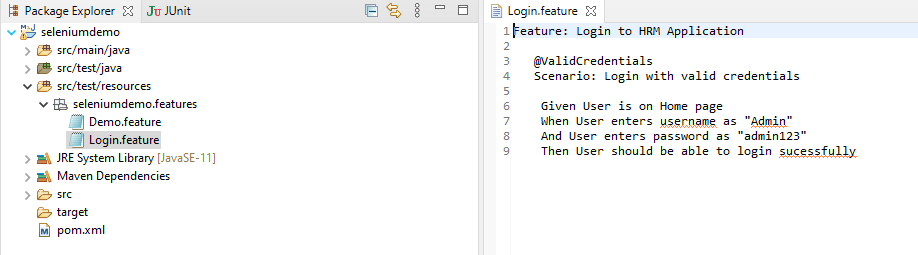
   Scenario: Login with valid credentials
      
    Given User is on Home page
    When User enters username as "Admin"
    And User enters password as "admin123"
    Then User should be able to login sucessfully

Next, create a new class that holds the common data. For example:

public class ApplicationHooks {

	private WebDriver driver;

	@Before
	public void setUp() {
		setDriver();
	}

	public void setDriver() {

		WebDriverManager.chromedriver().setup();
		driver = new ChromeDriver();
		driver.manage().window().maximize();
		driver.get("https://opensource-demo.orangehrmlive.com/");
	}

	public WebDriver getDriver() {
		return driver;
	}

	@After
	public void tearDown() {
		getDriver().quit();
	}
}

Then, in each of your step definition files that you want to use this common data, you can add a constructor that takes Step Data as an argument. This is where the injection occurs. For example:

LoginDefinition

public class LoginDefinition {

	private ApplicationHooks hooks;

	public LoginDefinition(ApplicationHooks hooks) {

		this.hooks = hooks;
	}

	@Given("User is on Home page")
	public void userOnHomePage() {

		System.out.println("Home Page is opened");
	}

	@When("User enters username as {string}")
	public void entersUsername(String userName) throws InterruptedException {

		System.out.println("Username Entered");
		hooks.getDriver().findElement(By.name("txtUsername")).sendKeys(userName);

	}

	@When("User enters password as {string}")
	public void entersPassword(String passWord) throws InterruptedException {

		System.out.println("Password Entered");
		hooks.getDriver().findElement(By.name("txtPassword")).sendKeys(passWord);

		hooks.getDriver().findElement(By.id("btnLogin")).submit();
	}

	@Then("User should be able to login sucessfully")
	public void sucessfullLogin() throws InterruptedException {

		String newPageText = hooks.getDriver().findElement(By.id("welcome")).getText();
		System.out.println("newPageText :" + newPageText);
		Assert.assertTrue(newPageText.contains("Welcome"));

	}
}

HomeDefinition

public class HomePageDefinition {

	ApplicationHooks hooks;

	public HomePageDefinition(ApplicationHooks hooks) {
		this.hooks = hooks;
	}

	@Given("User Navigates to HRM login page")
	public void userOnHomePage() {

		System.out.println("HRM login Page is opened");
	}

	@Given("User login with valid credentials")
	public void entersCredentials() throws InterruptedException {

		hooks.getDriver().findElement(By.name("txtUsername")).sendKeys("Admin");
	hooks.getDriver().findElement(By.name("txtPassword")).sendKeys("admin123");
		hooks.getDriver().findElement(By.id("btnLogin")).submit();

	}

	@When("User is in Dashboard page")
	public void verifyDashboardPage() {

		String dashboardTitle = hooks.getDriver().findElement(By.id("welcome")).getText();
		Assert.assertTrue(dashboardTitle.contains("Welcome"));

	}

	@Then("there are valid QuickLaunch options {string}")
	public void verifyQuickLinks(String options) throws InterruptedException {

		switch (options) {
		case "Assign Leave":
			String linkOne = hooks.getDriver()
					.findElement(By.xpath(
							"//*[@id='dashboard-quick-launch-panel-menu_holder']/table/tbody/tr/td[1]/div/a/span"))
					.getText();
			Assert.assertEquals(linkOne, options);

			break;
		case "Leave List ":
			String linkTwo = hooks.getDriver()
					.findElement(By.xpath(
							"//*[@id='dashboard-quick-launch-panel-menu_holder']/table/tbody/tr/td[2]/div/a/span"))
					.getText();
			Assert.assertEquals(linkTwo, options);
			Thread.sleep(1000);
			break;

		case "Timesheets":
			String linkThree = hooks.getDriver()
					.findElement(By.xpath(
							"//*[@id='dashboard-quick-launch-panel-menu_holder']/table/tbody/tr/td[3]/div/a/span"))
					.getText();
			Assert.assertEquals(linkThree, options);
			break;

		default:
			break;
		}

	}

	@Then("there are valid Legend options {string}")
	public void verifyMenuOptions(String options) throws InterruptedException {

		switch (options) {
		case "Not assigned to Subunits":
			String linkOne = hooks.getDriver()
					.findElement(
							By.xpath("//*[@id='div_legend_pim_employee_distribution_legend']/table/tbody/tr[1]/td[2]"))
					.getText();
			Assert.assertEquals(linkOne, options);
			break;

		case "Administration":
			String linkTwo = hooks.getDriver()
					.findElement(
							By.xpath("//*[@id='div_legend_pim_employee_distribution_legend']/table/tbody/tr[2]/td[2]"))
					.getText();
			Assert.assertEquals(linkTwo, options);
			break;

		case "Client Services":
			String linkThree = hooks.getDriver()
					.findElement(
							By.xpath("//*[@id='div_legend_pim_employee_distribution_legend']/table/tbody/tr[3]/td[2]"))
					.getText();
			Assert.assertEquals(linkThree, options);
			break;
		default:
			break;

		}
	}
}

Create a Test Runner Class to execute the tests.

import org.junit.runner.RunWith;

import io.cucumber.junit.Cucumber;
import io.cucumber.junit.CucumberOptions;

@RunWith(Cucumber.class)

@CucumberOptions(features= {"src/test/resources"}, glue= {"com.cucumber"})
public class RunCucumberTest {

}

Execute the tests either through JUnit Runner or Command-Line using maven.

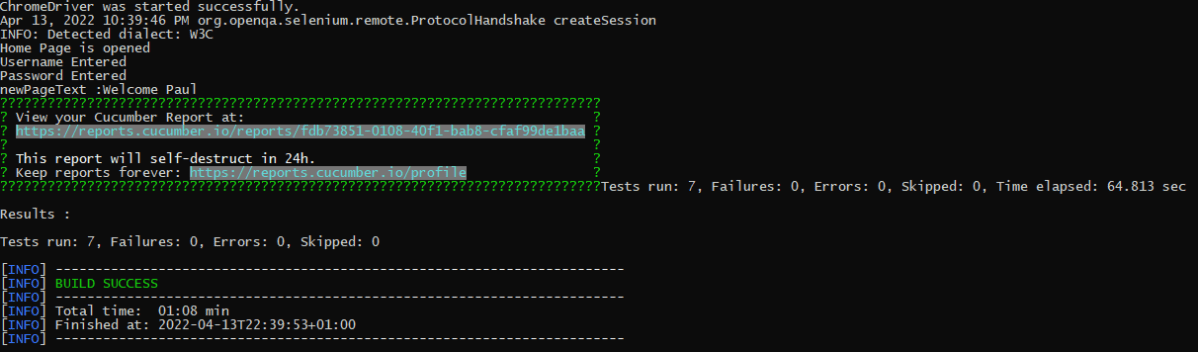
The test Report can be accessed from the link provided in the execution status:

We are done! Congratulations on making it through this tutorial and hope you found it useful! Happy Learning!!

Serenity Emailable Report in Gradle

HOME

In this tutorial, I will generate an emailable Serenity Report for Gradle project. In the previous tutorial, I have explained the Generation of Serenity Emailable Report in Maven Project.

Pre-Requisite

  1. Java 11 installed
  2. Gradle installed
  3. Eclipse or IntelliJ installed

This framework consists of:

  1. Serenity – 2.6.0
  2. Serenity Cucumber – 2.6.0
  3. Java 11
  4. JUnit – 4.13.2
  5. Gradle – 7.2

Steps to create Serenity Emailable Report

To setup a Gradle project for the testing of web application using Cucumber and JUnit4, please refer this tutorial (Step 1 to 3)

Update buildscript section of build.gradle file.

buildscript {
    repositories {
        mavenLocal()
        jcenter()
    }
    dependencies {
        classpath("net.serenity-bdd:serenity-gradle-plugin:2.4.24")
        classpath("net.serenity-bdd:serenity-single-page-report:2.4.24")
    }
}

Add serenity section in build.gradle.

serenity {
    reports = ["single-page-html"]
}

The complete build.gradle for the project will look like as shown below

defaultTasks 'clean', 'test', 'aggregate'

repositories {
    mavenLocal()
    jcenter()
}

buildscript {
    repositories {
        mavenLocal()
        jcenter()
    }
    dependencies {
        classpath("net.serenity-bdd:serenity-gradle-plugin:2.4.24")
        classpath("net.serenity-bdd:serenity-single-page-report:2.4.24")
    }
}

apply plugin: 'java'
apply plugin: 'eclipse'
apply plugin: 'idea'
apply plugin: 'net.serenity-bdd.aggregator'

sourceCompatibility = 11
targetCompatibility = 11

serenity {
    reports = ["single-page-html"]
}

dependencies {
   
    testImplementation 'net.serenity-bdd:serenity-core:2.6.0'
    testImplementation 'net.serenity-bdd:serenity-cucumber6:2.6.0'
    testImplementation 'net.serenity-bdd:serenity-screenplay:2.6.0'
    testImplementation 'net.serenity-bdd:serenity-screenplay-webdriver:2.6.0'
    testImplementation 'junit:junit:4.13.1'
}

test {
    testLogging.showStandardStreams = true
    systemProperties System.getProperties()
}

gradle.startParameter.continueOnFailure = true

test.finalizedBy(aggregate)

Execute the test suite by using the below command.

gradle test

This will generate only index.html not serenity-summary.html (emailable) report.

To generate single page html report, we need to invoke the report task.

gradle reports

Below is the image of serenity-summary.html report.

We are done! Congratulations on making it through this tutorial and hope you found it useful! Happy Learning!!

Serenity BDD with Gradle and Cucumber for Web Application

HOME

In the previous tutorial, I have explained about Integration Testing of SpringBoot Application with Serenity BDD and Cucumber in Maven project. This tutorial describes the creation of the Gradle Java Project to test a web application using Cucumber6 and JUnit4.

In this tutorial, I will explain creating a framework for the testing of Web Applications in Cucumber BDD.

Pre-Requisite

  1. Java 11 installed
  2. Gradle installed
  3. Eclipse or IntelliJ installed

This framework consists of:

  1. Serenity – 2.6.0
  2. Serenity Cucumber – 2.6.0
  3. Java 11
  4. JUnit – 4.13.2
  5. Gradle – 7.2

Steps to setup Gradle Java Project for Web Application using Serenity, Cucumber6 and JUnit4

  1. Download and Install Java on the system
  2. Download and setup Eclipse IDE on the system
  3. Setup Gradle on System and create a new Gradle Project
  4. Update repositories, plugins, and dependencies to the Gradle project
  5. Create a feature file under src/test/resources
  6. Create the Step Definition class or Glue Code for the Test Scenario
  7. Create a Serenity Cucumber Runner class
  8. Create serenity.conf file under src/test/resources
  9. Create serenity.properties file at the root of the project
  10. Run the tests through commandline which generates Serenity Report

Step 1- Download and Install Java

Cucumber and Rest-Assured need Java to be installed on the system to run the tests. Click here to know How to install Java.

Step 2 – Download and setup Eclipse IDE on system

The Eclipse IDE (integrated development environment) provides strong support for Java developers. Click here to know How to install Eclipse.

Step 3 – Setup Gradle

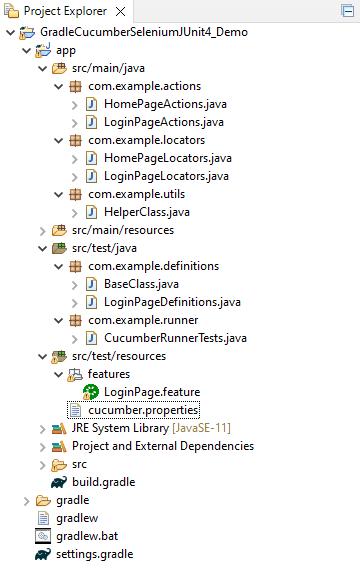
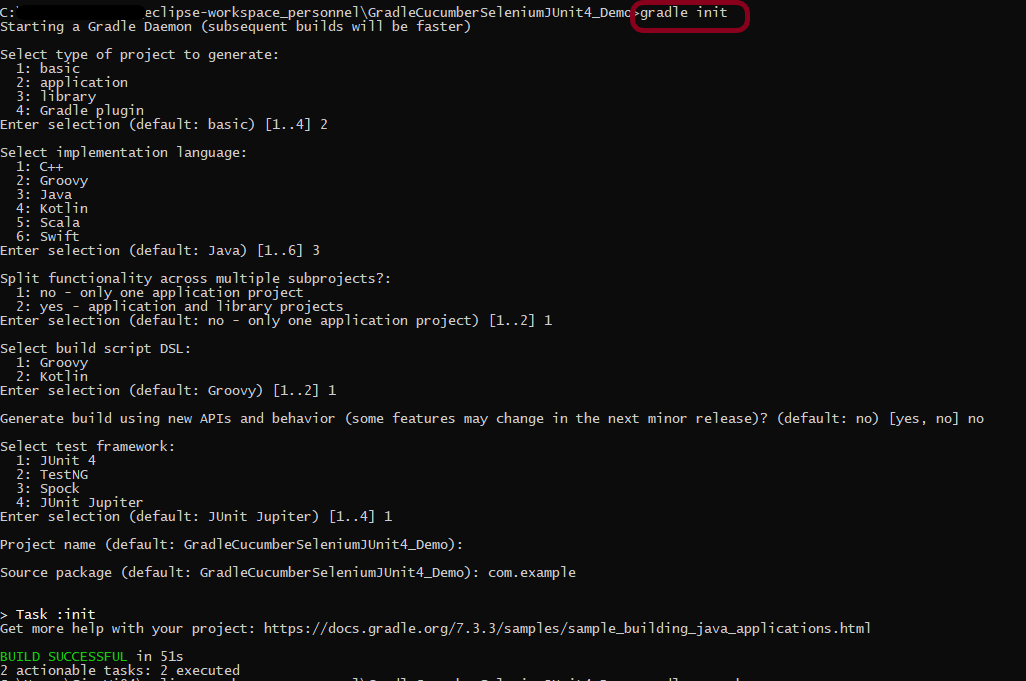
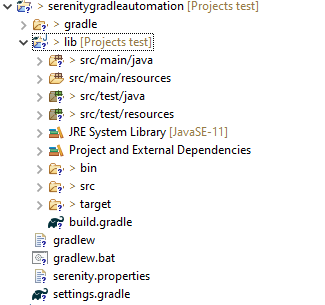
To build a test framework, we need to add several dependencies to the project. This can be achieved by any build Tool. I have used Gradle Build Tool. Click here to know How to install Gradle. Click here to know How to create a Gradle Java project. Below is the structure of the Gradle project.

Step 4 – Update repositories, plugin, and dependencies to the Gradle project

defaultTasks 'clean', 'test', 'aggregate'

repositories {
    mavenLocal()
    jcenter()
}

buildscript {
    repositories {
        mavenLocal()
        jcenter()
    }
    dependencies {
        classpath("net.serenity-bdd:serenity-gradle-plugin:2.4.24")
    }
}

apply plugin: 'java'
apply plugin: 'eclipse'
apply plugin: 'idea'
apply plugin: 'net.serenity-bdd.aggregator'

sourceCompatibility = 11
targetCompatibility = 11

dependencies {
   
    testImplementation 'net.serenity-bdd:serenity-core:2.6.0'
    testImplementation 'net.serenity-bdd:serenity-cucumber6:2.6.0'
    testImplementation 'net.serenity-bdd:serenity-screenplay:2.6.0'
    testImplementation 'net.serenity-bdd:serenity-screenplay-webdriver:2.6.0'
    testImplementation 'junit:junit:4.13.1'
}

test {
    testLogging.showStandardStreams = true
    systemProperties System.getProperties()
}

gradle.startParameter.continueOnFailure = true

test.finalizedBy(aggregate)

Step 5 – Create a feature file under src/test/resources

A Feature File is an entry point to the Cucumber tests. This is a file where you will describe your tests in Descriptive language (Like English). A feature file can contain a scenario or can contain many scenarios in a single feature file. Below is an example of Feature file.

Feature: Login to HRM  

   @ValidCredentials
   Scenario: Login with valid credentials
   
    Given User is on Home page
    When User enters username as "Admin"
    And User enters password as "admin123"
    Then User should be able to login successfully

Step 6 – Create the Step Definition class or Glue Code for the Test Scenario

The steps definition file stores the mapping between each step of the test scenario defined in the feature file with a code of the function to be executed. So, now when Cucumber executes a step of the scenario mentioned in the feature file, it scans the step definition file and figures out which function is to be called.

Create a StepDefinition class for LoginPage.feature

public class LoginPageDefinitions {
 
    @Steps
    StepLoginPage loginPage;
 
    @Steps
    StepDashboardPage dashPage;
 
    @Steps
    StepForgetPasswordPage forgetpasswordPage;
 
    @Given("User is on Home page")
    public void openApplication() {
        loginPage.open();
        System.out.println("Page is opened");
    }
 
    @When("User enters username as {string}")
    public void enterUsername(String userName) {
        System.out.println("Enter Username");
        loginPage.inputUserName(userName);
    }
 
    @When("User enters password as {string}")
    public void enterPassword(String passWord) {
        loginPage.inputPassword(passWord);
 
        loginPage.clickLogin();
    }
 
    @Then("User should be able to login successfully")
    public void clickOnLoginButton() {
        dashPage.loginVerify();
    }
   
}

Serenity Step Libraries integrate smoothly into Cucumber Step Definition files; all you need to do is to annotate a step library variable with the @Steps annotation.  Methods that represent a business task or action (inputUserName()), and that will appear in the reports as a separate step, are annotated with the @Step annotation. Here, I have created two StepClasses – StepLoginPage and StepDashboardPage

public class StepLoginPage extends PageObject {
 
    @Step("Enter Username")
    public void inputUserName(String userName) {
        $(By.name("txtUsername")).sendKeys((userName));
    }
 
    @Step("Enter Password")
    public void inputPassword(String passWord) {
        $(By.name("txtPassword")).sendKeys((passWord));
    }
 
    @Step("Click Submit Button")
    public void clickLogin() {
        $(By.name("Submit")).click();
    } 
 
}

StepDashboardPage

public class StepDashboardPage extends PageObject {
 
    @Step("Successful login")
    public void loginVerify() {
        String dashboardTitle = $(By.id("welcome")).getText();
        assertThat(dashboardTitle, containsString("Welcome"));
    }
}

Step 7 – Create a Serenity Cucumber Runner class

import org.junit.runner.RunWith;

import io.cucumber.junit.CucumberOptions;
import net.serenitybdd.cucumber.CucumberWithSerenity;

@RunWith(CucumberWithSerenity.class)
@CucumberOptions(plugin = {}, features = "lib/src/test/resources/features", glue = "serenitygradleautomation.definitions")

public class CucumberTestSuite {

}

Step 8 – Create serenity.conf file under src/test/resources

Serenity.conf file is used to specify various features like the type of webdriver used, various test environments, run tests in headless mode, and many more options.

webdriver {
    driver = firefox
}
 
 
environments {
  default {
    webdriver.base.url = "https://opensource-demo.orangehrmlive.com/"
  }
  dev {
    webdriver.base.url = "https://opensource-demo.orangehrmlive.com/dev"
  }
  staging {
    webdriver.base.url = "https://opensource-demo.orangehrmlive.com/staging"
  }
  prod {
    webdriver.base.url = "https://opensource-demo.orangehrmlive.com/prod"
  }
}

Step 9 – Create serenity.properties file at the root of the project

serenity.project.name = Serenity and Cucumber Gradle Demo

Step 10 – Run the tests through commandline which generates Serenity Report

Open the command line and go to the location where gradle.build of the project is present and type the below command.

gradle test

The Serenity report is generated under /lib/target/site/serenity.

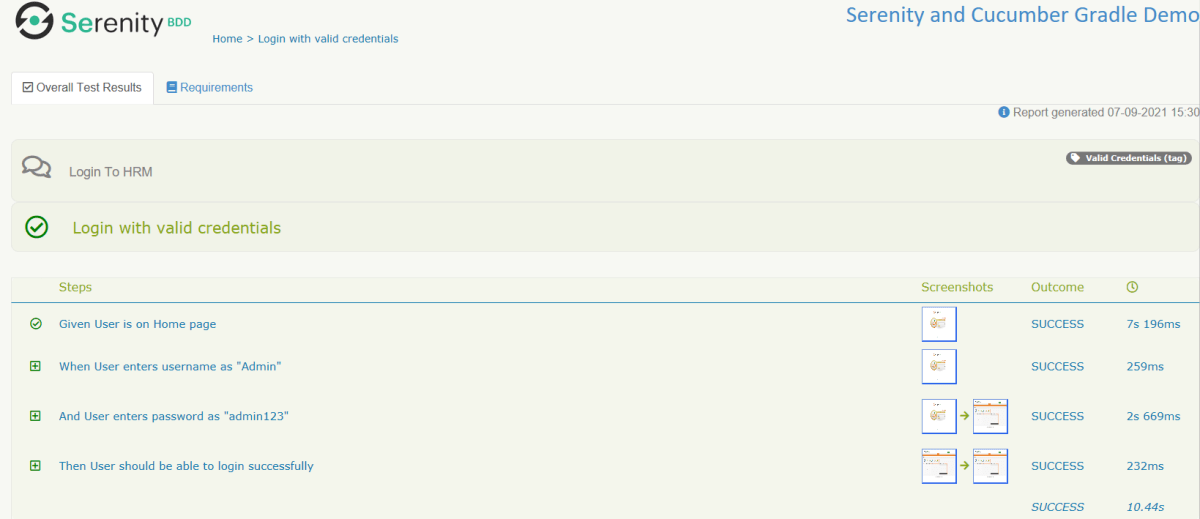
Serenity Report

Below is the image of Overall Test Result with steps and screenshots.

That’s it! Congratulations on making it through this tutorial and hope you found it useful! Happy Learning!!

Run Gradle Cucumber Tests from Command Line

HOME

The implementation of a test framework is considered successful and effective, if the test framework supports test execution in multiple ways.
The tests in a Gradle Cucumber Framework can be executed as JUnit Tests, Gradle Tests and Gradle commands from Command Line.

In this tutorial, I will explain to run Gradle tests from Command Line.

Versions Used

  1. Cucumber – 7.5.0
  2. Java – 11
  3. JUnit – 4.13.2
  4. Rest Assured – 4.3.3

To execute tests using JUnit Tests and Gradle Tests, we need to create a JUnit TestRunner.

Steps to follow

  1. Create a Gradle Java Project.
  2. Add Rest-Assured and Cucumber dependencies to the Gradle project
  3. Add Configuration to build.gradle
  4. Add Gradle Cucumber Task to build.gradle
  5. Create a feature file under src/test/resources
  6. Create the Step Definition class or Glue Code for the Test Scenario
  7. Run the tests from Command Line

Step 1 – Create a Gradle project

Step 2 – Add the below-mentioned dependencies in the Gradle project in build.gradle.

plugins {
    // Apply the java-library plugin to add support for Java Library

    id 'java-library'
 
}

repositories {
    // Use jcenter for resolving dependencies.
    // You can declare any Maven/Ivy/file repository here.
    jcenter()
    mavenCentral()
}

dependencies {
    // This dependency is exported to consumers, that is to say found on their compile classpath.
    api 'org.apache.commons:commons-math3:3.6.1'

    // This dependency is used internally, and not exposed to consumers on their own compile classpath.
    implementation 'com.google.guava:guava:29.0-jre'

    // Use JUnit test framework
    testImplementation 'junit:junit:4.13'
    testImplementation 'io.cucumber:cucumber-java:6.6.1'
    testImplementation 'io.cucumber:cucumber-junit:6.6.1'
    testImplementation 'io.rest-assured:rest-assured:4.3.3'
}

Step 3Add Configuration to build.gradle

configurations {
    cucumberRuntime {
        extendsFrom testImplementation
    }
}

Step 4Add Gradle Cucumber Task to build.gradle

task cucumber() {
    dependsOn assemble, testClasses
    doLast {
        javaexec {
            main = "io.cucumber.core.cli.Main"
            classpath = configurations.cucumberRuntime + sourceSets.main.output + sourceSets.test.output
            args = ['--plugin', 'pretty','--glue', 'Cucumber_Gradle_Demo.definitions', 'src/test/resources']
        }
    }
}

task getexample() {
    dependsOn assemble, compileTestJava
    doLast {
        javaexec {
            main = "io.cucumber.core.cli.Main"
            classpath = configurations.cucumberRuntime + sourceSets.main.output + sourceSets.test.output
            args = ['--plugin', 'pretty', '--glue', 'Cucumber_Gradle_Demo.definitions', 'src/test/resources/features/', '--tags', '@getexample']
        }
    }
}

task postexample() {
    dependsOn assemble, compileTestJava
    doLast {
        javaexec {
            main = "io.cucumber.core.cli.Main"
            classpath = configurations.cucumberRuntime + sourceSets.main.output + sourceSets.test.output
            args = ['--plugin', 'pretty', '--glue', 'Cucumber_Gradle_Demo.definitions', 'src/test/resources/features/', '--tags', '@postexample']
        }
    }
}

Here, task cucumber will execute all the tests present in the project irrespective of the number of feature files and scenarios within the feature file.

Step 5 Create a feature file under src/test/resources

I have created 2 sample feature files – API_GetExample.feature and API_PostExample.feature.

Below is the API_GetExample.feature

@getexample
Feature: Validation of get method
 
  @GetUserDetails
  Scenario Outline: Send a valid Request to get user details
 
  Given I send a request to the URL to get user details
  Then the response will return status 200 and id <id> and salary <employee_salary> and name "<employee_name>" and age <employee_age> and message "<message>"
 
Examples:
    |id  |employee_salary|employee_name |employee_age  |message                                  |
    |1   |320800         |Tiger Nixon   |61            |Successfully! Record has been fetched.   |
    
      
  @GetAllUsers    
  Scenario Outline: Send a valid Request to get the details of all the users
 
  Given I send a request to the URL to get the details of all the users
  Then the response will return status 200 and message "<message>"
 
Examples:
      |message                                  |
      | Successfully! All records has been fetched.   |

API_PostExample.feature

@postexample
Feature: Validation of POST method
 
  @CreateUser
  Scenario Outline: Send Request to create a user
 
  Given I send a request to the URL to create a new user
  Then the response will return status 200 and name "<employee_name>" and message "<message>"
 
Examples:
    |employee_name |message                                |
    |posttest      |Successfully! Record has been added.   |

1. Run Test from Command Line

1. Open the command prompt and change the directory to the project location.

cd C:\Users\Vibha\Projects\Vibha_Personal\Cucumber_Gradle_Demo

2. All feature files should be in src/test/resources and create the Cucumber Runner class as CucumberRunnerTest.
Note:- The Runner class name should end with Test to execute the tests from Command Line

2. Running all Feature files or Tests from Command Line

The below command will run all the tests present in the project. As you can see, there are 2 feature files – API_GetExample.feature contains 2 scenarios, and API_PostExample.feature contains 1 scenario.

gradle cucumber

The below screenshot shows that Task: Cucumber is triggered.

The below screenshot shows that the tests are executed and the status of the tests.

3. Running a Feature file from Command Line

To run a particular feature, create a task – postexample for that feature in the build.gradle as shown in the below example.

task postexample() {
    dependsOn assemble, compileTestJava
    doLast {
        javaexec {
            main = "io.cucumber.core.cli.Main"
            classpath = configurations.cucumberRuntime + sourceSets.main.output + sourceSets.test.output
            args = ['--plugin', 'pretty', '--glue', 'Cucumber_Gradle_Demo.definitions', 'src/test/resources/features/', '--tags', '@postexample']
        }
    }
}

Add this task as a feature tag name and use it to run the test of that particular feature file.

@postexample
Feature: Validation of POST method

Use the below command to run the tests of API_PostExample.feature.

gradle postexample

4. Running Scenarios using Tags from Command Line

To execute the tests using tags, we need to add ‘–tags’, “${tags}” in build.gradle

task cucumber() {
    dependsOn assemble, testClasses
    doLast {
        javaexec {
            main = "io.cucumber.core.cli.Main"
            classpath = configurations.cucumberRuntime + sourceSets.main.output + sourceSets.test.output
            args = ['--plugin', 'pretty','--tags', "${tags}",'--glue', 'Cucumber_Gradle_Demo.definitions', 'src/test/resources']
        }
    }
}

Use the below-mentioned command to run the tests tagged with tag = GetUserDetails.

gradle cucumber -P tags=@GetUserDetails

5. Running a group of tests from Command Line

Below is the feature file

@getexample
Feature: Validation of get method
 
  @GetUserDetails @SmokeTest
  Scenario Outline: Send a valid Request to get a user details
 
  Given I send a request to the URL to get user details
  Then the response will return status 200 and id <id> and salary <employee_salary> and name "<employee_name>" and age <employee_age> and message "<message>"
 
Examples:
    |id  |employee_salary|employee_name |employee_age  |message                                  |
    |1   |320800         |Tiger Nixon   |61            |Successfully! Record has been fetched.   |
         
  @GetAllUsers 
  Scenario Outline: Send a valid Request to get the details of all the users
 
  Given I send a request to the URL to get the details of all the users
  Then the response will return status 200 and message "<message>"
 
Examples:
    |message                                        |
    | Successfully! All records has been fetched.   |
      
      
  @GetInvalidUsers @SmokeTest
  Scenario Outline: Send a valid Request to get the details of the invalid users
 
  Given I send a request to the URL to get the details of the invalid user
  Then the response will return status 200 and message "<message>"
 
Examples:
    | message                                  |
    | Successfully! Record has been fetched.   |   
      
  @GetInvalidUsers
  Scenario Outline: Send a valid Request to get the details of the user with id 0
 
  Given I send a request to the URL to get the details of the user with id 0
  Then the response will return status 200 and message "<message>" and error "<errorMessage>"
 
Examples:
    | message             | errorMessage  |
    | Not found record.   | id is empty   |  
        
  @Test3
  Scenario: Test 3
     
  Given I send a request to the URL to get the details of the user3
  Then the response will return successfully
  
  
  @Test4 
  Scenario: Test 4
     
  Given I send a request to the URL to get the details of the user4
  Then the response will return successfully
  

I want to run 2 tests – @GetUserDetails and @GetInvalidUsers. I can create a task with the name of @SmokeTest and assign these scenarios wit h the same tag. The task will look like as shown below:

task smokeTest() {
    dependsOn assemble, compileTestJava
    doLast {
        javaexec {
            main = "io.cucumber.core.cli.Main"
            classpath = configurations.cucumberRuntime + sourceSets.main.output + sourceSets.test.output
            args = ['--plugin', 'pretty', '--glue', 'com.example.definitions', 'src/test/resources/features/', '--tags', '@SmokeTest']
        }
    }
        
}

Use the below-mentioned command to run the tests.

gradle cucumber -P tags=@SmokeTest

The output of the above program is

6. Skipping the execution of a group of tests from Command Line

In the below feature file, I have marked 4 tests as “@Ignore” and 2 are valid.

Feature: Validation of get method
 
  @GetUserDetails @SmokeTest
  Scenario Outline: Send a valid Request to get a user details
 
  Given I send a request to the URL to get user details
  Then the response will return status 200 and id <id> and salary <employee_salary> and name "<employee_name>" and age <employee_age> and message "<message>"
 
Examples:
    |id  |employee_salary|employee_name |employee_age  |message                                  |
    |1   |320800         |Tiger Nixon   |61            |Successfully! Record has been fetched.   |
    
      
  @GetAllUsers @Ignore
  Scenario Outline: Send a valid Request to get the details of all the users
 
  Given I send a request to the URL to get the details of all the users
  Then the response will return status 200 and message "<message>"
 
Examples:
    |message                                        |
    | Successfully! All records has been fetched.   |
      
      
  @GetInvalidUsers @SmokeTest @Ignore
  Scenario Outline: Send a valid Request to get the details of the invalid users
 
  Given I send a request to the URL to get the details of the invalid user
  Then the response will return status 200 and message "<message>"
 
Examples:
    | message                                  |
    | Successfully! Record has been fetched.   |   
      
  @GetInvalidUsers @Ignore
  Scenario Outline: Send a valid Request to get the details of the user with id 0
 
  Given I send a request to the URL to get the details of the user with id 0
  Then the response will return status 200 and message "<message>" and error "<errorMessage>"
 
Examples:
    | message             | errorMessage  |
    | Not found record.   | id is empty   |  
        
  @Test3 @Ignore
  Scenario: Test 3
     
  Given I send a request to the URL to get the details of the user3
  Then the response will return successfully
  
  
  @Test4 
  Scenario: Test 4
     
  Given I send a request to the URL to get the details of the user4
  Then the response will return successfully
     

Add the below-mentioned tag in the build.gradle.

def tags = (findProperty('tags') == null) ? 'not @Ignore' : findProperty('tags') + ' and not @Ignore'

Use the below-mentioned command to run the tests.

gradle cucumber 

The program will execute only 2 tests and will skip the rest 4 tests. The output of the above program is

If I use the tag @SmokeTest here in the command line, then it will run all the tests tagged with @SmokeTest, but will ignore the tests tagged with @Ignore. So, in this case, it will run only 1 test – @GetUserDetails.

gradle cucumber -P tags=@SmokeTest

7. Run multiple tags

Add the below code to build.gradle

test {
    systemProperty "cucumber.filter.tags", System.getProperty("cucumber.filter.tags")
     testLogging {
     showStandardStreams = true
 }
}

This will help us to run multiple tags in cucumber. (Cucumber6 and above uses, cucumber.filter.tags , so for the lower version use cucumber.options).

Use the below command to run 2 tests in gradle.

gradle test -Dcucumber.filter.tags="@GetUserDetails or @GetAllUsers"

or means that test tagged with either of these tags can be run. So, here 2 tests should run.

Congratulations on making it through this tutorial and hope you found it useful! Happy Learning!! Cheers!!
How To Create Gradle Project with Cucumber to test Rest API

HOME

This tutorial describes the creation of the Gradle Java Project to test Rest API using Cucumber BDD and Rest-Assured.

In this tutorial, I will explain creating a framework for the testing of Rest API in Cucumber BDD.

  1. Cucumber – 6.8.1 or above
  2. Java 8 or above
  3. JUnit 4
  4. Gradle 6.6.1 (Build Tool)
  5. Rest Assured 4.3.3

Project Structure

Step 1- Download and Install Java

Cucumber and Rest-Assured need Java to be installed on the system to run the tests. Click here to learn How to install Java.

Step 2 – Download and setup Eclipse IDE on the system

The Eclipse IDE (integrated development environment) provides strong support for Java developers. Click here to learn How to install Eclipse.

Step 3 – Setup Gradle

To build a test framework, we need to add several dependencies to the project. This can be achieved by any build tool. I have used the Gradle Build Tool. Click here to learn How to install Gradle.

Step 4 – Create a new Gradle Project

To create a new Gradle project, go to the top left side and select File -> New Project -> Gradle -> Gradle project -> Next -> Enter Project Name and Project Location ->Next ->Select Gradle Version ->Next ->Review the Configuration -> Finish.

Click here to know How to create a Gradle Java project. Below is the structure of the Gradle project.

Step 5 – Add Rest-Assured and Cucumber dependencies to the Gradle project

This syntax is used for Gradle 5.0 and higher.

dependencies {
    // This dependency is exported to consumers, that is to say found on their compile classpath.
    api 'org.apache.commons:commons-math3:3.6.1'

    // This dependency is used internally, and not exposed to consumers on their own compile classpath.
    implementation 'com.google.guava:guava:29.0-jre'
    
    testImplementation 'io.cucumber:cucumber-java:6.8.1'
    testImplementation 'io.cucumber:cucumber-junit:6.8.1'
    testImplementation 'io.rest-assured:rest-assured:4.3.3'

If you are using Gradle 4.10.3 or older, use the below dependency block to build.gradle.

dependencies {
    testCompile 'io.cucumber:cucumber-java:6.8.1'
}

Step 6 – Add Configuration to build.gradle

The below configuration is added to the build.gradle when Gradle is 5.0 or higher version.

configurations {
    cucumberRuntime {
        extendsFrom testImplementation
    }
}

If Gradle is 4.10.3 or older, use the below configuration.

configurations {
    cucumberRuntime {
        extendsFrom testRuntime
    }
}

Step 7 – Add Gradle Cucumber Task to build.gradle 

task cucumber() {
    dependsOn assemble, testClasses
    doLast {
        javaexec {
            main = "io.cucumber.core.cli.Main"
            classpath = configurations.cucumberRuntime + sourceSets.main.output + sourceSets.test.output
            args = ['--plugin', 'pretty', '--glue', 'com.example.gradle.apidemo', 'src/test/resources']
        }
    }
}

Once you have added dependencies, configurations, and Gradle cucumber task, Right-click on the project, Hover to the Gradle option, and click Refresh Gradle Project. Eclipse does not automatically update the classpath of the build.gradle file is updated. Select Gradle  Refresh Gradle Project from the context menu of the project or from your build.gradle file for that.

Step 8 – Create a feature file under src/test/resources

A new Gradle Project is created with 4 folders – src/main/java, src/main/resources, src/test/java and src/test/resources. Features are created under the src/test/resources directory. Create a folder with name features. Now, create the feature file in this folder. The feature file should be saved with the extension .feature. This feature file contains the test scenarios created to test the application. The Test Scenarios are written in Gherkins language in the format of Given, When, Then, And, But.

Below is an example of a Test Scenario where we are using the GET method to get the information from the API.

Feature: Validation of get method
 
@GetUserDetails
  Scenario Outline: Send a valid Request to get user details
 
  Given I send a request to the URL to get user details
  Then the response will return status 200 and id <id> and salary <employee_salary> and name "<employee_name>" and age <employee_age> and message "<message>"
 
Examples:
    |id  |employee_salary|employee_name |employee_age  |message                                  |
    |1   |320800         |Tiger Nixon   |61            |Successfully! Record has been fetched.   |
   

Step 9 – Create the Step Definition class or Glue Code for the Test Scenario

Step Definition acts as an intermediate to your runner and feature file. It stores the mapping between each step of the scenario in the Feature file. So when you run the scenario, it will scan the step definition file to check the matched glue or test code.

import io.restassured.http.ContentType;
 
import io.restassured.response.ValidatableResponse;
 
import static io.restassured.RestAssured.given;
import static org.hamcrest.Matchers.equalTo;
 
import io.cucumber.java.en.Given;
import io.cucumber.java.en.Then;
 
public class API_GETDefinitions {
     
 
    private ValidatableResponse validatableResponse;
 
    private String endpoint = "http://dummy.restapiexample.com/api/v1/employee/1";
  
    @Given("I send a request to the URL to get user details")
    public void sendRequest(){
        validatableResponse = given().contentType(ContentType.JSON)
                .when().get(endpoint).then();   
         
        System.out.println("Response :"+validatableResponse.extract().asPrettyString());
    }
  
  
    @Then("the response will return status {int} and id {int} and salary {int} and name {string} and age {int} and message {string}")
    public void verifyStatus(int statusCode, int id, int emp_Salary, String emp_name, int emp_age, String message ){
         
        validatableResponse.assertThat().statusCode(statusCode);
         
        validatableResponse.assertThat().body("data.id",equalTo(id));
         
        validatableResponse.assertThat().body("data.employee_salary",equalTo(emp_Salary));
         
        validatableResponse.assertThat().body("data.employee_name",equalTo(emp_name));
         
        validatableResponse.assertThat().body("data.employee_age",equalTo(emp_age));
         
        validatableResponse.assertThat().body("message",equalTo(message));      
         
    }
}

In order to use REST assured effectively, it’s recommended to statically import methods from the following classes:

import io.restassured.RestAssured.*
import io.restassured.matcher.RestAssuredMatchers.*
import static org.hamcrest.Matchers.*

given() method is imported from package:

import static io.restassured.RestAssured.given;

equalTo() method is imported from package:

import static org.hamcrest.Matchers;

Step 10 – Create a Cucumber Runner class 

A runner will help us to run the feature file and act as an interlink between the feature file and step definition Class. To know more about Runner, refer to this link.

import org.junit.runner.RunWith;

import io.cucumber.junit.Cucumber;
import io.cucumber.junit.CucumberOptions;

@RunWith(Cucumber.class)

@CucumberOptions(plugin ="pretty",features= {"src/test/resources/features/API_GET.feature"}, glue= {"com.example.gradle.apidemo"})

public class CucumberRunnerTest {

}

Step 11 – Run the tests from JUnit

You can execute the test script by right-clicking on the Test Runner class -> Run As JUnit.

Step 12 – Run the tests from the Command Line

Run the following Gradle task from the directory path where build.gradle file is located. To know more about this report, refer here.

gradle cucumber

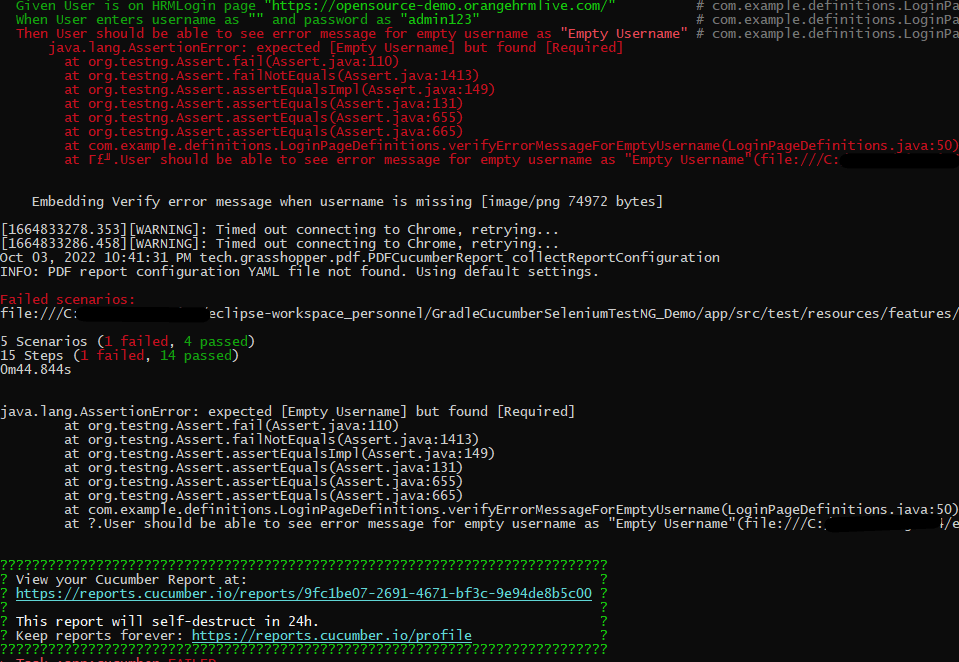
Below is the screenshot of the execution of Cucumber tests in Command-Line.

Step 13 – Cucumber Report Generation

To get Cucumber Test Reports, add cucumber.properties under src/test/resources and add the below instruction in the file.

cucumber.publish.enabled=true

Below is the image of the Cucumber Report.

We are done! Congratulations on making it through this tutorial and hope you found it useful! Happy Learning!!

Parallel Testing in Cucumber with JUnit4

Last Updated On

HOME

In this tutorial, I will explain Parallel Testing using Cucumber with JUnit4.

Cucumber-JVM allows parallel execution across multiple threads since version 4.0.0. There are several options to incorporate this built-in feature in a Cucumber project. You can do so by using JUnit, TestNG, or CLI.

Cucumber can be executed in parallel using JUnit and Maven test execution plugins.

In JUnit, the feature files are run in parallel rather than in scenarios, which means all the scenarios in a feature file will be executed by the same thread. You can use either Maven Surefire or Failsafe plugin to execute the runner. In this tutorial, I’m using the Maven Surefire plugin.

Table of Contents

  1. Dependency List
  2. Detailed Step Description
    1. Create a Maven project
    2. Update the Properties section in Maven pom.xml
    3. Add Cucumber and JUnit dependencies to the project
    4. Add Surefire plugin configuration to the build section of the POM
    5. Create a feature folder in src/test/resources
    6. Create the Page Object Model classes of LoginPage and ForgotPasswordPage feature files
    7. Create the Hook Class and Dependency Injection class (TestSetUp) and BaseTest class
    8. Create a Test Runner to run the tests
    9. Cucumber Report Generation
    10. Execute the tests from the command line
    11. Difference between Parallel tests and Non-Parallel Tests

Dependency List:-

  1. Cucumber Java – 7.11.1
  2. Cucumber JUnit – 7.11.1
  3. Java 11
  4. JUnit– 4.13.2
  5. Maven – 3.8.1
  6. Selenium – 34.8.0
  7. Maven Surefire Plugin – 3.0.0-M7
  8. Maven Compiler Plugin – 3.10.1

Detailed Step Description

Step 1 – Create a Maven project

Create a Maven project in your favorite IDE using the cucumber-archetype or by adding Cucumber dependencies to the POM as detailed here and Junit dependencies here. To know more about How to set up a Cucumber Maven project with Eclipse, please refer to this tutorial – Cucumber Tutorial – How to setup Cucumber with Eclipse.

Below is the structure of the project.

Step 2 – Update the Properties section in Maven pom.xml

   <properties>
        <project.build.sourceEncoding>UTF-8</project.build.sourceEncoding>
        <selenium.version>4.8.0</selenium.version>
        <cucumber.version>7.11.1</cucumber.version>
        <junit.version>4.13.2</junit.version>
        <webdrivermanager.version>5.3.2</webdrivermanager.version>
        <extent.version>5.0.9</extent.version>
        <extent.cucumber.adapter.version>1.10.1</extent.cucumber.adapter.version>
        <maven.compiler.plugin.version>3.10.1</maven.compiler.plugin.version>
        <maven.surefire.plugin.version>3.0.0-M7</maven.surefire.plugin.version>
        <maven.compiler.source>11</maven.compiler.source>
        <maven.compiler.target>11</maven.compiler.target>
    </properties>

Step 3 – Add Cucumber and JUnit dependencies to the project

Add below mentioned Cucumber-Java and Cucumber-JUnit dependencies to the project.

  <dependencies>

        <!--Cucumber Dependencies -->
        <dependency>
            <groupId>io.cucumber</groupId>
            <artifactId>cucumber-java</artifactId>
            <version>${cucumber.version}</version>
        </dependency>

        <dependency>
            <groupId>io.cucumber</groupId>
            <artifactId>cucumber-junit</artifactId>
            <version>${cucumber.version}</version>
            <scope>test</scope>
        </dependency>

        <!-- Selenium Dependency -->
        <dependency>
            <groupId>org.seleniumhq.selenium</groupId>
            <artifactId>selenium-java</artifactId>
            <version>${selenium.version}</version>
        </dependency>

        <!-- JUnit4 Dependency -->
        <dependency>
            <groupId>junit</groupId>
            <artifactId>junit</artifactId>
            <version>${junit.version}</version>
            <scope>test</scope>
        </dependency>


        <!-- Dependency Injection-->
        <dependency>
            <groupId>io.cucumber</groupId>
            <artifactId>cucumber-picocontainer</artifactId>
            <version>${cucumber.version}</version>
            <scope>test</scope>
        </dependency>

        <!-- WebDriver Manager Dependency -->
        <dependency>
            <groupId>io.github.bonigarcia</groupId>
            <artifactId>webdrivermanager</artifactId>
            <version>${webdrivermanager.version}</version>
        </dependency>

    </dependencies>
  

Step 4 – Add Surefire plugin configuration to the build section of the POM

 <plugin>
    <groupId>org.apache.maven.plugins</groupId>
    <artifactId>maven-surefire-plugin</artifactId>
    <version>${maven.surefire.plugin.version}</version>
   <configuration>
        <parallel>methods</parallel>
        <useUnlimitedThreads>true</useUnlimitedThreads>
        <testFailureIgnore>true</testFailureIgnore>
	</configuration>
</plugin> 

To set the thread count to a specific number instead of useUnlimitedThreads use the below setting.

<configuration>
    <parallel>methods</parallel>
    <threadCount>4</threadCount>
</configuration>

The thread count in the above setting is 4 threads per core.

The complete POM.xml is shown below:

<?xml version="1.0" encoding="UTF-8"?>
<project xmlns="http://maven.apache.org/POM/4.0.0"
         xmlns:xsi="http://www.w3.org/2001/XMLSchema-instance"
         xsi:schemaLocation="http://maven.apache.org/POM/4.0.0 http://maven.apache.org/xsd/maven-4.0.0.xsd">
    <modelVersion>4.0.0</modelVersion>

    <groupId>org.example</groupId>
    <artifactId>ParallelTests_Cucumber_JUnit4_Demo</artifactId>
    <version>1.0-SNAPSHOT</version>

    <properties>
        <project.build.sourceEncoding>UTF-8</project.build.sourceEncoding>
        <selenium.version>4.8.0</selenium.version>
        <cucumber.version>7.11.1</cucumber.version>
        <junit.version>4.13.2</junit.version>
        <webdrivermanager.version>5.3.2</webdrivermanager.version>
        <extent.version>5.0.9</extent.version>
        <extent.cucumber.adapter.version>1.10.1</extent.cucumber.adapter.version>
        <maven.compiler.plugin.version>3.10.1</maven.compiler.plugin.version>
        <maven.surefire.plugin.version>3.0.0-M7</maven.surefire.plugin.version>
        <maven.compiler.source>11</maven.compiler.source>
        <maven.compiler.target>11</maven.compiler.target>
    </properties>

    <dependencies>

        <!--Cucumber Dependencies -->
        <dependency>
            <groupId>io.cucumber</groupId>
            <artifactId>cucumber-java</artifactId>
            <version>${cucumber.version}</version>
        </dependency>

        <dependency>
            <groupId>io.cucumber</groupId>
            <artifactId>cucumber-junit</artifactId>
            <version>${cucumber.version}</version>
            <scope>test</scope>
        </dependency>

        <!-- Selenium Dependency -->
        <dependency>
            <groupId>org.seleniumhq.selenium</groupId>
            <artifactId>selenium-java</artifactId>
            <version>${selenium.version}</version>
        </dependency>

        <!-- JUnit4 Dependency -->
        <dependency>
            <groupId>junit</groupId>
            <artifactId>junit</artifactId>
            <version>${junit.version}</version>
            <scope>test</scope>
        </dependency>


        <!-- Dependency Injection-->
        <dependency>
            <groupId>io.cucumber</groupId>
            <artifactId>cucumber-picocontainer</artifactId>
            <version>${cucumber.version}</version>
            <scope>test</scope>
        </dependency>

        <!-- WebDriver Manager Dependency -->
        <dependency>
            <groupId>io.github.bonigarcia</groupId>
            <artifactId>webdrivermanager</artifactId>
            <version>${webdrivermanager.version}</version>
        </dependency>

    </dependencies>
    <build>
        <plugins>

            <plugin>
                <groupId>org.apache.maven.plugins</groupId>
                <artifactId>maven-compiler-plugin</artifactId>
                <version>${maven.compiler.plugin.version}</version>
                <configuration>
                    <source>${maven.compiler.source}</source>
                    <target>${maven.compiler.target}</target>
                </configuration>
            </plugin>

            <plugin>
                <groupId>org.apache.maven.plugins</groupId>
                <artifactId>maven-surefire-plugin</artifactId>
                <version>${maven.surefire.plugin.version}</version>
                <configuration>
                    <parallel>methods</parallel>
                    <useUnlimitedThreads>true</useUnlimitedThreads>
                </configuration>
            </plugin>
        </plugins>
    </build>

</project>

Step 5 – Create a feature folder in src/test/resources

Add 2 feature files – LoginPage.feature and ForgotPasswordPage.feature in the features folder present in src/test/resources.

LoginPage.feature

Feature: Login to HRM Application

  Background:
    Given User is on Home page

  @ValidCredentials
  Scenario: Login with valid credentials - Feature 1, Scenario - 1

    When User enters username as "Admin" and password as "admin123"
    Then User should be able to login successfully

  @InvalidCredentials
  Scenario Outline: Login with invalid credentials - Feature 1, Scenario - 2

    When User enters username as "<username>" and password as "<password>"
    Then User should be able to see error message "<errorMessage>"

    Examples:
      | username    | password   | errorMessage                      |
      | Admin       | admin12$$  | Invalid credentials               |
      | admin$$     | admin123   | Invalid credentials               |
      | abc123      | xyz$$      | Invalid credentials               |
      |             | xyz$$      | Invalid credentials               |

ForgotPasswordPage.feature

Feature: Forgot Password Page

  Background:
    Given User is on Home page

  @BackFunctionality
  Scenario: Validate the cancel functionality - Feature 2, Scenario - 1

    When User clicks on Forgot your password? link
    Then User should be able to navigate to Reset Password page
    And User clicks on Cancel button to go back to Login Page

  @ResetFunctionality
  Scenario: Validate the Reset Password functionality - Feature 2, Scenario - 2

    When User clicks on Forgot your password? link
    Then User should be able to navigate to Reset Password page
    And User clicks on Reset Password button and provide username as "abc1234"
    And Verify the message "Reset Password link sent successfully"

Step 6 – Create the Page Object Model classes of LoginPage and ForgotPasswordPage feature files

Page Object Model class contains all the locators and the actions performed on these locators for the particular class to improve the readability and maintainability of the code.

Below are the Page Object Model classes for these feature files.

LoginPage

import org.openqa.selenium.By;
import org.openqa.selenium.WebDriver;
 
public class LoginPage {
 
    public WebDriver driver;
     
    By userName = By.name("username");
    By passWord = By.name("password");
    By login = By.xpath("//*[@id='app']/div[1]/div/div[1]/div/div[2]/div[2]/form/div[3]/button");
    By errorMessage = By.xpath("//*[@id='app']/div[1]/div/div[1]/div/div[2]/div[2]/div/div[1]/div[1]/p");
    By forgotPasswordLink = By.xpath("//*[@id='app']/div[1]/div/div[1]/div/div[2]/div[2]/form/div[4]/p");
    By loginPageTitle = By.xpath("//*[@id='app']/div[1]/div/div[1]/div/div[2]/h5");
     
    public LoginPage(WebDriver driver) {
        this.driver = driver;
    }
     
    public String getErrorMessage() {
        return driver.findElement(errorMessage).getText();
    }
 
    public void login(String strUserName, String strPassword) {
 
        // Fill user name
        driver.findElement(userName).sendKeys(strUserName);
 
        // Fill password
        driver.findElement(passWord).sendKeys(strPassword);
 
        // Click Login button
        driver.findElement(login).click();
 
    }
 
    // Click on Forgot Password link
    public void clickOnForgotPasswordLink() {
        driver.findElement(forgotPasswordLink).click();
    }
 
    //Get Login Page Title
    public String getLoginPageTitle() {
        return driver.findElement(loginPageTitle).getText();
    }
}

HomePage

import org.openqa.selenium.By;
import org.openqa.selenium.WebDriver;
 
public class HomePage {
 
    public WebDriver driver;
 
    public HomePage(WebDriver driver) {
        this.driver = driver;
    }
 
    By homePageUserName = By.xpath("//*[@id='app']/div[1]/div[1]/header/div[1]/div[1]/span/h6");
 
    public String getHomePageText() {
        return driver.findElement(homePageUserName).getText();
    }
}

ForgotPasswordPage

import org.openqa.selenium.By;
import org.openqa.selenium.WebDriver;
 
public class ForgotPasswordPage {
 
    WebDriver driver;
 
     By forgotPasswordPageTitle = By.xpath("//*[@id='app']/div[1]/div[1]/div/form/h6");
     By cancelBtn = By.xpath("//*[@id='app']/div[1]/div[1]/div/form/div[2]/button[1]");
     By resetPasswordBtn = By.xpath("//*[@id='app']/div[1]/div[1]/div/form/div[2]/button[2]");
     By userName = By.name("username");
     By resetMessage = By.xpath("//*[@id='app']/div[1]/div[1]/div/h6");
 
    public ForgotPasswordPage(WebDriver driver) {
        this.driver = driver;
    }
 
    // Get the Title of ForgotPage
    public String getForgotPageText() {
        return driver.findElement(forgotPasswordPageTitle).getText();
    }
 
    // Click Cancel Button
    public void clickOnCancelBtn() {
         driver.findElement(cancelBtn).click();
    }
 
    // Click ResetPassword Button
    public void clickOnRestPasswordBtn() {
        driver.findElement(resetPasswordBtn).click();
    }
 
    // Type username in TextBox
    public void TypeOnUsernameTextBox(String username) {
        driver.findElement(userName).sendKeys(username);
    }
 
    // Get Message
    public String getRestMessage() {
        return driver.findElement(resetMessage).getText();
    }
}

PageObjectManager – This class creates the object of all the above-mentioned Page Object Model classes. This an optional class. If you want you can create the objects in StepDefinition class also.

public class PageObjectManager {
 
    public LoginPage loginPage;
    public HomePage homePage;
    public ForgotPasswordPage forgotPasswordPage;
    public WebDriver driver;
 
 
    public PageObjectManager(WebDriver driver)
    {
        this.driver = driver;
    }
 
    public LoginPage getLoginPage()
    {
 
        loginPage= new LoginPage(driver);
        return loginPage;
    }
 
    public HomePage getHomePage()
    {
        homePage = new HomePage(driver);
        return homePage;
    }
 
    public ForgotPasswordPage getForgotPasswordPage()
    {
        forgotPasswordPage = new ForgotPasswordPage(driver);
        return forgotPasswordPage;
    }
}

Step 7 – Create the Step Definition classes for both feature files or Glue Code

Below is the Step Definition for LoginPage.feature.

import org.example.pageObjects.HomePage;
import org.example.pageObjects.LoginPage;
import org.example.pageObjects.PageObjectManager;
import org.example.utils.TestSetUp;
import io.cucumber.java.en.Given;
import io.cucumber.java.en.Then;
import io.cucumber.java.en.When;
import org.junit.Assert;

public class LoginPageDefinitions {

    TestSetUp setUp;
    public PageObjectManager pageObjectManager;
    public LoginPage loginPage;
    public HomePage homePage;


    public LoginPageDefinitions(TestSetUp setUp)  {
        this.setUp = setUp;
        this.loginPage = setUp.pageObjectManager.getLoginPage();
        this.homePage= setUp.pageObjectManager.getHomePage();
    }

    @Given("User is on Home page")
    public void loginTest()  {
        setUp.baseTest.WebDriverManager().get("https://opensource-demo.orangehrmlive.com/");

    }

    @When("User enters username as {string} and password as {string}")
    public void goToHomePage(String userName, String passWord) {

        // login to application
        loginPage.login(userName, passWord);

        // go the next page

    }

    @Then("User should be able to login successfully")
    public void verifyLogin() {

        // Verify home page
        Assert.assertTrue(homePage.getHomePageText().contains("Dashboard"));

    }

    @Then("User should be able to see error message {string}")
    public void verifyErrorMessage(String expectedErrorMessage) {

        // Verify home page
        Assert.assertEquals(loginPage.getErrorMessage(),expectedErrorMessage);

    }

}

Below is the Step Definition for ForgotPasswordPage.feature.

import io.cucumber.java.en.Then;
import io.cucumber.java.en.When;
import org.example.pageObjects.ForgotPasswordPage;
import org.example.pageObjects.LoginPage;
import org.example.pageObjects.PageObjectManager;
import org.example.utils.TestSetUp;
import org.junit.Assert;


public class ForgotPasswordPageDefinitions {

    TestSetUp setUp;
    PageObjectManager pageObjectManager;
    public LoginPage loginPage;
    public  ForgotPasswordPage forgotPasswordPage;

    public ForgotPasswordPageDefinitions(TestSetUp setUp) {
        this.setUp = setUp;
        this.loginPage = setUp.pageObjectManager.getLoginPage();
        this.forgotPasswordPage = setUp.pageObjectManager.getForgotPasswordPage();
    }

    @When("User clicks on Forgot your password? link")
    public void forgotPasswordLink() {

        loginPage.clickOnForgotPasswordLink();

    }

    @Then("User should be able to navigate to Reset Password page")
    public void verifyForgotPasswordPage() {

        Assert.assertEquals(forgotPasswordPage.getForgotPageText(),"Reset Password");

    }

    @Then("User clicks on Cancel button to go back to Login Page")
    public void verifyCancelBtn() {

        forgotPasswordPage.clickOnCancelBtn();
        Assert.assertEquals(loginPage.getLoginPageTitle(),"Login");

    }

    @Then("User clicks on Reset Password button and provide username as {string}")
    public void verifyResetPasswordBtn(String username) {

        forgotPasswordPage.TypeOnUsernameTextBox(username);
        forgotPasswordPage.clickOnRestPasswordBtn();

    }

    @Then("Verify the message {string}")
    public void verifyMessage(String message) {

        //  ForgotPasswordPage forgotPasswordPage = setUp.pageObjectManager.getForgotPasswordPage();
        Assert.assertEquals(forgotPasswordPage.getRestMessage(),message);

    }
}

Step 8 – Create the Hook Class and Dependency Injection class (TestSetUp) and BaseTest class

Below is the code for the ApplicationHook Class.

import io.cucumber.java.After;
import io.cucumber.java.AfterStep;
import io.cucumber.java.Scenario;
import org.example.utils.TestSetUp;
import org.openqa.selenium.OutputType;
import org.openqa.selenium.TakesScreenshot;
import org.openqa.selenium.WebDriver;

public class ApplicationHooks {

 public TestSetUp setUp;

    public ApplicationHooks(TestSetUp setUp) {
        this.setUp = setUp;
    }

    @After
    public void tearDown( )  {
        setUp.baseTest.WebDriverManager().quit();
    }

    @AfterStep
    public void addScreenshot(Scenario scenario) {

        WebDriver driver =  setUp.baseTest.WebDriverManager();
        if(scenario.isFailed()) {
            final byte[] screenshot = ((TakesScreenshot) driver).getScreenshotAs(OutputType.BYTES);
            scenario.attach(screenshot, "image/png", "image");
        }

    }

}

Below is the code for the Dependency Injection class. In Cucumber, if we want to share the state between multiple-step definition files, we will need to use dependency injection (DI). 

import org.openqa.selenium.WebDriver;
import org.openqa.selenium.WebElement;
import pageObjects.PageObjectManager;
 
public class TestSetUp {
 
    public WebElement errorMessage;
    public WebElement homePageUserName;
    public PageObjectManager pageObjectManager;
    public BaseTest baseTest;
 
    public TestSetUp()  {
 
        baseTest = new BaseTest();
        pageObjectManager = new PageObjectManager(baseTest.WebDriverManager());
 
    }
}

BaseTest class is used to initialize the WebDriver.

import io.github.bonigarcia.wdm.WebDriverManager;
import org.openqa.selenium.WebDriver;
import org.openqa.selenium.chrome.ChromeDriver;
import java.time.Duration;
 
public class BaseTest {
 
    public WebDriver driver;
    public final static int TIMEOUT = 10;
 
    public WebDriver WebDriverManager ()  {
 
    
        if (driver == null) {
         
            WebDriverManager.chromedriver().setup();
            driver = new ChromeDriver();
            driver.manage().timeouts().implicitlyWait(Duration.ofSeconds(TIMEOUT));
            driver.manage().window().maximize();
            driver.get(url);
 
        }
        return driver;
    }
}

Step 9 – Create a Test Runner to run the tests

import io.cucumber.junit.Cucumber;
import io.cucumber.junit.CucumberOptions;
import org.junit.runner.RunWith;

@RunWith(Cucumber.class)
@CucumberOptions(tags = "", features = "src/test/resources/features", glue = "org.example.definitions")

public class CucumberRunnerTests  {

}

Step 10 – Cucumber Report Generation

To get Cucumber Test Reports, add cucumber.properties in src/test/resources and add the below instruction in the file.

cucumber.publish.enabled=true

Step 11 – Execute the tests from the command line

mvn clean test

Below is the execution screen. There are two feature files.

When we invoke the test through Maven, the surefire plugin executes the Feature files parallelly. Here, LoginPage has 5 scenarios and ForgotPasswordPage has 2 scenarios. So, initially when the execution will start 1 scenario from both the tests will be executed parallelly and then again one test from each feature will execute. Later, we will be left with 4 scenarios in the LoginPage feature file, so the scenario will run sequentially of the LoginPage feature file.

All the tests of a particular feature file are executed together as feature files are run in parallel, not scenarios.

Step 12 – Difference between Parallel tests and Non-Parallel Tests

Parallel Tests

Below is the Cucumber Report generated for parallel tests.

When the tests are run as JUnit tests from CucumberRunnerTests, then the tests are executed sequentially.

We are done! Congratulations on making it through this tutorial and hope you found it useful! Happy Learning!!
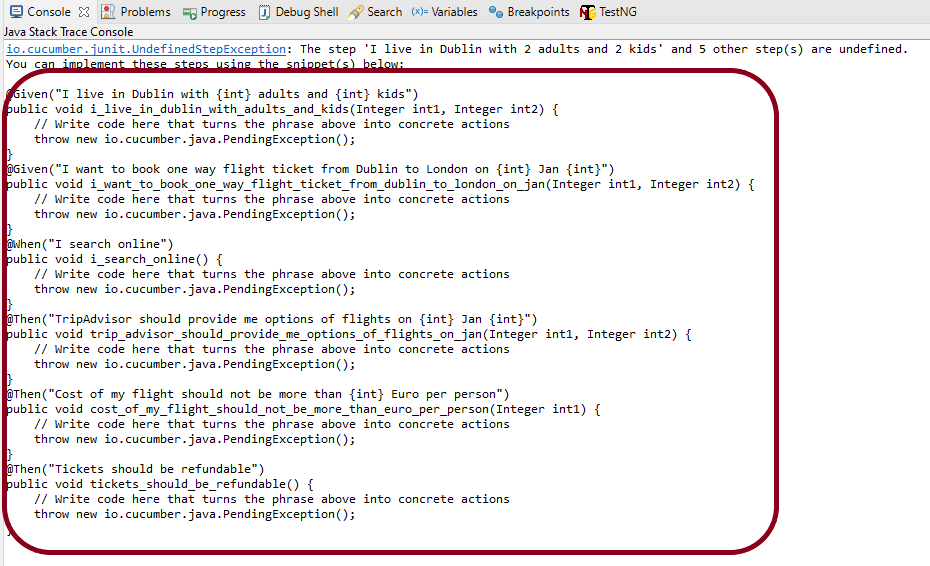
In the next tutorial, I explained Parallel Testing in Cucumber with TestNG.

Cucumber Report Service

HOME

Reports can be generated in Cucumber in 2 ways.

  1. Generate report using Cucumber Report Services
  2. Generate local reports using built-in reporter plugins – html, json, junit, pretty

In this tutorial, I’ll explain about Cucumber Report Services. To use this service, we need to add Cucumber-jvm of version 6.7.0 and above.

<!-- https://mvnrepository.com/artifact/io.cucumber/cucumber-jvm -->
<dependency>
    <groupId>io.cucumber</groupId>
    <artifactId>cucumber-jvm</artifactId>
    <version>6.8.1</version>
    <type>pom</type>
</dependency>

Another important pre-requisite is addition of below instruction in cucumber.properties file

cucumber.publish.enabled=true

Cucumber.properties file should be present in src/test/resources.

Now, execute the Cucumber tests by using command — mvn test in command line.

Below image shows the Console message generated

If you follow the link, you’ll see your report rendered in glorious colour. Below is the image of such Cucumber Report. This report provide the information about

  1. No Of Test Scenarios Executed
  2. Passed vs Failed percentage
  3. When the tests are executed like 8 minutes ago or 15 hours ago
  4. Time taken to execute the Test Suite
  5. Window Version
  6. Java Version
  7. Cucumber-jvm Version
  8. Name of the feature file executed
  9. Test Scenario step execution – passed, failed, pending

The report is self destructed in 24 hours. It is mentioned as a warning at the top of the report.

To save the report for future use, click on the link – Keep your future reports forever. It will open a dialog box as shown below. You can create a Report Collection and the reports present in Report Collection are not auto-deleted.

Login to GitHub. A new page as shown below will appear. Create a collection by providing the name in the Name box and click the “Create new collection” button.

This page contains a token as shown in the image in the below screen. Mention this environment variable with token in cucumber.properties file which is present within src/test/resources.

When the tests will be executed, now the report will be saved under Cucumber Gradle Reports Collection.

Below is the image of the report which is saved under Cucumber Gradle Reports collection in GitHub.

If you have not added cucumber.properties to your project, then will get a screen as shown below.

Delete Report

The report can be deleted by clicking on Delete button on the report. Once you have clicked on Delete Report button, a dialog box as shown below is displayed. Once you click on Delete button present in the dialog box, the report is deleted permanently.

That’s it! Congratulations on making it through this tutorial and hope you found it useful! Happy Learning!!