Allure Report with Cucumber, Selenium and TestNG

Last Updated On

HOME

In the previous tutorial, I explained the Integration of the Allure Report with Selenium and TestNG. In this tutorial, I will explain how to Integrate Allure Report with Cucumber, Selenium, and TestNG.

The below example covers the implementation of Allure Reports with Cucumber, Selenium, TestNG, Java, and Maven. Before starting, make sure to install Allure on your machine. Refer to this tutorial to install allure – What is Allure Report?.

Table of Contents

  1. Prerequisite
  2. Dependency List
  3. Implementation Steps
    1. Update the Properties section in Maven pom.xml
    2. Add Cucumber5, Selenium, TestNG, Allure-Cucumber5, and Allure-TestNG dependencies
    3. Update the Build Section of pom.xml in the Allure Report Project
    4. Create a Feature file
    5. Create the Step Definition class or Glue Code
    6. Create a TestNG Cucumber Runner class
    7. Create testng.xml for the project
    8. Run the Test and Generate Allure Report
  4. Allure Report Dashboard
    1. Categories in Allure Report
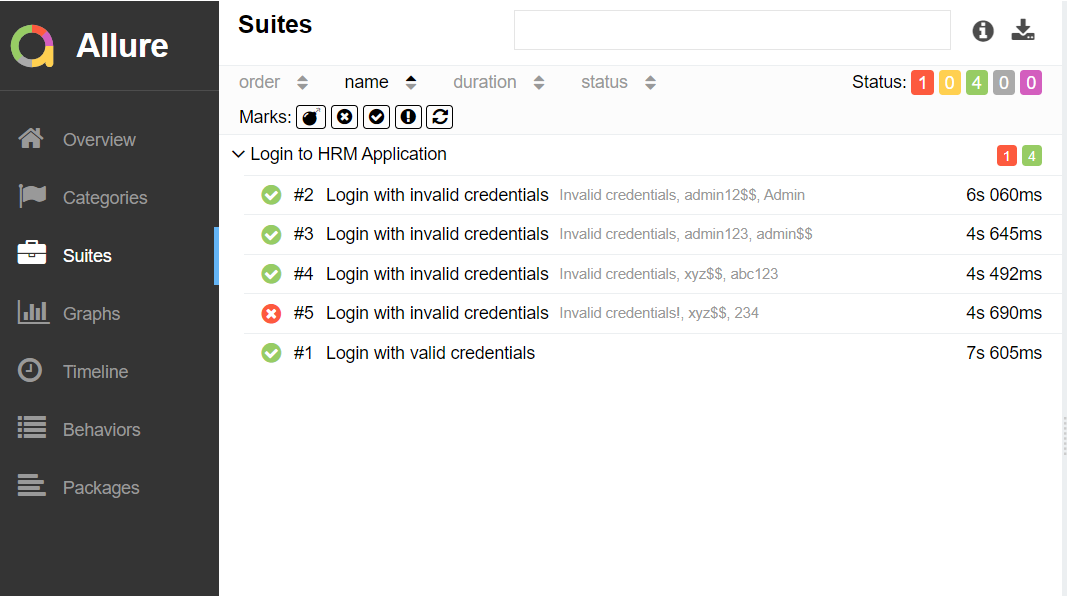
    2. Suites in Allure Report
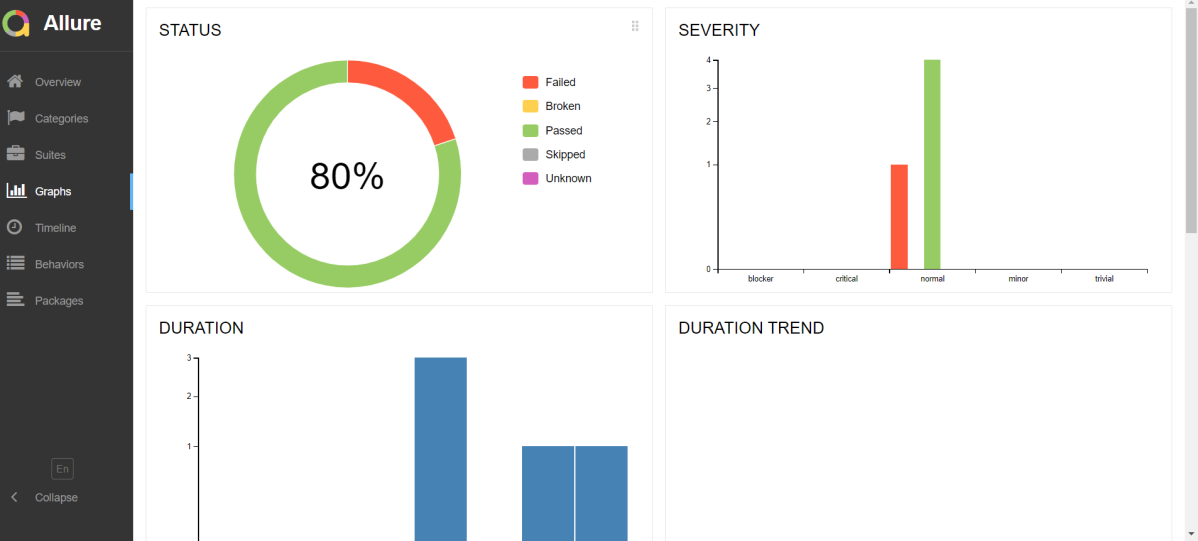
    3. Graphs in Allure Report
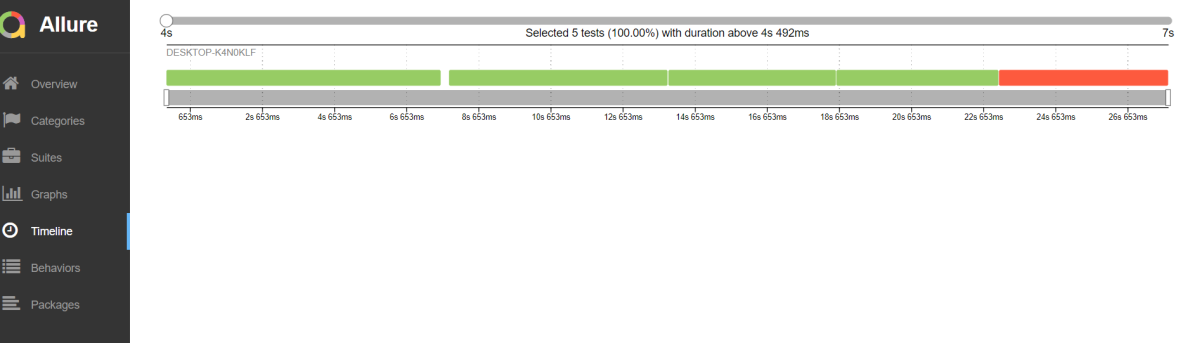
    4. Timeline in Allure Report
    5. Behaviours of Allure Report
    6. Packages in Allure Report

Prerequisite

  1. Java 17 installed
  2. Maven installed
  3. Eclipse or IntelliJ installed
  4. Allure installed

Dependency List

  1. Selenium – 4.16.1
  2. Java 17
  3. Cucumber – 7.15.0
  4. Maven – 3.9.6
  5. Allure Report – 2.25.0
  6. Allure Maven – 2.12.0
  7. Aspectj – 1.9.21
  8. Maven Compiler Plugin – 3.12.1
  9. Maven Surefire Plugin – 3.2.3

Implementation Steps

Step 1 – Update the Properties section in Maven pom.xml

<properties>
    <project.build.sourceEncoding>UTF-8</project.build.sourceEncoding>
    <cucumber.version>7.15.0</cucumber.version>
    <selenium.version>4.16.1</selenium.version>
    <testng.version>7.9.0</testng.version>
    <maven.compiler.plugin.version>3.12.1</maven.compiler.plugin.version>
    <maven.surefire.plugin.version>3.2.3</maven.surefire.plugin.version>
    <maven.compiler.source.version>17</maven.compiler.source.version>
    <maven.compiler.target.version>17</maven.compiler.target.version>
    <allure.junit4.version>2.25.0</allure.junit4.version>
    <aspectj.version>1.9.21</aspectj.version>
    <allure.version>2.25.0</allure.version>
    <allure.maven>2.12.0</allure.maven>
</properties>

Step 2 – Add dependencies to pom.xml

Add Cucumber, Selenium, TestNG, Allure-Cucumber, and Allure-TestNG dependencies to pom.xml (Maven Project).

<dependencyManagement>
    <dependencies>
      <dependency>
        <groupId>io.qameta.allure</groupId>
        <artifactId>allure-bom</artifactId>
        <version>${allure.version}</version>
        <type>pom</type>
        <scope>import</scope>
      </dependency>
    </dependencies>
  </dependencyManagement>


  <dependencies>

    <dependency>
      <groupId>io.cucumber</groupId>
      <artifactId>cucumber-java</artifactId>
      <version>${cucumber.version}</version>
    </dependency>

    <dependency>
      <groupId>io.cucumber</groupId>
      <artifactId>cucumber-testng</artifactId>
      <version>${cucumber.version}</version>
      <scope>test</scope>
    </dependency>

    <!-- Selenium -->
    <dependency>
      <groupId>org.seleniumhq.selenium</groupId>
      <artifactId>selenium-java</artifactId>
      <version>${selenium.version}</version>
    </dependency>

    <!-- TestNG -->
    <dependency>
      <groupId>org.testng</groupId>
      <artifactId>testng</artifactId>
      <version>${testng.version}</version>
      <scope>test</scope>
    </dependency>

    <!--Allure Cucumber Dependency-->
    <dependency>
      <groupId>io.qameta.allure</groupId>
      <artifactId>allure-cucumber7-jvm</artifactId>
      <scope>test</scope>
    </dependency>

    <!--Allure Reporting Dependency-->
    <dependency>
      <groupId>io.qameta.allure</groupId>
      <artifactId>allure-testng</artifactId>
      <scope>test</scope>
    </dependency>

  </dependencies>

Step 3 – Update the Build Section of pom.xml in the Allure Report Project

<build>
    <plugins>
      <plugin>
        <groupId>org.apache.maven.plugins</groupId>
        <artifactId>maven-compiler-plugin</artifactId>
        <version>${maven.compiler.plugin.version}</version>
        <configuration>
          <source>${maven.compiler.source.version}</source>
          <target>${maven.compiler.target.version}</target>
        </configuration>
      </plugin>
      <plugin>
        <groupId>org.apache.maven.plugins</groupId>
        <artifactId>maven-surefire-plugin</artifactId>
        <version>${maven.surefire.plugin.version}</version>
        <configuration>
          <suiteXmlFiles>
            <suiteXmlFile>testng.xml</suiteXmlFile>
          </suiteXmlFiles>
          <argLine>
            -javaagent:"${settings.localRepository}/org/aspectj/aspectjweaver/${aspectj.version}/aspectjweaver-${aspectj.version}.jar"
          </argLine>
        </configuration>
        <dependencies>
          <dependency>
            <groupId>org.aspectj</groupId>
            <artifactId>aspectjweaver</artifactId>
            <version>${aspectj.version}</version>
            <scope>runtime</scope>
          </dependency>
        </dependencies>
      </plugin>
      <plugin>
        <groupId>io.qameta.allure</groupId>
        <artifactId>allure-maven</artifactId>
        <version>${allure.maven}</version>
        <configuration>
          <reportVersion>${allure.maven}</reportVersion>
        </configuration>
      </plugin>
    </plugins>
  </build>

<project xmlns="http://maven.apache.org/POM/4.0.0" xmlns:xsi="http://www.w3.org/2001/XMLSchema-instance"
  xsi:schemaLocation="http://maven.apache.org/POM/4.0.0 http://maven.apache.org/xsd/maven-4.0.0.xsd">
  <modelVersion>4.0.0</modelVersion>

  <groupId>com.example</groupId>
  <artifactId>AllureReport_Cucumber_TestNG</artifactId>
  <version>1.0-SNAPSHOT</version>
  <packaging>jar</packaging>

  <name>AllureReport_Cucumber_TestNG</name>
  <url>http://maven.apache.org</url>

  <properties>
    <project.build.sourceEncoding>UTF-8</project.build.sourceEncoding>
    <cucumber.version>7.15.0</cucumber.version>
    <selenium.version>4.16.1</selenium.version>
    <testng.version>7.9.0</testng.version>
    <maven.compiler.plugin.version>3.12.1</maven.compiler.plugin.version>
    <maven.surefire.plugin.version>3.2.3</maven.surefire.plugin.version>
    <maven.compiler.source.version>17</maven.compiler.source.version>
    <maven.compiler.target.version>17</maven.compiler.target.version>
    <allure.junit4.version>2.25.0</allure.junit4.version>
    <aspectj.version>1.9.21</aspectj.version>
    <allure.version>2.25.0</allure.version>
    <allure.maven>2.12.0</allure.maven>
  </properties>

  <!-- Add allure-bom to dependency management to ensure correct versions of all the dependencies are used -->
  <dependencyManagement>
    <dependencies>
      <dependency>
        <groupId>io.qameta.allure</groupId>
        <artifactId>allure-bom</artifactId>
        <version>${allure.version}</version>
        <type>pom</type>
        <scope>import</scope>
      </dependency>
    </dependencies>
  </dependencyManagement>

  <dependencies>

    <dependency>
      <groupId>io.cucumber</groupId>
      <artifactId>cucumber-java</artifactId>
      <version>${cucumber.version}</version>
    </dependency>

    <dependency>
      <groupId>io.cucumber</groupId>
      <artifactId>cucumber-testng</artifactId>
      <version>${cucumber.version}</version>
      <scope>test</scope>
    </dependency>

    <!-- Selenium -->
    <dependency>
      <groupId>org.seleniumhq.selenium</groupId>
      <artifactId>selenium-java</artifactId>
      <version>${selenium.version}</version>
    </dependency>

    <!-- TestNG -->
    <dependency>
      <groupId>org.testng</groupId>
      <artifactId>testng</artifactId>
      <version>${testng.version}</version>
      <scope>test</scope>
    </dependency>

    <!--Allure Cucumber Dependency-->
    <dependency>
      <groupId>io.qameta.allure</groupId>
      <artifactId>allure-cucumber7-jvm</artifactId>
      <scope>test</scope>
    </dependency>

    <!--Allure Reporting Dependency-->
    <dependency>
      <groupId>io.qameta.allure</groupId>
      <artifactId>allure-testng</artifactId>
      <scope>test</scope>
    </dependency>

  </dependencies>

  <build>
    <plugins>
      <plugin>
        <groupId>org.apache.maven.plugins</groupId>
        <artifactId>maven-compiler-plugin</artifactId>
        <version>${maven.compiler.plugin.version}</version>
        <configuration>
          <source>${maven.compiler.source.version}</source>
          <target>${maven.compiler.target.version}</target>
        </configuration>
      </plugin>
      <plugin>
        <groupId>org.apache.maven.plugins</groupId>
        <artifactId>maven-surefire-plugin</artifactId>
        <version>${maven.surefire.plugin.version}</version>
        <configuration>
          <suiteXmlFiles>
            <suiteXmlFile>testng.xml</suiteXmlFile>
          </suiteXmlFiles>
          <argLine>
            -javaagent:"${settings.localRepository}/org/aspectj/aspectjweaver/${aspectj.version}/aspectjweaver-${aspectj.version}.jar"
          </argLine>
        </configuration>
        <dependencies>
          <dependency>
            <groupId>org.aspectj</groupId>
            <artifactId>aspectjweaver</artifactId>
            <version>${aspectj.version}</version>
            <scope>runtime</scope>
          </dependency>
        </dependencies>
      </plugin>
      <plugin>
        <groupId>io.qameta.allure</groupId>
        <artifactId>allure-maven</artifactId>
        <version>${allure.maven}</version>
        <configuration>
          <reportVersion>${allure.maven}</reportVersion>
        </configuration>
      </plugin>
    </plugins>
  </build>
</project>

Step 4 – Create a Feature file

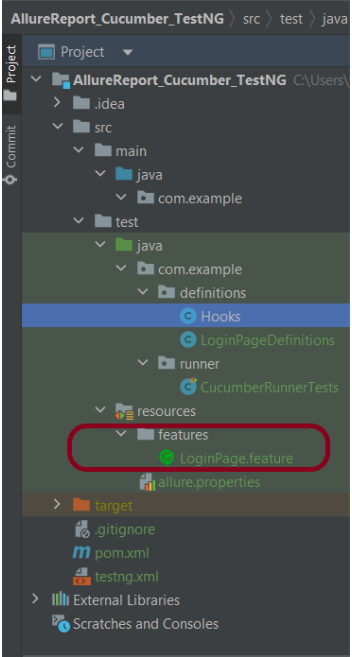
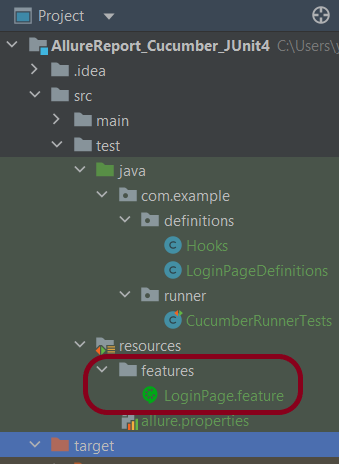
Create a folder – features within src/test/resources to create test scenarios in the Feature file.

Feature file should be saved as an extension of .feature. Add the test scenarios in this feature file. I have added sample test scenarios. In this feature file. The test scenarios are written in Gherkins language.

Feature: Login to HRM Application

  Background:
    Given User is on HRMLogin page "https://opensource-demo.orangehrmlive.com/"

  @ValidCredentials
  Scenario: Login with valid credentials

    When User enters username as "Admin" and password as "admin123"
    Then User should be able to login successfully and new page open

  @InvalidCredentials
  Scenario Outline: Login with invalid credentials

    When User enters username as "<username>" and password as "<password>"
    Then User should be able to see error message "<errorMessage>"

    Examples:
      | username   | password  | errorMessage                      |
      | Admin      | admin12$$ | Invalid credentials               |
      | admin$$    | admin123  | Invalid credentials               |
      | abc123     | xyz$$     | Invalid credentials               |
      | 234        | xyz$$     | Invalid credentials!              |

Step 5 – Create the Step Definition class or Glue Code

Below is the code for the Hooks.

package com.example.definitions;

import io.cucumber.java.After;
import io.cucumber.java.Before;
import io.cucumber.java.Scenario;
import org.openqa.selenium.OutputType;
import org.openqa.selenium.TakesScreenshot;
import org.openqa.selenium.WebDriver;
import org.openqa.selenium.chrome.ChromeDriver;
import org.openqa.selenium.chrome.ChromeOptions;

import java.time.Duration;

public class Hooks {
    protected static WebDriver driver;
    public final static int TIMEOUT = 5;

    @Before
    public void setUp() {

        ChromeOptions options = new ChromeOptions();
        options.addArguments("--start-maximized");
        driver = new ChromeDriver(options);
        driver.manage().timeouts().implicitlyWait(Duration.ofSeconds(TIMEOUT));

    }

    @After
    public void tearDown(Scenario scenario) {
        try {
            String screenshotName = scenario.getName();
            if (scenario.isFailed()) {
                TakesScreenshot ts = (TakesScreenshot) driver;
                byte[] screenshot = ts.getScreenshotAs(OutputType.BYTES);
                scenario.attach(screenshot, "img/png", screenshotName);
            }
        } catch (Exception e) {
            e.printStackTrace();
        }
        driver.quit();
    }

}

LoginPageDefinition

package com.example.definitions;


import io.cucumber.java.en.Given;
import io.cucumber.java.en.Then;
import io.cucumber.java.en.When;

import org.openqa.selenium.By;
import org.testng.Assert;

public class LoginPageDefinitions {

   Hooks hooks;


    @Given("User is on HRMLogin page {string}")
    public void loginTest(String url) {

        hooks.driver.get(url);

    }

    @When("User enters username as {string} and password as {string}")
    public void goToHomePage(String userName, String passWord) {

        // login to application
        hooks.driver.findElement(By.name("username")).sendKeys(userName);
        hooks.driver.findElement(By.name("password")).sendKeys(passWord);
        hooks.driver.findElement(By.xpath("//*[@class='oxd-form']/div[3]/button")).submit();

        // go the next page
    }

    @Then("User should be able to login successfully and new page open")
    public void verifyLogin() {

        String homePageHeading = hooks.driver.findElement(By.xpath("//*[@class='oxd-topbar-header-breadcrumb']/h6")).getText();

        //Verify new page - HomePage
        Assert.assertEquals(homePageHeading,"Dashboard");

    }

    @Then("User should be able to see error message {string}")
    public void verifyErrorMessage(String expectedErrorMessage) {

        String actualErrorMessage = hooks.driver.findElement(By.xpath("//*[@class='orangehrm-login-error']/div[1]/div[1]/p")).getText();

        // Verify Error Message
        Assert.assertEquals(actualErrorMessage, expectedErrorMessage);

    }

}

Step 6 – Create a TestNG Cucumber Runner class

We need to create a class called Runner class to run the tests. This class will use the TestNG annotation @Test, which tells TestNG what is the test runner class.

package com.example.runner;

import org.testng.annotations.Test;
import io.cucumber.testng.AbstractTestNGCucumberTests;
import io.cucumber.testng.CucumberOptions;


@Test
@CucumberOptions(tags = "", features = {"src/test/resources/features"}, glue = {"com.example.definitions"},
        plugin = {"pretty","io.qameta.allure.cucumber7jvm.AllureCucumber7Jvm"})

public class CucumberRunnerTests extends AbstractTestNGCucumberTests{

}

Note:- @Test annotation marks this class as part of the test. So, if we will remove this annotation, the Allure Report executes CucumberRunnerTests as a separate test suite, so there will be duplicate results.

Step 7 – Create testng.xml for the project

<?xml version = "1.0"encoding = "UTF-8"?>
<!DOCTYPE suite SYSTEM "http://testng.org/testng-1.0.dtd">
<suite name = "Suite1">
    <test name = "Test Demo">
        <classes>
            <class name = "com.example.runner.CucumberRunnerTests"/>
        </classes>
    </test>
</suite>

Step 8 – Run the Test and Generate Allure Report

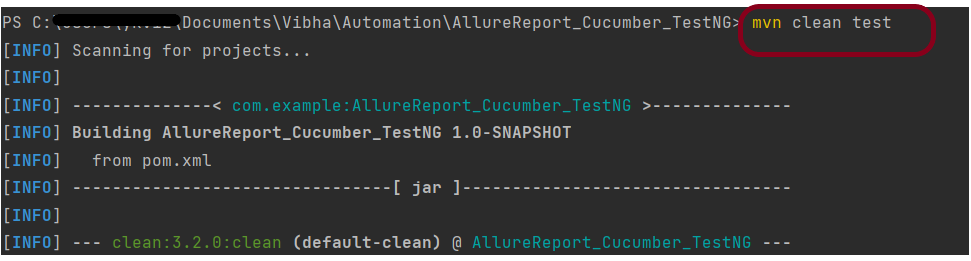
To run the tests, use the below command

mvn clean test

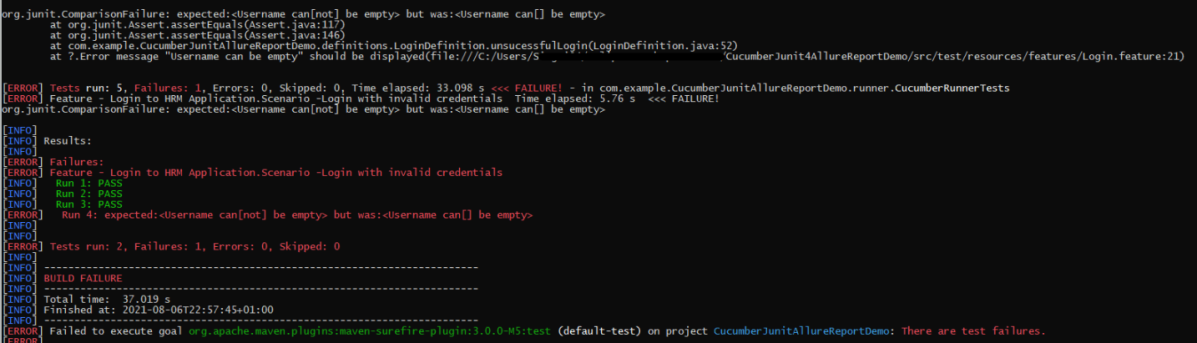
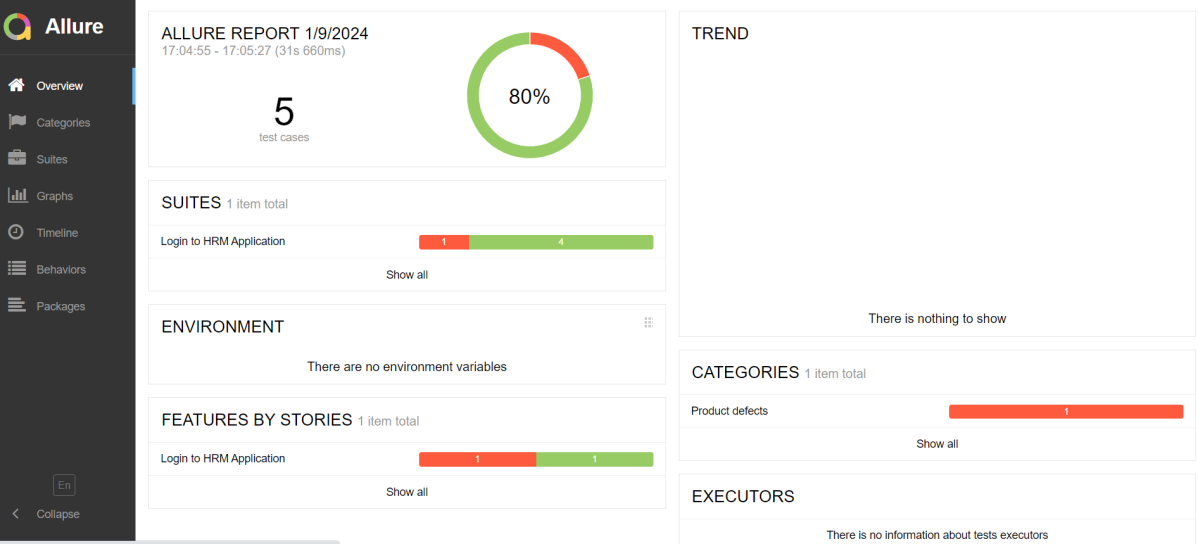
In the below image, we can see that one test failed and four passed out of five tests.

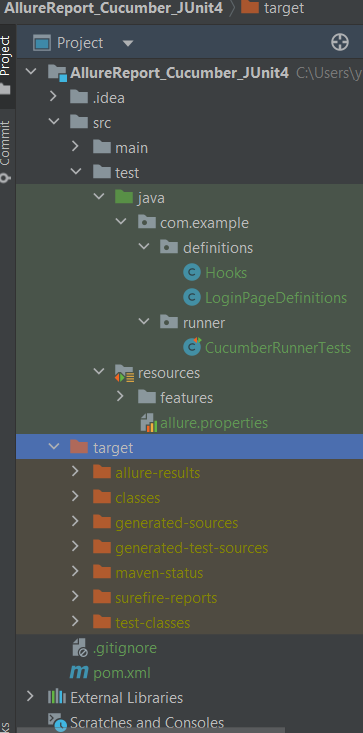
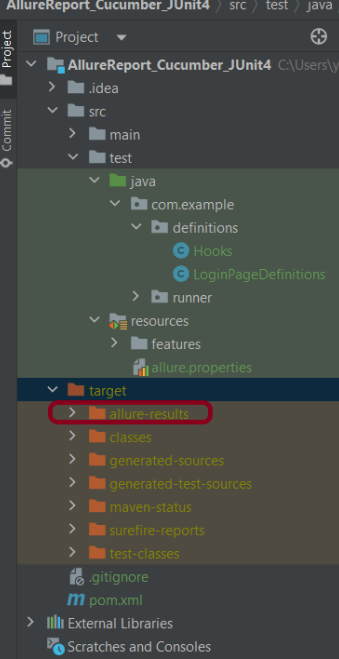
This will create the allure-results folder with all the test reports within target folder. These files will be used to generate Allure Report.

Use the below command to generate the Allure Report

allure serve

This will generate the beautiful Allure Test Report as shown below.

Allure Report Dashboard

Categories in Allure Report

The categories tab gives you a way to create custom defect classifications to apply for test results. There are two categories of defects – Product Defects (failed tests) and Test Defects (broken tests).

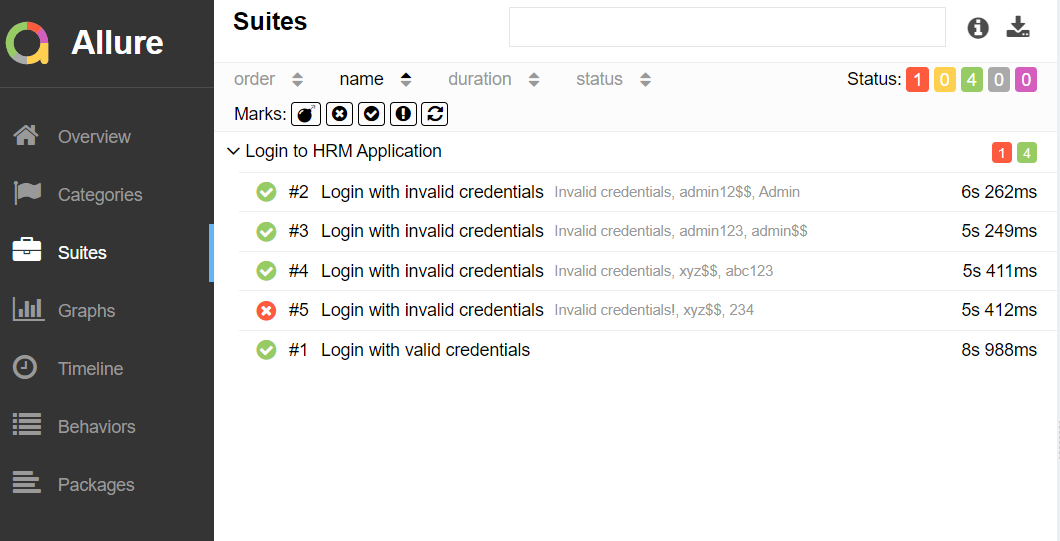
Suites in Allure Report

On the Suites tab a standard structural representation of executed tests, grouped by suites and classes can be found. Here, we have 2 suits – Feature and Surefire test. Surefire tests are executed from CucumberRunnerTests.

Graphs in Allure Report

Graphs allow you to see different statistics collected from the test data: status breakdown or severity and duration diagrams.

Timeline in Allure Report

The timeline tab visualizes retrospective test execution, allure adaptors collect precise timings of tests, and here on this tab, they are arranged accordingly to their sequential or parallel timing structure.

Behaviours of Allure Report

This tab groups test results according to Epic, Feature, and Story tags.

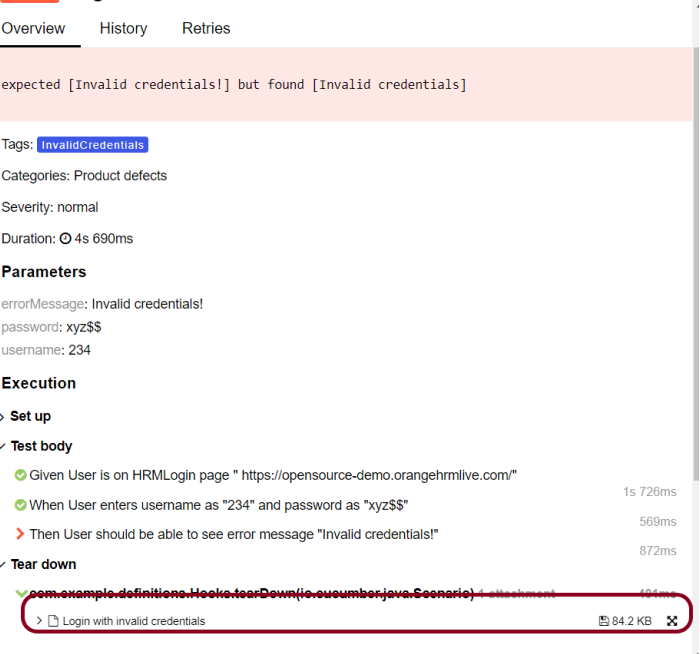
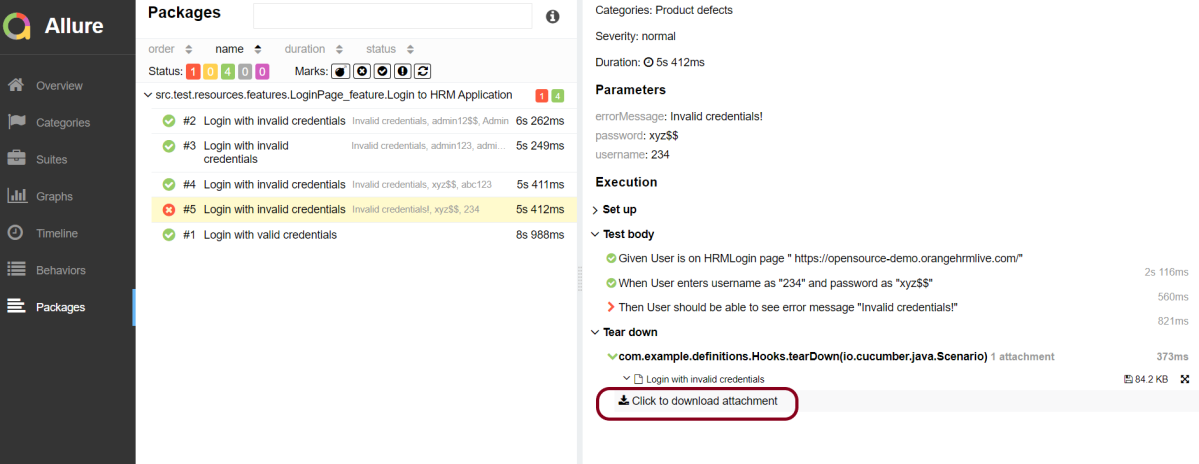
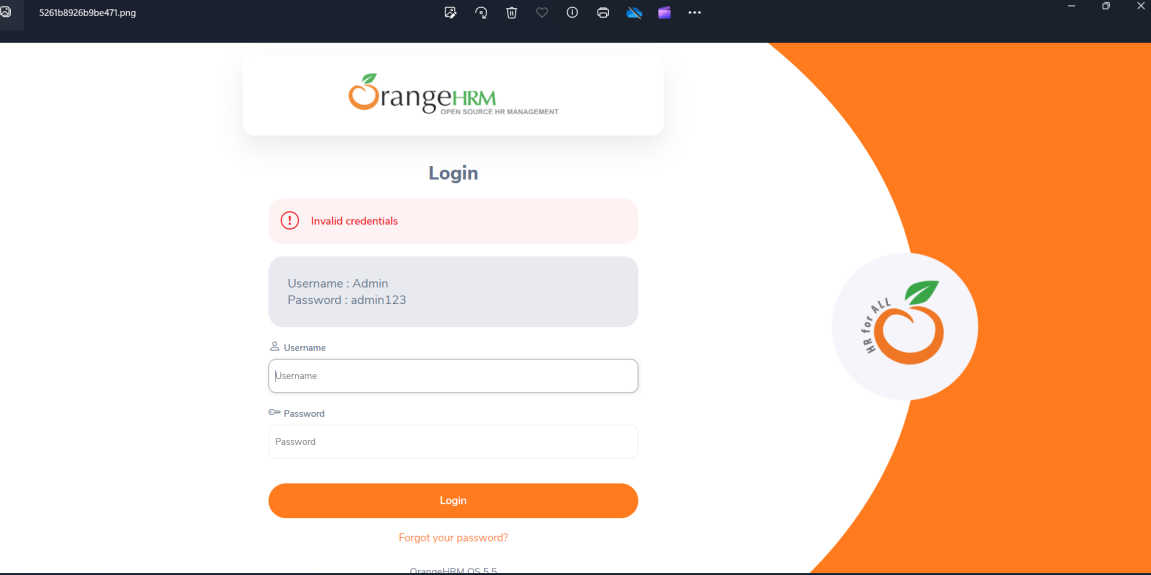
Screenshot attached to the failed test case

Packages in Allure Report

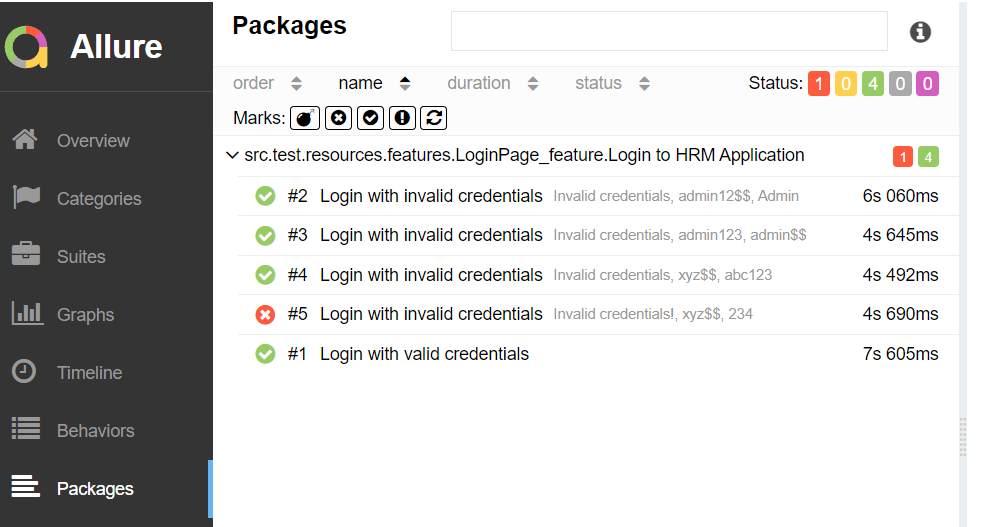
The packages tab represents a tree-like layout of test results, grouped by different packages.

When we don’t use @Test in CucumberRunnerTests.java, then as mentioned above the Allure report will have duplicate details.

Congratulations!! We have integrated an allure report with Cucumber, Selenium, and TestNG. I hope this tutorial is useful to you.

Additional Tutorials on Allure Reports

Integration of Allure Report with Selenium and JUnit4
Integration of Allure Report with Selenium and TestNG
Gradle – Allure Report for Selenium and JUnit4
Gradle – Allure Report for Cucumber, Selenium and TestNG
Integration of Allure Report with Rest Assured and JUnit4

Allure Report with Cucumber, Selenium and JUnit4

HOME

In the previous tutorial, I have explained the Integration of the Allure Report with Selenium and JUnit4. In this tutorial, I will explain how to Integrate Allure Report with Cucumber7 and JUnit4.

Below example covers the implementation of Allure Reports in Selenium using JUnit4, Java and Maven.

  1. Prerequisite
  2. Dependency List
  3. Project Structure
  4. Implementation Steps
    1. Update Properties section in Maven pom.xml
    2. Add dependencies to POM.xml
    3. Update Build Section of pom.xml in Allure Report Project
    4. Create Feature file in src/test/resources
    5. Create the Step Definition class or Glue Code
    6. Create a Cucumber Runner class
    7. Create allure.properties in src/test/resources
    8. Run the Test and Generate Allure Report
    9. Generate Allure Report

Prerequisite

  1. Java 11 or above installed
  2. Maven installed
  3. Eclipse or IntelliJ installed
  4. Allure installed and configured

Dependency List:

  1. Selenium – 4.16.1
  2. Java 17
  3. Cucumber – 7.15.0
  4. Maven – 3.9.5
  5. Allure BOM – 2.25.0
  6. Aspectj – 1.9.21
  7. Allure Maven – 2.12.0
  8. JUnit – 4.13.2

Implementation Steps

Step 1 – Update Properties section in Maven pom.xml

<properties>
    <project.build.sourceEncoding>UTF-8</project.build.sourceEncoding>
    <cucumber.version>7.15.0</cucumber.version>
    <selenium.version>4.16.1</selenium.version>
    <junit.version>4.13.2</junit.version>
    <maven.compiler.plugin.version>3.12.1</maven.compiler.plugin.version>
    <maven.surefire.plugin.version>3.2.3</maven.surefire.plugin.version>
    <maven.compiler.source.version>17</maven.compiler.source.version>
    <maven.compiler.target.version>17</maven.compiler.target.version>
    <allure.junit4.version>2.25.0</allure.junit4.version>
    <aspectj.version>1.9.21</aspectj.version>
    <allure.version>2.25.0</allure.version>
    <allure.maven>2.12.0</allure.maven>
 </properties>

Step 2 – Add dependencies to POM.xml

 <dependencies>
     
     <!--Cucumber Dependencies-->     
    <dependency>
      <groupId>io.cucumber</groupId>
      <artifactId>cucumber-java</artifactId>
      <version>${cucumber.version}</version>
    </dependency>
    
    <dependency>
      <groupId>io.cucumber</groupId>
      <artifactId>cucumber-junit</artifactId>
      <version>${cucumber.version}</version>
       <scope>test</scope>
    </dependency>
 
   <!--Selenium Dependency-->
    <dependency>
      <groupId>org.seleniumhq.selenium</groupId>
      <artifactId>selenium-java</artifactId>
      <version>${selenium.version}</version>
    </dependency>   

   <!--Hamcrest Dependency-->
    <dependency>
      <groupId>org.hamcrest</groupId>
      <artifactId>hamcrest</artifactId>
      <version>2.2</version>
      <scope>test</scope>
    </dependency>
    
   <!--Allure Cucumber Dependency-->     
      <dependency>
        <groupId>io.qameta.allure</groupId>
        <artifactId>allure-cucumber5-jvm</artifactId>
        <version>${allure.cucumber5.version}</version>
    </dependency>
    
     <!--Allure Reporting Dependency-->     
    <dependency>
        <groupId>io.qameta.allure</groupId>
        <artifactId>allure-junit4</artifactId>
        <version>${allure.junit4.version}</version>
        <scope>test</scope>
    </dependency>

  </dependencies>

Step 3 – Update Build Section of pom.xml in Allure Report Project

<build>
        <plugins>
            <plugin>
                <groupId>org.apache.maven.plugins</groupId>
                <artifactId>maven-compiler-plugin</artifactId>
                <version>${maven.compiler.plugin.version}</version>
                <configuration>
                    <source>${maven.compiler.source.version}</source>
                    <target>${maven.compiler.target.version}</target>
                </configuration>
            </plugin>
            <plugin>
                <groupId>org.apache.maven.plugins</groupId>
                <artifactId>maven-surefire-plugin</artifactId>
                <version>${maven.surefire.plugin.version}</version>
                <configuration>
                    <argLine>
                        -javaagent:"${settings.localRepository}/org/aspectj/aspectjweaver/${aspectj.version}/aspectjweaver-${aspectj.version}.jar"
                    </argLine>
                </configuration>
                <dependencies>
                    <dependency>
                        <groupId>org.aspectj</groupId>
                        <artifactId>aspectjweaver</artifactId>
                        <version>${aspectj.version}</version>
                        <scope>runtime</scope>
                    </dependency>
                </dependencies>
            </plugin>
            <plugin>
                <groupId>io.qameta.allure</groupId>
                <artifactId>allure-maven</artifactId>
                <version>${allure.maven}</version>
                <configuration>
                    <reportVersion>${allure.maven}</reportVersion>
                </configuration>
            </plugin>
        </plugins>
    </build>

<project xmlns="http://maven.apache.org/POM/4.0.0" xmlns:xsi="http://www.w3.org/2001/XMLSchema-instance"
         xsi:schemaLocation="http://maven.apache.org/POM/4.0.0 http://maven.apache.org/xsd/maven-4.0.0.xsd">
    <modelVersion>4.0.0</modelVersion>

    <groupId>com.example</groupId>
    <artifactId>AllureReport_Cucumber_JUnit4</artifactId>
    <version>1.0-SNAPSHOT</version>
    <packaging>jar</packaging>

    <name>AllureReport_Cucumber_JUnit4</name>
    <url>http://maven.apache.org</url>

    <properties>
        <project.build.sourceEncoding>UTF-8</project.build.sourceEncoding>
        <cucumber.version>7.15.0</cucumber.version>
        <selenium.version>4.16.1</selenium.version>
        <junit.version>4.13.2</junit.version>
        <maven.compiler.plugin.version>3.12.1</maven.compiler.plugin.version>
        <maven.surefire.plugin.version>3.2.3</maven.surefire.plugin.version>
        <maven.compiler.source.version>17</maven.compiler.source.version>
        <maven.compiler.target.version>17</maven.compiler.target.version>
        <allure.junit4.version>2.25.0</allure.junit4.version>
        <aspectj.version>1.9.21</aspectj.version>
        <allure.version>2.25.0</allure.version>
        <allure.maven>2.12.0</allure.maven>
    </properties>

    <!-- Add allure-bom to dependency management to ensure correct versions of all the dependencies are used -->
    <dependencyManagement>
        <dependencies>
            <dependency>
                <groupId>io.qameta.allure</groupId>
                <artifactId>allure-bom</artifactId>
                <version>${allure.version}</version>
                <type>pom</type>
                <scope>import</scope>
            </dependency>
        </dependencies>
    </dependencyManagement>


    <dependencies>

        <dependency>
            <groupId>io.cucumber</groupId>
            <artifactId>cucumber-java</artifactId>
            <version>${cucumber.version}</version>
        </dependency>

        <dependency>
            <groupId>io.cucumber</groupId>
            <artifactId>cucumber-junit</artifactId>
            <version>${cucumber.version}</version>
            <scope>test</scope>
        </dependency>

        <!-- Selenium -->
        <dependency>
            <groupId>org.seleniumhq.selenium</groupId>
            <artifactId>selenium-java</artifactId>
            <version>${selenium.version}</version>
        </dependency>

        <!-- JUnit4 -->
        <dependency>
            <groupId>junit</groupId>
            <artifactId>junit</artifactId>
            <version>${junit.version}</version>
            <scope>test</scope>
        </dependency>

        <!--Allure Cucumber Dependency-->
        <dependency>
            <groupId>io.qameta.allure</groupId>
            <artifactId>allure-cucumber7-jvm</artifactId>
            <scope>test</scope>
        </dependency>

        <!--Allure Reporting Dependency-->
        <dependency>
            <groupId>io.qameta.allure</groupId>
            <artifactId>allure-junit4</artifactId>
            <scope>test</scope>
        </dependency>

    </dependencies>

    <build>
        <plugins>
            <plugin>
                <groupId>org.apache.maven.plugins</groupId>
                <artifactId>maven-compiler-plugin</artifactId>
                <version>${maven.compiler.plugin.version}</version>
                <configuration>
                    <source>${maven.compiler.source.version}</source>
                    <target>${maven.compiler.target.version}</target>
                </configuration>
            </plugin>
            <plugin>
                <groupId>org.apache.maven.plugins</groupId>
                <artifactId>maven-surefire-plugin</artifactId>
                <version>${maven.surefire.plugin.version}</version>
                <configuration>
                    <argLine>
                        -javaagent:"${settings.localRepository}/org/aspectj/aspectjweaver/${aspectj.version}/aspectjweaver-${aspectj.version}.jar"
                    </argLine>
                </configuration>
                <dependencies>
                    <dependency>
                        <groupId>org.aspectj</groupId>
                        <artifactId>aspectjweaver</artifactId>
                        <version>${aspectj.version}</version>
                        <scope>runtime</scope>
                    </dependency>
                </dependencies>
            </plugin>
            <plugin>
                <groupId>io.qameta.allure</groupId>
                <artifactId>allure-maven</artifactId>
                <version>${allure.maven}</version>
                <configuration>
                    <reportVersion>${allure.maven}</reportVersion>
                </configuration>
            </plugin>
        </plugins>
    </build>
</project>

Step 4 – Create Feature file in src/test/resources

Create source folder – src/test/resources and features folder within src/test/resources to create test scenarios in Feature file. Feature file should be saved as an extension of .feature. Add the test scenarios in this feature file. I have added sample test scenarios. In this feature file, I have created a scenario for successful login and one Scenario Outline for failed login. The test scenarios are written in Gherkins language.

Feature: Login to HRM Application

  Background:
    Given User is on HRMLogin page "https://opensource-demo.orangehrmlive.com/"

  @ValidCredentials
  Scenario: Login with valid credentials

    When User enters username as "Admin" and password as "admin123"
    Then User should be able to login successfully and new page open

  @InvalidCredentials
  Scenario Outline: Login with invalid credentials

    When User enters username as "<username>" and password as "<password>"
    Then User should be able to see error message "<errorMessage>"

    Examples:
      | username   | password    | errorMessage                      |
      | Admin        | admin12$$ | Invalid credentials               |
      | admin$$     | admin123   | Invalid credentials               |
      | abc123       | xyz$$          | Invalid credentials               |
      | 234             | xyz$$         | Invalid credentials!              |

Step 5 – Create the Step Definition class or Glue Code

package com.example.definitions;

import io.cucumber.java.en.Given;
import io.cucumber.java.en.Then;
import io.cucumber.java.en.When;
import org.junit.Assert;
import org.openqa.selenium.By;

public class LoginPageDefinitions {

   Hooks hooks;

    @Given("User is on HRMLogin page {string}")
    public void loginTest(String url) {

        hooks.driver.get(url);

    }

    @When("User enters username as {string} and password as {string}")
    public void goToHomePage(String userName, String passWord) {

        // login to application
        hooks.driver.findElement(By.name("username")).sendKeys(userName);
        hooks.driver.findElement(By.name("password")).sendKeys(passWord);
        hooks.driver.findElement(By.xpath("//*[@class='oxd-form']/div[3]/button")).submit();

        // go the next page
    }

    @Then("User should be able to login successfully and new page open")
    public void verifyLogin() {

        String homePageHeading = hooks.driver.findElement(By.xpath("//*[@class='oxd-topbar-header-breadcrumb']/h6")).getText();

        //Verify new page - HomePage
        Assert.assertEquals("Dashboard",homePageHeading);

    }

    @Then("User should be able to see error message {string}")
    public void verifyErrorMessage(String expectedErrorMessage) {

        String actualErrorMessage = hooks.driver.findElement(By.xpath("//*[@class='orangehrm-login-error']/div[1]/div[1]/p")).getText();

        // Verify Error Message
        Assert.assertEquals(expectedErrorMessage,actualErrorMessage);

    }

}

Hook.java

package com.example.definitions;

import io.cucumber.java.After;
import io.cucumber.java.Before;
import io.cucumber.java.Scenario;
import org.openqa.selenium.OutputType;
import org.openqa.selenium.TakesScreenshot;
import org.openqa.selenium.WebDriver;
import org.openqa.selenium.chrome.ChromeDriver;
import org.openqa.selenium.chrome.ChromeOptions;

import java.time.Duration;

public class Hooks {
    protected static WebDriver driver;
    public final static int TIMEOUT = 5;

    @Before
    public void setUp() {

        ChromeOptions options = new ChromeOptions();
        options.addArguments("--start-maximized");
        driver = new ChromeDriver(options);
        driver.manage().timeouts().implicitlyWait(Duration.ofSeconds(TIMEOUT));

    }

    @After
    public void tearDown(Scenario scenario) {
        try {
            String screenshotName = scenario.getName();
            if (scenario.isFailed()) {
                TakesScreenshot ts = (TakesScreenshot) driver;
                byte[] screenshot = ts.getScreenshotAs(OutputType.BYTES);
                scenario.attach(screenshot, "img/png", screenshotName);
            }
        } catch (Exception e) {
            e.printStackTrace();
        }
        driver.quit();
    }
}

Step 6 – Create a Cucumber Runner class

We need to create a class called Runner class to run the tests. This class will use the JUnit annotation @RunWith(), which tells JUnit what is the test runner class.

package com.example.runner;

import org.junit.runner.RunWith;
import io.cucumber.junit.Cucumber;
import io.cucumber.junit.CucumberOptions;

@RunWith(Cucumber.class)
@CucumberOptions(tags = "", features = {"src/test/resources/features"}, glue = {"com.example.definitions"},
        plugin = {"pretty","io.qameta.allure.cucumber7jvm.AllureCucumber7Jvm"})

public class CucumberRunnerTests  {

}

allure.results.directory=target/allure-results

Step 8 – Run the Test and Generate Allure Report

To run the tests, use the below command

mvn clean test

In the below image, we can see that one test is failed and four passed out of five tests.

This will create allure-results folder with all the test report. These files will be use to generate Allure Report.

Change current directory to target directory and then use the below command to generate the Allure Report

allure serve

This will generate the beautiful Allure Test Report as shown below.

Allure Report Dashboard

It shows detail of all the test steps and the screenshot of the failed test step also as shown below.

Categories in Allure Report

Categories tab gives you the way to create custom defects classification to apply for test results. There are two categories of defects – Product Defects (failed tests) and Test Defects (broken tests).

Suites in Allure Report

On the Suites tab a standard structural representation of executed tests, grouped by suites and classes can be found.

Graphs in Allure Report

Graphs allow you to see different statistics collected from the test data: statuses breakdown or severity and duration diagrams.

Timeline in Allure Report

Timeline tab visualizes retrospective of tests execution, allure adaptors collect precise timings of tests, and here on this tab they are arranged accordingly to their sequential or parallel timing structure.

Behaviors of Allure Report

This tab groups test results according to Epic, Feature and Story tags.

Packages in Allure Report

Packages tab represents a tree-like layout of test results, grouped by different packages.

Serenity Report for Web Application with Cucumber6 and Junit

Last Updated On

HOME

In the previous tutorial, I explained the Testing of Web Application using Serenity BDD with Cucumber5 and JUnit4. In this tutorial, I’ll explain how to generate a Serenity Report for a web application using Serenity BDD with Cucumber6 and JUnit4.

Serenity BDD produces great test reports that act as Living Documentation for the product.

Table of Contents

  1. Prerequisite
  2. Dependency List
  3. Implementation Steps
    1. Update the Properties section in Maven pom.xml
    2. Add Serenity, Serenity Cucumber, and JUnit dependencies to POM.xml
    3. Update the Build Section of pom.xml
    4. Create a Feature file
    5. Create the Step Definition class or Glue Code
    6. Create a Serenity-Cucumber Runner class
    7. Create serenity.conf file under src/test/resources
    8. Create serenity.properties file at the root of the project
    9. Run the tests through the command line which generates Serenity Report
  4. Serenity Report
    1. Requirement View
    2. Test Results
    3. Capability
    4. Feature

Prerequisite

  1. Java 11 installed
  2. Maven installed
  3. Eclipse or IntelliJ installed

Dependency List:

  1. Java 17
  2. Maven – 3.9.6
  3. Serenity – 4.0.30
  4. Serenity Cucumber – 4.0.30
  5. JUnit – 4.13.2
  6. Maven Surefire Plugin – 3.2.3
  7. Maven Failsafe Plugin – 3.2.3
  8. Maven Compiler Plugin – 3.12.1

Implementation Steps

Step 1 – Update the Properties section in Maven pom.xml

 <properties>
    <project.build.sourceEncoding>UTF-8</project.build.sourceEncoding>
    <serenity.version>4.0.30</serenity.version>
    <junit.version>4.13.2</junit.version>
    <maven.compiler.plugin.version>3.12.1</maven.compiler.plugin.version>
    <maven.surefire.plugin.version>3.2.3</maven.surefire.plugin.version>
    <maven.failsafe.plugin.version>3.2.3</maven.failsafe.plugin.version>
    <maven.compiler.source.version>17</maven.compiler.source.version>
    <maven.compiler.target.version>17</maven.compiler.target.version>
    <tags></tags>
    <parallel.tests></parallel.tests>
    <webdriver.base.url></webdriver.base.url>
 </properties>

Step 2 – Add Serenity, Serenity Cucumber, and JUnit dependencies to POM.xml

<dependencies>
    <dependency>
      <groupId>net.serenity-bdd</groupId>
      <artifactId>serenity-core</artifactId>
      <version>${serenity.version}</version>
      <scope>test</scope>
    </dependency>

    <dependency>
      <groupId>net.serenity-bdd</groupId>
      <artifactId>serenity-junit</artifactId>
      <version>${serenity.version}</version>
      <scope>test</scope>
    </dependency>

    <dependency>
      <groupId>net.serenity-bdd</groupId>
      <artifactId>serenity-screenplay-webdriver</artifactId>
      <version>${serenity.version}</version>
      <scope>test</scope>
    </dependency>

    <dependency>
      <groupId>net.serenity-bdd</groupId>
      <artifactId>serenity-cucumber</artifactId>
      <version>${serenity.version}</version>
      <scope>test</scope>
    </dependency>

    <dependency>
      <groupId>junit</groupId>
      <artifactId>junit</artifactId>
      <version>${junit.version}</version>
      <scope>test</scope>
    </dependency>

  </dependencies>

Step 3 – Update the Build Section of pom.xml

<project xmlns="http://maven.apache.org/POM/4.0.0" xmlns:xsi="http://www.w3.org/2001/XMLSchema-instance"
  xsi:schemaLocation="http://maven.apache.org/POM/4.0.0 http://maven.apache.org/xsd/maven-4.0.0.xsd">
  <modelVersion>4.0.0</modelVersion>

  <groupId>com.example</groupId>
  <artifactId>SerenityCucumberJunit4Demo</artifactId>
  <version>1.0-SNAPSHOT</version>
  <packaging>jar</packaging>

  <name>SerenityCucumberJunit4Demo</name>
  <url>http://maven.apache.org</url>

  <properties>
    <project.build.sourceEncoding>UTF-8</project.build.sourceEncoding>
    <serenity.version>4.0.30</serenity.version>
    <junit.version>4.13.2</junit.version>
    <maven.compiler.plugin.version>3.12.1</maven.compiler.plugin.version>
    <maven.surefire.plugin.version>3.2.3</maven.surefire.plugin.version>
    <maven.failsafe.plugin.version>3.2.3</maven.failsafe.plugin.version>
    <maven.compiler.source.version>17</maven.compiler.source.version>
    <maven.compiler.target.version>17</maven.compiler.target.version>
    <tags></tags>
    <parallel.tests></parallel.tests>
    <webdriver.base.url></webdriver.base.url>
  </properties>

  <dependencies>
    <dependency>
      <groupId>net.serenity-bdd</groupId>
      <artifactId>serenity-core</artifactId>
      <version>${serenity.version}</version>
      <scope>test</scope>
    </dependency>

    <dependency>
      <groupId>net.serenity-bdd</groupId>
      <artifactId>serenity-junit</artifactId>
      <version>${serenity.version}</version>
      <scope>test</scope>
    </dependency>

    <dependency>
      <groupId>net.serenity-bdd</groupId>
      <artifactId>serenity-screenplay-webdriver</artifactId>
      <version>${serenity.version}</version>
      <scope>test</scope>
    </dependency>

    <dependency>
      <groupId>net.serenity-bdd</groupId>
      <artifactId>serenity-cucumber</artifactId>
      <version>${serenity.version}</version>
      <scope>test</scope>
    </dependency>

    <dependency>
      <groupId>junit</groupId>
      <artifactId>junit</artifactId>
      <version>${junit.version}</version>
      <scope>test</scope>
    </dependency>

  </dependencies>
  <build>
    <plugins>
      <plugin>
        <groupId>org.apache.maven.plugins</groupId>
        <artifactId>maven-surefire-plugin</artifactId>
        <version>${maven.surefire.plugin.version}</version>

        <configuration>
          <skip>false</skip>
        </configuration>
      </plugin>

      <plugin>
        <artifactId>maven-failsafe-plugin</artifactId>
        <version>${maven.failsafe.plugin.version}</version>
        <configuration>
          <includes>
            <include>**/Test*.java</include>
          </includes>
          <systemPropertyVariables>
            <webdriver.base.url>${webdriver.base.url}</webdriver.base.url>
          </systemPropertyVariables>
          <parallel>classes</parallel>
          <threadCount>${parallel.tests}</threadCount>
          <forkCount>${parallel.tests}</forkCount>
        </configuration>
        <executions>
          <execution>
            <goals>
              <goal>integration-test</goal>
              <goal>verify</goal>
            </goals>
          </execution>
        </executions>
      </plugin>

      <plugin>
        <groupId>org.apache.maven.plugins</groupId>
        <artifactId>maven-compiler-plugin</artifactId>
        <version>${maven.compiler.plugin.version}</version>
        <configuration>
          <source>${maven.compiler.source.version}</source>
          <target>${maven.compiler.target.version}</target>
        </configuration>
      </plugin>

      <plugin>
        <groupId>net.serenity-bdd.maven.plugins</groupId>
        <artifactId>serenity-maven-plugin</artifactId>
        <version>${serenity.version}</version>
        <dependencies>
          <dependency>
            <groupId>net.serenity-bdd</groupId>
            <artifactId>serenity-single-page-report</artifactId>
            <version>${serenity.version}</version>
          </dependency>
        </dependencies>
        <configuration>
          <tags>${tags}</tags>
          <reports>single-page-html</reports>
        </configuration>
        <executions>
          <execution>
            <id>serenity-reports</id>
            <phase>post-integration-test</phase>
            <goals>
              <goal>aggregate</goal>
            </goals>
          </execution>
        </executions>
      </plugin>
    </plugins>
  </build>
</project>

Step 4 – Create a Feature file

Feature file should be saved as an extension of .feature. Add the test scenarios in this feature file. I have added sample test scenarios. The test scenarios are written in Gherkins language. A feature file is created under src/test/resources.

Feature: Login to HRM  

   @ValidCredentials
   Scenario: Login with valid credentials
   
    Given User is on Home page
    When User enters username as "Admin"
    And User enters password as "admin123"
    Then User should be able to login successfully
    
    @InValidCredentials    
    Scenario Outline: Login with invalid credentials
   
    Given User is on Home page
    When User enters username as '<username>'
    And User enters password as '<password>'
    Then User should be able to see error message '<errorMessage>'
      
   Examples:
    |username  |password  |errorMessage                    |
    |admin     |admin     |Invalid credentials             |
    |          |admin123  |Username cannot be empty        | 
    |Admin     |          |Password cannot be empty        |
    |          |          |Username cannot be empty        |
 
   @ForgetPassword  
   Scenario: Verify Forget Password Functionality
   
    Given User is on Home page
    When User clicks on Forgot your password link
    Then User should be able to see new page which contains Reset Password button
   

Step 5 – Create the Step Definition class or Glue Code

Create a StepDefinition class for LoginPage.feature.

package com.example.definitions;

import com.example.steps.StepDashboardPage;
import com.example.steps.StepForgetPasswordPage;
import com.example.steps.StepLoginPage;
import io.cucumber.java.en.Given;
import io.cucumber.java.en.Then;
import io.cucumber.java.en.When;
import net.serenitybdd.annotations.Steps;
import org.junit.Assert;

import static org.junit.Assert.assertTrue;

public class LoginPageDefinitions {

    @Steps
    StepLoginPage loginPage;

    @Steps
    StepDashboardPage dashPage;

    @Steps
    StepForgetPasswordPage forgetpasswordPage;

    @Given("User is on Home page")
    public void openApplication() {
        loginPage.open();
        System.out.println("Page is opened");
    }

    @When("User enters username as {string}")
    public void enterUsername(String userName) {
        System.out.println("Enter Username");
        loginPage.inputUserName(userName);
    }

    @When("User enters password as {string}")
    public void enterPassword(String passWord) {
        loginPage.inputPassword(passWord);

        loginPage.clickLogin();
    }

    @Then("User should be able to login successfully")
    public void clickOnLoginButton() {
        dashPage.loginVerify();
    }

    @Then("User should be able to see error message {string}")
    public void unsuccessfulLogin(String expectedErrorMessage)  {

        String actualErrorMessage = loginPage.errorMessage();
        Assert.assertEquals(expectedErrorMessage, actualErrorMessage);
    }

    @When("User clicks on Forgot your password link")
    public void clickForgetPasswordLink() {
        loginPage.clickForgetPasswordLink();
    }

    @Then("User should be able to see new page which contains Reset Password button")
    public void verifyForgetPasswordPage() {

        assertTrue(forgetpasswordPage.ForgetPasswordPage());
    }

}

Serenity Step Libraries integrate smoothly into Cucumber Step Definition files; all you need to do is to annotate a step library variable with the @Steps annotation. Methods that represent a business task or action (inputUserName()), and that will appear in the reports as a separate step, is annotated with the @Step annotation. Other methods, such as loginVerify(), query the state of the application and are used in assert statements.

Here, I have created 3 StepClasses – StepLoginPage, StepDashboardPage, and StepForgetPasswordPage

StepLoginPage

package com.example.steps;

import net.serenitybdd.annotations.Step;
import net.serenitybdd.core.pages.PageObject;
import net.serenitybdd.core.pages.WebElementFacade;
import org.openqa.selenium.support.FindBy;

public class StepLoginPage extends PageObject {

    @FindBy(name = "username")
    WebElementFacade username;

    @FindBy(name = "password")
    WebElementFacade password;

    @FindBy(xpath = "//*[@id='app']/div[1]/div/div[1]/div/div[2]/div[2]/form/div[3]/button")
    WebElementFacade submitButton;

    @FindBy(xpath = "//*[@id='app']/div[1]/div/div[1]/div/div[2]/div[2]/div/div[1]/div[1]/p")
    WebElementFacade errorMessage;

    @FindBy(xpath = "//*[@id='app']/div[1]/div/div[1]/div/div[2]/div[2]/form/div[4]/p")
    WebElementFacade linkText;

    @Step("Enter Username")
    public void inputUserName(String userName) {
        username.sendKeys((userName));
    }

    @Step("Enter Password")
    public void inputPassword(String passWord) {
        password.sendKeys((passWord));
    }

    @Step("Click Submit Button")
    public void clickLogin() {
        submitButton.click();
    }

    @Step("Error Message on unsuccessful login")
    public String errorMessage() {
        String actualErrorMessage = errorMessage.getText();
        return actualErrorMessage;
    }

    @Step("Click Forget Password Link")
    public void clickForgetPasswordLink() {
        linkText.click();

        System.out.println("Clicked on Forgot Password Link");
    }

}

StepDashboardPage

package com.example.steps;

import net.serenitybdd.core.pages.PageObject;
import net.serenitybdd.core.pages.WebElementFacade;
import org.junit.Assert;
import org.openqa.selenium.support.FindBy;

public class StepDashboardPage extends PageObject {

    @FindBy(xpath = "//*[@id='app']/div[1]/div[1]/header/div[1]/div[1]/span/h6")
    WebElementFacade dashboardText;

    public void loginVerify() {

        String dashboardTitle = dashboardText.getText();
        Assert.assertTrue(dashboardTitle.contains("Dashboard"));
    }
}

StepForgetPasswordPage

package com.example.steps;

import net.serenitybdd.annotations.Step;
import net.serenitybdd.core.pages.PageObject;
import net.serenitybdd.core.pages.WebElementFacade;
import org.openqa.selenium.support.FindBy;

public class StepForgetPasswordPage extends PageObject {

    @FindBy(xpath = "//*[@id='app']/div[1]/div[1]/div/form/h6")
    WebElementFacade forgetLink;

    @Step("Verify Forget Password Page ")
    public boolean ForgetPasswordPage() {
        Boolean resetPasswordButton = forgetLink.isDisplayed();

        return resetPasswordButton;
    }
}

Step 6 – Create a Serenity-Cucumber Runner class

We cannot run a Feature file on its own in a cucumber-based framework. We need to create a Java class, which will run the Feature File. It is the starting point for JUnit to start executing the tests. TestRunner class creates under src/ test/java. When you run the tests with serenity, you use the CucumberWithSerenity test runner. If the feature files are not in the same package as the test runner class, you also need to use the @CucumberOptions class to provide the root directory where the feature files are found.

import org.junit.runner.RunWith;

import io.cucumber.junit.CucumberOptions;
import net.serenitybdd.cucumber.CucumberWithSerenity;

@RunWith(CucumberWithSerenity.class)
@CucumberOptions(plugin = {}, features = "src/test/resources/features/LoginPage.feature", glue = "com.example.definitions")

public class SerenityRunnerTests {

}

Step 7 – Create serenity.conf file under src/test/resources

Serenity.conf file is used to specify various features like the type of webdriver used, various test environments, run tests in headless mode, and many more options.

webdriver.driver. – This tells Serenity which browser to use for the test execution. You can configure this in several locations – serenity.properties or serenity.conf. Here, I have provided this information in serenity.conf

We can also configure the webdriver.base.url property for different environments in the serenity.conf configuration file, in the src/test/resources directory. Below is an example of the same.

headless.mode = false

environments {
  chrome {
    webdriver {
      driver = chrome
      autodownload = true
      capabilities {
        browserName = "chrome"
        acceptInsecureCerts = true
        "goog:chromeOptions" {
          args = ["test-type", "ignore-certificate-errors", "--window-size=1920,1080",
            "incognito", "disable-infobars", "disable-gpu", "disable-default-apps", "disable-popup-blocking"]
        }
      }
    }
  }
  edge {
    webdriver {
      capabilities {
        browserName = "MicrosoftEdge"
        "ms:edgeOptions" {
          args = ["test-type", "ignore-certificate-errors","--window-size=1920,1080",
            "incognito", "disable-infobars", "disable-gpu", "disable-default-apps", "disable-popup-blocking"]
        }
      }
    }
  }
  firefox {
    webdriver {
      capabilities {
        browserName = "firefox"
        pageLoadStrategy = "normal"
        acceptInsecureCerts = true
        unhandledPromptBehavior = "dismiss"
        strictFileInteractability = true

        "moz:firefoxOptions" {
          args = ["--window-size=1920,1080"],
          prefs {
            "javascript.options.showInConsole": false
          },
          log {"level": "info"},
        }
      }
    }
  }
}

#
# Define drivers for different platforms. Serenity will automatically pick the correct driver for the current platform
#

environments {
  default {
    webdriver.base.url = "https://opensource-demo.orangehrmlive.com/"
  }
  dev {
    webdriver.base.url = "https://opensource-demo.orangehrmlive.com/dev"
  }
  staging {
    webdriver.base.url = "https://opensource-demo.orangehrmlive.com/staging"
  }
  prod {
    webdriver.base.url = "https://opensource-demo.orangehrmlive.com/prod"
  }
}

Once the environment section is present in your serenity.conf file, you can use the environment system property to use the properties for a given environment. For example, the following would cause the staging URLs to be used:

mvn clean verify -Denvironment=staging

The default environment will be used if no other value is provided. In our example, I will not provide any environment, so it will pick the default environment.

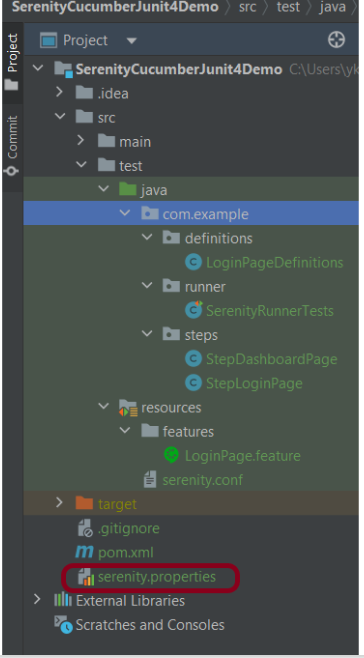
Step 8 – Create serenity.properties file at the root of the project

serenity.project.name = Serenity and Cucumber Report Demo

Step 9 – Run the tests through the command line which generates Serenity Report

Open the command line and go to the location where pom.xml of the project is present and type the below command.

mvn clean verify -Denvironment=firefox

I have provided the location of the Firefox driver through the command line. I believe this is the best way to run the test. We can hard-code the path in the test code or in serenity.conf file. If you don’t want to pass the location of webdriver through the command line, then mention the details of webdriver in serenity.conf and just use the below command for execution.

mvn clean verify

Below is the image of the execution status.

This also provides the location of the serenity report as highlighted in the above image.

Serenity Report

Requirement View

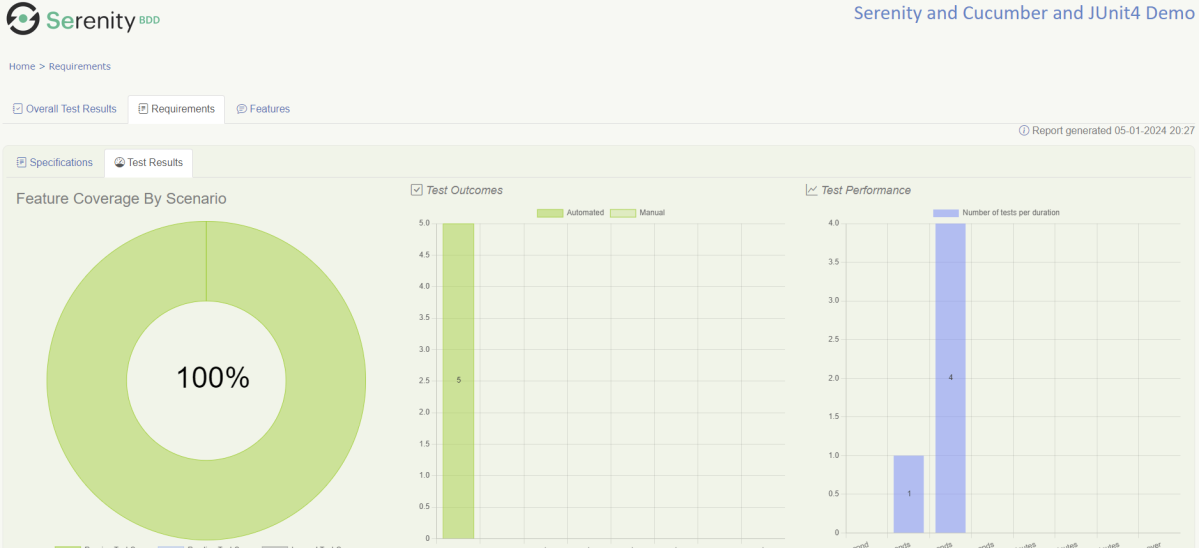
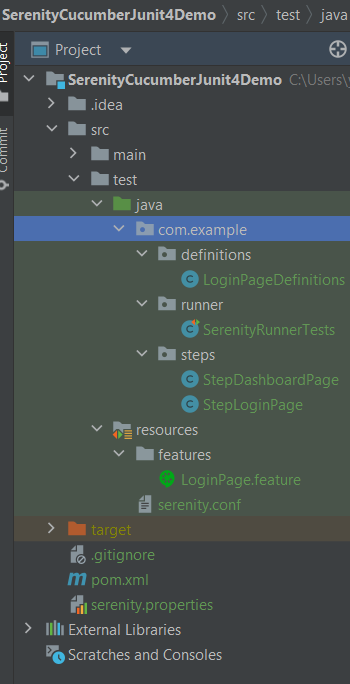
In Serenity, requirements are organized in a hierarchy. We can get an idea of the full directory structure (in src/test/features directory) for the project.

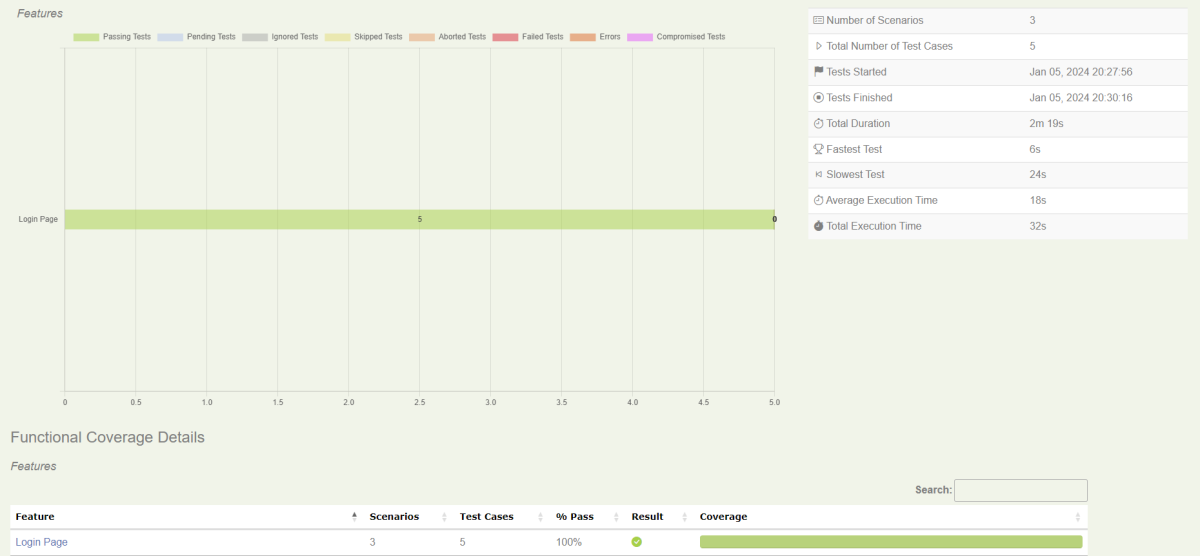
The Test Results tab (shown below) tells you about the acceptance tests that were executed for this set of requirements. 

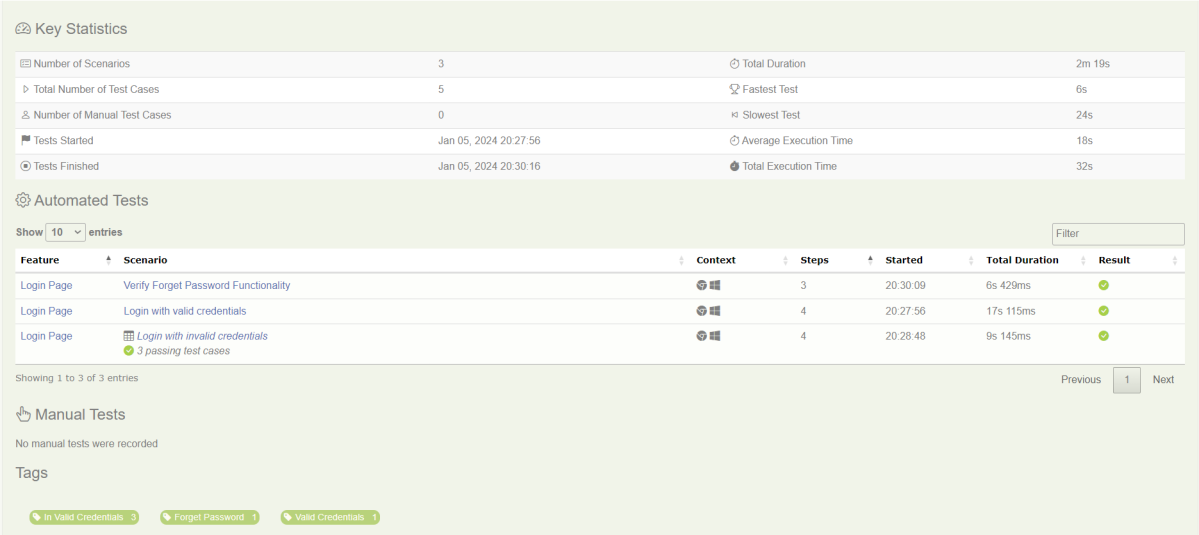
Test Results

At the bottom of the Test Results tab, you will find the actual test results – the list of all the tests, automated and manual, that were executed for this requirement.

Feature

This provides the detail of all the Test Scenarios present in a Feature File.

Below is an example of a Scenario Outline in the Report. It shows all the examples mentioned in the feature file.

This screen shows the test steps and screenshots of each step.

We are done! Congratulations on making it through this tutorial and hope you found it useful! Happy Learning!!

The complete code can be found on GitHub – vibssingh/SerenityCucumberJUnit4_Demo.

Serenity BDD with Cucumber and JUnit4 for Web Application

HOME

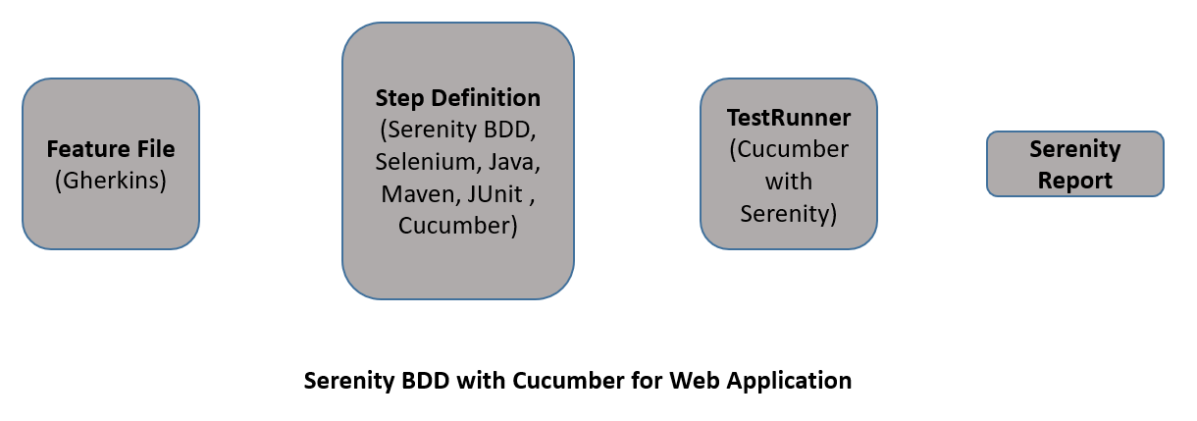
Relationship between Web Application, Serenity BDD, Cucumber, and Selenium

Implementation Steps

Step 1: Add Serenity, Cucumber, and JUnit4 dependencies to the Maven project

The pom.xml will look like something as shown below.

<project xmlns="http://maven.apache.org/POM/4.0.0" xmlns:xsi="http://www.w3.org/2001/XMLSchema-instance"
  xsi:schemaLocation="http://maven.apache.org/POM/4.0.0 http://maven.apache.org/xsd/maven-4.0.0.xsd">
  <modelVersion>4.0.0</modelVersion>

  <groupId>com.example</groupId>
  <artifactId>SerenityCucumberJunit4Demo</artifactId>
  <version>1.0-SNAPSHOT</version>
  <packaging>jar</packaging>

  <name>SerenityCucumberJunit4Demo</name>
  <url>http://maven.apache.org</url>

  <properties>
    <project.build.sourceEncoding>UTF-8</project.build.sourceEncoding>
    <serenity.version>4.0.30</serenity.version>
    <serenity.maven.version>3.5.1</serenity.maven.version>
    <junit.version>4.13.2</junit.version>
    <maven.compiler.plugin.version>3.12.1</maven.compiler.plugin.version>
    <maven.surefire.plugin.version>3.2.3</maven.surefire.plugin.version>
    <maven.failsafe.plugin.version>3.2.3</maven.failsafe.plugin.version>
    <maven.compiler.source.version>17</maven.compiler.source.version>
    <maven.compiler.target.version>17</maven.compiler.target.version>
    <tags></tags>
    <parallel.tests></parallel.tests>
    <webdriver.base.url></webdriver.base.url>
  </properties>

  <dependencies>
    <dependency>
      <groupId>net.serenity-bdd</groupId>
      <artifactId>serenity-core</artifactId>
      <version>${serenity.version}</version>
      <scope>test</scope>
    </dependency>

    <dependency>
      <groupId>net.serenity-bdd</groupId>
      <artifactId>serenity-junit</artifactId>
      <version>${serenity.version}</version>
      <scope>test</scope>
    </dependency>

    <dependency>
      <groupId>net.serenity-bdd</groupId>
      <artifactId>serenity-screenplay-webdriver</artifactId>
      <version>${serenity.version}</version>
      <scope>test</scope>
    </dependency>

    <dependency>
      <groupId>net.serenity-bdd</groupId>
      <artifactId>serenity-cucumber</artifactId>
      <version>${serenity.version}</version>
      <scope>test</scope>
    </dependency>

    <dependency>
      <groupId>junit</groupId>
      <artifactId>junit</artifactId>
      <version>${junit.version}</version>
      <scope>test</scope>
    </dependency>

  </dependencies>
  <build>
    <plugins>
      <plugin>
        <groupId>org.apache.maven.plugins</groupId>
        <artifactId>maven-surefire-plugin</artifactId>
        <version>${maven.surefire.plugin.version}</version>

        <configuration>
          <skip>false</skip>
        </configuration>
      </plugin>

      <plugin>
        <artifactId>maven-failsafe-plugin</artifactId>
        <version>${maven.failsafe.plugin.version}</version>
        <configuration>
          <includes>
            <include>**/Test*.java</include>
          </includes>
          <systemPropertyVariables>
            <webdriver.base.url>${webdriver.base.url}</webdriver.base.url>
          </systemPropertyVariables>
          <parallel>classes</parallel>
          <threadCount>${parallel.tests}</threadCount>
          <forkCount>${parallel.tests}</forkCount>
        </configuration>
        <executions>
          <execution>
            <goals>
              <goal>integration-test</goal>
              <goal>verify</goal>
            </goals>
          </execution>
        </executions>
      </plugin>

      <plugin>
        <groupId>org.apache.maven.plugins</groupId>
        <artifactId>maven-compiler-plugin</artifactId>
        <version>${maven.compiler.plugin.version}</version>
        <configuration>
          <source>${maven.compiler.source.version}</source>
          <target>${maven.compiler.target.version}</target>
        </configuration>
      </plugin>

      <plugin>
        <groupId>net.serenity-bdd.maven.plugins</groupId>
        <artifactId>serenity-maven-plugin</artifactId>
        <version>${serenity.version}</version>
        <dependencies>
          <dependency>
            <groupId>net.serenity-bdd</groupId>
            <artifactId>serenity-single-page-report</artifactId>
            <version>${serenity.version}</version>
          </dependency>
        </dependencies>
        <configuration>
          <tags>${tags}</tags>
          <reports>single-page-html</reports>
        </configuration>
        <executions>
          <execution>
            <id>serenity-reports</id>
            <phase>post-integration-test</phase>
            <goals>
              <goal>aggregate</goal>
            </goals>
          </execution>
        </executions>
      </plugin>
    </plugins>
  </build>
</project>

Step 2: Create a Feature File under src/test/resources

Feature File is an entry point to the Cucumber tests. This is a file where you will describe your tests in Descriptive language (Like English). A feature file can contain a scenario or can contain many scenarios in a single feature file. Below is an example of a Feature file.

Feature: Login Page

@ValidCredentials
   Scenario: Login with valid credentials
   
    Given User is on Home page
    When User enters username as "Admin"
    And User enters password as "admin123"
    Then User should be able to login successfully
    
@InValidCredentials    
   Scenario Outline: Login with invalid credentials
   
    Given User is on Home page
    When User enters username as '<username>'
    And User enters password as '<password>'
    Then User should be able to see error message '<errorMessage>'
    
  Examples:
   | username   | password  | errorMessage                      |
   | $$$$$      | ££££££££  | Invalid credentials               |
   | admin      | Admin123  | Invalid credentials               | 
   | Admin123   | admin     | Invalid credentials               |  
    

Step 3: Create the Step Definition class

The glue code shown below uses Serenity step libraries as action classes to make the tests easier to read and to improve maintainability.

These classes declare using the Serenity @Steps annotation. The @Steps annotation tells Serenity to create a new instance of the class, and inject any other steps or page objects that this instance might need.

Each action class models a particular facet of user behavior: navigating to a particular page, performing a search, or retrieving the results of a search. These classes design to be small and self-contained, which makes them more stable and easier to maintain.

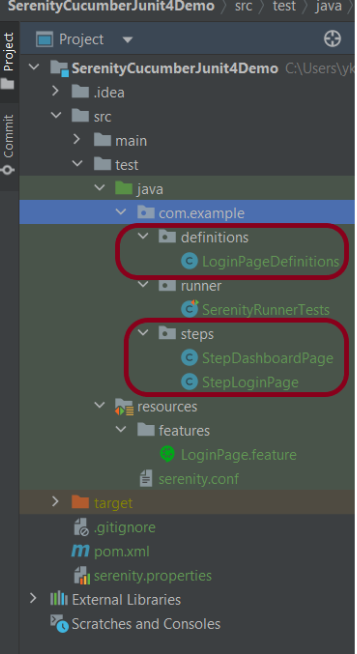
LoginPageDefinition contains the steps to open the web browser, enter the username, enter the password and click on the Login Button

package com.example.definitions;

import com.example.steps.StepDashboardPage;
import com.example.steps.StepLoginPage;
import io.cucumber.java.en.Given;
import io.cucumber.java.en.Then;
import io.cucumber.java.en.When;
import net.serenitybdd.annotations.Steps;
import org.junit.Assert;

public class LoginPageDefinitions {

    @Steps
    StepLoginPage loginPage;

    @Steps
    StepDashboardPage dashPage;

    @Given("User is on Home page")
    public void openApplication() {
        loginPage.open();
        System.out.println("Page is opened");
    }

    @When("User enters username as {string}")
    public void enterUsername(String userName) {
        System.out.println("Enter Username");
        loginPage.inputUserName(userName);
    }

    @When("User enters password as {string}")
    public void enterPassword(String passWord) {
        loginPage.inputPassword(passWord);

        loginPage.clickLogin();
    }

    @Then("User should be able to login successfully")
    public void clickOnLoginButton() {
        dashPage.loginVerify();
    }

    @Then("User should be able to see error message {string}")
    public void unsucessfulLogin(String expectedErrorMessage) throws InterruptedException {

        String actualErrorMessage = loginPage.errorMessage();
        Assert.assertEquals(expectedErrorMessage, actualErrorMessage);
    }

}

This annotation lets you define a URL or a set of URLs that work with a particular page.

@DefaultUrl("https://opensource-demo.orangehrmlive.com/")

StepLoginPage is created by extending it from PageObject class. In this class,   $() method used below, which locates a web element using a By locator or an XPath or CSS expression. This class is responsible for uniquely locating elements on the page, and it does this by defining locators or occasionally by resolving web elements dynamically.

package com.example.steps;

import net.serenitybdd.annotations.Step;
import net.serenitybdd.core.pages.PageObject;
import net.serenitybdd.core.pages.WebElementFacade;
import org.openqa.selenium.support.FindBy;

public class StepLoginPage extends PageObject {

    @FindBy(name = "username")
    WebElementFacade username;

    @FindBy(name = "password")
    WebElementFacade password;

    @FindBy(xpath = "//*[@id='app']/div[1]/div/div[1]/div/div[2]/div[2]/form/div[3]/button")
    WebElementFacade submitButton;

    @FindBy(xpath = "//*[@id='app']/div[1]/div/div[1]/div/div[2]/div[2]/div/div[1]/div[1]/p")
    WebElementFacade errorMessage;

    @FindBy(xpath = "//*[@id='app']/div[1]/div/div[1]/div/div[2]/div[2]/form/div[4]/p")
    WebElementFacade linkText;

    @Step("Enter Username")
    public void inputUserName(String userName) {
        username.sendKeys((userName));
    }

    @Step("Enter Password")
    public void inputPassword(String passWord) {
        password.sendKeys((passWord));
    }

    @Step("Click Submit Button")
    public void clickLogin() {
        submitButton.click();
    }

    @Step("Error Message on unsuccessful login")
    public String errorMessage() {
        String actualErrorMessage = errorMessage.getText();
        return actualErrorMessage;
    }

}

StepDashboardPage is also created by extending Page Object Model. Here, we are verifying the Dashboard page

package com.example.steps;

import net.serenitybdd.core.pages.PageObject;
import net.serenitybdd.core.pages.WebElementFacade;
import org.junit.Assert;
import org.openqa.selenium.support.FindBy;

public class StepDashboardPage extends PageObject {

    @FindBy(xpath = "//*[@id='app']/div[1]/div[1]/header/div[1]/div[1]/span/h6")
    WebElementFacade dashboardText;

    public void loginVerify() {

        String dashboardTitle = dashboardText.getText();
        Assert.assertTrue(dashboardTitle.contains("Dashboard"));
    }
}

Step 4: Create Serenity Test Runner under src/test/java

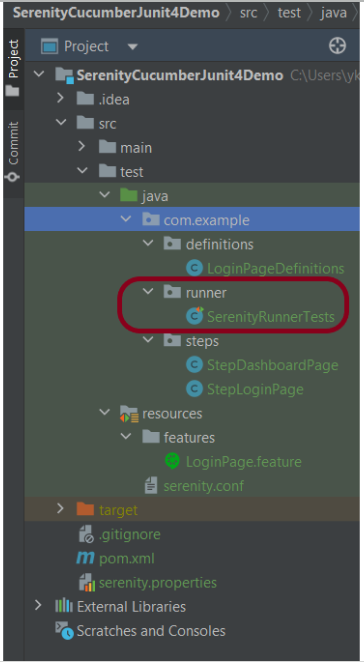
We cannot run a Feature file on its own in a cucumber-based framework. We need to create a Java class, which will run the Feature File. It is the starting point for JUnit to start executing the tests. TestRunner class creates under src/test/java. When you run the tests with serenity, you use the CucumberWithSerenity test runner. If the feature files are not in the same package as the test runner class, you also need to use the @CucumberOptions class to provide the root directory where the feature files found.

import io.cucumber.junit.CucumberOptions;
import net.serenitybdd.cucumber.CucumberWithSerenity;
import org.junit.runner.RunWith;

@RunWith(CucumberWithSerenity.class)
@CucumberOptions(plugin = { "pretty" }, features = "src/test/resources/features/LoginPage.feature",
        glue="com.example.definitions")

public class SerenityRunnerTests {}

Step 5: Create serenity.conf (Configuration File)

Serenity uses serenity.conf file in the src/test/resources directory to configure test execution options. serenity.config can also contain the environment URL and other options like headless mode and soon. 

headless.mode = false

webdriver {
  driver = chrome
  capabilities {
    browserName = "chrome"
    acceptInsecureCerts = true
    "goog:chromeOptions" {
      args = ["remote-allow-origins=*","test-type", "no-sandbox", "ignore-certificate-errors", "--window-size=1920,1080",
        "incognito", "disable-infobars", "disable-gpu", "disable-default-apps", "disable-popup-blocking",
        "disable-dev-shm-usage", "disable-extensions", "disable-web-security", "disable-translate", "disable-logging"]
    }
  }
}


#
# Define drivers for different platforms. Serenity will automatically pick the correct driver for the current platform
#

environments {
  default {
    webdriver.base.url = "https://opensource-demo.orangehrmlive.com/"
  }
  dev {
    webdriver.base.url = "https://opensource-demo.orangehrmlive.com/dev"
  }
  staging {
    webdriver.base.url = "https://opensource-demo.orangehrmlive.com/staging"
  }
  prod {
    webdriver.base.url = "https://opensource-demo.orangehrmlive.com/prod"
  }
}

serenity.project.name = Serenity and Cucumber and JUnit4 Demo

Step 7: Executing the tests as JUnit Tests

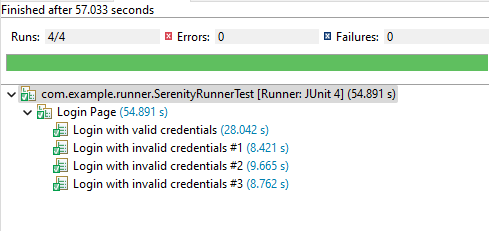
We can run the tests as JUnit tests. Right-click on the Runner class and select Run As Junit Test (Eclipse).

Step 8: Executing the tests through the command line

You can run the tests from the command line by using the below command:

mvn clean verify

By default, the tests will run using Firefox. You can run them in Chrome by overriding the driver system property, e.g.

$ mvn clean verify -Ddriver=chrome

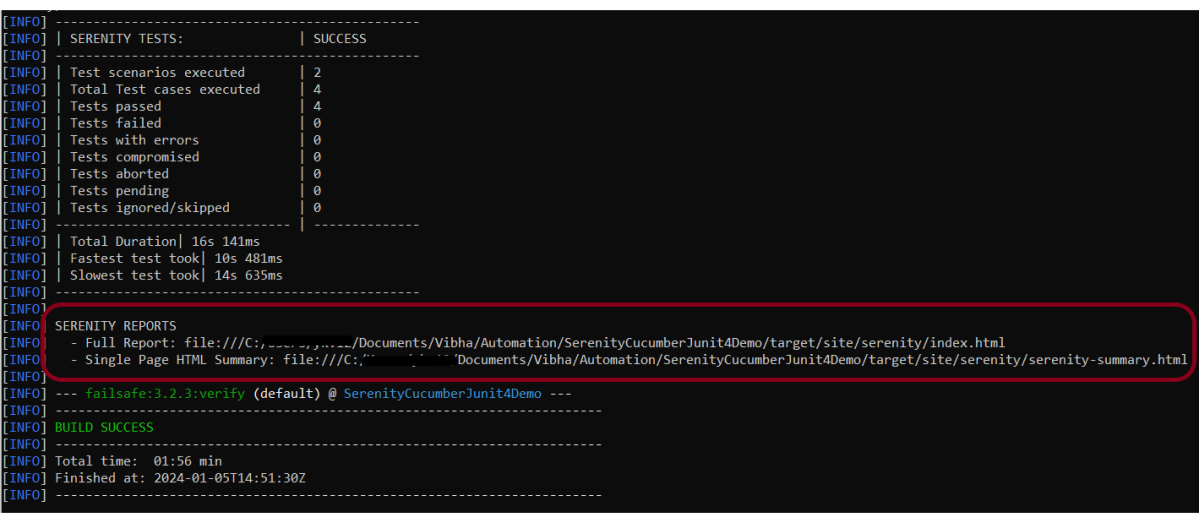
The test execution status looks like something this

Step 9: View the Serenity Reports

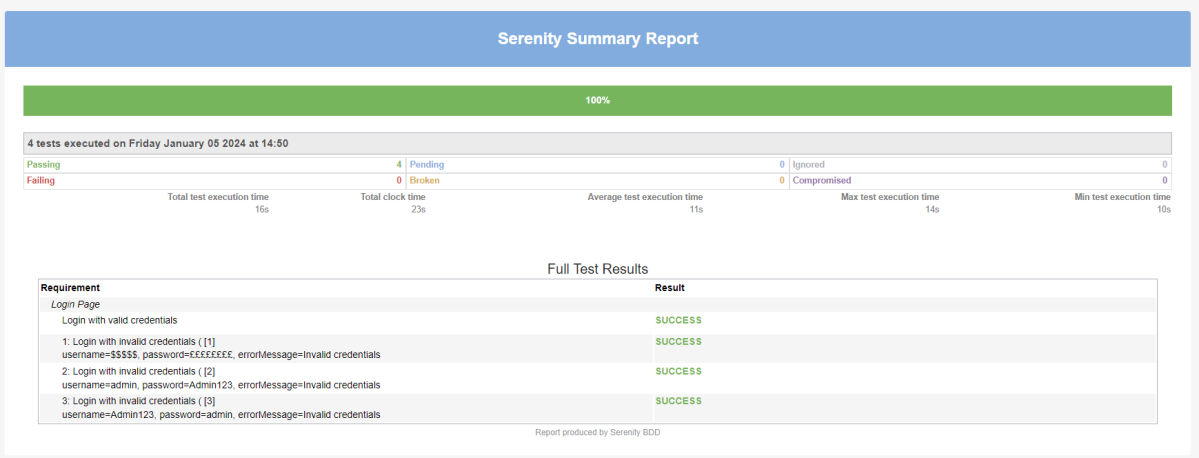
The test report generated by Serenity is placed under target/site/serenity.

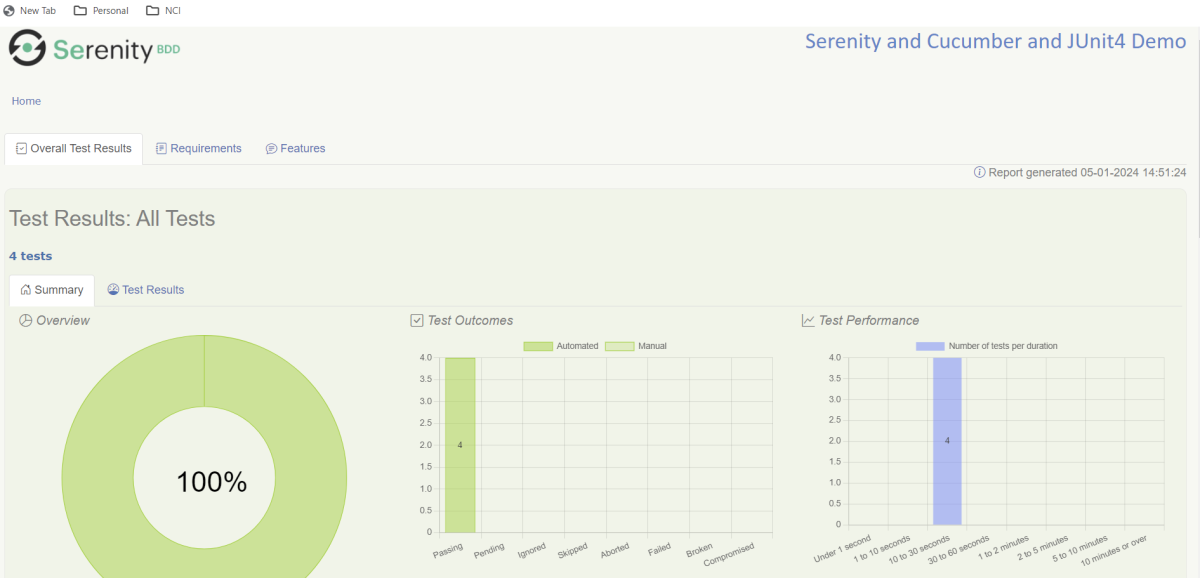
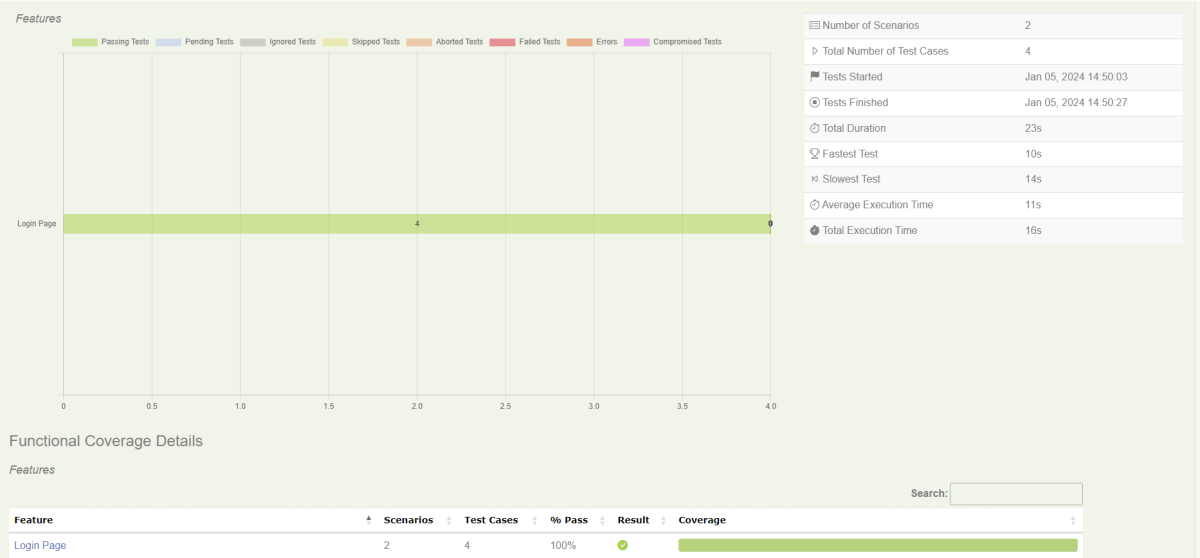
There are a lot of reports under the Serenity folder. But we are interested in 2 reports – index.html and serenity-summary.html.

Index.html

Serenity-Summary.html

Congratulations on making it through this tutorial and hope you found it useful! Happy Learning!! Cheers!!

Additional Tutorials:

Serenity BDD with Cucumber for SpringBoot Application
Serenity BDD with Cucumber and Rest Assured
Serenity Report for Web Application with Cucumber6 and Junit
Serenity Emailable HTML Report
Serenity BDD with Gradle and Cucumber for Web Application

Run Cucumber Test from Maven Command Line

Last Updated on

HOME

To have a successful and effective implementation of a test framework, it is always advisable that the test framework supports test execution in multiple ways.
The most commonly used ways to execute tests in Cucumber Framework are by running the tests using JUnit and TestNG.

To execute tests using JUnit, we need to create a JUnit Test Runner. Whereas, we need a Maven project to execute Cucumber tests from Command-Line.

Create a Maven project and add the below-mentioned dependencies to your Maven project.

<project xmlns="http://maven.apache.org/POM/4.0.0" xmlns:xsi="http://www.w3.org/2001/XMLSchema-instance"
  xsi:schemaLocation="http://maven.apache.org/POM/4.0.0 http://maven.apache.org/xsd/maven-4.0.0.xsd">
  <modelVersion>4.0.0</modelVersion>

  <groupId>com.example</groupId>
  <artifactId>Cucumber_TestNG_Demo</artifactId>
  <version>1.0-SNAPSHOT</version>
  <packaging>jar</packaging>

  <name>Cucumber_TestNG_Demo</name>
  <url>http://maven.apache.org</url>

  <properties>
    <project.build.sourceEncoding>UTF-8</project.build.sourceEncoding>
    <cucumber.version>7.15.0</cucumber.version>
    <selenium.version>4.16.1</selenium.version>
    <testng.version>7.9.0</testng.version>
    <maven.compiler.plugin.version>3.12.1</maven.compiler.plugin.version>
    <maven.surefire.plugin.version>3.2.3</maven.surefire.plugin.version>
    <maven.compiler.source.version>17</maven.compiler.source.version>
    <maven.compiler.target.version>17</maven.compiler.target.version>
  </properties>

  <dependencies>

    <dependency>
      <groupId>io.cucumber</groupId>
      <artifactId>cucumber-java</artifactId>
      <version>${cucumber.version}</version>
    </dependency>

    <dependency>
      <groupId>io.cucumber</groupId>
      <artifactId>cucumber-testng</artifactId>
      <version>${cucumber.version}</version>
      <scope>test</scope>
    </dependency>

    <!-- Selenium -->
    <dependency>
      <groupId>org.seleniumhq.selenium</groupId>
      <artifactId>selenium-java</artifactId>
      <version>${selenium.version}</version>
    </dependency>

    <!-- TestNG -->
    <dependency>
      <groupId>org.testng</groupId>
      <artifactId>testng</artifactId>
      <version>${testng.version}</version>
      <scope>test</scope>
    </dependency>

  </dependencies>
  <build>
    <plugins>
      <plugin>
        <groupId>org.apache.maven.plugins</groupId>
        <artifactId>maven-compiler-plugin</artifactId>
        <version>${maven.compiler.plugin.version}</version>
        <configuration>
          <source>${maven.compiler.source.version}</source>
          <target>${maven.compiler.target.version}</target>
        </configuration>
      </plugin>
      <plugin>
        <groupId>org.apache.maven.plugins</groupId>
        <artifactId>maven-surefire-plugin</artifactId>
        <version>${maven.surefire.plugin.version}</version>
        <configuration>
          <suiteXmlFiles>
            <suiteXmlFile>testng.xml</suiteXmlFile>
          </suiteXmlFiles>
        </configuration>
      </plugin>
    </plugins>
  </build>

</project>

Feature: Login to HRM Application

  Background:
    Given User is on HRMLogin page "https://opensource-demo.orangehrmlive.com/"

  @ValidCredentials
  Scenario: Login with valid credentials

    When User enters username as "Admin" and password as "admin123"
    Then User should be able to login successfully

  @InvalidCredentials
  Scenario Outline: Login with invalid credentials

    When User enters username as "<username>" and password as "<password>"
    Then User should be able to see error message "<errorMessage>"

    Examples:
      | username   | password  | errorMessage                      |
      | Admin      | admin12$$ | Invalid credentials               |
      | admin$$    | admin123  | Invalid credentials               |
      | abc123     | xyz$$     | Invalid credentials               |

Feature: Login to Home

  Background:
    Given User is on HRMLogin page "https://opensource-demo.orangehrmlive.com/"

  @ValidCredentialsHome
  Scenario: Login with valid credentials to got to home page

    When User enters username as "Admin" and password as "admin123"
    Then User should be able to login successfully and new Home page opens

Run Test from Command Line

1. Open the command prompt and change the directory to the project location where pom.xml is present.

C:\Users\Documents\Vibha\Automation\Cucumber_Selenium_TestNG

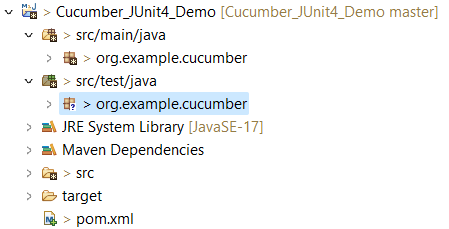
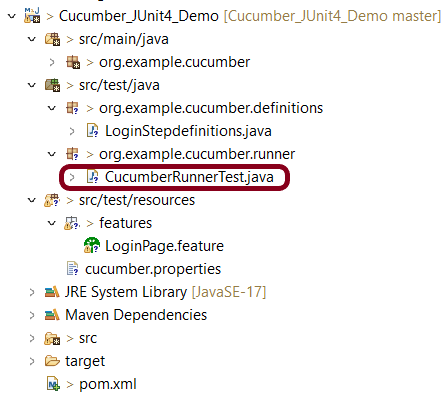
2. All feature files should be in src/test/resources and create the Cucumber Runner class as CucumberRunnerTest.
Note:- The Runner class name should end with Test to execute the tests from Command Line
Run the following command in the command prompt:

mvn clean test

mvn clean test runs Cucumber Features using Cucumber’s JUnit Runner. The @RunWith (Cucumber.class) annotation on the TestRunner class tells JUnit to start Cucumber. Cucumber runs time parses the command-line options to know what feature to run, where the Glue Code lives, what plugins to use, and so on.
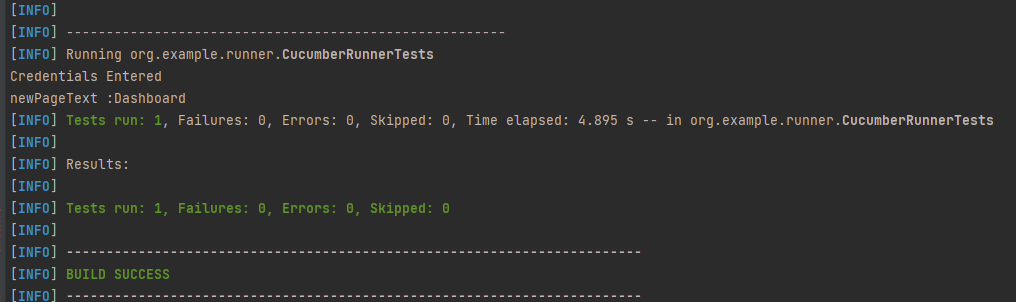
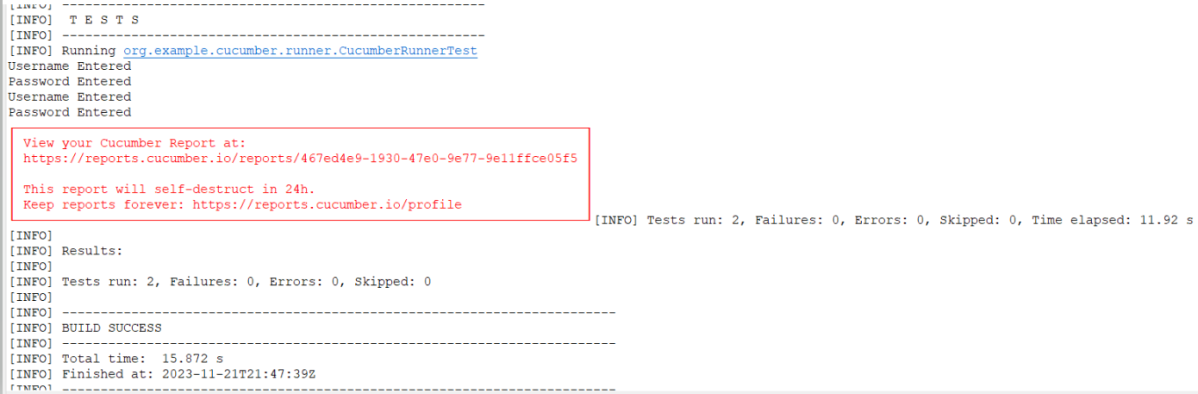
3. The below screenshot shows that CucumberRunnerTest class is triggered.

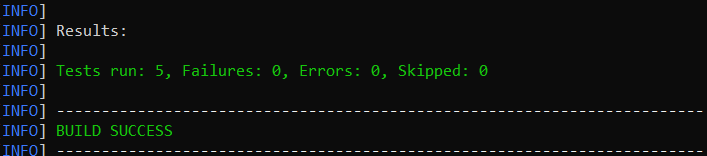
4. The below screenshot shows the build success output.

Cucumber provides several options that can be passed to on the command line.

2. Running Scenarios using Tags

If you are using Maven and want to run a subset of scenarios tagged with @ValidCredentials.

mvn clean test -Dcucumber.filter.tags="@ValidCredentials"

3. Running a Feature file

Suppose you want to run a single Feature File from the command line, then use the below syntax

mvn clean test -Dcucumber.features="src/test/resources/features/HomePage.feature"

4. Creating Cucumber Report from Command Line

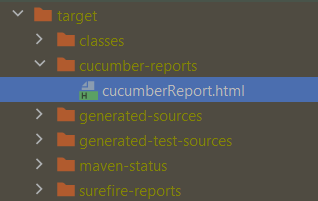
If we want to generate a different report, then we can use the following command and see the HTML report generate at the location mentioned:

mvn clean test -Dcucumber.plugin="html:target/cucumber-reports/cucumberReport.html"

5. Passing multiple Parameters

If we want to pass more than one parameter, then we can use the following command

mvn clean test -Dcucumber.features="src/test/resources/features/LoginPage.feature" -Dcucumber.filter.tags="@ValidCredentials"

6. Running a Scenario without a tag

If we want to run a single Scenario from the command line and no tag is assigned to that scenario, this is how we specify

mvn clean test -Dcucumber.features="src/test/resources/features/LoginPage.feature:7"

That’s it! Congratulations on making it through this tutorial and hope you found it useful! Happy Learning!!

In the next tutorial, I explained to run Cucumber Gradle tests from Command Line.

Extent Reports Version 5 for Cucumber7 and JUnit5

HOME

The previous tutorial explained the steps to generate ExtentReports Version for Cucumber7 with TestNG. This tutorial explains the steps needed to be followed to generate an ExtentReports Version5 for Cucumber 7 with JUnit5.

Prerequisite:

  • Java 17
  • Maven or Gradle
  • JAVA IDE (like Eclipse, IntelliJ, or so on)
  • Cucumber Eclipse plugin (in case using Eclipse)

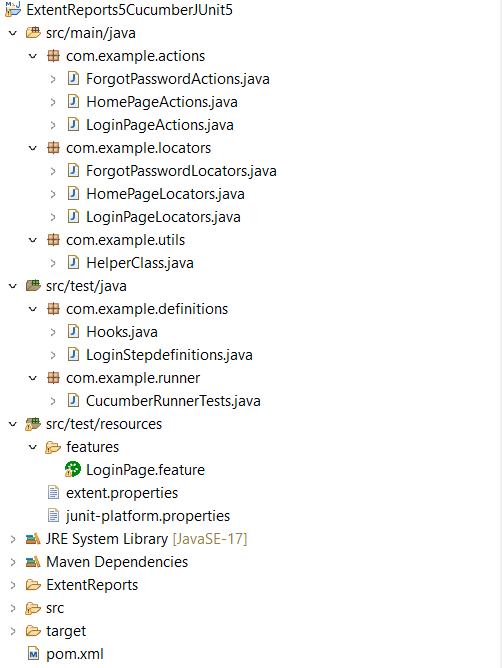
Project Structure

There is a tutorial that explains the steps to integrate Cucumber 7 with JUnit5. Please refer to this tutorial – Integration of Cucumber7 with Selenium and JUnit5.

Now, let us add the extra steps needed to generate the ExtentRport Version5.

New Features in ExtentReports Version 5

Report Attachments 

To add attachments, like screen images, two settings need to be added to the extent.properties. Firstly property, named screenshot.dir, is the directory where the attachments are stored. Secondly is screenshot.rel.path, which is the relative path from the report file to the screenshot directory.

extent.reporter.spark.out=Reports/Spark.html
 
screenshot.dir=/Screenshots/
screenshot.rel.path=../Screenshots/

Extent PDF Reporter

The PDF reporter summarizes the test run results in a dashboard and other sections with the feature, scenario, and, step details. The PDF report needs to be enabled in the extent.properties file.

#PDF Report
extent.reporter.pdf.start=true
extent.reporter.pdf.out=PdfReport/ExtentPdf.pdf 

Ported HTML Reporter

The original HTML Extent Reporter was deprecated in 4.1.3 and removed in 5.0.0. The HTML report available in the adapter is based on the same code base and is similar in appearance. The major changes are in the Freemarker template code which has been modified to work with the Extent Reports version 5. The HTML report needs to be enabled in the extent.properties file.

#HTML Report
extent.reporter.html.start=true
extent.reporter.html.out=HtmlReport/ExtentHtml.html

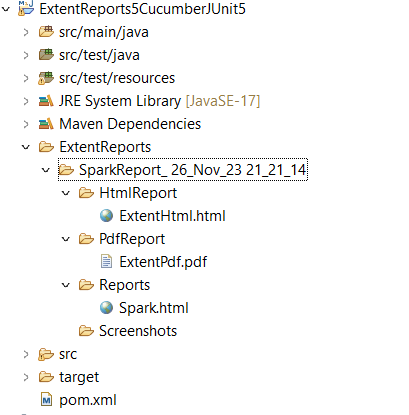
Customized Report Folder Name

To enable the report folder name with date and\or time details, two settings need to be added to the extent.properties. These are basefolder.name and basefolder.datetimepattern. These will be merged to create the base folder name, inside which the reports will be generated.

#FolderName
basefolder.name=ExtentReports/SparkReport_
basefolder.datetimepattern=d_MMM_YY HH_mm_ss

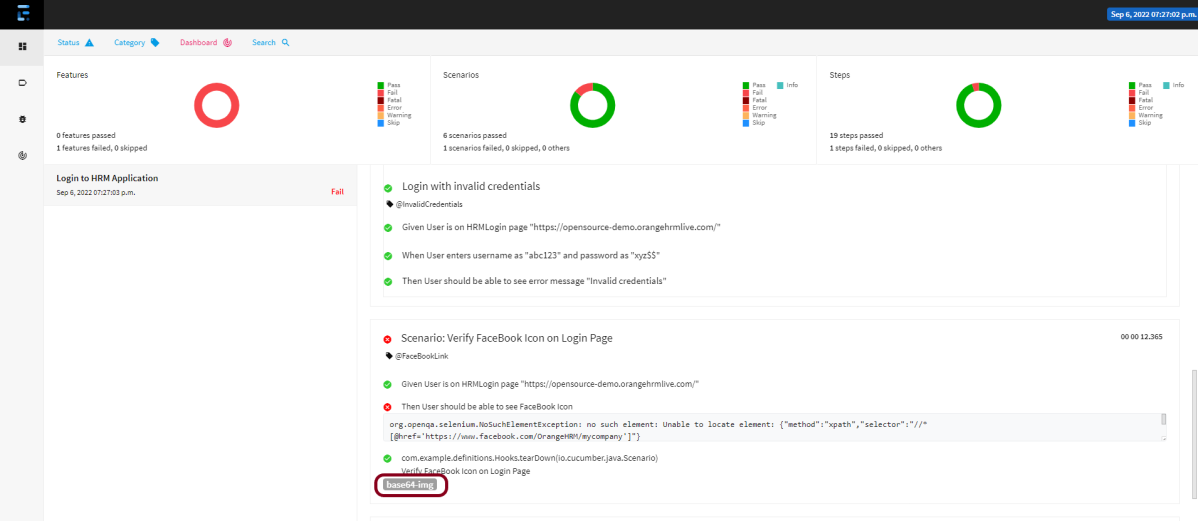
Attach Image as Base64 String

This feature can be used to attach images to the Spark report by setting the src attribute of the img tag to a Base64 encoded string of the image. When this feature is used, no physical file is created. There is no need to modify any step definition code to use this. To enable this, use the below settings in extent.properties, which is false by default.

extent.reporter.spark.base64imagesrc=true

Environment or System Info Properties

 It is now possible to add environment or system info properties in the extent.properties or pass them in the maven command line. 

#System Info
systeminfo.os=windows
systeminfo.version=10

Step 1 – Add Maven dependencies to the POM

Add ExtentReport dependency

<dependency>
    <groupId>com.aventstack</groupId>
    <artifactId>extentreports</artifactId>
    <version>5.1.1</version>
</dependency>

Add tech grasshopper maven dependency for Cucumber.
<dependency>
    <groupId>tech.grasshopper</groupId>
    <artifactId>extentreports-cucumber7-adapter</artifactId>
    <version>1.14.0</version>
</dependency>

The complete POM.xml will look like as shown below with other Selenium and JUnit5 dependencies.

<?xml version="1.0" encoding="UTF-8"?>

<project xmlns="http://maven.apache.org/POM/4.0.0" xmlns:xsi="http://www.w3.org/2001/XMLSchema-instance"
  xsi:schemaLocation="http://maven.apache.org/POM/4.0.0 http://maven.apache.org/xsd/maven-4.0.0.xsd">
  <modelVersion>4.0.0</modelVersion>

  <groupId>com.example</groupId>
  <artifactId>ExtentReports5CucumberJUnit5</artifactId>
  <version>0.0.1-SNAPSHOT</version>

  <name>ExtentReports5CucumberJUnit5</name>
  <!-- FIXME change it to the project's website -->
  <url>http://www.example.com</url>

 <properties>
        <project.build.sourceEncoding>UTF-8</project.build.sourceEncoding>
        <cucumber.version>7.14.0</cucumber.version>
        <selenium.version>4.15.0</selenium.version>
        <junit.jupiter.version>5.10.1</junit.jupiter.version>
        <extentreports.cucumber7.adapter.version>1.14.0</extentreports.cucumber7.adapter.version>
        <extentreports.version>5.1.1</extentreports.version>
        <maven.compiler.plugin.version>3.11.0</maven.compiler.plugin.version>
        <maven.surefire.plugin.version>3.2.1</maven.surefire.plugin.version>
        <maven.compiler.source.version>17</maven.compiler.source.version>
        <maven.compiler.target.version>17</maven.compiler.target.version>
    </properties>
 
    <dependencyManagement>
        <dependencies>
            <dependency>
                <groupId>io.cucumber</groupId>
                <artifactId>cucumber-bom</artifactId>
                <version>${cucumber.version}</version>
                <type>pom</type>
                <scope>import</scope>
            </dependency>
            <dependency>
                <groupId>org.junit</groupId>
                <artifactId>junit-bom</artifactId>
                <version>${junit.jupiter.version}</version>
                <type>pom</type>
                <scope>import</scope>
            </dependency>
        </dependencies>
    </dependencyManagement>
 
    <dependencies>
 
        <dependency>
            <groupId>io.cucumber</groupId>
            <artifactId>cucumber-java</artifactId>
            <scope>test</scope>
        </dependency>
 
        <dependency>
            <groupId>io.cucumber</groupId>
            <artifactId>cucumber-junit-platform-engine</artifactId>
            <scope>test</scope>
        </dependency>
 
        <!-- JUnit Platform -->
        <dependency>
            <groupId>org.junit.platform</groupId>
            <artifactId>junit-platform-suite</artifactId>
            <scope>test</scope>
        </dependency>
 
        <dependency>
            <groupId>org.junit.jupiter</groupId>
            <artifactId>junit-jupiter-engine</artifactId>
            <scope>test</scope>
        </dependency>
 
        <!-- Selenium -->
        <dependency>
            <groupId>org.seleniumhq.selenium</groupId>
            <artifactId>selenium-java</artifactId>
            <version>${selenium.version}</version>
        </dependency>
        
          <!-- Cucumber ExtentReport Adapter -->
        <dependency>
            <groupId>tech.grasshopper</groupId>
            <artifactId>extentreports-cucumber7-adapter</artifactId>
            <version>${extentreports.cucumber7.adapter.version}</version>
        </dependency>
 
        <!-- Extent Report -->
        <dependency>
            <groupId>com.aventstack</groupId>
            <artifactId>extentreports</artifactId>
            <version>${extentreports.version}</version>
        </dependency>
 
    </dependencies>
 
    <build>
        <plugins>
            <plugin>
                <groupId>org.apache.maven.plugins</groupId>
                <artifactId>maven-compiler-plugin</artifactId>
                <version>${maven.compiler.plugin.version}</version>
                <configuration>
                    <source>${maven.compiler.source.version}</source>
                    <target>${maven.compiler.target.version}</target>
                </configuration>
            </plugin>
            <plugin>
                <groupId>org.apache.maven.plugins</groupId>
                <artifactId>maven-surefire-plugin</artifactId>
                <version>${maven.surefire.plugin.version}</version>
                <dependencies>
                    <dependency>
                        <groupId>org.junit.jupiter</groupId>
                        <artifactId>junit-jupiter-engine</artifactId>
                        <version>${junit.jupiter.version}</version>
                    </dependency>
                </dependencies>
            </plugin>
 
        </plugins>
    </build>
</project>

Step 2 – Create extent.properties file in src/test/resources

We need to create the extent.properties file in the src/test/resources folder for the grasshopper extent report adapter to recognize it. Using a property file for reporting is quite helpful if you want to define several different properties.

#Extent Report
extent.reporter.spark.start=true
extent.reporter.spark.out=Reports/Spark.html
 
#PDF Report
extent.reporter.pdf.start=true
extent.reporter.pdf.out=PdfReport/ExtentPdf.pdf
 
#HTML Report
extent.reporter.html.start=true
extent.reporter.html.out=HtmlReport/ExtentHtml.html
 
#FolderName
basefolder.name=ExtentReports/SparkReport_
basefolder.datetimepattern=d_MMM_YY HH_mm_ss
 
#Screenshot
screenshot.dir=/Screenshots/
screenshot.rel.path=../Screenshots/
 
#Base64
extent.reporter.spark.base64imagesrc=true
 
#System Info
systeminfo.os=windows
systeminfo.version=10

Step 3 – Create a Cucumber Test Runner class in src/test/java

Add the extent report cucumber adapter to the runner class.

import static io.cucumber.junit.platform.engine.Constants.GLUE_PROPERTY_NAME;
import static io.cucumber.junit.platform.engine.Constants.PLUGIN_PROPERTY_NAME;
import org.junit.platform.suite.api.ConfigurationParameter;
import org.junit.platform.suite.api.IncludeEngines;
import org.junit.platform.suite.api.SelectClasspathResource;
import org.junit.platform.suite.api.Suite;

@Suite
@IncludeEngines("cucumber")
@SelectClasspathResource("features")
@SelectClasspathResource("com.example")
@ConfigurationParameter(key = PLUGIN_PROPERTY_NAME, value = "com.aventstack.extentreports.cucumber.adapter.ExtentCucumberAdapter:") 
@ConfigurationParameter(key = GLUE_PROPERTY_NAME, value = "com.example")
 
public class CucumberRunnerTests  {
 
}

Step 4 – Execute the code

To execute the code, run the tests from the command line by using the below command

mvn clean test

Step 5 – View ExtentReport

Refresh the project and will see a new folder – SparkReport_ which further contains 4 folders – HtmlReport, PdfReport, Reports, and Screenshots.

The ExtentReport will be present in the Reports folder with the name Spark.html. PDF Report is present in the PdfReport folder and HTML Report is present in the HtmlReport folder. We can see that the Screenshots folder is empty because we have used the base64imagesrc feature which resulted in no physical screenshots. The screenshots are embedded in the reports.
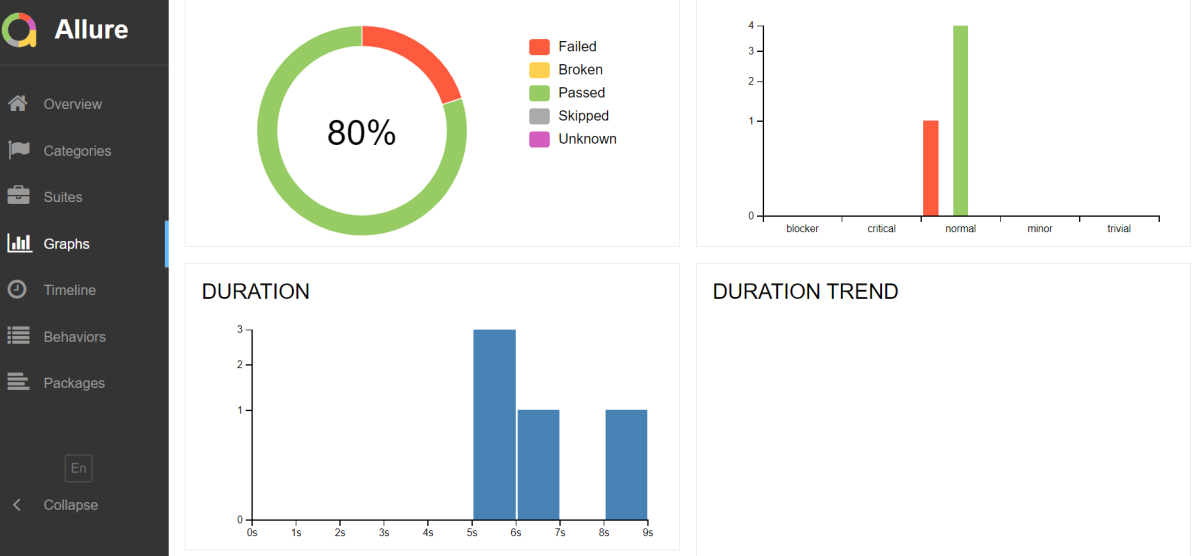
Right-click and open the ExtentHtml.html report with Web Browser. The report also has a summary section that displays the summary of the execution. The summary includes the overview of the pass/fail using a pictogram, start time, end time, and pass/fail details of features as shown in the image below.
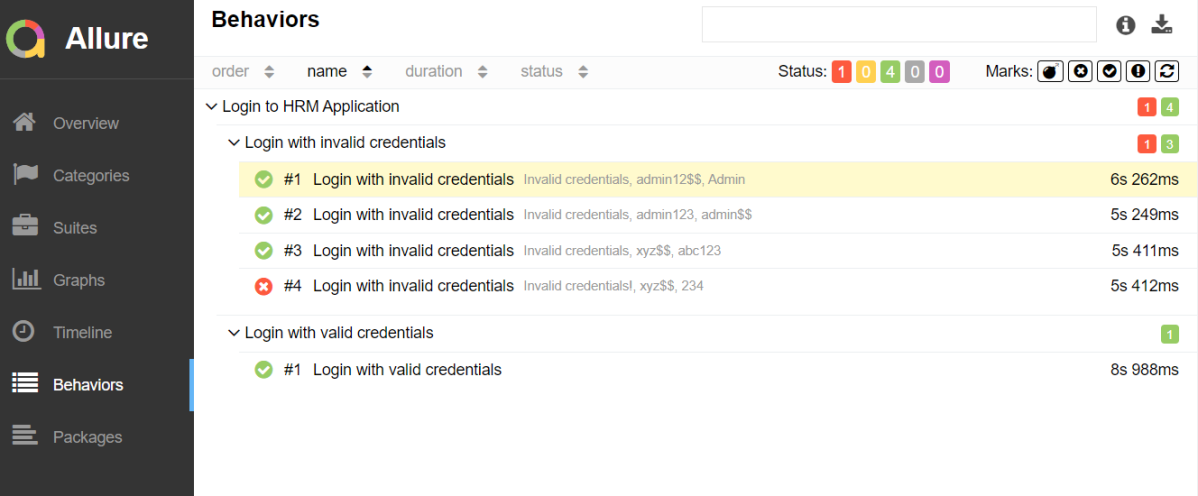
ExtentHtml

This is the image of the Dashboard of the ExtentReport.

The failed test has a screenshot embedded in it. Double-click on base64 image and it will open the screenshot in full screen.

PDF Report

Spark Report

Right-click and open the Spark.html report with Web Browser.

We are done! Congratulations on making it through this tutorial and hope you found it useful! Happy Learning!!

Cucumber Tutorial – How to setup Cucumber with Eclipse

HOME

In the previous tutorials, we discussed BDD (Behaviour Driven Development) and GherkinCucumber is one such open-source tool, which supports Behaviour Driven Development (BDD). In simple words, Cucumber can be defined as a testing framework, driven by plain English. It serves as documentation, automated tests, and development aid – all in one.

In this tutorial, we will set up Cucumber with Eclipse

Implementation Steps

1. Download and Install Java

Java is a robust programming language. Java is a general-purpose programming language that is concurrent; class-based and object-oriented language. Java follows the concept of “write once and run anywhere (WORA)” which means that compiled Java code can be run on all different platforms that support Java without the need for recompilation. Cucumber supports the Java platform for execution. Click here to know How to install Java.

2. Download and Start Eclipse

Eclipse is an Integrated Development Environment (IDE). It contains a base workspace and an extensible plug-in system for customizing the environment. To download Eclipse, please refer to this tutorial – How to install Eclipse.

3. Maven –  How to install Maven on Windows 

Apache Maven is a software project management and comprehension tool. It uses the concept of a project object model (POM), Maven can manage a project’s build, reporting, and documentation from a central piece of information. MAVEN helps us in creating the project structure and managing and downloading the dependencies. We need to define the required dependencies in pom.xml. To install Maven on Windows, please refer to this tutorial – How to install Maven.

4. Install Cucumber Eclipse Plugin

The Cucumber plugin is an Eclipse plugin that allows eclipse to understand the Gherkin syntax. Cucumber Eclipse Plugin highlights the keywords present in Feature File. To install Cucumber Eclipse Plugin, please refer to this tutorial – How to install Cucumber Eclipse Plugin

5. Configure Cucumber with Maven

Step 1 – Create a new Maven Project.

Click here to know the steps to create a new Maven project –  How to create a Maven project.

Step 2 – Open pom.xml of the project
       

Step 3 − Add dependency for selenium

This will indicate to Maven that Selenium jar files are to download from the central repository to the local repository.                                                                             

Open pom.xml in the edit mode, create dependencies tag (), inside the project tag.                   

 <!-- Selenium -->
 <dependency>
      <groupId>org.seleniumhq.selenium</groupId>
      <artifactId>selenium-java</artifactId>
      <version>4.15.0</version>
 </dependency>

Step 4 –  Add dependency for Cucumber-Java

This will indicate Maven, which Cucumber files are to be downloaded from the central repository to the local repository.  Create one more dependency tag.

<dependency>
    <groupId>io.cucumber</groupId>
    <artifactId>cucumber-java</artifactId>
    <version>7.14.0</version>
</dependency>

Step 5 – Add dependency for Cucumber-JUnit

This will indicate Maven, which Cucumber JUnit files are to download from the central repository to the local repository. Create one more dependency tag. 

<dependency>
    <groupId>io.cucumber</groupId>
    <artifactId>cucumber-junit</artifactId>
    <version>7.14.0</version>
    <scope>test</scope>
</dependency>

Step 6 –  Add dependency for JUnit

This will indicate Maven, which JUnit files are to be downloaded from the central repository to the local repository. Create one more dependency tag.

<dependency>
   <groupId>junit</groupId>
   <artifactId>junit</artifactId>
   <version>4.13.2</version>
   <scope>test</scope>
</dependency>

Below is the screenshot which shows that Maven Project called Cucumber_JUnit4_Demo.

After adding the above mention dependencies, pom.xml looks like the image below

<project xmlns="http://maven.apache.org/POM/4.0.0" xmlns:xsi="http://www.w3.org/2001/XMLSchema-instance"
  xsi:schemaLocation="http://maven.apache.org/POM/4.0.0 http://maven.apache.org/xsd/maven-4.0.0.xsd">
  <modelVersion>4.0.0</modelVersion>

  <groupId>org.example</groupId>
  <artifactId>Cucumber_JUnit4_Demo</artifactId>
  <version>1.0-SNAPSHOT</version>
  <packaging>jar</packaging>

  <name>Cucumber_JUnit4_Demo</name>
  <url>http://maven.apache.org</url>

  <properties>
    <project.build.sourceEncoding>UTF-8</project.build.sourceEncoding>
    <cucumber.version>7.14.0</cucumber.version>
    <selenium.version>4.15.0</selenium.version>
    <junit.version>4.13.2</junit.version>
  </properties>

  <dependencies>

    <dependency>
      <groupId>io.cucumber</groupId>
      <artifactId>cucumber-java</artifactId>
      <version>${cucumber.version}</version>
    </dependency>

    <dependency>
      <groupId>io.cucumber</groupId>
      <artifactId>cucumber-junit</artifactId>
      <version>${cucumber.version}</version>
      <scope>test</scope>
    </dependency>

    <!-- Selenium -->
    <dependency>
      <groupId>org.seleniumhq.selenium</groupId>
      <artifactId>selenium-java</artifactId>
      <version>${selenium.version}</version>
    </dependency>

    <!-- JUnit4 -->
    <dependency>
      <groupId>junit</groupId>
      <artifactId>junit</artifactId>
      <version>${junit.version}</version>
      <scope>test</scope>
    </dependency>
  </dependencies>

</project>

After adding the dependencies and then building the project, the below image shows the entire jar files added to the Maven Dependency.

Congratulations!! We are done with the setup of the Cucumber in Eclipse. Happy Learning.

Integration Testing of Springboot with Cucumber and JUnit4

Last Updated On

HOME

In this tutorial, I am going to build an automation framework to test the Springboot application with Cucumber, Rest Assured, and JUnit4.

Table of Contents

  1. What is Springboot?
  2. What is Cucumber?
  3. Dependency List
  4. Test Automation Framework Implementation
    1. Add SpringbootTest, Rest-Assured, and Cucumber dependencies to the project
    2. Create a directory src/test/resources and create a feature file under src/test/resources
    3. Create the Step Definition class or Glue Code for the Test Scenario under src/test/java
    4. Create a Cucumber Runner class under src/test/java
    5. Run the tests from JUnit
    6. Run the tests from Command Line
    7. Cucumber Report Generation

What is Springboot?

Spring Boot is an open-source micro framework maintained by a company called Pivotal. It provides Java developers with a platform to get started with an auto-configurable production-grade Spring application. With it, developers can get started quickly without losing time on preparing and configuring their Spring application.

What is Cucumber?

A cucumber is a software tool that supports behavior-driven development (BDD). Cucumber can be defined as a testing framework, driven by plain English. It serves as documentation, automated tests, and development aid – all in one.

Dependency List

  1. Springboot – 2.5.2
  2. Cucumber – 6.10.4
  3. Java 11
  4. JUnit – 4.13.2
  5. Maven – 3.8.1
  6. RestAssured – 4.3.3
  7. JUnit Vintage Engine (To run the tests through command line)

Below is the structure of a SpringBoot application project.

Below are various Java classes present in a SpringBoot REST Application.

  • SpringBootRestServiceApplication.java – The Spring Boot Application class is generated with Spring Initializer. This class acts as the launching point for the application.
  • pom.xml – This contains all the dependencies needed to build this project. 
  • Student.java – This is JPA Entity for Student class
  • StudentRepository.java – This is JPA Repository for Student. This is created using Spring Data JpaRepository.
  • StudentController.java – Spring Rest Controller exposing all services on the student resource.
  • CustomizedExceptionHandler.java – This implements global exception handling and customizes the responses based on the exception type.
  • ErrorDetails.java – Response Bean to use when exceptions are thrown from API.
  • StudentNotFoundException.java – Exception thrown from resources when the student is not found.
  • data.sql –  Data is loaded from data.sql into the Student table. Spring Boot would execute this script after the tables are created from the entities.
  • application.properties – Spring Boot automatically loads the application.properties whenever it starts up. You can de-reference values from the property file in the Java code through the environment.

Student.java

import javax.persistence.Entity;
import javax.persistence.GeneratedValue;
import javax.persistence.Id;
import javax.validation.constraints.NotBlank;
import javax.validation.constraints.NotNull;
import javax.validation.constraints.Size;

@Entity
public class Student {
    @Id
    @GeneratedValue
    private Long id;

    @NotNull
    @Size(min = 4, message = "Name should have atleast 4 characters")
    private String name;

    @NotBlank(message = "passportNumber is mandatory")
    private String passportNumber;

    public Student() {
        super();
    }

    public Student(Long id, String name, String passportNumber) {
        super();
        this.id = id;
        this.name = name;
        this.passportNumber = passportNumber;
    }

    public Long getId() {
        return id;
    }

    public void setId(Long id) {
        this.id = id;
    }

    public String getName() {
        return name;
    }

    public void setName(String name) {
        this.name = name;
    }

    public String getPassportNumber() {
        return passportNumber;
    }

    public void setPassportNumber(String passportNumber) {
        this.passportNumber = passportNumber;
    }
}

StudentController

import static org.springframework.hateoas.server.mvc.WebMvcLinkBuilder.linkTo;
import static org.springframework.hateoas.server.mvc.WebMvcLinkBuilder.methodOn;
import java.net.URI;
import java.util.List;
import java.util.Optional;
import javax.validation.Valid;
import org.springframework.beans.factory.annotation.Autowired;
import org.springframework.hateoas.EntityModel;
import org.springframework.hateoas.server.mvc.WebMvcLinkBuilder;
import org.springframework.http.ResponseEntity;
import org.springframework.web.bind.annotation.GetMapping;
import org.springframework.web.bind.annotation.PathVariable;
import org.springframework.web.bind.annotation.RequestBody;
import org.springframework.web.bind.annotation.RestController;
import org.springframework.web.servlet.support.ServletUriComponentsBuilder;

@RestController
public class StudentController {

    @Autowired
    private StudentRepository studentRepository;

    @GetMapping("/students/{id}")
    public EntityModel<Student> retrieveStudent(@PathVariable long id) {
        Optional<Student> student = studentRepository.findById(id);

        if (!student.isPresent())
            throw new StudentNotFoundException("id-" + id);

        EntityModel<Student> resource = EntityModel.of(student.get());

        WebMvcLinkBuilder linkTo = linkTo(methodOn(this.getClass()).retrieveAllStudents());

        resource.add(linkTo.withRel("all-students"));

        return resource;
    }
}

StudentRepository

import org.springframework.data.jpa.repository.JpaRepository;
import org.springframework.stereotype.Repository;

@Repository
public interface StudentRepository extends JpaRepository<Student, Long>{

}

SpringBootRestServiceApplication

import org.springframework.boot.SpringApplication;
import org.springframework.boot.autoconfigure.SpringBootApplication;

@SpringBootApplication
public class SpringBootRestServiceApplication {

    public static void main(String[] args) {

        SpringApplication.run(SpringBootRestServiceApplication.class, args);
    }

}

application.properties

spring.jpa.defer-datasource-initialization=true

data.sql

insert into student values(10001,'Annie', 'E1234567');
insert into student values(10002,'John', 'A1234568');
insert into student values(10003,'David','C1232268');

Test Automation Framework Implementation

Step 1 – Add SpringbootTest, Rest-Assured, and Cucumber dependencies to the project

To Test a SpringBoot Application, we are using SpringBoot Test, JUnit, Cucumber, and Rest Assured. Below mentioned dependencies are added in POM.xml

        <dependency>
            <groupId>org.springframework.boot</groupId>
            <artifactId>spring-boot-starter-test</artifactId>
            <scope>test</scope>
        </dependency>

        <dependency>
            <groupId>junit</groupId>
            <artifactId>junit</artifactId>
            <version>4.13.2</version>
        </dependency>

        <dependency>
            <groupId>io.rest-assured</groupId>
            <artifactId>rest-assured</artifactId>
            <version>4.3.3</version>
            <scope>test</scope>
        </dependency>

        <dependency>
            <groupId>io.cucumber</groupId>
            <artifactId>cucumber-java</artifactId>
            <version>6.10.4</version>
        </dependency>

        <dependency>
            <groupId>io.cucumber</groupId>
            <artifactId>cucumber-junit</artifactId>
            <version>6.10.4</version>
            <scope>test</scope>
        </dependency>

        <dependency>
            <groupId>io.cucumber</groupId>
            <artifactId>cucumber-spring</artifactId>
            <version>6.10.4</version>
            <scope>test</scope>
        </dependency>

Step 2 – Create a directory src/test/resources and create a feature file under src/test/resources

By default, the Maven project has src/test/java directory only. Create a new directory under src/test with the name of resources. Create a folder name as Features within src/test/resources directory.

Create a feature file to test the Springboot application.

Below is a sample feature file.

Feature: Verify springboot application using Cucumber

@ReceiveUserDetails
Scenario Outline: Send a valid Request to get user details
Given I send a request to the URL "/students" to get user details
Then the response will return status 200 and id <studentID> and names "<studentNames>" and passport_no "<studentPassportNo>"

Examples:
|studentID    |studentNames  |studentPassportNo|
|10001        |Annie         |E1234567         |
|10002        |John          |A1234568         |
|10003        |David         |C1232268         |

Step 3 – Create the Step Definition class or Glue Code for the Test Scenario under src/test/java

The corresponding step definition file of the above feature file is shown below.

import io.cucumber.java.en.Given;
import io.cucumber.java.en.Then;
import io.cucumber.spring.CucumberContextConfiguration;
import io.restassured.RestAssured;
import io.restassured.http.ContentType;
import io.restassured.response.ValidatableResponse;
import io.restassured.specification.RequestSpecification;
import org.springframework.boot.test.context.SpringBootTest;
import org.springframework.boot.web.server.LocalServerPort;
import static io.restassured.RestAssured.given;
import static org.hamcrest.Matchers.*;

@CucumberContextConfiguration
@SpringBootTest(webEnvironment = SpringBootTest.WebEnvironment.RANDOM_PORT)
public class SpringbootCucumberTestDefinitions {

    private final static String BASE_URI = "http://localhost";

    @LocalServerPort
    private int port;

    private ValidatableResponse validatableResponse;

    private void configureRestAssured() {
        RestAssured.baseURI = BASE_URI;
        RestAssured.port = port;
    }

    protected RequestSpecification requestSpecification() {
        configureRestAssured();
        return given();
    }

    @Given("I send a request to the URL {string} to get user details")
    public void iSendARequest(String endpoint) throws Throwable {
        validatableResponse = requestSpecification().contentType(ContentType.JSON)
                .when().get(endpoint).then();
        System.out.println("RESPONSE :"+validatableResponse.extract().asString());
    }

    @Then("the response will return status {int} and id {int} and names {string} and passport_no {string}")
    public void extractResponse(int status, int id, String studentName,String passportNo) {
        validatableResponse.assertThat().statusCode(equalTo(status))
                .body("id",hasItem(id)).body(containsString(studentName))
                .body(containsString(passportNo));

    }

}

The @CucumberContextConfiguration annotation tells Cucumber to use this class as the test context configuration for Spring. It is imported from:-

import io.cucumber.spring.CucumberContextConfiguration;

With the @SpringBootTest annotation, Spring Boot provides a convenient way to start up an application context to be used in a test.  It is imported from package:-

import org.springframework.boot.test.context.SpringBootTest;

By default, @SpringBootTest does not start the webEnvironment to refine further how your tests run. It has several options: MOCK(default), RANDOM_PORT, DEFINED_PORT, NONE.

RANDOM_PORT loads a WebServerApplicationContext and provides a real web environment. The embedded server is started and listens on a random port. LocalServerPort is imported from package:-

import org.springframework.boot.web.server.LocalServerPort;

The assertions are imported from the Hamcrest package:-

import static org.hamcrest.Matchers.*;

Step 4 – Create a Cucumber Runner class under src/test/java

A runner will help us to run the feature file and act as an interlink between the feature file and StepDefinition Class. To know more about Runner, refer to this link. The TestRunner should be created within the directory src/test/java.

import org.junit.runner.RunWith;
import io.cucumber.junit.Cucumber;
import io.cucumber.junit.CucumberOptions;

@RunWith(Cucumber.class)
@CucumberOptions(plugin = "pretty", features = {"src/test/resources/Features"}, glue = { "com.example.demo.definitions"})

public class CucumberRunnerTests {
}

The @CucumberOptions annotation is responsible for pointing to the right feature package, configuring the plugin for a better reporting of tests in the console output, and specifying the package where extra glue classes may be found. We use it to load configurations and classes that are shared between tests.

Step 5 – Run the tests from JUnit

You can execute the test script by right-clicking on TestRunner class -> Run As JUnit in Eclipse.

In case you are using IntelliJ, select “Run CucumberRunnerTests“.

SpringBootTest creates an application context containing all the objects we need for the Integration Testing It, starts the embedded server, creates a web environment, and then enables methods to do Integration testing.

Step 6 – Run the tests from the Command Line

To run the tests from the command line, we need to add junit-vintage-engine dependency. Starting with Spring Boot 2.4, JUnit 5’s vintage engine has been removed from the spring-boot-starter-test. If we still want to write tests using JUnit 4, we need to add the following Maven dependency:

        <dependency>
            <groupId>org.junit.vintage</groupId>
            <artifactId>junit-vintage-engine</artifactId>
            <scope>test</scope>
        </dependency>

Use the below command to run the tests:-

mvn clean test

Step 7 – Cucumber Report Generation

To get Cucumber Test Reports, add cucumber.properties under src/test/resources and add the below instruction in the file. To know more about Cucumber Report Service, refer to this tutorial.

cucumber.publish.enabled=true

Below is the image of the report generated after the completion of the execution. This report can be saved on GitHub for future use.

That’s it! Congratulations on making it through this tutorial and hope you found it useful! Happy Learning!!

SpringBoot WireMock
SpringBoot Dependency Injection using Autowired
 Testing of Gradle SpringBoot Application with Serenity, Cucumber and JUnit4
Testing of SpringBoot Application with Serenity BDD, Cucumber and JUnit5 
 How to run SpringBoot tests with GitHub Actions

TestNG Tutorials

HOME

Chapter 1 TestNG Annotations
Chapter 2 Assertions in TestNG
Chapter 3 Hard Assert and Soft Assert
Chapter 4 How to create and run TestNG.xml of a TestNG class
Chapter 5 How to pass Parameters in TestNG
Chapter 6 Prioritizing Test Cases in TestNG: Complete Guide
Chapter 7 How to disable Selenium Test Cases using TestNG Feature – @Ignore
Chapter 8 How to Use dependsOnMethods() in TestNG for Selenium Test Case Dependency
Chapter 9 How to group Tests in Selenium
Chapter 10 InvocationCount in TestNG
Chapter 11 How to run Parallel Tests in Selenium with TestNG
Chapter 12 Cross Browser Testing using Selenium and TestNG
Chapter 13 Screenshot of Failed Test Cases in Selenium WebDriver
Chapter 14 TestNG Listeners in Selenium
Chapter 15 How to Retry failed tests in TestNG – IRetryAnalyzer
Chapter 16 DataProviders in TestNG
Chapter 17 DataProvider in TestNG using Excel
Chapter 18 Parallel testing of DataProviders in TestNG
Chapter 19 TestNG Interview Questions

Category 4: Test Framework

Chapter 1 Integration of REST Assured with TestNG
Chapter 2 Integration of Cucumber with Selenium and TestNG
Chapter 3 Integration Testing of Springboot with Cucumber and TestNG

Gradle

Chapter 1 How to create Gradle project with Selenium and TestNG
Chapter 2 Gradle Project with Cucumber, Selenium and TestNG

Category 5: Reporting with TestNG

Chapter 1 Gradle – Allure Report for Selenium and TestNG
Chapter 2 Gradle – Allure Report for Cucumber, Selenium and TestNG
Chapter 3 Integration of Allure Report with Rest Assured and TestNG
Chapter 4 Gradle – Allure Report for Selenium and TestNG

ExtentReports with TestNG

Chapter 1 ExtentReports Version 5 for Cucumber 6 and TestNG
Chapter 2 PDF ExtentReport for Cucumber and TestNG
Chapter 3 ExtentReports Version 5 for Cucumber 7 and TestNG

Page Object Model with Selenium, Cucumber and JUnit4

Last Updated On

HOME

In this tutorial, I’ll create a Page Object Model Framework for testing web applications. I will use Selenium, Cucumber, and JUnit4.

Table of Contents

What is Page Object Model (POM)?

The Page Object model is an object design pattern in Selenium. Web pages are represented as classes. The various elements on the page are defined as variables in the class. All possible user interactions can then be implemented as methods in the class.

What is Cucumber?

Cucumber is one such open-source tool, which supports Behavior Driven Development(BDD). In simple words, Cucumber can be defined as a testing framework, driven by plain English. It serves as documentation, automated tests, and development aid – all in one.

Dependency List

  1. Cucumber Java – 7.6.0
  2. Cucumber JUnit4 – 7.6.0
  3. Java 11
  4. Maven – 3.8.6
  5. Selenium – 4.3.0
  6. JUnit – 4.13.2

Project Structure

Implementation Steps

Step 1- Download and Install Java

Cucumber and Selenium need Java to be installed on the system to run the tests. Click here to know How to install Java.

Step 2 – Download and setup Eclipse IDE on the system

The Eclipse IDE (integrated development environment) provides strong support for Java developers. Click here to know How to install Eclipse.

Step 3 – Setup Maven

To build a test framework, we need to add a number of dependencies to the project. Click here to know How to install Maven.

Step 4 – Install Cucumber Eclipse Plugin

The cucumber plugin is an Eclipse plugin that allows eclipse to understand the Gherkin syntax. When we are working with cucumber, we write the feature files that contain Feature, Scenario, Given, When, Then, And, and But. They also include Tags, Scenario Outline, and Examples. By default, eclipse doesn’t understand these keywords so it doesn’t show any syntax highlighter. Cucumber Eclipse Plugin highlights the keywords present in Feature File. Refer to this tutorial to get more detail – How to setup Cucumber with Eclipse.

Step 5 – Create a new Maven Project

To create a new Maven project, go to the File -> New Project-> Maven-> Maven project-> Next -> Enter Group ID & Artifact ID -> Finish.

Click here to know How to create a Maven project

Step 6 – Create source folder src/test/resources to create test scenarios in the Feature file

A new Maven Project is created with 2 folders – src/main/java and src/test/java. To create test scenarios, we need a new source folder called – src/test/resources. To create this folder, right-click on your maven project ->select New ->Java and then Source Folder.

Mention the source folder name as src/test/resources and click the Next button. This will create a source folder under your new Maven project as shown in the below image.

Step 7 – Add Selenium, JUnit4, and Cucumber dependencies to the project

Add below mentioned Selenium, JUnit4, and Cucumber dependencies to the project. I have added WebDriverManager dependency to the POM.xml to download the driver binaries automatically. To know more about this, please refer to this tutorial – How to manage driver executables using WebDriverManager.

    <properties>
		<project.build.sourceEncoding>UTF-8</project.build.sourceEncoding>
		<cucumber.version>7.6.0</cucumber.version>
		<selenium.version>4.3.0</selenium.version>
		<webdrivermanager.version>5.2.1</webdrivermanager.version>
		<junit.version>4.13.2</junit.version>
		<apache.common.version>2.4</apache.common.version>
		<maven.compiler.plugin.version>3.10.1</maven.compiler.plugin.version>
		<maven.surefire.plugin.version>3.0.0-M7</maven.surefire.plugin.version>
		<maven.compiler.source.version>11</maven.compiler.source.version>
		<maven.compiler.target.version>11</maven.compiler.target.version>
	</properties>

	<dependencies>

		<dependency>
			<groupId>io.cucumber</groupId>
			<artifactId>cucumber-java</artifactId>
			<version>${cucumber.version}</version>
		</dependency>

		<dependency>
			<groupId>io.cucumber</groupId>
			<artifactId>cucumber-junit</artifactId>
			<version>${cucumber.version}</version>
			<scope>test</scope>
		</dependency>

		<!-- Selenium -->
		<dependency>
			<groupId>org.seleniumhq.selenium</groupId>
			<artifactId>selenium-java</artifactId>
			<version>${selenium.version}</version>
		</dependency>

		<!-- Web Driver Manager -->
		<dependency>
			<groupId>io.github.bonigarcia</groupId>
			<artifactId>webdrivermanager</artifactId>
			<version>${webdrivermanager.version}</version>
		</dependency>

		<!-- JUnit 4 -->
		<dependency>
			<groupId>junit</groupId>
			<artifactId>junit</artifactId>
			<version>${junit.version}</version>
			<scope>test</scope>
		</dependency>

		<!-- Apache Common -->
		<dependency>
			<groupId>org.apache.directory.studio</groupId>
			<artifactId>org.apache.commons.io</artifactId>
			<version>${apache.common.version}</version>
		</dependency>

	</dependencies>

Step 8 – Add Maven Compiler Plugin and Surefire Plugin

The compiler plugin is used to compile the source code of a Maven project. This plugin has two goals, which are already bound to specific phases of the default lifecycle:

  • compile – compile main source files
  • testCompile – compile test source files
<plugins>
			<plugin>
				<groupId>org.apache.maven.plugins</groupId>
				<artifactId>maven-compiler-plugin</artifactId>
				<version>${maven.compiler.plugin.version}</version>
				<configuration>
					<source>${maven.compiler.source.version}</source>
					<target>${maven.compiler.target.version}</target>
				</configuration>
			</plugin>
			<plugin>
				<groupId>org.apache.maven.plugins</groupId>
				<artifactId>maven-surefire-plugin</artifactId>
				<version>${maven.surefire.plugin.version}</version>
				<configuration>
                <includes>
                    <include>**/*Tests.java</include>
                </includes>
				</configuration>
			</plugin>
		</plugins>

The complete POM.xml looks like as shown below

<project xmlns="http://maven.apache.org/POM/4.0.0" xmlns:xsi="http://www.w3.org/2001/XMLSchema-instance" xsi:schemaLocation="http://maven.apache.org/POM/4.0.0 https://maven.apache.org/xsd/maven-4.0.0.xsd">
	<modelVersion>4.0.0</modelVersion>
	<groupId>com.example</groupId>
	<artifactId>POM_CucumberJunitDemo</artifactId>
	<version>0.0.1-SNAPSHOT</version>


	<properties>
		<project.build.sourceEncoding>UTF-8</project.build.sourceEncoding>
		<cucumber.version>7.6.0</cucumber.version>
		<selenium.version>4.3.0</selenium.version>
		<webdrivermanager.version>5.2.1</webdrivermanager.version>
		<junit.version>4.13.2</junit.version>
		<apache.common.version>2.4</apache.common.version>
		<maven.compiler.plugin.version>3.10.1</maven.compiler.plugin.version>
		<maven.surefire.plugin.version>3.0.0-M7</maven.surefire.plugin.version>
		<maven.compiler.source.version>11</maven.compiler.source.version>
		<maven.compiler.target.version>11</maven.compiler.target.version>
	</properties>

	<dependencies>

		<dependency>
			<groupId>io.cucumber</groupId>
			<artifactId>cucumber-java</artifactId>
			<version>${cucumber.version}</version>
		</dependency>

		<dependency>
			<groupId>io.cucumber</groupId>
			<artifactId>cucumber-junit</artifactId>
			<version>${cucumber.version}</version>
			<scope>test</scope>
		</dependency>

		<!-- Selenium -->
		<dependency>
			<groupId>org.seleniumhq.selenium</groupId>
			<artifactId>selenium-java</artifactId>
			<version>${selenium.version}</version>
		</dependency>

		<!-- Web Driver Manager -->
		<dependency>
			<groupId>io.github.bonigarcia</groupId>
			<artifactId>webdrivermanager</artifactId>
			<version>${webdrivermanager.version}</version>
		</dependency>

		<!-- JUnit 4 -->
		<dependency>
			<groupId>junit</groupId>
			<artifactId>junit</artifactId>
			<version>${junit.version}</version>
			<scope>test</scope>
		</dependency>

		<!-- Apache Common -->
		<dependency>
			<groupId>org.apache.directory.studio</groupId>
			<artifactId>org.apache.commons.io</artifactId>
			<version>${apache.common.version}</version>
		</dependency>

	</dependencies>

	<build>
		<plugins>
			<plugin>
				<groupId>org.apache.maven.plugins</groupId>
				<artifactId>maven-compiler-plugin</artifactId>
				<version>${maven.compiler.plugin.version}</version>
				<configuration>
					<source>${maven.compiler.source.version}</source>
					<target>${maven.compiler.target.version}</target>
				</configuration>
			</plugin>
			<plugin>
				<groupId>org.apache.maven.plugins</groupId>
				<artifactId>maven-surefire-plugin</artifactId>
				<version>${maven.surefire.plugin.version}</version>
				<configuration>
                <includes>
                    <include>**/*Tests.java</include>
                </includes>
				</configuration>
			</plugin>
		</plugins>
	</build>
</project>

Step 9 – Create a feature file in the src/test/resources directory

Create a folder with name features. Now, create the feature file in this folder. The feature file should be saved with extension .feature. This feature file contains the test scenarios created to test the application. The Test Scenarios are written in Gherkins language in the format of Given, When, Then, And, But.

Below is an example of Test Scenarios in the feature file. I have failed one test scenario intentionally – @MissingUsername.

Feature: Login to HRM Application 

Background: 
   Given User is on HRMLogin page "https://opensource-demo.orangehrmlive.com/"
 
   @ValidCredentials
   Scenario: Login with valid credentials
     
    When User enters username as "Admin" and password as "admin123"
    Then User should be able to login sucessfully and new page open
    
   @InvalidCredentials
   Scenario Outline: Login with invalid credentials
     
    When User enters username as "<username>" and password as "<password>"
    Then User should be able to see error message "<errorMessage>"
    
  Examples:
  | username   | password  | errorMessage                      |
  | Admin      | admin12$$ | Invalid credentials               |
  | admin$$    | admin123  | Invalid credentials               |
  | abc123     | xyz$$     | Invalid credentials               |
  
  
   @MissingUsername
   Scenario Outline: Login with blank username
     
    When User enters username as " " and password as "admin123"
    Then User should be able to see a message "Required1" below Username

Step 10 – Create the classes for locators, actions, and utilities in src/main/java

Create a Java Class for each page where define WebElements as variables using Annotation @FindBy. Create another Java class that contains methods for actions performed on WebElements. Here, I’m going to create 2 classes for locators – LoginPageLocators and HomePageLocators.java as well as 2 classes for actions – LoginPageActions and HomePageActions

The Locator class contains WebElements which are identified by @FindBy annotation as shown below:-

@FindBy(name = "txtUsername")
WebElement userName;

Action class contains methods for the action to be performed on the web elements identified in the locator class as shown below:-

public void login(String strUserName, String strPassword) {
 
           // Fill user name
           this.setUserName(strUserName);
 
           // Fill password
           this.setPassword(strPassword);
 
           // Click Login button
           this.clickLogin();
     }
}

The initElements is a static method of the PageFactory class that is used to initialize all the web elements located by @FindBy annotation. Only after the WebElements are initialized, they can be used in the methods to perform actions.

public Login(WebDriver driver) {
           this.driver = driver;
           // This initElements method will create all WebElements
           PageFactory.initElements(driver, this);
     }

Below is the sample code of the LoginPageLocators.

import org.openqa.selenium.WebElement;
import org.openqa.selenium.support.FindBy;

public class LoginPageLocators {

	@FindBy(name = "username")
    public WebElement userName;
 
    @FindBy(name = "password")
    public WebElement password;
    
    @FindBy(xpath = "//*[@id='app']/div[1]/div/div[1]/div/div[2]/div[2]/form/div[1]/div/span")
    public WebElement missingUsernameErrorMessage;
    
    @FindBy(xpath = "//*[@id='app']/div[1]/div/div[1]/div/div[2]/div[2]/form/div[3]/button")
    public WebElement login;
 
    @FindBy(xpath = "//*[@id='app']/div[1]/div/div[1]/div/div[2]/div[2]/div/div[1]/div[1]/p")
    public  WebElement errorMessage;
       
}

Below is the sample code for the HomePageLocators.

import org.openqa.selenium.WebElement;
import org.openqa.selenium.support.FindBy;

public class HomePageLocators {

	  @FindBy(xpath = "//*[@id='app']/div[1]/div[2]/div[2]/div/div[1]/div[1]/div[1]/h5")
	  public  WebElement homePageUserName;
	  
}

Create the action classes for each web page. These action classes contain all the methods needed by the step definitions. In this case, I have created 2 action classes – LoginPageActionsHomePageActions 

LoginPageActions

import org.openqa.selenium.support.PageFactory;

import com.example.locators.LoginPageLocators;
import com.example.utils.HelperClass;

public class LoginPageActions {

LoginPageLocators loginPageLocators = null; 
	
    public LoginPageActions() {

    	this.loginPageLocators = new LoginPageLocators();

		PageFactory.initElements(HelperClass.getDriver(),loginPageLocators);
	}
 
	// Set user name in textbox
    public void setUserName(String strUserName) {
    	loginPageLocators.userName.sendKeys(strUserName);
    }
 
    // Set password in password textbox
    public void setPassword(String strPassword) {
    	loginPageLocators.password.sendKeys(strPassword);
    }
 
    // Click on login button
    public void clickLogin() {
    	loginPageLocators.login.click();
    }
 
    
   // Get the error message when username is blank
    public String getMissingUsernameText() {
        return loginPageLocators.missingUsernameErrorMessage.getText();
    }
      
    // Get the Error Message
    public String getErrorMessage() {
        return loginPageLocators.errorMessage.getText();
    }
 
    public void login(String strUserName, String strPassword) {
 
        // Fill user name
        this.setUserName(strUserName);
 
        // Fill password
        this.setPassword(strPassword);
 
        // Click Login button
        this.clickLogin();
 
    }
}

HomePageActions

import org.openqa.selenium.support.PageFactory;

import com.example.locators.HomePageLocators;
import com.example.utils.HelperClass;

public class HomePageActions {

	HomePageLocators homePageLocators = null;
    
    public HomePageActions() {
          
        this.homePageLocators = new HomePageLocators();
  
        PageFactory.initElements(HelperClass.getDriver(),homePageLocators);
    }
  
   
    // Get the User name from Home Page
    public String getHomePageText() {
        return homePageLocators.homePageUserName.getText();
    }
  
}

 Create a Helper class where we are initializing the web driver. We are also initializing the web driver wait and defining the timeouts. A private constructor of the class is created. It will declare the web driver. Whenever we create an object of this class, a new web browser is invoked. 

import java.time.Duration;
import org.openqa.selenium.WebDriver;
import org.openqa.selenium.chrome.ChromeDriver;
import io.github.bonigarcia.wdm.WebDriverManager;

public class HelperClass {

	 private static HelperClass helperClass;
     
	    private static WebDriver driver;
	    public final static int TIMEOUT = 10;
	      
	     private HelperClass() {
	           
	        WebDriverManager.chromedriver().setup();
	        driver = new ChromeDriver();
	        driver.manage().timeouts().implicitlyWait(Duration.ofSeconds(TIMEOUT));
	        driver.manage().window().maximize();
	     }      
	              
	    public static void openPage(String url) {
	        driver.get(url);
	    }
	  	      
	    public static WebDriver getDriver() {
	        return driver;              
	    }
	      
	    public static void setUpDriver() {
	          
	        if (helperClass==null) {
	              
	            helperClass = new HelperClass();
	        }
	    }
	      
	    public static void tearDown() {
	           
	        if(driver!=null) {
	             driver.close();
	             driver.quit();
	        }
	           
	       helperClass = null;
	   } 
	      
	}

Now, we need to create the Step Definition of the Feature File – LoginPageDefinitions.java.

import org.junit.Assert;

import com.example.actions.ForgotPasswordActions;
import com.example.actions.HomePageActions;
import com.example.actions.LoginPageActions;
import com.example.utils.HelperClass;

import io.cucumber.java.en.Given;
import io.cucumber.java.en.Then;
import io.cucumber.java.en.When;

public class LoginPageDefinitions {

	LoginPageActions objLogin = new LoginPageActions();
    HomePageActions objHomePage = new HomePageActions();
   
    @Given("User is on HRMLogin page {string}")
    public void loginTest(String url) {
    	
    	HelperClass.openPage(url);
 
    }
 
    @When("User enters username as {string} and password as {string}")
    public void goToHomePage(String userName, String passWord) {
 
        // login to application
        objLogin.login(userName, passWord);
 
        // go the next page
        
    }
    
    @Then("User should be able to login sucessfully and new page open")
    public void verifyLogin() {
 
        // Verify home page
        Assert.assertTrue(objHomePage.getHomePageText().contains("Employee Information"));
 
    }
    
    @Then("User should be able to see error message {string}")
    public void verifyErrorMessage(String expectedErrorMessage) {
 
        // Verify home page
    	Assert.assertEquals(objLogin.getErrorMessage(),expectedErrorMessage);
 
    }
    
    @Then("User should be able to see a message {string} below Username")
    public void verifyMissingUsernameMessage(String message) {
    	
    	Assert.assertEquals(objLogin.getMissingUsernameText(),message);
    }
      
}

Step 12 – Create a Hook class in src/test/java

Create the hook class that contains the Before and After hook to initialize the web browser and close the web browser. I have added the code to take the screenshot of the failed scenario in @After Hook.

import org.openqa.selenium.OutputType;
import org.openqa.selenium.TakesScreenshot;

import com.example.utils.HelperClass;

import io.cucumber.java.After;
import io.cucumber.java.Before;
import io.cucumber.java.Scenario;

public class Hooks {

	@Before
    public static void setUp() {

       HelperClass.setUpDriver();
    }

	@After
	public static void tearDown(Scenario scenario) {

		//validate if scenario has failed
		if(scenario.isFailed()) {
			final byte[] screenshot = ((TakesScreenshot) HelperClass.getDriver()).getScreenshotAs(OutputType.BYTES);
			scenario.attach(screenshot, "image/png", scenario.getName()); 
		}	
		
		HelperClass.tearDown();
	}
}

Step 13 – Create a JUnit Cucumber Runner class in the src/test/java directory

Cucumber needs a TestRunner class to run the feature files. It is suggested to create a folder with the name of the runner in the src/test/java directory. Then create the Cucumber TestRunner class in this folder. Below is the code of the Cucumber TestRunner class.

import org.junit.runner.RunWith;
import io.cucumber.junit.Cucumber;
import io.cucumber.junit.CucumberOptions;

@RunWith(Cucumber.class)
@CucumberOptions(tags = "", features = "src/test/resources/features/LoginPage.feature", glue = "com.example.definitions",
                 plugin = {})
   
public class CucumberRunnerTests {
   
}

Note:- The name of the Runner class should end with Test otherwise we can’t run the tests using Command Line.

Step 14 – Run the tests from JUnit

You can execute the test script by right-clicking on TestRunner class -> Run As JUnit.

Step 15 – Run the tests from the Command Line

Run the below command in the command prompt to run the tests and to get the test execution report.

mvn clean test

Step 16 – Cucumber Report Generation

To get Cucumber Test Reports, add cucumber.properties under src/test/resources and add the below instruction in the file.

cucumber.publish.enabled=true

Below is the image of the Cucumber Report generated using Cucumber Service.

In the above example, as we can see, one of the tests has failed. So, when a test fails, we have written the code to take a screenshot of the failed step. The highlighted box above shows the image of the failed test. You can click on that to see the screenshot.

That’s it! Congratulations on making it through this tutorial and hope you found it useful! Happy Learning!!

Allure Report with Cucumber5, Selenium and JUnit4
 Data Driven Testing using Scenario Outline in Cucumber
How to rerun failed tests in Cucumber
Page Object Model with Selenium, Cucumber, and TestNG
Integration of Cucumber7 with Selenium and JUnit5
How To Create Gradle Project with Cucumber to test Rest API