Step 1 – Verify that the plugin is present in Available option in Plugin Manager
Login to Jenkins UI.
Provide a username and password and click on the Sign-in Button.
Click on the Manage Jenkins. Choose Manage Plugins.
On the Plugin Manager Page, go to the Available option and type Serenity or any plugin of your choice. Here we can see that Serenity is present in the Available option.
Step 2 – Go to Jenkins CLI
Click on the Manage Jenkins. Choose Jenkins CLI.
Step 3 – Download Jenkins CLI
Download jenkins-cli.jar from the Jenkins CLI page as shown in the image.
Step 4 – Run the Jenkins CLI command
Open Windows or PowerShell command line and go to the location where the jenkins-cli.jar file is placed on your machine.
To generate Allure Report in Jenkins, we need to download Allure Plugin. Please refer to this tutorial to install the plugin – How to install Plugins in Jenkins
Configure Allure
Go back to the Manage Jenkins link as shown below:
When we click on the “Manage Jenkins” link, we are redirected to the Manage Jenkins page, where we can see various types of options, including the “Global Tool Configuration” option.
We need to set the Allure Commandline in Jenkinsas shown below.
Click on the Allure Command line installations button. By default, “Install Automatically” will be checked, so since we are going to use the Allure installed on our local machine, “Install automatically” will install the latest version of Allure.
Provide the Name as ALLURE_HOME because that is what is currently installed on my machine, and also provide the path of Allure in the ALLURE_HOME textbox.
Click on the Apply and Save buttons.
Create a new Maven Jenkins job
Step 1: Create a new project using the Maven project plugin
Give the Name of the project – AllureReportWithSelenium_Demo
Click on the Maven project.
Click on the OK button.
In the General section, enter the project description in the Description box – This is demo of Allure Report in Jenkins.
Select Source Code Management as None if the project is locally present on the machine.
Step 2: Build Management
Go to the Build section of the new job.
In the Root POM textbox, enter pom.xml
In the Goals and options section, enter “clean test”
Click on the Advanced button.
Step 3: Select a custom workspace
Mention the full path of the project in the directory.
Step 4: Select “Allure Reports” from “Post Build Actions”
Scroll down to ‘Post Build Actions’ and click on the ‘Add Post Build Actions’ drop-down list. Select “Allure Report“.
Enter the Result Path as “allure-results” and click on the “Save” button.
Click on the Apply and Save buttons.
We have created a new Maven project “AllureReportWithSelenium_Demo” with the configuration to run the Selenium with TestNG Tests and also to generate Allure Report after execution using Jenkins.
Step 5: Execute the tests
Let’s execute it now by clicking on the “Build Now” button.
Right-click on Build Number (here in my case it is #1).
Click on Console Output to see the result.
Step 6: View the Allure Report
Once the execution is completed, we could see a link to view the ‘Allure Report’.
Click on the Allure Report. It displays the summary of the tests.
There is another way to create Allure Report in Jenkins, which is by using the Jenkins pipeline. To know more about this, please refer to this tutorial – How to create Jenkins pipeline for Allure Report.
Congratulations on making it through this tutorial and hope you found it useful! Happy Learning!! Cheers!!
In the previous tutorial, I discussed the Jenkins pipeline. This tutorial will discuss the steps to create the Jenkins pipeline for Selenium tests. This is an important step in CI/CD.
3. To generate a HTML Report in Jenkins, we need to download the HTML Publisher Plugin. Please refer to this tutorial to install the plugin – How to generate HTML Reports in Jenkins
Implementation Steps
Step 1: Create a new pipeline project
Give the Name of the project – Selenium_PipelineDemo.
Click on the pipeline project.
Click on the OK button.
In the General section, enter the project description in the Description box.
Step 2: Scroll down to Pipeline
From the Definition field, choose the “Pipeline script from SCM” option. This option instructs Jenkins to obtain your Pipeline from Source Control Management (SCM), which will be your locally cloned Git repository.
From the SCM field, choose Git.
The “Repositories” section contains the “Repository URL” and “Credentials“.
In the Repository URL field, specify the directory path of the GitLab/GitHub project.
In the Credentials field, specify the username and password needed to log in to GitLab/GitHub.
In this case, I have the project present in GitLab and using it.
Step 3: Create Jenkinsfile
Create and save a new text file with the name Jenkinsfile at the root of the project in the GitLab repository. Here, we are using the Selenium project with TestNG. To learn more about the Integration of Selenium with TestNG, please refer to this tutorial – Integration of Selenium and TestNG.
For this tutorial, we are using Declarative syntax. The sample example is given below:
Here, I have used emailable-report.html, you can also use index.html and that report will be published.
pipeline {
    agent any

    stages {
        stage('Test') {
            steps {
                bat "mvn -D clean test"
            }

            post {
                // If Maven was able to run the tests, even if some of the test
                // failed, record the test results and archive the jar file.
                success {
                   publishHTML([
                       allowMissing: false,
                       alwaysLinkToLastBuild: false,
                       keepAll: false,
                       reportDir: 'target/surefire-reports/',
                       reportFiles: 'emailable-report.html',
                       reportName: 'HTML Report',
                       reportTitles: '',
                       useWrapperFileDirectly: true])
                }
            }
        }
    }
}
Step 4: Specify branches to build a section under Repositories
Branch Specifier – */master (This is my main branch)
ScriptPath – Jenkinsfile
Click on the Apply and Save buttons.
We have created a new Maven project “Selenium_PipelineDemo” with the configuration to run the Selenium Test with TestNG.
Step 5: Execute the tests
Let’s execute it now by clicking on the “Build Now” button.
Right-click on Build Number (here in my case it is #11) and click on Console Output to see the result.
Below is the test execution summary.
Step 6: Pipeline Steps
Once the execution is completed, and we want to see the Pipeline Steps, click on the Pipeline Steps mentioned on the left side of the page.
Step 7: View the Report
Once the execution is completed, go back to “Selenium_PipelineDemo”. We can see below that the HTML Report is generated.
We could see a link to view ‘HTML Reports’. Click on the HTML Reports. It displays the emailable-report.html Report.
Tip: If you don’t see the Report UI intact, then you need to configure a simple groovy script. For that, go to Dashboard–>Manage Jenkins–>Script Console and add the script as:
GitLab automatically enables CI/CD pipelines for new projects. It’s just a matter of adding a new configuration file called .gitlab-ci.yml to your code repository with instructions for GitLab on what to run. So simply create the following basic workflow in your main repository directory and commit it:
By default, GitLab will have CI/CD pipelines and Auto DevOps enabled for all projects. What this means is that, when you push code to the repository, GitLab will automatically trigger the pipeline.
Step 3 – Create a .gitlab-ci.yml file in the project in GitLab
There are many ways to create a new file in GitLab. One of the ways is to create a file as shown in the below image. I have already created a .gitlab-ci.yml in the project, which can be seen in the image.
It is a YAML file where you configure specific instructions for GitLab CI/CD. In the.gitlab-ci.yml, we can define:
The scripts you want to run.
Other configuration files and templates you want to include.
Dependencies and caches.
The commands you want to run in sequence and those you want to run in parallel.
The location to deploy your application to.
Whether you want to run the scripts automatically or trigger any of them manually.
Below is a sample example to run the SpringBoot project (Maven) in the GitLab pipeline.
image: maven:3.8.5-openjdk-17

stages:
  - test

variables:
  MAVEN_OPTS: "-Dmaven.repo.local=.m2/repository"

test:
  stage: test
  allow_failure: true

# Run the tests
  script:
    - echo "Executing SpringBoot scenarios with maven"
    - mvn clean test site

# Store artifacts
  artifacts:
    when: always
    name: "SpringBoot Report"
    paths:
    - target/site/*
    expire_in: 24 h
Image – maven:3.8.5-openjdk-17 is used in this test. It is a docker image for Maven and has Java 17 installed in it.
Pipeline configuration begins with jobs. Jobs are the most fundamental element of a .gitlab-ci.yml file.
Jobs can output an archive of files and directories. This output is known as a job artifact. The expire_in keyword determines how long GitLab keeps the job artifacts. Here, it shows 24 hrs to retain the artifacts.
Step 4 – Schedule the pipeline
To schedule the pipeline, go to the left panel and click on the Build option. There are several sub-options in the Build option, click on the Pipeline Schedules.
Click on the button “New Schedule” to create a schedule for the pipeline.
To add a pipeline schedule, we need to fill in the details displayed on this page.
Description – Provide the description of the project
Interval Pattern – Select one of the preconfigured intervals, or enter a custom interval in cron notation. Here, I have used 30 16 * * *, which means the job is scheduled to run every day at 4:30 PM.
Cron TimeZone – Mention the timezone in which the job should run. Here, I have used [UTC+1]Dublin timezone.
Target branch or tag – Select the branch or tag for the pipeline. Here, I have selected the “main” branch.
Click on the “Save pipeline schedule”.
Step 5 – Verify that the job is scheduled
Below is the image of the newly created pipeline. This shows all the necessary details like description, target, last pipeline, next run, and owner.
The “Next Run” shows the expected time to run the pipeline. Here, it shows that the run is going to start.
This image shows that the run has started, and it is in a pending state right now.
Step 6 – Run the tests in the GitLab pipeline
The pipeline runs automatically as per the time specified in the “Interval Pattern”. The below image shows that the tests are running in the GitLab pipeline.
Step 7 – Check the status of the pipeline
Once the Status of the pipeline changes to either failed or passed, that means the tests are already executed.
As you can see, the Status is passed, its green colour. This means all the tests present in the test suite are executed and passed. If any test fails in the test suite, the final execution status will be brown. The reason for the brown colour is we have mentioned allow_failure: true.
Below is the execution status report in the GitLab pipeline.
I have added an artifact also in the .gitalb-ci.yml, which is highlighted in the image. This artifact creates a folder with the name “SpringBoot_Report”and the reports in this folder come from the path /target/site. This artifact gives us the option to download the reports or browse the report. This report will be available for 24 hours only as mentioned in the gitlab-ci.yml.
Step 8 – Download the report
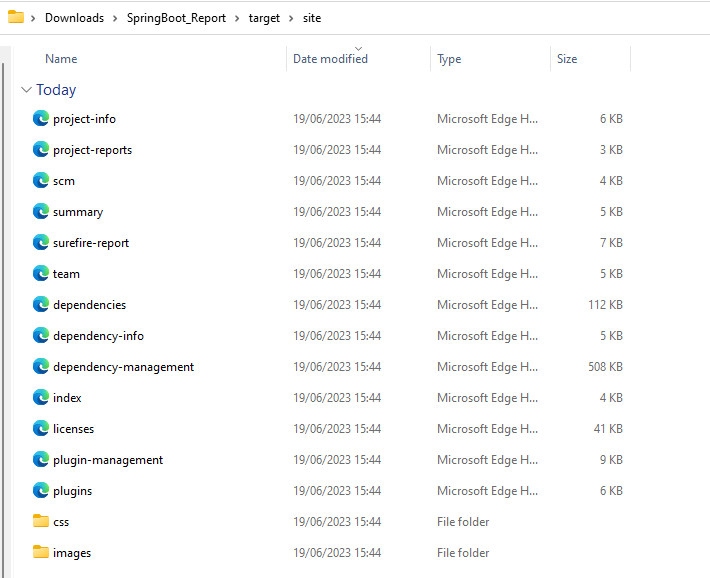
Once, will click on the download button, it will download “SpringBoot_Report.zip”. Unzip the folder and it looks like something as shown below:
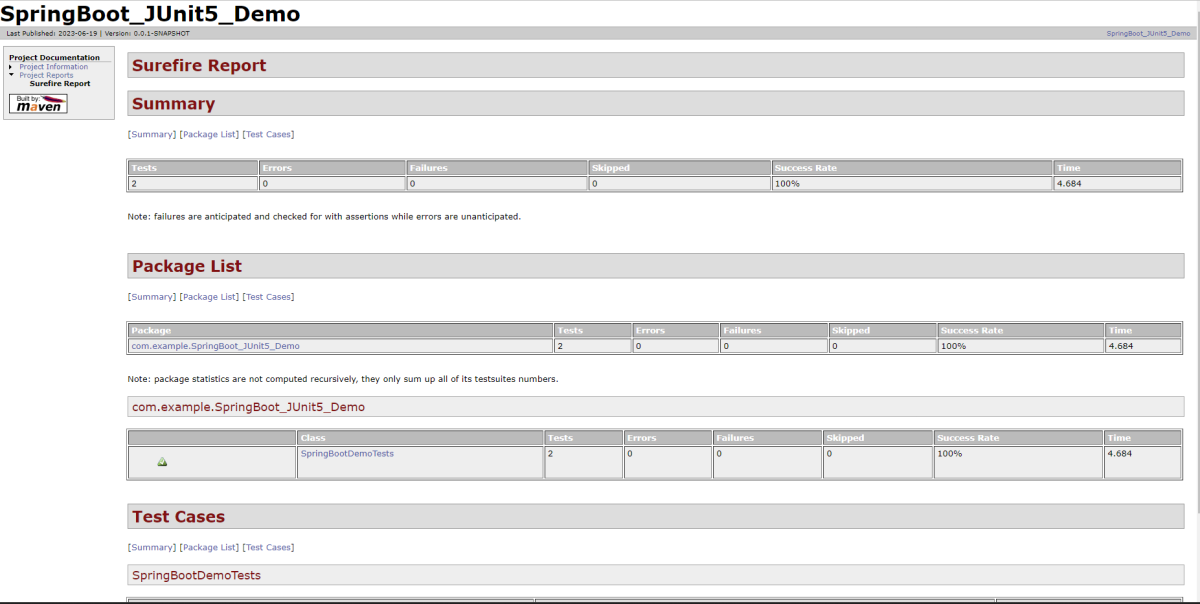
Example of SureFire-Report.html
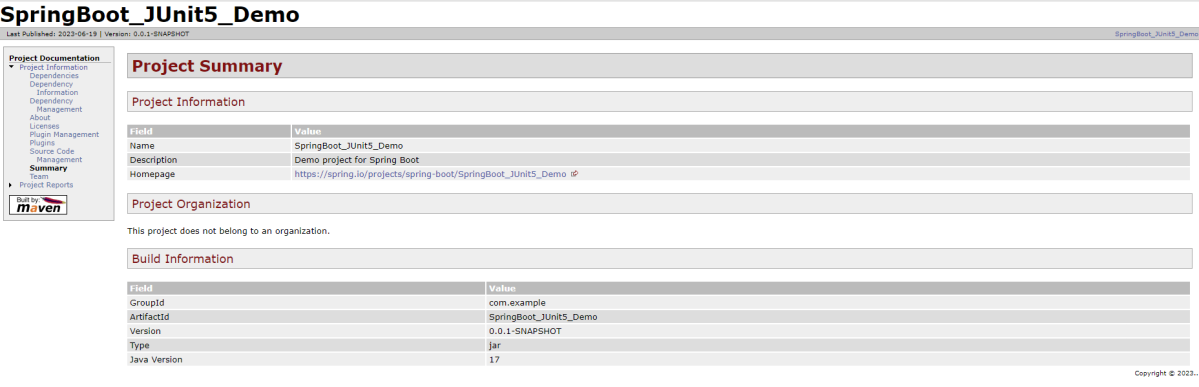
Example of Project Summary Report
How to schedule a cron job?
Five fields that are separated by whitespace make up a scheduling item. By adding more than one entry, you can schedule a job for more than one time.
Minute
Hour
Day of Month
Month
Day of week
MINUTE (0-59), HOUR (0-23), DAY (1-31), MONTH (1-12), DAY OF THE WEEK (0-6)
Each field can contain an exact value or use a set of special expressions:
The asterisk * indicates all valid values. So, a job that runs every day has a * in the third field.
A dash separates ranges of values. For example, a job that runs every hour from 9:00 a.m. to 5:00 p.m. would have 9-17 in the second field.
Intervals are specified with a slash /. A job that runs every 15 minutes has H/15 in the first field. Note that the H in the first field has a special meaning. If you wanted a job to run every 15 minutes, you could configure it as 0/15, which would make it run at the start of every hour.
Finally, you can specify multiple values with a comma. So, a job that runs Monday, Wednesday, and Friday would have 1,3,5 in the fifth field.
Here are several special predefined values that can be used to substitute the expressions in the cron.
Entry
Description
Description
@yearly
Run at any time during the year
H H H H *
@annually
Run at any time during the year
H H H H *
@monthly
Run at any time during the month
H H H * *
@weekly
Run at any time during the week
H H * * H
@daily
Run at any time during the day
H H * * *
@hourly
Run at any time during the hour
H * * * *
Here are the most common examples of cron job schedules that can be found in almost any crontab on Linux :
Schedule
Job
* * * * *
Run cron job every minute
H/5 * * * *
Run cron job every 5 minutes
H/30 * * * *
Run cron job every 30 minutes
0 * * * *
Run cron job every hour
0 H/3 * * *
Run cron job every 3 hours
0 13 * * *
Run cron job every day at 1pm
30 2 * * *
Run cron job every day at 2:30 am
0 0 * * *
Run cron job every day at midnight
0 0 * * 0
Run cron job every Sunday
0 0 * * 1
Run cron job every Monday
0 0 1 * *
Run cron job every first day of every month
0 0 1 1 *
Run cron job every first of January every year
Congratulations. This tutorial has explained the steps to schedule the pipeline in GitLab CI/CD. Happy Learning!!
Let’s first have a look at the Jenkins task scheduling setup. You don’t need to be familiar with Linux’s command line environment to understand it, but it resembles the cron syntax quite a bit.
Five fields that are separated by whitespace make up a scheduling item. By adding more than one entry, you can schedule a job for more than one time.
Minute
Hour
Day of Month
Month
Day of week
MINUTE (0-59), HOUR (0-23), DAY (1-31), MONTH (1-12), DAY OF THE WEEK (0-6)
Each field can contain an exact value or use a set of special expressions:
The asterisk * indicates all valid values. So, a job that runs every day has a * in the third field.
A dash separates ranges of values. For example, a job that runs every hour from 9:00 a.m. to 5:00 p.m. would have 9-17 in the second field.
Intervals are specified with a slash /. A job that runs every 15 minutes has H/15 in the first field. Note that the H in the first field has a special meaning. If you wanted a job to run every 15 minutes, you could configure it as 0/15, which would make it run at the start of every hour. However, if you configure too many jobs this way, you can overload your Jenkins controller. Ultimately, the H tells Jenkins to pick a minute based on a hash of the job name.
Finally, you can specify multiple values with a comma. So, a job that runs Monday, Wednesday, and Friday would have 1,3,5 in the fifth field.
Here are the several special predefined values that can be used to substitute the expressions in Jenkins cron.
Entry
Description
Description
@yearly
Run at any time during the year
H H H H *
@annually
Run at any time during the year
H H H H *
@monthly
Run at any time during the month
H H H * *
@weekly
Run at any time during the week
H H * * H
@daily
Run at any time during the day
H H * * *
@hourly
Run at any time during the hour
H * * * *
Here are the most common examples of cron job schedules that can be found in almost any crontab on Linux (use H in the examples below to spread the load evenly in Jenkins):
Schedule
Job
* * * * *
Run cron job every minute
H/5 * * * *
Run cron job every 5 minutes
H/30 * * * *
Run cron job every 30 minutes
0 * * * *
Run cron job every hour
0 H/3 * * *
Run cron job every 3 hours
0 13 * * *
Run cron job every day at 1pm
30 2 * * *
Run cron job every day at 2:30 am
0 0 * * *
Run cron job every day at midnight
0 0 * * 0
Run cron job every Sunday
0 0 * * 1
Run cron job every Monday
0 0 1 * *
Run cron job every first day of every month
0 0 1 1 *
Run cron job every first of January every year
Add a Schedule to a Jenkins Job
Step 1: Create a new project using the Maven project plugin
In the General section, enter the project description in the Description box.
Step 2: Go to the Build section of the new job
In the Root POM textbox, enter the full path to pom.xml
In the Goals and options section, enter “clean test”
Click on the Applyand Save buttons.
Step 3: Go to the Build Triggers
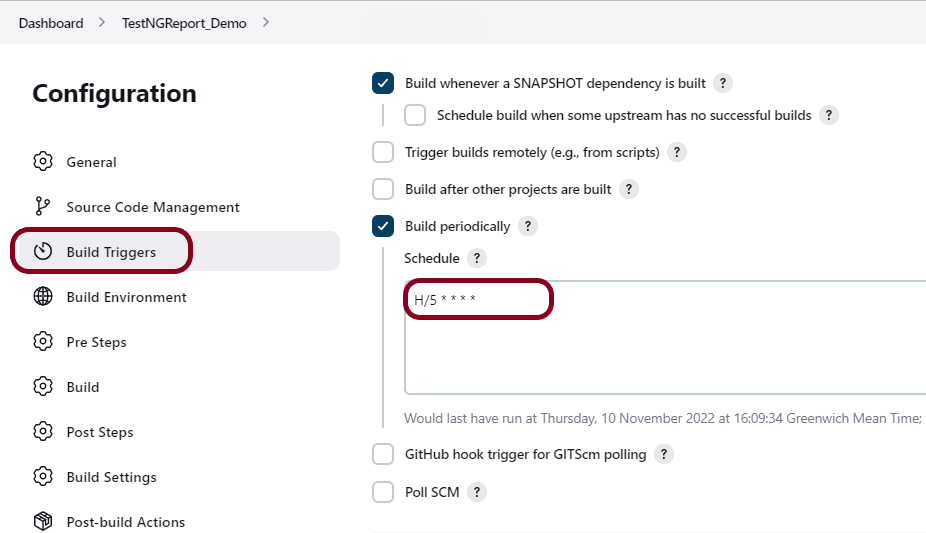
Select the Build periodically option and mention the schedule.
This will open the scheduling text area.
H/5 * * * *
This schedule means that the job will run every 5 minutes.
Click on the Apply and Save buttons.
Step 4: Verify the Build History
Here is a screenshot of a couple of builds on our system. The timestamps show that you’ve scheduled a job to run every five minutes.
Below is the Build History.
In this post, we covered Jenkin’s job scheduling abilities, and we covered how to configure jobs for different intervals.
This tutorial explains the process to run the Selenium Tests on multiple browsers in the GitLab pipeline. This is a very important step towards achieving CI/CD. Ideally, the tests need to run after any change (minor/major) before merging the latest change to the master branch. This makes life of a QA very easy.
Once the proposed changes are built, then push the commits to a feature branch in a remote repository that’s hosted in GitLab. The push triggers the CI/CD pipeline for your project. Then, GitLab CI/CD runs automated scripts (sequentially or in parallel) to build as well as to test the application. After a successful run of the test scripts, GitLab CI/CD deploys your changes automatically to any environment (DEV/QA/UAT/PROD). But if the test stage is failed in the pipeline, then the deployment is stopped.
After the implementation works as expected:
Get the code reviewed and approved.
Merge the feature branch into the default branch.
GitLab CI/CD deploys your changes automatically to a production environment.
To use GitLab CI/CD, we need to keep 2 things in mind:
a) Make sure a runner is available in GitLab to run the jobs. If there is no runner, install GitLab Runner and register a runner for your instance, project, or group.
b) Create a .gitlab-ci.yml file at the root of the repository. This file is where CI/CD jobs are defined.
The Selenium tests run on a headless browser in the pipeline.
How to check if GitLab Runner is configured?
Go to the project created in the GitLab. Go to the left side and click on Settings. Go to CI/CD option and a CI/CD Settings page open. Scroll down and see the Runners. By default, Shared runner will be selected for any new project.
What is a headless browser?
A headless browser is like any other browser, but without a Head/GUI (Graphical User Interface). A headless browser is used to automate the browser without launching the browser. While the tests are running, we could not see the browser, but we can see the test results coming on the console.
As explained in one of the previous tutorial, it is needed to add the maven-surefire-plugin to run the TestNG tests through the command line.
Step 3 – Create the Test Code
This is the BaseTest Class where the WebDriver is initialized, headless mode, full screen, and at the end close the WebDriver.
package com.example.tests;

import org.openqa.selenium.WebDriver;
import org.openqa.selenium.chrome.ChromeOptions;
import org.openqa.selenium.edge.EdgeOptions;
import org.openqa.selenium.firefox.FirefoxOptions;
import org.openqa.selenium.remote.RemoteWebDriver;
import org.testng.annotations.AfterMethod;
import org.testng.annotations.BeforeMethod;
import org.testng.annotations.Parameters;

import java.net.URL;
import java.time.Duration;

public class BaseTests {
    protected static ThreadLocal<RemoteWebDriver> driver = new ThreadLocal<RemoteWebDriver>();
    public static String remote_url = "http://selenium-hub:4444";
    public final static int TIMEOUT = 5;

    @BeforeMethod
    @Parameters("browser")
    public void setUp(String browser) throws Exception {
        if(browser.equalsIgnoreCase("chrome")) {

            ChromeOptions options = new ChromeOptions();
            options.addArguments("--start-maximized");
            options.addArguments("--headless=new");
            options.addArguments("--remote-allow-origins=*");
            driver.set(new RemoteWebDriver(new URL(remote_url), options));
            System.out.println("Browser Started :"+ browser);


        } else if (browser.equalsIgnoreCase("firefox")) {
            FirefoxOptions options = new FirefoxOptions();
            options.addArguments("--start-maximized");
            options.addArguments("-headless");
            driver.set(new RemoteWebDriver(new URL(remote_url), options));
            System.out.println("Browser Started :"+ browser);


        } else if (browser.equalsIgnoreCase("edge")) {
            EdgeOptions options = new EdgeOptions();
            options.addArguments("--start-maximized");
            options.addArguments("--headless=new");
            driver.set(new RemoteWebDriver(new URL(remote_url), options));
            System.out.println("Browser Started :"+ browser);


        } else {
            throw new Exception ("Browser is not correct");
        }

        driver.get().get("https://opensource-demo.orangehrmlive.com/");
        driver.get().manage().timeouts().implicitlyWait(Duration.ofSeconds(TIMEOUT));
    }


    public WebDriver getDriver() {
        return driver.get();
    }

    @AfterMethod
    public  void closeBrowser() {
        driver.get().quit();
        driver.remove();
    }

}
There is a Login pages that need to be tested.
LoginPage contains the tests to log in to the application. After successful login, the application moves to the next webpage – HomePage. You can see that BaseTest class is extended here.
package com.example.tests;

import org.openqa.selenium.By;
import org.testng.annotations.Test;

import static org.testng.Assert.assertEquals;

public class LoginPageTests extends BaseTests {

    By userName = By.name("username");
    By passWord = By.name("password");

    By loginBtn = By.xpath("//*[@id='app']/div[1]/div/div[1]/div/div[2]/div[2]/form/div[3]/button");

    By errorMessage = By.xpath("//*[@id='app']/div[1]/div/div[1]/div/div[2]/div[2]/div/div[1]/div[1]/p");

    By blankUsername = By.xpath("//*[@id='app']/div[1]/div/div[1]/div/div[2]/div[2]/form/div[1]/div/span");

    By dashboardPage = By.xpath("//*[@id='app']/div[1]/div[1]/header/div[1]/div[1]/span/h6");

    @Test
    public void invalidCredentials()  {

        getDriver().findElement(userName).sendKeys("1234");
        getDriver().findElement(passWord).sendKeys("12342");
        getDriver().findElement(loginBtn).click();
        String actualErrorMessage = getDriver().findElement(errorMessage).getText();
        System.out.println("Actual ErrorMessage :" + actualErrorMessage);
        assertEquals(actualErrorMessage,"Invalid credentials");

    }

    @Test
    public void blankUsername()  {

        getDriver().findElement(userName).sendKeys("");
        getDriver().findElement(passWord).sendKeys("12342");
        getDriver().findElement(loginBtn).click();
        String actualErrorMessage = getDriver().findElement(blankUsername).getText();
        System.out.println("Actual ErrorMessage :" + actualErrorMessage);
        assertEquals(actualErrorMessage,"Required");

    }

    @Test
    public void successfulLogin()  {

        getDriver().findElement(userName).sendKeys("Admin");
        getDriver().findElement(passWord).sendKeys("admin123");
        getDriver().findElement(loginBtn).click();
        String actualMessage = getDriver().findElement(dashboardPage).getText();
        System.out.println("Message :" + actualMessage);
        assertEquals(actualMessage,"Dashboard");

    }
}
Step 4 – Create testng.xml to run the tests
Now, let’s create a testng.xml to run the TestNG tests. It is very easy to create testng.xml in the case of Eclipse. Right-click on the project, and select TestNG -> Convert to TestNG. It will create a basic testng.xml structure. In case of IntelliJ, create a new file with the name of testng.xml and copy the code from here.
<?xml version="1.0" encoding="UTF-8"?>
<!DOCTYPE suite SYSTEM "https://testng.org/testng-1.0.dtd">
<suite name="Suite" parallel="tests" thread-count="3">
    <test name="Chrome Test">
        <parameter name="browser" value="chrome"></parameter>
        <classes>
            <class name="com.example.tests.LoginPageTests"/>
        </classes>
    </test> <!-- Test -->
    <test name="Firefox Test">
        <parameter name="browser" value="firefox"></parameter>
        <classes>
            <class name="com.example.tests.LoginPageTests"/>
        </classes>
    </test> <!-- Test -->
    <test name="Edge Test">
        <parameter name="browser" value="edge"></parameter>
        <classes>
            <class name="com.example.tests.LoginPageTests"/>
        </classes>
    </test> <!-- Test -->
</suite> <!-- Suite -->
version: 3. It is the latest version of the docker-compose files.
services(containers): This contains the list of the images and their configurations.
image: It defines which image will be used to spin up container.
ports: Published ports with host:container format.
container_name: You can give name to your containers.
depends_on: This defines the required dependency before spinning up the container. In our docker-compose.yml file, containers Chrome and Firefox are dependent upon container hub to spin up.
SE_NODE_MAX_INSTANCES: This defines how many instances of same version of browser can run over the Remote System.
SE_NODE_MAX_SESSIONS: This defines maximum number of concurrent sessions that will be allowed.
Step 6 – Create a .gitlab-ci.yml
stages:
  - test

variables:
  SELENIUM_SERVER_NAME: selenium-hub
  SELENIUM_SERVER_URL: http://${SELENIUM_SERVER_NAME}:4444
  DOCKER_HOST: tcp://docker:2375

services:
  - docker:20.10.16-dind

test:
  stage: test
  image: docker/compose
  before_script:
    - docker-compose up -d selenium-hub chrome edge firefox
    - sleep 10
    - docker-compose run ping curl ${SELENIUM_SERVER_URL}/status
  script:
    - docker-compose run tests mvn clean test

  artifacts:
    when: always
    name: "report"
    paths:
      - target/surefire-reports/**
    expire_in: 7 days
GitLab Section
Step 7 – Create a blank project in GitLab
To know, how to create a blank new project in GitLab, please refer tothis tutorial.
Step 8 – Push the project from local repository to Gitlab Repository
To know, how to push the changes in GitLab, please refer to this tutorial.
Step 9 – Run the tests in the GitLab pipeline
Now, when a new change is committed, a pipeline kicks off and it runs all the tests.
Step 10 – Check the status of the pipeline
Once the Status of the pipeline changes to either failed or passed.. that means the tests are already executed.
As you can see the Status is failed here which means that the execution is completed. Let us see the logs of the execution it shows that out of 9 tests, all 9 are passed. This shows that tests ran successfully in the GitLab pipeline.
As I have added an artifact also in the gitalb-ci.yml, which is highlighted in the image. This artifact creates a folder with the name “report” and the reports in this folder come from the path /target/surefire-reports. This artifact gives us the option to download the reports or browse the report. This report will be available for 7 days only as mentioned in the gitlab-ci.yml.
Step 11 – Download the report
Once, will click on the download button, it will download “report.zip”. Unzip the folder and it looks like something as shown below:
Example of Emailable-Report.html
Example of Index.html
Congratulations. This tutorial has explained the steps to run Selenium tests in GitLab CI/CD. Happy Learning!!
In this tutorial, we will integrate JMeter with Maven to support CI/CD.
Maven and jmeter-maven-plugin make it easy to integrate performance tests with CI/CD tools & technologies such as Jenkins/Jenkinsfiles or Azure/Azure pipelines and cloud build agents. It also helps to run your tests with different versions of JMeter.
Step 5 – Create a new directory src/test/jmeter and place JMeter Script in it
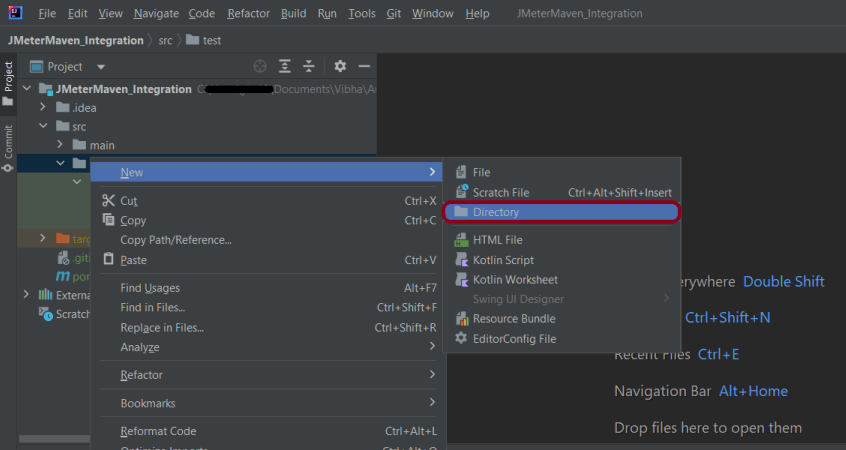
Create a new directory within src/test with the name jmeter.
Place the JMeter script(.jmx) file in src/test/jmeter. The steps to create a Test Plan in JMeter are mentioned at the end of the page.
Step 6 – Run JMeter Test with JMeter Maven Plugin
Go to your project directory and run the following command in the command line:
mvn clean verify
The test execution is displayed in the command line as shown below:
The test ran successfully! The results are located at /target/jmeter/reports. You will find an HTML report named “Index.html”:
Right-click on the Index.html and select Open In->Browser->Chrome (any browser of your wish).
This report provides the following metrics:
In the Dashboard of the report;
APDEX (Application Performance Index) table that computes for every transaction the APDEX based on configurable values for tolerated and satisfied thresholds
A request summary graph showing the Success and failed requests
A Statistics table providing in one table a summary of all metrics per transaction including 3 configurable percentiles:
An error table providing a summary of all errors and their proportion in the total requests
A Top 5 Errors by Sampler table providing for every Sampler (excluding Transaction Controller by default) the top 5 Errors:
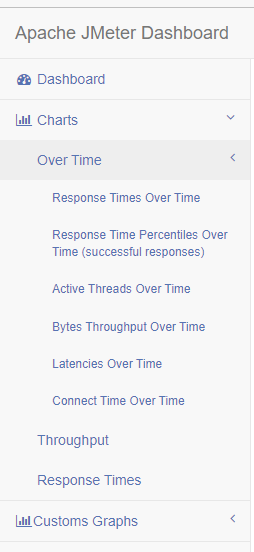
You can see that there are a lot of other types of reports too. You should explore these reports.
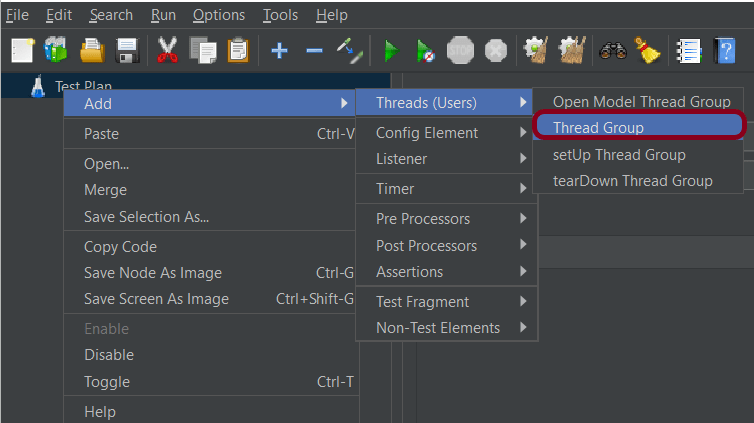
Add Thread Group To add Thread Group: Right-click on the “Test Plan” and add a new thread group: Add -> Threads (Users) -> Thread Group
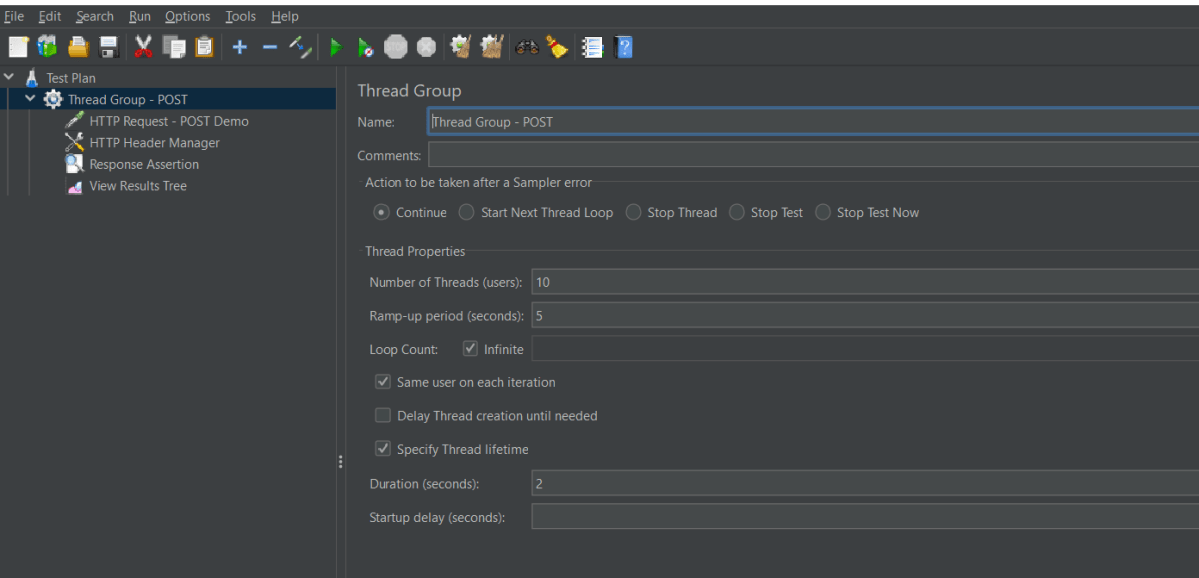
In the Thread Group control panel, enter Thread Properties as follows: We will take an example of row no 5
Number of Threads: 5 – Number of users connects to the target website Loop Count:Infinite – Number of times to execute testing Ramp-Up Period: 5 – It tells JMeter how long to delay before starting the next user. For example, if we have 5 users and a 5 -second Ramp-Up period, then the delay between starting users would be 1 second (5 seconds /5 users).
Duration – 2 sec
Step 2 – Adding JMeter elements
The JMeter element used here is HTTP Request Sampler. In HTTP Request Control Panel, the Path field indicates which URL request you want to send
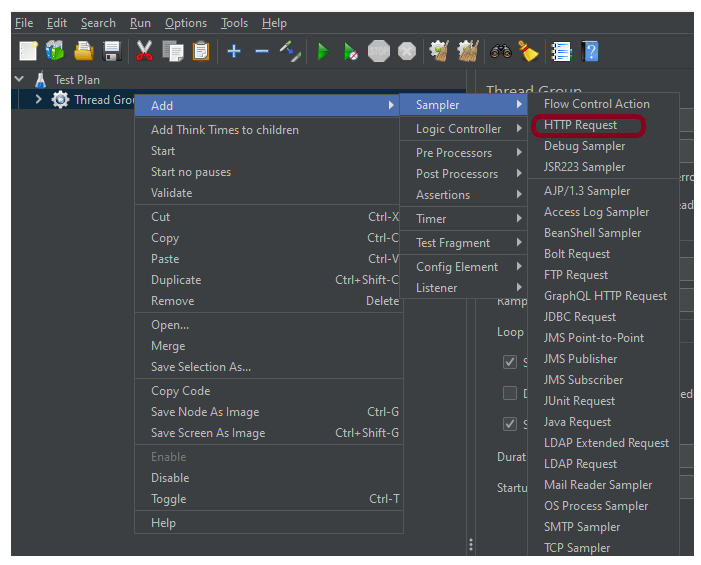
2.1 Add HTTP Request Sampler To add: Right-click on Thread Group and select: Add -> Sampler -> HTTP Request
The below-mentioned are the values used in HTTP Request to perform the test
Name – HTTP POST Request Demo
Server Name or IP – reqres.in
Port – Blank
Method – POST
Path – /api/users
2.2 Add HTTP Head Manager
The Header Manager lets you add or override HTTP request headers like can add Accept-Encoding, Accept, Cache-Control
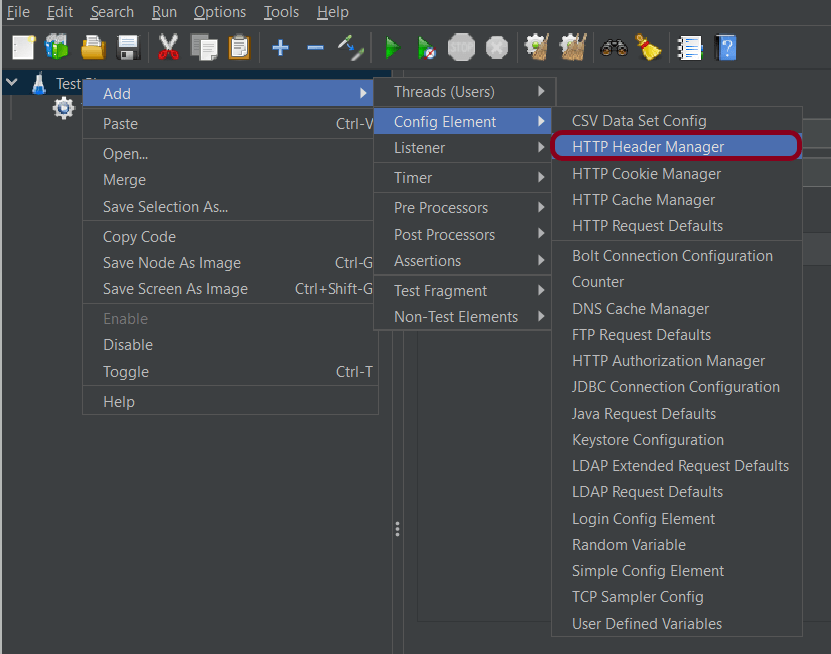
To add: Right-click on Thread Group and select: Add -> Config Element -> HTTP Read Manager
The below-mentioned are the values used in Http Request to perform the test Content-type = application/json
Step 3 – Adding Listeners to Test Plan
Listeners – They show the results of the test execution. They can show results in a different format such as a tree, table, graph, or log file We are adding the View Result Tree listener
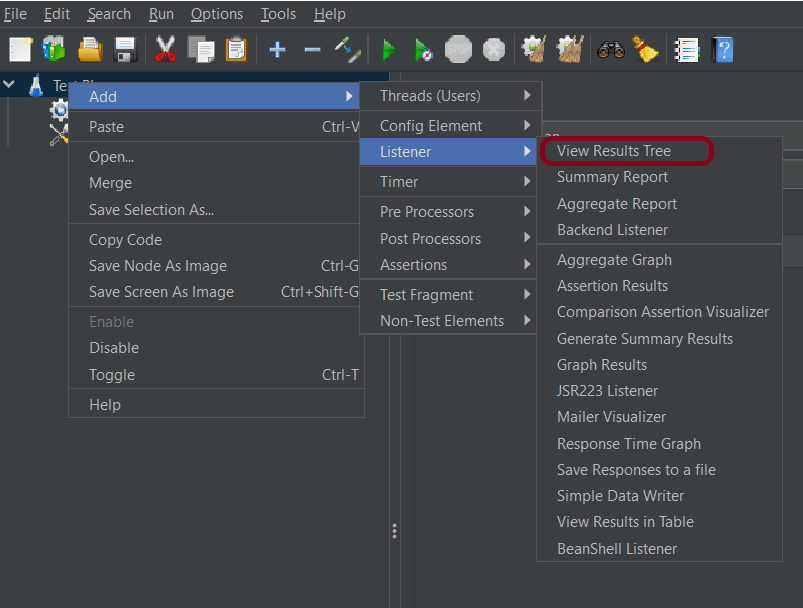
View Result Tree – View Result Tree shows the results of the user request in basic HTML format To add: Right-click on Test Plan, Add -> Listener -> View Result Tree
Aggregate Report
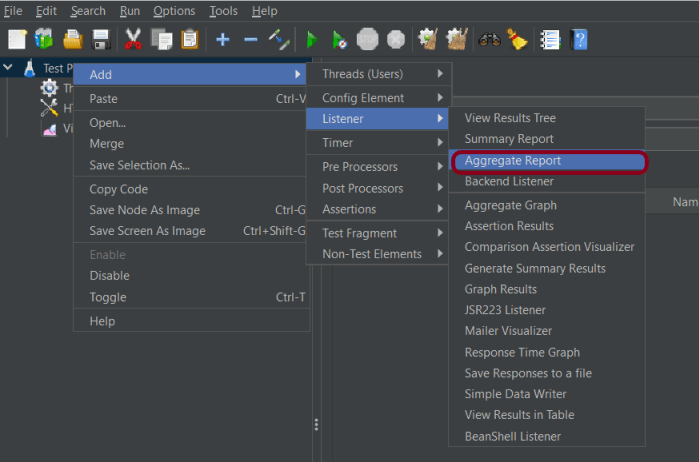
It is almost the same as Summary Report except Aggregate Report gives a few more parameters like, “Median”, “90% Line”, “95% Line” and “99% Line”.
To add: Right Click on Thread Group > Add > Listener > Aggregate Report
Step 4 – Save the Test Plan
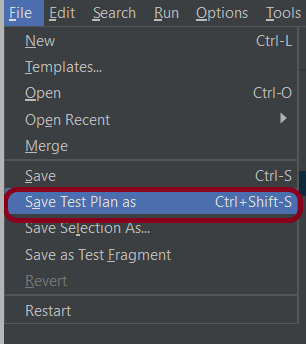
To Save: Click File Select -> Save Test Plan as ->Give the name of the Test Plan (POST_LoadDemo.jmx). It will be saved in .jmx format.
We are done! Congratulations on making it through this tutorial and hope you found it useful! Happy Learning!!
GitLab automatically enables CI/CD pipelines for new projects. It’s just a matter of adding a new configuration file called .gitlab-ci.yml to your code repository with instructions for GitLab on what to run. So simply create the following basic workflow in your main repository directory and commit it:
The Serenity tests run on a headless browser in the pipeline.
What is a headless browser?
A headless browser is a web browser that operates without a graphical user interface (GUI). It is typically used for automated testing, web scraping, and server-side rendering of web pages. While traditional web browsers like Chrome, Firefox, or Safari have a visible interface for users to interact with, headless browsers work in the background and don’t display the web content visually.
Why do we use Headless browser for executing tests in CI/CD pipeline?
Headless browsers provide a consistent and controlled environment for running tests. They eliminate the variability introduced by different operating systems, browser versions, or screen resolutions, ensuring that tests produce consistent and reliable results across different environments.
Headless browsers can often execute tasks faster than their graphical counterparts. They don’t need to render and display web content, which can significantly reduce the execution time for automated tests or other web-related tasks, contributing to faster feedback in the CI/CD pipeline.
In the below example, our tests are in headless mode.
WebDriverManager.chromedriver().setup();
ChromeOptions ops = new ChromeOptions().setHeadless(true);
ops.addArguments("--remote-allow-origins=*");
driver = new ChromeDriver(ops);
To know, how to create a blank new project in GitLab, please refer tothis tutorial.
Step 2 – Push the project from local repository to Gitlab Repository
To know, how to push the changes in GitLab, please refer to this tutorial.
Step 3 – Create a .gitlab-ci.yml file in the project in GitLab
There are many ways to create a new file in GitLab. One of the ways is to create a file as shown in the below image.
It is a YAML file where you configure specific instructions for GitLab CI/CD. In the .gitlab-ci.yml, we can define:
The scripts you want to run.
Other configuration files and templates you want to include.
Dependencies and caches.
The commands you want to run in sequence and those you want to run in parallel.
The location to deploy your application to.
Whether you want to run the scripts automatically or trigger any of them manually.
Below is a sample example to run the Cucumber tests in the GitLab pipeline.
image: markhobson/maven-chrome

stages:
  - test

variables:
  MAVEN_OPTS: "-Dmaven.repo.local=.m2/repository"

test:
  stage: test
  allow_failure: true

# Run the tests
  script:
    - echo "Executing BDD scenarios with maven"
    - mvn clean test

# Store artifacts
  artifacts:
    when: always
    name: "Cucumber Report"
    paths:
    - target/*
    expire_in: 24 h
Image – markhobson/maven-chrome is used in this test. It is a docker image for Java automated UI tests.
Pipeline configuration begins with jobs. Jobs are the most fundamental element of a .gitlab-ci.yml file.
Jobs are:
Defined with constraints stating under what conditions they should be executed.
Top-level elements with an arbitrary name must contain at least the script clause.
Not limited in how many can be defined.
Jobs can output an archive of files and directories. This output is known as a job artifact. The expire_in keyword determines how long GitLab keeps the job artifacts. Here, it shows 24 hrs to retain the artifacts.
Step 4 – Run the tests in the GitLab pipeline
Now, when a new change is committed, a pipeline kicks off and it runs all the tests.
Step 5 – Check the status of the pipeline
Once the Status of the pipeline changes to either failed or passed.. that means the tests are already executed.
As you can see the Status is passed, it’s green colour. This means all the tests present in the test suite are executed and passed. If any test fails in the test suite, the final execution status will be brown. The reason for the brown colour is we have mentioned allow_failure: true.
Below shows the execution status report in the GitLab pipeline.
As I have added an artifact also in the .gitalb-ci.yml, which is highlighted in the image. This artifact creates a folder with the name “Cucumber_Report”and the reports in this folder come from the path /target/site. This artifact gives us the option to download the reports or browse the report. This report will be available for 24 hours only as mentioned in the gitlab-ci.yml.
Step 5 – Download the report
Once, will click on the download button, it will download “Cucumber_Report.zip”. Unzip the folder and it looks like something as shown below:
Example of Overview Features
Example of Overview Tags
Example of Overview Steps
Congratulations. This tutorial has explained the steps to run Cucumber tests in GitLab CI/CD. Happy Learning!!
GitLab automatically enables CI/CD pipelines for new projects. It’s just a matter of adding a new configuration file called .gitlab-ci.yml to your code repository with instructions for GitLab on what to run. So simply create the following basic workflow in your main repository directory and commit it.
Step 3 – Create a .gitlab-ci.yml file in the project in GitLab
There are many ways to create a new file in GitLab. One of the ways is to create a file as shown in the below image.
It is a YAML file where you configure specific instructions for GitLab CI/CD. In the.gitlab-ci.yml, we can define:
The scripts you want to run.
Other configuration files and templates you want to include.
Dependencies and caches.
The commands you want to run in sequence and those you want to run in parallel.
The location to deploy your application to.
Whether you want to run the scripts automatically or trigger any of them manually.
Below is a sample example to run the Gradle tests in the GitLab pipeline.
image : gradle:7.1.0-jdk11
stages:
  - test

variables:
  GRADLE_OPTS: "-Dorg.gradle.daemon=false"

test:
  stage: test
  allow_failure: true

# Run the tests
  script:
    - echo "Executing BDD scenarios with Gradle"
    - gradle clean test
    - gradle reports


# Store artifacts
  artifacts:
    when: always
    name: "Gradle Report"
    paths:
    - lib/target/site/serenity/*
    expire_in: 24 h
Image – gradle:7.1.0-jdk11 is used in this test. It is a docker image for Gradle with Java 11 installed in it.
Pipeline configuration begins with jobs. Jobs are the most fundamental element of a .gitlab-ci.yml file.
Jobs are:
Defined with constraints stating under what conditions they should be executed.
Top-level elements with an arbitrary name and must contain at least the script clause.
Not limited in how many can be defined.
Jobs can output an archive of files and directories. This output is known as a job artifact. The expire_in keyword determines how long GitLab keeps the job artifacts. Here, it shows 24 hrs to retain the artifacts.
Step 4 – View GitLab Pipeline
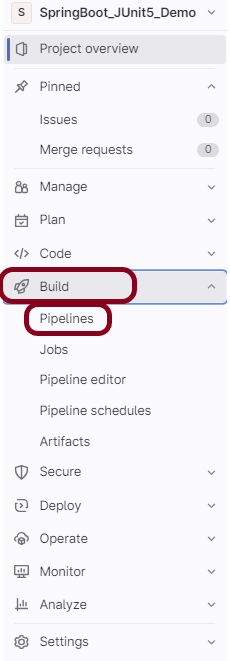
Now, when a new change is committed, a pipeline kicks off and it runs all the tests. To view the pipeline, go to the left panel and click on the Build option. There are a number of sub-options in the Build option, click on the Pipelines.
Step 5 – Run the tests in the GitLab pipeline
The below image shows that the tests are running in the GitLab pipeline.
Step 6 – Check the status of the pipeline
Once the Status of the pipeline changes to either failed or passed, that means the tests are already executed.
As you can see, the Status is passed, its green colour. This means all the tests present in the test suite are executed and passed. If any test fails in the test suite, the final execution status will be brown. The reason for the brown colour is we have mentioned allow_failure: true.
Below shows the execution status report in the GitLab pipeline.
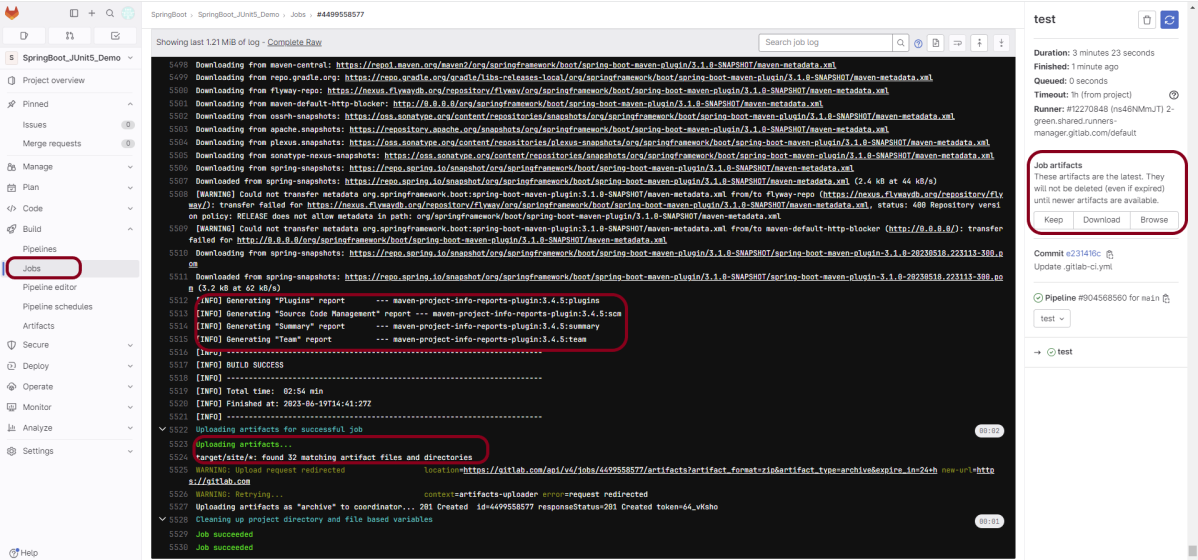
As I have added an artifact also in the .gitalb-ci.yml, which is highlighted in the image. This artifact creates a folder with the name “Serenity_Report”and the reports in this folder come from the path /target/site. This artifact gives us the option to download the reports or browse the report. This report will be available for 24 hours only as mentioned in the gitlab-ci.yml.
Step 7 – Download the report
Once, will click on the download button, it will download “Gradle_Report.zip”. Unzip the folder and it looks like something as shown below:
Example of Index.html
Example of Serenity Summary Report
Congratulations. This tutorial has explained the steps to run Serenity tests in GitLab CI/CD. Happy Learning!!
GitLab automatically enables CI/CD pipelines for new projects. It’s just a matter of adding a new configuration file called .gitlab-ci.yml to your code repository with instructions for GitLab on what to run. So simply create the following basic workflow in your main repository directory and commit it:
By default, GitLab will have CI/CD pipelines and Auto DevOps enabled for all projects. What this means is that, when you push code to the repository, GitLab will automatically trigger the pipeline.
Step 3 – Create a .gitlab-ci.yml file in the project in GitLab
There are many ways to create a new file in GitLab. One of the ways is to create a file as shown in the below image. I have already created .gitlab-ci.yml in the project, which can be seen in the image.
It is a YAML file where you configure specific instructions for GitLab CI/CD. In the.gitlab-ci.yml, we can define:
The scripts you want to run.
Other configuration files and templates you want to include.
Dependencies and caches.
The commands you want to run in sequence and those you want to run in parallel.
The location to deploy your application to.
Whether you want to run the scripts automatically or trigger any of them manually.
Below is a sample example to run the SpringBoot project (Maven) in the GitLab pipeline.
image: maven:3.8.5-openjdk-17

stages:
  - test

variables:
  MAVEN_OPTS: "-Dmaven.repo.local=.m2/repository"

test:
  stage: test
  allow_failure: true

# Run the tests
  script:
    - echo "Executing SpringBoot scenarios with maven"
    - mvn clean test site

# Store artifacts
  artifacts:
    when: always
    name: "SpringBoot Report"
    paths:
    - target/site/*
    expire_in: 24 h
Image – maven:3.8.5-openjdk-17 is used in this test. It is a docker image for Maven and have Java 17 installed in it.
Pipeline configuration begins with jobs. Jobs are the most fundamental element of a .gitlab-ci.yml file.
Jobs are:
Defined with constraints stating under what conditions they should be executed.
Top-level elements with an arbitrary name and must contain at least the script clause.
Not limited in how many can be defined.
Jobs can output an archive of files and directories. This output is known as a job artifact. The expire_in keyword determines how long GitLab keeps the job artifacts. Here, it shows 24 hrs to retain the artifacts.
Step 4 – View GitLab Pipeline
Now, when a new change is committed, a pipeline kicks off and it runs all the tests. To view the pipeline, go to the left panel and click on the Build option. There are a number of sub-options in the Build option, click on the Pipelines.
Step 5 – Run the tests in the GitLab pipeline
The below image shows that the tests are running in the GitLab pipeline.
Step 6 – Manually run the tests in the GitLab pipeline
Whenever there is a new change committed, the pipeline runs automatically. Imagine the scenario when we need to run the pipeline without any new change. This can be done by clicking on the button “Run pipeline”.
Step 7 – Check the status of the pipeline
Once the Status of the pipeline changes to either failed or passed, that means the tests are already executed.
As you can see, the Status is passed, its green colour. This means all the tests present in the test suite are executed and passed. If any test fails in the test suite, the final execution status will be brown. The reason for the brown colour is we have mentioned allow_failure: true.
Below shows the execution status report in the GitLab pipeline.
As I have added an artifact also in the .gitalb-ci.yml, which is highlighted in the image. This artifact creates a folder with the name “Serenity_Report”and the reports in this folder come from the path /target/site. This artifact gives us the option to download the reports or browse the report. This report will be available for 24 hours only as mentioned in the gitlab-ci.yml.
Step 8 – Download the report
Once, will click on the download button, it will download “SpringBoot_Report.zip”. Unzip the folder and it looks like something as shown below:
Example of SureFire-Report.html
Example of Project Summary Report
Congratulations. This tutorial has explained the steps to run Serenity tests in GitLab CI/CD. Happy Learning!!



















 QA Automation Expert
