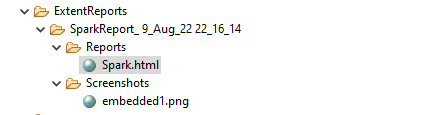
In the above example, we have provided the name “ExtentReports/SparkReport_”. It means that a folder starts with the name “SparkReport_” under the “ExtentReports” folder. The date-time pattern we have provided in another format is the basis of a valid pattern. It will concatenate with the folder name to generate a unique folder for each execution.
As seen in the image above, the “Reports” and “Screenshots” folders get created inside the new folder of SparkReports_. If we look inside the folder, we can see that the report was generated.
We can browse the screenshot folder to see all the screenshots taken during each step. Additionally, screenshots will be generated and named automatically.
Step 2 – Add a method to capture the screenshot
@After
public static void tearDown(Scenario scenario) {

		//validate if scenario has failed
		if(scenario.isFailed()) {
			final byte[] screenshot = ((TakesScreenshot) driver.getScreenshotAs(OutputType.BYTES);
			scenario.attach(screenshot, "image/png", scenario.getName());
		}
In the preceding example, the tearDown() method accepts a Scenario type object. The Scenario can be found within the io.cucumber. We used Selenium’s standard screenshot feature within the method. As an example, we’d like to read the file as a byte[] type. As a parameter, the attach method accepts byte[] type objects. Scenario.attach also includes a screenshot with each step of the scenario. To get the complete project, please refer to this tutorial – ExtentReports Version 5 for Cucumber 6 and TestNG.
The updated Hooks class will be as shown below:
import org.openqa.selenium.OutputType;
import org.openqa.selenium.TakesScreenshot;
import com.example.utils.HelperClass;
import io.cucumber.java.After;
import io.cucumber.java.Before;
import io.cucumber.java.Scenario;

public class Hooks {

	@Before
    public static void setUp() {

       HelperClass.setUpDriver();
    }

	@After
	public static void tearDown(Scenario scenario) {

		//validate if scenario has failed
		if(scenario.isFailed()) {
			final byte[] screenshot = ((TakesScreenshot) HelperClass.getDriver()).getScreenshotAs(OutputType.BYTES);
			scenario.attach(screenshot, "image/png", scenario.getName());
		}

		HelperClass.tearDown();
	}
}
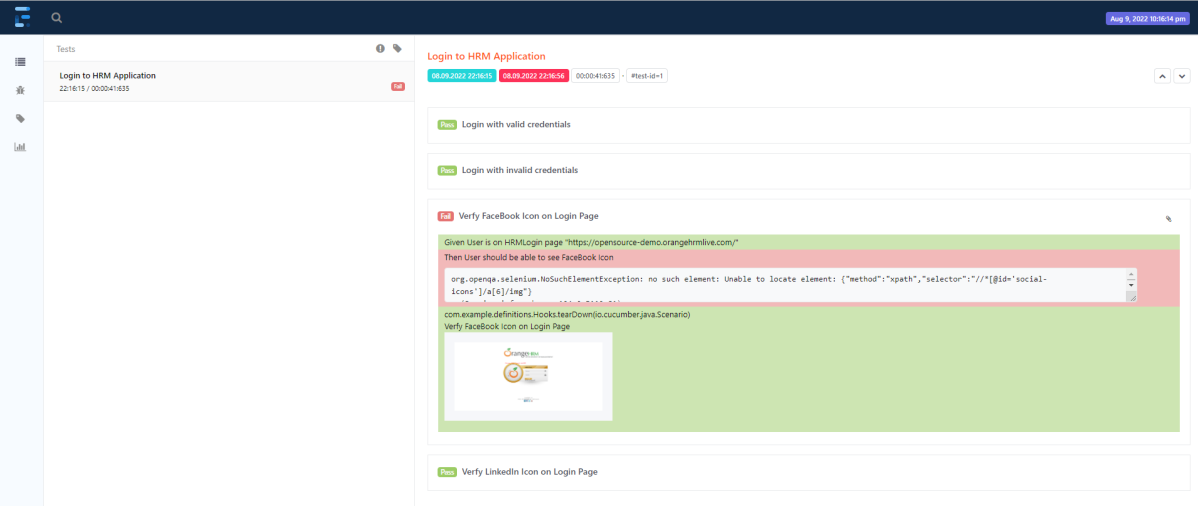
Let’s open the report and view the report. As you can see, besides the scenario, an attachment sign is available, which means something attaches to the scenario. As we have only one failed step, only one screenshot has been captured, as seen in the above image. Right-click on Spark.html and select Open with Web Browser.
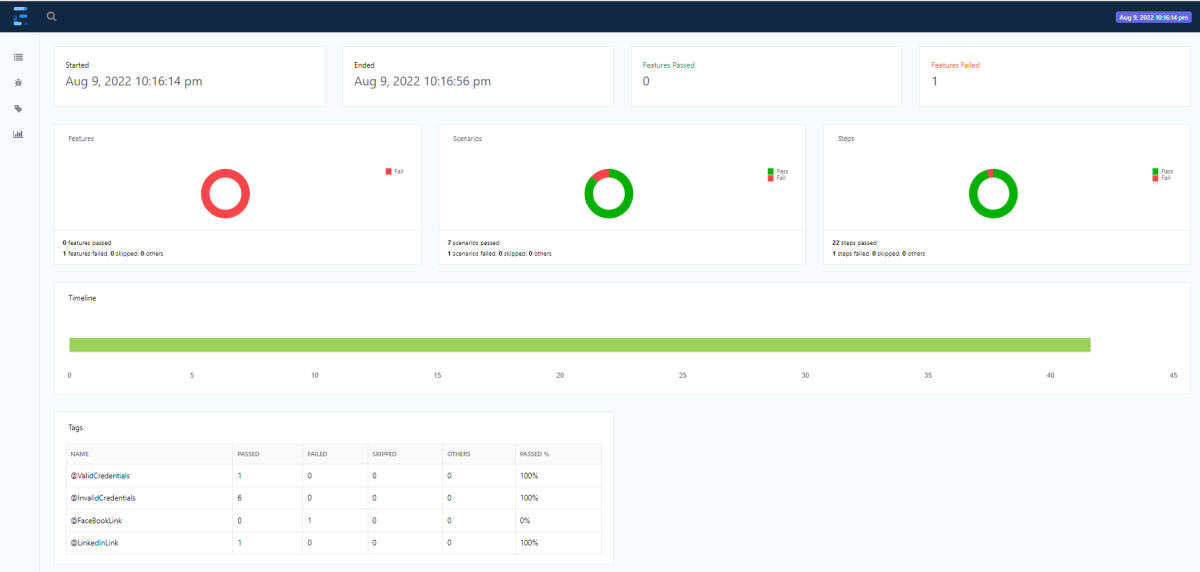
The report also has a summary section that displays the summary of the execution. The summary includes the overview of the pass/fail using a pictogram, start time, end time, and pass/fail details of features as shown in the image below.
Provide username and password and click on Sign in.
Step 5: Download and Install Maven Plugin
Click on the Manage Jenkins.
Choose Manage Plugins.
Step 6: Add the Maven Integration plugin
On the Plugins Page, go to the Available option
Select the Maven Integration Plugin
Click on Install without restart. The plugin will take a few moments to finish downloading depending on your internet connection, and will be installed automatically.
You can also select the option Download now and Install after the restartbutton. In which plugin is installed after the restart
You will be shown a “No updates available” message if you already have the Maven plugin installed.
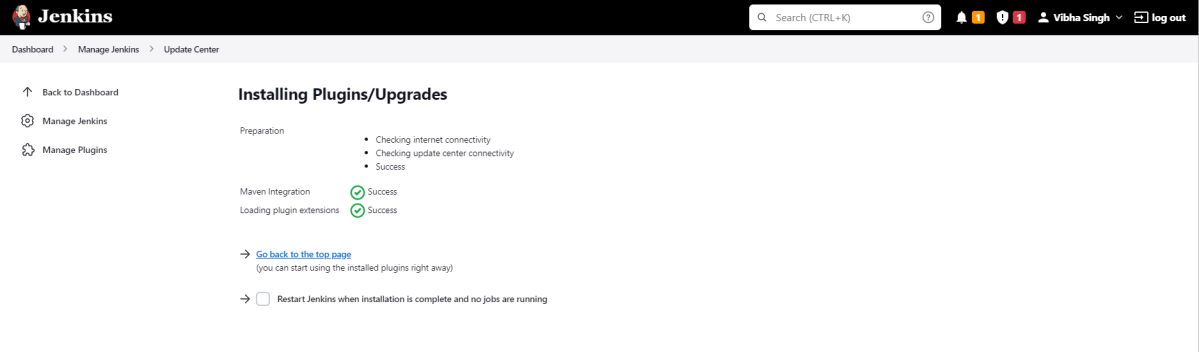
The plugin “Maven Integration” has been installed successfully.
Step 7: Restart Jenkins
Click on the checkbox “Restart Jenkins when installation is complete when no jobs are running“.
The Jenkins is being restarted, It is about to restart.
Again, log in to Jenkins UI.
Step 8: Create a new project using the Maven project plugin
Give the Name of the project – SeleniumTestNG_MavenDemo.
Click on the Maven project.
Click on the OK button.
In the General section, enter the project description in the Description box.
Step 9: Build Management
Go to the Buildsection of the new job.
In the Root POMtextbox, enter the full path to pom.xml
In the Goals and options section, enter “clean test”
Click on the Apply and Savebuttons.
We have created a new Maven project “SeleniumTestNG_MavenDemo” with the configuration to run the Selenium with TestNG Tests
Step 10: Execute the tests
Click on the Build Now link. Maven will build the project. It will then have TestNG execute the test cases.
To see the current status of the execution, click on the “console output“.
Congratulations on making it through this tutorial and hope you found it useful! Happy Learning!! Cheers!!
We canpretty-print a JSON using thetoString(int indentFactor) method of org.json.JSONObject class, where indentFactor is the number of spaces to add to each level of indentation.
public java.lang.String toString(int indentFactor)
Let us create a JSON Object.
import org.json.JSONArray;
import org.json.JSONObject;
import org.junit.Test;


public class Json_Demo {

    @Test
    public void passBodyAsJsonArray1() {

        // Creating JSON array to add first JSON object
        JSONArray array1 = new JSONArray();
        array1.put(new JSONObject().put("firstname", "Tom").put("lastname", "Mathew").put("age", 59).put("salary",
                720000));

        // Creating JSON array
        JSONArray array2 = new JSONArray();
        array2.put(new JSONObject().put("firstname", "Perry").put("lastname", "David").put("age", 32).put("salary",
                365000));

        // Create JSON Object to add JSONArrays
        JSONObject data1 = new JSONObject();
        data1.put("employee1", array1);
        data1.put("employee2", array2);

        System.out.println(data1);

    }
}
The output of the above program is
Add toString(int indentFactor) method to the above program.
import org.json.JSONArray;
import org.json.JSONObject;
import org.junit.Test;

public class Json_Demo {

    @Test
    public void passBodyAsJsonArray1() {

        // Creating JSON array to add first JSON object
        JSONArray array1 = new JSONArray();
        array1.put(new JSONObject().put("firstname", "Tom").put("lastname", "Mathew").put("age", 59).put("salary",
                720000));

        // Creating JSON array
        JSONArray array2 = new JSONArray();
        array2.put(new JSONObject().put("firstname", "Perry").put("lastname", "David").put("age", 32).put("salary",
                365000));

        // Create JSON Object to add JSONArrays
        JSONObject data1 = new JSONObject();
        data1.put("employee1", array1);
        data1.put("employee2", array2);

        System.out.println(data1.toString(4));

    }
}
The output of the above program is
Congratulations on making it through this tutorial and hope you found it useful! Happy Learning!! Cheers!!
Cucumber tests are grouped into features. A Feature file is one in which we store a description of the features and scenarios to be tested. It is used to provide a high-level description of test scenarios and group-related scenarios. A Feature File is an entry point to the Cucumber tests.
The first keyword in the Feature file is the Feature keyword, followed by: and short text that describes the feature.
You can add free-form text underneath the Feature to add more description.
These description lines are ignored by Cucumber at runtime, but are available for reporting (They are included by default in HTML reports).
The name and the optional description have no special meaning to Cucumber. Their purpose is to provide a place for you to document important aspects of the feature, such as a brief explanation and a list of business rules (general acceptance criteria).
The free format description for Feature ends when you start a line with the keyword Example or Scenario Outline (or their alias keywords).
You can place tags above Feature to group related features, independent of your file and directory structure.
A simple feature file consists of the following keywords/parts −
FeatureFile Name – Name of the feature under test. For example, here is LoginPage.feature
Feature − Describe the feature under test, like here “Login to HRM Application”
Scenario− What is the test scenario we want to test
Given − Prerequisite before the test steps get executed.
When − Specific condition that should match to execute the next step.
Then − What should happen if the condition mentioned in WHEN is satisfied
And/But – If we have several Given’s, When’s, or Then’s, then we can use And /But
Steps to create a Feature file
Step 1 – Create a new Maven project.
Step 2 – Add cucumber-java dependency to the POM.xml.
Step 3 – It is suggested to create the Feature files in the src/test/resources source folder. By default, this folder is not present. So, first, create a Source Folder named src/test/resources. Right-click on the project, and select New → Source Folder.
Provide the name to the Source Folder and click on the Finish button.
This creates a new Source Folder.
Step 4 –We want all our Feature files to be present inside a folder. So, create a new folder with the name Features in the src/test/resources folder.
Right-click on the src/test/resources folder, and select New →Package. Provide the name of Features to the package and click the Finish button.
Step 5 – Create a Feature file in the features package.
Right-click on the Feature folder, select New ->File and mention the name LoginPage.feature. Click the Finish button. (Remember to add .feature at the end of the file, otherwise, this feature file will be just an ordinary plain text file).
The below image is an example of the new feature file created. This sample feature file gives an idea how what an actual Feature file should look like.
Below is an example of a valid feature file.
@LoginPage
Feature: Login to HRM Application

   @ValidCredentials
   Scenario: Login with valid credentials

   Given User is on HRMLogin page "https://opensource-demo.orangehrmlive.com/"
    When User enters username as "Admin" and password as "admin123"
    Then User should be able to login successfully and new page open
In the last tutorial, I explained How to test PUT Request using Rest Assured. In this tutorial, I will automate a DELETE Request using Rest Assured. I will verify the status code, line of Status, and content of the Response.
To set up a basic Rest Assured Maven Project, click here and Gradle project, click here.
Add the below-mentioned dependencies to the pom.xml.
An HTTP DELETE method is used to delete an existing resource from the collection of resources. The DELETE method requests the origin server to delete the resource identified by the Request-URI. On successful deletion of a resource, it returns 200 (OK) and 204 (No Content) status codes. It may return as 202 (Accepted) status code if the request is queued. To learn more about Rest API, please click here.
Below are the steps to test a DELETE Request using Rest Assured:
The steps to test the DELETE request are similar to any API request like GET, POST, or PUT. To know about the steps and various imports used in the below example in detail, please refer to the tutorial for POST Request.
Let’s see the existing details of an Employee ID 3 using Postman:
Let’s write DELETE request in REST Assured in Non BDD Format for id 3:-
import io.restassured.RestAssured;
import io.restassured.response.Response;
import io.restassured.response.ValidatableResponse;
import io.restassured.specification.RequestSpecification;
import org.junit.Test;
import static org.hamcrest.CoreMatchers.equalTo;

public class Delete_NonBddDemo {

    RequestSpecification requestSpecification;
    Response response;
    ValidatableResponse validatableResponse;

    @Test
    public void deleteUser() {

        RestAssured.baseURI = "https://dummy.restapiexample.com/api";

        // Create a request specification
        requestSpecification = RestAssured.given();

        // Calling DELETE method
        response = requestSpecification.delete("/v1/delete/3");

        // Let's print response body.
        String resString = response.prettyPrint();

        /*
         * To perform validation on response, we need to get ValidatableResponse type of
         * response
         */
        validatableResponse = response.then();

        // Get status code
        validatableResponse.statusCode(200);

        // It will check if status line is as expected
        validatableResponse.statusLine("HTTP/1.1 200 OK");

        // Check response - message attribute
        validatableResponse.body("message", equalTo("Successfully! Record has been deleted"));

    }
}
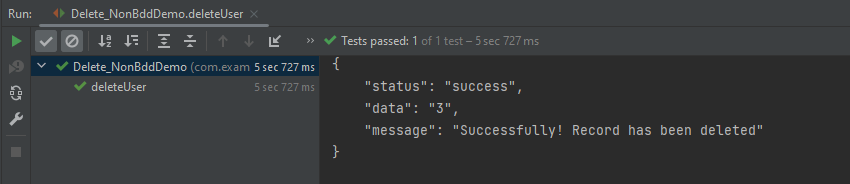
The output of the above program is
Let’s write DELETE request in REST Assured in BDD Format:–
import io.restassured.http.ContentType;
import io.restassured.response.ValidatableResponse;
import org.junit.Test;
import static io.restassured.RestAssured.given;
import static org.hamcrest.CoreMatchers.equalTo;

public class Delete_BDDDemo {

    ValidatableResponse validatableResponse;

    @Test
    public void deleteUser() {

        validatableResponse = given()
                .baseUri("https://dummy.restapiexample.com/api/v1/delete/3")
                .contentType(ContentType.JSON)
                .when()
                .delete()
                .then()
                .assertThat().statusCode(200)
                .body("message", equalTo("Successfully! Record has been deleted"));

        System.out.println("Response :" + validatableResponse.extract().asPrettyString());

    }

}
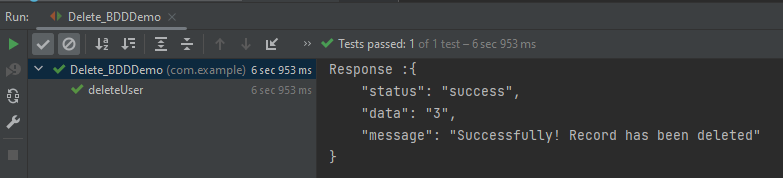
The output of the above program is
Explanation:
1. GIVEN: Specifies the initial conditions or setup for the test.
In the last tutorial, I explained How to test POST Request using Rest Assured. In this tutorial, I will automate a PUT Request using Rest Assured. I will verify the status code, line of Status, and content of the Response.
To set up a basic Rest Assured Maven Project, click here and Gradle project, click here.
Add the below-mentioned dependencies to the pom.xml.
The HTTP PUT API is primarily used to update existing resources. If the resource does not exist, then API may decide to create a new resource or not (Depending on API development). If a new resource has been created by the PUT API, the origin server MUST inform the user agent via the HTTP response code 201 (Created) response, and if an existing resource is modified, either the 200 (OK) or 204 (No Content) response codes SHOULD be sent to indicate successful completion of the request. To learn more about Rest API, please click here.
Below are the steps to test a PUT Request using Rest Assured:
The steps to test the PUT request are similar to the POST request. The only difference is that in POST we send a request to create a new resource, whereas here we have a resource and I will update the detail of the already existing resource. To know about the steps and various imports used in the below example, please refer to the tutorial for POST Request.
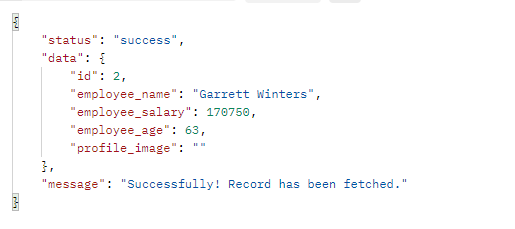
Below is the response received for Employee with id 2.
I want to change the employee_salary to 99999. Below is the example for the test to update employee_salary.
import io.restassured.RestAssured;
import io.restassured.http.ContentType;
import io.restassured.response.Response;
import io.restassured.response.ValidatableResponse;
import io.restassured.specification.RequestSpecification;
import org.junit.Test;
import static org.hamcrest.CoreMatchers.equalTo;

public class PUT_NonBDDDemo {

    RequestSpecification requestSpecification;
    Response response;
    ValidatableResponse validatableResponse;

    @Test
    public void updateUser() {

        String jsonString = "{\"id\": 2,\r\n"
                + "        \"employee_name\": \"Garrett Winters\",\r\n"
                + "        \"employee_salary\": 99999,\r\n"
                + "        \"employee_age\": 63,\r\n"
                + "        \"profile_image\": \"\"}";

        RestAssured.baseURI = "https://dummy.restapiexample.com/api/v1/update/2";

        // Create a request specification
        requestSpecification = RestAssured.given();

        // Setting content type to specify format in which request payload will be sent.
        requestSpecification.contentType(ContentType.JSON);

        // Adding body as string
        requestSpecification.body(jsonString);

        // Calling PUT method
        response = requestSpecification.put();

        // Let's print response body.
        String responseString = response.prettyPrint();

        /*
         * To perform validation on response, we need to get ValidatableResponse type of
         * response
         */
        validatableResponse = response.then();

        // Get status code
        validatableResponse.statusCode(200);

        // It will check if status line is as expected
        validatableResponse.statusLine("HTTP/1.1 200 OK");

        // Check response - name attribute
        validatableResponse.body("data.employee_salary", equalTo(99999));

        // Check response - message attribute
        validatableResponse.body("message", equalTo("Successfully! Record has been updated."));

    }
}
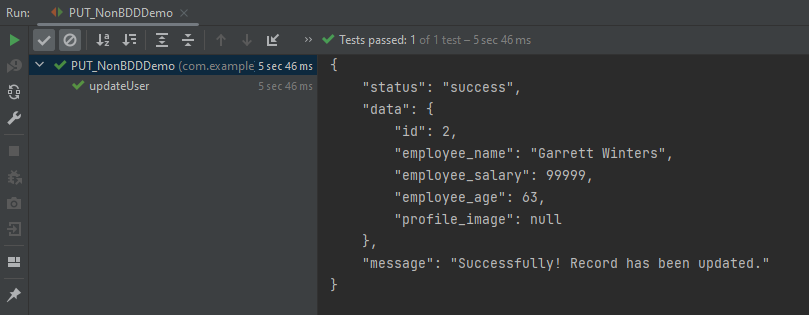
The output of the above program is
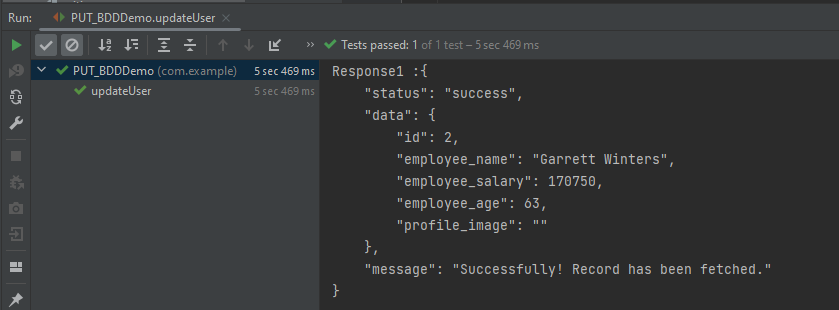
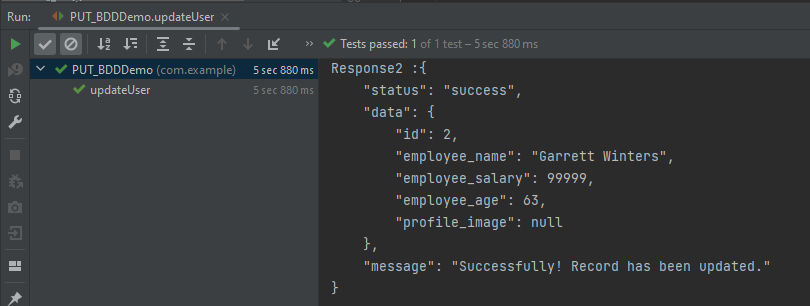
Now, let us convert the same test into BDD format. In the below example, in the first part, we have retrieved the details of the employee with ID 2, and in the second part, we have updated the value of employee_salary to 99999.
import io.restassured.http.ContentType;
import io.restassured.response.Response;
import io.restassured.response.ValidatableResponse;
import io.restassured.specification.RequestSpecification;
import org.junit.Test;
import static io.restassured.RestAssured.given;
import static org.hamcrest.CoreMatchers.equalTo;

public class PUT_BDDDemo {

    RequestSpecification requestSpecification;
    Response response;
    ValidatableResponse validatableResponse, validatableResponse1;

    @Test
    public void updateUser() {

        // To get the detail of employee with id 2
        validatableResponse = given()
                .baseUri("https://dummy.restapiexample.com/api/v1/employee/2")
                .contentType(ContentType.JSON)
                .when()
                .get()
                .then()
                .assertThat().statusCode(200);

        System.out.println("Response1 :" + validatableResponse.extract().asPrettyString());

        String jsonString = "{\"id\": 2,\r\n"
                + "        \"employee_name\": \"Garrett Winters\",\r\n"
                + "        \"employee_salary\": 99999,\r\n"
                + "        \"employee_age\": 63,\r\n"
                + "        \"profile_image\": \"\"}";

        // Update employee_salary
        validatableResponse1 = given()
                .baseUri("https://dummy.restapiexample.com/api/v1/update/2")
                .contentType(ContentType.JSON)
                .body(jsonString)
                .when()
                .put()
                .then()
                .assertThat().statusCode(200)
                .body("data.employee_salary", equalTo(99999))
                .body("message", equalTo("Successfully! Record has been updated."));

        System.out.println("Response2 :" + validatableResponse1.extract().asPrettyString());

    }

}
The output of the above program is
Congratulations on making it through this tutorial and hope you found it useful! Happy Learning!! Cheers!!
In this tutorial, I will test a SOAP Service using Rest Assured. I will verify the status code, line of Status, and content of the Response. To set up a basic Rest Assured Maven Project, click here and Gradle project, click here.
Add the below-mentioned dependencies to the pom.xml.
SOAP is an XML-based protocol for accessing web services over HTTP. It has some specifications that could be used across all applications.
SOAP messages are XML documents that are comprised of the following three basic building blocks:
The SOAP Envelope encapsulates all the data in a message and identifies the XML document as a SOAP message.
The Header element contains additional information about the SOAP message. This information could be authentication credentials, for example, which are used by the calling application.
The Body element includes the details of the actual message that needs to be sent from the web service to the calling application. This data includes call and response information.
Implementation Steps:
Step 1 – I have created an XML file for the soap request body in the project resource folder. “Number.xml” is the name of the file.
Step 2 – Specify the base URL to the RESTful web service using the RestAssuredclass.
RestAssured.baseURI = "http://www.dneonline.com";
Step 3 – The response to a request made by REST Assured.
Response response = given()
Response is imported from package:
import io.restassured.response.Response;
Step 4 – Set the content type to specify the format in which the request payload will be sent to the server. Here, the Content-Type is “text/xml; charset=utf-8”.
A Request Body is created by using the below snippet:
requestBody = new File(getClass().getClassLoader().getResource("Number.xml").getFile());
Step 6 – Send the POST request to the server and receive the response of the request made by REST Assured. This response contains every detail returned by hitting request i.e. response body, response headers, status code, status lines, cookies, etc. The response is imported from package:
import io.restassured.response.Response;
Step 7 – To validate a response like status code or value, we have used the below code
Tags are a great way to organize Features and Scenarios. By default, Cucumber executes all the scenarios present in a Feature File. If you want to run a specific scenario from the feature file, then a tag can be used. It allow flexible execution of scenarios or features based on specific tags.
Tags can be declared as below:-
 @TagName
   Scenario: Test the scenario
Here,
@: It is a symbol used to declare a tag. TagName: It is the name of a specific test.
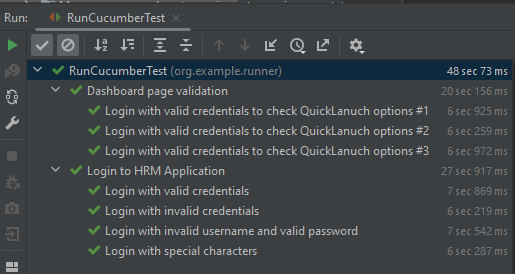
In the below example, there are 2 feature files – LoginPage.feature and DashboardPage.feature. LoginPage.feature contains 4 different scenarios with different tags, whereas DashboardPage.feature contains 3 different scenarios.
LoginPage.feature
Feature: Login to HRM Application

  Background:
    Given User is on Login page

  @ValidCredentials
  Scenario: Login with valid credentials

    When User enters username as "Admin"
    And User enters password as "admin123"
    Then User should be able to login successfully

  @InValidCredentials
  Scenario: Login with invalid credentials

    When User enters username as "Admin123"
    And User enters password as "admin123"
    Then User should see an error message "Invalid credentials"

  @InValidCredentials
  Scenario: Login with invalid username and valid password

    When User enters username as "1234"
    And User enters password as "admin123"
    Then User should see an error message "Invalid credentials"

  @InValidCredentials @SpecialCharacters
  Scenario: Login with special characters

    When User enters username as "$$$$"
    And User enters password as "%%%%%"
    Then User should see an error message "Invalid credentials"
DashboardPage.feature
Feature: Dashboard page validation

  Background:
    Given User is on Login page
    When User enters username as "Admin"
    And User enters password as "admin123"
    Then User should be able to login successfully

  @ValidQuickLaunch
  Scenario Outline: Login with valid credentials to check QuickLanuch options

    Then there are valid QuickLaunch options '<options>'

    Examples:
      | options                  |
      | Assign Leave             |
      | Leave List               |
      | Timesheets               |
Running a single Cucumber Tag
import io.cucumber.junit.Cucumber;
import io.cucumber.junit.CucumberOptions;
import org.junit.runner.RunWith;

@RunWith(Cucumber.class)
@CucumberOptions(features= {"src/test/resources/features"},
        glue= {"org.example.definitions"},
        tags = ("@ValidCredentials"))

public class RunCucumberTest {
}
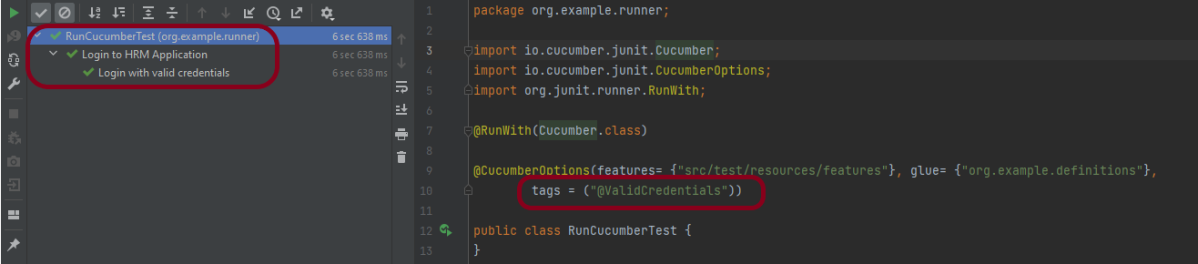
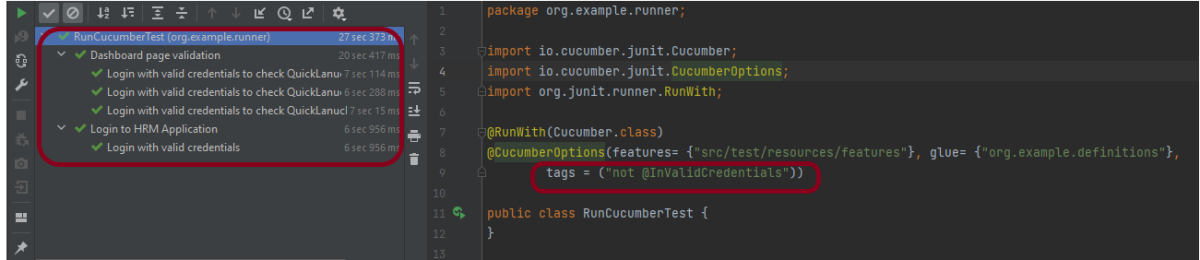
In the above example, only 1 scenario is tagged as @ValidCredentials in both the feature file, so it is executed.
The output of the above program is
Tags can be placed above Feature, Scenario, Scenario Outline, and Examples.
A feature or Scenario can have as many tags. However, each tag should be separated by a blank space.
How to execute Cucumber Tag that runs multiple scenarios
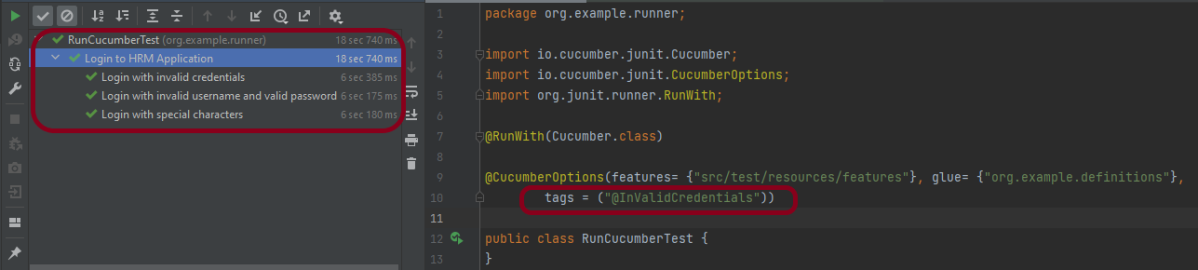
Let us consider a situation where a tag (@InValidCredentials) has multiple test scenarios, and you use this tag in the Runner class, then all the test scenarios associated with this tag will execute.
import io.cucumber.junit.Cucumber;
import io.cucumber.junit.CucumberOptions;
import org.junit.runner.RunWith;

@RunWith(Cucumber.class)
@CucumberOptions(features= {"src/test/resources/features"},
            glue= {"org.example.definitions"},
            tags = ("@InValidCredentials"))

public class RunCucumberTest {
}
The output of the above program is
How to execute Multiple Cucumber Tags
The testing through multiple tags can be done by using two operators:
OR operator
AND operator
OR operator
OR means scenarios that are tagged either with @BlankCredentials or @InvalidCredentials will execute. The syntax is mentioned below:
import io.cucumber.junit.Cucumber;
import io.cucumber.junit.CucumberOptions;
import org.junit.runner.RunWith;

@RunWith(Cucumber.class)
@CucumberOptions(features= {"src/test/resources/features"},
             glue= {"org.example.definitions"},
             tags = ("@ValidCredentials or @SpecialCharacters"))

public class RunCucumberTest {
}
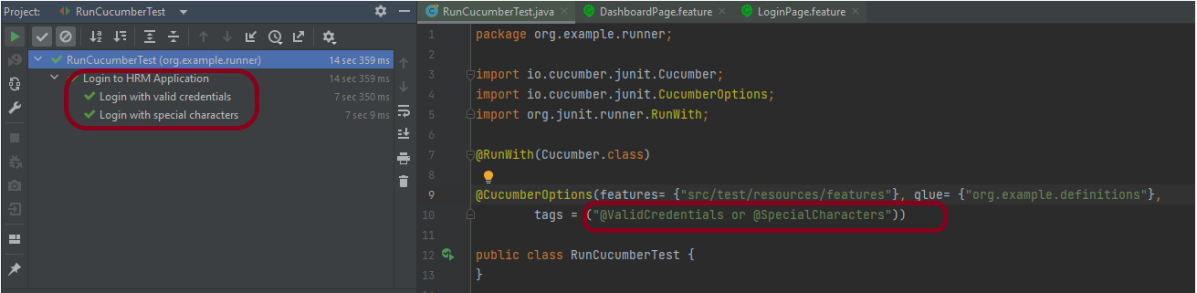
In the above example, we have 1 scenario that is tagged as @ValidCredentials whereas another one tagged as @SpecialCharacters. So, atotal of 2 scenarios are executed.
The output of the above program is
AND operator
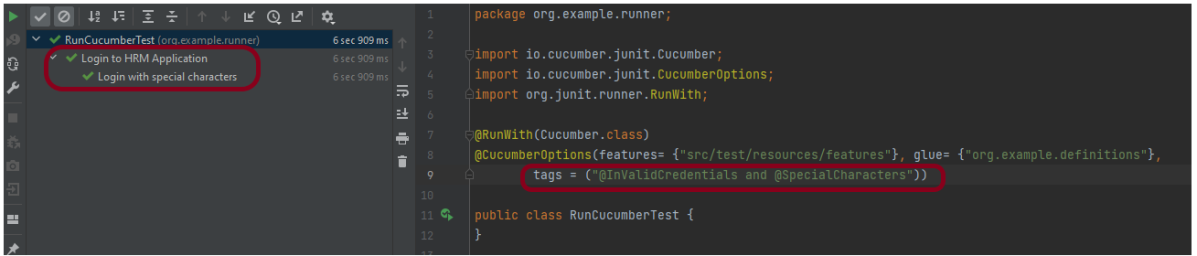
Suppose you want to test an application with multiple test cases and if the first test case is failed in the application, we do not want to test the second test case. The syntax is mentioned below:
An assertion is a way to verify that the expected result and the actual result match or not in the test case. A test is considered successful ONLY if it is completed without throwing any exceptions. If the current value and the expected value match then the assertion passes and when the assertion passes nothing happens. But when an assertion fails, it will fail the test case.
There are various ways to perform assertions in API Testing. For API Testing, we are using Rest Assured, which uses either Hamcrest or JUnit assertions. We are going to discuss Hamcrest Assertions here.
What is Hamcrest?
Hamcrest is a framework for writing matcher objects, allowing ‘match’ rules to be defined declaratively. We do not need to add Hamcrest dependency explicitly as the Rest-Assured 4.3.3 version includes itself. To learn more about Hamcrest, please refer to this link.
We need to add the below dependency to use Hamcrest in the project. Please use the latest version from here
equalTo – It checks whether the extracted string from JSON is equal to the expected string.
equalToIgnoringCase – It checks if the extracted string from JSON matches the expected string. The comparison does not consider case (small or capital).
equalToIgnoringWhiteSpace – It checks if the extracted string from JSON matches the expected string. It takes into account the white spaces.
containsString– It checks whether the extracted string from JSON contains the expected string as a substring.
startsWith– It checks whether the extracted string from JSON is starting with a given string or character.
endsWith – It checks whether the extracted string from JSON is ending with a given string or character.
Below assertions are imported from the package shown below:-
Below are examples to show the use of collection-related assertions.
import io.restassured.RestAssured;
import io.restassured.http.ContentType;
import org.testng.annotations.Test;
import static org.hamcrest.Matchers.is;
import static org.hamcrest.Matchers.nullValue;

public class HamcrestNullAssertion {

   public String endpoint = "https://restful-booker.herokuapp.com/booking/1";

    @Test
    public void nullAssertion() {
        RestAssured.given().contentType(ContentType.JSON)
                .when().get(endpoint)
                .then().body("totalprice1", is(nullValue()));
    }
}
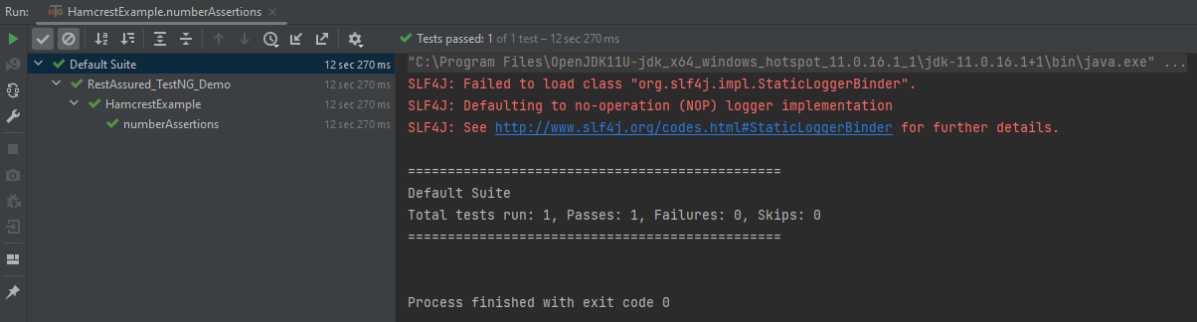
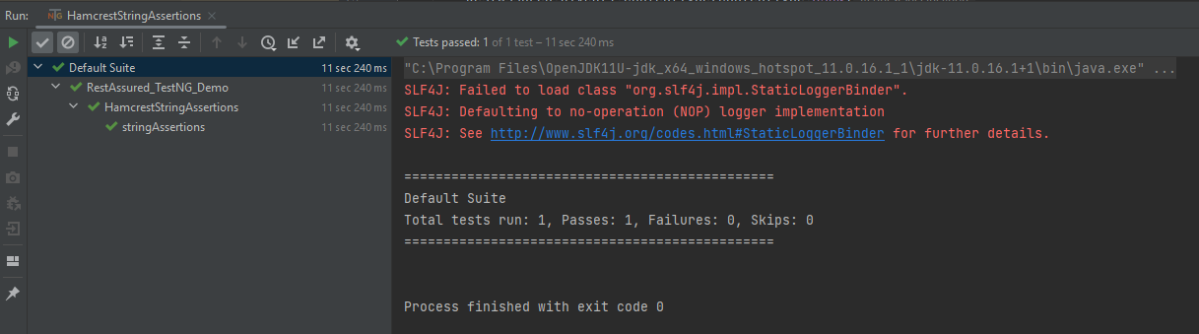
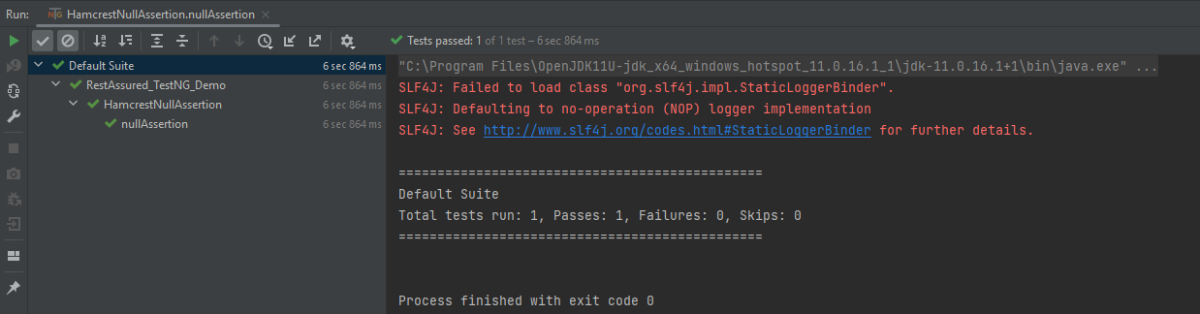
The output of the above program is
hasKey
It checks whether the extracted map has an expected key.
import io.restassured.RestAssured;
import io.restassured.http.ContentType;
import org.testng.annotations.Test;
import static org.hamcrest.Matchers.hasKey;

public class HamcrestHasKeyAssertion {

    public String endpoint = "https://restful-booker.herokuapp.com/booking/1";

    @Test
    public void collectionAssertions() {

        RestAssured.given().contentType(ContentType.JSON)
                .when().get(endpoint)
                .then().body("bookingdates",hasKey("checkin"));

    }
}
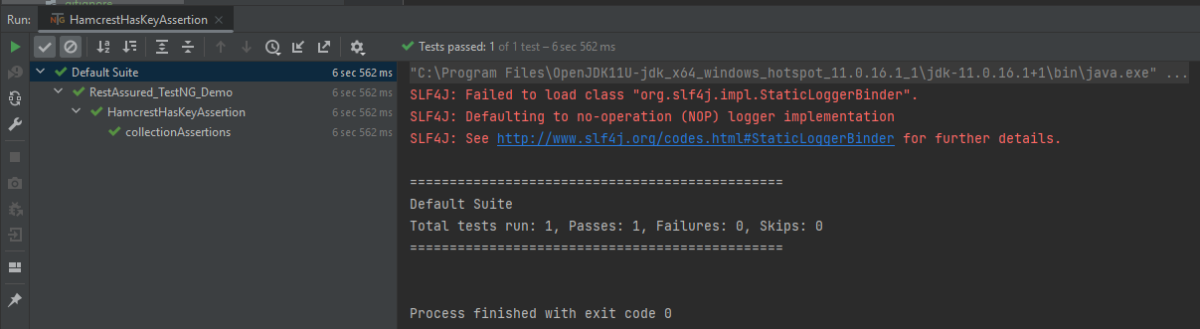
The output of the above program is
Not Assertion
The not assertion inverts the meaning of the other assertions. For example, if you want to perform negative assertions, then we can use any assertions with NOT.
The below assertion is imported from the package shown below:-
Below are examples to show the use of negative assertions.
import static org.hamcrest.Matchers.equalTo;
import static org.hamcrest.Matchers.not;
import io.restassured.RestAssured;
import io.restassured.http.ContentType;
import org.testng.annotations.Test;
public class HamcrestNotAssertion {
public String endpoint = "https://restful-booker.herokuapp.com/booking/1";
@Test
public void negativeAssertions() {
RestAssured.given().contentType(ContentType.JSON)
.when().get(endpoint)
.then().body("totalprice",not(equalTo(874)));
}
}
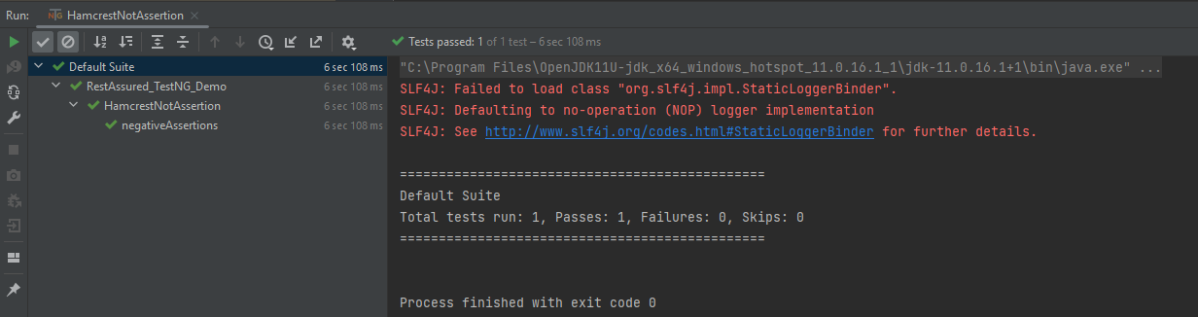
The output of the above program is
Multiple Assert Statements
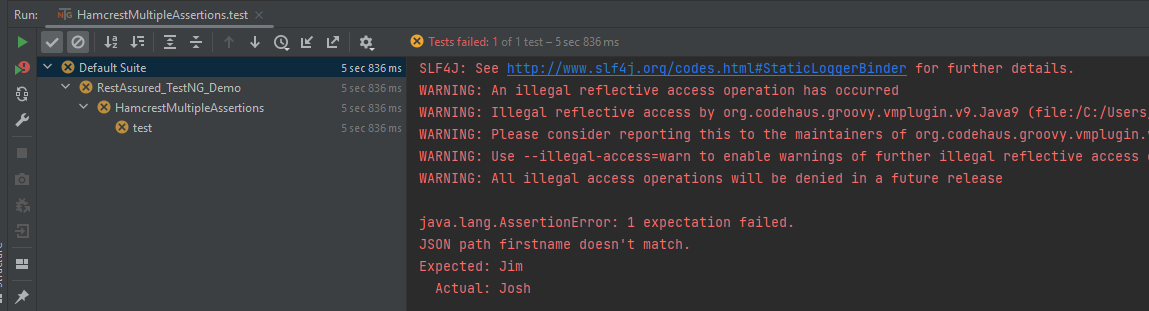
In the below example, all 3 assertions will fail. It will only execute the first assertion. If the first assertion fails, then other assertions will not be executed.
import io.restassured.RestAssured;
import io.restassured.http.ContentType;
import org.testng.annotations.Test;
import static org.hamcrest.Matchers.equalTo;

public class HamcrestMultipleAssertions {

    public String endpoint = "https://restful-booker.herokuapp.com/booking/1";

    @Test
    public void test1() {
        RestAssured.given().contentType(ContentType.JSON)
                .when().get(endpoint).then()
                .body("firstname", equalTo("Jim"), // will fail
                        "lastname", equalTo("Smith"), // will fail
                        "totalprice", equalTo(314)); // will fail
    }

}
The output of the above program is
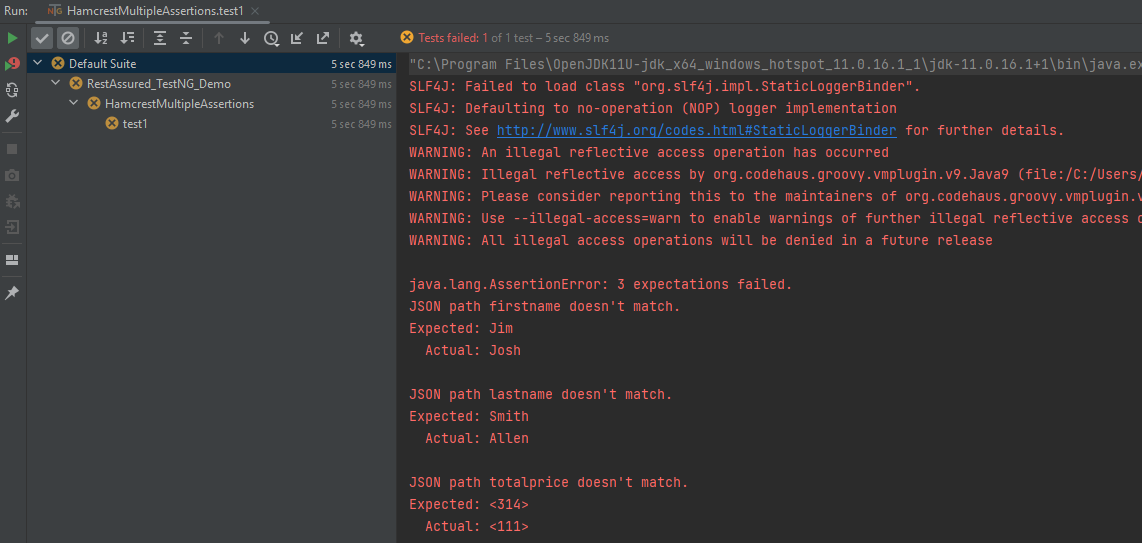
To execute all the assertions in the test case, combine them into a single body. This should be done just like it is shown below. You can see that all the assertions failed, and they are shown in the response.
import io.restassured.RestAssured;
import io.restassured.http.ContentType;
import org.testng.annotations.Test;
import static org.hamcrest.Matchers.equalTo;

public class HamcrestMultipleAssertions {

    public String endpoint = "https://restful-booker.herokuapp.com/booking/1";

    @Test
    public void test1() {
        RestAssured.given().contentType(ContentType.JSON)
                .when().get(endpoint).then()
                .body("firstname", equalTo("Jim"), // will fail
                        "lastname", equalTo("Smith"), // will fail
                        "totalprice", equalTo(314)); // will fail
    }

}
The output of the above program is
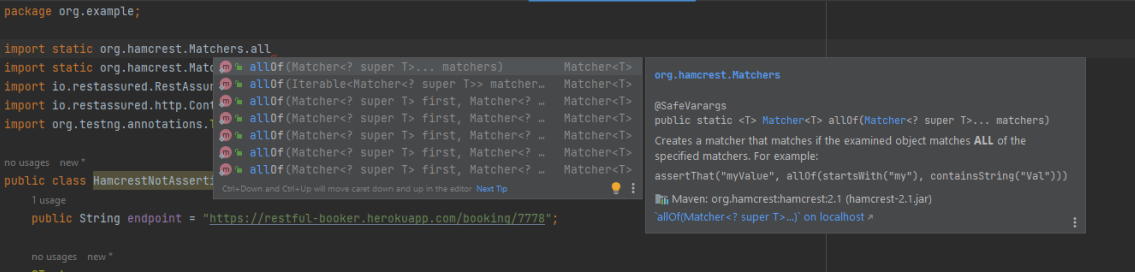
I have tried to show the use of a few of the most commonly used assertion methods. There are many more methods available in Hamcrest package. To know about other methods, write import static org.hamcrest.Matchers and add (.) at the end, it will show the list of all the methods available in Hamcrest.
To know more details related to Hamcrest assertion, you can refer the official website – Hamcrest
Points to Remember:
Hamcrest is commonly used in JUnit, RestAssured, and Mockito for API and unit testing
It offers a variety of matchers for different data types, such as: Numbers: greaterThan(), lessThan(), Strings: containsString(), startsWith(), endsWith()
You can combine multiple matchers using logical operators: assertThat(score, allOf(greaterThan(50), lessThan(100)))
Encourages fluent and expressive test writing with assertThat() instead of assertEquals()
We are done! Congratulations on making it through this tutorial and hope you found it useful! Happy Learning!!
JUnit 4 has a feature called parameterized tests. Parameterized test means to execute the test multiple times with different sets of test data. This eliminates the redundancy of the code. This helps the developers to save time by eliminating the need to copy the code multiple times. Parameterizing tests can increase code coverage and provide confidence that the code is working as expected. These are the steps that need to be followed to create a parameterized test.
Annotate test class with @RunWith(Parameterized.class).
Create an instance variable for each “column” of test data.
It has a single constructor that contains the test data.
Create a public static method annotated with @Parameters that returns a Collection of Objects (as Array) as test data set.
Create your test case(s) using the instance variables as the source of the test data.
The test case will be invoked once for each row of data.
There are multiple ways to parameterize a test. They are the following:
Parameterized Test with Constructor
Parameterized Test with Parameter Annotation
Parameterized Test using CSV File
Let us see parameterized tests in action.
1. Parameterized Test with Constructor
Steps to create a Parameterized JUnit test
1. Create a parameterized test class
Annotate your test class using @runWith(Parameterized.class).
Declaring the variable ‘num1’, ‘num2’, ‘num3’ as private and type as int.
@RunWith(value = Parameterized.class)
public class ParameterizedTest {

    private int num1;
    private int num2;
    private int num3;
2. Create a constructor
Create a constructor that stores the test data. It stores 3 variables.
    public ParameterizedTest(int num1, int num2, int num3) {
        this.num1 = num1;
        this.num2 = num2;
        this.num3 = num3;
    }
3. Create a static method that generates and returns test data.
Creating a two-dimensional array (providing input parameters for multiplication). Using the asList method, we convert the data into a List type. Since the return type of method input is the collection.
Using @Parameters annotation to create a set of input data to run our test.
The static method identified by @Parameters annotation returns a Collection, where each entry in the Collection will be the input data for one iteration of the test.
The complete code is shown below:
import org.junit.Test;
import org.junit.runner.RunWith;
import org.junit.runners.Parameterized;
import java.util.Arrays;
import java.util.Collection;
import static org.junit.Assert.assertEquals;
@RunWith(value = Parameterized.class)
public class ParameterizedTest {
private int num1;
private int num2;
private int num3;
public ParameterizedTest(int num1, int num2, int num3) {
this.num1 = num1;
this.num2 = num2;
this.num3 = num3;
}
    @Parameterized.Parameters(name = "{index}: multiply({0}*{1}) = {2}")
    public static Collection<Object[]> data() {
        return Arrays.asList(new Object[][]{
                {1, 1, 1},
                {2, 2, 4},
                {8, 2, 16},
                {4, 5, 20},
                {5, 5, 25}
        });
    }
@Test
public void multiplication() {
System.out.println("The product of "+num1+" and "+num2+" is "+num3);
assertEquals((num1*num2), num3);
}
}
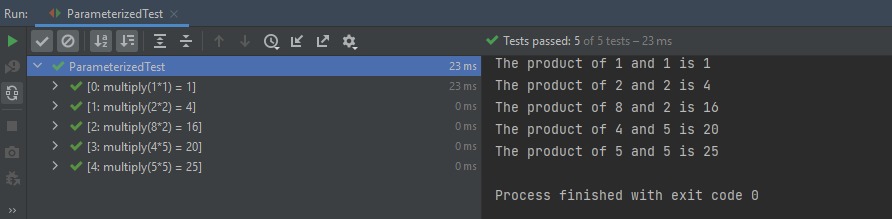
The output of the above program is
2. Parameterized Test with Parameter Annotation
It is also possible to inject data values directly into fields without needing a constructor using the@Parameter annotation.
import org.junit.Test;
import org.junit.runner.RunWith;
import org.junit.runners.Parameterized;
import java.util.Arrays;
import java.util.Collection;
import static org.junit.Assert.assertEquals;

@RunWith(value = Parameterized.class)
public class ParameterizedTest1 {

    @Parameterized.Parameter(value = 0)
    public int num1;

    @Parameterized.Parameter(value = 1)
    public int num2;

    @Parameterized.Parameter(value = 2)
    public int num3;

    @Parameterized.Parameters(name = "{index}: multiply({0}*{1}) = {2}")
    public static Collection<Object[]> data() {
        return Arrays.asList(new Object[][]{
                {1, 1, 1},
                {2, 2, 4},
                {8, 2, 16},
                {4, 5, 20},
                {5, 5, 24}
        });
    }

    @Test
    public void multiplication() {
        System.out.println("The product of "+num1+" and "+num2+" is "+num3);
        assertEquals((num1*num2), num3);
    }
}
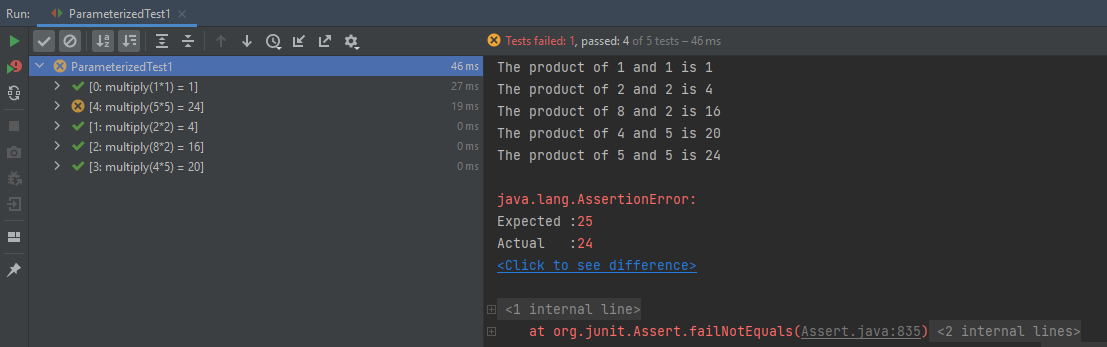
The output of the above program is
3. Parameterized Test using CSV File
We can use an external CSV file to load the test data. This helps if the number of possible test cases is quite significant, or if test cases are frequently changed. The changes can be done without affecting the test code.
To start with, add a JUnitParams dependency to POM.xml
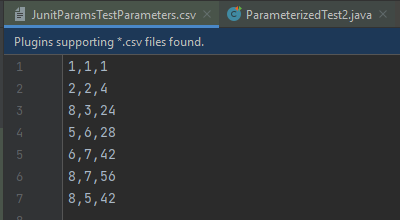
Let’s say that we have a CSV file with test parameters as JunitParamsTestParameters.csv:
Now let’s look at how this file can be used to load test parametersin the test method:
import junitparams.JUnitParamsRunner;
import org.junit.Test;
import org.junit.runner.RunWith;
import junitparams.FileParameters;
import static org.junit.Assert.assertEquals;

@RunWith(JUnitParamsRunner.class)
public class ParameterizedTest2 {

    @Test
    @FileParameters("src/test/resources/JunitParamsTestParameters.csv")
    public void multiplication(int num1, int num2, int num3) {
        System.out.println("The product of "+num1+" and "+num2+" is "+num3);
        assertEquals((num1*num2), num3);
    }
}
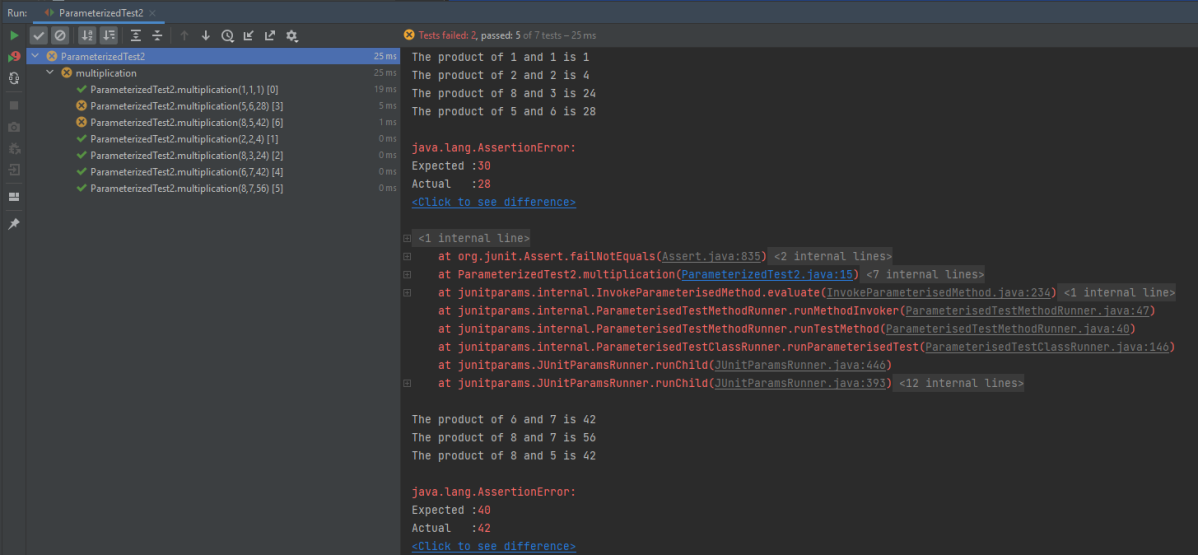
The output of the above program is
The parameterized test enables us to execute the same test over and over again using different values.
Important annotations to be used during parameterization
@RunWith
@Parameters
Congratulations. We are done. I hope this tutorial is helpful to you. Happy Learning!!








 QA Automation Expert