How to run Serenity tests with GitHub Actions

Last Updated On

HOME

This tutorial explains the steps to create a GitHub Action for the Serenity tests and execute the tests in that workflow.

Table of Contents

Why GitHub?

The flexible aspects of Selenium WebDrivers and GitHub Actions enable users to create powerful, fast, and efficient automated testing workflows in CI/CD environments.

CI/CD pipelines have contributed to the success of the DevOps cycle in all software development projects. This is a holistic process that bridges development and operations. Continuous integration helps development teams deploy code efficiently, and continuous delivery automates code deployment.

Important points

1. The Serenity Web tests need to run in the headless mode. As we are using Chrome browser, use the below code in the serenity.config:

          headless.mode = true

2. Install Chrome browser in ubuntu. Use the below code:

    - uses: browser-actions/setup-chrome@latest
    - run: chrome --version
Implementation Steps

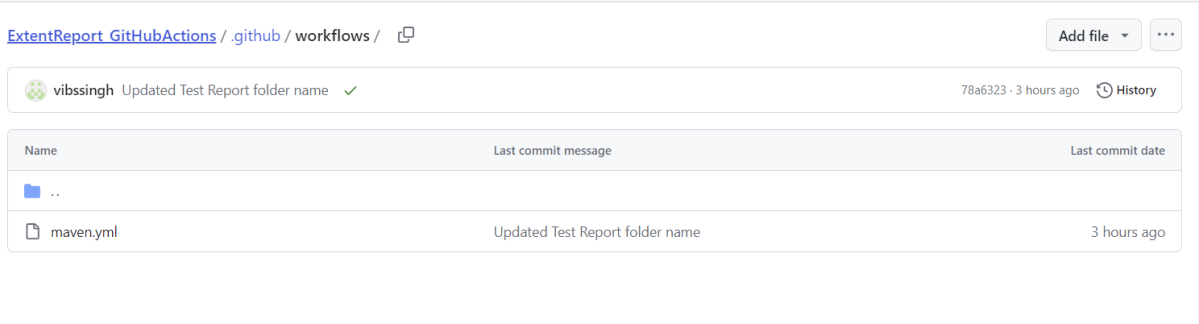
Step 1 – Create GitHub Actions and Workflows

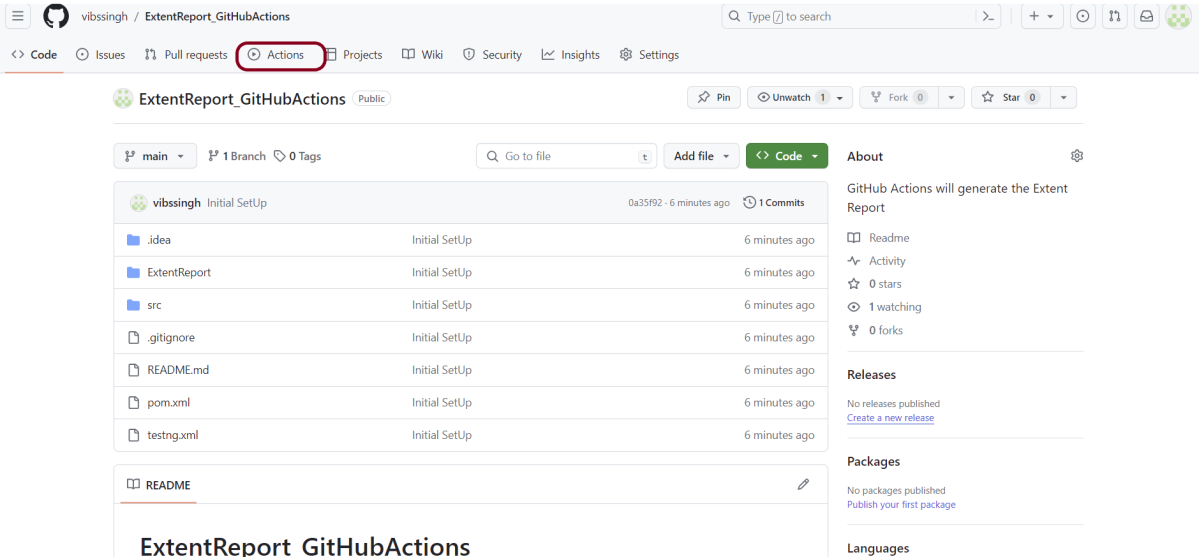
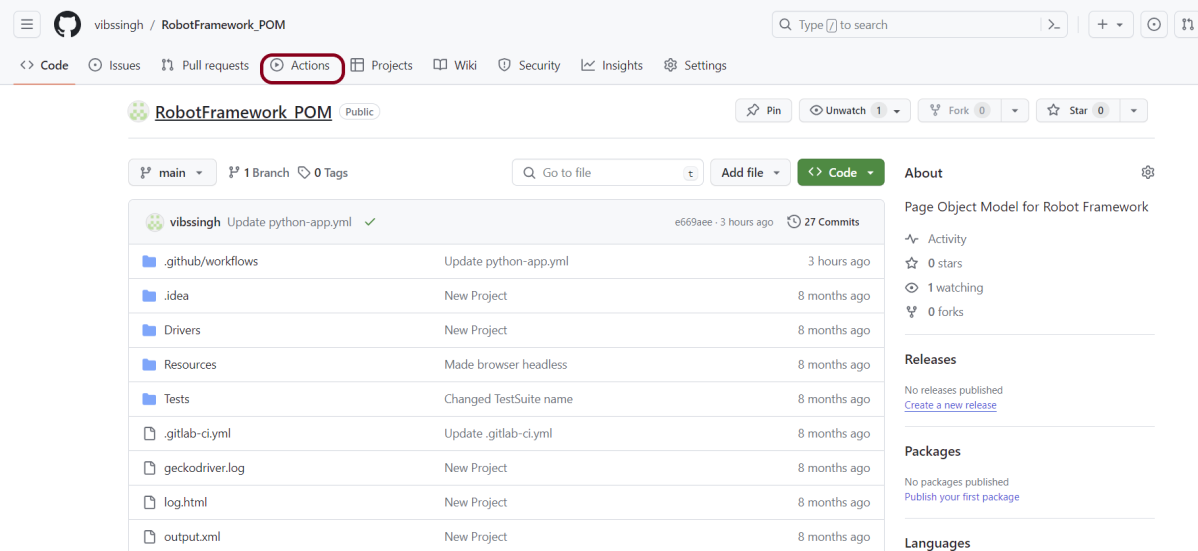
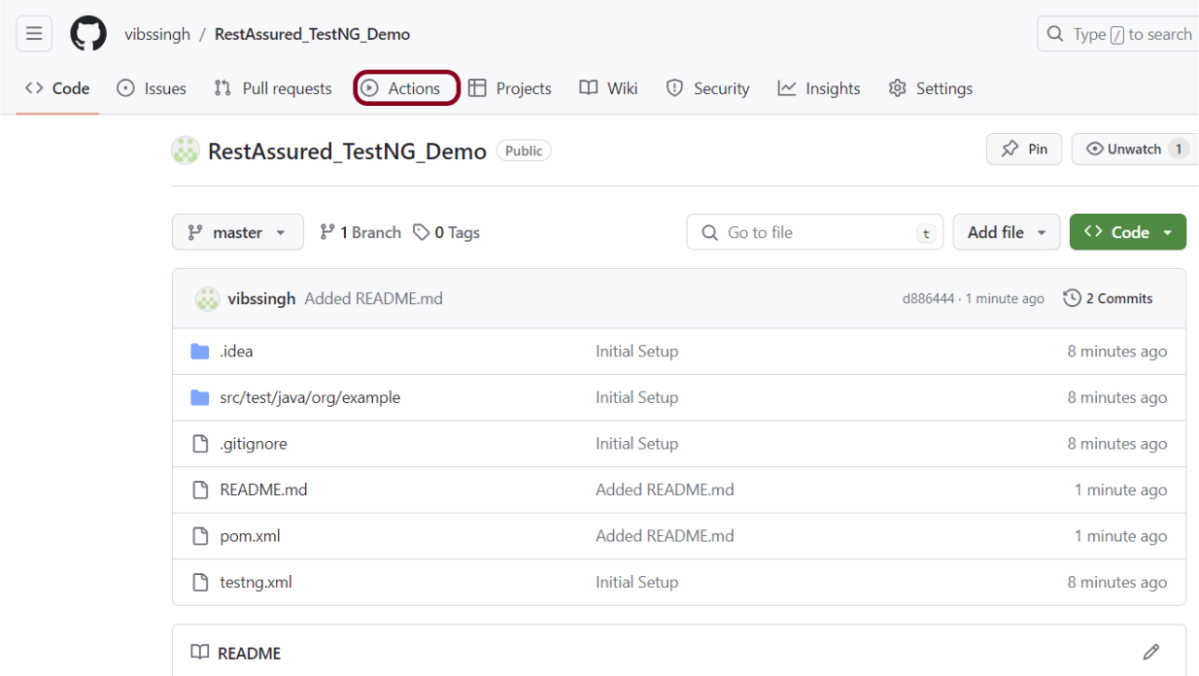
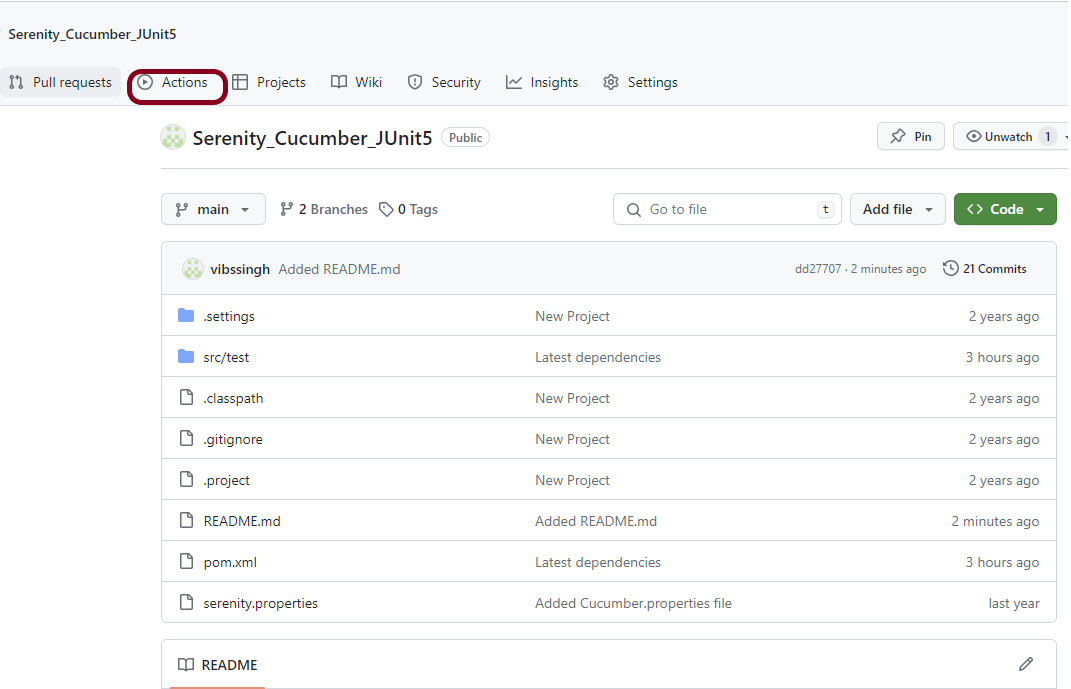
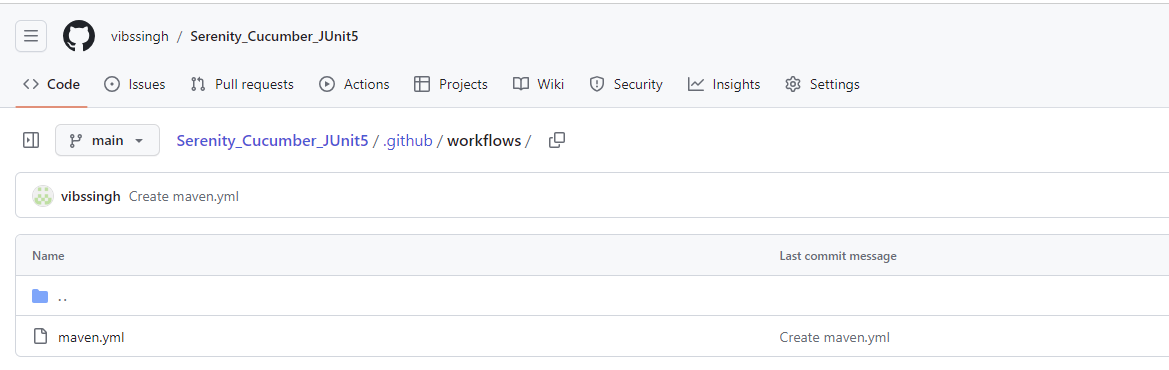
I have a repository available in GitHub – Serenity_Cucumber-JUnit5 as shown in the below image. Go to the “Actions” tab.  Click on the “Actions” tab.

Step 2 – Select the type of Actions

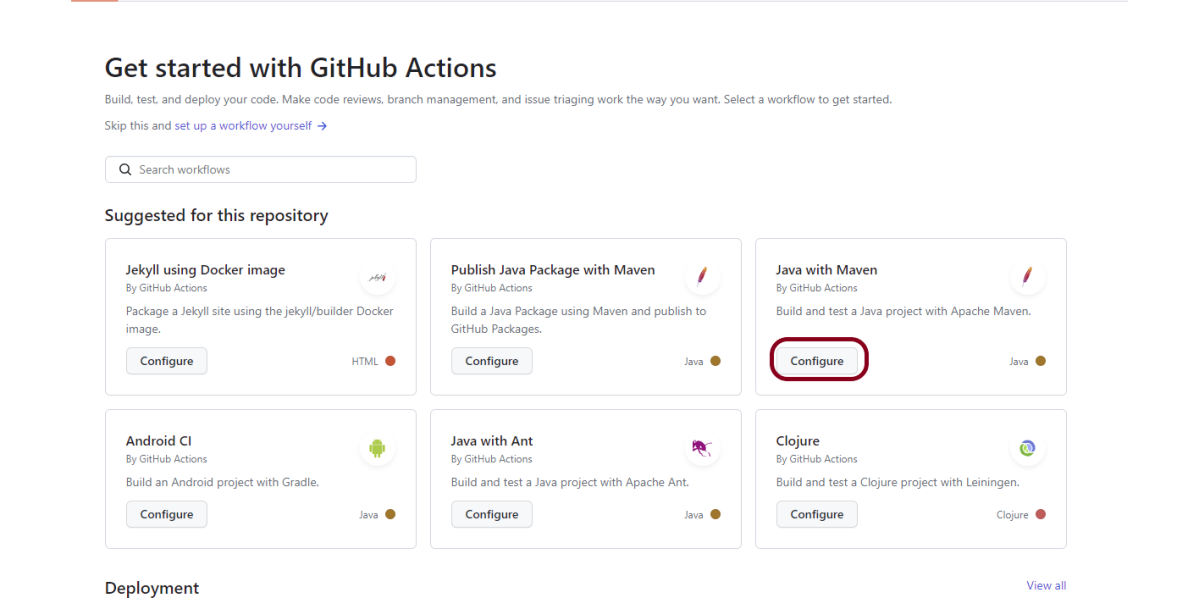
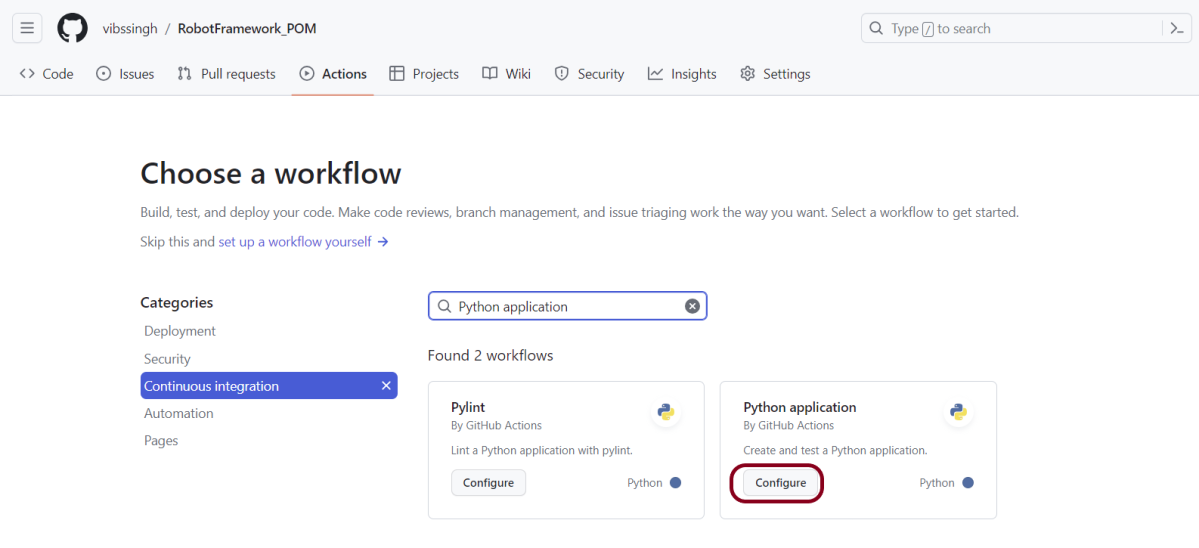
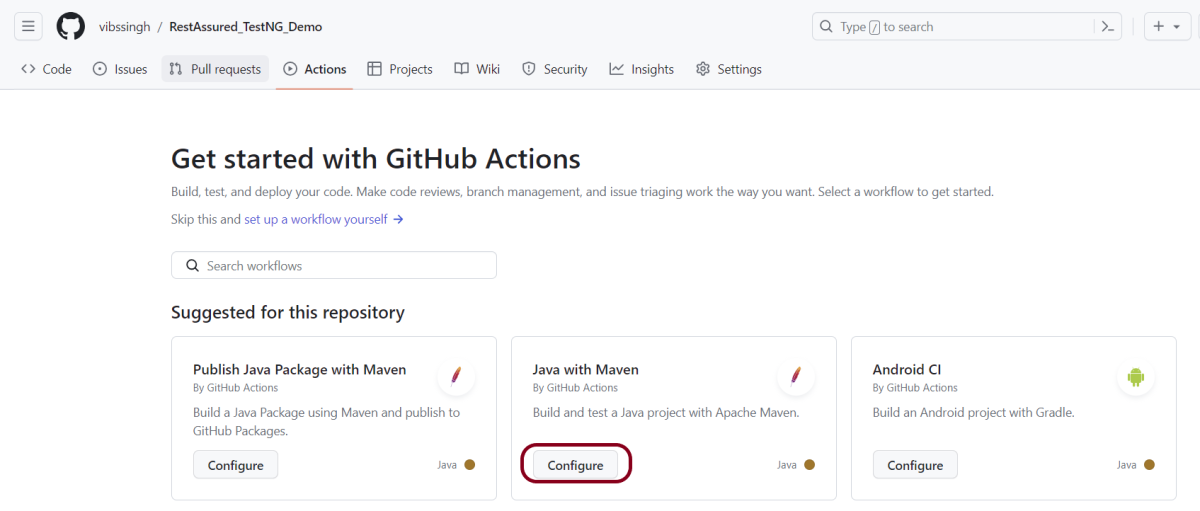
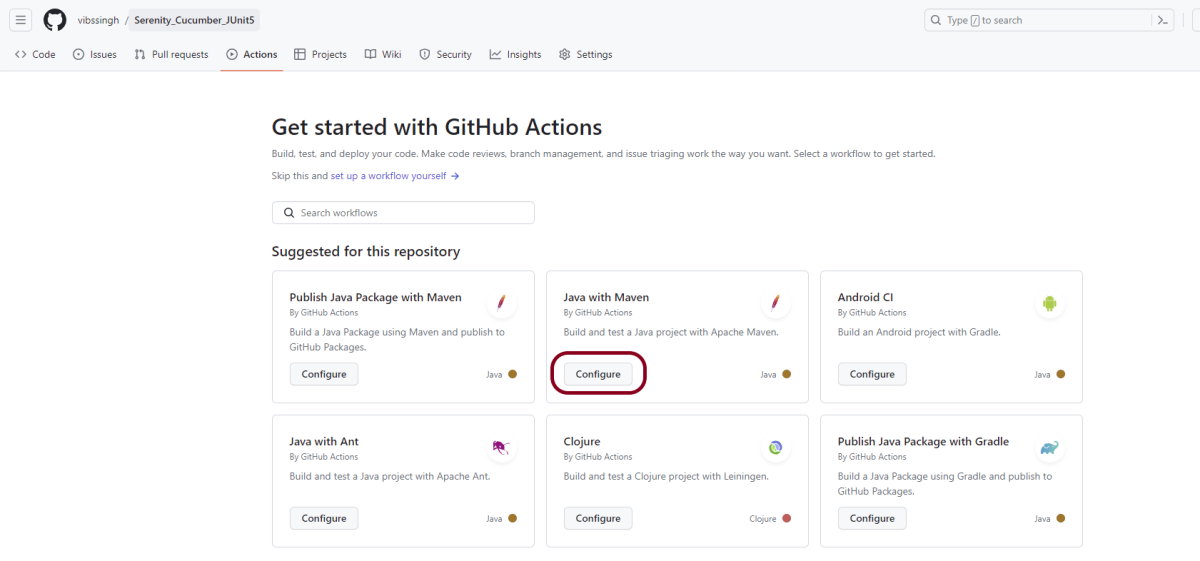
You will see that GitHub recommends Actions depending on the project. In our case, it is recommending actions suitable for a Java project. I have selected the “Java with Maven” option as my project is built in Maven.

Step 3 – Generation of Sample pipeline

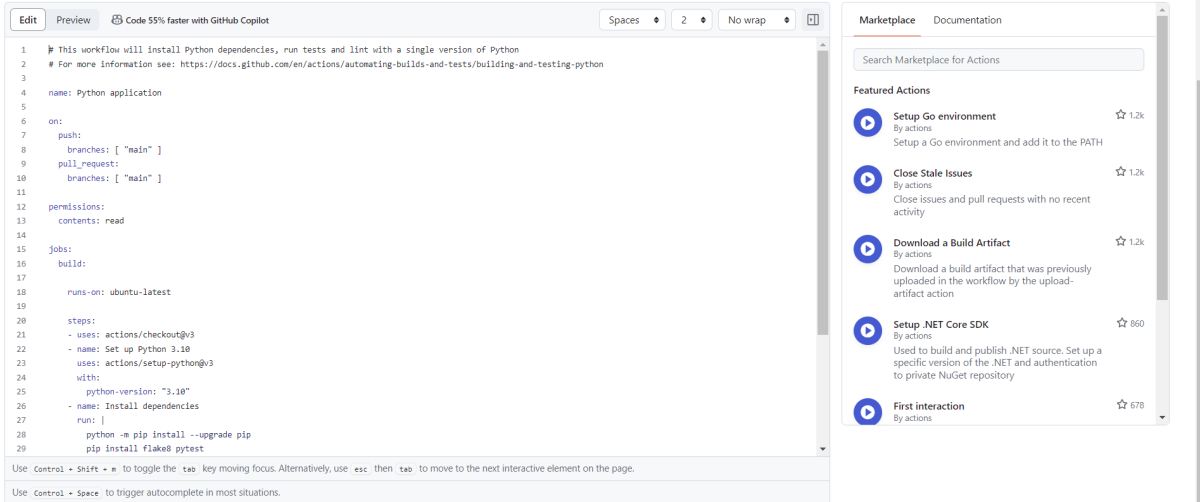
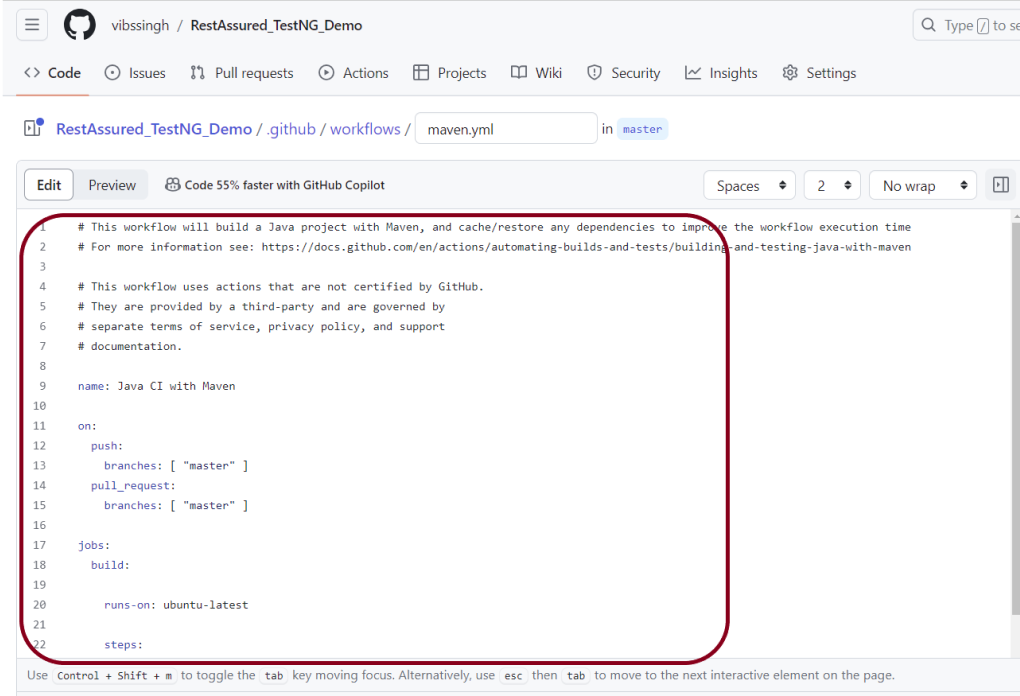
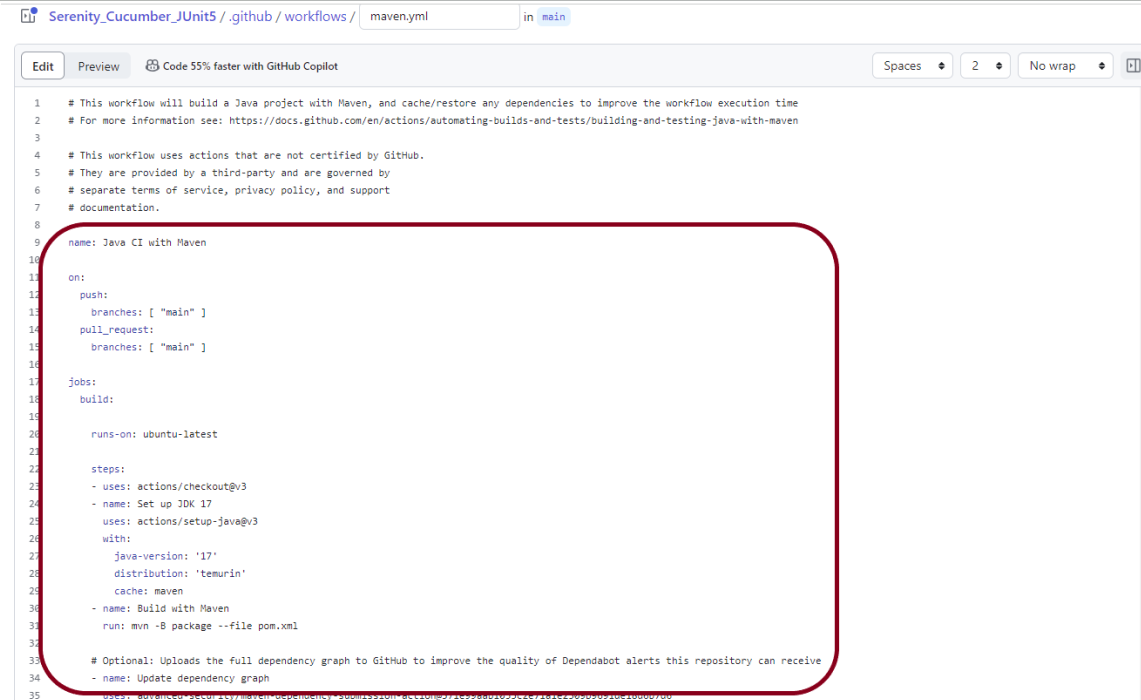
If you choose an existing option, it will automatically generate a .yaml for the project as shown below.

We will replace the current workflow with the following yml file as shown below:

name: Serenity Tests in GitHub
 
on:
  push:
    branches: [ "main" ]
  pull_request:
    branches: [ "main" ]
 
jobs:
  build:
 
    runs-on: ubuntu-latest
 
    steps:
    - uses: actions/checkout@v4
    - name: Set up JDK 17
      uses: actions/setup-java@v4
      with:
        java-version: '17'
        distribution: 'temurin'
        cache: maven

    - uses: browser-actions/setup-chrome@latest
    - run: chrome --version
    
    - name: Build with Maven
      run: mvn clean verify
       
    - name: Test Report Generation
      uses: actions/upload-artifact@v4
      if: success() || failure()
      with:
          name: Serenity Report                 # Name of the folder
          path: target/site/serenity/           # Path to test results

Step 4 – Commit the changes

After the changes, hit the “Start Commit” button.

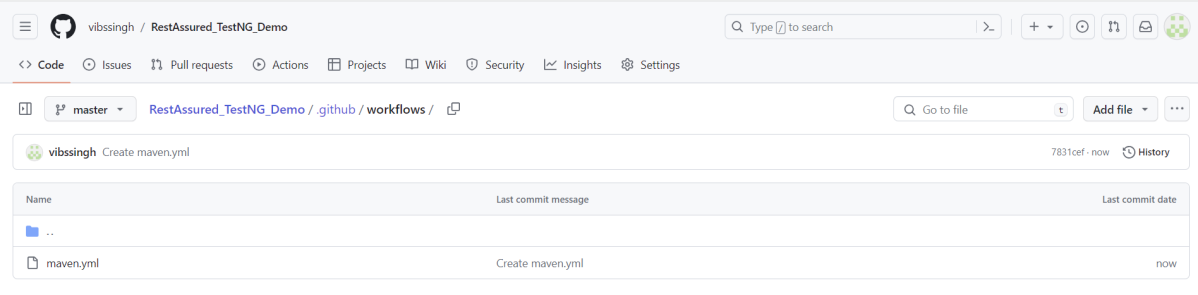
This will give the option to add a description for the commit. It will also enable the user to commit either to the main branch or commit to any other branch that exists in the project. Click on the “Commit new file” button to set up the workflow file.

Step 5 – Verify that the workflow is running

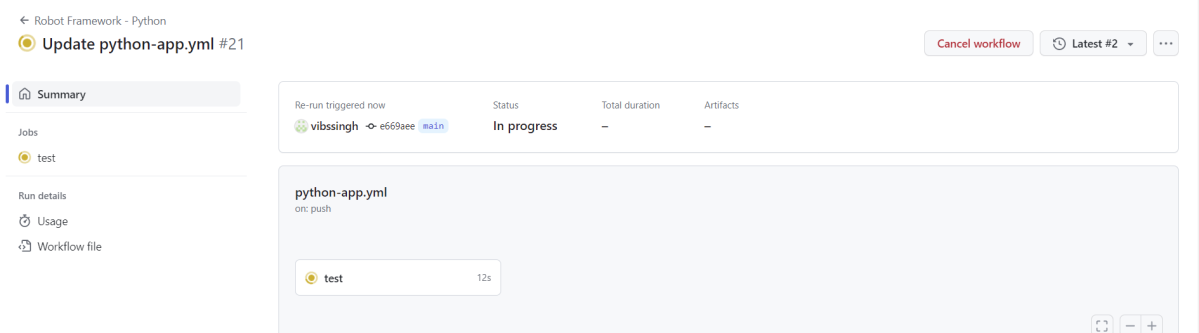
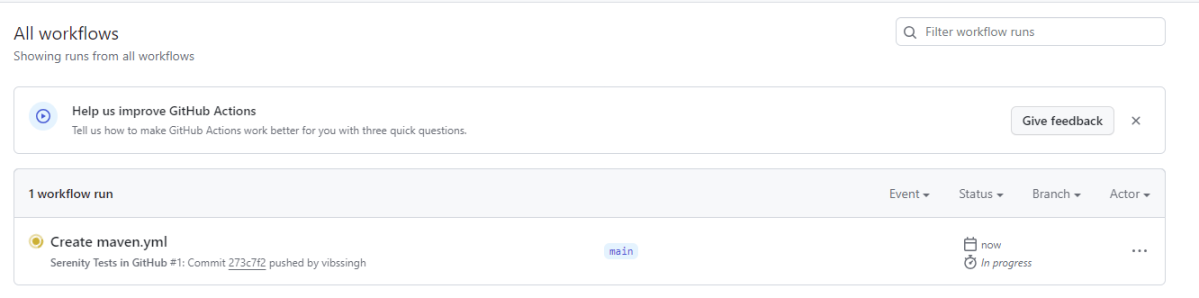
Next, head over to the “Actions” tab, and you will see your YAML workflow file present under the tab. The yellow sign represents that the job is in the queue.

In Progress – When the job starts building and running, you will see the status change from “Queued” to “in progress”.

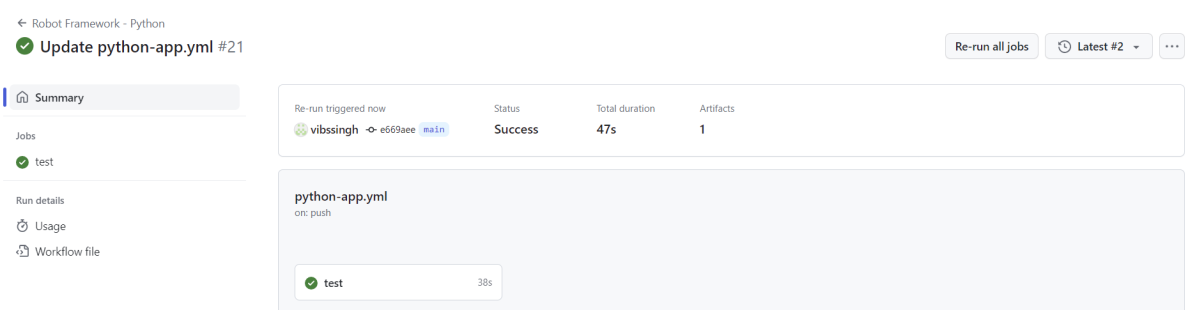
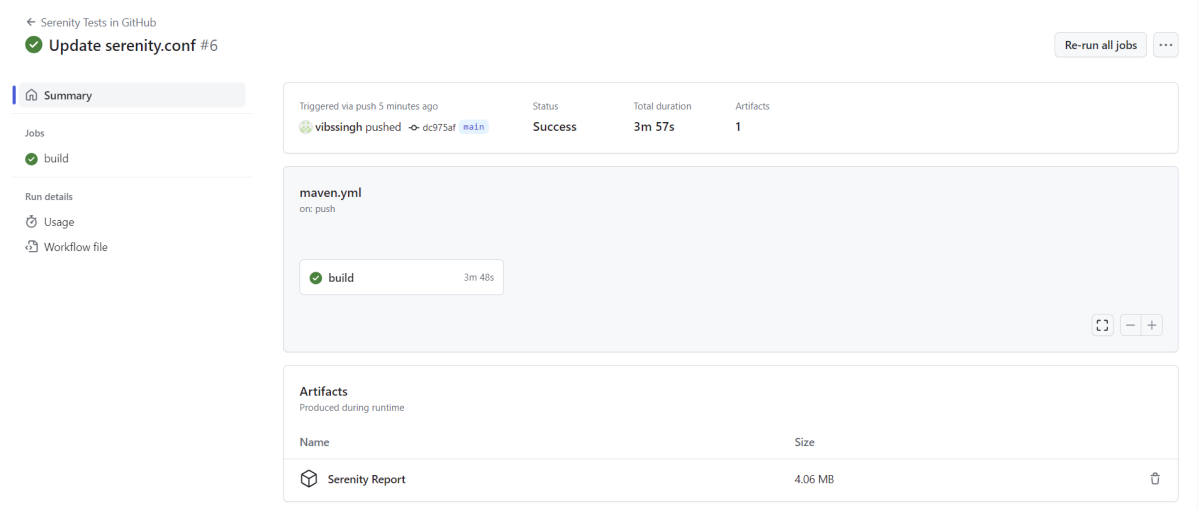
Passed – If the build is successful, you will see a green tick mark. 

Click on the workflow and the below screen is displayed. It shows the status of the run of the workflow, the total time taken to run the workflow, and the name of the .yml file.

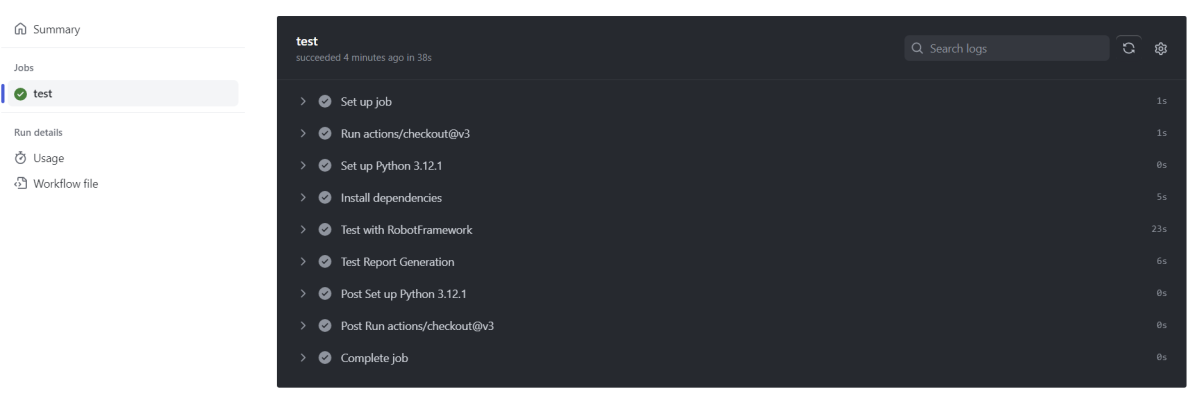
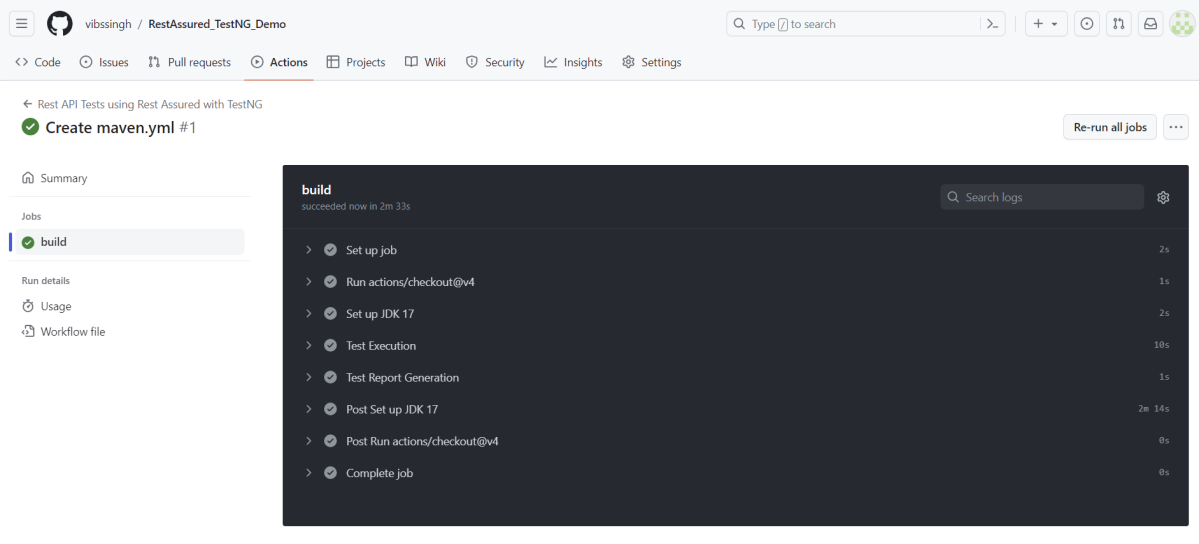
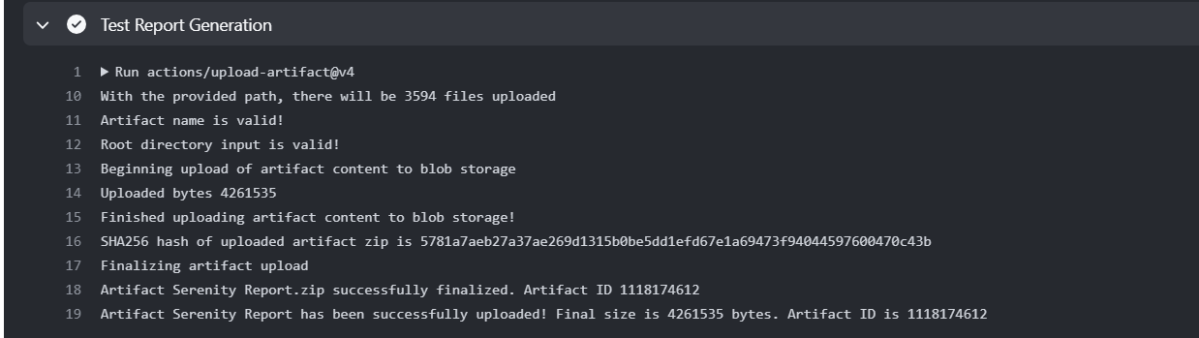
Below shows all the steps of the workflow.

To know more about Chrome installation, please refer to this tutorial – browser-actions/setup-chrome.

The complete code can be found here on GitHub – vibssingh/Serenity_Cucumber_JUnit5.

Congratulations! We just created our CI workflow for running our Serenity test cases.

How to blacklist headers in Rest Assured

HOME

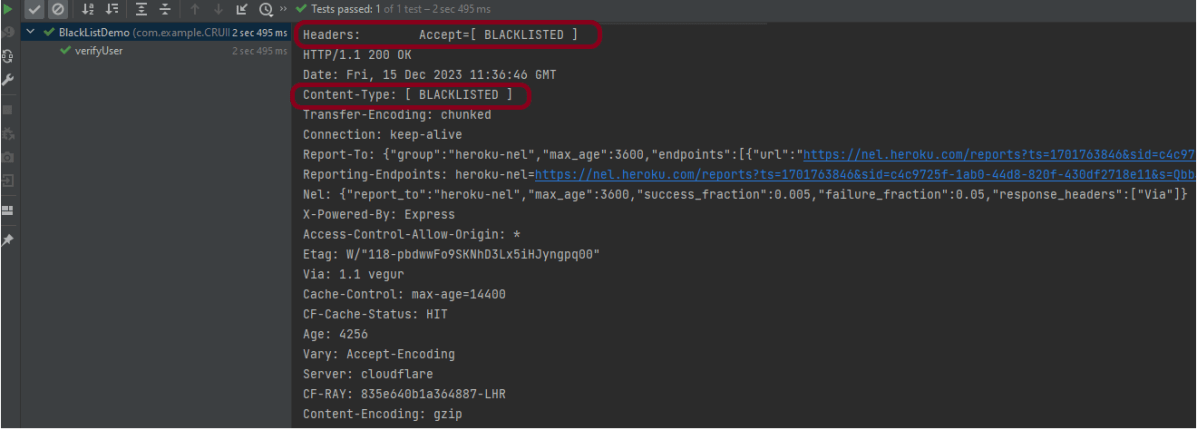
 .config(RestAssured.config().logConfig(LogConfig.logConfig().blacklistHeader("Accept"))).log().headers()

import io.restassured.RestAssured;
import io.restassured.config.LogConfig;
import org.junit.Test;
import java.util.ArrayList;
import java.util.List;
import static io.restassured.RestAssured.given;
import static org.hamcrest.CoreMatchers.equalTo;

public class BlackListDemo {

    @Test
    public void verifyUser() {

        // Given
        given()
                
                .config(RestAssured.config().logConfig(LogConfig.logConfig().blacklistHeader("Accept")))
                .log().headers()

                // When
                .when()
                .get("https://reqres.in/api/users/2")

                // Then
                .then()
                .statusCode(200).statusLine("HTTP/1.1 200 OK")
                .body("data.email", equalTo("janet.weaver@reqres.in"))
                .body("data.first_name", equalTo("Janet"))
                .body("data.last_name", equalTo("Weaver")).log().all();
    }

import io.restassured.RestAssured;
import io.restassured.config.LogConfig;
import org.junit.Test;
import java.util.ArrayList;
import java.util.List;
import static io.restassured.RestAssured.given;
import static org.hamcrest.CoreMatchers.equalTo;

public class BlackListDemo {

    @Test
    public void verifyUser() {

        // Given
        given()

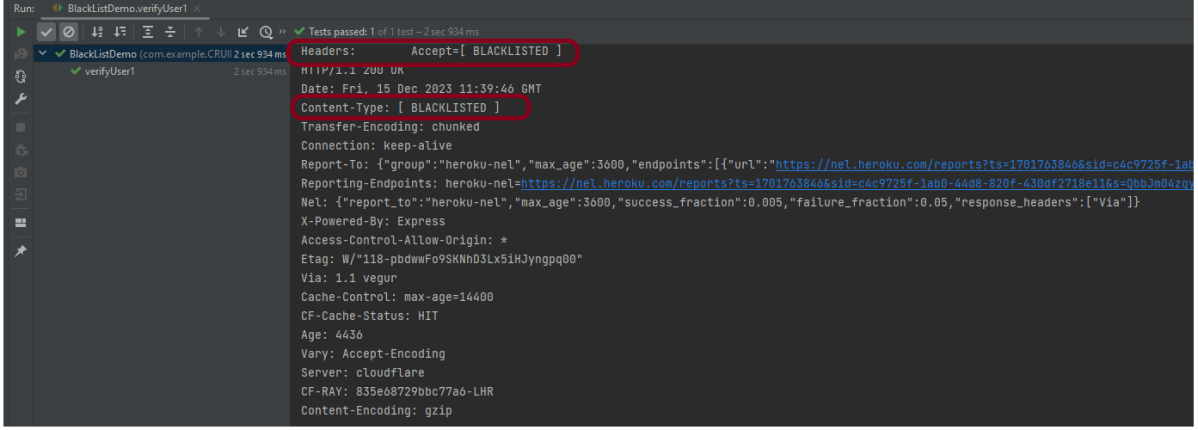
              .config(RestAssured.config().logConfig(LogConfig.logConfig().blacklistHeader("Accept","Content-Type")))
                .log().headers()

                // When
                .when()
                .get("https://reqres.in/api/users/2")

                // Then
                .then()
                .statusCode(200).statusLine("HTTP/1.1 200 OK")
                .body("data.email", equalTo("janet.weaver@reqres.in"))
                .body("data.first_name", equalTo("Janet"))
                .body("data.last_name", equalTo("Weaver")).log().all();
    }

import io.restassured.RestAssured;
import io.restassured.config.LogConfig;
import org.junit.Test;
import java.util.ArrayList;
import java.util.List;
import static io.restassured.RestAssured.given;
import static org.hamcrest.CoreMatchers.equalTo;

public class BlackListDemo {

    @Test
    public void verifyUser1() {

        List headers = new ArrayList<String>();
        headers.add("Accept");
        headers.add("Content-Type");

        // Given
        given()
                .config(RestAssured.config().logConfig(LogConfig.logConfig().blacklistHeader(headers.toArray(new String[0]))))
                .log().headers()

                // When
                .when()
                .get("https://reqres.in/api/users/2")

                // Then
                .then()
                .statusCode(200).statusLine("HTTP/1.1 200 OK")

                // To verify booking id at index 3
                .body("data.email", equalTo("janet.weaver@reqres.in"))
                .body("data.first_name", equalTo("Janet"))
                .body("data.last_name", equalTo("Weaver")).log().all();
    }

}

Compare JSON Arrays using JSONAssert Library

HOME

  <dependency>
      <groupId>org.skyscreamer</groupId>
      <artifactId>jsonassert</artifactId>
      <version>1.5.1</version>
      <scope>test</scope>
    </dependency>

import org.json.JSONArray;
import org.junit.Test;
import org.skyscreamer.jsonassert.JSONAssert;
import org.skyscreamer.jsonassert.JSONCompareMode;

public class JsonArrayAssertDemo {

    @Test
    public void sameArray() {

        // same no of elements, values and in same order
        String jsonArray1 = "[\"Vibha\",\"Abha\",\"Nysha\"]";
        String jsonArray2 = "[\"Vibha\",\"Abha\",\"Nysha\"]";

        JSONAssert.assertEquals(jsonArray1, jsonArray2, JSONCompareMode.LENIENT);
   }
}

    @Test
    public void sameArrayDifferentOrder() {

        // Same no of elements but different order
        String jsonArray1 = "[\"Vibha\",\"Abha\",\"Nysha\"]";
        String jsonArray2 = "[\"Nysha\",\"Vibha\",\"Abha\"]";

        JSONAssert.assertEquals(jsonArray1, jsonArray2, JSONCompareMode.LENIENT);
    }

    @Test
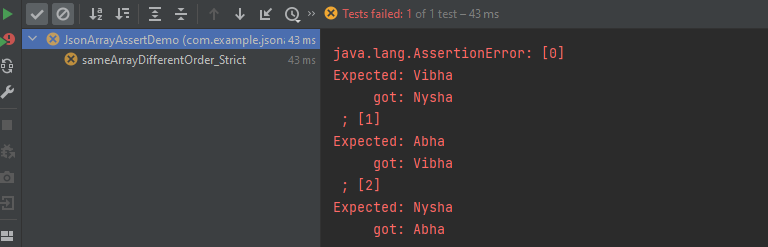
    public void sameArrayDifferentOrder_Strict() {

        // same no of elements, values and in same order
        String jsonArray1 = "[\"Vibha\",\"Abha\",\"Nysha\"]";
        String jsonArray2 = "[\"Nysha\",\"Vibha\",\"Abha\"]";

        JSONAssert.assertEquals(jsonArray1, jsonArray2, JSONCompareMode.STRICT);
    }

    @Test
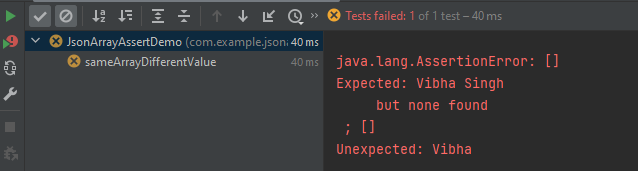
    public void sameArrayDifferentValue() {

        // Same no of elements but different values
        String jsonArray1 = "[\"Vibha Singh\",\"Abha\",\"Nysha\"]";
        String jsonArray2 = "[\"Vibha\",\"Abha\",\"Nysha\"]";

        JSONAssert.assertEquals(jsonArray1, jsonArray2, JSONCompareMode.LENIENT);
    }

   @Test
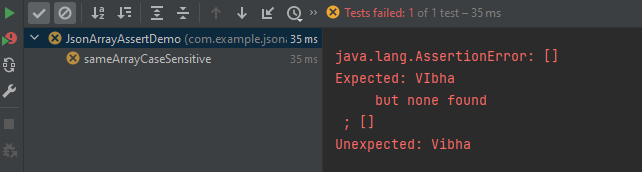
    public void sameArrayCaseSensitive() {

        // case sensitive
        String jsonArray1 = "[\"VIbha\",\"Abha\",\"Nysha\"]";
        String jsonArray2 = "[\"Vibha\",\"Abha\",\"Nysha\"]";

        JSONAssert.assertEquals(jsonArray1, jsonArray2, JSONCompareMode.LENIENT);
    }

    @Test
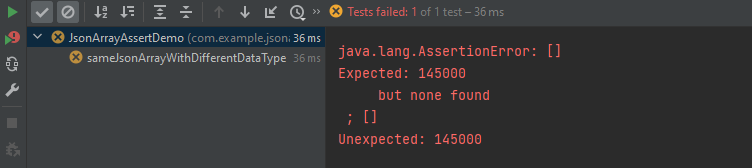
    public void sameJsonArrayWithDifferentDataType() {

        String jsonArray1 = "[\"Vibha\",\"Abha\",\"145000\"]";
        String jsonArray2 = "[\"Vibha\",\"Abha\",145000]";


        JSONAssert.assertEquals(jsonArray1, jsonArray2, JSONCompareMode.LENIENT);
    }

   @Test
    public void sameArrayDifferentNumber() {
        
        String jsonArray1 = "[\"Vibha\",\"Abha\",\"Nysha\", \"Pooja\"]";
        String jsonArray2 = "[\"Vibha\",\"Abha\",\"Nysha\"]";

        JSONAssert.assertEquals(jsonArray1, jsonArray2, JSONCompareMode.LENIENT);
    }

    @Test
    public void sameArrayDifferentNumber() {

        String jsonArray1 = "[\"Vibha\",\"Abha\",\"Nysha\", \"Pooja\"]";
        String jsonArray2 = "[\"Vibha\",\"Abha\",\"Nysha\"]";

        JSONAssert.assertEquals(jsonArray1, jsonArray2, JSONCompareMode.STRICT);
    }

        JSONAssert.assertEquals(jsonArray1, jsonArray2, JSONCompareMode.LENIENT);
        JSONAssert.assertEquals(jsonArray1, jsonArray2, false);

        JSONAssert.assertEquals(jsonArray1, jsonArray2, JSONCompareMode.STRICT);
        JSONAssert.assertEquals(jsonArray1, jsonArray2, true);

 @Test
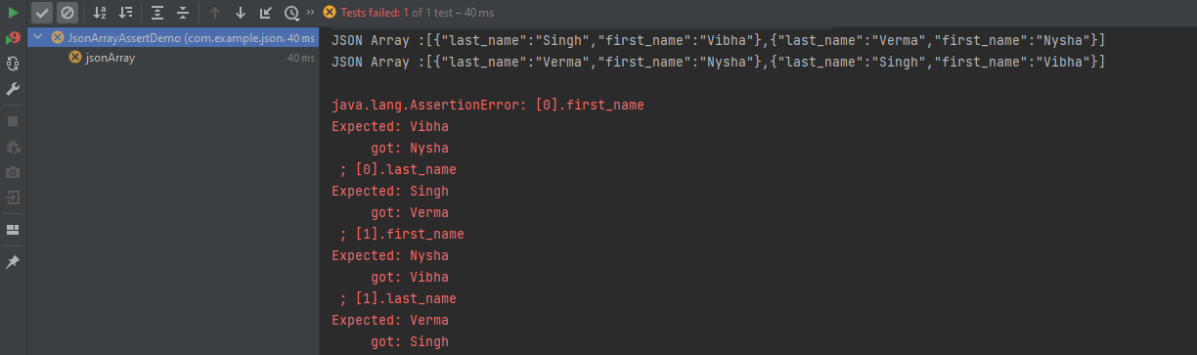
    public void jsonArray() {

        JSONObject data1 = new JSONObject();
        data1.put("first_name", "Vibha");
        data1.put("last_name", "Singh");

        JSONObject data2 = new JSONObject();
        data2.put("first_name", "Nysha");
        data2.put("last_name", "Verma");


        // Creating JSON array to add both JSON objects
        JSONArray array1 = new JSONArray();
        array1.put(data1);
        array1.put(data2);

        System.out.println("JSON Array :" + array1);

       //Second JSON Array

        JSONObject data3 = new JSONObject();
        data3.put("first_name", "Nysha");
        data3.put("last_name", "Verma");

        JSONObject data4 = new JSONObject();
        data4.put("first_name", "Vibha");
        data4.put("last_name", "Singh");

        // Creating JSON array to add both JSON objects
        JSONArray array2 = new JSONArray();
        array2.put(data3);
        array2.put(data4);

        System.out.println("JSON Array :" + array2);

        JSONAssert.assertEquals(array1, array2, JSONCompareMode.STRICT);
    }

Compare JSON Objects using JSONAssert Library

HOME

  <dependency>
      <groupId>org.skyscreamer</groupId>
      <artifactId>jsonassert</artifactId>
      <version>1.5.1</version>
      <scope>test</scope>
    </dependency>

import org.json.JSONObject;
import org.junit.Test;
import org.skyscreamer.jsonassert.JSONAssert;
import org.skyscreamer.jsonassert.JSONCompareMode;

public class JsonAssertDemo {

    @Test
    public void exactSameJson() {

        String jsonObject1 = "{ " +
                "\"first_name\" : \"Vibha\"," +
                "\"last_name\": \"Singh\"" +
                "}";

        String jsonObject2 = "{ " +
                "\"first_name\" : \"Vibha\"," +
                "\"last_name\": \"Singh\"" +
                "}";

        // Lenient mode - extensible and no strict ordering
        JSONAssert.assertEquals(jsonObject1, jsonObject2, JSONCompareMode.LENIENT);
    }

   @Test
    public void sameJsonWithDifferentOrder() {

        String jsonObject1 = "{ " +
                "\"first_name\" : \"Vibha\"," +
                "\"last_name\": \"Singh\"" +
                "}";

        String jsonObject2 = "{ " +
                "\"last_name\": \"Singh\"," +
                "\"first_name\" : \"Vibha\"" +
                "}";

      
        JSONAssert.assertEquals(jsonObject1, jsonObject2, JSONCompareMode.LENIENT);
    }

    @Test
    public void sameJsonWithDifferentValues() {

        String jsonObject1 = "{ " +
                "\"first_name\" : \"Vibha\"," +
                "\"last_name\": \"Singh\"" +
                "}";

        String jsonObject2 = "{ " +
                "\"first_name\" : \"Vibha\"," +
                "\"last_name\": \"Verma\"" +
                "}";

        JSONAssert.assertEquals(jsonObject1, jsonObject2, JSONCompareMode.LENIENT);
    }

  @Test
    public void sameJsonWithDifferentDataType() {

        String jsonObject1 = "{ " +
                "\"first_name\" : \"Vibha\"," +
                "\"last_name\": \"Singh\"," +
                "\"salary\": 115000" +
                "}";

        String jsonObject2 ="{ " +
                "\"first_name\" : \"Vibha\"," +
                "\"last_name\": \"Singh\"," +
                "\"salary\": \"115000\"" +
                "}";

        JSONAssert.assertEquals(jsonObject1, jsonObject2, JSONCompareMode.LENIENT);
    }

 @Test
    public void differentJson() {

        String jsonObject1 = "{ " +
                "\"first_name\" : \"Vibha\"," +
                "\"last_name\": \"Singh\"" +
                "}";

        String jsonObject2 ="{ " +
                "\"first_name\" : \"Vibha\"," +
                "\"last_name\": \"Singh\"," +
                "\"salary\": \"115000\"" +
                "}";

        JSONAssert.assertEquals(jsonObject1, jsonObject2, JSONCompareMode.LENIENT);
    }

    @Test
    public void differentJson() {

        String jsonObject1 = "{ " +
                "\"first_name\" : \"Vibha\"," +
                "\"last_name\": \"Singh\"" +
                "}";

        String jsonObject2 ="{ " +
                "\"first_name\" : \"Vibha\"," +
                "\"last_name\": \"Singh\"," +
                "\"salary\": \"115000\"" +
                "}";

        JSONAssert.assertEquals(jsonObject2, jsonObject1, JSONCompareMode.LENIENT);
    }

  @Test
    public void differentJsonWithStrict() {

        String jsonObject1 = "{ " +
                "\"first_name\" : \"Vibha\"," +
                "\"last_name\": \"Singh\"" +
                "}";

        String jsonObject2 ="{ " +
                "\"first_name\" : \"Vibha\"," +
                "\"last_name\": \"Singh\"," +
                "\"salary\": \"115000\"" +
                "}";

        JSONAssert.assertEquals("JSONs are not equal",jsonObject1, jsonObject2, JSONCompareMode.STRICT);
    }

        JSONAssert.assertEquals(jsonObject2, jsonObject1, JSONCompareMode.LENIENT);
        JSONAssert.assertEquals(jsonObject2, jsonObject1, false);

        JSONAssert.assertEquals(jsonObject2, jsonObject1, JSONCompareMode.STRICT);
        JSONAssert.assertEquals(jsonObject2, jsonObject1, true);

 @Test
    public void matchJsonObject()  {

        JSONObject jsonObject1 = new JSONObject();
        jsonObject1.put("first_name", "Vibha");
        jsonObject1.put("last_name", "Singh");

        JSONObject jsonObject2 = new JSONObject();
        jsonObject2.put("first_name", "Vibha");
        jsonObject2.put("last_name", "Verma");

        JSONAssert.assertEquals("JSONs are not equal", jsonObject1, jsonObject2, false);
    }

Maven Tutorials

HOME

 Chapter 1 Maven – How to install Maven on Window

Eclipse IDE

Chapter 1 Maven – How to create a Java project using Command Line
Chapter 2 Maven – How to create Maven project in Selenium
Chapter 3 Maven – How to import Maven project in Eclipse
Chapter 4 Maven – How to add M2_REPO classpath variable to Eclipse

IntelliJ IDE

Chapter 1 How to create Maven project in IntelliJ
Chapter 2 How to import Java Maven project in IntelliJ
Chapter 3 How to create a Java Maven project using Command Line in IntelliJ

Maven Tutorial – How to create Maven project in Selenium

HOME

Step 2Select the Maven Project and click on the “Next” button.

Step 3You can select the default workplace or mention the location where you want to save the project.

Step 4 – Select maven-archetype-quickstart option as shown below and click on the “Next” button.

Step 5 Provide the Group Id, Artifact Id details and click the “Finish” button.

Step 6 – The structure of the project looks as shown in the below image.

Step 7 – POM file will look like below image

<?xml version="1.0" encoding="UTF-8"?>

<project xmlns="http://maven.apache.org/POM/4.0.0" xmlns:xsi="http://www.w3.org/2001/XMLSchema-instance"
  xsi:schemaLocation="http://maven.apache.org/POM/4.0.0 http://maven.apache.org/xsd/maven-4.0.0.xsd">
  <modelVersion>4.0.0</modelVersion>

  <groupId>com.example</groupId>
  <artifactId>SeleniumMaven_Demo</artifactId>
  <version>0.0.1-SNAPSHOT</version>

  <name>SeleniumMaven_Demo</name>
  <!-- FIXME change it to the project's website -->
  <url>http://www.example.com</url>

  <properties>
    <project.build.sourceEncoding>UTF-8</project.build.sourceEncoding>
    <maven.compiler.source>1.7</maven.compiler.source>
    <maven.compiler.target>1.7</maven.compiler.target>
  </properties>

  <dependencies>
    <dependency>
      <groupId>junit</groupId>
      <artifactId>junit</artifactId>
      <version>4.11</version>
      <scope>test</scope>
    </dependency>
  </dependencies>

  <build>
    <pluginManagement><!-- lock down plugins versions to avoid using Maven defaults (may be moved to parent pom) -->
      <plugins>
        <!-- clean lifecycle, see https://maven.apache.org/ref/current/maven-core/lifecycles.html#clean_Lifecycle -->
        <plugin>
          <artifactId>maven-clean-plugin</artifactId>
          <version>3.1.0</version>
        </plugin>
        <!-- default lifecycle, jar packaging: see https://maven.apache.org/ref/current/maven-core/default-bindings.html#Plugin_bindings_for_jar_packaging -->
        <plugin>
          <artifactId>maven-resources-plugin</artifactId>
          <version>3.0.2</version>
        </plugin>
        <plugin>
          <artifactId>maven-compiler-plugin</artifactId>
          <version>3.8.0</version>
        </plugin>
        <plugin>
          <artifactId>maven-surefire-plugin</artifactId>
          <version>2.22.1</version>
        </plugin>
        <plugin>
          <artifactId>maven-jar-plugin</artifactId>
          <version>3.0.2</version>
        </plugin>
        <plugin>
          <artifactId>maven-install-plugin</artifactId>
          <version>2.5.2</version>
        </plugin>
        <plugin>
          <artifactId>maven-deploy-plugin</artifactId>
          <version>2.8.2</version>
        </plugin>
        <!-- site lifecycle, see https://maven.apache.org/ref/current/maven-core/lifecycles.html#site_Lifecycle -->
        <plugin>
          <artifactId>maven-site-plugin</artifactId>
          <version>3.7.1</version>
        </plugin>
        <plugin>
          <artifactId>maven-project-info-reports-plugin</artifactId>
          <version>3.0.0</version>
        </plugin>
      </plugins>
    </pluginManagement>
  </build>
</project>

How to add dependencies to POM.xml file

Step 1 – Please visit website MVN Repository – https://mvnrepository.com/.

Step 2 – Search for Selenium Java in search box.

Step 3 – We will get the “Selenium Java” dependency as shown in the below image.

Step 5 – Copy the content as shown below and paste in pom.xml of the project.

Step 6 – The updated pom.xml will look like the below image.

Step 7 – Save the project. The selenium dependencies will be downloaded automatically and can be seen in Maven Dependencies folder.

How to validate JSON body in Rest Assured?

HOME

 <dependency>
      <groupId>io.rest-assured</groupId>
      <artifactId>json-schema-validator</artifactId>
      <version>5.3.2</version>
 </dependency>

{
  "data": {
    "id": 3,
    "email": "emma.wong@reqres.in",
    "first_name": "Emma",
    "last_name": "Wong",
    "avatar": "https://reqres.in/img/faces/3-image.jpg"
  },
  "support": {
    "url": "https://reqres.in/#support-heading",
    "text": "To keep ReqRes free, contributions towards server costs are appreciated!"
  }
}

import static io.restassured.module.jsv.JsonSchemaValidator.

import org.junit.Test;
import java.io.IOException;
import static io.restassured.RestAssured.given;
import static io.restassured.module.jsv.JsonSchemaValidator.matchesJsonSchemaInClasspath;

public class JsonCompare {

    @Test
    public void verifyGreaterResponseTime() throws IOException {

        // Given
        given()

                // When
                .when()
                .get("https://reqres.in/api/users/3")

                // Then
                .then()

                .assertThat()
                .body(matchesJsonSchemaInClasspath("User.json"));
    }
}

How to handle HTTP Query Parameters using REST Assured

HOME

https://reqres.in/api/users?page=2
import org.junit.Test;
import static io.restassured.RestAssured.given;
import static org.hamcrest.CoreMatchers.equalTo;

public class ParamDemo {


    @Test
    public void verifyQueryParam() {

        String endpoint = "https://reqres.in/api/";

        // Given
        given()
                .queryParam("page", "2")

                // When
                .when()
                .get(endpoint + "users/")

                // Then
                .then()

                // To verify the response body
                .body("page", equalTo(2))
                .body("per_page", equalTo(6))
                .body("total_pages", equalTo(2));

    }
}

How to perform multiple assertions in Rest Assured?

HOME

  @Test
   public void verifyHardAssertion() {

      // Given
      given()

              // When
              .when()
              .get("https://reqres.in/api/users/2")

              // Then
              .then()

              // To verify the response body
              .body("data.email", equalTo("janet.weaver@reqres12.in"))
              .body("data.first_name", equalTo("Janet1"))
              .body("data.last_name", equalTo("Weaver"));

    }

 @Test
  public void verifySoftAssertion() {

      // Given
      given()

              // When
              .when()
              .get("https://reqres.in/api/users/2")

              // Then
              .then()

              // To verify the response body
              .body("data.email", equalTo("janet.weaver@reqres12.in"),
                        "data.first_name", equalTo("Janet1"),
                        "data.last_name", equalTo("Weaver"));

    }
}

Integration of Serenity with Cucumber and JUnit5

HOME

In the previous tutorial, I explained the Serenity BDD with Cucumber for Web Application using Junit4. In this tutorial, I will explain the same Test Framework using Serenity, Cucumber, and JUnit5. This tutorial gives a clear picture of the initial setup of a BDD Framework.

What is JUnit5?

JUnit 5 is composed of several different modules from three different sub-projects.

JUnit 5 = JUnit Platform + JUnit Jupiter + JUnit Vintage

The JUnit Platform serves as a foundation for launching testing frameworks on the JVM. It also defines the TestEngine API for developing a testing framework that runs on the platform.

JUnit Jupiter is the combination of the new programming model and extension model for writing tests and extensions in JUnit 5. The Jupiter sub-project provides a TestEngine for running Jupiter based tests on the platform.

JUnit Vintage provides a TestEngine for running JUnit 3 and JUnit 4 based tests on the platform. It requires JUnit 4.12 or later to be present on the class/module path.

JUnit5 is not completely integrated with Serenity with Cucumber. So, it is advisable to use jupiter-vintage-engine for the Cucumber TestRunner classes.

Dependency List:

  1. Serenity – 4.0.28
  2. JUnit Jupiter – 5.10.1
  3. JUnit Vintage – 5.10.1
  4. JUnit Platform Suite – 1.10.1
  5. Cucumber JUnit Platform – 7.15.0
  6. Java 17
  7. Maven – 3.9.5
  8. Maven Compiler Plugin – 3.11.0
  9. Maven Surefire Plugin – 3.2.1
  10. Maven FailSafe Plugin – 3.2.1

Implementation Steps

Step 1- Download and Install Java

Click here to know How to install Java.

Step 2 – Download and setup Eclipse IDE on the system

The Eclipse IDE (integrated development environment) provides strong support for Java developers which is needed to write Java code. Click here to know How to install Eclipse.

Step 3 – Setup Maven and create a new Maven Project

Click here to know How to install Maven.

Click here to know How to create a Maven project

Below is the Maven project structure. Here,

Group Id – com.example
Artifact Id – SerenityCucumberJunit5Demo
Version – 0.0.1-SNAPSHOT
Package – com. example. SerenityCucumberJunit5Demo

Step 4 – Update Properties section in Maven pom.xml

<properties>
        <project.build.sourceEncoding>UTF-8</project.build.sourceEncoding>
        <serenity.version>4.0.28</serenity.version>
        <junit.jupiter.version>5.10.1</junit.jupiter.version>
        <junit.vintage.version>5.10.1</junit.vintage.version>
        <junit-platform-suite.version>1.10.1</junit-platform-suite.version>
        <cucumber-junit-platform-engine.version>7.15.0</cucumber-junit-platform-engine.version>
        <maven.compiler.plugin.version>3.11.0</maven.compiler.plugin.version>
        <maven.compiler.source>17</maven.compiler.source>
        <maven.compiler.target>17</maven.compiler.target>
        <maven.surefire.plugin.version>3.2.1</maven.surefire.plugin.version>
        <maven.failsafe.plugin.version>3.2.1</maven.failsafe.plugin.version>
        <tags></tags>
  </properties>

Step 5 – Add repositories and pluginRepository to Maven pom.xml

 <repositories>
        <repository>
            <snapshots>
                <enabled>false</enabled>
            </snapshots>
            <id>central</id>
            <name>bintray</name>
            <url>https://jcenter.bintray.com</url>
        </repository>
    </repositories>
    <pluginRepositories>
        <pluginRepository>
            <snapshots>
                <enabled>false</enabled>
            </snapshots>
            <id>central</id>
            <name>bintray-plugins</name>
            <url>https://jcenter.bintray.com</url>
        </pluginRepository>
    </pluginRepositories>

Step 6 – Add Serenity, Serenity Cucumber, and JUnit dependencies to POM.xml

<dependencies>
        <!-- JUnit 5 -->
        <dependency>
            <groupId>org.junit.jupiter</groupId>
            <artifactId>junit-jupiter-engine</artifactId>
            <version>${junit.jupiter.version}</version>
            <scope>test</scope>
        </dependency>

        <dependency>
            <groupId>org.junit.vintage</groupId>
            <artifactId>junit-vintage-engine</artifactId>
            <version>${junit.vintage.version}</version>
            <scope>test</scope>
        </dependency>

        <!-- Serenity -->
         <dependency>
            <groupId>net.serenity-bdd</groupId>
            <artifactId>serenity-core</artifactId>
            <version>${serenity.version}</version>
            <scope>test</scope>
        </dependency>
        
         <dependency>
            <groupId>net.serenity-bdd</groupId>
            <artifactId>serenity-cucumber</artifactId>
            <version>${serenity.version}</version>
            <scope>test</scope>
        </dependency>
        
        <dependency>
            <groupId>net.serenity-bdd</groupId>
            <artifactId>serenity-screenplay-webdriver</artifactId>
            <version>${serenity.version}</version>
            <scope>test</scope>
        </dependency>

     <dependency>
         <groupId>org.junit.platform</groupId>
         <artifactId>junit-platform-suite</artifactId>
         <version>${junit-platform-suite.version}</version>
         <scope>test</scope>
     </dependency>

     <dependency>
         <groupId>io.cucumber</groupId>
         <artifactId>cucumber-junit-platform-engine</artifactId>
         <version>${cucumber-junit-platform-engine.version}</version>
         <scope>test</scope>
     </dependency>

    </dependencies>

Step 7 – Update the Build Section of pom.xml

<build>
        <plugins>
            <plugin>
                <groupId>org.apache.maven.plugins</groupId>
                <artifactId>maven-surefire-plugin</artifactId>
                <version>${maven.surefire.plugin.version}</version>
                <configuration>
                    <skip>true</skip>
                </configuration>
            </plugin>
            <plugin>
                <artifactId>maven-failsafe-plugin</artifactId>
                <version>${maven.failsafe.plugin.version}</version>
                <configuration>
                    <includes>
                        <include>**/*.java</include>
                    </includes>
                    <parallel>methods</parallel>
                    <useUnlimitedThreads>true</useUnlimitedThreads>
                </configuration>
                <executions>
                    <execution>
                        <goals>
                            <goal>integration-test</goal>
                            <goal>verify</goal>
                        </goals>
                    </execution>
                </executions>
            </plugin>
            <plugin>
                <groupId>org.apache.maven.plugins</groupId>
                <artifactId>maven-compiler-plugin</artifactId>
                <version>${maven.compiler.plugin.version}</version>
                <configuration>
                    <source>${maven.compiler.source}</source>
                    <target>${maven.compiler.target}</target>
                </configuration>
            </plugin>
           <plugin>
               <groupId>net.serenity-bdd.maven.plugins</groupId>
               <artifactId>serenity-maven-plugin</artifactId>
               <version>${serenity.version}</version>
               <dependencies> 
                  <dependency>
                       <groupId>net.serenity-bdd</groupId>
                       <artifactId>serenity-single-page-report</artifactId>
                       <version>${serenity.version}</version>
                  </dependency>                
               </dependencies>
               <configuration>
                   <tags>${tags}</tags>
                   <reports>single-page-html</reports> 
               </configuration>
               <executions>
                  <execution>
                      <id>serenity-reports</id>
                      <phase>post-integration-test</phase>
                      <goals>
                          <goal>aggregate</goal>
                      </goals>
                   </execution>
               </executions>
           </plugin>
        </plugins>
    </build>
</project>

<?xml version="1.0" encoding="UTF-8"?>

<project xmlns="http://maven.apache.org/POM/4.0.0" xmlns:xsi="http://www.w3.org/2001/XMLSchema-instance"
  xsi:schemaLocation="http://maven.apache.org/POM/4.0.0 https://maven.apache.org/xsd/maven-4.0.0.xsd">
  <modelVersion>4.0.0</modelVersion>

  <groupId>com.example</groupId>
  <artifactId>SerenityCucumberJunit5Demo</artifactId>
  <version>0.0.1-SNAPSHOT</version>

  <name>SerenityCucumberJunit5Demo</name>
  <!-- FIXME change it to the project's website -->
  <url>http://www.example.com</url>

  <properties>
        <project.build.sourceEncoding>UTF-8</project.build.sourceEncoding>
        <serenity.version>4.0.28</serenity.version>
        <junit.jupiter.version>5.10.1</junit.jupiter.version>
        <junit.vintage.version>5.10.1</junit.vintage.version>
        <junit-platform-suite.version>1.10.1</junit-platform-suite.version>
        <cucumber-junit-platform-engine.version>7.15.0</cucumber-junit-platform-engine.version>
        <maven.compiler.plugin.version>3.11.0</maven.compiler.plugin.version>
        <maven.compiler.source>17</maven.compiler.source>
        <maven.compiler.target>17</maven.compiler.target>
        <maven.surefire.plugin.version>3.2.1</maven.surefire.plugin.version>
        <maven.failsafe.plugin.version>3.2.1</maven.failsafe.plugin.version>
        <tags></tags>
  </properties>
  
  <repositories>
        <repository>
            <snapshots>
                <enabled>false</enabled>
            </snapshots>
            <id>central</id>
            <name>bintray</name>
            <url>https://jcenter.bintray.com</url>
        </repository>
    </repositories>
    <pluginRepositories>
        <pluginRepository>
            <snapshots>
                <enabled>false</enabled>
            </snapshots>
            <id>central</id>
            <name>bintray-plugins</name>
            <url>https://jcenter.bintray.com</url>
        </pluginRepository>
    </pluginRepositories>

 <dependencies>
        <!-- JUnit 5 -->
        <dependency>
            <groupId>org.junit.jupiter</groupId>
            <artifactId>junit-jupiter-engine</artifactId>
            <version>${junit.jupiter.version}</version>
            <scope>test</scope>
        </dependency>

        <dependency>
            <groupId>org.junit.vintage</groupId>
            <artifactId>junit-vintage-engine</artifactId>
            <version>${junit.vintage.version}</version>
            <scope>test</scope>
        </dependency>

        <!-- Serenity -->
         <dependency>
            <groupId>net.serenity-bdd</groupId>
            <artifactId>serenity-core</artifactId>
            <version>${serenity.version}</version>
            <scope>test</scope>
        </dependency>
        
         <dependency>
            <groupId>net.serenity-bdd</groupId>
            <artifactId>serenity-cucumber</artifactId>
            <version>${serenity.version}</version>
            <scope>test</scope>
        </dependency>
        
        <dependency>
            <groupId>net.serenity-bdd</groupId>
            <artifactId>serenity-screenplay-webdriver</artifactId>
            <version>${serenity.version}</version>
            <scope>test</scope>
        </dependency>

     <dependency>
         <groupId>org.junit.platform</groupId>
         <artifactId>junit-platform-suite</artifactId>
         <version>${junit-platform-suite.version}</version>
         <scope>test</scope>
     </dependency>

     <dependency>
         <groupId>io.cucumber</groupId>
         <artifactId>cucumber-junit-platform-engine</artifactId>
         <version>${cucumber-junit-platform-engine.version}</version>
         <scope>test</scope>
     </dependency>

    </dependencies>

    <build>
        <plugins>
            <plugin>
                <groupId>org.apache.maven.plugins</groupId>
                <artifactId>maven-surefire-plugin</artifactId>
                <version>${maven.surefire.plugin.version}</version>
                <configuration>
                    <skip>true</skip>
                </configuration>
            </plugin>
            <plugin>
                <artifactId>maven-failsafe-plugin</artifactId>
                <version>${maven.failsafe.plugin.version}</version>
                <configuration>
                    <includes>
                        <include>**/*.java</include>
                    </includes>
                    <parallel>methods</parallel>
                    <useUnlimitedThreads>true</useUnlimitedThreads>
                </configuration>
                <executions>
                    <execution>
                        <goals>
                            <goal>integration-test</goal>
                            <goal>verify</goal>
                        </goals>
                    </execution>
                </executions>
            </plugin>
            <plugin>
                <groupId>org.apache.maven.plugins</groupId>
                <artifactId>maven-compiler-plugin</artifactId>
                <version>${maven.compiler.plugin.version}</version>
                <configuration>
                    <source>${maven.compiler.source}</source>
                    <target>${maven.compiler.target}</target>
                </configuration>
            </plugin>
           <plugin>
               <groupId>net.serenity-bdd.maven.plugins</groupId>
               <artifactId>serenity-maven-plugin</artifactId>
               <version>${serenity.version}</version>
               <dependencies> 
                  <dependency>
                       <groupId>net.serenity-bdd</groupId>
                       <artifactId>serenity-single-page-report</artifactId>
                       <version>${serenity.version}</version>
                  </dependency>                
               </dependencies>
               <configuration>
                   <tags>${tags}</tags>
                   <reports>single-page-html</reports> 
               </configuration>
               <executions>
                  <execution>
                      <id>serenity-reports</id>
                      <phase>post-integration-test</phase>
                      <goals>
                          <goal>aggregate</goal>
                      </goals>
                   </execution>
               </executions>
           </plugin>
        </plugins>
    </build>
</project>

Step 8 – Create a feature file under src/test/resources

The purpose of the Feature keyword is to provide a high-level description of a software feature, and to group related scenarios. To know more about the Feature file, please refer this tutorial.

Feature: Login to HRM  

   @ValidCredentials
   Scenario: Login with valid credentials
   
    Given User is on Home page
    When User enters username as "Admin"
    And User enters password as "admin123"
    Then User should be able to login successfully
    
    @InValidCredentials    
    Scenario Outline: Login with invalid credentials
   
    Given User is on Home page
    When User enters username as '<username>'
    And User enters password as '<password>'
    Then User should be able to see error message '<errorMessage>'
      
   Examples:
    |username   |password       |errorMessage               |
    |admin        |admin            |Invalid credentials        |
    |abc            |admin123       |Invalid credentials        |
    |abc            |abc123           |Invalid credentials         |
    |1$£"          | 45£"%           |Invalid credentials        |
 
   @ForgetPassword  
   Scenario: Verify Forget Password Functionality
   
    Given User is on Home page
    When User clicks on Forgot your password link
    Then User should be able to see new page which contains Reset Password button

Step 9 – Create junit-platform.properties file under src/test/resources (optional)

This is an optional step. Cucumber of version 6.7 and above provides the functionality to generate a beautiful cucumber report. For this, it is needed to add a file junit-platform.properties under src/test/resources.

cucumber.publish.enabled = true

Step 10 – Create the Step Definition class or Glue Code

A Step Definition is a Java method with an expression that links it to one or more Gherkin steps. When Cucumber executes a Gherkin step in a scenario, it will look for a matching step definition to execute. You can have all of your step definitions in one file, or in multiple files.

LoginPageDefinitions

import static org.junit.jupiter.api.Assertions.assertEquals;
import static org.junit.jupiter.api.Assertions.assertTrue;

import com.example.SerenityCucumberJunit5Demo.steps.StepDashboardPage;
import com.example.SerenityCucumberJunit5Demo.steps.StepForgetPasswordPage;
import com.example.SerenityCucumberJunit5Demo.steps.StepLoginPage;

import io.cucumber.java.en.Given;
import io.cucumber.java.en.Then;
import io.cucumber.java.en.When;
import net.serenitybdd.annotations.Steps;


public class LoginPageDefinitions {

	@Steps
	StepLoginPage loginPage;

	@Steps
	StepDashboardPage dashPage;

	@Steps
	StepForgetPasswordPage forgetpasswordPage;

	@Given("User is on Home page")
	public void openApplication() {
		loginPage.open();
	}

	@When("User enters username as {string}")
	public void enterUsername(String userName) {

		loginPage.inputUserName(userName);
	}

	@When("User enters password as {string}")
	public void enterPassword(String passWord) {
		loginPage.inputPassword(passWord);
		loginPage.clickLogin();
	}

	@Then("User should be able to login successfully")
	public void clickOnLoginButton() {
		dashPage.loginVerify();
	}

	@Then("User should be able to see error message {string}")
	public void unsucessfulLogin(String expectedErrorMessage) {
		String actualErrorMessage = loginPage.errorMessage();

		System.out.println("Actual Error Message :" + actualErrorMessage);

		assertEquals(expectedErrorMessage, actualErrorMessage);
	}

	@When("User clicks on Forgot your password link")
	public void clickForgetPasswordLink() {
		loginPage.clickForgetPasswordLink();
	}

	@Then("User should be able to see new page which contains Reset Password button")
	public void verifyForgetPasswordPage() {

		assertTrue(forgetpasswordPage.ForgetPasswordPage());
	}
}

Assertions in JUnit-Vintage Engine are imported from the below package:-

import static org.junit.jupiter.api.Assertions.*;

DashboardPageDefinitions

import com.example.SerenityCucumberJunit5Demo.steps.StepDashboardPage;
import net.serenitybdd.annotations.Step;
import net.serenitybdd.annotations.Steps;

public class DashboardPageDefinitions {

	@Steps
	StepDashboardPage dashPage;

	@Step
	public void verifyAdminLogin() {
		dashPage.loginVerify();
	}
}

The corresponding Test Step classes are – StepLoginPage and StepDashboardPage.

There are multiple ways to identify a web element on the web page – one of the ways is to use @FindBy or $(By.).

I prefer to use @FindBy as I need not find the same element multiple times. Using @FindBy, I have identified a web element and defined a WebElementFacacde for the same which is reusable.

StepLoginPage

import net.serenitybdd.annotations.Step;
import net.serenitybdd.core.annotations.findby.FindBy;
import net.serenitybdd.core.pages.PageObject;
import net.serenitybdd.core.pages.WebElementFacade;


public class StepLoginPage extends PageObject {

	@FindBy(name = "username")
	WebElementFacade username;

	@FindBy(name = "password")
	WebElementFacade password;

	@FindBy(xpath = "//*[@id='app']/div[1]/div/div[1]/div/div[2]/div[2]/form/div[3]/button")
	WebElementFacade submitButton;

	@FindBy(xpath = "//*[@id='app']/div[1]/div/div[1]/div/div[2]/div[2]/div/div[1]/div[1]/p")
	WebElementFacade errorMessage;

	@FindBy(xpath = "//*[@id='app']/div[1]/div/div[1]/div/div[2]/div[2]/form/div[4]/p")
	WebElementFacade linkText;

	@Step("Enter Username")
	public void inputUserName(String userName) {
		username.sendKeys((userName));
	}

	@Step("Enter Password")
	public void inputPassword(String passWord) {
		password.sendKeys((passWord));
	}

	@Step("Click Submit Button")
	public void clickLogin() {
		submitButton.click();
	}

	@Step("Error Message on unsuccessful login")
	public String errorMessage() {
		String actualErrorMessage = errorMessage.getText();
		System.out.println("Actual Error Message :" + actualErrorMessage);

		return actualErrorMessage;
	}

	@Step("Click Forget Password Link")
	public void clickForgetPasswordLink() {
		linkText.click();

		System.out.println("Clicked on Forgot Password Link");
	}

}

StepDashboardPage

import static org.hamcrest.CoreMatchers.containsString;
import static org.hamcrest.MatcherAssert.assertThat;
import net.serenitybdd.annotations.Step;
import net.serenitybdd.core.annotations.findby.FindBy;
import net.serenitybdd.core.pages.PageObject;
import net.serenitybdd.core.pages.WebElementFacade;

public class StepDashboardPage extends PageObject {

	@FindBy(xpath = "//*[@id='app']/div[1]/div[1]/header/div[1]/div[1]/span/h6")
	WebElementFacade dashboardText;

	@Step("Successful login")
	public void loginVerify() {
		String dashboardTitle = dashboardText.getText();
		assertThat(dashboardTitle, containsString("Dashboard"));
	}
}

StepForgetPasswordPage

import net.serenitybdd.annotations.Step;
import net.serenitybdd.core.annotations.findby.FindBy;
import net.serenitybdd.core.pages.PageObject;
import net.serenitybdd.core.pages.WebElementFacade;

public class StepForgetPasswordPage extends PageObject {

	@FindBy(xpath = "//*[@id='app']/div[1]/div[1]/div/form/h6")
	WebElementFacade forgetLink;

	@Step("Verify Forget Password Page ")
	public boolean ForgetPasswordPage() {
		Boolean resetPasswordButton = forgetLink.isDisplayed();

		return resetPasswordButton;
	}
}

Step 11 – Create a Serenity-Cucumber Runner class

Cucumber runs the feature files via JUnit and needs a dedicated test runner class to actually run the feature files. When you run the tests with Serenity, you use the CucumberWithSerenity test runner. You also need to use the @CucumberOptions class to provide the root directory where the feature files can be found.

import static io.cucumber.junit.platform.engine.Constants.GLUE_PROPERTY_NAME;
import static io.cucumber.junit.platform.engine.Constants.PLUGIN_PROPERTY_NAME;

import org.junit.platform.suite.api.ConfigurationParameter;
import org.junit.platform.suite.api.IncludeEngines;
import org.junit.platform.suite.api.SelectClasspathResource;
import org.junit.platform.suite.api.Suite;

@Suite
@IncludeEngines("cucumber")
@SelectClasspathResource("/features")
@ConfigurationParameter(key = GLUE_PROPERTY_NAME, value = "com.example.SerenityCucumberJunit5Demo.definitions")
@ConfigurationParameter(key = PLUGIN_PROPERTY_NAME, value = "io.cucumber.core.plugin.SerenityReporterParallel,pretty,timeline:build/test-results/timeline")

public class SerenityRunnerTest {

}

Step 12 – Create serenity.conf file under src/test/resources

The serenity configuration file is used to configure the drivers so the test cases can run successfully. This file contains an operating system-specific binary. The binary file sits between your test and the browser. It acts as an intermediary, an interface between your tests and the browser you are using.

You can also configure the webdriver.base.url property for different environments in the serenity.conf configuration file.

headless.mode = false

webdriver {
  driver = chrome
  capabilities {
    browserName = "chrome"
    acceptInsecureCerts = true
    "goog:chromeOptions" {
      args = ["remote-allow-origins=*","test-type", "no-sandbox", "ignore-certificate-errors", "--window-size=1000,800",
        "incognito", "disable-infobars", "disable-gpu", "disable-default-apps", "disable-popup-blocking",
        "disable-dev-shm-usage", "disable-extensions", "disable-web-security", "disable-translate", "disable-logging"]
    }
  }
}


#
# Define drivers for different platforms. Serenity will automatically pick the correct driver for the current platform
#

environments {
  default {
    webdriver.base.url = "https://opensource-demo.orangehrmlive.com/"
  }
  dev {
    webdriver.base.url = "https://opensource-demo.orangehrmlive.com/dev"
  }
  staging {
    webdriver.base.url = "https://opensource-demo.orangehrmlive.com/staging"
  }
  prod {
    webdriver.base.url = "https://opensource-demo.orangehrmlive.com/prod"
  }
}

Step 13 – Create serenity.properties file at the root of the project

serenity.project.name = Serenity and Cucumber and JUnit5 Demo

Step 14 – Run the tests from Command Line

Open the command line and go to the location where pom.xml of the project is present and type the below command.

mvn clean verify

Step 15 – Test Execution Status

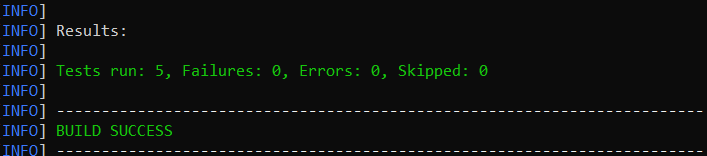
The image displayed above shows the execution status.

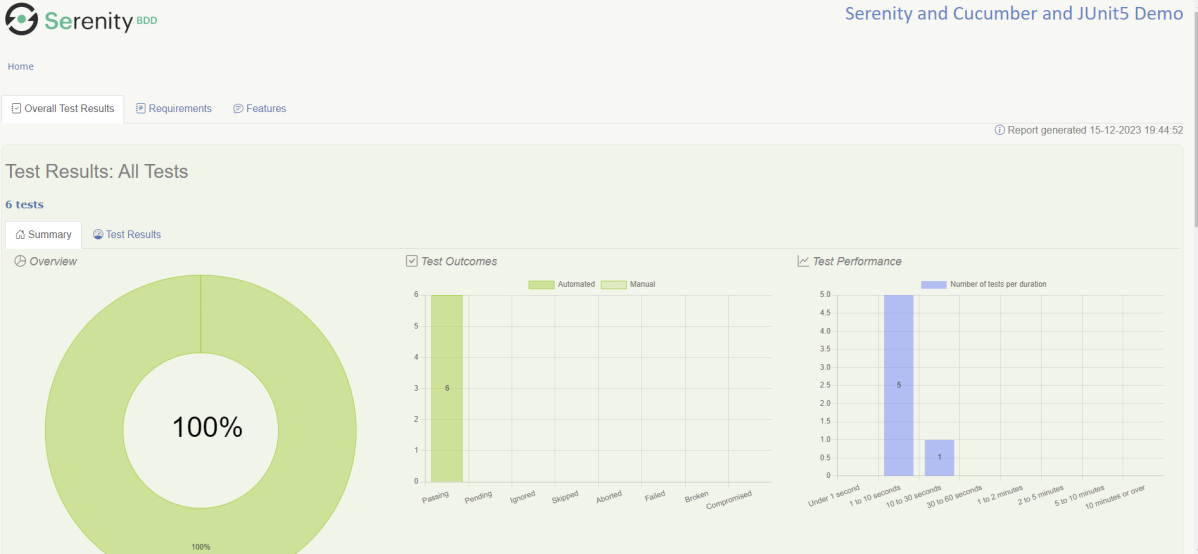
The feature file contains 3 test cases. Test Case 2 is a Test Scenario that has 4 examples. So, in total we have 6 tests. This information is clearly mentioned in the new version of Serenity.

Step 16 – Serenity Report Generation

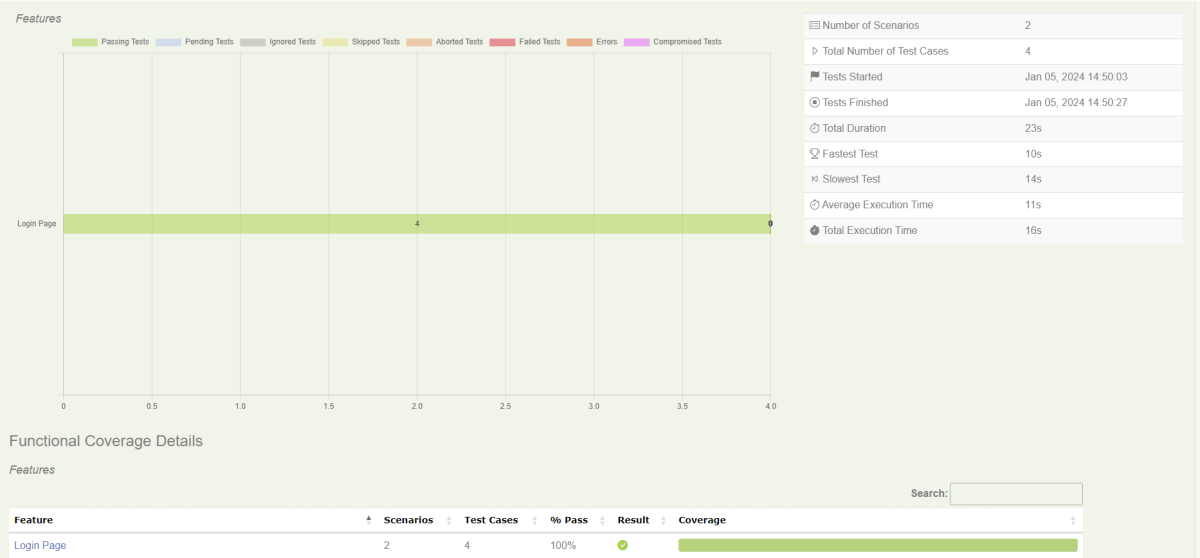
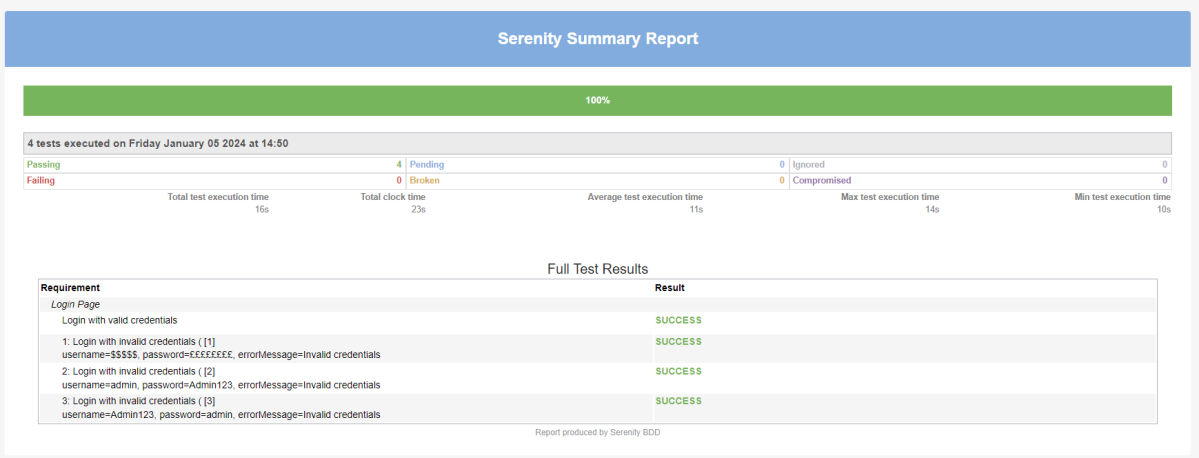
The best part about Serenity is the report generation by it. The Reports contain all possible types of information, you can think of with minimal extra effort. There are multiple types of reports are generated. We are interested in index.html and serenity-summary.html. To know more about Serenity Reports, please refer to tutorials for Index.html and Serenity-Summary.html. Below is the new Serenity Report.

  1. index.html

2. serenity-summary.html

Step 17 – Cucumber Report Generation (Optional)

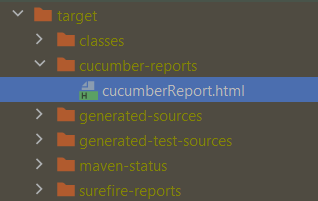
Every Test Execution generates a Cucumber Report (Version 6.7.0) and above as shown in the image.

Copy the URL and paste it to a browser and it shows the report as shown below:

To know more about Cucumber Reports, refer to this tutorial.

We are done! Congratulations on making it through this tutorial and hope you found it useful! Happy Learning!!