Testing of SpringBoot Application with TestNG

HOME

In the previous tutorial, I explained about Integration Testing of SpringBoot Application with Serenity BDD, Cucumber and JUnit4. This one provides a comprehensive tutorial on integration testing of a SpringBoot application using SpringBoot Test and TestNG. It covers essential topics like SpringBoot application, RestController, prerequisites, dependency list, project directory structure, and detailed test implementation steps. 

What is SpringBoot Application?

 Spring Boot is an open-source micro-framework that provides Java developers with a platform to get started with an auto-configurable production-grade Spring application. 

  • Comes with embedded HTTP servers like Tomcat or Jetty to test web applications.
  • Adds many plugins that developers can use to work with embedded and in-memory databases easily. Spring allows you to easily connect with database and queue services like Oracle, PostgreSQL, MySQL, MongoDB, Redis, Solr, ElasticSearch, Rabbit MQ, and others.

What is RestController?

HTTP requests are handled by a controller in Spring’s approach to building RESTful web services. The @RestController annotation identifies these components, and the GreetingController shown below (from src/main/java/com/example/HelloController.java) handles GET requests for / and /qaautomation by returning a new instance of the Greeting class. Spring RestController takes care of mapping request data to the request-defined handles method.

import org.springframework.web.bind.annotation.GetMapping;
import org.springframework.web.bind.annotation.RestController;

@RestController
public class HelloController {
	
    @GetMapping(path="/")
    String hello() {
        return "Hello World, Spring Boot!";
    }
    
    
    @GetMapping(path="/qaautomation")
    String qaautomation() {
        return "Hello QA Automation!";
    }

}

In this tutorial, I will explain the Integration Testing of the SpringBoot Application using SpringBoot Test and TestNG.

Prerequisite

Spring Boot 3.0.4 requires Java 17 and is compatible with and including Java 19. Spring Framework 6.0.6 or above is also required.

Explicit build support is provided for the following build tools:

  1. Maven – 3.5+
  2. Gradle – 7.x (7.5 or later) and 8.x

Dependency List

  1. SpringBoot Starter Parent – 3.2.5
  2. TestNG – 7.10.2
  3. Rest Assured – 5.4.0
  4. Java 17
  5. Maven – 3.9.6

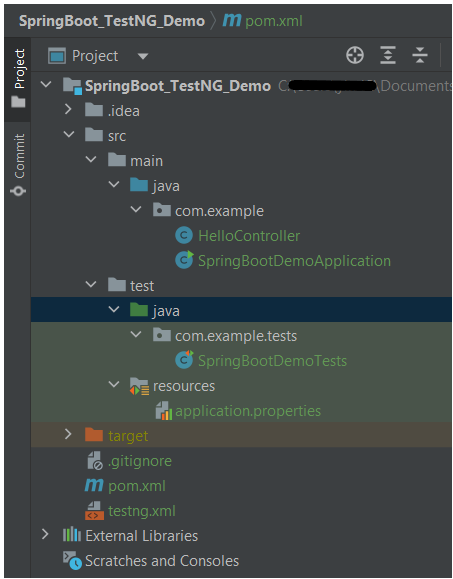
Project Directory Structure
Test Implementation Steps

Step 1 – Create a source folder – src/test/resources

Right-click on the test directory and select New->Directory and select resources (Maven Source Directories).

Step 2 – Add dependencies to the project

We have added SpringBootTest, SpringBoot Tomcat, SpringBoot Web, Spring Web, Rest Assured, and TestNG dependencies to the pom.xml.

<project xmlns="http://maven.apache.org/POM/4.0.0" xmlns:xsi="http://www.w3.org/2001/XMLSchema-instance"
xsi:schemaLocation="http://maven.apache.org/POM/4.0.0 http://maven.apache.org/xsd/maven-4.0.0.xsd">
<modelVersion>4.0.0</modelVersion>

<parent>
<groupId>org.springframework.boot</groupId>
<artifactId>spring-boot-starter-parent</artifactId>
<version>3.3.0-SNAPSHOT</version>
<relativePath/> <!-- lookup parent from repository -->
</parent>

<groupId>com.example</groupId>
<artifactId>SpringBoot_TestNG_Demo</artifactId>
<version>1.0-SNAPSHOT</version>
<packaging>jar</packaging>

<name>SpringBoot_TestNG_Demo</name>
<url>http://maven.apache.org</url>

<properties>
<java.version>17</java.version>
<rest.assured.version>5.4.0</rest.assured.version>
<testng.version>7.10.2</testng.version>
<maven.compiler.plugin.version>3.13.0</maven.compiler.plugin.version>
<maven.compiler.source.version>17</maven.compiler.source.version>
<maven.compiler.target.version>17</maven.compiler.target.version>
<maven.surefire.plugin.version>3.2.5</maven.surefire.plugin.version>
</properties>

<dependencies>
<dependency>
<groupId>org.springframework.boot</groupId>
<artifactId>spring-boot-starter</artifactId>
</dependency>

<dependency>
<groupId>org.springframework.boot</groupId>
<artifactId>spring-boot-starter-test</artifactId>
<scope>test</scope>
</dependency>

<dependency>
<groupId>org.springframework.boot</groupId>
<artifactId>spring-boot-starter-web</artifactId>
</dependency>

<dependency>
<groupId>org.springframework.boot</groupId>
<artifactId>spring-boot-starter-tomcat</artifactId>
<scope>provided</scope>
</dependency>

<dependency>
<groupId>org.springframework</groupId>
<artifactId>spring-web</artifactId>
</dependency>

<!-- Rest Assured -->
<dependency>
<groupId>io.rest-assured</groupId>
<artifactId>rest-assured</artifactId>
<version>${rest.assured.version}</version>
<scope>test</scope>
</dependency>

<!-- TestNG -->
<dependency>
<groupId>org.testng</groupId>
<artifactId>testng</artifactId>
<version>${testng.version}</version>
<scope>test</scope>
</dependency>


</dependencies>

<build>
<plugins>
<plugin>
<groupId>org.springframework.boot</groupId>
<artifactId>spring-boot-maven-plugin</artifactId>
</plugin>

<plugin>
<groupId>org.apache.maven.plugins</groupId>
<artifactId>maven-surefire-plugin</artifactId>
<version>${maven.surefire.plugin.version}</version>
<configuration>
<suiteXmlFiles>
<suiteXmlFile>testng.xml</suiteXmlFile>
</suiteXmlFiles>
</configuration>
<dependencies>
<dependency>
<groupId>org.apache.maven.surefire</groupId>
<artifactId>surefire-testng</artifactId>
<version>${maven.surefire.plugin.version}</version>
</dependency>
</dependencies>
</plugin>

<plugin>
<groupId>org.apache.maven.plugins</groupId>
<artifactId>maven-compiler-plugin</artifactId>
<version>${maven.compiler.plugin.version}</version>
<configuration>
<source>${maven.compiler.source.version}</source>
<target>${maven.compiler.target.version}</target>
</configuration>
</plugin>
</plugins>
</build>


</project>

Step 3 – Create the Test classes

  • uses @SpringBootTest annotation which loads the actual application context.
  • uses WebEnvironment.RANDOM_PORT to create and run the application at some random server port.
  • @LocalServerPort gets the reference of the port where the server has started. It helps in building the actual request URIs to mimic real client interactions.

Below is the code of the sample Test class. These classes are created in the src/test/java directory.

import io.restassured.response.ValidatableResponse;
import org.springframework.beans.factory.annotation.Value;
import org.springframework.boot.test.context.SpringBootTest;
import org.springframework.boot.test.web.server.LocalServerPort;
import org.springframework.test.context.testng.AbstractTestNGSpringContextTests;
import org.testng.Assert;
import org.testng.annotations.Test;
import static io.restassured.RestAssured.given;

@SpringBootTest(webEnvironment = SpringBootTest.WebEnvironment.RANDOM_PORT)
public class SpringBootDemoTests extends AbstractTestNGSpringContextTests {

    private final static String BASE_URI = "http://localhost:";

    @LocalServerPort
    private int port;

    @Value("${server.servlet.context-path}")
    private String basePath;

    private ValidatableResponse response;

    @Test
    public void verifyController1()  {
         response = given().contentType("application/json")
                    .header("Content-Type", "application/json")
                 .when().get(BASE_URI + port + basePath + "/").then().statusCode(200);

         String Actual = response.extract().asString();
          System.out.println("Result :"+Actual);
          Assert.assertEquals("Hello World, Spring Boot!", Actual);
    }

    @Test
    public void verifyController2()   {
        response = given().contentType("application/json")
                .header("Content-Type", "application/json")
                .when().get(BASE_URI + port + basePath + "/qaautomation").then().statusCode(200);

        String Actual = response.extract().asString();
        System.out.println("Result :"+Actual);
        Assert.assertEquals("Hello QA Automation!", Actual);
    }
}

The AbstractTestNGSpringContextTests is an abstract base class having the ApplicationContext supported in the testNG explicitly.

This class sends the request and receives a response after performing the GET operation. Here, the validation of the response also takes place by asserting the expected and actual response.

Step 4 – Create an application.properties file in src/test/resources

Application.properties is created under src/ test/java

spring.profiles.active=test
server.port=8089
server.servlet.context-path=/demo

spring.profiles.active – property to specify which profiles are active. The default profile is always active.
server.port – By default, the embedded server starts on port 8080. Now the server will start on port 8089
server.servlet.context-path – the context path in Spring Boot can be changed by setting a property, server.servlet.context-path.

Step 5 – Run the tests from Test Class

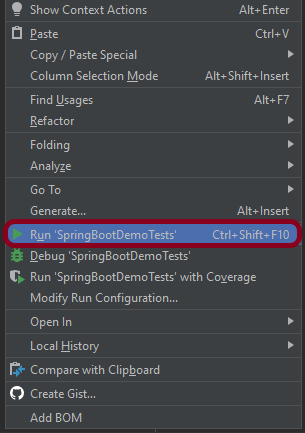
Right-click on the Test class and select RunSpringBootDemoTests’.

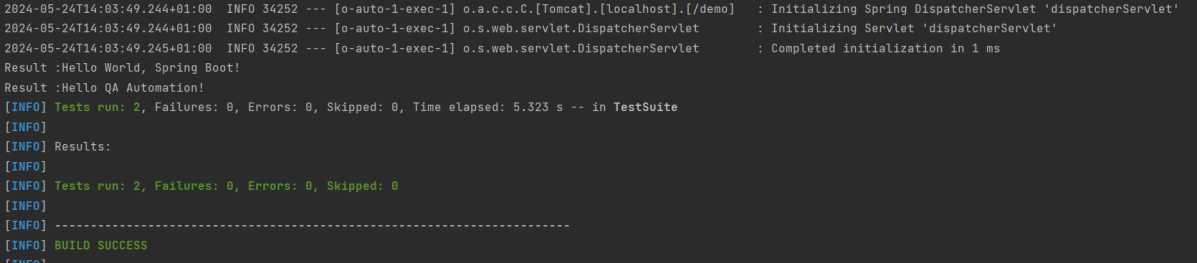
The output of the above program is
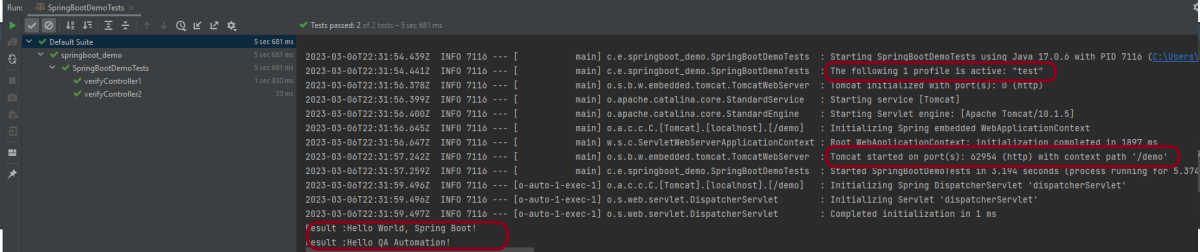
This image shows that the profile name is “test”. Application is started on port – “62954” and the context path is “/demo”.

Step 6 – Run the tests from testng.xml

<?xml version = "1.0"encoding = "UTF-8"?>
<!DOCTYPE suite SYSTEM "http://testng.org/testng-1.0.dtd">
<suite name = "Suite1">
<test name = "TestNG Demo">
<classes>
<class name = "com.example.tests.SpringBootDemoTests"/>
</classes>
</test>
</suite>

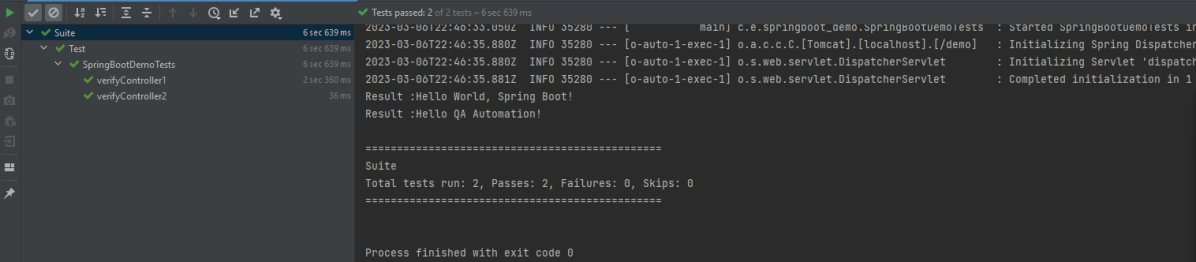
Right-click on testng.xml and select Run ‘…\testng.xml’.

The output of the above program is
Step 7 – TestNG Report Generation

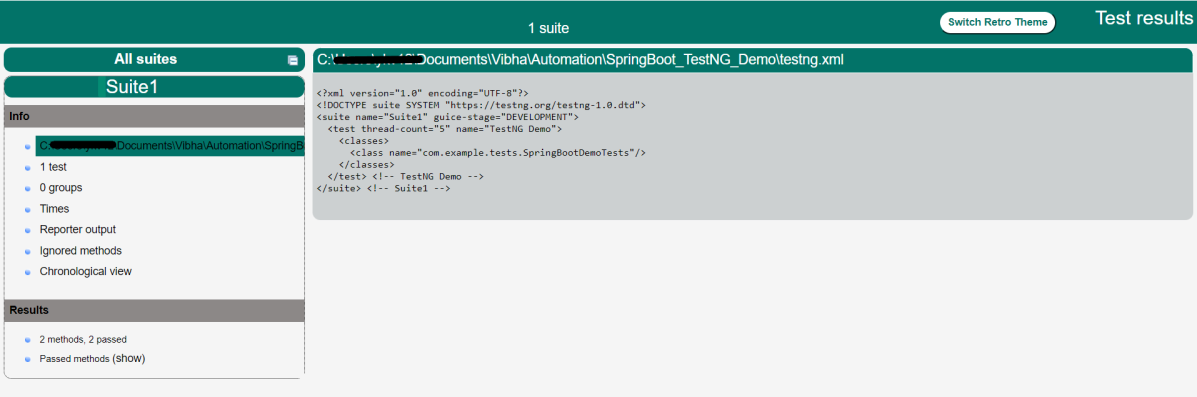
The test report generated by TestNG is placed under test-output/index.html.

Index.html

TestNG produces an “index.html” report, and it resides under the test-output folder. The below image shows index.html report. This report contains a high-level summary of the tests.
Emailable-Report.html
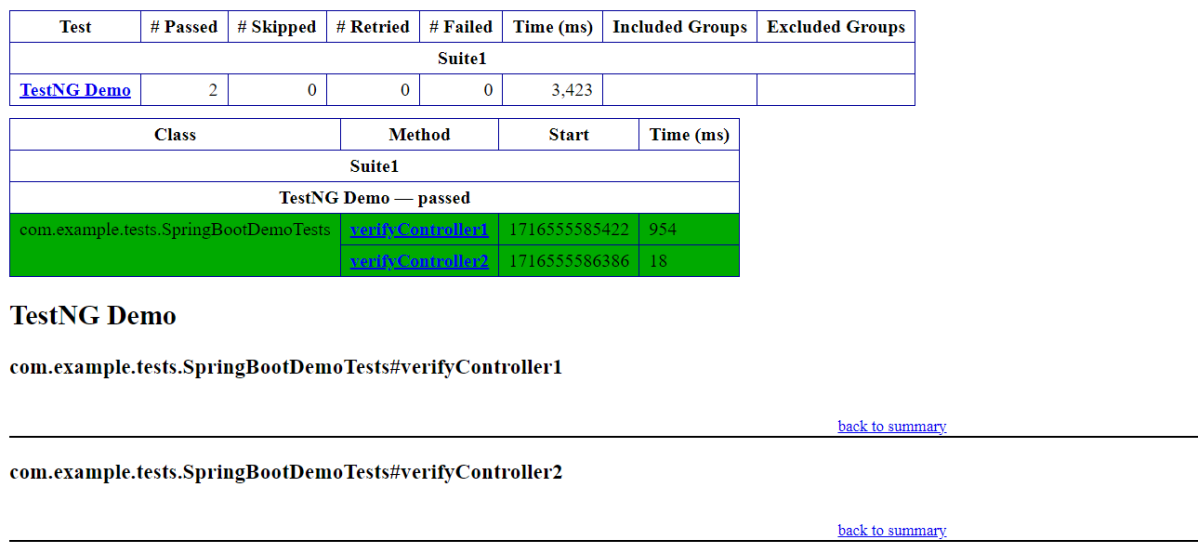
Test-Output folder also contains Emailable-Report.html. Open “emailable-report.html“, as this is an HTML report open it with the browser. The below image shows emailable-report.html.

<plugin>
<groupId>org.apache.maven.plugins</groupId>
<artifactId>maven-surefire-plugin</artifactId>
<version>${maven.surefire.plugin.version}</version>
<configuration>
<suiteXmlFiles>
<suiteXmlFile>testng.xml</suiteXmlFile>
</suiteXmlFiles>
</configuration>
<dependencies>
<dependency>
<groupId>org.apache.maven.surefire</groupId>
<artifactId>surefire-testng</artifactId>
<version>${maven.surefire.plugin.version}</version>
</dependency>
</dependencies>
</plugin>
mvn clean test

Congratulations on making it through this tutorial and hope you found it useful! Happy Learning!! Cheers!!

How to run Serenity BDD tests in Chrome Browser

HOME

Serenity BDD has strong WebDriver integration and manages WebDriver instances. It is not needed to create or close the WebDriver instance of the Serenity Tests.

Serenity uses a library WebDriver Manager, which manages the driver for us. We don’t need to explicitly download and configure the WebDriver binaries for us.

The default browser of Serenity is Firefox.

    @Managed(driver = "chrome")
    WebDriver driver;

@Managed annotation in Serenity will manage the WebDriver instance, including opening the appropriate driver at the start of each test, and shutting it down when the test is finished. @Managed provides an option for the user to select the WebDriver driver to the run the tests in it. The possible values are firefox, chrome, iexplorer, phantomjs, appium, safari, edge, and htmlunit. There are multiple ways to manage the WebDriver. One of the way is shown below:

In the below program, the tests are running on the Chrome browser. The driver name is mentioned with @Managed annotation.

@RunWith(SerenityRunner.class)
public class ChromeTest {

    @Managed(driver = "chrome")
    WebDriver driver;

    @Steps
    NavigateActions navigate;

    @Test
    public void openBrowser()
    {
        navigate.toTheHomePage();
    }

}

NavigateActions

public class NavigateActions extends UIInteractionSteps {

    @Step
    public void toTheHomePage() {
         openUrl("https://opensource-demo.orangehrmlive.com/");
    }
}

There is another way to assign Chrome to the WebDriver. This can be defined in serenity.config or serenity.properties.

serenity.config

webdriver{
    driver = chrome

}

serenity.properties

webdriver.driver = chrome

When the webdriver is defined in the properties file, it is not needed to redefine it in the Test, as shown below:

@RunWith(SerenityRunner.class)
public class ChromeTest {

    @Managed
    WebDriver driver;

    @Steps
    NavigateActions navigate;

    @Test
    public void openBrowser()
    {
        navigate.toTheHomePage();
    }

}

Manually Configure ChromeDriver

To run your web tests with a given driver, download the correct driver binary and place it under src/test resources. The Chrome driver binary can be downloaded from here – ChromeDriver – WebDriver for Chrome (chromium.org)

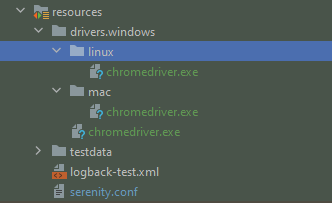
It is always advisable to create a driver’s directory under src/test/resources. The tests can be run on different Operating Systems, so create three subdirectories named Windows, mac, and Linux within the drivers’ directory. Place the driver binary in these directories as shown below :

Below is the sample Serenity.config for the Chrome driver.

webdriver{
    driver = chrome

}

drivers {
  windows {
     webdriver.chrome.driver = "src/test/resources/drivers/windows/chromedriver.exe"
   }
  mac {
      webdriver.chrome.driver = "src/test/resources/webdriver/mac/chromedriver.exe"
    }
    linux {
      webdriver.chrome.driver = "src/test/resources/webdriver/linux/chromedriver.exe"
    }
  }
}

How to add Chrome Options in Serenity

We can configure various chrome options in Serenity by adding them to a property call switches in serenity.config.

chrome {
        switches ="""--windows.size=1024,800, --start-maximized;--test-type;--no-sandbox;--ignore- 
                             certificate-errors; --headless;
                   --disable-popup-blocking;--disable-default-apps;--disable-extensions-file-access-check;
                   --incognito;--disable-infobars,--disable-gpu"""
  }

How to set Chrome Preferences in Serenity

chrome {
  switches ="""--windows.size=1024,800, --start-maximized;--test-type;--no-sandbox;--ignore-certificate-errors;
                   --disable-popup-blocking;--disable-default-apps;--disable-extensions-file-access-check;
                   --incognito;--disable-infobars,--disable-gpu"""

  preferences {
      download {
          prompt_for_download: false
          default_directory: "$TEMPDIR"
       }
  }

Congratulations!! We are able to configure various Chrome Options in Serenity.

Implicit Wait in Serenity

HOME

Most Web applications are asynchronous by nature. So it has become necessary to wait for elements, before trying to interact with them. This can be achieved by the use of wait functionality.

I won’t recommend the use of Thread.sleep() statement to wait for a specific web element in the web page, as it slows down the execution as well as makes the test brittle. If you are using Serenity and Selenium for tests, then there are various default timeouts – Implicit, Explicit, and Fluent Wait.

What is Implicit Wait?

Implicit Waits are used to ensure that Serenity does not fail a test if a web element is not immediately present on the page when you first try to use it. Using Implicit wait, you can search for the web element for the specified amount of time. If still, the web element is not found, then Serenity throws NoSuchElementException exception.

To use ImplicitWait in the Test, mention the below-mentioned statement in serenity.properties.

webdriver.timeouts.implicitlywait

There is another way to add implicitwait. Add it to the serenity.conf file as shown below:-

webdriver {
    timeouts {
        implicitlywait = 5000
     }
}

Note:- Make sure to add webdriver and timeout in the same file, either both to properties file or both to conf files.

Let me explain the use of Implicit Wait. Below I have created two classes – ImplictWaitDemo and SynchronizationTests.

ImplictWaitDemo contains detail like default URL, XPath of web elements, methods containing the code for the test whereas SynchronizationTests class calls the tests defined in ImplictWaitDemo and run them using Serenity Runner (@RunWith(SerenityRunner.class)

Scenario 1 – The default value in Serenity for Implicit Wait is currently 2 seconds. In the below example, I’ll open a web page and will try to assert the text present in the webpage. Serenity will wait for 2 seconds and the web element will not be found in 2 secs, so the test fails.

ImplictWaitDemo

@DefaultUrl("http://the-internet.herokuapp.com/dynamic_loading/1")
public class ImplictWaitDemo extends PageObject {

	@FindBy(xpath = "//*[@id='start']/button")
	WebElementFacade startButton;

	@FindBy(xpath = "//*[@id='finish']/h4")
	WebElementFacade pageText;

	public void implictWaitDemo1() throws InterruptedException {
		open();

		startButton.click();
		Assert.assertEquals("Hello World!", pageText.getText())
	}
}

SynchronizationTests

@RunWith(SerenityRunner.class)
public class SynchronizationTests {

	ImplictWaitDemo demo;

	@Managed
	WebDriver driver;

	@Test
	public void waitTest1() throws InterruptedException {
		demo.implictWaitDemo1();

	}
}

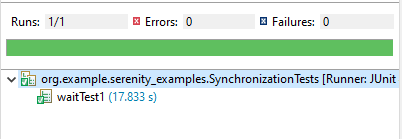
This shows that Serenity waited for 2 sec for the text – Hello World.

Now, let us add Implicit Wait to the Test. I have added the implicitWait for 5 sec to each step.

webdriver {
    driver = firefox
    timeouts {
        implicitlywait = 5000
     }
}

Now, the Test is successful.

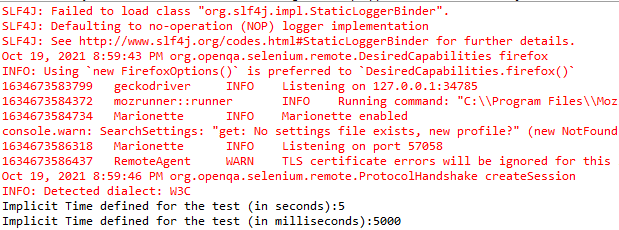
To know the value of wait in the code, you can use the below code. It will show the value of implicit wait in seconds or milliseconds.

System.out.println("Implicit Time defined for the test (in seconds):" + getImplicitWaitTimeout().toSeconds());
System.out.println("Implicit Time defined for the test (in milliseconds):" + getImplicitWaitTimeout().toMillis());

We are done! Congratulations on making it through this tutorial and hope you found it useful! Happy Learning!!

Data Driven Tests in Serenity with JUnit

HOME

In the previous tutorial, I have explained the Testing of Web Application using Serenity with JUnit4. In this tutorial, I will explain Data Driven Tests in Serenity with JUnit4. Serenity provides features to support Data Driven tests. Refer this tutorial to know how to setup a Serenity project with JUnit4.

There is a parameterized Test Runner to perform data driven tests in JUnit4.

@RunWith(SerenityParameterizedRunner.class)

This runner is very similar to the JUnit Parameterized test runner. Here, @TestData annotation is used to provide test data to the test, and you can use all of the other Serenity annotations like (@Managed, @Steps, @Title and so on). This test runner will also generate proper serenity reports for the executed tests.

Below is an example of data-driven serenity test. In this test, I have created a Test Class (ParameterizationTests) and Step Class (StepLoginPage) and Action Class (NavigateActions). I am passing a set of incorrect credentials to the Login page and will verify the error message.

Here is the code for ParameterizationTests.

@RunWith(SerenityParameterizedRunner.class)
public class ParameterizationTests {

    private final String userName;
    private final String passWord;
    private final String errorMessage;

    @Managed(options = "--headless")
    WebDriver driver;

    @Steps
    NavigateActions navigate;

    @Steps
    StepLoginPage loginPage;

    public ParameterizationTests(String userName, String passWord, String errorMessage) {
        super();
        this.userName = userName;
        this.passWord = passWord;
        this.errorMessage = errorMessage;
    }

    @TestData(columnNames = "Username, Password, ErrorMessage")
    public static Collection<Object[]> testData() {
        return Arrays.asList(new Object[][] { { "Admin12", "", "Password cannot be empty" },
                { "", "abc12", "Username cannot be empty" }, { "_Admin1", "admin123_", "Invalid credentials" },
                { " ", " ", "Username cannot be empty" } });
    }

    @Qualifier
     public String qualifier(){return " - " + " Username = " + userName + " and " + " Password = " + passWord + " should display " + errorMessage;}
    @Test
    @Title("Login to application with invalid credential generates error message")
    public void unsuccessfulLogin() {

        // Given
        navigate.toTheHomePage();

        // When
        loginPage.inputUserName(userName);
        loginPage.inputPassword(passWord);
        loginPage.clickLogin();

        // Then
        Serenity.reportThat("Passing invalid credentials generates error message",
                () -> assertThat(loginPage.loginPageErrorMessage()).isEqualToIgnoringCase(errorMessage));
    }

}

@TestData is the annotation for a method which provides parameters to be injected into the test class constructor by Parameterized. testData() method returns an array list of objects as shown above.

The test data is injected into member variables – userName and passWord. These values are represented as instance variables in the test class, and instantiated via the constructor. These member variables are used in the test.

@Managed is annotated as a WebDriver field that is managed by the Test Runner. The Serenity Test Runner will instantiate this WebDriver before the tests start, and close it once they have all finished.

Here is the code for the StepLoginPage.

public class StepLoginPage extends PageObject {

    @FindBy(name = "txtUsername")
    WebElementFacade username;

    @FindBy(name = "txtPassword")
    WebElementFacade txtPassword;

    @FindBy(name = "Submit")
    WebElementFacade submitButton;

    @FindBy(id = "spanMessage")
    WebElementFacade errorMessage;

    @FindBy(xpath = "//*[@id='forgotPasswordLink']/a")
    WebElementFacade forgotPasswordLinkText;

    @Step("Enter Username")
    public void inputUserName(String userName) {
        $("[name='txtUsername']").sendKeys((userName));
    }

    @Step("Enter Password")
    public void inputPassword(String passWord) {
        txtPassword.sendKeys((passWord));
    }

    @Step("Click Submit Button")
    public void clickLogin() {
        submitButton.click();
    }

    @Step("Error Message on unsuccessful login")
    public String loginPageErrorMessage() {
        return errorMessage.getText();
    }

    @Step("Click Forget Password Link")
    public void clickForgetPasswordLink() {
        forgotPasswordLinkText.click();
    }
}

NavigateActions

public class NavigateActions extends UIInteractionSteps {

    @Step
    public void toTheHomePage() {
        openPageNamed("loginForm");
    }
}

There are two ways to run the tests.

  1. Run the tests as JUnit Tests. Right click on the test and select Run As ->JUnit Test.

2. Run the tests through command line using below command.

mvn clean verify

This will run the tests as well as generate the test execution reports – Index.html and serenity-emailable.html.

So, the tests are run and the reports are generated at the shown path.

Index.html

The heading of parameters present in the Serenity Report (Index.html) like Username, Password and Error Message are generated by @TestData as shown below:

@TestData(columnNames = "Username, Password, ErrorMessage")

The description of Test Step in the Serenity Report is modified by using @Qualifier.

It is used to mark a method as a qualifier in an instantiated data-driven test case.

  @Qualifier
    public String qualifier(){return " - " + " Username = " + userName + " and " + " Password = " + passWord + " should display " + errorMessage;}

Serenity-Summary.html

It is a single-page, self-contained HTML summary report, containing an overview of the test results, and a configurable breakdown of the status of different areas of the application.

We are done! Congratulations on making it through this tutorial and hope you found it useful! Happy Learning!!

How to generate Serenity Report in customized path

HOME

In the previous tutorial, I explained the generation of Serenity Report. In this tutorial, I will explain how to generate the Serenity Report in Customized path.

Before going through this tutorial, please refer to the tutorial for Serenity Report Generation.

Add outputDirectory to serenity-maven-plugin and mention the path where we want to save our Reports.

 <plugin>
       <groupId>net.serenity-bdd.maven.plugins</groupId>
       <artifactId>serenity-maven-plugin</artifactId>
       <version>${serenity.version}</version>
       <dependencies> 
            <dependency>
                 <groupId>net.serenity-bdd</groupId>
                 <artifactId>serenity-single-page-report</artifactId>
                 <version>${serenity.version}</version>
             </dependency>                
         </dependencies>
         <configuration>
               <tags>${tags}</tags>
               <reports>single-page-html</reports> 
         </configuration>
         <executions>
             <execution>
                  <id>serenity-reports</id>
                  <phase>post-integration-test</phase>
                  <goals>
                       <goal>aggregate</goal>
                  </goals>
                  <configuration>
                            <outputDirectory>C:\\Users\\Vibha\\Projects\\Vibha_Personal\\DetailedReport</outputDirectory>
                   </configuration>
              </execution>
        </executions>
  </plugin>
  .........

Execute the tests using the command line

mvn clean verify

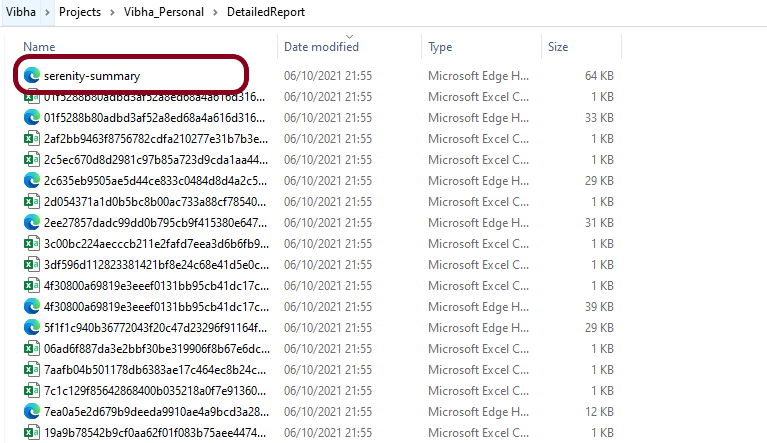
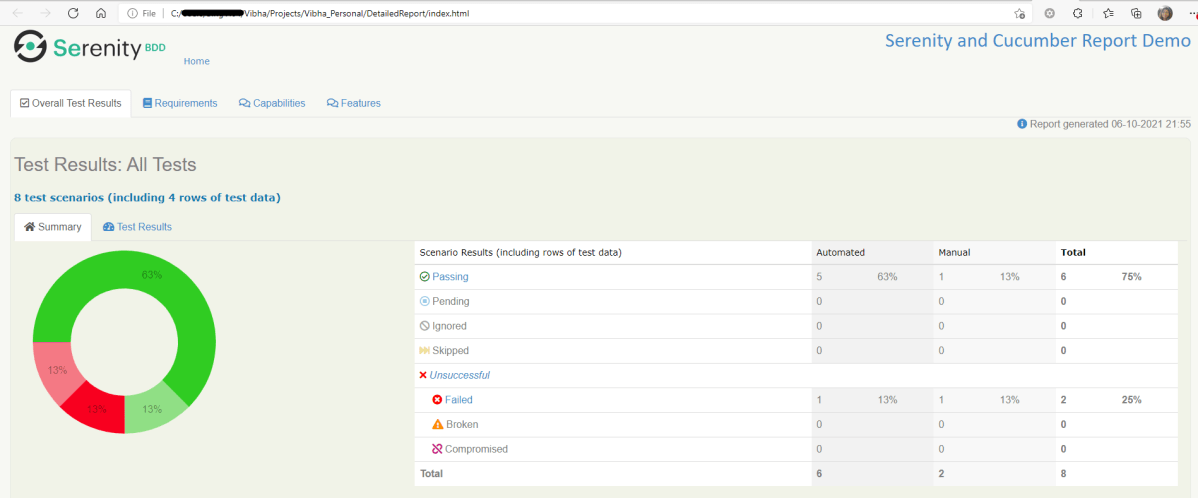
You can see that the reports are generated at the above-specified path.

Another way is to add outputDirectory detail in serenity.properties file.

serenity.project.name = Serenity and Cucumber Report Demo
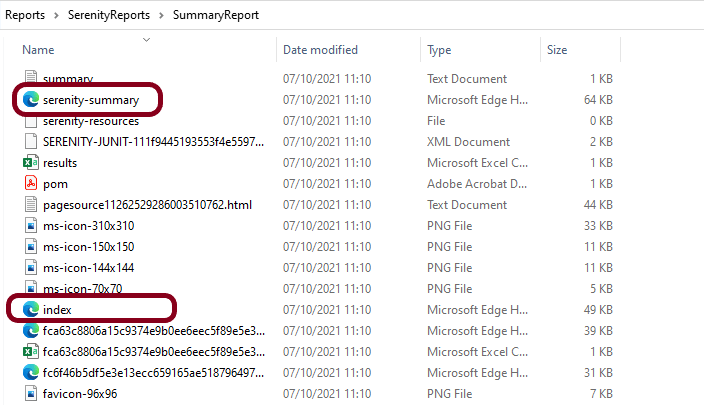
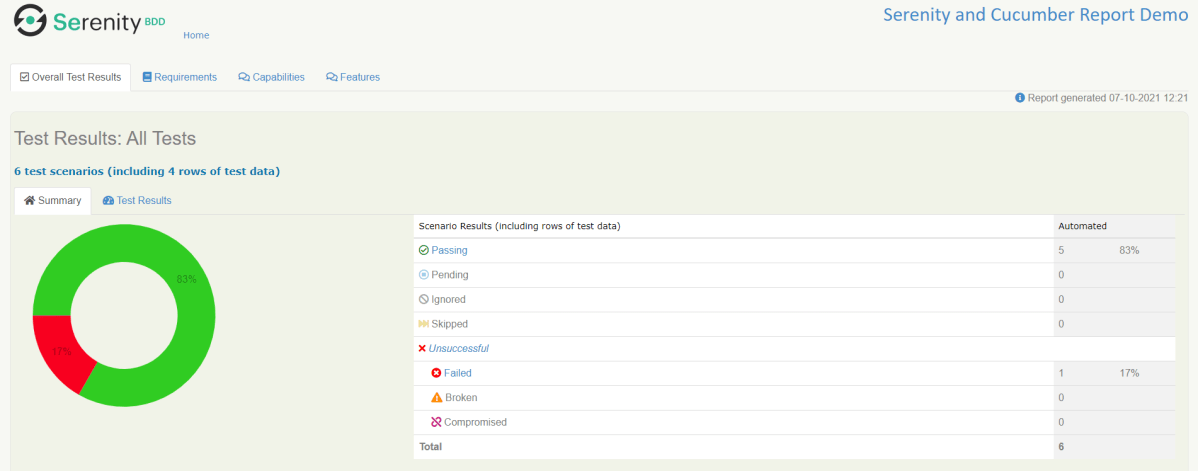
serenity.outputDirectory=C:\\Users\\Reports\\SerenityReports\\SummaryReport

How to create a Serenity Report for specified tests?

Suppose we want to run a set of tests, not a complete test suite, and we want to get the report containing the details of only executed tests, in the short a very specific report. This can be achieved by using @tags.

 Suppose you mark each test suite with a tag @E2E. So to run only the tests for the @E2E, you could run the following:

mvn clean verify -Dtags="E2E"

You will also need to configure the serenity-maven-plugin to use the tags you provide at the command line:

 <plugin>
     <groupId>net.serenity-bdd.maven.plugins</groupId>
     <artifactId>serenity-maven-plugin</artifactId>
     <version>${serenity.version}</version>
     <dependencies> 
        <dependency>
            <groupId>net.serenity-bdd</groupId>
            <artifactId>serenity-single-page-report</artifactId>
            <version>${serenity.version}</version>
        </dependency>                
      </dependencies>
        <configuration>
             <tags>${tags}</tags>
             <reports>single-page-html</reports> 
        </configuration>
        ......... 

When you run the tests with this configuration, you will get a test report with only the tests related to the @E2E tag. 

We are done! Congratulations on making it through this tutorial and hope you found it useful! Happy Learning!!

Manual Tests in Serenity with JUnit5

HOME

In this tutorial, I will explain about Manual Tests in Serenity JUnit5.

You can annotate @Test not @Steps as @Manual.

In contrast to Junit4 a test method annotated with @Manual will actually be executed. This allows to further specify the example using @Step methods and show them the report.

Below is an example where tests are annotated with @Manual with description.

@SerenityTest
public class LoginTests {

	@Managed
	WebDriver driver;

	@Steps
	StepLoginPage loginPage;

	@Steps
	StepDashboardPage dashPage;

	@Steps
	StepForgetPasswordPage forgetpasswordPage;

	@Test
	@Title("Login to application should be successful")
	public void sucessfulLogin() {

		// Given
		loginPage.open();

		// When
		loginPage.inputUserName("Admin");
		loginPage.inputPassword("admin123");
		loginPage.clickLogin();

		// Then
		dashPage.loginVerify();
	}

	@Test
	@Title("Login to application should be unsuccessful with error message")
	public void unsucessfulLogin() throws InterruptedException {

		// Given
		loginPage.open();

		// When
		loginPage.inputUserName("abc");
		loginPage.inputPassword("abc12");
		loginPage.clickLogin();

		// Then
		String actualErrorMessage = loginPage.errorMessage();
		assertEquals("Invalid credentials", actualErrorMessage);
	}

	@Test
	@Manual
	void manualDefault() {
		loginPage.manualStep();
	}

	@Test
	@Manual(result = TestResult.SUCCESS)
	void manualSuccess() {
		loginPage.manualStep();
	}

	@Test
	@Manual(result = TestResult.COMPROMISED)
	void manualCompromised() {
		loginPage.manualStep();
	}

	@Test
	@Manual(result = TestResult.ERROR)
	void manualError() {
		loginPage.manualStep();
	}

	@Test
	@Manual(result = TestResult.ERROR, reason = "A reason for the error")
	void manualErrorWithReason() {
		loginPage.manualStep();
	}

	@Test
	@Manual(result = TestResult.FAILURE)
	void manualFailure() {
		loginPage.manualStep();
	}

	@Test
	@Manual(result = TestResult.IGNORED)
	void manualIgnored() {
		loginPage.manualStep();
	}

	@Test
	@Manual(result = TestResult.PENDING)
	void manualPending() {
		loginPage.manualStep();
	}

	@Test
	@Manual(result = TestResult.SKIPPED)
	void manualSkipped() {
		loginPage.manualStep();
	}

	@Test
	@Manual(result = TestResult.UNDEFINED)
	void manualUndefined() {
		loginPage.manualStep();
	}

	@Test
	@Manual(result = TestResult.UNSUCCESSFUL)
	void manualUnsuccessful() {
		loginPage.manualStep();
	}

}

StepLoginPage.java

public class StepLoginPage extends PageObject {

	@FindBy(name = "txtUsername")
	WebElementFacade username;

	@FindBy(name = "txtPassword")
	WebElementFacade password;

	@FindBy(name = "Submit")
	WebElementFacade submitButton;

	@FindBy(id = "spanMessage")
	WebElementFacade errorMessage;

	@FindBy(id = "forgotPasswordLink")
	WebElementFacade linkText;

	@Step("Enter Username")
	public void inputUserName(String userName) {
		username.sendKeys((userName));
	}

	@Step("Enter Password")
	public void inputPassword(String passWord) {
		password.sendKeys((passWord));
	}

	@Step("Click Submit Button")
	public void clickLogin() {
		submitButton.click();
	}

	@Step("Error Message on unsuccessful login")
	public String errorMessage() {
		String actualErrorMessage = errorMessage.getText();
		System.out.println("Actual Error Message :" + actualErrorMessage);
		return actualErrorMessage;
	}

	@Step("Manual Test Step")
	public void manualStep() {

		System.out.println("Verify various status of manual step");

	}

}

StepDashboardPage.java

public class StepDashboardPage extends PageObject {

	@FindBy(id = "welcome")
	WebElementFacade dashboardText;

	@Step("Successful login")
	public void loginVerify() {
		String dashboardTitle = dashboardText.getText();
		assertThat(dashboardTitle, containsString("Welcome"));
	}
}

Execute these tests by using the below command in commandline.

mvn clean verify

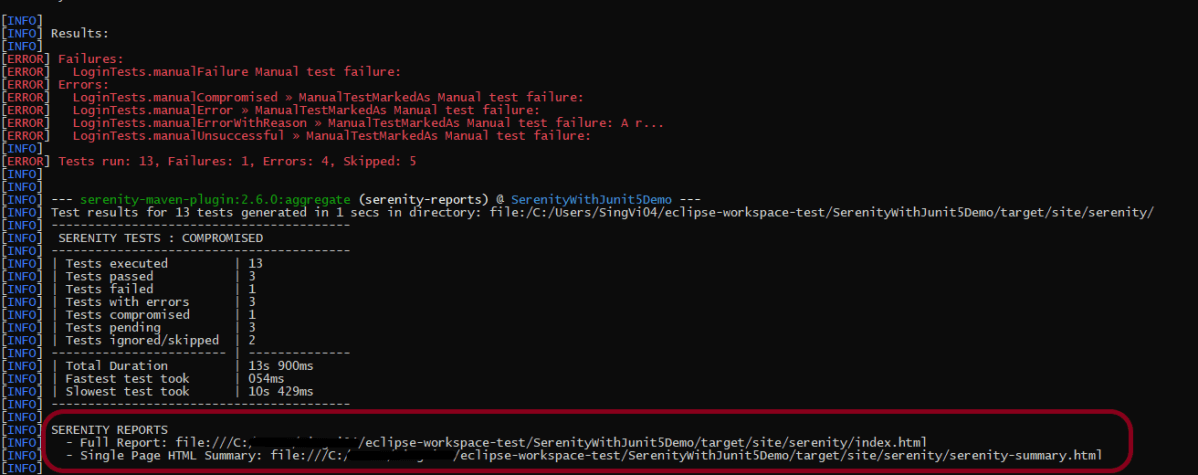
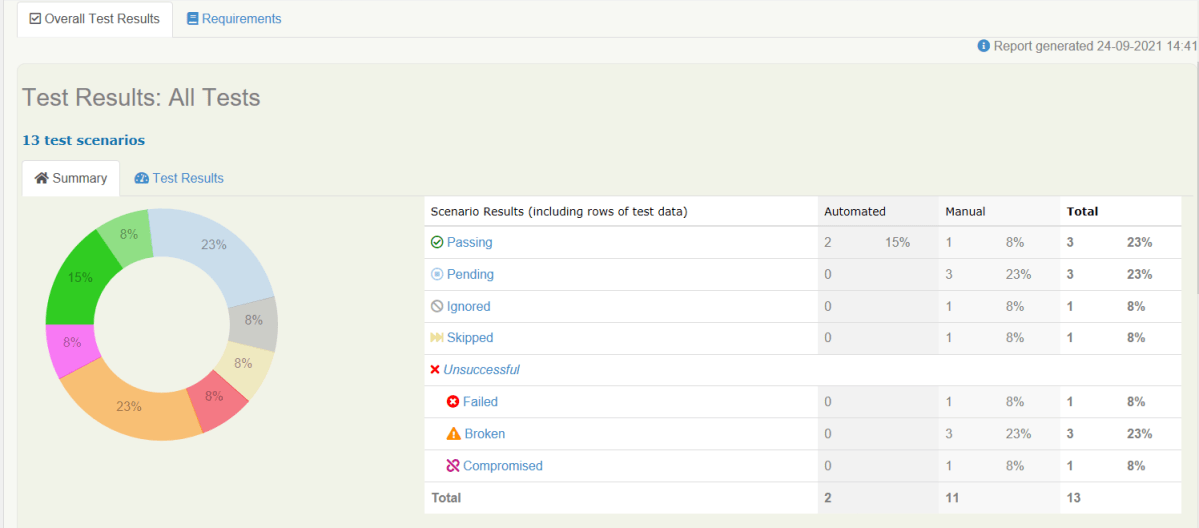
There are two automated tests and rest all are Manual tests. We have Manual Test marked as Default, SUCCESS, COMPROMISED, ERROR, FAILURE, IGNORED, PENDING, SKIPPED, UNDEFINED and UNSUCCESSFUL.

The execution status looks like as shown below.

The reports are generated under /target/site/serenity. There are 2 types of Reports are generated – index.html and serenity-summary.html. To know how to generate Serenity Reports, please refer tutorials for index.html and serenity-summary.html.

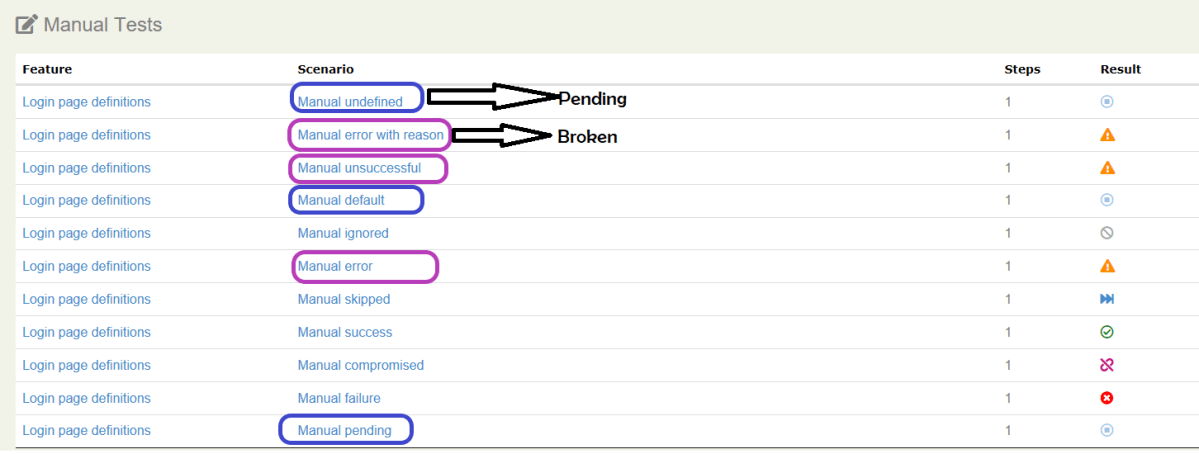
By default, @manual scenarios are marked as pending in the Serenity reports.

All scenarios highlighted by blue color are Pending ones whereas pink color are Broken ones.

Serenity-Summary.html

We are done! Congratulations on making it through this tutorial and hope you found it useful! Happy Learning!!

Serenity Emailable Report in Gradle

HOME

In this tutorial, I will generate an emailable Serenity Report for Gradle project. In the previous tutorial, I have explained the Generation of Serenity Emailable Report in Maven Project.

Pre-Requisite

  1. Java 11 installed
  2. Gradle installed
  3. Eclipse or IntelliJ installed

This framework consists of:

  1. Serenity – 2.6.0
  2. Serenity Cucumber – 2.6.0
  3. Java 11
  4. JUnit – 4.13.2
  5. Gradle – 7.2

Steps to create Serenity Emailable Report

To setup a Gradle project for the testing of web application using Cucumber and JUnit4, please refer this tutorial (Step 1 to 3)

Update buildscript section of build.gradle file.

buildscript {
    repositories {
        mavenLocal()
        jcenter()
    }
    dependencies {
        classpath("net.serenity-bdd:serenity-gradle-plugin:2.4.24")
        classpath("net.serenity-bdd:serenity-single-page-report:2.4.24")
    }
}

Add serenity section in build.gradle.

serenity {
    reports = ["single-page-html"]
}

The complete build.gradle for the project will look like as shown below

defaultTasks 'clean', 'test', 'aggregate'

repositories {
    mavenLocal()
    jcenter()
}

buildscript {
    repositories {
        mavenLocal()
        jcenter()
    }
    dependencies {
        classpath("net.serenity-bdd:serenity-gradle-plugin:2.4.24")
        classpath("net.serenity-bdd:serenity-single-page-report:2.4.24")
    }
}

apply plugin: 'java'
apply plugin: 'eclipse'
apply plugin: 'idea'
apply plugin: 'net.serenity-bdd.aggregator'

sourceCompatibility = 11
targetCompatibility = 11

serenity {
    reports = ["single-page-html"]
}

dependencies {
   
    testImplementation 'net.serenity-bdd:serenity-core:2.6.0'
    testImplementation 'net.serenity-bdd:serenity-cucumber6:2.6.0'
    testImplementation 'net.serenity-bdd:serenity-screenplay:2.6.0'
    testImplementation 'net.serenity-bdd:serenity-screenplay-webdriver:2.6.0'
    testImplementation 'junit:junit:4.13.1'
}

test {
    testLogging.showStandardStreams = true
    systemProperties System.getProperties()
}

gradle.startParameter.continueOnFailure = true

test.finalizedBy(aggregate)

Execute the test suite by using the below command.

gradle test

This will generate only index.html not serenity-summary.html (emailable) report.

To generate single page html report, we need to invoke the report task.

gradle reports

Below is the image of serenity-summary.html report.

We are done! Congratulations on making it through this tutorial and hope you found it useful! Happy Learning!!

How to manage screenshots in Serenity Report

HOME

Serenity provides a wide range of options to manage screenshots in the report. By default, Serenity has set option serenity.take.screenshots=BEFORE_AND_AFTER_EACH_STEP, which means the screenshot is saved before and after each step as shown in the below image. Before this tutorial, refer to the previous tutorial on How to generate Serenity Report.

However, recording many screenshots can slow down test execution. So, maybe we like to record the screenshot of failed steps in the scenario. To achieve this flexibility, configure serenity.take.screenshots property in serenity.properties file.

There are various other types of options for managing screenshots in Serenity Report. This property can take the following values:

  1. FOR_EACH_ACTION: Saves a screenshot at every web element action (like click(), typeAndEnter(), type(), typeAndTab() etc.).
  2. BEFORE_AND_AFTER_EACH_STEP: Saves a screenshot before and after every step.
  3. AFTER_EACH_STEP: Saves a screenshot after every step
  4. FOR_FAILURES: Saves screenshots only for failing steps.
  5. DISABLED: Doesn’t save screenshots for any steps.

In the below option, I have used FOR_FAILURES option in the serenity.properties file.

serenity.project.name = Serenity and Cucumber Report Demo
current.target.version = sprint-1
serenity.take.screenshots = FOR_FAILURES

Below is the screenshot of the passed test case. We can see that there is no screenshot attached to any of the test steps.

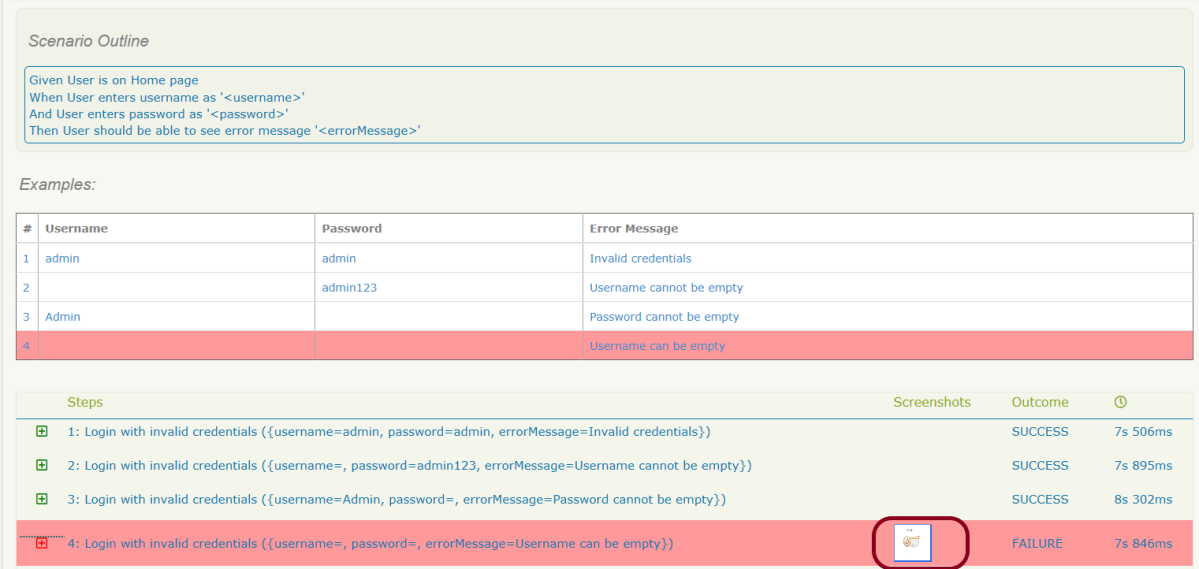
Below is the screenshot of the failed test case. We can see that there is a screenshot attached to the failed test step only, not all the test steps. In below example, it is a scenario outline with four different test data. Out of four, only one set of test data has failed. So, the screenshot is generated for the failed step of that particular test data.

We are done! Congratulations on making it through this tutorial and hope you found it useful! Happy Learning!!

How to attach Test Evidence to Manual Tests in Serenity Report

HOME

In the previous tutorial, I explained how to mention Manual Test Cases in Serenity Report. In this tutorial, I will explain how to attach test evidence to manual tests. Before this tutorial, I suggest you to refer the tutorial which explain How to generate Serenity Report.

It is always advisable to attach screenshots or other files to our manual test reports as additional evidence, specially for failed scenarios. The @manual-test-evidence tag allows you to do just this. You can either include a link to an external site, as shown here:

@manual
@manual-result:failed
@manual-last-tested:sprint-1
@manual-test-evidence:https://database/demo.png

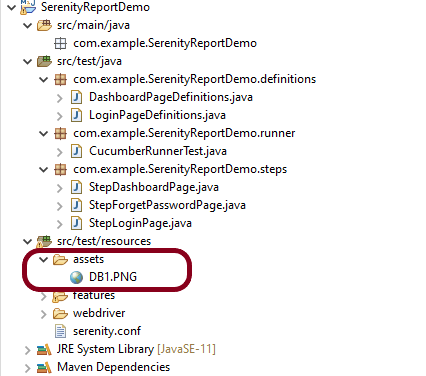
Mentioning the path of evidence in the test is not a very good way to attach test evidence to the manual tests. An alternative approach and favorable one is to place the image in the src/test/resources/assets folder and include a relative link to this file (starting with “assets/“):

    @manual
    @manual-result:failed
    @manual-last-tested:sprint-1
    @manual-test-evidence:assets/DB1.PNG
    Scenario: Verify different credentials are provided to Admin, Dev and QA to access Master Database
   
    Given User is connected to Master Database
    Then Different credentials are provided to Admin, Business, Dev and QA to access Master Database

Test Evidence is only displayed if the @manual-last-tested annotation is defined in serenity.properties.

serenity.project.name = Serenity and Cucumber Report Demo
current.target.version = sprint-1

Execute the test suite by using the below command

mvn clean verify

As we the the Serenity Reports (index.html and serenity-summary.html) are generated under target/site/serenity.

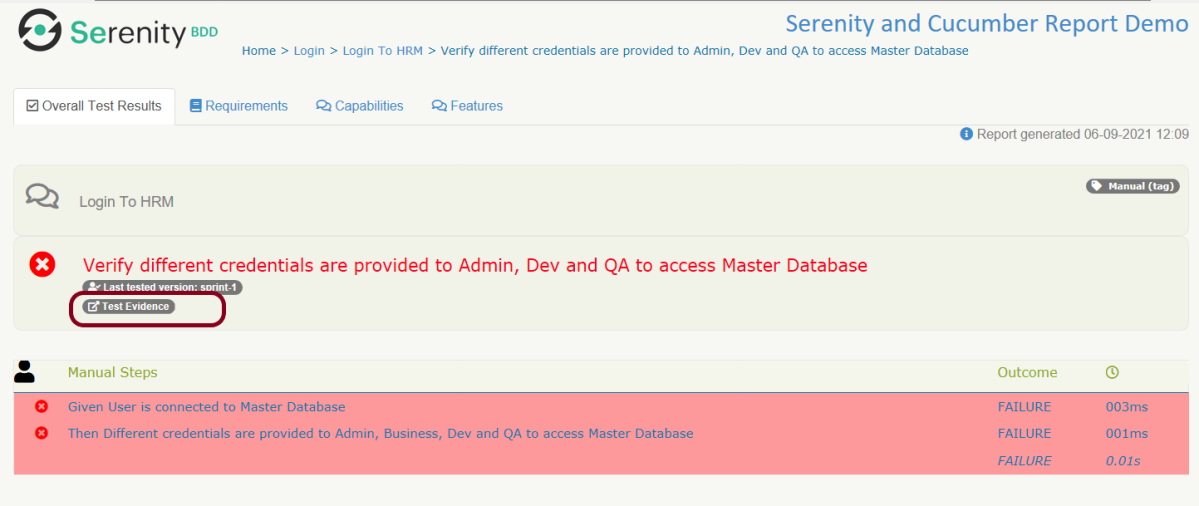
Below is the sample index.html report which has test evidence attached to the manual test.

You can see that there is a new tag with name – Test Evidence. This is the screenshot I have placed under assets folder.

Click on the link and a new page with the screesnhot placed under assets folder opens.

Congratulations. You are able to attach the test evidence to manual tests in Serenity Report. Hope you enjoyed this tutorial. Cheers!!
Serenity BDD with Cucumber and Rest Assured in Gradle

HOME

In the previous tutorial, I explained the Integration of Serenity BDD with Rest Assured in Maven Project. In this tutorial, I will explain the Integration of Serenity BDD with Rest Assured in the Gradle Project.

Prerequisite

  1. Java 11 installed
  2. Gradle installed
  3. Eclipse or IntelliJ installed

Dependency List

  1. Serenity – 2.6.0
  2. Serenity Cucumber – 2.6.0
  3. Serenity Rest Assured – 2.6.0
  4. Rest Assured – 4.3.2
  5. Java 11
  6. JUnit – 4.13.2
  7. Gradle – 7.2

Implementation Steps

Step 1- Download and Install Java

Click here to know How to install Java.

Step 2 – Download and setup Eclipse IDE on the system

The Eclipse IDE (integrated development environment) provides strong support for Java developers. Click here to know How to install Eclipse.

Step 3 – Setup Gradle

To build a test framework, we need to add several dependencies to the project. This can be achieved by any build tool. I have used Gradle Build Tool. Click here to know How to install Gradle. Click here to know How to create a Gradle Java project.

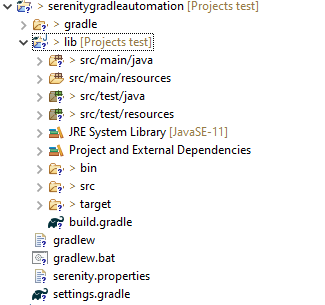
Below is the structure of the Gradle project.

Step 4 – Update repositories, plugin, and dependencies to the Gradle project

defaultTasks 'clean', 'test', 'aggregate'

repositories {
    mavenLocal()
    jcenter()
}

buildscript {
    repositories {
        mavenLocal()
        jcenter()
    }
    dependencies {
        classpath("net.serenity-bdd:serenity-gradle-plugin:2.4.24")
        classpath("net.serenity-bdd:serenity-single-page-report:2.4.24")
    }
}

apply plugin: 'java'
apply plugin: 'eclipse'
apply plugin: 'idea'
apply plugin: 'net.serenity-bdd.aggregator'

sourceCompatibility = 11
targetCompatibility = 11

serenity {
    reports = ["single-page-html"]
}

dependencies {
   
    testImplementation 'net.serenity-bdd:serenity-cucumber6:2.6.0'
    testImplementation 'net.serenity-bdd:serenity-screenplay:2.6.0'
    testImplementation 'net.serenity-bdd:serenity-screenplay-rest:2.6.0'
    testImplementation 'net.serenity-bdd:serenity-rest-assured:2.6.0'
    testImplementation 'io.rest-assured:rest-assured:4.3.2'
    testImplementation 'junit:junit:4.13.1'
}

test {
    testLogging.showStandardStreams = true
    systemProperties System.getProperties()
}

gradle.startParameter.continueOnFailure = true

test.finalizedBy(aggregate)

Step 5 – Create a feature file under src/test/resources

A Feature File is an entry point to the Cucumber tests. This is a file where you will describe your tests in Descriptive language (Like English). A feature file can contain a scenario or can contain many scenarios in a single feature file. Feature file Below is an example of a Feature file.

Feature: Employee Details
  

  @GetValidUserDetails
  Scenario Outline: Send a Request to get valid user details
 
  Given I send a request to the URL <id> to get user details
  Then the response will return statuscode <status> and id <id> and salary <employee_salary> and name '<employee_name>' and age <employee_age> and message '<message>'
 
  Examples:
    |id  |status  |employee_salary|employee_name |employee_age  |message                                  |
    |1   |200     |320800         |Tiger Nixon   |61            |Successfully! Record has been fetched.   |   
    
  @GetInvalidUserDetails
  Scenario Outline: Send a Request to get invalid user details
 
  Given I send a request to the URL <id> to get user details
  Then the response will return statuscode <statusCode> and status '<statusMessage>' and and message '<message>'
 
  Examples:
    |id     |statusCode  |statusMessage    |message                                  |
    |9999   |200         |success          |Successfully! Record has been fetched.   |

Step 6 – Create the Step Definition class or Glue Code for the Test Scenario

The steps definition file stores the mapping between each step of the test scenario defined in the feature file with a code of the function to be executed. So, now when Cucumber executes a step of the scenario mentioned in the feature file, it scans the step definition file and figures out which function is to be called.

public class EmployeeDefinitions {

	private static final String URL = "http://dummy.restapiexample.com/api/v1/employee/";
	public Response response;

	@Given("I send a request to the URL {int} to get user details")
	public void sendRequest(int id) {

		response = SerenityRest.given().contentType("application/json").header("Content-Type", "application/json")
				.when().get(URL + id);
	}

	@Then("the response will return statuscode {int} and id {int} and salary {int} and name {string} and age {int} and message {string}")

	public void verifyValidUser(int statusCode, int id, int salary, String name, int age, String message) {
		SerenityRest.restAssuredThat(response -> response.statusCode(statusCode).and().body("data.id", equalTo(id))
				.and().body("data.employee_salary", equalTo(salary)).and().body("data.employee_name", equalTo(name))
				.and().body("data.employee_age", equalTo(age)).and().body("message", equalTo(message)));

	}

	@Then("the response will return statuscode {int} and status {string} and and message {string}")
	public void verifyInalidUser(int statusCode, String statusMessage, String message) {
		SerenityRest.restAssuredThat(response -> response.statusCode(statusCode).and()
				.body("status", equalTo(statusMessage)).and().body("message", equalTo(message)));

	}
}

Step 7 – Create a Serenity Cucumber Runner class

Cucumber runs the feature files via JUnit and needs a dedicated test runner class to actually run the feature files. When you run the tests with Serenity, you use the CucumberWithSerenity test runner. You also need to use the @CucumberOptions class to provide the root directory where the feature files can be found.

import org.junit.runner.RunWith;

import io.cucumber.junit.CucumberOptions;
import net.serenitybdd.cucumber.CucumberWithSerenity;

@RunWith(CucumberWithSerenity.class)
@CucumberOptions(plugin = { "pretty" }, features = "lib/src/test/resources/features/Employee.feature", glue = {
		"serenitygradlerestautomation.definitions" })

public class SerenityRunnerTest {
}

Step 8 – Create serenity.properties file at the root of the project

serenity.project.name = Serenity and Gradle Rest Assured Demo

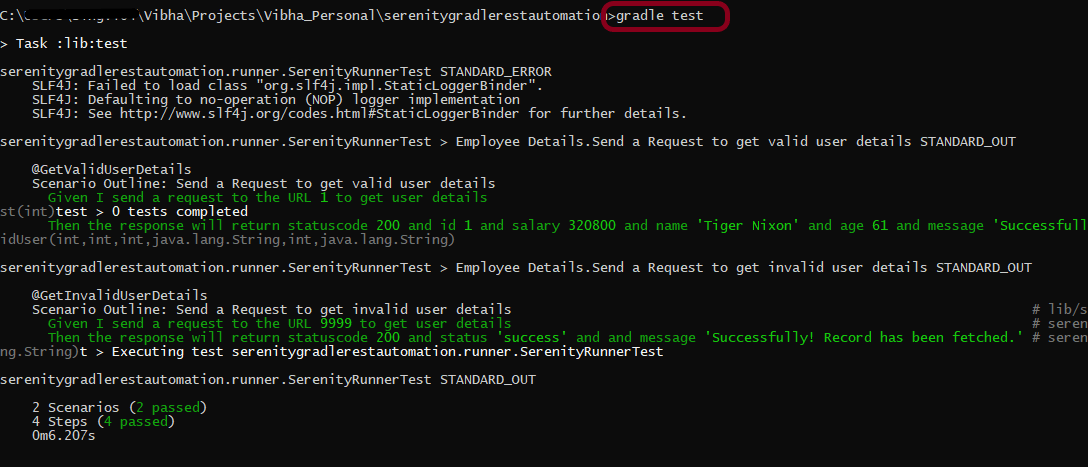
Step 9 – Run the tests through command line, which generates Serenity Report

Open the command line and go to the location where gradle.build of the project is present and type the below command.

gradle test

The Serenity report is generated under /lib/target/site/serenity.

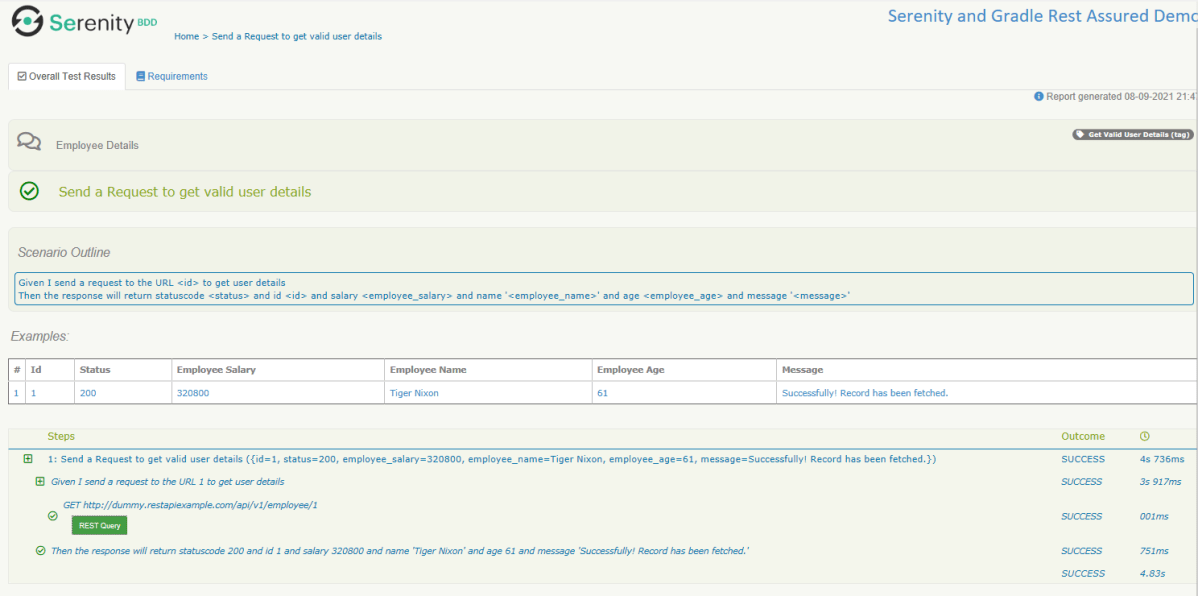
Index.html

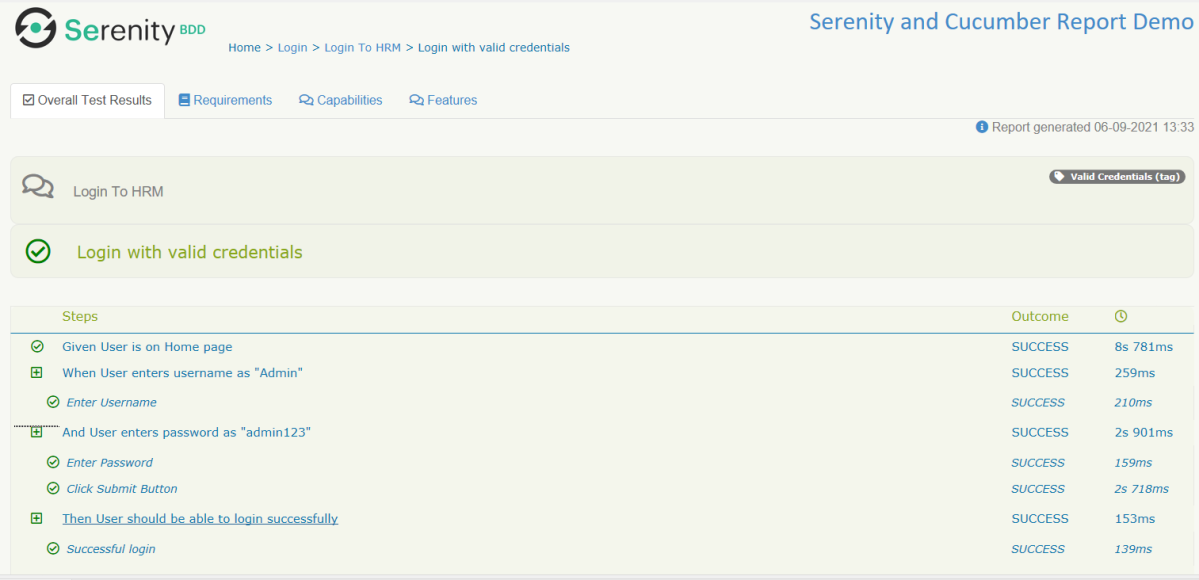
Overall Test Results Section provides the details about all the Test Scenario, like the time taken by each test step, the status of each test step, and soon.

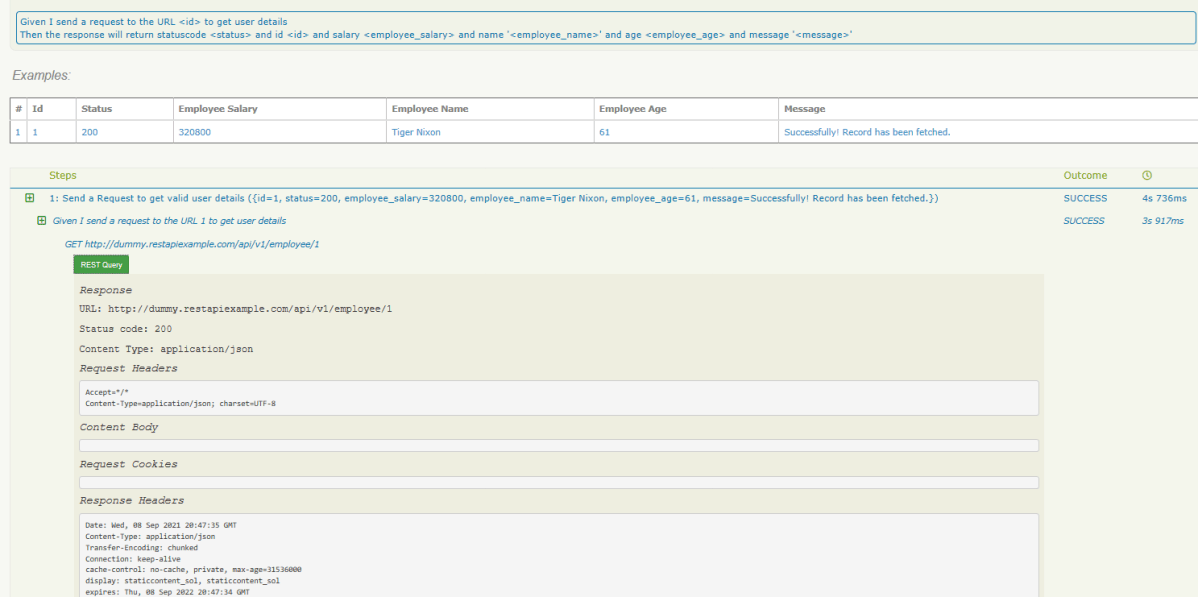
In this report, you can see the request as well as response details in the report.

Step 10 – Generate Single Page HTML Report

As we have already mentioned the dependencies of a single-page-report in build.gradle, we can generate an emailable serenity report that contains the summary of test execution.

gradle reports

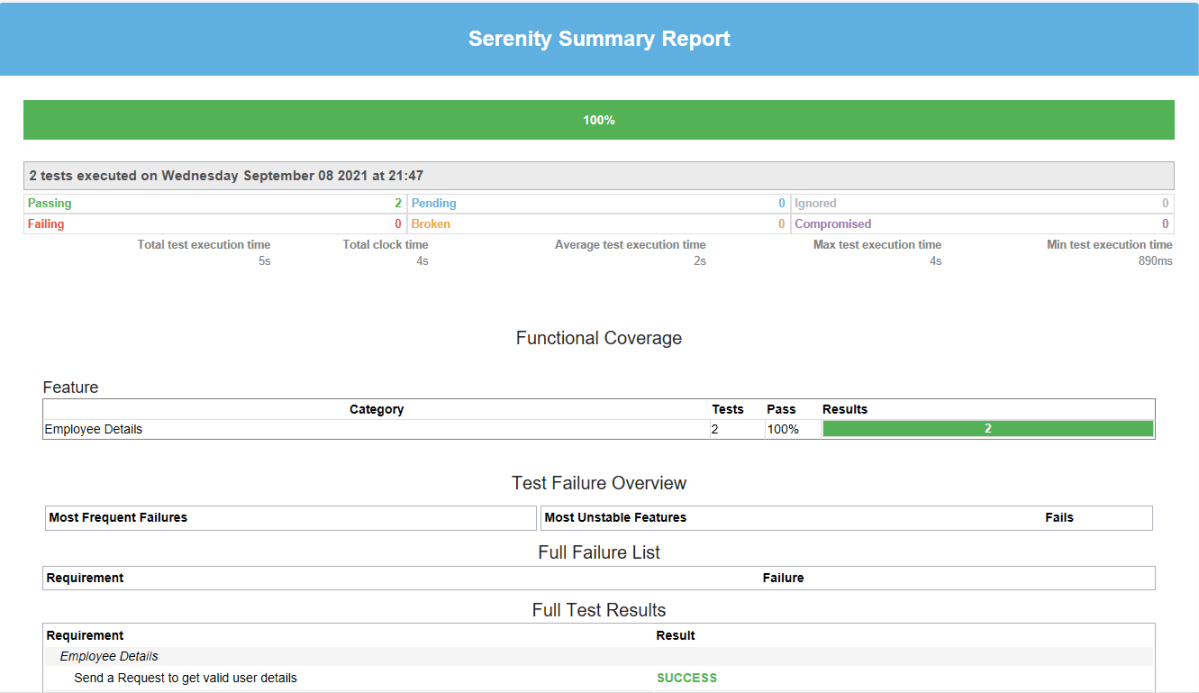
Serenity Summary Report (single-page-report.html) is placed under lib\target\site\serenity.

We are done! Congratulations on making it through this tutorial and hope you found it useful! Happy Learning!!