How to load data from CSV files in the Robot Framework?

HOME

In this tutorial, we will discuss data-driven testing in the Robot Framework.

What is Data Driven Testing?

Data Driven Testing is a type of software testing in which test data is maintained in table or spreadsheet format. Data-driven testing enables testers to provide a single test script that may perform tests for all test data from a table and expect the test results to be returned to the same table. Table-driven testing is another name for parameterized testing.

Prerequisite:

  1. Install Python
  2. Install PIP
  3. Install Robot Framework
  4. Install Robot framework Selenium Library
  5. Install PyCharm IDE

Please refer to this tutorial to install Robot Framework – How to install and setup Robot Framework for Python.

Implementation Steps:

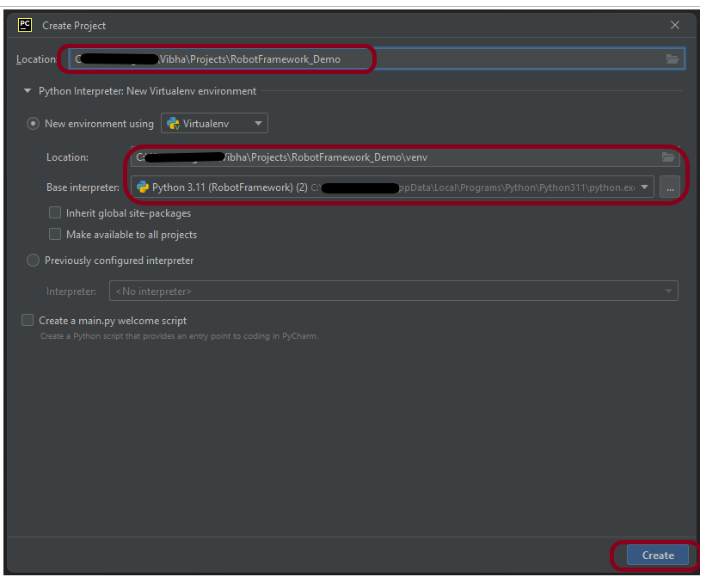
Step 1.1 – Open PyCharm and create a new project. Go to File and select New Project from the main menu.
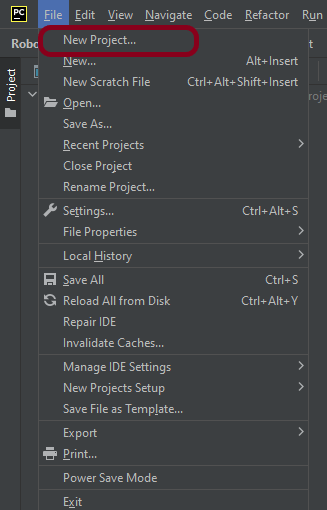
Step 1.2 – Choose the project location. Click the “Browse” button next to the Location field and specify the directory for your project.

Deselect the Create a main.py welcome script checkbox because you will create a new Python file for this tutorial.

Click on the “Create” Button.

Step 1.3 – A new dialog appears asking to open the project using any one of the given options. I have selected New Window as I like to have separate windows for each project.
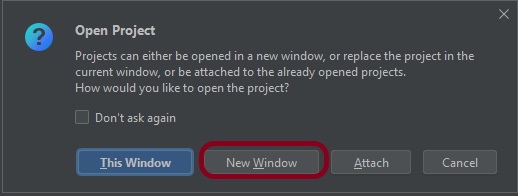
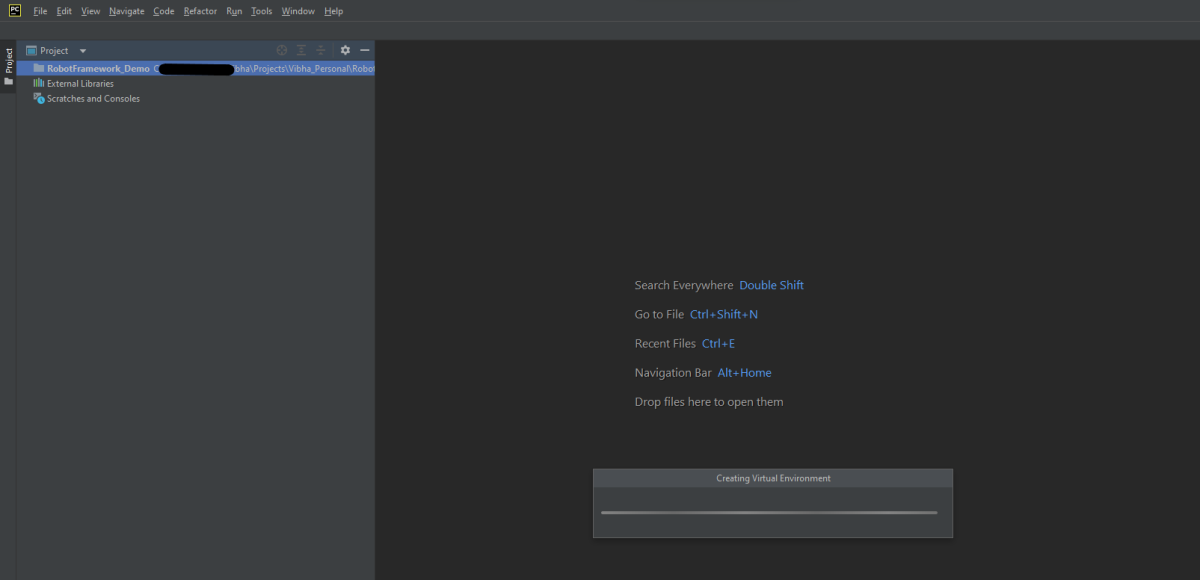
Below is the image of the new project created in PyCharms.
Step 2 – Add datadriver package to the PyCharms

Go to File->Settings ->Project:RobotFramework_Demo ->Python Interpreter.

Click on the “+” sign and enter datadriver in the search bar. It will show a list of packages. Select the “robotframework-datadriver” package and click on the “Install Package”.

Once the package is installed, it can be seen under the package list as shown below:

Step 3 – Create a new directory in the new project

Right-Click on the project, select New->Directory and provide the name as DataDriven
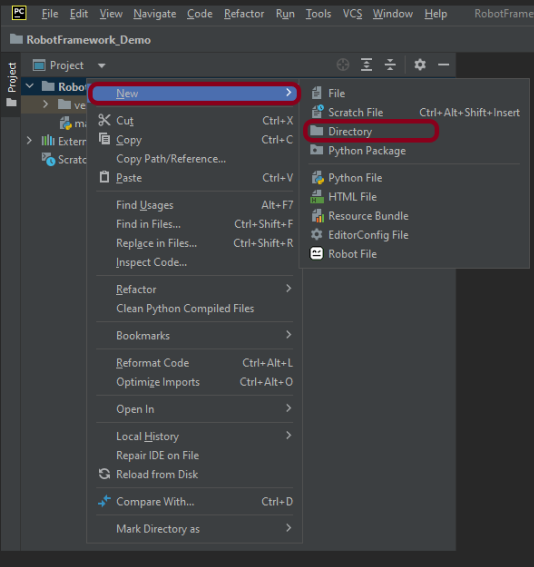
Below is the image of the new directory.

Right-click on the new directory and select New File and provide the name as DataDrivenTesting_Demo.robot as shown below:

Step 4 – Create a test data file (.csv)

Create a folder with the name of Resources in the DataDriven directory.

Add a data.csv file that contains the test data in it.

Make sure that fields are separated by commas.

Step 5 – Download ChromeBinaries from the below location

The tests are going to use the Chrome browser, so we need to download the ChromeBinaries to open a blank browser in Chrome.

https://chromedriver.chromium.org/
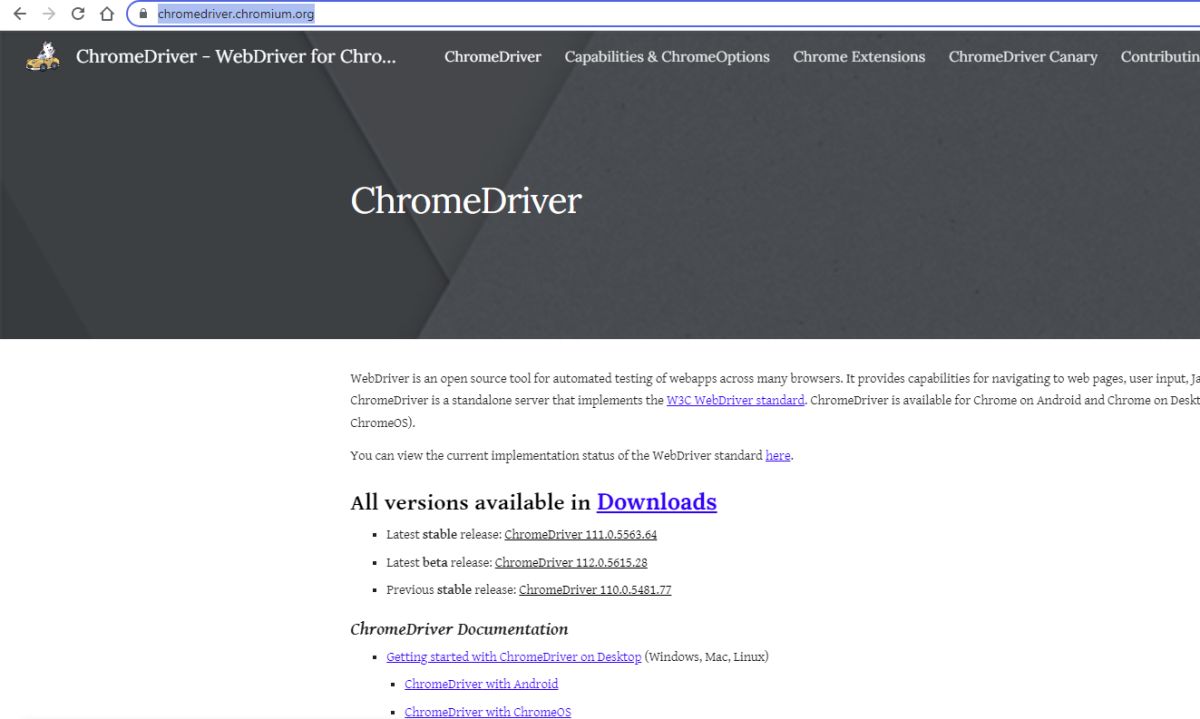
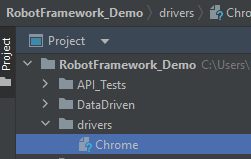
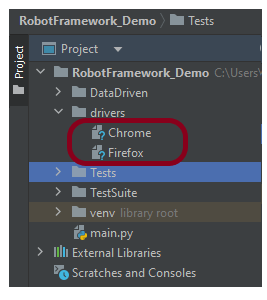
The chromedriver and geckodriver are placed in a folder name drivers in the RobotFramework_Demo project. I have renamed chromedriver to Chrome and geckodriver to Firefox.

Step 6 – Create a Data Driven Test

We are now going to write test cases. The test case details will be as follows :

A locator is an identifier for the web elements used to identify an element on the web page like id, name, class, xpath, css selector.

To know more about locators, refer to these Selenium Tutorials:

 Locators in Selenium – Locate by ID, ClassName,  Name, TagName,  LinkText, PartialLinkText

Dynamic XPath  in Selenium WebDriver

CSS Selector in Selenium WebDriver

Below is an example of a Data-Driven Test.

*** Settings ***
Documentation    To validate the Login Form
Library     SeleniumLibrary
Library    DataDriver       file=Resources/data.csv     encoding=utf_8      dialect=unix
Test Template    Validate Unsuccessful Login

*** Variables ***
${browser_name}     Chrome
${login_btn}        css:.orangehrm-login-button
${login_error_message}      css:.oxd-alert-content--error


*** Test Cases ***
Login to form using ${Username} and ${Password}     abc     123


*** Keywords ***
Validate Unsuccessful Login
    [Arguments]    ${Username}   ${Password}
    Open the Browser with URL
    Fill the login form     ${Username}   ${Password}
    verify error message is correct


Open the Browser with URL
    Create Webdriver    ${browser_name}  executable_path=/Vibha_Personal/RobotFramework_Demo/drivers/${browser_name}
    Go To    https://opensource-demo.orangehrmlive.com/web/index.php/auth/login
    Maximize Browser Window
    Set Selenium Implicit Wait    2

Fill the login form
  [Arguments]        ${Username}       ${Password}
   Input Text        name:username     ${Username}
   Input Password    name:password     ${Password}
   Click Button    ${login_btn}

Verify error message is correct
    Element Text Should Be    ${login_error_message}   Invalid credentials
     
Close Browser Session
    Close Browser

In the below image, it shows that there are 3 steps to creating a Data-Driven test from an external data source like .csv.

All the below-mentioned keywords are derived from SeleniumLibrary. The functionality of keywords mentioned above:

1. Create Webdriver − The keyword creates an instance of Selenium WebDriver.

2. Go To – This keyword navigates the current browser window to the provided url.

3. Maximize Browser Window – This keyword maximizes the current browser window.

4. Set Selenium Implicit Wait – This keyword sets the implicit wait value used by Selenium.

5. Input Text − This keyword is used to type the given text in the specified textbox identified by the locator name:username.

6. Input Password – This keyword is used to type the given text in the specified password identified by the locator name:password.

The difference compared to Input Text is that this keyword does not log the given password on the INFO level.

7. Click button – This keyword is used to click the button identified by the locator. In this case, it is “Login” button.

8. Element Text Should Be – This keyword is used to verify that the current page contains the exact text identified by the locator. Here, we are checking the exact text “Invalid Credentials”.

These keywords are present in SeleniumLibrary. To know more about these keywords, please refer to this document – https://robotframework.org/SeleniumLibrary/SeleniumLibrary.htm.

To run this script, go to the command line and go to directory tests.

Step 7 – Execute the tests

We need the below command to run the Robot Framework script.

robot ExternalDatDrivenTests_Demo.robot

The output of the above program is

Step 8 – View Report and Log

We have the test case passed. The Robot Framework generates log.html, output.xml, and report.html by default.

Let us now see the report and log details.

Report

Right-click on report.html. Select Open In->Browser->Chrome(any browser of your wish).
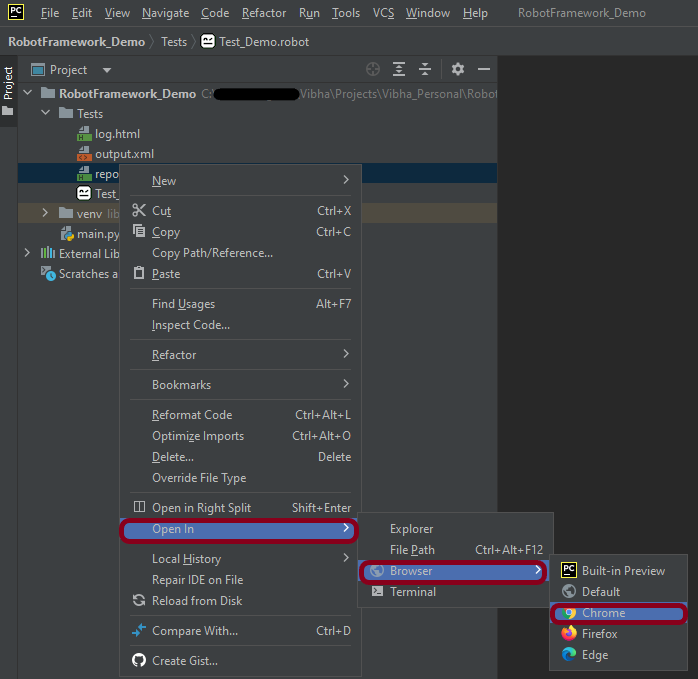
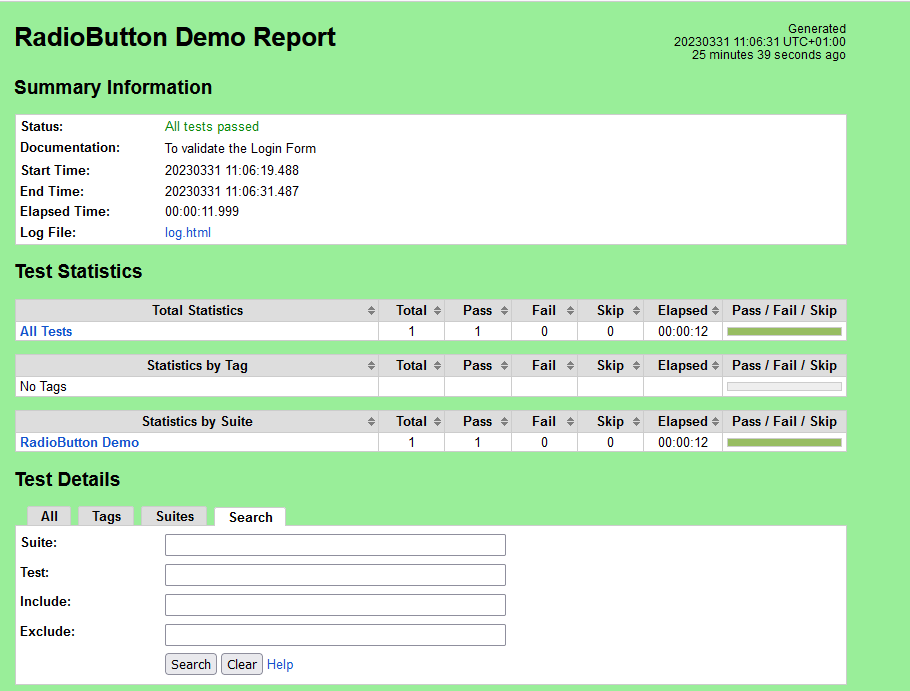
The Report generated by the framework is shown below:

Log

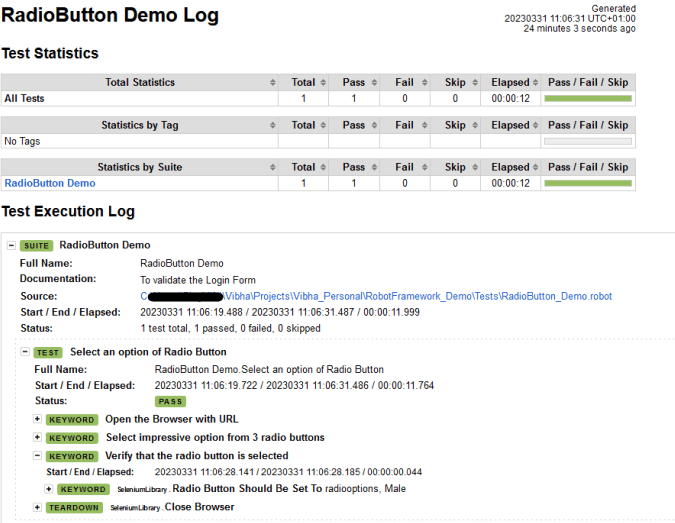
Robot Framework has multiple log levels that control what is shown in the automatically generated log file. The default Robot Framework log level is INFO.

Right-click on log.html. Select Open In->Browser->Chrome(any browser of your wish).

That’s it! Congratulations on making it through this tutorial and hope you found it useful! Happy Learning!!

Data-Driven Testing in Robot Framework 

HOME

In this tutorial, we will discuss data-driven testing in the Robot Framework.

What is Data Driven Testing?

Data Driven Testing is a type of software testing in which test data is maintained in table or spreadsheet format. Data-driven testing enables testers to provide a single test script that may perform tests for all test data from a table and expect the test results to be returned to the same table. Table-driven testing is another name for parameterized testing.

Prerequisite:

  1. Install Python
  2. Install PIP
  3. Install Robot Framework
  4. Install Robot framework Selenium Library
  5. Install PyCharm IDE

Please refer to this tutorial to install Robot Framework – How to install and setup Robot Framework for Python.

Implementation Steps:

Step 1.1 – Open PyCharm and create a new project. Go to File and select New Project from the main menu.

Step 1.2 – Choose the project location. Click the “Browse” button next to the Location field and specify the directory for your project.

Deselect the Create a main.py welcome script checkbox because you will create a new Python file for this tutorial.

Click on the “Create” Button.

Step 1.3 – A new dialog appears asking to open the project using any one of the given options. I have selected New Window as I like to have separate windows for each project.

Below is the image of the new project created in PyCharms.

Step 2 – Create a new directory in the new project

Right-Click on the project, select New->Directory and provide the name as DataDriven

Below is the image of the new directory.

Right-click on the new directory and select New File and provide the name as DataDrivenTesting_Demo.robot as shown below:

Step 3 – Download ChromeBinaries from the below location

The tests are going to use the Chrome browser, so we need to download the ChromeBinaries to open a blank browser in Chrome.

https://chromedriver.chromium.org/

The chromedriver and geckodriver are placed in a folder name drivers in the RobotFramework_Demo project. I have renamed chromedriver to Chrome and geckodriver to Firefox.

Step 4 – Create a Data Driven Test

We are now going to write test cases. The test case details will be as follows :

A locator is an identifier for the web elements used to identify an element on the web page like id, name, class, xpath, css selector.

To know more about locators, refer to these Selenium Tutorials:

 Locators in Selenium – Locate by ID, ClassName,  Name, TagName,  LinkText, PartialLinkText

Dynamic XPath  in Selenium WebDriver

CSS Selector in Selenium WebDriver

Below is an example of a Data-Driven Test

*** Settings ***
Documentation   To validate the Login form
Library     SeleniumLibrary
Test Teardown   Close Browser
Test Template   Validate UnSuccesful Login
Documentation   To validate the Login form
Library     SeleniumLibrary
Test Template   Validate UnSuccesful Login

*** Variables ***
${browser_name}     Chrome
${login_btn}        css:.orangehrm-login-button
${login_error_message}      css:.oxd-alert-content--error


*** Test Cases ***              username        password
Invalid username                abc             admin123
Invalid password                Admin           abc
Special characters              @#$             %$^&
Invalid username and password   abc             abc123


*** Keywords ***
Validate UnSuccesful Login
    [Arguments]     ${username}     ${password}
    Open the Browser with URL
    Fill the login form         ${username}      ${password}
    Verify the error message is correct
    Close Browser Session

Open the Browser with URL
    Create Webdriver    ${browser_name}  executable_path=/Vibha_Personal/RobotFramework_Demo/drivers/${browser_name}
    Go To    https://opensource-demo.orangehrmlive.com/web/index.php/auth/login
    Maximize Browser Window
    Set Selenium Implicit Wait    2

Fill the login Form
    [arguments]         ${username}          ${password}
    Input Text          name:username        ${username}
    Input Password      name:password        ${password}
    Click Button        ${login_btn}


Verify the error message is correct
   ${result}=   Get Text    ${login_error_message}
   Should Be Equal As Strings     ${result}     Invalid credentials

Close Browser Session
    Close Browser

In the below image, it shows that there are 3 steps to creating a Data-Driven test.

All the below-mentioned keywords are derived from SeleniumLibrary. The functionality of keywords mentioned above:

. Create Webdriver − The keyword creates an instance of Selenium WebDriver.

2. Go To – This keyword navigates the current browser window to the provided url.

3. Maximize Browser Window – This keyword maximizes the current browser window.

4. Set Selenium Implicit Wait – This keyword sets the implicit wait value used by Selenium.

5. Input Text − This keyword is used to type the given text in the specified textbox identified by the locator name:username.

6. Input Password – This keyword is used to type the given text in the specified password identified by the locator name:password.

The difference compared to Input Text is that this keyword does not log the given password on the INFO level.

7. Click button – This keyword is used to click the button identified by the locator. In this case, it is “Login” button.

8. ${result} – This is a variable that holds the text value of the error message that is located by css:.oxd-alert-content–error.

9. Get Text – This keyword returns the text value of the element identified by located by css:.oxd-alert-content–error.

10. Should Be Equal As Strings – This keyword is used from builtIn keyword. This keyword returns false if objects are unequal after converting them to strings.

These keywords are present in SeleniumLibrary. To know more about these keywords, please refer to this document – https://robotframework.org/SeleniumLibrary/SeleniumLibrary.htm.

To run this script, go to the command line and go to directory tests.

Step 5 – Execute the tests

We need the below command to run the Robot Framework script.

 robot DataDrivenTesting_Demo.robot

The output of the above program is

Step 6 – View Report and Log

We have the test case passed. The Robot Framework generates log.html, output.xml, and report.html by default.

Let us now see the report and log details.

Report

Right-click on report.html. Select Open In->Browser->Chrome(any browser of your wish).

The Report generated by the framework is shown below:

Log

Robot Framework has multiple log levels that control what is shown in the automatically generated log file. The default Robot Framework log level is INFO.

Right-click on log.html. Select Open In->Browser->Chrome(any browser of your wish).

That’s it! Congratulations on making it through this tutorial and hope you found it useful! Happy Learning!!

How to run all the tests from the folder in Robot Framework

HOME

In this tutorial, we will discuss various commands to execute the tests in Robot Framework using Selenium WebDriver.

Prerequisite:

  1. Install Python
  2. Install PIP
  3. Install Robot Framework
  4. Install Robot framework Selenium Library
  5. Install PyCharm IDE

Please refer to this tutorial to install Robot Framework – How to install and setup Robot Framework for Python.

Implementation Steps:

Step 1.1 – Open PyCharm and create a new project. Go to File and select “New Project” from the main menu.

Step 1.2 – Choose the project location. Click the “Browse” button next to the Location field and specify the directory for your project.

Deselect the Create a main.py welcome script checkbox because you will create a new Python file for this tutorial.

Click on the “Create” Button.

Step 1.3 – A new dialog will appear asking to Open the project using any one of the given options. I have selected New Window as I like to have separate windows for each project.

Below is the image of the new project created in PyCharms.

How to set variable values from Runtime command?

Step 2 – Create a new directory in the new project

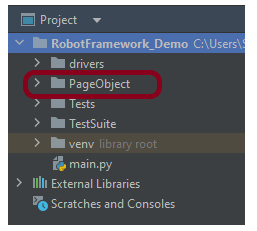
Right-Click on the project, select New->Directory and provide name as PageObject

Below is the image of the new directory.

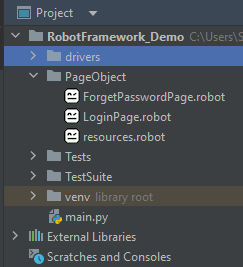
Right-click on the new directory and select New File and provide the name as LoginPage.robot and ForgetPasswordPage.robot as shown below:

Step 3 – Download ChromeBinaries from the below location

The tests are going to use the Chrome browser, so we need to download the ChromeBinaries to open a blank browser in Chrome.

https://chromedriver.chromium.org/

The chromedriver and geckodriver are placed in a folder name drivers in the RobotFramework_Demo project. I have renamed chromedriver to chrome and geckodriver to firefox.

Step 4 – Create 2 Selenium Tests – LoginPage.robot and ForgetPasswordPage.robot

LoginPage.robot

*** Settings ***
Documentation       Tests to login to Login Page
Library     SeleniumLibrary

*** Variables ***
${valid_username}     Admin
${valid_password}       admin123
${invalid_username}     1234
${invalid_password}     45678
${blank_username}
${blank_password}
${url}      https://opensource-demo.orangehrmlive.com/web/index.php/auth/login
${browser_name}      Chrome
${login_error_message}      css:.oxd-alert-content--error
${dashboard_title}       css:.oxd-topbar-header-breadcrumb-module
${missing_username_error_message}    xpath://*[@class='oxd-form']/div[1]/div/span
${missing_password_error_message}   xpath://*[@class='oxd-form']/div[2]/div/span


*** Test Cases ***

Validate Unsuccessful Login using invalid credentials
    [Tags]    SMOKE
    Open the Browser with URL
    Fill the login form     ${valid_username}       ${invalid_password}
    Verify the error message is correct
    Close Browser Session

Validate Unsuccessful Login for blank username
    [Tags]    REGRESSION
    Open the Browser with URL
    Fill the login form     ${blank_username}       ${valid_password}
    Verify the error message is displayed for username
    Close Browser Session

Validate Unsuccessful Login for blank password
    [Tags]    SMOKE     REGRESSION
    Open the Browser with URL
    Fill the login form     ${valid_username}       ${blank_password}
    Verify the error message is displayed for password
    Close Browser Session

Validate successful Login
    [Tags]    UAT
    Open the Browser with URL
    Fill the login form     ${valid_username}       ${valid_password}
    Verify Dashboard page opens
    Close Browser Session

*** Keywords ***

Open the Browser with URL
    Create Webdriver    ${browser_name}  executable_path=/Vibha_Personal/RobotFramework_Demo/drivers/${browser_name}
    Go To       ${url}
    Maximize Browser Window
    Set Selenium Implicit Wait    5

Fill the login form
   [Arguments]    ${username}      ${password}
   Input Text    css:input[name=username]   ${username}
   Input Password    css:input[name=password]   ${password}
   Click Button    css:.orangehrm-login-button

Verify the error message is correct
    Element Text Should Be    ${login_error_message}    Invalid credentials

Verify Dashboard page opens
    Element Text Should Be    ${dashboard_title}      Dashboard

Verify the error message is displayed for username
     Element Text Should Be    ${missing_username_error_message}      Required

Verify the error message is displayed for password
      Element Text Should Be    ${missing_password_error_message}      Required

Close Browser Session
    Close Browser

ForgetPasswordPage.robot

*** Settings ***
Documentation       Tests to validate Forgot Your Password Page functionality
Library     SeleniumLibrary

*** Variables ***
${forgot_password_link}   xpath://div[@class='orangehrm-login-forgot']/p
${forgot_page_title}       css:.orangehrm-forgot-password-title
${username}     css:.oxd-input--active
${reset_btn}     css:.orangehrm-forgot-password-button--reset
${cancel_btn}    css:.orangehrm-forgot-password-button--cancel
${reset_message}      xpath://div[@class='orangehrm-card-container']/h6
${login_page_title}   xpath://*[@class='orangehrm-login-slot']/h5


*** Test Cases ***

Validate Reset Password Functionality

    Open the Browser with URL
    Go to Forgot Your Password Page
    Verify Forgot Your Password Page opens
    Fill the Forgot Password Page
    Verify the message
    Close Browser Session


Validate Cancel Functionality

    Open the Browser with URL
    Go to Forgot Your Password Page
    Verify Forgot Your Password Page opens
    Cancel the Reset Password
    Verify that Login Page is displayed
    Close Browser Session

*** Keywords ***

Open the Browser with URL
    Create Webdriver    ${browser_name}  executable_path=/Vibha_Personal/RobotFramework_Demo/drivers/${browser_name}
    Go To       ${url}
    Maximize Browser Window
    Set Selenium Implicit Wait    5

Go to Forgot Your Password Page
    Click Element      ${forgot_password_link}

Verify Forgot Your Password Page opens
    Element Text Should Be    ${forgot_page_title}      Reset Password

Fill the Forgot Password Page
   Input Text        ${username}     abc@gmail.com
   Click Button    ${reset_btn}

Verify the message
    Element Text Should Be    ${reset_message}      Reset Password link sent successfully

Cancel the Reset Password
    Click Button    ${cancel_btn}

Verify that Login Page is displayed
    Element Text Should Be    ${login_page_title}       Login

Close Browser Session
    Close Browser

Step 5 – Execute various Commands

5.1. Execute all tests in a Directory

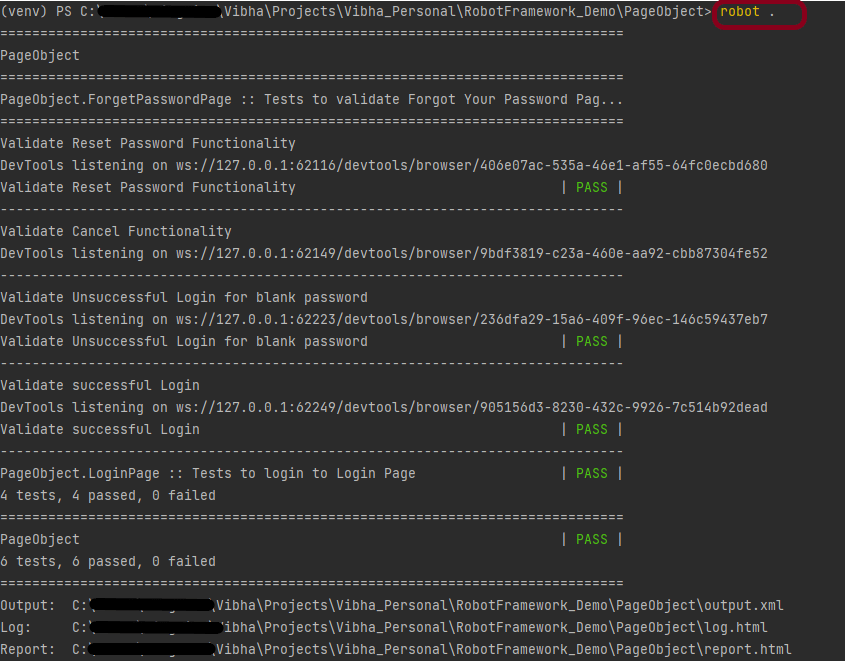
When we want to execute all the tests present in a directory, we can use the below command:

robot  .

LoginPage contains 4 tests and ForgetPasswordPage contains 2 tests. The output of the above program is

5.2. Execute a test file

When we want to execute only 1 test file present in the directory, we can use the below command:

robot  LoginPage.robot

LoginPage contains 4 tests. The output of the above program executes 4 tests as shown below:

5.3. Execute a test by test name

When we want to execute a test by its name, we can use the below command:

robot -t "Validate successful Login" .

The output of the above program is

5.4. Execute a test by Regular Expression

When we don’t know the complete name of the test case, but a term or functionality, we can use a regular expression to find the test. Here, we have a test with the name “Validate Cancel Functionality” in “ForgetPasswordPage.robot”. So, the regular expression will find this test and will execute.

robot -t "*Cancel*" .

The output of the above program is

That’s it! Congratulations on making it through this tutorial and hope you found it useful! Happy Learning!!

How to rerun failed tests in Robot Framework

HOME

In this tutorial, we will rerun the failed tests in Robot Framework.

We occasionally experience rendering problems, which cause our Test Cases to fail. And we must run our complete Test Suite once more. This will be a major pain if you are working on a complicated project with many suite files or many Test Cases.

Rerunning only failed test cases after completion and providing a single report can alleviate this major pain in Robot Framework.

Robot Framework provides two attributes “–rerunfailed” and “–merge” merge will rerun the failure and merge the different results for a single report.

Prerequisite:

  1. Install Python
  2. Install PIP
  3. Install Robot Framework
  4. Install Robot framework Selenium Library
  5. Install PyCharm IDE

Please refer to this tutorial to install Robot Framework – How to install and setup Robot Framework for Python.

Implementation Steps:

Step 1.1 – Open PyCharm and create a new project. Go to File and select “New Project” from the main menu.

Step 2 – Choose the project location. Click the “Browse” button next to the Location field and specify the directory for your project.

Deselect the Create a main.py welcome script checkbox because you will create a new Python file for this tutorial.

Click on the “Create” Button.

Step 1.3 – A new dialog will appear asking to Open the project using any one of the given options. I have selected New Window as I like to have separate windows for each project.

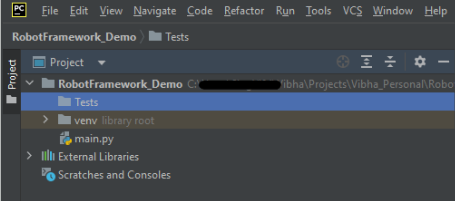
Below is the image of the new project created in PyCharms.

Step 2 – Create a new directory in the new project

Right-Click on the project, select New->Directory and provide name as Tests

Below is the image of the new directory.

Right-click on the new directory and select New File and provide the name as RerunFailedTests.robot as shown below:

Step 3 – Download ChromeBinaries from the below location

The tests are going to use the Chrome browser, so we need to download the ChromeBinaries to open a blank browser in Chrome.

https://chromedriver.chromium.org/

The chromedriver is placed in a folder name drivers in the RobotFramework_Demo project.

Step 4 – Create a simple Selenium Test

*** Settings ***
Documentation       Tests to login to Login Page
Library     SeleniumLibrary

*** Variables ***
${valid_username}     Admin
${valid_password}       admin123
${invalid_username}     1234
${invalid_password}     45678
${blank_username}
${blank_password}
${url}      https://opensource-demo.orangehrmlive.com/web/index.php/auth/login
${browser_name}      Chrome
${login_error_message}      css:.oxd-alert-content--error
${dashboard_title}       css:.oxd-topbar-header-breadcrumb-module
${missing_username_error_message}    xpath://*[@class='oxd-form']/div[1]/div/span
${missing_password_error_message}   xpath://*[@class='oxd-form']/div[2]/div/span


*** Test Cases ***

Validate Unsuccessful Login using invalid credentials
    [Tags]    SMOKE
    Open the Browser with URL
    Fill the login form     ${valid_username}       ${invalid_password}
    Verify the error message is correct
    Close Browser Session

Validate Unsuccessful Login for blank username
    [Tags]    REGRESSION
    Open the Browser with URL
    Fill the login form     ${blank_username}       ${valid_password}
    Verify the error message is displayed for username
    Close Browser Session

Validate Unsuccessful Login for blank password
    [Tags]    SMOKE     REGRESSION
    Open the Browser with URL
    Fill the login form     ${valid_username}       ${blank_password}
    Verify the error message is displayed for password
    Close Browser Session

Validate successful Login
    [Tags]    UAT
    Open the Browser with URL
    Fill the login form     ${valid_username}       ${valid_password}
    Verify Dashboard page opens
    Close Browser Session

*** Keywords ***

Open the Browser with URL
    Create Webdriver    ${browser_name}  executable_path=/Vibha_Personal/RobotFramework_Demo/drivers/${browser_name}
    Go To       ${url}
    Maximize Browser Window
    Set Selenium Implicit Wait    5

Fill the login form
   [Arguments]    ${username}      ${password}
   Input Text    css:input[name=username]   ${username}
   Input Password    css:input[name=password]   ${password}
   Click Button    css:.orangehrm-login-button

Verify the error message is correct
    Element Text Should Be    ${login_error_message}    Invalid credentials

Verify Dashboard page opens
    Element Text Should Be    ${dashboard_title}      Dashboard

Verify the error message is displayed for username
     Element Text Should Be    ${missing_username_error_message}      Required

Verify the error message is displayed for password
      Element Text Should Be    ${missing_password_error_message}      Required!

Close Browser Session
    Close Browser

Step 5 – Execute the tests

We need the below command to run the Robot Framework script. This is the normal execution of your test suite and save your output in output1.xml

robot --output output1.xml RerunFailedTests.robot

The output of the above program is

Let us check the output1.xml file.

We can see that Test 3 failed here.

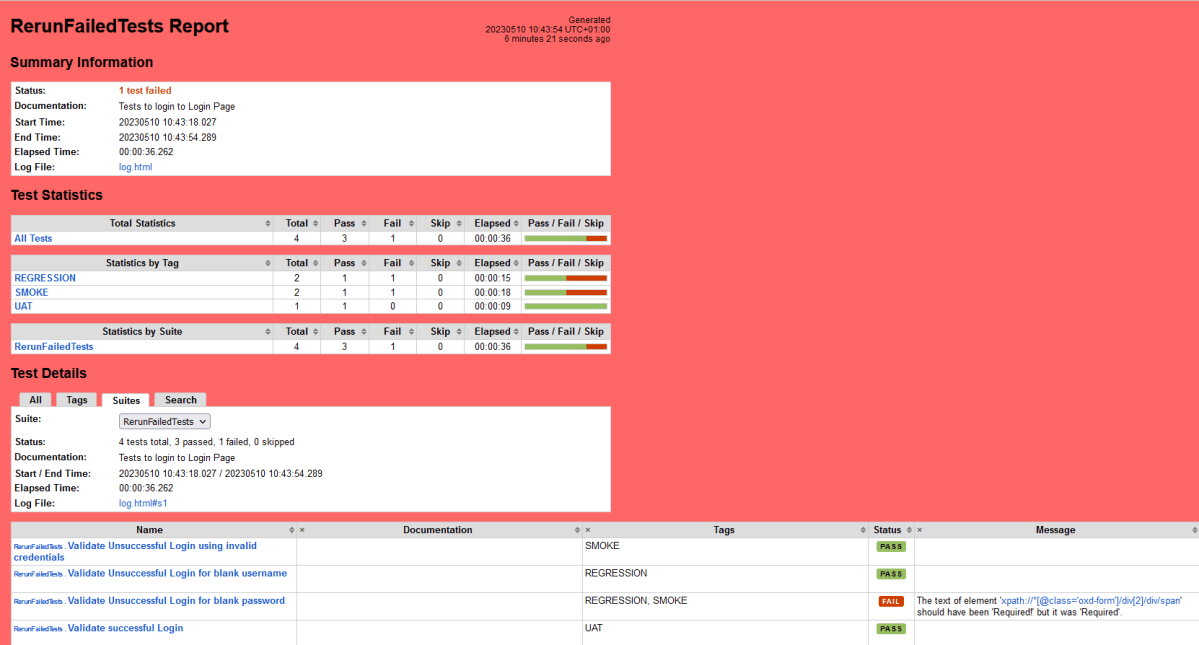
Below is the report generated by the Robot Framework

Now, let us rerun the failed tests using the below command. I intentionally failed my test in the last run. In this run, I will fix the test. I will change the expected result from Required! to Required. This checks the failure results in the output1.xml file and reruns the failures once again and saves the new result in the output2.xml file

robot --rerunfailed output1.xml --output output2.xml RerunFailedTests.robot

The output of the above program is

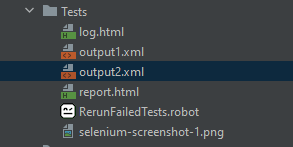
A new output file named output2.xml is generated.

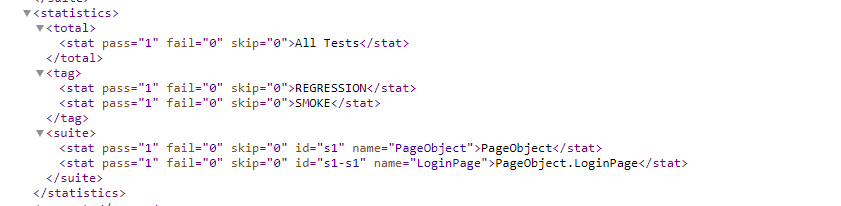
Let us check the output2.xml file.

This command merges the previous XML file and recent XML file after re-run to show in a single report

rebot --output output1.xml --merge output1.xml output2.xml    

The output of the above program is

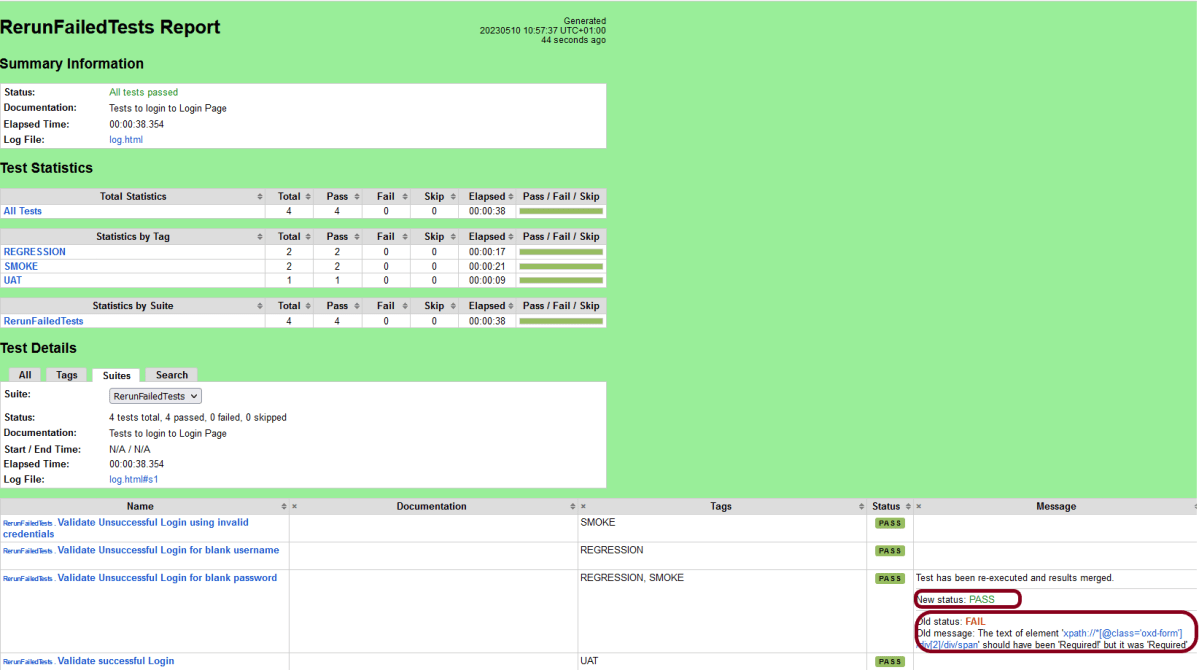
Check the Report generated by the Robot Framework. We can see all the tests are passed now.

That’s it! Congratulations on making it through this tutorial and hope you found it useful! Happy Learning!!

How to implement tagging in Robot Framework

HOME

In this tutorial, we will create a project in PyCharms and create TAGS in the tests in Robot Framework using Selenium WebDriver.

The use of tags in Robot Framework is a basic yet effective mechanism for classifying test cases. Tags are free words that can be used for at least the following things:

  1. Tags appear in test reports, logs, and, of course, test data, providing metadata to test instances.
  2. Case-by-case statistics (total, passed, failed are automatically collected based on tags).
  3. You can use tags to include or exclude test cases from being run.
  4. You can use tags to indicate which test cases should be skipped.

Prerequisite:

  1. Install Python
  2. Install PIP
  3. Install Robot Framework
  4. Install Robot framework Selenium Library
  5. Install PyCharm IDE

Please refer to this tutorial to install Robot Framework – How to install and setup Robot Framework for Python.

Implementation Steps:

Step 1.1 – Open PyCharm and create a new project. Go to File and select “New Project” from the main menu.

Step 1.2 – Choose the project location. Click the “Browse” button next to the Location field and specify the directory for your project.

Deselect the Create a main.py welcome script checkbox because you will create a new Python file for this tutorial.

Click on the “Create” Button.

Step 1.3 – A new dialog will appear asking to Open the project using any one of the given options. I have selected New Window as I like to have separate windows for each project.

Below is the image of the new project created in PyCharms.

How to create a tag in the test in Robot Framework?

Step 1 – Create a new directory in the new project

Right-Click on the project, select New->Directory and provide name as Tests

Below is the image of the new directory.

Right-click on the new directory and select New File and provide the name as Test_Demo.robot as shown below:

Step 2 – Download ChromeBinaries from the below location

The tests are going to use the Chrome browser, so we need to download the ChromeBinaries to open a blank browser in Chrome.

https://chromedriver.chromium.org/

The chromedriver is placed in a folder name drivers in the RobotFramework_Demo project.

Step 3 – Create a simple Selenium Test

*** Settings ***
Documentation       Tests to login to Login Page
Library     SeleniumLibrary

*** Variables ***
${valid_username}     Admin
${valid_password}       admin123
${invalid_username}     1234
${invalid_password}     45678
${blank_username}
${blank_password}
${url}      https://opensource-demo.orangehrmlive.com/web/index.php/auth/login
${browser_name}      Chrome
${login_error_message}      css:.oxd-alert-content--error
${dashboard_title}       css:.oxd-topbar-header-breadcrumb-module
${missing_username_error_message}    xpath://*[@class='oxd-form']/div[1]/div/span
${missing_password_error_message}   xpath://*[@class='oxd-form']/div[2]/div/span


*** Test Cases ***

Validate Unsuccessful Login using invalid credentials
    [Tags]    SMOKE
    Open the Browser with URL
    Fill the login form     ${valid_username}       ${invalid_password}
    Verify the error message is correct
    Close Browser Session

Validate Unsuccessful Login for blank username
    [Tags]    REGRESSION
    Open the Browser with URL
    Fill the login form     ${blank_username}       ${valid_password}
    Verify the error message is displayed for username
    Close Browser Session

Validate Unsuccessful Login for blank password
    [Tags]    SMOKE     REGRESSION
    Open the Browser with URL
    Fill the login form     ${valid_username}       ${blank_password}
    Verify the error message is displayed for password
    Close Browser Session

Validate successful Login
    [Tags]    UAT
    Open the Browser with URL
    Fill the login form     ${valid_username}       ${valid_password}
    Verify Dashboard page opens
    Close Browser Session

*** Keywords ***

Open the Browser with URL
    Create Webdriver    ${browser_name}  executable_path=/Vibha_Personal/RobotFramework_Demo/drivers/${browser_ame}
    Go To       ${url}
    Maximize Browser Window
    Set Selenium Implicit Wait    5

Fill the login form
   [Arguments]    ${username}      ${password}
   Input Text    css:input[name=username]   ${username}
   Input Password    css:input[name=password]   ${password}
   Click Button    css:.orangehrm-login-button

Verify the error message is correct
    Element Text Should Be    ${login_error_message}    Invalid credentials

Verify Dashboard page opens
    Element Text Should Be    ${dashboard_title}      Dashboard

Verify the error message is displayed for username
     Element Text Should Be    ${missing_username_error_message}      Required

Verify the error message is displayed for password
      Element Text Should Be    ${missing_password_error_message}      Required

Close Browser Session
    Close Browser

Scenarios

In the above robot test file, we have a total of 4 tests.

  • Test 1 -> SMOKE
  • Test 2 -> REGRESSION
  • Test 3 -> SMOKE, REGRESSION
  • Test 4 -> UAT

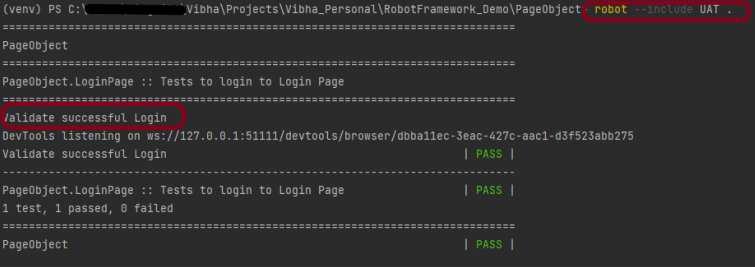
1. To execute the tests tagged with UAT, we have only 1 test, so only 1 test – Test 4 will execute.

robot --include UAT .  

The output of the above program is

2. To execute the tests tagged with SMOKE, we have 2 tests, so 2 tests – Test 1 and Test 3 will execute.

robot --include SMOKE .  

The output of the above program is

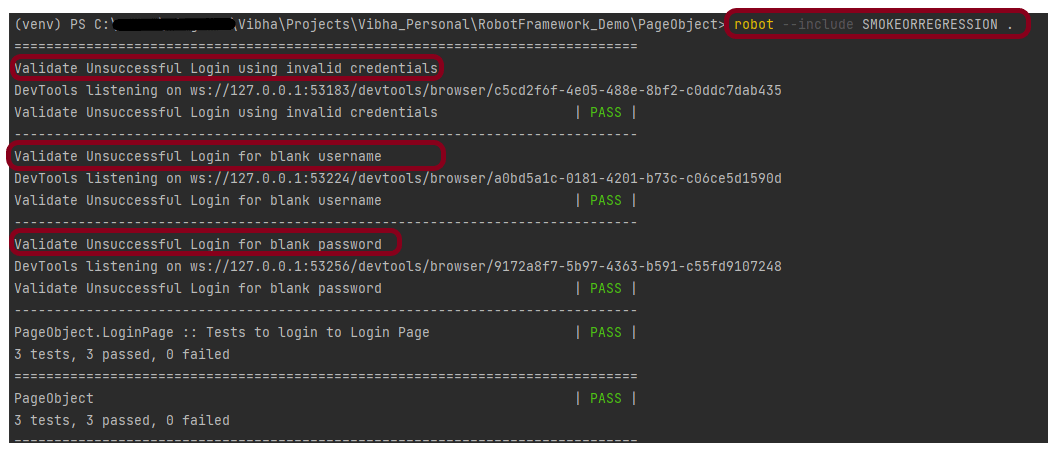
3. To execute the tests tagged with SMOKE OR REGRESSION, we have 3 tests, so 3 tests – Test 1, Test 2, and Test 3 will execute.

robot --include SMOKEORREGRESSION .

The output of the above program is

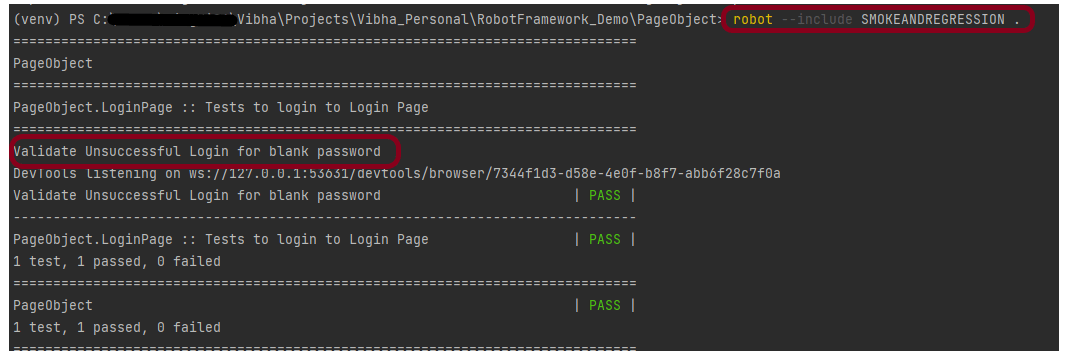
4. To execute the tests tagged with SMOKE AND REGRESSION, we have only 1 test – Test 3 will execute.

robot --include SMOKEANDREGRESSION .

The output of the above program is

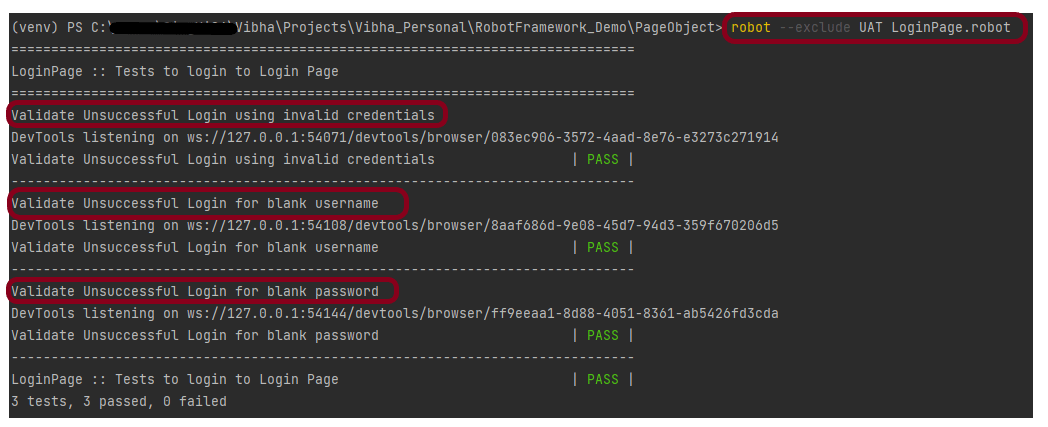
5. To execute the tests tagged with not UAT, we have a total of 4 tests and 1 test is tagged with UAT. So now 3 tests should execute – Test 1, Test 2, and Test 3.

robot --exclude UAT LoginPage.robot

The output of the above program is

That’s it! Congratulations on making it through this tutorial and hope you found it useful! Happy Learning!!

How to handle alerts in Robot Framework 

HOME

In this tutorial, we will discuss various types of Alerts available in web application testing and how to handle alerts in Robot Framework.

Prerequisite:

  1. Install Python
  2. Install PIP
  3. Install Robot Framework
  4. Install Robot framework Selenium Library
  5. Install PyCharm IDE

Please refer to this tutorial to install Robot Framework – How to install and setup Robot Framework for Python.

Implementation Steps:

Step 1.1 – Open PyCharm and create a new project. Go to File and select New Project from the main menu.

Step 1.2 – Choose the project location. Click the “Browse” button next to the Location field and specify the directory for your project.

Deselect the Create a main.py welcome script checkbox because you will create a new Python file for this tutorial.

Click on the “Create” Button.

Step 1.3 – A new dialog appears asking to open the project using any one of the given options. I have selected New Window as I like to have separate windows for each project.

Below is the image of the new project created in PyCharms.

How to create a test to automate the alerts in Robot Framework?

1. Simple Alert

Step 4 – Create a new directory in the new project

Right-Click on the project, select New->Directory and provide name as Tests

Below is the image of the new directory.

Right-click on the new directory and select New File and provide the name as Confirm_Alert_Demo.robot, Ok_Alert_Demo.robot and TextBox_Alert_Demo.robot as shown below:

Step 5 – Download ChromeBinaries from the below location

The tests are going to use the Chrome browser, so we need to download the ChromeBinaries to open a blank browser in Chrome.

https://chromedriver.chromium.org/

The chromedriver is placed in a folder name drivers in the RobotFramework_Demo project. I have renamed chromedriver to Chrome.

Step 6 – Automate the Simple Alert

We are now going to write test cases. The test case details will be as follows :

To work with the Robot Framework, we need a locator. A locator is an identifier for the textbox like id, name, class, xpath, css selector, etc.

To know more about locators, refer to these Selenium Tutorials:

 Locators in Selenium – Locate by ID, ClassName,  Name, TagName,  LinkText, PartialLinkText

Dynamic XPath  in Selenium WebDriver

CSS Selector in Selenium WebDriver

The below page shows that when we click on “Alert with OK”, then click on the “click the button to display an alert box” button, a new alert opens with the message – I am an alert box!.

Below is an example of selecting the “Simple Alert”.

*** Settings ***
Documentation    To validate the Message Alert
Library     SeleniumLibrary
Test Teardown    Close Browser

*** Variables ***
${okOption}    xpath://div[@class='tabpane pullleft']/ul/li[1]/a
${alertBtn}    css:.btn-danger

*** Test Cases ***
Handle Message Alert
    Open the Browser with URL
    Select the Alert with OK Option
    Verify text on Alert Box

*** Keywords ***
Open the Browser with URL
    Create Webdriver    Chrome  executable_path=/Vibha_Personal/RobotFramework/drivers/chromedriver_linux64
    Go To    https://demo.automationtesting.in/Alerts.html
    Maximize Browser Window
    Set Selenium Implicit Wait    2

Select the Alert with OK Option
    Click Element    ${okOption}
    Click Button     ${alertBtn}

Verify text on Alert Box
    Alert Should Be Present     I am an alert box!      ACCEPT

All the below-mentioned keywords are derived from SeleniumLibrary. The functionality of keywords mentioned above:

1. Create Webdriver − The keyword creates an instance of Selenium WebDriver.

2. Go To – This keyword navigates the current browser window to the provided URL – https://demo.automationtesting.in/Register.html.

3. Maximize Browser Window – This keyword maximizes the current browser window.

4. Set Selenium Implicit Wait – This keyword sets the implicit wait value used by Selenium.

5. Click Element − This keyword is used to click the element identified by the locator. In this case, it is the “Alert with OK” link.

6. Click Button – This keyword is used to click the button identified by the locator. In this case, it is the “Click the button to display an alert box” button.

7. Alert Should Be Present – This keyword is used to verify that an alert is present on the page and, by default, accepts it.

These keywords are present in SeleniumLibrary. To know more about these keywords, please refer to this document – https://robotframework.org/SeleniumLibrary/SeleniumLibrary.htm.

To run this script, go to the command line and go to directory tests.

Step 7 – Execute the tests

We need the below command to run the Robot Framework script.

 robot Ok_Alert_Demo.robot

The output of the above program is

Step 8 – View Report and Log

We have the test case passed. The Robot Framework generates log.html, output.xml, and report.html by default.

Let us now see the report and log details.

Report

Right-click on report.html. Select Open In->Browser->Chrome(any browser of your wish).

The Report generated by the framework is shown below:

Log

Robot Framework has multiple log levels that control what is shown in the automatically generated log file. The default Robot Framework log level is INFO.

Right-click on log.html. Select Open In->Browser->Chrome(any browser of your wish).

2. Confirmation Alert

This alert comes with an option to accept or dismiss the alert.

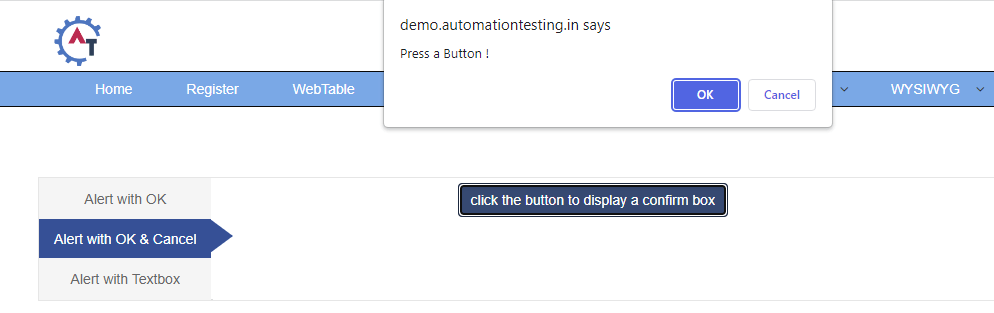
The below page shows that when we click on Alert with OK & Cancel”, then click on the “click the button to display a confirm box” button, a new alert opens with the message – Press a Button!.

We are now going to write test cases. The test case details will be as follows :

Below is an example of selecting the “Confirmation Alert”.

*** Settings ***
Documentation    To validate the Confirm Alert
Library     SeleniumLibrary
Test Teardown    Close Browser
Documentation    To validate the Confirmation Alert
Library     SeleniumLibrary
Test Teardown    Close Browser


*** Variables ***
${okCancelOption}    xpath://div[@class='tabpane pullleft']/ul/li[2]/a
${confirmBtn}    css:.btn-primary
${text}     id:demo

*** Test Cases ***
Handle Confirm Alert
    Open the Browser with URL
    Select the Alert with OK & Option
    Verify text on Confirm Box on selecting Cancel option

*** Keywords ***
Open the Browser with URL
    Create Webdriver    Chrome  executable_path=/Vibha_Personal/RobotFramework/drivers/chromedriver_linux64
    Go To    https://demo.automationtesting.in/Alerts.html
    Maximize Browser Window
    Set Selenium Implicit Wait    2

Select the Alert with OK & Option
    Click Element    ${okCancelOption}
    Click Button     ${confirmBtn}

Verify text on Confirm Box on selecting Cancel option
    Alert Should Be Present     Press a Button !     DISMISS
    Element Text Should Be    ${text}      You Pressed Cancel

3. Prompt Alert

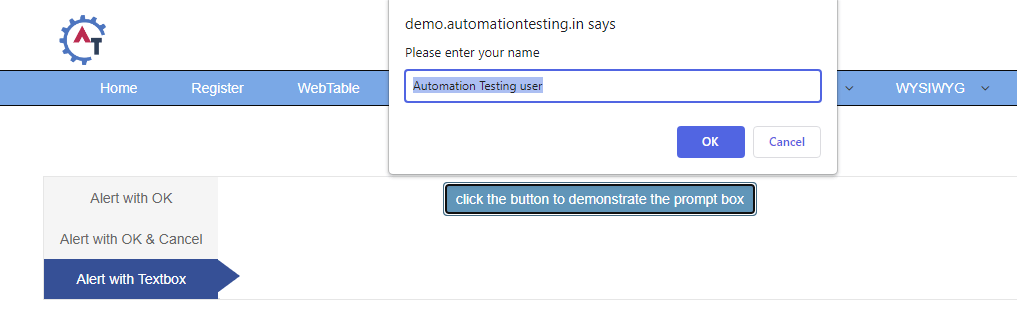
 In the prompt alert, we get an option to add text to the alert box. This is used when some input is required from the user.

We are now going to write test cases. The test case details will be as follows :

Below is an example of selecting the “Prompt Alert”.

*** Settings ***
Documentation    To validate the TextBox Alert
Library     SeleniumLibrary
Test Teardown    Close Browser

*** Variables ***
${textboxOption}    xpath://div[@class='tabpane pullleft']/ul/li[3]/a
${displayBtn}    css:.btn-info
${text}     id:demo1

*** Test Cases ***
Handle TextBox Alert
    Open the Browser with URL
    Select the Alert with TextBox Option
    Verify text on entered on textbox is displayed as message

*** Keywords ***
Open the Browser with URL
    Create Webdriver    Chrome  executable_path=/Vibha_Personal/RobotFramework/drivers/chromedriver_linux64
    Go To    https://demo.automationtesting.in/Alerts.html
    Maximize Browser Window
    Set Selenium Implicit Wait    2

Select the Alert with TextBox Option
    Click Element    ${textboxOption}
    Click Button     ${displayBtn}

Verify text on entered on textbox is displayed as message
    Input Text Into Alert     Hello     ACCEPT
    Element Text Should Be    ${text}      Hello Hello How are you today

That’s it! Congratulations on making it through this tutorial and hope you found it useful! Happy Learning!!
How to handle multiple windows in Robot Framework 

HOME

In this tutorial, we will automate the switching of Windows in Robot Framework.

    Prerequisite:

    1. Install Python
    2. Install PIP
    3. Install Robot Framework
    4. Install Robot framework Selenium Library
    5. Install PyCharm IDE

    Please refer to this tutorial to install Robot Framework – How to install and setup Robot Framework for Python.

    Implementation Steps:

    Step 1.1 – Open PyCharm and create a new project. Go to File and select New Project from the main menu.

    Step 1.2 – Choose the project location. Click the “Browse” button next to the Location field and specify the directory for your project.

    Deselect the Create a main.py welcome script checkbox because you will create a new Python file for this tutorial.

    Click on the “Create” Button.

    Step 1.3 – A new dialog appears asking to open the project using any one of the given options. I have selected New Window as I like to have separate windows for each project.

    Below is the image of the new project created in PyCharms.

    How to create a test to automate the switching of the windows in Robot Framework?

    Step 2 – Create a new directory in the new project

    Right-Click on the project, select New->Directory and provide name as Tests

    Below is the image of the new directory.

    Right-click on the new directory and select New File and provide the name as SwitchWindow_Demo.robot as shown below:

    Step 3 – Download ChromeBinaries from the below location

    The tests are going to use the Chrome browser, so we need to download the ChromeBinaries to open a blank browser in Chrome. Similarly, you can use Firefox, edge, safari, and many more browsers.

    https://chromedriver.chromium.org/

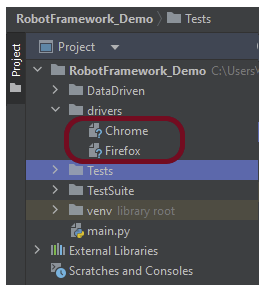
    The chromedriver and geckodriver are placed in a folder name drivers in the RobotFramework_Demo project. I have renamed chromedriver to Chrome and geckodriver to Firefox.

    Step 4 – Automate the switching of windows

    We are now going to write test cases. The test case details will be as follows −

    To work with Windows, we need a locator. A locator is an identifier for the textbox like id, name, class, xpath, css selector, etc.

    To know more about locators, refer to these Selenium Tutorials:

     Locators in Selenium – Locate by ID, ClassName,  Name, TagName,  LinkText, PartialLinkText

    Dynamic XPath  in Selenium WebDriver

    CSS Selector in Selenium WebDriver

    The below page shows that when we click on “Open New Separate Windows”, then click on the “click” button, a new child window opens – Selenium.dev.

    Let us inspect the locator of the NEW Window.

    Below is an example of switching windows in Robot Framework.

    *** Settings ***
    Documentation    To validate the switching of windows
    Library     SeleniumLibrary
    Test Teardown    Close Browser
    
    *** Variables ***
    ${mainPageText}    xpath://div[@class='col-sm-8 col-xs-8 col-md-8']/h1
    
    *** Test Cases ***
    Switch windows
        Open the Browser with URL
        Select the button to switch to child window
        Verify the child window is opened
        Verify the user is switched back to parent window
    
    *** Keywords ***
    Open the Browser with URL
        Create Webdriver    Chrome  executable_path=/Vibha_Personal/RobotFramework/drivers/chromedriver_linux64
        Go To    https://demo.automationtesting.in/Windows.html
        Maximize Browser Window
        Set Selenium Implicit Wait    2
    
    Select the button to switch to child window
        Click Element    xpath://div[@class='tabpane pullleft']/ul/li[2]/a
        Click Button    css:.btn-primary
    
    
    Verify the child window is opened
        Switch Window    NEW
        Page Should Contain    Selenium automates browsers
    
    
    Verify the user is switched back to parent window
         Switch Window    MAIN
         Element Text Should Be     ${mainPageText}    Automation Demo Site
    

    All the below-mentioned keywords are derived from SeleniumLibrary. The functionality of keywords mentioned above:

    1. Create Webdriver − The keyword creates an instance of Selenium WebDriver.

    2. Go To – This keyword navigates the current browser window to the provided URL – https://demo.automationtesting.in/Windows.html.

    3. Maximize Browser Window – This keyword maximizes the current browser window.

    4. Set Selenium Implicit Wait – This keyword sets the implicit wait value used by Selenium.

    5. Click Element − This keyword is used to click the element identified by the locator. In this case, it is “Open new seperate windows” link.

    6. Click Button – This keyword is used to click the button identified by the locator. In this case, it is “Click” button.

    7. Switch Window NEW – This keyword is used to switch to the latest opened window.

    8. Page Should Contain – This keyword is used to verify that the current page contains the text specified. Here, we are checking if the newly opened windows contain the text “Selenium automates browsers”.

    9. Switch Window MAIN – This keyword is used to switch to the main window.

    10. Element Text Should Be – This keyword is used to verify that the current page contains the exact text identified by the locator. Here, we are checking if we switched back to the main window and the main window contains the exact text “Automation Demo Site”.

    These keywords are present in SeleniumLibrary. To know more about these keywords, please refer to this document – https://robotframework.org/SeleniumLibrary/SeleniumLibrary.html.

    Step 5 – Execute the tests

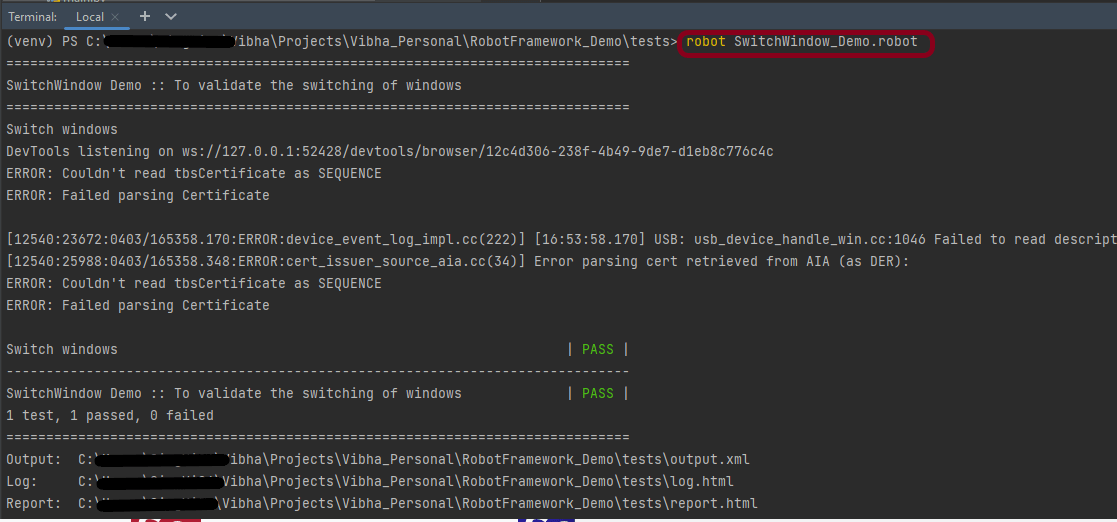
    To run this script, go to the command line and go to directory tests. We need the below command to run the Robot Framework script.

    robot SwitchWindow_Demo.robot
    

    The output of the above program is

    Step 5 – View Report and Log

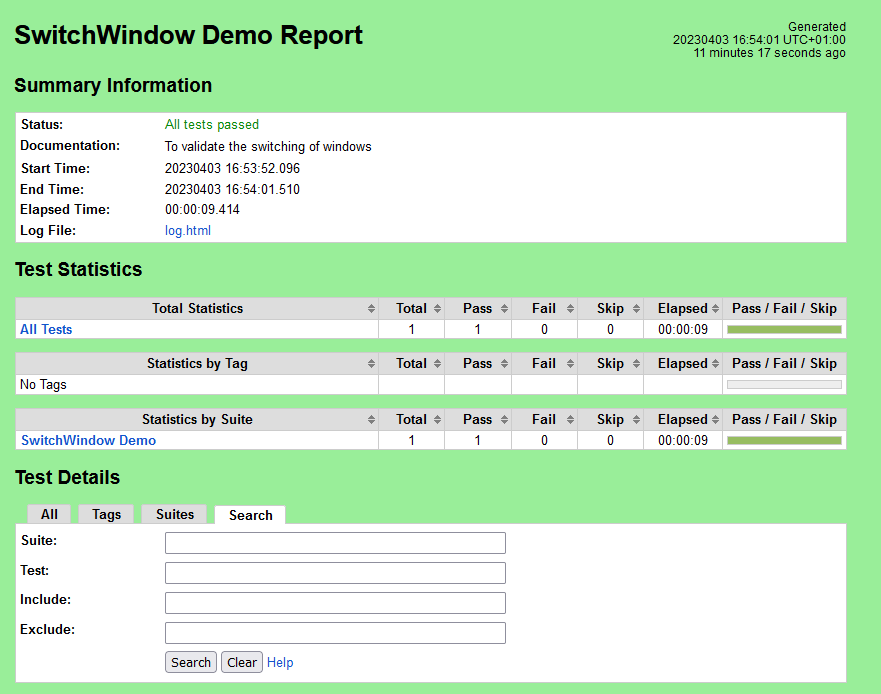
    We have the test case passed. The Robot Framework generates log.html, output.xml, and report.html by default.

    Let us now see the report and log details.

    Report

    Right-click on report.html. Select Open In->Browser->Chrome(any browser of your wish).

    The Report generated by the framework is shown below:

    Log

    Robot Framework has multiple log levels that control what is shown in the automatically generated log file. The default Robot Framework log level is INFO.

    Right-click on log.html. Select Open In->Browser->Chrome(any browser of your wish).

    Multiple Window Switch

    Selenium WebDriver assigns an alphanumeric id to each window as soon as the WebDriver object is instantiated. This unique alphanumeric id is called a window handle. Selenium uses this unique id to switch control among several windows. In simple terms, each unique window has a unique ID, so that Selenium can differentiate when it is switching controls from one window to the other.

    The below page shows that when we click on “Open Separate Multiple Windows”, then click on the “click” button, 2 new child windows open – Selenium.dev and Demo page.

    Below is an example of switching between multiple windows.

    *** Settings ***
    Documentation    To validate the switching between multiple windows
    Library     SeleniumLibrary
    Test Teardown    Close Browser
    
    *** Variables ***
    ${mainPageText}    xpath://div[@class='col-sm-8 col-xs-8 col-md-8']/h1
    
    *** Test Cases ***
    Multiple Windows switch
        Open the Browser with URL
        Select the button to switch to child window
        Verify child windows are opened
        Verify user switched back to parent window
    
    *** Keywords ***
    Open the Browser with URL
        Create Webdriver    Chrome  executable_path=/Vibha_Personal/RobotFramework/drivers/chromedriver_linux64
        Go To    https://demo.automationtesting.in/Windows.html
        Maximize Browser Window
        Set Selenium Implicit Wait    5
    
    Select the button to switch to child window
        Click Element    xpath://div[@class='tabpane pullleft']/ul/li[3]/a
        Click Button    xpath:.//*[@id='Multiple']/button
    
    
    Verify child windows are opened
        @{windowHandle}=    Get Window Handles
    
        Switch Window   title:Selenium
        Page Should Contain     Selenium automates browsers. That's it!
    
        Switch Window   title:Index
        Page Should Contain Textfield      id:email
    
    
    Verify user switched back to parent window
         Switch Window    MAIN
         Element Text Should Be     ${mainPageText}    Automation Demo Site
    

    All the below-mentioned keywords are derived from SeleniumLibrary. The functionality of keywords mentioned above:

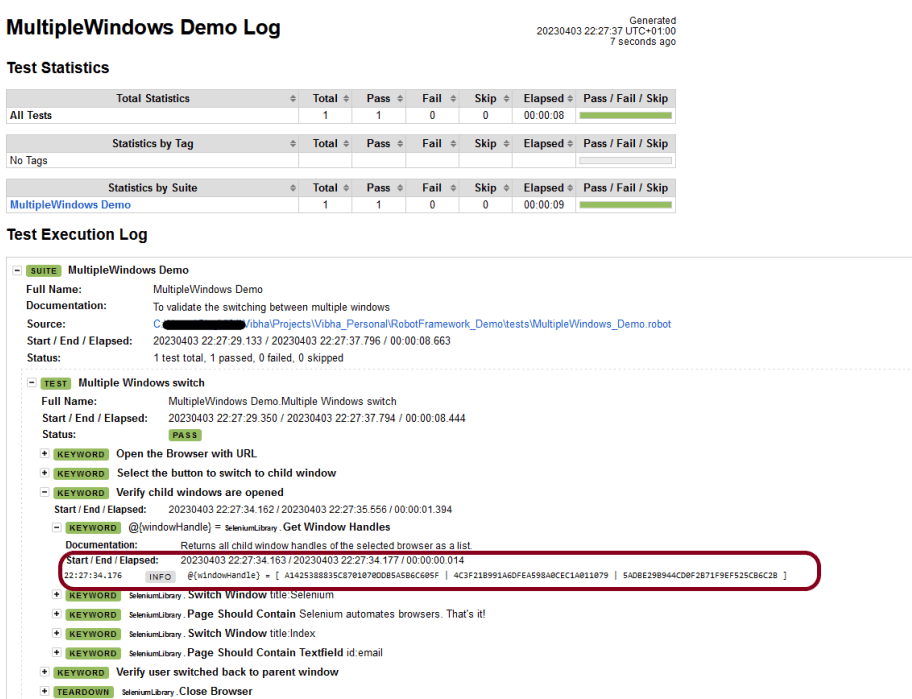
    1. Get Window Handles − The keyword returns all child window handles of the selected browser as a list. Here, it will return 3 window handles.

    2. Switch Window title:Selenium – This keyword is used to switch to the window whose title is identified by the locator “Selenium”.

    3. Page Should Contain Textfield – This keyword verifies the text field identified by the locator found from the current page.

    Step 1 – Execute the tests

    We need the below command to run the Robot Framework script.

    robot MultipleWindows_Demo.robot
    

    The output of the above program is

    Step 2 – View Report and Log

    Report

    Log

    In the log, we can see that Get Window Handles has 3 alphanumeric id.

    That’s it! Congratulations on making it through this tutorial and hope you found it useful! Happy Learning!!
    How to handle dropdowns in Robot Framework 

    HOME

    In this tutorial, we will automate the execution of DropDown in Robot Framework.

    Prerequisite:

    1. Install Python
    2. Install PIP
    3. Install Robot Framework
    4. Install Robot framework Selenium Library
    5. Install PyCharm IDE

    Please refer to this tutorial to install Robot Framework – How to install and setup Robot Framework for Python.

    Implementation Steps:

    Step 1.1 – Open PyCharm and create a new project. Go to File and select New Project from the main menu.

    Step 1.2 – Choose the project location. Click the “Browse” button next to the Location field and specify the directory for your project.

    Deselect the Create a main.py welcome script checkbox because you will create a new Python file for this tutorial.

    Click on the “Create” Button.

    Step 1.3 – A new dialog appears asking to open the project using any one of the given options. I have selected New Window as I like to have separate windows for each project.

    Below is the image of the new project created in PyCharms.

    How to create a test to automate the options of dropdown in Robot Framework?

    Step 4 – Create a new directory in the new project

    Right-Click on the project, select New->Directory and provide name as Tests

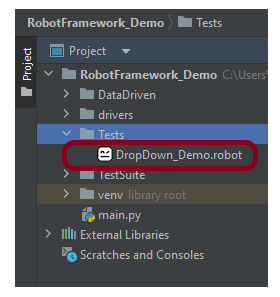
    Below is the image of the new directory.

    Right-click on the new directory and select New File and provide the name as DropDown_Demo.robot as shown below:

    Step 5 – Download ChromeBinaries from the below location

    The tests are going to use the Chrome browser, so we need to download the ChromeBinaries to open a blank browser in Chrome.

    https://chromedriver.chromium.org/

    The chromedriver and geckodriver are placed in a folder name drivers in the RobotFramework_Demo project. I have renamed chromedriver to Chrome and geckodriver to Firefox.

    Step 6 – Automate the selection of options for DropDown

    We are now going to write test cases. The test case details will be as follows −

    To work with the Radio Button, we need a locator. A locator is an identifier for the textbox like id, name, class, xpath, css selector, etc.

    To know more about locators, refer to these Selenium Tutorials:

     Locators in Selenium – Locate by ID, ClassName,  Name, TagName,  LinkText, PartialLinkText

    Dynamic XPath  in Selenium WebDriver

    CSS Selector in Selenium WebDriver

    The below page shows that we have multiple DropDown options.

    Let us inspect the locator of DropDown.

    Below is an example of selecting the options in DropDown.

    *** Settings ***
    Documentation    To validate the selection of DropDown
    Library     SeleniumLibrary
    Test Teardown    Close Browser
    
    *** Test Cases ***
    Select options in DropDown
        Open the Browser with URL
        Select the dropdown options APIs by value
        Select the dropdown options Microsoft Excel by index
        Select the dropdown options CSS by label
    
    *** Keywords ***
    Open the Browser with URL
        Create Webdriver    Chrome  executable_path=/Vibha_Personal/RobotFramework/drivers/chromedriver_linux64
        Go To    https://demo.automationtesting.in/Register.html
        Maximize Browser Window
        Set Selenium Implicit Wait    2
    
    Select the dropdown options APIs by value
        Select From List By Value       id:Skills   APIs
    
    
    Select the dropdown options Microsoft Excel by index
        Select From List By Index        id:Skills   43
    
    Select the dropdown options CSS by label
        Select From List By Label       id:Skills   CSS


    All the below-mentioned keywords are derived from SeleniumLibrary except the last one. The functionality of keywords mentioned above:

    1. Create Webdriver − The keyword creates an instance of Selenium WebDriver.

    2. Go To – This keyword navigates the current browser window to the provided URL – https://demo.automationtesting.in/Register.html.

    3. Maximize Browser Window – This keyword maximizes the current browser window.

    4. Set Selenium Implicit Wait – This keyword sets the implicit wait value used by Selenium.

    5. Select From List By Value − This keyword is used to select APIs option from dropdown on the current page by value.

    6. Select From List By Index – This keyword is used to select Microsoft Excel option from dropdown on the current page by index.

    7. Select From List By Label – This keyword is used to select CSS option from the dropdown on the current page by label.

    These keywords are present in SeleniumLibrary. To know more about these keywords, please refer to this document – https://robotframework.org/SeleniumLibrary/SeleniumLibrary.htm.

    To run this script, go to the command line and go to directory tests.

    Step 7 – Execute the tests

    We need the below command to run the Robot Framework script.

    robot DropDown_Demo.robot
    

    The output of the above program is

    Step 8 – View Report and Log

    We have the test case passed. The Robot Framework generates log.html, output.xml, and report.html by default.

    Let us now see the report and log details.

    Report

    Right-click on report.html. Select Open In->Browser->Chrome(any browser of your wish).

    The Report generated by the framework is shown below:

    Log

    Robot Framework has multiple log levels that control what is shown in the automatically generated log file. The default Robot Framework log level is INFO.

    Right-click on log.html. Select Open In->Browser->Chrome(any browser of your wish).

    That’s it! Congratulations on making it through this tutorial and hope you found it useful! Happy Learning!!

    How to handle radio buttons in Robot Framework 

    HOME

    In this tutorial, we will automate the execution of the Radio Button in Robot Framework.

    Prerequisite:

    1. Install Python
    2. Install PIP
    3. Install Robot Framework
    4. Install Robot framework Selenium Library
    5. Install PyCharm IDE

    Please refer to this tutorial to install Robot Framework – How to install and setup Robot Framework for Python.

    Implementation Steps:

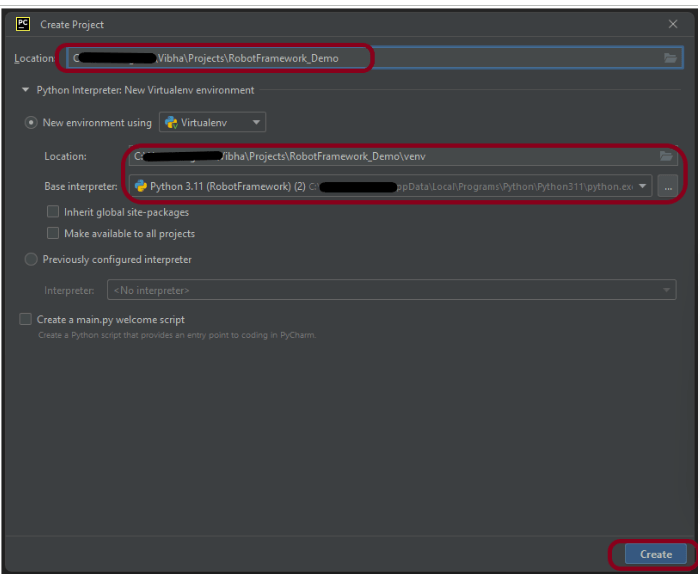
    Step 1.1 – Open PyCharm and create a new project. Go to File and select New Project from the main menu.

    Step 1.2 – Choose the project location. Click the “Browse” button next to the Location field and specify the directory for your project.

    Deselect the Create a main.py welcome script checkbox because you will create a new Python file for this tutorial.

    Click on the “Create” Button.

    Step 1.3 – A new dialog appears asking to open the project using any one of the given options. I have selected New Window as I like to have separate windows for each project.

    Below is the image of the new project created in PyCharms.

    Step 2 – Create a new directory in the new project

    Right-Click on the project, select New->Directory and provide name as Tests

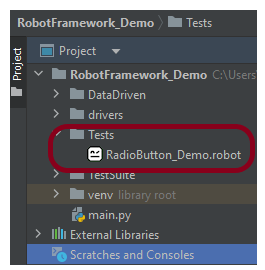
    Below is the image of the new directory.

    Step 3 – Create a robot Test File

    Right-click on the new directory and select New File and provide the name as RadioButton_Demo.robot as shown below:

    Step 4 – Download ChromeBinaries from the below location

    The tests are going to use the Chrome browser, so we need to download the ChromeBinaries to open a blank browser in Chrome.

    https://chromedriver.chromium.org/

    The chromedriver and geckodriver are placed in a folder name drivers in the RobotFramework_Demo project. I have renamed chromedriver to Chrome and geckodriver to Firefox.

    Step 5 – Automate the selection of options for Radio Buttons

    We are now going to write test cases. The test case details will be as follows −

    • Open the browser and copy URL − https://demo.automationtesting.in/Register.html in Chrome
    • Verify that the page contains the Radio Buttons.
    • Verify that the page does not contain the Radio Button. Provided the locator for the checkbox
    • Click on “Male” Radio Button
    • Verify that “Male” Radio Button is selected

    To work with the Radio Button, we need a locator. A locator is an identifier for the textbox like id, name, class, xpath, css selector, etc.

    To know more about locators, refer to these Selenium Tutorials:

     Locators in Selenium – Locate by ID, ClassName,  Name, TagName,  LinkText, PartialLinkText

    Dynamic XPath  in Selenium WebDriver

    CSS Selector in Selenium WebDriver

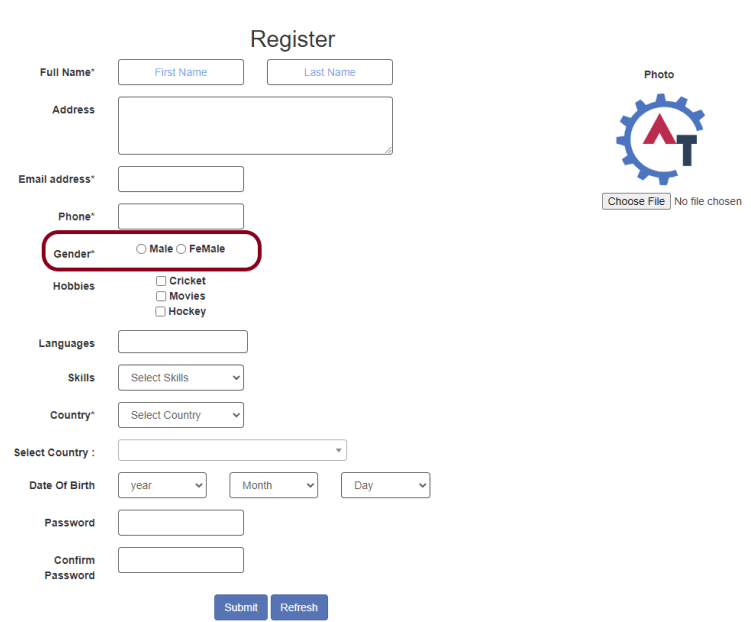
    The below page shows that we have 2 Radio Buttons – Male and FeMale.

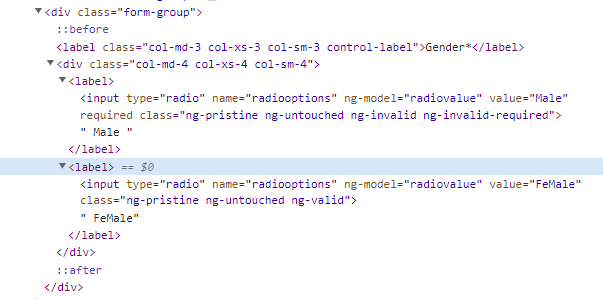
    Let us inspect the locator of the Radio Button.

    Below is an example of selecting the “Male” option in Radio Buttons.

    *** Settings ***
    Documentation    To validate the Login Form
    Library     SeleniumLibrary
    Test Teardown    Close Browser
    
    *** Test Cases ***
    Select an option of Radio Button
        Open the Browser with URL
        Select impressive option from 3 radio buttons
        Verify that the radio button is selected
    
    
    *** Keywords ***
    Open the Browser with URL
        Create Webdriver    Chrome  executable_path=/Vibha_Personal/RobotFramework_Demo/drivers/chromedriver_linux64
        Go To    https://demo.automationtesting.in/Register.html
        Maximize Browser Window
        Set Selenium Implicit Wait    2
    
    
    Select impressive option from 3 radio buttons
        Page Should Contain Radio Button    name:radiooptions
        Page Should Not Contain Radio Button    id:checkbox1    #This is checkbox
        Select Radio Button    radiooptions    Male
    
    
    Verify that the radio button is selected
        Radio Button Should Be Set To    radiooptions    Male


    All the below-mentioned keywords are derived from SeleniumLibrary. The functionality of keywords mentioned above:

    1. Create Webdriver − The keyword creates an instance of Selenium WebDriver.

    2. Go To – This keyword navigates the current browser window to the provided URL – https://demo.automationtesting.in/Register.html.

    3. Maximize Browser Window – This keyword maximizes the current browser window.

    4. Set Selenium Implicit Wait – This keyword sets the implicit wait value used by Selenium.

    5. Page Should Contain Radio Button − This keyword is used to find the radio buttons that are located on the current page.

    6. Page Should Not Contain Radio Button – This keyword is used to find that the radio buttons are not locator on the current page.

    7. Select Radio Button – This keyword is used to click on the “Male” option of the radio buttons.

    8. Radio Button Should Be Set To – This keyword verifies if the radio button “Male” is selected or not.

    These keywords are present in SeleniumLibrary. To know more about these keywords, please refer to this document – https://robotframework.org/SeleniumLibrary/SeleniumLibrary.htm.

    To run this script, go to the command line and go to directory tests.

    Step 6 – Execute the tests

    We need the below command to run the Robot Framework script.

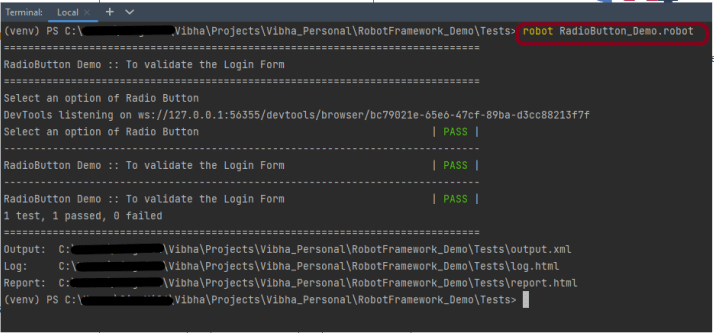
    robot RadioButton_Demo.robot
    

    The output of the above program is

    Step 7 – View Report and Log

    We have the test case passed. The Robot Framework generates log.html, output.xml, and report.html by default.

    Let us now see the report and log details.

    Report

    Right-click on report.html. Select Open In->Browser->Chrome(any browser of your wish).

    The Report generated by the framework is shown below:

    Log

    Robot Framework has multiple log levels that control what is shown in the automatically generated log file. The default Robot Framework log level is INFO.

    Right-click on log.html. Select Open In->Browser->Chrome(any browser of your wish).

    That’s it! Congratulations on making it through this tutorial and hope you found it useful! Happy Learning!!
    What is Resource File in Robot Framework 

    HOME

    What is Resource File?

    In Robot Framework, a resource file is a file that contains reusable keywords, variables, and other settings that can be used across multiple test cases or test suites. Resource files are used to organize and centralize common functionality and reduce duplication of effort in test automation.

    Resource files are typically created in plain text format using the .robot file extension. They can include user-defined keywords, as well as built-in keywords and libraries that are imported for use in test cases. Variables can also be defined in resource files, and these variables can be used to store data that is used across multiple test cases.

    Example of Resource File

    *** Settings ***
    Documentation    A resource file with reusable keywords and variables.
    Library     SeleniumLibrary
    
    *** Variables ***
    ${valid_username}     Admin
    ${valid_password}       admin123
    ${invalid_username}     1234
    ${invalid_password}     45678
    ${url}      https://opensource-demo.orangehrmlive.com/web/index.php/auth/login
    
    *** Keywords ***
    
    Open the Browser with URL
        Create Webdriver    Chrome  executable_path=/Vibha_Personal/RobotFramework/drivers/chromedriver_linux64
        Go To       ${url}
        Maximize Browser Window
        Set Selenium Implicit Wait    5
    
    Close Browser Session
        Close Browser
    

    In this tutorial, we will create a project in PyCharms and show the use of Resource File in Robot Framework

    Prerequisite:

    1. Install Python
    2. Install PIP
    3. Install Robot Framework
    4. Install Robot framework Selenium Library
    5. Install PyCharm IDE

    Please refer to this tutorial to install Robot Framework – How to install and setup Robot Framework for Python.

    Implementation Steps:

    Step 1 – Open PyCharm and create a new project. Go to File and select New Project from the main menu.

    Step 2 – Choose the project location. Click the “Browse” button next to the Location field and specify the directory for your project.

    Deselect the Create a main.py welcome script checkbox because you will create a new Python file for this tutorial.

    Click on the Create Button.

    Step 3 – A new dialog will appear asking to Open the project using any one of the given options. I have selected New Window as I like to have separate windows for each project.

    Below is the image of the new project created in PyCharms.

    How to create a test using Resource File in Robot Framework?

    Step 1 – Create a new directory in the new project

    Right-Click on the project, select New->Directory and provide name as PageObject

    Right-click on the new directory and select New File and provide the name as LoginPage.robot and resources.robot as shown below:

    Step 2 – Download ChromeBinaries from the below location

    The tests are going to use the Chrome browser, so we need to download the ChromeBinaries to open a blank browser in Chrome.

    https://chromedriver.chromium.org/

    Step 3 – Create a Test using the Resource file

    We are now going to write 2 test cases. The test case details will be as follows :

    Test 1

    Test 2

    We need locators to identify various web elements on the page.

    To know more about locators, refer to these Selenium Tutorials:

     Locators in Selenium – Locate by ID, ClassName,  Name, TagName,  LinkText, PartialLinkText

    Dynamic XPath  in Selenium WebDriver

    CSS Selector in Selenium WebDriver

    Below is an example of a LoginPage.robot

    *** Settings ***
    Documentation       Tests to login to Login Page
    Library     SeleniumLibrary
    Resource       resources.robot
    
    *** Variables ***
    ${Login_Error_Message}      css:.oxd-alert-content--error
    ${Dashboard_Text}       css:.oxd-topbar-header-breadcrumb-module
    
    *** Test Cases ***
    
    Validate Unsuccessful Login
        Open the Browser with URL
        Fill the login form     ${valid_username}       ${invalid_password}
        verify error message is correct
        Close Browser Session
    
    Validate successful Login
        Open the Browser with URL
        Fill the login form     ${valid_username}       ${valid_password}
        Verify Dashboard page opens
        Close Browser Session
    
    *** Keywords ***
    
    Fill the login form
        [Arguments]    ${username}      ${password}
       Input Text    css:input[name=username]   ${username}
       Input Password    css:input[name=password]   ${password}
       Click Button    css:.orangehrm-login-button
    
    
    Verify error message is correct
        Element Text Should Be    ${Login_Error_Message}    Invalid credentials
    
    Verify Dashboard page opens
        Element Text Should Be    ${Dashboard_Text}     Dashboard
    

    As you can see, some keywords are not present in this file. The keywords which we know are going to be common for other test files are placed in a Resource File. We have imported the Resource file by using this command in Settings.

    *** Settings ***
    Resource       resources.robot
    

    Below is an example of the resources.robot file.

    *** Settings ***
    Documentation    A resource file with reusable keywords and variables.
    Library     SeleniumLibrary
    
    *** Variables ***
    ${valid_username}     Admin
    ${valid_password}       admin123
    ${invalid_username}     1234
    ${invalid_password}     45678
    ${url}      https://opensource-demo.orangehrmlive.com/web/index.php/auth/login
    
    *** Keywords ***
    
    Open the Browser with URL
        Create Webdriver    Chrome  executable_path=/Vibha_Personal/RobotFramework/drivers/chromedriver_linux64
        Go To       ${url}
        Maximize Browser Window
        Set Selenium Implicit Wait    5
    
    Close Browser Session
        Close Browser
    

    All the below-mentioned keywords are derived from SeleniumLibrary. The functionality of keywords mentioned above:

    1. Create Webdriver − The keyword creates an instance of Selenium WebDriver.

    2. Go To – This keyword navigates the current browser window to the provided url.

    3. Maximize Browser Window – This keyword maximizes the current browser window.

    4. Set Selenium Implicit Wait – This keyword sets the implicit wait value used by Selenium.

    5. Input Text − This keyword is used to type the given text in the specified textbox identified by the locator name:username.

    6. Input Password – This keyword is used to type the given text in the specified password identified by the locator name:password.

    The difference compared to Input Text is that this keyword does not log the given password on the INFO level.

    7. Click button – This keyword is used to click on the button with location css:.orangehrm-login-button.

    8. ${result} – This is a variable that holds the text value of the error message that is located by css:.oxd-alert-content-text

    9. Get Text – This keyword returns the text value of the element identified by located by css:.oxd-alert-content-text.

    10. Should Be Equal As Strings – This keyword is used from builtIn keyword. This keyword returns false if objects are unequal after converting them to strings.

    To run this script, go to the command line and go to directory tests.

    We need the below command to run the Robot Framework script.

     robot LoginPage.robot
    

    The output of the above program is

    We have the test case passed. The Robot Framework generates log.html, output.xml and report.html by default.

    Let us now see the report and log details.

    Report

    Right-click on report.html. Select Open In->Browser->Chrome(any browser of your wish).

    The Report generated by the framework is shown below:

    Log

    Robot Framework has multiple log levels that control what is shown in the automatically generated log file. The default Robot Framework log level is INFO.

    Right-click on log.html. Select Open In->Browser->Chrome(any browser of your wish).

    That’s it! Congratulations on making it through this tutorial and hope you found it useful! Happy Learning!!